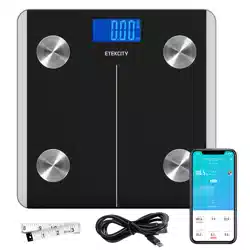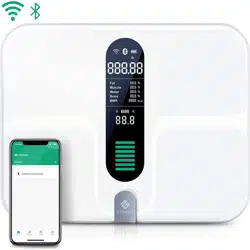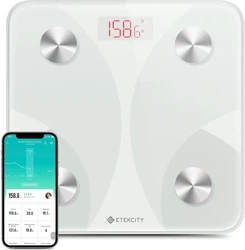
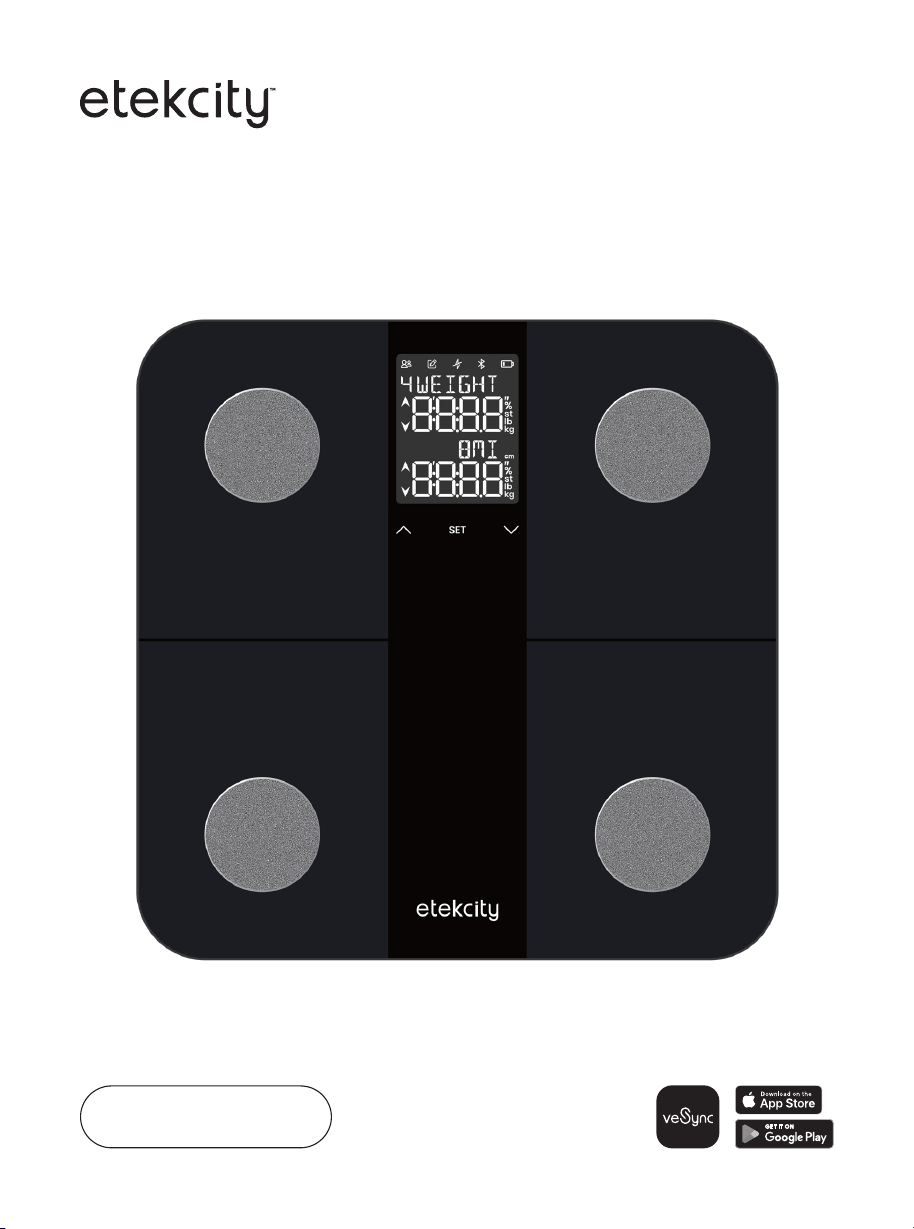
Smart Fitness Scale
User Manual
2 3
Table of Contents
Package Contents
Specifications
Safety Information
Getting to Know Your Smart Scale
Display Diagram
Display Icons
VeSync App Setup
Before First Use
Using the Smart Scale
Maintenance
Troubleshooting
Limited Warranty Information
Customer Support
Questions or Concerns?
Mon–Fri, 9:00 am–5:00 pm PST/PDT
support@etekcity.com • 1-855-686-3835
2
2
3
4
5
5
6
7
11
9
10
14
16
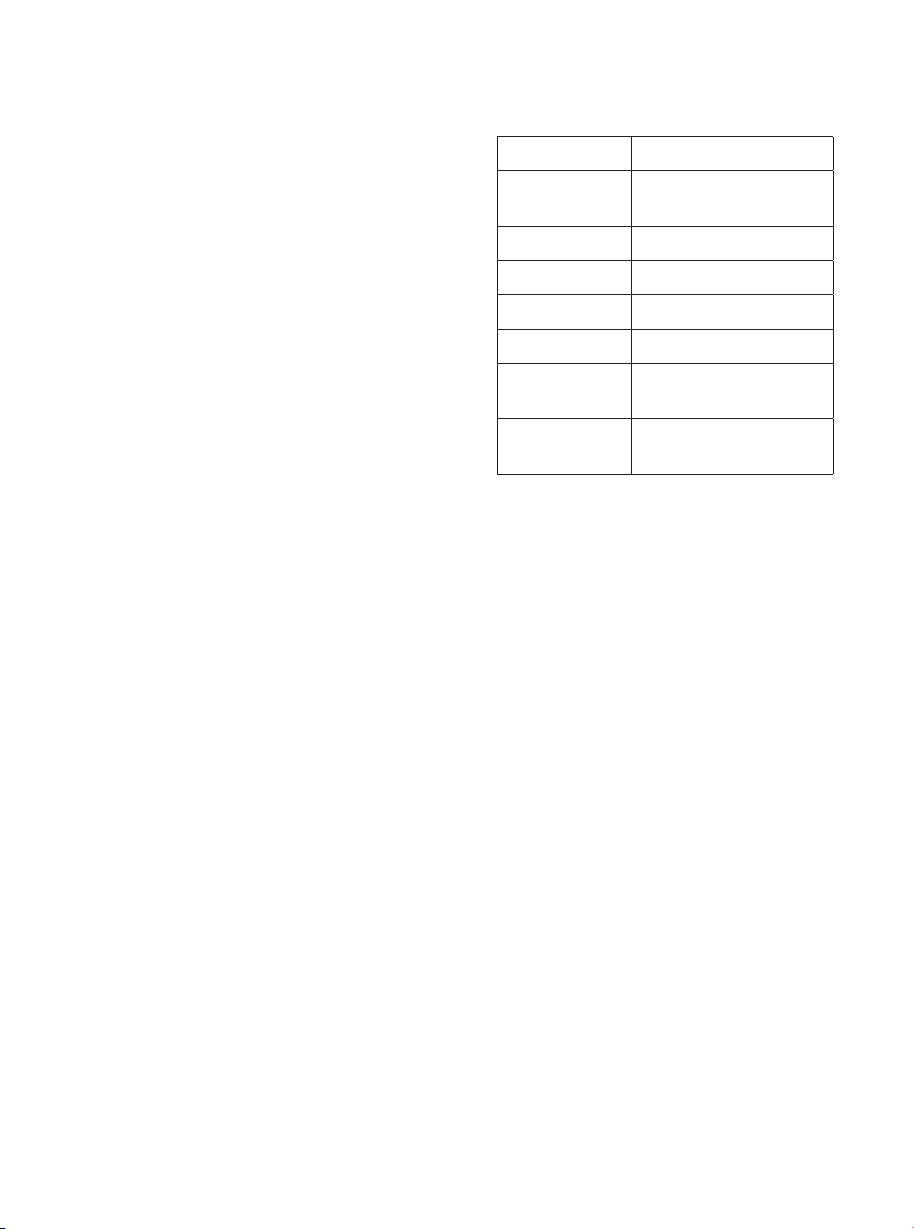
Package Contents
Specifications
Model EFS-C651-KUS
Weight
Capacity
400 lb / 180 kg / 28 st
Increments 0.1 lb / 0.05 kg
Weight Units lb / kg / st
Platform Tempered Glass
Battery 4 x 1.5V AAA Batteries
Dimensions 11 x 11 x 0.9 in /
28 x 28 x 2.4 cm
Operating
Systems
iOS
®
15.0+ or
Android
™
8.0+
1 x Smart Fitness Scale
4 x 1.5V AAA Batteries (Pre-Installed)
1 x Quick Start Guide
Please read and follow all instructions and safety guidelines in this manual.
READ AND SAVE THESE
INSTRUCTIONS
Safety Information
MEDICAL
GENERAL USE
• Check the scale before using. Do not use
the scale if it is damaged in any way.
• Do not strike or bang on the scale.
• Do not use the scale if there is a crack
on the glass. While tempered glass
is stronger and fractures more safely
than ordinary glass, it may shatter
unexpectedly after developing a slight
crack. If you see a crack, contact
Customer Support (see page 16).
• The glass platform is slippery when wet.
Always make sure the platform and
your feet are dry before stepping on for
measurement.
• Place the scale on a hard, flat surface to
avoid tipping.
• To weigh safely and accurately, stand
with your feet shoulder-width apart while
on the scale.
WARNING: This scale uses a harmless
electrical current to measure body fat.
Consult a healthcare professional before
using the smart scale if you use electronic
medical equipment such as a pacemaker.
• This scale should not be used to
diagnose or treat any medical condition.
• Scale data should not be used as a
substitute for medical advice from a
healthcare professional.
• Do not stand on the edge of the scale or
jump on the scale.
• Avoid standing on the scale for a long
period of time, or when not measuring
yourself.
• Do not overload the scale. Maximum
weight capacity is 400 lb / 180 kg / 28 st.
• Keep the scale in a cool area with low
humidity.
• Keep the scale away from heat sources,
such as ovens or heaters. Avoid
temperature fluctuations.
• Store the scale in a horizontal position,
not a vertical position.
• This scale is not to be used by persons
(including children) with reduced
physical, sensory or mental capabilities,
or lack of experience and knowledge,
unless they have been given supervision
or instruction concerning use of the
appliance by a person responsible for
their safety.
• Handle with care. Not for commercial
use. Household use only.
BATTERIES
• Do not mix new and old batteries.
• If the low battery indicator appears on
the display, replace the batteries.
• If the scale is not in use for a long
period of time, remove the batteries to
extend the lifetime of the scale.
SAVE THESE INSTRUCTIONS

2 3
Table of Contents
Package Contents
Specifications
Safety Information
Getting to Know Your Smart Scale
Display Diagram
Display Icons
VeSync App Setup
Before First Use
Using the Smart Scale
Maintenance
Troubleshooting
Limited Warranty Information
Customer Support
Questions or Concerns?
Mon–Fri, 9:00 am–5:00 pm PST/PDT
support@etekcity.com • 1-855-686-3835
2
2
3
4
5
5
6
7
11
9
10
14
16
Package Contents
Specifications
Model EFS-C651-KUS
Weight
Capacity
400 lb / 180 kg / 28 st
Increments 0.1 lb / 0.05 kg
Weight Units lb / kg / st
Platform Tempered Glass
Battery 4 x 1.5V AAA Batteries
Dimensions 11 x 11 x 0.9 in /
28 x 28 x 2.4 cm
Operating
Systems
iOS
®
15.0+ or
Android
™
8.0+
1 x Smart Fitness Scale
4 x 1.5V AAA Batteries (Pre-Installed)
1 x Quick Start Guide
Please read and follow all instructions and safety guidelines in this manual.
READ AND SAVE THESE
INSTRUCTIONS
Safety Information
MEDICAL
GENERAL USE
• Check the scale before using. Do not use
the scale if it is damaged in any way.
• Do not strike or bang on the scale.
• Do not use the scale if there is a crack
on the glass. While tempered glass
is stronger and fractures more safely
than ordinary glass, it may shatter
unexpectedly after developing a slight
crack. If you see a crack, contact
Customer Support (see page 16).
• The glass platform is slippery when wet.
Always make sure the platform and
your feet are dry before stepping on for
measurement.
• Place the scale on a hard, flat surface to
avoid tipping.
• To weigh safely and accurately, stand
with your feet shoulder-width apart while
on the scale.
WARNING: This scale uses a harmless
electrical current to measure body fat.
Consult a healthcare professional before
using the smart scale if you use electronic
medical equipment such as a pacemaker.
• This scale should not be used to
diagnose or treat any medical condition.
• Scale data should not be used as a
substitute for medical advice from a
healthcare professional.
• Do not stand on the edge of the scale or
jump on the scale.
• Avoid standing on the scale for a long
period of time, or when not measuring
yourself.
• Do not overload the scale. Maximum
weight capacity is 400 lb / 180 kg / 28 st.
• Keep the scale in a cool area with low
humidity.
• Keep the scale away from heat sources,
such as ovens or heaters. Avoid
temperature fluctuations.
• Store the scale in a horizontal position,
not a vertical position.
• This scale is not to be used by persons
(including children) with reduced
physical, sensory or mental capabilities,
or lack of experience and knowledge,
unless they have been given supervision
or instruction concerning use of the
appliance by a person responsible for
their safety.
• Handle with care. Not for commercial
use. Household use only.
BATTERIES
• Do not mix new and old batteries.
• If the low battery indicator appears on
the display, replace the batteries.
• If the scale is not in use for a long
period of time, remove the batteries to
extend the lifetime of the scale.
SAVE THESE INSTRUCTIONS
4 5
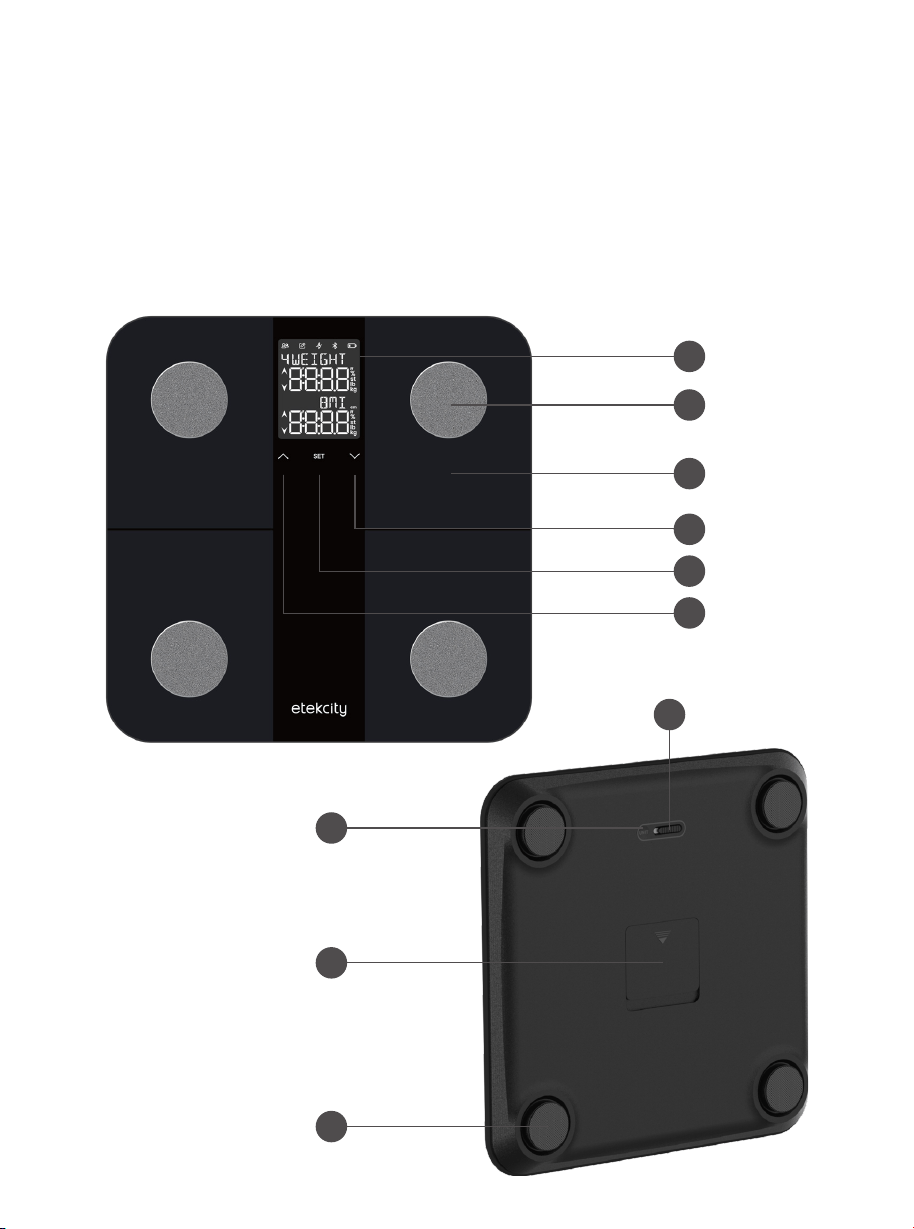
Getting to Know Your Smart Scale
A. Weighing Platform
B. LCD Display
C. Conductive Areas
D. Unit Button
E. Default/Manual
Setting Switch
F. Battery
Compartment
G. Anti-Skid Padding
H. Up Button
I. Set Button
J. Down Button
A
H
I
J
G
F
D
B
D
A
B
C
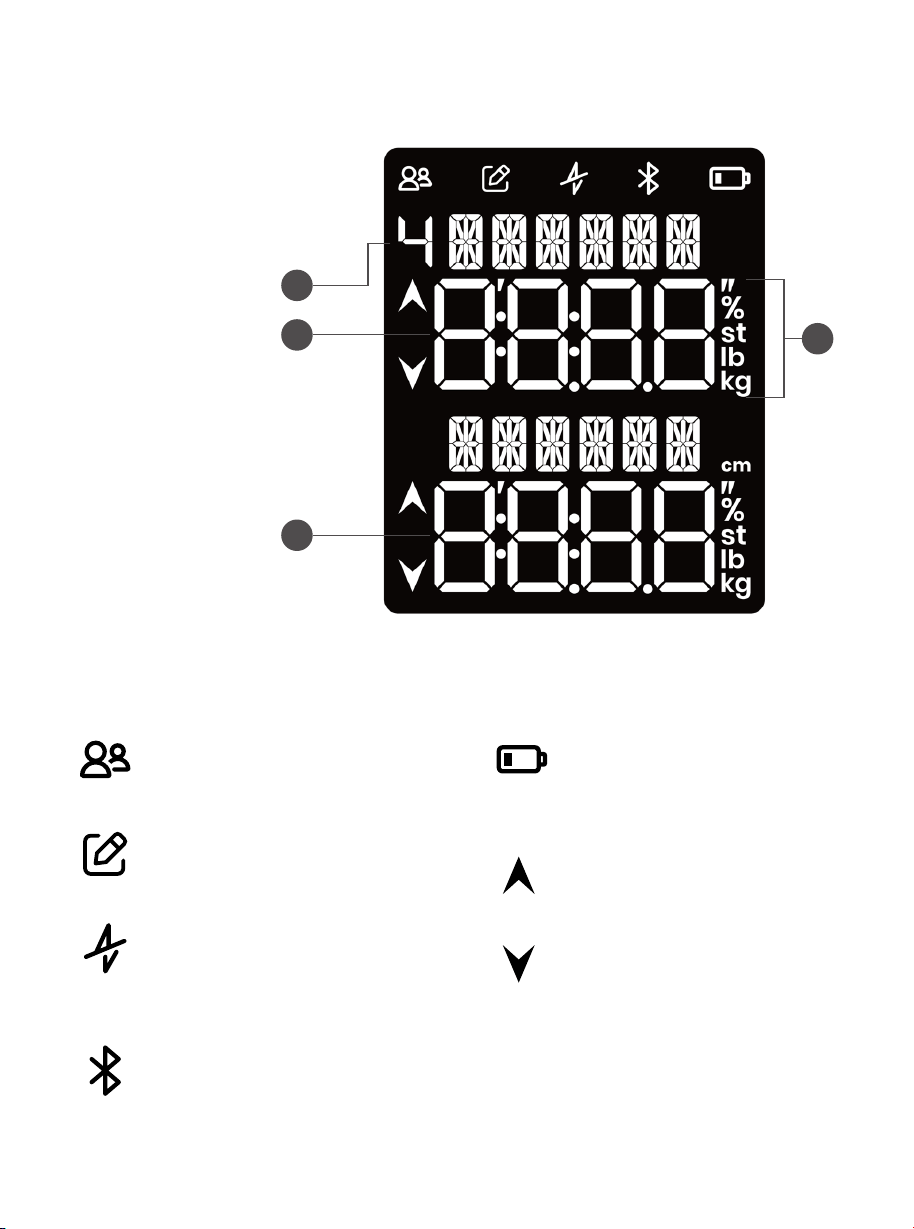
Display Diagram
Display Icons
A. Biometric
B. Measurement
C. Measurement Unit
D. User ID (Manual mode only)
E
C
User Icon (Manual Mode only)
Increase/Decrease Indicators
display the change in current
result compared to previous
result.
Low Battery Indicator only
shows when the batteries are
getting low and need to be
replaced.
Manual Mode Indicator
Zero-Current Mode is on
(electrical current is o).
Only weight and BMI are
measured.
Bluetooth
®
Indicator shows
when the scale is connected
to the VeSync app.
DISPLAY CONTROLS
Note: Controls only show when
in Manual Mode. They will not
show in Default Mode.
4 5
Getting to Know Your Smart Scale
A. Weighing Platform
B. LCD Display
C. Conductive Areas
D. Unit Button
E. Default/Manual
Setting Switch
F. Battery
Compartment
G. Anti-Skid Padding
H. Up Button
I. Set Button
J. Down Button
A
H
I
J
G
F
D
B
D
A
B
C
Display Diagram
Display Icons
A. Biometric
B. Measurement
C. Measurement Unit
D. User ID (Manual mode only)
E
C
User Icon (Manual Mode only)
Increase/Decrease Indicators
display the change in current
result compared to previous
result.
Low Battery Indicator only
shows when the batteries are
getting low and need to be
replaced.
Manual Mode Indicator
Zero-Current Mode is on
(electrical current is o).
Only weight and BMI are
measured.
Bluetooth
®
Indicator shows
when the scale is connected
to the VeSync app.
DISPLAY CONTROLS
Note: Controls only show when
in Manual Mode. They will not
show in Default Mode.
6 7
1. To download the VeSync app,
scan the QR code or search “VeSync”
in the Apple App Store
®
or Google
Play Store.
VeSync App Setup Before First Use
Using the Smart Scale
Note:
• The VeSync app is continually being
improved and may change over time. If
there are any dierences, follow the in-app
instructions.
• Requires device to run app, Wi-Fi or mobile
data, and iOS version 12 or Android version
6 (or above). Standard data and messaging
rates may apply. Registration is required.
Note:
• Placing the scale on soft surfaces
such as shaggy carpet may cause
inaccurate measurements or tipping.
• The scale uses calibration-free
technology, so you don’t need to
recalibrate after replacing the
batteries.
Note:
• If you’re wearing shoes, the scale can only
measure your weight. To measure other
biometrics, such as body fat, you must step
on the scale with bare feet.
• If this is not your first time standing on the
scale, the Increase/Decrease Indicators
will show on the display so you can track
your progress compared to your previous
biometric results.
Note: For Android™ users, choose “Allow”
to use VeSync.
Note: You must create your own VeSync
account to use third-party services and
products. These will not work with a guest
account. With a VeSync account, you
can also allow your family and friends to
control your smart scale.
Note: Your phone must have
Location turned on while your
phone is connecting to your smart
scale. This is required to establish the
Bluetooth
®
connection. You can turn
Location o after your smart scale is
finished connecting to the VeSync app.
Note: If the scale does not turn on, the
batteries need to be replaced (see
Replacing the Batteries, page 9).
Note: If you don’t identify with the available
gender options (or are unsure), pick the option
that you think best physically matches you.
This choice is used for physical measurements,
such as body fat percentages.
2. Open the VeSync app. Log In or
Sign Up.
3. Follow the in-app instructions to set
up your smart scale.
CREATING A USER
WEIGHING IN
DEFAULT MODE
Important: Entering inaccurate
information will make the scale’s
measurements less accurate.
If you are a new user, you will need
to enter physical information before
weighing yourself for the first time so the
scale can calculate your body metrics.
The scale only displays up to 4 user IDs
at a time. You can select which users you
want displayed or manage more user
profiles in Device Settings in the app.
1. Open the battery compartment
underneath the scale.
2. Remove the insulator strip from the
battery compartment.
1. Make sure your scale is connected to
the VeSync app (see page 6).
2. For the best results, place the scale
on a hard, flat surface.
3. Place dry, bare feet on the scale’s
conductive areas. Continue standing
on the scale to view your calculated
biometrics.
Default Mode uses the VeSync app
to track 13 of your biometrics. It is
recommended to use the scale in
Default Mode to take full advantage
of your scale. In this mode, your scale
measures and tracks the following
biometrics:
• Weight
• BMI
• BMR
• Body Fat
• Muscle Mass
• Skeletal Muscle
• Protein
• Subcutaneous Fat
• Body Water
• Bone Mass
• Fat-Free Body Weight
• Visceral Fat
• Metabolic Age

6 7
1. To download the VeSync app,
scan the QR code or search “VeSync”
in the Apple App Store
®
or Google
Play Store.
VeSync App Setup Before First Use
Using the Smart Scale
Note:
• The VeSync app is continually being
improved and may change over time. If
there are any dierences, follow the in-app
instructions.
• Requires device to run app, Wi-Fi or mobile
data, and iOS version 12 or Android version
6 (or above). Standard data and messaging
rates may apply. Registration is required.
Note:
• Placing the scale on soft surfaces
such as shaggy carpet may cause
inaccurate measurements or tipping.
• The scale uses calibration-free
technology, so you don’t need to
recalibrate after replacing the
batteries.
Note:
• If you’re wearing shoes, the scale can only
measure your weight. To measure other
biometrics, such as body fat, you must step
on the scale with bare feet.
• If this is not your first time standing on the
scale, the Increase/Decrease Indicators
will show on the display so you can track
your progress compared to your previous
biometric results.
Note: For Android™ users, choose “Allow”
to use VeSync.
Note: You must create your own VeSync
account to use third-party services and
products. These will not work with a guest
account. With a VeSync account, you
can also allow your family and friends to
control your smart scale.
Note: Your phone must have
Location turned on while your
phone is connecting to your smart
scale. This is required to establish the
Bluetooth
®
connection. You can turn
Location o after your smart scale is
finished connecting to the VeSync app.
Note: If the scale does not turn on, the
batteries need to be replaced (see
Replacing the Batteries, page 9).
Note: If you don’t identify with the available
gender options (or are unsure), pick the option
that you think best physically matches you.
This choice is used for physical measurements,
such as body fat percentages.
2. Open the VeSync app. Log In or
Sign Up.
3. Follow the in-app instructions to set
up your smart scale.
CREATING A USER
WEIGHING IN
DEFAULT MODE
Important: Entering inaccurate
information will make the scale’s
measurements less accurate.
If you are a new user, you will need
to enter physical information before
weighing yourself for the first time so the
scale can calculate your body metrics.
The scale only displays up to 4 user IDs
at a time. You can select which users you
want displayed or manage more user
profiles in Device Settings in the app.
1. Open the battery compartment
underneath the scale.
2. Remove the insulator strip from the
battery compartment.
1. Make sure your scale is connected to
the VeSync app (see page 6).
2. For the best results, place the scale
on a hard, flat surface.
3. Place dry, bare feet on the scale’s
conductive areas. Continue standing
on the scale to view your calculated
biometrics.
Default Mode uses the VeSync app
to track 13 of your biometrics. It is
recommended to use the scale in
Default Mode to take full advantage
of your scale. In this mode, your scale
measures and tracks the following
biometrics:
• Weight
• BMI
• BMR
• Body Fat
• Muscle Mass
• Skeletal Muscle
• Protein
• Subcutaneous Fat
• Body Water
• Bone Mass
• Fat-Free Body Weight
• Visceral Fat
• Metabolic Age
8 9
1. Move the Default/Manual Settings
Switch (underneath the scale) to the
right to enable Manual Mode.
WEIGHING IN MANUAL MODE
WEIGHING MODES
SWITCHING UNITS
Manual Mode allows you to use the
scale without the VeSync app. In
Manual Mode, your scale only measures
and tracks 4 biometrics:
• Zero-Current Mode: Turns o the
scale’s electrical current and only
provides measurements for weight
and BMI. This mode can be helpful for
users who are pregnant or who have
implanted medical devices, such as
pacemakers.
• To switch between pounds (lb),
kilograms (kg), and stone (st), press
UNIT underneath the scale.
• Optionally, you can change the
measurement unit in the VeSync app.
• Baby Mode: Baby Mode will only
measure weight and BMI and will not
measure other biometrics. This mode
can be helpful to users who want to
weigh their baby or pet.
• Weight
• BMI
• Body Fat
• Muscle Mass
Note:
• To access additional smart features and
record your health data, connect the scale
to the VeSync app, page 6.
• During Manual Mode, you can still connect
the scale to the VeSync app without
adjusting the Default/Manual Settings
Switch.
Note:
• If you’re wearing shoes, the scale can only
measure your weight. To measure other
biometrics, such as body fat, you must step
on the scale with bare feet.
• If this is not your first time standing on the
scale, the Increase/Decrease Indicators
will show on the display so you can track
your progress compared to your previous
biometric result.
2. For the best results, place the scale on
a hard, flat surface.
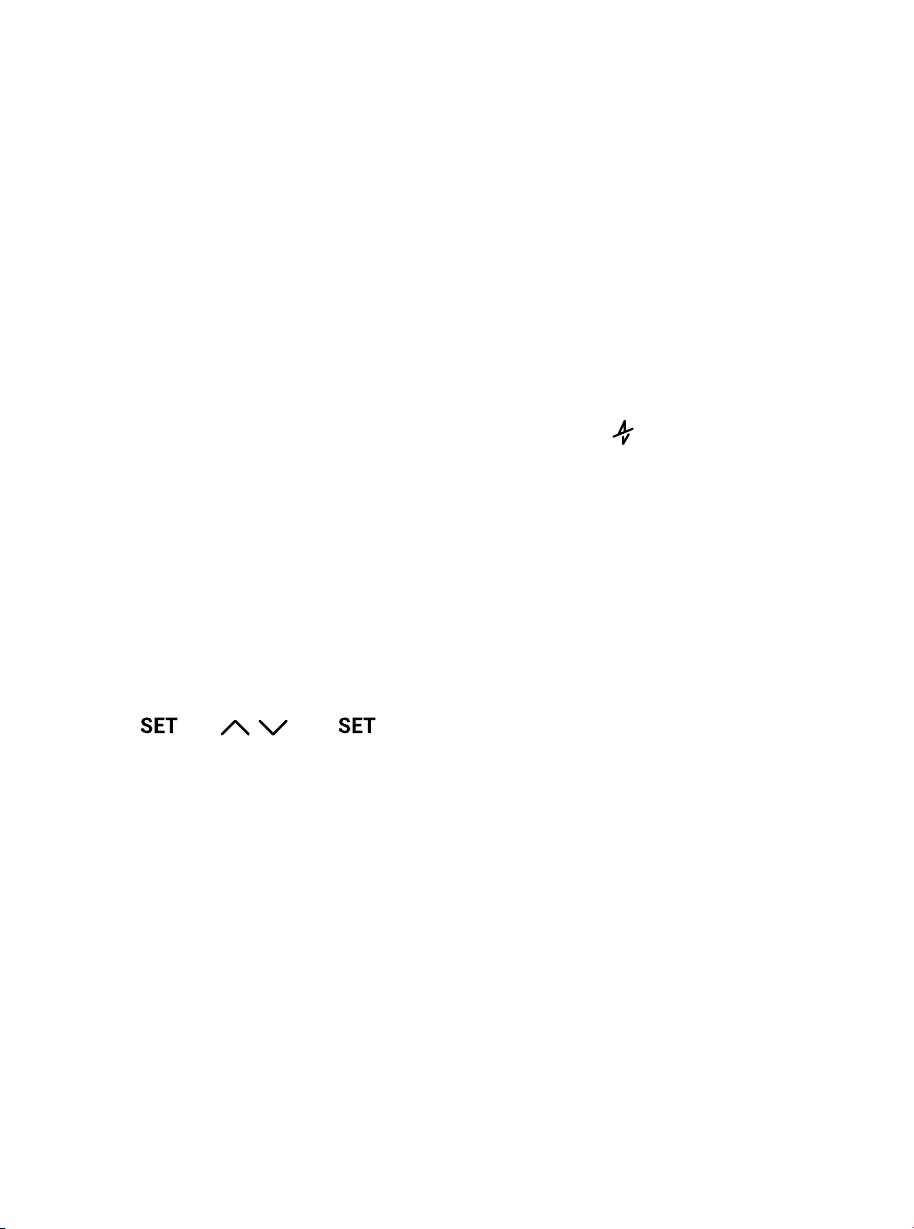
3. Tap . Use , , and to
enter your gender, age, and height
before stepping on the scale.
4. Wait for the display to show “STEPON”.
5. Place dry, bare feet on the scale’s
conductive areas. Continue standing
on the scale to view your biometrics
(Weight, BMI, Body Fat, and Muscle
Mass).
Note: The scale is in Default Mode upon
first open.
Note: You can also turn on Zero-Current Mode
in the VeSync app.
Note: You can only turn on Baby Mode in
the VeSync app.
• To turn Zero-Current Mode on,
press and hold UNIT underneath
the scale for 5 seconds. The display
will show to indicate Zero-
Current Mode is enabled.
• To turn Baby Mode on, make sure
your scale is connected to the
VeSync app and follow the in-app
instructions.
Using the Smart Scale (cont.)
CLEANING THE SMART
SCALE
Maintenance
• Use a slightly damp cloth to clean
the surface of the scale, followed by
a soft, dry cloth to wipe away any
remaining moisture.
• Do not use chemical or abrasive
cleaning agents to clean the scale.
REPLACING THE BATTERIES
The display will show when the
batteries need to be replaced.
1. Open the battery compartment
underneath the scale.
2. Remove the old batteries and
dispose of them properly.
3. Install 4 new 1.5V AAA batteries,
making sure they are placed under
the correct polarity.
4. Replace the battery compartment
cover.
Note: The scale uses calibration-free
technology, so you don’t need to
recalibrate after replacing the batteries.

8 9
1. Move the Default/Manual Settings
Switch (underneath the scale) to the
right to enable Manual Mode.
WEIGHING IN MANUAL MODE
WEIGHING MODES
SWITCHING UNITS
Manual Mode allows you to use the
scale without the VeSync app. In
Manual Mode, your scale only measures
and tracks 4 biometrics:
• Zero-Current Mode: Turns o the
scale’s electrical current and only
provides measurements for weight
and BMI. This mode can be helpful for
users who are pregnant or who have
implanted medical devices, such as
pacemakers.
• To switch between pounds (lb),
kilograms (kg), and stone (st), press
UNIT underneath the scale.
• Optionally, you can change the
measurement unit in the VeSync app.
• Baby Mode: Baby Mode will only
measure weight and BMI and will not
measure other biometrics. This mode
can be helpful to users who want to
weigh their baby or pet.
• Weight
• BMI
• Body Fat
• Muscle Mass
Note:
• To access additional smart features and
record your health data, connect the scale
to the VeSync app, page 6.
• During Manual Mode, you can still connect
the scale to the VeSync app without
adjusting the Default/Manual Settings
Switch.
Note:
• If you’re wearing shoes, the scale can only
measure your weight. To measure other
biometrics, such as body fat, you must step
on the scale with bare feet.
• If this is not your first time standing on the
scale, the Increase/Decrease Indicators
will show on the display so you can track
your progress compared to your previous
biometric result.
2. For the best results, place the scale on
a hard, flat surface.
3. Tap . Use , , and to
enter your gender, age, and height
before stepping on the scale.
4. Wait for the display to show “STEPON”.
5. Place dry, bare feet on the scale’s
conductive areas. Continue standing
on the scale to view your biometrics
(Weight, BMI, Body Fat, and Muscle
Mass).
Note: The scale is in Default Mode upon
first open.
Note: You can also turn on Zero-Current Mode
in the VeSync app.
Note: You can only turn on Baby Mode in
the VeSync app.
• To turn Zero-Current Mode on,
press and hold UNIT underneath
the scale for 5 seconds. The display
will show to indicate Zero-
Current Mode is enabled.
• To turn Baby Mode on, make sure
your scale is connected to the
VeSync app and follow the in-app
instructions.
Using the Smart Scale (cont.)
CLEANING THE SMART
SCALE
Maintenance
• Use a slightly damp cloth to clean
the surface of the scale, followed by
a soft, dry cloth to wipe away any
remaining moisture.
• Do not use chemical or abrasive
cleaning agents to clean the scale.
REPLACING THE BATTERIES
The display will show when the
batteries need to be replaced.
1. Open the battery compartment
underneath the scale.
2. Remove the old batteries and
dispose of them properly.
3. Install 4 new 1.5V AAA batteries,
making sure they are placed under
the correct polarity.
4. Replace the battery compartment
cover.
Note: The scale uses calibration-free
technology, so you don’t need to
recalibrate after replacing the batteries.

10 11
Troubleshooting
The scale doesn’t turn on.
• If the scale won’t turn on or the battery is low, the batteries need to be replaced.
My scale will only measure my weight, not other biometrics.
• If you’re wearing shoes or socks, the scale cannot measure biometrics such as body fat.
Step on the scale with bare feet.
• Make sure to place your bare feet on the scale’s conductive areas.
• Depending on which biometrics you want to see, make sure the scale is connected to the
VeSync app (see VeSync App Setup, page 6).
• Check to see if you are in Default Mode or Manual Mode. In Manual Mode, the scale will
only provide the weight, BMI, body fat, and muscle mass.
• Check if Zero-Current Mode is on. If it is, the scale will only provide measurements for
weight and BMI, no other biometrics.
When I stand on the scale, it doesn’t respond.
• The scale may need to be reset. Press and hold UNIT for 15 seconds to reset the scale.
• You may need to restart the scale. Remove the batteries and reinsert them to restart
the scale.
If the smart scale still cannot connect via Bluetooth, please try the following:
• Restart Bluetooth or restart your smartphone.
• Press and hold UNIT for 15 seconds to reset the scale.
• Tap the “Disconnected” button on the top of the weigh-in screen in the VeSync app to
view troubleshooting tips.
If the issue still exists, please contact our helpful Customer Support team (see page 16).
The scale readings seem unstable or inaccurate.
• Make sure the scale is on a hard, flat surface.
• The scale may need to be reset. Press and hold UNIT for 15 seconds to reset the scale.
If your problem is not listed, please contact Customer Support (see page 16).
Troubleshooting (cont.)
The smart scale’s Bluetooth doesn’t connect to the VeSync app.
• Make sure your phone’s operating system is running on iOS® 12.0+ or Android 6.0+.
• Close and relaunch the VeSync app. Make sure you’re using the latest version.
• Make sure your phone has Bluetooth turned on. For Android users, make sure your
Location is turned on as well.
• Make sure your scale and phone are within 30 ft / 10 m of each other.
• Make sure the scale is not currently connected to any other phone or app.
• The scale should only be connected to your phone via the VeSync app. Do not connect
the scale to your phone’s Bluetooth settings.
• Make sure any VPN apps are turned o.
Information flashes on the display and then disappears.
• The batteries are low and may need to be replaced.
Note: All data will be lost after a scale reset.

10 11
Troubleshooting
The scale doesn’t turn on.
• If the scale won’t turn on or the battery is low, the batteries need to be replaced.
My scale will only measure my weight, not other biometrics.
• If you’re wearing shoes or socks, the scale cannot measure biometrics such as body fat.
Step on the scale with bare feet.
• Make sure to place your bare feet on the scale’s conductive areas.
• Depending on which biometrics you want to see, make sure the scale is connected to the
VeSync app (see VeSync App Setup, page 6).
• Check to see if you are in Default Mode or Manual Mode. In Manual Mode, the scale will
only provide the weight, BMI, body fat, and muscle mass.
• Check if Zero-Current Mode is on. If it is, the scale will only provide measurements for
weight and BMI, no other biometrics.
When I stand on the scale, it doesn’t respond.
• The scale may need to be reset. Press and hold UNIT for 15 seconds to reset the scale.
• You may need to restart the scale. Remove the batteries and reinsert them to restart
the scale.
If the smart scale still cannot connect via Bluetooth, please try the following:
• Restart Bluetooth or restart your smartphone.
• Press and hold UNIT for 15 seconds to reset the scale.
• Tap the “Disconnected” button on the top of the weigh-in screen in the VeSync app to
view troubleshooting tips.
If the issue still exists, please contact our helpful Customer Support team (see page 16).
The scale readings seem unstable or inaccurate.
• Make sure the scale is on a hard, flat surface.
• The scale may need to be reset. Press and hold UNIT for 15 seconds to reset the scale.
If your problem is not listed, please contact Customer Support (see page 16).
Troubleshooting (cont.)
The smart scale’s Bluetooth doesn’t connect to the VeSync app.
• Make sure your phone’s operating system is running on iOS® 12.0+ or Android 6.0+.
• Close and relaunch the VeSync app. Make sure you’re using the latest version.
• Make sure your phone has Bluetooth turned on. For Android users, make sure your
Location is turned on as well.
• Make sure your scale and phone are within 30 ft / 10 m of each other.
• Make sure the scale is not currently connected to any other phone or app.
• The scale should only be connected to your phone via the VeSync app. Do not connect
the scale to your phone’s Bluetooth settings.
• Make sure any VPN apps are turned o.
Information flashes on the display and then disappears.
• The batteries are low and may need to be replaced.
Note: All data will be lost after a scale reset.

12 13
Federal Communication Commission Interference
Statement – Part 15
Attributions
Fitbit is a registered trademark(s) of Fitbit, Inc. and/or its aliates in the United States and other
countries.
Apple Health is a trademark of Apple Inc.
Apple App Store is a trademark of Apple Inc.
Google, Android, and Google Play are trademarks of Google LLC.
Wi-Fi
®
is a registered trademark of Wi-Fi Alliance
®
.
Amazon, Alexa and all related logos are trademarks of Amazon.com, Inc. or its aliates.
iOS is a registered trademark of Cisco Systems, Inc. and/or its aliates in the United States and certain
other countries.
The Bluetooth
®
word mark and logos are registered trademarks owned by Bluetooth SIG, Inc. and any
use of such marks by Arovast Corporation is under license. Other trademarks and trade names are those
of their respective owners.
This device complies with Part 15 of the FCC Rules. Operation is subject to the following two conditions:
1. This device may not cause harmful interference, and
2. This device must accept any interference received, including interference that may cause
undesired operation.
NOTE: This equipment has been tested and found to comply with the limits for a Class B digital device,
pursuant to Part 15 of the FCC Rules. These limits are designed to provide reasonable protection against
harmful interference in a residential installation. This equipment generates, uses and can radiate radio
frequency energy and, if not installed and used in accordance with the instructions, may cause harmful
interference to radio communications. However, there is no guarantee that interference will not occur in a
particular installation. If this equipment does cause harmful interference to radio or television reception,
which can be determined by turning the equipment o and on, the user is encouraged to try to correct
the interference by one or more of the following measures:
• Reorient or relocate the receiving antenna.
• Increase the separation between the equipment and receiver.
• Connect the equipment into an outlet on a circuit dierent from that to which the receiver is
connected.
• Consult the dealer or an experienced radio/TV technician for help.
FCC Caution: Any changes or modifications not expressly approved by the party responsible for
compliance could void the user’s authority to operate this equipment.
FCC SDOC Supplier’s Declaration Of Conformity
Etekcity Corporation hereby declares that this equipment is in compliance with the FCC Part 15 Subpart
B. The declaration of conformity may be consulted in the support section of our website, accessible from
www.etekcity.com

12 13
Federal Communication Commission Interference
Statement – Part 15
Attributions
Fitbit is a registered trademark(s) of Fitbit, Inc. and/or its aliates in the United States and other
countries.
Apple Health is a trademark of Apple Inc.
Apple App Store is a trademark of Apple Inc.
Google, Android, and Google Play are trademarks of Google LLC.
Wi-Fi
®
is a registered trademark of Wi-Fi Alliance
®
.
Amazon, Alexa and all related logos are trademarks of Amazon.com, Inc. or its aliates.
iOS is a registered trademark of Cisco Systems, Inc. and/or its aliates in the United States and certain
other countries.
The Bluetooth
®
word mark and logos are registered trademarks owned by Bluetooth SIG, Inc. and any
use of such marks by Arovast Corporation is under license. Other trademarks and trade names are those
of their respective owners.
This device complies with Part 15 of the FCC Rules. Operation is subject to the following two conditions:
1. This device may not cause harmful interference, and
2. This device must accept any interference received, including interference that may cause
undesired operation.
NOTE: This equipment has been tested and found to comply with the limits for a Class B digital device,
pursuant to Part 15 of the FCC Rules. These limits are designed to provide reasonable protection against
harmful interference in a residential installation. This equipment generates, uses and can radiate radio
frequency energy and, if not installed and used in accordance with the instructions, may cause harmful
interference to radio communications. However, there is no guarantee that interference will not occur in a
particular installation. If this equipment does cause harmful interference to radio or television reception,
which can be determined by turning the equipment o and on, the user is encouraged to try to correct
the interference by one or more of the following measures:
• Reorient or relocate the receiving antenna.
• Increase the separation between the equipment and receiver.
• Connect the equipment into an outlet on a circuit dierent from that to which the receiver is
connected.
• Consult the dealer or an experienced radio/TV technician for help.
FCC Caution: Any changes or modifications not expressly approved by the party responsible for
compliance could void the user’s authority to operate this equipment.
FCC SDOC Supplier’s Declaration Of Conformity
Etekcity Corporation hereby declares that this equipment is in compliance with the FCC Part 15 Subpart
B. The declaration of conformity may be consulted in the support section of our website, accessible from
www.etekcity.com
14 15
Limited Warranty Information
Etekcity Limited Product Warranty
Register your products at https://warranty.etekcity.
com/warranty to stay up to date with important
product information such as product updates,
limited warranties, usage and maintenance
recommendations, and notifications concerning
safety warnings or product recalls. Registration is not
required to claim your limited warranty.
Two (2) Year Limited Consumer Product Warranty
Etekcity Corporation (“Etekcity”) warrants that the
product shall be free from defects in material and
workmanship for a period of 2 years from the date of
original purchase (“Limited Warranty Period”), provided
the product was used in accordance with its use and
care instructions (e.g. in the intended environment and
under normal circumstances).
Your Limited Warranty Benefits
During the Limited Warranty Period and subject to
this limited Warranty Policy, Etekcity will, in its sole and
exclusive discretion, either (i) refund the purchase price
if the purchase was made directly
from the online Etekcity store, (ii) repair any defects
in material or workmanship, (iii) replace the product
with another product of equal or greater value, or (iv)
provide store credit in the amount of the purchase
price.
Who Is Covered?
This limited warranty extends only to the original
consumer purchaser of the product and is not
transferable to any subsequent owner of the product,
regardless of whether the product transferred
ownership during the specified term of the limited
warranty. The original consumer purchaser must
provide verification of the defect or malfunction and
proof of the date of purchase to claim the Limited
Warranty Benefits.
Be Aware of Unauthorized Dealers or Sellers
This limited warranty does not extend to products
purchased from unauthorized dealers or sellers.
Etekcity’s limited warranty only extends to products
Product Name Etekcity Smart Fitness
Scale
Model
EFS-C651-KUS
For your own reference, we strongly
recommend that you record your order ID
and date of purchase.
Date of Purchase
Order ID
purchased from authorized dealers or sellers that
are subject to Etekcity’s quality controls and have
agreed to follow its quality controls. Please be aware,
products purchased from an unauthorized website or
dealer may be counterfeit, used, defective, or may not
be designed for use in your country. You can protect
yourself and your products by making sure you only
purchase from Etekcity or its authorized dealers.
If you have any questions about a specific seller, or if
you think you may have purchased your product from
an unauthorized seller, please contact our Customer
Support via support@etekcity.com.
What’s Not Covered?
• Normal wear and tear, including parts that might
wear out over time (e.g. batteries, filters, cleaning
brush, essential oil pads, etc.).
• If the proof-of-purchase has been altered in any
way or is made illegible.
• If the model number, serial number or production
date code on the product has been altered,
removed or made illegible.
• If the product has been modified from its original
condition.
• If the product has not been used in accordance
with directions and instructions in the user manual.
• Damages caused by connecting peripherals,
additional equipment or accessories other than
those recommended in the user manual.
• Damages or defects caused by accident, abuse,
misuse, or improper or inadequate maintenance.
• Damages or defects caused by service or repair of
the product performed by an unauthorized service
provider or by anyone other than Etekcity.
• Damages or defects occurring during commercial
use, rental use, or any use for which the product is
not intended.
• If the unit has been damaged, including but not
limited to damage by animals, lightning, abnormal
voltage, fire, natural disaster, transportation,
dishwasher, or water (unless the user manual
expressly states that the product is dishwasher-
safe).
• Incidental and consequential damages.
• Damages or defects exceeding the cost of the
product.
Claiming Your Limited Warranty Service in 5 Simple
Steps:
1. Make sure your product is within the specified
limited warranty period.
2. Make sure you have a copy of the invoice and
order ID or proof-of-purchase.
3. Make sure you have your product. DO NOT
dispose of your product before contacting us.
4. Contact our Customer Support team via
support@etekcity.com.
5. Once our Customer Support team has approved
your request, please return the product with a
copy of the invoice and order ID.
Sole and Exclusive Remedy
THE FOREGOING LIMITED WARRANTY CONSTITUTES
ETEKCITY CORPORATION’S EXCLUSIVE LIABILITY,
AND YOUR SOLE AND EXCLUSIVE REMEDY, FOR
ANY BREACH OF ANY WARRANTY OR OTHER
NONCONFORMITY OF THE PRODUCT COVERED BY
THIS LIMITED PRODUCT WARRANTY STATEMENT. THIS
LIMITED WARRANTY IS EXCLUSIVE, AND IN LIEU OF
ALL OTHER WARRANTIES. NO EMPLOYEE OF ETEKCITY
CORPORATION OR ANY OTHER PARTY IS AUTHORIZED
TO MAKE ANY WARRANTY IN ADDITION TO THE
LIMITED WARRANTY IN THIS LIMITED PRODUCT
WARRANTY STATEMENT.
Disclaimer of Limited Warranties
TO THE FULLEST EXTENT PROVIDED BY APPLICABLE
LAW, EXCEPT AS WARRANTED IN THIS LIMITED
PRODUCT WARRANTY POLICY, ETEKCITY
CORPORATION PROVIDES THE PRODUCTS YOU
PURCHASE FROM ETEKCITY CORPORATION “AS IS”
AND ETEKCITY CORPORATION HEREBY DISCLAIMS
ALL WARRANTIES OF ANY KIND, WHETHER EXPRESS
OR IMPLIED, STATUTORY, OR OTHERWISE, INCLUDING
BUT NOT LIMITED TO ANY WARRANTIES OF
MERCHANTABILITY, NON-INFRINGEMENT, AND FITNESS
FOR PARTICULAR PURPOSE.
Limitations of Liability
TO THE FULLEST EXTENT PROVIDED BY APPLICABLE
LAW, IN NO EVENT WILL ETEKCITY CORPORATION,
ITS AFFILIATES, OR THEIR LICENSORS, SERVICE
PROVIDERS, EMPLOYEES, AGENTS, OFFICERS,
OR DIRECTORS BE LIABLE FOR: (A) DAMAGES OF
ANY KIND ARISING OUT OF OR IN CONNECTION
WITH PRODUCTS PURCHASED FROM ETEKCITY
CORPORATION IN EXCESS OF THE PURCHASE PRICE
PAID BY THE PURCHASER FOR SUCH PRODUCTS, OR
(B) INDIRECT, SPECIAL, INCIDENTAL, CONSEQUENTIAL,
OR PUNITIVE DAMAGES EVEN IF ETEKCITY
CORPORATION OR ONE OF ITS SUPPLIERS HAS BEEN
ADVISED OF THE POSSIBILITY OR LIKELIHOOD OF
SUCH DAMAGES. AND REGARDLESS OF WHETHER
CAUSED BY TORT (INCLUDING NEGLIGENCE), BREACH
OF CONTRACT, OR OTHERWISE. OUR LIABILITY SHALL
UNDER NO CIRCUMSTANCES EXCEED THE ACTUAL
AMOUNT PAID BY YOU FOR THE DEFECTIVE PRODUCT,
NOR SHALL WE UNDER ANY CIRCUMSTANCES BE
LIABLE FOR ANY CONSEQUENTIAL, INCIDENTAL,
SPECIAL OR PUNITIVE DAMAGES OR LOSSES,
WHETHER DIRECT OR INDIRECT. EXCEPT AS COVERED
BY THIS LIMITED PRODUCT WARRANTY STATEMENT,
ETEKCITY CORPORATION SHALL NOT BE LIABLE
FOR COSTS ASSOCIATED WITH THE REPLACEMENT
OR REPAIR OF PRODUCTS PURCHASED FROM
IT, INCLUDING, BUT NOT LIMITED TO, LABOR,
INSTALLATION, OR OTHER COSTS INCURRED BY THE
USER AND, IN PARTICULAR, ANY COSTS RELATING TO
THE REMOVAL OR REPLACEMENT OF ANY PRODUCT.
Other Rights You May Have
SOME JURISDICTIONS DO NOT ALLOW FOR: (1)
EXCLUSION OF IMPLIED WARRANTIES; (2) LIMITATION
ON THE DURATION OF IMPLIED WARRANTIES; AND/
OR (3) EXCLUSION OR LIMITATION OF INCIDENTAL OR
CONSEQUENTIAL DAMAGES; SO THE DISCLAIMERS
IN THIS POLICY MAY NOT APPLY TO YOU. IN THESE
JURISDICTIONS YOU HAVE ONLY THE IMPLIED
WARRANTIES THAT ARE EXPRESSLY REQUIRED TO
BE PROVIDED IN ACCORDANCE WITH APPLICABLE
LAW. THE LIMITATIONS OF WARRANTIES, LIABILITY,
AND REMEDIES APPLY TO THE MAXIMUM EXTENT
PERMITTED BY LAW.
ALTHOUGH THIS LIMITED WARRANTY GIVES YOU
SPECIFIC LEGAL RIGHTS, YOU MAY HAVE OTHER
RIGHTS IN YOUR JURISDICTION. THIS STATEMENT
OF LIMITED WARRANTY IS SUBJECT TO APPLICABLE
LAWS THAT APPLY TO YOU AND THE PRODUCT.
PLEASE REVIEW THE LAWS IN YOUR JURISDICTION TO
UNDERSTAND YOUR RIGHTS FULLY.
Changes To This Policy
We may change the availability of this limited
warranty at our discretion, but any changes will not
be retroactive.
This warranty is made by:
Etekcity Corporation
1202 N. Miller St., Suite A
Anaheim, CA 92806
USA

14 15
Limited Warranty Information
Etekcity Limited Product Warranty
Register your products at https://warranty.etekcity.
com/warranty to stay up to date with important
product information such as product updates,
limited warranties, usage and maintenance
recommendations, and notifications concerning
safety warnings or product recalls. Registration is not
required to claim your limited warranty.
Two (2) Year Limited Consumer Product Warranty
Etekcity Corporation (“Etekcity”) warrants that the
product shall be free from defects in material and
workmanship for a period of 2 years from the date of
original purchase (“Limited Warranty Period”), provided
the product was used in accordance with its use and
care instructions (e.g. in the intended environment and
under normal circumstances).
Your Limited Warranty Benefits
During the Limited Warranty Period and subject to
this limited Warranty Policy, Etekcity will, in its sole and
exclusive discretion, either (i) refund the purchase price
if the purchase was made directly
from the online Etekcity store, (ii) repair any defects
in material or workmanship, (iii) replace the product
with another product of equal or greater value, or (iv)
provide store credit in the amount of the purchase
price.
Who Is Covered?
This limited warranty extends only to the original
consumer purchaser of the product and is not
transferable to any subsequent owner of the product,
regardless of whether the product transferred
ownership during the specified term of the limited
warranty. The original consumer purchaser must
provide verification of the defect or malfunction and
proof of the date of purchase to claim the Limited
Warranty Benefits.
Be Aware of Unauthorized Dealers or Sellers
This limited warranty does not extend to products
purchased from unauthorized dealers or sellers.
Etekcity’s limited warranty only extends to products
Product Name Etekcity Smart Fitness
Scale
Model
EFS-C651-KUS
For your own reference, we strongly
recommend that you record your order ID
and date of purchase.
Date of Purchase
Order ID
purchased from authorized dealers or sellers that
are subject to Etekcity’s quality controls and have
agreed to follow its quality controls. Please be aware,
products purchased from an unauthorized website or
dealer may be counterfeit, used, defective, or may not
be designed for use in your country. You can protect
yourself and your products by making sure you only
purchase from Etekcity or its authorized dealers.
If you have any questions about a specific seller, or if
you think you may have purchased your product from
an unauthorized seller, please contact our Customer
Support via support@etekcity.com.
What’s Not Covered?
• Normal wear and tear, including parts that might
wear out over time (e.g. batteries, filters, cleaning
brush, essential oil pads, etc.).
• If the proof-of-purchase has been altered in any
way or is made illegible.
• If the model number, serial number or production
date code on the product has been altered,
removed or made illegible.
• If the product has been modified from its original
condition.
• If the product has not been used in accordance
with directions and instructions in the user manual.
• Damages caused by connecting peripherals,
additional equipment or accessories other than
those recommended in the user manual.
• Damages or defects caused by accident, abuse,
misuse, or improper or inadequate maintenance.
• Damages or defects caused by service or repair of
the product performed by an unauthorized service
provider or by anyone other than Etekcity.
• Damages or defects occurring during commercial
use, rental use, or any use for which the product is
not intended.
• If the unit has been damaged, including but not
limited to damage by animals, lightning, abnormal
voltage, fire, natural disaster, transportation,
dishwasher, or water (unless the user manual
expressly states that the product is dishwasher-
safe).
• Incidental and consequential damages.
• Damages or defects exceeding the cost of the
product.
Claiming Your Limited Warranty Service in 5 Simple
Steps:
1. Make sure your product is within the specified
limited warranty period.
2. Make sure you have a copy of the invoice and
order ID or proof-of-purchase.
3. Make sure you have your product. DO NOT
dispose of your product before contacting us.
4. Contact our Customer Support team via
support@etekcity.com.
5. Once our Customer Support team has approved
your request, please return the product with a
copy of the invoice and order ID.
Sole and Exclusive Remedy
THE FOREGOING LIMITED WARRANTY CONSTITUTES
ETEKCITY CORPORATION’S EXCLUSIVE LIABILITY,
AND YOUR SOLE AND EXCLUSIVE REMEDY, FOR
ANY BREACH OF ANY WARRANTY OR OTHER
NONCONFORMITY OF THE PRODUCT COVERED BY
THIS LIMITED PRODUCT WARRANTY STATEMENT. THIS
LIMITED WARRANTY IS EXCLUSIVE, AND IN LIEU OF
ALL OTHER WARRANTIES. NO EMPLOYEE OF ETEKCITY
CORPORATION OR ANY OTHER PARTY IS AUTHORIZED
TO MAKE ANY WARRANTY IN ADDITION TO THE
LIMITED WARRANTY IN THIS LIMITED PRODUCT
WARRANTY STATEMENT.
Disclaimer of Limited Warranties
TO THE FULLEST EXTENT PROVIDED BY APPLICABLE
LAW, EXCEPT AS WARRANTED IN THIS LIMITED
PRODUCT WARRANTY POLICY, ETEKCITY
CORPORATION PROVIDES THE PRODUCTS YOU
PURCHASE FROM ETEKCITY CORPORATION “AS IS”
AND ETEKCITY CORPORATION HEREBY DISCLAIMS
ALL WARRANTIES OF ANY KIND, WHETHER EXPRESS
OR IMPLIED, STATUTORY, OR OTHERWISE, INCLUDING
BUT NOT LIMITED TO ANY WARRANTIES OF
MERCHANTABILITY, NON-INFRINGEMENT, AND FITNESS
FOR PARTICULAR PURPOSE.
Limitations of Liability
TO THE FULLEST EXTENT PROVIDED BY APPLICABLE
LAW, IN NO EVENT WILL ETEKCITY CORPORATION,
ITS AFFILIATES, OR THEIR LICENSORS, SERVICE
PROVIDERS, EMPLOYEES, AGENTS, OFFICERS,
OR DIRECTORS BE LIABLE FOR: (A) DAMAGES OF
ANY KIND ARISING OUT OF OR IN CONNECTION
WITH PRODUCTS PURCHASED FROM ETEKCITY
CORPORATION IN EXCESS OF THE PURCHASE PRICE
PAID BY THE PURCHASER FOR SUCH PRODUCTS, OR
(B) INDIRECT, SPECIAL, INCIDENTAL, CONSEQUENTIAL,
OR PUNITIVE DAMAGES EVEN IF ETEKCITY
CORPORATION OR ONE OF ITS SUPPLIERS HAS BEEN
ADVISED OF THE POSSIBILITY OR LIKELIHOOD OF
SUCH DAMAGES. AND REGARDLESS OF WHETHER
CAUSED BY TORT (INCLUDING NEGLIGENCE), BREACH
OF CONTRACT, OR OTHERWISE. OUR LIABILITY SHALL
UNDER NO CIRCUMSTANCES EXCEED THE ACTUAL
AMOUNT PAID BY YOU FOR THE DEFECTIVE PRODUCT,
NOR SHALL WE UNDER ANY CIRCUMSTANCES BE
LIABLE FOR ANY CONSEQUENTIAL, INCIDENTAL,
SPECIAL OR PUNITIVE DAMAGES OR LOSSES,
WHETHER DIRECT OR INDIRECT. EXCEPT AS COVERED
BY THIS LIMITED PRODUCT WARRANTY STATEMENT,
ETEKCITY CORPORATION SHALL NOT BE LIABLE
FOR COSTS ASSOCIATED WITH THE REPLACEMENT
OR REPAIR OF PRODUCTS PURCHASED FROM
IT, INCLUDING, BUT NOT LIMITED TO, LABOR,
INSTALLATION, OR OTHER COSTS INCURRED BY THE
USER AND, IN PARTICULAR, ANY COSTS RELATING TO
THE REMOVAL OR REPLACEMENT OF ANY PRODUCT.
Other Rights You May Have
SOME JURISDICTIONS DO NOT ALLOW FOR: (1)
EXCLUSION OF IMPLIED WARRANTIES; (2) LIMITATION
ON THE DURATION OF IMPLIED WARRANTIES; AND/
OR (3) EXCLUSION OR LIMITATION OF INCIDENTAL OR
CONSEQUENTIAL DAMAGES; SO THE DISCLAIMERS
IN THIS POLICY MAY NOT APPLY TO YOU. IN THESE
JURISDICTIONS YOU HAVE ONLY THE IMPLIED
WARRANTIES THAT ARE EXPRESSLY REQUIRED TO
BE PROVIDED IN ACCORDANCE WITH APPLICABLE
LAW. THE LIMITATIONS OF WARRANTIES, LIABILITY,
AND REMEDIES APPLY TO THE MAXIMUM EXTENT
PERMITTED BY LAW.
ALTHOUGH THIS LIMITED WARRANTY GIVES YOU
SPECIFIC LEGAL RIGHTS, YOU MAY HAVE OTHER
RIGHTS IN YOUR JURISDICTION. THIS STATEMENT
OF LIMITED WARRANTY IS SUBJECT TO APPLICABLE
LAWS THAT APPLY TO YOU AND THE PRODUCT.
PLEASE REVIEW THE LAWS IN YOUR JURISDICTION TO
UNDERSTAND YOUR RIGHTS FULLY.
Changes To This Policy
We may change the availability of this limited
warranty at our discretion, but any changes will not
be retroactive.
This warranty is made by:
Etekcity Corporation
1202 N. Miller St., Suite A
Anaheim, CA 92806
USA

16
Customer Support
If you have any questions or concerns
about your new product, please contact
our helpful Customer Support Team.
Mon–Fri, 9:00 am–5:00 pm PST/PDT
*Please have your order invoice and
order ID ready before contacting
Customer Support.
Etekcity Corporation
1202 N. Miller St., Suite A
Anaheim, CA 92806
USA
Email: support@etekcity.com
Toll-Free: 1-855-686-3835
SUPPORT HOURS
Notes

16
Customer Support
If you have any questions or concerns
about your new product, please contact
our helpful Customer Support Team.
Mon–Fri, 9:00 am–5:00 pm PST/PDT
*Please have your order invoice and
order ID ready before contacting
Customer Support.
Etekcity Corporation
1202 N. Miller St., Suite A
Anaheim, CA 92806
USA
Email: support@etekcity.com
Toll-Free: 1-855-686-3835
SUPPORT HOURS
Notes

Notes Notes

Notes Notes

[Writer Initials + [MMDDYY] + [Designer Initials] + “-” + [Project Code]