
2
Thank you for purchasing the
ESF00+ Smart Fitness Scale
by Etekcity.
If you have any questions or concerns, please
reach out to our helpful Customer Support
Team at [email protected]. We hope you
enjoy your new scale!
BECOME AN ETEKCITIZEN
Get exclusive deals, giveaways, and product
registration. Better products for better living.
Find us at etekcity.com

3
Table of Contents
Package Contents
Specications
Safety Information
Function Diagram
Digital Display
Vesync App Setup
Using the Smart Scale
• Weighing without the VeSync App
• Weighing with the VeSync App
• Connecting the Scale to WiFi
• Using the App
Connecting with Other Fitness Apps
Maintenance
Troubleshooting
Warranty Information
Customer Support
3
3
4
5
6
7
8
8
9
13
15
25
28
31
35
36
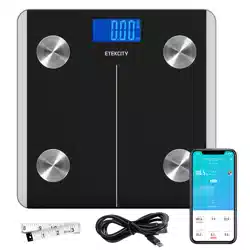
1 x Smart Fitness Scale
1 x USB Charging Cable
1 x Measuring Tape
1 x Quick Start Guide
Specications
Package Contents
Weight Capacity 400 lb / 28 st / 180 kg
Graduation 0.1 lb / 0.05 kg
Weight Units lb / st / kg
Platform ITO-coated glass
Dimensions
14.8 x 11.8 x 1.0 in /
375 x 300 x 24 mm
Battery Type 1000mAh Li-ion battery
Charging Time 3 hours
Input DC 5V, 500mA
Auto-Off 30 seconds

4
Safety Information
SAVE THESE
INSTRUCTIONS
Medical
General Use
• This scale should not be used to diagnose or treat any
medical condition.
• Scale data should not be used as a substitute for
medical advice from a healthcare professional.
• This scale uses a harmless electrical current to
measure body fat. Consult a healthcare professional
before using the smart scale if you use medical
electronic equipment such as a pacemaker.
• Check the scale before using. Do not use the scale if it
is damaged in any way.
• The glass platform is slippery when wet. Always make
sure the platform and your feet are dry before stepping
on for measurement.
• Place the scale on a hard, at surface to avoid tipping.
Please read and follow all instructions and safety
guidelines in this manual.
• To weigh safely and accurately, stand with your feet
shoulder-width apart while on the scale. Do not stand
on the edge of the scale or jump on the scale.
• Avoid standing on the scale for a long period of time, or
when not weighing yourself.
• Do not overload the scale. Maximum weight capacity is
400 lb / 180 kg.
• Keep the scale in a cool area with low humidity. Keep
the scale away from heat sources, such as ovens or
heaters. Avoid temperature uctuations. Store the
scale in a horizontal position, not vertical.
• Do not use while charging. Remove the USB charging
cable before using.
• Handle with care. Not for commercial use. Household
use only.
5
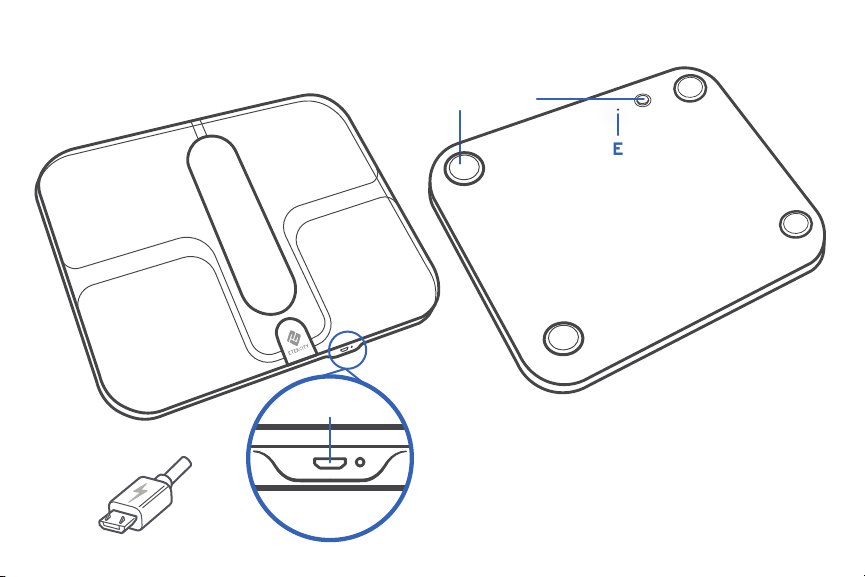
Function Diagram
A. Weighing Platform
B. Display
C. Anti-Skid Padding
D. Unit Switching Button
A
B
C
TOP
UNDERSIDE
D
E. Reset Button
F. USB Charging Socket
G. USB Charging Cable
E
F
G
6
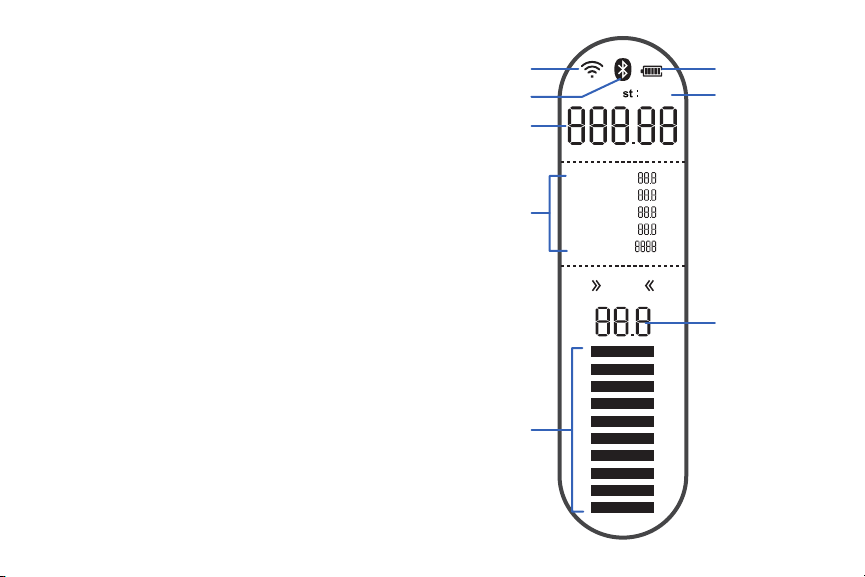
Digital Display
A. WiFi Icon
B. Bluetooth
®
Icon
C. Battery Life Indicator
D. Weight Units
E. Weight Measurement
F. Fat/Muscle/Water/Bone/BMR Measurement
G. BMI Measurement
H. BMI Tooltips
A
B
C
E
D
G
F
H
lb
Fat
Muscle
Water
Bone
BMR
kg
%
%
%
%
Kcal
BMI
7
VeSync App Setup
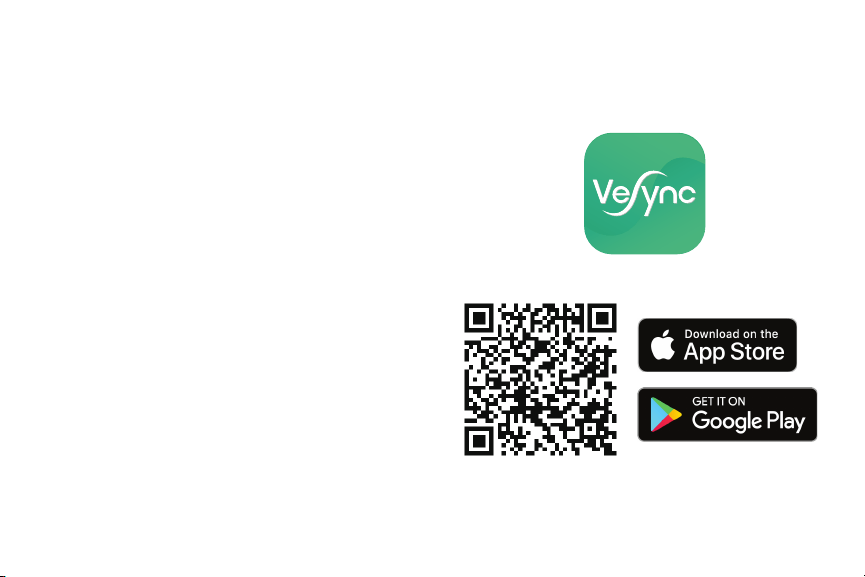
1. To download the VeSync app, scan the QR code,
or search “VeSync” in the Apple App Store
®
or
Google Play
™
Store.
Note: Due to app updates and improvements, the contents
of this manual may change without notice. The VeSync app
user interface may appear slightly different.
2. Open the VeSync app. If you already have an
account, tap Log In. To create a new account,
tap Sign Up.
Note:
• This scale uses the VeSync app, not the VeSyncFit
app.
• For Android users, you may need to select Allow
to use VeSync.
8
Using the Smart Scale
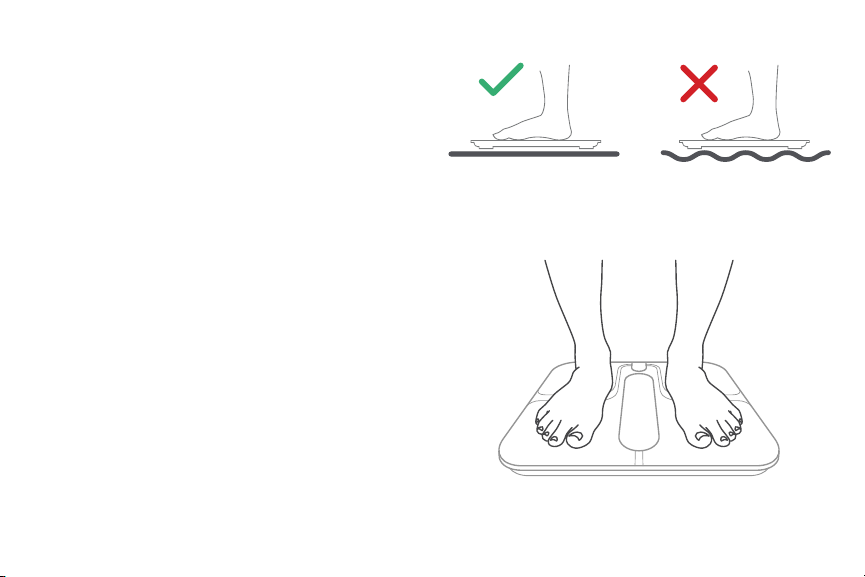
1. Place the scale on a hard, at surface.
[Figure 1.1]
2. Step onto the scale. The scale will automatically
turn on and start measuring your weight.
3. Continue standing on the scale until the digits
on the screen ash 3 times, showing your nal
measurement. [Figure 1.2]
Weighing without the VeSync App
Figure 1.1
Figure 1.2
Note:
• To switch between pounds (lb), stone (st), and kilo-
grams (kg), press the unit switching button on the
underside of the scale.
• If you are pregnant, scale measurements will not be
accurate.
9
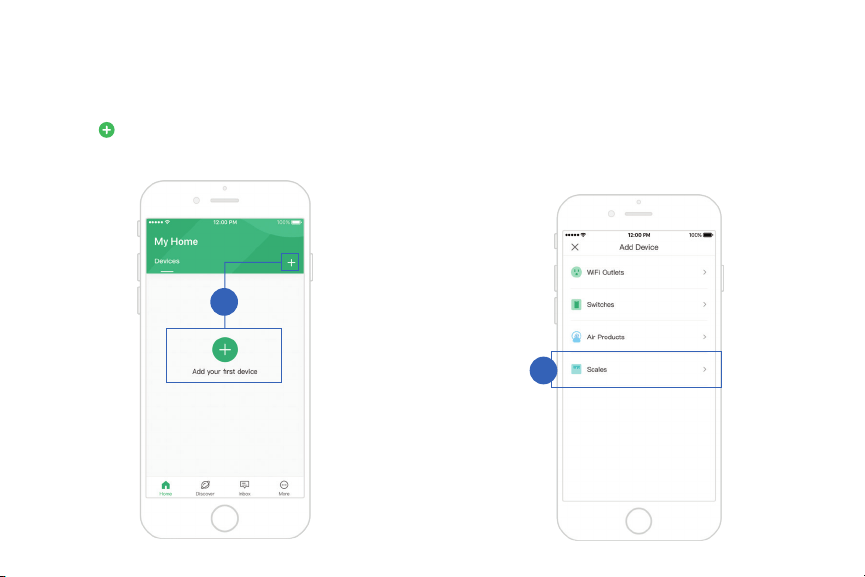
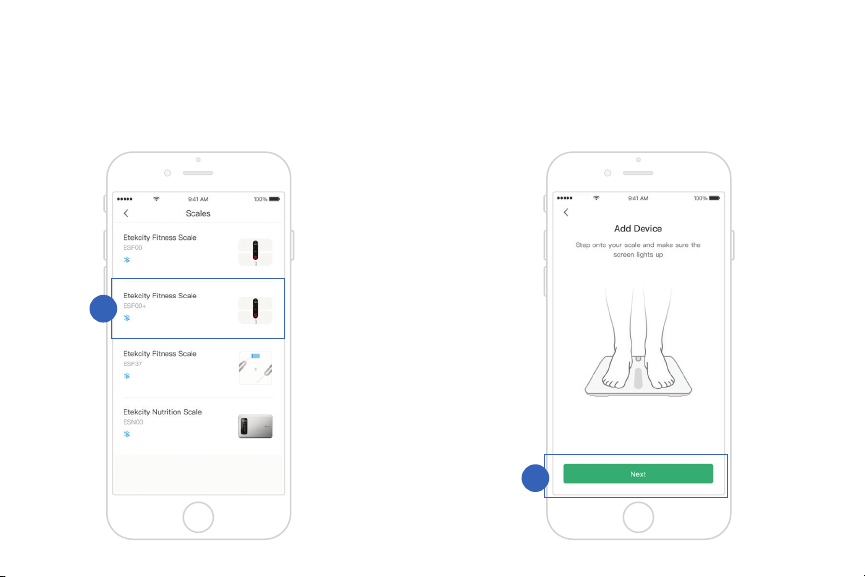
1. Tap .
Weighing with the VeSync App
Pairing the Scale with VeSync
2. Tap Scales.
1
2
10
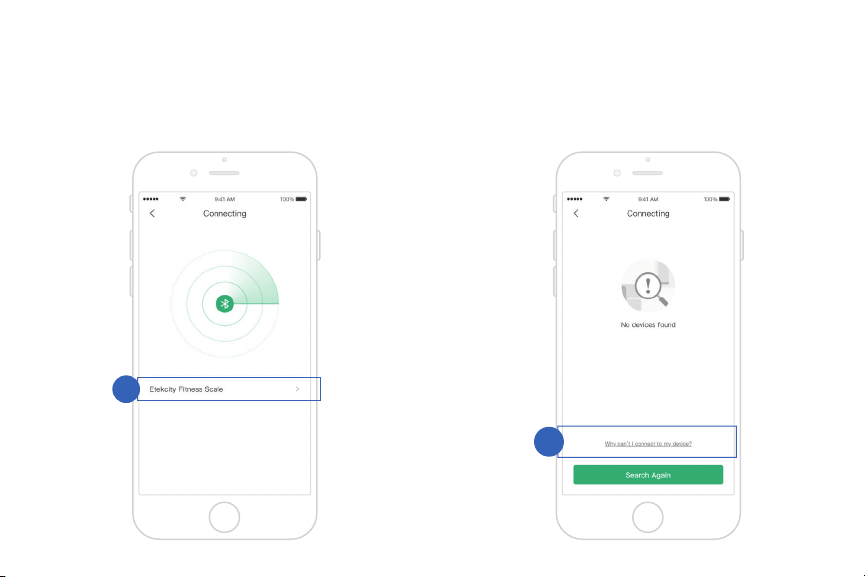
3. Select Etekcity Fitness Scale (ESF00+). 4. Stand on the scale and tap Next.
3
4
Note: Make sure your phone’s Bluetooth
®
is turned on in
your phone settings.
11
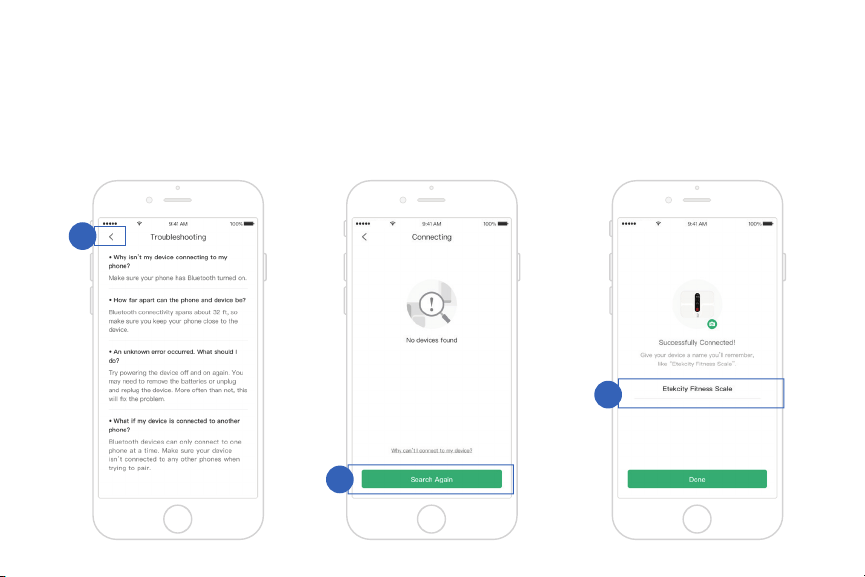
5. The app will take a moment to scan for devices.
Tap Etekcity Fitness Scale to connect.
6. If the connection succeeded, go to step 9. If the
connection failed, tap Why can’t I connect to
my device? at the bottom of the screen.
5
6
12
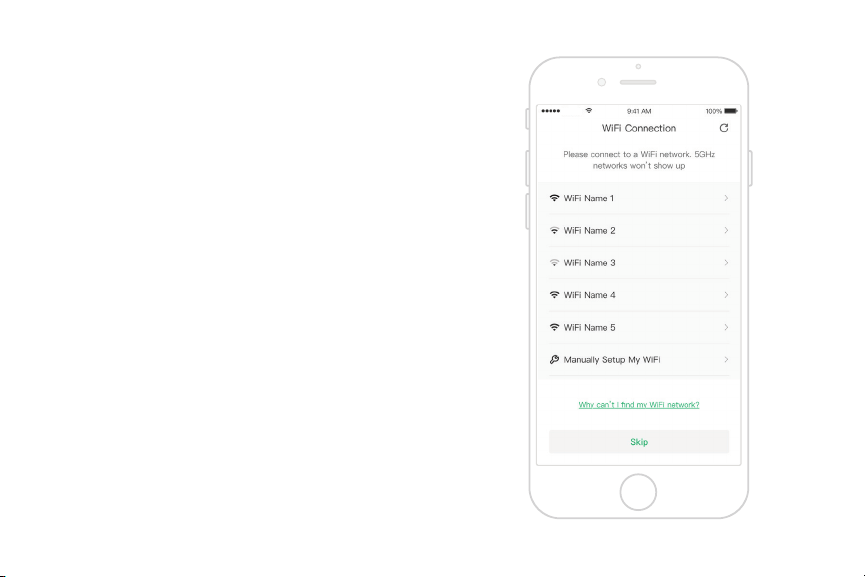
7. After following the “Troubleshooting” steps,
tap < to return to the previous screen.
8. Then, tap Search Again.
Note: You can change the name and picture at any time in
Device Settings.
8
9
7
9. Give your smart scale a unique name, or simply
use the default name.
13
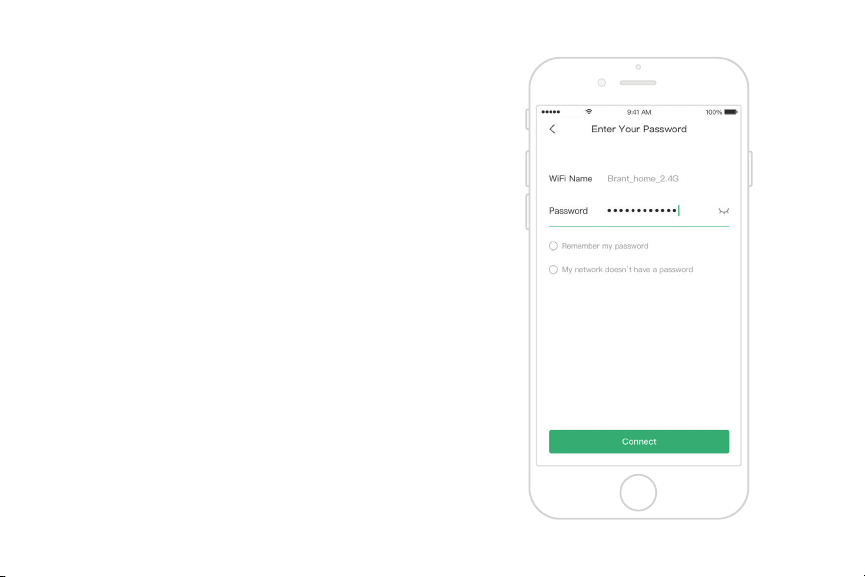
1. Connect your phone to a secure 2.4GHz WiFi
network.
Optionally, connect your scale to WiFi after setup.
Connecting your scale to WiFi will allow you to view
your data from anywhere, even when you’re not at
home or within Bluetooth range of your scale.
Connecting the Scale to WiFi
Note:
• If the app fails to find your network, tap Why
can’t I nd my WiFi network? to see possible
reasons.
• If your SSID is set to hidden mode, tap Manual
WiFi Setup, select your encryption method, and
enter your SSID and password.
14
2. Enter your WiFi information and tap Connect.
15
Using the App
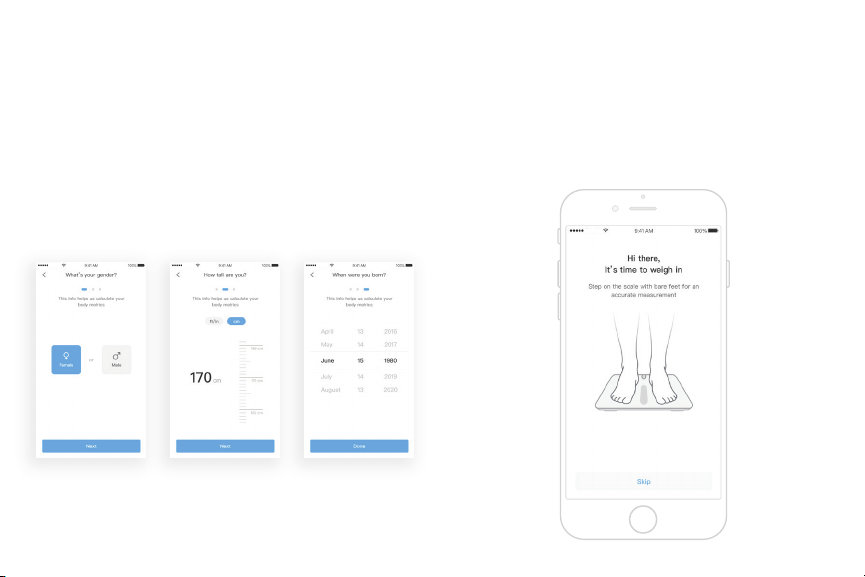
Creating a User
If you are a new user, you will need to enter physical
information before weighing yourself for the rst
time so the scale can calculate your body metrics.
Note:
• Entering inaccurate information will make the scale’s
measurements less accurate.
• If you don’t identify with the available gender options,
or are unsure, pick the choice that you think best
physically matches you. This choice is used for physical
measurements, such as body fat percentages.
16
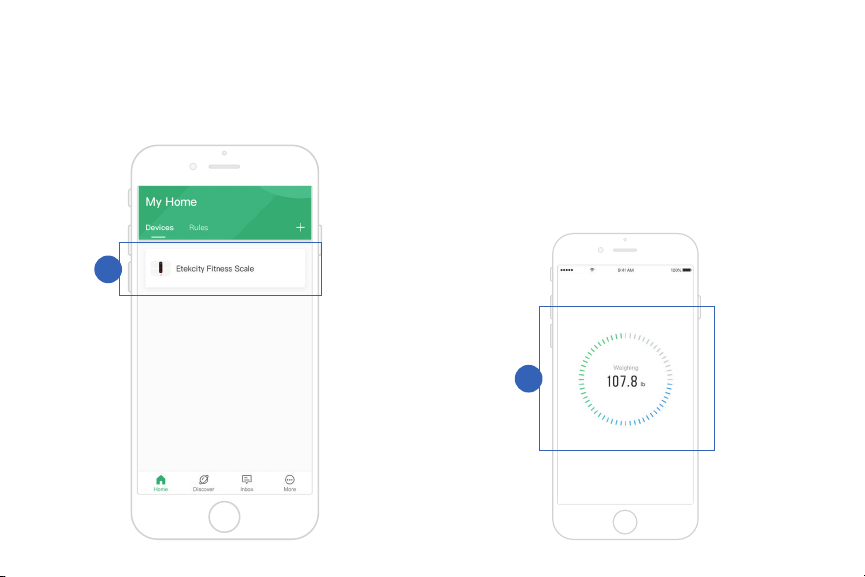
1. On the “My Home” screen, tap on the name of
your smart scale.
2. Step on the scale with bare feet. Continue
standing on the scale for 5–10 seconds. Your
measurements will appear in the VeSync app.
Note: If you see a series of zeroes on the scale display,
the scale is measuring your body fat and sending
measurements to the VeSync app.
Weight Measurement
2
1
17
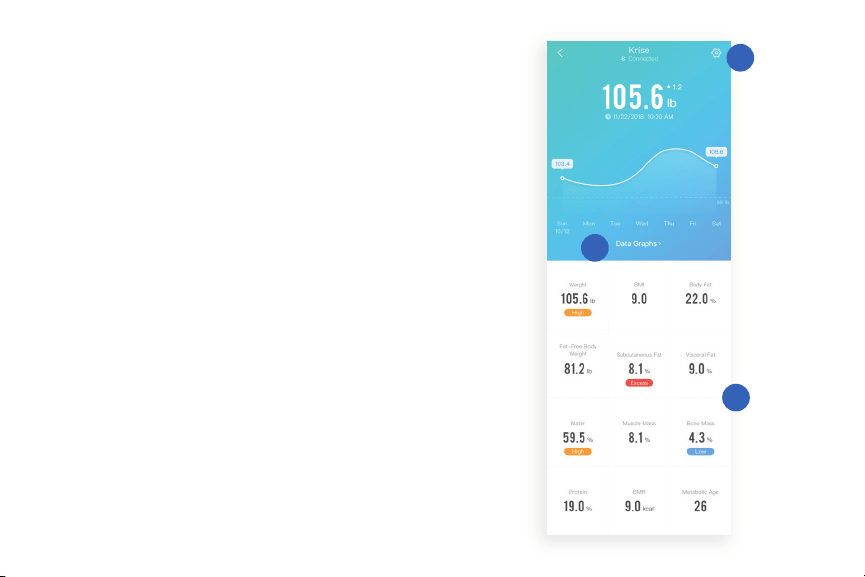
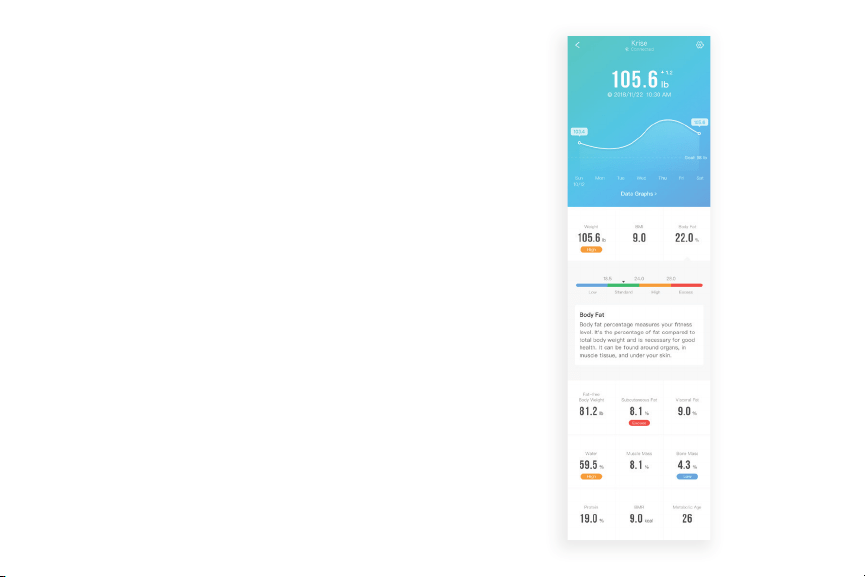
3. For further details, see:
A. More Measurements (page 18)
B. Data Graphs (page 19)
C. Device Settings (page 21)
Note: If you’re wearing shoes or socks, the scale cannot
measure health metrics such as body fat. Step on the scale
with bare feet.
A
B
C
18
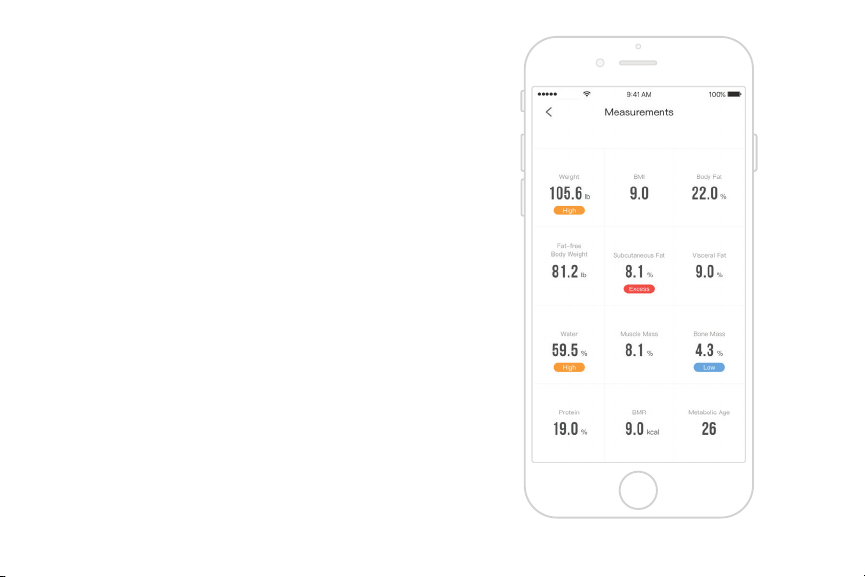
Scroll down for a comprehensive analysis of the 12
health metrics that the scale tracks. Tap on any of
the health metrics for more information.
More Measurements
19
Data Graphs
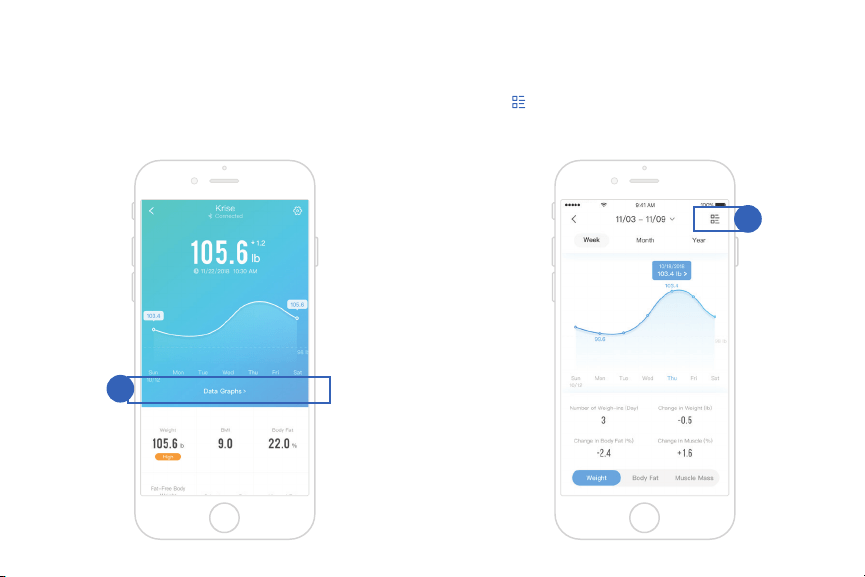
1. Tap Data Graphs. 2. You can view daily, weekly, or monthly progress.
Tap to view your weighing history.
1
2
20
3. Tap on any entry to see more information.
4. View the 12 health metrics that the scale tracks.
Tap on any of the health metrics for more
information.
Note: To delete, swipe left on an entry.
21
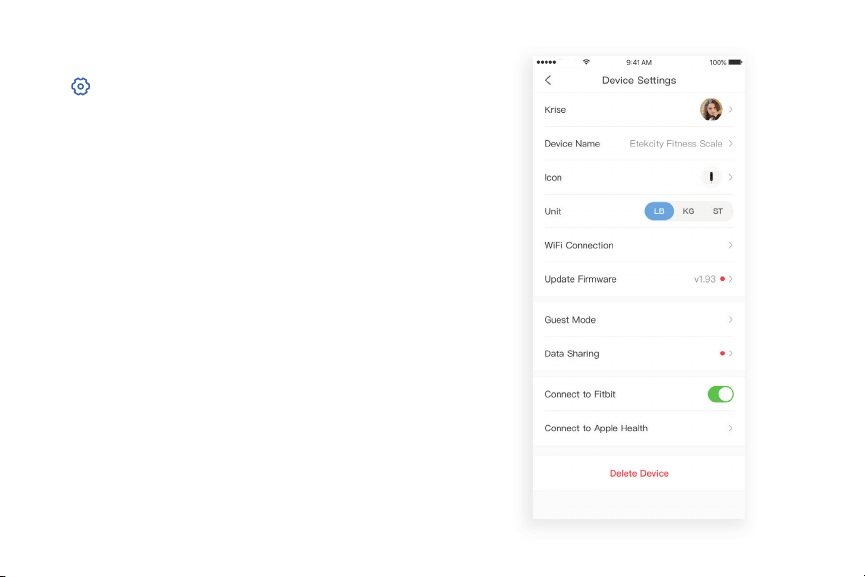
Device Settings
Tap in the upper right corner to see Device
Settings.
• Tap on any setting to change it.
• Tapping on your user icon will allow you to edit
your information.
• If you skipped setting up your WiFi connection,
tap WiFi Connection to set it up at any time.
• When you change the weight unit in the app, the
smart scale will change to match.

22
Guest Mode
1. Tap in the upper right corner to see Device
Settings. Tap Guest Mode.
2. Choose physical settings for a guest using the
smart scale.
Note: Guest Mode measurement data will not be saved.
23
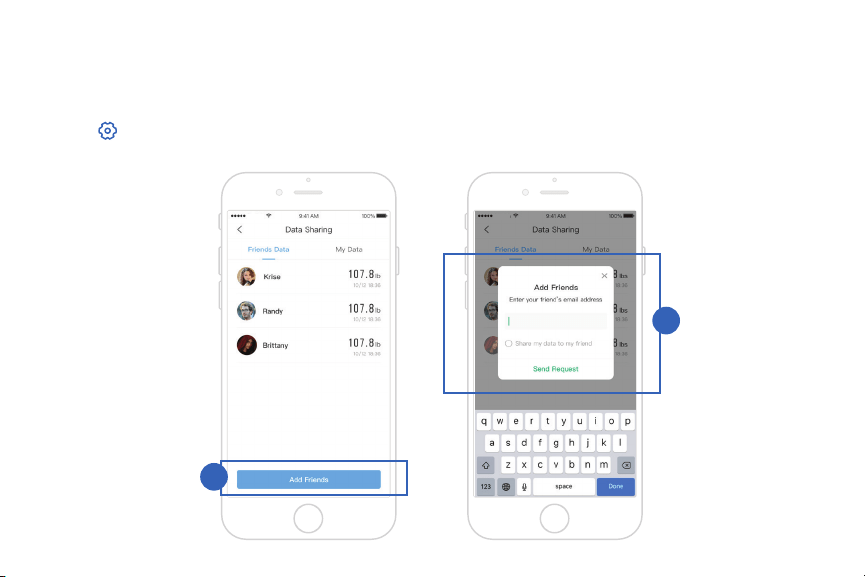
Data Sharing
You can share your measurement data with your
friends.
2. Tap Add Friends.
3. Enter your friend’s email address to send a
request.
2
3
1. Tap in the upper right corner to see Device
Settings. Tap Data Sharing.
24
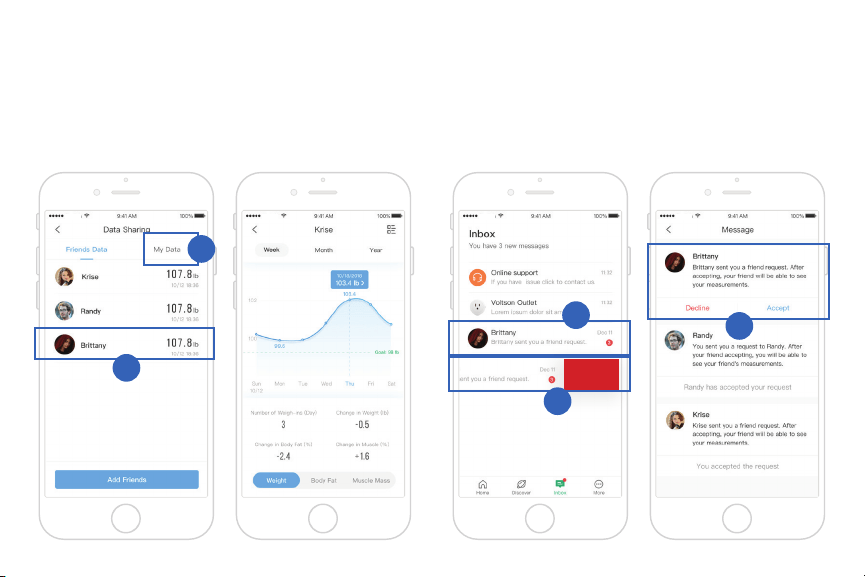
A. Tap your friend’s name to see their
measurement data.
B. Tap My Data to see who you’re sharing your
information with.
C. Swipe left on a person’s name to unshare your
information.
D. Friend requests will appear in your VeSync
inbox. Tap on the message to view the friend
request and respond.
A
D
D
B
Delete
C
25
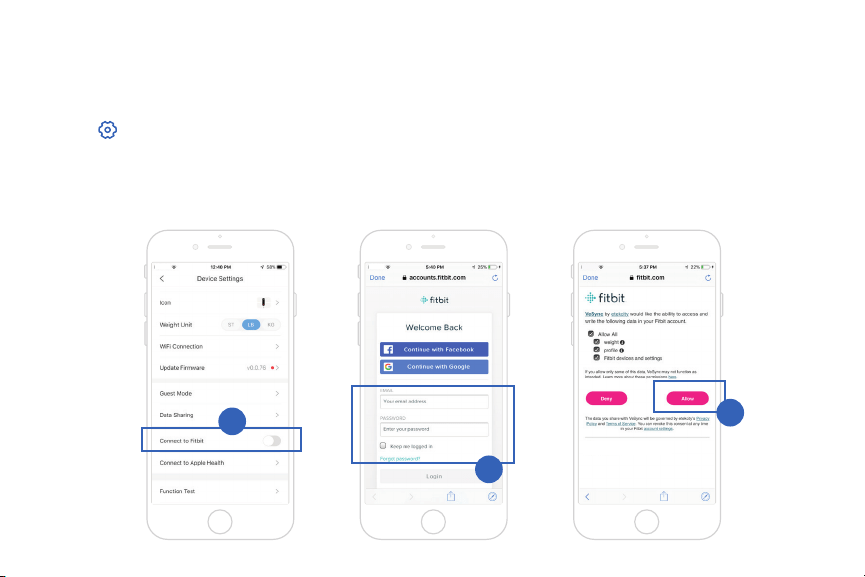
Fitbit
1. Tap in the upper right corner to see Device
Settings. Tap Connect to Fitbit.
2. Turn on Fitbit, then sign in to your Fitbit
account.
3. Allow VeSync to share your data with Fitbit.
Connecting with Other Fitness Apps
1
2
3
Note: Sharing data is necessary for VeSync to connect with
Fitbit.
26
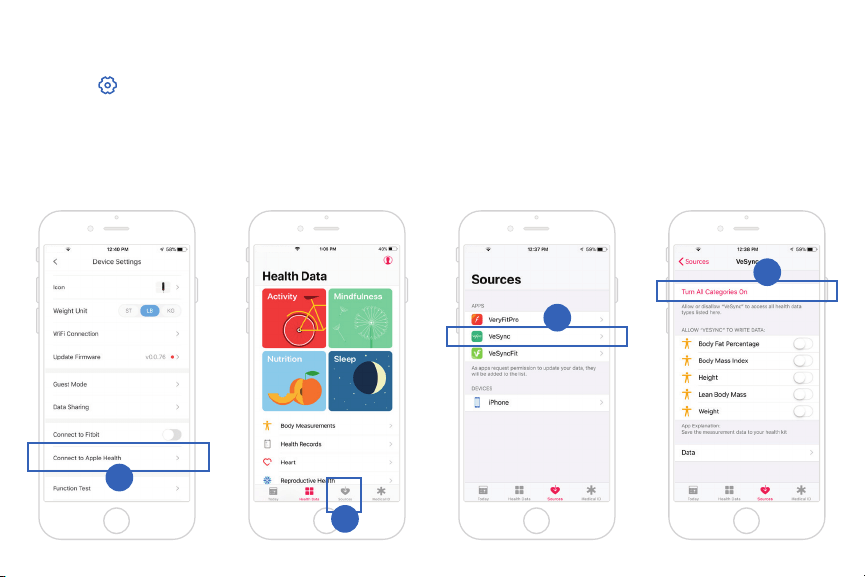
Apple Health
1. Tap in the upper right corner to see Device
Settings. Tap Connect to Apple Health.
2. The Health app should open automatically. If
not, open the Health app and tap Sources at the
bottom of the screen, then select “VeSync”.
3. Turn all categories on to allow the VeSync app
to access and update health data. Then, tap
Allow at the top of the screen.
2
1
3
3
Note: If you tap Don’t Allow, the Health app will not work
with VeSync until you reopen the Health app, turn all
categories on, and tap Allow.
27
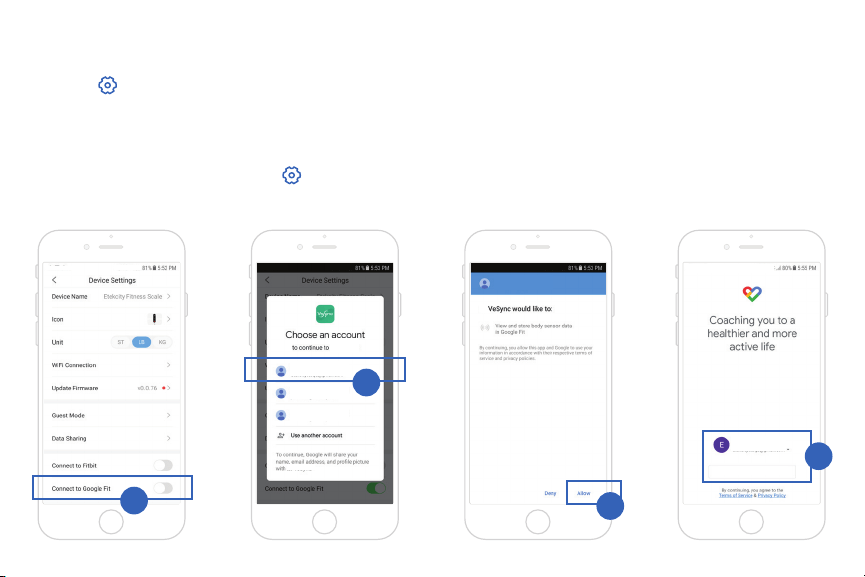
right of the screen, and tap Manage connected
apps.
3. Follow the instructions to allow VeSync to share
your data with Google Fit.
Google Health
1. Tap in the upper right corner to see Device
Settings. Tap Connect to Google Fit.
2. The Google Fit app should open automatically. If
not, open the Google Fit app and tap Prole at
the bottom of the screen, tap in the upper
1
2
3
Etekcity Example 1
Etekcity Example 1
Continue as Etekcity Example 1
Etekcity Example 1
VeSync
VeSync
Etekcity Example 2
Etekcity Example 3
4
Note: Sharing data is necessary for VeSync to connect with
Google Fit.
28
Maintenance
If the scale has been moved or ipped upside down,
it must be recalibrated to ensure accurate results.
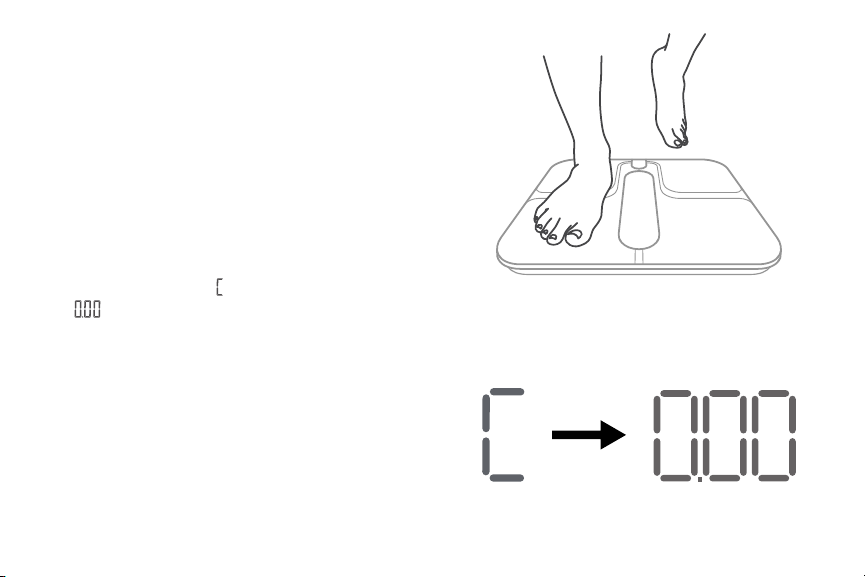
1. Place the scale on a hard, at surface.
2. Step on the scale with one foot until digits
appear on the display. [Figure 3.1] Then, step off.
3. The scale will show “ ” while calibrating, then
“ ” when complete. [Figure 3.2]
• Use a slightly damp cloth to clean the surface of
the scale, followed by a soft, dry cloth to wipe
away any remaining moisture.
• Do not use chemical or abrasive cleaning agents
to clean the scale.
Recalibrating the Scale
Cleaning the Scale
Figure 3.1
Figure 3.2
29
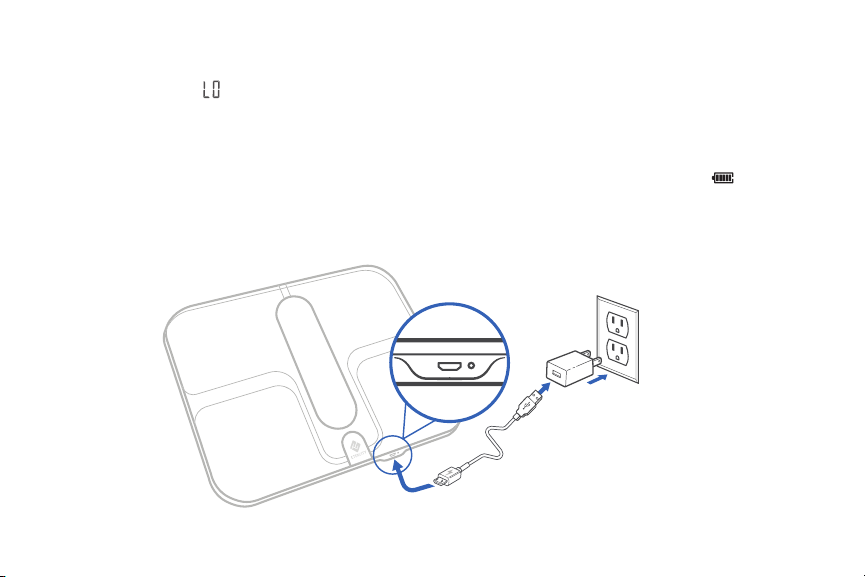
The display will show “ ” when the battery needs
to be charged.
1. Insert the USB charging cable into the USB
charging socket. [Figure 4.1]
Charging the Battery
Figure 4.1
2. Plug the USB charging cable into a DC 5V
adapter and plug into an outlet. You can also
plug the cable into a powered USB outlet.
[Figure 4.1]
3. The bars in the battery symbol (
) will
continuously ll as the scale charges. When
charged, the symbol will be lled.
30
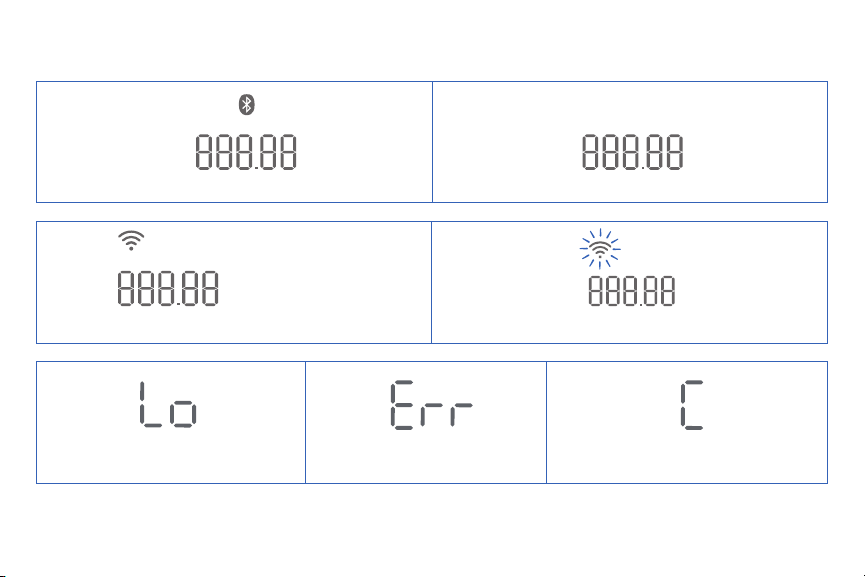
Bluetooth Connection
WiFi Connection
Change Battery
WiFi Connection in Progress
WiFi Icon
Flashes
Overload Calibrating
No Connection
lb kg
lb kg
lb kg
lb kg
Display Messages

31
1. The scale doesn’t turn on.
• The scale may need to be charged. Plug it in and
charge for 3 hours.
2. Nothing happens when I press the unit button.
• The scale may need to be reset. Use a safety pin
or paper clip to press the “Reset” button on the
underside of the scale.
3. Information ashes on the screen and then
disappears.
• The battery is low and may need to be charged.
4. The scale doesn’t connect with the VeSync app.
• Make sure your phone’s operating system is
running on iOS 8.0+ or Android 4.3+.
• Close and relaunch the VeSync app. Make sure
you’re using the latest version.
• Turn on Bluetooth on your phone (for Android
users, make sure your Location is turned on as
well).
• Make sure your scale and phone are within
30 ft / 10 m of each other.
• Make sure the scale is not currently connected to
any other phone or app.
• Try turning off any VPN apps.
• The scale may need to be reset. Use a safety pin
or paper clip to press the “Reset” button on the
underside of the scale.
Troubleshooting
32
If you still need help, please contact Customer Support
(see page 36).
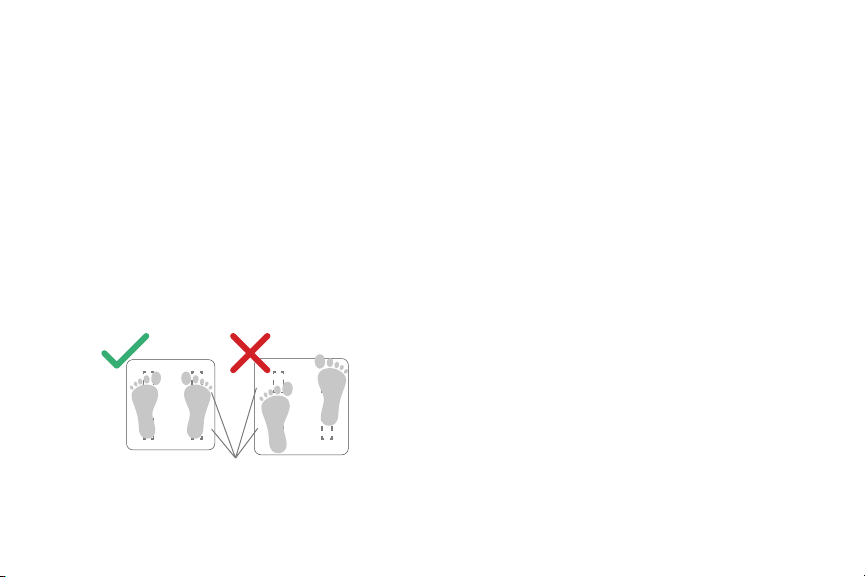
Conductive Areas
Figure 5.1
5. My scale will only measure my weight, or only my
weight and BMI.
• Set up your smart scale in the VeSync app.
Your BMI, Fat, Muscle, Water, Bone, and BMR
measurements will show on the display, and more
results will show on the app.
• Make sure Bluetooth is turned on.
• If you’re wearing shoes or socks, the scale cannot
measure health metrics such as body fat. Step on
the scale with bare feet. [
Figure 5.1]
Note: Resetting the scale will fix many issues.
A. To clear user data from the scale, press and hold
the unit button on the underside of the scale for 10
seconds.
B. To hard reset the scale, use a safety pin or paper clip
to press the “Reset” button on the underside of the
scale.

33
FCC Statement to the User
This device complies with Part 15 of the FCC Rules. Operation is subject to the following two conditions:
1. This device may not cause harmful interference, and
2. This device must accept any interference received, including interference that may cause undesired operation.
Any changes or modications not expressly approved by the party responsible for compliance could void the user’s authority
to operate this equipment.
This equipment has been tested and found to comply with the limits for a Class B digital device, pursuant to Part 15 of
the FCC Rules. These limits are designed to provide reasonable protection against harmful interference in a residential
installation. This equipment generates, uses and can radiate radio frequency energy and, if not installed and used in
accordance with the instructions, may cause harmful interference to radio communications. However, there is no guarantee
that interference will not occur in a particular installation. If this equipment does cause harmful interference to radio or
television reception, which can be determined by turning the equipment off and on, the user is encouraged to try to correct
the interference by one of the following measures:
• Reorient or relocate the receiving antenna.
• Connect the equipment into an outlet on a circuit different from that to which the receiver is connected.
• Increase the separation between the equipment and receiver.
• Consult the dealer or an experienced radio/TV technician for help.

34
FCC Radiation Exposure Statement
This equipment complies with FCC radiation exposure limits set forth for an uncontrolled
environment. End users must follow the specic operating instructions for satisfying
RF exposure compliance. To maintain compliance with FCC RF exposure compliance
requirements, please follow operation instructions as documented in this manual. This
transmitter must not be co-located or operating in conjunction with any other antenna or
transmitter. This equipment should be installed and operated with a minimum distance of
20cm between the radiator and your body. The availability of some specic channels and/
or operational frequency bands are country dependent and are rmware programmed at
the factory to match the intended destination. The rmware setting is not accessible by the
end user.

35
Warranty Information
Terms & Policy
Etekcity Corporation warrants all products to be of the highest quality in
material, craftsmanship, and service, effective from the date of purchase
to the end of the warranty period.
Etekcity Corporation will replace any product found to be defective due
to manufacturer aws based on eligibility. Refunds are available within
the rst 30 days of purchase. Refunds are only available to the original
purchaser of the product. This warranty extends only to personal use and
does not extend to any product that has been used for commercial, rental,
or any other use in which the product is not intended for. There are no
warranties other than the warranties expressly set forth with each product.
This warranty is non-transferrable. Etekcity Corporation is not responsible
in any way for any damages, losses, or inconveniences caused by
equipment failure or by user negligence, abuse, or use noncompliant with
the user manual or any additional safety or use warnings included in the
product packaging and manual.
This warranty does not apply to the following:
• Damage due to abuse, accident, alteration, misuse, tampering, or
vandalism.
• Improper or inadequate maintenance.
• Damage in return transit.
• Unsupervised use by children under 18 years of age.
Etekcity Corporation and its subsidiaries assume no liability for damage
caused by the use of the product other than for its intended use or as
instructed in the user manual. Some states do not allow this exclusion
or limitation of incidental or consequential losses so the foregoing
disclaimer may not apply to you. This warranty gives you specic legal
rights and you may also have other rights which may vary from state to
state.
ALL EXPRESSED AND IMPLIED WARRANTIES, INCLUDING THE
WARRANTY OF MERCHANTABILITY, ARE LIMITED TO THE PERIOD
OF THE LIMITED WARRANTY.
Additional 1-Year Warranty
You can extend your 1-year warranty by an additional year. Log onto
www.etekcity.com/warranty to register your new product for the
extended warranty.
Please ll out all required elds and include your order ID, place of
purchase, and purchase date, if applicable.
Defective Products & Returns
If you discover your product is defective within the specied warranty
period, please contact Customer Support via [email protected] with
a copy of your invoice and order ID. DO NOT dispose of your product
before contacting us. Once our Customer Support Team has approved
your request, please return the product with a copy of the invoice and
order ID.
Product Name Smart Fitness Scale
Model ESF00+
Default Warranty Period 1 year
For your own reference, we strongly recommend that you record
your order ID and date of purchase.
Order ID
Date of Purchase

Customer Support
If you encounter any issues or have any questions about your new product, please contact our helpful
Customer Support Team. Your satisfaction is our goal!
Customer Support
Etekcity Corporation
1202 N. Miller St., Suite A
Anaheim, CA 92806
Email: [email protected]
Toll-Free: (855) 686-3835
Support Hours
Monday—Friday
9:00 am —5:00 pm PST/PDT
*Please have your invoice and order ID ready before
contacting Customer Support.
36

37
Connect with us @Etekcity
Building on better living.
JD0519AL-M1_0519ESF00+