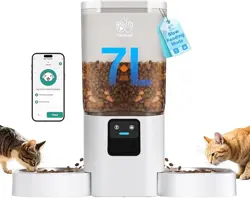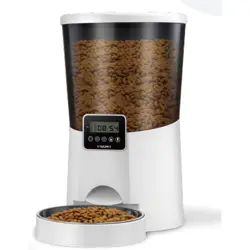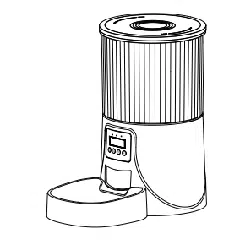
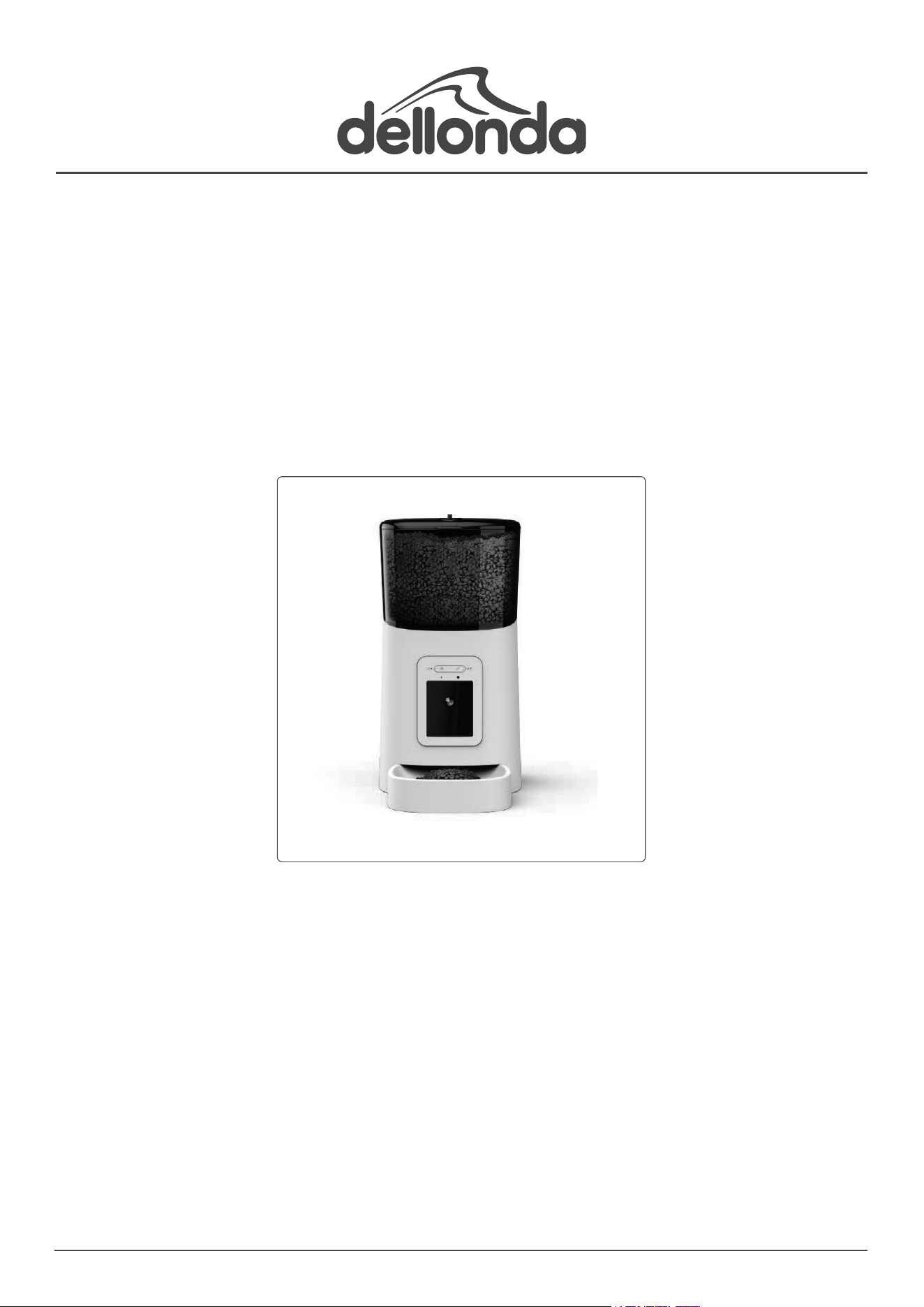
Automatic Pet Feeder, 6L Capacity with Camera, TUYA
Compatibility
Model No. DH231
Thank you for purchasing a Dellonda product. Manufactured to a high standard, this product will,
if used according to these instructions, and properly maintained, give you years of trouble free performance.
DH231 Issue:1 8/11/23
www.dellonda.co.uk
Important Information
Please read these instructions carefully. Note the safe operational requirements, warnings & cautions. Use the product correctly and with care
for the purpose for which it is intended. Failure to do so may cause damage and/or personal injury and will invalidate the warranty. Keep these
instructions safe for future use.
Refer to
instruction
manual
Keep Unit Dry
Safety Instructions
• ELECTRICAL SAFETY
• WARNING! It is the user’s responsibility to check the following:
• Check all electrical equipment and appliances to ensure that they are safe before using. Inspect power supply leads, plugs and all electrical
connections for wear and damage. Electrical safety information: It is important that the following information is read and understood.
• Ensure that the insulation on all cables and on the appliance is safe before connecting it to the power supply.
• Regularly inspect power supply cables and plugs for wear or damage and check all connections to ensure that they are secure.
• IMPORTANT: Ensure that the voltage rating on the appliance suits the power supply to be used and that the plug is tted with the correct fuse.
• DO NOT pull or carry the appliance by the power cable.
• DO NOT pull the connector from the socket by the cable.
• DO NOT use worn or damaged cables, plugs or connectors.
• Ensure that any faulty item is repaired or replaced.
• Dellonda recommend that any repairs are carried out by a qualied electrician / technical.
• GENERAL SAFETY
• Keep the unit horizontal while it is running.
• Keep the unit dry and away from any heat source.
• HARDWARE INSTALLATION
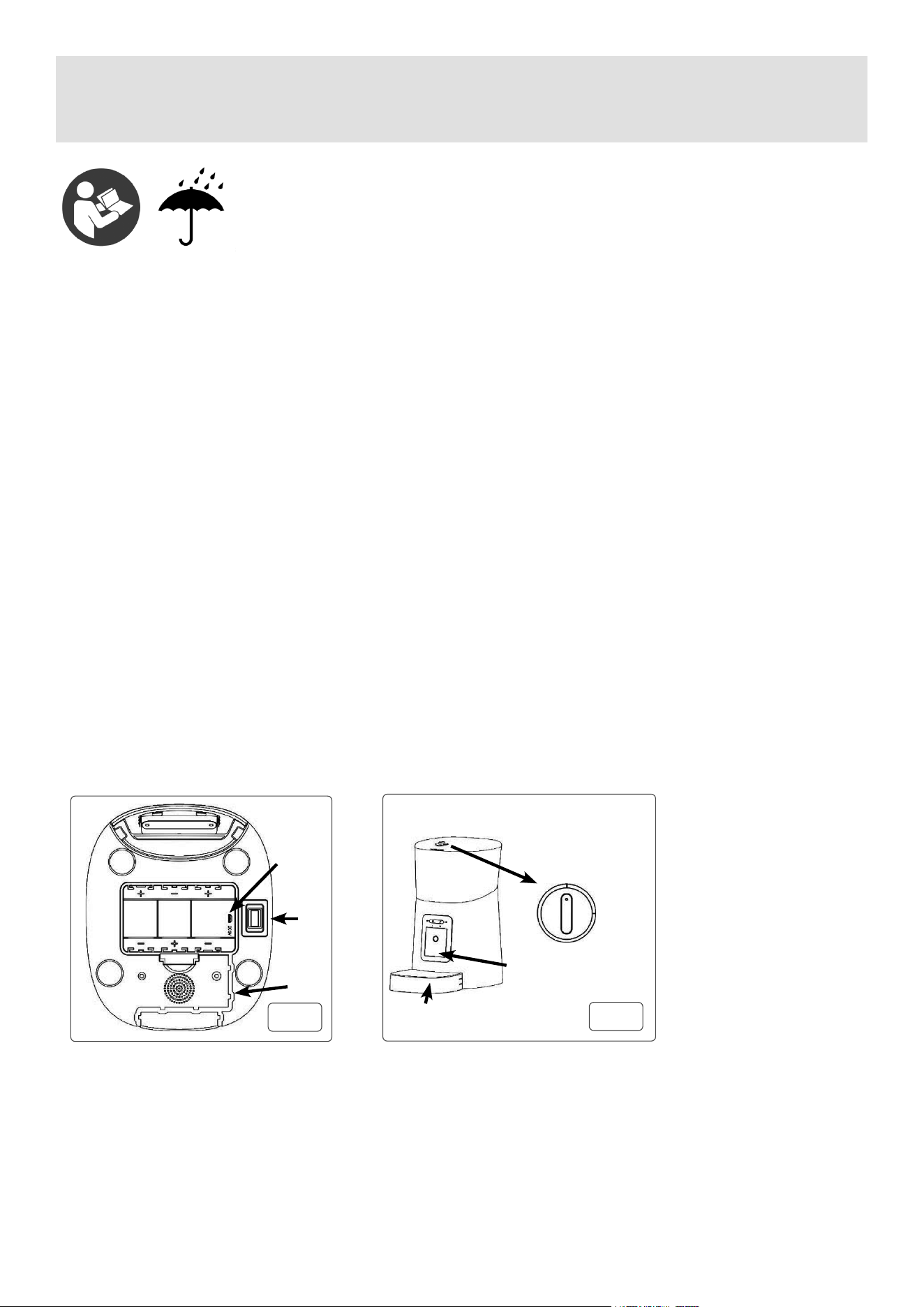
• Open the battery compartment at the bottom of the feeder (g.1), insert the Micro USB power cord into the connector at the bottom
and extend the power cord out along the designed wire guide. You can also insert 3 D cell batteries which will enable the feeder to work
automatically according to your scheduled feeding plan even without an external power supply. Turn on the power switch.
• Rotate the knob on the top cover (g.2). Place the feeding tray into the feeder from the front, then pour pet food into the feeder.
• NOTE: Due to the wide variety of pet foods on the market, it cannot be guaranteed 100% that the mechanical structure of the feeder will t all
types of pet food. We recommend using only dry food within 5–15mm in size. Wet food and damp food are strictly prohibited from being
placed in the feeder.
• For your pet’s health, please wash the feeding bucket and feeding tray regularly. The feeder body should not be lled with water. Please wipe
it with a wring-able wet cloth.
• FEATURES AND CONTROLS
• You can rotate the camera to turn down to observe the feeding tray. The camera supports up to 4 levels of angle adjustment.
• The camera also supports Micro-SD card recording, and the SD card slot is exposed when the camera is turned to look fully downwards.
Power
Switch
Fig.1
Lid Locked
Lid Open
Fig.2
Insert Feedtray
Press to alter
angle
USB
Socket
Wire
Guide
• SOFTWARE INSTALLATION
• Search the App Store or scan the QR codes beside this text to download and
install Pet Zero. Two sites are currently available.
• Run the App, read and agree to the privacy policy, and register a new
account or login to a registered account. When you register or login to
the account, please choose the correct country or area.
• Click “Add Device” or “+” to add a new pet feeder. Choose the “Add Manually”
tab and select “Smart Pet Feeder”.
• After turning the feeder on, wait for about 1 minute for it to boot up.
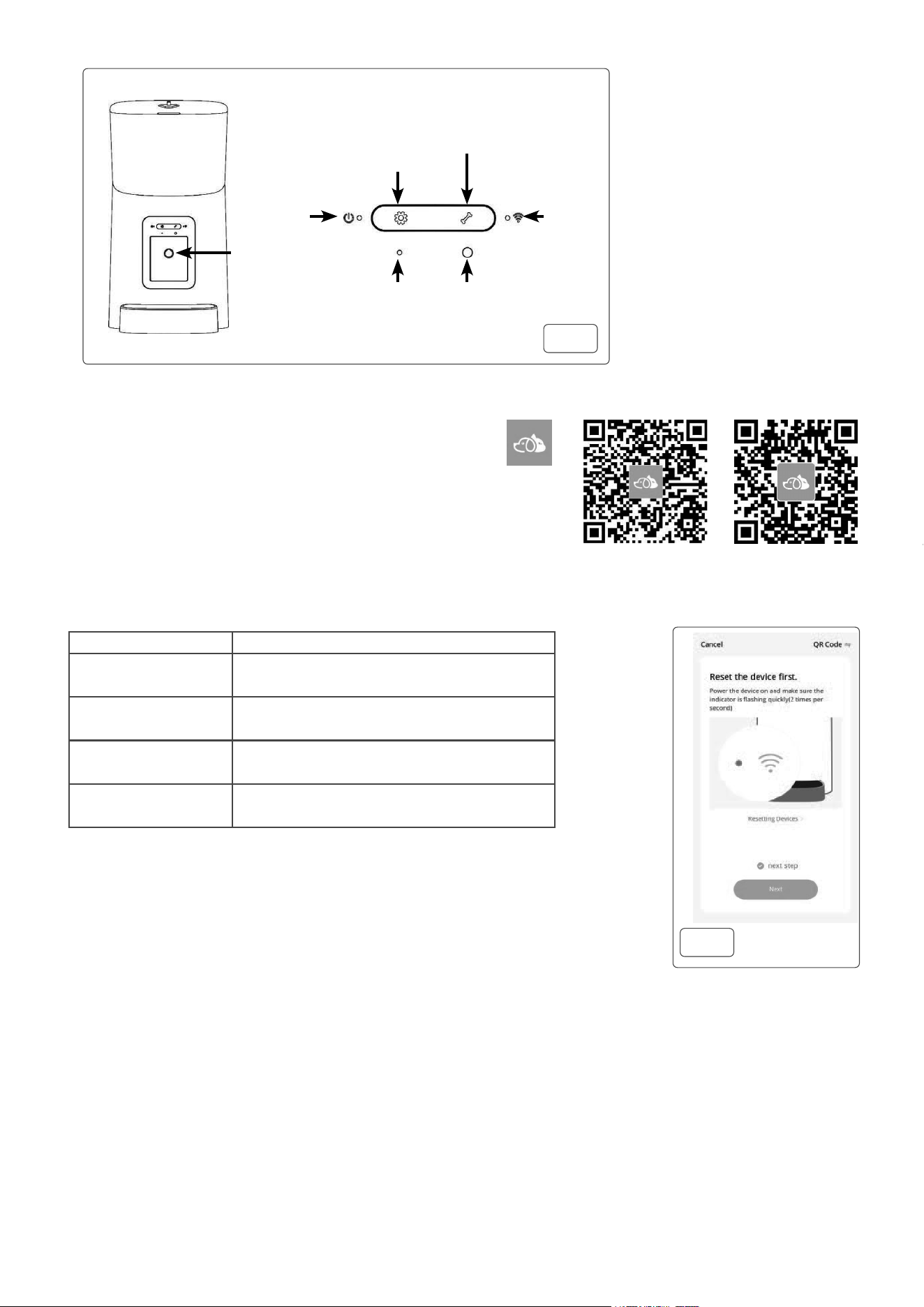
• Then check whether the Wi-Fi indicator is ashing RED 2 times per second (g.4).
• If yes, then click next step to go to the next step.
• If not, press and hold the the Wi-Fi Settings button for 5 seconds until you hear a beep.
After a few seconds, the feeder’s indicator LED will ash RED rapidly.
• Wi-Fi Status Indicators:
• NOTE: When powered using batteries the power indicator and Wi-Fi indicator will turn off.
• If the App asks for the location permission of your mobile phone, please allow it. The name of your
Wi-Fi network will then appear in the textbox automatically.
• Please note that the feeder does not support 5Ghz Wi-Fi networks, but only 2.4Ghz networks.
• Please check that the Wi-Fi name is the name of a 2.4Ghz Wi-Fi network. If not, please switch the
mobile phone’s Wi-Fi network to a 2.4Ghz Wi-Fi network.
• Next, please enter the corresponding Wi-Fi password and click “Conrm”.
• Please choose a 2.4Ghz Wi-Fi signal instead of a 5Ghz signal. The feeder DOES NOT support 5Ghz
Wi-Fi networks.
• When entering the password, be aware that it is case sensitive.
• Please choose a Wi-Fi network with WPA or WPA2 encryption instead of WEP encryption.
• Make sure that MAC address ltering and wireless device isolation is turned off on the wireless router.
• The feeder may not support the Wi-Fi signal of the wireless repeater.
• If the connection fails, try connecting to the wireless router.
• The App will then ask you to scan a QR code that contains your Wi-Fi information with the feeder’s camera. Click “Continue”, then put the QR
code in front of the feeder’s camera. Please place the phone about 20 to 30 centimetres in front of the camera and wait a few seconds until
you hear a tone. Then click “I Heard a Prompt”.
• The feeder will then try to connect to the Wi-Fi network. When connected, click Done to complete the adding process.
• If the feeder fails to connect, repeat earlier steps.
• If the feeder still fails to connect, use the AP mode to add the feeder by following the instructions below (gs.5, 6, 7).
Camera
Power LED Wi-Fi LED
PhotosensorMicrophone
Wi-Fi Settings
Manual Feeding
Fig.3
LED Activity Cause
Flashing rapidly in RED Feeder is waiting for Wi-Fi network conguration; it is
in QR code mode and auto scan mode.
Flashing slowly in RED Feeder is waiting for Wi-Fi network conguration; it is
in AP mode.
Always on in RED Feeder is congured for the Wi-Fi network and trying to
connect. If the connection fails, it will always be red.
Always on in GREEN Feeder is connected to the Wi-Fi network. It can be
turned off in the settings.
Fig.4
Download Website One Download Website Two
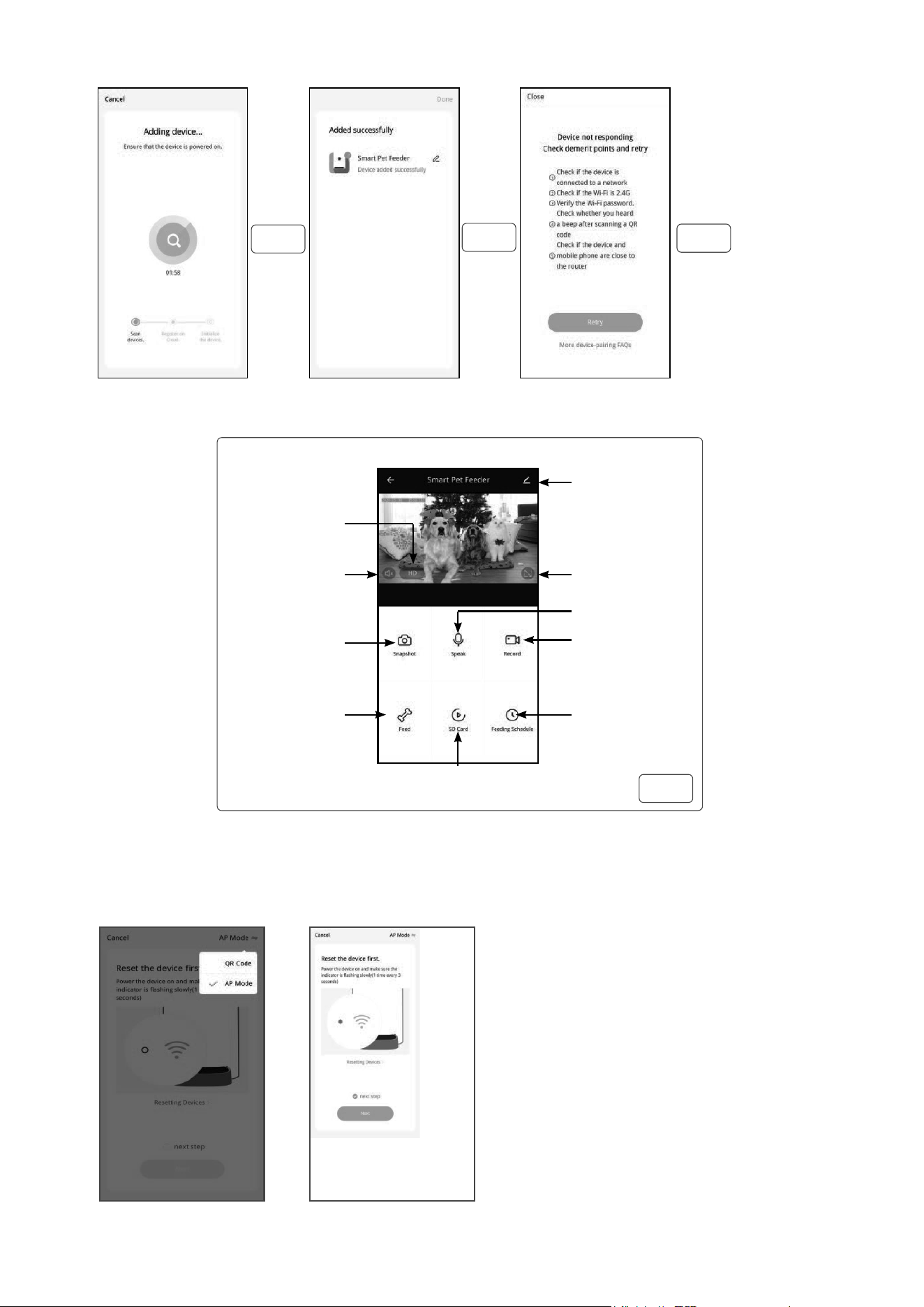
• The App will be then directed to the video interface for the pet feeder (g.8).
• NOTE: To enable certain functions, the App needs to obtain corresponding permissions on the phone. Please allow them when prompted.
• ADD PET FEEDER VIA AP MODE
• If the feeder fails to connect to the Wi-Fi network, the AP mode is plan B for adding the feeder.
• Choose “AP Mode” manually in the adding process.
• Check that the Wi-Fi indicator LED is ashing RED once every 3 seconds. Then click “next step”.
• If the indicator is in another status, press and hold the Wi-Fi button for 3 seconds until you hear a beep to switch Wi-Fi indicator’s ashing
status to ashing rapidly. Then press and hold the Wi-Fi button again to switch the Wi-Fi indicator’s ashing status to ashing slowly.
Advanced Settings
Full Screen
Speak to Pet Feeder
Record to Phone
Manual Feed,
Feeding Audio, Feed
Record
Switch Video
Resolution
Listen To Feeder
Take Snap Shot to
Phone
Play back SD Card
Set Up Feeding Plan
Fig.5
Fig.6
Fig.7
Fig.8
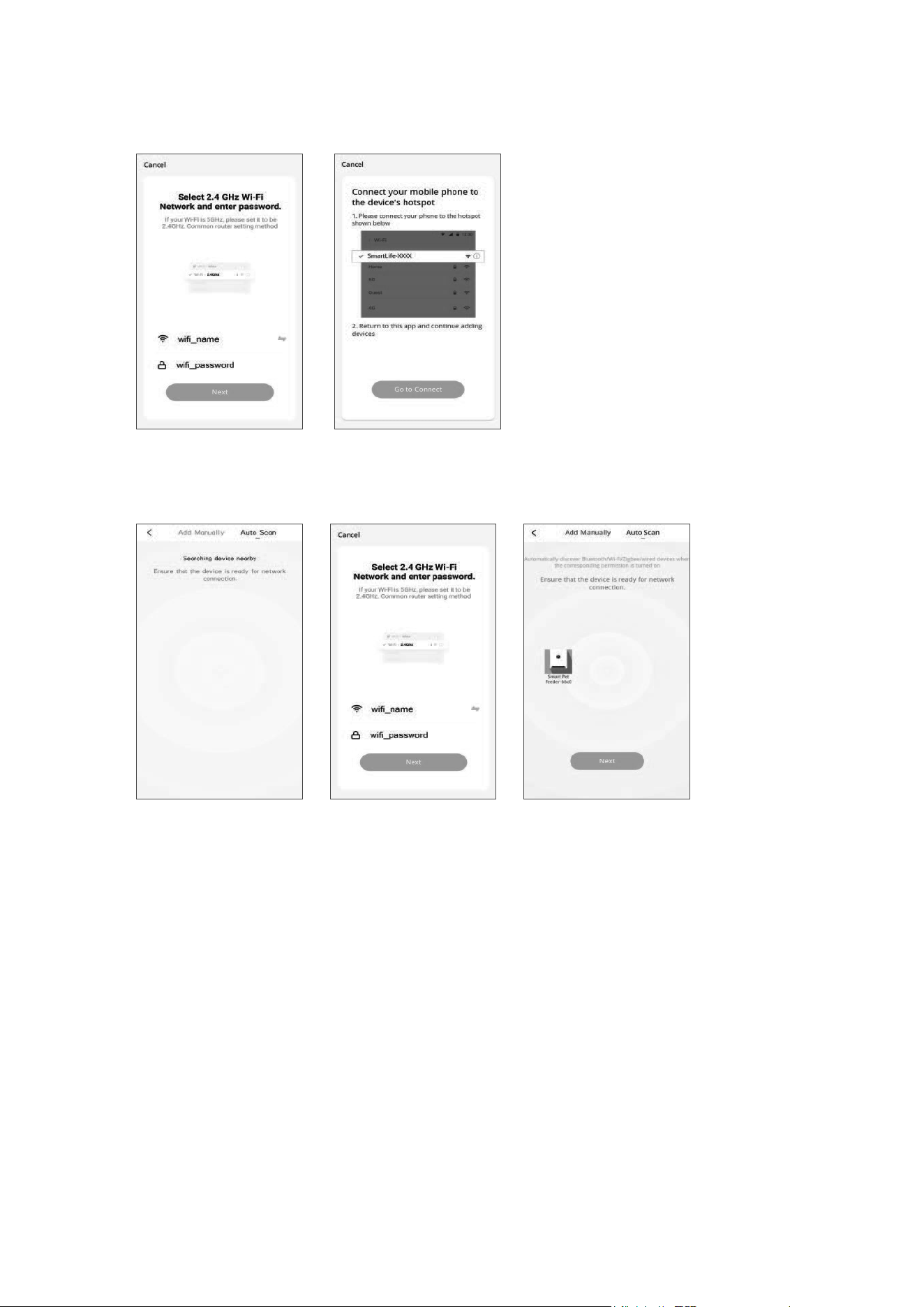
• Please check the name of the 2.4Ghz Wi-Fi network and enter the password in the same way as in QR code mode.
• Click “Conrm” and the App will ask you to switch your mobile phone’s Wi-Fi network to a new network broadcast by the feeder.
• Please go to “Wi-Fi settings on the mobile phone” and connect to the Wi-Fi which starts with “SmartLife-” . No password is necessary.
• Return to the App after the Wi-Fi is connected. The adding process is the same as in QR code mode covered above.
• ADD PET FEEDER VIA AUTO-SCAN MODE
• Please note that in auto scan mode, 100% success rate of connecting the feeder to the Wi-Fi network cannot be guaranteed.
• Choose “Auto Scan Mode” on the Wi-Fi pet feeder page and enter the correct name and password of the 2.4GHz Wi-Fi network. Make sure the
feeder’s indicator LED is ashing RED rapidly.
• Wait for the feeder to connect to the Wi-Fi network and appear in the App.
• MANUAL FEEDING
• Click “Feed” in live video page. Choose the feeding portions and click “Feed”. The feeder will feed immediately.
• You can also DOUBLE click the Manual feed button on the feeder to feed manually (see g.3).
• TIMED FEEDING
• The pet feeder supports the scheduled feeding of exact portions at exact times. Click the “Feeding Schedule” button , click “Add schedule”,
choose “Feeding time”
• Repeat rules for each day of the week, and Feed portions, then click “Save”.
• The feeder supports up to 12 feeding schedules. If you need to disable a schedule, you can disable it by disabling its switch.
• You can also delete it by pressing and holding the feeding schedule to access the delete option.
• FEEDING VOICE RECORDING
• To develop good feeding habits for pets, the feeder supports pre-recording a maximum of 10 seconds of audio, which is played during feeding.
• Click the Feeding audio button on the manual feed page, then start talking near the microphone of the feeder. The feeder will start recording your
voice.
• When you want to stop, click the Feeding audio button again, or wait for 10seconds when it stops automatically.
• The closer you are to the microphone, the louder your voice can be recorded.
• After recording is complete, the feeder will play a preview of the recorded audio. If you need to change the recording, please re-record
it. The default voice recording playback is 3 times.
• NOTE:
• When the pet feeder is connected by the regular power adapter, the pet feeder recording will be played during feeding.
• If pet food blocks the food tray, the pet feeder will stop feeding and wait for 10 minutes. The voice recording will be played 3 times
every 2 minutes to call the pets.
• If the pets nish the food in the tray, the pet feeder will work as scheduled in the feeding plan. Otherwise, it will stop feeding if the pets still do not
nish feeding after 10 minutes. The feeder cannot operate until feeding resumes.
• FEEDING RECORDS AND ALARM
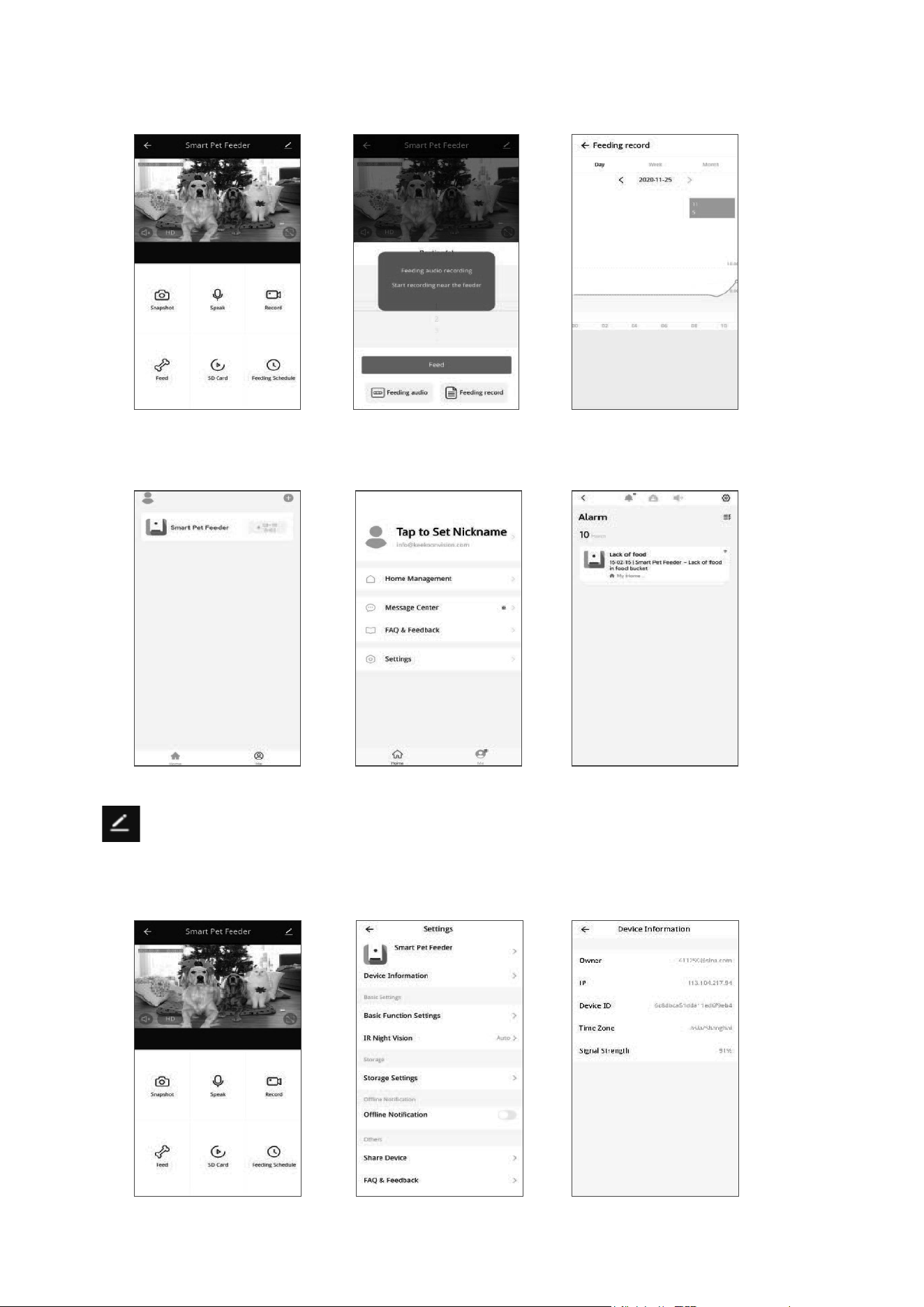
• After feeding, there will be feeding records in the App. Click “Feeding record” on the manual feed page to check the feeding records. In the
snapshot below, there is a feeding record that 5 portions were fed between 11:00 am to 11:59 am of Nov 25th, 2020.
• Machine malfunctions include low food storage, low battery and food jammed in the feeding bucket or feeding tray.
• When a malfunction occurs, a message will appear in the App. You can check error messages in the message centre. Make sure that prompt
message (notication) is enabled.
• ADVANCED SETTINGS
• Click to access the advanced settings page.
• “Device information:” Check feeder information. Please make sure that the time zone of the feeder is correct. It should be same as the mobile
phone’s time zone when adding the feeder. If incorrect, the feeder may feed at incorrect times, so please remove the feeder and add it again.
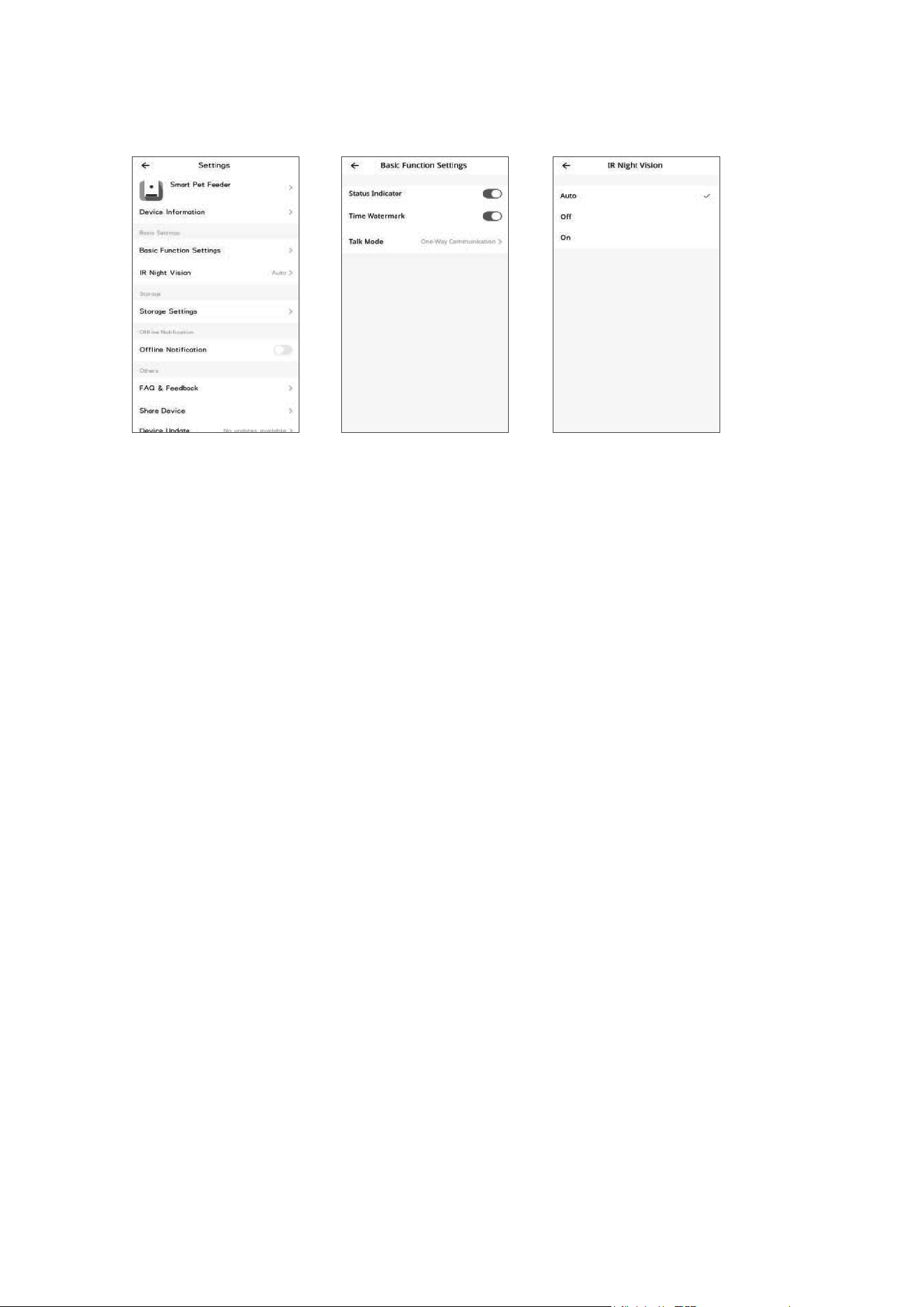
• “Basic Function Settings”: In basic function settings, you can turn indicators on/off. Notice that when feeder is feeding, the power indicator
will ash even if it is turned off. You can turn on/off the timestamp shown in the live video. You can also switch talk mode to 2-way audio
communication.
• “IR Night Vision:” Turn on/off/auto the IR night LED
• “Storage Settings:” When you insert a Micro SD card before turning the feeder on, it will be shown in the settings. You can turn SD card recording
on/off. There are 2 recording modes; the feeder will record 5 minutes after feeding in “Event recording” mode, and the feeder will record all the
time in “Non-stop” mode.
• “Oine Notication:” When the feeder is oine, a notication will be sent to your mobile phone.
• “Share Device:” If you want to add the feeder to another mobile phone, register a new account on the new mobile phone, then share the device
with the new account. Please make sure that both accounts are in the same country or area when registering them.
• “Remove Device:” You can re-congure the feeder’s Wi-Fi network and restore the feeder to factory default settings with this option.
• BATTERY
• The back-up battery is designed as a short-term alternative for when the external power supply is cut. With battery supply only, when the feeder
reaches the time set for timed feeding, the feeder will feed as normal.
• When the pet feeder works on battery back-up, it will go into sleep mode and some functions will be limited:
• a. When there is battery supply only, the feeding voice recording will not be played.
• b. When there is battery supply only, all functions related to the camera on the feeder will be unavailable.
• c. When there is battery supply only, the feeder’s Wi-Fi connection will be disconnected. All operations on the App will be unavailable.
• d. The power indicator and Wi-Fi indicator will turn off during standby.
• RESET
• When you want to reset the feeder to factory default settings, turn on the feeder with external power and wait for it to boot up.
• Press and hold the Wi-Fi settings button for 5 seconds until you hear a prompt voice. Then the feeder will reset to factory default settings.
• FAQ
• Q1: Why did the feeder fail to connect to my Wi-Fi network?
• A: You can try to add the feeder via AP mode instead of QR code mode and auto scan.
• Q2: Why does the feeder feed at the wrong time?
• A: Please check that the time zone of the feeder is correct. Refer to the “Advanced Settings” section.
• Q3: Why does it always prompt that food is blocking the feeding tray when this is not actually the case?
• A: Once food falls into the tray, the feeder will wait for 10 minutes for the pet to eat the food. If the pet does not come to eat during this time, the
feeder will send a message that food is blocking the feeding tray. If the pet ate the food after 10 minutes, you will still receive the message.
It is also possible that food is stuck in the food slot. If that is the case, clean the food slot.
• Q4: Why is the indicator LED still ashing after I disabled it?
• A: When it is feeding, the indicator LED cannot be disabled.
• Q5: Why is the screen black or the video frozen when the feeder is online?
• A: It depends on the network status. This may happen if the feeder’s Wi-Fi network is not good or the phone is connected to an unstable
network. You can try to switch a lower resolution to improve this.
• MAINTENANCE
• Remove the power plug from the unit when performing cleaning or maintenance.
• DO NOT use abrasive or chemical cleaning materials on any surface of the unit.
• Wipe exterior surfaces with a damp cloth and dry thoroughly with a clean dry cloth.
• For feeding mechanism, bowl and other more soiled surfaces use a neutral detergent, wipe down with a clean damp cloth and dry thoroughly with
a clean dry cloth.

Environment Protection and Waste Protection and Electrical Equipment Regulations (WEEE)
Recycle unwanted packaging materials. When this product is no longer required, or has reached the end of it’s useful life, please
dispose of it in an environmentally friendly way. Drain any fluids (if applicable) into approved containers, in accordance with local
waste regulations. Under the Waste Batteries and Accumulators Regulations 2009, Dellonda would like to inform the user that
this product contains one or more batteries. It is our policy to continually improve products and we reserve the right to alter data,
specifications and parts without prior notice. No liability is accepted for incorrect use of this product. Guarantee is 12 months from
purchase date, proof of which is required for any claim.
Dellonda Limited
Kempson Way, Suffolk Business Park, Bury St Edmunds, Suffolk. IP32 7AR
01284 757575 [email protected] www.dellonda.co.uk