CONNECT
PRO
WALLSTATION
1
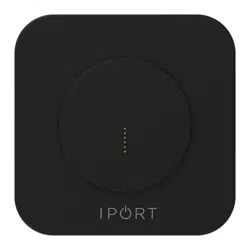
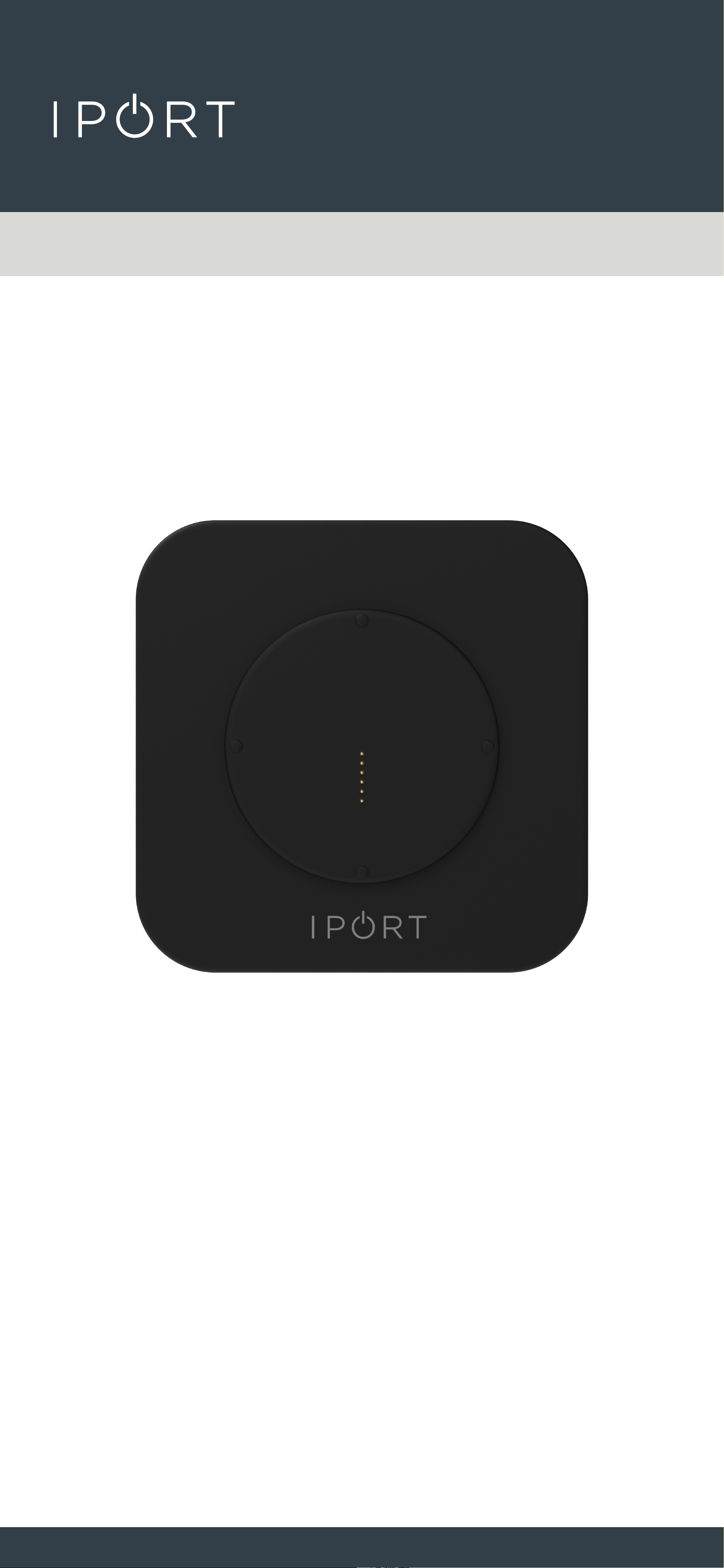
72350 - CONNECT PRO WallStation Black
72351 - CONNECT PRO WallStation White

CONNECT
PRO
WALLSTATION
2
IPORT CONNECT PRO WallStation Install
Manual
Whats in box:
1 - IPORT CONNECT WallStation
1 - IPORT Security tool - 1.5mm hex key
1 - Info Card
4 - Drwyall Anchors
4 - #6 HighLow thread Screws
1 - RJ45 - DC Connector
1 - RJ45 - TE Connector
1 - Phoenix - DC Connector
1 - Phoenix - TE Connector
1 - 24V DC 1.5A Power Supply
Glossary of Terms:
• WallStation - The fully assembled CONNECT PRO
Station holding and charging the IPORT CONNECT
Case.
• Cover Plate - The removeable plastic cover that
attaches to the WallStation, covering the label and
Screws.
• IPORT Security Tool - The orange handled 1.5mm hex
tool used for locking and unlocking IPORT
Products.
Product Info Page - www.iportproducts.com/cpwallsta-
tion
Thank you for purchasing the all new IPORT
CONNECT Platform. We hope you enjoy this revo-
lutionary new system and if at any time you need
more assistance please contact IPORT Tech Sup-
port via Online chart or through our help desk.
- IPORT Team
CONNECT
PRO
WALLSTATION
3
Before starting, detimine the install scenario
that best describes your desired install. Then
click on the title to be directed to the
appropriate install steps.
New Construction using Cat 6 Cable | pg. 4
Existing Construction using Cat 6 Cable | pg. 15
Upgrading a LAUNCH WallStation | pg. 25
New Construction using 14-2 Wire | pg. 32
Existing Construction using 14-2 Wire | pg. 45
WALLSTATION INSTALL OPTIONS
CONNECT
PRO
WALLSTATION
4
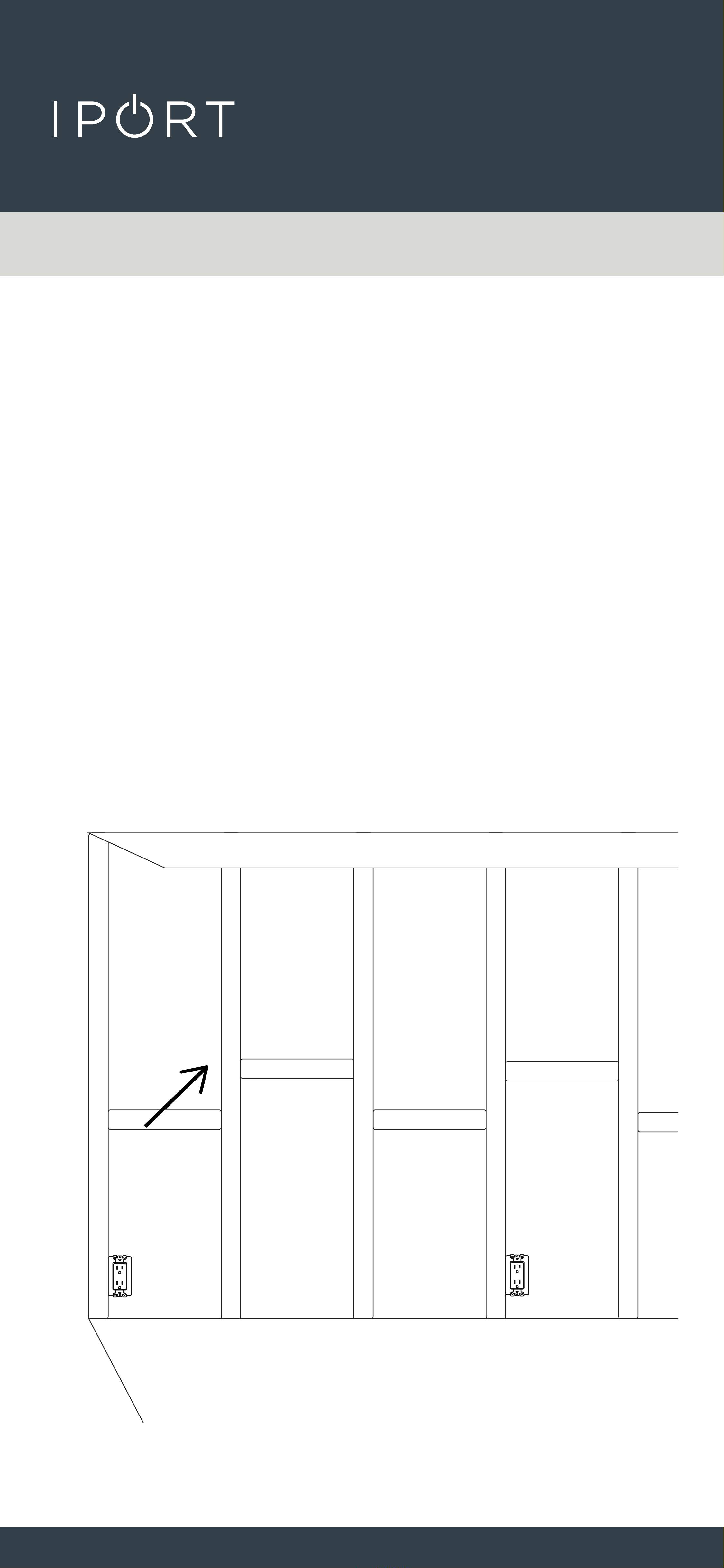
1. Determine the desired location of the
IPORT CONNECT PRO WallStation will
live when the construction is
completed.
IPORT CONNECT PRO WallStation Install
New Construction - Cat6
Before Construction is complete
CONNECT
PRO
WALLSTATION
5
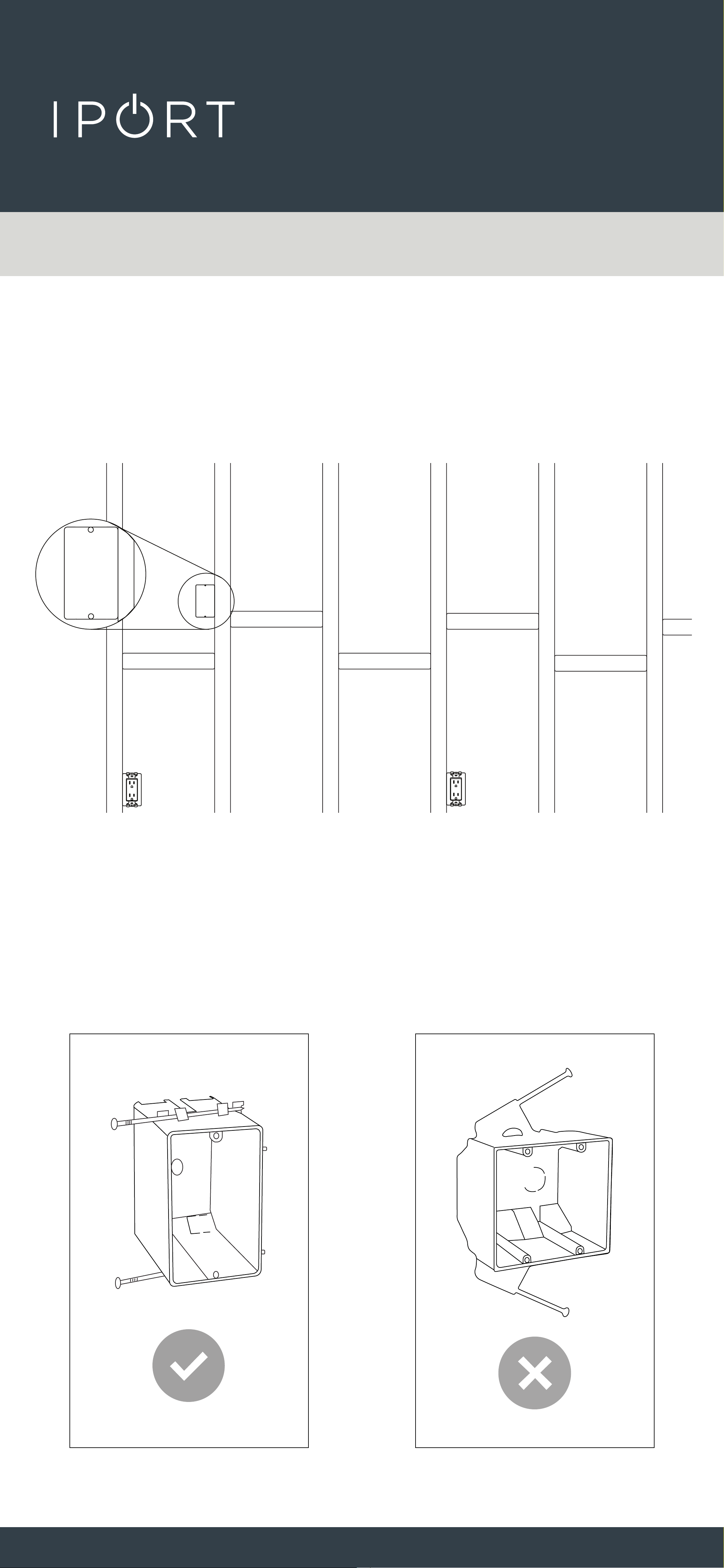
2. Install a 1 Gang electrical box or low
voltage ring in the desired location
of the WallStation.
NOTE: The CONNECT PRO WallStation will cover
a 1G electrical box only. A 2 Gang electrical box will
interfere with the mounting hardware.
1G
Electrical
Box
New Constructions Cat6
CONNECT
PRO
WALLSTATION
6
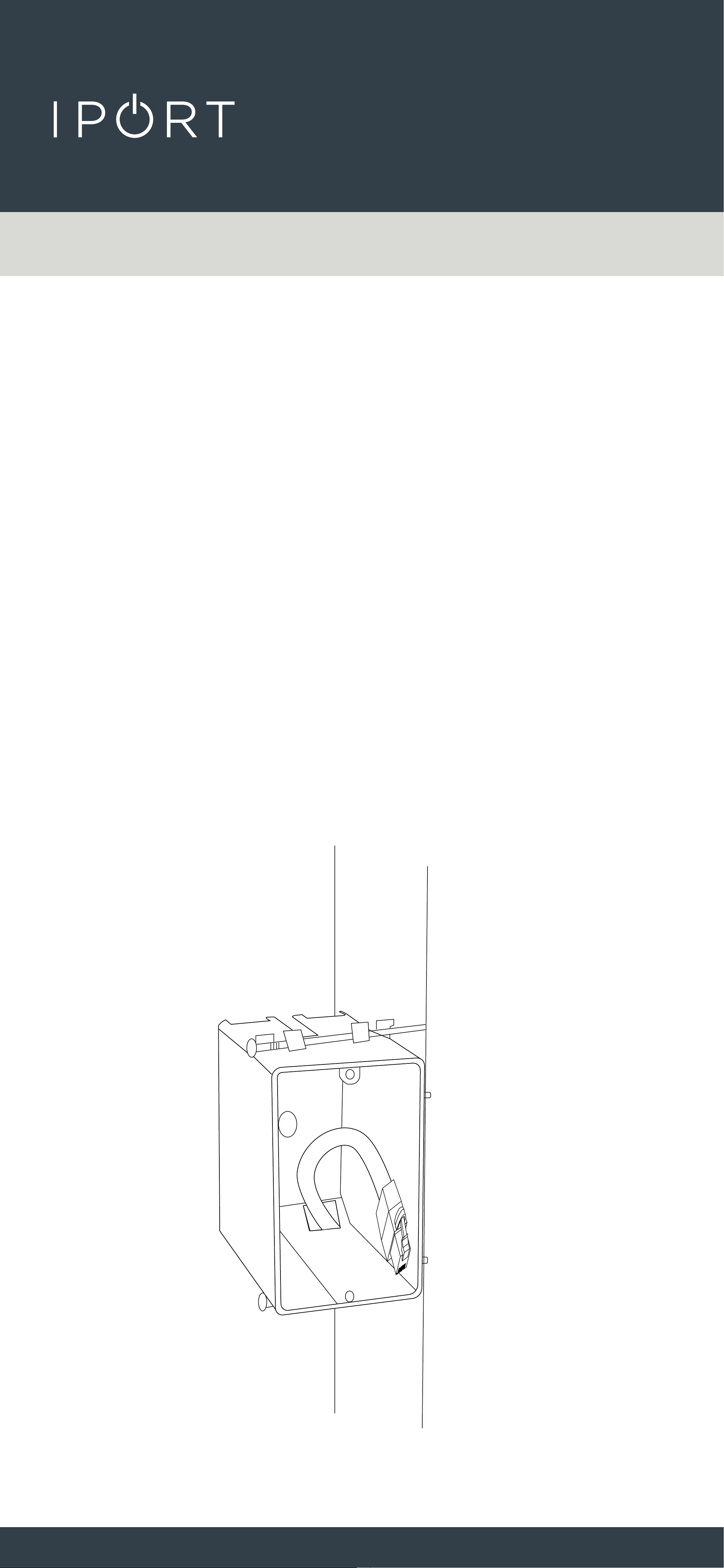
3. Run a Cat6 cable terminated with an
RJ45 Connectors (T568A or T568B)
from the WallStation location to a
nearby AC outlet, closet, or network
rack location and terminate the
other end of the cable the same as
before.
NOTE: Make sure to secure the Cat6 cable
appropriately onto the Electrical box or Low
Voltage ring to retrieve at a later time.
New Constructions Cat6
CONNECT
PRO
WALLSTATION
7
Installing the WallStation After
Construction
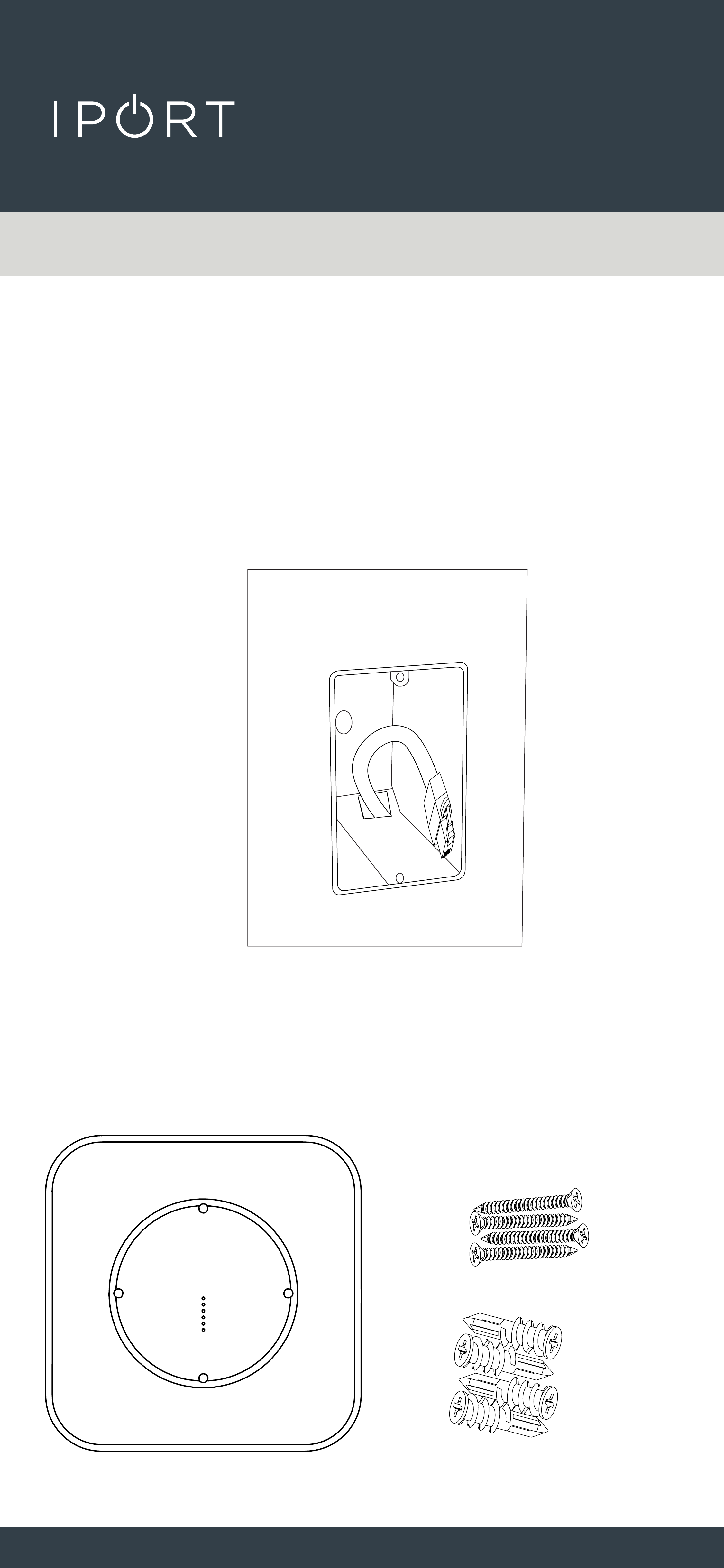
1. Terminate the Cat6 with an RJ45
Connector if not done so previously
using T568A or T568B standards.
2. Remove the WallStation, Drywall
anchors and Screws from the box
and place on a table.
x4
x4
New Constructions Cat6
CONNECT
PRO
WALLSTATION
8
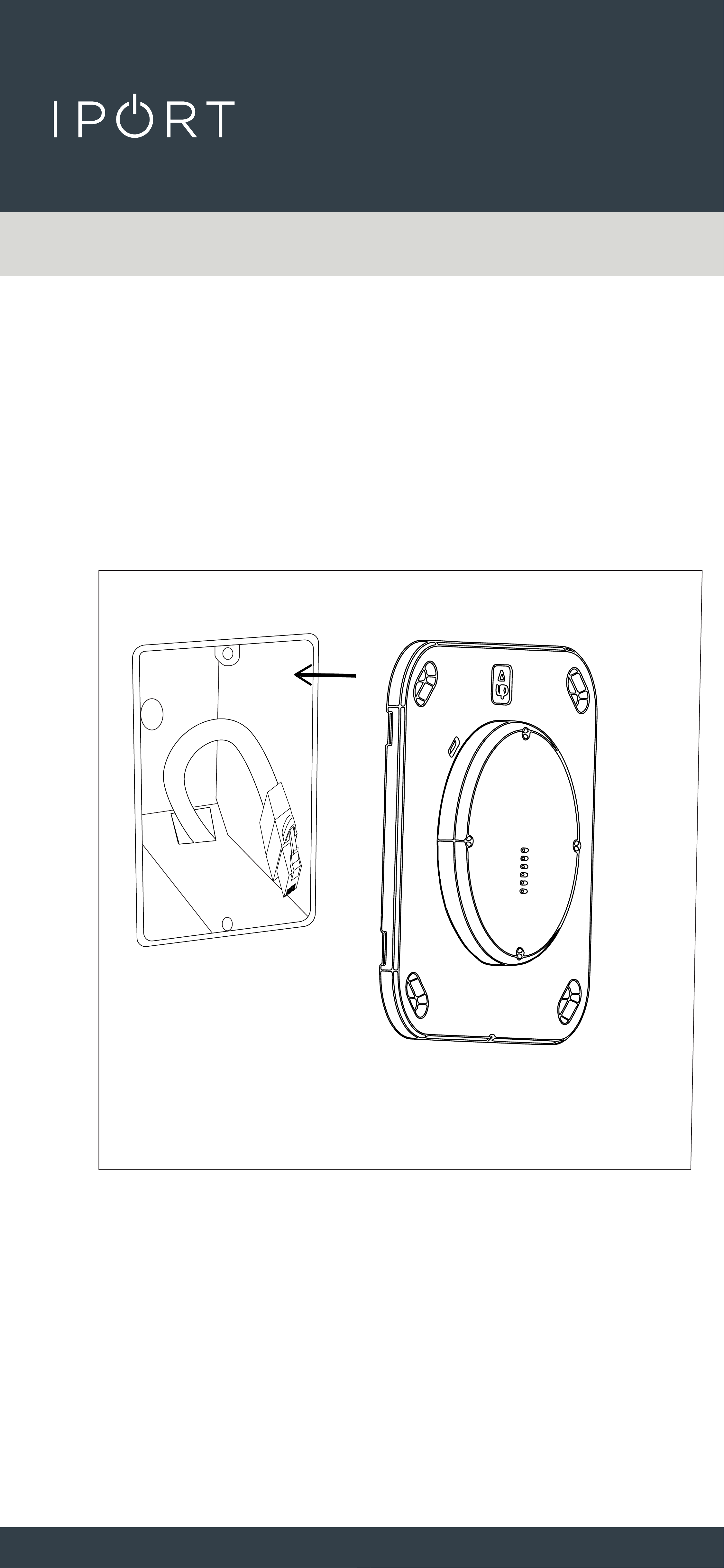
3. Insert the WallStation into the 1G
box.
New Constructions Cat6
CONNECT
PRO
WALLSTATION
9
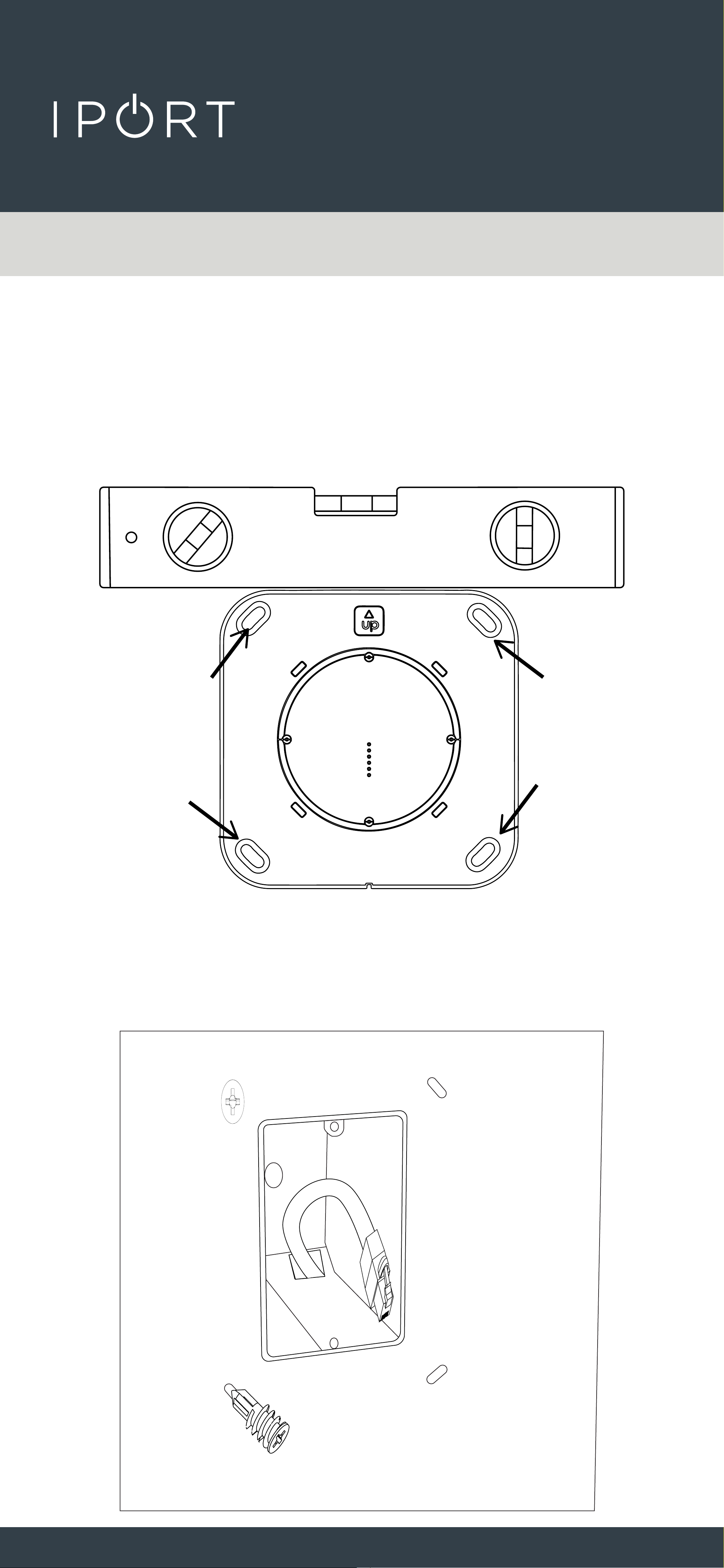
4. Use a leveling tool to level the
WallStation and mark the 4 locations
for the provided Anchors. Remove the
WallStation from the 1G Box.
5. Screw the 4 provided anchors into
the wall where marked.
New Constructions Cat6
CONNECT
PRO
WALLSTATION
10
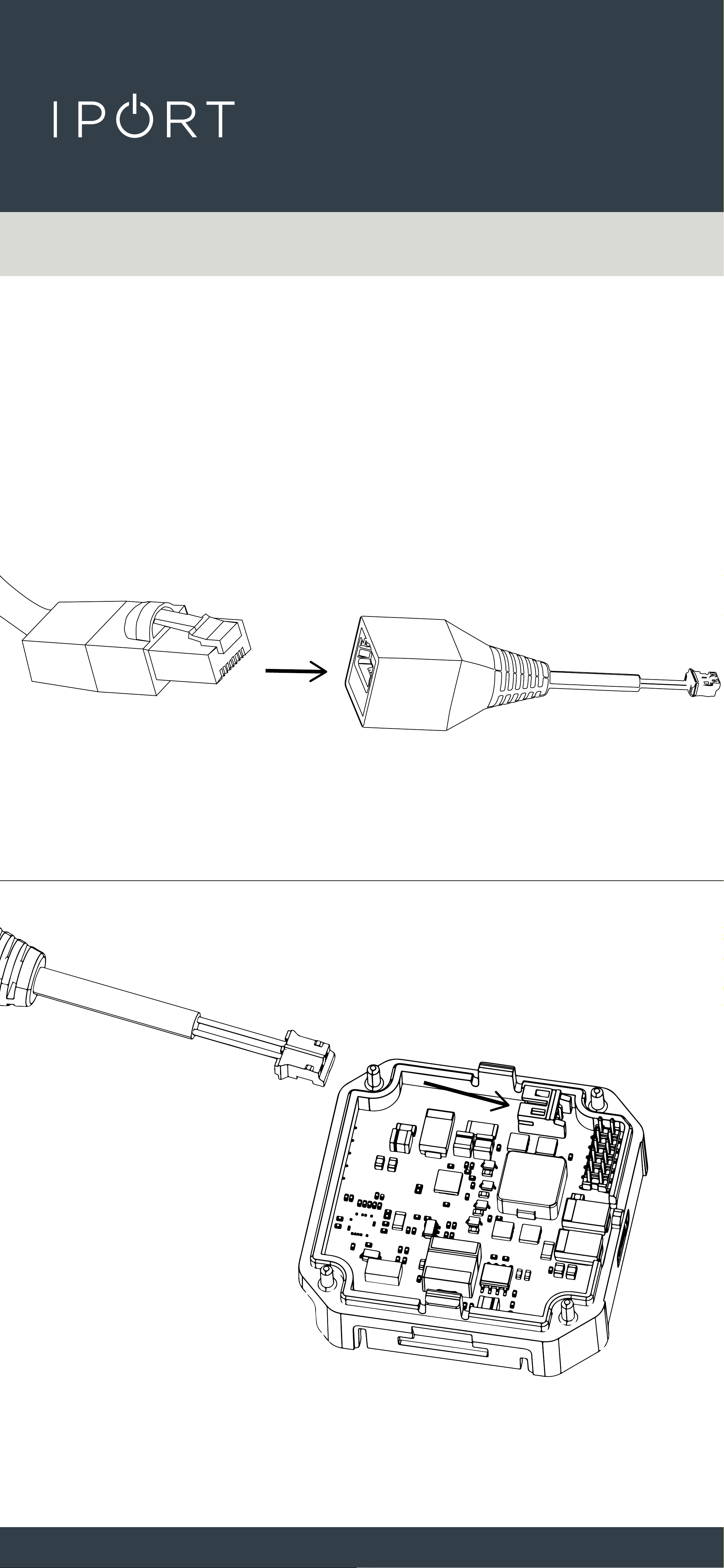
6. Connect the RJ-45 to TE Connector
provided to the Cat6 cable and onto
the white TE connector WallStation
DC Adapter.
New Constructions Cat6
Zip tie the Connector to the DC board for
added cable retnetion.
Label wire WARNING: Only for DC Low
Voltage - Not for PoE
CONNECT
PRO
WALLSTATION
11
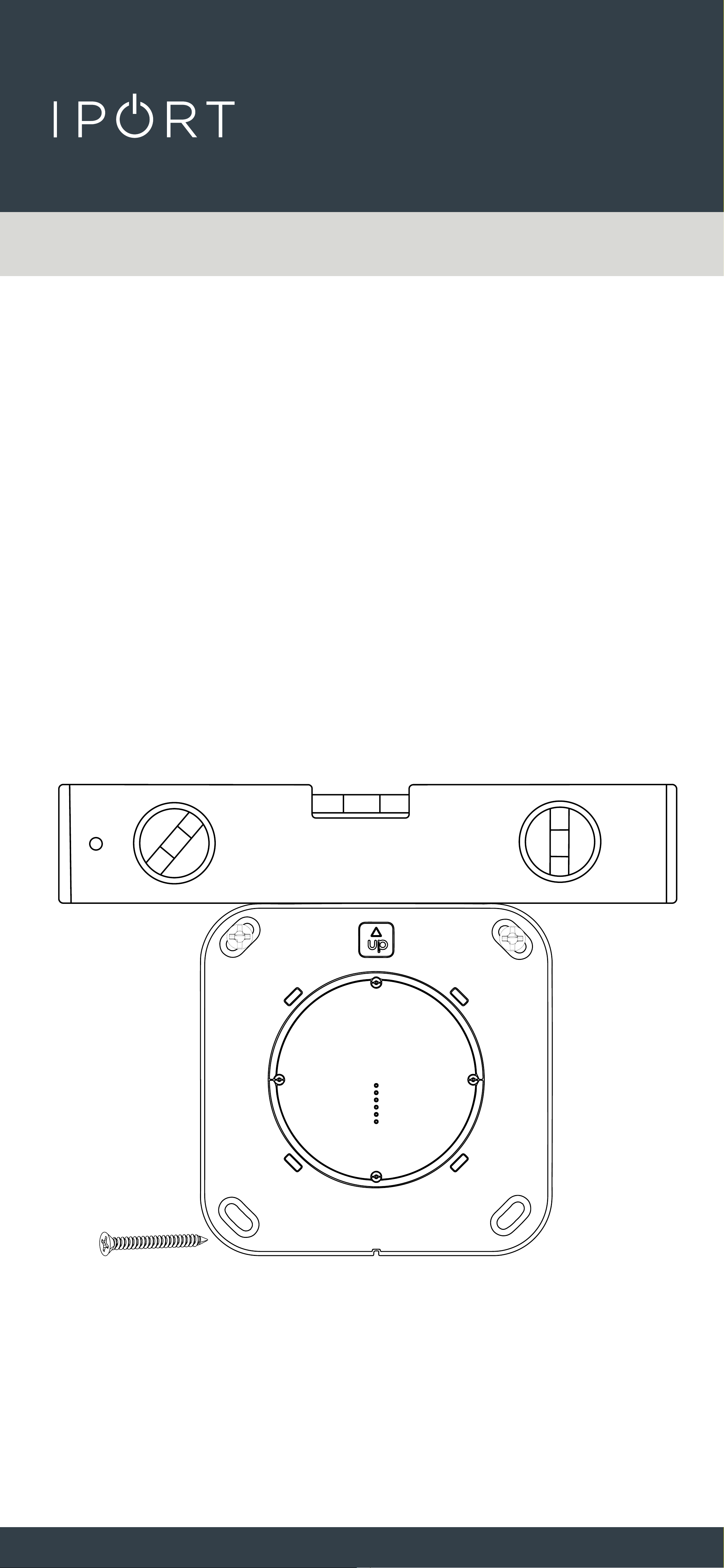
7. Insert the WallStation back into the
1G box and use the provided screws
to attach the WallStation to the wall.
IMPORTANT: Make Sure to position
the WallStation with the Up Arrow
facing up. Use a leveling tool to
level the WallStation and hand
tighten the screws.
New Constructions Cat6
CONNECT
PRO
WALLSTATION
12
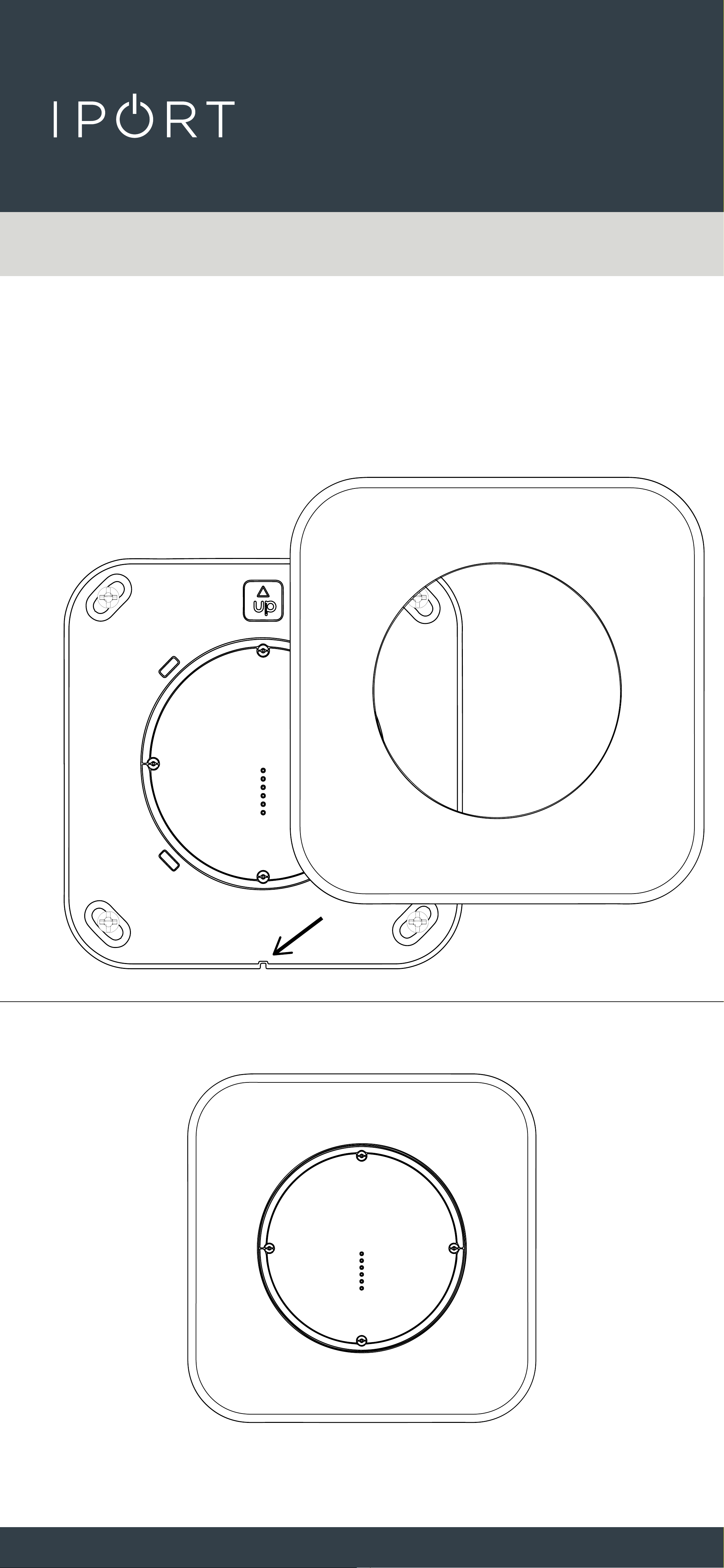
8. Attach the WallStation Cover
Plate over the WallStation making
sure to alight the positioning notch
with the tooth on the WallStation.
New Constructions Cat6
CONNECT
PRO
WALLSTATION
13
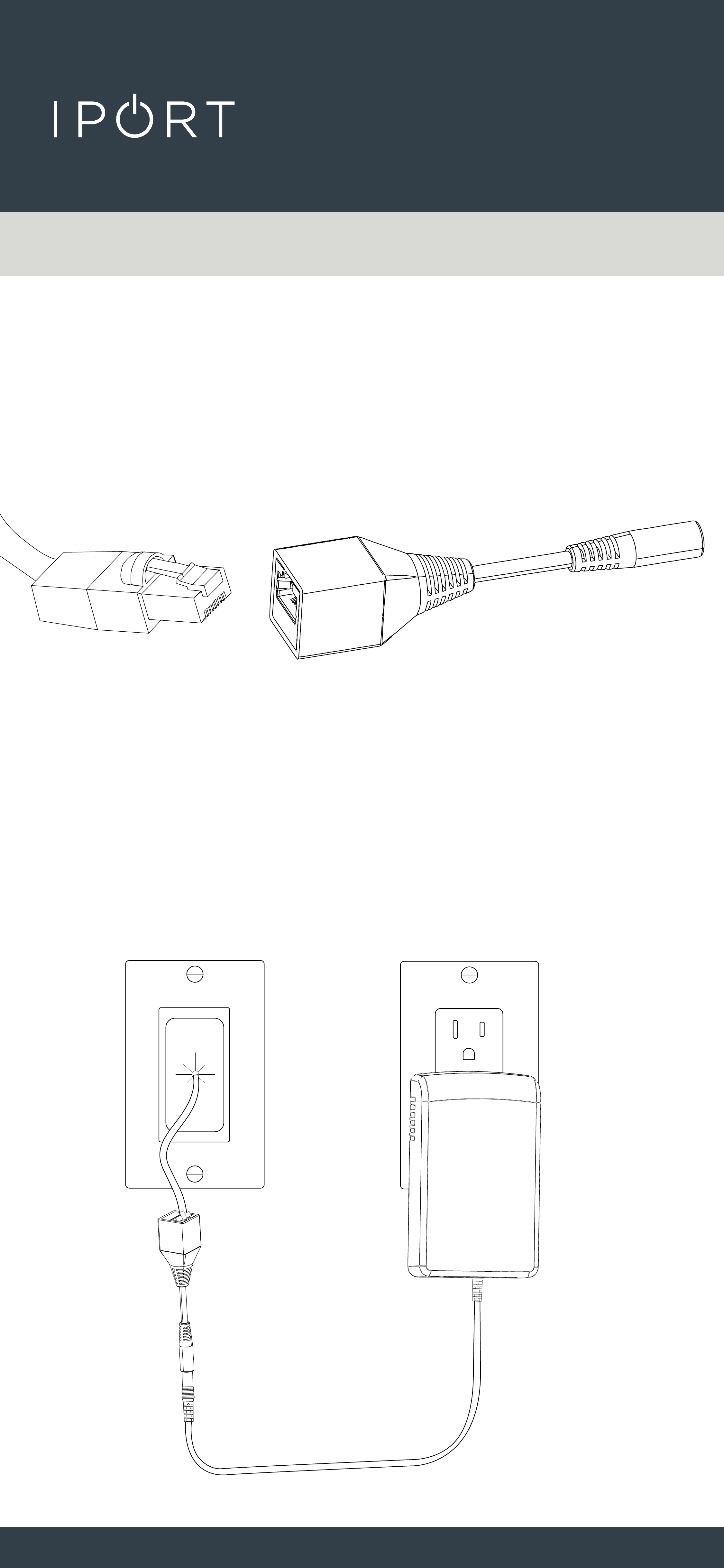
9. Connect the RJ-45 to DC Connector
at the other end of the Cat6 Cable.
10. Connect the provided DC power
adapter into the other end of the
RJ-45 DC adapter and plug in the
power adapter into an AC outlet.
New Constructions Cat6
Grommit not included
CONNECT
PRO
WALLSTATION
14
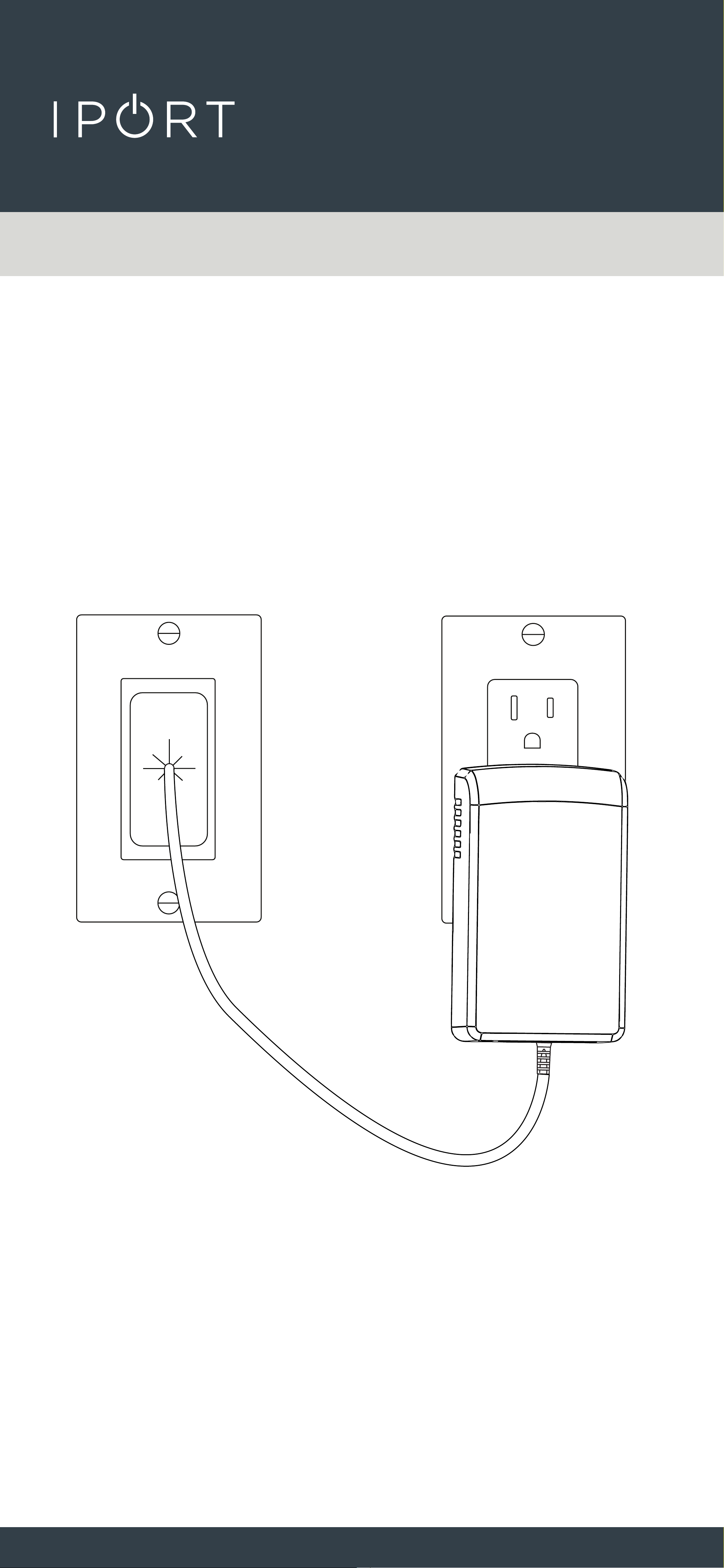
For a clean finished look place the Connector and
DC barrel plug back throug the grommit into the
wall.
Grommit not included
CONNECT
PRO
WALLSTATION
15
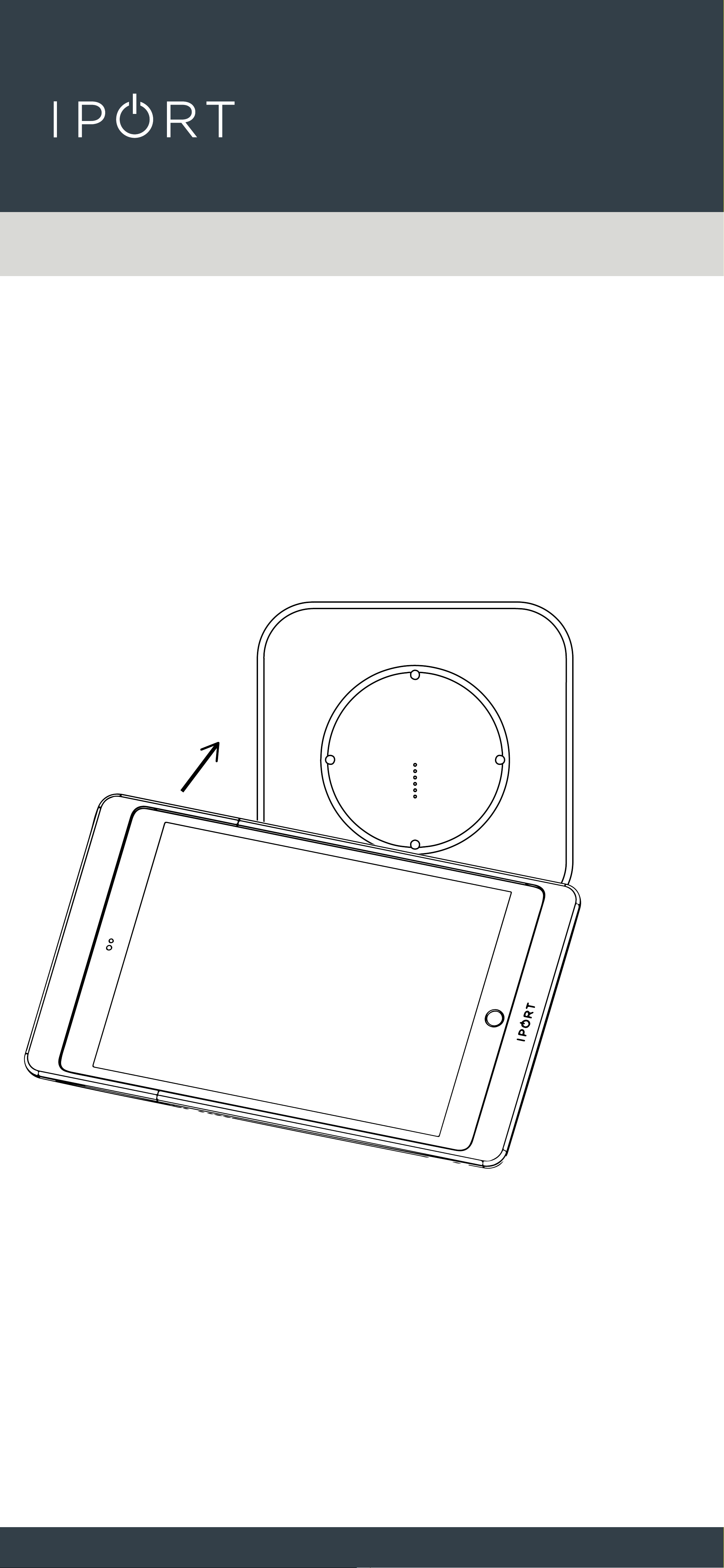
11. Place a Case with an iPad installed
onto the WallStation to determine
power was installed properly and
the iPad charges.
New Constructions Cat6
COMPLETE
CONNECT
PRO
WALLSTATION
16
Installing the WallStation in Existing
Construction - Cat6
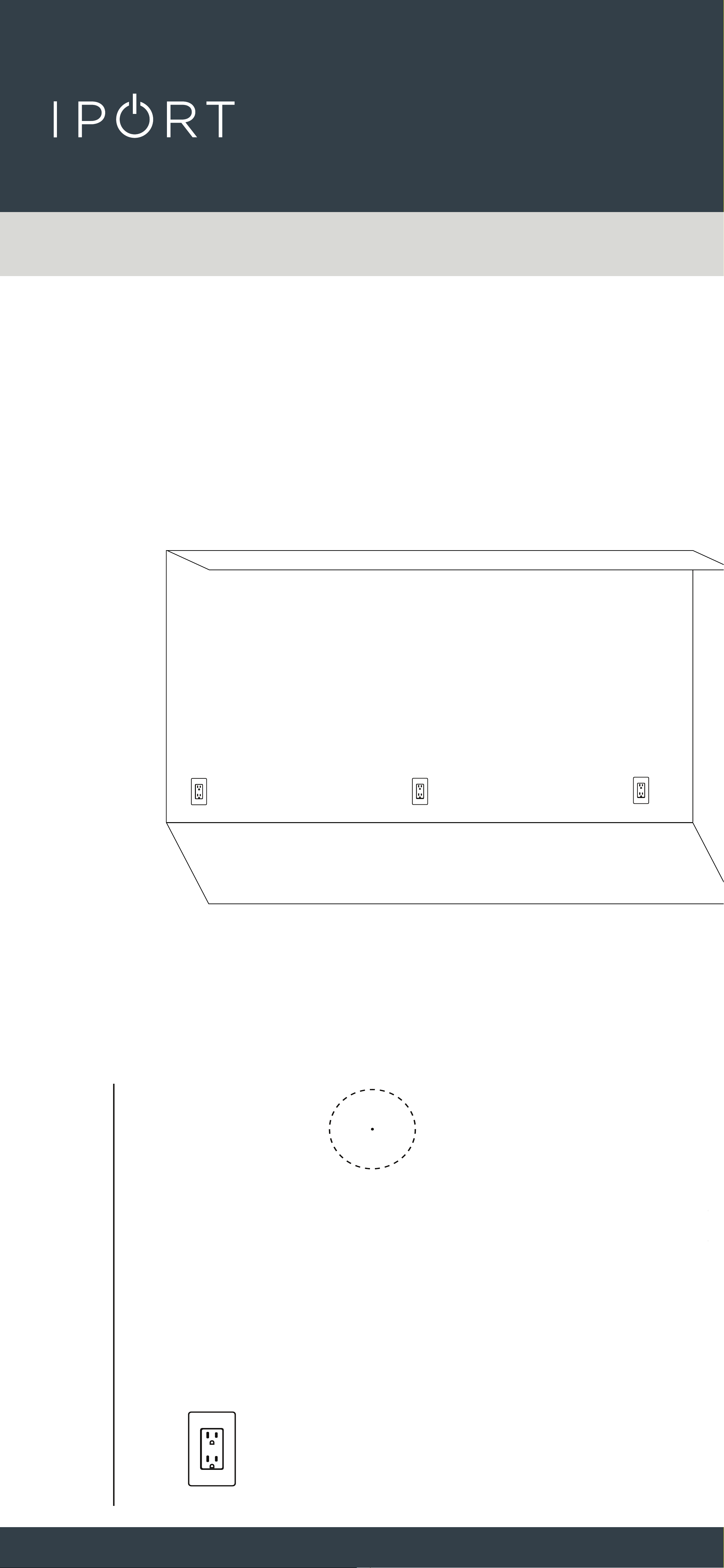
1. Determine the desired location of
the IPORT CONNECT PRO
WallStation.
2. Use a 2-3/4” (70mm) hole saw to cut
a hole in the desired location of the
WallStation
X
CONNECT
PRO
WALLSTATION
17
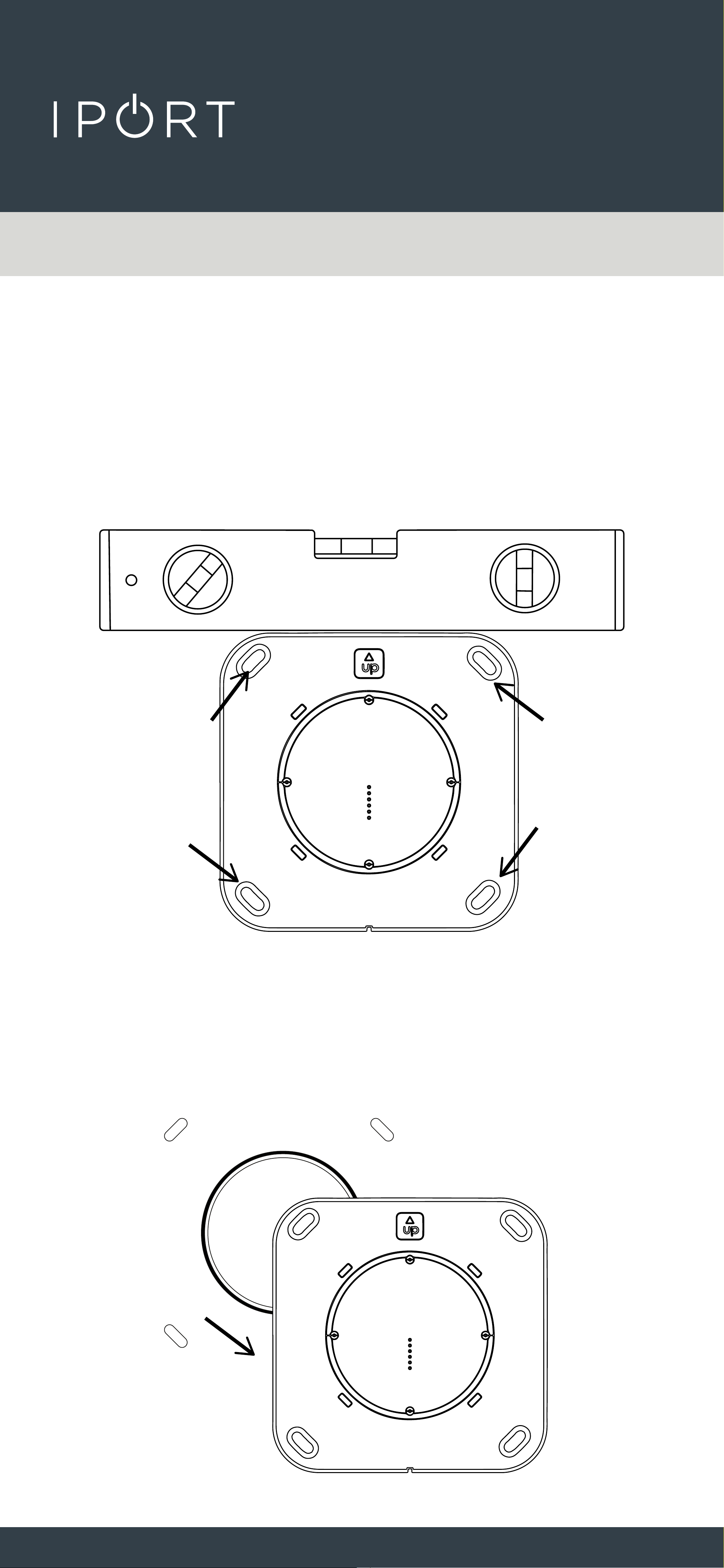
3. Insert the WallStation into the 2 3/4
- inch hole and use a leveling tool to
level the WallStation. Mark the 4
locations for the provided Anchors.
4. Remove the WallStation form the
wall once you have marked the 4
anchor locations.
Existing Constructions Cat6
CONNECT
PRO
WALLSTATION
18
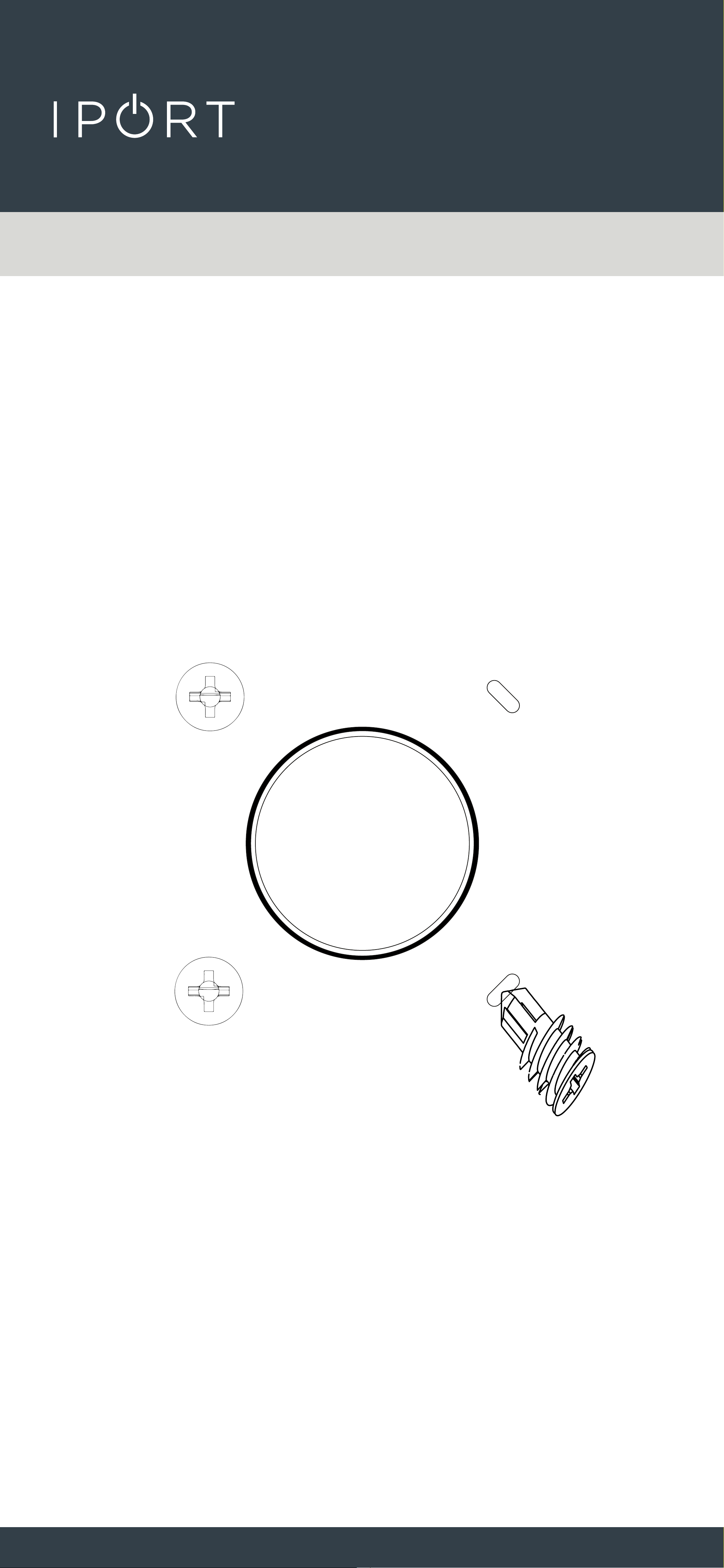
5. Screw the provided anchors into the
wall where marked.
Existing Constructions Cat6
CONNECT
PRO
WALLSTATION
19
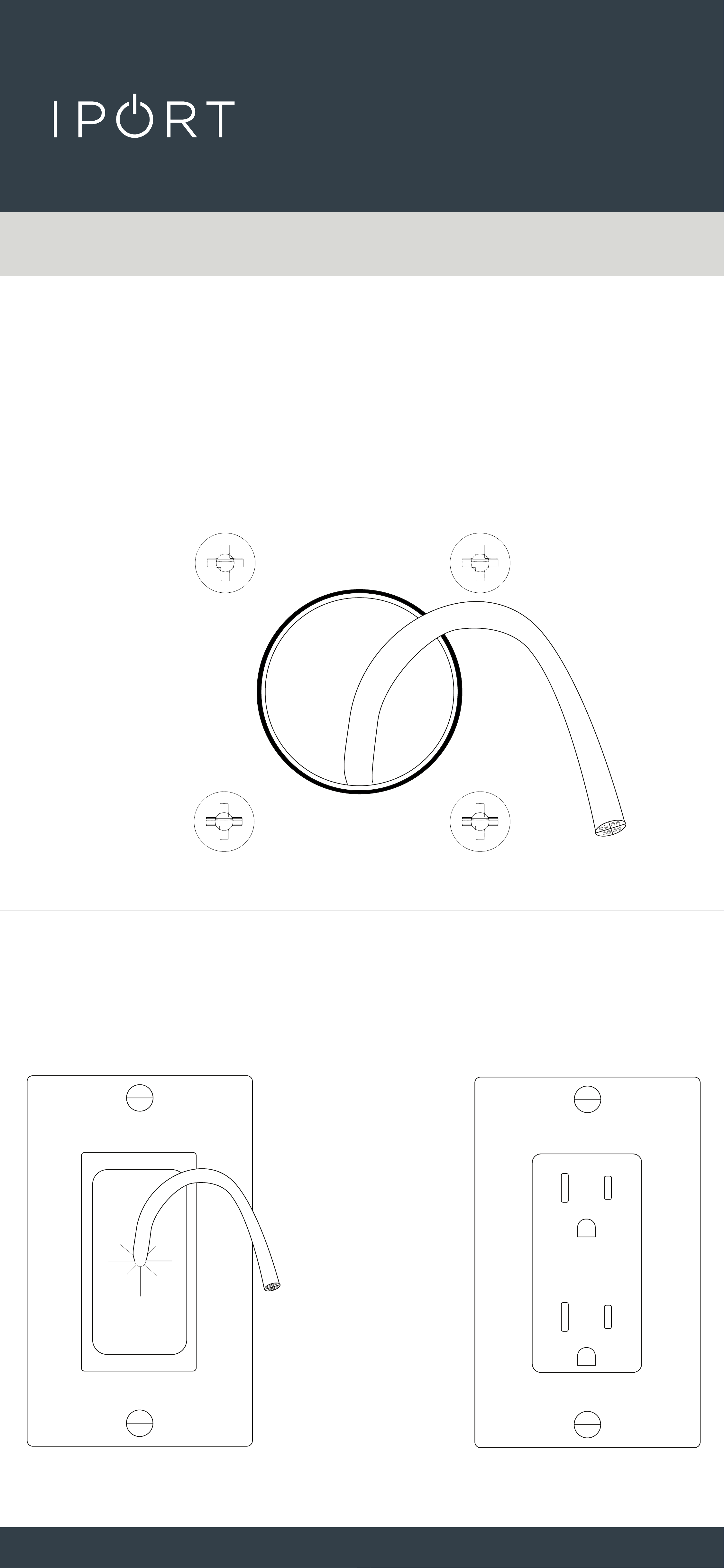
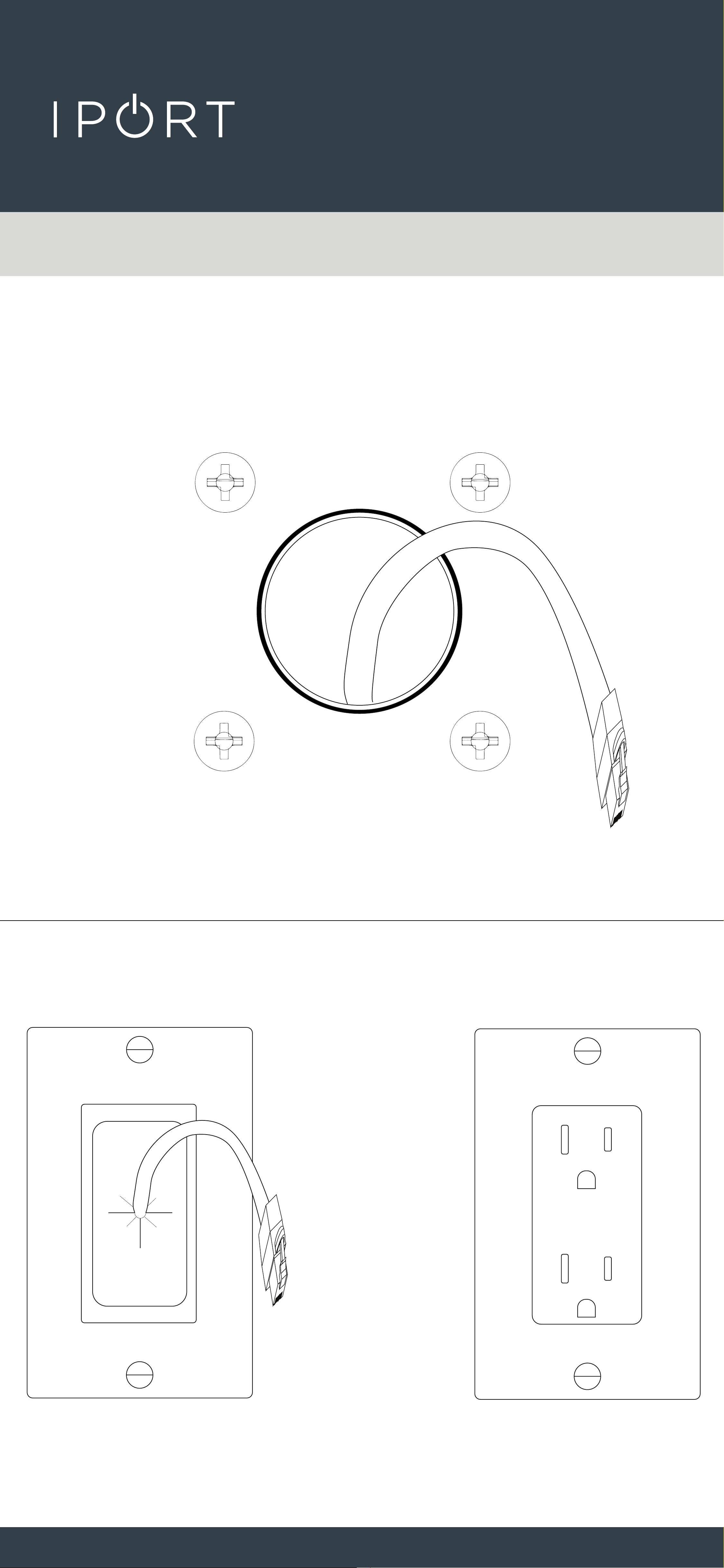
6. Use the 2 3/4 - inch hole to fish a
Cat6 cable to a nearby AC outlet,
closet or network rack.
Existing Constructions Cat6
Grommit not included
CONNECT
PRO
WALLSTATION
20
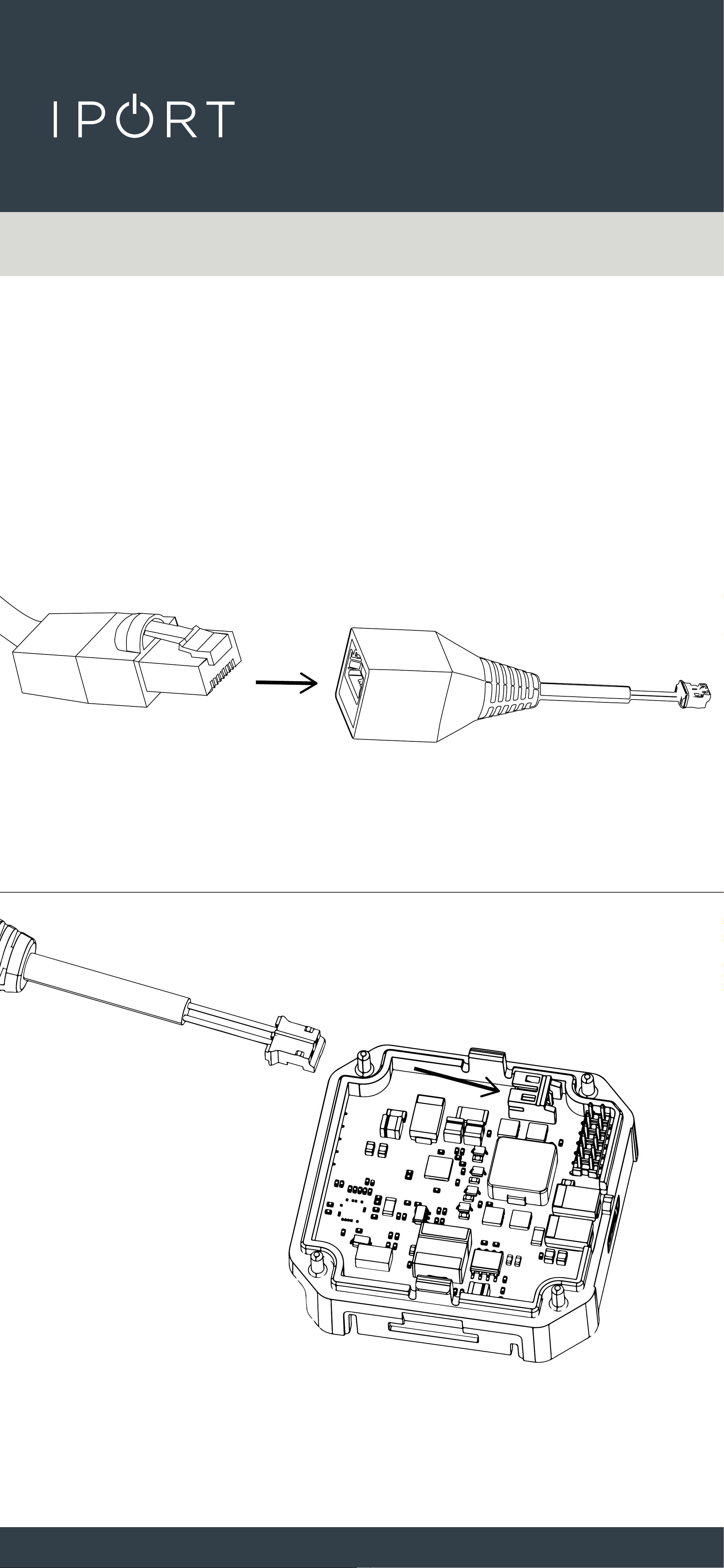
7. Terminate both ends the Cat6 with
an RJ45 Connector using T568A or
T568B standards
Existing Constructions Cat6
Label wire WARNING: Only for DC Low
Voltage - Not for PoE
Grommit not included
CONNECT
PRO
WALLSTATION
21
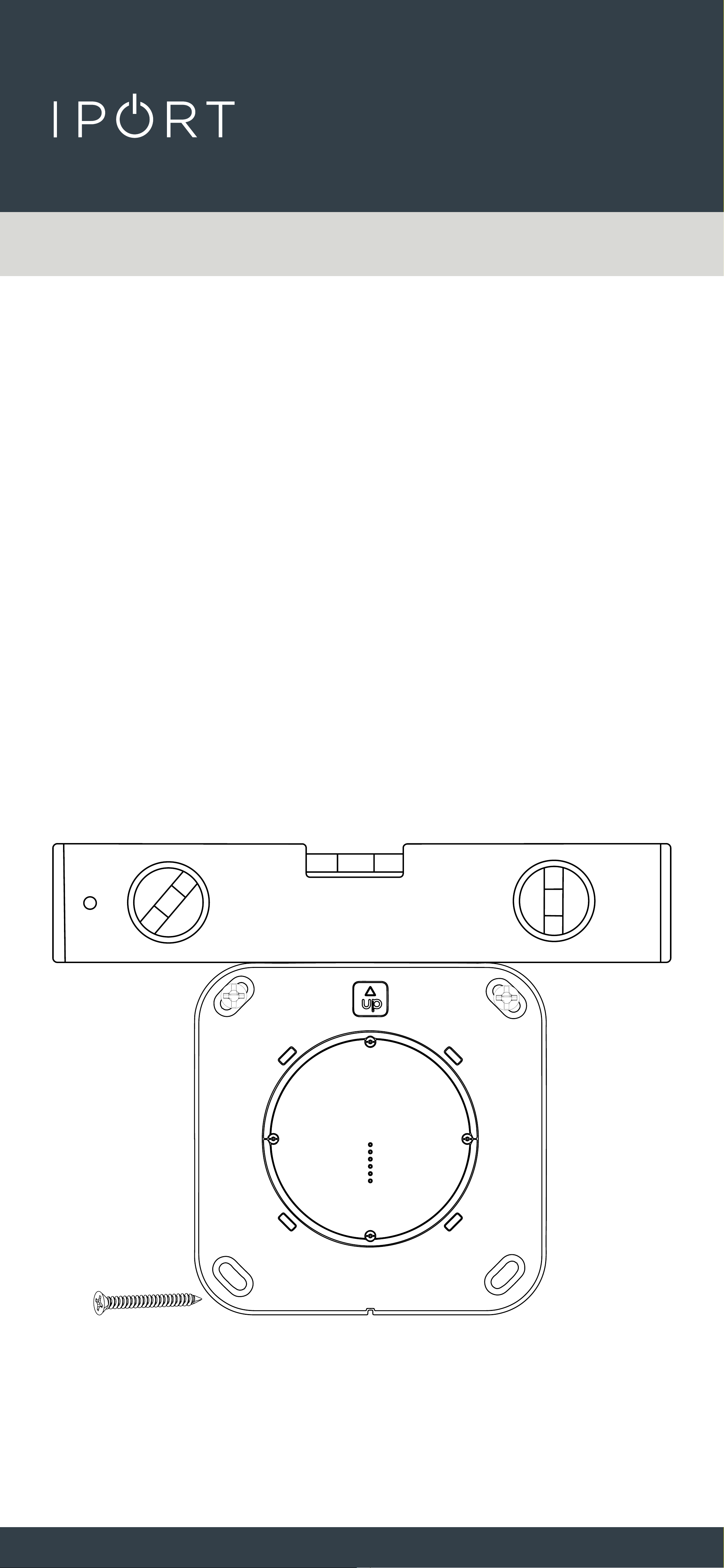
8. Connect the RJ-45 to TE Connector
provided to the Cat6 cable and onto
the white TE connector WallStation
DC Adapter.
Existing Constructions Cat6
Zip tie the Connector to the DC board for
added cable retnetion.
CONNECT
PRO
WALLSTATION
22
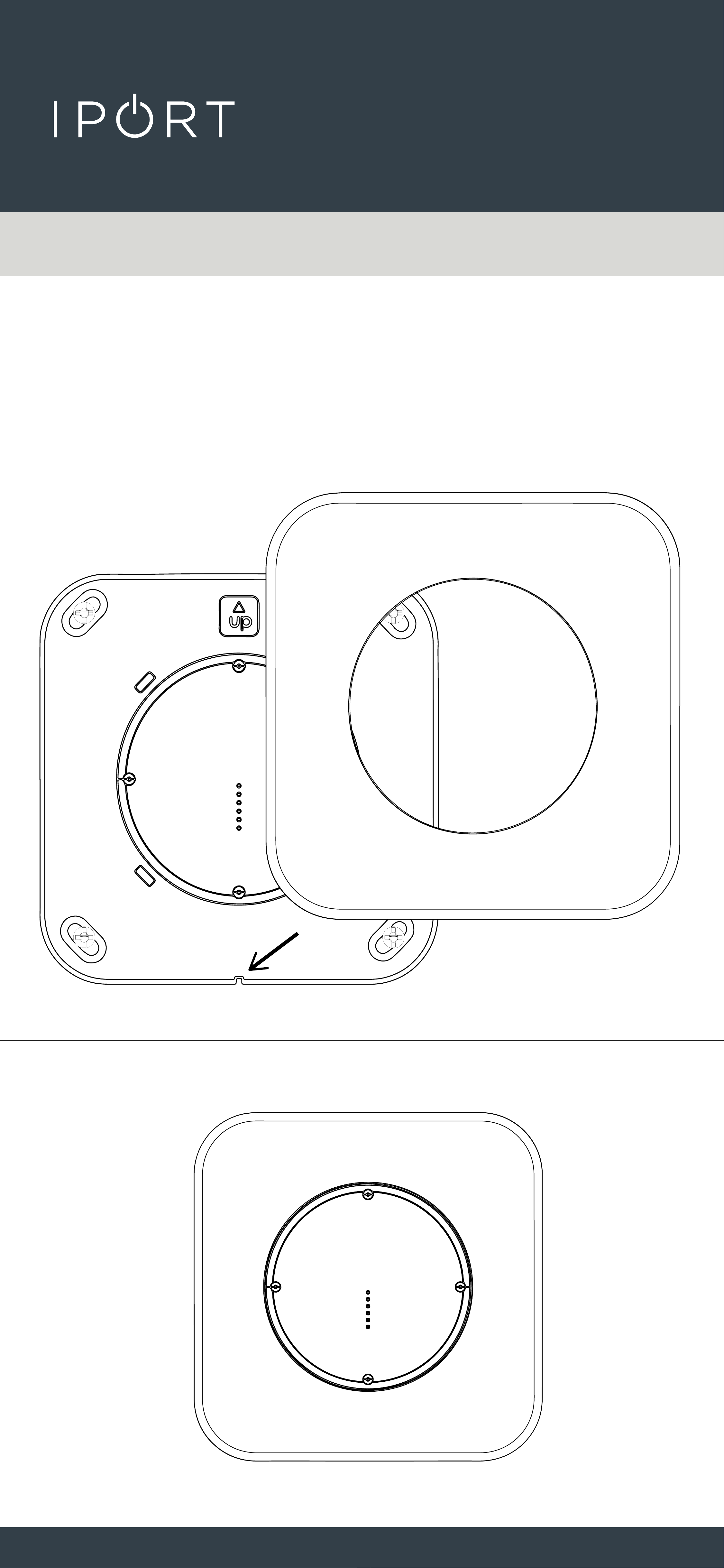
9. Insert the WallStation back into the
wall and use the provided screws
to attach the WallStation to the wall
anchors.
IMPORTANT: Make Sure to position
the WallStation with the Up Arrow
facing up. Use a leveling tool to
level the WallStation and hand
tighten the screws.
Existing Constructions Cat6
CONNECT
PRO
WALLSTATION
23
10. Attach the WallStation Cover
Plate over the WallStation making
sure to alight the positioning notch
with the tooth on the WallStation.
Existing Constructions Cat6
CONNECT
PRO
WALLSTATION
24
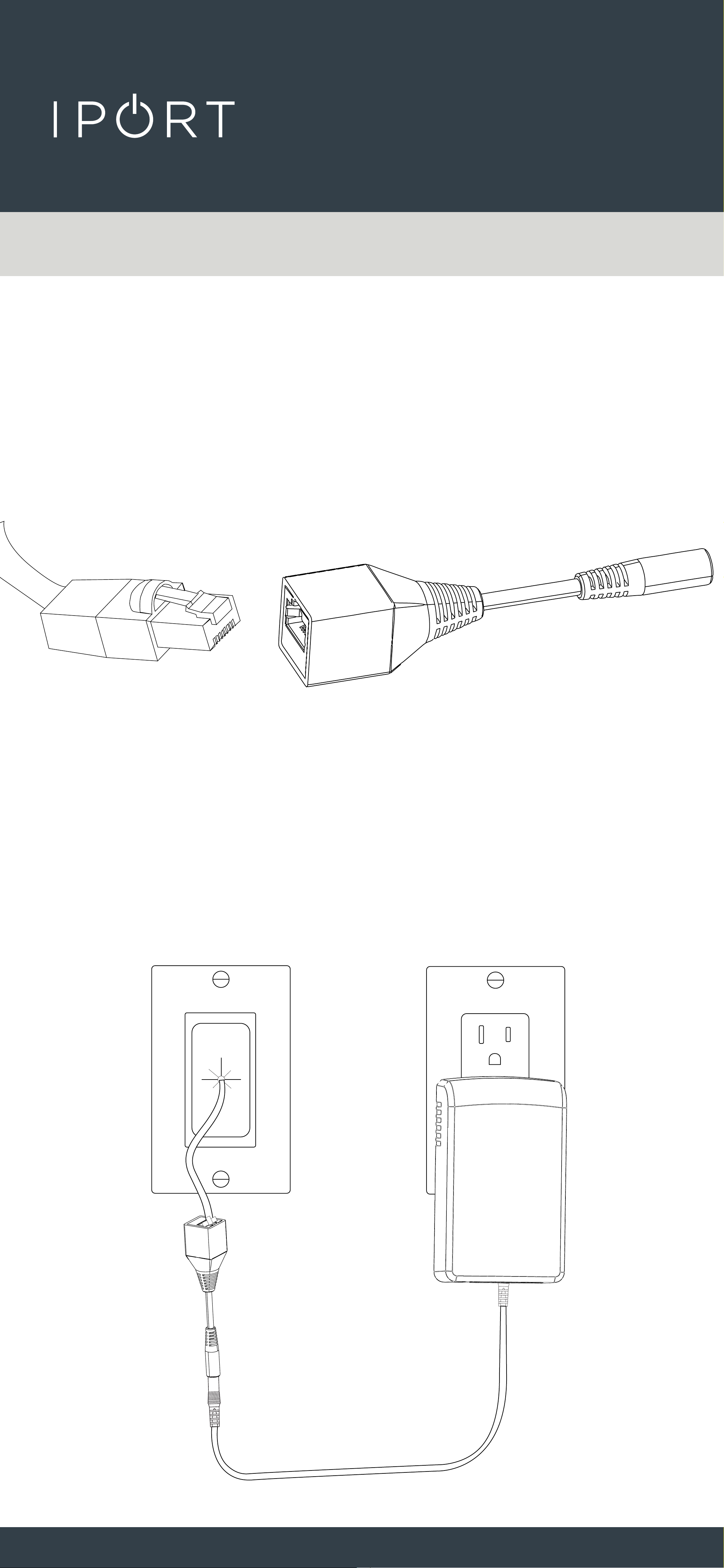
11. Connect the RJ-45 to DC Connector
at the other end of the Cat6 Cable.
12. Connect the Provided DC Power
Adapter into the wall and connect
the barrel connector to the other end
of of the RJ-45-DC adapter.
Existing Constructions Cat6
Grommit not included
CONNECT
PRO
WALLSTATION
25
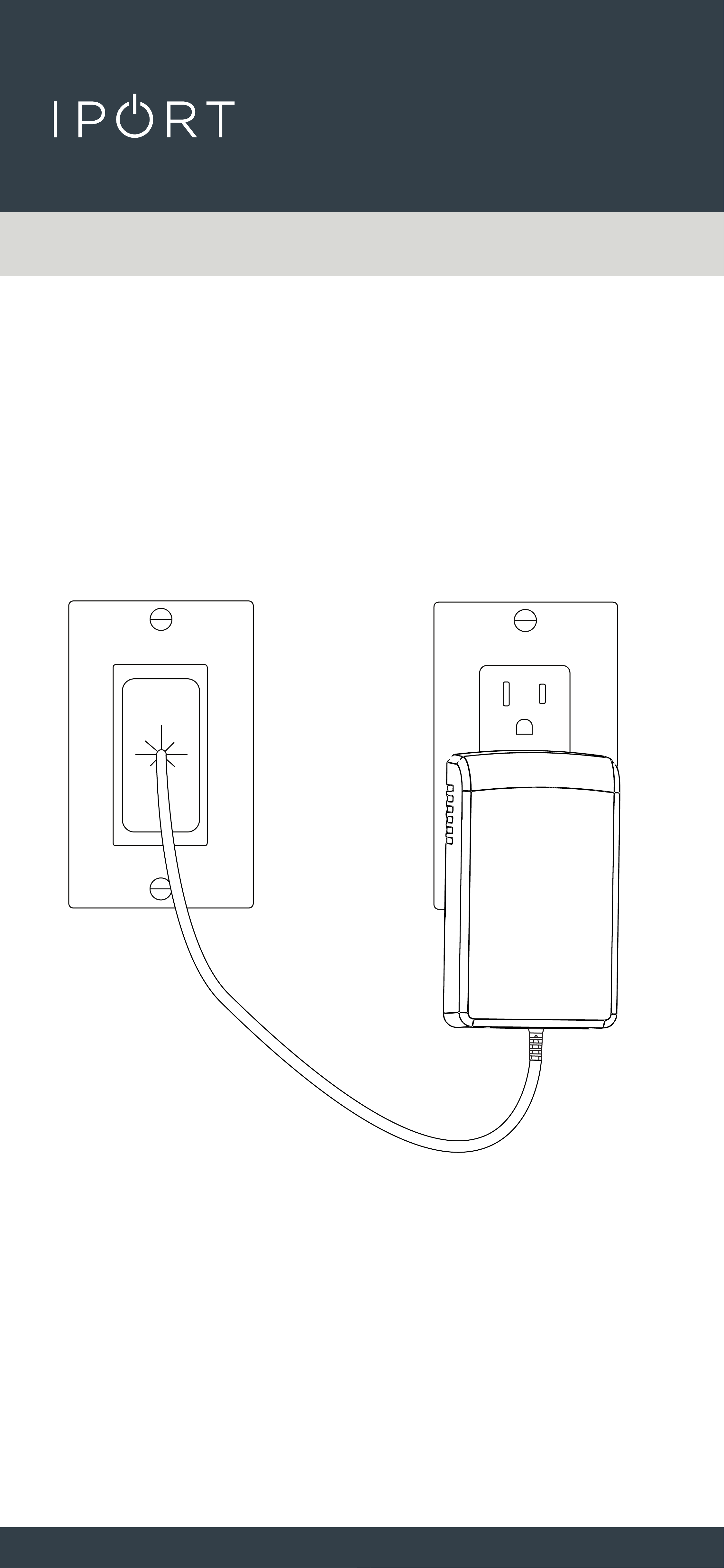
For a clean finished look place the Connector and
DC barrel plug back throug the grommit into the
wall.
Grommit not included
CONNECT
PRO
WALLSTATION
26
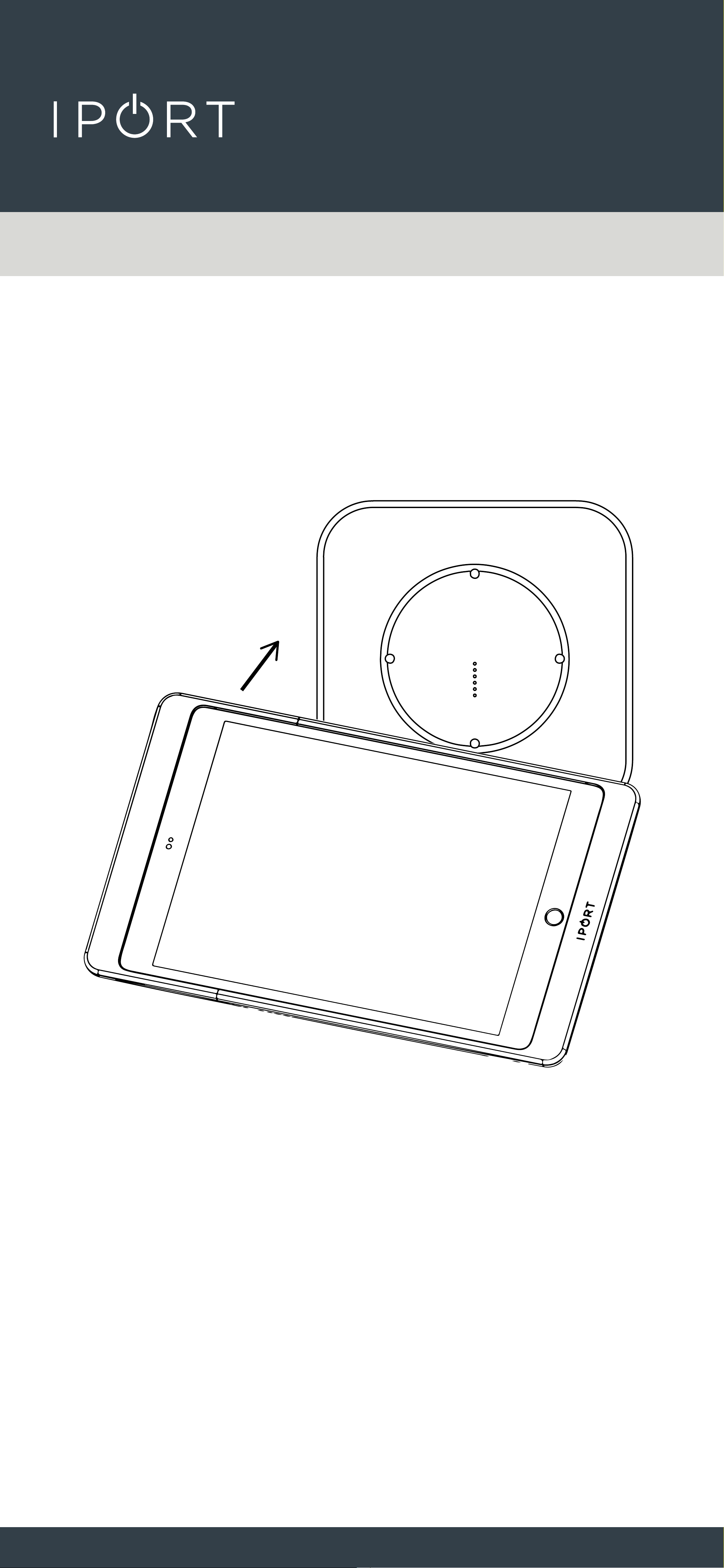
13. Place a Case with an iPad installed
onto the WallStation to determine
power was installed properly and
the iPad charges.
Existing Constructions Cat6
COMPLETE
CONNECT
PRO
WALLSTATION
27
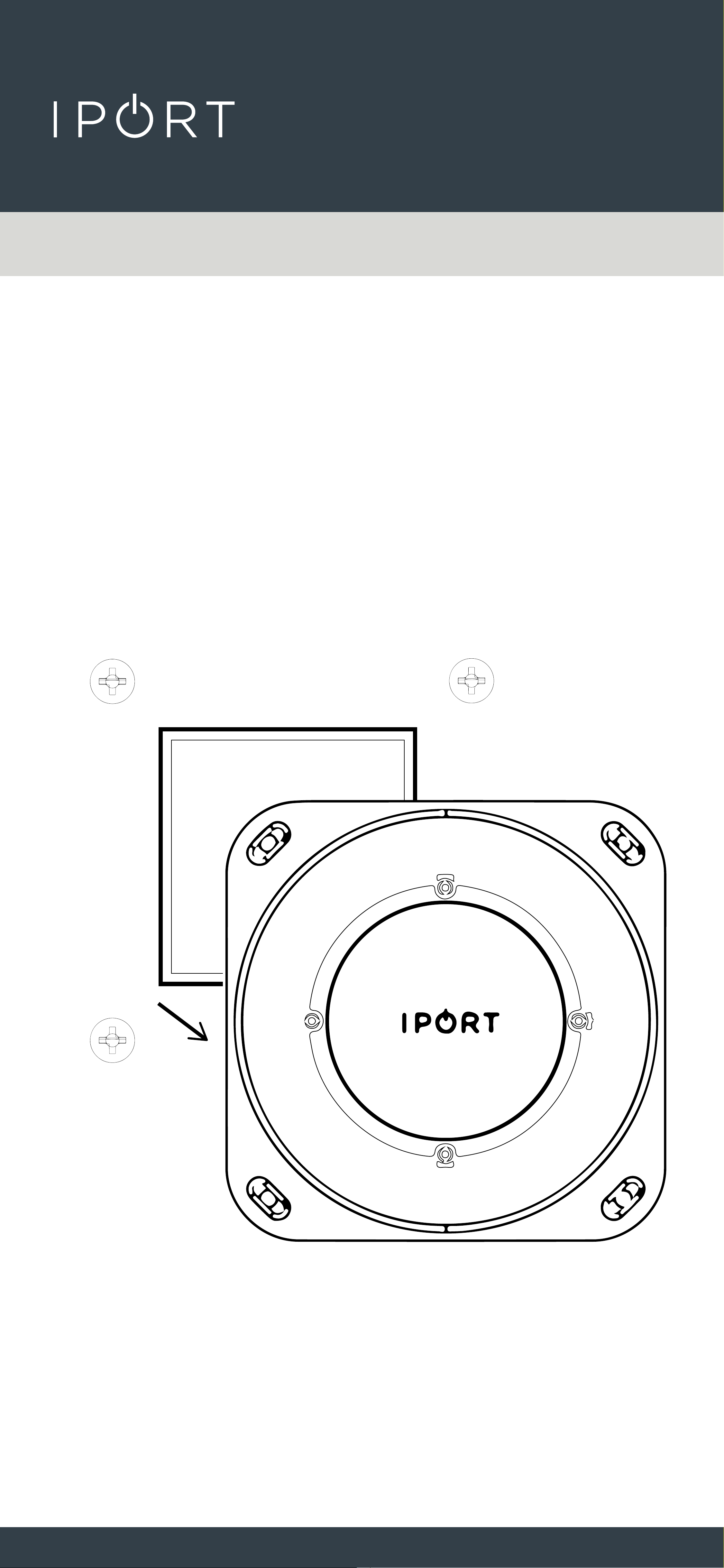
Upgrading a LAUNCH WallStation
to CONNECT PRO
1. Remove the old LAUNCH WallStation
from the wall making sure to keep
the existing anchors installed into
the wall.
CONNECT
PRO
WALLSTATION
28
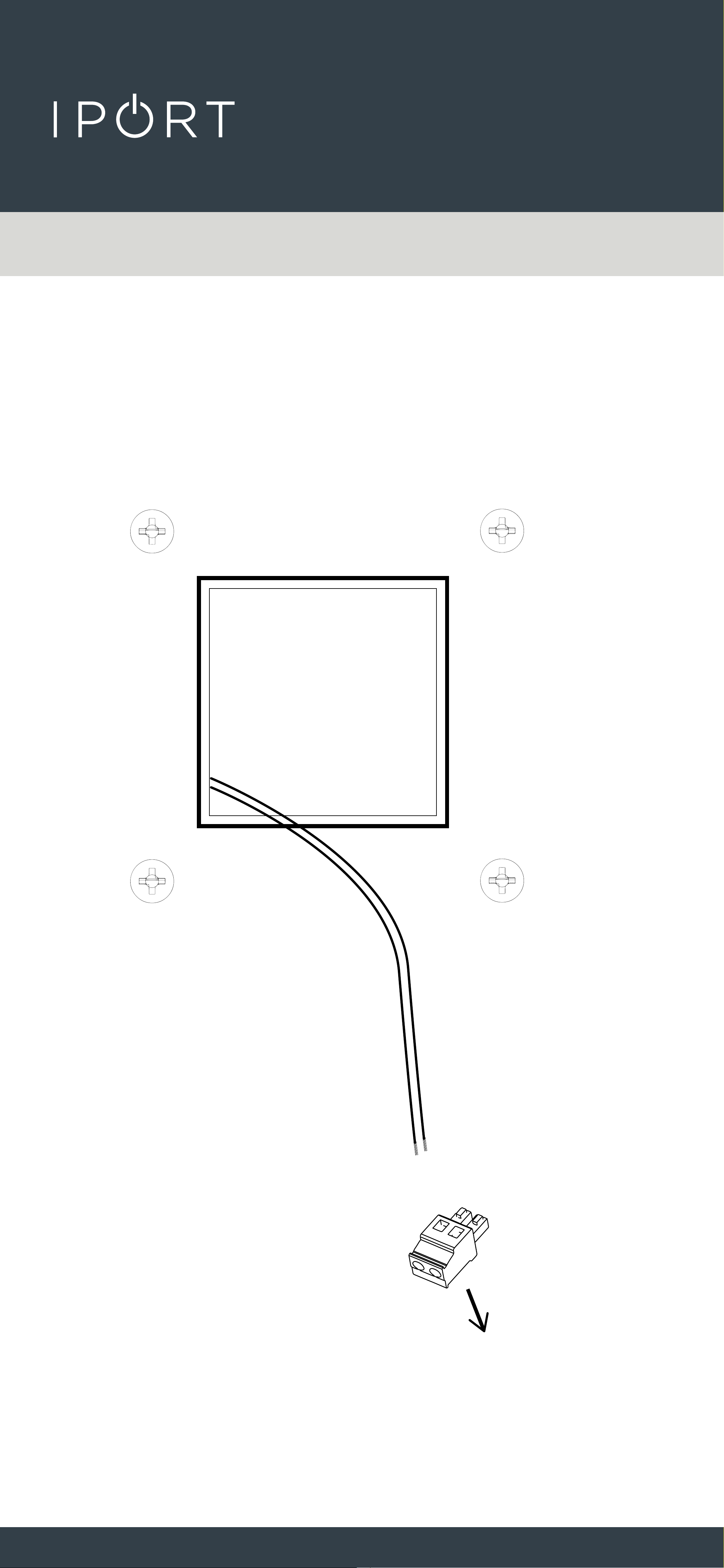
2. Disconnect the two wires in the
wall from the green phoenix
connector.
Upgradeing LAUNCH WallStation
CONNECT
PRO
WALLSTATION
29
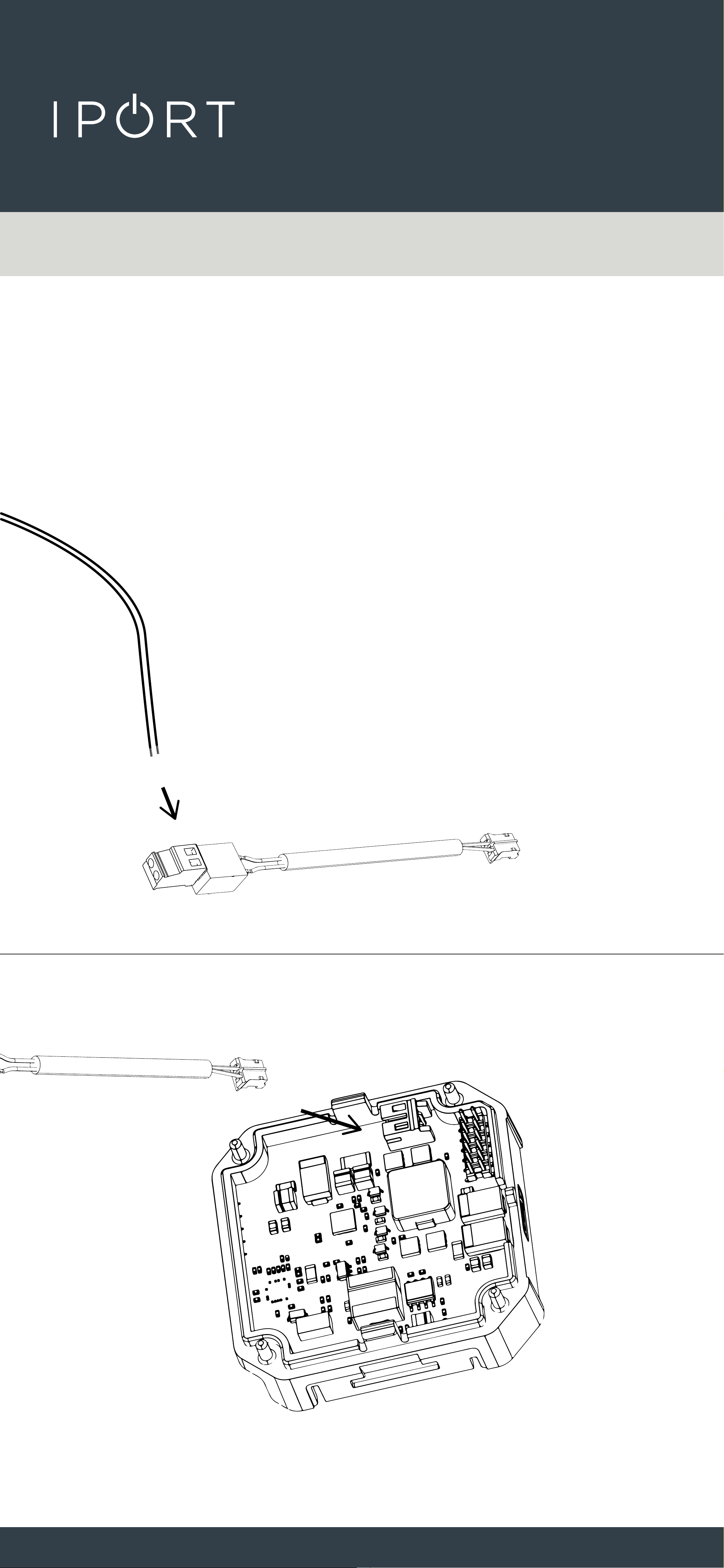
3. Connect the TE-Phoenix
connector to the existing wire ran
in the wall. Next connect the TE
cable into the back of the white TE
Connector on the WallStation DC
Adapter.
Upgradeing LAUNCH WallStation
Zip tie the Connector to the DC board for
added cable retnetion.
CONNECT
PRO
WALLSTATION
30
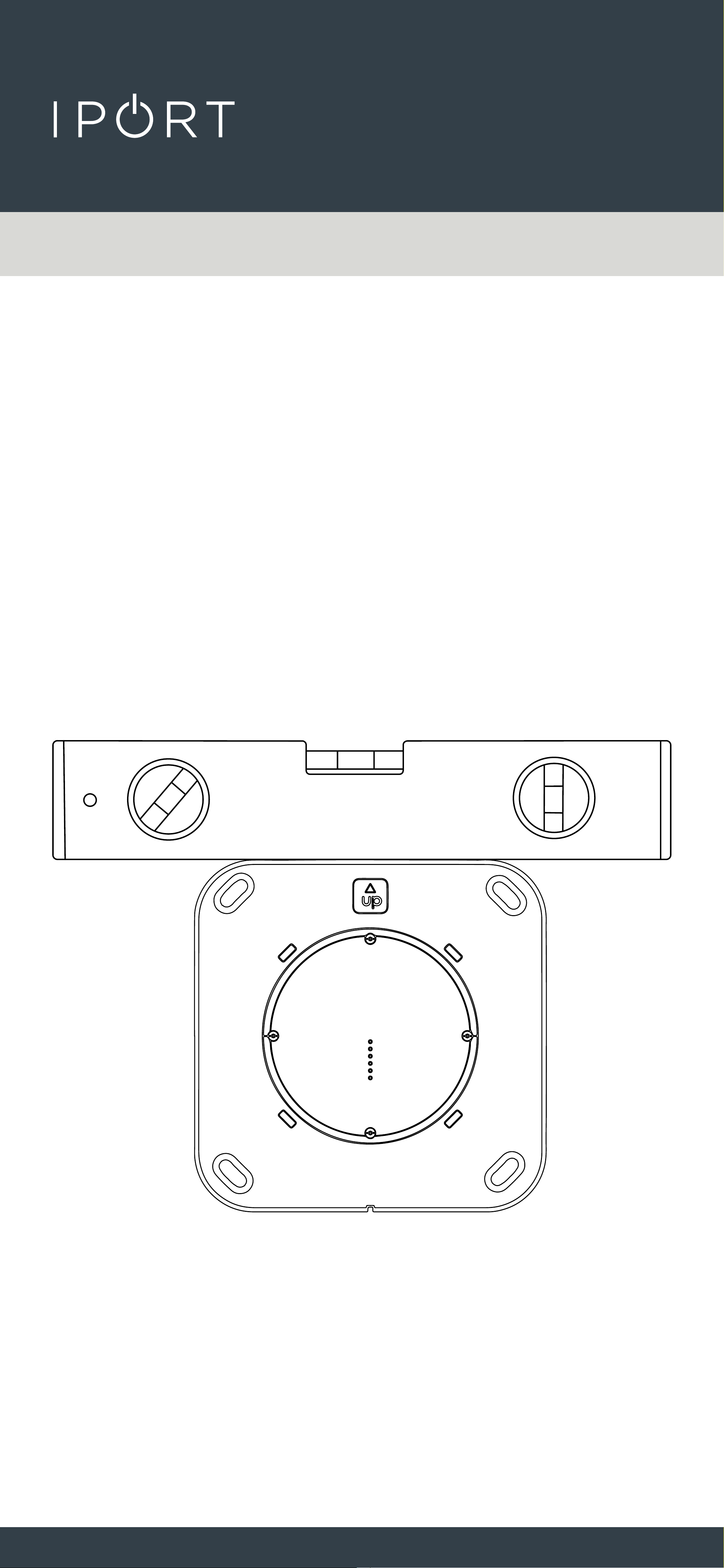
4. Insert the CONNECT WallStation
into the wall opening from the
previous LAUNCH WallStation.
IMPORTANT: Make Sure to position
the WallStation with the Up Arrow
facing up. Use a leveling tool to level
the WallStation.
Upgradeing LAUNCH WallStation
CONNECT
PRO
WALLSTATION
31
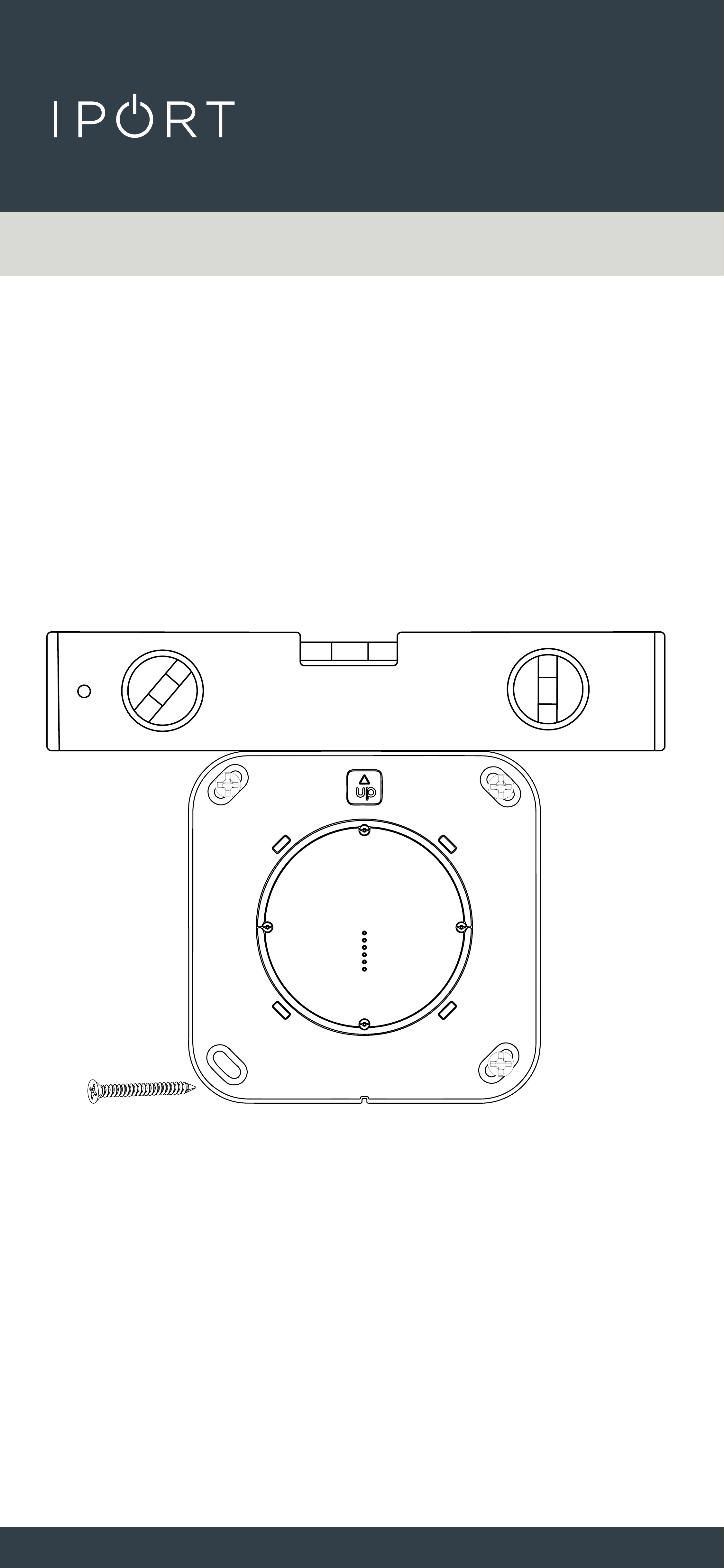
5. Use the old screws or provided
screws to attach the WallStation to
the preinstalled anchors.
Upgradeing LAUNCH WallStation
CONNECT
PRO
WALLSTATION
32
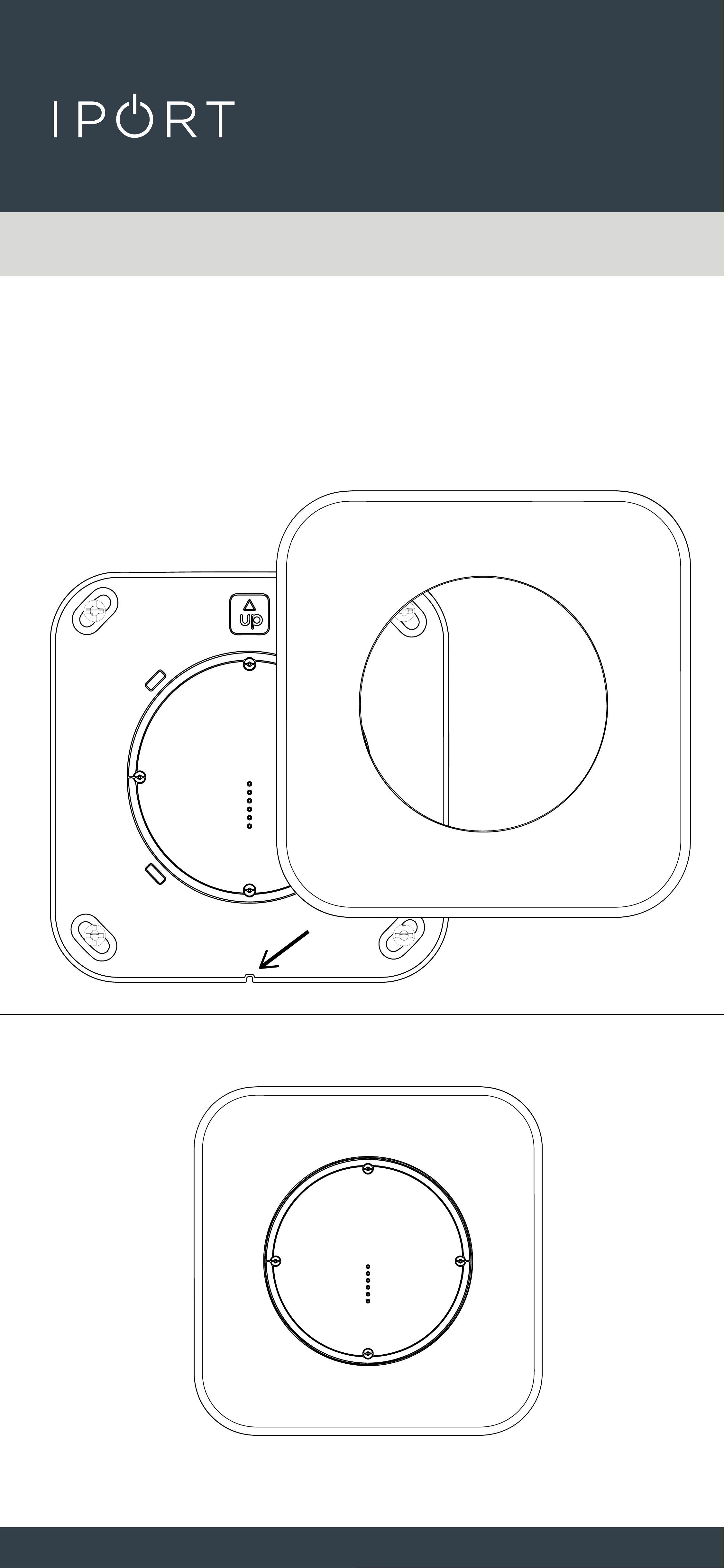
6. Attach the WallStation Cover
Plate over the WallStation making
sure to alight the positioning notch
with the tooth on the WallStation.
Upgradeing LAUNCH WallStation
CONNECT
PRO
WALLSTATION
33
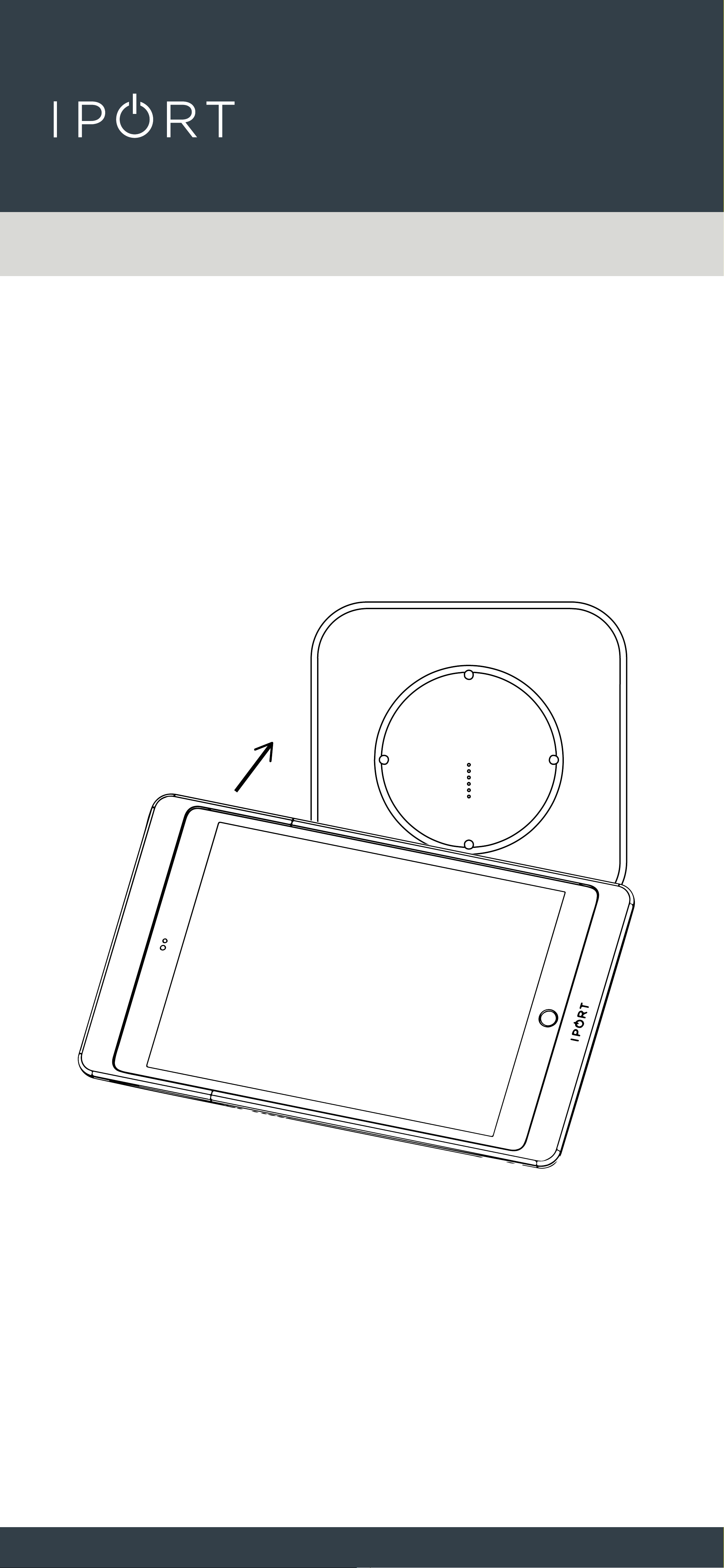
7. Place a Case with an iPad installed
onto the WallStation to determine
power was installed properly and
the iPad charges.
Upgradeing LAUNCH WallStation
COMPLETE
CONNECT
PRO
WALLSTATION
34
IPORT CONNECT Pro WallStation Install
New Construction - 2 Wire
Before Construction is complete
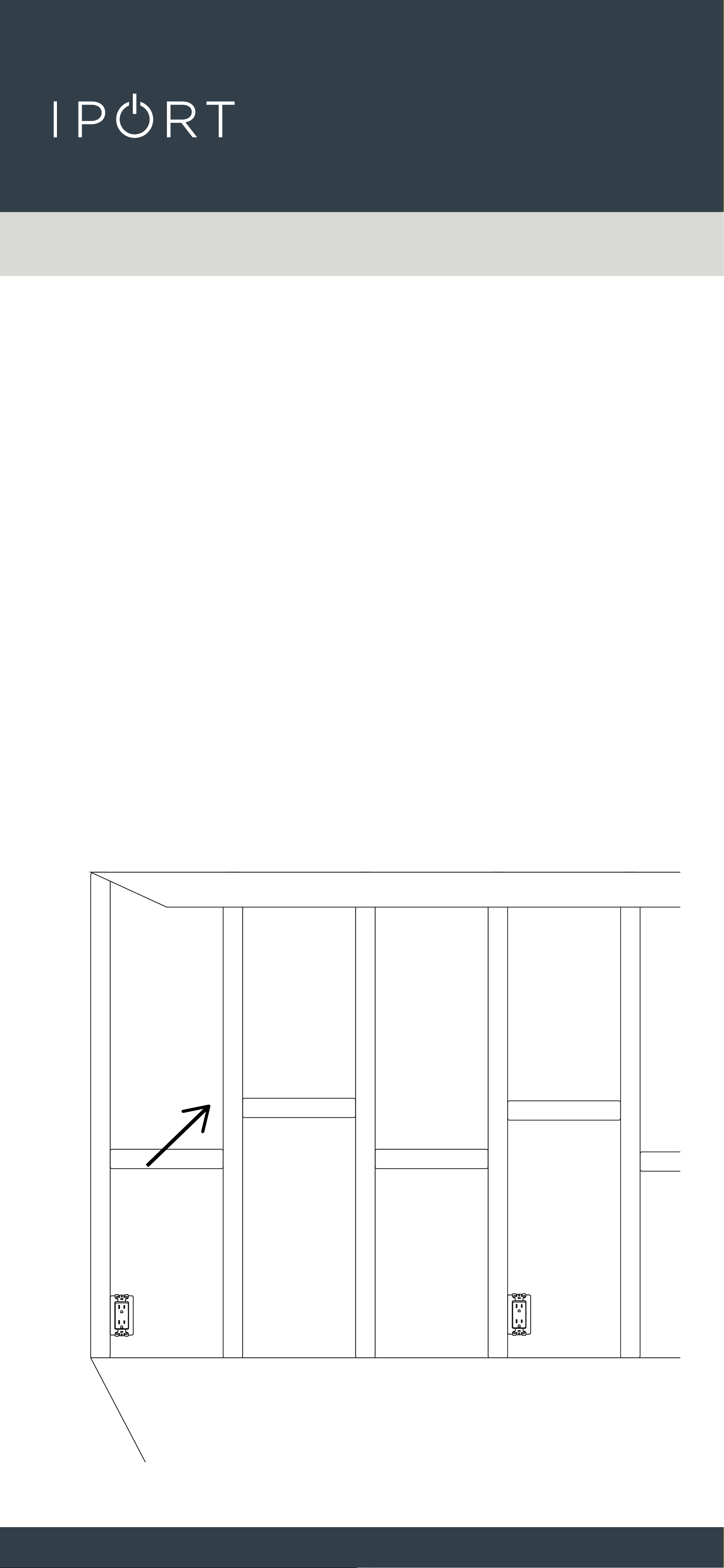
1. Determine the desired location of the
IPORT CONNECT PRO WallStation will
live when the construction is
completed.
CONNECT
PRO
WALLSTATION
35
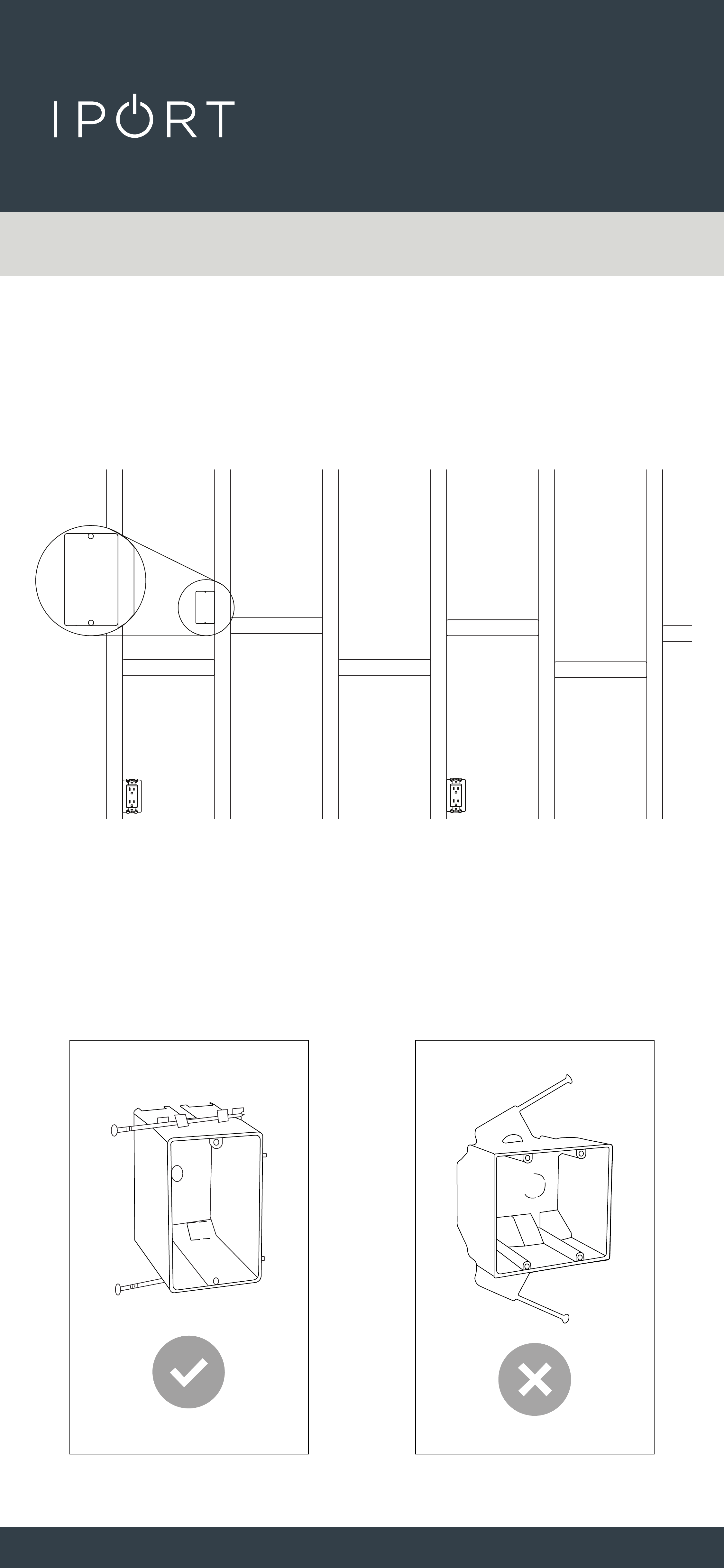
2. Install a 1 Gang electrical box or low
voltage ring in the desired location
of the WallStation.
NOTE: The CONNECT PRO WallStation will cover
a 1G electrical box only. A 2 Gang electrical box will
interfere with the mounting hardware.
1G
Electrical
Box
New Construction - 2 Wire
CONNECT
PRO
WALLSTATION
36
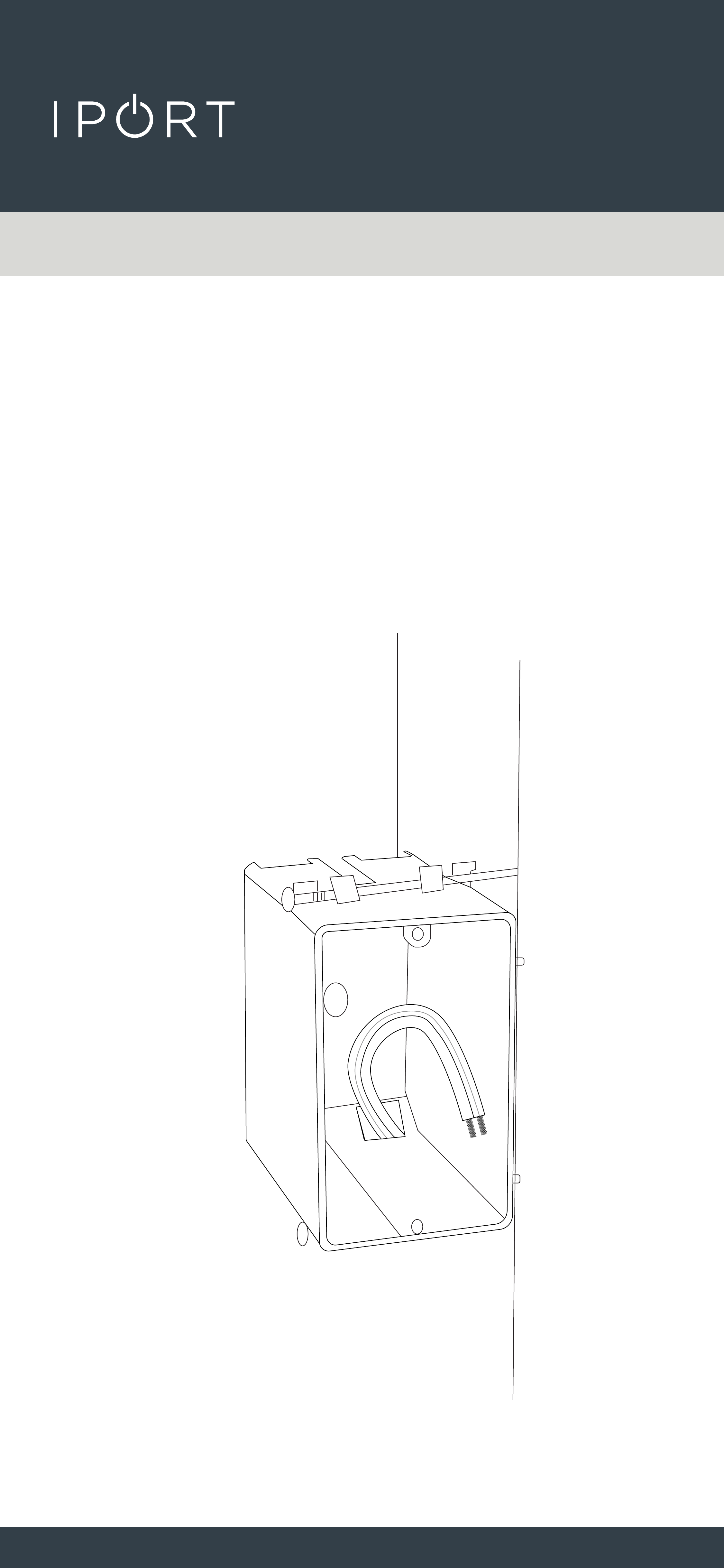
4. Run a 14AWG 2 wire cable from the
WallStation location to a nearby AC
outlet, closet, or network rack
location.
NOTE: Make sure to secure the 2 Wire cable
appropriately onto the Electrical box or Low Volt-
age ring to retrieve at a later time.
New Construction - 2 Wire
CONNECT
PRO
WALLSTATION
37
Installing the WallStation After
Construction
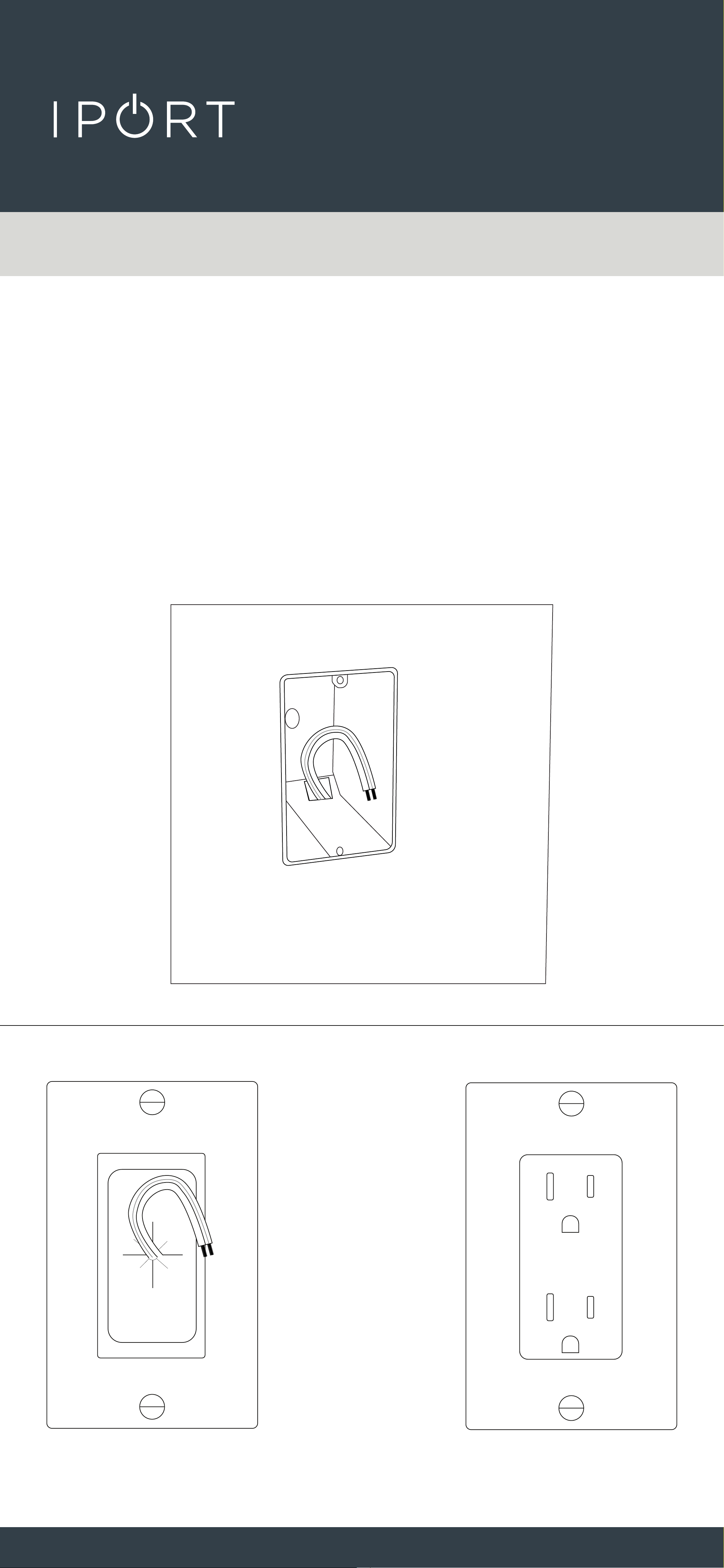
1. Locate the 1 gang boxed saved for
the WallStation and locate the end
of the 2 wire for power.
New Construction - 2 Wire
Grommit not included
CONNECT
PRO
WALLSTATION
38
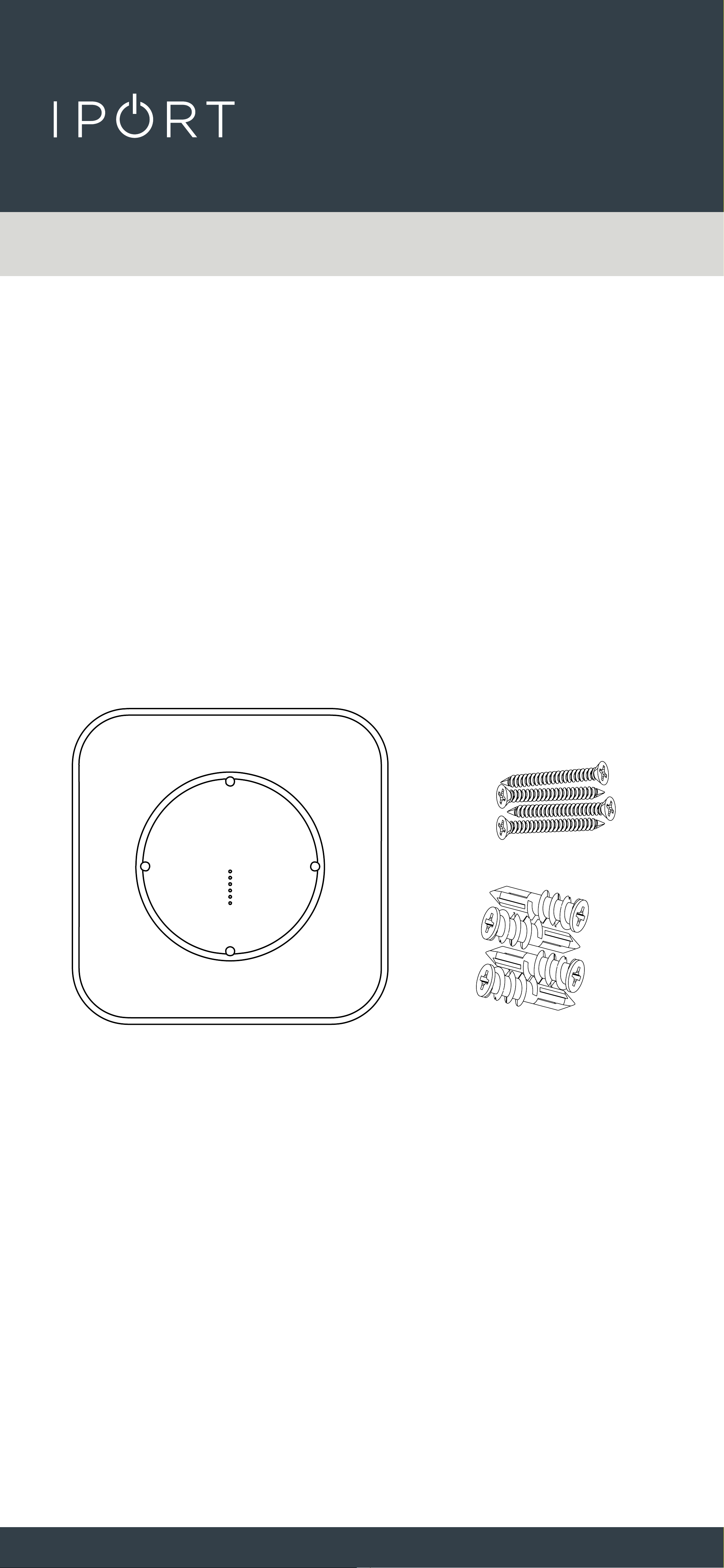
2. Remove the WallSation, Drywall
anchors and Screws from the box
and place on a table.
x4
x4
New Construction - 2 Wire
CONNECT
PRO
WALLSTATION
39
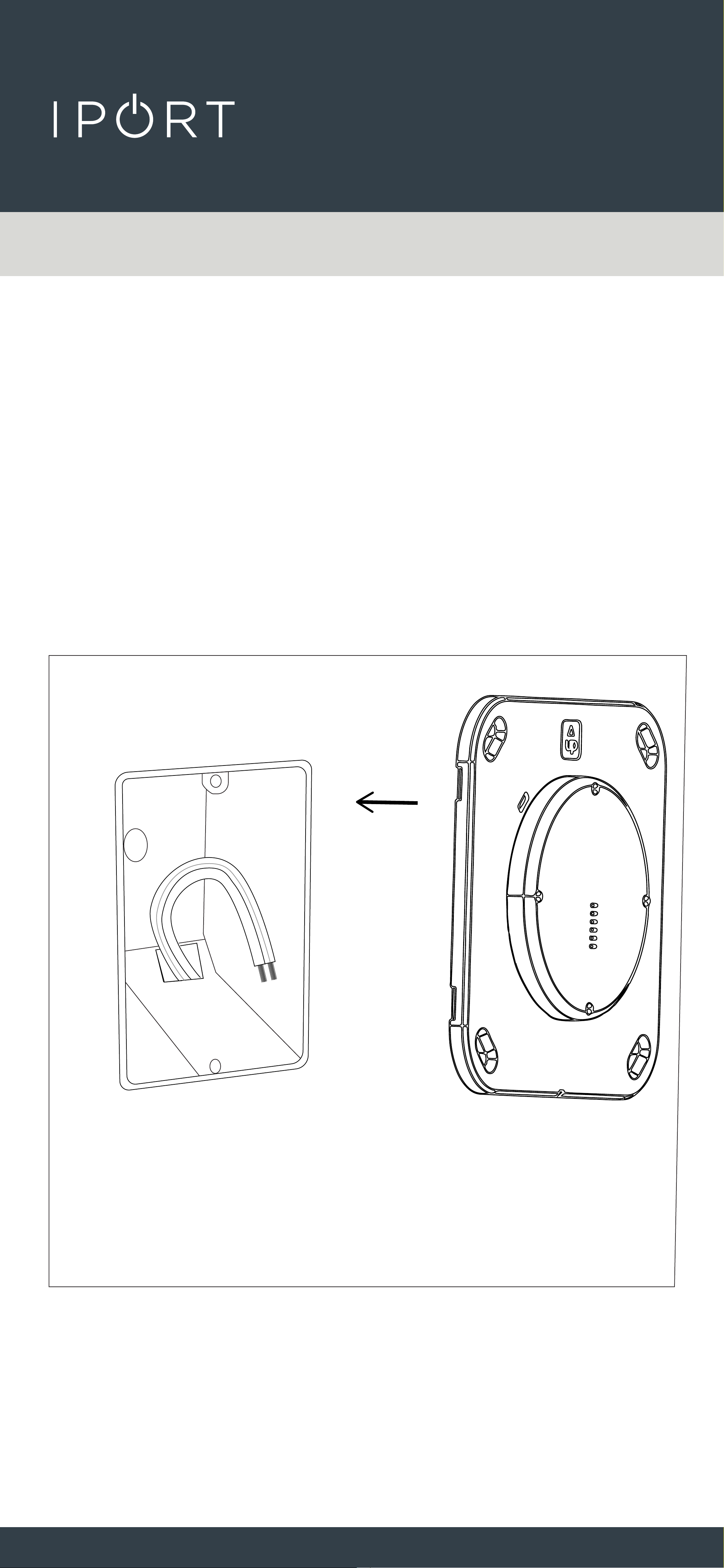
4. Insert the WallStation into the 1G
box.
NOTE: the 1G box or low voltage ring was used to
save the space of the WallStation. The WallStation
was designed to be use without the need for a junc-
tion box. If possible remove the junction box or low
voltage ring.
New Construction - 2 Wire
CONNECT
PRO
WALLSTATION
40
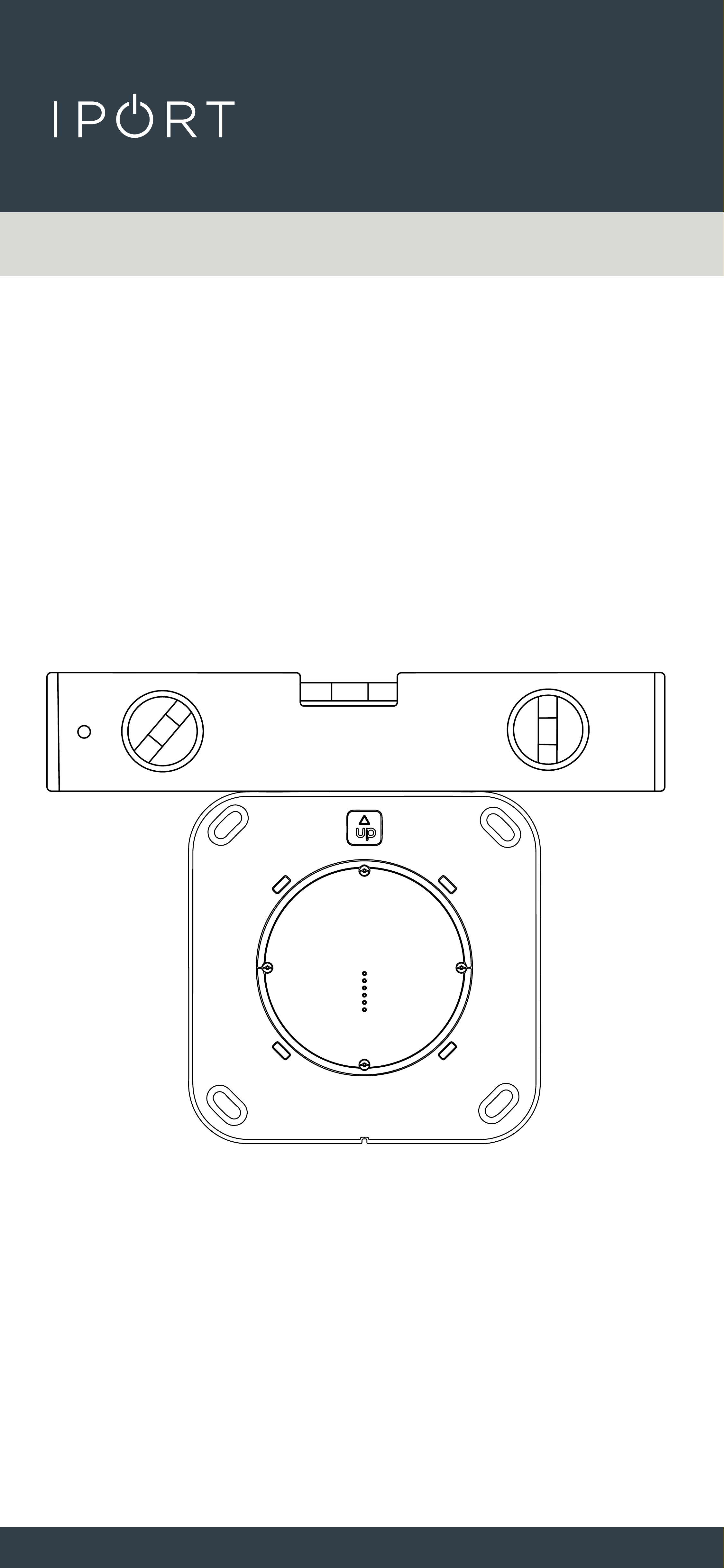
5. Use a leveling tool to level the
WallStation and mark the 4 locations
for the provided Anchors. Remove the
WallStation from the 1G Box.
New Construction - 2 Wire
CONNECT
PRO
WALLSTATION
41
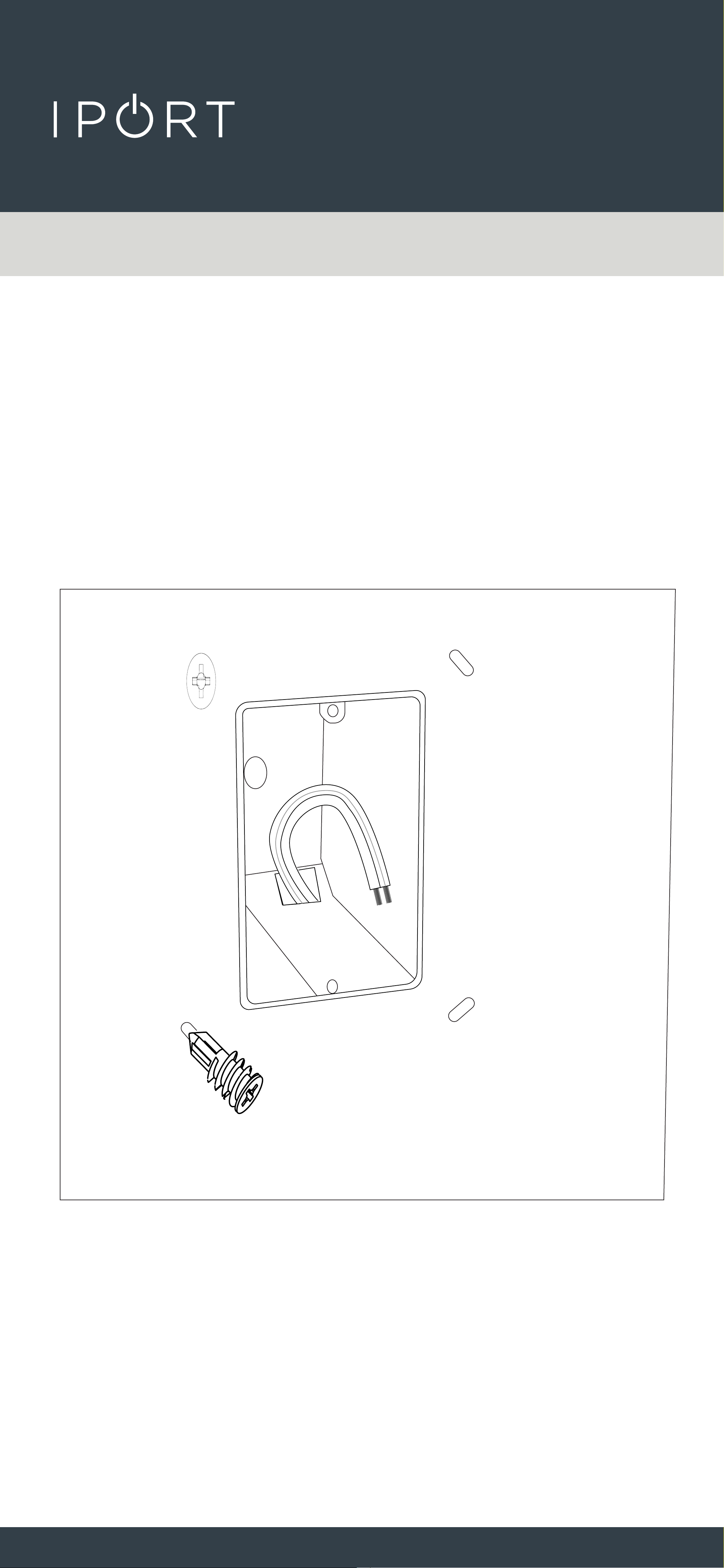
6. Remove the WallStation and screw
the provided anchors into the wall
where marked.
New Construction - 2 Wire
CONNECT
PRO
WALLSTATION
42
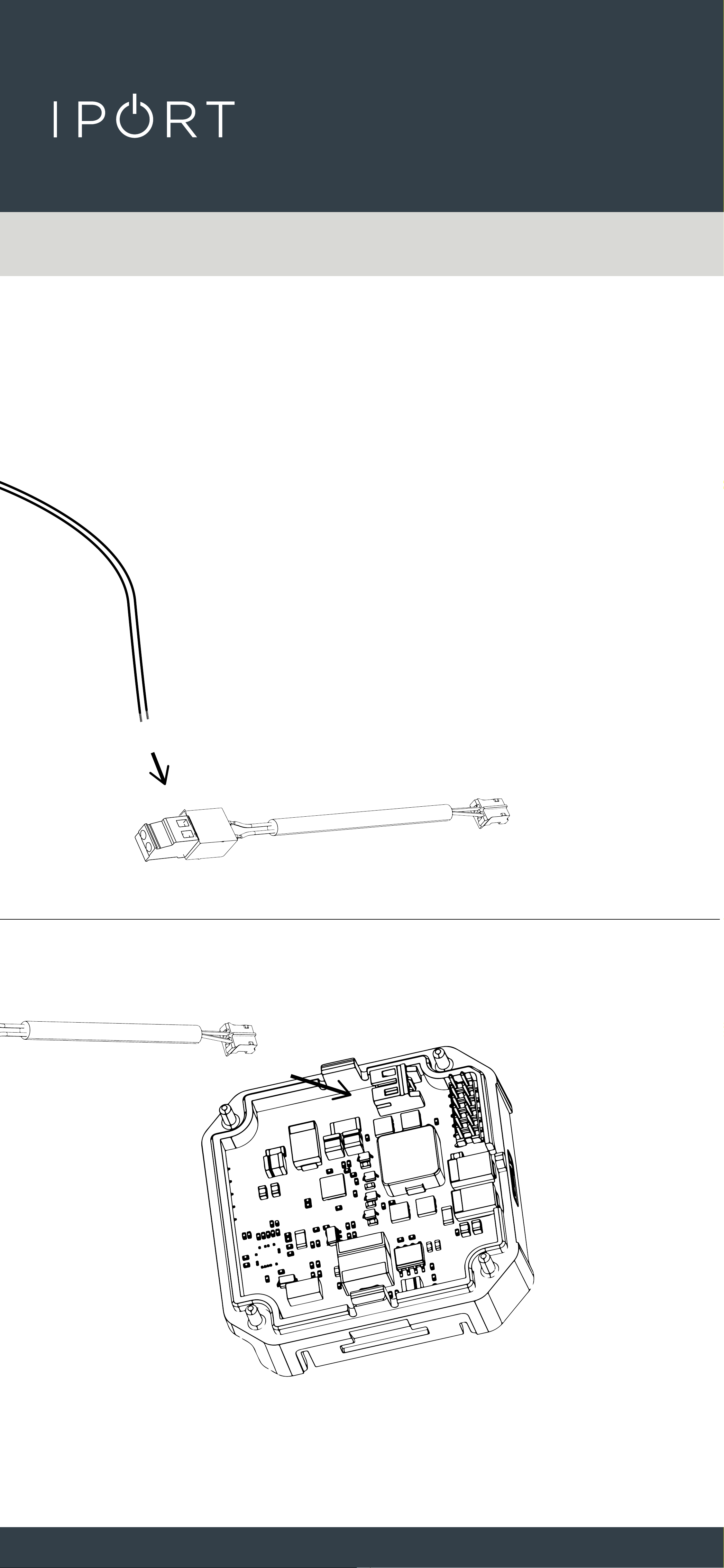
7. Connect the Phoenix to TE
cable provided to the 14-2
wire and onto the White TE
Connector on the WallStation DC
Adapter.
New Construction - 2 Wire
Zip tie the Connector to the DC board for
added cable retention.
CONNECT
PRO
WALLSTATION
43
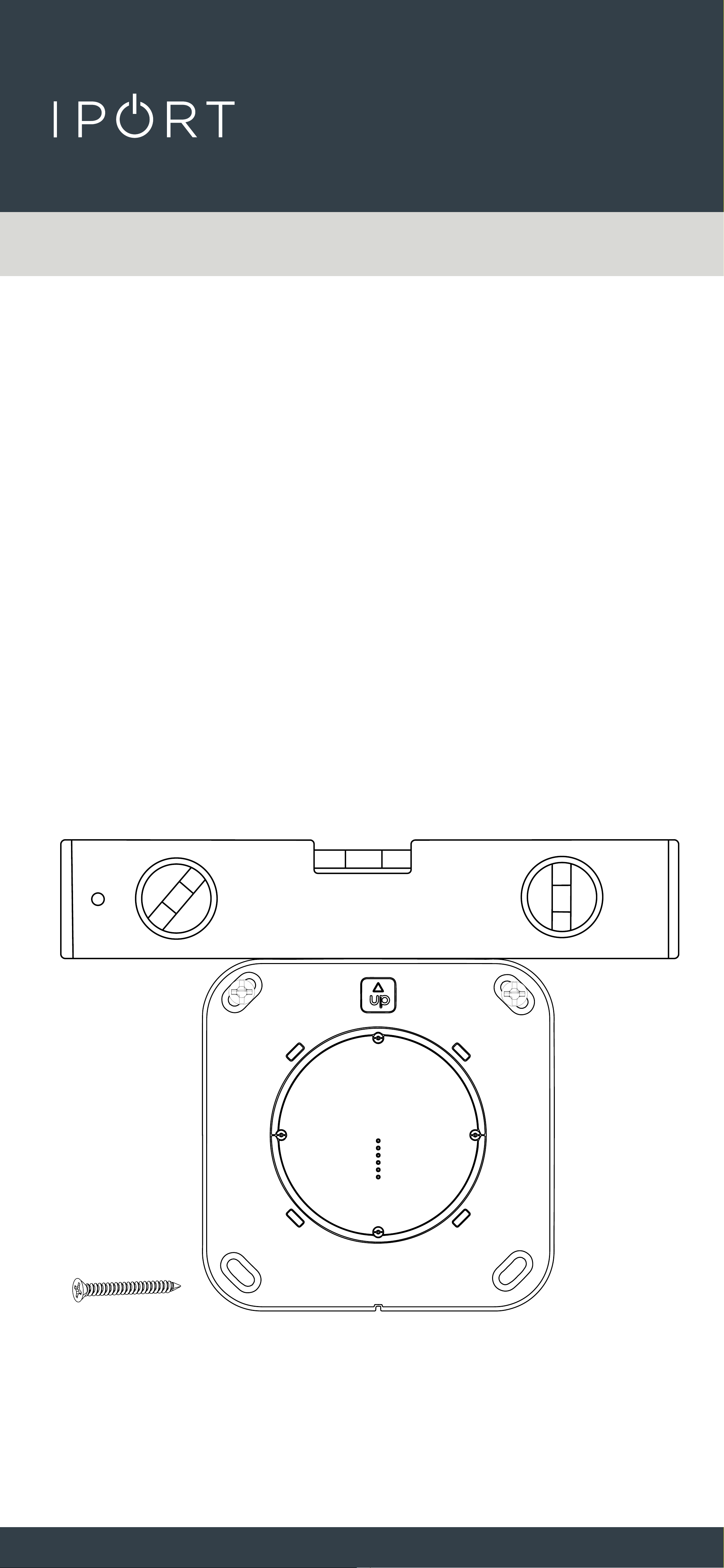
8. Insert the WallStation back into the
1G box and use the provided screws
to attach the WallStation to the wall.
IMPORTANT: Make sure to position
the WallStation with the Up Arrow
facing up. Use a leveling tool to
level the WallStation and hand
tighten the screws.
New Construction - 2 Wire
CONNECT
PRO
WALLSTATION
44
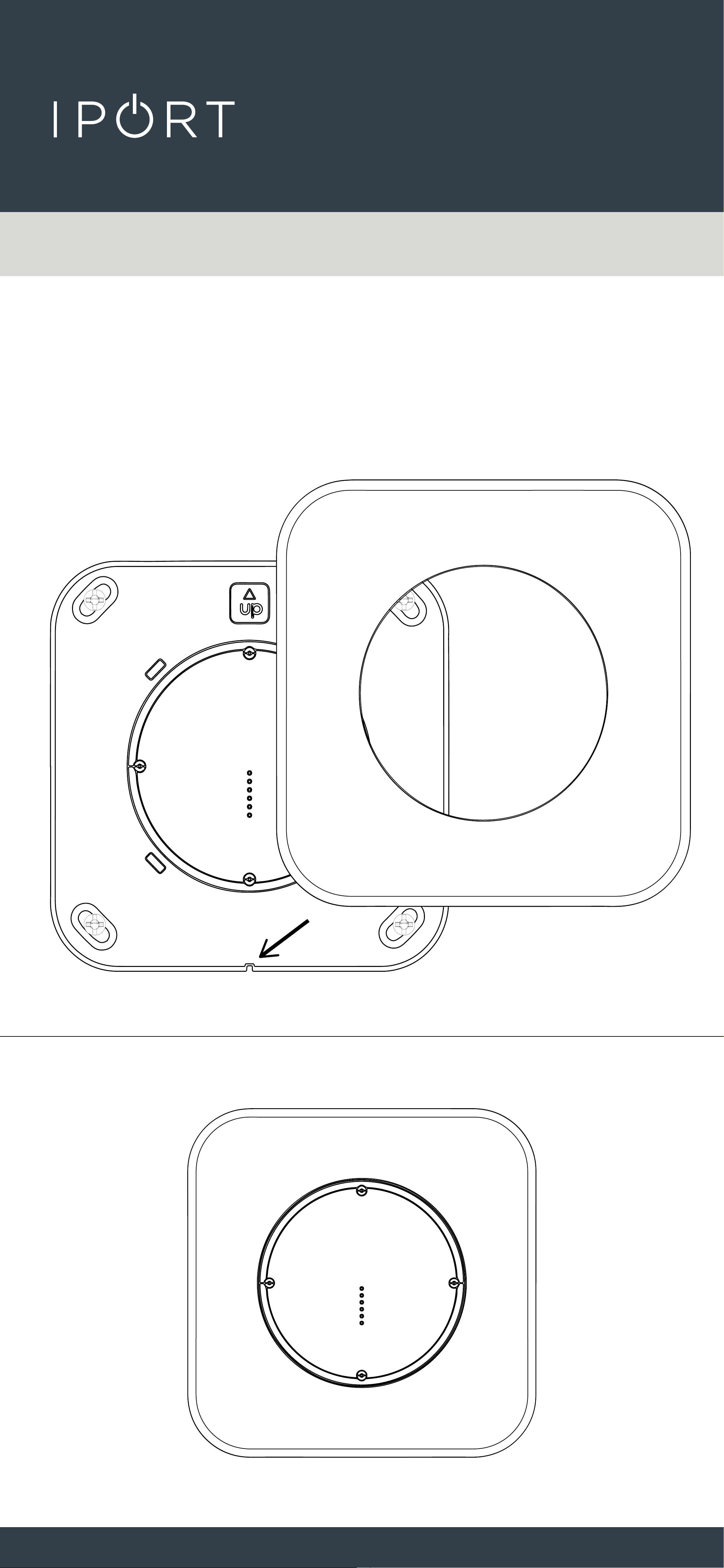
8. Attach the WallStation Cover
Plate over the WallStation making
sure to alight the positioning notch
with the tooth on the WallStation.
New Construction - 2 Wire
CONNECT
PRO
WALLSTATION
45
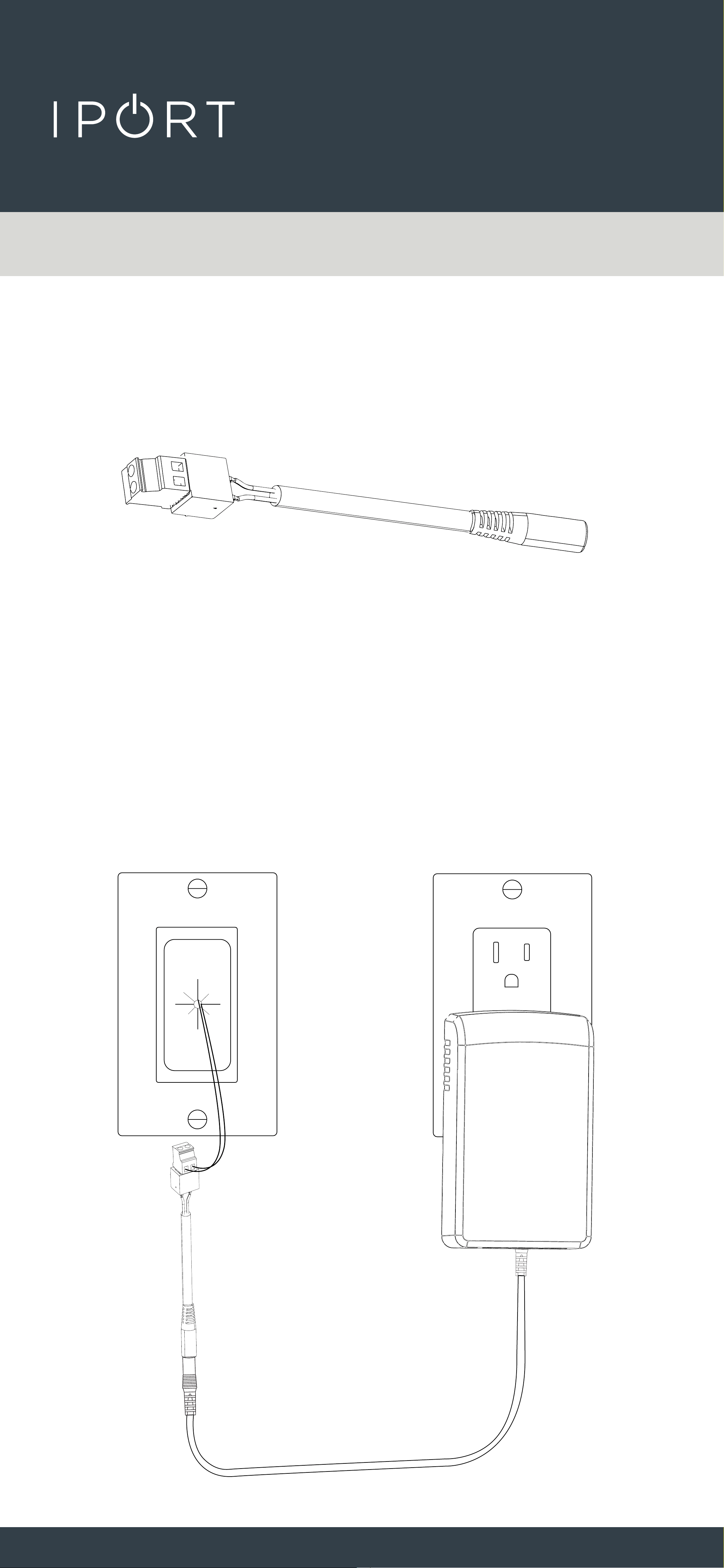
9. Connect the 2 wire to DC Connector
at the other end of the 2 wire Cable.
10. Connect the Provided DC Power
Adapter into the wall and connect
the barrel connector to the other end
of the Phoenix adapter.
New Construction - 2 Wire
Grommit not included
CONNECT
PRO
WALLSTATION
46
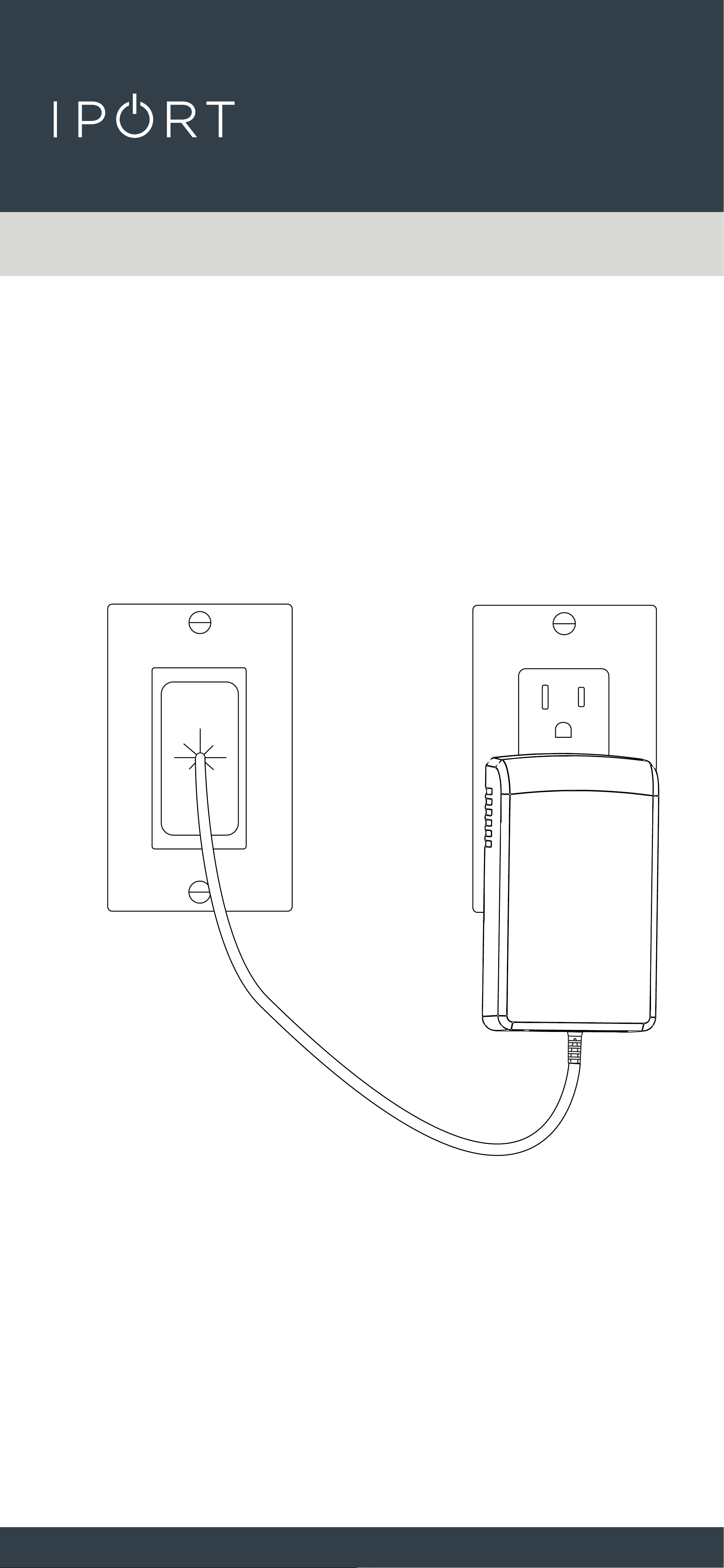
For a clean finished look place the Connector and
DC barrel plug back through the grommit into the
wall.
Grommit not included
CONNECT
PRO
WALLSTATION
47
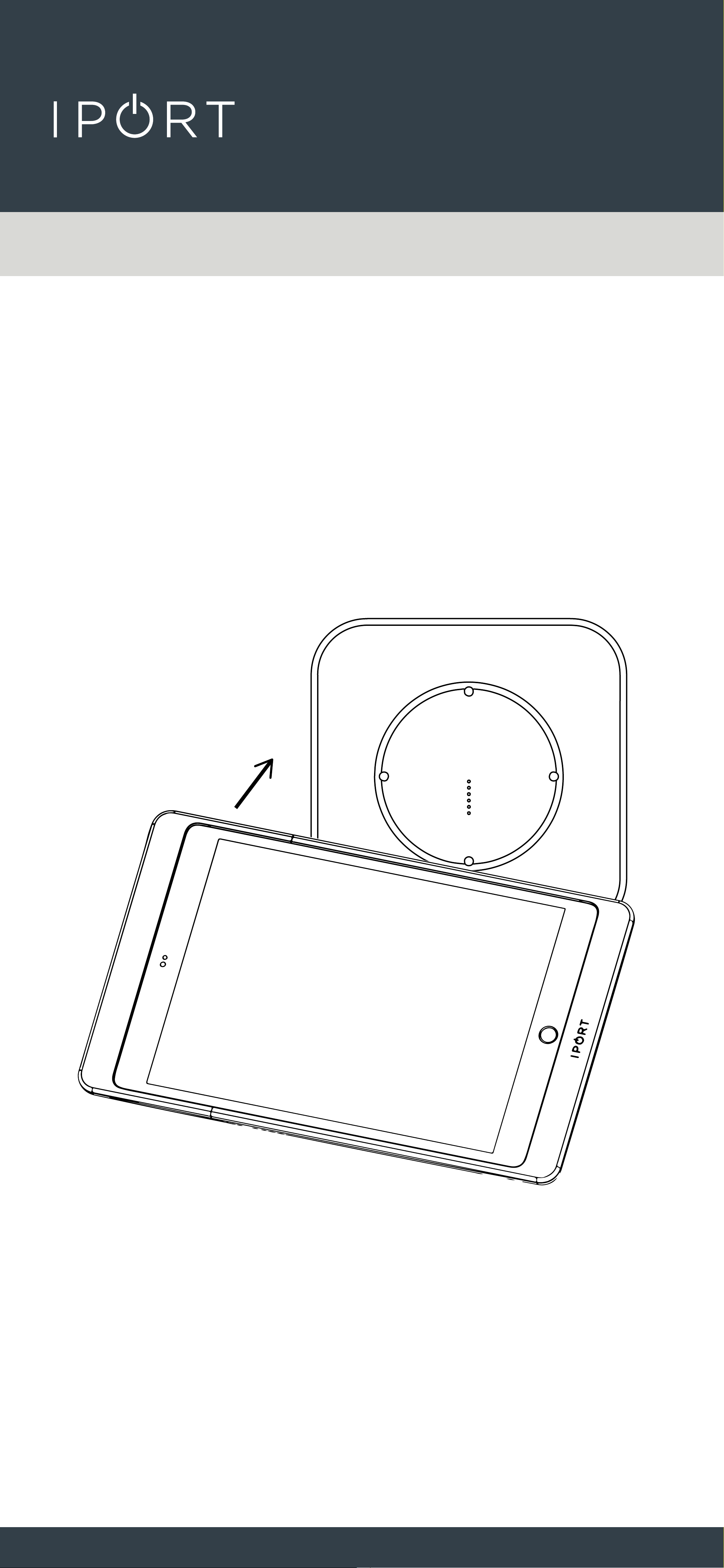
11. Place a Case with an iPad installed
onto the WallStation to determine
power was installed properly and
the iPad charges.
New Construction - 2 Wire
COMPLETE
CONNECT
PRO
WALLSTATION
48
WallStation Install Manual - Existing
Construction - 2 Wire
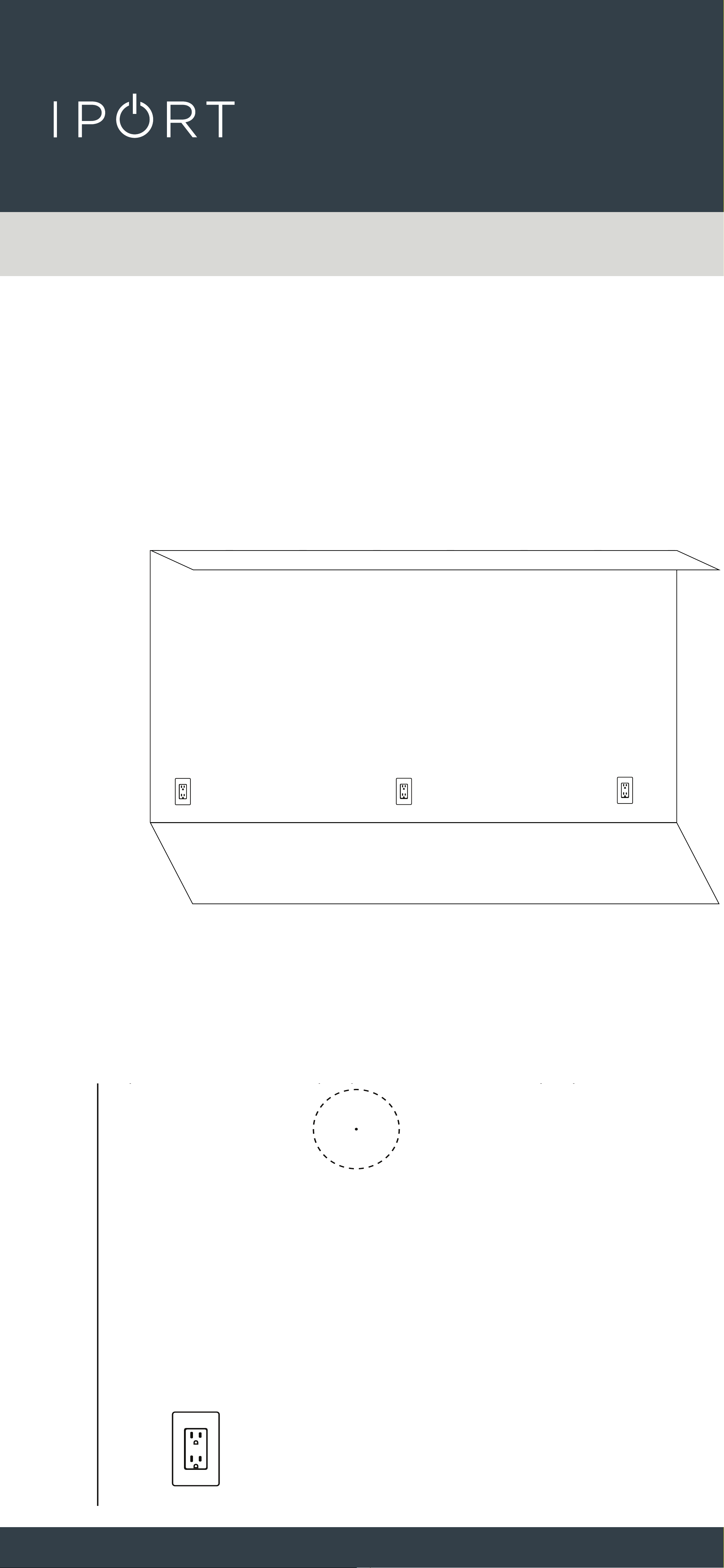
1. Determine the desired location of
the IPORT CONNECT PRO
WallStation.
2. Use a 2-3/4” (70mm) hole saw to
cut a hole in the desired location of
the WallStation.
X
CONNECT
PRO
WALLSTATION
49
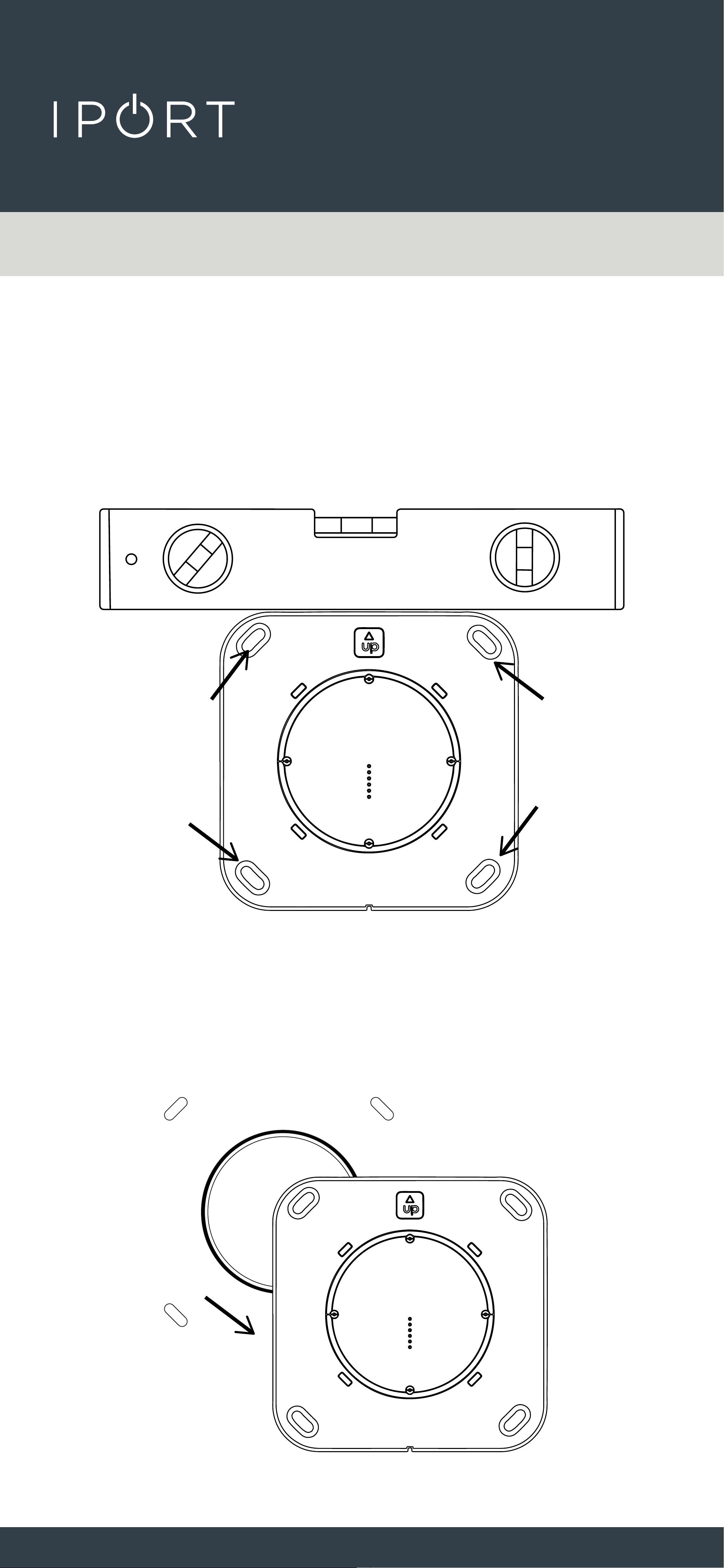
3. Insert the WallStation into the 2 3/4
- inch hole and use a leveling tool to
level the WallStation. Mark the 4
locations for the provided Anchors.
4. Remove the WallStation form the
wall once you have marked the 4
anchor locations.
Existing Construction - 2 Wire
CONNECT
PRO
WALLSTATION
50
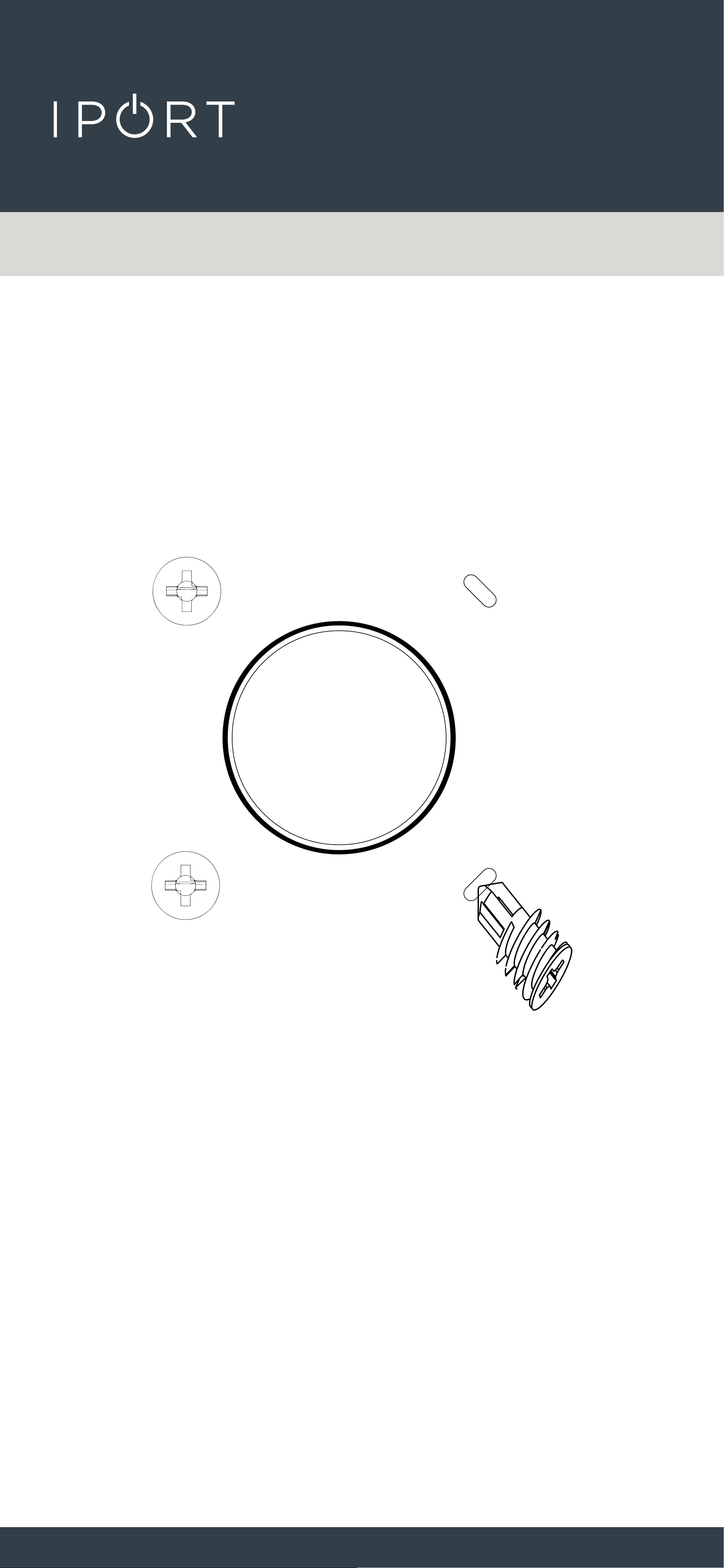
5. Screw the provided anchors into the
wall where marked.
Existing Construction - 2 Wire
CONNECT
PRO
WALLSTATION
51
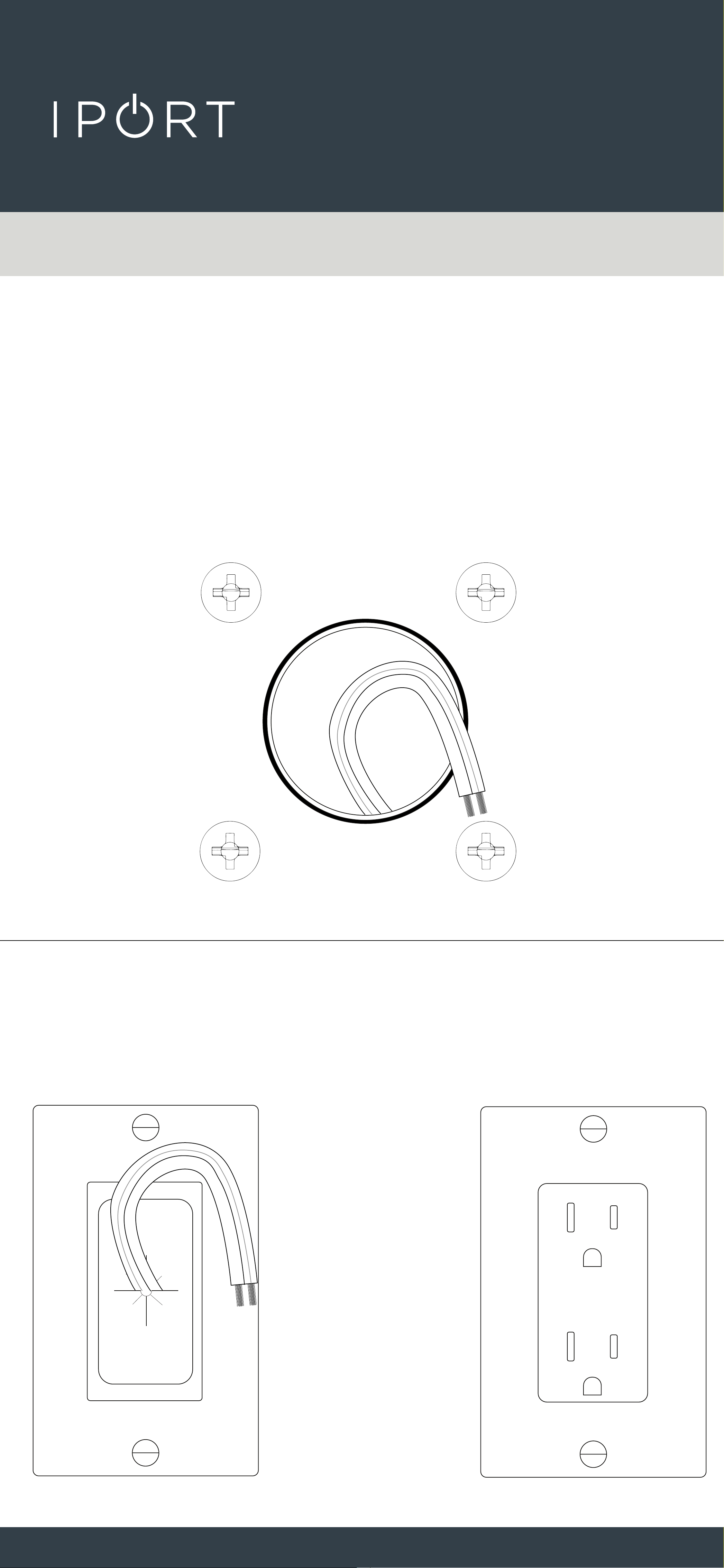
6. Use the 2 3/4 - inch hole to fish a
14/2 cable to a nearby AC outlet,
closet or network rack.
Existing Construction - 2 Wire
CONNECT
PRO
WALLSTATION
52
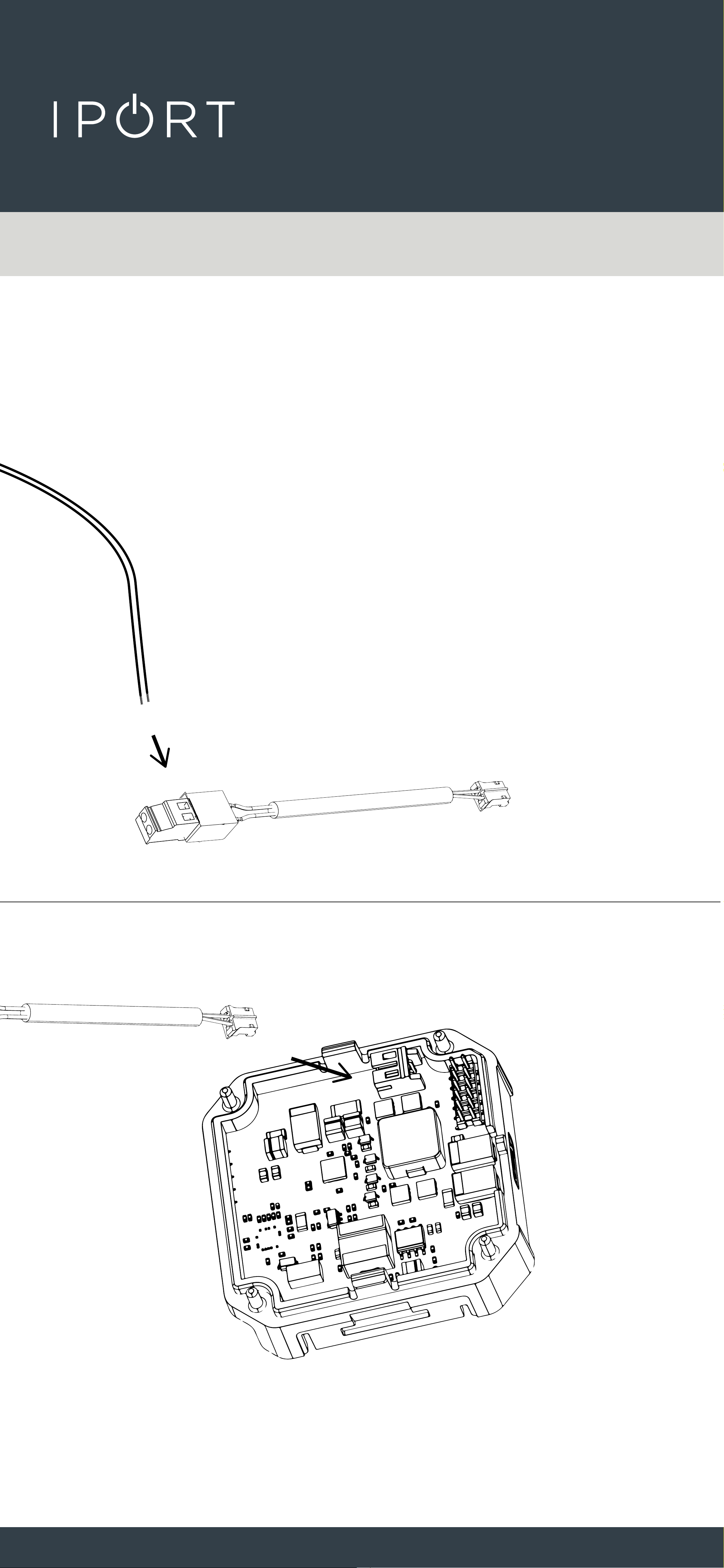
7. Connect the Phoenix to TE
cable provided to the 14-2
wire and onto the White TE
Connector on the WallStation DC
Adapter.
Existing Construction - 2 Wire
Zip tie the Connector to the DC board for
added cable retnetion.
CONNECT
PRO
WALLSTATION
53
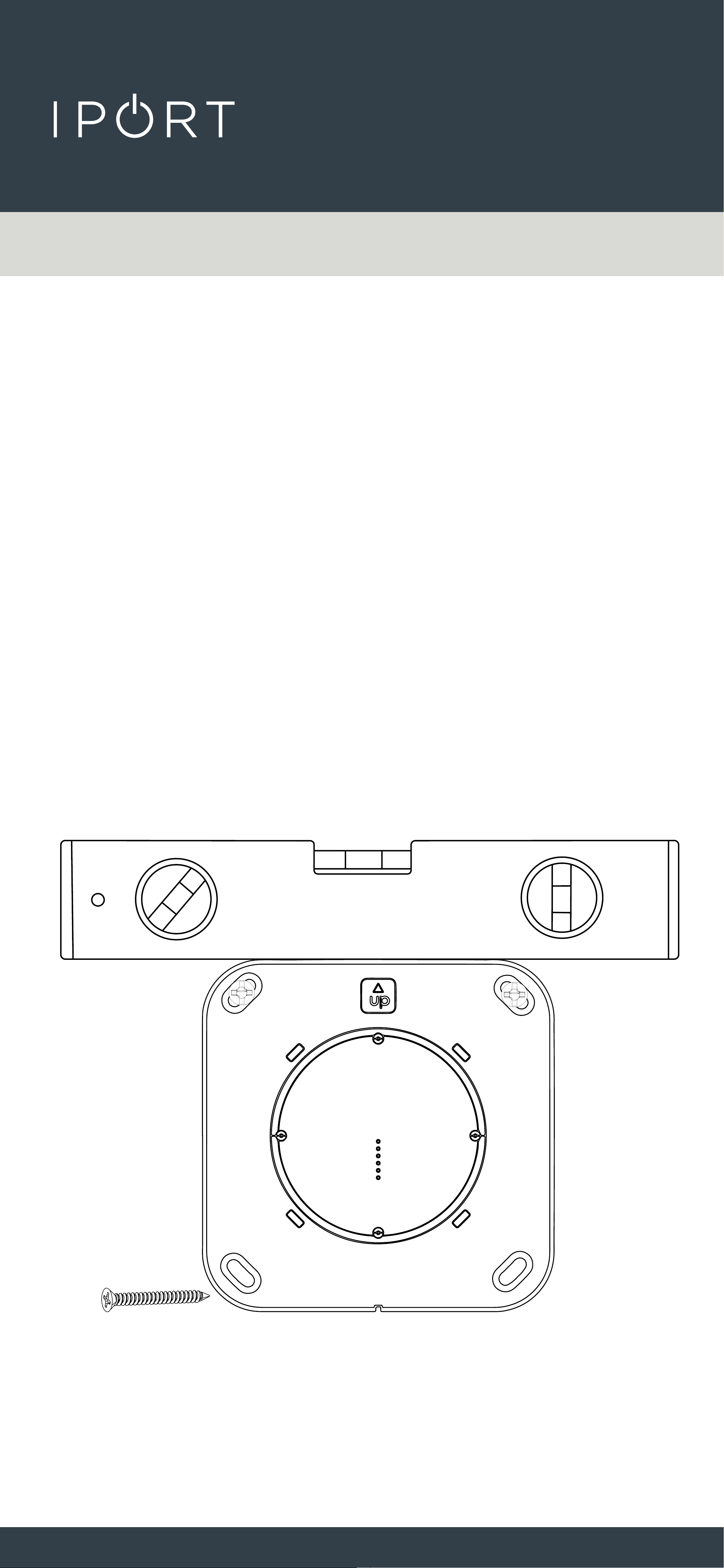
8. Insert the WallStation back into the
wall and use the provided screws
to attach the WallStation to the wall
anchors.
IMPORTANT: Make Sure to position
the WallStation with the Up Arrow
facing up. Use a leveling tool to
level the WallStation and hand
tighten the screws.
Existing Construction - 2 Wire
CONNECT
PRO
WALLSTATION
54
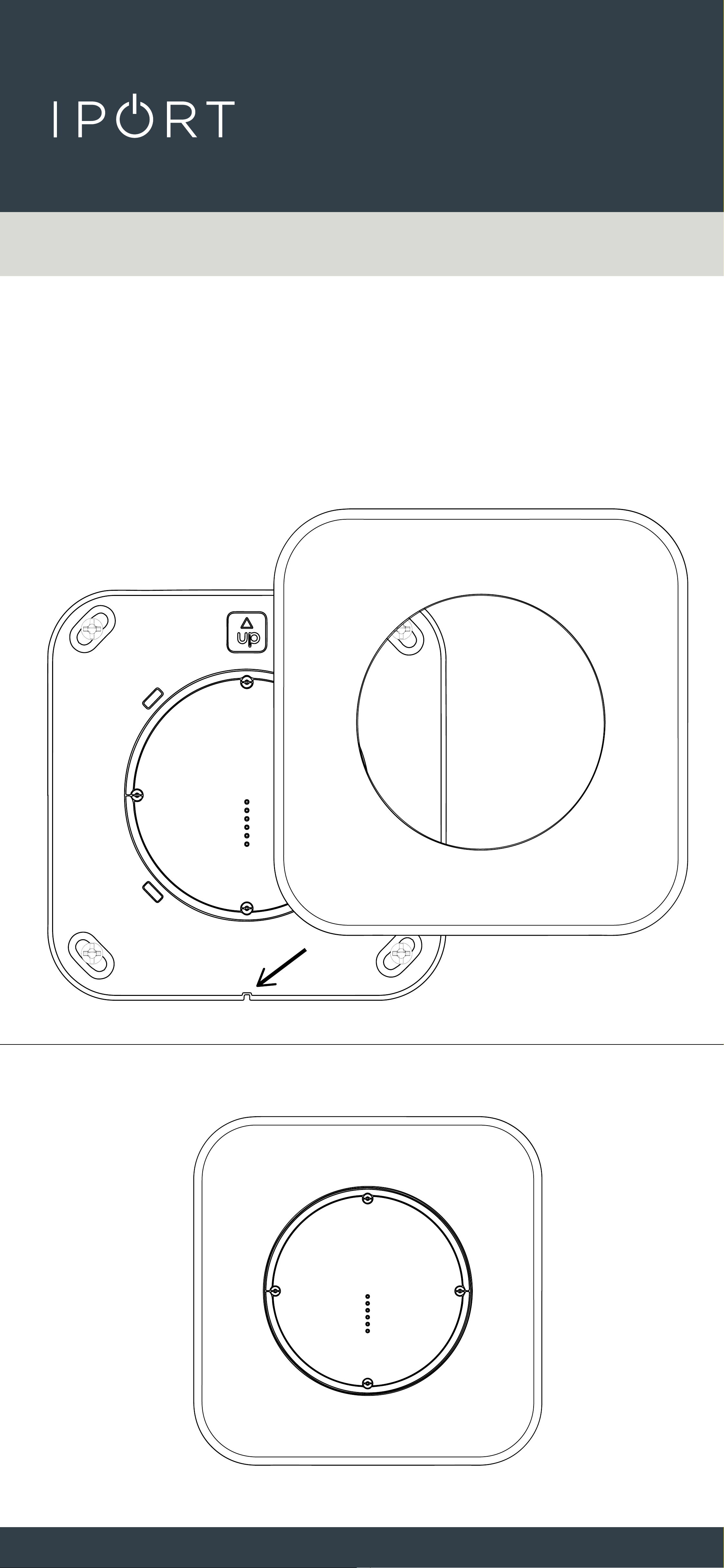
9. Attach the WallStation Cover
Plate over the WallStation making
sure to alight the positioning notch
with the tooth on the WallStation.
Existing Construction - 2 Wire
CONNECT
PRO
WALLSTATION
55
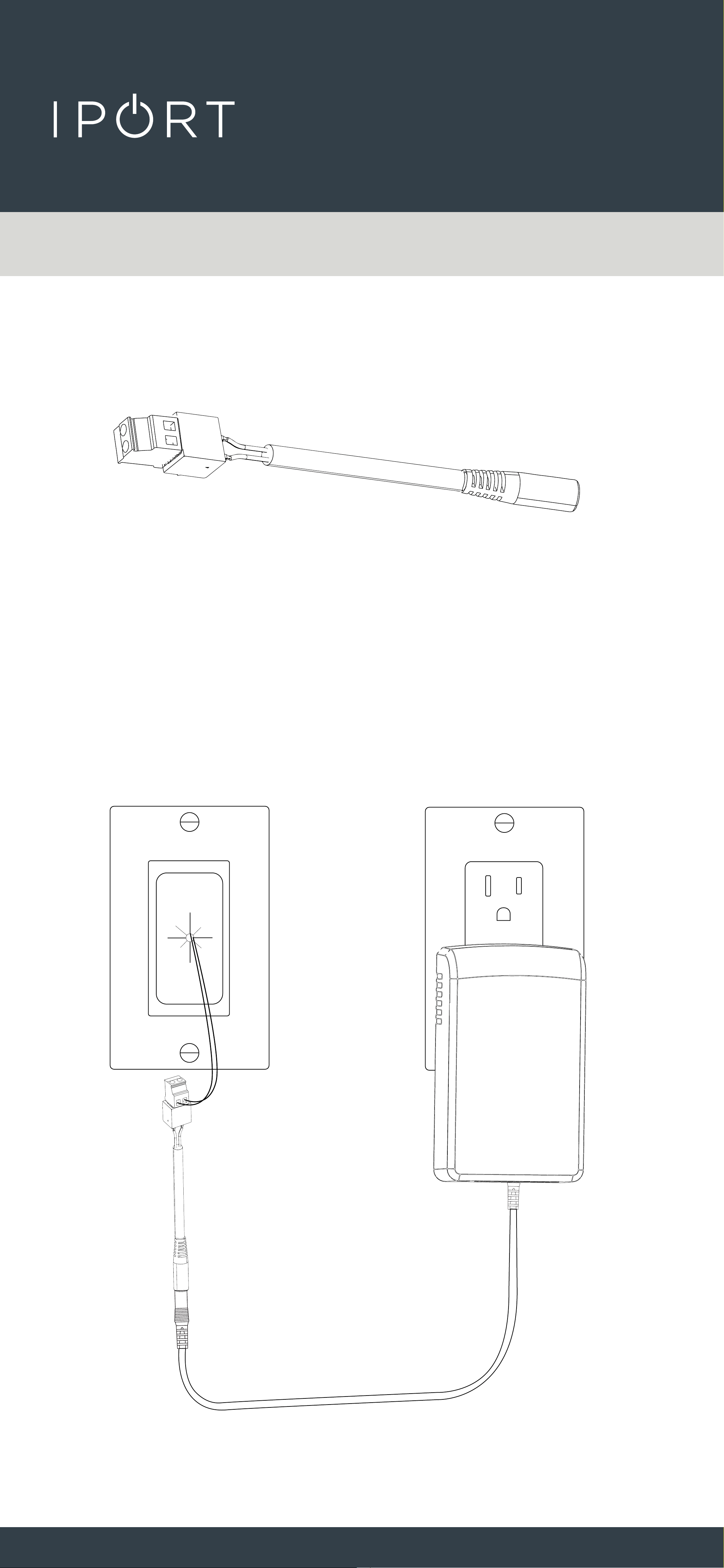
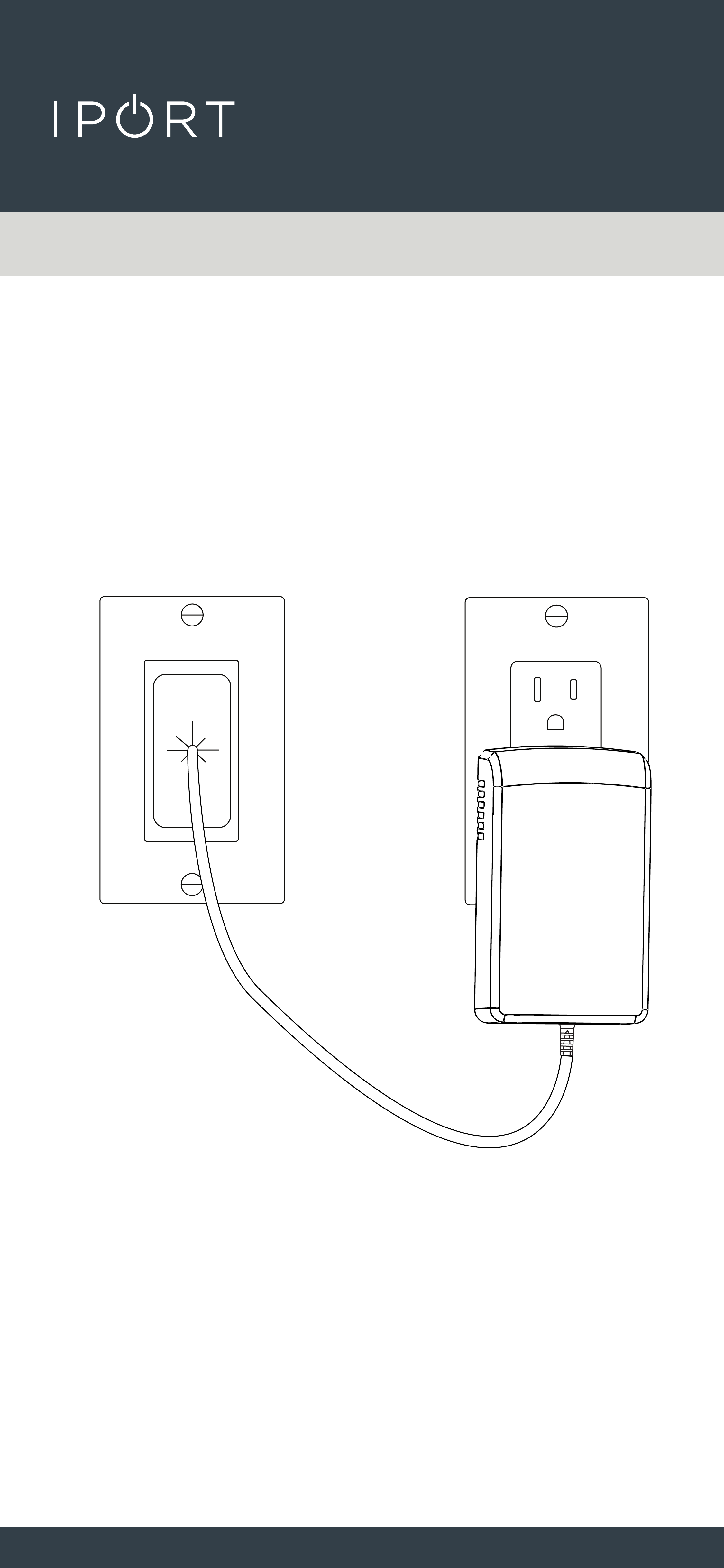
10. Connect the 2 wire to DC Connector
at the other end of the 2 wire Cable.
11. Connect the Provided DC Power
Adapter into the wall and connect
the barrel connector to the other end
of the Phoenix adapter.
Existing Construction - 2 Wire
Grommit not included
CONNECT
PRO
WALLSTATION
56
For a clean finished look place the Connector and
DC barrel plug back through the grommit into the
wall.
Grommit not included
CONNECT
PRO
WALLSTATION
57
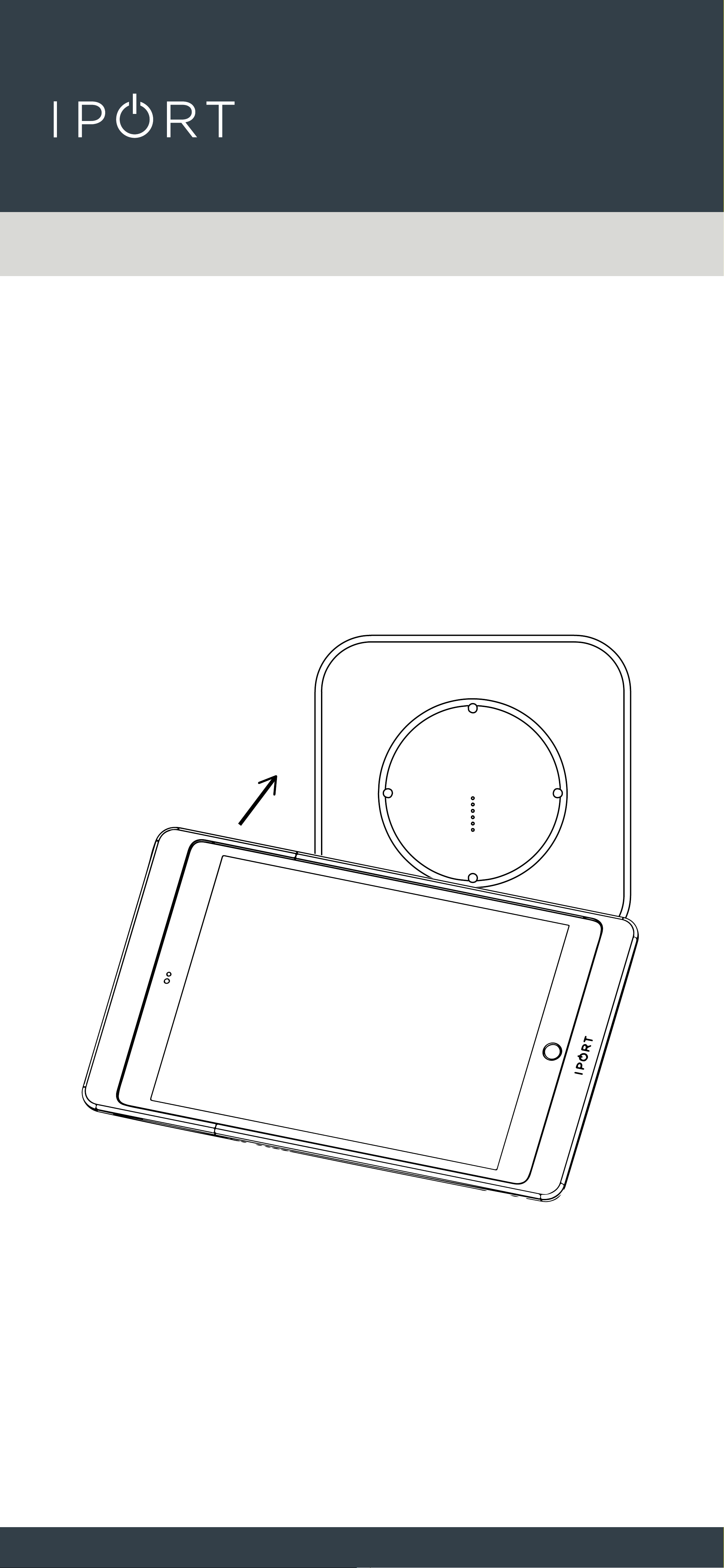
12. Place a Case with an iPad installed
onto the WallStation to determine
power was installed properly and
the iPad charges.
Existing Construction - 2 Wire
COMPLETE