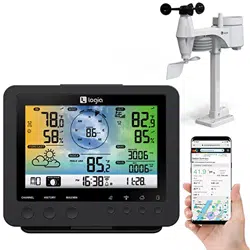
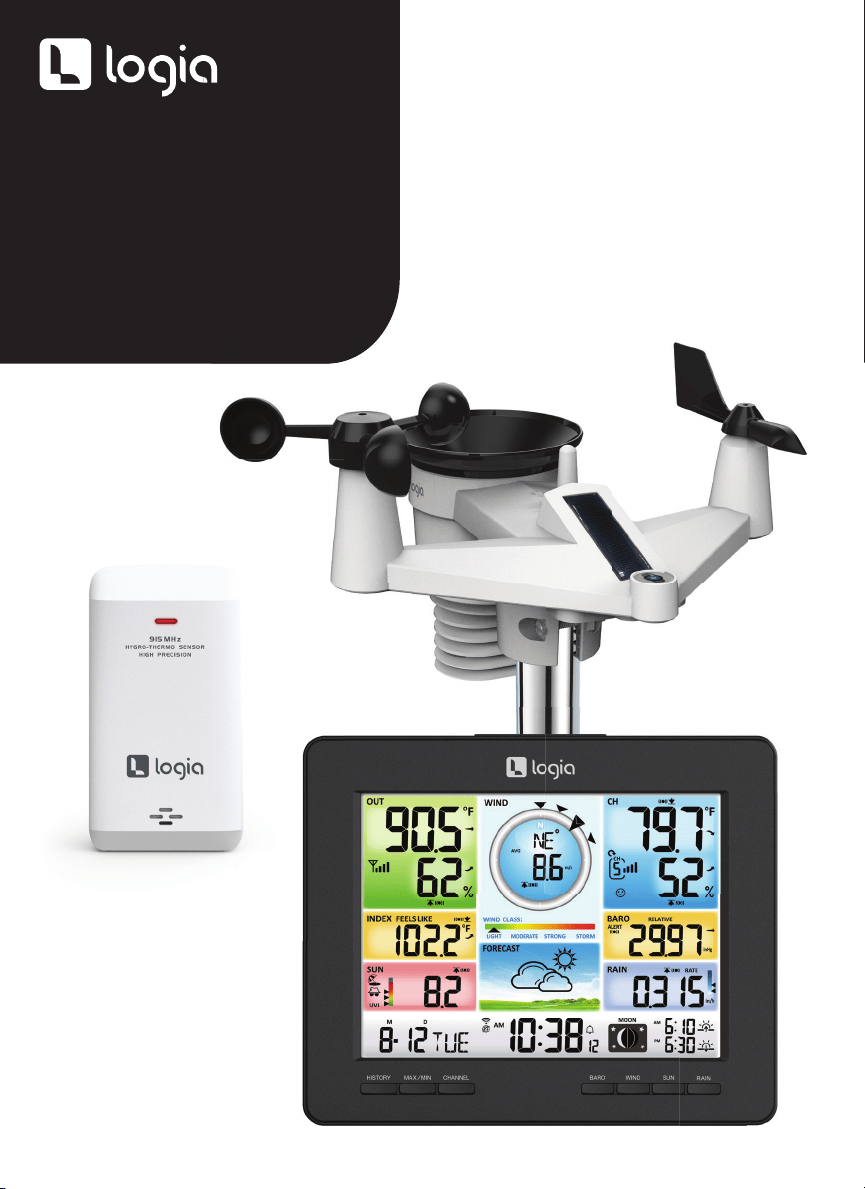
7-IN-1 WIRELESS
WEATHER STATION
WITH WI-FI
AND
SOLAR PANEL
USER GUIDE
LOWSC710SWB
™
2
Thank you for purchasing the Logia
™
7-in-1 Wireless Weather Station with Wi-Fi
and Solar
Panel. This User Guide is intended to provide you with guidelines to ensure that operation of this
product is safe and does not pose risk to the user. Any use that does not conform to the guidelines
described in this User Guide may void the limited warranty.
Please read all directions before using the product and retain this guide for reference. This product is
intended for household use only. It is not intended for commercial use.
This product is covered by a limited one-year warranty. Coverage is subject to limits and exclusions.
See warranty for details.
SAFETY PRECAUTIONS
PRODUCT FEATURES
PACKAGE CONTENTS
WEATHER CONSOLE OVERVIEW
CONSOLE LCD DISPLAY OVERVIEW
WIRELESS INDOOR HYGRO-THERMO SENSOR OVERVIEW
WIRELESS 7-IN-1 OUTDOOR SENSOR OVERVIEW
INSTALLATION INSTRUCTIONS
SETTING UP THE WIRELESS 7-IN-1 OUTDOOR SENSOR
SETTING UP THE WIRELESS INDOOR HYGRO-THERMO SENSOR
SETTING UP THE WEATHER CONSOLE
SETTING UP WI-FI CONNECTION
CREATE AND SYNC YOUR WEATHER SERVER ACCOUNT
UPDATING THE FIRMWARE
OPERATING INSTRUCTIONS
TEMPERATURE
WIND
WEATHER
PRESSURE
RAIN/ SUN
MAX/ MIN
HISTORY
LIGHTING
CARE AND MAINTENANCE
SPECIFICATIONS
LIMITED WARRANTY TO ORIGINAL CONSUMER
3
4
5
6
7
8
8
9
9
12
12
14
18
21
22
24
26
28
29
30
31
32
33
34
35
38
TABLE OF CONTENTS

3
SAFETY PRECAUTIONS
WARNING! Please read and understand all safety precautions, operating instructions,
and care/maintenance instructions before operating this appliance. Keep this manual for
future reference.
• This product is not a toy. Keep out of the reach of children.
• This product is designed for use in the home only as indication of weather conditions.
This product is not to be used for medical purposes or for public information.
• Do not clean the unit with abrasive or corrosive materials.
• Do not place the appliance near open ames or heat sources. Fire, electric shock, product
damage, or injury might occur.
• Only use fresh new batteries in the product. Do not mix new and old batteries together.
• Do not disassemble, alter, or modify the product.
• Only use attachments or accessories with this product specied by the manufacturer.
• Do not submerge the unit in water. Dry the product with a soft cloth if liquid spills on it.
• Do not subject the unit to excessive force, shock, duct, extreme temperature, or humidity.
• Do not cover or block the ventilation holes with any objects.
• This console of this product is intended to be used indoors only.
• This product is only suitable for mounting at height less than 6.6 ft. (2 m).
• Do not tamper with the unit’s internal components. Tampering with the product will void the
warranty.
• The indoor sensor of this product should not be placed in direct sunlight, rain, snow, or other
weather conditions.
QUESTIONS OR PROBLEMS? CONTACT US!
Email: [email protected] or call: 1-833-815-0568
www.logiaweatherstation.com

4
PRODUCT FEATURES
1. Wireless 7-in-1 weather sensor measures wind speed, wind direction, rainfall, UV, light intensity,
temperature, and humidity.
2. No calibration needed! The product is fully pre-calibrated and mostly assembled; all you need to do
is install it and sync with the included display console.
3. Provides precise weather and environmental information directly from your own backyard, instead
of relying on a national weather station.
4. Color LCD display with dimmable backlight.
5. Can alert you to excessively high/low indoor or outdoor temperatures or humidity, high wind speeds,
extreme drops in barometric pressure, high heat indexes, low wind chills, and high/low dew points.
6. Syncs with installed Wi-Fi and online weather servers (Weather Underground and Weathercloud) to
help you store and track weather data in your area, plus view live weather statistics and historical
weather trends.
5
PACKAGE CONTENTS
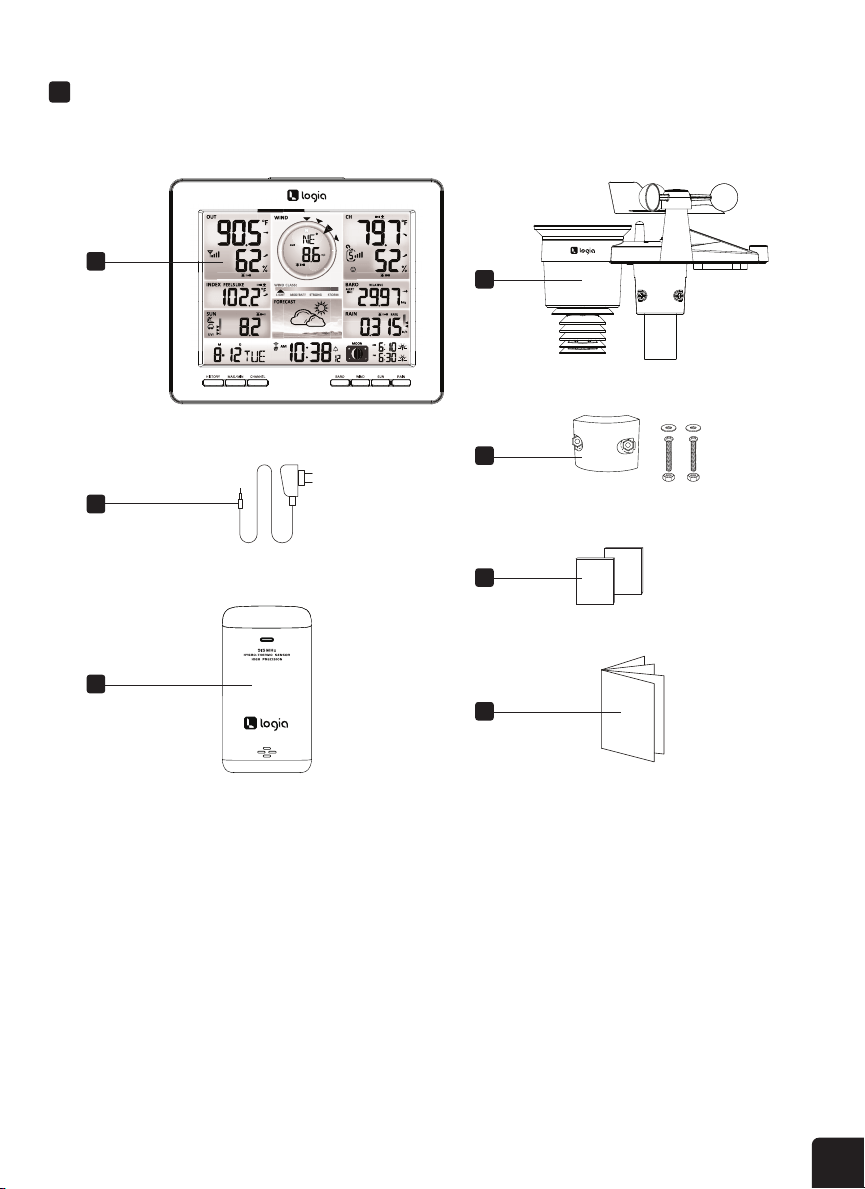
1. Weather console
2. Console power cord
3. Wireless indoor hygro-
thermo sensor
4. Wireless 7-in-1
outdoor sensor
5. Mounting clamp with
two (2) screws
6. Two (2) rubber pads
7. User guide
(W x H x D): 8.5″ x 6.9″ x 1″ (215 x 176.5 x 25.5 mm)
(W x H x D): 12.7″ x 11.7″ x 8.5″ (322 x 296 x 217 mm)
(W x H x D): 2.4″ x 4.4″ x 1.6″ (60 x 113 x 39.5 mm)
350mm
185 mm
1215 mm
698mm
390 mm
(W x H x D): 8.5″ x 6.9″ x 1″ (215 x 176.5 x 25.5 mm)
(W x H x D): 12.7″ x 11.7″ x 8.5″ (322 x 296 x 217 mm)
(W x H x D): 2.4″ x 4.4″ x 1.6″ (60 x 113 x 39.5 mm)
350mm
185 mm
1215 mm
698mm
390 mm
1
4
5
6
7
2
3
6
PRODUCT OVERVIEW
WEATHER CONSOLE OVERVIEW
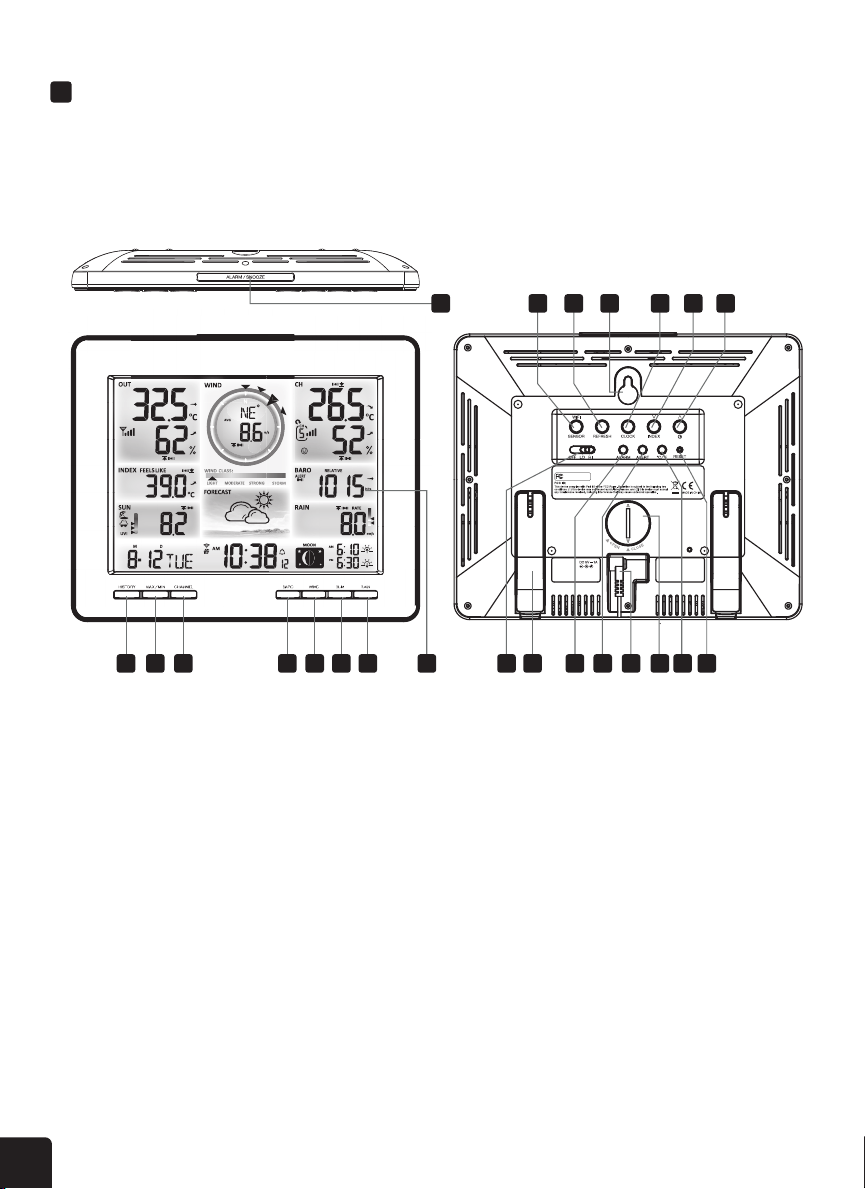
1. SNOOZE button
2. HISTORY button
3. MAX/MIN button
4. CHANNEL button
5. BARO button
6. WIND button
7. SUN button
8. RAIN button
9. LCD display
10. WI-FI/SENSOR button
11. REFRESH button
12. Wall mounting holder
13. CLOCK button
14. DOWN/INDEX button
15. UP/CONTRAST button
16. OFF/LO/HI switch
17. Kickstand
18. ALARM button
19. ALERT button
20. Power jack
21. Battery compartment
22. °C/°F key
23. RESET button
your home Wi- router. The console can also synchronize with internet time server to show high
23456789
your home Wi- router. The console can also synchronize with internet time server to show high
XXXXXXXXXXXX
XXXXXXXX
Model No.:XXXXX
1110 12 13 14 15
16 17 18 19 20 21 22 23
1 10 11 12 13 14 15
2 3 4 5 6 7 8 9 16 17 18 19 20 21 22 23
7
CONSOLE LCD DISPLAY OVERVIEW
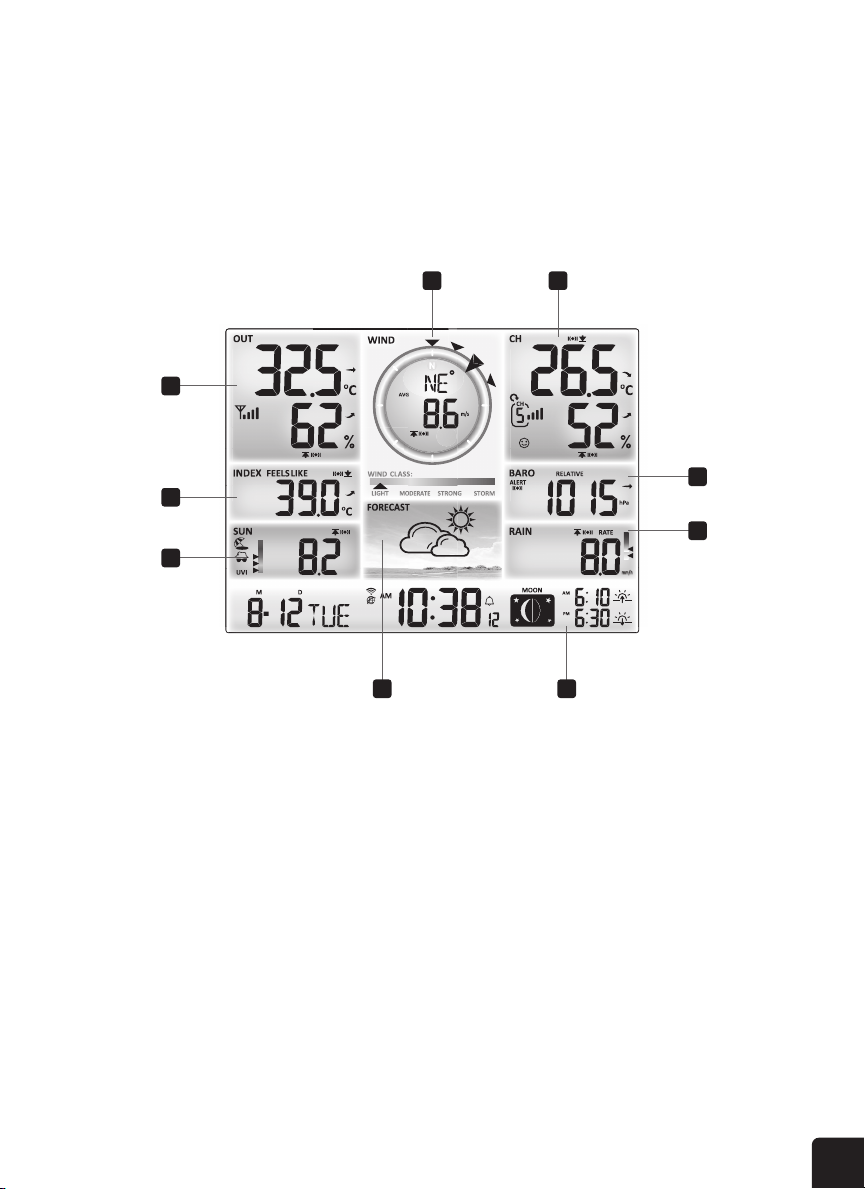
1. Outdoor temperature & humidity
2. Wind direction & speed
3. Indoor temperature & humidity (CH)
4. Weather index
5. UV index & light intensity (SUN)
6. Weather forecast
7. Barometer
8. Rain
9. Time & date, moon phase, sunrise/sunset time
[ Ʌ ]
1
7
8
2
6 9
3
4
5
8
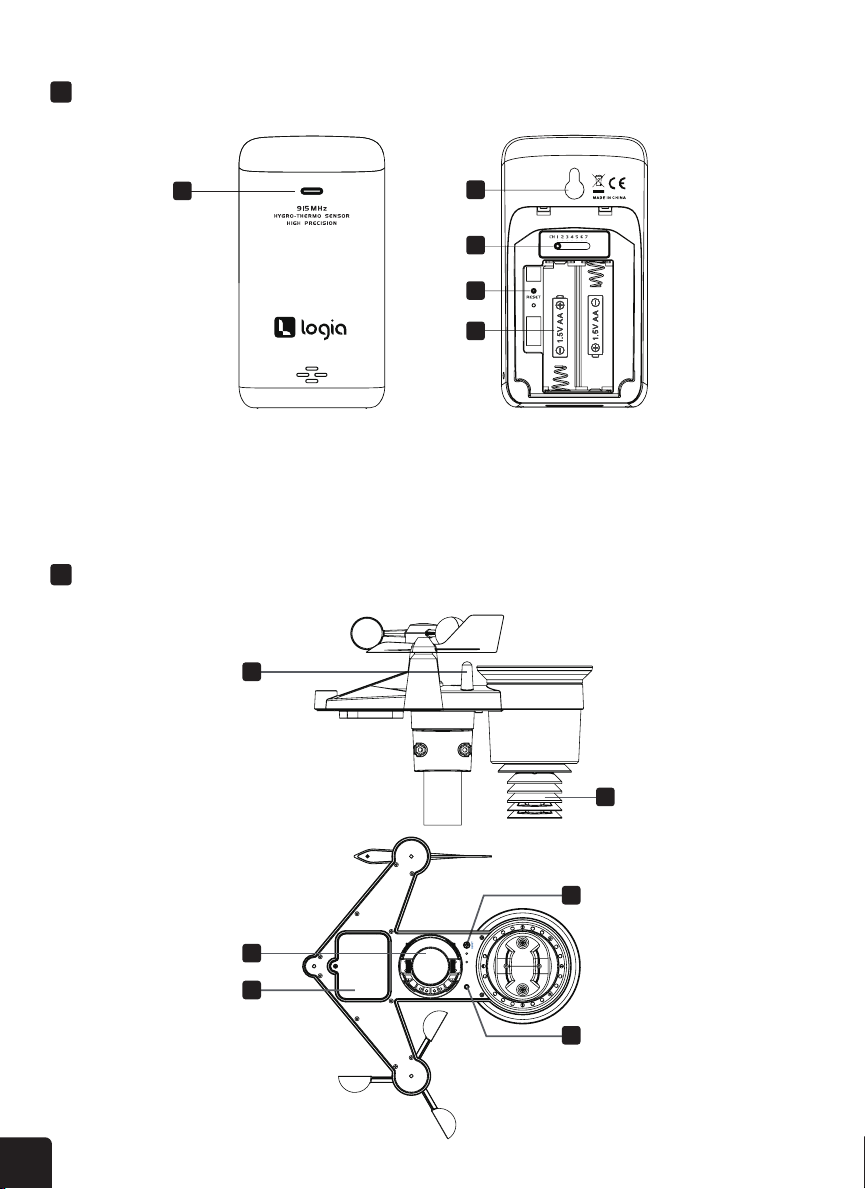
WIRELESS INDOOR HYGRO-THERMO SENSOR OVERVIEW
WIRELESS 7-IN-1 OUTDOOR SENSOR OVERVIEW
1. Transmission status LED
2. Wall mounting holder
3. Channel switch
4
5
6
1
2
3
Mounting parts (t for 35 ~40mm diameter
4. RESET button
5. Battery Compartment
[ Ʌ ]
2
3
4
5
1
1
3
4
2
5
6
2
3
4
5
9
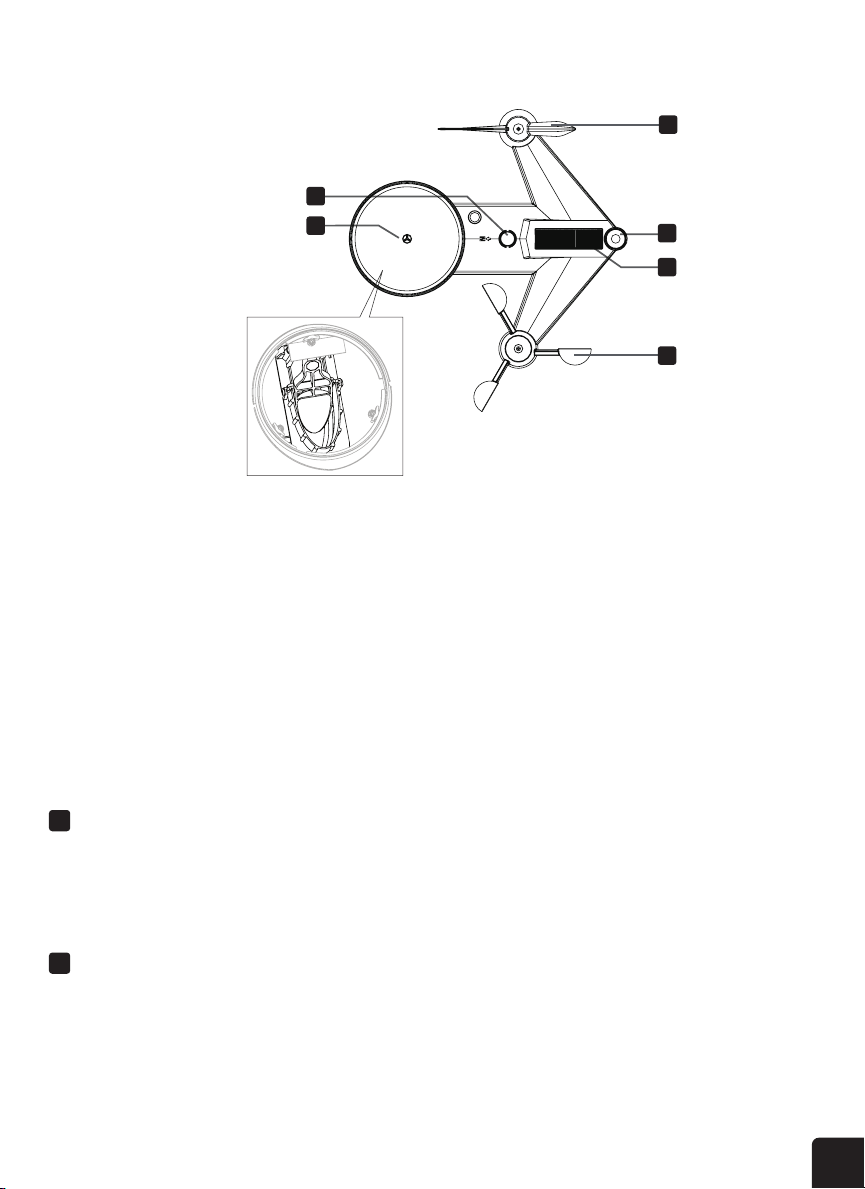
1. Antenna
2. Radiation shield &
hygro-thermo sensor
3. Mounting parts
4. Battery door
5. RESET button
6. Transmission status LED
7. Bubble level gradienter
8. Rain collector
INSTALLATION INSTRUCTIONS
The weather console can pair up with one (1) wireless 7-in-1 outdoor sensor and up to seven (7) wireless
indoor sensors. (NOTE: This product includes one (1) indoor sensor.)
SETTING UP THE WIRELESS 7-IN-1 OUTDOOR SENSOR
The wireless 7-in-1 outdoor sensor measures wind speed, wind direction, rainfall, UV, light intensity,
temperature, and humidity.
9. Wind direction vane
10. UV/light sensor
11. Solar panel
12. Wind speed cups
7
8
10
11
9
12
Mounting parts (t for 35 ~40mm diameter
7
9
10
11
12
8
10
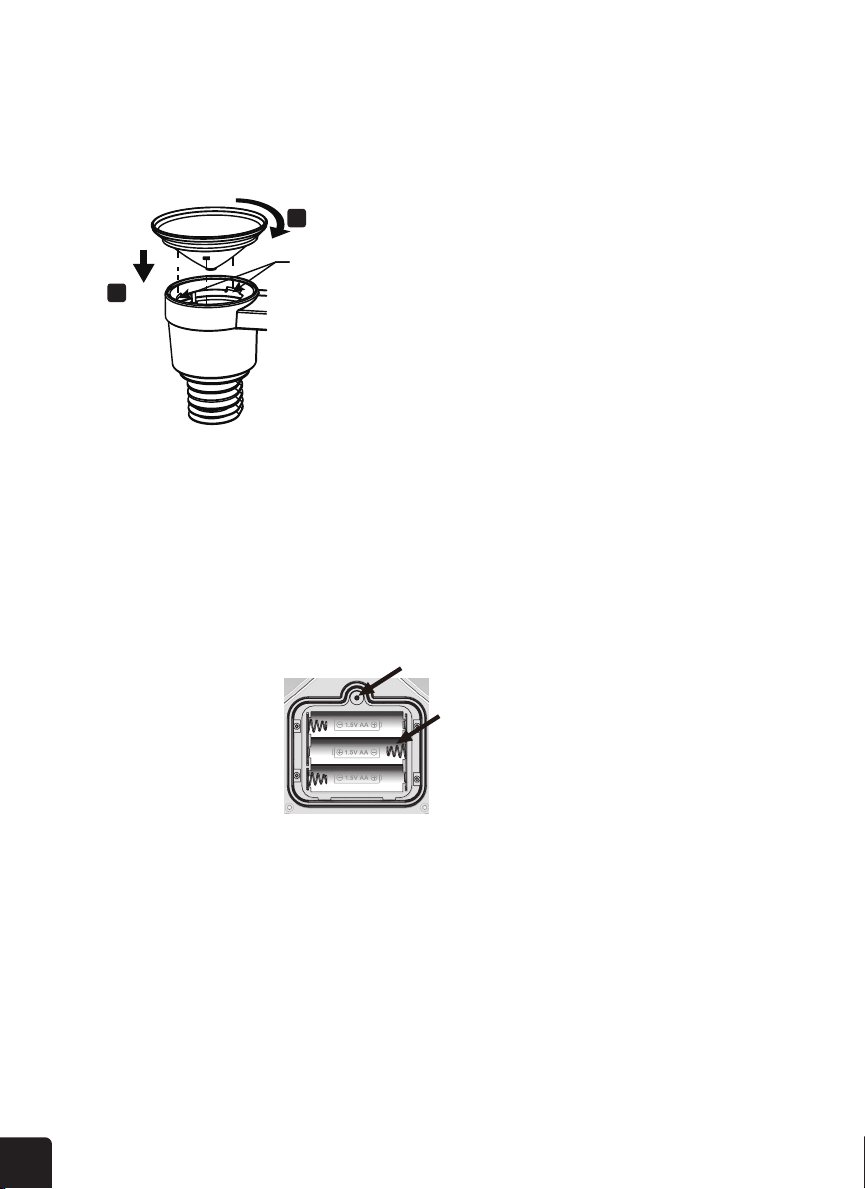
SETTING UP RAIN COLLECTOR
INSTALLING THE BATTERIES
MOUNTING SENSOR ON POLE
1. Align the notches on the funnel with the lock grooves inside the rain collector.
2. Insert the funnel in the rain collector and screw on tight to lock it in place.
1. Unscrew the battery door at the bottom of the 7-in-1 outdoor sensor.
2. Insert three (3) AA batteries (not included) according to the +/- polarity labeled in the compartment.
3. Screw the battery door back onto the compartment.
NOTE: The LED light will ash red every 12 seconds.
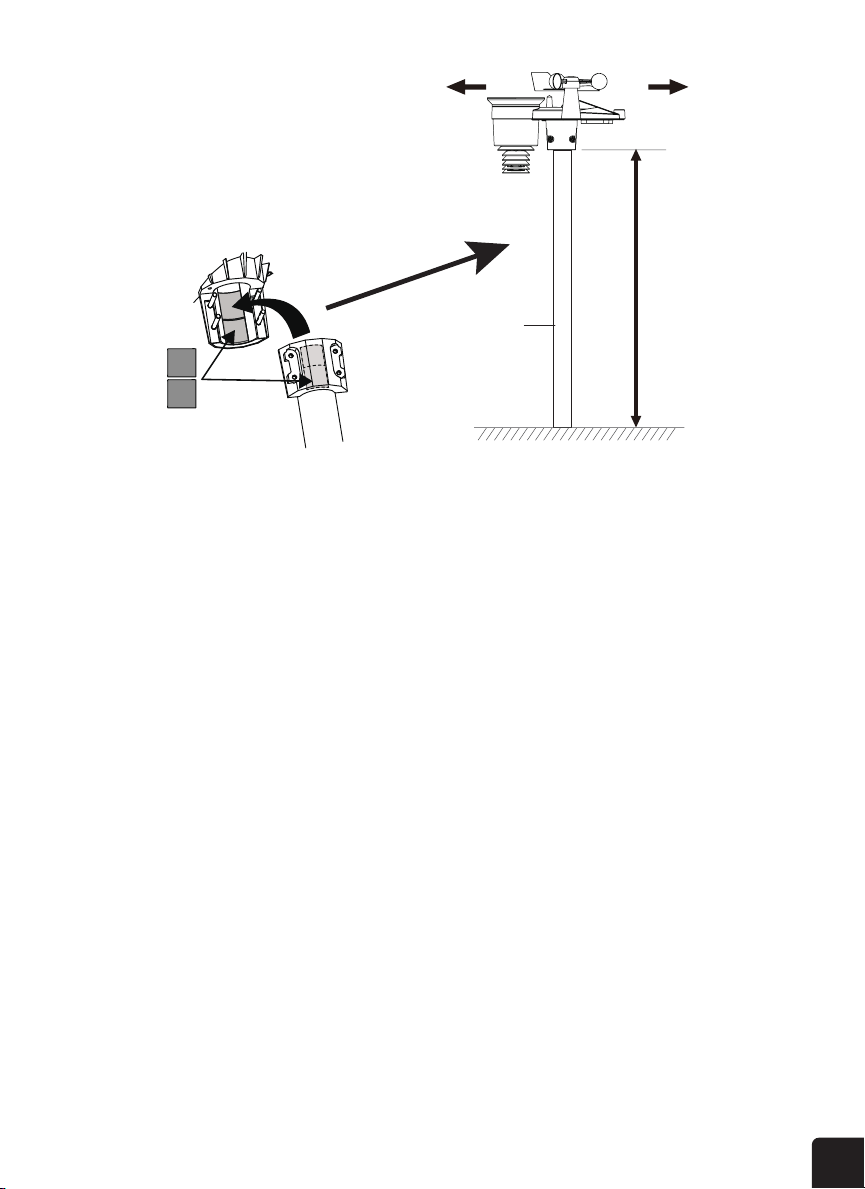
1. Pick a location for the 7-in-1 outdoor sensor that is open with no obstructions.
2. Set the sensor so the rain collector faces north and UV/light sensor faces south.
3. Secure the sensor onto a mounting post or pole (not included) using the mounting clamp (included).
4. Add rubber pads onto mounting clamp before fastening the mounting clamp on the sensor.
5. Tighten the mounting clamp using included screws onto the bottom of the sensor once it is on a pole.
NOTE: Place sensor on a steel pole or post with a 1.4″ – 1.6″ (35 – 40 mm) diameter and is a
minimum of 6.6 ft. (2 m) o the ground.
1 Align
Lock grooves
2 Lock
The red LED will begin ashing every 12 seconds.
to a 35 ~ 40mm diameter steel post or pole, and
Unscrew the battery door at bottom of unit and insert the batteries
The red LED will begin ashing every 12 seconds.
Screw
location
3 x AA
batteries
to a 35 ~ 40mm diameter steel post or pole, and
1
2
11
The outdoor wireless weather sensor is calibrated to be pointed north for maximum accuracy. However,
for your convenience, if you are a user located in the Southern Hemisphere, you can use the sensor with
the wind vane pointing south.
1. Mount and install the wireless weather sensor with the wind meter end pointed South, instead of
North. (Please refer to Mounting Sensor on Pole for mounting instructions.)
2. Select “S’ in hemisphere section of the setup UI setup page. (Please refer to Setting Up Weather
Server Connection section for setup details)
3. Press the APPLY icon to conrm and exit.
NOTES: Changing the hemisphere setting will automatically switch the direction of the moon
phases on the display.
Pointing the wireless weather sensor toward the south will allow maximum sunlight on the solar
panel, especially during the winter season in the Southern Hemisphere.
POINTING THE WIRELESS 7-IN-1 OUTDOOR SENSOR TO SOUTH (OPTIONAL)
MOUNTING POLE AND DIRECTION ALIGNMENT
Install the wireless 7-IN-1 sensor in an open
location with no obstructions above and around the
sensor for accurate rain and wind measurement.
Install the sensor with the smaller end facing the
North to properly orient the wind direction vane.
Secure the mounting stand and bracket (included)
35 ~ 40mm diameter steel post or pole, and
allow minimum 2m off the ground.
Point to
SOUTH
Point to
NORTH
2 meters
off the
ground
mounting pole
and stand not
included
Add rubber
pad before
mounting on
pole or post
12
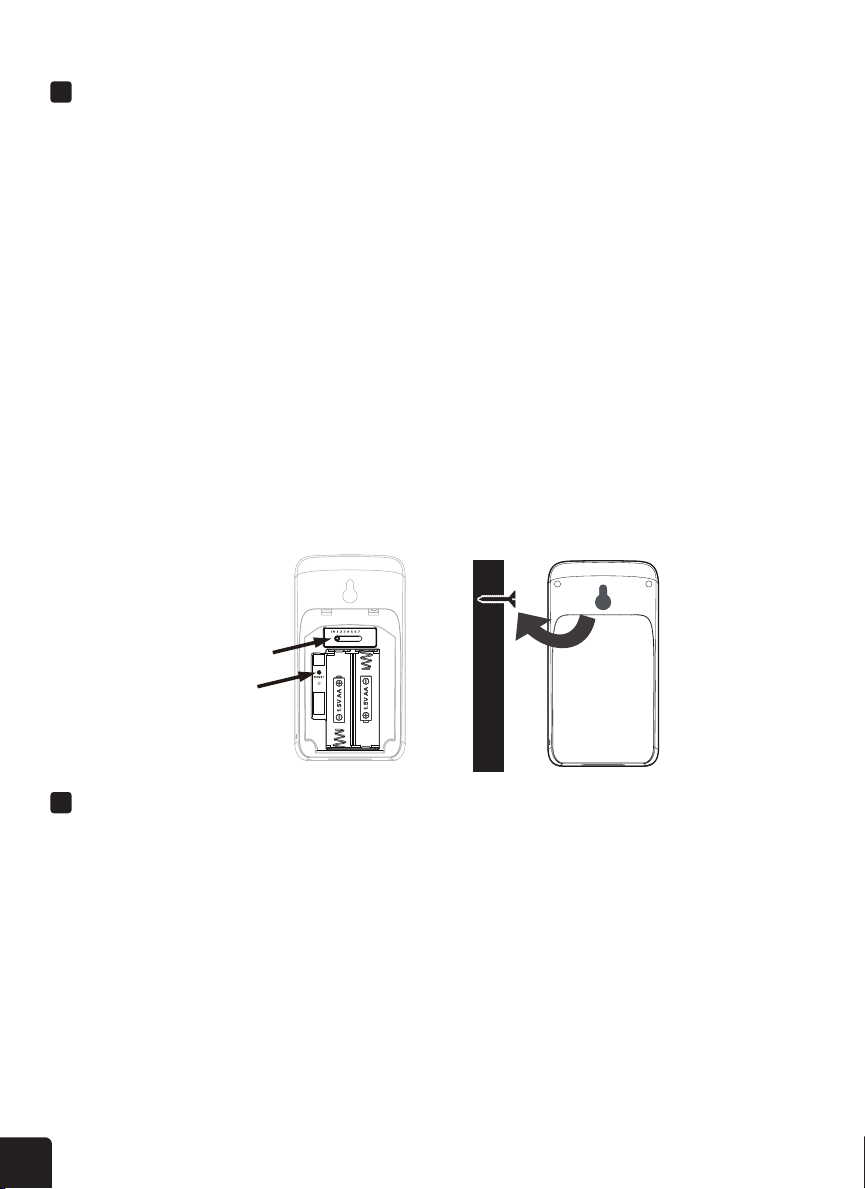
1. Remove the battery door on the back of the sensor.
2. Use the channel switch to set the channel number for the sensor.
3. Insert two (2) AA batteries into the battery compartment according to the +/- polarity labeled in
the compartment.
4. Place the battery door back on the sensor. The sensor will then be in pairing mode and can be
registered to the console within the next few minutes. The transmission status LED will begin to
ash every minute.
NOTE: To change the sensor to a new channel, slide the channel switch to a dierent channel.
Then, press the RESET button on back of the sensor.
Your console can pair up with one (1) wireless 7-in-1 outdoor sensor and up to seven (7) wireless
indoor sensors. (Only one (1) indoor sensor included.)
1. Insert a screw or hook into the wall.
2. Hang the sensor onto the screw or hook using the wall mounting holder. (Note that the sensor can
also be placed on a table.)
1. Remove the battery door on the rear of the console.
2. Insert a new button battery.
3. Replace the battery door.
NOTE: The backup battery can assist with backing up the time & date, MAX/MIN data, weather
records from the past 24 hours, alert settings, the oset value of weather data, and the
sensor(s) channel history. The built-in memory will backup router and weather server settings.
SETTING UP THE WIRELESS INDOOR HYGRO-THERMO SENSOR
SETTING UP THE WEATHER CONSOLE
INSTALLING THE BATTERIES
PLACING THE WIRELESS INDOOR HYGRO-THERMO SENSOR
INSTALLING THE BACKUP BATTERIES
size batteries into the battery compartment and close
the battery door according to the polarity information marked on the
The sensor is in synchronization mode, and can be registered to the
The transmission status LED
will begin to ash every 1 minute.
the sensor/s rst, and then press
will begin to ash every 1 minute.
the sensor/s rst, and then press
Place a screw on the wall that you wish to hang the sensor on.

13
PAIRING THE WIRELESS 7-IN-1 SENSOR AND INDOOR SENSOR
RESET AND FACTORY HARD RESET
RE-PAIRING SENSORS
CHANGING BATTERIES AND MANUAL PAIRING OF SENSOR
PAIRING ADDITIONAL WIRELESS SENSORS
1. Plug the power adapter to the power jack located in back of the console.
2. Once the console is turned on, it will automatically enter pairing mode.
NOTE: If the LCD display does not turn on, use a pin or other small object to press the RESET
button on back of the console.
1. Once your display console powers on, it should automatically search for and connect to the wireless
weather sensors. If the console does not connect within the rst 15 minutes, refer to the following
section, Changing Batteries and Manual Pairing of Sensor, for instructions on manual pairing.
2. You will see the icon of an antenna blinking in the temperature and humidity (outdoor) section of the
display.
3. Once the pairing process completes, the antenna icon will appear solid (not blinking), and the
readings for outdoor temperature and humidity, wind speed, wind direction, UV, light intensity, and
rainfall will appear in their designated sections of the LCD display.
To reset the console and start again, press the RESET button once. To hard reset the console and
resume factory settings, press and hold the RESET button on the console for six (6) seconds.
If the connection fails or the console is reset, then press the WI-FI/SENSOR button once for the console
to enter pairing mode, and the console will re-register all the sensors that have already been registered to
it before, (i.e. the console will not lose the connection of the sensors that you’d paired up before.)
Whenever you change the batteries of the wireless indoor or 7-in-1 weather sensor, re-pairing must be
done manually.
1. Change all the batteries to new ones in the sensor.
2. Press the WI-FI/SENSOR button on the console to enter pairing mode.
3. Press the RESET button on the wireless indoor or 7-in-1 weather sensor.
1. Press the WI-FI/SENSOR button once on the console to enter pairing mode.
2. Press the RESET button on the new sensor, and wait for a few minutes for the new sensor to pair to
the console.
NOTE: Channel number of an indoor sensor must not be the same as another indoor sensor. Please
refer to Setting Up the Wireless Indoor Hygro-thermo Sensor section for details.
POWERING UP THE CONSOLE
RESET
To reset the console and start again, press the
console and resume factory settings, press and hold the
icon to conrm and exit.

14
When you rst power up the console, or press and hold the WI-FI/SENSOR button for six (6) seconds,
the console LCD display will show the letters “AP” and an icon to signify that it has entered Access
Point (AP) mode. At this time it will be ready for the Wi-Fi settings to be adjusted.
Use your smartphone, tablet, or computer to connect to the console via Wi-Fi by following these steps:
1. On PC, open your Wi-Fi network settings. On Android™ or iOS devices, go to settings menu and
then select Connections/WI-FI to open the network settings.
2. Locate the display console’s SSID from the list. It should appear as PWS-XXXXXX (where all the X’s
are integers) in the list. Tap on the SSID to connect. This step will take several seconds.
3. Once you are connected to the display console, open up your internet or mobile web browser, and
enter the following address into the address bar: http://192.168.1.1 (make sure to include the
http:// or else the web browser may interpret the address as a search query). We recommend using
the latest version of reputable web browsers.
The following icons on the LCD display screen show the Wi-Fi status:
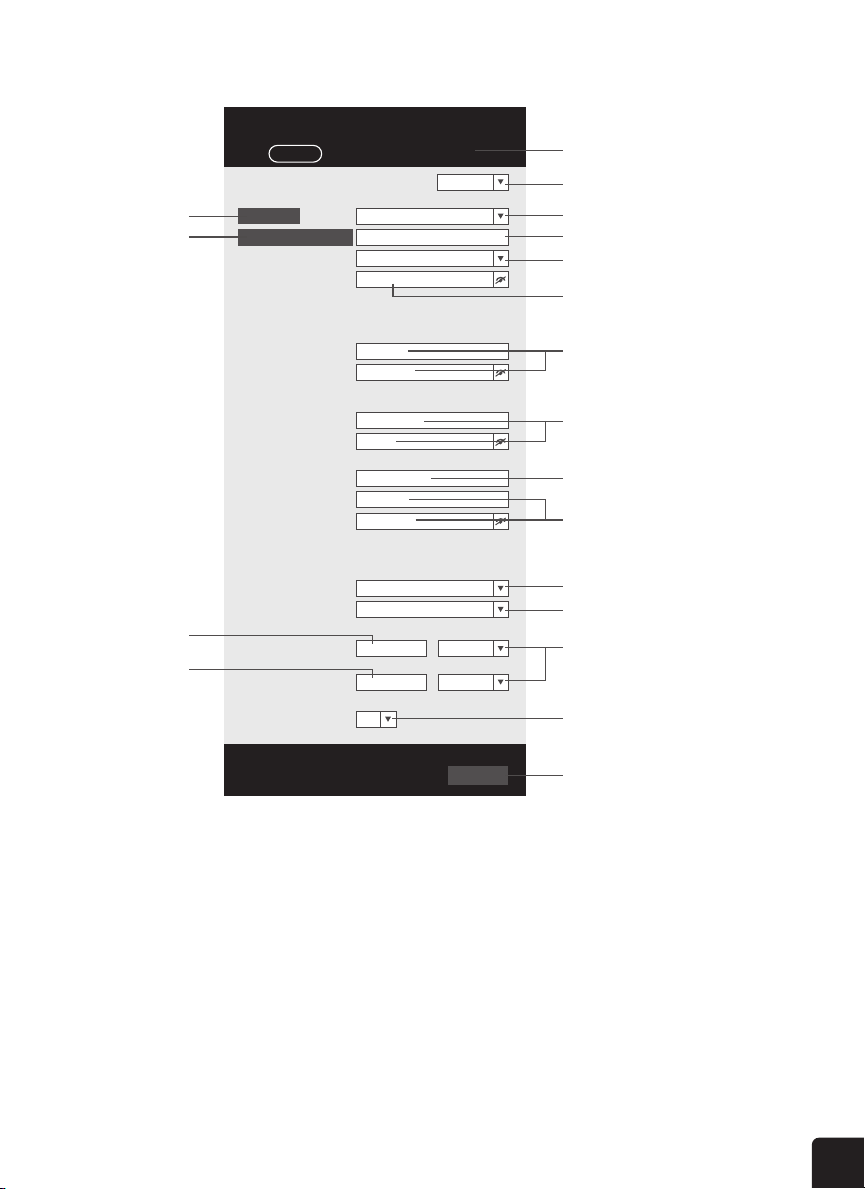
Once you are connected via Wi-Fi to the display console and have opened the settings page at
http://192.168.1.1, enter the following information into the web interface setup page. If you have chosen
not to use Weather Underground or Weathercloud’s servers, leave the check boxes unchecked.
SETUP INSTRUCTIONS
SETTING UP WI-FI CONNECTION
WI-FI CONNECTION STATUS
SETTING UP WEATHER SERVER CONNECTION
Select the Wi-fi router (SSID) you will connect to
Manually enter the SSID if not on the list
Select router’s security type (usually WAP2)
Check to confirm upload to Weather Underground
Enter new Station ID and Station key assigned
by Wunderground (Weather Underground)
Check to confirm upload to Weathercloud
Select time server
Press to complete the setting
Router’s password (leave blank if unsecured)
Press to allow add
router manually
Password record remark
(If you entered password)
Current ID and
key recorded (if any)
Current ID and key
recorded (if any)
Enter new Station ID and Station key
assigned by Weathercloud
Solid: the display console is
connected to your wireless router
Flashing: the display console is
attempting to connect to your wireless router
Flashing: the display console is
currently in AP (access point) mode
Press “SETUP” icon
to SETUP page
Below is the WI-FI icon status on the console LCD:
Flashing: Console is trying to
connect to WI-FI router
15
nist.time.gov
Server URL:
0.0000 North
*Latitude:
0.0000
Enter 0 to 90, no negative numbers
Enter 0 to 180, no negative numbers
East
*Longitude:
Time server setup
Location for sunrise / sunset
WiFi Router setup
ADVANCED
Wunderground
Station ID:
WDw124
******
******
******
IPACIR23Wc
Weather server setup
Station key:
Router:
Add Router
Search
Security type:
Router Password:
WAP2
ROUTER_A
Language: English
Weathercloud
Station ID:
Station key:
******
IDCR21w1
http://WAC.com
Station ID:
URL:
Station key:
Mac address 00:0E:C6:00:07:10
Hemisphere
* Depends on the model
SETUP
Apply
Firmware version: 1.00
0:00
Time Zone:
N
Press "ADVANCED" icon
to Advanced page
Press to search router
Press to allow add
router manually
E
nter the Latitude value
Enter the Longitude
value
SETUP page
Select setup UI display language
Press to complete the setting
Select router (SSID) for connection
Enter new Station ID and Station key
that assigned by Wundergriund
Enter new Station ID and Station key
that assigned by weathercloud
Enter new Station ID and Station key
that assigned by the corresponding
weather server
Manually enter the SSID if not on list
Select time server
Select time zone of your location
Select the direction (e.g. EU
countries Longitude is East and US
is West)
Select the sensor located hemisphere
(e.g. US and EU countries are also "N"
,
Australia is "S")
Reserved for validated weather server,
detail please consult with your retailer
Select router's security type (usually
WAP2)
Router's password (leave blank if the
Security type is "Open")
SETTINGS
NOTES: When the Wi-Fi setup is complete, your computer or mobile device will return to the
default Wi-Fi connection. If it does not, simply open your device’s wireless network settings and
manually reconnect.
While in AP mode, you can press and hold the WI-FI/SENSOR button for six (6) seconds to exit
AP mode. The display console will simply restore the previous AP settings.

16
TIME ZONE
TIME SERVER CONNECTION STATUS
To automatically set the time display to your time-zone, change the time zone in Time server setup
section of the SETUP page from ‘0:00’ (default) to your time zone (e.g.+1:00 for Germany).
Once the display console has connected to the internet, it will attempt to connect to the internet time
server to obtain the UTC time. Once the connection is successful and the time has been updated, the
icon will appear below the Wi-Fi icon on the LCD.
To display the correct time for your specic time zone, you’ll need to change the time zone in the
CLOCK setting mode from 00 (default) to your specic time zone (e.g. -5 for EST). If you don’t know
your time zone, you can look it up online.
1. In normal operating mode, press and hold the CLOCK button for two (2) seconds to enter the
clock setting menu.
2. Press the UP or DOWN buttons to adjust the time zone, and then press and hold the CLOCK
button for two (2) seconds to conrm and exit the menu. Please refer to the Setting the Time
section of the manual on page 24 for details of other available clock settings.
The time will automatically sync with the internet time server at 12:00AM and 12:00PM per day. Also
you can press the REFRESH button to get the internet time manually within one (1) minute.
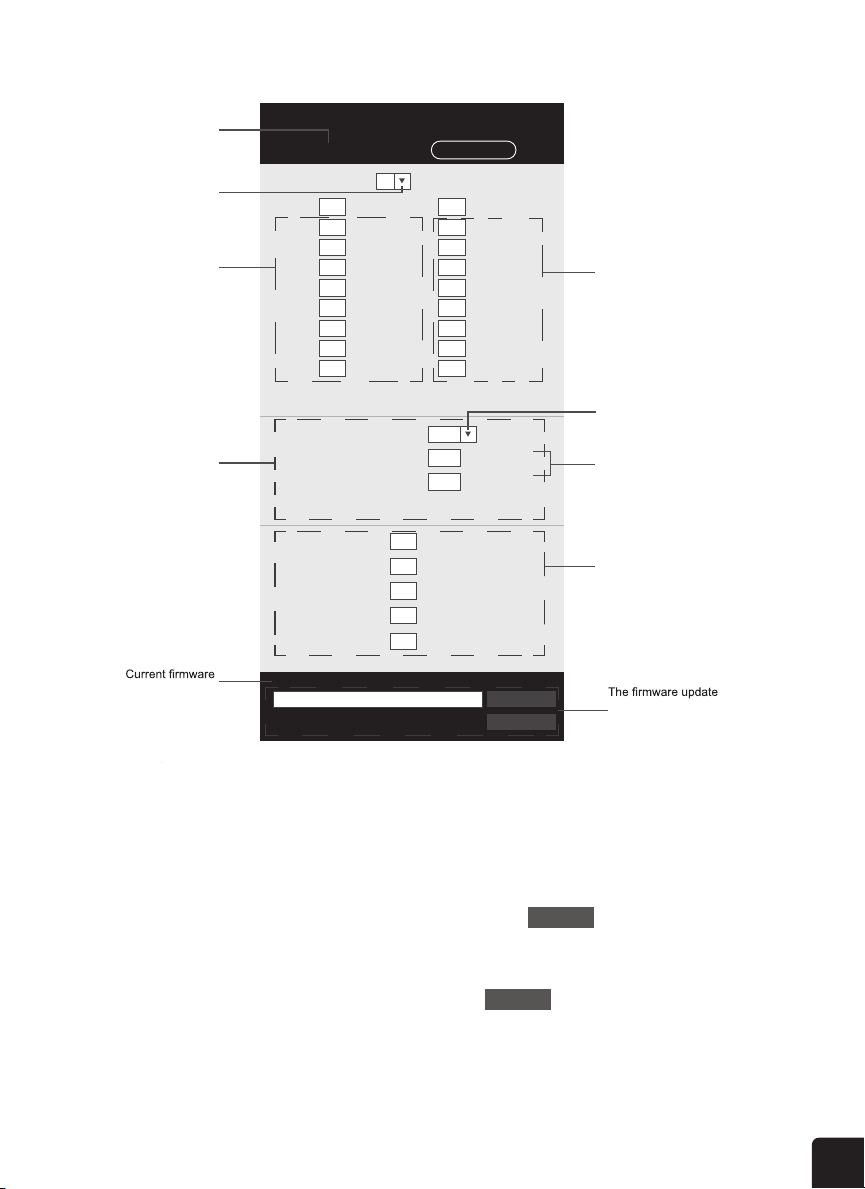
ADVANCED SETTINGS VIA WEB INTERFACE
Once you are connected via Wi-Fi to the display console and have opened the settings page at
http://192.168.1.1, clicking on the tab that says ADVANCED will open the following page. This page
will allow you to set and view specic calibration data of your display console, and also update the
rmware if you are on PC.
nist.time.gov
Server URL:
Time server setup
0:00
Time Zone:
to the internet, it will
obtain
tion succeeds and the
” icon will
The time will automatically synchronize Internet time server at 12:00AM and 12:00PM per day.
rmware version on PC web browser.
-560~ 560hpa / -16.54 ~ 16.54inHg / -420 ~ 420mmH
Range: -20 ~ 20Range: -20.0 ~ 20.
-36.0 ~ 36.
Range: 0.01 ~ 10(Default: 1.00)
Range: 0.01 ~ 10(Default: 1.00)
Range: 0.5 ~ 1.5(Default: 1.00)
Range: -10 ~ 10(Default: 0
Range: 0.5 ~ 1.5(Default: 1.00)
Outdoor and Ch 1~7
Outdoor and Ch 1~7 humidity
tion succeeds and the
time has been updated, the “
” icon will
rmware version on PC web browser.
-560~ 560hpa / -16.54 ~ 16.54inHg / -420 ~ 420mmH
Range: -20 ~ 20Range: -20.0 ~ 20.
-36.0 ~ 36.
Range: 0.01 ~ 10(Default: 1.00)
Range: 0.01 ~ 10(Default: 1.00)
Range: 0.5 ~ 1.5(Default: 1.00)
Range: -10 ~ 10(Default: 0
Range: 0.5 ~ 1.5(Default: 1.00)
Outdoor and Ch 1~7
C
Outdoor and Ch 1~7 humidity
17
rmware version on PC web browser.
Upload
Browse
Firmware version: 1.00
-560~ 560hpa / -16.54 ~ 16.54inHg / -420 ~ 420mmHg
Setting Range:
Temperature
o
C
Outdoor
Indoor
CH 1
CH 2
CH 3
CH 4
CH 5
CH 6
CH 7
Humidity %
Relative Pressure Offset:
Absolute Pressure Offset:
hpa
Range: -20 ~ 20
(Default: 0.0)
Current offset: 10Current offset: -9
Current offset: -5Current offset: 2
Current offset: -2Current offset: 3
Current offset: -2Current offset: 1.2
Current offset: -5Current offset: -0.2
Current offset: -3Current offset: -20.1
Current offset: -10Current offset: 11.5
Current offset: -3
Current offset: -3
(Default: 0)
Current offset: 10
(Default: 0)
Current offset: 0.2
Current offset: -5Current offset: 1
Pressure
Range: -20.0 ~ 20.0
o
C
-36.0 ~ 36.0
o
F (Default: 0.0)
*UV gain:
Range: 0.01 ~ 10(Default: 1.00)
Current gain: 1.1
*Light gain:
Range: 0.01 ~ 10(Default: 1.00)
Current gain: 1.1
* Depends on the model
*Wind speed gain:
*Wind direction:
*Rain gain:
Range: 0.5 ~ 1.5(Default: 1.00)
Range: -10 ~ 10(Default: 0
o
)
Range: 0.5 ~ 1.5(Default: 1.00)
Current gain: 0.85
Current offset: 2
o
Current gain: 0.75
SETUP ADVANCED
Select setting unit
Press "SETUP" icon to
Setup page
Outdoor and Ch 1~7
temperature calibration
section
Pressure calibration
section
version
function only available
in PC web browser
ADVAN
C
ED page
Select setting unit
The rain, wind speed, UV and Light
calibration use gain method. The
wind direction is +/- 10 offset.
Outdoor and Ch 1~7 humidity
calibration section
Current offset value is the value
that you set before to offset the
pressure reading.
SETTINGS
CALIBRATION
CALIBRATION
1. You may enter or change the oset and gain values for dierent measurement parameters,
while viewing the current oset and gain values next to the corresponding boxes.
2. Once you have completed your calibrations, press the button on the SETUP tab.
3. The current oset value will update to show the value that you entered (instead of the default
value). If you want to change the value, you can enter a new value in the box beside the number
(as in step 1). To update the value, again, press in the SETUP tab.
NOTE: We do not recommend calibration of most values with the exception of Relative
Pressure, which must be correctly calibrated to reect your distance above sea level to
account for altitude eects.
WEATHER SERVER CONNECTION
Press
Apply
icon to conrm and exit.
WEATHER SERVER CONNECTION
Press
Apply
icon to conrm and exit.

18
Your display console can upload weather data to Weather Underground and/or Weathercloud via your
Wi-Fi router.
NOTE: Logia™ does not own Weather Underground or Weathercloud, and these instructions are
liable to change without notice due to changes in either website.
CREATE AND SYNC YOUR WEATHER SERVER ACCOUNT
CREATE YOUR WEATHER UNDERGROUND ACCOUNT
1. Make sure your display console is connected to your Wi-Fi network, as outlined in brief below.
Detailed steps are available in the Setting up Wi-Fi Connection segment on page 14 of this user
guide. The display console must be connected to the Wi-Fi network in order to communicate with
Weather Underground.
a. Press and hold the WI-FI/SENSOR button for six (6) seconds to put your display console
into AP mode.
b. Open your phone, tablet, or computer’s wireless settings to search for a wireless network.
c. Locate the display console’s SSID in the list and select it.
d. Once connected, open up your device’s web browser and enter https://192.168.1.1
2. Visit the Weather Underground website at https://www.wunderground.com and click the link
that says “JOIN”. Follow the instructions to create an account.
NOTE: Please use a valid email address to register your account.
3. Once you have created your account and completed the email validation process, return to the
Weather Underground website. Click the dropdown link at the top of the site that says MORE,
and then select Add Weather Station from the dropdown menu.
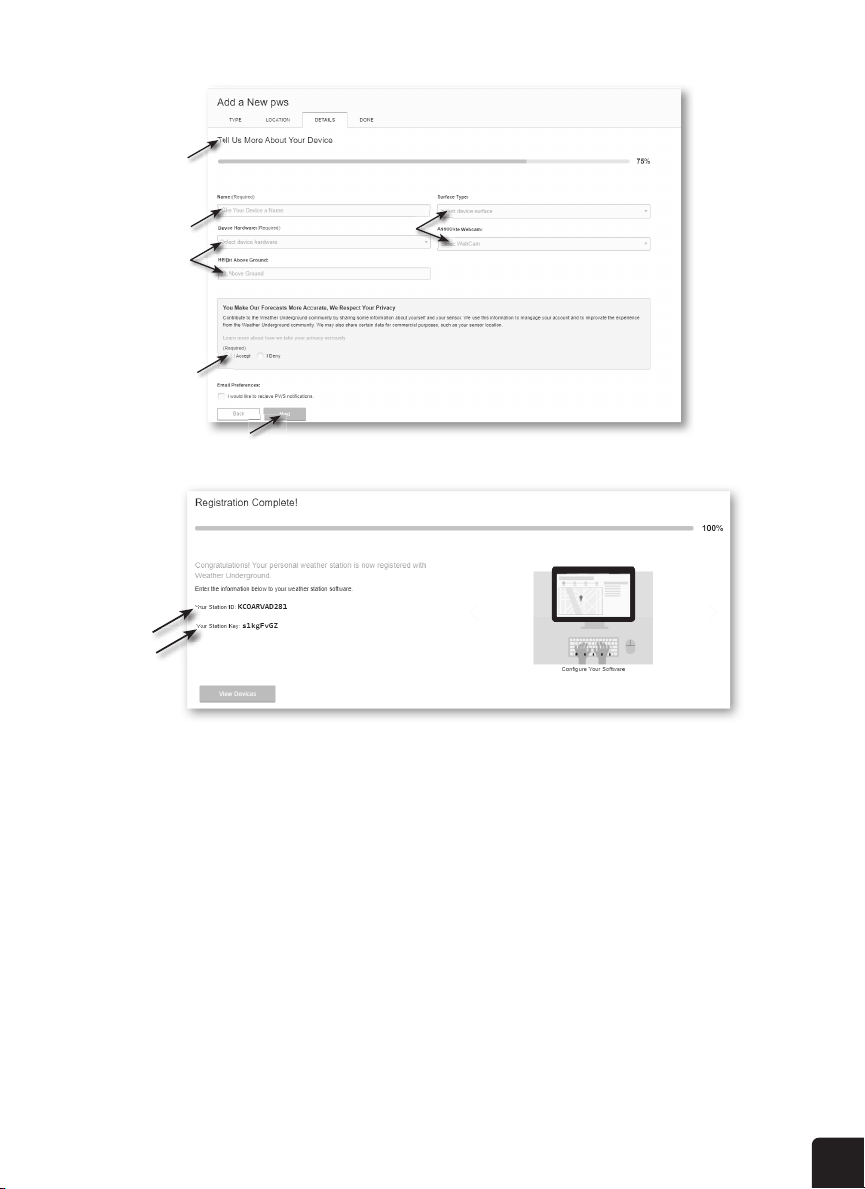
4. Follow the instructions on screen to enter your weather station information. Step 2 will ask you
to enter a name for your weather station (get creative if you want, but don’t forget the name you
gave it!) and choose your station hardware (choose “other”). Once you complete this section,
click Submit to generate your unique Station ID and key.
5. Write down or screenshot your Station ID and Station Key/Password for reference and to
complete the setup process.
registration page. Follow the instructions to create your account.
NOTE:
My Prole
” section and ll in other the other information (3) select "
My Prole
drop-down menu and click "My Weather Station".
3. In "My Weather Station" page bottom, press the "Add New Device" button to add your
” section and ll in other the other information (3) select "
19
7
My Prole
” section and ll in other the other information (3) select "
(2)
(2)
(3)
(4)
(1)
Jot down Your "Station ID" and "Station key" for the further setup step.
TE WEATHERCLOUD ACCOUNT
20
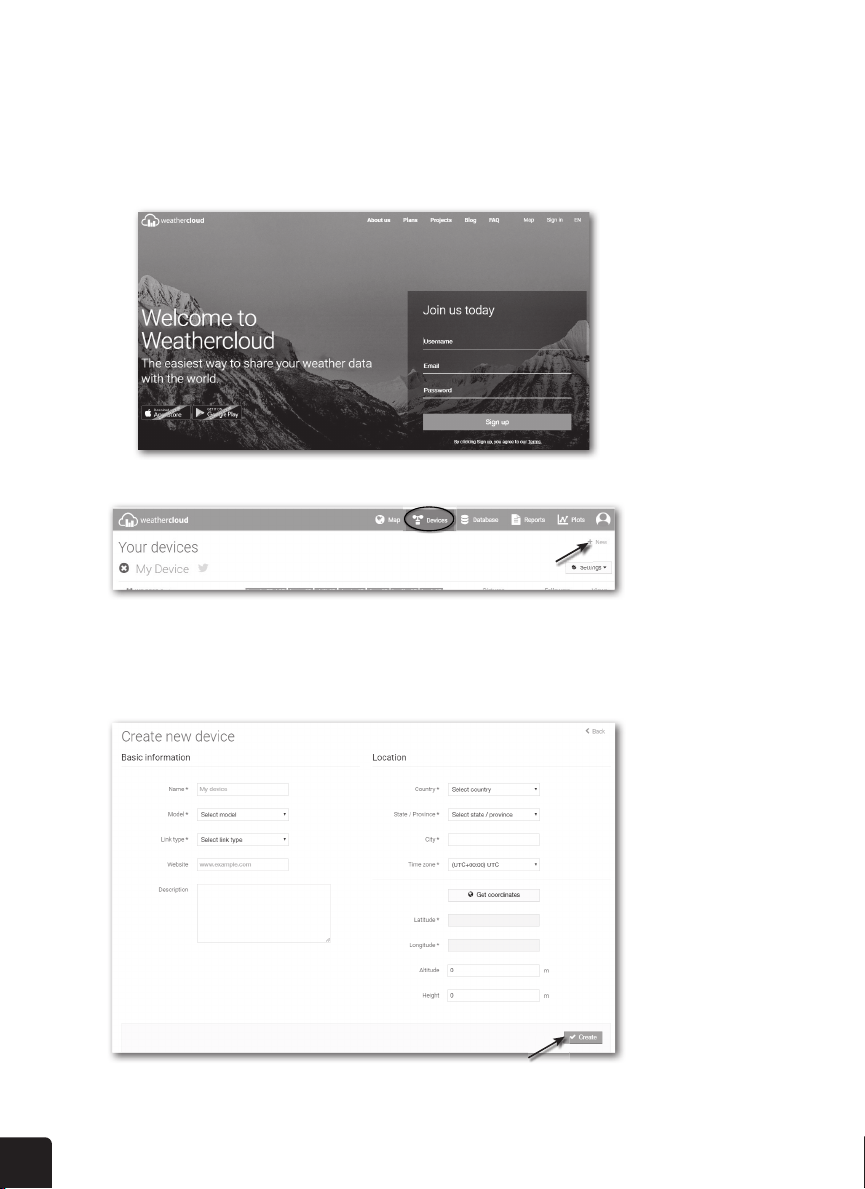
CREATE YOUR WEATHERCLOUD ACCOUNT
1. Visit the Weathercloud website at https://www.weathercloud.net and enter your information in
the box that says Join Us Today. Follow the instructions to create an account.
NOTE: Please use a valid email address to register your account.
2. Once your account is created, sign into it, and then click +New to add a new device.
3. Enter all the requested information into the Create New Device page. When presented with the
Model selection box, choose LOWSC710SWB Series under the Logia section. When presented
with the Link Type selection box, choose Pro Weather Link. Once you have completed this
section, click Create.
4. Write down or screenshot your Weathercloud ID and Station Key/Password for reference and to
complete the setup process.
enter your information in " " section, then follow
Use the valid email address to register your account.
Sign in weathercloud and then you will go the "Devices" page, click "+ New" to create new
device.
Enter all the information in page, for the selection box select
the "W100 Series" under "CCL" section. for the Link type* selection box select the "Pro
Weather Link", Once you have completed, click
enter your information in " " section, then follow
Use the valid email address to register your account.
Sign in weathercloud and then you will go the "Devices" page, click "+ New" to create new
device.
Enter all the information in page, for the selection box select
the "W100 Series" under "CCL" section. for the Link type* selection box select the "Pro
Weather Link", Once you have completed, click
enter your information in " " section, then follow
Use the valid email address to register your account.
Sign in weathercloud and then you will go the "Devices" page, click "+ New" to create new
device.
Enter all the information in page, for the selection box select
the "W100 Series" under "CCL" section. for the Link type* selection box select the "Pro
Weather Link", Once you have completed, click

21
VIEW YOUR WEATHER DATA IN WEATHER UNDERGROUND
To view your weather station data live via PC or mobile web browser, visit http://www.wunderground.
com, and then enter the Station ID you were provided during account setup in the search box. Your
weather data will show up on the next page. Alternately, you can log in to your Weather Underground
account to view and download the recorded data from your weather station.
You can also check the Weather Underground website to learn more about their mobile app for
Android™ and iOS.
VIEW YOUR WEATHER DATA IN WEATHERCLOUD
1. To view your weather station data live via PC or mobile web browser, visit http://www.
weathercloud.net and sign into the account you created.
2. Click on the tab at the top of the page titled Devices.
3. Click on the Settings menu at the top right of the page, and select the option View.
4. Click on either Current, Wind, Evolution, or Inside to view your weather station’s data.
UPDATING THE FIRMWARE
This display console supports OTA (over the air) Function Firmware and WI-FI System Firmware updates
via any web browser (not mobile browser) on a PC that is connected to Wi-Fi. The update function for
both types of updates can be found at the bottom of the Advanced Tab on the wireless settings interface
(see Advanced Settings via Web Interface).
Follow the steps below to update your device’s Function or Wi-Fi System Firmware
1. Download the latest version of the rmware (Function or Wi-Fi) and save it to your PC. Remember
where you saved the le.
2. Press and hold the WI-FI/SENSOR button for six (6) seconds to put the display console into AP
mode, then connect the PC to the console (refer to steps in Setting Up Wi-Fi Connection on page 14.
3. Click the button that says Browse next to the appropriate type of update that you downloaded and
navigate to the location where you saved the le.
Jot down your ID and key for the further setup step.
When you rst power up the console, or press and hold the
seconds in normal mode, the console LCD will show "AP" and "
entered AP (access point) mode, and is ready for WI-FI settings.
Use the smart phone, tablet, or computer to connect to the console through WI-FI.
In PC choose WiFi network settings or In Android / iOS choose setting →
console’s SSID: in the list and it will need several second to connect.
PC WI-FI network interface Android WI-FI network interface
Once connected, enter the following IP address into your internet browser’s address bar, to
access the console’s web interface:
http://192.168.1.1
Some browsers will treat as a search, so make sure you include header.
Recommended browsers, such as the latest version of Chrome, Safari, Edge, Firefox or
Opera.

22
The display console is designed to synchronize with the internet time server to obtain the local time, but
if you want to use it without connecting to your home wireless network, you can set the time manually.
During initial setup, you will need to press and hold the WI-FI/SENSOR button for six (6) seconds, then
let the display console return to normal mode. This will put it into oine mode for you to use it.
1. In normal operating mode while oine, press and hold the CLOCK button for two (2) seconds to
enter the clock setting menu.
2. Press the UP or DOWN buttons to adjust the time zone.
3. Press the CLOCK button again to make adjustments to the next setting.
4. Settings will cycle through the following options: Time Zone > DST ON/OFF > Hour > Minute >
12/24-hour Format > Year > Month > Day > M-D/D-M Format > Time Sync ON/OFF > Language.
5. Press the CLOCK button one nal time after adjusting all settings options to save and exit, or the
console will automatically save and exit the menu after 60 seconds of idle time.
NOTES: In normal operating mode, press the CLOCK button once to switch between date and year
display.
4. Click the corresponding Upload button to transfer the updated le to the console.
5. The le will install automatically once it is uploaded. You can view update progress on the display
console in the wind direction section (the number displayed will correspond to the percentage
completed, so 50 = 50% and so on).
6. The console will restart once the update completes.
NOTES: You cannot update the Function Firmware and Wi-Fi Firmware at the same time. Updates
must be installed one by one.
Make sure the power cable remains connected during the update process.
Make sure your PC’s wireless connection is stable.
Once the update process starts, do not try to do anything else on your PC or on the display
console.
During the rmware update process, the console will stop uploading data temporarily. It will
reconnect to your router and resume uploading data once the update is complete. If the console
cannot connect to your router, you may need to set up the Wi-Fi connection again, following the
steps on page 14.
Once your rmware update is complete, you may need to input your Weather Underground ID and
password again on the SETUP tab of the wireless interface.
OPERATING INSTRUCTIONS
OTHER CONSOLE SETTINGS AND FUNCTIONS
CLOCK
Manually Setting the Time
23
While adjusting settings, you can press and hold the CLOCK button for two (2) seconds to return
to normal mode.
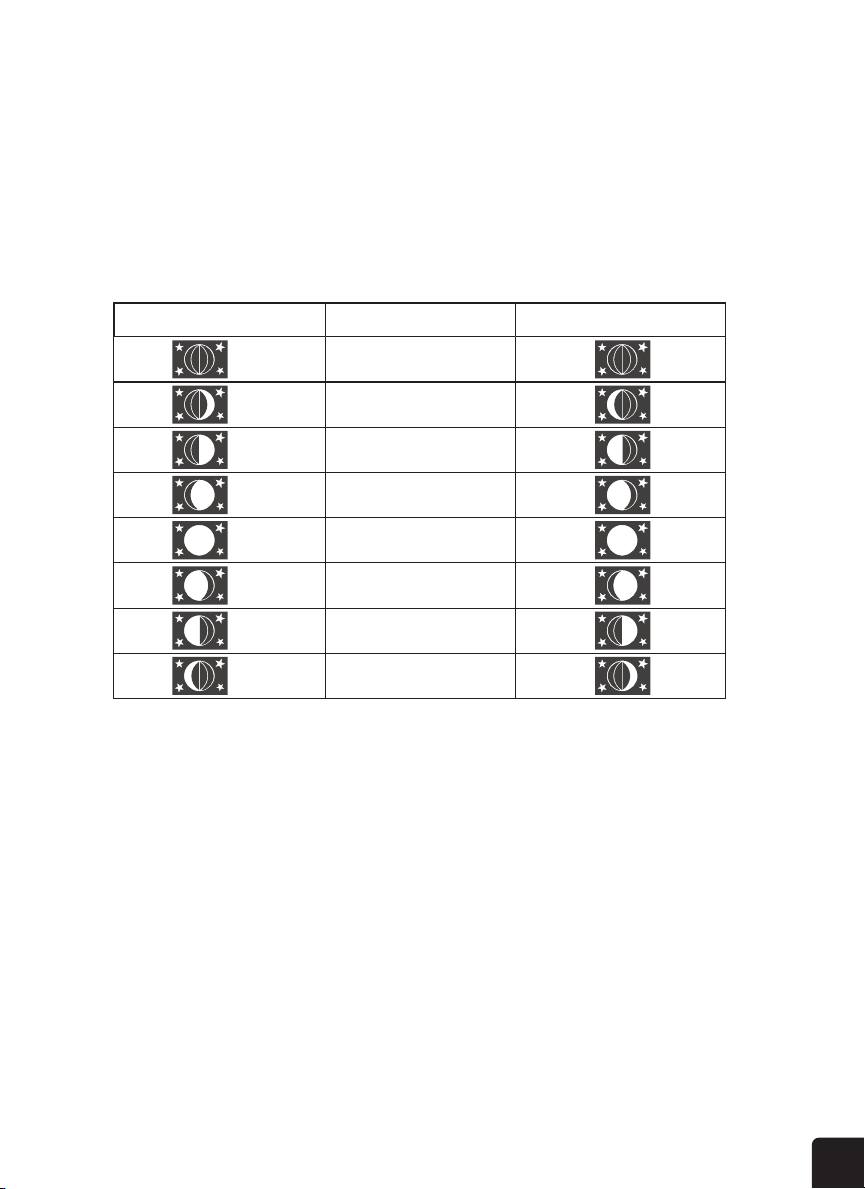
Moon Phase
The display console calculates the moon phase according to your time, date, and time zone. The table
below explains the corresponding phases and their icons for both Northern and Southern hemispheres.
Please refer to the section regarding Pointing the Wireless 7-in-1 Outdoor Sensor to South for more
information on setting up your wireless weather sensor in the Southern Hemisphere.
Northern Hemisphere Icons Southern Hemisphere IconsMoon Phase
New Moon
Waxing Crescent Moon
First Quarter Moon
Waxing Gibbous Moon
Full Moon
Waning Gibbous Moon
Third Quarter Moon
Waning Crescent Moon
Alarm o
Setting the Alarm
If you’d like to use your display console as an alarm clock, follow these instructions to set the alarm
time:
1. In normal operating mode, press and hold the ALARM button for two (2) seconds until the alarm
hour starts ashing. This indicates that you have entered the alarm time setting mode.
2. Use the UP or DOWN buttons to adjust the alarm hour. Press and hold either button to move
through the hours quickly.
3. Press the ALARM button again to conrm the alarm hour and move to adjusting the minutes. The
minute digits should be ashing.
4. Use the UP or DOWN buttons to adjust the alarm minute. Press and hold either button to move
through the minutes quickly.
5. Press the ALARM button to save and exit the menu.
NOTE: Once you have an alarm set, the icon will be displayed next to the time on the LCD display.
The alarm function will be activated automatically once you set a time.
24
3. When the clock reaches the designated alarm time, the alarm sound will start playing.
4. To stop the alarm:
a. Allow the alarm to continue for two (2) minutes and it will stop itself automatically. It will
remain set for the following day.
b. Press the SNOOZE button on top of the unit to snooze the alarm for ve minutes. The snooze
can be set continuously for 24 hours. We don’t recommend doing that, though. While the
console is in snooze mode, the alarm icon will continue ashing.
c. Press and hold the SNOOZE button for two (2) seconds to stop the alarm completely. It will
stay set for the following day.
d. Press the ALARM button to stop the alarm completely. It will remain set for the following day.
NOTE: The snooze could be used continuously in 24 hours. During the snooze, the alarm icon
will keep ashing.
Press the °C/°F button to switch between Celsius and Fahrenheit temperature measurements. The
arrows show the trend in changes to the temperature/humidity levels.
NOTES: If/when the temperature outside falls below -40 °F (-40 °C), the LCD display will show
the word “LO” in the temperature section. If the temperature outside rises above 176 °F (80 °C),
the LCD display will show the word, “HI” in the temperature section.
If/when the humidity level falls below 1%, the LCD display will show the word “LO” in the
humidity section. If/when the humidity level rises above 99%, the LCD display will show the word,
“HI” in the humidity section.
TEMPERATURE
Temperature/Humidity & Trends
Alarm o
Temp/Humidity Trend
Arrow Icon
Rising Steady Falling
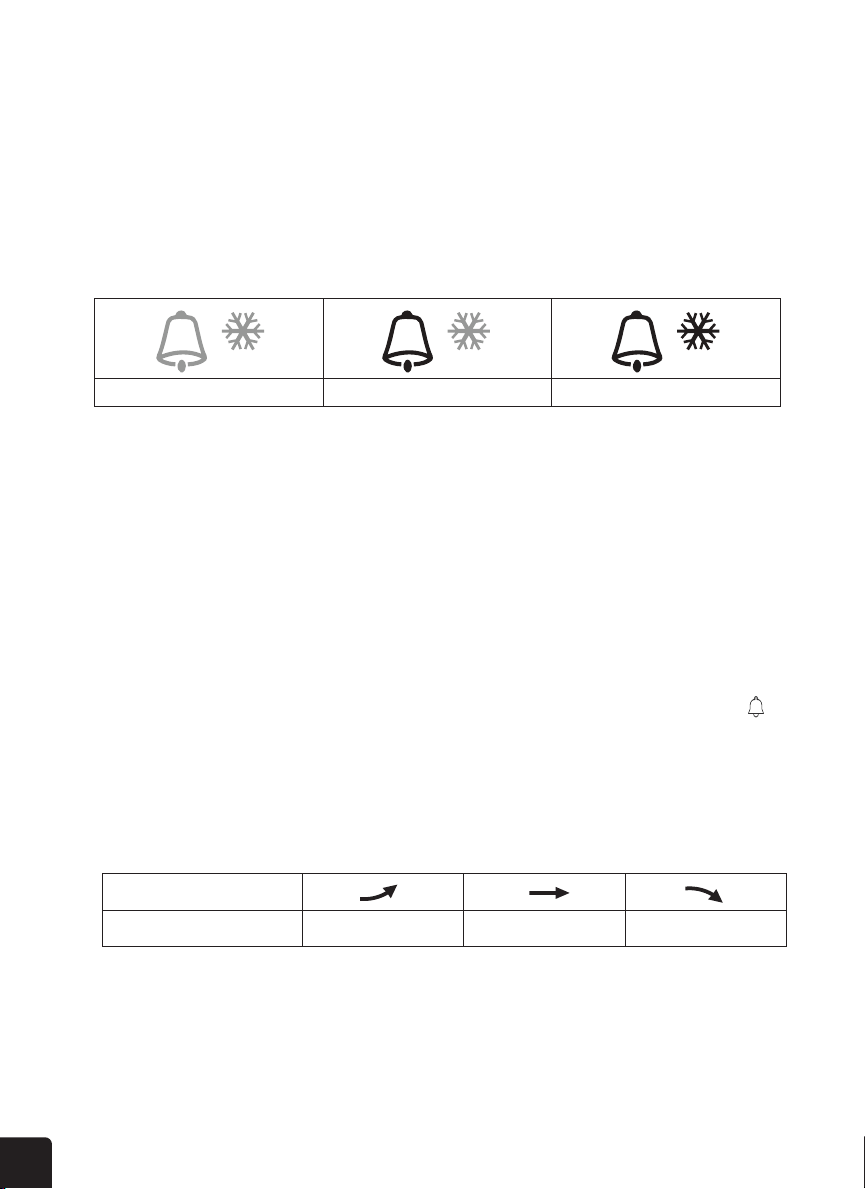
Alarm o Alarm on Alarm with ice-alert
Activating/Deactivating the Alarm & Temperature Pre-Alarm
The temperature pre-alarm will alert you 30 minutes prior to your alarm time whenever the outdoor
temperature falls below 26.5 °F (-3 °C).
1. In normal operating mode, press the ALARM button to display the set alarm time for ve (5)
seconds.
2. When the alarm time is being shown on the LCD display, press the ALARM button again to cycle
through the alarm functions as shown below. The corresponding icons will appear on the LCD
display.
25
Viewing Outdoor Channels
Receiving Wireless Sensor Signals
This console is capable of pairing with the wireless weather sensor and up to seven (7) additional
wireless hygro-thermo sensors. If you have two (2) or more sensors installed, press the CH button to
cycle between dierent wireless channels in normal operating mode, or press and hold the CH button
for two (2) seconds to toggle auto-cycle mode on, which cycles through displaying all connected
channels at 4-second intervals. While the console is in auto-cycle mode, you can press the CH button
once to toggle auto-cycle mode o and continue displaying the current channel.
1. While in normal operating mode, press the WI-FI/SENSOR button once to start receiving the
current sensor signal on the channel being displayed. (i.e. if you’re on CH 1 and press the WI-FI/
SENSOR button, the current wireless sensor signal being received will only display on CH 1.) The
signal icon will start ashing.
2. The signal icon will continue ashing until it successfully receives a signal. If no signal is
received within ve (5) minutes, the icon will disappear.
3. If the signal for the outdoor channel has been interrupted and does not recover within 15
minutes, the signal icon will disappear. The temperature and humidity section (outdoor) will
display “—” on the corresponding channel.
4. If the signal still does not recover within 48 hours, the “—” display will become permanent.
You will need to replace the batteries on the associated channel’s sensor and press the WI-FI/
SENSOR button to pair up the sensors again.
5. After replacing batteries in the display console or the wireless weather sensor, or if the unit fails
to receive a specied channel, press the WI-FI/SENSOR button while the failed channel is being
displayed to manually receive that sensor’s signal again.
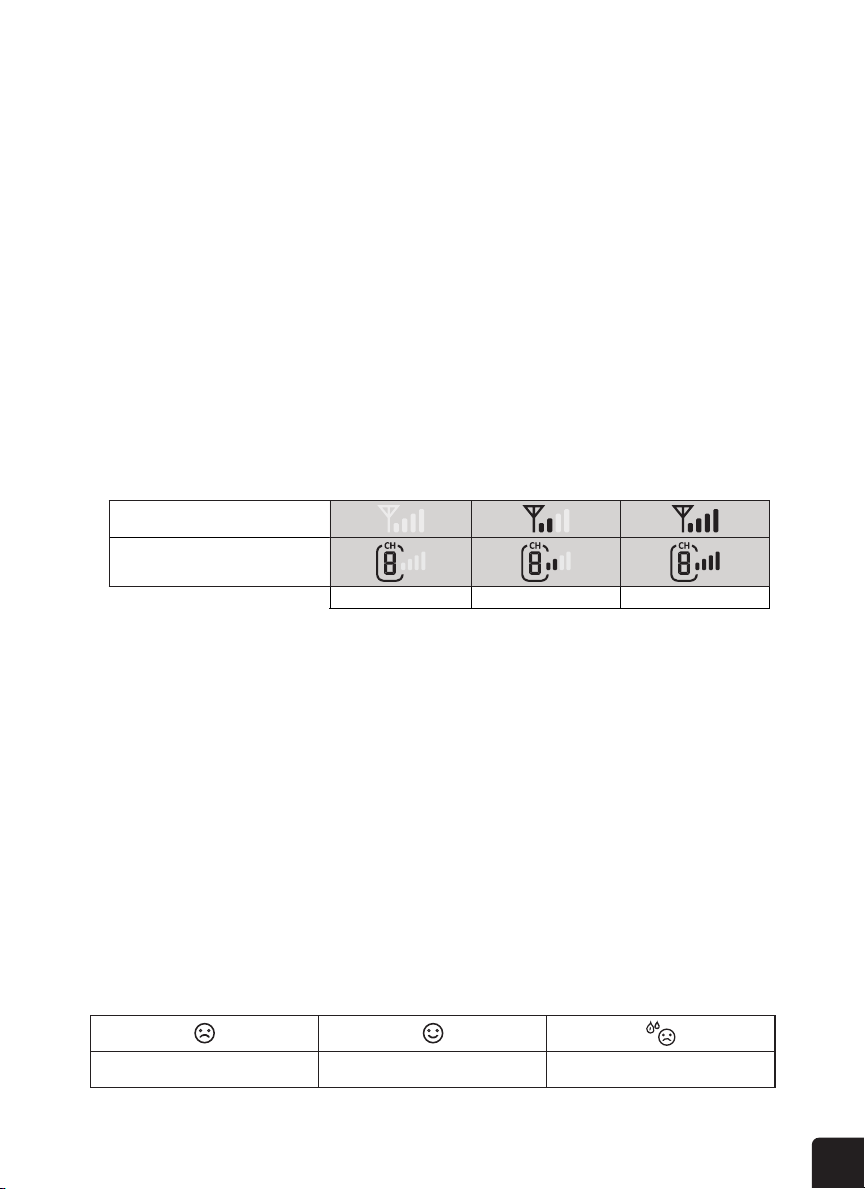
Indoor Comfort Indicator Key
The indoor comfort indicators display a pictorial representation based on the indoor air temperature
and humidity levels to determine the approximate comfort level.
Alarm o
Too cold Comfortable Too hot
OUTDOOR 7-IN-1 SENSOR
INDOOR CHANNEL SENSOR
No signal Weak signal Good signal
26
1. While in normal operating mode, press and hold the WIND button for two seconds to enter the
wind speed unit setting mode. The unit display will start ashing. Press the or buttons
to cycle through the wind speed units in the following order: m/s > km/h > knots > mph
Real time wind
direction indicator
Past wind
directions indicator
of last 5 minutes
Average / gust
wind speed
Set Wind Speed Units
The console display signal strength for the wireless 5-IN-1 sensor, as per table below:
If the signal has discontinued and does not recover within 15 minutes, the signal icon will
disappear. The temperature and humidity will display “Er” for the corresponding channel.
If the signal does not recover within 48 hours, the “Er” display will become permanent. You
need to replace the batteries and then press key to pair up the sensor
This console is capable to pair with a wireless 5-IN-1 sensor and up to 7 wireless thermal-hygro
sensors. If you have 2 or more sensors, you can press key to switch between
different wireless channels in normal mode, or press and hold key for 2 seconds
to toggle auto-cycle mode to display the connected channels at 4 seconds interval.
During auto-cycle mode, press key to stop auto cycle and display the current
AND DIRECTION SECTION OVERVIEW
Past wind
directions indicator
of last 5 minutes
Real time wind
direction indicator
Average / gust
wind speed
In normal mode, press and hold key for 2 seconds to enter into wind speed unit
mode and the unit will ash. Press key to change the wind speed unit in this
sequence: m/s → km/h → → mph
key again to return to normal mode.
In normal mode, press key to switch between and wind speed.
At the WEATHER INDEX section, you can press key to view the weather index in this
sequence: FEELS LIKE → HEAT INDEX → WIND CHILL → DEWPOINT.
The feels like temperature index determine how the outdoor temperature that people actually
Selecting Wind Display Mode
Beaufort Scale Chart
While in normal operating mode, press the WIND button to switch between the average wind speed
measurement and gust wind speed measurement.
While in normal operating mode, press the WIND button to switch between the average wind speed
measurement and gust wind speed measurement.
2. Press the WIND button again to return to normal display mode.
3. Press the WIND button while in normal operating mode to switch between AVERAGE and GUST
wind speeds.
Press the °C/°F button to switch between Celsius and Fahrenheit temperature measurements. The
arrows show the trend in changes to the temperature/humidity levels.
WIND
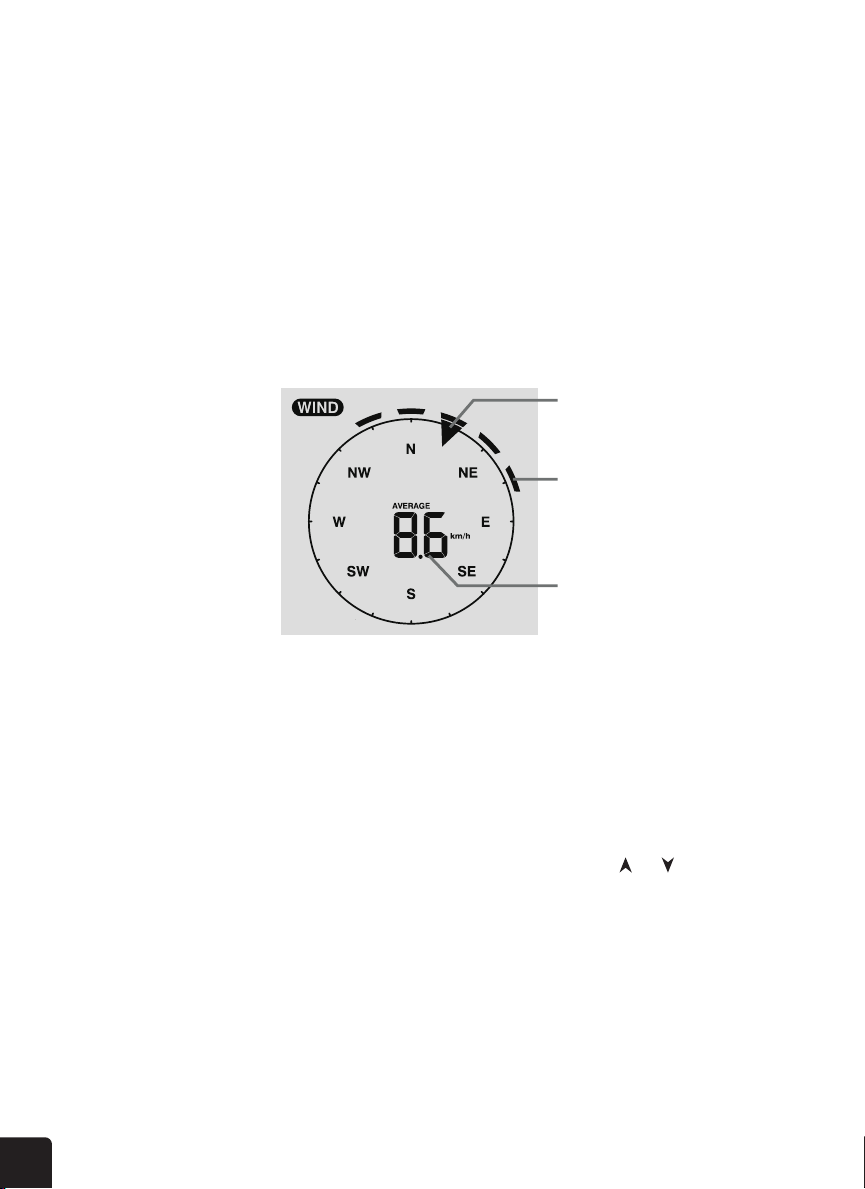
Wind Callouts
NOTE: Comfort indicator levels may vary even when the temperature is the same due to
variances in relative humidity levels. No comfort indicator will be displayed if the temperature
falls below 32 °F (0 °C) or over 140 °F (60 °C).
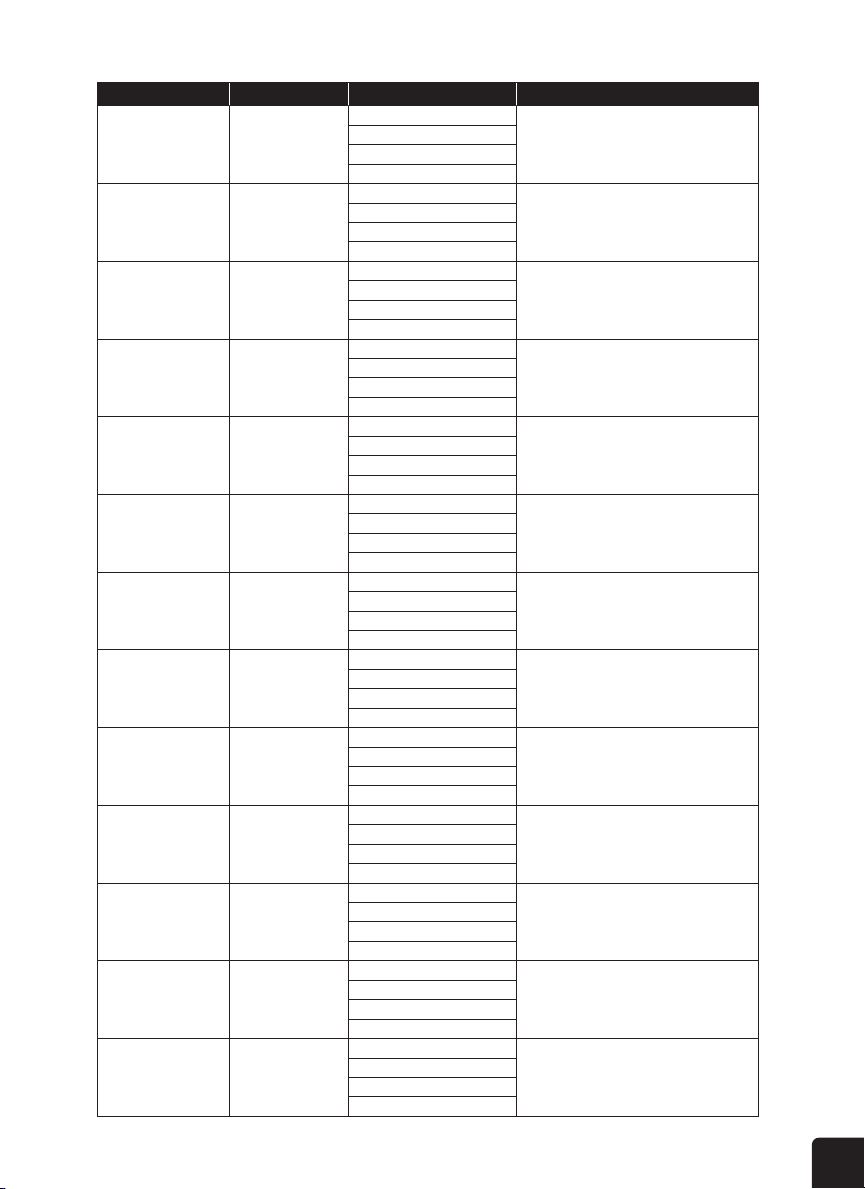
27
Beaufort Scale Description Wind Speed Land Condition
0 Calm. Smoke rises vertically.
1
Smoke drift indicates wind direction.
Leaves and wind vanes are stationary.
2
Wind felt on exposed skin. Leaves rustle.
Wind vanes begin to move.
Light flags extended.
3
Leaves and small twigs constantly moving,
4
Dust and loose paper raised. Small
branches begin to move.
5
Branches of a moderate size move.
Small trees in leaf begin to sway.
6
Large branches in motion. Whistling heard
in overhead wires. Umbrella use becomes
dicult. Empty plastic bins tip over.
7
Whole trees in motion. Eort needed to
walk against the wind.
8
Some twigs broken from trees.
Cars veer on road. Progress on foot is
seriously impeded
9
Some branches break o trees, and some
small trees blow over. Construction /
temporary signs and barricades blow over.
Severe widespread damage to vegetation
and structures. Debris and unsecured
objects are hurled about.
10
Trees are broken o or uprooted,
structural damage likely.
11
Widespread vegetation and structural
damage likely.
12
Calm
Light air
Light breeze
Gentle breeze
Moderate
breeze
Fresh breeze
Strong breeze
High wind
Gale
Strong gale
Storm
Violent storm
Hurricane force
< 1 km/h
< 1 mph
< 1 knots
< 0.3 m/s
1.1 ~ 5km/h
1 ~ 3 mph
1 ~ 3 knots
0.3 ~ 1.5 m/s
6 ~ 11 km/h
4 ~ 7 mph
4 ~ 6 knots
1.6 ~ 3.3 m/s
12 ~ 19 km/h
8 ~ 12 mph
7 ~ 10 knots
3.4 ~ 5.4 m/s
20 ~ 28 km/h
13 ~ 17 mph
11 ~ 16 knots
5.5 ~ 7.9 m/s
29 ~ 38 km/h
18 ~ 24 mph
17 ~ 21 knots
8.0 ~ 10.7 m/s
39 ~ 49 km/h
25 ~ 30 mph
22 ~ 27 knots
10.8 ~ 13.8 m/s
50 ~ 61 km/h
31 ~ 38 mph
28 ~ 33 knots
13.9 ~ 17.1 m/s
62 ~ 74 km/h
39 ~ 46 mph
34 ~ 40 knots
17.2 ~ 20.7 m/s
75 ~ 88 km/h
47 ~ 54 mph
41 ~ 47 knots
20.8 ~ 24.4 m/s
89 ~ 102 km/h
55 ~ 63 mph
48 ~ 55 knots
24.5 ~ 28.4 m/s
103 ~ 117 km/h
64 ~ 73 mph
56 ~ 63 knots
28.5 ~ 32.6 m/s
≥ 118 km/h
≥ 74 mph
≥ 64 knots
≥ 32.7 m/s
28
Feels Like
Wind Chill
When reading the Weather Index display, you can press the INDEX button to cycle through dierent
weather indexes in the following order: Feels Like > Heat Index > Wind Chill > Dewpoint.
The Feels Like temperature index determines what temperature it actually feels like outside, taking
into account factors like wind chill and the heat index.
Wind Chill is determined by a combination of the wireless weather sensor’s temperature and wind
speed data.
Heat Index
Dew Point
The Heat Index is determined by the wireless weather sensor’s temperature and humidity readings
when the temperature outdoors is between 80 °F (27 °C) and 120 °F (50 °C).
• The Dew Point is the temperature below which the water vapor in air at constant barometric
pressure condenses into liquid water at the same rate at which it evaporates. The condensed water
is called dew when it forms on a solid surface.
• The Dew Point temperature is determined by the temperature and humidity data from the wireless
weather sensor.
flags extended.
Eort needed to walk
Some branches break o trees,
Trees are broken o or
Umbrella use becomes dicult.
≥ 118 km/h
≥ 74 mph
≥ 64 knot
≥ 32.7m/s
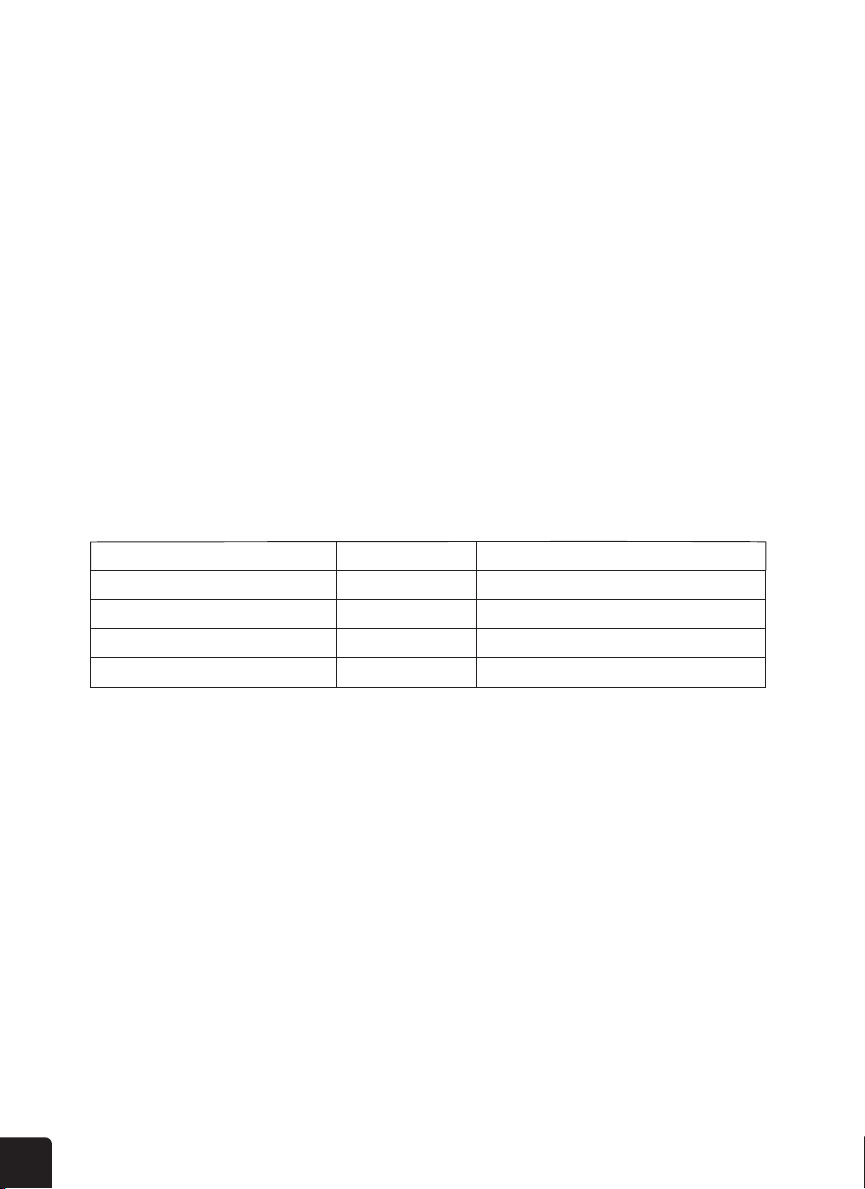
Heat Index range Warning Explanation
80 °F to 90 °F (27 °C to 32 °C) Caution Possibility of heat exhaustion
91 °F to 105 °F (33 °C to 40 °C) Extreme Caution Possibility of heat dehydration
106 °F to 129 °F (41 °C to 54 °C) Danger Heat exhaustion likely
≥ 130 °F (≥ 55 °C) Extreme Danger Strong risk of dehydration / sun stroke
The built-in barometer can notice atmospheric pressure changes, and based on the data collected,
can predict the weather conditions in the forthcoming 12-24 hours within a 19 ~ 31 mile (30 ~ 50
km) radius.
Weather Forecast
WEATHER
Weather Indexes
29
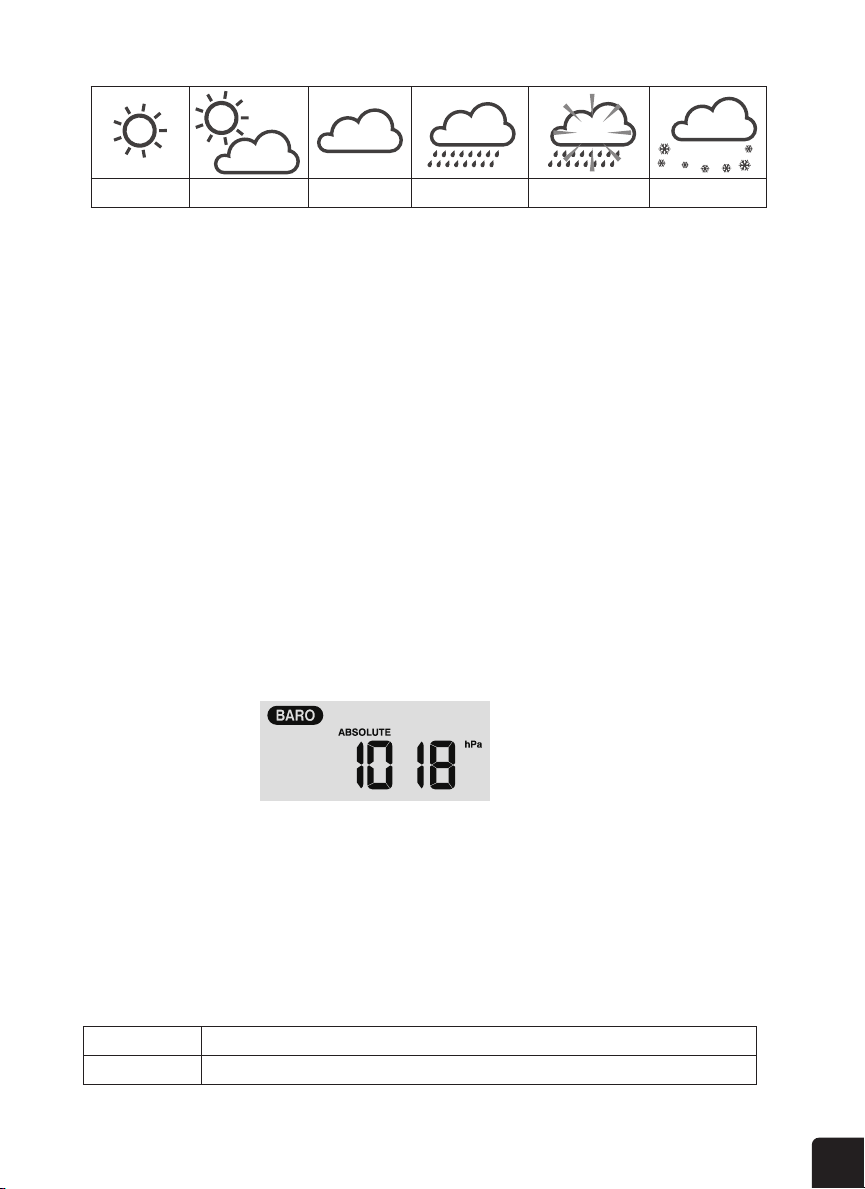
NOTES: The accuracy of a general pressure-based forecast is about 70% - 75%. Forecasts
are not guaranteed.
The forecast section reects a general prediction for the next roughly 12 ~ 24 hours.
It may not necessarily reect the current situation.
The SNOWY weather forecast is not based on the atmospheric pressure, but based on the
current temperature reading from that wireless sensor. When the outdoor temperature is
below 26 °F (-3 °C), the SNOWY weather indicator will be shown on the LCD display.
flags extended.
Eort needed to walk
Some branches break o trees,
Trees are broken o or
Umbrella use becomes dicult.
≥ 118 km/h
≥ 74 mph
≥ 64 knot
≥ 32.7m/s
≥ 130 °F (≥ 55 °C)
Sunny Partly cloudy Cloudy Rainy Rainy / Stormy Snowy
1. In normal operating mode, press the BARO button to cycle through options for the barometer units
of measure in the following order: hPa > inHg > mmHg.
2. While in normal operating mode, press and hold the BARO button to switch between ABSOLUTE
and RELATIVE barometric pressure displays.
Set Barometer Units
The atmospheric pressure is the pressure at any location on Earth caused by the weight of the
column of air directly above that location. The average pressure gradually decreases as the altitude
increases. Meteorologists use barometers to measure atmospheric pressure. Since variation in
atmospheric pressure can be greatly aected by the weather, it is possible to forecast the weather
by measuring these changes in pressure.
flags extended.
Eort needed to walk
Some branches break o trees,
Trees are broken o or
Umbrella use becomes dicult.
≥ 118 km/h
≥ 74 mph
≥ 64 knot
≥ 32.7m/s
≥ 130 °F (≥ 55 °C)
Absolute The absolute atmospheric pressure of your location
Relative The relative atmospheric pressure based on the sea level
The heat index, which is determined by the wireless 5-IN-1 sensor's temperature & humidity
data, when the temperature is between 27°C (80°F) and 50°C (120°F).
27°C to 32°C (80°F to 90°F) Possibility of heat exhaustion
33°C to 40°C (91°F to 105°F) Extreme Caution Possibility of heat dehydration
41°C to 54°C (106°F to 129°F) Heat exhaustion likely
≥55°C (≥130°F) Extreme Danger Strong risk of dehydration / sun stroke
A combination of the wireless 5-IN-1 sensor's temperature and wind speed data determines the
current wind chill factor.
The dew point is the temperature below which the water vapor in air at constant barometric
pressure condenses into liquid water at the same rate at which it evaporates. The condensed
water is called when it forms on a solid surface.
The dew point temperature is determined by the temperature & humidity data from wireless
The built-in barometer can notice atmosphere pressure changes. Based on the data collected,
it can predict the weather conditions in the forthcoming 12~24 hours within a 30~50km (19~31
miles) radius.
Partly cloudy Cloudy Rainy / Stormy Snowy
The accuracy of a general pressure-based weather forecast is about 70% to 75%.
The weather forecast is reecting the weather situation for next 12~24 hours, it may not
necessarily reect the current situation.
weather forecast is not based on the atmospheric pressure, but based on the
temperature of outdoor. When the temperature is below -3°C (26°F), the weather
icon will be displayed on the LCD.
The atmospheric pressure is the pressure at any location of
the earth caused by the weight of the column of air above it.
One atmospheric pressure refers to the average pressure and
gradually decreases as altitude increases. Meteorologists use
barometers to measure atmospheric pressure. Since variation in
atmospheric pressure greatly affected by weather, it is possible to
forecast the weather by measuring the changes in pressure.
In normal mode, press key to change the barometer unit in this sequence: hPa
→ → mmHg
PRESSURE
Barometric Pressure
30
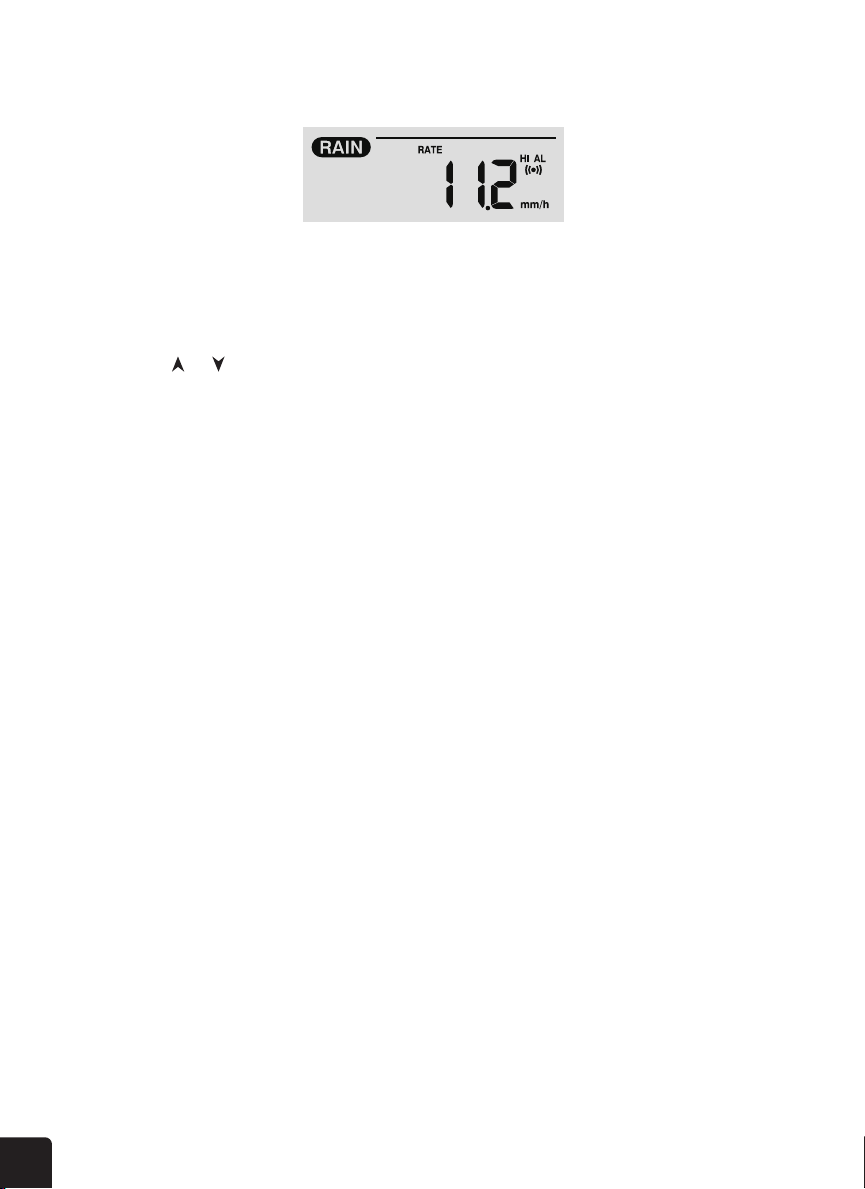
The Rainfall shows information regarding the rainfall and rain rate.
1. Press and hold the RAIN button for two (2) seconds to enter unit setting mode.
2. Press the or buttons to toggle the units of measure for rainfall between mm and in.
3. Press the RAIN button again to save and exit the setting mode.
Set the Rainfall Units
Select the Rainfall Display Mode
Reset the Total Rainfall Record
Press the RAIN button to toggle between:
1. HOURLY: total rainfall in the past hour
2. DAILY: total rainfall since midnight
3. WEEKLY: total rainfall for the current week
4. MONTHLY: total rainfall since the beginning of the current month
5. RATE: current rainfall rate in the past hour (updates every 24 seconds)
6. ACCUMULATION: total rainfall since the last reset (will show the record start date on the display
for ve seconds)
While in normal operating mode, press and hold the °C/°F button for two (2) seconds to reset the
ACCUMULATION rainfall record.
NOTE: To ensure precise data, please reset the ACCUMULATION rainfall record whenever you
move and reinstall your wireless weather sensor to a dierent location.
In normal mode, press key to switch between barometric
reading.
section shows the rainfall and rain rate
information
Press and hold key for 2 seconds to enter unit setting mode.
[ Ʌ ] key to toggle the rainfall unit between mm and in.
key to conrm and exit the setting.
key to toggle between:
- the total rainfall in the past hour
- the total rainfall from midnight
- the total rainfall of the current week
- the total rainfall of the current calendar month
- Current rainfall rate in past an hour (Update every 24 seconds)
In normal mode, press and hold key for 2 seconds to reset all the rainfall record.
To ensure correct data, please reset all the rainfall record when you reinstall your wireless 5-IN-
The console can record the accumulated MAX / MIN weather data with the corresponding time
stamp for you to easy review.
In normal mode, press key to check MAX/MIN records. The display sequence is:
indoor (or current channel) MAX temperature → indoor (or current channel) MIN temperature
→ indoor (or current channel) MAX humidity → indoor (or current channel) MIN humidity →
outdoor MAX temperature → outdoor MIN temperature → outdoor MAX humidity → outdoor MIN
humidity → MAX average wind speed → MAX gust → MAX relative pressure → MIN relative
pressure → MAX absolute pressure → MIN absolute pressure →
MAX FEELS LIKE → MIN
FEELS LIKE→ MAX heat index → MIN heat index → MAX wind chill → MIN wind chill → MAX
dew point → MIN dew point → MAX daily rainfall.
Press and hold key for 2 seconds to reset the MAX/MIN records of specify
weather display section.
The LCD will also display the " " icon, data records time & date.
RAIN
SUN
Rainfall
Light Intensity, UV Index, and Sunburn Time
Press the SUN button to change between modes.
31
MAX/MIN DATA RECORD
To View the Accumulated MAX/MIN
Light Intensity
UV Index Mode
Sunburn Time Mode
UV Index & Sunburn Time Table
The display console can record the accumulated and daily MAX/MIN weather data with a
corresponding time stamp for you to review.
While in normal operating mode, press the MAX/MIN button to cycle through the daily MAX/MIN
records. Records are displayed in the following order:
1. During light intensity mode, press and hold the SUN button for two (2) seconds to enter unit
setting
2. Press the UP or DOWN button to change the unit in sequence: Klux Kfc W/m².
3. Press the SUN button to conrm and exit the setting.
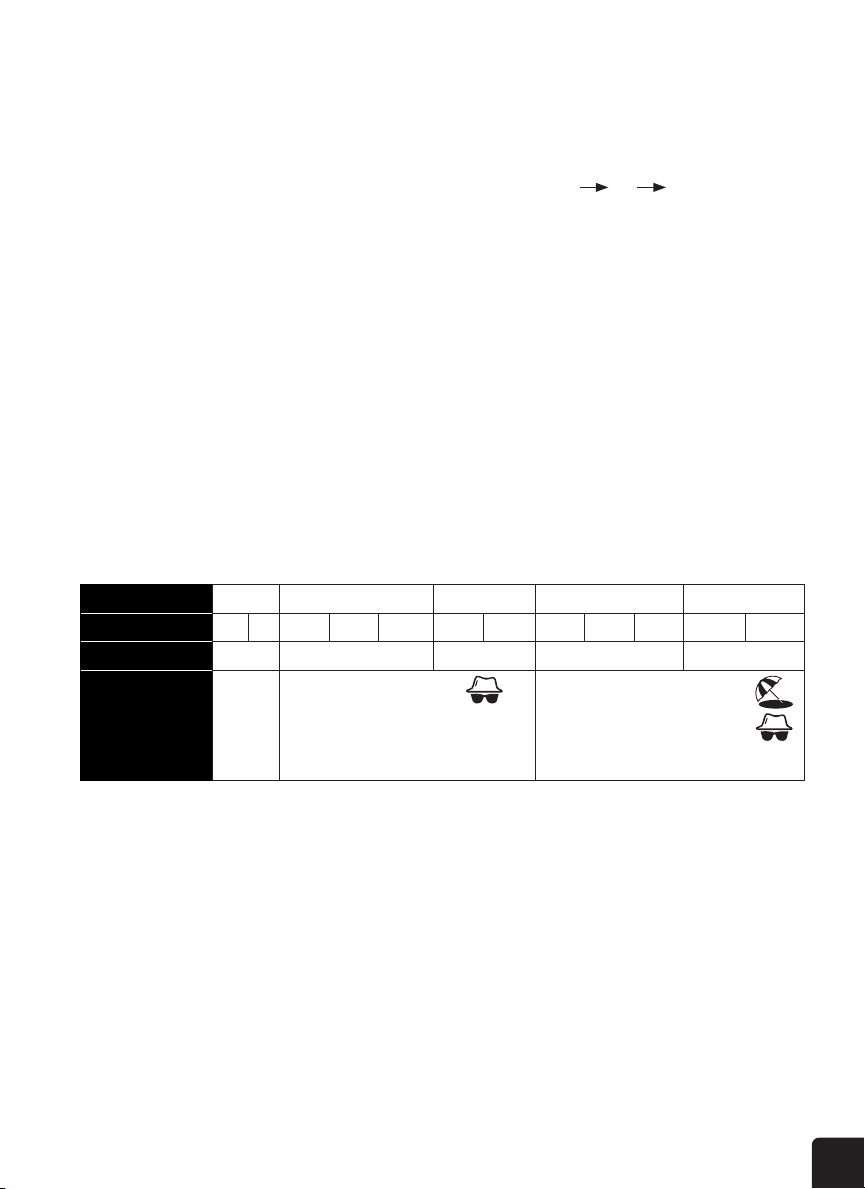
UV index shows the current UV index detected by the outdoor sensor. Corresponding exposure level
and suggested protection indicator are also displayed.
Sunburn time shows the recommended time to stay out in the sun.
MAX/MIN
NOTE: The light intensity function is for sunlight detection.
→ →
Exposure level Low Moderate High Very high Extreme
UV index 1 2 3 4 5 6 7 8 9 10 11 12~16
Sunburn time N/A 45 minutes 30 minutes 15 minutes 10 minutes
Recommended
protection
indicator
N/A
Moderate or high UV
level! Suggest wearing
sunglasses, broad brim
hat, and short-sleeved
clothing.
Very high or Extreme UV level!
Suggest wearing sunglasses,
broad brim hat, and short-sleeved
clothing, If you have to stay
outdoors, make sure to seek
shade.
32
Reset the Total MAX/MIN Records
Outdoor MAX temperature > outdoor MIN temperature > outdoor MAX humidity > outdoor MIN
humidity > indoor* MAX temperature > indoor* MIN temperature > indoor* MAX humidity > indoor*
MIN humidity > MAX average wind speed > MAX gust > MAX feels like temperature > MIN feels like
temperature > MAX dew point > MIN dew point > MAX heat index > MIN heat index > MAX wind chill >
MIN wind chill > MAX UV index > MAX light intensity > MAX relative pressure > MIN relative pressure
> MAX absolute pressure > MIN absolute pressure >MAX rain rate
* Or current display channel sensor
Press and hold the MAX/MIN button for two (2) seconds to reset the MAX/MIN records of the
specic weather display section.
The display console automatically stores the weather data from the past 24 hours.
1. Press the HISTORY button to check the beginning of the current hour’s weather data, e.g., if
the current time is 7:25 AM on Dec 1st, the display will show the data for 7:00 AM on Dec 1st.
2. Press the HISTORY button to view the older readings for each hour of the past 24 hours, e.g.
6:00 AM (Dec 1st), 5:00 AM (Dec 1st), …, 10:00 AM (Nov 30th), 9:00 AM (Nov 30th), 8:00 AM (Nov 30th).
WEATHER ALERT SETTINGS
To Set the Alert
The Weather Alert can alert you to certain weather conditions by activating an alarm sound and
ashing the LCD display’s alert icon when specic criteria are met.
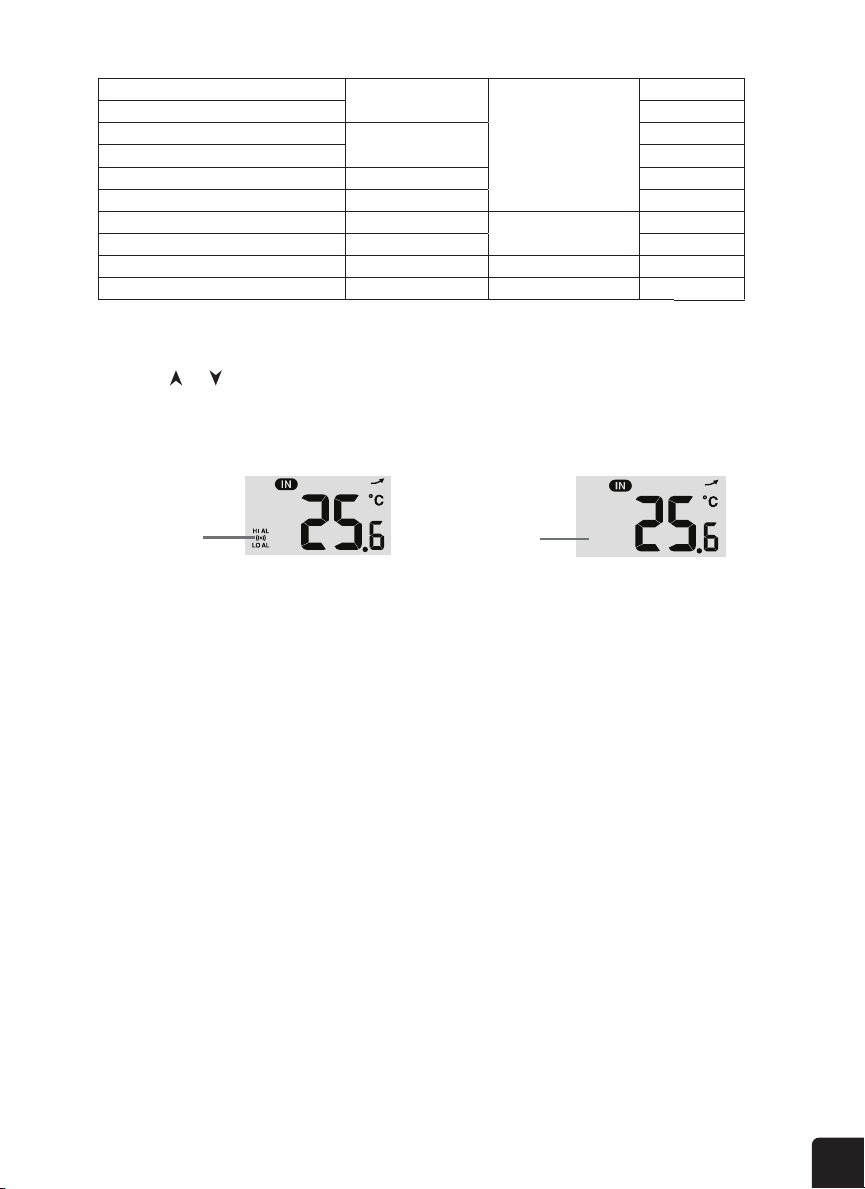
1. Press the ALERT button to cycle through and display the desired weather alert options in the
following order:
NOTE: The LCD display will also show the History icon, along with the time and date, when
displaying the history data records.
HISTORY
History Data for Past 24 Hours
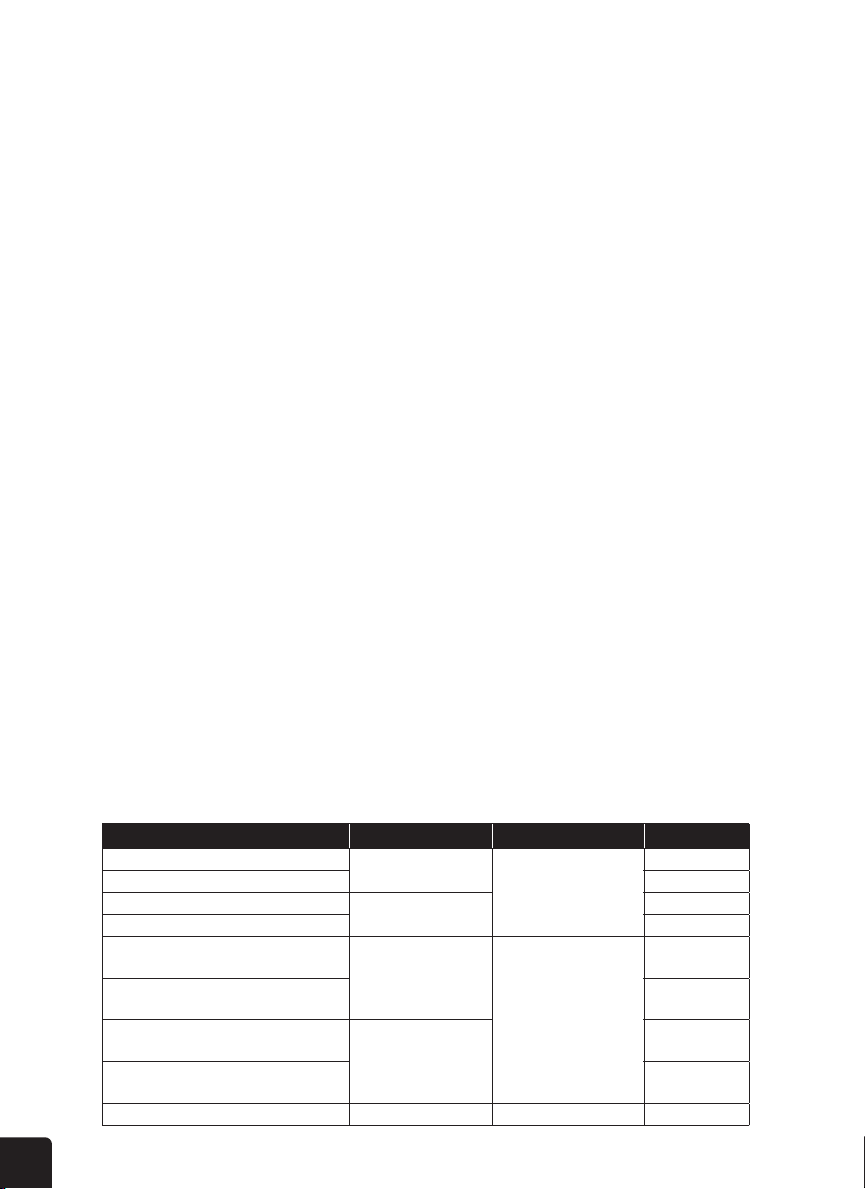
Alert reading Sequence Setting Range Display Section Default
Outdoor Temperature High Alert
-40°C ~ 80°C
Outdoor temperature &
humidity
40°C
Outdoor Temperature Low Alert 0°C
Outdoor Humidity High Alert
1% ~ 99%
80%
Outdoor Humidity Low Alert 40%
Indoor Current Channel
Temperature High Alert
-40°C ~ 80°C
Indoor CH temperature
& humidity
40°C
Indoor Current Channel
Temperature Low Alert
0°C
Indoor Current Channel
Humidity High Alert
1% ~ 99%
80%
Indoor Current Channel
Humidity Low Alert
40%
Average Wind Speed 0.1m/s ~ 50m/s Wind direction & speed 17.2m/s
33
The weather console backlight can be adjusted, using the OFF/LO/HI switch to select the appropriate brightness:
• Slide to the HI position for the brighter backlight.
• Slide to the LO position for the dimmer backlight.
• Slide to the OFF position turn o the backlight.
Press the UP/CONTRAST button in normal mode to adjust LCD contrast in order to t table stand or wall mount
angle.
2. While on the alert option you want to set, press and hold the ALERT button for two (2) seconds to
enter that alert’s settings mode. The alert option will start ashing.
3. Press the or buttons to adjust the value, or press and hold the buttons to adjust the value
more quickly.
4. Press the ALERT button when the desired value is reached to save the alert setting, then press the
ALARM button to toggle the weather alert on or o.
5. Press any button on the front of the display console to save and return to normal mode, or wait 30
seconds without pressing any buttons and the alert will save itself and return to normal mode.
To Silence the Weather Alert Alarm
Press the SNOOZE/LIGHT button on top of the display console to silence the alarm, or it will
automatically turn o after two (2) minutes.
NOTES: Once the alert is triggered, the alarm will sound for two (2) minutes and the
associated alert icon and weather readings will ash.
If the alert alarm automatically shuts o after two (2) minutes instead of being
manually shut o, the associated alert icon and readings will continue ashing until
the reading is out of the alert range.
The weather alert alarm will go o once the readings fall into alert range again.
The console automatically stores the weather data of the past 24 hours.
key to check the beginning of the current hour's weather data, e.g. the
current time is 7:25 am, March 8, the display will show the data of 7:00am, March 8.
key repeatedly to view older readings of the past 24 hours, e.g. 6:00am
(Mar 8), 5:00am (Mar 8), …, 10:00am (Mar 7), 9:00am (Mar 7), 8:00am (Mar 7)
The LCD will also display the " " icon, history data records with time & date.
Weather Alert can alert you of certain weather conditions. Once the alert criterion is met, the
alarm sound will activate and the LCD’s alert icon will ash.
to select and display the desired weather alert reading in the sequence
below:
Indoor Temperature High Alert
-40°C ~ 80°C
Indoor / CH
temperature & humidity
40°C
Indoor Temperature Low Alert
0°C
Indoor Humidity High Alert
1% ~ 99%
80%
Indoor Humidity Low Alert
40%
Outdoor Temperature High Alert
-40°C ~ 80°C
Outdoor temperature &
humidity
40°C
Outdoor Temperature Low Alert 0°C
Outdoor Humidity High Alert
1% ~ 99%
80%
Outdoor Humidity Low Alert 40%
Average Wind Speed 0.1m/s ~ 50m/s Wind direction & speed 17.2mm/h
Pressure Drop Barometer
1mm ~ 1000mm 100mm
Under the current alert reading, press and hold key for 2 seconds to enter alert
setting and the alert reading will ash.
[ Ʌ ] key to adjust the value or press and hold the key to change rapidly.
key to conrm the value.
key to toggle the regarding alert on / off.
[ ALERT ] key to step to next alert reading.
High /Low
Alert on
Alert on
key on the front side to save alert on /off status and back to normal mode, or it
will automatically back to normal mode after 30 seconds without pressing any key.
The console automatically stores the weather data of the past 24 hours.
key to check the beginning of the current hour's weather data, e.g. the
current time is 7:25 am, March 8, the display will show the data of 7:00am, March 8.
key repeatedly to view older readings of the past 24 hours, e.g. 6:00am
(Mar 8), 5:00am (Mar 8), …, 10:00am (Mar 7), 9:00am (Mar 7), 8:00am (Mar 7)
The LCD will also display the " " icon, history data records with time & date.
Weather Alert can alert you of certain weather conditions. Once the alert criterion is met, the
alarm sound will activate and the LCD’s alert icon will ash.
to select and display the desired weather alert reading in the sequence
below:
Indoor Temperature High Alert
-40°C ~ 80°C
Indoor / CH
temperature & humidity
40°C
Indoor Temperature Low Alert
0°C
Indoor Humidity High Alert
1% ~ 99%
80%
Indoor Humidity Low Alert
40%
Outdoor Temperature High Alert
-40°C ~ 80°C
Outdoor temperature &
humidity
40°C
Outdoor Temperature Low Alert 0°C
Outdoor Humidity High Alert
1% ~ 99%
80%
Outdoor Humidity Low Alert 40%
Average Wind Speed 0.1m/s ~ 50m/s Wind direction & speed 17.2mm/h
Pressure Drop Barometer
1mm ~ 1000mm 100mm
Under the current alert reading, press and hold key for 2 seconds to enter alert
setting and the alert reading will ash.
[ Ʌ ] key to adjust the value or press and hold the key to change rapidly.
key to conrm the value.
key to toggle the regarding alert on / off.
key to step to next alert reading.
High /Low
lert off
Alert off
key on the front side to save alert on /off status and back to normal mode, or it
will automatically back to normal mode after 30 seconds without pressing any key.
High / Low
Alert on
Alert o
LIGHTING
Display Backlight
Display Contrast
Feels Like High Alert
-65°C ~ 50°C
Weather index
Feels Like Low Alert
Dewpoint High Alert
-40°C ~ 80°C
Dewpoint Low Alert
Heat Index High Alert 26°C ~ 50°C
WindChill Low Alert -65°C ~ 18°C
UV index High Alert 1 ~16
UV & light intensity
Light intensity High Alert 0.01 ~ 200.0Klux
Pressure Drop 1hPa ~ 10hPa Barometer
Hourly Rainfall 1mm ~ 1000mm Rainfall
20°C
0°C
10°C
-10°C
30°C
0°C
10
100Klux
3hPa
100mm
34
CLEANING THE RAIN COLLECTOR
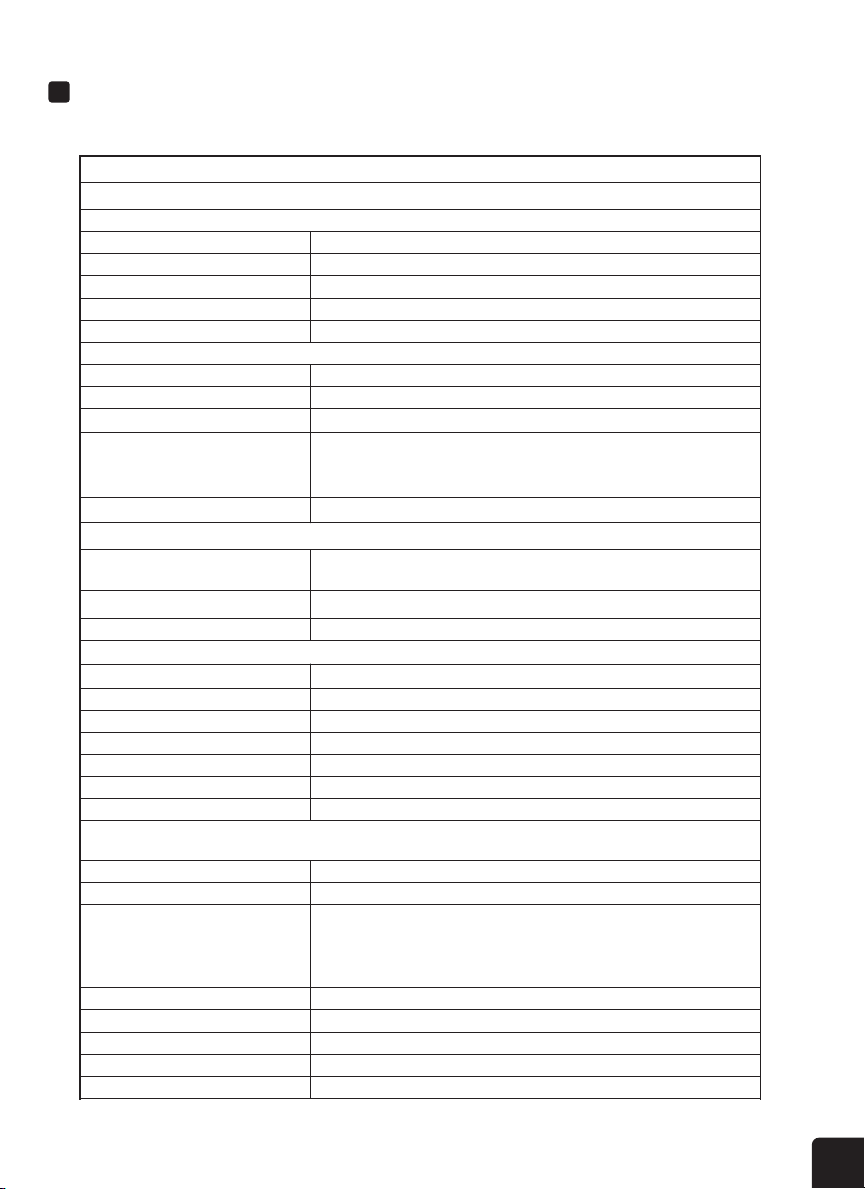
1. Unscrew the funnel lid to the unlock position.
Rotate the rain collector by 30° anticlockwise.
lean
N
N
“Unlock” Position“Lock” Position
N
Only use attachments / accessories specied by the manufacturer.
Placement of this product on certain types of wood may result in damage to its nishing
CLEANING THE HYGRO-THERMO SENSOR
2. Gently remove the funnel lid of the rain collector.
3. Clean and remove any debris or insects in the funnel.
4. Wait until the parts are fully dry, and then reinstall them, and return the funnel lid on the rain
collector to a locked position.
1. Unscrew the two (2) screws at the bottom of the sensor casing.
2. Gently pull out the shield.
3. Carefully remove any dirt or insects inside the sensor casing, making sure the inside sensors remain dry.
4. Clean the shield with water and remove any dirt or insects.
5. Once the parts are fully clean and dry, reinstall them and replace the screws.
BATTERY REPLACEMENT
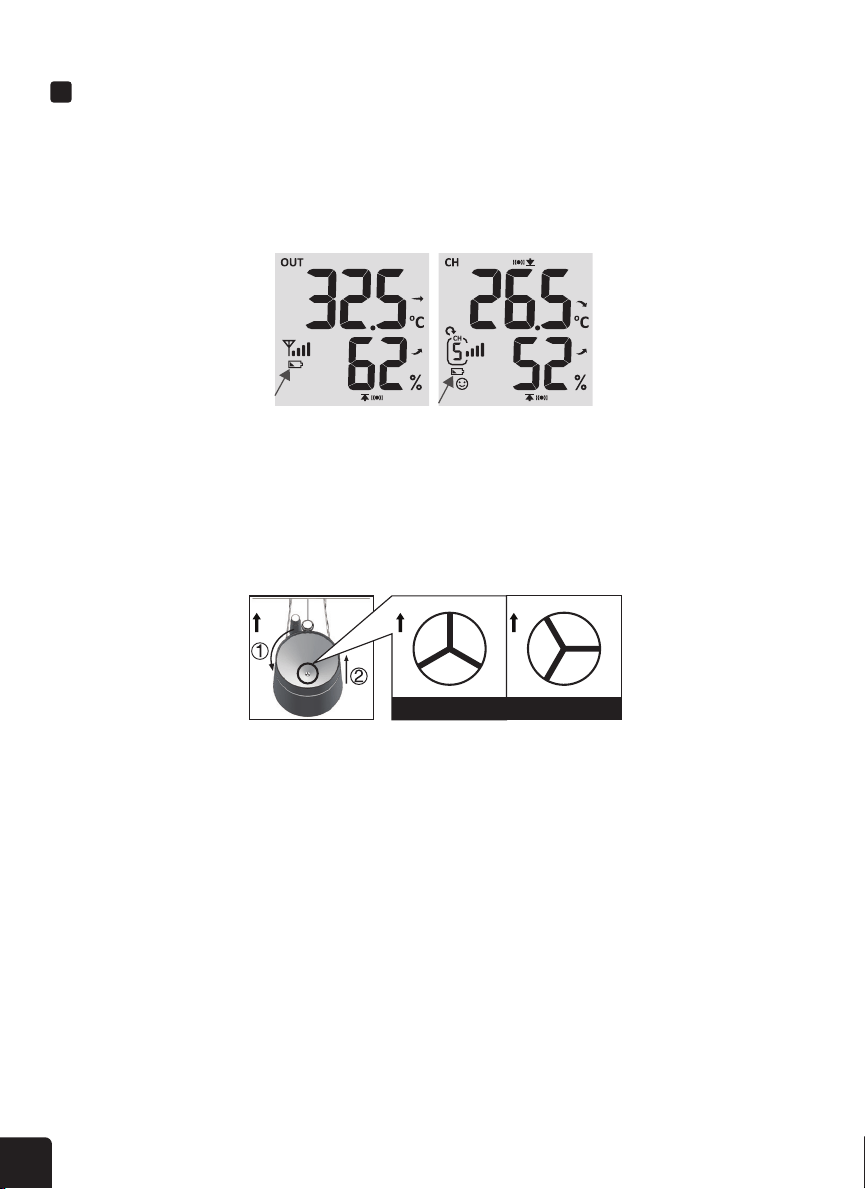
If the low battery indicator icon is displayed in the outdoor temperature and humidity section or
the corresponding CH section of the LCD console display, this indicates that the batteries in your
wireless weather sensor(s) are running low and should be replaced. Make sure to replace all batteries
at the same time.
CARE AND MAINTENANCE
” is displayed
outdoor 7-IN-1 sensor and current channel
NOTE: The battery life of the outdoor weather sensor lasts about two (2) years. And will run even
longer with the built-in solar panel.
35
DISPLAY CONSOLE
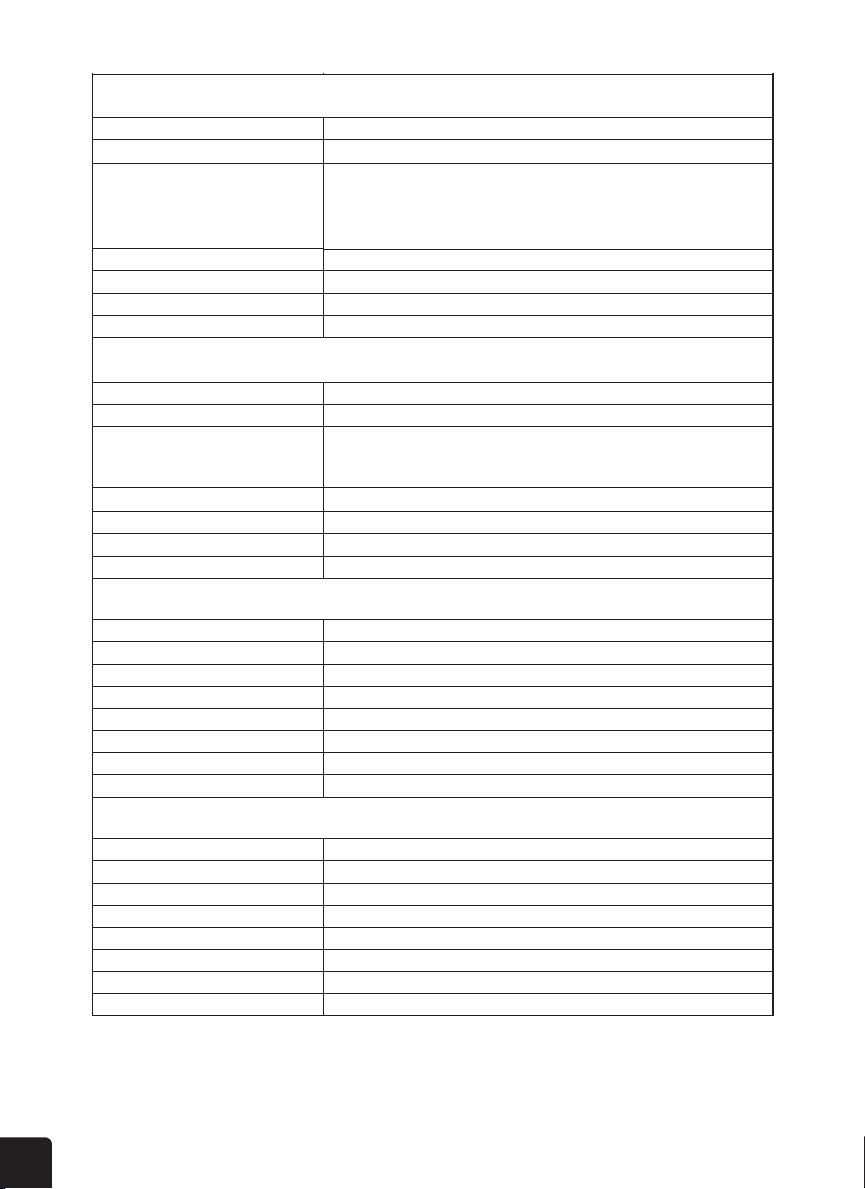
SPECIFICATIONS
SPECIFICATIONS
DISPLAY CONSOLE
Dimensions (W x H x D) 8.5″ x 6.9″ x 1″ (215 x 176.5 x 25.5 mm)
Weight 1.1 lb. (503 g) (with batteries)
Power source DC 5 V, 1 A adaptor
Backup battery CR2032, 3V batteries
Operating temperature range
Wi-Fi standard
Wi-Fi operating frequency
23 °F ~ 122 °F (-5 °C ~ 50 °C)
802.11 b/g/n
2.4 GHz
Router security type
WPA/WPA2, OPEN, WEP (WEP will only support a hexadecimal password)
Supported devices for setup UI
Smart devices, tablets, laptops, or PCs with built-in Wi-Fi
®
and AP mode
functionality such as: Android
™
phone or tablet, iPhone or iPad, or a
Windows
®
laptop/PC
One (1) Wireless 7-in-1 weather outdoor sensor and up to seven (7) optional
wireless hygro-thermo indoor sensors
(700 ~ 1100 hPa ± 5 hPa) / (540 ~ 696 hPa ± 8 hPa)
(20.67 ~ 32.48 inHg ± 0.15 inHg) / (15.95 ~ 20.55 inHg ± 0.24 inHg)
(525 ~ 825 mmHg ± 3.8 mmHg) / (405 ~ 522 mmHg ± 6 mmHg)
Typical at 77°F (25°C)
131 °F ~ 140 °F ± 0.9 °F (55 °C ~ 60 °C ± 0.5 °C)
50 °F ~ 131 °F ± 0.7 °F (10 °C ~ 55 °C ± 0.4 °C)
-4 °F ~ 50 °F ± 2.3 °F (-20 °C ~ 10 °C ± 1.3 °C)
-40 °F ~ -4 °F ± 3.4 °F (-40 °C ~ -20 °C ± 1.9 °C)
1 ~ 20% RH ± 6.5% RH @ 77 °F (25 °C)
21 ~ 80% RH ± 3.5% RH @ 77 °F (25 °C)
81 ~ 99% RH ± 6.5% RH @ 77 °F (25 °C)
915 MHz
Recommended web browser version Latest version of any web browser that supports HTML 5
Supported sensors
RF frequency
RF transmission range 492 ft (150 m)
Time display HH: MM: SS
General Specifications
Wi-Fi
®
Communication Specifications
Wireless Sensor Communication Specifications
Barometer Display & Function Specifications
Time Function Specifications
Hour format 12 hour or 24 hour
Date display
DD / MM or MM / DD
Time synchronization method Synchronizes with UTC clock through internet time server
Weekday languages EN / DE / FR / ES / IT / NL / RU
Time zones GMT +13 ~ GMT -12
DST AUTO / OFF
Note:
Indoor / Outdoor Temperature Display & Function Specifications
Indoor / Outdoor Humidity Display & Function Specifications
Wind Speed & Direction Display and Function Specifications
Note:
Rain Display & Function Specifications
Note:
Weather Index Display & Function Specifications
Note:
Note:
The following details are listed as they are displayed or operate on the console.
Barometer units hPa, inHg, and mmHg
Measuring range 540 ~ 1100 hPa (relative setting range 930 ~ 1050 hPa)
Accuracy
Resolution 1 hPa / 0.01 inHg / 0.1 mmHg
Weather forecast
Sunny, Partly Cloudy, Cloudy, Rainy, Rainy / Stormy and Snowy
Display modes Current
Memory modes Historical data of past 24 hours, daily Max / Min
Alarm Pressure change alert
The following details are listed as they are displayed or operate on the console.
Temperature unit °C and °F
-40 ~ 176 °F (-40 ~ 80 °C)
Display range
Outdoor Accuracy
Resolution 0.1 °F / 0.1 °C
Display modes Current
Memory modes Historical data of past 24 hours, daily Max / Min
Alarm High / Low temperature alert
Note:
The following details are listed as they are displayed or operate on the console.
Humidity unit
%
1%
Display range 1 ~ 99%
In/Out accuracy:
Resolution
Display modes Current
Memory modes Historical data of past 24 hours, daily Max / Min
Alarm High / Low Humidity Alert
The following detail are listed as they are displayed or operate on the console.
Wind speed unit mph, m/s, km/h, and knots
Wind speed display range 0 ~ 112 mph, 50 m/s, 180 km/h, 97 knots
Resolution 0.1 mph, 0.1 m/s, 0.1 km/h, 0.1 knots
Speed accuracy < 5 m/s: +/- 0.5 m/s; > 5 m/s: +/- 6% (whichever is greater)
Display mode Gust / Average
Memory modes Historical Data of past 24 hours, daily Max Gust / Average
Alarm Hi Wind Speed Alert (Average / Gust)
Wind direction 16 directions
The following details are listed as they are displayed or operate on the console.
Unit for rainfall mm and in
Accuracy for rainfall ± 7%
Range of rainfall 0 ~ 787.3 in (0 ~ 19999 mm)
Resolution 0.01 in (0.254 mm)
Display modes Current
Memory modes Historical Data of past 24 hours, daily Max
Rainfall display mode Hourly / Daily / Weekly / Monthly / Total rainfall
Alarm High Daily Rainfall Alert
The following details are listed as they are displayed or operate on the console.
Weather index mode Feels like, wind chill, heat index, and dew point
Feels like display range -85 °F ~ 122 °F (-65 °C ~ 50 °C)
Dew point display range -4 °F ~ 176 °F (-20 °C ~ 80 °C)
Heat index display range 78.8 °F ~ 122 °F (26 °C ~ 50 °C)
UV Index Display And Function Specifications
Note:
The following details are listed as they are displayed or operate on the console.
Display range 0 ~ 16
Resolution 0.1
Display mode UV index, sunburn time
Memory modes Historical Data of past 24 hours, Max
Alarm Hi UV alert
Wind chill display range -85 °F ~ 64.4 °F (-65 °C ~ 18 °C) (wind speed > 4.8 km/h)
Light Intensity Display And Function Specifications
Note:
The following details are listed as they are displayed or operate on the console.
Light intensity unit Klux, Kfc, and W/m2
Display range 0 ~ 200 Klux
Resolution 0.01 Klux, 0.01 Kfc and 0.01 W/m²
Memory modes Historical Data of past 24 hours, Max
Alarm Hi light intensity alert
Display modes Current
Memory modes Historical Data of past 24 hours, Daily Max / Min
Alarm Feels like Hi/Lo alert; dew point Hi/Lo alert; heat index Hi alert; wind chill Lo alert
Wireless 7-in-1 Outdoor Sensor Specifications
12.7″ x 11.7″ x 8.5″ (322 x 296 x 217 mm)
1.5 lb. (674 g) (with batteries)
Main power
3 x AA 1.5 V batteries (lithium batteries recommended)
Weather data Temperature, humidity, wind speed, wind direction, rainfall, UV and light intensity
RF transmission range 492 ft (150 m)
RF frequency 915 Mhz
Transmission interval
• Every 12 seconds for UV, light intensity, wind speed and wind direction data
• Every 24 seconds for temperature, humidity and rain data
Operating range -40 °F ~ 140 °F (-40 ~ 60 °C) (lithium batteries required)
Wireless Hygro-Thermo Indoor Sensor Specifications
2.4″ x 4.4″ x 1.6″ (60 x 113 x 39.5 mm)
0.3 lb. (144 g) (with batteries)
Main power
2 x AA 1.5 V batteries (lithium batteries recommended)
Weather data Temperature and humidity
RF transmission range 492 ft (150 m)
RF frequency 915 Mhz
Transmission interval
60 seconds for temperature and humidity
Operating range -40 °F ~ 140 °F (-40 ~ 60 °C) (lithium batteries required)
36
8.5″ x 6.9″ x 1″ (215 x 176.5 x 25.5 mm)
1.1 lb. (503 g) (with batteries)
Power source DC 5 V, 1 A adaptor
Backup battery CR2032, 3V batteries
Operating temperature range
Wi-Fi standard
Wi-Fi operating frequency
23 °F ~ 122 °F (-5 °C ~ 50 °C)
802.11 b/g/n
2.4 GHz
Router security type
WPA/WPA2, OPEN, WEP (WEP will only support a hexadecimal password)
Supported devices for setup UI
Smart devices, tablets, laptops, or PCs with built-in Wi-Fi
and AP mode
functionality such as: Android
phone or tablet, iPhone or iPad, or a
Windows
laptop/PC
One (1) Wireless 7-in-1 weather outdoor sensor and up to seven (7) optional
wireless hygro-thermo indoor sensors
(700 ~ 1100 hPa ± 5 hPa) / (540 ~ 696 hPa ± 8 hPa)
(20.67 ~ 32.48 inHg ± 0.15 inHg) / (15.95 ~ 20.55 inHg ± 0.24 inHg)
(525 ~ 825 mmHg ± 3.8 mmHg) / (405 ~ 522 mmHg ± 6 mmHg)
Typical at 77°F (25°C)
131 °F ~ 140 °F ± 0.9 °F (55 °C ~ 60 °C ± 0.5 °C)
50 °F ~ 131 °F ± 0.7 °F (10 °C ~ 55 °C ± 0.4 °C)
-4 °F ~ 50 °F ± 2.3 °F (-20 °C ~ 10 °C ± 1.3 °C)
-40 °F ~ -4 °F ± 3.4 °F (-40 °C ~ -20 °C ± 1.9 °C)
1 ~ 20% RH ± 6.5% RH @ 77 °F (25 °C)
21 ~ 80% RH ± 3.5% RH @ 77 °F (25 °C)
81 ~ 99% RH ± 6.5% RH @ 77 °F (25 °C)
915 MHz
Recommended web browser version Latest version of any web browser that supports HTML 5
Supported sensors
RF frequency
RF transmission range 492 ft (150 m)
Time display HH: MM: SS
General Specifications
Communication Specifications
Wireless Sensor Communication Specifications
Barometer Display & Function Specifications
Time Function Specifications
Hour format 12 hour or 24 hour
Date display
DD / MM or MM / DD
Time synchronization method Synchronizes with UTC clock through internet time server
Weekday languages EN / DE / FR / ES / IT / NL / RU
Time zones GMT +13 ~ GMT -12
AUTO / OFF
Note:
Indoor / Outdoor Temperature Display & Function Specifications
Indoor / Outdoor Humidity Display & Function Specifications
Wind Speed & Direction Display and Function Specifications
Note:
Rain Display & Function Specifications
Note:
Weather Index Display & Function Specifications
Note:
Note:
The following details are listed as they are displayed or operate on the console.
Barometer units hPa, inHg, and mmHg
Measuring range 540 ~ 1100 hPa (relative setting range 930 ~ 1050 hPa)
Accuracy
Resolution 1 hPa / 0.01 inHg / 0.1 mmHg
Weather forecast
Sunny, Partly Cloudy, Cloudy, Rainy, Rainy / Stormy and Snowy
Display modes Current
Memory modes Historical data of past 24 hours, daily Max / Min
Alarm Pressure change alert
The following details are listed as they are displayed or operate on the console.
Temperature unit °C and °F
-40 ~ 176 °F (-40 ~ 80 °C)
Display range
Outdoor Accuracy
Resolution 0.1 °F / 0.1 °C
Display modes Current
Memory modes Historical data of past 24 hours, daily Max / Min
Alarm High / Low temperature alert
Note:
The following details are listed as they are displayed or operate on the console.
Humidity unit
%
1%
Display range 1 ~ 99%
In/Out accuracy:
Resolution
Display modes Current
Memory modes Historical data of past 24 hours, daily Max / Min
Alarm High / Low Humidity Alert
The following detail are listed as they are displayed or operate on the console.
Wind speed unit mph, m/s, km/h, and knots
Wind speed display range 0 ~ 112 mph, 50 m/s, 180 km/h, 97 knots
Resolution 0.1 mph, 0.1 m/s, 0.1 km/h, 0.1 knots
Speed accuracy < 5 m/s: +/- 0.5 m/s; > 5 m/s: +/- 6% (whichever is greater)
Display mode Gust / Average
Memory modes Historical Data of past 24 hours, daily Max Gust / Average
Alarm Hi Wind Speed Alert (Average / Gust)
Wind direction 16 directions
The following details are listed as they are displayed or operate on the console.
Unit for rainfall mm and in
Accuracy for rainfall ± 7%
Range of rainfall 0 ~ 787.3 in (0 ~ 19999 mm)
Resolution 0.01 in (0.254 mm)
Display modes Current
Memory modes Historical Data of past 24 hours, daily Max
Rainfall display mode Hourly / Daily / Weekly / Monthly / Total rainfall
Alarm High Daily Rainfall Alert
The following details are listed as they are displayed or operate on the console.
Weather index mode Feels like, wind chill, heat index, and dew point
Feels like display range -85 °F ~ 122 °F (-65 °C ~ 50 °C)
Dew point display range -4 °F ~ 176 °F (-20 °C ~ 80 °C)
Heat index display range 78.8 °F ~ 122 °F (26 °C ~ 50 °C)
UV Index Display And Function Specifications
Note:
The following details are listed as they are displayed or operate on the console.
Display range 0 ~ 16
Resolution 0.1
Display mode UV index, sunburn time
Memory modes Historical Data of past 24 hours, Max
Alarm Hi UV alert
Wind chill display range -85 °F ~ 64.4 °F (-65 °C ~ 18 °C) (wind speed > 4.8 km/h)
Light Intensity Display And Function Specifications
Note:
The following details are listed as they are displayed or operate on the console.
Light intensity unit Klux, Kfc, and W/m2
Display range 0 ~ 200 Klux
Resolution 0.01 Klux, 0.01 Kfc and 0.01 W/m²
Memory modes Historical Data of past 24 hours, Max
Alarm Hi light intensity alert
Display modes Current
Memory modes Historical Data of past 24 hours, Daily Max / Min
Alarm Feels like Hi/Lo alert; dew point Hi/Lo alert; heat index Hi alert; wind chill Lo alert
Wireless 7-in-1 Outdoor Sensor Specifications
12.7″ x 11.7″ x 8.5″ (322 x 296 x 217 mm)
1.5 lb. (674 g) (with batteries)
Main power
3 x AA 1.5 V batteries (lithium batteries recommended)
Weather data Temperature, humidity, wind speed, wind direction, rainfall, UV and light intensity
RF transmission range 492 ft (150 m)
RF frequency 915 Mhz
Transmission interval
• Every 12 seconds for UV, light intensity, wind speed and wind direction data
• Every 24 seconds for temperature, humidity and rain data
Operating range -40 °F ~ 140 °F (-40 ~ 60 °C) (lithium batteries required)
Wireless Hygro-Thermo Indoor Sensor Specifications
2.4″ x 4.4″ x 1.6″ (60 x 113 x 39.5 mm)
0.3 lb. (144 g) (with batteries)
Main power
2 x AA 1.5 V batteries (lithium batteries recommended)
Weather data Temperature and humidity
RF transmission range 492 ft (150 m)
RF frequency 915 Mhz
Transmission interval
60 seconds for temperature and humidity
Operating range -40 °F ~ 140 °F (-40 ~ 60 °C) (lithium batteries required)
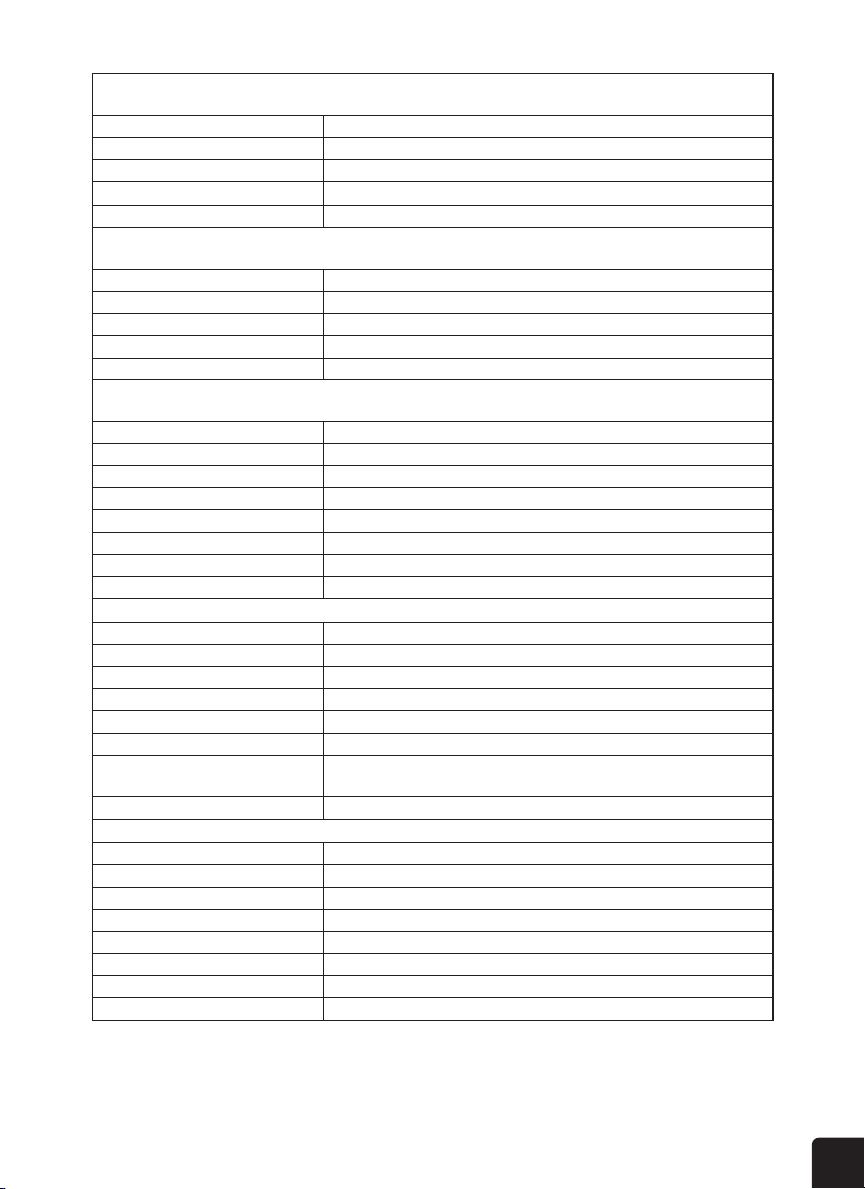
37
8.5″ x 6.9″ x 1″ (215 x 176.5 x 25.5 mm)
1.1 lb. (503 g) (with batteries)
Power source DC 5 V, 1 A adaptor
Backup battery CR2032, 3V batteries
Operating temperature range
Wi-Fi standard
Wi-Fi operating frequency
23 °F ~ 122 °F (-5 °C ~ 50 °C)
802.11 b/g/n
2.4 GHz
Router security type
WPA/WPA2, OPEN, WEP (WEP will only support a hexadecimal password)
Supported devices for setup UI
Smart devices, tablets, laptops, or PCs with built-in Wi-Fi
and AP mode
functionality such as: Android
phone or tablet, iPhone or iPad, or a
Windows
laptop/PC
One (1) Wireless 7-in-1 weather outdoor sensor and up to seven (7) optional
wireless hygro-thermo indoor sensors
(700 ~ 1100 hPa ± 5 hPa) / (540 ~ 696 hPa ± 8 hPa)
(20.67 ~ 32.48 inHg ± 0.15 inHg) / (15.95 ~ 20.55 inHg ± 0.24 inHg)
(525 ~ 825 mmHg ± 3.8 mmHg) / (405 ~ 522 mmHg ± 6 mmHg)
Typical at 77°F (25°C)
131 °F ~ 140 °F ± 0.9 °F (55 °C ~ 60 °C ± 0.5 °C)
50 °F ~ 131 °F ± 0.7 °F (10 °C ~ 55 °C ± 0.4 °C)
-4 °F ~ 50 °F ± 2.3 °F (-20 °C ~ 10 °C ± 1.3 °C)
-40 °F ~ -4 °F ± 3.4 °F (-40 °C ~ -20 °C ± 1.9 °C)
1 ~ 20% RH ± 6.5% RH @ 77 °F (25 °C)
21 ~ 80% RH ± 3.5% RH @ 77 °F (25 °C)
81 ~ 99% RH ± 6.5% RH @ 77 °F (25 °C)
915 MHz
Recommended web browser version Latest version of any web browser that supports HTML 5
Supported sensors
RF frequency
RF transmission range 492 ft (150 m)
Time display HH: MM: SS
General Specifications
Communication Specifications
Wireless Sensor Communication Specifications
Barometer Display & Function Specifications
Time Function Specifications
Hour format 12 hour or 24 hour
Date display
DD / MM or MM / DD
Time synchronization method Synchronizes with UTC clock through internet time server
Weekday languages EN / DE / FR / ES / IT / NL / RU
Time zones GMT +13 ~ GMT -12
AUTO / OFF
Note:
Indoor / Outdoor Temperature Display & Function Specifications
Indoor / Outdoor Humidity Display & Function Specifications
Wind Speed & Direction Display and Function Specifications
Note:
Rain Display & Function Specifications
Note:
Weather Index Display & Function Specifications
Note:
Note:
The following details are listed as they are displayed or operate on the console.
Barometer units hPa, inHg, and mmHg
Measuring range 540 ~ 1100 hPa (relative setting range 930 ~ 1050 hPa)
Accuracy
Resolution 1 hPa / 0.01 inHg / 0.1 mmHg
Weather forecast
Sunny, Partly Cloudy, Cloudy, Rainy, Rainy / Stormy and Snowy
Display modes Current
Memory modes Historical data of past 24 hours, daily Max / Min
Alarm Pressure change alert
The following details are listed as they are displayed or operate on the console.
Temperature unit °C and °F
-40 ~ 176 °F (-40 ~ 80 °C)
Display range
Outdoor Accuracy
Resolution 0.1 °F / 0.1 °C
Display modes Current
Memory modes Historical data of past 24 hours, daily Max / Min
Alarm High / Low temperature alert
Note:
The following details are listed as they are displayed or operate on the console.
Humidity unit
%
1%
Display range 1 ~ 99%
In/Out accuracy:
Resolution
Display modes Current
Memory modes Historical data of past 24 hours, daily Max / Min
Alarm High / Low Humidity Alert
The following detail are listed as they are displayed or operate on the console.
Wind speed unit mph, m/s, km/h, and knots
Wind speed display range 0 ~ 112 mph, 50 m/s, 180 km/h, 97 knots
Resolution 0.1 mph, 0.1 m/s, 0.1 km/h, 0.1 knots
Speed accuracy < 5 m/s: +/- 0.5 m/s; > 5 m/s: +/- 6% (whichever is greater)
Display mode Gust / Average
Memory modes Historical Data of past 24 hours, daily Max Gust / Average
Alarm Hi Wind Speed Alert (Average / Gust)
Wind direction 16 directions
The following details are listed as they are displayed or operate on the console.
Unit for rainfall mm and in
Accuracy for rainfall ± 7%
Range of rainfall 0 ~ 787.3 in (0 ~ 19999 mm)
Resolution 0.01 in (0.254 mm)
Display modes Current
Memory modes Historical Data of past 24 hours, daily Max
Rainfall display mode Hourly / Daily / Weekly / Monthly / Total rainfall
Alarm High Daily Rainfall Alert
The following details are listed as they are displayed or operate on the console.
Weather index mode Feels like, wind chill, heat index, and dew point
Feels like display range -85 °F ~ 122 °F (-65 °C ~ 50 °C)
Dew point display range -4 °F ~ 176 °F (-20 °C ~ 80 °C)
Heat index display range 78.8 °F ~ 122 °F (26 °C ~ 50 °C)
UV Index Display And Function Specifications
Note:
The following details are listed as they are displayed or operate on the console.
Display range 0 ~ 16
Resolution 0.1
Display mode UV index, sunburn time
Memory modes Historical Data of past 24 hours, Max
Alarm Hi UV alert
Wind chill display range -85 °F ~ 64.4 °F (-65 °C ~ 18 °C) (wind speed > 4.8 km/h)
Light Intensity Display And Function Specifications
Note:
The following details are listed as they are displayed or operate on the console.
Light intensity unit Klux, Kfc, and W/m2
Display range 0 ~ 200 Klux
Resolution 0.01 Klux, 0.01 Kfc and 0.01 W/m²
Memory modes Historical Data of past 24 hours, Max
Alarm Hi light intensity alert
Display modes Current
Memory modes Historical Data of past 24 hours, Daily Max / Min
Alarm Feels like Hi/Lo alert; dew point Hi/Lo alert; heat index Hi alert; wind chill Lo alert
Wireless 7-in-1 Outdoor Sensor Specifications
Dimensions (W x H x D) 12.7″ x 11.7″ x 8.5″ (322 x 296 x 217 mm)
Weight 1.5 lb. (674 g) (with batteries)
Main power
3 x AA 1.5 V batteries (lithium batteries recommended)
Weather data Temperature, humidity, wind speed, wind direction, rainfall, UV and light intensity
RF transmission range 492 ft (150 m)
RF frequency 915 Mhz
Transmission interval
• Every 12 seconds for UV, light intensity, wind speed and wind direction data
• Every 24 seconds for temperature, humidity and rain data
Operating range -40 °F ~ 140 °F (-40 ~ 60 °C) (lithium batteries required)
Wireless Hygro-Thermo Indoor Sensor Specifications
Dimensions (W x H x D) 2.4″ x 4.4″ x 1.6″ (60 x 113 x 39.5 mm)
Weight 0.3 lb. (144 g) (with batteries)
Main power
2 x AA 1.5 V batteries (lithium batteries recommended)
Weather data Temperature and humidity
RF transmission range 492 ft (150 m)
RF frequency 915 Mhz
Transmission interval
60 seconds for temperature and humidity
Operating range -40 °F ~ 140 °F (-40 ~ 60 °C) (lithium batteries required)

38
LIMITED WARRANTY TO ORIGINAL CONSUMER
This Logia™ 7-in-1 Wireless Weather Station with Wi-Fi
and Solar Panel (“Product”), including any
accessories included in the original packaging, as supplied and distributed new by an authorized retailer is warranted
by C&A Marketing, Inc. (the “Company”) to the original consumer purchaser only, against certain defects in
material and workmanship (“Warranty”) as follows:
To receive Warranty service, the original consumer purchaser must contact the Company or its authorized service
provider for problem determination and service procedures. Proof of purchase in the form of a bill of sale or receipted
invoice, evidencing that the Product is within the applicable Warranty period(s), MUST be presented to the Company or
its authorized service provider in order to obtain the requested service.
Service options, parts availability, and response times may vary and may change at any time. In accordance with
applicable law, the Company may require that you furnish additional documents and/or comply with registration
requirements before receiving warranty service. Please contact our customer service for details on obtaining warranty
service:
Email: [email protected]
Phone: 833-815-0568
Shipping expenses to the Company’s Return Facility are not covered by this warranty, and must be paid by the
consumer. The consumer likewise bears all risk of loss or further damage to the Product until delivery to said facility.
EXCLUSIONS AND LIMITATIONS The Company warrants the Product against defects in materials and workmanship
under normal use for a period of ONE (1) YEAR from the date of retail purchase by the original end-user purchaser
(“Warranty Period”). If a hardware defect arises and a valid claim is received within the Warranty Period, the
Company, at its sole option and to the extent permitted by law, will either (1) repair the Product defect at no charge,
using new or refurbished replacement parts, (2) exchange the Product with a Product that is new or which has been
manufactured from new or serviceable used parts and is at least functionally equivalent to the original device, or (3)
refund the purchase price of the Product.
A replacement Product or part thereof shall enjoy the warranty of the original Product for the remainder of the
Warranty Period, or ninety (90) days from the date of replacement or repair, whichever provides you longer protection.
When a Product or part is exchanged, any replacement item becomes your property, while the replaced item becomes
the Company’s property. Refunds can only be given if the original Product is returned.
This Warranty does not apply to:
(a) Any non-Logia™ 7-in-1 Wireless Weather Station with Wi-Fi and Solar Panel product, hardware or software, even if
packaged or sold with the Product;
(b) Damage caused by use with non-Logia™ 7-in-1 Wireless Weather Station with Wi-Fi
and Solar Panel products;
(c) Damage caused by accident, abuse, misuse, ood, re, earthquake, or other external causes;
(d) Damage caused by operating the Product outside the permitted or intended uses described by the Company;
(e) Damage caused by third party services;
(f) A Product or part that has been modied to alter functionality or capability without the written permission of the
Company;
(g) Consumable parts, such as batteries, fuses and bulbs;
(h) Cosmetic damage; or
(i) If any Logia™ 7-in-1 Wireless Weather Station with Wi-Fi
and Solar Panel serial number has been removed or defaced.
This Warranty is valid only in the country where the consumer purchased the Product, and only applies to Products
purchased and serviced in that country.

39
If you experience any issues with your Logia
™
7-in-1 Wireless Weather Station with Wi-Fi and Solar Panel, please contact us
before returning your product to the place of purchase. We’re here to help!
QUESTIONS OR PROBLEMS? CONTACT US!
Email: [email protected] or call: 1-833-815-0568
www.logiaweatherstation.com
FCC STATEMENT
This device complies with Part 15 of the FCC Rules. Operation is subject to the following two conditions:
(1) This device may not cause harmful interference, and;
(2) This device must accept any interference received, including interference that may cause undesired operation.
NOTE: This equipment has been tested and found to comply with the limits for a Class B digital device, pursuant to part 15 of the FCC Rules. These limits
are designed to provide reasonable protection against harmful interference in a residential installation. This equipment generates—and can radiate—
radio frequency energy and, if not installed and used in accordance with the instructions, may cause harmful interference to radio communications.
However, there is no guarantee that interference will not occur in a particular installation. If the equipment does not cause harmful interference to radio
or television reception, which can be determined by turning the equipment o and on, the user is encouraged to try to correct the interference by one or
more of the following measures:
• Reorient or relocate the receiving antenna
• Increase the separation between the equipment and the receiver
• Connect the equipment into an outlet on a circuit dierent from that to which the receiver is connected.
• Consult the dealer or an experienced radio/TV technician for help.
The provided shielded USB cable must be used with this unit to ensure compliance with the class B FCC limits.
Warning: Changes or modications to this unit not expressly approved by the party responsible for compliance could void the user’s
authority to operate the equipment.
The Company does not warrant that the operation of the Product will be uninterrupted or error-free. The Company is not
responsible for damage arising from your failure to follow instructions relating to its use.
NOTWITHSTANDING ANYTHING TO THE CONTRARY AND TO THE MAXIMUM EXTENT PERMITTED BY APPLICABLE
LAW, THE COMPANY PROVIDES THE PRODUCT “AS-IS” AND “AS-AVAILABLE” FOR YOUR CONVENIENCE AND THE
COMPANY AND ITS LICENSORS AND SUPPLIERS EXPRESSLY DISCLAIM ALL WARRANTIES AND CONDITIONS,
WHETHER EXPRESSED, IMPLIED, OR STATUTORY, INCLUDING THE WARRANTIES OF MERCHANTABILITY, FITNESS
FOR A PARTICULAR PURPOSE, TITLE, QUIET ENJOYMENT, ACCURACY, AND NON-INFRINGEMENT OF THIRD-
PARTY RIGHTS. THE COMPANY DOES NOT GUARANTEE ANY SPECIFIC RESULTS FROM THE USE OF THE PRODUCT,
OR THAT THE COMPANY WILL CONTINUE TO OFFER OR MAKE AVAILABLE THE PRODUCT FOR ANY PARTICULAR
LENGTH OF TIME. THE COMPANY FURTHER DISCLAIMS ALL WARRANTIES AFTER THE EXPRESS WARRANTY
PERIOD STATED ABOVE.
YOU USE THE PRODUCT AT YOUR OWN DISCRETION AND RISK. YOU WILL BE SOLELY RESPONSIBLE FOR (AND THE
COMPANY DISCLAIMS) ANY AND ALL LOSS, LIABILITY, OR DAMAGES RESULTING FROM YOUR USE OF THE PRODUCT.
NO ADVICE OR INFORMATION, WHETHER ORAL OR WRITTEN, OBTAINED BY YOU FROM THE COMPANY OR
THROUGH ITS AUTHORIZED SERVICE PROVIDERS SHALL CREATE ANY WARRANTY.
IN NO EVENT WILL THE COMPANY’S TOTAL CUMULATIVE LIABILITY ARISING FROM OR RELATED TO THE
PRODUCT, WHETHER IN CONTRACT OR TORT OR OTHERWISE EXCEED THE FEES ACTUALLY PAID BY YOU TO
THE COMPANY OR ANY OF ITS AUTHORIZED RESELLERS FOR THE PRODUCT AT ISSUE IN THE LAST YEAR FROM
YOUR PURCHASE. THIS LIMITATION IS CUMULATIVE AND WILL NOT BE INCREASED BY THE EXISTENCE OF MORE
THAN ONE INCIDENT OR CLAIM. THE COMPANY DISCLAIMS ALL LIABILITY OF ANY KIND OF ITS LICENSORS AND
SUPPLIERS. IN NO EVENT WILL THE COMPANY OR ITS LICENSORS, MANUFACTURERS AND SUPPLIERS BE LIABLE
FOR ANY INCIDENTAL, DIRECT, INDIRECT, SPECIAL, PUNITIVE OR CONSEQUENTIAL 29 DAMAGES (SUCH AS, BUT
NOT LIMITED TO, DAMAGES FOR LOSS OF PROFITS, BUSINESS, SAVINGS, DATA OR RECORDS) CAUSED BY THE
USE, MISUSE OR INABILITY TO USE THE PRODUCT.
Nothing in these terms shall attempt to exclude liability that cannot be excluded under applicable law. Some countries, states
or provinces do not allow the exclusion or limitation of incidental or consequential damages or allow limitations on warranties,
so certain limitations or exclusions may not apply to you. This warranty gives you specic legal rights, and you may have other
rights that vary from state to state or province to province. Contact your authorized retailer to determine if another warranty applies.

LOGIA is a trademark of C&A IP Holdings, LLC, in the U.S.
Android is a trademark of Google LLC. Apple and App Store are trademarks of Apple Inc.
in the U.S. and other countries. IOS is a trademark of Cisco in the U.S. and other countries and is used under license.
Microsoft, Windows, Windows Server, Windows Vista, and Windows 10 are trademarks of Microsoft Corporation in the
U.S. and/or other countries. Wi-Fi, WPA, and WPA2 are trademarks of Wi-Fi Alliance in the U.S. and/or other countries.
All other products, brand names, company names, and logos are trademarks of their respective owners, used merely to
identify their respective products, and are not meant to connote any sponsorship, endorsement, or approval.
Distributed by C&A Marketing, Inc., 114 Tived Lane East, Edison, NJ 08837.
Made in China.
© 2020 C&A IP Holdings, LLC. All Rights Reserved.