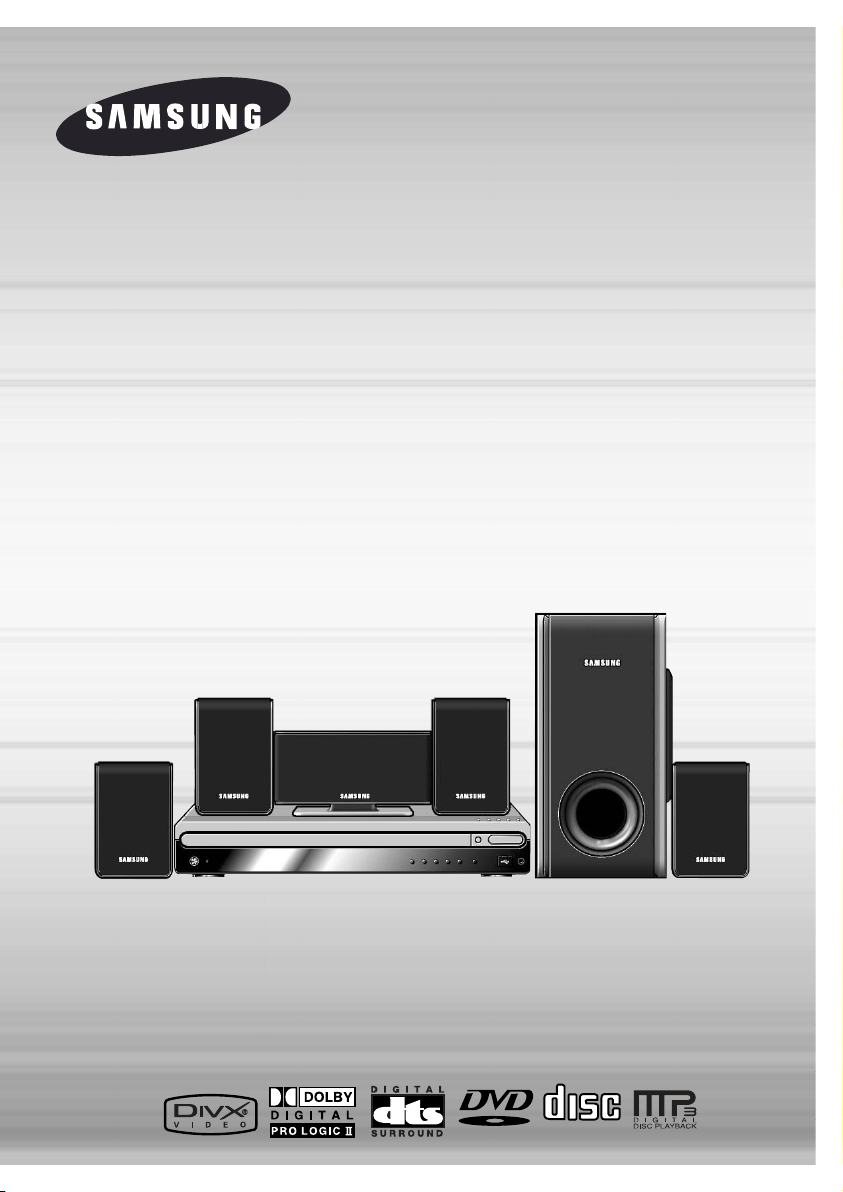
DIGITAL HOME
THEATER SYSTEM
HT-P38
Instruction Manual
AH68-01701R
V I D E O
COMPACT
DIGITAL AUDIO
SAMSUNG ELECTRONICS AMERICA, INC.
SERVICE DIVISION
400 Valley Road, Suite 201
Mount Arlington, NJ 07856
1-800-SAMSUNG (1-800-726-7864)
www.samsung.com
DIGITAL HOME
THEATER SYSTEM
HT-P38
Instruction Manual
AH68-01701R
V I D E O
COMPACT
DIGITAL AUDIO
SAMSUNG ELECTRONICS AMERICA, INC.
SERVICE DIVISION
400 Valley Road, Suite 201
Mount Arlington, NJ 07856
1-800-SAMSUNG (1-800-726-7864)
www.samsung.com

ENG
1 2
Safety Warnings Precautions
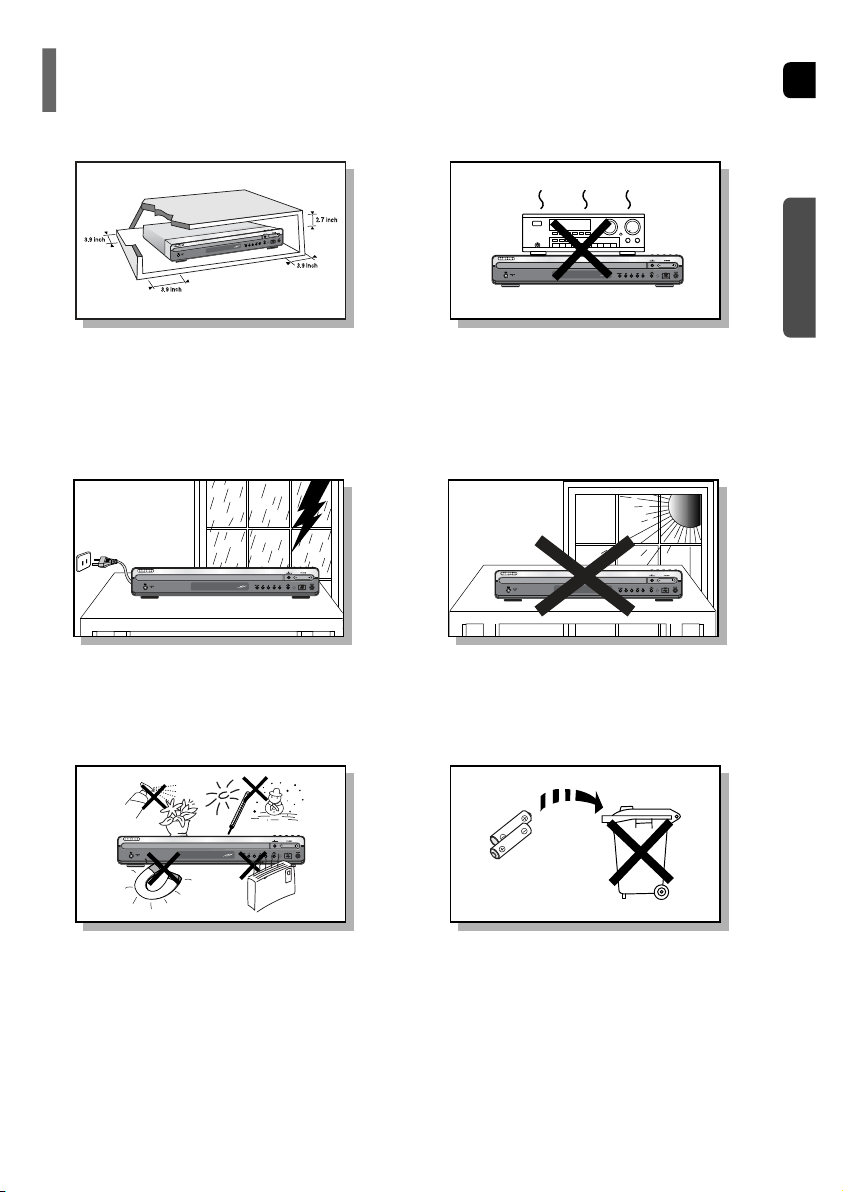
Ensure that the AC power supply in your house complies with the identification sticker located on the back of your player. Install your
player horizontally, on a suitable base (furniture), with enough space around it for ventilation (3~4inches). Make sure the ventilation slots
are not covered. Do not stack anything on top of the player. Do not place the player on amplifiers or other equipment which may
become hot. Before moving the player, ensure the disc tray is empty. This player is designed for continuous use. Switching off the
Home Theater to the stand-by mode does not disconnect the electrical supply. In order to disconnect the player completely from the
power
supply, remove the main plug from the wall outlet, especially when left unused for a long period of time.
Protect the player from moisture(i.e. vases) , and excess heat
(e.g.fireplace) or equipment creating strong magnetic or electric fields
(i.e.speakers...). Disconnect the power cable from the AC supply if the
player malfunctions. Your player is not intended for industrial use.
Use of this product is for personal use only.
Condensation may occur if your player or disc has been stored in cold
temperatures.
If transporting the player during the winter, wait approximately 2 hours
until the unit has reached room temperature before using.
Phones
During thunderstorms, disconnect AC main plug from the
wall outlet.
Voltage peaks due to lightning could damage the unit.
Do not expose the unit to direct sunlight or other heat
sources.
This could lead to overheating and malfunction of the unit.
The batteries used with this product contain chemicals
that are harmful to the environment.
Do not dispose of batteries in the general household
trash.
PREPARATION
CLASS 1 LASER PRODUCT
This Compact Disc player is classified as a CLASS 1
LASER product.
Use of controls, adjustments or performance of
procedures other than those specified herein may result
in hazardous radiation exposure.
CAUTION-INVISIBLE LASER RADIATION WHEN OPEN
AND INTERLOCKS DEFEATED, AVOID
EXPOSURE TO BEAM.
This symbol indicates that dangerous voltage which can cause electric shock is present inside
this unit.
This symbol alerts you to important operating and maintenance instructions accompanying
the unit.
WARNING:
To reduce the risk of fire or electric shock, do not expose this appliance to rain or moisture.
CAUTION:
TO PREVENT ELECTRIC SHOCK, MATCH WIDE BLADE OF PLUG TO WIDE SLOT, FULLY
INSERT.
CLASS 1 LASER PRODUCT
KLASSE 1 LASER PRODUKT
LUOKAN 1 LASER LAITE
KLASS 1 LASER APPARAT
PRODUCTO LASER CLASE 1
RISK OF ELECTRIC SHOCK.
DO NOT OPEN
CAUTION:
TO REDUCE THE RISK OF ELECTRIC
SHOCK, DO NOT REMOVE REAR COVER.
NO USER SERVICEABLE PARTS INSIDE.
REFER SERVICING TO QUALIFIED
SERVICE PERSONNEL.
CAUTION
Note to CATV system installer :
This reminder is provided to call the CATV system
installer’s attention to Section 820~40 of the NEC
which provides guidelines for proper grounding and,
in particular, specifies that the cable ground shall be
connected to the grounding system of the building,
as close to the point of cable entry as practical
ENG
1 2
Safety Warnings Precautions
Ensure that the AC power supply in your house complies with the identification sticker located on the back of your player. Install your
player horizontally, on a suitable base (furniture), with enough space around it for ventilation (3~4inches). Make sure the ventilation slots
are not covered. Do not stack anything on top of the player. Do not place the player on amplifiers or other equipment which may
become hot. Before moving the player, ensure the disc tray is empty. This player is designed for continuous use. Switching off the
Home Theater to the stand-by mode does not disconnect the electrical supply. In order to disconnect the player completely from the
power
supply, remove the main plug from the wall outlet, especially when left unused for a long period of time.
Protect the player from moisture(i.e. vases) , and excess heat
(e.g.fireplace) or equipment creating strong magnetic or electric fields
(i.e.speakers...). Disconnect the power cable from the AC supply if the
player malfunctions. Your player is not intended for industrial use.
Use of this product is for personal use only.
Condensation may occur if your player or disc has been stored in cold
temperatures.
If transporting the player during the winter, wait approximately 2 hours
until the unit has reached room temperature before using.
Phones
During thunderstorms, disconnect AC main plug from the
wall outlet.
Voltage peaks due to lightning could damage the unit.
Do not expose the unit to direct sunlight or other heat
sources.
This could lead to overheating and malfunction of the unit.
The batteries used with this product contain chemicals
that are harmful to the environment.
Do not dispose of batteries in the general household
trash.
PREPARATION
CLASS 1 LASER PRODUCT
This Compact Disc player is classified as a CLASS 1
LASER product.
Use of controls, adjustments or performance of
procedures other than those specified herein may result
in hazardous radiation exposure.
CAUTION-INVISIBLE LASER RADIATION WHEN OPEN
AND INTERLOCKS DEFEATED, AVOID
EXPOSURE TO BEAM.
This symbol indicates that dangerous voltage which can cause electric shock is present inside
this unit.
This symbol alerts you to important operating and maintenance instructions accompanying
the unit.
WARNING:
To reduce the risk of fire or electric shock, do not expose this appliance to rain or moisture.
CAUTION:
TO PREVENT ELECTRIC SHOCK, MATCH WIDE BLADE OF PLUG TO WIDE SLOT, FULLY
INSERT.
CLASS 1 LASER PRODUCT
KLASSE 1 LASER PRODUKT
LUOKAN 1 LASER LAITE
KLASS 1 LASER APPARAT
PRODUCTO LASER CLASE 1
RISK OF ELECTRIC SHOCK.
DO NOT OPEN
CAUTION:
TO REDUCE THE RISK OF ELECTRIC
SHOCK, DO NOT REMOVE REAR COVER.
NO USER SERVICEABLE PARTS INSIDE.
REFER SERVICING TO QUALIFIED
SERVICE PERSONNEL.
CAUTION
Note to CATV system installer :
This reminder is provided to call the CATV system
installer’s attention to Section 820~40 of the NEC
which provides guidelines for proper grounding and,
in particular, specifies that the cable ground shall be
connected to the grounding system of the building,
as close to the point of cable entry as practical

ENG
43
READ INSTRUCTIONS
All the safety and operating instructions should be
read before the appliance is operated.
RETAIN INSTRUCTIONS
The safety and operating instructions should be
retained for future reference.
HEED WARNINGS
All warnings on the appliance and in the operating
instructions should be adhered to.
FOLLOW INSTRUCTIONS
All operating and use instructions should be
followed.
WATER AND MOISTURE
Do not use this video product near water-
for example, near a bathtub, wash bowl,
kitchen sink, or laundry tub, in a wet basement,
or near a swimming pool, and the like.
OVERLOADING
Do not overload wall outlets and extension cords as
this can result in the risk of fire
or electric shock.
VENTILATION
Slots and openings in the cabinet are provided
for ventilation and to ensure reliable operation of the
video product and to protect it from overheating
these openings must not be blocked or covered.
The openings should never be blocked
by placing the video product on a bed, sofa, rug, or
other similar surface. This video product
should never be placed near or over a radiator or
heat register.
This video product should not be placed
in a built-in installation such as a bookcase
or rack unless proper ventilation is provided
or the manufacturer's instructions have been fol-
lowed.
POWER CORD PROTECTION
Power-supply cords should be routed so that
they are not likely to be walked on or pinched
by items placed upon or against them paying
particular attention to cords at plugs,
convenience receptacles, and the point where
they exit from the appliance.
CLEANING
Unplug this video product from the wall outlet
before cleaning. Do not use liquid cleaners
or aerosol cleaners. Use a damp cloth for cleaning.
LIGHTNING
For added protection of this video product
receiver during a lightning storm, or when
it is left unattended and unused for long
periods of time, unplug it from the wall outlet
and disconnect the antenna or cable system.
This will prevent damage to the video product
due to lightning and power-line surges.
OBJECT AND LIQUID ENTRY
Never push objects of any kind into this
product through openings as they may touch
dangerous voltage points or short-out parts
that could result in a fire or electric shock.
Never spill liquid of any kind on the video
product.
ACCESSORIES
Do not place this video product on an unstable cart,
stand, tripod, bracket, or table.
The video product may fall, causing serious injury to
a child or adult, and serious damage
to the appliance.
Use only with a cart, stand, tripod, bracket,
or table recommended by the manufacturer,
or sold with the video product. Any mounting
of the appliance should follow the manufacturer's
instructions and should use a mounting accessory
recommended by the manufacturer.
CART
An appliance and cart combination should be moved
with care. Quick stops, excessive force, and uneven
surfaces may cause the appliance and cart combina-
tion to overturn.
POWER SOURCES
This video product should be operated only from the
type of power source indicated
on the marking label. If you are not sure
of the type of supply to your home, consult your
appliance dealer or local power company.
For video products intended to be operated from bat-
tery power, or other sources, refer
to the operating instructions.
POWER LINES
An outside antenna system should not be located in
the vicinity of overhead power lines or other electric
light or power circuits,
or where it can fall into such power lines
or circuits. When installing an outside antenna sys-
tem, extreme care should be taken to keep from
touching such power lines or circuits as contact with
them might be fatal.
POLARIZATION
This video product is equipped with a polarized
alternating current line plug (a plug having one
blade wider than the other.) This plug will fit into the
power outlet only one way.
This is a safety feature. If you are unable
to insert the plug fully into the outlet, try reversing
the
plug. If the plug should still fail to fit, contact your
electrician to replace your obsolete outlet. Do not
defeat the safety purpose of the polarized plug.
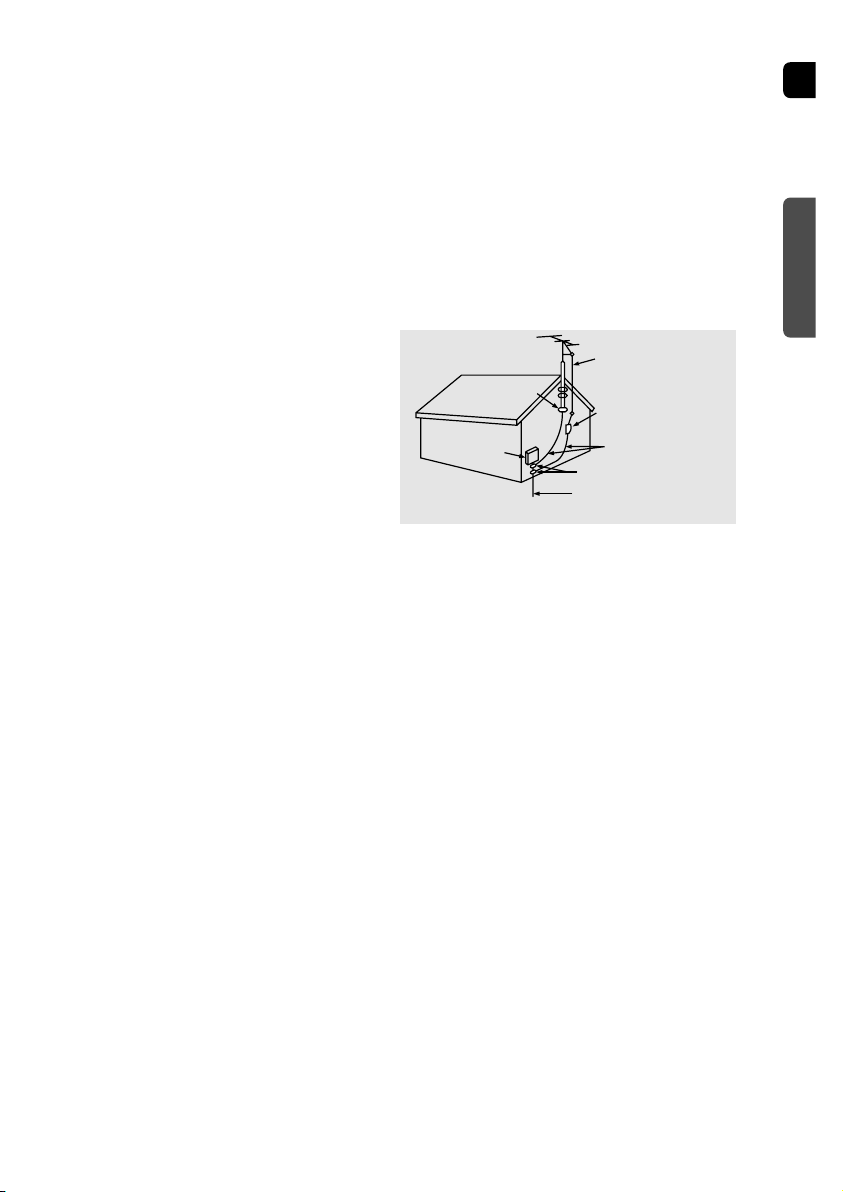
OUTDOOR ANTENNA GROUNDING
•
If an outside antenna is connected to the
antenna terminal, be sure the antenna system
is grounded so as to provide some protection
against voltage surges and built-up static
charges.
•
In the U.S.A section 810 of the National
Electrical Code, ANSI/NFPA No. 70-1984,
provides information with respect to proper
grounding of the mast and supporting
structure, grounding of the lead-in wire
to an antenna discharge unit, size of grounding
conductors, location of antenna discharge unit,
connection to grounding electrodes, and
requirements for the grounding electrode.
See the figure below.
ATTACHMENTS
Do not use attachments not recommended
by the video product manufacturer as they may
cause hazards.
SERVICING
•
Do not attempt to service this product yourself
as opening or removing covers may expose
you to dangerous voltage or other hazards.
•
Refer all servicing to qualified service personnel.
REPLACEMENT PARTS
When replacement parts are required, be sure the
service technician has used replacement parts spec-
ified by the manufacturer or having the same charac-
teristics as the original part. Unauthorized substitu-
tions may result in fire, electric shock or other haz-
ards.
SAFETY CHECK
Upon completion of any service or repairs
to this video product, ask the service technician to
perform safety checks to determine that the video
product is in proper operating condition.
DAMAGE REQUIRING SERVICE
Unplug this video product from the wall outlet
and
refer servicing to qualified service personnel
under
the following conditions.
a.
When the power-supply cord or plug is damaged.
b. If liquid has been spilled, or objects have
fallen into the video product.
c. If the video product has been exposed to rain
or water
d.
If the video product does not operate normally
by following the operating instructions.
Adjust only those controls that are covered
by the operating instructions as an improper
adjustment of other controls may result
in damage and will often require extensive
work by a qualified technician to restore
the video product to its normal operation.
e. If the video product has been dropped
or the cabinet has been damaged.
f. When the video product exhibits a distinct
change in performance - this indicates
a need for service.
HEAT
This video unit should be situated away from heat
sources such as radiators, stoves, or other products
(including amplifiers) that produce heat.
ANTENNA
LEAD IN WIRE
ANTENNA
DISCHARGE UNIT
(NEC SECTION. 810-20)
GROUNDING CONDUCTORS
(NEC SECTION 810-21)
GROUND CLAMPS
POWER SERVICE GROUNDING
ELECTRODE SYSTEM
(NEC ART 250, PART H)
GROUND
CLAMP
ELECTRIC
SERVICE
EQUIPMENT
PREPARATION
Safety Instructions
ENG
43
READ INSTRUCTIONS
All the safety and operating instructions should be
read before the appliance is operated.
RETAIN INSTRUCTIONS
The safety and operating instructions should be
retained for future reference.
HEED WARNINGS
All warnings on the appliance and in the operating
instructions should be adhered to.
FOLLOW INSTRUCTIONS
All operating and use instructions should be
followed.
WATER AND MOISTURE
Do not use this video product near water-
for example, near a bathtub, wash bowl,
kitchen sink, or laundry tub, in a wet basement,
or near a swimming pool, and the like.
OVERLOADING
Do not overload wall outlets and extension cords as
this can result in the risk of fire
or electric shock.
VENTILATION
Slots and openings in the cabinet are provided
for ventilation and to ensure reliable operation of the
video product and to protect it from overheating
these openings must not be blocked or covered.
The openings should never be blocked
by placing the video product on a bed, sofa, rug, or
other similar surface. This video product
should never be placed near or over a radiator or
heat register.
This video product should not be placed
in a built-in installation such as a bookcase
or rack unless proper ventilation is provided
or the manufacturer's instructions have been fol-
lowed.
POWER CORD PROTECTION
Power-supply cords should be routed so that
they are not likely to be walked on or pinched
by items placed upon or against them paying
particular attention to cords at plugs,
convenience receptacles, and the point where
they exit from the appliance.
CLEANING
Unplug this video product from the wall outlet
before cleaning. Do not use liquid cleaners
or aerosol cleaners. Use a damp cloth for cleaning.
LIGHTNING
For added protection of this video product
receiver during a lightning storm, or when
it is left unattended and unused for long
periods of time, unplug it from the wall outlet
and disconnect the antenna or cable system.
This will prevent damage to the video product
due to lightning and power-line surges.
OBJECT AND LIQUID ENTRY
Never push objects of any kind into this
product through openings as they may touch
dangerous voltage points or short-out parts
that could result in a fire or electric shock.
Never spill liquid of any kind on the video
product.
ACCESSORIES
Do not place this video product on an unstable cart,
stand, tripod, bracket, or table.
The video product may fall, causing serious injury to
a child or adult, and serious damage
to the appliance.
Use only with a cart, stand, tripod, bracket,
or table recommended by the manufacturer,
or sold with the video product. Any mounting
of the appliance should follow the manufacturer's
instructions and should use a mounting accessory
recommended by the manufacturer.
CART
An appliance and cart combination should be moved
with care. Quick stops, excessive force, and uneven
surfaces may cause the appliance and cart combina-
tion to overturn.
POWER SOURCES
This video product should be operated only from the
type of power source indicated
on the marking label. If you are not sure
of the type of supply to your home, consult your
appliance dealer or local power company.
For video products intended to be operated from bat-
tery power, or other sources, refer
to the operating instructions.
POWER LINES
An outside antenna system should not be located in
the vicinity of overhead power lines or other electric
light or power circuits,
or where it can fall into such power lines
or circuits. When installing an outside antenna sys-
tem, extreme care should be taken to keep from
touching such power lines or circuits as contact with
them might be fatal.
POLARIZATION
This video product is equipped with a polarized
alternating current line plug (a plug having one
blade wider than the other.) This plug will fit into the
power outlet only one way.
This is a safety feature. If you are unable
to insert the plug fully into the outlet, try reversing
the
plug. If the plug should still fail to fit, contact your
electrician to replace your obsolete outlet. Do not
defeat the safety purpose of the polarized plug.
OUTDOOR ANTENNA GROUNDING
•
If an outside antenna is connected to the
antenna terminal, be sure the antenna system
is grounded so as to provide some protection
against voltage surges and built-up static
charges.
•
In the U.S.A section 810 of the National
Electrical Code, ANSI/NFPA No. 70-1984,
provides information with respect to proper
grounding of the mast and supporting
structure, grounding of the lead-in wire
to an antenna discharge unit, size of grounding
conductors, location of antenna discharge unit,
connection to grounding electrodes, and
requirements for the grounding electrode.
See the figure below.
ATTACHMENTS
Do not use attachments not recommended
by the video product manufacturer as they may
cause hazards.
SERVICING
•
Do not attempt to service this product yourself
as opening or removing covers may expose
you to dangerous voltage or other hazards.
•
Refer all servicing to qualified service personnel.
REPLACEMENT PARTS
When replacement parts are required, be sure the
service technician has used replacement parts spec-
ified by the manufacturer or having the same charac-
teristics as the original part. Unauthorized substitu-
tions may result in fire, electric shock or other haz-
ards.
SAFETY CHECK
Upon completion of any service or repairs
to this video product, ask the service technician to
perform safety checks to determine that the video
product is in proper operating condition.
DAMAGE REQUIRING SERVICE
Unplug this video product from the wall outlet
and
refer servicing to qualified service personnel
under
the following conditions.
a.
When the power-supply cord or plug is damaged.
b. If liquid has been spilled, or objects have
fallen into the video product.
c. If the video product has been exposed to rain
or water
d.
If the video product does not operate normally
by following the operating instructions.
Adjust only those controls that are covered
by the operating instructions as an improper
adjustment of other controls may result
in damage and will often require extensive
work by a qualified technician to restore
the video product to its normal operation.
e. If the video product has been dropped
or the cabinet has been damaged.
f. When the video product exhibits a distinct
change in performance - this indicates
a need for service.
HEAT
This video unit should be situated away from heat
sources such as radiators, stoves, or other products
(including amplifiers) that produce heat.
ANTENNA
LEAD IN WIRE
ANTENNA
DISCHARGE UNIT
(NEC SECTION. 810-20)
GROUNDING CONDUCTORS
(NEC SECTION 810-21)
GROUND CLAMPS
POWER SERVICE GROUNDING
ELECTRODE SYSTEM
(NEC ART 250, PART H)
GROUND
CLAMP
ELECTRIC
SERVICE
EQUIPMENT
PREPARATION
Safety Instructions
65
Multi-Disc Playback & FM Tuner
The HT-P38 combines the convenience of multi-disc playback capability, including
DVD-AUDIO, DVD-VIDEO, CD, MP3-CD, CD-R/RW, and DVD-R/RW, with a
sophisticated AM/FM tuner, all in a single player.
Dolby Pro Logic II
Dolby Pro Logic II is a new form of multi-channel audio signal decoding technology
that improves upon existing Dolby Pro Logic.
DTS (Digital Theater Systems)
DTS is an audio compression format developed by Digital Theater Systems Inc.
It delivers full-frequency 5.1 channel sound.
Power Saving Function
The HT-P38 automatically shuts itself off after 20 minutes in the stop mode.
TV Screen Saver Function
The HT-P38 automatically brightens and darkens your TV screen
after 3 minutes in the stop mode.
The HT-P38 automatically switches itself into the power saving mode
after 20 minutes in the screen saver mode.
Customized TV Screen Display
The HT-P38 allows you to select your favorite image during JPEG, DVD and set it
as your background wallpaper.
PREPARATION
PREPARATION
Safety Warnings..................................................................................................................................................................1
Precautions .........................................................................................................................................................................2
Safety Instructions ..............................................................................................................................................................3
Features..............................................................................................................................................................................5
Notes on Discs....................................................................................................................................................................7
CONNECTIONS
Description..........................................................................................................................................................................9
Connecting the Speakers ...................................................................................................................................................13
Connecting the Video Out to TV.........................................................................................................................................15
P.SCAN(Progressive Scan) Function .................................................................................................................................16
Connecting External Components ......................................................................................................................................17
Connecting the FM and AM Antennas................................................................................................................................18
Before Using Your Home Theater.......................................................................................................................................19
OPERATION
Disc Playback .....................................................................................................................................................................21
Selecting a Disc in the Disc changer..................................................................................................................................22
MP3-CD Playback ..............................................................................................................................................................23
Displaying Disc Information ................................................................................................................................................24
JPEG File Playback ............................................................................................................................................................25
DivX Playback.....................................................................................................................................................................27
Playing Media Files using the USB HOST feature .............................................................................................................29
Checking the Remaining Time............................................................................................................................................31
Fast/Slow Playback ............................................................................................................................................................32
Skipping Scenes/Songs......................................................................................................................................................32
Repeat Playback.................................................................................................................................................................33
A-B Repeat Playback..........................................................................................................................................................34
Step Function......................................................................................................................................................................35
Angle Function ....................................................................................................................................................................35
Zoom (Screen Enlarge) Function .......................................................................................................................................36
EZ VIEW Function ..............................................................................................................................................................36
Bonus Group / Navigating Pages .......................................................................................................................................37
Selecting Audio/Subtitle Language .....................................................................................................................................38
Moving Directly to a Scene/Song .......................................................................................................................................39
Using Disc Menu.................................................................................................................................................................40
Using the Title Menu ...........................................................................................................................................................40
SETUP
Setting the Language..........................................................................................................................................................41
Setting TV Screen type.......................................................................................................................................................43
Setting Parental Controls (Rating Level) ............................................................................................................................45
Setting the Password..........................................................................................................................................................46
Setting the Wallpaper .........................................................................................................................................................47
DVD Audio Disc Playback Mode ........................................................................................................................................49
Setting the Speaker Mode ..................................................................................................................................................50
Setting the Delay Time .......................................................................................................................................................51
Setting the Test Tone ..........................................................................................................................................................53
Setting the DRC (Dynamic Range Compression) ..............................................................................................................54
Setting the Audio ...............................................................................................................................................................55
AV SYNC Setup..................................................................................................................................................................57
Sound Field (DSP)/EQ Function.........................................................................................................................................58
Dolby Pro Logic II Mode .....................................................................................................................................................59
Dolby Pro Logic II Effect .....................................................................................................................................................60
RADIO OPERATION
Listening to Radio ...............................................................................................................................................................61
Presetting Stations..............................................................................................................................................................62
MISCELLANEOUS
Convenient Functions .........................................................................................................................................................63
Operating a TV with the Remote Control ...........................................................................................................................65
Before Calling for Service ...................................................................................................................................................67
Cautions on Handling and Storing Discs............................................................................................................................69
Language Code List............................................................................................................................................................70
Specifications......................................................................................................................................................................71
WARRANTY........................................................................................................................................................................72
Features
Contents
ENG
DVD-Audio compatible
Experience the super high-quality audio performance of DVD-Audio.
The on-board 24-bit/192kHz DAC enables this player to deliver exceptional sound quality in
terms of dynamic range, low-level resolution and high-frequency detail.
65
Multi-Disc Playback & FM Tuner
The HT-P38 combines the convenience of multi-disc playback capability, including
DVD-AUDIO, DVD-VIDEO, CD, MP3-CD, CD-R/RW, and DVD-R/RW, with a
sophisticated AM/FM tuner, all in a single player.
Dolby Pro Logic II
Dolby Pro Logic II is a new form of multi-channel audio signal decoding technology
that improves upon existing Dolby Pro Logic.
DTS (Digital Theater Systems)
DTS is an audio compression format developed by Digital Theater Systems Inc.
It delivers full-frequency 5.1 channel sound.
Power Saving Function
The HT-P38 automatically shuts itself off after 20 minutes in the stop mode.
TV Screen Saver Function
The HT-P38 automatically brightens and darkens your TV screen
after 3 minutes in the stop mode.
The HT-P38 automatically switches itself into the power saving mode
after 20 minutes in the screen saver mode.
Customized TV Screen Display
The HT-P38 allows you to select your favorite image during JPEG, DVD and set it
as your background wallpaper.
PREPARATION
PREPARATION
Safety Warnings..................................................................................................................................................................1
Precautions .........................................................................................................................................................................2
Safety Instructions ..............................................................................................................................................................3
Features..............................................................................................................................................................................5
Notes on Discs....................................................................................................................................................................7
CONNECTIONS
Description..........................................................................................................................................................................9
Connecting the Speakers ...................................................................................................................................................13
Connecting the Video Out to TV.........................................................................................................................................15
P.SCAN(Progressive Scan) Function .................................................................................................................................16
Connecting External Components ......................................................................................................................................17
Connecting the FM and AM Antennas................................................................................................................................18
Before Using Your Home Theater.......................................................................................................................................19
OPERATION
Disc Playback .....................................................................................................................................................................21
Selecting a Disc in the Disc changer..................................................................................................................................22
MP3-CD Playback ..............................................................................................................................................................23
Displaying Disc Information ................................................................................................................................................24
JPEG File Playback ............................................................................................................................................................25
DivX Playback.....................................................................................................................................................................27
Playing Media Files using the USB HOST feature .............................................................................................................29
Checking the Remaining Time............................................................................................................................................31
Fast/Slow Playback ............................................................................................................................................................32
Skipping Scenes/Songs......................................................................................................................................................32
Repeat Playback.................................................................................................................................................................33
A-B Repeat Playback..........................................................................................................................................................34
Step Function......................................................................................................................................................................35
Angle Function ....................................................................................................................................................................35
Zoom (Screen Enlarge) Function .......................................................................................................................................36
EZ VIEW Function ..............................................................................................................................................................36
Bonus Group / Navigating Pages .......................................................................................................................................37
Selecting Audio/Subtitle Language .....................................................................................................................................38
Moving Directly to a Scene/Song .......................................................................................................................................39
Using Disc Menu.................................................................................................................................................................40
Using the Title Menu ...........................................................................................................................................................40
SETUP
Setting the Language..........................................................................................................................................................41
Setting TV Screen type.......................................................................................................................................................43
Setting Parental Controls (Rating Level) ............................................................................................................................45
Setting the Password..........................................................................................................................................................46
Setting the Wallpaper .........................................................................................................................................................47
DVD Audio Disc Playback Mode ........................................................................................................................................49
Setting the Speaker Mode ..................................................................................................................................................50
Setting the Delay Time .......................................................................................................................................................51
Setting the Test Tone ..........................................................................................................................................................53
Setting the DRC (Dynamic Range Compression) ..............................................................................................................54
Setting the Audio ...............................................................................................................................................................55
AV SYNC Setup..................................................................................................................................................................57
Sound Field (DSP)/EQ Function.........................................................................................................................................58
Dolby Pro Logic II Mode .....................................................................................................................................................59
Dolby Pro Logic II Effect .....................................................................................................................................................60
RADIO OPERATION
Listening to Radio ...............................................................................................................................................................61
Presetting Stations..............................................................................................................................................................62
MISCELLANEOUS
Convenient Functions .........................................................................................................................................................63
Operating a TV with the Remote Control ...........................................................................................................................65
Before Calling for Service ...................................................................................................................................................67
Cautions on Handling and Storing Discs............................................................................................................................69
Language Code List............................................................................................................................................................70
Specifications......................................................................................................................................................................71
WARRANTY........................................................................................................................................................................72
Features
Contents
ENG
DVD-Audio compatible
Experience the super high-quality audio performance of DVD-Audio.
The on-board 24-bit/192kHz DAC enables this player to deliver exceptional sound quality in
terms of dynamic range, low-level resolution and high-frequency detail.
ENG
CD-R Discs
•
Some CD-R discs may not be playable depending on the disc recording device (CD-Recorder or PC) and the
condition of the disc.
•
Use a 650MB/74 minute CD-R. Other CD-R media, may not be playable.
•
Some CD-RW (Rewritable) media, may not be playable.
•
Only CD-Rs that are properly "closed" can be fully played. If the session is closed but the disc is left open,
you may not be able to fully play the disc.
CD-R JPEG Discs
•
Only files with the ".jpeg" and ".JPEG" extensions can be played.
•
If the disc is not closed, it will take longer to start playing and not all of the recorded files may be played.
•
Only CD-R discs with JPEG files in ISO 9660 or Joliet format can be played.
•
JPEG file names should be 8 characters or less in length and contain no blank spaces or special characters (. / = +).
•
Only a consecutively written multisession disc can be played. If there is a blank segment in the multisession disc, the
disc can be played only up to the blank segment.
•
A maximum of 9,999 images can be stored on a single CD.
•
When playing a Kodak/Fuji Picture CD, only the JPEG files in the picture folder can be played.
•
Picture discs other than Kodak/Fuji Picture CDs may take longer to start playing or may not play at all.
Disc Recording Format
8
CD-R MP3 Discs
•
Only CD-R discs with MP3 files in ISO 9660 or Joliet format can be played.
•
MP3 file names should be 8 characters or less in length and contain no blank spaces or special characters (. / = +).
•
Use discs recorded with a compression/decompression data rate greater than 128Kbps.
•
Only files with the ".mp3" and ".MP3" extensions can be played.
•
Only a consecutively written Multisession disc can be played. If there is a blank segment in the Multisession disc,
the disc can be played only up to the blank segment.
•
If the disc is not closed, it will take longer to begin playback and not all of the recorded files may be played.
•
For files encoded in Variable Bit Rate (VBR) format, i.e. files encoded in both low bit rate and high bit rate (e.g.,
32Kbps ~ 320Kbps), the sound may skip during playback.
•
A maximum of 500 tracks can be played per CD.
•
A maximum of 300 folders can be played per CD.
DVD (Digital Versatile Disc)
offers fantastic audio and video, thanks to Dolby Digital
surround sound and MPEG-2 video compression technology. Now you can enjoy these
realistic effects in the home, as if you were in a movie theater or concert hall.
V I D E O
Home Theaters and the discs are coded by region. These regional codes must match in
order for the disc to play. If the codes do not match, the disc will not play.
The Region Number for this player is given on the rear panel of the player.
(Your Home Theater will only play DVDs that are labeled with identical region codes.)
1 6
~
•
LD, CD-G, CD-I, CD-ROM and DVD-ROM discs cannot be played on this player.
If such discs are played, a "WRONG DISC FORMAT" message appears on the TV screen.
•
DVD discs purchased abroad may not play on this player.
If such discs are played, a "WRONG REGION CODE" message appears on the TV screen.
7
Do not use the following types of disc!
•
Many DVD discs are encoded with copy protection. Because of this, you should only connect
your Home Theater directly to your TV, not to a VCR. Connecting to a VCR results in a distorted
picture from copy-protected DVD discs.
•
This product incorporates copyright protection technology that is protected by methods claims of certain
U.S. patents and other intellectual property rights owned by Macrovision Corporation and other rights
owners. Use of this copyright protection technology must be authorized by Macrovision Corporation, and
is intended for home and other limited viewing uses only unless otherwise authorized by Macrovision
Corporation. Reverse engineering or disassembly is prohibited.
Copy Protection
PREPARATION
Notes on Discs
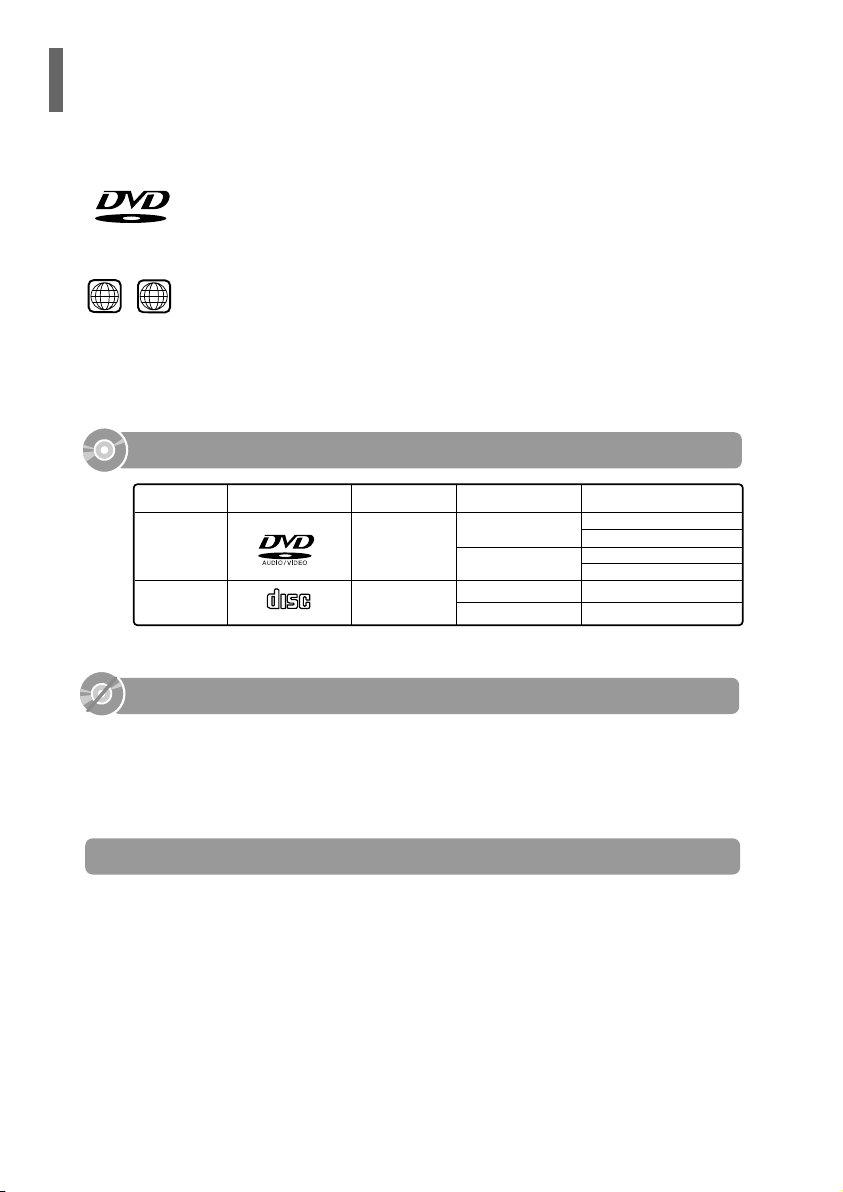
COMPACT
DIGITAL AUDIO
Mark (Logo)
Audio + Video
DVD-AUDIO
DVD-VIDEO
AUDIO-CD
5"
Approx. 240 min. (single-sided)
Approx. 480 min. (double-sided)
Approx. 80 min. (single-sided)
Approx. 160 min. (double-sided)
74 min.
20 min.
3 1/2"
5"
3 1/2"
Audio
Recorded Signals
Disc Type Disc Size Max. Playing Time
Playable Discs

ENG
CD-R Discs
•
Some CD-R discs may not be playable depending on the disc recording device (CD-Recorder or PC) and the
condition of the disc.
•
Use a 650MB/74 minute CD-R. Other CD-R media, may not be playable.
•
Some CD-RW (Rewritable) media, may not be playable.
•
Only CD-Rs that are properly "closed" can be fully played. If the session is closed but the disc is left open,
you may not be able to fully play the disc.
CD-R JPEG Discs
•
Only files with the ".jpeg" and ".JPEG" extensions can be played.
•
If the disc is not closed, it will take longer to start playing and not all of the recorded files may be played.
•
Only CD-R discs with JPEG files in ISO 9660 or Joliet format can be played.
•
JPEG file names should be 8 characters or less in length and contain no blank spaces or special characters (. / = +).
•
Only a consecutively written multisession disc can be played. If there is a blank segment in the multisession disc, the
disc can be played only up to the blank segment.
•
A maximum of 9,999 images can be stored on a single CD.
•
When playing a Kodak/Fuji Picture CD, only the JPEG files in the picture folder can be played.
•
Picture discs other than Kodak/Fuji Picture CDs may take longer to start playing or may not play at all.
Disc Recording Format
8
CD-R MP3 Discs
•
Only CD-R discs with MP3 files in ISO 9660 or Joliet format can be played.
•
MP3 file names should be 8 characters or less in length and contain no blank spaces or special characters (. / = +).
•
Use discs recorded with a compression/decompression data rate greater than 128Kbps.
•
Only files with the ".mp3" and ".MP3" extensions can be played.
•
Only a consecutively written Multisession disc can be played. If there is a blank segment in the Multisession disc,
the disc can be played only up to the blank segment.
•
If the disc is not closed, it will take longer to begin playback and not all of the recorded files may be played.
•
For files encoded in Variable Bit Rate (VBR) format, i.e. files encoded in both low bit rate and high bit rate (e.g.,
32Kbps ~ 320Kbps), the sound may skip during playback.
•
A maximum of 500 tracks can be played per CD.
•
A maximum of 300 folders can be played per CD.
DVD (Digital Versatile Disc)
offers fantastic audio and video, thanks to Dolby Digital
surround sound and MPEG-2 video compression technology. Now you can enjoy these
realistic effects in the home, as if you were in a movie theater or concert hall.
V I D E O
Home Theaters and the discs are coded by region. These regional codes must match in
order for the disc to play. If the codes do not match, the disc will not play.
The Region Number for this player is given on the rear panel of the player.
(Your Home Theater will only play DVDs that are labeled with identical region codes.)
1 6
~
•
LD, CD-G, CD-I, CD-ROM and DVD-ROM discs cannot be played on this player.
If such discs are played, a "WRONG DISC FORMAT" message appears on the TV screen.
•
DVD discs purchased abroad may not play on this player.
If such discs are played, a "WRONG REGION CODE" message appears on the TV screen.
7
Do not use the following types of disc!
•
Many DVD discs are encoded with copy protection. Because of this, you should only connect
your Home Theater directly to your TV, not to a VCR. Connecting to a VCR results in a distorted
picture from copy-protected DVD discs.
•
This product incorporates copyright protection technology that is protected by methods claims of certain
U.S. patents and other intellectual property rights owned by Macrovision Corporation and other rights
owners. Use of this copyright protection technology must be authorized by Macrovision Corporation, and
is intended for home and other limited viewing uses only unless otherwise authorized by Macrovision
Corporation. Reverse engineering or disassembly is prohibited.
Copy Protection
PREPARATION
Notes on Discs
COMPACT
DIGITAL AUDIO
Mark (Logo)
Audio + Video
DVD-AUDIO
DVD-VIDEO
AUDIO-CD
5"
Approx. 240 min. (single-sided)
Approx. 480 min. (double-sided)
Approx. 80 min. (single-sided)
Approx. 160 min. (double-sided)
74 min.
20 min.
3 1/2"
5"
3 1/2"
Audio
Recorded Signals
Disc Type Disc Size Max. Playing Time
Playable Discs
ENG
9
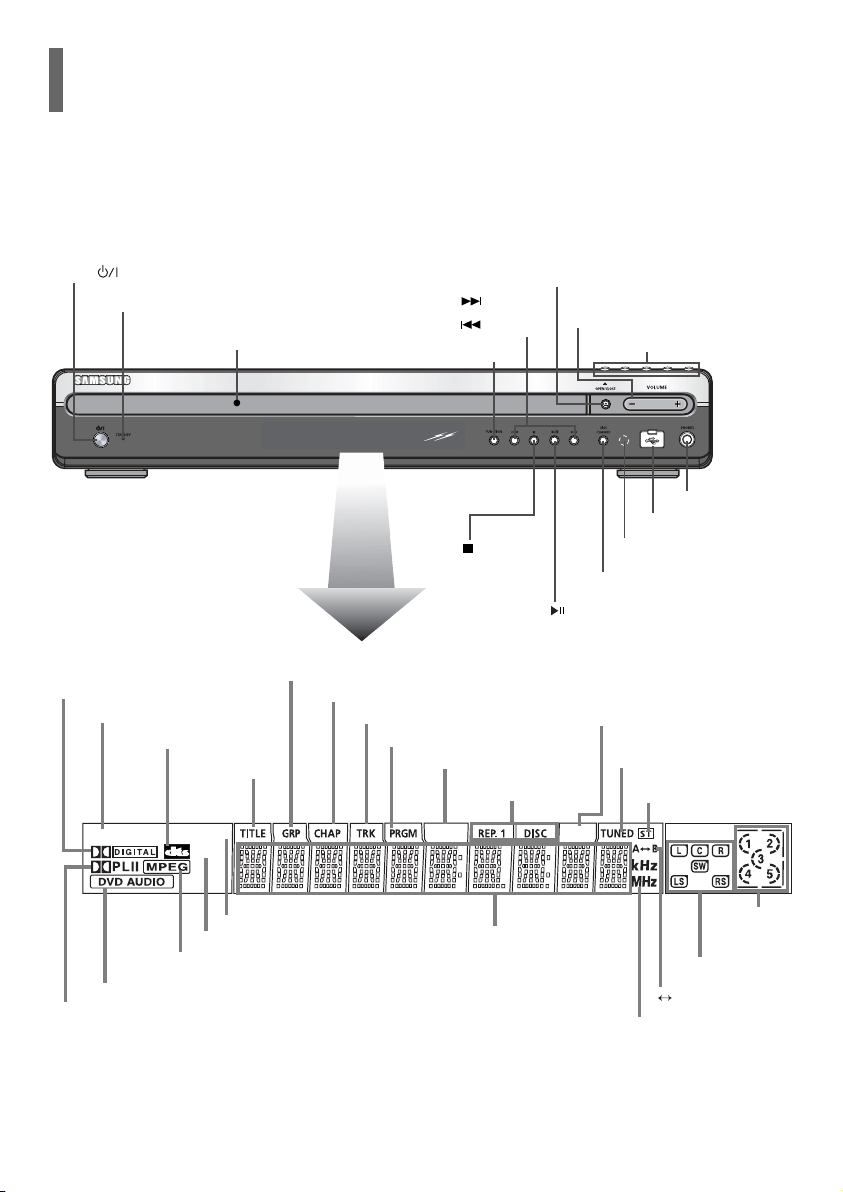
Description
PREPARATION
—Front Panel—
Power ( ) button
Standby indicator
Function button
Headphone Jack
USB Connector
Remote Control Sensor
Disc Tray
Open/Close button
Direct Play button
Disc Change button
Volume buttons
Tuning Down & Skip ( ) buttons
Tuning Up & Skip ( ) buttons
Play/Pause ( ) button
Stop ( ) button
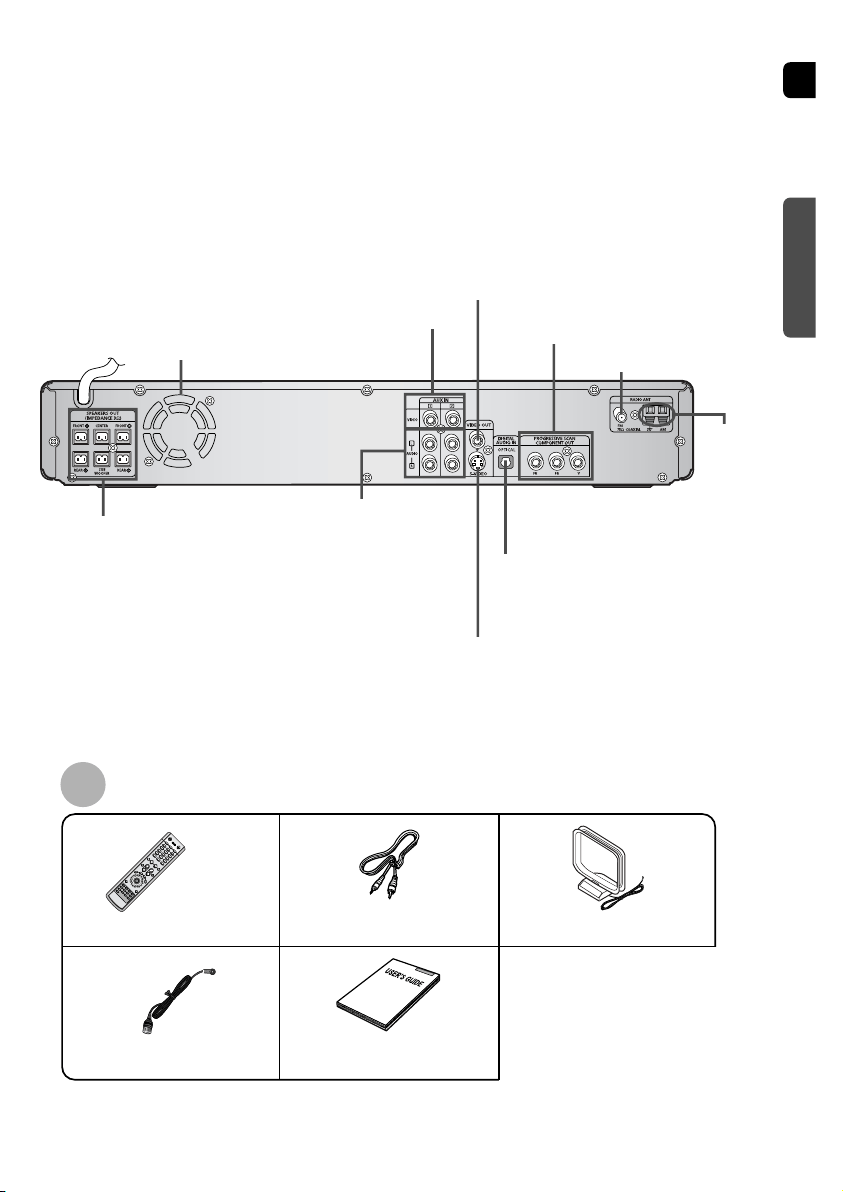
—Rear Panel—
FM Antenna Connector
External Video Component Input Connectors
External Audio
Component Input
Connector
5.1 Channel Speaker
Output Terminals
S-Video Output Connector
If the TV is equipped with an S-Video input
connector (S-VIDEO IN), connect it to the player's
S-Video output.
External Digital Optical Input
Connector
Use this to connect external equipment
capable of digital output.
Cooling Fan
COMPONENT VIDEO OUTPUT
Connectors
Connect a TV with component video inputs
to these jacks.
AM Antenna
Connector
Video Cable
(AH39-40001V)
AM Antenna
(AH42-00019A)
Remote Control
(AH59-01506D)
FM Antenna
(AH42-00017A)
Accessories
User's Manual
(AH68-01701R)
10
Video Output Connector
Connect the TV's video input jacks
(VIDEO IN) to the VIDEO OUT connector.
DOLBY DIGITAL indicator
P.SCAN indicator
LINEAR PCM indicator
PBCINDEX
LPCMP.SCAN
DSP
PRO LOGIC II indicator
DVD AUDIO indicator
TITLE indicator
GROUP indicator
PROGRAM indicator
CHAPTER indicator
DISC(1~5)
indicator
TRACK indicator
INDEX indicator
TUNER indicator
PBC indicator
REPEAT indicators
STEREO indicator
A B indicator
RADIO FREQUENCY
indicator
System Status Display
SPEAKER indicator
DTS Disc indicator
MPEG indicator
DSP indicator
ENG
9
Description
PREPARATION
—Front Panel—
Power ( ) button
Standby indicator
Function button
Headphone Jack
USB Connector
Remote Control Sensor
Disc Tray
Open/Close button
Direct Play button
Disc Change button
Volume buttons
Tuning Down & Skip ( ) buttons
Tuning Up & Skip ( ) buttons
Play/Pause ( ) button
Stop ( ) button
—Rear Panel—
FM Antenna Connector
External Video Component Input Connectors
External Audio
Component Input
Connector
5.1 Channel Speaker
Output Terminals
S-Video Output Connector
If the TV is equipped with an S-Video input
connector (S-VIDEO IN), connect it to the player's
S-Video output.
External Digital Optical Input
Connector
Use this to connect external equipment
capable of digital output.
Cooling Fan
COMPONENT VIDEO OUTPUT
Connectors
Connect a TV with component video inputs
to these jacks.
AM Antenna
Connector
Video Cable
(AH39-40001V)
AM Antenna
(AH42-00019A)
Remote Control
(AH59-01506D)
FM Antenna
(AH42-00017A)
Accessories
User's Manual
(AH68-01701R)
10
Video Output Connector
Connect the TV's video input jacks
(VIDEO IN) to the VIDEO OUT connector.
DOLBY DIGITAL indicator
P.SCAN indicator
LINEAR PCM indicator
PBCINDEX
LPCMP.SCAN
DSP
PRO LOGIC II indicator
DVD AUDIO indicator
TITLE indicator
GROUP indicator
PROGRAM indicator
CHAPTER indicator
DISC(1~5)
indicator
TRACK indicator
INDEX indicator
TUNER indicator
PBC indicator
REPEAT indicators
STEREO indicator
A B indicator
RADIO FREQUENCY
indicator
System Status Display
SPEAKER indicator
DTS Disc indicator
MPEG indicator
DSP indicator
ENG
12
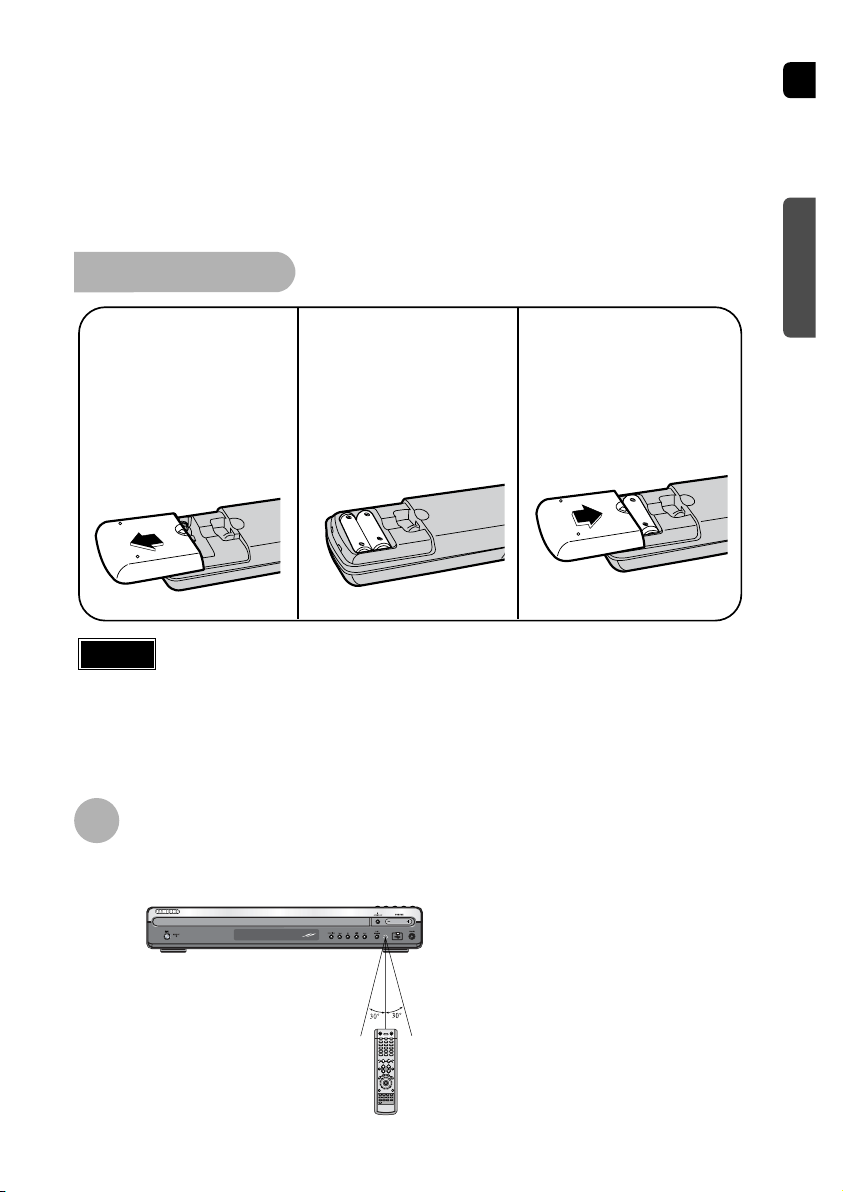
Insert Remote Batteries
The remote control can be used up to approximately 23 feet/7 meters in a straight line. It can also be
operated at a horizontal angle of up to 30° from the remote control sensor.
Range of Operation of the Remote Control
11
Caution
PREPARATION
Description
Remove the battery
cover on the back
of the remote by
pressing down and
sliding the cover in
the direction of the
arrow.
1
Insert two 1.5V AAA
batteries, paying
attention to the correct
polarities (+ and –).
2
Replace the battery
cover.
3
Follow these precautions to avoid leaking or cracking cells:
•
Place batteries in the remote control so they match the polarity:(+) to (+)and (–)to (–).
•
Use the correct type of batteries.Batteries that look similar may differ in voltage.
•
Always replace both batteries at the same time.
•
Do not expose batteries to heat or flame.
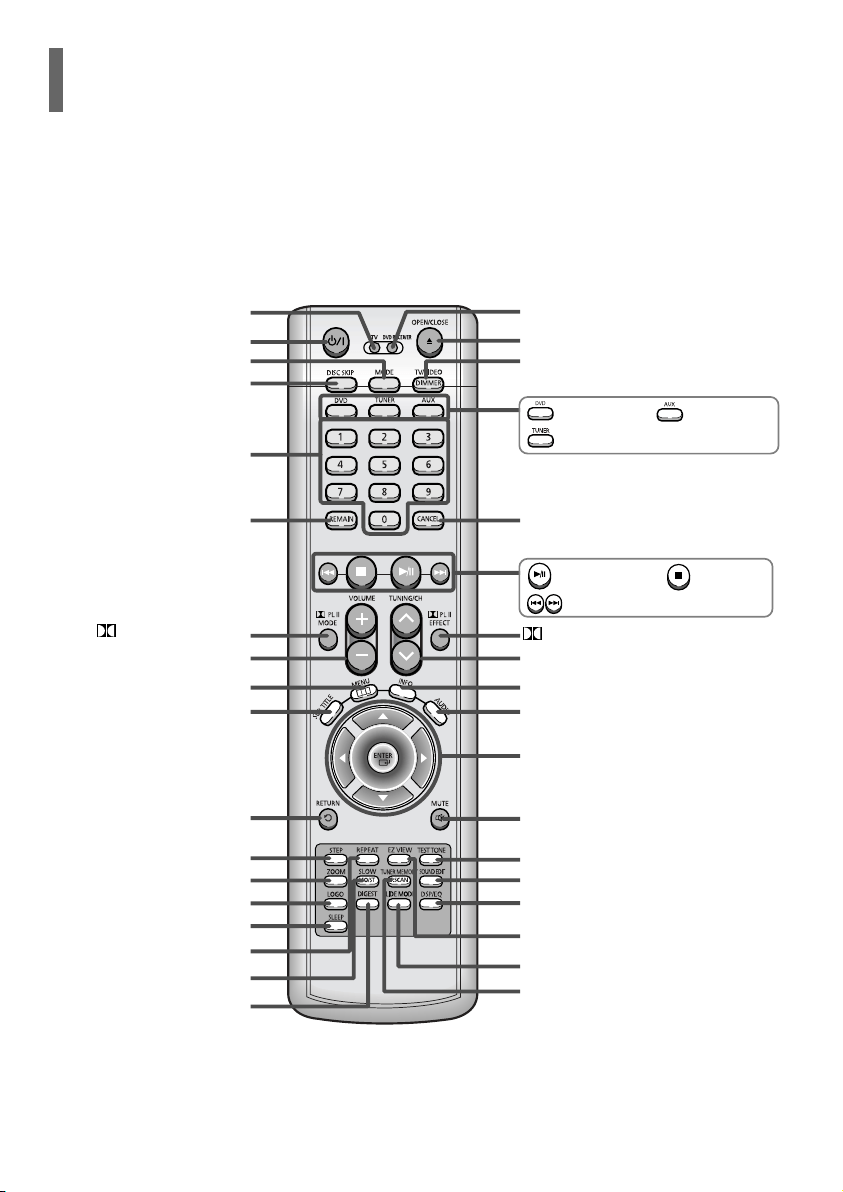
PL II MODE button
VOLUME button
MENU button
TV, DVD POWER button
TV indicator
DISC SKIP button
SLEEP button
CANCEL button
RETURN button
Number(0~9) buttons
MODE button
TV/VIDEO, DIMMER button
OPEN/CLOSE button
DVD RECEIVER indicator
Cursor/Enter button
DSP/EQ button
EZ VIEW button
SLIDE MODE button
TUNER MEMORY, P.SCAN button
SOUND EDIT button
TEST TONE button
AUDIO button
MUTE button
INFO. button
TUNING/CH button
STEP button
ZOOM button
LOGO COPY button
REPEAT button
MO/ST, SLOW button
DIGEST button
REMAIN button
SUB TITLE button
PL II EFFECT button
—Remote Control—
DVD button
Play/Pause button
Tuning Preset/CD Skip button
Stop button
AUX button
TUNER button
ENG
12
Insert Remote Batteries
The remote control can be used up to approximately 23 feet/7 meters in a straight line. It can also be
operated at a horizontal angle of up to 30° from the remote control sensor.
Range of Operation of the Remote Control
11
Caution
PREPARATION
Description
Remove the battery
cover on the back
of the remote by
pressing down and
sliding the cover in
the direction of the
arrow.
1
Insert two 1.5V AAA
batteries, paying
attention to the correct
polarities (+ and –).
2
Replace the battery
cover.
3
Follow these precautions to avoid leaking or cracking cells:
•
Place batteries in the remote control so they match the polarity:(+) to (+)and (–)to (–).
•
Use the correct type of batteries.Batteries that look similar may differ in voltage.
•
Always replace both batteries at the same time.
•
Do not expose batteries to heat or flame.
PL II MODE button
VOLUME button
MENU button
TV, DVD POWER button
TV indicator
DISC SKIP button
SLEEP button
CANCEL button
RETURN button
Number(0~9) buttons
MODE button
TV/VIDEO, DIMMER button
OPEN/CLOSE button
DVD RECEIVER indicator
Cursor/Enter button
DSP/EQ button
EZ VIEW button
SLIDE MODE button
TUNER MEMORY, P.SCAN button
SOUND EDIT button
TEST TONE button
AUDIO button
MUTE button
INFO. button
TUNING/CH button
STEP button
ZOOM button
LOGO COPY button
REPEAT button
MO/ST, SLOW button
DIGEST button
REMAIN button
SUB TITLE button
PL II EFFECT button
—Remote Control—
DVD button
Play/Pause button
Tuning Preset/CD Skip button
Stop button
AUX button
TUNER button
ENG
SRSL
C
L
SW
R
14
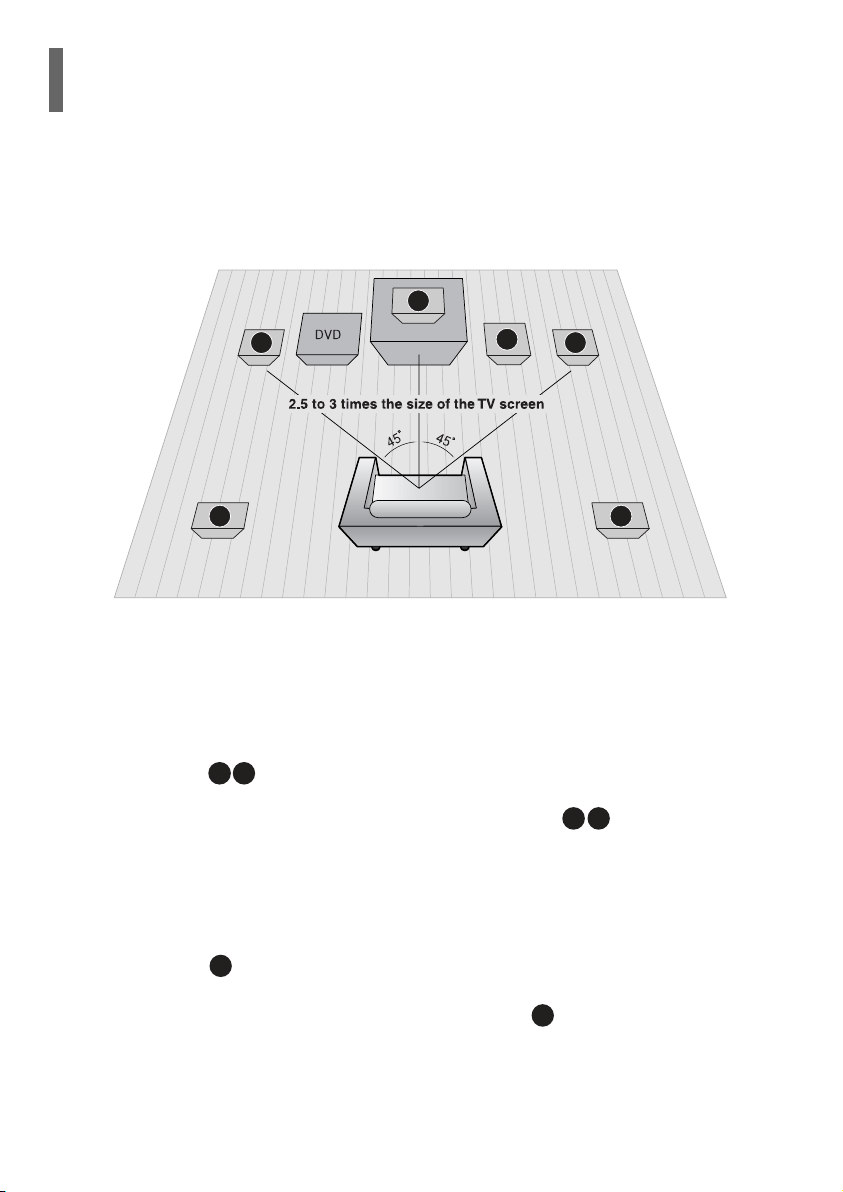
Rear Speakers
•
Place these speakers behind your listening position.
•
If there isn't enough room, place these speakers so they face each
other.
•
Place them about 60 to 90cm (2 to 3feet) above your ear, facing
slightly downward.
*
Unlike the front and center speakers, the rear speakers are used
to handle mainly sound effects and sound will not come from
them all the time.
Subwoofer
•
The position of the subwoofer is not so critical.
Place it anywhere you like.
Front Speakers
•
Place these speakers in front of your listening
position, facing inwards (about 45°) toward you.
•
Place the speakers so that their tweeters will be at
the same height as your ear.
•
Align the front face of the front speakers with the
front face of the center speaker or place them
slightly in front of the center speakers.
Center Speaker
•
It is best to install it at the same height as the front
speakers.
•
You can also install it directly over or under the TV.
Position of the Home Theater
•
Place it on a stand, cabinet shelf, or under the
TV stand.
Selecting the Listening Position
The listening position should be located about 2.5 to 3
times the distance of the TV's screen size away from the
TV. Example: For 32" TVs 2~2.4m (6~8 feet)
For 55" TVs 3.5~4m (11~13 feet)
13
Before moving or installing the product, be sure to turn off the power and disconnect the power cord.
CONNECTIONS
R
L
C
SRSL
SW
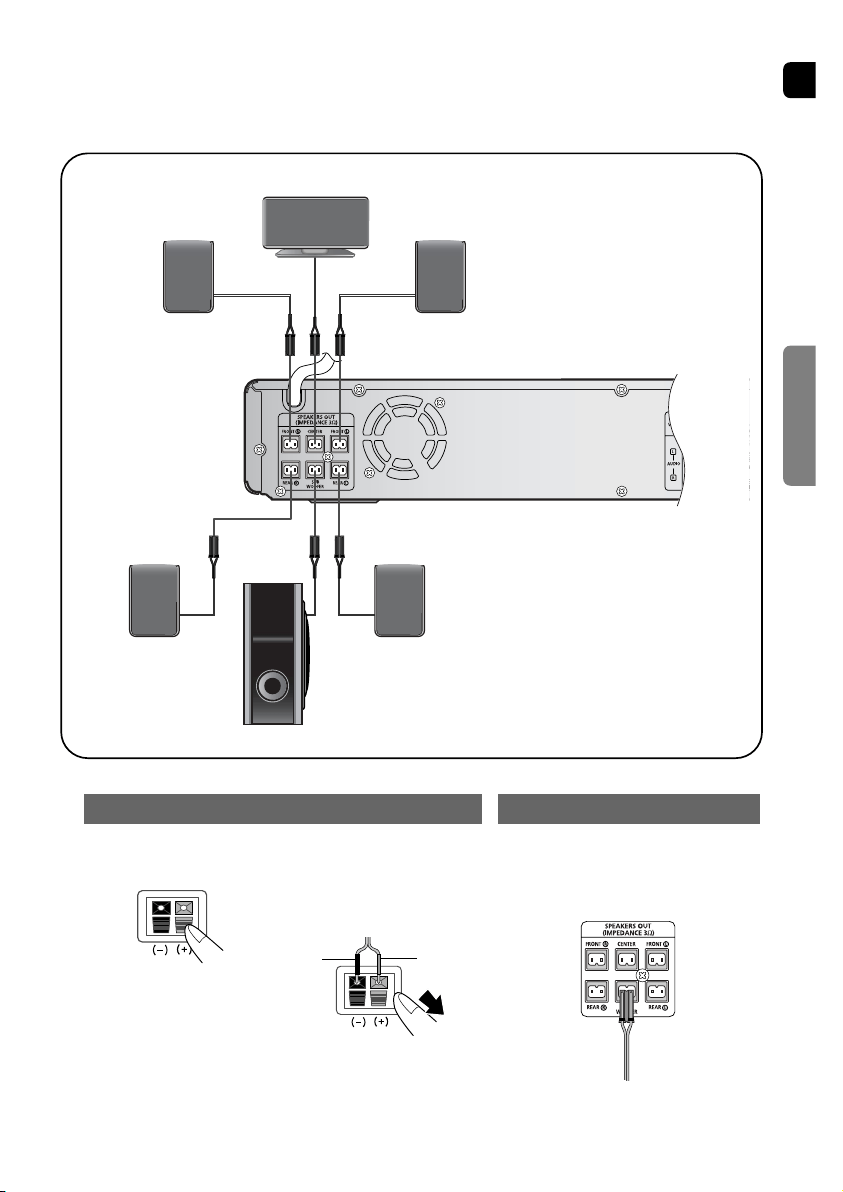
Connecting the Speakers
•
Make sure the colors of the speaker terminals
match the colors of the connecting plugs.
Black
Press down the terminal
tab on the back of the
speaker.
1
Insert the black wire into
the black terminal (–) and
the gray wire into the gray
(+) terminal, and then
release the tab.
2
Connect the connecting plugs to
the back of the Home Theater.
3
Gray
Back of the Speakers Back of the Main Unit
Rear Speaker (R)
Front Speaker (R)
Subwoofer
Center Speaker
Rear Speaker (L)
Front Speaker (L)
Blue
Gray Purple
White
Red
Green
ENG
SRSL
C
L
SW
R
14
Rear Speakers
•
Place these speakers behind your listening position.
•
If there isn't enough room, place these speakers so they face each
other.
•
Place them about 60 to 90cm (2 to 3feet) above your ear, facing
slightly downward.
*
Unlike the front and center speakers, the rear speakers are used
to handle mainly sound effects and sound will not come from
them all the time.
Subwoofer
•
The position of the subwoofer is not so critical.
Place it anywhere you like.
Front Speakers
•
Place these speakers in front of your listening
position, facing inwards (about 45°) toward you.
•
Place the speakers so that their tweeters will be at
the same height as your ear.
•
Align the front face of the front speakers with the
front face of the center speaker or place them
slightly in front of the center speakers.
Center Speaker
•
It is best to install it at the same height as the front
speakers.
•
You can also install it directly over or under the TV.
Position of the Home Theater
•
Place it on a stand, cabinet shelf, or under the
TV stand.
Selecting the Listening Position
The listening position should be located about 2.5 to 3
times the distance of the TV's screen size away from the
TV. Example: For 32" TVs 2~2.4m (6~8 feet)
For 55" TVs 3.5~4m (11~13 feet)
13
Before moving or installing the product, be sure to turn off the power and disconnect the power cord.
CONNECTIONS
R
L
C
SRSL
SW
Connecting the Speakers
•
Make sure the colors of the speaker terminals
match the colors of the connecting plugs.
Black
Press down the terminal
tab on the back of the
speaker.
1
Insert the black wire into
the black terminal (–) and
the gray wire into the gray
(+) terminal, and then
release the tab.
2
Connect the connecting plugs to
the back of the Home Theater.
3
Gray
Back of the Speakers Back of the Main Unit
Rear Speaker (R)
Front Speaker (R)
Subwoofer
Center Speaker
Rear Speaker (L)
Front Speaker (L)
Blue
Gray Purple
White
Red
Green
ENG
15
CONNECTIONS
Press STOP button.
•
When disc is played back, press the STOP button twice so that “STOP”, appears on the display.
Press and hold P.SCAN button on the remote control for over 5 seconds.
•
Pressing and holding the button for over 5 seconds will select "Progressive Scan" and "Interlace Scan"
alternately.
•
When you select P.SCAN, "P.SCAN" will appear on the display.
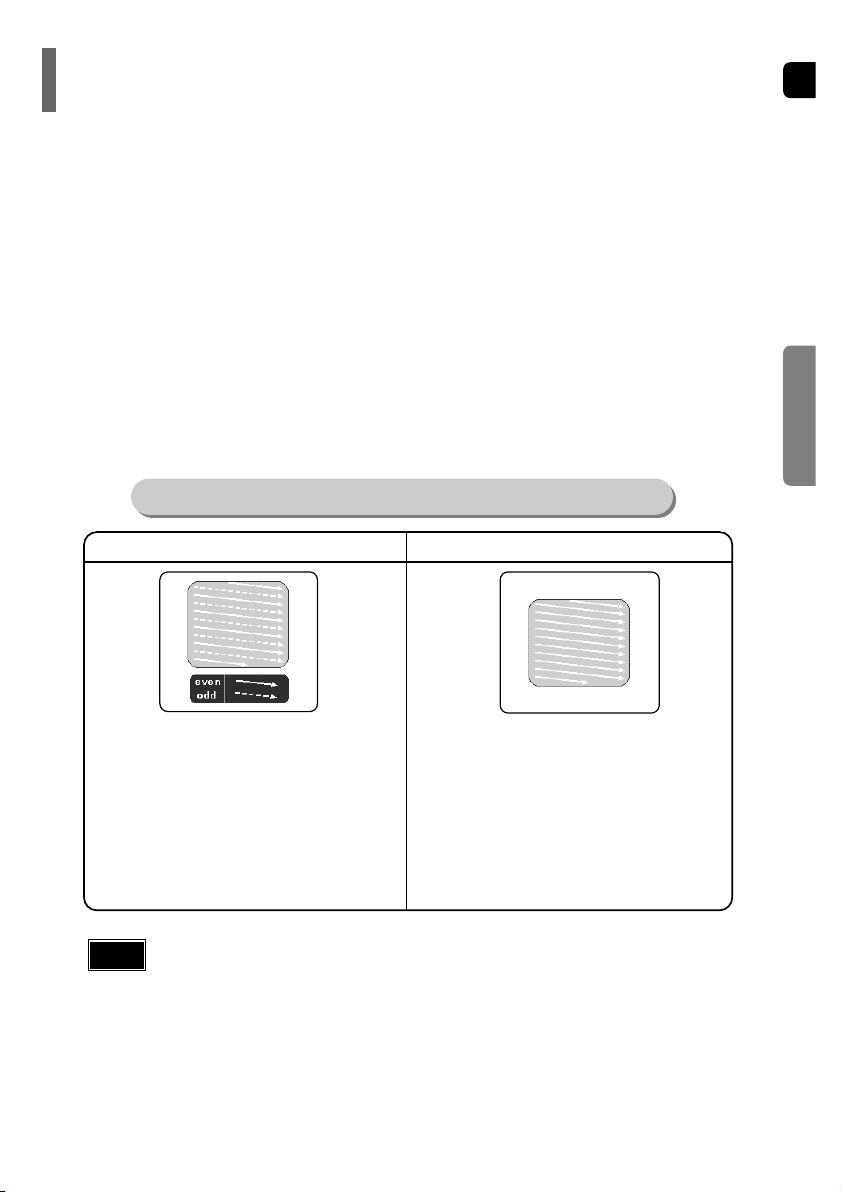
In interlaced-scan video, a frame consists of two inter-
laced fields (odd and even), where each field contains
every other horizontal line in the frame.
The odd field of alternating lines is displayed first, and
then the even field is displayed to fill in the alternating
gaps left by the odd field to form a single frame.
One frame, displayed every 1/30th of a second, contains
two interfaced fields, thus a total of 60 fields are dis-
played every 1/60th of a second.
The interlaced scanning method is intended for capturing
a still object.
Interlaced Scan (1 FRAME = 2 FIELDS)
The progressive scanning method scans one full frame of
video consecutively down the screen, line by line.
An entire image is drawn at one time, as opposed to the
interlaced scanning process by which a video image is
drawn in a series of passes.
The progressive scanning method is desirable for dealing
with moving objects.
Progressive Scan (FULL FRAME)
What is Progressive (or Non-Interlaced) Scanning?
•
This function works only on TVs equipped with component video inputs (Y, Pr, Pb) that support
Progressive Video. (It does not work on TVs with conventional component inputs, i.e., non-progressive
scan TVs.)
•
Depending on the brand and model of your TV, this function may not work.
Note
16
1
2
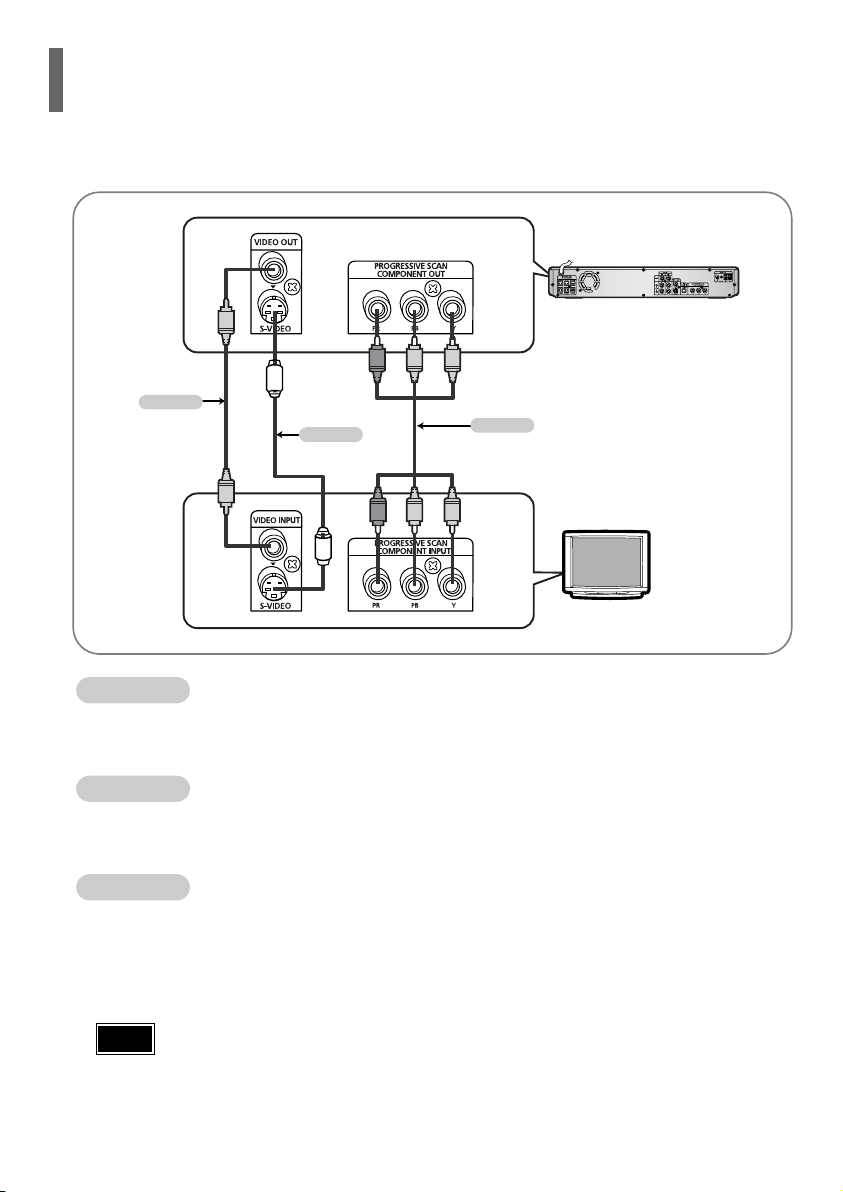
Choose one of the three methods for connecting to a TV.
Connecting the Video Out to TV
Unlike regular Interlace Scan, in which two fields of picture information alternate to create the entire
picture (odd scan lines, then even scan lines), Progressive Scan uses one field of information (all lines
displayed in one pass) to create a clear and detailed picture without visible scan lines.
P.SCAN
(Progressive Scan)
Function
HT-P38
TV
- Connect the supplied video cable from the VIDEO OUT jack on the back panel of the system
to the VIDEO IN jack on your TV.
Composite Video
.......
(Good Quality)
•
When the Progressive scan mode is selected, the VIDEO and S-VIDEO outputs do not feed any
signal.
Note
METHOD 2
METHOD 3
Green
Green
Blue
Blue
Red
Red
(supplied)
METHOD 1
METHOD 1
- If your television is equipped with an S-Video input, connect an S-Video cable (not supplied) from
the S-VIDEO OUT jack on the back panel of the system to the S-VIDEO IN jack on your television.
S-Video
.......
(Better Quality)
METHOD 2
- If your television is equipped with Component Video inputs, connect a component video cable
(not supplied) from the Pr, Pb and Y jacks on the back panel of the system to the corresponding
jacks on your TV.
Component
.......
(Best Quality)
METHOD 3
ENG
15
CONNECTIONS
Press STOP button.
•
When disc is played back, press the STOP button twice so that “STOP”, appears on the display.
Press and hold P.SCAN button on the remote control for over 5 seconds.
•
Pressing and holding the button for over 5 seconds will select "Progressive Scan" and "Interlace Scan"
alternately.
•
When you select P.SCAN, "P.SCAN" will appear on the display.
In interlaced-scan video, a frame consists of two inter-
laced fields (odd and even), where each field contains
every other horizontal line in the frame.
The odd field of alternating lines is displayed first, and
then the even field is displayed to fill in the alternating
gaps left by the odd field to form a single frame.
One frame, displayed every 1/30th of a second, contains
two interfaced fields, thus a total of 60 fields are dis-
played every 1/60th of a second.
The interlaced scanning method is intended for capturing
a still object.
Interlaced Scan (1 FRAME = 2 FIELDS)
The progressive scanning method scans one full frame of
video consecutively down the screen, line by line.
An entire image is drawn at one time, as opposed to the
interlaced scanning process by which a video image is
drawn in a series of passes.
The progressive scanning method is desirable for dealing
with moving objects.
Progressive Scan (FULL FRAME)
What is Progressive (or Non-Interlaced) Scanning?
•
This function works only on TVs equipped with component video inputs (Y, Pr, Pb) that support
Progressive Video. (It does not work on TVs with conventional component inputs, i.e., non-progressive
scan TVs.)
•
Depending on the brand and model of your TV, this function may not work.
Note
16
1
2
Choose one of the three methods for connecting to a TV.
Connecting the Video Out to TV
Unlike regular Interlace Scan, in which two fields of picture information alternate to create the entire
picture (odd scan lines, then even scan lines), Progressive Scan uses one field of information (all lines
displayed in one pass) to create a clear and detailed picture without visible scan lines.
P.SCAN
(Progressive Scan)
Function
HT-P38
TV
- Connect the supplied video cable from the VIDEO OUT jack on the back panel of the system
to the VIDEO IN jack on your TV.
Composite Video
.......
(Good Quality)
•
When the Progressive scan mode is selected, the VIDEO and S-VIDEO outputs do not feed any
signal.
Note
METHOD 2
METHOD 3
Green
Green
Blue
Blue
Red
Red
(supplied)
METHOD 1
METHOD 1
- If your television is equipped with an S-Video input, connect an S-Video cable (not supplied) from
the S-VIDEO OUT jack on the back panel of the system to the S-VIDEO IN jack on your television.
S-Video
.......
(Better Quality)
METHOD 2
- If your television is equipped with Component Video inputs, connect a component video cable
(not supplied) from the Pr, Pb and Y jacks on the back panel of the system to the corresponding
jacks on your TV.
Component
.......
(Best Quality)
METHOD 3
ENG
1817
CONNECTIONS
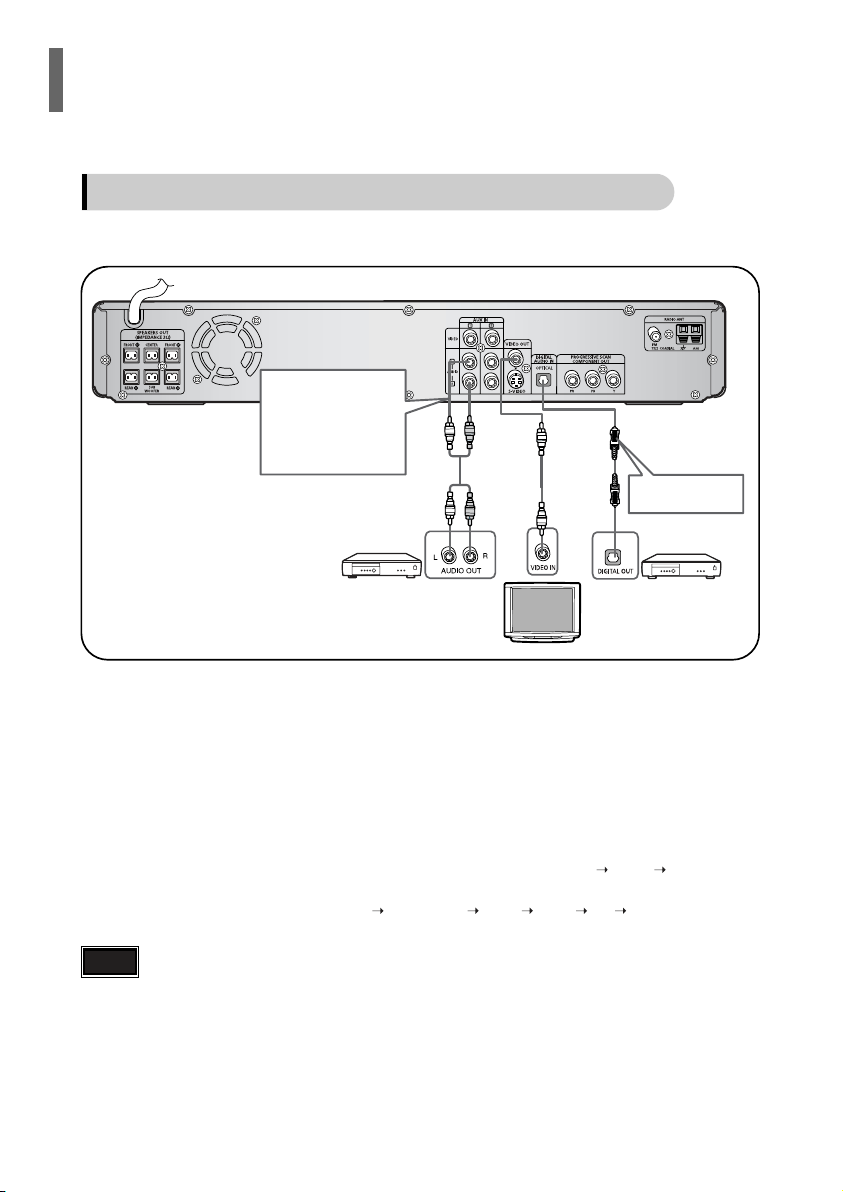
Example: Digital signal components such as a Set-Top Box or CD Recorder.
Analog signal components such as a VCR or TV.
Connecting an External Digital / Analog Component
Connecting External Components
Optical Cable
(not supplied)
Audio Cable
If the external analog
component has only one
Audio Out, connect either
left or right.
External Digital
Component
External Analog
Component
Connecting the FM and AM Antennas
The cooling fan supplies cool air to the unit to prevent overheating.
Please observe the following cautions for your safety.
•
Make sure the unit is well-ventilated. If the unit has poor ventilation, the temperature inside the unit could rise
and may damage it.
•
Do not obstruct the cooling fan or ventilation holes. (If the cooling fan or ventilation holes are covered with a
newspaper or cloth, heat may build up inside the unit and fire may result.)
Cooling Fan
FM antenna connection AM antenna connection
1. Connect the FM antenna supplied to the FM
75Ω COAXIAL terminal.
2. Slowly move the antenna wire around until
you find a location where reception is good,
then fasten it to a wall or other rigid surface.
1. Connect the AM loop antenna supplied
to the AM and terminals.
2. If reception is poor, connect an outdoor
single vinyl-covered wire to the AM
terminal. (Keep the AM loop antenna
connected).
Snap the tabs on the loop into
the slots of the base to
assemble the AM loop antenna.
FM Antenna (supplied)
AM Loop Antenna
(supplied)
If AM reception is poor, connect an
outdoor AM antenna(not supplied).
Press AUX on the remote control to select ‘DIGITAL IN / AUX1 / AUX 2’.
•
Each time the button is pressed, the selection changes as follows: DIGITAL IN AUX 1 AUX 2.
•
You can also use the FUNCTION button on the main unit.
The mode switches as follows: DVD/CD DIGITAL IN AUX1 AUX2 FM AM.
Connect the Digital Input (OPTICAL) to the Digital Output on the external digital component.
2
Connect Video Out on the Home Theater to Video In on the TV.
1
4
Connect Audio In on the Home Theater to Audio Out on the external analog component.
•
Be sure to match connector colors.
3
•
If you have connected an external digital component and also an Analog component to Video In (1, 2) at
the same time, there will be video from AUX 1 even when you select DIGITAL IN.
•
If you have connected Audio In (L, R) to 1, connect Video In to 1 as well, and if you have connected
Audio In (L, R) to 2, connect Video In to 2 also.
•
When you select Aux 1 or 2, you are selecting Video 1 or 2 inputs respectively.
Note
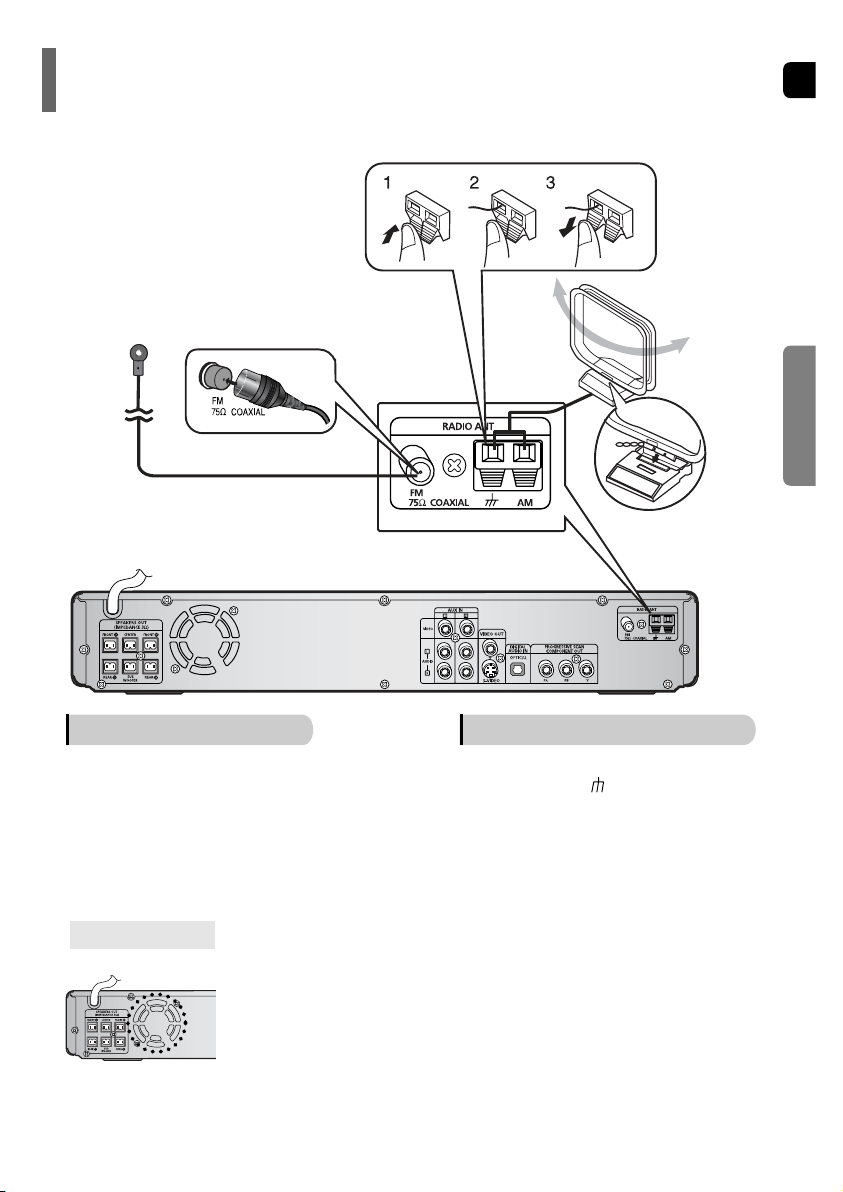
ENG
1817
CONNECTIONS
Example: Digital signal components such as a Set-Top Box or CD Recorder.
Analog signal components such as a VCR or TV.
Connecting an External Digital / Analog Component
Connecting External Components
Optical Cable
(not supplied)
Audio Cable
If the external analog
component has only one
Audio Out, connect either
left or right.
External Digital
Component
External Analog
Component
Connecting the FM and AM Antennas
The cooling fan supplies cool air to the unit to prevent overheating.
Please observe the following cautions for your safety.
•
Make sure the unit is well-ventilated. If the unit has poor ventilation, the temperature inside the unit could rise
and may damage it.
•
Do not obstruct the cooling fan or ventilation holes. (If the cooling fan or ventilation holes are covered with a
newspaper or cloth, heat may build up inside the unit and fire may result.)
Cooling Fan
FM antenna connection AM antenna connection
1. Connect the FM antenna supplied to the FM
75Ω COAXIAL terminal.
2. Slowly move the antenna wire around until
you find a location where reception is good,
then fasten it to a wall or other rigid surface.
1. Connect the AM loop antenna supplied
to the AM and terminals.
2. If reception is poor, connect an outdoor
single vinyl-covered wire to the AM
terminal. (Keep the AM loop antenna
connected).
Snap the tabs on the loop into
the slots of the base to
assemble the AM loop antenna.
FM Antenna (supplied)
AM Loop Antenna
(supplied)
If AM reception is poor, connect an
outdoor AM antenna(not supplied).
Press AUX on the remote control to select ‘DIGITAL IN / AUX1 / AUX 2’.
•
Each time the button is pressed, the selection changes as follows: DIGITAL IN AUX 1 AUX 2.
•
You can also use the FUNCTION button on the main unit.
The mode switches as follows: DVD/CD DIGITAL IN AUX1 AUX2 FM AM.
Connect the Digital Input (OPTICAL) to the Digital Output on the external digital component.
2
Connect Video Out on the Home Theater to Video In on the TV.
1
4
Connect Audio In on the Home Theater to Audio Out on the external analog component.
•
Be sure to match connector colors.
3
•
If you have connected an external digital component and also an Analog component to Video In (1, 2) at
the same time, there will be video from AUX 1 even when you select DIGITAL IN.
•
If you have connected Audio In (L, R) to 1, connect Video In to 1 as well, and if you have connected
Audio In (L, R) to 2, connect Video In to 2 also.
•
When you select Aux 1 or 2, you are selecting Video 1 or 2 inputs respectively.
Note
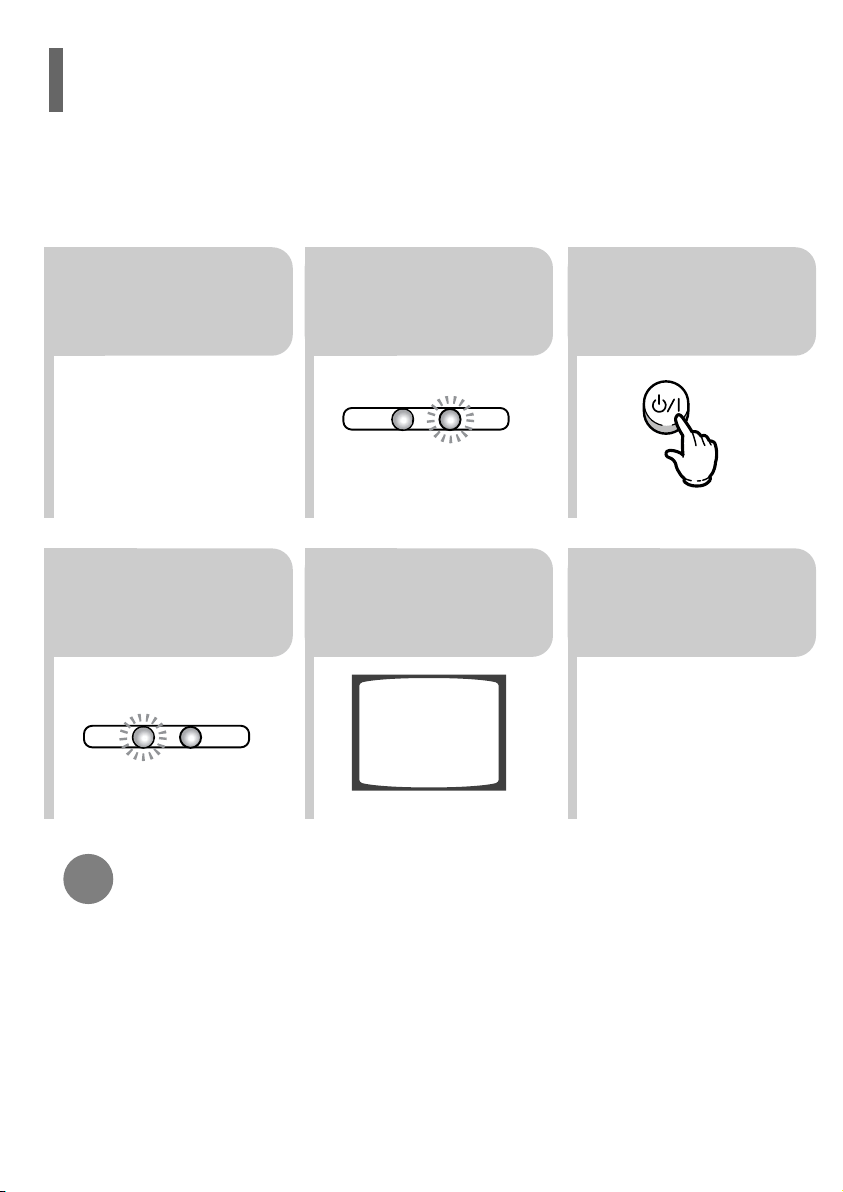
ENG
•
You can operate the TV after TV indicator (red) blinks 1 time, and operate DVD receiver after DVD indicator
(green) blinks 1 time.
•
Buttons Enabled for TV Operation: POWER, CHANNEL, VOLUME, TV/VIDEO, and Numeric (0-9) buttons.
•
By default, the remote control is set to work with Samsung TVs.
See page 65 for more information on the operation of the remote control.
Press MODE button.
To Operate your TV and the Home Theater with the HT-P38's Remote Control
19
CONNECTIONS
2 3
Press MODE button
until the DVD
indicator lights.
TV
DVD RECEIVER
TV
DVD RECEIVER
Press POWER button to turn on
the main unit and then press
DVD button to select “DVD/CD”
function of the remote control.
5 6
Press POWER button to turn
on the Home Theater and
then press TV/VIDEO button
on your TV remote to select
“External Input” mode.
Press FUNCTION button
on the main unit or DVD
on the remote to select
DVD/CD mode.
1
Plug the main unit's
power cord into the
AC power supply.
4
Press the MODE
button until the TV
indicator lights.
•
In this manual, the instructions marked with "DVD ( )" are applicable
to DVD-VIDEO, DVD-AUDIO, and DVD-R/RW discs.
Where a particular DVD type is mentioned, it is indicated separately.
•
Depending on the content of the disc, the initial screen may appear different.
DVD
Note
Groups and tracks (DVD-AUDIO)
•
DVD-audio is divided into several large sections called "groups" and
smaller sections called "tracks". Numbers are allotted to these sections.
These numbers are called "group numbers" and "track numbers".
GROUP 1 GROUP 2
TRACK 1 TRACK 2 TRACK 1 TRACK 2TRACK 3
Titles and chapters (DVD-VIDEO)
•
DVD-video is divided into several large sections called "titles" and smaller
sections called "chapters". Numbers are allotted to these sections.
These numbers are called "title numbers" and "chapter numbers".
TITLE 1 TITLE 2
CHAPTER 1 CHAPTER 2 CHAPTER 1 CHAPTER 2CHAPTER 3
Tracks (Video and music CDs)
•
Video and music CDs are divided into sections called "tracks".
Numbers are allotted to these sections. These numbers are called
"track numbers".
TRACK 1 TRACK 2 TRACK 4 TRACK 5TRACK 3
DivX
•
DivX is divided into sections called "files".
Numbers are allotted to these sections. These numbers are called
"file numbers".
FILE 1 FILE 2
Disc terminology
20
Your Home Theater is capable of playing DVD, CD, MP3, DivX and JPEG discs.Depending on the disc you are using,
these instructions may vary slightly. Read the instructions carefully before using.
Before Using Your Home Theater
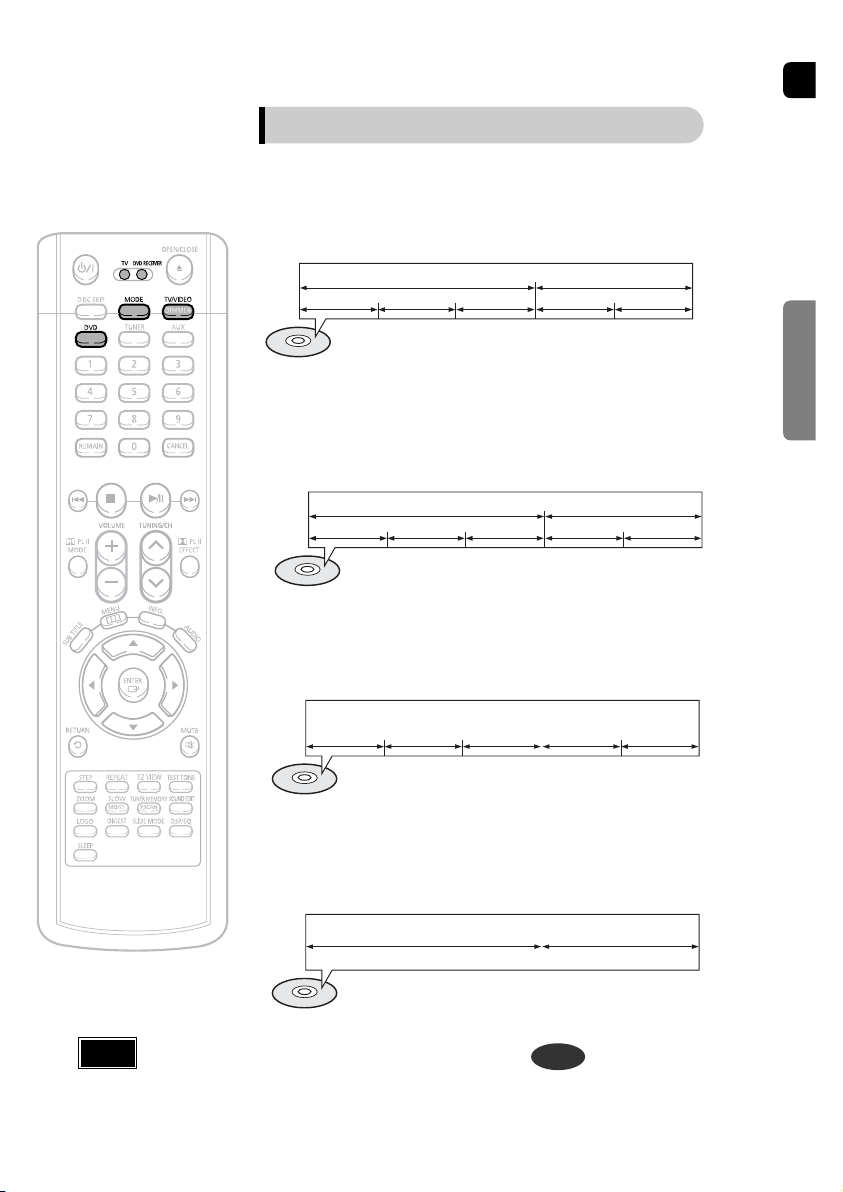
ENG
•
You can operate the TV after TV indicator (red) blinks 1 time, and operate DVD receiver after DVD indicator
(green) blinks 1 time.
•
Buttons Enabled for TV Operation: POWER, CHANNEL, VOLUME, TV/VIDEO, and Numeric (0-9) buttons.
•
By default, the remote control is set to work with Samsung TVs.
See page 65 for more information on the operation of the remote control.
Press MODE button.
To Operate your TV and the Home Theater with the HT-P38's Remote Control
19
CONNECTIONS
2 3
Press MODE button
until the DVD
indicator lights.
TV
DVD RECEIVER
TV
DVD RECEIVER
Press POWER button to turn on
the main unit and then press
DVD button to select “DVD/CD”
function of the remote control.
5 6
Press POWER button to turn
on the Home Theater and
then press TV/VIDEO button
on your TV remote to select
“External Input” mode.
Press FUNCTION button
on the main unit or DVD
on the remote to select
DVD/CD mode.
1
Plug the main unit's
power cord into the
AC power supply.
4
Press the MODE
button until the TV
indicator lights.
•
In this manual, the instructions marked with "DVD ( )" are applicable
to DVD-VIDEO, DVD-AUDIO, and DVD-R/RW discs.
Where a particular DVD type is mentioned, it is indicated separately.
•
Depending on the content of the disc, the initial screen may appear different.
DVD
Note
Groups and tracks (DVD-AUDIO)
•
DVD-audio is divided into several large sections called "groups" and
smaller sections called "tracks". Numbers are allotted to these sections.
These numbers are called "group numbers" and "track numbers".
GROUP 1 GROUP 2
TRACK 1 TRACK 2 TRACK 1 TRACK 2TRACK 3
Titles and chapters (DVD-VIDEO)
•
DVD-video is divided into several large sections called "titles" and smaller
sections called "chapters". Numbers are allotted to these sections.
These numbers are called "title numbers" and "chapter numbers".
TITLE 1 TITLE 2
CHAPTER 1 CHAPTER 2 CHAPTER 1 CHAPTER 2CHAPTER 3
Tracks (Video and music CDs)
•
Video and music CDs are divided into sections called "tracks".
Numbers are allotted to these sections. These numbers are called
"track numbers".
TRACK 1 TRACK 2 TRACK 4 TRACK 5TRACK 3
DivX
•
DivX is divided into sections called "files".
Numbers are allotted to these sections. These numbers are called
"file numbers".
FILE 1 FILE 2
Disc terminology
20
Your Home Theater is capable of playing DVD, CD, MP3, DivX and JPEG discs.Depending on the disc you are using,
these instructions may vary slightly. Read the instructions carefully before using.
Before Using Your Home Theater
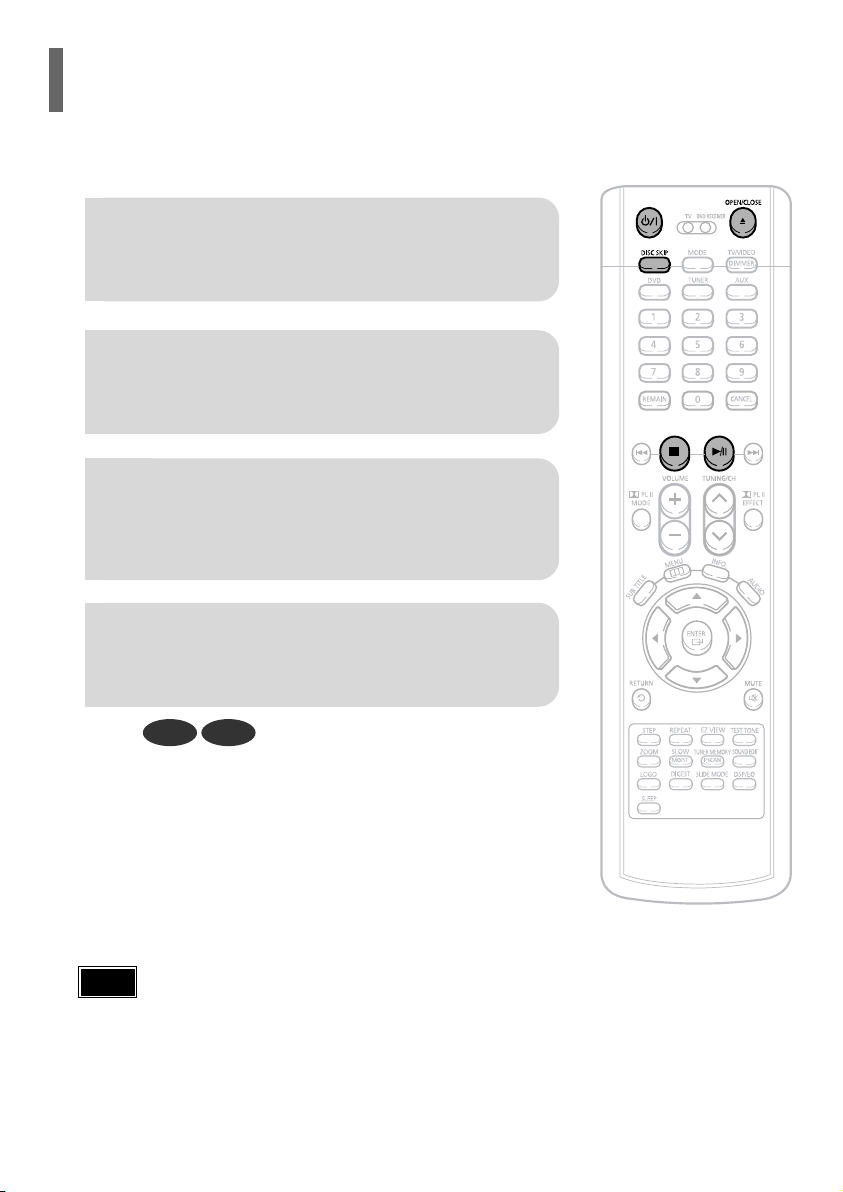
ENG
2221
OPERATION
To stop playback, press STOP during playback.
•
If pressed once, “PRESS PLAY” is displayed and the stop position will be stored in memory.
If PLAY/PAUSE ( ) button or ENTER button is pressed, playback resumes from the stop position.
(This function works only with DVDs.)
•
If pressed twice, “STOP” is displayed, and if PLAY/PAUSE ( ) button is pressed, playback starts from the
beginning.
To temporarily pause playback, press PLAY/PAUSE during playback.
•
To resume playback, press PLAY/PAUSE ( ) button again.
Disc Playback
The DVD/CD function is automatically selected when Disc Skip is pushed.
Selecting a Disc in the Disc changer
2
Load a disc.
•
Place a disc gently into the tray with the disc’s label
facing up.
•
Depending on the content of the disc, the initial screen may appear different.
•
Depending on the recording mode, some MP3-CDs cannot be played.
•
Table of contents of a MP3-CD varies depending on the MP3 track format recorded on the disc.
1
Press OPEN/CLOSE button to open the
disc tray.
3
Press DISC SKIP button.
•
Rotate the carousel tray so you can load the third, fourth,
and fifth discs.
4
Close the compartment by pressing the
OPEN/CLOSE button again.
DVD CD
•
Playback starts automatically.
Note
To select a specific disc, press the corresponding DIRECT PLAY
(1, 2, 3, 4, 5) buttons on the front panel or DISC SKIP on the
remote control, until the required disc indicator flashes.
•
If the disc selected is not loaded, the next disc is played automatically.
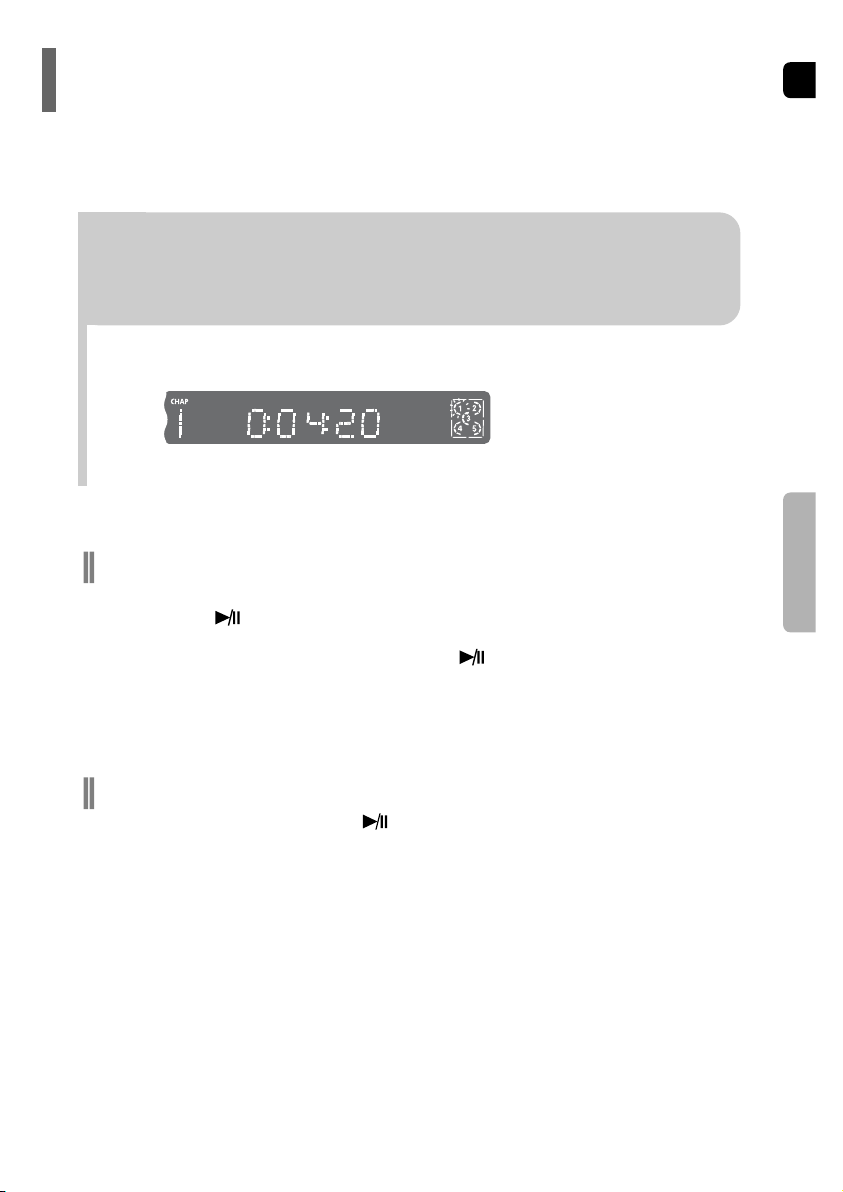
ENG
2221
OPERATION
To stop playback, press STOP during playback.
•
If pressed once, “PRESS PLAY” is displayed and the stop position will be stored in memory.
If PLAY/PAUSE ( ) button or ENTER button is pressed, playback resumes from the stop position.
(This function works only with DVDs.)
•
If pressed twice, “STOP” is displayed, and if PLAY/PAUSE ( ) button is pressed, playback starts from the
beginning.
To temporarily pause playback, press PLAY/PAUSE during playback.
•
To resume playback, press PLAY/PAUSE ( ) button again.
Disc Playback
The DVD/CD function is automatically selected when Disc Skip is pushed.
Selecting a Disc in the Disc changer
2
Load a disc.
•
Place a disc gently into the tray with the disc’s label
facing up.
•
Depending on the content of the disc, the initial screen may appear different.
•
Depending on the recording mode, some MP3-CDs cannot be played.
•
Table of contents of a MP3-CD varies depending on the MP3 track format recorded on the disc.
1
Press OPEN/CLOSE button to open the
disc tray.
3
Press DISC SKIP button.
•
Rotate the carousel tray so you can load the third, fourth,
and fifth discs.
4
Close the compartment by pressing the
OPEN/CLOSE button again.
DVD CD
•
Playback starts automatically.
Note
To select a specific disc, press the corresponding DIRECT PLAY
(1, 2, 3, 4, 5) buttons on the front panel or DISC SKIP on the
remote control, until the required disc indicator flashes.
•
If the disc selected is not loaded, the next disc is played automatically.
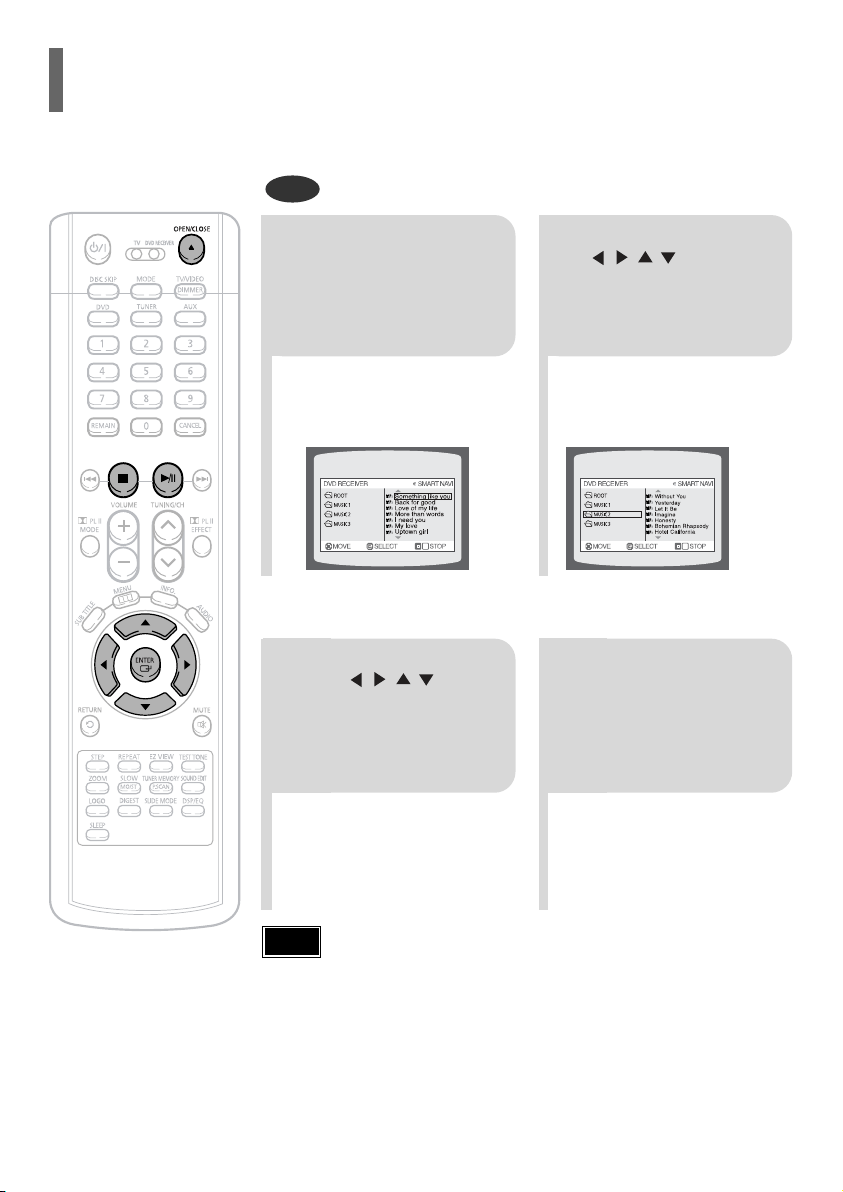
ENG
MP3
•
Depending on the recording mode, some MP3-CDs may not play.
•
Table of contents of a MP3-CD varies depending on the MP3 track format
recorded on the disc.
•
MP3 file support: MPEG1 LAYER3 (BITRATE : 128KBPS~320KBPS ,
SAMPLING FREQ.: 32K/44.1K/48KHz)
Note
2
In Stop mode, use
to select
the album, and then
press the ENTER
button.
•
The MP3 menu screen will appear and
playback will start.
•
The appearance of the menu depends on
the MP3 disc.
1
Press the
OPEN/CLOSE button
to open the disc tray,
and then load the
MP3 disc.
4
Press the STOP
button to stop
playback.
•
To select another album and track,
repeat Steps 2 and 3 above.
3
To change the album,
use to
select another album
and then press the
ENTER button.
Data CDs (CD-ROM, CD-R, CD-RW) encoded in MP3 format can be played.
MP3-CD Playback
2423
OPERATION
Press INFO button.
•
Each time the button is pressed, the display changes as follows:
DVD
The information display
disappears from the screen
The information display
disappears from the screen
The information display
disappears from the screen
CD
Something like you
Back for good
Love of my life
More than words
DVD RECEIVER SMART NAVI
•
appears on the TV screen!
If this symbol appears on the TV screen while buttons are being operated,
that operation is not possible with the disc currently being played.
•
Depending on the disc, the disc information display may appear
different.
•
Depending on the disc, you can also select DTS, DOLBY
DIGITAL, or PRO LOGIC.
Note
MP3 DivX JPEG
You can view disc playback information on the TV screen.
Displaying Disc Information
Screen Display
CD display
DVD display
TITLE display
MP3 CD display
DivX display
ELAPSED TIME display
TRACK (FILE) display
CHAPTER display
SUBTITLE display
AUDIO LANGUAGE display
REPEAT PLAYBACK display
ANGLE display
DOLBY DIGITAL display
STEREO (L/R) display
DVD-AUDIO display
DVD
AUDIO
GROUP display
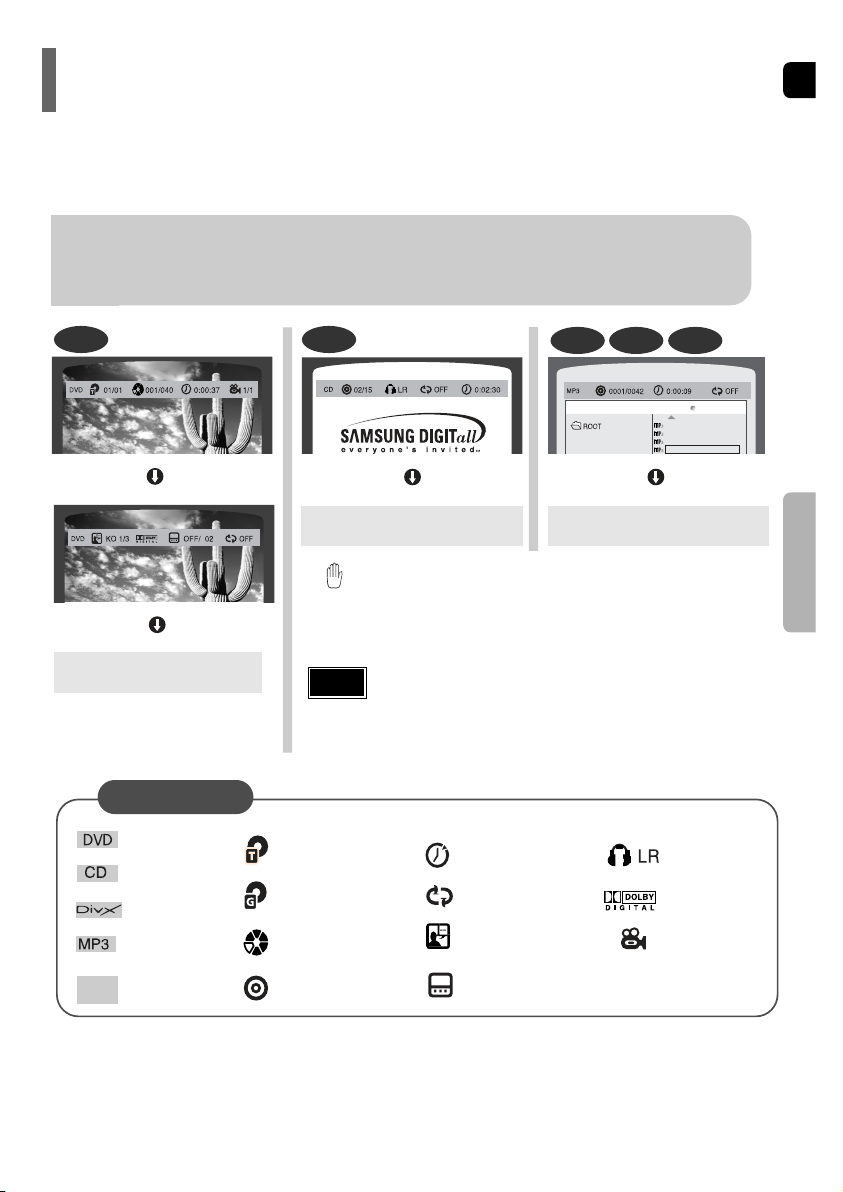
ENG
MP3
•
Depending on the recording mode, some MP3-CDs may not play.
•
Table of contents of a MP3-CD varies depending on the MP3 track format
recorded on the disc.
•
MP3 file support: MPEG1 LAYER3 (BITRATE : 128KBPS~320KBPS ,
SAMPLING FREQ.: 32K/44.1K/48KHz)
Note
2
In Stop mode, use
to select
the album, and then
press the ENTER
button.
•
The MP3 menu screen will appear and
playback will start.
•
The appearance of the menu depends on
the MP3 disc.
1
Press the
OPEN/CLOSE button
to open the disc tray,
and then load the
MP3 disc.
4
Press the STOP
button to stop
playback.
•
To select another album and track,
repeat Steps 2 and 3 above.
3
To change the album,
use to
select another album
and then press the
ENTER button.
Data CDs (CD-ROM, CD-R, CD-RW) encoded in MP3 format can be played.
MP3-CD Playback
2423
OPERATION
Press INFO button.
•
Each time the button is pressed, the display changes as follows:
DVD
The information display
disappears from the screen
The information display
disappears from the screen
The information display
disappears from the screen
CD
Something like you
Back for good
Love of my life
More than words
DVD RECEIVER SMART NAVI
•
appears on the TV screen!
If this symbol appears on the TV screen while buttons are being operated,
that operation is not possible with the disc currently being played.
•
Depending on the disc, the disc information display may appear
different.
•
Depending on the disc, you can also select DTS, DOLBY
DIGITAL, or PRO LOGIC.
Note
MP3 DivX JPEG
You can view disc playback information on the TV screen.
Displaying Disc Information
Screen Display
CD display
DVD display
TITLE display
MP3 CD display
DivX display
ELAPSED TIME display
TRACK (FILE) display
CHAPTER display
SUBTITLE display
AUDIO LANGUAGE display
REPEAT PLAYBACK display
ANGLE display
DOLBY DIGITAL display
STEREO (L/R) display
DVD-AUDIO display
DVD
AUDIO
GROUP display
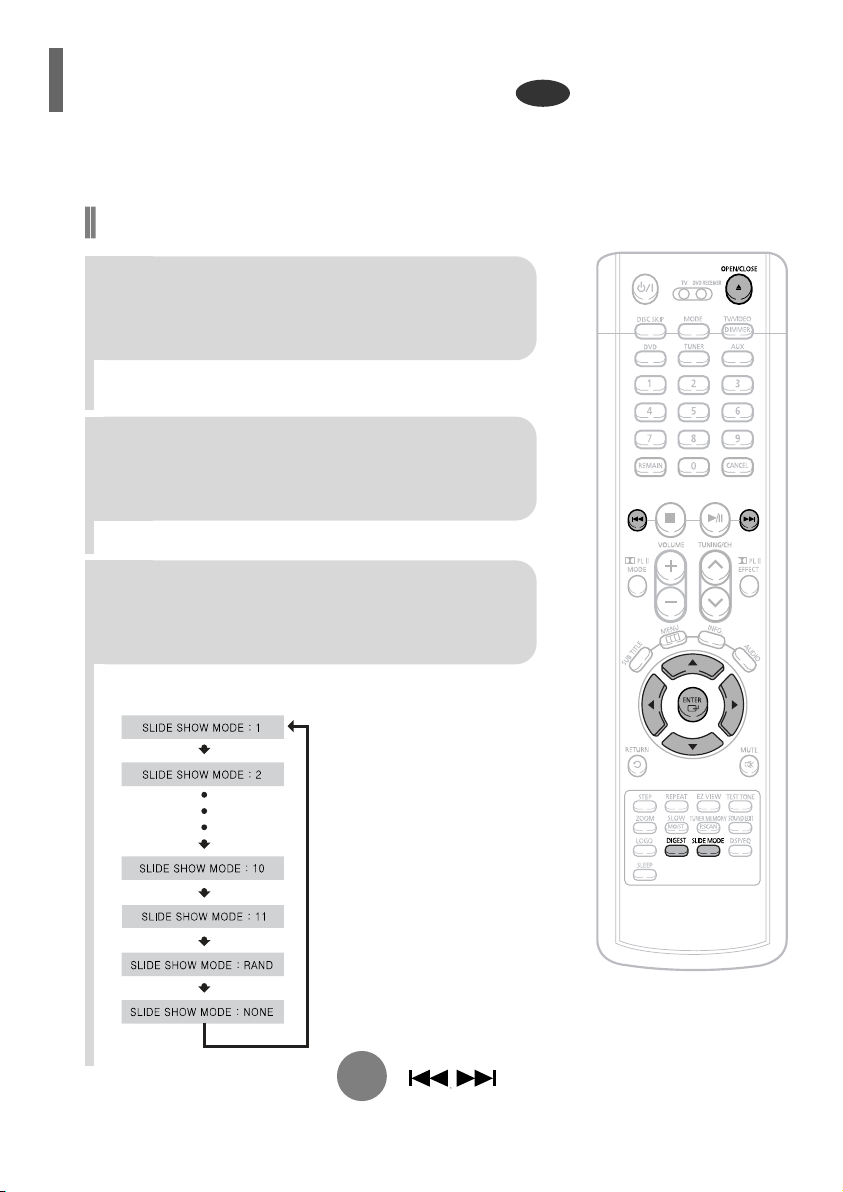
ENG
Rotate/Flip Function
button: Flip Vertically
button: Flip Horizontally
button: Rotate 90°
Counterclockwise
button: Rotate 90° Clockwise
Digest Function
2
Press Cursor , , , buttons
to select the desired image and
then press ENTER button.
1
Press DIGEST
button during
playback.
•
JPEG files will be shown in
9 windows.
You can view 9 JPEG images on the TV screen.
•
The selected image is played for 5 seconds before moving
to the next image.
26
To view the previous or next image with 9 windows, press .
Press Cursor , , , buttons during playback.
Original Image
Slide Mode
25
Place the JPEG disc on the disc tray.
•
Each time the button is pressed, the slide moves backward or forward.
Press to skip to the next slide.
1
Press the OPEN/CLOSE button.
•
Choose the appropriate JPEG disc in the tray.
2
•
Playback starts automatically.
•
Each time the button is pressed, the image makes the transition as follows:
Press SLIDE MODE button.
3
From top to bottom
From bottom to top
Rectangular shape in the center
Vertical blinds effect
Each time a new image is displayed, slide modes
(1~11) will be applied randomly and automatically.
Cancels the slide mode.
OPERATION
Images captured with a digital camera or camcorder, or JPEG files on a PC can be stored on a CD and then
played back with this Home Theater.
JPEG File Playback
JPEG
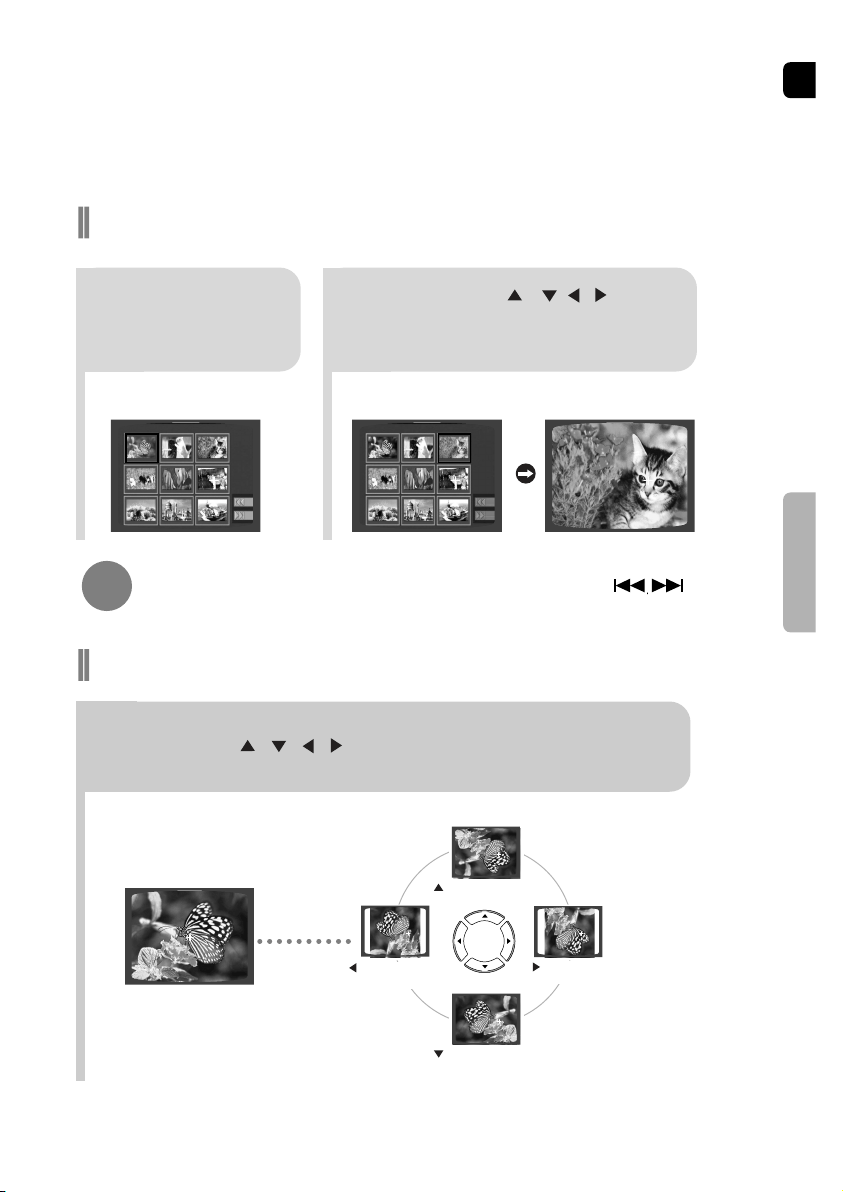
ENG
Rotate/Flip Function
button: Flip Vertically
button: Flip Horizontally
button: Rotate 90°
Counterclockwise
button: Rotate 90° Clockwise
Digest Function
2
Press Cursor , , , buttons
to select the desired image and
then press ENTER button.
1
Press DIGEST
button during
playback.
•
JPEG files will be shown in
9 windows.
You can view 9 JPEG images on the TV screen.
•
The selected image is played for 5 seconds before moving
to the next image.
26
To view the previous or next image with 9 windows, press .
Press Cursor , , , buttons during playback.
Original Image
Slide Mode
25
Place the JPEG disc on the disc tray.
•
Each time the button is pressed, the slide moves backward or forward.
Press to skip to the next slide.
1
Press the OPEN/CLOSE button.
•
Choose the appropriate JPEG disc in the tray.
2
•
Playback starts automatically.
•
Each time the button is pressed, the image makes the transition as follows:
Press SLIDE MODE button.
3
From top to bottom
From bottom to top
Rectangular shape in the center
Vertical blinds effect
Each time a new image is displayed, slide modes
(1~11) will be applied randomly and automatically.
Cancels the slide mode.
OPERATION
Images captured with a digital camera or camcorder, or JPEG files on a PC can be stored on a CD and then
played back with this Home Theater.
JPEG File Playback
JPEG
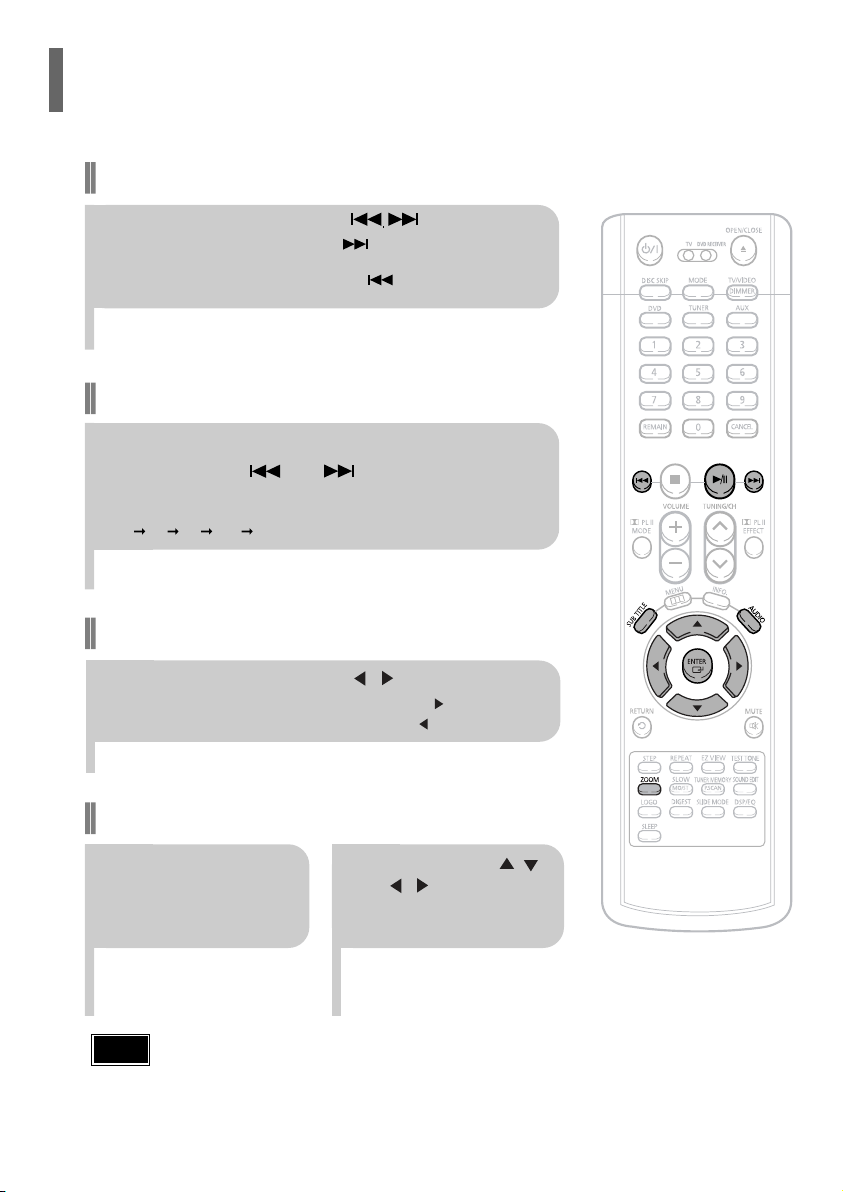
ENG
Fast playback
28
Skip Forward/Back
During playback, press the button.
•
Go to the next file whenever you press button, if there are over
2 files in the disk.
•
Go to the previous file whenever you press button, if there are over
2 files in the disk.
To play back the disc at a faster speed,
press and hold or during playback.
•
Each time you press and hold either button, the playback speed will
change as follows:
2x 4x 8x 32x Normal.
27
OPERATION
•
DIVX file can be zoomed only in ZOOM X2 mode.
Note
Zoom Function
2
Press Cursor , ,
, buttons to
move to the area
you want to enlarge.
1
Press ZOOM
button.
•
Each time you press the button,
your selection will toggle between
“ZOOM X2” and “ZOOM OFF”.
•
" " is displayed when there is one supported audio item in the disc.
Note
DivX Playback
5 Minute Skip function
During playback, press the , button.
•
Playback skips 5 minutes forward whenever you press button.
•
Playback skips 5 minutes back whenever you press button.
Press the SUBTITLE button.
•
Each time you press the button, your selection will toggle between “SUBTITLE ON” (1/1, 1/2 ...) and
“SUBTITLE OFF”.
•
If the disc has only one subtitle file, it will be played automatically.
Subtitle Display
Press the AUDIO button.
•
Each time you press the button, your selection will toggle between “AUDIO ON” (1/1, 1/2 ...) and
“ ”.
Audio Display
Format AVI WMA
Supported Versions DivX3.11 ~ 5.1 V1/V2/V3/V7
DivX
(Digital internet video eXpress)
DivX is a video file format developed by Microsoft and is based on MPEG4 compression technology
to provide audio and video data over the Internet in real-time.
MPEG4 is used for video encoding and MP3 for audio encoding so that the users can watch a movie
at near DVD-quality video and audio.
1. Supported Formats
•
This product only provides the following media formats. If both video and audio formats are not
supported, the user may experience problems such as broken images or no sound.
2. Caption Function
•
You must have some experience with video extraction and editing in order to use this feature properly.
•
To use the caption function, save the caption file (*.smi) in the same file name as that of the DivX
media file (*.avi) within the same folder.
Example. Root Samsung_Bluetek_007CD1.avi
Samsung_Bluetek_007CD1.smi
•
Up to 60 alphanumeric characters or 30 East Asian characters (2 byte characters such as Korean and
Chinese) for the file name.
Supported Video Formats
Format MP3 WMA AC3 DTS
Bit Rate 80~384kbps 56~128kbps 128~384kbps N/A
Sampling Frequency
44.1khz 44.1/48khz N/A
•
Aspect Ratio: Although default DivX resolution is 640*480 pixels (4:3), this product supports up to
720*480 pixels (16:9). TV screen resolutions higher than 800 will not be supported.
•
When you play a disc whose sampling frequency is higher than 48khz or 320kbps, you may
experience shaking on the screen during playback.
Supported Audio Formats
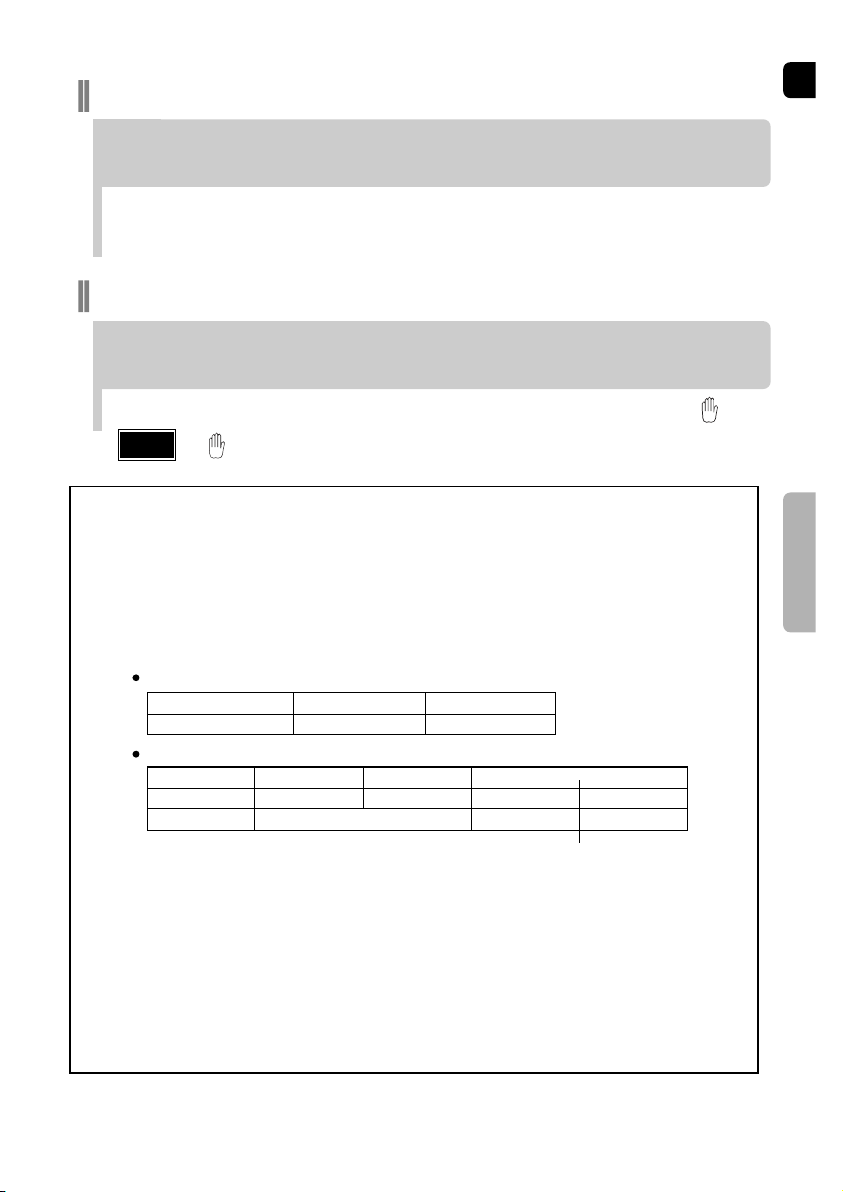
ENG
Fast playback
28
Skip Forward/Back
During playback, press the button.
•
Go to the next file whenever you press button, if there are over
2 files in the disk.
•
Go to the previous file whenever you press button, if there are over
2 files in the disk.
To play back the disc at a faster speed,
press and hold or during playback.
•
Each time you press and hold either button, the playback speed will
change as follows:
2x 4x 8x 32x Normal.
27
OPERATION
•
DIVX file can be zoomed only in ZOOM X2 mode.
Note
Zoom Function
2
Press Cursor , ,
, buttons to
move to the area
you want to enlarge.
1
Press ZOOM
button.
•
Each time you press the button,
your selection will toggle between
“ZOOM X2” and “ZOOM OFF”.
•
" " is displayed when there is one supported audio item in the disc.
Note
DivX Playback
5 Minute Skip function
During playback, press the , button.
•
Playback skips 5 minutes forward whenever you press button.
•
Playback skips 5 minutes back whenever you press button.
Press the SUBTITLE button.
•
Each time you press the button, your selection will toggle between “SUBTITLE ON” (1/1, 1/2 ...) and
“SUBTITLE OFF”.
•
If the disc has only one subtitle file, it will be played automatically.
Subtitle Display
Press the AUDIO button.
•
Each time you press the button, your selection will toggle between “AUDIO ON” (1/1, 1/2 ...) and
“ ”.
Audio Display
Format AVI WMA
Supported Versions DivX3.11 ~ 5.1 V1/V2/V3/V7
DivX
(Digital internet video eXpress)
DivX is a video file format developed by Microsoft and is based on MPEG4 compression technology
to provide audio and video data over the Internet in real-time.
MPEG4 is used for video encoding and MP3 for audio encoding so that the users can watch a movie
at near DVD-quality video and audio.
1. Supported Formats
•
This product only provides the following media formats. If both video and audio formats are not
supported, the user may experience problems such as broken images or no sound.
2. Caption Function
•
You must have some experience with video extraction and editing in order to use this feature properly.
•
To use the caption function, save the caption file (*.smi) in the same file name as that of the DivX
media file (*.avi) within the same folder.
Example. Root Samsung_Bluetek_007CD1.avi
Samsung_Bluetek_007CD1.smi
•
Up to 60 alphanumeric characters or 30 East Asian characters (2 byte characters such as Korean and
Chinese) for the file name.
Supported Video Formats
Format MP3 WMA AC3 DTS
Bit Rate 80~384kbps 56~128kbps 128~384kbps N/A
Sampling Frequency
44.1khz 44.1/48khz N/A
•
Aspect Ratio: Although default DivX resolution is 640*480 pixels (4:3), this product supports up to
720*480 pixels (16:9). TV screen resolutions higher than 800 will not be supported.
•
When you play a disc whose sampling frequency is higher than 48khz or 320kbps, you may
experience shaking on the screen during playback.
Supported Audio Formats
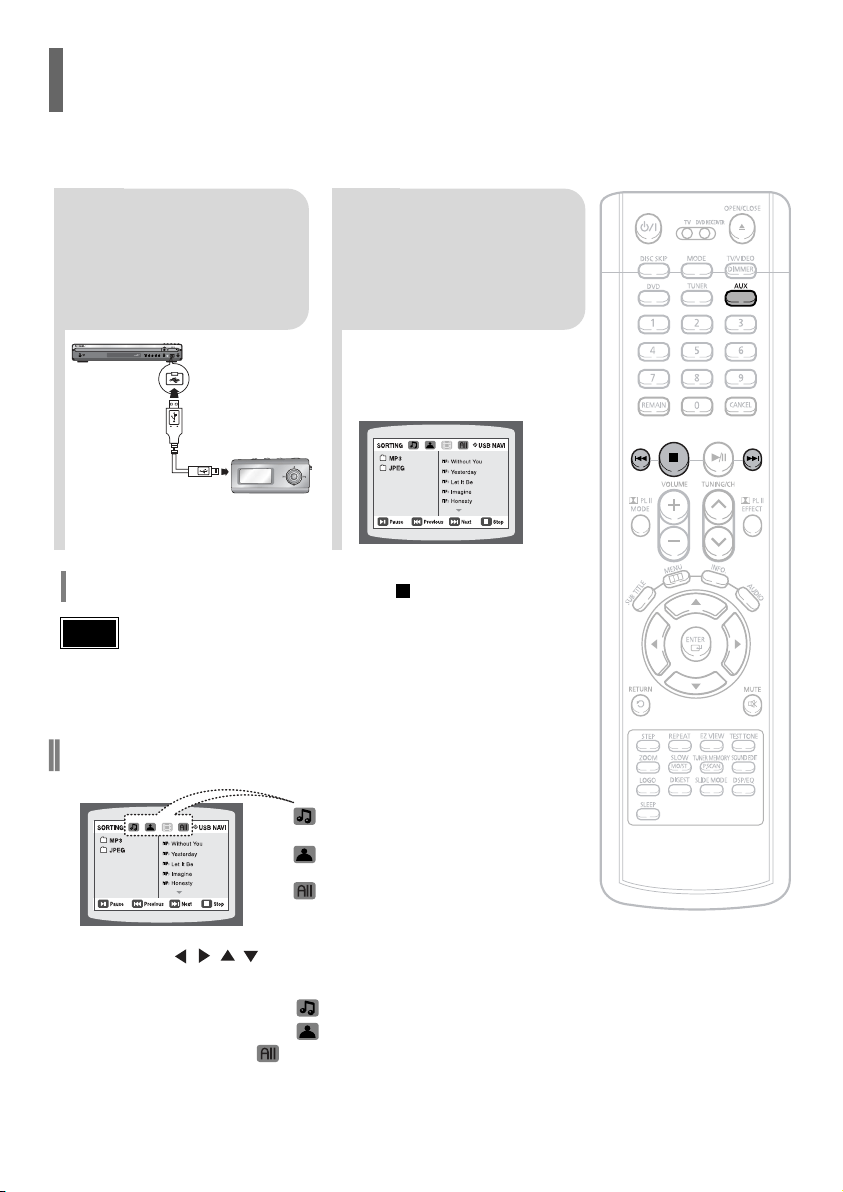
ENG
•
Video files (DivX, ASF, WMV, MPEG, etc.) are not supported.
•
To prevent the loss of data saved in the USB device, please turn the unit off or
switch it to another mode before disconnecting the USB cable.
•
Music File Icon
•
Image File Icon
•
All File Icon
Note
2
Press the FUNCTION
button on the main
unit or the AUX button
on the remote control
to select the USB
mode.
•
“USB” appears on the display screen
and then disappear.
•
USB SORTING screen appears on the
TV screen and the saved file is played.
1
Open the USB cap
and connect the USB
cable.
Press the button when it is in stop status and
select a desired icon from the top part of the menu.
•
To play music files only, select the Icon.
•
To view image files only, select the Icon.
•
To select all files select the Icon.
You can connect and play files from external USB storage devices such as MP3 players, USB flash memory, etc.
using the Home Theater's USB HOST function.
Playing Media Files using the USB HOST feature
To stop playback, press the STOP ( ) button.
To play a file in the USB menu screen,
3029
Fast playback
Skip Forward/Back
During playback, press the button.
•
When there is more than a file, when you press the button, the next file is selected.
•
When there is more than a file, when you press the button, the previous file is selected.
To play back the disc at a faster speed, press and hold or
during playback.
•
Each time you press and hold either button, the playback speed will change as follows:
2x 4x 8x 32x Normal.
Compatible Devices
1. USB devices that support USB Mass Storage v1.0.
(USB devices that operate as a removable disk in Windows
(2000 or later) without additional driver installation.)
2. MP3 Player: HDD and flash type MP3 player.
3. Digital camera: PTP protocol is not supported.
•
Devices which require additional program installation when you have connected it to a computer, are not
supported.
4. USB HDD and USB Flash Drive: Devices that support USB2.0 or USB1.1.
•
You may experience a difference in playback quality when you connect a USB1.1 device.
•
For a USB HDD, make sure to connect an auxiliary power cord to the USB HDD for proper operation.
5. USB card Reader: One slot USB card reader and Multi slot USB card reader
•
Depending on the manufacturer. the USB card reader may not be supported.
•
If you install multiple memory devices into a multi card reader, you may experience problems.
File name
File
Bit rate Version Pixel
Sampling
extension Frequency
Still Picture JPG .JPG .JPEG – – 640*480 –
Music
MP3 .MP3 80~384kbps – – 44.1kHz
WMA .WMA 56~128kbps V8 – 44.1kHz
Supported Formats
OPERATION
•
A device using NTFS file system is not supported.
(Only FAT file system is supported.)
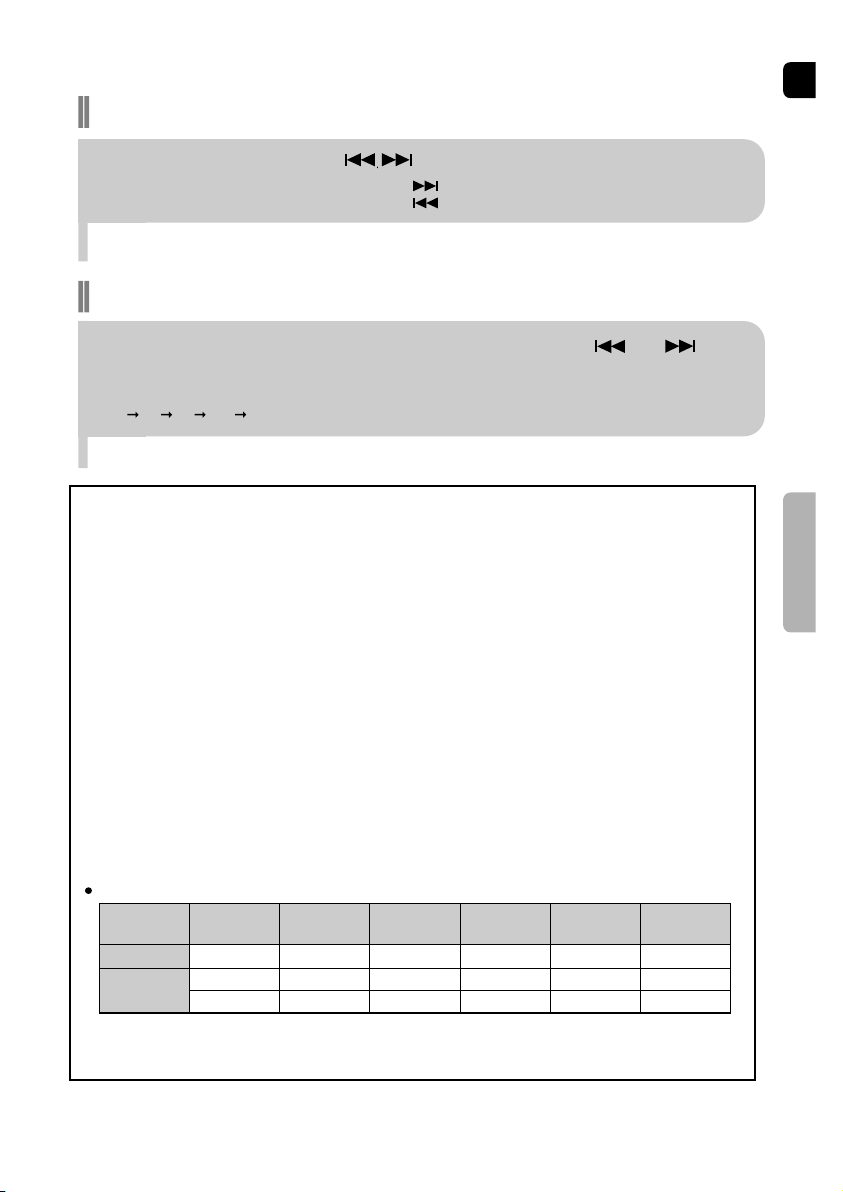
ENG
•
Video files (DivX, ASF, WMV, MPEG, etc.) are not supported.
•
To prevent the loss of data saved in the USB device, please turn the unit off or
switch it to another mode before disconnecting the USB cable.
•
Music File Icon
•
Image File Icon
•
All File Icon
Note
2
Press the FUNCTION
button on the main
unit or the AUX button
on the remote control
to select the USB
mode.
•
“USB” appears on the display screen
and then disappear.
•
USB SORTING screen appears on the
TV screen and the saved file is played.
1
Open the USB cap
and connect the USB
cable.
Press the button when it is in stop status and
select a desired icon from the top part of the menu.
•
To play music files only, select the Icon.
•
To view image files only, select the Icon.
•
To select all files select the Icon.
You can connect and play files from external USB storage devices such as MP3 players, USB flash memory, etc.
using the Home Theater's USB HOST function.
Playing Media Files using the USB HOST feature
To stop playback, press the STOP ( ) button.
To play a file in the USB menu screen,
3029
Fast playback
Skip Forward/Back
During playback, press the button.
•
When there is more than a file, when you press the button, the next file is selected.
•
When there is more than a file, when you press the button, the previous file is selected.
To play back the disc at a faster speed, press and hold or
during playback.
•
Each time you press and hold either button, the playback speed will change as follows:
2x 4x 8x 32x Normal.
Compatible Devices
1. USB devices that support USB Mass Storage v1.0.
(USB devices that operate as a removable disk in Windows
(2000 or later) without additional driver installation.)
2. MP3 Player: HDD and flash type MP3 player.
3. Digital camera: PTP protocol is not supported.
•
Devices which require additional program installation when you have connected it to a computer, are not
supported.
4. USB HDD and USB Flash Drive: Devices that support USB2.0 or USB1.1.
•
You may experience a difference in playback quality when you connect a USB1.1 device.
•
For a USB HDD, make sure to connect an auxiliary power cord to the USB HDD for proper operation.
5. USB card Reader: One slot USB card reader and Multi slot USB card reader
•
Depending on the manufacturer. the USB card reader may not be supported.
•
If you install multiple memory devices into a multi card reader, you may experience problems.
File name
File
Bit rate Version Pixel
Sampling
extension Frequency
Still Picture JPG .JPG .JPEG – – 640*480 –
Music
MP3 .MP3 80~384kbps – – 44.1kHz
WMA .WMA 56~128kbps V8 – 44.1kHz
Supported Formats
OPERATION
•
A device using NTFS file system is not supported.
(Only FAT file system is supported.)
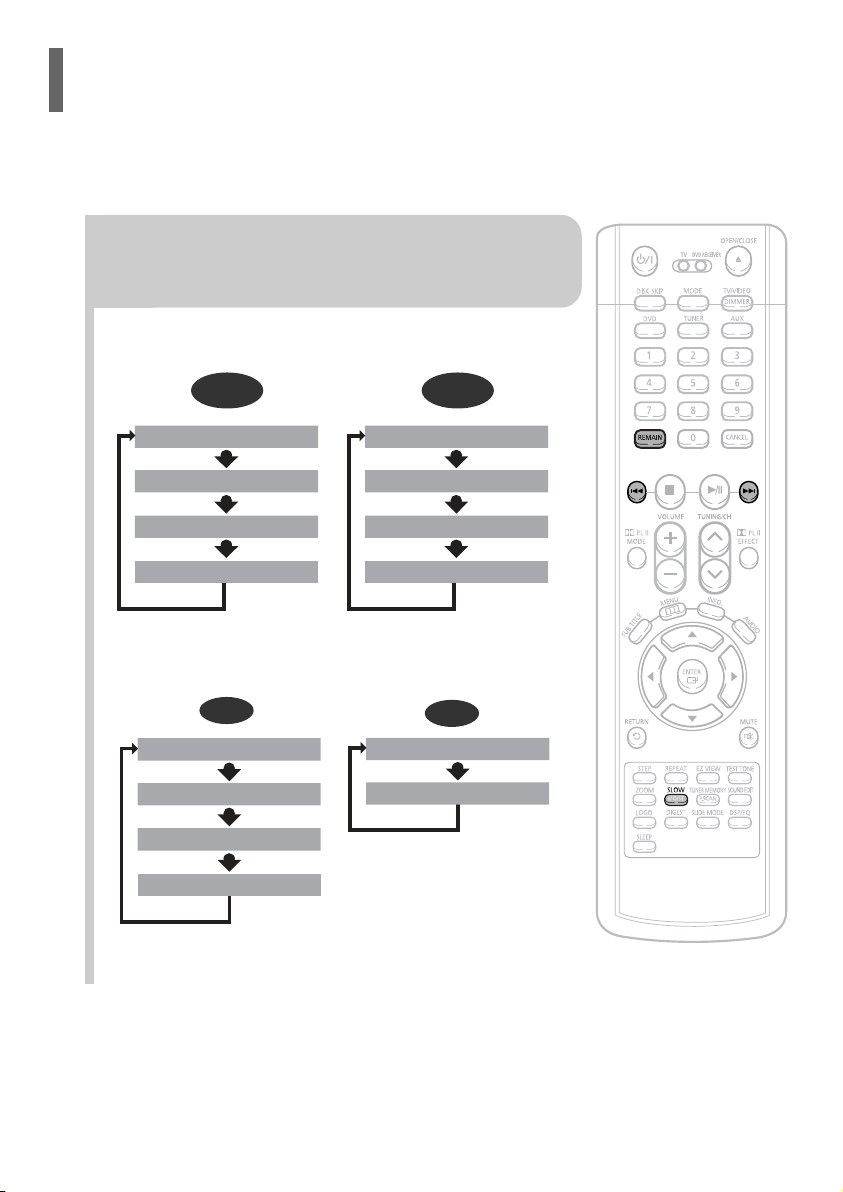
ENG
3231
OPERATION
Checking the Remaining Time
Fast Playback
DVD CD MP3
Press and hold .
•
Each time the button is held down during playback,
the playback speed changes as follows:
Press SLOW button.
•
Each time the button is pressed during playback,
the playback speed changes as follows:
Slow Playback
DVD DivX
•
Reverse slow playback
does not work with DivX.
Note
Fast/Slow Playback
Skipping Scenes/Songs
DVD
Briefly press .
•
Each time the button is pressed briefly during playback, the previous or next chapter, track,
or directory (file) will be played.
•
You cannot skip chapters consecutively.
TIT LE 01/ 05 CHAP TE R 00 2/0 40
TIT LE 01/ 05 CHAP TE R 00 4/0 40
MP3
Something like you
Back for good
Love of my life
More than words
I need you
My love
Uptown girl
DVD RECEIVER SMART NAVI
Something like you
Back for good
Love of my life
More than words
I need you
My love
Uptown girl
DVD RECEIVER SMART NAVI
Something like you
Back for good
Love of my life
More than words
I need you
My love
Uptown girl
DVD RECEIVER SMART NAVI
Press the REMAIN button.
•
For checking the total and remaining time of a title or chapter
being played.
Each time the REMAIN button is pressed
CHAPTER REMAIN
TITLE REMAIN
CHAPTER ELAPSED
TITLE ELAPSED
DVD-
VIDEO
TRACK REMAIN
GROUP REMAIN
TRACK ELAPSED
GROUP ELAPSED
DVD-
AUDIO
CD
TRACK REMAIN
TOTAL ELAPSED
TOTAL REMAIN
TRACK ELAPSED
MP3
TRACK ELAPSED
TRACK REMAIN
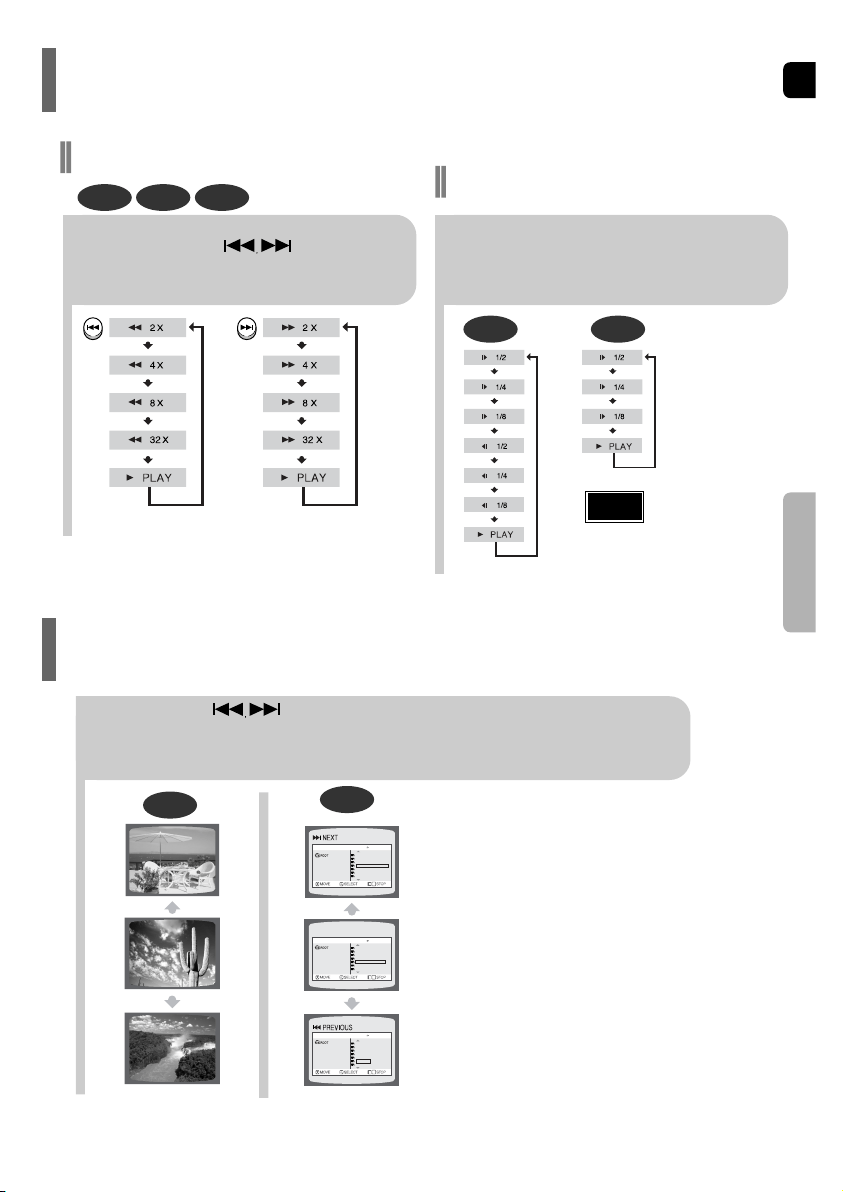
ENG
3231
OPERATION
Checking the Remaining Time
Fast Playback
DVD CD MP3
Press and hold .
•
Each time the button is held down during playback,
the playback speed changes as follows:
Press SLOW button.
•
Each time the button is pressed during playback,
the playback speed changes as follows:
Slow Playback
DVD DivX
•
Reverse slow playback
does not work with DivX.
Note
Fast/Slow Playback
Skipping Scenes/Songs
DVD
Briefly press .
•
Each time the button is pressed briefly during playback, the previous or next chapter, track,
or directory (file) will be played.
•
You cannot skip chapters consecutively.
TIT LE 01/ 05 CHAP TE R 00 2/0 40
TIT LE 01/ 05 CHAP TE R 00 4/0 40
MP3
Something like you
Back for good
Love of my life
More than words
I need you
My love
Uptown girl
DVD RECEIVER SMART NAVI
Something like you
Back for good
Love of my life
More than words
I need you
My love
Uptown girl
DVD RECEIVER SMART NAVI
Something like you
Back for good
Love of my life
More than words
I need you
My love
Uptown girl
DVD RECEIVER SMART NAVI
Press the REMAIN button.
•
For checking the total and remaining time of a title or chapter
being played.
Each time the REMAIN button is pressed
CHAPTER REMAIN
TITLE REMAIN
CHAPTER ELAPSED
TITLE ELAPSED
DVD-
VIDEO
TRACK REMAIN
GROUP REMAIN
TRACK ELAPSED
GROUP ELAPSED
DVD-
AUDIO
CD
TRACK REMAIN
TOTAL ELAPSED
TOTAL REMAIN
TRACK ELAPSED
MP3
TRACK ELAPSED
TRACK REMAIN
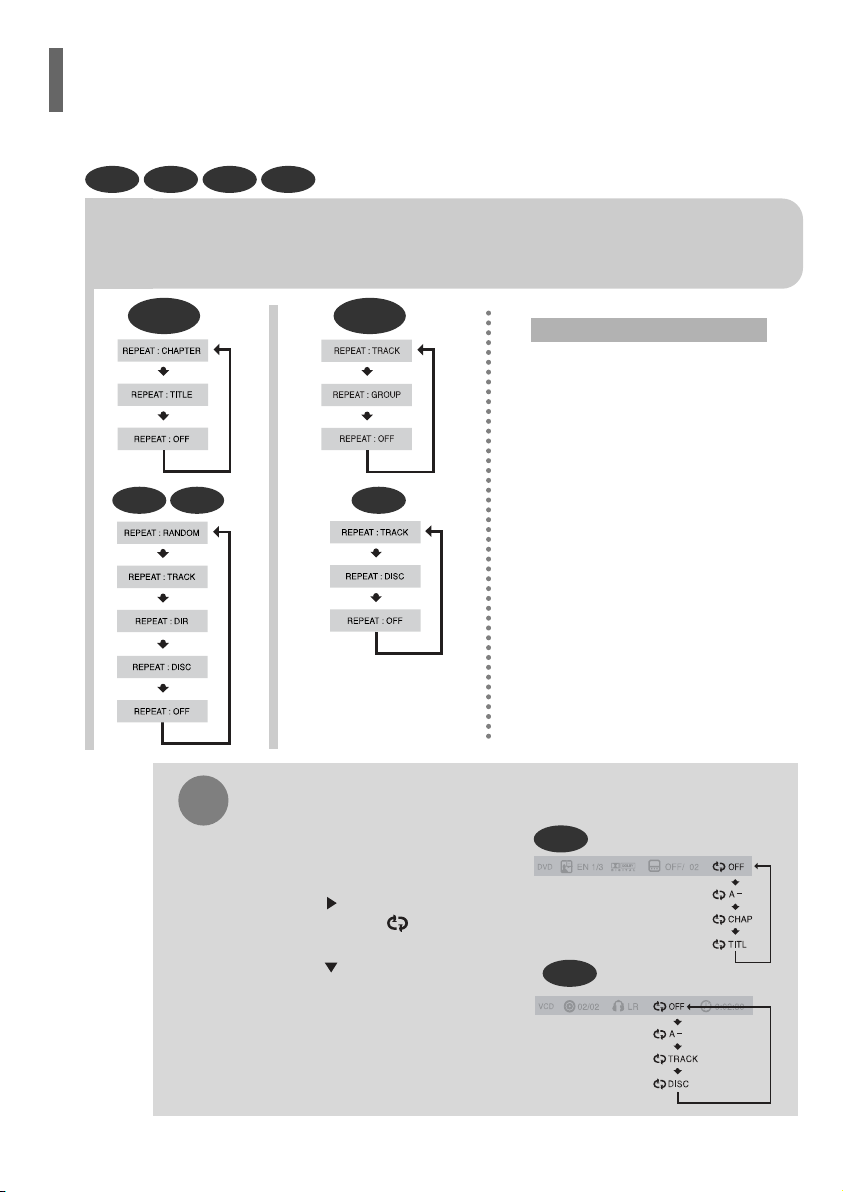
ENG
34
•
The A-B Repeat function will not work on an MP3 or JPEG disc.
2
Press Cursor button
to move to REPEAT
PLAYBACK ( ) display.
•
For a CD, press INFO button
once.
1
Press INFO button
twice.
A -
A -?
REPEAT : A—
A - B
REPEAT : A—B
•
The specified segment will be
played repeatedly.
4
Press ENTER
button at the end
of the desired
•
When ENTER button is pressed,
the selected position will be stored
in memory.
3
Press Cursor , buttons
to select ‘A-’ and then press
ENTER button at the beginning
of the desired segment.
To return to normal playback, press Cursor ,
buttons to select OFF.
DVD CD
33
Press REPEAT button.
•
Each time the button is pressed during playback, the repeat playback mode changes as follows:
CHAPTER
Repeatedly plays the selected chapter.
TITLE
Repeatedly plays the selected title.
GROUP
Repeatedly plays the selected group.
RANDOM
Plays tracks in random order.
(A track that has already been played may be
played again.)
TRACK
Repeatedly plays the selected track.
DIR
Repeatedly plays all tracks in the selected folder.
DISC
Repeatedly plays the entire disc.
OFF
Cancels Repeat Playback.
Repeat Playback Options
Note
OPERATION
DVD CD MP3 JPEG
To Select a Repeat Playback Mode in the Disc Information Screen
Press INFO button twice.
1
Press Cursor button to move to
REPEAT PLAYBACK ( ) display.
2
Press Cursor button to select the
desired Repeat Playback mode.
3
DVD
CD
*
For MP3 and JPEG discs, you cannot select Repeat
Play from the information display screen.
Press ENTER button.
4
Repeat playback allows you to repeatedly play a chapter, title, track (song), or directory (MP3 file). You can repetitively play back a designated section of a DVD.
Repeat Playback A-B Repeat Playback
CDMP3 JPEG
DVD-
VIDEO
DVD-
AUDIO
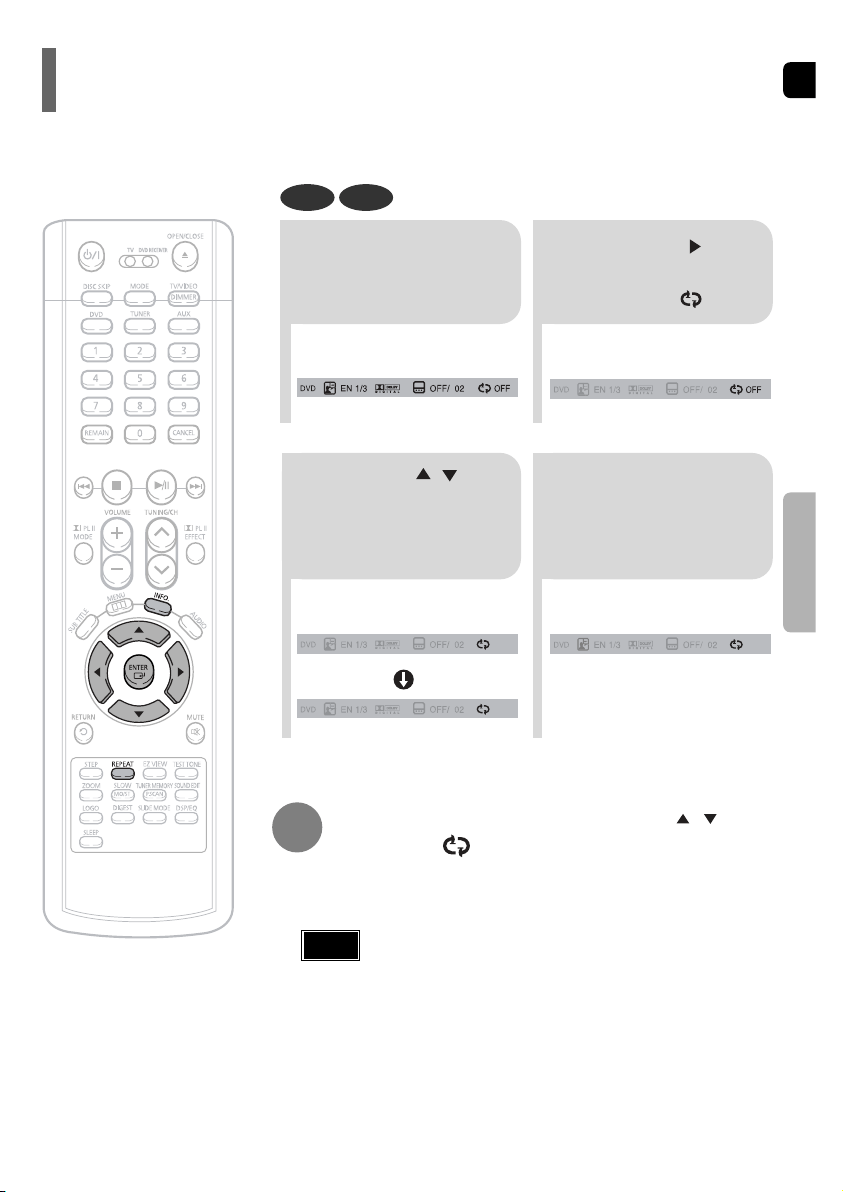
ENG
34
•
The A-B Repeat function will not work on an MP3 or JPEG disc.
2
Press Cursor button
to move to REPEAT
PLAYBACK ( ) display.
•
For a CD, press INFO button
once.
1
Press INFO button
twice.
A -
A -?
REPEAT : A—
A - B
REPEAT : A—B
•
The specified segment will be
played repeatedly.
4
Press ENTER
button at the end
of the desired
•
When ENTER button is pressed,
the selected position will be stored
in memory.
3
Press Cursor , buttons
to select ‘A-’ and then press
ENTER button at the beginning
of the desired segment.
To return to normal playback, press Cursor ,
buttons to select OFF.
DVD CD
33
Press REPEAT button.
•
Each time the button is pressed during playback, the repeat playback mode changes as follows:
CHAPTER
Repeatedly plays the selected chapter.
TITLE
Repeatedly plays the selected title.
GROUP
Repeatedly plays the selected group.
RANDOM
Plays tracks in random order.
(A track that has already been played may be
played again.)
TRACK
Repeatedly plays the selected track.
DIR
Repeatedly plays all tracks in the selected folder.
DISC
Repeatedly plays the entire disc.
OFF
Cancels Repeat Playback.
Repeat Playback Options
Note
OPERATION
DVD CD MP3 JPEG
To Select a Repeat Playback Mode in the Disc Information Screen
Press INFO button twice.
1
Press Cursor button to move to
REPEAT PLAYBACK ( ) display.
2
Press Cursor button to select the
desired Repeat Playback mode.
3
DVD
CD
*
For MP3 and JPEG discs, you cannot select Repeat
Play from the information display screen.
Press ENTER button.
4
Repeat playback allows you to repeatedly play a chapter, title, track (song), or directory (MP3 file). You can repetitively play back a designated section of a DVD.
Repeat Playback A-B Repeat Playback
CDMP3 JPEG
DVD-
VIDEO
DVD-
AUDIO
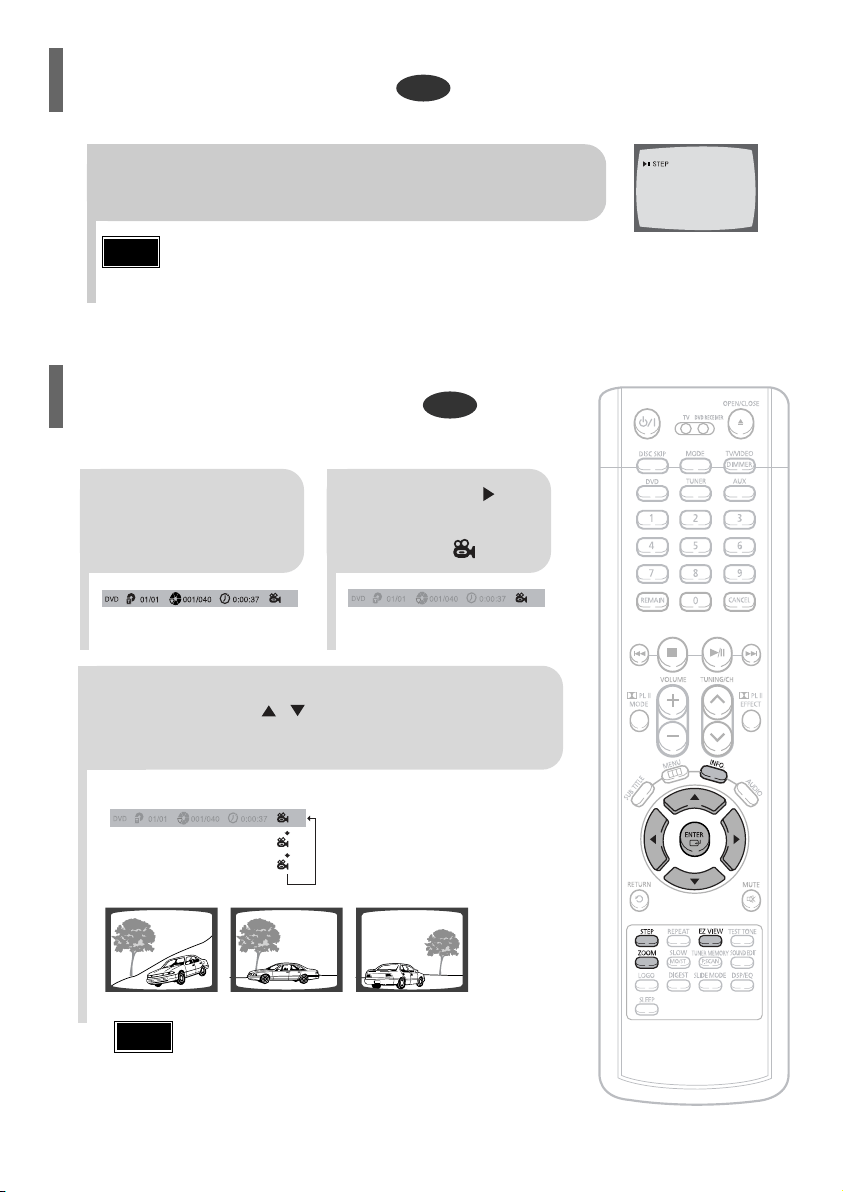
ENG
36
DVD
DVD
2
Press Cursor , ,
, buttons to
move to the area
you want to enlarge.
1
Press ZOOM
button.
•
Each time the button is pressed, the
zoom level changes as follows:
3
Press ENTER
button.
Press EZ VIEW button.
•
Each time the button is pressed, the zoom function will switch between On
and Off.
•
When a movie is played in Widescreen format, black bars at the top and
bottom of the TV screen can be removed by pressing the EZ VIEW button.
•
This function will not work if the DVD is recorded with multi-camera angle format.
•
Black bars may not disappear because some DVD discs have a built-in horizontal to vertical ratio.
35
DVD
2
Press Cursor
button to move to
ANGLE ( ) display.
Press INFO button.
1/3
•
Each time the button is pressed, the angle changes as follows:
3
Press Cursor , or numeric buttons to
select the desired angle.
2/3
3/3
1/3
1/3
•
The Angle function works only with discs on which multiple
angles have been recorded.
Note
Note
OPERATION
EZ VIEW OFFEZ VIEW
SELECT ZOOM POSITION
Step Function
This function allows you to enlarge a particular area of the displayed image.
Zoom (Screen Enlarge) Function
EZ VIEW Function
DVD
•
During fast playback of a CD or MP3-CD, sound is heard only at 2x speed,
and not at 4x, 8x, and 32x speeds.
•
No sound is heard during slow playback and step motion playback.
Note
Press STEP button.
•
The picture moves forward one frame each time the button is pressed
during playback.
This function allows you to view the same scene in different angles.
Angle Function
1
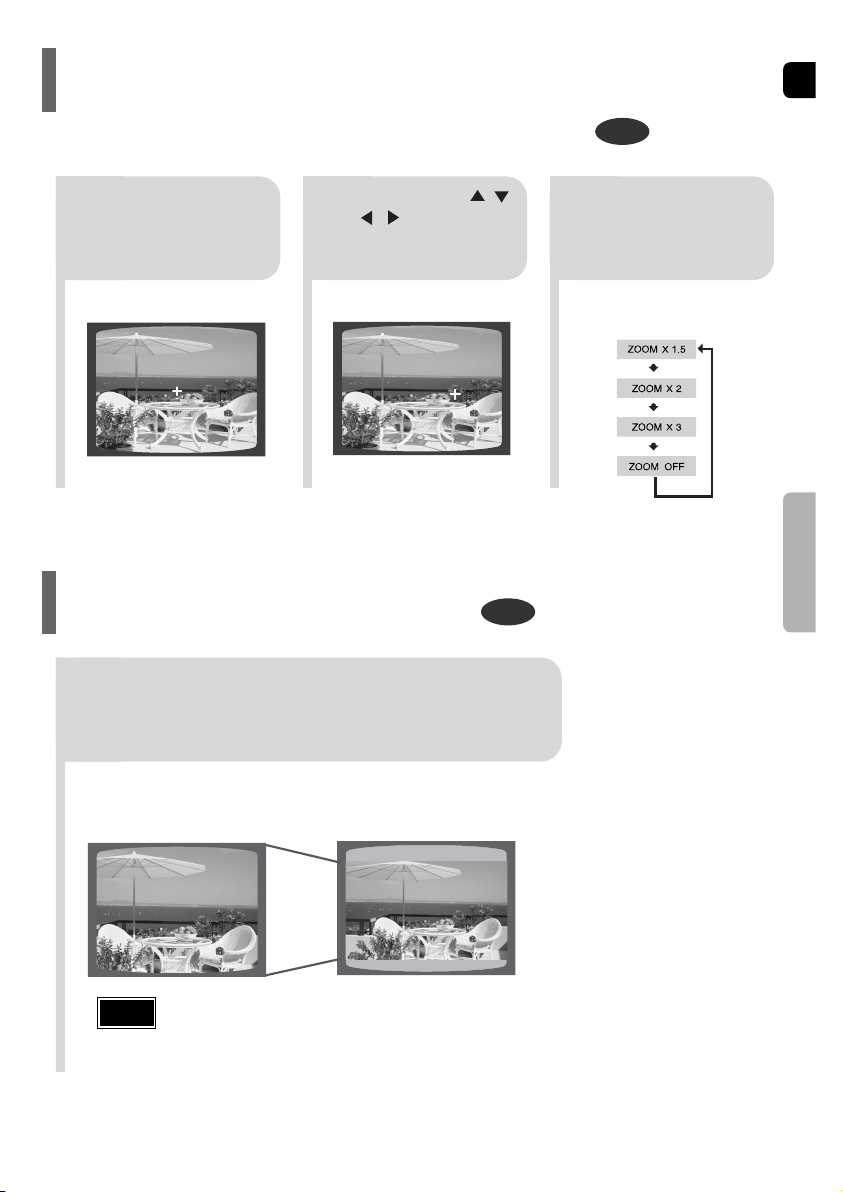
ENG
36
DVD
DVD
2
Press Cursor , ,
, buttons to
move to the area
you want to enlarge.
1
Press ZOOM
button.
•
Each time the button is pressed, the
zoom level changes as follows:
3
Press ENTER
button.
Press EZ VIEW button.
•
Each time the button is pressed, the zoom function will switch between On
and Off.
•
When a movie is played in Widescreen format, black bars at the top and
bottom of the TV screen can be removed by pressing the EZ VIEW button.
•
This function will not work if the DVD is recorded with multi-camera angle format.
•
Black bars may not disappear because some DVD discs have a built-in horizontal to vertical ratio.
35
DVD
2
Press Cursor
button to move to
ANGLE ( ) display.
Press INFO button.
1/3
•
Each time the button is pressed, the angle changes as follows:
3
Press Cursor , or numeric buttons to
select the desired angle.
2/3
3/3
1/3
1/3
•
The Angle function works only with discs on which multiple
angles have been recorded.
Note
Note
OPERATION
EZ VIEW OFFEZ VIEW
SELECT ZOOM POSITION
Step Function
This function allows you to enlarge a particular area of the displayed image.
Zoom (Screen Enlarge) Function
EZ VIEW Function
DVD
•
During fast playback of a CD or MP3-CD, sound is heard only at 2x speed,
and not at 4x, 8x, and 32x speeds.
•
No sound is heard during slow playback and step motion playback.
Note
Press STEP button.
•
The picture moves forward one frame each time the button is pressed
during playback.
This function allows you to view the same scene in different angles.
Angle Function
1
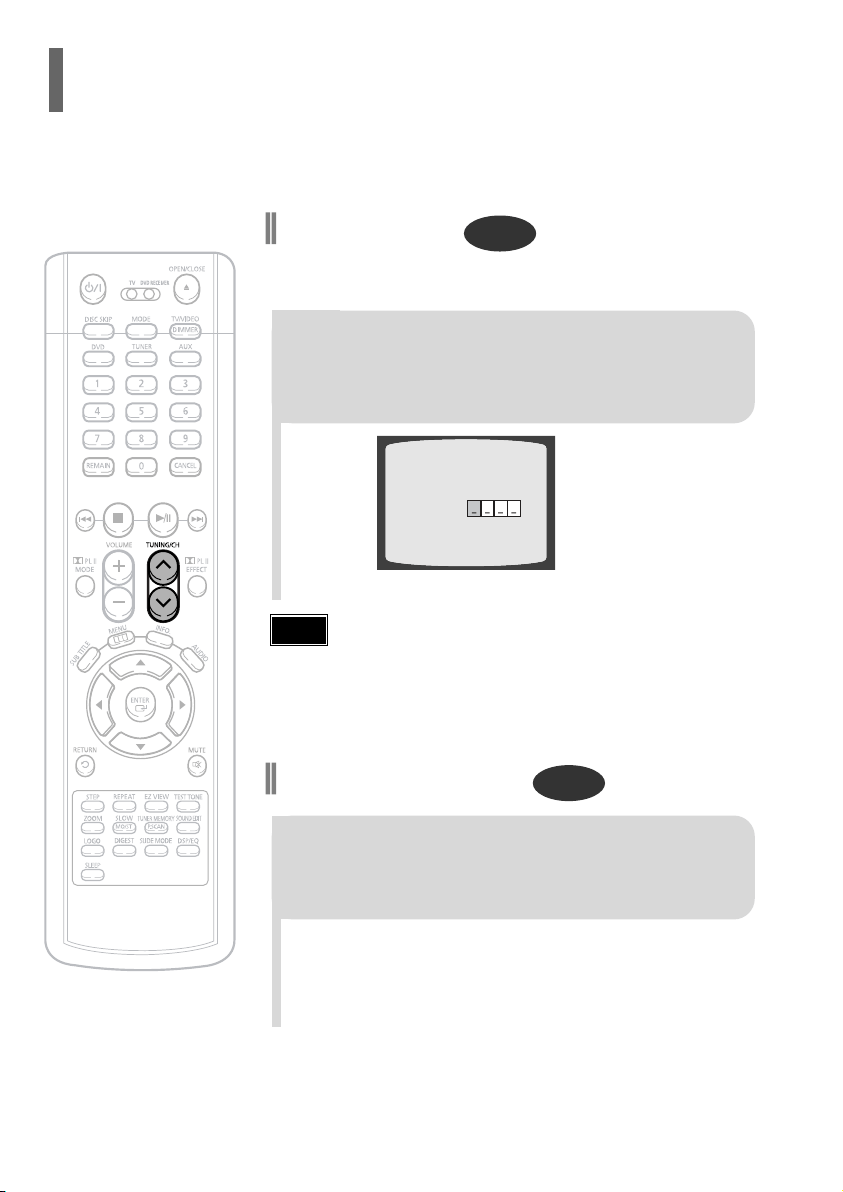
ENG
Some DVD-Audio discs have an extra ‘bonus’ group that requires a 4-digit key
number to access. See the disc packaging for details and the-key number.
Bonus Group
When you play a DVD-Audio disc that has a
bonus group, the key number input screen
appears automatically.
•
You can select the desired image from a DVD-Audio disc containing still images.
•
With some discs, you may not be able to select images depending on how the
disc was manufactured.
•
If you eject the disc, switch the power off, or unplug the player, you will need to re-enter
the key number.
Note
DVD-
AUDIO
BONUS GROUP
KEY NUMBER :
Navigating Pages
During playback, press the TUNING/CH button
on the remote control.
DVD-
AUDIO
Bonus Group / Navigating Pages
3837
OPERATION
•
Depending on the number of languages on a
DVD disc, a different audio language
(ENGLISH, SPANISH, FRENCH, etc.) is
selected each time the button is pressed.
2
Press Cursor ,
buttons or numeric
buttons to select the
desired audio language.
1
Press INFO button
twice.
SP 2/3
FR 3/3
EN 1/3 EN 01/ 03
OFF
SP 02/ 03
FR 03/ 03
OFF / 03
•
You can use the SUBTITLE button
on the remote control to select a
subtitle language.
•
Depending on the disc, the Subtitle
and Audio Language functions may
not work.
Audio Language Selection Function
DVD
Subtitle Language Selection Function
DVD
2
Press Cursor
button to move to
SUBTITLE ( )
display.
1
Press INFO button
twice.
3
Press Cursor
button or numeric
buttons to select
the desired subtitle.
Note
Selecting Audio/Subtitle Language

ENG
Some DVD-Audio discs have an extra ‘bonus’ group that requires a 4-digit key
number to access. See the disc packaging for details and the-key number.
Bonus Group
When you play a DVD-Audio disc that has a
bonus group, the key number input screen
appears automatically.
•
You can select the desired image from a DVD-Audio disc containing still images.
•
With some discs, you may not be able to select images depending on how the
disc was manufactured.
•
If you eject the disc, switch the power off, or unplug the player, you will need to re-enter
the key number.
Note
DVD-
AUDIO
BONUS GROUP
KEY NUMBER :
Navigating Pages
During playback, press the TUNING/CH button
on the remote control.
DVD-
AUDIO
Bonus Group / Navigating Pages
3837
OPERATION
•
Depending on the number of languages on a
DVD disc, a different audio language
(ENGLISH, SPANISH, FRENCH, etc.) is
selected each time the button is pressed.
2
Press Cursor ,
buttons or numeric
buttons to select the
desired audio language.
1
Press INFO button
twice.
SP 2/3
FR 3/3
EN 1/3 EN 01/ 03
OFF
SP 02/ 03
FR 03/ 03
OFF / 03
•
You can use the SUBTITLE button
on the remote control to select a
subtitle language.
•
Depending on the disc, the Subtitle
and Audio Language functions may
not work.
Audio Language Selection Function
DVD
Subtitle Language Selection Function
DVD
2
Press Cursor
button to move to
SUBTITLE ( )
display.
1
Press INFO button
twice.
3
Press Cursor
button or numeric
buttons to select
the desired subtitle.
Note
Selecting Audio/Subtitle Language
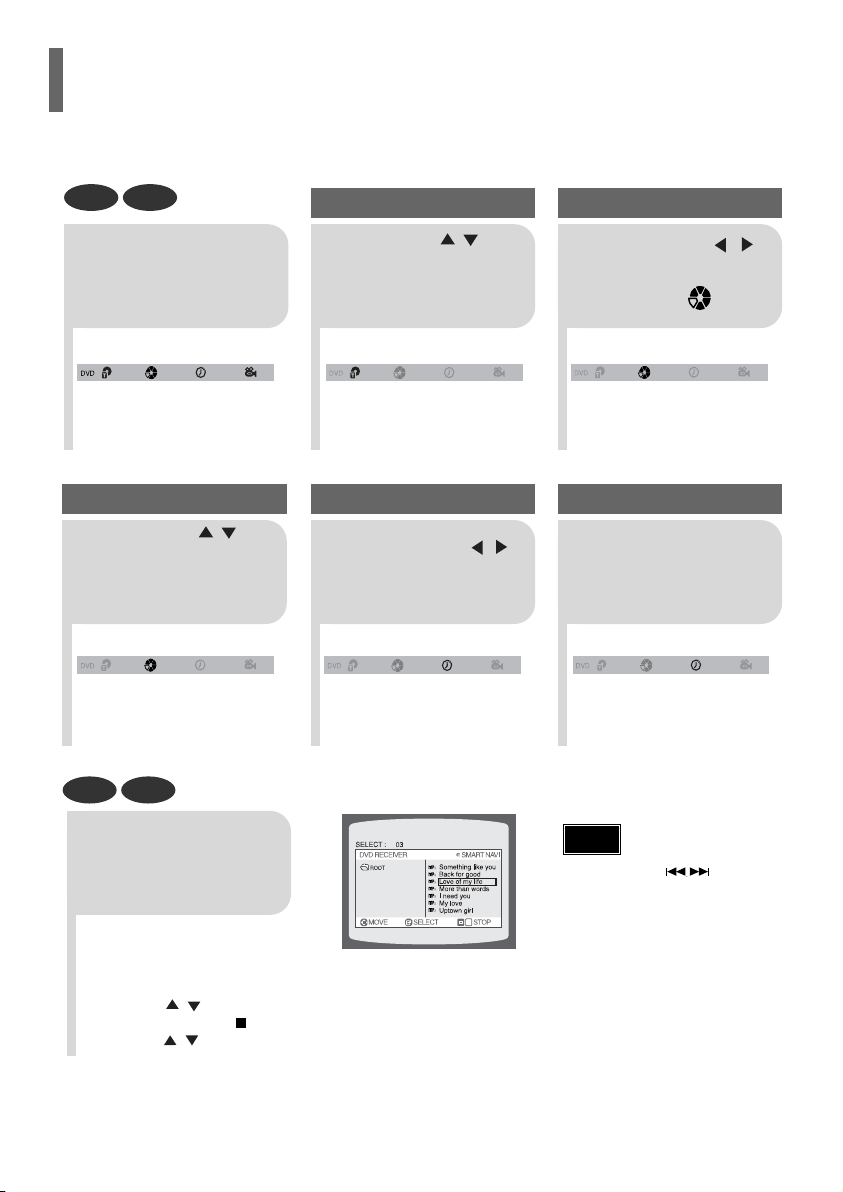
•
The selected file will be played.
•
An MP3 or JPEG disc cannot be moved
in the disc information screen.
•
When playing an MP3 or JPEG disc, you
cannot use , to move to a folder.
To move a folder, press (Stop) and
then press , .
ENG
40
DVD CD
MP3 JPEG
2
Press Cursor , buttons
or numeric buttons to select
the desired title/track and then
press ENTER button.
1
Press INFO button.
01/05
001/040 0:00:37 1/1
03/05
001/002 0:00:01 1/1
01/05
001/040 0:00:01 1/1
Moving to a Title/Track
4
Press Cursor ,
buttons or numeric buttons
to select the desired
chapter and then press
ENTER button.
01/05
025/040 0:00:01 1/1
Moving to a Chapter
6
Press the numeric
buttons to select the
desired time and then
press ENTER button.
01/05
028/040 1:30:00 1/1
Moving to a Specific Time
3
Press Cursor ,
buttons to move to
Chapter ( ) display.
Moving to a Chapter
01/05
025/040 1:17:30 1/1
5
Press Cursor ,
buttons to move to
time display.
Moving to a Specific Time
Press the numeric
buttons.
•
You can press on the
remote control to move directly to the
desired title, chapter, or track.
•
Depending on the disc, you may not
be able to move to the selected title
or time.
39
Note
OPERATION
Moving Directly to a Scene/Song
2
Press Cursor ,
button to move to
‘Title Menu’.
DVD
1
In Stop mode,
press MENU
button.
3
Press ENTER
button.
•
The title menu appears.
Press MENU button to exit the setup screen.
DVD
2
•
When you select the disc menu that is not
supported by the disc, the "This menu is not
supported" message appears on the screen.
1
In Stop mode,
press MENU
button.
Press Cursor ,
buttons to move to
‘DISC MENU’ and then
press ENTER button.
3
•
Press ENTER button.
Press Cursor ,
, buttons to
select the desired
item.
You can use the menus for the audio language, subtitle language, profile, etc.
DVD menu contents differ from disc to disc.
Using Disc Menu
For DVDs containing multiple titles, you can view the title of each movie.
Depending on the disc, the availability of this feature may vary.
Using the Title Menu
•
Disc menu display may be different depending on the disc.
Note
•
Title menu display may be different depending on the disc.
Note
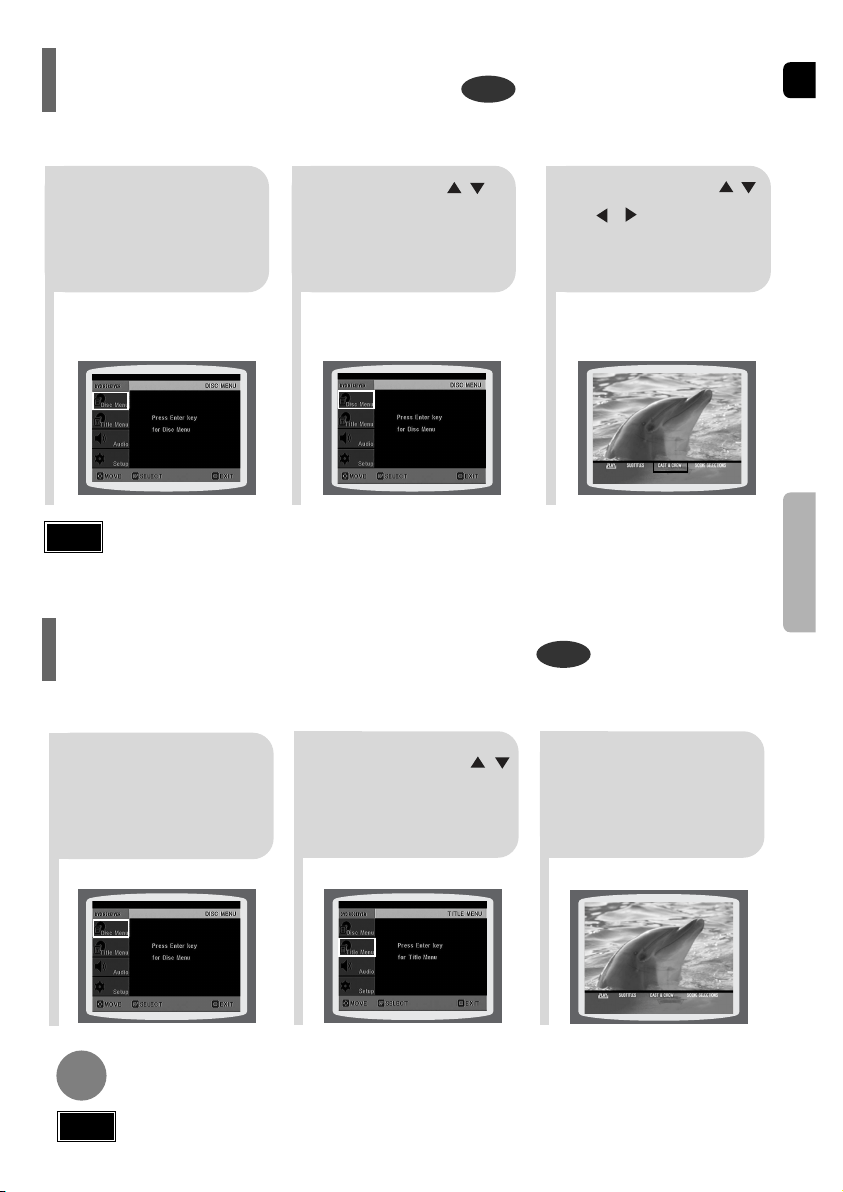
•
The selected file will be played.
•
An MP3 or JPEG disc cannot be moved
in the disc information screen.
•
When playing an MP3 or JPEG disc, you
cannot use , to move to a folder.
To move a folder, press (Stop) and
then press , .
ENG
40
DVD CD
MP3 JPEG
2
Press Cursor , buttons
or numeric buttons to select
the desired title/track and then
press ENTER button.
1
Press INFO button.
01/05
001/040 0:00:37 1/1
03/05
001/002 0:00:01 1/1
01/05
001/040 0:00:01 1/1
Moving to a Title/Track
4
Press Cursor ,
buttons or numeric buttons
to select the desired
chapter and then press
ENTER button.
01/05
025/040 0:00:01 1/1
Moving to a Chapter
6
Press the numeric
buttons to select the
desired time and then
press ENTER button.
01/05
028/040 1:30:00 1/1
Moving to a Specific Time
3
Press Cursor ,
buttons to move to
Chapter ( ) display.
Moving to a Chapter
01/05
025/040 1:17:30 1/1
5
Press Cursor ,
buttons to move to
time display.
Moving to a Specific Time
Press the numeric
buttons.
•
You can press on the
remote control to move directly to the
desired title, chapter, or track.
•
Depending on the disc, you may not
be able to move to the selected title
or time.
39
Note
OPERATION
Moving Directly to a Scene/Song
2
Press Cursor ,
button to move to
‘Title Menu’.
DVD
1
In Stop mode,
press MENU
button.
3
Press ENTER
button.
•
The title menu appears.
Press MENU button to exit the setup screen.
DVD
2
•
When you select the disc menu that is not
supported by the disc, the "This menu is not
supported" message appears on the screen.
1
In Stop mode,
press MENU
button.
Press Cursor ,
buttons to move to
‘DISC MENU’ and then
press ENTER button.
3
•
Press ENTER button.
Press Cursor ,
, buttons to
select the desired
item.
You can use the menus for the audio language, subtitle language, profile, etc.
DVD menu contents differ from disc to disc.
Using Disc Menu
For DVDs containing multiple titles, you can view the title of each movie.
Depending on the disc, the availability of this feature may vary.
Using the Title Menu
•
Disc menu display may be different depending on the disc.
Note
•
Title menu display may be different depending on the disc.
Note
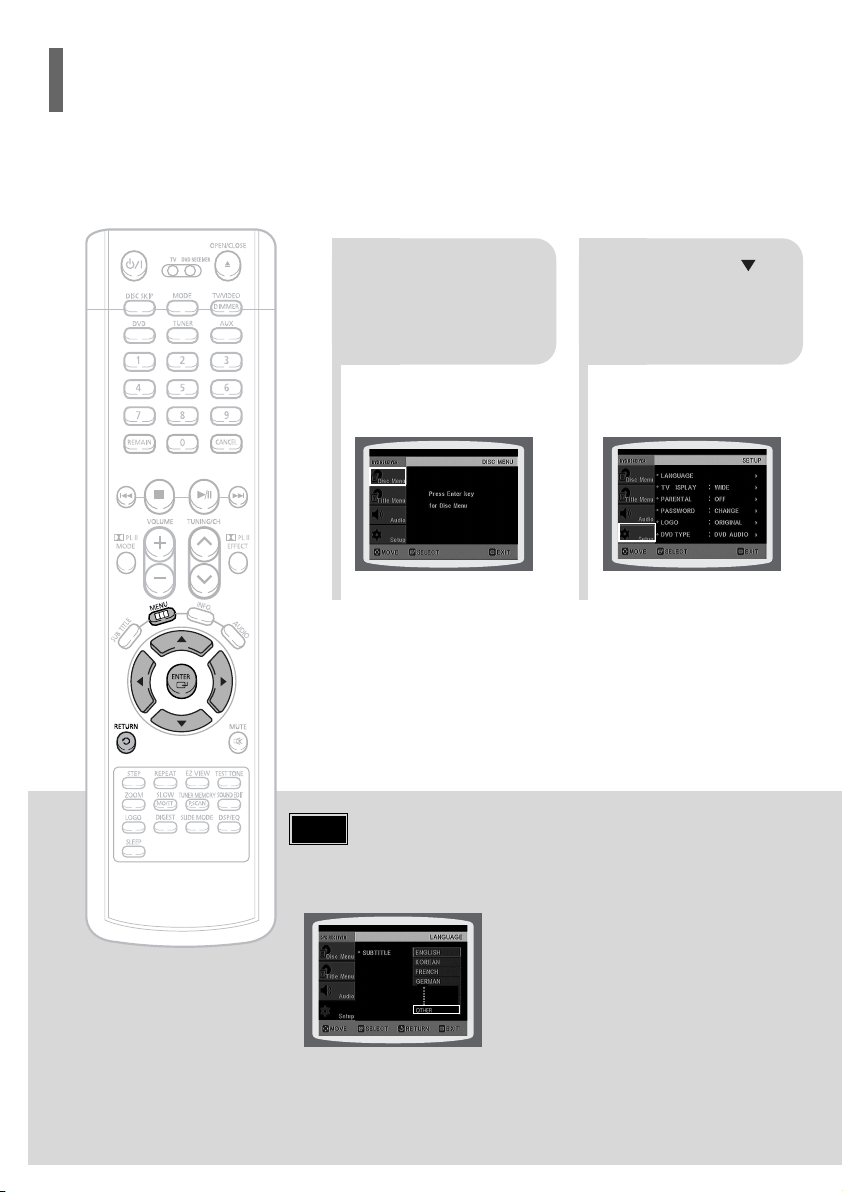
ENG
42
SETUP
OSD (On-Screen Display) language is set to English by default.
Setting the Language
41
*
If the language you selected is
not recorded on the disc, menu
language will not change even
if you set it to your desired
language.
Selecting the
OSD Language
Selecting the
Audio Language
(recorded on the disc)
21
In Stop mode,
press MENU
button.
Press Cursor
button to move to
‘Setup’ and then
press ENTER button.
4
•
Once the setup is complete, if the language was
set to English, OSD will be displayed in English.
3
Selecting the
Subtitle Language
(recorded on the disc)
Selecting the Disc Menu
Language (recorded on the disc)
Select ‘Language’
and then press
ENTER button
5
Press Cursor ,
button to select ‘OSD
Language’ and then
press ENTER button.
Press Cursor ,
button to select the
desired language and then
press ENTER button.
Press RETURN button to return to the previous level.
Press MENU button to exit the setup screen.
• To select another language, select OTHER and enter the language code of your country.
(See page 70 for language codes)
AUDIO, SUB TITLE and DISC MENU language can be selected.
Note
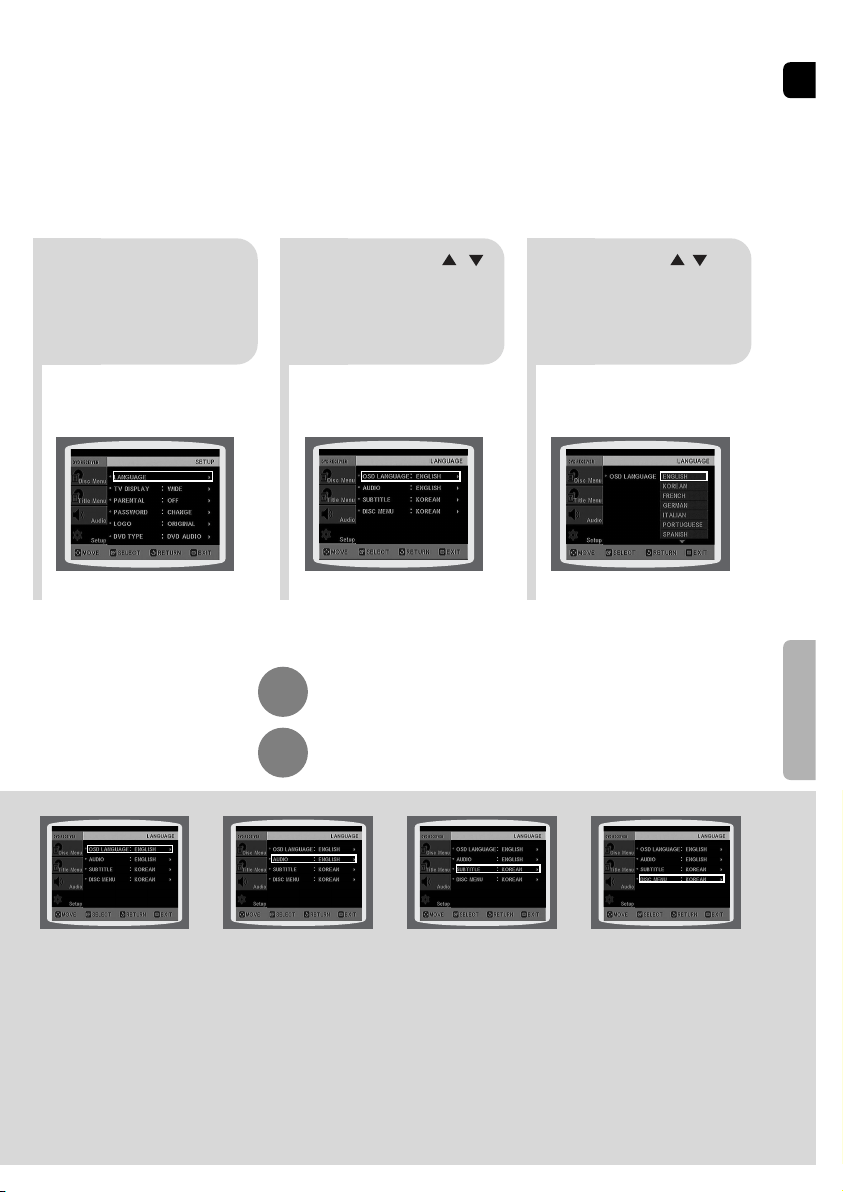
ENG
42
SETUP
OSD (On-Screen Display) language is set to English by default.
Setting the Language
41
*
If the language you selected is
not recorded on the disc, menu
language will not change even
if you set it to your desired
language.
Selecting the
OSD Language
Selecting the
Audio Language
(recorded on the disc)
21
In Stop mode,
press MENU
button.
Press Cursor
button to move to
‘Setup’ and then
press ENTER button.
4
•
Once the setup is complete, if the language was
set to English, OSD will be displayed in English.
3
Selecting the
Subtitle Language
(recorded on the disc)
Selecting the Disc Menu
Language (recorded on the disc)
Select ‘Language’
and then press
ENTER button
5
Press Cursor ,
button to select ‘OSD
Language’ and then
press ENTER button.
Press Cursor ,
button to select the
desired language and then
press ENTER button.
Press RETURN button to return to the previous level.
Press MENU button to exit the setup screen.
• To select another language, select OTHER and enter the language code of your country.
(See page 70 for language codes)
AUDIO, SUB TITLE and DISC MENU language can be selected.
Note
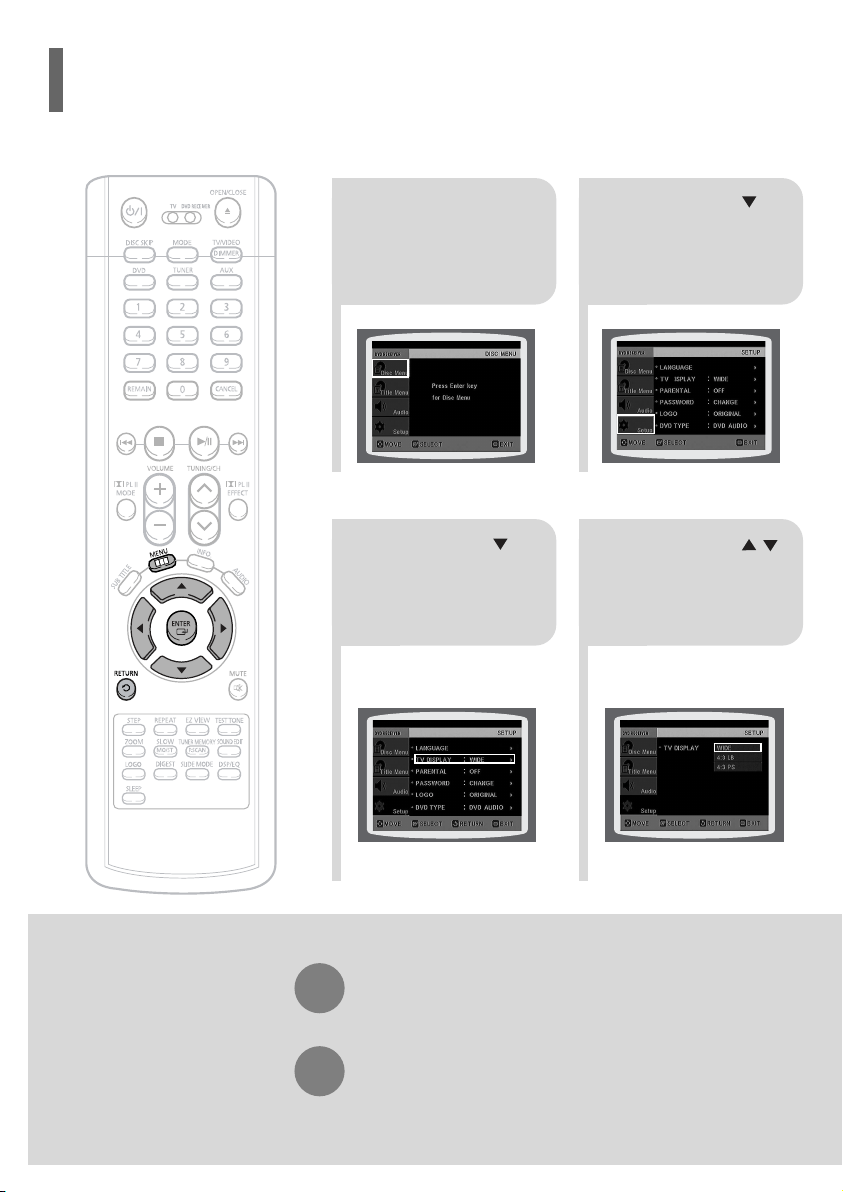
43
21
43
In Stop mode,
press MENU
button.
Press Cursor
button to move to
‘Setup’ and then
press ENTER button.
•
Once the setup is complete, you will
be taken to the previous screen.
Press Cursor
button to move to ‘TV
DISPLAY’ and then
press ENTER button.
Press Cursor ,
button to select the
desired item and then
press ENTER button.
Press RETURN button to return to the previous level.
Press MENU button to exit the setup screen.
Depending on your TV type (Wide Screen or conventional 4:3), you can select the TV's aspect ratio.
Setting TV Screen type
ENG
44
SETUP
The horizontal to vertical screen size ratio of conventional TVs is 4:3, while that of widescreen and high
definition TVs is 16:9. This ratio is called the aspect ratio. When playing DVDs recorded in different
screen size, you should adjust the aspect ratio to fit your TV or monitor.
• For a standard TV, select either "4:3LB" or "4:3PS" option according to personal preference.
Select "16:9" if you have a widescreen TV.
: Select this to view a 16:9 picture in the full-screen
mode on your widescreen TV.
• You can enjoy the widescreen aspect.
: Select this to play a 16:9 picture in the letter box
mode on a conventional TV.
• Black bars will appear at the top and bottom of the screen.
: Select this to play a 16:9 picture in the pan & scan
mode on a conventional TV.
• You can see the central portion of the screen only (with the
sides of the 16:9 picture cut off).
4:3LB
(4:3 Letterbox)
WIDE
4:3PS
(4:3 Pan&Scan)
• If a DVD is in the 4:3 ratio, you cannot view it in widescreen.
• Since DVD discs are recorded in various image formats, they will look different depending on
the software, the type of TV, and the TV aspect ratio setting.
Note
Adjusting the TV Aspect Ratio (Screen Size)
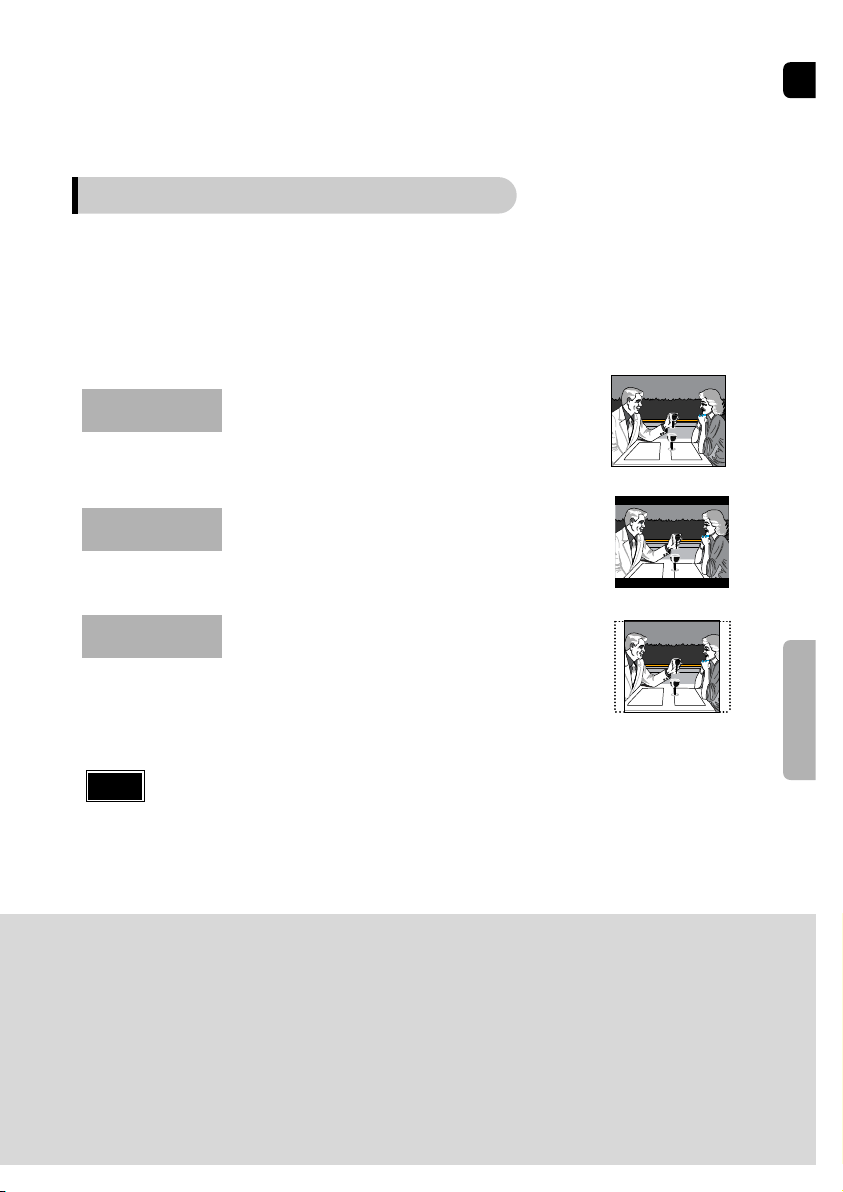
43
21
43
In Stop mode,
press MENU
button.
Press Cursor
button to move to
‘Setup’ and then
press ENTER button.
•
Once the setup is complete, you will
be taken to the previous screen.
Press Cursor
button to move to ‘TV
DISPLAY’ and then
press ENTER button.
Press Cursor ,
button to select the
desired item and then
press ENTER button.
Press RETURN button to return to the previous level.
Press MENU button to exit the setup screen.
Depending on your TV type (Wide Screen or conventional 4:3), you can select the TV's aspect ratio.
Setting TV Screen type
ENG
44
SETUP
The horizontal to vertical screen size ratio of conventional TVs is 4:3, while that of widescreen and high
definition TVs is 16:9. This ratio is called the aspect ratio. When playing DVDs recorded in different
screen size, you should adjust the aspect ratio to fit your TV or monitor.
• For a standard TV, select either "4:3LB" or "4:3PS" option according to personal preference.
Select "16:9" if you have a widescreen TV.
: Select this to view a 16:9 picture in the full-screen
mode on your widescreen TV.
• You can enjoy the widescreen aspect.
: Select this to play a 16:9 picture in the letter box
mode on a conventional TV.
• Black bars will appear at the top and bottom of the screen.
: Select this to play a 16:9 picture in the pan & scan
mode on a conventional TV.
• You can see the central portion of the screen only (with the
sides of the 16:9 picture cut off).
4:3LB
(4:3 Letterbox)
WIDE
4:3PS
(4:3 Pan&Scan)
• If a DVD is in the 4:3 ratio, you cannot view it in widescreen.
• Since DVD discs are recorded in various image formats, they will look different depending on
the software, the type of TV, and the TV aspect ratio setting.
Note
Adjusting the TV Aspect Ratio (Screen Size)
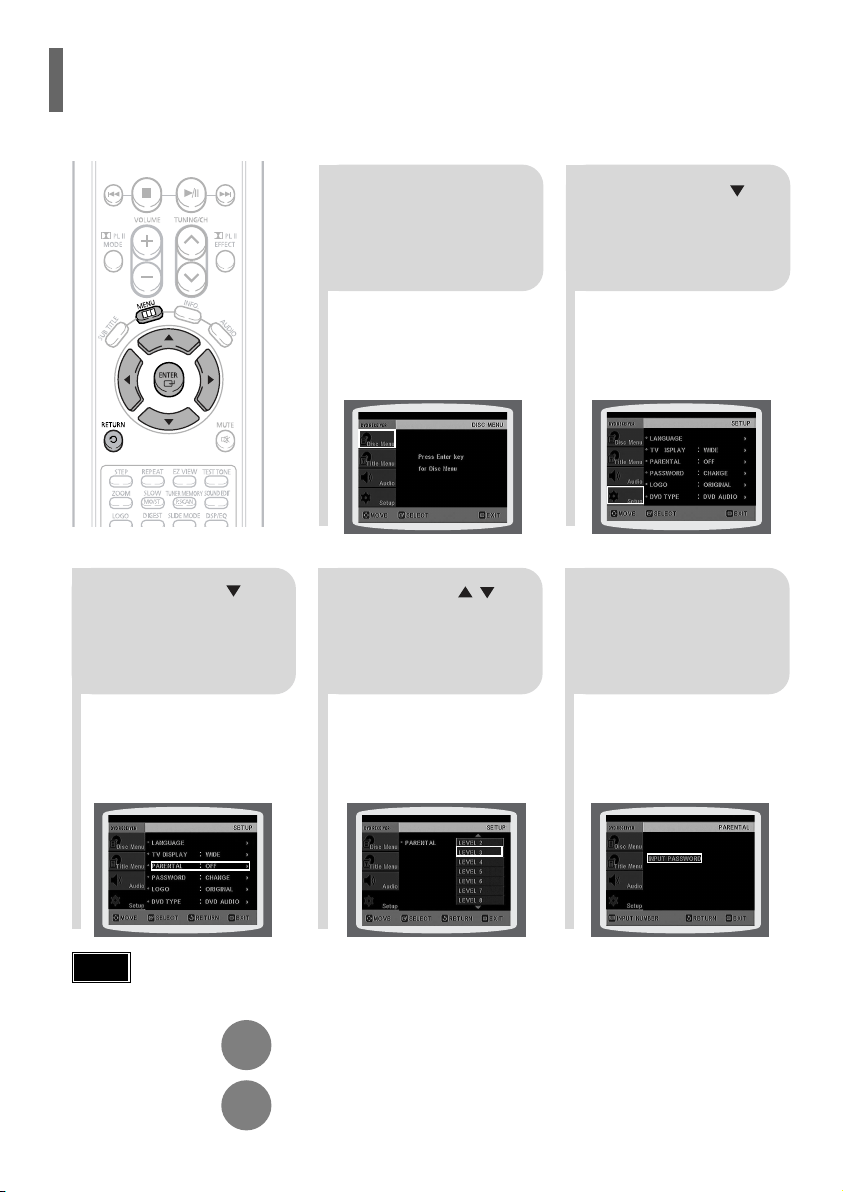
ENG
•
This function works only if a DVD disc contains the rating level information.
Press RETURN button to return to the previous level.
Press MENU button to exit the setup screen.
4
•
The password is set to "7890" by default.
•
Once the setup is complete, you will be
taken to the previous screen.
•
If you have selected Level 6, you
cannot view DVDs with Level 7 or
higher.
•
The higher the level, the closer the
content is to violent or adult material.
3 5
Press Cursor
button to move to
‘PARENTAL’ and then
press ENTER button.
Press Cursor , button
to select the desired rating
level and then press
ENTER button.
Enter the password
and then press
ENTER button.
Note
SETUP
45
21
In Stop mode,
press MENU
button.
Press Cursor
button to move to
‘Setup’ and then
press ENTER button.
Use this to restrict playback of adult or violent DVDs you do not want children to view.
Setting Parental Controls (Rating Level)
4
•
Enter the old password, a new
password, and confirm new password.
•
The setting is complete.
3 5
Press Cursor button to
move to ‘PASSWORD’
and then press ENTER
button.
Press ENTER
button.
Enter the password
and then press
ENTER button.
21
Press MENU button.
Press Cursor
button to move to
‘Setup’ and then
press ENTER button.
•
The password is set to "7890" by default.
Note
If you have forgotten the rating level password, do the following:
•
While the player is in the no disc mode, hold the main unit's button for longer than 5 seconds. “INITIALIZE” appears
on the display and all settings will return to the default values.
•
Press the POWER button.
Using the RESET function will erase all stored settings.
Do not use this unless necessary.
You can set the password for the Parental (rating level) setting.
Setting the Password
46
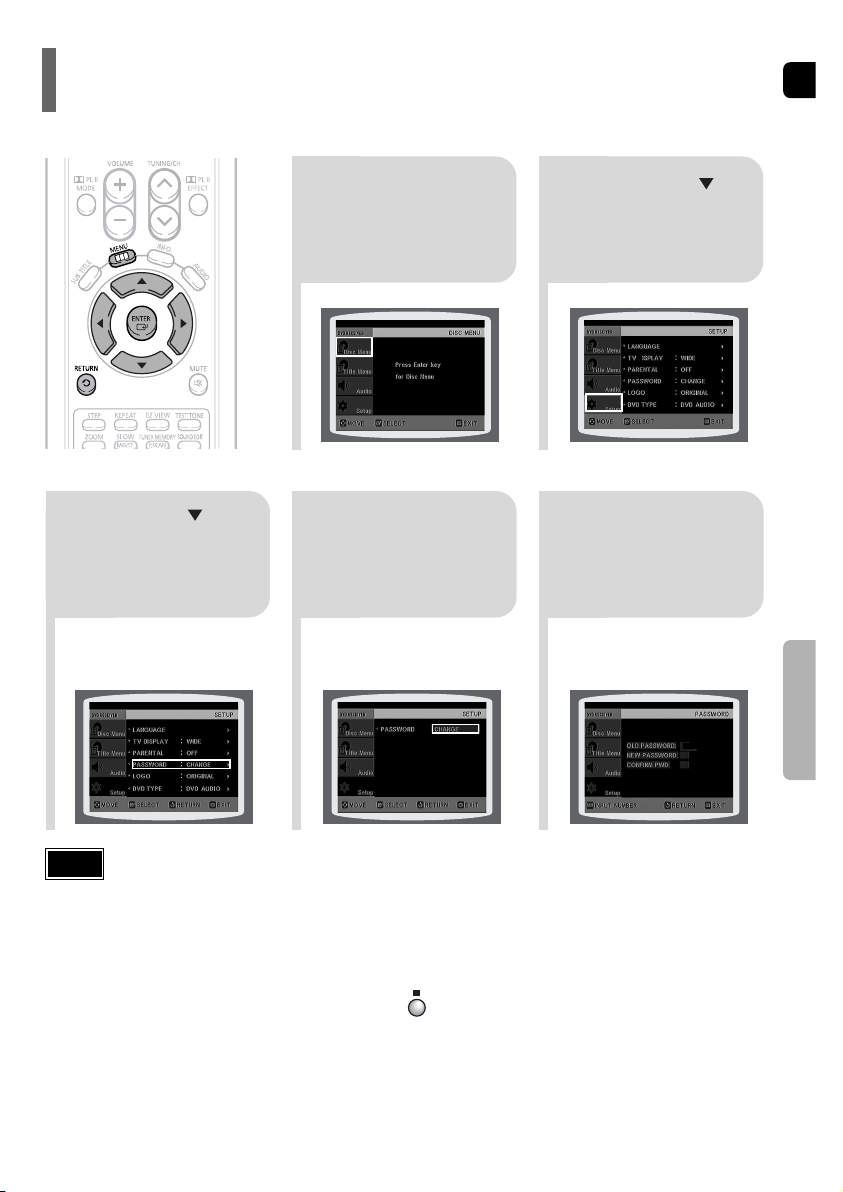
ENG
•
This function works only if a DVD disc contains the rating level information.
Press RETURN button to return to the previous level.
Press MENU button to exit the setup screen.
4
•
The password is set to "7890" by default.
•
Once the setup is complete, you will be
taken to the previous screen.
•
If you have selected Level 6, you
cannot view DVDs with Level 7 or
higher.
•
The higher the level, the closer the
content is to violent or adult material.
3 5
Press Cursor
button to move to
‘PARENTAL’ and then
press ENTER button.
Press Cursor , button
to select the desired rating
level and then press
ENTER button.
Enter the password
and then press
ENTER button.
Note
SETUP
45
21
In Stop mode,
press MENU
button.
Press Cursor
button to move to
‘Setup’ and then
press ENTER button.
Use this to restrict playback of adult or violent DVDs you do not want children to view.
Setting Parental Controls (Rating Level)
4
•
Enter the old password, a new
password, and confirm new password.
•
The setting is complete.
3 5
Press Cursor button to
move to ‘PASSWORD’
and then press ENTER
button.
Press ENTER
button.
Enter the password
and then press
ENTER button.
21
Press MENU button.
Press Cursor
button to move to
‘Setup’ and then
press ENTER button.
•
The password is set to "7890" by default.
Note
If you have forgotten the rating level password, do the following:
•
While the player is in the no disc mode, hold the main unit's button for longer than 5 seconds. “INITIALIZE” appears
on the display and all settings will return to the default values.
•
Press the POWER button.
Using the RESET function will erase all stored settings.
Do not use this unless necessary.
You can set the password for the Parental (rating level) setting.
Setting the Password
46
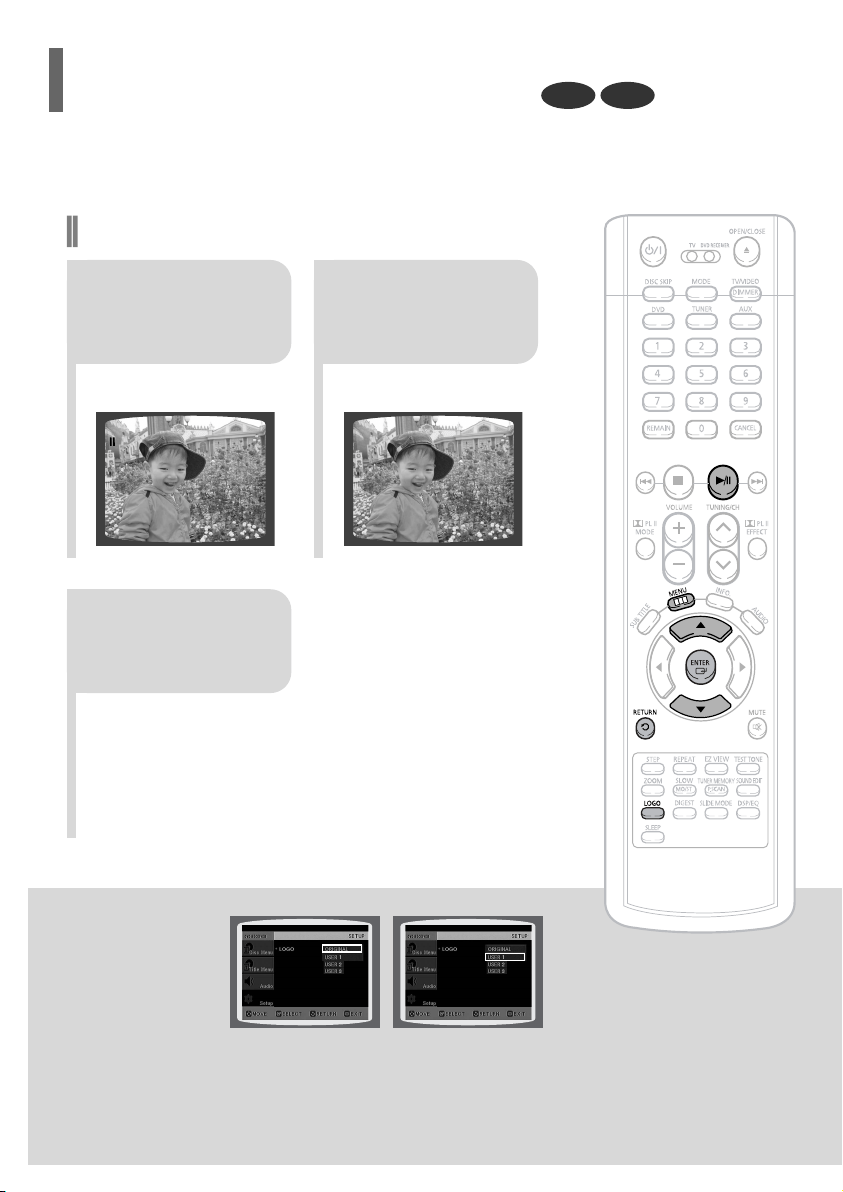
ENG
48
SETUP
21 3
In Stop mode,
press MENU
button.
Press Cursor
button to move to
‘Setup’ and then
press ENTER button.
Press Cursor
button to move to
‘LOGO’ and then
press ENTER button.
To select one of the 3 wallpaper settings you've made
54
Press MENU
button to exit the
setup screen.
Press to select
the desired ‘USER’,
and then press
ENTER.
Press RETURN button to return to the previous level.
Press MENU button to exit the setup screen.
47
DVDJPEG
Select this to set the
Samsung Logo image as
your wallpaper.
Select this to set the desired
image as your wallpaper.
•
“COPY LOGO DATA” will be
displayed on the TV screen.
•
The selected wallpaper will be
displayed.
•
You can select up to 3 wallpaper
settings.
21
3
During playback, press
PLAY/PAUSE button
when an image you
like appears.
Press LOGO
button.
The power will
turn off and then
back on.
PAUSE
COPY LOGO DATA
Setting the Wallpaper
While watching a DVD or JPEG CD, you can set the image you like as background wallpaper.
Setting the Wallpaper
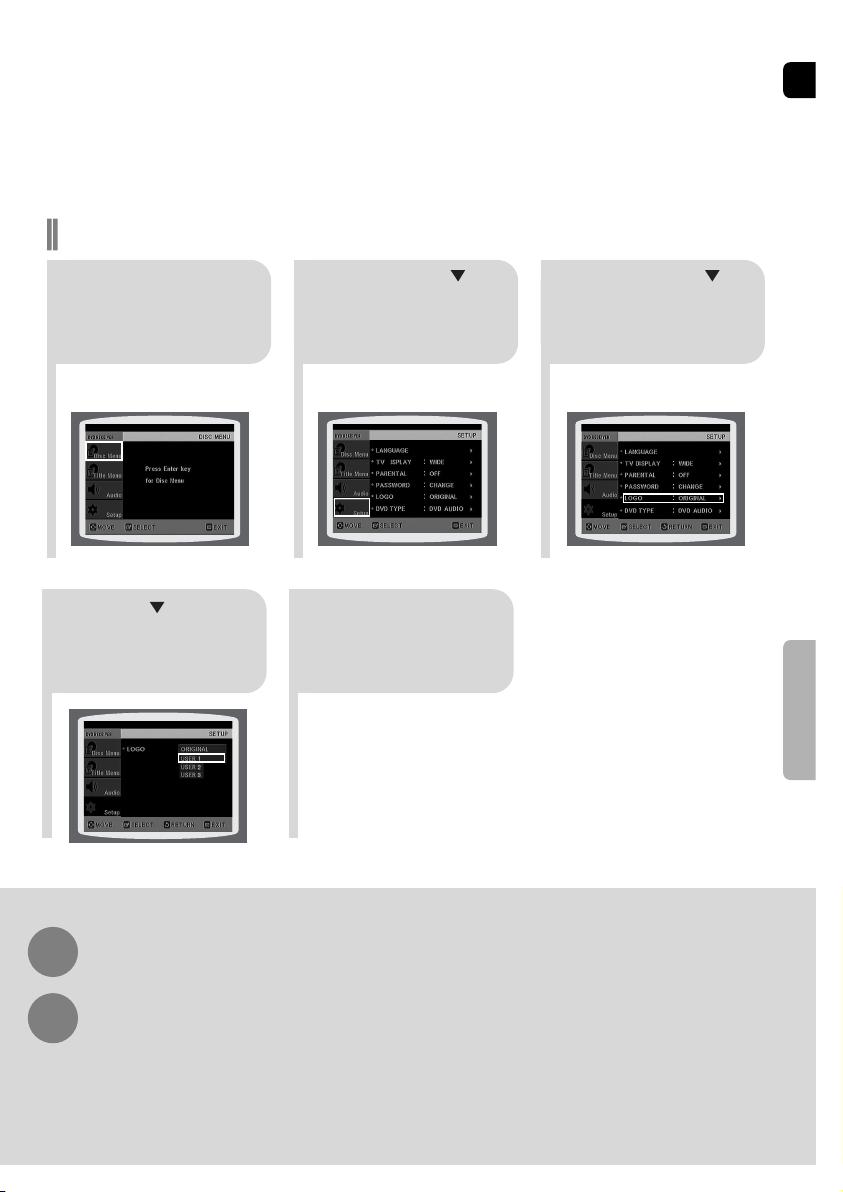
ENG
48
SETUP
21 3
In Stop mode,
press MENU
button.
Press Cursor
button to move to
‘Setup’ and then
press ENTER button.
Press Cursor
button to move to
‘LOGO’ and then
press ENTER button.
To select one of the 3 wallpaper settings you've made
54
Press MENU
button to exit the
setup screen.
Press to select
the desired ‘USER’,
and then press
ENTER.
Press RETURN button to return to the previous level.
Press MENU button to exit the setup screen.
47
DVDJPEG
Select this to set the
Samsung Logo image as
your wallpaper.
Select this to set the desired
image as your wallpaper.
•
“COPY LOGO DATA” will be
displayed on the TV screen.
•
The selected wallpaper will be
displayed.
•
You can select up to 3 wallpaper
settings.
21
3
During playback, press
PLAY/PAUSE button
when an image you
like appears.
Press LOGO
button.
The power will
turn off and then
back on.
PAUSE
COPY LOGO DATA
Setting the Wallpaper
While watching a DVD or JPEG CD, you can set the image you like as background wallpaper.
Setting the Wallpaper
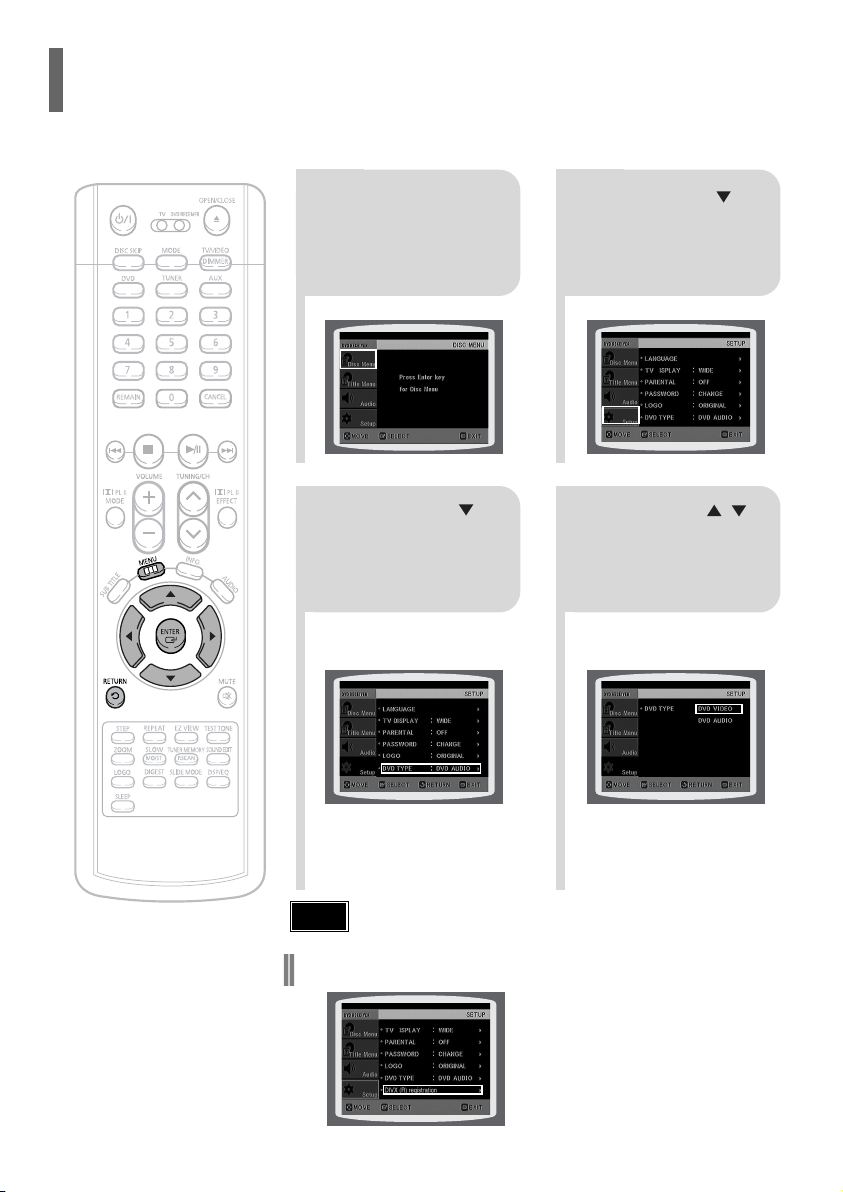
ENG
50
SETUP
21
43
In Stop mode,
press MENU
button.
Press Cursor
button to move to
‘Audio’ and then
press ENTER button.
In the Speaker
Setup, press the
ENTER button again.
Press Cursor , ,
, buttons to move
to the desired
speaker and then
press ENTER button.
•
For C, LS, and RS, each time the button
is pressed, the mode switches
alternately as follows: SMALL NONE.
•
For L and R, the mode is set to SMALL.
49
SMALL
: Select this when using the speakers.
NONE : Select this when no speakers are connected.
•
Depending on PRO LOGIC and STEREO settings, the speaker mode may vary (see page 59).
Note
Signal outputs and frequency responses from the speakers will automatically be adjusted according to your
speaker configuration and whether certain speakers are used or not.
Setting the Speaker Mode
21
Press the MENU
button while the
disc tray is open.
Press Cursor
button to move to
‘Setup’ and then
press ENTER button.
43
Press Cursor
button to move to
‘DVD TYPE’ and then
press ENTER button.
Press Cursor ,
button to move to
‘DVD VIDEO’ and then
press ENTER button.
•
DVD Play mode is set to DVD Audio as factory default setting.
Note
•
Set steps 1 ~ 4 again if you want to
switch to DVD AUDIO Play mode.
When Selecting DVD Play Mode:
•
DVD VIDEO : set to play the DVD video contents
contained on a DVD audio disc.
•
DVD AUDIO : set to play the default DVD audio.
Some DVD-Audio discs contain DVD-Video as well as DVD-Audio.
To play back the DVD-Video portion of the DVD-Audio disc, set the unit to DVD-Video mode.
DVD Audio Disc Playback Mode
•
Please use the Registration code to register this player
with the DivX (R) video on demand format. To learn more,
go to www.divx.com/vod.
DivX (R) registration
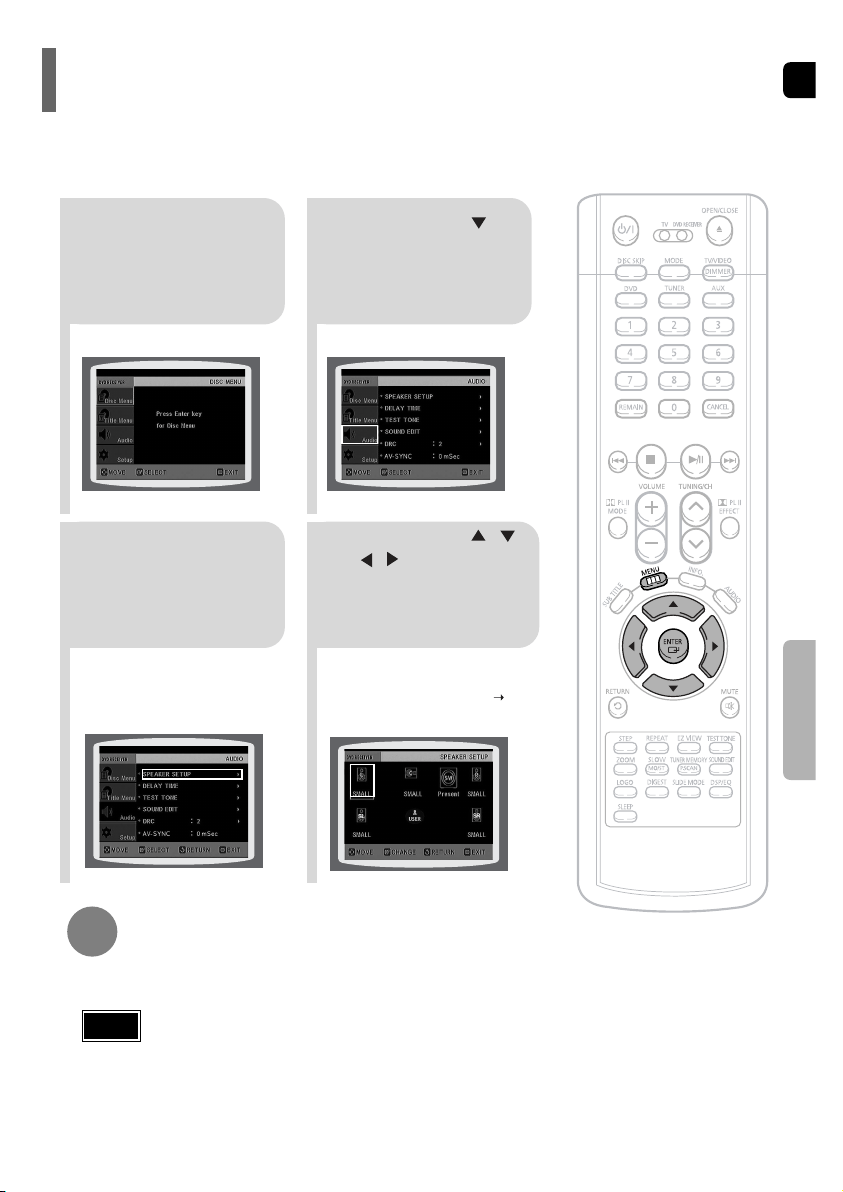
ENG
50
SETUP
21
43
In Stop mode,
press MENU
button.
Press Cursor
button to move to
‘Audio’ and then
press ENTER button.
In the Speaker
Setup, press the
ENTER button again.
Press Cursor , ,
, buttons to move
to the desired
speaker and then
press ENTER button.
•
For C, LS, and RS, each time the button
is pressed, the mode switches
alternately as follows: SMALL NONE.
•
For L and R, the mode is set to SMALL.
49
SMALL
: Select this when using the speakers.
NONE : Select this when no speakers are connected.
•
Depending on PRO LOGIC and STEREO settings, the speaker mode may vary (see page 59).
Note
Signal outputs and frequency responses from the speakers will automatically be adjusted according to your
speaker configuration and whether certain speakers are used or not.
Setting the Speaker Mode
21
Press the MENU
button while the
disc tray is open.
Press Cursor
button to move to
‘Setup’ and then
press ENTER button.
43
Press Cursor
button to move to
‘DVD TYPE’ and then
press ENTER button.
Press Cursor ,
button to move to
‘DVD VIDEO’ and then
press ENTER button.
•
DVD Play mode is set to DVD Audio as factory default setting.
Note
•
Set steps 1 ~ 4 again if you want to
switch to DVD AUDIO Play mode.
When Selecting DVD Play Mode:
•
DVD VIDEO : set to play the DVD video contents
contained on a DVD audio disc.
•
DVD AUDIO : set to play the default DVD audio.
Some DVD-Audio discs contain DVD-Video as well as DVD-Audio.
To play back the DVD-Video portion of the DVD-Audio disc, set the unit to DVD-Video mode.
DVD Audio Disc Playback Mode
•
Please use the Registration code to register this player
with the DivX (R) video on demand format. To learn more,
go to www.divx.com/vod.
DivX (R) registration
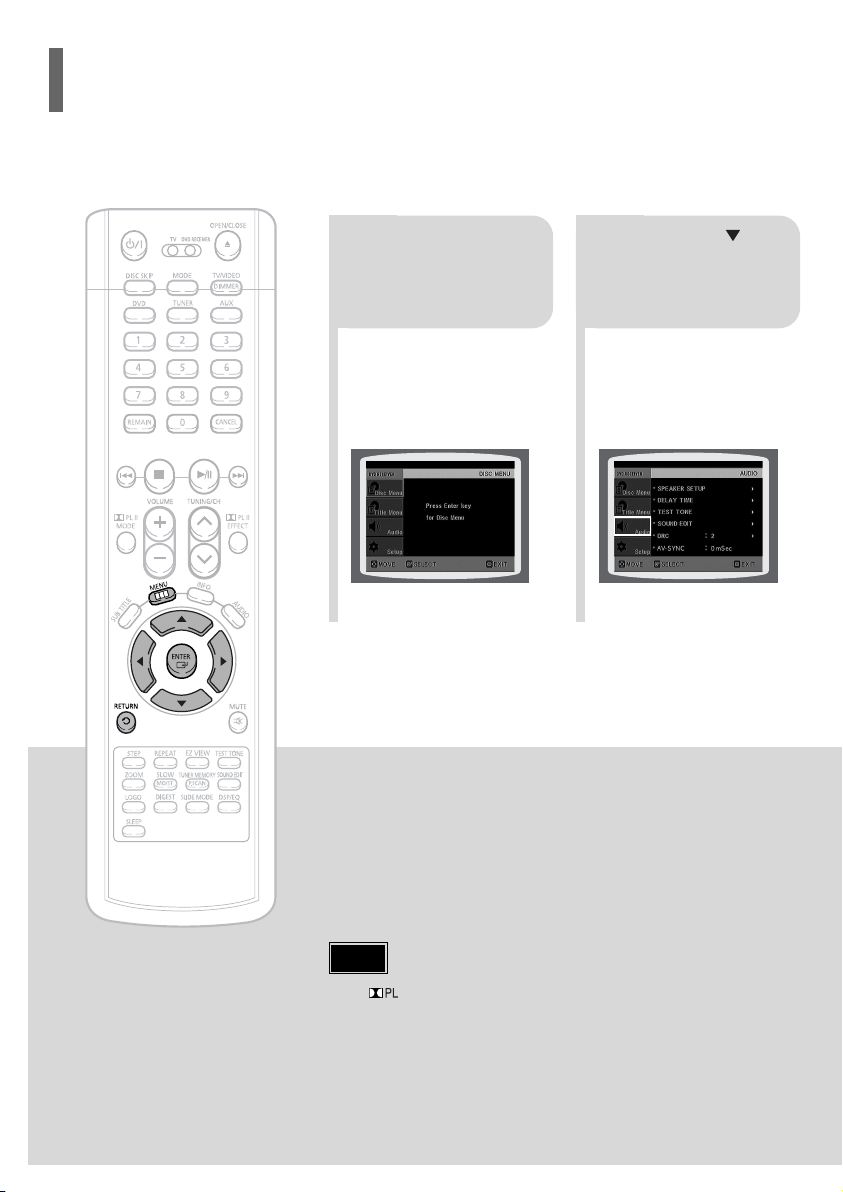
51
Setting up the Speaker Delay Time
When 5.1CH Surround Sound is played, you can enjoy the best sound if
the distance between you and each speaker is the same. Since the sounds
arrive at the listening position at different times depending on the
placement of speakers, you can adjust this difference by adding a delay
effect to the sound of the Center Speaker and Surround Speakers.
2
1
In Stop mode,
press MENU
button.
Press Cursor button
to move to ‘Audio’ and
then press ENTER
button.
•
With (Dolby Pro Logic II), the delay time may be different for each mode.
•
With AC-3 and DTS, the delay time can be set between 00 and 25mSEC.
•
The Center channel is only adjustable on 5.1 channel discs.
Note
If the speakers cannot be placed at equal distances from the listening position, you can adjust the delay time of
the audio signals from the center and rear speakers.
Setting the Delay Time
ENG
52
Df: The distance from FRONT SPEAKER
Dc: The distance from CENTER SPEAKER
Ds: The distance from SURROUND SPEAKER
Ideal CENTER
SPEAKER placement
It is desirable to place all speakers within this circle.
Ideal
SURROUND
SPEAKER
placement
SETUP
•
You can set the delay time for C
between 00 and 05mSEC and for
LS and RS between 00 and
15mSEC.
43 5
Press Cursor button
to move to ‘DELAY
TIME’ and then press
ENTER button.
Press Cursor , ,
, buttons to move
to the desired speaker
and then press
ENTER button.
Press Cursor ,
to set the Delay
time.
0 ms
3 ms
6 ms
9 ms
12 ms
15 ms
•
Setting REAR (SURROUND) SPEAKERS
If the distance of Df is equal to the distance of Ds
in the figure, set the mode as 0ms. Otherwise,
change the setting according to the table.
•
Setting CENTER SPEAKER
If the distance of Dc is equal to or longer than the
distance of Df in the figure, set the mode as 0ms.
Otherwise, change the setting according to the table.
Distance between Df and Dc Delay Time
Delay Time
0 ms
1 ms
2 ms
3 ms
4 ms
5 ms
Distance between Df and Ds
0 inch
13.6 inches
27.2 inches
40.8 inches
4.5 feet
5.6 feet
0 inch
40.8 inches
6.7 feet
10.0 feet
13.4 feet
16.7 feet
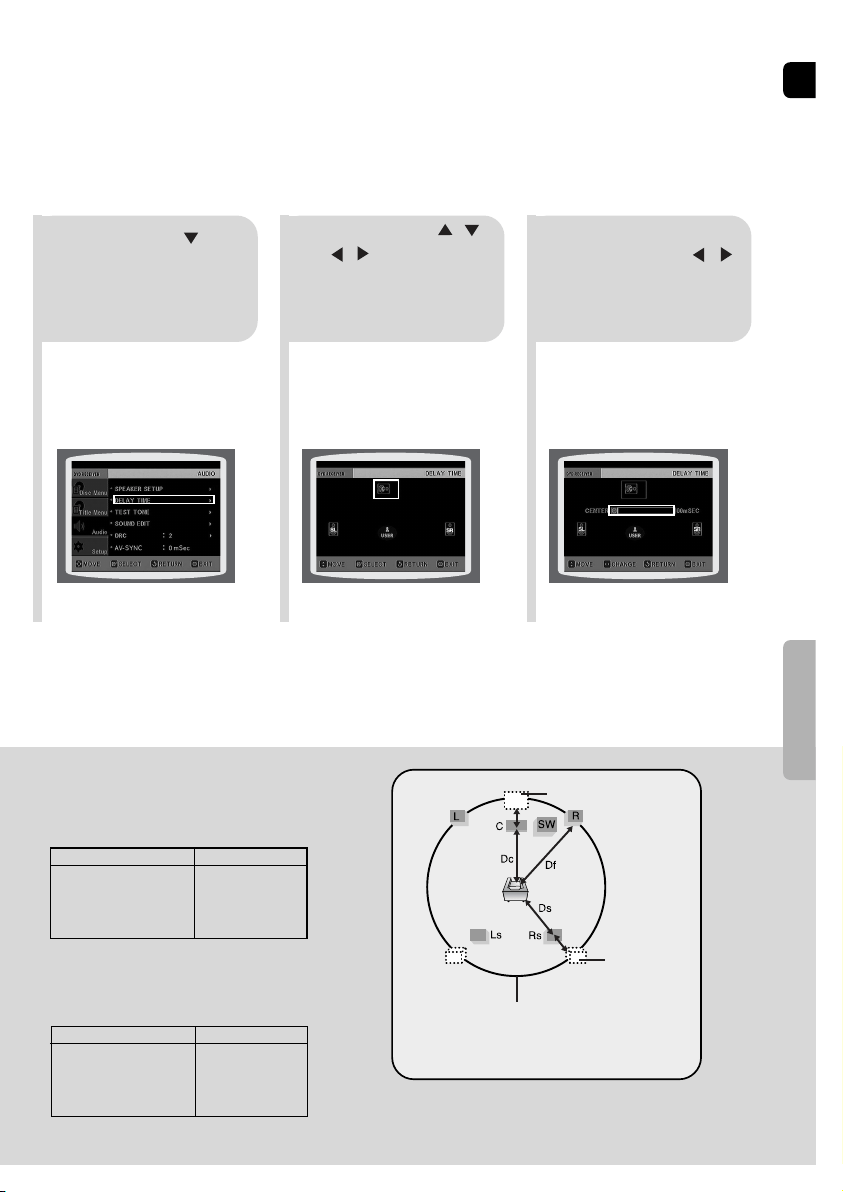
51
Setting up the Speaker Delay Time
When 5.1CH Surround Sound is played, you can enjoy the best sound if
the distance between you and each speaker is the same. Since the sounds
arrive at the listening position at different times depending on the
placement of speakers, you can adjust this difference by adding a delay
effect to the sound of the Center Speaker and Surround Speakers.
2
1
In Stop mode,
press MENU
button.
Press Cursor button
to move to ‘Audio’ and
then press ENTER
button.
•
With (Dolby Pro Logic II), the delay time may be different for each mode.
•
With AC-3 and DTS, the delay time can be set between 00 and 25mSEC.
•
The Center channel is only adjustable on 5.1 channel discs.
Note
If the speakers cannot be placed at equal distances from the listening position, you can adjust the delay time of
the audio signals from the center and rear speakers.
Setting the Delay Time
ENG
52
Df: The distance from FRONT SPEAKER
Dc: The distance from CENTER SPEAKER
Ds: The distance from SURROUND SPEAKER
Ideal CENTER
SPEAKER placement
It is desirable to place all speakers within this circle.
Ideal
SURROUND
SPEAKER
placement
SETUP
•
You can set the delay time for C
between 00 and 05mSEC and for
LS and RS between 00 and
15mSEC.
43 5
Press Cursor button
to move to ‘DELAY
TIME’ and then press
ENTER button.
Press Cursor , ,
, buttons to move
to the desired speaker
and then press
ENTER button.
Press Cursor ,
to set the Delay
time.
0 ms
3 ms
6 ms
9 ms
12 ms
15 ms
•
Setting REAR (SURROUND) SPEAKERS
If the distance of Df is equal to the distance of Ds
in the figure, set the mode as 0ms. Otherwise,
change the setting according to the table.
•
Setting CENTER SPEAKER
If the distance of Dc is equal to or longer than the
distance of Df in the figure, set the mode as 0ms.
Otherwise, change the setting according to the table.
Distance between Df and Dc Delay Time
Delay Time
0 ms
1 ms
2 ms
3 ms
4 ms
5 ms
Distance between Df and Ds
0 inch
13.6 inches
27.2 inches
40.8 inches
4.5 feet
5.6 feet
0 inch
40.8 inches
6.7 feet
10.0 feet
13.4 feet
16.7 feet
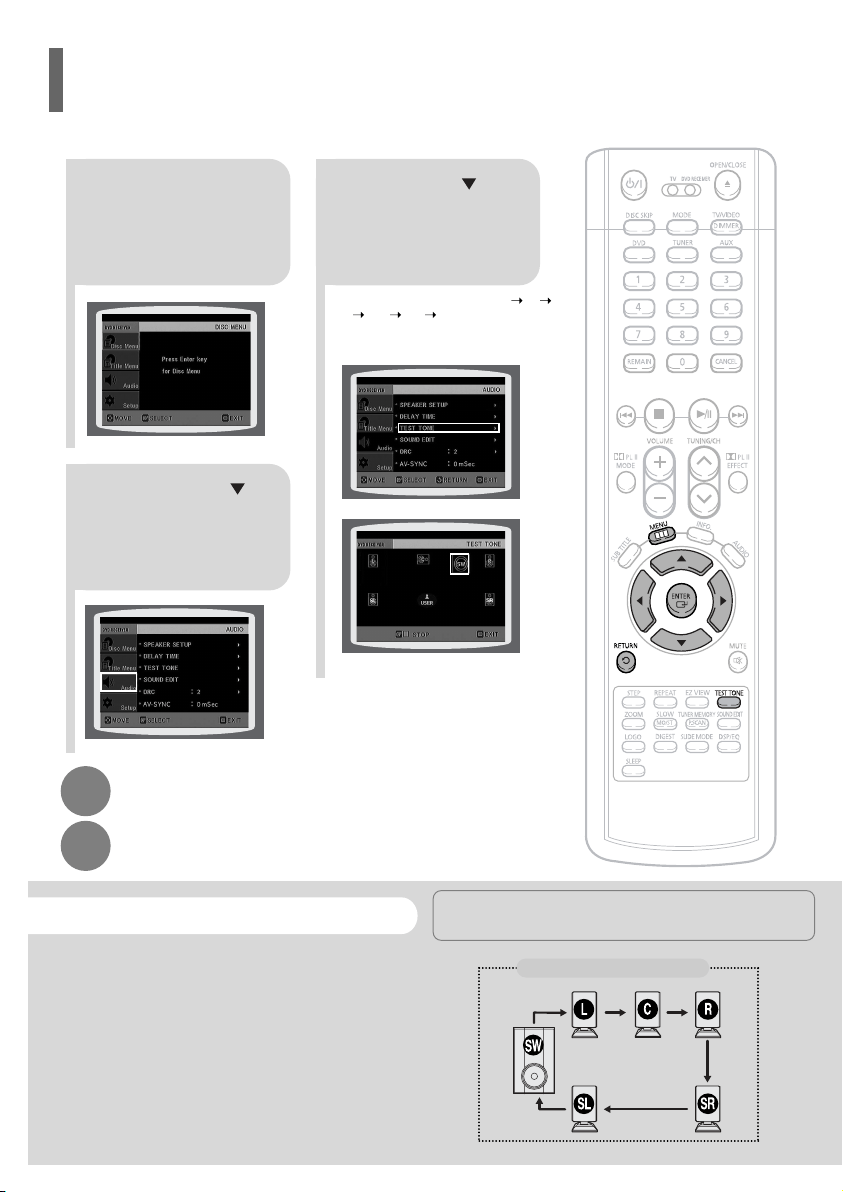
L: Front Speaker (L) C: Center Speaker SW: Subwoofer
R: Front Speaker (R) LS: Rear Speaker (L) RS: Rear Speaker (R)
Press RETURN button to return to the previous level.
Press MENU button to exit the setup screen.
2
1
In Stop or no
disc mode,
press MENU
button.
Press Cursor
button to move to
‘Audio’ and then
press ENTER button.
3
Press Cursor button
to move to ‘TEST
TONE’ and then press
ENTER button.
•
The test tone will be sent to L C
R RS LS SW in order.
If the ENTER button is pressed again
at this time, the test tone will stop.
To end the test tone,
press TEST TONE button again.
Press TEST TONE button.
•
Test tone will be produced as follows:
When playing a DVD or CD, this will work
only in Stop mode.
•
Use this function to check that each speaker is
correctly connected and that there is no problem.
Alternate method: press the TEST TONE button on the remote.
Multi-Channel Pro Logic Mode
Start
Use the Test Tone feature to check the speaker connections.
Setting the Test Tone
ENG
5453
1 2
In Stop or no disc mode,
press MENU button.
Press Cursor button to
move to ‘Audio’ and then
press ENTER button.
•
When the Cursor button is pressed, the effect is greater,
and when the Cursor button is pressed, the effect is
smaller.
3 4
Press Cursor button to
move to ‘DRC’ and then
press ENTER button.
Press Cursor , to
adjust the ‘DRC’.
Press RETURN button to return to the previous level.
Press MENU button to exit the setup screen.
You can use this function to enjoy Dolby Digital sound when watching movies at low volume at night.
Setting the DRC
(Dynamic Range Compression)
SETUP
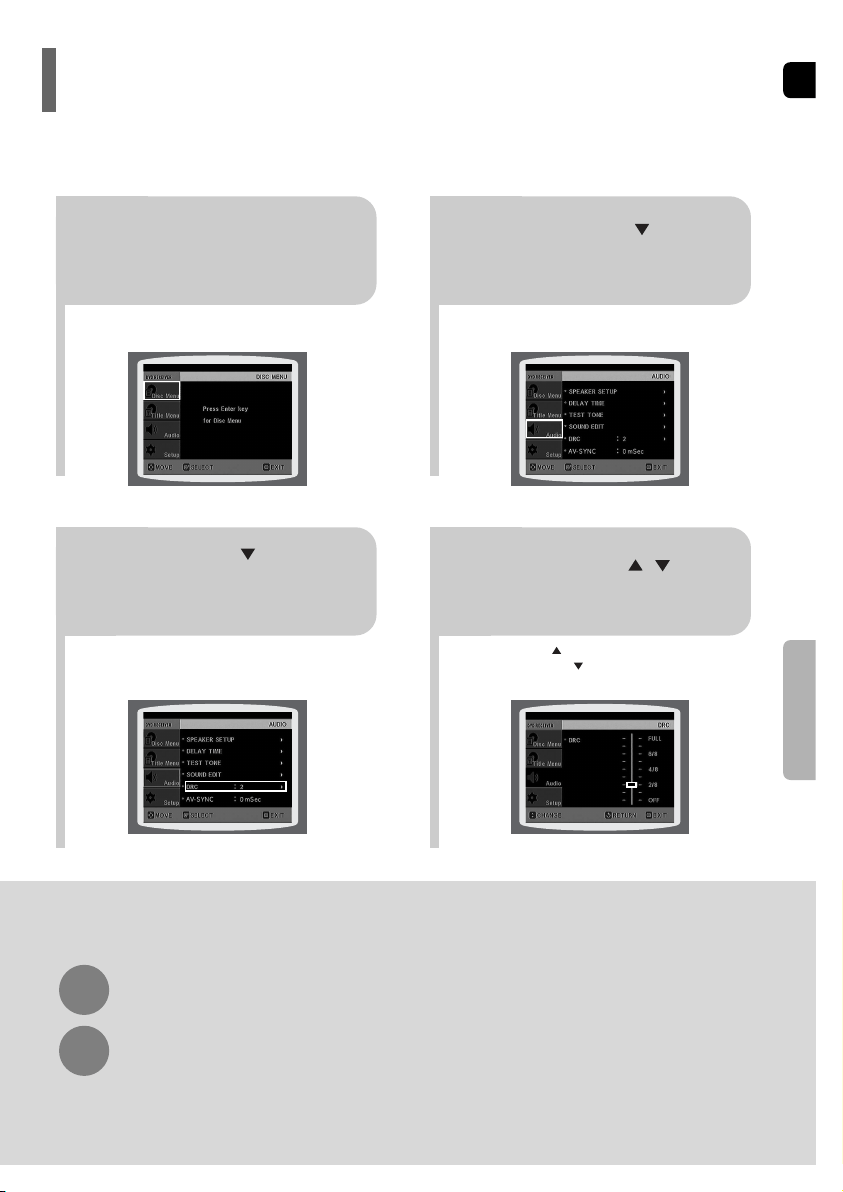
L: Front Speaker (L) C: Center Speaker SW: Subwoofer
R: Front Speaker (R) LS: Rear Speaker (L) RS: Rear Speaker (R)
Press RETURN button to return to the previous level.
Press MENU button to exit the setup screen.
2
1
In Stop or no
disc mode,
press MENU
button.
Press Cursor
button to move to
‘Audio’ and then
press ENTER button.
3
Press Cursor button
to move to ‘TEST
TONE’ and then press
ENTER button.
•
The test tone will be sent to L C
R RS LS SW in order.
If the ENTER button is pressed again
at this time, the test tone will stop.
To end the test tone,
press TEST TONE button again.
Press TEST TONE button.
•
Test tone will be produced as follows:
When playing a DVD or CD, this will work
only in Stop mode.
•
Use this function to check that each speaker is
correctly connected and that there is no problem.
Alternate method: press the TEST TONE button on the remote.
Multi-Channel Pro Logic Mode
Start
Use the Test Tone feature to check the speaker connections.
Setting the Test Tone
ENG
5453
1 2
In Stop or no disc mode,
press MENU button.
Press Cursor button to
move to ‘Audio’ and then
press ENTER button.
•
When the Cursor button is pressed, the effect is greater,
and when the Cursor button is pressed, the effect is
smaller.
3 4
Press Cursor button to
move to ‘DRC’ and then
press ENTER button.
Press Cursor , to
adjust the ‘DRC’.
Press RETURN button to return to the previous level.
Press MENU button to exit the setup screen.
You can use this function to enjoy Dolby Digital sound when watching movies at low volume at night.
Setting the DRC
(Dynamic Range Compression)
SETUP
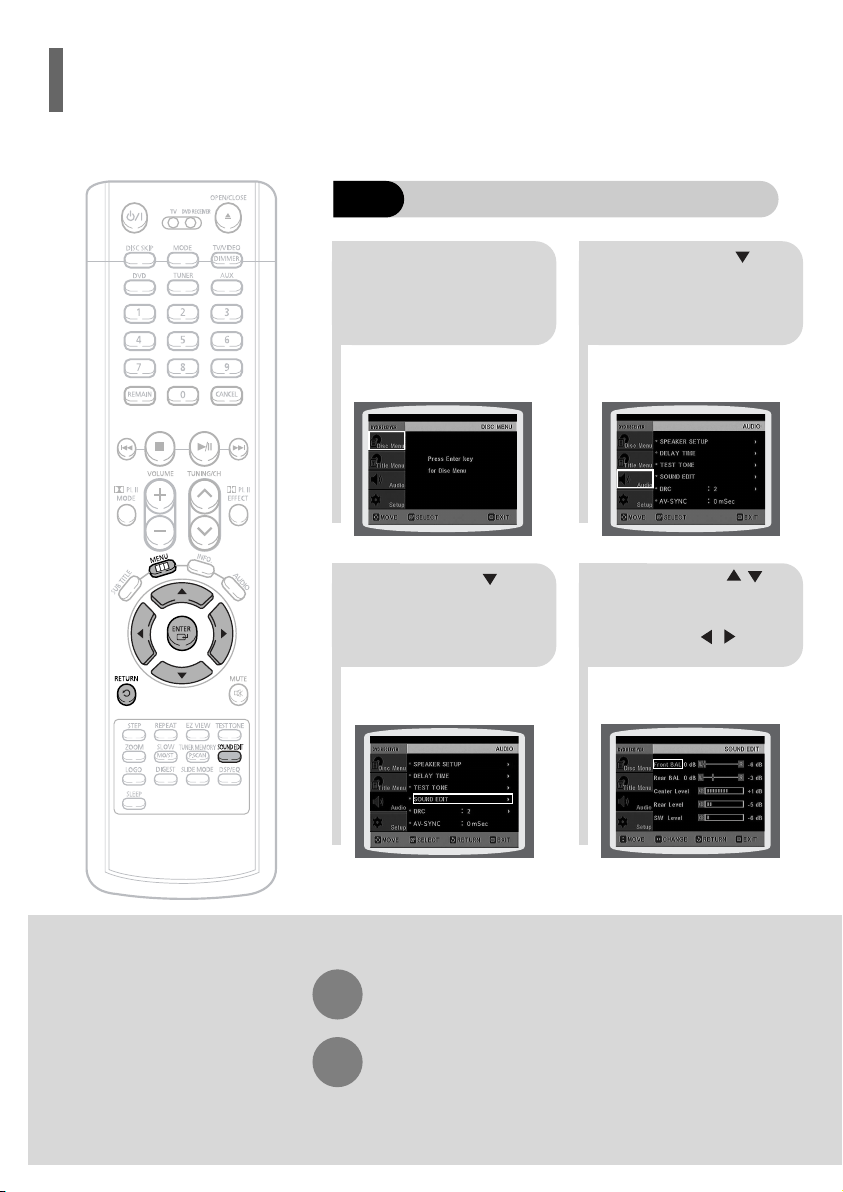
ENG
•
The adjustments will appear on the main unit's display, not on your TV screen.
Adjusting Front/Rear Speaker Balance
•
You can select between 00 and –06 and OFF.
•
The volume decreases as you move closer to –6.
Adjusting Center/Rear/Subwoofer Speaker Level
•
The volume level can be adjusted in steps from +6dB to –6dB.
•
The sound gets louder as you move closer to +6dB and quieter as you get closer to -6dB.
Method 2
When manually adjusting with the SOUND EDIT button
21
Adjusting Front Speaker Balance Adjusting Rear Speaker Balance
Press SOUND
EDIT button and
then press Cursor
, .
3
Adjusting Center Speaker Level
4 5
Adjusting Rear Speaker Level
Adjusting Subwoofer Speaker Level
56
Press SOUND
EDIT button and
then press Cursor
, .
Press SOUND
EDIT button and
then press Cursor
, .
Press SOUND
EDIT button and
then press Cursor
, .
Press SOUND
EDIT button and
then press Cursor
, .
Note
SETUP
TITLE
CHAP
PRGM RDS RT
ST
TUNED
kHz
MHz
TITLE
CHAP
PRGM RDS RT
ST
TUNED
kHz
MHz
TITLE
CHAP
PRGM RDS RT
ST
TUNED
kHz
MHz
TITLE
CHAP
PRGM RDS RT
ST
TUNED
kHz
MHz
TITLE
CHAP
PRGM RDS RT
ST
TUNED
kHz
MHz
55
Press RETURN button to return to the previous level.
Press MENU button to exit the setup screen.
21
43
In Stop mode,
press MENU
button.
Press Cursor
button to move to
‘Audio’ and then press
ENTER button.
Press Cursor button
to move to ‘SOUND
EDIT’ and then press
ENTER button.
Method 1
When adjusting the audio quality using the setup screen
Press Cursor ,
buttons to select and
adjust the desired item.
Press the , buttons
to adjust the settings.
You can adjust the balance and level for each speaker.
Setting the Audio
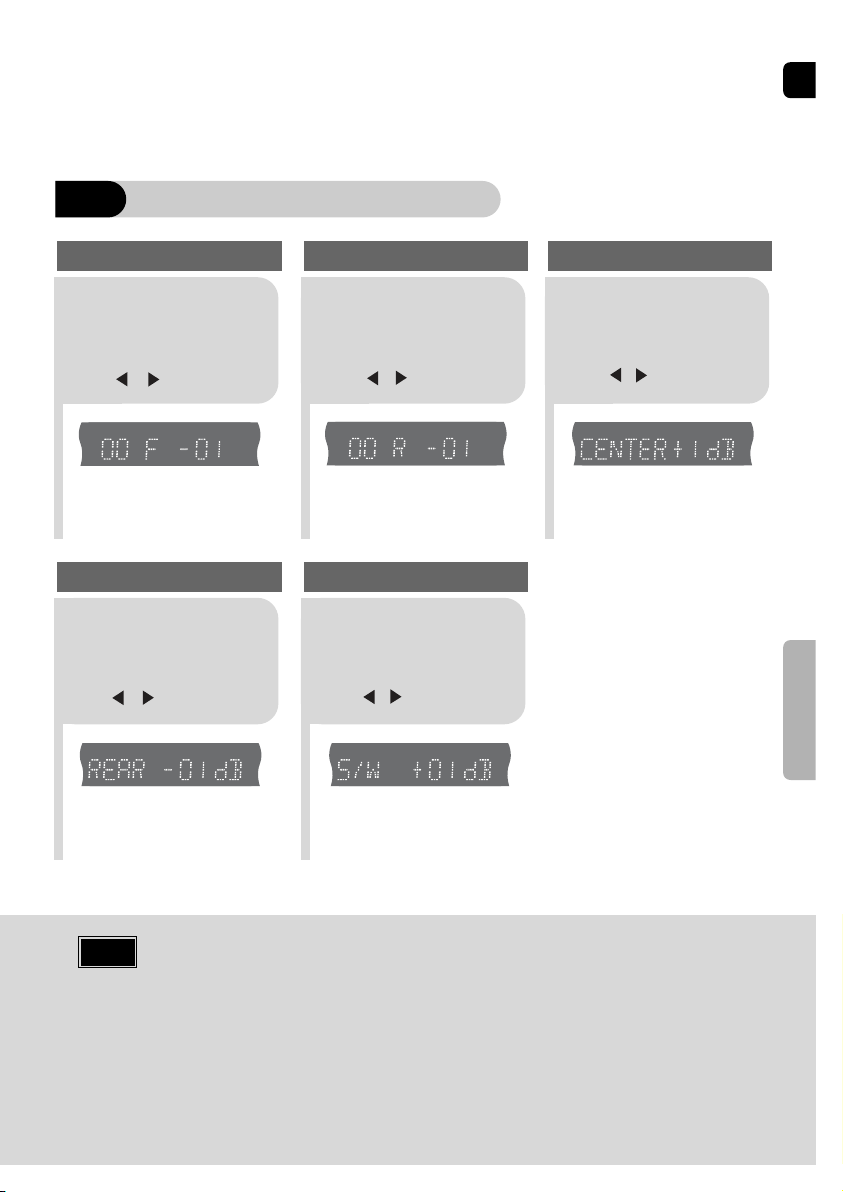
ENG
•
The adjustments will appear on the main unit's display, not on your TV screen.
Adjusting Front/Rear Speaker Balance
•
You can select between 00 and –06 and OFF.
•
The volume decreases as you move closer to –6.
Adjusting Center/Rear/Subwoofer Speaker Level
•
The volume level can be adjusted in steps from +6dB to –6dB.
•
The sound gets louder as you move closer to +6dB and quieter as you get closer to -6dB.
Method 2
When manually adjusting with the SOUND EDIT button
21
Adjusting Front Speaker Balance Adjusting Rear Speaker Balance
Press SOUND
EDIT button and
then press Cursor
, .
3
Adjusting Center Speaker Level
4 5
Adjusting Rear Speaker Level
Adjusting Subwoofer Speaker Level
56
Press SOUND
EDIT button and
then press Cursor
, .
Press SOUND
EDIT button and
then press Cursor
, .
Press SOUND
EDIT button and
then press Cursor
, .
Press SOUND
EDIT button and
then press Cursor
, .
Note
SETUP
TITLE
CHAP
PRGM RDS RT
ST
TUNED
kHz
MHz
TITLE
CHAP
PRGM RDS RT
ST
TUNED
kHz
MHz
TITLE
CHAP
PRGM RDS RT
ST
TUNED
kHz
MHz
TITLE
CHAP
PRGM RDS RT
ST
TUNED
kHz
MHz
TITLE
CHAP
PRGM RDS RT
ST
TUNED
kHz
MHz
55
Press RETURN button to return to the previous level.
Press MENU button to exit the setup screen.
21
43
In Stop mode,
press MENU
button.
Press Cursor
button to move to
‘Audio’ and then press
ENTER button.
Press Cursor button
to move to ‘SOUND
EDIT’ and then press
ENTER button.
Method 1
When adjusting the audio quality using the setup screen
Press Cursor ,
buttons to select and
adjust the desired item.
Press the , buttons
to adjust the settings.
You can adjust the balance and level for each speaker.
Setting the Audio
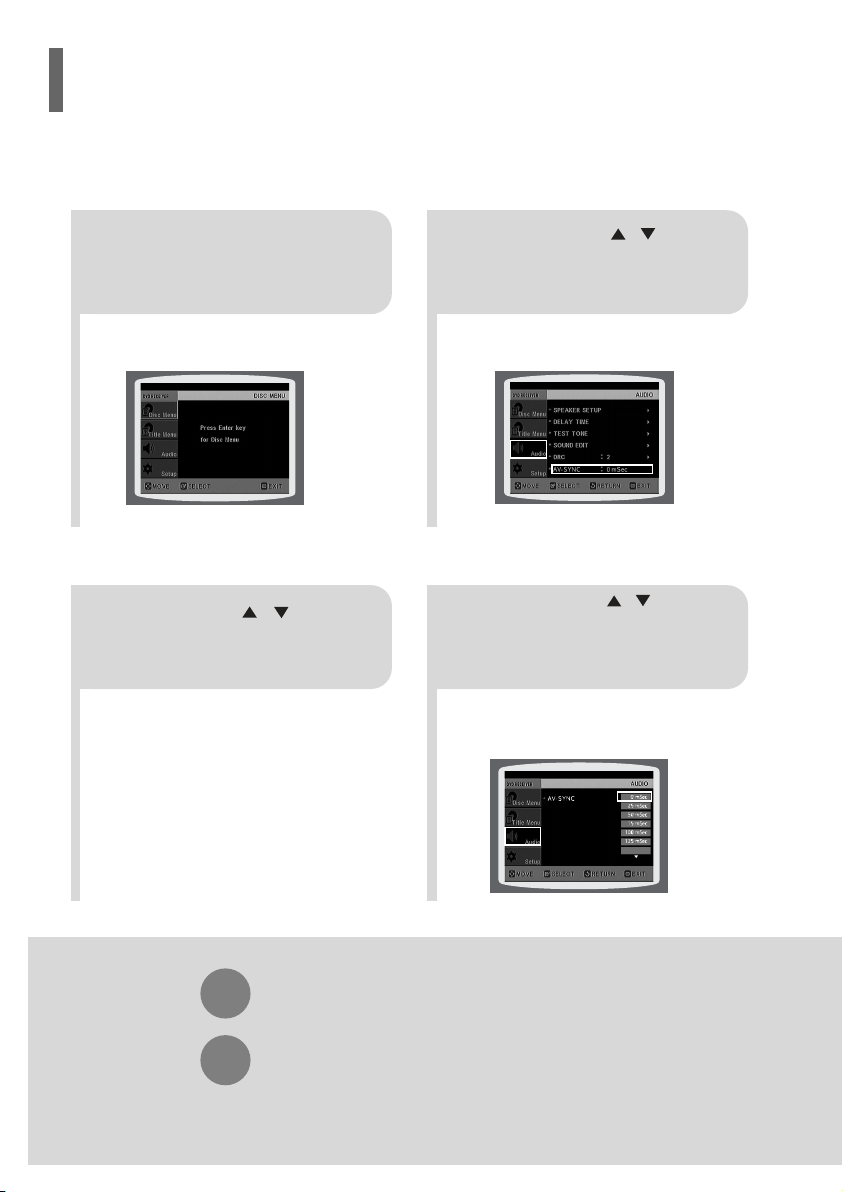
ENG
58
•
"DSP" appears on the display panel.
•
Each time the button is pressed, the selection changes as follows:
POP, JAZZ, ROCK: Depending on the genre of music, you can select POP, JAZZ, and ROCK.
STUDIO : Provides a sense of presence as if in a studio.
CLUB : Simulates the sound of a dance club with a throbbing bass beat.
HALL : Provides a clear vocal as if listening in a concert hall.
MOVIE: Provides the feeling of a movie theater.
CHURCH: Gives the feel of being in a grand church.
PASS: Select this for normal listening.
Press DSP/EQ button.
SETUP
•
DSP/EQ function is only available in STEREO mode.
Press the PL II mode button to show STEREO on the display.
•
This feature works with CDs, MP3-CDs, 2 channel DVD-Audio,
DivX and Dolby Digital discs.
•
When playing a DVD disc encoded with two or more channels,
multi-channel mode will be selected automatically and DSP/EQ
function does not work.
Note
DSP(Digital Signal Processor) DSP modes have been designed to simulate different acoustic environments.
EQ: You can select ROCK, POP, or CLASSIC to optimize the sound for the genre of music you are playing
Sound Field (DSP)/EQ Function
Video may look slower than the audio if it is connected to a digital TV.
If this occurs, adjust the audio delay time to to match the video.
AV SYNC Setup
57
Press RETURN button to return to the previous level.
Press MENU button to exit the setup screen.
•
'Audio' menu appears.
21
•
Setup menu appears.
•
AV-SYNC screen appears.
3
Press Cursor , buttons
to move to ‘Audio’ and then
press ENTER button.
Press Cursor , buttons
to move to ‘AV-SYNC’ and
then press ENTER button.
Press the MENU button.
4
•
You can set the audio delay time between 0 ms
and 300 ms. Set it to the optimal status.
Press Cursor , buttons
to select the AV-SYNC Delay
Time and then press the
ENTER button.
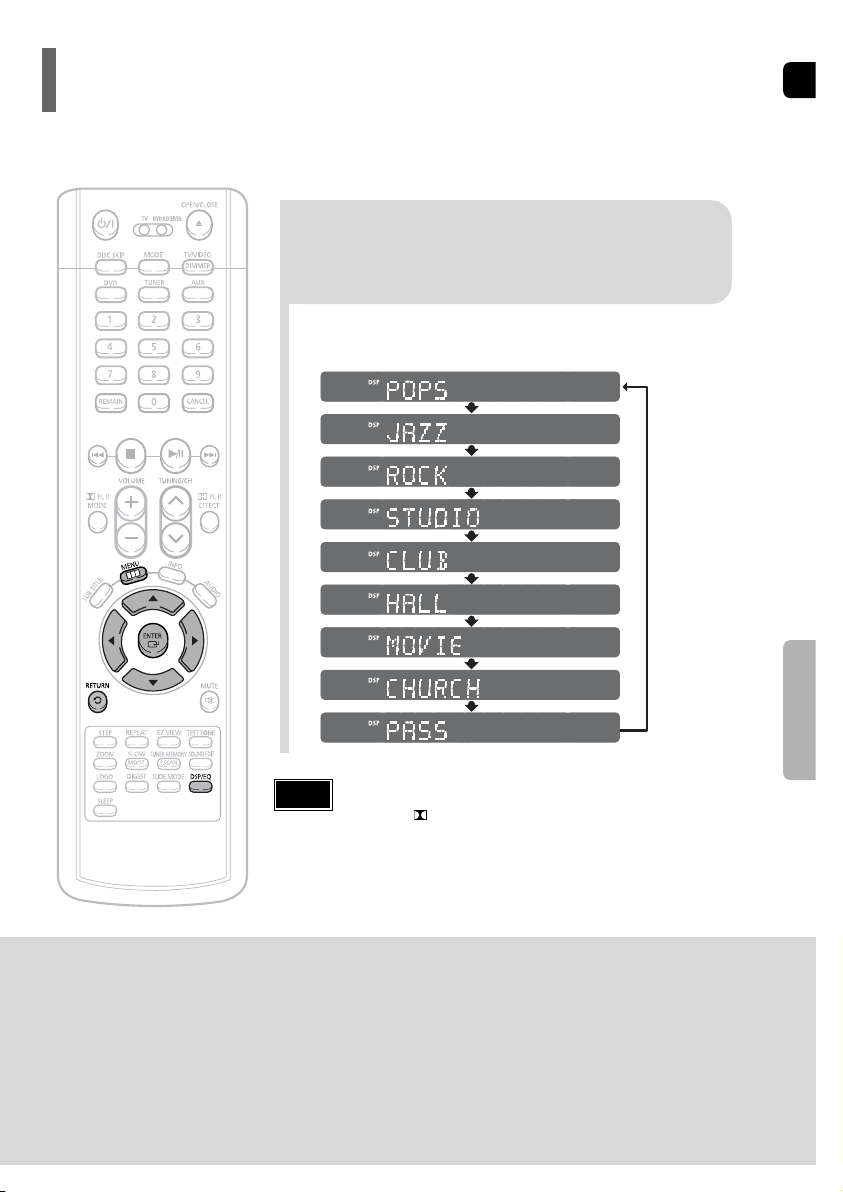
ENG
58
•
"DSP" appears on the display panel.
•
Each time the button is pressed, the selection changes as follows:
POP, JAZZ, ROCK: Depending on the genre of music, you can select POP, JAZZ, and ROCK.
STUDIO : Provides a sense of presence as if in a studio.
CLUB : Simulates the sound of a dance club with a throbbing bass beat.
HALL : Provides a clear vocal as if listening in a concert hall.
MOVIE: Provides the feeling of a movie theater.
CHURCH: Gives the feel of being in a grand church.
PASS: Select this for normal listening.
Press DSP/EQ button.
SETUP
•
DSP/EQ function is only available in STEREO mode.
Press the PL II mode button to show STEREO on the display.
•
This feature works with CDs, MP3-CDs, 2 channel DVD-Audio,
DivX and Dolby Digital discs.
•
When playing a DVD disc encoded with two or more channels,
multi-channel mode will be selected automatically and DSP/EQ
function does not work.
Note
DSP(Digital Signal Processor) DSP modes have been designed to simulate different acoustic environments.
EQ: You can select ROCK, POP, or CLASSIC to optimize the sound for the genre of music you are playing
Sound Field (DSP)/EQ Function
Video may look slower than the audio if it is connected to a digital TV.
If this occurs, adjust the audio delay time to to match the video.
AV SYNC Setup
57
Press RETURN button to return to the previous level.
Press MENU button to exit the setup screen.
•
'Audio' menu appears.
21
•
Setup menu appears.
•
AV-SYNC screen appears.
3
Press Cursor , buttons
to move to ‘Audio’ and then
press ENTER button.
Press Cursor , buttons
to move to ‘AV-SYNC’ and
then press ENTER button.
Press the MENU button.
4
•
You can set the audio delay time between 0 ms
and 300 ms. Set it to the optimal status.
Press Cursor , buttons
to select the AV-SYNC Delay
Time and then press the
ENTER button.
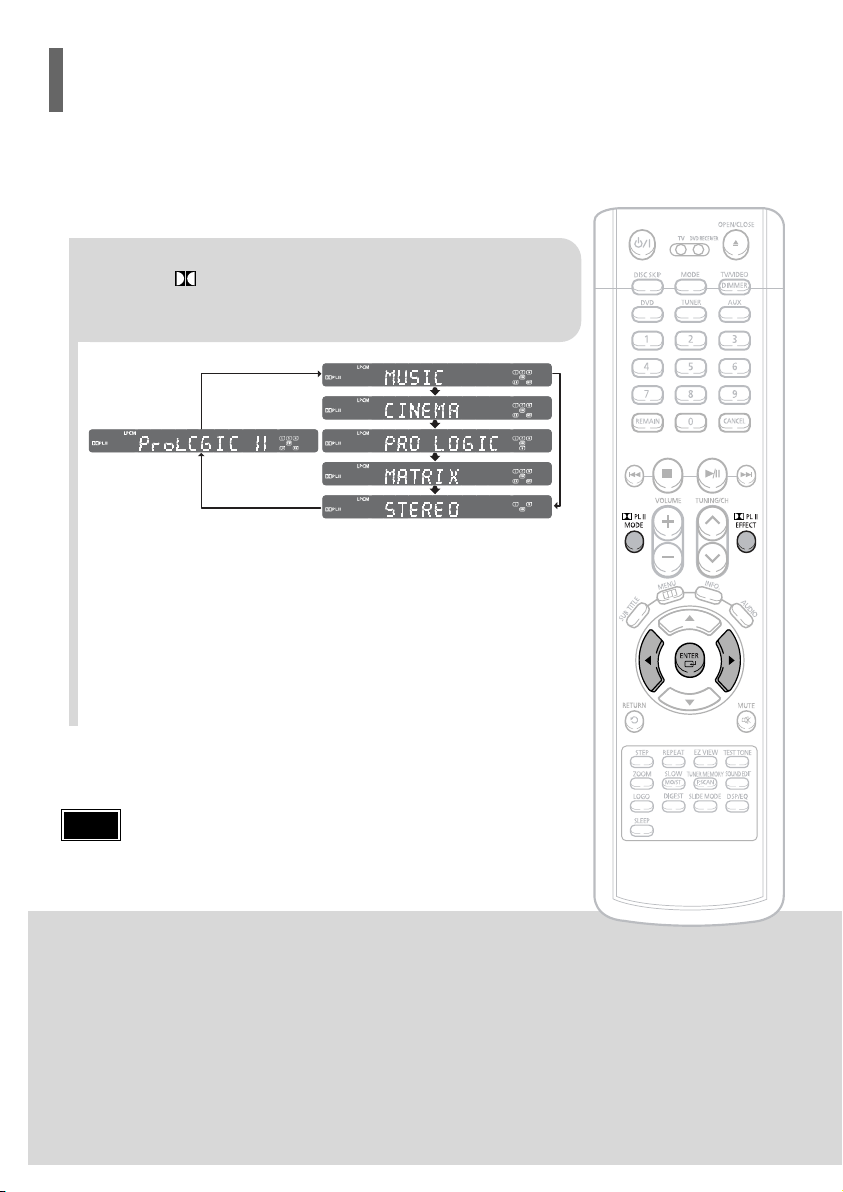
ENG
60
1 2
•
You can select between 0 and 7.
•
This sets the width of the center image.
The higher the setting, the less sound comes from
the center speaker.
•
You can select between 0 and 6.
•
Incrementally adjusts the sound field (DSP)from
the front or rear.
3 4
•
When playing a DVD disc encoded with two or more channels, multi-channel mode will be
selected automatically and (Dolby Pro Logic II) button does not work.
•
You can select either 0 or 1.
•
This mode extends the front stereo image to
include the surround speakers for an exciting
"wraparound" effect with side wall imaging.
Press PL II MODE
button to select ‘MUSIC’
mode.
Press PL II EFFECT button
to select Panorama, then press
Cursor , buttons to select
the desired effect setting.
Press PL II EFFECT button
to select C-Width, then press
Cursor , buttons to select
the desired effect setting.
Press PL II EFFECT button
to select Dimension, then press
the Cursor , buttons to
select the desired setting.
Note
SETUP
This function works only in Dolby Pro Logic MUSIC mode.
Dolby Pro Logic II Effect
59
Press PL II MODE button.
PRO LOGIC II
•
MUSIC: When listening to music, you can experience sound effects as if you are listening to the actual performance.
•
CINEMA: Adds realism to the movie soundtrack.
•
PRO LOGIC: You will experience a realistic multi-channel effect, as if using five speakers, while using just the front left
and right speakers.
•
MATRIX: You will hear 5.1 channel surround sound.
STEREO: Select this to listen to sound from the front left and right speakers and the subwoofer only.
•
Each time the button is pressed, the mode changes as follows.
•
When selecting Pro Logic II mode, connect your external device to the
AUDIO INPUT jacks (L and R) on the player. If you connect to only one of
the inputs (L or R), you cannot listen to surround sound.
Note
You can select the desired Dolby Pro Logic II audio mode.
Dolby Pro Logic II Mode
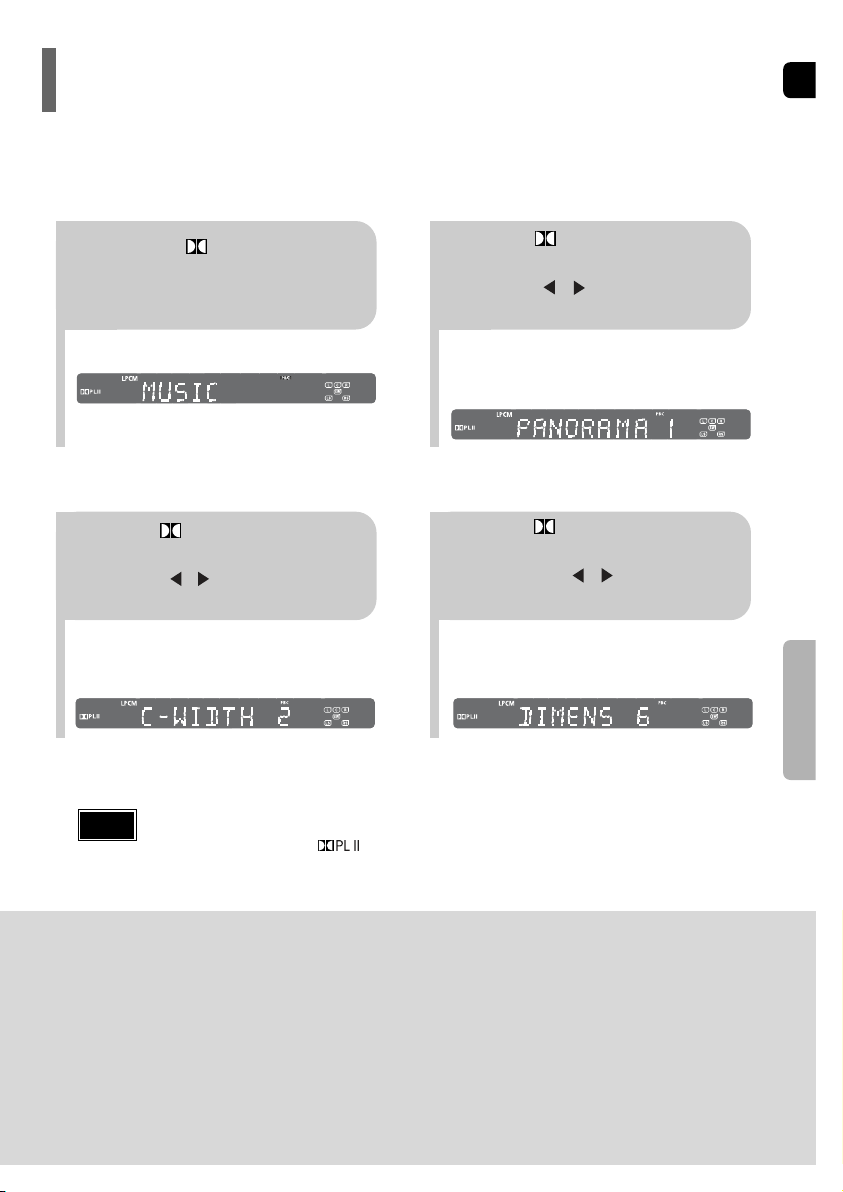
ENG
60
1 2
•
You can select between 0 and 7.
•
This sets the width of the center image.
The higher the setting, the less sound comes from
the center speaker.
•
You can select between 0 and 6.
•
Incrementally adjusts the sound field (DSP)from
the front or rear.
3 4
•
When playing a DVD disc encoded with two or more channels, multi-channel mode will be
selected automatically and (Dolby Pro Logic II) button does not work.
•
You can select either 0 or 1.
•
This mode extends the front stereo image to
include the surround speakers for an exciting
"wraparound" effect with side wall imaging.
Press PL II MODE
button to select ‘MUSIC’
mode.
Press PL II EFFECT button
to select Panorama, then press
Cursor , buttons to select
the desired effect setting.
Press PL II EFFECT button
to select C-Width, then press
Cursor , buttons to select
the desired effect setting.
Press PL II EFFECT button
to select Dimension, then press
the Cursor , buttons to
select the desired setting.
Note
SETUP
This function works only in Dolby Pro Logic MUSIC mode.
Dolby Pro Logic II Effect
59
Press PL II MODE button.
PRO LOGIC II
•
MUSIC: When listening to music, you can experience sound effects as if you are listening to the actual performance.
•
CINEMA: Adds realism to the movie soundtrack.
•
PRO LOGIC: You will experience a realistic multi-channel effect, as if using five speakers, while using just the front left
and right speakers.
•
MATRIX: You will hear 5.1 channel surround sound.
STEREO: Select this to listen to sound from the front left and right speakers and the subwoofer only.
•
Each time the button is pressed, the mode changes as follows.
•
When selecting Pro Logic II mode, connect your external device to the
AUDIO INPUT jacks (L and R) on the player. If you connect to only one of
the inputs (L or R), you cannot listen to surround sound.
Note
You can select the desired Dolby Pro Logic II audio mode.
Dolby Pro Logic II Mode
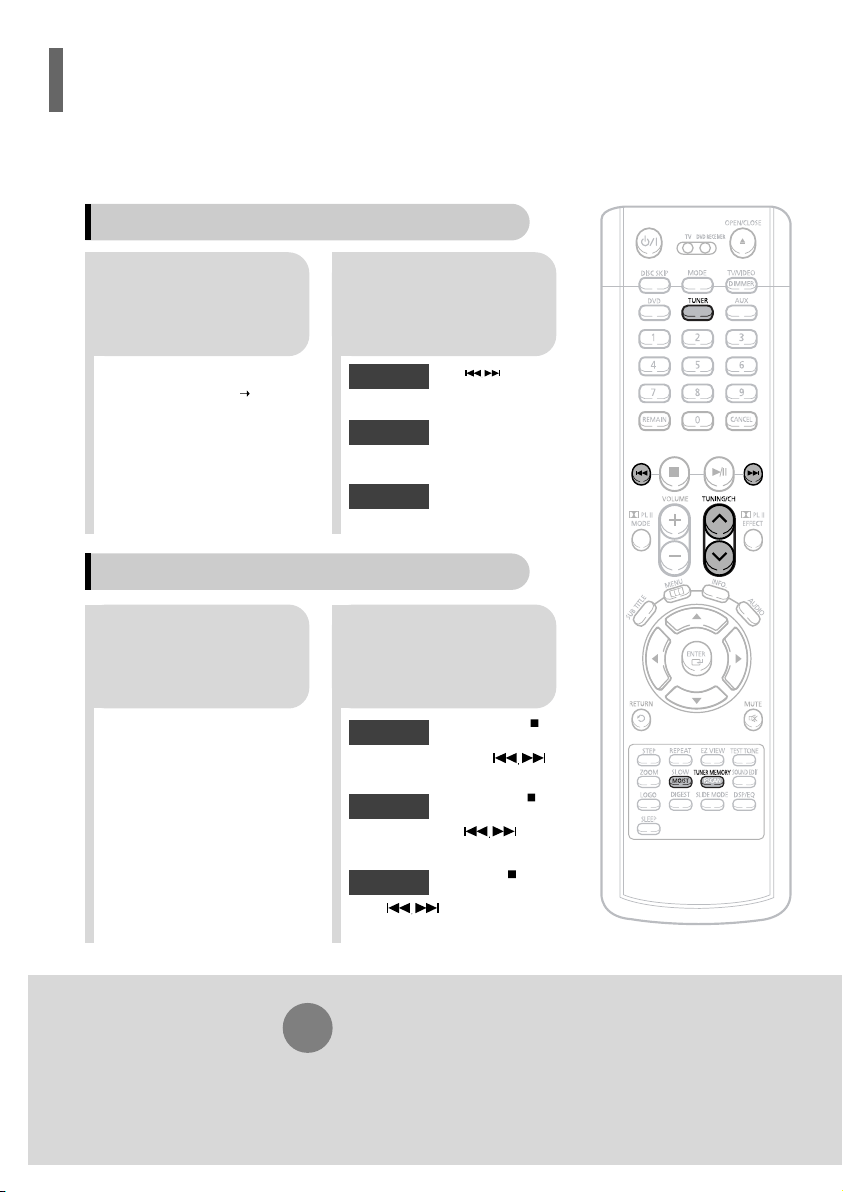
ENG
62
To tune in to a preset station, press on the
remote control to select a channel.
•
Refer to Step 2 on page 61 to
automatically or manually tune in
to a station.
21
•
Each time the button is pressed,
the band switches between
"FM AM".
•
“PRGM” flashes in the display.
3
Example: Presetting FM 89.1 in the memory
Press TUNING/CH
to select "89.10".
Press the TUNER
button and select the
FM band.
•
Press the TUNER MEMORY button before
‘PRGM’ disappears from the display.
•
‘PRGM’ disappears from the display and
the station is stored in memory.
54
•
You can select between 1 and
15.
Press the TUNER
MEMORY button.
Press the TUNER
MEMORY button
again.
6
To preset another
station, repeat
steps 2 to 5.
Press
to select preset
number.
RADIO OPERATION
You can store up to:
15 FM stations
15 AM stations
• FM Frequency Modulation
• AM Medium Wave
Presetting Stations
61
21
•
The selection toggles back and
forth between "FM AM" each
time the FM button is pressed.
Tune in to the
desired station.
Press TUNER
button.
Automatic Tuning 2
Manual Tuning
21
Select a broadcast
station.
Press the STOP ( )
button to select
PRESET and then press
button to select the preset station.
Automatic Tuning 1
Press the Function
button to select the
desired band (FM,
AM).
Press the STOP
( )
button
to select "MANUAL" and
then press and hold button to
automatically search the band.
Automatic Tuning 2
Press STOP
( )
to select
MANUAL and then briefly
press to tune in to a lower or
higher frequency.
Manual Tuning
•
Each time the button is pressed, the sound switches between "STEREO" and "MONO".
•
In a poor reception area, select MONO for a clear, interference-free broadcast.
Press MO/ST button to listen in Mono/Stereo.
(This applies only when listening to an FM station.)
When is pressed, a
preset broadcast station is
selected.
Press and hold TUNING/CH
button to automatically search for
active broadcasting stations.
Briefly press TUNING/CH button
to increase or decrease the
frequency incrementally.
Automatic Tuning 1
Remote Control Unit
Main Unit
You can listen to the chosen band (FM broadcast stations) by using either the automatic or manual
tuning operation.
Listening to Radio
•
Up to 15 stations (FM/AM each) you can save in memory.
If you save more than 15 stations, the station preciously saved is removed from the
oldest one and a new station will be stored in memory.
Note
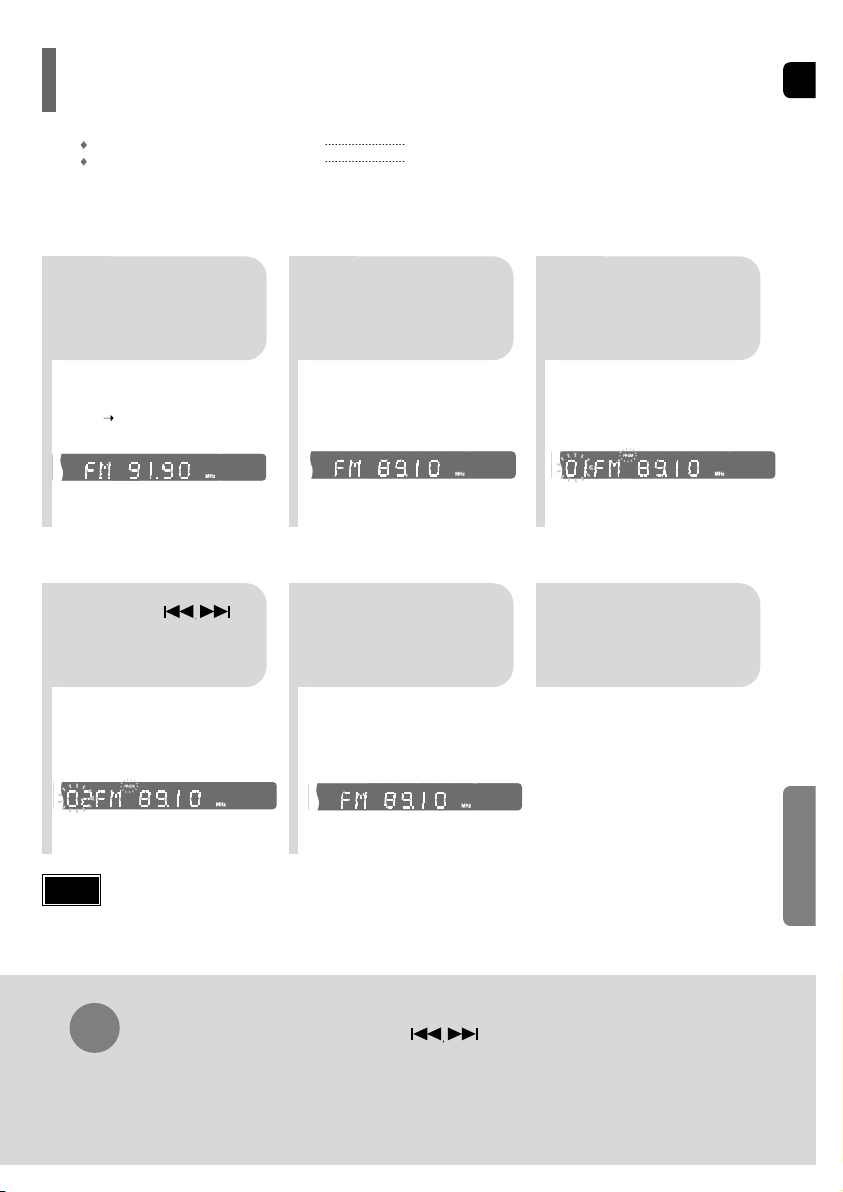
ENG
62
To tune in to a preset station, press on the
remote control to select a channel.
•
Refer to Step 2 on page 61 to
automatically or manually tune in
to a station.
21
•
Each time the button is pressed,
the band switches between
"FM AM".
•
“PRGM” flashes in the display.
3
Example: Presetting FM 89.1 in the memory
Press TUNING/CH
to select "89.10".
Press the TUNER
button and select the
FM band.
•
Press the TUNER MEMORY button before
‘PRGM’ disappears from the display.
•
‘PRGM’ disappears from the display and
the station is stored in memory.
54
•
You can select between 1 and
15.
Press the TUNER
MEMORY button.
Press the TUNER
MEMORY button
again.
6
To preset another
station, repeat
steps 2 to 5.
Press
to select preset
number.
RADIO OPERATION
You can store up to:
15 FM stations
15 AM stations
• FM Frequency Modulation
• AM Medium Wave
Presetting Stations
61
21
•
The selection toggles back and
forth between "FM AM" each
time the FM button is pressed.
Tune in to the
desired station.
Press TUNER
button.
Automatic Tuning 2
Manual Tuning
21
Select a broadcast
station.
Press the STOP ( )
button to select
PRESET and then press
button to select the preset station.
Automatic Tuning 1
Press the Function
button to select the
desired band (FM,
AM).
Press the STOP
( )
button
to select "MANUAL" and
then press and hold button to
automatically search the band.
Automatic Tuning 2
Press STOP
( )
to select
MANUAL and then briefly
press to tune in to a lower or
higher frequency.
Manual Tuning
•
Each time the button is pressed, the sound switches between "STEREO" and "MONO".
•
In a poor reception area, select MONO for a clear, interference-free broadcast.
Press MO/ST button to listen in Mono/Stereo.
(This applies only when listening to an FM station.)
When is pressed, a
preset broadcast station is
selected.
Press and hold TUNING/CH
button to automatically search for
active broadcasting stations.
Briefly press TUNING/CH button
to increase or decrease the
frequency incrementally.
Automatic Tuning 1
Remote Control Unit
Main Unit
You can listen to the chosen band (FM broadcast stations) by using either the automatic or manual
tuning operation.
Listening to Radio
•
Up to 15 stations (FM/AM each) you can save in memory.
If you save more than 15 stations, the station preciously saved is removed from the
oldest one and a new station will be stored in memory.
Note
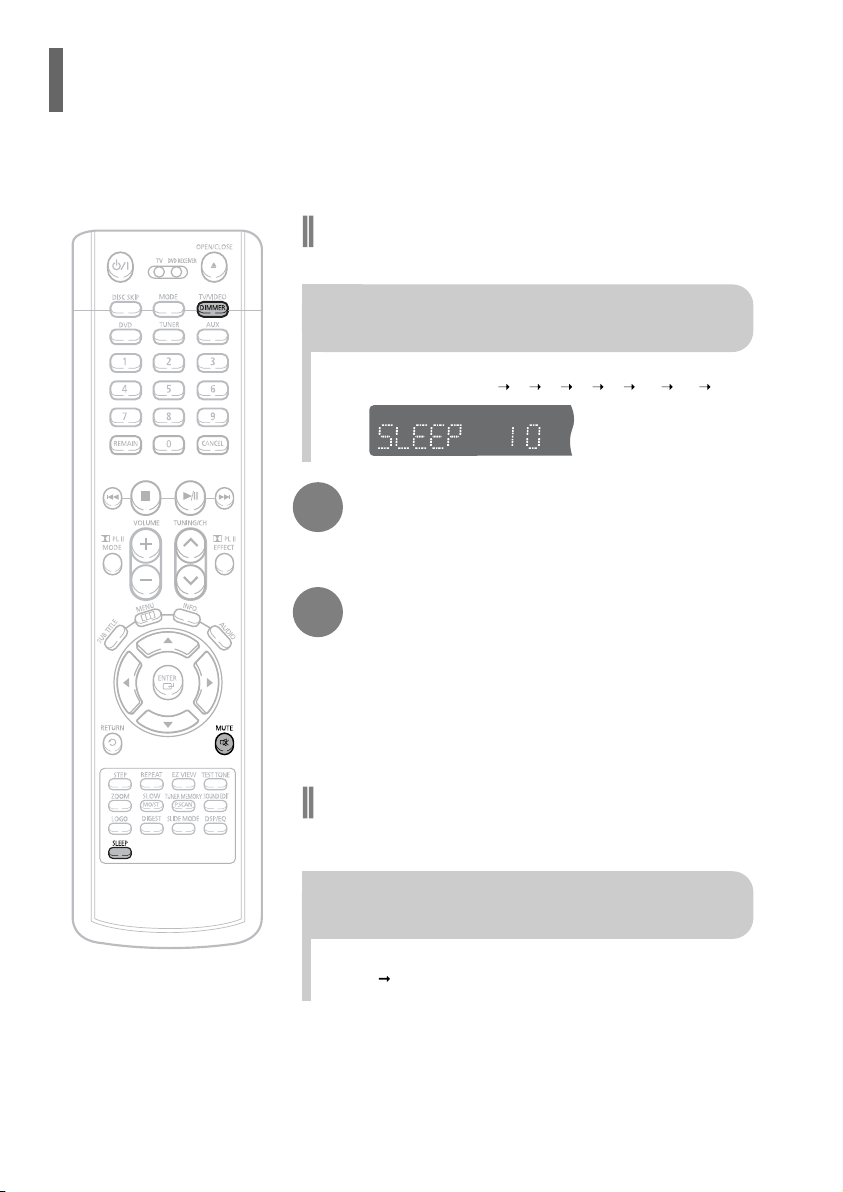
ENG
64
•
Each time the button is press, the brightness changes as follows:
DARK BRIGHT.
TITLE
CHAP
PRGM RDS RT
ST
TUNED
kHz
MHz
Adjusting Display Brightness
You can adjust the brightness of the display on the main unit so it won't interfere
with your movie viewing.
Press DIMMER button.
MISCELLANEOUS
63
•
"SLEEP" will be displayed. Each time the button is pressed the preset
time changes as follows: 10 20 30 60 90 120 150 OFF.
TITLE
CHAP
PRGM RDS RT
ST
TUNED
kHz
MHz
Press SLEEP button.
Sleep Timer Function
You can set the time that the Home Theater will shut itself off.
Convenient Functions
•
‘
MUTE ON’ appears in the display.
•
To restore the sound, press the button again to
select ‘MUTE OFF’.
Mute Function
This is useful when answering a doorbell or telephone call.
Press MUTE button.
Using Headphones
Use headphones (not supplied) for private listening pleasure.
Connect the headphones to the PHONES jack for private listening.
•
The remaining time before the Home Theater will shut itself off is displayed.
•
Pressing the button again changes the sleep time from what you have set earlier.
To confirm the sleep timer setting, press SLEEP button.
To cancel the sleep timer, press SLEEP button until
OFF appears on the display.
•
To prevent hearing damage, do not increase the
volume excessively when using headphones.
Caution
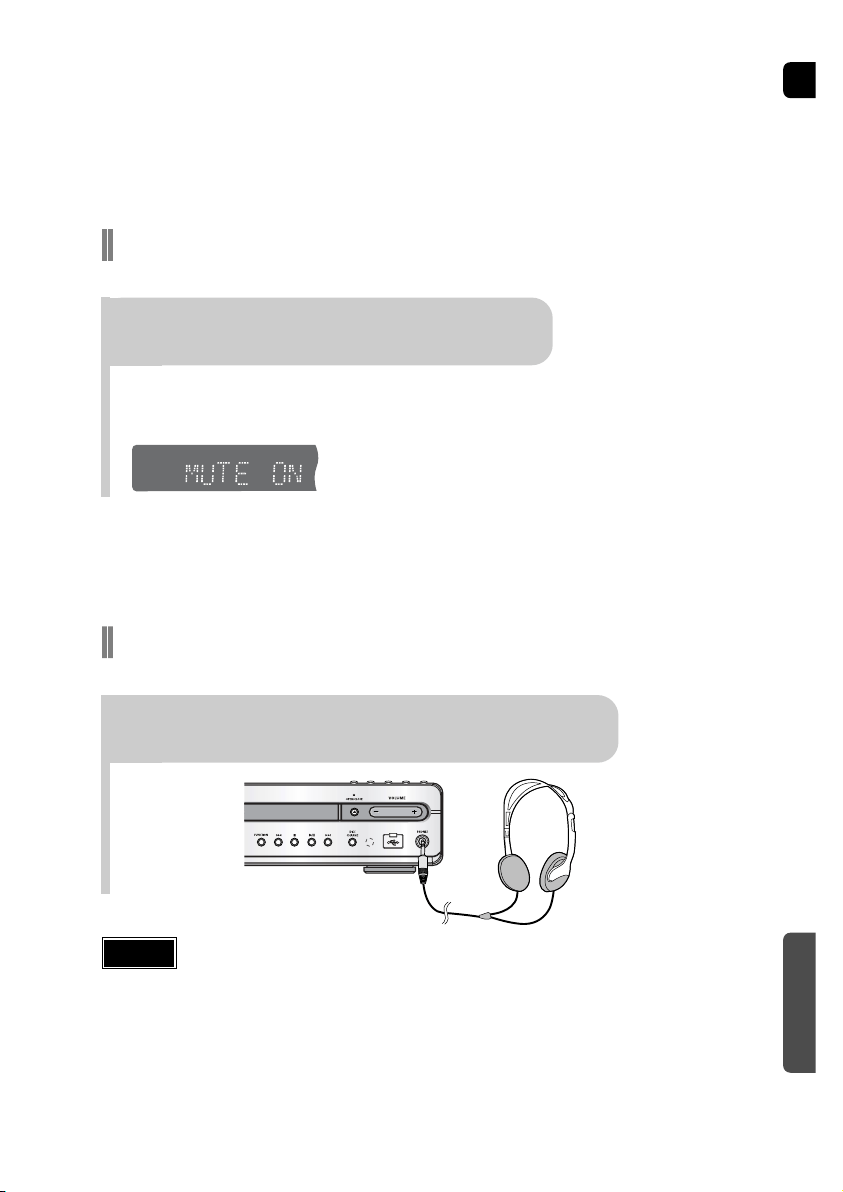
ENG
64
•
Each time the button is press, the brightness changes as follows:
DARK BRIGHT.
TITLE
CHAP
PRGM RDS RT
ST
TUNED
kHz
MHz
Adjusting Display Brightness
You can adjust the brightness of the display on the main unit so it won't interfere
with your movie viewing.
Press DIMMER button.
MISCELLANEOUS
63
•
"SLEEP" will be displayed. Each time the button is pressed the preset
time changes as follows: 10 20 30 60 90 120 150 OFF.
TITLE
CHAP
PRGM RDS RT
ST
TUNED
kHz
MHz
Press SLEEP button.
Sleep Timer Function
You can set the time that the Home Theater will shut itself off.
Convenient Functions
•
‘
MUTE ON’ appears in the display.
•
To restore the sound, press the button again to
select ‘MUTE OFF’.
Mute Function
This is useful when answering a doorbell or telephone call.
Press MUTE button.
Using Headphones
Use headphones (not supplied) for private listening pleasure.
Connect the headphones to the PHONES jack for private listening.
•
The remaining time before the Home Theater will shut itself off is displayed.
•
Pressing the button again changes the sleep time from what you have set earlier.
To confirm the sleep timer setting, press SLEEP button.
To cancel the sleep timer, press SLEEP button until
OFF appears on the display.
•
To prevent hearing damage, do not increase the
volume excessively when using headphones.
Caution

ENG
Operating a TV with the Remote Control
•
The remote control may not work on some brands of TVs. Also some operations may not be
possible depending on your brand of TV.
•
If you do not set the remote control with the code for your brand of TV, the remote control will
work on a Samsung TV by default.
When operating a TV with the remote control
1
Press the MODE button to make the TV
indicator on the remote control flash.
2
Press POWER button to turn on the TV.
3
Point the remote control toward the TV.
4
While holding down POWER, enter the code
corresponding to your brand of TV.
•
If the code matches the TV's code, the TV will be turned off.
•
If there is more than one code listed for your TV in the table,
enter one at a time to determine which code works.
Example: For a Samsung TV
While holding down POWER, use the number buttons to enter 00,
01, 02, 03, 04, and 05.
•
You can use the TV POWER, VOLUME, CHANNEL, and Numeric
buttons (0~9).
5
Point the remote control toward the TV and
press POWER. If the TV turns off or on,
the setting is complete.
TV
DVD RECEIVER
Note
1
2
3
4
5
6
7
8
9
10
11
12
13
14
15
16
17
18
19
20
21
22
23
24
25
26
27
28
29
SAMSUNG
ANAM
DAEWOO
LG
HITACHI
JVC
SHARP
SONY
TOSHIBA
SANYO
MITSUBISHI
MATSUSHITA
TELEFUNKEN
RCA
PANASONIC
SABA
PHILIPS
GRUNDIG
ZENITH
MIVAL
NOBLEX
EMERSON
MAGNAVOX
LOEWE
THOMSON
NORDMENDE
LOEWE OPTA
BLAUPUNKT
SIEMENS
TV Brand Code List
No.
Brand
Code
00(Initial Value), 01, 02, 03, 04, 05, 73
06~11, 59
12~18, 20, 21
05, 20, 21, 22, 53
23, 40, 41, 49
24, 55
27, 33, 34, 35, 54
27, 36
27, 37, 42, 43, 44, 46
27, 30, 31, 32
05, 27, 28
09, 26
41, 49, 51, 57
29, 61
07, 09, 26, 48, 49, 50
40, 41, 47, 48, 49
05, 45, 47, 64, 65, 66, 67, 68, 69
39, 42, 46, 70, 71, 72
38
52
56
19
25
05, 60
40, 41, 49, 62, 63
40, 41, 49
36, 47, 05
39
39
30
31
32
33
34
35
36
37
38
39
40
41
42
43
44
45
46
47
48
49
50
51
52
53
54
55
56
57
BRANDT
FERGUSON
PIONEER
TELEAVA
FINLUX
FISHER
AKAI
YOKO
PHONOLA
RADIOLA
SCHNEIDER
NEWSAN
CONTINENTAL EDISON
SALORA
SELECO
NOKIA
REX
MIVAR
IMPERIAL
CGE
BANG & OLUFSEN
BRIONVEGA
FORMENTI
METZ
WEGA
RADIOMARELLI
SINGER
SINUDYNE
No.
Brand
Code
41
41
41, 48, 74
41
05, 42, 47
31
31
05
05, 45, 47
05, 45
05
58
49
48
48
48
48
46
46
46
47
47
47
47
47
47
47
47
66
MISCELLANEOUS
65
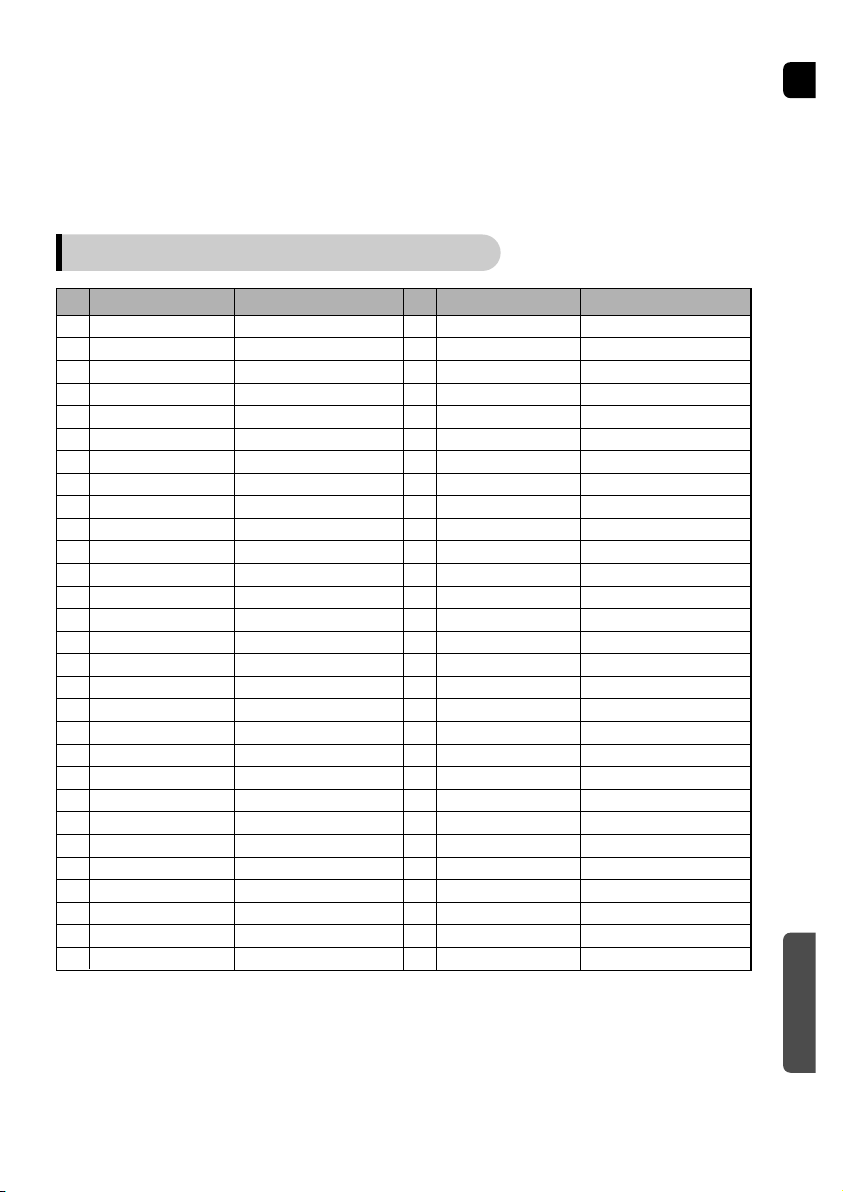
ENG
Operating a TV with the Remote Control
•
The remote control may not work on some brands of TVs. Also some operations may not be
possible depending on your brand of TV.
•
If you do not set the remote control with the code for your brand of TV, the remote control will
work on a Samsung TV by default.
When operating a TV with the remote control
1
Press the MODE button to make the TV
indicator on the remote control flash.
2
Press POWER button to turn on the TV.
3
Point the remote control toward the TV.
4
While holding down POWER, enter the code
corresponding to your brand of TV.
•
If the code matches the TV's code, the TV will be turned off.
•
If there is more than one code listed for your TV in the table,
enter one at a time to determine which code works.
Example: For a Samsung TV
While holding down POWER, use the number buttons to enter 00,
01, 02, 03, 04, and 05.
•
You can use the TV POWER, VOLUME, CHANNEL, and Numeric
buttons (0~9).
5
Point the remote control toward the TV and
press POWER. If the TV turns off or on,
the setting is complete.
TV
DVD RECEIVER
Note
1
2
3
4
5
6
7
8
9
10
11
12
13
14
15
16
17
18
19
20
21
22
23
24
25
26
27
28
29
SAMSUNG
ANAM
DAEWOO
LG
HITACHI
JVC
SHARP
SONY
TOSHIBA
SANYO
MITSUBISHI
MATSUSHITA
TELEFUNKEN
RCA
PANASONIC
SABA
PHILIPS
GRUNDIG
ZENITH
MIVAL
NOBLEX
EMERSON
MAGNAVOX
LOEWE
THOMSON
NORDMENDE
LOEWE OPTA
BLAUPUNKT
SIEMENS
TV Brand Code List
No.
Brand
Code
00(Initial Value), 01, 02, 03, 04, 05, 73
06~11, 59
12~18, 20, 21
05, 20, 21, 22, 53
23, 40, 41, 49
24, 55
27, 33, 34, 35, 54
27, 36
27, 37, 42, 43, 44, 46
27, 30, 31, 32
05, 27, 28
09, 26
41, 49, 51, 57
29, 61
07, 09, 26, 48, 49, 50
40, 41, 47, 48, 49
05, 45, 47, 64, 65, 66, 67, 68, 69
39, 42, 46, 70, 71, 72
38
52
56
19
25
05, 60
40, 41, 49, 62, 63
40, 41, 49
36, 47, 05
39
39
30
31
32
33
34
35
36
37
38
39
40
41
42
43
44
45
46
47
48
49
50
51
52
53
54
55
56
57
BRANDT
FERGUSON
PIONEER
TELEAVA
FINLUX
FISHER
AKAI
YOKO
PHONOLA
RADIOLA
SCHNEIDER
NEWSAN
CONTINENTAL EDISON
SALORA
SELECO
NOKIA
REX
MIVAR
IMPERIAL
CGE
BANG & OLUFSEN
BRIONVEGA
FORMENTI
METZ
WEGA
RADIOMARELLI
SINGER
SINUDYNE
No.
Brand
Code
41
41
41, 48, 74
41
05, 42, 47
31
31
05
05, 45, 47
05, 45
05
58
49
48
48
48
48
46
46
46
47
47
47
47
47
47
47
47
66
MISCELLANEOUS
65
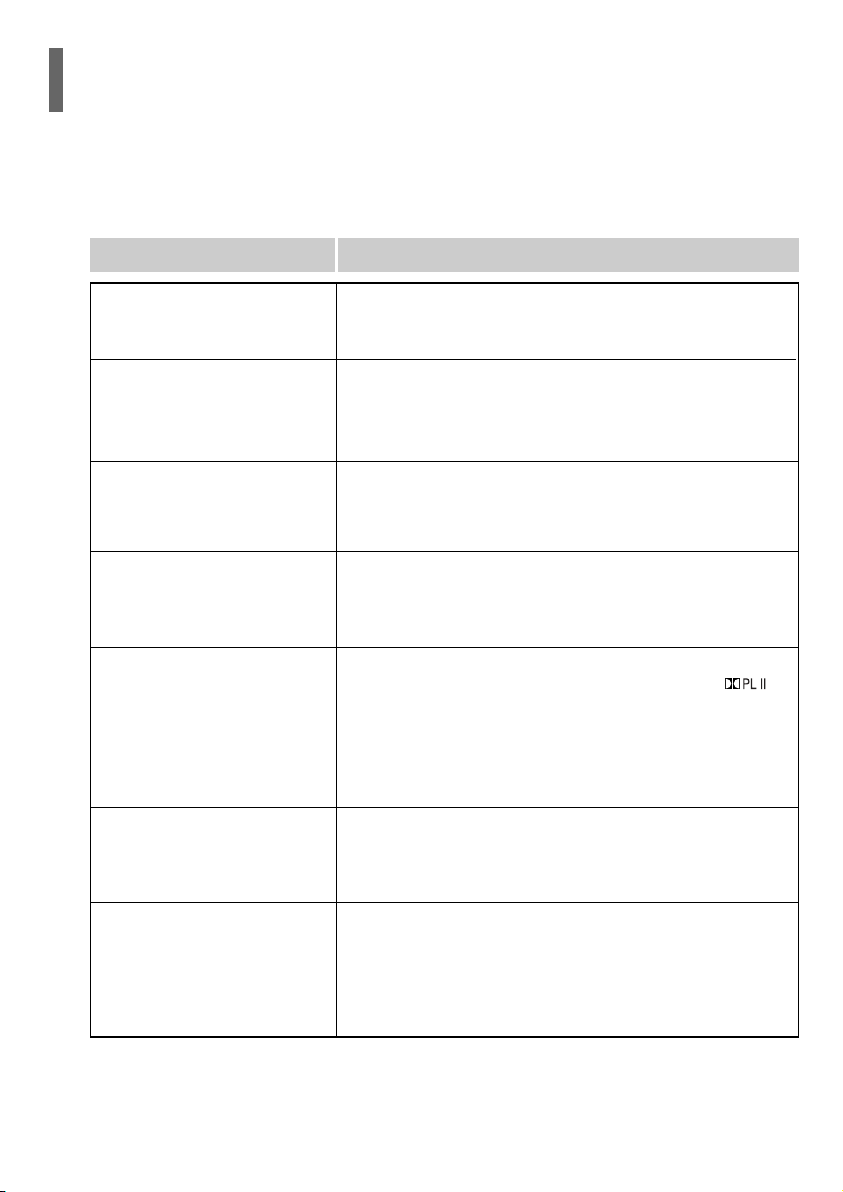
ENG
68
•
Is the TV power on?
•
Are the video cables connected properly?
•
Is the disc dirty or damaged?
•
A poorly manufactured disc may not be playable.
• Disc is rotating but no
picture is produced.
• Picture quality is poor and
picture is shaking.
•
Is the remote control being operated within its operation range of
angle and distance?
•
Are the batteries exhausted?
The remote control does not
work.
•
Audio language and subtitles will not work for DVDs not containing
them. And depending on the disc, they may work differently.
Audio language and
subtitles do not work.
•
Are you using a disc that does not contain menus?
Menu screen does not appear even
when the menu function is selected.
•
While “NO DISC” message appears on the display of main unit, hold
the main unit's button for longer than 5 seconds. “INITIALIZE”
appears on the display and all settings will return to the default values.
•
Press the POWER button.
Using the RESET function will erase all stored settings.
Do not use this unless necessary.
•
Turn off the power and hold the button on the main unit for
longer than 5 seconds.
Using the RESET function will erase all stored settings.
Do not use this unless necessary.
The password for rating
level has been forgotten.
•
The main unit is not working.
(Example: The power goes out or
strange noise is heard.)
• The Home Theater is not
working normally.
•
Is the antenna connected properly?
•
If the antenna's input signal is weak, install an external FM
antenna in an area with good reception.
Can't receive radio
broadcast.
Symptom Check/Remedy
•
You can play 16:9 DVDs in 16:9 WIDE mode, 4:3 LETTER BOX
mode, or 4:3 PAN SCAN mode, but 4:3 DVDs can be seen in 4:3
ratio only. Refer to the DVD disc jacket and then select the
appropriate function.
Aspect ratio cannot be
changed.
MISCELLANEOUS
67
•
Is the power cord plugged securely into the outlet?
•
Turn off the power and then turn it back on.
•
Check the region number of the DVD.
DVD discs purchased from abroad may not be playable.
•
CD-ROMs and DVD-ROMs cannot be played on this Home
Theater.
•
Make sure that the rating level is correct.
•
Are you using a deformed disc or a disc with scratches on
the surface?
•
Wipe the disc clean.
Disc tray does not open.
Playback does not start.
Playback does not start
immediately when the
Play/Pause button is pressed.
•
No sound is heard during fast playback, slow playback, and step
motion playback.
•
Are the speakers connected properly? Is the speaker setup
correctly customized?
•
Is the disc severely damaged?
Sound is not produced.
Sound can be heard only
from a few speakers and
not all six.
•
Was the Home Theater suddenly moved from a cold place to a
warm one? When condensation forms inside the player, remove the
disc and let the player stand for 1 or 2 hours with the power on.
(You can use the player again after condensation disappears.)
•
When listening to a CD or radio, sound is output to the front
speakers (L/R) only. Select "PRO LOGIC II" by pressing
(Dolby Pro Logic II) on the remote control to use all six speakers.
•
Make sure that the DVD disc is 5.1-CH compatible.
•
If you set C, SL, and SR to NONE in the speaker mode in the
audio setup of the setup screen, no sound is heard from the
center speaker and the front left and right speakers. Set C, SL,
and SR to SMALL.
Picture does not appear, sound
is not produced, or the disc
tray opens 2 to 5 seconds later.
•
Is there "Dolby Digital 5.1 CH" mark on the disc? Dolby Digital 5.1
CH Surround Sound is produced only if the disc is recorded with
5.1 channel sound.
•
Is the audio language correctly set to DOLBY DIGITAL 5.1-CH in
the information display?
Dolby Digital 5.1 CH
Surround Sound is not
produced.
Symptom Check/Remedy
Refer to the chart below when this unit does not function properly. If the problem you are experiencing is not listed below or
if the instruction below does not help, turn off the unit, disconnect the power cord, and contact the nearest authorized dealer
or Samsung Electronics Service Center.
Before Calling for Service
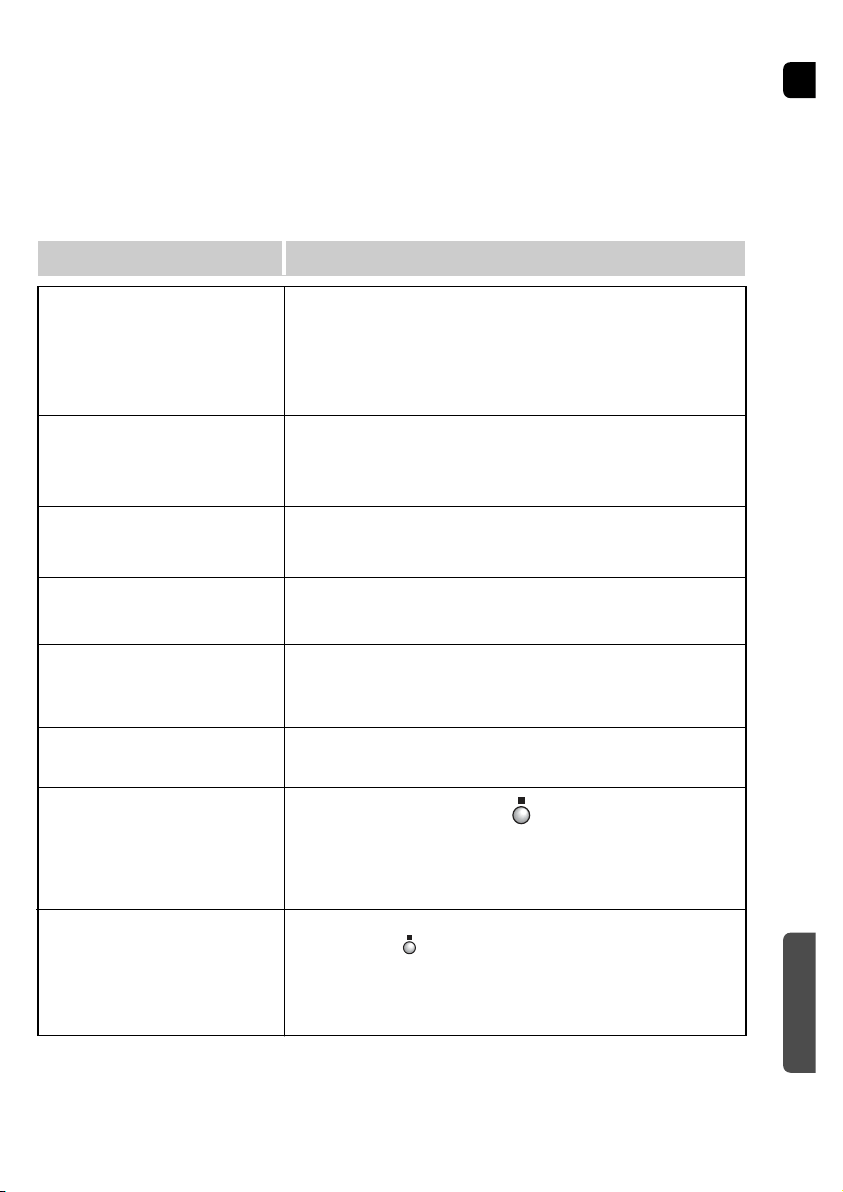
ENG
68
•
Is the TV power on?
•
Are the video cables connected properly?
•
Is the disc dirty or damaged?
•
A poorly manufactured disc may not be playable.
• Disc is rotating but no
picture is produced.
• Picture quality is poor and
picture is shaking.
•
Is the remote control being operated within its operation range of
angle and distance?
•
Are the batteries exhausted?
The remote control does not
work.
•
Audio language and subtitles will not work for DVDs not containing
them. And depending on the disc, they may work differently.
Audio language and
subtitles do not work.
•
Are you using a disc that does not contain menus?
Menu screen does not appear even
when the menu function is selected.
•
While “NO DISC” message appears on the display of main unit, hold
the main unit's button for longer than 5 seconds. “INITIALIZE”
appears on the display and all settings will return to the default values.
•
Press the POWER button.
Using the RESET function will erase all stored settings.
Do not use this unless necessary.
•
Turn off the power and hold the button on the main unit for
longer than 5 seconds.
Using the RESET function will erase all stored settings.
Do not use this unless necessary.
The password for rating
level has been forgotten.
•
The main unit is not working.
(Example: The power goes out or
strange noise is heard.)
• The Home Theater is not
working normally.
•
Is the antenna connected properly?
•
If the antenna's input signal is weak, install an external FM
antenna in an area with good reception.
Can't receive radio
broadcast.
Symptom Check/Remedy
•
You can play 16:9 DVDs in 16:9 WIDE mode, 4:3 LETTER BOX
mode, or 4:3 PAN SCAN mode, but 4:3 DVDs can be seen in 4:3
ratio only. Refer to the DVD disc jacket and then select the
appropriate function.
Aspect ratio cannot be
changed.
MISCELLANEOUS
67
•
Is the power cord plugged securely into the outlet?
•
Turn off the power and then turn it back on.
•
Check the region number of the DVD.
DVD discs purchased from abroad may not be playable.
•
CD-ROMs and DVD-ROMs cannot be played on this Home
Theater.
•
Make sure that the rating level is correct.
•
Are you using a deformed disc or a disc with scratches on
the surface?
•
Wipe the disc clean.
Disc tray does not open.
Playback does not start.
Playback does not start
immediately when the
Play/Pause button is pressed.
•
No sound is heard during fast playback, slow playback, and step
motion playback.
•
Are the speakers connected properly? Is the speaker setup
correctly customized?
•
Is the disc severely damaged?
Sound is not produced.
Sound can be heard only
from a few speakers and
not all six.
•
Was the Home Theater suddenly moved from a cold place to a
warm one? When condensation forms inside the player, remove the
disc and let the player stand for 1 or 2 hours with the power on.
(You can use the player again after condensation disappears.)
•
When listening to a CD or radio, sound is output to the front
speakers (L/R) only. Select "PRO LOGIC II" by pressing
(Dolby Pro Logic II) on the remote control to use all six speakers.
•
Make sure that the DVD disc is 5.1-CH compatible.
•
If you set C, SL, and SR to NONE in the speaker mode in the
audio setup of the setup screen, no sound is heard from the
center speaker and the front left and right speakers. Set C, SL,
and SR to SMALL.
Picture does not appear, sound
is not produced, or the disc
tray opens 2 to 5 seconds later.
•
Is there "Dolby Digital 5.1 CH" mark on the disc? Dolby Digital 5.1
CH Surround Sound is produced only if the disc is recorded with
5.1 channel sound.
•
Is the audio language correctly set to DOLBY DIGITAL 5.1-CH in
the information display?
Dolby Digital 5.1 CH
Surround Sound is not
produced.
Symptom Check/Remedy
Refer to the chart below when this unit does not function properly. If the problem you are experiencing is not listed below or
if the instruction below does not help, turn off the unit, disconnect the power cord, and contact the nearest authorized dealer
or Samsung Electronics Service Center.
Before Calling for Service
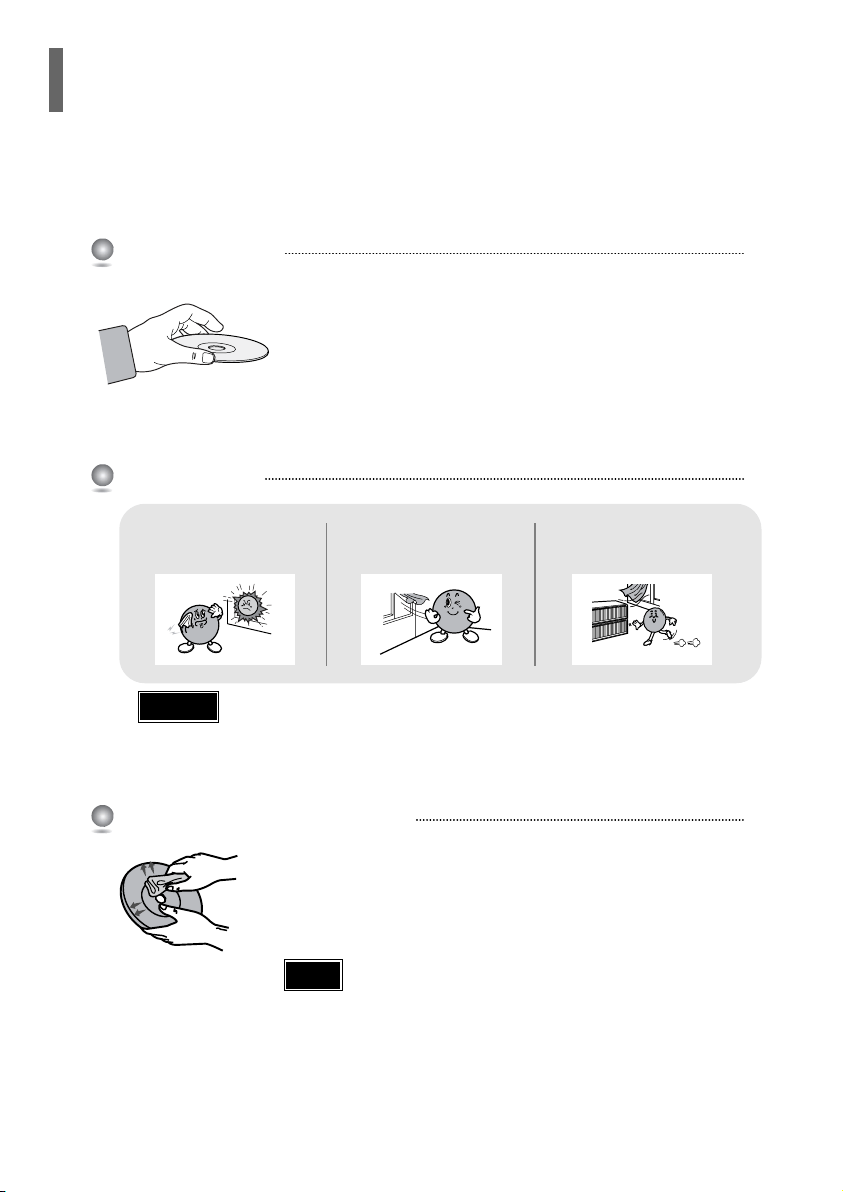
ENG
70
MISCELLANEOUS
Code Language Code Language Code Language Code Language
1027 Afar 1181 Frisian 1334 Latvian, Lettish 1506 Slovenian
1028 Abkhazian 1183 Irish 1345 Malagasy 1507 Samoan
1032 Afrikaans 1186 Scots Gaelic 1347 Maori 1508 Shona
1039 Amharic 1194 Galician 1349 Macedonian 1509 Somali
1044 Arabic 1196 Guarani 1350 Malayalam 1511 Albanian
1045 Assamese 1203 Gujarati 1352 Mongolian 1512 Serbian
1051 Aymara 1209 Hausa 1353 Moldavian 1513 Siswati
1052 Azerbaijani 1217 Hindi 1356 Marathi 1514 Sesotho
1053 Bashkir 1226 Croatian 1357 Malay 1515 Sundanese
1057 Byelorussian 1229 Hungarian 1358 Maltese 1516 Swedish
1059 Bulgarian 1233 Armenian 1363 Burmese 1517 Swahili
1060 Bihari 1235 Interlingua 1365 Nauru 1521 Tamil
1069 Bislama 1239 Interlingue 1369 Nepali 1525 Tegulu
1066 Bengali; Bangla 1245 Inupiak 1376 Dutch 1527 Tajik
1067 Tibetan 1248 Indonesian 1379 Norwegian 1528 Thai
1070 Breton 1253 Icelandic 1393 Occitan 1529 Tigrinya
1079 Catalan 1254 Italian 1403 (Afan) Oromo 1531 Turkmen
1093 Corsican 1257 Hebrew 1408 Oriya 1532 Tagalog
1097 Czech 1261 Japanese 1417 Punjabi 1534 Setswana
1103 Welsh 1269 Yiddish 1428 Polish 1535 Tonga
1105 Danish 1283 Javanese 1435 Pashto, Pushto 1538 Turkish
1109 German 1287 Georgian 1436 Portuguese 1539 Tsonga
1130 Bhutani 1297 Kazakh 1463 Quechua 1540 Tatar
1142 Greek 1298 Greenlandic 1481 Rhaeto-Romance 1543 Twi
1144 English 1299 Cambodian 1482 Kirundi 1557 Ukrainian
1145 Esperanto 1300 Kannada 1483 Romanian 1564 Urdu
1149 Spanish 1301 Korean 1489 Russian 1572 Uzbek
1150 Estonian 1305 Kashmiri 1491 Kinyarwanda 1581 Vietnamese
1151 Basque 1307 Kurdish 1495 Sanskrit 1587 Volapuk
1157 Persian 1311 Kirghiz 1498 Sindhi 1613 Wolof
1165 Finnish 1313 Latin 1501 Sangro 1632 Xhosa
1166 Fiji 1326 Lingala 1502 Serbo-Croatian 1665 Yoruba
1171 Faeroese 1327 Laothian 1503 Singhalese 1684 Chinese
1174 French 1332 Lithuanian 1505 Slovak 1697 Zulu
Enter the appropriate code number for the initial settings “Disc Audio”, “Disc Subtitle”
and/or “Disc Menu” (See page 41).
Language Code List
69
Do not touch the playback side of the disc. Hold
the disc by the edges so that fingerprints will not
get on the surface.
Do not stick paper or tape on the disc.
Do not keep in
direct sunlight
Keep in a cool
ventilated area
Keep in a clean
Protection jacket.
Store vertically.
When you get fingerprints or dirt on the disc, clean it
with a mild detergent diluted in water and wipe with a
soft cloth.
•
When cleaning, wipe gently from the inside to the outside of the disc.
Handling discs
Disc Storage
Handling and Storing Discs
•
Do not allow the discs to become contaminated with dirt.
•
Do not load cracked or scratched discs.
Caution
•
Condensation may form if warm air comes into contact with cold parts
inside the player. When condensation forms inside the player, the player
may not operate correctly. If this occurs, remove the disc and let the
player stand for 1 or 2 hours with the power on.
Note
Small scratches on the disc may reduce sound and picture quality or cause skipping.
Be especially careful not to scratch discs when handling them.
Cautions on Handling and Storing Discs
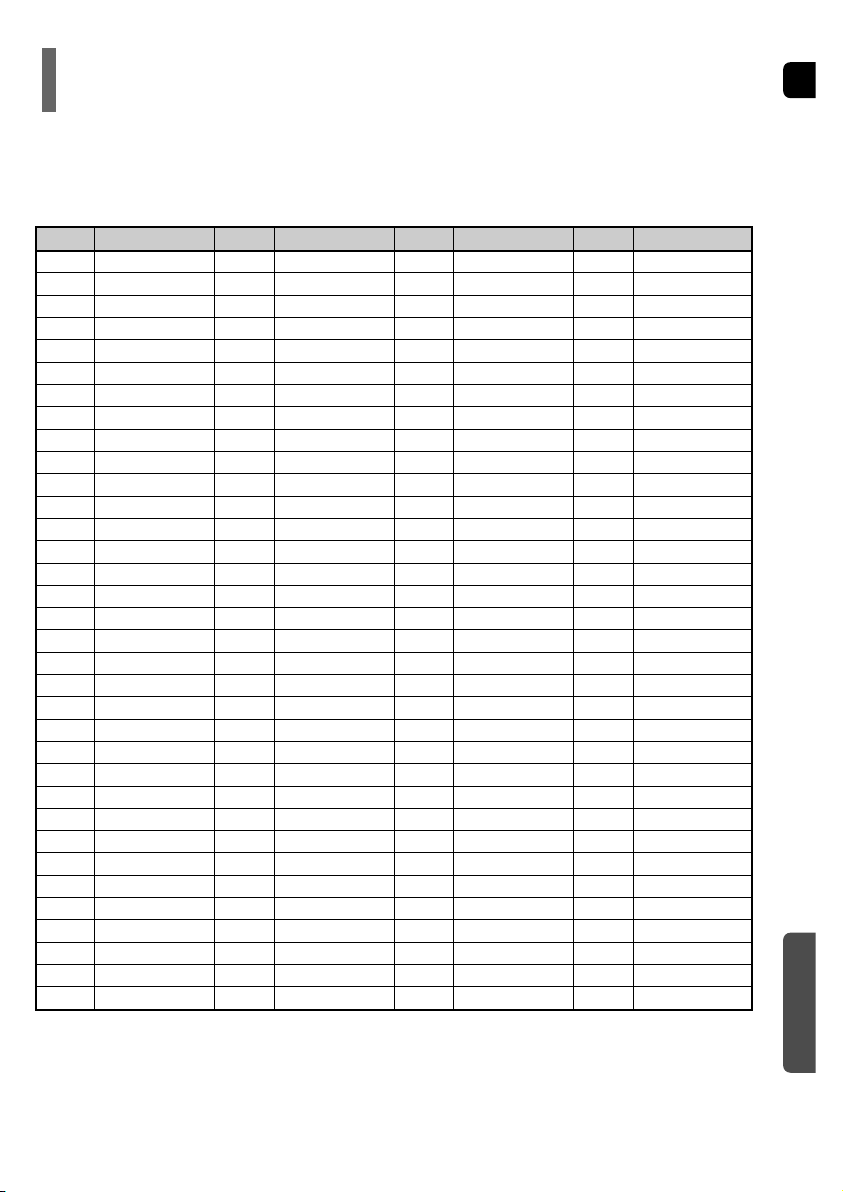
ENG
70
MISCELLANEOUS
Code Language Code Language Code Language Code Language
1027 Afar 1181 Frisian 1334 Latvian, Lettish 1506 Slovenian
1028 Abkhazian 1183 Irish 1345 Malagasy 1507 Samoan
1032 Afrikaans 1186 Scots Gaelic 1347 Maori 1508 Shona
1039 Amharic 1194 Galician 1349 Macedonian 1509 Somali
1044 Arabic 1196 Guarani 1350 Malayalam 1511 Albanian
1045 Assamese 1203 Gujarati 1352 Mongolian 1512 Serbian
1051 Aymara 1209 Hausa 1353 Moldavian 1513 Siswati
1052 Azerbaijani 1217 Hindi 1356 Marathi 1514 Sesotho
1053 Bashkir 1226 Croatian 1357 Malay 1515 Sundanese
1057 Byelorussian 1229 Hungarian 1358 Maltese 1516 Swedish
1059 Bulgarian 1233 Armenian 1363 Burmese 1517 Swahili
1060 Bihari 1235 Interlingua 1365 Nauru 1521 Tamil
1069 Bislama 1239 Interlingue 1369 Nepali 1525 Tegulu
1066 Bengali; Bangla 1245 Inupiak 1376 Dutch 1527 Tajik
1067 Tibetan 1248 Indonesian 1379 Norwegian 1528 Thai
1070 Breton 1253 Icelandic 1393 Occitan 1529 Tigrinya
1079 Catalan 1254 Italian 1403 (Afan) Oromo 1531 Turkmen
1093 Corsican 1257 Hebrew 1408 Oriya 1532 Tagalog
1097 Czech 1261 Japanese 1417 Punjabi 1534 Setswana
1103 Welsh 1269 Yiddish 1428 Polish 1535 Tonga
1105 Danish 1283 Javanese 1435 Pashto, Pushto 1538 Turkish
1109 German 1287 Georgian 1436 Portuguese 1539 Tsonga
1130 Bhutani 1297 Kazakh 1463 Quechua 1540 Tatar
1142 Greek 1298 Greenlandic 1481 Rhaeto-Romance 1543 Twi
1144 English 1299 Cambodian 1482 Kirundi 1557 Ukrainian
1145 Esperanto 1300 Kannada 1483 Romanian 1564 Urdu
1149 Spanish 1301 Korean 1489 Russian 1572 Uzbek
1150 Estonian 1305 Kashmiri 1491 Kinyarwanda 1581 Vietnamese
1151 Basque 1307 Kurdish 1495 Sanskrit 1587 Volapuk
1157 Persian 1311 Kirghiz 1498 Sindhi 1613 Wolof
1165 Finnish 1313 Latin 1501 Sangro 1632 Xhosa
1166 Fiji 1326 Lingala 1502 Serbo-Croatian 1665 Yoruba
1171 Faeroese 1327 Laothian 1503 Singhalese 1684 Chinese
1174 French 1332 Lithuanian 1505 Slovak 1697 Zulu
Enter the appropriate code number for the initial settings “Disc Audio”, “Disc Subtitle”
and/or “Disc Menu” (See page 41).
Language Code List
69
Do not touch the playback side of the disc. Hold
the disc by the edges so that fingerprints will not
get on the surface.
Do not stick paper or tape on the disc.
Do not keep in
direct sunlight
Keep in a cool
ventilated area
Keep in a clean
Protection jacket.
Store vertically.
When you get fingerprints or dirt on the disc, clean it
with a mild detergent diluted in water and wipe with a
soft cloth.
•
When cleaning, wipe gently from the inside to the outside of the disc.
Handling discs
Disc Storage
Handling and Storing Discs
•
Do not allow the discs to become contaminated with dirt.
•
Do not load cracked or scratched discs.
Caution
•
Condensation may form if warm air comes into contact with cold parts
inside the player. When condensation forms inside the player, the player
may not operate correctly. If this occurs, remove the disc and let the
player stand for 1 or 2 hours with the power on.
Note
Small scratches on the disc may reduce sound and picture quality or cause skipping.
Be especially careful not to scratch discs when handling them.
Cautions on Handling and Storing Discs
S
P
E
A
K
E
R
Subwoofer speaker
3Ω
35Hz~200Hz
84dB/W/M
130W
260W
7.1 x 12.6 x 15.7 inches
11.46 lbs
Front/Center/Rear speaker
3Ω x 5
130Hz~20KHz/125Hz~20KHz
84dB/W/M
134W
268W
3.6 x 5.3 x 3.9 inches
7.9 x 4.2 x 3.9 inches
1.36 lbs
1.69 lbs
Front/Rear
Center
Front/Rear
Center
Specifications
72
ENG
MISCELLANEOUS
71
SAMSUNG Home Theater
LIMITED WARRANTY TO ORIGINAL PURCHASER
This SAMSUNG brand product, as supplied and distributed by Samsung Electronics America, Inc. (SAMSUNG) and delivered new, in the original
carton to the original consumer purchaser, is warranted by SAMSUNG against manufacturing defects in materials and workmanship for a limited
warranty period of:
One (1) Year Parts and Labor*
(*90 Days Parts and Labor for Commercial Use)
This limited warranty begins on the original date of purchase, and is valid only on products purchased and used in the United States. To receive
warranty service, the purchaser must contact SAMSUNG for problem determination and service procedures. Warranty service can only be
performed by a SAMSUNG authorized service center. The original dated bill of sale must be presented upon request as proof of purchase to
SAMSUNG or SAMSUNG's authorized service center. Transportation of the product to and from the service center is the responsibility of the
purchaser.
SAMSUNG will repair or replace this product, at our option and at no charge as stipulated herein, with new or reconditioned parts or products if
found to be defective during the limited warranty period specified above. All replaced parts and products become the property of SAMSUNG and
must be returned to SAMSUNG. Replacement parts and products assume the remaining original warranty, or ninety (90) days, whichever is
longer.
SAMSUNG’s obligations with respect to software products distributed by SAMSUNG under the SAMSUNG brand name are set forth in the
applicable end user license agreement. Non-SAMSUNG hardware and software products, if provided, are on an “AS IS” basis. Non-SAMSUNG
manufacturers, suppliers, publishers, and service providers may provide their own warranties.
This limited warranty covers manufacturing defects in materials and workmanship encountered in normal, and except to the extent otherwise
expressly provided for in this statement, noncommercial use of this product, and shall not apply to the following, including, but not limited to:
damage which occurs in shipment; delivery and installation; applications and uses for which this product was not intended; altered product or
serial numbers; cosmetic damage or exterior finish; accidents, abuse, neglect, fire, water, lightning or other acts of nature; use of products,
equipment, systems, utilities, services, parts, supplies, accessories, applications, installations, repairs, external wiring or connectors not supplied
and authorized by SAMSUNG, or which damage this product or result in service problems; incorrect electrical line voltage, fluctuations and surges;
customer adjustments and failure to follow operating instructions, cleaning, maintenance and environmental instructions that are covered and
prescribed in the instruction book; product removal or reinstallation; reception problems and distortion related to noise, echo, interference or other
signal transmission and delivery problems. SAMSUNG does not warrant uninterrupted or error-free operation of the product.
THERE ARE NO EXPRESS WARRANTIES OTHER THAN THOSE LISTED AND DESCRIBED ABOVE, AND NO WARRANTIES WHETHER
EXPRESS OR IMPLIED, INCLUDING, BUT NOT LIMITED TO, ANY IMPLIED WARRANTIES OF MERCHANTABILITY OR FITNESS FOR A
PARTICULAR PURPOSE, SHALL APPLY AFTER THE EXPRESS WARRANTY PERIODS STATED ABOVE, AND NO OTHER EXPRESS
WARRANTY OR GUARANTY GIVEN BY ANY PERSON, FIRM OR CORPORATION WITH RESPECT TO THIS PRODUCT SHALL BE BINDING
ON SAMSUNG. SAMSUNG SHALL NOT BE LIABLE FOR LOSS OF REVENUE OR PROFITS, FAILURE TO REALIZE SAVINGS OR OTHER
BENEFITS, OR ANY OTHER SPECIAL, INCIDENTAL OR CONSEQUENTIAL DAMAGES CAUSED BY THE USE, MISUSE OR INABILITY TO
USE THIS PRODUCT, REGARDLESS OF THE LEGAL THEORY ON WHICH THE CLAIM IS BASED, AND EVEN IF SAMSUNG HAS BEEN
ADVISED OF THE POSSIBILITY OF SUCH DAMAGES. NOR SHALL RECOVERY OF ANY KIND AGAINST SAMSUNG BE GREATER IN
AMOUNT THAN THE PURCHASE PRICE OF THE PRODUCT SOLD BY SAMSUNG AND CAUSING THE ALLEGED DAMAGE. WITHOUT
LIMITING THE FOREGOING, PURCHASER ASSUMES ALL RISK AND LIABILITY FOR LOSS, DAMAGE OR INJURY TO PURCHASER AND
PURCHASER’S PROPERTY AND TO OTHERS AND THEIR PROPERTY ARISING OUT OF THE USE, MISUSE OR INABILITY TO USE THIS
PRODUCT SOLD BY SAMSUNG NOT CAUSED DIRECTLY BY THE NEGLIGENCE OF SAMSUNG. THIS LIMITED WARRANTY SHALL NOT
EXTEND TO ANYONE OTHER THAN THE ORIGINAL PURCHASER OF THIS PRODUCT, IS NONTRANSFERABLE AND STATES YOUR
EXCLUSIVE REMEDY.
Some states do not allow limitations on how long an implied warranty lasts, or the exclusion or limitation of incidental or consequential damages,
so the above limitations or exclusions may not apply to you. This warranty gives you specific legal rights, and you may also have other rights
which vary from state to state.
To obtain warranty hardware service, please contact SAMSUNG at:
SAMSUNG CUSTOMER CARE CENTER
400 Valley Road, Suite 201, Mt. Arlington, NJ 07856
1-800-SAMSUNG (1-800-726-7864) and www.samsung.com
Power Consumption
Weight
Dimensions (W x H x D)
Operating Temperature Range
Operating Humidity Range
Usable Sensitivity
S/N Ratio
Distortion
Usable Sensitivity
S/N Ratio
Distortion
Composite Video
S-VIDEO
Component Video
Front speaker output
Center speaker output
Rear speaker output
Subwoofer speaker output
Frequency range
S/N Ratio
Channel separation
Input sensitivity
Speaker system
Impedance
Frequency range
Output sound pressure level
Rated input
Maximum input
Dimensions (W x H x D)
Weights
G
E
N
E
R
A
L
T
U
N
E
R
F
M
T
U
N
E
R
A
M
O
U
T
P
U
T
V
I
D
E
O
A
M
P
L
I
F
I
E
R
110W
11Ibs
17 x 2.8 x 17 inches
41°F ~ 95°F
10% ~ 75%
10dB
60dB
0.5%
54dB
40dB
2%
1.0Vp-p(75Ω load)
Luminance Signal: 1.0Vp-p(75Ω load)
Color Signal: 0.286Vp-p(75Ω load)
Y:1.0Vp-p(75Ω load)
Pr:0.70Vp-p(75Ω load)
Pb:0.70Vp-p(75Ω load)
134W x 2(3Ω)
134W(3Ω)
134W x 2(3Ω)
130W(3Ω)
20Hz~20KHz
75dB
50dB
(AUX)400mV
5.1ch speaker system

S
P
E
A
K
E
R
Subwoofer speaker
3Ω
35Hz~200Hz
84dB/W/M
130W
260W
7.1 x 12.6 x 15.7 inches
11.46 lbs
Front/Center/Rear speaker
3Ω x 5
130Hz~20KHz/125Hz~20KHz
84dB/W/M
134W
268W
3.6 x 5.3 x 3.9 inches
7.9 x 4.2 x 3.9 inches
1.36 lbs
1.69 lbs
Front/Rear
Center
Front/Rear
Center
Specifications
72
ENG
MISCELLANEOUS
71
SAMSUNG Home Theater
LIMITED WARRANTY TO ORIGINAL PURCHASER
This SAMSUNG brand product, as supplied and distributed by Samsung Electronics America, Inc. (SAMSUNG) and delivered new, in the original
carton to the original consumer purchaser, is warranted by SAMSUNG against manufacturing defects in materials and workmanship for a limited
warranty period of:
One (1) Year Parts and Labor*
(*90 Days Parts and Labor for Commercial Use)
This limited warranty begins on the original date of purchase, and is valid only on products purchased and used in the United States. To receive
warranty service, the purchaser must contact SAMSUNG for problem determination and service procedures. Warranty service can only be
performed by a SAMSUNG authorized service center. The original dated bill of sale must be presented upon request as proof of purchase to
SAMSUNG or SAMSUNG's authorized service center. Transportation of the product to and from the service center is the responsibility of the
purchaser.
SAMSUNG will repair or replace this product, at our option and at no charge as stipulated herein, with new or reconditioned parts or products if
found to be defective during the limited warranty period specified above. All replaced parts and products become the property of SAMSUNG and
must be returned to SAMSUNG. Replacement parts and products assume the remaining original warranty, or ninety (90) days, whichever is
longer.
SAMSUNG’s obligations with respect to software products distributed by SAMSUNG under the SAMSUNG brand name are set forth in the
applicable end user license agreement. Non-SAMSUNG hardware and software products, if provided, are on an “AS IS” basis. Non-SAMSUNG
manufacturers, suppliers, publishers, and service providers may provide their own warranties.
This limited warranty covers manufacturing defects in materials and workmanship encountered in normal, and except to the extent otherwise
expressly provided for in this statement, noncommercial use of this product, and shall not apply to the following, including, but not limited to:
damage which occurs in shipment; delivery and installation; applications and uses for which this product was not intended; altered product or
serial numbers; cosmetic damage or exterior finish; accidents, abuse, neglect, fire, water, lightning or other acts of nature; use of products,
equipment, systems, utilities, services, parts, supplies, accessories, applications, installations, repairs, external wiring or connectors not supplied
and authorized by SAMSUNG, or which damage this product or result in service problems; incorrect electrical line voltage, fluctuations and surges;
customer adjustments and failure to follow operating instructions, cleaning, maintenance and environmental instructions that are covered and
prescribed in the instruction book; product removal or reinstallation; reception problems and distortion related to noise, echo, interference or other
signal transmission and delivery problems. SAMSUNG does not warrant uninterrupted or error-free operation of the product.
THERE ARE NO EXPRESS WARRANTIES OTHER THAN THOSE LISTED AND DESCRIBED ABOVE, AND NO WARRANTIES WHETHER
EXPRESS OR IMPLIED, INCLUDING, BUT NOT LIMITED TO, ANY IMPLIED WARRANTIES OF MERCHANTABILITY OR FITNESS FOR A
PARTICULAR PURPOSE, SHALL APPLY AFTER THE EXPRESS WARRANTY PERIODS STATED ABOVE, AND NO OTHER EXPRESS
WARRANTY OR GUARANTY GIVEN BY ANY PERSON, FIRM OR CORPORATION WITH RESPECT TO THIS PRODUCT SHALL BE BINDING
ON SAMSUNG. SAMSUNG SHALL NOT BE LIABLE FOR LOSS OF REVENUE OR PROFITS, FAILURE TO REALIZE SAVINGS OR OTHER
BENEFITS, OR ANY OTHER SPECIAL, INCIDENTAL OR CONSEQUENTIAL DAMAGES CAUSED BY THE USE, MISUSE OR INABILITY TO
USE THIS PRODUCT, REGARDLESS OF THE LEGAL THEORY ON WHICH THE CLAIM IS BASED, AND EVEN IF SAMSUNG HAS BEEN
ADVISED OF THE POSSIBILITY OF SUCH DAMAGES. NOR SHALL RECOVERY OF ANY KIND AGAINST SAMSUNG BE GREATER IN
AMOUNT THAN THE PURCHASE PRICE OF THE PRODUCT SOLD BY SAMSUNG AND CAUSING THE ALLEGED DAMAGE. WITHOUT
LIMITING THE FOREGOING, PURCHASER ASSUMES ALL RISK AND LIABILITY FOR LOSS, DAMAGE OR INJURY TO PURCHASER AND
PURCHASER’S PROPERTY AND TO OTHERS AND THEIR PROPERTY ARISING OUT OF THE USE, MISUSE OR INABILITY TO USE THIS
PRODUCT SOLD BY SAMSUNG NOT CAUSED DIRECTLY BY THE NEGLIGENCE OF SAMSUNG. THIS LIMITED WARRANTY SHALL NOT
EXTEND TO ANYONE OTHER THAN THE ORIGINAL PURCHASER OF THIS PRODUCT, IS NONTRANSFERABLE AND STATES YOUR
EXCLUSIVE REMEDY.
Some states do not allow limitations on how long an implied warranty lasts, or the exclusion or limitation of incidental or consequential damages,
so the above limitations or exclusions may not apply to you. This warranty gives you specific legal rights, and you may also have other rights
which vary from state to state.
To obtain warranty hardware service, please contact SAMSUNG at:
SAMSUNG CUSTOMER CARE CENTER
400 Valley Road, Suite 201, Mt. Arlington, NJ 07856
1-800-SAMSUNG (1-800-726-7864) and www.samsung.com
Power Consumption
Weight
Dimensions (W x H x D)
Operating Temperature Range
Operating Humidity Range
Usable Sensitivity
S/N Ratio
Distortion
Usable Sensitivity
S/N Ratio
Distortion
Composite Video
S-VIDEO
Component Video
Front speaker output
Center speaker output
Rear speaker output
Subwoofer speaker output
Frequency range
S/N Ratio
Channel separation
Input sensitivity
Speaker system
Impedance
Frequency range
Output sound pressure level
Rated input
Maximum input
Dimensions (W x H x D)
Weights
G
E
N
E
R
A
L
T
U
N
E
R
F
M
T
U
N
E
R
A
M
O
U
T
P
U
T
V
I
D
E
O
A
M
P
L
I
F
I
E
R
110W
11Ibs
17 x 2.8 x 17 inches
41°F ~ 95°F
10% ~ 75%
10dB
60dB
0.5%
54dB
40dB
2%
1.0Vp-p(75Ω load)
Luminance Signal: 1.0Vp-p(75Ω load)
Color Signal: 0.286Vp-p(75Ω load)
Y:1.0Vp-p(75Ω load)
Pr:0.70Vp-p(75Ω load)
Pb:0.70Vp-p(75Ω load)
134W x 2(3Ω)
134W(3Ω)
134W x 2(3Ω)
130W(3Ω)
20Hz~20KHz
75dB
50dB
(AUX)400mV
5.1ch speaker system
