
logitechG.com
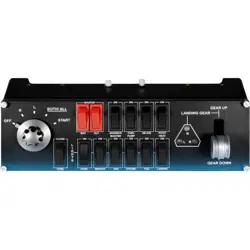
FLIGHT SWITCH PANEL
Professional Switch Cockpit Simulation Controller
Panneau de commutateurs pro pour simulateur de cockpit
USER GUIDE
|
GUIDE DE L’UTILISATEUR
4 English
INTRODUCTION
The Switch Panel features realistic switches and controls which interact in real time
with Microsoft Flight Simulator X to make your ying experiences more realistic.
N
L R
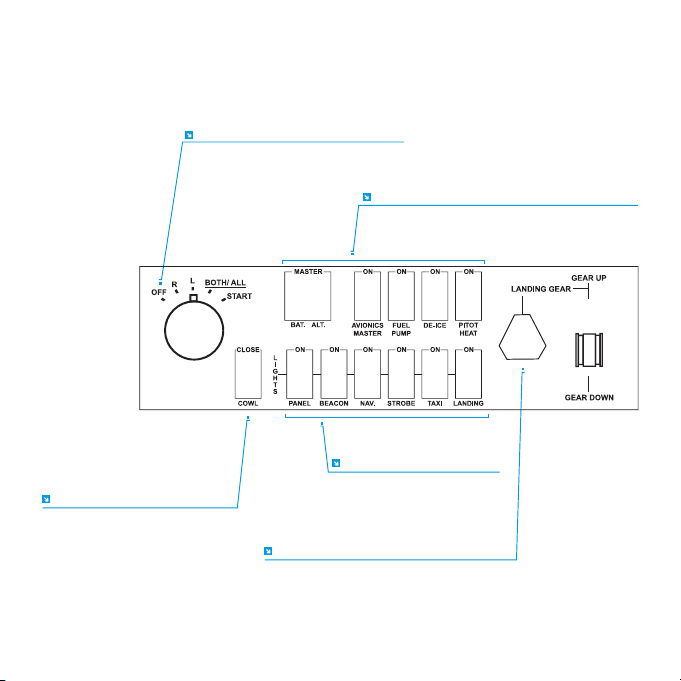
ENGINE START/STOP FUNCTIONS
MISC BATTERY,
COCKPIT AND DE-ICE FUNCTIONS
LIGHT SYSTEMS ON/OFF
COWL OPEN/CLOSE
(FOR PROP AIRCRAFT)
GEAR UP/DOWN AND LED INDICATOR
5 English
INSTALLATION
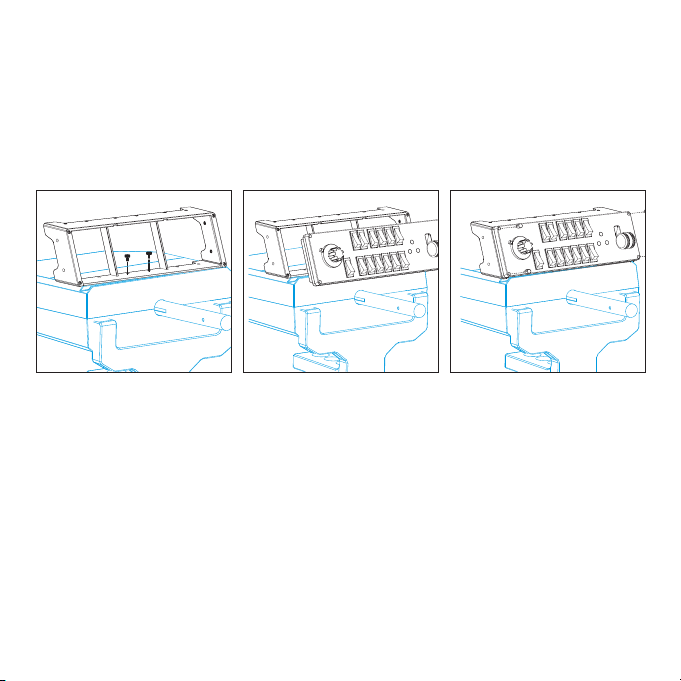
You can x the Switch Panel to your desk using the velcro strips. If you already own
a Logitech G Flight Yoke System, you can also mount the Switch Panel on top of
the Yoke unit using the screws provided.
Important: To x the Flight Switch Panel to the Flight Yoke System, rst remove
the Switch Panel from the mounting bracket, screw the bracket to the top of the Yoke
System and then re-attach the Switch Panel to the front of the bracket.
1
2
3
Plug the Switch Panel’s USB cable into one or your PC’s free USB ports (or Logitech G
Flight Yoke USB hub).

6 English
INSTALLATION FOR WINDOWS
®
10, WINDOWS
®
8.1
ANDWINDOWS
®
7
DRIVER INSTALLATION
1 Visit logitech.com/support/switch-panel to download the latest drivers and
software for your operating system.
2 With device disconnected, follow the onscreen instructions to complete
the installation.
3 At the Driver Setup screen, only when prompted, insert USB cable into one
of your computer’s USB ports, then click Next.
TROUBLESHOOTING
Once you have installed the appropriate plug-in for Flight Simulator X (FSX), the next
time you run FSX it will prompt you that it is attempting to load the Logitech G
Panel(s) Plug-in for FSX - click Yes on this screen.
After that you should see a Windows security warning asking you if you want to run
LogiFlightSimX.exe - click Yes on that screen.
Finally, FSX will prompt you if you wish to make LogiFlightSimX.exe a trusted piece
of software - click Yes.
Once you have installed the Panel software, the Panel buttons and controls should
be automatically congured to control their functions in FSX software. If your FSX
software does not recognise the Panel, unplug the USB cable and plug it back in.
For further help with other sims or any other questions, check the support page at
logitech.com/support/switch-panel.
TECHNICAL SUPPORT
Online Support: support.logitech.com
