
logitechG.com
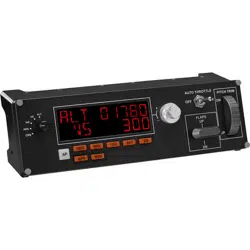
FLIGHT MULTI PANEL
Professional Autopilot Cockpit Simulation Controller
Contrôleur de pilotage automatique pro pour simulateur de cockpit
USER GUIDE
|
GUIDE DE L’UTILISATEUR

3
3 ENGLISH
8 FRANÇAIS
13 ESPAÑOL
18 PORTUGUÊS
4 English
INTRODUCTION
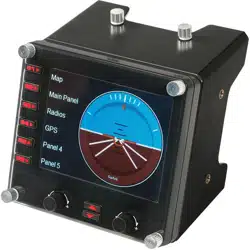
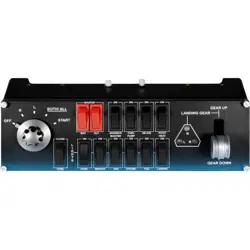
The Multi Panel interacts with Microsoft Flight Simulator X to control
a range of functions, including auto pilot settings, aps and trim controls.
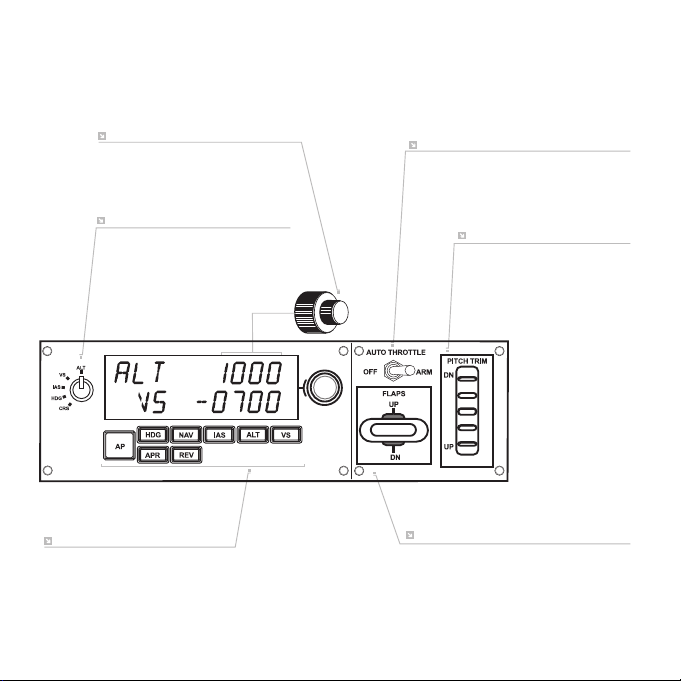
SETTINGS ADJUSTMENT WHEEL
AUTO THROTTLE ARM
PITCH TRIM
ROTARY CONTROL
AUTOPILOT SETTINGS SELECTOR
AUTOPILOT FUNCTIONS
BUTTONS
FLAPS RETRACT (UP)
OR EXTEND (DOWN)
5 English
INSTALLATION
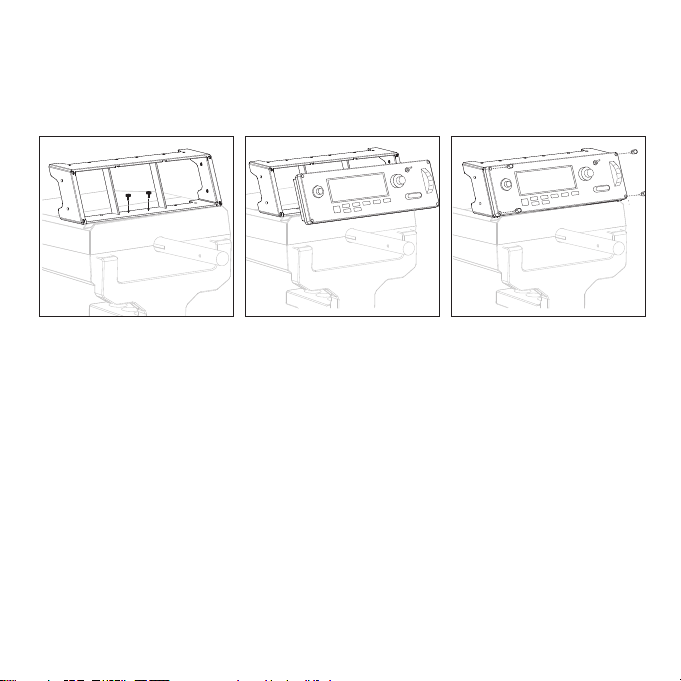
Fix the Multi Panel to the supplied mounting bracket. Insert the screws through
the holes at the corners of the Panel into the bracket behind and tighten.
If you already own a Logitech G Flight Yoke System, you can mount the Panel
and bracket on top of the Yoke unit using the screws provided.
1
2
3
INSTALLATION FOR WINDOWS
®
10, WINDOWS
®
8.1
ANDWINDOWS
®
7
DRIVER INSTALLATION
1 Visit logitech.com/support/multi-panel to download the latest drivers and software
for your operating system.
2 With device disconnected, follow the onscreen instructions to complete the
installation.
3 At the Driver Setup screen, only when prompted, insert USB cable into one of
your computer’s USB ports, then click Next.
6 English
USING THE LOGITECH G FLIGHT MULTI PANEL
Button Autopilot function
AP Master switch to engage or disengage the autopilot
HDG Plane will y to selected compass heading
NAV Plane will y to selected NAV1 frequency or GPS
IAS Plane will y at selected indicated airspeed
ALT Plane will y to and maintain selected altitude
VS Plane will climb or descend at selected vertical speed
APR Plane will y on approach to runway localizer
REV Plane will y on a back course from the localizer
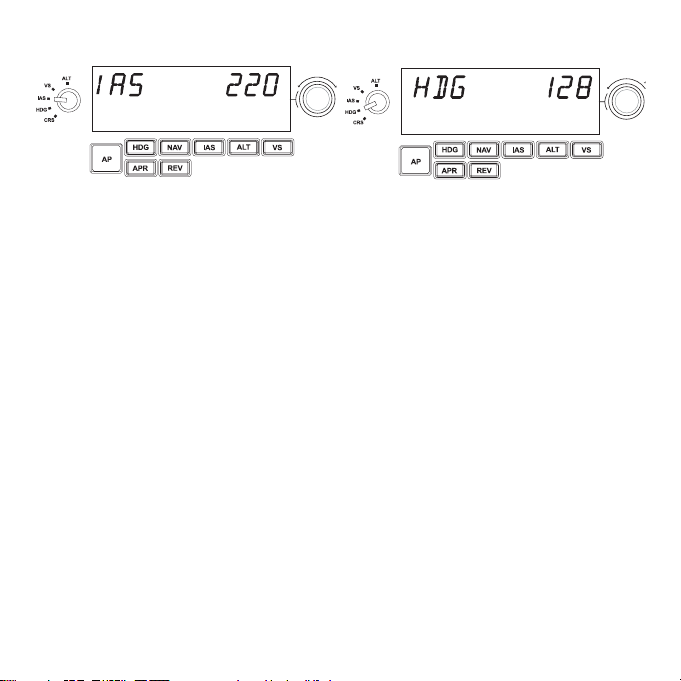
ADJUSTING AUTOPILOT SETTINGS
To change the values of the autopilot settings, rst turn the selector switch on the left
side of the Multi Panel to the function you want to adjust. Turn the rotary control
to the right of the LED display to increase or decrease the values for the function
you have selected.
For example, if you want to adjust the altitude setting, rst turn the selector switch
on the left to ALT and then increase or decrease the desired altitude setting using
the rotary controls on the right.
To engage any of the autopilot functions, rst select the function, e.g., HDG, NAV,
etc., and then press the autopilot master switch.

7 English
It is possible to use each of the autopilot functions individually but more common
to use a combination of functions. For example, if you wanted to y at 20,000 feet at
a speed of 150 knots on a heading of 210 degrees, rst select the ALT function with the
selector knob on the left and adjust altitude to 20,000 with the right rotary controls.
Next, turn the function selector knob to IAS and adjust speed to 150. Now turn
the function selector to HDG and adjust heading to 210. To engage the altitude,
speed and heading functions, rst switch the autothrottle to “Arm” (this allows
the autopilot to control the engines to maintain speed), then press the HDG, IAS and
ALT buttons under the LED screen and press the AP button to engage the autopilot.
Your plane should now climb or descend to 20,000 feet, turn to heading 210 degrees
and maintain a speed of 150 knots.
Please note: Not all aircraft available in Microsoft FSX have the full range of autopilot
functions. For instance, the Cessna C172SP Skyhawk and many of the smaller aircraft
do not have an autothrottle arm control - using this function on the multi Multi Panel
will have no eect on the aircraft’s autopilot.
TROUBLESHOOTING
Once you have installed the appropriate plug-in for Flight Simulator X (FSX), the next
time you run FSX it will prompt you that it is attempting to load the Logitech G
Panel(s) Plug-in for FSX - click Yes on this screen.
After that you should see a Windows security warning asking you if you want to run
LogiFlightSimX.exe - click Yes on that screen.
Finally, FSX will prompt you if you wish to make LogiFlightSimX.exe a trusted piece
of software - click Yes.
Once you have installed the Panel software, the Panel buttons and controls should
be automatically congured to control their functions in FSX software. If your FSX
software does not recognise the Panel, unplug the USB cable and plug it back in.
For further help with other sims or any other questions, check the support page
at logitech.com/support/multi-panel.
TECHNICAL SUPPORT
Online Support: support.logitech.com