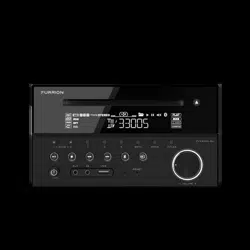
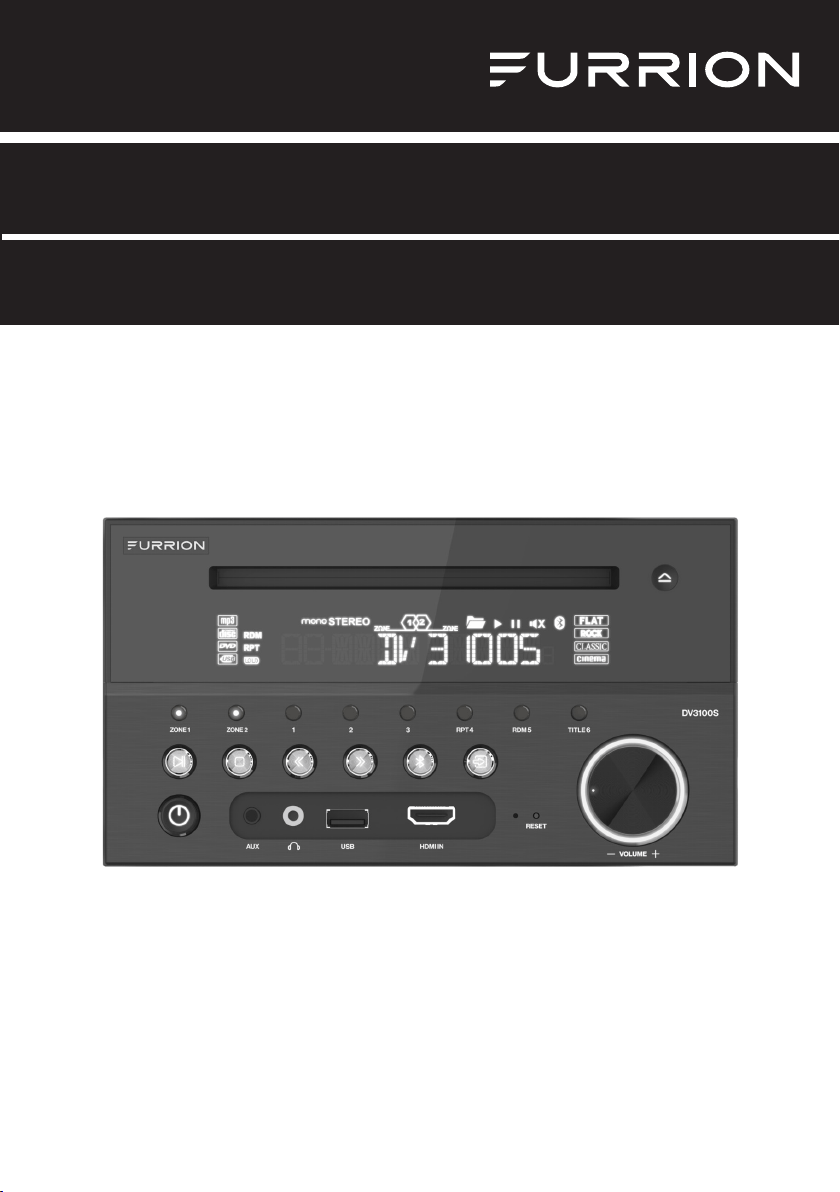
Entertainment System
Instruction Manual
Model: DV3100S
* Product picture is for reference only.
2
Welcome
English
Thank you and congratulations for purchasing this Furrion® DV3100S Entertainment System.
Before operating your new product, please read these instructions carefully. This instruction
manual contains information for safe use, installation and maintenance of the product.
Please keep this instruction manual in a safe place for future reference. This will ensure safe use
and reduce the risk of injury. Be sure to pass on this manual to new owners of this product.
The manufacturer does not accept responsibility for any damages due to not observing these
instructions.
If you have any further questions regarding our products, please contact us at
Supplier’s Declaration of Conformity
47 CFR § 2.1077 Compliance Information
Unique Identifier
Trade Name: Furrion
Model No.: DV3100S
Responsible Party – U.S. Contact Information
Furrion Innovation Center & Institute of Technology
52567 Independence Ct., Elkhart, IN 46514, USA
Toll free: 1-800-789-3341; Email: [email protected]
FCC Compliance Statement
This device complies with Part 15 of the FCC Rules. Operation is subject to the
following two conditions: (1) This device may not cause harmful interference, and
(2)this device must accept any interference received, including interference that
may cause undesired operation.
3
Contents
English
Welcome .................................................................................................................. 2
Contents ..................................................................................................................3
Important Safety Instructions ..............................................................................4
Safety.......................................................................................................................................................................................4
Class 1 Laser Product .......................................................................................................................................................4
Notice of compliance ........................................................................................................................................................ 5
FCC Radiation Exposure Statement ......................................................................................................................... 5
What’s in the box ................................................................................................................................................................6
Precautions ...........................................................................................................................................................................6
Features .................................................................................................................................................................................6
Introduction ............................................................................................................6
Supported Format ............................................................................................................................................................. 7
Functional Overview ..............................................................................................8
Control Panel ........................................................................................................................................................................8
Remote Control ..................................................................................................................................................................9
Before Operation ................................................................................................. 12
Wiring Diagram .................................................................................................................................................................. 12
Mounting Installation ...................................................................................................................................................... 15
Prepare the Remote Control ....................................................................................................................................... 16
Operation .............................................................................................................. 17
Quick Reference Guide ..................................................................................................................................................17
Common Operation ........................................................................................................................................................ 19
Radio Operation ............................................................................................................................................................... 20
Basic Disc / USB Operation ........................................................................................................................................ 21
Advanced Disc / USB Operation ............................................................................................................................. 23
Set up the DVD System Menu ................................................................................................................................... 26
Bluetooth Operation ...................................................................................................................................................... 29
Maintenance ......................................................................................................... 31
Maintenance and Cleaning of Discs ........................................................................................................................ 31
Troubleshooting .................................................................................................. 32
Specifications...................................................................................................... 34
4
Important Safety Instructions
English
Safety
CAUTION
RISK OF ELECTRIC SHOCK
DO NOT OPEN
WARNING: TO REDUCE THE RISK OF FIRE OR
ELECTRIC SHOCK, DO NOT REMOVE COVER ( OR
BACK). NO USER SERVICEABLE PARTS INSIDE.
REFER SERVICING TO QUALIFIED SERVICE
PERSONNEL.
WARNING
TO REDUCE THE RISK OF FIRE OR ELECTRIC
SHOCK, DO NOT EXPOSE THIS APPLIANCE TO RAIN
OR MOISTURE.
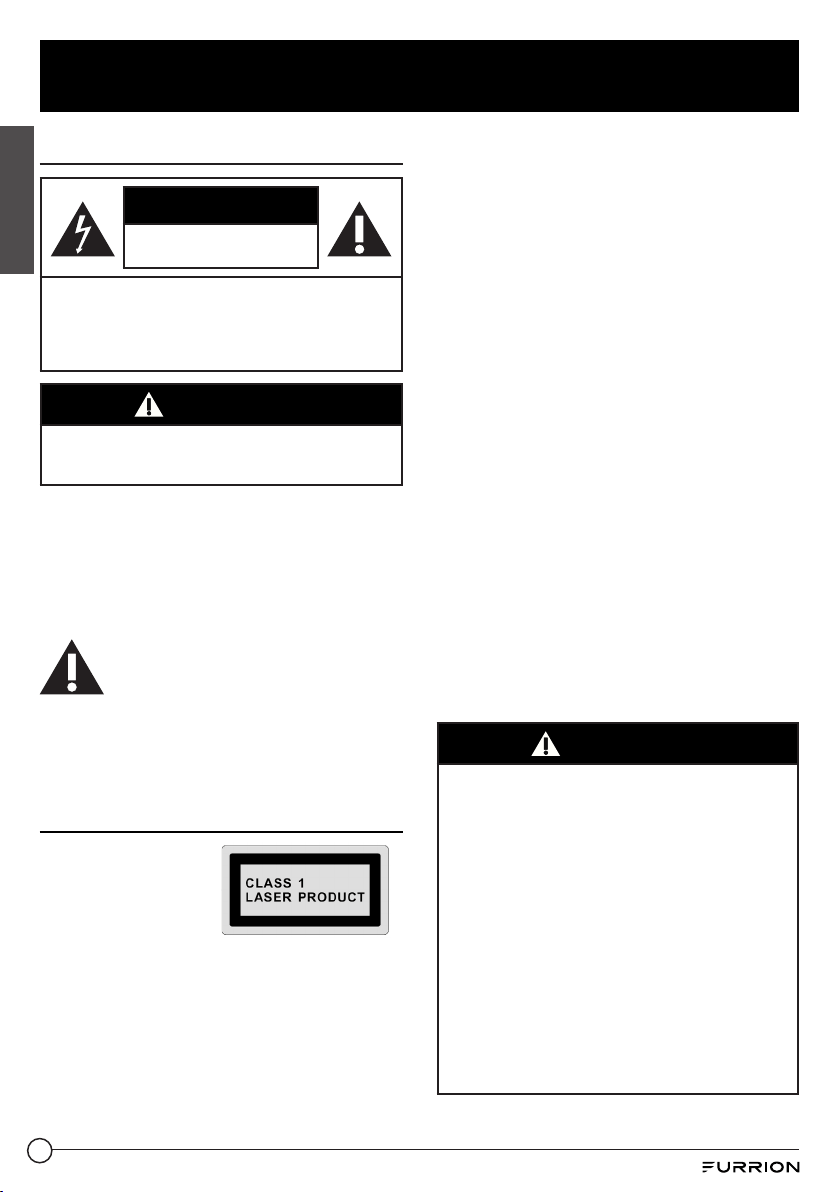
The lightning flash with arrowhead symbol
within an equilateral triangle is intended to
alert the user to the presence of uninsulated
dangerous voltage within the product’s
enclosure that may be of sufficient magnitude
to constitute a risk of electric shock.
The exclamation point within an
equilateral triangle is intended to
alert the user to the presence of
important operating and maintenance
(servicing) instructions in the literature
accompanying the appliance.
Class 1 Laser Product
Laser product symbol:
Located on the rear
panel of the unit, this
symbol indicates this
unit is a class 1 laser
product. Only use weak laser and no
hazardous radiation outside of the unit.
1. Read through this instruction manual
before installation and use.
2. Do not touch the power plug with wet
hands.
3. Switch off the power when the unit is not
in use. (Disconnect the power plug from
the power outlet when you do not intend
to use the unit for a prolonged period of
time.) Before moving the unit, remove the
disc from the unit/tray first.
4. Do not open the cover or touch any of
the components inside of the unit. Only
a qualified technician should service the
unit.
5. To avoid damaging the unit, do not
expose the unit to direct sunlight or
objects that radiate heat.
6. Do not place the unit in moist or humid
conditions. Moisture will affect normal
operation and damage the unit.
7. Place the unit on a flat, well-ventilated
location. Please ensure the ventilation
holes are not covered to avoid
overheating and malfunction.
8. Clean the panel and case with a soft
dry cloth only. Do not apply any kind of
thinner, alcohol or sprays.
9. The apparatus should not be exposed
to dripping or splashing. Do not place
objects filled with liquids (such as vases)
on the apparatus.
WARNING
● Do not ingest the battery contained within the
remote control supplied with the unit as this
battery represents a chemical burn hazard.
● This product contains a coin/button cell
battery.
● If the coin/button cell battery is swallowed, it
can cause severe internal burns in just 2 hours
and can lead to death.
● Keep new and used batteries away from
children.
● If the battery compartment does not close
securely, stop using the product and keep it
away from children.
● If you think batteries might have been
swallowed or placed inside any part of the
body, seek immediate medical attention.
5
Important Safety Instructions
English
CAUTION
● Danger of explosion if battery is incorrectly
replaced.
● Replace only with the same or equivalent
battery type.
● The battery should not be exposed to
excessive heat such as sunshine or fire.
Notice of compliance
The device complies with Part 15 of the FCC
Rules. Operation is subject to the following
two conditions:
1. This device may not cause harmful
interference, and
2. This device must accept any interference
received, including interference that may
cause undesired operation.
FCC rules
This equipment has been tested and found
to comply with the limits for a Class B digital
device, pursuant to part 15 of the FCCRules.
These limits are designed to provide
reasonable protection against harmful
interference in a residential installation.
Thisequipment generates, uses and can
radiate radio frequency energy and, if not
installed and used in accordance with the
instruction manual, may cause harmful
interference to radio communications.
However, there is no guarantee that
interference will not occur in a particular
installation. If this equipment does cause
harmful interference to radio or television
reception, which can be determined by
turning the equipment off and on, the user is
encouraged to try to correct the interference
by one or more of the following measures:
● Relocate the receiving antenna.
● Increase the separation between
equipment and receiver.
● Connect the equipment into an outlet on
a circuit different from that to which the
receiver is connected.
● Consult the dealer or an experienced
radio/TV technician for help.
FCC Radiation Exposure
Statement
This equipment complies with FCC radiation
exposure limits set forth for an uncontrolled
environment.
This transmitter must not be co-located
or operating in conjunction with any other
antenna or transmitter.
All registered and unregistered trademarks
are property of their respective owners.
Changes or modifications not expressly
approved by the party responsible for
compliance could void the user’s authority to
operate the equipment.
Thank you for purchasing a Furrion Product,
we hope you will enjoy using our product.
Formaximum enjoyment please look through
the following manual to learn about all the
features of your Furrion Stereo.
6
Introduction
English
What’s in the box
Thanks for purchasing the Furrion DV3100S Entertainment System. This manual will help you
set up and begin using your product. Please read this manual thoroughly and keep this manual
in a safe place for future reference.
First, check the contents of your box with the parts checklist below:
● DV3100S Unit
● Remote Control
● Wire Harness
● Hang Tag
● Quick Start Guide
● Warning Card
● Warranty Manual
Precautions
Connect this unit to a 12V DC negative ground battery system which is standard in North American
and European vehicles.
When installing the unit, ensure that all wire ends not in use are insulated to avoid short circuit or
earthing which can lead to the risk of fire or electrical shock.
Avoid inserting foreign objects into the disc loading slot of the unit as this will cause malfunction.
Do not expose this unit to moisture or wet environments. If condensation is present on the screen,
wait for 1 hour or more for the moisture to evaporate.
If the interior of the vehicle is extremely hot, do not use the unit until the vehicle's internal
temperature has cooled down.
Do not use cleaning products on the front face of the unit. Only use a slightly damp cloth for cleaning.
Do not attempt to disassemble or adjust this unit. Contact a service center for assistance.
Features
● Digital AM/FM tuner
● DVD/CD-R/RW/MP3/MP4 compatible
● Bluetooth
● Auxiliary video/audio inputs on front
● RCA L/R audio inputs on rear
● USB input with charging function
● HDMI input on front
● 2 zone multi room audio output
● 2 x RCA audio/video outputs for connecting 2 additional TVs
● 1 x subwoofer output
● Clock
7
Introduction
English
● Microphone on front
Supported Format
Supported Video Format
File
Extension
Container Video Codec Audio Codec Resolution Remark
.avi
.divx
AVI
MPEG-4 Visual
DivX
4.xx/5.xx/6.
xx/3ivX
XviD
MPEG-1
Dolby Digital (AC3)
PCM/LPCM
AAC-LC (2ch)
MPEG-Audio
(MP1/MP2/MP3)
720 x 480 (30fps)
720 x 576 (30fps)
.mpg MPG MPEG-1/MPEG-2
Dolby Digital (AC3)
LPCM
MPEG-Audio
(MP1/MP2/MP3)
720 x 480 (30fps)
720 x 576 (30fps)
.dat DAT MPEG-1/MPEG-2
Dolby Digital (AC3)
LPCM
MPEG-Audio
(MP1/MP2/MP3)
720 x 480 (30fps)
720 x 576 (30fps)
.vob VOB MPEG-1/MPEG-2 Dolby Digital (AC3)
720 x 480 (30fps)
720 x 576 (30fps)
.mp4 MP4 MPEG-4 Visual
Dolby Digital (AC3)
PCM/LPCM
AAC-LC (2ch)
MPEG-Audio
(MP1/MP2/MP3)
720 x 480 (30fps)
720 x 576 (30fps)
Supported Audio Format
File Extension Audio Codec Bit Rate Sampling Rate Remark
.mp3 MP3 16kbps - 320kbps 8k - 48kHz
Note: Compatibility with the above file formats is not guaranteed.
8
Functional Overview
English
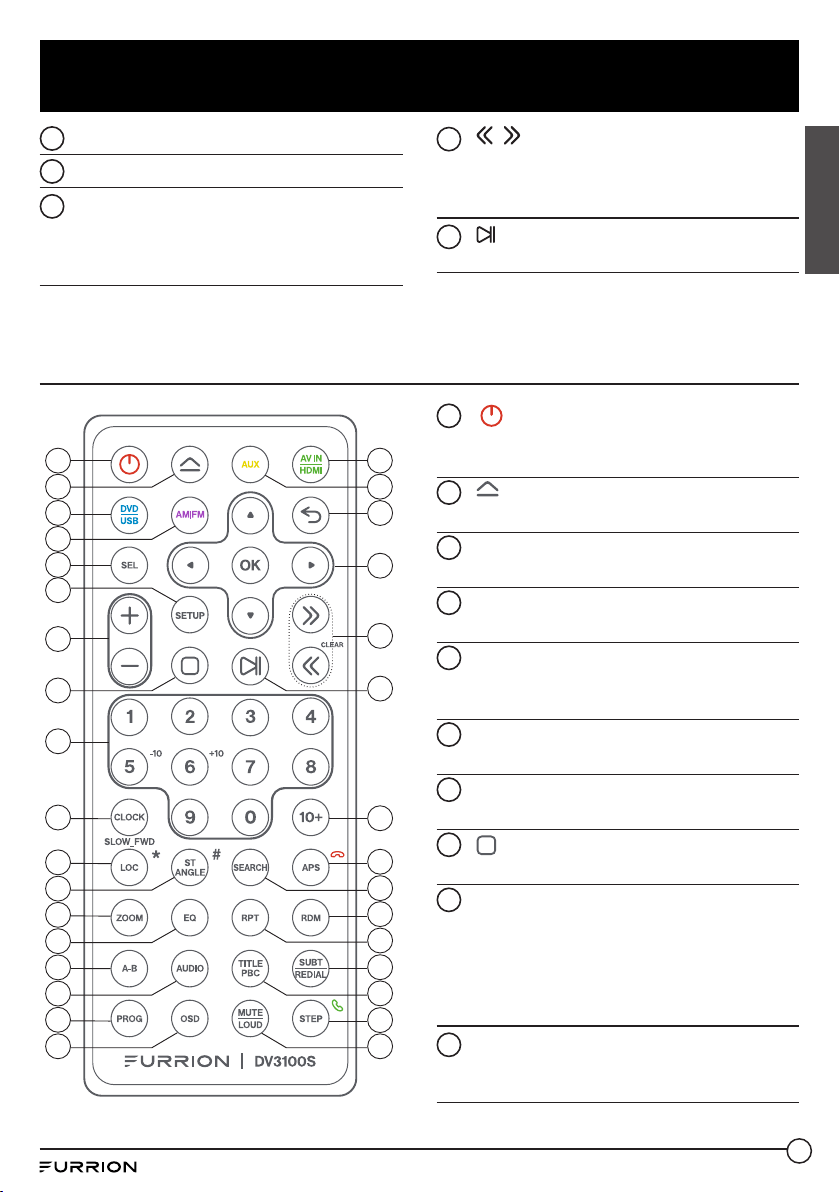
Control Panel
1
2
3
4
5
8 109
11
12
14
16
17
18
76
15
13
19
1
Turn on the unit or switch to standby
mode.
2
Stop playback.
3
AUX socket
Connect to the 3.5mm video / audio
output socket on an auxiliary device.
4
socket
Connect a headphone.
5
USB socket
Connect a USB storage device or
charging device.
6
HDMI IN socket
Connect to the HDMI output socket on
an AV device.
7
Switch to the Bluetooth sound source.
8
INPUT MODE
Select the corresponding sound source:
AM/FM, DISC/USB, BT, AV IN, AUX or
HDMI mode.
9
Built-in microphone
10
RESET
Reset the unit and load its factory default
settings.
11
VOLUME -/+ knob
Turn the knob clockwise /
counterclockwise to increase / decrease
volume.
12
Number buttons (1 - 6)
Select and enter numbers.
RPT4: Select repeat playback mode.
RDM5: Select random playback mode.
TITLE6: Display the title list during DVD/
VCD playback.
13
LCD screen
14
Eject the loaded disc.
9
Functional Overview
English
15
Disc slot
16
IR sensor for remote control
17
ZONE 1 / ZONE 2
Turn on or off the audio source in each of
the different areas where your speakers
are connected.
18
/
Fast backward/forward within a
chapter/ track.
Tune to a radio station.
19
Start (resume) / pause playback.
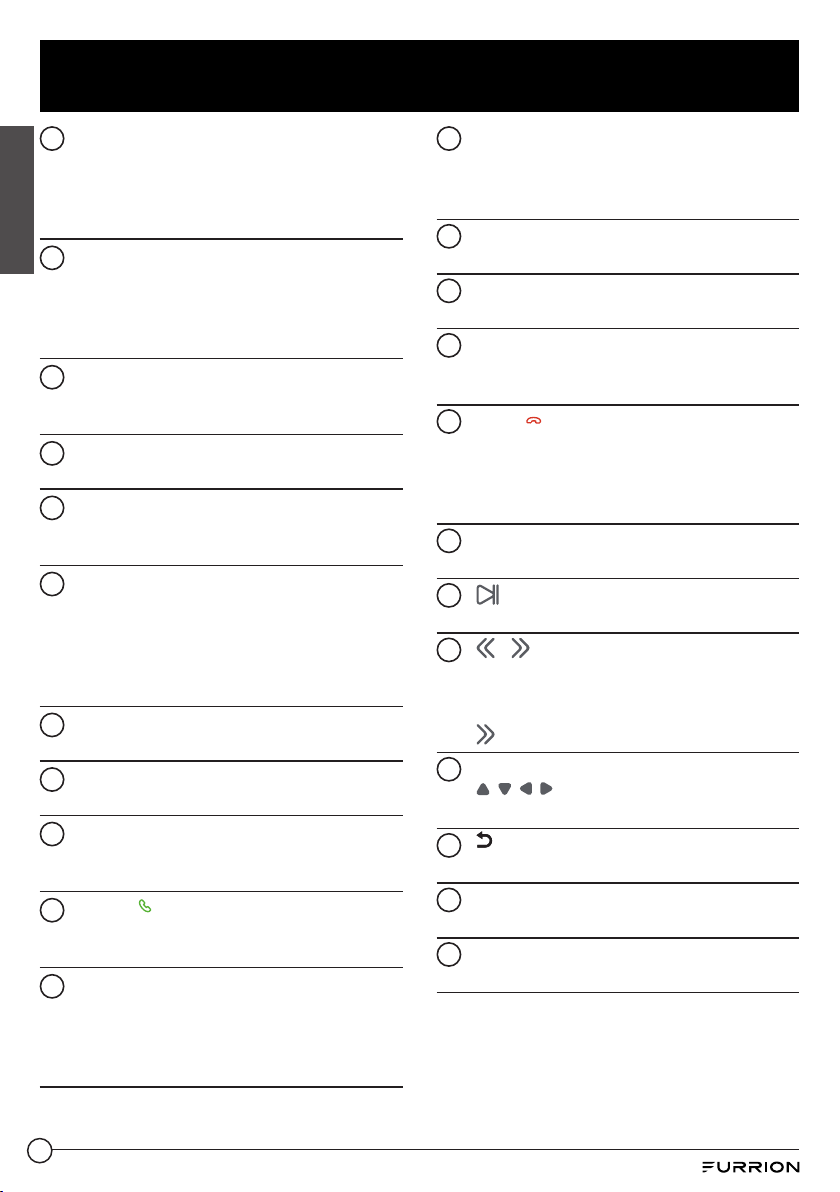
Remote Control
2
4
3
1
32
33
5
6
7
8
9
10
11
13
15
17
12
14
16
18 19
21
23
25
28
20
22
24
26
27
29
30
31
1
Turn on the unit or switch to standby
mode.
2
Eject the loaded disc.
3
DVD/USB
Switch to the DVD/USB sound source.
4
AM/FM
Switch to the AM/FM sound source.
5
SEL
Select various system settings.
Select a preset sound effect.
6
SETUP
Access or exit the DVD system menu.
7
+/-
Increase / decrease volume.
8
Stop playback.
9
Number buttons (0 - 9)
Select and enter numbers.
5/-10: Skip 10 tracks backward during
MP3 playback.
6/+10: Skip 10 tracks forward during
MP3 playback.
10
CLOCK
Enter clock setting mode.
Display the clock.
10
Functional Overview
English
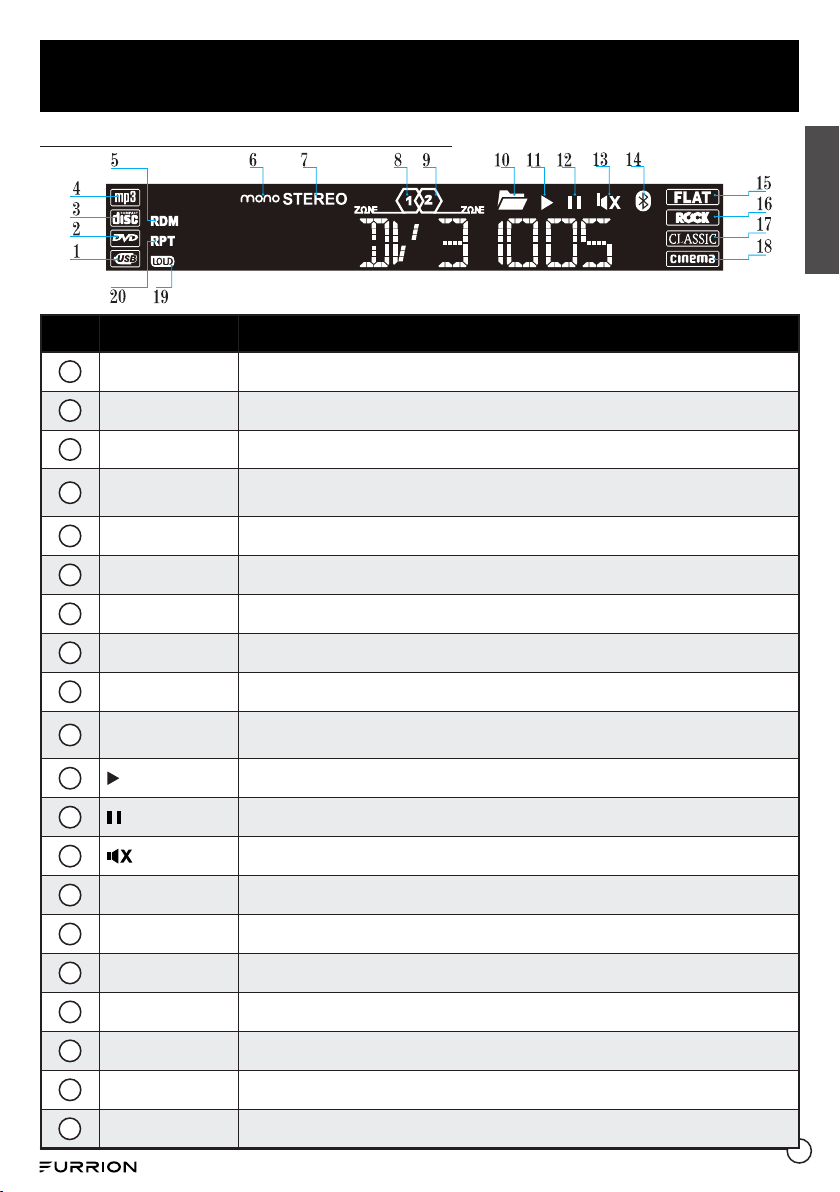
11
LOC/SLOW.FWD/*
In radio mode, enable or disable local
mode.
During disc playback, select a slow
forward speed.
12
ST/ANGLE/#
In FM mode, switch between stereo and
mono sound output.
During DVD playback, adjust the viewing
angle (if available).
13
ZOOM
During DVD/VCD playback, zoom in /
out on images.
14
EQ
Select a preset EQ sound effect.
15
A-B
Play a specific segment in a chapter /
track repeatedly.
16
AUDIO
Select a subtitle language (if available)
during DVD playback.
Select a sound mode (MONO LEFT,
MONO RIGHT, or STEREO) during VCD
playback.
17
PROG
Access or exit program playback.
18
OSD
Display the playback status.
19
MUTE/LOUD
Mute or un-mute the audio output.
Enable or disable the loudness effect.
20
STEP/
Play a DVD/VCD frame by frame.
Accept or make a call.
21
TITLE/PBC
Display the title list during DVD/VCD
playback.
Turn on / off PBC (PlayBack Control) of
a disc (if available).
22
SUBT/REDIAL
Select the caption language during DVD
playback (if available).
Redial the last dialed number.
23
RPT
Select repeat playback mode.
24
RDM
Select random playback mode.
25
SEARCH
Show or hide the search window during
disc playback.
26
APS/
Start automatic programming of radio
stations.
Scan preset radio stations.
Reject or end a call.
27
10+
Input a number larger than 9.
28
Start (resume) / pause playback.
29
/ (CLEAR)
Skip to the previous/next track.
Fast backward / forward within a track.
Tune to a radio station.
(CLEAR): Clear a wrong input.
30
Navigation buttons
/ / / : Navigate in a menu.
OK: Confirm your selection.
31
Return to the previous menu.
32
AUX
Switch to the AUX sound source.
33
AV IN/HDMI
Switch to the AV IN/HDMI sound source.
11
Functional Overview
English
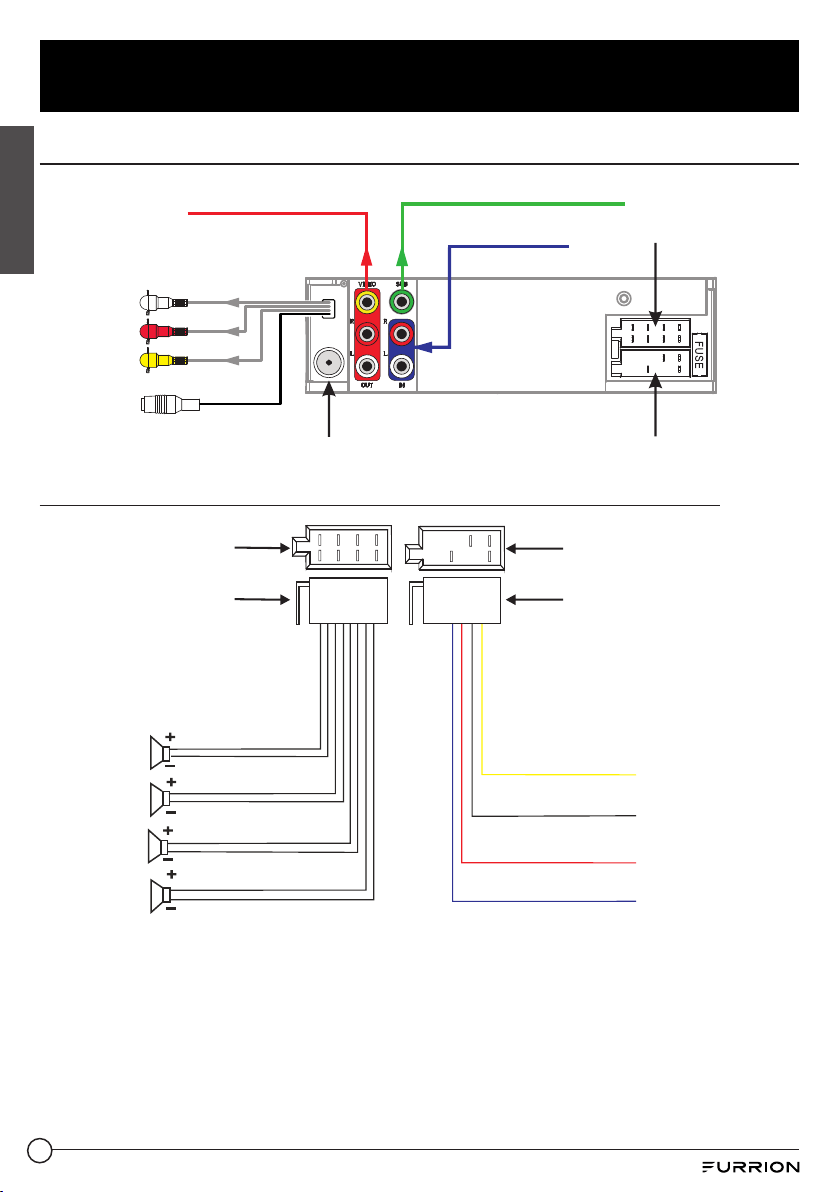
Description of icons on the LCD display
No. Icon Description
1
USB Lights up when a USB storage device is connected.
2
DVD Lights up when a DVD is loaded.
3
DISC Lights up when a disc (DVD,VCD,CD) is loaded.
4
MP3
Lights up when a loaded disc or connected USB storage device contains MP3
files.
5
RDM Lights up during random playback.
6
MONO Lights up in mono audio mode.
7
STEREO Lights up in stereo audio mode.
8
ZONE <1> Lights up when ZONE 1 speakers are selected.
9
Z0NE <2> Lights up when ZONE 2 speakers are selected.
10
FOLDER
Lights up when a connected USB storage device contains more than 2
folders with playable files.
11
Lights up during disc or USB playback.
12
Lights up when disc or USB playback is paused.
13
Lights up when sound output of the unit is muted.
14
BLUETOOTH Lights up after successful Bluetooth pairing and connection.
15
FLAT Lights up when the flat audio mode is selected.
16
ROCK Lights up when the rock audio mode is selected.
17
CLASSIC Lights up when the classic audio mode is selected.
18
CINEMA Lights up when the cinema audio mode is selected.
19
LOUD Lights up when the loud audio mode is selected.
20
RPT Lights up during repeat playback.
12
English
Before Operation
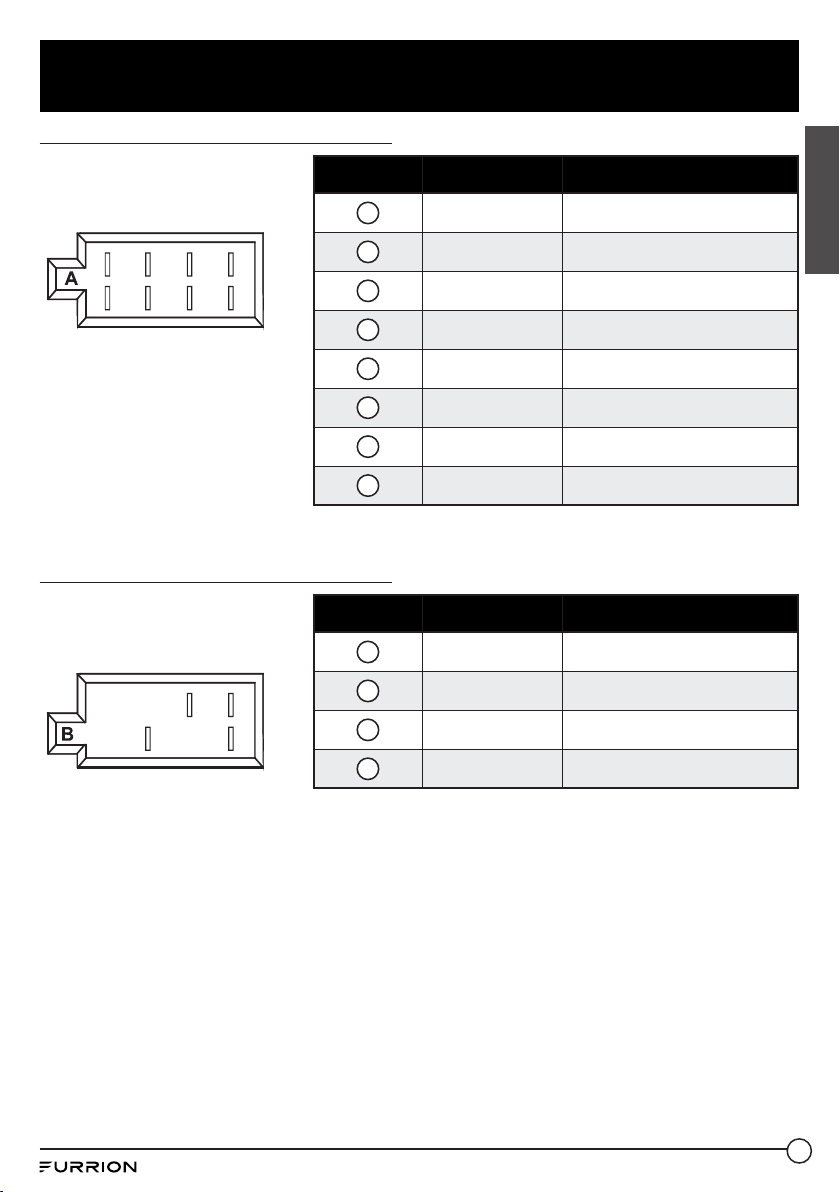
Wiring Diagram
WIRING SOCKET B
WIRING SOCKET A
SUBWOOFER OUTPUT
AV OUTPUT 1
AV OUTPUT 2
YELLOW VIDEO
RED R
WHITE L
BLACK
IR REMOTE JACK
ANTENNA JACK
AUDIO INPUT
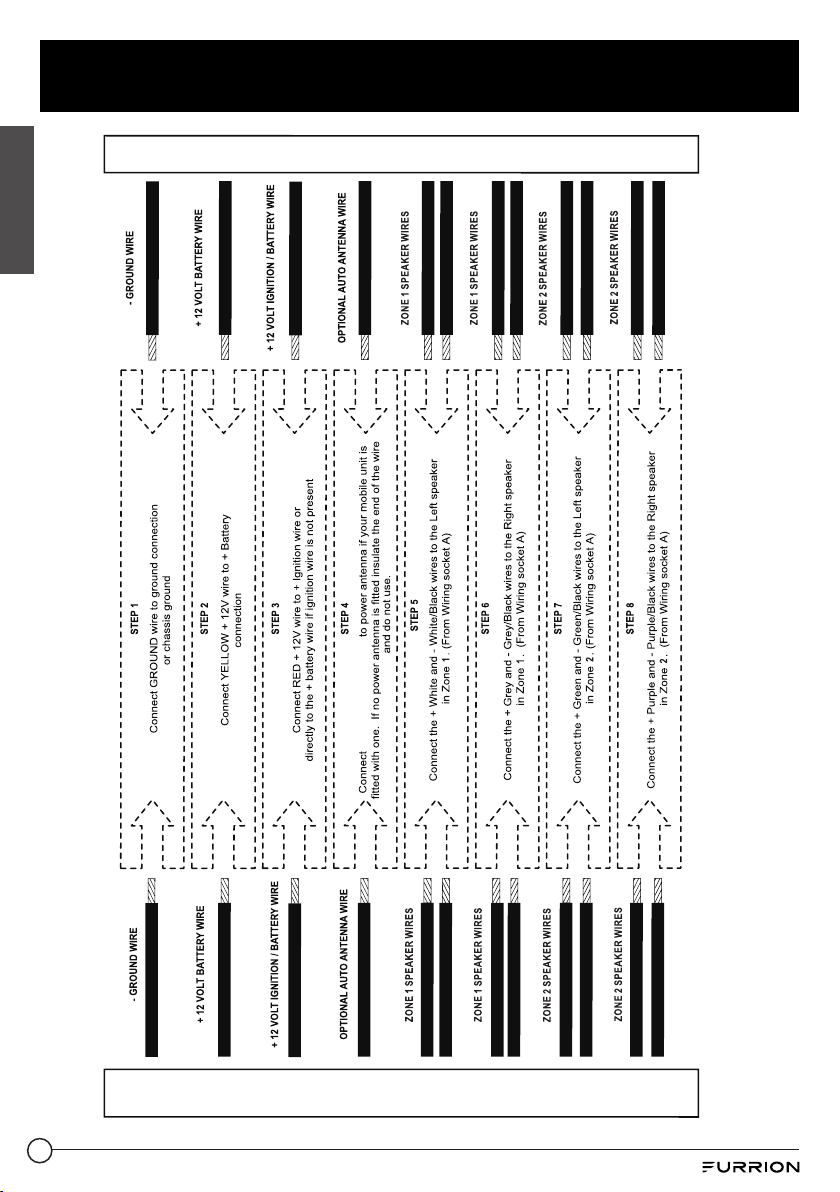
The Description of the Wiring Diagram for Socket A and Socket B
WIRING SOCKET A
WIRING HARNESS A
LEFT (A)
SPEAKER
WHITE
YELLOW
MEMORY B+
GROUND
IGNITION SWITCH
AUTO ANTENNA
BLACK
RED
BLUE
GREY
GREEN
PURPLE
WHITE/BLACK
GREY/BLACK
GREEN/BLACK
PURPLE/BLACK
LEFT (B)
SPEAKER
RIGHT (A)
SPEAKER
RIGHT (B)
SPEAKER
WIRING SOCKET B
WIRING HARNESS B
13
English
Before Operation
Wiring Connecting Socket A View
Pin No. Color Function
1
Purple Right (B) Speaker (+)
2
Purple/Black Right (B) Speaker (-)
3
Grey Right (A) Speaker (+)
4
Grey/Black Right (A) Speaker (-)
5
White Left (A) Speaker (+)
6
White/Black Left (A) Speaker (-)
7
Green Left (B) Speaker (+)
8
Green/Black Left (B) Speaker (-)
1 3 5 7
4 6 8
2
Wiring Connecting Socket B View
Pin No. Color Function
1
Yellow +12V DC Memory B+
2
Blue Auto Antenna
3
Red +12V DC Ignition Switch
4
Black Power Ground (-12 DC)
1
2 3
4
14
Before Operation
English
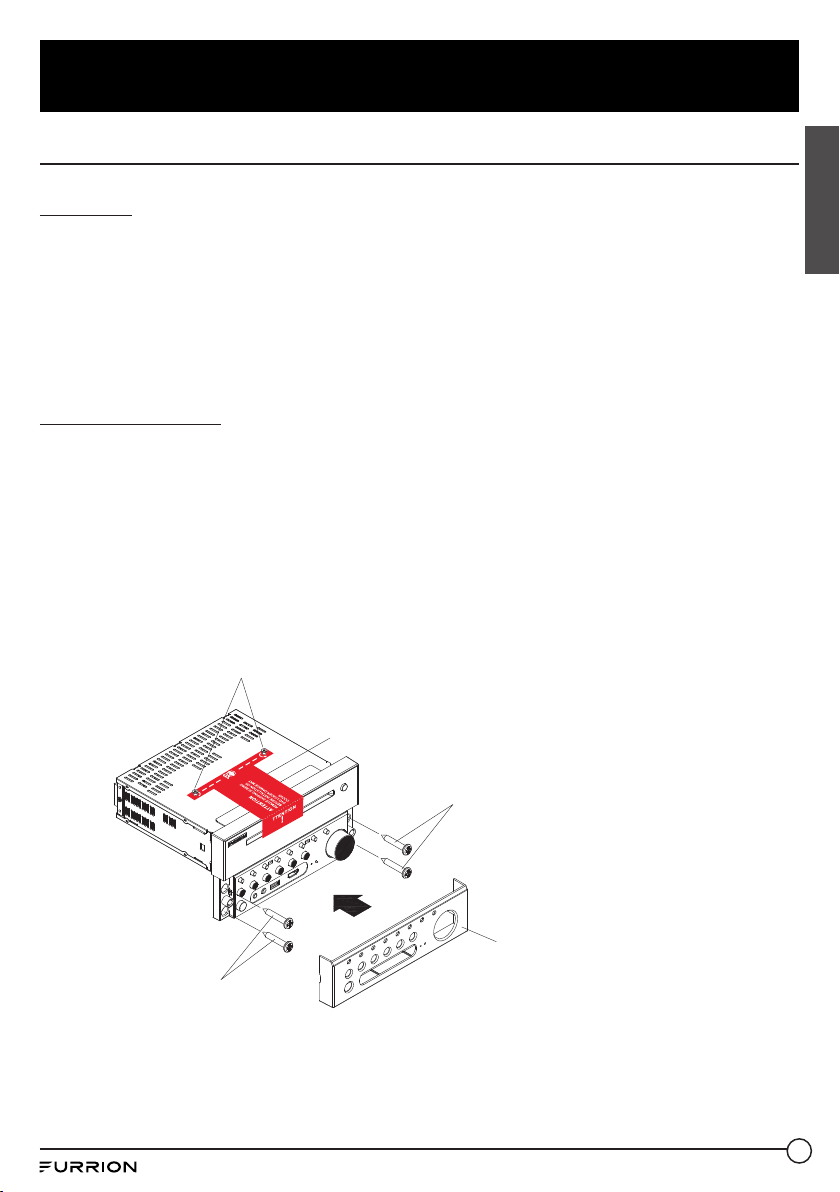
WIRES FROM RV, BOAT OR TRUCK
POWER AND SPEAKER WIRES FROM STEREO CONNECTOR
ANTENNA BLUE wire
15
Before Operation
English
Mounting Installation
Location
1. Choose a mounting location away from humid areas, water sources, appliances or any
equipment that can radiate heat.
2. Select an area on a wall or cabinet which is free from cable, fuel or brake lines and ensure
the area behind the wall mount stereo has a vent hole or if it is an enclosed box and has
adequate room around the rear of the unit for cooling.
3. Ensure when the stereo is mounted in the cut out that the wires at the rear of the unit are not
pressed against the heat sink.
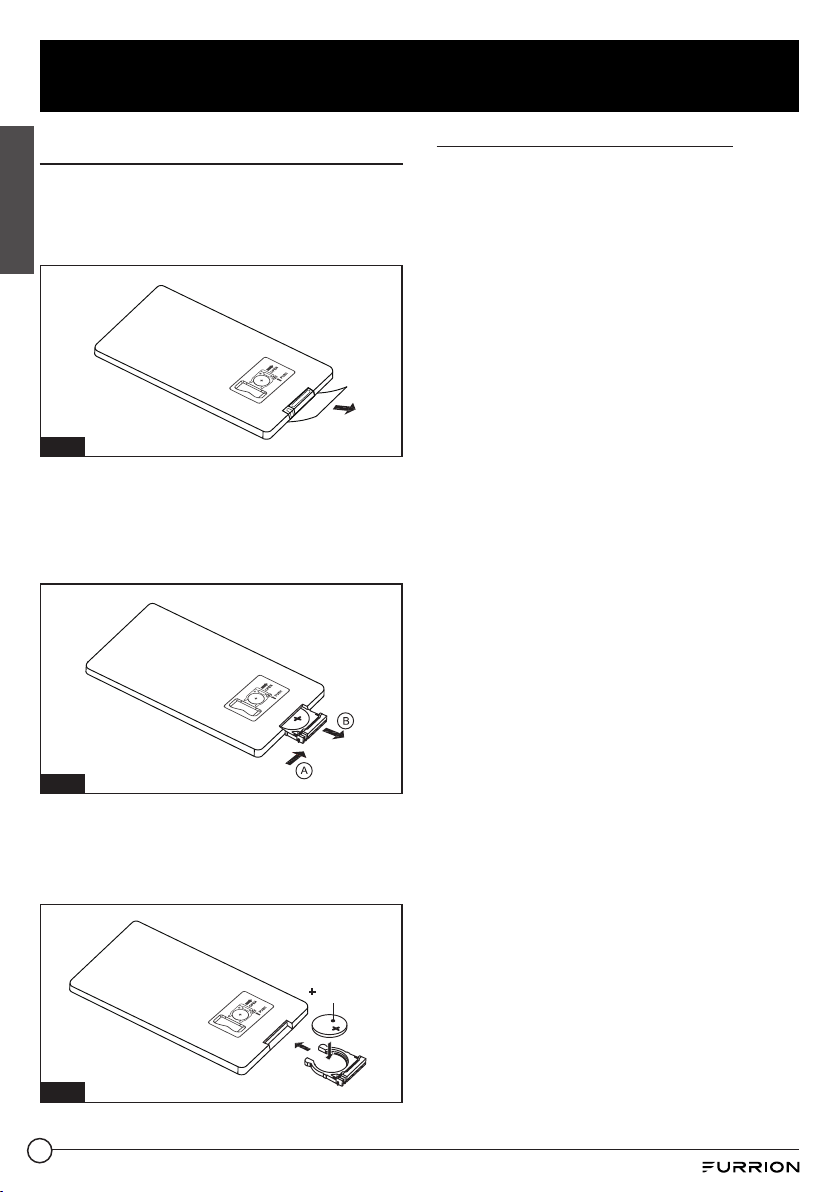
Installing the unit
1. Before finally installing the unit, connect the wiring temporarily and make sure the unit and
the system work properly.
2. Unscrew the locking screws and fix the unit with screws according to following diagram.
● Unscrew the locking screws only by screw driver and remove the attention label before
installation.
● Remove plastic shell of the front panels from the unit.
● Fix the unit with 4 pieces #8 pan head self tapping screws.
● Put back plastic shell of the front panel to the unit.
LOCKING SCREWS
LABEL
SCREW
SCREW
PLASTIC SHELL
OF THE FRONT PANEL
16
Before Operation
English
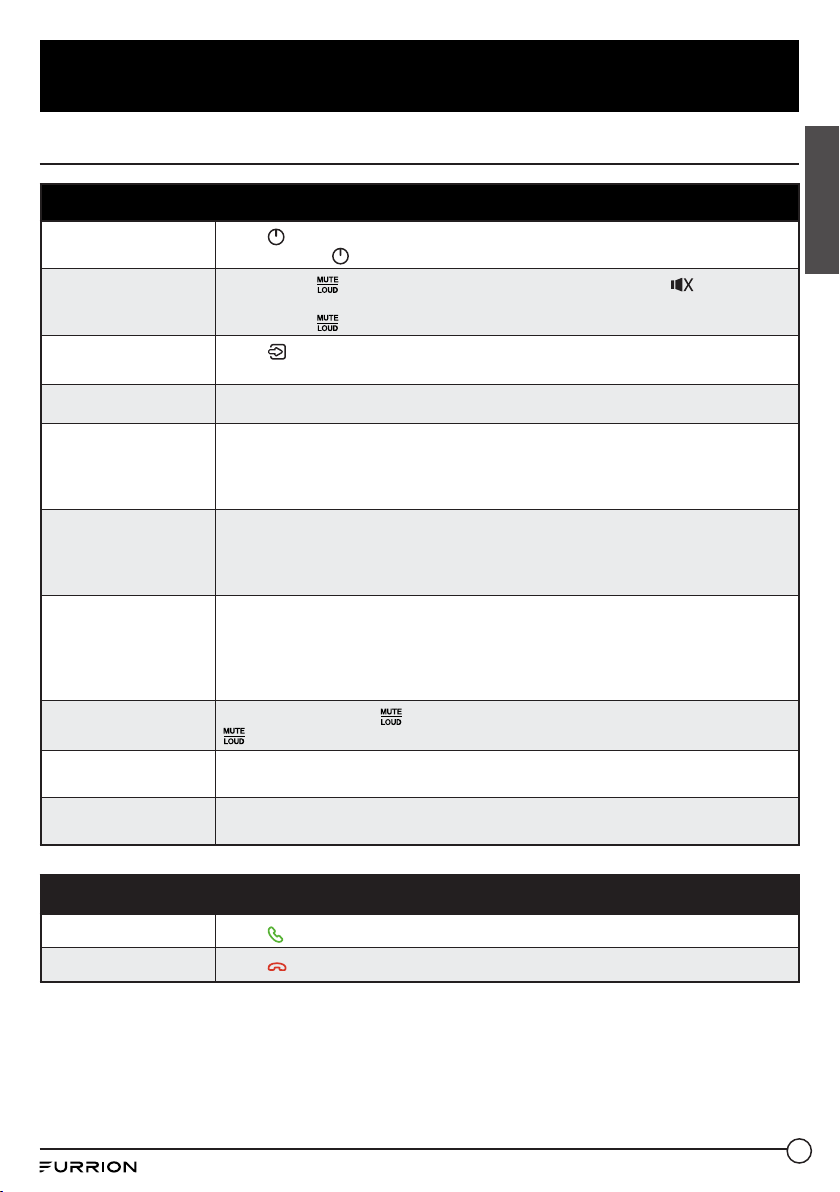
Prepare the Remote Control
1. Before using the remote control for the
first time, pull the insulating sheet out
of the remote control in the direction
indicated by the arrow. (Fig.1)
Fig. 1
2. Press the movable block hold in the
direction indicated by the A arrow (Fig.2),
then pull the battery holder out of the
remote control as the direction indicated
by the B arrow. (Fig.2)
Fig. 2
3. Replace the old battery with a new battery
with (+) polarity side upward. (Fig.3)
4. Insert the battery holder to the original
position in remote control. (Fig.3)
side up
Fig. 3
Remote control battery note
1. Improper use of a battery may cause
overheating or an explosion that could
result in injury or fire.
2. Battery leakage may cause damage
to the remote control. Battery Life:
6months with normal use in normal room
temperature.
3. Do not short the battery.
4. Do not throw the battery into the fire.
5. To avoid the risk of accident, keep the
battery out of reach of children.
17
Operation
English
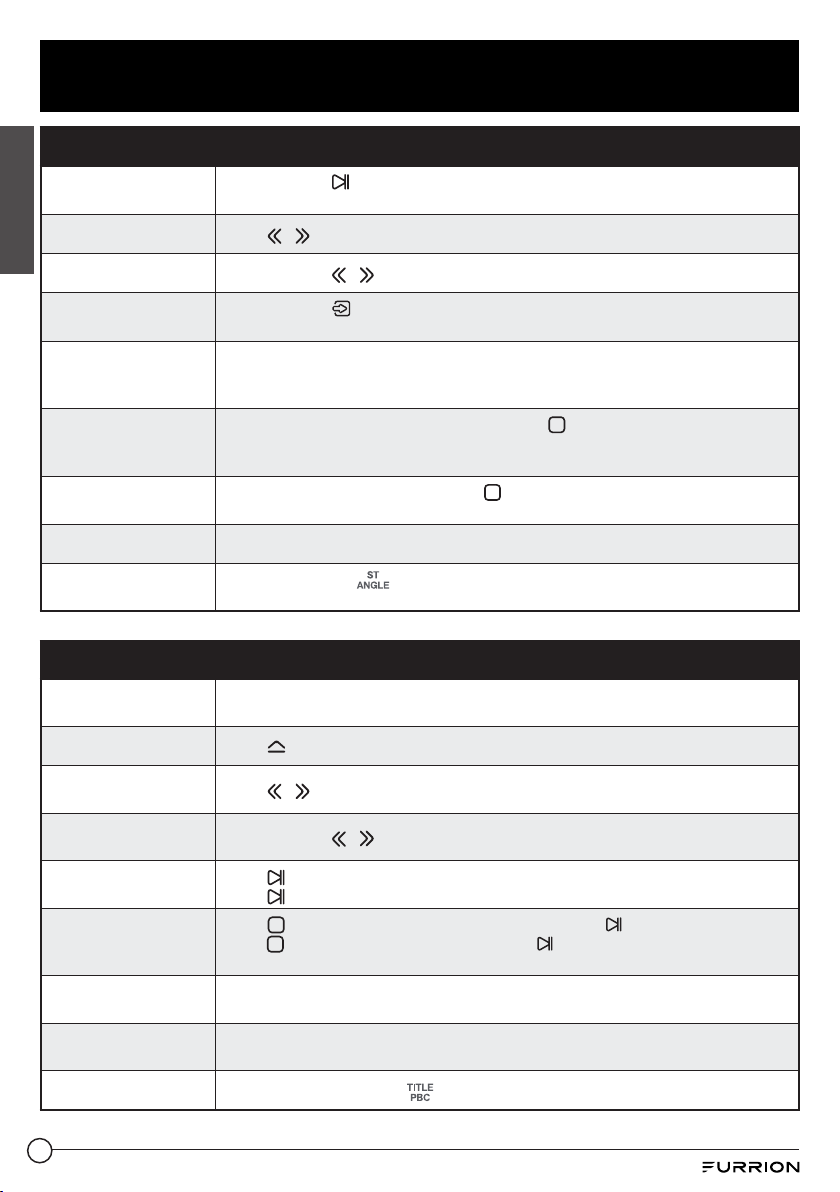
Quick Reference Guide
General Operation
Power on/off, switch
to standby mode
Press
to turn the unit on or enter standby mode.
Press and hold to turn the unit off.
Mute
Press MUTE
on the remote control to mute sound. The icon flashes on
the display.
Press MUTE again to restore the sound.
Select a source
Press
once or more to select Tuner (AM/FM), Disc (with a disc loaded), USB
(with a USB storage device connected), BT, AV IN, AUX or HDMI mode.
Adjust volume
Rotate the VOLUME -/+ knob to adjust volume.
Select a feature /
setting
1. Press SEL on the remote control (or push the VOLUME -/+ knob on the
front) once or more to select VOL, BAS (without EQ preset), TRE (without
EQ preset), BAL, EQ, or BEEP.
2. Rotate the VOLUME -/+ knob on the front panel to select a feature / setting.
Select a preset EQ
Press EQ on the remote control once or more directly (or push the VOLUME
-/+knob on the front panel once or more to activate EQ mode and then rotate
the VOLUME-/+ knob) to select EQ, CINEMA, ROCK, CLASSIC, or FLAT.
Thesound effect will change accordingly.
Set clock
1. Press and hold CLOCK on the remote control to enter clock setup mode.
2. Rotate the VOLUME -/+ knob to adjust the hour.
3. Press the VOLUME -/+ knob to enter minute setting.
4. Rotate the VOLUME -/+ knob to adjust the minute.
The time on the clock is set automatically after a few seconds of inactivity.
Turn on / off loudness
effect
Press and hold LOUD
button on the remote control to turn on or off
mode.
Select speakers
Press and hold ZONE 1 / ZONE 2 to select speaker output.
The corresponding zone number will be displayed on the LCD once selected.
Reset
Press RESET with a sharp object to reset the unit and load its factory default
settings.
Bluetooth Operation
Accept or make a call
Press
to accept an incoming call, or dial or redial a telephone number.
Reject or end a call Press
to reject or end a call.
18
Operation
English
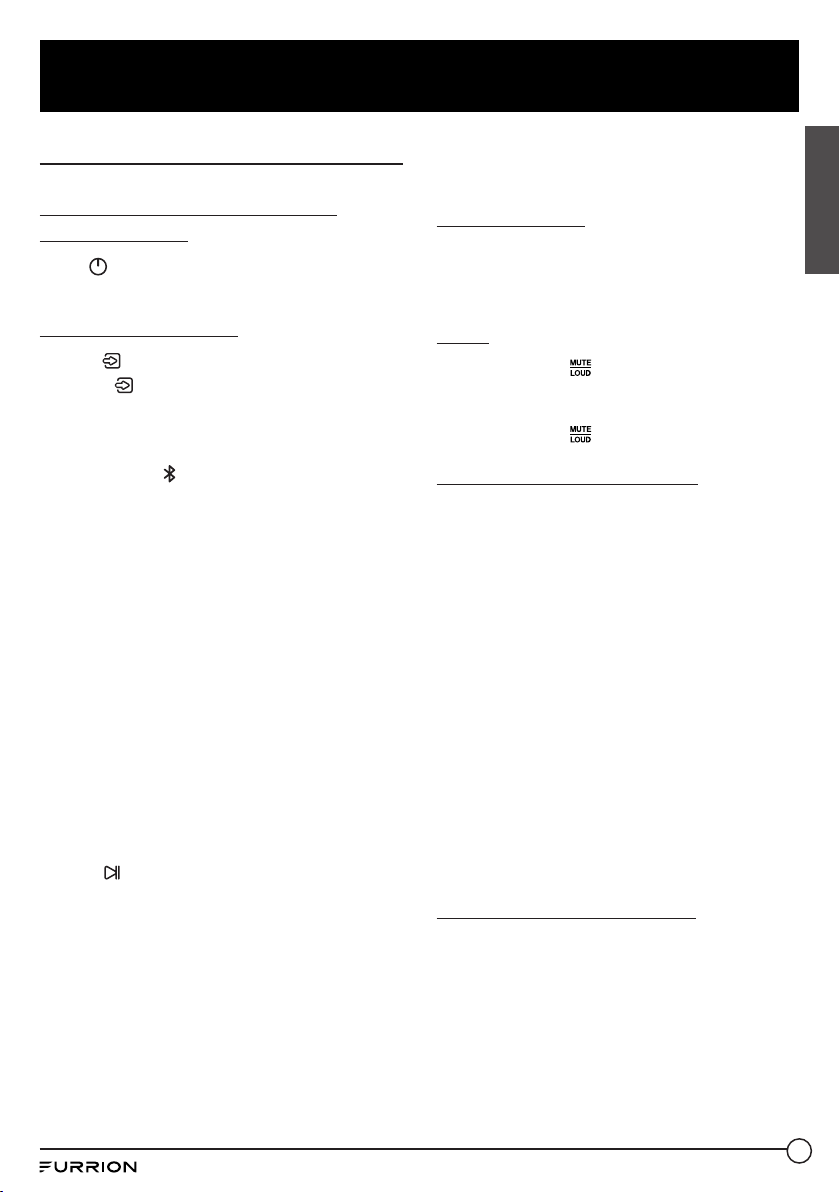
Radio Operation
Select radio region
Press and hold
for 5 seconds to set the AM/FM radio region (Europe/USA1/
USA2/AUSTRALIA).
Manual tuning Press
/ to move the radio frequency down or up one step at a time.
Automatic tuning Press and hold
/ to search for the next strongest station automatically.
Select a band
Press and hold
on the front panel or press AM/FM on the remote control to
select FM1, FM2, FM3, AM1, or AM2.
Store and recall a
preset station
Press and hold any one of the six preset buttons (1-6) to store the current
frequency.
Press the corresponding preset number button to recall the stored frequency.
Store stations
automatically
Press and hold APS on the remote control (or
on the front panel) to
automatically store the six strongest stations in the current band.
Up to 18 FM stations and 12 AM stations can be stored.
Scan preset stations
Press APS on the remote control (or
on the front panel) to scan presets 1-6
on the current band.
LOC
Press LOC on the remote control to turn on / off the LOC (local) function.
Stereo/mono
In FM mode, press
on the remote control one or more to select stereo or
mono sound output.
Disc / USB Operation
Insert a disc
With the label facing up, insert a disc into the disc slot. The disc will automatically
begin playback.
Eject the disc Press
to eject the disc.
Select a chapter /
track
Press
/ to skip to the previous or next chapter / track.
Fast backward /
forward
Press and hold
/ to fast backward / forward.
Pause playback
Press
to temporarily stop playback.
Press again to resume playback.
Stop playback
Press
once to pause playback. Then you can press to resume.
press twice to stop playback. Then press to start playback from the
beginning of the first chapter / track.
Repeat
Press RPT to play the current chapter / track repeatedly.
Press RPT again to resume.
Random
Press RDM to play each track in random order.
Press RDM again to resume.
Title
In DVD/VCD mode, press
on the remote control to display the title list.
19
Operation
English
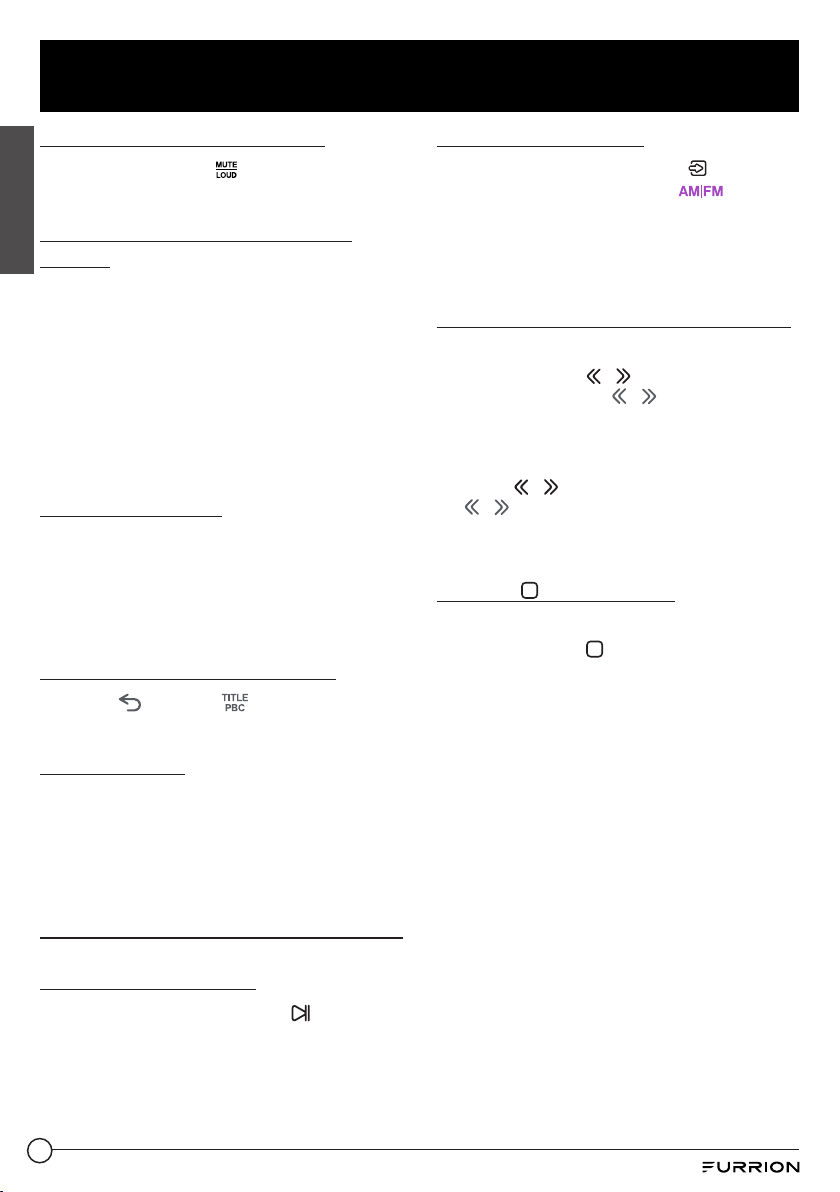
Common Operation
Turn the unit on or switch to
standby mode
Press to turn the unit on or switch to
standby mode.
Selecting a Source
1. Use
on the front panel
Press
repeatedly to select Tuner (AM/
FM), Disc (After inserting a disc), USB (After
inserting a USB storage), BT, AV IN, AUX or
HDMI mode.
Note: Press
to enter into the Bluetooth
mode directly. Press again to back to
current playback mode. When HDMI source
was selected, the video of HMDI will be
output from the video out both AV1 and
AV2.
2. Use the corresponding buttons on the
remote control
DVD / USB - Once a DVD is inserted into
the unit, the unit will automatically switch
to display this source menu. once a USB
is inserted into the unit, Then Press this
function button on the remote control to
select USB as a sound input mode.
AM / FM - Press and hold this button on the
remote control to scroll through FM1, FM2,
FM3, AM1, and AM2. To switch between
USA and Europe radio regions, press and
hold
on the front panel for 5 seconds until
the region is displayed on the screen.
AUX - Press this button on the remote
control to select the AUX inputs available
for the unit.
AV IN / HDMI - Press this button on the
remote control to scroll through the AV IN /
HDMI inputs available for the unit.
● AV IN - Connection on the rear of
the unit to connect an external audio
source.
● HDMI - Connection on the front of the
unit to connect an external HDMI OUT
device.
Adjust volume
Rotate the VOLUME -/+ knob clockwise
to increase volume, rotate anticlockwise to
decrease volume.
Mute
1. Press MUTE to mute sound output
in any source mode. 'MUTE' will be
displayed on the screen.
2. Press MUTE
again to resume.
Display and set the clock
1. To display the clock on the LCD display,
press CLOCK button on the remote
control.
2. To adjust or set the clock, press and hold
CLOCK on the remote control to enter
clock setup mode.
Rotate the VOLUME -/+ knob on the front
panel (or press +/- on the remote control)
to adjust the hour.
Press
the VOLUME -/+ knob on the
front panel (or press SEL on the remote
control) to enter minute setting.
Rotate the VOLUME -/+ knob (or press
+/- on the remote control) to adjust the
minute.
The time on the clock is set automatically
after a few seconds of inactivity.
Select a preset EQ mode
Press EQ on the remote control once or
more
directly (or push the VOLUME -/+ knob on
the front panel once or more to active EQ
mode, and then rotate the VOLUME-/+knob)
to select EQ, CINEMA, ROCK, CLASSIC, or
FLAT).
The sound effect will change accordingly.
20
Operation
English
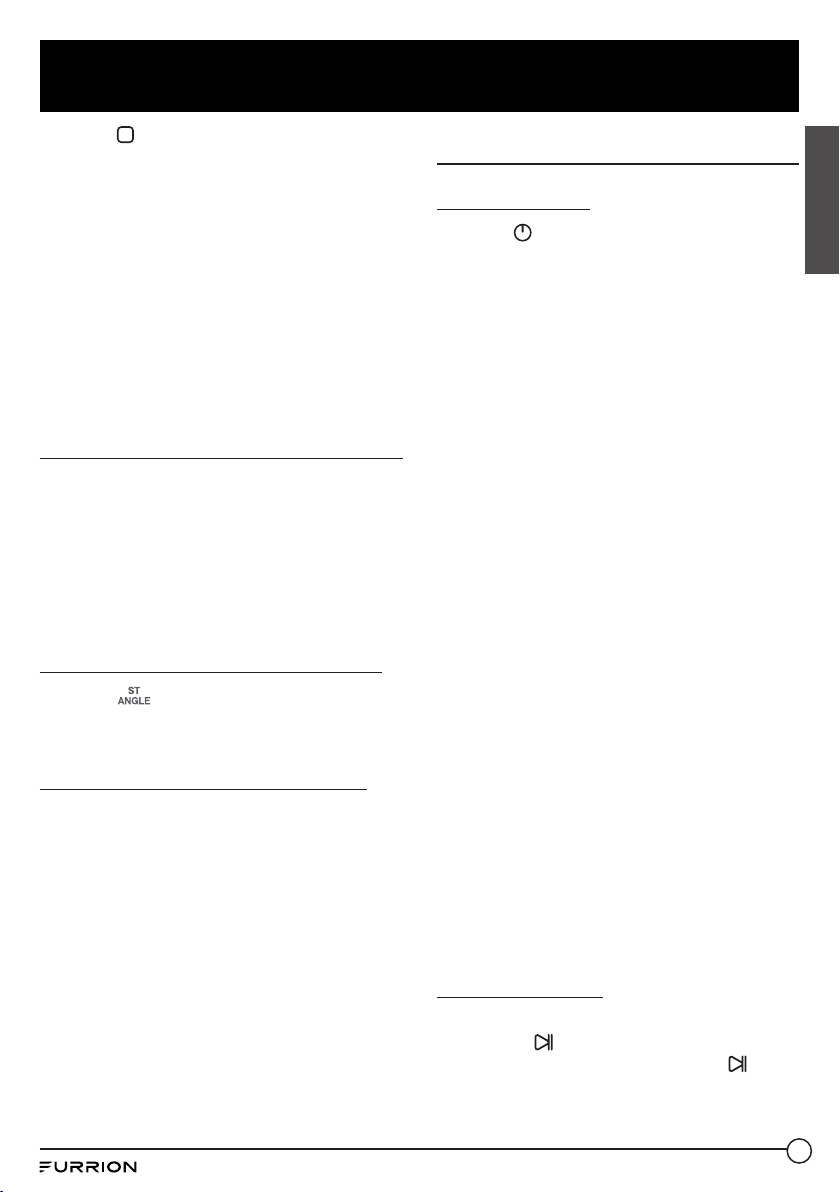
To turn on / off LOUD mode
Press and hold LOUD on the remote
control to turn on / off LOUD mode.
To adjust the sound equalizer
curves
1. Press SEL on the remote control (or
push the VOLUME -/+ knob on the front)
once or more to select a sound equalizer
curve: VOL, BAS (without preset EQ), TRE
(without preset EQ), BAL, or BEEP (ON/
OFF).
2. Rotate the VOLUME -/+knob on the front
panel (or press +/- button on the remote
control) to adjust level.
Select ZONE 1 / 2
Pressing ZONE 1 or ZONE 2 will turn on or off
the audio source in each of the different areas
which your speakers are connected.
"ZONE <1 >" or "ZONE <2>" will display on the
LCD once it is selected.
Return to the previous menu
Press the or TITLE on the remote
control.
Reset the unit
In case of incorrect display, button failure, or
distorted sound, you can press RESET with
a sharp object such as a clip to reset the unit
and load its factory default settings.
Radio Operation
Select a radio region
In RADIO mode, press and hold for about
5seconds to select your desired radio region:
EUROPE, USA1, USA2, or AUSTRALIA.
Select AM/FM band
In RADIO mode, press and hold button on
the front panel or briefly press on the
remote control to select your desired radio
band of FM1, FM2, FM3, AM1, AM2, and the
selected band will be displayed on the LCD of
the front panel.
Tune to / search for radio stations
In RADIO mode:
● Press and hold
/ on the front panel
(or press and hold / on the remote
control) to automatically search down/
up for a available station from the current
frequency.
● Press
/ on the front panel (or press
/ on the remote control) to manually
search up or down for your desired
station from the current frequency.
Use the / APS button
In RADIO mode:
1. Press and hold
on the front panel (or
APS on the remote control)to search
for radio frequencies with sufficient
signal strength (starting from the lowest
frequency and ending until the search
cycle is finished).
Then the 6 strongest stations are preset
to the memory bank of the corresponding
preset number. The AS operation is
implemented in each bank of the selected
band. When the AS operation is finished,
radio broadcast will resume on M1. (A total
of 3x6 stations for FM and 2x6 stations
for AM can be stored.)
21
Operation
English
2. Press on the front panel (or APS on the
remote control) to search for each preset
radio station starting from M1. When the
field strength level is above the threshold
of the stop level, the radio holds at that
preset number for a few seconds, and
then searches again. Thesearch stops on
M1 when the search cycle is finished.
NOTE:
In FM band, FM1, FM2,FM3 is checked
once at a time.
In AM band, AM1, AM2 is checked once at
a time.
Use the preset number button (1-6)
In RADIO mode:
1. To memorize the current frequency on the
current band, press and hold any one of
the six preset buttons (1-6).
2. To recall the preset memory on the
current band, press one of the preset
buttons (1-6).
Switch between STEREO/MONO
Press ST on the remote control once or
more to switch between STEREO and MONO
in FM mode.
Use the LOC ON / OFF function
1. In radio mode, when the signals of the
distant radio stations are very weak and
the reception is poor during tuning, press
LOC on the remote control to turn off the
LOC function, and then tune again for the
distant radio stations.
2. In radio mode, too strong signals from
the local radio stations may lead to
interference. You can press LOC on
the remote control to turn on the LOC
function, and then re-tune to the local
stations if required.
Basic Disc / USB Operation
Start playback
1. Press to turn on the unit.
2. Turn on the TV set, from which the video
output is connected to the video input of
the unit.
If nothing displays on the TV screen
when the unit is turned on, ensure that
the TV is set to the right video input (not
TV channel). For example, if the TV is
connected with the unit via the VIDEO
1 INPUT, then you need to set the TV to
VIDEO 1.
3. Insert a disc into the disc slot (with the
label side facing up).
NOTE:
● Discs that are seriously scratched or of
poor manufacturing or recording quality
may not play.
● If the unit cannot read a disc in normal
conditions, please try to eject and reload
the disc.
● In addition to normal CD and DVD, this
unit supports CD-R, CD-R/W, DVD-R and
DVD-R/W playback as well. However,
depending on the conditions of the
recording equipment, recording program
or the disc itself, some CD-R, CD-R/W,
DVD-R or DVD-R/W may not play.
● When dealing with CD-R, CD-R/W,
DVD-R or DVD-R/W recording, too high
recording speed may result in poor signal
quality and therefore, it is recommended
to select as low recording speed as
possible.
Pause Playback
When playing DVD/VCD/CD/MP4/MP3
discs, press on the front panel or remote
control to pause the playback, press again
to resume normal playback.
22
Operation
English
Stop Playback
● When playing DVD/VCD/MP3/CD discs,
press once to pause playback, then
you can press to resume normal
playback.
● During playback, press
twice to stop
playback, then you can press
to start
playback from the beginning of the first
chapter / track.
Select a chapter/track
Press / on the front panel (or /
on the remote control) during playback to
select the previous / next chapter or track to
playback.
Note: You can press and hold
/ on the
front panel (or / on the remote control)
to fast backward / forward within a chapter /
track.
Select a chapter / track with the
number buttons
● When playing DVD/VCD (PBC OFF)/
MP3/CD discs, use number buttons (0 -
9) to directly select and play a chapter /
track numbered 1 to 9.
● To play a chapter / track with the serial
number larger than 9, use the 10+ and 0-
9buttons. For example, to play the 13th
chapter / track, first press the 10+ button
once, then press the 3 button; to play the
34th chapter / track, first press the 10+
button 3times, then press the 4 button.
Note: You can press and hold the +10 or
-10buttons to skip 10 tracks forward /
backward (for MP3 only).
Select a chapter / track from the
root/PBC menu (if available)
For DVD:
1. Press TITLE
on the remote control to
display the title list.
2. Press the navigation buttons to select
your desired title, and then press OK or
to open the root menu of the selected title.
3. Press the navigation buttons to select
your desired chapter, then press OK or
to play the selected chapter.
● During playback, you can press TITLE on
front panel (or press and hold TITLE
on the remote control) to display the root
menu of the current title directly, and then
perform the same operation to resume
normal playback.
For VCD:
1. When PBC is enabled, the disc will play
with the PBC menu (if available) displayed
on the TV screen.
2. Press the number buttons to select your
desired track to play.
For MP3:
1. During playback, the root menu is
displayed on the TV screen all the time
(TITLE/PBC
unavailable).
2. Press the navigation buttons to select
your desired folder, and then press OK or
to open the folder.
Press the navigation buttons to select
your desired file, and then press OK to
play the selected file.
For CD:
The TITLE/PBC
button is disabled.
Terminate playback
1. Press to eject disc.
2. Press and hold
on the front panel (or
press on the remote control) to turn off
the unit.
23
Operation
English
Advanced Disc / USB
Operation
Fast backward / forward
During normal playback, press and hold /
on the front panel (or / on the remote
control) once or more to fast backward or
forward at the following speed: x2, x4, x8,
x20, or normal.
During fast backward / forward, press
button to resume normal playback.
Slow forward
● During playback, press SLOW_FWD
button on the remote control to slow
forward.
● Press SLOW_FWD consecutively to
decrease the playback speed as follows:
x1/2, x1/3, x1/4, x1/5, x1/6,x1/7, normal.
● During slow forward, press
to resume
normal playback.
Note: The function is only available for video
playback.
Play frame by frame
1. During DVD/VCD playback, press STEP
on the remote control consecutively to
play frame by frame forward.
2. Press
to resume normal playback.
Play repeatedly
Repeat One / All
1. During DVD playback:
Press RPT to select REP CHAPTER, REP
TITLE, REP ALL, or REP OFF.
2. During VCD (PBC OFF)/CD playback:
Press RPT to select REP ONE, REP ALL,
or OFF.
The RPT button is unavailable when PBC
is enabled during VCD playback.
3. During MP3 playback:
Press RPT to select REP ONE, REP DIR,
REP ALL, or OFF.
Repeat A-B
Use this function if you want to repeat a
specific segment on a disc that you define:
1. Press A-B at a point (A) where you want
it to be the start point of the repeat
segment.
2. Press A-B again at a point (B) where you
want it to be the terminal point of the
repeat segment.
Then the segment will be played
repeatedly.
● To cancel A-B repeat mode and resume
normal playback, press A-B for the third
time.
Note:
During DVD/VCD/MP3/CD playback,
points A and B must be within the same
track.
Play from a specified chapter /
track or specified time
During DVD playback:
1. Press SEARCH on the remote control to
display a search box, with the title field
highlighted.
2. Use the number buttons to input the serial
number of a title.
3. Use the navigation buttons to highlight
the chapter field, and then use the number
buttons to input the serial number of a
chapter.
4. Press OK or
to play the selected
chapter.
During VCD/MP3/CD playback:
1. Press SEARCH on the remote control to
display a search box, with the track field
highlighted.
2. Use the number buttons to input the serial
number of a track, and then press OK or
to play the selected track.
24
Operation
English
Play randomly
During DVD/VCD (PBC OFF)/MP3/CD
playback, press RDM once or more to switch
between RANDOM ON and RANDOM OFF.
In RANDOM ON mode, the chapters / tracks
will be played randomly.
Play from different angles
During DVD playback, press ANGLE on
the remote control once or more to view from
different angles.
Note:
− This function is only available for discs
recorded with different camera angles.
− The ANGLE button is unavailable for VCD/
MP3/CD discs.
Zoom in / out during playback
1. During DVD/VCD playback, press ZOOM
on the remote control once or more to
enlarge a certain area of the images on
the screen with these multiples:
ZOOMx2, ZOOMx3, ZOOMx4, ZOOMx½,
ZOOMx⅓, ZOOMx¼, ZOOM OFF.
2. Press one of the navigation buttons to
select the area you want to enlarge.
Change the caption language
When playing DVDs, press SUBT on
the remote control once or more to select
the caption language or turn off the caption
(ifavailable).
Note: This function is unavailable for VCD/
MP3/CD discs.
Change the audio language
● When playing DVDs, press AUDIO on the
remote control once or more to select the
desired language type (if available).
● When playing VCD discs, press AUDIO
on the remote control once or more to
select MONO L, MONO R, or Stereo (no
language function).
● For CD/MP3, the AUDIO is invalid.
Check the playback status
When playing DVD/VCD/CD discs, press
OSD on the remote control once or more to
turn on or off playback status display.
● For DVD discs, this function allows you to
check such information as the current title
and chapter numbers, and the elapsed
and remaining time of both the current
title and chapter etc.
● For VCD/CD discs, this function allows
you to check such information as the
current track number, and the elapsed
and remaining time of both the current
track and the whole disc.
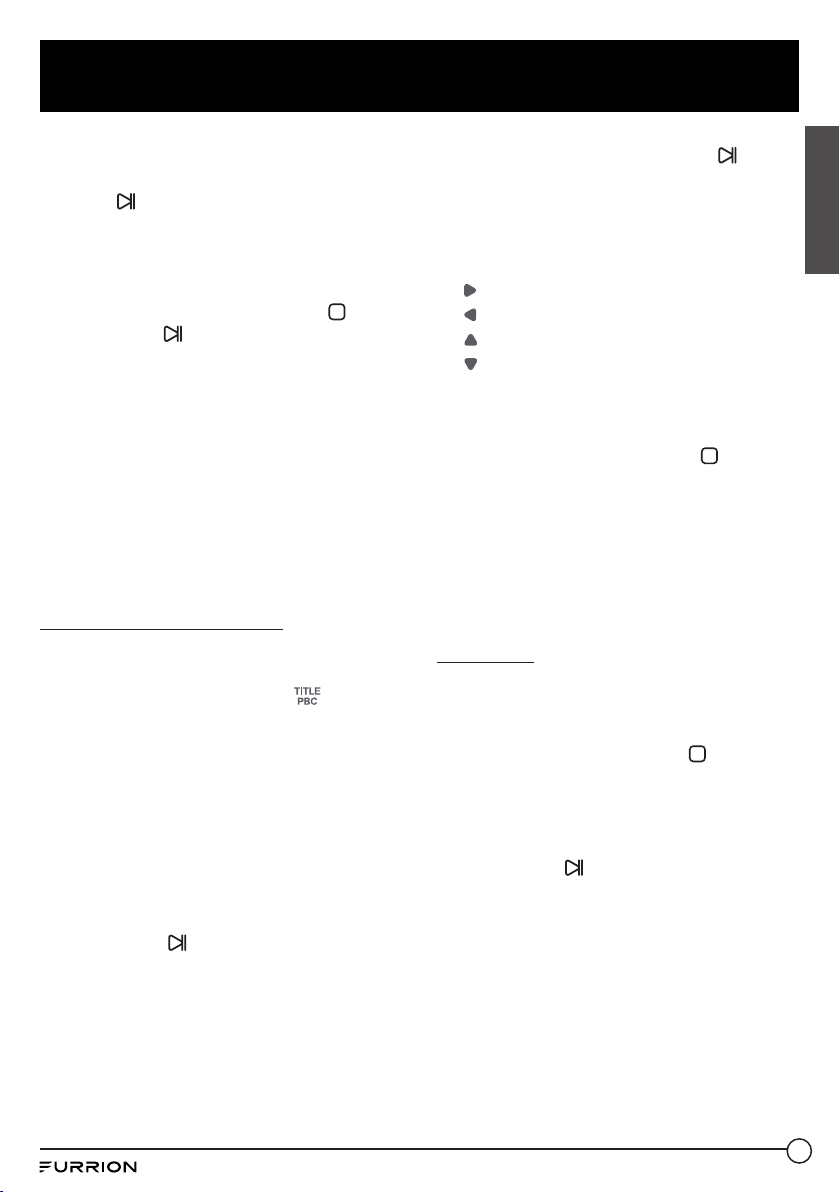
Program playback
This function allows you to play some titles /
chapters / tracks on a DVD/VCD/MP3/CD
disc in your specified order.
1. During playback, press PROG on the
remote control to enter a program
interface as follows:
For DVD/MP3
For VCD/CD
2. Use the navigation buttons to move the
cursor onto the desired place for inputting
the sequence number.
25
Operation
English
3. Use the number buttons to input the title/
chapter / track sequence numbers you
want in your desired order.
4. Press
directly, or use the navigation
buttons to move the cursor onto PLAY,
and then press OK on the remote control
to play the programmed titles / chapters /
tracks in the programmed order.
● To exit program playback, press
followed by , or press PROG twice
again.
● To remove all programmed sequence
numbers, move the cursor onto CLEAR,
and then press OK on the remote control.
● To change the programmed sequence,
move the cursor onto the item you want
to change, and then input the desired
sequence number.
● During VCD playback with PBC enabled,
PBC will be disabled when you enter
program playback.
Play a JPEG picture CD
In disc mode, the root menu is displayed
on the screen with MP3 files being played
at the same time. (TITLE / PBC button
unavailable)
In the root menu, the left file sort icon is for
MP3 files, the middle one is for video files, and
the right one is for JPEG files. If one of these 3
sorts of files does not exist, you cannot move
the cursor onto the corresponding file sort
icon.
1. Press the navigation buttons to select
your desired folder, file or file sort icon
from the root menu.
2. Press OK or
to open the selected
folder, or play the selected file, or play the
selected sort of files only.
● In the root menu, you can also use
the number buttons to select a file for
playback.
● After selecting the JPEG file sort icon
and entering the folder, you can use the
navigation buttons to select your desired
JPEG file, and then press OK or to start
full-screen playback starting from the
selected JPEG picture.
● During JPEG playback, use the navigation
buttons to change the angle of the
displayed picture as follows:
: 90 degrees clockwise
: 90 degrees counterclockwise
: Up <--> Down
: Left <--> Right
● During JPEG playback, press PROG on
the remote control to change the picture
refresh mode.
● During JPEG playback, press
to stop
playback and return to the root menu.
● During JPEG playback, the following
buttons are unavailable: SLOW-FWD,
SUBT, TITLE/PBC, ANGLE, STEP,
AUDIO, RDM and A-B.
● In JPEG mode, the other operations are
the same as those in MP3 mode.
Play MP4
In disc mode, the root menu is displayed on
the screen and the first file will be played
automatically.
During playback, you can press
to stop
playback and return to the root menu.
1. Press the navigation buttons to select
your desired folder or file from the root
menu.
2. Press OK or
to open the folder, or play
the selected file.
● In the root menu, you can also use
the number buttons to select a file for
playback.
● The ANGLE, PROG, RDM, and TITLE/
PBC buttons are invalid.
● The other functions are the same as
those in DVD operation, while the repeat
function is the same as that in MP3
operation.
26
Operation
English
ESP and ID3 functions
● The unit supports the ESP (Electrical
Shock Protection) function to ensure
smooth disc playback on the move.
● During MP3 playback, the current file
and folder names as well as the ID3
information (if available in V1.0/2.0
format) will scroll on the LCD screen. The
ID3 information includes the song title,
and the artist and album name.
USB operation
Power on the unit, then connect a USB
storage device to the USB socket.
The screen will display the root menu of the
USB storage device.
This unit supports picture (JPEG format),
audio (MP3 format) and video (MP4 format)
playback. All the operations are the same as
those of the corresponding format.
NOTE:
1. Compatibility with all file formats is not
guaranteed.
2. The USB input with charging function
(5V,1A). (Not all USB products can be
charged from the unit.).
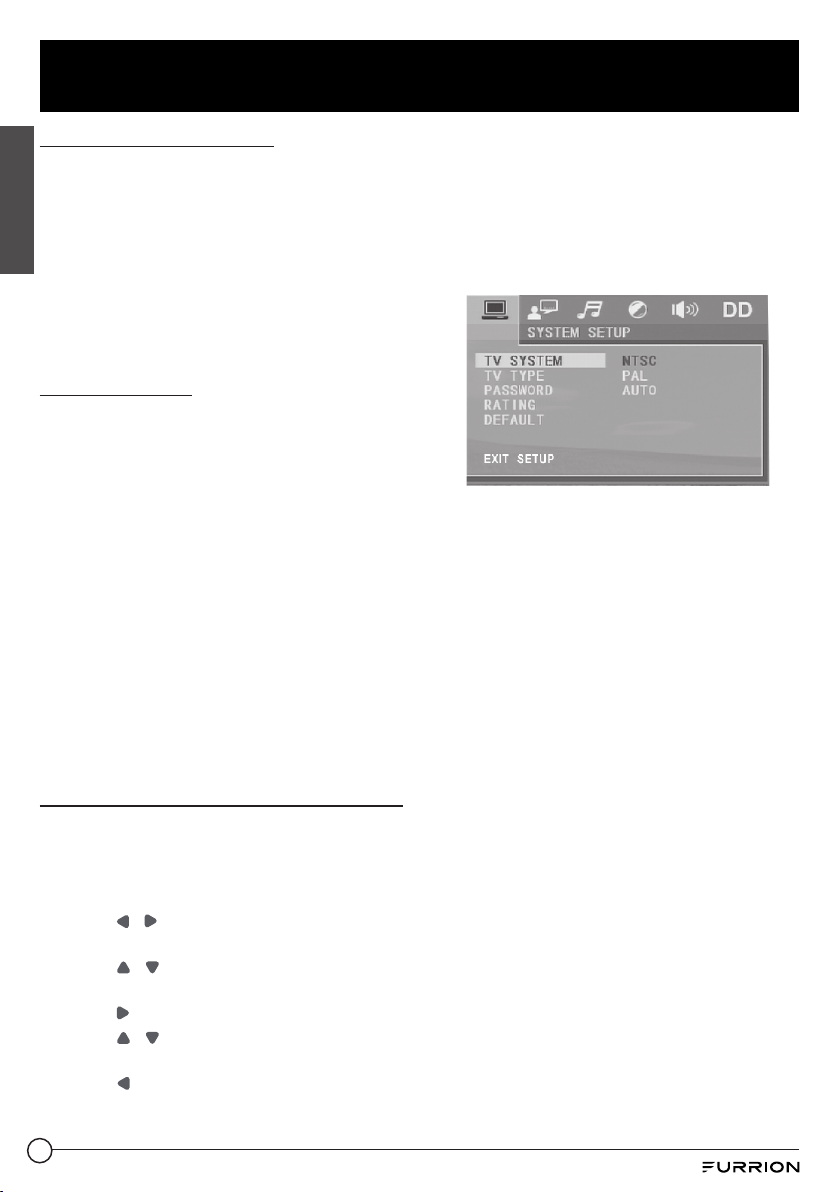
Set up the DVD System Menu
1. Press SETUP on the remote control to
access the DVD System Menu on the TV
screen.
There are 6 setup pages in total.
2. Press
/ to select a desired setup
page.
3. Press
/ to select a setup item on the
selected setup page.
4. Press
to enter the setup item.
5. Press
/ to select an option for the
setup item, and then press OK to confirm.
● Press
to return to the upper level.
● Press SETUP on the remote control again
or use the navigation buttons to highlight
EXIT SETUP and then press OK to exit
the System Menu.
The 6 setup pages of the DVD System Menu
are as follows:
System Setup
1. TV SYSTEM
The unit supports output of various TV
systems.
If your TV only supports NTSC or PAL
system, the screen will blink and become
colorless when the wrong TV system is
selected. In this case go to TV SYSTEM
and select NTSC, PAL or AUTO to match
the system of your TV.
2. RESOLUTION
Select the resolution level.
3. TV TYPE
Select an option below to match your TV
screen size.
4:3 PS: Choose the item when
connecting a TV set with 4:3 screen.
When playing pictures of 16:9 size, the left
and right parts of the video will be cut out,
and displayed on full screen.
4:3 LB: Choose the item when connecting
a TV set with 4:3 screen. When playing
pictures of 16:9 size, the top and bottom
parts of the TV screen will be turned into a
black square respectively.
16:9: Choose the item when connecting a
TV set with 16:9 wide screen.
27
Operation
English
4. PASSWORD
Lock or unlock the rating level of Parental
Control.
The default state is locked, and the
default password is 0000.
You can set a new password that you like:
Select PASSWORD and then press
to
enter the setup item.
Input the original password 0000, and
then press OK to unlock it.
Press
to enter the setup item again,
then input a new password that you like
and finally press OK to confirm.
5. RATING
Set a new rating level for Parental Control.
● Select PASSWORD and then press
to
enter the setup item.
Input the set password, and then press
OK to unlock the rating level setting for
Parental Control.
● Select RATING and then press
to enter
the setup item.
Use the navigation buttons to select your
desired rating level, and then press OK to
confirm.
● Select PASSWORD again and then press
to enter the setup item.
Input the password and then press OK
to lock the new rating level setting for
Parental Control.
6. DEFAULT
Reset all settings to their original status.
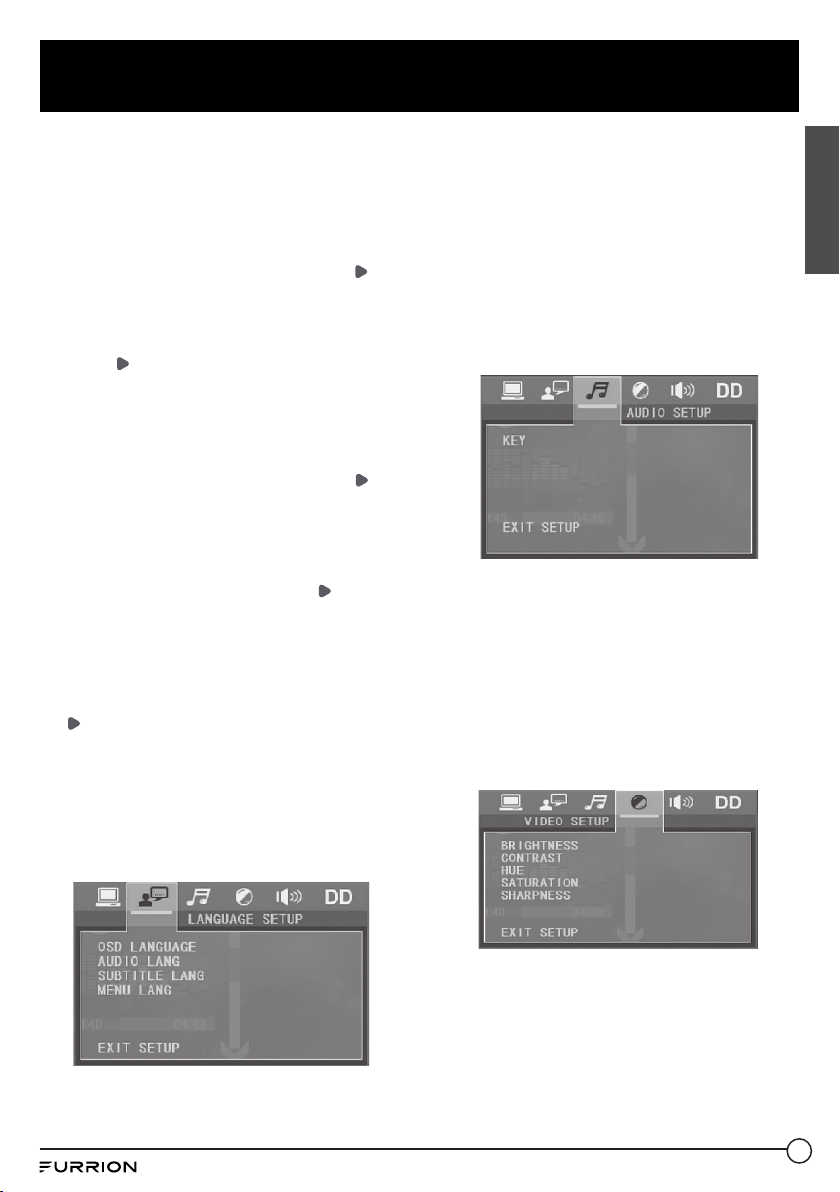
Language Setup
1. OSD LANGUAGE
Select the language of the system menu and
all interfaces displayed during playback.
2. AUDIO LANG
Select the audio language.
3. SUBTITLE LANG
Select the subtitle language.
4. MENU LANG
Select the disc menu language.
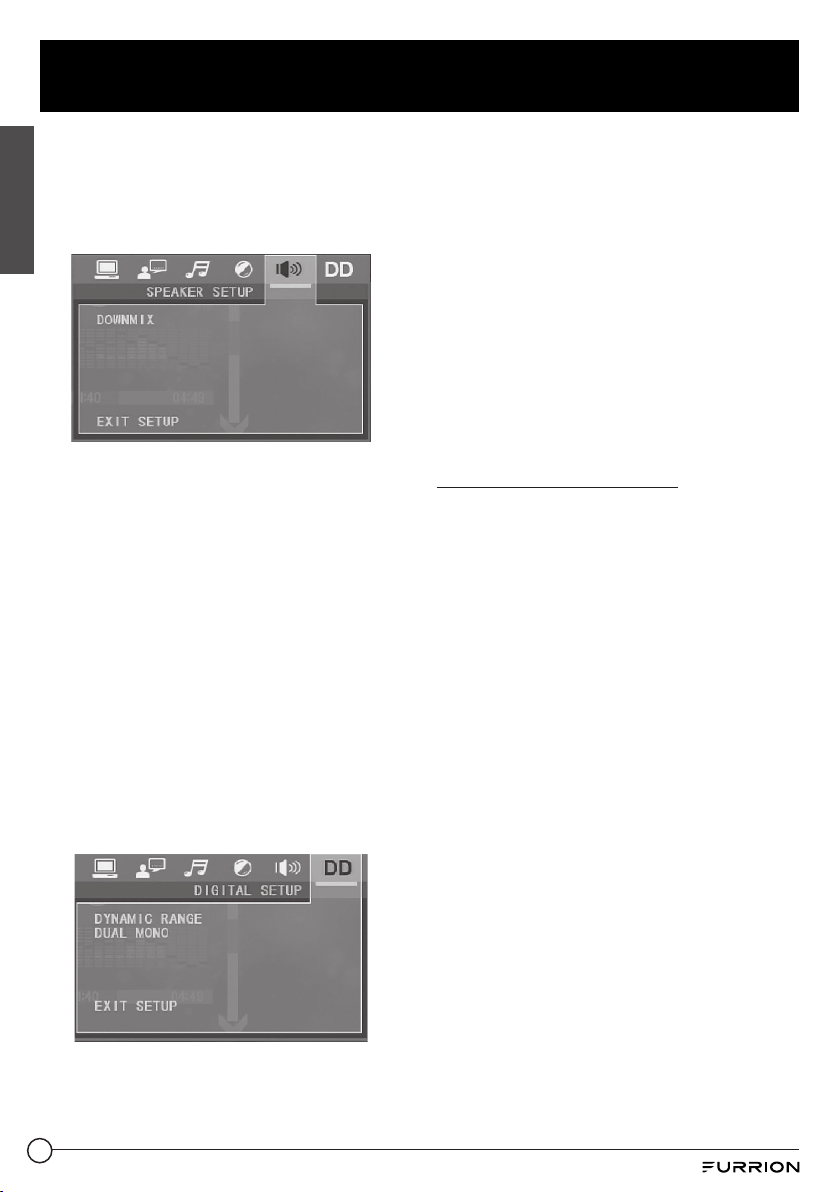
Audio Setup
AUDIO OUT:
Select a digital output method: SPDIF/
OFF, SPDIF /RAW, or SPDIF/PCM.
HDMI AUDIO:
AUTO: Selected to output the audio
automatically by RAW or PCM type.
PCM: Selected to output the audio by
PCM type.
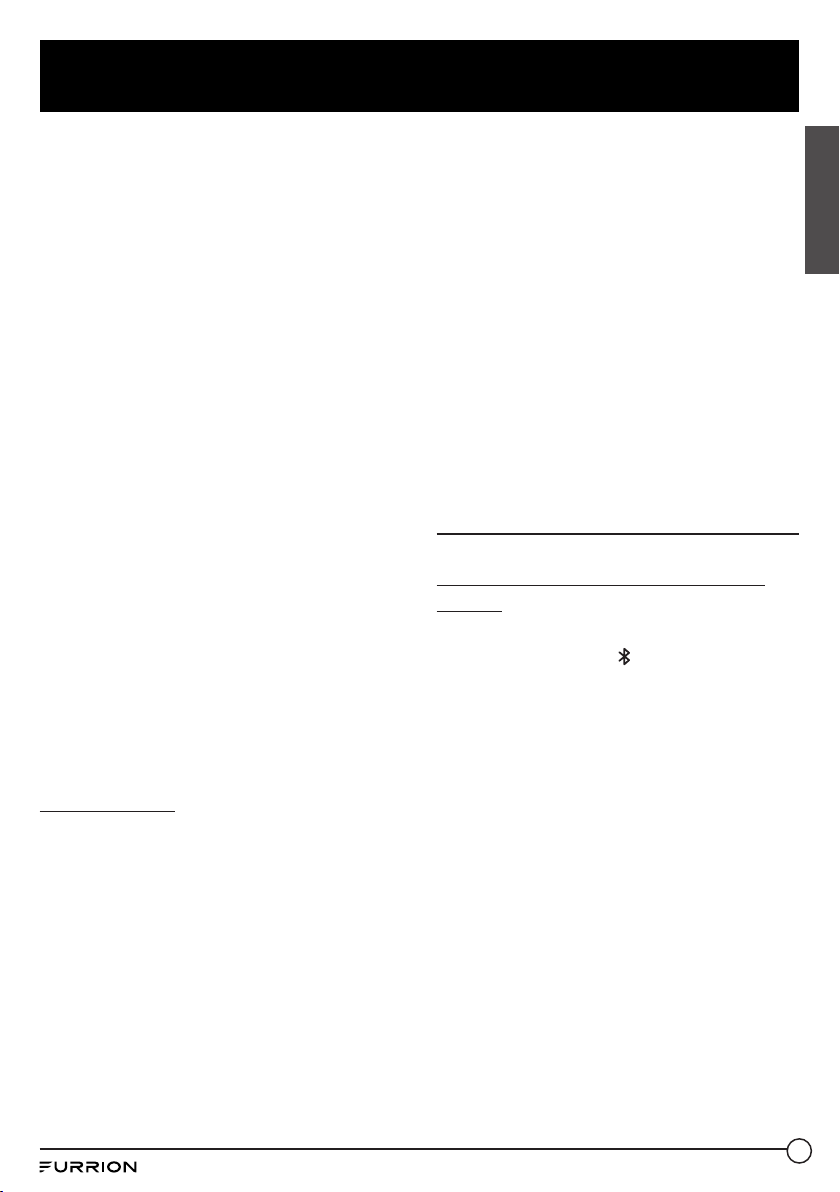
Video Setup
1. BRIGHTNESS
Adjust the brightness of video output.
2. CONTRAST
Adjust the contrast of video output.
3. HUE
Adjust the hue of video output.
28
Operation
English
4. SATURATION
Adjust the saturation of video output.
5. SHARPNESS
Adjust the sharpness of video output.
Speaker Setup
DOWNMIX
Select your desired sound effect when
there is no center speaker or subwoofer.
LT/RT: When playing a disc with PRO
LOGIC Dolby stereo effect, choose the
item to output audio signal with vivid
theatre effect.
STEREO: If you choose this item, for
audio signal with 5.1 channels, only signal
of the left and right channels will be
output; for audio signal with 2 channels,
the common stereo signal will be output.
VSS: If you choose this item, for a disc
recorded with 5.1 channels, the main
channel speakers can output audio signal
with VSS effect.
Digital setup
1. DYNAMIC RANGE
After selecting the compression mode of
LINE OUT, you can set this item to adjust
the linear compression ratio.
FULL: Set the Peak-to-Peak value of the
audio signal to minimum.
OFF: Set the Peak-to-Peak value to
maximum.
2. DUAL MONO
Select a desired audio output mode for
the left and right channels of signal.
It is mainly for Karaoke of Ac3.
There are 4 modes in all:
STEREO, MONO L, MONO R, MIX MONO
About Parental Control
Q: After insertion of a DVD into the disc
slot, a dialogue box appears, asking for a
password of 4 digits. Why?
A: This is because the movie you are playing
was rated with Parental Control, and the
current rating level of the unit is lower
than the one of the current disc. You must
input the right password and enter it into
the Parental Control setup menu and then
set an equal or higher rating level than the
one of the current disc.
Note:
● If you have not changed the password, the
factory preset password for the unit will
be empty. You will need to input a desired
password and verify it by inputting the
password again before entering the
Parental Control setup menu.
● For the rating level setup of Parental
Control of the unit, please refer to the
relative content of the SYSTEM SETUP
menu for details.
Accessories: Parental Control
The Parental Control function of a DVD player
can be used to control playback of movie
scenes on a DVD disc set with a rating level.
You can set the DVD player (including the
software player on a PC) with a certain rating
29
Operation
English
level via the SETUP MENU on the TV screen.
If the rating level set in the disc is higher
than the one set in the DVD player, the DVD
player cannot play the disc. Sometimes the
Parental Control sequences in some discs
are different from each other. The rating level
setup can be protected with a password.
If you select Unlock, the Parental Control
function will be invalid, and the whole content
of the disc can be played.
A DVD disc can be designed with different
rating levels of Parental Control so that the
DVD player can play different versions of
scenes from the same movie based on the set
rating levels. Depending on the DVD feature
of seamless switching, the scenes unsuitable
for children will be cleared or replaced by
other suitable scenes automatically.
All rating levels of Parental Control
are as follows:
Unlock
1. Kid Safe
2. G
3. PG
4. PG 13
5. R
6. NC 17
7. Adult
Region Code
Q: No DVD playback. REGION ERROR is
displayed after insertion of a disc into the
disc slot. Why?
A: Because the DVD player and disc have
different region codes. If they do not match,
the DVD player cannot play the disc.
Appendix: Region code of DVD
The Motion Picture Association of America
(MPAA) divided the world into 6 regions,
and allocated every region a code, named
the region code. The region codes and the
countries or areas represented by the region
codes are as follows:
Region I: America, Canada, East-Pacific
Islands;
Region 2: Japan, West Europe, North Europe,
Egypt, South Africa, Middle East;
Region 3:
South-east Asian countries
including Taiwan, Hong Kong, South
Korea, Thailand, Indonesia, etc.;
Region 4: Australia, New Zealand, Central
South America, South Pacific
Islands;
Region 5: Russia, Mongolia, Indian Peninsula,
Middle Asia, East Europe, North
Korea, North Africa, North-west
Asia etc.;
Region 6: China mainland.
Bluetooth Operation
Pair DV3100S with your mobile
phone
1. Activate Bluetooth mode on your mobile
device. Then press
on the front panel of
DV3100S to enter pairing mode.
2. When DV3100S is detected by your
mobile phone, the device name FURRION
DV3100S-XXXX (where X can be any
character from A-Z or number from 0-9) is
shown on your mobile phone.
3. Select the device name on your mobile
phone, then an input box will pop up,
asking you to input a password.
4. Input 0000 and confirm. Upon successful
pairing and connection, 'LINK OK' will
appear on the LCD of DV3100S.
Note:
1. Some mobile phones support automatic
re-connection after first-time pairing with
DV3100S. Some other mobile phones
may need you to select the device name
(FURRION DV3100S-XXXX) from the
list of paired Bluetooth devices to confirm
re-connection.
30
Operation
English
2. In case of casual disconnection, select
the device name (FURRION DV3100S-
XXXX) from the list of paired Bluetooth
devices to confirm re-connection.
Disconnect / unpair DV3100S
from your mobile phone
1. To disconnect:
On your mobile phone, select the
connected device name (FURRION
DV3100S-XXXX) from the list of
paired Bluetooth devices and confirm
disconnection.
2. To unpair:
Press and hold
on the front panel of
DV3100S for about 5 seconds to clear the
pairing information.
Operate your mobile phone via
Bluetooth
When the Bluetooth connection is ready, the
call you make or receive will be transferred
from your mobile phone to DV3100S.
1. When connected: Use controls on your
mobile phone to switch sound output
between DV3100S and the mobile phone.
2. To dial a number with the remote control
of DV3100S:
● Use number buttons 0-9 to enter a
telephone number.
* You can press CLEAR
to cancel a
wrong input if necessary.
● Press
to call out.
3. To redial a number:
Press
to show the last dialed number
on the LCD and call out.
4. To accept a call:
When there is an incoming call, press
to
accept the call.
5. To reject a call:
When there is an incoming call, press
to
reject the call.
6. To end a call:
During a call, press
to end the call.
Note: When there is an incoming call, the
calling number will be displayed on the
screen of DV3100S.
Play an audio file from another
Bluetooth device to DV3100S
"LINK OK" is displayed when DV3100S is
paired and connected with another Bluetooth
device.
If the Bluetooth device supports A2DP, you
can stream music from the Bluetooth device
to DV3100S for playback.
To play audio through Bluetooth, you must
activate Bluetooth mode on your mobile
device.
If the Bluetooth device supports AVRCP,
you can use the basic audio playback
control functions (such as play/pause) from
DV3100S.
Note: In other modes (except during a call
via Bluetooth), press
on the front panel to
switch between different modes.
31
Maintenance
English
Maintenance and Cleaning of Discs
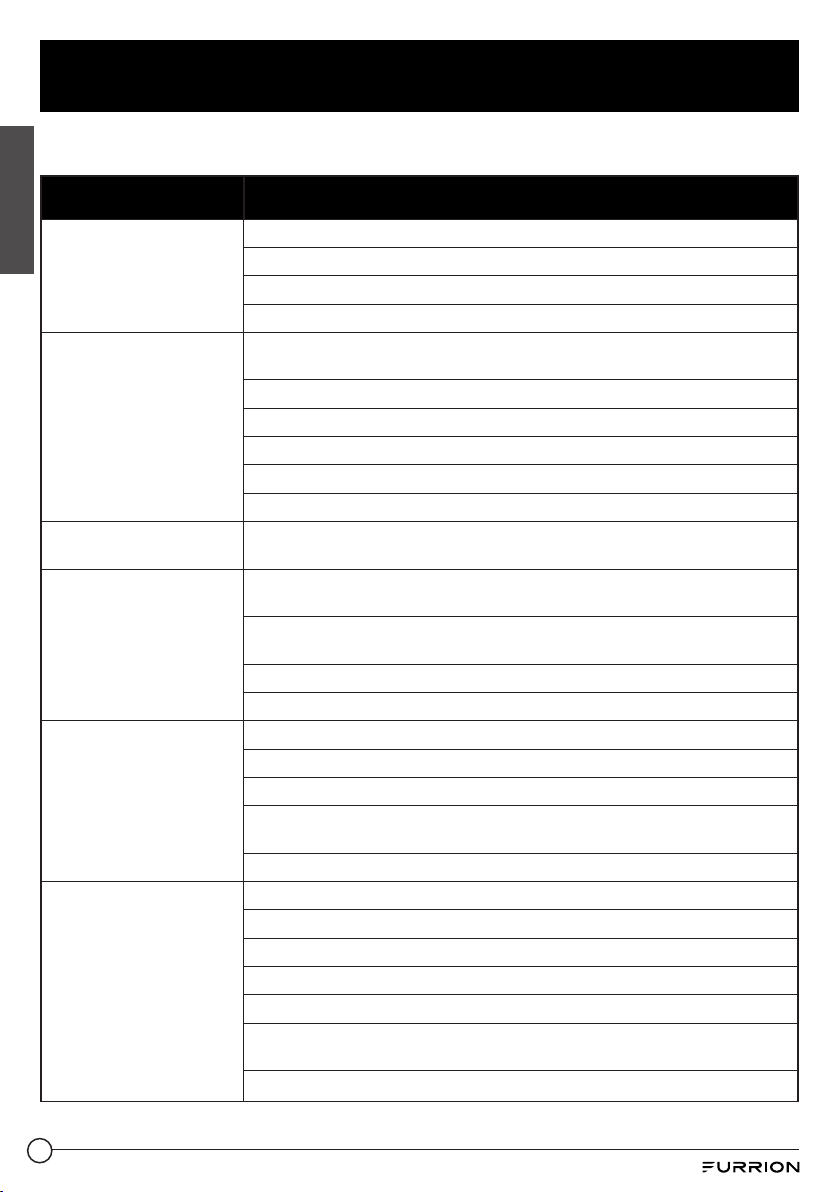
Disc Maintenance
1. To keep the disc clean, handle the disc by its edge, and do not touch the disc surface of the
play side.
2. Do not stick paper or tape on the disc. If there is glue on the disc surface, wipe it off before
using.
3. Do not expose the disc to direct sunlight, or nearby heat sources such as caliduct, or leave it
in a car parked in direct sunlight where there can be a considerable rise in temperature.
4. Put the disc inside a disc case after finishing playback.
Disc Cleaning
1. Before playing, wipe the disc with a clean cloth, and wipe the disc outwards from the disc
center.
2. Do not use petrol, thinners, commercially available cleaners or anti-static sprays for plastic
LPs to wipe discs.
32
Troubleshooting
English
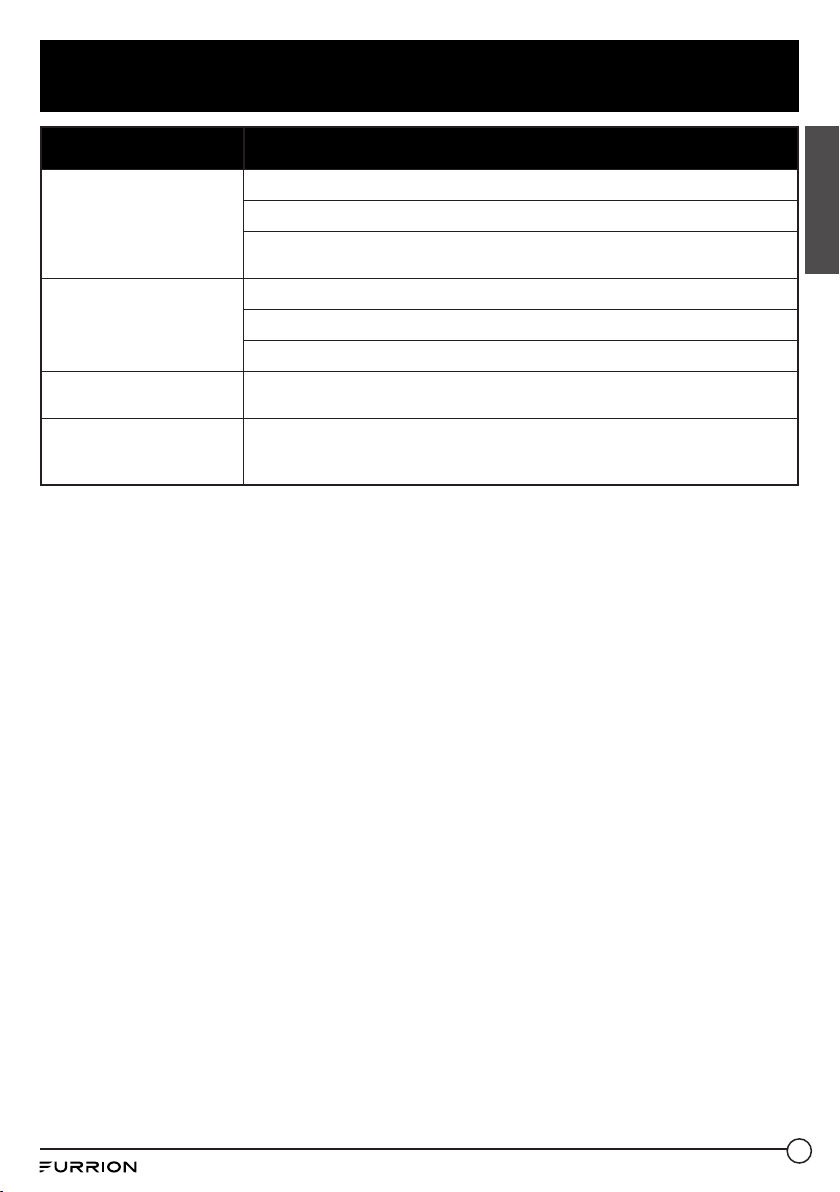
Please read the user manual carefully before using the unit. If you have any problems with this
product, please refer to the below troubleshooting guide to help you resolve the issue.
TROUBLE/SYMPTOM SOLUTION
No picture, sound and
indication
Ensure that the power switch is on.
Ensure that the wall inlet is OK.
Ensure that the power cord is not damaged or the fuse is not blown.
Ensure that the power connection is OK.
No sound but picture OK
Ensure that the audio output of the unit is in good connection with the TV's
audio input.
Check whether the audio connector is damaged.
Check whether you have turned down the volume.
Check whether headphone have been insert to the unit.
Ensure that the AUDIO setup of the unit is correct.
Ensure that the audio is not muted.
Black and white picture
or screen rolling
Ensure that the TV SYSTEM (e.g. PAL, NTSC) setup is correct.
No picture but sound OK
Ensure that the video output of the unit is in good connection with the TV's
video input.
Ensure that you have turned your TV to the AV input channel connecting to
the unit.
Check whether the video connector is damaged.
Ensure that the VIDEO setup of the unit is correct.
Flaws in picture or
sound
Check whether AUDIO setup is correct.
Check whether the disc is scratched or stained.
Check whether the AV connector and output terminal are stained.
Check whether there is condensation inside the lens. If so, leave the unit off
for an hour or so, and then try again.
Check whether the installation angle is less than 30.
No disc or bad disc
Ensure that you have inserted the disc into the disc slot.
Check whether the disc has been put in the reverse side.
Check whether the disc is distorted.
Check whether the disc is stained or scratched badly.
Ensure that the disc format is compatible with the unit.
Ensure that the temperature inside the car is not too high. If so, let the unit
cool off until the ambient temperature returns to normal.
Insert another disc into the disc slot.
33
Troubleshooting
English
TROUBLE/SYMPTOM SOLUTION
Remote control does
not work
Check the batteries of remote control and make sure that they are not flat.
Direct the remote control to the IR sensor of the unit.
Check whether there are obstacles between the remote control and
IRsensor.
Some function buttons
do not work
Turn off the power, then turn on again.
Reset the unit, then turn on again.
Remove the front panel from the unit, then put it back and turn on again.
The radio does not work
Check whether the antenna cable is connected firmly, or manually tune for
a station.
Functions locked or no
response for Bluetooth
function
Press RESET with a sharp object such as a clip to reset the unit and load its
factory default settings.
34
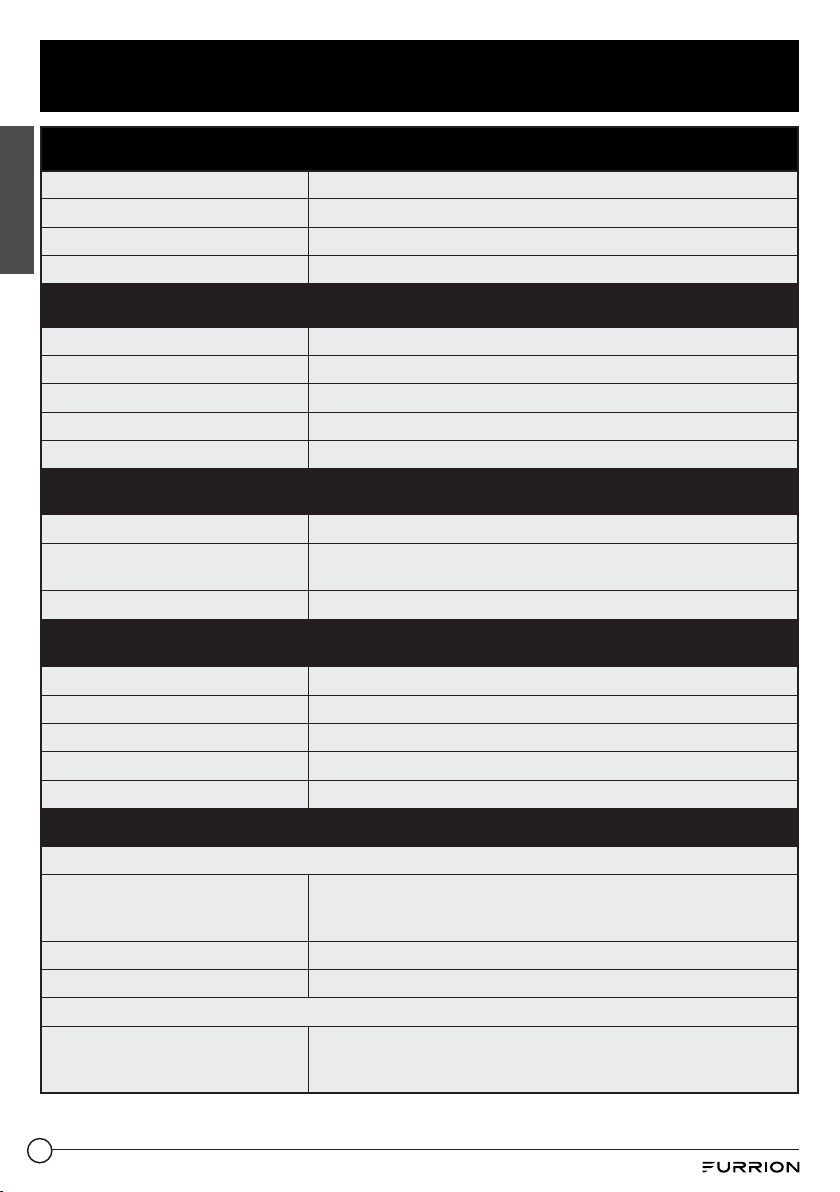
Specifications
English
General Specification
Power supply requirement
DC 12V
Total Power
4x 15W RMS
USB Output Voltage / Current
5V @ 1 A
Dimensions
7⅞" x 4⅜" x 7½" (200 x 110.5 x 190 mm)
DVD Deck Specification
Format
DVD/VCD/JPEG/MP4/MP3/CD
Video system
NTSC/PAL/AUTO (optional)
Audio system
24 bit/96KHz
Loading system
Auto Loading
Mounting angle
0 to +/-30
Video Specification
Video type
16:9 and 4:3
Video output level
Composite:1.0 ± 0.2Vp-p
Load impedance: 75 ohms
Horizontal resolution
600
Audio specification
Audio output (Analog audio)
2.0 Vrms
Frequency response
20Hz ~ 20KHz (at 1 KHz 0 dB)
S/N ratio (Audio)
≥ 75 dB (20- 20K)
Separation
50dB
Speaker output
4 Ω Min Load (connect 4 - 8 Ω speakers)
Radio specification
FM section
Frequency range
88MHz - 108MHz (US)
87.5MHz - 108.0MHz (EU)
87.5MHz - 108.0MHz (AUS)
Usable sensitivity
3uV
I.F frequency
10.7MHz
AM section
Frequency range
530KHz -1710KHz (US)
522KHz -1620KHz (EU)
522KHz -1710KHz (AUS)
Furrion Innovation Center & Institute of Technology
• 52567 Independence Ct., Elkhart, IN 46514, USA • Toll free: 1-800-789-3341
• Email: [email protected]
©2007-2020 Furrion Ltd. Furrion® and the Furrion logo are trademarks licensed for use by
Furrion Ltd. and registered in the U.S. and other countries.
FURRION.COM
IM-FAV00073 V1.0