2.4 GHZ Wi-Fi Smart
Door Controller for
Access control
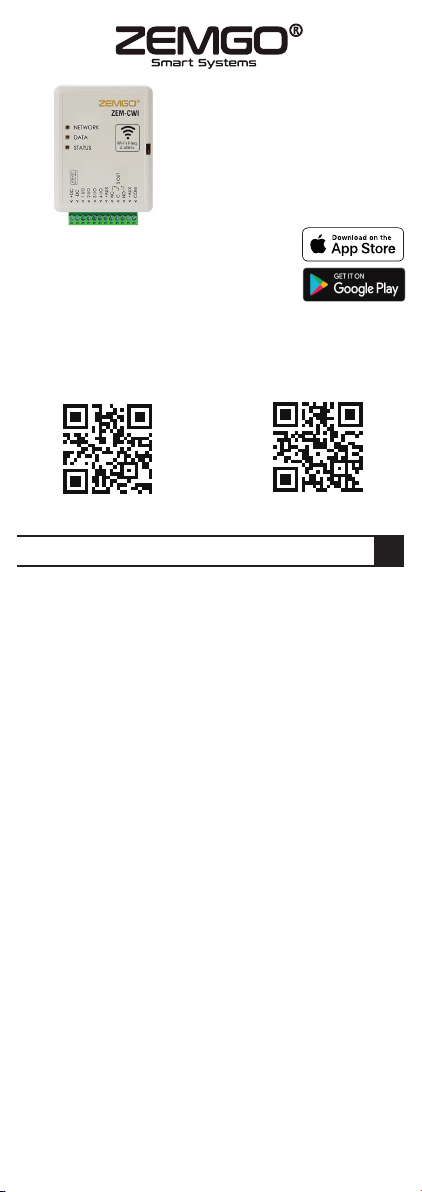
ZEM-CWI
An FPC Security Company
786-442-1220
www.zemgosmart.com
How Does It Work?
How to Download the OpenSee App
System Overview
Setting up the OpenSee App
(For Android Devices)
Pair the Device with the Wi-Fi
Option
Thanks for purchasing our products, please read the
instructions before installing and programming the device. For
more detailed functions and user setting please refer to the
User manual: https://www.zemgosmart.com/cwi-manual/
General Information
The Wi-Fi Smart controller ZEM-CWI is designed for electric
locking devices (Automatic door Openers, Maglocks,
Electric strikes, drop bolts, ETC) that can be installed in
gates, main doors, side doors and another type of doors,
plus other electrical equipment that will be controlled
remotely via WIFI that you can see it from anywhere in the
world as long as you have internet access on your
computer, smartphone or tablet.
ZEM-CWI can be controlled via our OpenSEE app.
Features:
• Remotely Control doors or other electrical equipment via
mobile app.
• No monthly fees, Self Monitoring, DIY - Plug and play, No
Contracts and No-Hassle
• Web access: https://m.openseewebapp.zemgosmart.com/
You may use this webaccess by any browser on your
computer. You may use it on a Microsoft computer or Mac,
smartphone and tablet.
• Be notified in real time by push notifications.
• 4 Universal Inputs and Outputs (Open collectors)
• 1 Relay Output for stand alone systems.
• 990 Users who have permission to control.
• You can add unlimited doors and unlimited CWI Devices.
• Real time status of your devices.
• Create Permission schedules for users and devices.
• Event log and notifications, Low power consumption.
• You may view this app on a smartphone, Smart Tablet
and Normal PC.
• Apple and Google Play app: “ Opensee”
• 3 years Warranty
• The range between the router and the CWI Smart
Controllers is from 6.6 feet up to 164 feet.
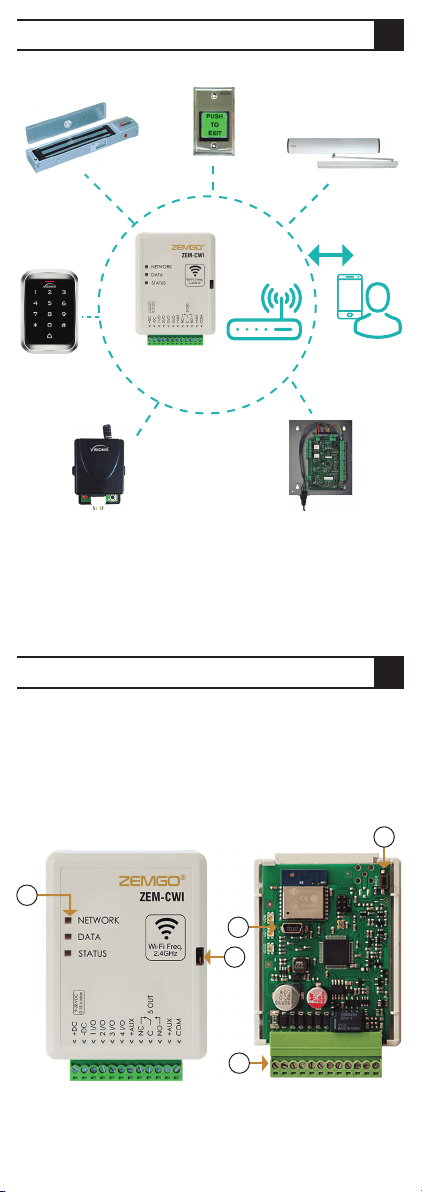
Connect all types of Locks, receiver and exit buttons to the
I/O 5 of the ZEM-CWI and four I/Os for connection with
access control panels and Automatic Door Openers. The
ZEM-CWI can be controlled with the OpenSEE app or web
browser via WiFi.
1. Light indicators.
2. Frontal case opening slot.
3. USB Mini-B port for controller programming. (Only used
for emergency purposes)
4. Terminal block for external connections.
5. Pair button for activating the module's
Wi-Fi configuration mode.
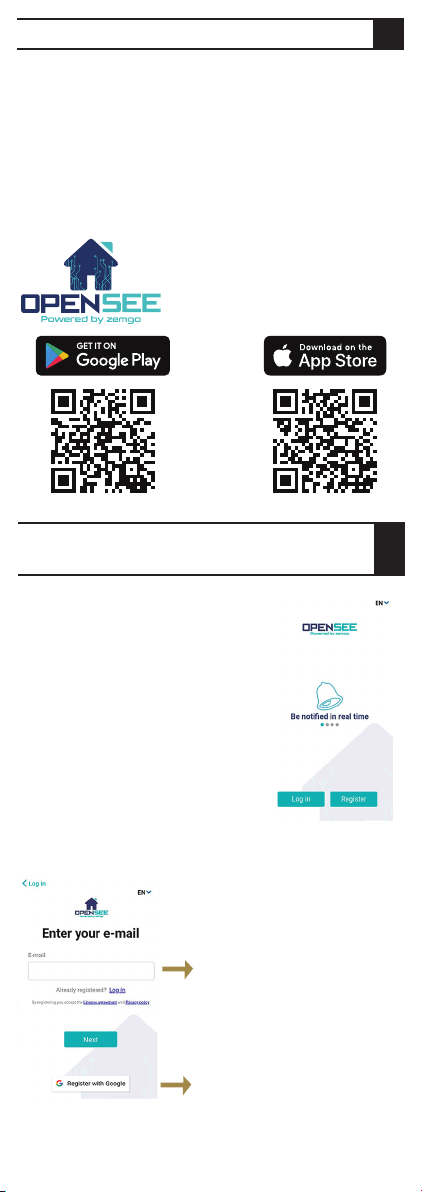
Step 1: Open up a third party QR scanner app and scan the
QR codes on the back of the physical Device (Zem-CWI)
Smart Controller.
Step 2: Search the word "Opensee" on the Play Store for
Android phones or you may search "Opensee" on the App
store for Apple phones.
Step 3: Below you will also find QR codes for Google and
Apple. Please make sure you open up your third party QR
code app.
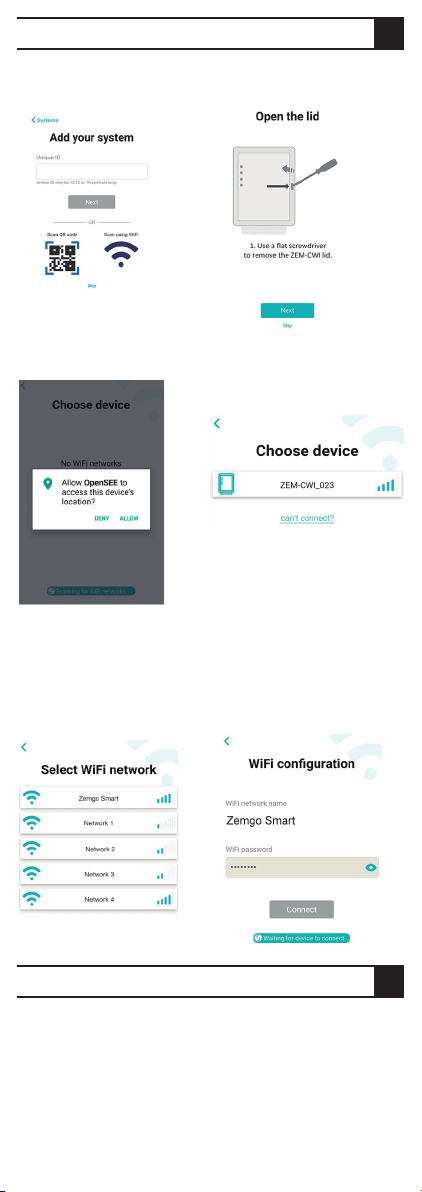
Step 1: Go to your smartphone
and open the (Opensee app) and
Click on Register.
Step 2: Register.
Step 3: Check your email
and enter the 3-digit code.
(If you registered with
Google please skip this
part).
Step 4: If you registered by
using your email enter the
username and password
then tap Finish (If you
registered with Google
please skip this part).
Step 5: If you press Next this will
take you to the wiring diagrams.
For all other types of connections
that are not shown here, please
contact our Technical
Department via email
([email protected]) or you
may call us at 1-888-504-3318.
We will be more than happy to
create customized Diagrams.
If you already wired your device
press skip.
Note: During pairing
mode please disable
your mobile data on
your phone's settings.
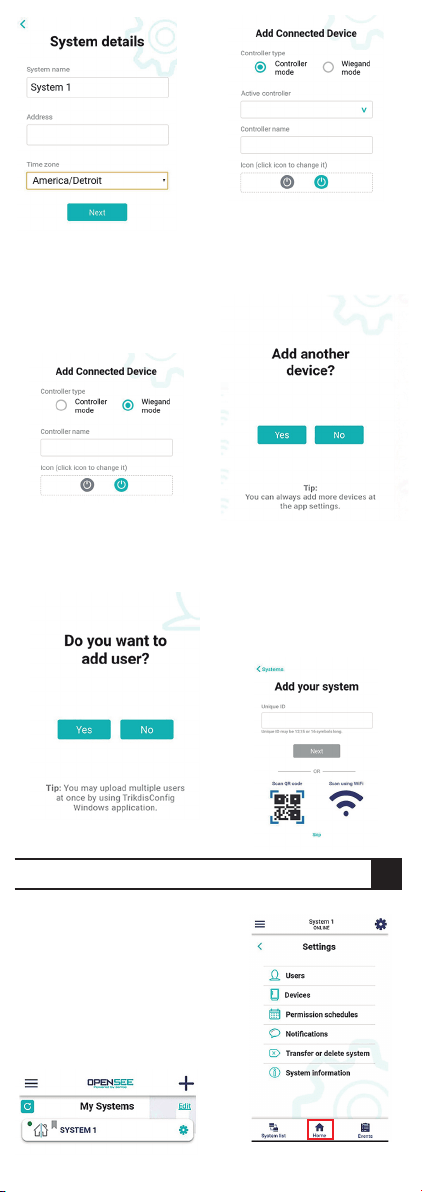
Step 1: Open the lid.
Use a flat screwdriver to
remove the ZEM-CWI lid.
Step 2: Press PAIR button.
Connect controller to power.
Press and hold the PAIR button for 3
seconds.
The NETWORK indicator will start
fast flashing green and yellow.
Release the button.
You can register with your
Google Account
Or you can enter a valid
email address and click next
Smart
Controller
Wi-Fi
User
ADO
Receiver
Keypad
Access
Control Panel
Maglock
Exit Button
1
2
3
5
4
Control the system
with our FREE
mobile app
www.zemgosmart.com/vid1/ www.zemgosmart.com/vid2/
SCAN THE QR CODES BELOW TO WATCH SALES & INSTALLATION VIDEOS
1 2 3 4
2.4 GHZ Wi-Fi Smart
Door Controller for
Access control
ZEM-CWI
An FPC Security Company
786-442-1220
www.zemgosmart.com
How Does It Work?
How to Download the OpenSee App
System Overview
Setting up the OpenSee App
(For Android Devices)
Pair the Device with the Wi-Fi
Option
Thanks for purchasing our products, please read the
instructions before installing and programming the device. For
more detailed functions and user setting please refer to the
User manual: https://www.zemgosmart.com/cwi-manual/
General Information
The Wi-Fi Smart controller ZEM-CWI is designed for electric
locking devices (Automatic door Openers, Maglocks,
Electric strikes, drop bolts, ETC) that can be installed in
gates, main doors, side doors and another type of doors,
plus other electrical equipment that will be controlled
remotely via WIFI that you can see it from anywhere in the
world as long as you have internet access on your
computer, smartphone or tablet.
ZEM-CWI can be controlled via our OpenSEE app.
Features:
• Remotely Control doors or other electrical equipment via
mobile app.
• No monthly fees, Self Monitoring, DIY - Plug and play, No
Contracts and No-Hassle
• Web access: https://m.openseewebapp.zemgosmart.com/
You may use this webaccess by any browser on your
computer. You may use it on a Microsoft computer or Mac,
smartphone and tablet.
• Be notified in real time by push notifications.
• 4 Universal Inputs and Outputs (Open collectors)
• 1 Relay Output for stand alone systems.
• 990 Users who have permission to control.
• You can add unlimited doors and unlimited CWI Devices.
• Real time status of your devices.
• Create Permission schedules for users and devices.
• Event log and notifications, Low power consumption.
• You may view this app on a smartphone, Smart Tablet
and Normal PC.
• Apple and Google Play app: “ Opensee”
• 3 years Warranty
• The range between the router and the CWI Smart
Controllers is from 6.6 feet up to 164 feet.
Connect all types of Locks, receiver and exit buttons to the
I/O 5 of the ZEM-CWI and four I/Os for connection with
access control panels and Automatic Door Openers. The
ZEM-CWI can be controlled with the OpenSEE app or web
browser via WiFi.
1. Light indicators.
2. Frontal case opening slot.
3. USB Mini-B port for controller programming. (Only used
for emergency purposes)
4. Terminal block for external connections.
5. Pair button for activating the module's
Wi-Fi configuration mode.
Step 1: Open up a third party QR scanner app and scan the
QR codes on the back of the physical Device (Zem-CWI)
Smart Controller.
Step 2: Search the word "Opensee" on the Play Store for
Android phones or you may search "Opensee" on the App
store for Apple phones.
Step 3: Below you will also find QR codes for Google and
Apple. Please make sure you open up your third party QR
code app.
Step 1: Go to your smartphone
and open the (Opensee app) and
Click on Register.
Step 2: Register.
Step 3: Check your email
and enter the 3-digit code.
(If you registered with
Google please skip this
part).
Step 4: If you registered by
using your email enter the
username and password
then tap Finish (If you
registered with Google
please skip this part).
Step 5: If you press Next this will
take you to the wiring diagrams.
For all other types of connections
that are not shown here, please
contact our Technical
Department via email
([email protected]) or you
may call us at 1-888-504-3318.
We will be more than happy to
create customized Diagrams.
If you already wired your device
press skip.
Note: During pairing
mode please disable
your mobile data on
your phone's settings.
Step 1: Open the lid.
Use a flat screwdriver to
remove the ZEM-CWI lid.
Step 2: Press PAIR button.
Connect controller to power.
Press and hold the PAIR button for 3
seconds.
The NETWORK indicator will start
fast flashing green and yellow.
Release the button.
You can register with your
Google Account
Or you can enter a valid
email address and click next
Smart
Controller
Wi-Fi
User
ADO
Receiver
Keypad
Access
Control Panel
Maglock
Exit Button
1
2
3
5
4
Control the system
with our FREE
mobile app
www.zemgosmart.com/vid1/ www.zemgosmart.com/vid2/
SCAN THE QR CODES BELOW TO WATCH SALES & INSTALLATION VIDEOS
1 2 3 4
2.4 GHZ Wi-Fi Smart
Door Controller for
Access control
ZEM-CWI
An FPC Security Company
786-442-1220
www.zemgosmart.com
How Does It Work?
How to Download the OpenSee App
System Overview
Setting up the OpenSee App
(For Android Devices)
Pair the Device with the Wi-Fi
Option
Thanks for purchasing our products, please read the
instructions before installing and programming the device. For
more detailed functions and user setting please refer to the
User manual: https://www.zemgosmart.com/cwi-manual/
General Information
The Wi-Fi Smart controller ZEM-CWI is designed for electric
locking devices (Automatic door Openers, Maglocks,
Electric strikes, drop bolts, ETC) that can be installed in
gates, main doors, side doors and another type of doors,
plus other electrical equipment that will be controlled
remotely via WIFI that you can see it from anywhere in the
world as long as you have internet access on your
computer, smartphone or tablet.
ZEM-CWI can be controlled via our OpenSEE app.
Features:
• Remotely Control doors or other electrical equipment via
mobile app.
• No monthly fees, Self Monitoring, DIY - Plug and play, No
Contracts and No-Hassle
• Web access: https://m.openseewebapp.zemgosmart.com/
You may use this webaccess by any browser on your
computer. You may use it on a Microsoft computer or Mac,
smartphone and tablet.
• Be notified in real time by push notifications.
• 4 Universal Inputs and Outputs (Open collectors)
• 1 Relay Output for stand alone systems.
• 990 Users who have permission to control.
• You can add unlimited doors and unlimited CWI Devices.
• Real time status of your devices.
• Create Permission schedules for users and devices.
• Event log and notifications, Low power consumption.
• You may view this app on a smartphone, Smart Tablet
and Normal PC.
• Apple and Google Play app: “ Opensee”
• 3 years Warranty
• The range between the router and the CWI Smart
Controllers is from 6.6 feet up to 164 feet.
Connect all types of Locks, receiver and exit buttons to the
I/O 5 of the ZEM-CWI and four I/Os for connection with
access control panels and Automatic Door Openers. The
ZEM-CWI can be controlled with the OpenSEE app or web
browser via WiFi.
1. Light indicators.
2. Frontal case opening slot.
3. USB Mini-B port for controller programming. (Only used
for emergency purposes)
4. Terminal block for external connections.
5. Pair button for activating the module's
Wi-Fi configuration mode.
Step 1: Open up a third party QR scanner app and scan the
QR codes on the back of the physical Device (Zem-CWI)
Smart Controller.
Step 2: Search the word "Opensee" on the Play Store for
Android phones or you may search "Opensee" on the App
store for Apple phones.
Step 3: Below you will also find QR codes for Google and
Apple. Please make sure you open up your third party QR
code app.
Step 1: Go to your smartphone
and open the (Opensee app) and
Click on Register.
Step 2: Register.
Step 3: Check your email
and enter the 3-digit code.
(If you registered with
Google please skip this
part).
Step 4: If you registered by
using your email enter the
username and password
then tap Finish (If you
registered with Google
please skip this part).
Step 5: If you press Next this will
take you to the wiring diagrams.
For all other types of connections
that are not shown here, please
contact our Technical
Department via email
([email protected]) or you
may call us at 1-888-504-3318.
We will be more than happy to
create customized Diagrams.
If you already wired your device
press skip.
Note: During pairing
mode please disable
your mobile data on
your phone's settings.
Step 1: Open the lid.
Use a flat screwdriver to
remove the ZEM-CWI lid.
Step 2: Press PAIR button.
Connect controller to power.
Press and hold the PAIR button for 3
seconds.
The NETWORK indicator will start
fast flashing green and yellow.
Release the button.
You can register with your
Google Account
Or you can enter a valid
email address and click next
Smart
Controller
Wi-Fi
User
ADO
Receiver
Keypad
Access
Control Panel
Maglock
Exit Button
1
2
3
5
4
Control the system
with our FREE
mobile app
www.zemgosmart.com/vid1/ www.zemgosmart.com/vid2/
SCAN THE QR CODES BELOW TO WATCH SALES & INSTALLATION VIDEOS
1 2 3 4

2.4 GHZ Wi-Fi Smart
Door Controller for
Access control
ZEM-CWI
An FPC Security Company
786-442-1220
www.zemgosmart.com
How Does It Work?
How to Download the OpenSee App
System Overview
Setting up the OpenSee App
(For Android Devices)
Pair the Device with the Wi-Fi
Option
Thanks for purchasing our products, please read the
instructions before installing and programming the device. For
more detailed functions and user setting please refer to the
User manual: https://www.zemgosmart.com/cwi-manual/
General Information
The Wi-Fi Smart controller ZEM-CWI is designed for electric
locking devices (Automatic door Openers, Maglocks,
Electric strikes, drop bolts, ETC) that can be installed in
gates, main doors, side doors and another type of doors,
plus other electrical equipment that will be controlled
remotely via WIFI that you can see it from anywhere in the
world as long as you have internet access on your
computer, smartphone or tablet.
ZEM-CWI can be controlled via our OpenSEE app.
Features:
• Remotely Control doors or other electrical equipment via
mobile app.
• No monthly fees, Self Monitoring, DIY - Plug and play, No
Contracts and No-Hassle
• Web access: https://m.openseewebapp.zemgosmart.com/
You may use this webaccess by any browser on your
computer. You may use it on a Microsoft computer or Mac,
smartphone and tablet.
• Be notified in real time by push notifications.
• 4 Universal Inputs and Outputs (Open collectors)
• 1 Relay Output for stand alone systems.
• 990 Users who have permission to control.
• You can add unlimited doors and unlimited CWI Devices.
• Real time status of your devices.
• Create Permission schedules for users and devices.
• Event log and notifications, Low power consumption.
• You may view this app on a smartphone, Smart Tablet
and Normal PC.
• Apple and Google Play app: “ Opensee”
• 3 years Warranty
• The range between the router and the CWI Smart
Controllers is from 6.6 feet up to 164 feet.
Connect all types of Locks, receiver and exit buttons to the
I/O 5 of the ZEM-CWI and four I/Os for connection with
access control panels and Automatic Door Openers. The
ZEM-CWI can be controlled with the OpenSEE app or web
browser via WiFi.
1. Light indicators.
2. Frontal case opening slot.
3. USB Mini-B port for controller programming. (Only used
for emergency purposes)
4. Terminal block for external connections.
5. Pair button for activating the module's
Wi-Fi configuration mode.
Step 1: Open up a third party QR scanner app and scan the
QR codes on the back of the physical Device (Zem-CWI)
Smart Controller.
Step 2: Search the word "Opensee" on the Play Store for
Android phones or you may search "Opensee" on the App
store for Apple phones.
Step 3: Below you will also find QR codes for Google and
Apple. Please make sure you open up your third party QR
code app.
Step 1: Go to your smartphone
and open the (Opensee app) and
Click on Register.
Step 2: Register.
Step 3: Check your email
and enter the 3-digit code.
(If you registered with
Google please skip this
part).
Step 4: If you registered by
using your email enter the
username and password
then tap Finish (If you
registered with Google
please skip this part).
Step 5: If you press Next this will
take you to the wiring diagrams.
For all other types of connections
that are not shown here, please
contact our Technical
Department via email
([email protected]) or you
may call us at 1-888-504-3318.
We will be more than happy to
create customized Diagrams.
If you already wired your device
press skip.
Note: During pairing
mode please disable
your mobile data on
your phone's settings.
Step 1: Open the lid.
Use a flat screwdriver to
remove the ZEM-CWI lid.
Step 2: Press PAIR button.
Connect controller to power.
Press and hold the PAIR button for 3
seconds.
The NETWORK indicator will start
fast flashing green and yellow.
Release the button.
You can register with your
Google Account
Or you can enter a valid
email address and click next
Smart
Controller
Wi-Fi
User
ADO
Receiver
Keypad
Access
Control Panel
Maglock
Exit Button
1
2
3
5
4
Control the system
with our FREE
mobile app
www.zemgosmart.com/vid1/ www.zemgosmart.com/vid2/
SCAN THE QR CODES BELOW TO WATCH SALES & INSTALLATION VIDEOS
1 2 3 4
Connect to Device Scan Using Wi-Fi
Step 1:
Select Scan Using Wi-Fi.
Step 4: Choose the
ZEM-CWI_XXX device you
want to pair.
Step 2: Tap Skip.
Step 3: Tap Allow.
Step 5: Select your local
Wi-Fi network. In this case
we will select the Zemgo
Smart Wi-Fi but in your
case you must select your
local wifi network.
Step 6: Enter your Wi-Fi
password tap Connect and
wait for device to connect.
This process will take
around 1 to 2 minutes to
connect to the device.
Step 1: Set system details:
System Name, Address
(Physical Address), Time
zone.
Step 3: If you select
Wiegand mode Set a
Controller name and set the
Icon for your device and Tap
Done. For this feature you
don’t select any active
controller.
Step 4: Tap yes if you want
to add another device or
tap no if you don’t.
Note: You can also add the
system by two additional
methods, by scanning the
QR code on the back of th
device and by entering the
Unique ID printed on the
back of the device.
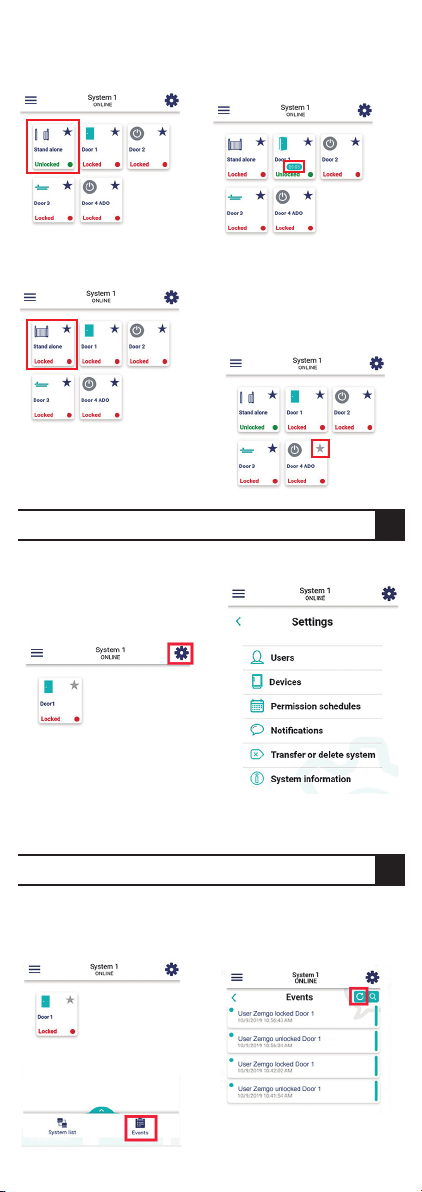
Step 1: You can access the
home screen by tapping
the Home Icon or by
tapping on your system.
Step 2: Whatever electrical
device that you have
Installed, Tap on the desire
one to unlock.
Step 3: Note: For the doors
(I/Os) you have set with
time delay they will
automatically close after
the time delay set.
Step 4: Tap again to lock
back.
Step 5: Tap on the little star
that’s on the top right corner
of each door to add them to
the dashboard the ones
marked blue are the ones
added.
Step 1: After adding the
devices you can access the
settings by clicking on the
Gear Icon.
Step 1: Tap on the events
icon on the bottom right
corner.
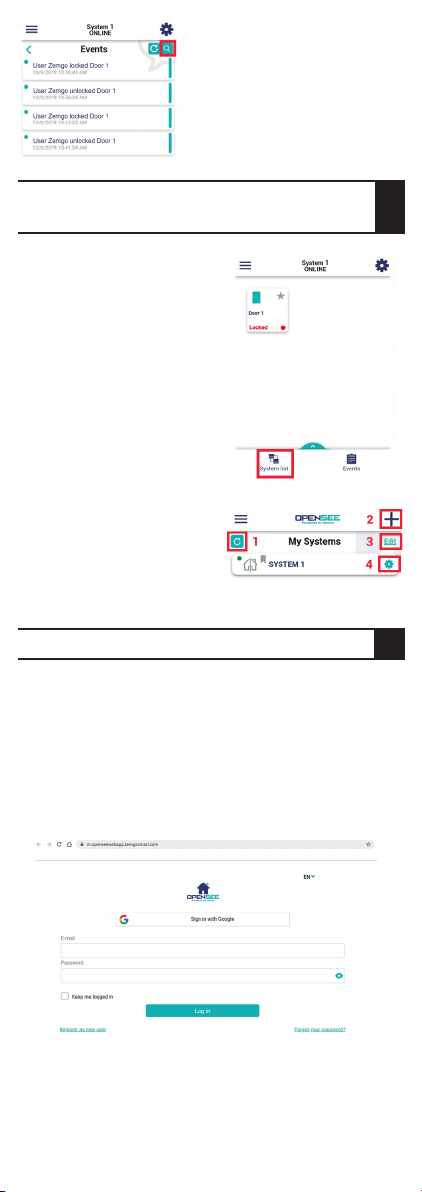
Step 1: Tap on the system
list on the bottom left
corner.
Step 2: See the latest event
log and tap refresh if
needed.
Step 3: Tap on the search to
filter the event log.
Step 2: Settings.
For more information on how to use all the settings please
see from Section 14 until Section 18 of the User manual.
System Details
Step 2: Select controller
device:
Controller mode or
Wiegand mode.
Home Screen Lock and Unlock
Home Screen Setting Functions
Events
System List: Shows all the CWI
Systems (Physical Devices)
Step 2: See your system list,
you can refresh the list (1),
add new system (2), edit the
system and/or remove the
system (3), and device
settings (4).
Web Browser (Web app)
The web browser is basically a way to access the OpenSee
app via a web browser, you can use this web access by any
browser (Google Chrome, Internet Explorer, Firefox, Safari,
Opera) on your PC, laptop, tablet or smartphone. It is
compatible with Windows and Mac OS.
For the web browser please go to your internet browser
and type:
https://m.openseewebapp.zemgosmart.com/
The features and settings are basically the same as the
OpenSee app, please refer to section “4.0 Setting up the
OpenSee app” of the user manual.
Step 5: Tap yes if you want
to add another user or tap
no if you don’t.
85 6 7
Connect to Device Scan Using Wi-Fi
Step 1:
Select Scan Using Wi-Fi.
Step 4: Choose the
ZEM-CWI_XXX device you
want to pair.
Step 2: Tap Skip.
Step 3: Tap Allow.
Step 5: Select your local
Wi-Fi network. In this case
we will select the Zemgo
Smart Wi-Fi but in your
case you must select your
local wifi network.
Step 6: Enter your Wi-Fi
password tap Connect and
wait for device to connect.
This process will take
around 1 to 2 minutes to
connect to the device.
Step 1: Set system details:
System Name, Address
(Physical Address), Time
zone.
Step 3: If you select
Wiegand mode Set a
Controller name and set the
Icon for your device and Tap
Done. For this feature you
don’t select any active
controller.
Step 4: Tap yes if you want
to add another device or
tap no if you don’t.
Note: You can also add the
system by two additional
methods, by scanning the
QR code on the back of th
device and by entering the
Unique ID printed on the
back of the device.
Step 1: You can access the
home screen by tapping
the Home Icon or by
tapping on your system.
Step 2: Whatever electrical
device that you have
Installed, Tap on the desire
one to unlock.
Step 3: Note: For the doors
(I/Os) you have set with
time delay they will
automatically close after
the time delay set.
Step 4: Tap again to lock
back.
Step 5: Tap on the little star
that’s on the top right corner
of each door to add them to
the dashboard the ones
marked blue are the ones
added.
Step 1: After adding the
devices you can access the
settings by clicking on the
Gear Icon.
Step 1: Tap on the events
icon on the bottom right
corner.
Step 1: Tap on the system
list on the bottom left
corner.
Step 2: See the latest event
log and tap refresh if
needed.
Step 3: Tap on the search to
filter the event log.
Step 2: Settings.
For more information on how to use all the settings please
see from Section 14 until Section 18 of the User manual.
System Details
Step 2: Select controller
device:
Controller mode or
Wiegand mode.
Home Screen Lock and Unlock
Home Screen Setting Functions
Events
System List: Shows all the CWI
Systems (Physical Devices)
Step 2: See your system list,
you can refresh the list (1),
add new system (2), edit the
system and/or remove the
system (3), and device
settings (4).
Web Browser (Web app)
The web browser is basically a way to access the OpenSee
app via a web browser, you can use this web access by any
browser (Google Chrome, Internet Explorer, Firefox, Safari,
Opera) on your PC, laptop, tablet or smartphone. It is
compatible with Windows and Mac OS.
For the web browser please go to your internet browser
and type:
https://m.openseewebapp.zemgosmart.com/
The features and settings are basically the same as the
OpenSee app, please refer to section “4.0 Setting up the
OpenSee app” of the user manual.
Step 5: Tap yes if you want
to add another user or tap
no if you don’t.
85 6 7
Connect to Device Scan Using Wi-Fi
Step 1:
Select Scan Using Wi-Fi.
Step 4: Choose the
ZEM-CWI_XXX device you
want to pair.
Step 2: Tap Skip.
Step 3: Tap Allow.
Step 5: Select your local
Wi-Fi network. In this case
we will select the Zemgo
Smart Wi-Fi but in your
case you must select your
local wifi network.
Step 6: Enter your Wi-Fi
password tap Connect and
wait for device to connect.
This process will take
around 1 to 2 minutes to
connect to the device.
Step 1: Set system details:
System Name, Address
(Physical Address), Time
zone.
Step 3: If you select
Wiegand mode Set a
Controller name and set the
Icon for your device and Tap
Done. For this feature you
don’t select any active
controller.
Step 4: Tap yes if you want
to add another device or
tap no if you don’t.
Note: You can also add the
system by two additional
methods, by scanning the
QR code on the back of th
device and by entering the
Unique ID printed on the
back of the device.
Step 1: You can access the
home screen by tapping
the Home Icon or by
tapping on your system.
Step 2: Whatever electrical
device that you have
Installed, Tap on the desire
one to unlock.
Step 3: Note: For the doors
(I/Os) you have set with
time delay they will
automatically close after
the time delay set.
Step 4: Tap again to lock
back.
Step 5: Tap on the little star
that’s on the top right corner
of each door to add them to
the dashboard the ones
marked blue are the ones
added.
Step 1: After adding the
devices you can access the
settings by clicking on the
Gear Icon.
Step 1: Tap on the events
icon on the bottom right
corner.
Step 1: Tap on the system
list on the bottom left
corner.
Step 2: See the latest event
log and tap refresh if
needed.
Step 3: Tap on the search to
filter the event log.
Step 2: Settings.
For more information on how to use all the settings please
see from Section 14 until Section 18 of the User manual.
System Details
Step 2: Select controller
device:
Controller mode or
Wiegand mode.
Home Screen Lock and Unlock
Home Screen Setting Functions
Events
System List: Shows all the CWI
Systems (Physical Devices)
Step 2: See your system list,
you can refresh the list (1),
add new system (2), edit the
system and/or remove the
system (3), and device
settings (4).
Web Browser (Web app)
The web browser is basically a way to access the OpenSee
app via a web browser, you can use this web access by any
browser (Google Chrome, Internet Explorer, Firefox, Safari,
Opera) on your PC, laptop, tablet or smartphone. It is
compatible with Windows and Mac OS.
For the web browser please go to your internet browser
and type:
https://m.openseewebapp.zemgosmart.com/
The features and settings are basically the same as the
OpenSee app, please refer to section “4.0 Setting up the
OpenSee app” of the user manual.
Step 5: Tap yes if you want
to add another user or tap
no if you don’t.
85 6 7
Connect to Device Scan Using Wi-Fi
Step 1:
Select Scan Using Wi-Fi.
Step 4: Choose the
ZEM-CWI_XXX device you
want to pair.
Step 2: Tap Skip.
Step 3: Tap Allow.
Step 5: Select your local
Wi-Fi network. In this case
we will select the Zemgo
Smart Wi-Fi but in your
case you must select your
local wifi network.
Step 6: Enter your Wi-Fi
password tap Connect and
wait for device to connect.
This process will take
around 1 to 2 minutes to
connect to the device.
Step 1: Set system details:
System Name, Address
(Physical Address), Time
zone.
Step 3: If you select
Wiegand mode Set a
Controller name and set the
Icon for your device and Tap
Done. For this feature you
don’t select any active
controller.
Step 4: Tap yes if you want
to add another device or
tap no if you don’t.
Note: You can also add the
system by two additional
methods, by scanning the
QR code on the back of th
device and by entering the
Unique ID printed on the
back of the device.
Step 1: You can access the
home screen by tapping
the Home Icon or by
tapping on your system.
Step 2: Whatever electrical
device that you have
Installed, Tap on the desire
one to unlock.
Step 3: Note: For the doors
(I/Os) you have set with
time delay they will
automatically close after
the time delay set.
Step 4: Tap again to lock
back.
Step 5: Tap on the little star
that’s on the top right corner
of each door to add them to
the dashboard the ones
marked blue are the ones
added.
Step 1: After adding the
devices you can access the
settings by clicking on the
Gear Icon.
Step 1: Tap on the events
icon on the bottom right
corner.
Step 1: Tap on the system
list on the bottom left
corner.
Step 2: See the latest event
log and tap refresh if
needed.
Step 3: Tap on the search to
filter the event log.
Step 2: Settings.
For more information on how to use all the settings please
see from Section 14 until Section 18 of the User manual.
System Details
Step 2: Select controller
device:
Controller mode or
Wiegand mode.
Home Screen Lock and Unlock
Home Screen Setting Functions
Events
System List: Shows all the CWI
Systems (Physical Devices)
Step 2: See your system list,
you can refresh the list (1),
add new system (2), edit the
system and/or remove the
system (3), and device
settings (4).
Web Browser (Web app)
The web browser is basically a way to access the OpenSee
app via a web browser, you can use this web access by any
browser (Google Chrome, Internet Explorer, Firefox, Safari,
Opera) on your PC, laptop, tablet or smartphone. It is
compatible with Windows and Mac OS.
For the web browser please go to your internet browser
and type:
https://m.openseewebapp.zemgosmart.com/
The features and settings are basically the same as the
OpenSee app, please refer to section “4.0 Setting up the
OpenSee app” of the user manual.
Step 5: Tap yes if you want
to add another user or tap
no if you don’t.
85 6 7