LSQT1060 B
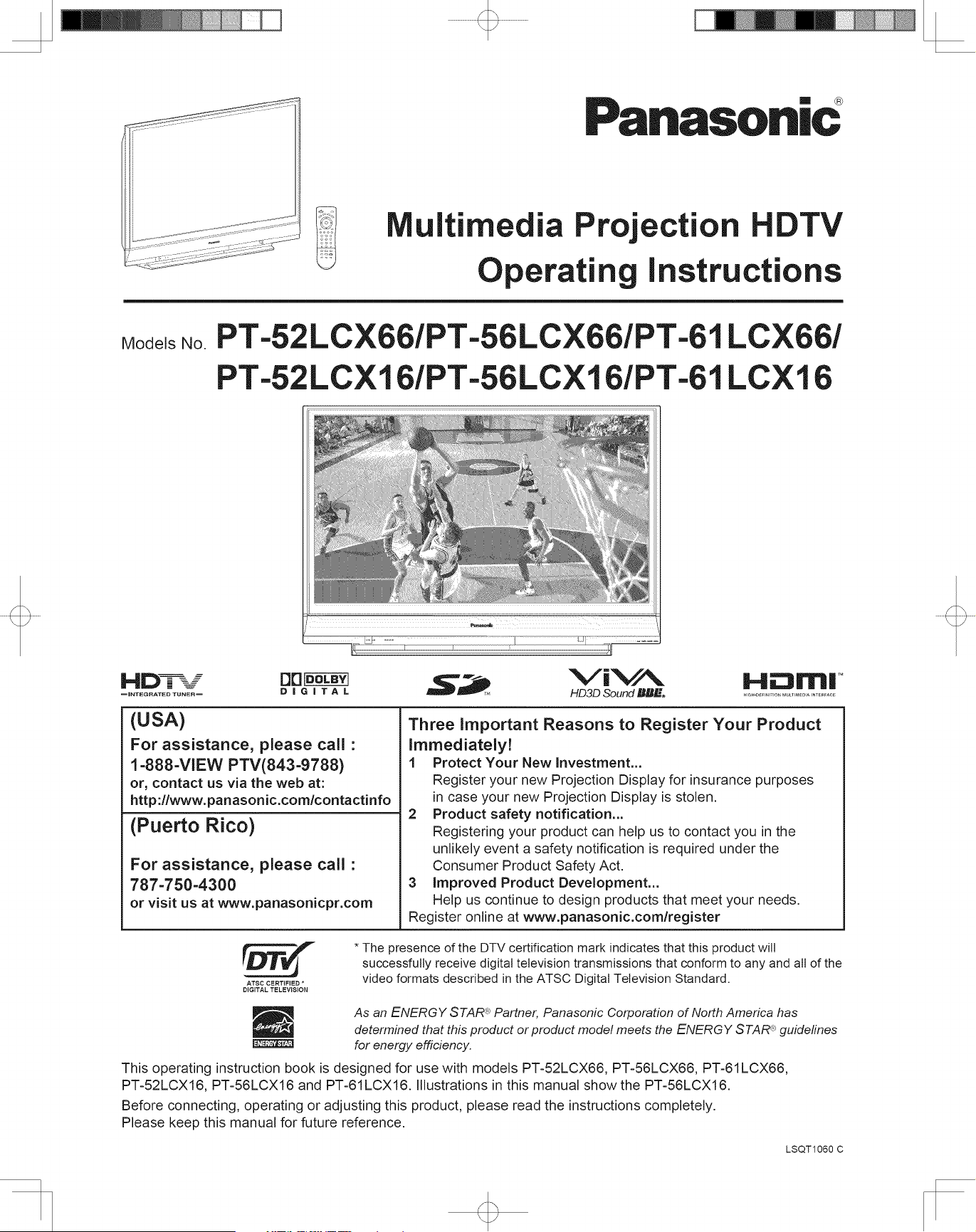
Multimedia Projection HDTV
Operating Instructions
PT-52LCX66/PT-56LCX66/PT-61LCX66/
PT-52LCX16/PT-56LCX16/PT-61LCX16
Models No.
(USA)
Three Important Reasons to Register Your Product
Immediately!
1 Protect Your New Investment...
Register your new Projection Display for insurance purposes
in case your new Projection Display is stolen.
2 Product safety notification...
Registering your product can help us to contact you in the
unlikely event a safety notification is required under the
Consumer Product Safety Act.
3 Improved Product Development...
Help us continue to design products that meet your needs.
Register online at www.panasonic.com/register
For assistance, please call :
1-888-VIEW PTV(843-9788)
or, contact us via the web at:
http://www.panasonic.com/contactinfo
(Puerto Rico)
For assistance, please call :
787-750-4300
or visit us at www.panasonicpr.com
Before connecting, operating or adjusting this product, please read the instructions completely.
Please keep this manual for future reference.
This operating instruction book is designed for use with models PT-52LCX66, PT-56LCX66, PT-61LCX66,
PT-52LCX16, PT-56LCX16 and PT-61LCX16. Illustrations in this manual show the PT-56LCX16.
* The presence of the DTV certification mark indicates that this product will
successfully receive digital television transmissions that conform to any and all of the
video formats described in the ATSC Digital Television Standard.
ATSC CERTIFIED *
DIGITAL TELEVISION
As an ENERGY STAR
®
Partner, Panasonic Corporation of North America has
determined that this product or product model meets the
ENERGY STAR
®
guidelines
for energy efficiency.
For assistance, please call : 1-888-VIEW PTV(843-9788) or, contact us via the web at: http://www.panasonic.com/contactinfo
2
1) Read these instructions before using, connecting or adjusting this product.
2) Keep these instructions for future reference.
3) Heed all warnings on the product and in this Operating Instructions manual.
4) Follow all instructions carefully.
5) Do not use this apparatus near water. For example, near a bathtub, washbowl, kitchen sink, or laundry tub, in
a wet basement or near a swimming pool, and the like. Do not place objects filled with water, such as a vase or
the like, on top of this unit.
6) Clean only with a dry cloth. Do not use liquid cleaners or aerosol cleaners.
7) Do not block any ventilation openings. Install in accordance with the manufacturer’s instructions.
Openings in the cabinet are provided for ventilation to ensure reliable operation and to protect it from
overheating. Never block openings by placing the product on a bed, sofa or similar surfaces.
8) Do not install near any heat source such as radiators, heat registers, stoves, or other apparatus
(including amplifiers) that produces heat. Do not install in a built-in installation such as a bookcase or rack,
unless proper ventilation is provided or the manufacturer’s instructions have been adhered to.
9) Do not defeat the safety purpose of the polarized or grounding-type plug. A polarized plug has two
blades with one wider than the other. A grounding type plug has two blades and a third grounding
prong. The wide blade or the third prong are provided for your safety. If the provided plug does not fit
into your outlet, consult an electrician for replacement of the obsolete outlet.
10) Protect the power cord from being walked on or pinched particularly at plugs, convenience receptacles,
and the point where they exit from the apparatus.
11) Only use attachments/accessories specified by the manufacturer.
12) Use only with the cart, stand, tripod, bracket, or table specified by the manufacturer, or
sold with the apparatus. When a cart is used, use caution when moving the cart/apparatus
combination to avoid injury from tip-over.
13) Unplug this apparatus during lightning storms or when unused for long periods of time.
14) Refer all servicing to qualified service personnel. Servicing is required when the apparatus has been
damaged in any way, such as power-supply cord or plug is damaged, liquid has been spilled or objects
have fallen into the apparatus, the apparatus has been exposed to rain or moisture, does not operate
normally, or has been dropped.
15) Because the temperature of the lamp unit is elevated immediately after its use, a direct touch to it may cause
burns. Replace the lamp unit only after it has cooled.
Note to CATV System Installer:
This reminder is provided to call the CATV system installer’s attention to Article 820-40 of the NEC that provides
guidelines for proper grounding and, in particular, specifies that the cable ground shall be connected to the grounding
system of the building, as close to the point of cable entry as practical.
WARNING: To reduce the risk of electric shock, do not remove cover or back. No
user-serviceable parts inside. Refer servicing to qualified service personnel.
CAUTION
RISK OF ELECTRIC SHOCK
DO NOT OPEN
This symbol warns the
user that uninsulated
voltage within the unit may
have sufficient magnitude
to cause electric shock.
Therefore, it is dangerous
to make any kind of
contact with any inside part
of this unit.
This symbol alerts the
user that important
literature concerning
the operation and
maintenance of this unit
has been included.
Therefore, it should be
read carefully in order to
avoid any problems.
The pictorial
representation of a hot
surface within a triangle
is intended to tell the
user that parts inside the
product are a risk of burns
to persons.
To reduce the risk of electric shock, fire, injury to persons or damage to this product:
IMPORTANT SAFETY INSTRUCTIONS
WARNING
3
Getting Start ed
The Lamp is a consumable item and has a limited life.
The lamp should be changed as soon as possible once the lamp warning message appears. (p. 64)
If the lamp is damaged, please contact your nearest dealer.
Due to the characteristics and use conditions of in di vid u al lamps, the lamp may cease to light before the
stated lamp life.
Influences of fre quent light ing, continuous light use for over 24 hours, the number of times lit, the length of
time between lightings, etc. may shorten lamp life.
(Because of this, we recommend having a replacement lamp on hand.)
Trademarks
• VGA and XGA are trademarks of International Business Machines Corporation.
• Macintosh is a registered trademark of Apple Computer, USA.
• SVGA is trademark of the Video Electronics Standard Association.
Even if no special notation has been made of company or product trademarks, these trademarks have been fully respected.
• Equipped with -TV Noise Reduction for true MTS reproduction. -TV Noise Reduction is required for good stereo
separation and audio fidelity.
is a registered trademark, and is licensed by Technology Licensing.
AS WITH ANY SMALL OBJECT, SD CARDS CAN BE SWALLOWED BY YOUNG CHILDREN. DO NOT ALLOW
CHILDREN TO HANDLE THE SD CARD.
CAUTION
HDMI, the HDMI logo and
High Definition Multimedia
Interface are trademarks or
registered trademarks of HDMI
Licensing LLC.
SD Logo is a trademark.
(1) This Projection Display is intended to be used with the following TV stand: model TY-52LC66 for the PT-52LCX66
or PT-52LCX16, TY-52LC16 for the PT-52LCX66 or PT-52LCX16, TY-56LC66 for the PT-56LCX66 or PT-56LCX16,
TY-56LC16 for the PT-56LCX66 or PT-56LCX16, and TY-61LC66 for the PT-61LCX66 or PT-61LCX16. Use with other
stands may result in the Projection Display becoming unstable, possibly causing injury.
(2) This Projection Display should not be exposed to direct sunlight, extreme temperatures or moisture, as this can
result in serious irreparable damage.
(3) This Projection Display has a High Intensity Discharge (HID) lamp that contains a small amount of mercury. It also
contains lead in some components.
Disposal of these materials may be regulated in your community due to environmental considerations.
For disposal or recycling information please contact your local authorities, or the Electronics Industries Alliance:
<http://www.eiae.org.>
Manufactured under license from BBE Sound, Inc.
Licensed by BBE Sound, Inc. under one or more of
the following US patents: 5510752, 5736897. BBE
and BBE symbol are registered trademarks of BBE
Sound, Inc.
Manufactured under license from Dolby
Laboratories. Dolby and the double-D symbol are
trademarks of Dolby Laboratories.
IMPORTANT SAFETY INSTRUCTIONS (CONTINUED)
License description: To view the license information for software used in this product, press MENU button and select
“Setup”→“About”→“License”. (p. 55)
Note:
• Do not allow a still picture to be displayed for an extended period, as this can cause a permanent afterimage to remain on this
unit. Examples of still pictures include logos, video games, computer images, teletext and images displayed in 4:3 mode.
TO REDUCE THE RISK OF FIRE OR ELECTRIC SHOCK, DO NOT EXPOSE THIS EQUIPMENT TO RAIN OR
MOISTURE. DO NOT PLACE OBJECTS FILLED WITH WATER, SUCH AS A VASE OR THE LIKE, ON TOP OF
THIS APPARATUS.
WARNING
WARNING
For assistance, please call : 1-888-VIEW PTV(843-9788) or, contact us via the web at: http://www.panasonic.com/contactinfo
4
Welcome to the Panasonic family of customers. We hope that you will have many years of enjoyment from your new
Projection Display.
To obtain maximum benefit from your set, please read these Instructions before making any adjustments, and retain
them for future reference.
Retain your purchase receipt also, and record the serial number of your set in the space provided on the rear cover
of these instructions.
Visit our Panasonic Web Site for USA : www.panasonic.com
(USA)
For assistance, please call : 1-888-VIEW PTV(843-9788)
or, contact us via the web at: http://www.panasonic.com/contactinfo
(Puerto Rico)
For assistance, please call : 787-750-4300
or visit us at www.panasonicpr.com
Declaration of Conformity
Models Number: PT-52LCX66/PT-56LCX66/PT-61LCX66/PT-52LCX16/PT-56LCX16/PT-61LCX16
Trade Name: Panasonic
Responsible party: Panasonic Corporation of North America
Address: One Panasonic Way Secaucus New Jersey 07094
Telephone number: 1-888-VIEW PTV(843-9788)
This device complies with Part 15 of the FCC Rules. Operation is subject to the following two conditions: (1) This
device may not cause harmful interference, and (2) this device must accept any interference received, including
interference that may cause undesired operation.
FCC STATEMENT:
NOTE:
This equipment has been tested and found to comply with the limits for a Class B digital device, pursuant to Part
15 of the FCC Rules. These limits are designed to provide reasonable protection against harmful interference in a
residential installation. This equipment generates, uses and can radiate radio frequency energy and, if not installed
and used in accordance with the instructions, may cause harmful interference to radio communications. However,
there is no guarantee that interference will not occur in a particular installation. If this equipment does cause harmful
interference to radio or television reception, which can be determined by turning the equipment off and on, the user is
encouraged to try to correct the interference by one or more of the following measures:
• Reorient or relocate the receiving antenna.
• Increase the separation between the equipment and receiver.
• Connect the equipment into an outlet on a circuit different from that to which the receiver is connected.
• Consult the dealer or an experienced radio / TV technician for help.
FCC Caution:
To assure continued compliance, follow the attached installation instructions and use only shielded interface cables
when connecting to computer or peripheral devices. Any changes or modifications not expressly approved by the
party responsible for compliance could void the user’s authority to operate this equipment.
ANY CHANGES OR MODIFICATIONS TO THIS PTV RECEIVER NOT EXPRESSLY APPROVED BY PANASONIC
CORPORATION OF NORTH AMERICA COULD CAUSE HARMFUL INTERFERENCE, WHICH WOULD VOID THE
USER’S AUTHORITY TO OPERATE THIS EQUIPMENT.
The ClassⅡ insulation symbol (square within a square) indicates that this product has been evaluated
and tested to comply with ClassⅡ insulation requirements.
Dear Panasonic Customer
5
Getting Start ed
To
Start !
Use
Now !
Enjoy
More !
Other
Information !
IMPORTANT SAFETY INSTRUCTIONS ...............................................2
Before Using ..............................................................................................6
Location of Controls .................................................................................9
Installation ................................................................................................12
Power ON / OFF .......................................................................................24
Basic Menu Navigation ...........................................................................26
Tuning channels ......................................................................................28
Projection Display operation ..................................................................32
ASPECT Controls ....................................................................................36
Picture Adjustments................................................................................37
Audio Adjustments ..................................................................................40
Sleep Timer Feature ................................................................................42
Lock Feature ............................................................................................43
Photo Viewer ............................................................................................47
Setup Features ........................................................................................52
Operating Peripheral Equipment ...........................................................58
Remote Control Operation/Code List ....................................................59
Warning Indicators ..................................................................................63
Replacing the lamp unit ..........................................................................64
Troubleshooting ......................................................................................66
Specifications ..........................................................................................68
Cleaning ...................................................................................................69
Customer Services Directory .................................................................70
Limited Warranty .....................................................................................71
Other Information ....................................................................................72
Index .........................................................................................................79
Table of Contents
Basic Operation InformationAdvanced Op er a tionGetting Start ed
For assistance, please call : 1-888-VIEW PTV(843-9788) or, contact us via the web at: http://www.panasonic.com/contactinfo
6
Accessories
1. Remote Control (EUR7613ZH0)
2. Batteries 2 “AA”
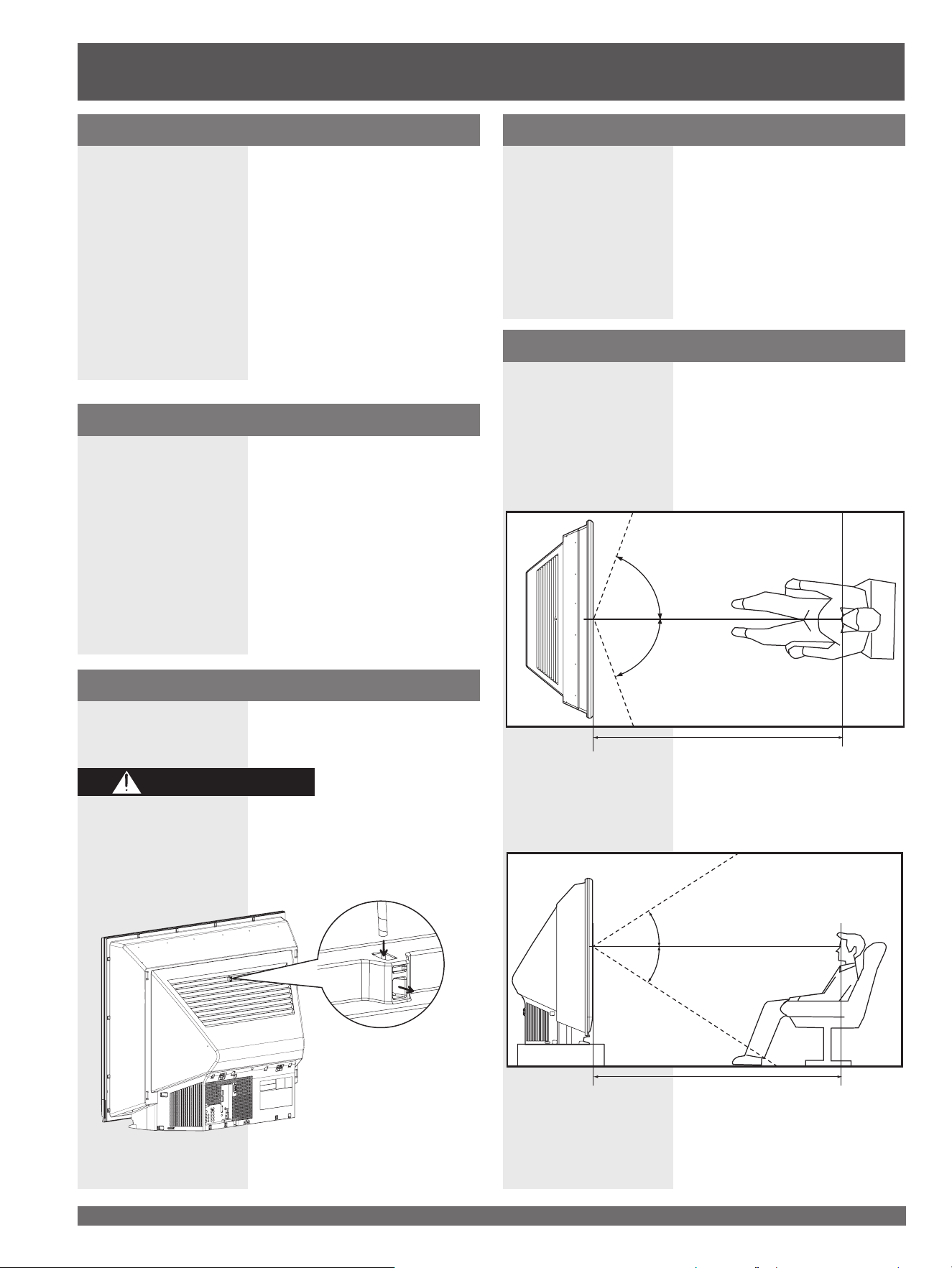
Viewing position
<Side view>
<Top view>
To optimize your viewing comfort, please follow the
viewing guidelines shown in the diagrams below.
If viewing for an extended period of time, sit as far back
from the screen as possible.
70º
At least 1.8 m (PT-52LCX66/PT-52LCX16) / 2.0 m
(PT-56LCX66/PT-56LCX16) / 2.2 m (PT-61LCX66/
PT-61LCX16).
70º
30º
30º
Receiver Location
This Projection Display is intended to be used with an
optional stand or entertainment center. Consult your
dealer for available options.
Locate for comfortable viewing. Avoid placing where
sunlight or other bright light (including reflections) will fall
on the screen.
Use of some types of fluorescent lighting can reduce
Remote Control transmitter range.
Adequate ventilation is essential to prevent internal
component failure. Keep away from areas of excessive
heat or moisture.
Optional External Equipment
The Video / Audio connection between components can
be made with shielded video and audio cables. For best
performance, video cables should utilize 75 Ω coaxial
shielded cables. Cables are available from your dealer
or electronic supply house.
Before you purchase any cables, be sure you know
what type of output and input connectors your various
com po nents require. Also determine the length of cable
you’ll need.
Safety Precaution
Please take safety precautions to prevent the unit from
falling over.
The unit may tip or fall if not situated on a stable
surface, if pushed or during an earthquake. Use a
strong rope or chain (not included) to fasten the
Projection Display firmly to a strong wall support.
Before Using
WARNING
At least 1.8 m (PT-52LCX66/PT-52LCX16) / 2.0 m
(PT-56LCX66/PT-56LCX16) / 2.2 m (PT-61LCX66/
PT-61LCX16).
7
Getting Start ed
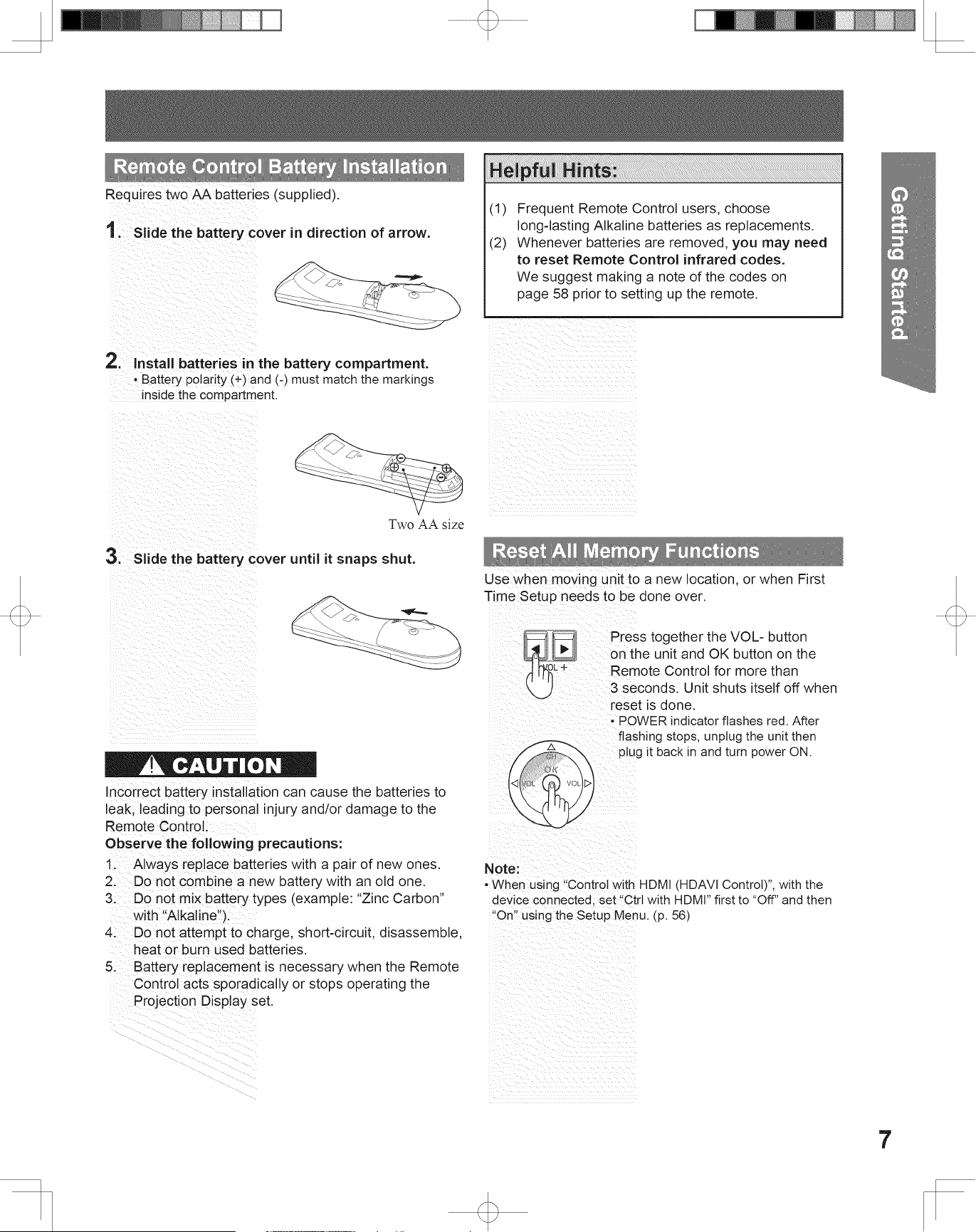
Requires two AA batteries (supplied).
2. Install batteries in the battery compartment.
• Battery polarity (+) and (-) must match the markings
inside the compartment.
Two AA size
Remote Control Battery Installation
1. Slide the battery cover in direction of arrow.
3. Slide the battery cover until it snaps shut.
Incorrect battery installation can cause the batteries to
leak, leading to personal injury and/or damage to the
Remote Control.
Observe the following precautions:
1. Always replace batteries with a pair of new ones.
2. Do not combine a new battery with an old one.
3. Do not mix battery types (example: “Zinc Carbon”
with “Alkaline”).
4. Do not attempt to charge, short-circuit, disassemble,
heat or burn used batteries.
5. Battery replacement is necessary when the Remote
Control acts sporadically or stops operating the
Projection Display set.
Helpful Hints:
(1) Frequent Remote Control users, choose
long-lasting Alkaline batteries as replacements.
(2) Whenever batteries are removed, you may need
to reset Remote Control infrared codes.
We suggest making a note of the codes on
page 58 prior to setting up the remote.
Reset All Memory Functions
Use when moving unit to a new location, or when First
Time Setup needs to be done over.
Press together the VOL- button
on the unit and OK button on the
Remote Control for more than
3 seconds. Unit shuts itself off when
reset is done.
• POWER indicator flashes red. After
flashing stops, unplug the unit then
plug it back in and turn power ON.
CAUTION
Note:
• When using “Control with HDMI (HDAVI Control)”, with the
device connected, set “Ctrl with HDMI” first to “Off” and then
“On” using the Setup Menu. (p. 56)

For assistance, please call : 1-888-VIEW PTV(843-9788) or, contact us via the web at: http://www.panasonic.com/contactinfo
8
CC (Closed Caption)
OSD (On-Screen Display)
MSO (Multiple system owner/operator)
Dolby Digital
This is a method of coding digital signals developed by
Dolby Laboratories. Apart from stereo (2-channel) audio,
these signals can also be multichannel audio. A large
amount of audio information can be recorded on one
disc using this method.
PCM (pulse code modulation)
These are uncompressed digital signals, similar to those
found on CDs.
DTV (Digital Television)
Name of the process whereby television picture and
sound signals are changed to digital code for receiving
and transmitting.
HDTV (High Definition Television)
Television with improved picture quality by increasing
vertical and horizontal resolution.
Glossary and Acronyms
ATSC (Advanced Television Systems Committee)
Standardization body that developed the Digital
Television Terrestrial formats.
HDMI (High Definition Multimedia Interface)
Interface that supports every uncompressed digital
format as well as all existing multi-channel audio format
on a single cable.
JPEG (Joint Photographic Experts Group)
A system used for compressing/decoding color still
pictures.
MPAA (Motion Picture Association of America)
Guild governing rating assignments to movies.
NTSC (National Television Systems Committee)
Standardization body that developed the Analog
Television Terrestrial formats.
Password
A four (4) digit code a user must provide in order to
perform a function.
Before Using (continued)
9
Getting Start ed
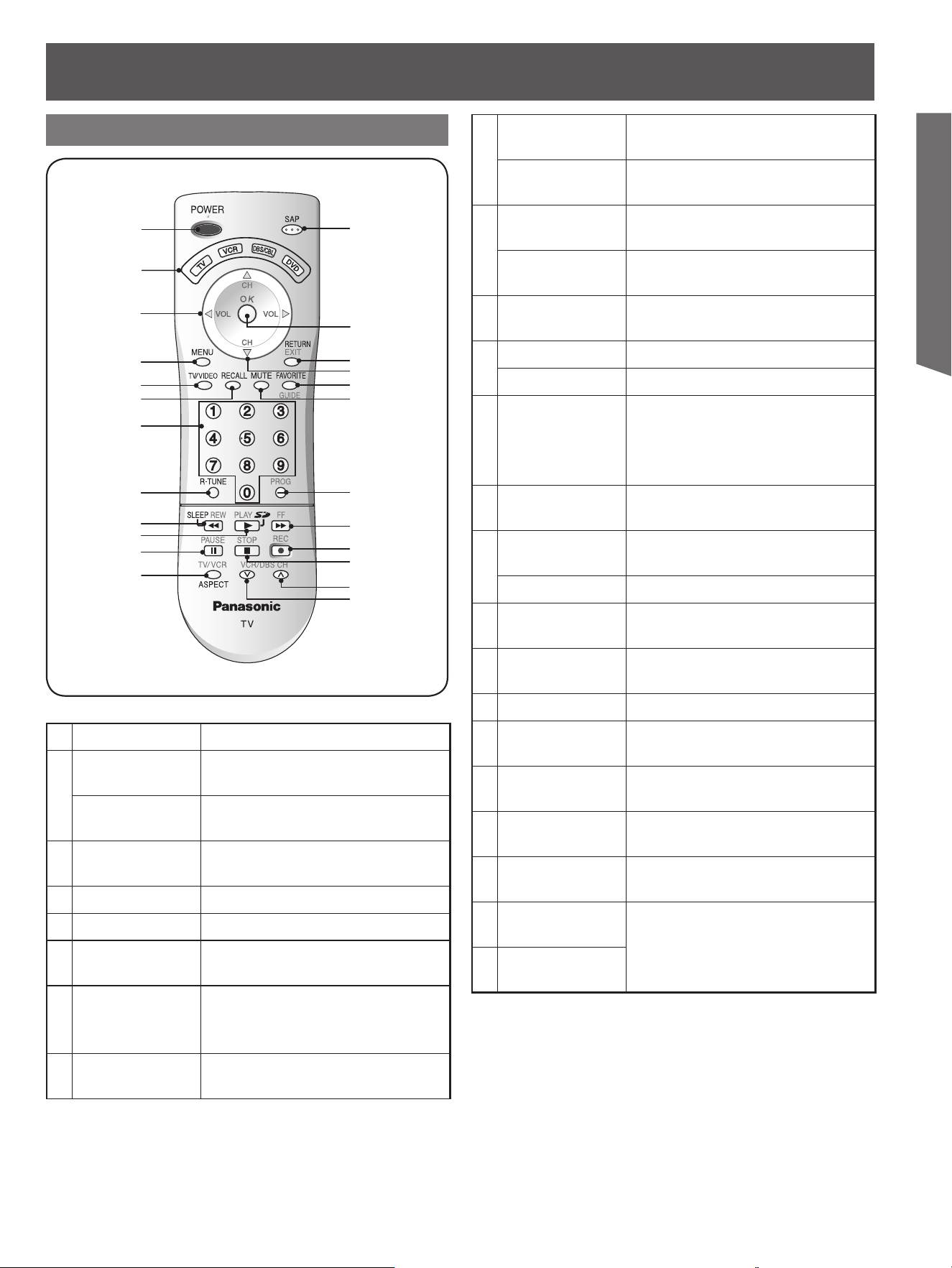
Illuminated Remote Control
1
2
3
4
5
6
7
8
9
10
11
12
13
14
15
17
18
19
21
22
23
24
20
16
Location of Controls
1
POWER Press to turn ON and OFF.
2
TV
Sets the remote to control
television or digital television.
VCR, DBS/CBL,
DVD
Sets the remote to control other
devices.
3
VOL -+ / ◄►
Press to adjust TV sound and to
navigate menus.
4
MENU Press to display Main Menu.
5
TV/VIDEO Changes Input source.
6
RECALL
Press to display or delete
Channel banner.
7
NUMBER
Press numeric keypad to
select any channel or to make
alpha-numeric entries in menus.
8
R-TUNE
Press to switch to previously
viewed channel or input modes.
9
SLEEP
Sets unit to shut itself off after a
preselected amount of time.
REW
While remote is in VCR or DVD
mode, press to rewind.
10
PLAY
While remote is in VCR or DVD
mode, press to play.
SD
Accesses the Photo Viewer
feature.
11
PAUSE
While remote is in VCR or DVD
mode, press to pause.
12
TV/VCR Press to switch to TV or VCR.
ASPECT Changes display aspect ratio.
13
SAP
In analog mode, press to access
audio modes (Stereo, SAP or
Mono). In digital mode, press to
access next audio track.
14
OK
Press to select menu and
sub-menu items.
15
RETURN
Press to return one step backward
in menus.
EXIT Press to exit menus.
16
CH ▲▼
Press to change channels and to
navigate menus.
17
FAVORITE
Press to operate the Favorite
channel list function.
18
MUTE Press to mute sound.
19
PROG
Press after entering a digital
channel to enter a sub-channel.
20
FF
While remote is in VCR or DVD
mode, press to fast forward.
21
REC
While remote is in VCR mode,
press to record.
22
STOP
While remote is in VCR or DVD
mode, press to stop.
23
VCR/DBS CH
<
While remote is in VCR or DBS
mode, press to change VCR or
DBS channels.
24
VCR/DBS CH
>
For assistance, please call : 1-888-VIEW PTV(843-9788) or, contact us via the web at: http://www.panasonic.com/contactinfo
10
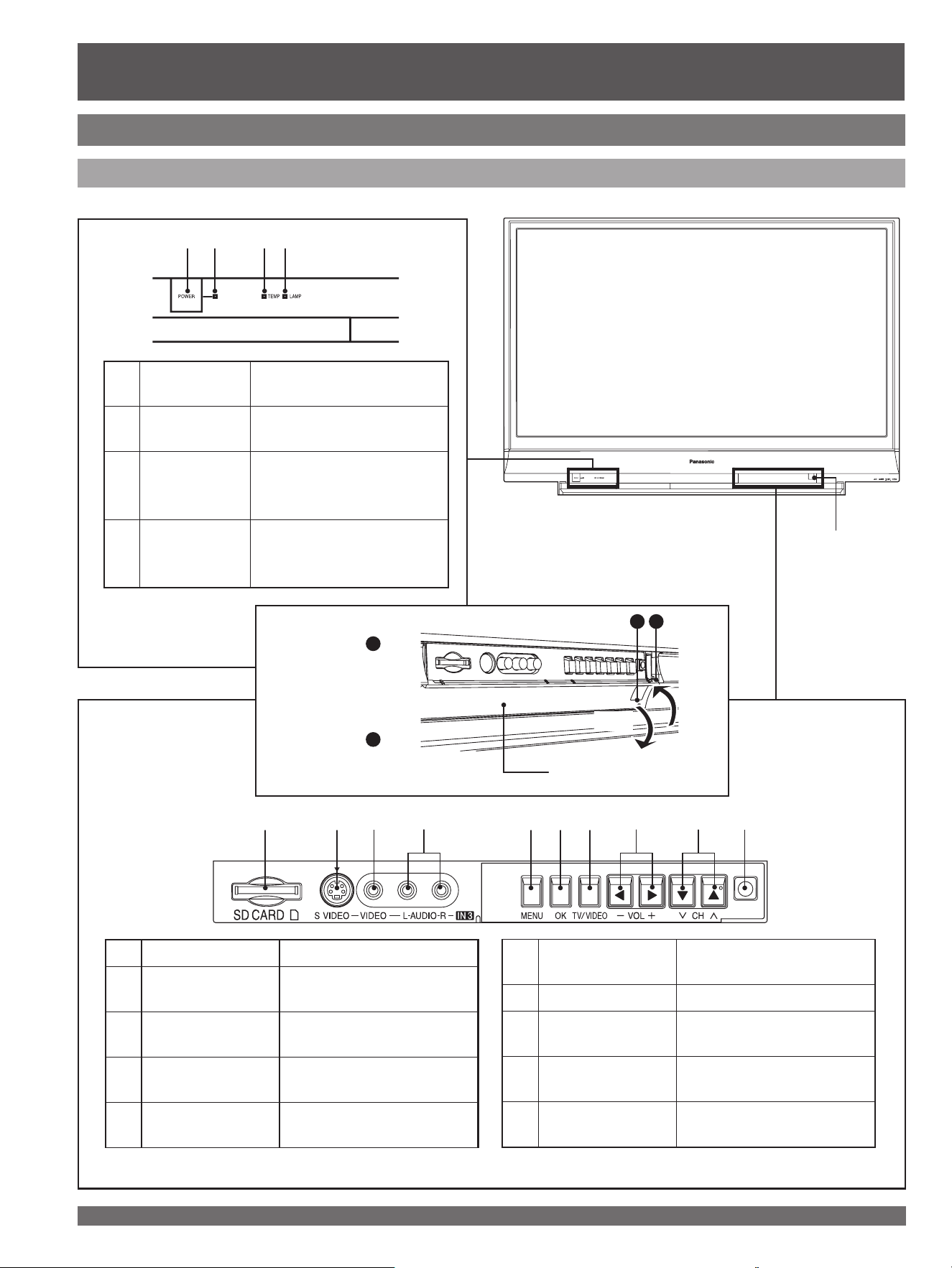
Controls and Terminals on the Projection Display
Front View <Model PT-56LCX16 unit shown>
1
SD CARD Slot Insert SD Card.
2
S-Video Input
Connector 3
Connect from other
component. (Video 3)
3
Video Input
Connector 3
Connect from other
component. (Video 3)
4
Audio Input
Connector 3
Connect from other
component. (Video 3)
5
MENU*
Press to display Main
Menu.
6
OK*
Press to select menu and
sub-menu items.
7
TV/VIDEO* Changes Input source.
8
VOL -+ / ◄►*
Press to adjust TV sound
and to navigate menus.
9
CH
>
<
/ ▼▲*
Press to change channels
and to navigate menus.
10
Remote Control
Sensor
Receives infrared signal
from Remote Control.
Location of Controls (continued)
Remote Control
Sensor
* Buttons listed above operate the same as Remote Control buttons of the same name.
Open Door:
Press position
1
, and
slide Door open as
shown by arrow.
Close Door:
Press position
2
, and
slide Door closed as
shown by arrow.
12 34
1
POWER
button
Press to turn ON and OFF.
(p. 63, 66)
2
POWER
indicator
Lights up green when
power is ON. (p. 24, 63)
3
TEMP
indicator
Flashes when unit internal
temperature is abnormal.
(p. 63)
4
LAMP
indicator
Lights up or flashes
when the lamp unit is
malfunctioning. (p. 63)
1234 56 87 9
Door
10
Close
21
Open
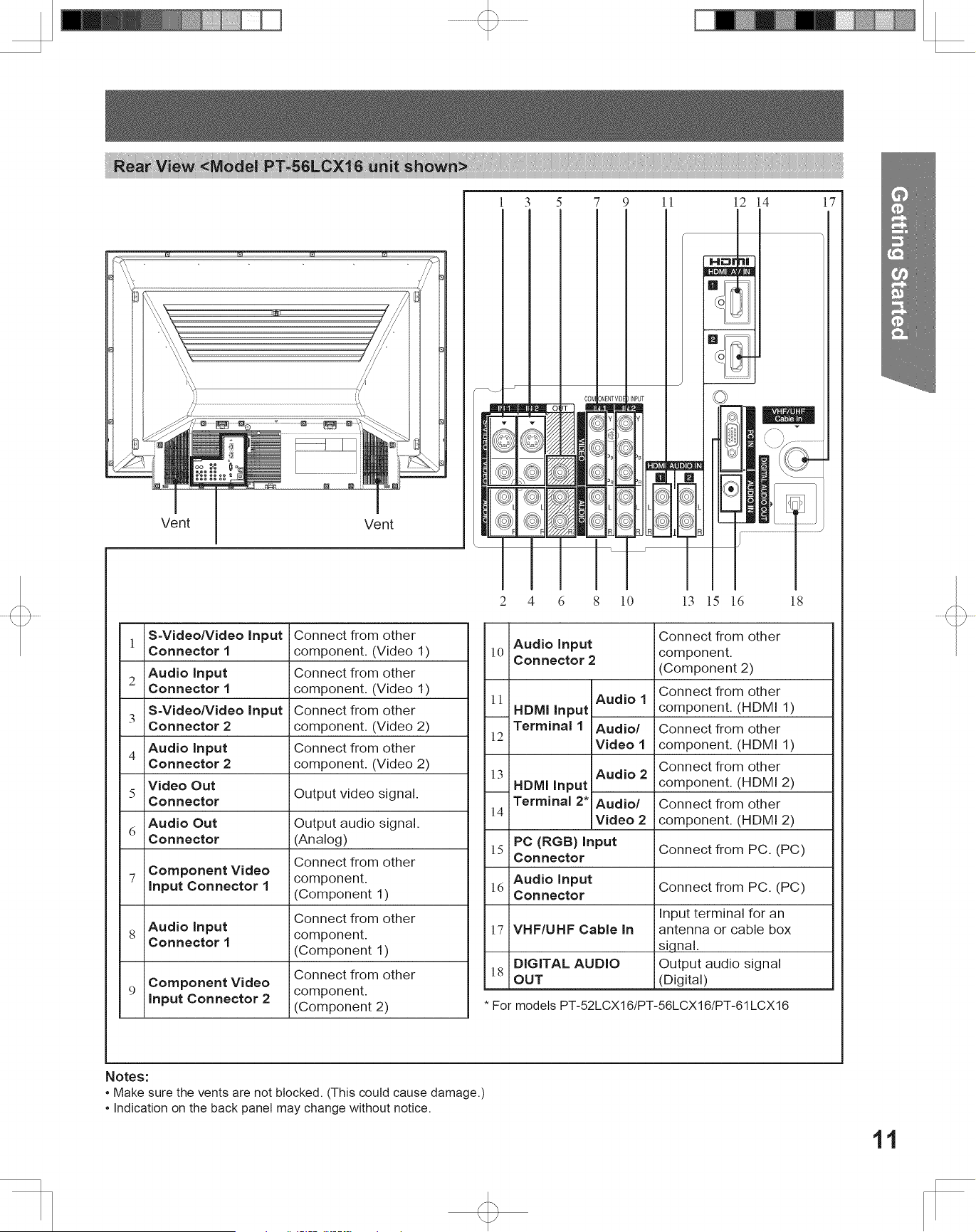
11
Getting Start ed
Vent
Notes:
• Make sure the vents are not blocked. (This could cause damage.)
• Indication on the back panel may change without notice.
Vent
1
S-Video/Video Input
Connector 1
Connect from other
component. (Video 1)
2
Audio Input
Connector 1
Connect from other
component. (Video 1)
3
S-Video/Video Input
Connector 2
Connect from other
component. (Video 2)
4
Audio Input
Connector 2
Connect from other
component. (Video 2)
5
Video Out
Connector
Output video signal.
6
Audio Out
Connector
Output audio signal.
(Analog)
7
Component Video
Input Connector 1
Connect from other
component.
(Component 1)
8
Audio Input
Connector 1
Connect from other
component.
(Component 1)
9
Component Video
Input Connector 2
Connect from other
component.
(Component 2)
10
Audio Input
Connector 2
Connect from other
component.
(Component 2)
11
HDMI Input
Terminal 1
Audio 1
Connect from other
component. (HDMI 1)
12
Audio/
Video 1
Connect from other
component. (HDMI 1)
13
HDMI Input
Terminal 2*
Audio 2
Connect from other
component. (HDMI 2)
14
Audio/
Video 2
Connect from other
component. (HDMI 2)
15
PC (RGB) Input
Connector
Connect from PC. (PC)
16
Audio Input
Connector
Connect from PC. (PC)
17
VHF/UHF Cable In
Input terminal for an
antenna or cable box
signal.
18
DIGITAL AUDIO
OUT
Output audio signal
(Digital)
Rear View <Model PT-56LCX16 unit shown>
13 5 7 9 11 1214
2 4 6 8 10 15 16 1813
17
* For models PT-52LCX16/PT-56LCX16/PT-61LCX16
For assistance, please call : 1-888-VIEW PTV(843-9788) or, contact us via the web at: http://www.panasonic.com/contactinfo
12
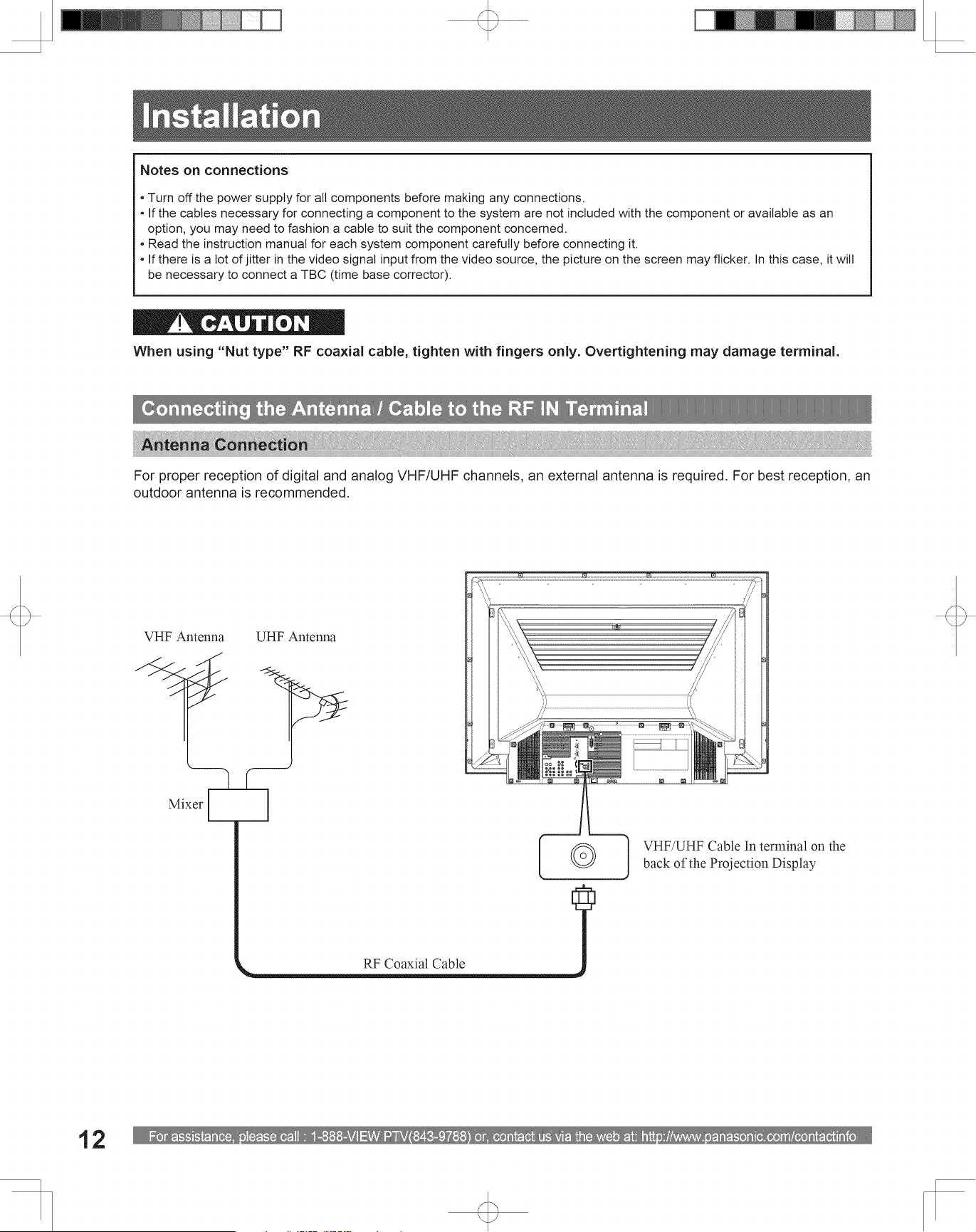
Antenna Connection
Connecting the Antenna / Cable to the RF IN Terminal
When using “Nut type” RF coaxial cable, tighten with fingers only. Overtightening may damage terminal.
• Turn off the power supply for all com po nents before making any connections.
• If the cables necessary for connecting a component to the system are not included with the component or available as an
option, you may need to fashion a cable to suit the component concerned.
• Read the instruction manual for each system component care ful ly before connecting it.
• If there is a lot of jitter in the video signal input from the video source, the picture on the screen may flicker. In this case, it will
be necessary to connect a TBC (time base corrector).
Notes on con nec tions
Installation
For proper reception of digital and analog VHF/UHF channels, an external antenna is required. For best reception, an
outdoor antenna is recommended.
VHF Antenna UHF Antenna
RF Coaxial Cable
VHF/UHF Cable In terminal on the
back of the Projection Display
Mixer
CAUTION
13
Getting Start ed
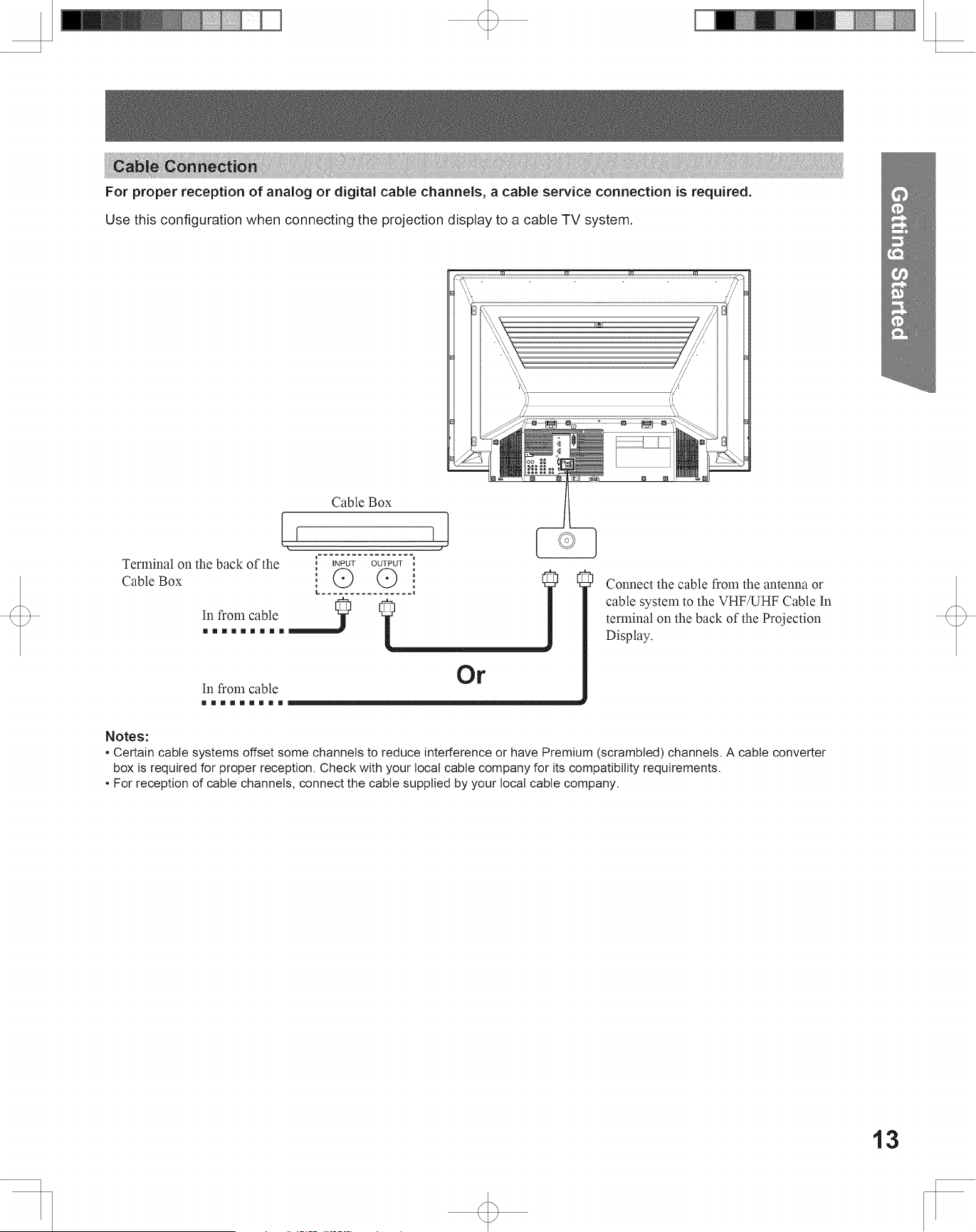
For proper reception of analog or digital cable channels, a cable service connection is required.
Cable Connection
Use this confi guration when connecting the projection display to a cable TV system.
Notes:
• Certain cable systems offset some channels to reduce interference or have Premium (scrambled) channels. A cable converter
box is required for proper reception. Check with your local cable company for its compatibility requirements.
• For reception of cable channels, connect the cable supplied by your local cable company.
Connect the cable from the antenna or
cable system to the VHF/UHF Cable In
terminal on the back of the Projection
Display.
Cable Box
Terminal on the back of the
Cable Box
In from cable
In from cable
Or
For assistance, please call : 1-888-VIEW PTV(843-9788) or, contact us via the web at: http://www.panasonic.com/contactinfo
14
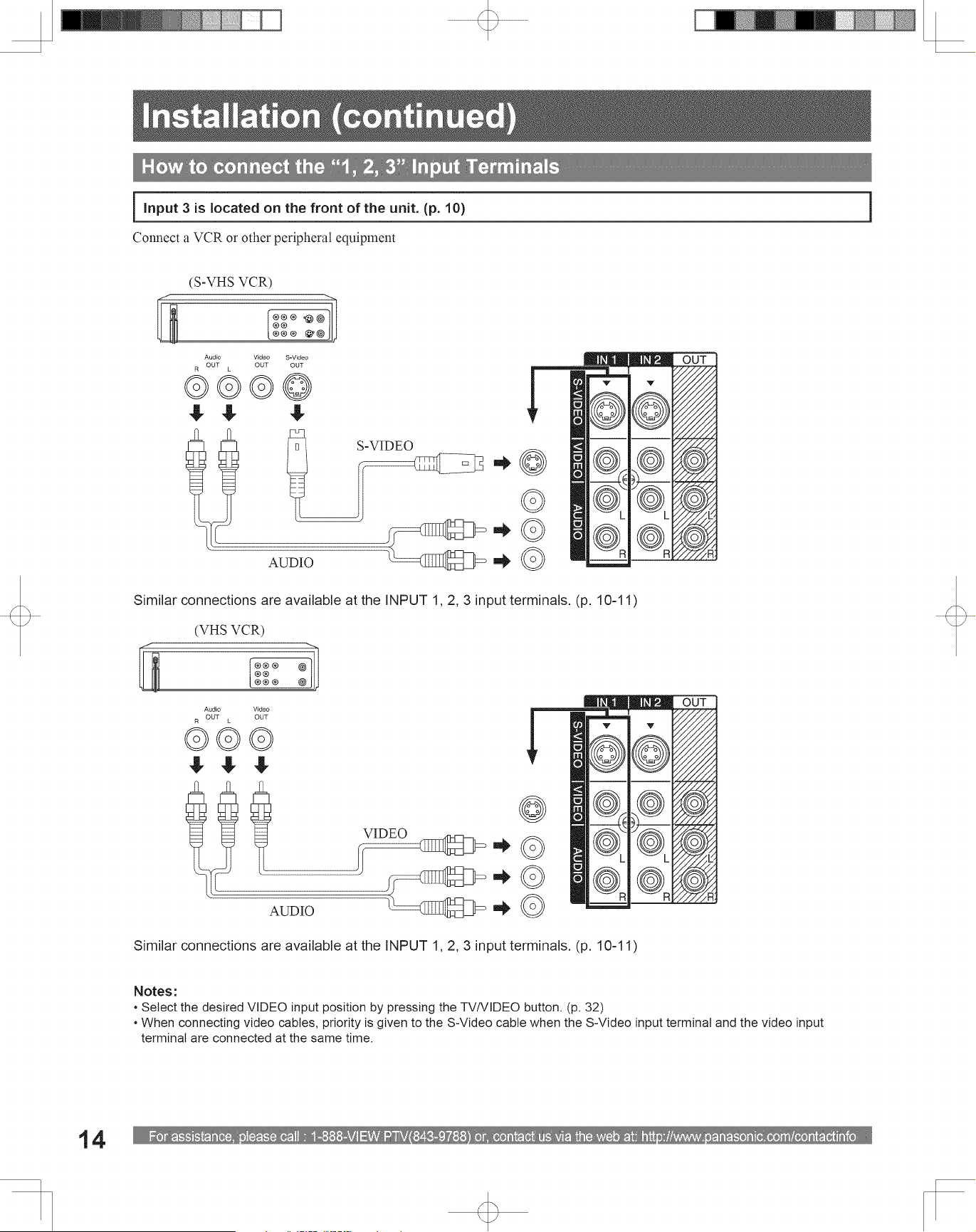
How to connect the “1, 2, 3” Input Terminals
Connect a VCR or other peripheral equipment
Similar connections are available at the INPUT 1, 2, 3 input terminals. (p. 10-11)
Notes:
• Select the desired VIDEO input position by pressing the TV/VIDEO button. (p. 32)
• When connecting video cables, priority is given to the S-Video cable when the S-Video input terminal and the video input
terminal are connected at the same time.
Similar connections are available at the INPUT 1, 2, 3 input terminals. (p. 10-11)
(S-VHS VCR)
(VHS VCR)
Installation (continued)
Input 3 is located on the front of the unit. (p. 10)
S-VIDEO
AUDIO
VIDEO
AUDIO
15
Getting Start ed
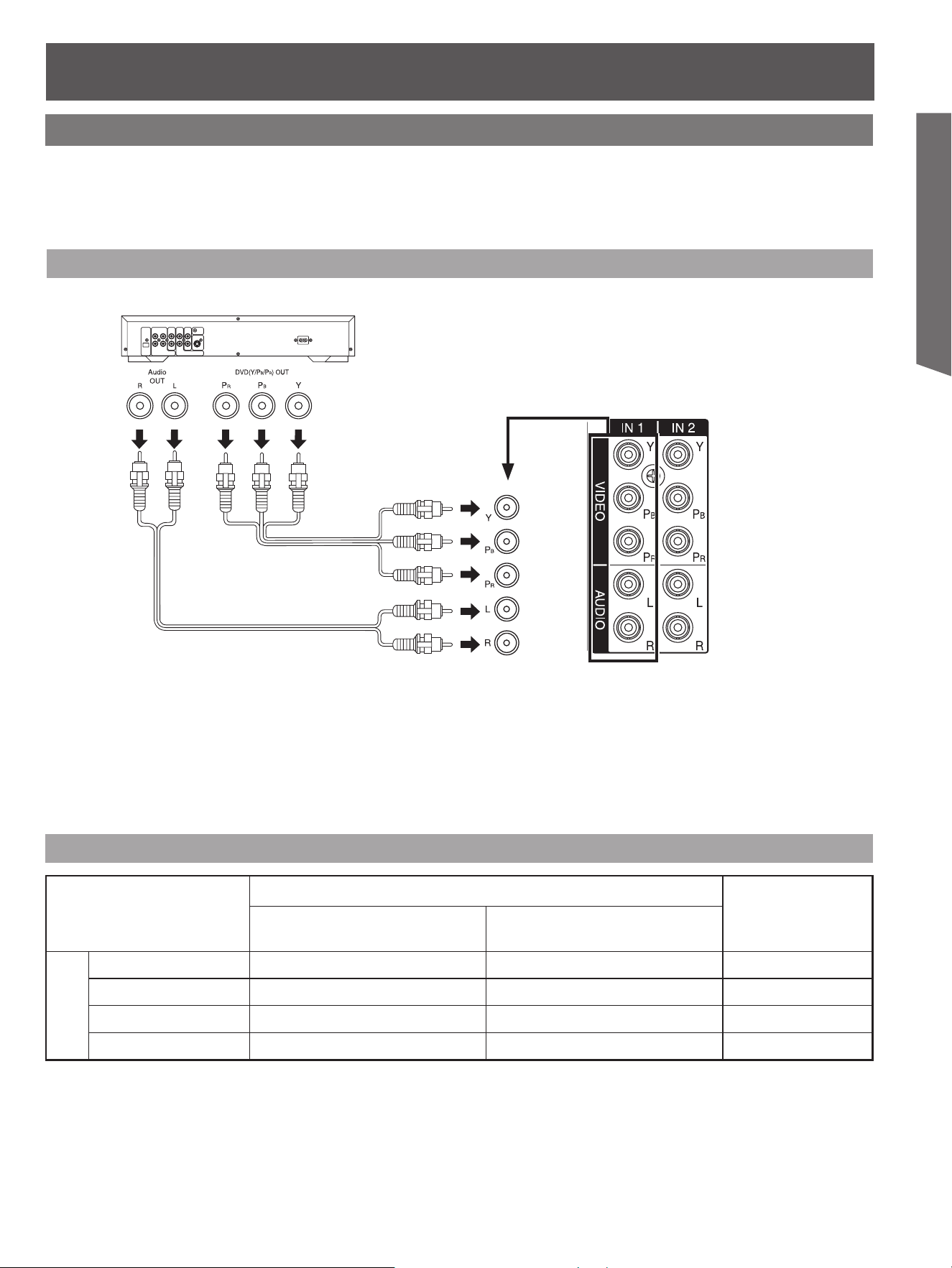
How to con nect the COMPONENT VIDEO Input Terminals
Notes:
• Select the desired COMPONENT VIDEO INPUT position by pressing the TV/VIDEO button. (p. 32)
• Component video signals that will be recognized are 480i, 480p, 720p, and 1080i.
Because each Y, PB, and PR signal is input independently, the Component signal allows for more accurate
color reproduction.
The Component signal output terminal indication will differ according to the output device (Y, PB, PR). Please
read the operating instructions included with the output device.
DVD Player
COMPONENT VIDEO
AUDIO
Mode type
Signal data
Information menu
display
No. of dots
(H × V)
Vertical frequency
(Hz)
DTV Format
Signals
480i 720 × 480 59.94/60.00 480i
480p 720 × 480 59.94/60.00 480p
720p 1 280 × 720 59.94/60.00 720p
* 1080i 1 920 × 1 080 59.94/60.00 1080i
Component Signals (Y, PB, PR) that can be Input
Note:
• Input signals, other than those listed with a * mark, will give you a beautiful, stable picture.
Connecting a DVD Player to COMPONENT VIDEO IN
Similar connections are available at the COMPONENT VIDEO INPUT 1-2 Terminals.
(p. 11)
For assistance, please call : 1-888-VIEW PTV(843-9788) or, contact us via the web at: http://www.panasonic.com/contactinfo
16
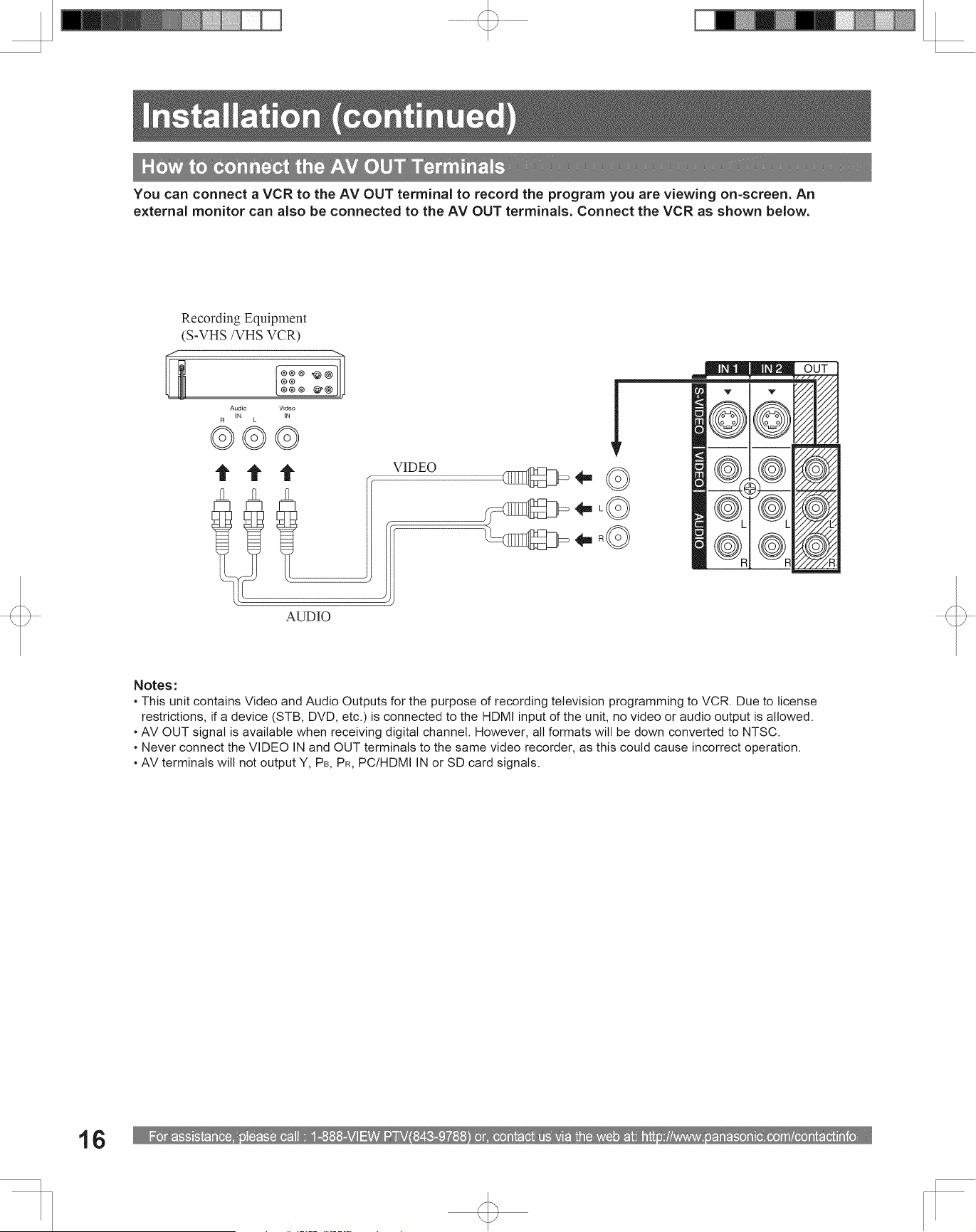
How to connect the AV OUT Terminals
Recording Equipment
(S-VHS /VHS VCR)
VIDEO
AUDIO
You can connect a VCR to the AV OUT terminal to record the program you are viewing on-screen. An
external monitor can also be connected to the AV OUT terminals. Connect the VCR as shown below.
Notes:
• This unit contains Video and Audio Outputs for the purpose of recording television programming to VCR. Due to license
restrictions, if a device (STB, DVD, etc.) is connected to the HDMI input of the unit, no video or audio output is allowed.
• AV OUT signal is available when receiving digital channel. However, all formats will be down converted to NTSC.
• Never connect the VIDEO IN and OUT terminals to the same video recorder, as this could cause incorrect operation.
• AV terminals will not output Y, PB, PR, PC/HDMI IN or SD card signals.
Installation (continued)
17
Getting Start ed
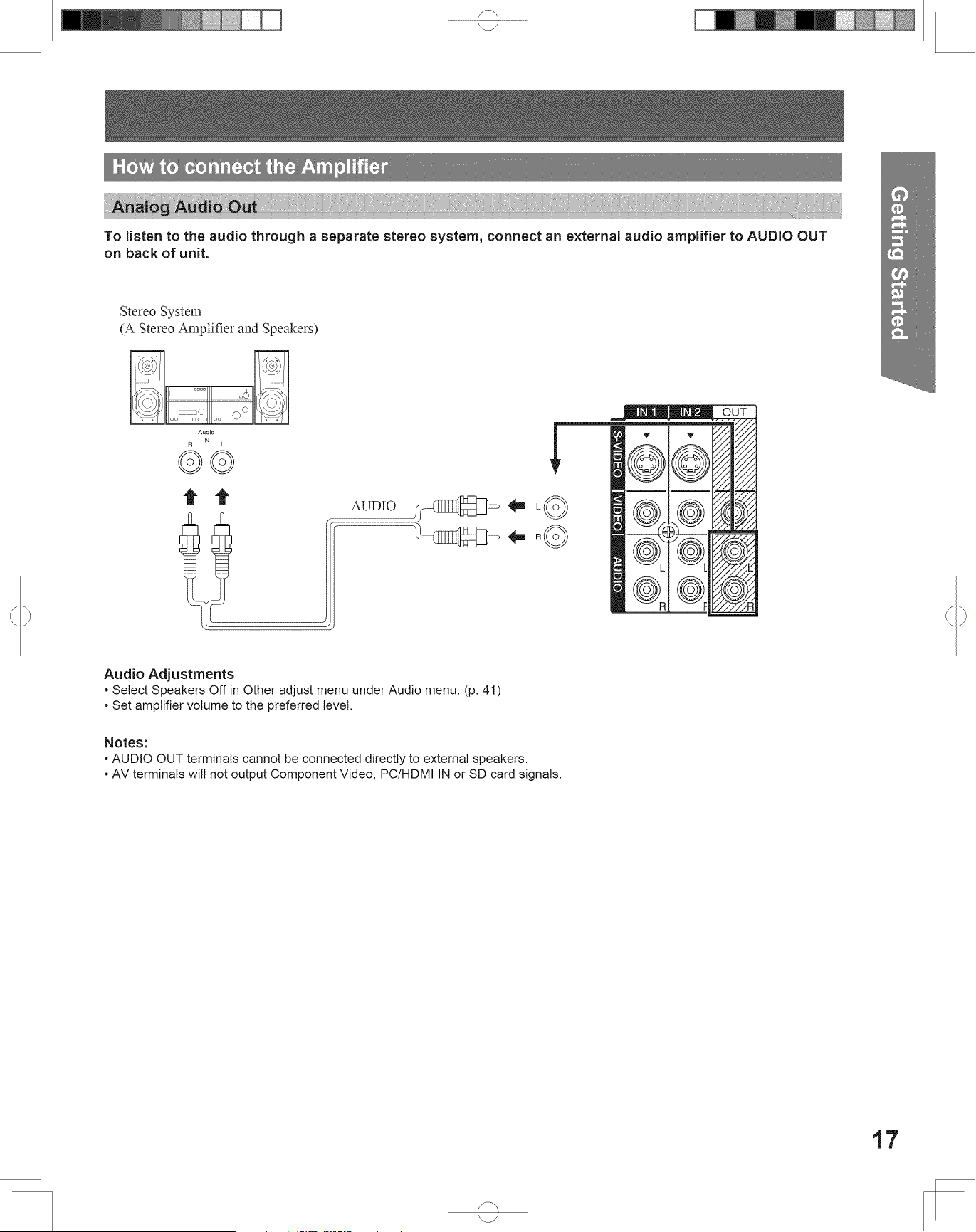
How to connect the Amplifier
Analog Audio Out
Stereo System
(A Stereo Amplifier and Speakers)
AUDIO
To listen to the audio through a separate stereo system, connect an external audio amplifier to AUDIO OUT
on back of unit.
Notes:
• AUDIO OUT terminals cannot be connected directly to external speakers.
• AV terminals will not output Component Video, PC/HDMI IN or SD card signals.
Audio Adjustments
• Select Speakers Off in Other adjust menu under Audio menu. (p. 41)
• Set amplifier volume to the preferred level.

For assistance, please call : 1-888-VIEW PTV(843-9788) or, contact us via the web at: http://www.panasonic.com/contactinfo
18
Use the diagram below to connect the Digital Audio Output of your Projection Display to a Dolby Digital
decoder.
Dolby Digital 5.1 channel surround sound delivers digital-quality sound. Dolby Digital provides five discrete
full-bandwidth channels for front left, front right, center, surround left and surround right, plus a LFE (Low Frequency
Effect) subwoofer channel, For a full Home Theater sound experience, an external Dolby Digital decoder and a
multichannel amplifier must be connected to the Digital Audio Out jack on the unit.
Procedure
Connect the Digital Audio cable from the Digital Audio
Out jack on the unit to the Digital Audio In connection on
the Dolby Digital decoder.
Notes:
• When ATSC channel is selected, the output from the Digital
Audio Out jack will be Dolby Digital. But, if NTSC channel is
selected, the output will be PCM.
• Depending on your DVD player and DVD-Audio software the
copyright protection function may operate and disable optical
output.
Digital Audio Out
OPTICAL
Firmly connect
the cable to
the connector.
Connect three or
more speakers for
surround sound.
Speakers (example)
Amplifier with built in Dolby
Digital decoders.
Installation (continued)
19
Getting Start ed
HDMI OUT HDMI OUT
AUDIO IN
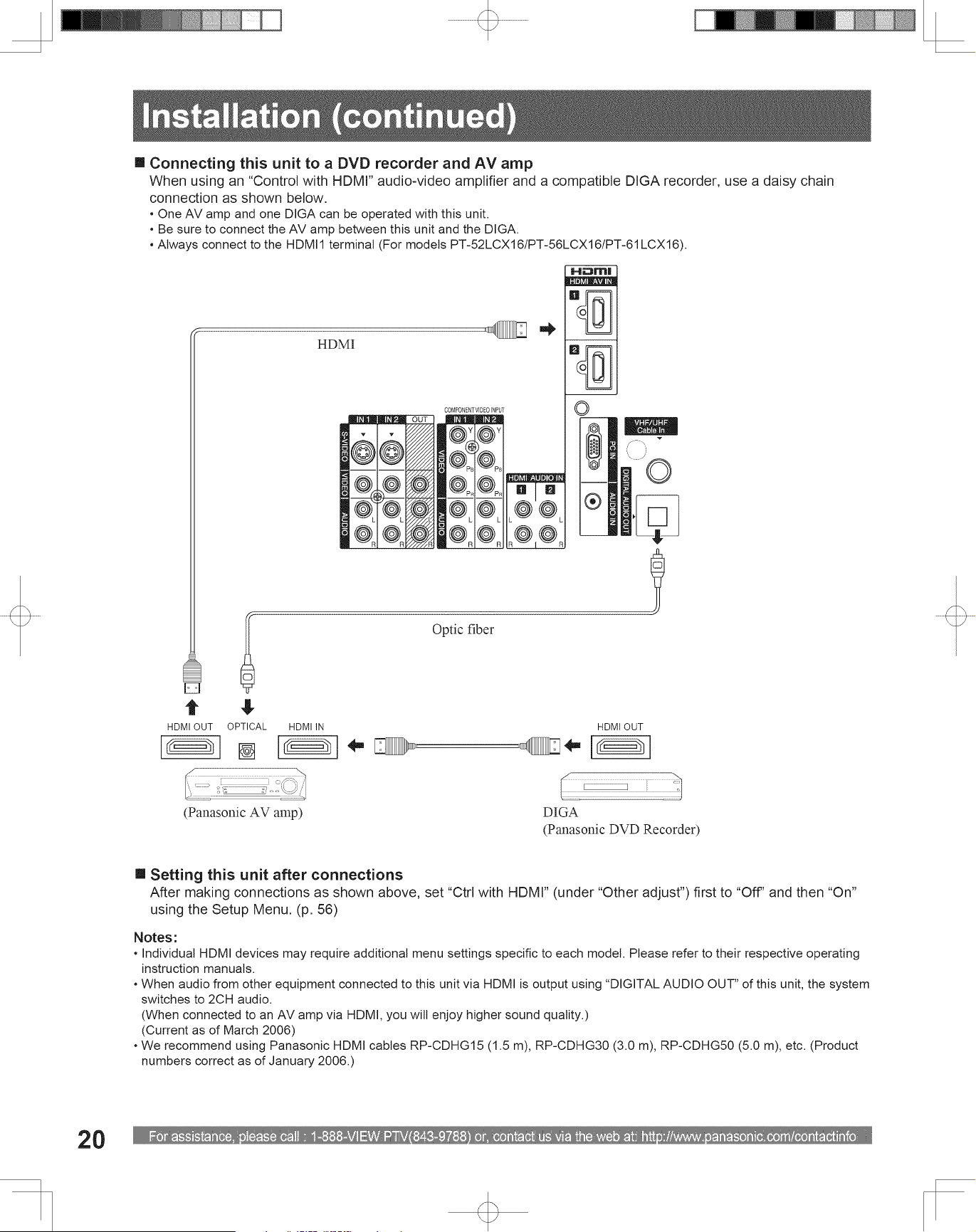
How to connect the HDMI input terminal
Recommended HDMI Connections
Follow the connection diagrams below for HDMI
control of a single AV equipment such as a Panasonic
DIGA-DVD recorder, RAM Theater or Player Theater
system. Refer to page 56 for Setup Menu settings and
additional control information.
• Optional HDMI and/or optical cables are not provided.
If connection (or setting) of equipment compatible with
HDMI control is changed, switch the power of this unit
Off then On again while the power of all equipment is
On (to this unit to correctly recognize the connected
equipment) and check that DIGA, RAM theater and
Player theater playback operates.
Setting this unit after connections
After making connections as shown above, set “Ctrl with HDMI” (under “Other adjust”) first to “Off” and then “On”
using the Setup Menu. (p. 56)
HDMI
• For DIGA:
- Connect with HDMI cable (HDMI
1 is recommended (For models
PT-52LCX16/PT-56LCX16/
PT-61LCX16)).
• For RAM theater and Player theater:
- Always connect to the HDMI 1
terminal (For models PT-52LCX16/
PT-56LCX16/PT-61LCX16).
- Connect with HDMI cable and audio
cable.
- Connect this unit’s AUDIO OUT
(L&R) to listen to the TV program
through the theater system.
Connecting this unit to a DVD recorder, RAM theater or Player theater
AUDIO
DIGA
(Panasonic DVD Recorder)
Panasonic RAM theater/
Panasonic Player theater
Or
For assistance, please call : 1-888-VIEW PTV(843-9788) or, contact us via the web at: http://www.panasonic.com/contactinfo
20
Installation (continued)
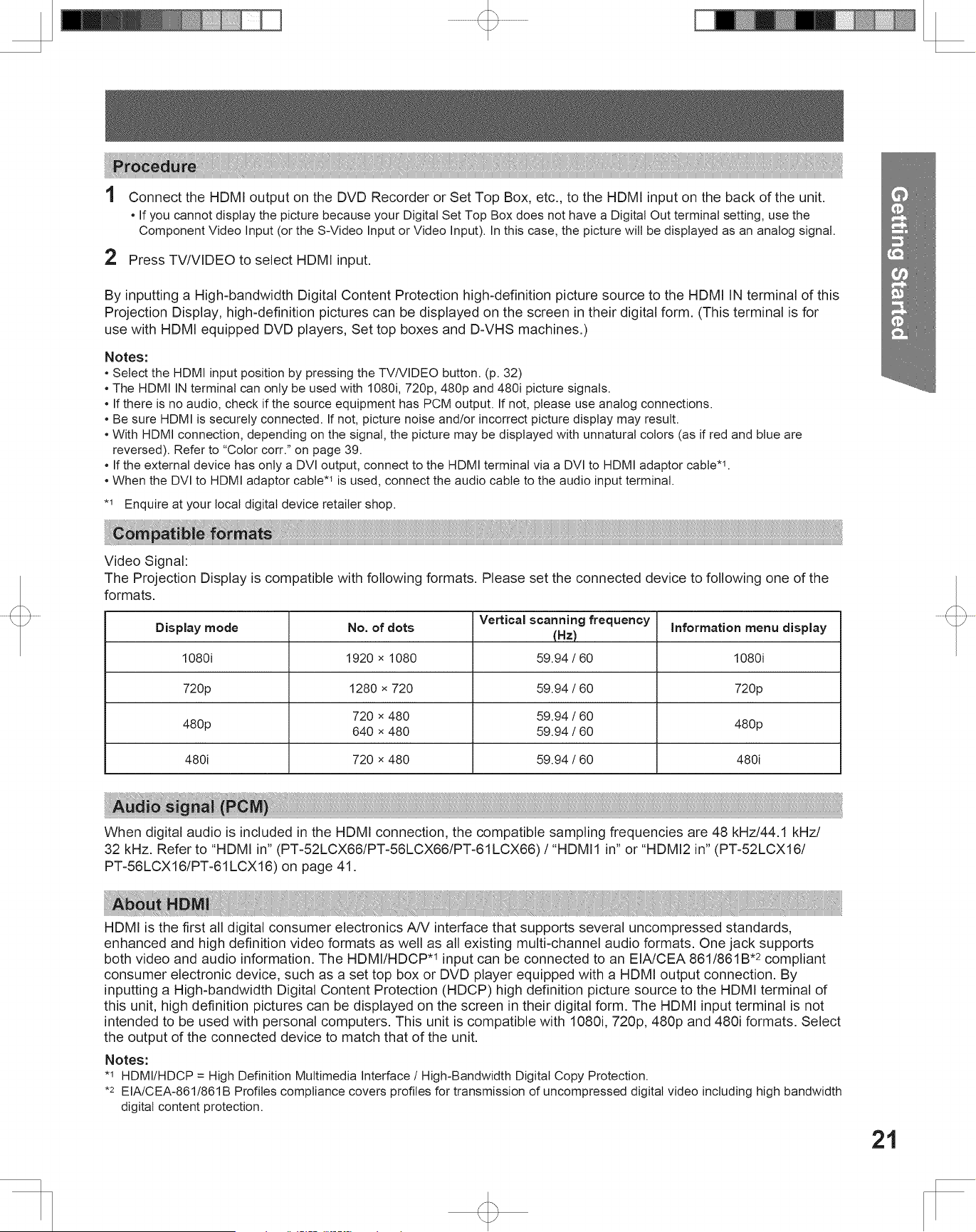
Connecting this unit to a DVD recorder and AV amp
When using an “Control with HDMI” audio-video amplifier and a compatible DIGA recorder, use a daisy chain
connection as shown below.
• One AV amp and one DIGA can be operated with this unit.
• Be sure to connect the AV amp between this unit and the DIGA.
• Always connect to the HDMI1 terminal (For models PT-52LCX16/PT-56LCX16/PT-61LCX16).
Setting this unit after connections
After making connections as shown above, set “Ctrl with HDMI” (under “Other adjust”) first to “Off” and then “On”
using the Setup Menu. (p. 56)
Notes:
• Individual HDMI devices may require additional menu settings specific to each model. Please refer to their respective operating
instruction manuals.
• When audio from other equipment connected to this unit via HDMI is output using “DIGITAL AUDIO OUT” of this unit, the system
switches to 2CH audio.
(When connected to an AV amp via HDMI, you will enjoy higher sound quality.)
(Current as of March 2006)
• We recommend using Panasonic HDMI cables RP-CDHG15 (1.5 m), RP-CDHG30 (3.0 m), RP-CDHG50 (5.0 m), etc. (Product
numbers correct as of January 2006.)
HDMI OUT HDMI IN HDMI OUT
OPTICAL
(Panasonic AV amp)
HDMI
Optic fiber
DIGA
(Panasonic DVD Recorder)
21
Getting Start ed
By inputting a High-bandwidth Digital Content Protection high-definition picture source to the HDMI IN terminal of this
Projection Display, high-definition pictures can be displayed on the screen in their digital form. (This terminal is for
use with HDMI equipped DVD players, Set top boxes and D-VHS machines.)
Notes:
• Select the HDMI input position by pressing the TV/VIDEO button. (p. 32)
• The HDMI IN terminal can only be used with 1080i, 720p, 480p and 480i picture signals.
• If there is no audio, check if the source equipment has PCM output. If not, please use analog connections.
• Be sure HDMI is securely connected. If not, picture noise and/or incorrect picture display may result.
• With HDMI connection, depending on the signal, the picture may be displayed with unnatural colors (as if red and blue are
reversed). Refer to “Color corr.” on page 39.
• If the external device has only a DVI output, connect to the HDMI terminal via a DVI to HDMI adaptor cable*
1
.
• When the DVI to HDMI adaptor cable*
1
is used, connect the audio cable to the audio input terminal.
Procedure
When digital audio is included in the HDMI connection, the compatible sampling frequencies are 48 kHz/44.1 kHz/
32 kHz. Refer to “HDMI in” (PT-52LCX66/PT-56LCX66/PT-61LCX66) / “HDMI1 in” or “HDMI2 in” (PT-52LCX16/
PT-56LCX16/PT-61LCX16) on page 41.
Video Signal:
The Projection Display is compatible with following formats. Please set the connected device to following one of the
formats.
Display mode No. of dots
Vertical scanning frequency
(Hz)
Information menu display
1080i 1920 × 1080 59.94 / 60 1080i
720p 1280 × 720 59.94 / 60 720p
480p
720 × 480
640 × 480
59.94 / 60
59.94 / 60
480p
480i 720 × 480 59.94 / 60 480i
• If you cannot display the picture because your Digital Set Top Box does not have a Digital Out terminal setting, use the
Component Video Input (or the S-Video Input or Video Input). In this case, the picture will be displayed as an analog signal.
2 Press TV/VIDEO to select HDMI input.
1 Connect the HDMI output on the DVD Recorder or Set Top Box, etc., to the HDMI input on the back of the unit.
Compatible formats
Audio signal ( PCM)
*
1
Enquire at your local digital device retailer shop.
HDMI is the first all digital consumer electronics A/V interface that supports several uncompressed standards,
enhanced and high definition video formats as well as all existing multi-channel audio formats. One jack supports
both video and audio information. The HDMI/HDCP*
1
input can be connected to an EIA/CEA 861/861B*
2
compliant
consumer electronic device, such as a set top box or DVD player equipped with a HDMI output connection. By
inputting a High-bandwidth Digital Content Protection (HDCP) high definition picture source to the HDMI terminal of
this unit, high definition pictures can be displayed on the screen in their digital form. The HDMI input terminal is not
intended to be used with personal computers. This unit is compatible with 1080i, 720p, 480p and 480i formats. Select
the output of the connected device to match that of the unit.
About HDMI
Notes:
*
1
HDMI/HDCP = High Definition Multimedia Interface / High-Bandwidth Digital Copy Protection.
*
2
EIA/CEA-861/861B Profiles compliance covers profiles for transmission of uncompressed digital video including high bandwidth
digital content protection.
For assistance, please call : 1-888-VIEW PTV(843-9788) or, contact us via the web at: http://www.panasonic.com/contactinfo
22
Installation (continued)
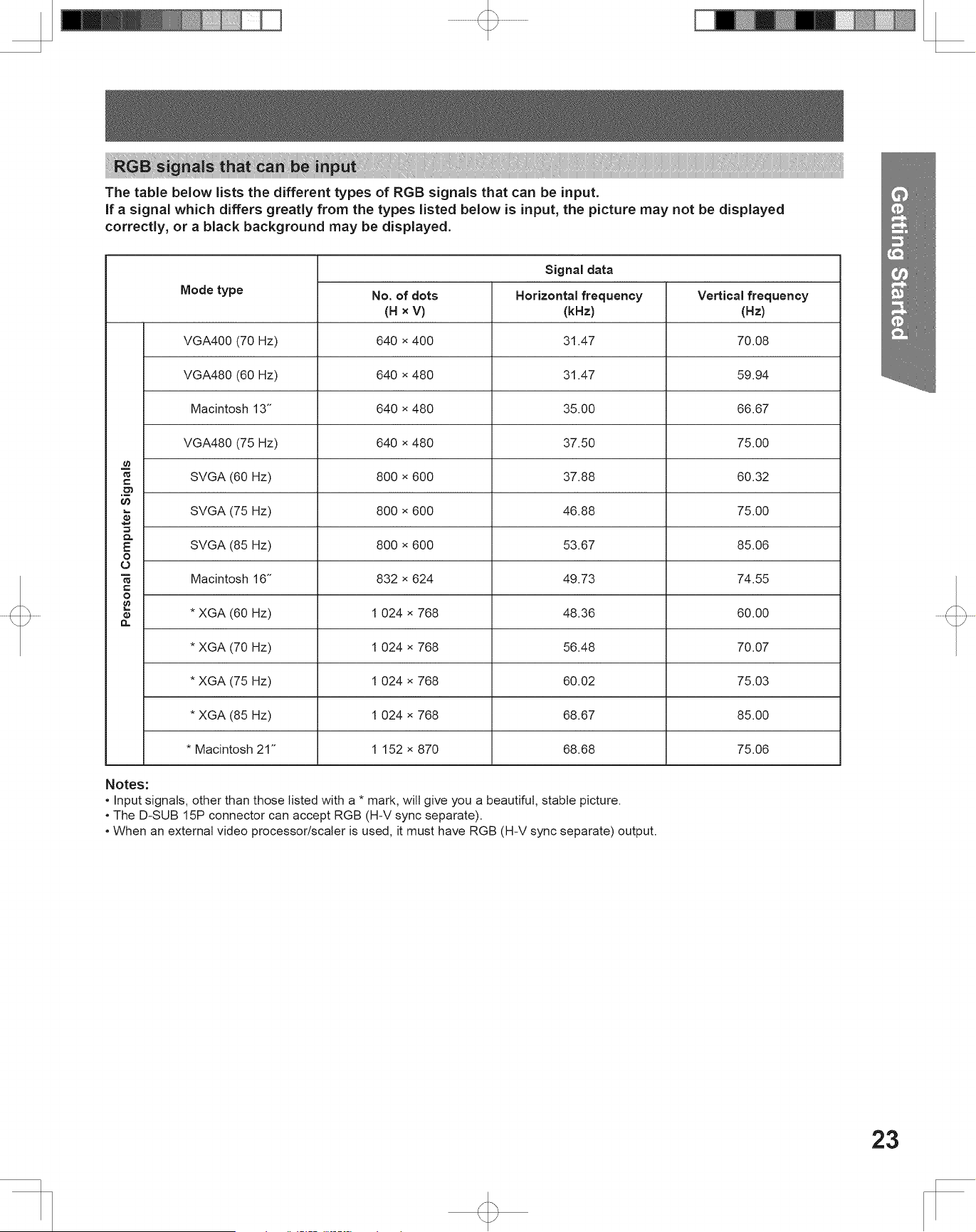
How to connect the PC IN Terminals
Notes:
• Some PC models cannot be connected to the set. A conversion adapter is required to use the RGB cable (D-SUB 15P) (Not
included) to connect a Macintosh computer to the set. There is no need to use an adapter for computers with PC / AT compatible
D-SUB 15P terminal.
• The computer shown in the illustration is for example purposes only. Additional equipment and cables shown are not supplied
with this set.
• Do not set the horizontal and vertical scanning frequencies for PC signals which are above or below the specified frequency
range.
• Select the desired PC input position by pressing the TV/VIDEO button. (p. 32)
Pin No. Signal name
1R
2G
3B
4NC
5NC
6 Ground for R
7 Ground for G
8 Ground for B
1
678
3
9
45
10
15 14 13 12 11
2
NC: Not connected
Pin No. Signal name
9NC
10 Ground
11 NC
12 NC
13 HD/CSYNC
14 VD
15 NC
PC IN Terminal (D-SUB 15P) Pin Layouts
Connection port view
Connecting a PC to PC IN
RGB OUT
AUDIO OUT
COMPUTER
PC audio cable
(M3 stereo mini pin)
Connect a cable which matches the audio
output terminal on the computer.
Conversion adaptor
(If necessary)
RGB cable (D-SUB 15P) (Not included)
23
Getting Start ed
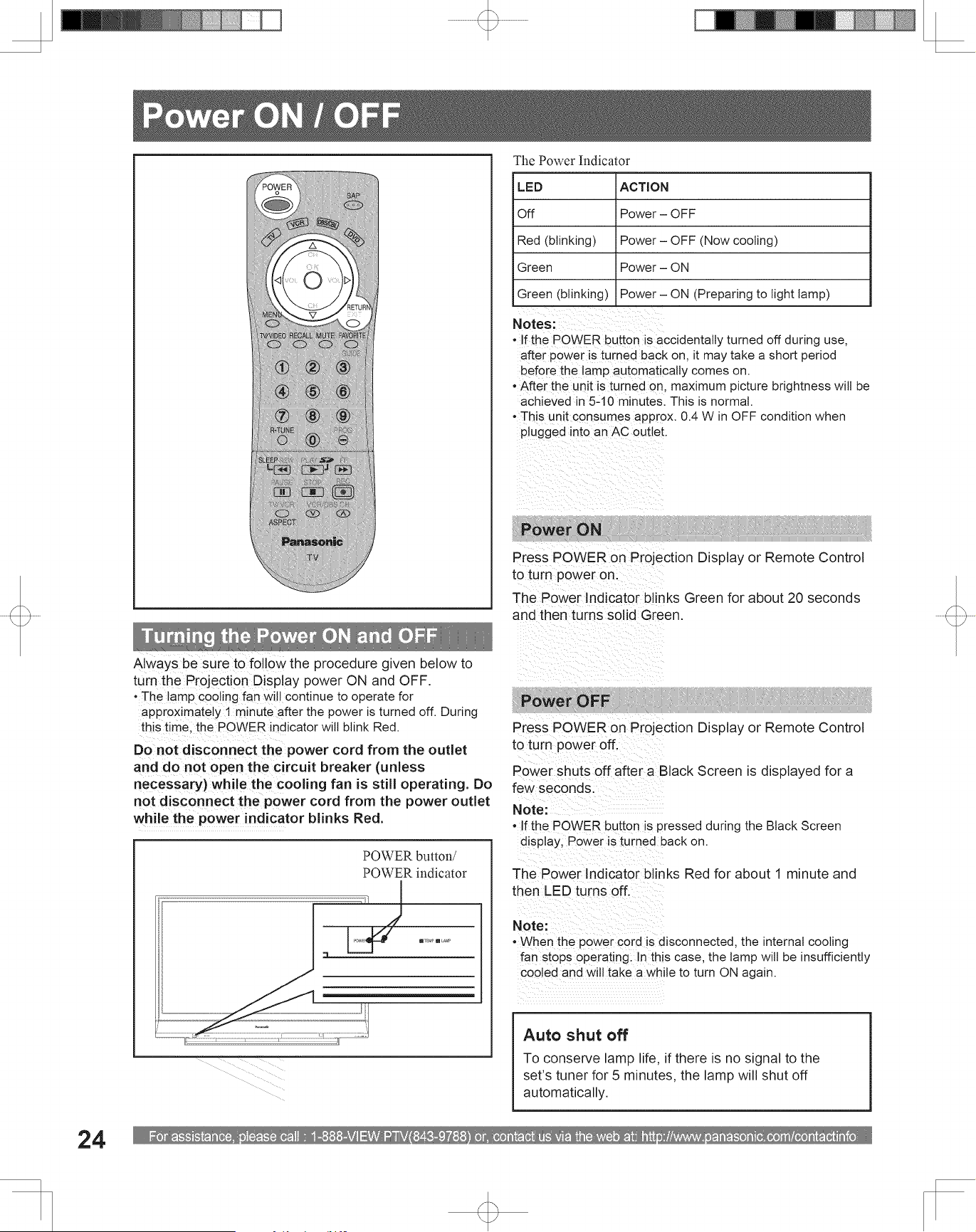
RGB signals that can be input
The table below lists the different types of RGB signals that can be input.
If a signal which differs greatly from the types listed below is input, the picture may not be displayed
correctly, or a black background may be displayed.
Notes:
• Input signals, other than those listed with a * mark, will give you a beautiful, stable picture.
• The D-SUB 15P connector can accept RGB (H-V sync separate).
• When an external video processor/scaler is used, it must have RGB (H-V sync separate) output.
Mode type
Signal data
No. of dots
(H × V)
Horizontal frequency
(kHz)
Vertical frequency
(Hz)
Personal Computer Signals
VGA400 (70 Hz) 640 × 400 31.47 70.08
VGA480 (60 Hz) 640 × 480 31.47 59.94
Macintosh 13˝ 640 × 480 35.00 66.67
VGA480 (75 Hz) 640 × 480 37.50 75.00
SVGA (60 Hz) 800 × 600 37.88 60.32
SVGA (75 Hz) 800 × 600 46.88 75.00
SVGA (85 Hz) 800 × 600 53.67 85.06
Macintosh 16˝ 832 × 624 49.73 74.55
* XGA (60 Hz) 1 024 × 768 48.36 60.00
* XGA (70 Hz) 1 024 × 768 56.48 70.07
* XGA (75 Hz) 1 024 × 768 60.02 75.03
* XGA (85 Hz) 1 024 × 768 68.67 85.00
* Macintosh 21˝ 1 152 × 870 68.68 75.06
For assistance, please call : 1-888-VIEW PTV(843-9788) or, contact us via the web at: http://www.panasonic.com/contactinfo
24
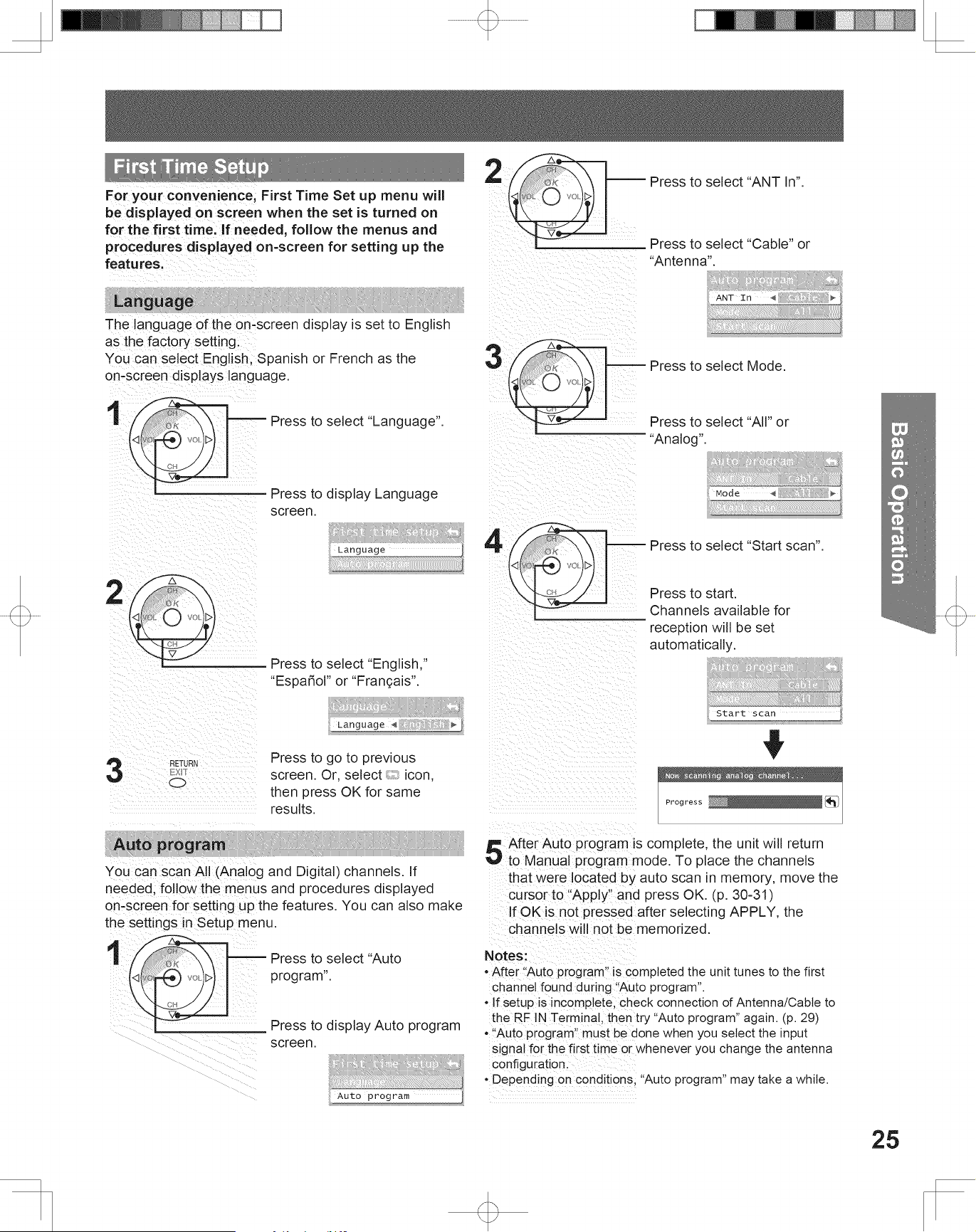
Always be sure to follow the procedure given below to
turn the Projection Display power ON and OFF.
• The lamp cooling fan will continue to operate for
approximately 1 minute after the power is turned off. During
this time, the POWER indicator will blink Red.
Press POWER on Projection Display or Remote Control
to turn power on.
The Power Indicator blinks Green for about 20 seconds
and then turns solid Green.
The Power Indicator
Notes:
• If the POWER button is accidentally turned off during use,
after power is turned back on, it may take a short period
before the lamp automatically comes on.
• After the unit is turned on, maximum picture brightness will be
achieved in 5-10 minutes. This is normal.
• This unit consumes approx. 0.4 W in OFF condition when
plugged into an AC outlet.
Press POWER on Projection Display or Remote Control
to turn power off.
Note:
• When the power cord is disconnected, the internal cooling
fan stops op er at ing. In this case, the lamp will be insufficiently
cooled and will take a while to turn ON again.
Power ON
Power OFF
The Power Indicator blinks Red for about 1 minute and
then LED turns off.
Turning the Power ON and OFF
LED ACTION
Off Power – OFF
Red (blinking) Power – OFF (Now cooling)
Green Power – ON
Green (blinking) Power – ON (Preparing to light lamp)
Power shuts off after a Black Screen is displayed for a
few seconds.
Note:
• If the POWER button is pressed during the Black Screen
display, Power is turned back on.
Do not disconnect the power cord from the outlet
and do not open the circuit breaker (unless
necessary) while the cooling fan is still operating. Do
not disconnect the power cord from the power outlet
while the power indicator blinks Red.
Power ON / OFF
Auto shut off
To conserve lamp life, if there is no signal to the
set’s tuner for 5 minutes, the lamp will shut off
automatically.
POWER button/
POWER indicator
25
Basic Operation
For your convenience, First Time Set up menu will
be displayed on screen when the set is turned on
for the first time. If needed, follow the menus and
procedures displayed on-screen for setting up the
features.
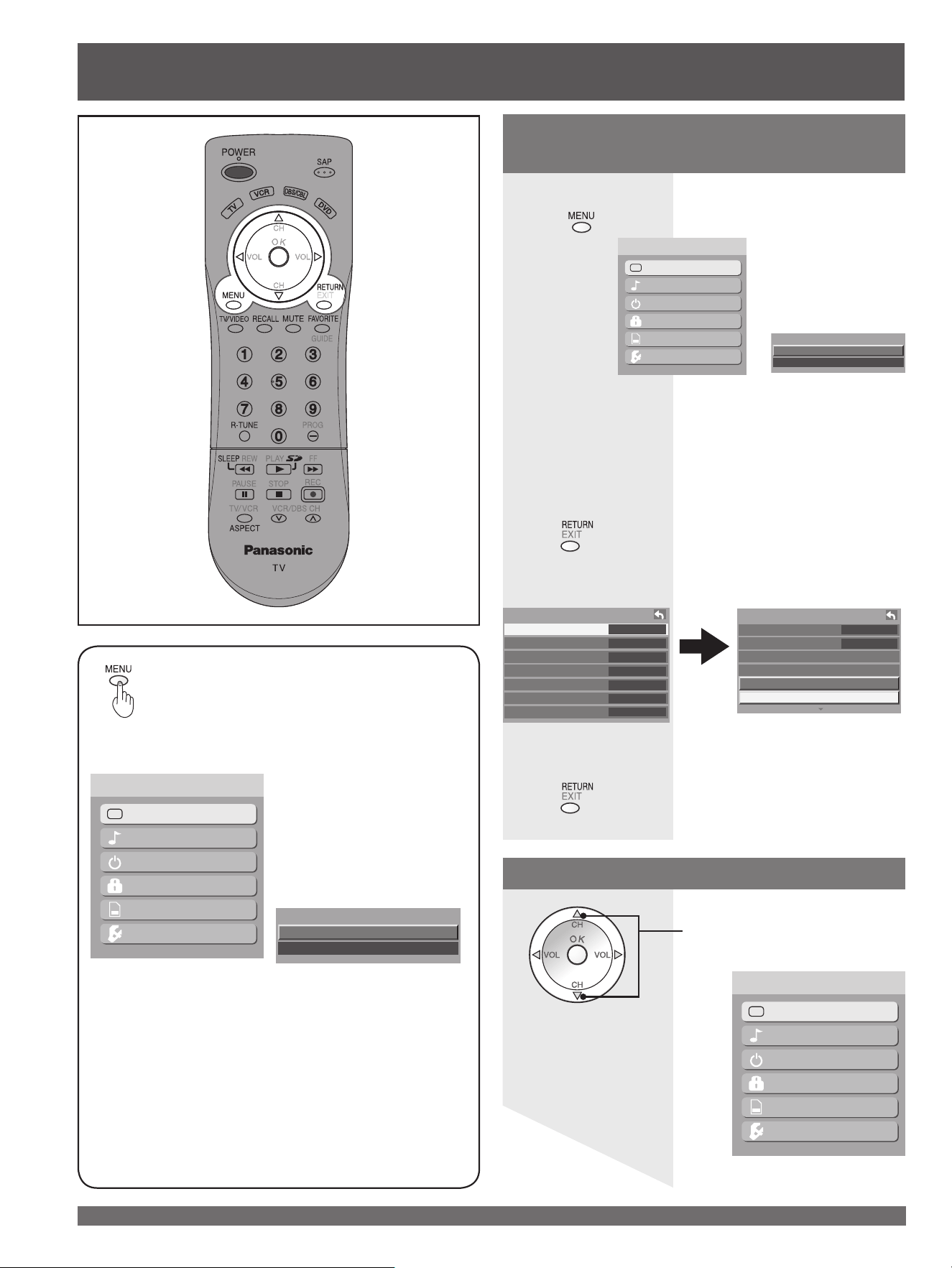
Auto program
You can scan All (Analog and Digital) channels. If
needed, follow the menus and procedures displayed
on-screen for setting up the features. You can also make
the settings in Setup menu.
Notes:
• After “Auto program” is completed the unit tunes to the first
channel found during “Auto program”.
• If setup is incomplete, check connection of Antenna/Cable to
the RF IN Terminal, then try “Auto program” again. (p. 29)
• “Auto program” must be done when you select the input
signal for the first time or whenever you change the antenna
configuration.
• Depending on conditions, “Auto program” may take a while.
First Time Setup
Language
The language of the on-screen display is set to English
as the factory setting.
You can select English, Spanish or French as the
on-screen displays language.
Press to select “Language”.
Language ◄ English ►
Language
Press to display Language
screen.
1
Press to select “English,”
“Español” or “Français”.
2
3
Press to go to previous
screen. Or, select icon,
then press OK for same
results.
ANT In ◄ Cable ►
Mode All
Start scan
Auto program
Press to select “ANT In”.
Press to select “Cable” or
“Antenna”.
2
Press to select Mode.
Press to select “All” or
“Analog”.
3
ANT In Cable
Mode ◄ All ►
Start scan
Auto program
4
Press to select “Start scan”.
Press to start.
Channels available for
reception will be set
automatically.
ANT In Cable
Mode All
Start scan
Auto program
Now scanning analog channel...
Progress
5
After Auto program is complete, the unit will return
to Manual program mode. To place the channels
that were located by auto scan in memory, move the
cursor to “Apply” and press OK. (p. 30-31)
If OK is not pressed after selecting APPLY, the
channels will not be memorized.
Language
Auto program
First time setup
Press to select “Auto
program”.
Press to display Auto program
screen.
1
Language
Auto program
First time setup
For assistance, please call : 1-888-VIEW PTV(843-9788) or, contact us via the web at: http://www.panasonic.com/contactinfo
26
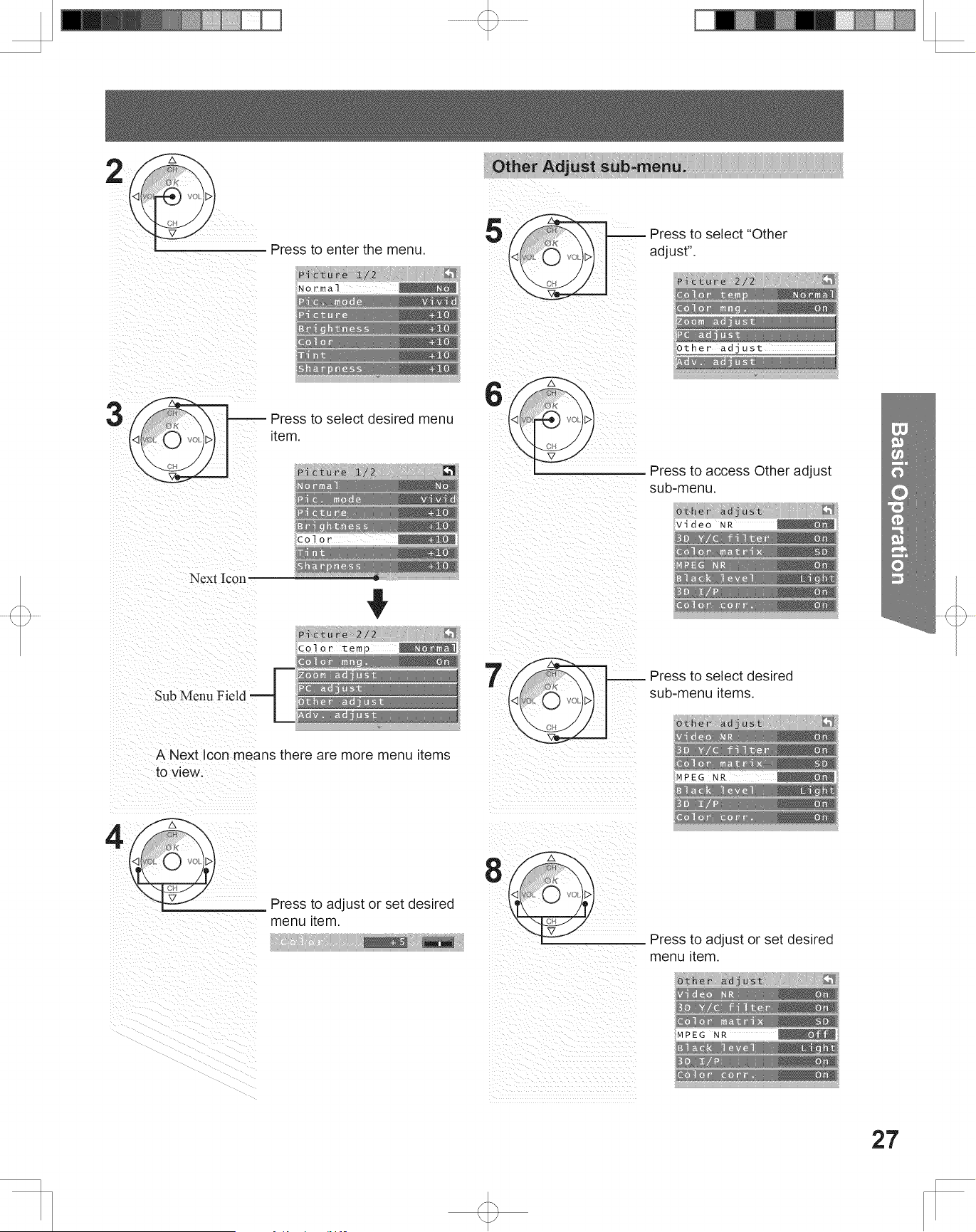
Pressing MENU displays the Main
Menu screen.
Press to select the desired
icon.
Press to return to previous level menu.
Press
Press to display Main menu.
Picture
Audio
Timer
Lock
Memory card
Setup
Menu
Picture 2/2
Color temp Normal
Color mng. On
Zoom adjust
PC adjust
Other adjust
Adv. adjust
Example:
If RETURN is pressed from Adv. adjust Menu:
Adv. adjust
Normal No
Dynamic iris On
Gamma adj. Full
Blk. extension +10
R level +10
G level +10
B level +10
Picture
Audio
Timer
Lock
Memory card
Setup
Menu
Button operation during
Menu display (Menu navigation)
to exit menu.
Basic Menu Navigation
Example of a procedure
Depending on the signal being input, some
items may or may not be adjustable and some
functions may or may not be available.
Note:
• While Main Menu (only) is displayed, pressing MENU will exit
the menu screen.
Picture
Audio
Timer
Lock
Memory card
Setup
Menu
Return to normal picture.
Return to previous level menu.
Return to Main Menu.
1
Menu
Picture
Audio
(PC input menu)
Menu
Picture
Audio
(PC input menu)
27
Basic Operation
Picture 1/2
Normal No
Pic. mode Vivid
Picture +10
Brightness +10
Color +10
Tint +10
Sharpness +10
Picture 1/2
Normal No
Pic. mode Vivid
Picture +10
Brightness +10
Color +10
Tint +10
Sharpness +10
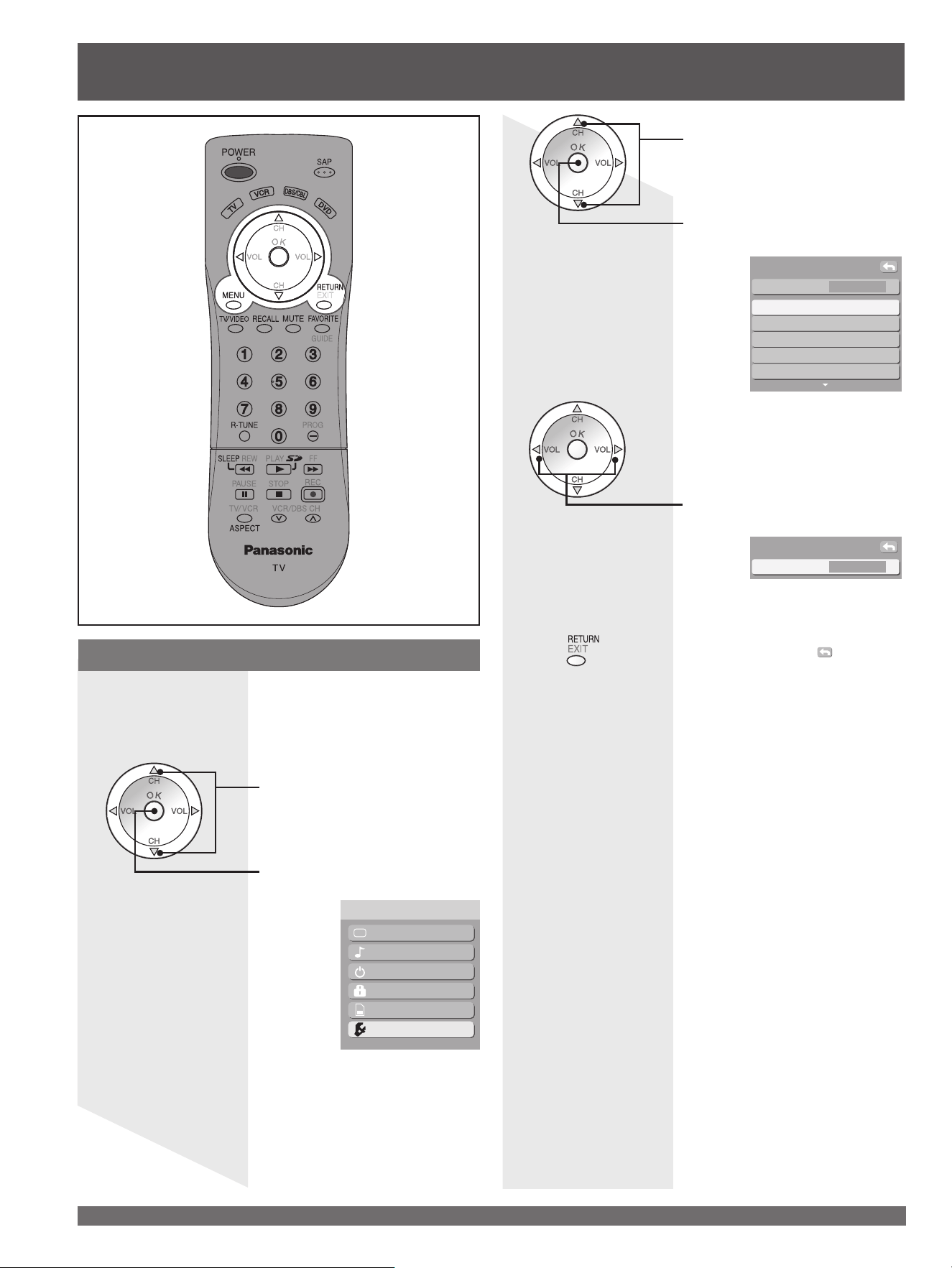
Press to enter the menu.
Press to select desired menu
item.
Press to adjust or set desired
menu item.
Other Adjust sub-menu.
Press to select “Other
adjust”.
Press to access Other adjust
sub-menu.
Press to select desired
sub-menu items.
Press to adjust or set desired
menu item.
Color +5
Sub Menu Field
Next Icon
Other adjust
Video NR On
3D Y/C filter On
Color matrix SD
MPEG NR On
Black level Light
3D I/P On
Color corr. On
Other adjust
Video NR On
3D Y/C filter On
Color matrix SD
MPEG NR On
Black level Light
3D I/P On
Color corr. On
Other adjust
Video NR On
3D Y/C filter On
Color matrix SD
MPEG NR Off
Black level Light
3D I/P On
Color corr. On
Picture 2/2
Color temp Normal
Color mng. On
Zoom adjust
PC adjust
Other adjust
Adv. adjust
Picture 2/2
Color temp
Normal
Color mng. On
Zoom adjust
PC adjust
Other adjust
Adv. adjust
A Next Icon means there are more menu items
to view.
2
3
4
5
6
7
8
For assistance, please call : 1-888-VIEW PTV(843-9788) or, contact us via the web at: http://www.panasonic.com/contactinfo
28
Tuning channels
Switching languages for display
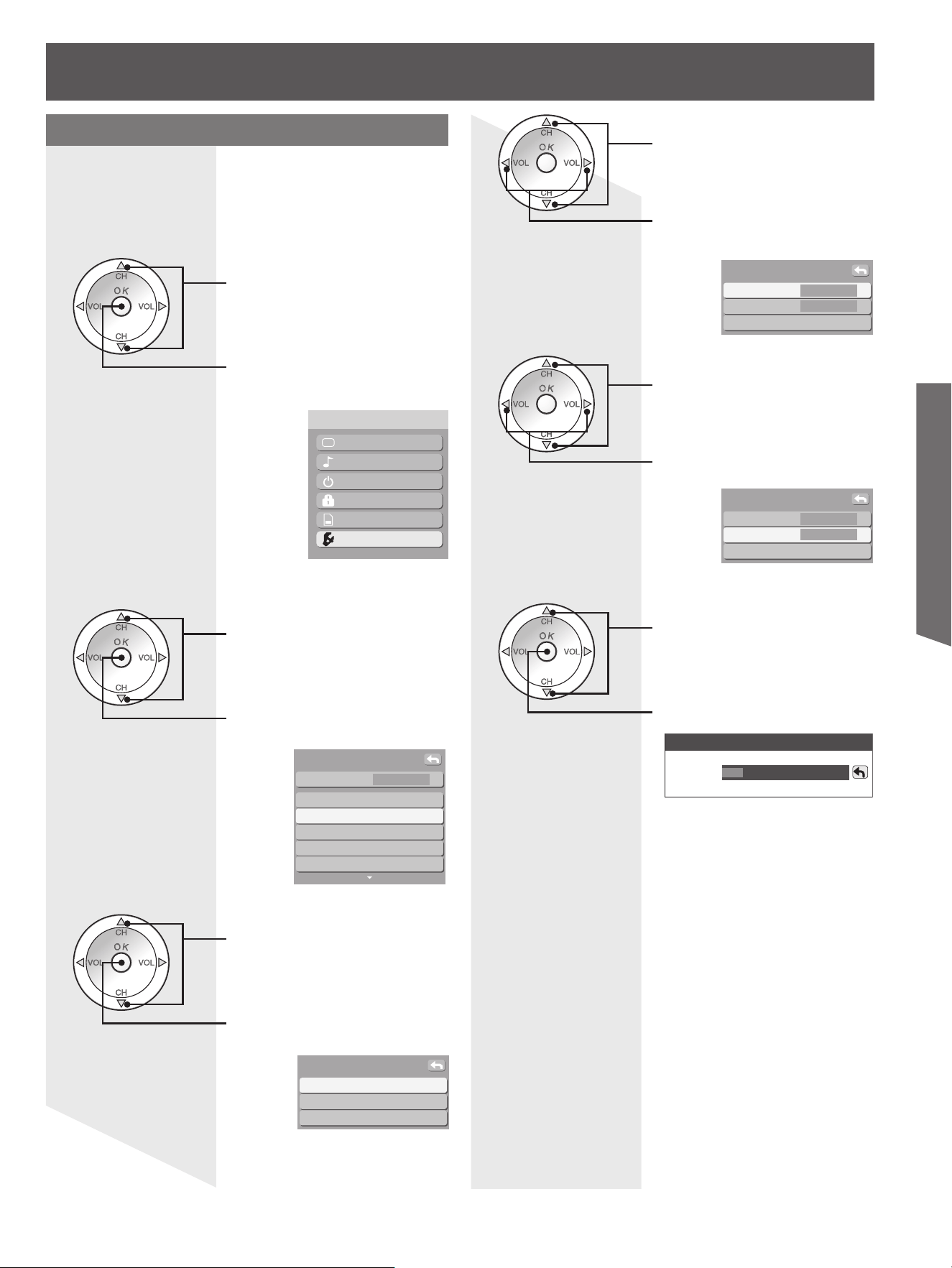
Allows you to select the language used for On
Screen Displays.
Press MENU to display the Main Menu screen.
Press to select “Setup” icon.
Press to display the Setup
menu.
1
Picture
Audio
Timer
Lock
Memory card
Setup
Menu
CH scan All
Language
Program channel
Input labels
CC
Other adjust
Setup
Language ◄ English ►
Language
Press to select “Language”.
Press to display Language
screen.
2
3
Press to select “English,”
“Español” or “Français”.
4
Press to go to previous
screen. Or, select icon,
then press OK for same
results.
29
Basic Operation
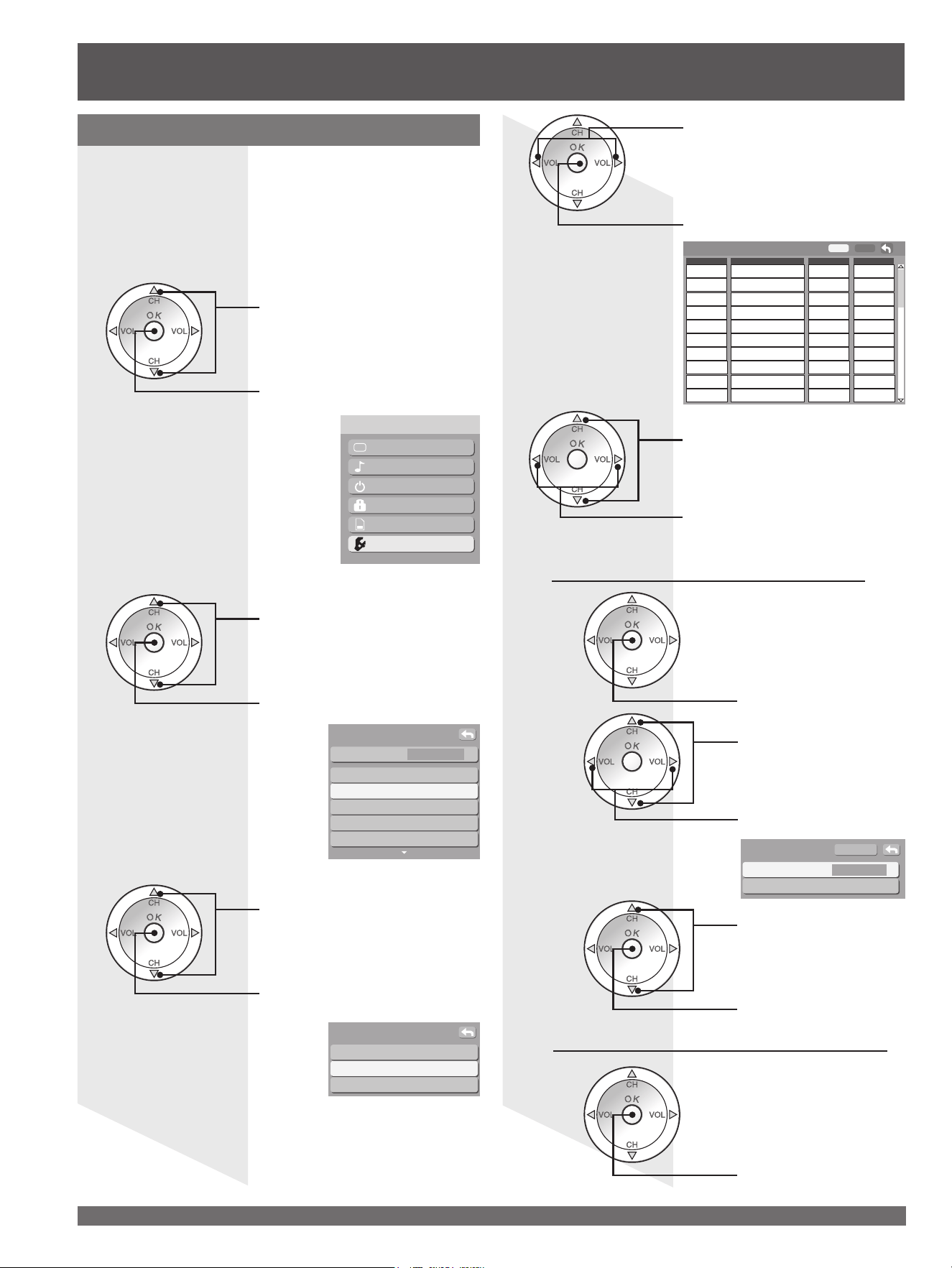
Automatically searches and adds receivable
channels to memory.
Press MENU to display the Main Menu screen.
Press to select “Setup” icon.
Press to display the Setup
menu.
Press to display the Program
channel menu.
Press to select “Program
channel”.
Press to select “Auto”.
1
Automatic program setting
2
3
Press to enter the Auto menu.
Notes:
• Some channels with very weak signals may be locked into
memory. If desired, these channels can be deleted man u al ly
using the “Manual program setting”. (p. 30)
• “Auto program” must be done when you select the input
signal for the first time or whenever you change the antenna
configuration.
Press to select “ANT In”.
4
Press to select “Antenna” or
“Cable”.
Press to select “Mode”.
5
Press to select “All” or
“Analog”.
Press to start Scan.
Press to select “Start scan”.
6
Picture
Audio
Timer
Lock
Memory card
Setup
Menu
Now scanning analog channel...
Progress
CH scan All
Language
Program channel
Input labels
CC
Other adjust
Setup
Auto
Manual
Signal meter
Program channel
ANT In ◄ Cable ►
Mode All
Start scan
Auto program
ANT In Cable
Mode ◄ All ►
Start scan
Auto program
7
After Auto program is complete, the unit will return
to Manual program mode. To place the channels
that were located by auto scan in memory, move the
cursor to “Apply” and press OK. (p. 30-31)
If OK is not pressed after selecting APPLY, the
channels will not be memorized.
For assistance, please call : 1-888-VIEW PTV(843-9788) or, contact us via the web at: http://www.panasonic.com/contactinfo
30
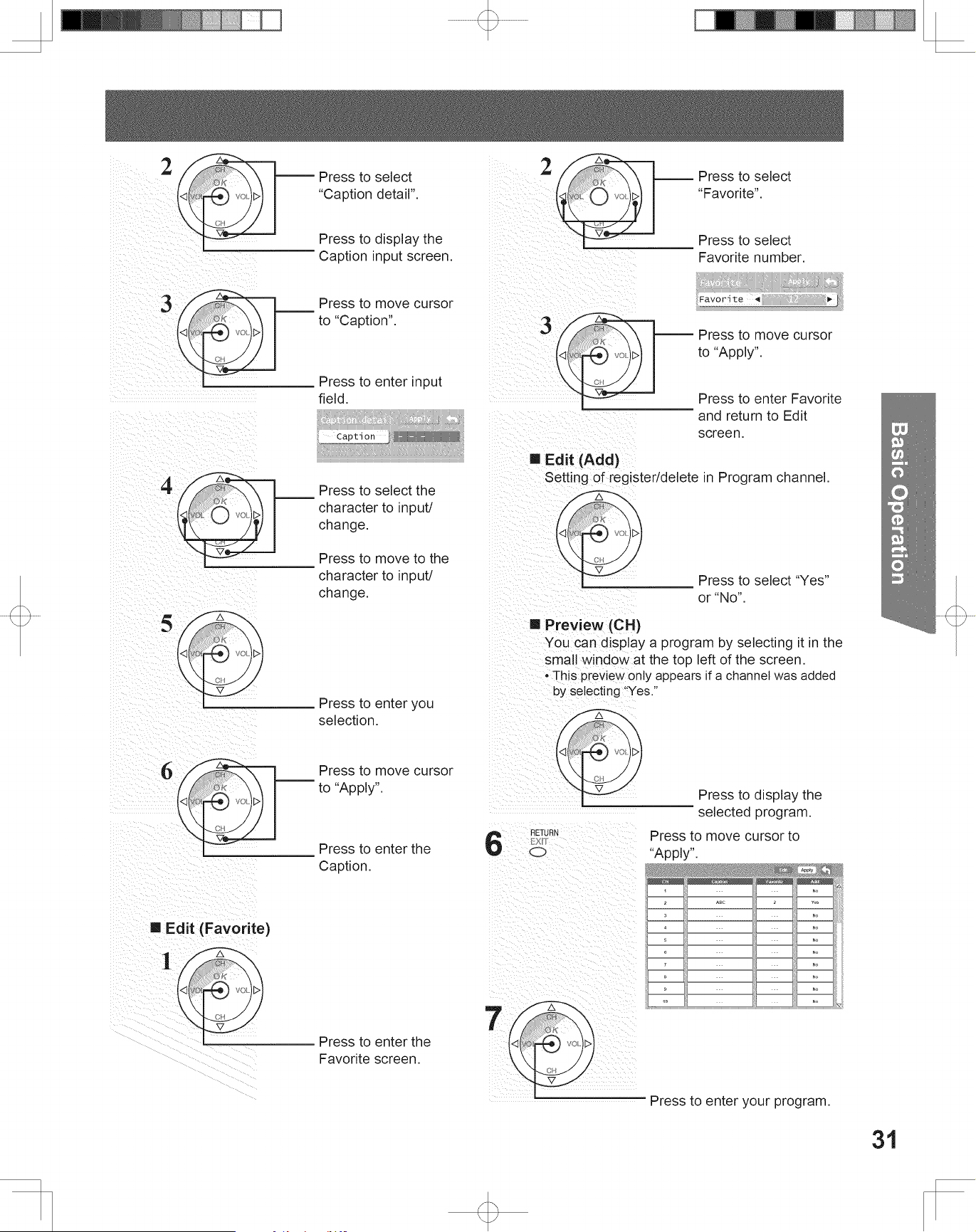
Use this procedure when changing setting of
receiving channels or changing the channel dis play.
Also, use to add or delete channels from channel list
manually.
Manual program setting
Press MENU to display the Main Menu screen.
Press to select “Setup” icon.
Press to display the Setup
menu.
Press to select “Manual”.
1
2
3
Press to enter the Manual
program screen.
Picture
Audio
Timer
Lock
Memory card
Setup
Menu
Auto
Manual
Signal meter
Program channel
Press to display the Program
channel menu.
Press to select “Program
channel”.
CH scan All
Language
Program channel
Input labels
CC
Other adjust
Setup
Edit
CH
1
2
3
4
5
6
7
8
9
10
- - -
- - -
- - -
- - -
- - -
- - -
- - -
- - -
- - -
- - -
- - -
- - -
- - -
- - -
- - -
- - -
- - -
- - -
No
- - - - - - No
No
No
No
No
No
No
No
No
Captio
n Favorite Add
Apply
Press to select “Edit”.
Press to enter the edit mode.
Press to select the desired
preset channel line.
Press to select edit area.
“CH,” “Caption,” “Favorite,”
“Add”.
4
5
Tuning channels (continued)
Note:
• If Lock (p. 43) has been set, you must enter your password to
display the Manual Program screen.
Edit (Caption)
Press to select
“Preset”.
Press to select
Broadcast station.
Caption select
Apply
Preset ◄ --- ►
Caption detail
2
Press to enter the
Caption select screen.
1
Press to move cursor
to “Apply”.
Press to enter the
Caption.
3
Press to enter the
Caption select screen.
1
When a preset Caption has been entered.
When selecting a desired Caption manually.
31
Basic Operation
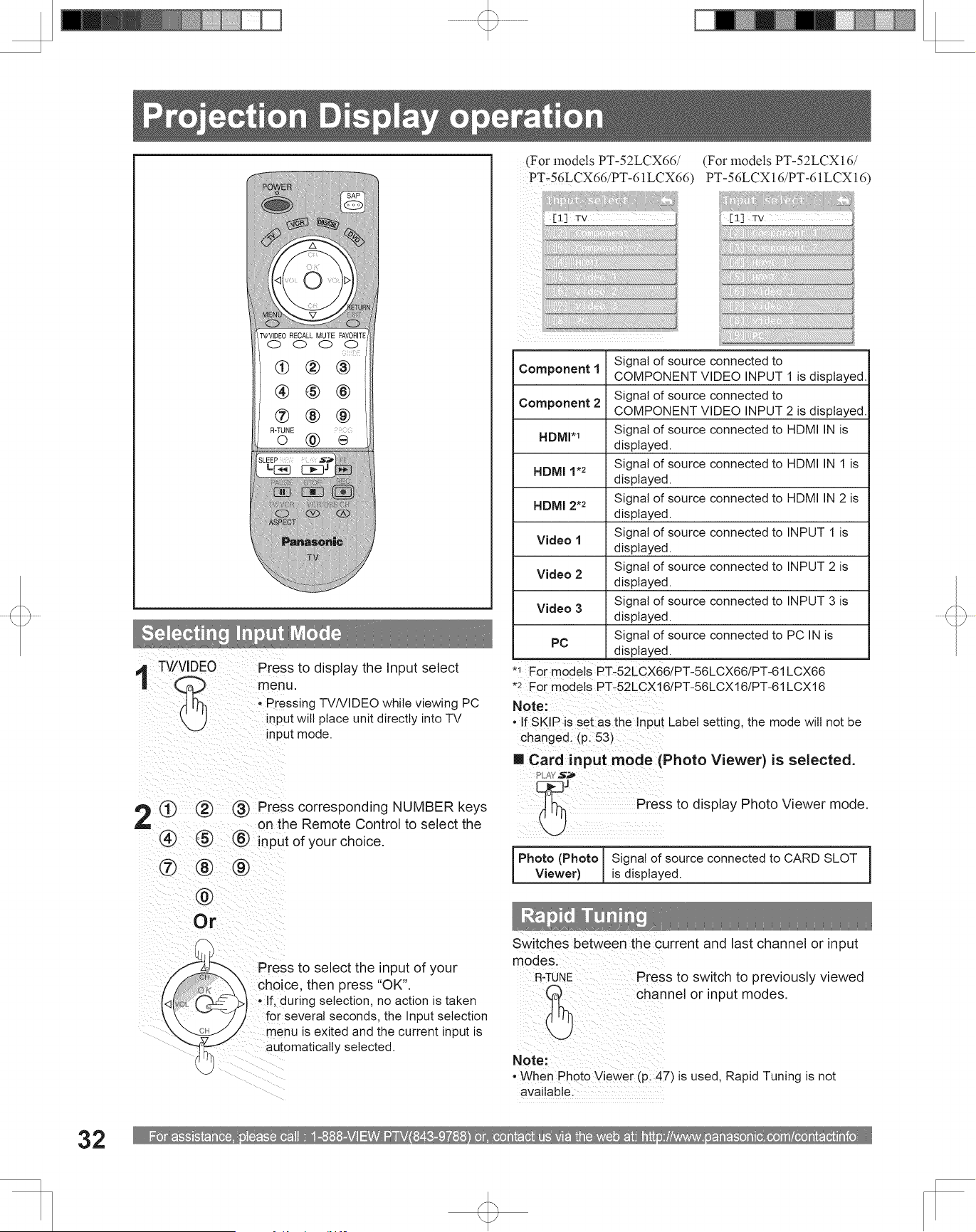
Edit (Add)
Setting of register/delete in Program channel.
Press to select
“Caption detail”.
Press to display the
Caption input screen.
Press to move cursor
to “Caption”.
Press to enter input
field.
Press to select the
character to input/
change.
Press to move to the
character to input/
change.
Caption detail
Apply
Caption - - -
Press to move cursor
to “Apply”.
Press to enter Favorite
and return to Edit
screen.
Press to select “Yes”
or “No”.
Preview (CH)
You can display a program by selecting it in the
small window at the top left of the screen.
• This preview only appears if a channel was added
by selecting “Yes.”
Press to enter you
selection.
Press to move cursor
to “Apply”.
Press to enter the
Caption.
Press to move cursor to
“Apply”.
Press to enter your program.
6
7
2
3
4
5
6
3
Edit (Favorite)
Press to select
“Favorite”.
Press to select
Favorite number.
Favorite
Apply
Favorite ◄ 12 ►
2
Press to display the
selected program.
Press to enter the
Favorite screen.
1
Edit
CH
1
2
3
4
5
6
7
8
9
10
- - -
- - -
- - -
- - -
- - -
- - -
- - -
- - -
- - -
- - -
- - -
- - -
- - -
- - -
- - -
- - -
- - -
- - -
No
ABC 2 Yes
No
No
No
No
No
No
No
No
Caption Favorite Add
Apply
For assistance, please call : 1-888-VIEW PTV(843-9788) or, contact us via the web at: http://www.panasonic.com/contactinfo
32
Or
1
2
Rapid Tuning
Press to switch to previously viewed
channel or input modes.
Projection Display operation
[1] TV
[2] Component 1
[3] Component 2
[4] HDMI
[5] Video 1
[6] Video 2
[7] Video 3
[8] PC
Input select
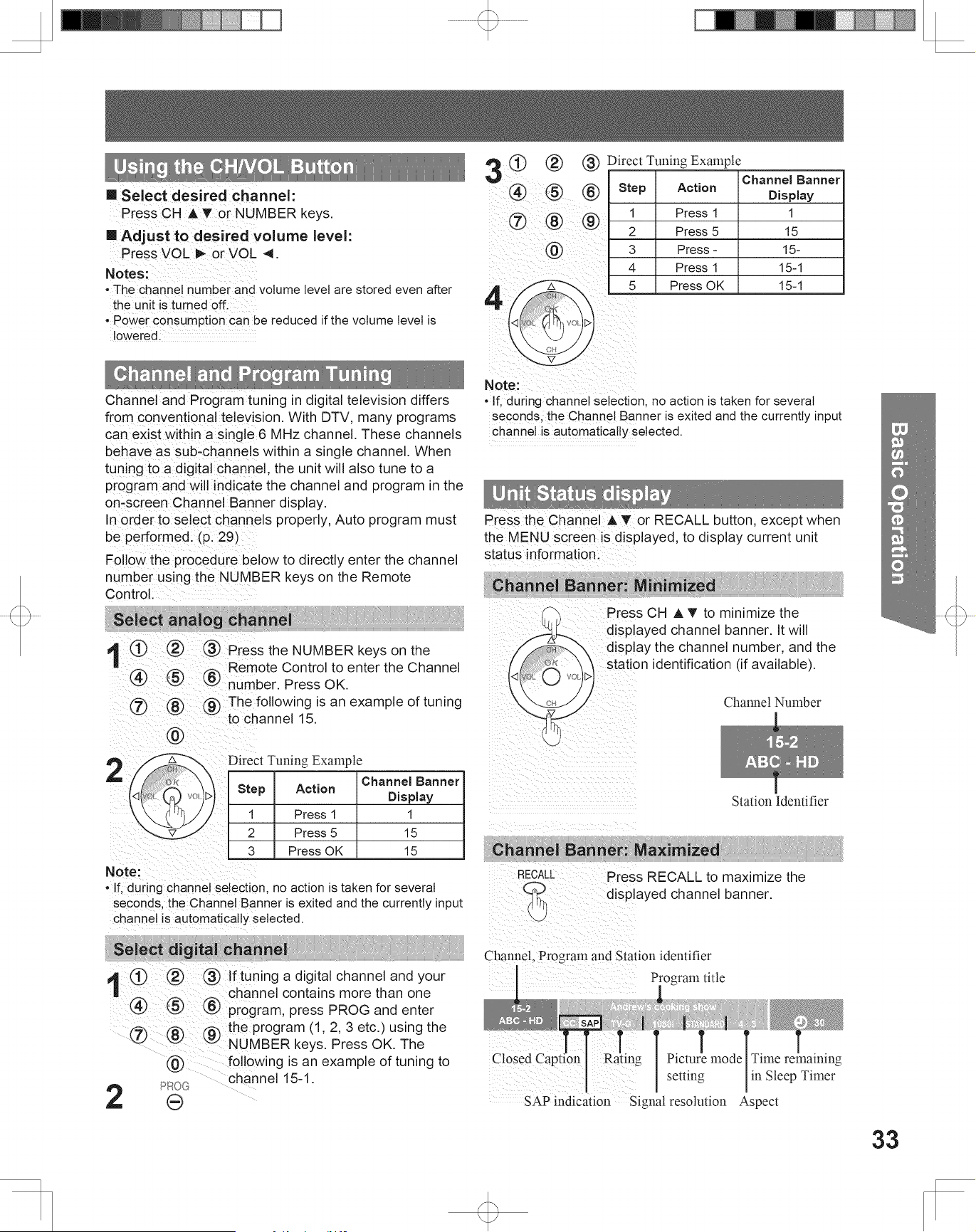
Selecting Input Mode
Press to display the Input select
menu.
Press corresponding NUMBER keys
on the Remote Control to select the
input of your choice.
Press to select the input of your
choice, then press “OK”.
• If, during selection, no action is taken
for several seconds, the Input selection
menu is exited and the current input is
automatically selected.
Component 1
Signal of source connected to
COMPONENT VIDEO INPUT 1 is displayed.
Component 2
Signal of source connected to
COMPONENT VIDEO INPUT 2 is displayed.
HDMI*
1
Signal of source connected to HDMI IN is
displayed.
HDMI 1*
2
Signal of source connected to HDMI IN 1 is
displayed.
HDMI 2*
2
Signal of source connected to HDMI IN 2 is
displayed.
Video 1
Signal of source connected to INPUT 1 is
displayed.
Video 2
Signal of source connected to INPUT 2 is
displayed.
Video 3
Signal of source connected to INPUT 3 is
displayed.
PC
Signal of source connected to PC IN is
displayed.
Photo (Photo
Viewer)
Signal of source connected to CARD SLOT
is displayed.
Card input mode (Photo Viewer) is selected.
Press to display Photo Viewer mode.
Note:
• If SKIP is set as the Input Label setting, the mode will not be
changed. (p. 53)
• Pressing TV/VIDEO while viewing PC
input will place unit directly into TV
input mode.
Switches between the current and last channel or input
modes.
Note:
• When Photo Viewer (p. 47) is used, Rapid Tuning is not
available.
[1] TV
[2] Component 1
[3] Component 2
[4] HDMI 1
[5] HDMI 2
[6] Video 1
[7] Video 2
[8] Video 3
[9] PC
Input select
(For models PT-52LCX66/
PT-56LCX66/PT-61LCX66)
(For models PT-52LCX16/
PT-56LCX16/PT-61LCX16)
*
1
For models PT-52LCX66/PT-56LCX66/PT-61LCX66
*
2
For models PT-52LCX16/PT-56LCX16/PT-61LCX16
33
Basic Operation
Channel and Program tuning in digital television differs
from conventional television. With DTV, many programs
can exist within a single 6 MHz channel. These channels
behave as sub-channels within a single channel. When
tuning to a digital channel, the unit will also tune to a
program and will indicate the channel and program in the
on-screen Channel Banner display.
In order to select channels properly, Auto program must
be performed. (p. 29)
Follow the procedure below to directly enter the channel
number using the NUMBER keys on the Remote
Control.
1
Press the
NUMBER keys on the
Remote Control to enter the Channel
number. Press OK.
The following is an example of tuning
to channel 15.
If tuning a digital channel and your
channel contains more than one
program, press PROG and enter
the program (1, 2, 3 etc.) using the
NUMBER keys. Press OK. The
following is an example of tuning to
channel 15-1.
Direct Tuning Example
Step Action
Channel Banner
Display
1 Press 1 1
2 Press 5 15
3 Press - 15-
4 Press 1 15-1
5 Press OK 15-1
Select analog channel
Select digital channel
2
4
3
Direct Tuning Example
Channel and Program Tuning
Step Action
Channel Banner
Display
1 Press 1 1
2 Press 5 15
3 Press OK 15
Unit Status display
Channel Banner: Minimized
Press CH ▲▼ to minimize the
displayed channel banner. It will
display the channel number, and the
station identification (if available).
Channel Banner: Maximized
Press RECALL to maximize the
displayed channel banner.
15-2
ABC - HD
Channel Number
Station Identifier
Closed Caption
Channel, Program and Station identifier
Press the Channel ▲▼ or RECALL button, except when
the MENU screen is dis played, to display current unit
status information.
15-2
ABC - HD
Andrew’s cooking show
1080i
TV-G
STANDARD
4 : 3
30
CC SAP
Program title
SAP indication
Rating
Signal resolution
Picture mode
setting
Aspect
Time remaining
in Sleep Timer
Notes:
• The channel number and volume level are stored even after
the unit is turned off.
• Power consumption can be reduced if the volume level is
lowered.
Using the CH/ VOL Button
Select desired channel:
Press CH ▲▼ or NUMBER keys.
Adjust to desired volume level:
Press VOL ► or VOL ◄.
Note:
• If, during channel selection, no action is taken for several
seconds, the Channel Banner is exited and the currently input
channel is automatically selected.
1
2
Note:
• If, during channel selection, no action is taken for several
seconds, the Channel Banner is exited and the currently input
channel is automatically selected.
For assistance, please call : 1-888-VIEW PTV(843-9788) or, contact us via the web at: http://www.panasonic.com/contactinfo
34
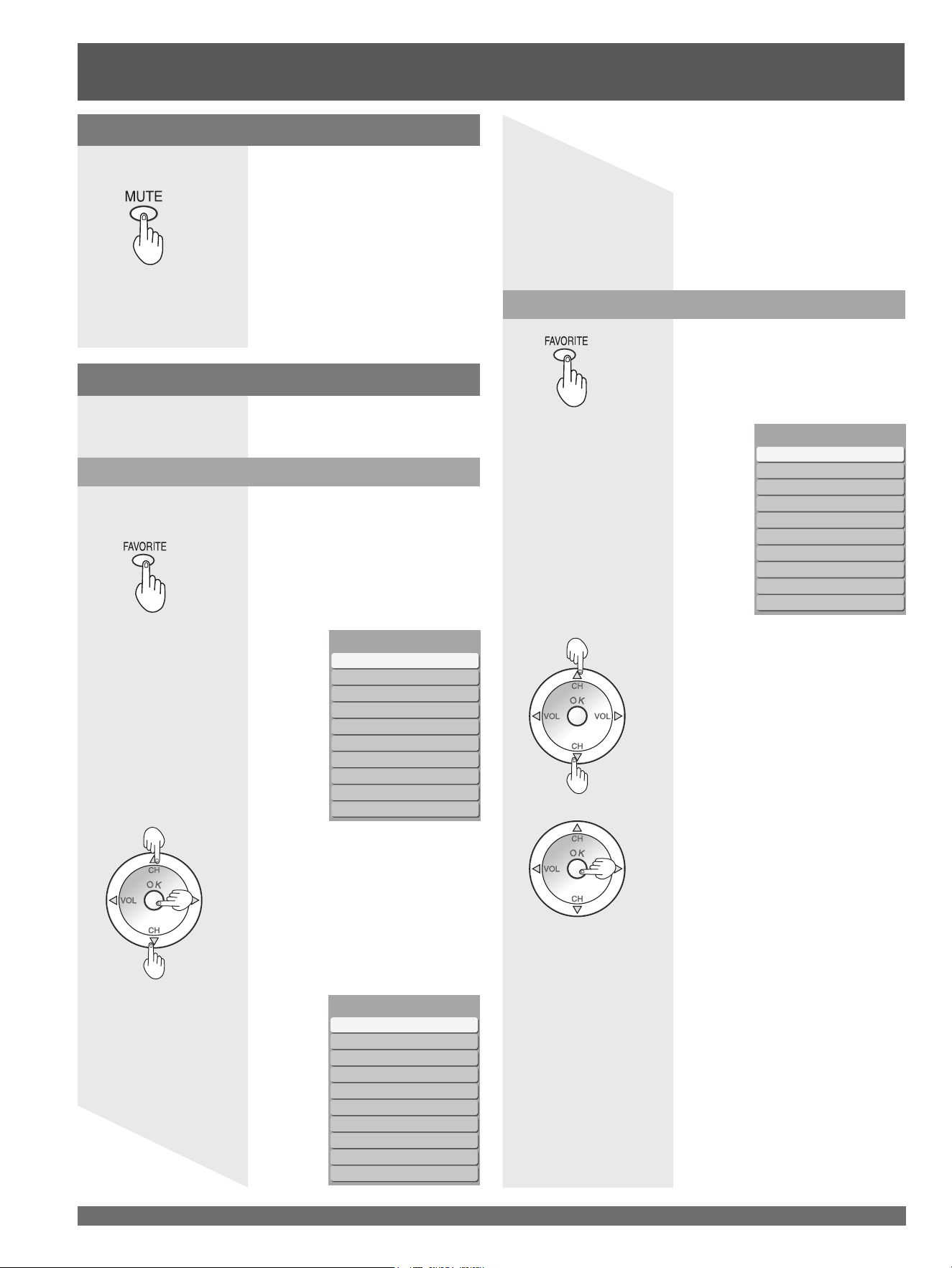
Press this button to mute the sound.
Press again to reactivate sound.
Sound is also reactivated when
power is turned off or volume level is
changed.
Audio Mute
Press MUTE to instantly mute the sound. Press again to
restore the previous sound level.
[1]
[2]
[3]
[4]
[5]
[6]
[7]
[8]
[9]
[0]
Favorite 1/3
[1]
[2]
[3]
[4]
[5]
[6]
[7]
[8]
[9]
[0]
Setting 1/3
[1] 26-1
[2]
[3]
[4]
[5]
[6]
[7]
[8]
[9]
[0]
Setting 1/3
Favorite Feature
This feature lets you add channels to or delete channels
from the Favorite channel list.
Use Favorite Feature
Set Favorite Feature
1
2
2
3
To delete a favorite channel
A memorized channel can be removed from the
list by holding down FAVORITE while it’s position
is highlighted.
1
Display the channel to be placed on the Favorites
list.
Press OK to display the highlighted
channel.
3
Projection Display operation (continued)
Note:
• The audio output from AV OUT is not muted.
Press FAVORITE.
• Press FAVORITE repeatedly to change
between pages (1/3, 2/3, 3/3, or exit).
Pressing ◄► also changes the page.
Press ▲▼ or a NUMBER keys (1-9
and 0
) to highlight a channel on the
list.
• Selecting a channel number from the list
with the NUMBER keys will display the
channel directly.
Hold down FAVORITE for several
seconds.
• Press FAVORITE repeatedly to change
between pages (1/3, 2/3, 3/3, or exit).
Pressing ◄► also changes the page.
Press ▲▼ to highlight a position on
the list.
Then, press OK to memorize the
displayed CH in that position.
• You can also use the NUMBER keys
(1-9 and 0) to select the recorded list
numbers (1-9 and 0). By doing so,
the numbers will be directly recorded
without having to press the OK key.
35
Basic Operation
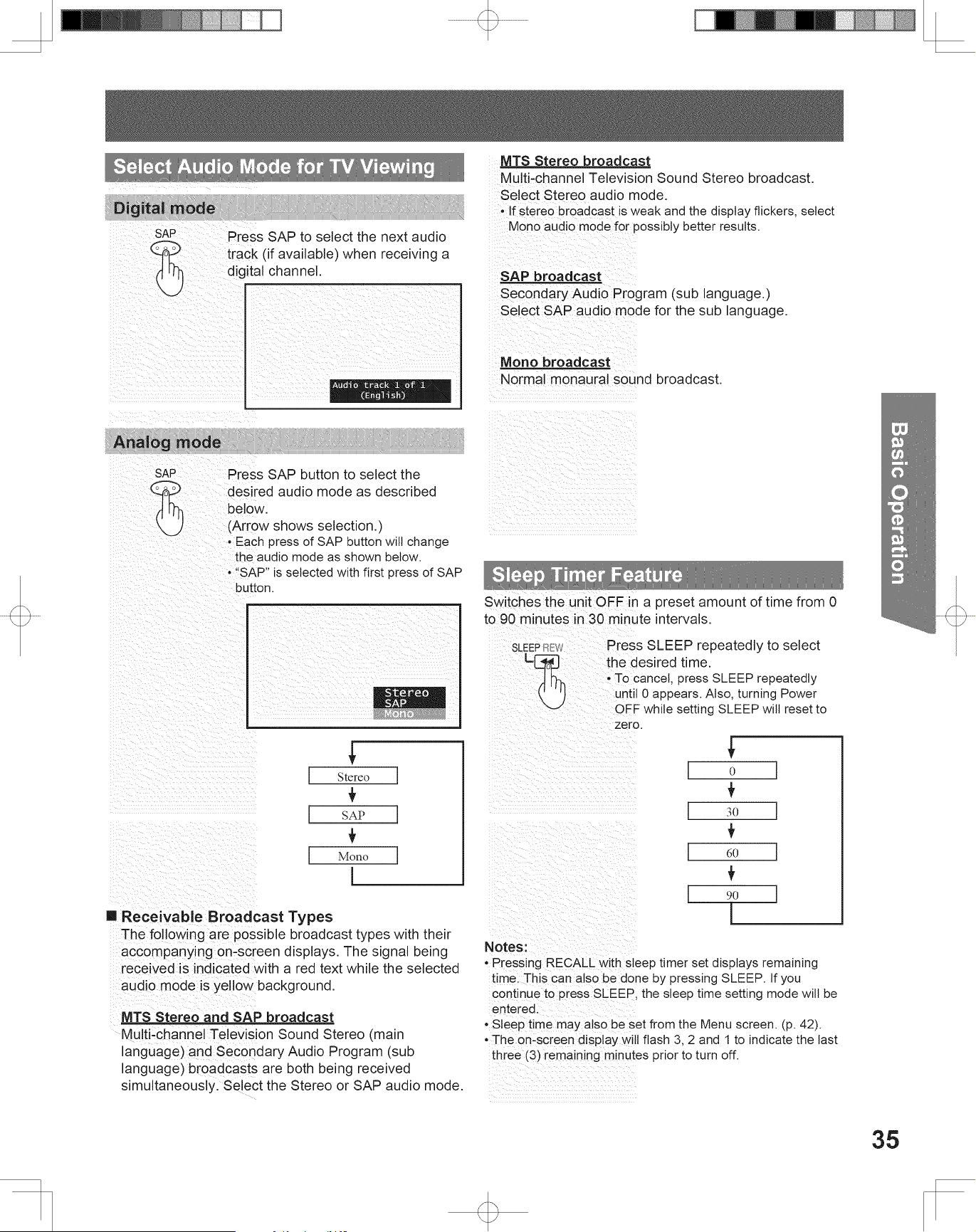
Press SAP to select the next audio
track (if available) when receiving a
digital channel.
Digital mode
Select Audio Mode for TV Viewing
Audio track 1 of 1
(English)
Analog mode
Press SAP button to select the
desired audio mode as described
below.
(Arrow shows selection.)
• Each press of SAP button will change
the audio mode as shown below.
• “SAP” is selected with first press of SAP
button.
Stereo
SAP
Mono
Stereo
SAP
Mono
Sleep Timer Feature
Press SLEEP repeatedly to select
the desired time.
• To cancel, press SLEEP repeatedly
until 0 appears. Also, turning Power
OFF while setting SLEEP will reset to
zero.
0
30
60
90
Switches the unit OFF in a preset amount of time from 0
to 90 minutes in 30 minute intervals.
MTS Stereo and SAP broadcast
Multi-channel Television Sound Stereo (main
language) and Secondary Audio Program (sub
language) broadcasts are both being received
simultaneously. Select the Stereo or SAP audio mode.
MTS Stereo broadcast
Multi-channel Television Sound Stereo broadcast.
Select Stereo audio mode.
• If stereo broadcast is weak and the display flickers, select
Mono audio mode for possibly better results.
SAP broadcast
Secondary Audio Program (sub language.)
Select SAP audio mode for the sub language.
Mono broadcast
Normal monaural sound broadcast.
Receivable Broadcast Types
The following are possible broadcast types with their
accompanying on-screen displays. The signal being
received is indicated with a red text while the selected
audio mode is yellow background.
Notes:
• Pressing RECALL with sleep timer set displays remaining
time. This can also be done by pressing SLEEP. If you
continue to press SLEEP, the sleep time setting mode will be
entered.
• Sleep time may also be set from the Menu screen. (p. 42).
• The on-screen display will flash 3, 2 and 1 to indicate the last
three (3) remaining minutes prior to turn off.
For assistance, please call : 1-888-VIEW PTV(843-9788) or, contact us via the web at: http://www.panasonic.com/contactinfo
36
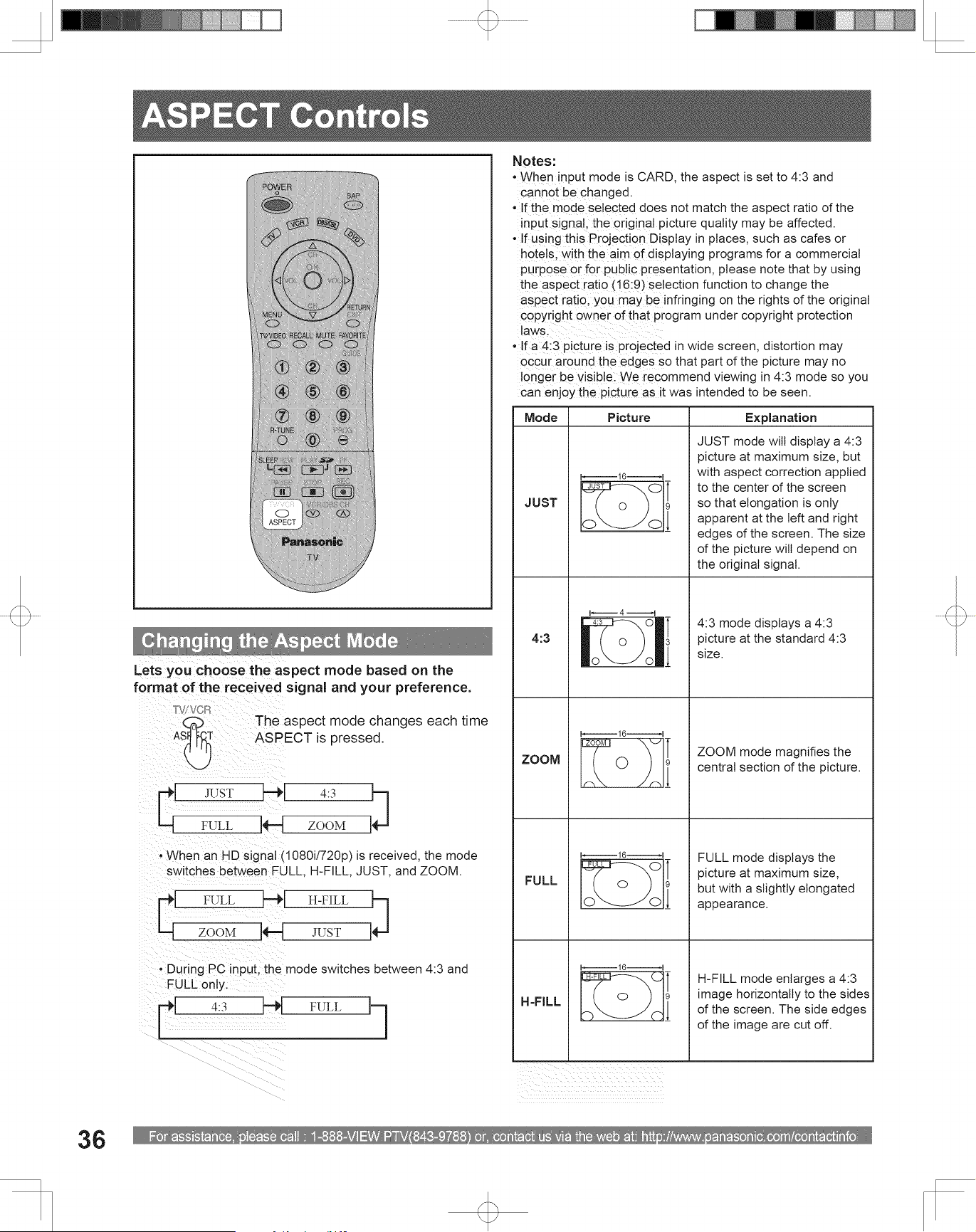
Lets you choose the aspect mode based on the
format of the received signal and your preference.
The aspect mode changes each time
ASPECT is pressed.
Notes:
• When input mode is CARD, the aspect is set to 4:3 and
cannot be changed.
• If the mode selected does not match the aspect ratio of the
input signal, the original picture quality may be affected.
• If using this Projection Display in places, such as cafes or
hotels, with the aim of displaying programs for a commercial
purpose or for public presentation, please note that by using
the aspect ratio (16:9) selection function to change the
aspect ratio, you may be infringing on the rights of the original
copyright owner of that program under copyright protection
laws.
• If a 4:3 picture is projected in wide screen, distortion may
occur around the edges so that part of the picture may no
longer be visible. We recommend viewing in 4:3 mode so you
can enjoy the picture as it was intended to be seen.
• During PC input, the mode switches between 4:3 and
FULL only.
• When an HD signal (1080i/720p) is received, the mode
switches between FULL, H-FILL, JUST, and ZOOM.
4:3 FULL
FULL ZOOM
JUST 4:3
Mode Picture Ex pla na tion
JUST
JUST
9
16
JUST mode will display a 4:3
picture at max i mum size, but
with aspect correction applied
to the center of the screen
so that elongation is only
apparent at the left and right
edges of the screen. The size
of the picture will depend on
the original signal.
4:3
4:3
3
4
4:3 mode displays a 4:3
picture at the standard 4:3
size.
ZOOM
ZOOM
16
9
ZOOM mode magnifies the
central section of the picture.
FULL
FULL
16
9
FULL mode displays the
picture at maximum size,
but with a slightly elongated
appearance.
H-FILL
H-FILL
16
9
H-FILL mode enlarges a 4:3
image horizontally to the sides
of the screen. The side edges
of the image are cut off.
ASPECT Con trols
Changing the Aspect Mode
ZOOM JUST
FULL H-FILL
37
Advanced Op er a tion
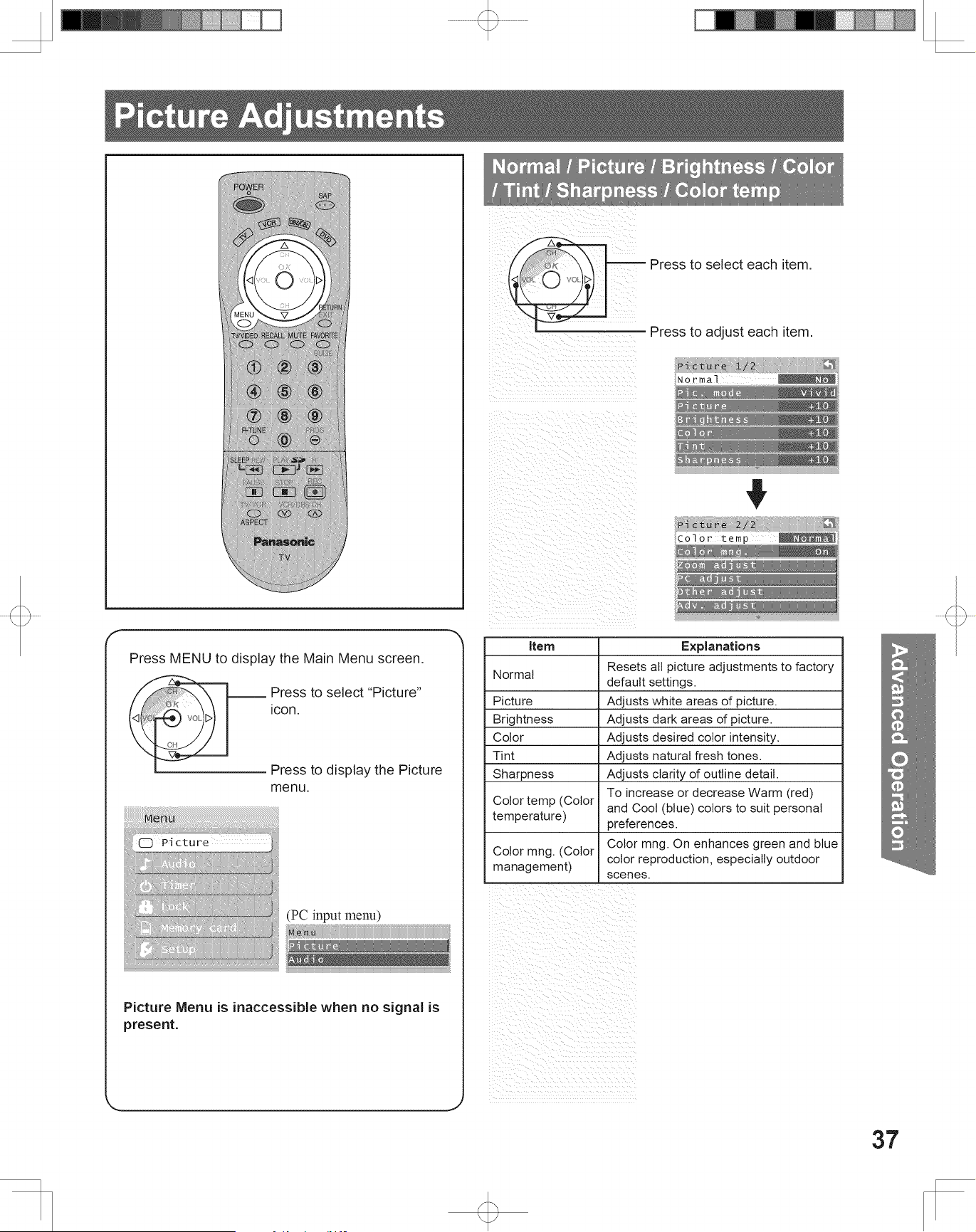
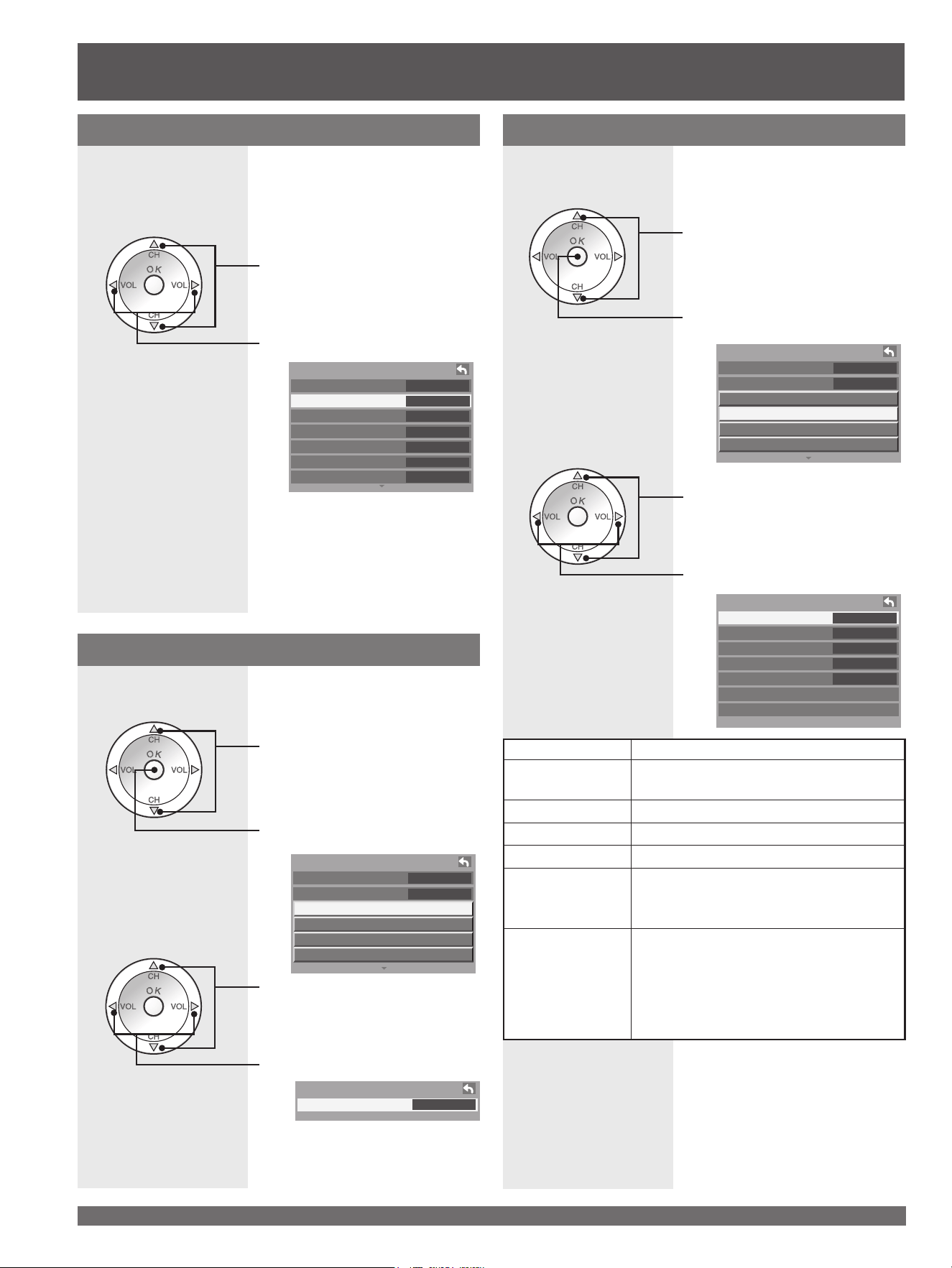
Press MENU to display the Main Menu screen.
Press to select “Picture”
icon.
Press to display the Picture
menu.
Press to select each item.
Press to adjust each item.
Picture Adjustments
Picture 1/2
Normal No
Pic. mode Vivid
Picture +10
Brightness +10
Color +10
Tint +10
Sharpness +10
Normal / Picture / Brightness / Color
/ Tint / Sharpness / Color temp
Item Explanations
Normal
Resets all picture adjustments to factory
default settings.
Picture Adjusts white areas of picture.
Brightness Adjusts dark areas of picture.
Color Adjusts desired color intensity.
Tint Adjusts natural fresh tones.
Sharpness Adjusts clarity of outline detail.
Color temp (Color
temperature)
To increase or decrease Warm (red)
and Cool (blue) colors to suit personal
preferences.
Color mng. (Color
management)
Color mng. On enhances green and blue
color reproduction, especially outdoor
scenes.
Picture
Audio
Timer
Lock
Memory card
Setup
Menu
Picture Menu is inaccessible when no signal is
present.
Picture 2/2
Color temp Normal
Color mng. On
Zoom adjust
PC adjust
Other adjust
Adv. adjust
Menu
Picture
Audio
(PC input menu)
For assistance, please call : 1-888-VIEW PTV(843-9788) or, contact us via the web at: http://www.panasonic.com/contactinfo
38
PC Adjust
Press to select “PC adjust”.
Press to display the PC adjust
menu.
1
Picture 2/2
Color temp Normal
Color mng. On
Zoom adjust
PC adjust
Other adjust
Adv. adjust
PC adjust
Normal No
Dot clock +10
H-Position +10
V-Position +10
Clock phase +10
H-Frequency 48.4kHz
V-Frequency 60.1Hz
Press to select each item.
Press to adjust each item.
2
Item Explanations
Normal
Resets all picture adjustments to factory
default settings.
Dot clock Adjusts horizontal size.
H-Position Adjusts horizontal position.
V-Position Adjusts vertical position
Clock phase
Adjust in order to remove any picture
interference or contour blurring which
may occur in computer images.
H-Frequency/
V-Frequency
Displays the frequencies of the PC signal
currently being adjusted.
Displays the H (Horizontal) / V (Vertical)
frequencies.
Display range: Horizontal 15-110 kHz
Vertical 48 - 120 Hz
Lets you choose one of three pre-set Picture Modes
that best suits the program to which you are viewing.
Selecting this feature will also affect Color Temperature
setting.
• Vivid - This is the default mode, It provides enhanced picture
contrast and sharpness for viewing in a well-lit room.
• Standard - Recommended for normal viewing conditions with
subdued room lighting.
• Cinema - Select this mode for watching movies in a darkened
room. It provides a soft, film-like picture.
Picture Mode
Press to select “Pic. mode”.
Press to select picture mode.
Picture 1/2
Normal No
Pic. mode Vivid
Picture +10
Brightness +10
Color +10
Tint +10
Sharpness +10
You can adjust the picture when viewing a signal from a
PC.
Picture Adjustments (continued)
Note:
• This function is available only when the signal being viewed is
from a PC.
Adjust the Zoom position.
It works when Aspect mode is Zoom.
Zoom Adjust
1
Press to select “Zoom adjust”.
Press to display the Zoom
adjust menu.
Picture 2/2
Color temp Normal
Color mng. On
Zoom adjust
PC adjust
Other adjust
Adv. adjust
2
Press to select “V-Size”.
• V-Size - Adjust the vertical size.
Zoom adjust
V-Size 10
Press to adjust V-Size.
39
Advanced Op er a tion
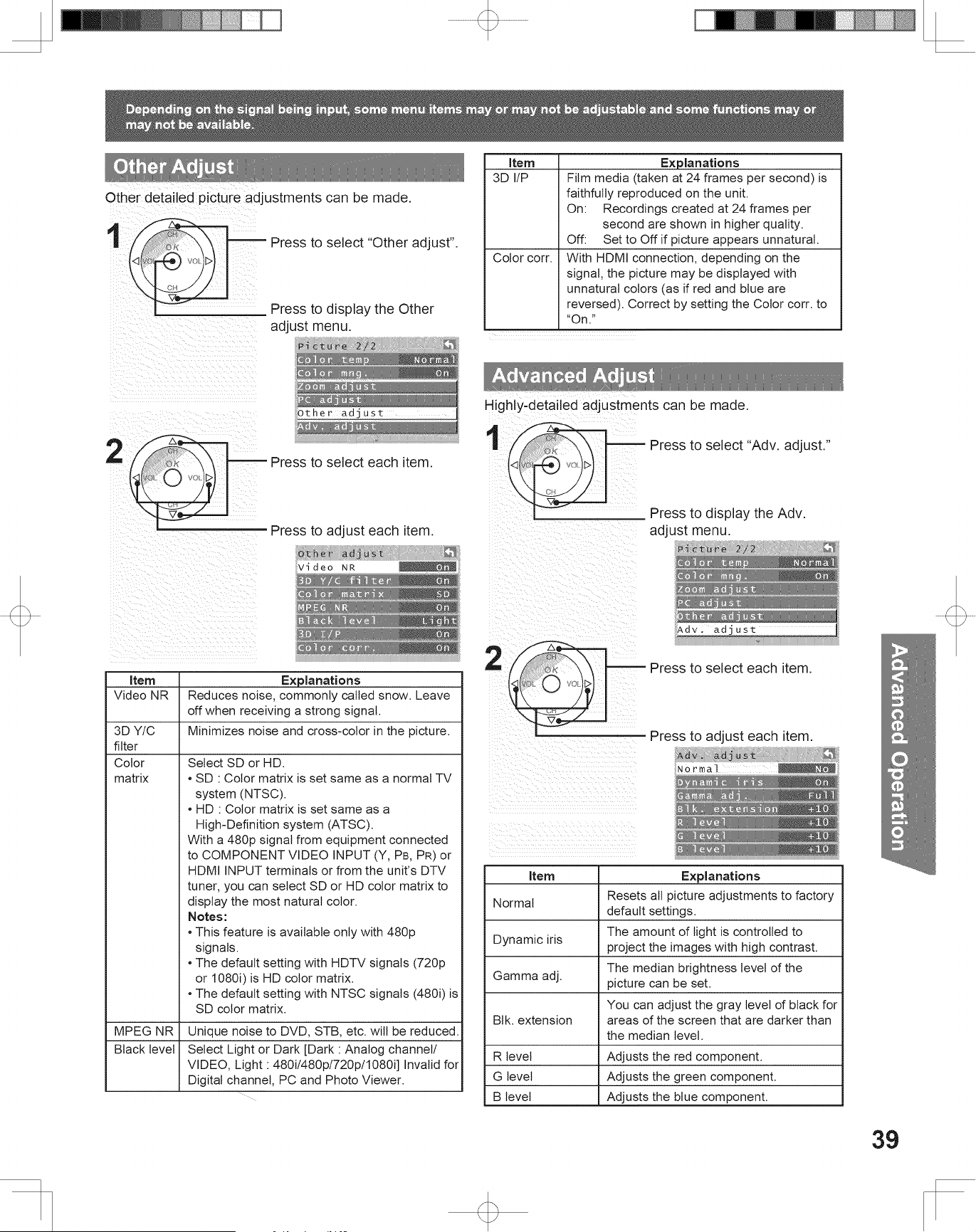
Advanced Adjust
Press to select “Adv. adjust.”
Press to display the Adv.
adjust menu.
1
Press to select each item.
Press to adjust each item.
2
Picture 2/2
Color temp
Normal
Color mng. On
Zoom adjust
PC adjust
Other adjust
Adv. adjust
Adv. adjust
Normal No
Dynamic iris On
Gamma adj. Full
Blk. extension +10
R level +10
G level +10
B level +10
Item Explanations
Normal
Resets all picture adjustments to factory
default settings.
Dynamic iris
The amount of light is controlled to
project the images with high contrast.
Gamma adj.
The median brightness level of the
picture can be set.
Blk. extension
You can adjust the gray level of black for
areas of the screen that are darker than
the median level.
R level Adjusts the red component.
G level Adjusts the green component.
B level Adjusts the blue component.
Other Adjust
Picture 2/2
Color temp Normal
Color mng. On
Zoom adjust
PC adjust
Other adjust
Adv. adjust
Other adjust
Video NR On
3D Y/C filter On
Color matrix SD
MPEG NR On
Black level Light
3D I/P On
Color corr. On
Press to select “Other adjust”.
Press to display the Other
adjust menu.
1
Press to select each item.
Press to adjust each item.
2
Item Explanations
Video NR Reduces noise, commonly called snow. Leave
off when receiving a strong signal.
3D Y/C
filter
Minimizes noise and cross-color in the picture.
Color
matrix
Select SD or HD.
• SD : Color matrix is set same as a normal TV
system (NTSC).
• HD : Color matrix is set same as a
High-Definition system (ATSC).
With a 480p signal from equipment connected
to COMPONENT VIDEO INPUT (Y, P
B, PR) or
HDMI INPUT terminals or from the unit’s DTV
tuner, you can select SD or HD color matrix to
display the most natural color.
Notes:
• This feature is available only with 480p
signals.
• The default setting with HDTV signals (720p
or 1080i) is HD color matrix.
• The default setting with NTSC signals (480i) is
SD color matrix.
MPEG NR Unique noise to DVD, STB, etc. will be reduced.
Black level Select Light or Dark [Dark : Analog channel/
VIDEO, Light : 480i/480p/720p/1080i] Invalid for
Digital channel, PC and Photo Viewer.
Depending on the signal being input, some menu items may or may not be adjustable and some functions may or
may not be available.
Other detailed picture adjustments can be made.
Highly-detailed adjustments can be made.
Item Explanations
3D I/P Film media (taken at 24 frames per second) is
faithfully reproduced on the unit.
On: Recordings created at 24 frames per
second are shown in higher quality.
Off: Set to Off if picture appears unnatural.
Color corr. With HDMI connection, depending on the
signal, the picture may be displayed with
unnatural colors (as if red and blue are
reversed). Correct by setting the Color corr. to
“On.”
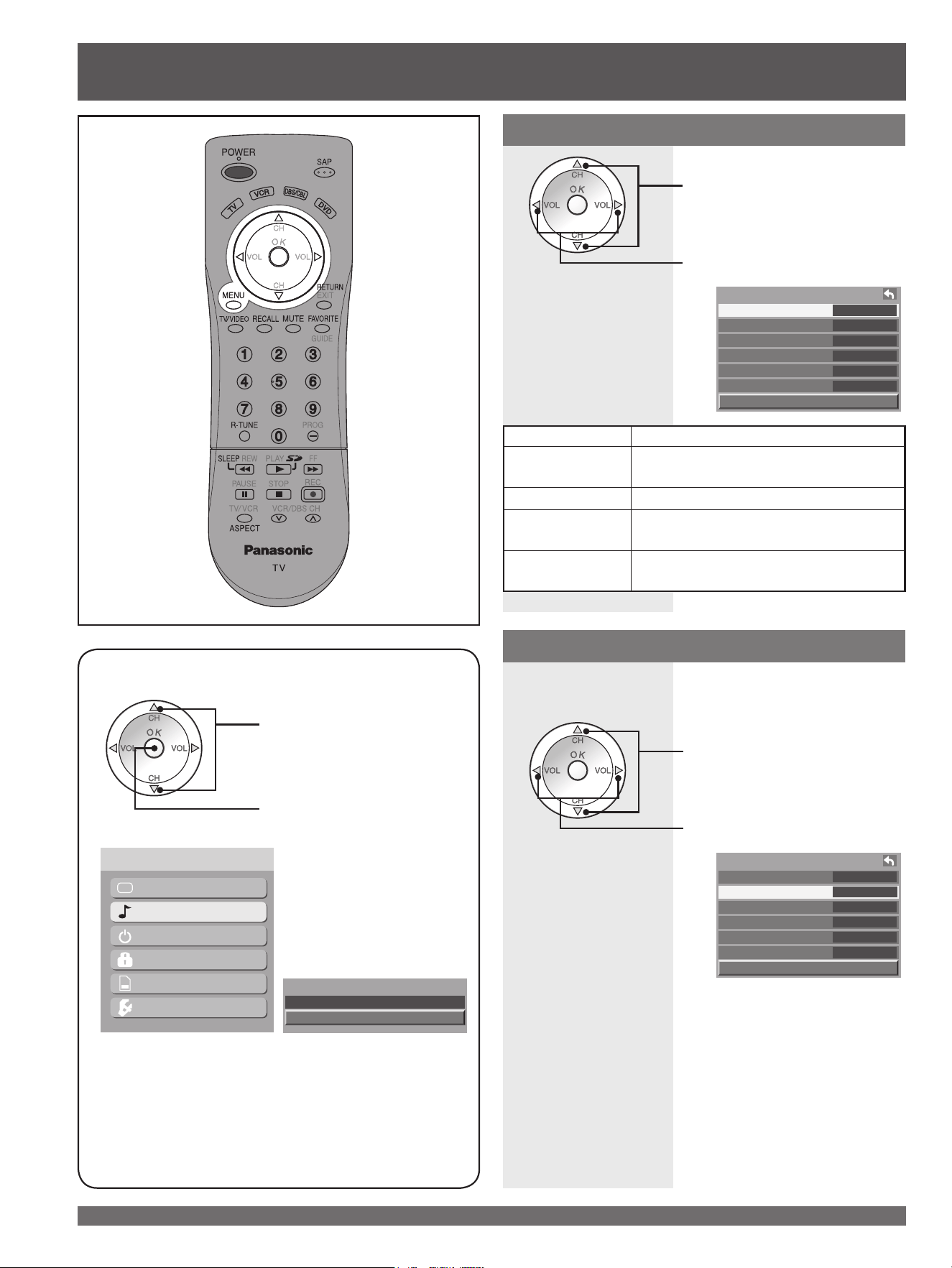
For assistance, please call : 1-888-VIEW PTV(843-9788) or, contact us via the web at: http://www.panasonic.com/contactinfo
40
Audio Ad just ments
Press MENU to display the Main Menu screen.
Press to select “Audio”
icon.
Press to display the Audio
menu.
Audio
Normal No
Audio mode Standard
Bass +10
Treble +10
Balance +10
BBE Off
Other adjust
Press to select each item.
Press to adjust each item.
Normal / Bass / Treble / Balance
Item Explanations
Normal
Reset Bass, Treble and Balance
adjustments to factory default settings.
Bass Increase or decrease the bass response.
Treble
Increase or decrease the treble
response.
Balance
Emphasize the left / right speaker
volume.
• Standard Emits the original sound.
• Dynamic Sound suited to music or movie.
• Speech Sound suited to dialogue.
Audio Mode
Press to select “Audio mode”.
Press to select audio mode.
Picture
Audio
Timer
Lock
Memory card
Setup
Menu
Audio
Normal No
Audio mode Standard
Bass +10
Treble +10
Balance +10
BBE Off
Other adjust
Lets you choose one of three pre-set Audio Modes that
best suits the program to which you are listening.
If the unit is set to Al sound “On,” BBE “On,”
or “VIVA 3D,” only the Balance item can be
adjusted in the Audio menu.
Menu
Picture
Audio
(PC input menu)
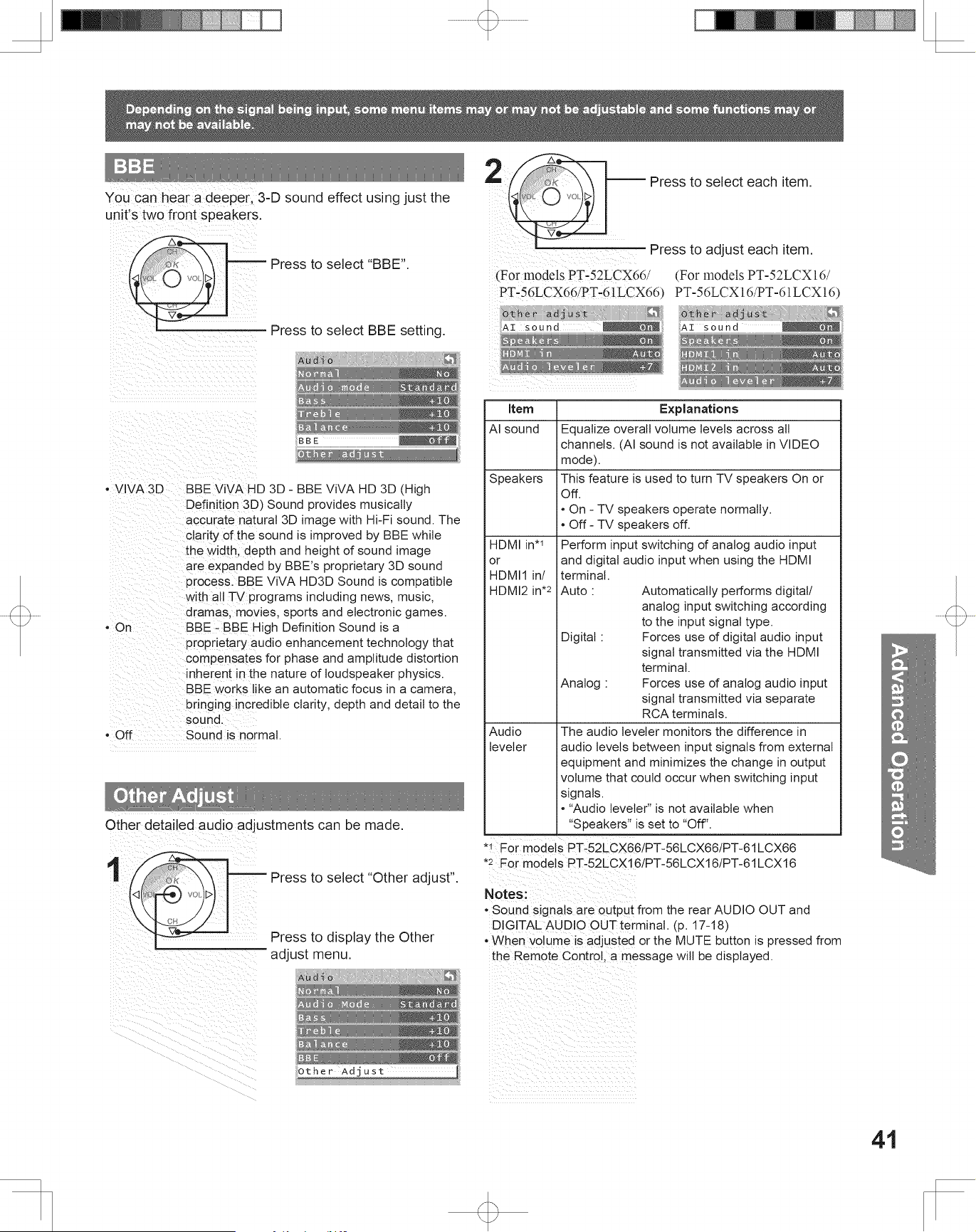
41
Advanced Op er a tion
Notes:
• Sound signals are output from the rear AUDIO OUT and
DIGITAL AUDIO OUT terminal. (p. 17-18)
• When volume is adjusted or the MUTE button is pressed from
the Remote Control, a message will be displayed.
Other Adjust
Press to select “Other adjust”.
Press to display the Other
adjust menu.
1
Press to select each item.
Press to adjust each item.
2
Item Explanations
AI sound Equalize overall volume levels across all
channels. (AI sound is not available in VIDEO
mode).
Speakers This feature is used to turn TV speakers On or
Off.
• On - TV speakers operate normally.
• Off - TV speakers off.
HDMI in*
1
or
HDMI1 in/
HDMI2 in*
2
Perform input switching of analog audio input
and digital audio input when using the HDMI
terminal.
Auto : Automatically performs digital/
analog input switching according
to the input signal type.
Digital : Forces use of digital audio input
signal transmitted via the HDMI
terminal.
Analog : Forces use of analog audio input
signal transmitted via separate
RCA terminals.
Audio
leveler
The audio leveler monitors the difference in
audio levels between input signals from external
equipment and minimizes the change in output
volume that could occur when switching input
signals.
• “Audio leveler” is not available when
“Speakers” is set to “Off”.
Audio
Normal No
Audio Mode Standard
Bass +10
Treble +10
Balance +10
BBE Off
Other Adjust
Other adjust
AI sound On
Speakers On
HDMI in Auto
Audio leveler +7
Depending on the signal being input, some menu items may or may not be adjustable and some functions may or
may not be available.
Other detailed audio adjustments can be made.
BBE
Press to select “BBE”.
Press to select BBE setting.
Audio
Normal No
Audio mode Standard
Bass +10
Treble +10
Balance +10
BBE Off
Other adjust
You can hear a deeper, 3-D sound effect using just the
unit’s two front speakers.
• VIVA 3D BBE ViVA HD 3D - BBE ViVA HD 3D (High
Definition 3D) Sound provides musically
accurate natural 3D image with Hi-Fi sound. The
clarity of the sound is improved by BBE while
the width, depth and height of sound image
are expanded by BBE’s proprietary 3D sound
process. BBE ViVA HD3D Sound is compatible
with all TV programs including news, music,
dramas, movies, sports and electronic games.
• On BBE - BBE High Definition Sound is a
proprietary audio enhancement technology that
compensates for phase and amplitude distortion
inherent in the nature of loudspeaker physics.
BBE works like an automatic focus in a camera,
bringing incredible clarity, depth and detail to the
sound.
• Off Sound is normal.
Other adjust
AI sound On
Speakers On
HDMI1 in Auto
HDMI2 in Auto
Audio leveler +7
(For models PT-52LCX66/
PT-56LCX66/PT-61LCX66)
(For models PT-52LCX16/
PT-56LCX16/PT-61LCX16)
*
1
For models PT-52LCX66/PT-56LCX66/PT-61LCX66
*
2
For models PT-52LCX16/PT-56LCX16/PT-61LCX16
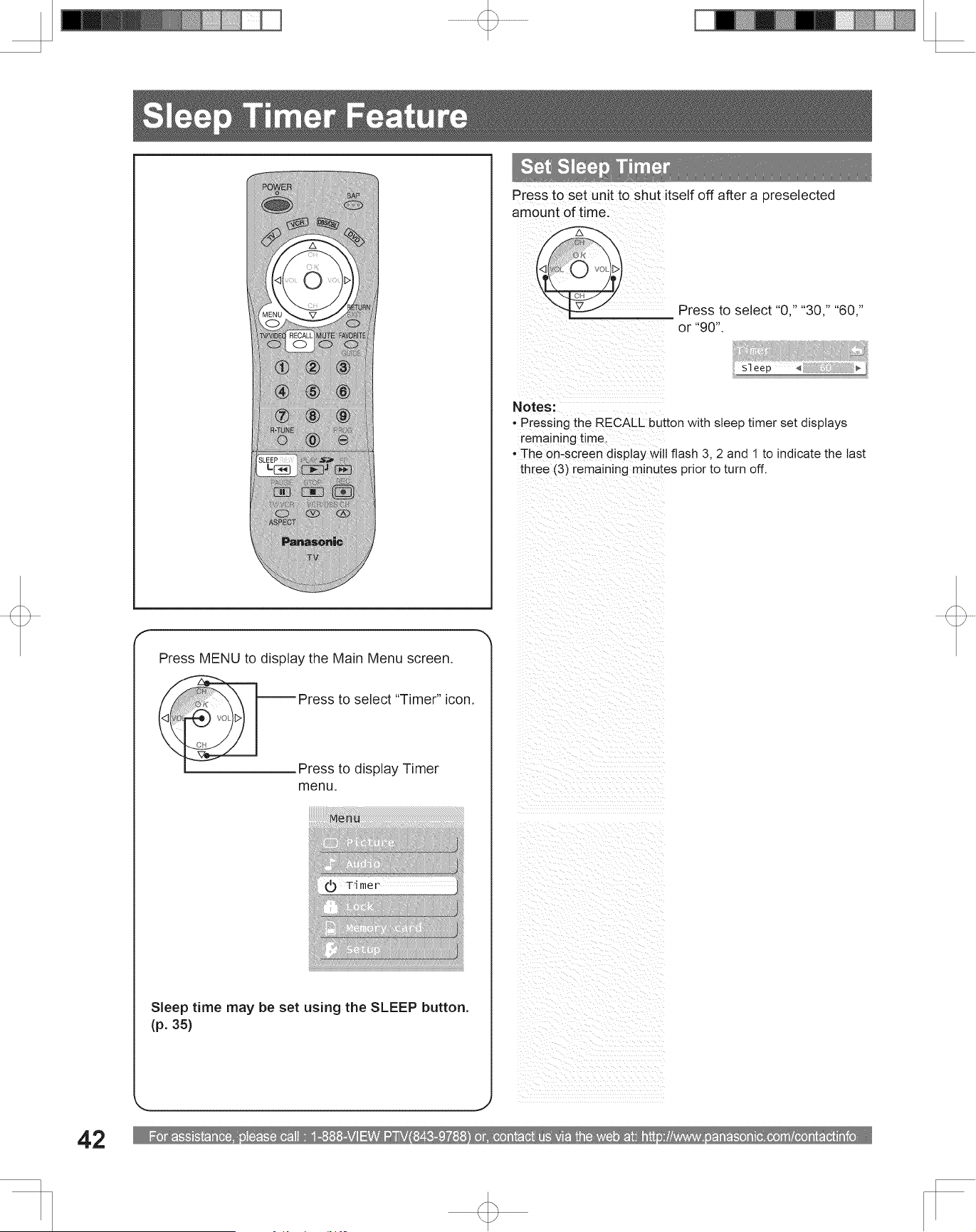
For assistance, please call : 1-888-VIEW PTV(843-9788) or, contact us via the web at: http://www.panasonic.com/contactinfo
42
Press to set unit to shut itself off after a preselected
amount of time.
Notes:
• Pressing the RECALL button with sleep timer set displays
remaining time.
• The on-screen display will flash 3, 2 and 1 to indicate the last
three (3) remaining minutes prior to turn off.
Press MENU to display the Main Menu screen.
Press to select “Timer” icon.
Press to display Timer
menu.
Sleep Timer Feature
Sleep ◄ 60 ►
Timer
Picture
Audio
Timer
Lock
Memory card
Setup
Menu
Set Sleep Timer
Press to select “0,” “30,” “60,”
or “90”.
Sleep time may be set using the SLEEP button.
(p. 35)
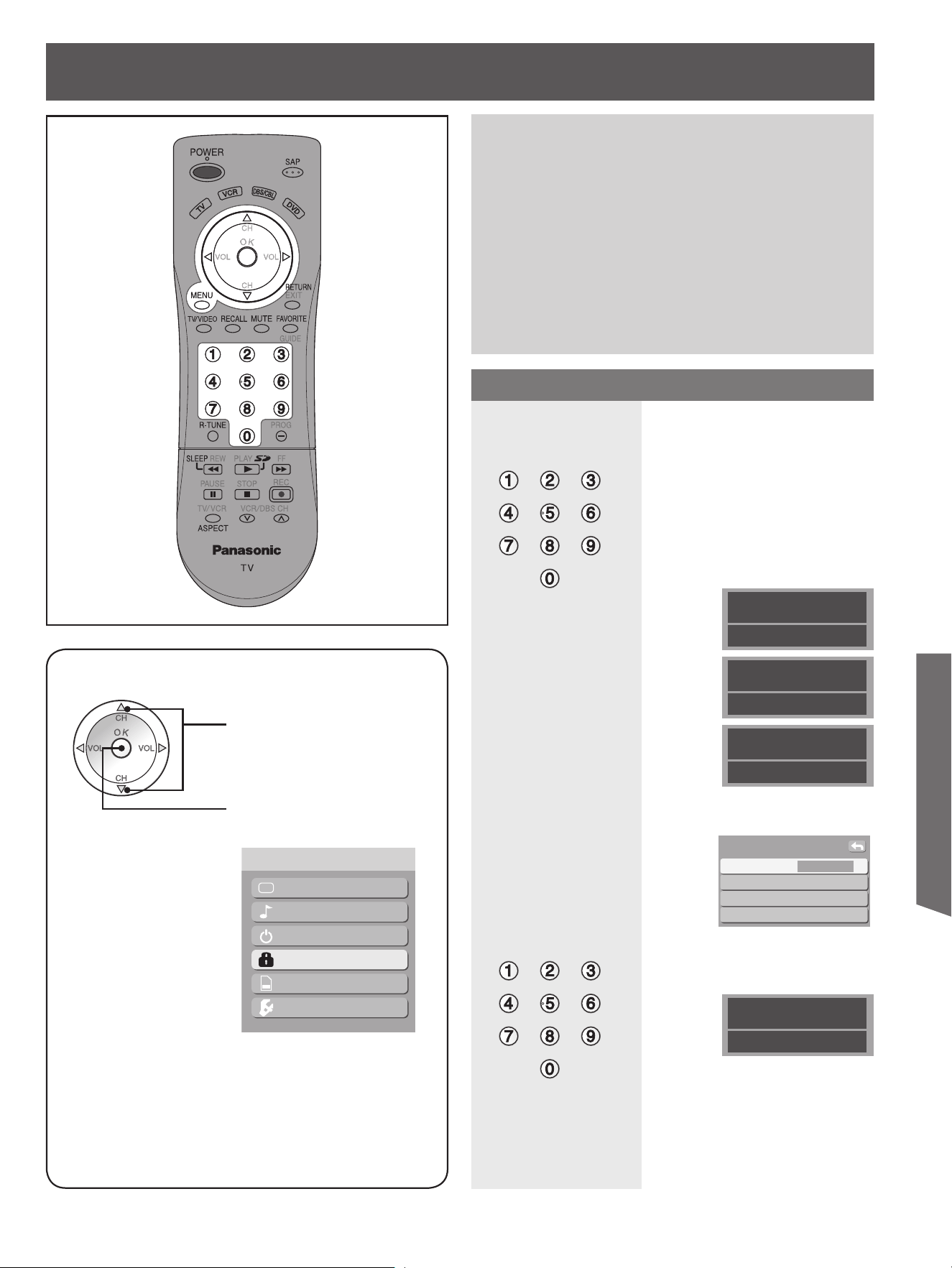
43
Advanced Op er a tion
Enter Secret Code
A 4-digit code must be entered to view a blocked
program or change rating settings.
Press NUMBER keys to enter
your secret code.
Notes:
• Once ratings are set, restricted tapes or programs cannot be
accessed unless the secret code is entered.
• Do not forget your password. If you have forgotten it,
please contact a service center.
This Projection Display incorporates V-CHIP technology
to block the viewing of movies and television programs
according to the rating category. There are four (4)
Content Advisory Categories: MPAA (Motion Picture
Association of America), TV Parental Guidelines
Ratings, Canadian English Language Ratings and
Canadian French Language Ratings. These categories
are used as guidelines for blocking the programs. The
default mode for the Lock category is the Unlocked
state. In this state, you can surf the various categories
of the Lock menu. After you have created a password,
you are prompted to enter it before you can make any
changes in the Lock menu.
Note:
• Use a code that is easy to
remember and record it in a safe
place.
Upon entering the 4 digit code,
the Lock menu is displayed.
Lock Feature
Create password.
----
Mode ◄ Off ►
Channel
Program
Change password
Lock
Press MENU to display the Main Menu screen.
Press to select “Lock” icon.
Press to display the options
in the Lock menu.
Picture
Audio
Timer
Lock
Memory card
Setup
Menu
Create Secret Code (First Time Setting)
Enter Secret Code
Press NUMBER keys to enter
your secret code.
Enter password.
----
Upon entering the 4 digit code,
the Lock menu is displayed.
You will be asked to enter your password each
time you display the Lock menu.
Enter new password,
again
----
Password was set.
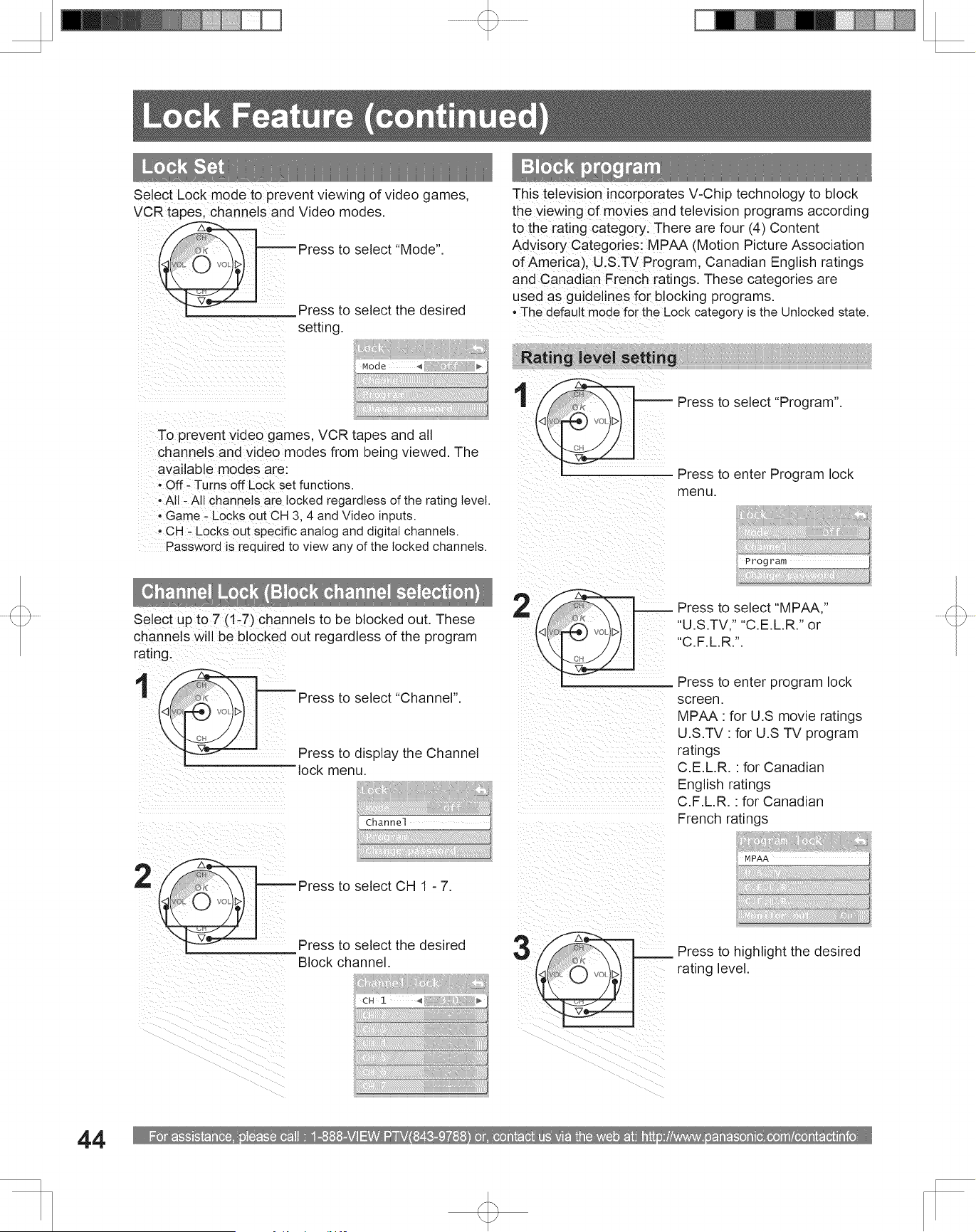
For assistance, please call : 1-888-VIEW PTV(843-9788) or, contact us via the web at: http://www.panasonic.com/contactinfo
44
Press to highlight the desired
rating level.
Lock Set
To prevent video games, VCR tapes and all
channels and video modes from being viewed. The
available modes are:
• Off - Turns off Lock set functions.
• All - All channels are locked regardless of the rating level.
• Game - Locks out CH 3, 4 and Video inputs.
• CH - Locks out specific analog and digital channels.
Password is required to view any of the locked channels.
Press to select “Mode”.
Press to select the desired
setting.
Select Lock mode to prevent viewing of video games,
VCR tapes, channels and Video modes.
Channel Lock (Block channel selection)
Select up to 7 (1-7) channels to be blocked out. These
channels will be blocked out regardless of the program
rating.
Mode ◄ Off ►
Channel
Program
Change password
Lock
Mode Off
Channel
Program
Change password
Lock
CH 1 ◄ 3-0 ►
CH 2 -
CH 3 -
CH 4 -
CH 5 -
CH 6 -
CH 7 -
Channel lock
Press to select “Channel”.
Press to display the Channel
lock menu.
Press to select CH 1 - 7.
Press to select the desired
Block channel.
Block program
This television incorporates V-Chip technology to block
the viewing of movies and television programs according
to the rating category. There are four (4) Content
Advisory Categories: MPAA (Motion Picture Association
of America), U.S.TV Program, Canadian English ratings
and Canadian French ratings. These categories are
used as guidelines for blocking programs.
• The default mode for the Lock category is the Unlocked state.
Mode Off
Channel
Program
Change password
Lock
Press to select “Program”.
Press to enter Program lock
menu.
MPAA
U.S.TV
C.E.L.R.
C.F.L.R.
Monitor out On
Program lock
Press to select “MPAA,”
“U.S.TV,” “C.E.L.R.” or
“C.F.L.R.”.
Press to enter program lock
screen.
MPAA : for U.S movie ratings
U.S.TV : for U.S TV program
ratings
C.E.L.R. : for Canadian
English ratings
C.F.L.R. : for Canadian
French ratings
1
2
1
2
3
Lock Feature (continued)
Rating level setting
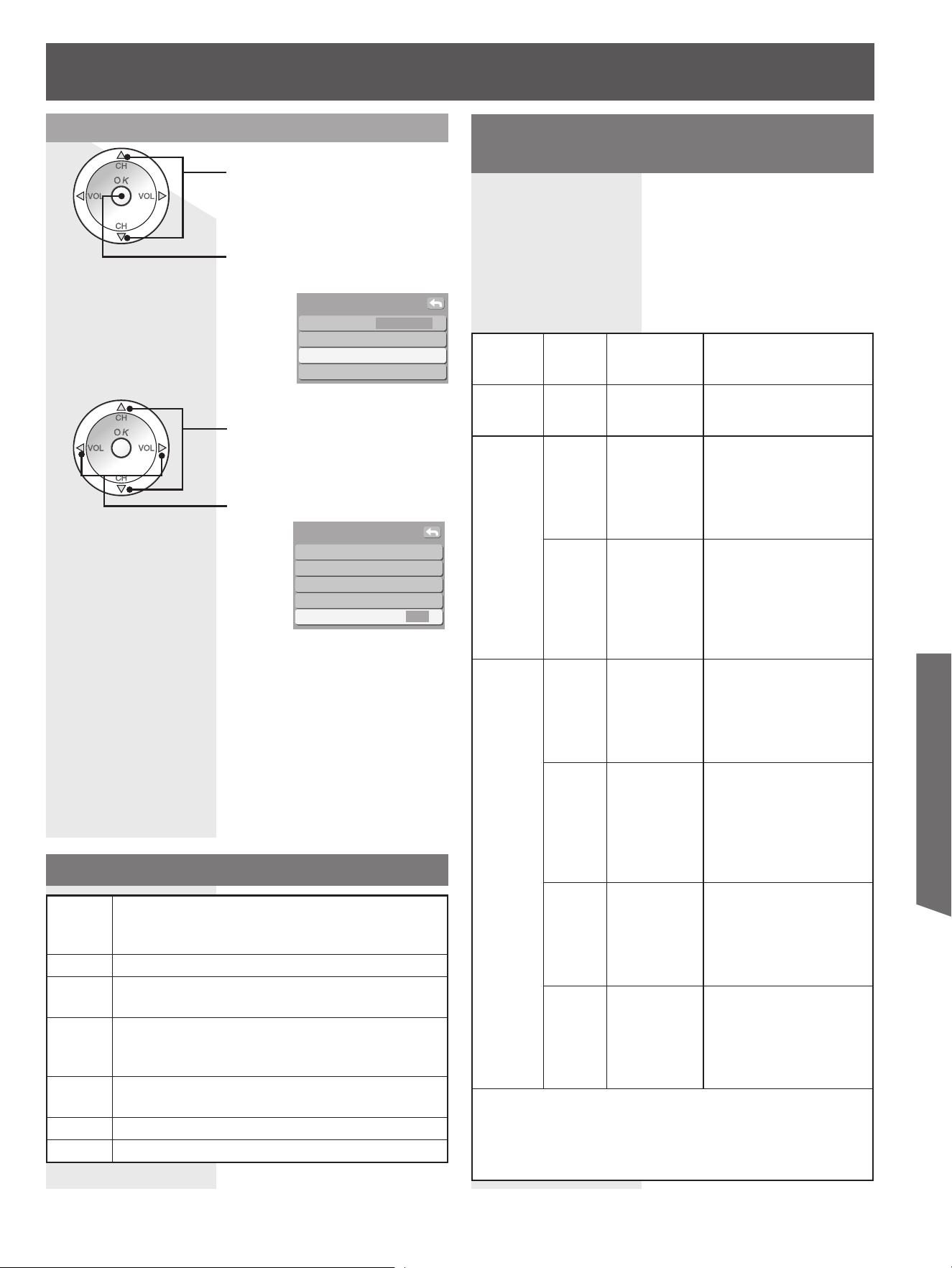
45
Advanced Op er a tion
Press to select “Monitor out”.
Press to select “On” or “Off”.
Notes:
• The Off rating is independent of other ratings.
• When placing a block on a specific age based rating level, the
Off rating and any other more restrictive ratings will also be
blocked.
U.S. MOVIES RATINGS CHART (MPAA)
Off
NO RATING (NOT RATED) AND NA (NOT
APPLICABLE) PROGRAMS. Movie has not been
rated or rating does not apply.
G GENERAL AUDIENCES. All ages admitted.
PG
PARENTAL GUIDANCE SUGGESTED. Some
material may not be suitable for children.
PG-13
PARENTS STRONGLY CAUTIONED. Some
material may be inappropriate for children under
13.
R
RESTRICTED. Under 17 requires accompanying
parent or adult guardian.
NC-17 NO ONE 17 AND UNDER ADMITTED.
X ADULTS ONLY.
U.S. TV PROGRAMS RATINGS
CHART
The TV Parental Guidelines has 7 levels of age-based
ratings that can be selected. These 7 levels are split into
2 age-based groups:
Youth Age-based Ratings and Guidance Age-based
Ratings. Some of these age-based ratings can also
have content-based ratings, denoted as D (Dialog), L
(Language), S (Sex) and V (Violence). The table below
shows the age-based ratings selection.
Age-
based
Group
Age-
based
Ratings
Blocked
Content
Selections
Description
NR
(Not
Rated)
TV-NR • Viewable
• Blocked
Not Rated. See
“Customer Caution” on
page 46.
Youth TV-Y • Viewable
• Blocked
All children. The themes
and elements in this
program are specifically
designed for a very young
audience, including
children from ages 2-6.
TV-Y7 • FV (Fantasy
Violence)
• Viewable
• Blocked
Directed to older children.
Themes and elements in
this program may include
mild physical or comedic
violence, or may frighten
children under the age
of 7.
Guidance TV-G • Viewable
• Blocked
General audience. It
contains little or no
violence, no strong
language, and little or
no sexual dialogue or
situations.
TV-PG • D,L,S,V (all
selected)
• Any
combination
of D, L, S, V
Parental guidance
suggested. The program
may contain infrequent
coarse language,
limited violence, some
suggestive sexual
dialogue and situations.
TV-14 • D,L,S,V (all
selected)
• Any
combination
of D, L, S, V
Parents strongly
cautioned. This program
may contain sophisticated
themes, sexual content,
strong language and
more intense violence.
TV-MA • L,S,V (all
selected)
• Any
combination
of L, S, V
Mature audiences only.
This program may
contain mature themes,
profane language,
graphic violence, and
explicit sexual content.
FV : Fantasy/Cartoon Violence.
V : Violence
S : Sex
L : Offensive Language
D : Dialogue with sexual content.
On: Turns on the monitor terminal output for programs
that have been set to “Blocked.”
Off: Turns off the monitor terminal output for programs
that have been set to “Blocked.”
Monitor out setting
MPAA
U.S.TV
C.E.L.R.
C.F.L.R.
Monitor out ◄ On ►
Program lock
Mode Off
Channel
Program
Change password
Lock
Press to select “Program”.
Press to enter program lock
menu.
1
2
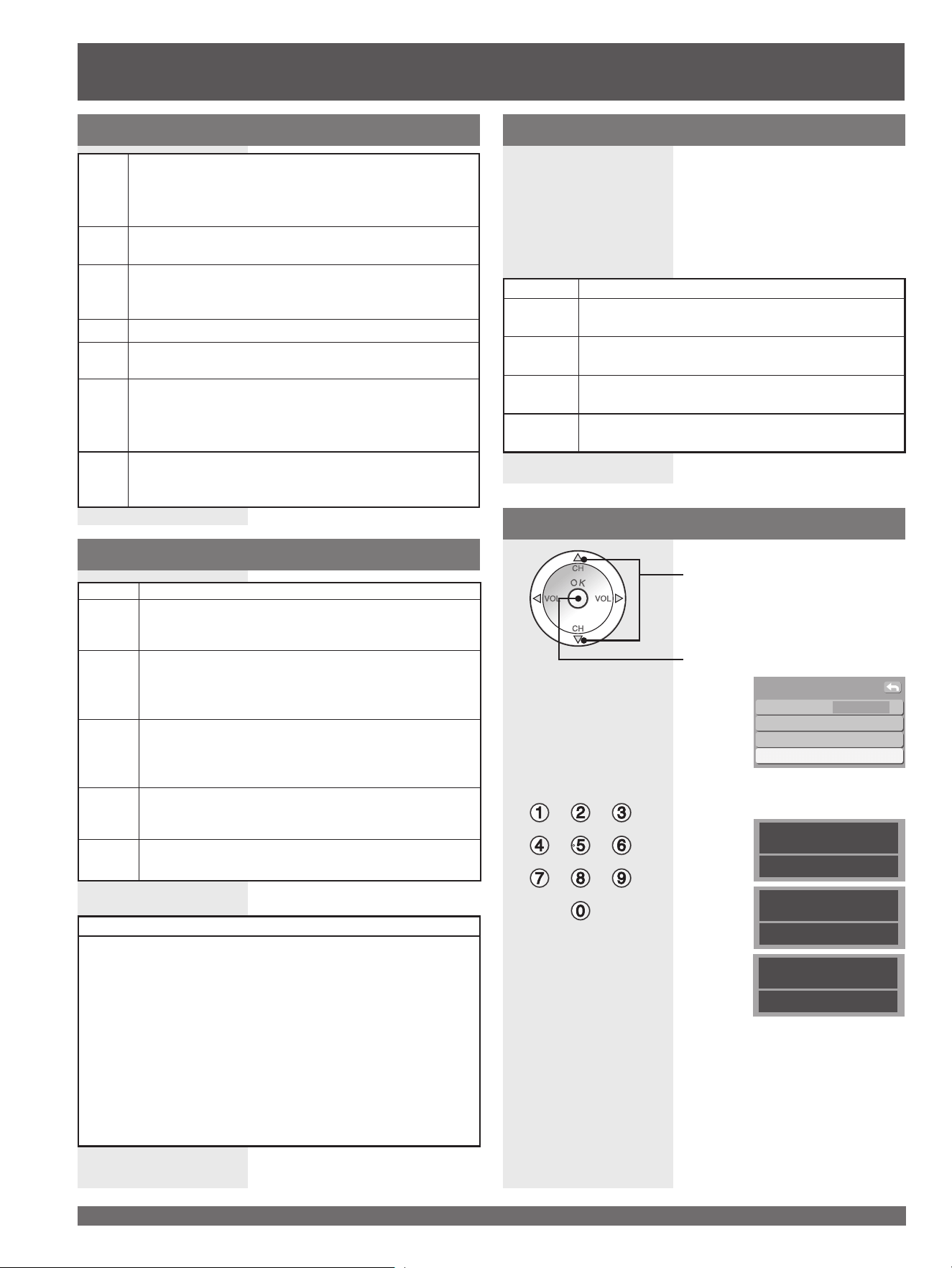
For assistance, please call : 1-888-VIEW PTV(843-9788) or, contact us via the web at: http://www.panasonic.com/contactinfo
46
CANADIAN ENGLISH RATINGS CHART
E
Exempt - Exempt programming includes: news,
sports, documentaries and other information
programming, talk shows, music videos, and variety
programming.
C
Programming intended for children under age 8. No
offensive language, nudity or sexual content.
C8+
Programming generally considered acceptable for
children 8 years and over. No profanity, nudity or
sexual content.
G General programming, suitable for all audiences.
PG
Parental Guidance suggested. Some material may
not be suitable for children.
14+
Programming contains themes or content which
may not be suitable for viewers under the age of 14.
Parents are strongly cautioned to exercise discretion
in permitting viewing by pre-teens and early teens.
18+
18+ years old. Programming restricted to adults.
Contains constant violence or scenes of extreme
violence.
Customer Caution
The V-Chip system that is used in this set is capable of
blocking “NR” programs (non rated, not applicable and
none) as per FCC Rules Section15.120(e)(2). If the option
of blocking “NR” programs is chosen “unexpected and
possibly confusing results may occur, and you may not
receive emergency bulletins or any of the following types of
programming:”
• Emergency Bulletins (Such as EAS messages, weather
warnings and others)
• Locally originated programming • News • Political • Public
Service Announcements • Religious • Sports
• Weather
Blocking Messages
Various Blocking messages are displayed on-screen
depending upon the type of blocking you have selected
in the Lock menu.
Note:
• Entering the password will override the block condition.
However, the ratings selection will be retained.
Message Possible cause
Game
locked.
The TV/VIDEO button was pressed when the
Game lock had been selected.
Channel
Locked.
Tuned to the designated channel when the
Channel lock had been selected.
All locked. Tuned to CH 3 or CH 4 when the Game lock had
been selected. Lock all is selected.
Program
locked.
Received program that exceeds the Block
Program rating level.
Change password
Mode Off
Channel
Program
Change password
Lock
Enter new password.
----
Enter new password,
again
----
Press to select “Change
password”.
Press to enter the Input
Password screen.
Change a 4-digit password to enter the Lock menu.
Enter a 4-digit password.
After entering your password
for the first time, “Enter new
password” will change to
“Enter password”.
Notes:
• Use a code that is easy to remember and record it in a safe
place.
• Do not forget your password. If you have forgotten it,
please contact a service center.
1
2
Lock Feature (continued)
E Exempt - Exempt programming.
G
General - Programming intended for audience of all
ages. Contains no violence, or the violence content
is minimal or is depicted appropriately.
8 ans +
8+ General - Not recommended for young children.
Programming intended for a broad audience
but contains light or occasional violence. Adult
supervision recommended.
13 ans +
Programming may not be suitable for children under
the age of 13 - Contains either a few violent scenes
or one or more sufficiently violent scenes to affect
them. Adult supervision strongly suggested.
16 ans +
Programming may not be suitable for children
under the age of 16 - Contains frequent scenes of
violence or intense violence.
18 ans +
Programming restricted to adults. Contains constant
violence or scenes of extreme violence.
CANADIAN FRENCH RATINGS CHART
Password was set.
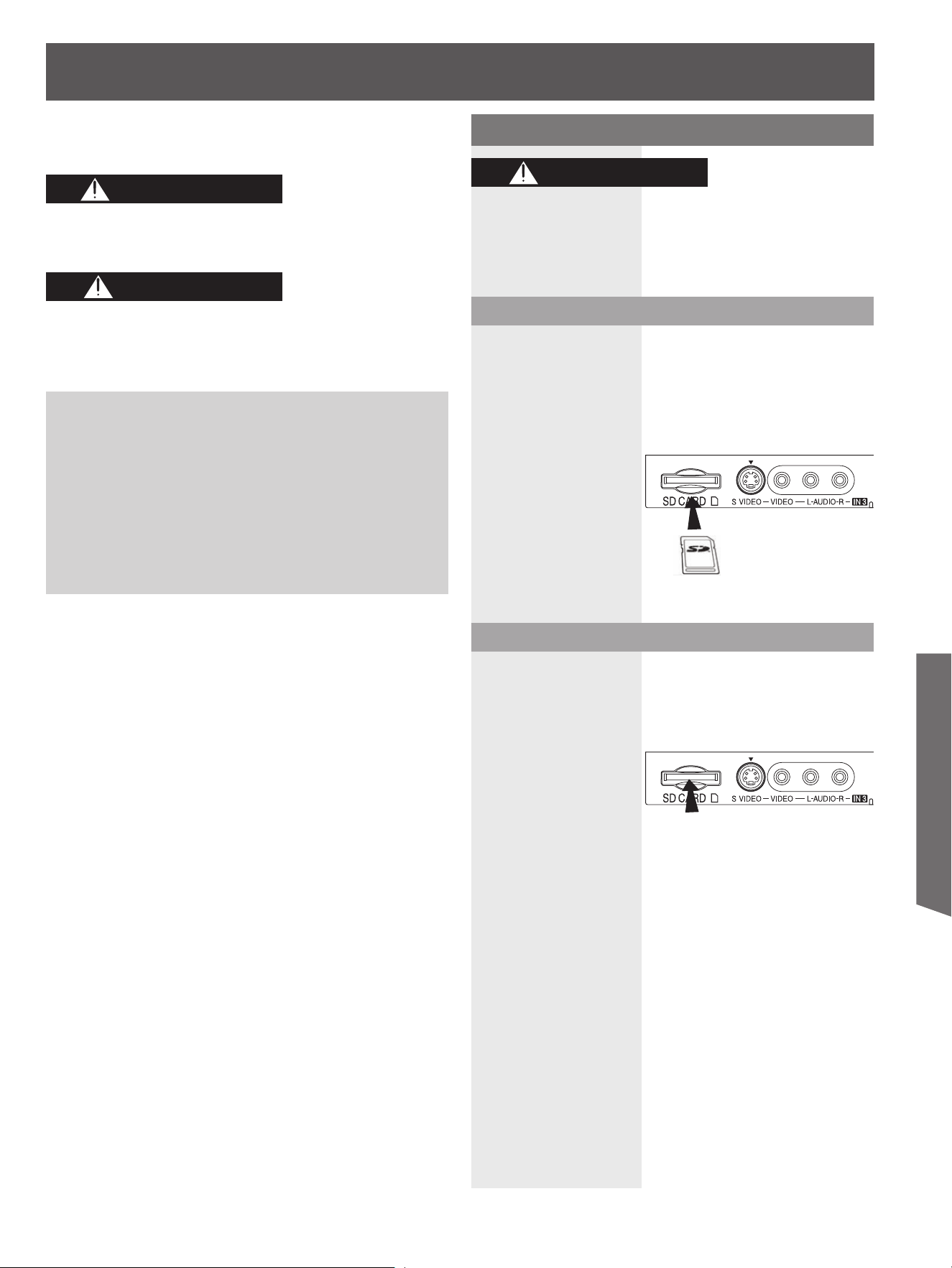
47
Advanced Op er a tion
Front Card Slot (p. 10)
Photo Viewer
Still image data ( JPEG) made with a digital camera or
digital video camera can be played back using an SD
Card.
Data Format for Card Browsing
Notes:
• Some parts of an image may not be displayed or the image
may be displayed on a smaller scale depending on the size
of the image.
• Only JPEG images can be displayed on this unit.
Card Data Protection
• Do not remove the card while it is being accessed.
• Do not touch the terminals on the back of the SD Card.
• Electrical interference, electrostatic discharges and
malfunctions of the unit or card may all result in damage
to the card or data loss. It is recommended that any
important data is also backed up on a PC.
• Stored data should be periodically backed up as a
protection against data corruption, data loss or device
malfunction. Please note that our company shall not
accept any liability for damage or loss of stored data.
1. Always insert card in the correct direction. Failure to
do so may result in damage to the card and this unit.
2. The SD Card is precision devices. Do not subject
them to excessive pressure or strong impacts.
As with any small object, SD cards can be swallowed
by young children. Do not allow children to handle
the SD card.
Front Card Slot (p. 10)
SD Card
Press in lightly on SD Card, then
release.
Insert the Card
Remove the Card
Insert/Remove the Card
With the SD logo facing upward, insert the Card
horizontally into the SD Card Slot. The card is secured
when you hear a click.
Gently press in on the Card and release slowly. Pull the
Card from the slot.
Notes:
• Compliant card type (maximum capacity): SD Card (2 GB),
Mini SD Card (1 GB) (requiring mini SD adaptor).
• Remove the Card carefully to prevent it from popping out of
the slot too fast.
Do not remove the SD card while “Accessing” is
being displayed on screen. Otherwise data may be
lost or corrupted.
CAUTION
WARNING
CAUTION
Photo: Still images recorded with digital still
cameras compatible with JPEG files of
DCF* and EXIF standards
Data format: Baseline JPEG 160 × 120 - 2 560 ×
1 920 pixels (Sub-sampling: 4:4:4, 4:4:2
or 4:2:0)
Max. number of files: 9 999
Image resolution: 8 × 8 to 5 120 × 3 840
* DCF (Design rule for camera file system): A Japan Electronics
and Information Technology Industries Association’s standard
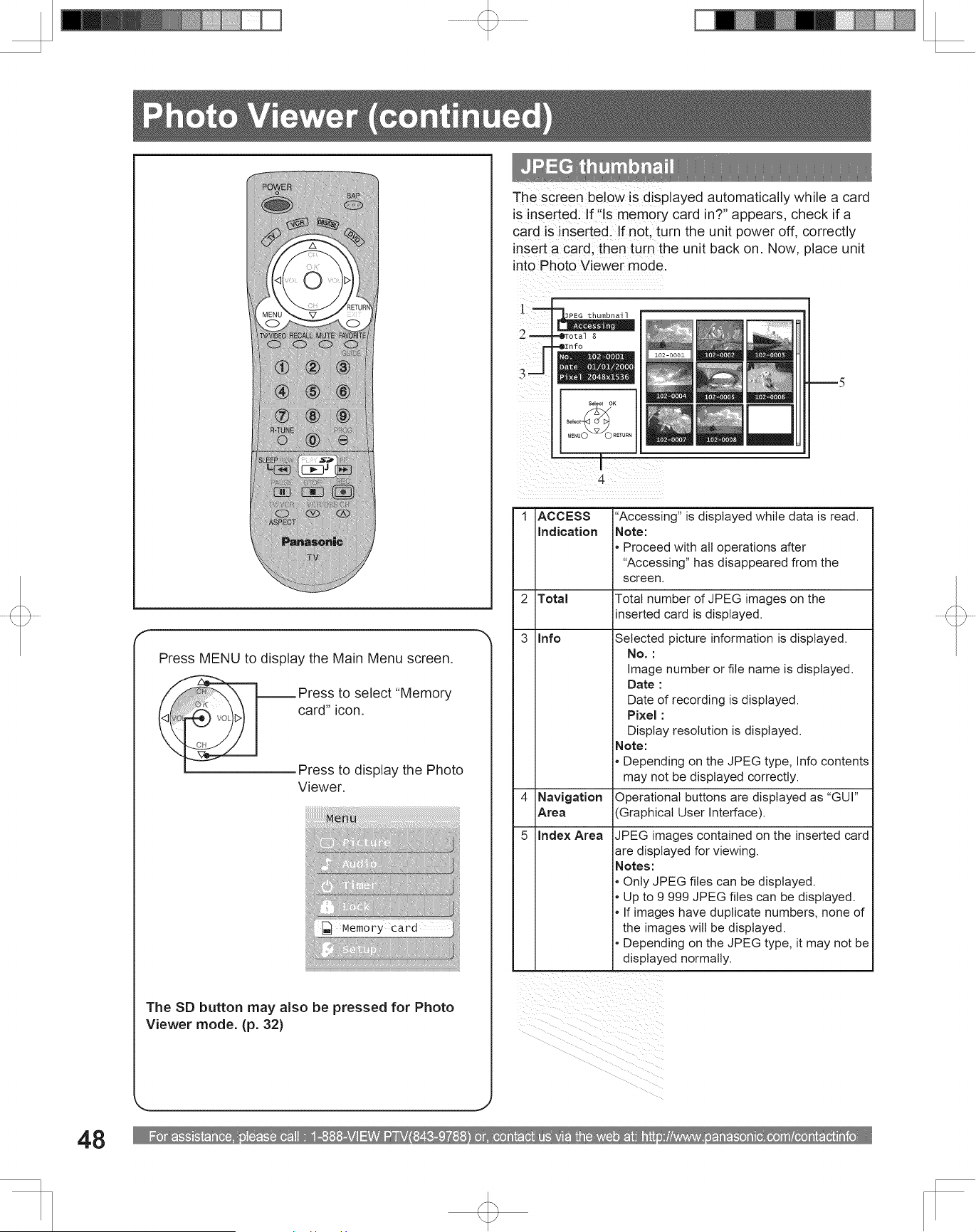
For assistance, please call : 1-888-VIEW PTV(843-9788) or, contact us via the web at: http://www.panasonic.com/contactinfo
48
JPEG thumbnail
Accessing
Total 8
Info
No. 102-0001
Date 01/01/2000
Pixel 2048x1536
MENU
RETURN
OKSelect
Select
102-0002 102-0003
102-0005 102-0006
102-0004
102-0007 102-0008
102-0001
JPEG thumbnail
The screen below is displayed automatically while a card
is inserted. If “Is memory card in?” appears, check if a
card is inserted. If not, turn the unit power off, correctly
insert a card, then turn the unit back on. Now, place unit
into Photo Viewer mode.
1 ACCESS
Indication
“Accessing” is displayed while data is read.
Note:
• Proceed with all operations after
“Accessing” has disappeared from the
screen.
2 Total Total number of JPEG images on the
inserted card is displayed.
3 Info Selected picture information is displayed.
No. :
Image number or file name is displayed.
Date :
Date of recording is displayed.
Pixel :
Display resolution is displayed.
Note:
• Depending on the JPEG type, Info contents
may not be displayed correctly.
4 Navigation
Area
Operational buttons are displayed as “GUI”
(Graphical User Interface).
5 Index Area JPEG images contained on the inserted card
are displayed for viewing.
Notes:
• Only JPEG files can be displayed.
• Up to 9 999 JPEG files can be displayed.
• If images have duplicate numbers, none of
the images will be displayed.
• Depending on the JPEG type, it may not be
displayed normally.
1
2
3
4
5
Press MENU to display the Main Menu screen.
Press to select “Memory
card” icon.
Press to display the Photo
Viewer.
Picture
Audio
Timer
Lock
Memory card
Setup
Menu
The SD button may also be pressed for Photo
Viewer mode. (p. 32)
Photo Viewer (continued)
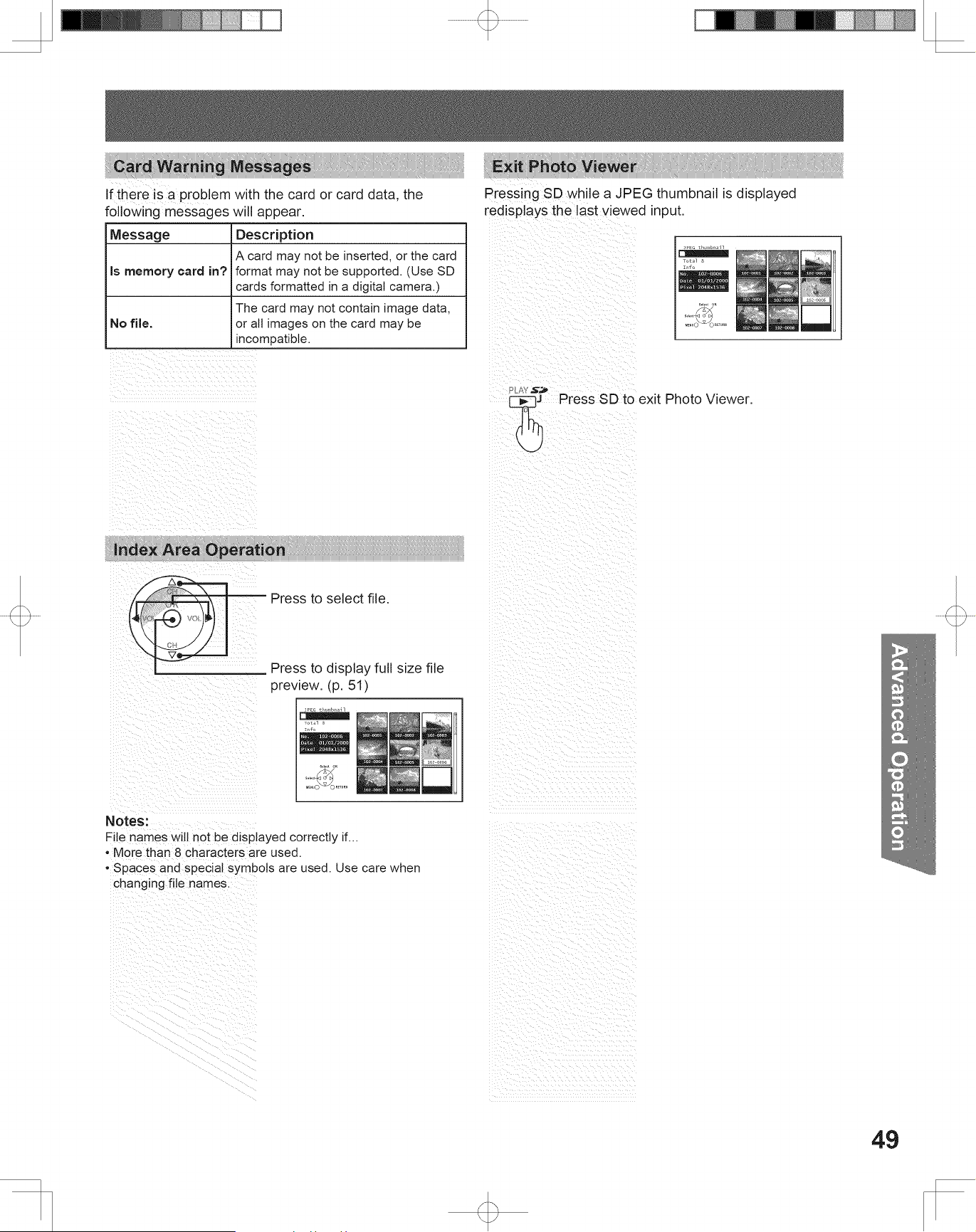
49
Advanced Op er a tion
Notes:
File names will not be displayed correctly if...
• More than 8 characters are used.
• Spaces and special symbols are used. Use care when
changing file names.
Press to display full size file
preview. (p. 51)
Press to select file.
Press SD to exit Photo Viewer.
Exit Photo Viewer
Index Area Operation
JPEG thumbnail
Total 8
Info
No. 102-0006
Date 01/01/2000
Pixel 2048x1536
102-0002 102-0003
102-0005 102-0006
102-0004
102-0001
102-0007 102-0008
MENU
RETURN
OKSelect
Select
Card Warning Messages
Message Description
Is memory card in?
A card may not be inserted, or the card
format may not be supported. (Use SD
cards formatted in a digital camera.)
No file.
The card may not contain image data,
or all images on the card may be
incompatible.
If there is a problem with the card or card data, the
following messages will appear.
Pressing SD while a JPEG thumbnail is displayed
redisplays the last viewed input.
JPEG thumbnail
Total 8
Info
No. 102-0006
Date 01/01/2000
Pixel 2048x1536
102-0002 102-0003
102-0005 102-0006
102-0004
102-0001
102-0007 102-0008
MENU
RETURN
OKSelect
Select
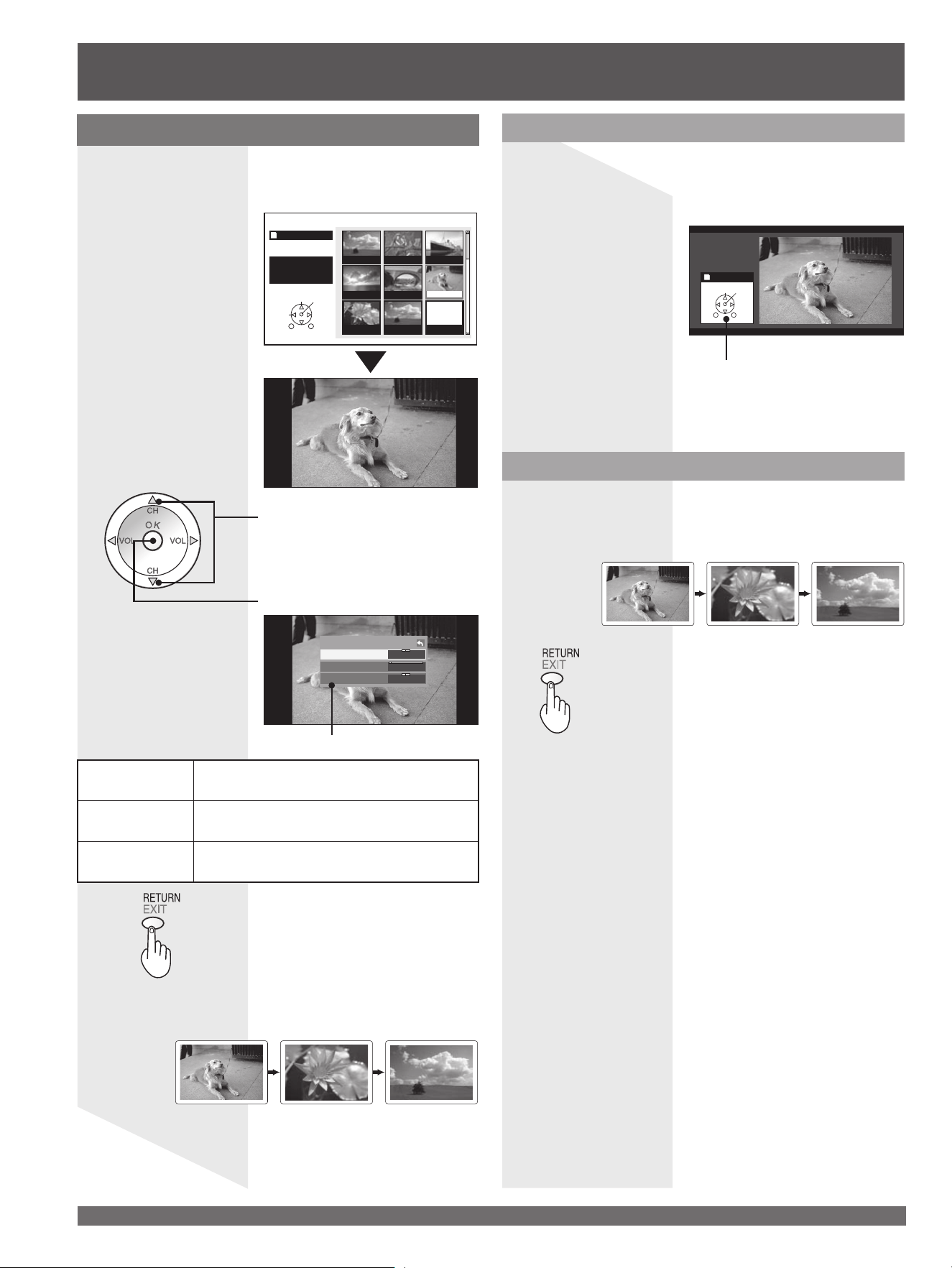
For assistance, please call : 1-888-VIEW PTV(843-9788) or, contact us via the web at: http://www.panasonic.com/contactinfo
50
Photo Viewer (continued)
Slide Show Mode
Single setting
Mode ◄ Single►
Disp time 1
Repeat Off
Mode
Set to Single/Slide to view single images or
perform a slide show.
Disp time
You can set how many seconds each
image is displayed in Slide mode.
Repeat
Turn the slide show Repeat function On or
Off.
Press to start slide show.
2
Press RETURN with Slide Show
mode displayed to return to the Card
Menu Screen.
Exit Slide Show mode
Navigation Display
Pressing RECALL during Slide Show mode allows you
to display or remove the Navigation Area.
Example:
If Display Mode is set to Slide, Disp time is
set to 5 seconds, and Repeat is Off.
Displayed
5 seconds
Stop
Press OK during a slide show to stop it. The
sub-menu is displayed.
Press to select each item.
Press to set each item.
1
3
Pressing RETURN during Slide Show mode allows you
to exit the mode.
MENU
RETURN
OKSelect
Navigation Area
Single setting menu
Displayed
5 seconds
Press ▲▼◄► to move cursor to desired file in INDEX
AREA.
Press OK to display file in full screen size.
JPEG thumbnail
Total 8
Info
No. 102-0006
Date 01/01/2000
Pixel 2048x1536
102-0002 102-0003
102-0005 102-0006
102-0004
102-0001
102-0007 102-0008
MENU
RETURN
OKSelect
Select
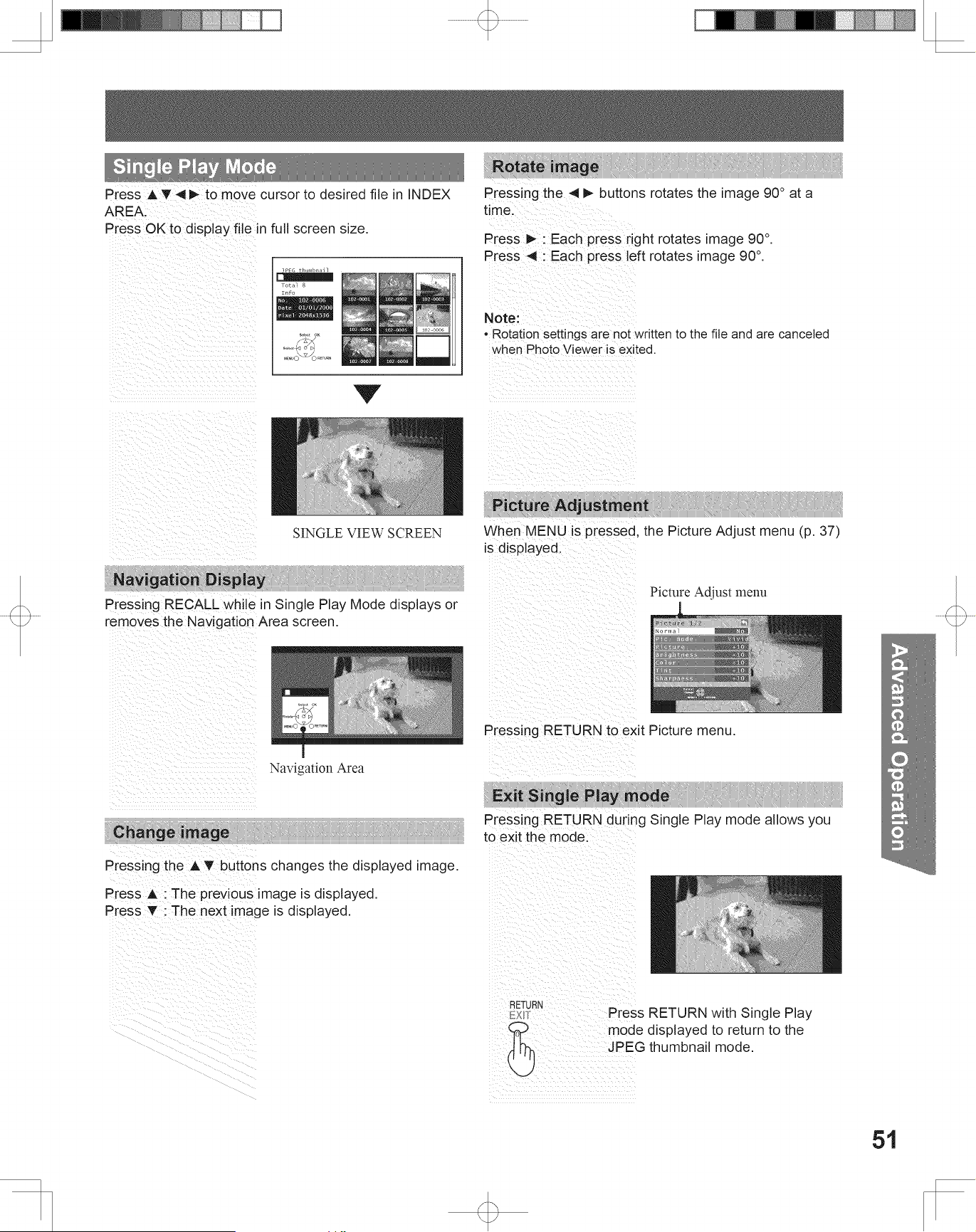
51
Advanced Op er a tion
Press RETURN with Single Play
mode displayed to return to the
JPEG thumbnail mode.
When MENU is pressed, the Picture Adjust menu (p. 37)
is displayed.
Picture Adjust menu
Picture Adjustment
Single Play Mode
Press ▲▼◄► to move cursor to desired file in INDEX
AREA.
Press OK to display file in full screen size.
Press ▲ : The previous image is displayed.
Press ▼ : The next image is displayed.
SINGLE VIEW SCREEN
Note:
• Rotation settings are not written to the file and are canceled
when Photo Viewer is exited.
JPEG thumbnail
Total 8
Info
No. 102-0006
Date 01/01/2000
Pixel 2048x1536
102-0002 102-0003
102-0005 102-0006
102-0004
102-0001
102-0007 102-0008
MENU
RETURN
OKSelect
Select
Exit Single Play mode
Change image
Rotate image
Press ► : Each press right rotates image 90°.
Press ◄ : Each press left rotates image 90°.
Navigation Display
Pressing RECALL while in Single Play Mode displays or
removes the Navigation Area screen.
Pressing the ▲▼ buttons changes the displayed image.
Pressing the ◄► buttons rotates the image 90° at a
time.
Pressing RETURN to exit Picture menu.
Picture 1/2
Normal No
Pic. mode Vivid
Picture +10
Brightness +10
Color +10
Tint +10
Sharpness +10
MENU
RETURN
Select
Change
Pressing RETURN during Single Play mode allows you
to exit the mode.
MENU
RETURN
OKSelect
Rotate
Navigation Area
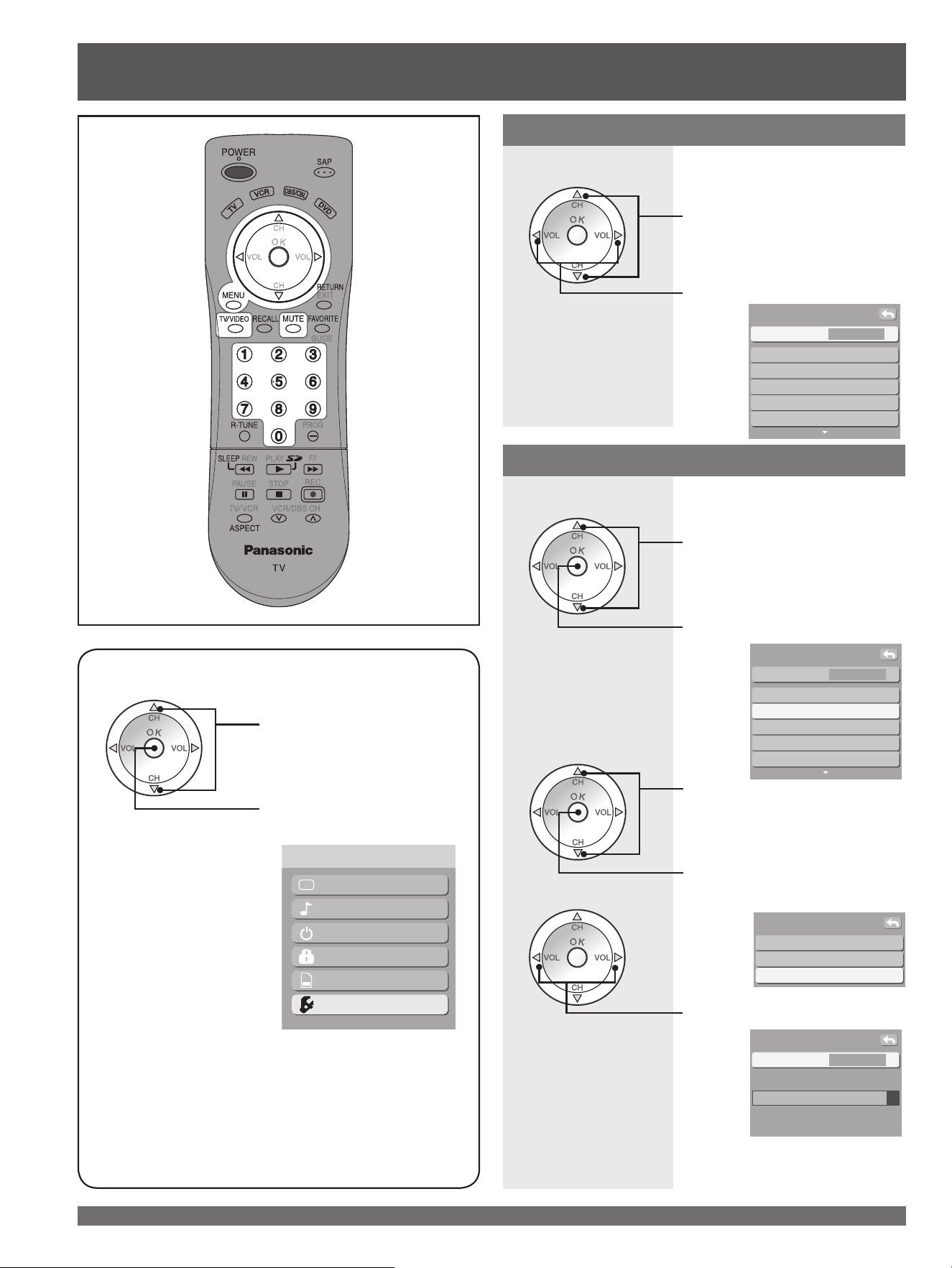
For assistance, please call : 1-888-VIEW PTV(843-9788) or, contact us via the web at: http://www.panasonic.com/contactinfo
52
Signal meter
Press to select “Program
channel”.
Press to enter Program
channel menu.
CH scan All
Language
Program channel
Input labels
CC
Other adjust
Setup
Press to select “Signal meter”.
Press to display signal meter.
• If Lock (p. 43) has been set, you
must enter your password to
display the signal meter screen.
2
1
Setup Features
Picture
Audio
Timer
Lock
Memory card
Setup
Menu
Press MENU to display the Main Menu screen.
Press to select “Setup”
icon.
Press to display the Setup
menu.
CH scan
Press to select “CH scan”.
Press to select “Fav.” or “All”.
CH scan ◄ All ►
Language
Program channel
Input labels
CC
Other adjust
Setup
Auto
Manual
Signal meter
Program channel
CH ◄ 2-1 ►
Signal strength
Current 85%
Peak level 85%
Signal meter
Press to select desired
channel.
3
Note:
• The signal meter works only for digital signals input via the
antenna.
Allows you to confirm the signal strength of a desired
channel.
You may choose the way in which channels are selected
with CH ▲▼.
Fav.: CH ▲▼ only displays
programs on the Favorite CH
list.
All: CH ▲▼ selects all channels
memorized with Auto Program.
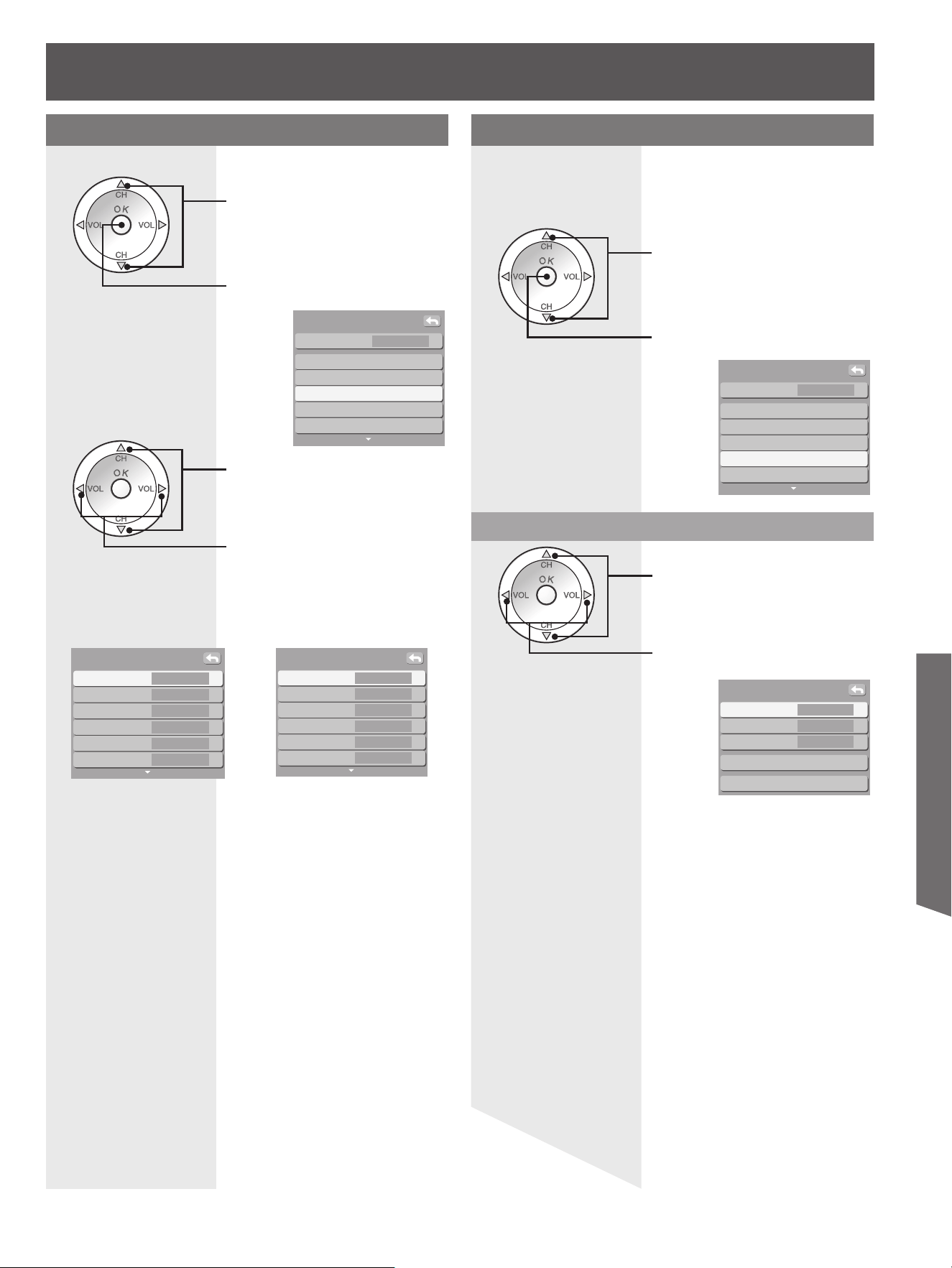
53
Advanced Op er a tion
Input labels
To label video input connections for on-screen display.
Comp. 1 ◄ ►
Comp. 2
HDMI
Video 1
Video 2
Video 3
Input labels
CH scan All
Language
Program channel
Input labels
CC
Other adjust
Setup
Press to select “Input labels”.
Press to enter the sub-menu
field.
Press to select the each item.
Press to select the input label.
• To skip the input, select “SKIP”.
The input will be skipped when
you press TV/VIDEO.
Selectable input labels :
SKIP, VCR, DVD, CABLE, DBS, PVR, GAME, AUX,
blank (non label).
CC (Closed Caption)
The television includes a built-in decoder that is capable
of providing a visual display of the audio portion. The
program viewed must provide Closed Caption (CC) for
the television to display it.
CC Mode
Notes:
• The closed caption is not displayed when you use HDMI
connection.
• If analog connected equipment is used for displaying or
recording, closed caption (CC) should be set On/Off on the
connected equipment.
The CC mode setting of the TV will not affect the analog
input.
If a digital program is being output in analog format, the CC
data will also be output in analog format.
If digital connected equipment is used for input, CC should be
set “On” on either the connected equipment or the TV.
If CC is set “On” on both the connected equipment and the
TV, captions from each unit will overlap.
Press to select “Mode”.
Mode ◄ Off ►
Analog CC1
Digital Primary
Digital setting
CC reset
CC
2
1
Press to select the setting.
CH scan All
Language
Program channel
Input labels
CC
Other adjust
Setup
Press to select “CC”.
Press to enter Closed Caption
menu.
Off : Recommended mode when
Closed Caption is not being
used.
On : To display Closed Captions.
Comp. 1 ◄ ►
Comp. 2
HDMI 1
HDMI 2
Video 1
Video 2
Input labels
(For models PT-52LCX66/
PT-56LCX66/PT-61LCX66)
(For models PT-52LCX16/
PT-56LCX16/PT-61LCX16)
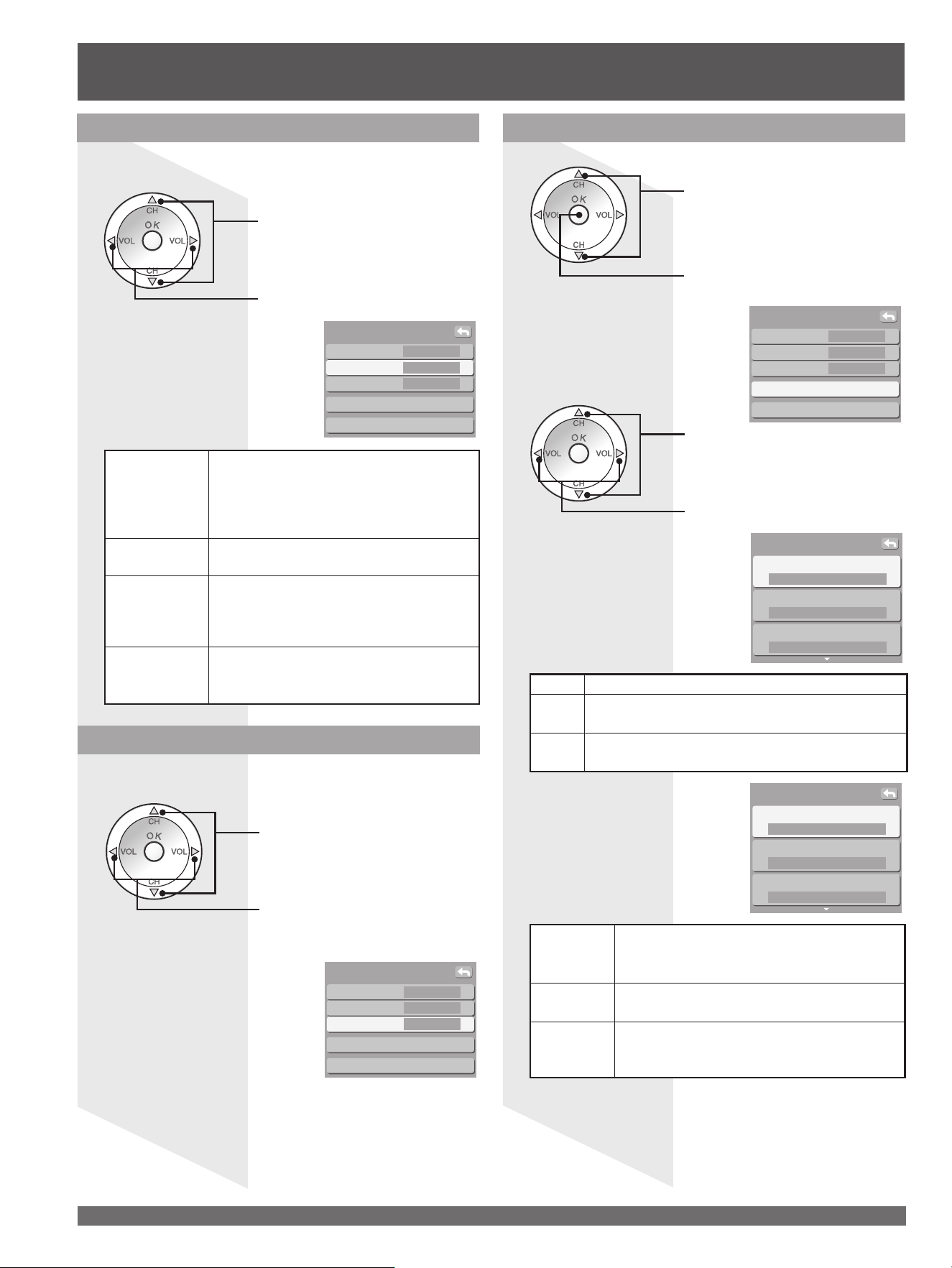
For assistance, please call : 1-888-VIEW PTV(843-9788) or, contact us via the web at: http://www.panasonic.com/contactinfo
54
CC Mode for Digital
The Digital Closed Caption menu lets you configure the
way you choose to view the digital captioning.
Press to select “Digital”.
Press to select the setting.
• Primary, Second., Service 3,
Service 4, Service 5, Service 6
Mode Off
Analog CC1
Digital ◄ Primary ►
Digital setting
CC reset
CC
Digital settings
Selecting digital broadcast service and viewing formats.
Mode Off
Analog CC1
Digital Primary
Digital setting
CC reset
CC
Size
◄ Automatic ►
Font
Automatic
Style
Automatic
Digital setting
Foreground
◄ Automatic ►
Fore opacity
Automatic
Background
Automatic
Digital setting
Press to select “Digital
setting”.
Press to enter the Digital
setting menu.
Press to select the each item.
Press to select the setting.
1
2
Size Automatic, Normal, Small, Large
Font
Automatic, Default, Mono-serif, Prop-serif, Mono,
Prop, Casual, Cursive, Small caps
Style
Automatic, None, Raised, Depressed, Uniform,
Drop shadow
Foreground
The color of the font (Automatic, Black,
White, Red, Green, Blue, Yellow, Magenta,
Cyan)
Fore
opacity
The opacity of the font (Automatic,
Transparent, Translucent, Solid, Flashing)
Background
The color of the text box (Automatic, Black,
White, Red, Green, Blue, Yellow, Magenta,
Cyan)
Setup Features (continued)
CC Mode for Analog
Choose the closed caption service of Analog
broadcasting.
Press to select “Analog”.
Press to select the setting.
Mode Off
Analog ◄ CC1 ►
Digital Primary
Digital setting
CC reset
CC
CC1
For video related information that can
be displayed (up to 4 lines of script on
the screen, where it does not disturb the
relevant parts of the picture). Script can
be in any language.
CC2/CC3/CC4
Other modes used for video related
information.
T1
Blanks out a large portion of the picture
on the television screen, and displays
program guide or any other information
currently being transmitted.
T2/T3/T4
Other modes that display information and
blank out a large portion of the picture of
the TV screen.

55
Advanced Op er a tion
Back opacity
◄ Automatic ►
Outline
Automatic
Digital setting
CC Reset
Reset the CC settings.
Mode Off
Analog CC1
Digital Primary
Digital setting
CC reset
CC
Press to select “CC reset”.
Press to reset Closed Caption
settings.
Back
opacity
The opacity of the text box (Automatic,
Transparent, Translucent, Solid, Flashing)
Outline
The outline of the text (if selected under
style) (Automatic, Black, White, Red, Green,
Blue, Yellow, Magenta, Cyan)
About
About
Reset
Setup
Version
License
About
Display the TV set Version and Software License.
Press to select “About”.
Press to display the About
screen.
Press to select “Version” or
“License”.
Press to display “Version” or
“License”.
1
2
Reset
About
Reset
Setup
Setup is reset.
Enter password.
----
Enter your password by
pressing 0 ~ 9 keys to reset
the Setup settings.
Press to select “Reset”.
Press to display the password
screen.
The confirmation screen is displayed.
Select “Yes”, and press OK.
Notes:
• Performing Reset will clear all items set with Setup, such as
channel settings. Use Reset with care.
• When using “Control with HDMI (HDAVI Control)”, with the
device connected, set “Ctrl with HDMI” first to “Off” and then
“On” using the Setup Menu. (p. 56)
• POWER indicator flashes red. After flashing stops, unplug the
unit then plug it back in and turn power ON.
1
2
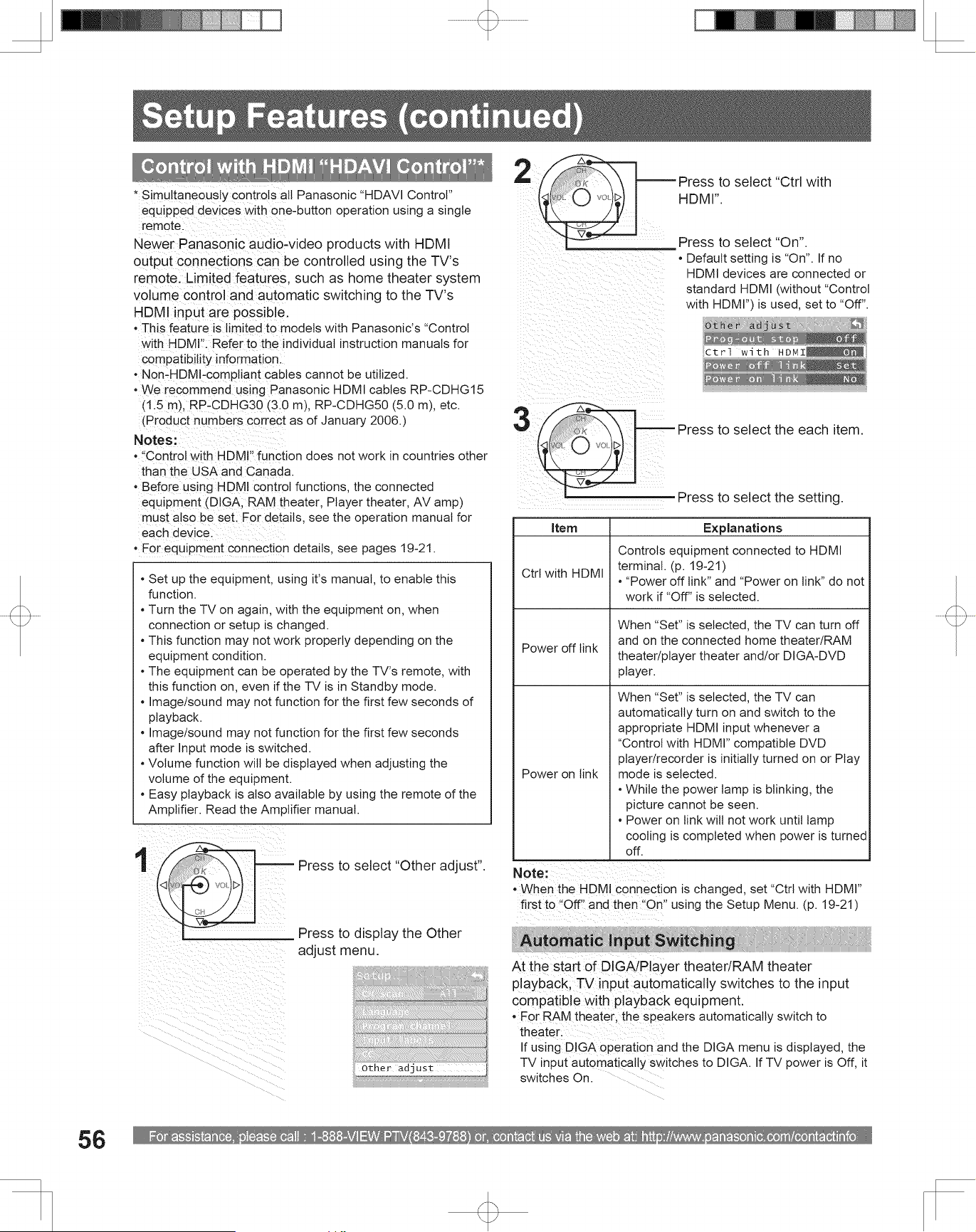
For assistance, please call : 1-888-VIEW PTV(843-9788) or, contact us via the web at: http://www.panasonic.com/contactinfo
56
Setup Features (continued)
Control with HDMI “HDAVI Control”*
Other adjust
Prog-out stop Off
Ctrl with HDMI On
Power off link Set
Power on link No
Press to select “Other adjust”.
Press to display the Other
adjust menu.
1
CH scan All
Language
Program channel
Input labels
CC
Other adjust
Setup
Press to select “Ctrl with
HDMI”.
Press to select “On”.
• Default setting is “On”. If no
HDMI devices are connected or
standard HDMI (without “Control
with HDMI”) is used, set to “Off”.
2
Item Explanations
Ctrl with HDMI
Controls equipment connected to HDMI
terminal. (p. 19-21)
• “Power off link” and “Power on link” do not
work if “Off” is selected.
Power off link
When “Set” is selected, the TV can turn off
and on the connected home theater/RAM
theater/player theater and/or DIGA-DVD
player.
Power on link
When “Set” is selected, the TV can
automatically turn on and switch to the
appropriate HDMI input whenever a
“Control with HDMI” compatible DVD
player/recorder is initially turned on or Play
mode is selected.
• While the power lamp is blinking, the
picture cannot be seen.
• Power on link will not work until lamp
cooling is completed when power is turned
off.
• Set up the equipment, using it’s manual, to enable this
function.
• Turn the TV on again, with the equipment on, when
connection or setup is changed.
• This function may not work properly depending on the
equipment condition.
• The equipment can be operated by the TV’s remote, with
this function on, even if the TV is in Standby mode.
• Image/sound may not function for the first few seconds of
playback.
• Image/sound may not function for the first few seconds
after Input mode is switched.
• Volume function will be displayed when adjusting the
volume of the equipment.
• Easy playback is also available by using the remote of the
Amplifier. Read the Amplifier manual.
Press to select the each item.
Press to select the setting.
3
Notes:
• “Control with HDMI” function does not work in countries other
than the USA and Canada.
• Before using HDMI control functions, the connected
equipment (DIGA, RAM theater, Player theater, AV amp)
must also be set. For details, see the operation manual for
each device.
• For equipment connection details, see pages 19-21.
* Simultaneously controls all Panasonic “HDAVI Control”
equipped devices with one-button operation using a single
remote.
Newer Panasonic audio-video products with HDMI
output connections can be controlled using the TV’s
remote. Limited features, such as home theater system
volume control and automatic switching to the TV’s
HDMI input are possible.
• This feature is limited to models with Panasonic’s “Control
with HDMI”. Refer to the individual instruction manuals for
compatibility information.
• Non-HDMI-compliant cables cannot be utilized.
• We recommend using Panasonic HDMI cables RP-CDHG15
(1.5 m), RP-CDHG30 (3.0 m), RP-CDHG50 (5.0 m), etc.
(Product numbers correct as of January 2006.)
Automatic Input Switching
At the start of DIGA/Player theater/RAM theater
playback, TV input automatically switches to the input
compatible with playback equipment.
• For RAM theater, the speakers automatically switch to
theater.
If using DIGA operation and the DIGA menu is displayed, the
TV input automatically switches to DIGA. If TV power is Off, it
switches On.
Note:
• When the HDMI connection is changed, set “Ctrl with HDMI”
first to “Off” and then “On” using the Setup Menu. (p. 19-21)
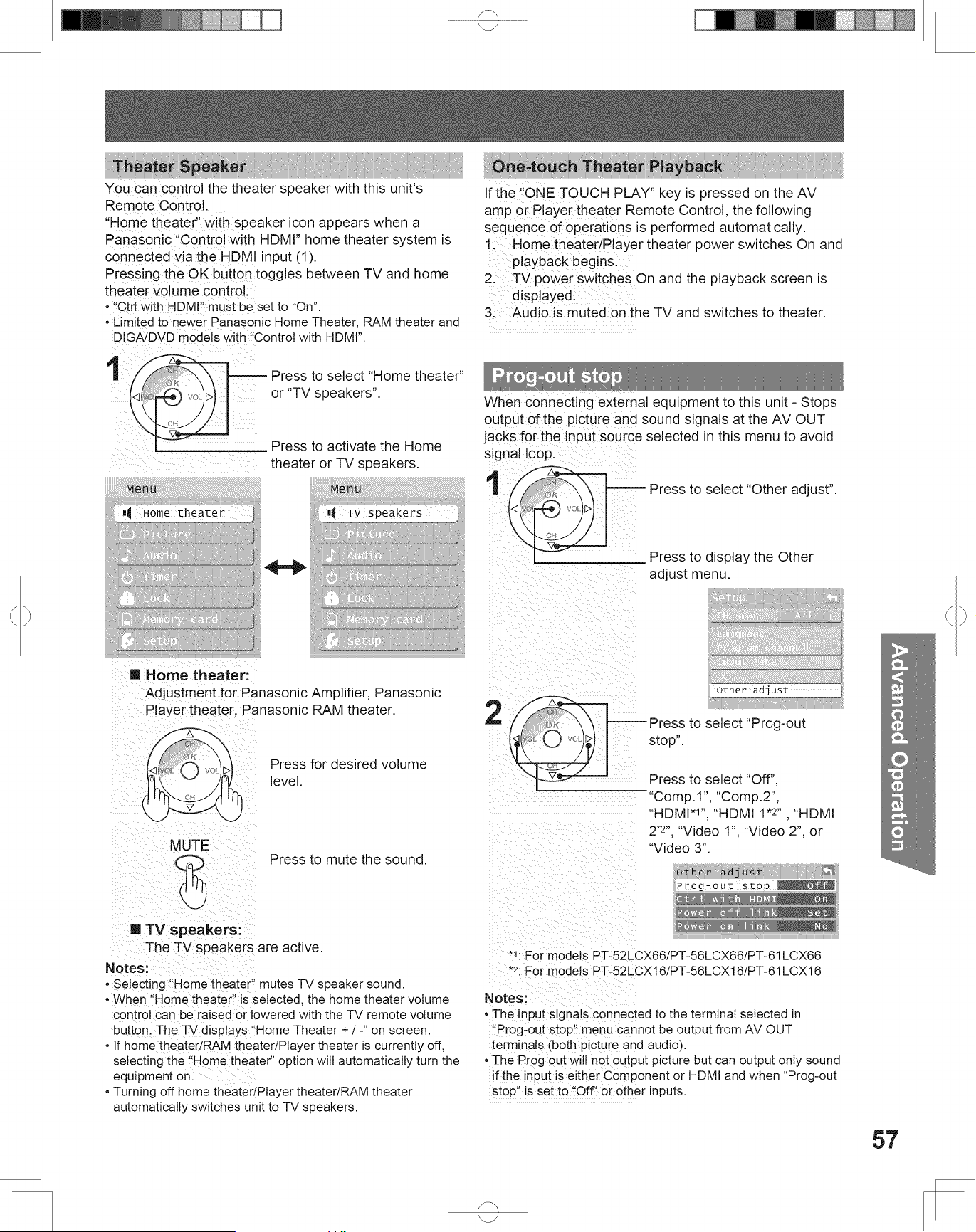
57
Advanced Op er a tion
Theater Speaker
You can control the theater speaker with this unit’s
Remote Control.
“Home theater” with speaker icon appears when a
Panasonic “Control with HDMI” home theater system is
connected via the HDMI input (1).
Pressing the OK button toggles between TV and home
theater volume control.
• “Ctrl with HDMI” must be set to “On”.
• Limited to newer Panasonic Home Theater, RAM theater and
DIGA/DVD models with “Control with HDMI”.
Press to select “Home theater”
or “TV speakers”.
1
Press to mute the sound.
Press for desired volume
level.
Home theater
Picture
Audio
Timer
Lock
Memory card
Setup
Menu
Press to activate the Home
theater or TV speakers.
TV speakers
Picture
Audio
Timer
Lock
Memory card
Setup
Menu
Home theater:
Adjustment for Panasonic Amplifier, Panasonic
Player theater, Panasonic RAM theater.
TV speakers:
The TV speakers are active.
Notes:
• Selecting “Home theater” mutes TV speaker sound.
• When “Home theater” is selected, the home theater volume
control can be raised or lowered with the TV remote volume
button. The TV displays “Home Theater + / -” on screen.
• If home theater/RAM theater/Player theater is currently off,
selecting the “Home theater” option will automatically turn the
equipment on.
• Turning off home theater/Player theater/RAM theater
automatically switches unit to TV speakers.
One-touch Theater Playback
If the “ONE TOUCH PLAY” key is pressed on the AV
amp or Player theater Remote Control, the following
sequence of operations is performed automatically.
1. Home theater/Player theater power switches On and
playback begins.
2. TV power switches On and the playback screen is
displayed.
3. Audio is muted on the TV and switches to theater.
Prog-out stop
When connecting external equipment to this unit - Stops
output of the picture and sound signals at the AV OUT
jacks for the input source selected in this menu to avoid
signal loop.
Press to select “Other adjust”.
Press to display the Other
adjust menu.
1
CH scan All
Language
Program channel
Input labels
CC
Other adjust
Setup
Other adjust
Prog-out stop Off
Ctrl with HDMI On
Power off link Set
Power on link No
Press to select “Prog-out
stop”.
Press to select “Off”,
“Comp.1”, “Comp.2”,
“HDMI*
1
”, “HDMI 1*
2
” , “HDMI
2
*2
”, “Video 1”, “Video 2”, or
“Video 3”.
2
Notes:
• The input signals connected to the terminal selected in
“Prog-out stop” menu cannot be output from AV OUT
terminals (both picture and audio).
• The Prog out will not output picture but can output only sound
if the input is either Component or HDMI and when “Prog-out
stop” is set to “Off” or other inputs.
*
1
: For models PT-52LCX66/PT-56LCX66/PT-61LCX66
*
2
: For models PT-52LCX16/PT-56LCX16/PT-61LCX16
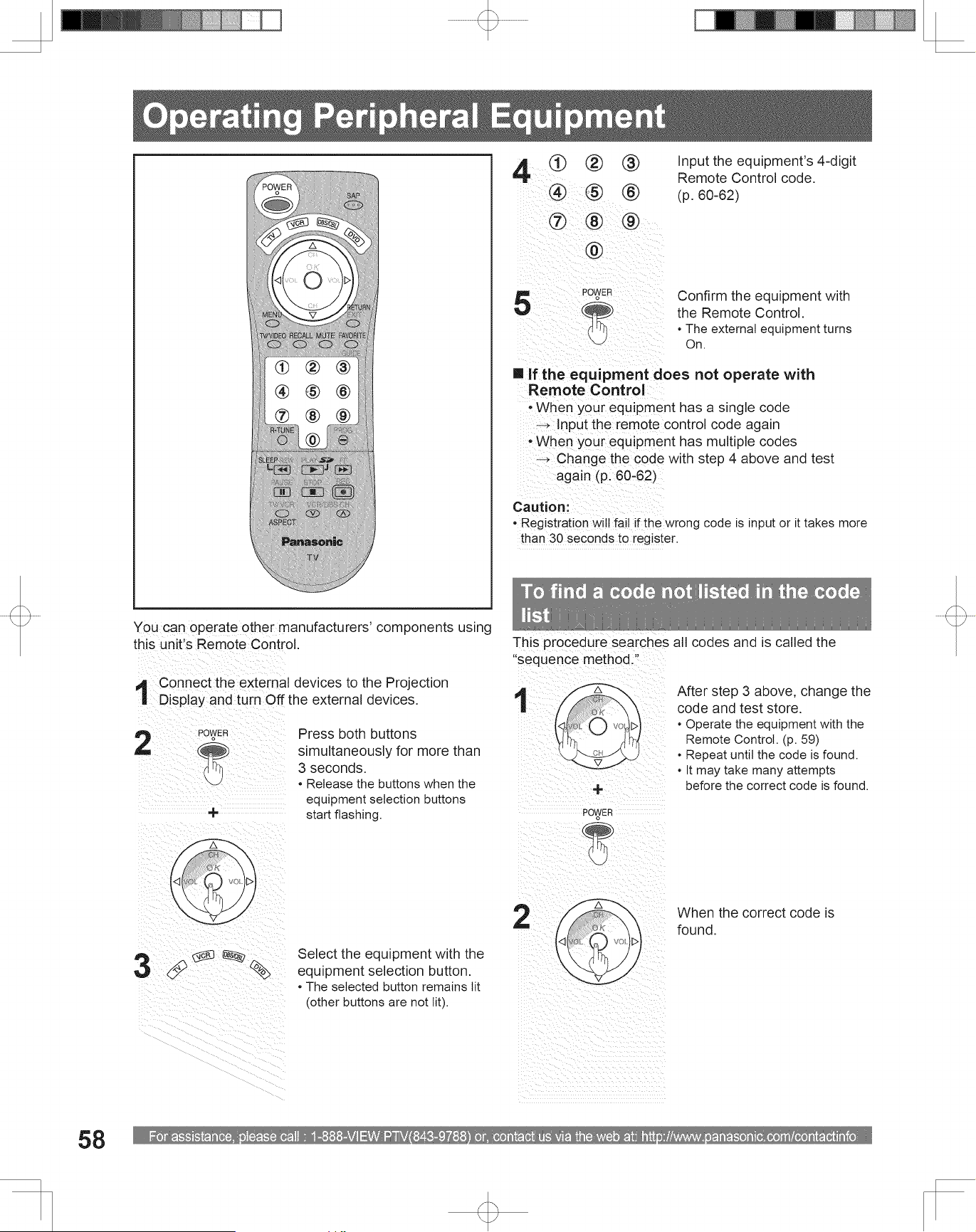
For assistance, please call : 1-888-VIEW PTV(843-9788) or, contact us via the web at: http://www.panasonic.com/contactinfo
58
2
3
4
Select the equipment with the
equipment selection button.
• The selected button remains lit
(other buttons are not lit).
Input the equipment’s 4-digit
Remote Control code.
(p. 60-62)
+
Operating Peripheral Equipment
1
When the correct code is
found.
You can operate other manufacturers’ components using
this unit’s Remote Control.
Connect the external devices to the Projection
Display and turn Off the external devices.
1
Press both buttons
simultaneously for more than
3 seconds.
• Release the buttons when the
equipment selection buttons
start flashing.
5
Confirm the equipment with
the Remote Control.
• The external equipment turns
On.
If the equipment does not operate with
Remote Control
• When your equipment has a single code
→ Input the remote control code again
• When your equipment has multiple codes
→ Change the code with step 4 above and test
again (p. 60-62)
Caution:
• Registration will fail if the wrong code is input or it takes more
than 30 seconds to register.
To find a code not listed in the code
list
This procedure searches all codes and is called the
“sequence method.”
After step 3 above, change the
code and test store.
• Operate the equipment with the
Remote Control. (p. 59)
• Repeat until the code is found.
• It may take many attempts
before the correct code is found.
+
2
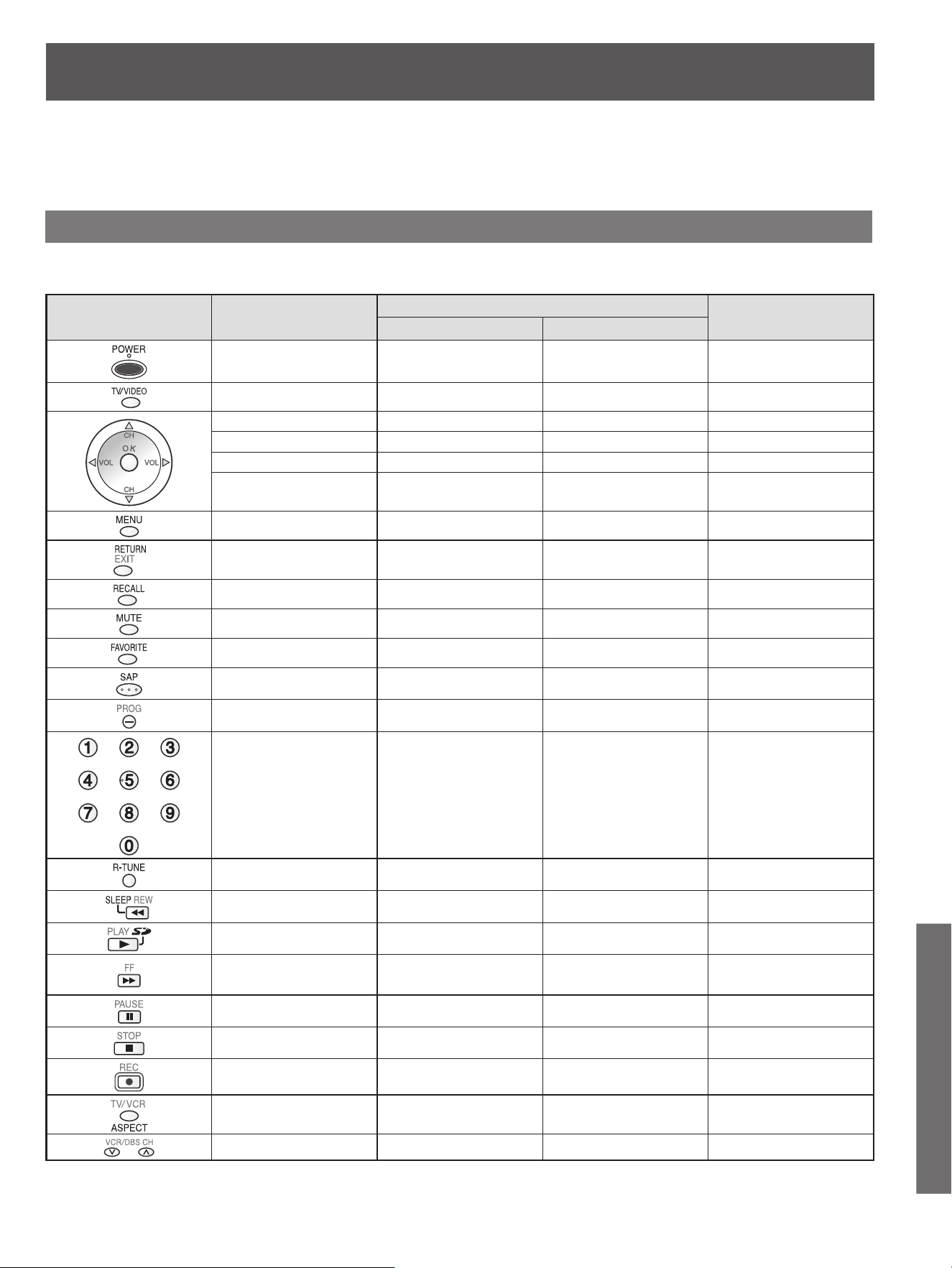
59
Information
Remote Control Operation/Code List
The following explains how to operate external devices with the Remote Control.
• Register the Remote Control codes (p. 58) if you want to operate an external device of another manufacturer. (p. 60-62)
This chart defines which keys are operational after programming (if needed), while in the selected Remote Control
mode, VCR, DBS/CBL, DVD.
Note:
• Operation may not be possible depending on the available memory size of the Remote Control.
This Remote Control is not designed to cover operation of all functions of all models.
KEY NAME VCR MODE
DBS/CBL MODE
DVD MODE
DBS CBL
VCR Power STB Power Power DVD Power
TV Input Switch TV Input Switch TV Input Switch TV Input Switch
– Channel Up/Down Channel Up/Down Channel Up/Down
TV Volume Up/Down – TV Volume Up/Down TV Volume Up/Down
–OK––
–
Cursor Up/Down/Right/
Left
––
– STB Menu – –
– Exit – –
VCR Display DBS Display TV Recall DVD Display
TV Mute TV Mute TV Mute TV Mute
– Guide – –
– STB Audio Track – –
– Program – –
– 0-9 0-9 –
– Previous Channel Previous Channel –
VCR Rewind – – Skip Reverse/Rewind
VCR Play – – DVD Play
VCR Forward – –
Skip Forward/Fast
Forward
VCR Pause – – DVD Still/Pause
VCR Stop – – DVD Stop
VCR Record – – –
TV/VCR Switch DBS Aspect – Open/Close
VCR Channel Up/Down Page Up/Down – Slow+/Slow-
Remote Control Operation List
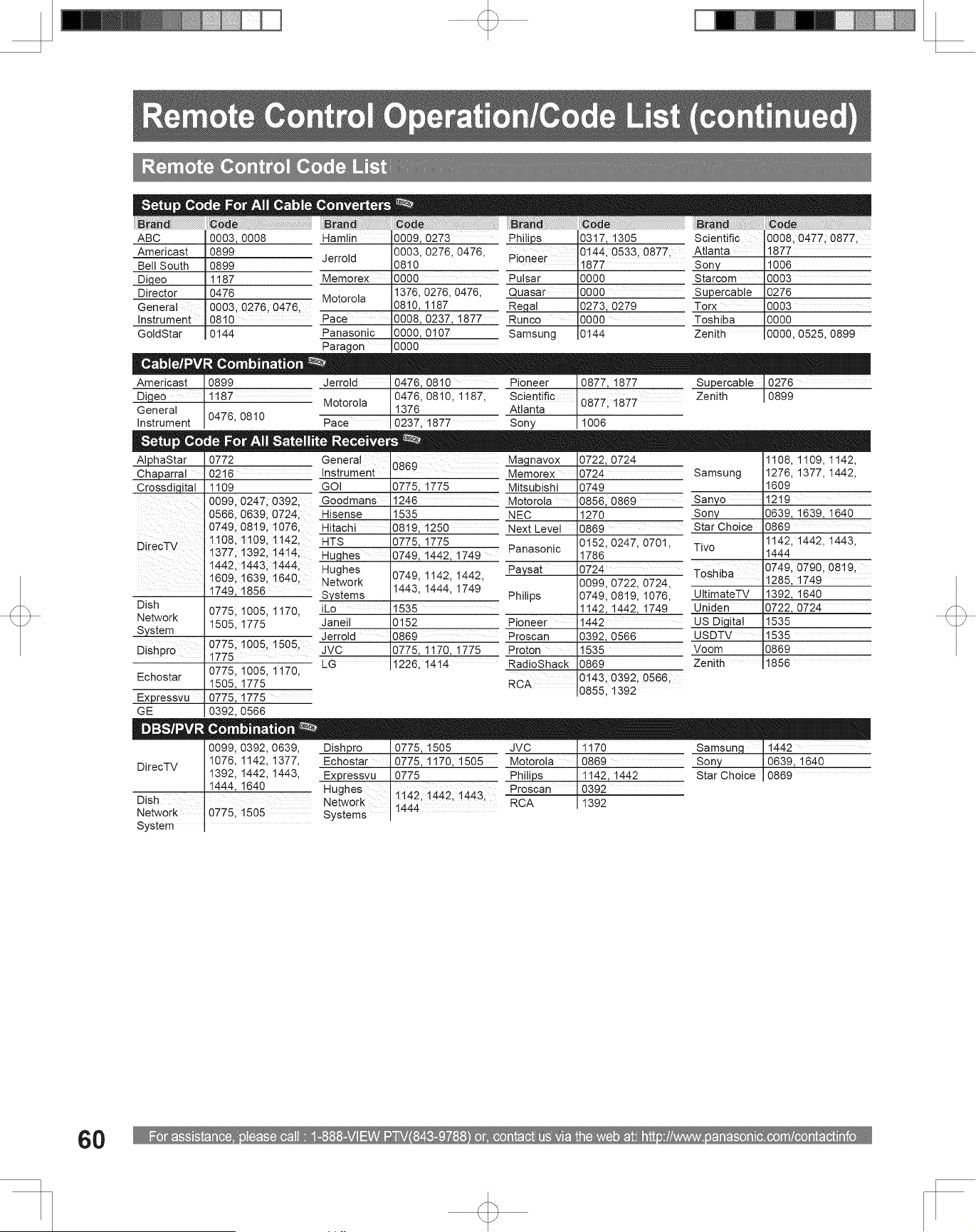
For assistance, please call : 1-888-VIEW PTV(843-9788) or, contact us via the web at: http://www.panasonic.com/contactinfo
60
Remote Control Operation/Code List (continued)
Remote Control Code List
Brand Code
ABC 0003, 0008
Americast 0899
Bell South 0899
Digeo 1187
Director 0476
General
Instrument
0003, 0276, 0476,
0810
GoldStar 0144
Brand Code
Hamlin 0009, 0273
Jerrold
0003, 0276, 0476,
0810
Memorex 0000
Motorola
1376, 0276, 0476,
0810, 1187
Pace 0008, 0237, 1877
Panasonic 0000, 0107
Paragon 0000
Brand Code
Philips 0317, 1305
Pioneer
0144, 0533, 0877,
1877
Pulsar 0000
Quasar 0000
Regal 0273, 0279
Runco 0000
Samsung 0144
Brand Code
Scientific
Atlanta
0008, 0477, 0877,
1877
Sony 1006
Starcom 0003
Supercable 0276
Torx 0003
Toshiba 0000
Zenith 0000, 0525, 0899
AlphaStar 0772
Chaparral 0216
Crossdigital 1109
DirecTV
0099, 0247, 0392,
0566, 0639, 0724,
0749, 0819, 1076,
1108, 1109, 1142,
1377, 1392, 1414,
1442, 1443, 1444,
1609, 1639, 1640,
1749, 1856
Dish
Network
System
0775, 1005, 1170,
1505, 1775
Dishpro
0775, 1005, 1505,
1775
Echostar
0775, 1005, 1170,
1505, 1775
Expressvu 0775, 1775
GE 0392, 0566
General
Instrument
0869
GOI 0775, 1775
Goodmans 1246
Hisense 1535
Hitachi 0819, 1250
HTS 0775, 1775
Hughes 0749, 1442, 1749
Hughes
Network
Systems
0749, 1142, 1442,
1443, 1444, 1749
iLo 1535
Janeil 0152
Jerrold 0869
JVC 0775, 1170, 1775
LG 1226, 1414
Magnavox 0722, 0724
Memorex 0724
Mitsubishi 0749
Motorola 0856, 0869
NEC 1270
Next Level 0869
Panasonic
0152, 0247, 0701,
1786
Paysat 0724
Philips
0099, 0722, 0724,
0749, 0819, 1076,
1142, 1442, 1749
Pioneer 1442
Proscan 0392, 0566
Proton 1535
RadioShack 0869
RCA
0143, 0392, 0566,
0855, 1392
Samsung
1108, 1109, 1142,
1276, 1377, 1442,
1609
Sanyo 1219
Sony 0639, 1639, 1640
Star Choice 0869
Tivo
1142, 1442, 1443,
1444
Toshiba
0749, 0790, 0819,
1285, 1749
UltimateTV 1392, 1640
Uniden 0722, 0724
US Digital 1535
USDTV 1535
Voom 0869
Zenith 1856
Americast 0899
Digeo 1187
General
Instrument
0476, 0810
Jerrold 0476, 0810
Motorola
0476, 0810, 1187,
1376
Pace 0237, 1877
Pioneer 0877, 1877
Scientific
Atlanta
0877, 1877
Sony 1006
Supercable 0276
Zenith 0899
DirecTV
0099, 0392, 0639,
1076, 1142, 1377,
1392, 1442, 1443,
1444, 1640
Dish
Network
System
0775, 1505
Dishpro 0775, 1505
Echostar 0775, 1170, 1505
Expressvu 0775
Hughes
Network
Systems
1142, 1442, 1443,
1444
JVC 1170
Motorola 0869
Philips 1142, 1442
Proscan 0392
RCA 1392
Samsung 1442
Sony 0639, 1640
Star Choice 0869
Setup Code For All Cable Converters
Setup Code For All Satellite Receivers
Cable/PVR Combination
DBS/PVR Combination
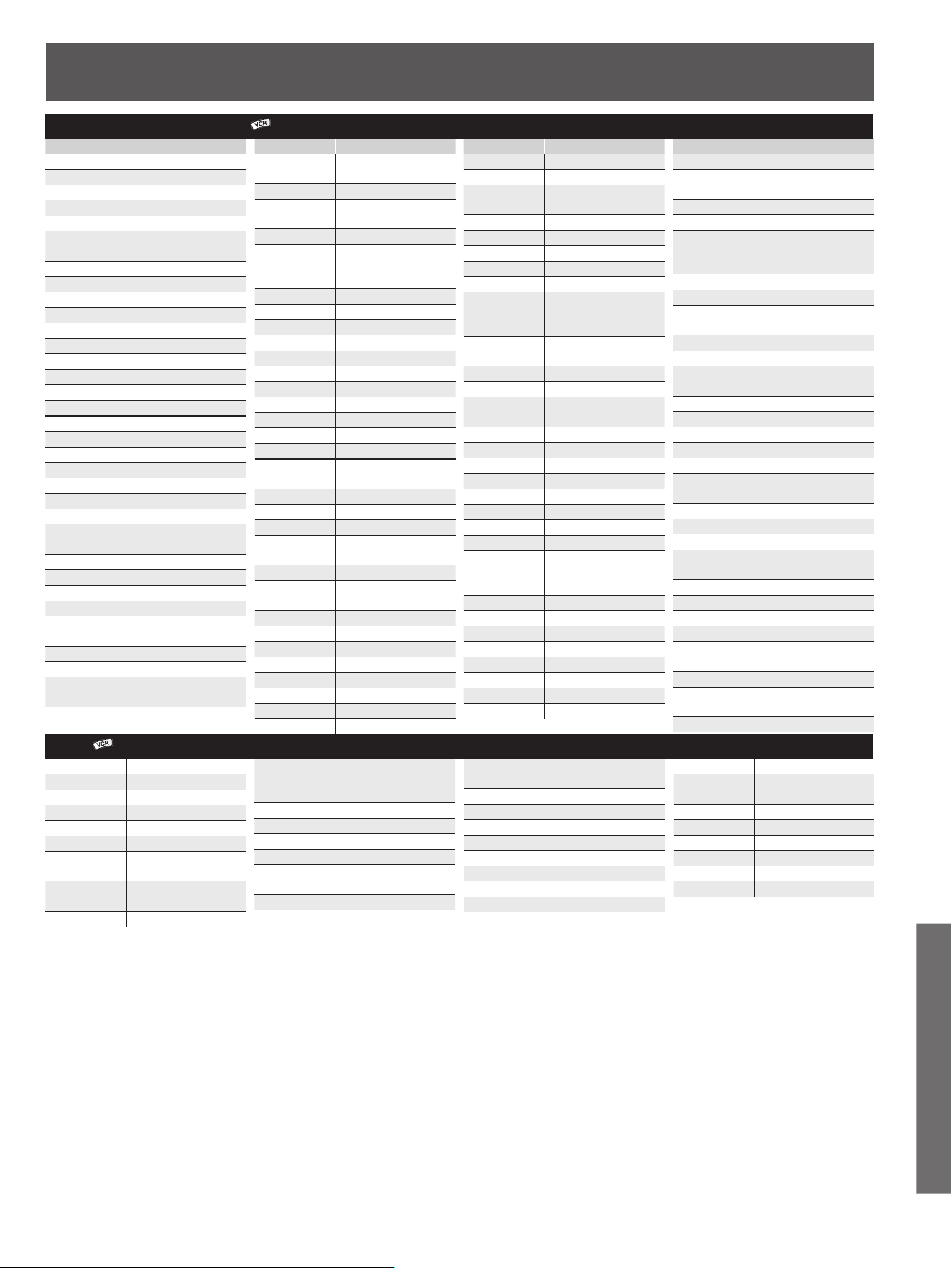
61
Information
Brand Code
ABS 1972
Adventura 0000
Aiwa 0000, 0037, 0124
Akai 0175
Alienware 1972
American
High
0035
Audiovox 0037
Broksonic 1479
Calix 0037
Canon 0035
Citizen 0037, 1278
Craig 0037
Curtis Mathes
0035, 0060, 1035
CyberPower 1972
Daewoo 0045, 1278
Dell 1972
Denon 0042
DirecTV 0739
Durabrand 0039
Dynatech 0000
Electrohome 0037, 0043
Electrophonic
0037
Emerex 0032
Emerson
0000, 0037, 0043,
1278, 1479
Fuji 0033, 0035
Funai 0000
Garrard 0000
Gateway 1972
GE
0035, 0060, 0807,
1035, 1060
GoldStar 0037, 1237
Gradiente 0000
Harley
Davidson
0000
Brand Code
Hewlett
Packard
1972
Hitachi 0000, 0042, 0089
Howard
Computers
1972
HP 1972
Hughes
Network
Systems
0042, 0739
Humax 0739
Hush 1972
iBUYPOWER
1972
JVC 0067
KEC 0037
Kenwood 0067
Kodak 0035, 0037
Linksys 1972
Lloyd’s 0000
LXI 0037
Magnasonic 1278
Magnavox
0000, 0035, 0039,
1781
Marantz 0035
Marta 0037
Matsushita 0035
Media Center
PC
1972
MEI 0035
Memorex
0000, 0035, 0037,
0039, 1237
MGA 0043
Microsoft 1972
Mind 1972
Minolta 0042
Mitsubishi 0043, 0067, 0807
Motorola 0035
MTC 0000
Multitech 0000
Brand Code
NEC 0067
Nikko 0037
Niveus
Media
1972
Northgate 1972
Olympus 0035, 0226
Onkyo 0222
Optimus 0037
Orion 1479
Panasonic
0035, 0077, 0225,
0226, 0227, 0378,
0616, 1035, 1244
Penney
0035, 0037, 0042,
1035, 1237
Pentax 0042
Philco 0035
Philips
0035, 0618, 0739,
1081, 1181
Pilot 0037
Pioneer 0067
Proscan 0060, 1060
Pulsar 0039
Quasar 0035, 0077, 1035
RadioShack 0000
Radix 0037
Randex 0037
RCA
0042, 0060, 0077,
0807, 0880, 1035,
1060
Realistic 0000, 0035, 0037
ReplayTV 0614, 0616
Ricavision 1972
Runco 0039
Samsung 0045, 0739, 1014
Sanky 0039
Sansui 0000, 0067, 1479
Sanyo 0159
Brand Code
Scott 0043, 0045
Sears
0000, 0035, 0037,
0042, 1237
Sharp 0807, 0848
Sonic Blue 0614, 0616
Sony
0000, 0032, 0033,
0035, 0636, 1032,
1232, 1972
Stack 9 1972
STS 0042
Sylvania
0000, 0035, 0043,
1781
Symphonic 0000
Systemax 1972
Tagar
Systems
1972
Teac 0000
Technics 0035
Teknika 0000, 0035, 0037
Thomas 0000
Tivo 0618, 0636, 0739
Toshiba
0043, 0045, 0845,
1008, 1145, 1972
Totevision 0037
Touch 1972
Vector 0045
Video
Concepts
0045
Videomagic 0037
Viewsonic 1972
Villain 0000
Voodoo 1972
Wards
0000, 0035, 0042,
0060
XR-1000 0000, 0035
Zenith
0000, 0033, 0039,
1479
ZT Group 1972
ABS 1972
Alienware 1972
CyberPower 1972
Dell 1972
DirecTV 0739
Gateway 1972
Hewlett
Packard
1972
Howard
Computers
1972
HP 1972
Hughes
Network
Systems
0739
Humax 0739
Hush 1972
iBUYPOWER
1972
Linksys 1972
Media
Center PC
1972
Microsoft 1972
Mind 1972
Niveus
Media
1972
Northgate 1972
Panasonic 0616
Philips 0618, 0739
RCA 0880
ReplayTV 0614, 0616
Sonic Blue 0614, 0616
Sony 0636, 1972
Stack 9 1972
Systemax 1972
Tagar
Systems
1972
Tivo 0618, 0636, 0739
Toshiba 1008, 1972
Touch 1972
Viewsonic 1972
Voodoo 1972
ZT Group 1972
Setup Code For All VCRs
PVR
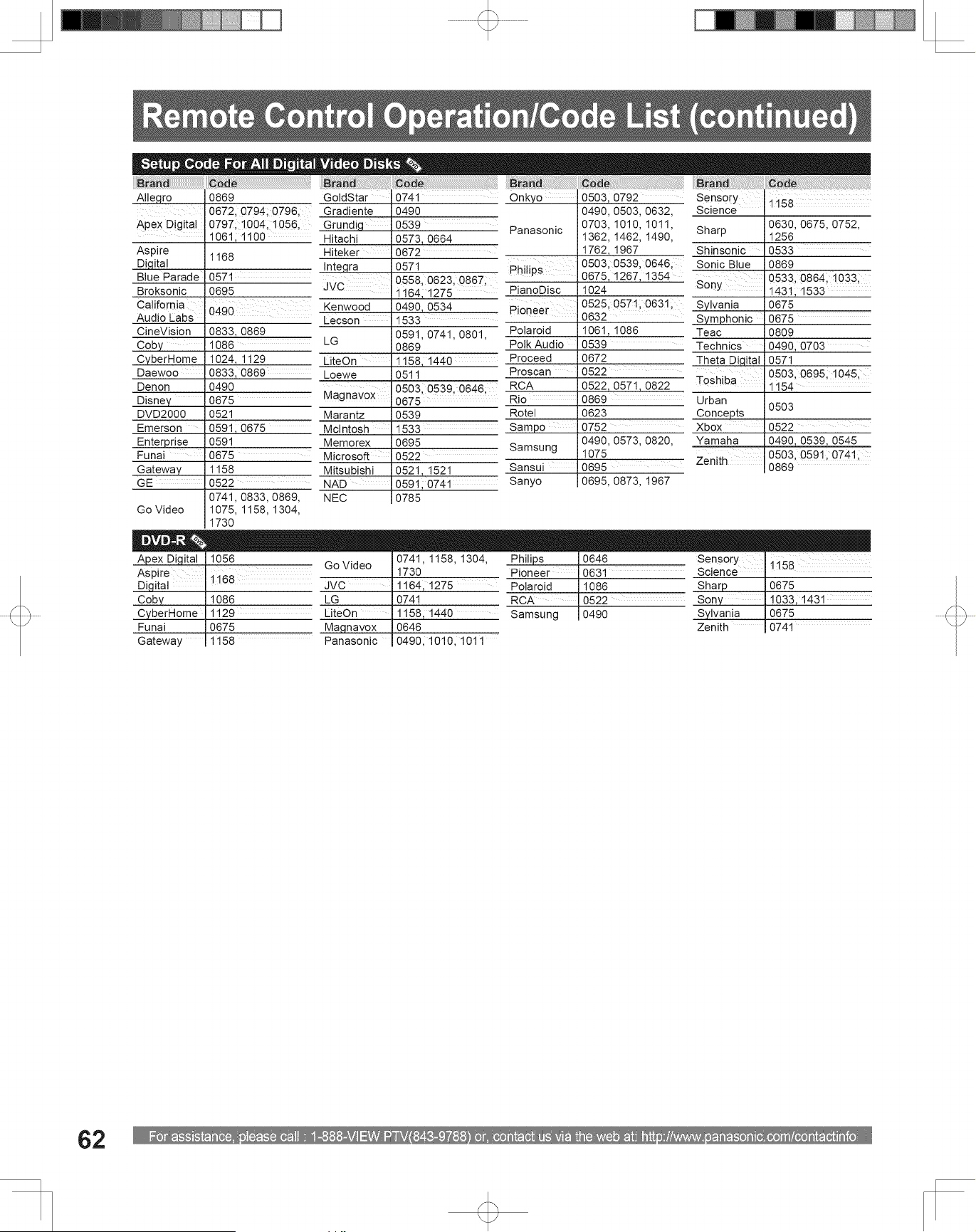
For assistance, please call : 1-888-VIEW PTV(843-9788) or, contact us via the web at: http://www.panasonic.com/contactinfo
62
Brand Code
Allegro 0869
Apex Digital
0672, 0794, 0796,
0797, 1004, 1056,
1061, 1100
Aspire
Digital
1168
Blue Parade 0571
Broksonic 0695
California
Audio Labs
0490
CineVision 0833, 0869
Coby 1086
CyberHome 1024, 1129
Daewoo 0833, 0869
Denon 0490
Disney 0675
DVD2000 0521
Emerson 0591, 0675
Enterprise 0591
Funai 0675
Gateway 1158
GE 0522
Go Video
0741, 0833, 0869,
1075, 1158, 1304,
1730
Brand Code
GoldStar 0741
Gradiente 0490
Grundig 0539
Hitachi 0573, 0664
Hiteker 0672
Integra 0571
JVC
0558, 0623, 0867,
1164, 1275
Kenwood 0490, 0534
Lecson 1533
LG
0591, 0741, 0801,
0869
LiteOn 1158, 1440
Loewe 0511
Magnavox
0503, 0539, 0646,
0675
Marantz 0539
McIntosh 1533
Memorex 0695
Microsoft 0522
Mitsubishi 0521, 1521
NAD 0591, 0741
NEC 0785
Brand Code
Onkyo 0503, 0792
Panasonic
0490, 0503, 0632,
0703, 1010, 1011,
1362, 1462, 1490,
1762, 1967
Philips
0503, 0539, 0646,
0675, 1267, 1354
PianoDisc 1024
Pioneer
0525, 0571, 0631,
0632
Polaroid 1061, 1086
Polk Audio 0539
Proceed 0672
Proscan 0522
RCA 0522, 0571, 0822
Rio 0869
Rotel 0623
Sampo 0752
Samsung
0490, 0573, 0820,
1075
Sansui 0695
Sanyo 0695, 0873, 1967
Brand Code
Sensory
Science
1158
Sharp
0630, 0675, 0752,
1256
Shinsonic 0533
Sonic Blue 0869
Sony
0533, 0864, 1033,
1431, 1533
Sylvania 0675
Symphonic 0675
Teac 0809
Technics 0490, 0703
Theta Digital 0571
Toshiba
0503, 0695, 1045,
1154
Urban
Concepts
0503
Xbox 0522
Yamaha 0490, 0539, 0545
Zenith
0503, 0591, 0741,
0869
Apex Digital 1056
Aspire
Digital
1168
Coby 1086
CyberHome 1129
Funai 0675
Gateway 1158
Go Video
0741, 1158, 1304,
1730
JVC 1164, 1275
LG 0741
LiteOn 1158, 1440
Magnavox 0646
Panasonic 0490, 1010, 1011
Philips 0646
Pioneer 0631
Polaroid 1086
RCA 0522
Samsung 0490
Sensory
Science
1158
Sharp 0675
Sony 1033, 1431
Sylvania 0675
Zenith 0741
Remote Control Operation/Code List (continued)
Setup Code For All Digital Video Disks
DVD-R

63
Information
Indicator lights on the front of the unit alert you to the unit’s internal condition. (p. 10)
If the Lamp, Power, or Temp indicators flash, turn unit off and follow the directions below.
Note:
• Once necessary steps have been taken, and before turning unit back On, be sure the unit has sufficiently cooled down.
Especially if the unit was used for a long period, the lamp may take a while to cool down.
Indicator Symptom Problem Possible Solution
TEMP
Indicator
Flashes red 2 times. Power shuts off. Malfunction 1. Contact service center.
Flashes red 3 times. Power shuts off. Internal overheat error. Wait a while, then turn unit back on.
Flashes red 6 times. Power shuts off. Malfunction 2. Contact service center.
POWER
Indicator
Flashes orange 1 time. Power shuts off. Malfunction 3. Contact service center.*
1
Flashes orange 2 times. Power shuts off. Malfunction 4. Contact service center.*
1
Flashes orange 3 times. Power shuts off. Malfunction 5. Contact service center.*
1
Flashes orange 5 times. Power shuts off. Malfunction 6. Contact service center.*
1
Flashes orange 7 times. Power shuts off.
The Lamp Cover is
unsecured.
Securely attach Lamp Cover.
Flashes orange 8 times. Power shuts off. Malfunction 7. Contact service center.*
1
Lights solid orange.
The screen isn’t
illuminated.
Malfunction 8. Contact service center.*
1
LAMP
Indicator
Flashes red 1 time. Power shuts off.
Lamp will not light or light
is abnormal.
Try turning Power On several times.
If error persists, contact service
center.
Flashes red 2 times. Dynamic iris off. Malfunction 9. Contact service center.
Flashes red 3 times. Dynamic iris off. Malfunction 10. Contact service center.
Lights solid red.
OSD appears every time
power is turned on.
Maximum Lamp life
hours exceeded.
Replace Lamp.
Warning Indicators
*
1
: Press unit POWER button down over 7 seconds. The POWER indicator goes out. Turn Power back On after 5 seconds. If the
warning indicator still does not go out, please contact a service center.
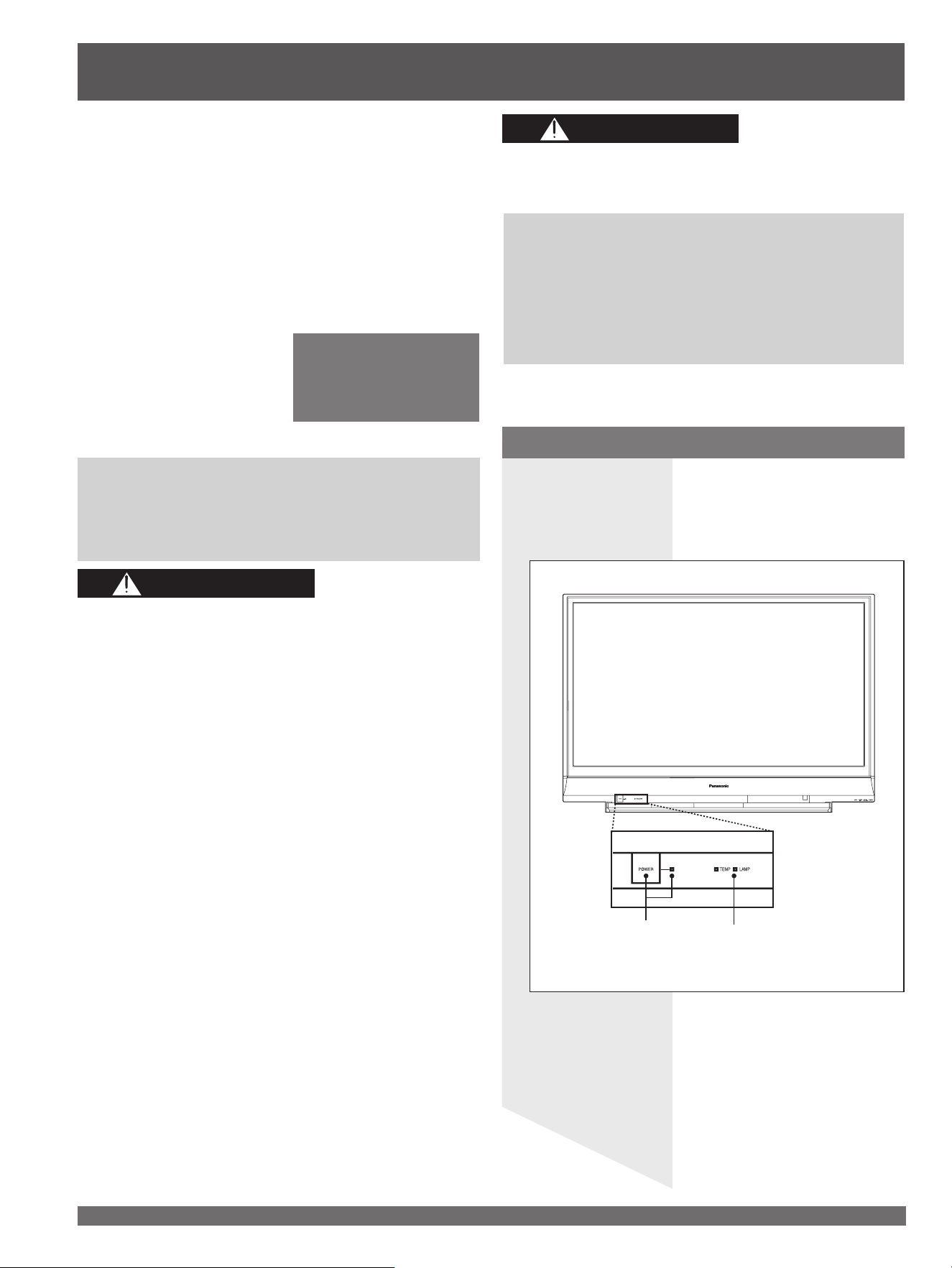
For assistance, please call : 1-888-VIEW PTV(843-9788) or, contact us via the web at: http://www.panasonic.com/contactinfo
64
Lamp replacement procedure
Turn power off, wait until power indicator stops
blinking red, then disconnect the power cord
from the wall outlet and confirm that the area
around the lamp unit has cooled down.
LAMP indicator
POWER button/
POWER indicator
1
The lamp unit is sold separately. To purchase
a replacement, call the Panasonic accessory
department, toll free at: 1-800-332-5368.
Lamp unit Part No. : TY-LA1001
a. Press the POWER button on the Remote Control to
turn off the power.
b. Wait for about 1 minute until the cooling fan stops.
• The lamp cooling fan will continue to operate for
about 1 minute after turning off the power. Do not
unplug the power cord from the outlet until the fan
has stopped. Avoid interrupting the power line by
using circuit breakers or switchable power strips.
c. After the cooling fan has stopped, Disconnect the
power cord from the outlet.
d. Please wait more than one hour to let the lamp cool
before replacing it.
e. [If you need to replace the lamp more urgently]
• The Projection Display has a forced cooling feature.
After the POWER button is turned OFF, and during the
first minute of the normal cooling fan operation, press
the VOL+ button on the Projection Display and the ▲
button on the Remote Control at same time for more
than 5 seconds. The cooling fan operates for about
10 minutes. The LAMP indicator flashes red 5 times
every 5 seconds.
Influences of frequent lighting, continuous light use for
over 24 hours, the number of times lit, the length of
time between lightings, etc. may shorten lamp life.
(Because of this, we recommend having a replacement
lamp on hand.)
Failure to follow these warnings when replacing the
lamp unit could result in personal injury:
1) The lamp could rupture if dropped and lamp
fragments could cause injury.
2) Because the lamp unit is hot immediately after its
use, touching it may cause burns.
Please allow the lamp to cool before handling or
replacing the lamp unit.
3) If replacement of the lamp unit becomes necessary
during the operation of the Projection Display, follow
the procedure below.
Because of the possibility of injury, strictly follow
the replacement procedure on the next page.
This product has a High Intensity Discharge (HID)
lamp that contains a small amount of mercury.
Disposal of these materials may be regulated in your
community due to environmental considerations.
For disposal or recycling information please contact
your local authorities, or the Electronics Industries
Alliance: <http://www.eiae.org.>
• Please wait more than one hour for lamp replacement.
If you need to replace the lamp more urgently, please
see “e” at left.
Lamp unit replacement period
The Lamp is a consumable item and it’s life varies
based on individual usage. Panasonic warranties the
original Lamp for a period of 18 months from the date
of purchase of the TV. Replacing the lamp is so easy
that you can do it yourself. For the lamp replacement
procedure, please see the next page.
• The unit will detect when
the Lamp’s end of life
is approaching and the
message (shown at right) will
be displayed.
• The LAMP indicator light will
be lit when the Lamp’s end of
life is approaching.
WARNING
CAUTION
Replacing the lamp unit
The lamp needs to be
replaced, and the lamp
hour meter needs to be
reset.
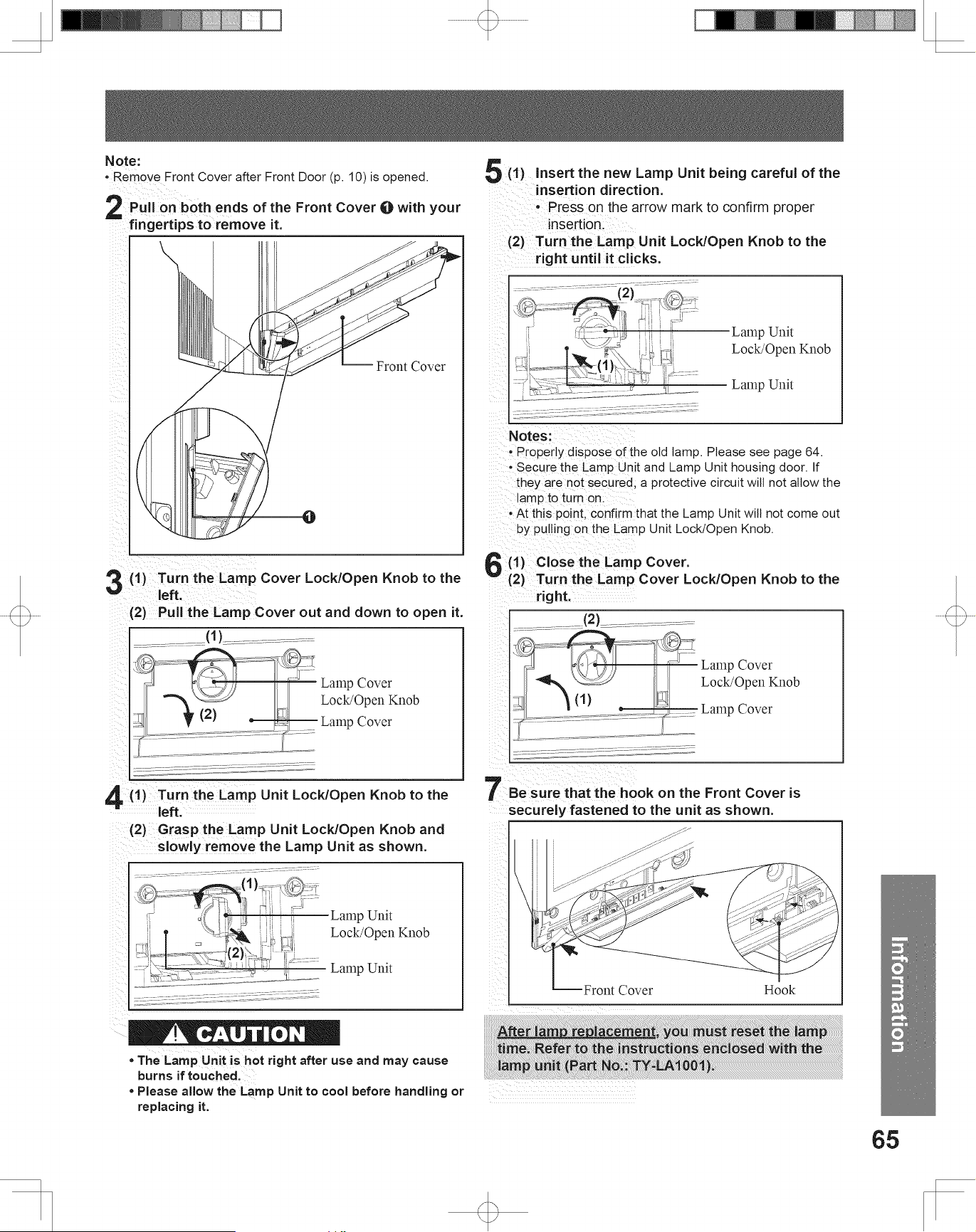
65
Information
Pull on both ends of the Front Cover
1
with your
fingertips to remove it.
(1) Turn the Lamp Cover Lock/Open Knob to the
left.
(2) Pull the Lamp Cover out and down to open it.
Lamp Cover
Lock/Open Knob
Lamp Cover
(1) Turn the Lamp Unit Lock/Open Knob to the
left.
(2) Grasp the Lamp Unit Lock/Open Knob and
slowly remove the Lamp Unit as shown.
Lamp Unit
Lock/Open Knob
• The Lamp Unit is hot right after use and may cause
burns if touched.
• Please allow the Lamp Unit to cool before handling or
replacing it.
(1) Insert the new Lamp Unit being careful of the
insertion direction.
• Press on the arrow mark to confirm proper
insertion.
(2) Turn the Lamp Unit Lock/Open Knob to the
right until it clicks.
Notes:
• Properly dispose of the old lamp. Please see page 64.
• Secure the Lamp Unit and Lamp Unit housing door. If
they are not secured, a protective circuit will not allow the
lamp to turn on.
• At this point, confirm that the Lamp Unit will not come out
by pulling on the Lamp Unit Lock/Open Knob.
2
3
4
5
7
After lamp replacement, you must reset the lamp
time. Refer to the instructions enclosed with the
lamp unit (Part No.: TY-LA1001).
(1)
Lamp Unit
(2)
(1)
(2)
(1)
(2)
(1) Close the Lamp Cover.
(2) Turn the Lamp Cover Lock/Open Knob to the
right.
Lamp Cover
Lock/Open Knob
Lamp Cover
6
(2)
(1)
CAUTION
Lamp Unit
Lock/Open Knob
Lamp Unit
Front Cover
1
Note:
• Remove Front Cover after Front Door (p. 10) is opened.
Be sure that the hook on the Front Cover is
securely fastened to the unit as shown.
Front Cover
Hook
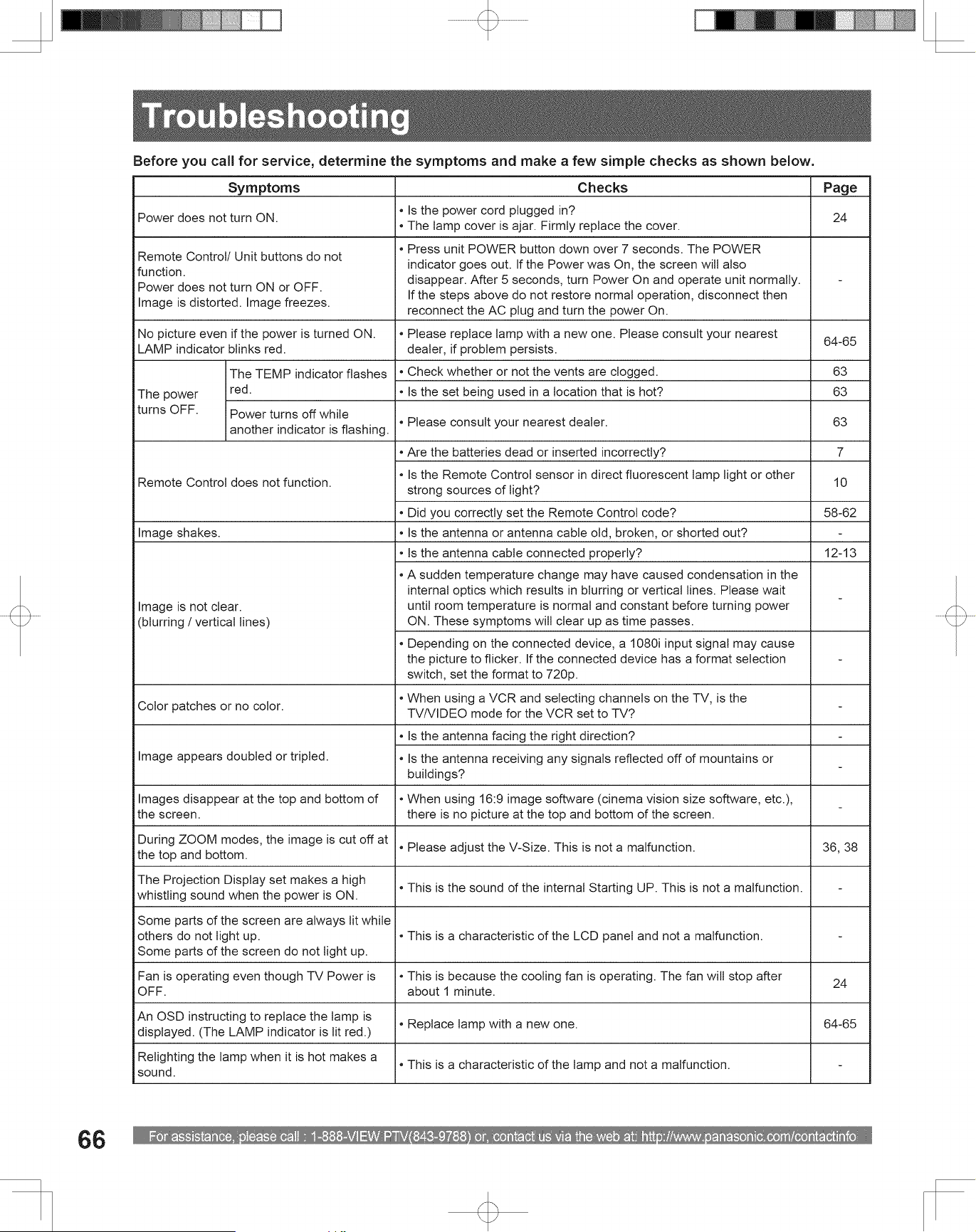
For assistance, please call : 1-888-VIEW PTV(843-9788) or, contact us via the web at: http://www.panasonic.com/contactinfo
66
Troubleshooting
Before you call for service, determine the symptoms and make a few simple checks as shown below.
Symptoms Checks Page
Power does not turn ON.
• Is the power cord plugged in?
• The lamp cover is ajar. Firmly replace the cover.
24
Remote Control/ Unit buttons do not
function.
Power does not turn ON or OFF.
Image is distorted. Image freezes.
• Press unit POWER button down over 7 seconds. The POWER
indicator goes out. If the Power was On, the screen will also
disappear. After 5 seconds, turn Power On and operate unit normally.
If the steps above do not restore normal operation, disconnect then
reconnect the AC plug and turn the power On.
-
No picture even if the power is turned ON.
LAMP indicator blinks red.
• Please replace lamp with a new one. Please consult your nearest
dealer, if problem persists.
64-65
The power
turns OFF.
The TEMP indicator flashes
red.
• Check whether or not the vents are clogged. 63
• Is the set being used in a location that is hot? 63
Power turns off while
another indicator is flashing.
• Please consult your nearest dealer. 63
Remote Control does not function.
• Are the batteries dead or inserted incorrectly? 7
• Is the Remote Control sensor in direct fluorescent lamp light or other
strong sources of light?
10
• Did you correctly set the Remote Control code? 58-62
Image shakes. • Is the antenna or antenna cable old, broken, or shorted out? -
Image is not clear.
(blurring / vertical lines)
• Is the antenna cable connected properly? 12-13
• A sudden temperature change may have caused condensation in the
internal optics which results in blurring or vertical lines. Please wait
until room temperature is normal and constant before turning power
ON. These symptoms will clear up as time passes.
-
• Depending on the connected device, a 1080i input signal may cause
the picture to flicker. If the connected device has a format selection
switch, set the format to 720p.
-
Color patches or no color.
• When using a VCR and selecting channels on the TV, is the
TV/VIDEO mode for the VCR set to TV?
-
Image appears doubled or tripled.
• Is the antenna facing the right direction? -
• Is the antenna receiving any signals reflected off of mountains or
buildings?
-
Images disappear at the top and bottom of
the screen.
• When using 16:9 image software (cinema vision size software, etc.),
there is no picture at the top and bottom of the screen.
-
During ZOOM modes, the image is cut off at
the top and bottom.
• Please adjust the V-Size. This is not a malfunction. 36, 38
The Projection Display set makes a high
whistling sound when the power is ON.
• This is the sound of the internal Starting UP. This is not a malfunction. -
Some parts of the screen are always lit while
others do not light up.
Some parts of the screen do not light up.
• This is a characteristic of the LCD panel and not a malfunction. -
Fan is operating even though TV Power is
OFF.
• This is because the cooling fan is operating. The fan will stop after
about 1 minute.
24
An OSD instructing to replace the lamp is
displayed. (The LAMP indicator is lit red.)
• Replace lamp with a new one. 64-65
Relighting the lamp when it is hot makes a
sound.
• This is a characteristic of the lamp and not a malfunction. -
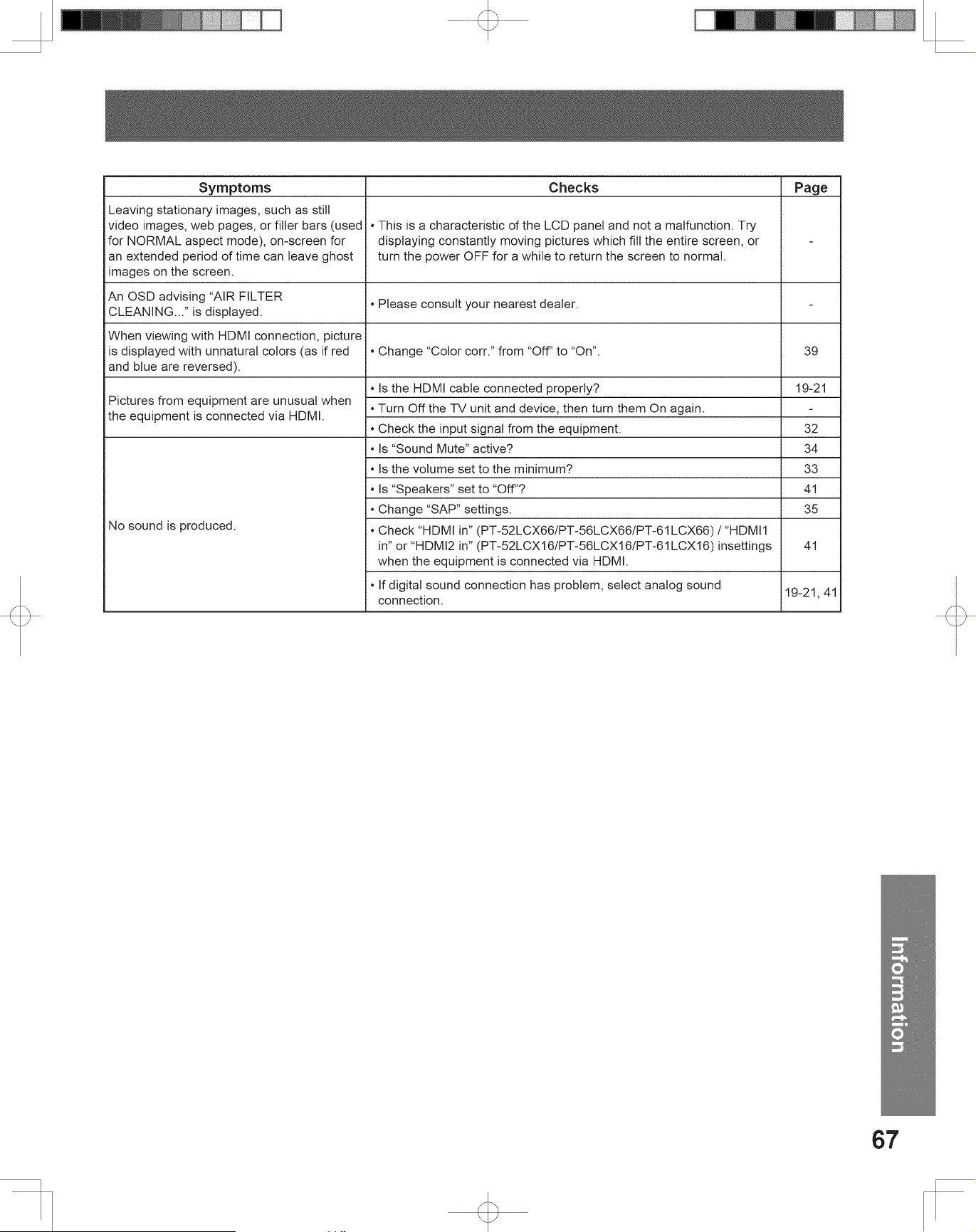
67
Information
Symptoms Checks Page
Leaving stationary images, such as still
video images, web pages, or filler bars (used
for NORMAL aspect mode), on-screen for
an extended period of time can leave ghost
images on the screen.
• This is a characteristic of the LCD panel and not a malfunction. Try
displaying constantly moving pictures which fill the entire screen, or
turn the power OFF for a while to return the screen to normal.
-
An OSD advising “AIR FILTER
CLEANING...” is displayed.
• Please consult your nearest dealer. -
When viewing with HDMI connection, picture
is displayed with unnatural colors (as if red
and blue are reversed).
• Change “Color corr.” from “Off” to “On”. 39
Pictures from equipment are unusual when
the equipment is connected via HDMI.
• Is the HDMI cable connected properly? 19-21
• Turn Off the TV unit and device, then turn them On again. -
• Check the input signal from the equipment. 32
No sound is produced.
• Is “Sound Mute” active? 34
• Is the volume set to the minimum? 33
• Is “Speakers” set to “Off”? 41
• Change “SAP” settings. 35
• Check “HDMI in” (PT-52LCX66/PT-56LCX66/PT-61LCX66) / “HDMI1
in” or “HDMI2 in” (PT-52LCX16/PT-56LCX16/PT-61LCX16) insettings
when the equipment is connected via HDMI.
41
• If digital sound connection has problem, select analog sound
connection.
19-21, 41
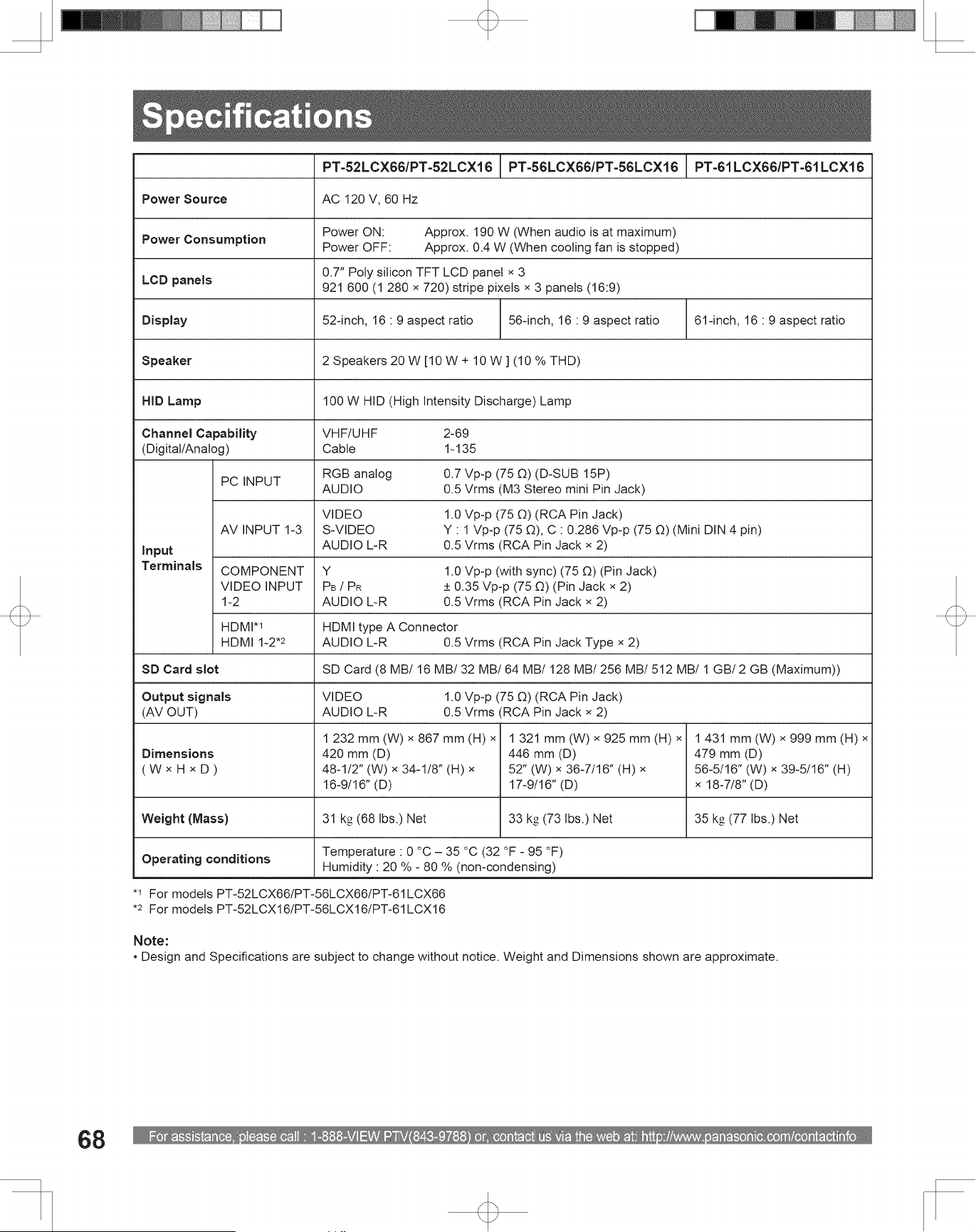
For assistance, please call : 1-888-VIEW PTV(843-9788) or, contact us via the web at: http://www.panasonic.com/contactinfo
68
Note:
• Design and Specifications are subject to change without notice. Weight and Dimensions shown are approximate.
PT-52LCX66/PT-52LCX16 PT-56LCX66/PT-56LCX16 PT-61LCX66/PT-61LCX16
Power Source AC 120 V, 60 Hz
Power Consumption
Power ON: Approx. 190 W (When audio is at maximum)
Power OFF: Approx. 0.4 W (When cooling fan is stopped)
LCD panels
0.7″ Poly silicon TFT LCD panel × 3
921 600 (1 280 × 720) stripe pixels × 3 panels (16:9)
Display 52-inch, 16 : 9 aspect ratio 56-inch, 16 : 9 aspect ratio 61-inch, 16 : 9 aspect ratio
Speaker 2 Speakers 20 W [10 W + 10 W ] (10 % THD)
HID Lamp 100 W HID (High Intensity Discharge) Lamp
Channel Capability
(Digital/Analog)
VHF/UHF 2-69
Cable 1-135
Input
Terminals
PC INPUT
RGB analog 0.7 Vp-p (75 Ω) (D-SUB 15P)
AUDIO 0.5 Vrms (M3 Stereo mini Pin Jack)
AV INPUT 1-3
VIDEO 1.0 Vp-p (75 Ω) (RCA Pin Jack)
S-VIDEO Y : 1 Vp-p (75 Ω), C : 0.286 Vp-p (75 Ω) (Mini DIN 4 pin)
AUDIO L-R 0.5 Vrms (RCA Pin Jack × 2)
COMPONENT
VIDEO INPUT
1-2
Y 1.0 Vp-p (with sync) (75 Ω) (Pin Jack)
P
B / PR ± 0.35 Vp-p (75 Ω) (Pin Jack × 2)
AUDIO L-R 0.5 Vrms (RCA Pin Jack × 2)
HDMI*
1
HDMI 1-2*
2
HDMI type A Connector
AUDIO L-R 0.5 Vrms (RCA Pin Jack Type × 2)
SD Card slot SD Card (8 MB/ 16 MB/ 32 MB/ 64 MB/ 128 MB/ 256 MB/ 512 MB/ 1 GB/ 2 GB (Maximum))
Output signals
(AV OUT)
VIDEO 1.0 Vp-p (75 Ω) (RCA Pin Jack)
AUDIO L-R 0.5 Vrms (RCA Pin Jack × 2)
Dimensions
( W × H × D )
1 232 mm (W) × 867 mm (H) ×
420 mm (D)
48-1/2″ (W) × 34-1/8″ (H) ×
16-9/16″ (D)
1 321 mm (W) × 925 mm (H) ×
446 mm (D)
52″ (W) × 36-7/16″ (H) ×
17-9/16″ (D)
1 431 mm (W) × 999 mm (H) ×
479 mm (D)
56-5/16″ (W) × 39-5/16″ (H)
× 18-7/8″ (D)
Weight (Mass) 31 kg (68 lbs.) Net 33 kg (73 lbs.) Net 35 kg (77 lbs.) Net
Operating conditions
Temperature : 0 °C – 35 °C (32 °F - 95 °F)
Humidity : 20 % - 80 % (non-condensing)
*
1
For models PT-52LCX66/PT-56LCX66/PT-61LCX66
*
2
For models PT-52LCX16/PT-56LCX16/PT-61LCX16
Specifications
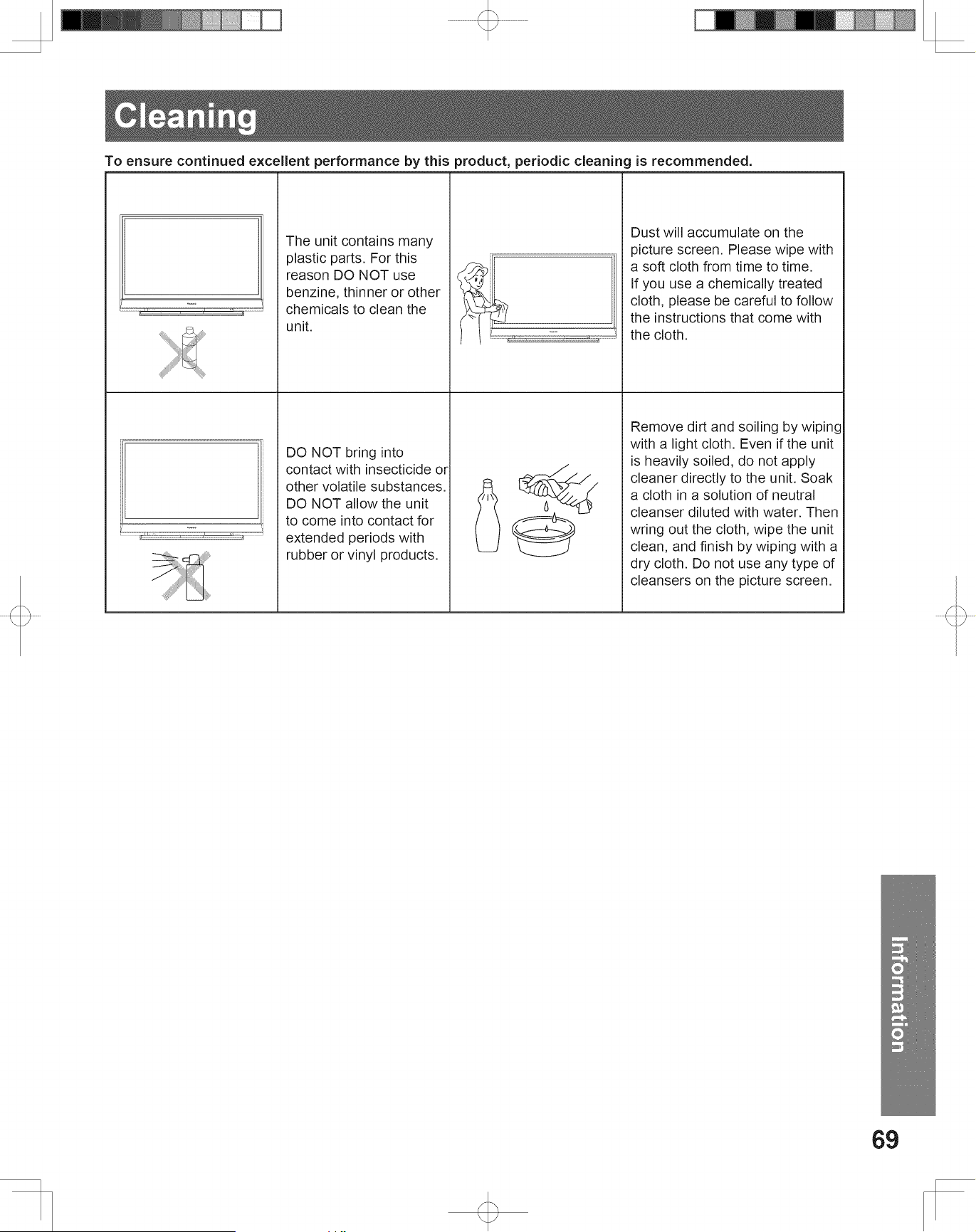
69
Information
Cleaning
To ensure continued excellent performance by this product, periodic cleaning is recommended.
The unit contains many
plastic parts. For this
reason DO NOT use
benzine, thinner or other
chemicals to clean the
unit.
Dust will accumulate on the
picture screen. Please wipe with
a soft cloth from time to time.
If you use a chemically treated
cloth, please be careful to follow
the instructions that come with
the cloth.
DO NOT bring into
contact with insecticide or
other volatile substances.
DO NOT allow the unit
to come into contact for
extended periods with
rubber or vinyl products.
Remove dirt and soiling by wiping
with a light cloth. Even if the unit
is heavily soiled, do not apply
cleaner directly to the unit. Soak
a cloth in a solution of neutral
cleanser diluted with water. Then
wring out the cloth, wipe the unit
clean, and finish by wiping with a
dry cloth. Do not use any type of
cleansers on the picture screen.
For assistance, please call : 1-888-VIEW PTV(843-9788) or, contact us via the web at: http://www.panasonic.com/contactinfo
70
Obtain Product Information and Operating Assistance; locate your nearest Dealer or Servicenter; purchase Parts and
Accessories; or make Customer Service and Literature requests by visiting our Web Site at:
http://www.panasonic.com/consumersupport
or, contact us via the web at:
http://www.panasonic.com/contactinfo
You may also contact us directly at:
1-800-211-PANA (7262),
Monday-Friday 9 am-9 pm; Saturday-Sunday 10 am-7 pm, EST.
Service in Puerto Rico
Panasonic Puerto Rico, Inc. Panasonic Sales Company
Factory Servicenter:
Ave. 65 de Infantería, Km. 9.5, San Gabriel Industrial Park, Carolina, Puerto Rico 00985
Phone (787)750-4300 Fax (787)768-2910
For hearing or speech impaired TTY users, TTY : 1-877-833-8855
Purchase Parts, Accessories and Instruction Books online for all Panasonic Products by visiting our Web Site at:
http://www.pasc.panasonic.com
or, send your request by E-mail to:
You may also contact us directly at:
1-800-332-5368 (Phone) 1-800-237-9080 (Fax Only) (Monday – Friday 9 am to 9 pm, EST.)
Panasonic Services Company
20421 84th Avenue South,
Kent, WA 98032
(We Accept Visa, MasterCard, Discover Card, American Express, and Personal Checks)
Accessory Purchases
For hearing or speech impaired TTY users, TTY : 1-866-605-1277
Customer Services Directory
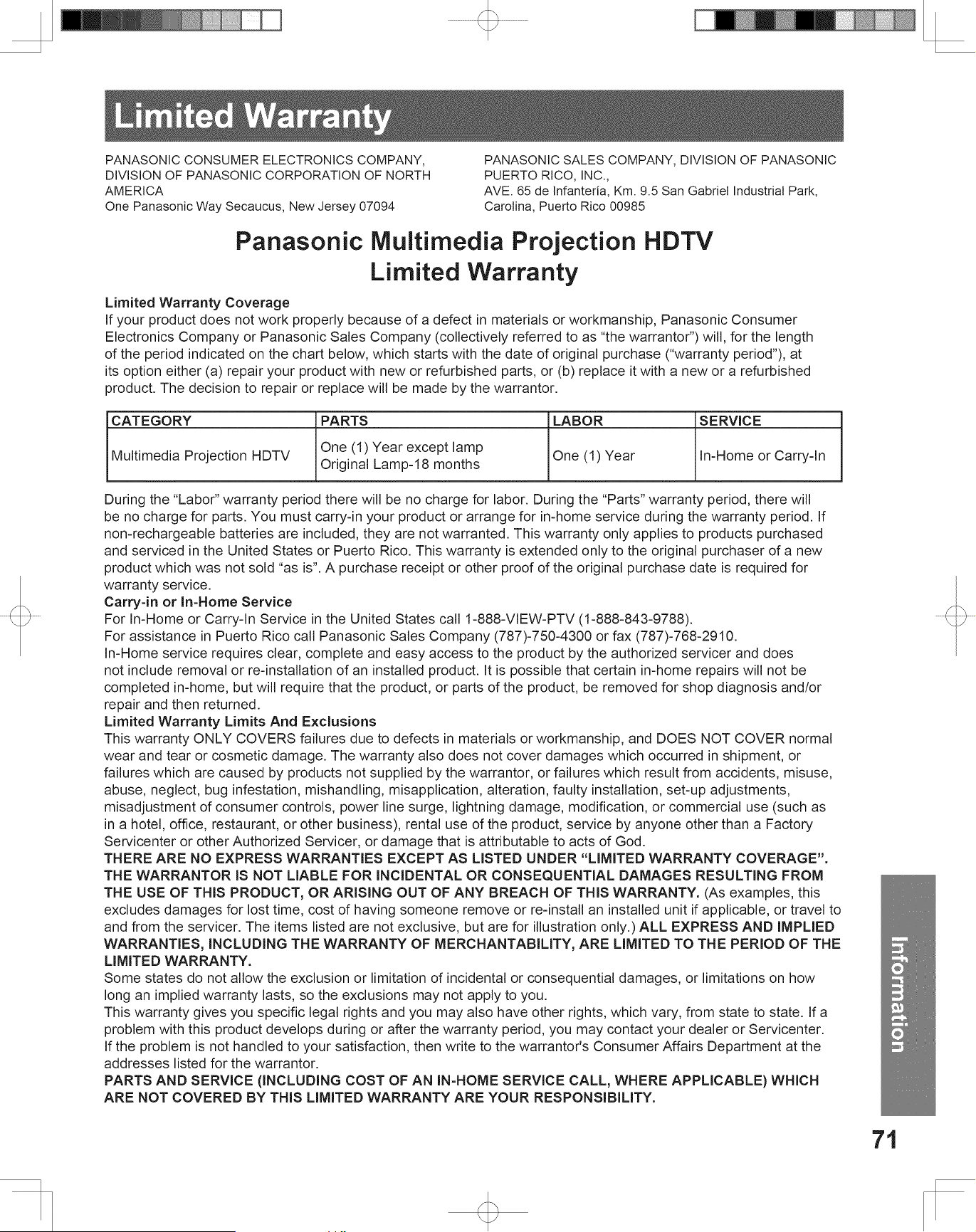
71
Information
Panasonic Multimedia Projection HDTV
Limited Warranty
Limited Warranty Coverage
If your product does not work properly because of a defect in materials or workmanship, Panasonic Consumer
Electronics Company or Panasonic Sales Company (collectively referred to as “the warrantor”) will, for the length
of the period indicated on the chart below, which starts with the date of original purchase (“warranty period”), at
its option either (a) repair your product with new or refurbished parts, or (b) replace it with a new or a refurbished
product. The decision to repair or replace will be made by the warrantor.
During the “Labor” warranty period there will be no charge for labor. During the “Parts” warranty period, there will
be no charge for parts. You must carry-in your product or arrange for in-home service during the warranty period. If
non-rechargeable batteries are included, they are not warranted. This warranty only applies to products purchased
and serviced in the United States or Puerto Rico. This warranty is extended only to the original purchaser of a new
product which was not sold “as is”. A purchase receipt or other proof of the original purchase date is required for
warranty service.
Carry-in or In-Home Service
For In-Home or Carry-In Service in the United States call 1-888-VIEW-PTV (1-888-843-9788).
For assistance in Puerto Rico call Panasonic Sales Company (787)-750-4300 or fax (787)-768-2910.
In-Home service requires clear, complete and easy access to the product by the authorized servicer and does
not include removal or re-installation of an installed product. It is possible that certain in-home repairs will not be
completed in-home, but will require that the product, or parts of the product, be removed for shop diagnosis and/or
repair and then returned.
Limited Warranty Limits And Exclusions
This warranty ONLY COVERS failures due to defects in materials or workmanship, and DOES NOT COVER normal
wear and tear or cosmetic damage. The warranty also does not cover damages which occurred in shipment, or
failures which are caused by products not supplied by the warrantor, or failures which result from accidents, misuse,
abuse, neglect, bug infestation, mishandling, misapplication, alteration, faulty installation, set-up adjustments,
misadjustment of consumer controls, power line surge, lightning damage, modification, or commercial use (such as
in a hotel, office, restaurant, or other business), rental use of the product, service by anyone other than a Factory
Servicenter or other Authorized Servicer, or damage that is attributable to acts of God.
THERE ARE NO EXPRESS WARRANTIES EXCEPT AS LISTED UNDER “LIMITED WARRANTY COVERAGE”.
THE WARRANTOR IS NOT LIABLE FOR INCIDENTAL OR CONSEQUENTIAL DAMAGES RESULTING FROM
THE USE OF THIS PRODUCT, OR ARISING OUT OF ANY BREACH OF THIS WARRANTY. (As examples, this
excludes damages for lost time, cost of having someone remove or re-install an installed unit if applicable, or travel to
and from the servicer. The items listed are not exclusive, but are for illustration only.) ALL EXPRESS AND IMPLIED
WARRANTIES, INCLUDING THE WARRANTY OF MERCHANTABILITY, ARE LIMITED TO THE PERIOD OF THE
LIMITED WARRANTY.
Some states do not allow the exclusion or limitation of incidental or consequential damages, or limitations on how
long an implied warranty lasts, so the exclusions may not apply to you.
This warranty gives you specific legal rights and you may also have other rights, which vary, from state to state. If a
problem with this product develops during or after the warranty period, you may contact your dealer or Servicenter.
If the problem is not handled to your satisfaction, then write to the warrantor's Consumer Affairs Department at the
addresses listed for the warrantor.
PARTS AND SERVICE (INCLUDING COST OF AN IN-HOME SERVICE CALL, WHERE APPLICABLE) WHICH
ARE NOT COVERED BY THIS LIMITED WARRANTY ARE YOUR RESPONSIBILITY.
CATEGORY PARTS LABOR SERVICE
Multimedia Projection HDTV
One (1) Year except lamp
Original Lamp-18 months
One (1) Year In-Home or Carry-In
PANASONIC CONSUMER ELECTRONICS COMPANY,
DIVISION OF PANASONIC CORPORATION OF NORTH
AMERICA
One Panasonic Way Secaucus, New Jersey 07094
PANASONIC SALES COMPANY, DIVISION OF PANASONIC
PUERTO RICO, INC.,
AVE. 65 de Infantería, Km. 9.5 San Gabriel Industrial Park,
Carolina, Puerto Rico 00985
Limited Warranty
For assistance, please call : 1-888-VIEW PTV(843-9788) or, contact us via the web at: http://www.panasonic.com/contactinfo
72
GNU GENERAL PUBLIC LICENSE
Version 2, June 1991
Copyright © 1989, 1991 Free Software Foundation, Inc.
59 Temple Place, Suite 330, Boston, MA 02111-1307 USA
Everyone is permitted to copy and distribute verbatim copies of this license
document, but changing it is not allowed.
Preamble
The licenses for most software are designed to take away your freedom to
share and change it. By contrast, the GNU General Public License is intended
to guarantee your freedom to share and change free software--to make sure the
software is free for all its users. This General Public License applies to most
of the Free Software Foundation’s software and to any other program whose
authors commit to using it. (Some other Free Software Foundation software is
covered by the GNU Library General Public License instead.) You can apply
it to your programs, too.
When we speak of free software, we are referring to freedom, not price. Our
General Public Licenses are designed to make sure that you have the freedom
to distribute copies of free software (and charge for this service if you wish),
that you receive source code or can get it if you want it, that you can change
the software or use pieces of it in new free programs; and that you know you
can do these things.
To protect your rights, we need to make restrictions that forbid anyone to
deny you these rights or to ask you to surrender the rights. These restrictions
translate to certain responsibilities for you if you distribute copies of the
software, or if you modify it.
For example, if you distribute copies of such a program, whether gratis or for
a fee, you must give the recipients all the rights that you have. You must make
sure that they, too, receive or can get the source code. And you must show
them these terms so they know their rights.
We protect your rights with two steps: (1) copyright the software, and (2)
offer you this license which gives you legal permission to copy, distribute
and/or modify the software.
Also, for each author’s protection and ours, we want to make certain that
everyone understands that there is no warranty for this free software. If the
software is modified by someone else and passed on, we want its recipients to
know that what they have is not the original, so that any problems introduced
by others will not reflect on the original authors’ reputations.
Finally, any free program is threatened constantly by software patents. We
wish to avoid the danger that redistributors of a free program will individually
obtain patent licenses, in effect making the program proprietary. To prevent
this, we have made it clear that any patent must be licensed for everyone’s
free use or not licensed at all.
The precise terms and conditions for copying, distribution and modification
follow.
This product utilizes the following so called “open source” software:
(1) the software which is licensed under the GNU GENERAL PUBLIC LICENSE,
(2) the software which is licensed under the GNU LESSER GENERAL PUBLIC LICENSE, and
(3) software developed by the third parties and available under certain terms and conditions.
For the software categorized as (1) and (2), please refer to the terms and conditions of the following GNU
GENERAL PUBLIC LICENSE and GNU LESSER GENERAL PUBLIC LICENSE respectively.
If you wish to get further information as to the software, please contact the web site below.
http://www.fsf.org/licenses/ and http://www.am-linux.jp/
TERMS AND CONDITIONS FOR COPYING,
DISTRIBUTION AND MODIFICATION
0. This License applies to any program or other work which contains a
notice placed by the copyright holder saying it may be distributed under
the terms of this General Public License. The “Program”, below, refers
to any such program or work, and a “work based on the Program” means
either the Program or any derivative work under copyright law: that is to
say, a work containing the Program or a portion of it, either verbatim or
with modifications and/or translated into another language. (Hereinafter,
translation is included without limitation in the term “modification”.) Each
licensee is addressed as “you”.
Activities other than copying, distribution and modification are not
covered by this License; they are outside its scope. The act of running the
Program is not restricted, and the output from the Program is covered only
if its contents constitute a work based on the Program (independent of
having been made by running the Program). Whether that is true depends
on what the Program does.
1. You may copy and distribute verbatim copies of the Program’s source
code as you receive it, in any medium, provided that you conspicuously
and appropriately publish on each copy an appropriate copyright notice
and disclaimer of warranty; keep intact all the notices that refer to this
License and to the absence of any warranty; and give any other recipients
of the Program a copy of this License along with the Program.
You may charge a fee for the physical act of transferring a copy, and you
may at your option offer warranty protection in exchange for a fee.
2. You may modify your copy or copies of the Program or any portion of it,
thus forming a work based on the Program, and copy and distribute such
modifications or work under the terms of Section 1 above, provided that
you also meet all of these conditions:
a) You must cause the modified files to carry prominent notices stating
that you changed the files and the date of any change.
b) You must cause any work that you distribute or publish, that in whole
or in part contains or is derived from the Program or any part thereof,
to be licensed as a whole at no charge to all third parties under the
terms of this License.
c) If the modified program normally reads commands interactively when
run, you must cause it, when started running for such interactive use in
the most ordinary way, to print or display an announcement including
an appropriate copyright notice and a notice that there is no warranty
(or else, saying that you provide a warranty) and that users may
redistribute the program under these conditions, and telling the user
how to view a copy of this License. (Exception: if the Program itself
is interactive but does not normally print such an announcement, your
work based on the Program is not required to print an announcement.)
Other Information

73
Information
These requirements apply to the modified work as a whole. If
identifiable sections of that work are not derived from the Program,
and can be reasonably considered independent and separate works
in themselves, then this License, and its terms, do not apply to those
sections when you distribute them as separate works. But when you
distribute the same sections as part of a whole which is a work based
on the Program, the distribution of the whole must be on the terms of
this License, whose permissions for other licensees extend to the entire
whole, and thus to each and every part regardless of who wrote it.
Thus, it is not the intent of this section to claim rights or contest your
rights to work written entirely by you; rather, the intent is to exercise the
right to control the distribution of derivative or collective works based on
the Program.
In addition, mere aggregation of another work not based on the Program
with the Program (or with a work based on the Program) on a volume of
a storage or distribution medium does not bring the other work under the
scope of this License.
3. You may copy and distribute the Program (or a work based on it, under
Section 2) in object code or executable form under the terms of Sections 1
and 2 above provided that you also do one of the following:
a) Accompany it with the complete corresponding machine-readable
source code, which must be distributed under the terms of Sections 1
and 2 above on a medium customarily used for software interchange;
or,
b) Accompany it with a written offer, valid for at least three years, to
give any third party, for a charge no more than your cost of physically
performing source distribution, a complete machine-readable copy of
the corresponding source code, to be distributed under the terms of
Sections 1 and 2 above on a medium customarily used for software
interchange; or,
c) Accompany it with the information you received as to the offer to
distribute corresponding source code. (This alternative is allowed only
for noncommercial distribution and only if you received the program
in object code or executable form with such an offer, in accord with
Subsection b above.)
The source code for a work means the preferred form of the work for
making modifications to it. For an executable work, complete source code
means all the source code for all modules it contains, plus any associated
interface definition files, plus the scripts used to control compilation and
installation of the executable. However, as a special exception, the source
code distributed need not include anything that is normally distributed (in
either source or binary form) with the major components (compiler, kernel,
and so on) of the operating system on which the executable runs, unless
that component itself accompanies the executable.
If distribution of executable or object code is made by offering access to
copy from a designated place, then offering equivalent access to copy the
source code from the same place counts as distribution of the source code,
even though third parties are not compelled to copy the source along with
the object code.
4. You may not copy, modify, sublicense, or distribute the Program except
as expressly provided under this License. Any attempt otherwise to
copy, modify, sublicense or distribute the Program is void, and will
automatically terminate your rights under this License. However, parties
who have received copies, or rights, from you under this License will
not have their licenses terminated so long as such parties remain in full
compliance.
5. You are not required to accept this License, since you have not signed it.
However, nothing else grants you permission to modify or distribute the
Program or its derivative works. These actions are prohibited by law if
you do not accept this License. Therefore, by modifying or distributing
the Program (or any work based on the Program), you indicate your
acceptance of this License to do so, and all its terms and conditions for
copying, distributing or modifying the Program or works based on it.
6. Each time you redistribute the Program (or any work based on the
Program), the recipient automatically receives a license from the original
licensor to copy, distribute or modify the Program subject to these terms
and conditions. You may not impose any further restrictions on the
recipients’ exercise of the rights granted herein. You are not responsible
for enforcing compliance by third parties to this License.
7. If, as a consequence of a court judgment or allegation of patent
infringement or for any other reason (not limited to patent issues),
conditions are imposed on you (whether by court order, agreement or
otherwise) that contradict the conditions of this License, they do not
excuse you from the conditions of this License. If you cannot distribute so
as to satisfy simultaneously your obligations under this License and any
other pertinent obligations, then as a consequence you may not distribute
the Program at all. For example, if a patent license would not permit
royalty-free redistribution of the Program by all those who receive copies
directly or indirectly through you, then the only way you could satisfy both
it and this License would be to refrain entirely from distribution of the
Program.
If any portion of this section is held invalid or unenforceable under any
particular circumstance, the balance of the section is intended to apply and
the section as a whole is intended to apply in other circumstances.
It is not the purpose of this section to induce you to infringe any patents
or other property right claims or to contest validity of any such claims;
this section has the sole purpose of protecting the integrity of the free
software distribution system, which is implemented by public license
practices. Many people have made generous contributions to the wide
range of software distributed through that system in reliance on consistent
application of that system; it is up to the author/donor to decide if he or she
is willing to distribute software through any other system and a licensee
cannot impose that choice.
This section is intended to make thoroughly clear what is believed to be a
consequence of the rest of this License.
8. If the distribution and/or use of the Program is restricted in certain
countries either by patents or by copyrighted interfaces, the original
copyright holder who places the Program under this License may add an
explicit geographical distribution limitation excluding those countries, so
that distribution is permitted only in or among countries not thus excluded.
In such case, this License incorporates the limitation as if written in the
body of this License.
9. The Free Software Foundation may publish revised and/or new versions of
the General Public License from time to time. Such new versions will be
similar in spirit to the present version, but may differ in detail to address
new problems or concerns.
Each version is given a distinguishing version number. If the Program
specifies a version number of this License which applies to it and “any
later version”, you have the option of following the terms and conditions
either of that version or of any later version published by the Free Software
Foundation. If the Program does not specify a version number of this
License, you may choose any version ever published by the Free Software
Foundation.

For assistance, please call : 1-888-VIEW PTV(843-9788) or, contact us via the web at: http://www.panasonic.com/contactinfo
74
10. If you wish to incorporate parts of the Program into other free programs
whose distribution conditions are different, write to the author to ask
for permission. For software which is copyrighted by the Free Software
Foundation, write to the Free Software Foundation; we sometimes make
exceptions for this. Our decision will be guided by the two goals of
preserving the free status of all derivatives of our free software and of
promoting the sharing and reuse of software generally.
NO WARRANTY
11. BECAUSE THE PROGRAM IS LICENSED FREE OF CHARGE,
THERE IS NO WARRANTY FOR THE PROGRAM, TO THE EXTENT
PERMITTED BY APPLICABLE LAW. EXCEPT WHEN OTHERWISE
STATED IN WRITING THE COPYRIGHT HOLDERS AND/OR
OTHER PARTIES PROVIDE THE PROGRAM “AS IS” WITHOUT
WARRANTY OF ANY KIND, EITHER EXPRESSED OR IMPLIED,
INCLUDING, BUT NOT LIMITED TO, THE IMPLIED WARRANTIES
OF MERCHANTABILITY AND FITNESS FOR A PARTICULAR
PURPOSE. THE ENTIRE RISK AS TO THE QUALITY AND
PERFORMANCE OF THE PROGRAM IS WITH YOU. SHOULD THE
PROGRAM PROVE DEFECTIVE, YOU ASSUME THE COST OF ALL
NECESSARY SERVICING, REPAIR OR CORRECTION.
12. IN NO EVENT UNLESS REQUIRED BY APPLICABLE LAW OR
AGREED TO IN WRITING WILL ANY COPYRIGHT HOLDER, OR
ANY OTHER PARTY WHO MAY MODIFY AND/OR REDISTRIBUTE
THE PROGRAM AS PERMITTED ABOVE, BE LIABLE TO YOU FOR
AMAGES, INCLUDING ANY GENERAL, SPECIAL, INCIDENTAL
OR CONSEQUENTIAL DAMAGES ARISING OUT OF THE USE
OR INABILITY TO USE THE PROGRAM (INCLUDING BUT NOT
LIMITED TO LOSS OF DATA OR DATA BEING RENDERED
INACCURATE OR LOSSES SUSTAINED BY YOU OR THIRD
PARTIES OR A FAILURE OF THE PROGRAM TO OPERATE WITH
ANY OTHER PROGRAMS), EVEN IF SUCH HOLDER OR OTHER
PARTY HAS BEEN ADVISED OF THE POSSIBILITY OF SUCH
DAMAGES.
END OF TERMS AND CONDITIONS
How to Apply These Terms to Your New Programs
If you develop a new program, and you want it to be of the greatest possible
use to the public, the best way to achieve this is to make it free software which
everyone can redistribute and change under these terms.
To do so, attach the following notices to the program. It is safest to attach
them to the start of each source file to most effectively convey the exclusion
of warranty; and each file should have at least the “copyright” line and a
pointer to where the full notice is found.
<one line to give the program’s name and an idea of what it does.>
Copyright © <year> <name of author>
This program is free software; you can redistribute it and/or modify it
under the terms of the GNU General Public License as published by the
Free Software Foundation; either version 2 of the License, or(at your
option) any later version.
This program is distributed in the hope that it will be useful, but
WITHOUT ANY WARRANTY; without even the implied warranty of
MERCHANTABILITY or FITNESS FOR A PARTICULAR PURPOSE.
See the GNU General Public License for more details.
You should have received a copy of the GNU General Public License
along with this program; if not, write to the Free Software Foundation,
Inc., 59 Temple Place - Suite 330, Boston, MA 02111-1307, USA
Also add information on how to contact you by electronic and paper mail. If e
program is interactive, make it output a short notice like this when it starts in
an interactive mode:
Gnomovision version 69, Copyright © year name of author
Gnomovision comes with ABSOLUTELY NO WARRANTY; for details
type show w’.
This is free software, and you are welcome to redistribute it under certain
conditions; type `show c’ for details.
The hypothetical commands `show w’ and `show c’ should show the
appropriate parts of the General Public License. Of course, the commands you
use may be called something other than `show w’ and `show c’; they could
even be mouse-clicks or menu items--whatever suits your program.
You should also get your employer (if you work as a programmer) or your
school, if any, to sign a “copyright disclaimer” for the program, if necessary.
Here is a sample; alter the names:
Yoyodyne, Inc., hereby disclaims all copyright interest in the program
`Gnomovision’ (which makes passes at compilers) written by James Hacker.
<signature of Ty Coon>, 1 April 1989
Ty Coon, President of Vice
This General Public License does not permit incorporating your program
into proprietary programs. If your program is a subroutine library, you may
consider it more useful to permit linking proprietary applications with the
library. If this is what you want to do, use the GNU Library General Public
License instead of this License.
Other Information (continued)
75
Information
GNU LESSER GENERAL PUBLIC LICENSE
Version 2.1, February 1999
Copyright © 1991, 1999 Free Software Foundation, Inc.
59 Temple Place, Suite 330, Boston, MA 02111-1307 USA
Everyone is permitted to copy and distribute verbatim copies of this license
document, but changing it is not allowed.
[This is the first released version of the Lesser GPL. It also counts as the
successor of the GNU Library Public License, version 2, hence the version
number 2.1.]
Preamble
The licenses for most software are designed to take away your freedom
to share and change it. By contrast, the GNU General Public Licenses are
intended to guarantee your freedom to share and change free software--to
make sure the software is free for all its users.
This license, the Lesser General Public License, applies to some specially
designated software packages--typically libraries--of the Free Software
Foundation and other authors who decide to use it. You can use it too, but we
suggest you first think carefully about whether this license or the ordinary
General Public License is the better strategy to use in any particular case,
based on the explanations below.
When we speak of free software, we are referring to freedom of use, not price.
Our General Public Licenses are designed to make sure that you have the
freedom to distribute copies of free software (and charge for this service if you
wish); that you receive source code or can get it if you want it; that you can
change the software and use pieces of it in new free programs; and that you
are informed that you can do these things.
To protect your rights, we need to make restrictions that forbid distributors to
deny you these rights or to ask you to surrender these rights. These restrictions
translate to certain responsibilities for you if you distribute copies of the
library or if you modify it.
For example, if you distribute copies of the library, whether gratis or for a fee,
you must give the recipients all the rights that we gave you. You must make
sure that they, too, receive or can get the source code. If you link other code
with the library, you must provide complete object files to the recipients, so
that they can relink them with the library after making changes to the library
and recompiling it. And you must show them these terms so they know their
rights.
We protect your rights with a two-step method: (1) we copyright then library,
and (2) we offer you this license, which gives you legal permission to copy,
distribute and/or modify the library.
To protect each distributor, we want to make it very clear that there is no
warranty for the free library. Also, if the library is modified by someone
else and passed on, the recipients should know that what they have is not the
original version, so that the original author’s reputation will not be affected by
problems that might be introduced by others.
Finally, software patents pose a constant threat to the existence of any free
program. We wish to make sure that a company cannot effectively restrict the
users of a free program by obtaining a restrictive license from a patent holder.
Therefore, we insist that any patent license obtained for a version of the
library must be consistent with the full freedom of use specified in this license.
Most GNU software, including some libraries, is covered by the ordinary
GNU General Public License. This license, the GNU Lesser General Public
License, applies to certain designated libraries, and is quite different from the
ordinary General Public License. We use this license for certain libraries in
order to permit linking those libraries into non-free programs.
When a program is linked with a library, whether statically or using a shared
library, the combination of the two is legally speaking a combined work,
a derivative of the original library. The ordinary General Public License
therefore permits such linking only if the entire combination fits its criteria
of freedom. The Lesser General Public License permits more lax criteria for
linking other code with the library.
We call this license the “Lesser” General Public License because it does Less
to protect the user’s freedom than the ordinary General Public License. It also
provides other free software developers Less of an advantage over competing
non-free programs. These disadvantages are the reason we use the ordinary
General Public License for many libraries. However, the Lesser license
provides advantages in certain special circumstances.
For example, on rare occasions, there may be a special need to encourage the
widest possible use of a certain library, so that it becomes a de-facto standard.
To achieve this, non-free programs must be allowed to use the library. A more
frequent case is that a free library does the same job as widely used non-free
libraries. In this case, there is little to gain by limiting the free library to free
software only, so we use the Lesser General Public License.
In other cases, permission to use a particular library in non-free programs
enables a greater number of people to use a large body of free software. For
example, permission to use the GNU C Library in non-free programs enables
many more people to use the whole GNU operating system, as well as its
variant, the GNU/Linux operating system.
Although the Lesser General Public License is Less protective of the users’
freedom, it does ensure that the user of a program that is linked with the
Library has the freedom and the wherewithal to run that program using a
modified version of the Library.
The precise terms and conditions for copying, distribution and modification
follow. Pay close attention to the difference between a “work based on the
library” and a “work that uses the library”. The former contains code derived
from the library, whereas the latter must be combined with the library in order
to run.
For assistance, please call : 1-888-VIEW PTV(843-9788) or, contact us via the web at: http://www.panasonic.com/contactinfo
76
TERMS AND CONDITIONS FOR COPYING,
DISTRIBUTION AND MODIFICATION
0. This License Agreement applies to any software library or other program
which contains a notice placed by the copyright holder or other authorized
party saying it may be distributed under the terms of this Lesser General
Public License (also called “this License”). Each licensee is addressed as
“you”.
A “library” means a collection of software functions and/or data prepared
so as to be conveniently linked with application programs (which use some
of those functions and data) to form executables.
The “Library”, below, refers to any such software library or work which
has been distributed under these terms. A “work based on the Library”
means either the Library or any derivative work under copyright law: that
is to say, a work containing the Library or a portion of it, either verbatim
or with modifications and/or translated straightforwardly into another
language. (Hereinafter, translation is included without limitation in the
term “modification”.)
“Source code” for a work means the preferred form of the work for
making modifications to it. For a library, complete source code means all
the source code for all modules it contains, plus any associated interface
definition files, plus the scripts used to control compilation and installation
of the library.
Activities other than copying, distribution and modification are not
covered by this License; they are outside its scope. The act of running
a program using the Library is not restricted, and output from such a
program is covered only if its contents constitute a work based on the
Library (independent of the use of the Library in a tool for writing it).
Whether that is true depends on what the Library does and what the
program that uses the Library does.
1. You may copy and distribute verbatim copies of the Library’s complete
source code as you receive it, in any medium, provided that you
conspicuously and appropriately publish on each copy an appropriate
copyright notice and disclaimer of warranty; keep intact all the notices that
refer to this License and to the absence of any warranty; and distribute a
copy of this License along with the Library.
You may charge a fee for the physical act of transferring a copy, and you
may at your option offer warranty protection in exchange for a fee.
2. You may modify your copy or copies of the Library or any portion of it,
thus forming a work based on the Library, and copy and distribute such
modifications or work under the terms of Section 1 above, provided that
you also meet all of these conditions:
a) The modified work must itself be a software library.
b) You must cause the files modified to carry prominent notices stating
that you changed the files and the date of any change.
c) You must cause the whole of the work to be licensed at no charge to all
third parties under the terms of this License.
d) If a facility in the modified Library refers to a function or a table of
data to be supplied by an application program that uses the facility,
other than as an argument passed when the facility is invoked, then you
must make a good faith effort to ensure that, in the event an application
does not supply such function or table, the facility still operates, and
performs whatever part of its purpose remains meaningful.
(For example, a function in a library to compute square roots has a
purpose that is entirely well-defined independent of the application.
Therefore, Subsection 2d requires that any application-supplied
function or table used by this function must be optional: if the
application does not supply it, the square root function must still
compute square roots.)
These requirements apply to the modified work as a whole. If
identifiable sections of that work are not derived from the Library,
and can be reasonably considered independent and separate works
in themselves, then this License, and its terms, do not apply to those
sections when you distribute them as separate works. But when you
distribute the same sections as part of a whole which is a work based
on the Library, the distribution of the whole must be on the terms of
this License, whose permissions for other licensees extend to the entire
whole, and thus to each and every part regardless of who wrote it.
Thus, it is not the intent of this section to claim rights or contest your
rights to work written entirely by you; rather, the intent is to exercise the
right to control the distribution of derivative or collective works based on
the Library.
In addition, mere aggregation of another work not based on the Library
with the Library (or with a work based on the Library) on a volume of a
storage or distribution medium does not bring the other work under the
scope of this License.
3. You may opt to apply the terms of the ordinary GNU General Public
License instead of this License to a given copy of the Library. To do this,
you must alter all the notices that refer to this License, so that they refer
to the ordinary GNU General Public License, version 2, instead of to this
License. (If a newer version than version 2 of the ordinary GNU General
Public License has appeared, then you can specify that version instead if
you wish.) Do not make any other change in these notices.
Once this change is made in a given copy, it is irreversible for that copy,
so the ordinary GNU General Public License applies to all subsequent
copies and derivative works made from that copy.
This option is useful when you wish to copy part of the code of the Library
into a program that is not a library.
4. You may copy and distribute the Library (or a portion or derivative of
it, under Section 2) in object code or executable form under the terms of
Sections 1 and 2 above provided that you accompany it with the complete
corresponding machine-readable source code, which must be distributed
under the terms of Sections 1 and 2 above on a medium customarily used
for software interchange.
If distribution of object code is made by offering access to copy from a
designated place, then offering equivalent access to copy the source code
from the same place satisfies the requirement to distribute the source code,
even though third parties are not compelled to copy the source along with
the object code.
5. A program that contains no derivative of any portion of the Library, but
is designed to work with the Library by being compiled or linked with it,
is called a “work that uses the Library”. Such a work, in isolation, is not a
derivative work of the Library, and therefore falls outside the scope of this
License.
However, linking a “work that uses the Library” with the Library creates
an executable that is a derivative of the Library (because it contains
portions of the Library), rather than a “work that uses the library”. The
executable is therefore covered by this License. Section 6 states terms for
distribution of such executables.
When a “work that uses the Library” uses material from a header file that
is part of the Library, the object code for the work may be a derivative
work of the Library even though the source code is not. Whether this is
true is especially significant if the work can be linked without the Library,
or if the work is itself a library. The threshold for this to be true is not
precisely defined by law.
Other Information (continued)
77
Information
If such an object file uses only numerical parameters, data structure layouts
and accessors, and small macros and small inline functions (ten lines or
less in length), then the use of the object file is unrestricted, regardless of
whether it is legally a derivative work. (Executables containing this object
code plus portions of the Library will still fall under Section 6.)
Otherwise, if the work is a derivative of the Library, you may distribute
the object code for the work under the terms of Section 6. Any executables
containing that work also fall under Section 6, whether or not they are
linked directly with the Library itself.
6. As an exception to the Sections above, you may also combine or link
a “work that uses the Library” with the Library to produce a work
containing portions of the Library, and distribute that work under terms
of your choice, provided that the terms permit modification of the work
for the customer’s own use and reverse engineering for debugging such
modifications.
You must give prominent notice with each copy of the work that the
Library is used in it and that the Library and its use are covered by this
License. You must supply a copy of this License. If the work during
execution displays copyright notices, you must include the copyright
notice for the Library among them, as well as a reference directing the user
to the copy of this License. Also, you must do one of these things:
a) Accompany the work with the complete corresponding machine-
readable source code for the Library including whatever changes were
used in the work (which must be distributed under Sections 1 and 2
above); and, if the work is an executable linked with the Library, with
the complete machine-readable “work that uses the Library”, as object
code and/or source code, so that the user can modify the Library and
then relink to produce a modified executable containing the modified
Library. (It is understood that the user who changes the contents of
definitions files in the Library will not necessarily be able to recompile
the application to use the modified definitions.)
b) Use a suitable shared library mechanism for linking with the Library. A
suitable mechanism is one that (1) uses at run time a copy of the library
already present on the user’s computer system, rather than copying
library functions into the executable, and (2) will operate properly with
a modified version of the library, if the user installs one, as long as the
modified version is interface-compatible with the version that the work
was made with.
c) Accompany the work with a written offer, valid for at least three years,
to give the same user the materials specified in Subsection 6a, above,
for a charge no more than the cost of performing this distribution.
d) If distribution of the work is made by offering access to copy from a
designated place, offer equivalent access to copy the above specified
materials from the same place.
e) Verify that the user has already received a copy of these materials or
that you have already sent this user a copy.
For an executable, the required form of the “work that uses the Library”
must include any data and utility programs needed for reproducing the
executable from it. However, as a special exception, the materials to be
distributed need not include anything that is normally distributed (in either
source or binary form) with the major components (compiler, kernel, and
so on) of the operating system on which the executable runs, unless that
component itself accompanies the executable.
It may happen that this requirement contradicts the license restrictions of
other proprietary libraries that do not normally accompany the operating
system. Such a contradiction means you cannot use both them and the
Library together in an executable that you distribute.
7. You may place library facilities that are a work based on the Library side-
by-side in a single library together with other library facilities not covered
by this License, and distribute such a combined library, provided that the
separate distribution of the work based on the Library and of the other
library facilities is otherwise permitted, and provided that you do these two
things:
a) Accompany the combined library with a copy of the same work based
on the Library, uncombined with any other library facilities. This must
be distributed under the terms of the Sections above.
b) Give prominent notice with the combined library of the fact that part
of it is a work based on the Library, and explaining where to find the
accompanying uncombined form of the same work.
8. You may not copy, modify, sublicense, link with, or distribute the Library
except as expressly provided under this License. Any attempt otherwise
to copy, modify, sublicense, link with, or distribute the Library is void,
and will automatically terminate your rights under this License. However,
parties who have received copies, or rights, from you under this License
will not have their licenses terminated so long as such parties remain in
full compliance.
9. You are not required to accept this License, since you have not signed it.
However, nothing else grants you permission to modify or distribute the
Library or its derivative works. These actions are prohibited by law if you
do not accept this License. Therefore, by modifying or distributing the
Library (or any work based on the Library), you indicate your acceptance
of this License to do so, and all its terms and conditions for copying,
distributing or modifying the Library or works based on it.
10. Each time you redistribute the Library (or any work based on the Library),
the recipient automatically receives a license from the original licensor to
copy, distribute, link with or modify the Library subject to these terms and
conditions. You may not impose any further restrictions on the recipients’
exercise of the rights granted herein. You are not responsible for enforcing
compliance by third parties with this License.
11. If, as a consequence of a court judgment or allegation of patent
infringement or for any other reason (not limited to patent issues),
conditions are imposed on you (whether by court order, agreement or
otherwise) that contradict the conditions of this License, they do not
excuse you from the conditions of this License. If you cannot distribute so
as to satisfy simultaneously your obligations under this License and any
other pertinent obligations, then as a consequence you may not distribute
the Library at all. For example, if a patent license would not permit
royalty-free redistribution of the Library by all those who receive copies
directly or indirectly through you, then the only way you could satisfy both
it and this License would be to refrain entirely from distribution of the
Library.
If any portion of this section is held invalid or unenforceable under any
particular circumstance, the balance of the section is intended to apply, and
the section as a whole is intended to apply in other circumstances.
It is not the purpose of this section to induce you to infringe any patents
or other property right claims or to contest validity of any such claims;
this section has the sole purpose of protecting the integrity of the free
software distribution system which is implemented by public license
practices. Many people have made generous contributions to the wide
range of software distributed through that system in reliance on consistent
application of that system; it is up to the author/donor to decide if he or she
is willing to distribute software through any other system and a licensee
cannot impose that choice.
This section is intended to make thoroughly clear what is believed to be a
consequence of the rest of this License.

For assistance, please call : 1-888-VIEW PTV(843-9788) or, contact us via the web at: http://www.panasonic.com/contactinfo
78
12. If the distribution and/or use of the Library is restricted in certain countries
either by patents or by copyrighted interfaces, the original copyright
holder who places the Library under this License may add an explicit
geographical distribution limitation excluding those countries, so that
distribution is permitted only in or among countries not thus excluded. In
such case, this License incorporates the limitation as if written in the body
of this License.
13. The Free Software Foundation may publish revised and/or new versions of
the Lesser General Public License from time to time. Such new versions
will be similar in spirit to the present version, but may differ in detail to
address new problems or concerns.
Each version is given a distinguishing version number. If the Library
specifies a version number of this License which applies to it and “any
later version”, you have the option of following the terms and conditions
either of that version or of any later version published by the Free Software
Foundation. If the Library does not specify a license version number, you
may choose any version ever published by the Free Software Foundation.
14. If you wish to incorporate parts of the Library into other free programs
whose distribution conditions are incompatible with these, write to the
author to ask for permission. For software which is copyrighted by the
Free Software Foundation, write to the Free Software Foundation; we
sometimes make exceptions for this. Our decision will be guided by
the two goals of preserving the free status of all derivatives of our free
software and of promoting the sharing and reuse of software generally.
NO WARRANTY
15. BECAUSE THE LIBRARY IS LICENSED FREE OF CHARGE,
THERE IS NO WARRANTY FOR THE LIBRARY, TO THE EXTENT
PERMITTED BY APPLICABLE LAW. EXCEPT WHEN OTHERWISE
STATED IN WRITING THE COPYRIGHT HOLDERS AND/OR
OTHER PARTIES PROVIDE THE LIBRARY “AS IS” WITHOUT
WARRANTY OF ANY KIND, EITHER EXPRESSED OR IMPLIED,
INCLUDING, BUT NOT LIMITED TO, THE IMPLIED WARRANTIES
OF MERCHANTABILITY AND FITNESS FOR A PARTICULAR
PURPOSE. THE ENTIRE RISK AS TO THE QUALITY AND
PERFORMANCE OF THE LIBRARY IS WITH YOU. SHOULD THE
LIBRARY PROVE DEFECTIVE, YOU ASSUME THE COST OF ALL
NECESSARY SERVICING, REPAIR OR CORRECTION.
16. IN NO EVENT UNLESS REQUIRED BY APPLICABLE LAW OR
AGREED TO IN WRITING WILL ANY COPYRIGHT HOLDER, OR
ANY OTHER PARTY WHO MAY MODIFY AND/OR REDISTRIBUTE
THE LIBRARY AS PERMITTED ABOVE, BE LIABLE TO YOU FOR
DAMAGES, INCLUDING ANY GENERAL, SPECIAL, INCIDENTAL
OR CONSEQUENTIAL DAMAGES ARISING OUT OF THE USE
OR INABILITY TO USE THE LIBRARY (INCLUDING BUT NOT
LIMITED TO LOSS OF DATA OR DATA BEING RENDERED
INACCURATE OR LOSSES SUSTAINED BY YOU OR THIRD
PARTIES OR A FAILURE OF THE LIBRARY TO OPERATE WITH
ANY OTHER SOFTWARE), EVEN IF SUCH HOLDER OR OTHER
PARTY HAS BEEN ADVISED OF THE POSSIBILITY OF SUCH
DAMAGES.
END OF TERMS AND CONDITIONS
How to Apply These Terms to Your New Libraries
If you develop a new library, and you want it to be of the greatest possible
use to the public, we recommend making it free software that everyone can
redistribute and change. You can do so by permitting redistribution under
these terms (or, alternatively, under the terms of the ordinary General Public
License).
To apply these terms, attach the following notices to the library. It is safest
to attach them to the start of each source file to most effectively convey the
exclusion of warranty; and each file should have at least the “copyright” line
and a pointer to where the full notice is found.
<one line to give the library’s name and an idea of what it does.>
Copyright © <year> <name of author>
This library is free software; you can redistribute it and/or modify it under
the terms of the GNU Lesser General Public License as published by the
Free Software Foundation; either version 2.1 of the License, or (at your
option) any later version.
This library is distributed in the hope that it will be useful, but
WITHOUT ANY WARRANTY; without even the implied warranty of
MERCHANTABILITY or FITNESS FOR A PARTICULAR PURPOSE.
See the GNU Lesser General Public License for more details.
You should have received a copy of the GNU Lesser General Public
License along with this library; if not, write to the Free Software
Foundation, Inc., 59 Temple Place, Suite 330, Boston, MA 02111-1307
USA
Also add information on how to contact you by electronic and paper mail.
You should also get your employer (if you work as a programmer) or your
school, if any, to sign a “copyright disclaimer” for the library, if necessary.
Here is a sample; alter the names:
Yoyodyne, Inc., hereby disclaims all copyright interest in the library `Frob’ (a
library for tweaking knobs) written by James Random Hacker.
<signature of Ty Coon>, 1 April 1990
Ty Coon, President of Vice
That’s all there is to it!
Other Information (continued)
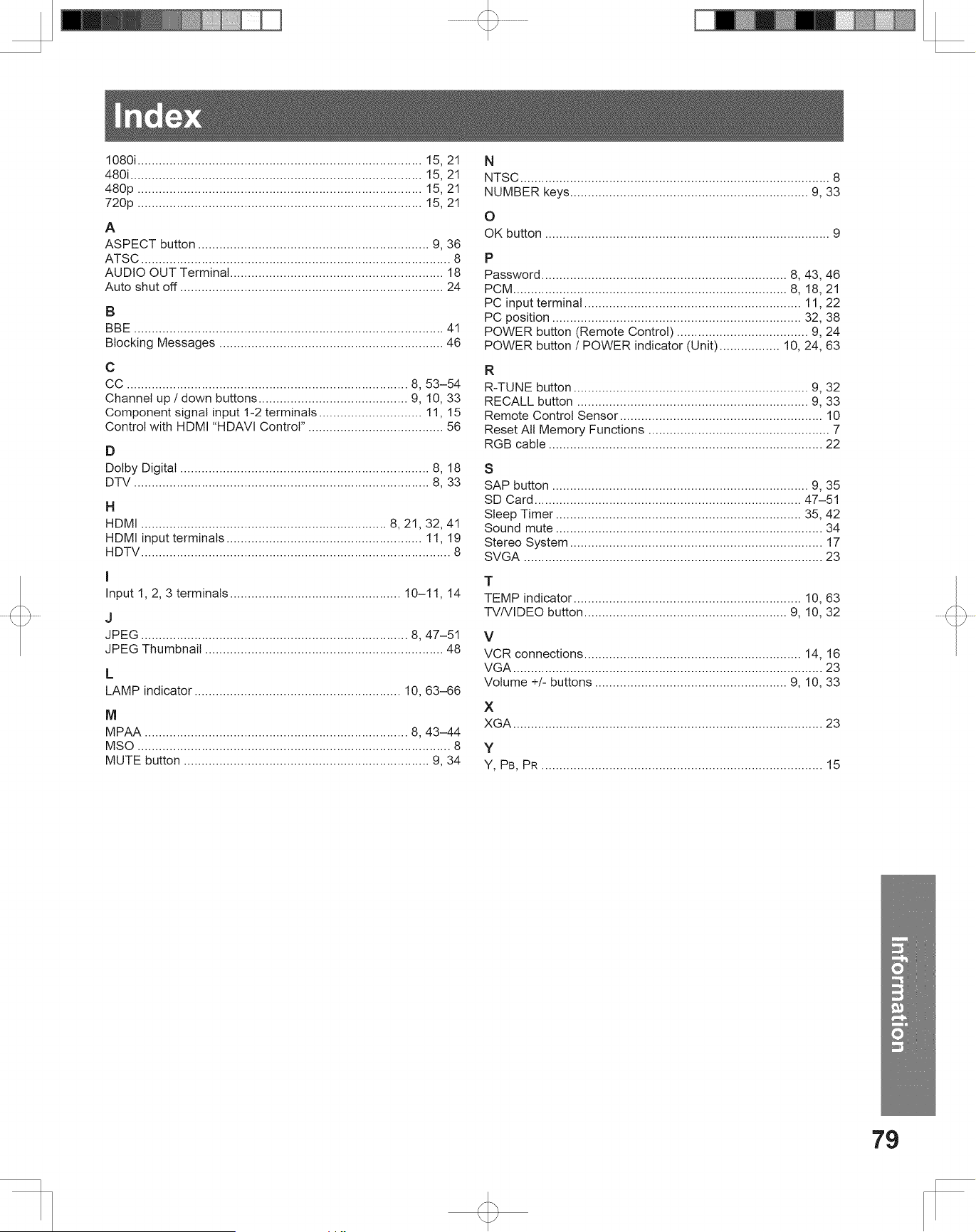
79
Information
1080i ................................................................................ 15, 21
480i .................................................................................. 15, 21
480p ................................................................................ 15, 21
720p ................................................................................ 15, 21
A
ASPECT button ................................................................. 9, 36
ATSC ....................................................................................... 8
AUDIO OUT Terminal ............................................................ 18
Auto shut off .......................................................................... 24
B
BBE ....................................................................................... 41
Blocking Messages ............................................................... 46
C
CC ............................................................................... 8, 53–54
Channel up / down buttons .......................................... 9, 10, 33
Component signal input 1-2 terminals ............................. 11, 15
Control with HDMI “HDAVI Control” ...................................... 56
D
Dolby Digital ...................................................................... 8, 18
DTV ................................................................................... 8, 33
H
HDMI ..................................................................... 8, 21, 32, 41
HDMI input terminals ....................................................... 11, 19
HDTV ....................................................................................... 8
I
Input 1, 2, 3 terminals ................................................ 10–11, 14
J
JPEG ........................................................................... 8, 47–51
JPEG Thumbnail ................................................................... 48
L
LAMP indicator .......................................................... 10, 63–66
M
MPAA .......................................................................... 8, 43–44
MSO ........................................................................................ 8
MUTE button ..................................................................... 9, 34
N
NTSC ....................................................................................... 8
NUMBER keys ................................................................... 9, 33
O
OK button ................................................................................ 9
P
Password ..................................................................... 8, 43, 46
PCM ............................................................................. 8, 18, 21
PC input terminal ............................................................. 11, 22
PC position ...................................................................... 32, 38
POWER button (Remote Control) ..................................... 9, 24
POWER button / POWER indicator (Unit) ................. 10, 24, 63
R
R-TUNE button .................................................................. 9, 32
RECALL button ................................................................. 9, 33
Remote Control Sensor ......................................................... 10
Reset All Memory Functions ................................................... 7
RGB cable ............................................................................. 22
S
SAP button ........................................................................ 9, 35
SD Card ........................................................................... 47–51
Sleep Timer ..................................................................... 35, 42
Sound mute ........................................................................... 34
Stereo System ....................................................................... 17
SVGA .................................................................................... 23
T
TEMP indicator ................................................................ 10, 63
TV/VIDEO button ......................................................... 9, 10, 32
V
VCR connections ............................................................. 14, 16
VGA ....................................................................................... 23
Volume +/- buttons ...................................................... 9, 10, 33
X
XGA ....................................................................................... 23
Y
Y, PB, PR ............................................................................... 15
Index

Panasonic Sales Company (“PSC”), Division of
Panasonic Puerto Rico, Inc.
Ave. 65 de Infantería, Km. 9.5
San Gabriel Industrial Park, Carolina, Puerto Rico 00985
Printed in Indonesia
LSQT1060 B
S0306-4046
Customer’s Record
The serial number of this product can be found on its back cover. You should note this serial number in the space
provided below and retain this book, plus your purchase receipt, as a permanent record of your purchase to aid in
identification in the event of theft or loss, and for Warranty Service purposes.
Model Number Serial Number
Panasonic Consumer Electronics Company,
Division of Panasonic Corporation of North America
One Panasonic Way Secaucus, New Jersey 07094
