TV/DVD Combination
Operating mnstructions
, Initial Setup and Connection Procedures are on page 18. 1
DiGiTAL
VmDEO
MULTi FORMAT PLAYBACK
*Ability to play back may depend on recording
conditions.
As an ENERGY S TAR '_'Partner, Matsushita Electric Corporation
of America has determined that this product or product model
meets the ENERGY STAR _ guidelines for energy efficiency
Please read these instructions carefully before attempting to connect,
operate, or adjust this product. Please save this manual.
Spanish Quick Use Guide is included.
(Guia para rapida consulta en espa_ol esta incluida.)
g
:>
2
On your purchase of one of the most
sophisticated and reliable products on the
market today. Used properly, it will bring you
and your family years of enjoymenL Please
fill in the information below. The serial
number is on the tag located on the back of
your unit.
Date of Purchase
Dealer Purchased From
Dealer Address
Dealer Phone No.
Model No,
Serial No.
Please check and identify the supplied
accessories.
Use numbers indicated in parentheses
when asking for replacement parts.
To order accessories, call toll free
1o800o332o5368.
[] 1 Remote Control (EUR7724040)
v
[] 2 Batteries 'AA"
C )
C )
Be sure to read the fo!lowing cautions
carefully.
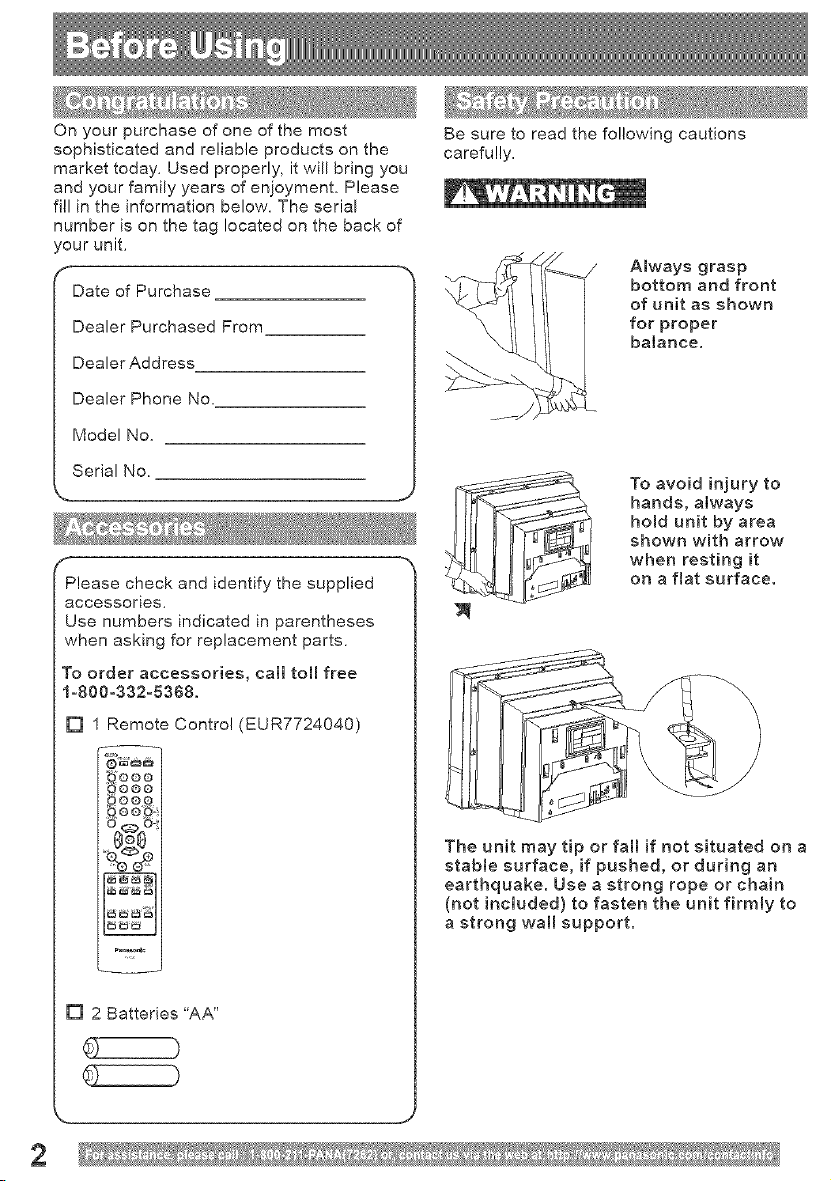
Always grasp
bottom and front
of unit as shown
for proper
balance.
To avoid injury to
hands, always
hold unit by area
shown with arrow
when resting it
on a fiat surface.
The unit may tip or fall if not situated on a
stabte surface, if pushed, or during an
earthquake. Use a strong rope or chain
(not included) to fasten the unit firmly to
a strong wall support.
InitialSetup-Readyto Play-°.....................................................t8
TuningTV.....................................................................................19
TVOperation...............................................................................22
MTSBroadcast/ TV Stereo System .......................................... 24
TV Timer Features .........................................................................
CJosed Caption System .............................................................. 26
Video / Audio Menu ..................................................................... 28
Weak SignaJ Display Feature ..................................................... 30
V-Chip Contro_ Features ............................................................ 31
DispJay Feature ........................................................................... 37
Basic Disc Operation .................................................................. 38
Disc Operation -In PLAY mode-. ............................................... 40
DVDoRAM Operation ................................................................... 44
Disc Operation -Using information Screen-. ........................... 46
Special Disc Operation .............................................................. 50
Settings for DVD Operation ..................................................... 54
Gu_a r_pida de uso en espa_ol = Funcionamiento del disco. _..o...65
3
TO PREVENT FiRE OR SHOCK HAZARD, DO NOT EXPOSE THIS
EQUIPMENT TO RAmN OR MOISTURE.
TO PREVENT ELECTRmC SHOCK, MATCH WmDE BLADE OF PLUG TO
WiDE SLOT mNWALL SOCKET. FULLY mNSERT.
AVERTISSEMENT °
A FIN DE PRF:VENIR TOUT RmSQUE D'RNCENDmE OU DE CHOCS
ELECTRIQUES, NE PAS EXPOSER CET APPAREIL A LA PLUIE OU ,&
UNE HUMmDtTE EXCESSIVE.
Attention -
POUR F_VmTER LES CHOCS ELECTRIQUES, INTRODUIRE LA LAME LA
PLUS LARGE DE LA HCHE DANS LA BORNE CORRESPONDANTE DE
LA PRmSE ET POUSSER JUSQU'AU FOND.
FCC WARNING "
ANY UNAUTHORIZED CHANGES OR MODiFiCATIONS TO THIS
EQUIPMENT WOULD VOiD THE USER'S AUTHORITY TO OPERATE.
FCC NOTICE:
This equipment has been tested and found to comply with part 15 of the FCC Rules. These
limits are designed to provide reasonable protection against harmful interference when
operated in a residential environment. If this equipment does cause interference to radio or
television reception, which can be determined by turning the equipment off and on, use the
equipment in another location and/or utilize an electrical outlet different from that used by
the receiver. If necessary, consult the dealer or an experienced radio/TV technician for
help. You may find the booklet, "Something About Interference" available from FCC local
regional offices helpful.
This product utilizes both a Cathode Ray Tube (CRT) and other components that contain
lead. Disposal of these materials may be regulated in your community due to environmental
considerations. For disposal or recycling information please contact your Ioca! authorities,
or the Electronics Industries Alliance: <http://www.eiae.org.>
4
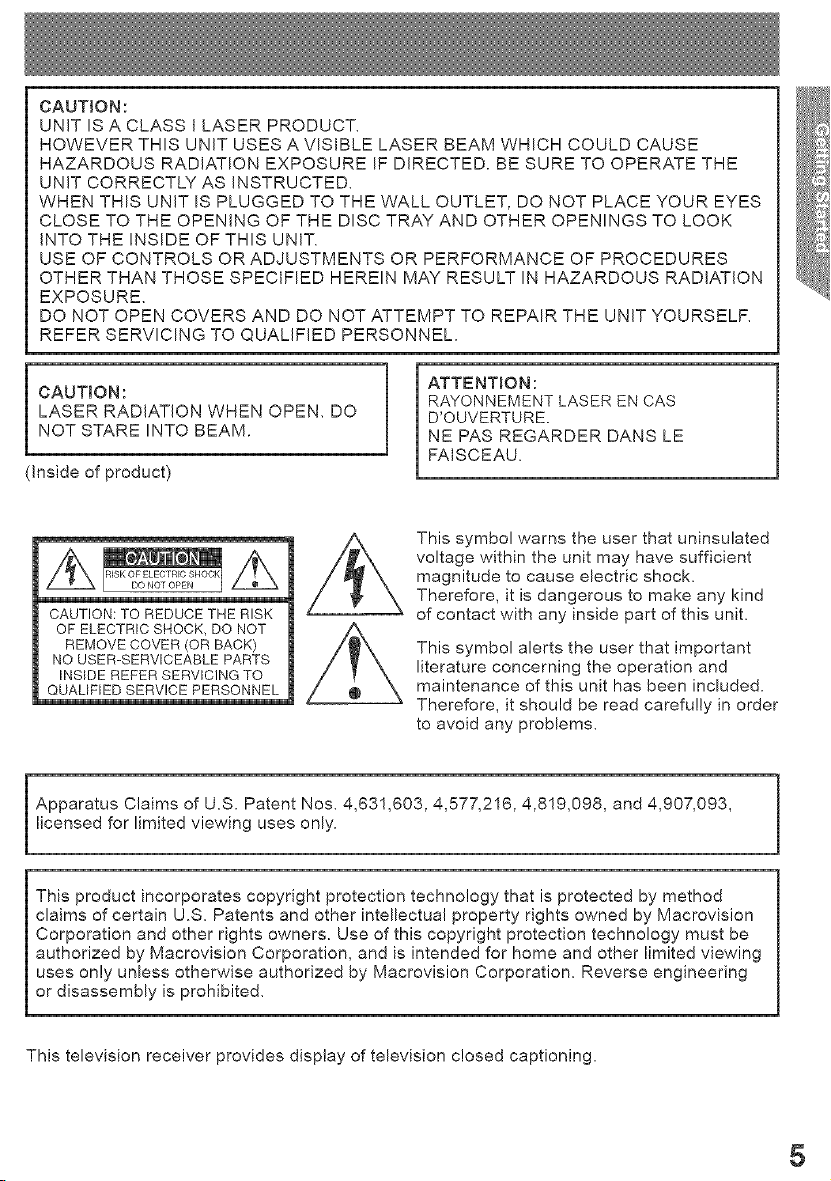
CAUTION:
UNIT IS A CLASS t LASER PRODUCT.
HOWEVER THIS UNIT USES A VISIBLE LASER BEAM WHICH COULD CAUSE
HAZARDOUS RADIATION EXPOSURE IF DIRECTED. BE SURE TO OPERATE THE
UNIT CORRECTLY AS INSTRUCTED.
WHEN THIS UNIT IS PLUGGED TO THE WALL OUTLET, DO NOT PLACE YOUR EYES
CLOSE TO THE OPENING OF THE DISC TRAY AND OTHER OPENINGS TO LOOK
INTO THE INSIDE OF THIS UNIT.
USE OF CONTROLS OR ADJUSTMENTS OR PERFORMANCE OF PROCEDURES
OTHER THAN THOSE SPECIFIED HEREIN MAY RESULT IN HAZARDOUS RADIATION
EXPOSURE.
DO NOT OPEN COVERS AND DO NOT ATTEMPT TO REPAIR THE UNiT YOURSELF.
REFER SERVICING TO QUALIFIED PERSONNEL.
CAUTION:
LASER RADIATION WHEN OPEN. DO
NOT STARE INTO BEAM.
(inside of product)
ATTENTION:
RAYONNEMENT LASER EN CAS
D'OUVERTURE.
NE PAS REGARDER DANS LE
FAISCEAU.
CAUTION: TO REDUCE THE RISK
OF ELECTRIC SHOCK, DO NOT
REMOVE COVER (OR BACK)
NO USER-SERVICEABLE PARTS
INSIDE REFER SERWCING TO
QUALJHED SERVICE PERSONNEL
This symbol warns the user that uninsulated
voltage within the unit may have sufficient
magnitude to cause electric shock.
Therefore, it is dangerous to make any kind
of contact with any inside part of this unit.
This symbol alerts the user that important
literature concerning the operation and
maintenance of this unit has been included.
Therefore, it should be read carefully in order
to avoid any problems.
Apparatus Claims of U.S. Patent Nos. 4,631,603, 4,577,216, 4,819,098, and 4,907,093,
licensed for limited viewing uses only.
This product incorporates copyright protection technology that is protected by method
claims of certain U.S. Patents and other intellectual property rights owned by Macrovision
Corporation and other rights owners. Use of this copyright protection technology must be
authorized by Macrovision Corporation, and is intended for home and other limited viewing
uses only unless otherwise authorized by Macrovision Corporation. Reverse engineering
or disassembly is prohibited.
This television receiver provides display of television closed captioning.
5
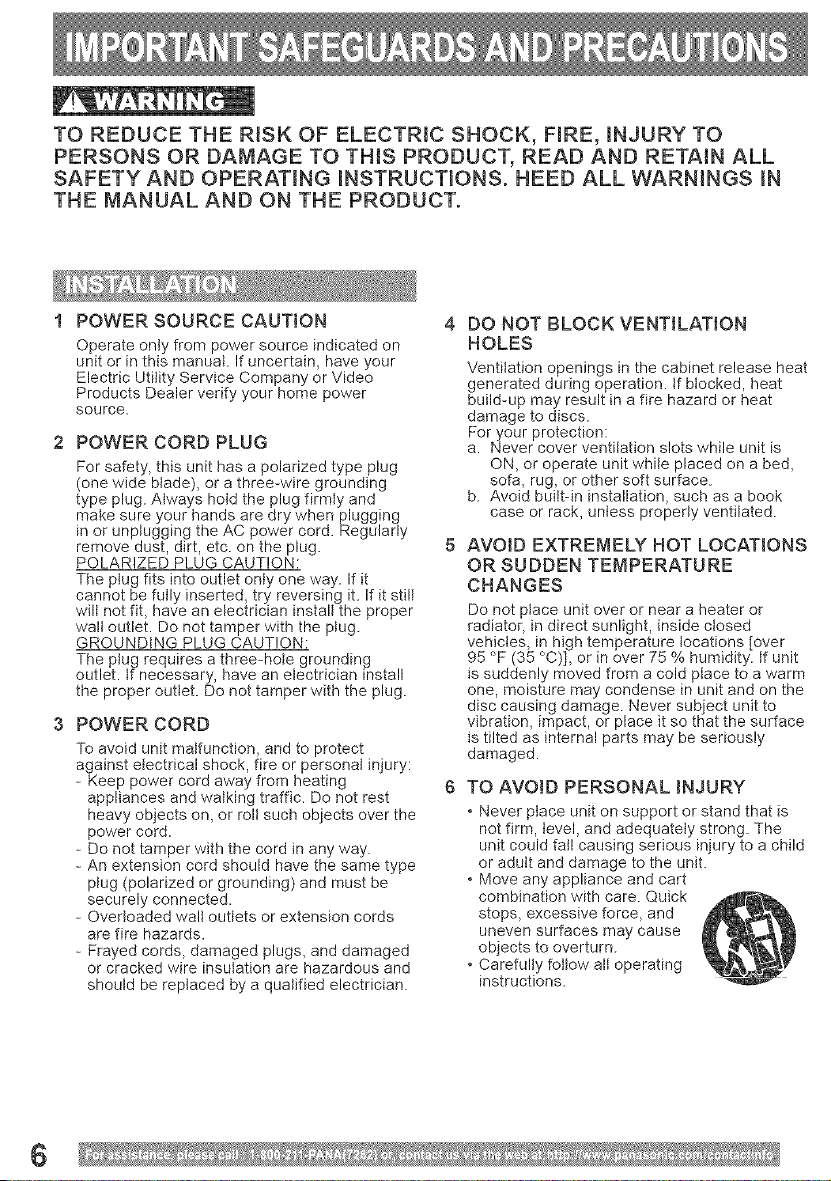
TO REDUCE THE RISK OF ELECTRIC SHOCK, FRRE, iNJURY TO
PERSONS OR DAMAGE TO THIS PRODUCT, READ AND RETAmN ALL
SAFETY AND OPERATING mNSTRUCTIONS. HEED ALL WARNmNGS mN
THE MANUAL AND ON THE PRODUCT.
I POWER SOURCE CAUTION
Operate only from power source indicated on
unit or in this manual. If uncertain, have your
Electric Utility Service Company or Video
Products Dealer verify your home power
source.
2 POWER CORD PLUG
For safety, this unit has a polarized type plug
(one wide blade), or a three-wire grounding
type plug. Always hold the plug firmly and
make sure your hands are dry when plugging
in or unplugging the AC power cord. Regularly
remove dust, dirt, etc. on the plug.
POLARIZED PLUG CAUTION:
The plug fits into outlet only one way. If it
cannot be fully inserted, try reversing it. If it still
wilt not fit, have an electrician install the proper
walt outlet. Do not tamper with the plug.
GROUNDING PLUG CAUTION:
The plug requires a three-hole grounding
outlet, tf necessary, have an electrician install
the proper outlet. Do not tamper with the plug.
3 POWER CORD
To avoid unit malfunction, and to protect
against electrical shock, fire or personal injury:
- Keep power cord away from heating
appliances and walking traffic. Do not rest
heavy objects on, or roll such objects over the
power cord.
- Do not tamper with the cord in any way.
- An extension cord should have the same type
plug (polarized or grounding) and must be
securely connected.
- Overloaded walt outlets or extension cords
are fire hazards.
- Frayed cords, damaged plugs, and damaged
or cracked wire insulation are hazardous and
should be reptaced by a qualified electrician.
DO NOT BLOCK VENTILATION
HOLES
Ventilation openings in the cabinet release heat
generated during operation, tf blocked, heat
build-up may result in a fire hazard or heat
damage to discs.
For your protection:
a. Never cover ventilation slots while unit is
ON, or operate unit while placed on a bed,
sofa, rug, or other soft surface.
b. Avoid built-in installation, such as a book
case or rack, unless properly ventilated.
AVOID EXTREMELY HOT LOCATMONS
OR SUDDEN TEMPERATURE
CHANGES
Do not place unit over or near a heater or
radiator, in direct sunlight, inside closed
vehicles, in high temperature locations [over
95 '_F(35 °C)], or in over 75 % humidity. If unit
is suddenly moved from a cold ptace to a warm
one, moisture may condense in unit and on the
disc causing damage. Never subject unit to
vibration, impact, or place it so that the surface
is tilted as internal parts may be seriously
damaged.
TO AVOID PERSONAL iNJURY
• Never ptace unit on support or stand that is
not firm, level, and adequately strong. The
unit could fall causing serious injury to a child
or adult and damage to the unit.
• Move any appliance and cart
combination with care. Quick
stops, excessive force, and
unevee surfaces may cause
objects to overturn.
• Carefully fottow all operating
instructions.
6
Before unit is brought out of storage or
moved to a new location, refer again to the
INSTALLATION section of these safeguards,
1 KEEP UNiT WELL AWAY FROM
WATER OR MOISTURE,
such as vases, sinks, tubs, etc.
2 iF EXPOSED TO RAIN, MOISTURE,
OR STRONG iMPACT,
unplug unit and have it inspected by a qualified
service technician before use.
3 ELECTRICAL STORMS
During a lightning storm, or before teaving unit
unused for extended periods of time,
disconnect all equipment from the power
source as well as the antenna and cable
system.
4 WHEN UNiT iS PLUGGED iN
• DO NOT OPERATE tF:
- liquid has spilled into unit,
- unit was dropped or otherwise damaged,
- unit emits smoke, odours, or noises,
Immediately unplug unit, and have it
inspected by a service technician to avoid
potential fire and shock hazards,
• Never drop or push any object through
openings in unit. Touching internal parts may
cause electric shock or fire hazard. Do not
put any foreign object on the tray.
• Keep magnetic objects, such as speakers,
away from unit to avoid electrical interference.
5 USING ACCESSORIES
Use only accessories recommended by the
manufacturer to avoid risk of fire, shock, or
other hazards.
6 CLEAMNG UNiT
Unplug unit. Use a clean, dry, chemically
untreated ctoth to gently remove dust or debris.
DO NOT USE cIeaning fluids, aerosols, or
forced air that could over-spray, or seep into
unit and cause electrical shock. Any substance,
such as wax, adhesive tape, etc. may mar the
cabinet surface. Exposure to greasy, humid, or
dusty areas may adversely affect internal parts.
SAFE ANTENNA AND CABLE
CONNECTION
An outside antenna or cabte system must be
properly grounded to provide some protection
against built up static charges and voltage.
Section 810 of the National Electrical Code,
ANSI/NFPA 70 (in Canada, part 1 of the
Canadian Electrical Code) provides information
regarding proper grounding of the mast and
supporting structure, grounding of the lead-in
wire to an antenna discharge unit, size of
grounding conductors, location of antenna
discharge unit, connection to grounding
electrodes, and requirements for the grounding
electrode.
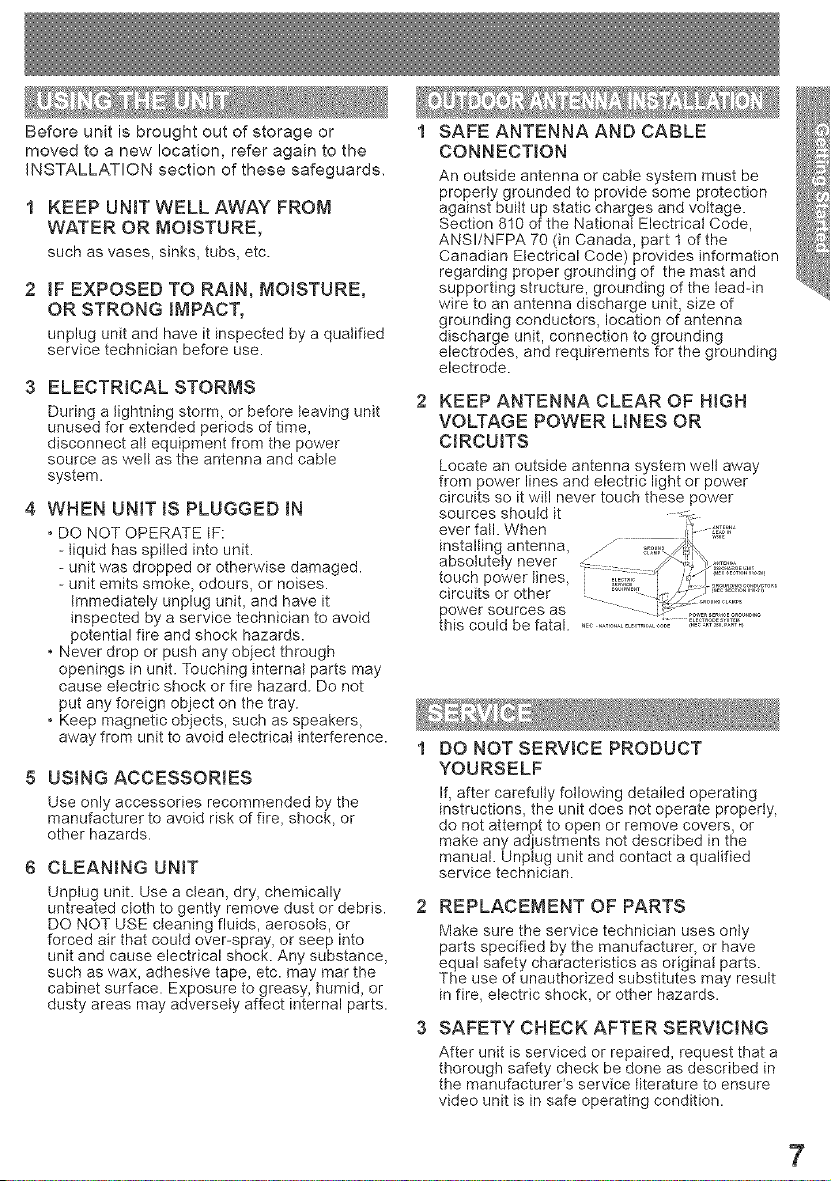
KEEP ANTENNA CLEAR OF HGH
VOLTAGE POWER LINES OR
CIRCUITS
Locate an outside antenna system well away
from power lines and electric light or power
circuits so it will never touch these power
sources should it -::\_
ever fall. When
installing antenna, z/Z i_,, _
absolutely never _\,,_ _,_TE"_
touch power lines, ii_': ,tii_2_P_0D_:'TOR_
circuits or other ............. _://_;_
power sources as
this could be fatal. ,, .................. _E _'
DO NOT SERVtCE PRODUCT
YOURSELF
If, after carefully following detailed operating
instructions, the unit does not operate properly,
do not attempt to open or remove covers, or
make any adjustments not described in the
manual. Unptug unit and contact a qualified
service technician.
REPLACEMENT OF PARTS
Make sure the service technician uses only
parts specified by the manufacturer, or have
equal safety characteristics as originat parts.
The use of unauthorized substitutes may result
in fire, electric shock, or other hazards.
SAFETY CHECK AFTER SERVICING
After unit is serviced or repaired, request that a
thorough safety check be done as described in
the manufactureCs service literature to ensure
video unit is in safe operating condition.
7
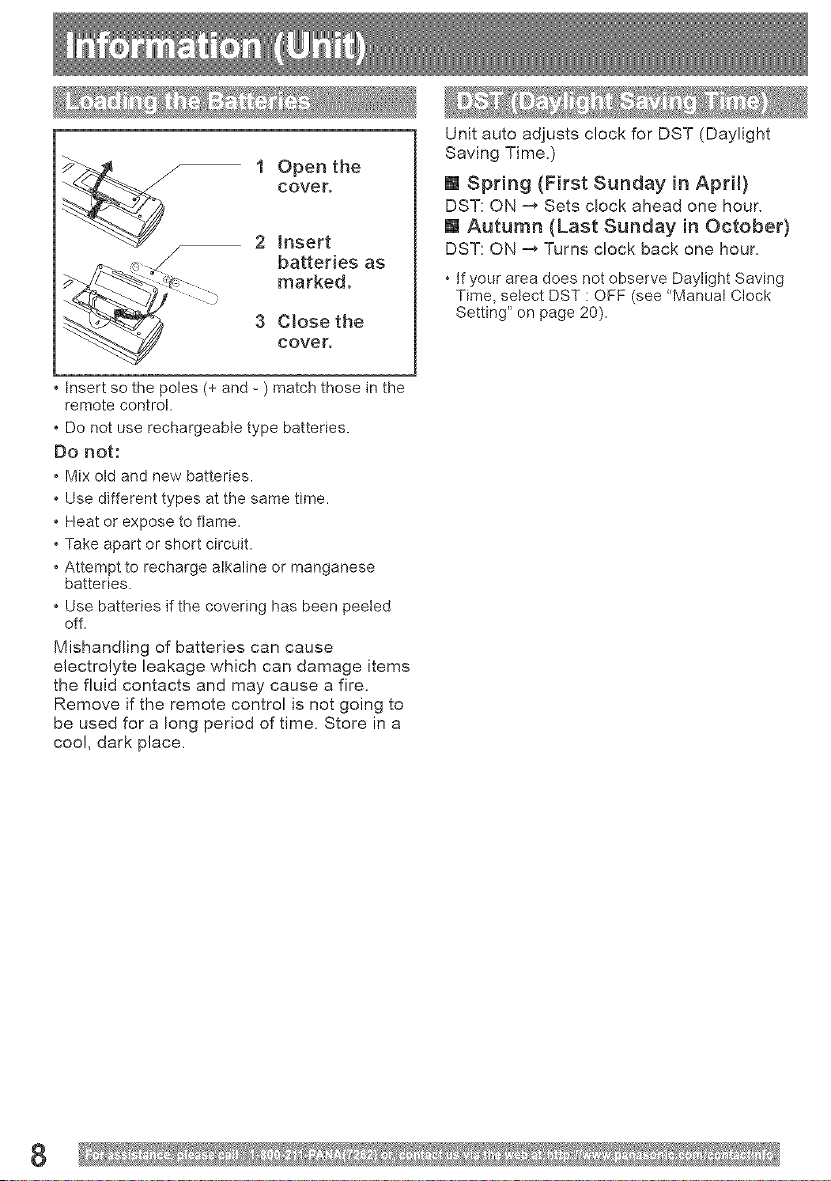
I Open the
COVer,
2 insert
batteries as
markedo
3 Close the
cover,
Insert so the poles (+ and - ) match those in the
remote control.
• Do not use rechargeabte type batteries.
Do not:
• Mix old and new batteries.
• Use different types at the same time.
• Heat or expose to flame.
• Take apart or short circuit.
• Attempt to recharge alkaline or manganese
batteries.
• Use batteries if the covering has been peeled
off.
Mishandling of batteries can cause
electrolyte leakage which can damage items
the fluid contacts and may cause a fire.
Remove if the remote control is not going to
be used for a long period of time. Store in a
coo!, dark place,
Unit auto adjusts clock for DST (Daylight
Saving Time,)
[] Spring (First Sunday in April)
DST: ON -_ Sets clock ahead one hour.
[] Autumn (Last Sunday in October)
DST: ON "_ Turns clock back one hour.
• tf your area does not observe Daylight Saving
Time, select DST : OFF (see "Manual Clock
Setting" on page 20).
8
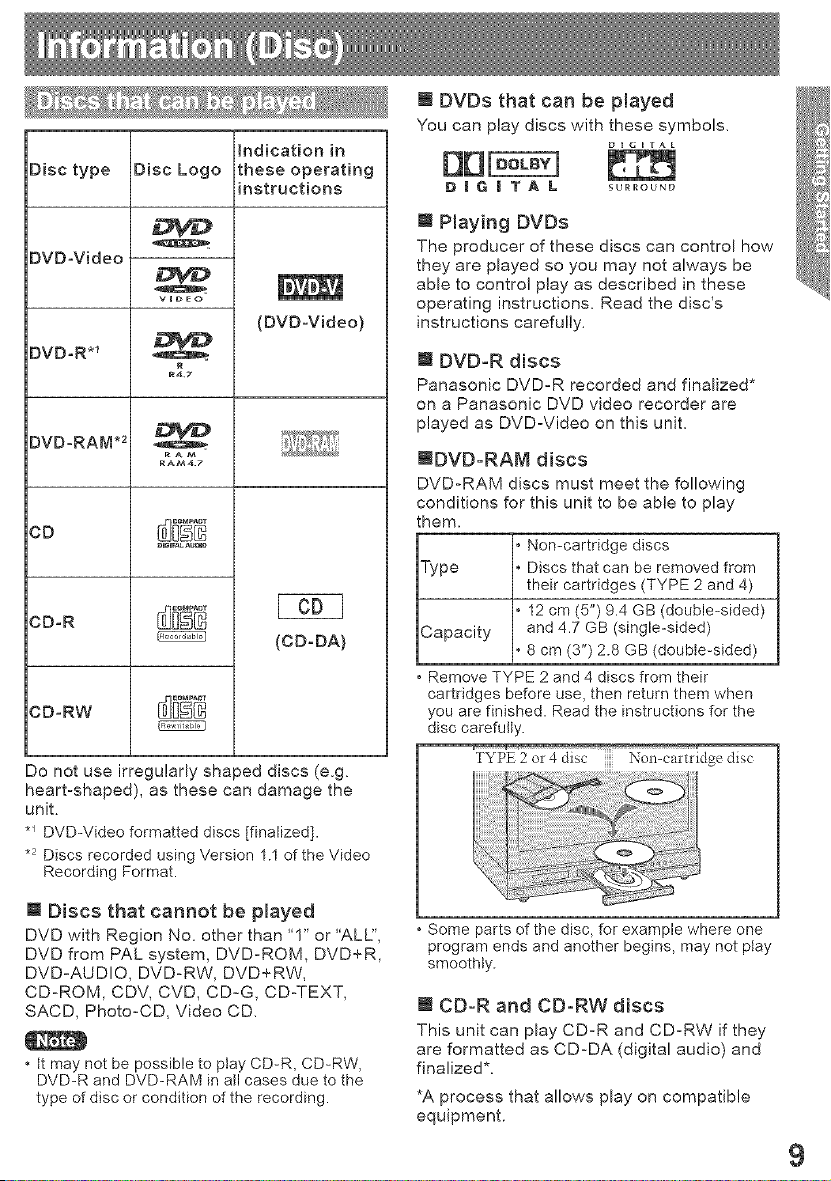
_ndication in
Disc type Disc Logo these operating
instructions
DVDoVideo
DVDoR *_
DVDoRAM .2
CD
CDoR
CDoRW
VmDEO
RAM
RAM4 7
OUG_ALauLtr_
(DVDoVideo)
(CDoDA)
Do not use irregularly shaped discs (e.g.
heart-shaped), as these can damage the
unit.
*_ DVD-Video formatted discs [finalized].
.2 Discs recorded using Version 1.1 of the Video
Recording Format.
m D[scs that cannot be pmayed
DVD with Region No. other than '1" or "ALU',
DVD from PAL system, DVD-ROM, DVD+R,
DVD-AUDIO, DVD-RW, DVD+RW,
CD-ROM, CDV, CVD, CD-G, CD-TEXT,
SACD, Photo-CD, Video CD.
• tt may not be possible to play CD-R, CD-RW,
DVD-R and DVD-RAM in all cases due to the
type of disc or condition of the recording.
m DVDs that can be played
You can play discs with these symbols,
D | G | T A L surround
m Play{ng DVDs
The producer of these discs can control how
they are played so you may not always be
able to control play as described in these
operating instructions. Read the disc's
instructions carefully.
m DVD-R discs
Panasonic DVD°R recorded and finalized*
on a Panasonic DVD video recorder are
played as DVD-Video on this unit.
mDVD-RAM discs
DVD-RAM discs must meet the following
conditions for this unit to be able to play
them.
Non-cartridge discs
Type Discs that can be removed from
their cartridges (TYPE 2 and 4)
12 cm (5") 9.4 GB (double-sided)
Capacity and 4.7 GB (single-sided)
8 cm (3") 2.8 GB (double-sided)
Remove TYPE 2 and 4 discs from their
cartridges before use, then return them when
you are finished. Read the instructions for the
disc carefully.
TYPE 2 or 4 disc l_-on-cartridge disc
..................
• Some parts of the disc, for example where one
program ends and another begins, may not ptay
smoothly.
m CD-R and CD-RW discs
This unit can play CD-R and CD-RW if they
are formatted as CD-DA (digital audio) and
finalized*.
*A process that allows play on compatible
equipment.
9
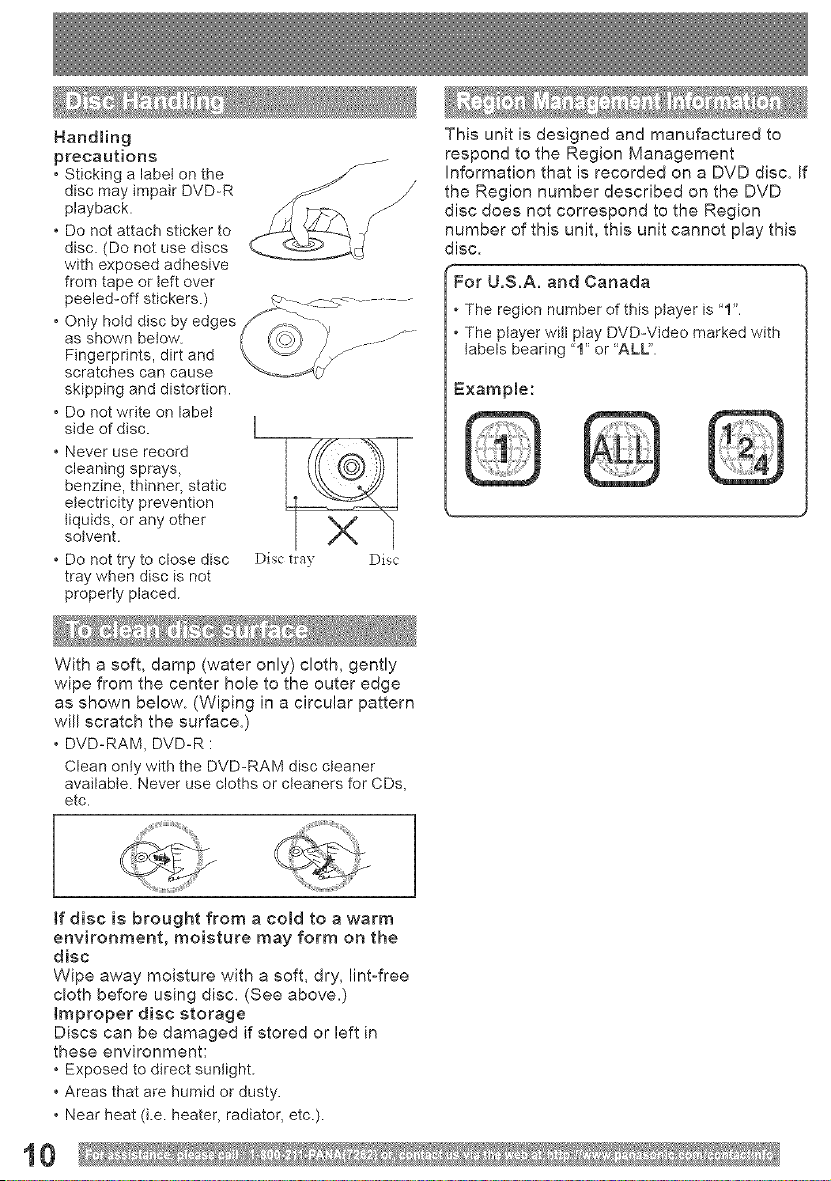
Handling
precautions
• Sticking a labet on the
disc may impair DVD-R
playback.
• Do not attach sticker to
disc. (Do not use discs
with exposed adhesive
from tape or teft over
peeled-off stickers.)
• Onty hold disc by edges
as shown betow. .-..f ....
Fingerprints, dirt and
scratches can cause
skipping and distortion.
, Do not write on labet
side of disc. L
° Never use record I //if-,,_, i
cleaning sprays,
benzine, thinner, static
electricity prevention
liquids, or any other
solvent.
° Do not try to close disc Disc t_:ay Disc
tray when disc is not
properly placed.
This unit is designed and manufactured to
respond to the Region Management
Information that is recorded on a DVD disc. If
the Region number described on the DVD
disc does not correspond to the Region
number of this unit, this unit cannot play this
disc.
For U.S.A. and Canada
. The region number of this player is "1".
• The ptayer witl play DVD-Video marked with
labels bearing "1" or 'ALL".
Example:
With a soft, damp (water only) cloth, gently
wipe from the center hole to the outer edge
as shown below. (Wiping in a circular pattern
will scratch the surface.)
• DVD-RAM, DVD-R :
Clean only with the DVD-RAM disc cleaner
available. Never use cloths or cleaners for CDs,
etc.
ff disc is brought from a coJd to a warm
environment, moisture may form on the
disc
Wipe away moisture with a soft, dry, lint-free
cloth before using disc. (See above.)
Improper disc storage
Discs can be damaged if stored or left in
these environment:
• Exposed to direct sunlight.
• Areas that are humid or dusty.
• Near heat (i.e. heater, radiator, etc.).
10
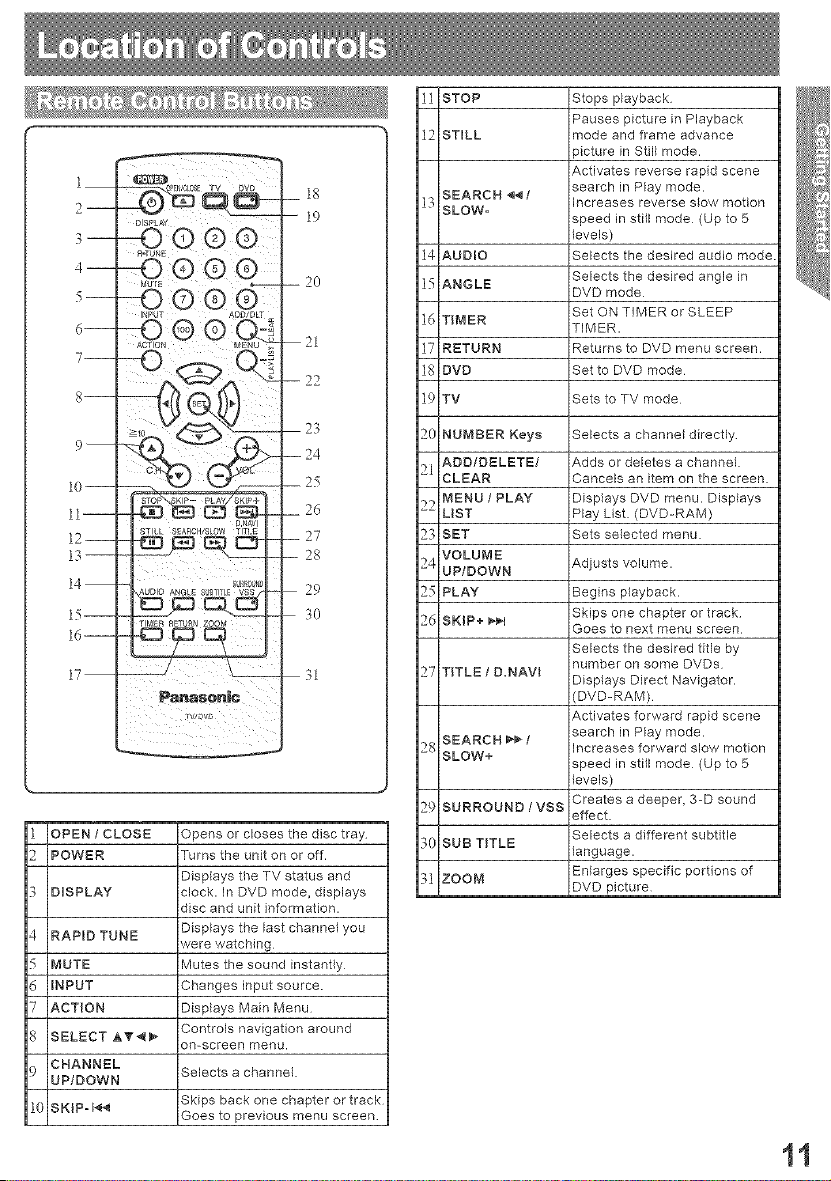
1
2--
3--
4--
5--
6--
7--
8--
9--
10 --
11--
12--
13--
14
15--
16--
17--
STILL SEARCH/SOW TITLE
......../ L_o_
18
19
-- 2O
21
--22
23
--24
_25
_ 26
--27
--28
29
30
OPEN / CLOSE Opens or closes the disc tray
POWER Turns the unit on or off.
Displays the TV status and
DISPLAY clock. M DVD mode, displays
disc and unit information.
Dispfays the last channel you
were watching
Mutes the sound instantly
Changes input source.
Displays Main Menu
Controls navigation around
on-screen menu.
Selects a channel
Skips back one chapter or track
Goes to previous menu screen
STOP Stops playback
Pauses picture in Playback
STILL mode and frame advance
)icture in Still mode.
Activates reverse rapid scene
SEARCH _ / search in Play mode.
Increases reverse slow motion
SLOW-
speed in still mode (Up to 5
levels)
AUDIO Selects the desired audio mode
ANGLE Selects the desired angle in
DVD mode
Set ON TIMER or SLEEP
TIMER
TIMER.
RETURN Returns to DVD menu screen,
DVD Set to DVD mode
TV Sets to TV mode
NUMBER Keys Selects a channel directly
Adds or deletes a channel.
Cancels an item on the screen
Displays DVD menu. Displays
Play List (DVD-RAM)
Sets selected menu.
Adjusts volume.
Begins playback.
Skips one chapter or track
Goes to next menu screen
Selects the desired title by
number on some DVDs
Displays Direct Navigator.
(DVD-RAM)
Activates forward rapid scene
search in Play mode.
Mcreases forward slow rrlotion
speed in sMI mode (Up to 5
levels)
Creates a deeper, 3-D sound
effect.
Selects a different subtitle
language.
Enlarges specific portions of
DVD picture
11
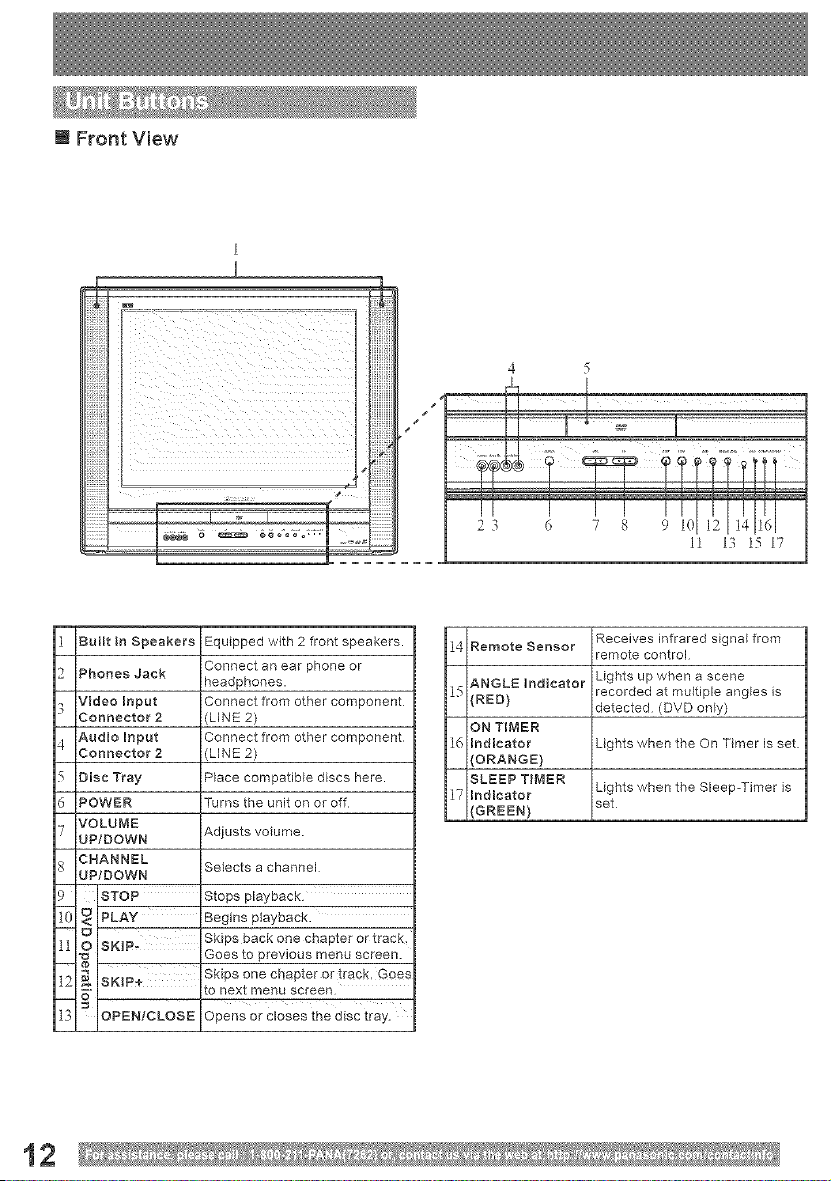
m Front View
23 6 7 8 9 10
11 13 1517
BaiN In Speakers
Phones Jack
Video Input
Connector 2
Audio Input
Connector 2
Disc Tray
Equipped with 2 front speakers.
Connect an ear phone or
headphones.
Connect from other component
(LINE 2)
Connect from other component
(LINE 2)
Place compatible discs here.
Turns the unit on or off
Adjusts volume.
Selects a channel
Stops playback
Begins playback.
Skips back one chapter or track.
Goes to previous menu screen.
Skips one chapter or track, Goes
to next menu screen
Opens or closes the disc tray.
1I Remote Sensor
15 ANGLE Indicator
(RED)
ON TIMER
Indicator
(ORANGE)
SLEEP TIMER
El ndicator
(GREEN)
Receives infrared signal from
remote control
Lights up when a scene
recorded at multiple angles is
detected (DVD only)
Lights when the On Timer is set
Lights when the Sleep-Timer is
set
12
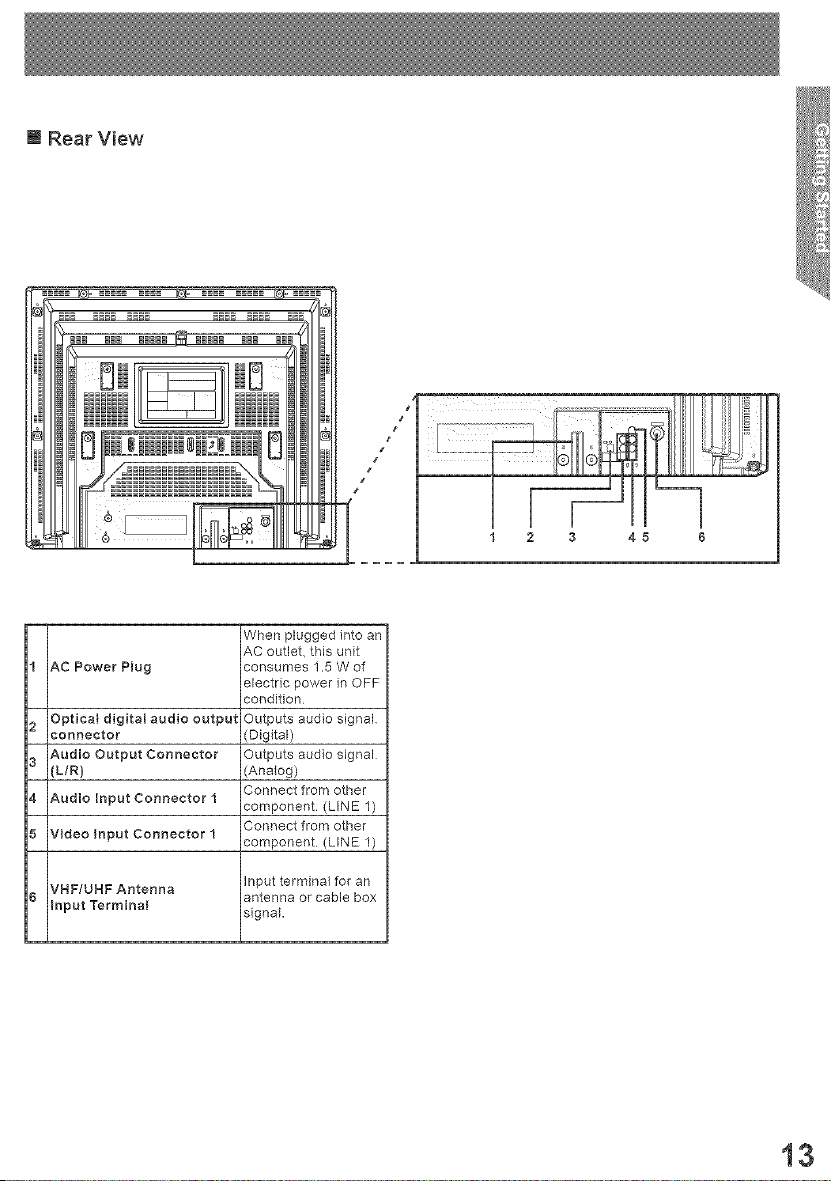
m Rear View
t t
t
[ [±J I
1 2 3 45 6
_ AC Power Plug
IOptieal digital audio output
(L/R)
IAudio input Connector 1
5_ Video Input Connector 1
16 VHF/UHF Antenna
nput Term na
When plugged into an
AC outlet, this unit
consumes 1.5 W of
electric power in OFF
condition
Outputs audio signal
(Digital)
Outputs audio signal
(Analog)
Connect from other
component (LINE 1)
Connect from other
component (LINE 1)
Input terminal for an
antenna or cable box
signal.
13
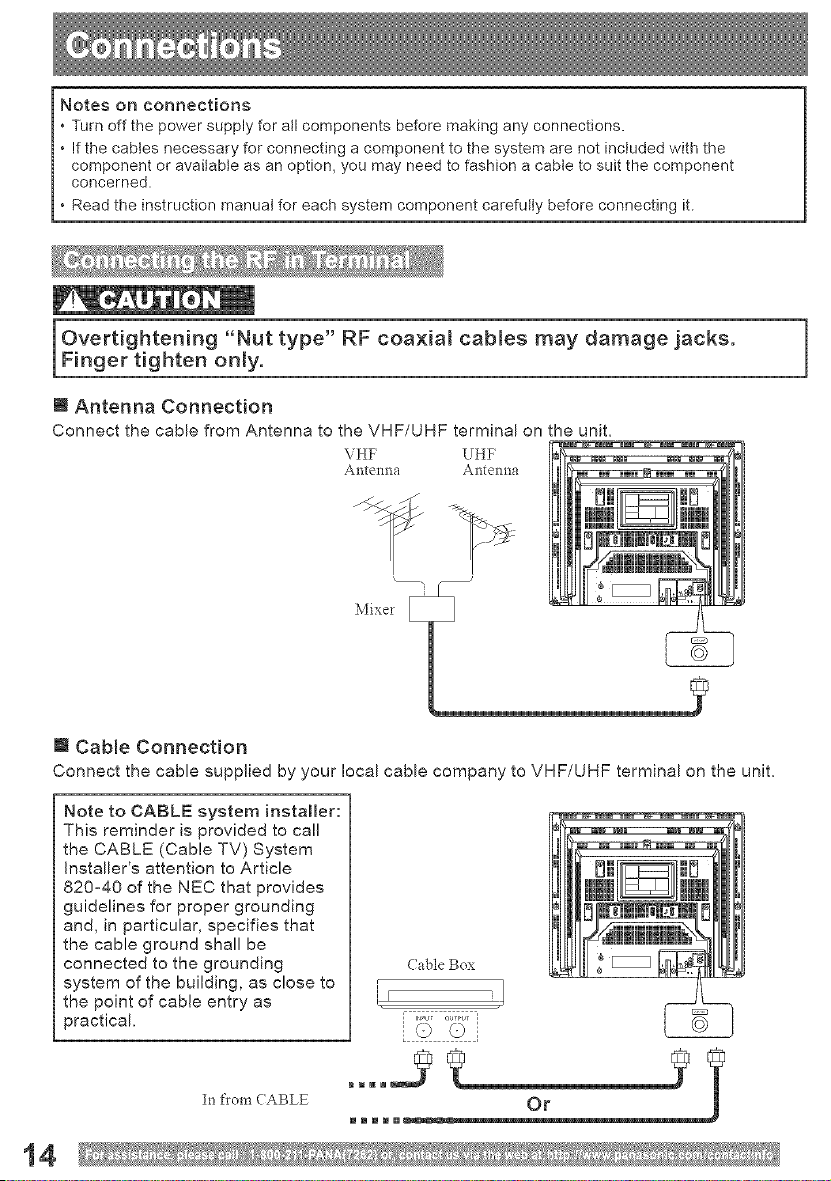
Notes on connections
• Turn off the power supply for all components before making any connections.
• If the cables necessary for connecting a component to the system are not included with the
component or available as an option, you may need to fashion a cable to suit the component
concerned.
• Read the instruction manual for each system component carefully before connecting it.
Overtightening "Nut type" RF coaxial cables may damage jacks.
Finger tighten only.
[] Antenna Cormection
Connect the cable from Antenna to the VHF/UHF terminal on the unit,
VHF UHF
Antenna Antenna
J
Mixer _
[] Cable Connection
Connect the cable supplied by your local cable company to VHF/UHF terminal on the unit.
Note to CABLE system installer:
This reminder is provided to call
the CABLE (Cable TV) System
Installer's attention to Article
820°40 of the NEC that provides
guidelines for proper grounding
and, in particular, specifies that
the cable ground shall be
connected to the grounding
system of the building, as close to
the point of cable entry as
practical.
In tkomCABLE
(able Box
' 1ir
(0 @
14
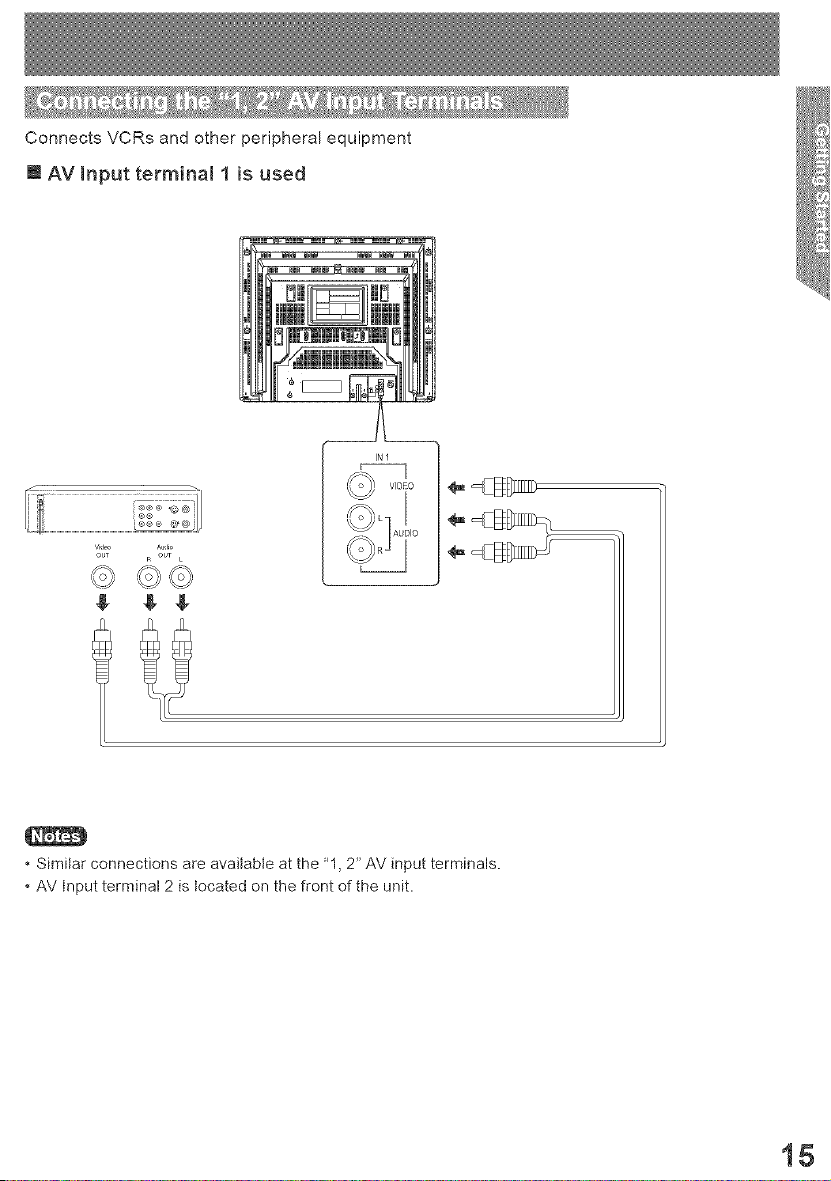
Connects VCRs and other peripheral equipment
@ AV input terminal 1 is used
vi,l_ Au,l_o
out R out L
$ g +
IN1
=cB
+ =cB_
+ Simiiar connections are available at the '1, 2" AV input terminals.
+ AV Input terminal 2 is tocated on the front of the unit.
15
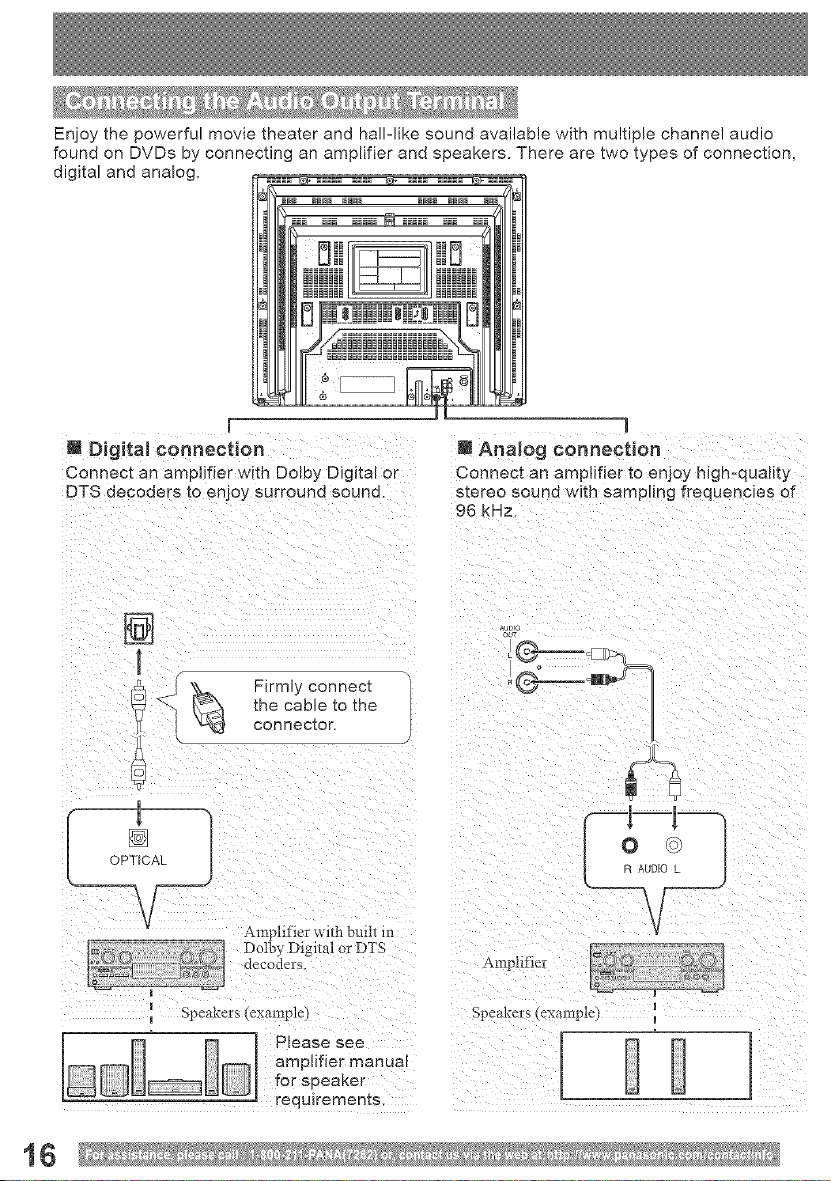
Enjoy the powerful movie theater and hallqike sound available with multiple channel audio
found on DVDs by connecting an amplifier and speakers. There are two types of connection,
digital and analog.
1
Connect an amplifier with Dolby Digital or
]
Analog connection
Connect an amplifier to enjoy high-quality
stereo sound wlt_ sampling frequencies of
96 kHz.
Ampht)er
Speakers _xample)
16
[] Turn down the volume, then turn this unit, as
well as other equipment to be connected, off
before proceeding with connection.
[] Do not btock ventilation holes of any equipment
and arrange it so that air can circulate freely.
Enjoying digital audio output from the
digital audio output connector
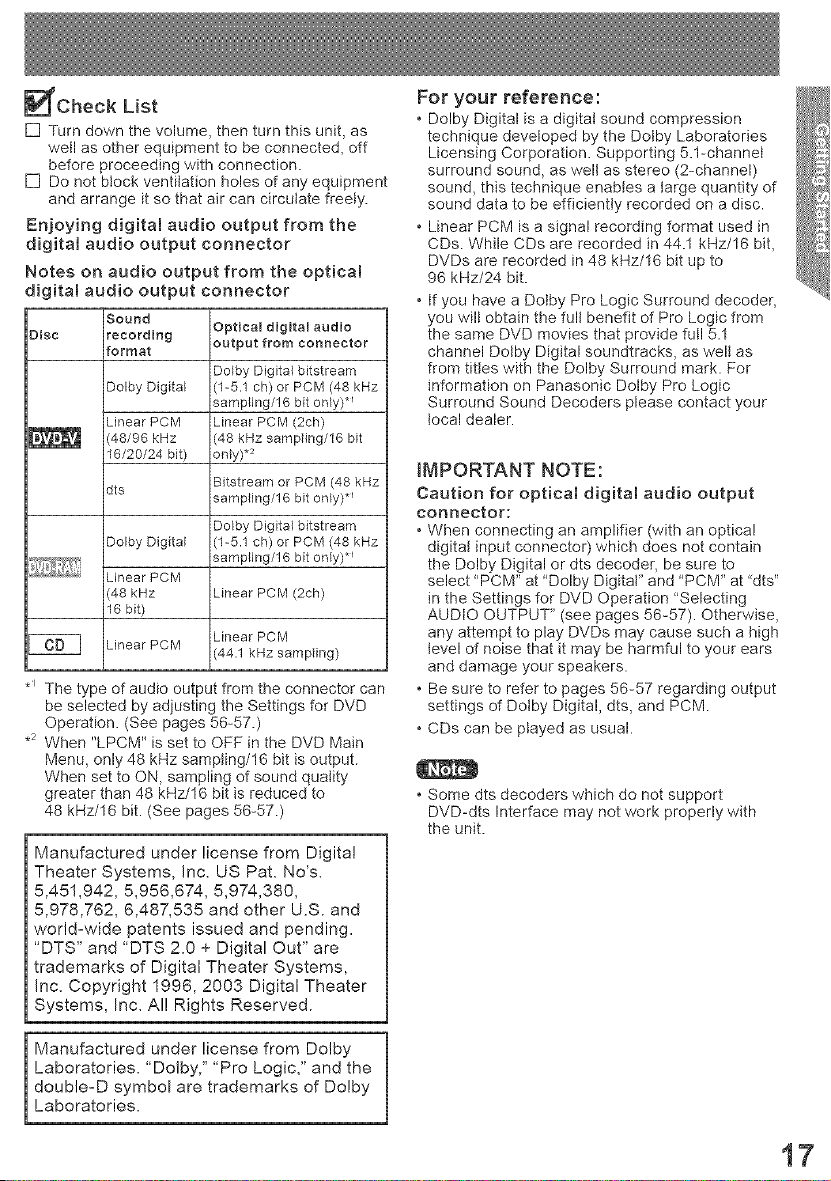
Notes on audio output from the opticaJ
digital audio output connector
Sound
Disc recording Optical digital audio
format output from connector
Dolby Digital bitstream
Dolby Digital (1-5.1 ch) or PCM (48 kHz
sampling/16 bit only)"
Linear PCM Linear PCM (2ch)
48/96 kHz (48 kHz sampfing/16 bit
16/20/24 bit) only) *_
Bitstream or PCM (48 kHz
dts
sampling/16 bit only) _
Dolby Digital bitstream
Dolby Digital (1-5.1 ch) or PCM {48 kHz
sampling/16 bit only) *_
Linear PCM
48 kHz Linear PCM (2ch)
16 bit)
Linear PCM
Linear PCM
44.1 kHz sampfing)
*_ The type of audio output from the connector can
be selected by adjusting the Settings for DVD
Operation. (See pages 56-57.)
.2 When "LPCM" is set to OFF in the DVD Main
Menu, only 48 kHz sampling/16 bit is output.
When set to ON, sampling of sound quality
greater than 48 kHz/16 bit is reduced to
48 kHz/16 bit. (See pages 56-57.)
Manufactured under license from Digital
Theater Systems, Inc. US Pat. No's.
5,451,942, 5,956,674, 5,974,380,
5,978,762, 6,487,535 and other U.S. and
world-wide patents issued and pending.
"DTS" and "DTS 2.0 + Digital Out" are
trademarks of Digital Theater Systems,
Inc. Copyright 1996, 2003 Digital Theater
Systems, Inc. Al! Rights Reserved.
For your reference:
• Dolby Digital is a digital sound compression
technique developed by the Dotby Laboratories
Licensing Corporation. Supporting 5.1-channel
surround sound, as welt as stereo (2-channel)
sound, this technique enables a large quantity of
sound data to be efficiently recorded on a disc.
• Linear PCM is a signal recording format used in
CDs. While CDs are recorded in 44.1 kHz/16 bit,
DVDs are recorded in 48 kHz/16 bit up to
96 kHz/24 bit.
• tf you have a Dotby Pro Logic Surround decoder,
you wilt obtain the fult benefit of Pro Logic from
the same DVD movies that provide full 5.1
channel Dotby Digital soundtracks, as well as
from titles with the Dolby Surround mark. For
information on Panasonic Dolby Pro Logic
Surround Sound Decoders please contact your
local dealer.
IMPORTANT NOTE:
Caution for optical digital audio output
connector:
• When connecting an amplifier (with an optical
digitat input connector) which does not contain
the Dolby Digital or dts decoder, be sure to
select "PCM" at 'Doiby DigitaF' and 'PCM" at "dts"
in the Settings for DVD Operation "Selecting
AUDIO OUTPUT" (see pages 56-57). Otherwise,
any attempt to play DVDs may cause such a high
level of noise that it may be harmful to your ears
and damage your speakers.
• Be sure to refer to pages 56-57 regarding output
settings of Dotby Digital, dts, and PCM.
• CDs can be ptayed as usual.
• Some dts decoders which do not support
DVD-dts Interface may not work properly with
the unit.
Manufactured under license from Doiby
Laboratories. "Doiby," 'Pro Logic," and the
double-D symbol are trademarks of Dolby
Laboratories.
17
EJE(T--
POWER--
ACTION--
SELECT--
STOP --
_66
9®0®
Pana_nlc
--SET
PO\\ ER STOP
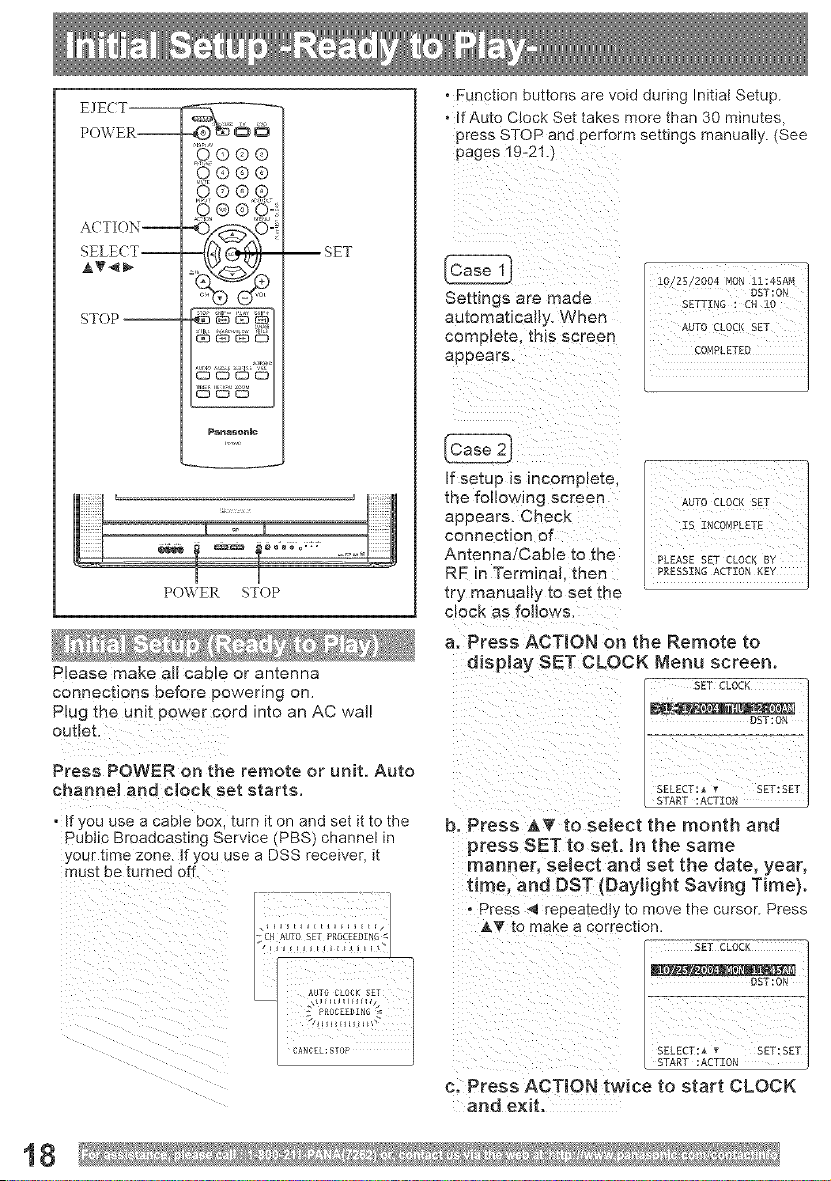
Please make aH cabb or antenna
connections before powering on.
Plug the unit POWer cord into an AC wal!
Press POWER on the remote or unit. Auto
channel and coek set starts.
, If you use a came box, turn it on and set it to the
pubtic Broadcasting Service (PBS) channel in
your time zone. }f you use a DSS receiver, it
must be turned
"2CH NJTO SET PROCEEDIN6 s
° Function buttons are void during Initial Setup
• If Auto Clock Set takes more trmn 30 minutes.
press STOP ana perform semngs manually. (See
pages 19-21. }
10125 Z004 MON ll:4SA_1
Settings are maae DST:OM
SETTING : CH lO
automatically. When AUTO CLOCK SET
complete, this screen
appears. 30_!PLETED
if setup _s incomplete,
the following screen
appears. Check
connection of
Antenna!CaMe to me
RF in Terminal. then
[ry manually to set the
CLOCKas folbws.
AUTC CLOCK SET
IS INCOMPLETE
PLEASE SET CLOCK BY
PRESSING ACTZON KEY
a. Press ACTION on the Remote to
display SET CLOCK Menu screen,
SET CLOCK
DST:ON
SELECT: • v SET: SET
b. Press iT to select the month and
press SET to set. In the same
manne[, select and set the date, year,
time, and DST {Daylight Saving Time).
. Press *_ repeateat_ to move me cursor. Press
A_ to make a correction.
SET CLOCK
_____._._.__.._._________,
DST:ON
SELECT:_ _ SET _ET
c. Press ACTION twice to start CLOCK
and exit.
18
ACTION--
SELECT
(HAT --
,q®o®
,9,® ®,_
_"_asenmc
NUMBER
-- keys
-- ADD,DLT
-- SET
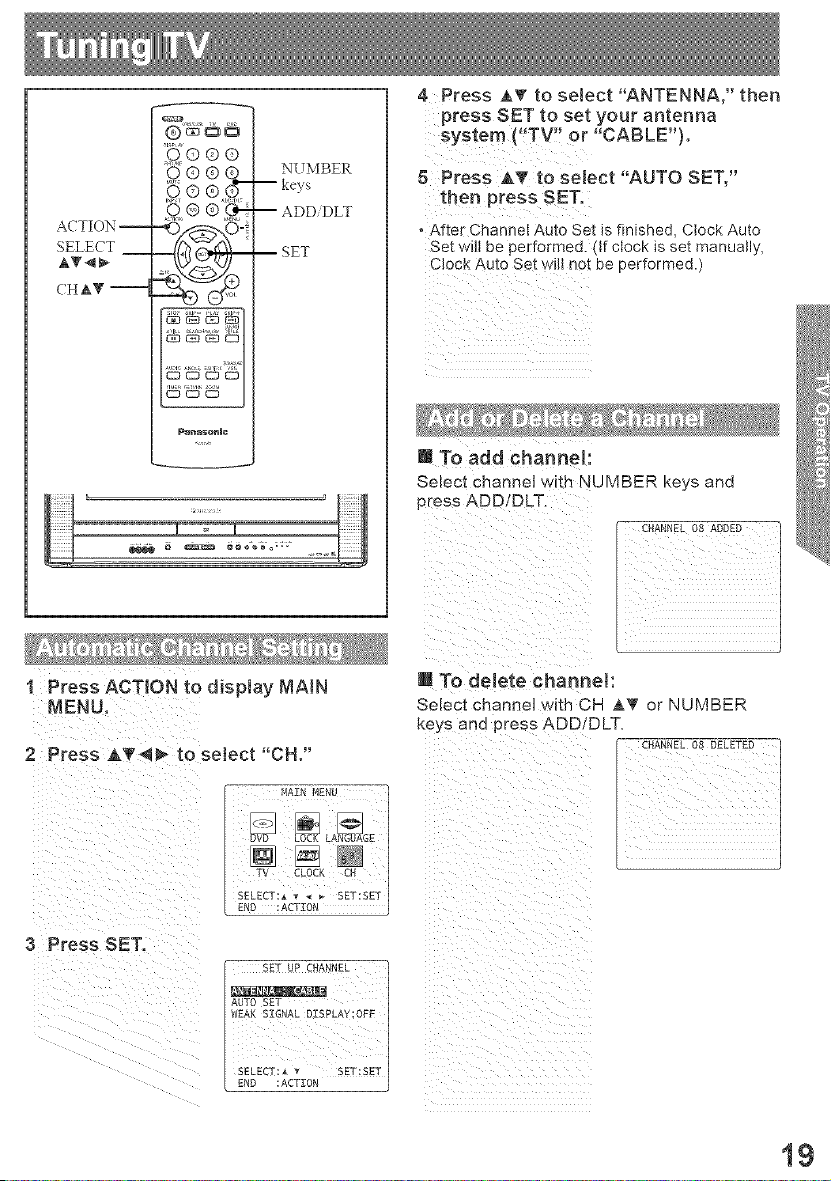
4 Press AT to select "ANTENNA," then
press SET to set your antenna
system ("TV!' or "CABLE").
5 Press AT to select "AUTO SET,"
then press SET;
, After Channel Auto Set is finished, Clock Auto
Set wilt be performed. (tf clock is set manually,
performed.)
N To add channel:
Select channel with NUMBER keys and
press ADD/DLT.
1 Press ACTION to display MAIN
2 Press AT<_I_ to select "OH."
B To delete channel:
select channel with CH _,T or NUMBER
keys ana press ADD/DLT.
3 Press SET.
AUTO SET
WEAK SIGNAL DZSPLAY_OFF
END : ACTION
SELECT _- _ SET,SET
19
A( lION --
SELE( T __
ols,,i_
0©®®
0©®®
0@®0
Dana_nmc
--SET
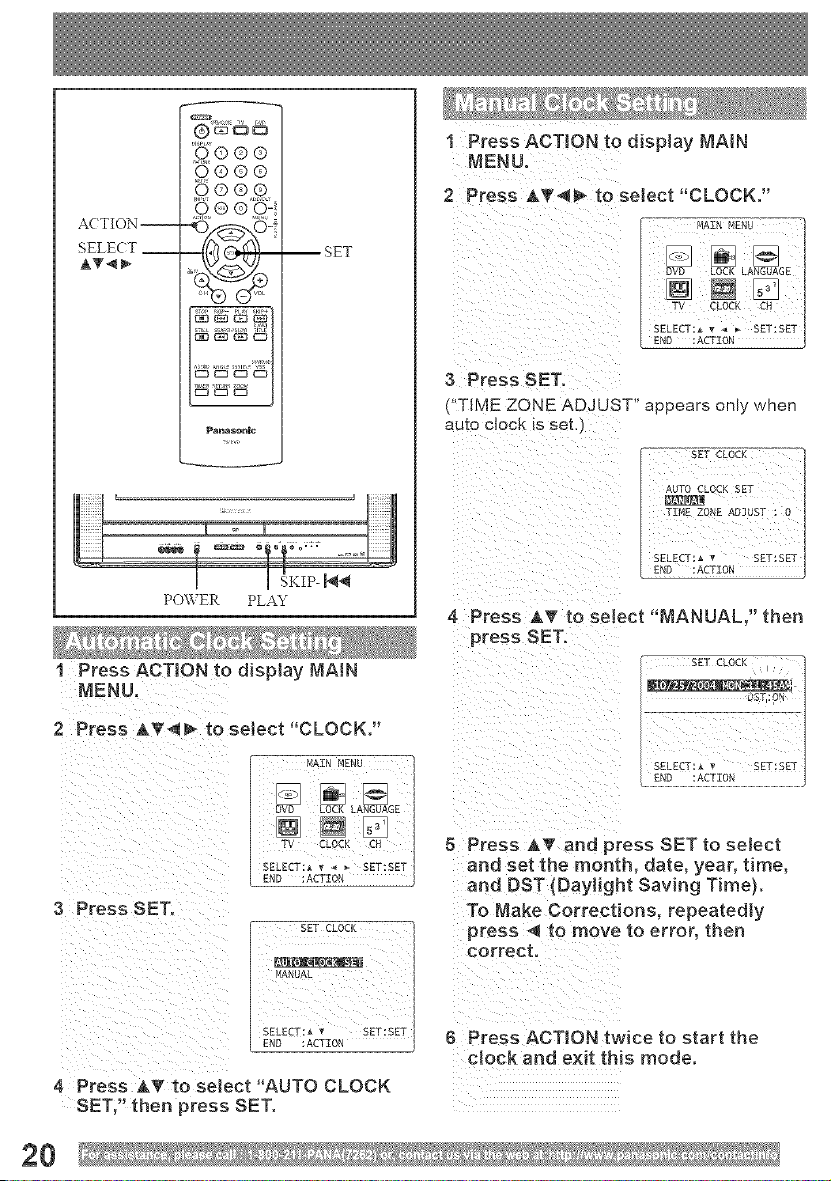
1 Press ACTION to display MAIN
MENU.
2 Press A_'_ to select "CLOCK,"
3 Press SET.
("TIME ZONE ADJUST" appears only when
auto clock _sset,
POWER PLAY
4 Press AT to select "MANUAL," then
press SET.
I Press ACTION to display MAIN
2 Press A_r_!_, to select "CLOCK."
OVO LOCK G
TV CLOCK CH
SELECT:* * _ _ SET:SET
END:ACTZ0N and DST (Daylight Saving Time).
3 Press SET. To Make Corrections, repeatedly
SETCLOCK press _ to move to error, then
correct.
PIANUAL
SELEUT: SET:SET
6 Press ACTION twice to start the
clock and exit this mode.
4 Press A_g to select AUTO CLOCK
SET," then press SET.
8 Press AT and press SET to select
and set 1he month, date, year, time,
20
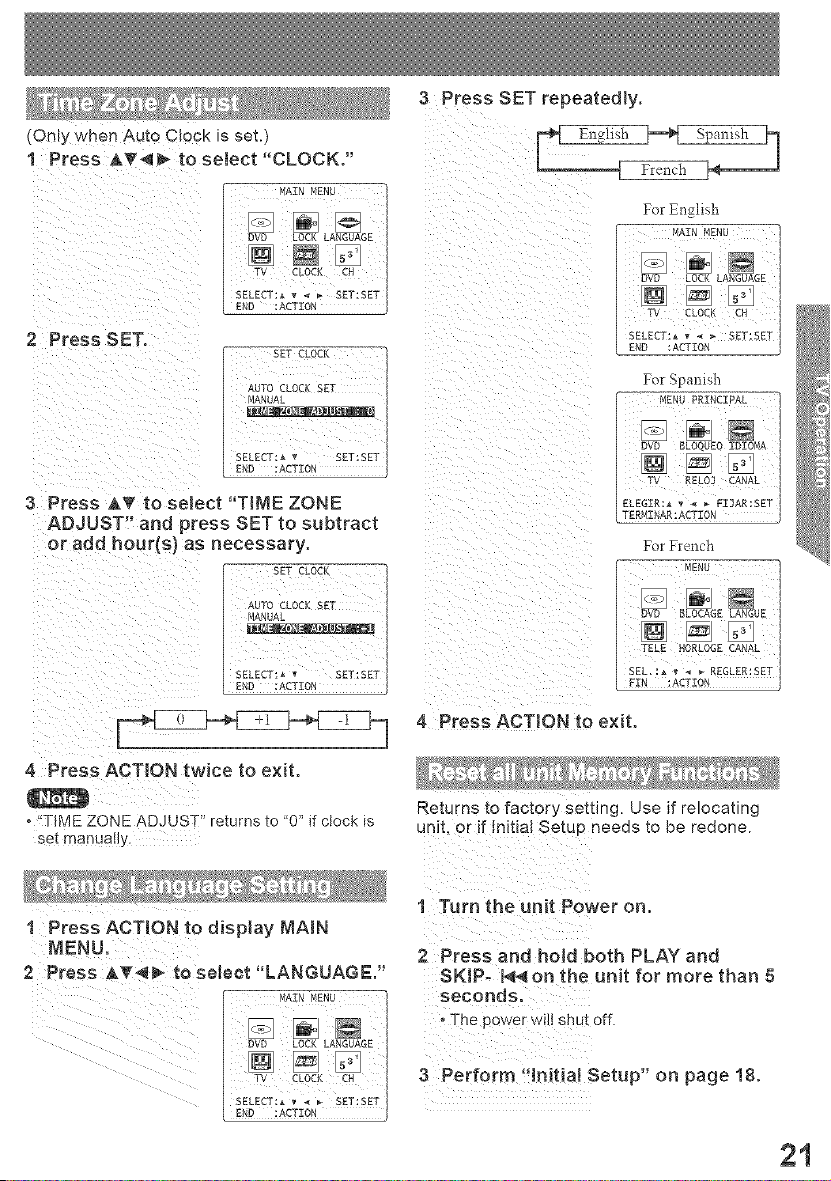
(Only when Auto Clock is set.)
1 Press A_'_, to setect "CLOCK."
YAIN MENU
1
[] N
3 Press ATt0 select "TIME ZONE
ADJUSTS' and press SET to subtract
or add hour(s)as necessary.
SET CLOCK
AUTO CLOEK SET
MANUAL
SELECT:_ "¢ SET:SET
3 Press SET repeatedly.
{ Fr_n0h ]-*
For E_lisb
....._,T:_u -----_
LOCK LANGUAGE
C H
SELECT:_ '_ < * SET:SET
For Spanish
t_IENU PRINCIPAL
ELEGIR:_ _ EI]AR:SET
4 Press ACTION to exit.
4 Press ACTION twice to exit.
o "TIME ZONE ADJUST" returns to '0" if clock is
set manually.
Returns to factory setting. Use if relocating
unit, or if Initial Setup needs to be redone.
1 Press ACTION to display MAIN
2 Press _'4_ tosoloet LANGUAGE,
@ ,,EN0:NGEt
1 Turn the unit Power on.
2 Press and hold both PLAY and
SKIP_ I_on the unit for more than 5
seconds.
The power WiI!Shutoff.
3 Pe_farm !,tnitia! Setup" on page 18.
2i
RAPID
TUNE --
M'UTE--
INPUT--
ACTION--
SELECT--
CTHAY--
_ o &_¢=
---,(} ® ® ®
PanasonJc
J TV
NUMBER
--keys
100 key
--SET
--VOL+ -
--SURROUND
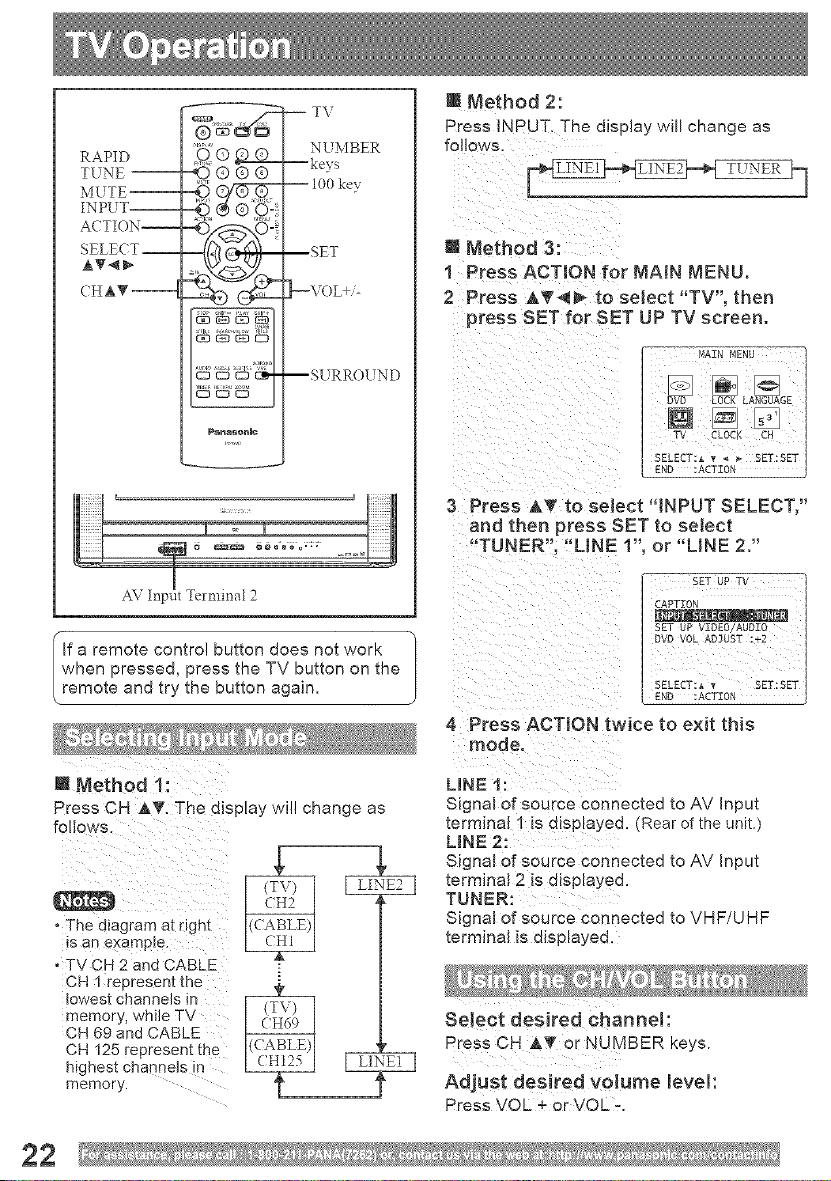
i Method 2:
Press INPUT. The display will change as
follows.
[] Method 3:
I Press ACTION for MAiN MENU.
2 Press AT_ to select "TV', then
press SET for SET UP TV screen.
NIAIN bIENU ]
3 Press AT to seJect "iNPUT SELECT,"
and then press SET to select
"TUNER", "LINE 1", or "LINE 2,"
If a remote control button does not work
when pressed, press the TV button on the
remote and try the button again.
[] l'_ethod 1:
Rrees CH iT. The display will change as
i : ¸¸¸¸¸¸¸¸¸¸7¸ :
¸¸
• The diagram at right
is an exampie.
, TV CH 2 and CABLE
CH 1 represent the i
lowest channels in _
memory, while TV
CH 69 and CABLE
CH 125 represent the
highest cha0ne]s in
memory•
4 Press ACTION twice to exit this
mode,
LINE 1:
Signa] of source connec[ee to AV Input
lermina] " is displayed. {Rear of the unit.)
LiNE 2:
Signal of source connec_ea to AV input
lermJnal 2 _s displayea
TUNER:
SignaJ of source conneczea to VHF/UHF
terminal is displayed.
Select desired channel
Press CH h,T or NUMBER keys.
Adjust desired volume level
Press VOL + or VOL -.
22
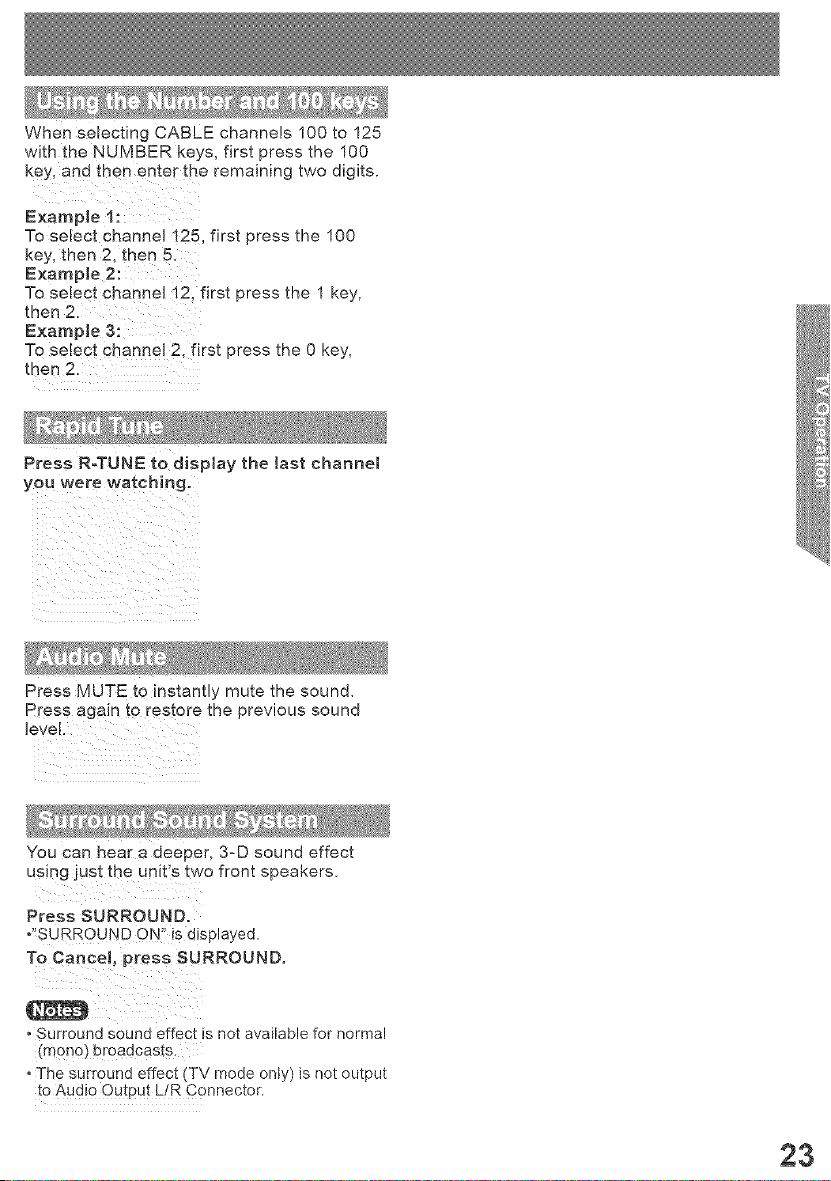
When selecting CABLE channels 100 to 125
with the NUMBER keys, first press the 100
key, and then enter the remaining two digits.
Example 1:
To select channeJ 125, first press the 100
key, then 2, the n 5,
Example 2:
To select channe[ 12, first press the 1 key,
then 2.
E×ample 3:
To select channel 2, first press the 0 key,
then 2.
Press R-TUNE to display the last channel
you were watching.
i iii i x
Press MUTE to instantly mute the sound.
Press again to restore the previous sound
You can hear a deeper, 3-D sound effect
using just the unit's two front speakers.
Press SURROUND.
,'_SURROUND QN11is displayed.
TO CanceJ, press SURROUND,
• Surround sound effect is not available for normal
(mono) broadcasts.
• The surround effect (TV mode only) is not output
to AUdio OUtPut L!R C0 nnector.
23
DISPLAY-- _(_) Q G
9®®®
O_O-
AUDIO--
Pana_enmc
Equipped with dbx®oTV Noise Reduction
for true MTS reproduction, cjbx®-TV Noise
Reduction is required for good stereo
separation and audio fidelity, d_x ® is a
registered trademark, and is licensed by
dbx ®Technology Licensing.
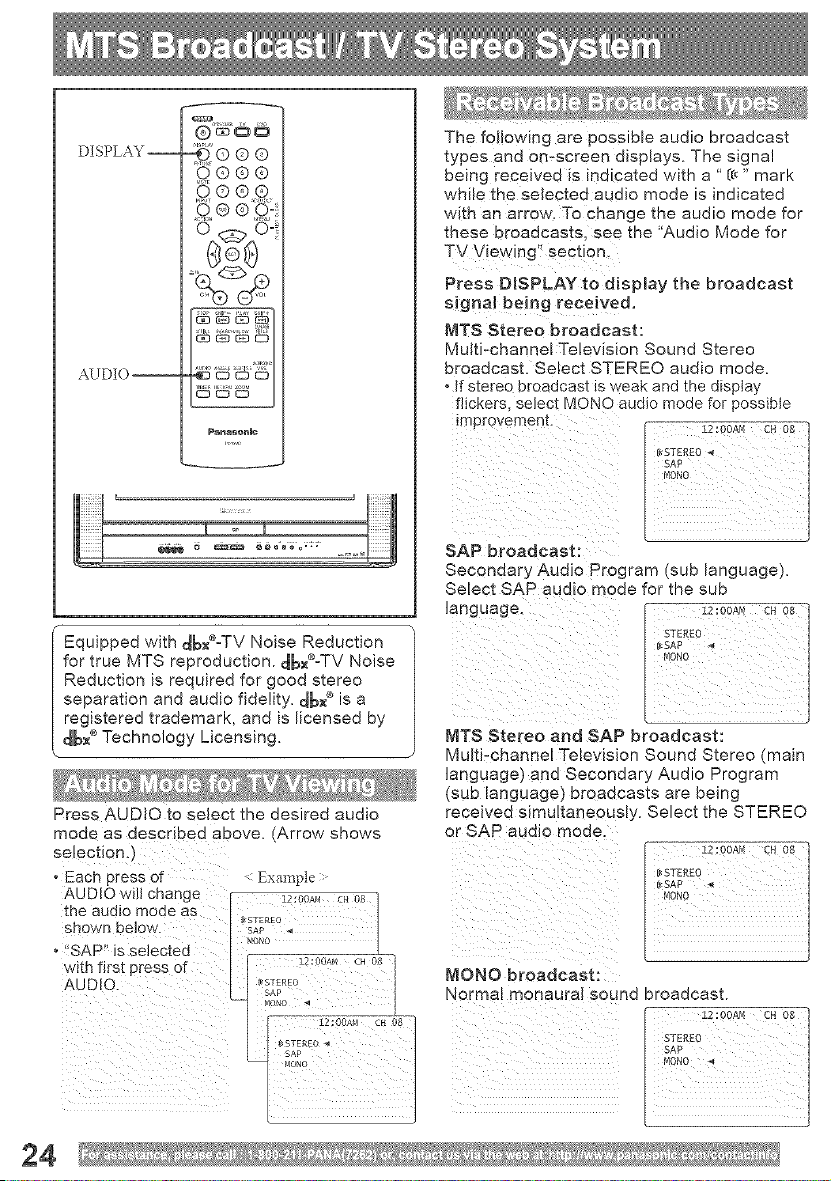
Press AUDIO to select the desired audio
mode as described above. (Arrow shows
The following are posslole audio broadcast
types and on-screen e_splays. The signal
being recewed is mOca_ea with a " (_ " mark
wnl_e me selected audio mode is lndlca1:ed
with an arrow. To change the audio mode for
these broadcasts, see the "Audio Mode for
TV Viewing" section
Press DISPLAY to display the broadcast
signal being received.
MTS Stereo broadcast:
Multi-channel Television Sound Stereo
broadcast. Select STEREO audio mode.
, if stereo broadcast _sweak and the Ospiay
thckers seJeci MONO auOo mode for possibie
improvement.
SAP broadcast:
Secondary Audio Program (sub language).
Select SAP audio mode for the sub
language.
MTS Stereo and SAP broadcast:
Mu ti-channel Television Sound Stereo (main
Janguaget and Secondary Audio Program
(sub language l oroaecasts are being
recewed s multaneous_y. Select the STEREO
or SAP audio mode
se_ec÷_on>,.,/ 12:00,v_ c. 0s
[_STEREO
. achpreasof "
AUDIOwill change I 12:00A. c. os I
the audio mode as I
[,1STEREO
shown below, sAP .
R_ONO
o "SAP" is selected _?,,_o........... L
with first press of [ j n-x,_ ,-. 0s
AUDIO I I _,STS_EO I MONO broadcast:
- " k I sap I Normal monaural SOUnd aroadcasL
12:00Aq CH 08
&2 :OOAN ¢H 08 _
0 STEREO _ STEREO
SAP
24
DISPLAY--
SELECT --
TIMER --
-:ooo®
9®®®
0©O®
kgf_-_kg
•-II,l164_'-P
_as_nlc
--ADD,DLT
--SET
r 1
ON-TIMER SLEEP TIMER
Indicator Indicator
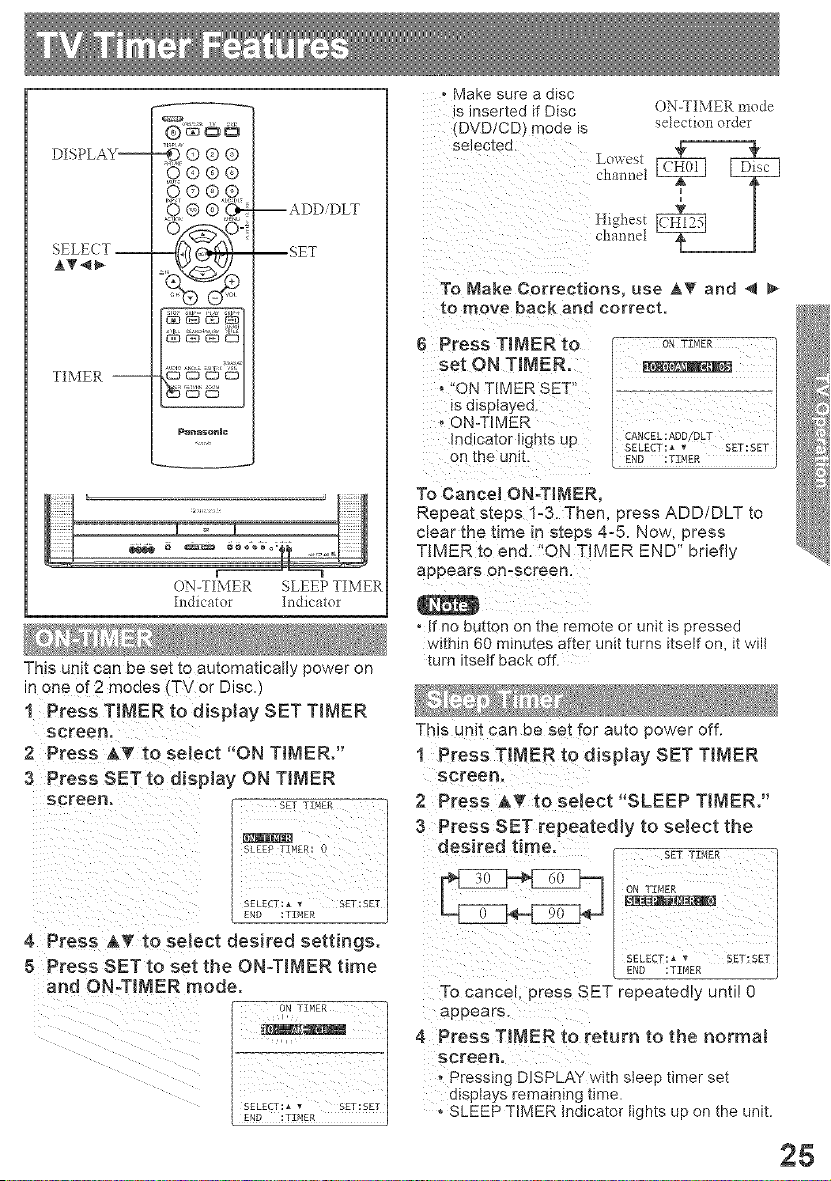
This unit can be set to automatically power on
in one 0f 2 modes (TV or Disc.)
! Press TIMER to display SET TIMER
screen.
2 Press AT tO seJect "ON TIMER,"
o Make sure a disc
is inserted if Disc
DVD/CD} mode is
selecIea.
ON-TIMER mode
selection order
Lov_est
channel
u
Highest
channel
To Make Corrections, use AT and _
to move back and correct.
6 Press TIMER to
set ON TIMER,
• "ON TIMER SET
is displayed.
, ON-TIMER
md_cator lights up
Dn the umt.
I CANCEL:ADD/DLT
To Cance! ON-TIMER,
Repeat steps 1-3. Then, press ADD/DLT to
clear the time m steps 4°5. Now, press
TIMER to end. "ON TIMER END" briefly
appears on-screen.
o If no button on me remote or unit is pressed
within 60 minutes after untt turns _tself on, it will
[urn itself back off
This unit can be set for auto power off.
1 Press TIMER to display SET TIMER
3 Press SET to display ON TIMER screen,
screen, set T_,_ 2 Press A'lr to select "SLEEP T[MERJ'
/ 3 Press SET repeatedJy to seJect the
s_ _,E_: 0 desired time, SETTZqER
ON TTMER
4 Press h,_ to select desired settings.
5 Press SET to set the ON-TIMER time SSLSET:, • SET:SET
and ON-TIMER mode. To cancel press SET repeatedly unti! 0
appears.
4 Press TIMER to return to the normal
screen,
- Pressing DISPLAY with sleep timer set
dispiays remaining ume
SLEEP TIMER Indicator lights up on the unit.
25
MUTE_
ACTION--
SELE(T__
AT_
'_®®®
Pana_nmc
--SET
@88@
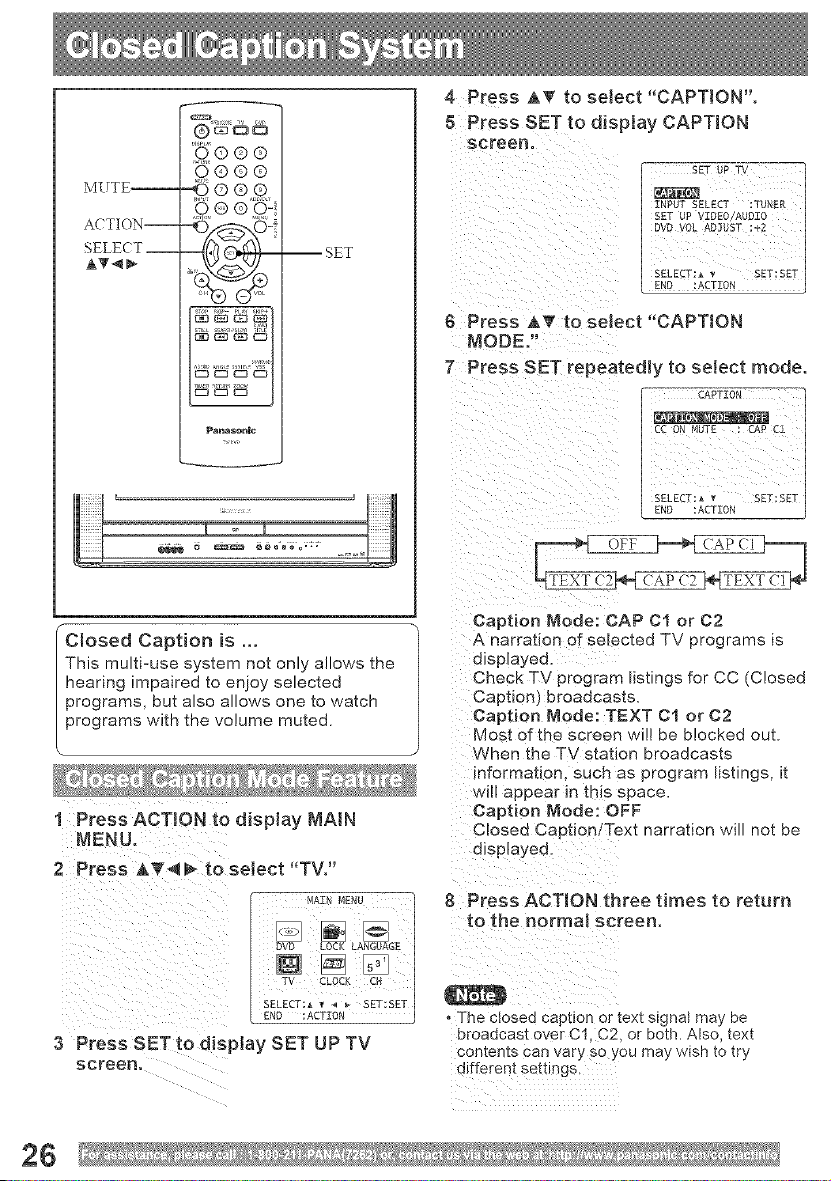
"Closed Caption is ...
This multi=use system not only allows the
hearing impaired to enjoy selected
programs, but also allows one to watch
programs with the volume muted.
1 Press ACTION to display MAiN
2 Press _T_ to setect "TV,"
,A ,MENu
3 Press SET t ° display SET UP TV
screen.
4 Press AT to select "CAPTION",
8 Press SET to disptay CAPTION
screen.
6 Press &T to select "CAPTION
MODE°"
7 Press SET repeatedly to select mode.
Oaption Mode: CAP C1 or C2
A narration of selected TV programs is
dispIayea.
Check TV program listings for CC (Closed
Caption) broadcasts.
Caption Mode: TEXT 01 or C2
Most of the screen will be blocked out.
When the TV station broadcasts
nformatlon, such as program listings, it
_vfl_appear m this space.
Caption Mode: OFF
Closed Cap, ion!Text narration will not be
dispIayea,
8 Press ACTION three times to return
to the normal screen.
• The closed capuon or [ex[ s_gnat may be
broadcast over C! C2. or both. Also, text
con[er is can ary so you may wish to try
dJfterent settl_ _s
26
_s _ _ _ _® "CC8 Press AT to setect ON MUTE°"
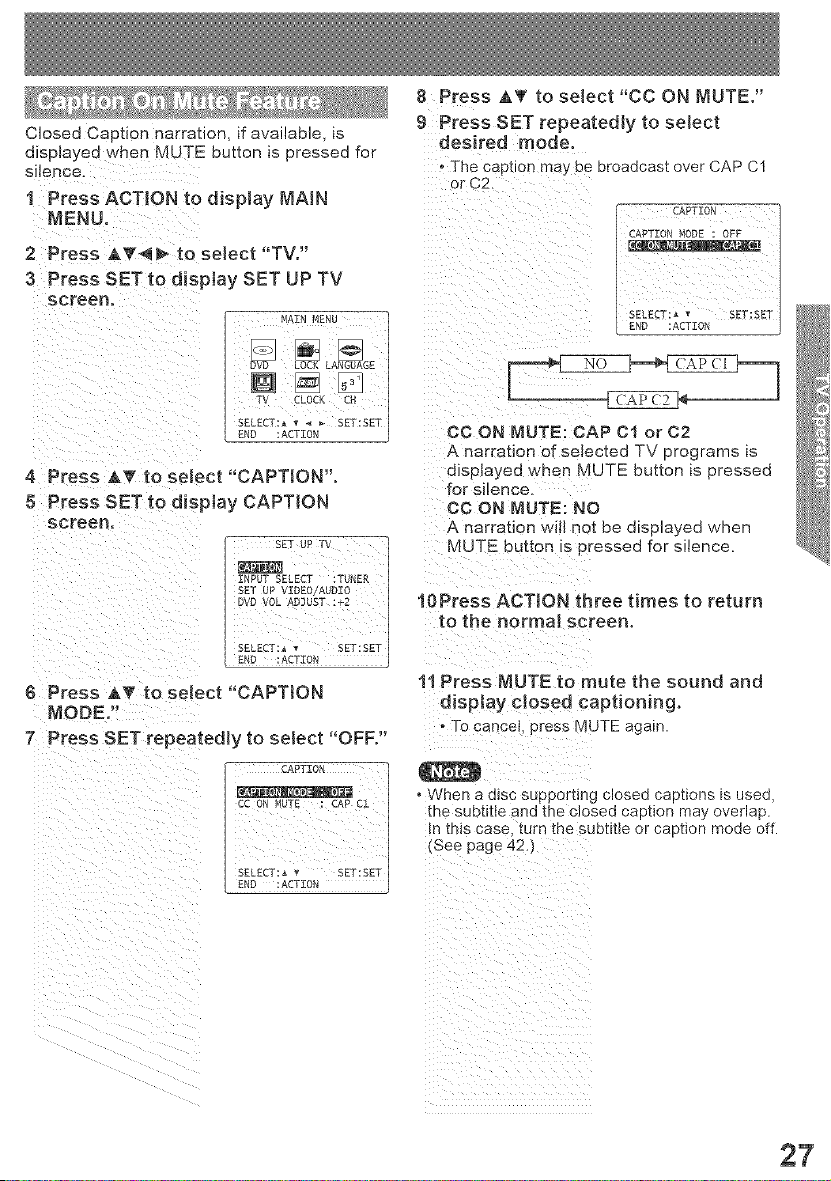
Closed Caption narration, if available, is 9 Press SET repeatedly
to select
displayed when MUTE button is pressed for
1 Press ACTION to disptay MAiN
MENU,
2 Press AV_ to select "TV,"
3Pr÷SssE_t_aisp_oysETuPrv
screen,
SELECT:_ SET:SET
I
END :ACTION J
4 Press iT to select "CAPTION',
8 Press SET to disPtay CAPTION
desired mode.
The caption may be broadcast over CAP C1
!! ii
A narration of selected TV programs is
displayed when MUTE button is pressed
for Silence.
CO ON MUTE: NO
A narration will not be displayed when
SE7U_W MUTE butten iS pressed for silence.
SET UP VIDE0/AUDI0
DVOVOLAUGUST:+Z 10Press ACTION three times to return
,ND Ac!z0, C
SE EDT:',S,T:SET
6 Press _f to select "CAPTMON
7 Press SET repeatedly to select "OFF,"
CC ON NUTE : CAP C1
SELECT: ,_ _t SET:SET
END : ACTION
11 Press MUTE to mute the sound and
display dosed captioning.
-To cance!, press MUTE again.
• When a dis c Supporting closed captions is used,
the subtitle and the closed caption may overlap.
!n this case, turn the subtiUe or caption mode off.
(See page 42.)
il i _ i i
iii i_ i_iiiiiii
27
ACTION--
SELE(T __
AT_
9®®®
o e
Pama_nlc
--SET
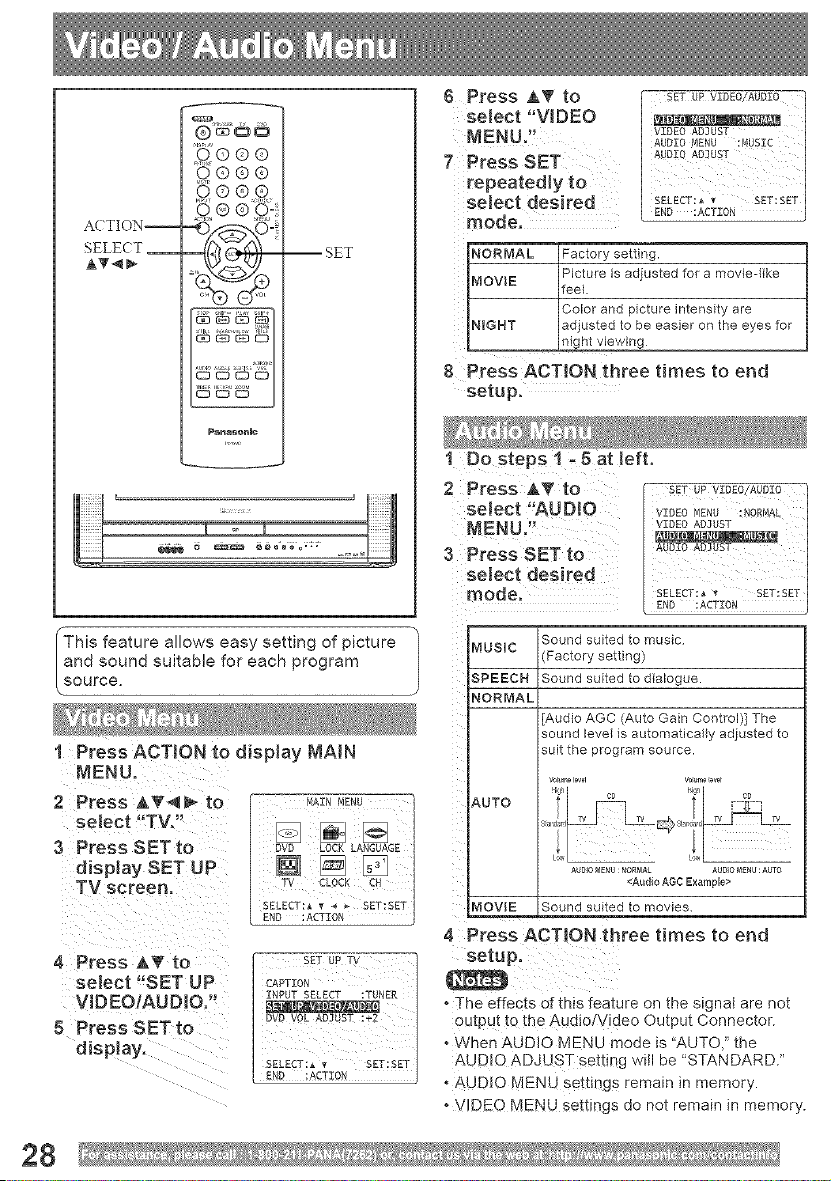
This feature NIows easy setting of picture
and sound suitable for each program
SOUrce.
1 PressACTmON to display MAIN
2 Press to
select ' TV, _
3 Press SET to
dismay SET UP
TV sc[een.
4 Press AT to
select "SET UP
VIDEOIAUDIO."
8 Press SETto
disp ay.
P_INMENU 1
TV CLOCK CH J
SET UPTV
CAPTION
INPUT SELECT :TUNER
DVD VOLADJUST1+2
SELECT:_• SET:SET
6 Press AT to
select "VIDEO
M EN U 2!
7 Press SET
repeatedly to
select desired
NORMAL Factory setth?g.
MOVIE Picture is adjusted for a movie-like
fee{.
Color and picture intensity are
N_GHT adjusted to be easier on the eyes for
n ght v evv ng
8 Press ACTION three times to end
setup.
2 Press A_' to sEtuPVzDEd7_---]
select"AODJO VZDEOMENU:NOREAL
MENU." _ST _aRl_ I
AUDIO ADJUST
3 Press SET to
selectaos rea
SELECT: • • SET:SET
model END_Acr_0r_
Sound suited to music
MUSIC
(Factory setting)
SPEECH Sound suited to dialogue.
NORMAL
[Audio AGC (Auto Gain Control)] The
sound levee is automatically adjusted to
suit the program source.
v0;ume_evel v0_me_wt
AUTO co ....5_....
AUDIONENU NORMAL AUD]O_gNU AUTO
<AudioAGCExample>
MOVIE Sound suited to movies
4 Press ACTION three times to end
setup.
• The effects ot this feature on the s_gnal are nol
output to the Audio/Video Output Connector.
• When AUDIO MENU mode is "AUTO," the
AUDIO ADJUST setting will be "STANDARD.
• AUDIO MENU settings remain " memory
• VIDEO MENU semngs _o not remain *n memory.
28
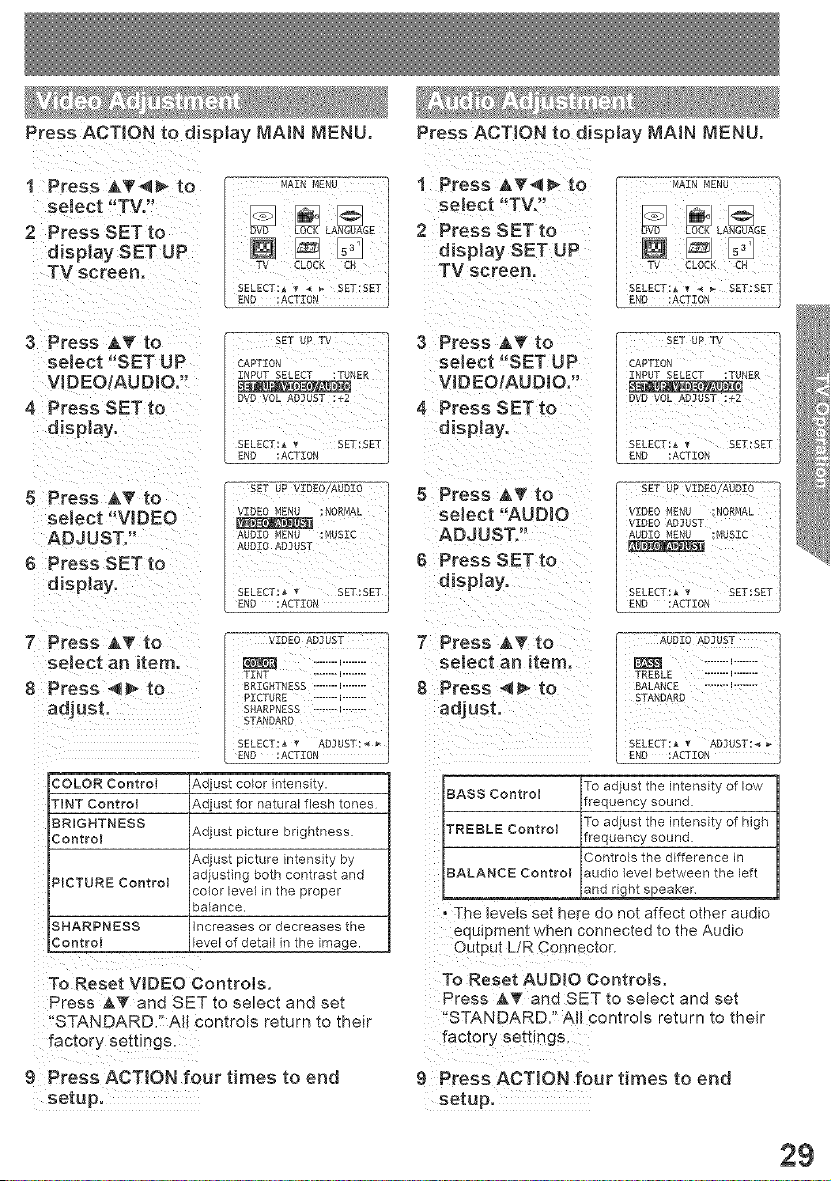
PreSs ACT!ON to d splay MAIN MENU,
1 :Press AV_ to
so!oct '!TV.,
2 Press SET to
display SET UP
TV screen.
3 Press iT to
select _'SET UP
VJDEOIAUD!O?'
VIDEO _4ENU :NORF1AL
select V!DEO
ADJUST. AUDIOMENU:MUBIC
AUDIO ADJUST
6 PressSETto
display. SELECr:_• SET'SET
END :ACTION "
7 PressA, to 7 PressA, to
seJect an item. select an item.
TINT ........ I ........
8 Press 4_ to _2_.T_ESS_.............. 8 Press 4_ to
adjust ....... "............... adjust.
TANDAR0i
EELE T:,,AO,DBT:--
COLOR Control Adjust color intensity.
TiNT Control Adjust for natural flesh tones
BRIGHTNESS
Control Adjust picture brightness
Adjust picture intensity by
PICTURE Control adjusting both contrast and
solor level in the proper
9a{ence.
SHARPNESS Increases or decreases the
Control evel of detail in the image.
To Reset VIDEO Controls.
Press AV and SET to select and set
'tSTANDARD.:: AU Controls return to their
factory settings.
9 Press ACTION four times to end
setup.
Press ACTION to display MAiN MENU,
I Press ivan* to _,AENMENU.............
select,TV." _ _ _ I
2 PressSETto _LA_BE i
display SET UP _ [] i
TVscreen. TY CL0C!!cN i
SELECT:_ • < _ SET:SET
3 Press _,T to
select "SET UP CAPTION i
VIDEO/AUDIO " INPUTSELECT:Tb_ERI
S_Tt0_"_ DVO VOL AD3UST :+2
4 Press
display.
SELECT:_ v SE_tSET
5 PreSs _*to
select "AUDIO VIDEOMEN_R, JOR_AL I
ADJUST"
6 PressSETt0 , ,,
display. __ T_BE_i
END :ACTION i
AUDIO AD]UST
......._........
TREE LE ........ I........
STANDARDBALANCE3:'!::: .....
SELECT:_, _ AO]UST:4 _-
END :ACT
BASS Control To adjust the intensity of low
frequency sound
To adjust the intensity of high
TREBLE Control
frequency sound
Controls the difference in
BALANCE Control audio level between the left
__ and fight speaker
The levels set here do not affect other audio
equipment when connected to the Audio
To Reset AUDIO Controls.
Press _ and SET to sebct and set
'STANDARD," All controls return to their
g Press ACTION four times to end
setup.
2g
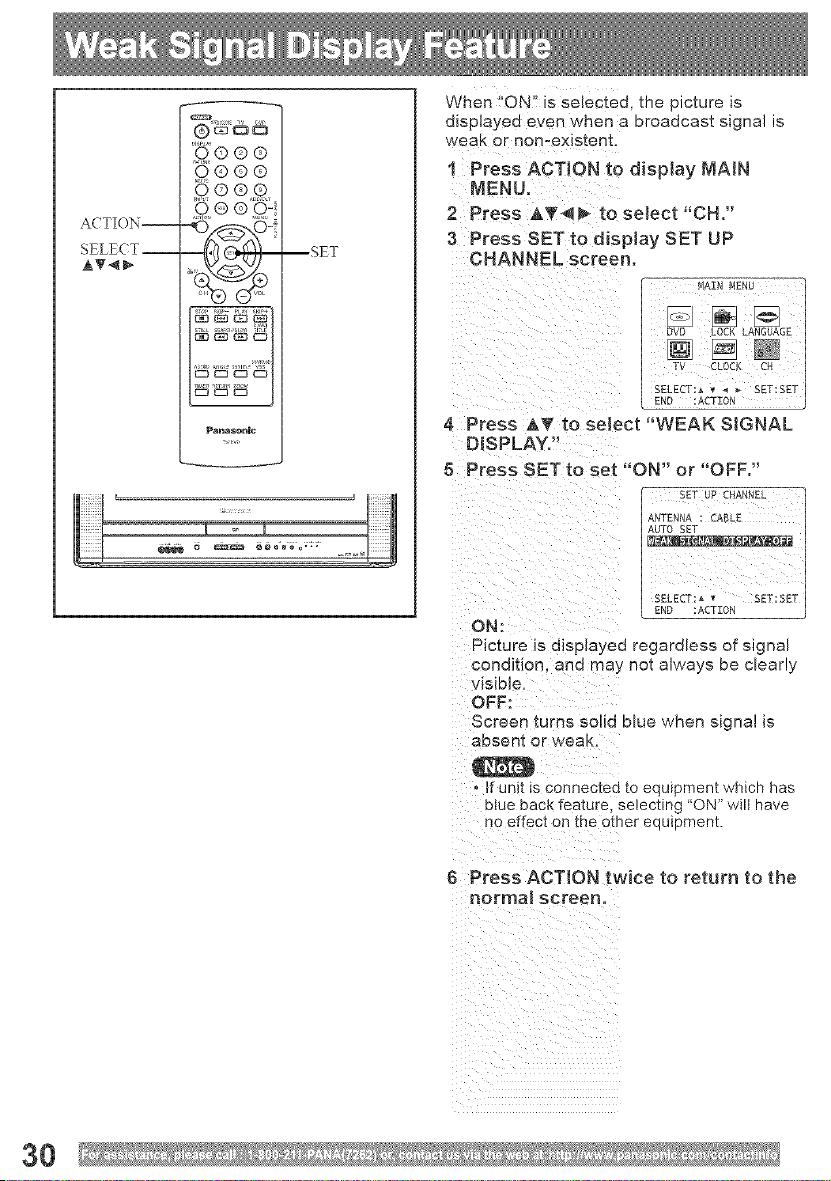
ACTION--
SELECT--
AT<_
0©®®
Pan_nmc
--SET
When "ON" _s selected, the picture is
dlsplayee even when a broadcast signal is
weaK or non-existent.
1 Press ACTION to dispJay MAiN
MENU.
2 Press A_'<_ to select "OH."
3 Press SET to display SET UP
CHANNEL screen.
4 Press &_' to seJect "WEAK SIGNAL
DISPLAY."
5 Press SET to set "ON" or "OFF,"
ON:
Picture is displayea regardless of signal
condition, ana may no[ always be clearly
visible.
OFF:
Screen turns solid mue wnen signal is
a_sent or weak.
o Jf unit _sconnected to e luipment which has
blue back feature selec[_ng "ON" wilt have
no effec[ on [he other equipment.
6 Press ACTION twice to return to the
normal screen.
30
A(TION--
SELE( T __
AT4_
,q®o®
0 @ ® (i-
dl4{ _,,_at,'F!-
_s_mmc
NUMBER
-- keys
-- ADDiDLT
((LEAR)
-- SET
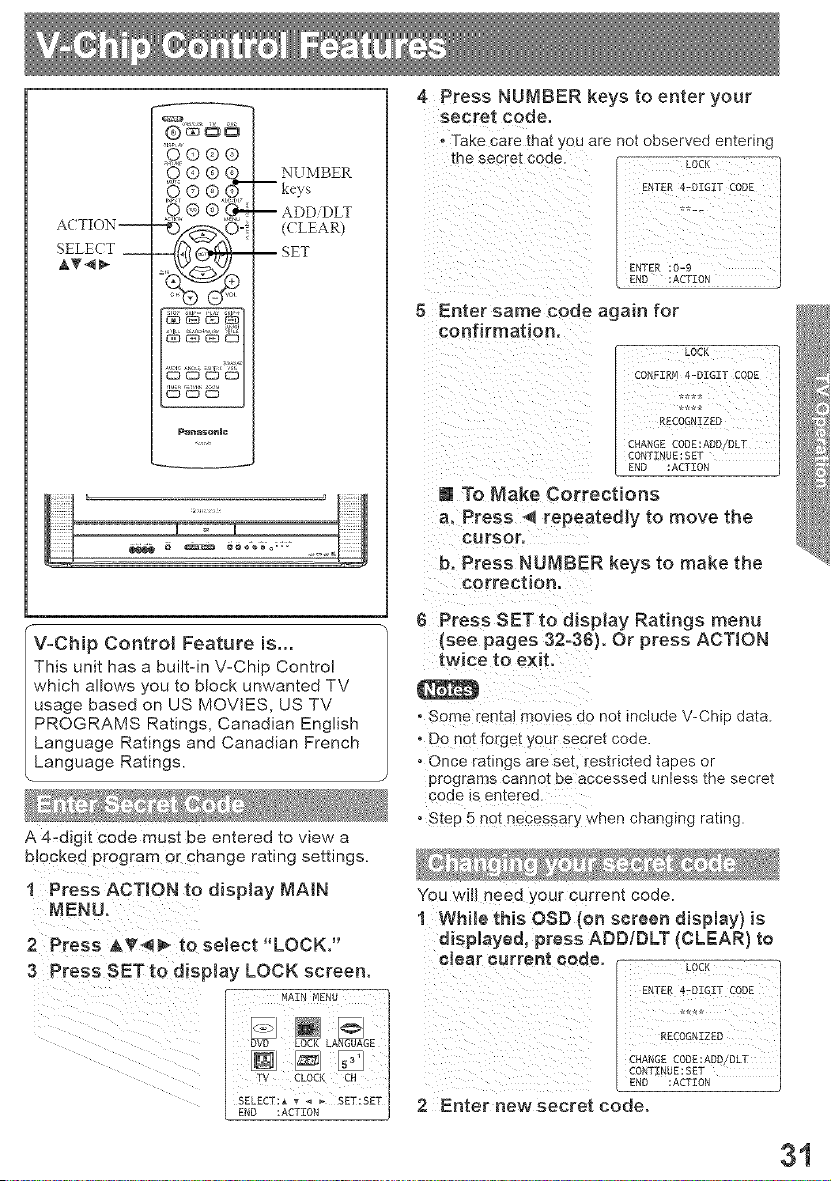
V-Chip Control Feature is...
This unit has a built-in V-Chip Contro!
which allows you to block unwanted TV
usage based on US MOVES, US TV
PROGRAMS Ratings, Canadian English
Language Ratings and Canadian French
Language Ratings,
A 4-digit code must be entered to view a
blocked program or change rating settings.
1 Press ACTION to display MAIN
MENU.
4 Press NUMBER keys to enter your
secre'_ code,
- Take care that you are no_ observed entering
the seore_ code.
5 Enter same code again for
confirmation.
m To Make Corrections
a, Press _ repeatedly to move the
CUrSOr,
b. Press NUMBER keys to make the
correction.
6 Press SET to display Ratings menu
{see pages 32°36). Or press ACTION
twice to exit.
, Some rental movies do not include V-Chip data.
° Do not forget your secre_ code
• Once ratings are seL restricted tapes or
programs cannot be accessed unless the secret
code is entered.
° Step 5 not necessary when changing rating.
You will need your current code.
1 While this OSD (on sereem display) is
displayed, press ADD/DLT (CLEAR) to
2 Press _,_'_ to select "LOCK,"
3 Press SET to display LOCK screen" ¢!ear ¢urremt ¢°de" L0CK 1
E.TER"-OEG:_TCODE
-'- ..... _- r4_ ........ CHANGE CODE :ADD!DLT
LOCK LANGUAGE RECOGNIZED
SELECT:_ _ _-SET:SET
/ 2 Enter new secret code,
END ACTION
)
31
ACTION --
SELE(T --
AT-<_
,_®®®
0 @ @_t
Panas_nlc
--NUMBER
keys
--SET
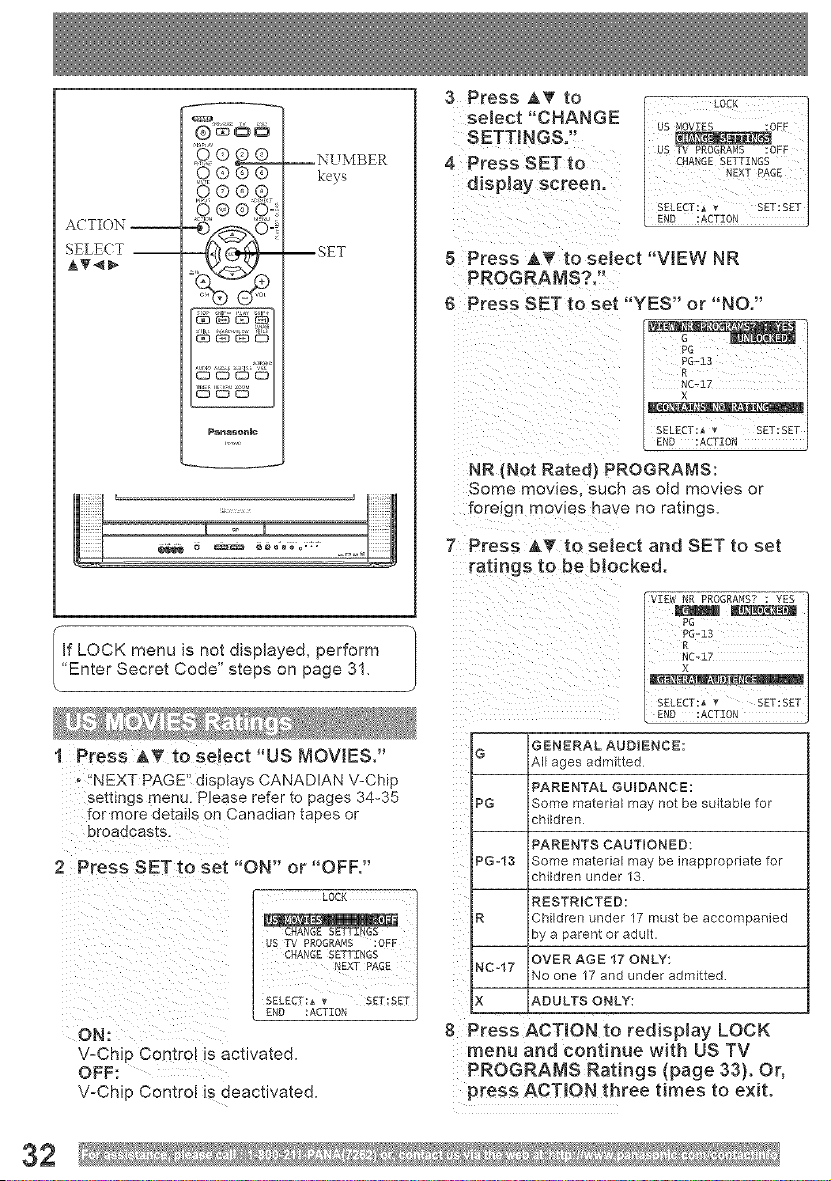
3 Press AT to
select "CHANGE
SETTINGS,"
4 Press SET to
dispJay screen.
8 Press AT to seJect "VIEW NR
PROGRMvIS?."
6 Press SET to set "YES" or "NO,"
R-
_.X d7RC-Z :. 'J, _1
[ SET:SETI
NR (Not Rated} PROGRAMS
Some movies, such as old movies or
foreign mowes have no ratings.
7 Press AT to seJect and SET to set
ratings to be blocked.
If LOCK menu is not displayed, perform
"Enter Secret Code" steps on page 31,
I Press AT to select "US MOVIES,"
!fNEXT PAGE'!displays CANADIAN V-Chip
settings menu. Please refer to pages 34-35
for more details on Canadian tapes or
2 Press SETto set "ON" or "OFF."
ON:
V-Chip Control is activated.
OFF:
V-Chip Control is deactivated.
GENERAL AUDIENCE:
G
/_lf ages aMR-ii_ea
t
PARENTAL GUIDANCE:
PG Some ma_ena_ may not be suitable for
cniioren
t
PARENTS CAUTIONED:
PG=13 [Some ma_enaE may be inappropriate for
cnuaren unue_ 13.
i
RESTRICTED:
R 3hildren under 17 must be accompanied
By a c _ren_ or aaul_
i
,OVER AGE 17 ONLY
NC 17 I
" No one - and under admitted
E
X ADULTS ONLY:
8 Press ACTION to redispiay LOCK
menu and continue with US TV
PROGRAMS Ratings (page 33). Or,
press ACTION three times to exit.
32
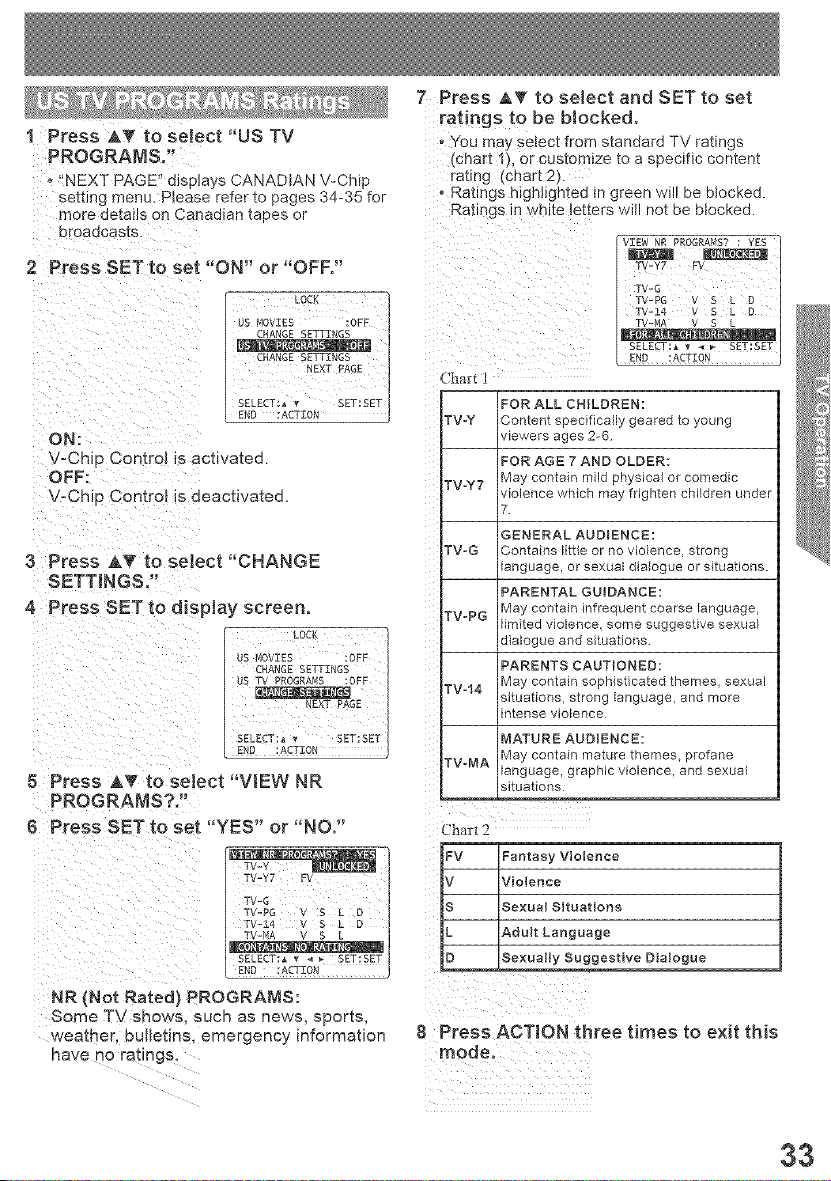
Press AV to select "US TV
PROGRAMS,"
- "NEXT PAGE" dJs#ays CANADIAN V-Chip
setting menu. Ptease reter tc pages 34-35 for
more details on Canadian tapes or
oroaacas[s.
2 Press SET to set "ON" or "OFF."
ON:
V-Chip Control Is acwa_eo.
OFF:
",./-Chip Control is deactivated.
3 Press AkT to sebct "CHANGE
SETTINGS,"
4 Press SET to dispiay screen.
5 Press AT to sebct "VIEW NR
PROGRAMS?."
6 Press SET to set "YES" or "NO."
TV-Y7 FV
TV-G
TV-PG V S L D
TV-14 V S L D
SEL£CT:_• 4 _ SET:SET
END :ACTION F]
NR (Not Rated) PROGRAMS:
Some TV shows sucn as news, sports,
weamer, buJbtms, emergency information
have no ratings.
7 Press AT to select and SET to set
ratings to be bJocked,
"You may select from standard TV ratings
(chart 1), or customize to a specific content
rating (chart 2).
Ratings highlighted in green will be bbcked.
Ratings in white letters will not be btocked.
TV-Y7 FV
TV4
TV-PG V S L D
TV-I4 V S L D
SELECT:_ _ 4 _ SET:SET:SETI
FOR ALL CHILDREN :
TV-Y Content specifically geared to young
viewers ages 2-6
FOR AGE 7 AND OLDER:
TVoY7 May contain mild physical or comedic
violence which may frighten children under
7.
GENERAL AUDIENCE:
TWG Contains little or no violence, strong
language, or sexual dialogue or situations.
PARENTAL GUIDANCE:
TV-PG May contain infrequent coarse language,
limited violence, some suggestive sexual
dialogue and situations
PARENTS CAUTIONED:
TW14 May contain sophisticated themes, sexual
situations, strong language, and more
intense violence
MATURE AUDIENCE:
May contain mature themes, profane
TWMA language, graphic violence, and sexual
situations
Chal-t 2
j? ..js_×_y S.ggeetiveDialogue
8 Press ACTION three times to exit this
mode,
33
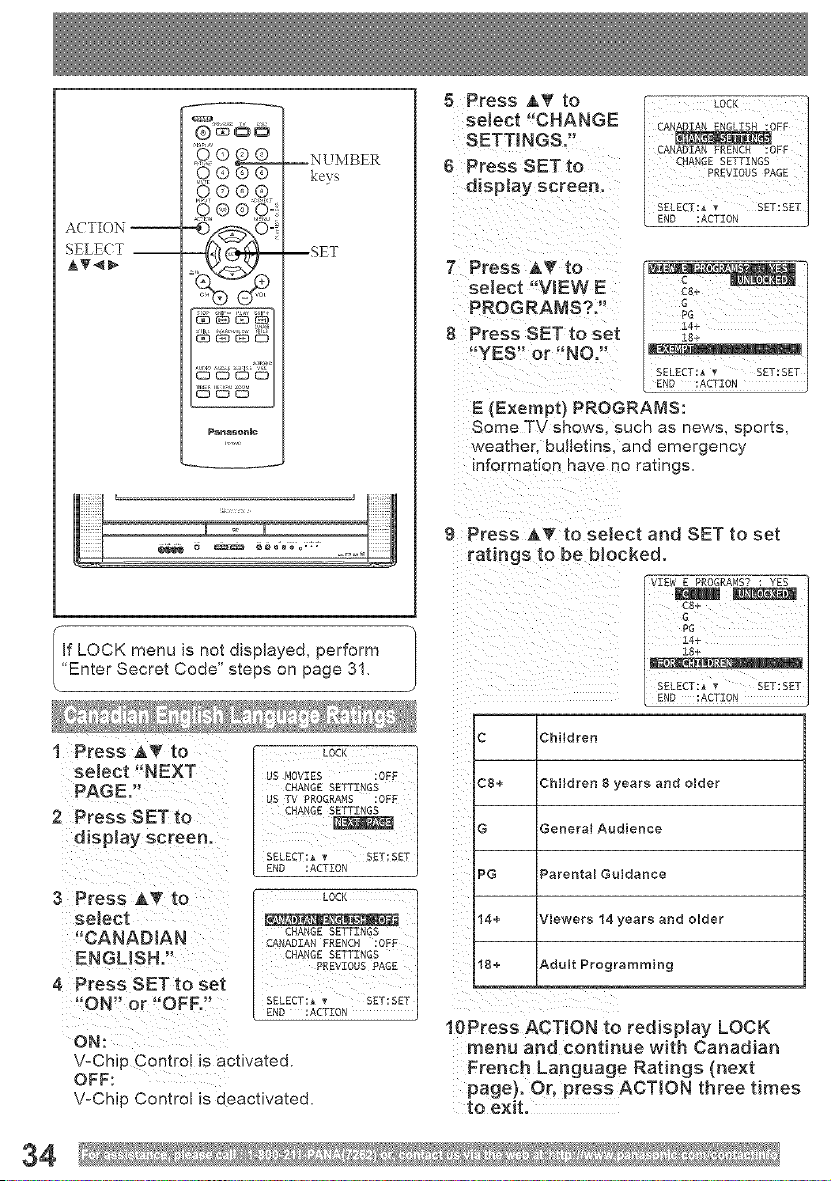
ACTION --
SELECT --
AT_
,_®®®
p,®
Pana_nlc
--NUMBER
ke_s
--SET
is not displayed, perform
"Enter Secret Code" steps on page 31.
J
1 Press ATto
select _ NEXT
PAGE.
2 PreSSSETto
d!splay screen.
3 Press A_f to :ocK
select ...,... ,
"CANADIAN CNA_GESETTINGS
CANADIAN FRENCH :OFF
ENGLISH.!! CNA,GESETTINGS
PREVIOUS PAGE
ON Or OFF. SELECT:_T SET:SET
ON:
V-Chip G0ntrol is activated.
OFF:
V-Chip Control is deactivated,
8 Press A_' to
select "CHANGE
SETTINGS."
6 Press SETto
display screen.
7 Press _,T to
select "VIEW E
PROGRAMS?."
8 Press SET to set
"YES" or "NO,"
E (Exempt) PROGRAMS:
Some TV shows. SUCh as news, sports,
weather, bulletins, ana emergency
information have no ratings.
9 Press &T to select and SET to set
ratings to be blocked.
[_R'i_VIEWE PROGRAMS?: YES
C8+
G
PG
14+
SELECT:_ T SET:SET
[ ESNE_ECT_c_ION q
C Children
C8+
G
PG
14+
18+
Children 8 years and older
General Audience
Parental Guidance
Viewers 14 years and older
Adult Programming
10Press ACTION to redisplay LOCK
menu and continue with Canadian
French Language Ratings (next
page). Or, press ACTION three times
to exit.
34
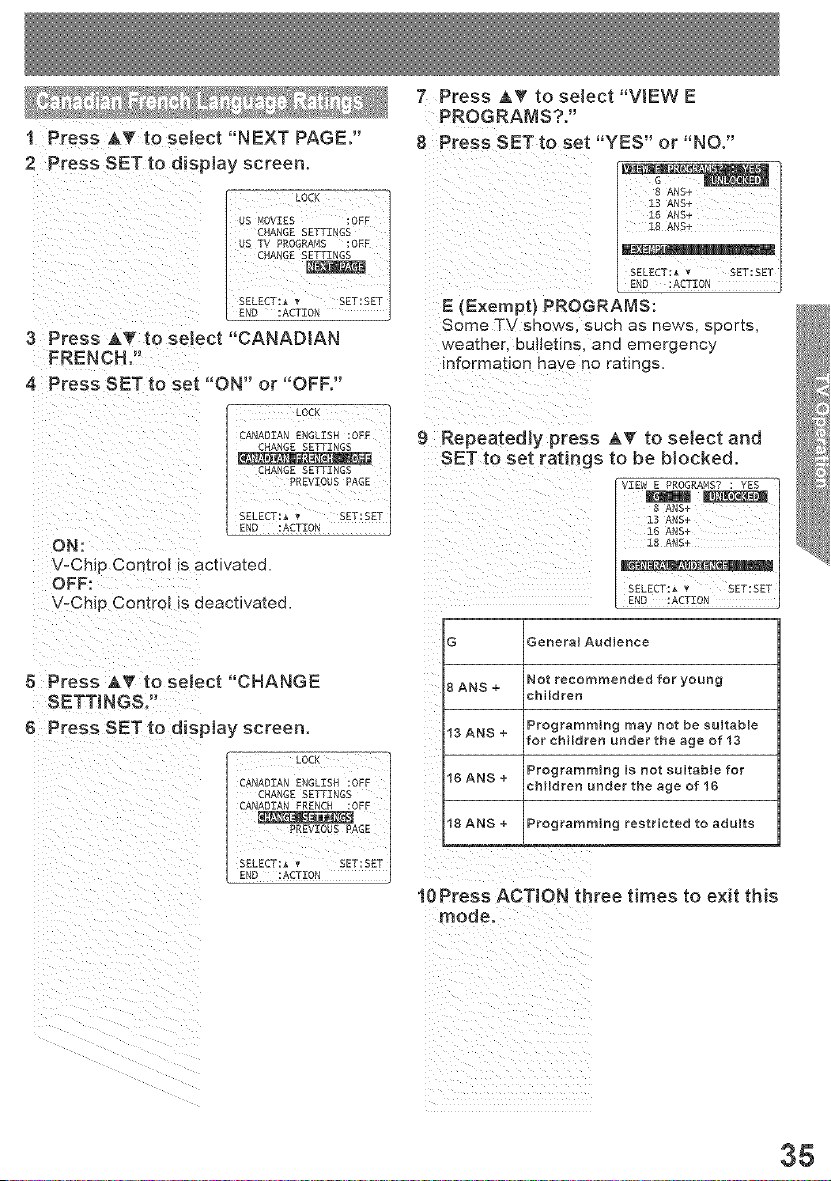
i Pres s A_" to select "NEXT PAGE,"
2 Press SETto display screen.
Ds,_OVEES:OEPCHA.GESETTENGS
US TV PROGRAMS :0FE
CHANOESE ,NGS
SELECT:_• SET:SET
END:ACT_OM
3 Press ATto select "CANADIAN
FRENCh.',
4 Press SET to set "ON" or "OFF,"
_GE .SE_INGS
• LocR J
CANADIANENOL SNIOPR
SELECT:_ • SET:SET
END :ACTION
V-Chip Control is activate&
OFF:
V-Chip Control !s deactivated,
5 Press AT to select "CHANGE
SETTINGS.,
6 P[ess SE T to display screen,
CAMADIANENO_ESN:OPE
CHANGE SETTINGS
CANADIANFRENCH:OFF
PREVIOUSPAGE
SELECT:*__ SET:SET
END :ACTZON
7 Press AT to select "VtEW E
PROGRAMS?."
8 Press SET to set "YES" or "NO,"
i'
E (Exempt) PROGRAMS:
Some TV shows, such as news, sports,
weather, bulletins, and emergency
informatio n have n ° ratings.
9 Repeatedly press AT to select and
SETto set [atings to be blocked,
VZEW E PROG_%_S.;? : YES
13 ANS+
15 ANS+
Z8 ANS_
END ;ACTION
SELECT:_ _ SET:SET
G
SANS+
13 ANS +
16 ANS +
18 ANS +
General Audience
Not recommended for young
children
Programming may not be suitable
for children under the age of 13
Programming is not suitable for
children under the age of 16
Programming restricted to adults
10Press ACTION three times to exit this
mode,
Z
35
SELECT --
AT_
,_®®®
o ®
Panaeenme
--NUMBER
ke[,s
--SET
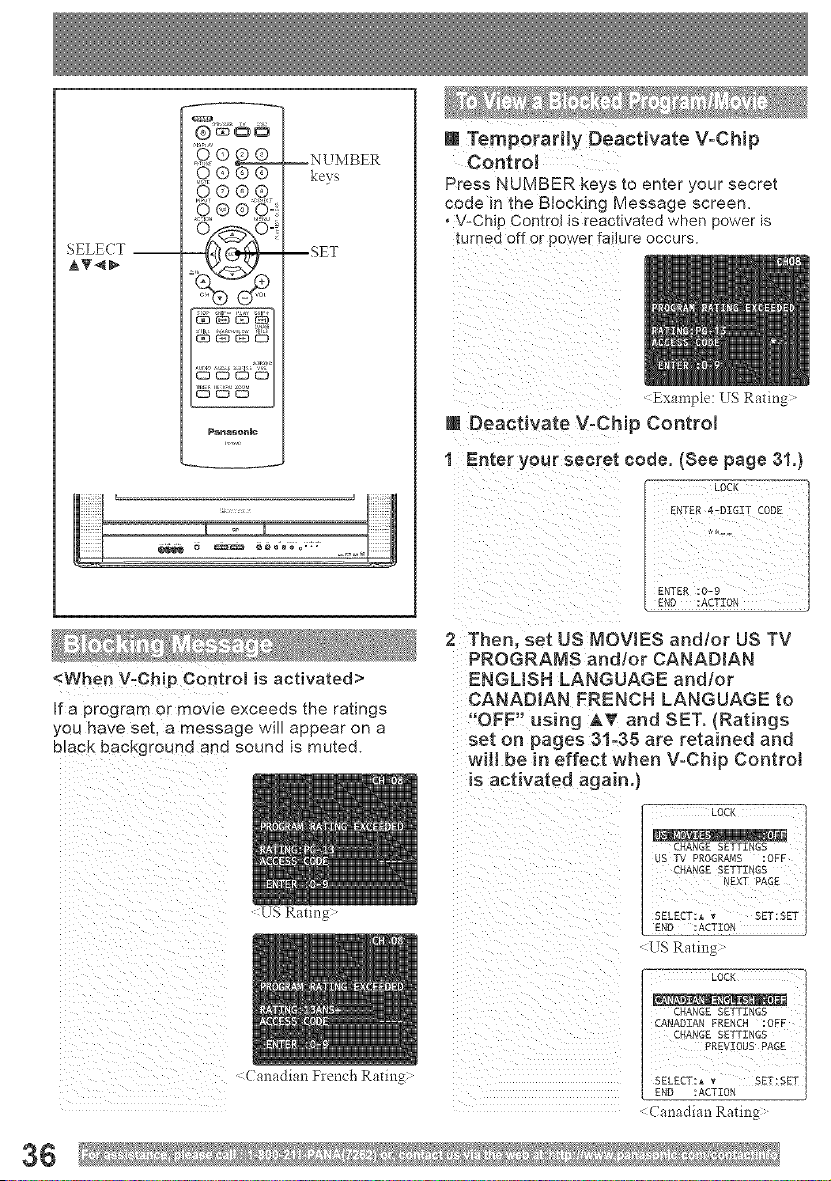
m Temporarily Deactivate V=Chip
ControJ
Press NU[/IBER keys to enter your secret
code in the Blocking Message screen.
• V-Cht_ Controt is reactivated when power is
{urned off or power failure occurs.
:Example: US Rating:"
m Deactivate V°Chip Control
1 Enter your secret code. (See page 31.)
<When V-Chip Controm is activated>
Ira program o; movie exceeds the ratings
you have set, a message will appear on a
b ack background and sound is muted.
:US Rating:"
2 Then, set US MOVIES and/or US TV
PROGRANS and/or CANADIAN
ENGLISH LANGUAGE and/or
CANADIAN FRENCH LANGUAGE to
"OFF" using iT and SET. (Ratings
set on pages 3%35 are retained and
wilt be in effect when V-Chip Control
is activated again.)
U,S Rating:"
: ( anadian Rating:"
36
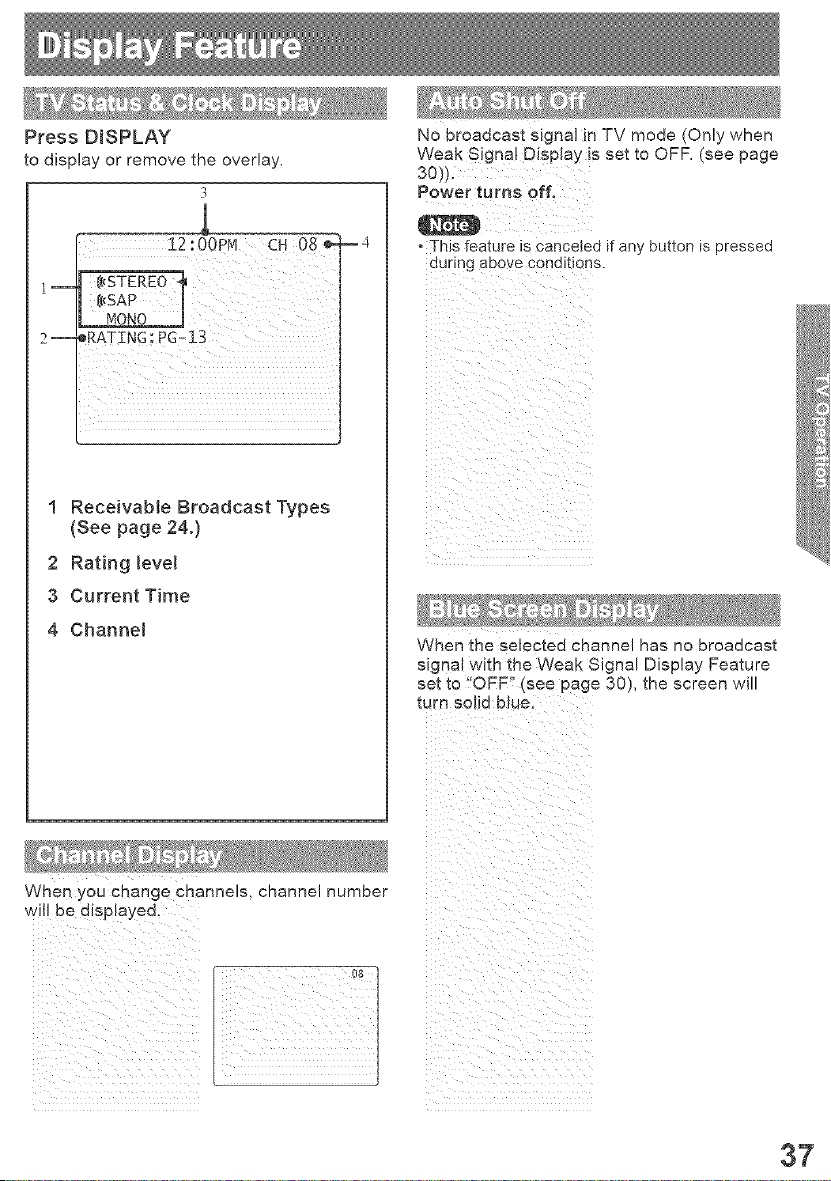
Press DISPLAY
to display or remove the overlay.
3
E4
1--
2--
I Receivable Broadcast Types
(See page 24.}
2 Rating leve_
3 Current Time
4 Channel
No broadcast signal in TV mode (Only when
Weak Signal Display is set to OFF. (see page
Power turns off.
,3-his feature is canceled if any button is pressed
during above conditions.
When the selec_ea channel has no broadcast
signaJ with the Weak S gnal Display Feature
set to "OFF" [see page 30), the screen will
turn solid #_ue.
When you change channels, channel number
wil! be displayed,
37
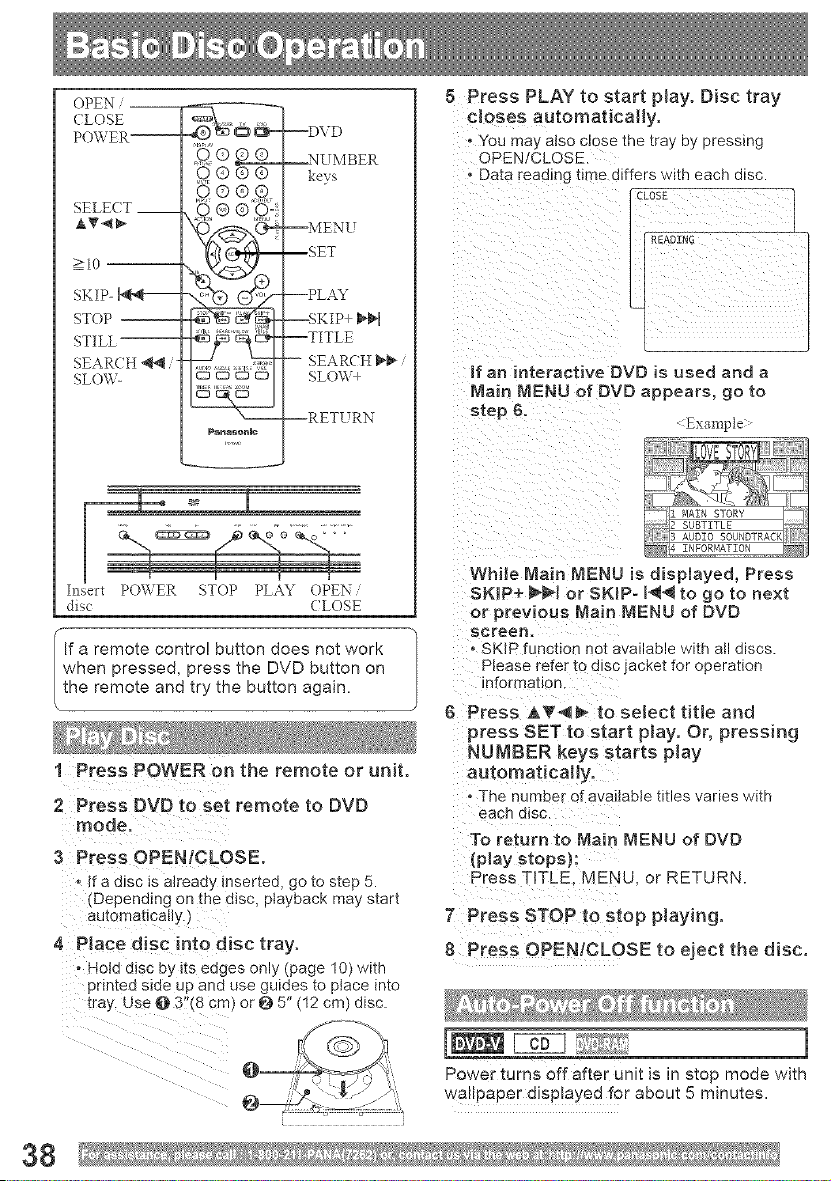
OPEN --
CLOSE
PO\\ ER--
SELECT __
AH-<_
_>10
SKIP- N'_----
STOP --
STILL--
SEARCH _ i-
SLO\\L
0©®®
CD C:3 CZI C3
Pana_lllc
,+<,,,,
--DVD
--NUMBER
ke>
--PLAY
SKIP+ _H
--TITLE
-- SEARCH 1_ ......
SLOW+
--RETURN
Insert PO\\ER STOP PLAY OPEN .......
disc CLOSE
If a remote control button does not work
hen pressed, press the DVD button on
he remote and try the button again.
1 Press POWER on the remote or unit.
5 Press PLAY to start play. Disc tray
closes automatically.
. You me7 atso cJose me tray by pressing
OPEN/CLOSE.
- Data reading time 3tiers w_th each disc.
If an interactive DVD is used and a
lain MENU of DVD appears, go to
step 6,
Example
While Main MENU is displayed, Press
SKI P+ NH or $K!P- I_'< to go to next
or previous Main MENU of DVD
screen.
• SKIP function not avalable w_th all discs.
Please refer to disc jacket for operation
information.
6 Press AT< _- to select title and
press SET to start play. Or, pressing
NUMBER keys starts play
automatically.
. The numoer of available t_tlesvaries with
2 Press DVD to set remote to DVD
each disc.
3 Press OPEN/CLOSE.
, Ira disc is already inserted, go to step 5.
(Depending on the disc, playback may start
automatically.)
4 Place disc into disc tray.
- Hold disc by its edges only (page 10) with
printed side up and use guides to place into
tray, Use @ 3!'(8 cm) or @5" (12 cm) disc.
To return to Main MENU of DVD
{play stops):
Press TITLE MENU. or RETURN.
7 Press STOP to stop playing.
8 Press OPEN/CLOSE to eject the disc,
1
Power turns off after uni_ is in slop mode with
wallpaper displayed for about 5 minutes.
38
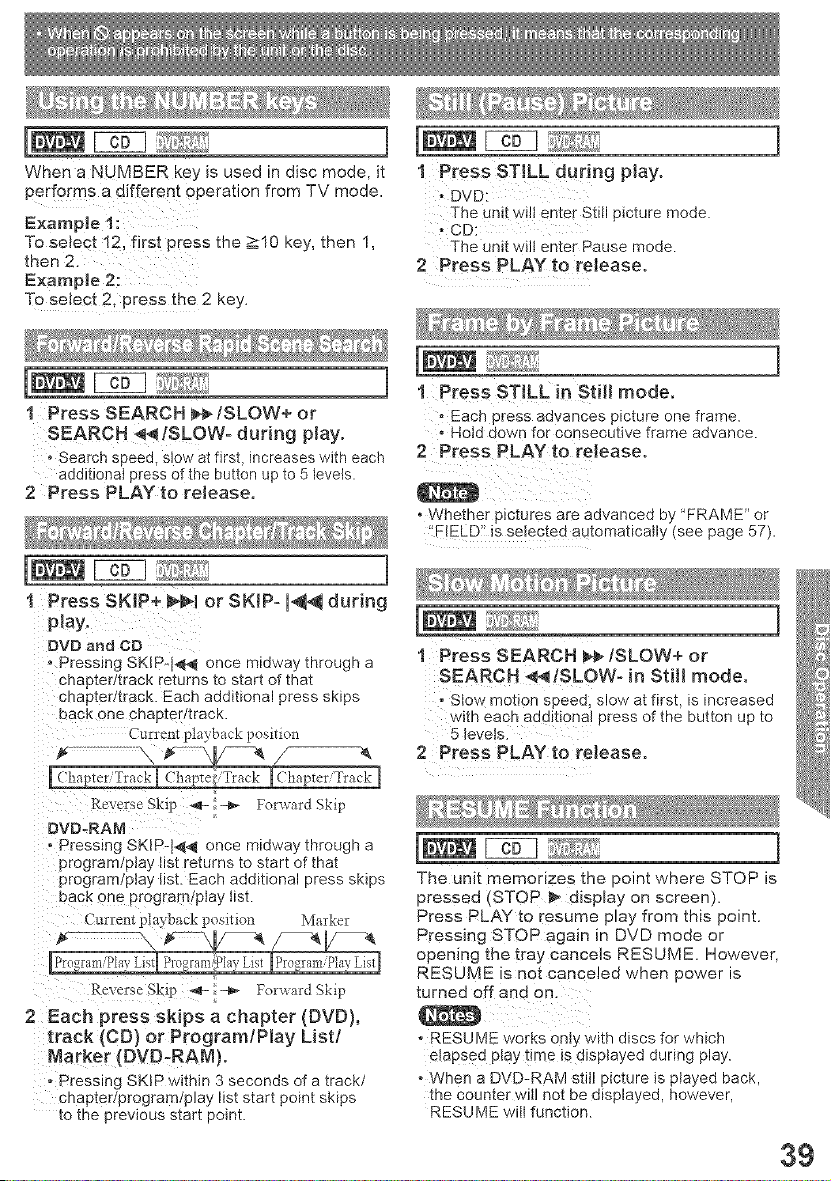
When a NUMBER key is used in disc mode, it
performs a d!fferent operation from TV mode,
Example t:
To sebct 12, first press the >10 key, then 1,
then 2.
Example 2:
To se{ect 2, pEess the 2 key.
1 Press SEARCH _/SLOW+ or
SEARCH 41,_ISLOW- during Nay,
' Search speed, slow at first, increases with each
additional press of the button up to 5 levels.
2 Press PLAY to release,
1
1 Press SKIP+ _'_1 or SKIP= I_ during
DVD and CD
• Pressing SKIpq4_ once midway through a
chapter/track returns to start of that
chapter/track. Each additional press skips
back one chapter/track.
Current playback positiol_
1 PressST!L b during play.
- DVD:
The unit w!lt enter Still picture mode.
.CD:
The unit wilt enter Pause mode.
2 Press pCAYto release.
1 Press STILL in Still mode.
,Each press advances picture one frame.
. Hotd down for consecutive frame advance.
2 Press PLAY to release,
° Whether pictures are advanced by 'FRAME" or
'fREED:! is setected automatically (see page 57).
]
1 Press SEARCH _/SLOW+ or
SEARCH 4t,q!SLOWo in Still mode.
- stow motion s :)eecL slow at f_rst, is increased
¢ith each additional Dress of the button up to
5 ]e/els
2 Press PLAY to release,
Reverse Skip _ -_ For_ ard Skip
DVD.RAN
, Pressing SKI R-1._4 once midway through a
program/play list returns to start of that
program!play list. Each additional press skips
bac k one program[play list.
Marker
Reverse Skip _- -_- Forv, ard Skip
2 Each press skips a chapter {DVD),
track (CD) or Program/Play List/
Narker {DVD-RAN).
- Pressing SKIP within 3 seconds of a track/
chapter/program!play list start point skips
to the previous start point.
The unit q_emonzes the point where STOP is
bressed STOP 1_ display on screen).
Press PLAY to resume play from this point.
Pressing STOP again n DVD mode or
opening the tray cancels RESUME. However,
RESUME _s not canceled when power is
turned off aria on.
, RESUME /orks onty w_[n discs for which
etapsea ptay brae is displayed ounng play.
0 When a DVD-RAM still picture is played back,
the counter w_ll not be a_splayed, however,
RESUME wilt funcbon
39
SELECT __
AUDIO--
0©®®
_C3 C_ C_ ED
Nana_nlc
,+,,,,>
__NUMBER
keys
-- MENU
--SET
-- PLAY
--TITLE
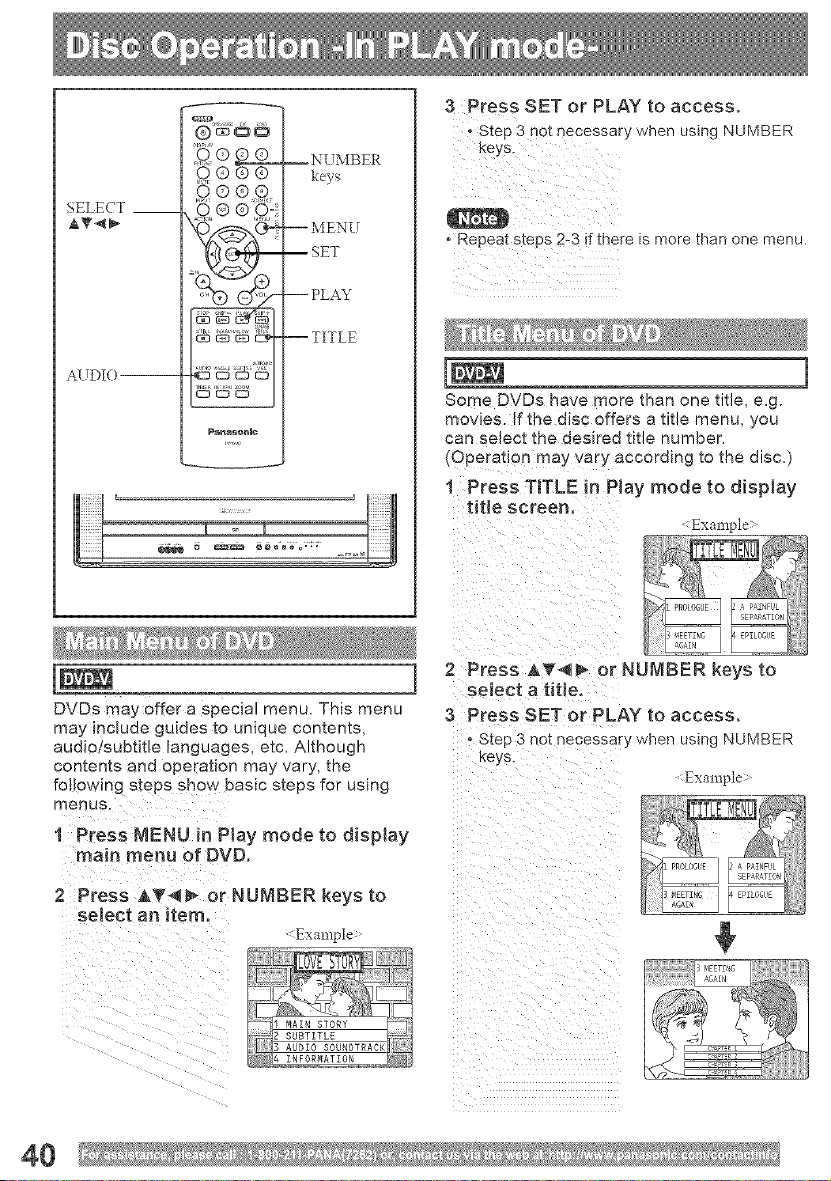
3 Press SET or PLAY to access.
, Step 3 not necessary when using NUMBER
i _i _}{i_{_i i_I_
"Repea t steps 2-3 if there is more than one menu.
Some DVDs have more man one title, e.g.
movies. {f the disc offers a title menu, you
can select the desired title number.
(Operation may vary accorulng to the disc.)
1 Press TITLE in Play mode to display
title screen.
Example-
INNN _
DVDs may offer a special menu. This menu
may include guides to unique contents,
audio/subtitle languages, etc. Although
contents and operation may vary, the
following steps show basic steps for using
1 Press NENU in Play mode to display
2 Press A_'_ _ or NUMBER keys to
select a title,
3 Press SET or PLAY to access,
. step c not necessary when using NUMBER
Keys.
Example
2 Press AT_, or NUN]BEN keys to
: Example >
4O
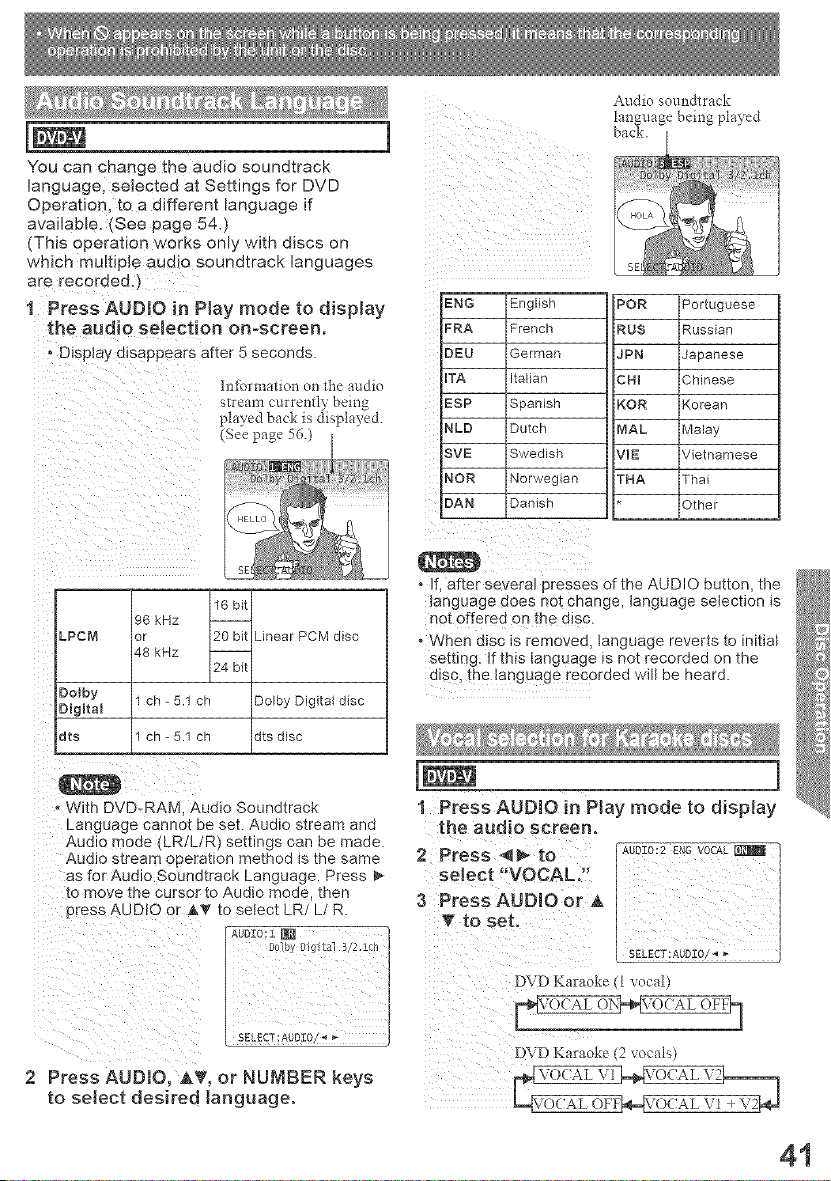
You Can change the audio soundtrack
_anguage, selected at Settings for DVD
Operation, to a different language if
available. (See page 54.)
(This operation works only with discs on
which multiple audio soundtrack languages
are recorde&)
1 Press AUDIO in Play mode to display
the audio selection on-screen.
Display disappears after 5 seconds.
h-llbrmation on the audio
stream currently beina
played back is displayed.
<Seepage5G.)
iiii: i i _iI_
Audio soundtrack
language being played
back.
ENG
FRA
DEU
ITA
ESP
NLD
SVE
NOR
DAN
English PeR Portuguese
French RUS Russian
German JPN Japanese
Italian CHI Chinese
Spanish KOR Korean
Dutch HAL Malay
Swedish VIE Vietnamese
Norwegian "mA Thai
Danish Other
LPCM
Dolby
Digital
dts
16 bit
96 kHz
or 20 bit
48 kHz
24 bit
Linear PCM disc
1 ch- 5.1 ch
1 ch - 5.1 ch Dolby Digital disc
dts disc
With DVD-RAM, Audio Soundtrack
Language cannot be set. Audio stream and
Audio mode (LR!L/R) settings can be made.
Audio stream operation method is the same
as for Audio Soundtrack Language. Press
to move the cursor to Audio mode, then
Press 4UDIO or A_" to select LR/L/R.
SELECT:AUDIO/"4 _*
2 Press AUDIO, AT, or NUMBER keys
to select desired language.
, If, after several presses of the AUDIO button, the
_anguage does not change, language selection is
not offered on the disc.
, When disc is removed, language reverts to initial
Setting. If this language is not recorded on the
disc, th e Ianguage fec0rded wilt be heard.
]
1 Press AUDIO in Play mode to display
3PressA00,Oor,! ii i
T to set.
DVD Karaoke (l vocal)
DVD Karaoke (2 _ocals)
41
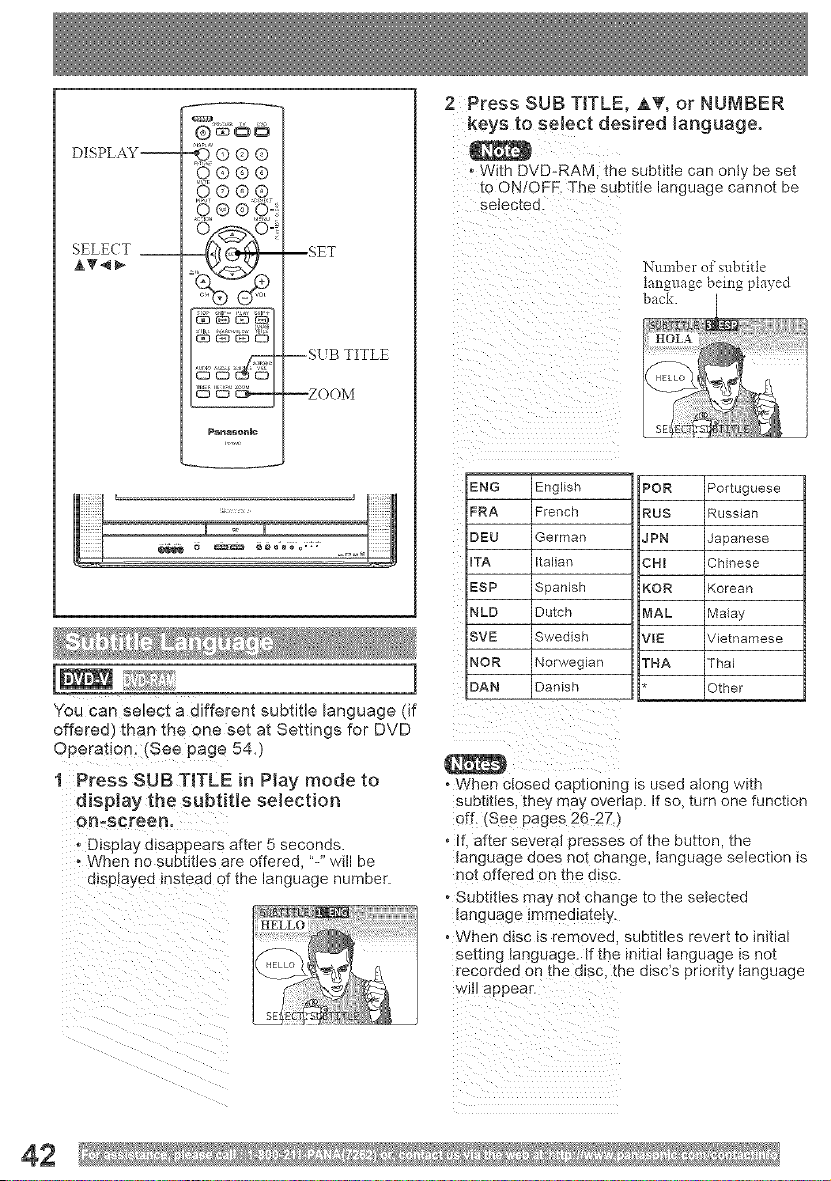
DISPLAY--
SELECT __
_,®®®
Q®®®
,_0®0
o ®
-44_ 6It4"_-
Panaeenme
--SET
--SUB TITLE
--ZOOM
]
You can select a different subtitle language (if
offered) than the one set at Settings for DVD
Operation: (See page 54,)
1 Press SUB TITLE in Play mode to
dispJay the subtitle selection
on,screen,
, Display disappears after 5 seconds.
When no subtitles are offered, "-" will be
displayed instead of the language number.
2 Press SUB TITLE, AT, or NUMBER
keys to select desired language,
With DVD-RAM, the subtitle can only be set
to ON/OFR The subtitle language cannot be
Number of subtitle
language being played
ENG English POR Portuguese
FRA French RUS Russian
OE[U German JPN Japanese
ITA Italian CHI Chinese
EISP Spanish KOR Korean
NLD Dutch MAC Malay
SVE[ Swedish VIE Vietnamese
NOR Norwegian THA Thai
DAN Danish Other
- When closed caphonmg is used along with
subtitles, they may overlap. If so, turn one function
off. [See pages 26-273
• If. after severn presses of the button, the
_anguage aoes no_ cnange, language selection is
no_ offered on the disc.
, Subtitles may nor cnange to the selected
_anguage tmmed_atel...
, When disc is removed sue_mes rever[ to mmal
setting language. If the _n_ttaltanguage is not
recoraea on me alsc me a_scs priority language
wJi] appear
42
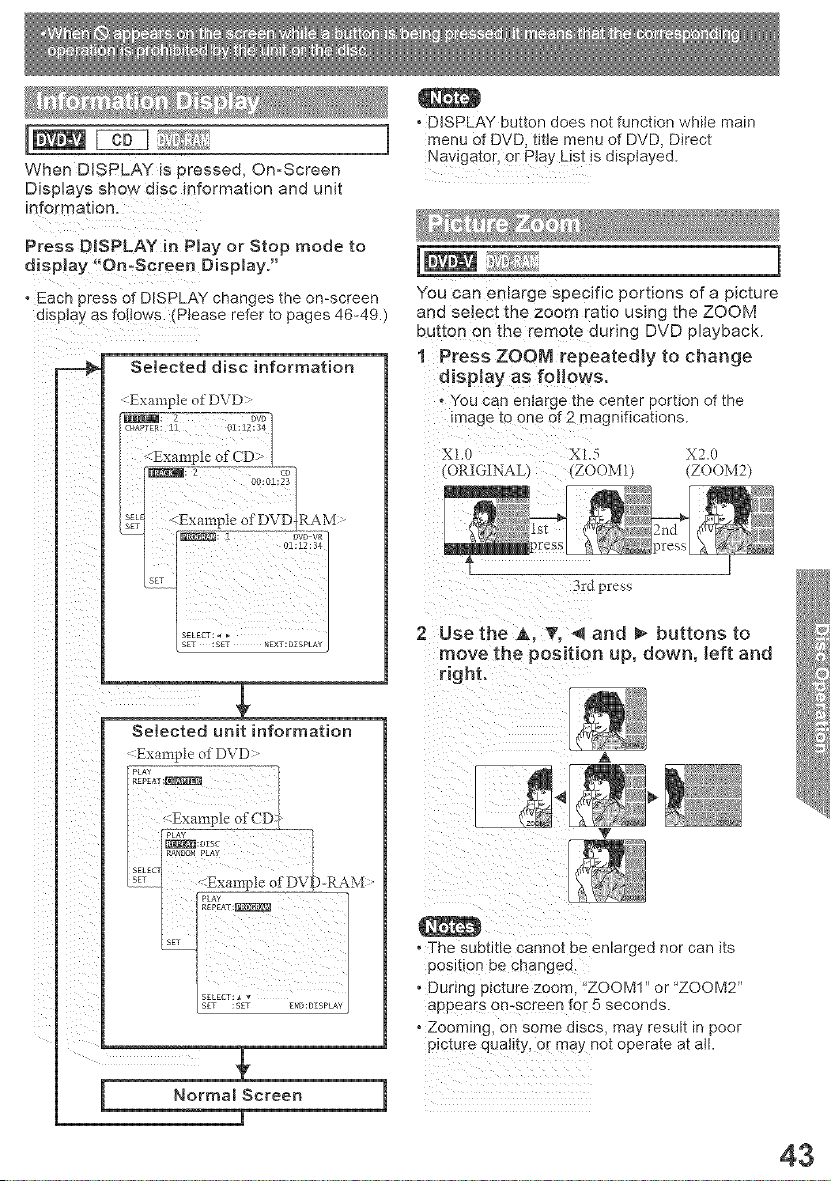
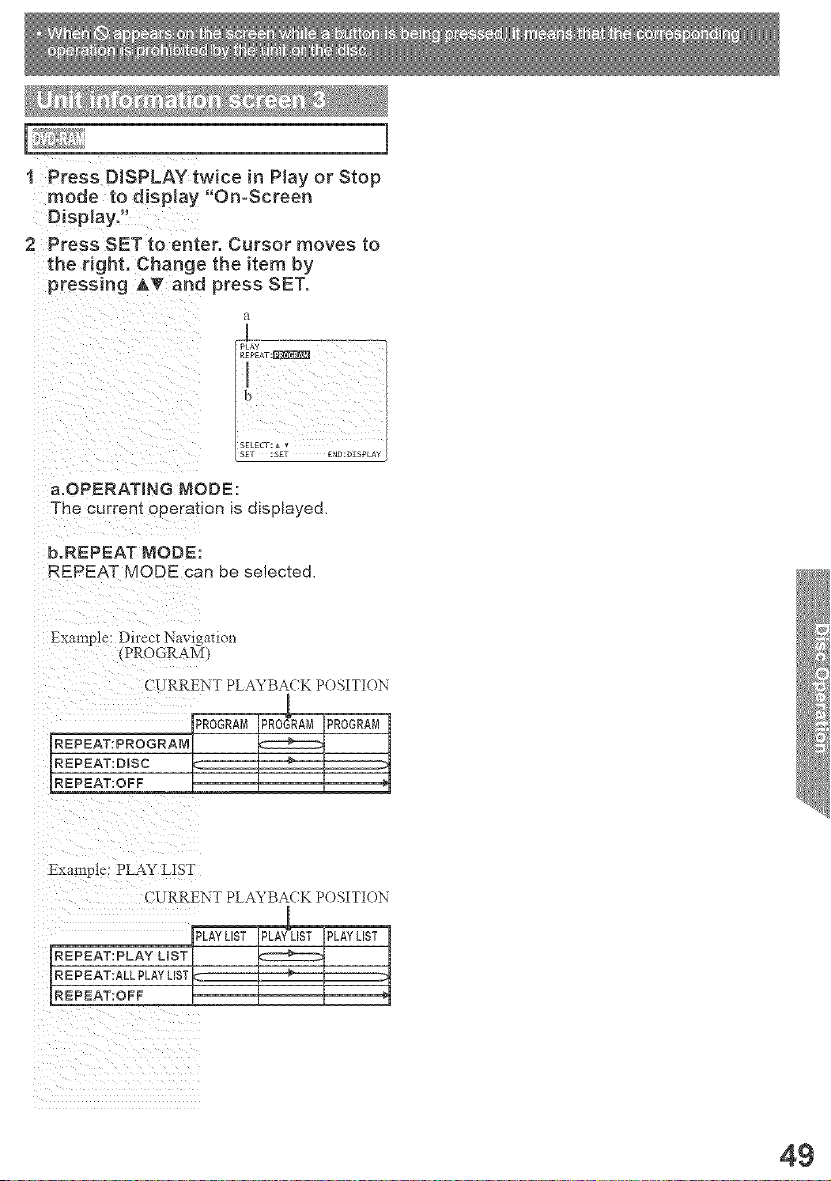
When DISPLAY is pressed, On-Screen
Displays show disc information and unit
Press DISPLAY in Play or Stop mode to
display "On.Screen Display."
o Each press of DISPLAY changes the on-screen
display as follows. (Please refer to pages 46-49.)
Selected disc information
:Example of D\D ::"
Selected unit information
:Example olD\ D :"
Normal Screen
• DISPLAY button does not function while main
menu of DVD, title menu of DVD, Direct
Navigator, o r play List !s displayed.
]
You can enlarge specific portions of a picture
and select the zoom ratio using the ZOOM
button en the remote during DVD playback.
1 Press ZOOM repeatedly to change
djsP!aY as foH0ws.
"You can entarge the center portion of the
image to one 0f2 magnifications.
X2.0
(ORIGINAL) (ZOOM1) (ZOOM2)
3rdpress
2 Use the A0 T0 -,qand _- buttons to
move the position up, down, left and
right.
v
• The subtitle cannot be enlarged nor can its
posl[ton be changea.
• During picture zoom. "ZOOM1 or "ZOOM2"
appears on-screen for 5 seconds
• Zoomin£ on some alscs, may result in poor
picture quattty, or may not operate at all.
43
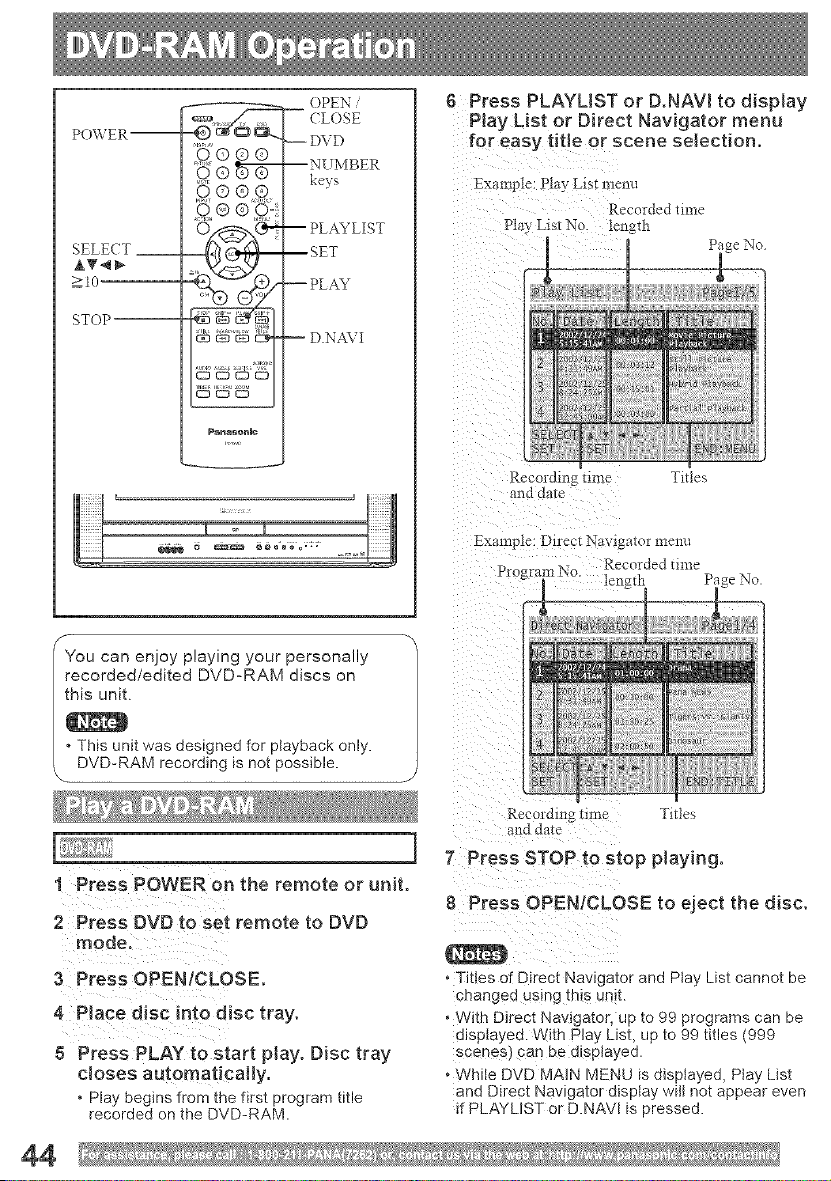
PO_,\ ER --
SELECT __
>10'
STOP--
,_ ® ®_
t2D C2_ _ C)
Pana_n]c
OPEN .......
-- (LOSE
DVD
--NUMBER
keys
-- PLAYL[ST
--SET
-- PLAY
-- D.NA\ I
B Press PLAYLlST or D,NAVI to display
Play List or Direct Navigator menu
for easy title or scene selection°
Exampte: Play LIs[ menu
Recorded time
Ptay Llsr No. length
Recordm_ m'ne Tides
and dine
You can enjoy playing your personally
recorded/edited DVD-RAM discs on
this unit.
• This unit was designed for playback only.
DVD-RAM recording is not possible.
1 Press POWER On the remote or unR.
2 Press DVD to set remote to DVD
3 Press OPENICLOSE,
4 Place disc into disc tray.
8 Press PLAY to start play, Disc tray
closes automatically,
• Play begins from the first program title
recorded on the DVD-RAM.
/
J
END_SE_L
Recol-dmg tIlne Tides
and dale
7 Press STOP to stop playing.
8 Press OPEN/CLOSE to eject the disc.
o Tittes of Direct Nawgamr ana Play List cannot be
changed using this unit.
• Wi[n Direct Naviga[or, up to 99 programs can be
displayed. With Play LJS_ up to 99 titles (999
scenes) can ee a_sp_ayea
oWhile DVD MAIN MENU is displayed, Play List
and Direct Nawgator @splay w_tl not appear even
if PLAYUST or D.NAVI is pressed•
44
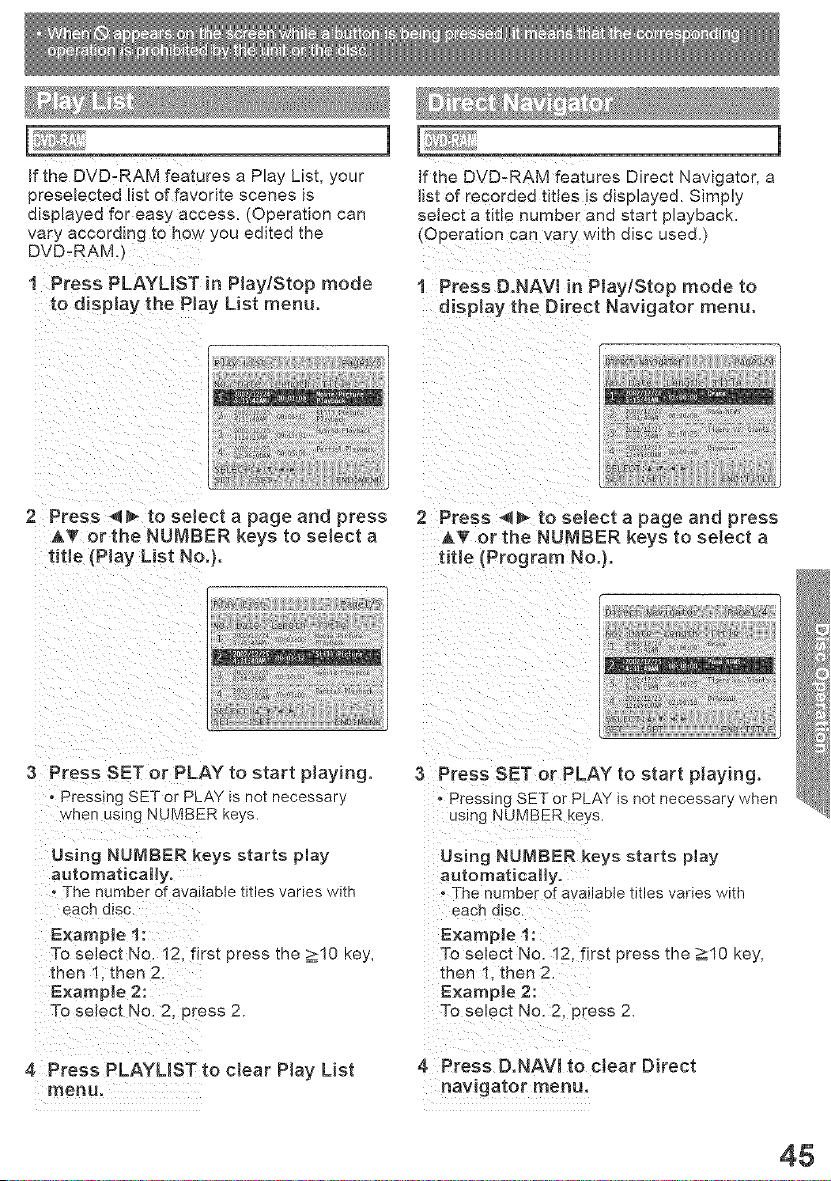
if the DVD-RAM features a Play List, your
presebcted list of favorite scenes is
displayed for easy access. (Operation can
vary according t0how you edited the
DVD-RAM,)
1 Press PLAYLIST in Play/Stop mode
tO display the Play List menu.
2 Press _ to select a page and press
AT or the NUMBER keys to select a
title (Play Lis t No,).
If the DVD-RAM features Direct Navigator, a
_ist of recorded titles is displayed. Simply
_elect a title number ana s_ar[ playback.
(Operation can vary wl[n alsc used.)
1 Press D.NAVI inPJay/Stop mode to
display the Direct Navigator menu.
2 Press 4_ to select a page and press
&_r or the NUMBER keys to select a
title (Program No,).
3 press SET or pLAY to start playing.
, Pressing SET or PLAY is not necessary
when using NUMBER keys.
Using NUMBER keys starts play
automatically.
The number of available titles varies with
E×amp!e t:
To select No. 12, first press the >10 key,
then 1; then 2.
E×ample 2:
To se!ect N0_ 2! p[ess 2.
4 Press PLAYUST to ctear Play List
menu,
3 Press SET or PLAY to start playing.
Pressing SET or PLAY is not necessary when
_sJng NUMBER keys.
Using NUMBER keys starts play
automatically.
• The number of available titles varies with
each GISO.
E×a_p[e 1 :
To select No. 12. first press the >10 key,
then I then2,
E×ample 2:
To select No. 2, press 2
4 Press D,NAVJ to ctear Direct
navigator menu,
45
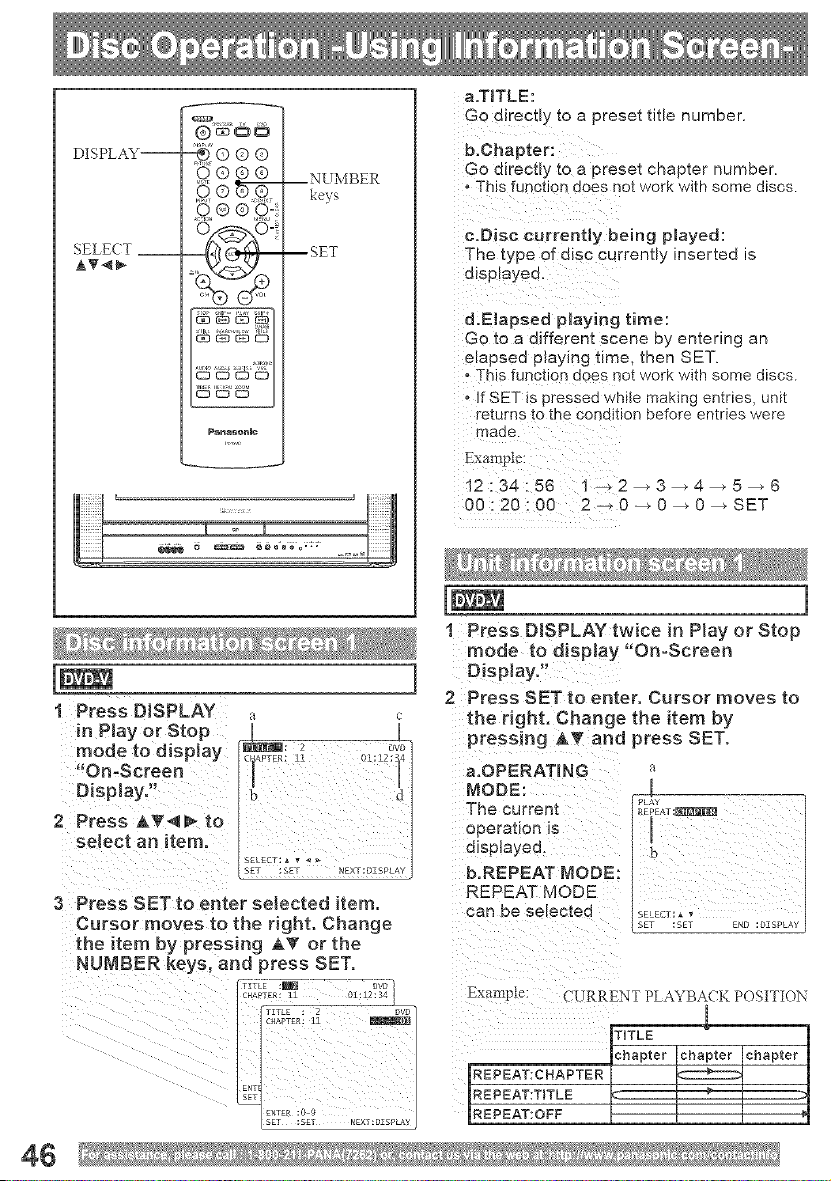
DISPLAY--
SELECT __
AT_
_,®®®
o ® ® _-
P_nasonlc
--NUMBER
keys
--SET
I Press DISPLAY
in Play or Stop
mode to display
On-Screen
O[spJayJ!
2Press to
select an item,
]
a c
3 Press SETto enter selected item,
Cursor moves to the right. Change
the item by pressing AT or the
NU/vIBER keys, and press SET.
a.TITLE:
Go directly to a preset title number.
b.Chapter:
Go directly to a preset chapter number.
This function does not work with some discs.
c.Disc currently being played:
The type of diSC currently inserted is
displayed.
d:E_apsed playing time:
Go to a different scene by entering an
elapsed playing time, then SET.
• This function does not work with some discs.
If SET is pressed while making entries, unit
returns to the condition before entries were
made.
:34i5_ iC2_3_4_5_G
00:20:00 2_0_O_O_SET
]
1 Press DISPLAY twice in Play or Stop
mode to display "On=Screen
DispJay,"
2 Press SET to enter. Cursor moves to
the fight. Change the item by
pressing A_' and press SET,
a.OPERATMNG a
MODE: [
PLA
The current _E[aAT:_operauon is
dJsplaye¢ t
b.REPEAT MODE:
REPEAT MODE
can 13e selected _#_"_::_E-: ............
Example: CURRENT PLAYBACK POSITION
TITLE
chapter chapter chapter
REPEAT:CHAPTER
REPEAT:TITLE _ , - , -
REPEAT:OFF
46
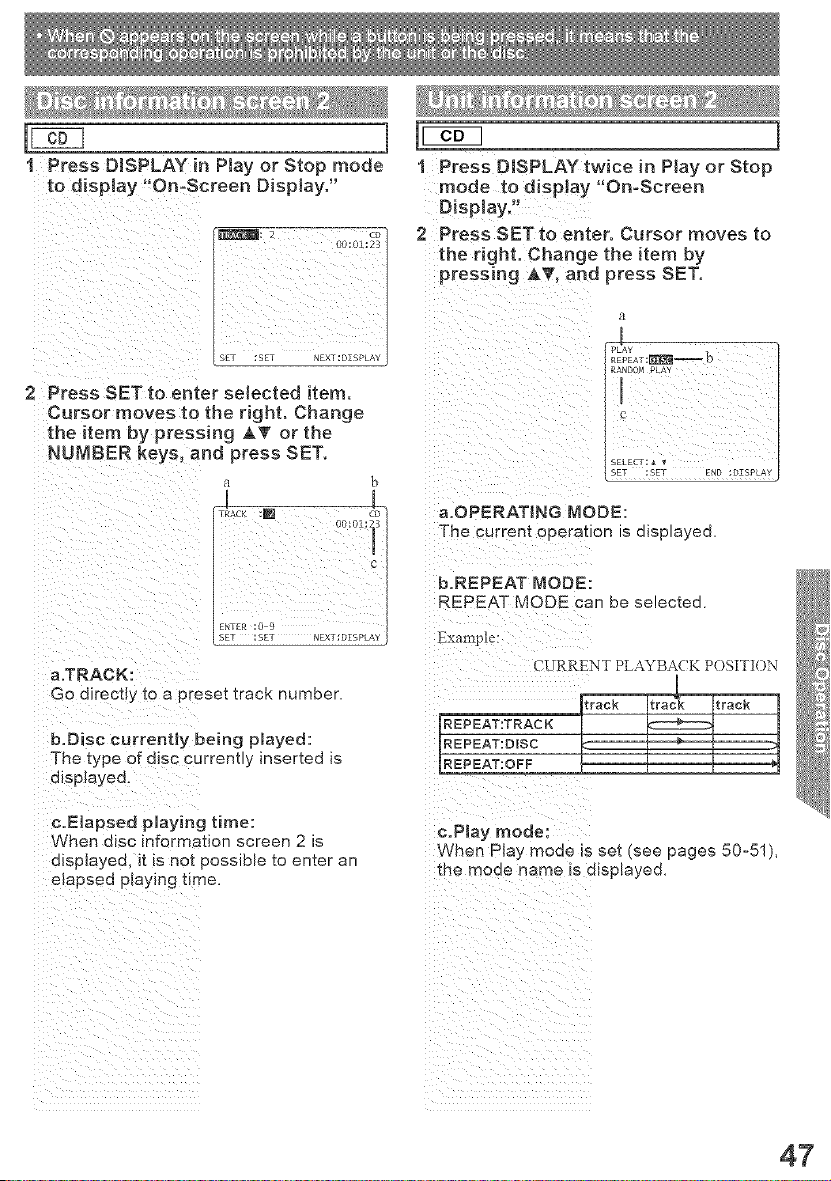
]
1 Press DESPLAY in Ptay or Stop mode
to disp!ay '_On:Screen Display,"
2 Press SET to enter selected item,
Cursor moves to the right. Change
the item by pressing AT or the
NUMBER keys, and press SET.
a
a.TRACK:
Go direct!yto a preset track number,
b.Disc currently being played:
The type of disc currently inserted is
dJsp!aye&
c.Elapeed playing time:
When disc information screen 2 is
displayed, it is net possible to enter an
elapsed playing time.
1 Press DISPLAY twice in Play or Stop
mode to display "On-Screen
Display."
2 Press SET to enter. Cursor moves to
the right. Change the item by
pressing AT0 and press SET,
1
REpEAr:_--b
RANDON PLA'
1
2
SET :SEg ERE :DISPLA
a.OPERATING MODE:
The current operation s elsplayee
b.REPEAT MODE:
REPEAT MODE can be selected.
Example:
CURRENT PLAYBAL'K POSITI()N
REPEAT:TRACK
REPEAT:DISC
REPEAT:OFF
e.Play mode:
When Play mode Is set (see pages 50-51),
me mooe name _s etsp_ayee
i Z Z Z Z Z Z Z Z
47
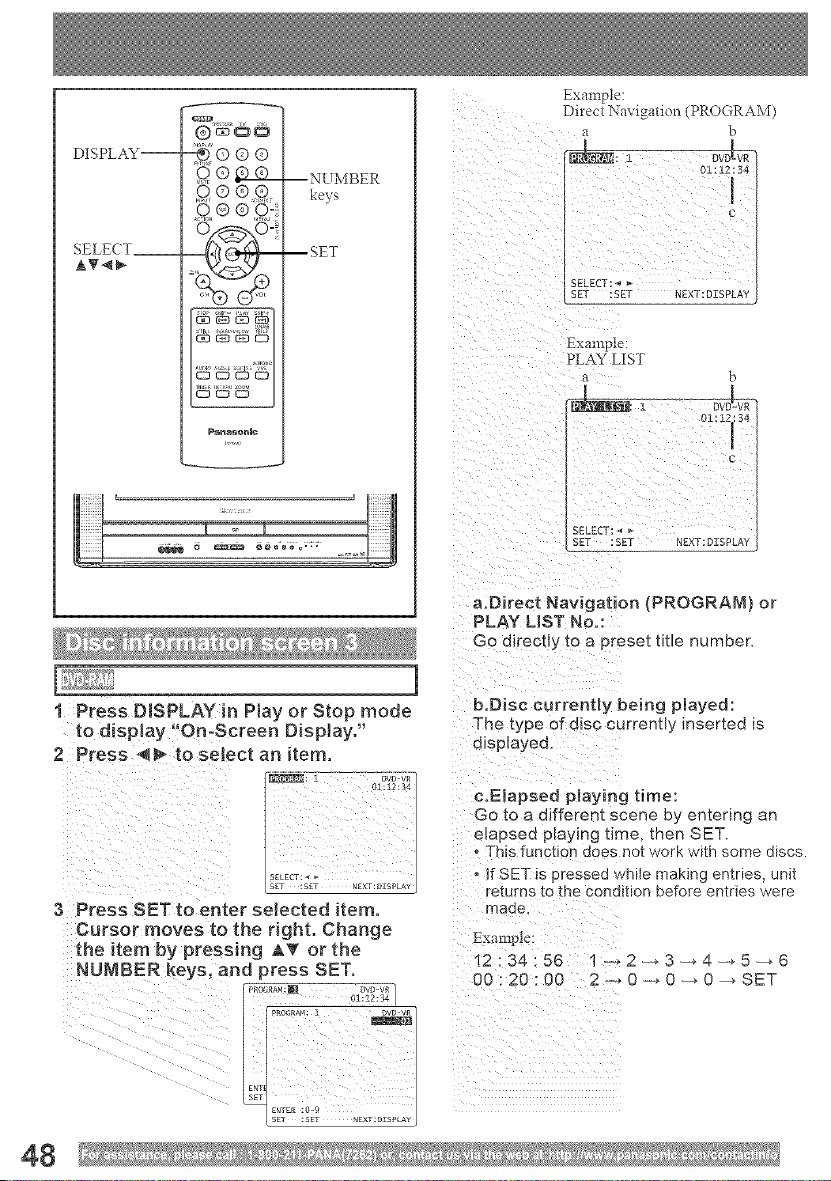
DISPLAY--
SELECT__
AT_
-¢®®®
_o_
o ®
Panaeenmc
--NU_MBER
keys
--SET
Exanlpic
Direct Navlgauon _PROGRAM)
a b
01112:84
SELECT:_
SET :SET NEXT:DZSPLA
_xa111 )le:
PLAY LIST
a t
Ol : lZi: 34
I
C
SELECT: _
gET :SET NEXT:DZSPLA
a.Dkeet Navigation {PROGRAM} or
PLAY LIST No.:
Go directly _o a preset tree numoer
1
! Press DISPLAY in Play or Stop mode b.Dise currently being played:
to display "On-Screen Display." The type of disc current _ inserted is
2 Press 4_ to seJect an item. displayed.
SELEgT: _
SET :SET _KT,T: O[SPLAY
3 Press SET to enter selected item.
Cursor moves to the right. Change ExamNe
the item by pressing A_f or the
I2:34:56 1+2 3 4-+ 5-_6
NUMBER keys, and press SET. ,
_7 01:z2:Bi] 00 : 20 : 00 2 -_ 0 0 --_ 0 SET
c°Elapeed p_ay_ng time:
Go to a different scene e_ entering an
e_apsed playing time. then SET.
, This function does not work W}th some discs.
, If SET is aressea white maK_nc enmes unit
re_urrls tO tl e oonaiuon before entries were
maoe.
48
1 Press DESPLAY twice in Play or Stop
mode to display "On-Screen
Display,"
2 PressSET to enter Cursor moves to
the right, Change the item by
pressing AV and press SET,
a.OPERATING MODE:
The current operation is displayed.
b.REPEAT MODE:
REPEAT MODE can be selected,
Example: Direct Navlga_iol_
_PROGRAM)
CURRENT PLAYBACK POSITION
REPEAT:PROGRAM
REPEAT:DISC _" "_
REPEAT:OFF
CURRENT PLAYBA( K POSITION
REPEAT: PLAY L_ST
REPEAT:ALL PLAYLIST
REPEAT:OFF
i ii ii ii ii ii ii ii ii
49
A( TION --
SELECT --
A_4_
GG®
,q®
Pana_@nJc
NUMBER
--ke}s
--(LEAR
--SET
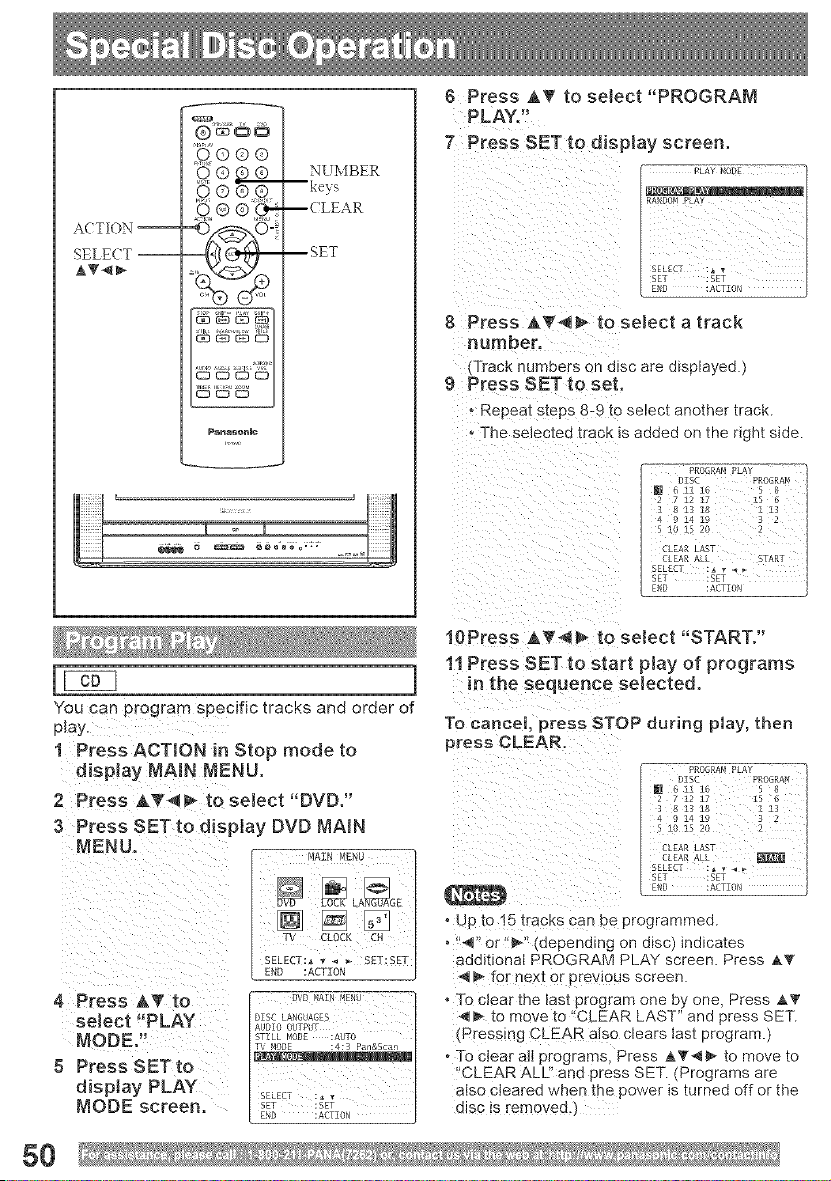
6 Press AT to select "PROGRAM
PLAY."
7 Press SET to display screen,
8 Press A_ m to select a track
number,
_Track numbers c n a_sc are displayed.)
9 Press SET to set,
, Repeal steps 8-9 to select another track.
. The selectea [racK is added on the right side.
PROGRN! PLAY
You can program specific tracks and order of
play.
1 Press ACTION in Stop mode to
display MAIN MENU,
2 Press A_'_ to select "DVD,"
3 Press SET to disptay DVD MAIN
MENU,
4 Press A7 to Dw_ ........
select PLAY DISCLA_GU,_CB
AUD]0 OUTPUT
MODE." STILL _0DE :AUTO
display PLAY [_ :,,
MODE screen. _T ::_T0,_
80
10Press AT_ _ to select "START."
11 Press SET to start play of programs
in the sequence selected.
To cancel, press STOP during play, then
press CLEAR.
, up to t5 _racKs can De programmed.
• "4" or"_' depending on disc) indicates
additional PROGRAM PLAY screen. Press _,T
_ for nex[ or prewous screen
• To clear tt_e [ast program one by one, Press _,T
_ to move to "CLEAR LAST" and press SET.
(Pressing CLEAR also clears last program.)
, To clear all programs Press _,_'_ to move to
"CLEARALL" ana press SET. (Programs are
aiso cieared when _ne powet is turned off or the
disc is removed.
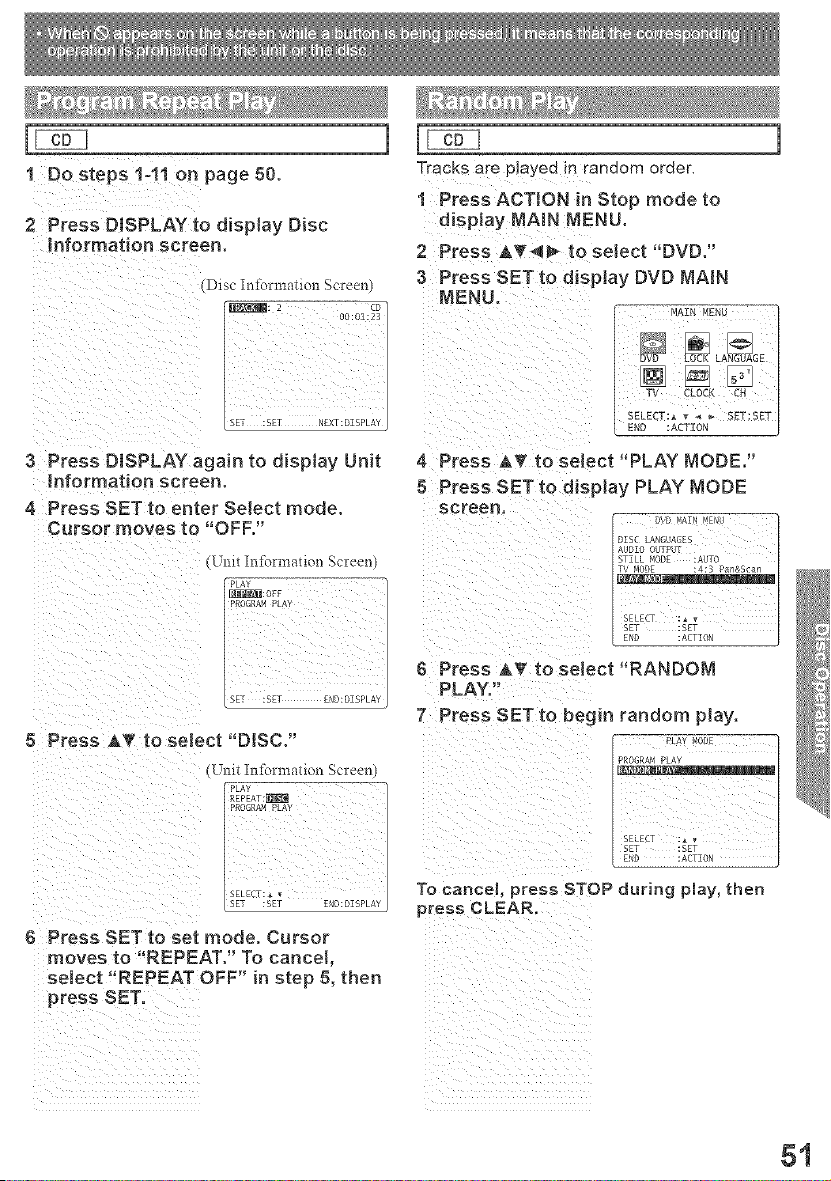
1 Do steps t:!1 o n page 50.
2 Press DISPLAY to display Disc
Information screen,
(Disc Infom_afion Screen)
3 Press DISPLAY again to display Unit
Information screen,
4 Press SET to enter SeIect mode.
Tracks are pla_,eam random oraer
1 Press ACTION in Stop mode to
display MAIN MENU.
2 Press A_'@_ to select "DVD."
3 Press SET to display DVD MAIN
MENU.
/_: 2 00:01:_] MAZNMEnu
SE[ :SEF N£XT:DZSPLAY 1
(Unit h_%m'_ation Screen
-
Z
6 Press SET to set mode. Cursor
moves to "REPEAT." To cancel,
4 Press A_' to select "PLAY MODE.'"
8 Press SET to display PLAY MODE
screen,
D%D KAI NJ
ii!! LoLiiiiL_E S AUT 0
6 Press AT to select "RANDOM
PLAY,
7 Press SET to begin random play.
PRO_,RAh PLAY
l
EN[ :ACTION
To cancel, press STOP during play, then
press CLEAR.
select !'REPEAT OFF" in step 5, then
press SET_
51

A( TION --
SELECT --
AT_
ANGLE --
G®
9®®®
,9®®®
0 ® @_2
--\SS
P_na_n]c
ANGLE Indicator
]
Some DVDs are recomea a_ lower than
average volume levels. For these DVDs, this
unit can be set so that the average volume is
increaseo au_omat_ca,,_
1 Press ACTION to display MAIN
NENU.
2 Press AT4_ to select "TV."
3 Press SETto display SET UP TV
screen,
4 Press AT to select "DVD VOL
ADJUST."
8 Press SET to set the level (0, +1, or
+2).
6 Press ACTION twice to return to the
normal screen.
• DVD Volume A ]just works only when sound is in
Dolby Dig [a_
82
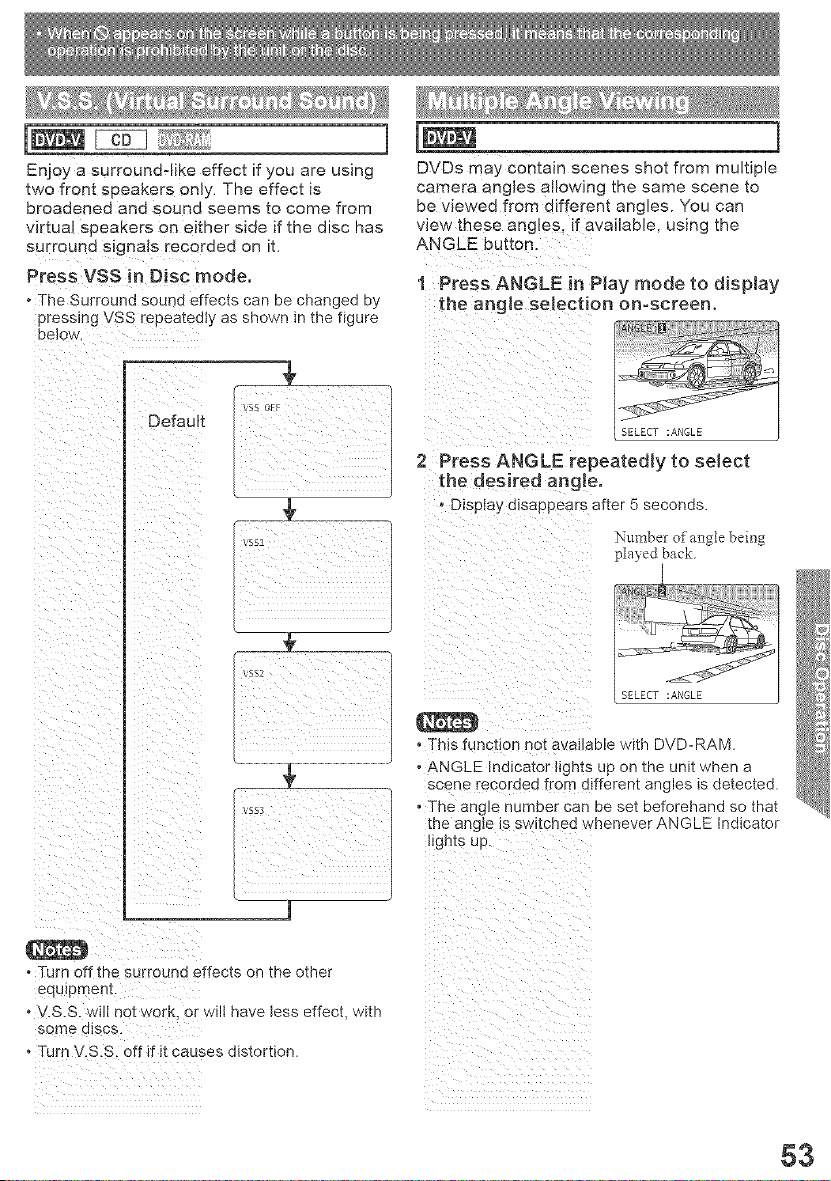
]
Enjoy a surround.like effect if you are using
two front speakers only. The effect is
broadened and sound seems to come from
virtual speakers on either side if the disc has
surround signals recorded on it.
Press VSS in Disc mode.
• The Surround sound effects can be changed by
pressing VSS repeatedly as shown in the figure
below
]
DVDs mai comaln scenes sno[ from multiple
camera angles allowing the same scene to
be viewed from eifferent angles. You can
view these angles if available, using the
ANGLE button.
1 Press ANGLE in Play mode to display
the angle selection on-screen.
2 Press ANGLE repeatedly to select
the desired angle.
• Display disappears after b second. <
Number of angle b_mg
pta>_d back.
T_funct on no
ov;,oo,
A LE Indicator li ts up on the umt when a
scene recorded =rein dltferent angles is detected.
• The angle number can be set beforehand so that
[he angle is s/vitched whenever ANGLE Indicator
t_gn[s up.
oTurn off the surround effects on the other
o V.S.S. wilt not work, or will have tess effect, with
some discs.
o Turn V.S.S. off if it causes distortion.
53
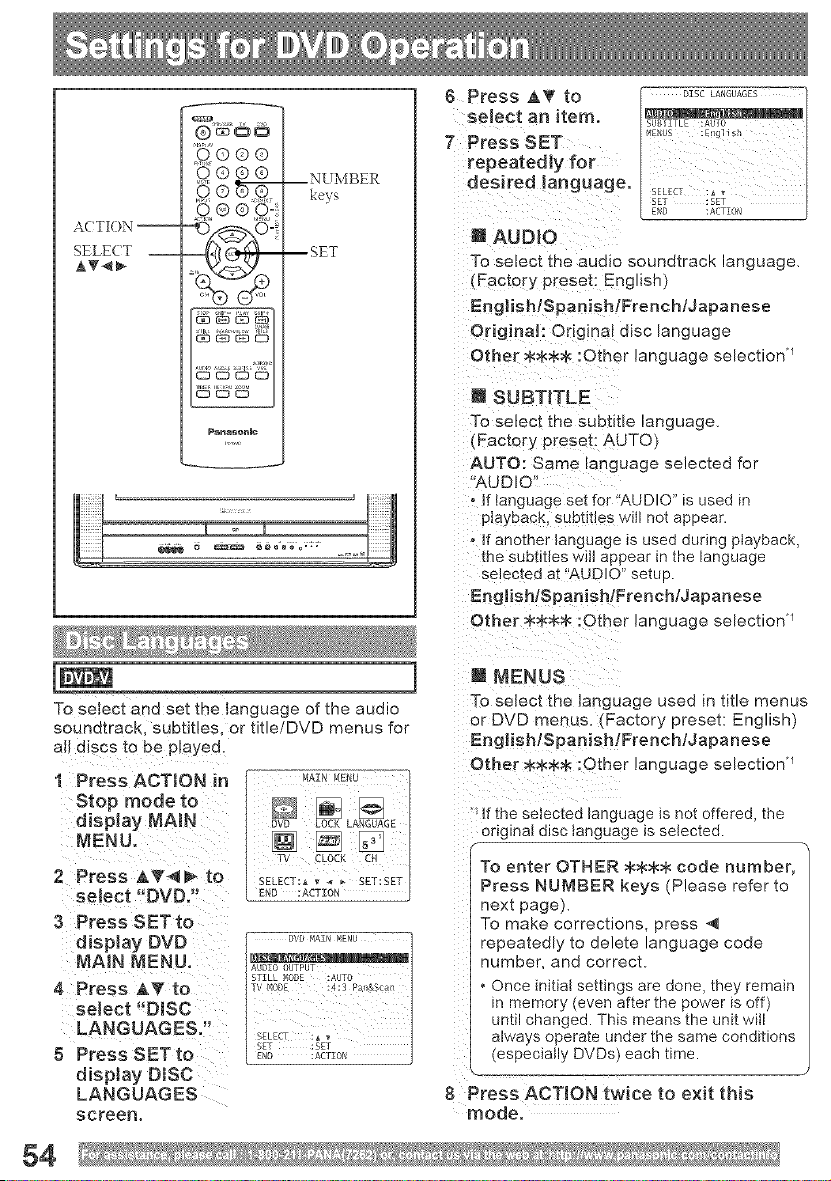
A( TION --
SELECT --
AT_
G®
,o,® ® _-
----.lidi 8_
P_na_@BJc
--NUMBER
keys
--SET
g Press AT to
select an item°
7 Press SET
repeatedly for
desired language,
g AUDIO
To select the audio soundtrack language,
(Factory preset: English:
EnglishlSpanishlFrenchldapanese
Original: Original alsc language
Other _<_<_ :Other language selection u
a SUBTITLE
To selec_ the subtitle language.
(Factory preset: AUTO
AUTO: Same language selected for
"AUDIO'
o if language set for"AUDIO is used in
playback, suuuues wlJ not appear.
off another language is used during playback,
the subtNes will appear in me language
selectee at "AUDIO" setup.
EngiishlSpanishlFrenehlJapanese
Other _ :Other language selection q
]
To select and set the language of the audio
soundtrack, aubtNes, or title/DVD menus for
aIJ discs to be played.
1 Press ACTION in
Stop mode to
disney NAJN
NENU,
2 Press J,T_ to
select .DVD,'
3 Press SET to
D'_r,lJ NEr,Jb
NA#4 NENU, *_:_z0OUTPUT
STYLL MODE :AUTO
4 Press AT to T_Mo_ :4:3P_,_s_;.,
select "DISC
LANGUAGES.'! SELECT :,,
SET :SET
5 Press SET to _No :*CT_0_
disNay DiSC
LANGUAGES
screen.
i NENUS
To select the language used in title menus
or DVD menus. (Factory preset: English)
EnglishlSpamshlFrenchldapanese
Other _ :Other language selection u
ff the selected language is not offered, the
ong nat disc language is selected.
To enter OTHER _8:_ code number,
Press NUMBER keys (Please refer to
nex_ page).
To make corrections, press 4
repeatedly _o eele_e language code
number, ana correc[.
Once tnFta settings are acre, they remain
n memor, even after the power is off)
unit cnanged. This means the unit will
a_ways operate under trle same conditions
(especially DVDs) each time.
8 Press ACTION twice to exit this
mode.
84
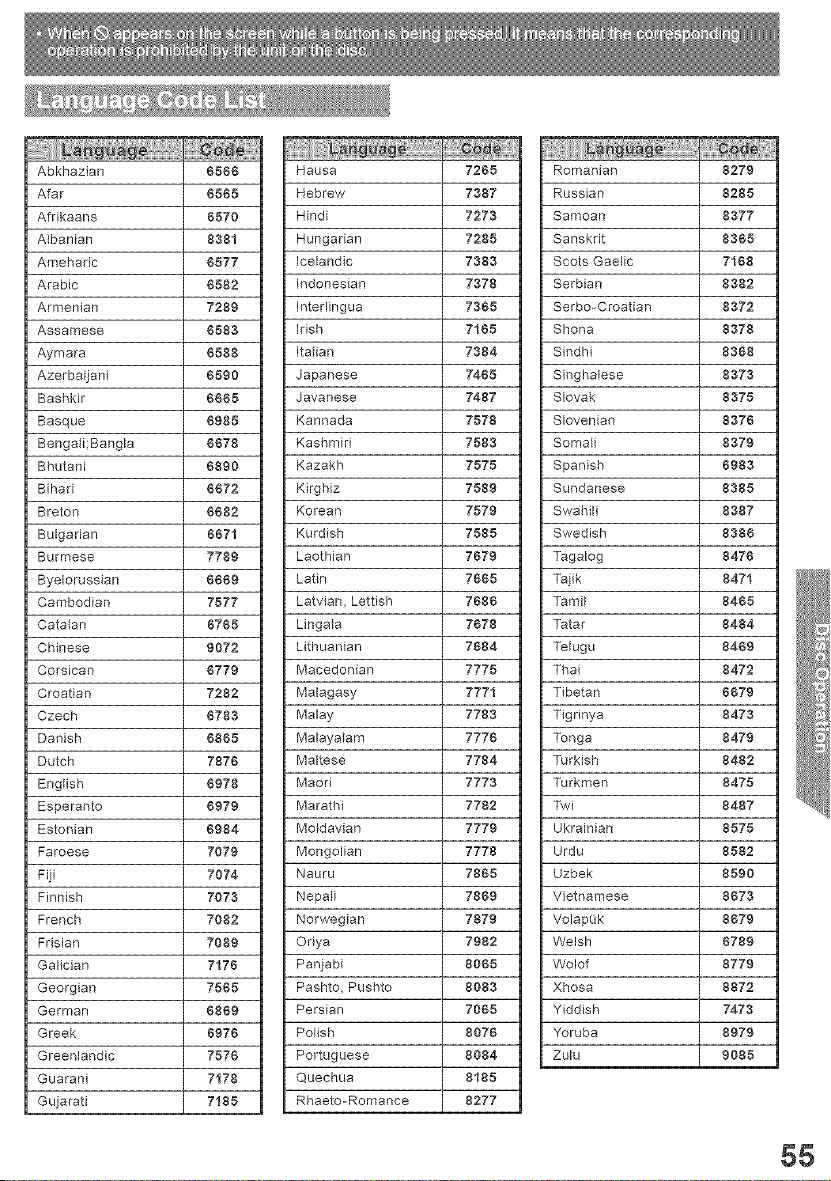
Abkhazian 6566 Hausa 7265
Afar 6565 Hebrew 7387
Afrikaans 6570 Hindi 7273
Albanian 8381 Hungarian 7285
Amehadc 6577 Icelandic 7383
Arabic 6582 Indonesian 7378
Armenian 7289 Interlingua 7355
Assamese 6563 irish 7165
Aymara 6588 Italian 7384
Azerbaijani 6590 Japanese 7465
Bashkir 6665 Javanese 7487
Basque 6985 Kannada 7578
Benga_i;Bangla 6678 Kashmid 7583
Bhutani 6860 Kazakh 7575
Bihari 6672 Kirghiz 7589
Breton 6682 Korean 7579
Bulgarian 6671 Kurdish 7585
Burmese 7786 Laothian 7679
Byelorussian 6669 Latin 7665
Cambodian 7577 Latvian, Lettish 7686
Cata{an 6765 Lingala 7678
Chinese 9072 Lithuanian 7684
Corsican 6776 Macedonian 7775
Croatian 7282 Malagasy 7771
Czech 6783 Malay 7783
Danish 6865 Malayalam 7776
Dutch 7876 Maltese 7784
English 6978 Maori 7773
Esperanto 6976 Marathi 7782
Estonian 6684 Moldavian 7779
Faroese 7079 Mongolian 7778
Fiji 7074 Nauru 7865
Finnish 7073 Nepali 7869
French 7082 Norwegian 7879
Frisian 7089 Oriya 7982
Galician 7176 Panjabi 8065
Georgian 7565 Pashto, Pushto 8083
German 6869 Persian 7065
Greek 6976 Polish 8076
Greenlandic 7576 Portuguese 8084
Guarani 7178 Quechua 8185
Gujarati 7185 Rhaeto-Romance 8277
Romanian 8279
Russian 8285
Samoan 8377
Sanskrit 8565
Scots Gaelic 7166
Serbian 8362
Serbo-Croatian 8372
Shona 8378
Sindhi 8568
Singhalese 8378
Slovak 8575
Slovenian 8376
Somali 8379
Spanish 8683
Sundanese 8385
SwahiH 8387
Swedish 8386
Tagalog 8476
Tajik 8471
Tamil 8465
Tatar 8484
Telugu 8469
Thai 8472
Tibetan 6679
Tigdnya 8473
Tonga 8479
Turkish 8482
Turkmen 8475
Twi 8487
Ukrainian 8575
Urdu 8582
Uzbek 8590
Vietnamese 8673
VolapQk 8679
Welsh 6789
Wolof 8779
Xhosa 8872
Yiddish 7473
Yoruba 8979
Zulu 9085
55
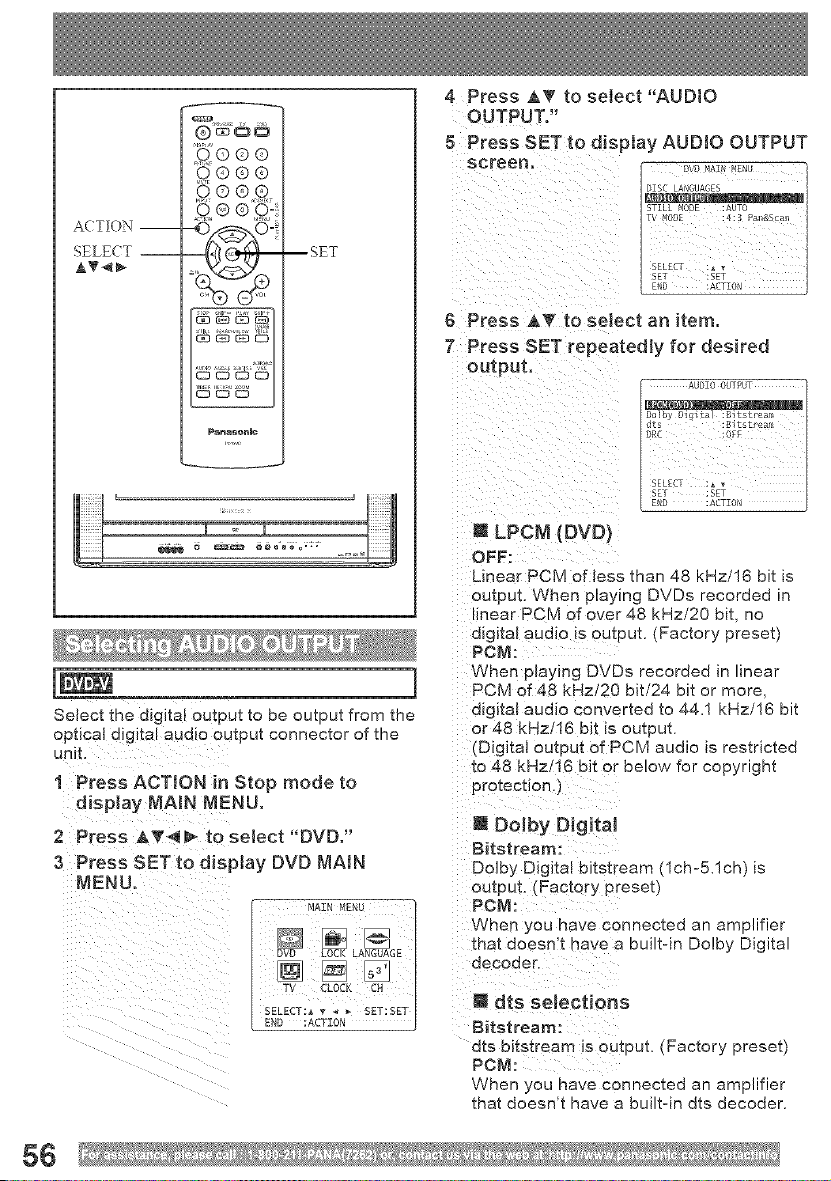
A( TION --
SELE(T --
AT_
o o o
9ooo
,9®®®
,q®
P_nas_nlc
--SET
4 Press AT to setect"AUDIO
OUTPUT."
5 Press SETto disptay AUDIO OUTPUT
screen,
6 Press _.T to select an item,
7 Press SET repeatedly for desired
output.
J LPCM (DVD)
OFF:
Linear PCM of less than 48 kHz/16 bit is
output. When p[ay_ng DVDs recorded in
linear PCM of over 48 kHz/2O bit, no
digital audio is outpu[. (Factory preset)
PCM:
1 When _,aying DVDs recorded in linear
__ j PCM of 48 kHz/2O bit/24 bit or more,
Select the digital output to be output from the afg_tal audio converted to 44.1 kHz/16 bit
optical digital audio output connector of the
unit.
! Press ACTION in Stop mode to
display MAIN MENU.
2 Press &_'4_ to select "DVD."
3 Press SET to display DVD MAtN
MAIN MENU
;! ii
END :ACTION
SELECT:_ _r _ _ SET:SET
or 48 kHz/16 bit _soutput.
:Digita! output of PCM audio is restricted
to 48 kHz/16 bit or below for copyright
protection
m Dolby Digital
Bitstream:
Dolby Diglta! bJtstream (lcho5.1ch) is
output. [Factory preset)
PCM:
When you have connected an amplifier
that doesn't nave a built-in Dolby Digital
decoder.
I tits selections
Bitstream:
dts bitstream is outeu[. (Factory preset)
PCM:
When /ou have connected an amplifier
that doesn't have a built-in dts decoder.
56
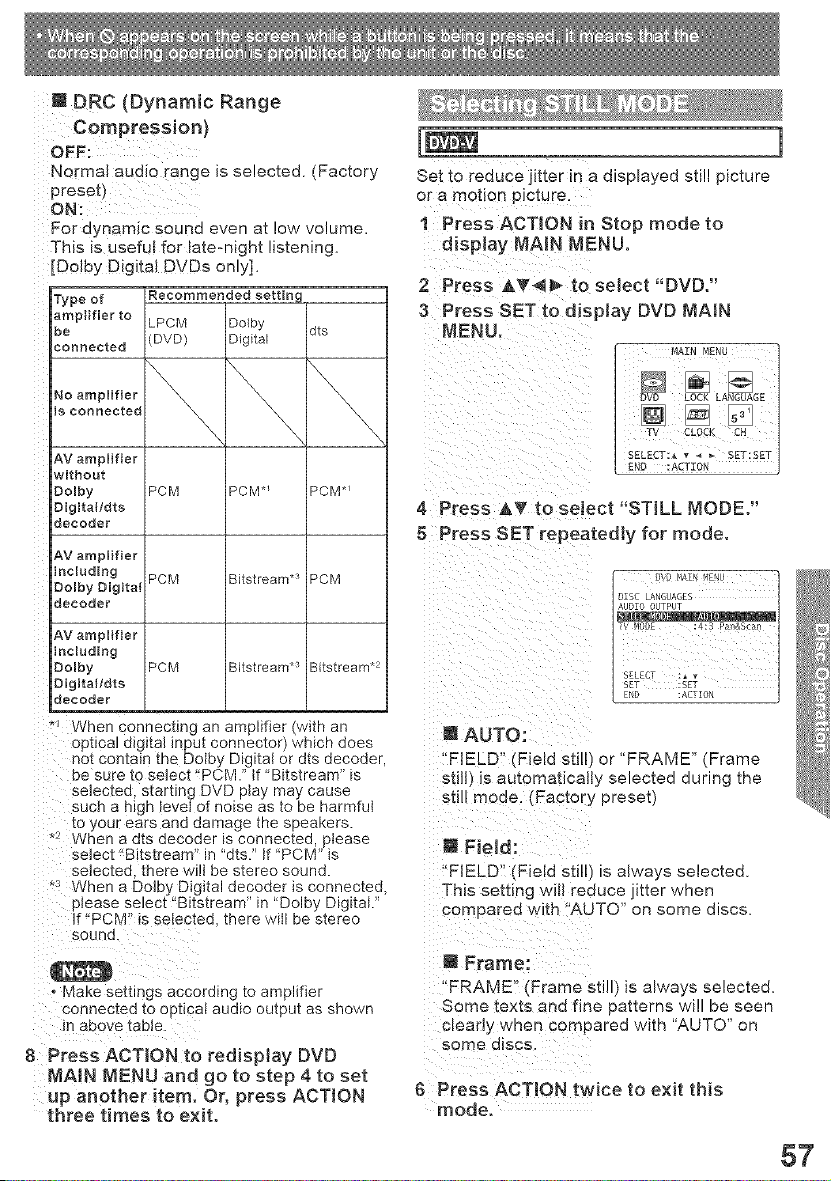
DRC (Dynamic Range
Compression)
Normal audio range is selected. (Factory
preset)
For dynamic sound even at low volume.
This is useful for late-night listening.
[Dolby Digital DVDs only].
Type of Recommended setting
_amplifier to LPCM Dolby
be dts
connected (DVD) Digital
No ampHfier \" _\ \"_, "\_,
is connected _, _\\
AV amplifier
without
Oolby PCM PCM*_ PCM*_
Oigita{/dts
decoder
AV amplifier
including
Dolby Digita{ PCM Bitstream.3 PCM
decoder
AV amplifier
includi#g
Oolby PCM Bitstream*:' Bitstream.2
Oigita{/dts
ldecoder
/
* When Connecting an amplifier (with an
optical digital input connector) which does
not contain the Dotby Digital or dts decoder,
be sure to select "PCM." tf ' Bitstream" is
selected, starting DVD play may cause
such a high Jeve{ of noise as to be harmful
to your ears and damage the speakers.
*2 When a dts decoder is connected, please
select _tBitstream" in "dts." if "PCM" is
selected, there wilt be stereo sound.
"3 When a Dolby Digital decoder is connected,
please select "Bitstream" in "Dolby Digital."
If _'PCM ' is selected, there will be stereo
Set to reouce jitter in a displayed still picture
or a motion picture.
! Press ACTION in Stop mode to
display MAiN MENU,
2 Press &T4_ _o select "DVD."
3 Press SET to display DVD MAIN
MENU,
4 Press _,T to select "STILL MODE."
5 Press SET repeatedly for mode.
OTSC LANGUAGES
T_SEFSFL£CTFIO_)£ :S£T:_v:4:_ Pan&Sca_ l _i_®
l AUTO: ;;'
"FIELD" (Field still) or "FRAME" (Frame
still) is automaticalt/selected during the
still mode. (Factory preset)
m FieJd:
"FIELD" (Field sti!l) is always selected.
This setting wiII reduce jitter when
compared with 'AUTO" on some discs.
Make settings according to amplifier
connected to optical audio output as shown
8 Press ACTION to redispiay DVD
MA!N MENU and go to step 4 to set
up another item. Or, press ACTION
three times to exit.
m Frame:
'FRAME" "Frame sti ) is always selected.
Some texts and fine patterns will be seen
c_earJy wnen compared with "AUTO" on
some discs
6 Press ACTION twice to exit this
mode.
57
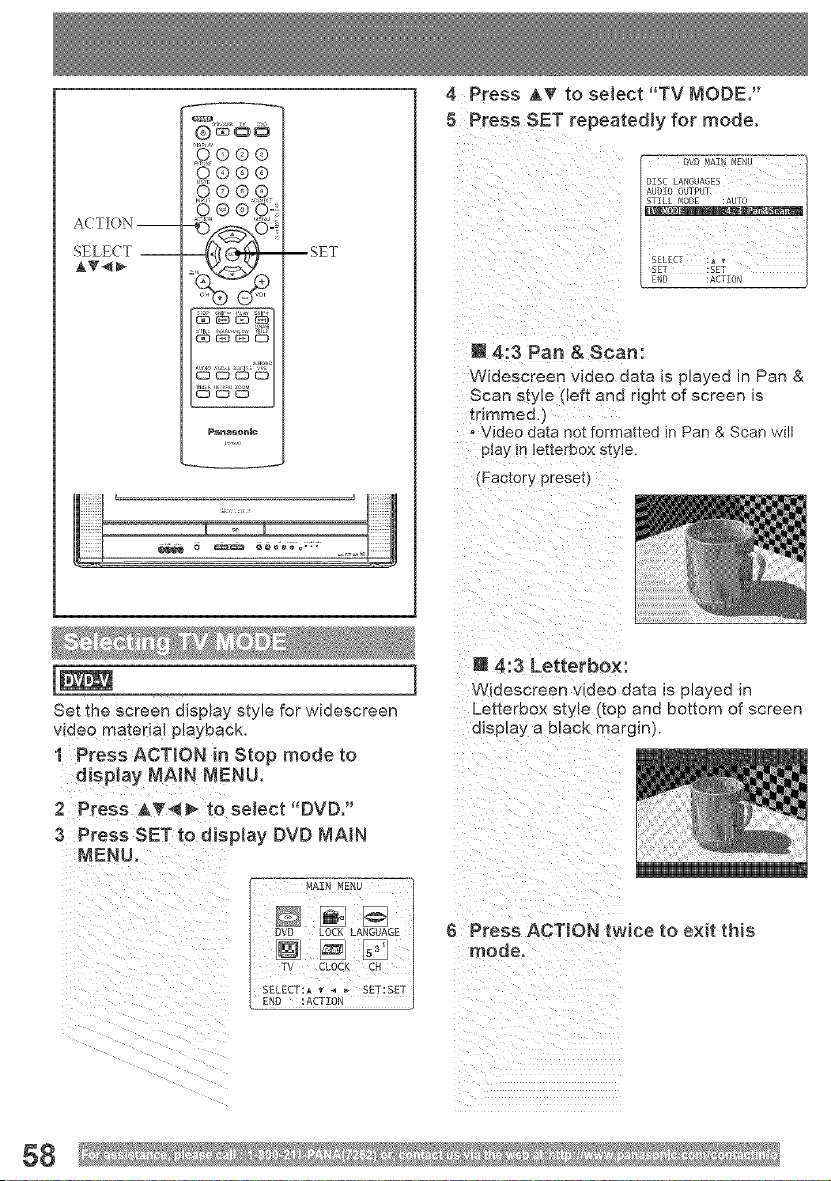
A( TR)N --
SELECT --
AT<_
9®®®
o e
Panas_nlc
--SET
4 Press AT to select "TV MODE,"
5 Press SET repeatedly for mode.
m 4:3 Pan & Scan:
Widescreen video aa_a is played in Pan &
Scan style (left and dght of screen is
_rlmmed.)
, Video data not formatted in Pan & Scan will
play m _etterbox s_y{e.
(Factory preset,
Set the screen display style for widescreen
video mate[!al playback.
1 Press ACTION in Stop mode to
display MAIN MENU,
2 P[ess &V'<_ to select "DVD."
3 Press SET to disptay DVD MAIN
MENU,
W 4:3 Letterbox:
Wiaescreen video data is played in
Letterbox style t[op and bottom of screen
display a black margin)
6 Press ACTION twice to exit this
mode,
58
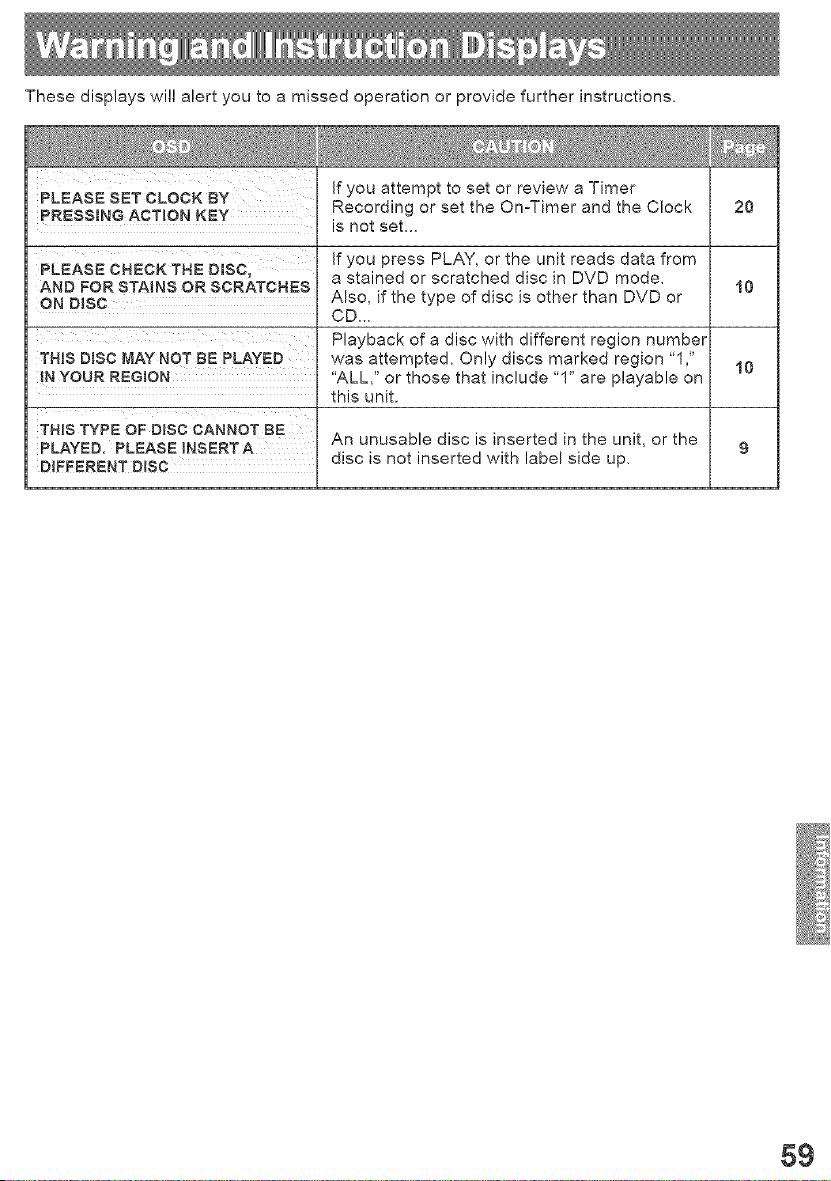
These displays will alert you to a missed operation or provide further instructions.
If you attempt to set or review a Timer
PLEASE SET CLOCK BY
PRESSING ACTION KEY Recording or set the On-Timer and the Clock 20
is not set...
If you press PLAY, or the unit reads data from
PLEASE CHECK THE O_$C, a stained or scratched disc in DVD mode.
AND FOR STAINS OR SCRATCHES 10
ON DISC Also, if the type of disc is other than DVD or
CD...
Playback of a disc with different region number
THIS DISC MAY NOT BE PLAYED was attempted. Only discs marked region "1," 10
IN YOUR REGION "ALL," or those that include "1" are playable on
this unit.
THIS TYPE OF DISC CANNOT BE An unusable disc is inserted in the unit, or the
PLAYED. PLEASE _NSERTA 9
DIFFERENT DISC disc is not inserted with label side up.
59
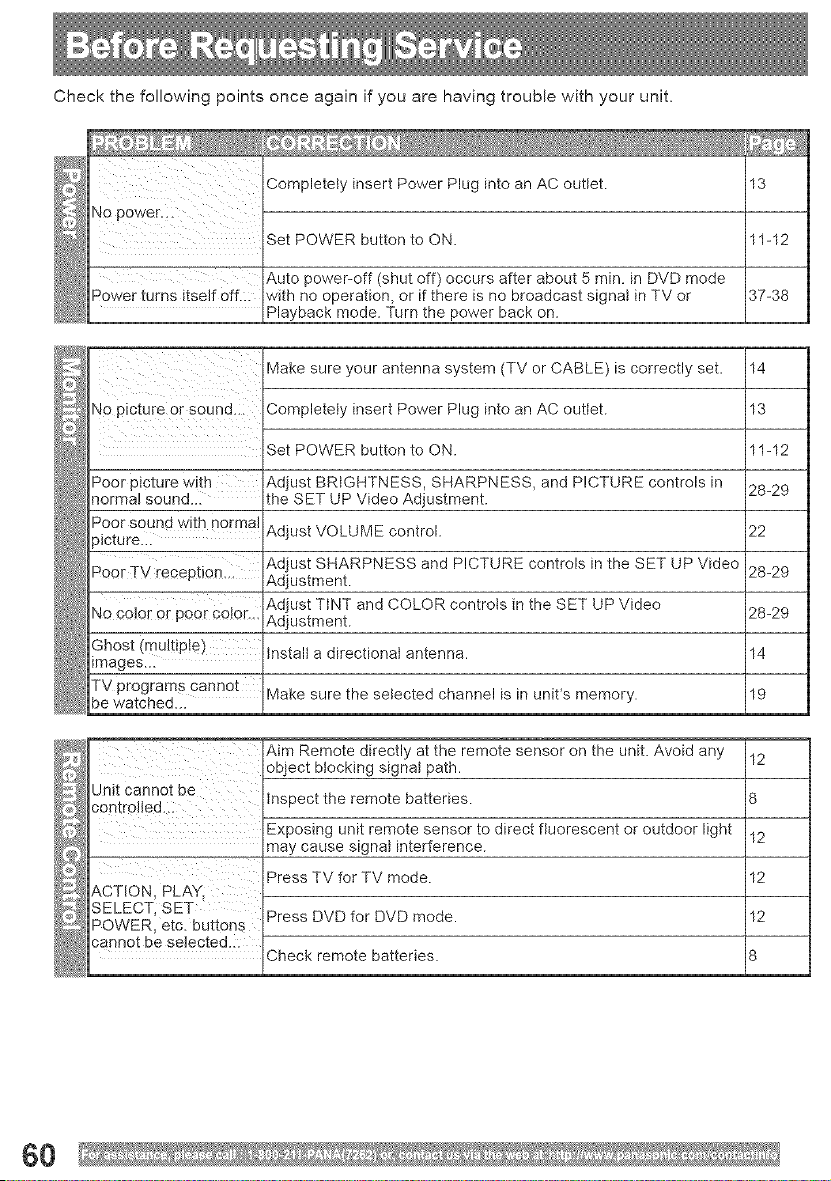
Check the following points once again if you are having trouble with your unit.
Completely insert Power Plug into an AC outlet. 13
No Power. i
_tton to ON_11-12 1
A__n. _nDMDmode I
Power turns itself 0ff.:i _ in TM or 137-38
Pla_e power back on. I 1
Make sure your antenna system (TV or CABLE) is correctly set. 14
Completely insert Power Plug into an AC outlet. 13
Set POWER button to ON. 11-12
Poor picture with Adjust BRIGHTNESS, SHARPNESS, and PICTURE controls in 28-29
normal sound..i the SET UP Video Adjustment.
i
Poor sound with normal Adjust VOLUME control. 22
ficture.il
Adjust SHARPNESS and PICTURE controls in the SET UP Video 28-29
Adjustment.
Adjust TINT and COLOR controls in the SET UP Video
No co!or or poor color.. Adjustment. 28-29
Ghost (multiple)Install a directional antenna. 14
images...
TV programs cannot Make sure the selected channel is in unit*s memory. 19
be watched...
!::'_ Aim Remote directly at the remote sensor on the unit. Avoid any
object blocking signal path.
cUor_tCo_t_t?!b e inspect the remote batteries.
Exposing unit remote sensor to direct fluorescent or outdoor light
may cause signal interference.
Press TV for TV mode.
ACTION, PLAY,
SELECT_ SET Press DVD for DVD mode.
POWER, etc. buttons
cannot be selected...
Check remote batteries.
12
8
12
12
12
8
60
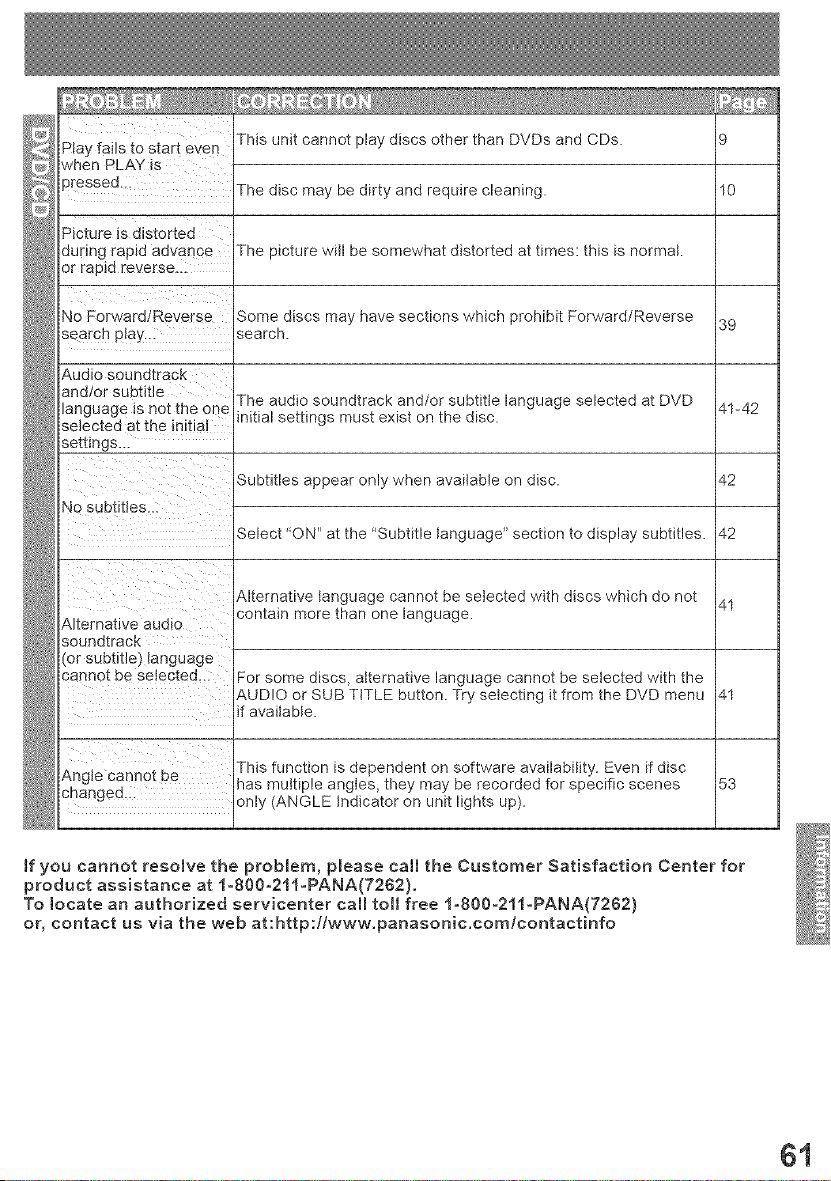
This unit cannot play discs other than DVDs and CDs.
Play fails to start even
3ressed.il The disc may be dirty and require cleaning. 10
Picture is distorted
during rapid advance
or rapid reverse..:
No Forward/Reverse
search play...
ana!or subtitle
_anguage is not the one
se_ec_ea a_ _ne _n_tlaJ
settings...
No subtitles..
udto
SOl na_racK
(or subtitle) language
cannot be selected...
De
cnangea..
The picture will be somewhat distorted at times: this is normal.
Some discs may have sections which prohibit Forward/Reverse
39
search.
The audio soundtrack and/or subtitle language selected at DVD 41-42
initial settings must exist on the disc.
Subtitles appear only when available on disc.
Select "ON '_at the "Subtitle language" section to display subtitles.
Alternative language cannot be selected with discs which do not
contain more than one language.
For some discs, alternative language cannot be selected with the
AUDIO or SUB TITLE button. Try selecting it from the DVD menu
if available.
This function is dependent on software availability. Even if disc
has multiple angles, they may be recorded for specific scenes
only (ANGLE Indicator on unit lights up).
42
42
53
[f you cannot resolve the problem, please call the Customer Satisfaction Center for
product assistance at IoS00°211°PANA(7262).
To locate an authorized servicenter call toll free 1-800-211-PANA(7262)
or, contact us via the web at:http://www.panasonic.com/contactinfo
61
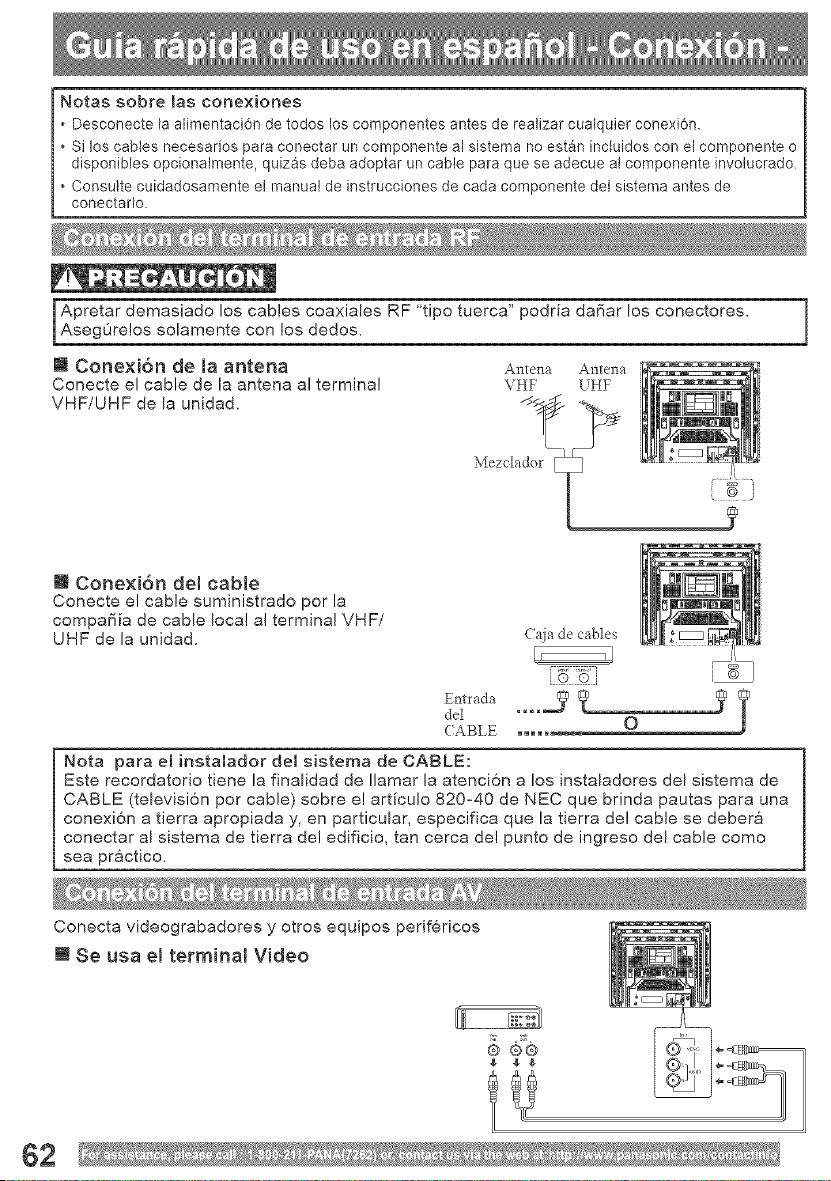
Notas sobre [as conexiones
, Desconecte la alimentaci6n de todos los componentes antes de realizar cualquier conexi6n.
, Si los cables necesarios para conectar un componente al sistema no estSn incluidos con el componente o
disponibles opcionalmente, quiz_s deba adoptar an cable para que se adecue al componente involucrado
, Consulte cuidadosamente el manual de instrucciones de cada componente del sistema antes de
conectarlo.
Apretar demasiado los cables coaxiales RF 'tipo tuerca" podria da_ar los conectores,AsegOrelos solamente con los dedos,
m Conexi6n de Ja antena Antena Antena
Conecte el cable de la antena a] terminal \HF UHF
VHF/UHF de la unidad,
]
m Conexi6n del cabJe
Conecte el cable suministrado pot la
compai_ia de cable local a! terminal VHF/
UHF de la unidad.
(_ia de cables
12
del
J
(:ABLE O
Nota paraeminstaladordelsistemadeCABLE:
Este recordatorio tiene la finalidad de Ilamar la atenci6n a los instaladores del sistema de
CABLE (televisi6n pot" cable) sobre e! articulo 820-40 de NEC que brinda pautas para una
conexion a tierra apropiada y, en particular, especifica que la tierra de! cable se debera
conectar al sistema de tierra de! edificio, tan cerca del punto de ingreso del cable como
sea practico,
Conecta videograbadores y otros equipos perifericos
m Se usa eJ terminam Video
@®@
62
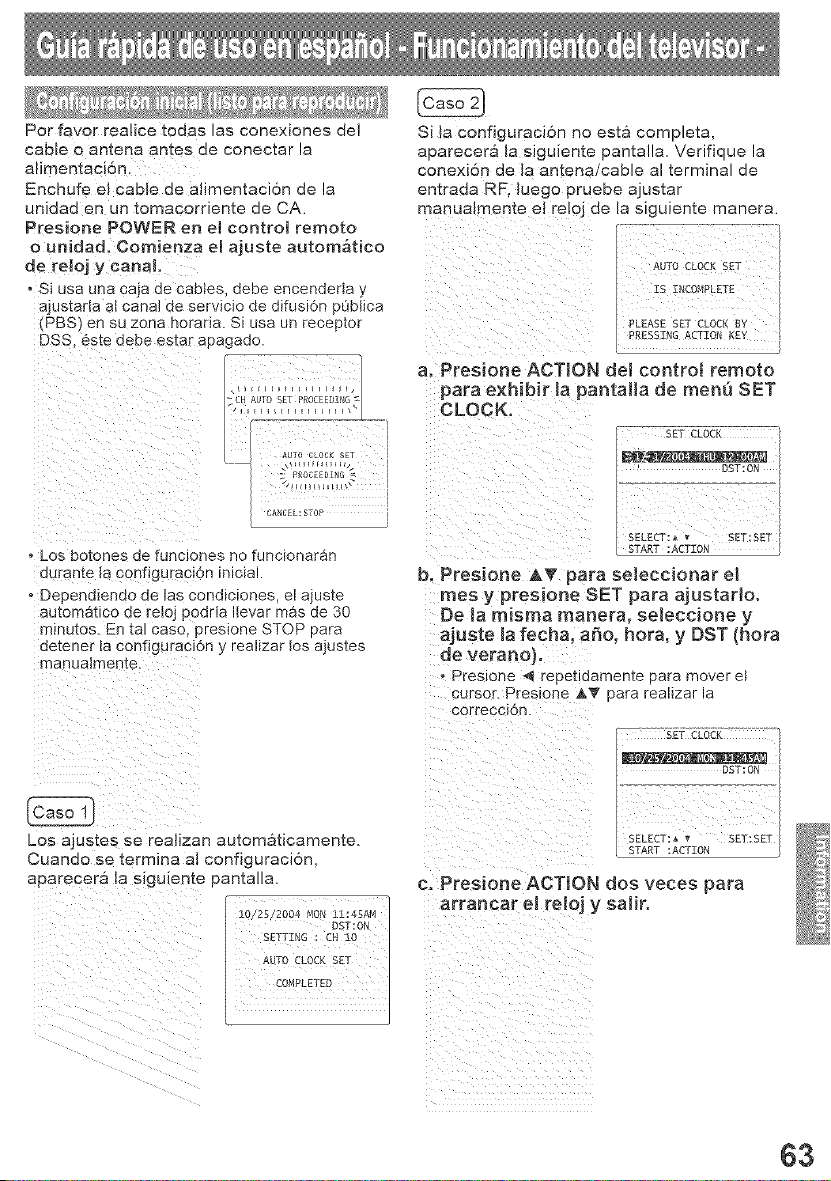
Por favor realice todas las conexiones de!
cable o antena antes de conectar la
alimentaci6n.
Enehufe el cable de alimentaci6n de la
unidad en un tomacorriente de CA.
Presione POWER en e[ control remoto
o unidad. Comienza e[ ajuste autom&tico
de [eioj y canal
, Si usa una caja de cabbs, debe encendeda y
ajustarIa a[ canal de servicio de difusi6n p0btica
(PBS) en su zona horada. Si usa un receptor
DSS, 6ste debe estar apagado.
_"4jiCHAUTO SET PROCEEDZNG
AUTO CLOCK SET I
2 pROCEED [NG _*_ I
CANCEL: STOP i
• Los botones de funciones no funcionaran
durant e la configuraci6n inicial.
• Dependiendo de las condiciones, el ajuste
automatico de retoj p0dria Ilevar mas de 30
minutos. En tal caso, presione STOP para
detener la configuraci6n y realizar los a]ustes
manuaImente.
Si la configuracJon no esta corn ole[a.
apareeera [a siguiente pamaHa Verffiaue a
conexi6n de la amena!caule a _ermma ae
emrada RR luego prueoe ajus_ar
ff/anualmen1:e eJ reIoj de la SlgUlente manera.
AUTO CLOCK SET
IS ZNCOqPLETE [
PLEASE SET CLOCI BY
PRESSZNGACTION K£Y
a. Presione ACTION del controt remoto
para exhibit la pantaHa de menu SET
CLOCK.
SET CLOCK
DST:ON
SELECT: _ _ SET:SET
START :ACTION
bo Presione A_' para seIeccionar el
rues y presione SET para ajustarlo.
De la rnisrna rnanera, seleccione y
ajuste [a fecha, afro, hora, y DST (hora
de verano}.
- Preslone _ repetJaameme oara mover et
cursor. PresJone _'i_ aara reauzar la
correocion.
SET CLOCK
)ST:ON
Los ajustes se reaiizan automaticamente.
Cuando se termina al configuraci6n,
aparecer& ia s!guiente pantalla.
SELECT:_ _ SET:SET
START :AL_ZON I
c, Pres[one ACTION dos veces para
arrancar el reIoj y saIir.
(}3
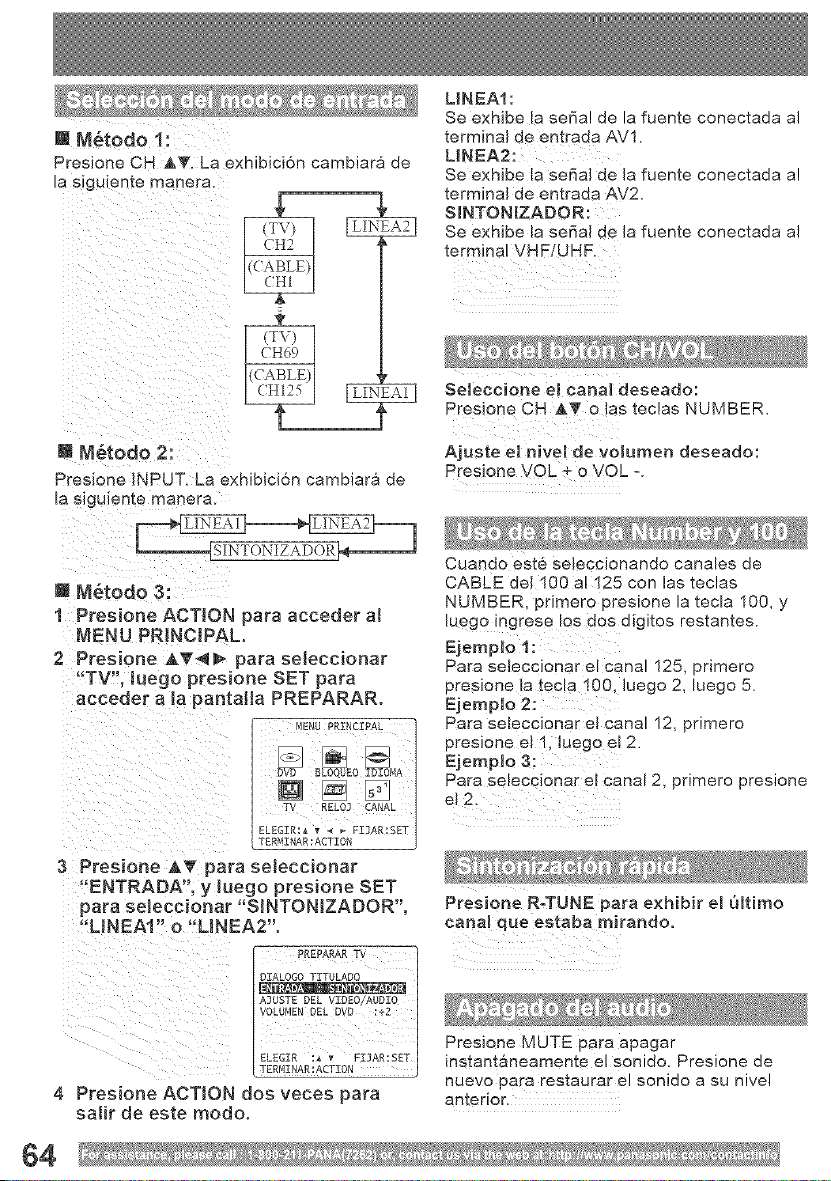
[] M_todo 1:
Presione CH AT. La exniDici6n cambiara de
a siguiente manera.
U Netodo 2:
Presione iNPUT. La exhibici6n cambiara de
La siguieme manera.
m M_todo 3:
I Presione ACTION para acceder at
MENU PRiNCiPAL,
2 Presione A__ para se[eccionar
"TV', tuego presione SET para
acceder a la pantatla PREPARAR.
MENU PRINCIPAL
531
Nj L I
TER_INAR : ACTION
ELEGIR:_ v _ _ FIJAR:SET
3 Presione AT para seleccionar
"ENTRADA', y luego presione SET
para seleccionar "SINTONIZADOR",
"UNEAI" o "LINEA2",
PREPARARTV 1
4 Presione ACTION dos veces para
satir de este modo.
UNEAI:
Se exhibe la serial de la fuente conectada al
terminal de entrada AVI=
LINEA2:
Se exhJbe la serial de la fuente conectada a!
terminal de entrada AV2.
SINTONIZADOR:
Se exhJbe la seria} de la fuente conectada al
terminal VHF/UHF.
Seleccione eJ canal deseado:
Presione CH AT o 1as teclas NUMBER.
Ajuste e[ hive[ de vo]umen deseado:
Presione VOL + o VOL =.
Cuando este seleccJonando canales de
CABLE de! 100 a!125 con las teclas
NUMBER, pdmero presione la tecla 100, y
luego ingres e los dos digitos restantes.
Ejempb i:
Pa[a se_eccionar el canal 125, primero
presione la _ee!a 100, luego 2, luego 5.
Ejemplo 2:
Rata seleccionar el canal 12, primero
presione el 1, luego el 2.
Ejemp_lo 3:
Para selecciona_ el canal 2, primero pres=one
el2.
Presione R.TUNE para exhibit e_ 6_timo
cana! que estaba mirando.
Presione MUTE para apagar
instantaneamente el sonido. Presione de
nuevo para restaurar e! sonido a su nivel
anterior,
64
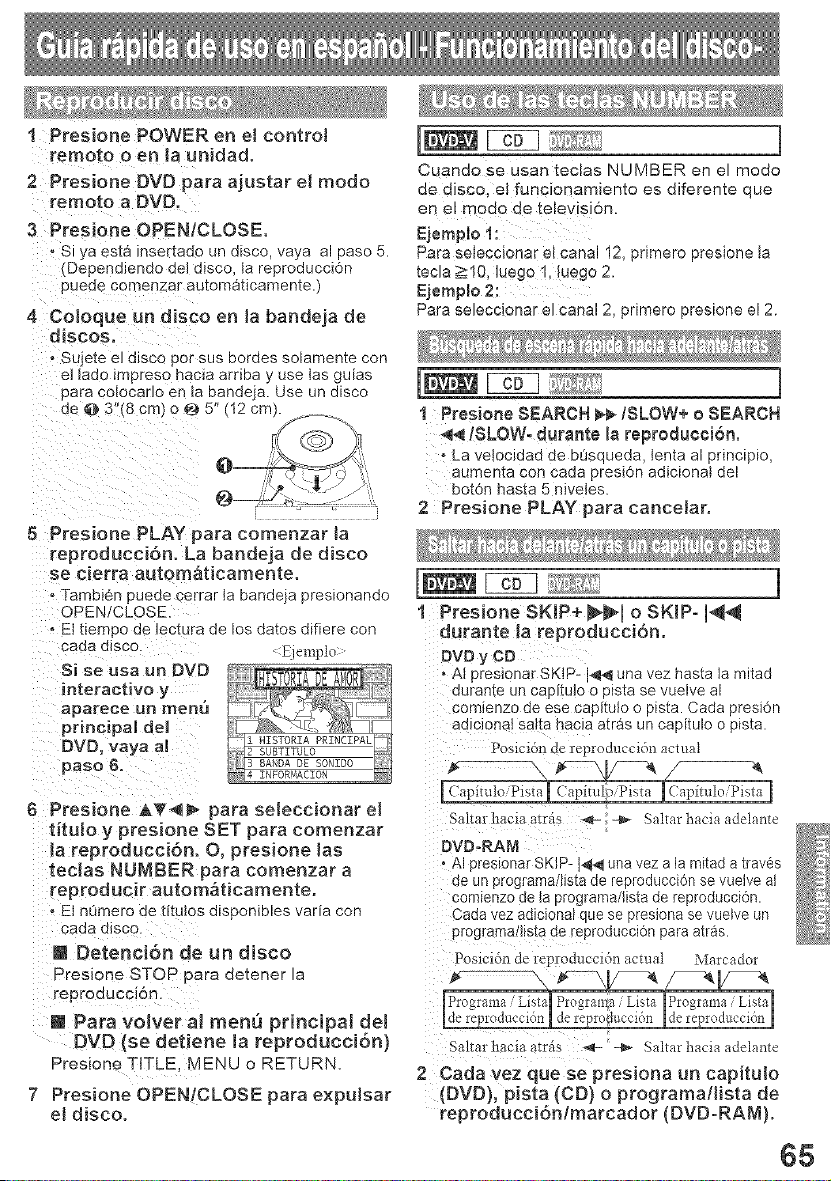
1 Pres[one POWER en et controt
remote o en [a uNdad,
2 Pres[one DVD para ajustar e[ mode
remote a DVD.
3 Presione OPEN/CLOSE.
- S_ _a esta insertado un d_sco, vaya al paso 5.
Depenalenoo aeJ utsco, la reproducci6n
pueoe oomeBzar a Jtomatlcamente.)
4 Coloque un disco en la bandeja de
discos.
° Su_e_ee] also() par sus Doraes solamente con
eJlado impreso haoia arnba y use tas guias
para coIocar]o en Ia bandeja. Use un disco
de @ 3"(8 cm) o @ 5" (I2 cm_.
5 Presione PLAY para comenzar la
reproducci6n° La bandeja de disco
se cierra automaticamente.
oTambi6n pueae cerrar la bandeja presionando
OPEN/CLOSE.
o Et tiempo ae lecmra oe los dates difiere con
coda disco. Eiemplo
Si se usa an DVD
interactive y
aparese un men_5
principal de[
DVD, vaya a[
paso 6.
6 Presione A_'@I_ pare seleccionar e[
tituio y presione SET para comenzar
la reproducci6n. O, presione los
tec[as NUNBER para comenzar a
reproducir automaticamente.
- Et nGmero de t[tutos dispoMbles varia con
cada disco.
@ Detenci6n de un disco
Presione STOP para ae_ener [a
reproducci6n.
@ Pare voNer a[ merit] principal del
DVD {se detiene [a reproducc[dn)
Presiona TITLE. [_]ENU o RETURN.
7 Presione OPEN/CLOSE pare expu[sar
el disco.
Cuando se usan teclas NUMBER en el mode
de disco, el funcionamiento es diferente que
en el mode de telev!si6n.
EjemNo 1:
Pare seleccionar et canal 12, primero presione ta
tecla _10, luego 1, !uego 2.
EjempBo 2:
Para se]eccionar el canal 2, primero presione el 2.
1 : PresioneSEARCH _/SLOW+ o SEARCH
/SLOW. durante la reproduction.
t La vetocidad de bt?squeda, tenta al pdncipio,
aumenta con coda presiOn adicional del
botOn haste 5 nivetes.
2 Presione PLAY para canceiar,
1 Presione SKIP+ I1@,[o SKIP- [@
durante la reproducci6n.
DVD y CD
o A[ presi0nar SKIP- _ una vez hasta la mitad
durante un capitulo o pista se vuelve al
comienzo de ese capitulo o pista. Coda presi6n
adicJ0na! so!to hacia arras un capitulo o pista
Posicidn de reproducci&_ act ual
Capitulo Pista
Saltarhaciaatri_s _t-',-l_ Saltarhaciaadelante
DVD-RAM
, AI presionar SKIP- }_ una vez a la mitad a tray,s
de un programa!lista de reproducci6n se vuelve al
cam enzo de la programa/lista de reproducci6n.
Cada vez adicJonal que se presiona se vueNe un
programa/lista de reproducci6n pare atras.
Posicidn de reproduccidn actual Marcador
Pr%rama, LinealP,oo,a,#
de reprodu,._qdrl_ repr@ucc dn [de reproduucidn [
Saltarhaciaat%s _- -_ Saltarhacia adelante
2 Cada vez que se presiona un capituio
{DVD}, pista (CD) o programa/iista de
reproduccidn/marcador {DVD-RAM}.
(}8
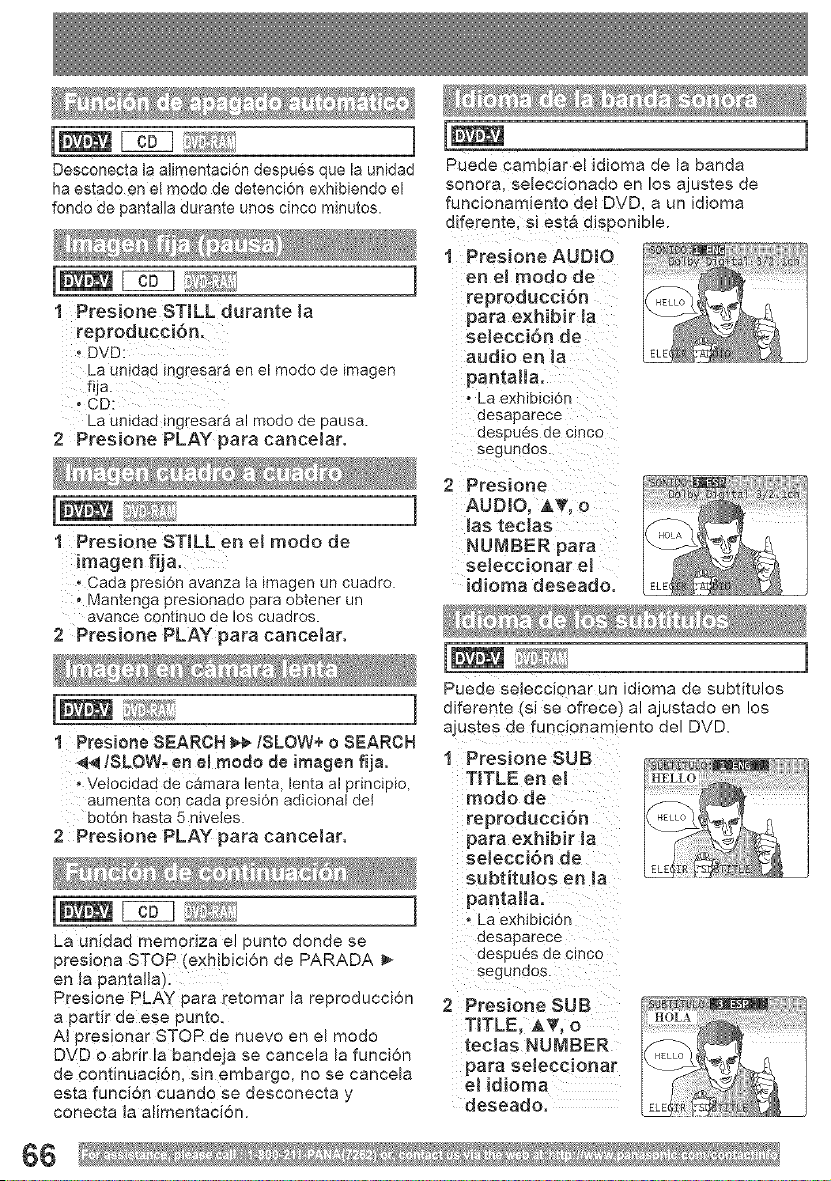
Desconecta la a]imentaci6n despu6s que la unidad
ha estado en et modo de detenci6n exhibiende el
fond0 de pantalla durante unos cinco minutos.
Puede camDiar e[ idioma de la banda
sonora seleccionado en _os ajustes de
funcionamiento del DVD, a un idioma
diferer Ie, si esta dispom_)ie.
1 PresJone STILL durante la
reproducci6n:
_DVD:
La unidad ingresara en el modo de imagen
fija.
,CD:
La unidad ing[esara al modo de pausa.
2 PresJone PLAY para cancelar.
1
]
Presione AUDIO
en e[ modo de
reproducci6n
para exhibit Ja
seIecci6n de
audio en [a
pantaIIa.
• La exhibiciOn
aesaparece
aespucs de cmco
segunaos.
1 Presione STILL en el modo de
[magen fija.
• Cada presi6n avanza la imagen un cuadro.
Mantenga presionado para obtener un
avance continuo de los cuadros.
2 PresJone PLAY para cancelar.
]
1 P osio, eSEARCH /SLOW+oSEARC.
_/SLOW. en eJ modo de imagen fija.
, Velocidad de camara lenta, lenta al principio,
aumenta con cada presi6n adicional del
bot6n hasta 5 niveies.
2 Presione PLAY para cancelar.
La unidad memonza el punto donde se
presiona STOP (exh!bici6n de PARADA
en la pantalla):
Presione PLAY para retomar la reproduccion
a partir deese punto.
AI presionar STOP de nuevo en el modo
DVD o abrir la bandeja se cancela la funcion
de Cont[nuaci6n, sin embargo, no se cancela
esta funcidn cuando se desconecta y
conecta la alimentacJ6n.
2 Presione
AUDIO, AT, o
[as tecias
NUMBER para
seJeccionar el
idioma deseado,
Puede seleccionar un idioma de subtituios
diferente (si se ofrece) al ajustado en los
ajustes de funci0namiento del DVD.
1 Pres[one SUB
TITLE en e[
modo de
reproducci6n
para e×hibir la
seJecci6n de
subtituJos en Ja
pantal[ao
La exhibJci6n
desaparece
despu6s de cinco
2 Presione SUB
TITLE, AT, o
tecJas NUMBER
para seleccionar
e[ idioma
deseado.
66
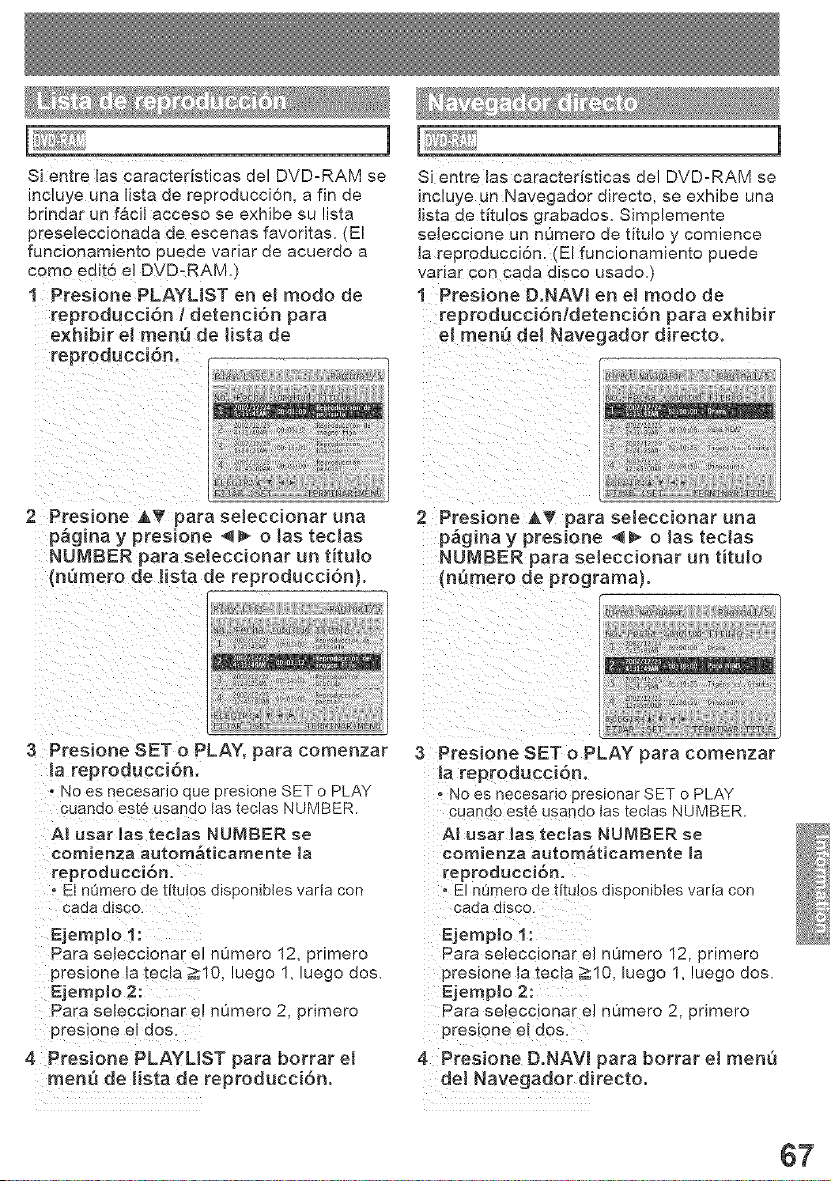
]
SJ entre las caracteristicas del DVD-RAM se
incluye una lista de reproducci6n, a fin de
brindar un f&cil acceso se exhibe su lista
pEeseleccionada de escenas favoritas, (El
funcionamiento puede variar de acuerdo a
como edit6 el DVD--RAM)
1 Presione PLAYUST en el modo de
[eproduccidn / detenci6n para
exhibit el rnen_ de lista de
reproducci6n.
SJentre las caracteristicas del DVD-RAM se
incluye un Navegauor atrec_o, se exhibe una
Hszade titulos grar_aaos Simplemente
seleccione un n6mero de titu!o y comience
la reproduccJ6n El funclonamiemo puede
varlar con cada disco usaeo )
1 Presione D.NAVI en ei modo de
reproducci6nldetenci6n pare exHbir
el rnenQ del Navegador directo.
_i ii_ 711 ! i_ ii_ ii _ ii
2 Presione AV para seleccionar una
p&gina y presione <_- o [as tecias
NUMBER pare seleccionar [in titulo
(n_nsero de !ista de reproducci6n},
2 Presione &_ para seleccionar una
p&gina y presione @l_ o [as tec[as
NUMBER pare seJeccionar un titulo
(n_rnero de programa).
3 Presione SET o PLAY, para comenzar
!a reproducci6n.
No es necesario que presione SET o PLAY
cuand0 est6 usando las teolas NUMBER.
AI user lee teclas NUMBER se
comienza autom_ticamente la
reproducci6n.
Et nOmero de titutos disponibles varia con
Ejemplo !:
Para seleccJonar el nQmero 12, primero
presJone la tecla _10, luego 1, luego dos.
Ejemplo 2:
Pare seleccionar el n0mero 2, primero
presione el dos.
4 Presione PLAYLIST para borrar et
rnen_ de [[sta de reproducci6n.
3 Presione SET o PLAY pare comenzar
la reproducci6n.
o No es necesano presionar SET o PLAY
cuanao es_e usanao tas tectas NUMBER.
AI user las teclas NUMBER se
eomienza autom&ticamente la
reproducci6n,
................................ varia con
cada dlsoo.
Ejenspio t :
Para seleccionar el nL_mer¢ 12, primero
preslone la tecla >10, luego 1, luego dos.
Ejemplo 2:
Pa _a seleccionar eJ numero 2, primero
presione el dos
4 Presione D.NAVI para borrar el menQ
del Navegador directo,
67
PANASONIC CONSUMER ELECTRONICS COMPANY.
DIVISION OF MATSUSHITA ELECTRIC CORPORATION
OF AMERICA
One Panasonic Way Secaucus, New Jersey 07094
PANASONIC SALES COMPANY DIVISION OF
MATSUSHITA ELECTRIC OF PUERTO RICO, INC,
AVE 65 de Infanteria, Kin. 9.5 San Gabriel Industrial
Park, Carolina, Puerto Rico 00985
Panasonic/Quasar Video Products
Limited Warranty
Limited Warranty Coverage
If your product does not work properly because of a defect in materials or workmanship, Panasonic
Consumer Electronics Company or Panasonic Sales Company (collectively referred to as "the warrantor")
will, for the length of the period indicated on the chart below, which starts with the date of original purchase
('warranty period"), at its option either (a) repair your product with new or refurbished parts, or (b) replace it
with a new or a refurbished product. The decision to repair or replace will be made by the warrantor.
Product Parts Labor Service Contact Number
One (1)'Year (except CCD Ninety (90) Days
Camcorder image Sensor)
CCD Image Sensor - 6 (Six) Ninety (90) Days Carry-In or Mailqn 1-800-211-PANA(7262)
Months
DVD/VCR Deck,
A/V Mixer One (1) Year Ninety (90) Days Carry-in or Mailqn 1-800-211-PANA(7262)
TV/VCR, TV/DVD, One (1) Year (except CRT) Ninety(g0) Days Carry-ln: 21" CRT and Smaller
TV/DVD/VCR CRT - Two (2) Years Ninety (90) Days In-Home or Carryqn: 22" CRT and 1-800-211-PANA(7262)
Combination Larger
TV/HDR One (1) Year (except CRT) Ninety (90) Days In-Home or Carry-In 1-888-843-9788
Combination CRT - Two (2) Years Ninety (90) Days
Rechargeable
Batteries
(in exchange for Ten (10) Days Not Applicable Carry-in or Mail-In 1-800-211-PANA(7262)
defective item)
Tape
(in exchange for Five (5) Days Not Applicable Carry-in or Mail-In 1-800-211-PANA(7262)
defective item)
Memory Cards
(in exchange for Ninety (90) Days Not Applicable Carry-in or Mail-in 1-800-211-PANA(7262)
defective kern)
During the "Labor" warranty period there will be no charge for labor During the "Parts '_warranty period, there will be
no charge for parts You must carry-in or mail-in your product or arrange for in-home service, as applicable, during the
warranty period.
If non-rechargeable batteries are included, they are not warranted. This warranty only applies to products purchased and
serviced in the United States or Puerto Rico. This warranty is extended only to the original purchaser of a new product
which was not sold 'as is'_ A purchase receipt or other proof of the original purchase date is required for warranty service.
Carry-In, Mail-in or In-Home Service
For Carry-In, Mail-In or In-Home Service (as applicable) in the United States call toll free contact number listed above or
visit Panasonic Web Site: http://www.panasonic corn
For assistance in Puerto Rico call Panasonic Sales Company (787)-750-4300 or fax (787)-768-2910
In-Home service, if applicable, requires clear, complete and easy access to the product by the authorized servicer and
does not include removal or re-installation of an installed product It is possible that certain in-home repairs will not be
completed in-home, but will require that the product, or parts of the product, be removed for shop diagnosis and/or repair
and then returned
Limited Warranty Limits And Exclusions
This warranty ONLY COVERS failures due to defects in materials or workmanship, and DOES NOT COVER normal wear
and tear or cosmetic damage, nor does it cover markings or retained images on the picture tube resulting from viewing
fixed images (including, among other things, letterbox pictures on standard 4:3 screen TV's, or non-expanded standard
4:3 pictures on wide screen TVs, or onscreen data in a stationary and fixed location) The warranty ALSO DOES NOT
COVER damages which occurred in shipment, or failures which are caused by products not supplied by the warrantor,
68
or failures which result from accidents, misuse, abuse, neglect, mishandling, mbapplication, alteration, fau{ty installation,
set-up adjustments, misadjustment of consumer controls, improper maintenance, power line surge, lightning damage,
modification, or commercia_ use (such as in a hotel, omce, restaurant, or other business), rental use of the product,
service by anyone other than a Factory Servicenter or other Authorized Servicer, or damage that is attributable to acts of
God.
THERE ARE NO EXPRESS WARRANTIES EXCEPT AS LISTED UNDER "LIMITED WARRANTY COVERAGE".
THE WARRANTOR IS NOT LIABLE FOR iNCIDENTAL OR CONSEQUENTIAL DAMAGES RESULTING FROM THE
USE OF THIS PRODUCT, OR ARISING OUT OF ANY BREACH OF THIS WARRANTY. (As examples, this excludes
damages for lost time, cost of having someone remove or re-install an installed unit if applicable, or travel to and from the
servicer, loss of media or images, data or other memory or recorded content. The items listed are not exclusive, but are
for illustration only.)
ALL EXPRESS AND IMPLIED WARRANTIES, INCLUDING THE WARRANTY OF MERCHANTABIMTY, ARE LIMITED
TO THE PERIOD OF THE LIMITED WARRANTY.
Some states do not allow the exclusion or limitation of incidental or consequential damages, or limitations on how long an
implied warranty lasts, so the exclusions may not apply to you.
This warranty gives you specific legal rights and you may also have other rights which vary from state to state If a
problem with this product develops during or after the warranty period, you may contact your dealer or Servicenter If the
problem is not handMd to your satisfaction, then write to the warrantor's Consumer Affairs Department at the addresses
listed for the warrantor
PARTS AND SERVICE (INCLUDING COST OF AN IN-HOME SERVICE CALL, WHERE APPLICABLE) WHICH ARE
NOT COVERED BY THIS LIMITED WARRANTY ARE YOUR RESPONSIBILITY.
1
Purchase Parts, Accessories and Instruction Books online for all Panasonic Products by
visiting our Web Site at:
h ttpt//www.pase.panasonie.com
or, send your request by E-mai_ to:
n_panasonic,corn
You may a_so contact us directly at:
1-800-382-5368 (Phone} 1-800-237o9080 (Fax Only) (Monday = Friday 9 am to 8 pro, EST.)
Panasonic Services Company
20421 84th Avenue South,
Kent, WA 98032
(We Accept Visa, IV]asterCard, Discover Card, American Express, and Persona_ Checks)
For hearing or speech impaired TTY users, TTY : t-866o605-1277 ]
As of October 2003 69
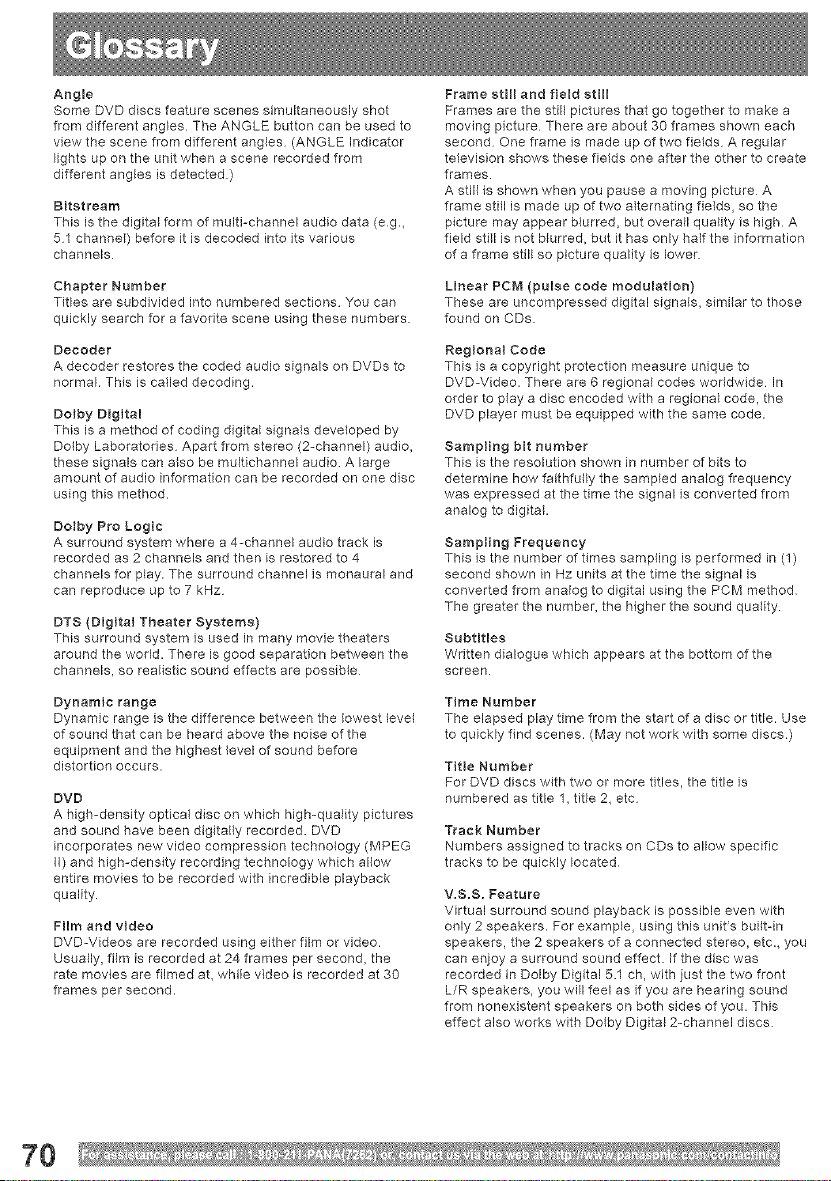
Angme
Some DVD discs feature scenes simultaneously shot
from different ang{es The ANGLE button can be used to
view the scene from different angles (ANGLE Indicator
lights up on the unit when a scene recorded from
different angles is detected)
Bitstream
This is the digital form of multi-channel audio data (eg.,
51 channel) before it is decoded into its vabous
channels
Chapter Number
Titles are subdivided into numbered sections You can
quickly search for a favorite scene using these numbers.
Decoder
A decoder restores the coded audio signals on DVDs to
normal. This is called decoding.
Dolby Digital
This is a method of coding digital signals developed by
Dolby Laboratories Apart from stereo (2-channel) audio,
these signals can a_so be multichannel audio A large
amount of audio information can be recorded on one disc
using this method.
Dolby Pro Logic
A surround system where a 4-channel audio track is
recorded as 2 channels and then is restored to 4
channels for play. The surround channel is monaural and
can reproduce up to 7 kHz
DTS (Digital Theater Systems}
This surround system is used in many movie theaters
around the world. There is good separation between the
channels, so realistic sound effects are possible
Dynamic range
Dynamic range is the difference between the lowest Eevel
of sound that can be heard above the noise of the
equipment and the highest level of sound before
distortion occurs.
DVD
A high-density optical disc on which high-quality pictures
and sound have been digitally recorded. DVD
incorporates new video compression technology (MPEG
il) and high-density recording technology which allow
entire movies to be recorded with incredible playback
quality.
FHm and video
DVD-Videos are recorded using either film or video.
Usually, film is recorded at 24 frames per second, the
rate movies are filmed at, while video is recorded at 30
frames per second.
Frame still and field still
Frames are the still pictures that go together to make a
moving picture There are about 30 frames shown each
second One frame is made up of two fields A regular
television shows these fields one after the other to create
frames.
A still is shown when you pause a moving picture A
frame still is made up of two alternating fields, so the
picture may appear blurred, but overall quality is high A
field still is not blurred, but it has only haffthe information
era frame still so picture quality is lower
Linear PCM (pulse code modulation)
These are uncompressed digital signals, similar to those
found on CDs.
Regional Code
This is a copyright protection measure unique to
DVD-Video. There are 6 regional codes worldwide In
order to play a disc encoded with a regional code, the
DVD player must be equipped with the same code.
Sampling bit number
This is the resolution shown in number of bits to
determine how faithfully the sampled analog frequency
was expressed at the time the signal is converted from
analog to digital.
Sampling Frequency
This is the number of times sampling is performed in (1)
second shown in Hz units atthe time the signal is
converted from analog to digital using the PCM method
The greater the number, the higher the sound quality.
Subtitles
Written dialogue which appears at the bottom of the
screen
Time Number
The elapsed play time from the start of a disc or title. Use
to quickly find scenes. (May not work with some discs.)
Title Number
For DVD discs with two or more titles, the title is
numbered as title 1, title 2, etc
Track Number
Numbers assigned to tracks on CDs to allow specific
tracks to be quickly located
V.S.S. Feature
Virtual surround sound playback is possible even with
only 2 speakers. For example, using this units builtdn
speakers, the 2 speakers of a connected stereo, etc., you
can enjoy a surround sound effect, if the disc was
recorded in Dolby Digital 5.1 ch, with just the two front
L/R speakers, you will feel as if you are hearing sound
from nonexistent speakers on both sides of you. This
effect also works with Do,by Digital 2-channel discs
7O

Picture Tubs 27 inch, measured diagonally pure flat Picture Tube
VHF 2 ~ 13, UHF 14 ~ 69
Midband A through I (14 ~ 22)
Superband J through W (23 ~ 36)
Hyperband AA ~ EEE (37 ~ 64)
Lowband A-5 ~ A-1 (95 ~ 99)
Special CABLE channe{ 5A (01)
UItraband 65 ~ 94, 100 ~ 125
Power Source 120 V AC, 60 Hz
Approx 146 W
Cer_sumPticn Power Off Approx 1.5 W
T'slevision System EIA Standard NTSC color
_peaker 2 pieces 5 W
Operating Temperature 5 °C ~ 35 °C (41 °F ~ 95 °F)
Operating Humidity 10 % ~ 75 %
_Jeight 48 kg (105.8 _bs)
_Jrr_eneions
760 mm (29-7/8") x 645 mm (25-3/8") x 511 mm (20-1/8")
12 cm (5") single-sided, singleqayer
12 cm (5") single-sided, doabledayer
i 12 cm (5") double-sided, double-layer
(one layer per side)
8 cm (3") single-sided, singledayer
8 cm (3") sh_gle-sided, doubleqayer
8 cm (3") double-sided, doubledayer
(one layer per side)
3VD-RAM 5" (12 cm) 9 4 GB (double-sided) and 4 7 GB (single-sided)
3" (8 cm) 2.8 GB (double-sided)
Compact disc (CD=DA, CD=R, 5" (12 cm) disc
CD-RW) 3" (8 cm) disc
Optical digita_ output Optical connector
655 nm (DVD)
_avelength 790 nm (CD)
Laser power: CLASS II
• Designs and specifications are subject to change without notice.
71

A
Accessories ................................................. 2
ACTION button .......................................... 11
AC Power Plug .......................................... 13
ADD/DELETE/CLEAR button ................... 11
Add or Delete a Channel ........................... 19
ANGLE button ........................................... 11
ANGLE Indicator ....................................... 12
Audio Adjustment ...................................... 29
AUDIO button ............................................ 11
Audio Input Connector 1 ........................... 13
Audio Input Connector 2 .............................
Audio Menu ............................................... 28
Audio Mode for TV Viewing ...................... 24
Audio Mute ................................................ 23
Audio Output Connector (L/R) .................. 13
Audio Soundtrack Language ..................... 41
AutooPower Off function ............................ 38
Automatic Channe! Setting ....................... 19
Automatic C!ock Setting ............................ 20
Auto Shut Off ............................................. 37
B
Before Requesting Service ....................... 60
Blocking Message ..................................... 36
Blue Screen Display .................................. 37
C
Canadian English Language Ratings ........ 34
Canadian French Language Ratings ........ 35
Caption On Mute Feature .......................... 27
Change Language Setting ........................ 21
Changing your secret code ....................... 31
Channel Display ........................................ 37
CHANNEL UP/DOWN button ................... 11
Closed Caption Mode Feature .................. 26
Connecting the '!, 2" AV Input Terminals. 15
Connecting the Audio Output Terminal ..... 16
Connecting the RF in Terminal ................. 14
D
Direct Navigator ........................................ 45
Discs that can be played ............................. 9
Disc Handling ............................................ 10
Disc Languages ........................................ 54
Disc Operation -Using Information Screen° _46
Disc Tray ................................................... 12
DISPLAY button ........................................ 11
DST (Daylight Saving Time) ........................ 8
DVD button ................................................ 11
DVD Volume Adjust ................................... 52
E
Enter Secret Code ..................................... 31
F
Forward/Reverse Chapter/Track Skip ...... 39
Forward/Reverse Rapid Scene Search .._ 39
Frame by Frame Picture ............................ 39
m
Important Safeguards and Precautions ...... 6
Information Display ................................... 43
Initial Setup (Ready to Play) ...................... 18
INPUT button ............................................ 11
L
Language Code List .................................. 55
Loading the Batteries .................................. 8
Location of Controls .................................. 11
M
Main Menu of DVD .................................... 40
Manual Clock Setting ................................ 20
MENU/PLAY LIST button .......................... 11
Multiple Angle Viewing .............................. 53
MUTE button ............................................. 11
N
NUMBER Keys .......................................... 11
O
ONoTIMER ................................................. 25
ON TIMER Indicator .................................. 12
OPEN/CLOSE ......................................... 11
Optical digital audio output connector ....... 13
P
Phones Jack .............................................. 12
Picture Zoom ............................................. 43
Play a DVDoRAM ...................................... 44
PLAY button .............................................. 11
Play Disc ................................................... 38
Play List ..................................................... 45
POWER button .......................................... 11
Program Play ............................................. 50
Program Repeat Play ................................ 51
R
Random Play ............................................. 51
Rapid Tune ................................................ 23
RAPID TUNE button ................................. 11
Receivable Broadcast Types .................... 24
Region Management Information .............. 10
Remote Control Buttons ............................ 11
Remote Sensor ......................................... 12
Reset all unit Memory Functions ............... 21
RESUME Function .................................... 39
RETURN ................................................... 11
72
S
Safety Precaution ........................................ 2
Safety Precautions ...................................... 4
SEARCH /SLOW+ ................................... 11
SEARCH /SLOW-. ................................... 11
Selecting AUDIO OUTPUT ....................... 56
Selecting Input Mode ................................ 22
Selecting STILL MODE ............................. 57
Selecting TV MODE .................................. 58
SELECT _,_'_ button ............................ 11
SET button ................................................ 11
SKIP+ ........................................................ 11
SKtP-. ........................................................ 11
Sleep Timer ............................................... 25
SLEEP TIMER Indicator ............................ 12
Slow Motion Picture .................................. 39
Spanish Quick Use Guide ......................... 62
STILL ......................................................... 11
Still (Pause) Picture ................................... 39
STOP button .............................................. 11
Subtitle Language ..................................... 42
SUB TITLE button ..................................... 11
SURROUND/VSS button .......................... 11
Surround Sound System ........................... 23
T
Table of Contents ........................................ 3
TIMER ....................................................... 11
Time Zone Adjust ...................................... 21
TITLE/D.NAVl button ................................ 11
Title Menu of DVD ..................................... 40
To clean disc surface ................................ 10
To View a Blocked Program/Movie ........... 36
TV .............................................................. 11
TV Status & Clock Display ........................ 37
U
Unit Buttons ............................................... 12
Using the CH/VOL Button ......................... 22
Using the Number and 100 keys ............... 23
Using the NUMBER keys [Disc] ................ 39
US MOVIES Ratings ................................. 32
US TV PROGRAMS Ratings .................... 33
V
V.S.S. (Virtual Surround Sound) ............... 53
VHF/UHF Antenna Input Terminar ............ 13
Video Adjustment ...................................... 29
Video Input Connector 1 ........................... 13
Video Input Connector 2 ........................... 12
Video Menu ............................................... 28
Vocal selection for Karaoke discs ............. 41
VOLUME UP/DOWN button ..................... 11
w
Warning and Instruction Displays ............. 59
Z
ZOOM button ............................................ 11
73

74

75
<C
cO
cO
O
C_
co
Panasonic Consumer Electronics Company,
Division of Matsushita Electric Corporation of America
One Panasonic Way Secaucus, New Jersey 07094
Panasoni¢ Sales Company ("PSC"),
Division of Matsushita BJectrie of Puerto Rico, ln¢,
Ave 65 de Infanteria, Kin. 9.5
San Gabriei Industrial Park, Carolina, Puerto Rico 00985
Printedintndonesia
LSQT0836 A
S0304-1034