Quick Start Guide
WM-5000ES
Welcome to JWM-Cloud Patrol!
This short guide will help you configure all basic settings needed to setup
your JWM-Patrol account for first time and learn about all the necessary
steps in order to quickly manage patrols.
1
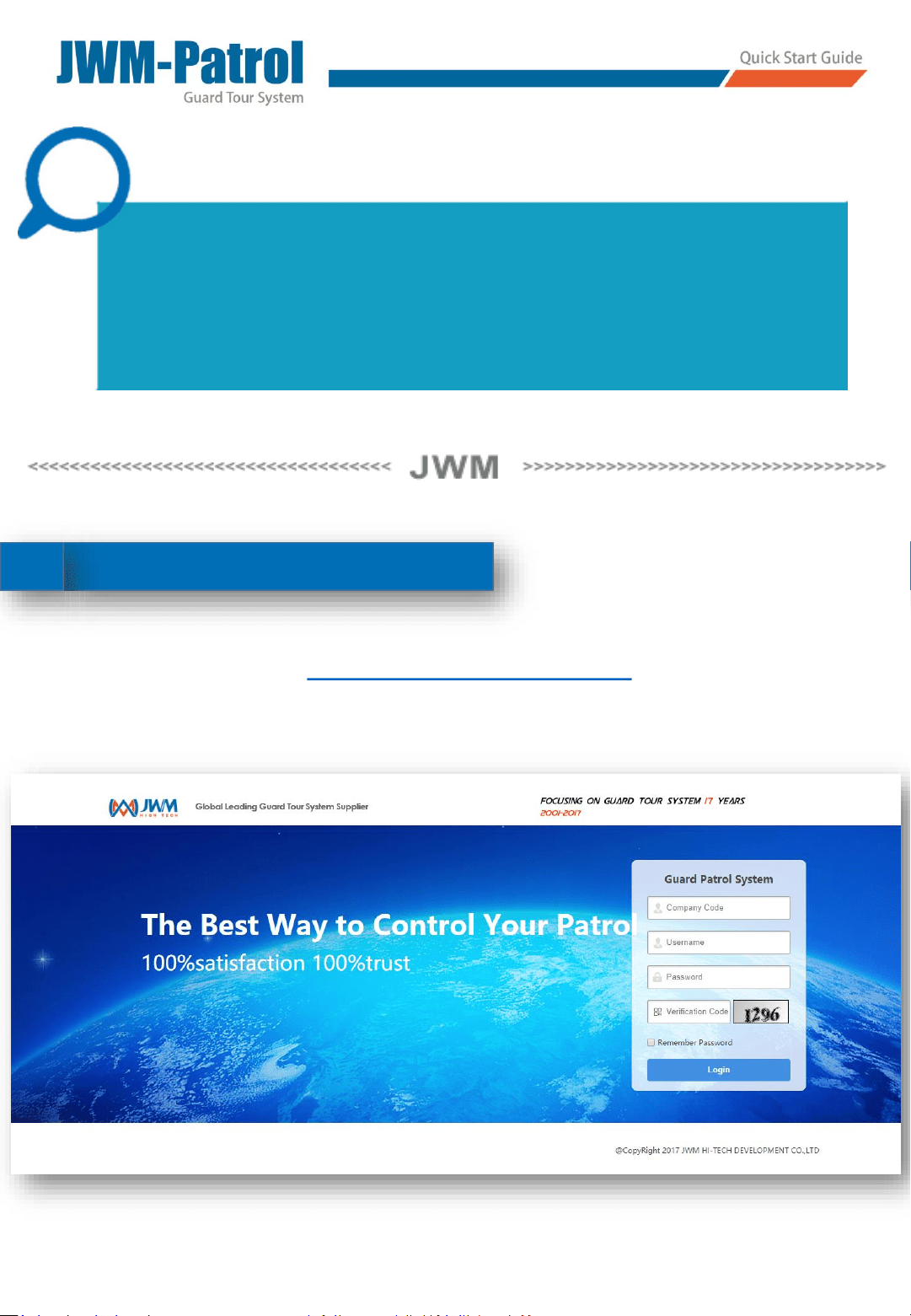
Launching
http://www.jwmyun.com
Inputting the Company Name , Username and the Password of
the user. Then login in the software.
Login
If you want to make a Demo use of JWM- Cloud Patrol system, you
can contact JWM and get a demo user for testing freely.
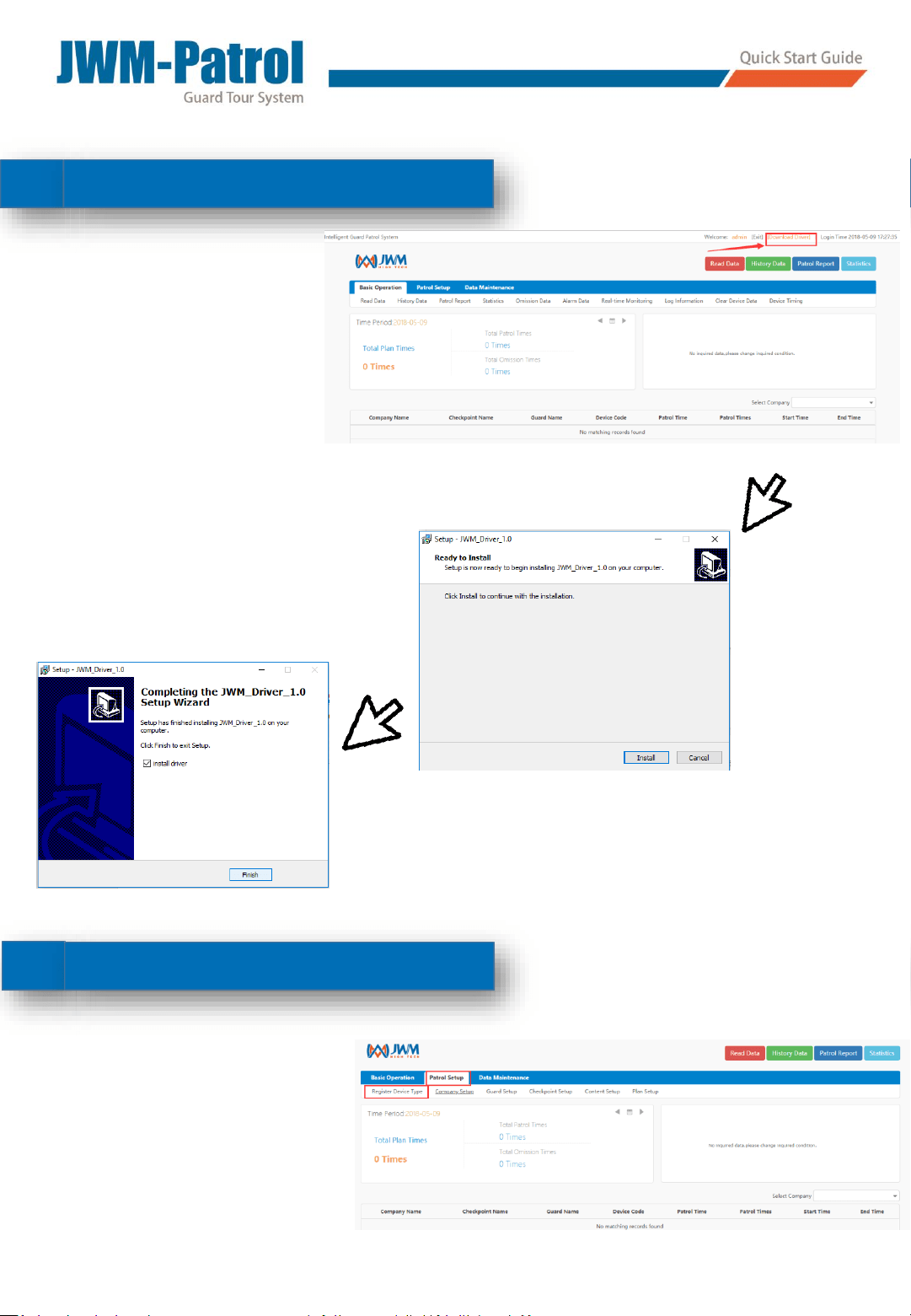
Before patrolling, the
first step is download
the driver for the
device .
The driver is very
important that makes
the reader connect
smoothly.
Download Driver
2
3
Install the driver on your computer.
Register Device
You need to register the
device on the cloud
software first.
Note: If you have encountered anti-virus
software interception, please install the
software at ease.
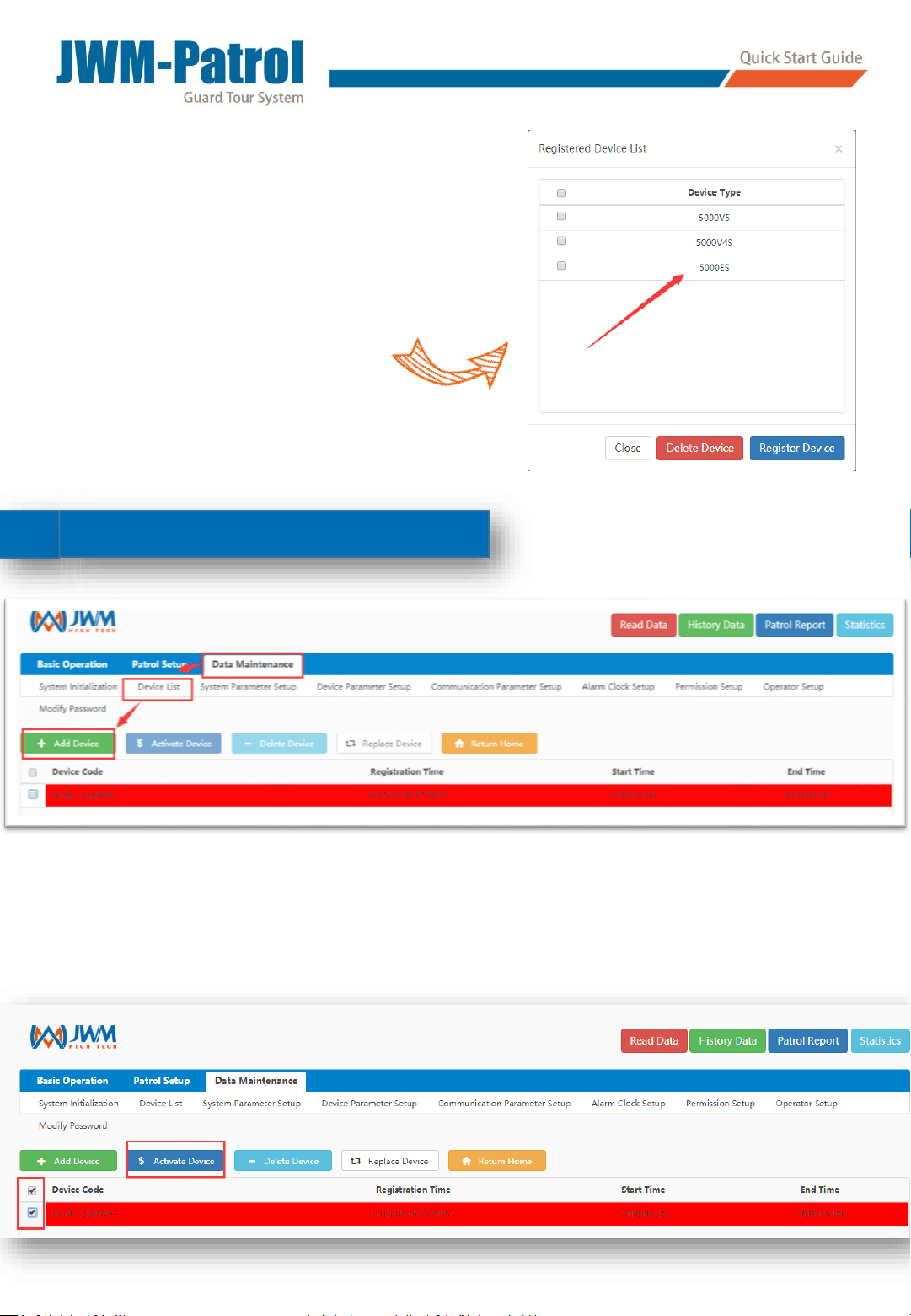
Click “Register Device” to
register device on cloud
software.
4
Company Setup
4
Activate Device
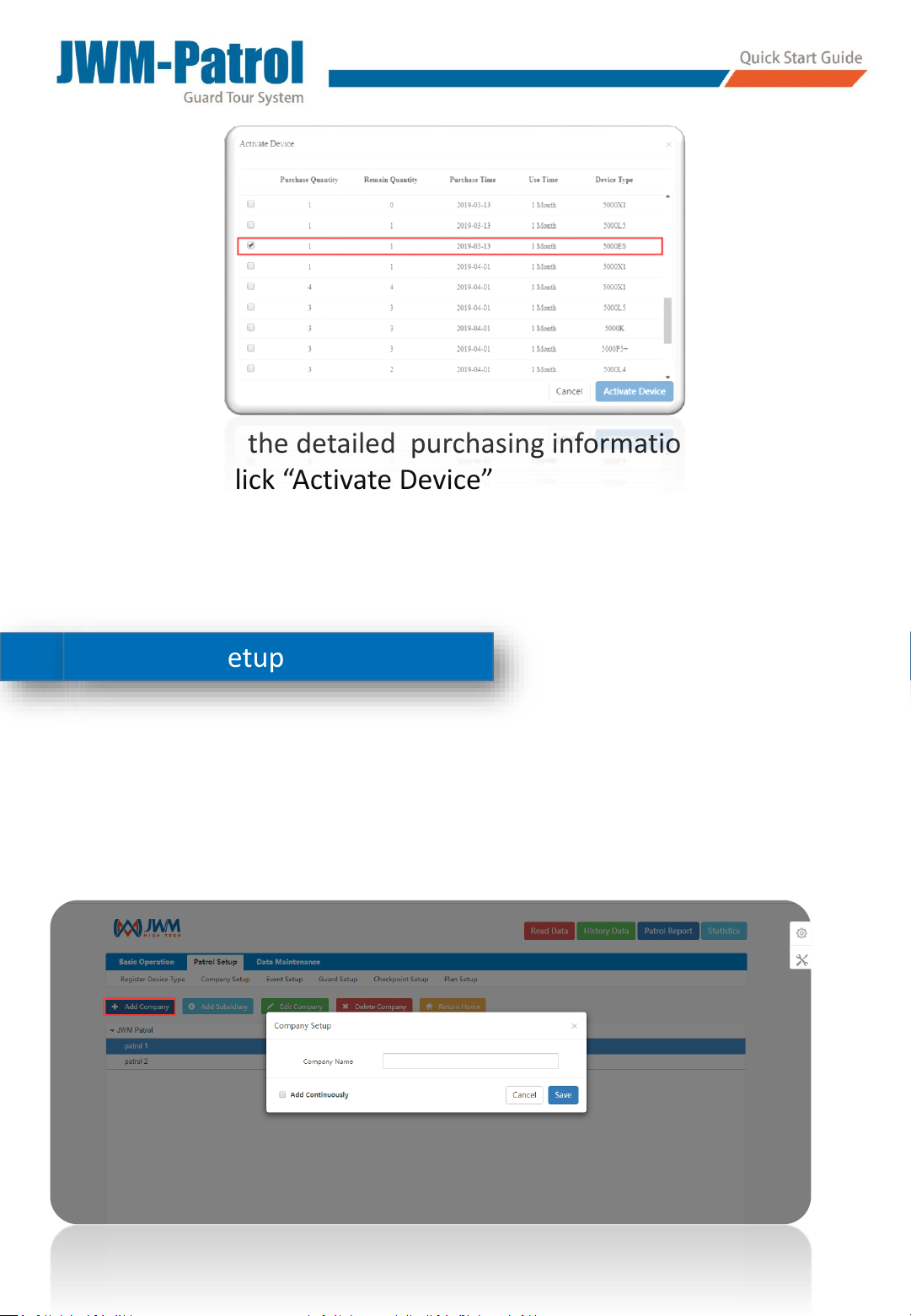
Selected the device ,and then click “Activate Device”
Note: Please click “Register Device” first
and then connect the device to PC
You need to add a new company for bind of the checkpoints
with the security guards.
Click “Add Company” to create a new company.
5 Company Setup
It will show the detailed purchasing information of device.
And then click “Activate Device”
Noted: Please don’t delete the device which have been
activated. Once you delete it, the activate license could not
be used again.
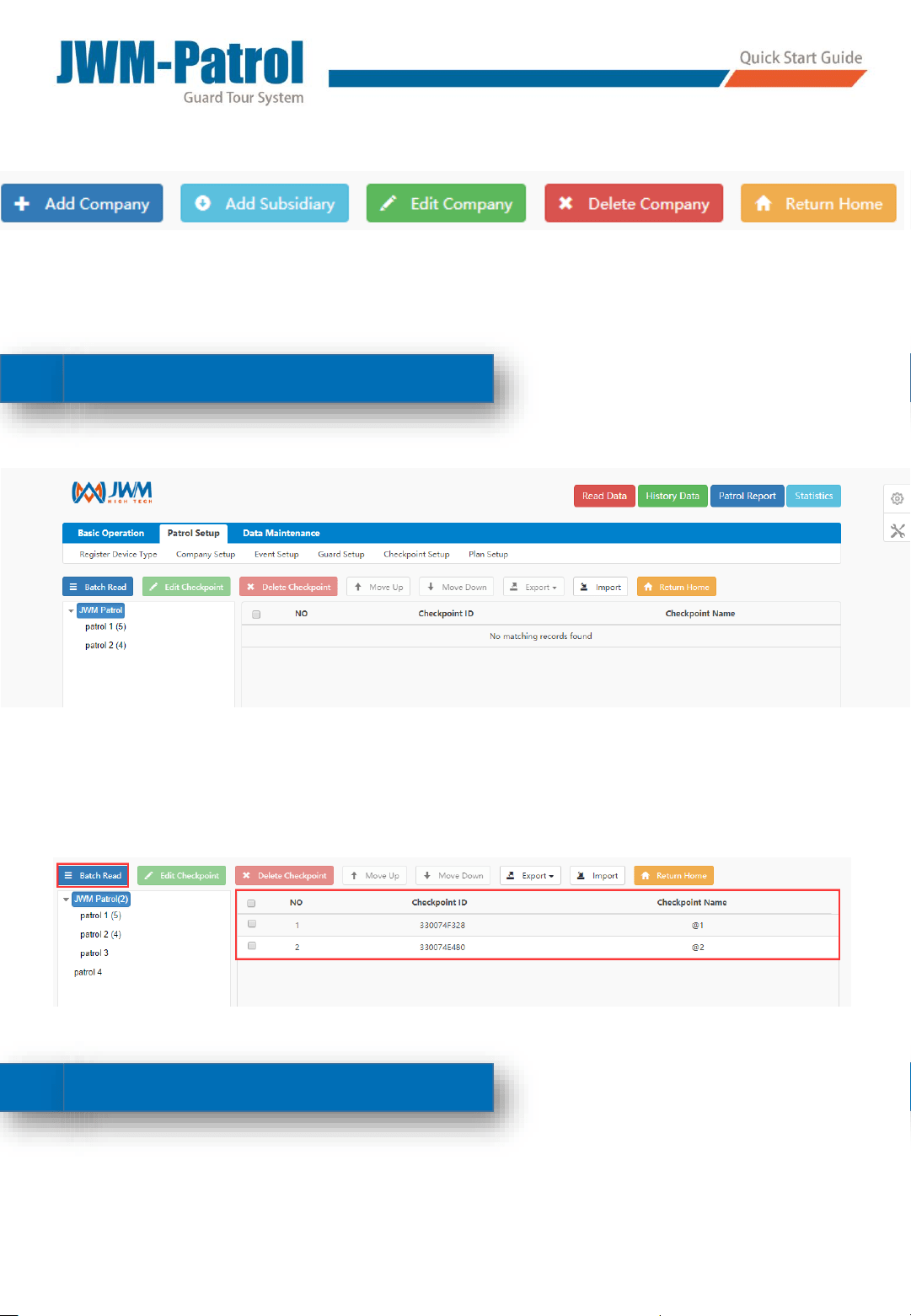
And you also can add subsidiary or department below the company.
6
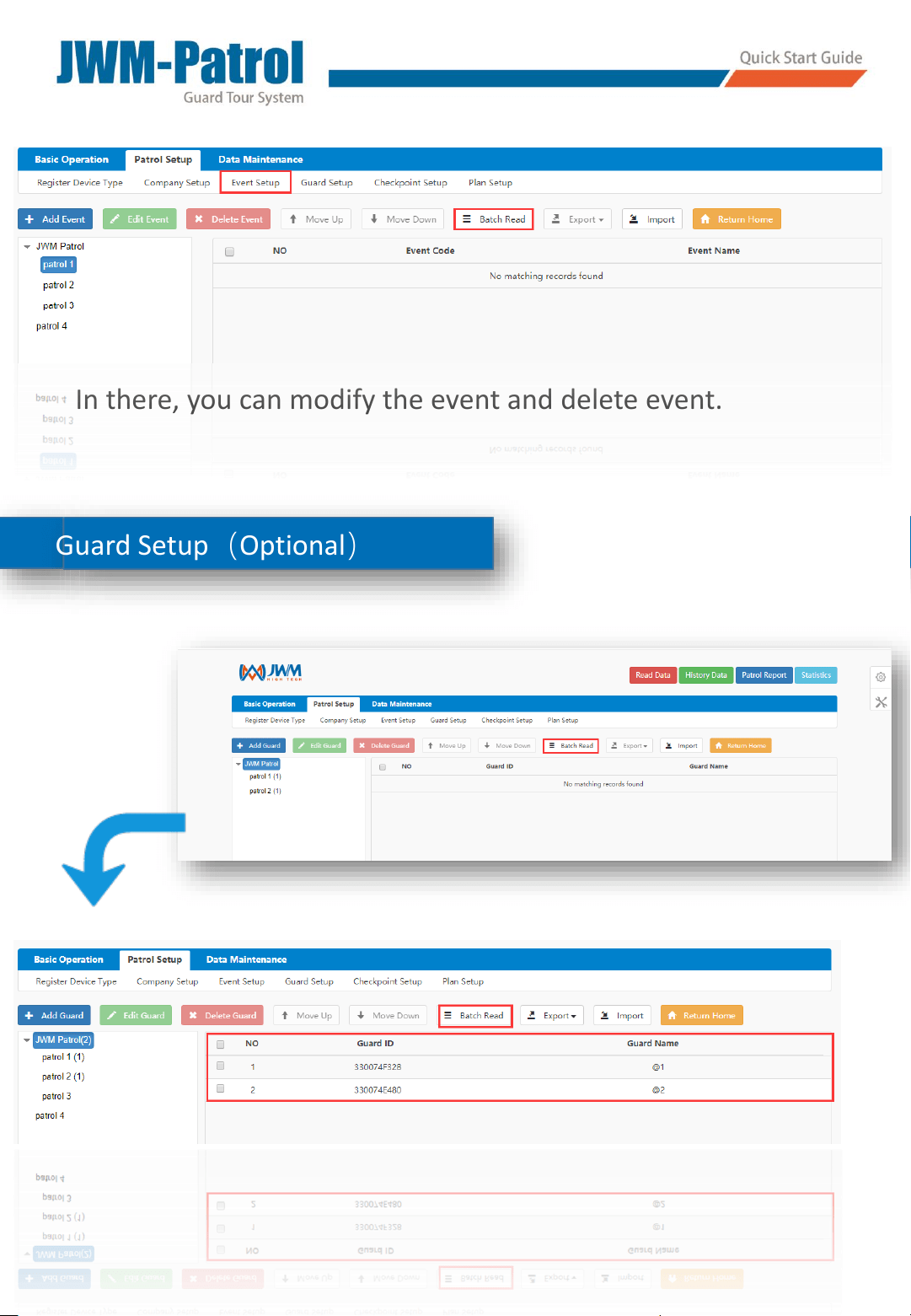
Event Setup
After device read the event tags, and then click “Batch Read” to
add events.
Checkpoint Setup
After reader read the checkpoint tags, and then click “Batch
Read” to add checkpoints.
7
Event Setup(Optional)
8
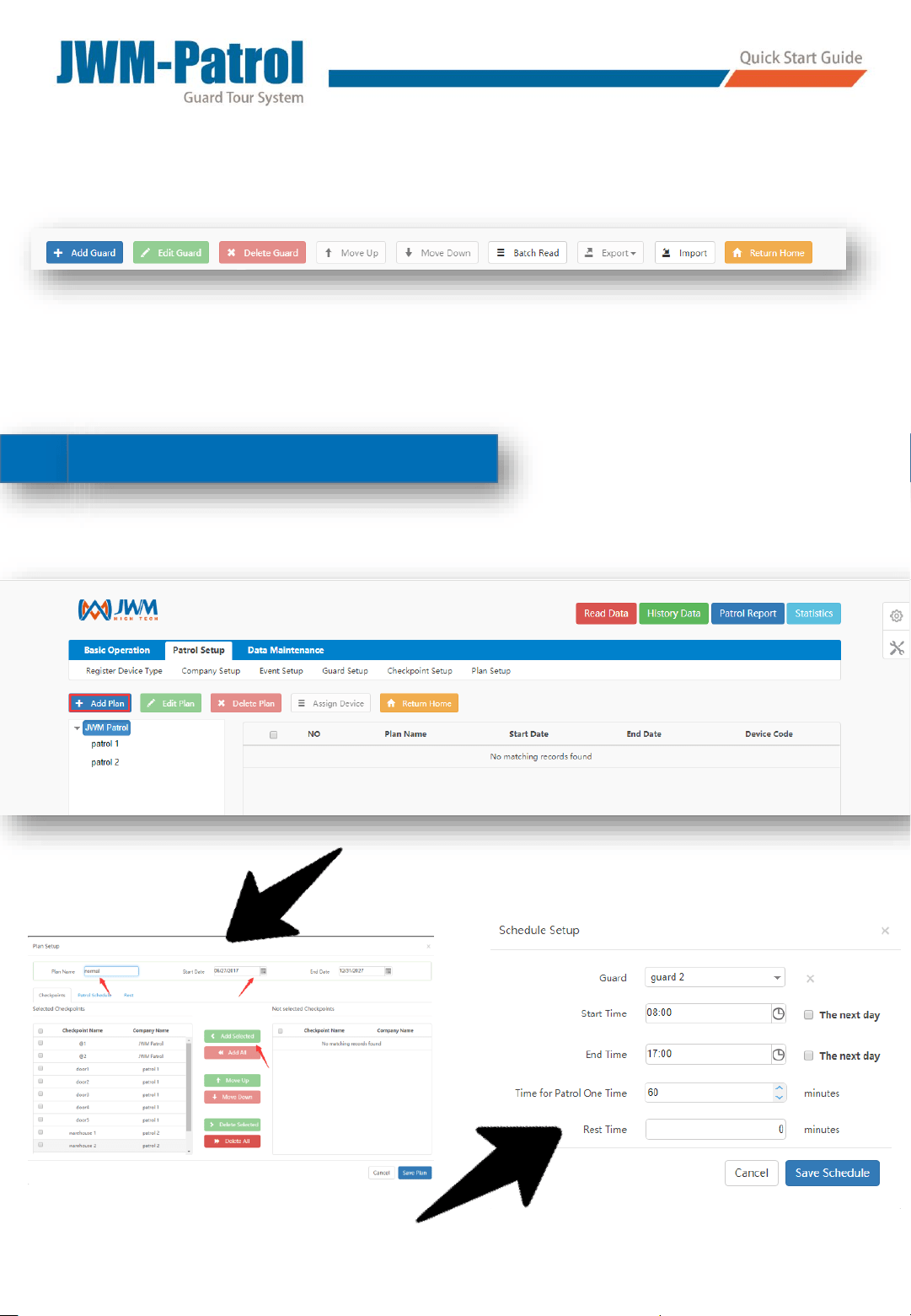
Guard Setup(Optional)
In there, you can modify the event and delete event.
9
Plan Setup
After reader read the guard tags, and then click “Batch Read” to
add guards.
In there, you can modify the guard and delete guard.
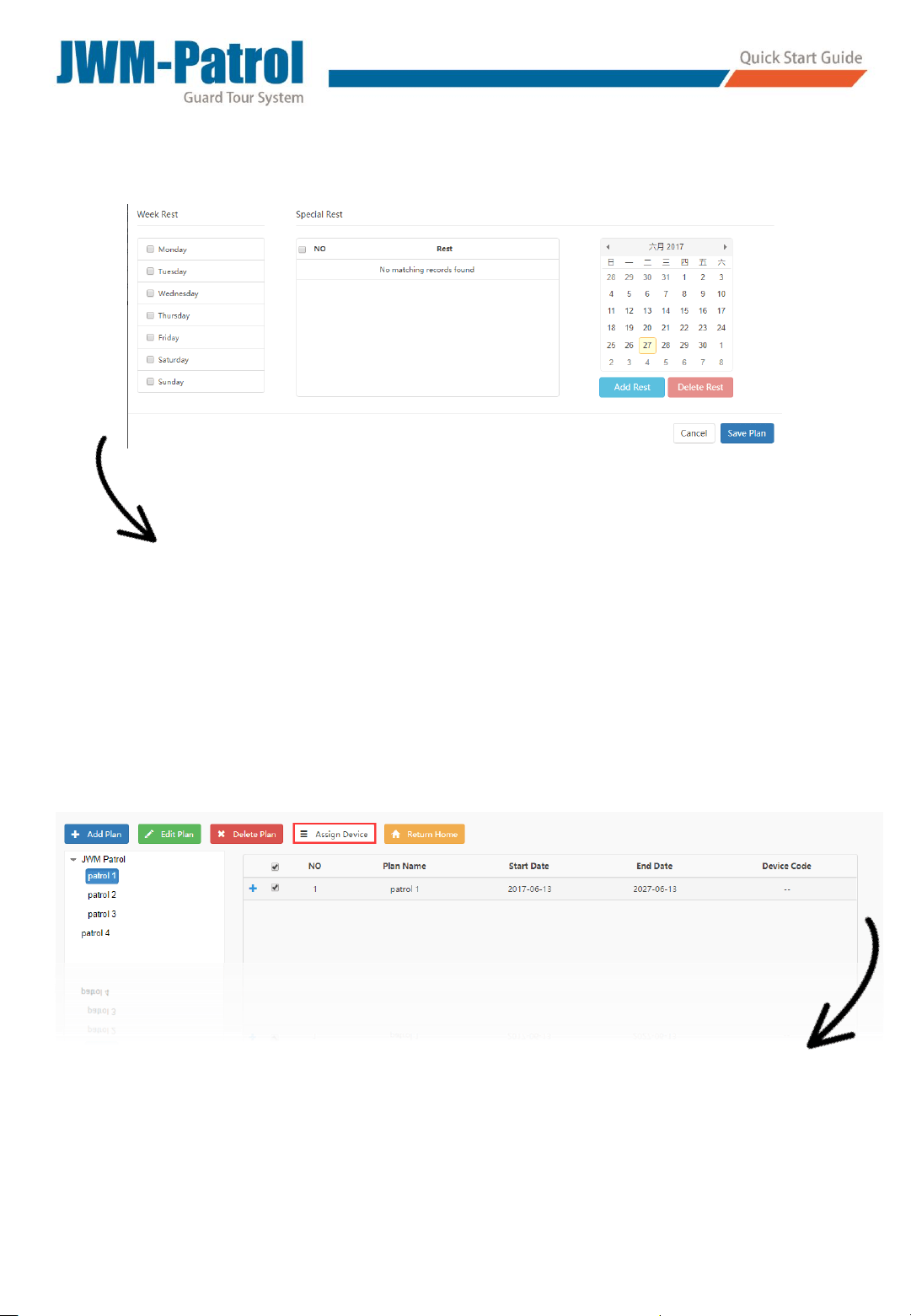
Assign Reader: After you have assigned reader, this device only
can patrolling this plan.
In there, you can select your security guard rest day for
them.
And special rest is special rest for your security guard ,such
as Christmas day.
Noted: Please “Clear Device Data” and “Device
Timing” before read tags.
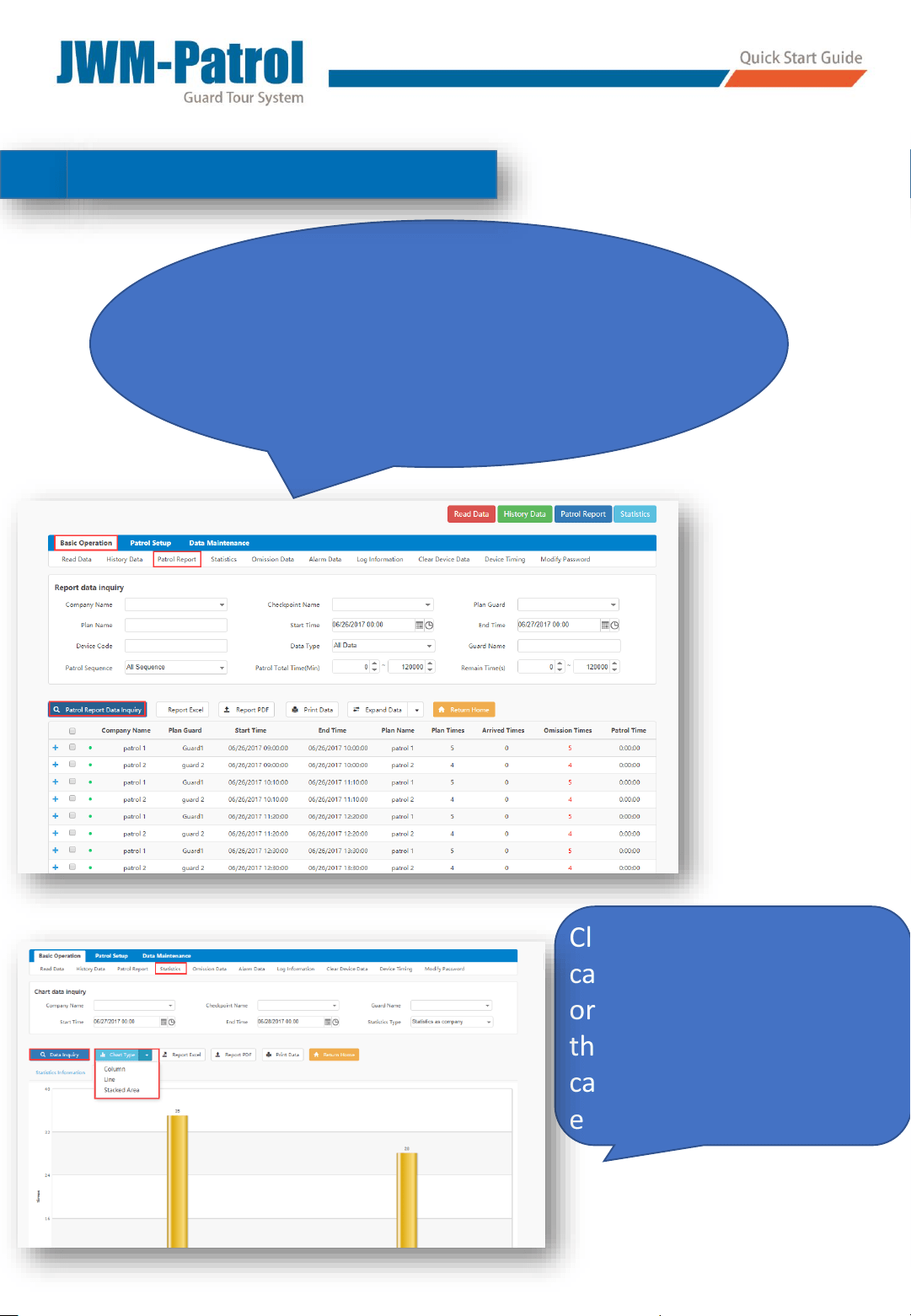
Click “Report Data Inquiry” to inquiry your
report data. History data will show all your data.
1010
Report and Statistic
Click on “Statistic” ,you
can see all your data being
ordered as your need. And
the report and statistic
can be export to pdf and
excel.
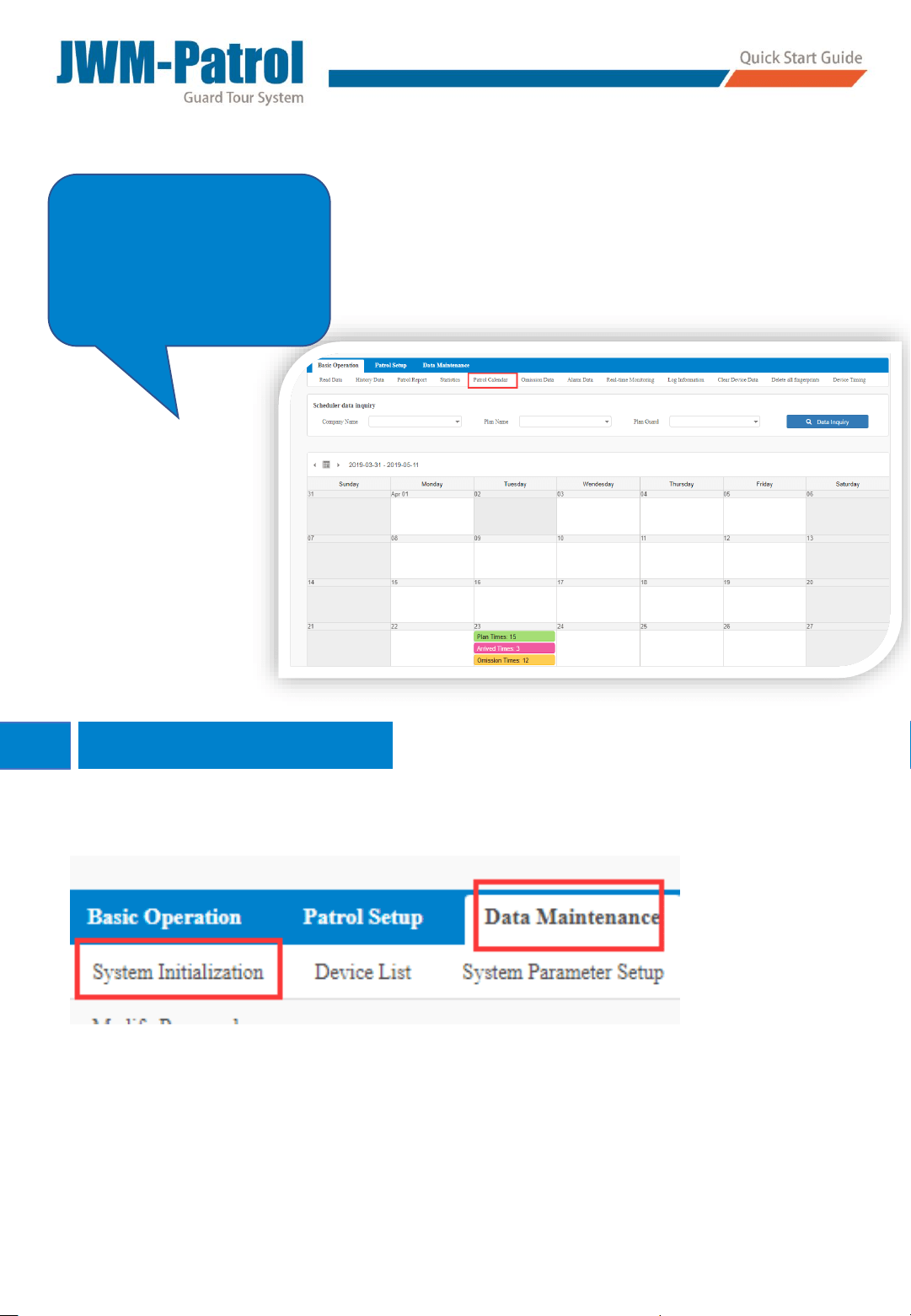
You see the
patrol calendar
on this page.
11 System Initialization
Noticed: If you click “system Initialization”, you will
delete all the information under this account
except device list and activate license.
Please do not initialize system easily.

10
11
Q&A
1. What devices are supported to log in to view data?
PC、Mobile phone、Pad (mobile phone and pad need install
an APP. For Android system, please contact your sales manager.
For IOS you can download at App Store, search “Cloud Patrol”).
2. Can two PCs log in the same account at the same time?
No. One account could not be logged in by two PCs at the
same time, but you can create some new operators and set their
permissions.
3. How to create new operators and set their permissions?
Click “Data Maintenance” and “Permission Setup”. Click “Add
Role”. Input “Role Name” and click “Save”. Select the Role Name
and select the permission items, then click “Save Role”.
Click “Operator Setup” and “Add operator”. Input the
Operator name and Email (optional). Click “Save”. Select the
Operator and click “Assign Permission”, then select the role at
role list.
4. How to replace an activated device?
Click “Data Maintenance” and “Device List”, select the device
and click “Replace Device”.
5. Can the report be exported?
Yes. The report could be exported to Excel and PDF.
6. How many operators can a company code create?
No limit.
7. How to get my sim card APN?
Call the sim card company or search in Google.