1. LED DISPLAY indicates the chosen input mode, volume level and surround mode.
2. INPUT allows you to switch between input modes. A blue light is illuminated under the chosen mode. The display will read "5.1" in 5.1 surround mode and "2.1 "in
2.1 mode as well as the volume level which that particular mode is on.
3. VOL+/ allows you to both increase the volume (60dB maximum) and skip to the next song in USB/SD mode.
Package Contents:
- (1) Sub-woofer Cabinet
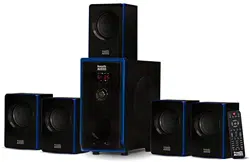
- (5) Satellite Speakers
- (1) Remote Control
- (1) User Manual
- (3) RCA Cables
- (1) 3.5mm RCA Cable
Specifications:
- Power Audio: 800 Watts Total System Power
- Drive Units: 3"x 5 full range magnetically shielded satellite speakers and powered sub-woofer
- Frequency Response: 40 - 20,000 Hz
- Power Supply: 120V
- Dimensions (W x H x D):
Sub-woofer- 5.5” x 10.75" x 11"
Satellites-3.5" x 3.25" x 5.25"
Features:
- 5.1 channel multimedia speaker for computer or home system
- Full audio spectrum performances, ideal for your favorite entertainment such as MP3, MP4, CD/DVD movies and digital playbacks
- Specially designed woofer cabinet for bass and resolution
- Comes with remote control and RCA stereo connection cables
4. The system is on Stand By (ST-BY) mode when you switch on the power supply. The LED display will read"-—". Press " ST-BY/PLAY/PAUSE" button once and it will default to DVD input mode and the LED display will read "5.1 35"; "5.1 "being surround sound mode and "35" being the default volume at 35dB. Change back to "ST-BY" in any mode by pressing and holding the "ST-BY/ PLAY/ PAUSE" button. In USB/SD mode, press the "ST-BY/ PLAY/ PAUSE" button once to play or pause the music.
5. USB INPUT allows you to connect mobile devices, laptops, tablets etc with a USB cord in order to use the remote control or front panel for function.
6. VOL-/ allows you to both decrease the volume (OdB minimum) and go to the previous song in USB/SD mode.
7. 5.1 /2.1 allows you to change between 5.1 and 2.1 modes. In 2.1 mode the system will utilize the sub-woofer and 2 front satellite speakers only, and in 5.1 mode it will utilize the sub-woofer and all 5 satellite speakers.
8. SD/MMC CARD INPUT allows you to insert an SD/MMC card with MP3, MP4 and other audible files in order to use the remote control or front panel for function.
Using The Remote Control
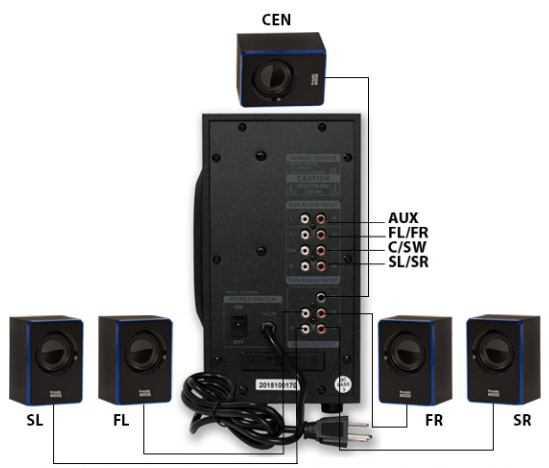
Rear Panel
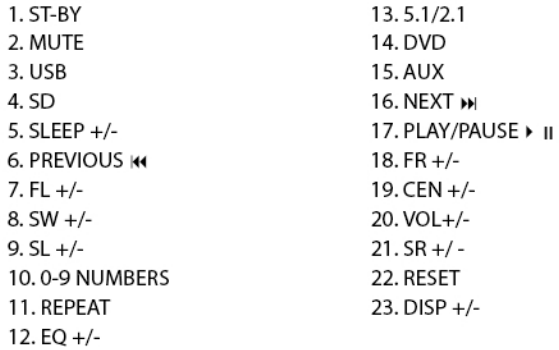
Remote Control Functions
1. ST-BY/ON/OFF: Use the "ST-BY" button to start the system
2. MUTE: Use “MUTE" to suspend and activate sound
3. USB: Press"US8" to go into USB input mode
4. SD: Press "SD" to go into SD input mode
5. SLEEP +/-: Press "SLEEP+" and “SLEEP-" to time system to turn off
6. PREVIOUS : ln USB/SD mode, use "" to play the previous song
7. FL+/-: Use “FL+'' and ”FL-" to control the volume of the front left speaker
8. SW +/-: Use "SW+" and "SW-" to control the volume of the sub-woofer
9. SL +/-: Use "SL+"and “SL-" to control the volume of the surround left speaker 10.0-9 NUMBER BUTTONS: In USB/SD mode, use the number buttons to select the desired track
11. REPEAT: In US8/SD mode, use "REPEAT 'to repeat the track
12. EQ +/-: In USB/SD mode, use "EQ+ "and" EQ-"to turn equalizer on and off 13.5.1/2.1: Press "5.1/2.1 "to change from 2.1 to 5.1 surround sound
14. DVD: Use "DVD" to go into DVD input mode
15. AUX: Use"AUX"togo into AUX mode
16. NEXT : In USB/SD mode, press "" to play the next song
17. PLAY/PAUSE: Press "" to play or pause the music
18. FR +/-: Use “FR+" and “FR-" to control the volume of the front right speaker
19. CEN +/-:Use "CEN+" and "CEN-" to control the volume of the center speaker
20. VOL +/-: Use "VOL+" and “VOL-" to control the volume of all speakers
21. SR+/-: Use "SR+" and "SR-" to control the volume of the surround right speaker
22. RESET: Use “RESET" to reset all volume adjustments
23. DISP +/-: Use"DISP+" and "DISP-" to adjust the display illumination
Note: if remote loses function, please replace the 2 AA batteries.
System Connections
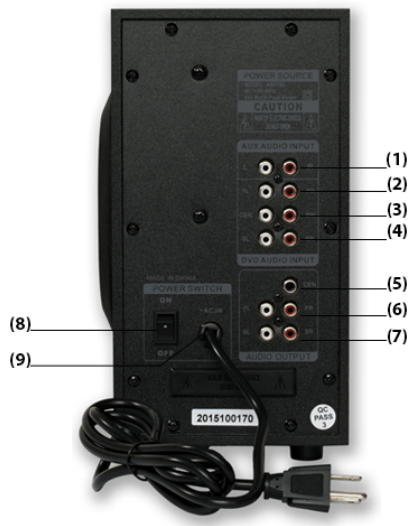
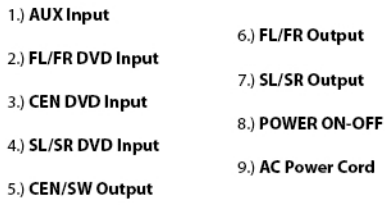
1. Insert all satellite speaker cables into their respective output sockets located at the rear of the sub-woofer. (FL: Front Left Speaker, FR: Front Right Speaker, SL: Surround Left Speaker, SR: Surround Right Speaker, CEN: Center Speaker
2. For 5.1 surround sound, insert audio cables from your device into the respective DVD speaker sockets located at the rear of the sub-woofer above the satellite speaker sockets.
3. For dimensional sound, insert audio cable into respective AUX socket.
4. For clearer, stronger FM signal, insert antenna cord into Antenna socket.
5. Once you've connected the system in your preferred method, insert the power plug into ~ 120V wall outlet and switch power to ON.
Note: Please avoid leaving magnetic objects near the system


 allows you to both decrease the volume (OdB minimum) and go to the previous song in USB/SD mode.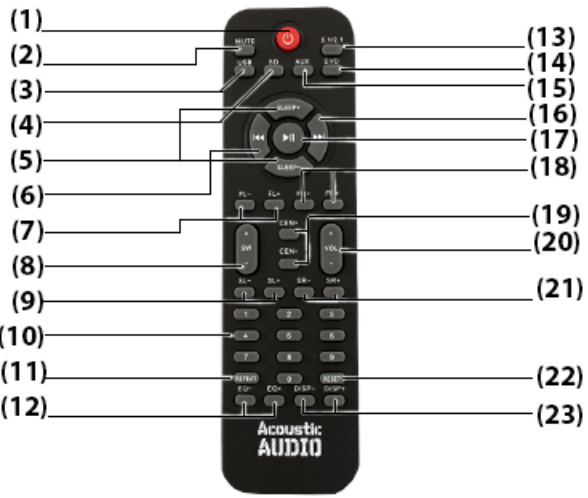
 : ln USB/SD mode, use "
 : In USB/SD mode, press "
 " to play or pause the music