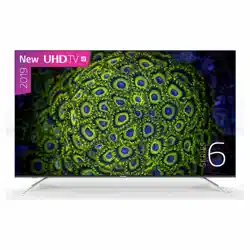
User Manual LED Backlight TV
Shortcuts Instructions
Turning your TV on or off
To turn your TV on or off :
- Plug the AC power cord into a socket outlet of AC power supply.
- When the TV is powered on, press the
 button on the remote control, to turn TV on or off. 1.1 Turning your TV on or off
NOTES
When your TV is in standby mode, it is still consuming power. To completely disconnect power, please remove the mains plug from the mains socket.
If your TV does not receive an input signal for several minutes, it automatically goes into standby mode
Selecting the Input Source
Select the Input Source depending on the video device you have connected to your TV.
To select the input source:
- Turn on your TV, then press the [INPUT] button on the remote, the list of Source appears.
- Press the [ / / < / >] buttons to select the input source.
- Press the [OK] button to confirm your selection
Using the Live TV
To view broadcast programs, press the [Live TV] button on your remote.
Channel search guide
When switching to Live TV, the TV detects the presence of the channel list information (Channel scan must have been completed). If the scan has not yet been completed, a prompt will appear to begin scanning for channels. Press the Scanning button to enter the channel search interface.
Launch Live TV
After channel tuning is done for the first time, the screen will display Live TV operating tips.
[Up] load info bar.
[OK] load Channel list.
[EPG] load Guide.
[MENU] load onscreen menu.
[Down] initiate PVR and Timeshift.
[BACK] jump to previous channel
Shortcuts Instructions
Viewing Channel List
After you have done an automatic channel scan (if you’re using an antenna) or receiving your channels through a cable provider, you can view your list of channels by pressing [OK] button on your remote. You will see the channel list display on the screen.
Enter the sub-menu of channel list
Press the [OK] button and the [ < ] button on your remote when viewing channels.
Introduction of the sub-menu
All
Display the channels that have been automatically searched.
Favourite List
Display favourites lists 1 to 4. (Max 4 fav lists can be added)
Select channels by content, HD, child lock, scrambled, Sort.
Quick access to channels.
Edit the channel list.
Favorites List
To quickly access your most-watched channels, you can create a Favorites List.
To create your Favorites List:
There are 2 ways to enter the edit menu:
Press the [OK] button and the [ < ] button on your remote when viewing channels to select Channel List > Favorite List
2. Press the  /
/  button on your remote to select Settings, and then press [OK] button to enter the Settings menu, Select Channel > Channel Edit > FAV > Edit.
Adding channels to a Favorites list Select the + Add to add the selected channel to the favorite list.
Moving channels from a favorites list Select channels in a favorites list, press [ < ] button to move the selected channel.
Deleting channels from Favorites list Select channels in a favorites list, press [ > ] button to remove the selected channel.
NOTES
- These steps should be operated under TV inputs.
- Before you edit the fav lists, complete channel scan first.
- You can add channels from various reception types to the FAV list.
Viewing your Favorite list
To view channels that you’ve added to your Favorites List, press [OK] button on your remote to call out the channel list.
The channel list appears on the screen and heart-shaped icons are shown next to the channels that make up your Favorites List
EPG
PVR/T.Shift
PVR
The PVR function allows you to easily record digital television content for later viewing. The function is only available in DTV source. To use PVR, you must connect a USB device for recording. The format of the storage disk should be NTFS, FAT32. The PVR will not function if a data storage device has not been connected.
Schedule Recording
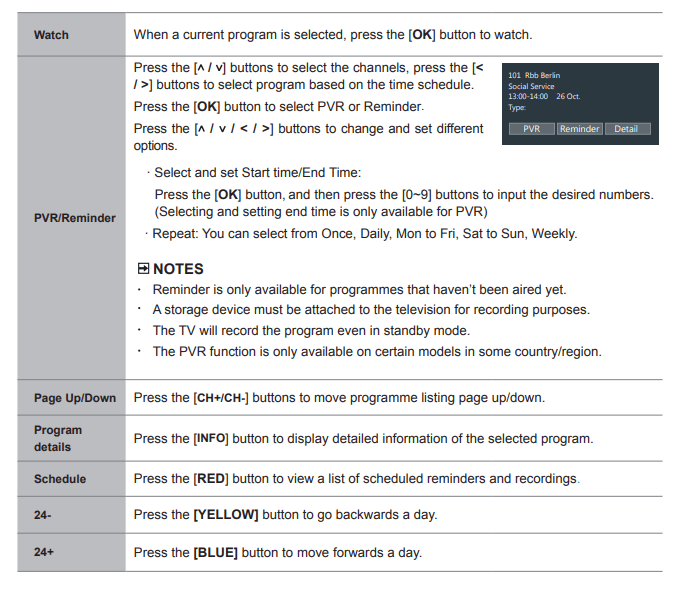
Press [EPG] button, Select the programme to be played, press [OK] button to set the appointment time and period, the reservation is successful. Press [RED] button to view the schedule recording. In the schedule recording list, you can readjust the reservation information that has been set.
Instant Recording
Press [v] button to select PVR.
Select the partition, and the USB device speed will be tested(appear when using for the first time).
You can choose to Manual stop or automatically match the programme time.
Standby record
If you press the power button during recording, TV will go into standby mode but the recording process is still going on. If you press power button again and wake up the TV, recording process will not be affected.
After recording, the recorded file will be automatically saved to the disk.
Recording List
Viewing the recorded programmes.
Press the [v] button on your remote to select Recording List > Recorded, You can watch or delete recorded programmes
T.Shift
This option allows you to pause and rewind live TV. This function operates by recording temporarily to a storage device. Please ensure your storage device is connected and there is enough free disk space. Otherwise the recording will not commence.
Press the [v] button on the remote to select T.Shift and then the menu will appear, press the [II] button to pause the live broadcast and press the [►] button to play. Press the  button to rewind and press the
  button to fast forward. Press the [■] button to exit the function and watch the current broadcast.
NOTES
- When connecting a hard disk, always connect the mains adapter of the connected device to the power supply.
- If a USB 1.1 or USB2.0 device requires more than 500mA or 5V, the USB device may not be supported. Max supported current for USB 3.0 device is 1A. Exceeding the max supported current may result in damage or data loss.
- The maximum supported storage space of the hard disk is 2T.
- If you want to store the video streaming of a DTV program, the transfer rate of the USB storage device should be no less than 5MB/s.
- The schedule recording function is not available while you are watching a programme that is currently being broadcast.
- Some broadcasters may restrict to record the programme.
- During the recording progress, channels locked with Channel Lock(password needed) are disabled to watch.
- The PVR and T.Shift functions doesn’t support analogue channels
- The PVR function is disabled for scrambled channels(CI module needed).
- The T.Shift function is disabled for channels locked with Channel Lock or scrambled channels (CI module or password needed).
- The PVR and T.Shift functions are only available on certain models in some country/region
Using the Menu Function
To quickly access menu function, press the  /
/  button on your remote.
Headphone Volume
Adjust the volume of the headphone when the headphone is connected.
Channel List
View the Channel List and adjust channels while watching TV. (Only available for TV channels)
Guide
Enter guide function under TV mode.
It provides an overview of each digital channel’s programme lineup.
Teletext
Display the teletext mode.
NOTE
This function is only visible when the selected channel has the corresponding information.
Audio Language
Select a desired language from the list if the selected channel supports multi-audio languages. (Only available for DTV channels)
NOTE
This function is only available on certain models in specific geographical areas.
Subtitle
Select desired subtitles from the list if the selected channel supports multi-language subtitles.
Audio Only
When you select this option, the screen will not display the picture. You can only listen the audio. Press any button except the [ / VOL /
 ] buttons to restore operation.
Recording List
View recording schedule list. You can edit the settings of the selected schedule or delete it. (Only available for DTV channels)
HbbTV
The switch to enable or disable HbbTV functionality for each individual channel. (Only available for DTV channels)
NOTE This function is only available on certain models in specific geographical areas.
Settings
The Settings Menu consists of the following settings: Picture, Sound, Network, Channel, Accessibility, System and Support
Using the Settings Menu
. Press the  /
/  button on your remote to select Settings, and then press the [OK] button to enter the Settings menu.
The Settings Menu consists of the following settings:
• Picture
• Sound
• Network
• Channe
l • Accessibility
• System
• Support
2. In each menu, you can:
- Press the [ < / >] buttons to select an item,
- Press the [OK] button to enter the sub-menu or to set on or off,
- Press the [< / >] buttons to adjust the value,
- Press the [BACK] button to return to the previous menu.
3. Press the [EXIT] button to exit the menu.
NOTE The menus in the user manual may vary slightly from the actual screen
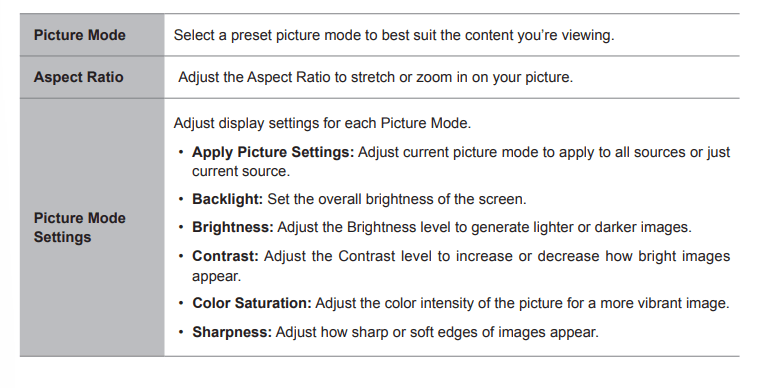
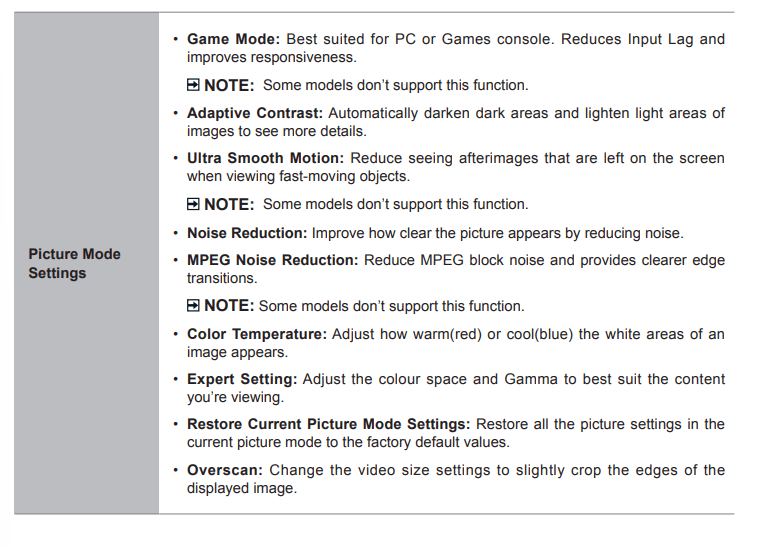
Using the Picture Menu
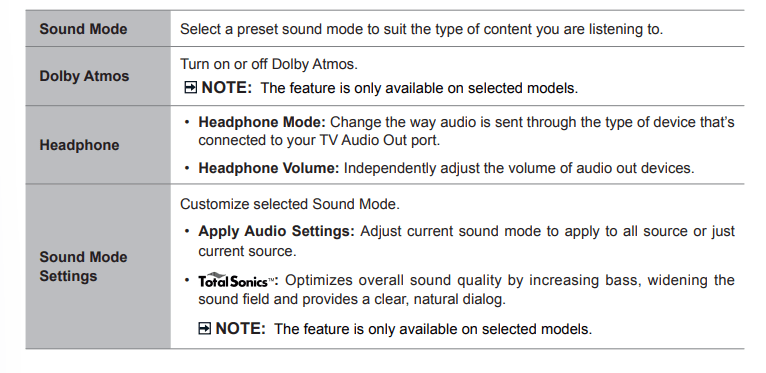
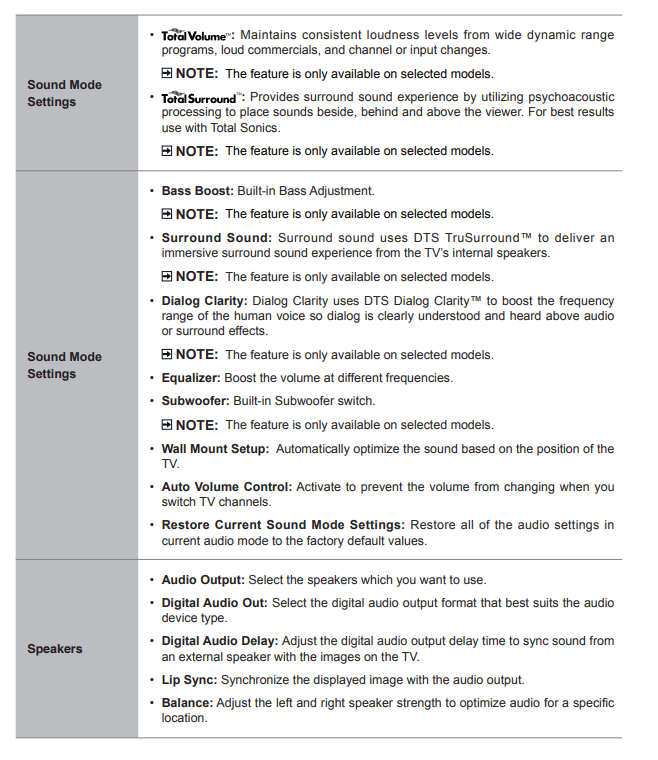
Using the Sound Menu
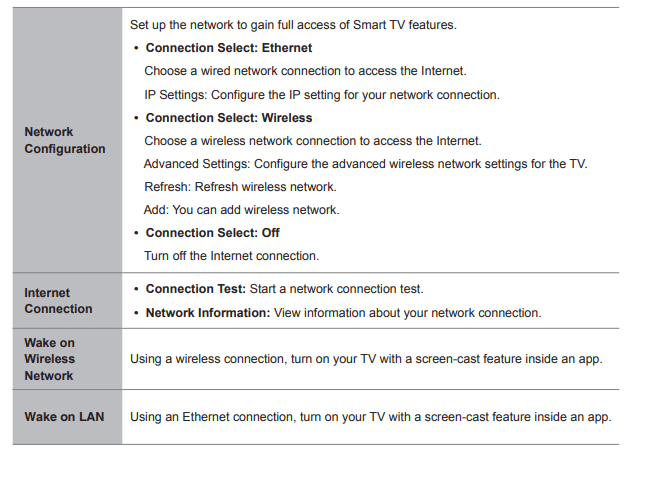
Using the Network Menu
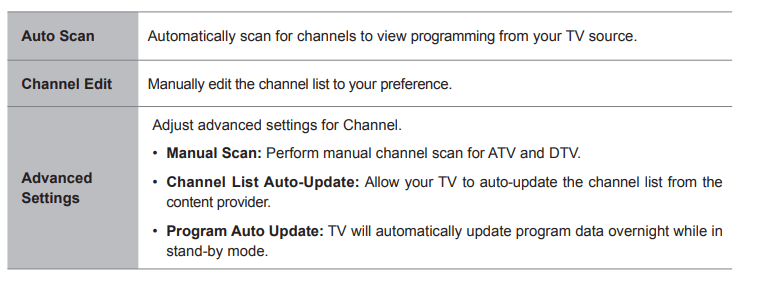
Using the Channel Menu
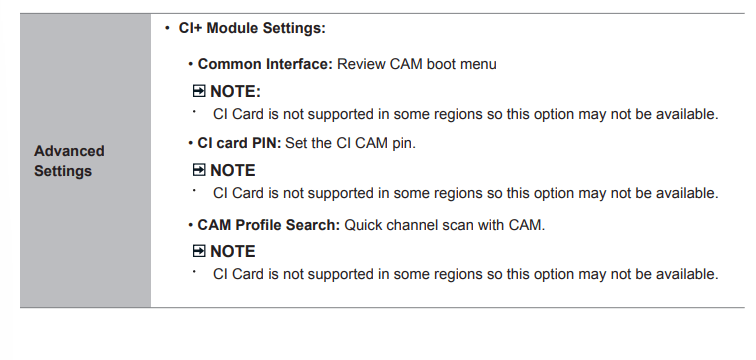
Using the Accessibility Menu
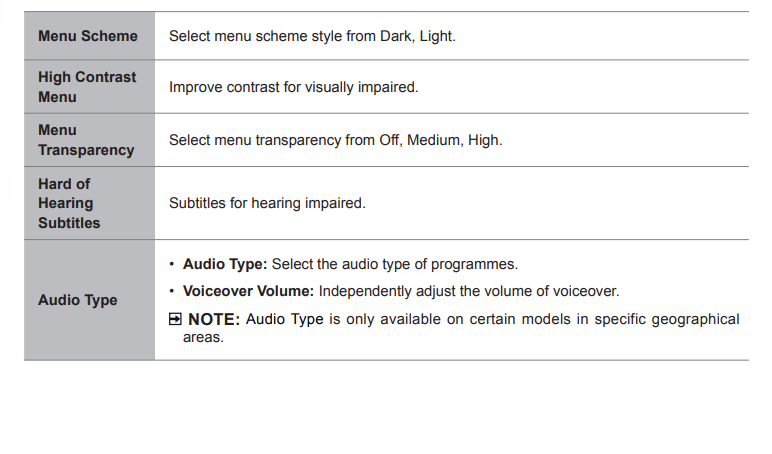
Using the System Menu
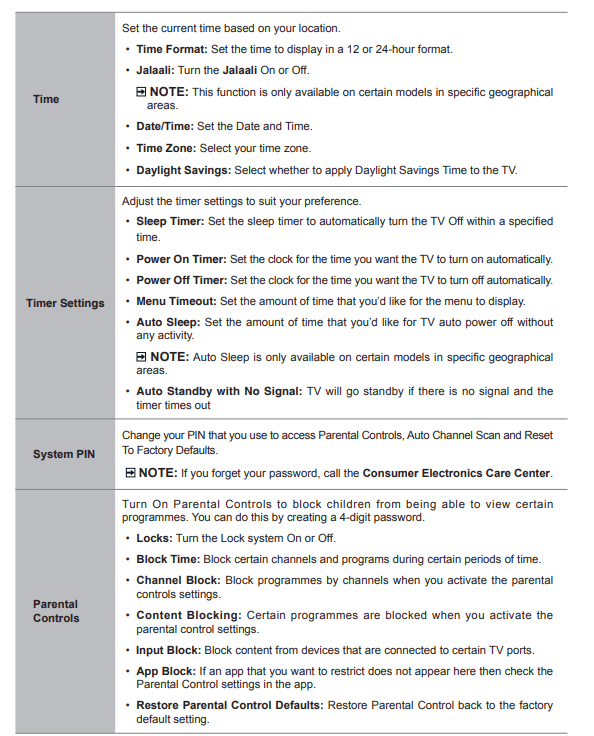
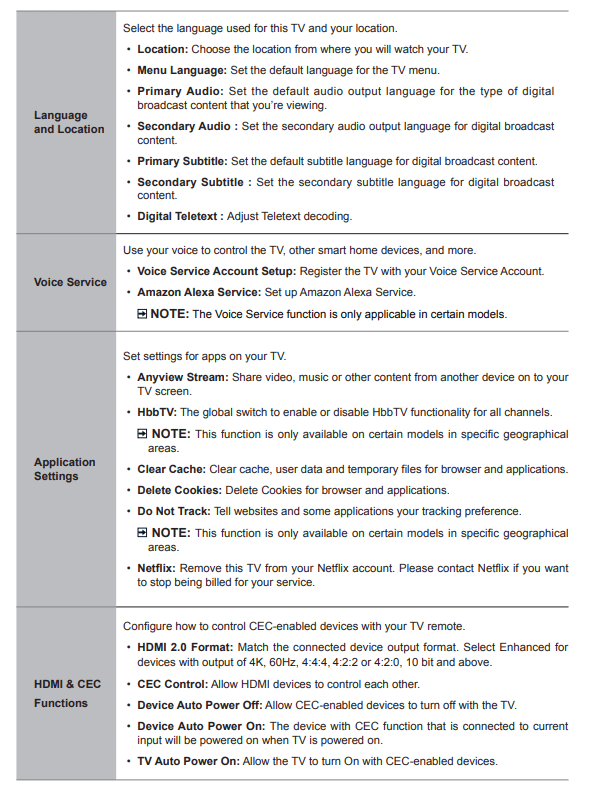
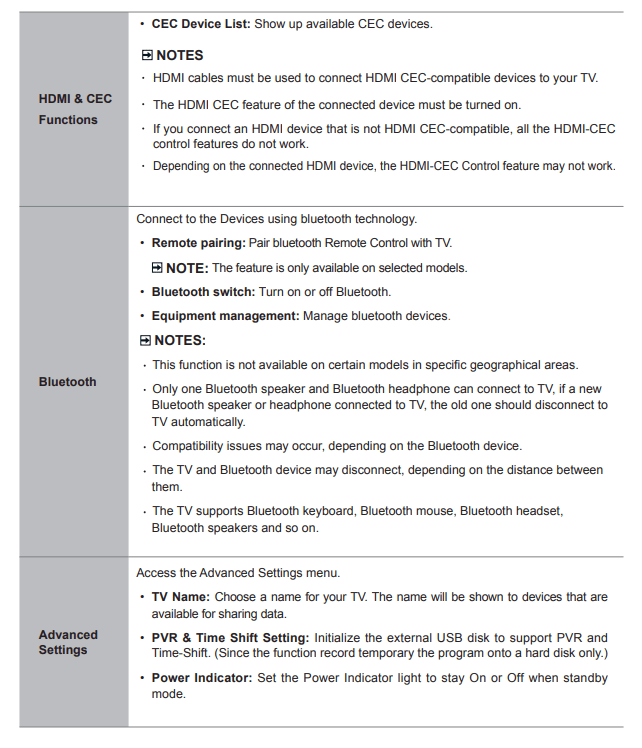
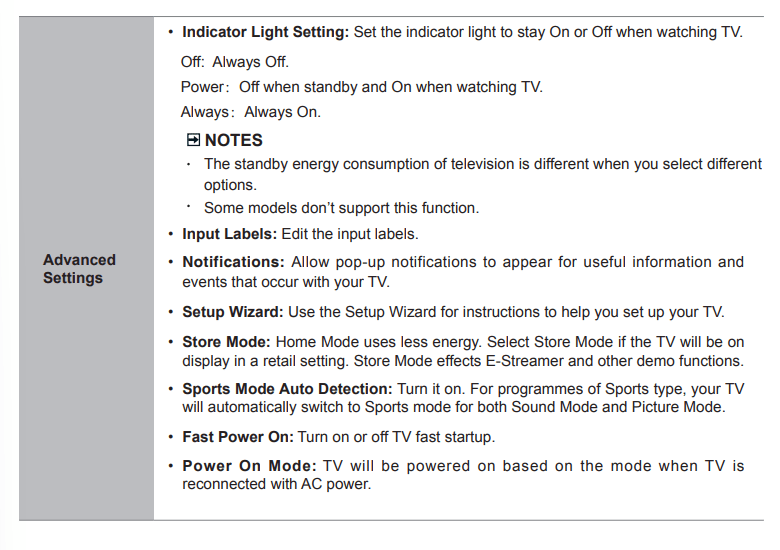
Using the Support Menu
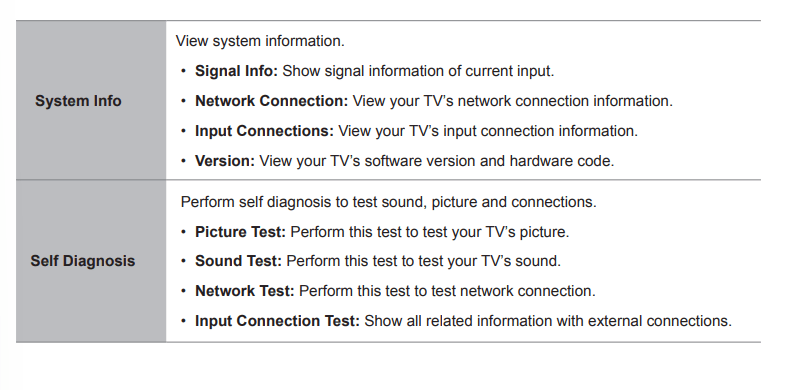
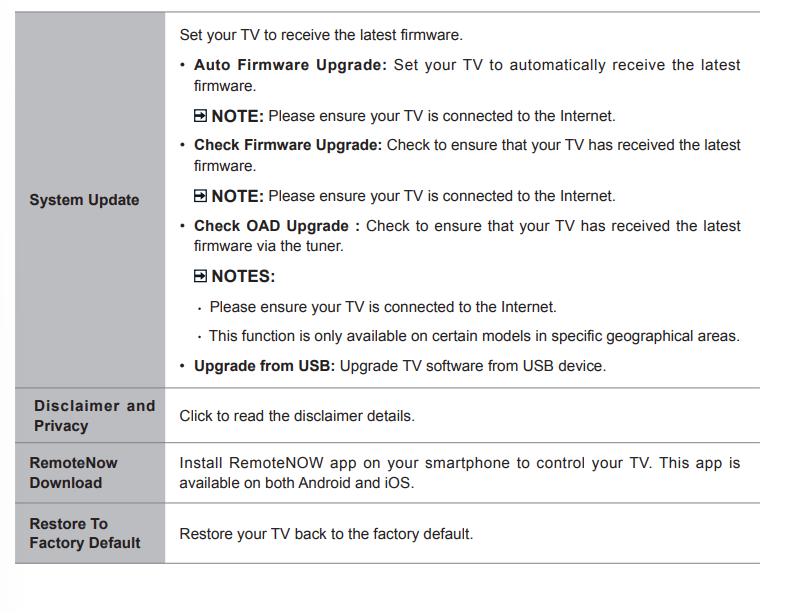
Advanced Features
The Anyview Cast is an app that enables you to share (or cast) a video, audio or image from compatible Android device to the TV.
From your tablet or phone
To mirror content from your tablet to the TV:
1. Press the  /
/  button on your remote to select Settings, press the [OK] button to enter the Settings menu. Go to Network > Network Configuration and select Wireless.
2. Press the [INPUT] button on your remote and select the Anyview Cast.
3. Turn on the wireless display function on your Android-based device.
NOTE: Some Android-based devices may not support casting.
4. Find your TV in the list of devices that displays and select it.
5. Wait for the ‘Creating Connection’ progress bar to complete on the TV screen and the video or image will display in a moment.
Troubleshooting
If the TV does not operate as usual or appears to be faulty please read carefully this section. Many operational issues can be resolved by users.
It is also advisable to unplug the TV from the AC socket on the wall for 60 seconds or more, then reconnect and start again. This simple procedure helps in restoring stable conditions for electric circuits and firmware of the unit.
Please contact Manufacturer Customer Care if the problem is unresolved or you have other concerns
| SYMPTOMS |
POSSIBLE SOLUTIONS |
| No sound or picture. |
Check if the power cord is plugged into a powered AC outlet.
Check to see if LED light is red. If illuminated, power to TV is OK.
|
| I have connected an external source to my TV and I get no picture and/or sound. |
Check for the correct output connection on the external source and for the correct input connection on the TV.
Make sure you have made the correct selection for the input mode for the incoming signal.
|
| When I turn on my television, there is a few second delay before the picture appears. Is this normal? |
Yes, this is normal. That is the TV searching for previous setting information and initializing the TV.
|
| Picture is normal, but no sound. |
Check the volume settings.
Check if Mute mode is set “on
|
| Sound but no picture or black and white picture |
If black and white picture first unplug TV from AC outlet and re-plug after 60 seconds.
Check that the Color is set to 50 or higher.
Try different TV channels
|
| Sound and picture distorted or appear wavy |
An electrical appliance may be affecting TV set. Turn off any appliances, if interference goes away, move appliance farther away from TV.
Insert the power plug of the TV set into another power outlet
|
| Sound and picture is blurry or cuts out momentarily |
If using an external antenna, check the direction, position and connection of the antenna.
Adjust the direction of your antenna or reset or fine tune the channel.
|
| Horizontal/vertical stripe on picture or picture is shaking |
Check if there is interfering source nearby, such as appliance or electric tool.
|
| The plastic cabinet makes a “clicking” type of sound. |
"Click" sound can be caused when the temperature of the television changes. This change causes the television cabinet to expand or contract, which makes the sound. This is normal and the TV is OK
|
| Remote control does not work. |
Confirm that TV still has power and is operational.
Change the batteries in the remote control.
Check if the batteries are correctly installed.
|
| Smart Television with wireless network capability Wi-Fi fail to join a local network. |
Configure the local wireless router or access point for WPA-PSK security before attempting to connect the TV to the Wi-Fi network.
Follow instruction in the User Manual of the television to setup a wireless connection
|