
ES-A
LED Backlight TV
Read the manual carefully and ensure you have fully understood
its contents before operating this device for the first time.
English

1
Contents
1-Shortcuts
Instructions
1.1 Turning your TV on or off .......................................... 5
1.2 Selecting the Input Source ....................................... 5
1.3 Using the Live TV ..................................................... 5
1.4 EPG .......................................................................... 7
1.5 PVR/T.Shift ............................................................... 8
2-Menu
2.1 Using the Menu Function........................................... 10
2.2 Using the Settings Menu .......................................... 11
2.3 Using the Picture Menu ............................................ 11
2.4 Using the Sound Menu ............................................. 12
2.5 Using the Network Menu .......................................... 14
2.6 Using the Channel Menu .......................................... 14
2.7 Using the Accessibility Menu .................................... 15
2.8 Using the System Menu ........................................... 16
2.9 Using the Support Menu .......................................... 19
3-Advanced
Features
3.1 Getting familiar with the Home screen ...................... 21
3.2 Apps ......................................................................... 22
3.3 Media ........................................................................ 23
3.4
Using Anyview Cast to mirror content from your
device to the TV screen ............................................
24
3.5 Software updates for your TV ................................... 24
4-Other
Information
4.1 Troubleshooting ........................................................
25
Important Safety
Precautions
Disposal of Used Electrical & Electronic Equipment 2
Warning .................................................................... 2
Safeguards ................................................................ 3
2
Important Safety Precautions
Disposal of Used Electrical & Electronic Equipment
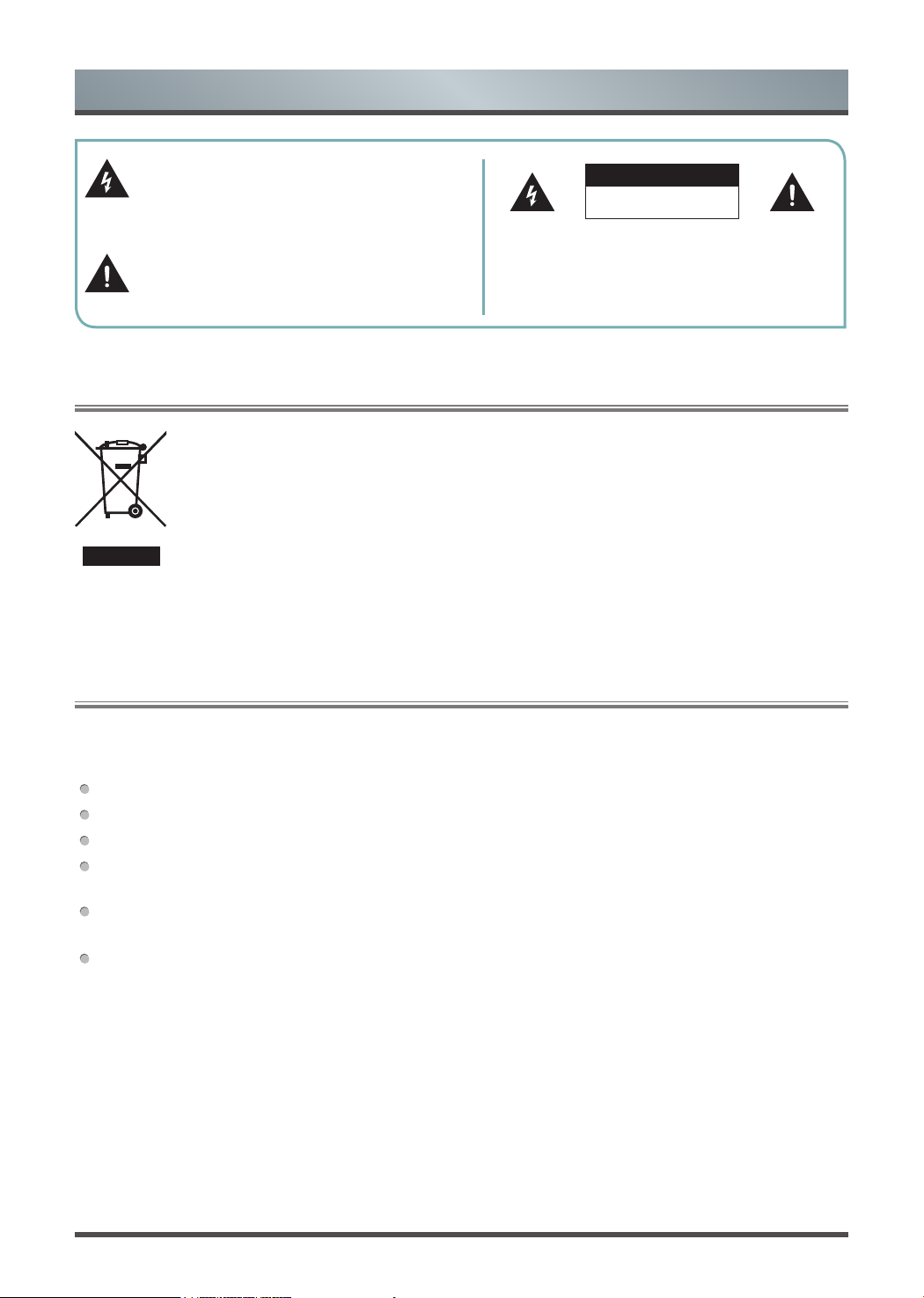
This symbol alerts user about the presence of a
dangerous voltage not isolated inside the product
which can be sufficiently powerful to constitute a
risk of electrocution.
Do not open the back cover.
In no case the user is allowed to operate inside the TV set.
Only a qualified technician is entitled to operate.
This symbol alerts user about the presence of
important operating instructions and maintenance
in the document enclosed in the package.
ATTENTION
RISK OF SHOCK
ELECTRIC
Packaging and electrical goods should be recycled appropriately, and not treated as household
waste. Please dispose of this equipment at your applicable collection point for the recycling of
electrical & electronic equipment waste. By ensuring the correct disposal of this product, you
will help prevent potentially hazardous to the environment and to human health, which could
otherwise be caused by unsuitable waste handling of this product. The recycling of materials
will help conserve natural resources. Please do not therefore dispose of your old electrical and
electronic equipment with your household waste. For more detailed information about recycling
of this product, please contact your local city office, your household waste disposal service or
the shop where you purchased the product.
Warning
Never place a television set in an unstable location. A television set may fall, causing serious personal injury
or death. Many injuries, particularly to children, can be avoided by taking simple precautions such as:
Using stands recommended by the manufacturer of the television set.
Only using furniture that can safely support the television set.
Ensuring the television set is not overhanging the edge of the supporting furniture.
Not placing the television set on tall furniture (for example, cupboards or bookcases) without anchoring
both the furniture and the television set to a suitable support.
Not placing the television set on cloth or other materials that may be located between the television set and
supporting furniture.
Educating children about the dangers of climbing on furniture to reach the television set or its controls.
If your existing television set is being retained and relocated, the same considerations as above should be
applied.

3
Important Safety Precautions
Please read the following safeguards for your TV and retain for future reference.
Always follow all warnings and instructions marked on the television.
1. A note about safety and operating instructions
Read and follow all safety and operating instructions, and retain them safely for future reference.
2. Heed Warnings
Adhere to all warnings on the appliance and in the operating instructions.
3. Cleaning
Unplug the TV from the wall outlet before cleaning. Do not use liquid, abrasive, or aerosol cleaners. Cleaners
can permanently damage the cabinet and screen. Use a lightly dampened cloth for cleaning.
4. Wall Bracket
Wall brackets are not supplied with this product. After market brackets may be available to purchase locally.
Please refer to the specification page for dimensions.
5. Water and Moisture
Avoid dripping or splashing of liquids onto the product. Objects filled with liquids, such as vases, should not be
placed on the product.
6. Setting
Do not place this TV on an unstable cart, stand or table. Placing the TV on an unstable base can cause the
TV to fall, resulting in serious personal injuries as well as damage to the TV. Use only a cart, stand, bracket or
table recommended by the manufacturer or salesperson.
7. Ventilation
Slots and openings in the cabinet are provided for ventilation, to ensure reliable operation of the TV and to
protect it from overheating. Do not cover the ventilation openings in the cabinet and never place the set in a
confined space such as built-in cabinet unless proper ventilation is provided. Leave a minimum 10cm gap all
around the unit.
8. Power Source
This TV should be operated only from the type of power source indicated on the marking label. If you are not
sure of the type of power supplied to your home, consult your appliance dealer or local power company.
9. Power-Cord Protection
Power- supply cords should be routed so that they are not likely to be walked on or pinched by items placed
upon or against them, paying particular attention to cords at plug, wall outlets, and the point where they exit
from the TV. MAIN plug is used as the disconnect device, the disconnect device shall remain readily operable.
10. Lightning
For added protection for this TV during a lightning storm, or when it is left unattended and unused for long
periods of time, unplug it from the wall outlet and disconnect the antenna or cable system. This will prevent
damage to the TV due to lightning or power-line surge.
Safeguards

4
Important Safety Precautions
11. Power Lines
An outside antenna system should not be located in the vicinity of overhead power lines or other electric light
or power circuits, or where it can fall into such power lines or circuits. Where installing an outside antenna
system, extreme care should be taken to keep from touching such power lines or circuits as contact with them
might be fatal.
12. Overloading
Do not overload wall outlets and extension cords as this can result in a risk of fire or electric shock.
13. Object and Liquid Entry
Never push objects of any kind into this TV through openings as they may touch dangerous voltage points or
short-out parts that could result in fire or electric shock. Never spill liquid of any kind on or into the TV.
14. Outdoor Antenna Grounding
If an outside antenna or cable system is connected to the TV, be sure the antenna or cable system is
grounded so as to provide some protection against voltage surges and built-up static charges.
15. Servicing
Do not attempt to service this TV yourself as opening or removing covers may expose you to dangerous
voltage or other hazards. Refer all servicing to qualified service personnel.
16. Damage Requiring Service
Unplug the TV from the wall outlet and refer servicing to qualified service personnel under the following
conditions:
(a) When the power - supply cord or plug is damaged.
(b) If liquid has been spilled, or objects have fallen into the TV.
(c) If the TV has been exposed to rain or water.
(d) If the TV does not operate normally by following the operating instructions. Adjust only those controls that
are covered by the operating instructions as an improper adjustment of other controls may result in damage
and will often require extensive work by a qualified technician to restore the TV to its normal operation.
(e) If the TV has been dropped or the cabinet has been damaged.
(f) When the TV exhibits a distinct change in performance - this indicates a need for service.
17. Replacement Parts
When replacement parts are required, be sure the service technician has used replacement parts specified by
the manufacturer or have the same characteristics as the original part. Unauthorized substitutions may result
in fire, electric shock or other hazards.
18. Safety Check
Upon completion of any service or repair to the TV, ask the service technician to perform safety checks to
determine that the TV is in safe operating condition.
19. Heat
The product should be situated away from heat sources such as radiators, heat registers, stoves, or other
products (including amplifiers) that produce heat.
20. Fire
The product should be situated away from naked flame sources such as lighted candle.
21. Off-gassing
The TV smells of plastic is normal and will dissipate over time.

5
To turn your TV on or off :
1. Plug the AC power cord into a socket outlet of AC power supply.
2. When the TV is powered on, press the [
] button on the remote control, to turn TV on or off.
1.1
Turning your TV on or off
NOTES
When your TV is in standby mode, it is still consuming power. To completely disconnect power, please
remove the mains plug from the mains socket.
If your TV does not receive an input signal for several minutes, it automatically goes into standby mode.
Select the Input Source depending on the video device you have connected to your TV.
To select the input source:
1. Turn on your TV, then press the [INPUT] button on the remote, the list of Source appears.
2. Press the [
/ / < / >] buttons to select the input source.
3. Press the [OK] button to confirm your selection.
1.2
Selecting the Input Source
Shortcuts Instructions
You can use shortcuts on the remote control for fast operation. Refer to the “ Quick Setup Guide ” for more
information.
1.3
Using the Live TV
To view broadcast programs, press the [Live TV] button on your remote.
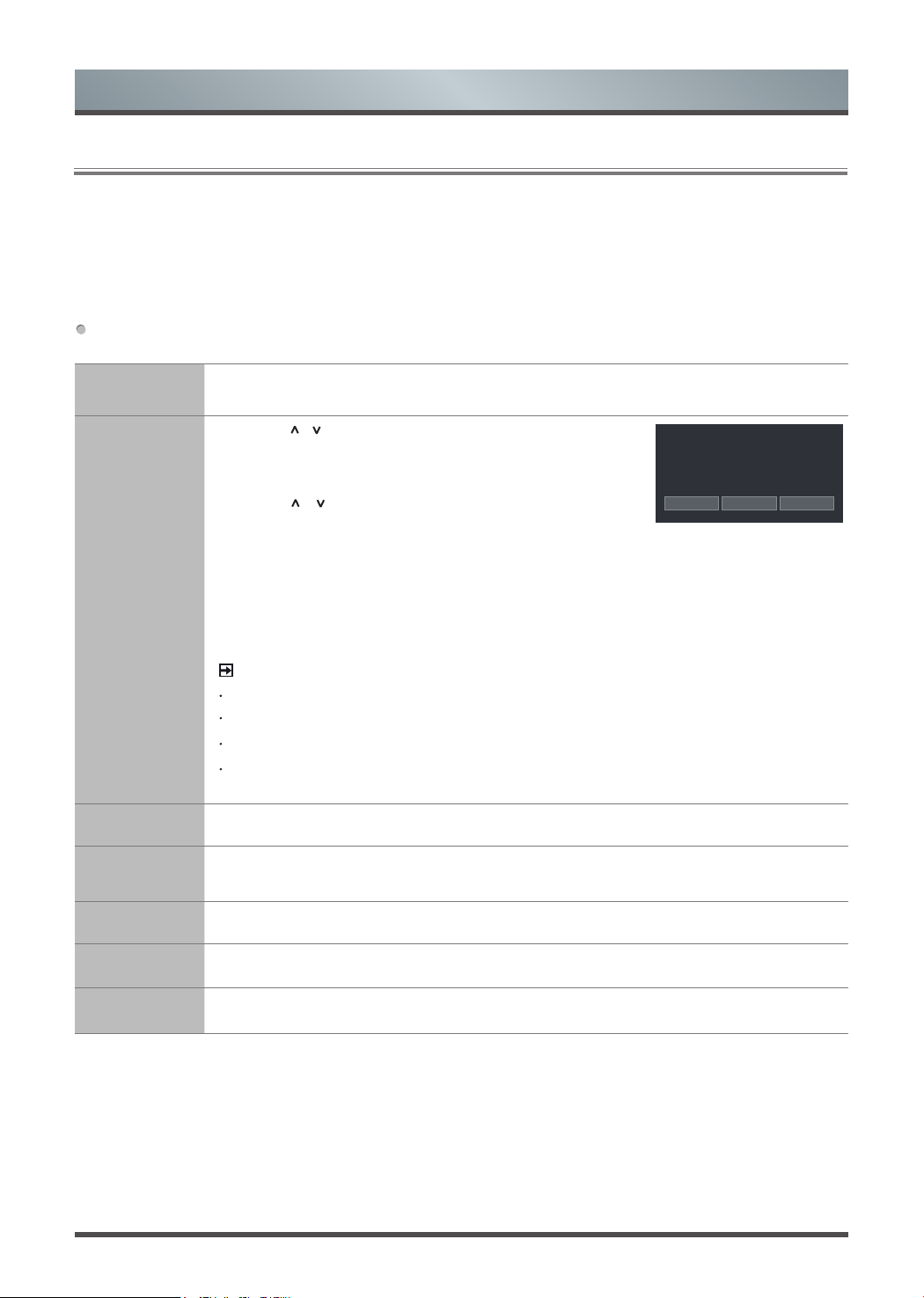
Channel search guide
When switching to Live TV, the TV detects the presence of the channel list information (Channel scan must
have been completed). If the scan has not yet been completed, a prompt will appear to begin scanning for
channels. Press the Scanning button to enter the channel search interface.
Launch Live TV
After channel tuning is done for the first time, the screen will display Live TV operating tips.
[Up] load info bar.
[OK] load Channel list.
[EPG] load Guide.
[MENU] load onscreen menu.
[Down] initiate PVR and Timeshift.
[BACK] jump to previous channel.
Figures and illustrations in this manual are provided for reference only and may differ from actual product
appearance.
Parts of the software function changes with the system upgrade.

6
Shortcuts Instructions
Viewing Channel List
After you have done an automatic channel scan (if you’re using an antenna) or receiving your channels
through a cable provider, you can view your list of channels by pressing [OK] button on your remote. You will
see the channel list display on the screen.
Enter the sub-menu of channel list
Press the [OK] button and the [ < ] button on your remote when viewing channels.
Introduction of the sub-menu
1. Channel List
·
All
Display the channels that have been automatically searched.
·
Favourite List
Display favourites lists 1 to 4. (Max 4 fav lists can be added)
2. Filter
Select channels by content, HD, child lock, scrambled, Sort.
3. Search
Quick access to channels.
4. Edit
Edit the channel list.
Favorites List
To quickly access your most-watched channels, you can create a Favorites List.
To create
your Favorites List:
There are 2 ways to enter the edit menu
:
1. Press the [OK] button and the [ < ] button on your remote when viewing channels to select
Channel List >
Favorite List
2. Press the [
]
/
[
] button on your remote to select
Settings
, and then press [OK] button to enter the
Settings menu, Select
Channel
> Channel Edit
> FAV
> Edit.
Adding channels to a Favorites list
Select the + Add to add the selected channel to the favorite list.
Moving channels from a favorites list
Select channels in a favorites list, press [ < ] button to move the selected channel.
Deleting channels from Favorites list
Select channels in a favorites list, press [ > ] button to remove the selected channel.
NOTES
• These steps should be operated under TV inputs.
• Before you edit the fav lists, complete channel scan first.
• You can add channels from various reception types to the FAV list.
Viewing your Favorite list
To view channels that you’ve added to your Favorites List, press [OK] button on your remote to call out the
channel list.
The channel list appears on the
screen and heart-shaped icons are shown next to the channels that make up
your Favorites List.
7
1.4
EPG
It provides convenience to check TV programs that will be available in the next 7 days. The information displayed by
the EPG is made available by the commercial television networks for digital channels only. The EPG also provides
a simple way to program the recording of your favorite programs and a reminder function which can switch channel
automatically at scheduled time so that you do not miss programs of interest. (The availability and amount of
programme information will vary, depending on the particular broadcaster).
Press the [EPG] button on the remote control to display channel information on program guide list.
Shortcuts Instructions
Watch
When a current program is selected, press the [OK] button to watch.
PVR/Reminder
Press the [
/
] buttons to select the channels, press the [<
/ >] buttons to select program based on the time schedule.
Press the [OK] button to select PVR or Reminder
.
Press the [
/ / < / >] buttons to change and set different
options.
· Select and set Start time/End Time:
Press the [OK] button,
and then press the [0~9] buttons to input the desired numbers.
(Selecting and setting end time is only available for PVR)
· Repeat: You can select from Once, Daily, Mon to Fri, Sat to Sun, Weekly.
NOTES
Reminder is only available for programmes that haven’t been aired yet.
A storage device must be attached to the television for recording purposes.
The TV will record the program even in standby mode.
The PVR function is only available on certain models in some country/region.
Page Up/Down
Press the [
CH+/CH-
] buttons to move programme listing page up/down.
Program
details
Press the [
INFO
] button to display detailed information of the selected program.
Schedule
Press the [RED] button to view a list of scheduled reminders and recordings.
24-
Press the [YELLOW] button to go backwards a day.
24+
Press the [BLUE] button to move forwards a day.
101 Rbb Berlin
Social Service
13:00-14:00 26 Oct.
Type:
PVR Reminder Detail

8
Shortcuts Instructions
1.5
PVR/T.Shift
PVR
The PVR function allows you to easily record digital television content for later viewing. The function is only
available in DTV source. To use PVR, you must connect a USB device for recording. The format of the
storage disk should be NTFS, FAT32, EXT4. The PVR will not function if a data storage device has not been
connected.
Schedule Recording
Press [EPG] button, Select the programme to be played, press [OK] button to set the appointment time and
period, the reservation is successful. Press [RED] button to view the schedule recording. In the schedule
recording list, you can readjust the reservation information that has been set.
Instant Recording
Press [
] button to select PVR.
Select the partition, and the USB device speed will be tested(appear when using for the first time).
You can choose to Manual stop or automatically match the programme time.
Standby record
If you press the power button during recording, TV will go into standby mode but the recording process is
still going on. If you press power button again and wake up the TV, recording process will not be affected.
After recording, the recorded file will be automatically saved to the disk.
Recording List
Viewing the recorded programmes.
Press the [
] button on your remote to select Recording List > Recorded, You can watch or delete
recorded programmes.
T.Shift
This option allows you to pause and rewind live TV. This function operates by recording temporarily to
a storage device. Please ensure your storage device is connected and there is enough free disk space.
Otherwise the recording will not commence.
Press the [
] button on the remote
to select T.Shift and then the menu will appear, press the [II] button to pause
the live broadcast and press the [►] button to play. Press the [
] button to rewind and press the [ ] button to
fastforward.Pressthe[■]buttontoexitthefunctionandwatchthecurrentbroadcast.
NOTES
• When connecting a hard disk, always connect the mains adapter of the connected device to the power
supply.
• If a USB 1.1 or USB2.0 device requires more than 500mA or 5V, the USB device may not be supported. Max
supported current for USB 3.0 device is 1A. Exceeding the max supported current may result in damage or
data loss.
• The maximum supported storage space of the hard disk is 2T.
• If you want to store the video streaming of a DTV program, the transfer rate of the USB storage device
should be no less than 5MB/s.

9
Shortcuts Instructions
• The schedule recording function is not available while you are watching a programme that is currently being
broadcast.
• Some broadcasters may restrict to record the programme.
• During the recording progress, channels locked with Channel Lock(password needed) are disabled to watch.
• The PVR and T.Shift functions
doesn’t support analogue channels.
• The PVR function is disabled for scrambled channels(CI module needed).
• The T.Shift function is disabled for channels locked with Channel Lock or scrambled channels (CI module or
password needed).
• The PVR and T.Shift functions are only available on certain models in some country/region.

10
Menu
2.1
Using the Menu Function
To quickly access menu function, press the [ ]
/
[
] button on your remote.
Headphone Volume
Adjust the volume of the headphone when the headphone is connected.
Channel List
View the Channel List and adjust channels while watching TV.
(Only available for TV channels)
Guide
Enter guide function under TV mode.
It provides an overview of each digital channel’s programme lineup.
Teletext
Display the teletext mode.
NOTE
This function is only visible when the selected channel has the corresponding information.
Audio Language
Select a desired language from the list if the selected channel supports multi-audio languages. (Only available
for DTV channels)
NOTE
This function is only available on certain models in specific geographical areas.
Subtitle
Select desired subtitles from the list if the selected channel supports multi-language subtitles.
Audio Only
When you select this option, the screen will not display the picture. You can only listen the audio. Press any
button except the [
/
VOL
/ ] buttons to restore operation.
Recording List
View recording schedule list. You can edit the settings of the selected schedule or delete it. (Only available for
DTV channels)
HbbTV
The switch to enable or disable HbbTV functionality for each individual channel. (Only available for DTV
channels)
NOTE
This function is only available on certain models in specific geographical areas.
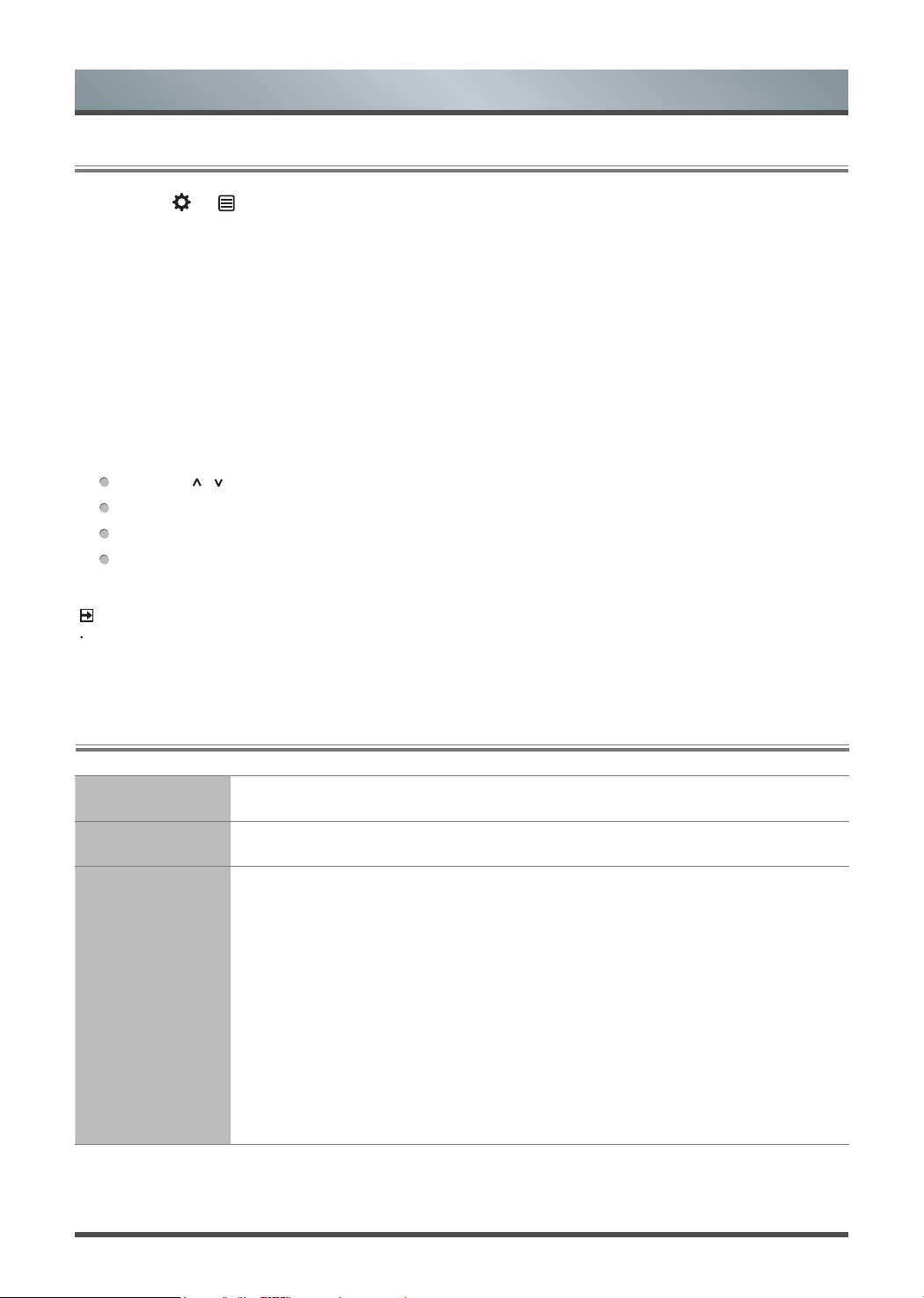
Settings
The Settings Menu consists of the following settings: Picture, Sound, Network, Channel, Accessibility, System
and Support.
11
2.2
Using the Settings Menu
NOTE
The menus in the user manual may vary slightly from the actual screen.
2.3
Using the Picture Menu
Picture Mode Select a preset picture mode to best suit the content you’re viewing.
Aspect Ratio Adjust the Aspect Ratio to stretch or zoom in on your picture.
Picture Mode
Settings
Adjust display settings for each Picture Mode.
• Apply Picture Settings: Adjust current picture mode to apply to all sources or just
current source.
• Backlight: Set the overall brightness of the screen.
• Brightness: Adjust the Brightness level to generate lighter or darker images.
• Contrast: Adjust the Contrast level to increase or decrease how bright images
appear.
• Color Saturation: Adjust the color intensity of the picture for a more vibrant image.
• Sharpness: Adjust how sharp or soft edges of images appear.
1.
Press
the [
]
/
[
] button on your remote to select Settings, and then press the [OK] button to enter the
Settings menu.
The Settings Menu consists of the following settings:
• Picture
• Sound
• Network
• Channel
• Accessibility
• System
• Support
2.
In each menu, you can:
Press the [
/ / < / >] buttons to select an item,
Press the [OK] button to enter the sub-menu or to set on or off,
Press the [< / >] buttons to adjust the value,
Press the [BACK] button to return to the previous menu.
3.
Press the [EXIT] button to exit the menu.
Menu
12
Menu
2.4
Using the Sound Menu
Sound Mode Select a preset sound mode to suit the type of content you are listening to.
Dolby Atmos
Turn on or off Dolby Atmos.
NOTE:
The feature is only available on selected models.
Headphone
• Headphone Mode: Change the way audio is sent through the type of device that’s
connected to your TV Audio Out port.
• Headphone Volume: Independently adjust the volume of audio out devices.
Sound Mode
Settings
Customize selected Sound Mode.
• Apply Audio Settings: Adjust current sound mode to apply to all source or just
current source.
•
: Optimizes overall sound quality by increasing bass, widening the
sound field and provides a clear, natural dialog.
NOTE:
The feature is only available on selected models.
Picture Mode
Settings
• Game Mode: Best suited for PC or Games console. Reduces Input Lag and
improves responsiveness.
NOTE:
Some models don’t support this function.
• Adaptive Contrast: Automatically darken dark areas and lighten light areas of
images to see more details.
• Ultra Smooth Motion: Reduce seeing afterimages that are left on the screen
when viewing fast-moving objects.
NOTE:
Some models don’t support this function.
• Noise Reduction: Improve how clear the picture appears by reducing noise.
• MPEG Noise Reduction: Reduce MPEG block noise and provides clearer edge
transitions.
NOTE:
Some models don’t support this function.
• Color Temperature: Adjust how warm(red) or cool(blue) the white areas of an
image appears.
• Expert Setting: Adjust the colour space and Gamma to best suit the content
you’re viewing.
• Restore Current Picture Mode Settings: Restore all the picture settings in the
current picture mode to the factory default values.
• Overscan: Change the video size settings to slightly crop the edges of the
displayed image.
13
Menu
Sound Mode
Settings
•
: Maintains consistent loudness levels from wide dynamic range
programs, loud commercials, and channel or input changes.
NOTE:
The feature is only available on selected models.
•
: Provides surround sound experience by utilizing psychoacoustic
processing to place sounds beside, behind and above the viewer. For best results
use with Total Sonics.
NOTE:
The feature is only available on selected models.
Sound Mode
Settings
• Bass Boost: Built-in Bass Adjustment.
NOTE:
The feature is only available on selected models.
• Surround Sound: Surround sound uses DTS TruSurround™ to deliver an
immersive surround sound experience from the TV’s internal speakers.
NOTE:
The feature is only available on selected models.
• Dialog Clarity: Dialog Clarity uses DTS Dialog Clarity™ to boost the frequency
range of the human voice so dialog is clearly understood and heard above audio
or surround effects.
NOTE:
The feature is only available on selected models.
• Equalizer: Boost the volume at different frequencies.
• Subwoofer: Built-in Subwoofer switch.
NOTE:
The feature is only available on selected models.
• Wall Mount Setup: Automatically optimize the sound based on the position of the
TV.
• Auto Volume Control: Activate to prevent the volume from changing when you
switch TV channels.
• Restore Current Sound Mode Settings: Restore all of the audio settings in
current audio mode to the factory default values.
Speakers
• Audio Output: Select the speakers which you want to use.
• Digital Audio Out: Select the digital audio output format that best suits the audio
device type.
• Digital Audio Delay: Adjust the digital audio output delay time to sync sound from
an external speaker with the images on the TV.
• Lip Sync: Synchronize the displayed image with the audio output.
• Balance: Adjust the left and right speaker strength to optimize audio for a specific
location.

14
2.5
Using the Network Menu
Network
Conguration
Set up the network to gain full access of Smart TV features.
• Connection Select: Ethernet
Choose a wired network connection to access the Internet.
IP Settings: Configure the IP setting for your network connection.
• Connection Select: Wireless
Choose a wireless network connection to access the Internet.
Advanced Settings: Configure the advanced wireless network settings for the TV.
Refresh: Refresh wireless network.
Add: You can add wireless network.
• Connection Select: Off
Turn off the Internet connection.
Internet
Connection
• Connection Test: Start a network connection test.
• Network Information: View information about your network connection.
Wake on
Wireless
Network
Using a wireless connection, turn on your TV with a screen-cast feature inside an app.
Wake on LAN
Using an Ethernet connection, turn on your TV with a screen-cast feature inside an app.
Menu
2.6
Using the Channel Menu
Auto Scan Automatically scan for channels to view programming from your TV source.
Channel Edit Manually edit the channel list to your preference.
Advanced
Settings
Adjust advanced settings for Channel.
• Manual Scan: Perform manual channel scan for ATV and DTV.
• Channel List Auto-Update: Allow your TV to auto-update the channel list from the
content provider.
• Program Auto Update: TV will automatically update program data overnight while in
stand-by mode.
15
Menu
2.7
Using the Accessibility Menu
Menu Scheme Select menu scheme style from Dark, Light.
High Contrast
Menu
Improve contrast for visually impaired.
Menu
Transparency
Select menu transparency from Off, Medium, High.
Hard of
Hearing
Subtitles
Subtitles for hearing impaired.
Audio Type
• Audio Type: Select the audio type of programmes.
• Voiceover Volume: Independently adjust the volume of voiceover.
NOTE:
Audio Type is only available on certain models in specific geographical
areas.
Advanced
Settings
• CI+ Module Settings:
• Common Interface: Review CAM boot menu
NOTE:
CI Card is not supported in some regions so this option may not be available.
•CI card PIN: Set the CI CAM pin.
NOTE
CI Card is not supported in some regions so this option may not be available.
•CAM Profile Search: Quick channel scan with CAM.
NOTE
CI Card is not supported in some regions so this option may not be available.
16
Menu
2.8
Using the System Menu
Time
Set the current time based on your location.
• Time Format: Set the time to display in a 12 or 24-hour format.
• Jalaali: Turn the Jalaali On or Off.
NOTE:
This function is only available on certain models in specific geographical
areas.
• Date/Time: Set the Date and Time.
• Time Zone: Select your time zone.
• Daylight Savings: Select whether to apply Daylight Savings Time to the TV.
Timer Settings
Adjust the timer settings to suit your preference.
•
Sleep Timer:
Set the sleep timer to automatically turn the TV Off within a specified
time.
•
Power On Timer:
Set the clock for the time you want the TV to turn on automatically.
•
Power Off Timer:
Set the clock for the time you want the TV to turn off automatically.
•
Menu Timeout:
Set the amount of time that you’d like for the menu to display.
•
Auto Sleep:
Set the amount of time that you’d like for TV auto power off without
any activity.
NOTE:
Auto Sleep is only available on certain models in specific geographical
areas.
•
Auto Standby with No Signal:
TV will go standby if there is no signal and the
timer times out
System PIN
Change your PIN that you use to access Parental Controls, Auto Channel Scan and Reset
To Factory Defaults.
NOTE:
If you forget your password, call the Consumer Electronics Care Center.
Parental
Controls
Turn On Parental Controls to block children from being able to view certain
programmes. You can do this by creating a 4-digit password.
• Locks: Turn the Lock system On or Off.
• Block Time: Block certain channels and programs during certain periods of time.
• Channel Block: Block programmes by channels when you activate the parental
controls settings.
• Content Blocking: Certain programmes are blocked when you activate the
parental control settings.
•Input Block: Block content from devices that are connected to certain TV ports.
•App Block: If an app that you want to restrict does not appear here then check the
Parental Control settings in the app.
• Restore Parental Control Defaults: Restore Parental Control back to the factory
default setting.
17
Menu
Language
and Location
Select the language used for this TV and your location.
• Location: Choose the location from where you will watch your TV.
• Menu Language: Set the default language for the TV menu.
• Primary Audio: Set the default audio output language for the type of digital
broadcast content that you’re viewing.
• Secondary Audio : Set the secondary audio output language for digital broadcast
content.
• Primary Subtitle: Set the default subtitle language for digital broadcast content.
• Secondary Subtitle : Set the secondary subtitle language for digital broadcast
content.
• Digital Teletext : Adjust Teletext decoding.
Voice Service
Use your voice to control the TV, other smart home devices, and more.
• Voice Service Account Setup: Register the TV with your Voice Service Account.
• Amazon Alexa Service: Set up Amazon Alexa Service.
NOTE:
The Voice Service function is only applicable in certain models.
Application
Settings
Set settings for apps on your TV.
• Anyview Stream: Share video, music or other content from another device on to your
TV screen.
• HbbTV: The global switch to enable or disable HbbTV functionality for all channels.
NOTE:
This function is only available on certain models in specific geographical
areas.
• Clear Cache: Clear cache, user data and temporary files for browser and applications.
• Delete Cookies: Delete Cookies for browser and applications.
• Do Not Track: Tell websites and some applications your tracking preference.
NOTE:
This function is only available on certain models in specific geographical
areas.
• Netflix: Remove this TV from your Netflix account. Please contact Netflix if you want
to stop being billed for your service.
HDMI & CEC
Functions
Configure how to control CEC-enabled devices with your TV remote.
• HDMI 2.0 Format: Match the connected device output format. Select Enhanced for
devices with output of 4K, 60Hz, 4:4:4,
4:2:2 or 4:2:0, 10 bit and above.
• CEC Control: Allow HDMI devices to control each other.
• Device Auto Power Off: Allow CEC-enabled devices to turn off with the TV.
• Device Auto Power On: The device with CEC function that is connected to current
input will be powered on when TV is powered on.
• TV Auto Power On: Allow the TV to turn On with CEC-enabled devices.
18
Menu
HDMI & CEC
Functions
• CEC Device List: Show up available CEC devices.
NOTES
HDMI cables must be used to connect HDMI CEC-compatible devices to your TV.
The HDMI CEC feature of the connected device must be turned on.
If you connect an HDMI device that is not HDMI CEC-compatible, all the HDMI-CEC
control features do not work.
Depending on the connected HDMI device, the HDMI-CEC Control feature may not work.
Bluetooth
Connect to the Devices using bluetooth technology.
• Remote pairing:
Pair bluetooth Remote Control with TV.
• Bluetooth switch: Turn on or off Bluetooth.
• Equipment management: Manage bluetooth devices.
NOTES:
Thisfunctionisnotavailableoncertainmodelsinspecicgeographicalareas.
Only one Bluetooth speaker and Bluetooth headphone can connect to TV, if a new
Bluetooth speaker or headphone connected to TV, the old one should disconnect to
TV automatically.
Compatibility issues may occur, depending on the Bluetooth device.
The TV and Bluetooth device may disconnect, depending on the distance between
them.
The TV supports Bluetooth keyboard, Bluetooth mouse, Bluetooth headset,
Bluetooth speakers and so on.
Advanced
Settings
Access the Advanced Settings menu.
• TV Name: Choose a name for your TV. The name will be shown to devices that are
available for sharing data.
• PVR & Time Shift Setting: Initialize the external USB disk to support PVR and
Time-Shift. (Since the function record temporary the program onto a hard disk only.)
• Power Indicator: Set the Power Indicator light to stay On or Off when standby
mode.

19
2.9
Using the Support
Menu
System Info
View system information.
• Signal Info: Show signal information of current input.
• Network Connection: View your TV’s network connection information.
• Input Connections: View your TV’s input connection information.
• Version: View your TV’s software version and hardware code.
Self Diagnosis
Perform self diagnosis to test sound, picture and connections.
• Picture Test: Perform this test to test your TV’s picture.
• Sound Test: Perform this test to test your TV’s sound.
• Network Test: Perform this test to test network connection.
• Input Connection Test: Show all related information with external connections.
Menu
Advanced
Settings
• Indicator Light Setting: Set the indicator light to stay On or Off when watching TV.
Off: Always Off.
Power
:
Off when standby and On when watching TV.
Always
:
Always On.
NOTES
The standby energy consumption of television is different when you select different
options.
Some models don’t support this function.
• Input Labels: Edit the input labels.
•
Notifications:
Allow pop-up notifications to appear for useful information and
events that occur with your TV.
• Setup Wizard: Use the Setup Wizard for instructions to help you set up your TV.
• Store Mode: Home Mode uses less energy. Select Store Mode if the TV will be on
display in a retail setting. Store Mode effects E-Streamer and other demo functions.
• Sports Mode Auto Detection: Turn it on. For programmes of Sports type, your TV
will automatically switch to Sports mode for both Sound Mode and Picture Mode.
• Fast Power On:
Turn on or off TV fast startup.
• Power On Mode:
TV will be powered on based on the mode when TV is
reconnected with AC power.
20
System Update
Set your TV to receive the latest firmware.
• Auto Firmware Upgrade: Set your TV to automatically receive the latest
firmware.
NOTE:
Please ensure your TV is connected to the Internet.
• Check Firmware Upgrade: Check to ensure that your TV has received the latest
firmware.
NOTE:
Please ensure your TV is connected to the Internet.
• Check OAD Upgrade : Check to ensure that your TV has received the latest
firmware via the tuner.
NOTES:
Please ensure your TV is connected to the Internet.
This function is only available on certain models in specific geographical areas.
• Upgrade from USB: Upgrade TV software from USB device.
Disclaimer and
Privacy
Click to read the disclaimer details.
RemoteNow
Download
Install RemoteNOW app on your smartphone to control your TV. This app is
available on both Android and iOS.
Restore To
Factory Default
Restore your TV back to the factory default.
Menu

21
3.1
Getting familiar with the Home screen
Advanced Features
To access the Home screen, press the [ ] button on your remote control and use the arrows on the D-pad to
make your selection.
Indicators and Icons on the top of the Home screen
You can always view the current time at the top of the Home screen.
If your TV is connected to the Internet through a wireless connection
or an Ethernet cable, then an icon
/
will display on the screen. This location makes it very convenient for you to determine if you still have
Internet connectivity when you use the TV.
Editing the Home screen
1. Move an app, or an input, or a channel from the Home screen.
Select the item you want to move, press the [
] button, and then display the tip
.
Press the [<
/
>] buttons to move it.
2. Delete an app, or an input, or a channel from the Home screen.
Select the item you want to delete, press the [
] button, and then display the tip
.
Press the [
] button twice constantly, and it will be deleted.
Search
Search the app you want.
Notifications
Allow pop-up notifications to appear for useful information and events that occur with your TV.
Select Notifications on the Home screen, and then display Advertising, New Arrivals, System message,
Warnings And Legal Statements only when starting the TV for the first time. Choose which types of
notifications you would like to receive.
NOTE:
By the [
]
/
[
] button
> Settings > System > Advanced Settings > Notifications, you can also choose
which types of
notifications you would like to receive.
Settings
Open the settings menu.

22
Advanced Features
3.2
Apps
Numerous factory-installed apps are available for you to choose from for your entertainment preferences.
Installing an App
Even though your TV has numerous factory-installed apps, there may be others that you’d like to download.
To install an app:
1. From the Home screen, click on the Apps to select the AppsNOW icon
.
2. Use the navigation buttons of your remote to select the app that you want to install and then press the [OK]
button. A page displays that shows a written description of the app.
3. Click on Install
.
The selected app has been added to the Home screen.
Removing an App
You can only delete apps that you’ve installed to the TV. Some factory-installed apps can not be deleted.
To delete an app:
1. Use the navigation buttons on your remote to select the app that you want to remove.
2. Press the ‘red’ button on your remote. A dialog message displays that asks do you want to uninstall this
app.
3. Click on OK. The icon is removed from the Apps list screen.
NOTE:
If an app is deleted, the information related to that app is also removed.
23
Advanced Features
3.3
Media
Media is a central location for you to upload and view or listen to different types of content (for example, your
photos, music and movies) through the following methods:
• A USB thumb drive or hard drive
• Compatible mobile phone, tablet or other personal devices: You can stream movies, pictures and photos
that are stored on Compatible personal device and play or view the content on your TV.
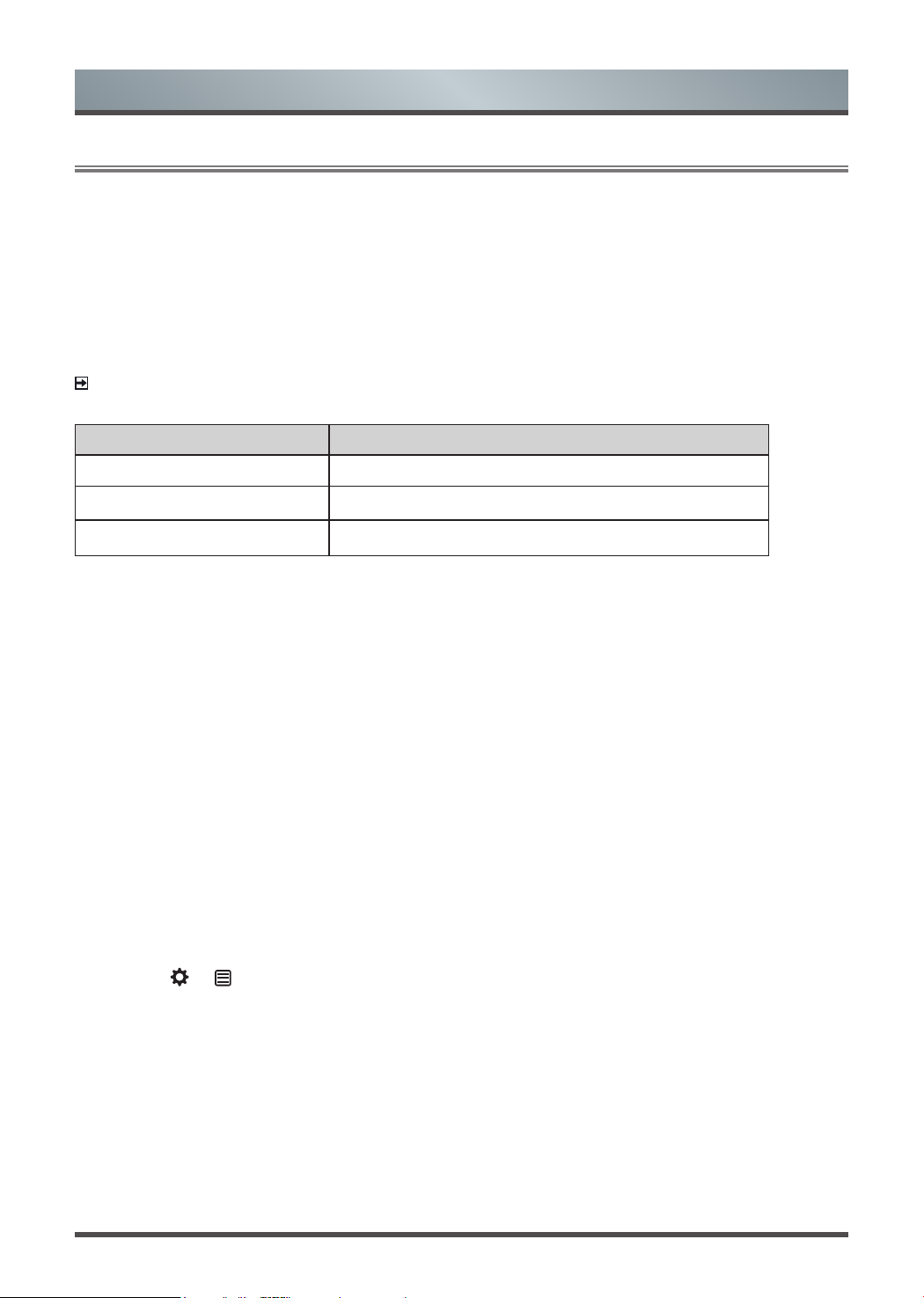
File formats that may be supported
NOTE:
Due to differences in programming tools and other factors, some of the file formats that are listed
may or may not be supported.
Medium File Format
Video AVI, MP4, MKV
Picture JPG, BMP, PNG, GIF
Music MP3
Browsing Content
To browse through content based on the type that you wish to access:
1. Navigate to the appropriate menu tab on the screen and select All Media, Picture, Music or Video, also
you can find the file you want through the file type: Name, Date Modified, Size.
2. Press the [
v
/
v
/
<
/
>] buttons to select the name of the content/folder that contains your content.
3. Press the [OK] button to play/enter content/the folder.
If you want to close out of the Media center, press the [EXIT] button on your remote.
Creating Playlist
1. Press the [GREEN] button on the remote to create a playlist.
2. Select Picture / Music / Video that you want to play.
3. Press the [GREEN] button on the remote to play the list you have created.
Playing background music during viewing pictures
You need to:
1. Press the [
]
/
[
] button when viewing pictures.
2. Select Background music and choose your music that you want to play.
3. Click Play selected to play.

24
Advanced Features
NOTE
Freeview Plus service only available in Australia territories.
The Anyview Cast is an app that enables you to share (or cast) a video, audio or image from compatible
Android device to the TV.
From your tablet or phone
To mirror content from your tablet to the TV:
1. Press the [
]
/
[
] button on your remote
to select Settings, press the [OK] button to enter the Settings
menu. Go to Network > Network Configuration and select Wireless.
2. Press the [INPUT] button on your remote and select the Anyview Cast.
3. Turn on the wireless display function on your Android-based device.
NOTE:
Some Android-based devices may not support casting.
4. Find your TV in the list of devices that displays and select it.
5. Wait for the ‘Creating Connection’ progress bar to complete on the TV screen and the video or image will
display in a moment.
3.4
Using Anyview Cast to mirror content from your device to the TV screen
3.5 Software updates for your TV
The software (also referred to as firmware) is part of what powers your TV. We will provide software updates to
continuously enhance your TV and correct any issues that may impact your user experience; therefore, we
recommend that you keep your TV connected to the Internet to receive updates when they are available.
You can choose to receive updates automatically or check for software updates and install them manually.
Checking for the latest firmware / OAD
To manually check for the latest firmware:
1. Press the [
]
/
[
] button on the remote to select Settings, and then press the [OK] button to enter the
Settings menu
.
2. Go to Support > System Upgrade > Check Firmware Upgrade / Check OAD Upgrade
NOTE
This function is only applicable in some countries.
What is Freeview Plus?
Freeview Plus is a new television service delivered via broadband providing a state of the art Electronic
Program Guide (EPG) and seamless access to catch-up TV across the free-to-air networks with the simple
press of a button.
How does it work?
First ensure the TV is connected to internet and an antenna system. Then when you’re watching TV, you’ll
briefly see a prompt at the top left of the screen. Press the ‘Green’ button on your remote to launch Freeview
Plus. More information about Freeview Plus can be found on http://www.freeview.com.au/
25
4.1
Troubleshooting
Other Information
If the TV does not operate as usual or appears to be faulty please read carefully this section. Many
operational issues can be resolved by users.
It is also advisable to unplug the TV from the AC socket on the wall for 60 seconds or more, then reconnect
and start again. This simple procedure helps in restoring stable conditions for electric circuits and firmware of
the unit.
Please contact Manufacturer Customer Care if the problem is unresolved or you have other concerns.
SYMPTOMS POSSIBLE SOLUTIONS
No sound or picture.
Check if the power cord is plugged into a powered AC outlet.
Check to see if LED light is red. If illuminated, power to TV is OK.
I have connected an external
source to my TV and I get no
picture and/or sound.
Check for the correct output connection on the external source and
for the correct input connection on the TV.
Make sure you have made the correct selection for the input mode
for the incoming signal.
When I turn on my television,
there is a few second delay
before the picture appears. Is
this normal?
Yes, this is normal. That is the TV searching for previous setting
information and initializing the TV.
Picture is normal, but no sound.
Check the volume settings.
Check if Mute mode is set “on”.
Sound but no picture or black
and white picture.
If black and white picture first unplug TV from AC outlet and re-
plug after 60 seconds.
Check that the Color is set to 50 or higher.
Try different TV channels.
Sound and picture distorted or
appear wavy.
An electrical appliance may be affecting TV set. Turn off any
appliances, if interference goes away, move appliance farther
away from TV.
Insert the power plug of the TV set into another power outlet.
Sound and picture is blurry or
cuts out momentarily.
If using an external antenna, check the direction, position and
connection of the antenna.
Adjust the direction of your antenna or reset or fine tune the
channel.
Horizontal/vertical stripe on
picture or picture is shaking.
Check if there is interfering source nearby, such as appliance or
electric tool.
The plastic cabinet makes a
“clicking” type of sound.
"Click" sound can be caused when the temperature of the television
changes. This change causes the television cabinet to expand or
contract, which makes the sound. This is normal and the TV is OK.

26
Other Information
Remote control does not work.
Confirm that TV still has power and is operational.
Change the batteries in the remote control.
Check if the batteries are correctly installed.
Smart Television with wireless
network capability Wi-Fi fail to
join a local network.
Configure the local wireless router or access point for WPA-PSK
security before attempting to connect the TV to the Wi-Fi network.
Follow instruction in the User Manual of the television to setup a
wireless connection
