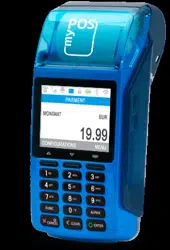

myPOS Combo - User Manual
myPOS Combo
user manual
mypos.com

myPOS Combo - User Manual
Table of Contents
Introducon .....................................................................................................2
Scope 2
Related documentaon 2
Internet connecvity 2
Using myPOS Combo with a mobile phone (via Bluetooth or personal hotspot) 2
Using myPOS Combo with a wireless router (Wi-Fi) 3
Using myPOS Combo with a SIM card 3
How to connect your myPOS Combo with Bluetooth 4
How to connect your myPOS Combo with Wi-Fi 5
How to connect myPOS Combo using SIM card 6
Acvaon ........................................................................................................7
Acvaon code 7
Accepng payments ........................................................................................8
Payment transacon 8
Processing magnec stripe cards 9
Processing contactless cards (PayPass or payWave) 9
Mobile Top-up 10
Send payment request 11
Refund transacons 12
Last transacon void 12
myPOS Combo funcons ...............................................................................13
Transacon menu 13
Sengs menu 14
Warranty and return policy ...........................................................................16
Replacement of myPOS package
with defect 16
Important: disposal 16
For more informaon ...................................................................................16

myPOS Smart Technical Specicaon & Warranty (Updated March 2018) | page 2
myPOS Combo - User Manual | page 2
Introduction
Congratulaons!
Your new myPOS Combo device (myPOS Combo in short) from myPOS Europe Ltd. is a
revoluonary mobile terminal for securely accepng payments with credit and debit cards
on the go. In order to start using it, you need to register on mypos.com for a free e-money
account, where your funds will be seled, and to acvate the myPOS Combo device.
If you need more than one device for your business, you can purchase and acvate
addional myPOS devices. The funds from all devices will be transferred to your myPOS
account.
Scope
This user guide contains step-by-step instrucons for using your myPOS Combo device
to accept credit and debit card payments on the go. The purpose of this document is to
specify the main funcons of the myPOS Combo.
The Quick User Guide provides informaon about:
• Internet connecvity capabilies of myPOS Combo
• How to use Bluetooth, Wi-Fi or SIM card on myPOS Combo
• Acvaon
• Accepng Payments
• Main menus and funcons
The Quick User Guide does not include informaon about the technical specicaons of
the device. It is is provided separately in the myPOS Combo Technical Specicaons &
Warranty document
Related documentation
The latest version of this Quick User Guide can be found on-line on
hps://mypos.eu/en/devices/combo.
Internet connectivity
In order to be able to process payments with credit and debit cards, the myPOS Combo
device has to be connected to the Internet. Your myPOS Combo can use the internet
connecon of your mobile phone (via Bluetooth or personal hotspot), a wireless router
and a SIM Card.
Using myPOS Combo with a mobile phone
(via Bluetooth or personal hotspot)
Make sure you have an internet connecon (data) acvated on your mobile (smart)
phone. In order to connect your myPOS Combo device to your mobile phone, please read
carefully the informaon below.

myPOS Smart Technical Specicaon & Warranty (Updated March 2018) | page 3
myPOS Combo - User Manual | page 3
Android
If you are using a mobile phone which runs Android 4.2 or later, you can connect
your myPOS Combo via Bluetooth or Wi-Fi (Personal Hotspot).
To connect via Bluetooth, download the free myPOS Bluetooth Service App from
Google Play Store and install it on your mobile phone. Starng the myPOS Bluetooth
Service applicaon will automacally launch a communicaon service. You can then
close your myPOS Bluetooth Service App as it is not needed anymore for your myPOS
Combo operaon. Please follow the procedure described in the “How to connect
your myPOS Combo with Bluetooth” secon.
To connect via Wi-Fi (Personal Hotspot) acvated on your mobile phone, please
follow the procedure described in the “How to connect your myPOS Combo with
Wi-Fi” secon.
Using myPOS Combo with a wireless
router (Wi-Fi)
Make sure your Wi-Fi router is connected to the Internet. In order to connect your
myPOS Combo device to your Wi-Fi router, please read carefully the informaon
below. Please be aware that the supported encrypon methods for Wi-Fi networks
are WPA and WPA2. For proper operaon of the myPOS Combo device, please make
sure that:
• your router does not have any network trac restricons or lters
• your router does not require seng a special TCP/IP conguraon on your
network devices (myPOS Combo will use the default sengs only)
• network signal is strong enough. The network signal strength is indicated via
a Wi-Fi signal icon located in the upper part of your myPOS Combo screen.
To connect via a Wi-Fi router, please follow the procedure described in the ”How to
connect your myPOS Combo with Wi-Fi” secon.
Using myPOS Combo with a SIM card
Make sure your SIM card has the mobile data service acvated. For proper operaon
of the myPOS Combo device, please make sure that:
• the SIM card is inserted correctly in the SIM slot. Please refer to pictogram on
page 6.
• you have a SIM adapter if your SIM card is micro or nano.
Your myPOS Combo device is working with standard SIM card size.
• network signal is strong enough. The network strength is indicated via a
signal strength icon located in the upper part of your myPOS Combo screen.
To connect via a SIM card, please follow the procedure described in the “How to
connect myPOS Combo using SIM Card” secon.
WARNING! Please proceed with cauon if you are using SIM card adapter for ng
a smaller SIM card into a myPOS myPOS Combo as there is a high risk of damaging
your POS device. This damage is not covered by the warranty. We recommend you
placing a regular-sized SIM card instead.

myPOS Smart Technical Specicaon & Warranty (Updated March 2018) | page 4
myPOS Combo - User Manual | page 4
How to connect your myPOS Combo
with Bluetooth
Make sure the Bluetooth on your mobile phone is ON (acvated). Switch ON your
myPOS Combo and wait for a few seconds unl it completes the inializaon.
Step 1: Select “Bluetooth” from the CONNECTION TYPE menu by pressing (3) on the
keyboard. The myPOS Combo will scan for available (discoverable) Bluetooth devices
in its range and will display a list of their names on the screen.
Step 2: Choose your mobile phone’s name from the list and select it by pressing its
respecve number (from 1 to 6) on the keyboard. If there are more than 6 available
devices on the list, you can switch to the next page of the list by pressing ( ). If
you cannot nd your mobile phone on the list, press (CANCEL X) and myPOS Combo
will rescan (search again) for available (discoverable) devices. Make sure your mobile
phone is in a discoverable mode.
Depending on the device, you might have to tap “Pair device” to accept the
password. The password is shown on the myPOS device screen.
Step 3: Pair the myPOS Combo with your mobile phone. Once it has been paired,
myPOS Combo will perform a test of the connecon to myPOS system. If the test is
successful, the following myPOS Combo screen will appear:
If the connecon test is unsuccessful, the myPOS Combo screen will display an
error message. Please check and make sure your mobile phone is connected to the
Internet. When you pair myPOS Combo with a Bluetooth device, the informaon is
saved so that the next me you are within the range of the same Bluetooth device,
the terminal will connect to it automacally.

myPOS Smart Technical Specicaon & Warranty (Updated March 2018) | page 5
myPOS Combo - User Manual | page 5
How to connect your myPOS Combo
with Wi-Fi
Make sure the myPOS Combo is in the range of your Wi-Fi network. Switch ON your
myPOS Combo and wait for a few seconds unl it completes the inializaon. If you
see the screen CONNECTION TYPE, please proceed to Step 1 below. If you are in the
Bluetooth Menu please press (< CLEAR) to return to CONNECTION TYPE screen and
proceed to Step 1 below. Otherwise please press (X CANCEL) to exit from the current
operaon, then press the FUNC buon from the keyboard to enter SETTINGS MENU
1 and choose Change Connecon type (3).
Step 1: Select “Wi-Fi” from the CONNECTION TYPE menu by pressing (1) on the
keyboard. The myPOS Combo will scan for available Wi-Fi networks within its range
and will display a list of their names on the screen.
Step 2: Find the Wi-Fi network you would like to use and select it by pressing its
number (from 1 to 6) on the keyboard. If there are more than 6 available networks
on the list, you can switch to the next page of the list by pressing ( ). If you cannot
nd your Wi-Fi network on the list, press (CANCEL X) and myPOS Combo will rescan
(search again) for available Wi-Fi networks. Make sure your myPOS Combo is in the
range of your network.
Step 3: If your Wi-Fi network requires a password, myPOS Combo will display the
Wi-Fi Password screen, where you can enter the network password. In case your
password contains digits, press the relevant number key. In case your password
contains leers, press the relevant number key and then switch to leers by pressing
ALPHA buon from the keyboard several mes in order to select the required
character. If you make a mistake, press the yellow key (< CLEAR) to delete the last
entry. When you have entered the password, press the green key (O ENTER) in order
to complete the operaon.
Once it has connected to your Wi-Fi network, myPOS Combo will perform a test
of the connecon to myPOS system. If the test is successful, the following myPOS
Combo screen will appear: If the connecon test is unsuccessful, the myPOS Combo
screen will display an error message.

myPOS Smart Technical Specicaon & Warranty (Updated March 2018) | page 6
myPOS Combo - User Manual | page 6
Useful ps
• When myPOS Combo connects to a Wi-Fi network, the informaon is saved so
that the next me you are within the range of the same network, the terminal
will connect to it automacally.
• If the password of your Wi-Fi network has been changed, the Wi-Fi signal icon
( ) on the screen will become grey.
• If you try to make a payment transacon, the terminal will display an error
message – “You are not connected to any network” - and will search for
available networks.
• If a previously used network is found, the myPOS Combo device will connect
to it automacally and will process the transacon.
• In order to change the saved password, choose the “Change connecon
type” opon from the SETTINGS MENU 1 and enter the new password when
prompted.
• If you are within a previously used network range and do not want your
myPOS Combo device to connect to it automacally, you can delete the saved
data by choosing opon 3: “Forget this network”.
How to connect myPOS Combo
using SIM card
Step 1: Remove the back cover of the device by unscrewing the bolt and remove the
baery. You will see the SIM and SAM compartments.
Step 2: Insert you SIM card in the SIM card slot 1 (on the right side) with the gold
coloured contact surface facing down.
• Make sure that the SIM card is inserted in SIM slot 1 (on the right side)
• Your myPOS Combo device is working with standard SIM card size. If you
have micro or nano SIM card, please use a SIM adapter.
Put the baery back into the myPOS Combo device, close the cover and switch ON
the device.
Step 3: Enter your SIM PIN.
Your device supports more than one connecon type, so please choose SIM Card on
the Connecon type screen.
If the mobile network was not recognized, the myPOS Combo device will display an
error message and two opons: to try again (X CANCEL) or to manually enter the
APN sengs (O ENTER) of your mobile network.
Once it has connected to your mobile network, the myPOS Combo will perform a
test of the connecon to the myPOS system.
If the test is successful, the following myPOS Combo screen will appear:
If the connecon test is unsuccessful, the myPOS Combo screen will display an error
message.

myPOS Smart Technical Specicaon & Warranty (Updated March 2018) | page 7
myPOS Combo - User Manual | page 7
Activation
Once connected to the Internet, your myPOS Combo device needs to be acvated
before you start accepng payments with credit or debit cards through it. Every
myPOS Combo device has a unique serial number which is used by the myPOS to
idenfy on which device a payment transacon is being accepted.
During the acvaon procedure, the myPOS links the serial number of your new
myPOS Combo device with your myPOS account. Once your new myPOS Combo has
been acvated, every transacon accepted through it will be credited to your myPOS
account.
You can link more than one myPOS Combo devices to one e-money account. In
this case, payments accepted through all myPOS terminals, will be credited to one
myPOS account.
Activation code
The acvaon procedure is a one-me process and requires an acvaon code
generated by the myPOS to be entered manually by you on your myPOS Combo
device.
Step 1: If you do not have an myPOS account, please register on mypos.com and
follow the instrucons. Once you have been successfully registered, the system will
automacally generate an acvaon code for you. If you have a myPOS account
already, please log in to your account and go to the menu Devices > Acvate your
device and follow the steps.
Step 2: Please enter the acvaon code on the myPOS Combo device and press the
green key (O ENTER). Your myPOS Combo device must be connected to the Internet
in order to complete the acvaon process.
Step 3: Once your myPOS Combo has been successfully acvated, your myPOS
Combo will display the conrmaon screen and will automacally check for any
updates of the terminal soware. If a new update is found, the myPOS Combo
terminal will automacally download and install it.
Congratulaons!
Your new myPOS Combo is now acvated and ready to be used. You can nd the new
myPOS Combo listed in your myPOS account in the POS terminals menu secon.
Once myPOS Combo device is acvated by you, it is permanently linked to your
myPOS account. Even if the device is stolen or lost, any payment transacon made
through it will be credited to your account. In case your device is lost or stolen,
please inform Customer Support Centre immediately.

myPOS Smart Technical Specicaon & Warranty (Updated March 2018) | page 8
myPOS Combo - User Manual | page 8
Accepting payments
Once your new myPOS Combo device is connected to the Internet and acvated, it is
ready to accept payments with credit and debit cards.
Your myPOS Combo supports three dierent methods for accepng payments with
credit and debit cards - Magnec Stripe (on the right part of the device), CHIP & PIN
(on the boom part of the device) and Contactless (NFC, build-in antenna under the
display).
Payment transaction
Every me you switch on your myPOS Combo terminal, it will automacally connect
to the Internet and will display the home screen. When you press the green key (O
ENTER), the terminal will go directly to the PAYMENT screen ready for performing a
Payment transacon. Making a Payment transacon with your myPOS Combo is easy
and convenient. Please follow the 3 basic steps wrien below.
Step 1: Enter the amount of the transacon in the PAYMENT Screen. The amount
must be entered without the decimal point. For example: for an amount of 5.00,
enter 500 on the keyboard. When the PAYMENT screen display the correct amount,
conrm by pressing the green key (O ENTER). If you need to correct the amount,
please use the yellow key (< CLEAR) to delete the last entry or the red key
(X CANCEL) to start the process from the beginning.
Step 2: Ask your customer for his or her credit or debit card. If the card has a CHIP
insert the card in the boom reader with the CHIP facing towards the keyboard
When myPOS Combo is reading the card, the screen will ash Green. If the card is
not recognized, the screen will ash Red. Please check if the card is inserted properly
in the reader, remove it and try again. If the problem persists, please ask your
customer for another card. CHIP cards usually require a PIN code in order to conrm
a transacon. If a PIN code is required for a card, your myPOS Combo terminal will
display the ENTER PIN screen. Please, hand the terminal to the customer and ask him
or her to enter his or her PIN code securely and to press the green key (O ENTER)
when ready.
If the card supports PIN (personal idencaon number) check, the terminal will
process the PIN code and will display PIN OK if the correct PIN code has been
entered by your customer.
The myPOS Combo will iniate the transacon authorizaon process by
communicang with myPOS. The PROCESSING screen will indicate that the
procedure is not completed.
If the transacon request with a card has been approved by the issuer, the myPOS
Combo terminal will display a conrmaon message: “TRANSACTION IS APPROVED”.
At this point, you can remove the card from the reader and return it to the customer.
Step 3: The myPOS Combo device will automacally print the merchant’s copy of
the receipt for the approved PAYMENT transacon. Then the terminal will wait 3
seconds, beep and start prinng the customer’s copy of the receipt.

myPOS Smart Technical Specicaon & Warranty (Updated March 2018) | page 9
myPOS Combo - User Manual | page 9
Processing magnetic stripe cards
If your customer’s card has only a mag stripe on it, please follow the procedure
below aer you enter and conrm the amount of the transacon. Magnec stripe
cards are swiped with the magnec stripe side facing down using the reader located
at the right side of the myPOS Combo. Make sure the card is inserted properly and
the boom of the card runs rmly along the boom of the card swipe and that the
card is swiped at an even speed. The speed of swiping the card must not be too slow,
as this can somemes cause problems when the terminal is reading cards.
If a CHIP card is swiped as a magnec one, the terminal will display the following
screen.
Please, insert the card with the CHIP facing up into the reader located at the boom
of the myPOS Combo and follow the steps for accepng CHIP cards laid out in the
previous secon. Complete the transacon as described in Step 3 of the previous
secon.
Processing contactless cards (PayPass or
payWave)
The contactless (NFC) technology is gaining popularity and it is very likely that many
of your customers will hand you such cards. Your myPOS Combo device can accept
two types of contactless cards - PayPass and payWave, issued by Mastercard and
VISA respecvely.
Contactless cards always need to have one of the following logos printed on it.
If your customer has a PayPass or payWave logo on it, please follow the procedure
below aer you enter and conrm the amount of the transacon.
Hold the card (or smartphone) approx. 3cm above the display of your myPOS Combo.
When the secure contactless reader recognizes the card, the four colour indicators
will ash indicang that the card is being processed. If the card is successfully read,
all four indicators will be on. The process takes one second and aer you hear a
beep, you can remove the card.
If the card requires a PIN code to be entered, please hand the terminal to the
customer and ask him or her to enter his or her PIN code.
Complete the transacon as described in Step 3 of the previous secon.

myPOS Smart Technical Specicaon & Warranty (Updated March 2018) | page 10
myPOS Combo - User Manual | page 10
Mobile Top-up
If your customer wants to load an amount within a stored value card, you should
follow these few basic steps:
Step 1: From the home screen, press the menu buon ( ) from the keyboard in
order to enter the Transacon type menu. Select MOBILE TOP-UP by pressing key (2)
and conrm with the green key (O ENTER). The myPOS Combo terminal will display
the MOBILE TOP-UP screen.
Step 2: Enter the mobile number with the country code and conrm with the green
key (O ENTER).
Step 3: Select your customer’s carrier – service provided by 779+ operators
Step 4: Enter an amount to top-up. Depending on the carrier you should select from
a predened list or enter an amount of your client’s choice within a suggested range
Step 5: Review all entered details and conrm the green key (O ENTER).
Step 6: The myPOS Combo device will automacally print the merchant’s copy of
the receipt for the approved PAYMENT transacon. Then the terminal will wait 3
seconds, beep and start prinng the customer’s copy of the receipt.

myPOS Smart Technical Specicaon & Warranty (Updated March 2018) | page 11
myPOS Combo - User Manual | page 11
Send payment request
If you want to send a payment link to your customer due to his absence infront of
you during the payment, you have the following opon – to send a payment request
through the website, the mobile app or via the terminal. To send a payment request
via the device, you should follow these few basic steps:
Step 1: From the home screen, press the menu buon ( ) from the keyboard in
order to enter the Transacon type menu. Select SEND PAYMENT REQUEST by
pressing key (4) and conrm with the green key (O ENTER). The myPOS Combo
terminal will display the SEND PAYMENT REQUEST screen.
Step 2: Enter the amount of the request and conrm with the green key (O ENTER).
Step 3: Enter the mobile number with the country code and conrm with the green
key (O ENTER).
Step 4: Enter period in days, aer which the Payment request will expire. The period
should be between 1 - 120 days. Conrm with (O).
Step 5: Enter recipient’s name and conrm with (O).
Step 6: Enter reason for payment and conrm with (O). The payment request is
succesfully sent.
Step 7: Transacon details are displayed.

myPOS Smart Technical Specicaon & Warranty (Updated March 2018) | page 12
myPOS Combo - User Manual | page 12
Refund transactions
Refund transacon is used in order to issue a refund (credit) to the customer.
When you refund a card transacon, the amount of the refund is returned to the
customer’s card account and your myPOS account is debited with the corresponding
amount. You must always make a refund to the card used for the original purchase.
Before making a refund
• Never make a refund unless there has been an original purchase with the
card. If you do, service provider may block your myPOS Combo terminal and
withdraw your card processing facility.
• Check that your customer has handed you the card used for the original
transacon – the last four digits have to match those on the e-receipt. If they
do not, ask for the original card.
• Never give a cash or cheque refund for a card transacon – fraudsters oen try
to obtain cash this way.
• Never refund more than the original transacon amount.
Step 1: From the home screen, press the menu buon ( ) from the keyboard in
order to enter the Transacon type menu. Select REFUND by pressing key (5) and
conrm with the green key (O ENTER). The myPOS Combo terminal will display the
REFUND screen.
Step 2: Type in the amount of the refundtransacon and press the green key
(O ENTER) to conrm. Present the customer card to the terminal either via the
Magnec Stripe, Chip or contactless reader.
Step 3: Ask your customer to Enter PIN code where required.
Last transaction void
Step 1: From the home screen, press the menu buon ( ) from the keyboard in
order to enter the Transacon type menu. Select Last Transacon Void by pressing
key (6) and conrm with the green key (O ENTER). The myPOS Combo terminal will
display the Last Transacon void screen showing the amount of your last transacon.
Step 2: Conrm by pressing the green key (O ENTER) if you want to proceed.
Step 3: Ask your customer to Enter PIN code where required.
If there is no previous successfully processed transacon or it has been voided, the
myPOS Combo terminal will display an error message “No transacon found”.
If the transacon is declined with a “Transacon is not permied” message, then
take into account that this type of transacon is forbidden for the parcular myPOS
Combo device

myPOS Smart Technical Specicaon & Warranty (Updated March 2018) | page 13
myPOS Combo - User Manual | page 13
myPOS Combo functions
For beer user experience and convenience all funcons of your myPOS Combo are
divided in two groups – TRANSACTIONS (Menu buon ) and SETTINGS (FUNC
buon). From the home screen (any other screen by pressing red key (X CANCEL)
rst) you can select the TRANSACTION menu by pressing Menu buon key or you
can select the SETTINGS menu by pressing Up Arrow key.
Transaction menu
Menu buon ( )
TRANSACTION menu is organized in two screens with the following opons:
TRANSACTION MENU 1 shows the list of supported types of payment transacons
on your myPOS Combo device:
1. PAYMENT
2. MANUAL CARD ENTRY(MO/TO)
3. MOBILE TOP-UP
4. SEND PAYMENT REQUEST
5. REFUND
6. LAST TRANSACTION VOID
Please refer to secon “Accepng Payment” for a detailed descripon of each
transacon. The default transacon type for your myPOS Combo is Payment. You
cannot change the transacon type during an operaon. If you make a mistake, use
(X CANCEL) to cancel the operaon.
TRANSACTION MENU 2 shows the list of operaons and funcons related to
payment transacons:
TRANSACTION MENU 2 shows the list of operaons and funcons related to
payment transacons:
1. GIFTCARDS
SALE OF NEW CARD
Load amount to Private Label Gi Card
PAYMENT WITH GIFTCARD
Accept payment with GiCard
CHECK BALANCE
Check GiCard balance
VOID OF CARD SALE
Void last GiCard sell
2. LAST TRANSACTION RECEIPT
Using this funcon, you can reprint the receipt from the last payment transacon.
3. RECONCILIATION REPORTS
This funcon shows reconciliaon statements (Reports) of all processed transacons.
By pressing (1) on the keyboard you can select report for Totals and to visualize
summary of all transacons processed for the current period. Current period
includes transacons from the last date (me) you have cleared the report (reset the
totals). In order to start a new period, you should press the green buon (O ENTER).
By pressing (2) on the keyboard you can reprint the report for the previous period.

myPOS Smart Technical Specicaon & Warranty (Updated March 2018) | page 14
myPOS Combo - User Manual | page 14
4. PAYMENT REQUEST REPORTS
This funcon shows reconciliaon statements (Reports) of all pending and all
processed payment request transacons. By pressing (1) on the keyboard you can
select report for Pending payment requests. By pressing (2) on the keyboard you can
reprint the report with all paid payment reuqests for a selected by you period.
5. TOP-UP REPORTS
This funcon shows reconciliaon statements (Reports) of all processed Top-ups. By
pressing (1) on the keyboard you can select report all processed top-up transacons.
By pressing (2) on the keyboard you can reprint the receipt for the last Mobile Top-
up.
6. GIFTCARDS REPORTS
TOTAL GIFTCARDS
View or print Report of all Sales and processed transacons with GiCards for
the current period. Current period includes transacons from the last date
(me) merchant has cleared the report (reset the totals). To Clear the report
merchant should press the O ENTER buon, which automacally prints the
report.
REPRINT GIFTCARDS
Reprint the report for the previous period
Settings menu
FUNC buon or Up arrow buon ( )
SETTINGS menu is organized in two screens with the following opons:
SETTINGS MENU 1 shows the list of supported sengs for your myPOS Combo
device:
1. Change Language
You can change the language of the menus and messages on your myPOS Combo
terminal. The myPOS Combo will display a list of all available languages.
2. Keyboard sound ON/OFF
You can turn O or On the sound when any key is pressed of the myPOS Combo.
3. Change Connecon type
From this opon, you can change the chosen network connecon. The myPOS
Combo will scan for available devices and will display a list with their names on the
screen.
4. Connecon check
Use this opon to check if your myPOS Combo device is properly connected to
internet and test the communicaon with myPOS system.
5. Check for update
From me to me the soware running on your myPOS Combo has new versions
released. You can check for soware updates at any me by selecng this opon.
If there is a new soware version, the device will display the new version, how
many les will be downloaded and their size. You can conrm and start the update
procedure or cancel it and update the device later.
6. Transacon cong
From this menu, you can switch on/o pping mode and mul-operator mode.
Tipping mode lets your clients add a p to their card purchase. Mul-operator makes
possible to allocate ps to individual sta. If enabled, each employee is assigned with
a personal code that should be typed prior to each transacon. Anyme you can
check the total amounts processed by operator, and ps per operator.

myPOS Smart Technical Specicaon & Warranty (Updated March 2018) | page 15
myPOS Combo - User Manual | page 15
SETTINGS MENU 2 shows the second list of supported sengs for your myPOS
Combo device:
1. About
By pressing (1) on the keyboard you can nd more informaon about your Terminal
such as terminal ID (TID), name, soware and rmware version and last transacon
STAN.
2. Reset device
Use this opon with cauon and only if you want to reset your myPOS Combo. The
myPOS Combo will display a screen where you need to enter a deacvaon code.
The code can be generated when you log in to mypos.com menu Devices > All
Devices, choose a specic device > Sengs > Reset.
Please, take into account that this will restore your device sengs to the default
ones and your myPOS Combo will no longer be aached to your myPOS e-mony
account. If you want to connue accepng payments, you will need to acvate the
device again.
3. Pair device
This opon allows the device to connect to another external device and to switch
work regime from ‘Stand Alone’ mode to ‘Cash Register’ mode via a Pair code. It
is best suited for Cash registers or Taxi companies where the entry point of due
payment amount and card acceptance/PIN entry may not be on the same device.
4. Receipt conguraon
Use this opon to change the default sengs of the customer receipt copy. You
can choose to print it automacally, aer conrmaon or not to print customer
receipt copy. By default, your new myPOS Combo device will print automacally the
customer receipt copy 3 seconds aer prinng the merchant receipt.
SETTINGS MENU 3 shows the third list of supported sengs for your myPOS Combo
device:
6. Send Log
Send device log to myPOS Server. This may be requested by our Customer support
when troubleshoong and if needed.

myPOS Smart Technical Specicaon & Warranty (Updated March 2018) | page 16
myPOS Combo - User Manual | page 16
Warranty and return policy
Important: The product, including Terminal and myPOS Business Card (“the product”)
is not covered by Consumer law, including EC Direcves on Consumer Protecon and
Distance selling Direcves. This product is not designated to consumers, meaning any
natural person who is acng for purposes, which are outside his trade, business, cra
or profession. This product represents nancial services and is designated only for
accepng of payments for services or goods oered by natural or legal persons with
a legal business acvity, acng as professionals, sole traders, traders, merchants,
self-employed or otherwise selling goods or services.
Replacement of myPOS package
with defect
• Client must not open the POS terminal device and must not try to repair the
defect by himself/herself. This will be deemed as a defect caused by Client
and the service provider will not be liable for its obligaons under the Return
Policy.
• You have the right to return the full myPOS package within 30 days from the
date of receipt.
• Some Distributors may provide post-sale customer support and may be able
to take back the defect Terminal. Please contact rst your Distributor or Agent
and check for post-sale customer support and if there is not such, please
proceed as instructed by this Return Policy.
• The guarantee does not cover any cables, accessories, plugs, or power supply
units or other items, dierent from the Terminals and myPOS Business Card in
myPOS Package.
Please read the full text of the Return Policy available at mypos.com/legal prior to
registraon for the service and acvaon of the myPOS Package.
Important: disposal
You are not allowed to dispose of the myPOS Combo device, including its
baery, cables or other components with the general household waste.
If your myPOS Combo is not funconing, you have to send it for repair by
following the Return policy available at mypos.com/legal.
For more information
For full list of available documentaon, please visit:
hps://mypos.eu/en/devices/combo
