
1
IP2M-841
1080P Pan/Tilt Wireless IP Camera
IPM-721
720P Pan/Tilt Wireless IP Camera
User Manual
Version 2.0.4
Revised August 18th, 2016

2
Welcome ........................................................................................................................................................................ 6
Important Security Warning .......................................................................................................................................... 6
Important Safeguards and Warnings ............................................................................................................................. 7
1 Features and Specifications ........................................................................................................................................ 8
1.1 Overview .............................................................................................................................................................. 8
1.2 Features ............................................................................................................................................................... 8
2 Device Overview ......................................................................................................................................................... 9
3 Connection & Installation ......................................................................................................................................... 11
3.1 Connection Guide .............................................................................................................................................. 11
3.2 Installation Guide ............................................................................................................................................... 11
4 Camera Access Setup ................................................................................................................................................ 12
4.1 Default Username and Password ...................................................................................................................... 12
4.2 Camera setup methods...................................................................................................................................... 13
4.2.1 Setting up your camera for the first time ................................................................................................... 13
4.2.2 Accessing your camera using multiple mobile devices ............................................................................... 13
4.2.3 Configuring advanced settings on your camera ......................................................................................... 13
4.2.4 Using Amcrest Cloud for remote viewing, storage, and playback .............................................................. 13
4.2.5 Using plug-and-play for remote web access ............................................................................................... 13
4.3 Amcrest View App Setup ................................................................................................................................... 14
4.3.1 WiFi Configuration setup ............................................................................................................................ 14
4.3.2 Ethernet WiFi Setup .................................................................................................................................... 18
4.3.3 P2P Setup .................................................................................................................................................... 22
4.3.4 App walkthrough ........................................................................................................................................ 24
4.3.5 Motion detection setup .............................................................................................................................. 25
4.3.6 Push notifications setup ............................................................................................................................. 27
4.3.7 Email alerts setup ....................................................................................................................................... 29
4.4 Desktop access setup ......................................................................................................................................... 31

3
4.4.1 Amcrest IP Config Software method .......................................................................................................... 31
4.4.2 Installing the Amcrest browser plugin ........................................................................................................ 35
4.4.3 Logging in .................................................................................................................................................... 36
4.5 Amcrest Cloud Setup ......................................................................................................................................... 37
4.6 Web Access Setup (AmcrestView.com) ............................................................................................................. 38
4.6.1 Installing the AmcrestView.com browser plugin ................................................................................. 38
4.6.2 User method ............................................................................................................................................ 41
4.7 Remote Web Access Setup ................................................................................................................................ 47
4.7.1 UPnP/DDNS Remote Web Access Setup ..................................................................................................... 47
4.7.2 Port Forwarding Remote Web Access Setup .............................................................................................. 48
4.8 NVR Access ........................................................................................................................................................ 49
5 Operation and Interface ........................................................................................................................................... 50
5.1 Live ..................................................................................................................................................................... 50
5.2 PTZ ..................................................................................................................................................................... 52
5.3 Playback ............................................................................................................................................................. 53
5.4 Setup .................................................................................................................................................................. 55
5.4.1 Camera ........................................................................................................................................................ 56
5.4.1.1 Configuration ....................................................................................................................................... 56
5.4.1.2 Video .................................................................................................................................................... 59
5.4.1.3 Audio .................................................................................................................................................... 62
5.4.2 Network ...................................................................................................................................................... 63
5.4.2.1 TCP/IP .................................................................................................................................................. 63
5.4.2.2 Connection ........................................................................................................................................... 65
5.4.2.3 PPPoE ................................................................................................................................................... 66
5.4.2.4 DDNS .................................................................................................................................................... 67
5.4.2.5 IP Filter ................................................................................................................................................. 68
5.4.2.6 SMTP (Email) ........................................................................................................................................ 69

4
5.4.2.7 UPnP .................................................................................................................................................... 70
5.4.2.8 SNMP ................................................................................................................................................... 71
5.4.2.9 Bonjour ................................................................................................................................................ 71
5.4.2.10 Multicast ............................................................................................................................................ 72
5.4.2.11 WiFi .................................................................................................................................................... 72
5.4.2.12 802.1x ................................................................................................................................................ 73
5.4.2.13 QoS..................................................................................................................................................... 74
5.4.3 Event ........................................................................................................................................................... 75
5.4.3.1 Video Detection ................................................................................................................................... 75
5.4.3.2 Audio Detection ................................................................................................................................... 78
5.4.3.3 Alarm ................................................................................................................................................... 79
5.4.3.4 Abnormality ......................................................................................................................................... 81
5.4.4 Storage ........................................................................................................................................................ 84
5.4.4.1 Schedule .............................................................................................................................................. 84
5.4.4.2 Destination .......................................................................................................................................... 87
5.4.4.3 Record Control ..................................................................................................................................... 89
5.4.5 System ........................................................................................................................................................ 90
5.4.5.1 General ................................................................................................................................................ 90
5.4.5.2 Manage Users ...................................................................................................................................... 92
5.4.5.3 Restore Factory Settings ...................................................................................................................... 93
5.4.5.4 Import/Export ...................................................................................................................................... 93
5.4.5.5 Auto Maintain ...................................................................................................................................... 94
5.4.5.6 Upgrade ............................................................................................................................................... 94
5.4.6 Information ................................................................................................................................................. 95
5.4.6.1 Version ................................................................................................................................................. 95
5.4.6.2 Log ....................................................................................................................................................... 95
5.4.6.3 Online Users ......................................................................................................................................... 96

5
5.5 Alarm ................................................................................................................................................................. 96
5.6 Logout ................................................................................................................................................................ 96
6. FAQs/Troubleshooting ............................................................................................................................................. 97
Glossary of Terms ...................................................................................................................................................... 101
Appendix A: Toxic or Hazardous Materials or Elements ............................................................................................ 103

6
Welcome
Thank you for purchasing an Amcrest ProHD/HDSeries network camera!
This user manual is designed to be a reference tool for the installation and operation of your IP camera.
Here you can find information about the camera’s features and functions, as well as information to aid in
troubleshooting.
Many of the setup and installation sections below have corresponding videos on YouTube
To access the setup videos, please go to http://amcrest.com/videos
For access to the quick start guide and other support information, go to http://amcrest.com/support
To contact Amcrest support, please do one of the following:
Visit http://amcrest.com/contacts and use the email form
Call Amcrest Support using one of the following numbers
Toll Free: (888) 212-7538
International Callers (Outside of US): +1-713-893-8956
USA: +1-713-893-8956
Canada: 437-888-0177
UK: 203-769-2757
Email Amcrest Customer Support sup[email protected]
Important Security Warning
In order to keep your Amcrest camera secure and prevent unauthorized access, please make sure to follow the
steps below:
Always make sure that your camera has the latest firmware as listed on
www.amcrest.com/firmware
Never use the default password for your camera. Always ensure that your
password is at least 8-10 characters long and contains a combination of lowercase
characters, uppercase characters as well as numbers.

8
1 Features and Specifications
1.1 Overview
The Amcrest ProHD/HDSeries network camera is an excellent tool for digital surveillance that can be useful to a
wide variety of users. The camera connects to any router, and uses an internet connection to allow the user to
access all of its functionality from many internet connected devices. It’s easy to use and can be set up in a
relatively small amount of time. It has various functions such as recording, playback, and monitoring functionality
and it synchronizes audio and video by default.
This ProHD/HDSeries network camera adopts a high-quality design in order to achieve high levels of reliability and
security. It can be configured to work locally, as well as remotely over the internet. The ProHD/HDSeries network
camera also has a built-in WiFi adapter that allows for the camera to be used on a wireless network, without
needing a physical connection to a router or PC.
1.2 Features
The Amcrest ProHD/HDSeries network camera has the following features:
Network Access
The ProHD/HDSeries network camera connects to a wide variety of routers in order to connect to the
internet, both through a wired connection and wirelessly. Once setup, the camera can be accessed
remotely from a wide variety of internet connected devices, including PCs, iPhones, iPads, Android
tablets, and Android phones.
Cloud Storage Functionality
The ProHD/HDSeries network camera is able to record video and audio streams to the Amcrest Cloud
service in order to enable long-term storage for recordings. Amcrest Cloud also allows the user to easily
find and download recorded video for playback from any internet connected PC or Mac computer.
Advanced Playback Function
This device supports real-time recording and supports searching through recorded footage, fast forward
playback, and downloading of videos and screenshots. The ProHD/HDSeries network camera can also
playback in slow motion, backwards, and frame by frame as needed. When recording, the
ProHD/HDSeries network camera shows a date/time overlay to ensure accurate viewing of events when
they occurred. Lastly, the ProHD/HDSeries network camera can support video enlargement of certain
zones within a stream.
Advanced Network Protocol Support
The ProHD/HDSeries network camera is UPnP compatible, and also includes functionality for use with
PPPoE, DDNS, and other protocols in order to allow remote and local connection with a large variety of
network hardware.
Note: There may be slight differences in functionality due to the existence of different product series.
9
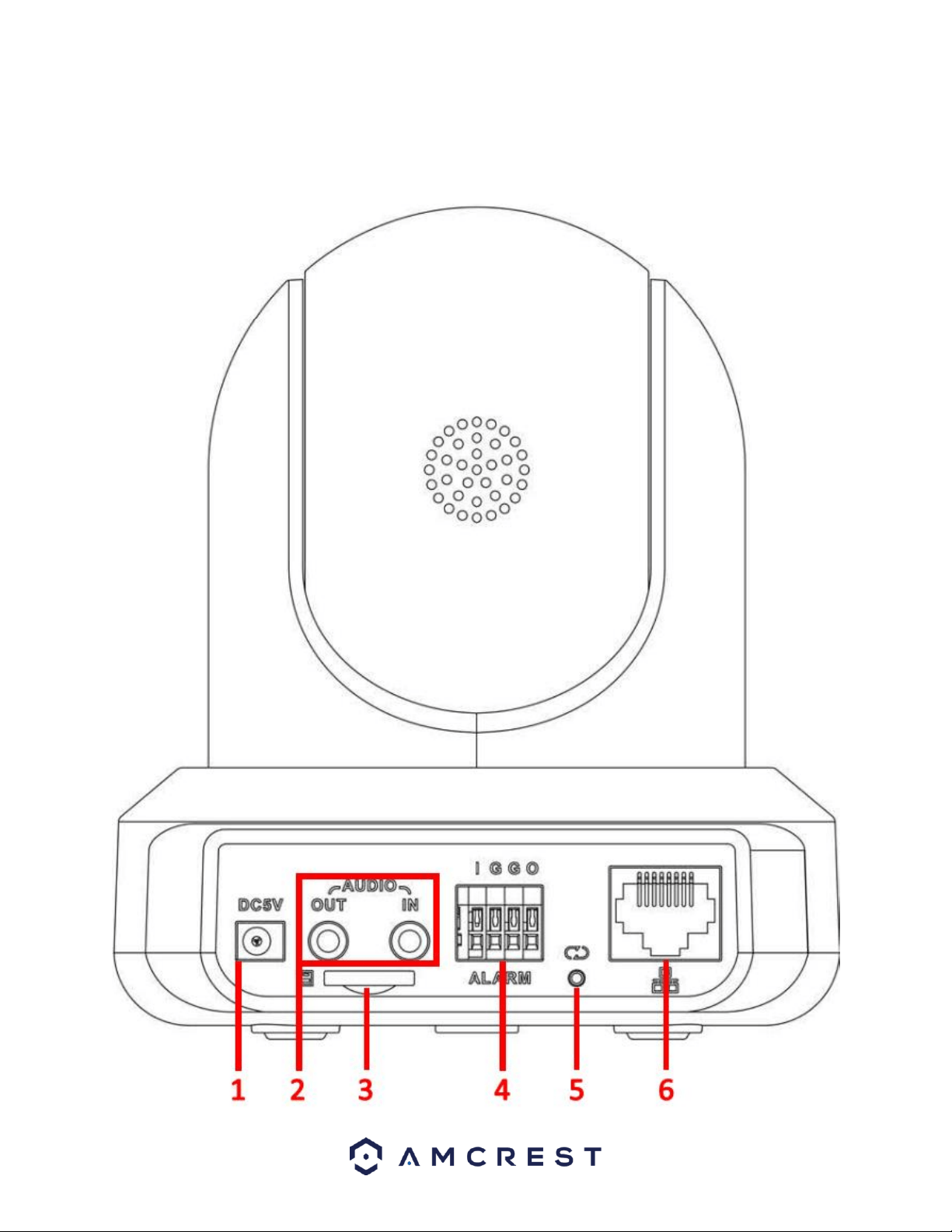
2 Device Overview
The diagram below shows the camera’s profile and rear panel.

13
4.2 Camera setup methods
To make your experience with the Amcrest WiFi camera easy and simple, we've provided multiple ways to set up,
view, and operate your camera depending on your needs. Please follow the instructions on this page to set up your
camera in the way that works best for you.
4.2.1 Setting up your camera for the first time
If setting up your camera for the first time, please follow the instructions as outlined in section 4.3.1. Using the
Amcrest View app on your smartphone or tablet, you can view your camera live from anywhere, and access
features such as pan/tilt/zoom, recording, taking snapshots, two-way audio, and more.
4.2.2 Accessing your camera using multiple mobile devices
If you followed the app setup instructions in section 4.3.1 to initially set up your camera and would like to add the
camera to another smartphone or tablet, follow the instructions as outlined on section 4.3.3 using your other
devices.
4.2.3 Configuring advanced settings on your camera
If you would like to configure your camera to enable advanced features such as motion detection, e-mail alerts,
FTP, image adjustments, scheduling, and more, please follow the instructions as outlined on section 4.4 (Desktop
access setup).
4.2.4 Using Amcrest Cloud for remote viewing, storage, and playback
Amcrest Cloud is our optional cloud storage and playback service which allows you to access recorded footage
from any device. We offer 4 hours of free storage for your first camera. Please follow the instructions as outlined
on section 4.5 (Amcrest Cloud setup) to sign up for our Amcrest Cloud service and get 4 hours of free storage.
4.2.5 Using plug-and-play for remote web access
AmcrestView.com is a web portal that allows you to view your cameras and recordings quickly and easily from
anywhere in the world using a web browser. Use AmcrestView.com if you need to simply check-in at a moment's
notice. If you would like to use AmcrestView.com, please follow the instructions outlined on section 4.7 (Remote
web access setup).

14
4.3 Amcrest View App Setup
Amcrest IP2M-841/IPM-721 cameras enable access through the use of the Amcrest View app on either iOS or
Android mobile operating systems. There are two versions of the app, Amcrest View Lite, and Amcrest View Pro.
Amcrest View (Lite or Pro) on the App Store or Play Store. The Pro version contains features such as push
notifications, sharing video and image files, exporting video in MP4 format, and exporting image files to your
phone. The Amcrest Pro version of the app is now free to download from the Play Store and App Store.
For purposes of this guide, we will use iOS, though both apps have the same interface. The App Interface may
differ slightly from the screenshots below as updates are released. Below, you'll find instructions on how to set up
your camera, as well as instructions on how to configure different settings on your camera such as motion
detection and email alerts. Every major app setup method will be covered in the following sections.
4.3.1 WiFi Configuration setup
Plug in your camera and follow the steps below to get your camera up and running. Please wait 30 seconds after
plugging in the camera to allow it to initialize. The LED on the back will blink green when ready.
1. Download and open the Amcrest View Pro app from the App Store or Play Store.
Note: After installing the app, and before starting the app setup process,
please make sure your phone is connected to the WiFi network you will be
connecting your camera to.
2. From the home screen, tap the icon in the top-right corner to open the
Device List.

15
3. Tap the Add Device button.
4. Tap WiFi Camera.
Note: Move the
camera or the
phone to ensure
that the entire QR
code is visible and
focused in the
frame. In case the
QR code cannot be
scanned, please
tap Enter S/N
Manually to enter
in the camera’s
serial number.
5. Tap WiFi Configuration Setup.
6. Scan the QR code from the sticker on your
camera.
16
Note: The default
username is
admin and the
default password
is admin.
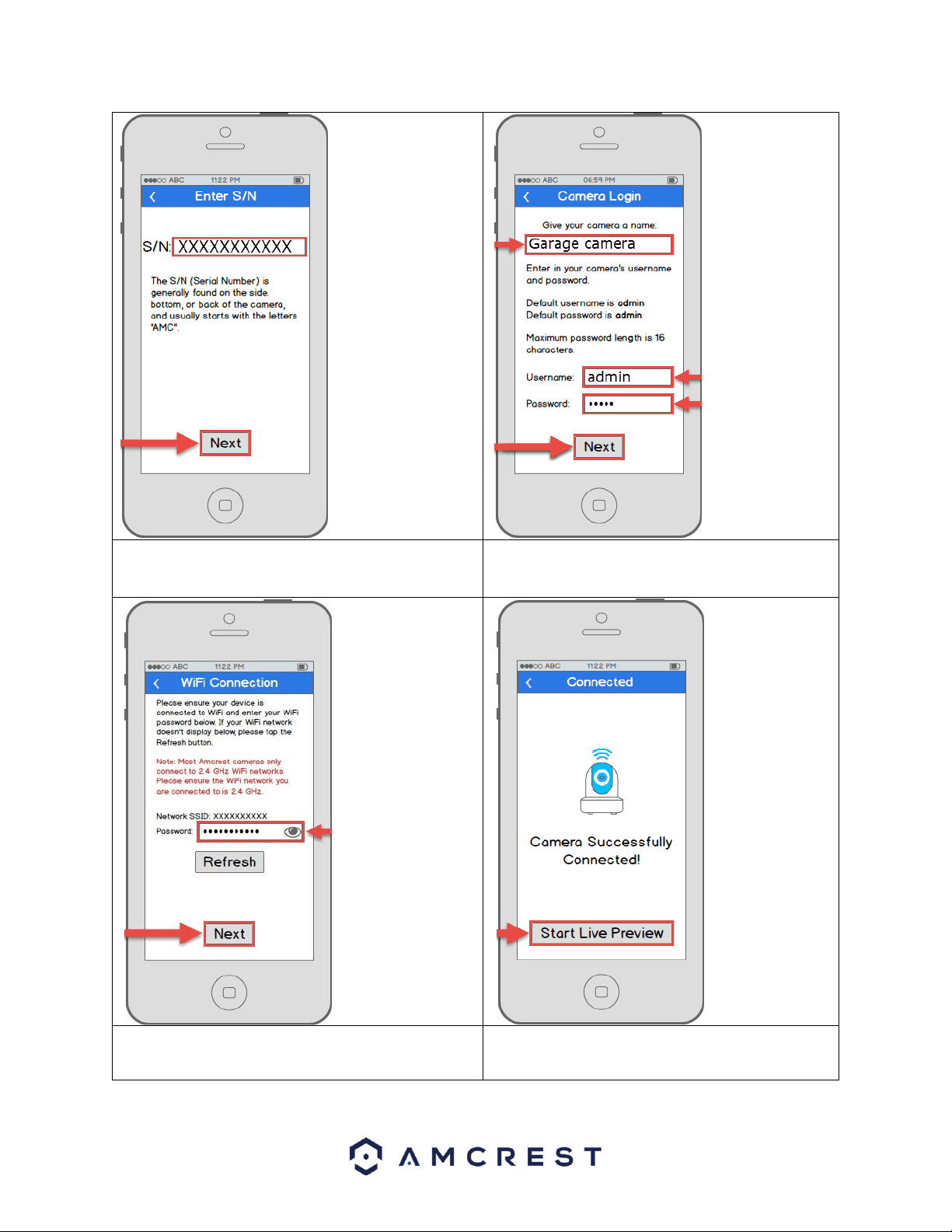
7. Double check to ensure that your S/N (Serial
Number) is entered correctly, then tap Next.
8. Give your camera a name, then enter in the
camera’s username and password. Once
you’ve filled out all of the fields, tap Next.
Note: Most
Amcrest cameras
can only connect to
2.4 GHz WiFi
networks, so please
ensure that your
phone is connected
to a compatible
network.
Otherwise, perform
the Ethernet WiFi
Setup method in
section 4.3.2.
9. Enter your WiFi password, then tap Next.
10. Your camera is almost ready. Tap the Start
Live Preview button to proceed with
changing your password.
17
Note: Once the
password is
changed here, it
will take effect
immediately. If
you forget your
password, you can
always hard reset
the camera using
the steps detailed
in the FAQs
section of this
guide.
Note: To connect
your camera to
additional
smartphones and
tablets, please use
the P2P Setup
method as outlined
on section 4.3.3.
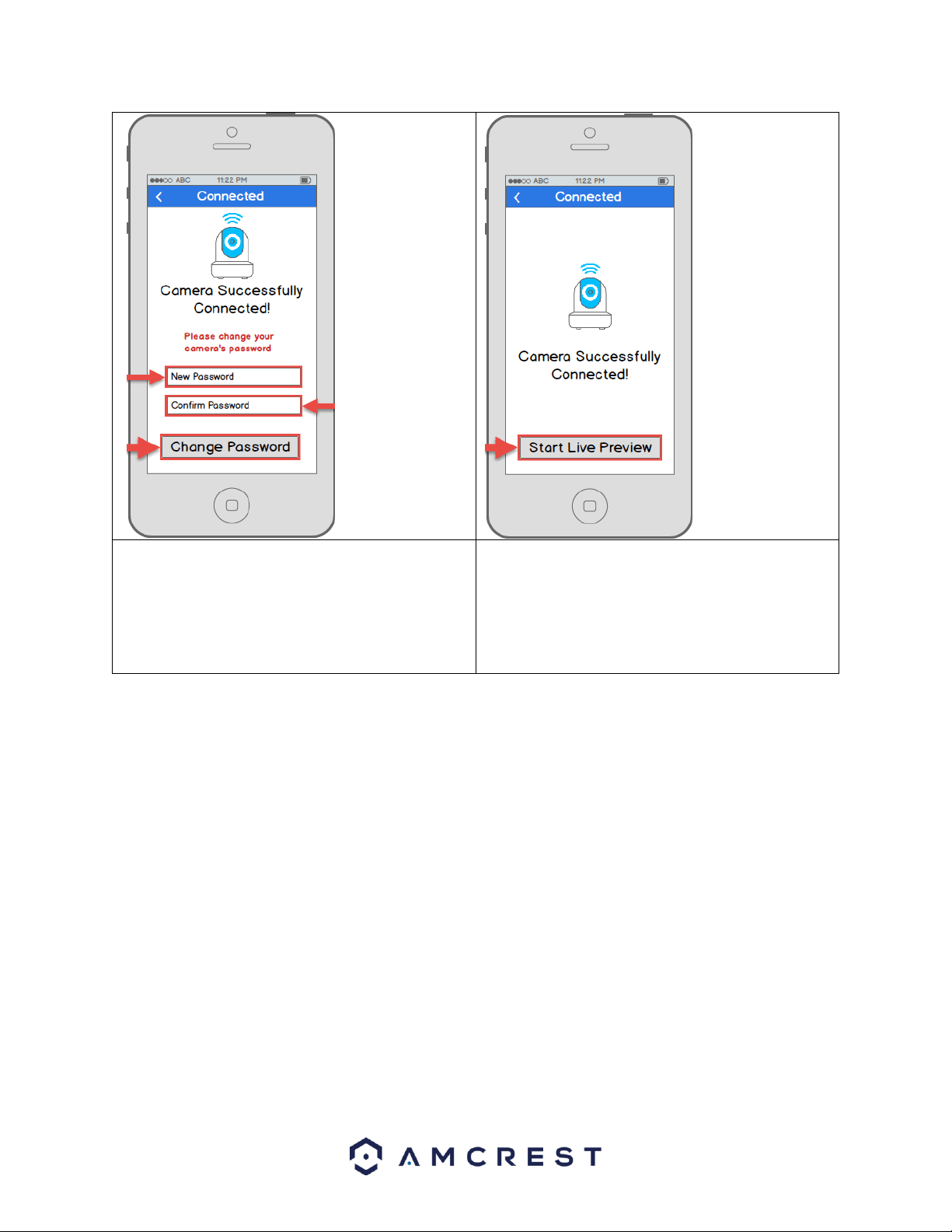
11. To ensure the security of your camera, you
will be asked to change the password for your
camera’s default username (admin). Please
select a password that is at least 8 characters
long and one that uses a combination of
uppercase letters, lowercase letters, and
numbers. Then, tap Change Password.
12. Your camera is now ready to go! Tap the Start
Live Preview button to get started!
Still not working?
If you have a dual band router, and your camera does not connect to your WiFi network after following the WiFi
Configuration method below, please use the Ethernet WiFi Setup method as detailed in section 4.3.2.
Tip: To better understand the App's interface and features, please visit the Help Center within the app. To access
the Help Center, tap the menu icon on the top left hand side, tap Help, then select which screen you'd like more
information about. For additional assistance, please contact us at www.amcrest.com or give us a call at 1-888-212-
7538. Step by step video tutorials available at www.amcrest.com/videos

18
4.3.2 Ethernet WiFi Setup
The Ethernet WiFi Setup process is a useful and stable setup method that uses a temporary Ethernet (hardwired)
connection to your camera. By the end of the process, your camera will be working on WiFi and will not need a
cable.
If the WiFi Configuration setup method (see section 4.3.1 WiFi Configuration setup) does not work, this is a great
“backup” method. Alternatively, this method can also be used as an initial setup method, if preferred. It will take a
few more steps but still ends with your camera being added to WiFi for wireless use.
Plug in your camera and follow the steps below to get your camera up and running. Please wait 30 seconds after
plugging in the camera to allow it to initialize.
1. Download and open the Amcrest View Pro app from the App Store or Play Store.
2. From the home screen, tap the icon in the top-
right corner to open the Device List.
3. Tap the Add Device button.
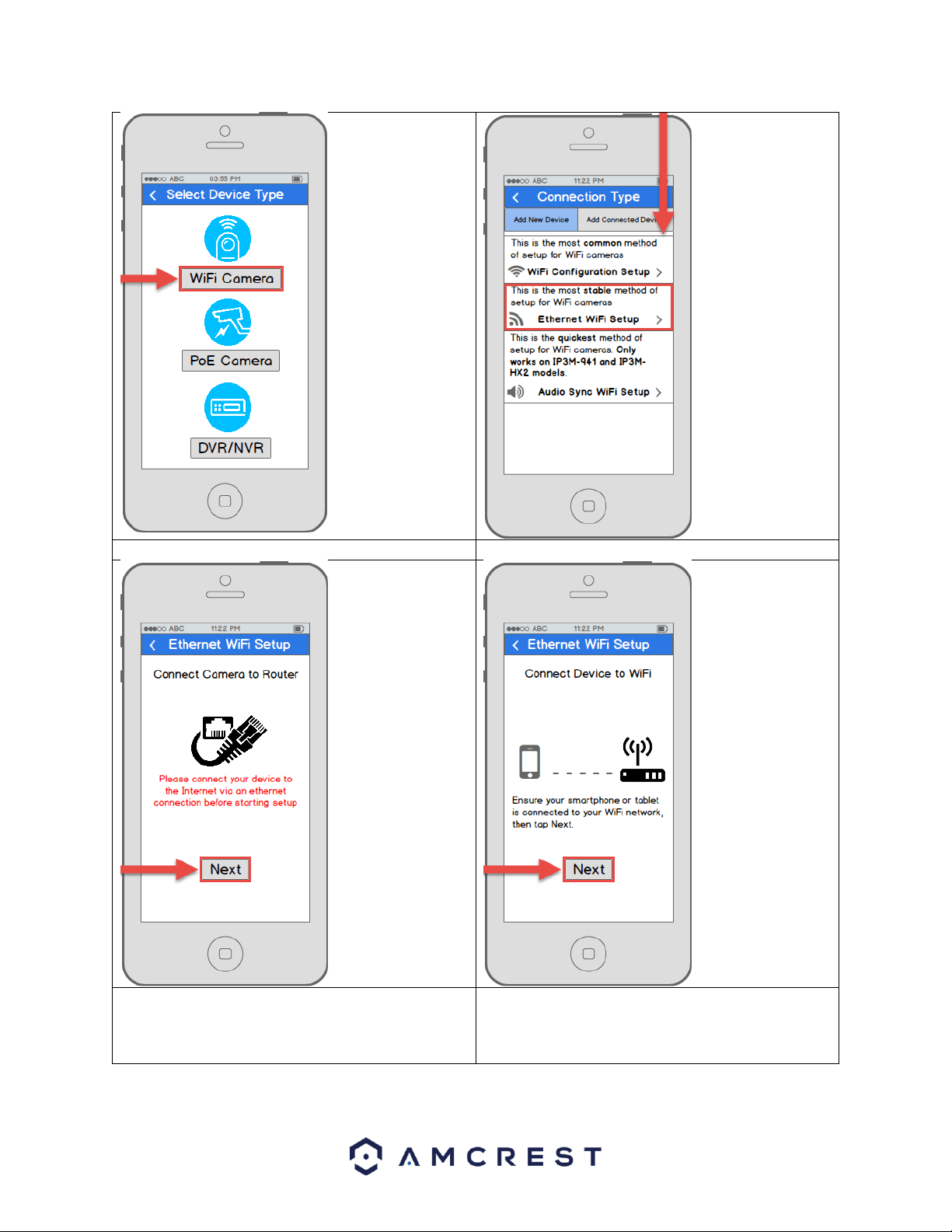
19
4. Tap WiFi Camera.
5. Tap Ethernet WiFi Setup.
6. Plug your camera into your router via an Ethernet
cable. Don’t worry, once the camera is set up, the
camera can be unplugged and moved to a
different location. Tap Next when finished.
7. Ensure your mobile phone is connected to the
WiFi network that you will be connecting your
camera to, then tap Next.
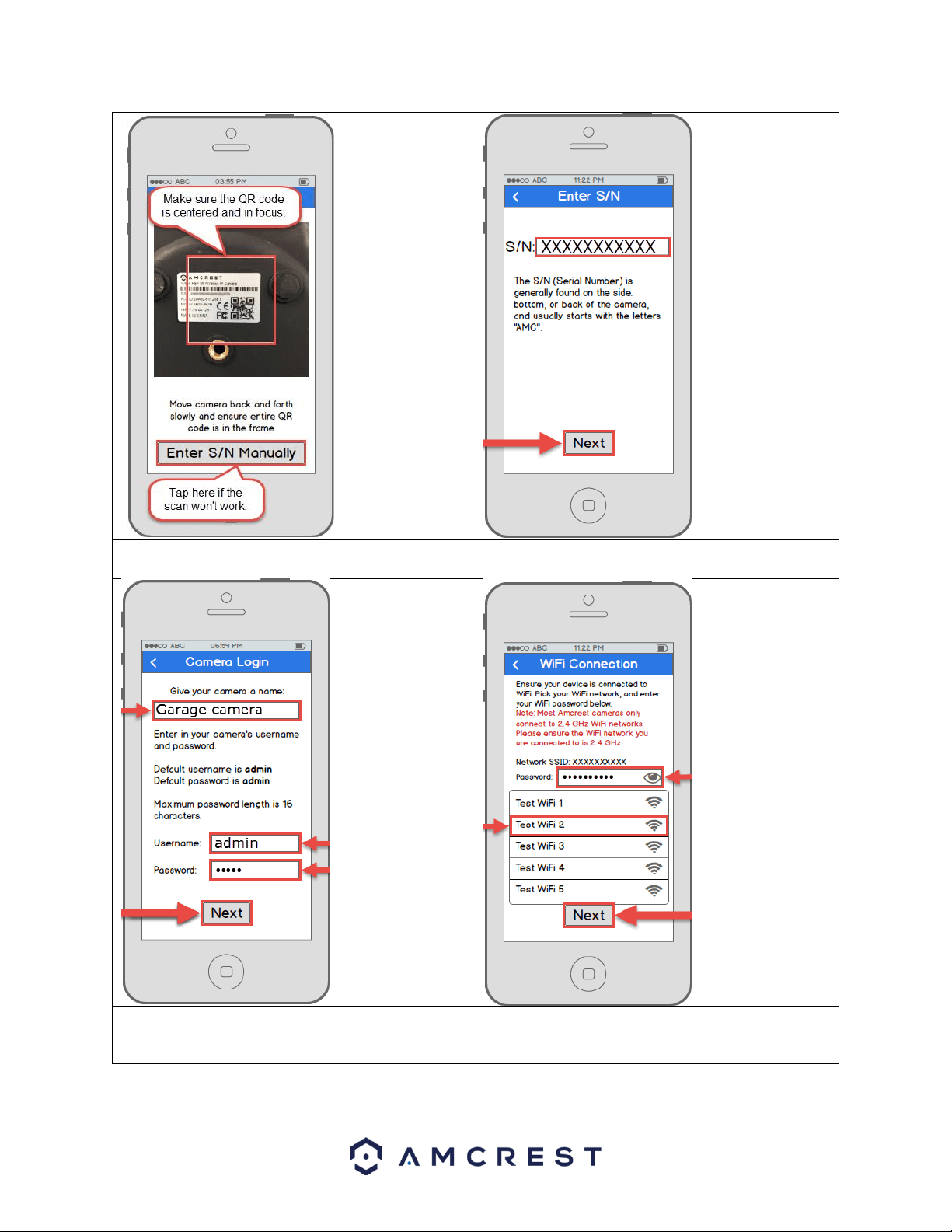
20
Note: Move the
camera or the
phone to ensure
that the entire QR
code is visible and
focused in the
frame. In case the
QR code cannot
be scanned,
please tap Enter
S/N Manually to
enter in the
camera’s serial
number.
8. Scan the QR code [QR code icon] from the sticker
on your camera.
9. Double check to ensure that your S/N (Serial
Number) is entered correctly. Then, tap Next.
Note: The default
username is admin
and the default
password is admin.
10. Give your camera a name, then enter in the
camera’s username and password. Once you’ve
filled out all of the fields, tap Next.
11. Pick a WiFi network, enter in the password, and
tap Next.
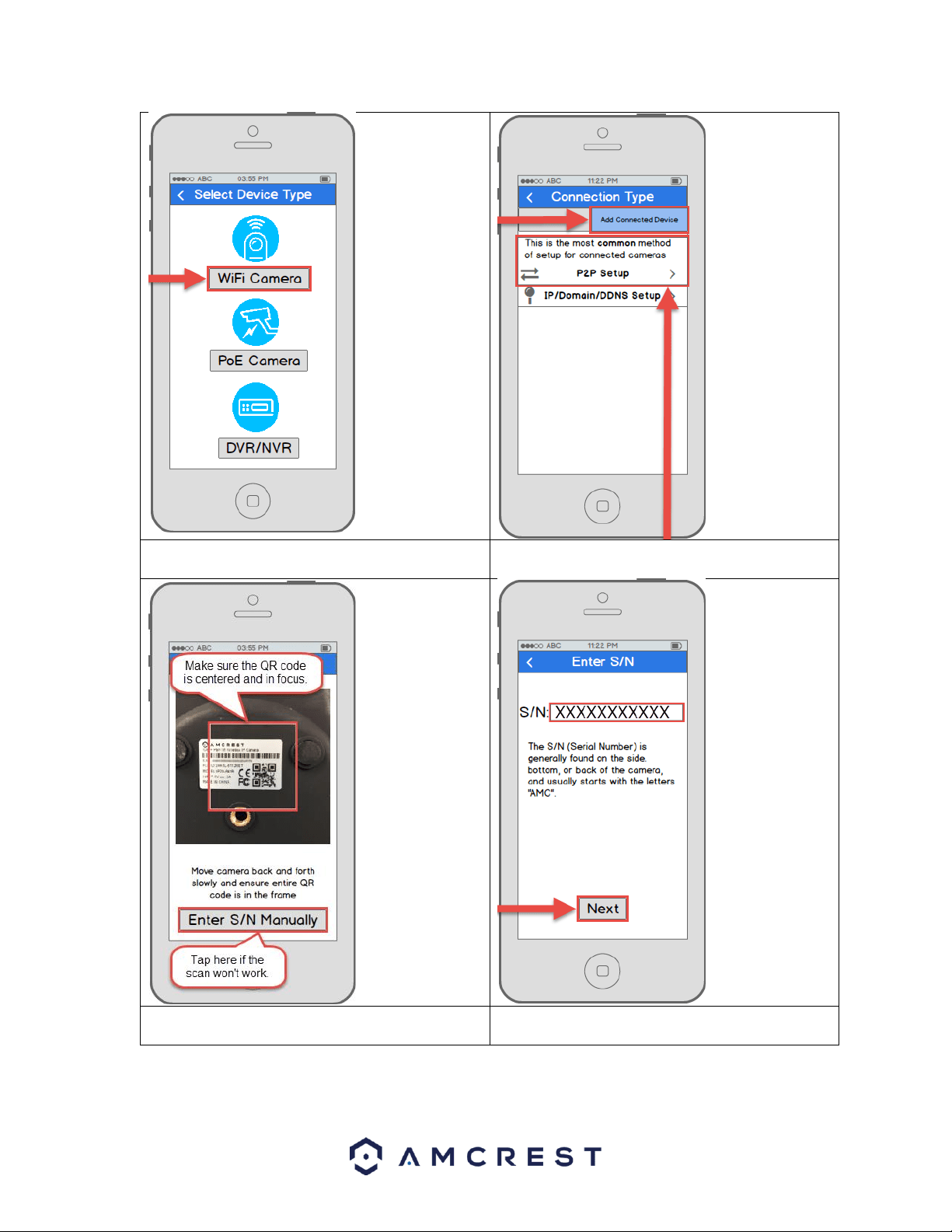
23
4. Tap WiFi Camera.
5. Tap the Add Connected Device button near the
top of the screen, then tap P2P Setup.
Note: Move the
camera or the
phone to ensure
that the entire
QR code is visible
and focused in
the frame. In
case the QR code
cannot be
scanned, please
tap Enter S/N
Manually to
enter in the
camera’s serial
number.
6. Scan the QR code from the sticker on your
camera.
7. Double check to ensure that your S/N (Serial
Number) is entered correctly, then tap Next.
24
Note: The default
username is
admin and the
default password
is admin.
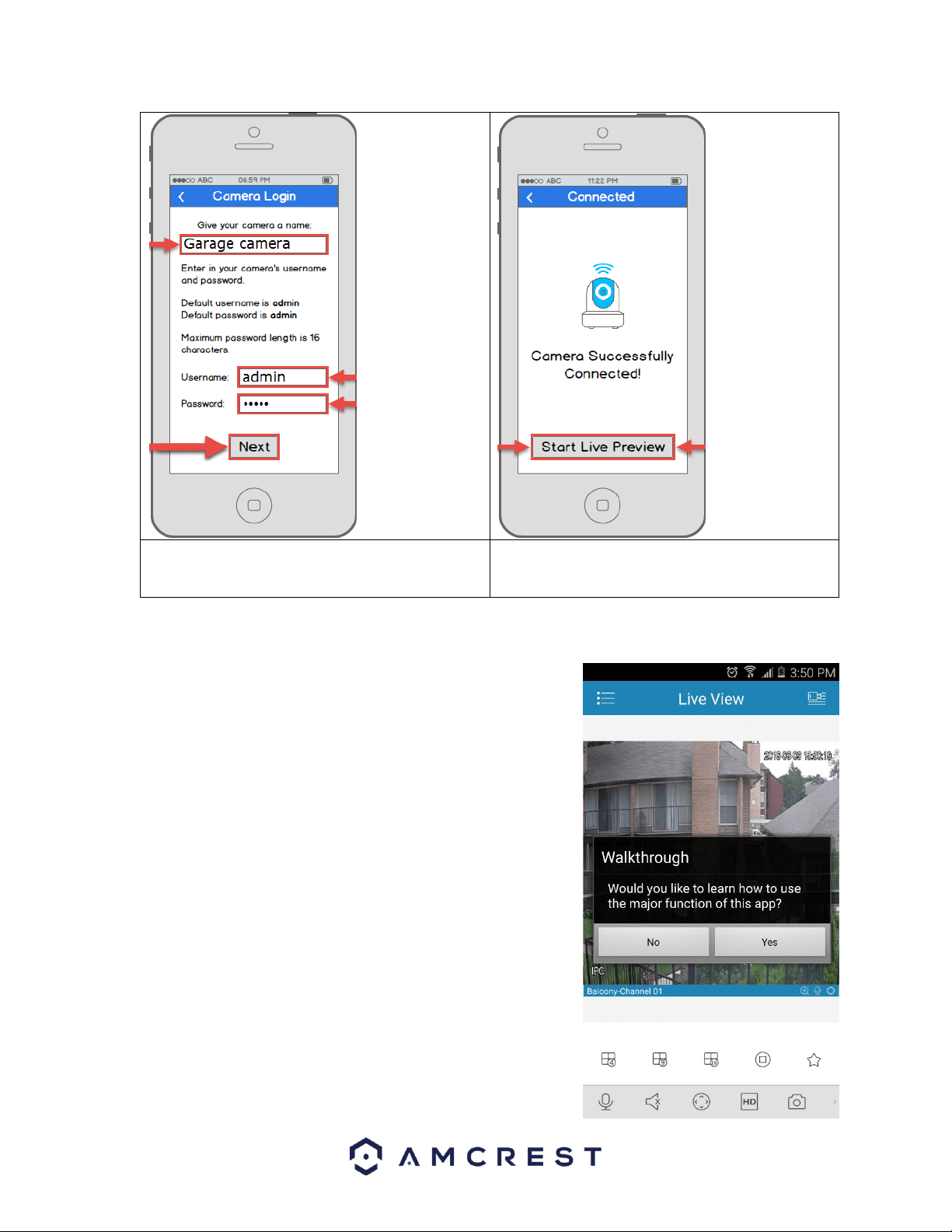
8. Give your camera a name, then enter in the
camera’s username and password. Once you’ve
filled out all of the fields, tap Next.
9. Your camera is now ready to go! Tap the Start
Live Preview button to get started!
4.3.4 App walkthrough
Once you've set up your camera, the app will present you with a popup
that offers a walkthrough of different features. Tap “Yes” on this popup
to begin a tour of all of the icons located on the Live View screen. In the
future, you can always access the walkthrough again by opening the
Menu, tapping Help, then tapping Wizard.
25
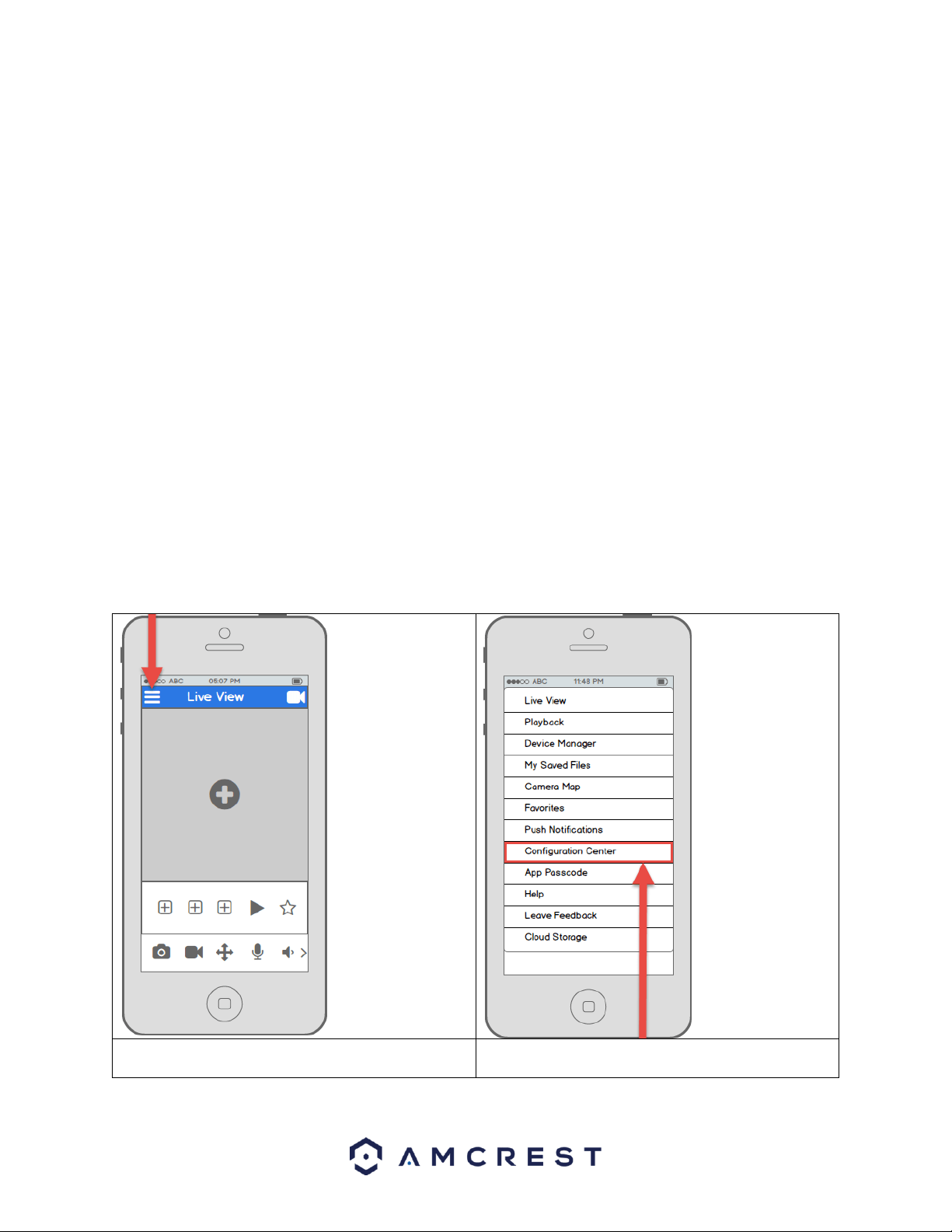
4.3.5 Motion detection setup
Setting up motion detection for the ProHD/HDSeries camera through the Amcrest View app will allow you to
choose how your camera will react to and record motion. This is the best way to record events that are particularly
of interest without needing to waste storage space by constantly recording. However, you can have motion
detection set up along with 24/7 recording. The motion recordings will overlap the regular recordings and classify
each motion-triggered recording as a motion event for your convenience when searching.
There are a lot of customization options for motion detection that can be configured directly through the app. This
gives you complete control over how to make motion detection work the way you want it to.
Here is a list of all the advanced configuration options for motion detection:
Schedule: Modify motion detection recording timings.
Anti-Dither: Set how long motion detection can still be triggered after motion stops.
Sensitivity: Select motion detection sensitivity.
Region Setting: Specify motion detecting regions of the screen.
Record: Toggle this switch to start recording when motion is detected.
Delay: Set how long motion detection recording will continue after a motion event.
Alarm Out: Configure alarm system integration.
Snapshot: Toggle this switch to take snapshot when motion is detected.
Follow the steps below to setup motion detection on your camera.
1. From the home screen, tap the icon in the
top left corner to open the main menu.
2. Tap Configuration Center to open the
Configuration Center.

28
3. Tap Configuration to open the push
notifications settings menu. Tap Event List to
see a history of past push notifications.
4. Select the camera that you want to modify
push notification settings for.
5. Tap your camera’s toggle switch to activate
push notifications and configure settings.
6. From this screen, you can modify the settings
to fine tune push notifications to your
preference.
30
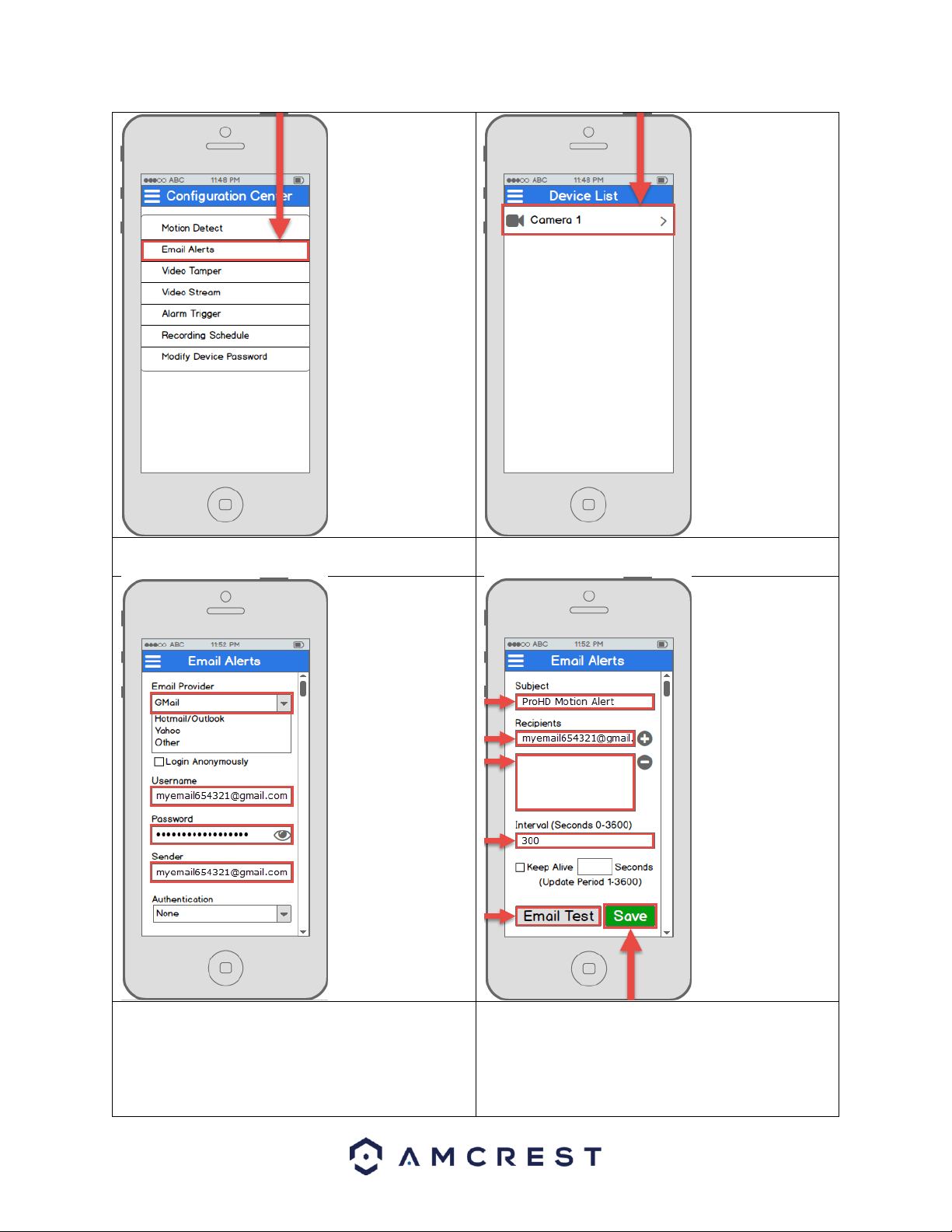
3. Tap Email Alerts to open the email alerts
settings menu.
4. Select the camera that you want to modify
email alert settings for.
Note: If your
provider is not
listed, select Other,
then fill out the
SMTP Server and
Port fields.
Note: You can
specify, in seconds,
the Interval: how
long the camera
should wait
between sending
emails.
5. Start by selecting your email provider.
Continue by entering your email address in
the Username field, followed by the
password to your e-mail in the Password
field. Specify the sender email in the Sender
field, then scroll further down.
6. Enter a subject line under Subject, then add
Recipients by entering in their email
addresses and tapping the plus sign. Tap the
Email Test button to initiate an email test. If
successful, tap the Save button to save the
email settings.
35
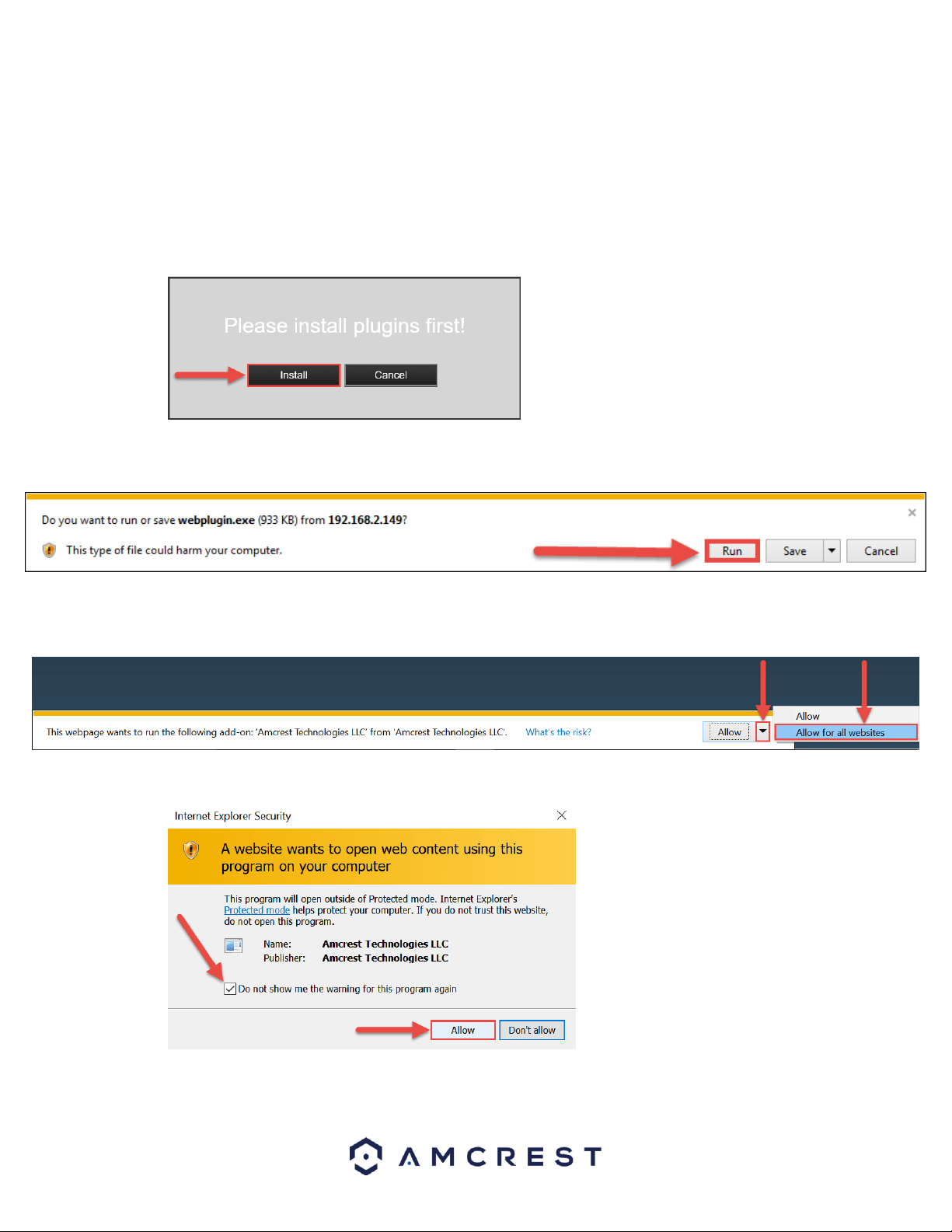
4.4.2 Installing the Amcrest browser plugin
Once you’ve followed one of the above methods to get to the login screen for the camera, follow the below steps
to install the browser plugin on Internet Explorer:
1. On the main login screen, you should see a popup in the center. Click Install.
2. An install button will appear on the bottom of the screen for the plugin: webplugin.exe. Click Run, then
go through the prompts of the install wizard.
3. Once you see the notification along the bottom row. Click the small arrow to the right of the Allow
button, and select Allow for all websites.
4. If you see a popup window asking you to allow the plugin, mark the checkbox next to “Do not show me
the warning for this program again”, then click Allow.

36
4.4.3 Logging in
Before attempting to gain local access, you will need to make sure the following items are true:
1. You have your login credentials (if using this local access method as your first, initial choice to setup your
camera, only items 2 and 3 of this list need to be true)
2. You have located your camera’s IP address
3. You have installed the Amcrest browser plugin
If you did not follow any of the app setup methods covered in section 4.3, and this is your first time logging into
your camera, please use the following default username and password:
Username: admin
Password: admin
Note: After logging in for the first time, you will be prompted to change your password.
To find the camera’s IP address, please refer to the Amcrest IP Config Software method (section 4.4.1) above.
To install the browser plugin for the camera’s web interface, please refer to the section 4.4.2 above.
1. Take the IP address and type it into the Internet Explorer search bar, then hit ‘Enter’. It should look
something like “http://192.168.1.74:12345/”
2. Enter your login credentials. You may be prompted to change your password.
3. (Optional) Save this web page as a Favorite for easy access in the future.
The camera is now successfully set up for live viewing and playback!

37
To setup WiFi (optional), navigate to Setup > Network > WiFi, then double-click the line that shows your WiFi
network. If necessary, enter your WiFi network's password. The camera may take up to 2 minutes to connect to
the WiFi network. Click the Refresh button after the process is complete. Once the camera has successfully
connected to your WiFi, you should see the word "Connected" in green display next to your WiFi network's name
in the WiFi Network information table under the WiFi List table.
Note that the IP address may have changed once connected to WiFi. Be sure to use the IP Config tool to access the
camera using its updated IP address.
After configuring the camera to connect to WiFI, use the P2P Setup method on section 4.3.3 to connect the camera
via your smartphone or your tablet.
For quick and easy remote access on your PC or Mac, please use AmcrestCloud.com (section 4.5) or
AmcrestView.com (section 4.6).
To setup advanced remote access via UPnP/DDNS or Port Forwarding see section 4.7.
If you are still having trouble and would like to watch a video on how to setup the
ProHD/HDSeries camera for local access on a computer/laptop, go to
http://www.amcrest.com/videos, click the Videos tab, then watch the video titled
“Desktop/Laptop Access Setup for ProHD & HDseries WiFi Cameras”.
For additional assistance, please contact us at www.amcrest.com or give us a call at 1-888-212-7538.
4.5 Amcrest Cloud Setup
The Amcrest IP2M-841/IPM-721 cameras are able to sync with Amcrest Cloud; a service that stores recorded video
streams in order to enable long-term storage. Amcrest Cloud also allows the user to easily find and download
recorded video for playback from any internet connected PC or Mac computer.
1. Connect the camera to a power supply using the included power adapter.
2. Connect the camera to the internet, either through a wired connection (see section 3.1), or through WiFi (see
section 4.2)
3. Using a web browser on your PC or Mac, visit www.amcrest.com/cloud and register for a free account. Once
registered, click the “Add Camera” button. Select “Amcrest”, give the camera a name, and enter the camera’s
SN (located on the bottom of the camera), then click “Next”.
4. On the settings page, you can adjust optional preferences for your camera. Once settings have been adjusted,
click “Finish”. Your camera is now successfully set up for cloud access and storage.
5. View your camera live or watch recorded clips using the menu button on the top of the page. You can also use
the Amcrest Cloud app on iOS and Android to add more cameras, play recordings, and view your camera live,
from anywhere.
6. For additional assistance, please contact us at www.amcrest.com or give us a call at 1-888-212-7538. Step by
step video tutorials available at www.amcrest.com/videos
39
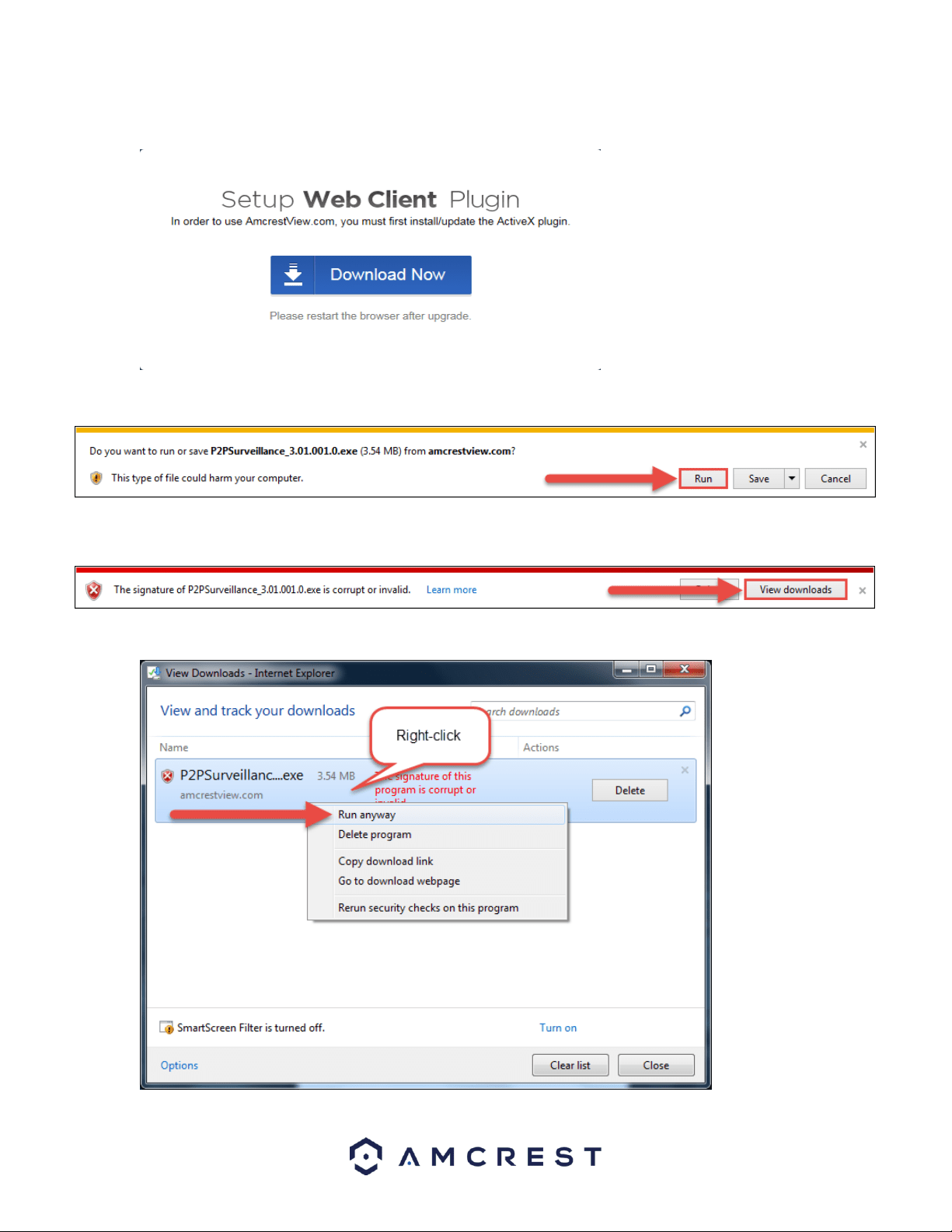
3. This will take you to another page where you will need to click the Download Now button:
4. You will be prompted by the browser to install the plugin. Click Run:
5. You may be prompted to verify this download. This software is not harmful to your computer and will not
make any unwanted changes. To verify, start by clicking View Downloads:
6. In the View Downloads page, right click the plugin, then click Run Anyway.
40
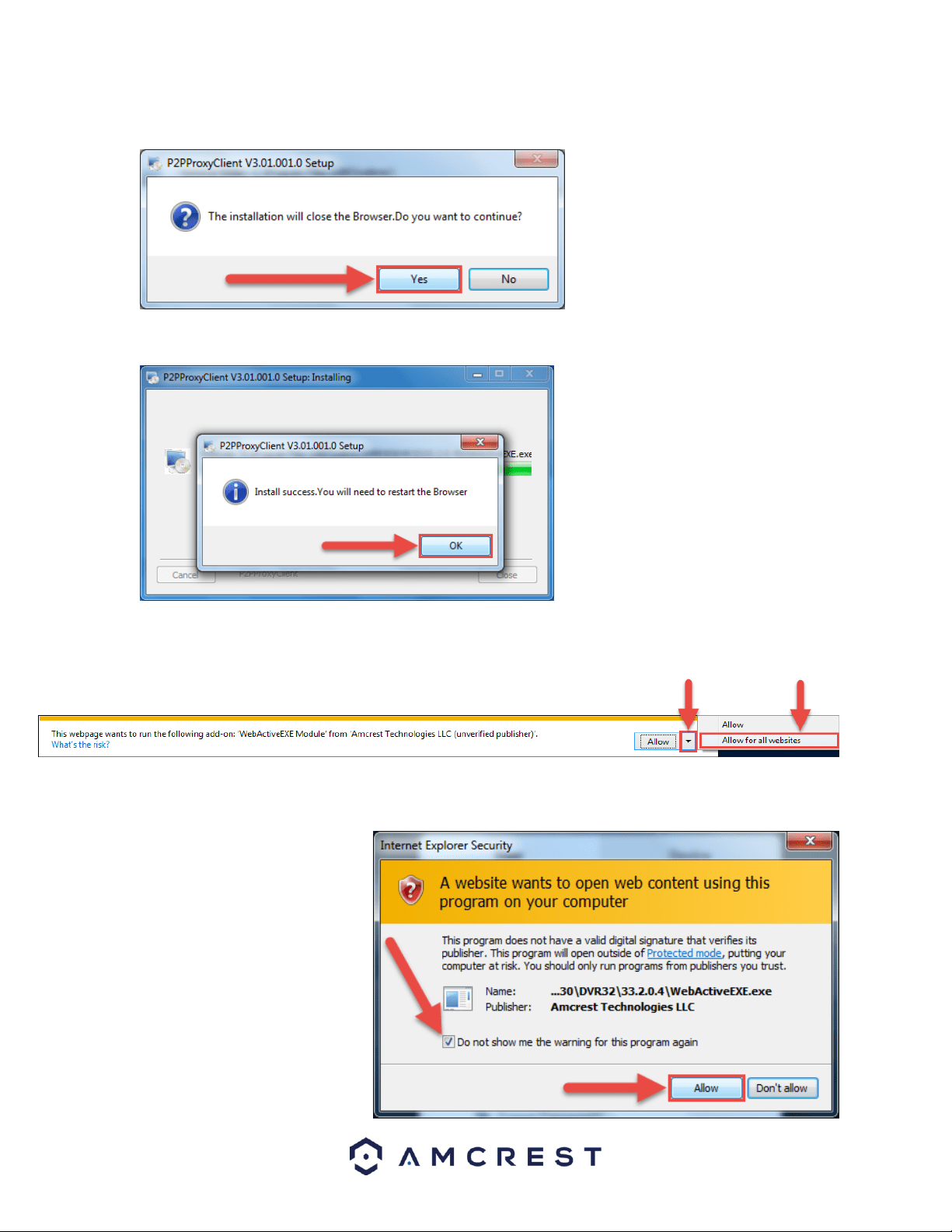
7. The plugin will close your browser sessions to install. Save any pages, then click Yes:
8. On the next prompt, it will say the install was successful and ask you to restart your browser. Click OK:
9. You will be taken back to the login page and see another notification from your browser asking you to allow
this plugin on this web page. Click the small arrow next to Allow, then click Allow for all websites:
10. Another popup will appear asking you to allow this plugin. Mark the checkbox next to Do not show me the
warning for this program again, then click Allow:
Now the plugin has been installed
successfully and you can continue on
to register for an account for camera
access through AmcrestView.com

42
3. You will see the Registration Successful message and a confirmation email will be sent to you:
Check your email, and click the confirmation email from AmcrestView.com:
4. Once you’ve opened the email, click the confirmation link inside to complete your registration:

43
5. You will be taken back to AmcrestView.com and shown confirmation that your account has been activated.
Click Go to Login:
6. You will be taken back to the login screen. Enter your new AmcrestView.com username and password, then
click Login:
7. A popup will appear from your Windows Firewall. Click Allow access:
46
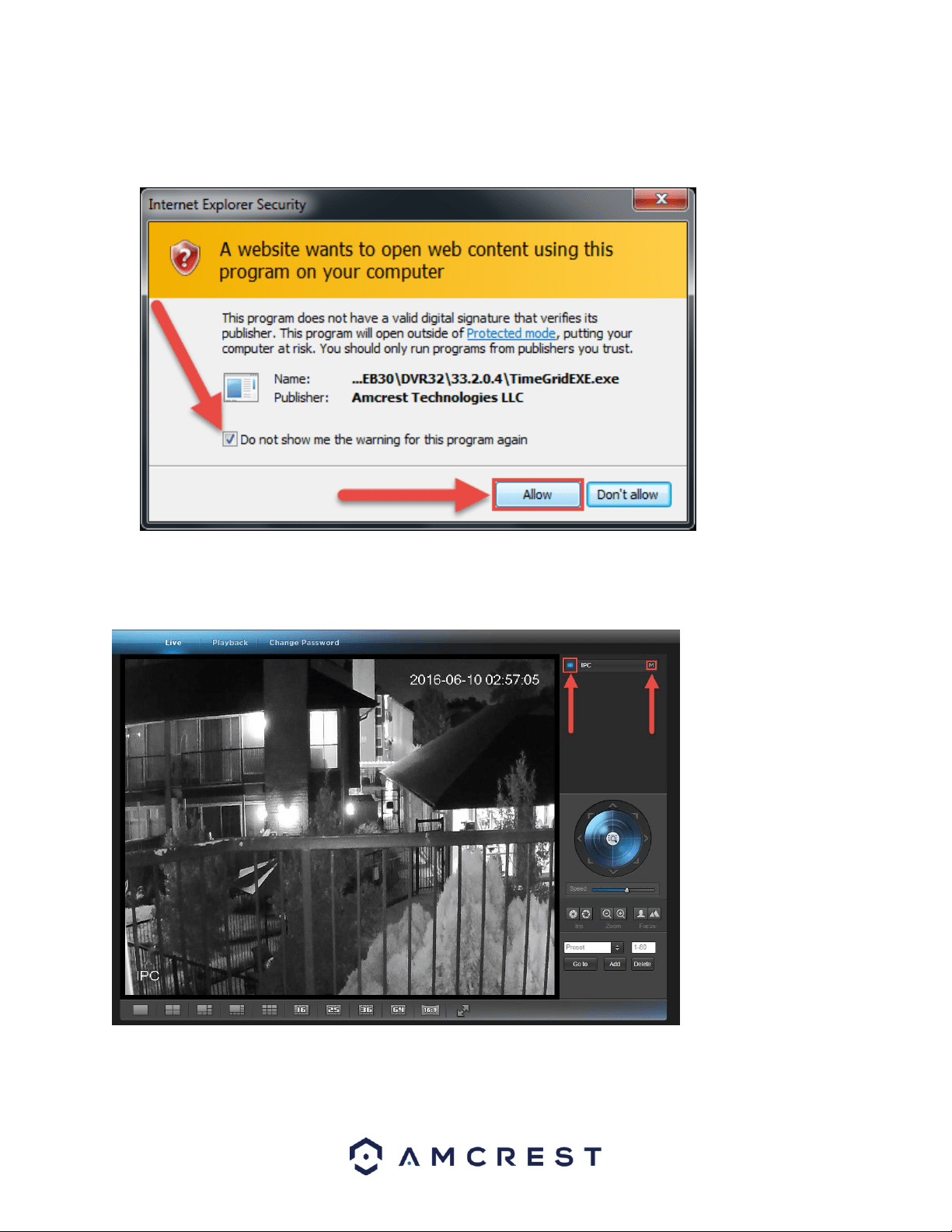
13. A final popup will appear asking you to confirm that you allow this plugin on your browser. Mark the checkbox
next to Do not show me the warning for this program again, then click Allow:
Now you can enable any of your added cameras to see their live feeds. In the top-right panel, there is a channel
list. Click the small square icon to enable your feed for an added camera to see the video feed:
Click the “S” to change it to an “M” which stands for “Main Stream” and will give you a full HD quality video
stream. To go back to “Sub Stream”, for lower quality video (that works better on slower internet connections),
click the “M” and change it to an “S” again.

47
4.7 Remote Web Access Setup
There are two main methods for setting up remote access: UPnP/DDNS, and Port Forwarding.
4.7.1 UPnP/DDNS Remote Web Access Setup
Using Universal Plug and Play (UPnP) and Dynamic Domain Name Server (DDNS) functionality is the easiest way to
setup stable remote access. For this method, your router should support the UPnP networking protocol and the
protocol should be enabled. Please refer to your router manufacturer’s documentation to learn how to enable
UPnP on your router.
Below is a step-by-step walkthrough that details how to setup the Amcrest IP2M-841/IPM-721 Cameras for
Remote Web Access using UPnP and DDNS:
1. Login to your camera’s web interface, open the main menu then go to Setup -> Network.
2. Using the left hand menu, go to the Connection menu, and write down the HTTP port. It is recommended
to ensure the port number is at least 5 digits long to prevent any port conflicts. If need be, change the
port to a 5 digit number that is less than 65535, note the number down, and click save before proceeding
to the next step.
3. The system will prompt you to reset the camera. Click OK and wait for the camera to restart.
4. Restarting the camera may cause the device to use another IP address. Use the included IP Config tool to
find the IP address as detailed in section 4.4.1.
5. Login to your camera, open the main menu then go to Setup -> Network.
6. Click the Connections menu item on the left hand menu, and ensure that the HTTP port has changed.
7. Click the DDNS menu item on the left hand menu, pick Amcrest DDNS from the drop down box, click the
checkbox next to Server Type, and then click the Save button on the bottom right.
8. To set a custom DDNS name, fill out the Domain Name field and click Save.
9. Write down the entire Domain Name field, including the white text that says .amcrestddns.com
10. Click the UPnP menu item on the left hand menu, and click the enable checkbox at the top.
11. While in the UPnP menu, double click the HTTP port, and change both the internal and external HTTP
ports to match the number that was used in step 2.
12. Uncheck the last 4 checkboxes in the PAT table on the UPnP menu.
13. Click apply, then exit this menu to go back to the main menu, then re-enter the UPnP menu, and ensure
the UPnP status says “Mapping Successful”.
14. Open a web browser and enter in the DDNS domain name address from step 9, enter in a colon, then
type the port number from step 4 on to the end.
a. For example, if the DDNS domain name is http://abc123456789.amcrestddns.com and your
HTTP Port is 33333, the URL would be http://abc123456789.amcrestddns.com:33333
15. The browser may prompt you to install a plugin. Click install to download the plugin, and then click on the
plugin installation file to install the plugin.
16. If the browser prompts you to allow the plugin to work on the computer, hit Allow to ensure the plugin
can run successfully.
17. Enter in login details into the username and password fields and click login.

48
If the process above is not working, please contact Amcrest Support via one of the following options:
Visit http://amcrest.com/contacts and use the email form
Call Amcrest Support using one of the following numbers
Toll Free: (888) 212-7538
International Callers (Outside of US): +1-713-893-8956
USA: (888) 212-7538
Canada: 437-888-0177
UK: 203-769-2757
Email Amcrest Customer Support sup[email protected]
4.7.2 Port Forwarding Remote Web Access Setup
Port Forwarding is an alternative method to setting up remote access for the Amcrest IP2M-841/IPM-721 Cameras.
This method should only be used if the UPnP/DDNS Remote Access method did not work.
Below is a step-by-step walkthrough that details how to setup the camera for Remote Web Access using Port
Forwarding:
1. Login to your camera, open the main menu then go to Setup -> Network.
2. Open the TCP/IP settings screen.
3. By default, the camera has the mode set to DHCP. Ensure that DHCP is selected. The IP Address, Subnet
Mask, Default Gateway, Preferred DNS, and Alternate DNS should all be 0s if DHCP is selected.
4. Click Save to save these settings. This should now open the main menu.
5. From the main menu, go to Setup -> Network.
6. On the TCP/IP settings screen, the IP Address, Subnet Mask, Default Gateway, Preferred DNS, and
Alternate DNS should all be populated.
7. Click the radio button next to Static, to change the mode to Static.
8. Write down the IP Address that is currently in the IP address field.
9. Click the Save button.
10. Using the left hand menu, go to the Connection menu, and write down the TCP, UDP, and HTTP port
number. It is recommended to ensure that these port numbers are at least 5 digits long to prevent any
port conflicts. If need be, change each of these port numbers to a 5 digit number that is less than 65535,
note the numbers down, and click save before proceeding to the next step.
11. Go to http://www.canyouseeme.org/ and check to ensure each of the port numbers specified in step 10
is open.
12. Write down the manufacturer name, brand, and model name for the router that the camera is connected
to, and then proceed to http://www.portforward.com on your web browser.
13. Open the port forwarding guide section on the left hand side menu.
14. Find the router brand name in the list, and click it.
15. Find the router model number, and click it.
16. Click the Default Guide link near the middle of the page.
17. This guide will help you take the step necessary to port forward on the router. Follow these steps, and
then return to the camera.
18. Login to your camera, open the main menu then go to Setup -> Network.
19. Click the DDNS menu item on the left hand menu, pick Amcrest DDNS from the drop down box, click the
checkbox next to Server Type, and then click the Save button on the bottom right.
20. To set a custom DDNS name, fill out the Domain Name field and click Save.
21. Write down the entire Domain Name field, including the white text that says .amcrestddns.com
50
5 Operation and Interface
This section of the manual details the camera’s interface, as well as all of the operations the camera can perform.
The main interface of the camera contains 6 major tabs on the top of the screen. By default, the interface opens on
the Live tab.
5.1 Live
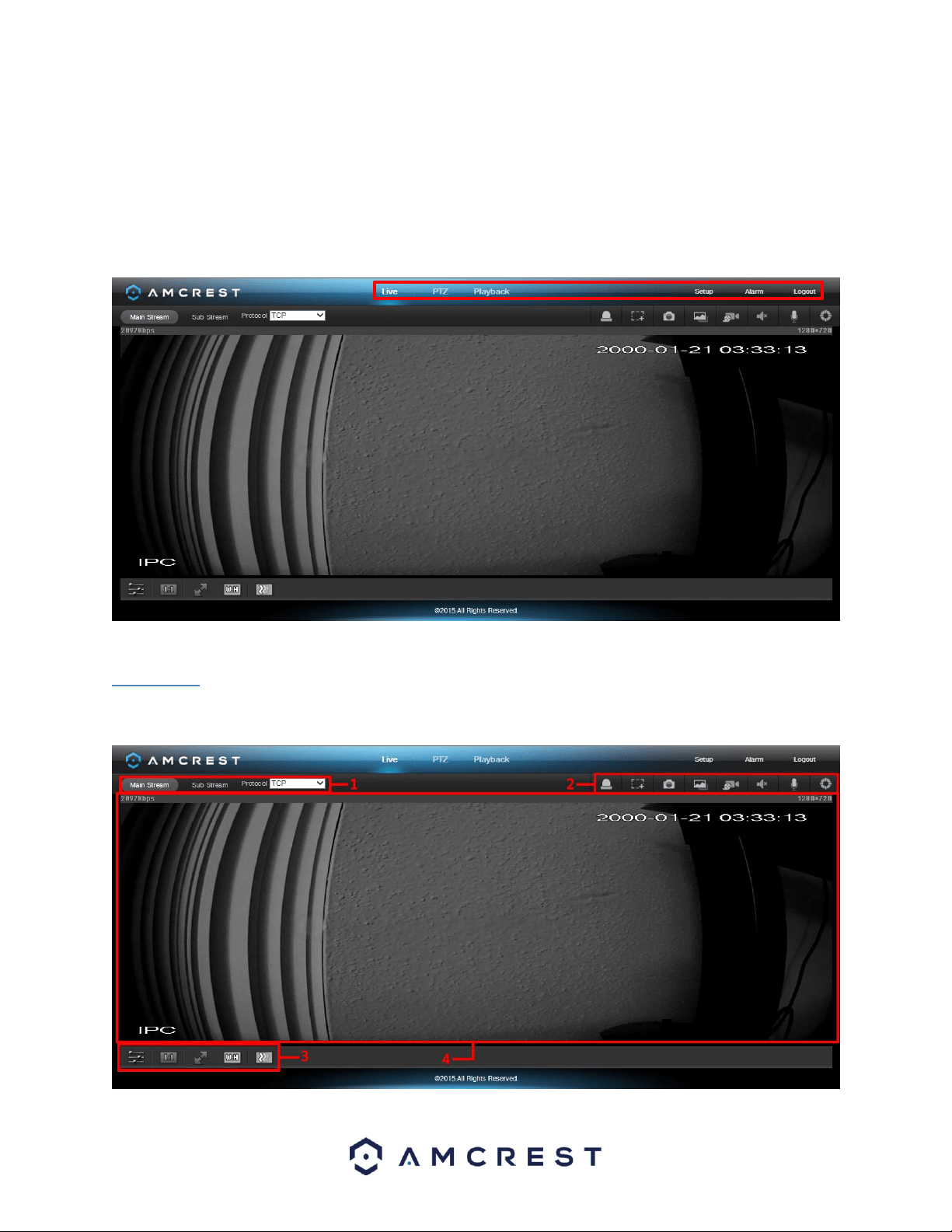
The Live tab allows the user to see a live video feed from the camera. The live tab has 4 main sections:
52
5.2 PTZ
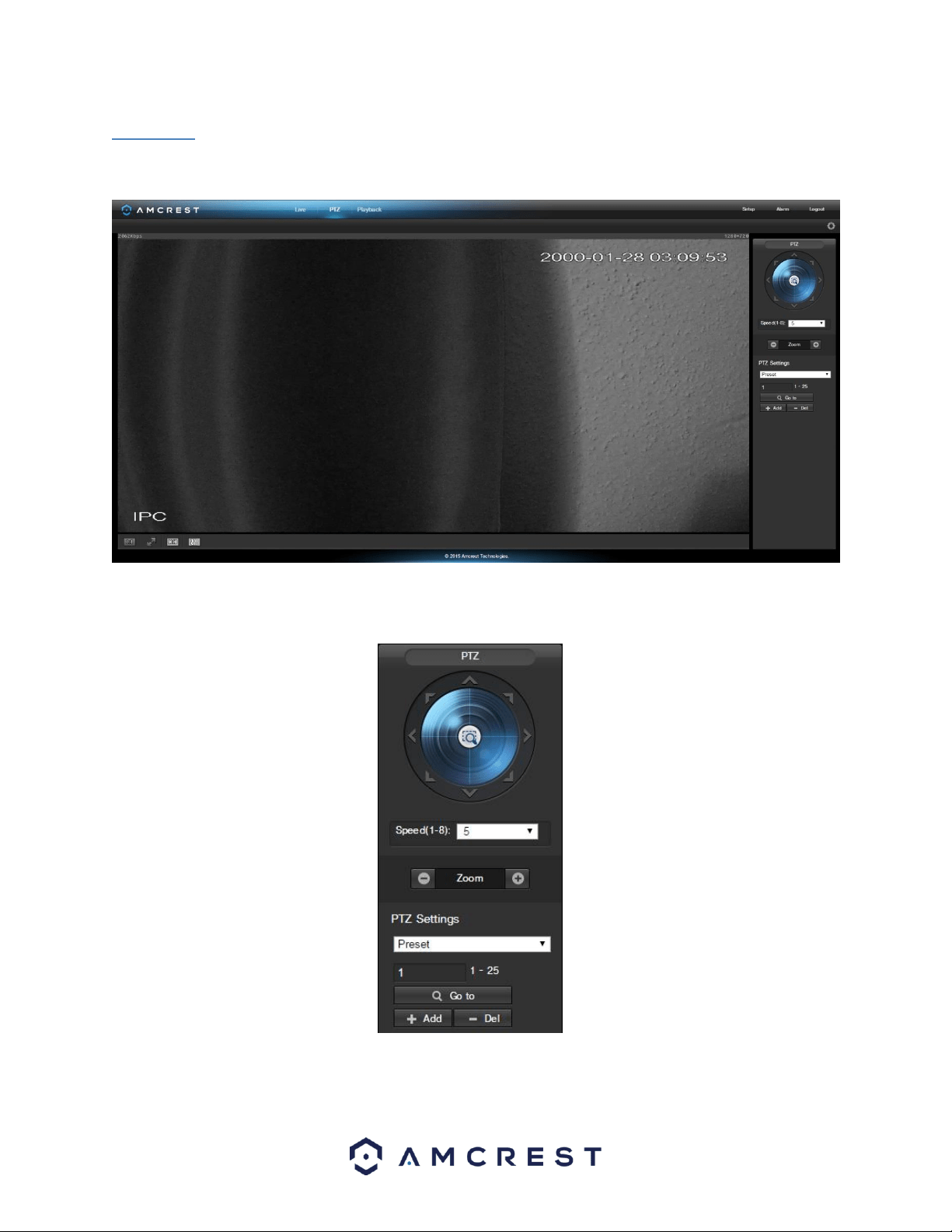
The PTZ tab allows the user to change the position of the camera. Below is a screenshot of the PTZ tab:
The PTZ control panel allows the user to position the camera in different ways. Below is a screenshot of the PTZ
control panel:
The arrows on the PTZ control panel allow the user to move the camera’s position in a specific direction. The
button in the middle of the direction arrow allows the user to select an area in the live view to zoom in on.

54
1. Quick Actions: This panel allows the user to zoom in on playback footage, take a snapshot of the playback
footage, or open the help menu.
2. File Menu: This panel allows the user to select a file type and data source.
3. Calendar: This panel allows the user to pick a date that they would like to playback video from. When a date
has recorded footage available, it’s green. The current date is blue, unless it has recorded footage, then it’s a
lighter green.
4. File List: This button opens a file list of all recorded video for a specific date range. From here, the user can
download these videos to their PC.
5. Trim Panel: This panel allows the user to trim playback video for download. By specifying time stamps, the
user can trim down.
6. Recorded Video Panel: This panel allows the user to specify what type of video they would like to playback
and it also allows the user to select where to start playback from. The buttons on the bottom right allow the
user to select a zoom level.
7. Playback Bar: This panel allows the user to control playback. It also allows the user to control playback speed,
and playback volume.
Clicking the File List opens the following screen on the sidebar:
This allows the user to select files for download. Select the files by clicking the checkbox next to each file, and then
click to download the files to the PC.
55
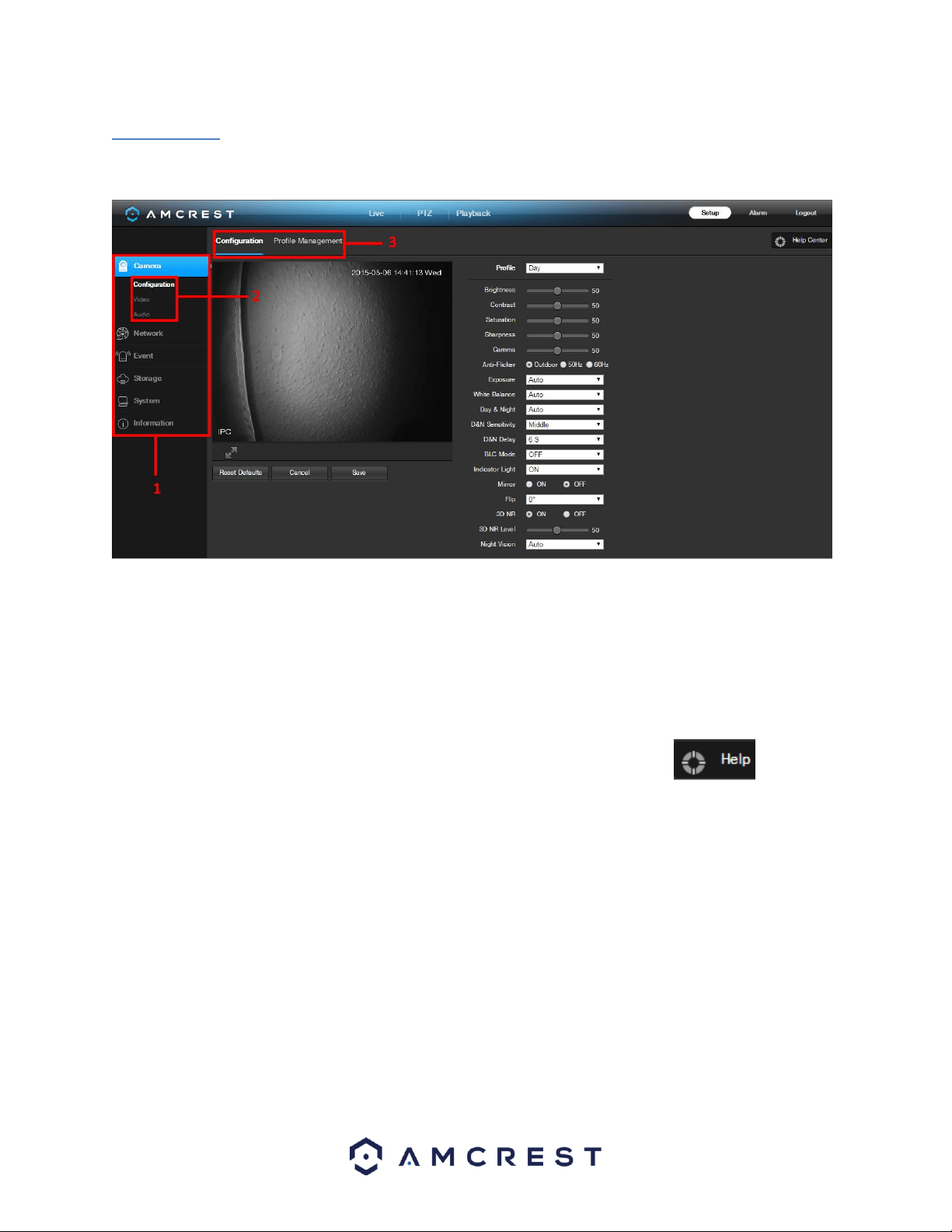
5.4 Setup
The Setup tab allows the user to change different camera settings. Below is a screenshot of the setup tab:
There are 3 main sections to note in the Setup tab:
1. Menu Bar: The menu bar is composed of menu sections, which when clicked display any menu items that fall
under their category.
2. Menu Items: These menu items each open up a different menu that allows the user to change specific settings
for the camera.
3. Menu Tab: These tabs open up menu options for certain menu items.
Note: To view additional information about any of the information in the menu, click the button near
the top right corner.
In the rest of section 5.4, we will be exploring all of the different menus that are available through web access.

57
effect on the general brightness of the whole video. The video color may become too strong if the value is too
high. For the grey part of the video, distortion may occur if the white balance is not accurate. Please note the
video may not be clear if the value is too low. The recommended value ranges from 40 to 60.
Sharpness: This slider is used to adjust the sharpness of the video. The value ranges from 0 to 100. The larger
the value is, the clearer the edges are and vice versa. Note: The higher the value, the higher likelihood of
picture noise occurring. The default value is 50 and the recommended value ranges from 40 to 60.
Gamma: This slider is used to adjust the gamma of the video. The larger the number, the brighter the video is.
The default value is 50 and the recommended value ranges from 40 to 60.
Anti-Flicker: These radio buttons allow the user to select what type of anti-flicker technology should be used
for the video feed. The three options are 50 Hz, 60 Hz, and Outdoor. The desired option should offset any
flickering effect caused by the electrical current used in the specific area.
Exposure: This dropdown box allows the user to select the exposure type for the video feed. The options are
Auto, Low Noise, Low Motion Blur, and Manual. When low noise is selected, an additional option to specify a
gain range appears below this box. When low motion blur is selected, an additional option to specify shutter
speed appears below this box. When manual is selected, additional options to specify a shutter speed and a
gain range appear below this box.
White Balance: This dropdown box allows the user to select the white balance for the video feed. The
different options are Auto, Sunny, Night, Outdoor, and Customized. Selecting customized opens a menu that
allows the user to set specific red or blue values.
Day & Night: This dropdown box allows the user to select which type of picture is displayed. The options are
Color, Auto, and Black & White.
D&N Sensitivity: This option allows the user to change the Day/Night Sensitivity of the camera. The three
options are Low, Middle, and High. The higher the sensitivity, the quicker the camera will change into another
mode depending on the light levels.
D&N Delay: This dropdown box allows the user to set a delay in seconds for how long it takes to switch
between Day and Night modes. The values range from 2 seconds to 10 seconds.
BLC Mode: This dropdown box allows the user to select Back Light Compensation. The values are Off, BLC
(Auto), WDR, and HLC. This feature should only be used in black lit environments.
Indicator Light: This dropdown box allows the user to select whether the indicator light on the back of the
camera is on or off for the selected profile.
Mirror: This radio button allows the user to turn the mirroring feature on or off. Turning mirroring on will
mirror the picture.
Flip: This dropdown box allows the user to flip the video feed picture. Flipping the picture is recommended
only if the camera is mounted upside down.
3D NR: This radio button allows the user to turn the 3D Noise Reduction feature on or off.
3D NR Level: This slider allows the user to specify the 3D Noise Reduction level. The value ranges from 1-100.
Night Vision: This dropdown box allows the user to select whether the camera turns on night vision
automatically or if night vision remains off.
To reset to default settings, click the Reset Defaults button. To cancel any modifications, click the Cancel button. To
save the settings, click the Save button.
58
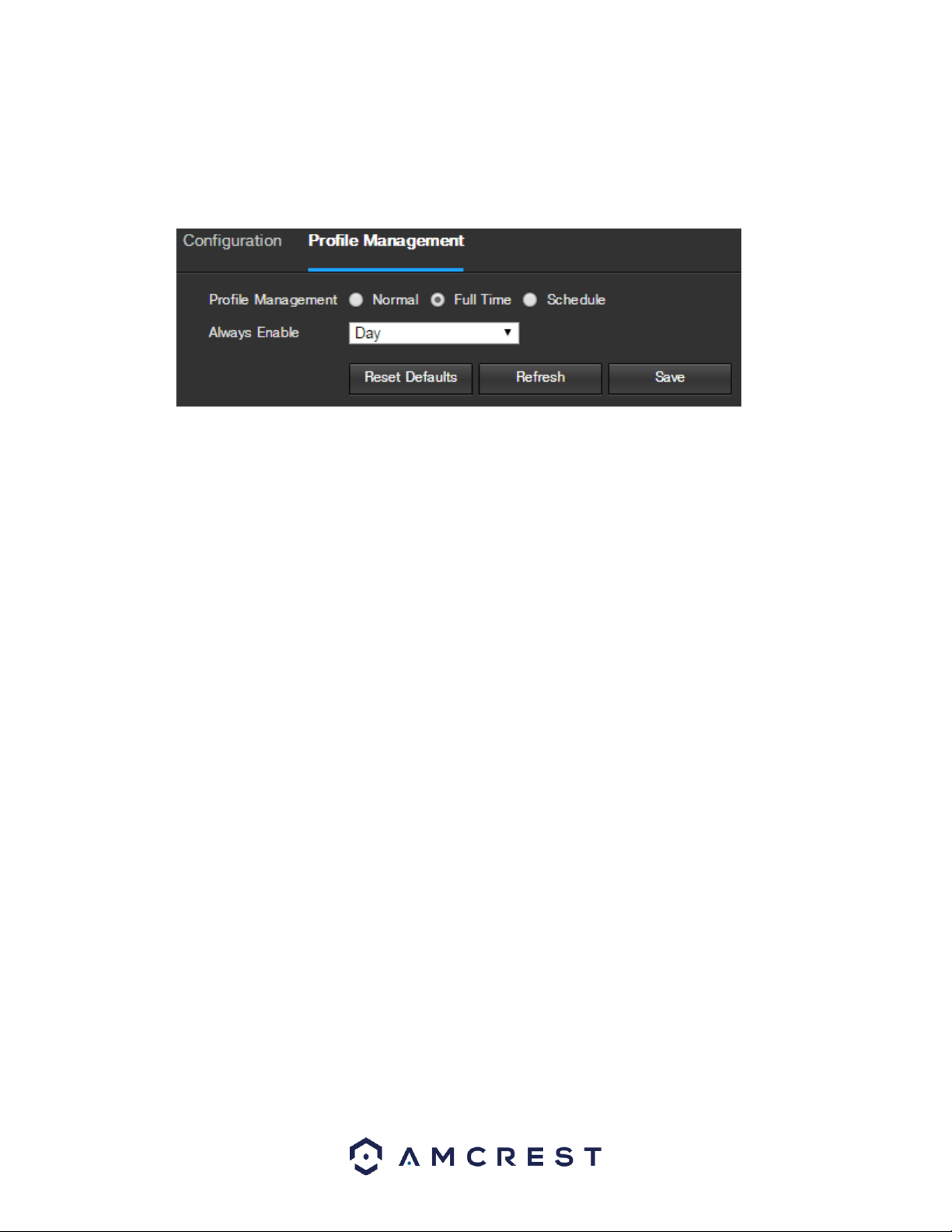
5.4.1.1.2 Profile Management
Below is a screenshot that shows the Profile Management tab in the Configuration menu item:
Below is an explanation for each of the fields on the Profile Management tab in the Configuration menu item:
Profile Management: This set of radio buttons allow the user to set what basis the profile management
settings run on. There are 3 options: Normal, Full Time, and Schedule. Normal means that the system can
automatically alternate between night and day based on the profiles for each. Full Time means that the
system sticks to one profile the entire time it is running. Schedule allows the user to dictate which times of the
day are designated for the day profile and the night profile.
To reset to default settings, click the Reset Defaults button. To refresh the page, click the Refresh button. To save
the settings, click the Save button.

59
5.4.1.2 Video
This section allows the user to change video settings for the camera’s video feed. There are 4 tabs in this menu
item: Video, Snapshot, Overlay, and Path.
5.4.1.2.1 Video
Below is a screenshot that shows the Video tab in the Video menu item:
Below is an explanation for each of the fields on the Video tab in the Video menu item:
Code-Stream Type: This dropdown box allows the user to select different encode frame rates for different
recorded events. This includes the main stream, motion stream, and alarm stream. The camera supports
active control frame function (ACF). It allows the user to record in different frame rates. For example, a high
frame rate can be used to record important events, and a low frame rate can be used to record scheduled
events. The camera also allows for the option to set different frame rates for motion detection recordings and
alarm recordings.
Encode Mode: This dropdown box allows the user to select a compression protocol. The system supports
H.264 and MJPEG video compression protocols.
Resolution: This dropdown box allows the user to set the resolution. The system supports various resolutions
and they can be selected from this dropdown list.
Frame Rate (FPS): This dropdown box allows the user to select a frame rate. Frame rate settings are measured
in frames per second (FPS), and can range from 1f/s to 25f/s in PAL mode and 1f/s to 30f/s in NTSC mode.
Bit Rate Type: This dropdown box allows the user to select a bit rate type. The system supports two bit rate
types: CBR and VBR. In VBR mode, video quality can be set.
Reference Bit Rate: This is the recommended bit rate value according to the resolution and frame rate
selected.
Bit Rate: This dropdown box allows the user to select a bit rate.
Frame Interval: This field allows the user to set the P frame amount between two I frames. The value ranges
from 1 to 150 seconds. Default value is 50. Recommended value is frame rate *2.
Watermark Settings: This function allows the user to verify if the video has been tampered with.
61
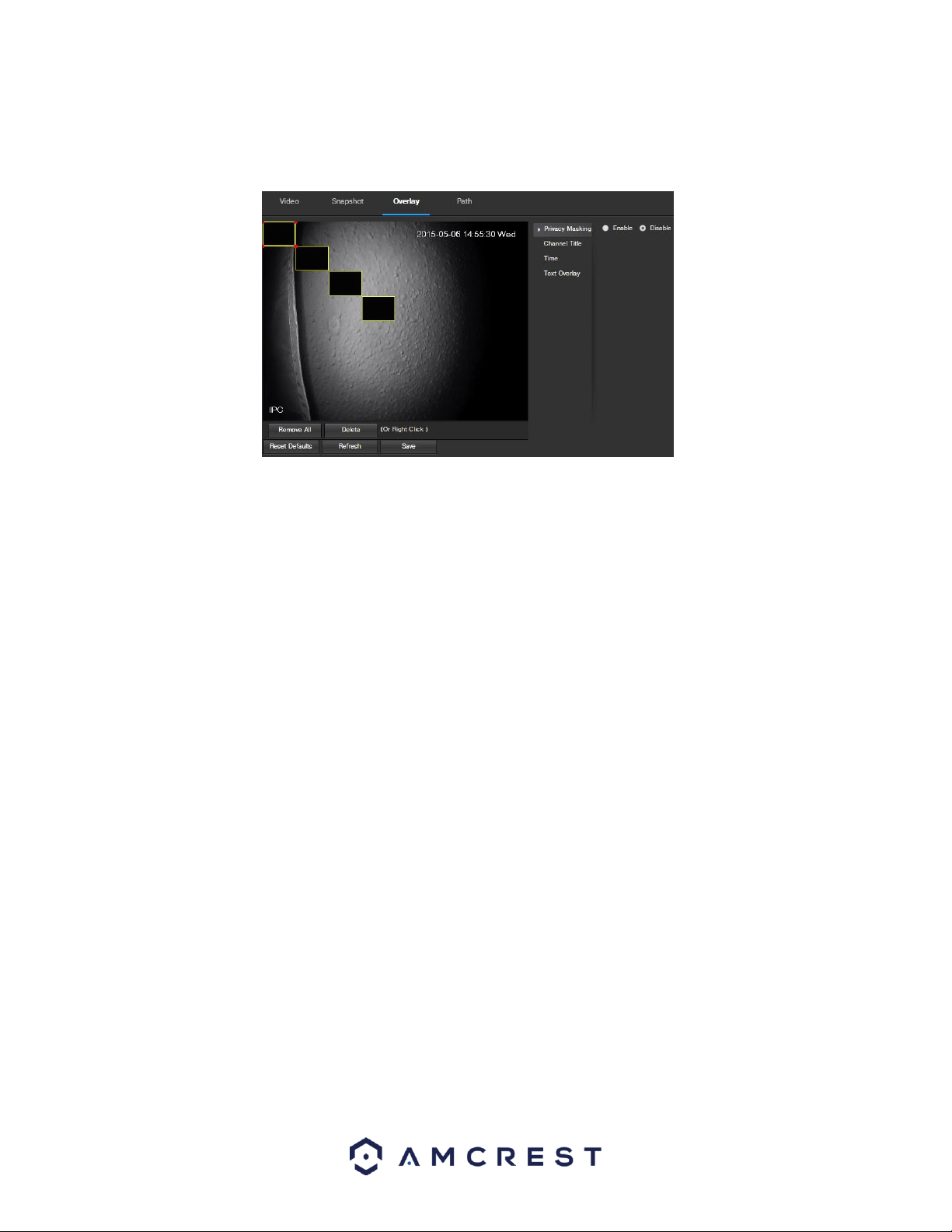
5.4.1.2.3 Overlay
Below is a screenshot that shows the Overlay tab in the Video menu item:
The menu on the left allows the user to select which overlay to modify. Privacy Masking, Channel Title, Time, and
Text Overlay can all be modified in this menu.
For Privacy Masking, the radio button enables or disables the feature. To set a privacy mask, click one of the boxes
in the live view window, and position or resize it as needed. To remove a box, click on it, then click the delete
button. To remove all privacy filter boxes, click the remove all button.
For Channel Title, the radio button enables or disables the feature. The Input Channel Title field allows the channel
title to be modified.
For Time, the radio button enables or disables the feature. Clicking the Display Weekdays checkbox will show the
weekday at the end of the timestamp.
For Text Overlay, the radio button enables or disables the feature. The Input Text box allows the user to enter
multiple lines of text as needed, and the Text Alignment dropdown box allows the user to align the text either right
or left.
To reset to default settings, click the Reset Defaults button. To refresh the page, click the Refresh button. To save
the settings, click the Save button.

63
Below is an explanation for each of the fields on the Audio menu:
Enable: This checkbox allows the user to enable audio recording.
Encode Mode: This dropdown box allows the user to select what audio format the audio should be recorded
in.
Sampling Frequency: This dropdown box allows the user to select a sampling frequency for the audio. The
options are 8k and 16k. 16k audio sampling allows for higher sound quality.
Audio In Device: This field allows the user to select what source to get audio from. The default is the camera’s
built-in mic. Alternatively, the line in mic can be selected.
Noise Filter: This dropdown box allows the user to enable or disable the audio noise filter function. This
function provides cleaner audio quality when enabled.
Microphone Volume: This slider allows the user to select the microphone volume. The value ranges from 0 to
100. The default value is 50.
Speaker Volume: This slider allows the user to select the speaker volume. The value ranges from 0 to 100. The
default value is 50.
To reset to default settings, click the Reset Defaults button. To refresh the page, click the Refresh button. To save
the settings, click the Save button.
5.4.2 Network
This menu section allows the user to change network settings for the camera.
5.4.2.1 TCP/IP
The TCP/IP menu item has two tabs: TCP/IP and P2P.
5.4.2.1.1 TCP/IP
TCP/IP stands for Transmission Control Protocol/Internet Protocol and it is the language/protocol that allows
communication between internet connected devices, whether on a local network, or a on the Internet at large.
This screen allows for TCP/IP settings to be modified in order for the camera to establish a connection to the
network. Below is a screenshot of the TCP/IP settings tab:

65
Below is an explanation of the fields on the P2P settings tab:
Enable: This checkbox allows the user to enable the P2P feature for the camera. This feature must be enabled
for the camera to connect to a smartphone or tablet via the Amcrest View app. It is enabled by default.
Status: This field displays the status of the P2P connection. Once the camera is connected to a device, this
field should display the word Online.
S/N: This field displays the Token ID for the camera. The Token ID can be used to manually enter the camera’s
information on a mobile or tablet device in case the QR code scanning feature cannot be used.
QR Code: This image is a Quick Response (QR) code. By scanning this image using the Amcrest View app, this
camera can establish a connection with the app.
To reset to default settings, click the Reset Defaults button. To refresh the page, click the Refresh button. To save
the settings, click the Save button.
5.4.2.2 Connection
The Connection menu item has two tabs: Connection and ONVIF.
5.4.2.2.1 Connection
The Connection tab is where users can configure port connections. Below is a screenshot of the Connection
settings tab:
Below is an explanation of the fields on the Connection settings tab:
Max Connections: This field allows the user to specify the maximum amount of users that can be connected to
the camera at the same time. The maximum number of users the camera can support at one time is 20.
TCP Port: This field designates the Transmission Control Protocol (TCP) port number. The default value is
37777.
UDP Port: This field designates the User Datagram Protocol (UDP) port number. The default value is 37778.
HTTP Port: This field designates the Hypertext Transfer Protocol (HTTP) port number. The default value is 80.
RTSP Port: This field designates the Real Time Streaming Protocol (RTSP) port number. The default value is
554.
HTTPS: This checkbox enables the use of the HTTPS protocol for accessing the camera.
HTTPS Port: This field designates the Hypertext Transfer Protocol Secure (HTTPS) port number. The default
value is 443.
To reset to default settings, click the Reset Defaults button. To refresh the page, click the Refresh button. To save
the settings, click the Save button.

68
5.4.2.5 IP Filter
This screen allows for the filtering of IP addresses, either blocking them, or granting them access to the camera.
This feature helps make the camera more secure by limiting remote access only to approved users. Below is a
screenshot of the IP Filter screen:
Below is an explanation of fields on the IP Filter settings screen:
Trusted Sites: This checkbox allows the user to enable the IP Filter feature for trusted sites.
Add IP/MAC: This button opens a popup that allows the user to add IP or MAC addresses to the trusted site
list. Note: When accessing the camera externally, please add the MAC address of the router on the PC end.
Remove All: This button allows the user to remove all sites from the trusted IP/MAC list.
To reset to default settings, click the Reset Defaults button. To refresh the page, click the Refresh button. To save
the settings, click the Save button.
69
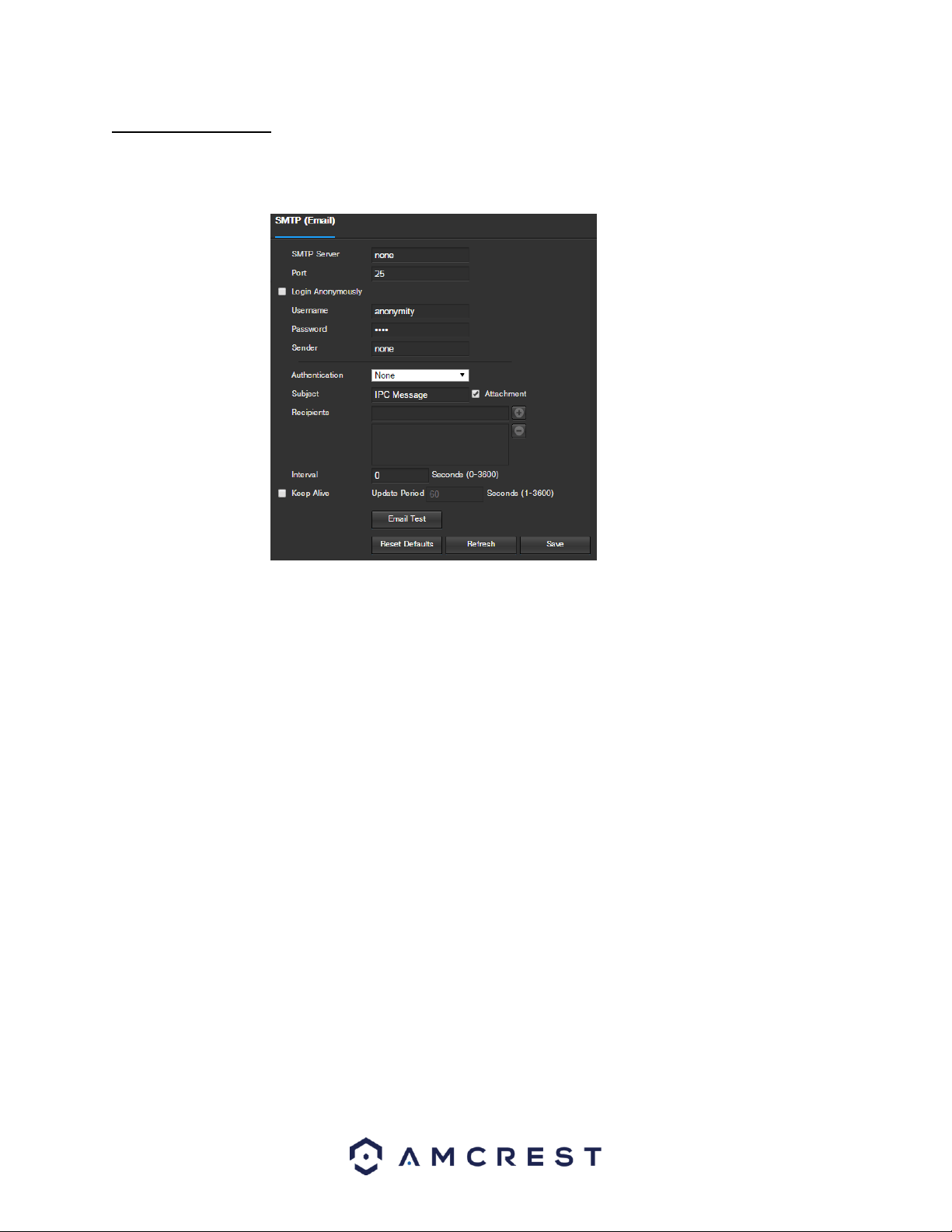
5.4.2.6 SMTP (Email)
This screen allows for the configuring of email settings in order to permit the camera to send emails when an alarm
is triggered. Below is a screenshot of the email settings screen:
Below is an explanation of fields on the SMTP (Email) settings screen:
SMTP Server: SMTP stands for Simple Mail Transfer Protocol. This field allows the user to enter the SMTP
server used by the email service.
Port: This field allows the user to enter the port that corresponds to the selected SMTP server.
Login Anonymously: This checkbox allows the user to anonymously login to the server.
Username: This field allows the user to enter the SMTP username.
Password: This field allows the user to enter the password associated with the SMTP username.
Sender: This field allows the user to enter the sender email address. This email address will be the one that
sends out all emails pertaining to the alerts and alarm emails sent by the camera.
Authentication: This dropdown box allows the user to select an encryption type. There are two types of email
encryption protocols that are available.
o SSL: Secure Socket Layer
o TLS: Transport Layer Security
Subject: This field allows the user to define the subject line of the email that is sent to the receivers.
Recipients: This field allows the user to enter the receiver email address. These email addresses are the ones
that will receive any emails pertaining to alert and alarm emails sent by the camera. Up to 3 email addresses
can be entered in this field.
Interval: This field allows the user to define, in seconds, how long the system should wait between sending
emails. This prevents multiple emails from being sent out.
Keep Alive: This checkbox allows the user to enable a function to periodically check in with the SMTP server to
ensure it can connect correctly.
Email Test: This button causes the system to automatically send out an email to test the connection is OK or
not. Prior to the email test, please save the email setup information.
To reset to default settings, click the Reset Defaults button. To refresh the page, click the Refresh button. To save
the settings, click the Save button.

72
Click the checkbox next to Enable to the Bonjour functionality. The Server Name field allows the user specify what
name to use in order to connect devices via the Bonjour protocol.
To reset to default settings, click the Reset Defaults button. To refresh the page, click the Refresh button. To save
the settings, click the Save button.
5.4.2.10 Multicast
Multicast is a feature that enables the camera to broadcast its live view to multiple computers on the same
network. Below is a screenshot of the multicast screen:
Below is an explanation of the fields in the Multicast settings screen:
Enable: This checkbox allows the user to enable Multicast functionality.
Multicast Address: This field allows the user to enter a multicast address.
Port: This field allows the user to enter a multicast port.
To reset to default settings, click the Reset Defaults button. To refresh the page, click the Refresh button. To save
the settings, click the Save button.
5.4.2.11 WiFi
The WiFi menu item has two tabs: WiFi and WPS.
5.4.2.11.1 WiFi
The WiFi feature on this camera allows it to connect to a network wirelessly. Below is a screenshot of the WiFi tab
on the WiFi menu:

73
Below is an explanation of the fields on the WiFi tab of the WiFi menu:
Enable: This checkbox allows the user to enable WiFi functionality.
Add SSID: This button allows the user to manually enter in an SSID.
Search SSID: This button allows the user to search for more SSIDs.
Refresh: This button obtains the most recent WiFi network information.
To connect to a WiFi network, click the line item for a specific network, and enter in the password if needed.
5.4.2.11.2 WPS
The WPS tab of the WiFi menu is used to connect to a wireless network through the WPS connection method.
Below is an explanation of the fields on the WPS tab of the WiFi menu:
Enter PIN: This radio button allows the user to select the Enter PIN option for WPS
o To enter a PIN, enter the PIN in the PIN field, and enter an SSID in the SSID field
Button: This radio button allows the user to select the WPS button connection method for connecting to WiFi.
To connect to a network, click the Connect button. To refresh the page, click the Refresh button.
5.4.2.12 802.1x
802.1x is an authentication method for connecting to a network. Below is a screenshot of the 802.1x screen:
74
To enable 802.1x, click the checkbox next to Enable. An authentication method can be chosen from the dropdown
box, and a username and password can be entered in their respective fields.
To reset to default settings, click the Reset Defaults button. To refresh the page, click the Refresh button. To save
the settings, click the Save button.
5.4.2.13 QoS
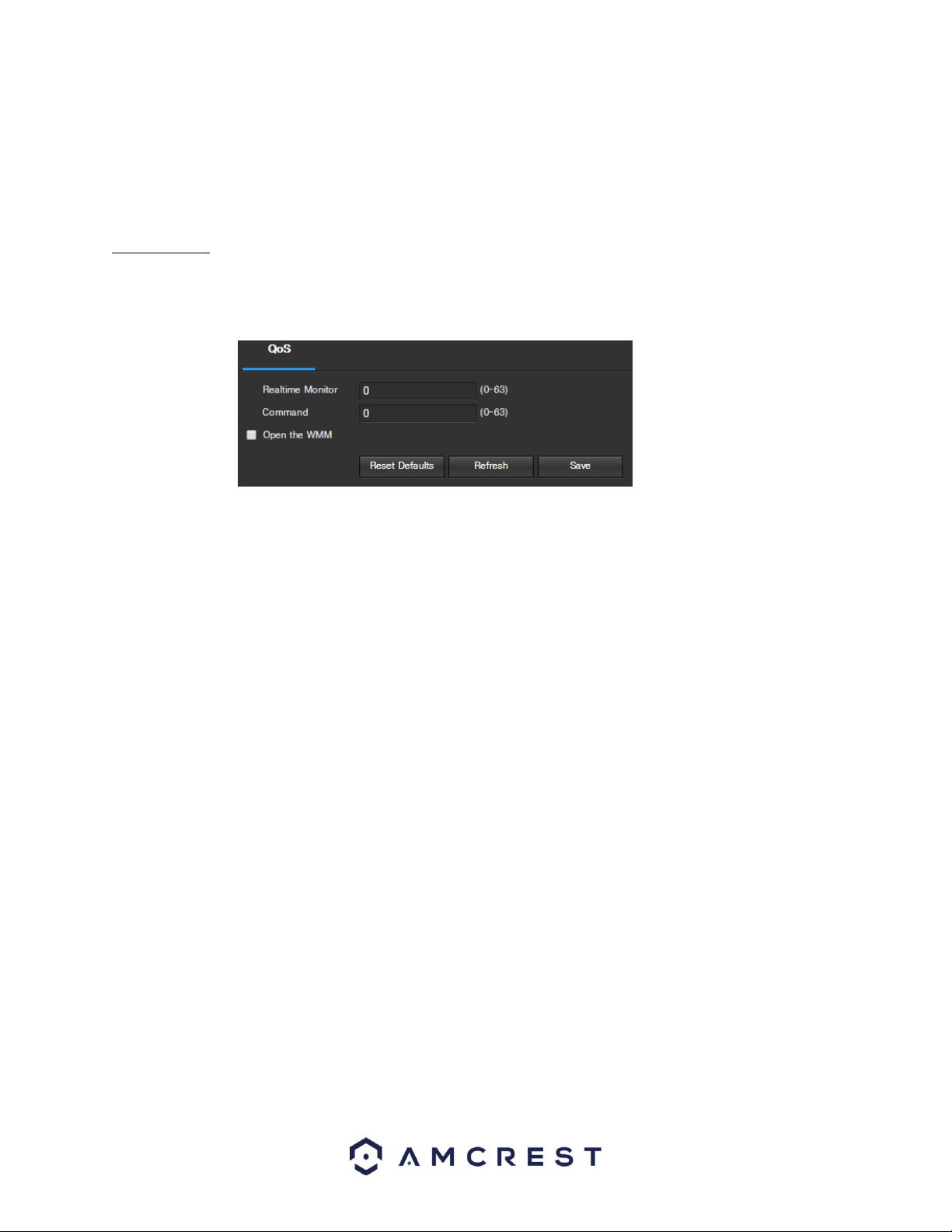
QoS stands for Quality of Service and it refers to the overall performance of a computer network, particularly the
performance seen by the users of the network. Below is a screenshot of the QoS screen:
Below is an explanation of the fields on the QoS screen:
Realtime Monitor: This field allows the user to enter in a priority value for realtime monitoring packets. The
range is between 0-63.
Command: This field allows the user to enter in a priority value for command packets. The range is between 0-
63.
Open the WMM: This checkbox allows the user to open the WiFi MultiMedia (WMM) options.
To reset to default settings, click the Reset Defaults button. To refresh the page, click the Refresh button. To save
the settings, click the Save button.

75
5.4.3 Event
This menu section allows the user to change different settings for triggering events.
5.4.3.1 Video Detection
The video detection menu has two tabs: Motion Detect and Video Tamper.
5.4.3.1.1 Motion Detect
This tab allows the user to modify motion detection settings. Below is a screenshot of the Motion Detect tab:
Below is an explanation of the fields on the Motion Detect tab:
Enable: This checkbox enables motion detection for the camera.
Working Period: Clicking this button opens a weekly schedule that can be used to set times.
o Click and drag to set motion detection for certain days of the week. Also, periods of motion detection
can be set for each day and enabled using the period settings on the bottom half of the screen. There
are a total of 6 periods that can be set.
Anti-Dither: This field allows the user to set the anti-dither time. The values in this field can range from 5 to
600 seconds. This time value controls how long the alarm signal lasts. Based on motion detection, a buzzer can
go off, a tour can begin, PTZ can be activated, a snapshot can be taken, or the camera can begin recording.
o For example, if the anti-dither time is set to 10 seconds, each alarm may last 10 seconds if the local
alarm is activated. During the process, if the system detects another local alarm signal at the fifth
second, the buzzer, tour, PTZ activation, snapshot, record channel functions will begin another 10
seconds while the screen prompt, alarm upload, email will not be activated again. After 10 seconds, if

77
5.4.3.1.2 Video Tamper
This tab allows the user to modify video tamper settings. Below is a screenshot of the Video Tamper tab:
Below is an explanation of the fields on the Video Tamper tab:
Enable: This checkbox enables a video tamper alarm for the camera.
Working Period: Clicking this button opens a weekly schedule that can be used to set times.
o Click and drag to set video tampering for certain days of the week. Also, periods of video tampering
can be set for each day and enabled using the period settings on the bottom half of the screen. There
are a total of 6 periods that can be set.
Record: This checkbox allows the user to enable the camera to record video when a video tampering alarm is
triggered.
Record Delay: This field specifies in seconds how long the delay between alarm activation and recording
should be.
Relay Out: This checkbox allows the user to enable the camera to trigger a connected alarm (connected to the
alarm port on the back of the camera) when a video tamper alarm is triggered.
Alarm Delay: This field specifies in seconds how long the delay between alarm activation and Relay alarm
activation should be.
Send Email: This checkbox allows the user to enable the camera to send an email when a video tampering
alarm is triggered.
PTZ: This checkbox allows the user to enable the camera to activate a PTZ tour when a video tampering alarm
is triggered.
Snapshot: This checkbox allows the user to enable the camera to take a snapshot when a video tampering
alarm is triggered.
To reset to default settings, click the Reset Defaults button. To refresh the page, click the Refresh button. To save
the settings, click the Save button.

79
Record: This checkbox allows the user to enable the camera to record video when an audio detection alarm is
triggered.
Record Delay: his field specifies in seconds how long the delay between alarm activation and recording should
be.
Relay Out: This checkbox allows the user to enable the camera to trigger a connected alarm (connected to the
alarm port on the back of the camera) when an audio detection alarm is triggered.
Alarm Delay: This field specifies in seconds how long the delay between alarm activation and Relay alarm
activation should be.
Send Email: This checkbox allows the user to enable the camera to send an email when an audio detection
alarm is triggered.
PTZ: This checkbox allows the user to enable the camera to activate a PTZ tour when an audio detection alarm
is triggered.
Snapshot: This checkbox allows the user to enable the camera to take a snapshot when an audio detection
alarm is triggered.
To reset to default settings, click the Reset Defaults button. To refresh the page, click the Refresh button. To save
the settings, click the Save button.
5.4.3.3 Alarm
This screen is used to set external alarm settings for the camera and any devices attached to the camera’s relay.
Below is a screenshot of the Alarm settings screen:
Below is an explanation of the fields on the Alarm settings screen:
Enable: This checkbox enables external alarm activation for the camera.
Relay In: This dropdown box allows the user to select which relay input’s settings are modified.
Working Period: Clicking this button opens a weekly schedule that can be used to set times.

80
o Click and drag to set alarm activation for certain days of the week. Also, periods of relay activation
can be set for each day and enabled using the period settings on the bottom half of the screen. There
are a total of 6 periods that can be set.
Anti-Dither: This field allows the user to set the anti-dither time. The values in this field can range from 5 to
600 seconds. This time value controls how long the alarm signal lasts. Based on relay activation, a buzzer can
go off, a tour can begin, PTZ can be activated, a snapshot can be taken, or the camera can begin recording.
o For example, if the anti-dither time is set to 10 seconds, each alarm may last 10 seconds if the local
alarm is activated. During the process, if the system detects another local alarm signal at the fifth
second, the buzzer, tour, PTZ activation, snapshot, record channel functions will begin another 10
seconds while the screen prompt, alarm upload, email will not be activated again. After 10 seconds, if
system detects another alarm signal, it can generate a new alarm since the anti-dither time has
expired.
Sensor Type: This dropdown box allows the user to select which sensor type to use. The options are Normally
Open (NO) and Normally Closed (NC).
Record: This checkbox allows the user to enable the camera to record video when an alarm is activated.
Record Delay: This field specifies in seconds how long the delay between alarm activation and recording
should be.
Relay Out: This checkbox allows the user to enable the camera to trigger a connected alarm (connected to the
alarm port on the back of the camera) when a relay activation alarm is triggered.
Alarm Delay: This field specifies in seconds how long the delay between alarm activation and Relay alarm
activation should be.
Send Email: This checkbox allows the user to enable the camera to send an email when an alarm is activated.
PTZ: This checkbox allows the user to enable the camera to activate a PTZ tour when an alarm is activated.
Snapshot: This checkbox allows the user to enable the camera to take a snapshot when an alarm is activated.
To reset to default settings, click the Reset Defaults button. To refresh the page, click the Refresh button. To save
the settings, click the Save button.
81
5.4.3.4 Abnormality
This menu has 3 tabs: SD Card, Network, and Illegal Access
5.4.3.4.1 SD Card
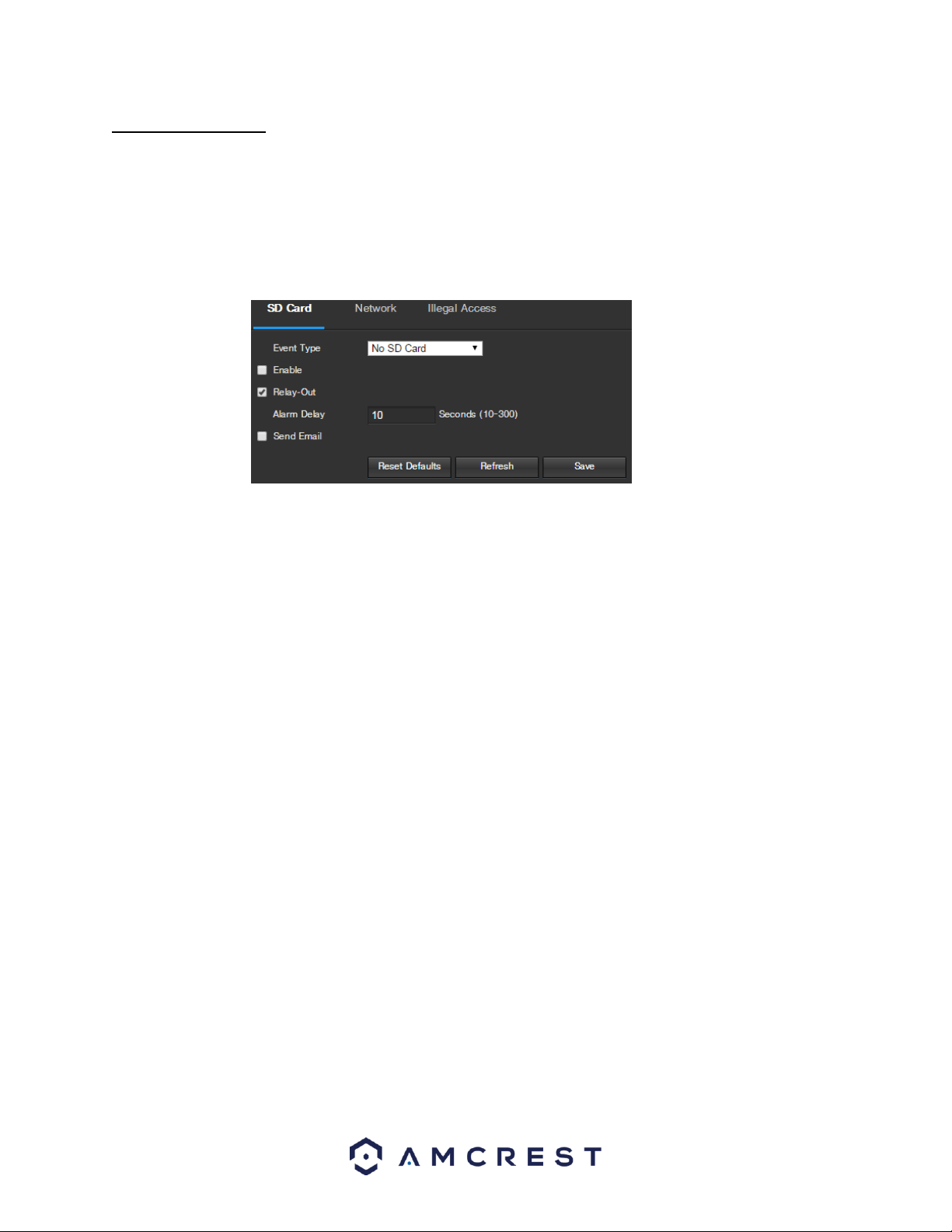
This tab allows the user to set the camera’s response to an SD card related abnormality. Below is a screenshot of
the SD card tab screen:
Below is an explanation of the fields on the SD Card settings tab:
Event Type: This dropdown box allows the user to select which SD card abnormality to set event triggers for.
The 3 options are No SD Card, SD Card Error, and Capacity Warning.
Enable: This checkbox enables the SD Card abnormality trigger for the camera.
Relay Out: This checkbox allows the user to enable the camera to trigger an alarm when an SD Card
abnormality is detected.
Alarm Delay: This field specifies in seconds how long the delay between alarm activation and relay alarm
activation should be.
Send Email: This checkbox allows the user to enable the camera to send an email when an SD Card
abnormality is detected.
To reset to default settings, click the Reset Defaults button. To refresh the page, click the Refresh button. To save
the settings, click the Save button.

82
5.4.3.4.2 Network
This tab allows the user to set the camera’s response to a Network related abnormality. Below is a screenshot of
the Network tab screen:
Below is an explanation of the fields on the Network settings tab:
Event Type: This dropdown box allows the user to select which Network abnormality to set event triggers for.
The 2 options are Disconnection and IP Conflict.
Enable: This checkbox enables the Network abnormality trigger for the camera.
Record: This checkbox allows the user to enable the camera to record video when a network abnormality is
detected.
Record Delay: This field specifies in seconds how long the delay between alarm activation and recording
should be.
Relay Out: This checkbox allows the user to enable the camera to trigger an alarm when a network
abnormality is detected.
Alarm Delay: This field specifies in seconds how long the delay between alarm activation and relay alarm
activation should be.
To reset to default settings, click the Reset Defaults button. To refresh the page, click the Refresh button. To save
the settings, click the Save button.
83
5.4.3.4.3 Illegal Access
This tab allows the user to set the camera’s response to an Illegal Access related abnormality. Below is a
screenshot of the Illegal Access tab screen:
Below is an explanation of the fields on the Illegal Access settings tab:
Enable: This checkbox enables the Illegal Access abnormality trigger for the camera.
Login Failure: This field allows the user to specify how many failed login attempts must be attempted in order
to trigger an Illegal Access abnormality event.
Relay Out: This checkbox allows the user to enable the camera to trigger an alarm when illegal access is
detected.
Alarm Delay: This field specifies in seconds how long the delay between alarm activation and relay alarm
activation should be.
Send Email: This checkbox allows the user to enable the camera to send an email when illegal access is
attempted.
To reset to default settings, click the Reset Defaults button. To refresh the page, click the Refresh button. To save
the settings, click the Save button.
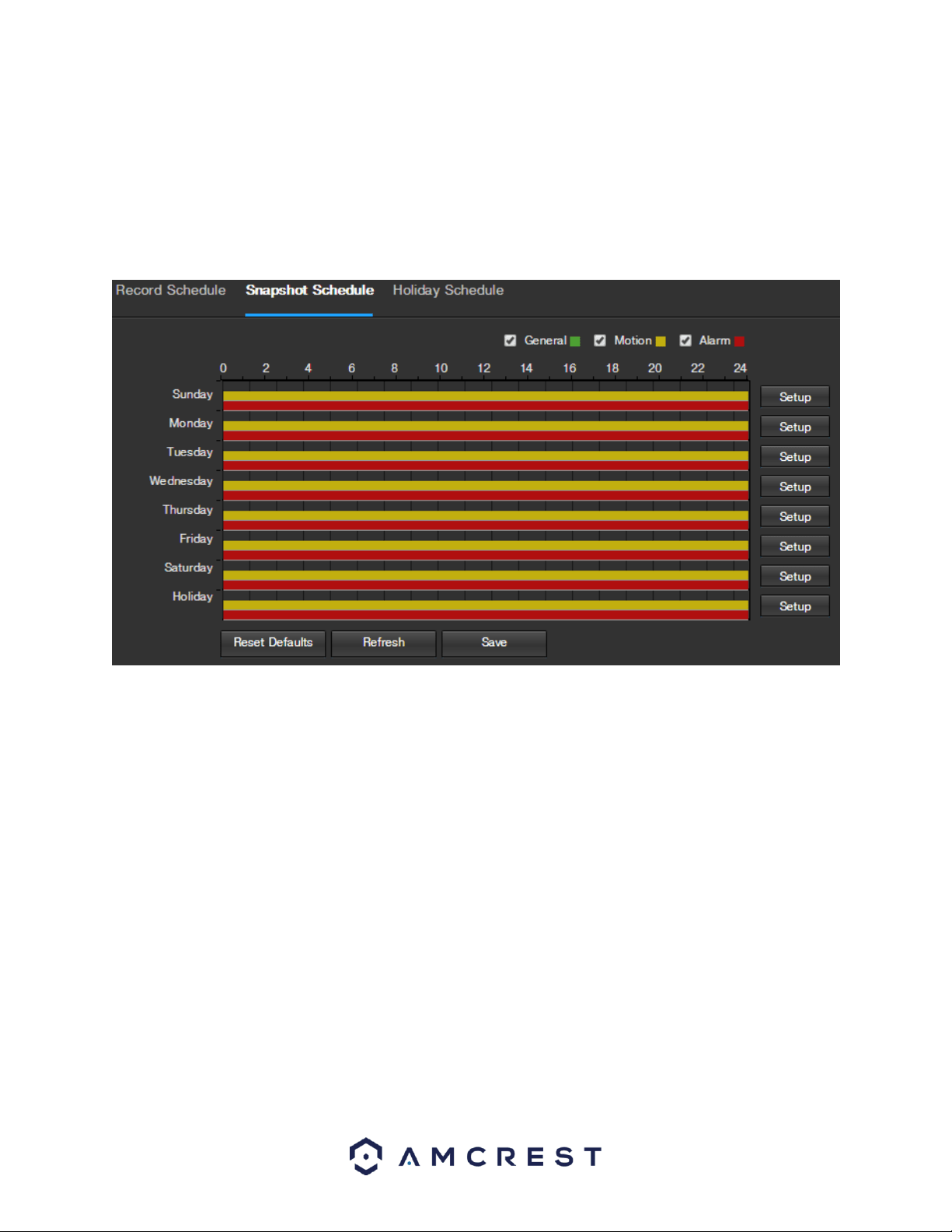
85
To reset to default settings, click the Reset Defaults button. To refresh the page, click the Refresh button. To save
the settings, click the Save button.
5.4.4.1.2 Snapshot Schedule
This tab is where snapshot recording settings are configured. Below is a screenshot of the Snapshot Schedule
settings screen:
Below is an explanation of the fields on the Snapshot Schedule settings tab:
Record Type: These checkboxes allow the user to select which snapshot type they want to configure on the
schedule. There are 3 types of snapshots:
o General: General means that the camera will take snapshots during the specified time period.
General recording is represented by the color green.
o Motion: Motion Detection means that the camera only takes snapshots when the motion detection
alarm is activated. Motion recording is represented by the color yellow.
o Alarm: Alarm means that the camera only takes snapshots when an alarm is activated. Alarm
recording is represented by the color red.
Snapshot Recording Schedule: To specify a snapshot range, first select the type of snapshot desired, then click
and drag on time bar for the desired date. To edit multiple days at once, drag the cursor further up or down to
cover the other days.
o Setup: Clicking this button opens a screen that allows for snapshot periods to be set for each day and
for each snapshot type. There are a total of 6 periods that can be set.
To reset to default settings, click the Reset Defaults button. To refresh the page, click the Refresh button. To save
the settings, click the Save button.

89
5.4.4.2.4 NAS
This tab is where the user can change NAS settings. Below is a screenshot of the NAS tab:
Below is an explanation of the fields on the NAS settings tab:
Enable: This checkbox allows the user to enable NAS uploading for the camera’s recorded media.
Server Address: This field allows the user to designate a DDNS address for the NAS server/device.
Remote Directory: This field allows the user to specify a remote directory on the NAS to send the recorded
media to.
To reset to default settings, click the Reset Defaults button. To refresh the page, click the Refresh button. To save
the settings, click the Save button.
5.4.4.3 Record Control
This menu is where general recording settings are configured. Below is a screenshot of the record control menu:
Below is an explanation of the fields on the Record Control settings tab:
Pack Duration: This field allows the user to set how many minutes each file is comprised of.
Pre-event Record: This field allows the user to specify how many seconds before an event should be recorded.
Disk Full: This dropdown box allows the user to designate what the camera should do when the disk is full.
There are 2 options: Overwrite or Stop.
Record Mode: This set of radio buttons allows the user to designate the recording mode. The options are
Auto, Manual, and Off.
Record Stream: This dropdown box allows the user to specify which stream to record. The options are main
stream and sub stream.
To reset to default settings, click the Reset Defaults button. To refresh the page, click the Refresh button. To save
the settings, click the Save button.

90
5.4.5 System
This menu section allows the user to change general settings for the camera.
5.4.5.1 General
This menu controls where general settings are configured. There are 2 tabs in this menu: General and Date & Time.
5.4.5.1.1 General
This tab is where the user can configure some basic camera settings. Below is a screenshot of the General tab:
Below is an explanation of the fields on the General settings tab:
Device Name: This field allows the user to change the device’s name.
Language: This dropdown box allows the user to change the language used in the camera.
Video Standard: This dropdown box allows the user to select either the NTSC or PAL video standard.
To reset to default settings, click the Reset Defaults button. To refresh the page, click the Refresh button. To save
the settings, click the Save button.
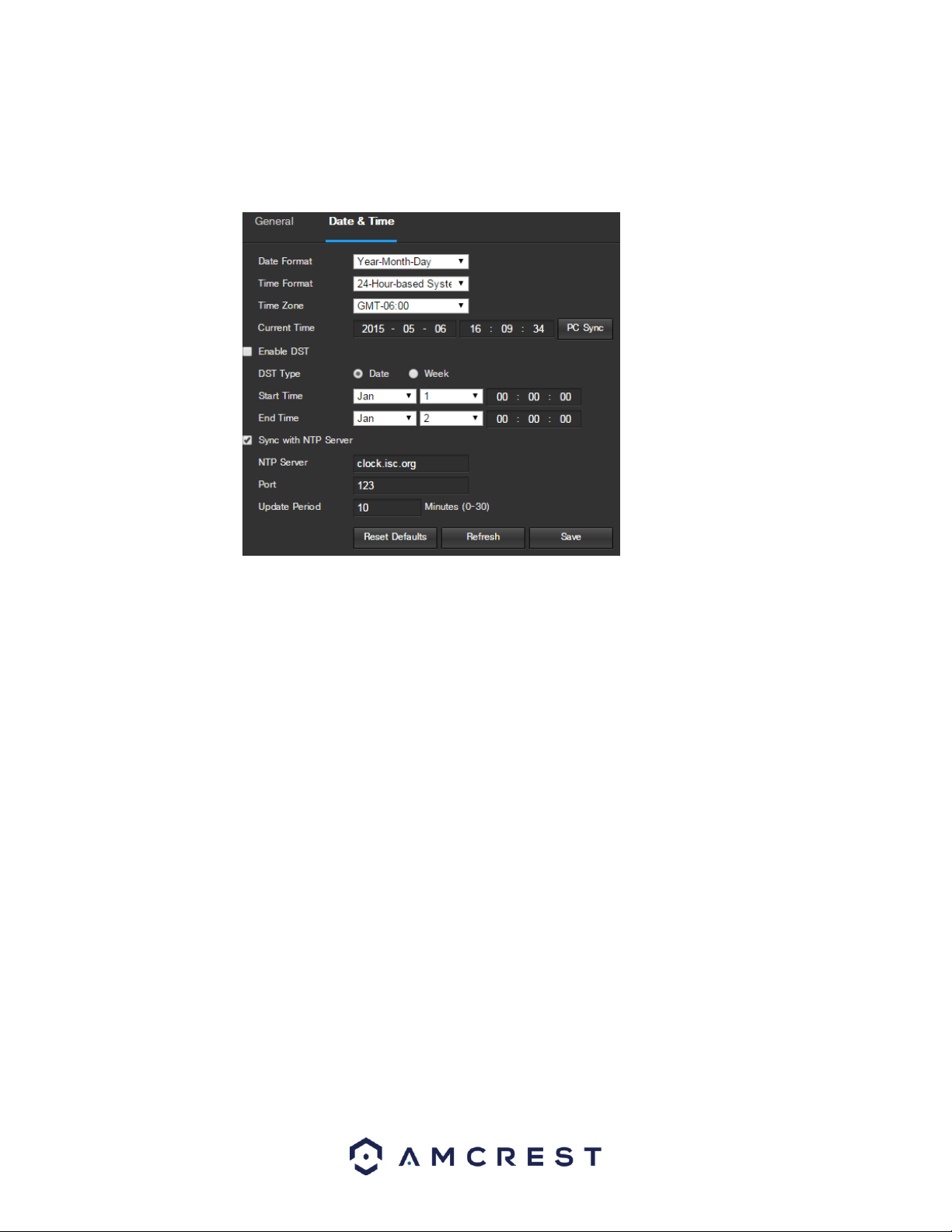
91
5.4.5.1.1 Date & Time
This tab is where the user can configure the date and time settings for the camera. Below is a screenshot of the
Date & Time tab:
Below is an explanation of the fields on the Date & Time settings tab:
Date Format: This dropdown box allows the user to change the date format used in the camera.
Time Format: This dropdown box allows the user to change the time format used in the camera.
Time Zone: This dropdown box allows the user to change the time zone used in the camera.
Current Time: This field allows the user to enter in the date and time manually. Clicking the PC Sync button
allows the camera to sync with a Network Time Protocol (NTP) server.
Enable DST: This checkbox allows the user to enable daylight savings time for the camera.
DST Type: This radio button allows the user to select whether DST is based on the week, or a specific day.
Start Time: This dropdown box and field allow the user to enter in the start time for DST.
End Time: This dropdown box and field allow the user to enter in the end time for DST.
Synchronize with NTP: This checkbox allows the user to enable the camera’s synchronization with an NTP
server.
NTP Server: This field allows the user to enter in an NTP server.
Port: This field allows the user to enter in the port number for the NTP server.
Update Period: This field allows the user to enter in the update period time. This number designates how
frequently the camera pings the NTP server to ensure it has the correct time. The range is from 0-30 minutes.
To reset to default settings, click the Reset Defaults button. To refresh the page, click the Refresh button. To save
the settings, click the Save button.

95
5.4.6 Information
This menu section allows the user to view information about the camera for reference purposes.
5.4.6.1 Version
This screen allows the user to see various information about the camera’s software versions, as well as other
information. Below is a screenshot of the camera’s version screen:
On this screen, software version, web interface version, and ONVIF version are displayed. Also, the S/N (Token ID)
is displayed here.
5.4.6.2 Log
This screen is where the camera’s activity log is kept. Below is a screenshot of the Log screen:
To view logs for a specific time period, modify the start time and end time fields, choose the type of event (system,
setting, data, event, record, manage users, clear log), and click search.
To backup the log, click the Backup button. To clear the log, click the Clear button.

96
5.4.6.3 Online Users
This screen allows the user to see which users are online. Below is a screenshot of the Online Users screen:
Click Refresh to refresh this table.
5.5 Alarm
This screen is where the alarm log is kept. Below is a screenshot of the alarm screen:
The table on the right shows the alarm log and all of the alarm instances that have occurred.
The checkboxes allow the user to narrow down which alarms they want to see in the alarm log. Clicking the
checkbox next to Prompt will cause the system to pop up a dialog box anytime an alarm is triggered. Clicking the
checkbox next to Play Custom Alarm will use a custom alarm sound for the alarm prompt. Click the Browse button
to search for a custom alarm sound to use.
5.6 Logout
Clicking the logout button will log out the user.

97
6. FAQs/Troubleshooting
1. The camera does not boot up properly.
Below are a few possible reasons why this may be occurring:
The power input is not correct voltage.
The power cable connection is not secured correctly.
The firmware was upgraded incorrectly.
2. Camera often automatically shuts down or stops running.
Below are a few possible reasons why this may be occurring:
The input voltage is too low or is not stable.
The insides of the camera have accumulated too much dust.
The temperature is either too hot or too cold.
The hardware is malfunctioning.
3. The system does not detect an SD Card.
Below are a few possible reasons why this may be occurring:
The SD card is broken.
The SD card slot is malfunctioning.
The SD card has not been formatted properly.
4. Real-time video color is distorted.
Below are a few possible reasons why this may be occurring:
The camera is not compatible with the monitor.
The camera color or brightness settings are not correctly configured.
5. Local Recordings are not searchable.
Below are a few possible reasons why this may be occurring:
The SD card is broken.
The SD card slot is malfunctioning.
The camera’s firmware is incompatible with the recorded video.
The recorded files have been overwritten.
The recording function has been disabled.
6. Playback video is distorted.

99
11. Web Access isn't working.
Below are a few possible reasons why this may be occurring:
Windows version is pre -Windows 2000 service pack 4. Use a more recent version of Windows.
ActiveX controls have been disabled.
The PC is not using DirectX 8.1 or higher. Upgrade to a more recent version of DirectX.
The camera is having network connection errors.
Web access may be setup incorrectly.
The username or password may be incorrect.
12. Web Access live view is only displaying a static picture. Both live playback and recorded playback aren't
working.
Below are a few possible reasons why this may be occurring:
The network speed is not sufficient to transfer video data via web access.
The client PC may have limited resources.
Multicast mode may be causing this issue.
A privacy mask or screensaver may be enabled.
The logged in user may not have sufficient rights to monitor real-time playback.
The camera’s local video output quality is not sufficient.
13. Network connection is not stable.
Below are a few possible reasons why this may be occurring:
The network is not stable.
There may be an IP address conflict.
There may be a MAC address conflict.
The PC or camera network card may be defective.
The WiFi network the camera is picking up is too weak.
14. The alarm signal cannot been disarmed.
Below are a few possible reasons why this may be occurring:
An alarm may be setup incorrectly.
An alarm output may have been manually opened.
There may be an error in the camera’s firmware.

101
Glossary of Terms
Abnormality – Any malfunction in terms of storage of data to the SD card.
Alarm Delay – The gap in time between alarm activation and Relay alarm activation.
Alternate Gateway – The node on the computer network that the network software uses when an IP address
does not match any other routes in the routing table, and when the default gateway is not available.
Anti-Dither – This time value controls how long the alarm signal lasts. The values in this field can range from 5
to 600 seconds. Based on motion detection, a buzzer can go off, a tour can begin, PTZ can be activated, a
snapshot can be taken, or the camera can begin recording.
DDNS – This stands for Dynamic Domain Name System. DDNS is a method of automatically updating a name
server in the Domain Name System (DNS), often in real time, with the active DNS configuration of its
configured hostnames, addresses or other information.
Default Gateway – The node on the computer network that the network software uses when an IP address
does not match any other routes in the routing table.
DHCP – Dynamic Host Configuration Protocol is a network protocol that enables a server to automatically
assign an IP address to a computer from a defined range of numbers (i.e., a scope) configured for a given
network.
Fluency – Fluency described the lack of stuttering or excessive delay in a video stream. Fluency usually comes
at the expense of video quality when a network is constrained.
IP Address – Internet Protocol Address is a unique numerical label assigned to each device connected to a
computer network. The IP address allows communication between different devices on a network.
Main Stream – Main Stream is the main streaming protocol for the camera. Main stream uses more
bandwidth and attempts to keep quality and fluency high.
NO/NC – Normally Open and Normally Closed are options for sensor type. These settings allow for different
exposure types when capturing video and still images.
NTP – Network Time Protocol is a networking protocol for clock synchronization between computer systems
over packet-switched, variable-latency data networks.
P2P – Peer-to-Peer is a decentralized communications model in which each party has the same capabilities
and either party can initiate a communication session.
PPPoE – Point to Point Protocol over Ethernet is a network protocol for encapsulating Point to Point Protocol
data packets inside Ethernet frames.
PTZ – Pan Tilt Zoom is a feature that allows a camera to remotely change its position.
QR Code – Quick Response code is a type of digital barcode that enables devices to share complex data strings
quickly.
Record Delay – Record Delay specifies in seconds how long the delay between alarm activation and recording
should be.
Relay Out – Relay Out triggers a connected alarm (connected to the alarm port on the back of the camera)
when an alarm on the camera is triggered.
S/N – S/N stands for serial number. The S/N is unique to each camera and can be used to connect to different
Amcrest apps and services to provide different methods of access to the camera.
Sensitivity – Sensitivity is the amount of change required to increase the motion detected by a percentage.
The lower the sensitivity, the more movement is required to trigger an alarm.
SMTP – Simple Main Transfer Protocol is an Internet standard for electronic mail (e-mail) transmission.
Static IP – An IP address that does not change.

102
Sub Stream – Sub Stream is an alternative streaming protocol for the camera. Sub stream uses less bandwidth
and attempts to keep fluency high at the expense of quality.
Subnet Mask – a 32-bit number that masks an IP address, and divides the IP address into network address and
host address.
TCP/IP – TCP/IP stands for Transmission Control Protocol/Internet Protocol and it is the language/protocol
that allows communication between internet connected devices, whether on a local network, or a on the
Internet at large.
Threshold – Threshold is the level that the motion detection needs to reach in order to trigger an alarm.
UPnP – UPnP stands for Universal Plug and Play, and it is a protocol used to easily connect devices to the
internet.
Video Tamper – Video Tamper refers to any major changes happening to the video feed such as it being
blocked out, interfered with, or disconnected.

104
Appendix A: Toxic or Hazardous Materials or Elements
Component
Name
Toxic or Hazardous Materials or Elements
Pb
Hg
Cd
Cr VI
PBB
PBDE
Sheet
Metal(Case)
○
○
○
○
○
○
Plastic Parts
(Panel)
○
○
○
○
○
○
Circuit Board
○
○
○
○
○
○
Fastener
○
○
○
○
○
○
Wire and
Cable/Ac
Adapter
○
○
○
○
○
○
Packing
Material
○
○
○
○
○
○
Accessories
○
○
○
○
○
○
O: Indicates that the concentration of the hazardous substance in all homogeneous materials in the parts is below
the relevant threshold of the SJ/T11363-2006 standard.
X: Indicates that the concentration of the hazardous substance of at least one of all homogeneous materials in the
parts is above the relevant threshold of the SJ/T11363-2006 standard. During the environmental-friendly use
period (EFUP) period, the toxic or hazardous substance or elements contained in products will not leak or mutate
so that the use of these (substances or elements) will not result in any severe environmental pollution, any bodily
injury or damage to any assets. The consumer is not authorized to process such kind of substances or elements,
please return to the corresponding local authorities to process according to your local government statutes.

105
Note:
For detailed operational instructions, please refer to the User Manual on the CD that was included in
your purchase.
To view setup videos for many of the steps outlined in this guide, go to http://amcrest.com/videos
This user manual is for reference only. Slight differences may be found in the user interface.
All the designs and software here are subject to change without prior written notice.
All trademarks and registered trademarks mentioned are the properties of their respective owners.
To contact Amcrest support, please do one of the following:
Visit http://amcrest.com/contacts and use the email form
Call Amcrest Support using one of the following numbers
Toll Free US: (888) 212-7538
International Callers (Outside of US): +1-713-893-8956
USA: 713-893-8956
Canada: 437-888-0177
UK: 203-769-2757
Email Amcrest Customer Support sup[email protected]
Copyright Amcrest
©
2016
