User manual
DLP
®
Projector

English
2
TABLE OF CONTENTS
SAFETY ............................................................................................... 3
Important Safety Instruction....................................................................................................... 3
Copyright ................................................................................................................................... 4
Disclaimer .................................................................................................................................. 4
Trademark Recognition ............................................................................................................. 4
FCC ........................................................................................................................................... 5
Declaration of Conformity for EU countries ............................................................................... 5
WEEE ........................................................................................................................................ 5
INTRODUCTION .................................................................................. 6
Package Overview..................................................................................................................... 6
Standard accessories ................................................................................................................ 6
Product Overview ...................................................................................................................... 7
Connections............................................................................................................................... 8
Keypad ...................................................................................................................................... 9
Remote control ......................................................................................................................... 10
SETUP AND INSTALLATION ............................................................. 11
Tripod Mount the projector ........................................................................................................ 11
Connecting sources to the projector ......................................................................................... 12
Adjusting the projector image ................................................................................................... 13
Remote setup ........................................................................................................................... 14
USING THE PROJECTOR .................................................................. 16
Charging the projector built-in battery ...................................................................................... 16
Using the projector as a power bank ........................................................................................ 17
Powering on / off the projector.................................................................................................. 18
Home screen overview ............................................................................................................. 19
Selecting an input source ......................................................................................................... 20
Wireless media streaming ........................................................................................................ 21
Using the USB display function ................................................................................................ 23
Connecting to a wireless speaker............................................................................................. 25
Conguring the projector settings ............................................................................................. 26
ADDITIONAL INFORMATION ............................................................ 34
Compatible resolutions ............................................................................................................. 34
Image size and projection distance .......................................................................................... 35
Projector dimensions and ceiling mount installation ................................................................. 36
IR remote codes ....................................................................................................................... 37
Troubleshooting ........................................................................................................................ 38
LED lightning messages ........................................................................................................... 40
Specications ........................................................................................................................... 40
Optoma global ofces ............................................................................................................... 41

English
3
SAFETY
The lightning ash with arrow head within an equilateral triangle is
intended to alert the user to the presence of uninsulated "dangerous
voltage" within the product's enclosure that may be of sufcient
magnitude to constitute a risk of electric shock to persons.
The exclamation point within an equilateral triangle is intended to alert
the user to the presence of important operating and maintenance
(servicing) instructions in the literature accompanying the appliance.
Please follow all warnings, precautions and maintenance as recommended in this user's guide.
Important Safety Instruction
RG1 IEC 62471-5:2015.
Do not block any ventilation openings. To ensure reliable operation of the projector and to protect from
over heating, it is recommended to install the projector in a location that does not block ventilation.
As an example, do not place the projector on a crowded coffee table, sofa, bed, etc. Do not put the
projector in an enclosure such as a book case or a cabinet that restricts air ow.
To reduce the risk of re and/or electric shock, do not expose the projector to rain or moisture. Do not
install near heat sources such as radiators, heaters, stoves or any other apparatus such as ampliers
that emits heat.
Do not let objects or liquids enter the projector. They may touch dangerous voltage points and short
out parts that could result in re or electric shock.
Do not use under the following conditions:
± In extremely hot, cold or humid environments.
(i) Ensure that the ambient room temperature is within 5°C ~ 40°C
(ii) Relative humidity is 10% ~ 85%
± In areas susceptible to excessive dust and dirt.
± Near any appliance generating a strong magnetic eld.
± In direct sunlight.
Do not use the unit if it has been physically damaged or abused. Physical damage/abuse would be
(but not limited to):
± Unit has been dropped.
± Power supply cord or plug has been damaged.
± Liquid has been spilled on to the projector.
± Projector has been exposed to rain or moisture.
± Something has fallen in the projector or something is loose inside.
Do not place the projector on an unstable surface. The projector may fall over resulting in injury or the
projector may become damaged.
Do not block the light coming out of the projector lens when in operation. The light will heat the object
and could melt, cause burns or start a re.
Please do not open or disassemble the projector as this may cause electric shock.
Do not attempt to service the unit yourself. Opening or removing covers may expose you to dangerous
voltages or other hazards. Please call Optoma before you send the unit for repair.
See projector enclosure for safety related markings.
The unit should only be repaired by appropriate service personnel.
Only use attachments/accessories specied by the manufacturer.

English
4
Do not look into straight into the projector lens during operation. The bright light may harm your eyes.
When switching the projector off, please ensure the cooling cycle has been completed before
disconnecting power. Allow 90 seconds for the projector to cool down.
Turn off and unplug the power plug from the AC outlet before cleaning the product.
Use a soft dry cloth with mild detergent to clean the display housing. Do not use abrasive cleaners,
waxes or solvents to clean the unit.
Disconnect the power plug from AC outlet if the product is not being used for a long period of time.
Do not setup the projector in places where it might be subjected to vibration or shock.
Do not touch the lens with bare hands.
Remove battery/batteries from remote control before storage. If the battery/batteries are left in the
remote for long periods, they may leak.
Do not use or store the projector in places where smoke from oil or cigarettes may be present, as it
can adversely affect the quality of the projector performance.
Please follow the correct projector orientation installation as non standard installation may affect the
projector performance.
Use a power strip and or surge protector. As power outages and brown-outs can KILL devices.
Copyright
This publication, including all photographs, illustrations and software, is protected under international copyright
laws, with all rights reserved. Neither this manual, nor any of the material contained herein, may be reproduced
without written consent of the author.
© Copyright 2018
Disclaimer
The information in this document is subject to change without notice. The manufacturer makes no representations
or warranties with respect to the contents hereof and specically disclaims any implied warranties of
merchantability or tness for any particular purpose. The manufacturer reserves the right to revise this publication
and to make changes from time to time in the content hereof without obligation of the manufacturer to notify any
person of such revision or changes.
Trademark Recognition
Kensington is a U.S. registered trademark of ACCO Brand Corporation with issued registrations and pending
applications in other countries throughout the world.
HDMI, the HDMI Logo, and High-Denition Multimedia Interface are trademarks or registered trademarks of HDMI
Licensing LLC in the United States and other countries.
DLP
®
, DLP Link and the DLP logo are registered trademarks of Texas Instruments and BrilliantColor
TM
is a
trademark of Texas Instruments.
All other product names used in this manual are the properties of their respective owners and are Acknowledged.

English
5
FCC
This device has been tested and found to comply with the limits for a Class B digital device pursuant to Part 15
of the FCC rules. These limits are designed to provide reasonable protection against harmful interference in a
residential installation. This device generates, uses and can radiate radio frequency energy and, if not installed and
used in accordance with the instructions, may cause harmful interference to radio communications.
However, there is no guarantee that interference will not occur in a particular installation. If this device does cause
harmful interference to radio or television reception, which can be determined by turning the device off and on is
encouraged to try to correct the interference by one or more of the following measures:
Reorient or relocate the receiving antenna.
Increase the separation between the device and receiver.
Connect the device into an outlet on a circuit different from that to which the receiver is connected.
Consult the dealer or an experienced radio/television technician for help.
Notice: Shielded cables
All connections to other computing devices must be made using shielded cables to maintain compliance with FCC
regulations.
Caution
Changes or modications not expressly approved by the manufacturer could void the user's authority, which is
granted by the Federal Communications Commission, to operate this projector.
Operation Conditions
This device complies with Part 15 of the FCC Rules. Operation is subject to the following two conditions:
1. This device may not cause harmful interference and
2. This device must accept any interference received, including interference that may cause undesired operation.
Notice: Canadian users
This Class B digital apparatus complies with Canadian ICES-003.
Remarque à l'intention des utilisateurs canadiens
Cet appareil numerique de la classe B est conforme a la norme NMB-003 du Canada.
Declaration of Conformity for EU countries
EMC Directive 2014/30/EC (including amendments)
Low Voltage Directive 2014/35/EC
R & TTE Directive 1999/5/EC (if product has RF function)
WEEE
Disposal instructions
Do not throw this electronic device into the trash when discarding. To minimize pollution and ensure
utmost protection of the global environment, please recycle it.
English
6
INTRODUCTION
Package Overview
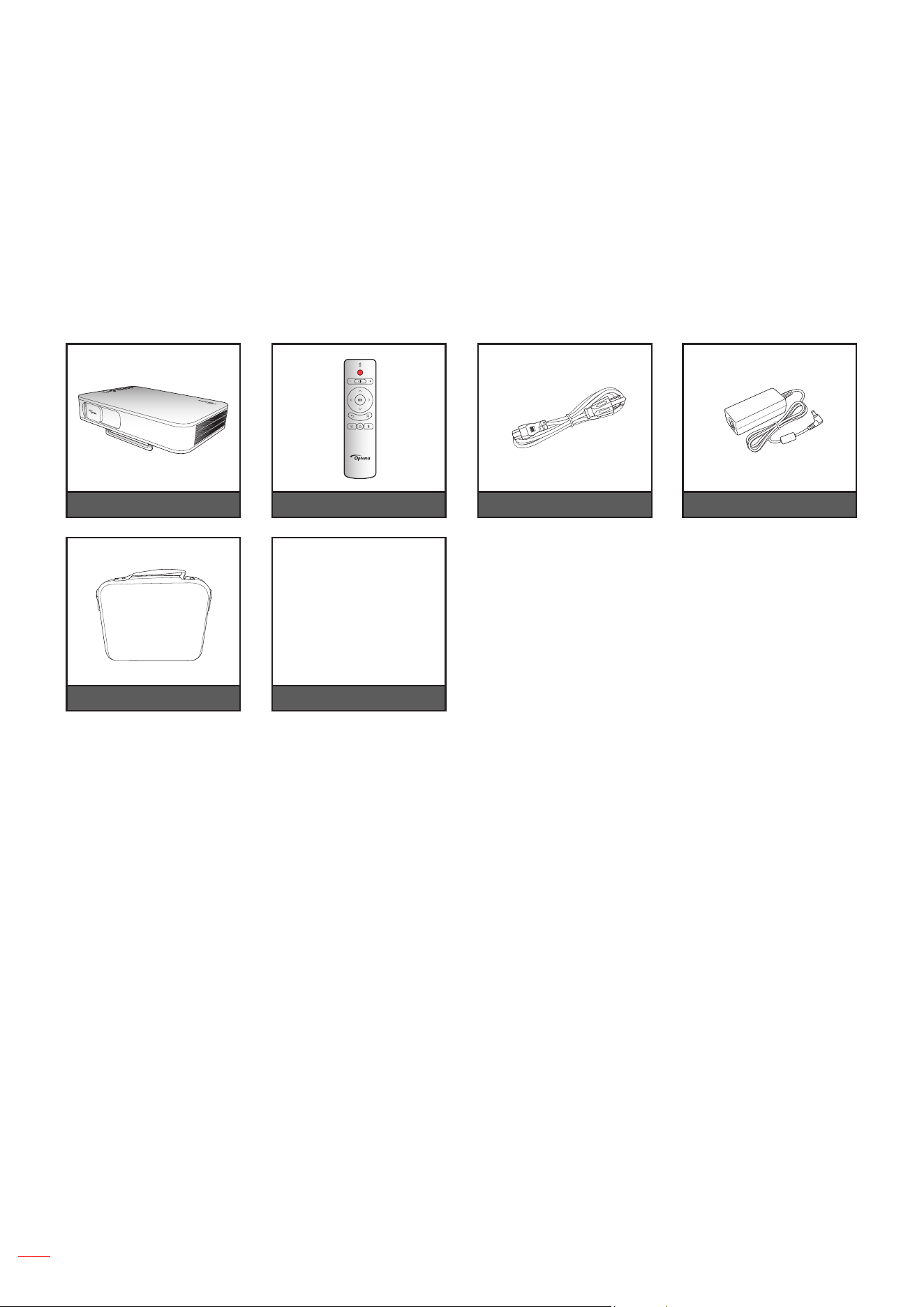
Carefully unpack and verify that you have the items listed below under standard accessories. Some of the items
under optional accessories may not be available depending on the model, specication and your region of
purchase. Please check with your place of purchase. Some accessories may vary from region to region.
The warranty card is only supplied in some specic regions. Please consult your dealer for detailed information.
Standard accessories
Projector Remote control AC power cord
Documentation
Warranty Card*
Basic User Manual
Note:
The remote control is shipped with the batteries.
* For European warranty Information, please visit www.optoma.com.
Power adapter
Carry bag
English
7
INTRODUCTION
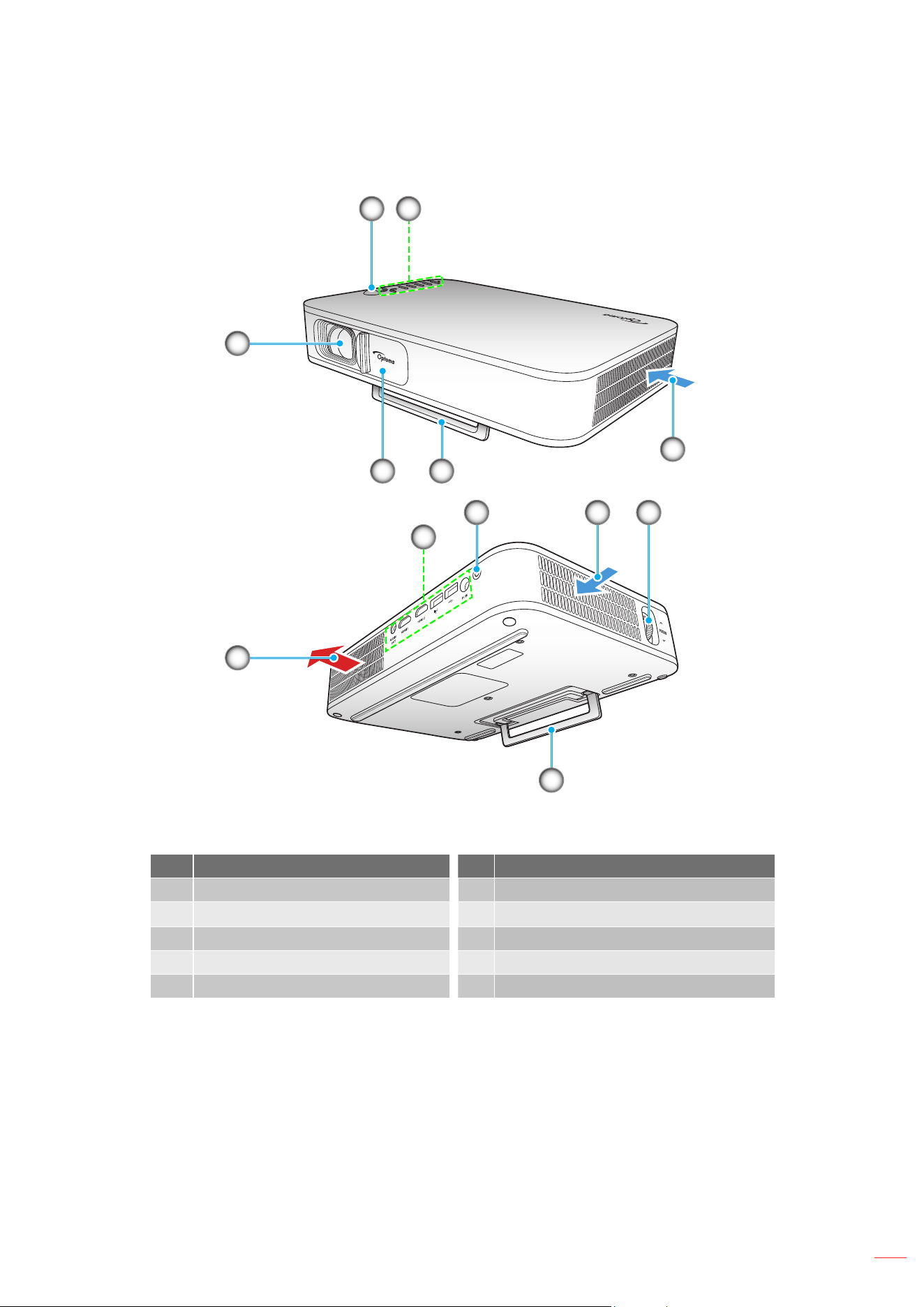
Product Overview
3
9
4
2
1
56
4 7
5
10
8
Note: Keep a minimum distance of 20 cm between the inlet and outlet vents.
No Item No Item
1. Lens 6. Lens Cover
2.
IR Receiver
7.
Focus Ring
3. Keypad 8. Power Button
4. Ventilation (inlet) 9. Input / Output
5. Kickstand 10. Ventilation (outlet)
English
8
INTRODUCTION
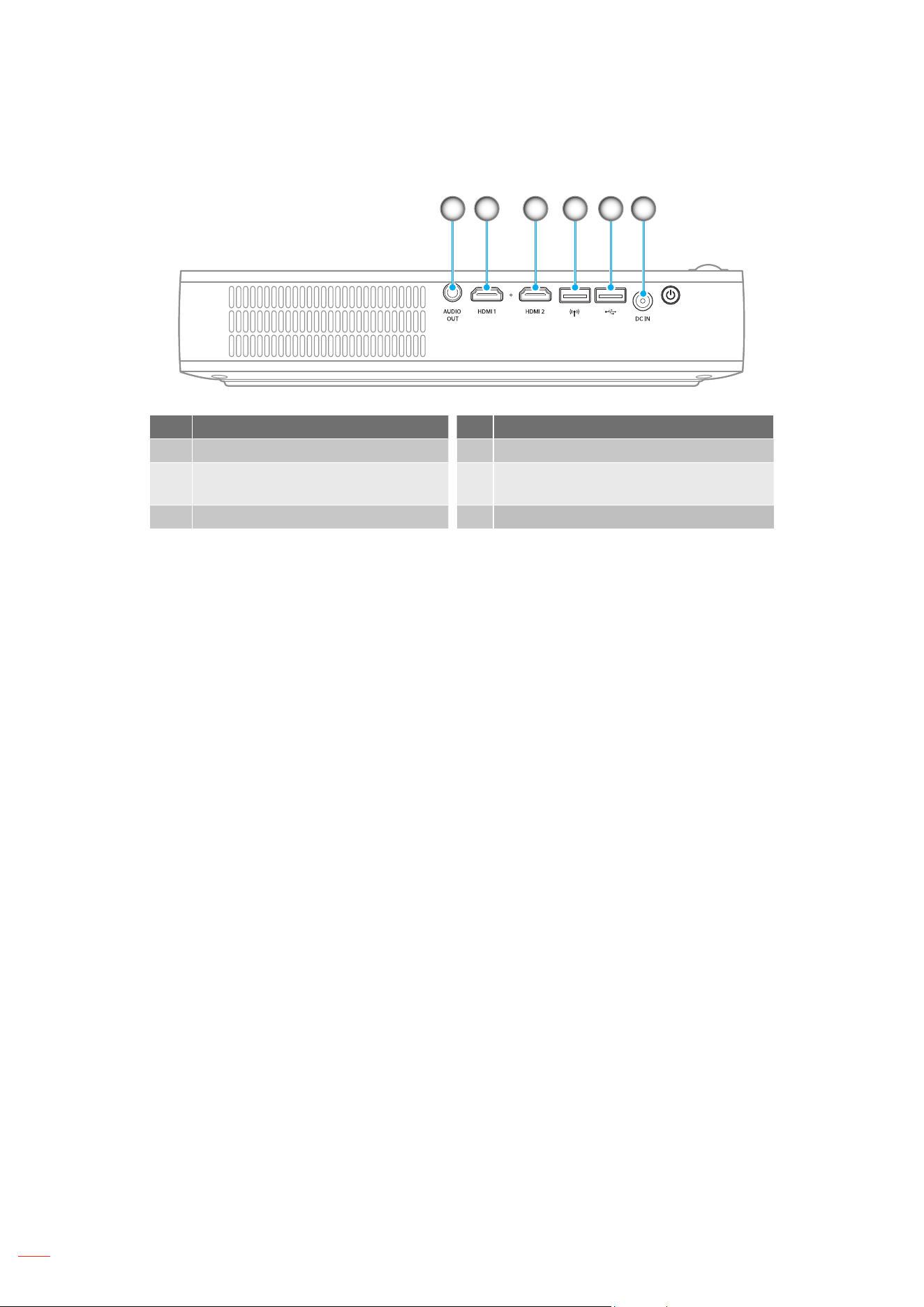
Connections
1 2 3 4 5 6
No Item No Item
1. AUDIO OUT Connector 4. USB-A Connector (Wi-Fi dongle)
2. HDMI 1 Connector 5.
USB-A Connector (USB display) /
USB Power Out (5V/1.5A)
3. HDMI 2 Connector 6. DC IN Connector
English
9
INTRODUCTION
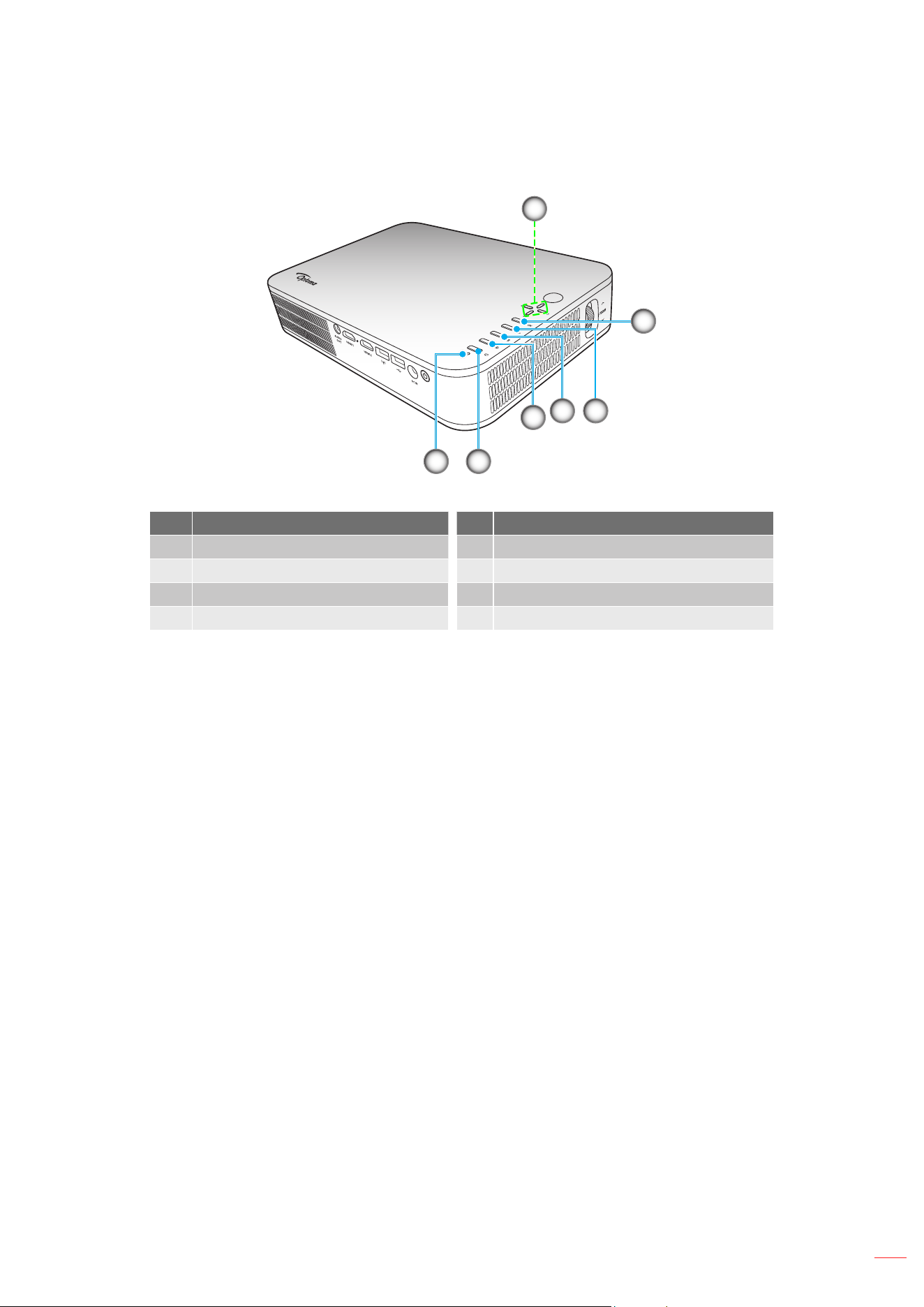
Keypad
1
2
6
34
5
7
No Item No Item
1. Four Directional Select Keys 5. Home
2. OK 6. Display Mode
3. Return 7. Status LED
4. Settings
English
10
INTRODUCTION
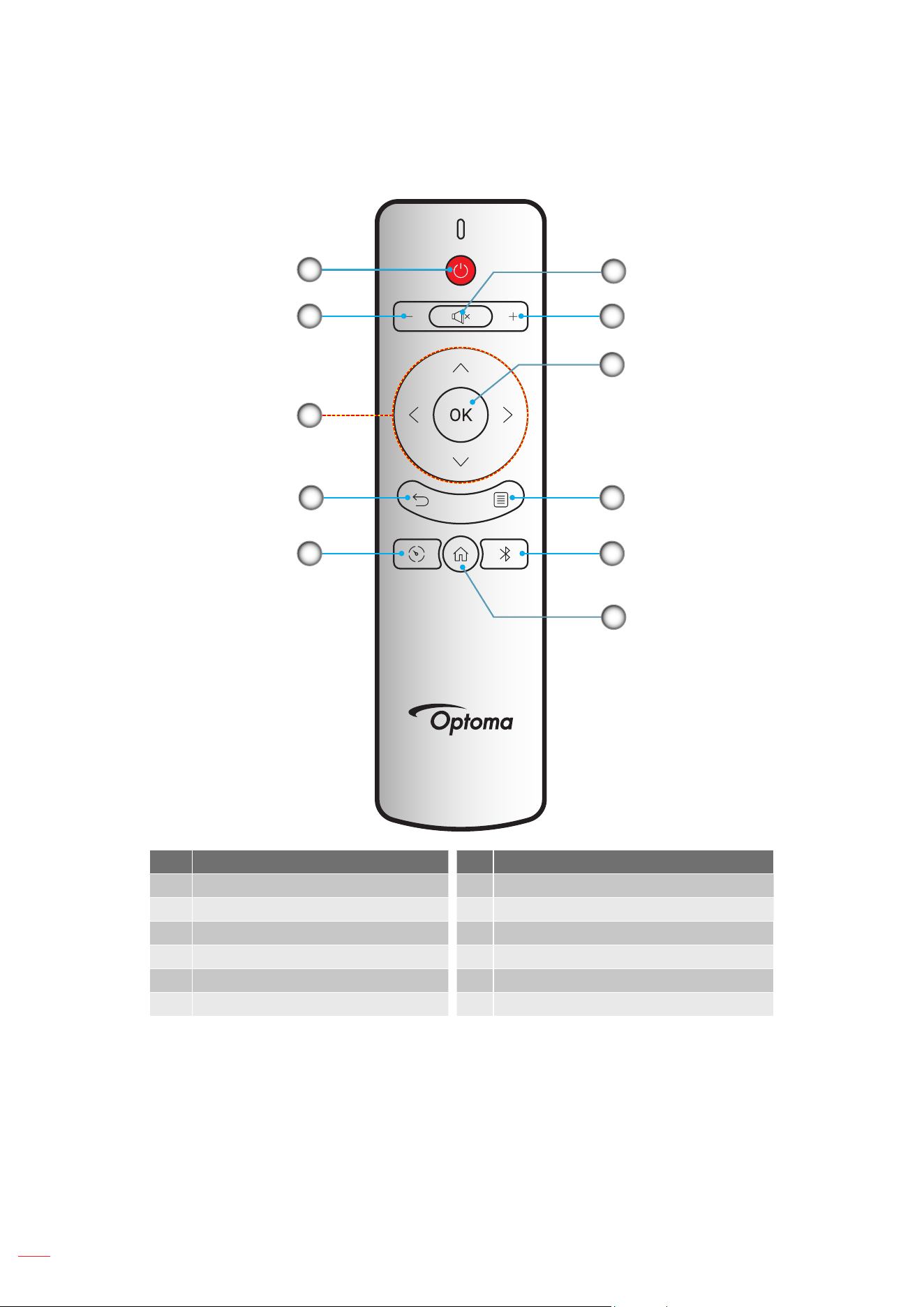
Remote control
1
2
4
5
3
11
7
8
9
10
6
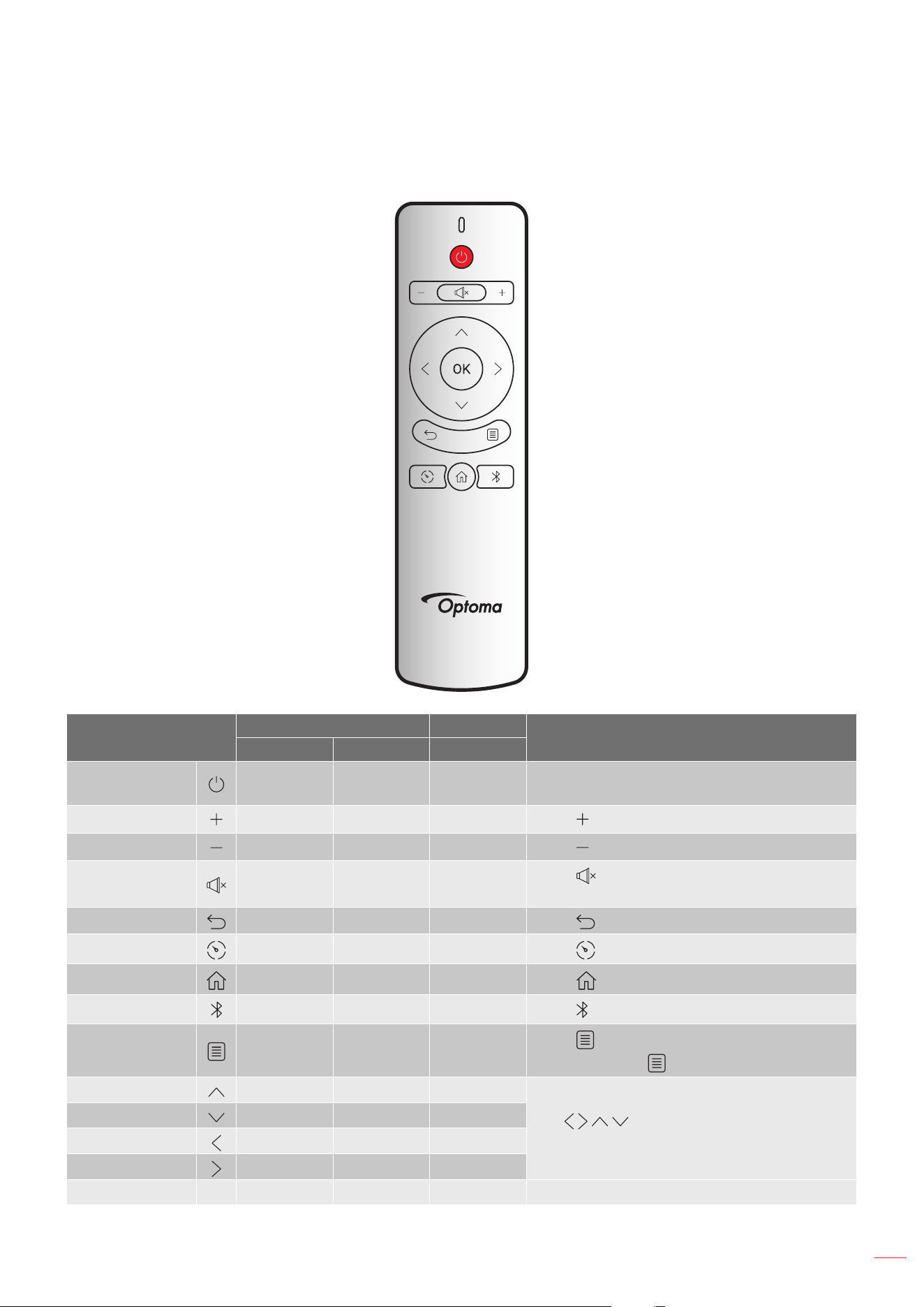
No Item No Item
1. Power On / Off 7. Volume +
2. Volume - 8. OK
3. Four Directional Select Keys 9. Settings
4. Return 10. Bluetooth
5. Display Mode 11. Home
6. Mute
English
11
SETUP AND INSTALLATION
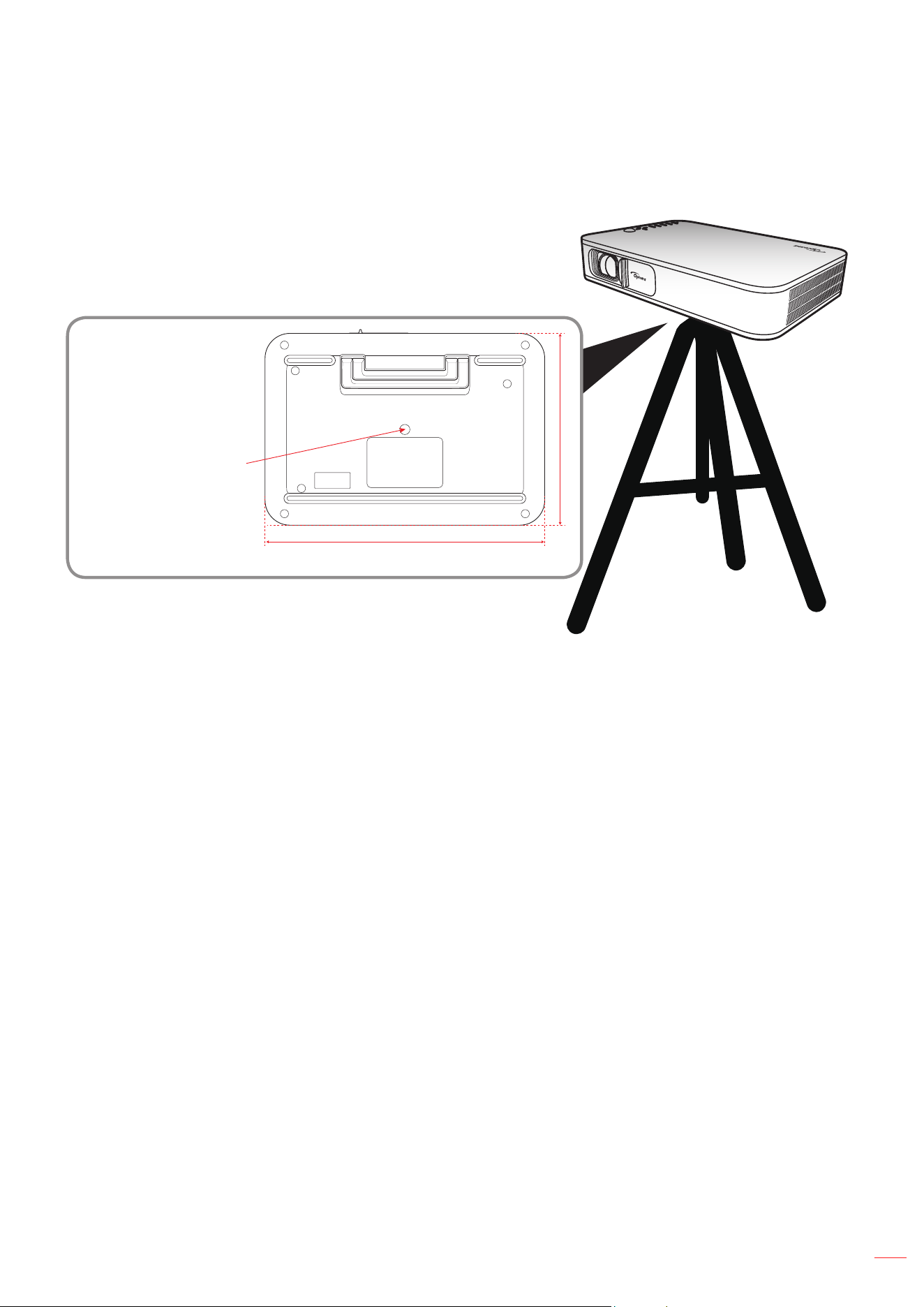
Tripod Mount the projector
Screw a standard tripod into the screw hole on the projector.
Insert Nut 1/4” - 20 UNC
(Screw hole for tripod)
280mm
192mm
Note:
Please note that damage resulting from incorrect installation will void the warranty.
How to determine projector location for a given screen size, please refer to distance table on page 35.
English
12
SETUP AND INSTALLATION
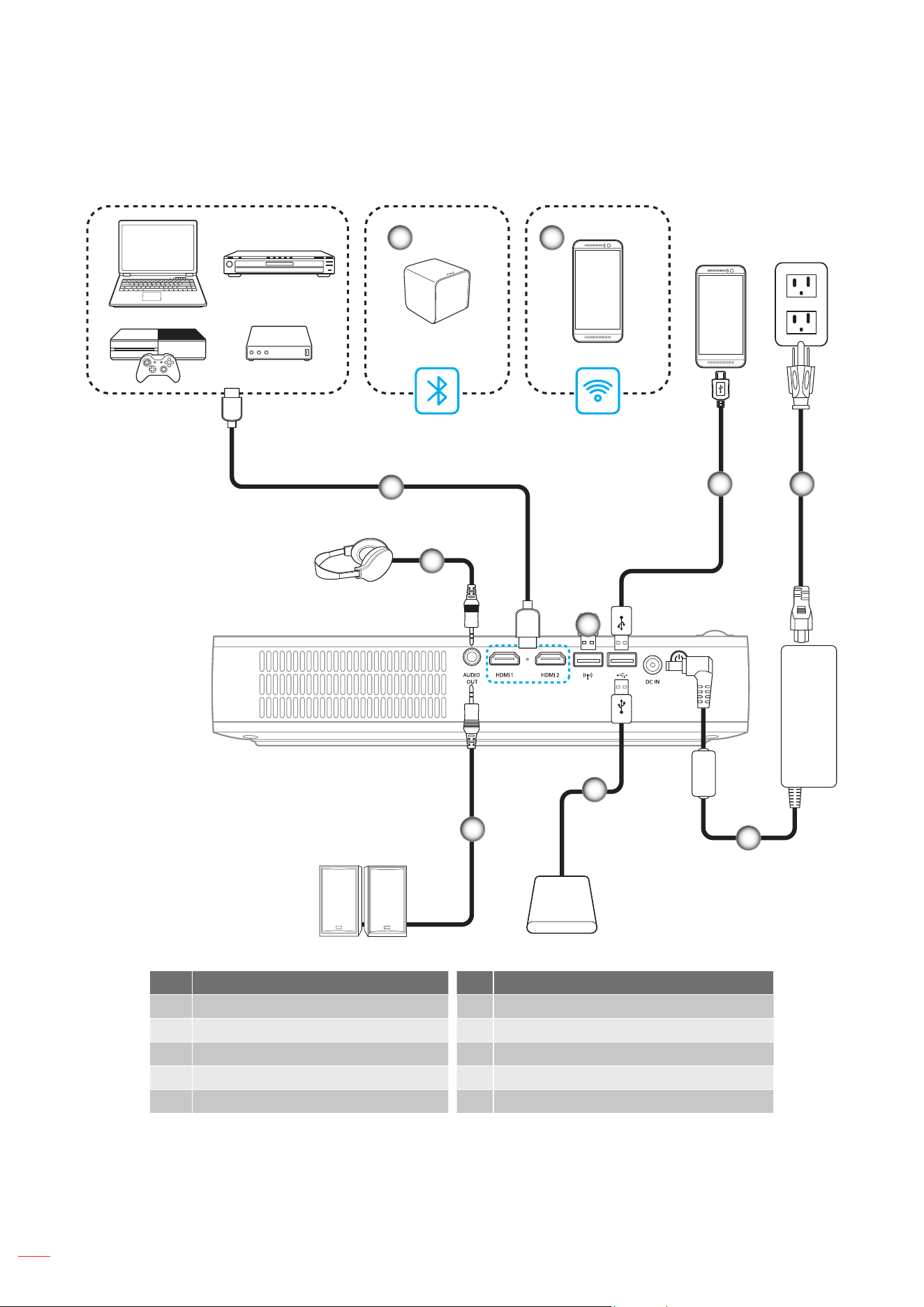
Connecting sources to the projector
1
2
3 4
5
8
10
9
6 7
No Item No Item
1. Audio Out Cable 6. USB Cable
2. HDMI Cable 7. Power Cord
3. Bluetooth Connection 8. Power Adapter
4. Wireless (Wi-Fi) Connection 9. USB Cable
5. Wi-Fi Dongle 10. Audio Out Cable
Note: The wireless adapter is an optional accessory.
English
13
SETUP AND INSTALLATION
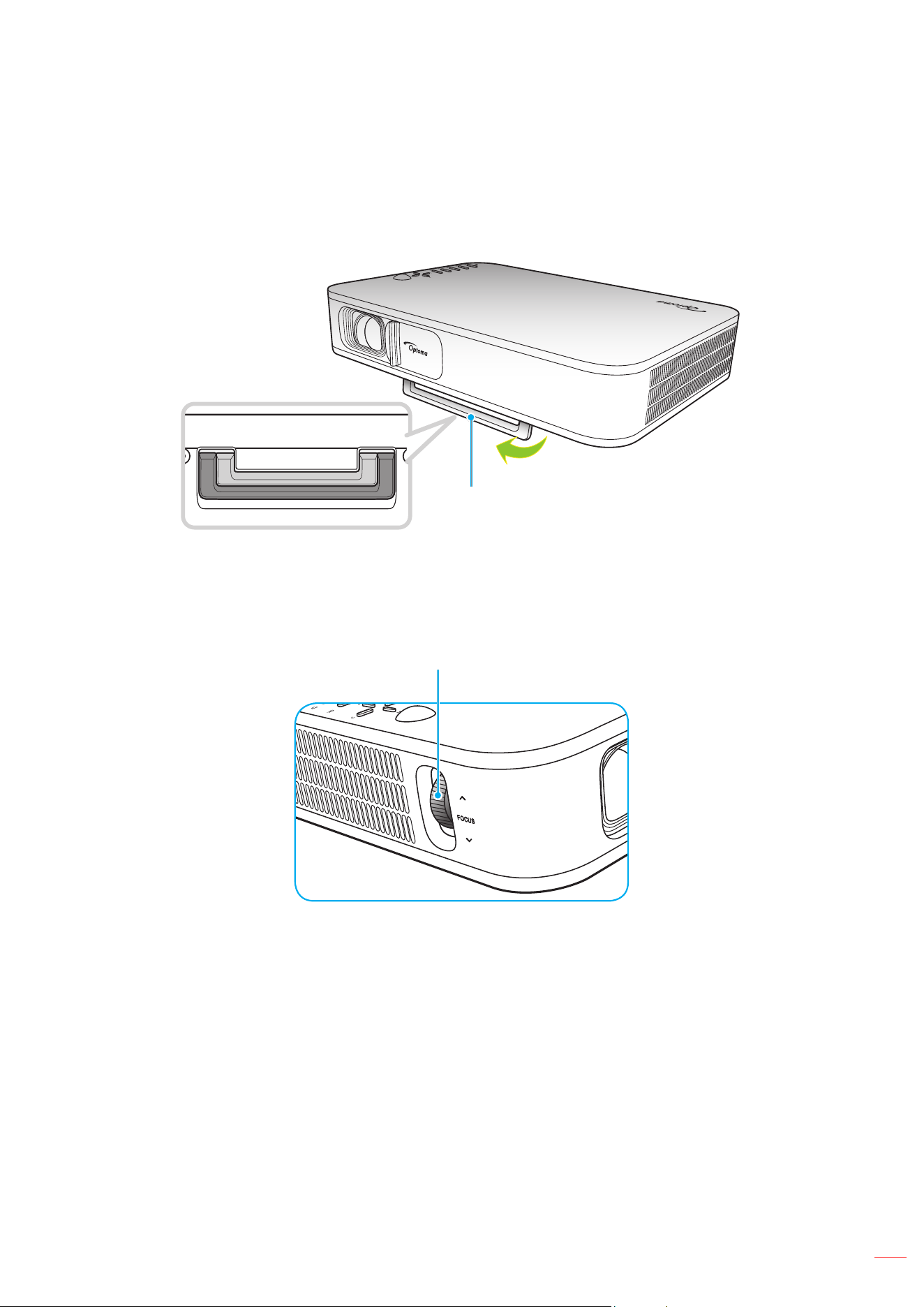
Adjusting the projector image
Image height
Open the kickstand to adjust the image height.
Kickstand
Focus
Turn the focus ring up or down until the image is clear.
Focus Ring
English
14
SETUP AND INSTALLATION
Remote setup
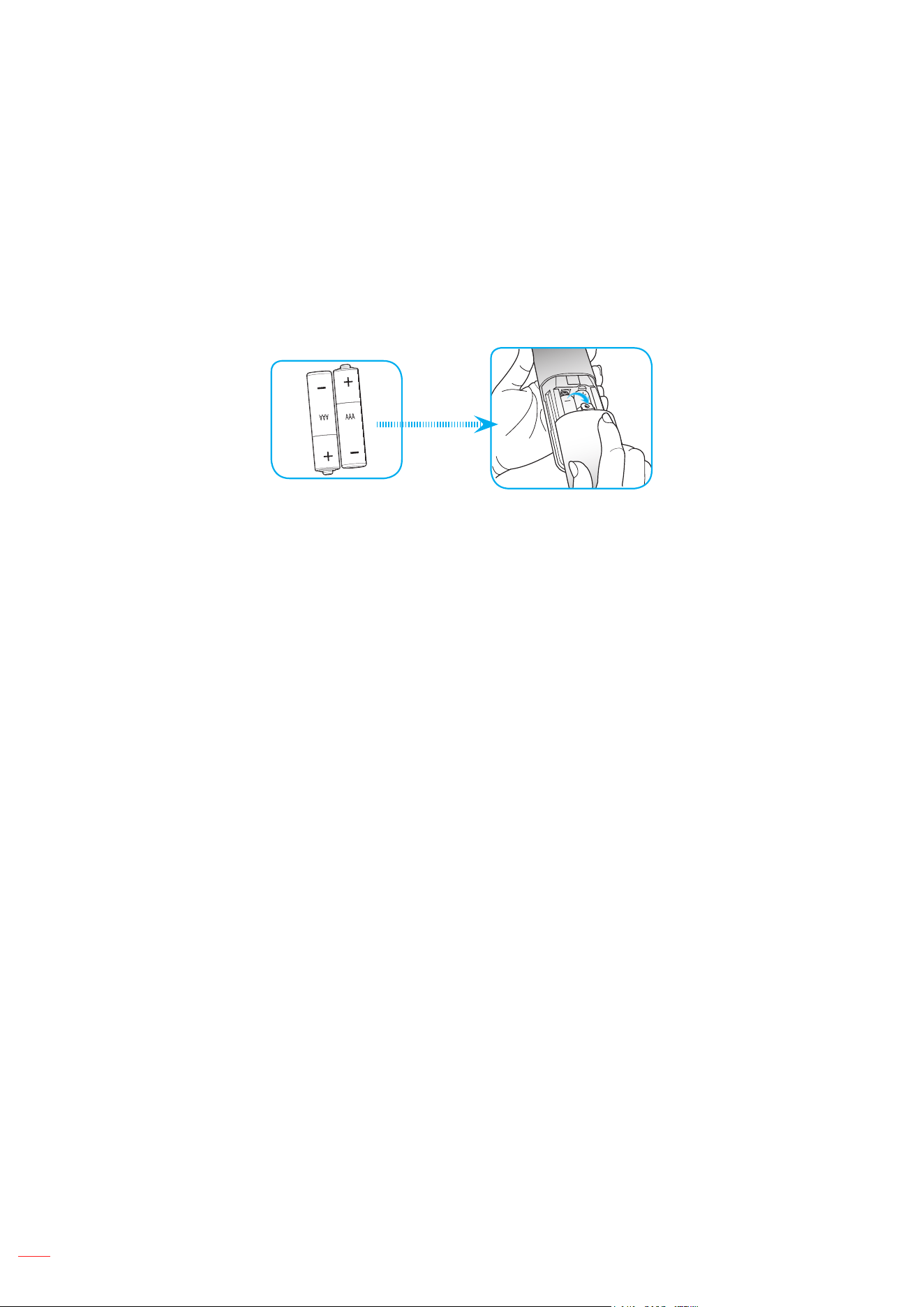
Installing / replacing the batteries
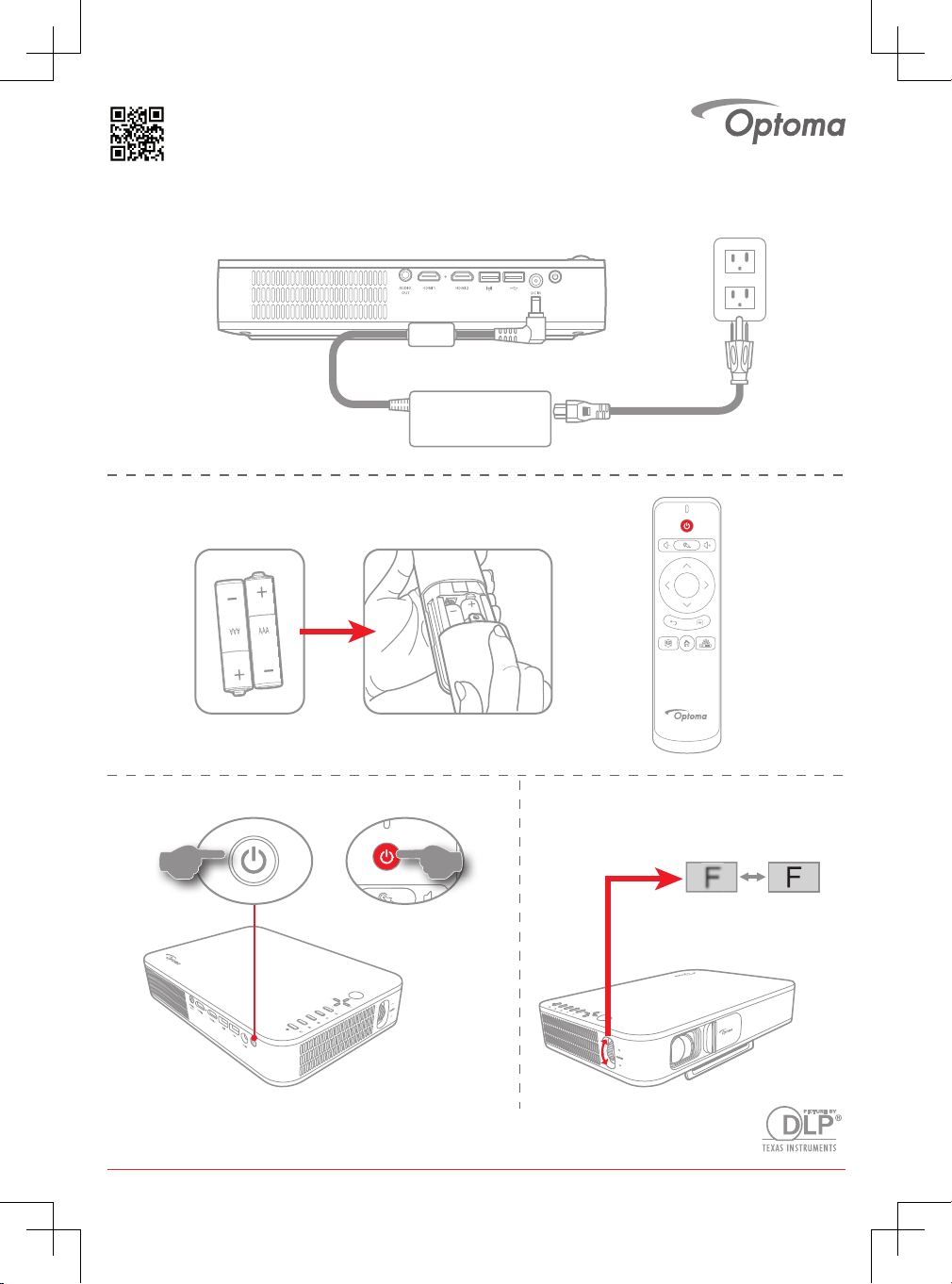
Two AAA size batteries are supplied for the remote control.
1. Remove the battery cover on the back of the remote control.
2. Insert AAA batteries in the battery compartment as illustrated.
3. Replace back cover on remote control.
Note: Replace only with the same or equivalent type batteries.
CAUTION
Improper use of batteries can result in chemical leakage or explosion. Be sure to follow the instructions below.
Do not mix batteries of different types. Different types of batteries have different characteristics.
Do not mix old and new batteries. Mixing old and new batteries can shorten the life of new batteries or
cause chemical leakage in old batteries.
Remove batteries as soon as the are depleted. Chemicals that leak from batteries that come in contact
with skin can cause a rash. If you nd any chemical leakage, wipe thoroughly with a cloth.
The batteries supplied with this product may have a shorter life expectancy due to storage conditions.
If you will not be using the remote control for an extended period of time, remove the batteries.
When you dispose of the batteries, you must obey the law in the relative area or country.
English
15
SETUP AND INSTALLATION
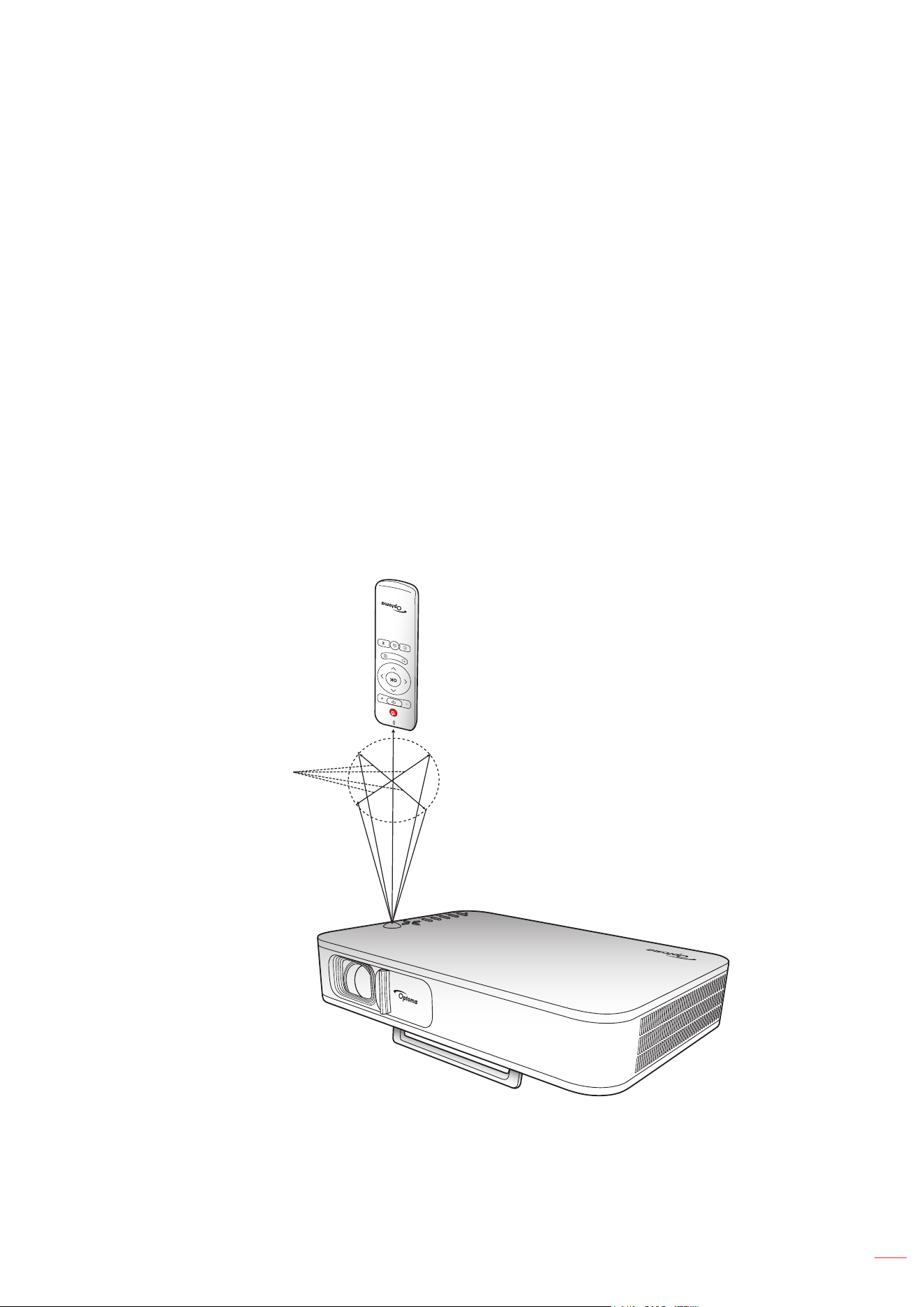
Effective range
Infra-Red (IR) remote control sensor is located on the top side of the projector. Make sure the operating angle
of the remote control is pointed within ±35° to the IR receiver on the projector. The distance between the remote
control and the sensor should not be longer than 6 meters at operating angle 45° and 14 meters at operating angle
0°.
Make sure that there are no obstacles between the remote control and the IR sensor on the projector
that might obstruct the infra-red beam.
Make sure the IR transmitter of the remote control is not being shined by sunlight or uorescent lamps
directly.
Please keep the remote controller away from uorescent lamps for over 2 meters or the remote
controller might become malfunction.
If the remote control is closed to Inverter-Type uorescent lamps, it might become ineffective from time
to time.
If the remote control and the projector are within a very short distance, the remote control might
become ineffective.
When you aim at the screen, the effective distance is less than 5 meters from the remote control to the
screen and reecting the IR beams back to the projector. However, the effective range might change
according to screens.
Approx. ±35°
English
16
USING THE PROJECTOR
Charging the projector built-in battery
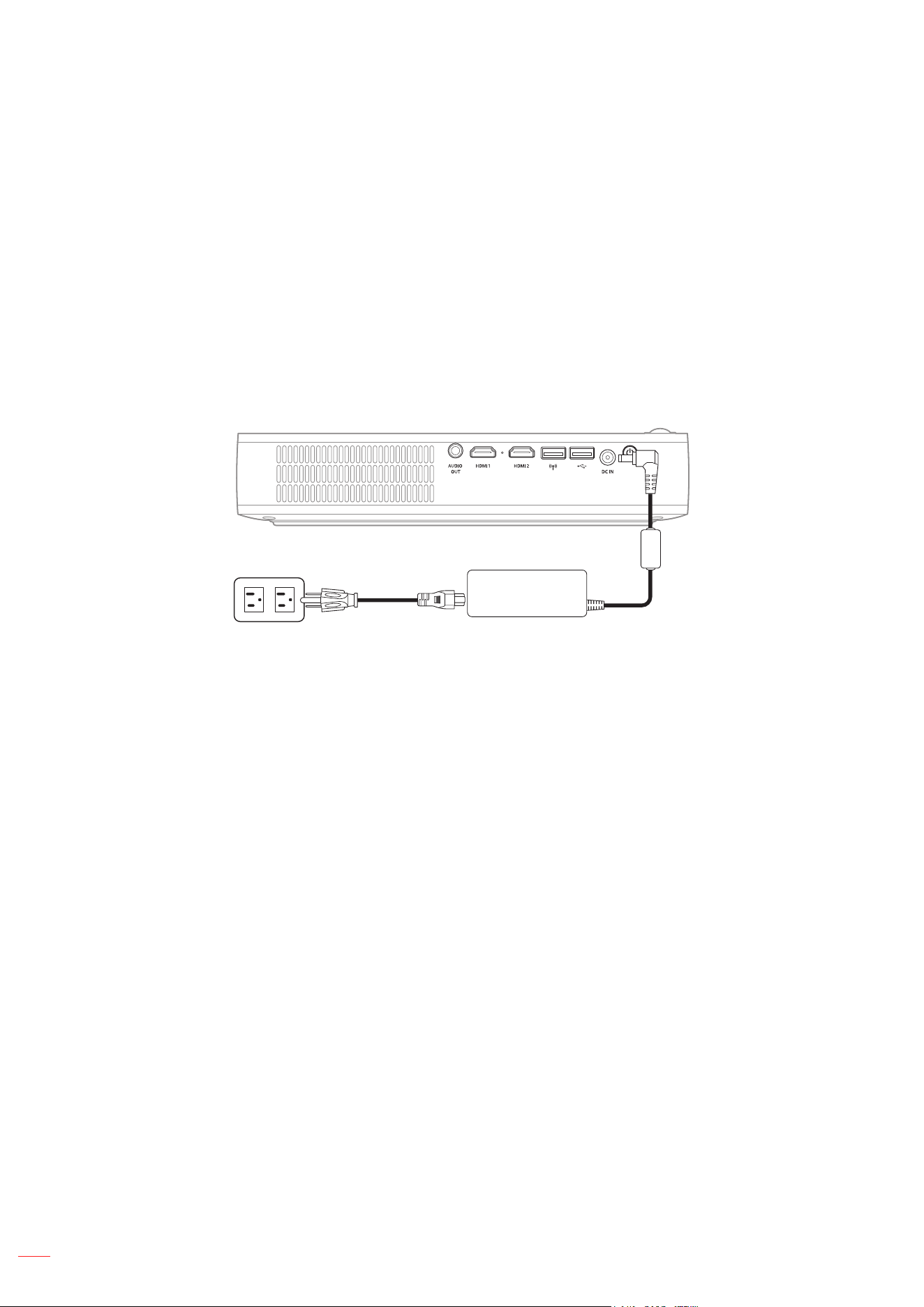
The projector is equipped with a built-in battery. Basically, you can use the projector freely without having to search
for electrical outlet.
IMPORTANT! The battery will charge only when the projector is turned off.
To charge the battery, do the following:
1. Connect one end of the AC power cord to the power adapter. Then connect the power adapter to the
DC IN connector on the projector.
2. Connect the other end of the AC power cord to the electrical outlet. When connected, the status LED
will turn red. It will take approximately 2.5 to 3 hours for the battery to be fully charged (from 0% to
100%).
Note:
The status LED will turn off when the battery is fully charged.
The built-in battery can last up to 1.5 hours in the Bright mode and 2.5 hours in the ECO mode.
English
17
USING THE PROJECTOR
Using the projector as a power bank
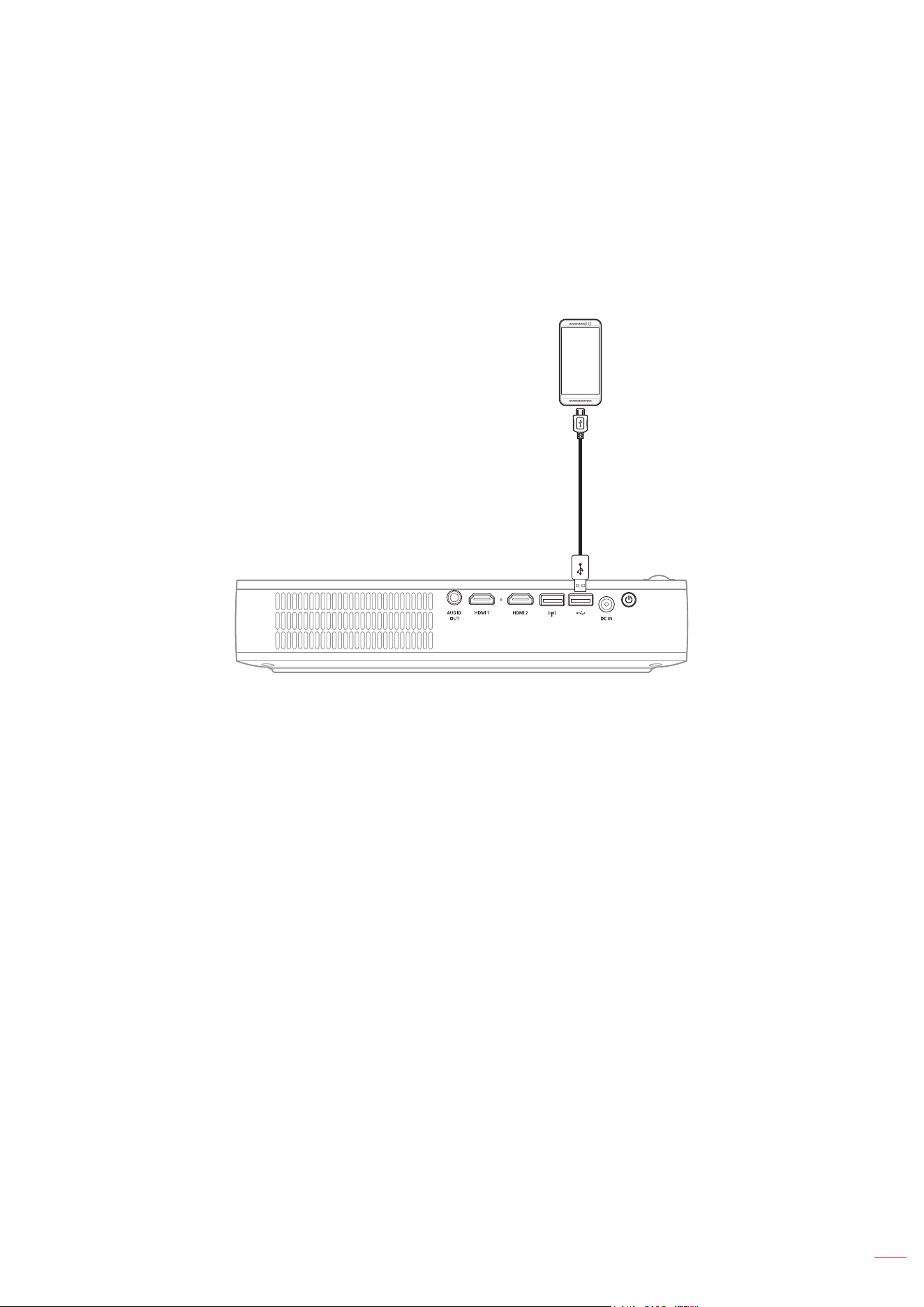
With the built-in battery, the projector can also be a power bank for your mobile devices.
To charge your mobile device, do the following:
1. Connect one end of the USB cable to the USB connector on the projector.
2. Connect the other end of the USB cable to the USB port on your mobile device.
Note: If the power cord is unplugged, the USB connector will output power only when the USB 5V (Standby)
setting is set to On. For details, please refer to page 33.
English
18
USING THE PROJECTOR
Powering on / off the projector
Powering on
1. Connect the signal/source cable.
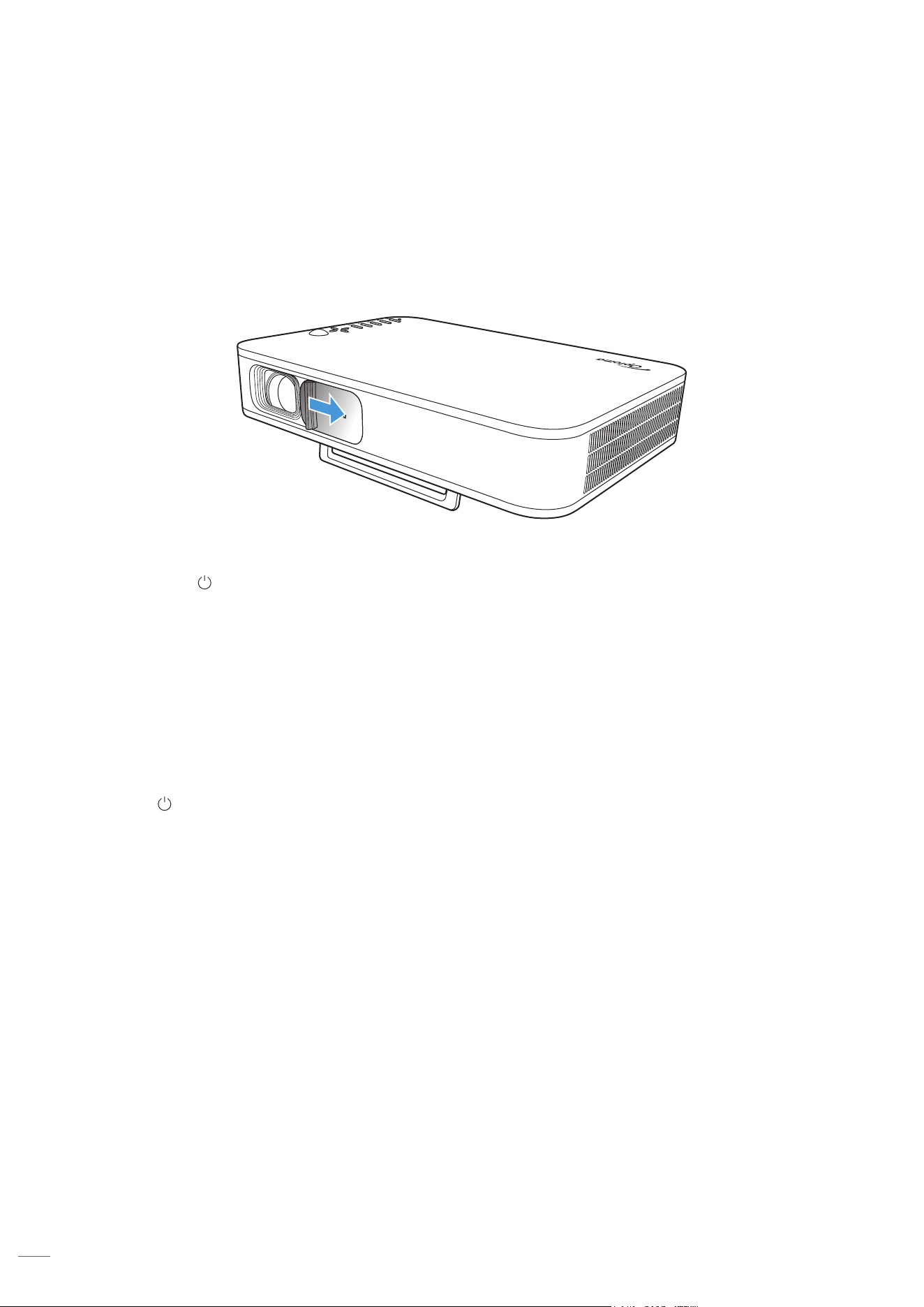
2. Slide the lens cover lever to the right. The projector will automatically turn on.
Note:
If the lens cover is open, you can turn on the projector by pressing the Power button on the projector
or the button on the remote control.
You can also use the projector when it is connected to a power supply. However, the battery will not
charge when the projector is turned on.
Powering off
To turn off the projector, do one of the following:
Slide the lens cover to the left.
Press the Power button on the rear of the projector.
Press the button on the remote control.
When the status LED turns off, this indicates the projector has properly been turned off.
Note: It is not recommended that the projector is turned on immediately, right after a power off procedure.
English
19
USING THE PROJECTOR
Home screen overview
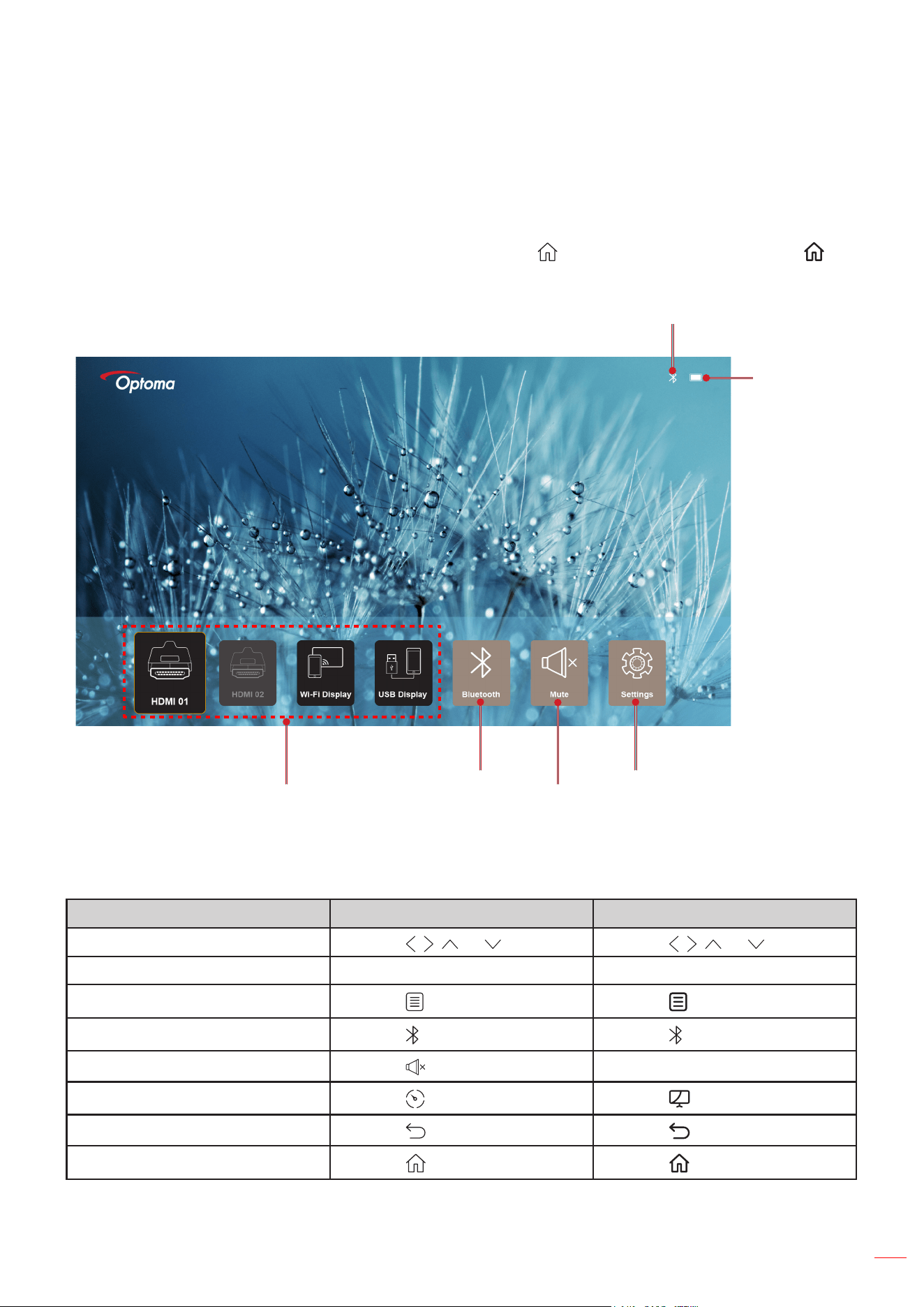
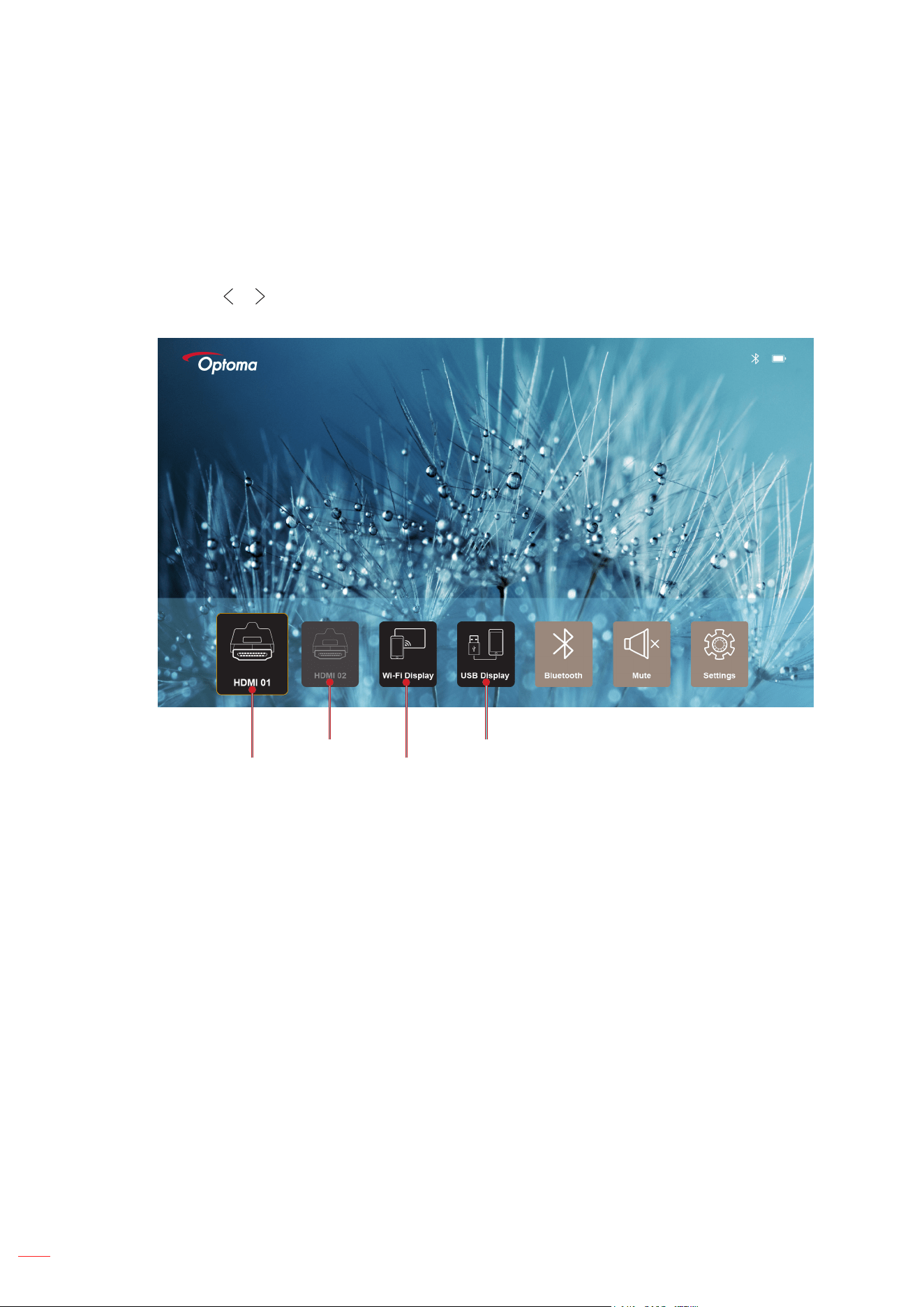
The Home screen is displayed every time you start the projector.
To navigate the Home screen, simply use the buttons on the remote control or the projector keypad.
You can return to the main Home screen at any time by pressing the button on the remote control or the
button on the projector keypad regardless of what page you are on.
Bluetooth
(only appear when the function is activated)
Input source
Battery status
(only appear
when the
power adapter
is unplugged)
Bluetooth
Mute
Settings
Home screen navigation
You can navigate the Home screen by using the remote control or the projector keypad.
Operation Using the Remote Control Using the Projector Keypad
Item selection
Press the , , , or button. Press the , , , or button.
Conrm selection Press the OK button. Press the OK button.
Open/Hide the Settings menu
Press the button.
Press the button.
Open/Hide Bluetooth menu
Press the button. Press the button.
Mute/Unmute sound
Press the button.
N/A
Toggle the display mode
Press the button.
Press the button.
Return to the previous page
Press the button.
Press the button.
Return to the Home screen
Press the button.
Press the button.
English
20
USING THE PROJECTOR
Selecting an input source
The projector enables you to connect various input sources using cable connections, wireless network, or
Bluetooth.
To change the input source:
1. Connect the signal/source cable.
2. Press the or button to select the desired input source and press the OK button to conrm the
selection.
HDMI 1 Wi-Fi Display
USB DisplayHDMI 2
Note:
For connecting sources to the projector, please refer to page page 12.
For more information about the wireless connections, please refer to the “Wireless media streaming” or
“Connecting to a wireless speaker” section.
For more information about the USB display connection, please refer to the “Using the USB display
function” section.
English
21
USING THE PROJECTOR
Wireless media streaming
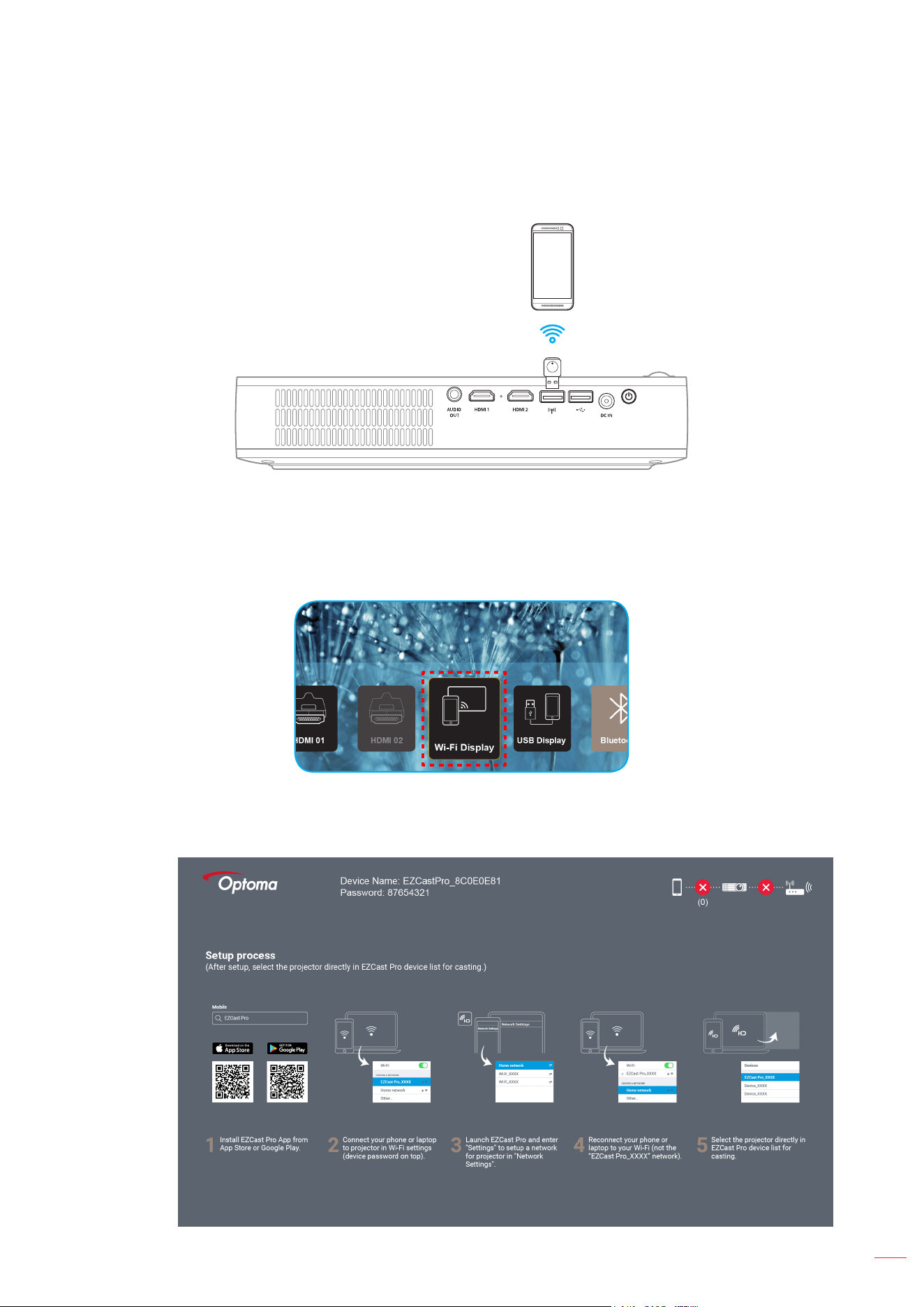
Select Wi-Fi Display to project your mobile device display to the projector through Wi-Fi connection.
1. When using Wi-Fi Display function for the rst time, download and install the EZCast Pro application
into your mobile device.
Note: You can scan the QR code shown on the screen or download from the App Store or
Google Play.
2. On the projector, insert the Wi-Fi dongle and select Wi-Fi Display.
IMPORTANT! To ensure the wireless function to work properly, the Wi-Fi dongle must be plugged into
the left USB connector.
The setup guideline screen appears.
English
22
USING THE PROJECTOR
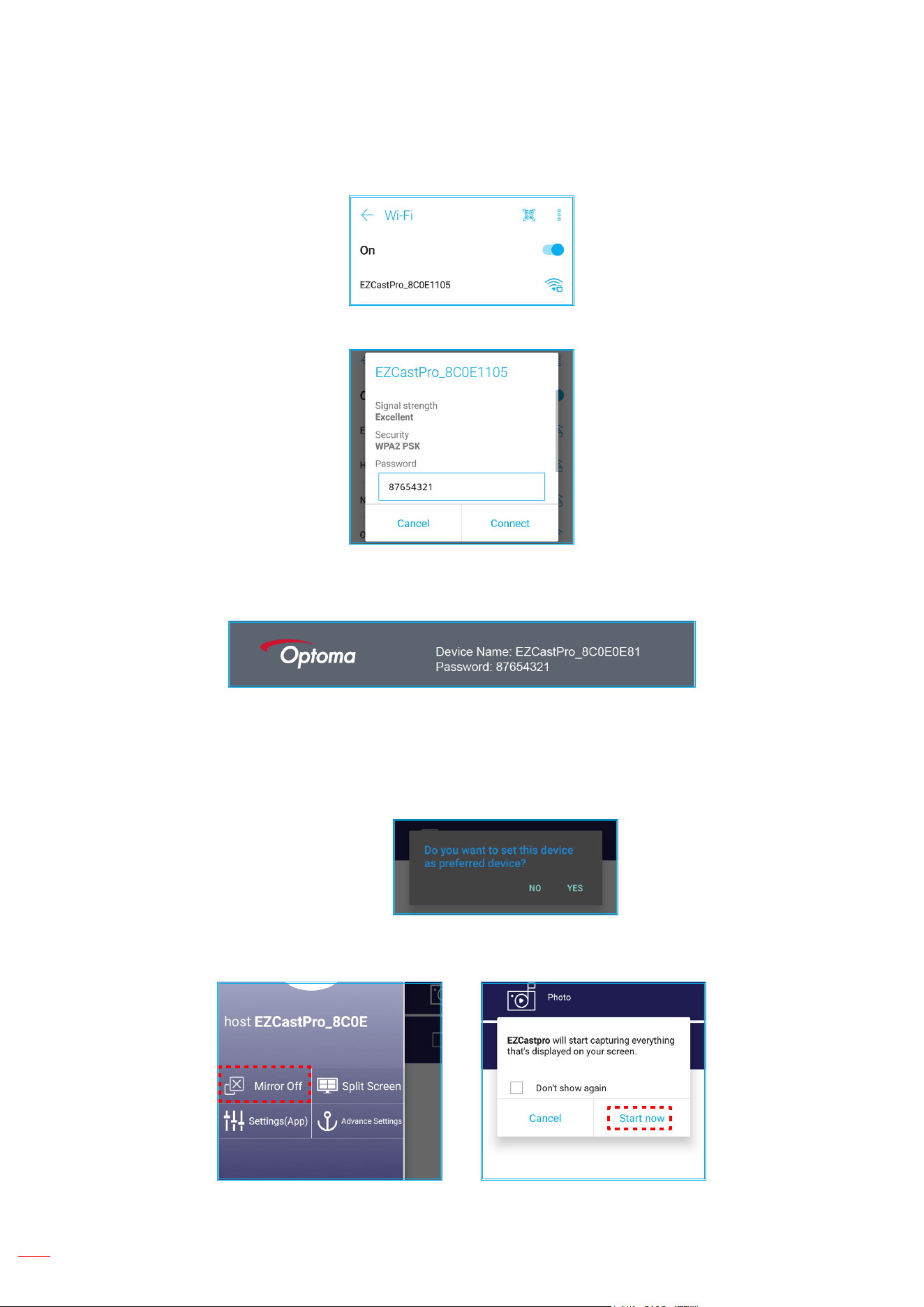
3. On your mobile device, enable the Wi-Fi function. Then connect to the projector
(i.e. EZCastPro_XXXXXXXX).
4. Enter the password to establish the connection.
Note:
You can obtain the ‘projector name’ and its password for the wireless connection setup on the
setup guideline screen.
The wireless connection process may vary depending on the device. Please refer to its
respective user manual.
5. Launch “EZCast Pro” application and tap the screen to connect to the projector.
Note: When launching the application for the rst time, a pop-out message will appear on the screen.
Simply tap YES to continue.
6. When the main screen appears, tap Mirror Off > Start now to start projecting the mobile device
display on the screen.
7. Select the media les you want to project.
English
23
USING THE PROJECTOR
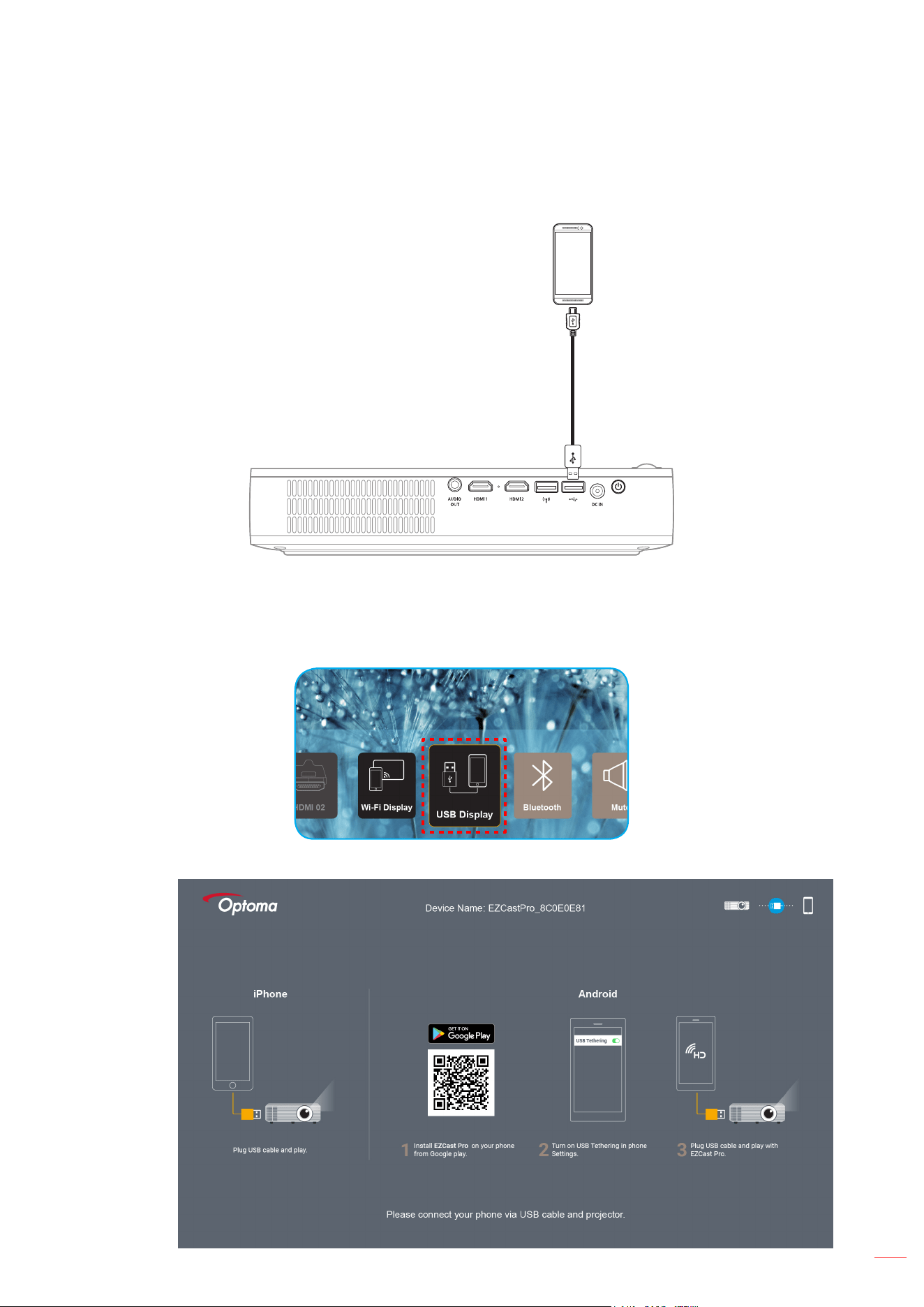
Using the USB display function
Select USB Display to project your mobile device display to the projector using the USB cable connection.
1. When using USB Display function for the rst time, download and install the EZCast Pro application
into your mobile device.
2. Connecting your mobile device with the projector using the USB cable.
3. On the projector, select USB Display.
The setup guideline screen appears.
English
24
USING THE PROJECTOR
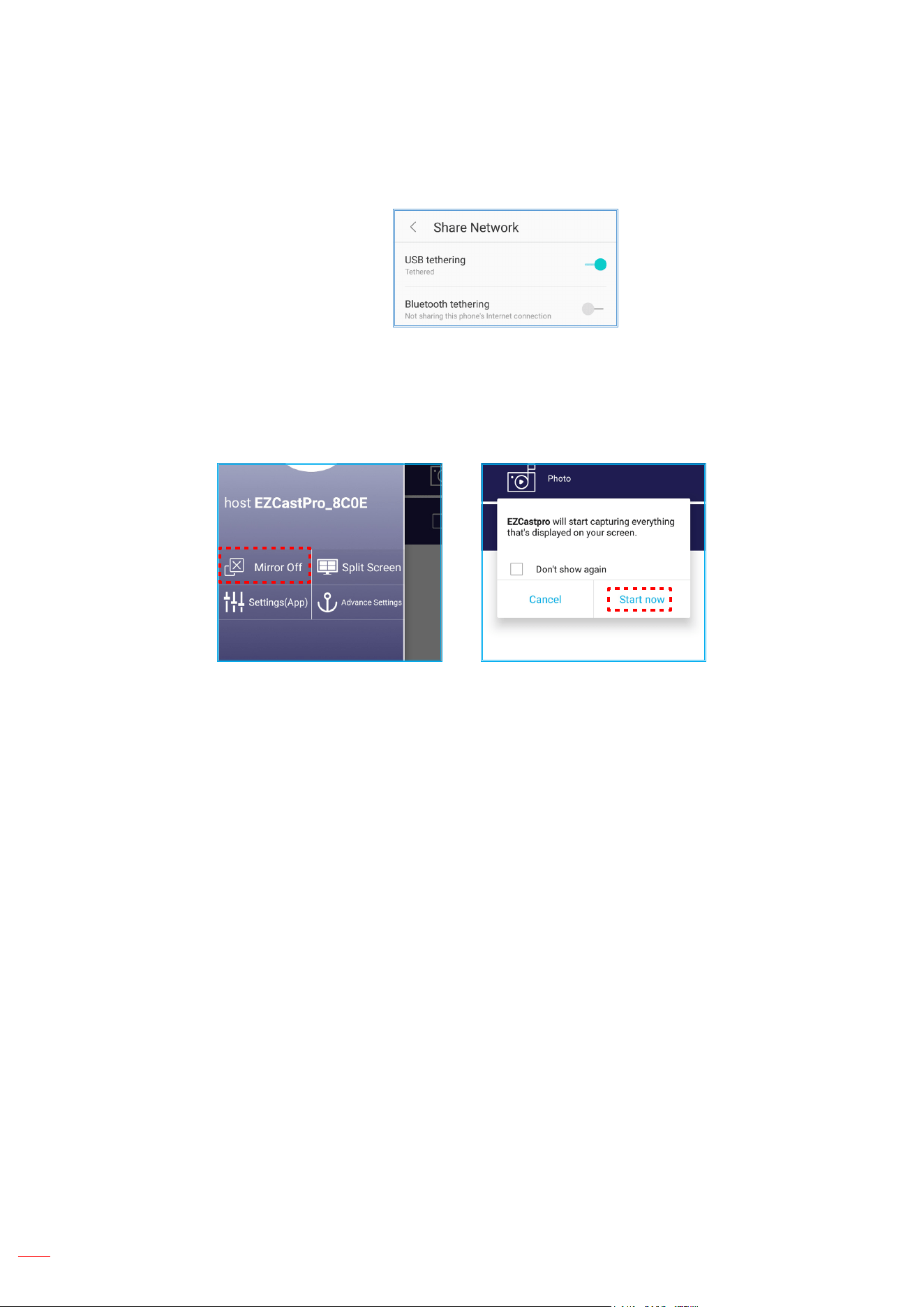
4. On your mobile device, enable the USB Tethering function.
For example, go to Settings > More > Share Network > USB tethering and set the setting to On.
Note: The USB Tethering conguration varies depending on the device. Please refer to its respective
user manual.
5. Launch “EZCast Pro” application and tap the screen to connect to the projector.
6. When the main screen appears, tap Mirror Off > Start now to start projecting the mobile device
display on the screen.
7. Select the media les you want to project.
English
25
USING THE PROJECTOR
Connecting to a wireless speaker
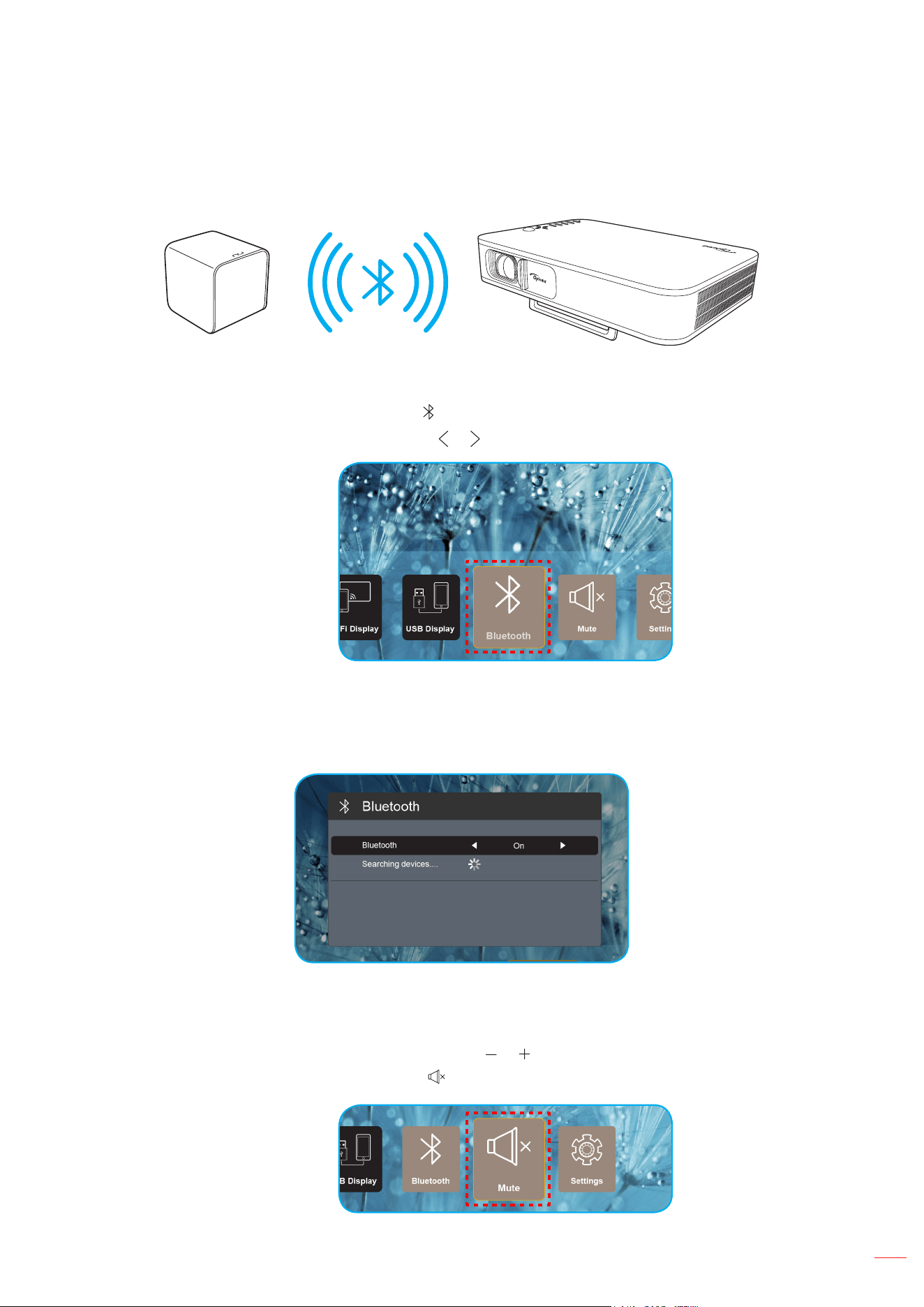
With the built-in Bluetooth module, you can connect the projector to a Bluetooth-enabled speaker or sound bar.
1. Open the Bluetooth menu. You can the menu by one of the following method:
Using the remote control: Press the button.
Using the projector keypad: Press the or button to select Bluetooth and press the OK button.
2. On your Bluetooth speaker, turn it on and enable its Bluetooth function (if necessary).
Note: For more details information on how to operate your Bluetooth speaker, please refer its
documentation.
3. On the projector, set the Bluetooth setting to On. Then search for the Bluetooth speaker.
4. Select the “Speaker” to start pairing. Once the pairing is successful and devices are connected, you
can then use the external speaker for the audio output.
Note:
You can adjust the volume level by pressing the or button on the remote control.
To activate the mute function, press the button on the remote control or select Mute from the Home
screen.
Make sure the distance between your Bluetooth speaker and the projector is less than 10 meters.
English
26
USING THE PROJECTOR
Conguring the projector settings
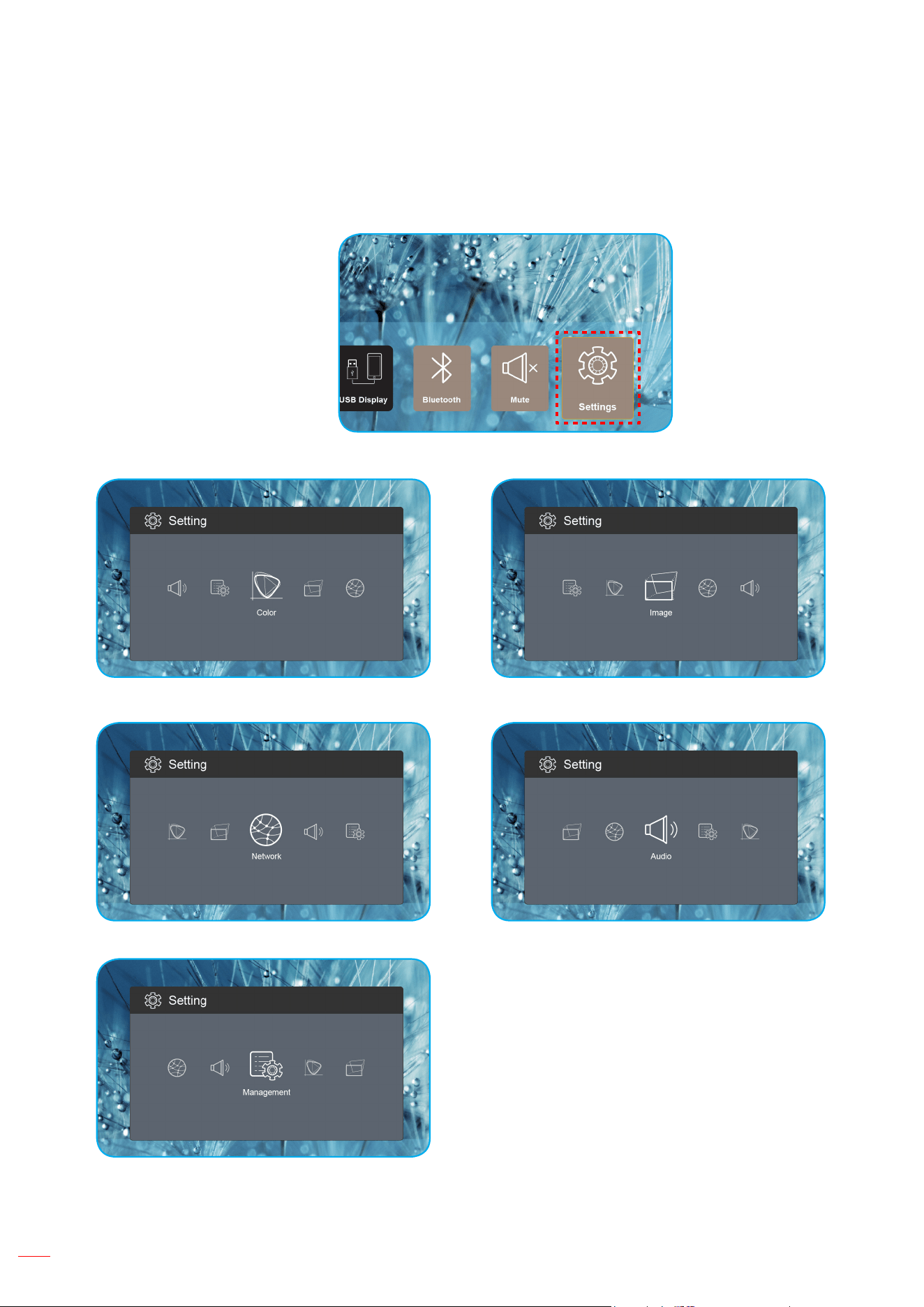
Select Settings to manage various device congurations including conguring the device settings, viewing the
system information, and restore the system settings.
The available main menu are the following:
Color menu Image menu
Network menu Audio menu
Management menu
English
27
USING THE PROJECTOR
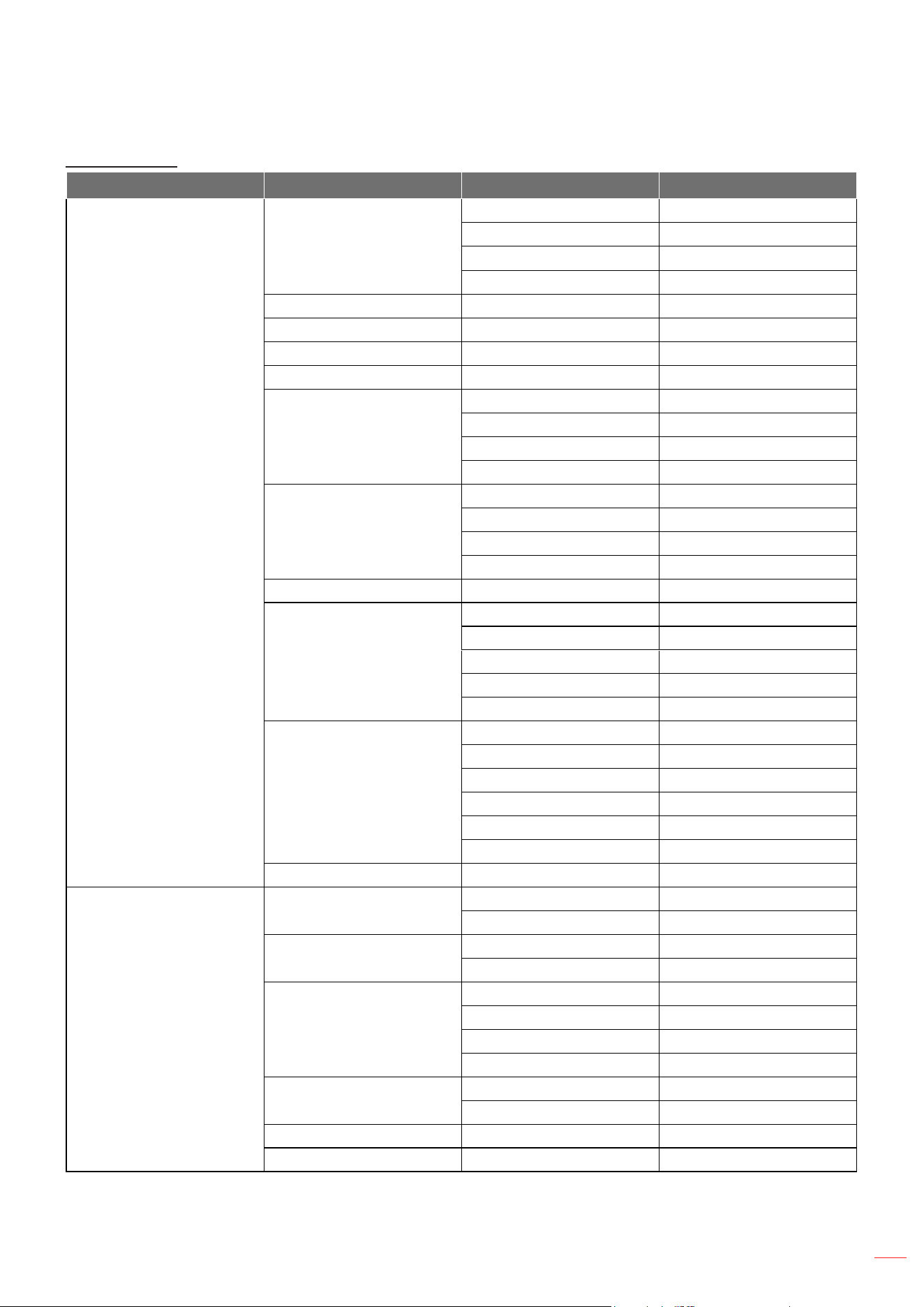
OSD Menu tree
Level 1 Level 2 Level 3 Value
Color
Display Mode
Cinema
Game
Bright
sRGB
Brightness 0 ~ 100
Contrast 0 ~ 100
Saturation 0 ~ 100
Sharpness 0 ~ 3
Color Temperature
Standard
Cool
Cold
Native
Gamma
Standard
Film
Video
Graphic
Hue -50 ~ +50
Wall Color
White
Light Yellow
Light Blue
Pink
Dark Green
Gain
R Gain 0 ~ 100
B Gain 0 ~ 100
G Gain 0 ~ 100
R Offset 0 ~ 100
G Offset 0 ~ 100
B Offset 0 ~ 100
Reset
Image
Projection Mode
Front
Rear
Projection Location
Desktop
Ceiling
Aspect Ratio
Auto
4:3
16:9
L.Box
Auto V. Keystone
On
Off
V. Keystone -30 ~ +30
H. Keystone -20 ~ +20
English
28
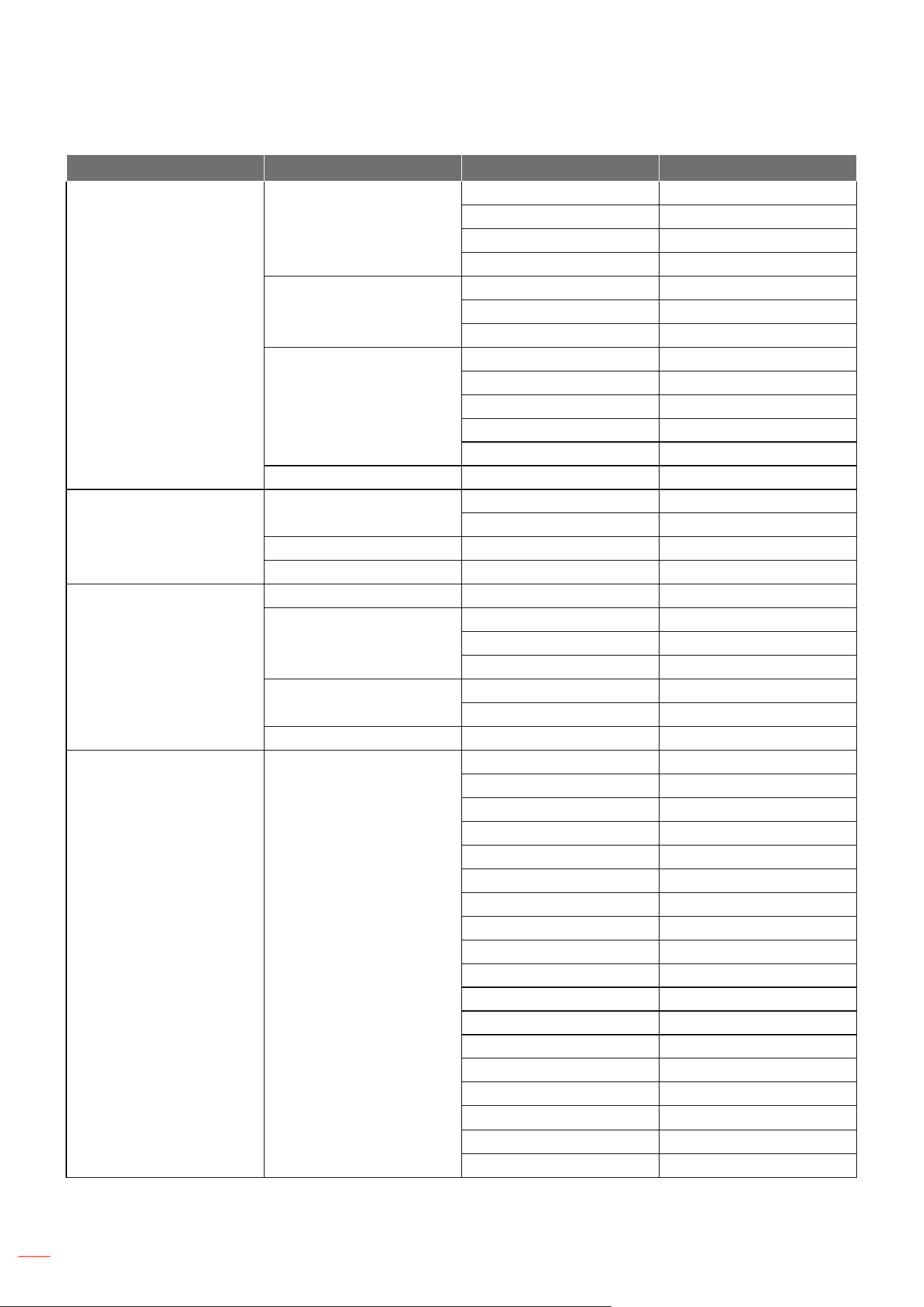
USING THE PROJECTOR
Level 1 Level 2 Level 3 Value
Image
4 Corner Correction
Top Left
Top Right
Bottom Left
Bottom Right
HDMI Color Range
Auto
Limited Range
Full Range
Digital Zoom
1.0
1.2
1.4
1.6
1.8
Reset
Network
Wi-Fi
On
Off
Wi-Fi IP
Reset
Audio
Volume 0 ~ 40
Audio Output
Auto
Bluetooth
Projector
Mute
On
Off
Reset
Management Language
English
Čeština
Dansk
Deutsch
Español
Français
Italiano
Magyar
Nederlands
Polski
Português
Suomi
Svenska
Türkçe
Русский
ไทย
繁體中文
簡体中文

English
29
USING THE PROJECTOR
Level 1 Level 2 Level 3 Value
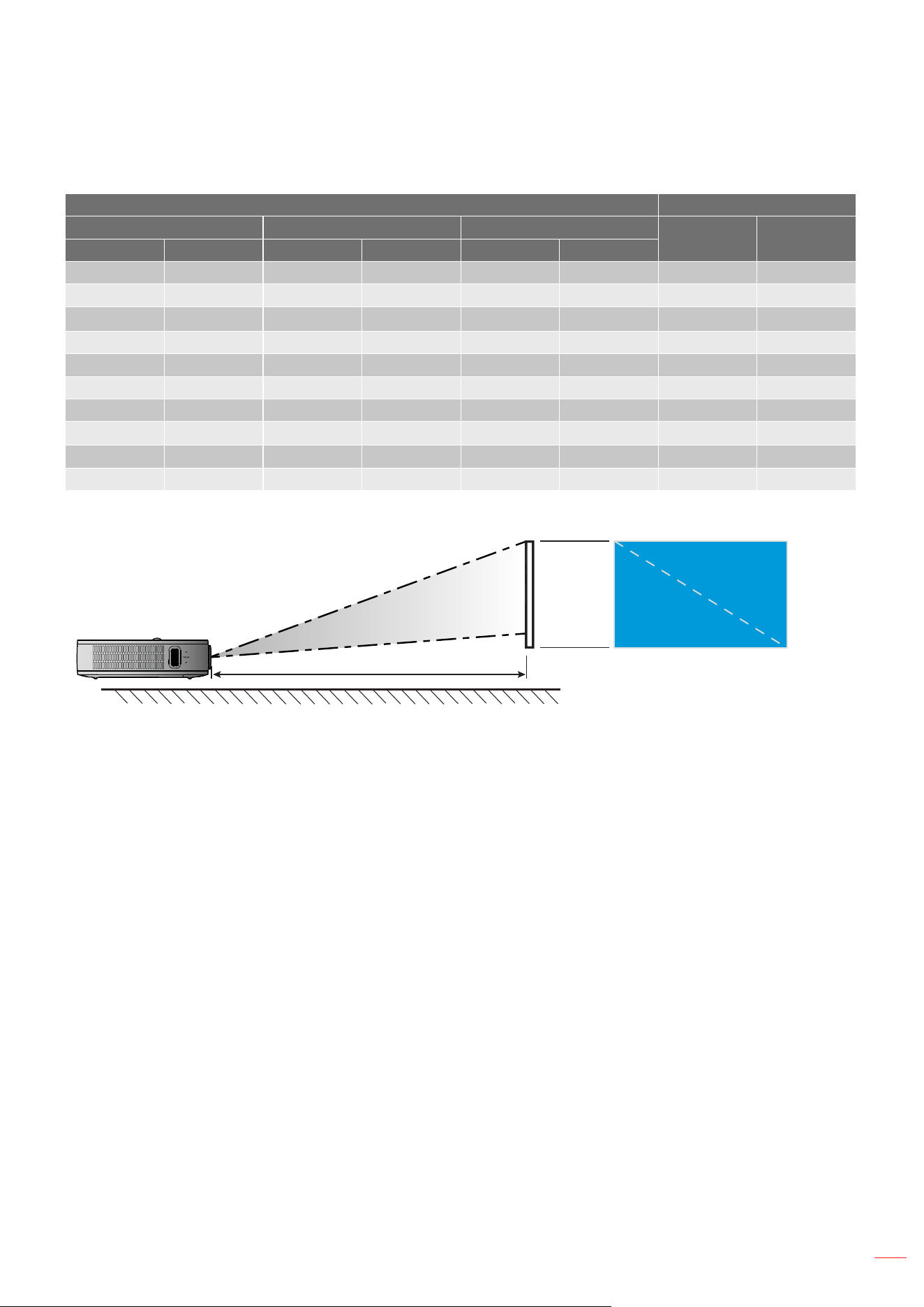
Management
Language
日本語
한국어
Việt Nam
Farsi
Logo
Default
Neutral
Auto Shutdown
Off
15
30
60
120
ECO Mode
On
Off
USB 5V (Standby)
On
Off
High Altitude
On
Off
AC Power On
On
Off
Firmware Version
Firmware Upgrade
OTA
USB
LED Lamp Hours
Reset
Reset All to default

English
30
USING THE PROJECTOR
Color menu
Display Mode
There are many factory presets optimized for various types of images.
Cinema: Provides the best colors for watching movies.
Game: Select this mode to increase the brightness and response time level for enjoying video games.
Bright: Maximum brightness from PC input.
sRGB: Standardized accurate color.
Brightness
Adjust the brightness of the image.
Contrast
The contrast controls the degree of difference between the lightest and darkest parts of the picture.
Saturation
Adjust the saturation of the image.
Sharpness
Adjust the sharpness of the image.
Color Temperature
Select a color temperature from Standard, Cool, Cold, or Native.
Gamma
Set up gamma curve type. After the initial setup and ne tuning is completed, utilize the Gamma Adjustment steps
to optimize your image output.
Standard: For standardized setting.
Film: For home theater.
Video: For video or TV source.
Graphics: For PC / Photo source.
Hue
Adjust the color balance of red and green.
Wall Color
Use this function to obtain an optimized screen image according to the wall color. Select between white, light
yellow, light blue, pink, and dark green.
Gain
Adjust the gain and offset for the red, green, or blue color.
Reset
Return the factory default settings the Color settings.

English
31
USING THE PROJECTOR
Image menu
Projection Mode
Select the preferred projection mode from Front or Rear.
Projection Location
Select the preferred projection location from Desktop or Ceiling.
Aspect Ratio
Select the aspect ratio of the displayed image.
Auto: Automatically selects the appropriate display format.
4:3: This format is for 4:3 input sources.
16:9: This format is for 16:9 input sources, like HDTV and DVD enhanced for Wide screen TV.
L.Box: This format is for non-16x9, letterbox source and for users who use external 16x9 lens to
display 2.35:1 aspect ratio using full resolution.
Auto V. Keystone
Turn the automatic keystone adjustment on or off.
V. Keystone
Adjust the keystone vertically and make a squarer image. Vertical keystone is used to correct a keystoned image
shape in which the top and bottom are slanted to one of the sides.
H. Keystone
Adjust the keystone horizontally and make a squarer image. Horizontal keystone is used to correct a keystoned
image shape in which the left and right borders of the image are unequal in length.
4 Corner Correction
Allow the image to be squeezed to t an area dened by moving each of the four corners’ x and y position.
HDMI Color Range
Select an appropriate color range of the input signal.
Auto: Automatically detect the color range of the input signal.
Limited Range: Select this option if the color range of the input signal is from 16 to 235.
Full Range: Select this option if the color range of the input signal is from 0 to 255.
Note: This option is only available when the input source is HDMI.
Digital Zoom
Use to reduce or magnify an image on the projection screen.
Reset
Return the factory default settings for the Image settings.

English
32
USING THE PROJECTOR
Network menu
Note: This menu is only available when the Wi-Fi dongle is connected to the projector.
Wi-Fi
Turn the Wi-Fi function on or off.
Wi-Fi IP
Display the assigned IP address.
Reset
Return the factory default settings for the Network settings.
Audio menu
Volume
Adjust the audio volume level.
Audio Output
Select the audio output device.
Auto: Automatically select the audio output device.
Bluetooth: Set the audio output device to the external Bluetooth speaker.
Projector: Set the audio output device to the built-in speaker.
Mute
Use this option to temporarily turn off the sound.
On: Choose the “On” to turn mute on.
Off: Choose the “Off” to turn mute off.
Note: “Mute” function affects both internal and external speaker volume.
Reset
Return the factory default settings for the Audio settings.
Management menu
Language
Select the multilingual OSD menu.
Logo
Use this function to set the desired startup screen. If changes are made, they will take effect the next time the
projector is powered on.
Default: The default startup screen.
Neutral: Logo is not displayed on startup screen.
Auto Shutdown
Sets the countdown timer interval. The countdown timer will start, when there is no signal being sent to the
projector. The projector will automatically power off when the countdown has nished (in minutes).

English
33
USING THE PROJECTOR
ECO Mode
Turn the ECO mode on or off.
Note: When enabled, it will dim the projector lamp which will lower power consumption.
USB 5V (Standby)
Congure the USB power source when the power cord is unplugged.
On: The USB port will output power only when the power cord is unplugged.
Off: The USB power source is not available when the power cord is unplugged.
Note:
If the power cord is plugged, the USB port will output power regardless of the setting of USB 5V, and
the USB port will continue to output power even when the projector is off.
The USB port will continue outputting power even when no device is connected. Make sure to set the
USB 5V (Standby) setting to Off before turning off the projector. Otherwise, the battery may run out of
power sooner than usual.
High Altitude
When “On” is selected, the fans will spin faster. This feature is useful in high altitude areas where the air is thin.
AC Power On
Congure the power source for the projector.
On: Once the power cord is unplugged, the projector will automatically turn off. When user plugs in the
power cord, the projector will turn on automatically.
Off: Once the power cord is unplugged, the projector will run using the battery power.
Firmware Version
Display the current rmware version.
Firmware Upgrade
Select the method to upgrade the rmware.
LED Lamp Hours
Display the total hours of the laser diode that have been used.
Reset
Return the factory default settings for the Management settings.
Reset All to default
Return the factory default settings for all settings.

English
34
ADDITIONAL INFORMATION
Compatible resolutions
Digital (HDMI 1.4)
Native resolution: 1920 x 1080p @ 60Hz
Established Timing Standard Timing Descriptor Timing Supported Video Mode Detail Timing
720 x 400 @ 70Hz 1280 x 720 @ 60Hz 1920x1080@60Hz
(default)
640x480p @ 60Hz 4:3 1366x768 @ 60Hz
640 x 480 @ 60Hz 1280 x 960 @ 60Hz 720 x 480p @ 60Hz 4:3 1360x768 @ 60Hz
640 x 480 @ 67Hz 1440 x 810 @ 60Hz 720 x 480p @ 60Hz 16:9 1920x540 @ 60Hz
800 x 600 @ 60Hz 1280 x 720p @ 60Hz 16:9 1280x768 @ 60Hz
1024 x 768 @ 60Hz 1920 x 1080i @ 60Hz 16:9 1920 x 1080i @ 60Hz 16:9
720 x 480i @ 60Hz 4:3
720 x 480i @ 60Hz 16:9
1920 x 1080p @ 60Hz 16:9
720 x 576p @ 50Hz 4:3
720 x 576p @ 50Hz 16:9
1280 x 720p @ 50Hz 16:9
1920 x 1080i @ 50Hz 16:9
720 x 576i @ 50Hz 4:3
720 x 576i @ 50Hz 16:9
1920 x 1080p@ 50Hz 16:9
English
35
ADDITIONAL INFORMATION
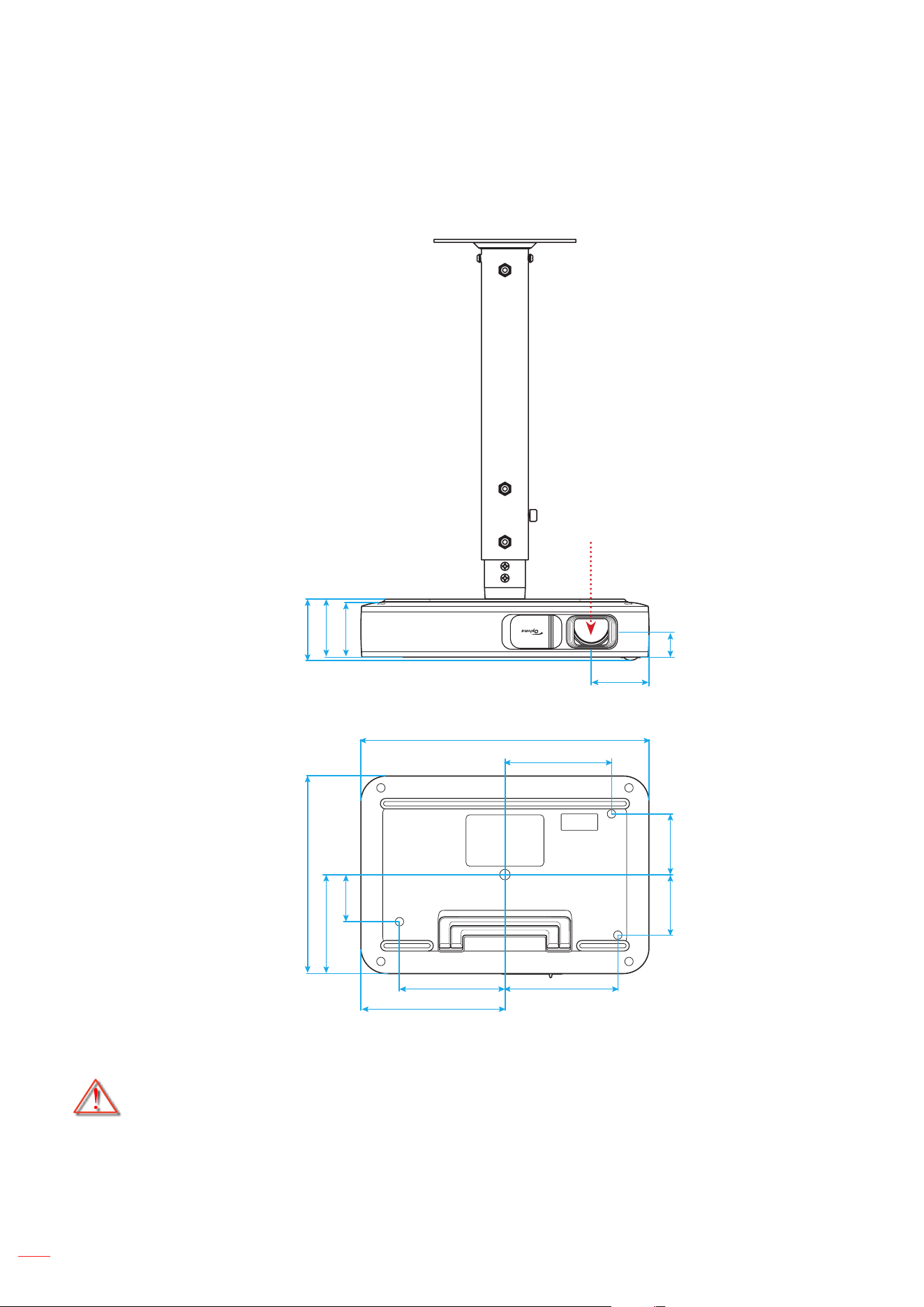
Image size and projection distance
Desired Image Size Projection Distance
Diagonal Width Height
m feet
m inch m inch m inch
0.76 30 0.66 26.14 0.37 14.71 0.80 2.61
1.02 40 0.89 34.86 0.50 19.61 1.06 3.49
1.27 50 1.11 43.57 0.62 24.51 1.33 4.36
1.52 60 1.33 52.29 0.75 29.41 1.59 5.23
1.78 70 1.55 61.00 0.87 34.31 1.86 6.10
2.03 80 1.77 69.72 1.00 39.22 2.12 6.97
2.29 90 1.99 78.43 1.12 44.12 2.39 7.84
2.54 100 2.21 87.15 1.25 49.02 2.66 8.71
3.05 120 2.66 104.58 1.49 58.82 3.19 10.46
3.81 150 3.32 130.72 1.87 73.53 3.98 13.07
Distance
Width
Height
Diagonal
English
36
ADDITIONAL INFORMATION
Projector dimensions and ceiling mount installation
1/4-20 UNC thread (screw hole for tripod)
280.0
56.2
103.5
109.5102.1
140.0
192.5
45.5
96.0
59.558.5
60.15
57.15
54.00
25.0
Lens
Unit: mm
Note: Please note that damage resulting from incorrect installation will void the warranty.
Warning:
Be sure to keep at least 10 cm gap between the ceiling and the bottom of the projector.
Avoid installing the projector near a heat source.
English
37
ADDITIONAL INFORMATION
IR remote codes
Key
Custom Code Data Code
Description
Byte 1 Byte 2 Byte 3
Power on / off 3B C4 00
Refer to the "Power On/ Off the Projector"
section on page 18.
Volume + 3B C4 0A
Press to increase the volume.
Volume - 3B C4 08
Press to decrease the volume.
Mute 3B C4 41
Press to turn off/on the projector built-in
speaker.
Return 3B C4 0E
Press to return to the previous page.
Display Mode 3B C4 02
Press to switch the display mode.
Home 3B C4 14
Press to return to the Home screen.
Bluetooth 3B C4 16
Press to open the Bluetooth menu.
Settings 3B C4 0C
Press to open the Settings menu. To exit
the menu, press again.
Up 3B C4 0D
Use to select items or make
adjustments to your selection.
Down 3B C4 15
Left 3B C4 10
Right 3B C4 12
OK OK 3B C4 11 Conrm your item selection.

English
38
ADDITIONAL INFORMATION
Troubleshooting
If you experience a problem with your projector, please refer to the following information. If a problem persists,
please contact your local reseller or service center.
Image problems
No image appears on-screen
Ensure all the cables and power connections are correctly and securely connected as described in the
"Installation" section.
Ensure the pins of connectors are not crooked or broken.
Image is out of focus
Adjust the Focus Ring on the left side of the projector. Please refer to page 13.
Make sure the projection screen is between the required distance from the projector. Please refer to
page 35.
The image is stretched when displaying 16:9 DVD title
When you play anamorphic DVD or 16:9 DVD, the projector will show the best image in 16: 9 format
on projector side.
If you play 4:3 format DVD title, please change the format as 4:3 in projector OSD.
Please setup the display format as 16:9 (wide) aspect ratio type on your DVD player.
Image is too small or too large
Move the projector closer to or further from the screen.
Select “Image Aspect Ratio” from the Settings menu and try the different settings.
Image has slanted sides:
If possible, reposition the projector so that it is centered on the screen and below the bottom of the
screen.
Select “Image V. Keystone” from the Settings menu to adjust the image distortion caused by tilting
the projector manually.
Image is reversed
Select “Image Projection Mode” from the Settings menu and adjust the projection direction.
Other problems
The projector stops responding to all controls
If possible, turn off the projector, then unplug the power cord and wait at least 20 seconds before
reconnecting power.

English
39
ADDITIONAL INFORMATION
Remote control problems
If the remote control does not work
Check the operating angle of the remote control is pointed within ±35° to the IR receiver on the
projector.
Make sure there are not any obstructions between the remote control and the projector. The distance
between the remote control and the sensor should not be longer than 6 meters at operating angle 45°
and 14 meters at operating angle 0°.
Make sure battery is inserted correctly and replace the batteries if they are depleted. Please refer to
page 14.

English
40
ADDITIONAL INFORMATION
LED lightning messages
Message
Status LED
(Red) (Green)
Battery charging Steady light
Power on Steady Light
Power on, but the lens cap is not open Flashing
Specications
Item Description
OE Model Anhua F10 ( .47 TRP)
CPU Actions Micro 8290
HDMI input 2x 1.4b, MHL not supported
USB Port
1 x USB-A for USB display and provide charging function 5V 1.5A
1 x USB for WI-FI Dongle
Audio out
Mini Jack
Bluetooth Out
Keystone 2D correction (H: ±20°, V: ±30°)
Speaker 4W*2
Power Adapter 19V/4.7A
Battery Capacity 12000 mAh
Note: All specications are subject to change without notice.
English
41
ADDITIONAL INFORMATION
Optoma global ofces
For service or support, please contact your local ofce.
USA
47697 Westinghouse Drive, 888-289-6786
Fremont, CA 94539, USA 510-897-8601
Canada
3178 Laurelview Ct. 888-289-6786
Fremont, CA 94538, USA 510-897-8601
Latin America
3178 Laurelview Ct. 888-289-6786
Fremont, CA 94538, USA 510-897-8601
Europe
Unit 1, Network 41, Bourne End Mills,
Hemel Hempstead, Herts,
HP1 2UJ, United Kingdom +44 (0) 1923 691 800
www.optoma.eu +44 (0) 1923 691 888
Service Tel : +44 (0)1923 691865 [email protected]
Benelux BV
Randstad 22-123 +31 (0) 36 820 0252
1316 BW Almere +31 (0) 36 548 9052
The Netherlands
www.optoma.nl
France
Bâtiment E +33 1 41 46 12 20
81-83 avenue Edouard Vaillant +33 1 41 46 94 35
92100 Boulogne Billancourt, France [email protected]
Spain
C/ José Hierro,36 Of. 1C +34 91 499 06 06
28522 Rivas VaciaMadrid, +34 91 670 08 32
Spain
Deutschland
Wiesenstrasse 21 W +49 (0) 211 506 6670
D40549 Düsseldorf, +49 (0) 211 506 66799
Germany [email protected]
Scandinavia
Lerpeveien 25 +47 32 98 89 90
3040 Drammen +47 32 98 89 99
Norway [email protected]
PO.BOX 9515
3038 Drammen
Norway
Korea
WOOMI TECH.CO.,LTD. +82+2+34430004
4F, Minu Bldg.33-14, Kangnam-Ku, +82+2+34430005
Seoul,135-815, KOREA
korea.optoma.com
Japan
東京都足立区綾瀬3-25-18
株式会社オーエス [email protected]
コンタクトセンター:0120-380-495 www.os-worldwide.com
Taiwan
12F., No.213, Sec. 3, Beixin Rd., +886-2-8911-8600
Xindian Dist., New Taipei City 231, +886-2-8911-6550
Taiwan, R.O.C. [email protected]
www.optoma.com.tw asia.optoma.com
Hong Kong
Unit A, 27/F Dragon Centre,
79 Wing Hong Street, +852-2396-8968
Cheung Sha Wan, +852-2370-1222
Kowloon, Hong Kong www.optoma.com.hk
China
5F, No. 1205, Kaixuan Rd., +86-21-62947376
Changning District +86-21-62947375
Shanghai, 200052, China www.optoma.com.cn

www.optoma.com