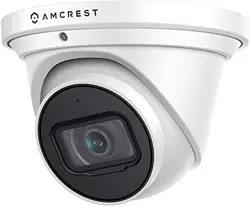

Amcrest IP8M-T2669EW-AI / IP8M-T2699EB-AI
8MP POE 4K AI Dome Camera
User Manual
Version 1.0.0
Revised October 1
st
, 2020

2
Contents
Installation Guide .................................................................................................................5
MicroSD Card Installation .....................................................................................................6
Camera Access Setup ...........................................................................................................6
App Setup ............................................................................................................................7
Desktop Access Setup.........................................................................................................11
Operation and Interface .....................................................................................................13
Playback .............................................................................................................................13
Camera ..............................................................................................................................15
Event ..................................................................................................................................33
Storage...............................................................................................................................54
Destination.........................................................................................................................56
System ...............................................................................................................................60
Information ........................................................................................................................64
Alarm .................................................................................................................................66
Logout ................................................................................................................................66
Remote Web Access Setup .................................................................................................67
Amcrest Cloud Desktop Setup ............................................................................................69
Web Access Setup (AmcrestView.com) ..............................................................................69
FAQs/Troubleshooting .......................................................................................................69
Glossary of Terms ...............................................................................................................71
FCC Statement ...................................................................................................................72
IC Warning Statement ........................................................................................................73
Appendix A: Toxic or Hazardous Materials or Elements ......................................................73
3
Welcome
Thank you for purchasing an Amcrest camera!
This user manual is designed to be a reference tool for the installation and operation of your AI camera.
Here you can find information about the camera’s features, functions, and information to aid in troubleshooting.
Many of the setup and installation sections below have corresponding videos on YouTube
To access the setup videos, please go to http://amcrest.com/videos
For access to the quick start guide and other support information, go to http://amcrest.com/support
To contact Amcrest support, please do one of the following:
Visit http://amcrest.com/contacts
Important Security Warning
To keep your Amcrest camera secure and prevent unauthorized access, please make sure to follow the steps
below:
• Always make sure that your camera has the latest firmware as listed on
www.amcrest.com/firmware
• Never use the default password for your camera. Always ensure that your
password is at least 810 characters long and
contains a combination of lowercase characters, uppercase characters as well as
numbers.
Important Safeguards and Warnings
1.Electrical Safety
All installation and operation should conform to your local electrical safety codes.
The product must be grounded to reduce the risk of electric shock.
We assume no liability or responsibility for any fires or electrical shock caused by improper handling or installation.
2.Transportation Security
Heavy stress, violent vibrations, and excess moisture should not occur during transportation, storage, and
installation of the device.
3.Installation
Handle the device with care. Keep the device right side up.
Do not apply power to the camera before completing installation.
Do not place objects on top of the camera.
4.Repair Professionals
All the examination and repair work should be done by qualified service engineers. We are not liable for any
problems caused by unauthorized modifications or user-attempted repair.

4
5.Environment
The camera should be kept in a cool, dry place away from direct sunlight, flammable materials, explosive
substances, etc.
This product should be transported, stored, and used only in the specified environments as stated above. Do not
aim the camera at a strong light source, as it may cause overexposure of the picture, and may affect the longevity
of the camera’s sensors.
Ensure that the camera is in a well-ventilated area to prevent overheating.
6. Operation and Maintenance
Do not touch the camera sensor or lens directly.
To clean dust or dirt from the lens, use an air blower or a microfiber cloth.
7. Accessories
Be sure to use only the accessories recommended by manufacturer.
Before installation, please open the package and check to ensure that all the components are present. Contact the
retailer that you purchased from, or Amcrest directly if anything is broken or missing in the package.
Features and Specifications
Overview
Amcrest provides an excellent digital surveillance product that can be useful to a wide variety of users. This camera
connects uses an internet connection to allow the user to access all its features. It is easy to use and can be viewed
on a computer via the built-in web user interface or on your smartphone using the Amcrest View Pro app.
This camera adopts a high-quality design to achieve high levels of reliability and security. It can be configured to
work locally, as well as on a network. This camera works using a POE connection and interfaces with most
networks through the Ethernet port of your router, POE injector or POE switch.
Features
This camera has the following features:
Network Access
The camera can be accessed remotely from a wide variety of internet connected devices, including PCs, Mac, iOS,
and Android devices.
Cloud Storage Functionality
Amcrest offers premium cloud storage options to enable long-term storage. Amcrest Cloud also allows the user to
easily locate and view recordings for playback from any internet connected computer or smartphone
(iOS/Android).
Advanced Network Protocol Support
This camera is UPnP compatible, and includes functionality for use with DDNS, and other protocols to allow remote
and local connection with a large variety of network hardware.
AI Features
This camera includes advanced IVS features such as tripwire and intrusion which help to increase the overall
efficiency and accuracy of the camera.
5
IMPORTANT: Due to specific hardware limitations within your camera it is important to note that these devices will
not be able to automatically pan/tilt or pivot in either the app or via the web UI on a computer. For this reason, it
is imperative to make sure to mount the cameras properly and position them as efficiently as you can to the areas
you wish to monitor. All positioning actions to the camera will have to be performed manually.
Installation Guide
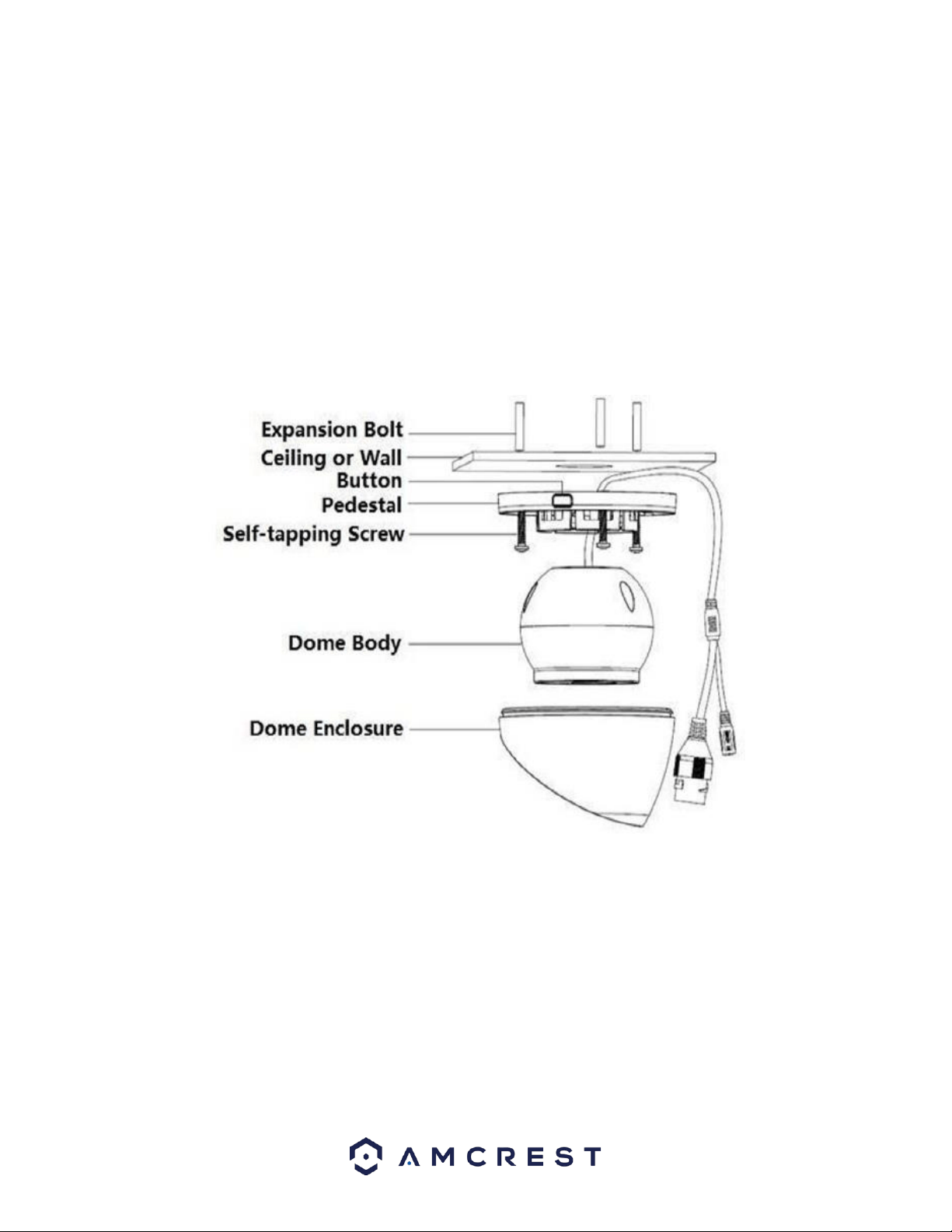
To install the camera on a ceiling or wall, please reference the below diagram as well as the steps:
Note: Prior to installation, please ensure that the installation environment can support at least 3x the weight of the
camera and bracket.
To install the camera on a ceiling or wall, please reference the below diagram as well as the steps:
Note: Due to certain hardware limitations within your camera it is important to note that these devices will not be
able to automatically/remotely pan/tilt or pivot in either the app or via the web UI on a computer. For this reason,
it is imperative to make sure to mount the cameras properly and position them as efficiently as you can to the
areas you wish to monitor. All positioning actions to the camera will have to be performed manually.
To install the camera onto a wall, follow the steps below:
1.Place the installation sticker onto the mounting surface.
2.Drill bottom holes according to the installation position map and insert the included wall anchors into the holes.
If running wires through a wall/ceiling a 1” paddle bit can be used to drill the center portion of the sticker.
3.Use the included torx wrench to remove the security screw on the front of the casing. This will disassemble the
camera from its case.

6
4.Align the holes on the bottom installation bracket to the wall anchors on your mounting surface. Run the wiring
through the newly drilled hole or on the side of the camera keeping the camera and mounting bracket level with
the mounting surface.
5.Use a Phillips head screwdriver (not included) to secure the bottom bracket and camera to the mounting surface.
6.Place the top portion of the casing over the camera and installation bracket and use the included torx wrench to
tighten the security screw back onto the casing. Do not overtighten the security screw as it may not properly be
secured if overtightened.
MicroSD Card Installation
A microSD card can be used to store and view local recordings/snapshots. This camera requires a class 10 or above
microSD card formatted to FAT32 to function. The camera can handle a max of 256GB of microSD card storage.
1. Locate the Reset cover on the top of the camera. This area will provide access to the factory reset button as well
as the microSD card slot.
2. Use a Phillips head screwdriver to remove the cover. If you are having trouble removing the cover, use the
provided torx wrench to remove the camera’s dome enclosure.
3. Locate the microSD card slot, and with the gold pins forward towards the lens, insert the microSD card into the
slot.
4. Gently press down until you hear a click. This click indicates the microSD card has been properly secured.
5. Place the cover back onto the camera and secure it to the camera using a Phillips head screwdriver. If you have
removed the dome enclosure, please the enclosure back onto the camera and secure it tightly with the torx
wrench.
Camera Access Setup
This section will provide information on how to setup and access your camera through the following methods:
• Local PC (Web User Interface (Web UI), Amcrest Surveillance Pro, etc.)
• Amcrest View Pro app
• Amcrest Surveillance Pro
• Amcrest Cloud
Default Username and Password
To login to the system for the first time, use one of the following default username/password combinations. Once
you have successfully logged in, it is highly recommended to change the password for security reasons.
Username: admin
Password: admin
Note: Logging in for the first time will prompt the user to change the password to the admin account.
How to Setup the Camera
To make your experience with your Amcrest camera easy and simple, we've provided multiple ways to set up,
view, and operate your camera depending on your needs. Please follow the instructions on this page to set up your
camera in the way that works best for you.

7
Setting up Your Camera for the First Time
If you are setting up your camera for the first time, or you are setting up your camera for mobile viewing. Using the
Amcrest Cloud app or Amcrest View app on your smartphone or tablet, you can view your camera live from
anywhere, and access features such as taking snapshots, creating recordings, and more.
For Configuring Advanced Settings on Your Camera
If you would like to configure your camera to enable advanced features such as motion direction, e-mail alerts,
FTP, image adjustments, scheduling and more.
For Cloud Storage and Playback
Amcrest Cloud is our optional cloud storage and playback service which allows you to access recorded footage
from any device. Amcrest Cloud offers both motion detection and continuous storage plans to fit your needs. For
more information on the Amcrest Cloud, please visit: https://amcrest.com/cloud/
For Quick Web Access to Your Cameras
AmcrestView.com is a web portal that allows you to view your cameras and recordings quickly and easily from
anywhere in the world using a web browser. Use AmcrestView.com if you need to simply check-in at a moment's
notice. If you would like to use AmcrestView.com.
App Setup
Amcrest cameras can be used on your mobile device using the following apps:
• Amcrest Cloud
• Amcrest View Pro
Both apps are free and available in the App Store and Google Play store. Please note, each app requires an iOS 6.0
or later version. Android will require a 3.0 or later version OS to run these apps.
For purposes of this guide, we will use iOS, though both apps. The App Interface may differ slightly from the
screenshots below as updates are released. Below, you will find instructions on how to set up your camera up on
the Amcrest cloud app as well as the Amcrest View Pro app.
Amcrest Cloud App Setup
Amcrest Cloud allows you to access your device from anywhere in the world. Please note, you will need an
Amcrest Cloud account to proceed with Amcrest Cloud app setup. You can register for a cloud account in the
Amcrest Cloud app or from the Amcrest Cloud website at amcrestcloud.com
• Please make sure your camera is plugged into a power source and your Ethernet cable is connected from the
camera to your router.
• Make sure your camera and mobile device are on the same network during setup.
• To ensure the camera connects to the cloud, a reboot of your camera is recommended. To add your camera
onto the Amcrest Cloud app, follow these steps:
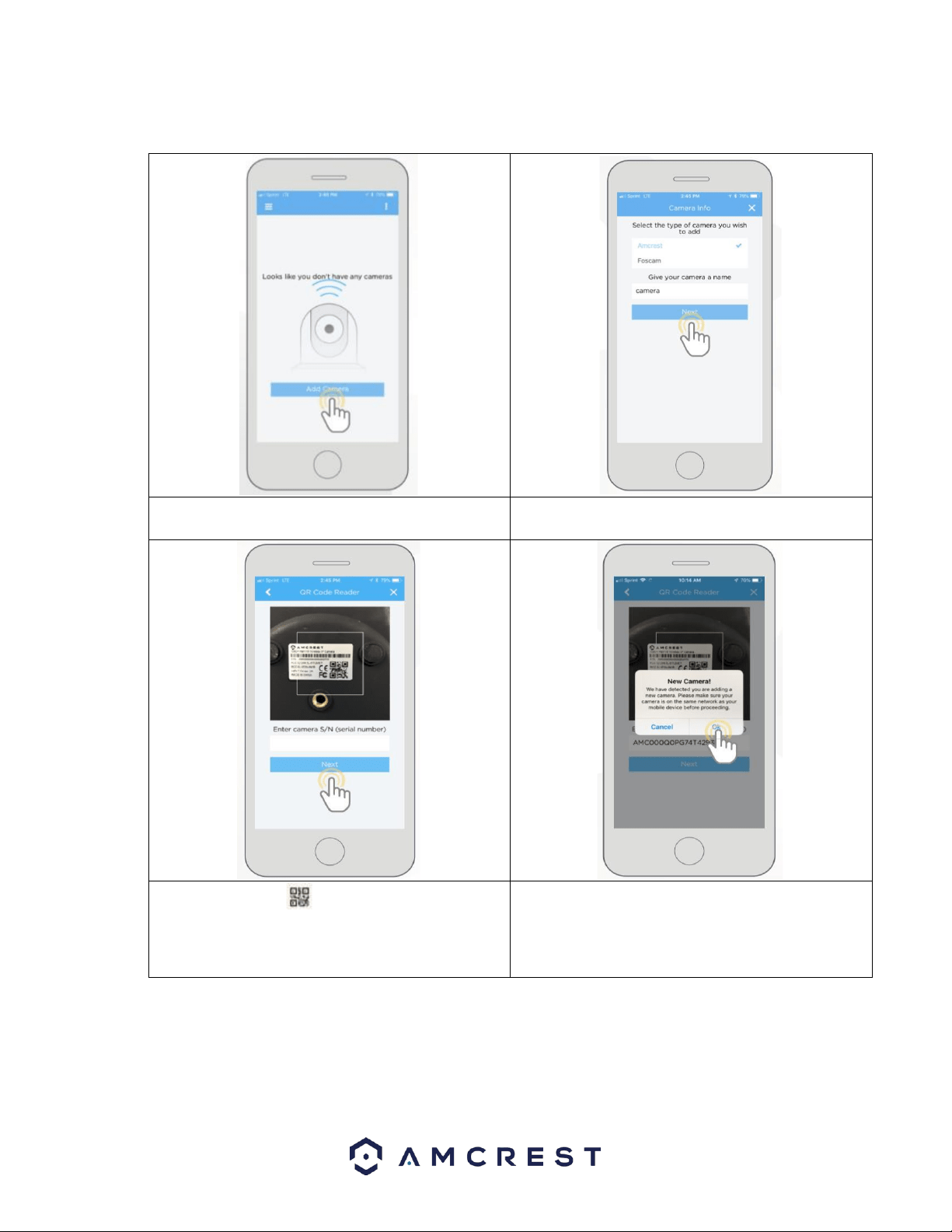
1. Download and open the Amcrest Cloud app from the App Store or Play Store.
Note: Connect your mobile device to the same network that your camera is on.
8
2. Register for an Amcrest Cloud account. To register click on Sign Up and fill out the form to complete registration.
3. Tap on Add Camera
4. Give your camera a name (Ex. Garage, Living Room,
Kitchen, etc.) and tap Next to continue.
5. Scan the QR code on the back/side/bottom of
the camera or manually enter the camera’s serial
number into the Enter camera S/N (serial number)
field. Press Next to continue.
6. If you are adding a new camera that does not have
a set password the app will automatically detect that
a new camera is being added. Tap OK to proceed.
9
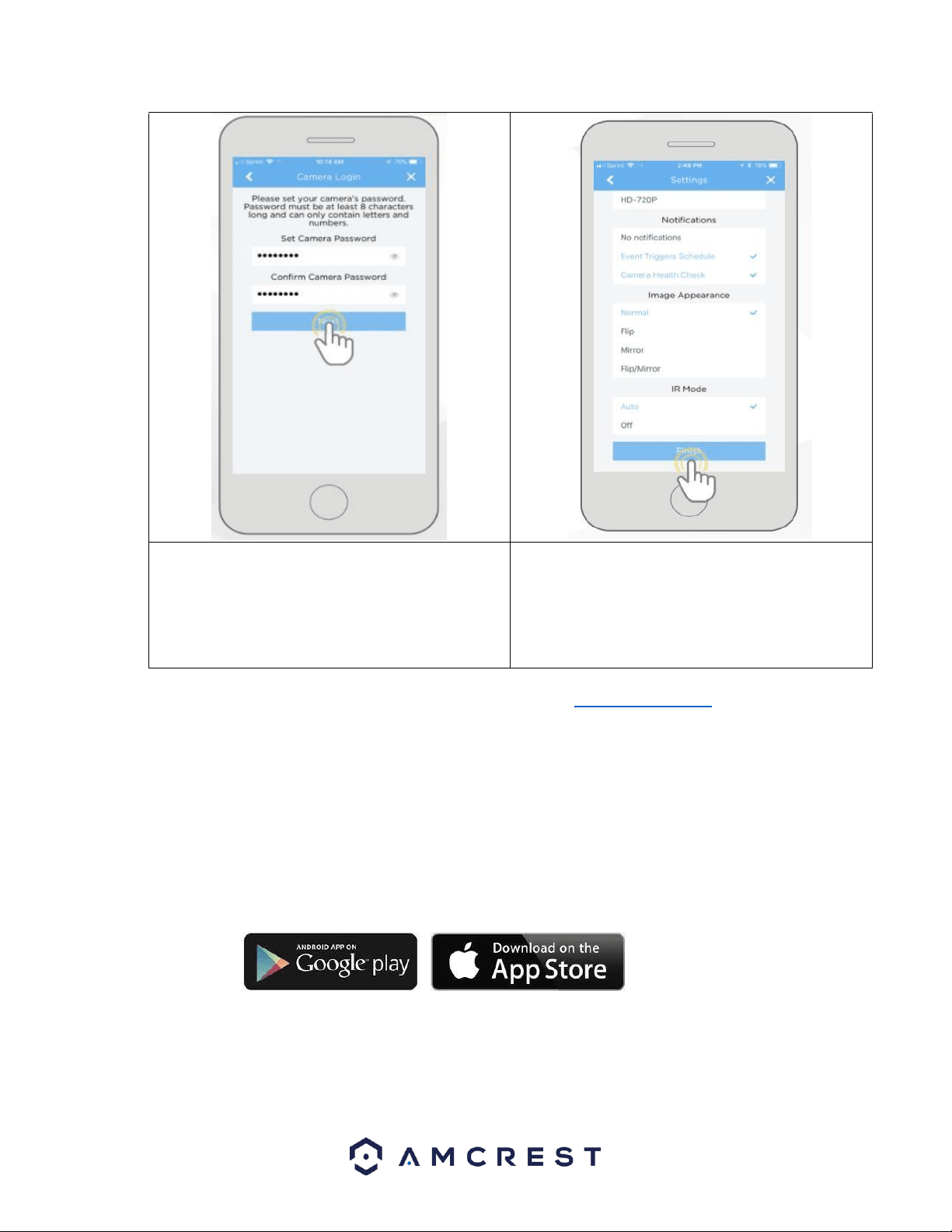
7. Set a new password for your camera. The password
must be between 8 to 32 characters long and contain
only letters and numbers. When you have finished
setting the password for your camera, enter the
password again in the Confirm Camera Password
section. Tap Next to continue.
8. Confirm and adjust any needed settings for your
camera. When all settings have been confirmed, tap
Finish.
For more information about the Amcrest Cloud app and its features, visit amcrest.com/support
Amcrest View Pro Setup
To add your PoE camera to the Amcrest View Pro app follow these steps:
The following steps will continue the app setup process for an Android phone and, though the iPhone version of
the app has slightly different steps, most of this process is identical and easy.
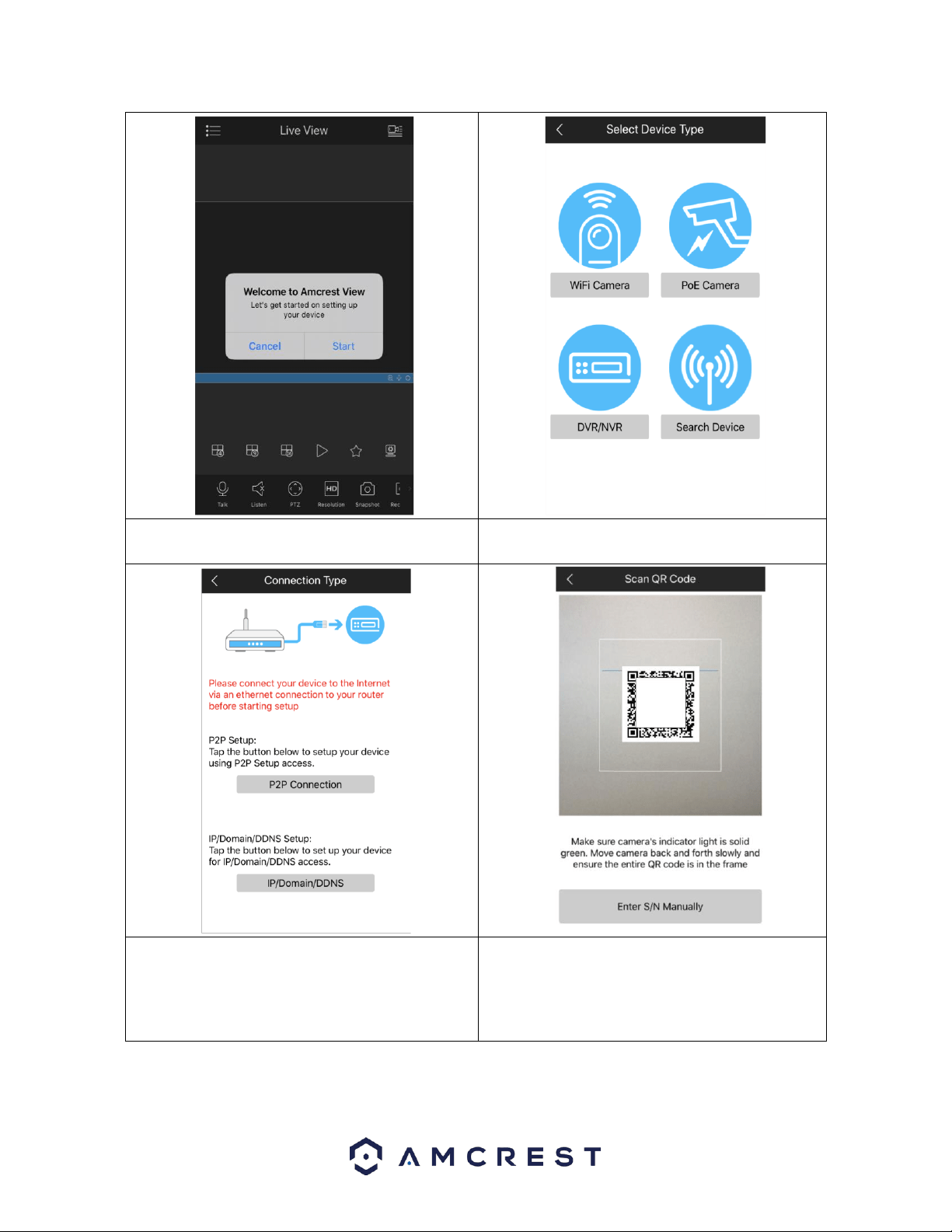
Download and install the Amcrest View Pro app for the App Store or Google Play Store.
Open the app on your mobile device and allow the app to load.
10
3. Tap “Start”.
4. Tap “POE Camera”.
5. Tap “P2P Connection”.
Note: IP/Domain/DDNS can be used to establish a
DDNS connection. For more information on how to
setup a DDNS connection, visit amcrest.com/support
6. Scan the QR code. The QR code can be found on
the serial tag along with a scannable barcode.

11
7. Create a name for the device and enter a username
and password. The default username and password
will be admin.
Tap “Start Live View”.
8. Update the default password for the device and
tap “Start Live View” to view the device.
For more information about Amcrest View Pro and its functionalities visit amcrest.com/support
Desktop Access Setup
The AI features associated with your camera are only accessible and customizable using the built-in web user
interface via a web browser.
This camera features the latest in JS technology which allows you to access your camera via a wide variety of web
browsers including, Google Chrome, Firefox, Safari and other mainstream web browsers via your PC or Mac
computer. For more information on how to access your camera from your computer please refer to the
information below.
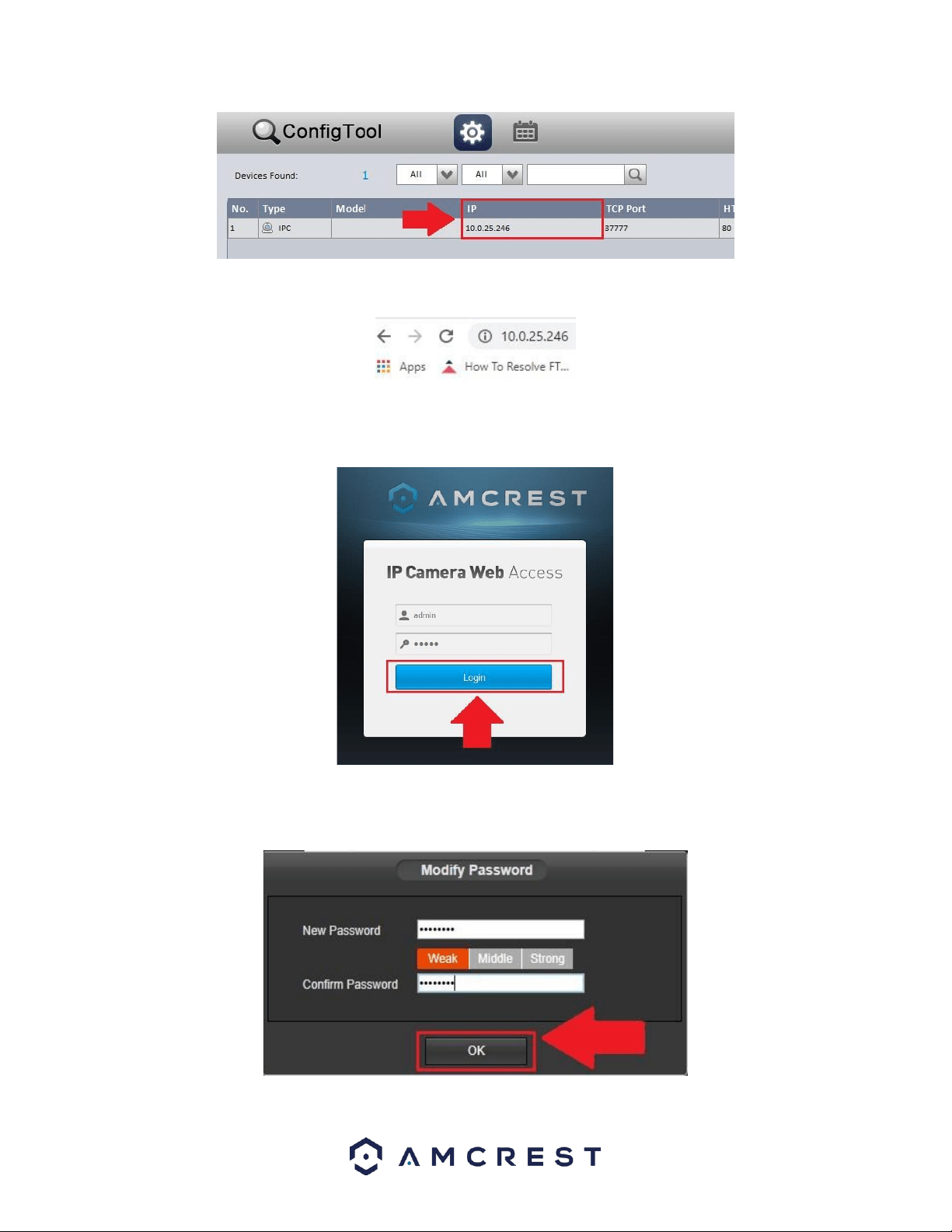
To access your camera from your computer you will need to first locate the camera’s IP address. To locate the
camera’s IP address is it highly recommended to download our free Amcrest IP Config Tool software. The Amcrest
IP Config Tool can be downloaded at the following web page: amcerest.com/downloads
In the All Downloads menu, click on IP Config Software to begin the free download. Once the download has
completed installing, locate the IP address associated with the device you would like to view in the browser.
12
Open a web browser and enter this IP address for your camera into browser and press Enter.
In the web user interface, enter the login credentials for your device. If this is the first time accessing the device,
the username and password will both be admin. Click on Login.
If this is the first-time logging into your device, you will be prompted to modify the password for your device. To
modify the password, enter the new password you would like to use in the New Password field and confirm. The
password used should be between 8 and 32 characters long with a combination of letters and numbers.
Click OK when and allow the stream to load.
13
Operation and Interface
This section will show you the basic operation and interfaces of the web user interface for your camera.
Live
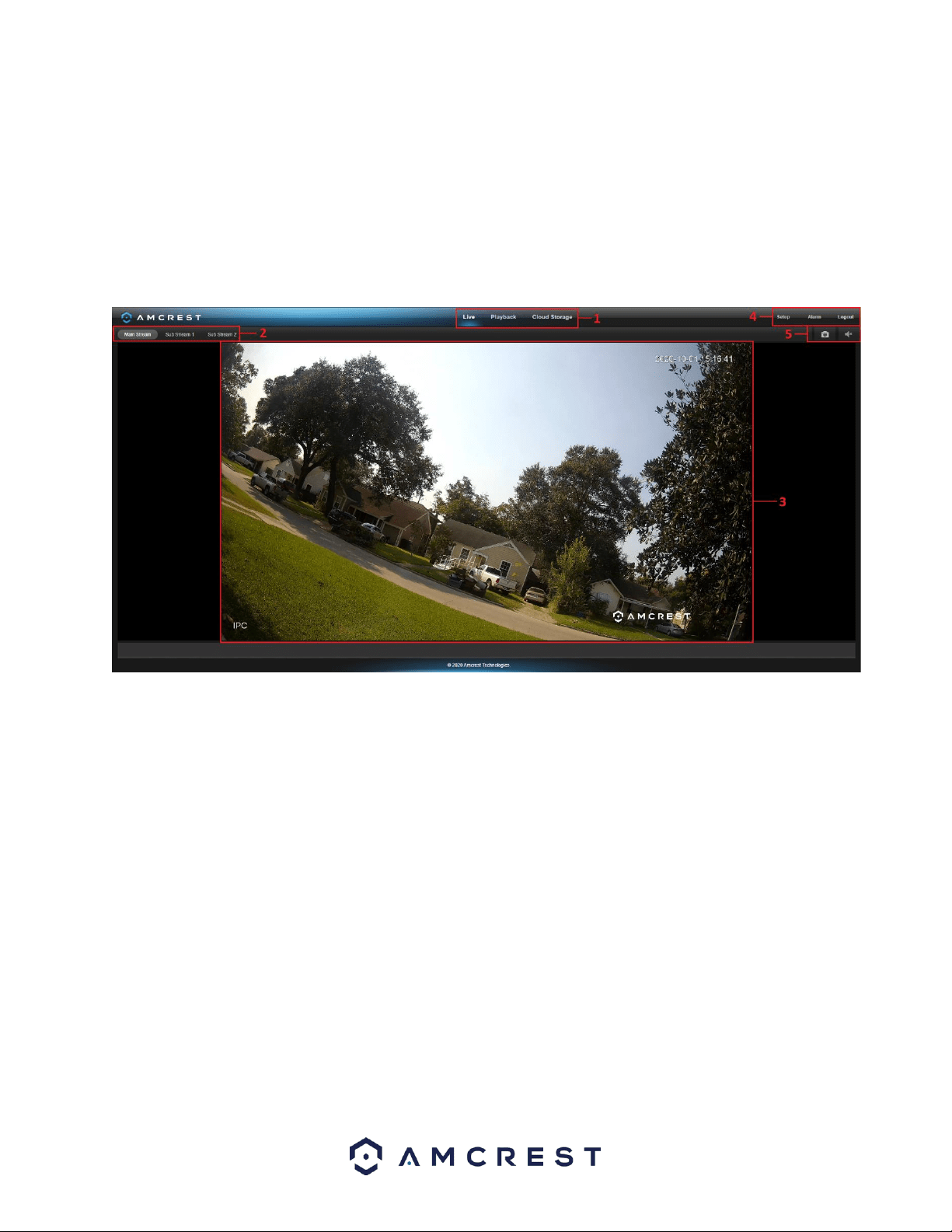
By default, the interface opens on the Live tab. The live view tab allows the user to see a live video feed from the
camera. The live view tab has five main sections:
Section 1: These options allow the user quick access to the live view screen, playback, as well as to Amcrest Cloud.
Section 2: This section allows the user to switch between Main Stream and Sub Stream.
Section 3: This is the live view feed from the camera.
Section 4: This section allows the user to access setup options, alarms, and logout the interface.
Section 5: This option allows the user to take a snapshot of the live view screen.
Playback
The Playback tab allows the user to playback the camera’s recorded video. Please note, for a better experience it is
recommended to use a plugin based browser such as Internet Explorer or the Amcrest Google Chrome extension.
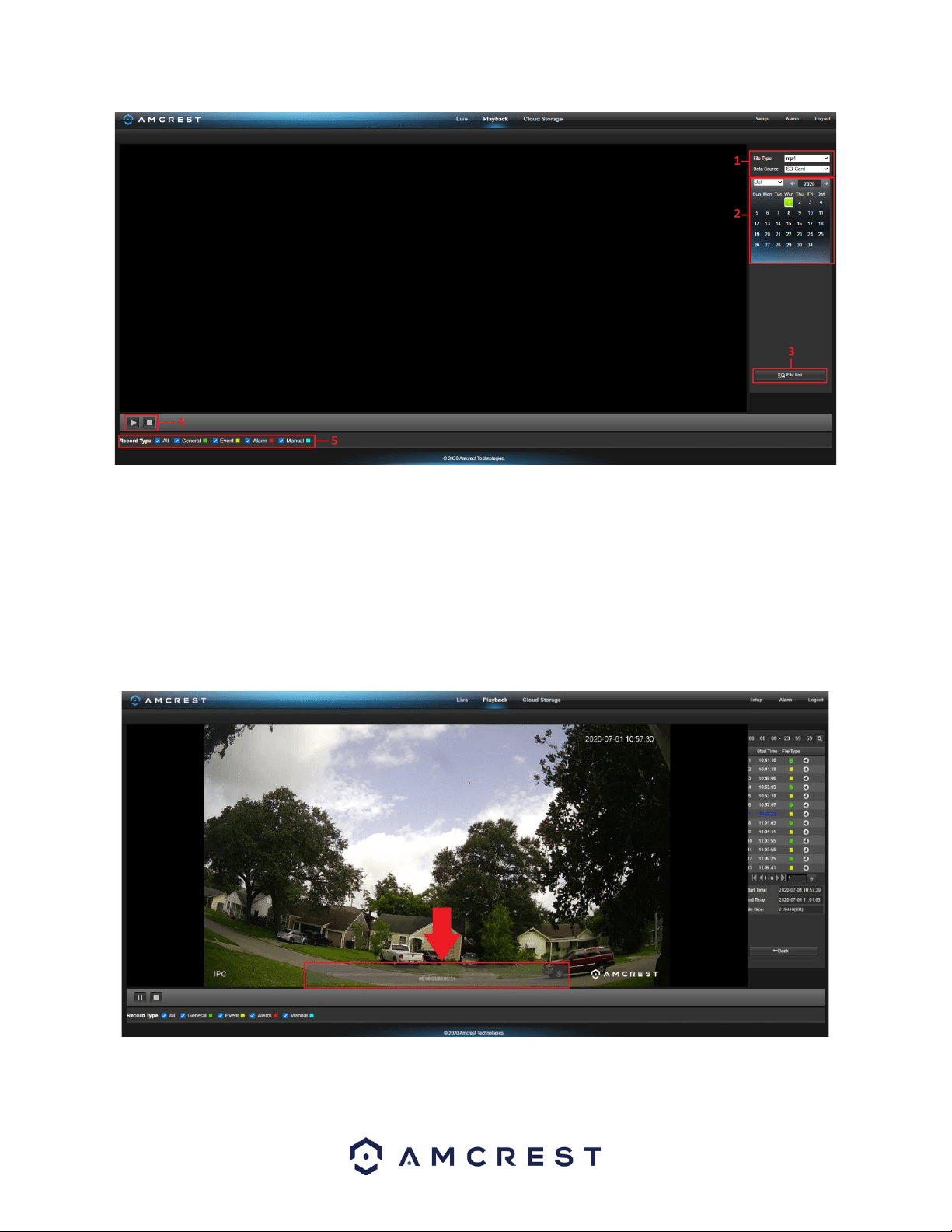
Below is a screenshot of the Playback tab:
14
This is the interface for the playback menu. There are 5 main sections:
Section 1: Allows the user to filter between video (.mp4) or snapshots (.jpg).
Section 2: Allows the user to playback events based on calendar dates. If events are detected via the microSD card
the days will be highlighted indicating recordings are available for that day.
Section 3: The File List option provides a list of all recorded file types reported on a specific day. The files
represented in the file list can be played back and downloaded from this menu.
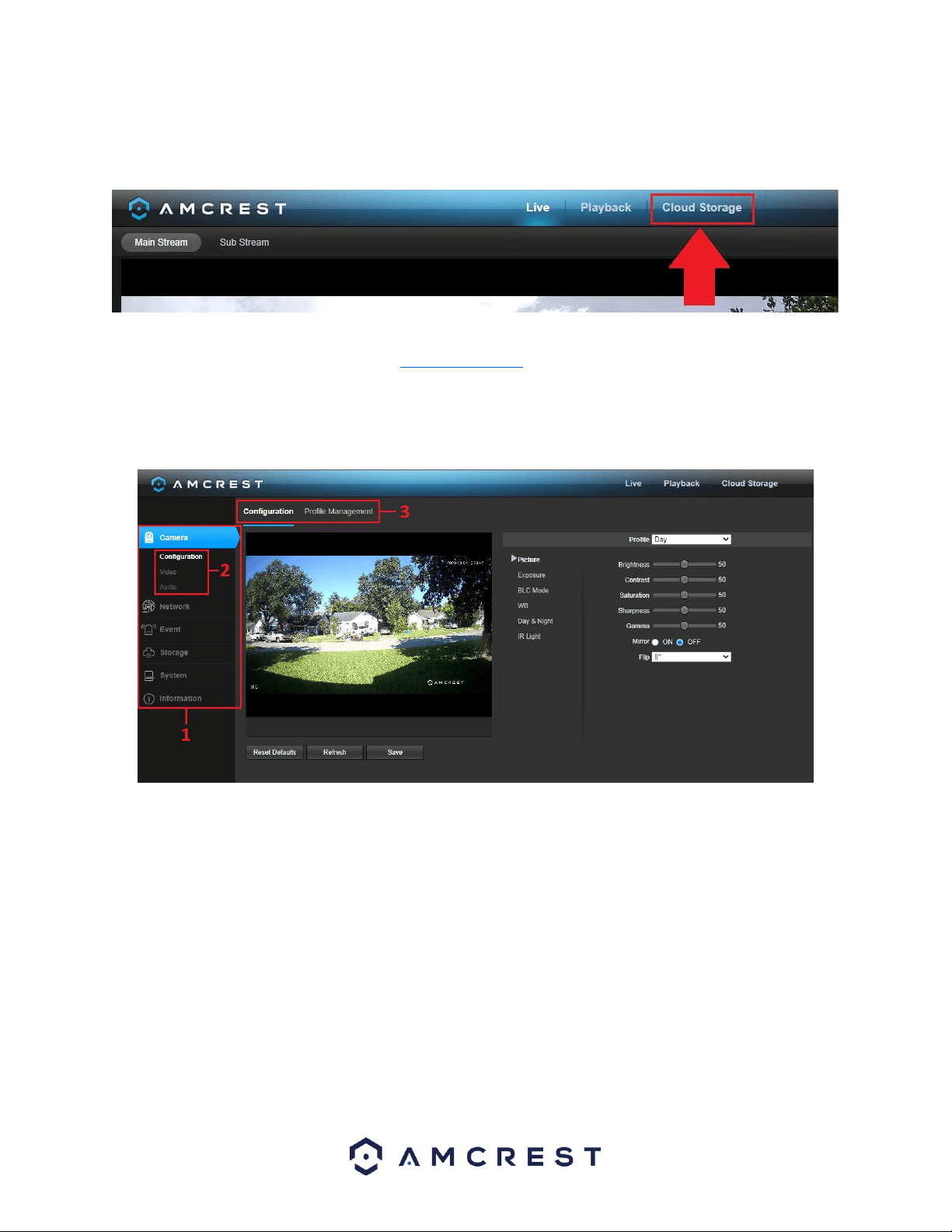
Section 4: Once a recording is selected from the file list, use the play, and stop button to play or stop the
recording. An additional slider option will be displayed by hovering the mouse pointer over the playback interface.
Section 5: These options allow the user to filter between recording types such as, General, Motion, Alarm, or
Manual events. The “All” option will select all recording types in the interface.
15
Cloud Storage
The Cloud Storage tab allows the user quick access to the Amcrest Cloud website.
At this website (amcrestcloud.com) users can register for new accounts as well as view or modify existing accounts.
For more information on Amcrest Cloud visit: amcrest.com/cloud
Setup
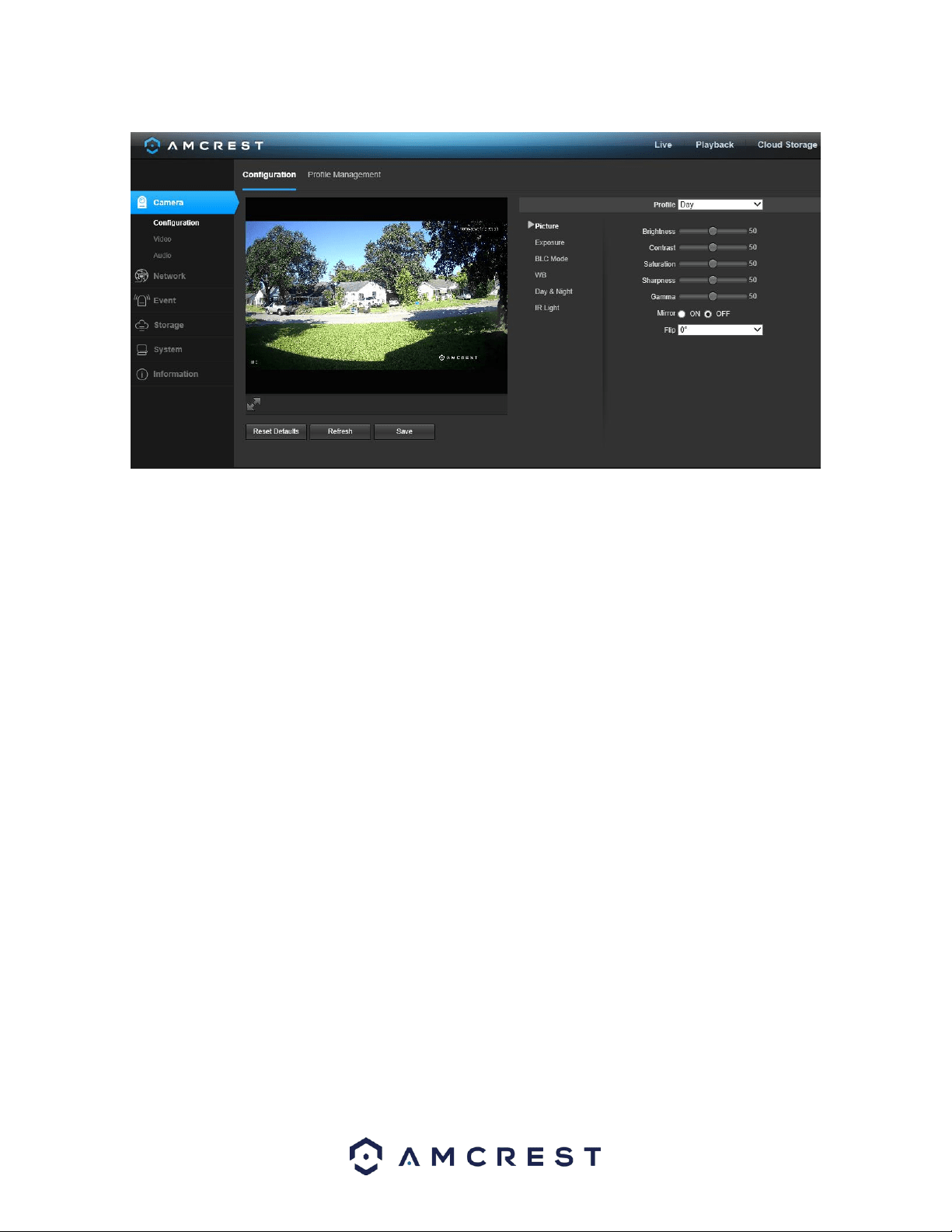
The Setup tab allows the user to change different camera settings. Below is a screenshot of the setup tab:
There are 3 main sections to note in the Setup tab:
1. Menu Bar: Allows the user to switch between Configuration and Profile Management options.
2. Menu Items: Each menu option opens a different menu which allows the user to change between specific
settings configurations.
3. Menu Tab: Displays different tabs related to a selected menu option.
Camera
This menu tab allows the user to change different camera settings for video and to manage image profiles.
Configuration
The Configuration menu allows the user to configure image profiles for normal, day, and night usage.
Below is a screenshot of the Configuration menu:
16
Below is an explanation for each of the fields on the Configuration tab in the Configuration menu item:
Picture
Profile: This dropdown box allows the user to select which profile to modify. The 3 options are Day, Night, and
General.
Brightness: This slider is used to adjust playback and recorded video window brightness. The value ranges from 0
to 100. The default value is 50. The larger the number, the brighter the video is. When you input the value here,
the bright section and the dark section of the video will be adjusted accordingly. You can use this function when
the whole video is too dark or too bright. Please note the video may become hazy if the value is too high. The
recommended value ranges from 40 to 60.
Contrast: This slider is used to adjust playback and recorded video window contrast. The value ranges from 0 to
100. The default value is 50. The larger the number is, the higher the contrast is. You can use this function when
the whole video brightness is OK, but the contrast is not correct. Please note the video may become hazy if the
value is too low. If this value is too high, the dark section may lack brightness while the bright section may
overexpose. The recommended value ranges from 40 to 60.
Saturation: This slider is used to adjust playback and recorded video window saturation. The value ranges from 0
to 100. The default value is 50. The larger the number, the stronger the color is. This value has no effect on the
general brightness of the whole video. The video color may become too strong if the value is too high. For the grey
part of the video, distortion may occur if the white balance is not accurate. Please note the video may not be clear
if the value is too low. The recommended value ranges from 40 to 60.
Sharpness: This slider is used to adjust the sharpness of the video. The value ranges from 0 to 100. The larger the
value is, the clearer the edges are and vice versa. Note: The higher the value, the higher likelihood of picture noise
occurring. The default value is 50 and the recommended value ranges from 40 to 60.
Gamma: This slider is used to adjust the gamma of the video. The larger the number, the brighter the video is.
The default value is 50 and the recommended value ranges from 40 to 60.
Mirror: This radio button allows the user to turn the mirroring feature on or off. Turning mirroring on will mirror
the picture.
Flip: This dropdown box allows the user to flip the video feed picture. Flipping the picture is recommended only if
the camera is mounted upside down.

17
To reset to default settings, click the Reset Defaults button. To refresh the screen, click on Refresh. To save the
settings, click the Save button.
Exposure
This menu allows the user to adjust exposure settings. Below is an explanation of the features listed in this menu.
Profile: This dropdown box allows the user to select which profile to modify. The 3 options are Day, Night, and
General.
Anti-Flicker: These options allow the user to select what type of anti-flicker technology will be used for the video
feed. The three options are 50 Hz, 60 Hz, and Outdoor. The desired option should offset any flickering effect
caused by the electrical current used in the specific area.
Mode: This dropdown menu allows the user to modify certain exposure settings related to the device such as, gain
priority, shutter priority or setting a manual gain setting.
Auto: This setting allows the camera to automatically adjust exposure settings while in use.
gain First: This setting will maximize the gain for the ideal exposure. Low Noise Basically turns up the
ISO to the best setting without sacrificing exposure timing.
Shutter Priority: This setting will maximize the fastest shutter speed and will sacrifice the gain in
return.
Manual - This setting lets you select your shutter speed and have the gain adjust automatically.
Selecting customized range will let you both the shutter speed an adjust the gain manually.
Exposure Comp: Use this slider to adjust the exposure compensation. The values range from 0 – 100, 50 is default.
3D NR: Allows the user to enable or disable 3D noise reduction.
3D NR Level: This slider allows the user to specify the 3D Noise Reduction level. The value ranges from 1-100.
To reset to default settings, click the Reset Defaults button. To refresh the screen, click on Refresh. To save the
settings, click the Save button.
BLC Mode
This menu allows the user to adjust back light compensation settings. Below is an explanation of the features
provided in this menu.
Profile: This dropdown box allows the user to select which profile to modify. The 3 options are Day, Night, and
General.
Mode: This dropdown menu allows the user to select different backlight compensation modes:
OFF: Disables BLC mode.
BLC: Backlight compensation: Default will use the whole image to balance the lighting settings, and
Customized will allow you to balance the lighting settings from the target area.
HLC: Highlight compensation is a feature that came out of necessity due to overexposure from strong
light sources like headlights or spotlights.
WDR: Wide Dynamic Range makes multiple scans of a scene to provide one balanced and unwashed
image that is clear for the user.
SSA: Automatically lowers the brightness of bright areas and increases the brightness of dark areas
according to environmental light in the area.
To reset to default settings, click the Reset Defaults button. To refresh the screen, click on Refresh. To save the
settings, click the Save button.

18
WB
This menu allows the user to adjust white balance settings. Below is an explanation of the features provided in this
menu.
Profile: This dropdown box allows the user to select which profile to modify. The 3 options are Day, Night, and
General.
Mode: This option allows the user to choose between different white balance modes.
Auto: Allows the camera to automatically adjust white balance settings while in use.
Sunny: Allows the camera to automatically adjust white balance settings in sunny or bright
conditions.
Night: Allows the camera to automatically adjust white balance settings in nighttime or dark
conditions.
Outdoor: Allows the camera to automatically adjust white balance settings while in outdoor (sunny
or dark environments.
Customized: Displays options that will allow the user to manually adjust specific red or blue values
related to white balance.
Regional Custom: Allows the user to select an area (region) on the live view screen in which white
balance will be most applicable.
To reset to default settings, click the Reset Defaults button. To refresh the screen, click on Refresh. To save the
settings, click the Save button.
Day & Night
This menu allows the user to adjust day and nighttime settings. Below is an explanation of the features provided in
this menu.
Profile: This dropdown box allows the user to select which profile to modify. The 3 options are Day, Night, and
General.
Mode: This dropdown box allows the user to select different Day & Night balance modes. The 3 options are Auto,
Color, and B&W.
Auto - Uses D&N Sensitivity setting to change between color mode and infrared and black and white
mode.
Color - Preset which allows the camera to compensate color in day or night profiles.
B&W - Sets the picture to black and white, however when illumination is too dark it switches on IR
mode.
Sensitivity: This option allows the user to change the Day/Night Sensitivity of the camera. The three options are
Low, Middle, and High. The higher the sensitivity, the quicker the camera will change into another mode
depending on the light levels.
Delay: This dropdown box allows the user to set a delay in seconds for how long it takes to switch between Day
and Night modes. The values range from 2 seconds to 10 seconds.
To reset to default settings, click the Reset Defaults button. To refresh the screen, click on Refresh. To save the
settings, click the Save button.
IR Light
This menu allows the user to set IR light settings. The IR light on your camera allows the device the ability to
activate night vision. Below is an explanation of the features provided in this menu.

19
Profile: This dropdown box allows the user to select which profile to modify. The 3 options are Day, Night, and
Normal.
Mode: This dropdown box allows the user to select whether to turn the IR light on or off.
Auto – Sets the IRs to automatically turn on or off based on Day & Night conditions.
Manual – Manually turns the IRs on.
Off – Manually turns the IR LEDs off. Please note, IR LEDs will not turn on at all when this option is
selected.
To reset to default settings, click the Reset Defaults button. To refresh the screen, click on Refresh. To save the
settings, click the Save button.
Profile Management
Below is a screenshot that shows the Profile Management tab in the Configuration menu:
Below is an explanation for each of the fields on the Profile Management tab:
Profile Management: This set of radio buttons allow the user to set what basis the profile management settings
run on. There are 4 options: General, Full Time, Schedule, and Day/Night.
General: The system can automatically alternate between night and day based on the profiles for each.
Full Time: The system sticks to one profile the entire time it is running.
Schedule: allows the user to dictate which times of the day are designated for the day profile and the
night profile.
Day/Night: The system maintains one profile (Day or Night) for each mode set by the user.
To reset to default settings, click the Reset Defaults button. To refresh the screen, click on Refresh. To save the
settings, click the Save button.
Video
This section allows the user to change video settings for the camera’s video feed. There are 4 tabs in this menu
item: Video, Snapshot, Overlay, and Path.
Video
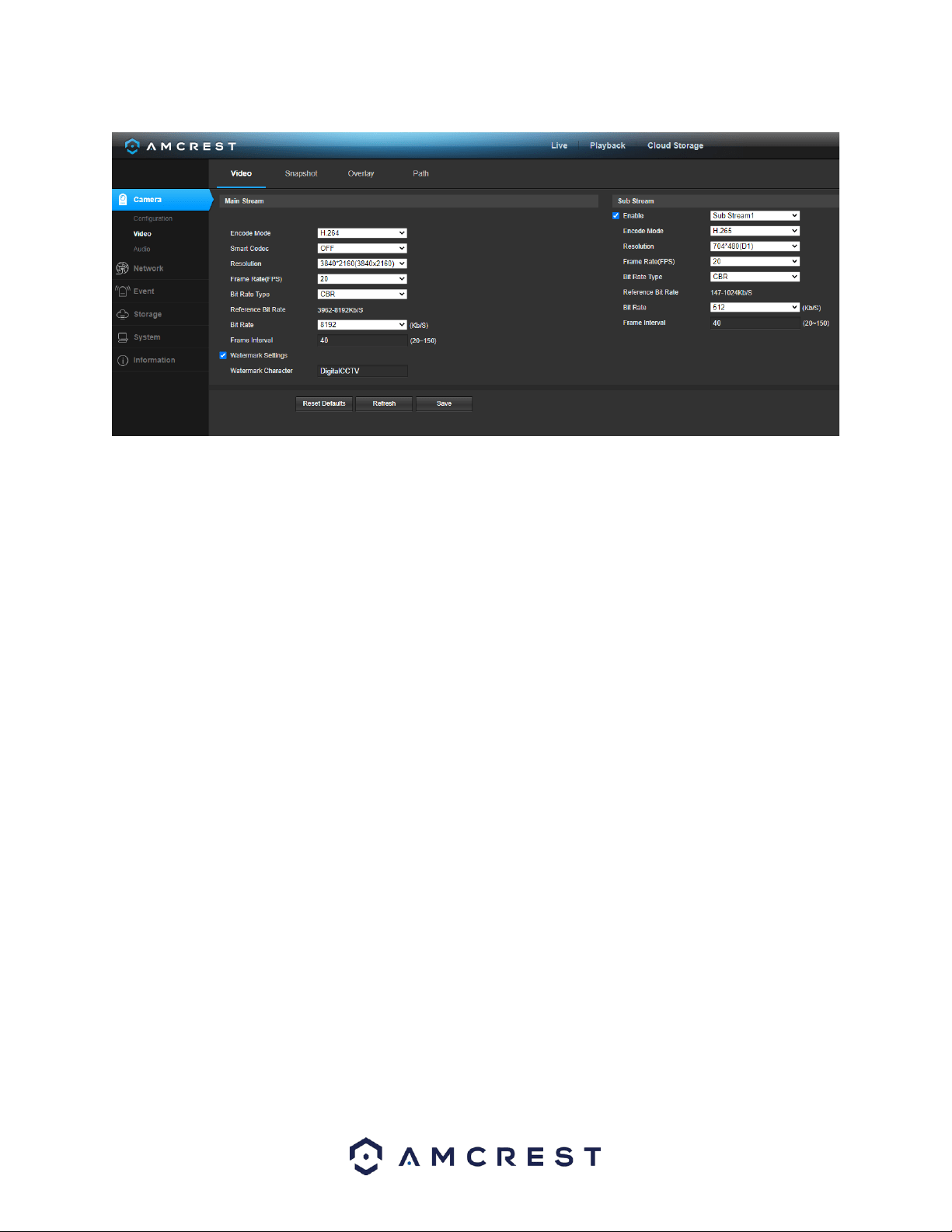
Below is a screenshot that shows the Video tab in the Video menu item:
20
Below is an explanation for each of the fields on the Video tab in the Video menu item:
Encode Mode: This dropdown box allows the user to select a compression protocol.
Smart Codec: This option allows the user to enable or disable the smart codec. Smart codec is a function in most
Amcrest cameras which aim to reduce bandwidth consumption without losing visible image quality by intelligently
increasing compression where it will not make a visible difference in the scene.
Resolution: This dropdown box allows the user to set the resolution. The system supports various resolutions and
they can be selected from this dropdown list.
Frame Rate (FPS): This dropdown box allows the user to select a frame rate. Frame rate settings are measured in
frames per second (FPS) and can range from 1f/s to 25f/s in PAL mode and 1f/s to 30f/s in NTSC mode.
Bit Rate Type: This dropdown box allows the user to select a bit rate type. The system supports two-bit rate types:
CBR and VBR. In VBR mode, video quality can be set.
Reference Bit Rate: This is the recommended bit rate value according to the resolution and frame rate selected.
Bit Rate: This dropdown box allows the user to select a bit rate.
Frame Interval: This field allows the user to set the P frame amount between two I frames. The value ranges from
1 to 150 seconds. Default value is 50. Recommended value is frame rate *2.
Watermark Settings: This function allows the user to verify if the video has been tampered with.
Watermark Character: This field allows the user to set the watermark’s text. The default string is Digital CCTV. The
maximum length is 85 characters. This string can only include numbers, characters, and underscores.
Sub Stream is a lower quality stream that allows the feed to take up less resources and bandwidth when
streaming. The Mainstream and the Sub Stream have the same fields. Sub Stream can be enabled by checking the
box next to Enable.
To reset to default settings, click the Reset Defaults button. To refresh the screen, click on Refresh. To save the
settings, click the Save button.
Snapshot
Below is a screenshot that shows the Snapshot tab in the Video menu item:
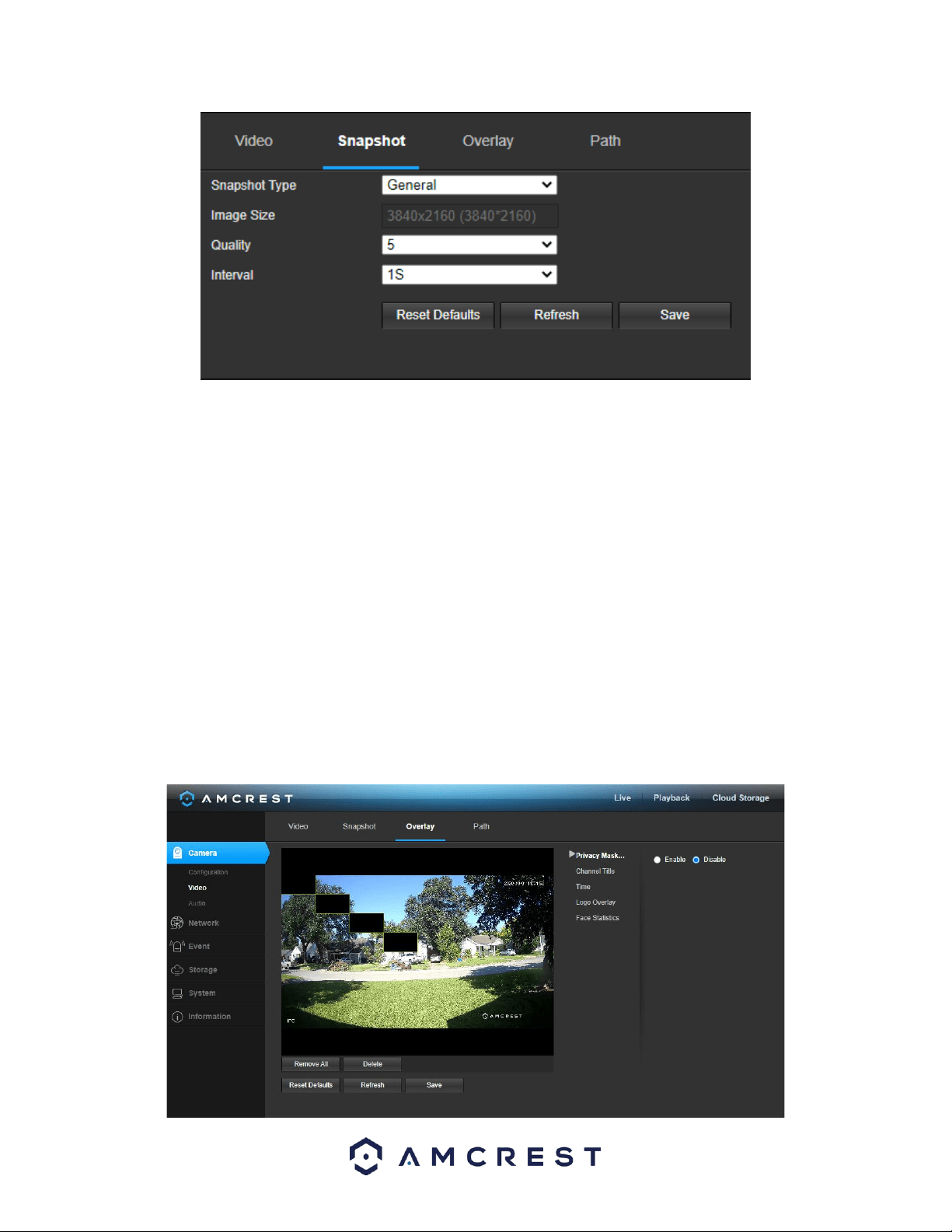
21
Below is an explanation for each of the fields on the Snapshot tab in the Video menu item:
Snapshot Type: This dropdown box allows the user to select a snapshot mode. There are two snapshot modes:
General: Snapshots are taken as scheduled.
Event: Snapshots occur when a motion detection alarm or tampering alarm is triggered
Image Size: This dropdown box shows the image size. By default, the screenshot size is the same size as the video
feed’s resolution.
Quality: This dropdown box allows the user to select image quality. Quality is adjusted on a scale of
1-6 (Best).
Interval: This is to set snapshot frequency. The value ranges from 1 to 7 seconds. The maximum setting for a
customized interval is 3600s/picture.
To reset to default settings, click the Reset Defaults button. To refresh the screen, click on Refresh. To save the
settings, click the Save button.
Overlay
Below is a screenshot that shows the Overlay tab:
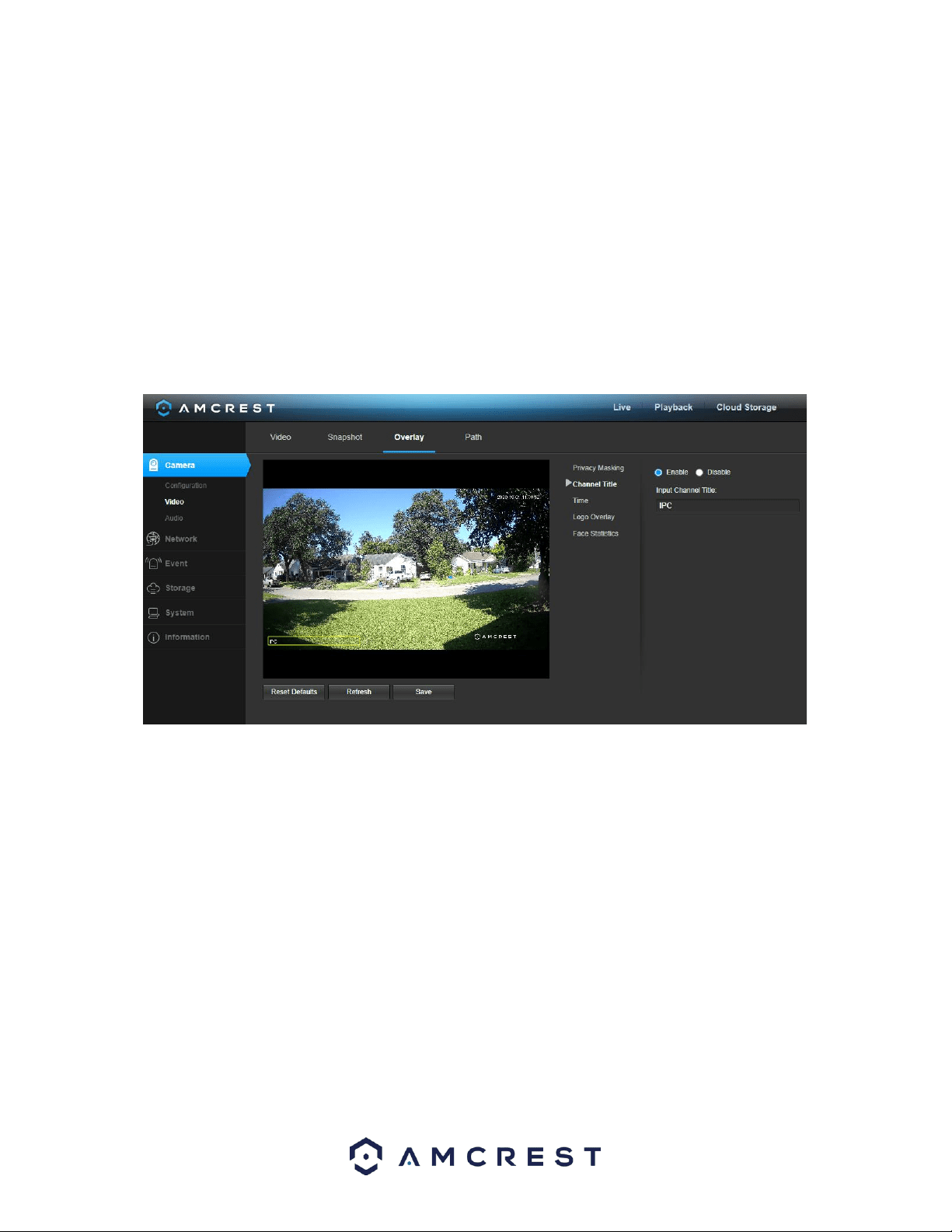
22
Privacy Masking
Privacy Masking allows the user to enable and disable up to 4 privacy masking blocks on the live view window. To
set a privacy mask, click one of the boxes in the live view window, and position or resize it as needed. To remove a
box, click on it, then click the delete button. To remove all privacy filter boxes, click the remove all button.
To remove all the settings applied in this menu, click Remove All. To delete a specific setting, select the setting you
wish to delete can click Delete. To reset to default settings, click the Reset Defaults button. To refresh the screen,
click on Refresh. To save the settings, click the Save button.
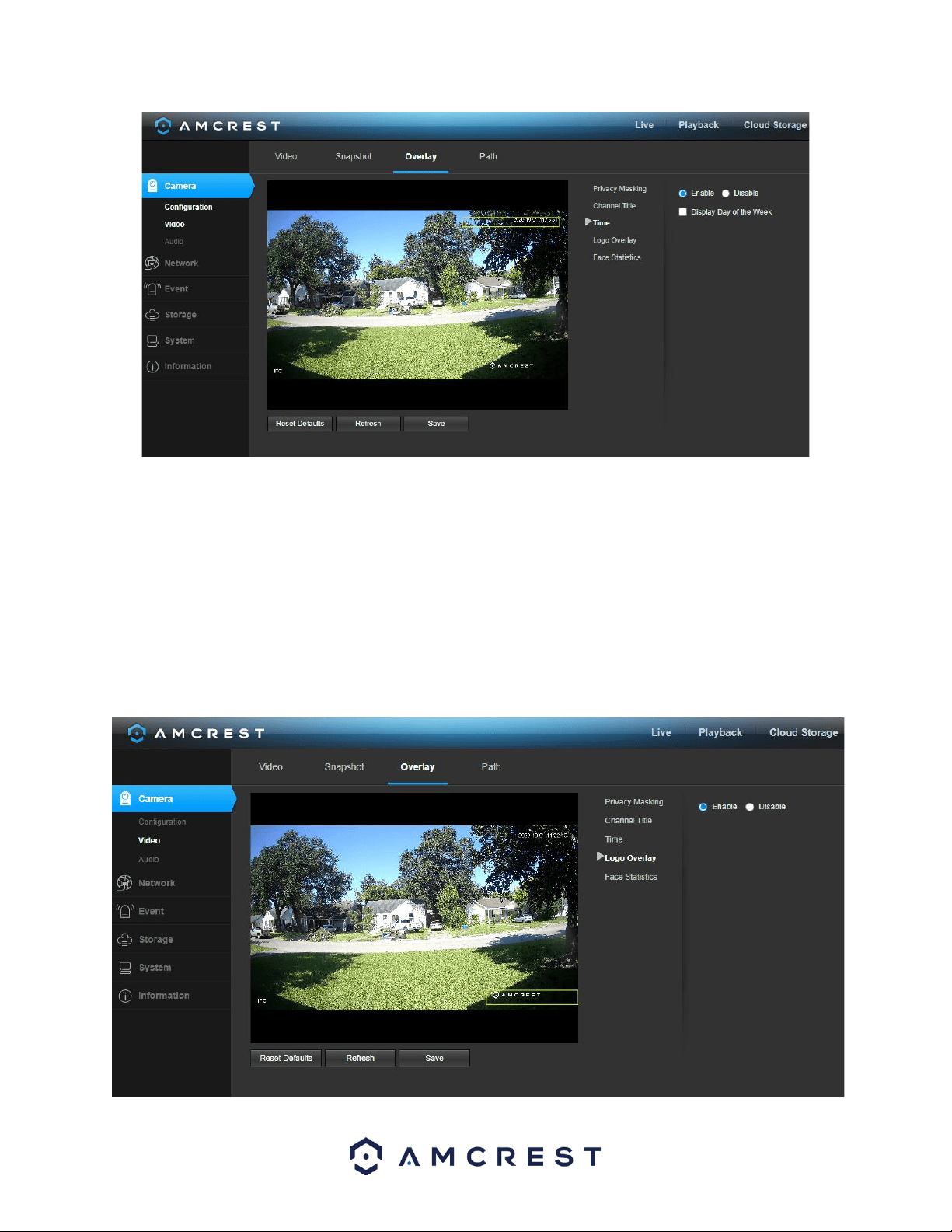
Channel Title
The Channel Title menu allows the user to enable, disable, and customize channel titles in the interface.
Enable – This radio button allows the user to enable the channel title. The channel title can be placed in different
areas of the interface by clicking the title on the interface and moving it with your mouse to a desired area.
Disable – This radio button is used to disable the channel title feature.
Input Channel Title: This field allows the user to customize the text in the channel title.
To reset to default settings, click the Reset Defaults button. To refresh the screen, click on Refresh. To save the
settings, click the Save button.
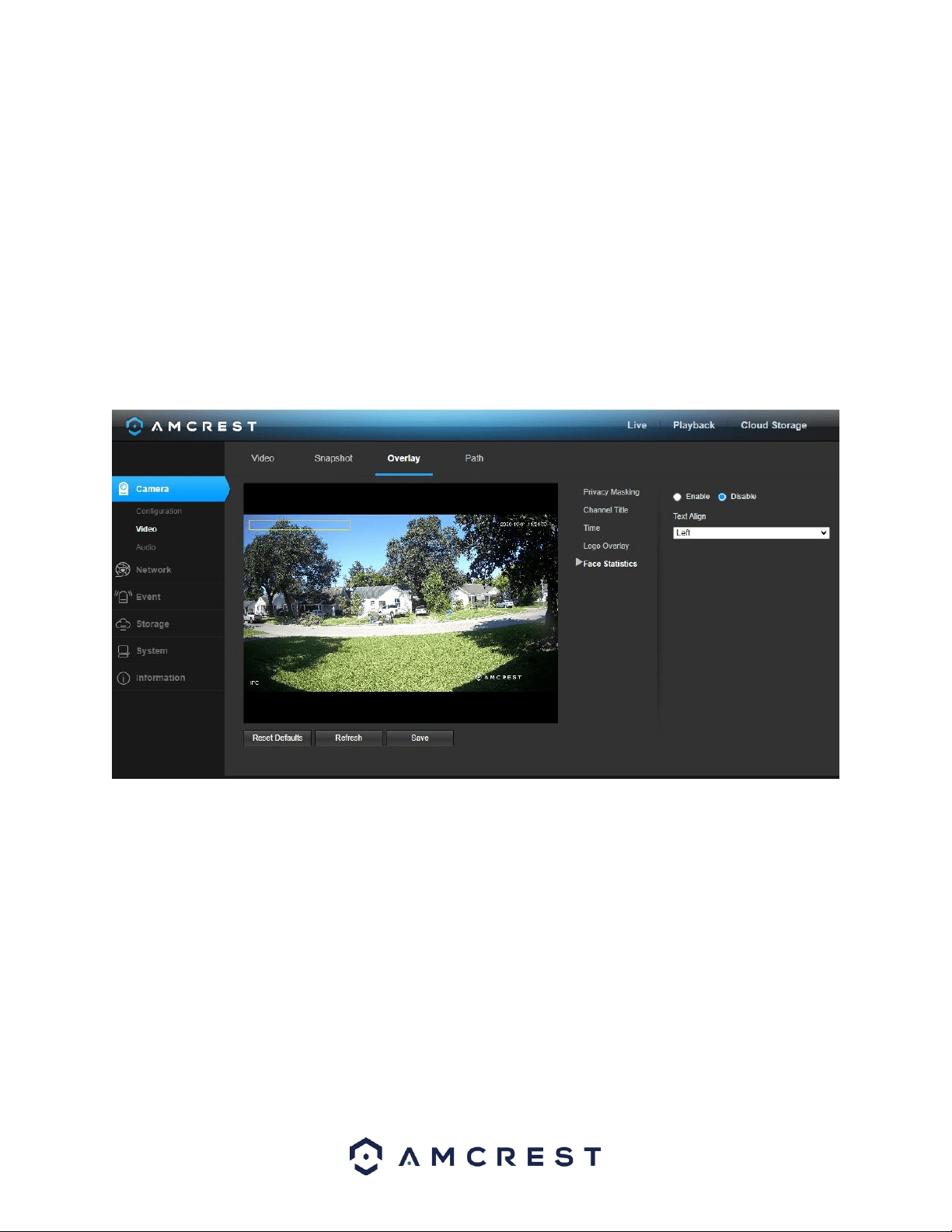
Time
The Time menu allows the user to enable and disable the time display in the interface.
23
Enable – This radio button allows the user to enable the time overlay. The time overlay can be placed in different
areas of the interface by clicking the overlay on the interface and moving it with your mouse to a desired area.
Disable – This radio button is used to disable the time overlay.
Display Day of the Week: This checkbox is used to allow the day of the week to be displayed in the time overlay.
To reset to default settings, click the Reset Defaults button. To refresh the screen, click on Refresh. To save the
settings, click the Save button.
Overlay
The Overlay menu allows the user to enable or disable the Amcrest overlay logo in the interface.
24
Enable – This radio button allows the user to enable the Amcrest Overlay. The logo can be placed in different areas
of the interface by clicking the overlay on the interface and moving it with your mouse to a desired area.
Disable – This radio button allows the user to disable the Amcrest Overlay.
To reset to default settings, click the Reset Defaults button. To refresh the screen, click on Refresh. To save the
settings, click the Save button.
Face Statistics
The Face Statistics menu allows the user to enable and disable the face detection statistics that were detected by
the camera. Please note, this option will be disabled by default until the face detection option has been manually
enabled by the user.
Enable – This radio button allows the user to enable the face detection statistics overlay. The Face Statistics
overlay can be placed in different areas of the interface by clicking the title on the interface and moving it with
your mouse to a desired area.
Disable – This radio button allows the user to disable the face detection statistics overlay.
Text Align – This dropdown menu allows the user to align the overlay text to the left or to the right of the overlay
box.
To reset to default settings, click the Reset Defaults button. To refresh the screen, click on Refresh. To save the
settings, click the Save button.
Audio
This menu allows the user to modify audio settings for the camera.
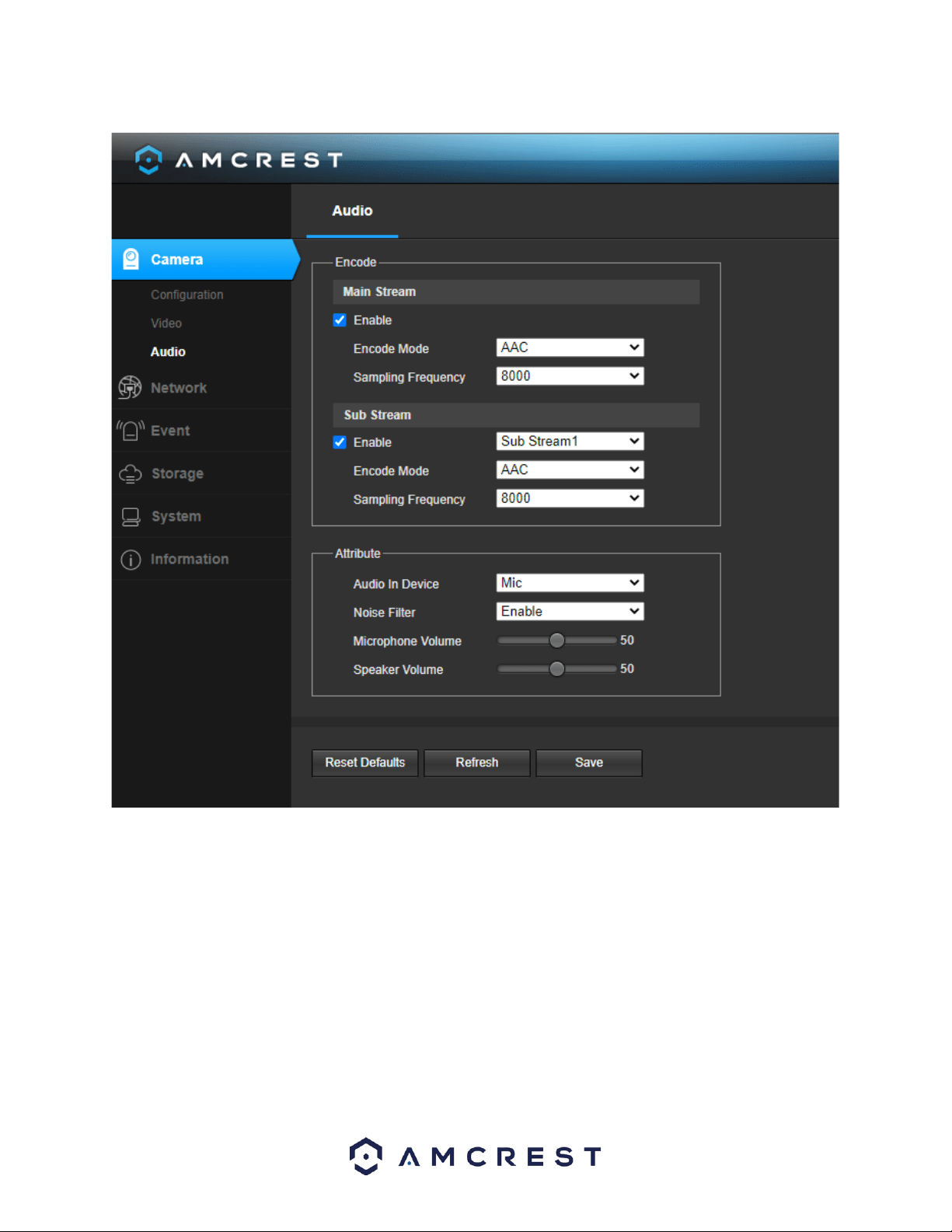
Below is a screenshot of the Audio menu:
25
Below is an explanation for each of the fields on the Audio menu:
Main Stream: Sets the audio settings for the main stream:
Enable: This checkbox allows the user to enable audio recording.
Encode Mode: This dropdown box allows the user to select an audio format. By default, the camera will
be set to AAC encoding.
Sampling Frequency: This dropdown box allows the user to select a sampling frequency for the audio.
Sub Stream: Sets the audio settings for the sub stream:
Enable: This checkbox allows the user to enable audio recording.
Encode Mode: This dropdown box allows the user to select an audio format. By default, the camera will
be set to AAC encoding.
Sampling Frequency: This dropdown box allows the user to select a sampling frequency for the audio.
Audio in Device: This field allows the user to select what source to get audio from. The default is the camera’s
built-in mic. Alternatively, the line in mic can be selected.
26
Noise Filter: This dropdown box allows the user to enable or disable the audio noise filter function. This function
provides cleaner audio quality when enabled.
Microphone Volume: This slider allows the user to select the microphone volume. The value ranges from 0 to 100.
The default value is 50.
Speaker Volume: This slider allows the user to raise or lower the audio out volume. The value ranges from 0 to
100. The default value is 50.
To reset to default settings, click the Reset Defaults button. To refresh the page, click the Refresh button. To save
the settings, click the Save button.
Network
This menu section allows the user to change network settings for the camera.
TCP/IP
The TCP/IP menu item has two tabs: TCP/IP and P2P.
TCP/IP
TCP/IP stands for Transmission Control Protocol/Internet Protocol and it is the language/protocol that allows
communication between internet connected devices, whether on a local network, or a on the Internet at large.
This screen allows for TCP/IP settings to be modified for the camera to establish a connection to the network.
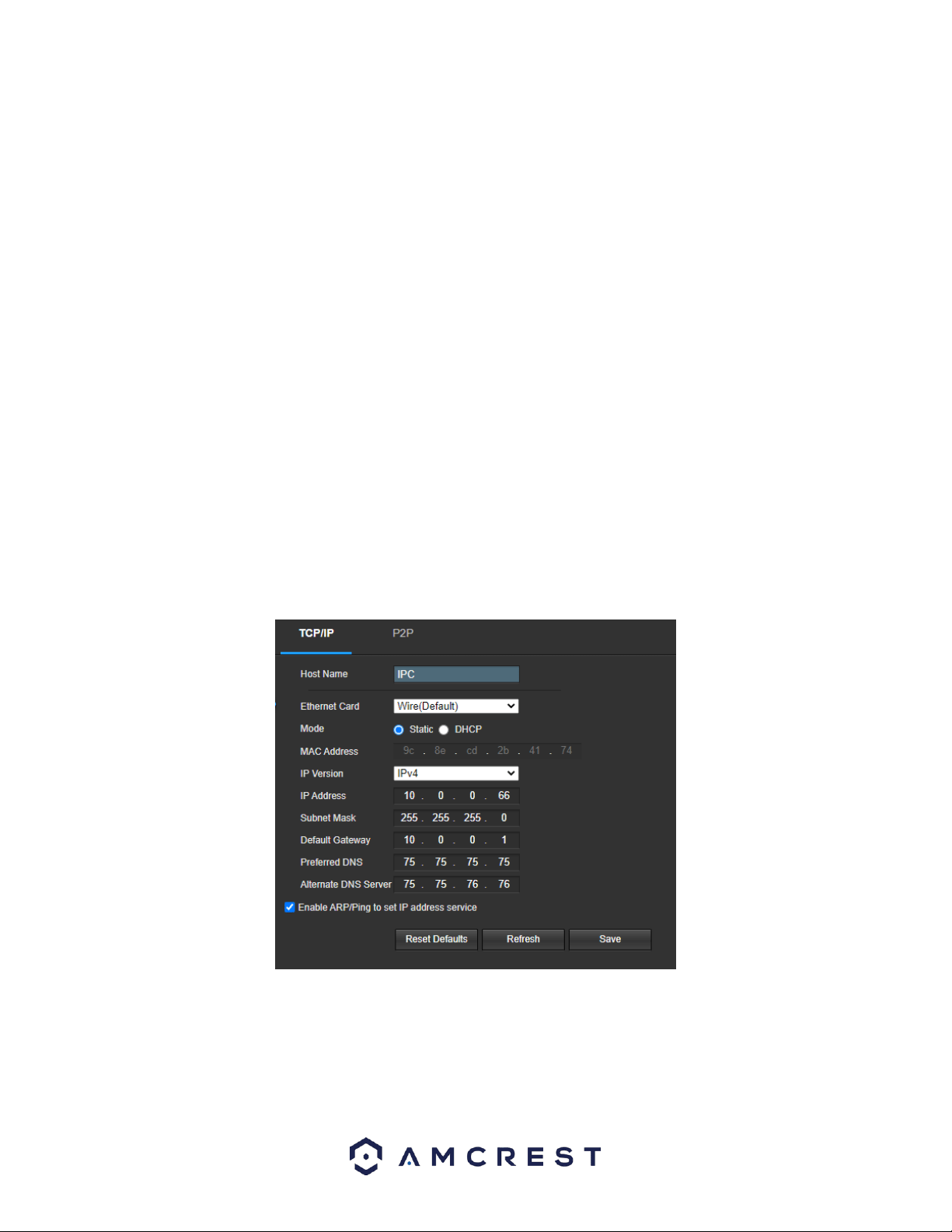
Below is a screenshot of the TCP/IP settings tab:
Below is an explanation of the fields on the TCP/IP settings tab:
Host Name: This text field allows the user to change the host device name for the camera. This field supports a
maximum of 15 characters.
Ethernet Card: This dropdown box allows the user to select which internet access device to use. If the device is
connected to a wired connection and a wireless one at the same time, then this box will have options to pick either
27
of the connections. The Set as Default button allows the user to select one of the connection methods as the
default one.
Mode: Static vs DHCP: This radio button allows the user to choose between a static IP address, and a dynamic IP
address. DHCP stands for Dynamic Host Configuration Protocol, and this enables the camera to automatically
obtain an IP address from another network device such as a server or more commonly, a router. When the DHCP
function is enabled, the user cannot modify the IP address, Subnet Mask, or Default Gateway, as these values are
obtained from the DHCP function. To view the current IP address, DHCP needs to be disabled. Note: When PPPoE
is enabled, modification of the IP Address, Subnet Mask, and Gateway becomes prohibited.
MAC Address: This field shows the camera’s MAC address, which is unique to this device. This number is read only
and is used to access a local area network (LAN).
IP Version: This dropdown allows the user to select the IP version. The two options are IPV4 and
IPV6.
IP Address: This field allows the user to enter a custom IP address.
Subnet Mask: This field allows the user to enter a custom subnet mask.
Default Gateway: This field allows the user to enter a custom default gateway.
Preferred DNS Server: This field allows the user to enter the preferred DNS server IP address.
Alternate DNS Server: This field allows the user to enter the alternate DNS server IP address.
Enable ARP/Ping to set IP Address Service: This checkbox allows the user to enable the ARP/Ping service to change
the IP address service. For more information on this feature, click the help button while on the TCP/IP settings tab.
To reset to default settings, click the Reset Defaults button. To refresh the page, click the Refresh button. To save
the settings, click the Save button.
P2P
The P2P settings screen is where users can use a QR code to connect their smartphone or tablet to the camera.
This feature needs to be enabled for use with the Amcrest View app, Amcrest Cloud, or AmcrestView.com.
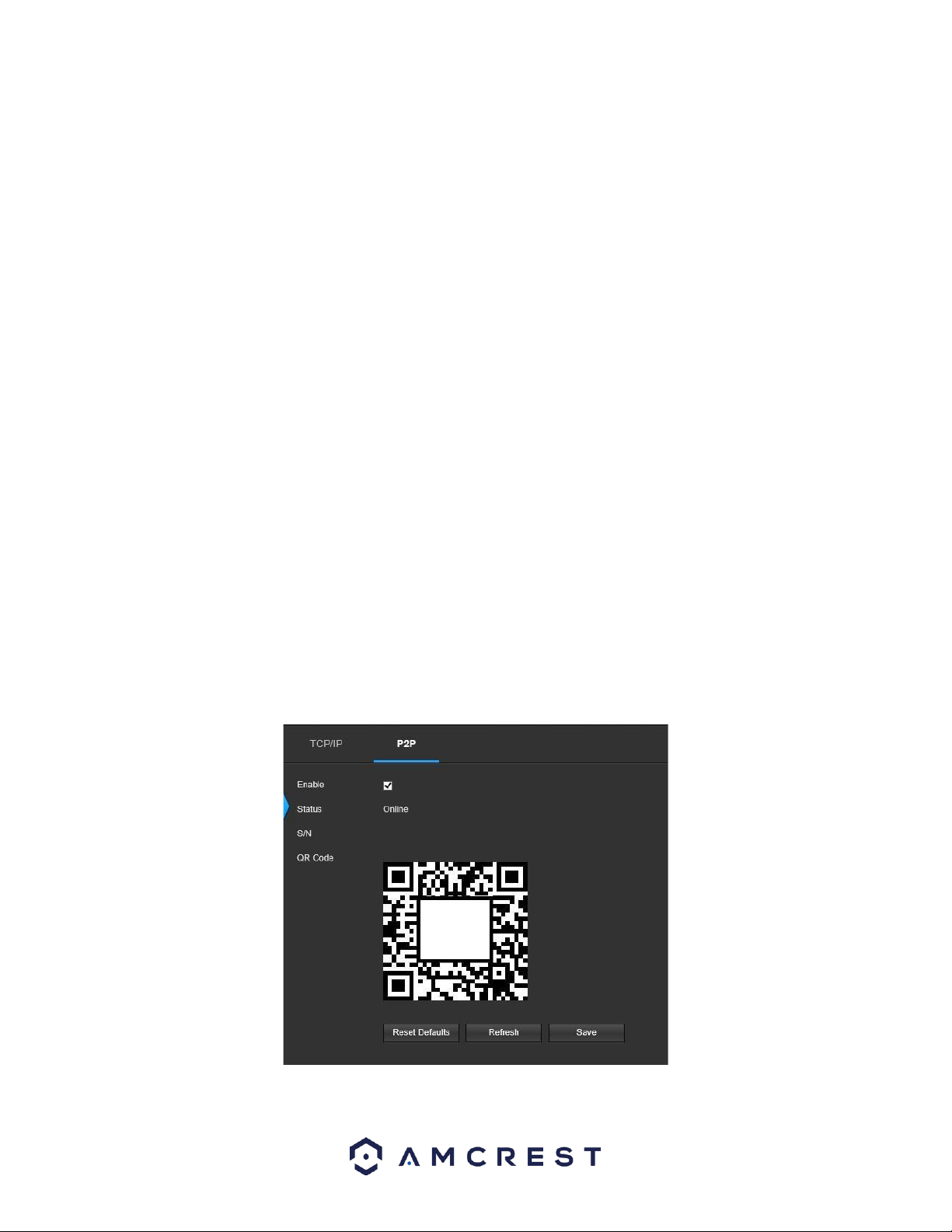
Below is a screenshot of the P2P settings tab:
Below is an explanation of the fields on the P2P settings tab:
28
Enable: This checkbox allows the user to enable the P2P feature for the camera. This feature must be enabled for
the camera to connect to a smartphone or tablet via the Amcrest View app. It is enabled by default.
Status: This field displays the status of the P2P connection. Once the camera is connected to a device, this field
should display the word Online.
S/N: This field displays the Token ID for the camera. The Token ID can be used to manually enter the camera’s
information on a mobile or tablet device in case the QR code scanning feature cannot be used.
QR Code: This image is a Quick Response (QR) code. By scanning this image using the Amcrest View app, this
camera can establish a connection with the app.
To reset to default settings, click the Reset Defaults button. To refresh the page, click the Refresh button. To save
the settings, click the Save button.
Connection
The Connection tab is where users can configure port connections.
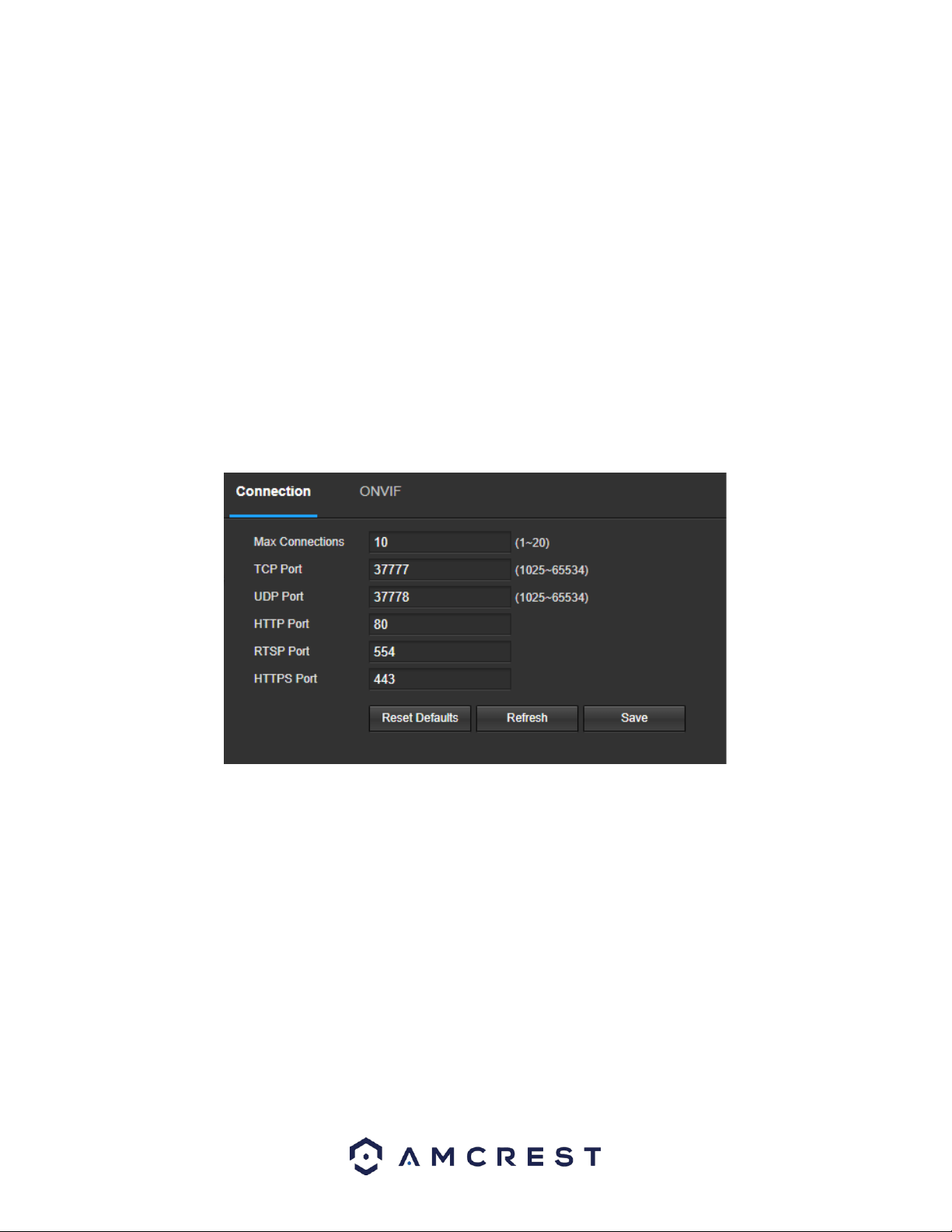
Below is a screenshot of the Port settings tab:
Below is an explanation of the fields on the Connection settings tab:
Max Connections: This field allows the user to specify the maximum number of users that can be connected to the
camera at the same time. The maximum number of users the camera can support at one time is 20.
TCP Port: This field designates the Transmission Control Protocol (TCP) port number. The default value is 37777.
UDP Port: This field designates the User Datagram Protocol (UDP) port number. The default value is 37778.
HTTP Port: This field designates the Hypertext Transfer Protocol (HTTP) port number. The default value is 80.
RTSP Port: This field designates the Real Time Streaming Protocol (RTSP) port number. The default value is 554.
HTTPS: This field enables the use of the HTTPS protocol for accessing the camera.
HTTPS Port: This field designates the Hypertext Transfer Protocol Secure (HTTPS) port number. The default value is
443.
To reset to default settings, click the Reset Defaults button. To refresh the page, click the Refresh button. To save
the settings, click the Save button.
29
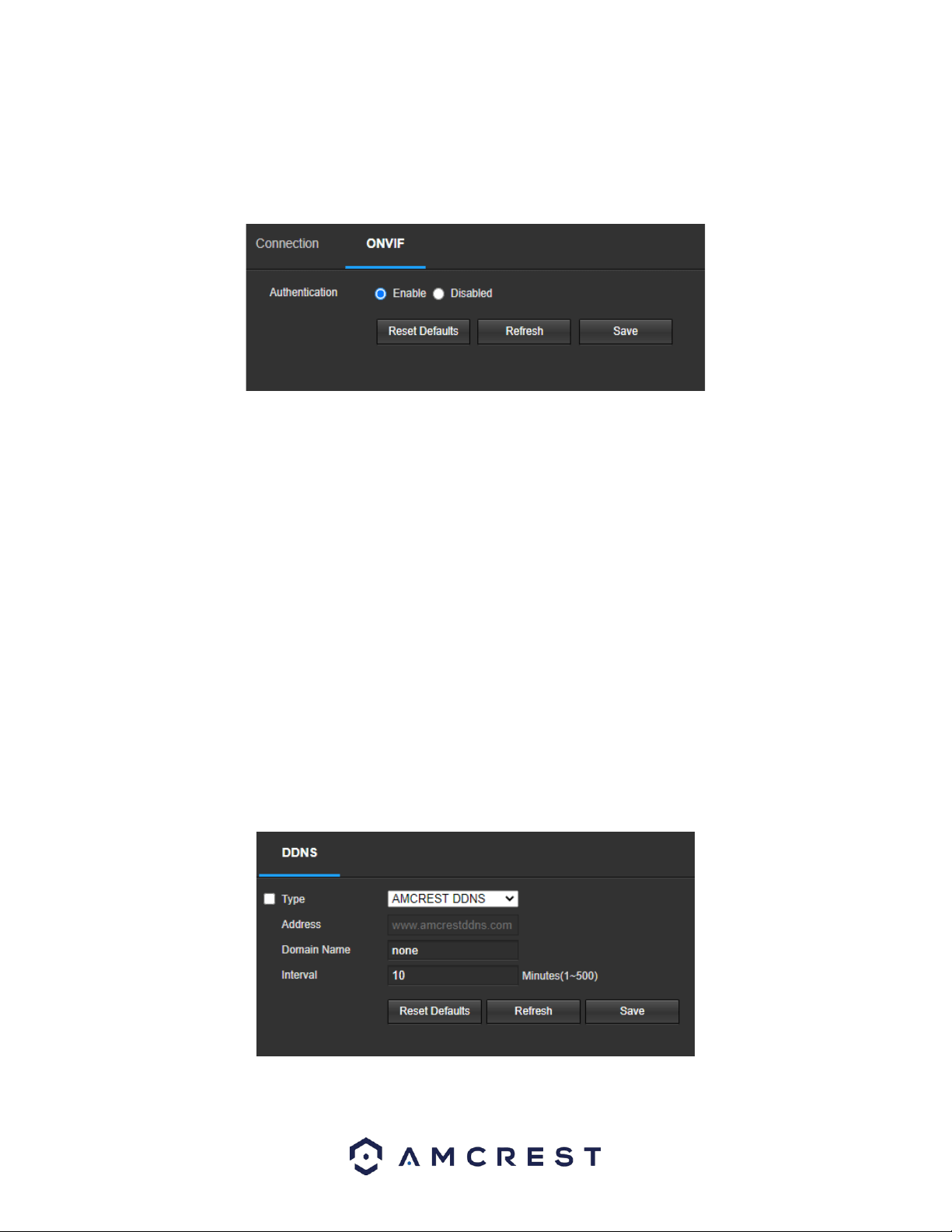
ONVIF
The ONVIF tab is where users can configure authentication via the ONVIF standard.
Below is a screenshot of the ONVIF settings tab:
To enable ONVIF, click the radio button next to Enable, and then click the Save button.
To reset to default settings, click the Reset Defaults button. To refresh the page, click the Refresh button. To save
the settings, click the Save button.
DDNS
DDNS stands for Dynamic Domain Name Server. This technology is used to automatically update name servers in
real time to help the camera maintain a persistent address despite changes in location or configuration. What this
means is that even when the camera is restarted, moved, or reconfigured, it can keep the same IP address, thus
allowing remote users uninterrupted access to the camera, rather than having to request a new IP address to use
for remote access anytime a change is made.
To use this feature, users will need to setup an account with a DDNS service. The camera supports a variety of
DDNS services such as AMCRESTDDNS, NO-IP DDNS, CN99 DDNS, and Dyndns DDNS. Based on which service is
selected, different options may show on this screen. For purposes of this guide, AmcrestDDNS will be used.
AmcrestDDNS is a free DDNS service provided by Amcrest, and it must be renewed every year. A renewal reminder
email will be sent to the email entered in the username field below.
Below is a screenshot of the DDNS settings screen, configured to AmcrestDDNS:
To reset to default settings, click the Reset Defaults button. To refresh the page, click the Refresh button. To save
the settings, click the Save button.

30
IP Filter
This screen allows for the filtering of IP addresses, either blocking them, or granting them access to the camera.
This feature helps make the camera more secure by limiting remote access only to approved users. Below is a
screenshot of the IP Filter screen:
Below is an explanation of fields on the IP Filter settings screen:
Trusted Sites: This checkbox allows the user to enable the IP Filter feature for trusted sites.
Add IP/MAC: This button opens a popup that allows the user to add IP or MAC addresses to the trusted site list.
Note: When accessing the camera externally, please add the MAC address of the router on the PC end.
Remove All: This button allows the user to remove all sites from the trusted IP/MAC list.
To reset to default settings, click the Reset Defaults button. To refresh the page, click the Refresh button. To save
the settings, click the Save button.
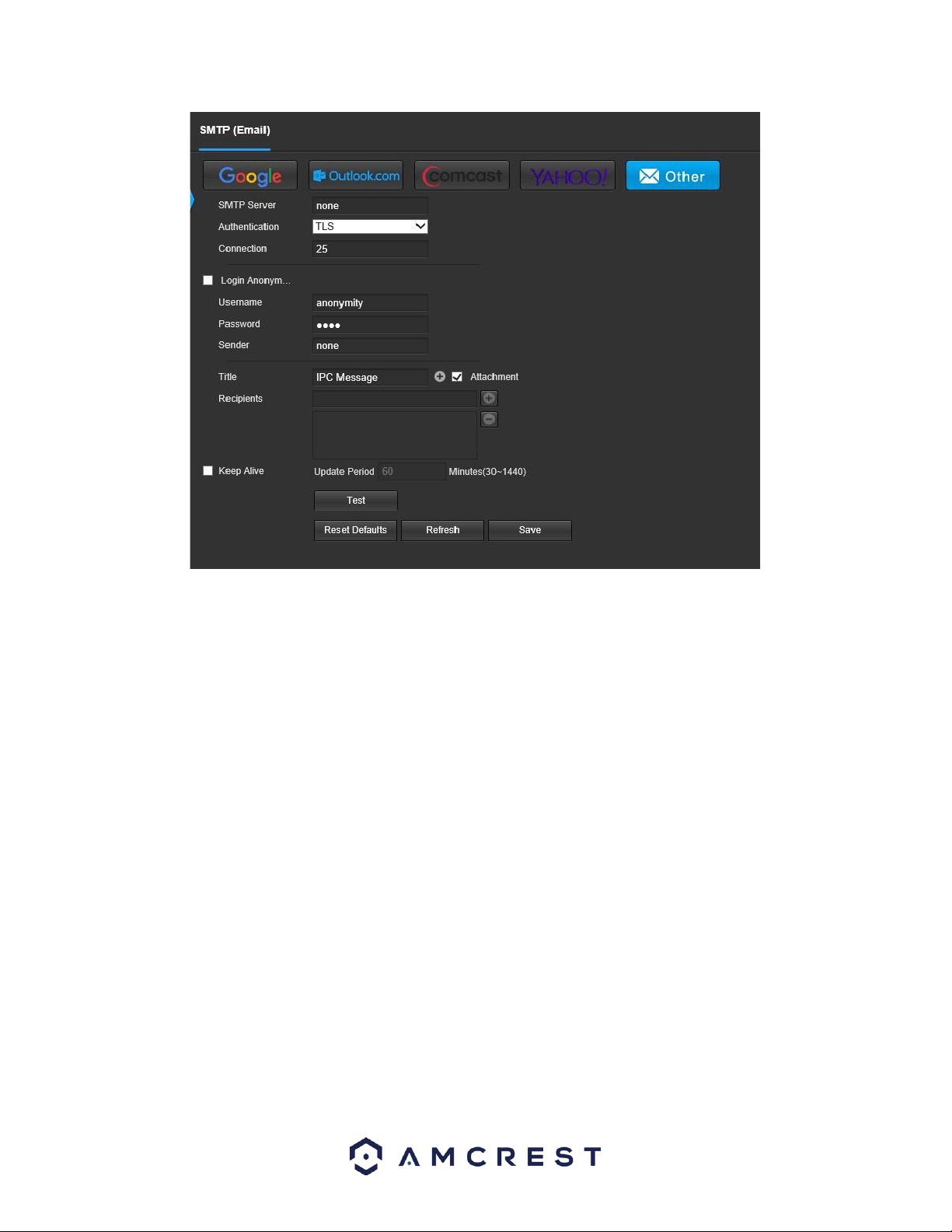
SMTP (Email)
This screen allows for the configuring of email settings to permit the camera to send emails when an alarm is
triggered.
Below is a screenshot of the email settings screen:
31
Below is an explanation of fields on the SMTP (Email) settings screen:
SMTP Server: SMTP stands for Simple Mail Transfer Protocol. This field allows the user to enter the SMTP server
used by the email service.
Authentication: This dropdown box allows the user to select an encryption type. There are two types of email
encryption protocols that are available:
SSL: Secure Socket Layer
TLS: Transport Layer Security
Connection: This field allows the user to enter the port that corresponds to the selected SMTP server.
Login Anonymously: This checkbox allows the user to anonymously login to the server.
Username: This field allows the user to enter the SMTP username.
Password: This field allows the user to enter the password associated with the SMTP username.
Sender: This field allows the user to enter the sender email address. This email address will be the one that sends
out all emails pertaining to the alerts and alarm emails sent by the camera.
Title: This field allows the user to define the subject line of the email that is sent to the receivers.
Attachment: This checkbox allows a snapshot of the event to be attached to the email notification.
Recipients: This field allows the user to enter the receiver email address. These email addresses are the ones that
will receive any emails pertaining to alert and alarm emails sent by the camera. Up to 3 email addresses can be
entered in this field.
Keep Alive: This checkbox allows the user to enable a function to periodically check in with the SMTP server to
ensure it can connect correctly.
Update Period: This field allows the user to define, in minutes, how long the system should wait between sending
emails. This prevents multiple emails from being sent out.
Email Test: This button causes the system to automatically send out an email to test the connection is OK or not.
Prior to the email test, please save the email setup information.
32
To reset to default settings, click the Reset Defaults button. To refresh the page, click the Refresh button. To save
the settings, click the Save button.
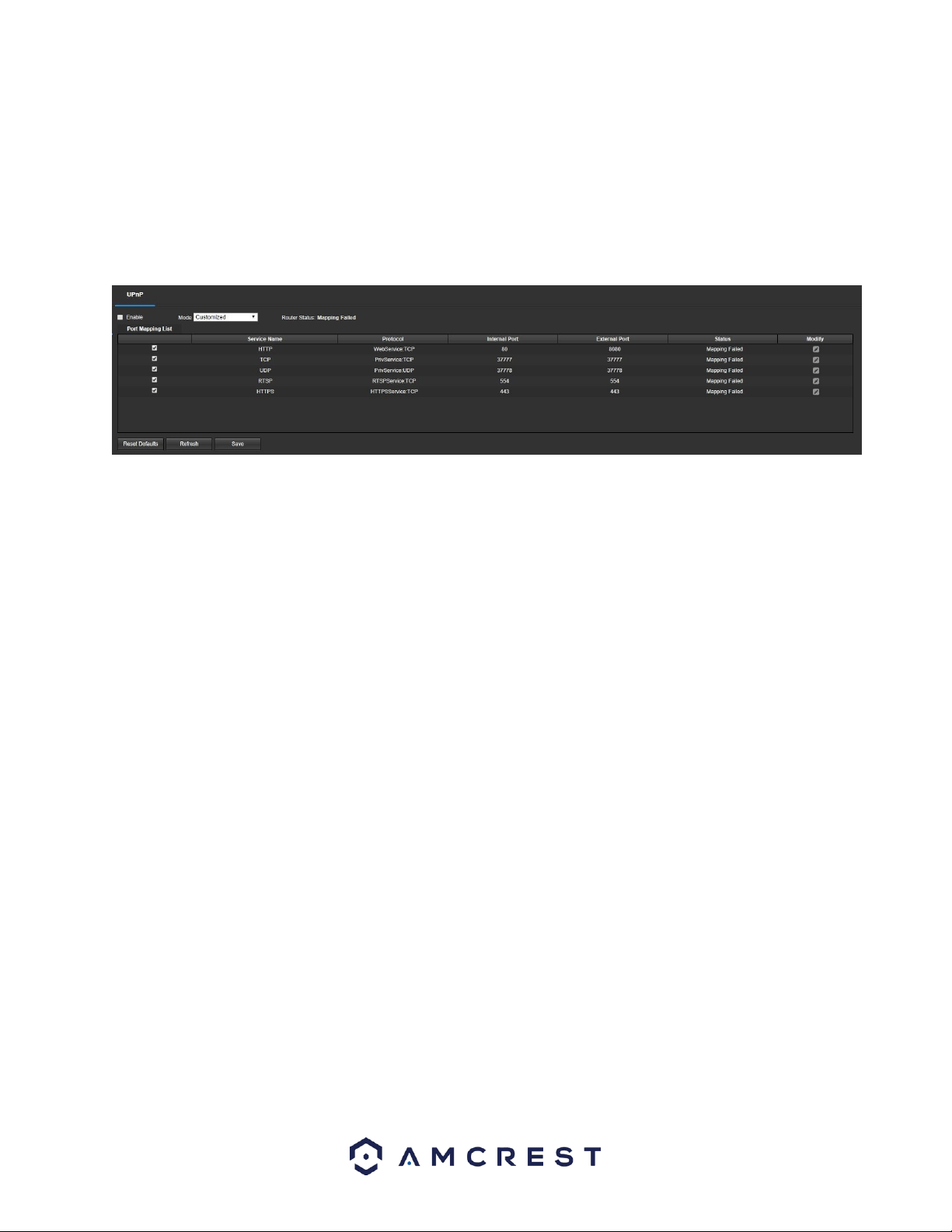
UPnP
UPnP stands for Universal Plug and Play, and it is a protocol used to easily connect devices to the internet. In the
case of this camera, it allows the camera to connect to the router in an easy manner to quickly allow for remote
access. Below is a screenshot of the UPnP settings screen:
Below is an explanation of fields on the UPnP settings screen:
Enable: This checkbox allows the user to enable the UPnP function.
Mode: This dropdown menu allows the user to set UPnP modes:
Customized: Allows the user to set customized UPnP settings.
Reset Defaults: Resets the UPnP settings to default.
Router State: This field shows the UPnP status and has two options:
Mapping Failed: This means that UPnP mapping has failed.
Mapping Successful: This means that UPnP mapping has succeeded.
Port Mapping List: This table is used to show how the ports for each protocol listed below have been remapped by
the UPnP protocol.
The first column shows the checkboxes to enable the corresponding service on the table.
The second column shows the name of the services. To edit this, double click on the service line item.
The third column shows the name of the protocol used by that service. To edit this, click the pencil button in the
modify column for that line item.
The fourth column shows the Internal Port used by that service to establish communication from the router to the
camera. To edit this, click the pencil button in the modify column for that line item. o
The fifth column shows the External Port used by that service to establish communication from the router to the
internet. To edit this, click the pencil button in the modify column for that line item.
The sixth column shows the status of the protocol. If the protocol was mapped successfully, this field will say
“Mapping Succeeded”.
The seventh column allows the user to open a dialog box and edit the service’s information.
To reset to default settings, click the Reset Defaults button. To refresh the page, click the Refresh button. To save
the settings, click the Save button.
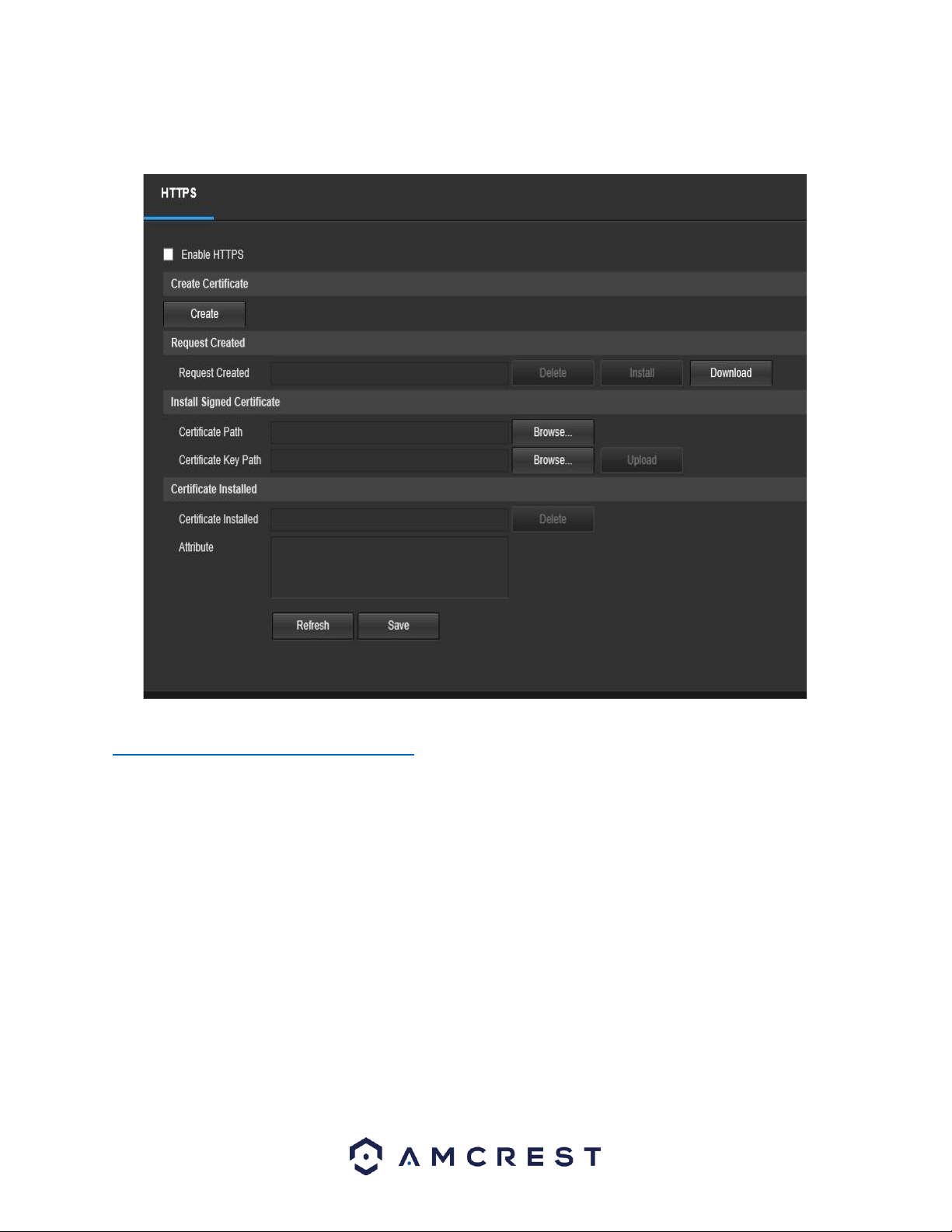
HTTPS
Hypertext Transfer Protocol Secure (https) is a combination of the Hypertext Transfer Protocol (HTTP) with the
Secure Socket Layer (SSL)/Transport Layer Security (TLS) protocol. This menu allows the user to enable and create
HTTPS certificates.
33
Below is a screenshot of this menu:
For more information on how to setup HTTPS in the web user interface visit
https://www.youtube.com/watch?v=gkjlaf-Iuso
Event
This menu section allows the user to change different settings for triggering events.
Video Detection
The video detection menu has two tabs: Motion Detect and Video Tamper.
Motion Detection
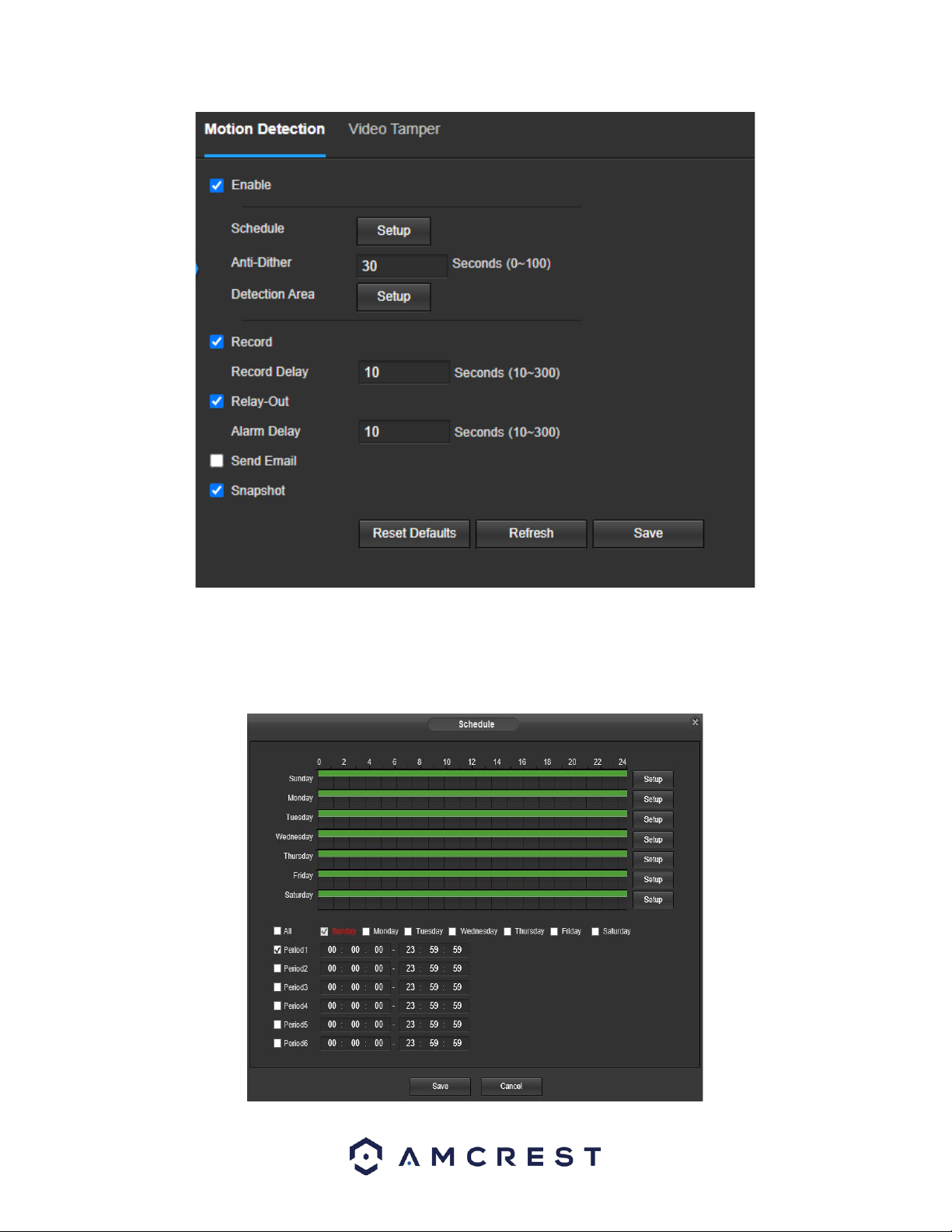
This tab allows the user to modify motion detection settings. Below is a screenshot of the Motion Detect tab:
34
Below is an explanation of the fields on the Motion Detection tab:
Enable: This checkbox enables motion detection for the camera.
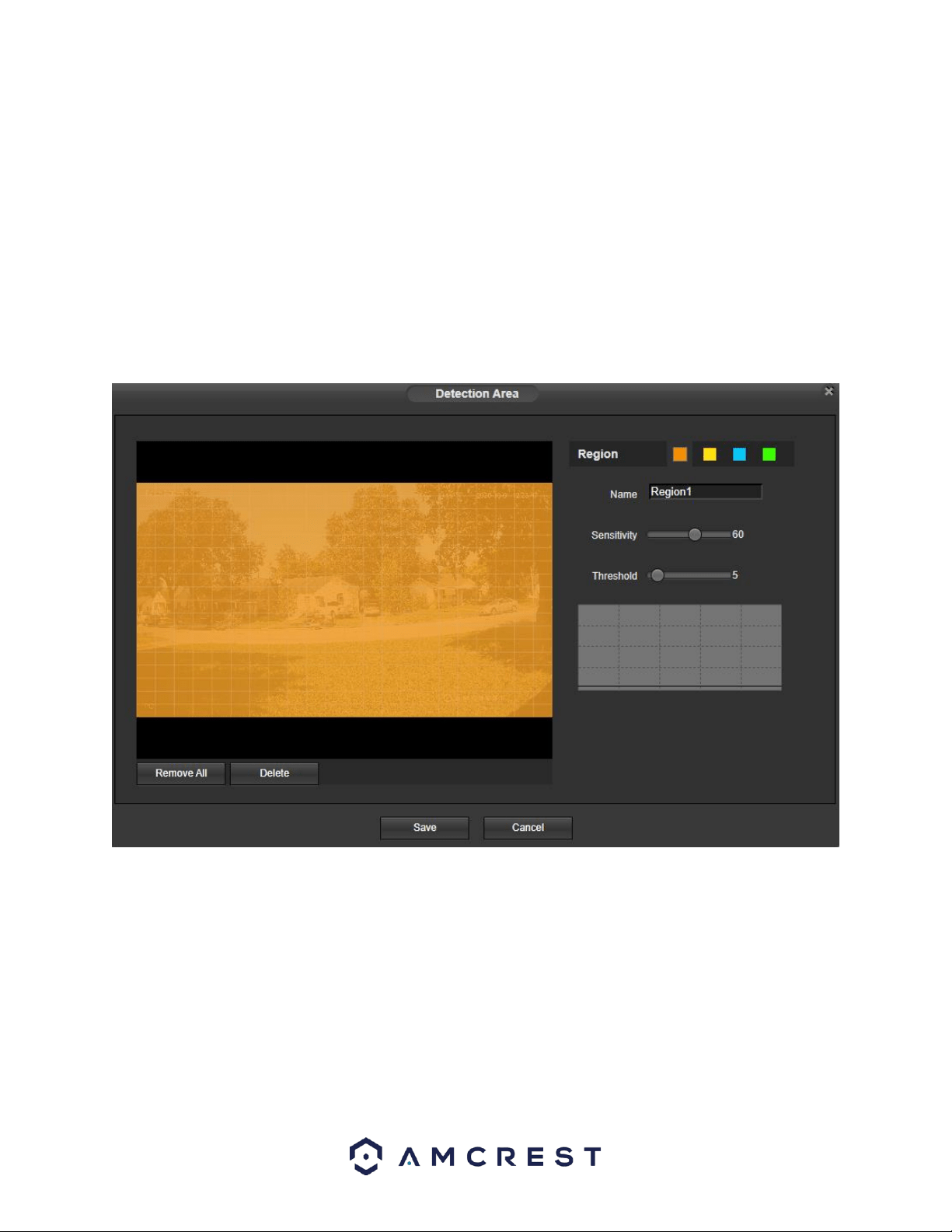
Schedule: Clicking this button opens a weekly schedule that can be used to set times.
35
Click and drag to set motion detection for certain days of the week. Also, periods of motion detection can be set
for each day and enabled using the period settings on the bottom half of the screen. There are a total of 6 periods
that can be set.
Anti-Dither: This field allows the user to set the anti-dither time. The values in this field can range from 5 to 600
seconds. This time value controls how long the alarm signal lasts. Based on motion detection, a buzzer can go off, a
tour can begin, a snapshot can be taken, or the camera can begin recording.
For example, if the anti-dither time is set to 10 seconds, each alarm may last 10 seconds if the local alarm is
activated. During the process, if the system detects another local alarm signal at the fifth second, the buzzer, tour,
snapshot, record channel functions will begin another 10 seconds while the screen prompt, alarm upload, email
will not be activated again. After 10 seconds, if system detects another alarm signal, it can generate a new alarm
since the anti-dither time has expired.
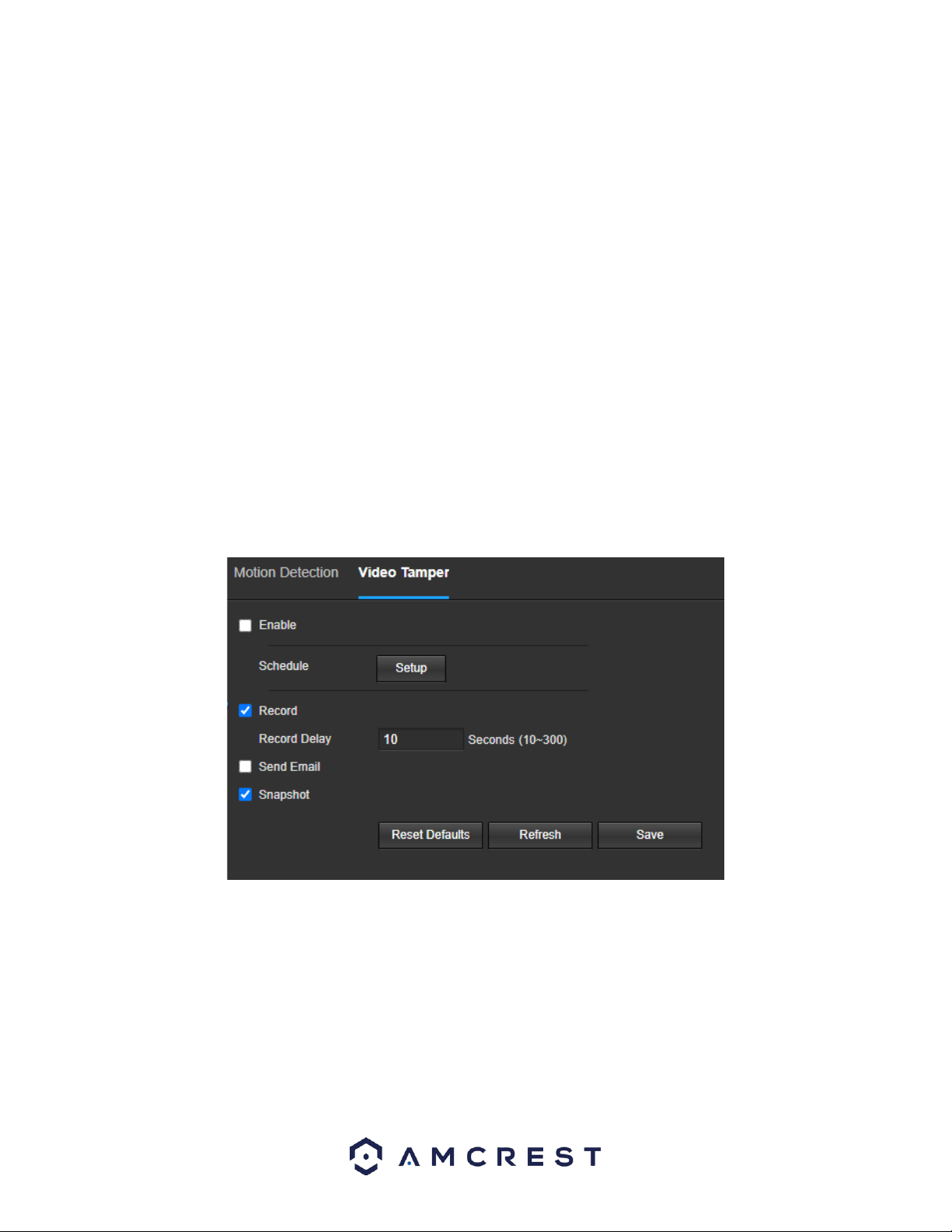
Detection Area: Clicking this button opens a pop-up screen that can be used to set detection areas.
When the setup button is clicked, a live stream of the video is shown. The user can then set up to 4 regions, each
with their own region name, sensitivity (1-100), and threshold (1-100). Each region has a specific color, and the
region selector tool is displayed when the mouse is moved to the top of the screen.
Sensitivity is the amount of change required to increase the motion detected by a percentage. The lower
the sensitivity, the more movement is required to trigger an alarm.
Threshold is the level that the motion detection needs to reach to trigger an alarm. The lower the
threshold, the more likely that motion will trigger an alarm.
To designate a zone, click and drag the mouse over the area desired. When a colored box is displayed over the live
feed, that area is now enabled for motion detection.
After the motion detection zone is set, click the enter button to exit the motion detection screen.
36
Remember to click the save button on the motion detection settings screen, otherwise the motion detection zones
will not go into effect. Clicking the cancel button to leave the motion detection zone and will not save the zone
setup.
Record: This checkbox allows the user to enable the camera to record video when a motion detection alarm is
triggered.
Record Delay: This field specifies in seconds how long the delay between alarm activation and recording should be.
Relay Out: This checkbox allows the user to enable the camera to trigger a connected alarm (connected to the
alarm port on the back of the camera) when a motion detection alarm is triggered.
Alarm Delay: This field specifies in seconds how long the delay between alarm activation and Relay alarm
activation should be.
Send Email: This checkbox allows the user to enable the camera to send an email when a motion detection alarm
is triggered.
Snapshot: This checkbox allows the user to enable the camera to take a snapshot when a motion detection alarm
is triggered.
To reset to default settings, click the Reset Defaults button. To refresh the page, click the Refresh button. To save
the settings, click the Save button.
Video Tamper
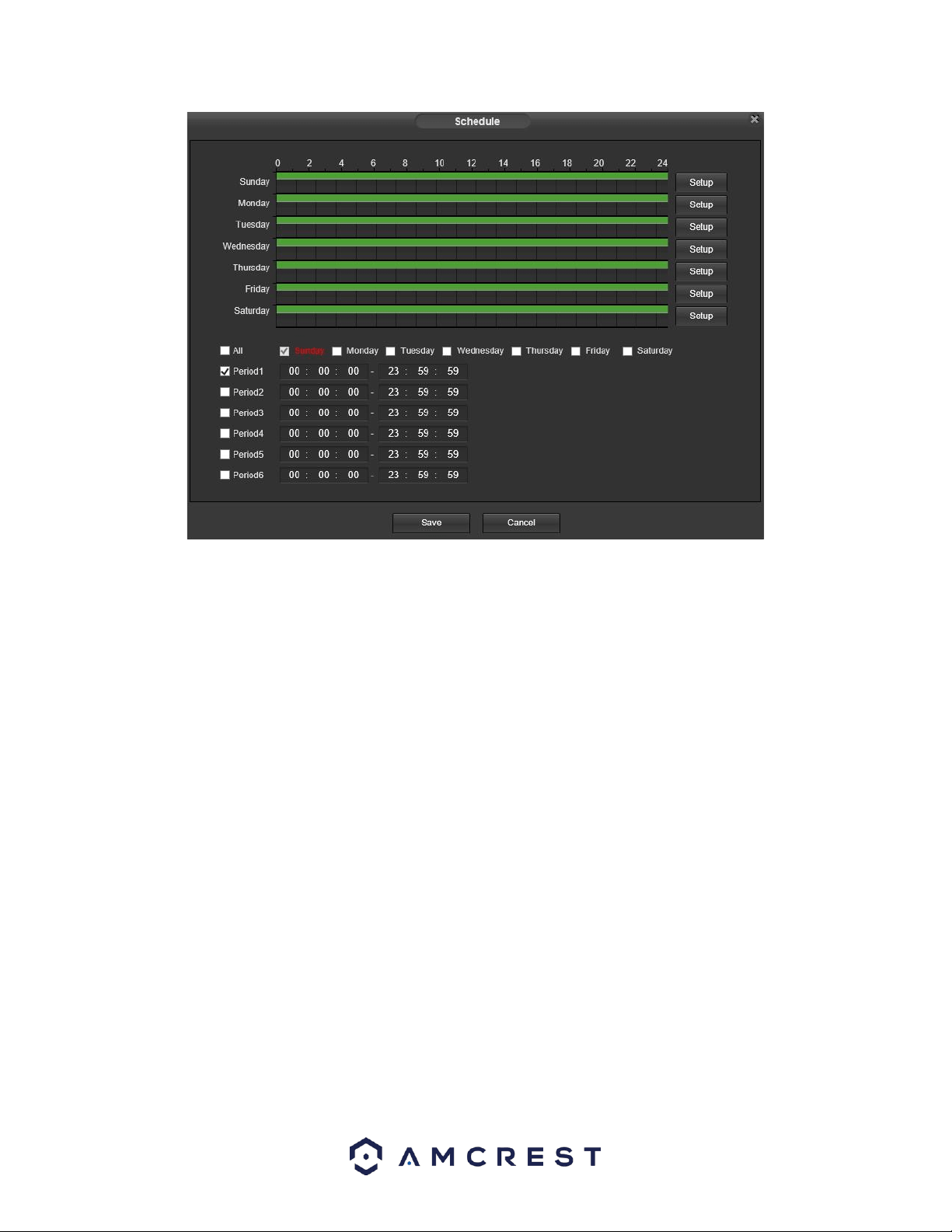
This tab allows the user to modify video tamper settings. Below is a screenshot of the Video Tamper tab:
Below is an explanation of the fields on the Video Tamper tab:
Enable: This checkbox enables a video tamper alarm for the camera.
Schedule: Clicking this button opens a weekly schedule that can be used to set times.
37
Click and drag to set video tampering for certain days of the week. Also, periods of video tampering can be set for
each day and enabled using the period settings on the bottom half of the screen. There are a total of 6 periods that
can be set.
Record: This checkbox allows the user to enable the camera to record video when a video tampering alarm is
triggered.
Record Delay: This field specifies in seconds how long the delay between alarm activation and recording should be.
Relay Out: This checkbox allows the user to enable the camera to trigger a connected alarm (connected to the
alarm port on the back of the camera) when a video tamper alarm is triggered.
Alarm Delay: This field specifies in seconds how long the delay between alarm activation and Relay alarm
activation should be.
Send Email: This checkbox allows the user to enable the camera to send an email when a video tampering alarm is
triggered.
Snapshot: This checkbox allows the user to enable the camera to take a snapshot when a video tampering alarm is
triggered.
To reset to default settings, click the Reset Defaults button. To refresh the page, click the Refresh button. To save
the settings, click the Save button.
Audio Detection
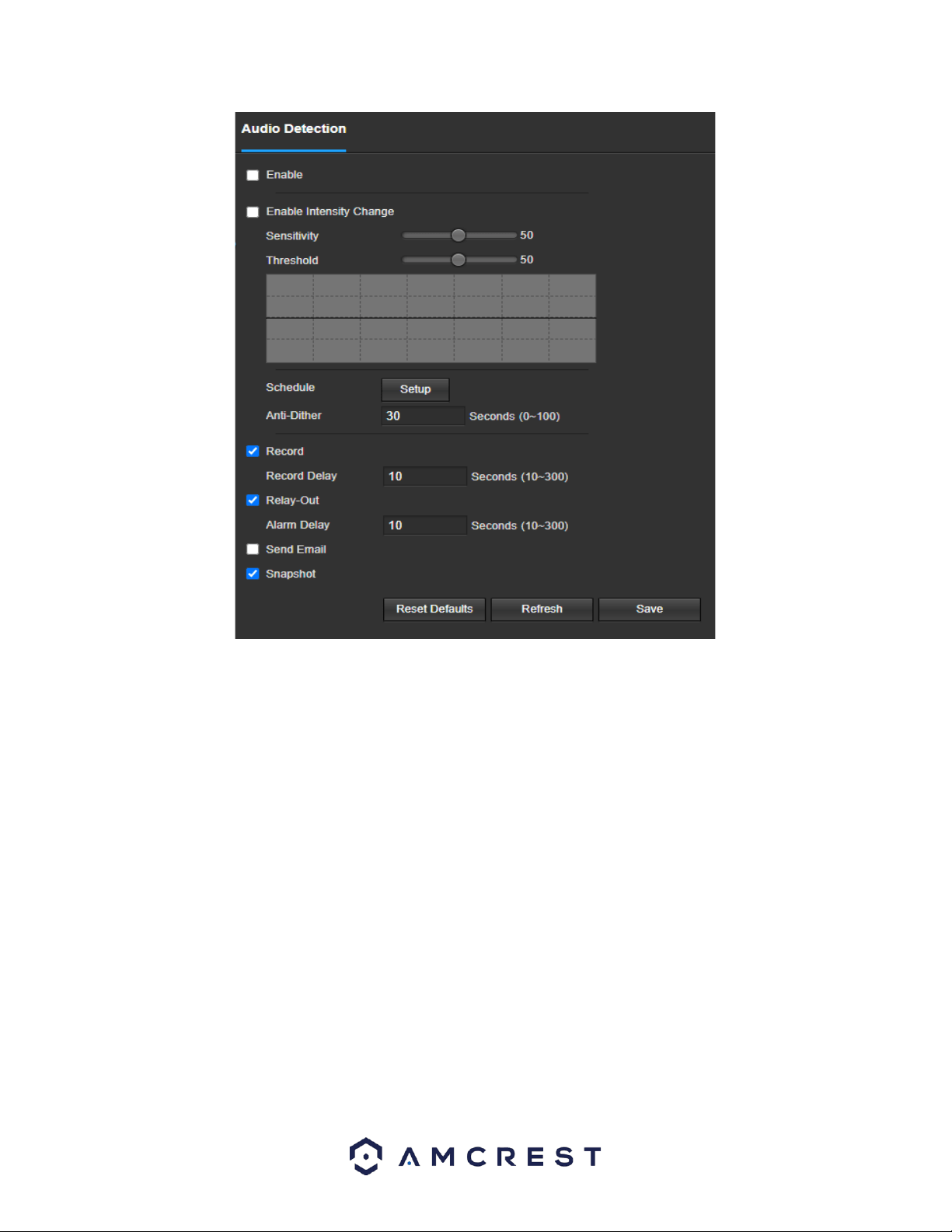
This menu allows the user to modify audio detection settings. Below is a screenshot of the Audio Detection screen:
38
Below is an explanation of the fields on the Audio Detection tab:
Enable: This checkbox enables an audio detection alarm for the camera. Enable Intensity Change: This checkbox
enables intensity change for the camera audio. o Sensitivity is the amount of change required to increase the audio
detected by a percentage. The lower the sensitivity, the more audio variance is required to trigger an alarm.
Enable Intensity Change: This checkbox enables the user to adjust sensitivity and threshold settings for audio
detection.
Sensitivity: The higher the sensitivity, the more likely that audio will trigger an alarm.
Threshold: The lower the threshold, the more likely that audio will trigger an alarm.
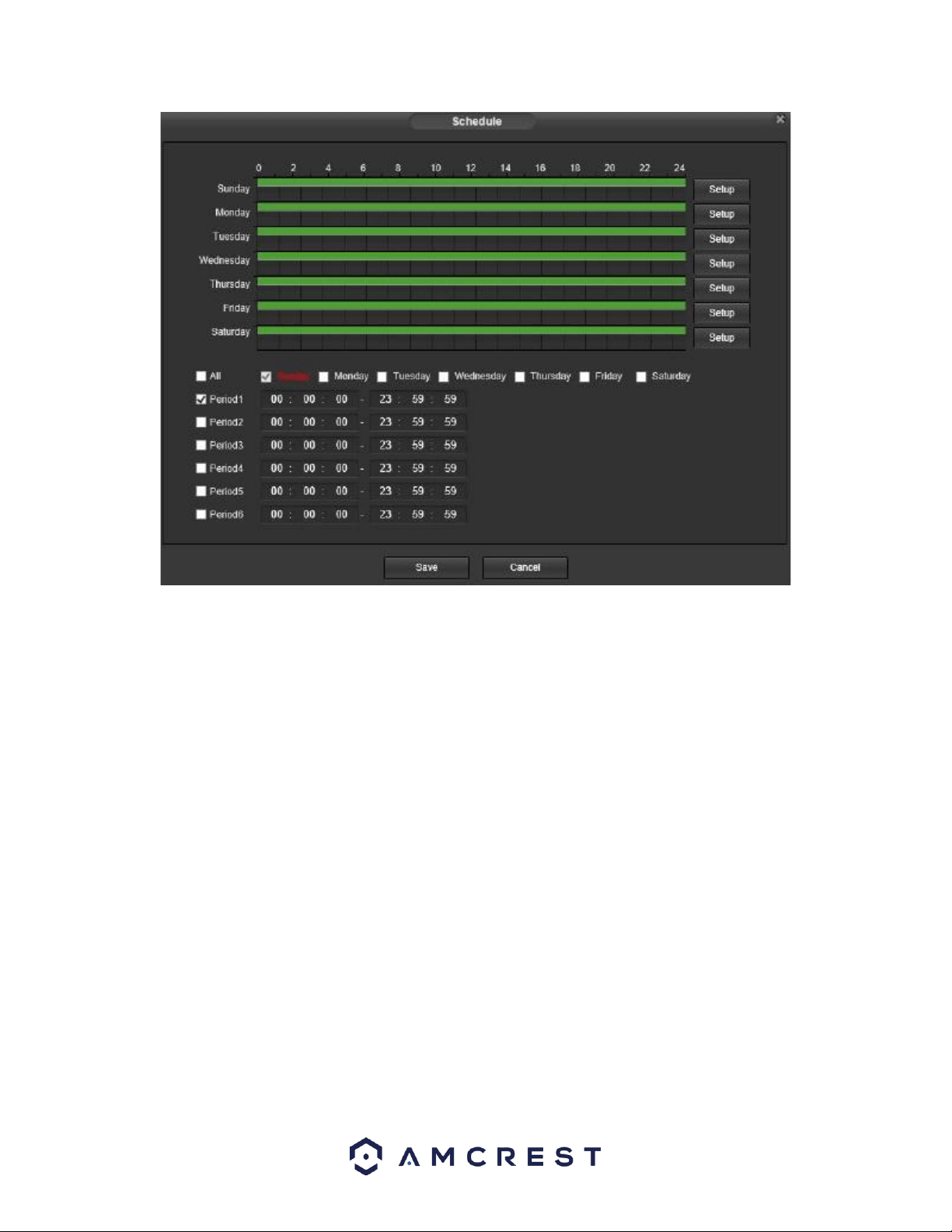
Schedule: Clicking this button opens a weekly schedule that can be used to set times.
39
Click and drag to set audio tampering for certain days of the week. Also, periods of audio detection can be set for
each day and enabled using the period settings on the bottom half of the screen. There are a total of 6 periods that
can be set. 93.
Anti-Dither: This field allows the user to set the anti-dither time. The values in this field can range from 5 to 600
seconds. This time value controls how long the alarm signal lasts. Based on audio detection, a buzzer can go off, a
tour can begin, PTZ can be activated, a snapshot can be taken, or the camera can begin recording.
For example, if the anti-dither time is set to 10 seconds, each alarm may last 10 seconds if the local alarm is
activated. During the process, if the system detects another local alarm signal at the fifth second, the buzzer, tour,
PTZ activation, snapshot, record channel functions will begin another 10 seconds while the screen prompt, alarm
upload, email will not be activated again. After 10 seconds, if system detects another alarm signal, it can generate
a new alarm since the anti-dither time has expired.
Record: This checkbox allows the user to enable the camera to record video when an audio detection alarm is
triggered.
Record Delay: This field specifies in seconds how long the delay between alarm activation and recording should be.
Relay Out: This checkbox allows the user to enable the camera to trigger a connected alarm (connected to the
alarm port on the back of the camera) when a motion detection alarm is triggered.
Alarm Delay: This field specifies in seconds how long the delay between alarm activation and Relay alarm
activation should be.
Send Email: This checkbox allows the user to enable the camera to send an email when an audio detection alarm is
triggered.
Snapshot: This checkbox allows the user to enable the camera to take a snapshot when an audio detection alarm is
triggered.
To reset to default settings, click the Reset Defaults button. To refresh the page, click the Refresh button. To save
the settings, click the Save button.
40
Smart Plan
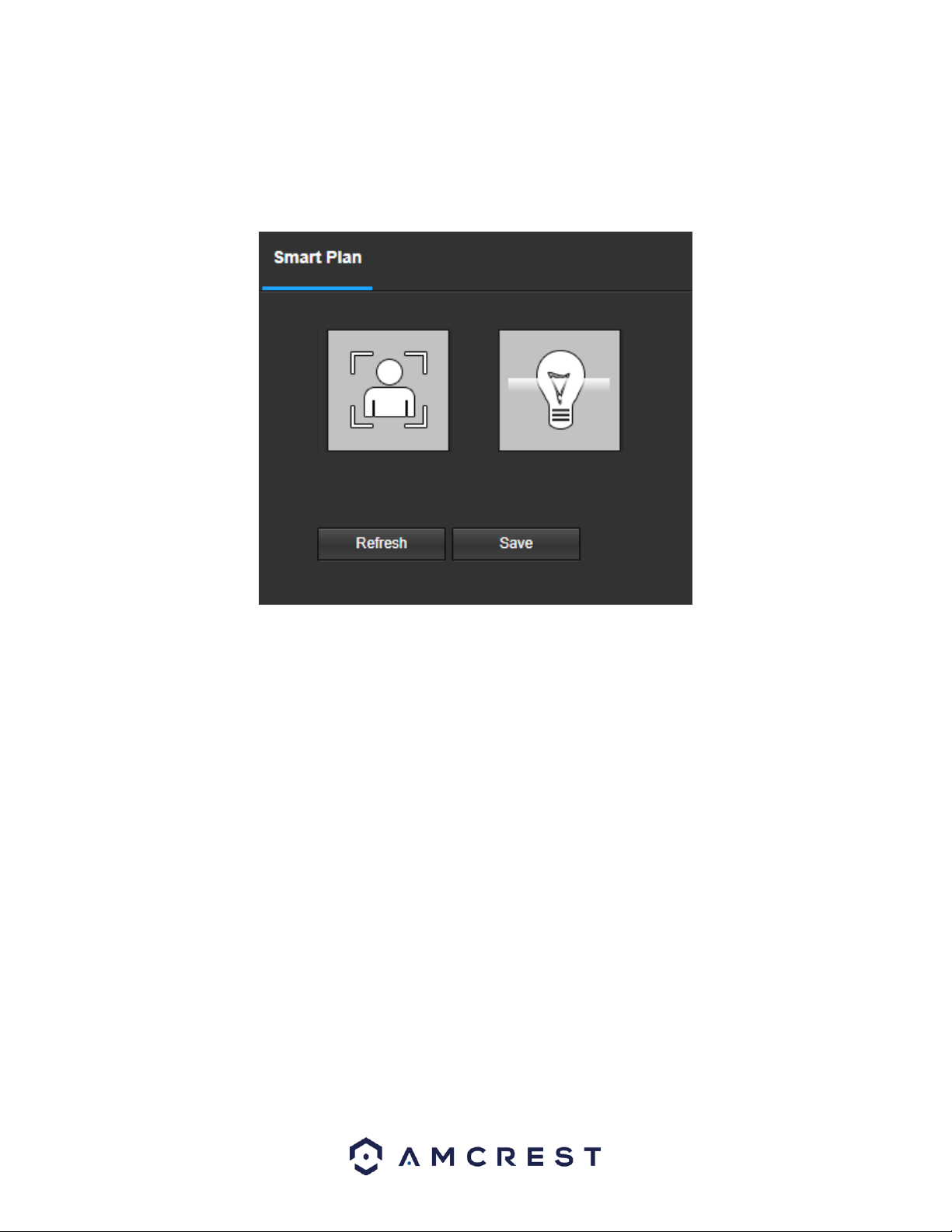
A smart plan acts as the “master switch” for all AI features available in your camera.
Below is a screenshot of the Smart Plan menu:
To refresh the menu to its original format, click the Refresh button. To save a smart plan to your camera, click the
Save button.
Face Detection
Face Detection is typically used in conjunction with an AI NVR, however, can be used independently to detect
faces. Please note, face detection cannot be used simultaneously with IVS rules. Make sure the Face Detection
option is enabled properly in the Smart Plan menu before configuring any face detection settings.
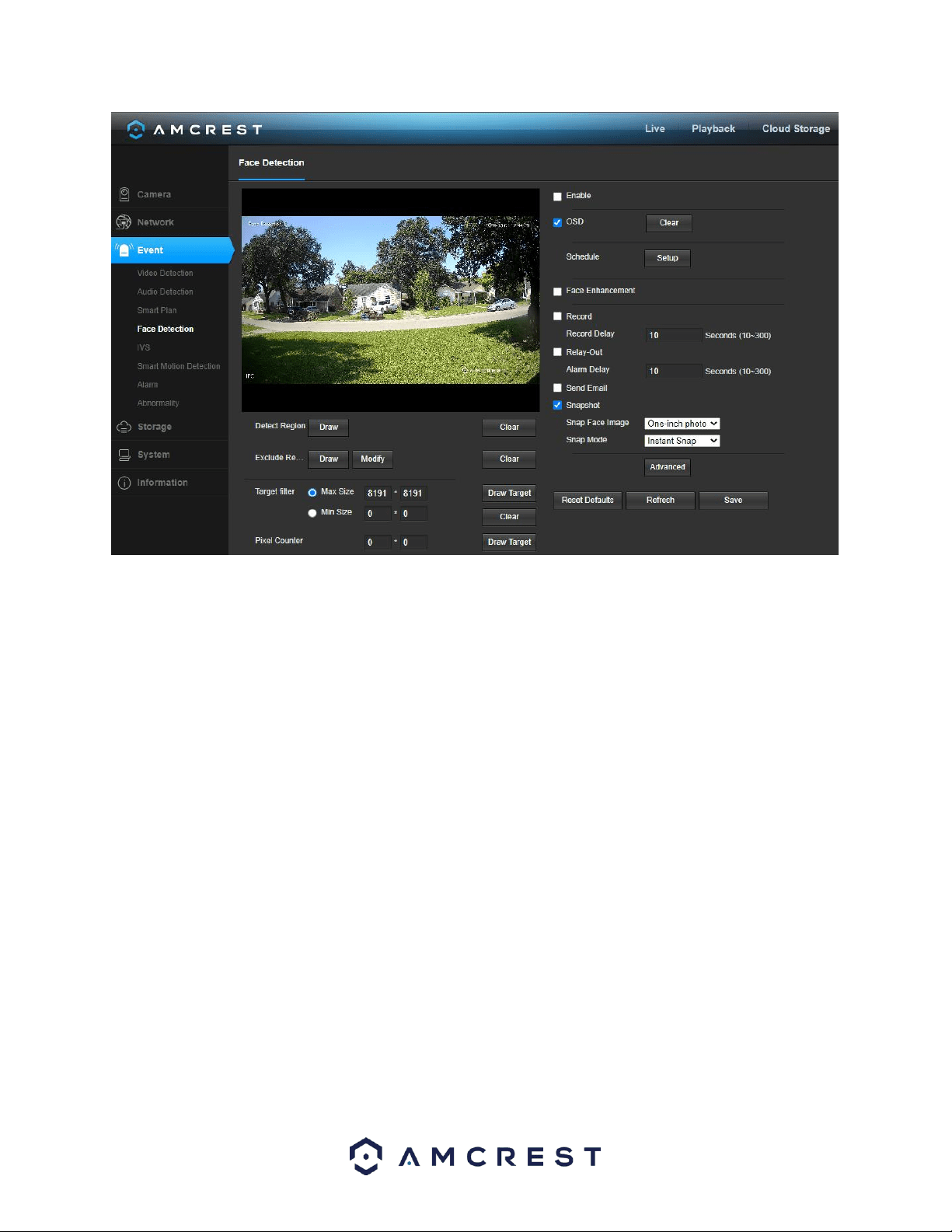
Below is a screenshot of the Face Detection menu:
41
Below is a description of the options in this menu:
Enable: This checkbox is used to enable face detection.
OSD: This checkbox is used to enable face detection OSD information in the face statistics overlay.
Schedule: Allows the user to set a schedule in which face detection will be triggered.
Face Enhancement: This checkbox is used to enhance the accuracy of a detected face image.
Record: This checkbox allows the user to enable the camera to record video when an IVS event is triggered.
Record Delay: This field specifies, in seconds, how long the delay between IVS events should be. The default is 10
seconds however this can be modified between 10~300 seconds.
Relay-Out: This checkbox allows the user to enable a third-party external alarm if one is connected to the dongle
wires on the device.
Alarm Delay: This field specifies, in seconds, how long the delay between IVS events will be in relation to a
connected external alarm. The default is 10 seconds however this can be modified between 10~300 seconds.
Send Email: This checkbox allows the user to enable the camera to send an email when an IVS event is triggered.
Snapshot: This checkbox allows a snapshot of the IVS event to be sent via Email when triggered.
Snap Face Image: This dropdown menu allows the user to select different snapshot options:
One-inch Photo: A 1-inch snapshot of the face will be sent.
Face: An image of only the face will be sent.
ivs. Customize: A customized version of the snapshot will be sent.
Snap Mode: This dropdown menu allows the user to select different snapshot mode options:
Instant Snap: Sends a lower quality image of the snapshot the moment it occurs.
Optimized Snap: A higher quality image of the snapshot. There will be a short delay fur to the
optimization of the image.
Quality Priority: Sets priority of higher quality snapshots to be sent.
Advanced: This menu allows the user to set advanced face detection options:

42
Snap Angle Filter: Use this slider to increase or decrease the efficiency of the side of a face to be
detected. The sensitivity for this option will be set to the highest level (90), however, can be adjusted
between 1~90.
Snapshot Sensitivity: Use this slider to increase or decrease the sensitivity of the camera to detect and
send a facial snapshot. Please note, the higher the sensitivity is, the more snapshots will be triggered. The
default snapshot sensitivity will be set to 80, however, it can be adjusted between 0~100.
Quality Threshold: Click on the checkbox to set a quality threshold for the snapshot. Once enabled, use
this slider to increase or decrease the threshold quality of the snapshot. The default threshold will be set
to 70, however, it can be adjusted between 1~100.
Duration Optimal: This option allows the user to set, in seconds, the optimal time in which a snapshot will
be sent. The default duration is set to 10 seconds, however, can be adjusted between 1~300 seconds.
Detect Region: This option is used to set a face detection area. The area will be full screen by default.
Clear: This option is used to clear any face detection areas currently set.
Exclude Region: This option is used to set an area in which the face detection rule will not apply.
Clear: This option is used to clear any excluded face detection areas.
Target Filter: This option allows the user to set a maximum and minimum size of the target area. By default, this
option will be set to the max resolution, however, it can be manually adjusted.
Draw Target: Allows the user to set a target area on the live monitor screen.
Clear: Clears the modified target area to draw the target area on the live monitoring screen.
Pixel Counter: Used to measure and set the number of pixels in the target area on the live monitoring screen.
To reset to default settings, click the Reset Defaults button. To refresh the page, click the Refresh button. To save
the settings, click the Save button.
Using Face Detection
Face detection is a tool used to detect
1. Click Enable to enable face detection.
2. Click Setup to set a schedule, set your periods (if any) and click Save to continue.
Note: If needed, click on the Enable Face Enhancement checkbox to enhance the accuracy of the face detection
image.
3. Enable the Record checkbox to record the event.
4. Check the Send Email and Snapshot checkboxes if you would like a snapshot of the event emailed to you. A valid
Email address must be established in the device prior to enabling this setting. For more information on setting up
email alerts, please visit amcrest.com/support.
Note: If needed, click on the Enable Face Exposure checkbox to automatically increase, or decrease the
exposure of the image once a face is detected.
5. This is not necessary however, to exclude a specific area on the interface from being able to detect faces, click
on the Exclude Region button then draw the excluded area on the interface. Click Save to save the settings to your
camera.
IVS
IVS stands for stands for intelligent video system analytics and is the basis for all the AI rules associated with your
camera. The IVS menu allows the user to customize and set IVS rules which allows the camera to produce general
behavior analytics and reporting directly from the web user interface.
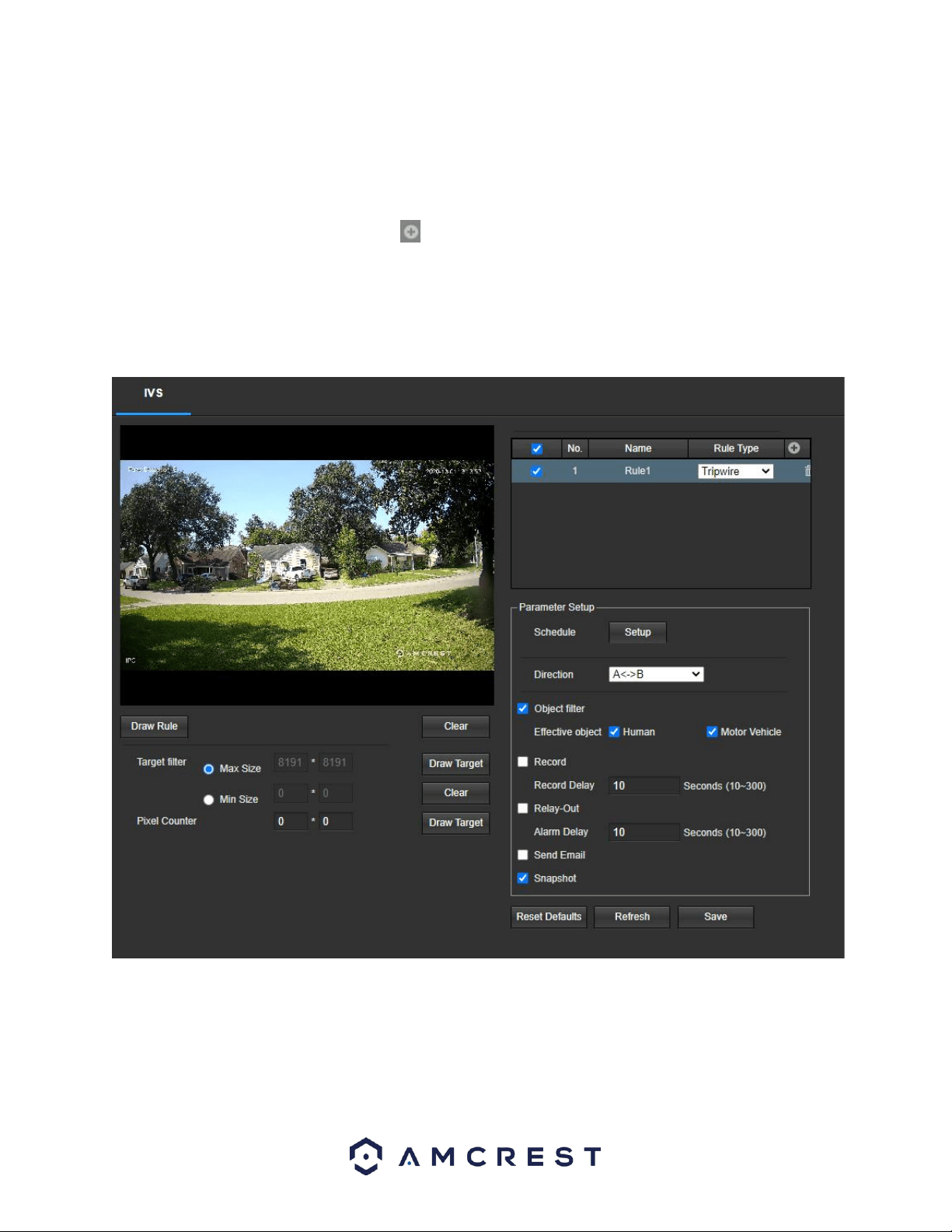
Below is a screenshot of the IVS menu:
43
Setting an IVS Rule
All IVS rules can only be set and/or modified using the web user interface. They cannot be set using the Amcrest
View Pro app or any other platforms associated with your device. For more information on setting IVS rule, refer to
the information below.
1. Ensure a Smart Plan has been activated in the Smart Plan menu for IVS.
2. Access the IVS menu and click on the Add ( ) icon to begin customizing IVS rules.
3. Use the dropdown menu in the Rule Type column to select which IVS rule you want to use.
Tripwire
Tripwire allows the camera to trigger an event if an object, such as a human or vehicle, crosses the set tripwire
line. Below is a screenshot of the Tripwire menu:
Below is a description of the features in this menu:
No.: Provides the order in which the IVS rules will be displayed in the menu.
Name: Allows the user to customize a name for their rule. Double click the name in the Rule column to modify.
Rule Type: This dropdown menu allows the user to select an IVS rule type (Tripwire or Intrusion).
Schedule: Allows the user to set a schedule in which the IVS rule will be triggered.

44
Direction: This dropdown menu allows the user to set which direction the object will be going for the tripwire to
be triggered. It can be set left, right, or in both directions (A<->B).
Object filter: The object filter checkboxes allow the camera to be triggered only when a specific object, such as a
human or car, is detected by the camera. Both effective object checkboxes can be activated at the same time.
Human: This checkbox allows the camera to be triggered only when a human figure is detected.
Motor Vehicle: This checkbox allows the camera to be triggered only when a vehicle has been detected.
Record: This checkbox allows the user to enable the camera to record video when an IVS event is triggered.
Record Delay: This field specifies, in seconds, how long the delay between IVS events should be. The default is 10
seconds however this can be modified between 10~300 seconds.
Relay Out: This checkbox allows the user to enable the camera to trigger a connected alarm (connected to the
alarm port on the back of the camera) when a motion detection alarm is triggered.
Alarm Delay: This field specifies in seconds how long the delay between alarm activation and Relay alarm
activation should be.
Send Email: This checkbox allows the user to enable the camera to send an email when an IVS event is triggered.
Snapshot: This checkbox allows a snapshot of the IVS event to be sent via Email when triggered.
Draw Rule: This option allows the user to use their mouse to customize (draw) a rule/area on the screen. This will
be the area or line in which an IVS rule will be triggered.
Clear: This option is used to clear the drawn rule set on the live monitor screen.
Target filter: Sets a maximum and minimum size in which an event will be triggered.
Clear: Clears the modified target area to draw the target area on the live monitoring screen.
Draw Target: Allows the user to set a target area on the live monitor screen. An IVS event will not occur outside
the target box.
Pixel Counter: Used to measure and set the number of pixels in the target area on the live monitoring screen.
To reset to default settings, click the Reset Defaults button. To refresh the page, click the Refresh button. To save
the settings, click the Save button.
Setting a Tripwire
1. Select Tripwire from the Rule Type drop down menu. Set a name for the rule by double clicking the mouse over
the Name of the rule.
2. Click on Setup to set a schedule, set your periods (if any) and click Save to continue.
3. In the Direction menu, choose which direction the object will be going for the tripwire to be triggered.
4. Enable the Record checkbox to record the event.
5. Check the Send Email and Snapshot checkboxes if you would like a snapshot of the event emailed to you. A valid
Email address must be established in the camera prior to enabling this setting.
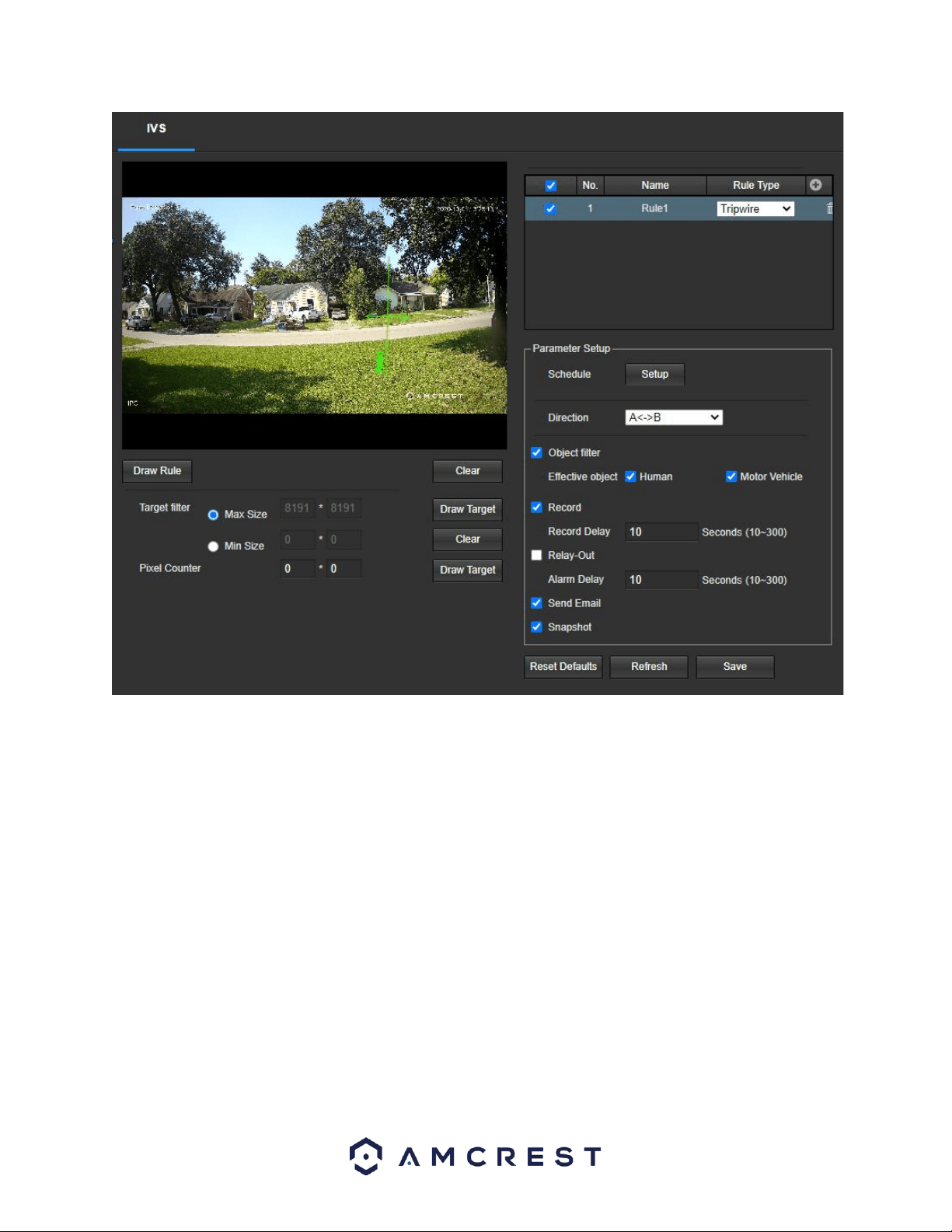
6. Click the Draw Rule option and use your mouse to draw the rule on the live monitoring screen. Once the rule
has been drawn click the monitoring screen to finish setting the rule. The drawn line will turn blue/green when
set depending on the browser you are using.
45
Note: The target filtering and pixel counter can be used to refine the set rule however for optimal experience it is
highly recommended to leave these settings as default
To reset to default settings, click the Reset Defaults button. To refresh the page, click the Refresh button. To save
the settings, click the Save button.
Intrusion
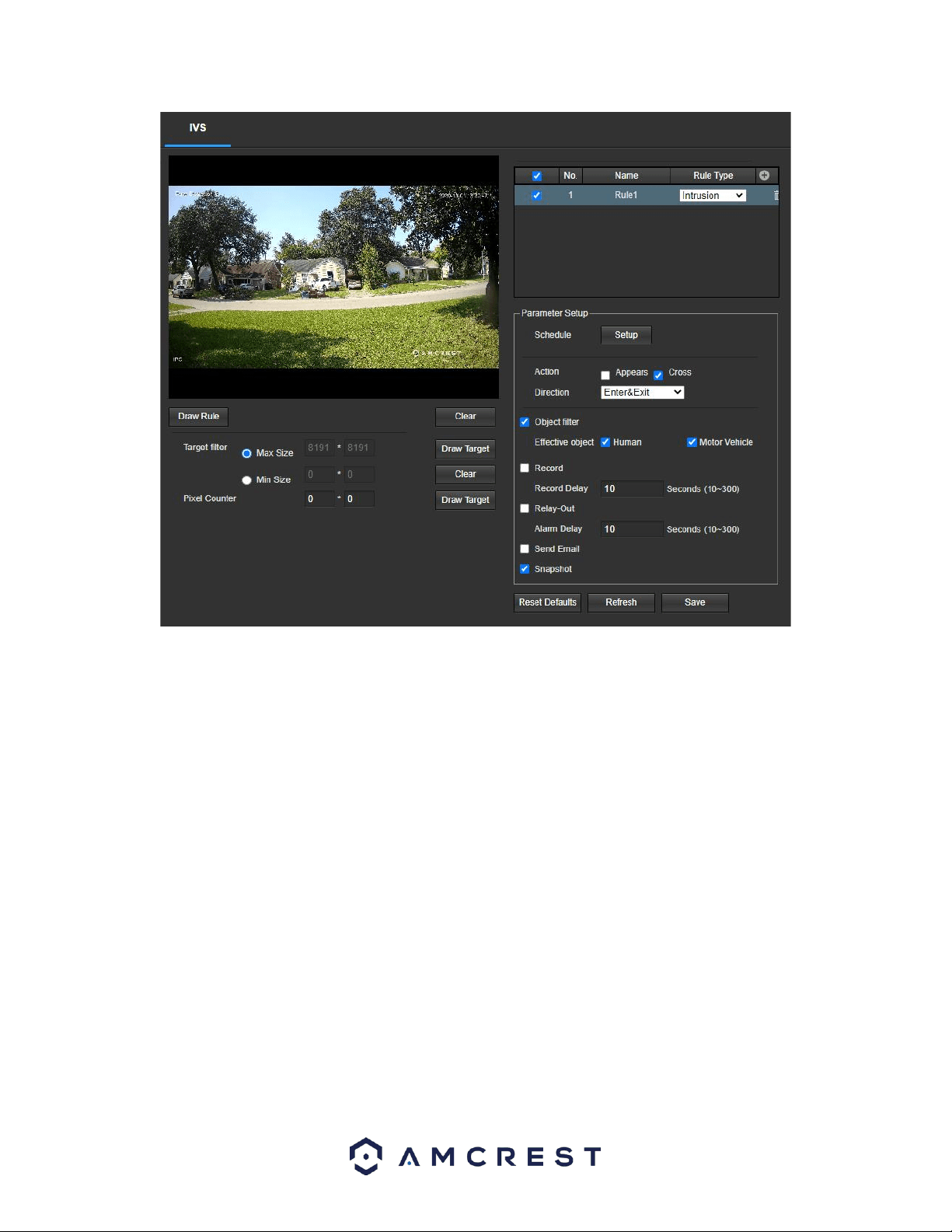
Intrusion allows the camera to trigger an event if an object, such as a human or vehicle, appears or crosses a set
intrusion area set by the user. Below is a screenshot of the Intrusion menu:
46
Below is a description of the features in this menu:
No.: Provides the order in which the IVS rules will be displayed in the menu.
Name: Allows the user to customize a name for their rule. Double click the name in the Rule column to modify.
Rule Type: This dropdown menu allows the user to select an IVS rule type (Tripwire or Intrusion).
Schedule: Allows the user to set a schedule in which the IVS rule will be triggered.
Action: These checkboxes allow the user to choose a parameter filter that will activate a trigger if an object were
to cross or appear in the set intrusion area.
Cross: The rule will trigger when a target enters or exits the area.
Appears: The rule will trigger when a target appears inside the area.
Direction: This dropdown menu allows the user to choose whether the rule will be triggered if an object enters,
exits, or enters & exits a set line or area.
Object filter: The object filter checkboxes allow the camera to be triggered only when a specific object, such as a
human or car, is detected by the camera. Both effective object checkboxes can be activated at the same time.
Human: This checkbox allows the camera to be triggered only when a human figure is detected.
Motor Vehicle: This checkbox allows the camera to be triggered only when a vehicle has been detected.
Record: This checkbox allows the user to enable the camera to record video when an IVS event is triggered.
Record Delay: This field specifies, in seconds, how long the delay between IVS events should be. The default is 10
seconds however this can be modified between 10~300 seconds.
Relay Out: This checkbox allows the user to enable the camera to trigger a connected alarm (connected to the
alarm port on the back of the camera) when a motion detection alarm is triggered.

47
Alarm Delay: This field specifies in seconds how long the delay between alarm activation and Relay alarm
activation should be.
Send Email: This checkbox allows the user to enable the camera to send an email when an IVS event is triggered.
Snapshot: This checkbox allows a snapshot of the IVS event to be sent via Email when triggered.
Draw Rule: This option allows the user to use their mouse to customize (draw) a rule/area on the screen. This will
be the area or line in which an IVS rule will be triggered.
Clear: This option is used to clear the drawn rule set on the live monitor screen.
Target filter: Sets a maximum and minimum pixel size in which an event will be triggered.
Clear: Clears the modified target area to draw the target area on the live monitoring screen
Draw Target: Allows the user to set a target area on the live monitor screen. An IVS event will not occur outside
the target box.
To reset to default settings, click the Reset Defaults button. To refresh the page, click the Refresh button. To save
the settings, click the Save button.
Setting an Intrusion Area
1. Select Intrusion from the Rule Type drop down menu. Set a name for the rule by double clicking the mouse over
the Name of the rule.
2. Click on Setup to set a schedule, set your periods (if any) and click Save to continue.
3. In the Action menu, choose whether the rule will be triggered if an object appears or crosses the set region.
Both options can be enabled at the same time if needed.
3. In the Direction menu, choose if the rule will be triggered if the object enters only, exits only, or enters & exits a
set region.
4. Enable the Record checkbox to record the event.
7. Check the Send Email and Snapshot checkboxes if you would like a snapshot of the event emailed to you. A valid
Email address must be established in the camera prior to enabling this setting. For more information on setting
up email alerts, please refer to section, “SMTP (Email)”.
5. Click the Draw Rule option and right click on the live monitoring screen. Use the mouse to draw your initial line.
Once the initial line is set, right click the mouse again to continue drawing the region. Repeat the process and
left click the mouse to complete the region. Right click on the live monitoring screen when finished to set the
rule.
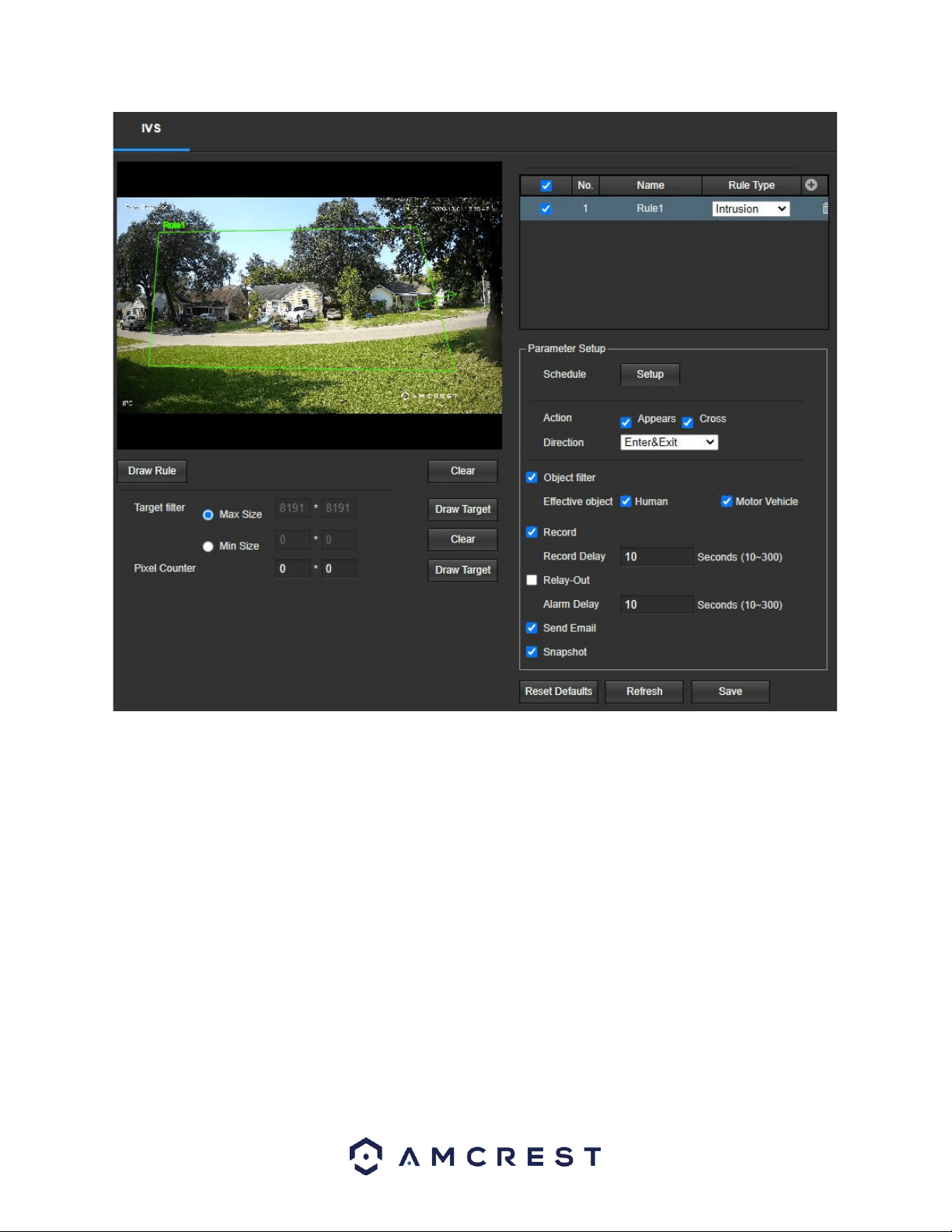
48
To reset to default settings, click the Reset Defaults button. To refresh the page, click the Refresh button. To save
the settings, click the Save button.
Smart Motion Detection
Smart Motion Detection (SMD) uses an advanced algorithm to differentiate human and vehicular shapes within a
scene and send alarms only when a person or vehicle is detected.
Below is a screenshot of the Smart Motion Detection menu:
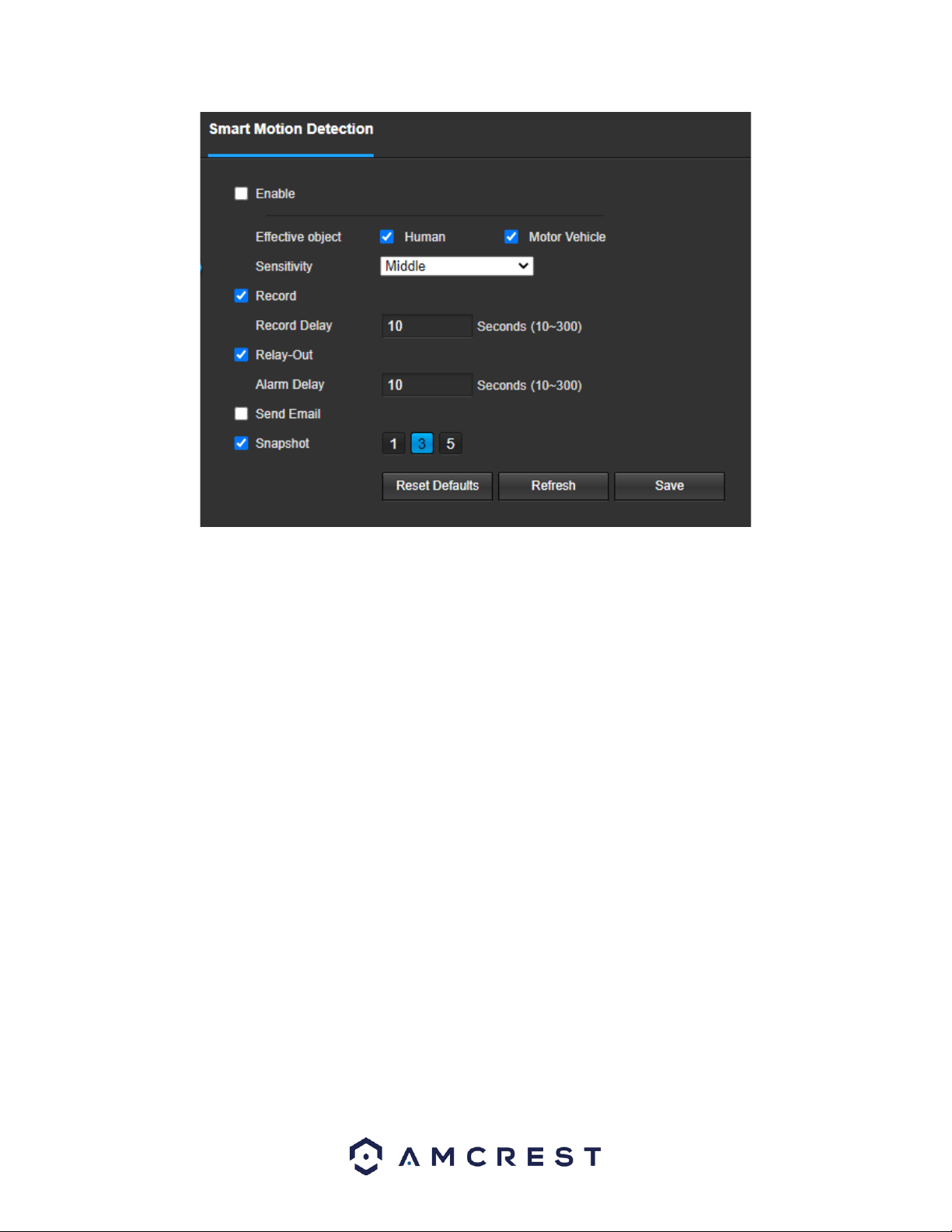
49
Below is a description of the options in this menu:
Enable: Use this checkbox to enable Smart Motion Detection.
Effective Object: The object filter checkboxes allow the camera to be triggered only when a specific object, such as
a human or car, is detected by the camera. Both effective object checkboxes can be activated at the same time.
Human: This checkbox allows the camera to be triggered only when a human figure is detected.
Motor Vehicle: This checkbox allows the camera to be triggered only when a vehicle has been detected.
Sensitivity: Use this dropdown menu to select a sensitivity setting for smart motion detection. The sensitivity can
be set as low, medium, or high.
Record: This checkbox allows the user to enable the camera to record once an event is detected.
Record Delay: This field specifies, in seconds, how long the delay between events should be. The default is 10
seconds however this can be modified between 10~300 seconds.
Relay Out: This checkbox allows the user to enable the camera to trigger a connected alarm (connected to the
alarm port on the back of the camera) when a motion detection alarm is triggered.
Alarm Delay: This field specifies in seconds how long the delay between alarm activation and Relay alarm
activation should be.
Send Email: This checkbox allows the user to enable the camera to send an email when an IVS event is triggered.
Snapshot: This checkbox allows a snapshot of the IVS event to be sent via Email when triggered.
To reset to default settings, click the Reset Defaults button. To refresh the page, click the Refresh button. To save
the settings, click the Save button.
Alarm
The Alarm menu allows the user to configure an external alarm to the camera. An external alarm can be connected
to the alarm connections which can be found on the dongle wire connections on the camera. If connecting an
external alarm to the camera, please refer to the specific user manual for the alarm as we do not provide third
party support for third party external alarms.
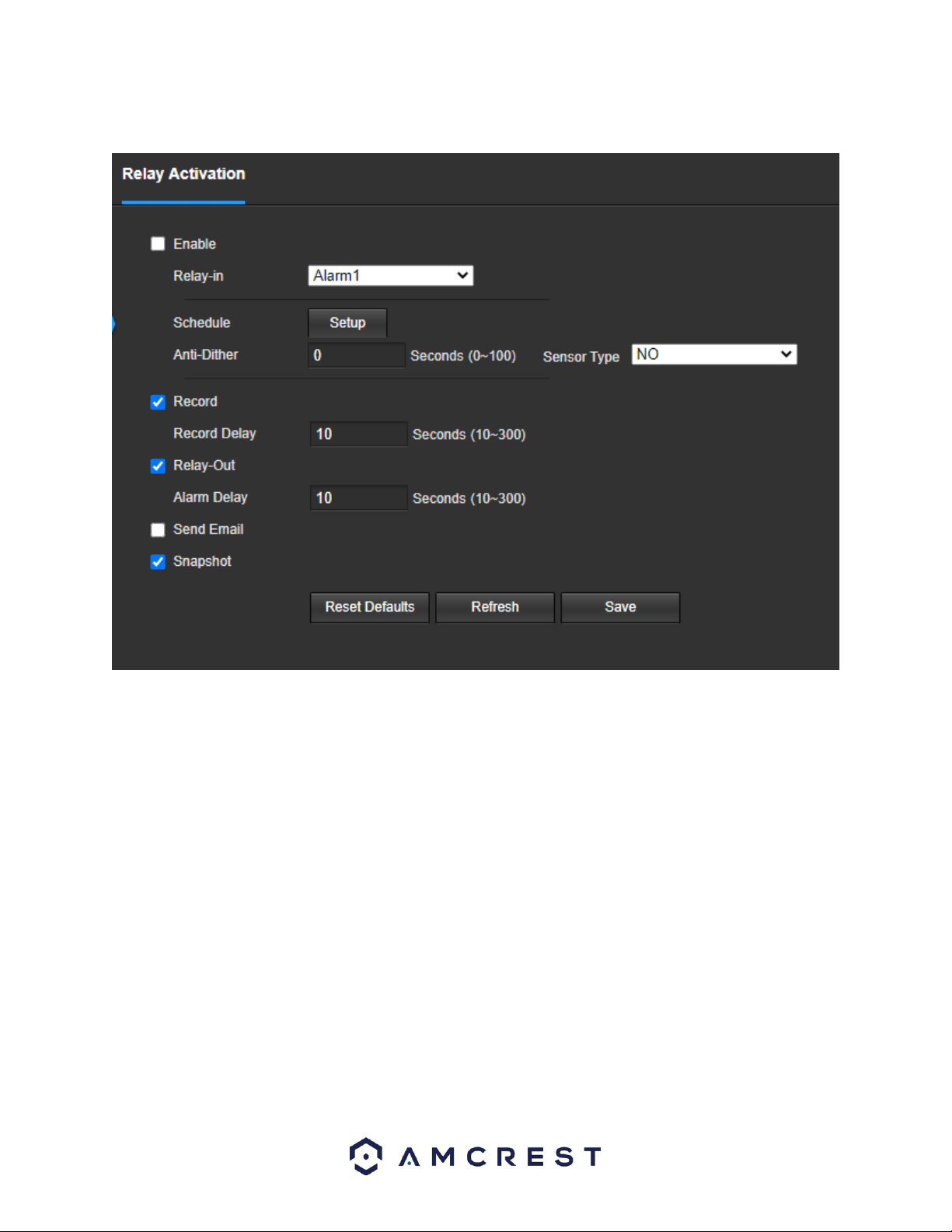
50
Below is a screenshot of the Alarm menu:
Below is a description of the options in this menu:
Enable: Use this checkbox to enable relay activation.
Relay-in: The default alarm type will be Alarm 1.
Schedule: Allows the user to set a schedule in which the alarm will be triggered.
Anti-Dither: This field allows the user to set the anti-dither time. The values in this field can range from 5 to 600
seconds. This time value controls how long the alarm signal lasts. Based on motion detection, a buzzer can go off, a
tour can begin, a snapshot can be taken, or the camera can begin recording.
For example, if the anti-dither time is set to 10 seconds, each alarm may last 10 seconds if the local alarm is
activated. During the process, if the system detects another local alarm signal at the fifth second, the buzzer, tour,
snapshot, record channel functions will begin another 10 seconds while the screen prompt, alarm upload, email
will not be activated again. After 10 seconds, if system detects another alarm signal, it can generate a new alarm
since the anti-dither time has expired.
Sensor Type: Use this dropdown menu to choose different sensor types:
NO: Stands for normally open, which leaves the alarm open.
NC: Stands for normally closed, which leaves the alarm closed until activated.
Record: This checkbox allows the user to enable the camera to record video when an IVS event is triggered.
Record Delay: This field specifies, in seconds, how long the delay between IVS events should be. The default is 10
seconds however this can be modified between 10~300 seconds.
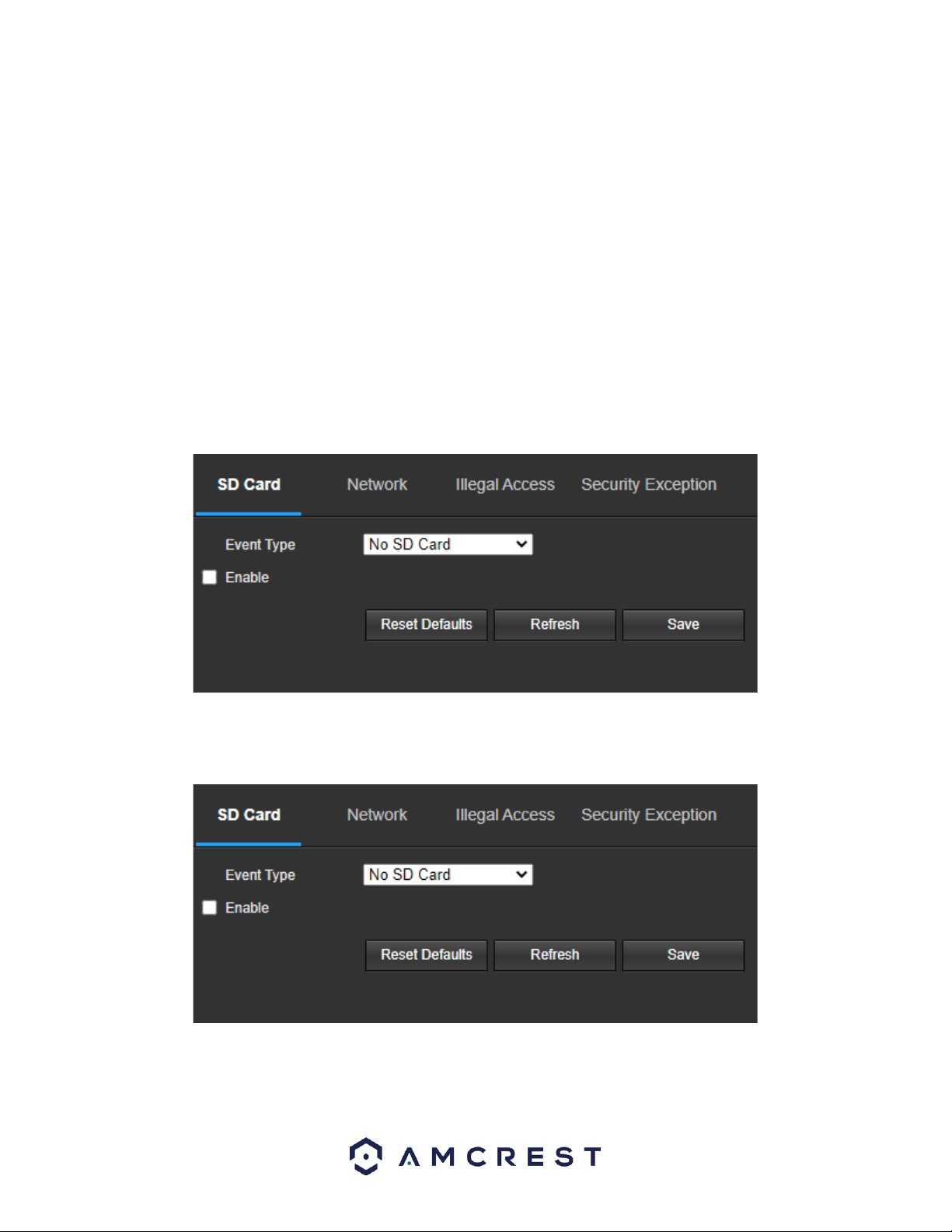
51
Relay Out: This checkbox allows the user to enable the camera to trigger a connected alarm (connected to the
alarm port on the back of the camera) when a motion detection alarm is triggered.
Alarm Delay: This field specifies in seconds how long the delay between alarm activation and Relay alarm
activation should be.
Send Email: This checkbox allows the user to enable the camera to send an email when an IVS event is triggered.
Snapshot: This checkbox allows a snapshot of the IVS event to be sent via Email when triggered.
To reset to default settings, click the Reset Defaults button. To refresh the page, click the Refresh button. To save
the settings, click the Save button.
Abnormality
This menu allows the user to adjust abnormality event settings. This menu has 4 tabs: SD Card, Network, Illegal
Access, and Security Exception.
Below is a screenshot of this menu:
SD Card
This tab allows the user to set the camera’s response to an SD card related abnormality. Below is a screenshot of
the SD card tab screen:
Below is an explanation of the fields on the SD Card settings tab:
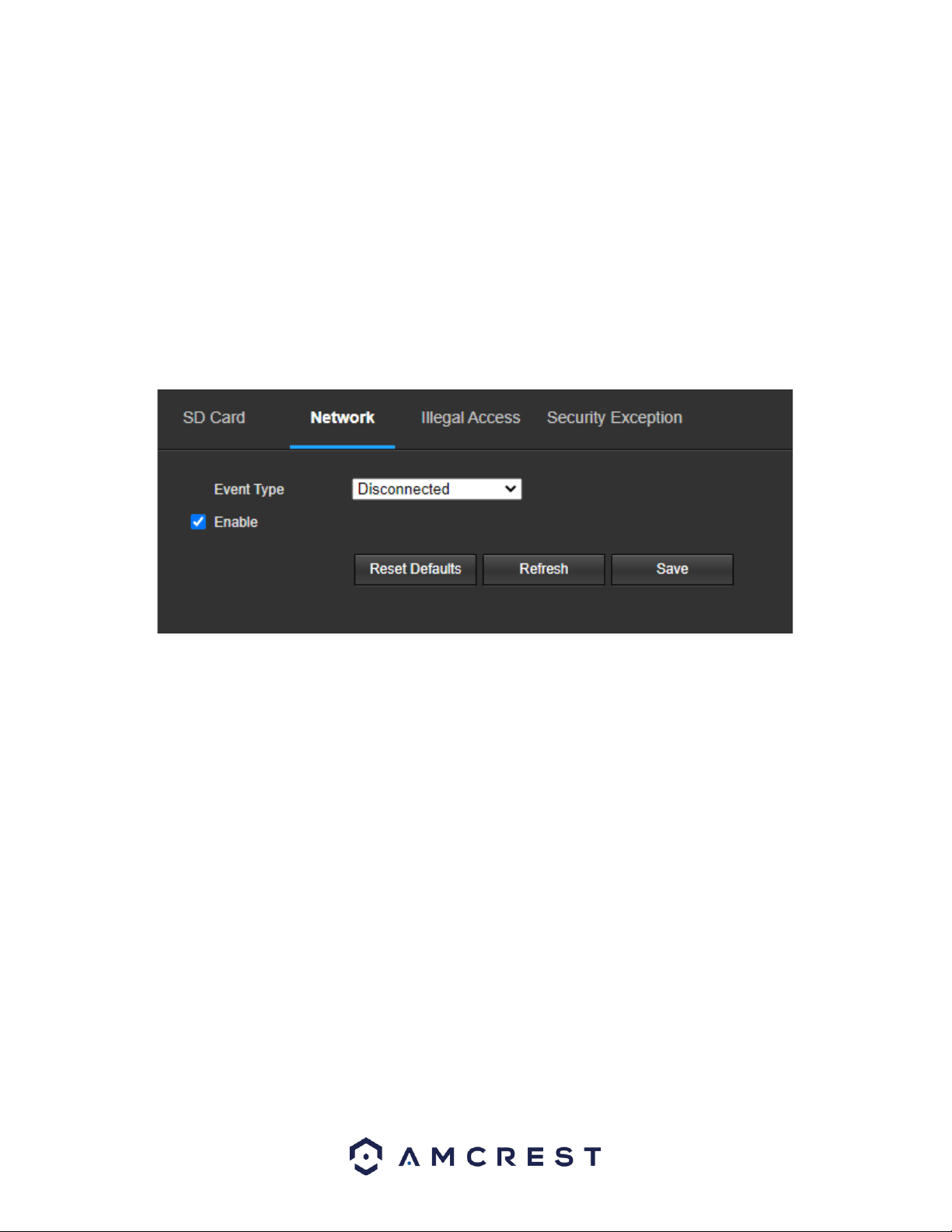
52
Event Type: This dropdown box allows the user to select which SD card abnormality to set event triggers for. The 3
options are No SD Card, SD Card Error, and Capacity Warning.
Enable: This checkbox enables the SD Card abnormality trigger for the camera.
Send Email: This checkbox allows the user to enable the camera to send an email when an SD Card abnormality is
detected.
To reset to default settings, click the Reset Defaults button. To refresh the page, click the Refresh button. To save
the settings, click the Save button.
Network
This tab allows the user to set the camera’s response to a Network related abnormality. Below is a screenshot of
the Network tab screen:
Below is an explanation of the fields on the Network settings tab:
Event Type: This dropdown box allows the user to select which Network abnormality to set event triggers for. The
2 options are Disconnection and IP Conflict.
Enable: This checkbox enables the Network abnormality trigger for the camera.
Record: This checkbox allows the user to enable the camera to record video when a network abnormality is
detected.
Record Delay: This field specifies in seconds how long the delay between alarm activation and recording should be.
To reset to default settings, click the Reset Defaults button. To refresh the page, click the Refresh button. To save
the settings, click the Save button.
Illegal Access
This tab allows the user to set the camera’s response to an Illegal Access related abnormality. Below is a
screenshot of the Illegal Access tab screen:
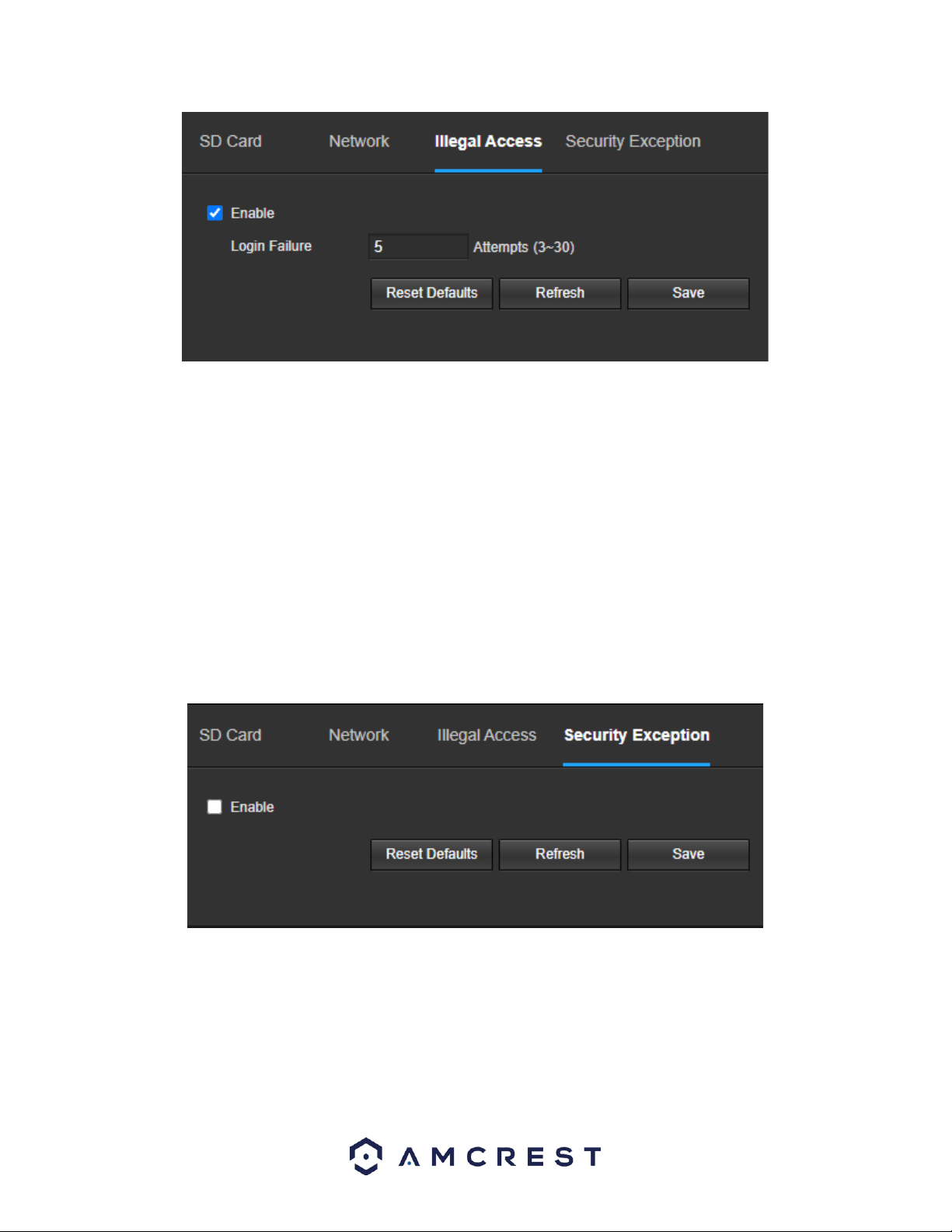
53
Below is an explanation of the fields on the Illegal Access settings tab:
Enable: This checkbox enables the Illegal Access abnormality trigger for the camera.
Login Failure: This field allows the user to specify how many failed login attempts must be attempted to trigger an
Illegal Access abnormality event.
Send Email: This checkbox allows the user to enable the camera to send an email when illegal access is attempted.
To reset to default settings, click the Reset Defaults button. To refresh the page, click the Refresh button. To save
the settings, click the Save button.
Security Exception
The Security Exception menu provides an abnormality alarm to trigger if a network security exception is detected.
Below is a screenshot of the Security Exception menu:
Enable: Click on the Enable checkbox to enable this abnormality type.
To reset to default settings, click the Reset Defaults button. To refresh the page, click the Refresh button. To save
the settings, click the Save button.
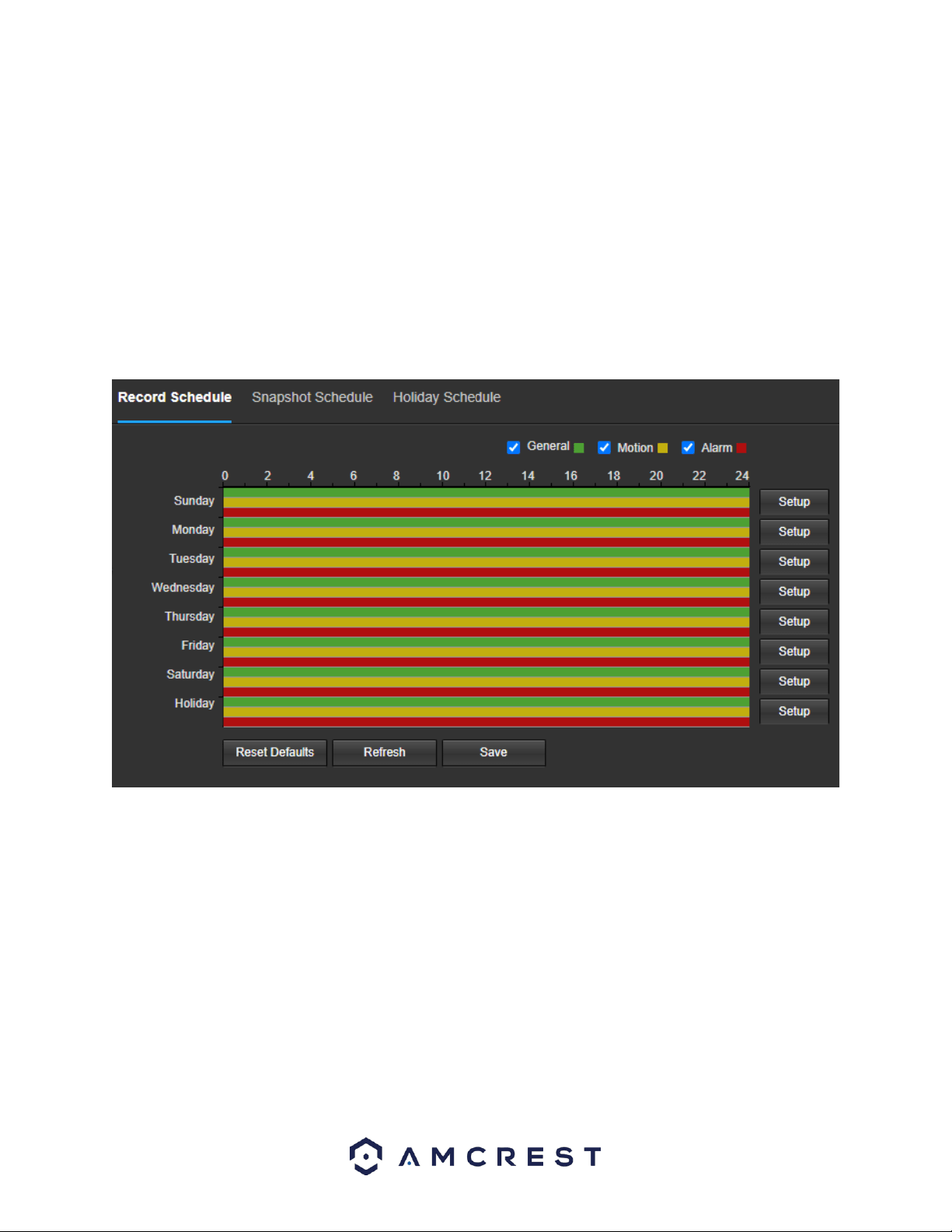
54
Storage
This menu section allows the user to change storage settings for the camera.
Schedule
The schedule menu manages the recording schedule for the camera. This menu has 3 tabs: Record Schedule,
Snapshot Schedule, and Holiday Schedule.
Record Schedule
This tab is where video recording settings are configured. Below is a screenshot of the Record Schedule settings
screen:
Below is an explanation of the fields on the Record Schedule settings tab:
Record Type: These checkboxes allow the user to select which recording type they want to configure on the
schedule. There are 3 types of recordings:
General: General recording means that the camera captures all footage for the specified time period. General
recording is represented by the color green.
Motion: Motion Detection recording means that the camera captures only footage when the motion detection
alarm is activated. Motion recording is represented by the color yellow.
Alarm: Alarm recording means that the camera captures only footage when an alarm is activated. Alarm recording
is represented by the color red.
Video Recording Schedule: To specify a video recording range, first select the type of recording desired, then click
and drag on time bar for the desired date. To edit multiple days at once, drag the cursor further up or down to
cover the other days.
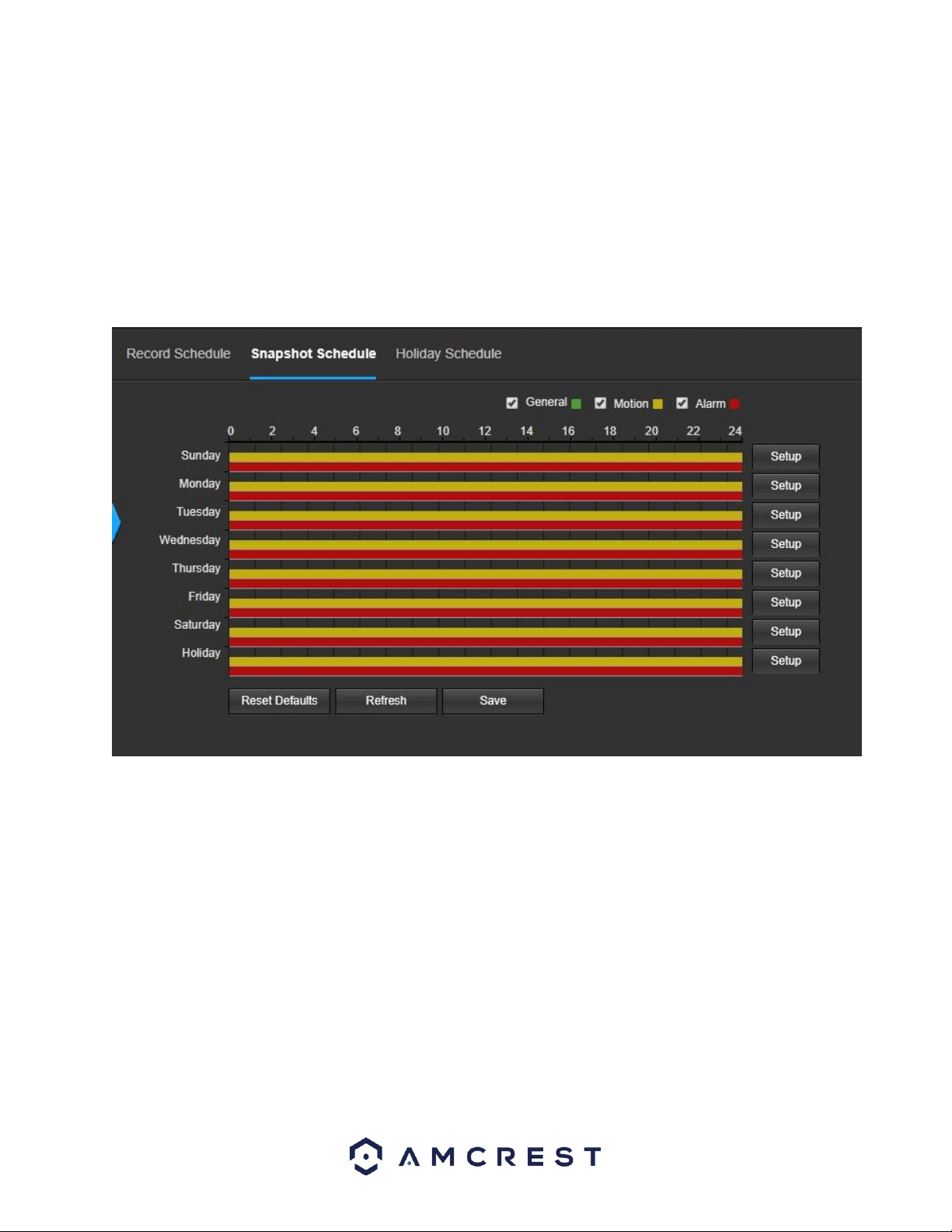
55
Setup: Clicking this button opens a screen that allows for recording periods to be set for each day and for each
recording type. There are a total of 6 periods that can be set.
To reset to default settings, click the Reset Defaults button. To refresh the page, click the Refresh button. To save
the settings, click the Save button.
Snapshot Schedule
This tab is where snapshot recording settings are configured. Below is a screenshot of the Snapshot Schedule
settings screen:
Below is an explanation of the fields on the Snapshot Schedule settings tab:
Record Type: These checkboxes allow the user to select which snapshot type they want to configure on the
schedule. There are 3 types of snapshots:
General: General means that the camera will take snapshots during the specified time period. General recording is
represented by the color green.
Motion: Motion Detection means that the camera only takes snapshots when the motion detection alarm is
activated. Motion recording is represented by the color yellow.
Alarm: Alarm means that the camera only takes snapshots when an alarm is activated. Alarm recording is
represented by the color red.
Snapshot Recording Schedule: To specify a snapshot range, first select the type of snapshot desired, then click and
drag on time bar for the desired date. To edit multiple days at once, drag the cursor further up or down to cover
the other days.
Setup: Clicking this button opens a screen that allows for snapshot periods to be set for each day and for each
snapshot type. There are a total of 6 periods that can be set.
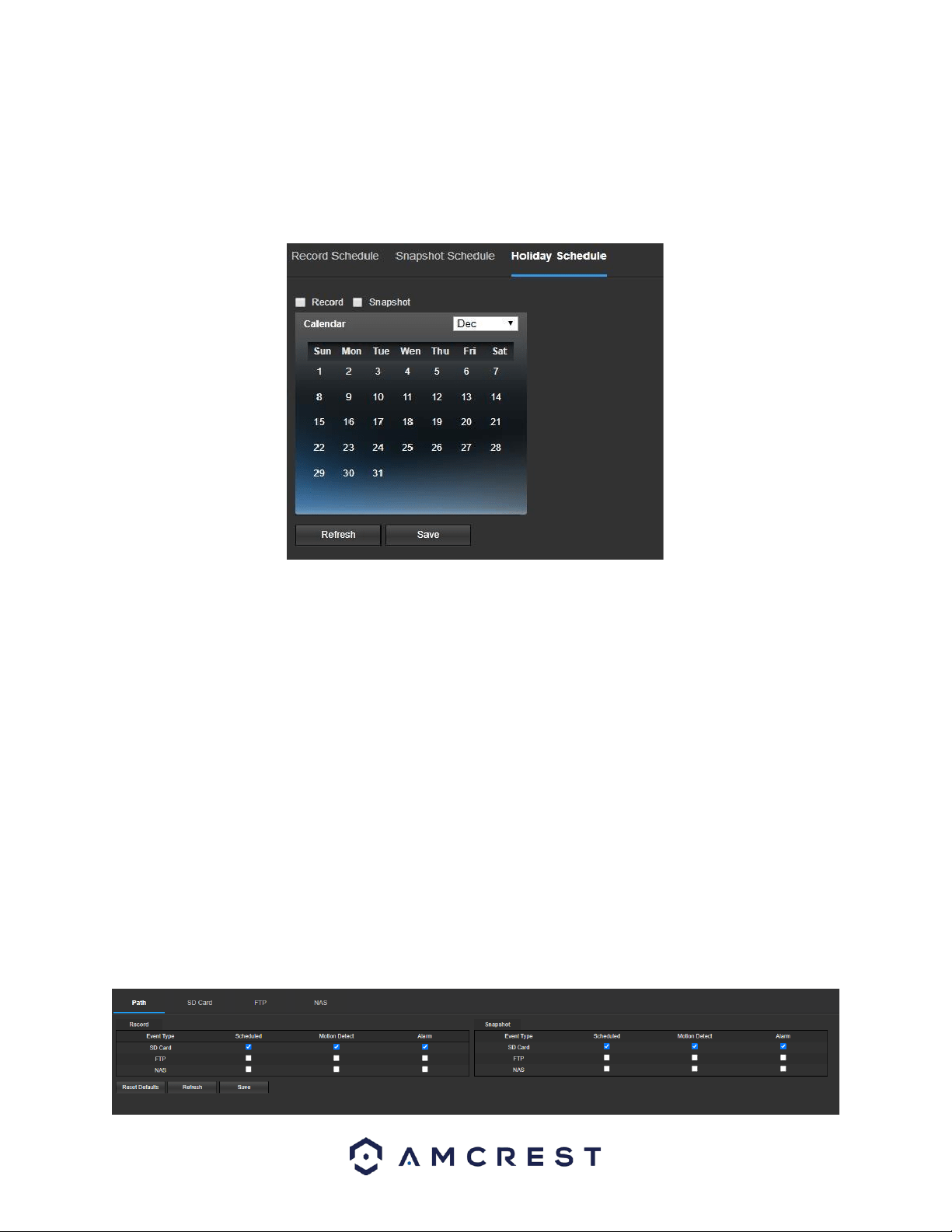
56
To reset to default settings, click the Reset Defaults button. To refresh the page, click the Refresh button. To save
the settings, click the Save button.
Holiday Schedule
This tab is where holiday settings are configured. Below is a screenshot of the Holiday Schedule settings screen:
Below is an explanation of the fields on the Holiday Schedule settings tab:
Record Type: These checkboxes allow the user to select which recording type they want to configure on the
schedule. There are 2 types of recordings:
Record: This checkbox is referring to video recording.
Snapshot: This checkbox is referring to snapshot recording.
Calendar: This calendar allows the user to select days to designate as holidays. Once a day is designated, it can be
customized to stop recording or snapshots for that day by using the Record and Snapshot checkboxes.
To refresh the page, click the Refresh button. To save the settings, click the Save button.
Destination
This menu controls where recorded media is stored. There are 4 tabs in this menu: Path, SD Card, FTP, and NAS.
Path
This tab is where the user can designate a path for recorded video and snapshots to reside in. Below is a
screenshot of the Path tab:

57
Below is an explanation of the fields on the Path settings tab:
Event Type: This column designates storage options available to the camera. The options are SD Card, FTP, and
NAS.
Scheduled: This checkbox allows a schedule to be enabled for the record path.
Motion Detect: This checkbox allows motion detection record types to be sent to the record path.
Alarm: This checkbox allows alarm record types to be sent to the record path.
To reset to default settings, click the Reset Defaults button. To refresh the page, click the Refresh button. To save
the settings, click the Save button.
SD Card
This tab is where the user can change SD card settings. Below is a screenshot of the SD Card tab:
Below is an explanation of the fields on the SD Card settings tab:
Device Name: This column designates the name of the SD card that is currently in the camera.
Status: This column designates the status of the SD card.
Attribute: This column designates the read/write attributes for the SD card. By default, this is Read &
Write.
Used Capacity/Total Capacity: This column shows the available memory on the SC card.
Read Only: This button allows the user to designate an SD card as read only.
Read & Write: This button allows the user to designate an SD card to read and & write privileges.
Eject: This button is used to eject the SD card from the interface.
Refresh: This button refreshes the SD card table.
Format: This button formats the SD card.
FTP
This tab is where the user can change FTP settings. Below is a screenshot of the FTP tab:
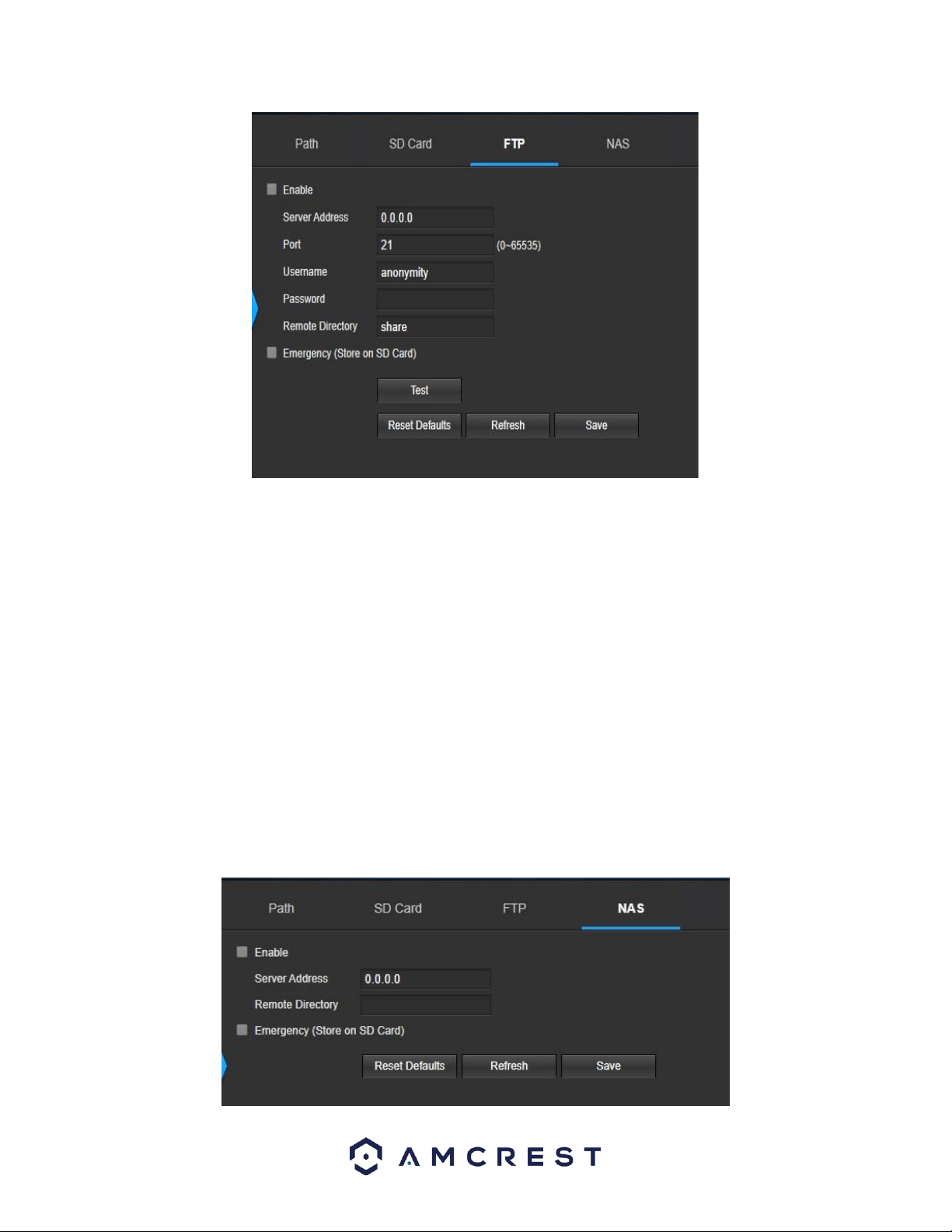
58
Below is an explanation of the fields on the FTP settings tab:
Enable: This checkbox allows the user to enable FTP uploading for the camera’s recorded media.
Server Address: This field allows the user to designate a DDNS address for the FTP server.
Port: This field allows the user to designate the port number for the FTP server.
Username: This field allows the user to input the username used to login to the FTP server.
Password: This field allows the user to input the password used to login to the FTP server.
Remote Directory: This field allows the user to specify a remote directory on the FTP to send the recorded media
to.
Emergency (Store on SD Card): This checkbox allows the camera to store recorded media on the SD card in case
the FTP server is unavailable.
To reset to default settings, click the Reset Defaults button. To refresh the page, click the Refresh button. To save
the settings, click the Save button.
NAS
This tab is where the user can change NAS settings. Below is a screenshot of the NAS tab:
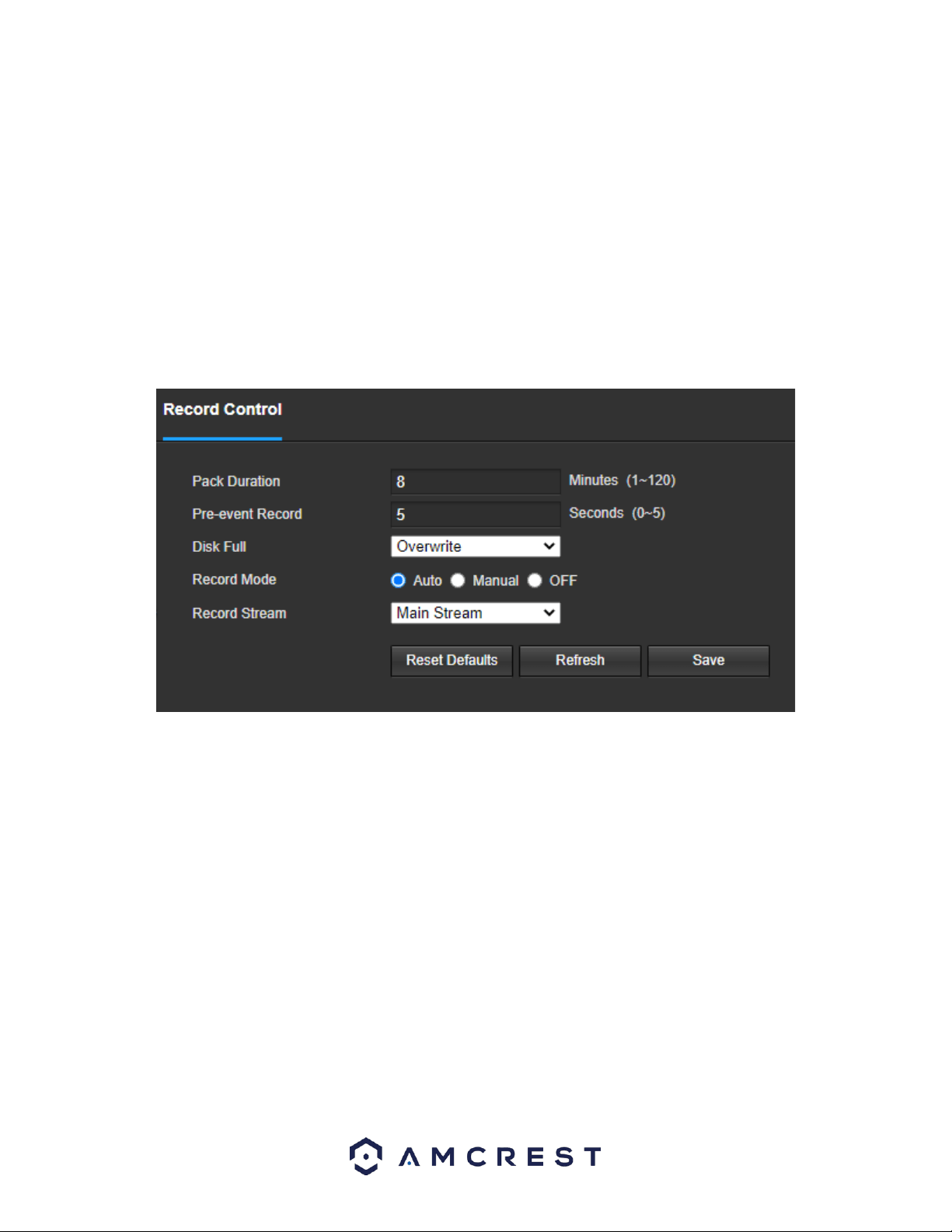
59
Below is an explanation of the fields on the NAS settings tab:
Enable: This checkbox allows the user to enable NAS uploading for the camera’s recorded media.
Server Address: This field allows the user to designate a DDNS address for the NAS server/device.
Remote Directory: This field allows the user to specify a remote directory on the NAS to send the recorded
media to.
To reset to default settings, click the Reset Defaults button. To refresh the page, click the Refresh button. To save
the settings, click the Save button.
Record Control
This menu is where general recording settings are configured. Below is a screenshot of the record control menu:
Below is an explanation of the fields on the Record Control settings tab:
Pack Duration: This field allows the user to set how many minutes each file is comprised of.
Pre-event Record: This field allows the user to specify how many seconds before an event should be recorded.
Disk Full: This dropdown box allows the user to designate what the camera should do when the disk is full. There
are 2 options: Overwrite or Stop.
Record Mode: This set of radio buttons allows the user to designate the recording mode. The options are Auto,
Manual, and Off.
Record Stream: This dropdown box allows the user to specify which stream to record. The options are mainstream
and sub stream.
To reset to default settings, click the Reset Defaults button. To refresh the page, click the Refresh button. To save
the settings, click the Save button.
Cloud Storage
This menu redirects the user to the Amcrest Cloud web site. At this website (amcrestcloud.com) users can register
for new accounts as well as view or modify existing accounts.
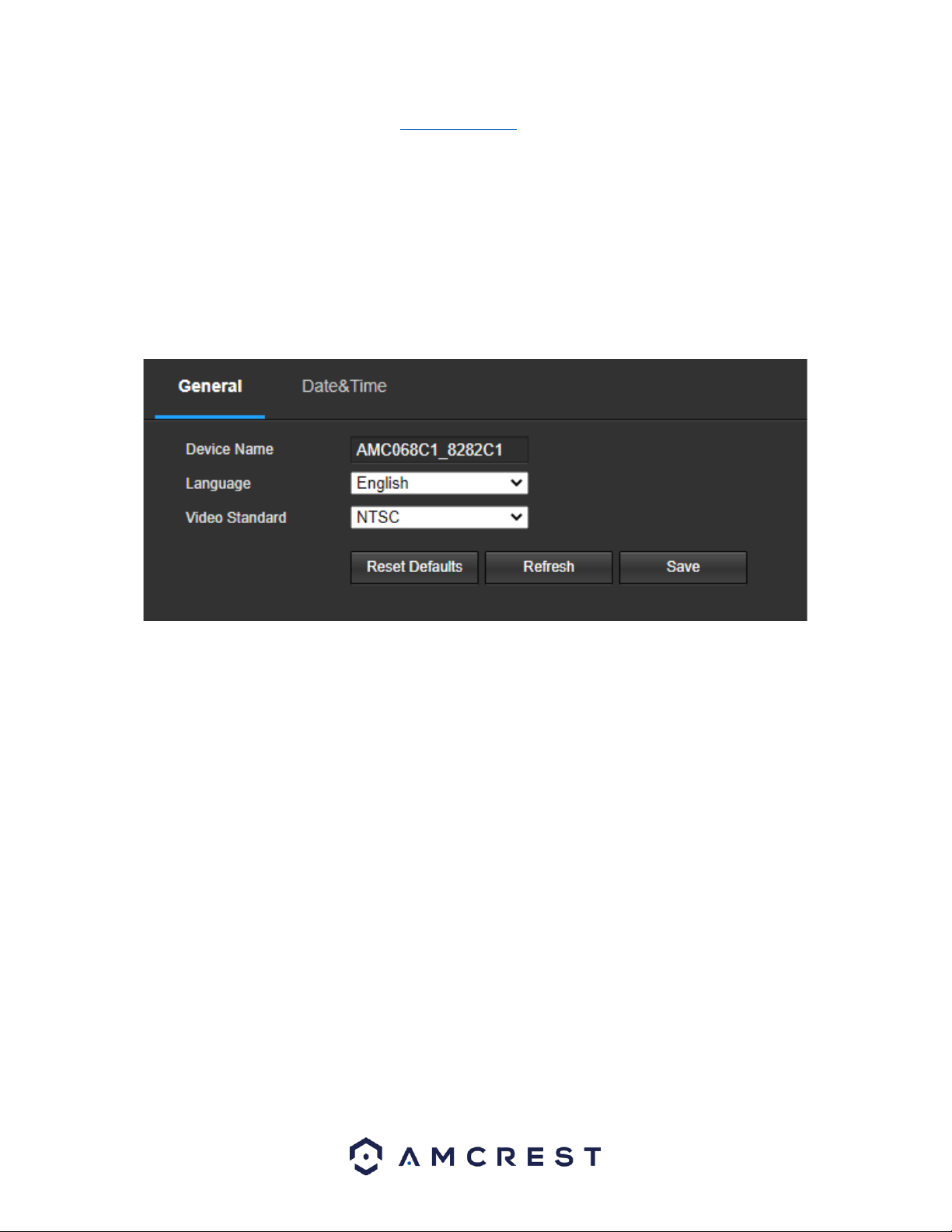
60
For more information on Amcrest Cloud visit: amcrestcloud.com
System
This menu section allows the user to change general settings for the camera.
General
This menu controls where general settings are configured. There are 2 tabs in this menu: General and Date & Time.
General
This tab is where the user can configure some basic camera settings. Below is a screenshot of the General tab:
Below is an explanation of the fields on the General settings tab:
Device Name: This field allows the user to change the device’s name.
Language: This dropdown box allows the user to change the language used in the camera.
Video Standard: This dropdown box allows the user to select either the NTSC or PAL video standard.
To reset to default settings, click the Reset Defaults button. To refresh the page, click the Refresh button. To save
the settings, click the Save button.
Date & Time
This tab is where the user can configure the date and time settings for the camera. Below is a screenshot of the
Date & Time tab:
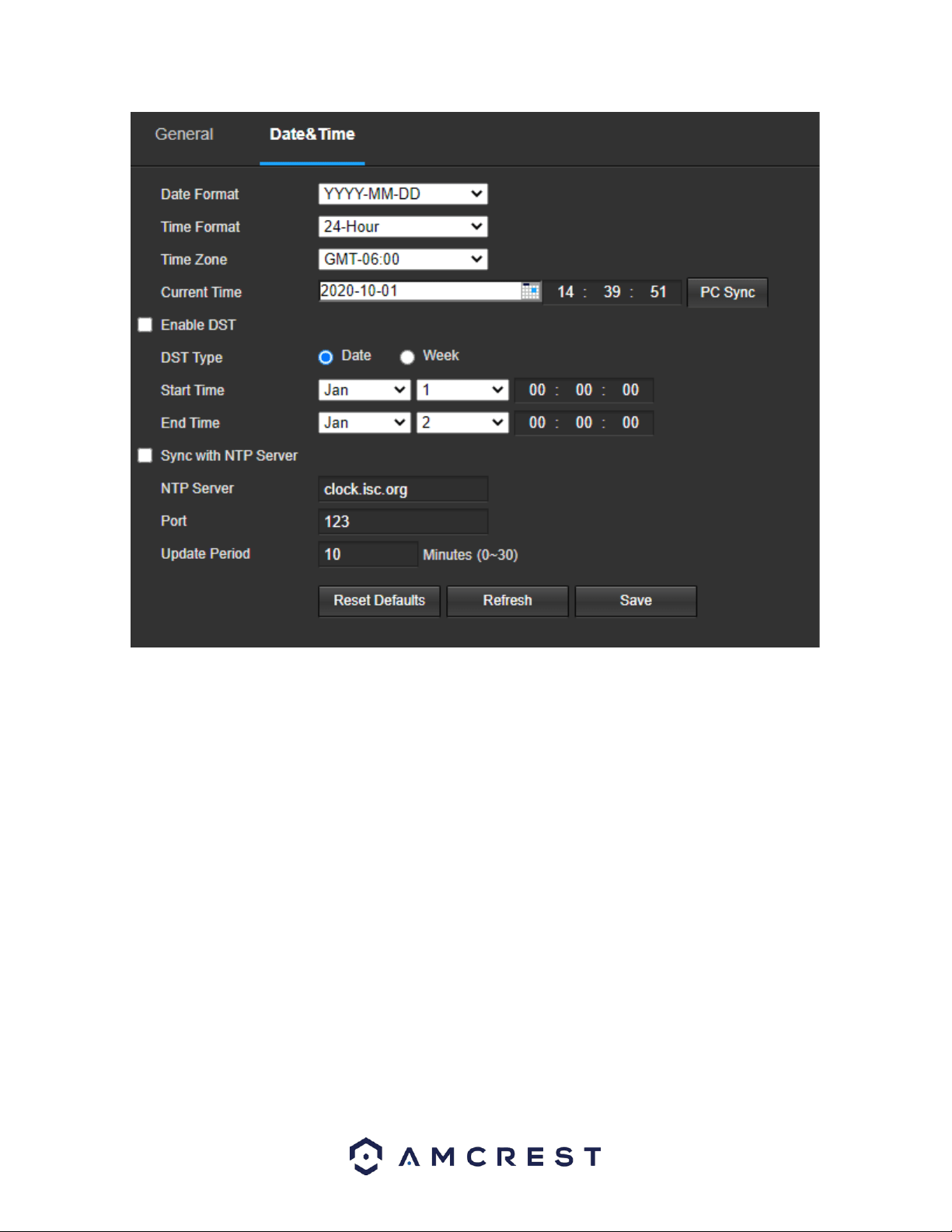
61
Below is an explanation of the fields on the Date & Time settings tab:
Date Format: This dropdown box allows the user to change the date format used in the camera.
Time Format: This dropdown box allows the user to change the time format used in the camera.
Time Zone: This dropdown box allows the user to change the time zone used in the camera.
Current Time: This field allows the user to enter in the date and time manually. Clicking the PC Sync button allows
the camera to sync with a Network Time Protocol (NTP) server.
Enable DST: This checkbox allows the user to enable daylight savings time for the camera.
DST Type: This radio button allows the user to select whether DST is based on the week, or a specific day.
Start Time: This dropdown box and field allow the user to enter in the start time for DST.
End Time: This dropdown box and field allow the user to enter in the end time for DST.
Synchronize with NTP: This checkbox allows the user to enable the camera’s synchronization with an NTP server.
NTP Server: This field allows the user to enter in an NTP server.
Port: This field allows the user to enter in the port number for the NTP server.
Update Period: This field allows the user to enter in the update period time. This number designates how
frequently the camera pings the NTP server to ensure it has the correct time. The range is from 0-30
minutes.
To reset to default settings, click the Reset Defaults button. To refresh the page, click the Refresh button. To save
the settings, click the Save button.
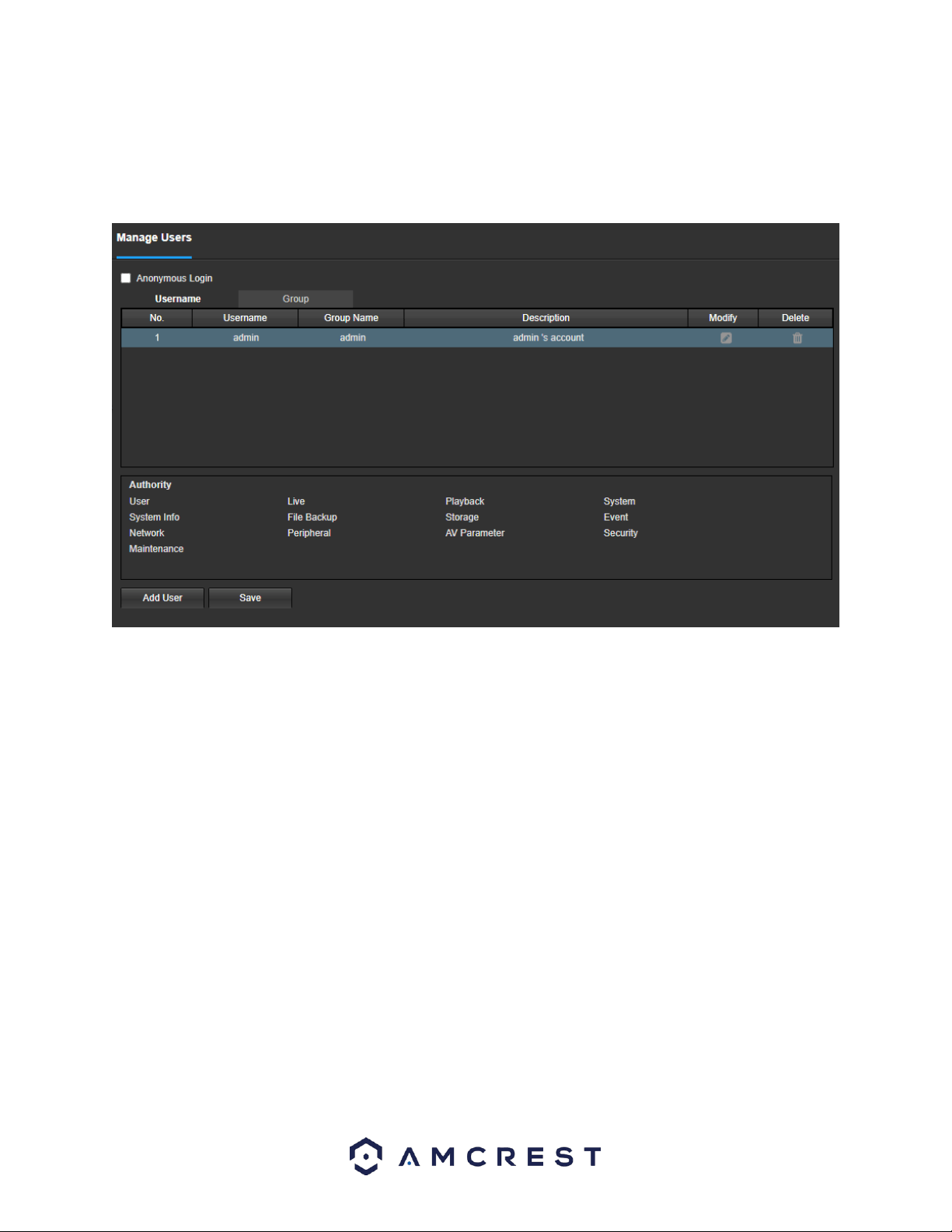
62
Manage Users
This menu allows the user to change the user accounts on the camera. By default, the camera only has the admin
account which has all rights/authorities. Additional accounts can be created on this screen. Below is a screenshot
of the account screen:
Below is an explanation of the fields on the Account screen:
Anonymous Login: This checkbox allows the user to enable the anonymous login feature. This allows all user
account names to remain hidden on this screen.
Username: This tab shows the usernames available on the camera.
Group: This tab shows the user groups available on the camera.
No.: This column shows the user’s number on the user list.
Username: This column shows the usernames of the different accounts on the camera.
Group Name: This column shows the group of the different accounts on the camera.
Description: This column shows a description of the account.
Modify: This column allows the user to modify the user account.
Delete: This column allows the user to delete a user account. Note: The admin account cannot be deleted.
Authority List: This box shows which user rights/authorities are assigned to an account.
Add User: This button allows the user to add a new user to the camera.
Save: This button is used to save the settings.
Default Settings
This screen allows the user to reset the camera and all its settings to the factory settings.
Below is a screenshot of the Default screen:
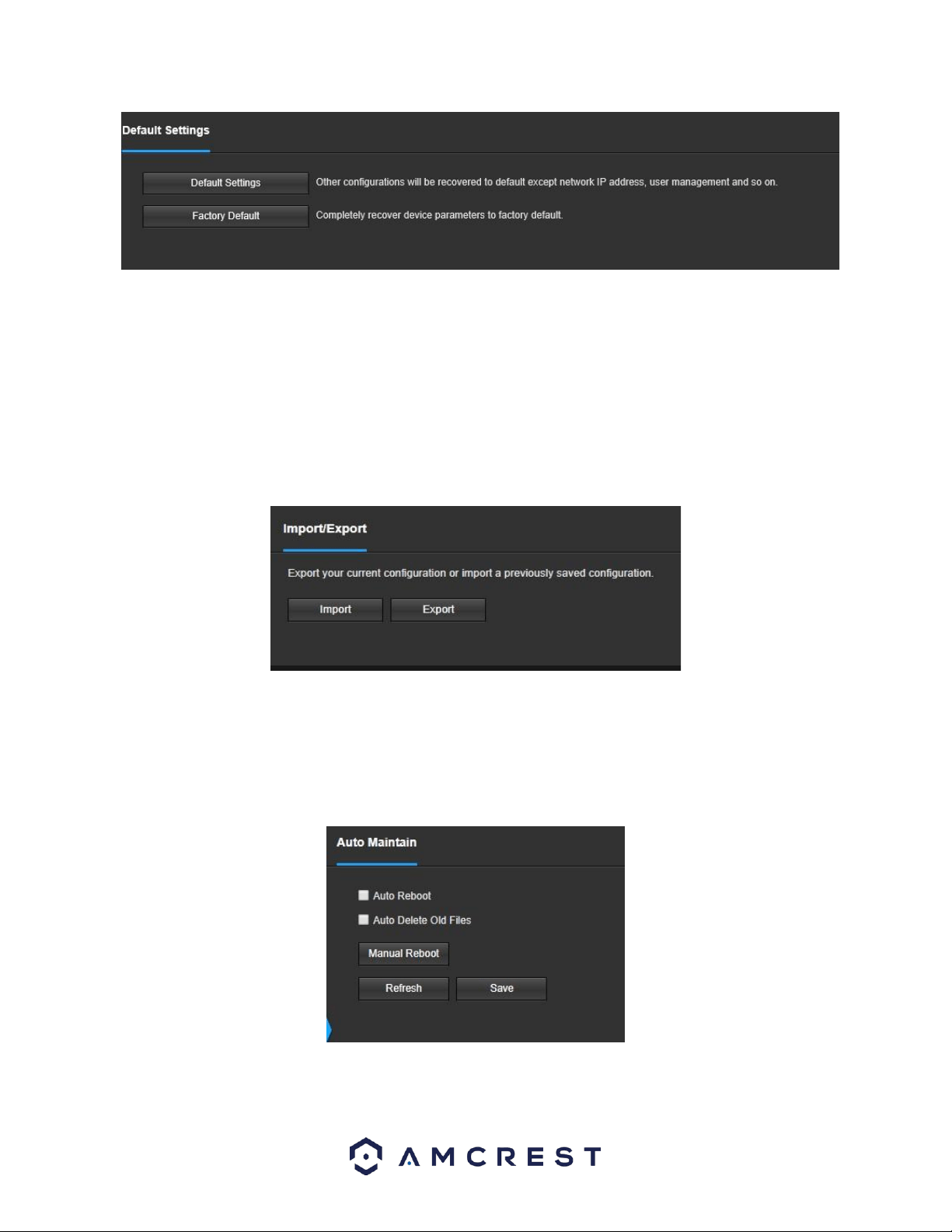
63
Below is an explanation of the items listed in this field:
Default Settings: Only the IP address, user management, and other settings can be recovered after reset. Factory
Default: Completely resets the camera to factory default settings. No settings can be recovered after the camera
has been returned to its factory default settings.
Import/Export
This screen allows the user to import or export settings from the camera. Below is a screenshot of the
Import/Export screen:
To export the settings, click the Export button. The settings file will be downloaded to your device. Click the Import
button to import the settings back into the camera.
Auto Maintain
This screen allows the user to set auto maintenance settings for the camera. Below is a screenshot of the Auto
Maintain screen:
Below is an explanation of the fields on the Auto Maintain screen:
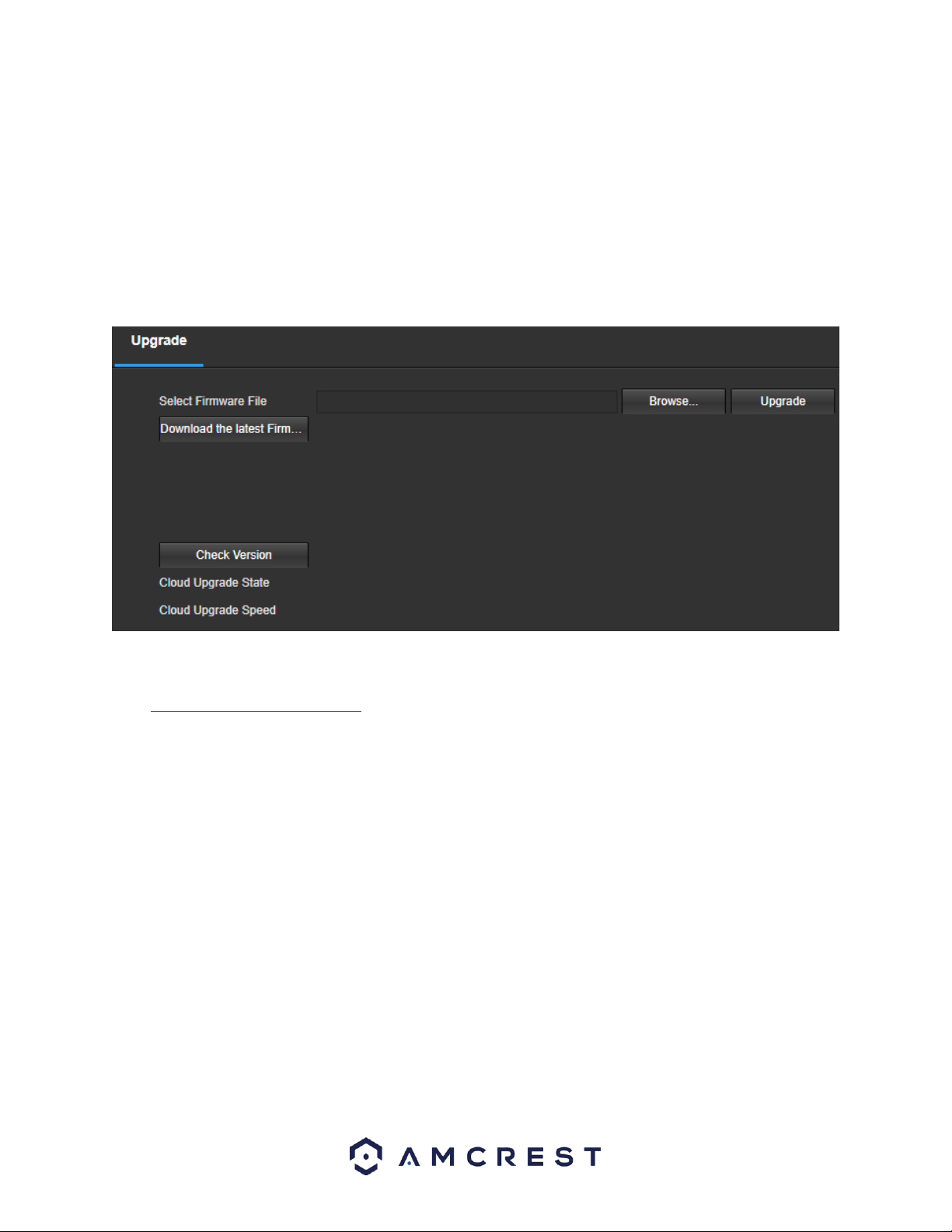
64
Auto Reboot: This checkbox allows the user to enable the auto reboot function. The dropdown box and field to the
right of this checkbox allow the user to specify what date and time of the week the camera will auto reboot.
Auto Delete Old Files: This checkbox allows the user to enable the auto deletion of old files on the camera.
Manual Reboot: This button allows the user to manually reboot the camera.
To refresh the page, click the Refresh button. To save the settings, click the Save button.
Upgrade
This menu allows the user to upgrade the camera’s firmware. Below is a screenshot of the Upgrade screen:
To upgrade the firmware for your camera, follow the steps provided below:
Go to amcrest.com/firmware-subscribe
Search for the model number of your camera and download the latest firmware file.
Return to the web user interface for your camera and press the Browse button to locate and import the firmware
file you just downloaded.
Once the firmware file has been imported, click Upgrade.
The device will reset, return to the web user interface. The upgrade is now complete.
Note: When upgrading the camera’s firmware, do not disconnect the internet or power from the camera.
Information
This menu section allows the user to view information about the camera for reference purposes.
Version
This screen allows the user to see various information about the camera’s software versions, as well as other
information. On this screen, software version, web interface version, and ONVIF version are displayed. Also, the
S/N (Token ID) is displayed here.
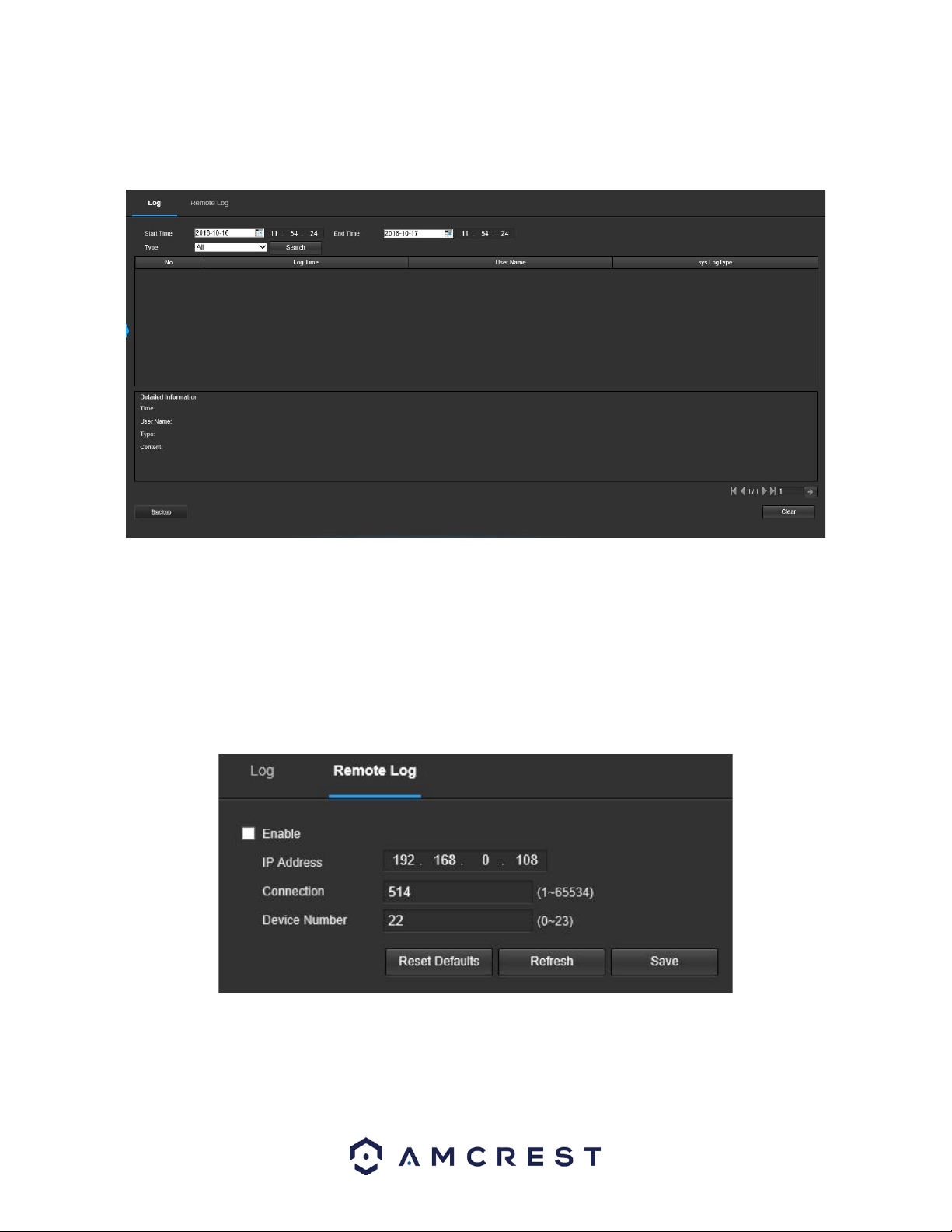
65
Log
This screen is where the camera’s activity log is kept. Below is a screenshot of the Log screen:
To view logs for a specific time period, modify the start time and end time fields, choose the type of event (system,
setting, data, event, record, manage users, clear log), and click search.
To back up the log, click the Backup button. To clear the log, click the Clear button.
Remote Log
The Remote Log menu allows users to retain log information from other remotely connected devices. Below is a
screenshot of the Remote Log menu:
Enable: Enables the remote log feature.
IP Address: The IP address of the remote device
Connection: The port number set for the remote device (1~65534) Device Number: The number of the device in
the network segment.
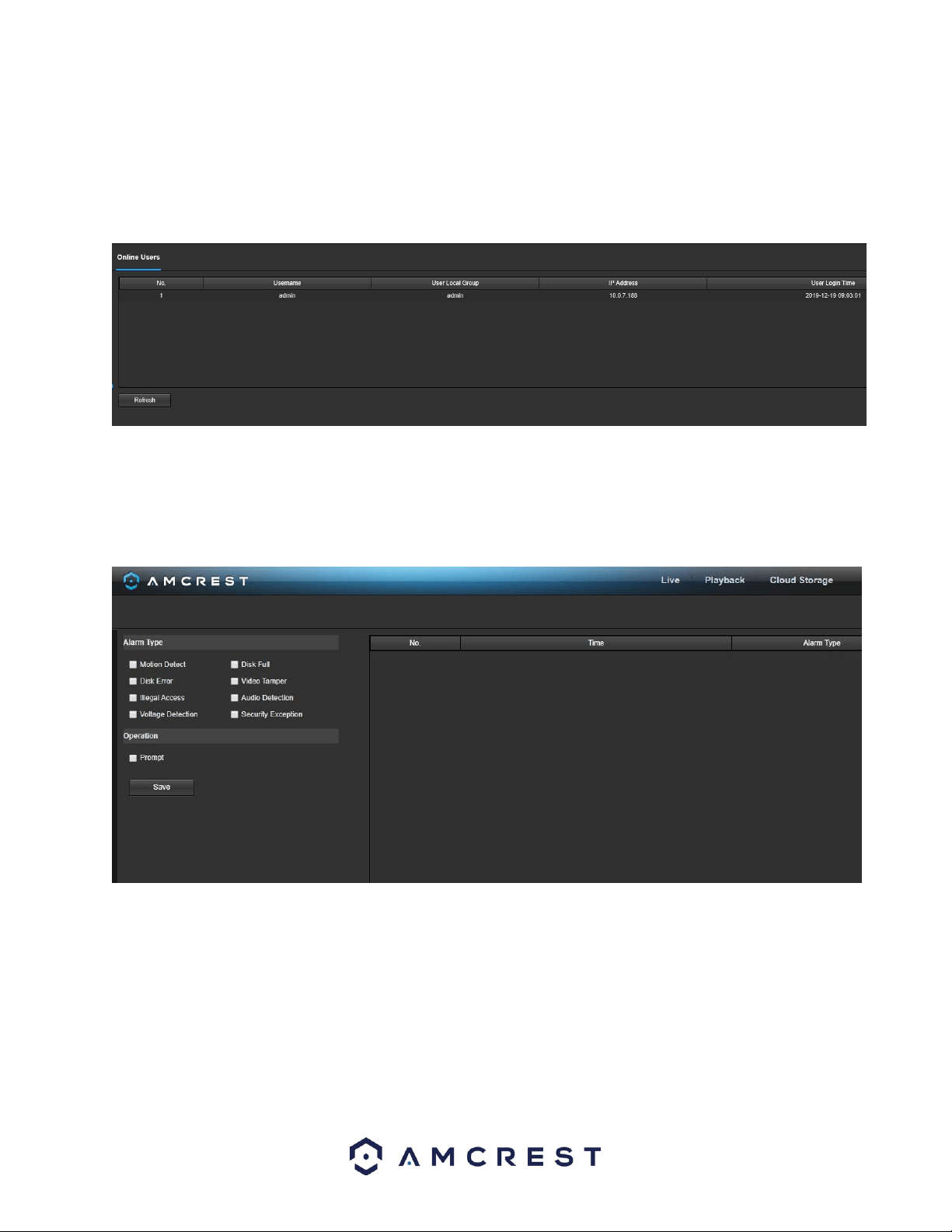
66
To reset to default settings, click the Reset Defaults button. To refresh the page, click the Refresh button. To save
the settings, click the Save button.
Online Users
This screen allows the user to see which users are online. Below is a screenshot of the Online Users screen:
Click Refresh to refresh this table.
Alarm
This screen is where the alarm log is kept. Below is a screenshot of the alarm screen:
The table on the right shows the alarm log and all the alarm instances that have occurred.
The checkboxes allow the user to narrow down which alarms they want to see in the alarm log. Clicking the
checkbox next to Prompt will cause the system to pop up a dialog box anytime an alarm is triggered. Clicking the
checkbox next to Play Custom Alarm will use a custom alarm sound for the alarm prompt. Click the Browse button
to search for a custom alarm sound to use.
Logout
Clicking the logout button will log out the user.

67
Remote Web Access Setup
There are two main methods for setting up remote access: UPnP/DDNS, and Port Forwarding.
UPnP/DDNS Remote Web Access Setup
Using Universal Plug and Play (UPnP) and Dynamic Domain Name Server (DDNS) functionality is the easiest way to
setup stable remote access. For this method, your router should support the uPnP networking protocol and the
protocol should be enabled. Please refer to your router manufacturer’s documentation to learn how to enable
uPnP on your router.
Below is a step-by-step walkthrough that details how to setup Amcrest cameras for Remote Web Access using
UPnP and DDNS:
1. Login to your camera’s web interface, open the main menu then go to Setup -> Network.
2. Using the left-hand menu, go to the Connection menu, and write down the HTTP port. It is recommended to
ensure the port number is at least 5 digits long to prevent any port conflicts. If need be, change the port to a 5digit
number that is less than 65535, note the number down, and click save before proceeding to the next step.
3. The system will prompt you to reset the camera. Click OK and wait for the camera to restart.
4. Restarting the camera may cause the device to use another IP address. Use the included IP Config tool to find the
IP address as detailed previously in this document.
5. Login to your camera, open the main menu then go to Setup -> Network.
6. Click the Connections menu item on the left-hand menu and ensure that the HTTP port has changed.
7. Click the DDNS menu item on the left-hand menu, pick Amcrest DDNS from the drop-down box, click the checkbox
next to Server Type, and then click the Save button on the bottom right.
8. To set a custom DDNS name, fill out the Domain Name field and click Save.
9. Write down the entire Domain Name field, including the white text that says.AmcrestDDNS.com
10. Click the UPnP menu item on the left-hand menu and click the enable checkbox at the top.
11. While in the UPnP menu, double click the HTTP port, and change both the internal and external HTTP ports to
match the number that was used in step 2.
12. Uncheck the last 4 checkboxes in the PAT table on the UPnP menu.
13. Click apply, then exit this menu to go back to the main menu, then re-enter the UPnP menu, and ensure the UPnP
status says, “Mapping Successful”.
14. Open a web browser and enter in the DDNS domain name address from step 9, enter in a colon, then type the port
number from step 4 on to the end.
a. For example, if the DDNS domain name is http://abc123456789.AmcrestDDNS.com and your HTTP Port is
33333, the URL would be http://abc123456789.AmcrestDDNS.com:33333
15. The browser may prompt you to install a plugin. Click install to download the plugin, and then click on the plugin
installation file to install the plugin.
16. If the browser prompts you to allow the plugin to work on the computer, hit Allow to ensure the plugin can run
successfully.
17. Enter in login details into the username and password fields and click login.
If the process above is not working, please contact Amcrest Support via one of the following options:
Visit http://amcrest.com/contacts and use the email form.
Call Amcrest Support using one of the following numbers
Toll Free: (888) 212-7538
International Callers (Outside of US): +1-713-893-8956
USA: (888) 212-7538

68
Canada: 437-888-0177
UK: 203-769-2757
Email Amcrest Customer Support support@amcrest.com
Port Forwarding Remote Web Access Setup
Port Forwarding is an alternative method to setting up remote access for Amcrest cameras. This method should
only be used if the UPnP/DDNS Remote Access method did not work.
Below is a step-by-step walkthrough that details how to setup the camera for Remote Web Access using Port
Forwarding:
1. Login to your camera, open the main menu then go to Setup -> Network.
2. Open the TCP/IP settings screen.
3. By default, the camera has the mode set to DHCP. Ensure that DHCP is selected. The IP Address, Subnet Mask,
Default Gateway, Preferred DNS, and Alternate DNS should all be 0s if DHCP is selected.
4. Click Save to save these settings. This should now open the main menu.
5. From the main menu, go to Setup -> Network.
6. On the TCP/IP settings screen, the IP Address, Subnet Mask, Default Gateway, Preferred DNS, and Alternate DNS
should all be populated.
7. Click the radio button next to Static, to change the mode to Static.
8. Write down the IP Address that is currently in the IP address field.
9. Click the Save button.
10. Using the left-hand menu, go to the Connection menu, and write down the TCP, UDP, and HTTP port number. It is
recommended to ensure that these port numbers are at least 5 digits long to prevent any port conflicts. If need be,
change each of these port numbers to a 5-digit number that is less than 65535, note the numbers down, and click
save before proceeding to the next step.
11. Go to http://www.canyouseeme.org/ and check to ensure each of the port numbers specified in step 10 is open.
12. Write down the manufacturer name, brand, and model name for the router that the camera is connected to, and
then proceed to http://www.portforward.com on your web browser.
13. Open the port forwarding guide section on the left-hand side menu.
14. Find the router brand name in the list and click it.
15. Find the router model number and click it.
16. Click the Default Guide link near the middle of the page.
17. This guide will help you take the step necessary to port forward on the router. Follow these steps, and then return
to the camera.
18. Login to your camera, open the main menu then go to Setup -> Network.
19. Click the DDNS menu item on the left-hand menu, pick AMCRESTDDNS from the drop-down box, click the checkbox
next to Server Type, and then click the Save button on the bottom right.
20. To set a custom DDNS name, fill out the Domain Name field and click Save.
21. Write down the entire Domain Name field, including the white text that says.AmcrestDDNS.com
22. Open a web browser and enter in the DDNS domain name address from step 21, enter in a colon, then type the
HTTP port number from step 10 on to the end.
For example, if the DDNS domain name is http://abc123456789.AmcrestDDNS.com and your HTTP Port is 33333,
the URL would be http://abc123456789.AmcrestDDNS.com:33333
23. Enter in login details into the username and password fields and click login.
If the process above is not working, please contact Amcrest Support via one of the following options:
Visit http://amcrest.com/contacts and use the email form

69
Call Amcrest Support using one of the following numbers
Toll Free: (888) 212-7538
International Callers (Outside of US): +1-713-893-8956
USA: (888) 212-7538
Canada: 437-888- 0177
UK: 203-769-2757
Email Amcrest Customer Support support@amcrest.com
Amcrest Cloud Desktop Setup
Amcrest cameras can sync with Amcrest Cloud; a service that stores recorded video streams to enable long-term
storage. Amcrest Cloud also allows the user to easily find and download recorded video for playback from any
internet connected PC or Mac computer.
For more information on how to setup your camera on Amcrest Cloud please follow the steps provided below:
1. Connect the camera to power and wait 30 seconds for the camera to start-up and initialize.
2. Using a web browser on your PC or Mac, visit www.amcrest.com/cloud and register for a cloud account. Once
registered, click the “Add Camera” button. Select “Amcrest”, give the camera a name, and enter the camera’s SN
(located on the bottom of the camera), then click “Next”.
3. On the settings page, you can adjust optional preferences for your camera. Once settings have been adjusted, click
“Finish”. Your camera is now successfully set up for cloud access and storage.
4. View your camera live or watch recorded clips using the menu button on the top of the page. You can also use the
Amcrest Cloud app on iOS and Android to add more cameras, play recordings, and view your camera live, from
anywhere. For more information visit amcrest.com/support
5. For additional assistance, please contact us at www.amcrest.com or give us a call at 1-888-212-7538. Step by step
video tutorials available at http://www.amcrest.com/videos
Web Access Setup (AmcrestView.com)
1. Connect the camera to power and wait 30 seconds for the camera to start-up and initialize.
2. Using Internet Explorer or Safari, go to www.AmcrestView.com and register an account. You will be required to
activate your account by e-mail (double-check your spam folder).
3. Once activated, download, and install the plugin for your web browser. The installation of the plugin will require all
web browsers to close.
4. Log in to your account. To add a camera, click the “Add Device” button. Give the camera a name, enter the UID
(found on the bottom of your camera), then enter the login details for the camera. The default username and
password for the camera is admin.
5. Once added, the camera should appear in the device list. Click the icon next to the camera’s UID to open the
live viewing and playback interface.
6. The device is now successfully setup for live viewing and playback!
For additional assistance, please contact us at www.amcrest.com or give us a call at 1-888-212-7538. Step by step
video tutorials available at www.amcrest.com/videos
FAQs/Troubleshooting
1. The camera does not boot up properly.
Below are a few possible reasons why this may be occurring:

70
• The power input is not correct voltage.
• The power cable connection is not secured correctly.
• The firmware was upgraded incorrectly.
2. Camera often automatically shuts down or stops running.
Below are a few possible reasons why this may be occurring:
• The input voltage is too low or is not stable.
• The insides of the camera have accumulated too much dust.
• The temperature is either too hot or too cold.
• The hardware is malfunctioning.
3. Real-time video color is distorted.
Below are a few possible reasons why this may be occurring:
• The camera is not compatible with the monitor.
• The camera color or brightness settings are not correctly configured.
4. The timestamp is not displaying the correct time.
The time and date settings may not be configured correctly. You can take the following steps to resolve the issue:
• Log into your camera’s web user interface via a laptop or PC.
• Navigate to Setup>>System>>General
• Click on the Date & Time tab.
• Click on PC Sync to sync the date and time.
• Click Save to save and apply the new date and time settings.
5. Motion detection does not work.
Below are a few possible reasons why this may be occurring:
• The motion detection time period may be incorrectly configured.
• Motion detection zone setup is not correctly configured.
• Motion detection sensitivity is too low.
6. Web Access is not working.
Below are a few possible reasons why this may be occurring:
• Windows version is pre -Windows 2000 service pack 4. Use a more recent version of Windows.
• ActiveX controls have been disabled.
• The PC is not using DirectX 8.1 or higher. Upgrade to a more recent version of DirectX.
• The camera is having network connection errors.
• Web access may be setup incorrectly.
• The username or password may be incorrect.
7. Web Access live view is only displaying a static picture.
Below are a few possible reasons why this may be occurring:
• The network speed is not enough to transfer video data via web access.
• The client PC may have limited resources.
• Multicast mode may be causing this issue.
• A privacy mask or screensaver may be enabled.
• The logged in user may not have enough rights to monitor real-time playback.
• The camera’s local video output quality is not enough.

71
8. Network connection is not stable.
Below are a few possible reasons why this may be occurring:
• The network is not stable.
• There may be an IP address conflict.
• There may be a MAC address conflict.
• The PC or camera network card may be defective.
• The Ethernet cable is too long
9. The alarm signal cannot be disarmed.
Below are a few possible reasons why this may be occurring:
• An alarm may be setup incorrectly.
• An alarm output may have been manually opened.
• There may be an error in the camera’s firmware.
10. Alarms are not working.
Below are a few possible reasons why this may be occurring:
• The alarm is not setup correctly.
• The alarm cable is not connected correctly.
• The alarm input signal is not correctly configured.
• There are two loops connected to one alarm device.
11. Downloaded files cannot be played back.
Below are a few possible reasons why this may be occurring:
• The media player software on the PC may not be able to read the file format.
• The PC may not have DirectX 8.1 or higher.
• The PC may not have Windows XP or higher.
12. When I login via HTTPS, a dialogue says the certificate has expired or is not valid yet.
• Ensure the PC has the same time as the camera’s system time.
Glossary of Terms
• Abnormality – Any malfunction in terms of storage of data to the SD card.
• Alarm Delay – The gap in time between alarm activation and Relay alarm activation.
• Alternate Gateway – The node on the computer network that the network software uses when an IP address does
not match any other routes in the routing table, and when the default gateway is not available.
Anti-Dither – This time value controls how long the alarm signal lasts. The values in this field can range from 5 to
600 seconds. Based on motion detection, a buzzer can go off, a tour can begin, a snapshot can be taken, or the
camera can begin recording.
• DDNS – Stands for Dynamic Domain Name System. DDNS is a method of automatically updating a name server in
the Domain Name System (DNS), often in real time, with the active DNS configuration of its configured hostnames,
addresses or other information.
• Default Gateway – The node on the computer network that the network software uses when an IP address does
not match any other routes in the routing table.
• DHCP – Dynamic Host Configuration Protocol is a network protocol that enables a server to automatically assign an
IP address to a computer from a defined range of numbers (i.e., a scope) configured for a given network.
• Fluency – Fluency described the lack of stuttering or excessive delay in a video stream. Fluency usually comes at
the expense of video quality when a network is constrained.

72
• IP Address – Internet Protocol Address is a unique numerical label assigned to each device connected to a
computer network. The IP address allows communication between different devices on a network.
• Main Stream – Main Stream is the main streaming protocol for the camera. Main stream uses more bandwidth and
attempts to keep quality and fluency high.
• NO/NC – Normally Open and Normally Closed are options for sensor type. These settings allow for different
exposure types when capturing video and still images.
• NTP – Network Time Protocol is a networking protocol for clock synchronization between computer systems over
packet-switched, variable-latency data networks.
• P2P – Peer-to-Peer is a decentralized communications model in which each party has the same capabilities and
either party can initiate a communication session.
• PPPoE – Point to Point Protocol over Ethernet is a network protocol for encapsulating Point to Point Protocol data
packets inside Ethernet frames.
• QR Code – Quick Response code is a type of digital barcode that enables devices to share complex data strings
quickly.
• Record Delay – Record Delay specifies in seconds how long the delay between alarm activation and recording
should be.
• Relay Out – Relay Out triggers a connected alarm (connected to the alarm port on the back of the camera) when
an alarm on the camera is triggered.
• S/N – S/N stands for serial number. The S/N is unique to each camera and can be used to connect to different
Amcrest apps and services to provide different methods of access to the camera.
• Sensitivity – Sensitivity is the amount of change required to increase the motion detected by a percentage. The
lower the sensitivity, the more movement is required to trigger an alarm.
• SMTP – Simple Main Transfer Protocol is an Internet standard for electronic mail (e-mail) transmission.
• Static IP – An IP address that does not change.
• Sub Stream – Sub Stream is an alternative streaming protocol for the camera. Sub stream uses less bandwidth and
attempts to keep fluency high at the expense of quality.
• Subnet Mask – a 32-bit number that masks an IP address, and divides the IP address into network address and host
address.
• TCP/IP – TCP/IP stands for Transmission Control Protocol/Internet Protocol and it is the language/protocol that
allows communication between internet connected devices, whether on a local network, or a on the Internet at
large.
• Threshold – Threshold is the level that the motion detection needs to reach to trigger an alarm.
• UPnP – UPnP stands for Universal Plug and Play, and it is a protocol used to easily connect devices to the internet.
• Video Tamper – Video Tamper refers to any major changes happening to the video feed such as it being blocked
out, interfered with, or disconnected.
FCC Statement
1. This device complies with Part 15 of the FCC Rules. Operation is subject to the following two conditions:
(1) this device may not cause harmful interference, and (2) this device must accept any interference received,
including interference that may cause undesired operation.
2. The user’s manual or instruction manual for an intentional or unintentional radiator shall caution the user
that changes, or modifications not expressly approved by the party responsible for compliance could void the
user's authority to operate the equipment. In cases where the manual is provided only in a form other than paper,
such as on a computer disk or over the Internet, the information required by this section may be included in the
manual in that alternative form, provided the user can reasonably be expected to have the capability to access
information in that form.

73
3. (b) For a Class B digital device or peripheral, the instructions furnished the user shall include the following
or similar statement, placed in a prominent location in the text of the manual: NOTE: This equipment has been
tested and found to comply with the limits for a Class B digital device, pursuant to Part 15 of the FCC Rules. These
limits are designed to provide reasonable protection against harmful interference in a residential installation. This
equipment generates, uses and can radiate radio frequency energy and, if not installed and used in accordance
with the instructions, may cause harmful interference to radio communications. However, there is no guarantee
that interference will not occur in a particular installation. If this equipment does cause harmful interference to
radio or
television reception, which can be determined by turning the equipment off and on, the user is encouraged to try
to correct the interference by one or more of the following measures: -- Reorient or relocate the receiving
antenna. -- Increase the separation between the equipment and receiver. -- Connect the equipment into an
outlet on a circuit different from that to which the receiver is connected. -- Consult the dealer or an experienced
radio/TV technician for help.
4. RF exposure warning This equipment must be installed and operated in accordance with provided
instructions and the antenna(s) used for this transmitter must be installed to provide a separation distance of at
least 20 cm from all persons and must not be co-located or operating in conjunction with any other antenna or
transmitter.
End-users and installers must be provided with antenna installation instructions and transmitter operating
conditions for satisfying RF exposure compliance.
IC Warning Statement
This device complies with Industry Canada’s license-exempt RSSs. Operation is subject to the following two
conditions: (1) This device may not cause interference; and (2) This device must accept any interference, including
interference that may cause undesired operation of the device. Le présent appareil est conforme aux CNR
d'Industrie Canada applicables aux appareils radio exempts de licence. L'exploitation est autorisée aux deux
conditions suivantes : (1) l'appareil ne doit pas produire de brouillage, et (2) l'utilisateur de l'appareil doit accepter
tout brouillage radioélectrique subi, même si le brouillage est susceptible d'en compromettre le fonctionnement.
This equipment complies with IC RSS-102 radiation exposure limits set forth for an uncontrolled environment. This
equipment should be installed and operated with a minimum distance of 20cm between the radiator and any part
of your body. Pour se conformer aux exigences de conformité CNR 102 RF exposition, une distance de séparation
d'au moins 20 cm doit être maintenue entre l'antenne de cet appareil ettoutes les personnes.
Appendix A: Toxic or Hazardous Materials or Elements
Component Name
Toxic or Hazardous Materials or Elements
Pb
Hg
Cd
Cr VI
PBB
PBDE
Sheet Metal
○
○
○
○
○
○
Plastic Parts
○
○
○
○
○
○
Circuit Board
○
○
○
○
○
○
Fastener
○
○
○
○
○
○
Wire and Cable/Ac
Adapter
○
○
○
○
○
○
Packing Material
○
○
○
○
○
○
Accessories
○
○
○
○
○
○

74
O: Indicates that the concentration of the hazardous substance in all homogeneous materials in the parts is below
the relevant threshold of the SJ/T11363-2006 standard.
X: Indicates that the concentration of the hazardous substance of at least one of all homogeneous materials in the
parts is above the relevant threshold of the SJ/T11363-2006 standard. During the environmental-friendly use
period (EFUP) period, the toxic or hazardous substance or elements contained in products will not leak or mutate
so that the use of these (substances or elements) will not result in any severe environmental pollution, any bodily
injury or damage to any assets. The consumer is not authorized to process such kind of substances or elements,
please return to the corresponding local authorities to process according to your local government statutes.
O: Indicates that the concentration of the hazardous substance in all homogeneous materials in the parts is below
the relevant threshold of the SJ/T11363-2006 standard.
X: Indicates that the concentration of the hazardous substance of at least one of all homogeneous materials in the
parts is above the relevant threshold of the SJ/T11363-2006 standard. During the environmental-friendly use
period (EFUP) period, the toxic or hazardous substance or elements contained in products will not leak or mutate
so that the use of these (substances or elements) will not result in any severe environmental pollution, any bodily
injury or damage to any assets. The consumer is not authorized to process such kind of substances or elements,
please return to the corresponding local authorities to process according to your local government statutes.
Note:
To view setup videos for many of the steps outlined in this guide, go to http://amcrest.com/videos
This user manual is for reference only. Slight differences may be found in the user interface.
All the designs and software here are subject to change without prior written notice.
All trademarks and registered trademarks mentioned are the properties of their respective owners.
To contact Amcrest support, please do one of the following:
Visit http://amcrest.com/contacts and use the email form
Call Amcrest Support using one of the following numbers:
Toll Free US: (888) 212-7538
International Callers (Outside of US): +1-713-893-8956
USA: 713-893-8956
Canada: 437-888-0177
UK: 203-769-2757
Email Amcrest Customer Support support@amcrest.com
Copyright Amcrest
©
2020
