NOISE CANCELLING
HEADPHONES 700 UC

2
|
ENG
IMPORTANT SAFETY INSTRUCTIONS
Please read and keep all safety and use instructions.
Important Safety Instructions
1. Read these instructions.
2. Keep these instructions.
3. Heed all warnings.
4. Follow all instructions.
5. Do not use this apparatus near water.
6. Clean only with a dry cloth.
7. Only use attachments/accessories specified by the manufacturer.
8. Refer all servicing to qualified personnel. Servicing is required when the apparatus has been damaged in any
way, such as power-supply cord or plug is damaged, liquid has been spilled or objects have fallen into the
apparatus, the apparatus has been exposed to rain or moisture, does not operate normally, or has been dropped.
WARNINGS/CAUTIONS
• Do NOT use the headphones at a high volume for any extended period.
– To avoid hearing damage, use your headphones at a comfortable, moderate volume level.
– Turn the volume down on your device before placing the headphones on your ears, then turn the volume up
gradually until you reach a comfortable listening level.
• Do NOT use your headphones while driving for phone calls or any other purpose.
• Do NOT use the headphones with noise canceling on at any time the inability to hear surrounding sounds may
present a danger to yourself or others, e.g., while riding a bicycle or walking in or near trac, a construction site or
railroad, etc., and follow applicable laws regarding headphone use.
– Remove the headphones, or use the headphones with noise cancelling o and adjust your volume, to ensure you
can hear surrounding sounds, including alarms and warning signals.
– Be aware of how sounds that you rely on as reminders or warnings may vary in character when using
the headphones.
• Do NOT use the headphones if they emit any loud unusual noise. If this happens, turn the headphones o and
contact Bose customer service.
• Remove headphones immediately if you experience a warming sensation or loss of audio.
• Do NOT use mobile phone adapters to connect headphones to airplane seat jacks, as this could result in injury or
property damage due to overheating.

3
|
ENG
IMPORTANT SAFETY INSTRUCTIONS
• Do NOT use the headphones as aviation communication headsets except in case of emergency.
– No incoming audio will be heard with a discharged or improperly installed battery. This could result in the
potential of missed communications while piloting an aircraft.
– Extremely loud ambient noise levels common to many propeller-driven aircraft may impair your ability to receive
incoming audio communications, particularly during takeo and climb out.
– The headphones are not engineered for noise conditions, altitude, temperature or other environmental conditions
common in non-commercial aircraft, resulting in possible interference to critical communications.
Contains small parts which may be a choking hazard. Not suitable for children under age 3.
This product contains magnetic material. Consult your physician on whether this might aect your
implantable medical device.
• To reduce the risk of fire or electrical shock, do NOT expose this product to rain, liquids or moisture.
• Do NOT expose this product to dripping or splashing, and do not place objects filled with liquids, such as vases,
on or near the product.
• Do NOT make unauthorized alterations to this product.
• Use this product only with an agency-approved power supply that meets local regulatory requirements
(e.g., UL, CSA, VDE, CCC).
• Do not expose products containing batteries to excessive heat (e.g. from storage in direct sunlight, fire or the like).
• Do NOT wear the headphones while charging.
• The headphones do not play audio while charging.

4
|
ENG
REGULATORY INFORMATION
NOTE: This equipment has been tested and found to comply with the limits for a Class B digital device, pursuant to
Part 15 of the FCC Rules. These limits are designed to provide reasonable protection against harmful interference in a
residential installation. This equipment generates, uses, and can radiate radio frequency energy and, if not installed
and used in accordance with the instructions, may cause harmful interference to radio communications. However,
there is no guarantee that interference will not occur in a particular installation. If this equipment does cause harmful
interference to radio or television reception, which can be determined by turning the equipment o and on, the user
is encouraged to try to correct the interference by one or more of the following measures:
• Reorient or relocate the receiving antenna.
• Increase the separation between the equipment and receiver.
• Connect the equipment into an outlet on a circuit dierent from that to which the receiver is connected.
• Consult the dealer or an experienced radio/TV technician for help.
Changes or modifications not expressly approved by Bose Corporation could void the user’s authority to operate
this equipment.
This device complies with part 15 of the FCC Rules and with Industry Canada license-exempt RSS standard(s).
Operation is subject to the following two conditions: (1) This device may not cause harmful interference, and (2) this
device must accept any interference received, including interference that may cause undesired operation.
This device complies with FCC and Industry Canada radiation exposure limits set forth for general population.
This transmitter must not be co-located or operating in conjunction with any other antenna or transmitter.
CAN ICES-3(B)/NMB-3(B)
Bose Corporation hereby declares that this product is in compliance with the essential requirements and
other relevant provisions of Directive 2014/53/EU and all other applicable EU directive requirements.
The complete declaration of conformity can be found at: www.Bose.com/compliance
For Europe:
Frequency band of operation 2400 to 2483.5 MHz:
Bluetooth: Maximum transmit power less than 20 dBm EIRP.
Bluetooth Low Energy: Maximum power spectral density less than 10 dBm/MHz EIRP.
This symbol means the product must not be discarded as household waste, and should be delivered to an
appropriate collection facility for recycling. Proper disposal and recycling helps protect natural resources,
human health and the environment. For more information on disposal and recycling of this product, contact
your local municipality, disposal service, or the shop where you bought this product.
Management Regulation for Low-power Radio-frequency Devices
Article XII
According to “Management Regulation for Low-power Radio-frequency Devices” without permission granted by
the NCC, any company, enterprise, or user is not allowed to change frequency, enhance transmitting power or alter
original characteristic as well as performance to an approved low power radio-frequency devices.
Article XIV
The low power radio-frequency devices shall not influence aircraft security and interfere legal communications;
If found, the user shall cease operating immediately until no interference is achieved. The said legal communications
means radio communications operated in compliance with the Telecommunications Act.
The low power radio-frequency devices must be susceptible with the interference from legal communications or ISM
radio wave radiated devices.
Product type: Specific small output wireless devices (wireless devices for wireless data communication systems),
Certification number R-C-BFM-423352, Model number 423352 (headphones), 434489 (Bose USB Link)

5
|
ENG
REGULATORY INFORMATION
DON’T attempt to remove the rechargeable lithium-ion battery from this product. Contact your local Bose retailer or
other qualified professional for removal.
Please dispose of used batteries properly, following local regulations. Do not incinerate.
Names and Contents of Toxic or Hazardous Substances or Elements
Toxic or Hazardous Substances and Elements
Part Name
Lead
(Pb)
Mercury
(Hg)
Cadmium
(Cd)
Hexavalent
(CR(VI))
Polybrominated
Biphenyl
(PBB)
Polybrominated
diphenylether
(PBDE)
PCBs X O O O O O
Metal Parts X O O O O O
Plastic Parts O O O O O O
Speakers X O O O O O
Cables X O O O O O
This table is prepared in accordance with the provisions of SJ/T 11364.
O: Indicates that this toxic or hazardous substance contained in all of the homogeneous materials for this
part is below the limit requirement of GB/T 26572.
X: Indicates that this toxic or hazardous substance contained in at least one of the homogeneous materials
used for this part is above the limit requirement of GB/T 26572.
Date of Manufacture: The eighth digit in the serial number indicates the year of manufacture; “0” is 2010 or 2020.
China Importer: Bose Electronics (Shanghai) Company Limited, Part C, Plant 9, No. 353 North Riying Road, China
(Shanghai) Pilot Free Trade Zone
EU Importer: Bose Products B.V., Gorslaan 60, 1441 RG Purmerend, The Netherlands
Taiwan Importer: Bose Taiwan Branch, 9F-A1, No. 10, Section 3, Minsheng East Road, Taipei City 104, Taiwan
Phone Number: +886-2-2514 7676
Mexico Importer: Bose de México, S. de R.L. de C.V., Paseo de las Palmas 405-204, Lomas de Chapultepec,
11000 México, D.F. Phone Number: +5255 (5202) 3545
Charging temperature range: 32° F to 113° F (0° C to 45° C)
Discharging temperature range: -4° F to 140° F (-20° C to 60° C)
Model: 423352 and 434489
CMIIT ID: 2019DJ5068 and 2020DJ3104
Place of Origin: China

6
|
ENG
LEGAL INFORMATION
Security Information
This product is capable of receiving security updates from Bose via the Bose Music app. To receive security
updates, you must complete the product setup process in the Bose Music app. If you do not complete the
setup process, you will be responsible for installing security updates that Bose makes available.
Amazon, Alexa, Amazon Music, and all related logos are trademarks of Amazon, Inc. or its aliates.
Apple, the Apple logo, iPad, iPhone, iPod, and macOS are trademarks of Apple Inc., registered in the U.S. and other
countries. The trademark “iPhone” is used in Japan with a license from Aiphone K.K. App Store is a service mark of
Apple Inc.
Use of the Made for Apple badge means that an accessory has been designed to connect specifically to the Apple
product(s) identified in the badge, and has been certified by the developer to meet Apple performance standards.
Apple is not responsible for the operation of this device or its compliance with safety and regulatory standards.
The Bluetooth® word mark and logos are registered trademarks owned by Bluetooth SIG, Inc. and any use of such
marks by Bose Corporation is under license.
Google, Google Maps, Google Play and other related marks and logos are trademarks of Google LLC.
Wi-Fi is a registered trademark of Wi-Fi Alliance®.
Bose, Bose Music, and Bose Noise Cancelling Headphones are trademarks of Bose Corporation.
All other trademarks are the property of their respective owners.
Bose Corporation Headquarters: 1-877-230-5639
The Bose Privacy Policy is available on the Bose website.
©2020 Bose Corporation. No part of this work may be reproduced, modified, distributed or otherwise used without
prior written permission.

7
|
ENG
LICENSE DISCLOSURES
The following license disclosures apply to certain third-party software packages used as components in the product.
Package: Nanopb
Copyright © 2011 Petteri Aimonen <jpa at nanopb.mail.kapsi.fi>. The Nanopb package is subject to the license terms
reprinted below:
Zlib license
© 2011 Petteri Aimonen <jpa at nanopb.mail.kapsi.fi>
This software is provided ‘as-is’, without any express or implied warranty. In no event will the authors be held liable
for any damages arising from the use of this software.
Permission is granted to anyone to use this software for any purpose, including commercial applications, and to alter
it and redistribute it freely, subject to the following restrictions:
1. The origin of this software must not be misrepresented; you must not claim that you wrote the original software
If you use this software in a product, an acknowledgment in the product documentation would be appreciated
but is not required.
2. Altered source versions must be plainly marked as such, and must not be misrepresented as being the original
software.
3. This notice may not be removed or altered from any source distribution.
Package: Mbed TLS 2.16.1
© ARM Limited. All rights reserved. The Mbed TLS package is subject to the license terms reprinted below.
Apache 2.0 License
Apache License
Version 2.0, January 2004
http://www.apache.org/licenses/
TERMS AND CONDITIONS FOR USE, REPRODUCTION, AND DISTRIBUTION
1. Definitions.
“License” shall mean the terms and conditions for use, reproduction, and distribution as defined by Sections 1
through 9 of this document.
“Licensor” shall mean the copyright owner or entity authorized by the copyright owner that is granting the
License.
“Legal Entity” shall mean the union of the acting entity and all other entities that control, are controlled by, or
are under common control with that entity. For the purposes of this definition, “control” means (i) the power,
direct or indirect, to cause the direction or management of such entity, whether by contract or otherwise, or (ii)
ownership of fifty percent (50%) or more of the outstanding shares, or (iii) beneficial ownership of such entity.
“You” (or “Your”) shall mean an individual or Legal Entity exercising permissions granted by this License.
“Source” form shall mean the preferred form for making modifications, including but not limited to software
source code, documentation source, and configuration files.
“Object” form shall mean any form resulting from mechanical transformation or translation of a Source form,
including but not limited to compiled object code, generated documentation, and conversions to other media
types.
“Work” shall mean the work of authorship, whether in Source or Object form, made available under the License,
as indicated by a copyright notice that is included in or attached to the work (an example is provided in the
Appendix below).

8
|
ENG
LICENSE DISCLOSURES
“Derivative Works” shall mean any work, whether in Source or Object form, that is based on (or derived from)
the Work and for which the editorial revisions, annotations, elaborations, or other modifications represent, as a
whole, an original work of authorship. For the purposes of this License, Derivative Works shall not include works
that remain separable from, or merely link (or bind by name) to the interfaces of, the Work and Derivative Works
thereof.
“Contribution” shall mean any work of authorship, including the original version of the Work and any
modifications or additions to that Work or Derivative Works thereof, that is intentionally submitted to Licensor
for inclusion in the Work by the copyright owner or by an individual or Legal Entity authorized to submit on
behalf of the copyright owner. For the purposes of this definition, “submitted” means any form of electronic,
verbal, or written communication sent to the Licensor or its representatives, including but not limited to
communication on electronic mailing lists, source code control systems, and issue tracking systems that are
managed by, or on behalf of, the Licensor for the purpose of discussing and improving the Work, but excluding
communication that is conspicuously marked or otherwise designated in writing by the copyright owner as “Not
a Contribution.”
“Contributor” shall mean Licensor and any individual or Legal Entity on behalf of whom a Contribution has been
received by Licensor and subsequently incorporated within the Work.
2. Grant of Copyright License. Subject to the terms and conditions of this License, each Contributor hereby grants
to You a perpetual, worldwide, non-exclusive, no-charge, royalty-free, irrevocable copyright license to reproduce,
prepare Derivative Works of, publicly display, publicly perform, sublicense, and distribute the Work and such
Derivative Works in Source or Object form.
3. Grant of Patent License. Subject to the terms and conditions of this License, each Contributor hereby grants to
You a perpetual, worldwide, non-exclusive, no-charge, royalty-free, irrevocable (except as stated in this section)
patent license to make, have made, use, oer to sell, sell, import, and otherwise transfer the Work, where such
license applies only to those patent claims licensable by such Contributor that are necessarily infringed by their
Contribution(s) alone or by combination of their Contribution(s) with the Work to which such Contribution(s)
was submitted. If You institute patent litigation against any entity (including a cross-claim or counterclaim in a
lawsuit) alleging that the Work or a Contribution incorporated within the Work constitutes direct or contributory
patent infringement, then any patent licenses granted to You under this License for that Work shall terminate as
of the date such litigation is filed.
4. Redistribution. You may reproduce and distribute copies of the Work or Derivative Works thereof in any medium,
with or without modifications, and in Source or Object form, provided that You meet the following conditions:
a. You must give any other recipients of the Work or Derivative Works a copy of this License; and
b. You must cause any modified files to carry prominent notices stating that You changed the files; and
c. You must retain, in the Source form of any Derivative Works that You distribute, all copyright, patent,
trademark, and attribution notices from the Source form of the Work, excluding those notices that do not
pertain to any part of the Derivative Works; and
d. If the Work includes a “NOTICE” text file as part of its distribution, then any Derivative Works that You
distribute must include a readable copy of the attribution notices contained within such NOTICE file,
excluding those notices that do not pertain to any part of the Derivative Works, in at least one of the
following places: within a NOTICE text file distributed as part of the Derivative Works; within the Source
form or documentation, if provided along with the Derivative Works; or, within a display generated by
the Derivative Works, if and wherever such third-party notices normally appear. The contents of the
NOTICE file are for informational purposes only and do not modify the License. You may add Your own
attribution notices within Derivative Works that You distribute, alongside or as an addendum to the
NOTICE text from the Work, provided that such additional attribution notices cannot be construed as
modifying the License.
You may add Your own copyright statement to Your modifications and may provide additional or
dierent license terms and conditions for use, reproduction, or distribution of Your modifications, or for
any such Derivative Works as a whole, provided Your use, reproduction, and distribution of the Work
otherwise complies with the conditions stated in this License.

9
|
ENG
LICENSE DISCLOSURES
5. Submission of Contributions. Unless You explicitly state otherwise, any Contribution intentionally submitted for
inclusion in the Work by You to the Licensor shall be under the terms and conditions of this License, without any
additional terms or conditions. Notwithstanding the above, nothing herein shall supersede or modify the terms
of any separate license agreement you may have executed with Licensor regarding such Contributions.
6. Trademarks. This License does not grant permission to use the trade names, trademarks, service marks, or
product names of the Licensor, except as required for reasonable and customary use in describing the origin of
the Work and reproducing the content of the NOTICE file.
7. Disclaimer of Warranty. Unless required by applicable law or agreed to in writing, Licensor provides the Work
(and each Contributor provides its Contributions) on an “AS IS” BASIS, WITHOUT WARRANTIES OR CONDITIONS
OF ANY KIND, either express or implied, including, without limitation, any warranties or conditions of TITLE,
NON-INFRINGEMENT, MERCHANTABILITY, or FITNESS FOR A PARTICULAR PURPOSE. You are solely responsible
for determining the appropriateness of using or redistributing the Work and assume any risks associated with
Your exercise of permissions under this License.
8. Limitation of Liability. In no event and under no legal theory, whether in tort (including negligence), contract,
or otherwise, unless required by applicable law (such as deliberate and grossly negligent acts) or agreed to in
writing, shall any Contributor be liable to You for damages, including any direct, indirect, special, incidental,
or consequential damages of any character arising as a result of this License or out of the use or inability to
use the Work (including but not limited to damages for loss of goodwill, work stoppage, computer failure or
malfunction, or any and all other commercial damages or losses), even if such Contributor has been advised of
the possibility of such damages.
9. Accepting Warranty or Additional Liability. While redistributing the Work or Derivative Works thereof, You may
choose to oer, and charge a fee for, acceptance of support, warranty, indemnity, or other liability obligations
and/or rights consistent with this License. However, in accepting such obligations, You may act only on Your own
behalf and on Your sole responsibility, not on behalf of any other Contributor, and only if You agree to indemnify,
defend, and hold each Contributor harmless for any liability incurred by, or claims asserted against, such
Contributor by reason of your accepting any such warranty or additional liability.
END OF TERMS AND CONDITIONS
©2018-2020 Bose Corporation
Licensed under the Apache License, Version 2.0 (the “License”); you may not use this file except in compliance with
the License.
You may obtain a copy of the License at:
http://www.apache.org/licenses/LICENSE-2.0
Unless required by applicable law or agreed to in writing, software distributed under the License is distributed on an
“AS IS” BASIS, WITHOUT WARRANTIES OR CONDITIONS OF ANY KIND, either express or implied.
See the License for the specific language governing permissions and limitations under the License.

10
|
ENG
CONTENTS
WHAT’S IN THE BOX
Contents ............................................................................................................................. 13
BOSE MUSIC APP SETUP
Download the Bose Music app .................................................................................. 14
Add the headphones to an existing account ....................................................... 14
HOW TO WEAR
Adjust the headphones ................................................................................................ 15
Button orientation .......................................................................................................... 16
POWER
Power on/o ..................................................................................................................... 17
Bose USB Link .......................................................................................................... 17
Headphones .............................................................................................................. 17
TOUCH CONTROL
Touch surface area ......................................................................................................... 18
Media playback and volume functions ................................................................... 18
Play/Pause ................................................................................................................. 18
Skip forward ............................................................................................................. 19
Skip backward .......................................................................................................... 19
Change the volume ................................................................................................ 20
Call functions .................................................................................................................... 21
Answer/End a call ................................................................................................... 21
Decline an incoming call ...................................................................................... 21
Mute a call.................................................................................................................. 22
Call notifications ..................................................................................................... 22
Customize shortcut ........................................................................................................ 23
MICROSOFT TEAMS CONTROL
Use the Microsoft Teams button ............................................................................... 24

11
|
ENG
CONTENTS
VOICE ASSISTANT
Voice Assistant options ................................................................................................ 25
Set up your Voice Assistant ........................................................................................ 25
Access Google Assistant .............................................................................................. 26
Use the Voice Assistant button ......................................................................... 27
Access Amazon Alexa ................................................................................................... 28
Use your voice ......................................................................................................... 29
Use the Voice Assistant button ......................................................................... 30
Access mobile device voice control ........................................................................ 31
NOISE CANCELLATION
Adjust noise cancelling levels .................................................................................... 32
Noise cancelling levels .......................................................................................... 32
Cycle through Favorites ....................................................................................... 33
Conversation mode ........................................................................................................ 34
Turn on conversation mode ................................................................................ 34
Turn o conversation mode ............................................................................... 34
Noise cancellation while on a call ............................................................................. 35
Use noise cancellation only......................................................................................... 35
BATTERY
Charge the headphones ............................................................................................... 36
Charging time........................................................................................................... 37
Hear the battery level .................................................................................................... 37
STATUS
Bluetooth light ................................................................................................................. 38
Battery light ...................................................................................................................... 39
Bose USB Link light ........................................................................................................ 40

12
|
ENG
CONTENTS
BLUETOOTH CONNECTIONS
Connect using the Bluetooth menu on your mobile device .......................... 41
Disconnect a mobile device from the headphones ........................................... 42
Reconnect a mobile device to the headphones ................................................. 42
Connect an additional mobile device to the headphones .............................. 43
Switch between two connected mobile devices ................................................ 43
Reconnect a set of headphones to the Bose USB Link ................................... 44
Connect another set of headphones to the Bose USB Link .......................... 44
Clear the headphone device list................................................................................ 44
Clear the Bose USB Link device list ......................................................................... 44
WIRED CONNECTIONS
Connect the audio cable .............................................................................................. 45
CARE AND MAINTENANCE
Store the headphones ................................................................................................... 46
Clean the headphones and Bose USB Link .......................................................... 48
Replacement parts and accessories ........................................................................ 48
Limited warranty ............................................................................................................. 48
Serial number locations ................................................................................................ 49
TROUBLESHOOTING
Try these solutions first ................................................................................................ 50
Other solutions ................................................................................................................ 50
Reboot the headphones............................................................................................... 55
Restore the factory default settings of the Bose USB Link ........................... 55
Update the firmware ...................................................................................................... 55
13
|
ENG
WHAT’S IN THE BOX
CONTENTS
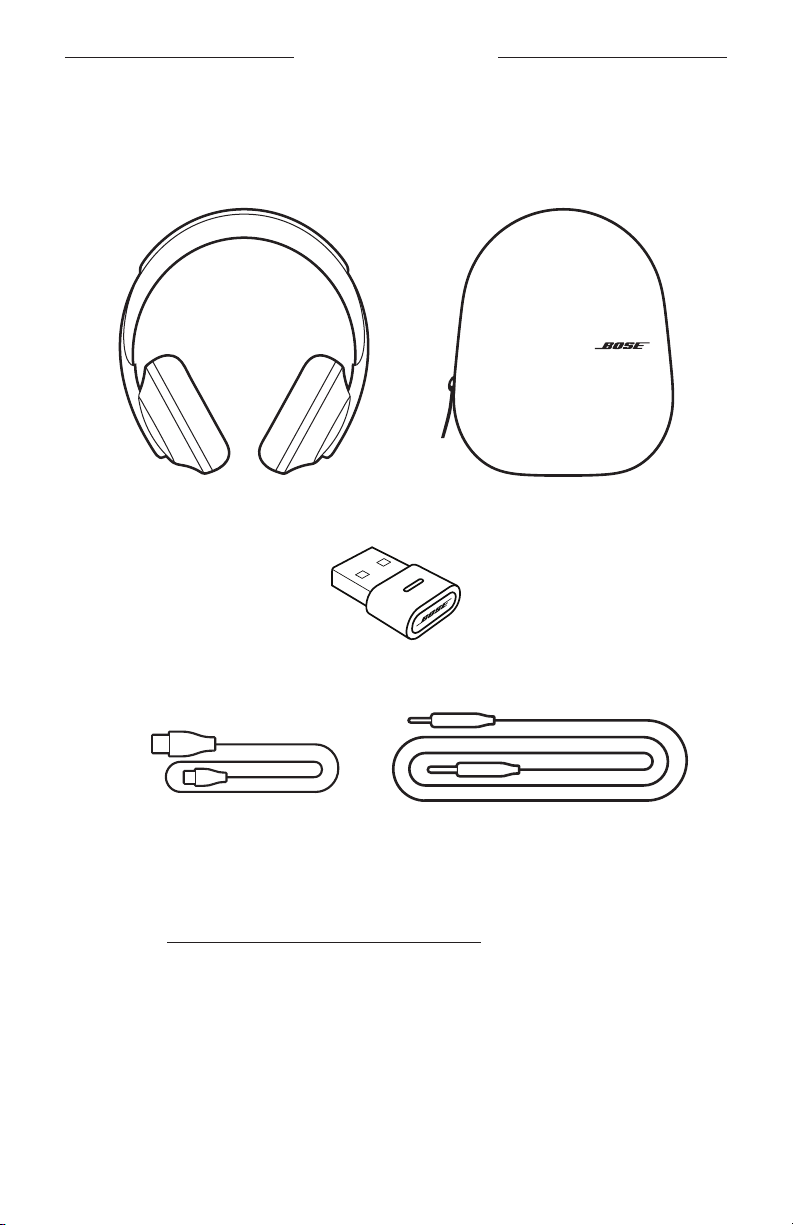
Confirm that the following parts are included:
Bose Noise Cancelling Headphones 700 UC Carry case
Bose USB Link
USB-C to USB-A cable Audio cable
NOTE: If any part of the product is damaged, do not use it. Contact your authorized
Bose dealer or Bose customer service.
Visit: worldwide.Bose.com/Support/HP700UC

14
|
ENG
BOSE MUSIC APP SETUP
The Bose Music app lets you set up and control the headphones from any mobile
device such as a smartphone or tablet. Using the app, you can configure Google
Assistant or Amazon Alexa, choose your voice prompt language, adjust noise
cancelling levels, and manage headphone settings.
NOTE: If you have already created a Bose account in the app for another Bose
product, see “Add the headphones to an existing account”.
DOWNLOAD THE BOSE MUSIC APP
1. On your mobile device, download the Bose Music app.
2. Follow the app instructions.
ADD THE HEADPHONES TO AN EXISTING ACCOUNT
1. In the Bose Music app, from the My Bose screen, tap H.
NOTE: To return to the My Bose screen, tap Z in the top-left corner of the screen.
2. Follow the app instructions.

15
|
ENG
HOW TO WEAR
ADJUST THE HEADPHONES
Before placing the headphones on your head, adjust the position of the earcups on
the headband to ensure proper fit.
1. With the outer earcup facing toward you, firmly grip the side of the headband.
2. With your other hand, grip the earcup. Move the earcup up or down to adjust
the position.
3. Repeat steps 1-2 for the other earcup.

16
|
ENG
HOW TO WEAR
BUTTON ORIENTATION
The inner scrims (cloth covers) of the headphone earcups are marked with an L (left
earcup) and R (right earcup). There are two buttons on the right earcup and one on
the left earcup.
Match the right earcup with your right ear and the left earcup with your left ear.
Place the headphones on your head with the buttons facing behind you. Once the
headphones are on your head, use your thumbs to press the buttons.

17
|
ENG
POWER
POWER ON/OFF
Bose USB Link
Insert the Bose USB Link into a USB port on your computer. The light on the USB Link
will blink.
NOTE: If your computer has a USB-C port instead of a USB-A port, you can use a
standard USB-A-to-C adapter or USB hub to make this connection.
Headphones
Press and release the Power/
Bluetooth
button on the headphones.
After powering on the headphones, you hear a voice prompt, and the status lights
glow (see page 38). The light on the Bose USB Link will blink rapidly and then
remain solid when connected to the headphones.
Auto-o
Auto-o conserves the headphone battery by using motion-detection. The
headphones power o when you have not moved the headphones for 10 minutes.
To wake the headphones, press the Power/
Bluetooth
button.
TIP: You can also set the headphones to power o when no audio is playing. To
enable auto-o for audio, use the Bose Music app. You can access this option
from the Settings menu.

18
|
ENG
TOUCH CONTROL
Use touch control by swiping or tapping the touch surface of the headphones. With
touch control, you can play or pause audio, skip forward or backwards, change the
volume, and perform basic call functions.
TOUCH SURFACE AREA
The touch surface is located on the front of the right earcup.
Touch surface
MEDIA PLAYBACK AND VOLUME FUNCTIONS
Play/Pause
Double-tap to play or pause audio.
2x

19
|
ENG
TOUCH CONTROL
Skip forward
Swipe forward to skip to the next track.
Skip backward
Swipe backward to skip to the previous track.

20
|
ENG
TOUCH CONTROL
Change the volume
• Swipe up to increase the volume.
• Swipe down to decrease the volume.

21
|
ENG
TOUCH CONTROL
CALL FUNCTIONS
Answer/End a call
Double-tap to answer or end a call.
2x
Decline an incoming call
Tap and hold for 1 second to decline an incoming call.

22
|
ENG
TOUCH CONTROL
Mute a call
While on a call, press and release the Voice Assistant button to mute the microphone.
Call notifications
A voice prompt announces incoming callers and call status.
To disable call notifications, use the Bose Music app. You can access this option from
the Settings menu.
NOTE: Disabling voice prompts also disables call notifications.

23
|
ENG
TOUCH CONTROL
CUSTOMIZE SHORTCUT
You can customize a shortcut for the tap and hold action on the headphones to
perform one of two functions:
• Announce the battery level (default).
• Disable/Enable the wake word for Amazon Alexa (not applicable for Google
Assistant or mobile device voice control).
NOTE: For more information on Voice Assistant options, see page 25.
To customize touch control, use the Bose Music app. You can access this option from
the Settings menu.
Once customized, tap and hold for your preferred function.

24
|
ENG
MICROSOFT TEAMS CONTROL
While the headphones are connected to the Bose USB Link, you can use the Microsoft
Teams button on the headphones to control various functions in the Microsoft Teams
app on your computer.
NOTE: The Voice Assistant is not available while the headphones are connected to
the USB Link.
USE THE MICROSOFT TEAMS BUTTON
The Microsoft Teams button is used to control various functions in the Microsoft Teams
app on your computer. It’s located on the right earcup.
Microsoft Teams button
Before you begin, make sure your mobile device is connected to a Wi-Fi® or cellular
data network, and use the Bose Music app to learn how to use the Microsoft Teams
button.

25
|
ENG
VOICE ASSISTANT
VOICE ASSISTANT OPTIONS
You can program the headphones to quickly and easily access Google Assistant or
Amazon Alexa, or voice control capabilities on your mobile device.
OPTIONS HOW TO USE
Google Assistant
Use the Voice Assistant button (see page 27).
NOTE: At this time, you cannot use your voice to
access Google Assistant. New features are
added periodically.
Amazon Alexa
Use your voice and/or the Voice Assistant button
(see page 30).
Mobile device voice control
Use the Voice Assistant button (see page 31).
NOTE: You cannot use your voice to access mobile
device voice control.
NOTE: The Voice Assistant is not available while the headphones are connected to
the USB Link.
NOTE: You cannot set the headphones to access Google Assistant and Amazon Alexa
at the same time.
SET UP YOUR VOICE ASSISTANT
Before you begin, make sure your mobile device is connected to a Wi-Fi® or
cellular data network.
To set up your Voice Assistant, use the Bose Music app. You can access this option
from the Settings menu.

26
|
ENG
VOICE ASSISTANT
ACCESS GOOGLE ASSISTANT
Your headphones are optimized for Google Assistant, making your headphones the
perfect companion for getting stu done on your travels or commute. Continue your
conversations while on the go and easily access the best of Google, from Google Play
Music to Google Maps. You can quickly enjoy entertainment, stay connected to friends,
get information, and manage your day—all without glancing at your phone. Listen to
your favorite songs, have notifications and messages read to you, or set reminders
and timers. Just press and hold the Voice Assistant button to start a conversation with
Google Assistant.
For more information on what Google Assistant can do, visit:
https://support.google.com/headphones
NOTE: Google Assistant isn’t available in certain languages and countries.

27
|
ENG
VOICE ASSISTANT
Use the Voice Assistant button
The Voice Assistant button is used to control Google Assistant. It’s located on the right
earcup.
THINGS TO TRY WHAT TO DO
Talk to Google Assistant
Press and hold the Voice Assistant button until you
hear a tone. After you hear a tone, say your request.
For examples of questions and things you
can do, visit:
https://support.google.com/headphones
Get your notifications Press the Voice Assistant button.
Reply to a message
After receiving a message notification, press and hold
the Voice Assistant button to respond. When you’re
done, release the button.
Stop Google Assistant Double-press the Voice Assistant button.

28
|
ENG
VOICE ASSISTANT
ACCESS AMAZON ALEXA
The headphones are Amazon Alexa enabled. With Alexa, you can ask to play music,
hear the news, check the weather, control smart home devices, and more. Using Alexa
on your headphones is as simple as asking. Just ask or use the Voice Assistant button
and Alexa responds instantly.
For more information about what Alexa can do, visit:
https://www.amazon.com/usealexa
NOTE: Alexa isn’t available in certain languages and countries.
Custom access
During initial set up, the app prompts you to choose your preferred way to access
Alexa. If you choose Alexa for your Voice Assistant, you can customize it to be
accessed using:
• The Voice Assistant button only.
• Your voice and the Voice Assistant button.

29
|
ENG
VOICE ASSISTANT
Use your voice
Start with “Alexa,” then say:
THINGS TO TRY EXAMPLES OF WHAT TO SAY
Talk to Alexa What can you do?
Play audio
Play Beethoven.
NOTE: Amazon Music is set as the default music
service. To change the default music service,
use the Alexa app.
Play from a specific audio service Play NPR on TuneIn.
Skip to the next song Next song.
Plan your day What’s the weather?
Add to your shopping list Add eggs to my shopping list.
Send a message
(Alexa-to-Alexa messaging only)
Send a message to Tom.
Discover more skills What new skills do you have?
Stop Alexa Stop.
Disable the wake word
To disable the wake word for Amazon Alexa, use the Bose Music app. You can access
this option from the Settings menu.
NOTES:
• After disabling the wake word, you can still use the Voice Assistant button
(see page 25).
• You can also customize touch control to disable/enable the wake word
(see page 23).

30
|
ENG
VOICE ASSISTANT
Use the Voice Assistant button
The Voice Assistant button is used to control Amazon Alexa. It’s located on the
right earcup.
Voice Assistant button
THINGS TO TRY WHAT TO DO
Talk to Alexa
Press and release the Voice Assistant button. After
you hear a tone, say your request.
For a list of things to try, visit:
https://www.amazon.com/usealexa
Stop Alexa Press and release the Voice Assistant button.

31
|
ENG
VOICE ASSISTANT
ACCESS MOBILE DEVICE VOICE CONTROL
You can set the headphones to access voice control on your mobile device.
Once set, the headphone microphone acts as an extension of the microphone in
your mobile device.
Press and hold the Voice Assistant button to access mobile device voice control.
You hear a tone that indicates voice control is active.

32
|
ENG
NOISE CANCELLATION
Noise cancellation reduces unwanted noise, providing a clearer, more lifelike audio
performance. Each time you power on the headphones, noise cancellation is fully
enabled at the highest level (10).
NOTE: To set the default noise cancelling level for power on, use the Bose Music app.
ADJUST NOISE CANCELLING LEVELS
Choose your noise cancelling level based on your listening preferences and
environment. As you increase noise cancellation, unwanted outside noise is reduced.
As you decrease noise cancellation, you hear more outside sounds.
Set the level using the Noise Control button (see page 33) or use the
Bose Music app.
Noise cancelling levels
You can adjust between full awareness and near silence. On Level 0, noise cancellation
is at the lowest level and provides full transparency. On Level 10, noise cancellation is
fully enabled so you hear little from the outside world.
TIP: For access to all noise cancellation levels, use the Bose Music app.
Favorites
By default, the Noise Control button cycles through three noise cancelling levels (see
page 33): 0 (full awareness), 5 (some awareness), and 10 (full noise cancellation).
DEFAULT SETTING DESCRIPTION
0
Provides full transparency so that you can
hear the world around you as if you’re not
wearing headphones.
5
Blocks most low frequency noises, like the rumble
of a train or the hum of a vacuum cleaner, but still
provides some awareness of your surroundings.
10
World-class noise cancellation eliminates virtually all
the exterior noise around you.
NOTE: To customize Favorite noise cancelling levels, use the Bose Music app.

33
|
ENG
NOISE CANCELLATION
Cycle through Favorites
NOTE: To customize Favorite noise cancelling levels, use the Bose Music app.
1. Press and release the Noise Control button.
You hear the current noise cancelling level.
2. Repeat until you hear your preferred level.

34
|
ENG
NOISE CANCELLATION
CONVERSATION MODE
Conversation mode is a convenient method to simultaneously pause your audio and
give you full awareness. This allows you to have a quick conversation with someone or
immediately be aware of your surroundings.
Turn on conversation mode
Press and hold the Noise Control button for 1 second.
Turn o conversation mode
Press any button or tap the touch surface.
The headphones return to the previous noise cancelling level and resume
playing audio.

35
|
ENG
NOISE CANCELLATION
NOISE CANCELLATION WHILE ON A CALL
When you receive a call, the headphones remain at the current noise cancelling level,
and Self Voice is activated. Self Voice helps you hear yourself speak more naturally.
To adjust the noise cancelling level while on a call, use the Noise Control button
(see page 33).
NOTES:
• To adjust Self Voice, use the Bose Music app. You can access this option from the
Settings menu.
• You can’t use Conversation mode while on a call.
USE NOISE CANCELLATION ONLY
Clear away noisy distractions without audio. Focus on what matters most — your work
or whatever your passion.
1. Press and hold the Power/
Bluetooth
button until you hear a voice prompt.
Your mobile device(s) disconnects and all audio stops playing.
2. Set your preferred noise cancelling level (see page 33).

36
|
ENG
BATTERY
CHARGE THE HEADPHONES
1. Connect the small end of the USB cable into the USB-C port on the right earcup.
2. Connect the other end into a USB-A wall charger or computer that is powered on.
While charging, the battery light blinks white. When the battery is fully charged,
the battery light glows solid white (see page 39).
NOTE: The headphones do not play audio or cancel noise while charging.

37
|
ENG
BATTERY
Charging time
Allow up to 2.5 hours to fully charge the headphones.
NOTES:
• A 15-minute charge powers the headphones for up to 3.5 hours.
• A full charge powers the headphones for up to 20 hours.
HEAR THE BATTERY LEVEL
Each time you power on the headphones, a voice prompt announces the battery level.
When you’re using the headphones and the battery is low, you hear “Battery low,
please charge now.”
To hear the battery level while using the headphones, tap and hold the touch surface
until you hear a voice prompt.
NOTE: By default, the tap and hold action on the headphones is set to
announce the battery level. For more information about customizing this
action, see page 23.

38
|
ENG
STATUS
BLUETOOTH
LIGHT
The
Bluetooth
light is located on the right earcup and shows the connection status of
a mobile device.
Bluetooth
light
LIGHT ACTIVITY SYSTEM STATE
Slowly pulses blue Ready to connect
Blinks blue Connecting
Solid blue Connected
O Disconnected

39
|
ENG
STATUS
BATTERY LIGHT
The battery light is located on the right earcup and shows the battery level.
Battery light
LIGHT ACTIVITY SYSTEM STATE
Solid white Medium to full charge
Solid red Low charge
Blinks red Need to charge
Blinks red and white Error - contact Bose customer service
Quickly blinks white Updating headphones
NOTES:
• While charging, the battery light blinks white. When the headphones are fully
charged, the battery light glows solid white.
• If connected to an Apple device, the device displays the battery level near the upper
right corner of the screen and in the notification center.
• You can also check the battery level of the headphones using the Bose Music app.

40
|
ENG
STATUS
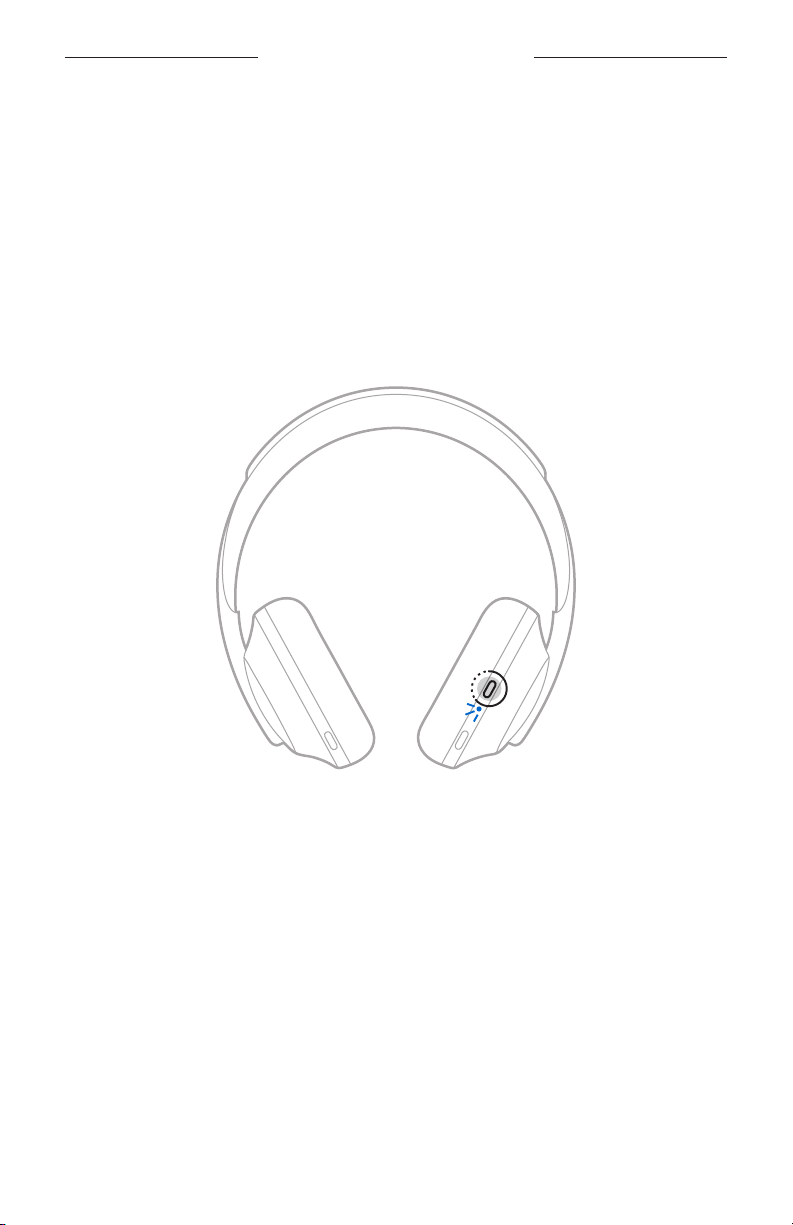
BOSE USB LINK LIGHT
The light on the Bose USB Link shows the connection status of the headphones and
status of Microsoft Teams.
Bose USB Link light
LIGHT ACTIVITY SYSTEM STATE
Slowly pulses blue The USB Link is ready to connect to the headphones
Rapidly blinks blue The USB Link is connecting to the headphones.
Solid blue The USB Link is connected to the headphones.
Solid purple
The USB Link is connected to the headphones,
and the computer is logged into a Microsoft Teams
account.
Blinks purple
The USB Link is connected to the headphones,
and the computer is logged into a Microsoft Teams
account, which is receiving a notification.
Solid red
The USB Link is connected to the headphones, and
the microphone is muted.
41
|
ENG
BLUETOOTH
CONNECTIONS
Bluetooth
wireless technology lets you stream music from mobile devices such as
smartphones, tablets, and laptop computers. Before you can play audio from a device,
you must connect the device with the headphones.
CONNECT USING THE
BLUETOOTH
MENU ON YOUR
MOBILE DEVICE
NOTE: To get the most out of the headphones, set up and connect your mobile device
using the Bose Music app (see page 14).
1. Press and hold the Power/
Bluetooth
button until you hear “Ready to connect
another device,” and the
Bluetooth
light slowly pulses blue.
2. On your device, enable the
Bluetooth
feature.
TIP: The
Bluetooth
feature is usually found in the Settings menu.

42
|
ENG
BLUETOOTH
CONNECTIONS
3. Select the headphones from the device list.
TIP: Look for the name you entered for the headphones in the Bose Music app.
Bose NCH 700 UC
Once connected, you hear “Connected to <
mobile device name>
,” and the
Bluetooth
light glows solid blue.
DISCONNECT A MOBILE DEVICE FROM THE
HEADPHONES
Use the Bose Music app to disconnect your mobile device.
TIP: You can also use
Bluetooth
settings to disconnect your device.
Disabling the
Bluetooth
feature disconnects all other devices.
RECONNECT A MOBILE DEVICE TO THE HEADPHONES
When powered on, the headphones try to reconnect with the two most
recently-connected devices.
NOTES:
• The devices must be within range (30 ft. or 9 m) and powered on.
• Make sure the
Bluetooth
feature is enabled on your mobile device.

43
|
ENG
BLUETOOTH
CONNECTIONS
CONNECT AN ADDITIONAL MOBILE DEVICE TO THE
HEADPHONES
You can store up to eight devices in the headphone device list, and the headphones
can be actively connected to two devices at a time.
To connect an additional device, use the Bose Music app. You can access this option
from the Settings menu.
TIP: You can also use the
Bluetooth
menu on your mobile device (see page 41).
NOTE: You can play audio from only one device at a time.
SWITCH BETWEEN TWO CONNECTED MOBILE DEVICES
1. Pause audio on your first device.
2. Play audio on your second device.

44
|
ENG
BLUETOOTH
CONNECTIONS
RECONNECT A SET OF HEADPHONES TO THE BOSE USB
LINK
Remove the USB Link from the USB port on your computer, and then reinsert it. The
light on the USB Link will blink as it tries to reconnect to previously connected sets of
headphones.
CONNECT ANOTHER SET OF HEADPHONES TO THE
BOSE USB LINK
You can store up to eight devices (headphones) in the device list of the Bose USB Link.
1. Press and hold the button on the Bose USB Link for approximately 3 seconds,
and then release it. The light on the USB Link will slowly pulse blue to indicate it is
ready to connect to another
Bluetooth
device.
2. Enable your Bose headphones to connect to a new
Bluetooth
device. Wait a
moment for your headphones to connect to the USB Link. The light on the USB
Link will blink rapidly and then remain solid when connected to the headphones.
NOTE: If the Bose USB Link does not connect to a set of Bose
Bluetooth
headphones
after approximately 5 minutes, the light on the USB Link will stop blinking.
If you want to connect another set of Bose
Bluetooth
headphones, repeat the
actions above.
CLEAR THE HEADPHONE DEVICE LIST
1. Press and hold Power/
Bluetooth
button until you hear “
Bluetooth
device list
cleared,” and the
Bluetooth
light slowly pulses blue.
2. Delete the headphones from the
Bluetooth
list on your device.
All devices are cleared, and the headphones are ready to connect.
CLEAR THE BOSE USB LINK DEVICE LIST
Press and hold the button on the Bose USB Link for 7–10 seconds. The light on the
USB Link will slowly pulse blue.
All devices are cleared, and the USB Link is ready to connect.

45
|
ENG
WIRED CONNECTIONS
CONNECT THE AUDIO CABLE
Use the audio cable to connect a non-wireless device or if the headphone battery
is depleted.
1. Insert the cable into the 2.5 mm jack on the right earcup.
2. Insert the other end of the cable into the 3.5 mm jack on your device.


47
|
ENG
CARE AND MAINTENANCE
3. Place the headphones flat into the case.
NOTE: Make sure to power o the headphones when not in use.

48
|
ENG
CARE AND MAINTENANCE
CLEAN THE HEADPHONES AND BOSE USB LINK
The headphones and Bose USB Link may require periodic cleaning.
• Wipe the outside surfaces with a soft, dry cloth.
• Do NOT allow moisture to get inside the earcups or the 2.5 mm jack of the
headphones or inside the USB Link.
REPLACEMENT PARTS AND ACCESSORIES
Replacement parts and accessories can be ordered through Bose customer service.
Visit: worldwide.Bose.com/Support/HP700UC
LIMITED WARRANTY
The headphones and Bose USB Link are covered by a limited warranty. Visit our
website at global.Bose.com/warranty for details of the limited warranty.
To register your product, visit global.Bose.com/register for instructions. Failure to
register will not aect your limited warranty rights.
49
|
ENG
CARE AND MAINTENANCE
SERIAL NUMBER LOCATIONS
The serial number is located:
• On the carton outer label.
• In the Bose Music app, under Technical Info.
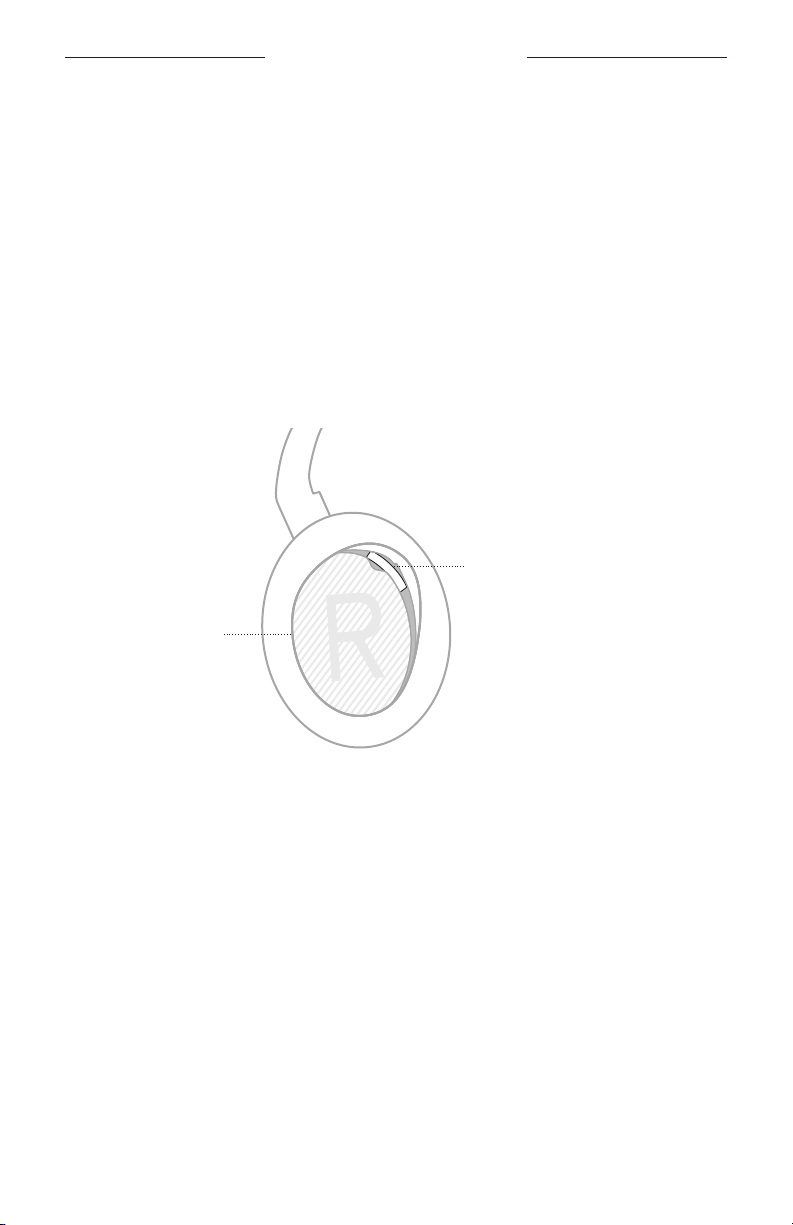
• In the right earcup, underneath the scrim (cloth insert).
View the serial number on the headphones (not recommended)
1. On the right earcup, slightly pull the top of the right earcup cushion back.
2. Push down the scrim at the top-right edge to reveal the label.
CAUTION: Be careful not to press down on or remove any other components inside
the earcup as this could damage the headphones.
Scrim
Serial number location

50
|
ENG
TRY THESE SOLUTIONS FIRST
If you experience problems with the headphones or Bose USB Link try these solutions
first:
• Charge the battery (see page 36).
• Power on the headphones (see page 17).
• Check the status lights (see page 38).
• Make sure your mobile device supports
Bluetooth
connections (see page 41).
• Make sure the USB Link is securely connected to your computer (see page 17).
• Download the Bose Music app and run available software updates (see page 14).
• Move your headphones closer to the device or the USB Link and away from any
interference or obstructions.
• Increase the volume on the headphones, mobile device, music, or meeting app.
• Make sure the meeting app and operating system on your computer is up to date.
• Connect another mobile device (see page 43).
• Restart your computer, or sign out of the meeting app and sign back in.
• Remove the USB Link from the USB port on your computer, and then reinsert it.
• Check for available USB Link firmware updates (see page 55).
OTHER SOLUTIONS
If you could not resolve your issue, see the table below to identify symptoms and
solutions to common problems. If you are unable to resolve your issue, contact
Bose customer service.
Visit: worldwide.Bose.com/contact
PROBLEM WHAT TO DO
Headphones don’t connect with
Bluetooth
device
On your device:
• Turn the
Bluetooth
feature o and then on.
• Delete the headphones from the
Bluetooth
list on
your device. Connect again (see page 41).
Visit: worldwide.Bose.com/Support/HP700UC to see
how-to videos.
Clear the headphone device list (see page 44).
Connect again.
Reboot the headphones (see page 55).
Headphones don’t respond
during app setup
Make sure you are using the Bose Music app
for setup.
TROUBLESHOOTING

51
|
ENG
TROUBLESHOOTING
PROBLEM WHAT TO DO
Bose Music app doesn’t work on
mobile device
Make sure your mobile device is compatible with
the Bose Music app and meets minimum system
requirements. For more information, refer to the app
store on your mobile device.
Uninstall the Bose Music app on your mobile device,
then reinstall the app (see page 14).
No sound
Press Play on your mobile device to make sure audio
is playing.
Play audio from a dierent application or
music service.
Play audio from content stored directly on
your device.
Restart your device.
If two devices are connected, pause the first device
and play the other mobile device.
If two devices are connected, move the devices within
range of the headphones (30 ft. or 9 m).
If you are in a meeting, make sure Bose USB Link is
selected as the speaker in your meeting app.
No sound (wired connection)
Secure both ends of the audio cable.
Press play on your mobile device to make sure audio
is playing.
Play audio from a dierent application or
music service.
Play audio from content stored directly on
your device.
Restart your device.
Poor sound quality
If in a windy environment, adjust the noise cancelling
level (see page 32).
Try a dierent audio track.
Play audio from a dierent application or
music service.
Disconnect the second device.
Turn o any audio enhancement features on the
device or music app.
On your device:
• Turn the
Bluetooth
feature o and then on.
• Delete the headphones from the
Bluetooth
list on
your device. Connect again (see page 41).

52
|
ENG
TROUBLESHOOTING
PROBLEM WHAT TO DO
Headphones don’t charge
Make sure the USB cable is correctly aligned with the
port on the headphones.
Secure both ends of the USB cable.
If the headphones have been exposed to high or low
temperatures, let the headphones return to room
temperature and then try charging again.
Try a dierent USB-A wall charger, USB cable, or AC
(mains) power source.
Can’t adjust noise cancelling
Power o and on the headphones (see page 17).
If using the Noise Control button, try using the Bose
Music app to adjust the noise cancelling level.
Microphone doesn’t pick up sound
Make sure the microphone openings on the front
edge of the headphones are not blocked.
Try another phone call.
Try another compatible device.
Make sure the microphone isn’t muted (see
page 22).
On your device:
• Turn the
Bluetooth
feature o and then on.
• Delete the headphones from the
Bluetooth
list on
your device. Connect again (see page 41).
Loud environment for phone calls
Use the Bose Music app to adjust Self Voice. You can
access this option from the Settings menu.
Try a dierent noise cancelling level.
Headphones don’t respond to
touch control
Make sure you are tapping the touch control surface
on the front of the right earcup (see page 18).
Make sure your hands are dry.
If wearing gloves, remove them before tapping the
touch control surface.
For multi-tap functions, vary the tap pressure.

53
|
ENG
TROUBLESHOOTING
PROBLEM WHAT TO DO
Voice prompt language unavailable
To customize or disable voice prompts, use the
Bose Music app. You can access this option from the
Settings menu.
Google Assistant
doesn’t respond
Make sure Google Assistant has been set up using the
Bose Music app (see page 25).
Connect your mobile device to a Wi-Fi or cellular
data network.
Make sure you’re in a country where Google Assistant
is available.
Make sure you are using the most up-to-date version
of Google Assistant app.
Make sure your mobile device is compatible.
Visit: https://support.google.com/headphones
For additional support, visit:
https://support.google.com/headphones
Alexa doesn’t respond
Make sure Alexa has been set up using the Bose
Music app (see page 25).
Connect your mobile device to a Wi-Fi or cellular
data network.
Make sure you’re in a country where Alexa
is available.
Make sure the wake word is enabled
(see page 29).
Make sure you are using the most up-to-date version
of the Amazon Alexa app.
Make sure your mobile device is compatible.
For additional support, visit:
https://www.amazon.com/usealexa
Nothing happens when I press the
button on the Bose USB Link.
If you are trying to connect another set of
headphones to the USB Link, press and hold the
button for at least 3 seconds before releasing it
(see page 44).
Make sure you are not in a meeting when you press
the button. Otherwise, USB Link will not respond so
as not to interrupt the meeting.

54
|
ENG
TROUBLESHOOTING
PROBLEM WHAT TO DO
Bose USB Link is not listed as a
speaker in my meeting app.
Wait approximately 30 seconds for your computer to
register the USB Link as a microphone, speaker, and
camera device.
If this still does not work, try the following solutions:
• Try connecting the USB Link to a dierent USB
port on your computer.
• Make sure the USB Link is connected securely to
the USB port.
Adjusting the volume on my com-
puter has no eect on the volume of
the Bose USB Link.
Your computer may not have the USB Link selected
as the default audio playback device (even if your
meeting app is working properly with the USB Link).
• Windows: Click the speaker icon in the system tray
(in the taskbar) and select Bose USB Link as the
playback device.
• macOS: Click the Apple icon in the upper-left
corner of the screen, and select System
Preferences, click Sound, and then click Output.
Select Bose USB Link in the list of devices.
The status light on the Bose USB
Link is solid blue, purple, or red, but
my headphones are not connected.
Clear the device list on the USB Link (see page 44),
and then try to connect your headphones again
(see page 44).

55
|
ENG
TROUBLESHOOTING
REBOOT THE HEADPHONES
If the headphones are unresponsive, you can reboot them. Rebooting the headphones
doesn’t clear settings or connected devices.
NOTE: Do not connect the USB cable to the headphones until instructed to do so.
1. Disconnect all cables from the headphones.
2. Connect one end of the USB cable to a USB-A wall charger or computer that is
powered on.
3. Press and hold the Power/
Bluetooth
button while connecting the small end of the
USB cable into the USB-C port on the right earcup.
4. Release the Power/
Bluetooth
button after 2 seconds.
NOTE: You may need to reboot your headphones twice.
RESTORE THE FACTORY DEFAULT SETTINGS OF THE
BOSE USB LINK
If the Bose USB Link is unresponsive or not functioning as expected, you can restore
its factory default settings. Restoring the factory default settings will clear the USB
Link device list.
Press and hold the button on the USB Link for 7–10 seconds.
UPDATE THE FIRMWARE
You may occasionally need to update the firmware installed on the Bose USB Link.
If you experience any issues related to
Bluetooth
connectivity, integration with your
meeting app, or audio quality, update the firmware to see if that fixes the issue.
To download, install, and use the Bose USB Link Updater app on your computer:
1. On your computer, visit pro.Bose.com/USBLink.
2. Download the ZIP file for the Bose USB Link Updater app.
3. Open the ZIP file, and then double-click the installer.
4. Follow the on-screen steps to complete the installation.
5. Insert the USB Link into a USB port on your computer. The light on the USB Link
will blink.
6. Open the Bose USB Link Updater app on your computer and follow the app
instructions.

©2020 Bose Corporation
100 The Mountain Road, Framingham, MA 01701-9168 USA AM866322 Rev. 00