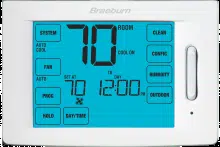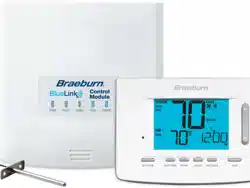
Programmable Thermostats
USER MANUAL
Store this manual for future reference
5025W-110-01
®
PREMIER
SERIES
Read all instructions before proceeding.
Up to 2 Heat / 1 Cool Heat Pump
1 Heat / 1 Cool Conventional
with humidity control
5025
Contents
1 About Your Thermostat
Thermostat Features ................................................ 3
Thermostat and Display ........................................... 4
2 Setting User Options
Advanced User Options ............................................ 8
Table of User Options ............................................... 9
Service Monitors (Filter, UV and Humidifier Pad) .........10
Extended Hold Time Period ..................................... 10
Temporary Override Adjustment Limit ..................... 11
Program Override Time Limit ...................................11
Thermostat Lock Code ............................................11
3 Setting Your Program Schedule
Setting the Time and Day ....................................... 12
Tips Before Setting Your Program Schedule ........... 13
Programming a 7 Day Residential Schedule ........... 17
Programming a 5-2 Day Residential Schedule ........ 18
Programming a 7 Day Commercial Schedule ......... 19
4 Operating Your Thermostat
Setting the System Control Mode ......................... 21
Setting the Fan Control Mode ............................... 22
Setting the Temperature ....................................... 23
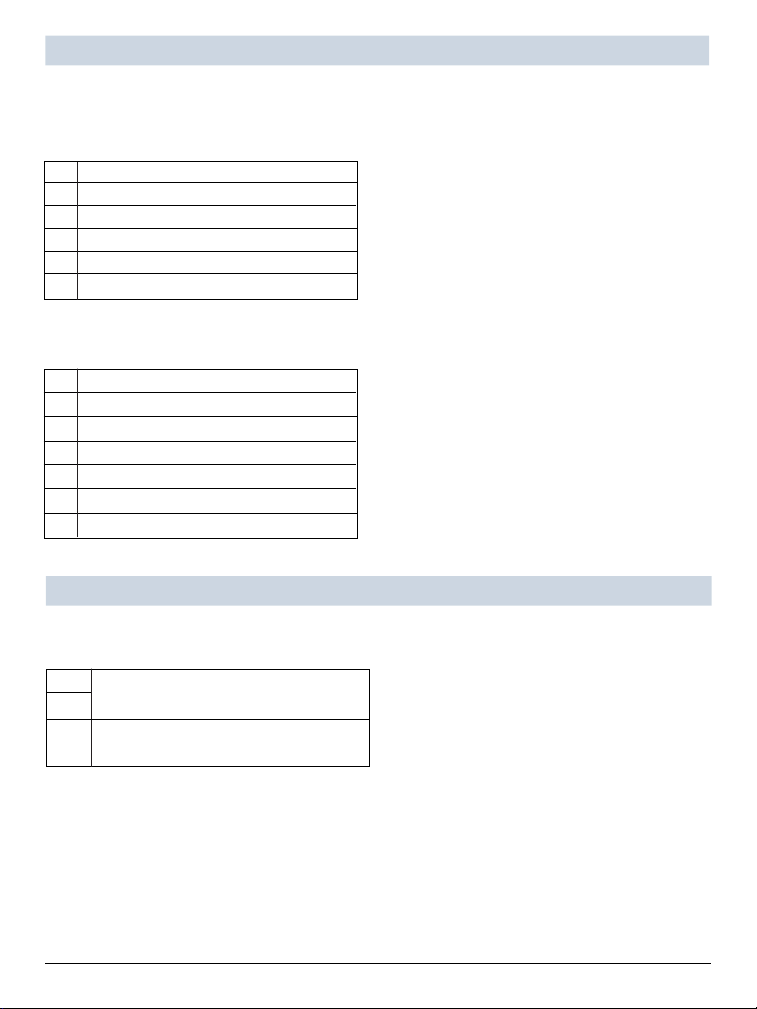
Status Indicators ..................................................24
Resetting the Thermostat .....................................26
5 Additional Operation Features
Auto Changeover Mode ....................................... 26
Adaptive Recovery Mode ..................................... 27
Programmable Fan Mode ..................................... 27
Compressor Protection ........................................ 28
Locking and Unlocking the Thermostat................. 28
AC Power Monitor ............................................... 30
Indoor Remote Sensing ....................................... 30
Outdoor Remote Sensing ..................................... 30
Humidification / Dehumidification ........................ 31
6 Thermostat Maintenance
Thermostat Cleaning ............................................ 33
Battery Replacement ........................................... 33
User Manual 2
Congratulations! You are in control of one of the easiest-to-use thermostats on the market today. This
thermostat has been designed to provide you with years of reliable performance and comfort control.
Features
• SpeedBar
®
multi-function button simplifies programming and setting changes.
• SpeedSet
®
programming gives you the option of programming all 7 days at once.
• Convenient HOLD feature lets you override the program schedule.
• Large 5 sq. in. bright blue backlit display is easy to read.
• Extra large display characters make viewing settings even easier.
• User selectable service monitors remind you of required system maintenance.
• Precise temperature accuracy keeps you in control of your comfort.
• Convenient programmable and circulating fan modes
• Optional indoor or outdoor remote sensing
• Optional humidification or dehumidification control
3 User Manual
BACK NEXT
1
2
3 4
7 10
11
12
5
6
13
14
15
8 9
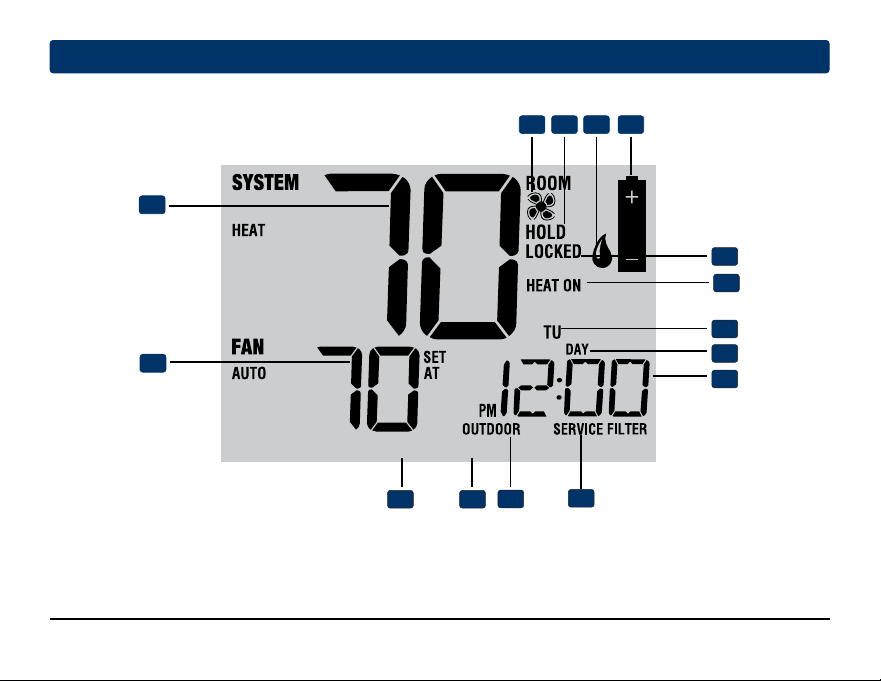
User Manual 4
1
About Your Thermostat
5 User Manual
Room Temperature ...................... Displays the current room temperature
Set Temperature .......................... Displays the current set point temperature
BACK Indicator* ........................... BACK button is active
NEXT Indicator*............................ NEXT button is active
Outdoor Temperature Indicator ... Displays along with the outdoor temperature reading**
Service Indicators ...................... Displays various service/maintenance information
Fan Indicator ................................ Indicates when the system fan is running
Hold Mode Indicator ................... Indicates if the thermostat is in HOLD mode
Humidity Indicator ....................... Indicates when there is a call for humidity
Low Battery Indicator .................. Indicates when the batteries need to be replaced
Lock Mode Indicator ................... Indicates if the thermostat is locked
System Status Indicator ............. Displays information about the status of the system
Day of the Week ........................... Displays the current day of the week
Program Event Indicator.............. Displays the program event
Time of Day ................................. Displays the current time of day
1
2
3
4
5
6
7
8
9
10
11
Thermostat Display
12
13
14
* BACK and NEXT are secondary functions of the PROG and HOLD buttons. When in programming or
configuration modes, BACK and NEXT appear in the display screen indicating that the PROG and
HOLD buttons now function as BACK and NEXT.
** Also see #10 on page 7.
15
User Manual 6
1
About Your Thermostat
INSTRUCTIONS
DAY/TIME
BACK NEXT
HUMIDITY
1
2
9
3 4 5 6
7
8
10
11
7 User Manual
Reset Button ............................... Resets current time, program and user settings
SYSTEM Button ............................ Selects the system you want to control
DAY/TIME Button .......................... Sets the current time and day of the week
PROG Button................................. Selects programming mode or press for 3 seconds to select SpeedSet
®
BACK Button* ............................... Secondary function of the PROG button - moves back a setting
HOLD Button ................................. Enters/Exits the HOLD mode (program bypass)
NEXT Button* ............................... Secondary function of the HOLD button - moves to next setting
RETURN Button ............................ Returns to normal mode from program or setting modes
FAN Button ................................... Selects the system fan mode
Quick Reference Instructions ...... Stored in slot located at top of thermostat
SpeedBar
®
................................... Increases or decreases settings (time, temperature, etc.)
Outdoor Temperature ................... If a Braeburn
®
outdoor sensor was connected you can view the outdoor
temperature by pressing the PROG and HOLD buttons at the same time.
Humidity ....................................... View current room humidity or change humidification or
dehumidification setpoint.
Battery Compartment .................. Located in the back of thermostat
Thermostat
1
2
3
4
5
6
7
8
9
10
* BACK and NEXT are secondary functions of the PROG and HOLD buttons. When in programming or
configuration modes, BACK and NEXT appear in the display, indicating that the PROG and HOLD buttons
now function as BACK and NEXT.
11

INSTRUCTIONS
DAY/TIME
BACK NEXT
HUMIDITY
User Manual 8
2
Setting User Options
Advanced User Options
User options allow you to customize some of your
thermostat’s features.
Most users will not need to
make any changes to the settings in this section.
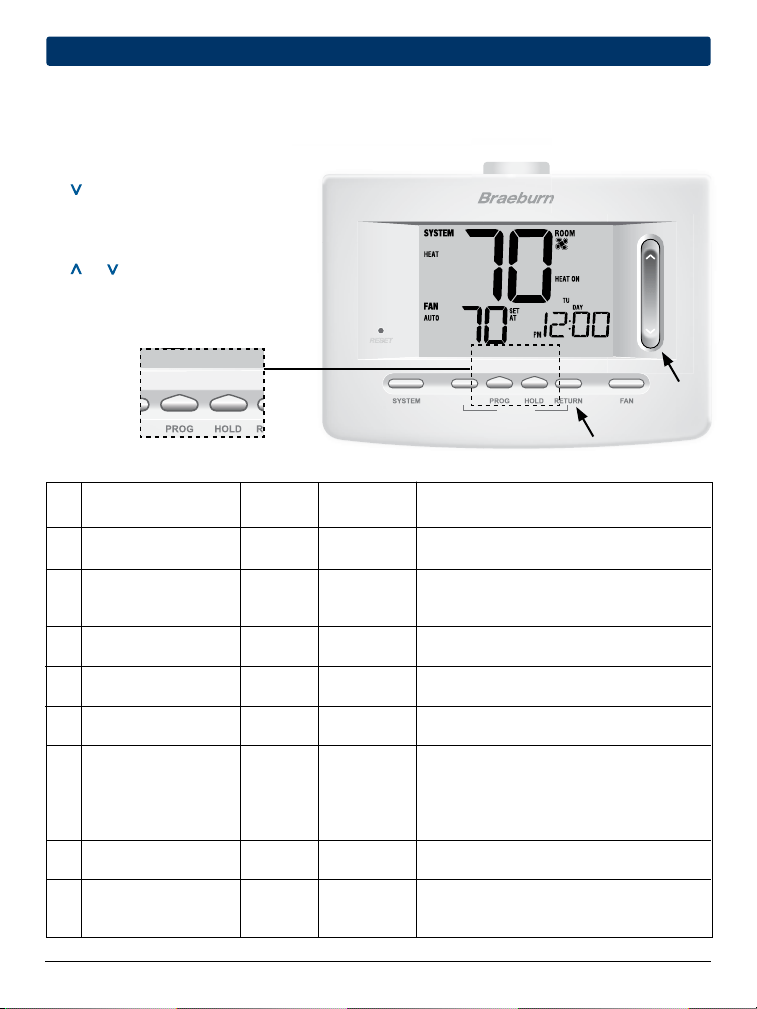
To access the User Options menu, press and hold
the RETURN button for approximately 3 seconds
until the screen changes and displays the first
User Option.
Press the SpeedBar
®
or to change the
setting
for the displayed User Option. After you
have changed your
desired setting, press NEXT
(HOLD) to advance to the next User Option. You may
also press BACK (PROG) to move backwards through
the User Options.
When your changes are complete, press RETURN to exit.
INSTRUCTIONS
DAY/TIME
BACK NEXT
9 User Manual
Table of User Options
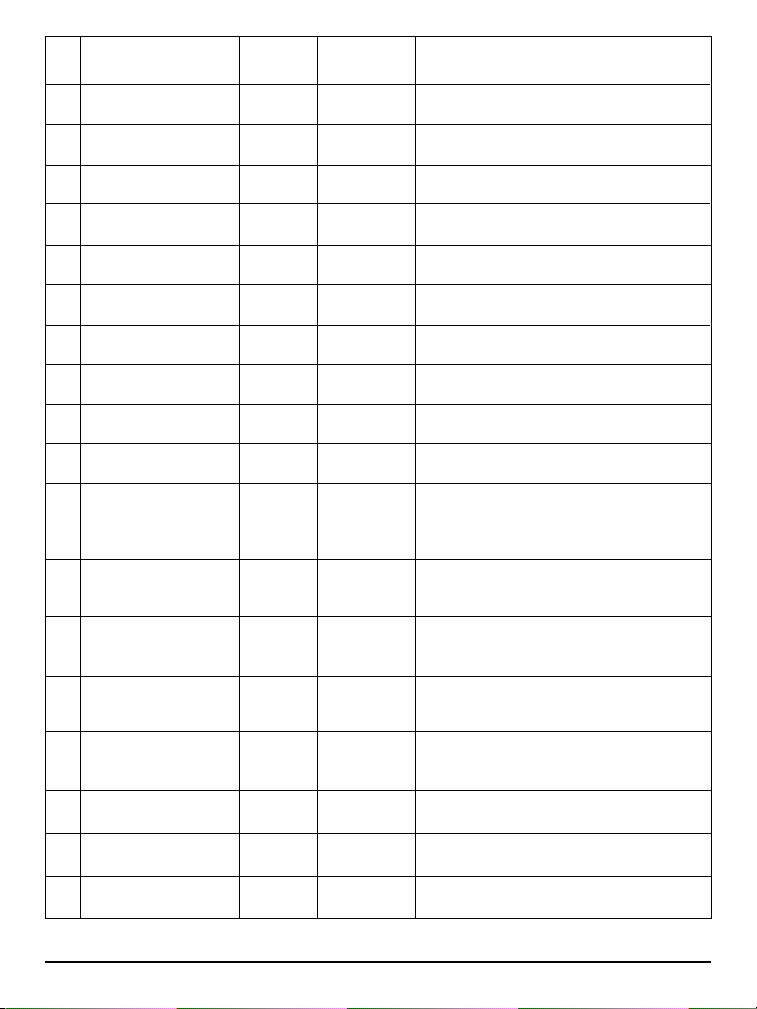
No. User Options Factory Setting Comments Pg.
Default Options
1 Filter Service OFF OFF Disables filter service monitor feature.
Monitor 30, 60, 90, Selects a number of days that must pass before the
120, 180, 365
thermostat will flash a Service Filter reminder
in the display screen.
2 UV Light Service OFF OFF Disables UV service monitor feature.
Monitor 180, 365 Selects a number of days before the thermostat will
flash a Service UV reminder in the display screen.
3 Humidifier Pad OFF OFF Disables pad service monitor feature.
Service Monitor 180, 365 Selects a number of days before the thermostat will
flash a Service Humid reminder in the display screen.
4 Extended Hold Period LONG LONG Selects long (permanent) hold mode.
24HR Selects 24 hour (temporary) hold mode.
5 Temporary Override 0 ADJ 0, 1, 2,
or
3
Selects a temporary temperature adjustment limit of
Adjustment Limit ADJ 0 0 (disabled), 1˚, 2˚ or 3˚.
6 Program Override 4 TEMP 4, 3, 2 or 1 Selects a temporary program override time limit of
Time Limit TEMP 1, 2, 3 or 4 hours.
7 Thermostat Lock Code 000 0-9 Select a 3 digit lock code of 0-9 for each digit.
NOTE: Some user options may not be available, depending on how your thermostat was configured in the
Installer Settings (see Installer Manual). A detailed description of each User Option follows this table.
8
8
8
8
9
9
9
Service Monitors
(Filter, UV and Humidifier Pad)
User Options 1, 2 and 3
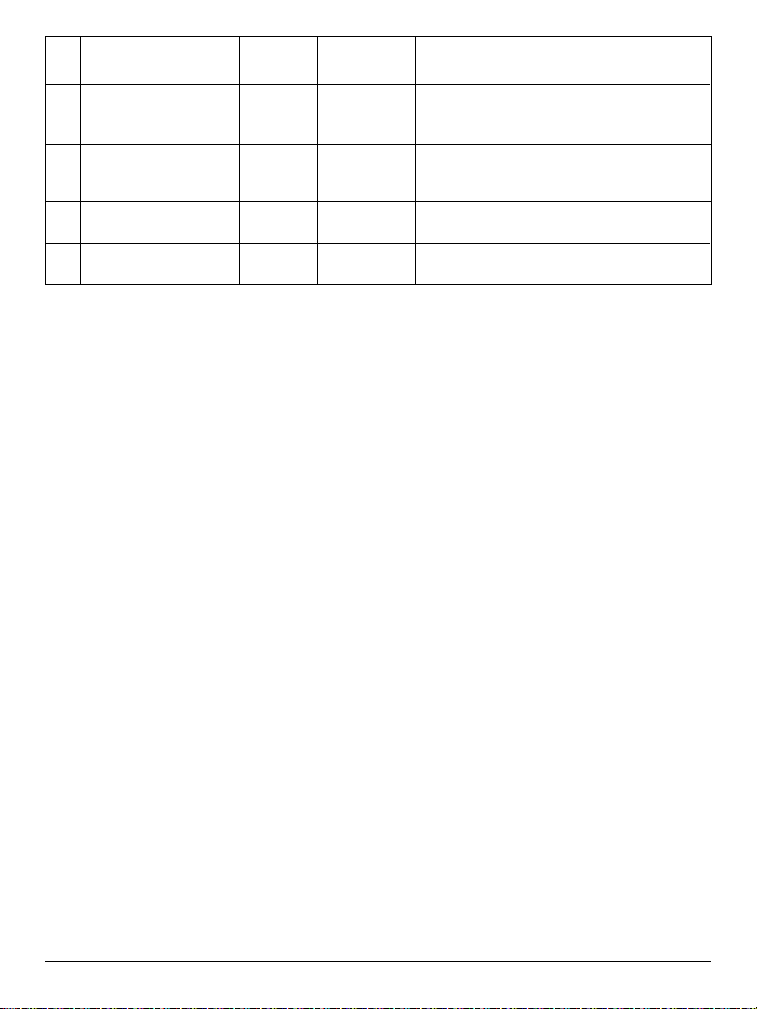
There are three user selectable service monitors that will display
reminders for a required air filter, UV bulb or humidifier pad
replacement. The SERVICE segment flashes in the display
along with FILTER, UV or HUMID. When the service interval
has been reached, and required cleaning or replacement has
been performed, press the RETURN button to reset the
timer. Select OFF or a set number of days before the reminder
will appear.
Extended Hold Period
User Option 4
The Extended Hold Period lets you select the period your thermostat will hold the temperature when the HOLD
mode is activated (See Setting the Temperature, page 23). When LONG is selected the thermostat will hold your
temperature indefinitely. When 24HR is selected, the thermostat will hold your temperature for 24 hours and
then return to the current program at that time. Not available in non-programmable mode.
Service
Reminders
User Manual 10
11 User Manual
Temporary Override Adjustment Limit
User Option 5
The Temporary Override Adjustment Limit will limit how
much the temperature can be adjusted from the current set point
when the thermostat is used in the programmable mode. This
setting will not allow the user to override the temperature past
the selected limit amount of 1, 2 or 3 degrees
from the current
set point. When the user reaches the adjustment
limit the screen
will flash ADJ. A setting of 0 disables the adjustment limit.
The Temporary Override Adjustment Limit can also be used in
the non-programmable mode if the keypad lockout security
level is set to level 1 (See Installer Manual).
Program Override Time Limit
User Option 6
The Program Override Time Limit allows you to set a maximum time limit (in hours) that the thermostat will
return to the program after a temporary temperature adjustment has been made (See Setting the Temperature,
page 23).
You may select 1, 2, 3 or 4 hours. Not available in non-programmable mode.
Thermostat Lock Code
User Option 7
The Thermostat Lock Code sets a 3-digit code that you may use at any time to lock or unlock the thermostat.
Setting the code in the user options mode does not activate the lock feature (See Locking/Unlocking Thermostat,
page 29). You may choose a 3-digit code with each digit being 0-9.

DAY/TIME
BACK NEXT
HUMIDITY
User Manual 12
Setting the Time and Day
1. In normal operating mode, press the DAY/TIME
button. The display will switch to the day/time
setting mode and the hour will be flashing.
2. Press the SpeedBar
®
up or down to adjust the
hour, press NEXT.
3. Press the SpeedBar up or down to adjust the
minute, press NEXT.
4.
Press the SpeedBar up or down to adjust the day
of the week.
5. Press RETURN to exit.
3
Setting Your Program Schedule
BACK and NEXT are
secondary functions of the
PROG and HOLD buttons.
13 User Manual
Tips Before Setting Your Program Schedule
• Make sure your current time and day of the week are set correctly.
• When programming, make sure the AM and PM indicators are correct.
• Various installer settings such as auto changeover mode and temperature adjustment limits may affect your
programming flexibility.
• Your NIGHT event cannot exceed 11:50 p.m.
• BACK and NEXT are secondary functions of the PROG and HOLD buttons (see pages 5 and 7).
This thermostat has been configured with one of the following programming options:
• Residential 7 day programming mode with 4 events per day (default)
• Residential 5-2 (weekday/weekend) programming mode with 4 events per day
• Commercial 7 day programming mode with 2 events per day
• Non-Programmable mode
NOTE: If this thermostat was configured In the Installer Settings to be
non-programmable, then you cannot set a user program. If you press
the PROG or HOLD buttons, the word “NONE” will appear in the display,
indicating there is no program present. See the installer manual for
different configuration options.
User Manual 14
Energy Saving Programs
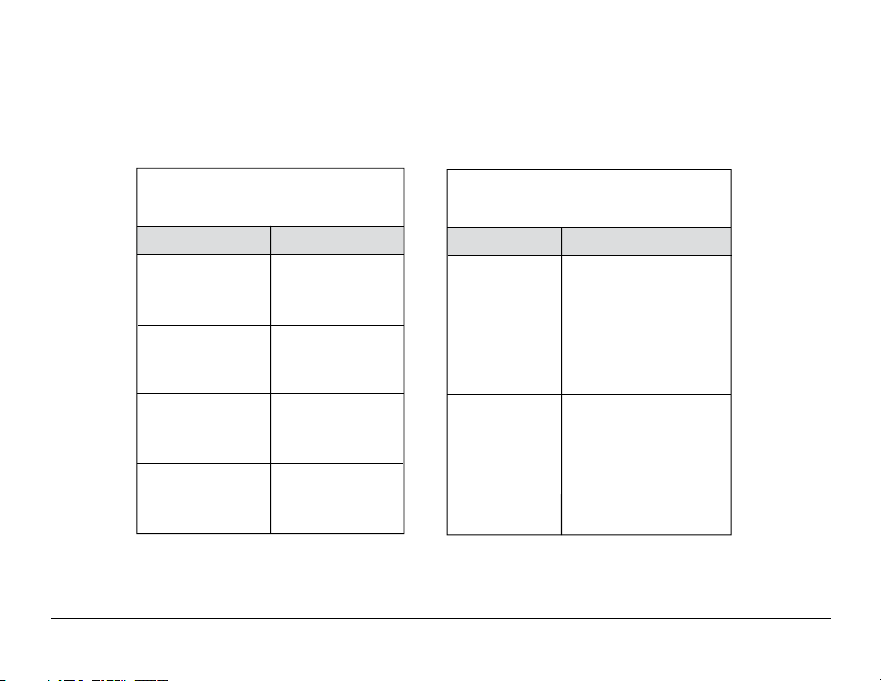
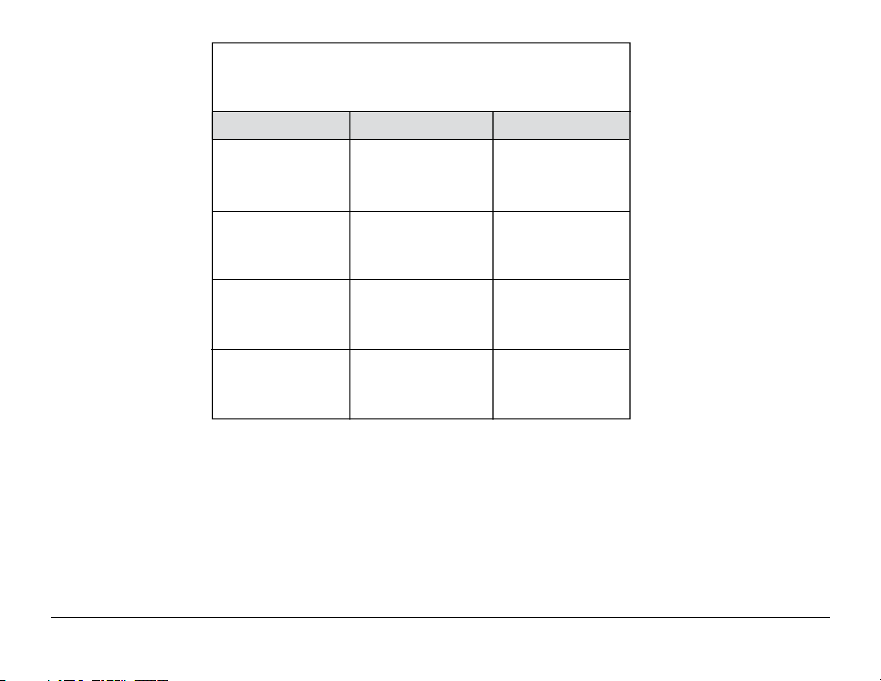
This thermostat comes pre-programmed with a default energy saving program. The following tables outline
the pre-programmed times and temperatures for heating and cooling in each of your 4 daily events (2 events if
configured for commercial mode). If you wish to use these settings then no further programming is necessary:
MORN
DAY
EVE
NIGHT
Time: 6:00 pm
Heat: 70˚ F (21˚ C)
Cool: 78˚ F (26˚ C)
Time: 8:00 am
Heat: 62˚ F (17˚ C)
Cool: 85˚ F (29˚ C)
Time: 6:00 am
Heat: 70˚ F (21˚ C)
Cool: 78˚ F (26˚ C)
Time: 10:00 pm
Heat: 62˚ F (17˚ C)
Cool: 82˚ F (28˚ C)
4 Event
All Days
Residential 7 Day Programming
Factory Settings
Time: 8:00 am
Heat: 70˚ F (21˚ C)
Cool: 78˚ F (26˚ C)
OCCUPIED
UNOCCUPIED
Time: 6:00 pm
Heat: 62˚ F (17˚ C)
Cool: 85˚ F (29˚ C)
2 Event
All Days
Commercial 2 Event Programming
Factory Settings
15 User Manual
Weekday Weekend
MORN
DAY
EVE
NIGHT
Time: 6:00 pm
Heat: 70˚ F (21˚ C)
Cool: 78˚ F (26˚ C)
Time: 8:00 am
Heat: 62˚ F (17˚ C)
Cool: 85˚ F (29˚ C)
Time: 6:00 am
Heat: 70˚ F (21˚ C)
Cool: 78˚ F (26˚ C)
Time: 10:00 pm
Heat: 62˚ F (17˚ C)
Cool: 82˚ F (28˚ C)
4 Event
Time: 6:00 pm
Heat: 70˚ F (21˚ C)
Cool: 78˚ F (26˚ C)
Time: 8:00 am
Heat: 62˚ F (17˚ C)
Cool: 85˚ F (29˚ C)
Time: 6:00 am
Heat: 70˚ F (21˚ C)
Cool: 78˚ F (26˚ C)
Time: 10:00 pm
Heat: 62˚ F (17˚ C)
Cool: 82˚ F (28˚ C)
Residential 5-2 Day Programming– Weekday/Weekend
Factory Settings
DAY/TIME
BACK NEXT
HUMIDITY
User Manual 16
Programming a 7 Day Residential Schedule
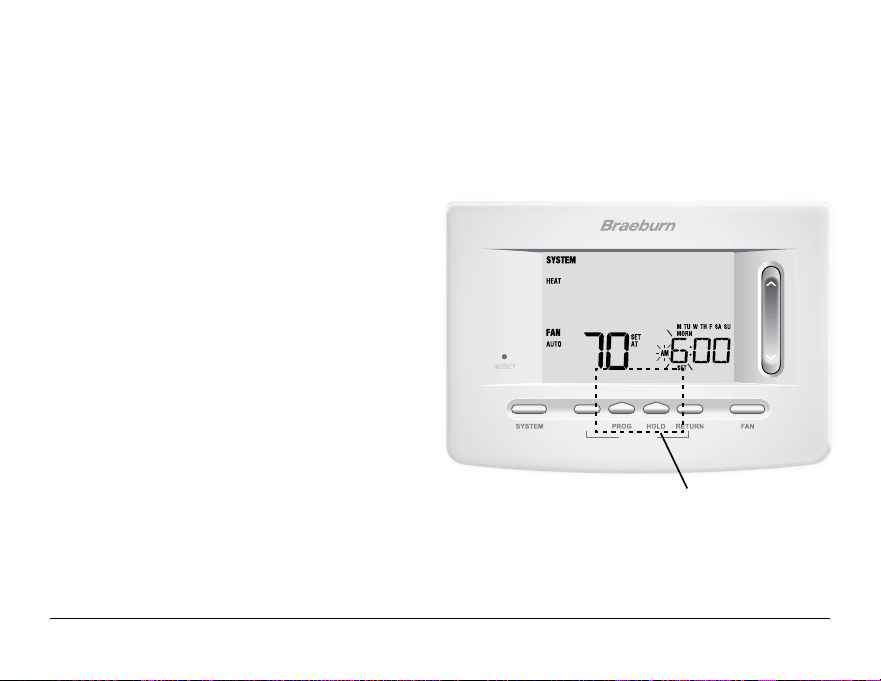
The 7 day residential programming mode gives you the option to program individual days (1 day at a time) or to
use SpeedSet and program the entire week (all 7 days) with a 4 event program schedule.
Setting All 7 Days at Once (SpeedSet
®
)
NOTE: Setting all 7 days at once will copy over any previously programmed individual days.
1. Hold the PROG button
for 3 seconds. The display will
switch to SpeedSet programming mode. All 7 days
of the week will appear and the hour will be flashing.
2. Press SYSTEM to select HEAT or COOL.
3. Press the SpeedBar
®
up or down to adjust the hour
for the MORN (morning) event. Press NEXT.
4. Press the SpeedBar up or down to adjust the minute
for the MORN event. Press NEXT.
5.
Press the SpeedBar up or down to adjust the
temperature
for the MORN event. Press NEXT.
6. Press the SpeedBar up or down to adjust the fan
setting for the MORN event. Press NEXT.
7. Repeat steps 3-6 for the DAY, EVE and NIGHT events.
8. If needed, repeat steps 2-7 to program the opposite mode (HEAT or COOL).
9. Press RETURN to exit.
BACK and NEXT are
secondary functions of the
PROG and HOLD buttons.
DAY/TIME
BACK NEXT
HUMIDITY
17 User Manual
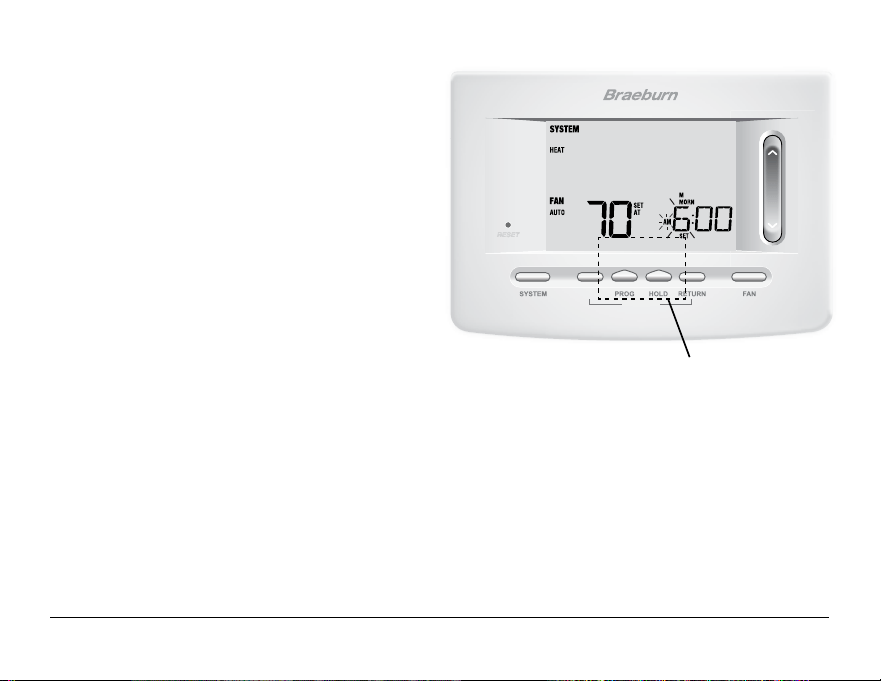
Setting Individual Days (7 Day Residential)
1. Press the PROG button. The display will switch to
programming mode. M (Monday) will be displayed
and the hour will be flashing.
2. Press SYSTEM to select HEAT or COOL.
3. Press DAY/TIME to select the day you would like
to program.
4. Press the SpeedBar
®
up or down to adjust the hour
for the MORN (morning) event. Press NEXT.
5. Press the SpeedBar up or down to adjust the minute
for the MORN event. Press NEXT.
6. Press the SpeedBar up or down to adjust the
temperature for the MORN event. Press NEXT.
7. Press the SpeedBar up or down to adjust the fan setting
for the MORN event. Press NEXT.
8. Repeat steps 4-7 for your DAY, EVE and NIGHT events.
9.
If needed, repeat steps 3-7 to select a different day to program.
10. If needed, repeat steps 2-9 to program the opposite mode (HEAT or COOL).
11. Press RETURN to exit.
BACK and NEXT are
secondary functions of the
PROG and HOLD buttons.
DAY/TIME
BACK NEXT
HUMIDITY
User Manual 18
Programming a 5-2 Day Residential Schedule
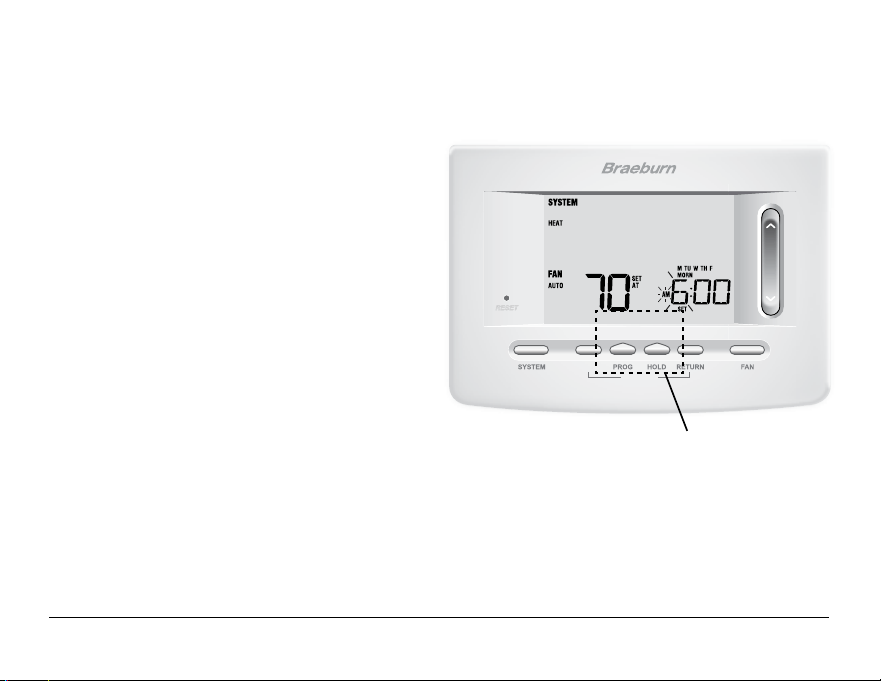
The 5-2 day residential programming mode allows you to program Monday - Friday with one 4 event schedule
and then allows you to change Saturday and Sunday with a different 4 event schedule.
1. Press the PROG button. The display will switch to
programming mode. The days M, TU, W, TH, and F
will be displayed and the hour will be flashing.
2. Press SYSTEM to select HEAT or COOL.
3. Press the SpeedBar
®
up or down to adjust the hour
for the MORN (morning) event. Press NEXT.
4. Press the SpeedBar up or down to adjust the minute
for the MORN event. Press NEXT.
5. Press the SpeedBar up or down to adjust the
temperature for the MORN event. Press NEXT.
6. Press the SpeedBar up or down to adjust the fan
setting for the MORN event. Press NEXT.
7. Repeat steps 3-6 for your DAY, EVE and NIGHT events.
8. Repeat steps 3-7 for your weekend (S, SU) program.
9. If needed, repeat steps 2-9 to program the opposite mode (HEAT or COOL).
10. Press RETURN to exit.
BACK and NEXT are
secondary functions of the
PROG and HOLD buttons.
DAY/TIME
BACK NEXT
HUMIDITY
19 User Manual
Programming a 7 Day Commercial Schedule
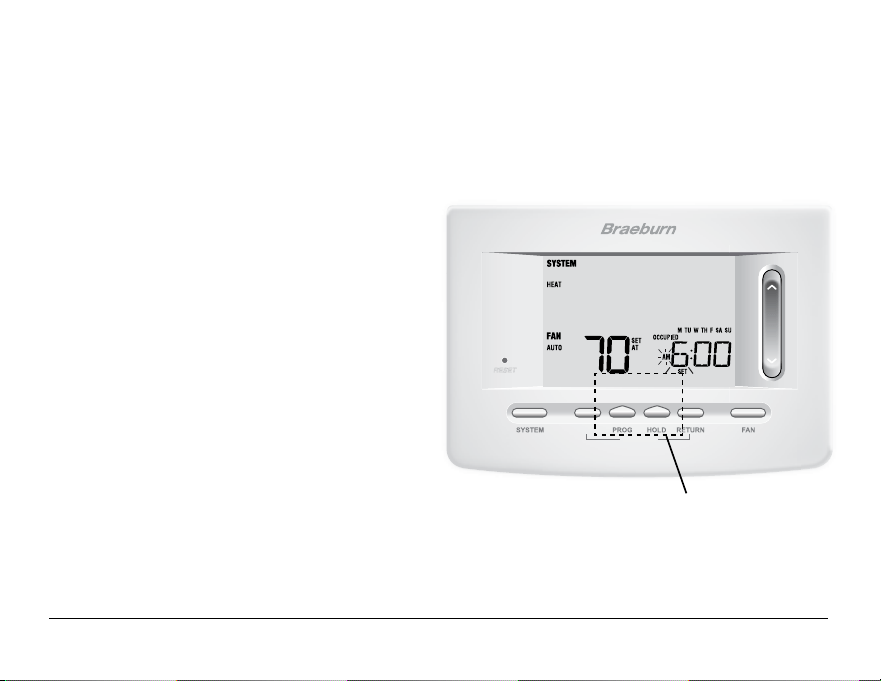
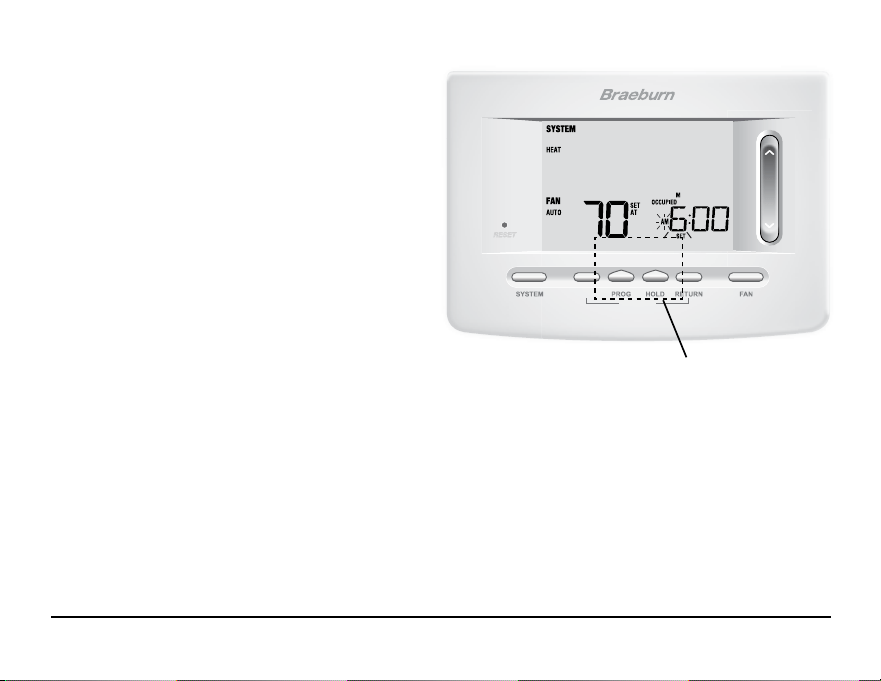
The 7 day commercial programming mode gives you the option to program individual days (1 day at a time) or to
use SpeedSet and program the entire week (all 7 days) with a 2 event program schedule.
Setting All 7 Days at Once (SpeedSet
®
)
NOTE: Setting all 7 days at once will copy over any previously programmed individual days.
1. Hold the PROG button
for 3 seconds. The display will
switch to SpeedSet programming mode. All 7 days of
the week will appear and the hour will be flashing.
2. Press SYSTEM to select HEAT or COOL.
3. Press the SpeedBar
®
up or down to adjust the hour
for the OCCUPIED event. Press NEXT.
4. Press the SpeedBar up or down to adjust the minute
for the OCCUPIED event. Press NEXT.
5. Press the SpeedBar up or down to adjust the
temperature for the OCCUPIED event. Press NEXT.
6. Press the SpeedBar up or down to adjust the fan
setting for the OCCUPIED event. Press NEXT.
7. Repeat steps 3-6 for your UNOCCUPIED event.
8. If needed, repeat steps 2-7 to program the opposite mode (HEAT or COOL).
9. Press RETURN to exit.
BACK and NEXT are
secondary functions of the
PROG and HOLD buttons.
DAY/TIME
BACK NEXT
HUMIDITY
Setting Individual Days (7 Day Commercial)
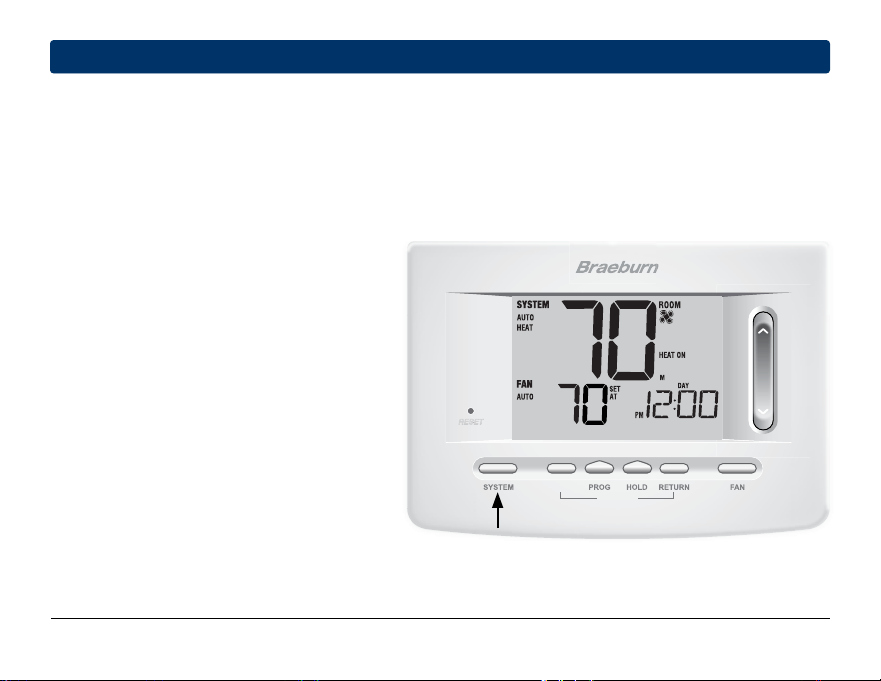
1. Press the PROG button. The display will switch to
programming mode. M (Monday) will appear and
the hour will flash.
2. Press SYSTEM to select HEAT or COOL.
3. Press DAY/TIME to select an individual day.
4. Press the SpeedBar
®
up or down to adjust the hour
for the OCCUPIED event. Press NEXT.
5. Press the SpeedBar up or down to adjust the
minute for the OCCUPIED event. Press NEXT.
6. Press the SpeedBar up or down to adjust the
temperature for the OCCUPIED event. Press NEXT.
7. Press the SpeedBar up or down to adjust the fan
setting for the OCCUPIED event. Press NEXT.
8. Repeat steps 4-7 for your UNOCCUPIED event.
9. If needed, repeat steps 3-7 to select other individual days.
10. If needed, repeat steps 2-9 to program the opposite mode (HEAT or COOL).
11. Press RETURN to exit.
User Manual 20
BACK and NEXT are
secondary functions of the
PROG and HOLD buttons.
INSTRUCTIONS
DAY/TIME
HUMIDITY
4
Operating Your Thermostat
21 User Manual
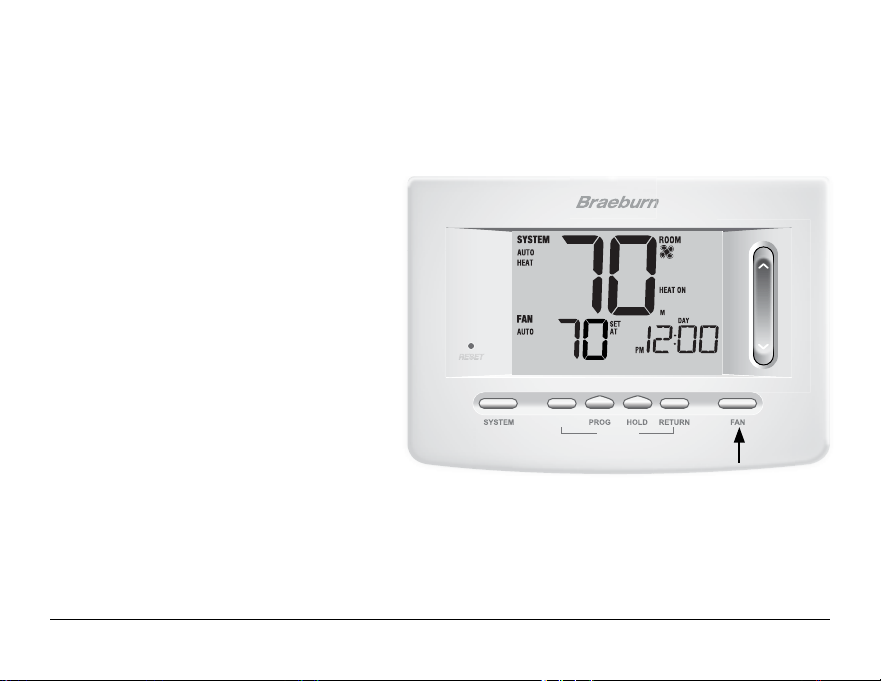
Setting the SYSTEM Control Mode
The System Control has 5 modes of operation – AUTO, COOL, OFF, HEAT and EMER. The mode can be selected
by pressing the SYSTEM button to scroll through the different modes.
NOTE: Depending on how your thermostat was configured, some system modes may not be available.
AUTO
The system will cycle between heating and
cooling automatically based on your program
set points. AUTO will be displayed with
either HEAT or COOL.
COOL Only your cooling system will operate.
OFF Heating and cooling systems are off.
HEAT Only your heating system will operate
EMER Operates a backup heat source
(Emergency Heat) for heat pump
systems only.
INSTRUCTIONS
DAY/TIME
HUMIDITY
User Manual 22
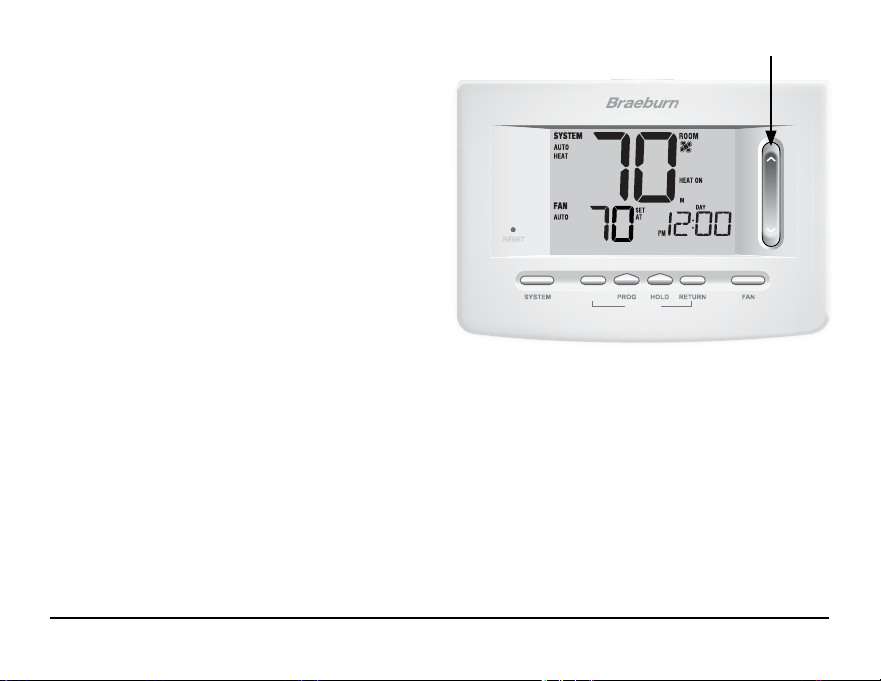
Setting the FAN Control Mode
The Fan Control has 4 modes of operation – AUTO, ON, CIRC and PROG. The mode can be selected by pressing
the FAN button to scroll through the different modes.
NOTE: Depending on how your thermostat was configured, some fan modes may not be available.
AUTO The system fan will run only when your
heating or cooling system is running.
ON The system fan stays on.
CIRC The system fan will run from time to time
to help circulate air and provide more
even temperatures when the heating or
cooling system is not active.
PROG The system fan will function in the
AUTO or ON modes depending on your
program schedule.
INSTRUCTIONS
DAY/TIME
HUMIDITY
23 User Manual
Setting the Temperature
Temporary Adjustment –
Press the SpeedBar
®
up or
down
to adjust the current set temperature. If your
thermostat is running in 5-2 or 7 day programmable
mode, the set temperature will change back to your
original programmed settings when your next scheduled
change in temperature occurs.
Extended Adjustment – Press the HOLD button
so that HOLD appears in the display screen. Press the
SpeedBar up or down to adjust the current set temperature
(See Extended Hold Period, page 10).
NOTE: If this thermostat was configured to be non-
programmable, you will not have a HOLD option.
SpeedBar
User Manual 24
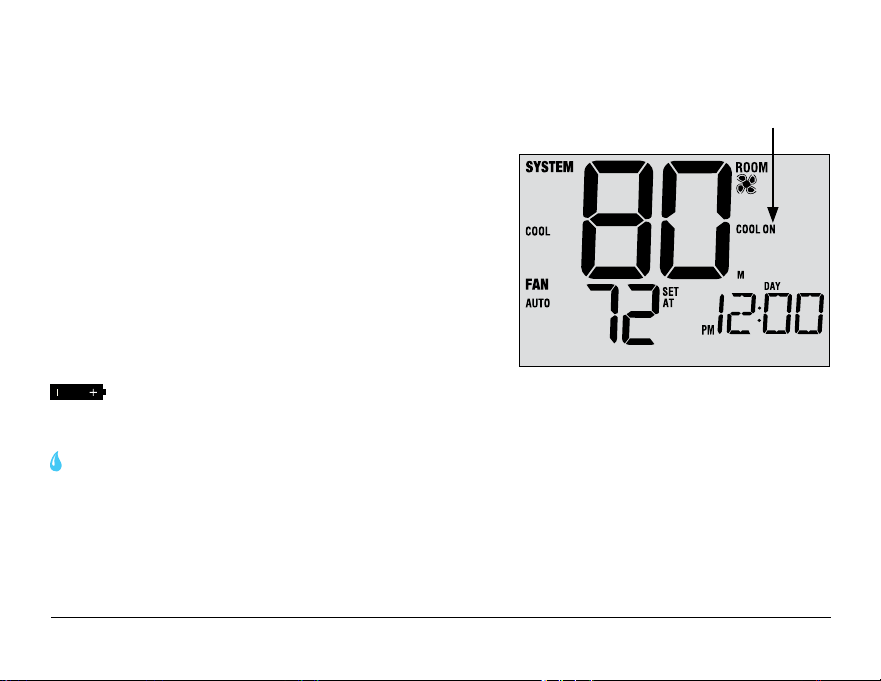
Status
Indicator
Status Indicators
Status indicators appear in the display to let you know if your system is heating, cooling or off.
HEAT ON Heating system is running.
COOL ON Cooling system is running.
AUX Auxiliary stage of heating is running (multi-stage
systems only).
EMER
Emergency heating system is running
(heat pump systems only).
SERVICE User selectable service reminder for changing a filter,
UV air purifier bulb or humidifier pad (see Service
Monitors, page 10).
ADJ Temperature adjustment limit has been reached.
Thermostat battery is low (see Thermostat Maintenance, page 33).
NO POWR AC Power to system has been lost (see page 30).
HUMID Thermostat is calling for humidification (see page 31).
DEHUMID Thermostat is calling for dehumidification (see page 31).
LOCKED Thermostat is fully or partially locked (see page 28).
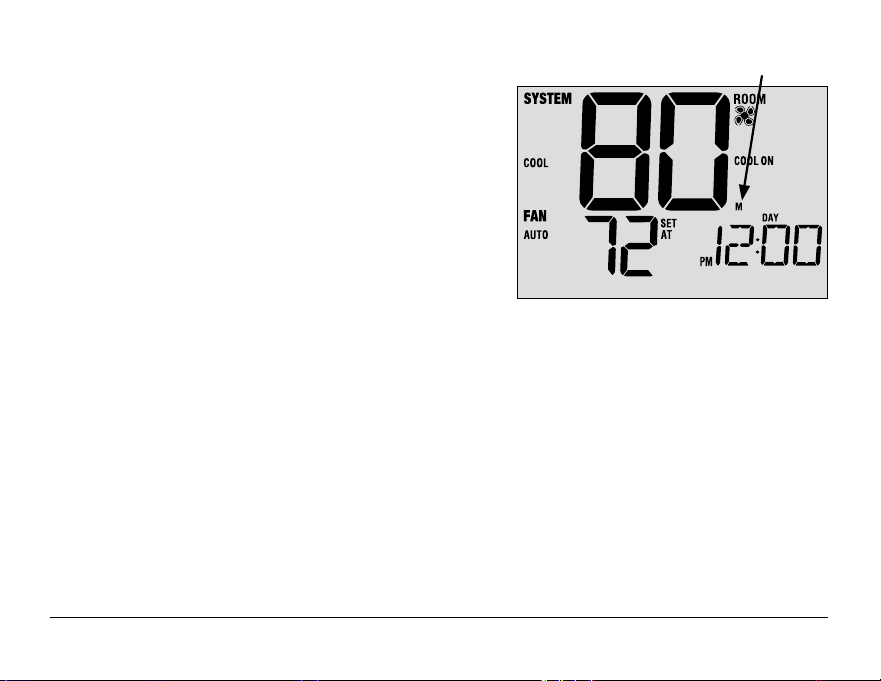
Program Event Indicators
Program event indicators appear in the display to let you
know what part of your current program is active.
• In Residential Program Mode, MORN, DAY, EVE or NIGHT
will appear.
•
In Commercial Program Mode, OCCUPIED or UNOCCUPIED
will appear.
When the program event indicator is flashing, your program
has been temporarily bypassed and will resume at the
next scheduled event.
NOTE: You will not see a program event indicator while in
HOLD or Non-Programmable Mode.
Program Event
Indicator
25 User Manual
Resetting the Thermostat
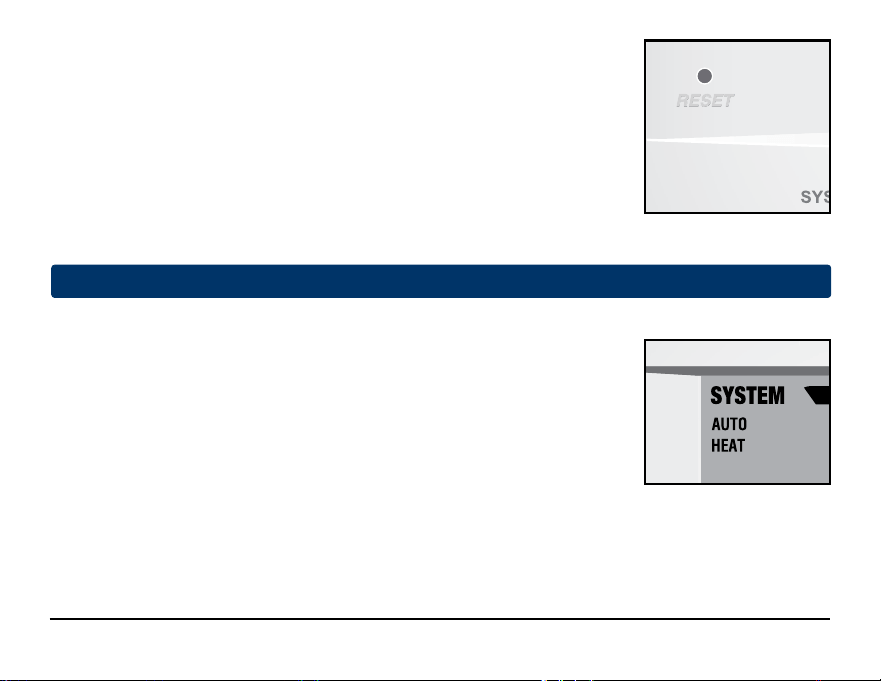
This thermostat provides you with a reset button that will erase
all of your user
settings and programming. The reset feature does not affect the Installer Settings.
To reset the thermostat, use a small object such as a tooth pick or paperclip and
gently press the button located inside the small hole on the front of
the thermostat housing labeled “RESET ”.
NOTE: You cannot reset the thermostat if it is locked.
5
Additional Operation Features
Auto Changeover Mode
Auto Changeover mode is a feature enabled/disabled in the
Installer Settings
(see Installer Manual). If enabled, it is selected
by pressing the SYSTEM button
until AUTO HEAT or AUTO COOL appears in the display.
When Auto Changeover mode is enabled and selected, the system automatically
switches between heating and cooling when the room temperature meets the
programmed heating or cooling set points. To operate properly, the thermostat
requires a “dead band” setting to eliminate program conflicts. The dead band is set
in the Installer Settings (See Installer Manual). The default setting is 3°F. Therefore, you will not be able to set
your heat or cool temperature within 3° F of each other. If a setting is made in either heating or cooling which
violates the dead band, the opposite mode will adjust up or down automatically to maintain the programmed
dead band spacing.
INSTRUCTIONS
INSTRUCTIONS
User Manual 26
Programmable Fan Mode
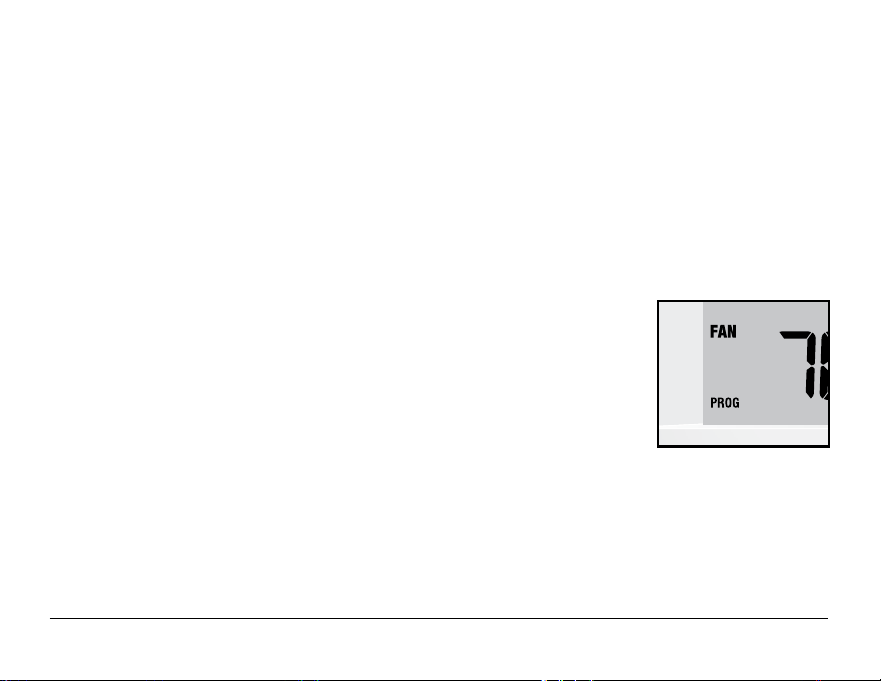
Programmable Fan Mode is selected by pressing FAN until PROG appears in the
display. It is only available in programmable mode.
Programmable Fan Mode allows the user to run the fan continuously during a
selected program event. To use this feature, select fan ON while setting program
events. (See “Setting Your Program Schedule”, page 12).
Adaptive Recovery Mode (ARM
™
)
Adaptive Recovery Mode is a feature enabled/disabled in the Installer Settings (See Installer Manual).
If enabled, the feature is automatically present while in programmable mode.
Adaptive Recovery Mode tries to reach your desired heating or cooling temperature at the time you have set in
your current program schedule, after a setback period. For example, if you set your heat down to 62° at night
and have a set point of 70° scheduled for 7:00 AM, the thermostat may turn on your heating system early in
order achieve a temperature of 70° by 7:00 AM.
This feature does not operate when the thermostat is in HOLD mode, if the program is temporarily overridden or
if emergency heat is selected on a multistage heat pump system.
DAY/ TIME
27 User Manual
DAY/TIME
BACK NEXT
HUMIDITY
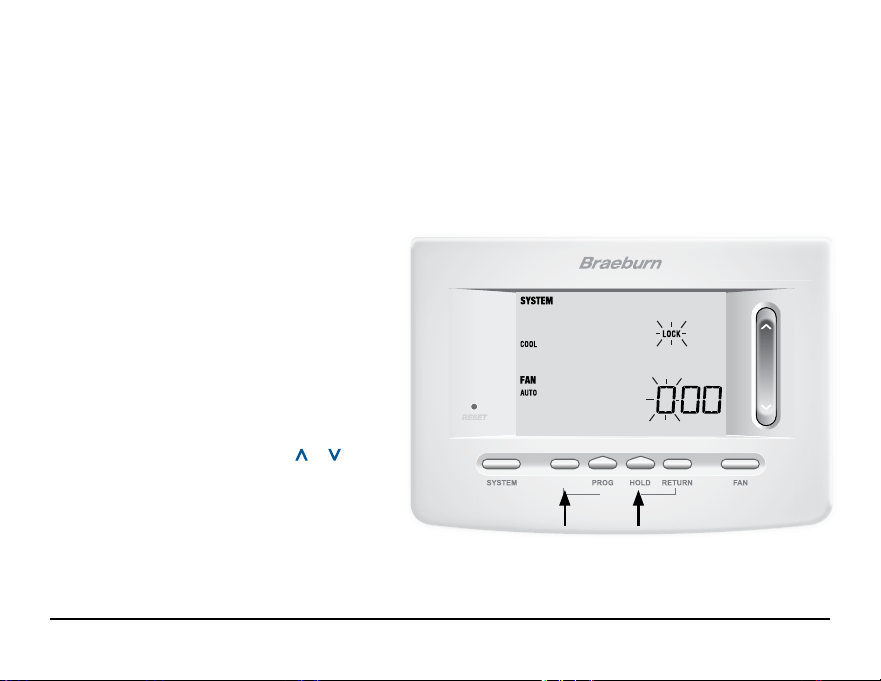
Locking and Unlocking the Thermostat
Your 3-digit Lock Code is set in the “User Options”
portion of this manual (See “Setting User Options”,
page 6 and 9).
Once the code is set, the
thermostat can be locked or unlocked at any
time by entering that code.
To lock or unlock the thermostat, press and hold the
DAY/TIME and HOLD buttons together for 5 seconds.
The screen will change, displaying 000 and LOCK
will be flashing. Press the SpeedBar
®
or to
enter the first digit of your lock code and then press
NEXT* to advance to the next digit. Repeat this
process to enter the second and third digit of your
lock code. After entering the third digit, press RETURN.
*BACK and NEXT are secondary functions of the PROG and HOLD buttons.
Compressor Protection
Compressor protection is enabled/disabled in the Installer Settings (See Installer Manual). If enabled, this
feature is automatically present in cooling and/or heating modes. This thermostat includes an automatic
compressor protection delay to avoid potential damage to your system from short cycling. This feature activates
a short delay after turning off the system compressor. Additionally, for multi-stage heat pump systems, this
thermostat provides cold weather compressor protection by locking out the compressor stage(s) of heating for
a period of time after a power outage greater than 60 minutes. This cold weather compressor protection can be
manually overridden at any time by changing the system mode to OFF momentarily, then back to HEAT.
User Manual 28
29 User Manual
Locking and Unlocking the Thermostat (continued)
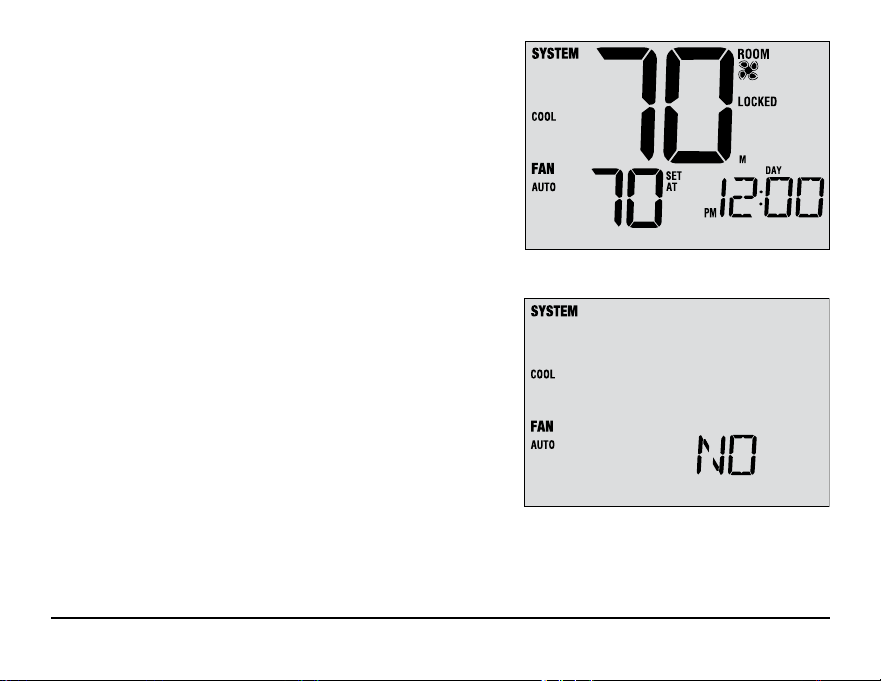
If you entered a valid code the thermostat will be locked or
unlocked (depending on its previous state). When locked, the
word LOCKED
appears in the display (Figure 1). If an invalid code
is entered the word
NO will briefly appear, indicating that an
incorrect code was entered (Figure 2).
Figure 1
Figure 2
DAY/TIME
HUMIDITY
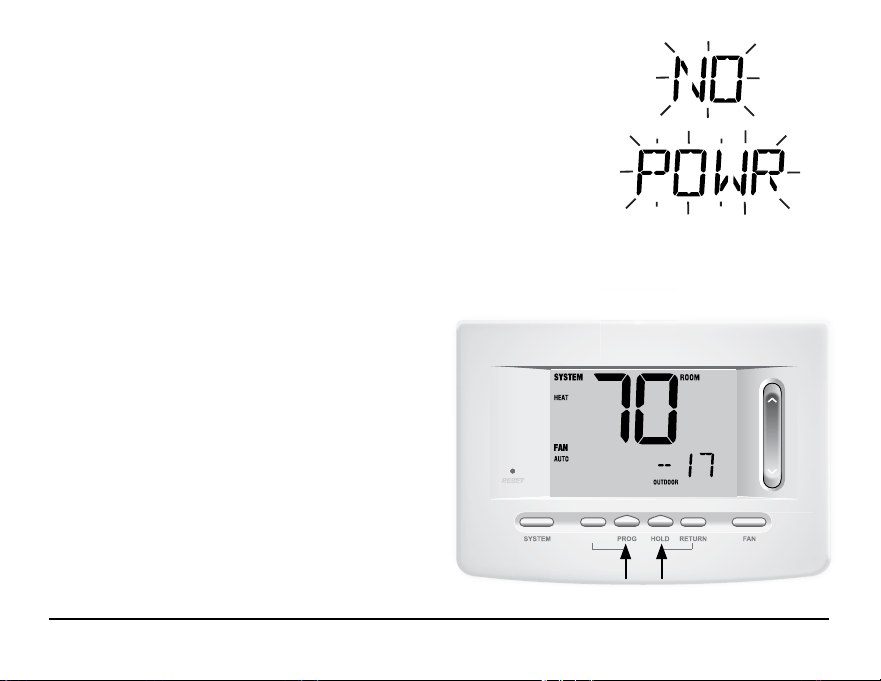
Outdoor Remote Sensing
Outdoor remote sensing is enabled by installing
a Braeburn
®
remote outdoor sensor. No additional
configuration is required.
If a Braeburn outdoor remote sensor was installed
you may press the PROG and HOLD buttons at the
same time to view the outdoor temperature.
AC Power Monitor
The AC Power Monitor feature is enabled in the Installer Settings
(See Installer Manual). If enabled, this feature will automatically be present.
If your thermostat was hardwired (power provided from the system with batteries
as a backup) then the AC Power Monitor feature will indicate when a loss of
power to the thermostat has occurred by displaying NO POWR.
Indoor Remote Sensing
Indoor remote sensing is achieved by installing a Braeburn
®
remote indoor sensor and is configured in the
Installer Settings (See Installer Manual). If a Braeburn indoor remote sensor was installed and properly configured
in the Installer Settings, the thermostat will sense temperature at a remote location or at a combination of a remote
location and the thermostat location.
User Manual 30
INSTRUCTIONS
DAY/TIME
HUMIDITY
Humidification and Dehumidification
This thermostat can be used to control the level of
humidification and dehumidification. Humidification can be
controlled manually from the thermostat or automatically
when a Braeburn
®
outdoor remote sensor is installed and
configured in the Installer Settings (See Installer Manual).
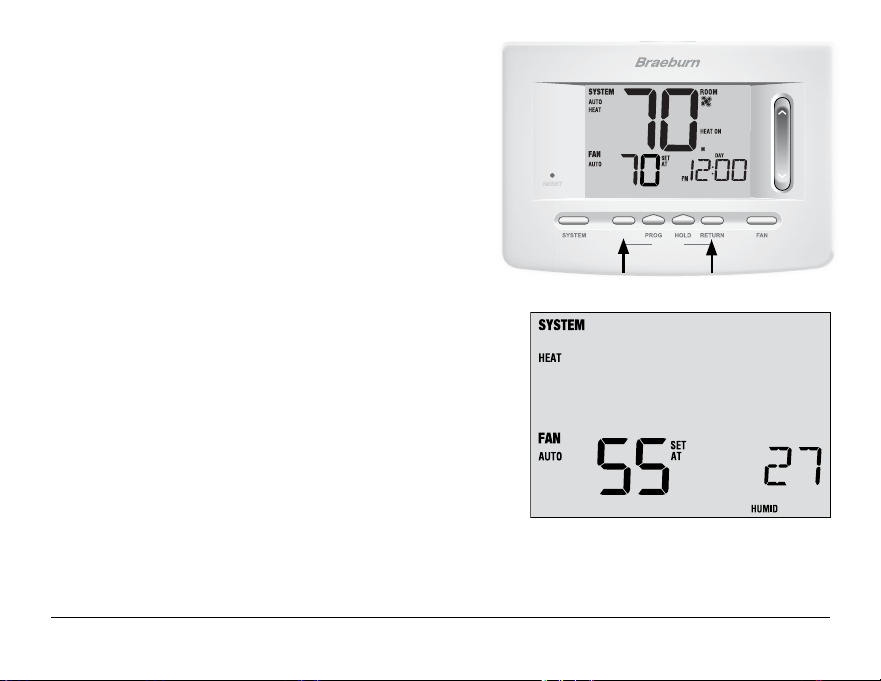
To view the current humidity level at the thermostat, press the
DAY/TIME and RETURN buttons at the same time.
(Figure 1).
If humidification or dehumidification
is not enabled, you will
only see the current humidity level.
If humidification is enabled you will see the current humidity
level along with the humidification set point (Figure 2). Press the
SpeedBar
®
up or down to adjust the humidification set point.
If dehumidification control is enabled, the air conditioning system
can be used to reduce humidity during the cooling season. If the
room humidity level is above the dehumidification set point, the
air conditioning system may run until the room temperature is
several degrees lower than the cooling set point, or until the
room humidity level reaches the dehumidification set point
(which ever comes first).
Figure 1
Figure 2
31 User Manual
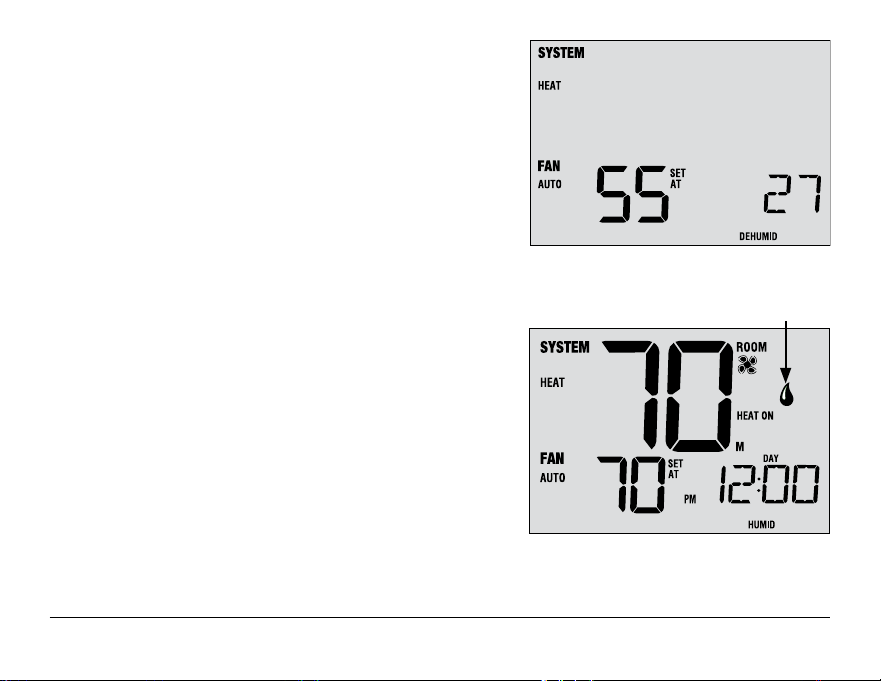
If humidification and dehumidification are both enabled you will
first see the current humidity level along with the humidification
set point. Press the SpeedBar
®
up or down to adjust the humidification
set point. Press the DAY/TIME and RETURN buttons again to
display the dehumidification set point. Press the SpeedBar up or down
to adjust the dehumidification
set point (Figure 3). Press RETURN.
NOTE: If Automatic Humidity Control was enabled in the Installer
Options, the humidification set point may be automatically adjusted
to compensate for changes in outdoor temperature.
When there is a call for humidification, a small water droplet
symbol and HUMID will appear on screen (Figure 4). When there
is a call for dehumidification, the word DEHUMID will appear.
Figure 3
Figure 4
Water
Droplet Symbol
User Manual 32
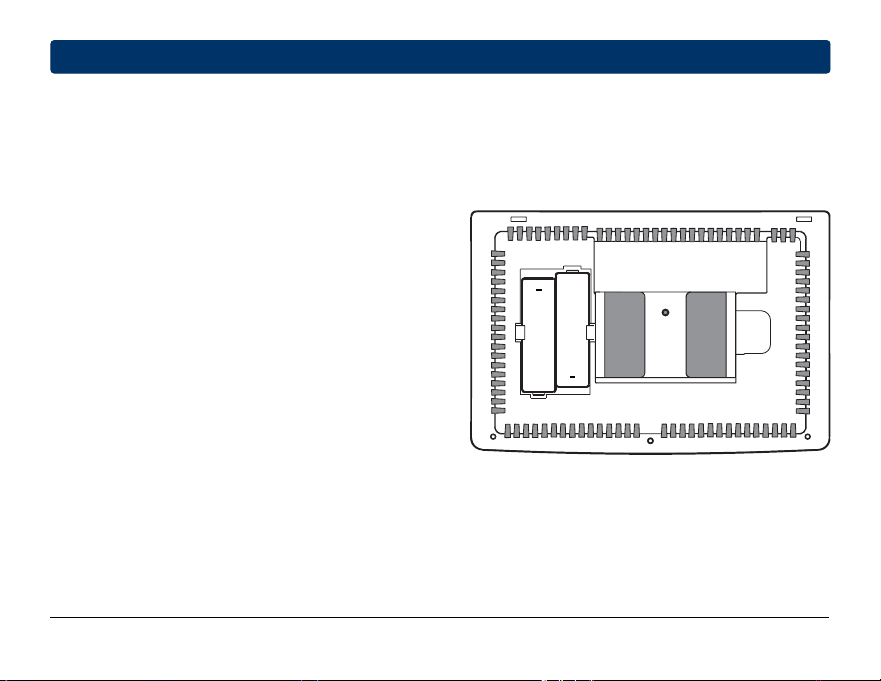
Figure 3
Figure 4
6
Thermostat Maintenance
Thermostat Cleaning
Never spray any liquid directly on the thermostat. Using a soft damp cloth wipe the outer body of the thermostat.
Never use any abrasive cleansers to clean your thermostat.
Changing the Batteries
This thermostat requires two (2) properly installed “AA”
alkaline batteries to maintain the thermostat clock and to
provide power for the thermostat if 24 volt AC power is not
connected. (See Installer Manual).
If batteries become low, a battery indicator will appear
in the display. You should change your batteries immediately
when you see the low battery signal by following
these instructions.
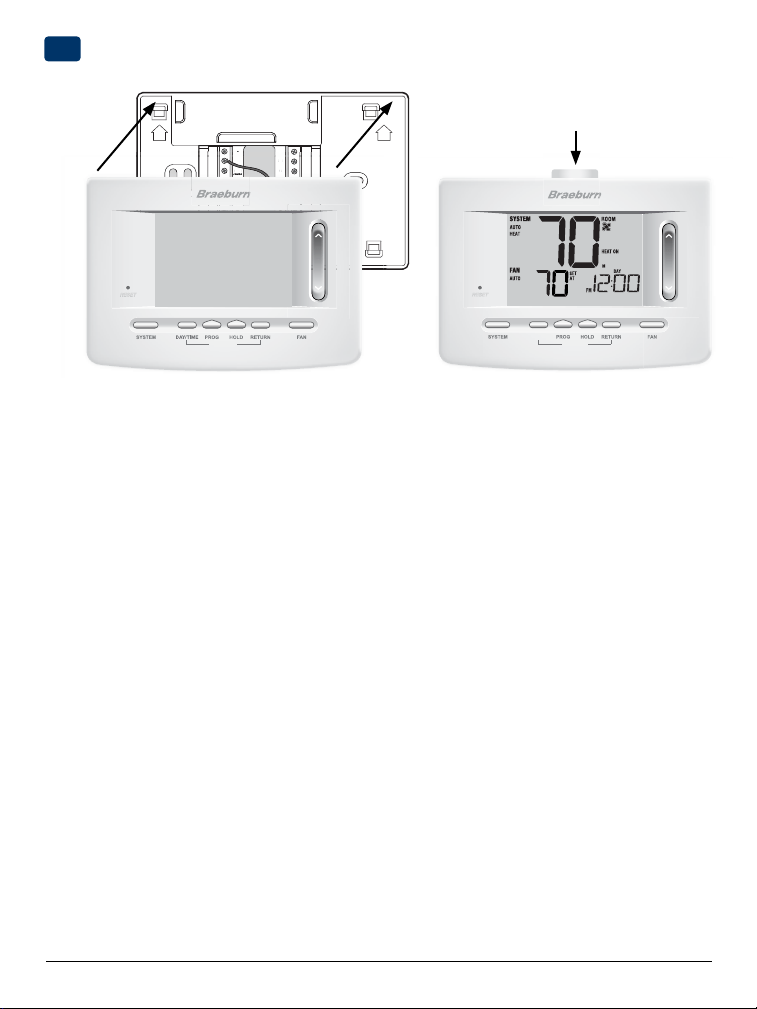
1. Remove thermostat body by gently pulling it from base.
2. Remove old batteries and replace with new batteries.
3. Make sure to correctly position the (+) and (-) symbols.
4. Gently push thermostat body back onto base.
NOTE: We recommend replacing the thermostat batteries annually or if the thermostat will be unattended for
an extended period of time.
+
+
33 User Manual
Store this manual for future reference.
Limited Warranty
When installed by a professional contractor, this product is backed by a 5 year limited
warranty. Limitations apply. For limitations, terms and conditions, you may obtain a full
copy of this warranty:
• Visit us online: www.braeburnonline.com/warranty
• Phone us: 866.268.5599
• Write us: Braeburn Systems LLC
2215 Cornell Avenue
Montgomery, IL 60538
55
YEAR
WARRANTY
LIMITED
Braeburn Systems LLC
2215 Cornell Avenue • Montgomery, IL 60538
Technical Assistance: www.braeburnonline.com
Call us toll-free: 866-268-5599 (U.S.)
630-844-1968 (Outside the U.S.)
©2020 Braeburn Systems LLC • All Rights Reserved.
5025W-110-01
®