
1080p Digital Camcorder
NS-DV111080F/NS-DV111080F-CN
User Guide

ii
www.insigniaproducts.com
Contents
Important safety instructions . . . . . . . . . . . . . . . . . . . . . . . . . . . . . . . . . . . . .1
Introduction . . . . . . . . . . . . . . . . . . . . . . . . . . . . . . . . . . . . . . . . . . . . . . . . . . . . .2
Features . . . . . . . . . . . . . . . . . . . . . . . . . . . . . . . . . . . . . . . . . . . . . . . . . . . . . . . . .2
Package contents . . . . . . . . . . . . . . . . . . . . . . . . . . . . . . . . . . . . . . . . . . . . . . . . 2
System requirements . . . . . . . . . . . . . . . . . . . . . . . . . . . . . . . . . . . . . . . . . . . . 2
Front . . . . . . . . . . . . . . . . . . . . . . . . . . . . . . . . . . . . . . . . . . . . . . . . . . . . . . . . . . . . 2
Back . . . . . . . . . . . . . . . . . . . . . . . . . . . . . . . . . . . . . . . . . . . . . . . . . . . . . . . . . . . . . 3
Right . . . . . . . . . . . . . . . . . . . . . . . . . . . . . . . . . . . . . . . . . . . . . . . . . . . . . . . . . . . . 3
Left . . . . . . . . . . . . . . . . . . . . . . . . . . . . . . . . . . . . . . . . . . . . . . . . . . . . . . . . . . . . . . 3
Bottom . . . . . . . . . . . . . . . . . . . . . . . . . . . . . . . . . . . . . . . . . . . . . . . . . . . . . . . . . . 4
Understanding the LCD panel icons . . . . . . . . . . . . . . . . . . . . . . . . . . . . . . 4
Setting up your camcorder . . . . . . . . . . . . . . . . . . . . . . . . . . . . . . . . . . . . . . .8
Charging the battery . . . . . . . . . . . . . . . . . . . . . . . . . . . . . . . . . . . . . . . . . . . . . 8
Installing the battery . . . . . . . . . . . . . . . . . . . . . . . . . . . . . . . . . . . . . . . . . . . . . 8
Inserting or removing an SD/SDHC memory card . . . . . . . . . . . . . . . . . 8
Getting started . . . . . . . . . . . . . . . . . . . . . . . . . . . . . . . . . . . . . . . . . . . . . . . . . . .9
Turning your camcorder on or off . . . . . . . . . . . . . . . . . . . . . . . . . . . . . . . . 9
Initial settings . . . . . . . . . . . . . . . . . . . . . . . . . . . . . . . . . . . . . . . . . . . . . . . . . . . 9
Recording a video . . . . . . . . . . . . . . . . . . . . . . . . . . . . . . . . . . . . . . . . . . . . . . . 9
Taking a close-up video . . . . . . . . . . . . . . . . . . . . . . . . . . . . . . . . . . . . . . . . . . 9
Viewing videos . . . . . . . . . . . . . . . . . . . . . . . . . . . . . . . . . . . . . . . . . . . . . . . . . 10
Deleting videos . . . . . . . . . . . . . . . . . . . . . . . . . . . . . . . . . . . . . . . . . . . . . . . . . 10
Taking a photo . . . . . . . . . . . . . . . . . . . . . . . . . . . . . . . . . . . . . . . . . . . . . . . . . 11
Taking a close-up photo . . . . . . . . . . . . . . . . . . . . . . . . . . . . . . . . . . . . . . . . 11
Viewing photos . . . . . . . . . . . . . . . . . . . . . . . . . . . . . . . . . . . . . . . . . . . . . . . . . 11
Deleting photos . . . . . . . . . . . . . . . . . . . . . . . . . . . . . . . . . . . . . . . . . . . . . . . . 12
Using camcorder features . . . . . . . . . . . . . . . . . . . . . . . . . . . . . . . . . . . . . . 12
Using the flash . . . . . . . . . . . . . . . . . . . . . . . . . . . . . . . . . . . . . . . . . . . . . . . . . . 12
Using zoom . . . . . . . . . . . . . . . . . . . . . . . . . . . . . . . . . . . . . . . . . . . . . . . . . . . . 12
Using the LED light . . . . . . . . . . . . . . . . . . . . . . . . . . . . . . . . . . . . . . . . . . . . . 13
Adjusting camcorder settings . . . . . . . . . . . . . . . . . . . . . . . . . . . . . . . . . . 13
Turning Simple mode off . . . . . . . . . . . . . . . . . . . . . . . . . . . . . . . . . . . . . . . . 13
Using the self-timer . . . . . . . . . . . . . . . . . . . . . . . . . . . . . . . . . . . . . . . . . . . . . 13
Turning face detection on or off . . . . . . . . . . . . . . . . . . . . . . . . . . . . . . . . . 14
Turning stabilization on or off . . . . . . . . . . . . . . . . . . . . . . . . . . . . . . . . . . . 14
Adjusting the color balance . . . . . . . . . . . . . . . . . . . . . . . . . . . . . . . . . . . . . 15
Imprinting the date and time on photos or videos . . . . . . . . . . . . . . . 15
Setting the video format . . . . . . . . . . . . . . . . . . . . . . . . . . . . . . . . . . . . . . . . 16
Setting the video quality . . . . . . . . . . . . . . . . . . . . . . . . . . . . . . . . . . . . . . . . 16
Selecting the file format for movies . . . . . . . . . . . . . . . . . . . . . . . . . . . . . . 17
Turning dual video on or off . . . . . . . . . . . . . . . . . . . . . . . . . . . . . . . . . . . . . 17
Setting the photo resolution . . . . . . . . . . . . . . . . . . . . . . . . . . . . . . . . . . . . 18
Selecting the aspect ratio . . . . . . . . . . . . . . . . . . . . . . . . . . . . . . . . . . . . . . . 18
Turning operation sounds on or off . . . . . . . . . . . . . . . . . . . . . . . . . . . . . . 19
Setting the date and time . . . . . . . . . . . . . . . . . . . . . . . . . . . . . . . . . . . . . . . 19
Erasing an SD/SDHC memory card or the internal memory . . . . . . . 19

iii
Contents
www.insigniaproducts.com
Selecting the menu language . . . . . . . . . . . . . . . . . . . . . . . . . . . . . . . . . . . 20
Turning help text on or off . . . . . . . . . . . . . . . . . . . . . . . . . . . . . . . . . . . . . . 20
Using the Auto Power Off function . . . . . . . . . . . . . . . . . . . . . . . . . . . . . . 21
Selecting the TV format . . . . . . . . . . . . . . . . . . . . . . . . . . . . . . . . . . . . . . . . . 21
Resetting your camcorder to the factory default settings . . . . . . . . . 22
Transferring files to a computer . . . . . . . . . . . . . . . . . . . . . . . . . . . . . . . . . 22
Connecting your camcorder to a computer . . . . . . . . . . . . . . . . . . . . . . 22
Installing the included software . . . . . . . . . . . . . . . . . . . . . . . . . . . . . . . . . 22
Using the included software . . . . . . . . . . . . . . . . . . . . . . . . . . . . . . . . . . . . 23
Connecting your camcorder to a TV . . . . . . . . . . . . . . . . . . . . . . . . . . . . . 23
Connecting to a TV using the provided AV cable . . . . . . . . . . . . . . . . . 23
Connecting to a TV using a mini HDMI cable . . . . . . . . . . . . . . . . . . . . . 23
Troubleshooting . . . . . . . . . . . . . . . . . . . . . . . . . . . . . . . . . . . . . . . . . . . . . . . 23
Specifications and default settings . . . . . . . . . . . . . . . . . . . . . . . . . . . . . . 24
Specifications . . . . . . . . . . . . . . . . . . . . . . . . . . . . . . . . . . . . . . . . . . . . . . . . . . . 24
Default settings . . . . . . . . . . . . . . . . . . . . . . . . . . . . . . . . . . . . . . . . . . . . . . . . . 24
Legal notices . . . . . . . . . . . . . . . . . . . . . . . . . . . . . . . . . . . . . . . . . . . . . . . . . . . 25
One-year limited warranty . . . . . . . . . . . . . . . . . . . . . . . . . . . . . . . . . . . . . . 27

iv
Contents
www.insigniaproducts.com

1
www.insigniaproducts.com
Important safety
instructions
1 Read these instructions.
2 Keep these instructions.
3 Heed all warnings.
4 Follow all instructions.
5 Do not use your camcorder near water.
6 Clean only with a dry cloth.
7 Do not block any ventilation openings. Install in
accordance with the manufacturer's
instructions.
8 Do not leave your camcorder near any heat
sources such as radiators, heat registers, stoves,
or other apparatus (including amplifiers) that
produce heat.
9 Protect the power cord from being walked on or
pinched particularly at plugs and the point
where they exit from your battery charger.
10 Only use attachments/accessories specified by
the manufacturer.
11 Unplug your camcorder during lightning storms
or when unused for long periods of time.
12 Refer all servicing to qualified service personnel.
Servicing is required when your camcorder has
been damaged in any way, such as battery
charger power cord or plug is damaged, liquid
has been spilled or objects have fallen into your
camcorder, your camcorder has been exposed
to rain or moisture, does not operate normally,
or has been dropped.
13 To reduce the risk of fire or electric shock, do not
expose your camcorder to rain, moisture,
dripping, or splashing, and no objects filled with
liquids, such as vases, shall be placed on it.
14 Batteries should not be exposed to excessive
heat such as direct sunlight, fire, or the like.
Caution
Danger of explosion if battery is incorrectly replaced. Replace
only with the same or equivalent type.
2
NS-DV111080F/NS-DV111080F-CN Insignia 1080p Digital Camcorder
www.insigniaproducts.com
Insignia 1080p Digital Camcorder
Introduction
Congratulations on your purchase of a high-quality
Insignia product. Your NS-DV111080F or
NS-DV111080F-CN is designed for reliable and
trouble-free performance.
Features
• Full HD 1920 × 1080p (30fps) mode offers high
quality video capture
• 12× optical zoom, 10× digital zoom
• 3.0-inch TFT LCD touch screen display (16:9)
• Support for SD cards (up to 4 GB) and SDHC cards
(up to 32 GB)
• Super high frame rate (240fps) WQVGA video
mode
• High speed sequential shooting lets you take
multiple photos with one press of the shutter
button
• Electronic image stabilization (EIS) allows for
smoother video capture
• Still image capture during video capture
• Dual-video capture mode allows for simultaneous
capture of high quality 1920 × 1080 30fps video
and low resolution 432 × 240 30fps video (ideal
for use on the Internet)
•Face detection
• Mini HDMI out jack allows for playback of high
definition video on an HDMI-enabled TV directly
from your camcorder
Package contents
• Insignia NS-DV111080F or NS-DV111080F-CN
camcorder
• Li-ion battery (type NP120)
• USB cable
•AV cable
• Battery charger and power cord
•CD (includes User Guide and media playback and
editing software)
•Quick Setup Guide
System requirements
Operating System: Windows® XP with SP2, Windows
Vista®, or Windows® 7 or Mac OS 10.x or higher.
CPU: Intel® or AMD® Dual-Core or above
Memory: at least 1 GB or more
Hardware: DirectX 9 or above
Standard USB 1.1 port or above
At least 2 GB available disk space
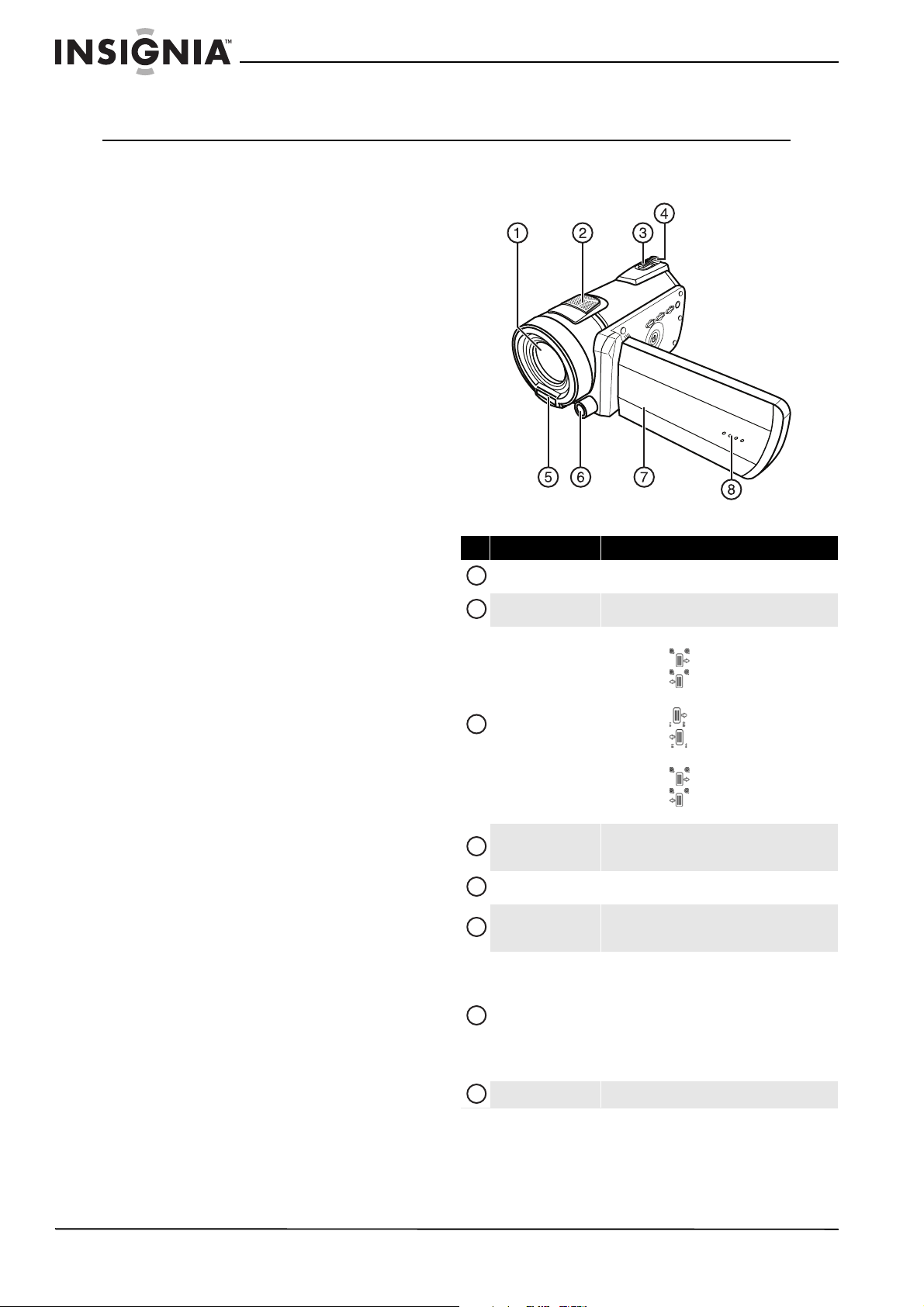
Front
# Item Description
Lens
Use to focus the image when capturing videos or
taking photos.
Speakers
In Playback mode, plays the sound in the recorded
videos.
T/W (Tele/Wide)
zoom button
When recording video or taking photos:
• Press to zoom in.
• Press to zoom out.
In video Playback mode:
• Press to increase the volume.
• Press to decrease the volume.
In photo Playback mode:
• Press to zoom in.
• Press to zoom out.
For more information, see “Using zoom” on page 12.
Shutter button
In Photo and Video record modes, press to take a
photo. For more information, see “Taking a photo” on
page 11.
Flash
Lets you take photos in low light conditions. For more
information, see “Using the flash” on page 12.
LED light
Turns on when you press the LED light button. Ideal for
capturing video in low-light settings. For more
information, see “Using the LED light” on page 13.
LCD panel
Lets you view photos and videos while you are
capturing them.
Lets you view stored photos and videos.
Displays camcorder status information.
Lets you select menu items and interact with
on-screen display elements.
For more information, see “Understanding the LCD
panel icons” on page 4.
Microphone
Records audio while recording a video.
1
2
3
4
5
6
7
8
3
Insignia 1080p Digital Camcorder
www.insigniaproducts.com
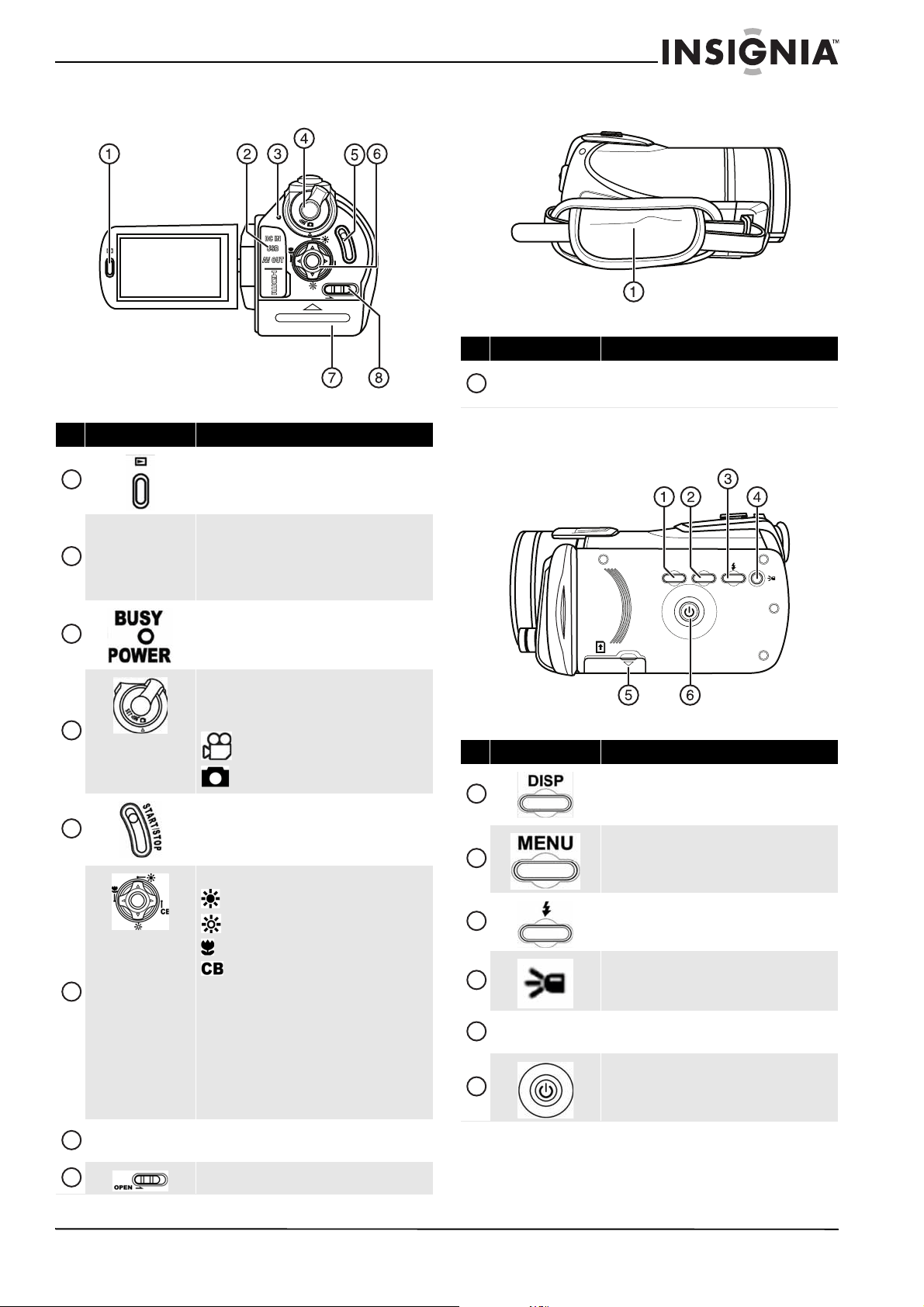
Back Right
Left
# Item Description
Playback button:
In Video mode, press to view recorded videos.
In Photo mode, press to view captured photos.
USB port and mini HDMI jack:
Use the USB port to connect your camcorder to a
computer.
Use the mini HDMI jack to view high-definition video
directly on an HDMI-enabled TV.
Busy/Power indicator:
Lights when the power is on or when the system is
busy. When recording video, alternately flashes green
and orange.
Mode dial:
Turn to switch to different camcorder modes:
SET—Opens the on-screen menu.
—Switches to Video mode.
—Switches to Photo mode.
Start/Stop button:
In Video mode, press to start or stop recording a video.
In Video playback mode, press to start or pause video
playback.
Navigation control:
—Up
—Down
—Macro/Left
—Color Balance/Right
In Setup mode, press Up, Down, Left, or Right to select
menu items or adjust settings. Press the center button
to confirm.
In Video or Photo mode, press Up or Down to adjust
exposure settings.
In Video or Photo recording mode, press Macro to turn
the macro feature on or off.
In Video or Photo recording mode, press Color Balance
to select a color balance setting.
Battery
compartment
Insert the battery into this compartment.
Slide to open the battery compartment.
CB
OPEN
BUSY
POWER
S
T
A
R
T
/
S
T
O
P
SET
1
2
3
4
5
6
7
8
# Item Description
Hand strap
Use to hold your camcorder. The included lens cap may
be stored in the hand strap’s outer pocket during photo
or video capture.
# Item Description
Press once to display the icons on the left on the setup
menu. Press twice to display icons on the left and
bottom on the setup menu. Press three times to hide
all icons.
Press to access the setup menu in Video or Photo
modes.
In Photo mode, turns the flash on or off.
In Photo or Video mode, turns the LED light on or off.
SD/SDHC memory
card slot
Insert an SD or SDHC memory card into this slot.
Press and hold to turn your camcorder on or off.
1
DISP MENU
OPEN
1
2
3
4
5
6
4
NS-DV111080F/NS-DV111080F-CN Insignia 1080p Digital Camcorder
www.insigniaproducts.com
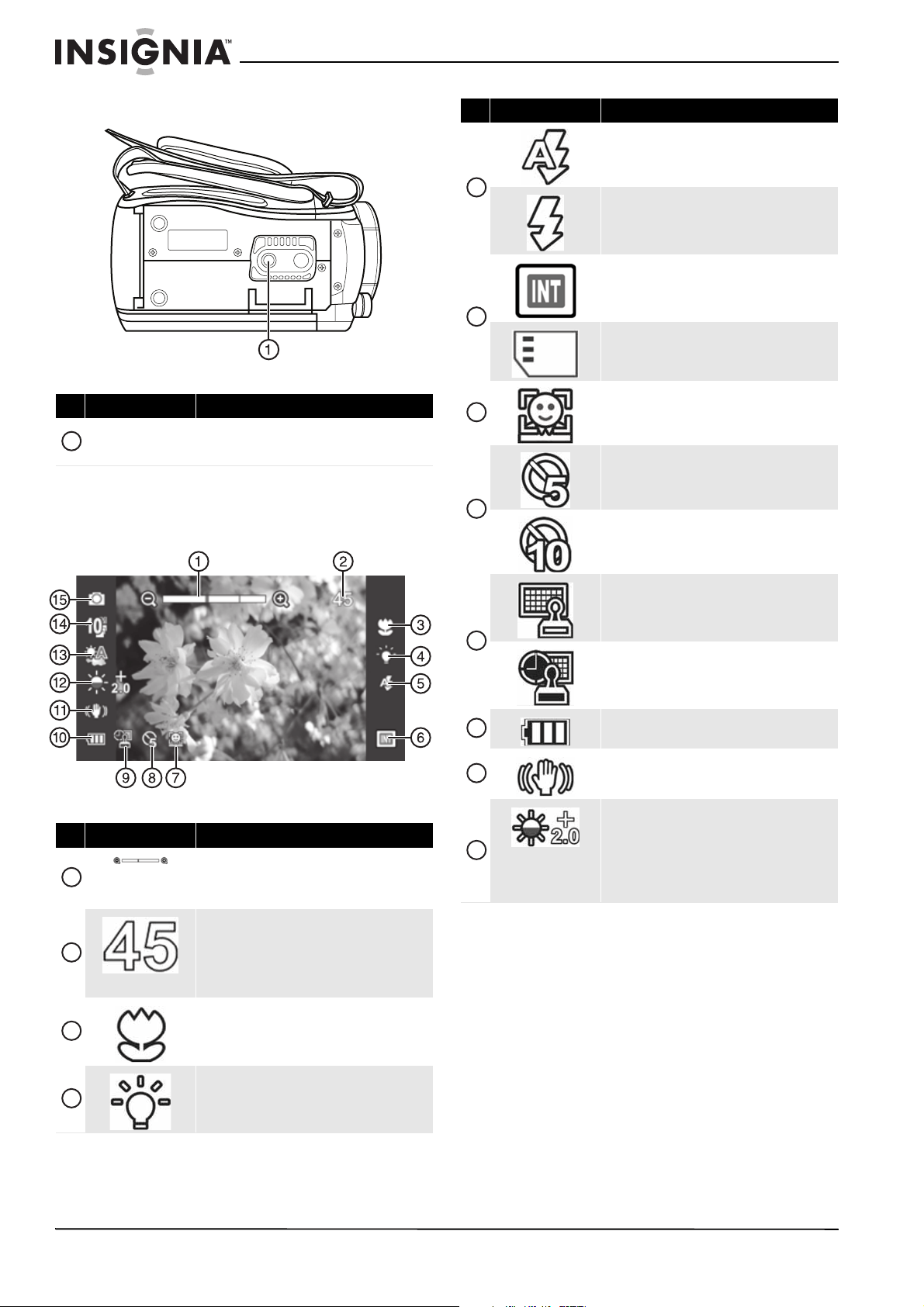
Bottom
Understanding the LCD panel icons
Photo mode icons
# Item Description
Tripod socket
Use to attach the camcorder to a tripod (not included)
to increase stability and help avoid blurry photos or
videos.
# Item Description
Zoom meter: 12x optical zoom, 10x digital zoom.
When the indicator is green, optical zoom is in use.
When the indicator is red, digital zoom is in use. For
more information, see “Using zoom” on page 12.
Storage indicator: If a memory card is inserted,
indicates the number of photos that can be taken at
the current resolution with the card's unused memory.
If no memory card is inserted, indicates the number of
photos that can be taken at the current resolution with
your camcorder's unused internal memory.
Macro indicator: Appears when the macro function
is turned on. For more information, see “Taking a
close-up photo” on page 11.
LED light indicator: Appears when the LED light is
turned on.
1
1
2
3
4
Flash set to Auto: Your camcorder will automatically
fire the flash during photo capture if low-light scenes
are detected. For more information, see “Using the
flash” on page 12.
Flash set to On: Your camcorder will always fire the
flash when capturing photos, regardless of lighting
conditions. For more information, see “Using the
flash” on page 12.
Indicates the internal memory is being used for
storage of photos and videos.
Indicates an SD or SDHC card is being used for storage
of photos and videos.
Face detection indicator: Appears when face
detection is turned on. For more information, see
“Turning face detection on or off” on page 14.
Self-timer: Indicates that the self-timer will take a
photo five seconds after the photo shutter button is
pressed. For more information, see “Using the
self-timer” on page 13.
Self-timer: Indicates that the self-timer will take a
photo ten seconds after the photo shutter button is
pressed. For more information, see “Using the
self-timer” on page 13.
Date stamp: Indicates that the date will be imprinted
on photos and videos as they are captured. For more
information, see “Imprinting the date and time on
photos or videos” on page 15.
Date and time stamp: Indicates that the date and
time will be imprinted on photos and videos as they
are captured. For more information, see “Imprinting
the date and time on photos or videos” on page 15.
Battery Indicator: Indicates the battery power
status.
Stabilization indicator: Appears when the stabilizer
function is turned on. For more information, see
“Turning stabilization on or off” on page 14.
Exposure indicator: Indicates the exposure level
(brightness) of the videos and photos you are
recording. A positive number next to the exposure
indicator indicates that you have increased exposure
levels. A negative number next to the exposure
indicator indicates that you have decreased exposure
levels.
# Item Description
5
6
7
8
9
10
11
12
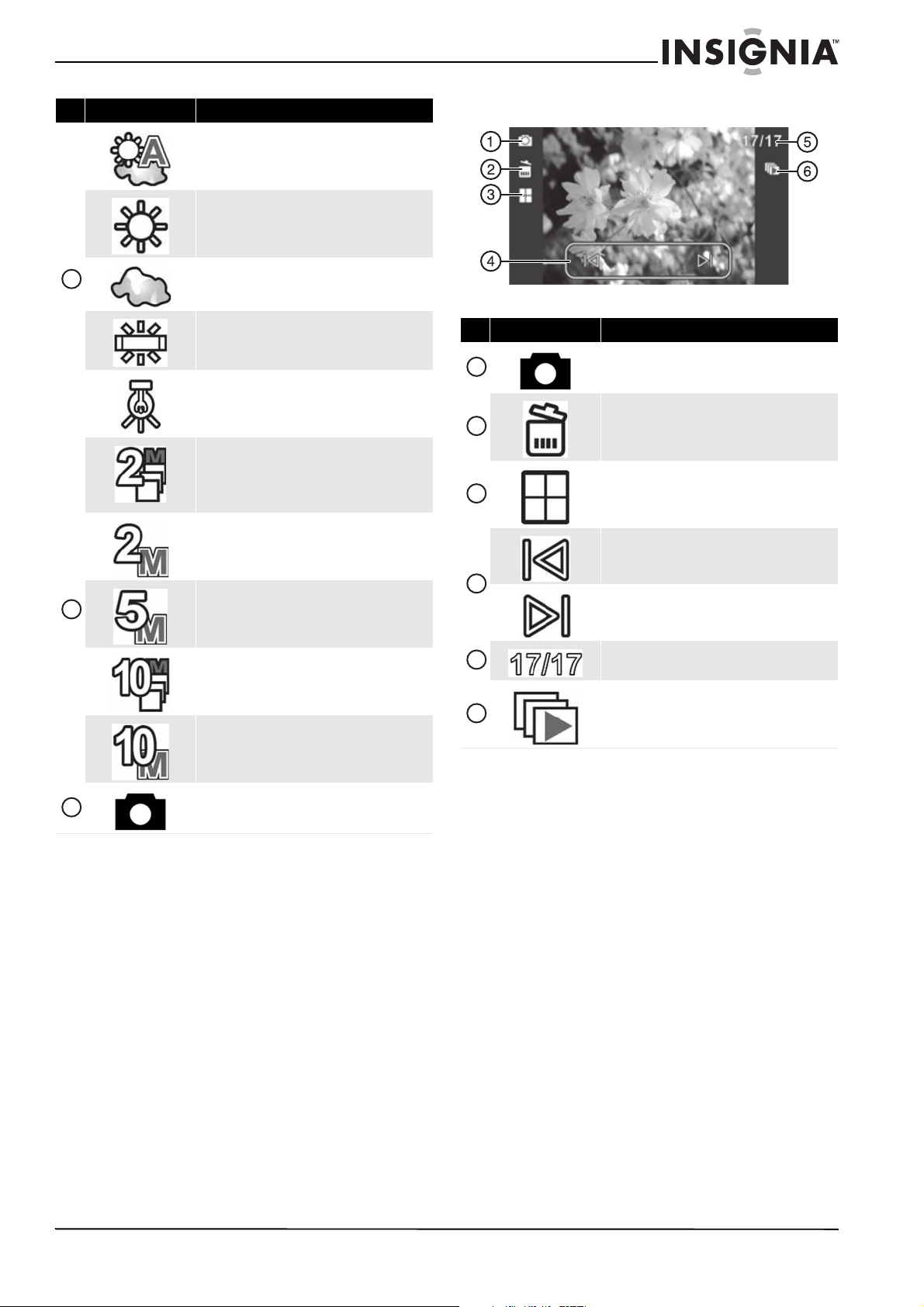
5
Insignia 1080p Digital Camcorder
www.insigniaproducts.com
Photo playback mode icons
Color balance indicator: Indicates the color balance
is set to Auto. For more information, see “Adjusting
the color balance” on page 15.
Color balance indicator: Indicates the color balance
is set to Sunny. For more information, see “Adjusting
the color balance” on page 15.
Color balance indicator: Indicates the color balance
is set to Cloudy. For more information, see “Adjusting
the color balance” on page 15.
Color balance indicator: Indicates the color balance
is set to Fluorescent. For more information, see
“Adjusting the color balance” on page 15.
Color balance indicator: Indicates the color balance
is set to Tungsten. For more information, see
“Adjusting the color balance” on page 15.
Image resolution: 2 megapixel burst. Your
camcorder takes three 2mp photos in rapid succession
when you press the shutter button. For more
information, see “Setting the photo resolution” on
page 18.
Image resolution: 2 megapixels. For more
information, see “Setting the photo resolution” on
page 18.
Image resolution: 5 megapixels. For more
information, see “Setting the photo resolution” on
page 18.
Image resolution: 10 megapixel burst. Camcorder
takes three 10mp photos in rapid succession when you
press the shutter button. For more information, see
“Setting the photo resolution” on page 18.
Image resolution: 10 megapixels. For more
information, see “Setting the photo resolution” on
page 18.
Indicates your camcorder is in Photo mode.
# Item Description
13
14
15
# Item Description
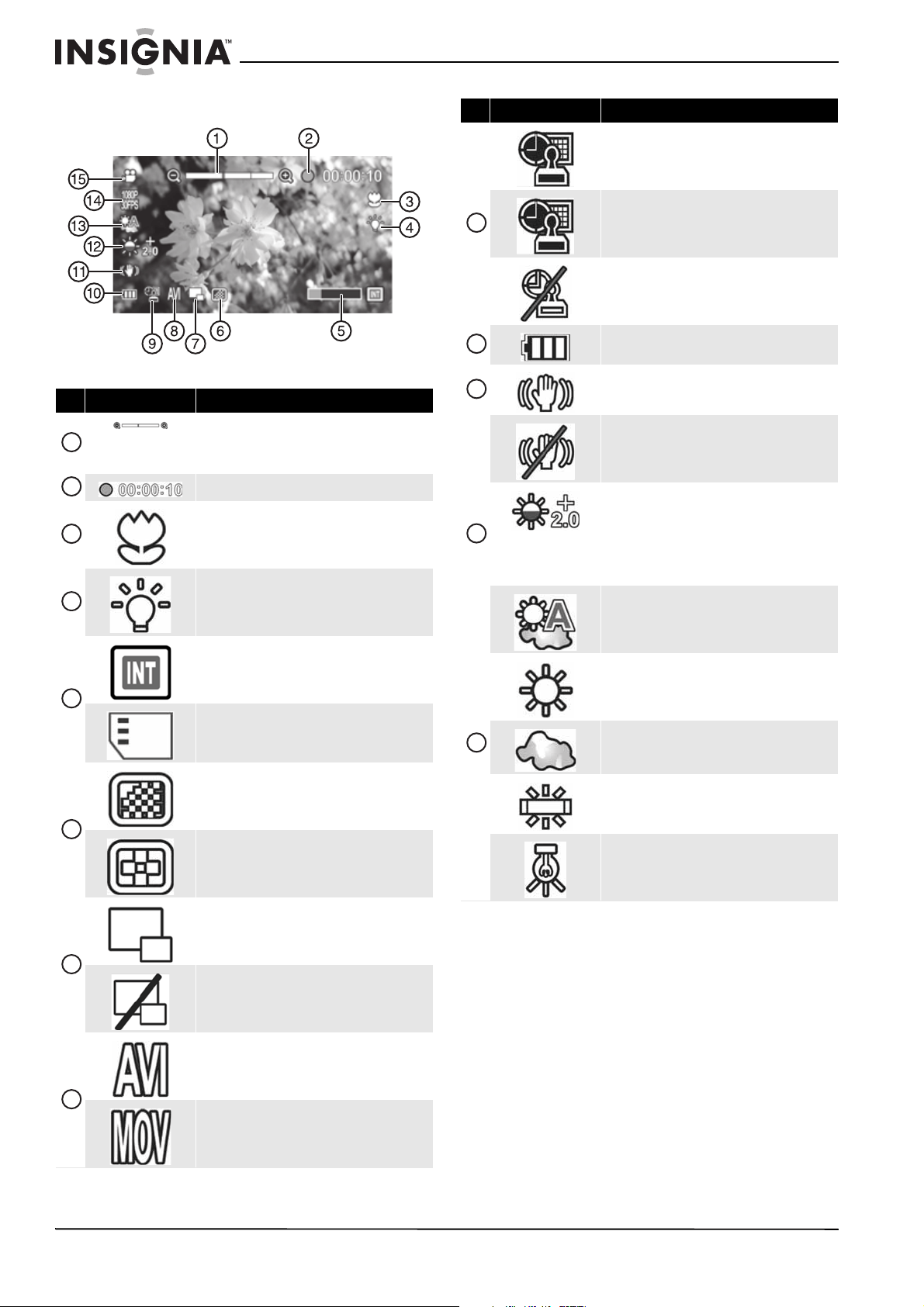
Indicates your camcorder is in Photo playback mode.
Delete: Touch this icon to delete a photo.
Thumbnail: Touch to see a thumbnail view of
captured photos.
Previous: Touch to view the previous photo.
Next: Touch to view the next photo.
Indicates the number of the photo currently being
viewed out of the total number of photos captured.
Slideshow mode: Touch to start a slideshow of
captured photos. Touch again to stop the slideshow on
the photo currently being viewed.
1
2
3
4
5
6
6
NS-DV111080F/NS-DV111080F-CN Insignia 1080p Digital Camcorder
www.insigniaproducts.com
Video mode icons
# Item Description
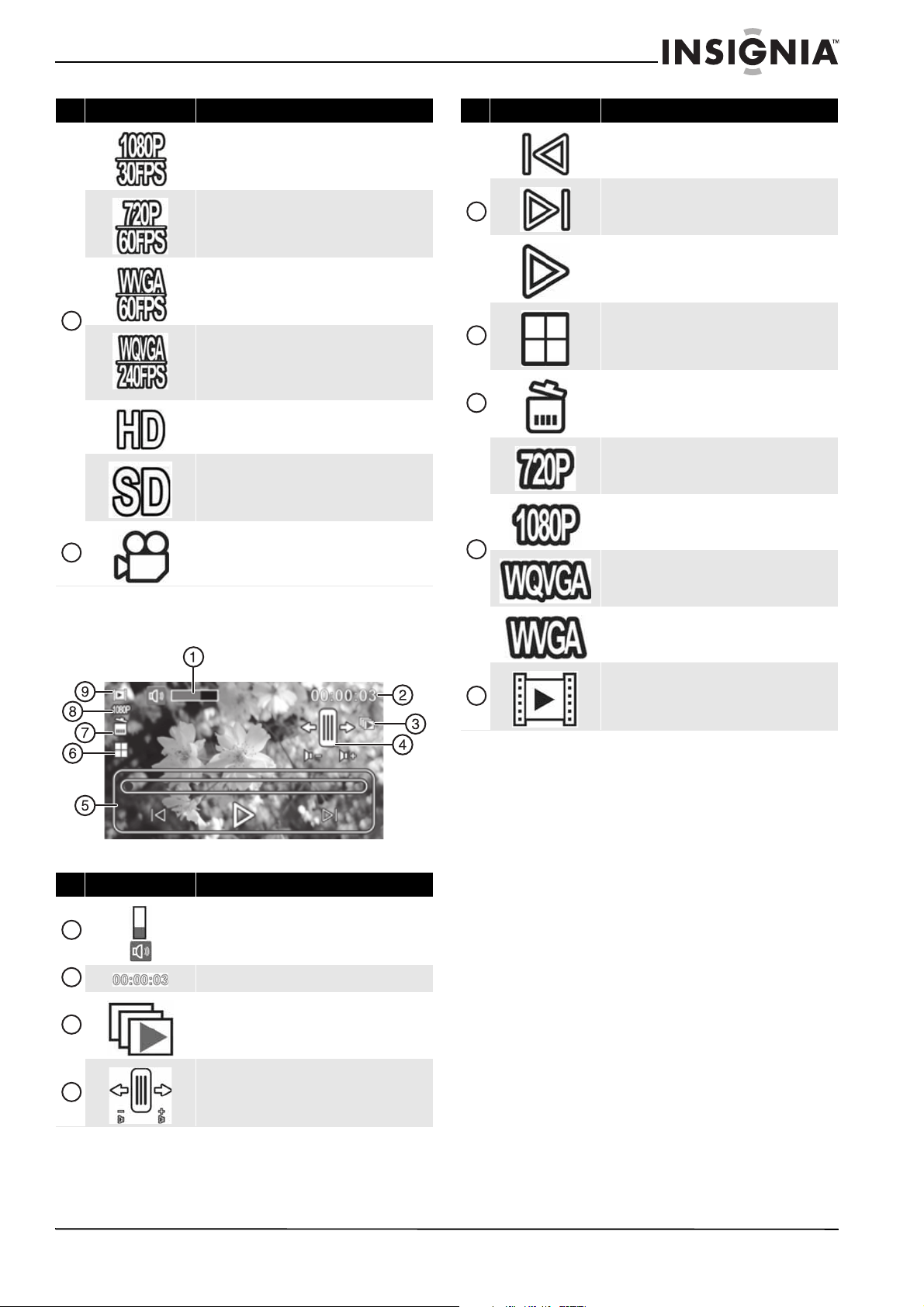
Zoom meter: 12x optical zoom, 10x digital zoom.
When the indicator is green, optical zoom is in use.
When the indicator is red, digital zoom is in use. For
more information, see “Using zoom” on page 12.
Indicates the total recorded time of the current video.
Macro indicator: Appears when the macro function
is turned on. For more information, see “Taking a
close-up video” on page 10.
LED light indicator: Appears when the LED light is
turned on.
Indicates the internal memory is being used for
storage of photos and videos.
Indicates an SD or SDHC card is being used for storage
of photos and videos.
Video Quality: Super Fine.
Video Quality: Fine.
Dual video mode: On
Dual video mode: Off
File Format: Video file format is set to AVI.
File Format: Video file format is set to MOV.
1
2
3
4
5
6
7
8
Date stamp: Indicates the date stamp is on. For more
information, see “Imprinting the date and time on
photos or videos” on page 15.
Date/Time stamp: Indicates the date/time stamp is
on. For more information, see “Imprinting the date
and time on photos or videos” on page 15.
Date/Time stamp off: Indicates the date/time
stamp is off. For more information, see “Imprinting the
date and time on photos or videos” on page 15.
Battery indicator. Indicates the battery power
status.
Stabilization indicator: Appears when the stabilizer
function is turned on. For more information, see
“Turning stabilization on or off” on page 14.
Stabilization indicator: Appears when the stabilizer
function is turned off. For more information, see
“Turning stabilization on or off” on page 14.
Exposure indicator: Indicates the exposure level
(brightness) of the videos and photos you are
recording. A positive number next to the exposure
indicator indicates that you have increased exposure
levels. A negative number next to the exposure
indicator indicates that you have decreased exposure
levels.
Color balance indicator: Indicates the color balance
is set to Auto. For more information, see “Adjusting
the color balance” on page 15.
Color balance indicator: Indicates the color balance
is set to Sunny. For more information, see “Adjusting
the color balance” on page 15.
Color balance indicator: Indicates the color balance
is set to Cloudy. For more information, see “Adjusting
the color balance” on page 15.
Color balance indicator: Indicates the color balance
is set to Fluorescent. For more information, see
“Adjusting the color balance” on page 15.
Color balance indicator: Indicates the color balance
is set to Tungsten. For more information, see
“Adjusting the color balance” on page 15.
# Item Description
9
10
11
12
13
7
Insignia 1080p Digital Camcorder
www.insigniaproducts.com
Video playback mode icons
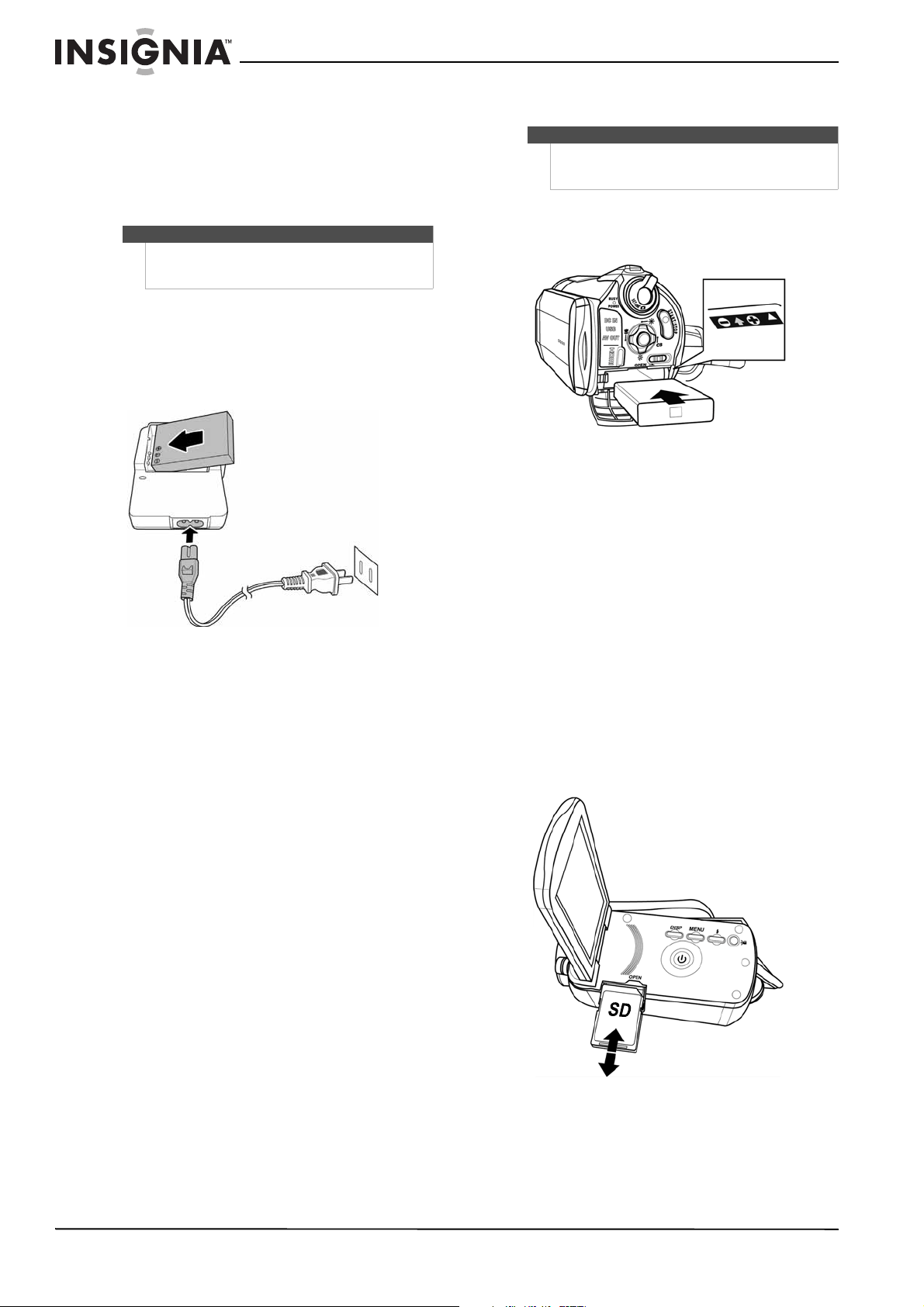
Video format: The video format is set to
1920 × 1080p, 30 fps. This is the highest quality video
resolution capture your camcorder offers.
Video format: The video format is set to
1280 × 720p, 60 fps. This format is ideal for capturing
the high definition video of action scenes, such as
sporting events.
Video format: The video format is set to WVGA
(848 × 480p), 60 fps. This format is ideal for capturing
action scenes, such as sporting events, but at a lower
resolution in order to conserve memory space.
Video format: The video format is set to WQVGA
(432x240p), 240 fps. This format is ideal for capturing
fast action scenes and then playing them back in slow
motion on your computer. Note: No sound is captured
in this mode.
Video format: The video format is set to HD
(1920 × 1080p, 30fps) in Simple mode.
Video format: The video format is set to SD
(848 × 640, 60fps) in Simple mode.
Indicates your camcorder is in Video mode.
# Item Description
Volume: Indicates the volume level of the current
video.
Indicates the total played time of the current video.
Auto Play: Touch to start playing all recorded video
files in succession.
Press – to decrease the volume or press + to increase
the volume.
# Item Description
14
15
1
2
3
4
Previous: Touch to view the previous video.
Next: Touch to view the next video.
Play: Touch to play the currently selected video.
Thumbnail: Touch to view all files in a thumbnail
view.
Delete: Touch this icon to delete the currently
displayed video.
Video resolution: Indicates the resolution of the
video file currently displayed is 1280 × 720p.
Video resolution: Indicates the resolution of the
video file currently displayed is 1920 × 1080p.
Video resolution: Indicates the resolution of the
video file currently displayed is 432 × 240p.
Video resolution: Indicates the resolution of the
video file currently displayed is 848 × 640p.
Indicates your camcorder is in Video playback mode.
# Item Description
5
6
7
8
9
8
NS-DV111080F/NS-DV111080F-CN Insignia 1080p Digital Camcorder
www.insigniaproducts.com
Setting up your camcorder
Charging the battery
You can charge the battery with the included
battery charger. You should fully charge the battery
before using your camcorder for the first time.
To charge the battery:
1 Insert the Li-ion battery into the charging bay.
Make sure that you insert the battery with the
label facing up, so that the positive and negative
terminals on the battery align with the positive
and negative terminals on the battery charger.
2 Connect one end of the power cord to the
charging unit, then plug the other end into a
power outlet.
The red LED will light while the battery is
charging. When charging is complete, the LED
will turn green. It takes about five hours to fully
charge the battery. Actual charging time
depends on current battery capacity and
charging conditions.
Installing the battery
To insert the battery:
1 Slide the battery latch to open the battery
compartment cover.
2 Insert the battery into the battery
compartment. Make sure that the + and –
symbols on the battery line up with the + and –
symbols on your camcorder.
Inserting or removing an SD/SDHC memory
card
Your camcorder has 128 MB of internal memory.
Approximately 70 MB of the internal memory is
available for video and photo recording. Because
this will allow you to record less than one minute of
high definition video or several photos, we
recommend using a memory card for video and
photo recording at all times.
To insert or remove an SD/SDHC memory card:
1 Make sure that your camcorder is turned off.
2 Insert the card into the memory card slot with
the arrow on the card pointing toward the slot
and the label facing up.
Note
The battery cannot be charged by connecting your
camcorder to a computer using the supplied USB
cable.
Note
The battery cannot be charged by connecting your
camcorder to a computer using the supplied USB
cable.
9
Insignia 1080p Digital Camcorder
www.insigniaproducts.com
3 To remove the card, press in on the card to
release it. When the card pops out slightly, pull it
out of the slot.
Getting started
Turning your camcorder on or off
To turn on your camcorder:
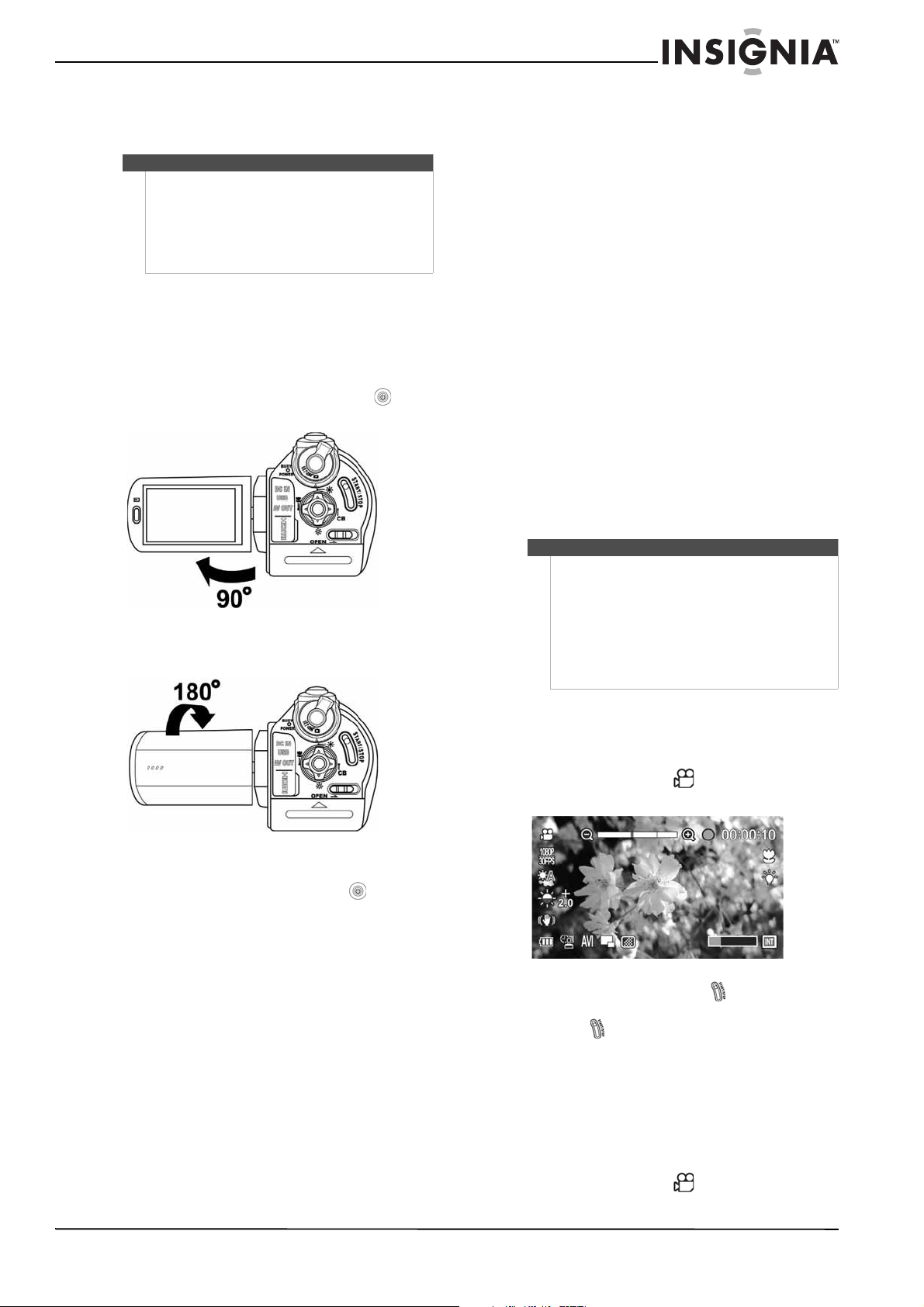
• Open the LCD panel 90°, or press the
button for one second.
• You can rotate the LCD panel 90° to make it
easier to view videos and photos.
To turn off your camcorder:
• Close the LCD panel, or press the (power)
button for one second.
Initial settings
When you turn on your camcorder for the first time,
your camcorder will be in Simple mode. Simple
mode hides advanced settings and makes your
camcorder easier to operate. Turning off Simple
mode lets you access advanced settings, such as
video format options and color balance.
For information about turning Simple mode on or
off, see “Turning Simple mode off” on page 13.
Your camcorder’s default settings are:
In Setup mode
• Beep: On
• Auto power off: 5 min.
•TV format: NTSC
• Simple mode: On
• Help Text: On
In Photo mode
• Capture resolution: 10 megapixels
• Aspect ratio: 3:2
•Color balance: Auto
•Face detection: On
•Stabilizer: On
• Self-timer: Off
•Time stamp: Off
In Video mode
• Video format: HD (1920x1080p 30fps)
•Video quality: Super fine
•Color balance: Auto
•Stabilizer: On
•Time stamp: Off
•File format: AVI
•Dual video: Off
Recording a video
To record a video:
1 Turn on your camcorder.
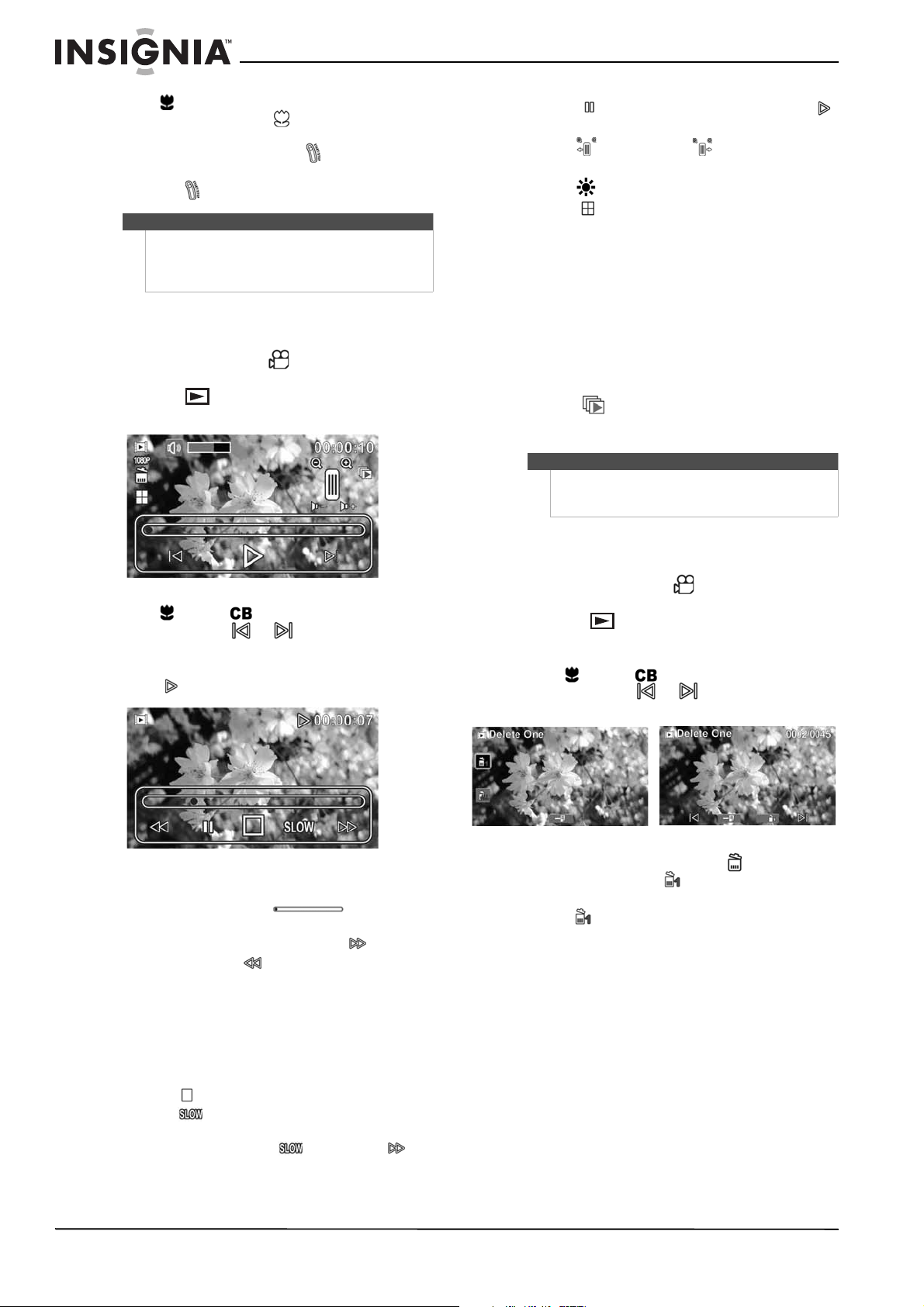
2 Turn the Mode Dial to to switch to Video
mode.
3 Aim the lens, then press the button to start
recording.
4 Press the button again to stop recording.
Taking a close-up video
Switch to Macro mode to take close-up videos of
subjects between 4 in. ~ 35.4 in. (10 cm ~ 90 cm)
away.
To take a close-up video:
1 Turn on your camcorder.
2 Turn the Mode Dial to to switch to Video
mode.
Note
• We recommend using a memory card with a
capacity of 1 GB or higher.
• When a memory card is inserted, videos and
photos are automatically saved to the card
rather than to the internal memory.
• Always turn off your camcorder before inserting
or removing a memory card.
Note
The default file format for videos is AVI, which is ideal
if your computer uses the Windows XP, Windows
Vista, or Windows 7 operating system. If you have a
Mac OS 10.x or higher operating system or want to
use the MOV file format, you need to change this
setting before you begin recording videos. The file
format of your videos cannot be altered after the
videos are recorded. For more details on how to use
the File Format function, see “Selecting the file
format for movies” on page 9.
10
NS-DV111080F/NS-DV111080F-CN Insignia 1080p Digital Camcorder
www.insigniaproducts.com
3 Press (left) on the navigation control to turn
on the Macro function. (macro icon) appears
on the LCD.
4 Aim the lens, then press the button to start
recording.
5 Press the button again to stop recording.
Viewing videos
To view videos:
1 Turn the Mode Dial to to switch to Video
mode.
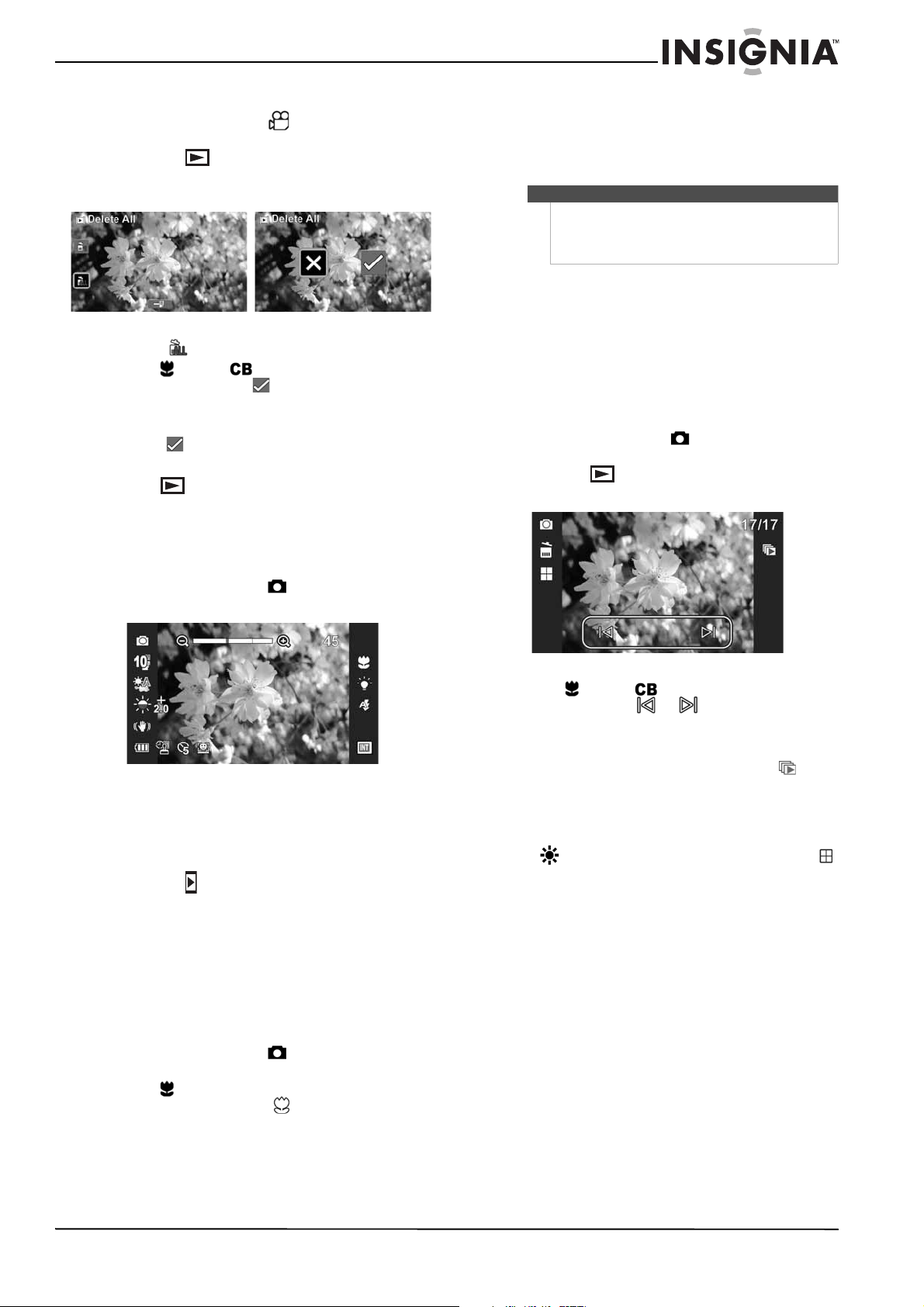
2 Press the button to switch to Playback
mode. The Playback mode main menu opens.
3 Press (left) or (right) on the navigation
control or touch or on the LCD to select
a video.
4 Press the center navigation control button or
touch on the LCD to start playback.
5 To control playback:
• Touch a point on the (time
indicator) to select a time in the video.
• While the video is playing, touch
(fast-forward) or (fast-reverse) once to
fast-reverse or fast-forward at 2×. Touch again
to fast-reverse or fast-forward at 4×. Touch a
third time to fast-reverse or fast-forward at 8×.
Touch a forth time to fast-reverse or
fast-forward at 16×. Touch a fifth time to
return to normal playback.
• Press the center navigation control button or
touch (stop) on the LCD to stop playback.
• Touch to view the video at a reduced
speed. Touch twice to toggle between 1/2×
and 2× speeds. Touch , then touch
repeatedly to slow rewind at 1/4, 1/8, or 1/16
of normal speed.
• Touch (pause) to pause playback. Touch
to resume playback.
• Press (zoom left) or (zoom right) to
decrease or increase the volume.
• Press (up) on the navigation control or
touch (thumbnail) on the LCD to display a
thumbnail view of your videos. Playback must
be stopped to view thumbnails. To view a
video:
• Use the navigation buttons to highlight
the thumbnail for the video you want to
watch, then press the center navigation
control button.
Or
Touch the thumbnail on the LCD for the
video you want to watch.
• Touch to watch a slideshow of videos. The
videos you have captured will be played
sequentially.
Deleting videos
To delete a single video:
1 Turn the Mode Dial to to switch to Video
mode.
2 Press the (playback) button to switch to
Playback mode. The Playback mode main menu
opens.
3 Press (left) or (right) on the navigation
control or touch or on the LCD to select
a video.
4 To delete a single video, touch (recycle) on
the LCD, then touch (delete one) to delete
the current video.
5 Touch (delete one) again or press the center
navigation control button to confirm. The next
video will be displayed.
6 Repeat Step 3 through 5 to delete additional
videos.
7 When you have finished deleting videos, touch
the return arrow to return to Video mode.
Note
Make sure that you turn off the Macro function when
you are not taking close-up videos.
To do this, press left again on the navigation control.
The macro icon will disappear from the LCD.
Note
The control panel on the LCD will turn off
automatically after 5 seconds. Press the panel to exit
automatically.
11
Insignia 1080p Digital Camcorder
www.insigniaproducts.com
To delete all videos:
1 Turn the Mode Dial to to switch to Video
mode.
2 Press the (playback) button to switch to
Playback mode. The Playback mode main menu
opens.
3 Touch (delete all) to delete all videos.
4 Press (left) or (right) on the navigation
control to highlight , then press the center
navigation control button.
Or,
Touch on the LCD.
A “No Video” message is displayed.
5 Press to return to Video mode.
Taking a photo
To take a photo:
1 Turn on your camcorder.
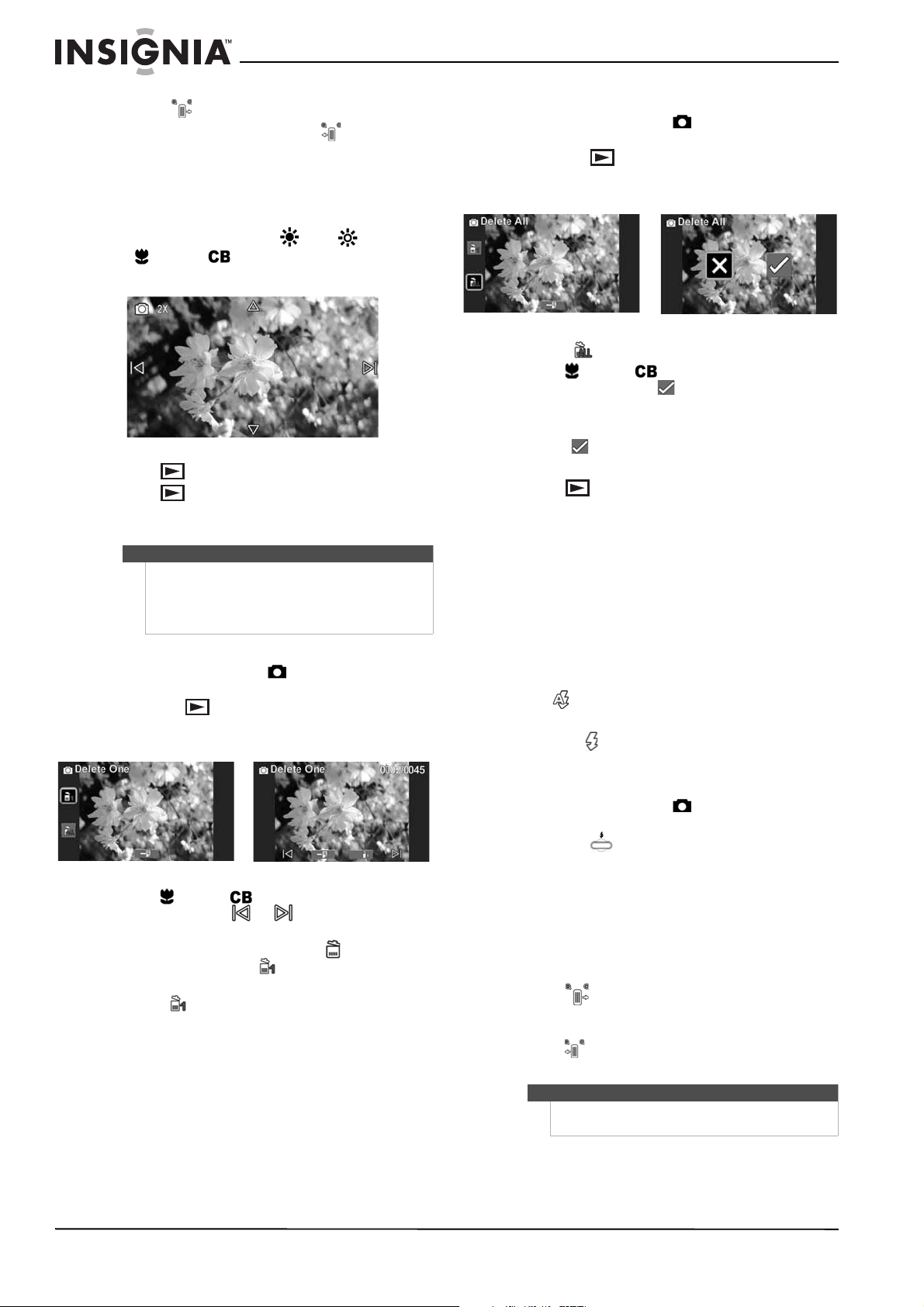
2 Turn the Mode Dial to to switch to Photo
mode.
3 Aim the lens, and then half-press the photo
shutter button to focus on the subject you want
to capture. When the focus bars in the middle of
the LCD turn green, fully press the photo shutter
button to capture the image.
4 Press the (playback) button to view the
photo. Press again to return to Photo mode.
Taking a close-up photo
Switch to Macro mode to take close-up photos of
subjects between 6 in. ~ 10 in. (15 cm ~ 25 cm)
away.
To take a close-up photo:
1 Turn on your camcorder.
2 Turn the Mode Dial to to switch to Photo
mode.
3 Press (left) on the navigation control to turn
on the Macro function. (macro icon) appears
on the LCD.
4 Aim the lens, and then half-press the photo
shutter button to focus on the subject. When
the focus bars in the middle of the LCD turn
green, fully press the photo shutter button to
capture the image.
Viewing photos
You can view photos stored in internal memory or
on a memory card. If a memory card is inserted, you
can only view photos stored on the memory card.
To view photos stored in internal memory, remove
the memory card.
To view photos:
1 Turn on your camcorder.
2 Turn the Mode dial to to switch to Photo
mode.
3 Press the button to switch to Playback
mode.
4 Press (left) or (right) on the navigation
control or touch or on the LCD to select
a photo.
5 To control playback:
• To view photos in a slideshow, touch
(slideshow) on the LCD to start the slideshow.
Touch it again to stop the slideshow on the
image currently being viewed.
• To display a thumbnail view of photos, press
(up) on the navigation control or touch
(thumbnail) on the LCD. Touch a thumbnail to
view the photo full-screen.
Note
Make sure that you turn off the Macro function when
you are not taking close-up photos.
To do this, press left again on the navigation control.
The macro icon will disappear from the LCD.
12
NS-DV111080F/NS-DV111080F-CN Insignia 1080p Digital Camcorder
www.insigniaproducts.com
• Press (zoom in) on the T/W button to
zoom in on a photo, or press (zoom out)
on the T/W button to zoom out on a photo.
When you have zoomed in on a photo,
four-direction icons appear on the LCD. Touch
these icons to pan the image up, down, left, or
right.
You can also press the (up), (down),
(left), or (right) on the navigation
control to pan the photo.
6 Press once to exit zoom mode.
7 Press again to exit Playback mode.
Deleting photos
To delete a single photo:
1 Turn the Mode Dial to to switch to Photo
mode.
2 Press the button to switch to Playback
mode. The last photo captured appears on the
LCD.
3 Press (left) or (right) on the navigation
control or touch or on the LCD to select
a photo.
4 To delete a single photo, touch (recycle) on
the LCD, then touch (delete one) to delete
the current photo.
5 Touch (delete one) again or press the center
navigation control button to confirm. The next
photo will be displayed.
6 Repeat Step 3 through 5 to delete additional
photos.
7 When you have finished deleting photos, touch
the return arrow to return to Photo mode.
To delete all photos:
1 Turn the Mode Dial to to switch to Photo
mode.
2 Press the button to switch to Playback
mode. The last photo captured appears on the
LCD.
3 Touch (delete all) to delete all photos.
4 Press (left) or (right) on the navigation
control to highlight , then press the center
navigation control button.
Or,
Touch on the LCD.
A “No Image” message is displayed.
5 Press to return to Photo mode.
Using camcorder features
Using the flash
Your camcorder has a built-in flash which can be
used to illuminate subjects in low-light settings
when capturing photos. Your camcorder has three
flash modes:
• Off—Flash never fires, regardless of lighting
conditions.
• Auto —Your camcorder automatically
determines when to use the flash.
• Forced on —Flash always fires, regardless of
light conditions.
To use the flash:
1 Turn the Mode Dial to to switch to Photo
mode.
2 Press the (flash) button to toggle between
auto, forced on, or off.
3 Use standard procedures to take a photo.
Using zoom
Zoom magnifies subjects when recording videos or
taking photos.
To use zoom:
1 Press
(zoom right) on the T/W button to
zoom in. The maximum optical zoom is 12×, and
the maximum digital zoom is 10×.
2 Press (zoom left) on the T/W button to zoom
out.
Note
You can delete photos stored in internal memory or
on a memory card. If a memory card is inserted, you
can only delete photos stored on the memory card.
To delete photos stored in internal memory, remove
the memory card.
Note
It is normal for images captured with digital zoom to
look grainy.
13
Insignia 1080p Digital Camcorder
www.insigniaproducts.com
Using the LED light
Your camcorder has a built-in LED light to provide
additional light in low-light settings.
To use the LED light:
1 Turn on your camcorder.
2 Turn the Mode dial to or .
3 Press the (LED light) button to turn on the
light. The (LED light icon) appears on the
LCD.
4 Aim the lens, then use standard procedures to
begin capturing photos or videos.
5 Press the (LED light) button again to turn off
the light.
Adjusting camcorder
settings
Turning Simple mode off
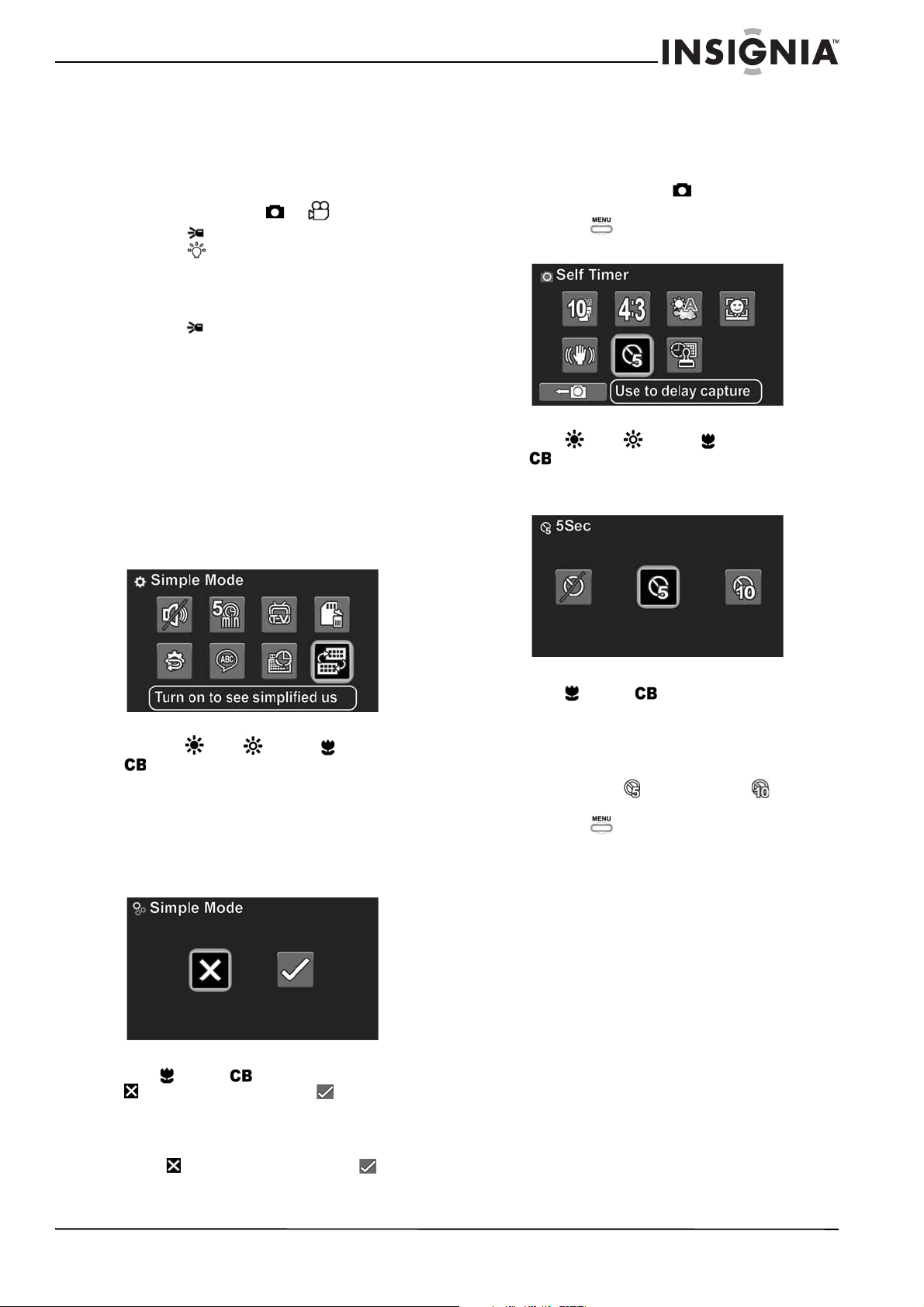
To turn Simple mode off:
1 Turn on your camcorder.
2 Turn the Mode Dial to SET to switch to Setup
mode. The Simple Mode screen opens.
3 Press the (up), (down), (left), or
(right) on the navigation control to
highlight the Simple mode icon, then press the
center navigation control button. The Simple
Mode screen opens.
Or,
Touch the Simple mode icon on the LCD. The
Simple Mode screen opens.
4 Press (left) or (right) the highlight
(turns off Simple mode) or (turns on
Simple mode), then press the center navigation
control button.
Or
Touch (turns off Simple mode) or (turns
on Simple mode) on the LCD.
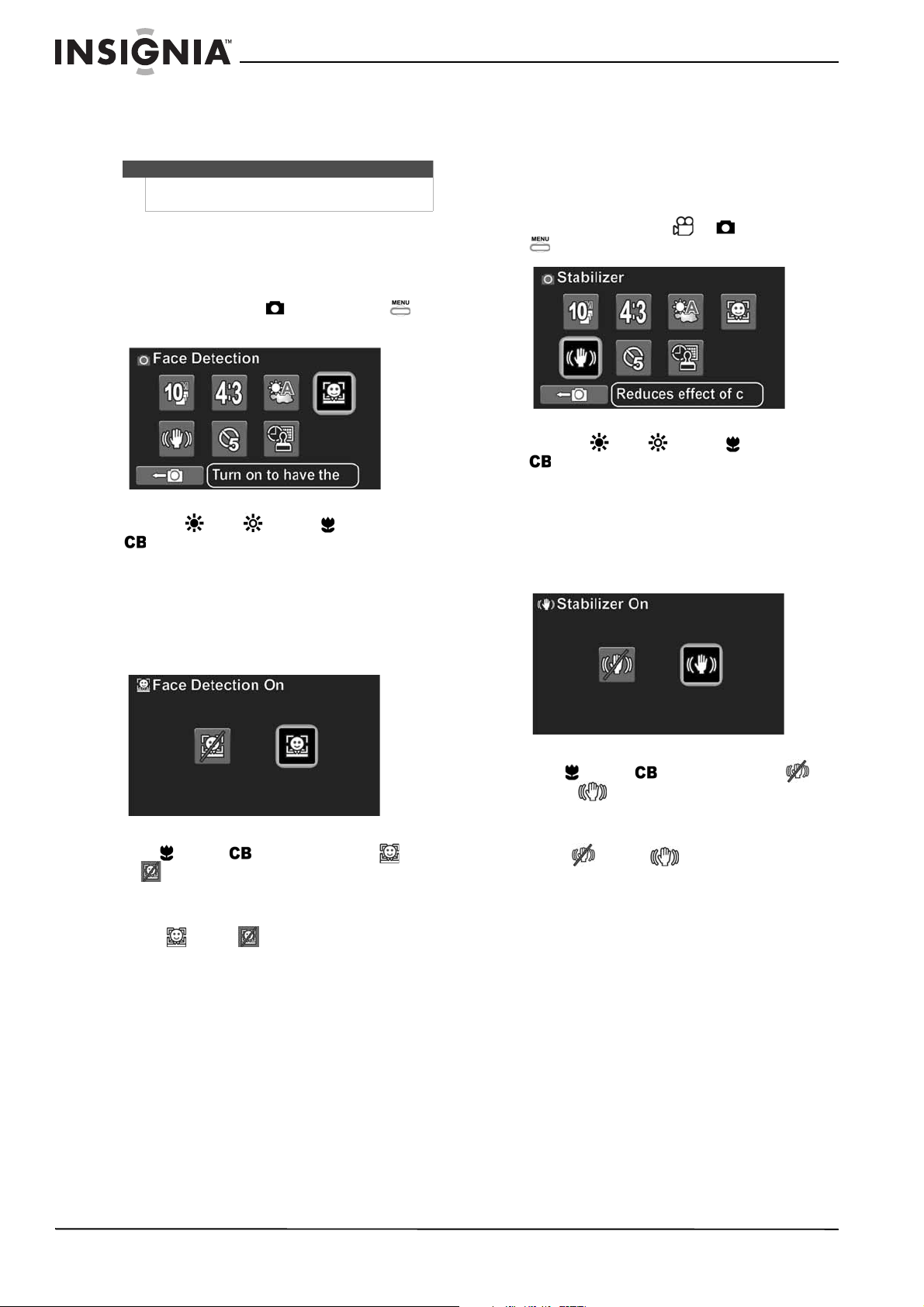
Using the self-timer
When you turn on the self-timer, your camcorder
waits 5 or 10 seconds before taking a photo.
To use the self-timer:
1 Turn the Mode Dial to to switch to Photo
mode.
2 Press the button to view the Photo mode
menu.
3 Press (up), (down), (left), or
(right) on the navigation control to
highlight the self-timer icon or touch the
self-timer icon on the LCD.
4 Press (left) or (right) to highlight a
self-timer option, then press the center
navigation control button.
Or,
Touch a self-timer option on the LCD.
You can select for 5 seconds or for 10
seconds.
5 Press the to close the menu.
6 Use standard procedures to capture a still
image.
14
NS-DV111080F/NS-DV111080F-CN Insignia 1080p Digital Camcorder
www.insigniaproducts.com
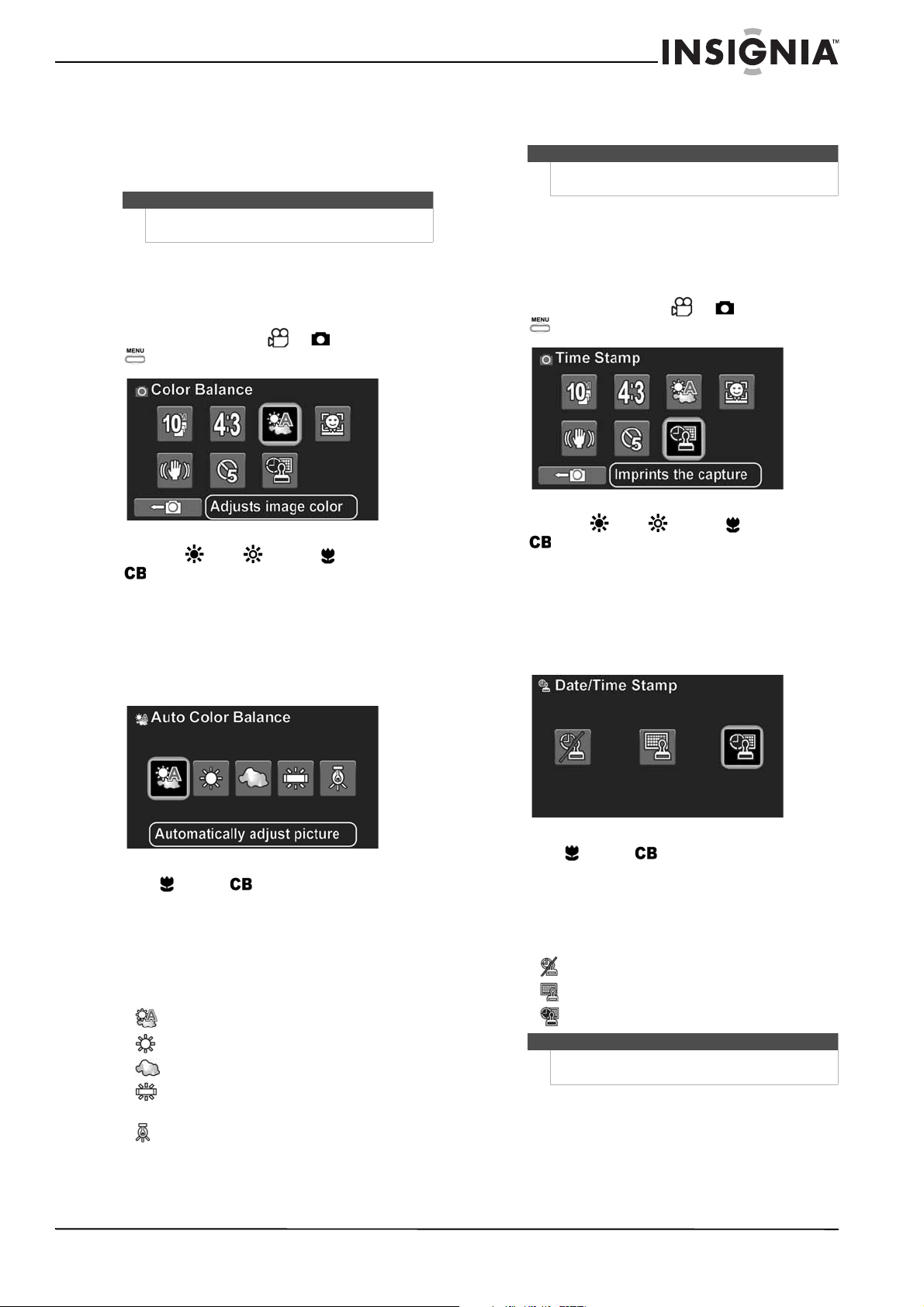
Turning face detection on or off
The face detection feature automatically adjusts
settings for best exposure of detected faces.
To turn face detection on or off:
1 Turn on your camcorder.
2 Make sure that Simple mode is turned off. See
“Turning Simple mode off” on page 13.
3 Turn the Mode dial to , then press the
button. The on-screen menu opens.
4 Press the (up), (down), (left), or
(right) on the navigation control to
highlight the Face Detection icon, then press
the center navigation control button. The Face
Detection screen opens.
Or,
Touch the Face Detection icon on the LCD. The
Face Detection screen opens.
5 Press (left) or (right) to highlight (on)
or (off), then press the center navigation
control button.
Or,
Touch (on) or (off) on the LCD.
Turning stabilization on or off
The stabilizer feature increases stability and helps
avoid blurry photos and videos in low-light
conditions or when your hands are not steady.
To turn stabilization on or off:
1 Turn on your camcorder.
2 Turn the Mode Dial to or , then press the
button. The on-screen menu opens.
3 Press the (up), (down), (left), or
(right) on the navigation control to
highlight the Stabilizer icon, then press the
center navigation control button. The Stabilizer
screen opens.
Or,
Touch the Stabilizer icon on the LCD. The
Stabilizer screen opens.
4 Press (left) or (right) to highlight
(off) or (on), then press the center
navigation control button.
Or,
Touch (off) or (on) on the LCD.
Note
This function can only be accessed when Simple
mode is off.
15
Insignia 1080p Digital Camcorder
www.insigniaproducts.com
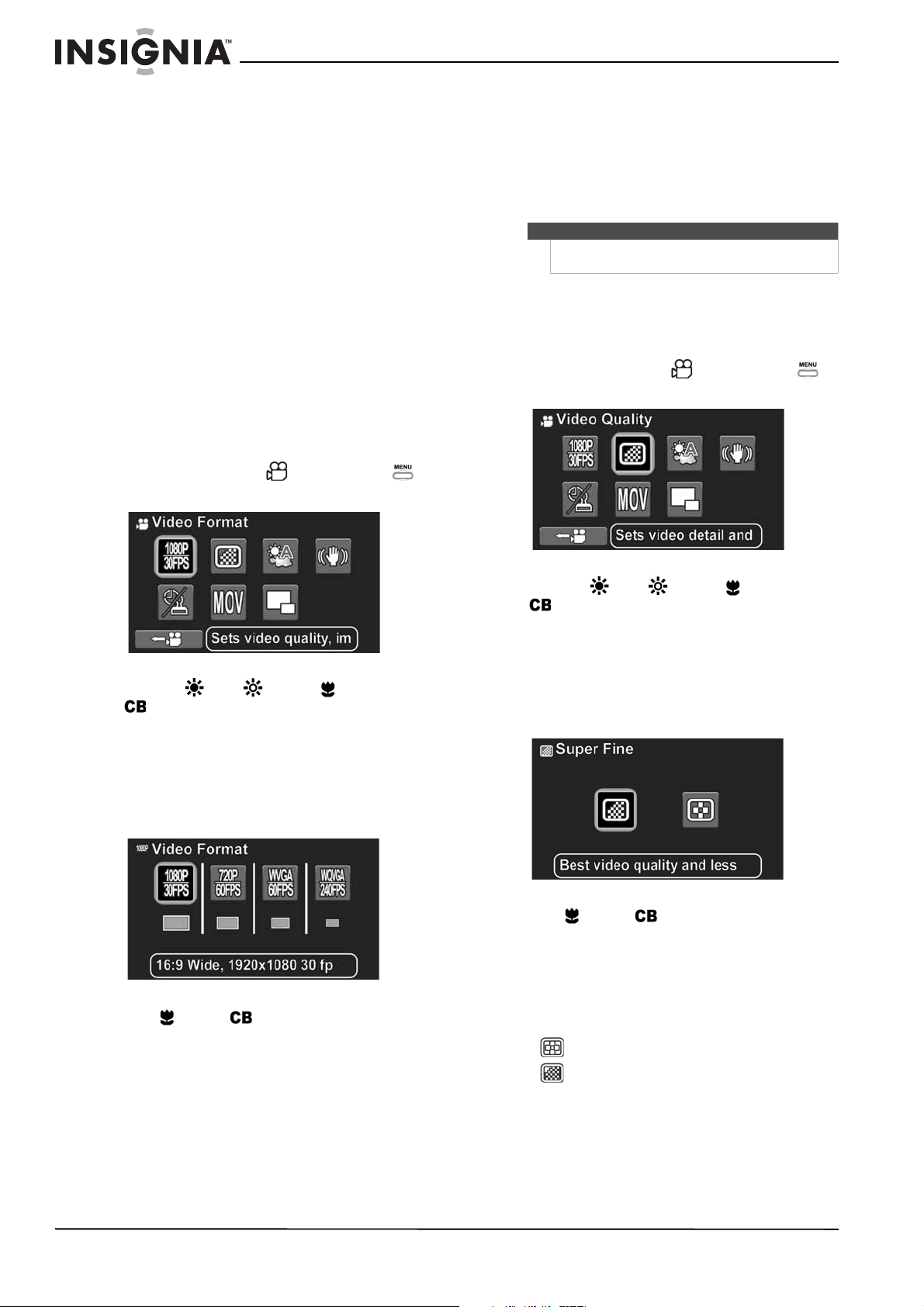
Adjusting the color balance
Your camcorder automatically adjusts the color
balance for most conditions. However, you can
manually select the color balance for special
conditions.
To adjust the color balance:
1 Turn on your camcorder.
2 Make sure that Simple mode is turned off. See
“Turning Simple mode off” on page 13.
3 Turn the Mode Dial to or , then press the
button. The on-screen menu opens.
4 Press the (up), (down), (left), or
(right) on the navigation control to
highlight the Color Balance icon, then press the
center navigation control button. The Color
Balance screen opens.
Or,
Touch the Color Balance icon on the LCD. The
Color Balance screen opens.
5 Press (left) or (right) to highlight a color
balance option, then press the center
navigation control button.
Or,
Touch a color balance option on the LCD.
You can select:
• Auto
• Sunny
• Cloudy
• Fluorescent (ideal for indoor fluorescent
lighting conditions)
• Tungsten (ideal for indoor incandescent
lighting conditions).
Imprinting the date and time on photos or
videos
To imprint the date and time on photos or
videos:
1 Turn on your camcorder.
2 Make sure that Simple mode is turned off. See
“Turning Simple mode off” on page 13.
3 Turn the Mode dial to or , then press the
button. The on-screen menu opens.
4 Press the (up), (down), (left), or
(right) on the navigation control to
highlight the Time Stamp icon, then press the
center navigation control button. The Date/Time
Stamp screen opens.
Or,
Touch the Time Stamp icon on the LCD. The
Date/Time Stamp screen opens.
5 Press (left) or (right) to select an option,
then press the center navigation control button.
Or,
Touch an option on the LCD.
You can select:
• (turns the date/time stamp feature off)
• (imprints the date)
• (imprints the date and time).
Note
This function can only be accessed when Simple
mode is off.
Note
This function can only be accessed when Simple
mode is off.
Note
Once the date or date/time stamp is imprinted on a
photo or video, it cannot be deleted.
16
NS-DV111080F/NS-DV111080F-CN Insignia 1080p Digital Camcorder
www.insigniaproducts.com
Setting the video format
Your camcorder offers different video formats to
suit your needs:
• 1920 × 1080p 30fps (HD in Simple mode): This is
the highest quality video that your camcorder can
capture.
• 1280 × 720p 60fps: Use this resolution for
capturing the high definition video of action
events, such as sports.
• WVGA (848 × 480p) 60fps (SD in Simple mode):
Use this resolution for capturing standard
definition video of action events, such as sports.
Ideal for capturing high frame rate video while
using less memory and for uploading to the
internet.
• WQVGA (432 × 240) 240fps: Use this resolution for
capturing the super high frame rate video of
action events. Videos captured in this mode will
not have sound.
To set the video format:
1 Turn on your camcorder.
2 Turn the Mode dial to , then press the
button. The on-screen menu opens.
3 Press the (up), (down), (left), or
(right) on the navigation control to
highlight the Video Format icon, then press the
center navigation control button. The Video
Format screen opens.
Or,
Touch the Video Format icon on the LCD. The
Video Format screen opens.
4 Press (left) or (right) to highlight an
option, then press the center navigation control
button.
Or,
Touch an option on the LCD.
If Simple mode is on, you can select HD or SD.
If Simple mode is off, you can select
1080p/30FPS, 720p/60FPS, WVGA/60FPS, or
WQVGA/240FPS.
Setting the video quality
You can adjust the quality of video that your
camcorder captures. Video quality refers to the
amount of compression that your camcorder
applies to captured video in order to save space.
The greater the amount of compression, the lower
the video quality.
To set the video quality:
1 Turn on your camcorder.
2 Make sure that Simple mode is turned off. See
“Turning Simple mode off” on page 13.
3 Turn the Mode dial to , then press the
button. The on-screen menu opens.
4 Press the (up), (down), (left), or
(right) on the navigation control to
highlight the Video Quality icon, then press the
center navigation control button. The video
quality screen opens.
Or,
Touch the Video Quality icon on the LCD. The
video quality screen opens.
5 Press (left) or (right) to highlight an
option, then press the center navigation control
button.
Or,
Touch an option on the LCD.
You can select:
• (fine: uses more compression)
• (super fine: uses less compression).
Note
This function can only be accessed when Simple
mode is off.
17
Insignia 1080p Digital Camcorder
www.insigniaproducts.com
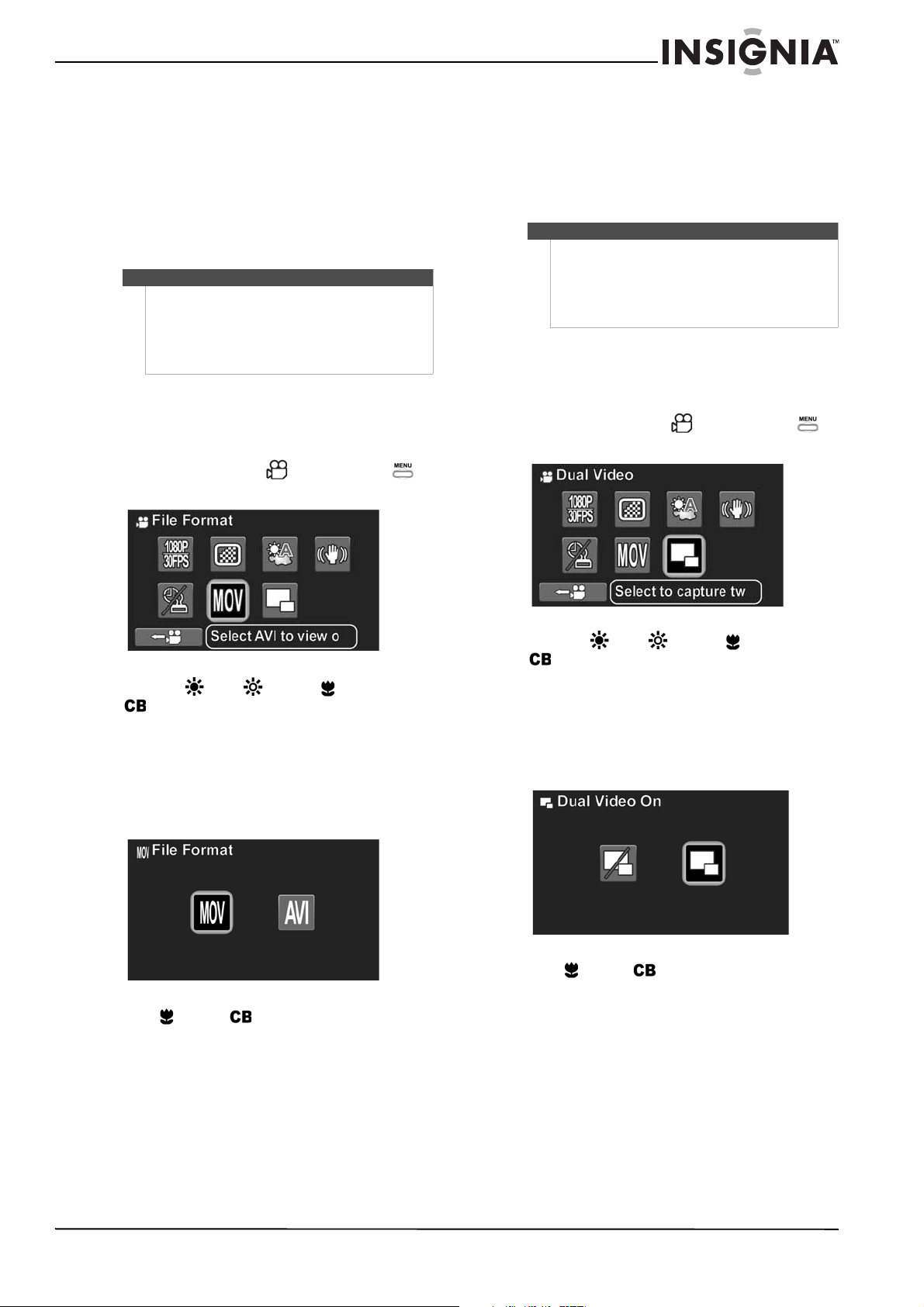
Selecting the file format for movies
The file format function lets you set the file format
type for the videos you record. If you are going to
watch and edit your videos primarily on a
Windows XP, Windows Vista, or Windows 7
operating system, select AVI. If you are going to
watch and edit your videos primarily on a Mac OS
10.x or higher operating system or you are a
Windows user and prefer to watch your videos
using Quicktime, select MOV.
To select the file format for movies:
1 Turn on your camcorder.
2 Make sure that Simple mode is turned off. See
“Turning Simple mode off” on page 13.
3 Turn the Mode dial to , then press the
button. The on-screen menu opens.
4 Press the (up), (down), (left), or
(right) on the navigation control to
highlight the File Format icon, then press the
center navigation control button. The File
Format screen opens.
Or,
Touch the File Format icon on the LCD. The File
Format screen opens.
5 Press (left) or (right) to highlight MOV or
AVI, then press the center navigation control
button.
Or,
Touch MOV or AVI on the LCD.
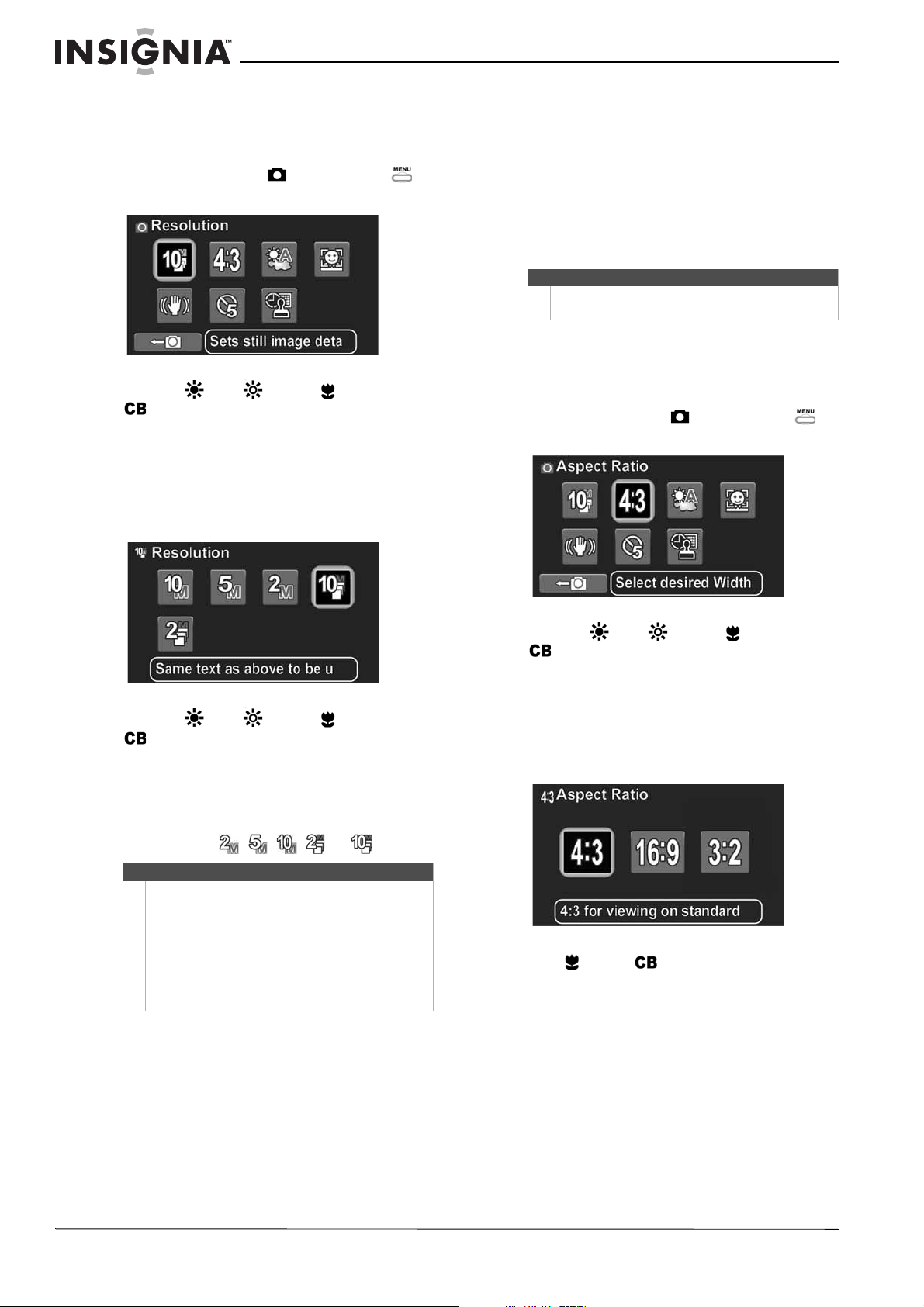
Turning dual video on or off
The dual video function lets you simultaneously
capture 1920 × 1080p 30fps video and
WQVGA 30fps video. This can be useful for
capturing the highest quality video your camcorder
offers while simultaneously capturing low
resolution video, ideal for uploading to the Internet.
To turn dual video on or off:
1 Turn on your camcorder.
2 Make sure that Simple mode is turned off. See
“Turning Simple mode off” on page 13.
3 Turn the Mode dial to , then press the
button. The on-screen menu opens.
4 Press the (up), (down), (left), or
(right) on the navigation control to
highlight the Dual Video icon, then press the
center navigation control button. The Dual
Video screen opens.
Or,
Touch the Dual Video icon on the LCD. The Dual
Video screen opens.
5 Press (left) or (right) highlight Dual Video
on or off, then press the center navigation
control button.
Or,
Touch on or off on the LCD.
Note
• This function can only be accessed when Simple
mode is off.
• The video file format cannot be changed after
you record a video. Make sure that you select
your the file format your want before you begin
recording videos.
Notes
• This function can only be accessed when Simple
mode is off.
• 1080p/WQVGA is the only combination of video
formats available when dual video mode is
turned on. Switching to any other video mode
will turn off dual video mode.
18
NS-DV111080F/NS-DV111080F-CN Insignia 1080p Digital Camcorder
www.insigniaproducts.com
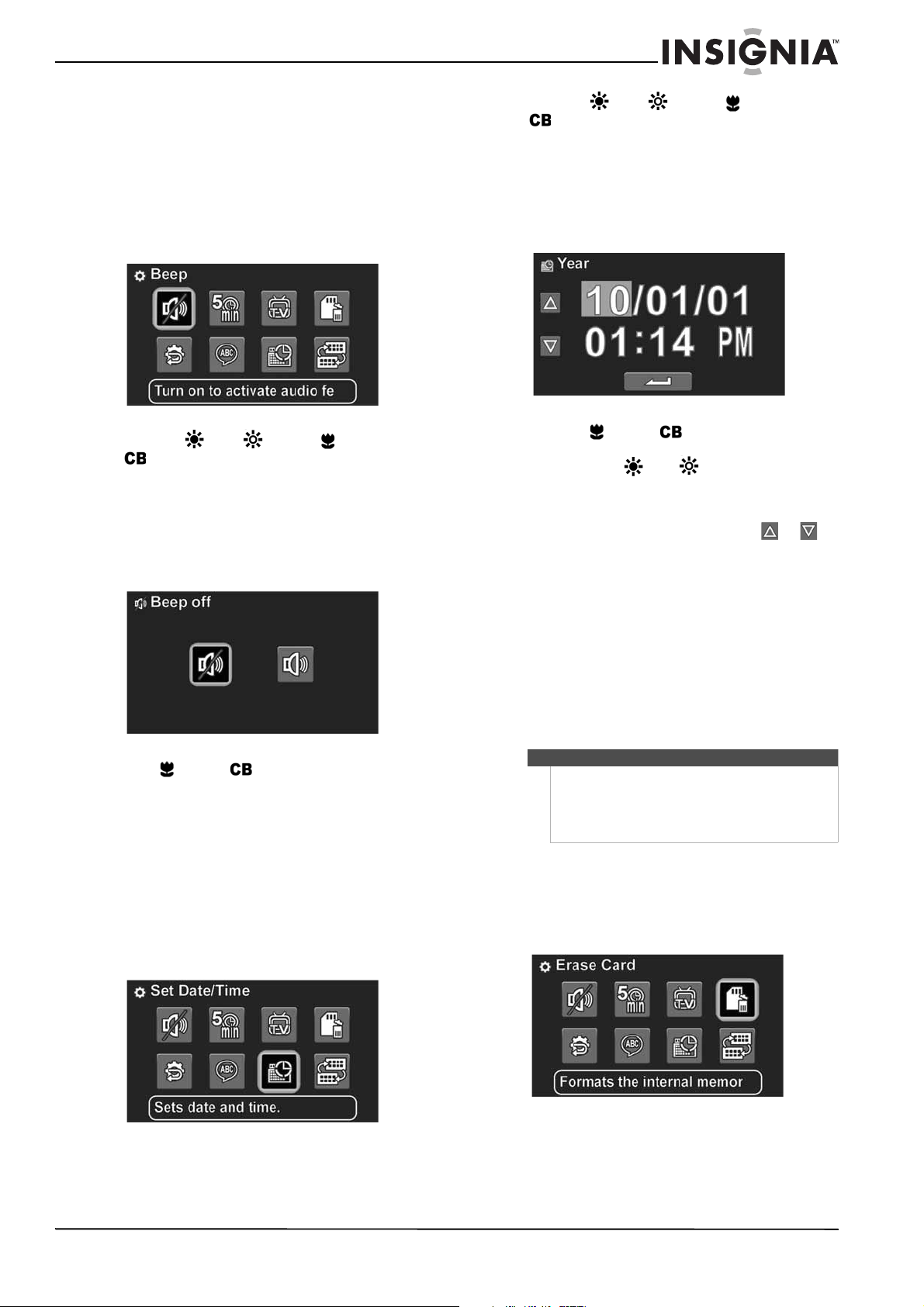
Setting the photo resolution
To set the photo resolution:
1 Turn on your camcorder.
2 Turn the Mode Dial to , then press the
button. The on-screen menu opens.
3 Press the (up), (down), (left), or
(right) on the navigation control to
highlight the Resolution icon, then press the
center navigation control button. The Resolution
screen opens.
Or,
Touch the Resolution icon on the LCD. The
Resolution screen opens.
4 Press the (up), (down), (left), or
(right) on the navigation control to select an
option, then press the center navigation control
button.
Or,
Touch an option on the LCD.
You can select , , , , or .
Selecting the aspect ratio
Use the aspect ratio feature to set the aspect ratio of
your still images. Select 4:3 for best results when
you primarily will be viewing your photos on a
standard definition TV. Select 16:9 for best results
when you primarily will be viewing your photos on
a wide aspect TV (most HDTVs are wide aspect).
Select 3:2 for best results when you primarily will be
printing out your photos. The aspect ratio feature
can only be accessed when Simple mode is off.
To set the aspect ratio:
1 Turn on your camcorder.
2 Make sure that Simple mode is turned off. See
“Turning Simple mode off” on page 13.
3 Turn the Mode dial to , then press the
button. The on-screen menu opens.
4 Press the (up), (down), (left), or
(right) on the navigation control to
highlight the Aspect Ratio icon, then press the
center navigation control button. The Aspect
Ratio screen opens.
Or,
Touch the Aspect Ratio icon on the LCD. The
Aspect Ratio screen opens.
5 Press (left) or (right) to select an option,
then press the center navigation control button.
Or,
Touch an option on the LCD.
You can select 4:3, 16:9, or 3:2.
Note
• The burst modes let you take three pictures in
rapid succession when the shutter button is
pressed.
• The burst modes can only be accessed when
Simple mode is off
• When the resolution is set to 10M, 5M, or 2M,
the aspect ratio can be set to 4:3, 16:9, or 3:2.
When the resolution is set to 10M burst or 2M
burst, the aspect ratio can only be set to 4:3.
Note
This function can only be accessed when Simple
mode is off.
19
Insignia 1080p Digital Camcorder
www.insigniaproducts.com
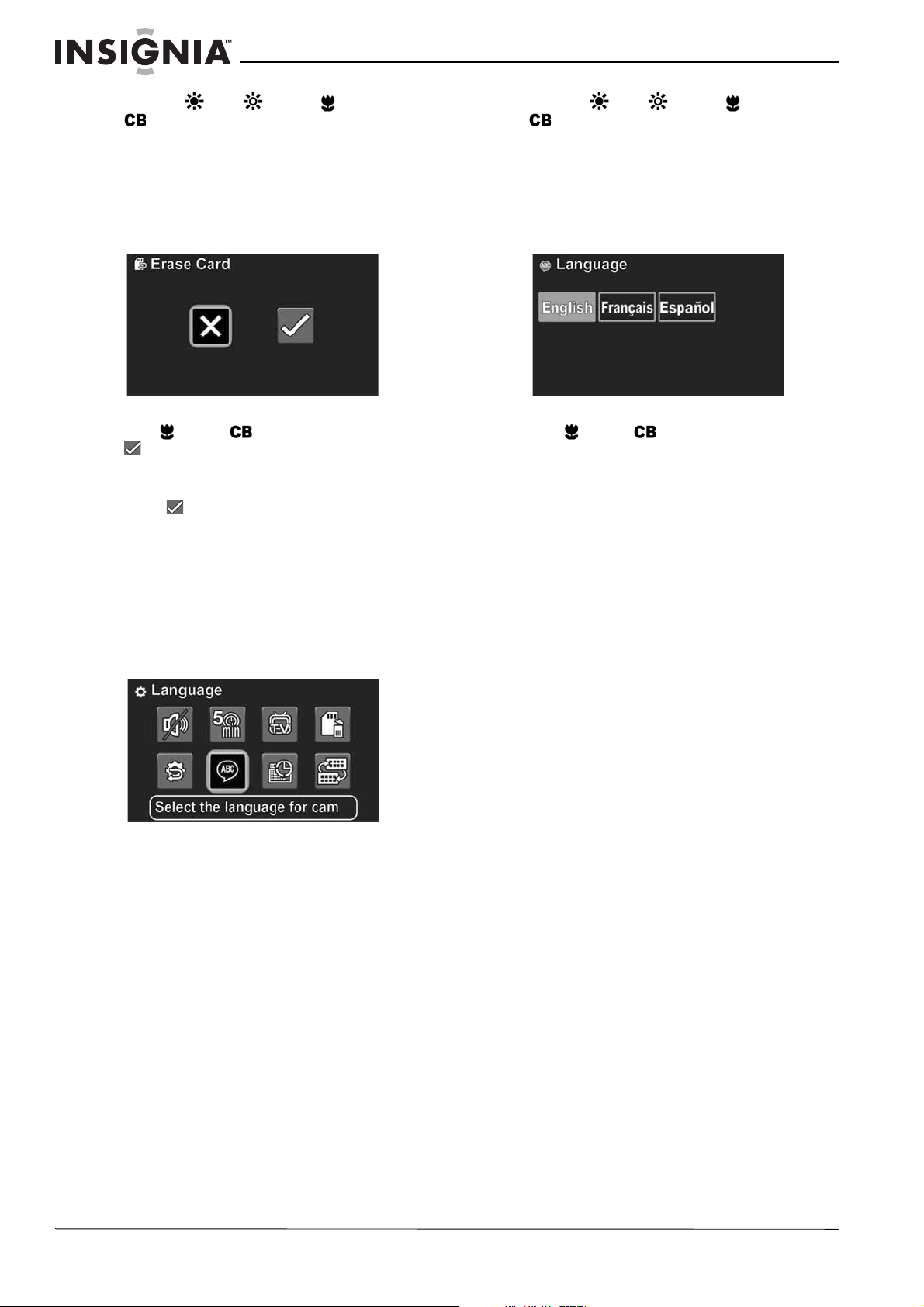
Turning operation sounds on or off
By default, your camcorder makes sounds when
you access key functions. You can turn the sounds
off.
To operation sound on or off:
1 Turn on your camcorder.
2 Turn the Mode dial to SET. The on-screen menu
opens.
3 Press the (up), (down), (left), or
(right) on the navigation control to
highlight the Beep icon, then press the center
navigation control button. The Beep screen
opens.
Or,
Touch the Beep icon on the LCD. The Beep
screen opens.
4 Press (left) or (right) to highlight on or
off, then press the center navigation control
button.
Or,
Touch on or off on the LCD.
Setting the date and time
To set the date and time:
1 Turn on your camcorder.
2 Turn the Mode dial to SET. The on-screen menu
opens.
3 Press the (up), (down), (left), or
(right) on the navigation control to
highlight the Date/Time icon, then press the
center navigation control button. The date and
time screen opens.
Or,
Touch the Date/Time icon on the LCD. The date
and time screen opens.
4 Press the (left) or (right) buttons on the
navigation control to move from field to field,
then press the (up) (down) buttons on
the navigation control to adjust the value.
Or,
Touch a field on the LCD, then touch or to
adjust the value.
5 Press the center navigation control button or
touch the return arrow on the LCD to save your
changes.
Erasing an SD/SDHC memory card or the
internal memory
You can use the Erase Card function to completely
erase and format an inserted memory card or the
camcorder's internal memory. Memory cards must
be removed before the internal memory can be
erased.
To erase an SD/SDHC memory card or the
internal memory:
1 Turn on your camcorder.
2 Turn the Mode dial to SET. The on-screen menu
opens.
Caution
The Erase Card function will completely erase all files from an
inserted memory card or the internal memory. Also, inserted
memory cards will be re-formatted and named INSIGNIA when
the Erase Card function is used. All files will be erased. You should
back up all your files before attempting to use this function.
20
NS-DV111080F/NS-DV111080F-CN Insignia 1080p Digital Camcorder
www.insigniaproducts.com
3 Press the (up), (down), (left), or
(right) on the navigation control to
highlight the Erase Card icon, then press the
center navigation control button. The Erase Card
screen opens.
Or,
Touch the Erase Card icon on the LCD. The Erase
Card screen opens.
4 Press (left) or (right) to highlight
(erases the card), then press the center
navigation control button.
Or,
Touch (erases the card) on the LCD.
Selecting the menu language
You can change the default language used in your
camcorder's on-screen menu.
To select the menu language:
1 Turn on your camcorder.
2 Turn the Mode dial to SET. The on-screen menu
opens.
3 Press the (up), (down), (left), or
(right) on the navigation control to
highlight the Language icon, then press the
center navigation control button. The Language
screen opens.
Or,
Touch the Language icon on the LCD. The
Language screen opens.
4 Press (left) or (right) to select a language,
then press the center navigation control button.
Or,
Touch a language icon on the LCD.
Turning help text on or off
To turn help text on or off:
• Press DISP while in the SET, Video, or Photo
menu.
21
Insignia 1080p Digital Camcorder
www.insigniaproducts.com
Using the Auto Power Off function
You can conserve battery power by turning on the
Auto Power Off function.
To use the Auto Power Off function:
1 Turn on your camcorder.
2 Turn the Mode dial to SET. The on-screen menu
opens.
3 Press the (up), (down), (left), or
(right) on the navigation control to
highlight the Auto Power Off icon, then press
the center navigation control button. The Auto
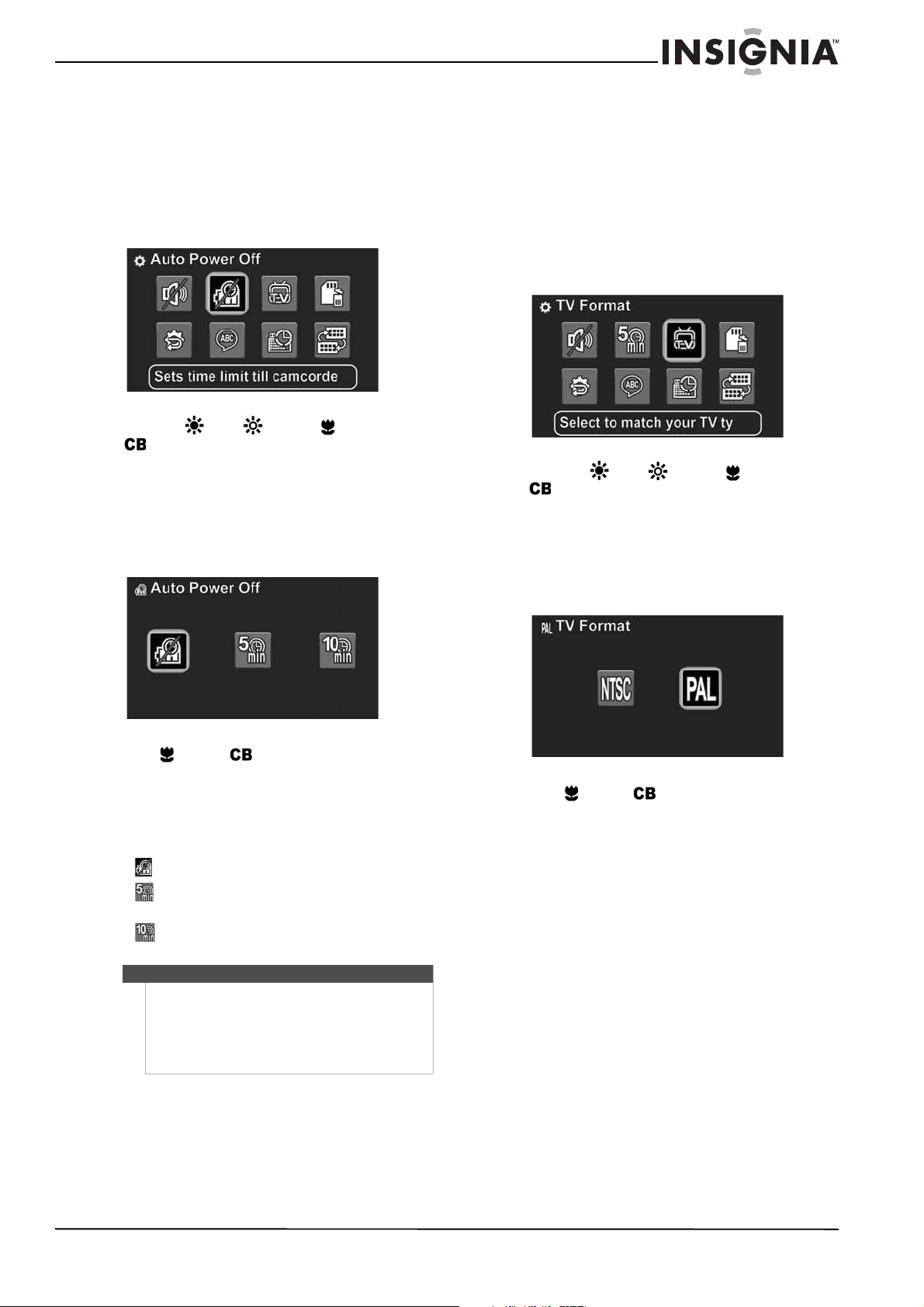
Power Off screen opens.
Or,
Touch the Auto Power Off icon on the LCD. The
Auto Power Off screen opens.
4 Press (left) or (right) to select an option,
then press the center navigation control button.
Or,
Touch an option on the LCD.
You can select:
• (turns off the Auto Power function)
• (turns off your camcorder after 5 minutes
of inactivity)
• (turns off your camcorder after 10 minutes
of inactivity).
Selecting the TV format
Before you connect your camcorder to a TV, you
need to select a TV format. Select NTSC for TVs in
the United States, Canada, Mexico, Japan, and other
countries. Select PAL for TVs in China, many
countries in Europe, and other locations.
To select the TV format:
1 Turn on your camcorder.
2 Turn the Mode dial to SET. The on-screen menu
opens.
3 Press the (up), (down), (left), or
(right) on the navigation control to
highlight the TV Format icon, then press the
center navigation control button. The TV Format
screen opens.
Or,
Touch the TV Format icon on the LCD. The TV
Format screen opens.
4 Press (left) or (right) to highlight NTSC or
PAL, then press the center navigation control
button.
Or,
Touch NTSC or PAL on the LCD.
Note
Auto Power off does not work when your
camcorder is:
• Connected to a computer.
•Recording video.
•Playing back video.
• Playing a slideshow of photos.
22
NS-DV111080F/NS-DV111080F-CN Insignia 1080p Digital Camcorder
www.insigniaproducts.com
Resetting your camcorder to the factory
default settings
To reset your camcorder to the factory default
settings:
1 Turn on your camcorder.
2 Turn the Mode dial to SET. The on-screen menu
opens.
3 Press the (up), (down), (left), or
(right) on the navigation control to
highlight the Factory Reset icon, then press the
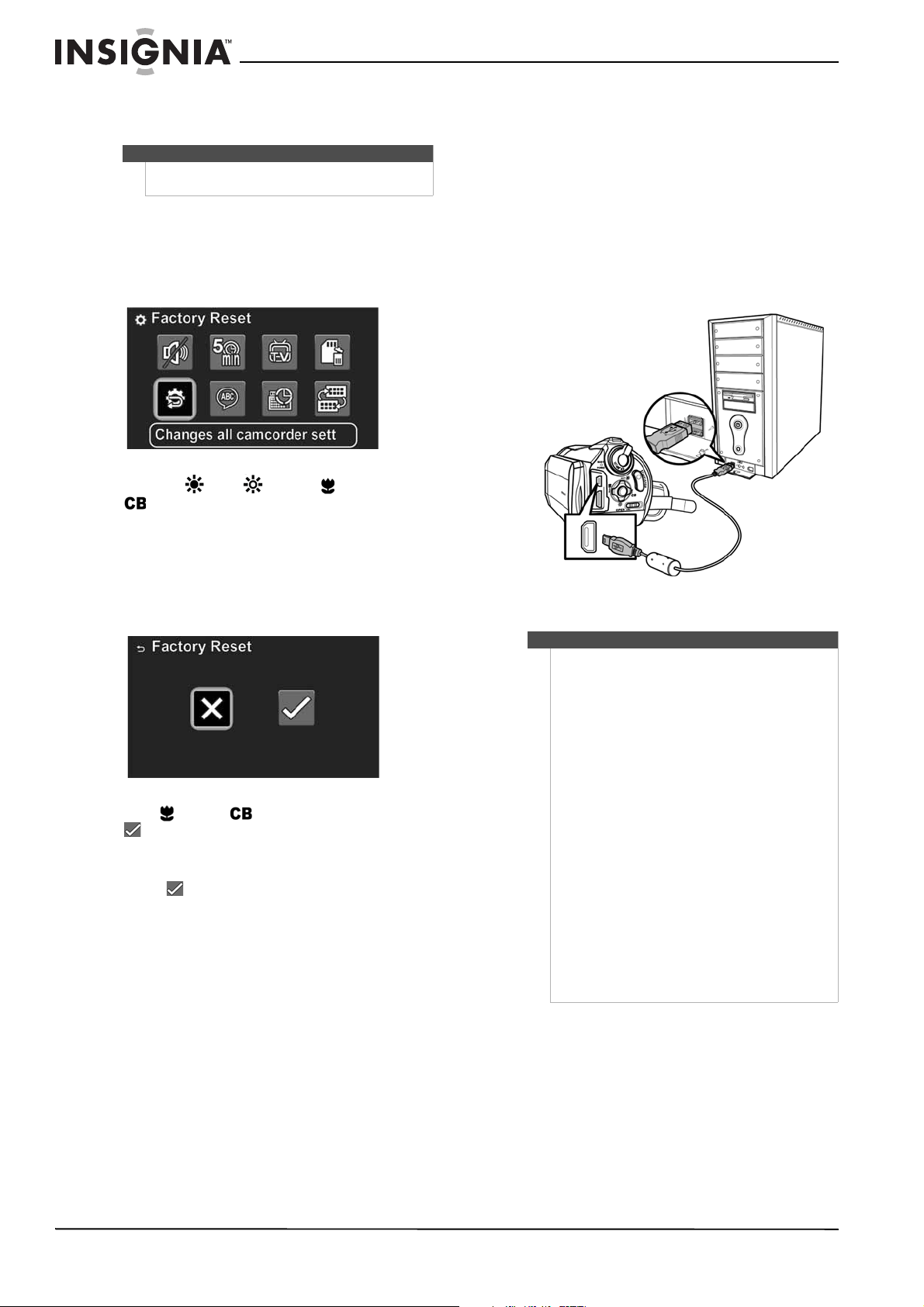
center navigation control button. The Factory
Reset screen opens.
Or,
Touch the Factory Reset icon on the LCD. The
Factory Reset screen opens.
4 Press (left) or (right) to highlight
(resets your camcorder), then press the
center navigation control button.
Or,
Touch (resets your camcorder) on the LCD.
Transferring files to a
computer
Connecting your camcorder to a computer
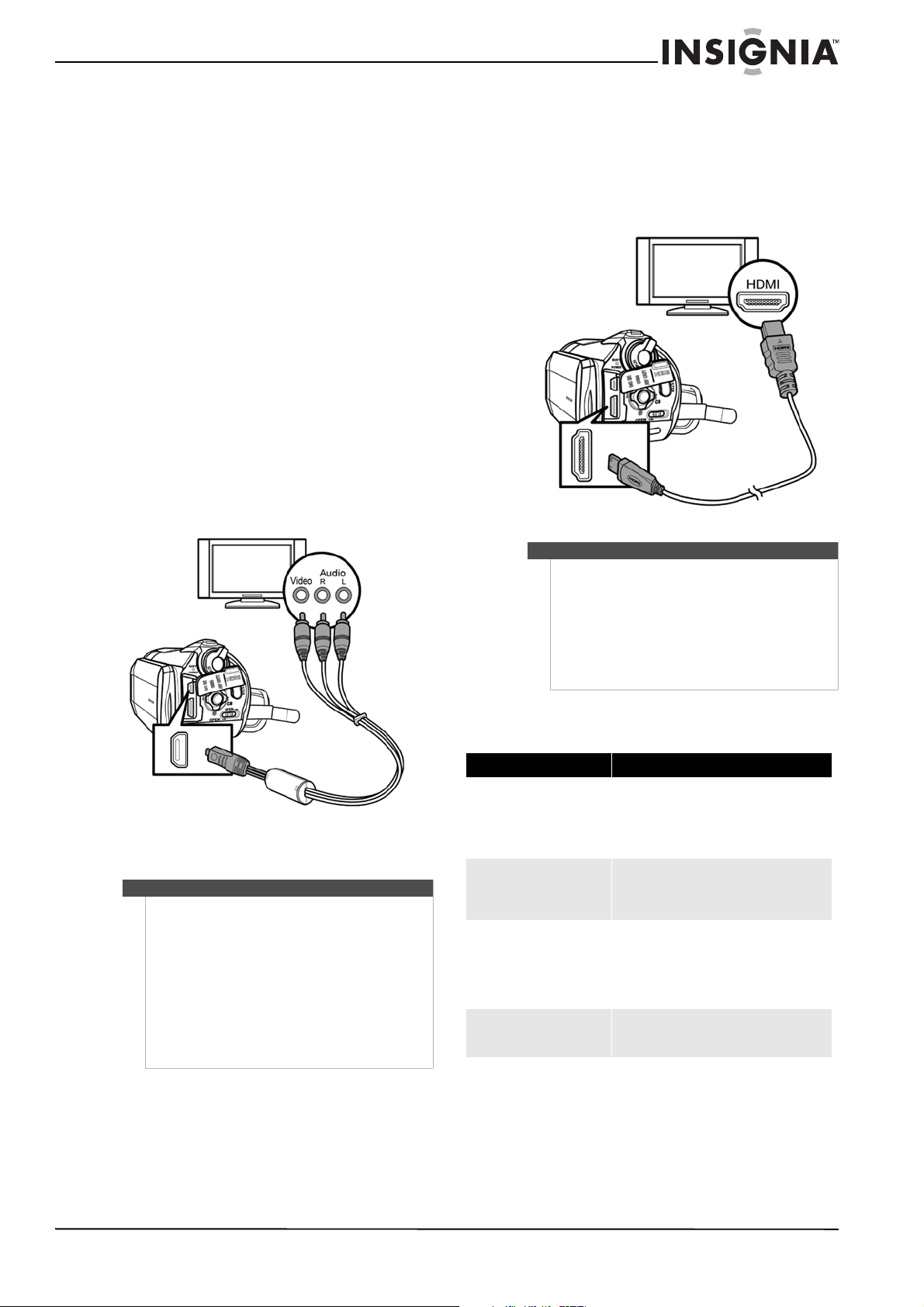
To transfer files to a computer:
1 Make sure that your camcorder is turned off.
2 Connect the provided USB cable to the USB jack
on your camcorder and to a USB jack on the
computer.
3 Turn on your camcorder.
Installing the included software
ArcSoft TotalMedia™ HDCam is a powerful software
tool that lets you manage and edit the videos you
have recorded.
To install ArcSoft TotalMedia HDCam:
1 Insert the included CD into your computer’s CD.
The CD runs automatically.
2 Follow the on-screen instructions to complete
the installation.
Note
The Factory Reset function will not delete videos and
photos you have captured.
Note
• Your camcorder can be in SET, Video, or Photo
mode when you connect it to your computer.
• No camcorder functions may be used or
accessed while your camcorder is turned on and
connected to your computer.
• Once a connection between your camcorder
and your computer has been established, you
must disconnect your camcorder from your
computer before you will be able to turn off
your camcorder or use any of its functions.
• Your camcorder's internal memory and a
memory card (if inserted) will appear as
separate drives in your computer's file manager.
The internal memory will be labeled DV. The
memory card will be labeled with whatever
name you have chosen if you formatted your
card using your computer. If you have formatted
your card using your camcorder, it will be
labeled INSIGNIA.
• Connecting your camcorder to your computer
will not charge the camcorder's battery. You
should disconnect your camcorder from your
computer as soon as you have finished working
with files on your camcorder in order to
conserve battery life.
23
Insignia 1080p Digital Camcorder
www.insigniaproducts.com
Using the included software
Instructions for using the included software are
included in the software’s Help Guide.
To access the Help Guide:
1 Start ArcSoft TotalMedia HDCam.
2 Click Options in the upper right corner, then
click Help.
Connecting your camcorder
to a TV
You can connect your camcorder to a TV using the
provided AV cable or using an HDMI cable (not
included).
Connecting to a TV using the provided AV
cable
To connect your camcorder to a TV using the AV
cable:
1 Connect the end of the provided AV cable that
has a single plug to the USB jack on your
camcorder.
2 Connect the end of the cable that has a video,
left audio, and right audio plug to the TV.
Connecting to a TV using a mini HDMI cable
To connect your camcorder to a TV using a mini
HDMI cable:
• Connect the small end of a mini HDMI cable to
the mini HDMI jack on your camcorder and
the large end of the mini HDMI cable to the
HDMI IN jack on the TV.
Troubleshooting
Notes
• The LCD will shut off when your camcorder is
connected to a TV using the AV cable. This
requires that you use the navigation control to
select videos and the start/stop button to
start/stop playback.
• If your camcorder is connected to a TV using the
AV cable and an HDMI cable is connected to the
camcorder and a TV at the same time, the AV
cable functionality will be disabled.
• You cannot record videos or photos when your
camcorder is connected to a TV using the AV
cable.
Notes
• Your camcorder will display the same images on
your TV as it will on its LCD when it is connected
to a TV using an HDMI cable.
• You cannot record videos or photos when your
camcorder is connected to a TV using an HDMI
cable.
• You can only view videos and photos you
recorded before connecting your camcorder to
the TV.
Problem Solution
Image on the LCD is blurry Try switching between Macro and Normal mode.
Use Macro mode for objects between 3.9
in. ~ 35.4 in. (10 cm ~ 90 cm) away.
Use Normal mode for objects over 35.4 in. (90 cm)
away.
Indoor pictures look blurry and
dark
Your camcorder extends the exposure time under
low-light or indoor conditions. Keep your
camcorder and photographed subject steady for
several seconds when taking pictures.
“Memory Full” error is displayed The internal memory or inserted memory card is
full. If the internal memory is full, you must delete
files before you can record to the internal memory
again. If an inserted memory card is full, delete
files from the card or replace it with a card that has
available space.
Locked card icon is displayed and
an error beep is played
The inserted memory card is locked. Turn off your
camcorder, remove the memory card and unlock it
or replace it with a different memory card.

24
NS-DV111080F/NS-DV111080F-CN Insignia 1080p Digital Camcorder
www.insigniaproducts.com
Specifications and default
settings
Specifications
Specifications are subject to change without notice.
Default settings
Image sensor 1/2.3" CMOS 10.0 megapixel sensor
Active pixels 10.0 megapixels
Storage media Internal: Built-in 128 MB flash memory
SD cards: up to 4 GB
SDHC cards: up to 32 GB
Lens F 1.85~3.1 (f=6.3-75.6mm)
Zoom 12× optical zoom, 10× digital zoom
Focus range Normal mode: 2.95 ft. ~ infinity (90 cm ~ infinity)
Macro mode: 0.33 ~ 2.95 ft.(10 ~ 90 cm)
LCD monitor 3" touch screen
Video resolution 1920 × 1080p 30fps (HD)
1280 × 720p 60fps
848 × 480 60fps (SD)
432 × 240 240fps (WQVGA)
432 × 240 30fps (WQVGA - available in Dual Video
mode only)
Color balance Auto, Daylight, Cloudy, Tungsten, Fluorescent
Self-timer Off, 5 seconds, 10 seconds
File format Picture: JPG
Video: H.264 in MOV or AVI format
Shutter Video: 1/30 ~1/2000
Still: 1/2~1/2000
Battery Li-ion NP120
Dimensions (W × H × D) 2.68 × 2.8 × 5.08 ins.
(68 × 71 × 129 mm)
Weight 11.57 oz. (328g) (without battery)
Setting Default
Setup mode
Beep On
Auto power off 5 min.
TV format NTSC
Simple mode On
Help Text On
Photo mode
Capture resolution 10 megapixels
Aspect Ratio 3:2
Color balance Auto
Face Detection On
Stabilizer On
Self-timer Off
Time Stamp Off
Video mode
Video format HD (1920x1080p 30fps)
Video quality Super Fine
Color balance Auto
Stabilizer On
Time stamp Off
File format AVI
Dual video Off
Color balance Auto

25
Insignia 1080p Digital Camcorder
www.insigniaproducts.com
Legal notices
FCC Part 15
This device complies with Part 15 of the FCC Rules. Operation of
this product is subject to the following two conditions: (1) this
device may not cause harmful interference, and (2) this device
must accept any interference received, including interference
that may cause undesired operation.
This equipment has been tested and found to comply within the
limits for a class B digital device, pursuant to Part 15 of the FCC
Rules. These limits are designed to provide reasonable
protection against harmful interference in a residential
installation. This equipment generates, uses, and can radiate
radio frequency energy and, if not installed and used in
accordance with the instructions, may cause harmful
interference to radio communications. However, there is no
guarantee that interference will not occur in a particular
installation. If this equipment does cause harmful interference to
radio or television reception, which can be determined by
turning the equipment off and on, the user is encouraged to try
to correct the interference by one or more of the following
measures:
• Reorient or relocate the receiving antenna.
• Increase the separation between the equipment and
receiver.
• Connect the equipment into an outlet on a circuit different
from that to which the receiver is connected.
• Consult the dealer or an experienced technician for help.
FCC warning
Changes or modifications not expressly approved by the party
responsible for compliance with the FCC Rules could void the
user’s authority to operate this equipment.
Canada ICES-003 statement
This Class B digital apparatus complies with Canadian ICES-003.

26
NS-DV111080F/NS-DV111080F-CN Insignia 1080p Digital Camcorder
www.insigniaproducts.com

27
Insignia 1080p Digital Camcorder
www.insigniaproducts.com
One-year limited warranty
Insignia Products (“Insignia”) warrants to you, the original
purchaser of this new product (“Product”), that the Product shall
be free of defects in the original manufacture of the material or
workmanship for a period of one (1) year from the date of your
purchase of the Product (“Warranty Period”). This Product must
be purchased from an authorized dealer of Insignia brand
products and packaged with this warranty statement. This
warranty does not cover refurbished Product. If you notify
Insignia during the Warranty Period of a defect covered by this
warranty that requires service, terms of this warranty apply.
How long does the coverage last?
The Warranty Period lasts for 1 year (365 days) from the date you
purchased the Product. The purchase date is printed on the
receipt you received with the Product.
What does this warranty cover?
During the Warranty Period, if the original manufacture of the
material or workmanship of the Product is determined to be
defective by an authorized Insignia repair center or store
personnel, Insignia will (at its sole option): (1) repair the Product
with new or rebuilt parts; or (2) replace the Product at no charge
with new or rebuilt comparable products or parts. Products and
parts replaced under this warranty become the property of
Insignia and are not returned to you. If service of Products or
parts are required after the Warranty Period expires, you must
pay all labor and parts charges. This warranty lasts as long as you
own your Insignia Product during the Warranty Period. Warranty
coverage terminates if you sell or otherwise transfer the Product.
How to obtain warranty service?
If you purchased the Product at a retail store location, take your
original receipt and the Product to the store you purchased it
from. Make sure that you place the Product in its original
packaging or packaging that provides the same amount of
protection as the original packaging. If you purchased the
Product from an online web site, mail your original receipt and
the Product to the address listed on the web site. Make sure that
you put the Product in its original packaging or packaging that
provides the same amount of protection as the original
packaging.
To obtain in-home warranty service for a television with a screen
30 inches or larger, call 1-888-BESTBUY. Call agents will diagnose
and correct the issue over the phone or will have an
Insignia-approved repair person dispatched to your home.
Should the Insignia-approved repair person not correct the issue
on the first call, an Insignia television (size and features to be
determined by Insignia) will be loaned to you until your TV is
repaired and returned, at no charge to you. This feature is only
available to Insignia television consumers residing in the United
States.
Where is the warranty valid?
This warranty is valid only to the original purchaser of the
product in the United States, Canada, and Mexico.
What does the warranty not cover?
This warranty does not cover:
• Customer instruction
•Installation
•Set up adjustments
•Cosmetic damage
• Damage due to acts of God, such as lightning strikes
•Accident
•Misuse
•Abuse
•Negligence
•Commercial use
• Modification of any part of the Product, including the
antenna
• Plasma display panel damaged by static (non-moving)
images applied for lengthy periods (burn-in).
This warranty also does not cover:
• Damage due to incorrect operation or maintenance
• Connection to an incorrect voltage supply
• Attempted repair by anyone other than a facility
authorized by Insignia to service the Product
• Products sold as is or with all faults
• Consumables, such as fuses or batteries
• Products where the factory applied serial number has been
altered or removed
REPAIR REPLACEMENT AS PROVIDED UNDER THIS WARRANTY IS
YOUR EXCLUSIVE REMEDY. INSIGNIA SHALL NOT BE LIABLE FOR
ANY INCIDENTAL OR CONSEQUENTIAL DAMAGES FOR THE
BREACH OF ANY EXPRESS OR IMPLIED WARRANTY ON THIS
PRODUCT, INCLUDING, BUT NOT LIMITED TO, LOST DATA, LOSS
OF USE OF YOUR PRODUCT, LOST BUSINESS OR LOST PROFITS.
INSIGNIA PRODUCTS MAKES NO OTHER EXPRESS WARRANTIES
WITH RESPECT TO THE PRODUCT, ALL EXPRESS AND IMPLIED
WARRANTIES FOR THE PRODUCT, INCLUDING, BUT NOT LIMITED
TO, ANY IMPLIED WARRANTIES OF AND CONDITIONS OF
MERCHANTABILITY AND FITNESS FOR A PARTICULAR PURPOSE,
ARE LIMITED IN DURATION TO THE WARRANTY PERIOD SET
FORTH ABOVE AND NO WARRANTIES, WHETHER EXPRESS OR
IMPLIED, WILL APPLY AFTER THE WARRANTY PERIOD. SOME
STATES, PROVINCES AND JURISDICTIONS DO NOT ALLOW
LIMITATIONS ON HOW LONG AN IMPLIED WARRANTY LASTS, SO
THE ABOVE LIMITATION MAY NOT APPLY TO YOU. THIS
WARRANTY GIVES YOU SPECIFIC LEGAL RIGHTS, AND YOU MAY
ALSO HAVE OTHER RIGHTS, WHICH VARY FROM STATE TO STATE
OR PROVINCE TO PROVINCE.
Contact Insignia:
For customer service please call 1-877-467-4289
www.insigniaproducts.com
Distributed by Best Buy Purchasing, LLC
7601 Penn Avenue South, Richfield, Minnesota, U.S.A.
55423-3645
© 2010 BBY Solutions, Inc.
All rights reserved. INSIGNIA is a trademark of BBY Solutions, Inc.
Registered in some countries. All other products and brand
names are trademarks of their respective owners.

TM
www.insigniaproducts.com (877) 467-4289
Distributed by Best Buy Purchasing, LLC
7601 Penn Avenue South, Richfield, MN USA 55423-3645
© 2010 BBY Solutions, Inc.
All rights reserved. INSIGNIA is a trademark of BBY Solutions, Inc. Registered in some countries.
All other products and brand names are trademarks of their respective owners.
ENGLISH
10-0416
