IOM-WattsHome
Installation, Operation and Maintenance
Watts
®
Home Mobile App
Please read carefully before proceeding with
installation. Your failure to follow any attached
instructions or operating parameters may lead
to the product’s failure.
Keep this Manual for future reference.
Watts is not responsible for failures due to connectivity
issues, power outages, or improper installation.

2
Table of Contents
Before You Begin ................................................................................................... 3
Legal ................................................................................................................. 3
Download the Mobile App................................................................................ 3
Get Started ............................................................................................................ 3
Create Account .....................................................................................................4
Login ...................................................................................................................... 4
Locations - Create a Location ............................................................................... 5
Locations - Standard and Custom Ordering ......................................................... 6
Locations - Edit Locations Order ..........................................................................7
Away and Home Modes Toggle ............................................................................ 8
Adding a tekmar
®
Device to Watts Home ............................................................. 9
Adding a SunStat
®
Device to Watts Home .......................................................... 10
Menu ................................................................................................................... 11
Account & App Settings ...................................................................................... 11
Dashboard ........................................................................................................... 12
Dashboard - Standard and Custom Ordering .................................................... 13
Dashboard - Edit Devices Order ......................................................................... 14
Users ................................................................................................................... 15
Setpoint Control ..................................................................................................16
tekmar 170 ...................................................................................................... 16
Setpoint Control - Device Settings ................................................................ 17
Thermostat .......................................................................................................... 18
tekmar
561 ...................................................................................................... 18
tekmar 562 ..................................................................................................... 18
tekmar 563 and 564 ....................................................................................... 19
SunTouch
®
SunStat ........................................................................................ 19
Thermostat - Schedule, Usage, and Device Settings ................................... 20
Snow Melting Control ..........................................................................................21
tekmar 670 and 671 ........................................................................................ 21
Snow Melting Control - Device Settings ........................................................ 22
Technical Data ..................................................................................................... 23
Watts, SunStat, SunTouch are registered trademarks of Watts Regulator
Company. tekmar is a registered trademark of tekmar Control System Ltd.,
a Watts brand.
3
Before You Begin
Legal
Before using the Watts
®
Home mobile application, you must agree to the Watts
Terms of Use and Privacy Policy. These are available on the Watts.com website.
• https://www.watts.com/terms-of-use
• https://www.watts.com/privacy-policy
Download the Mobile App
The Watts Home mobile application supports both iOS and Android versions.
iOS: https://apps.apple.com/us/app/watts-home/id1500497974
Android: https://play.google.com/store/apps/details?id=com.watts.home
Get Started
Welcome to Watts Home!
On the welcome page, tap “Get Started” button.
4
Create Account
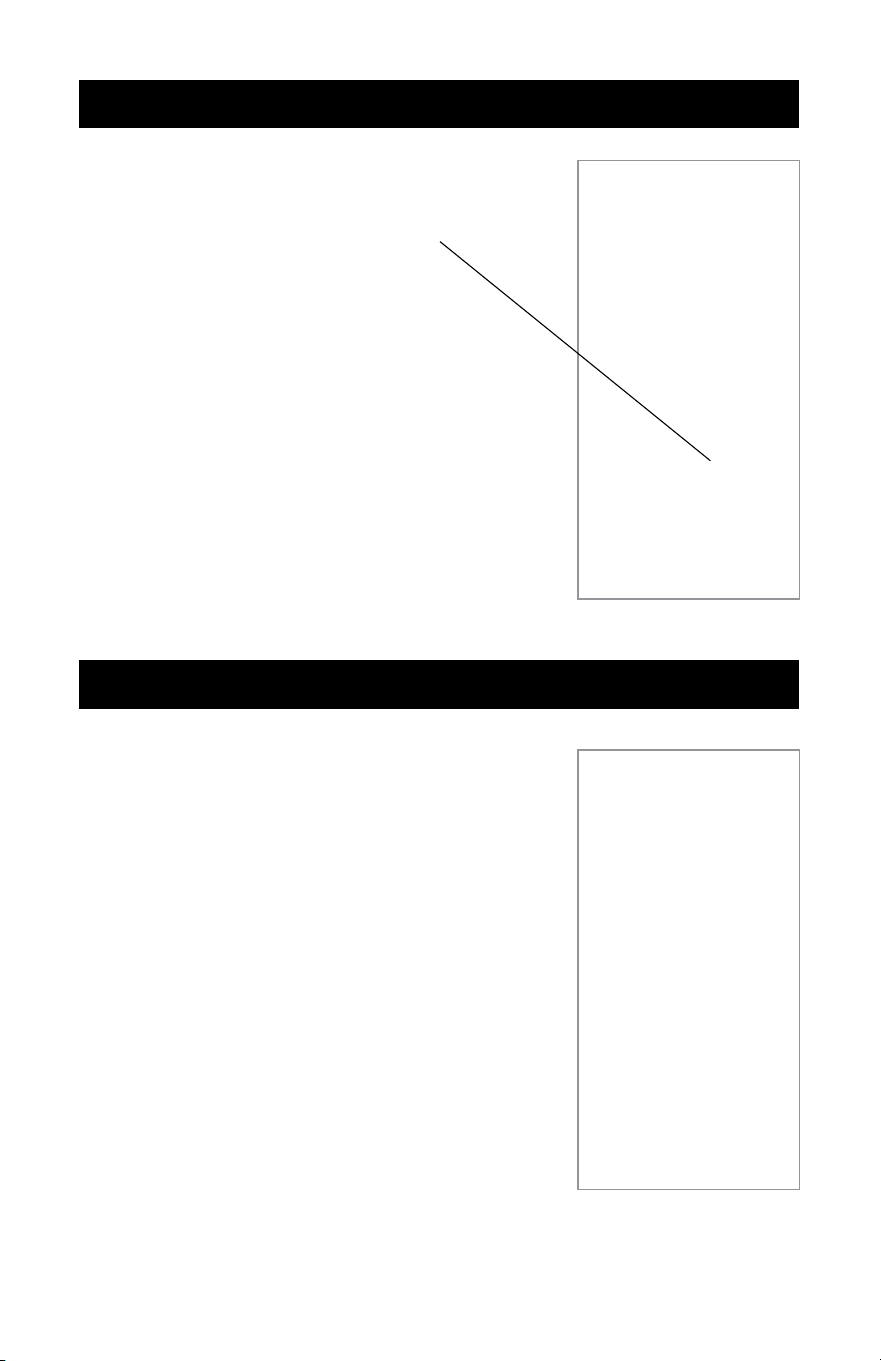
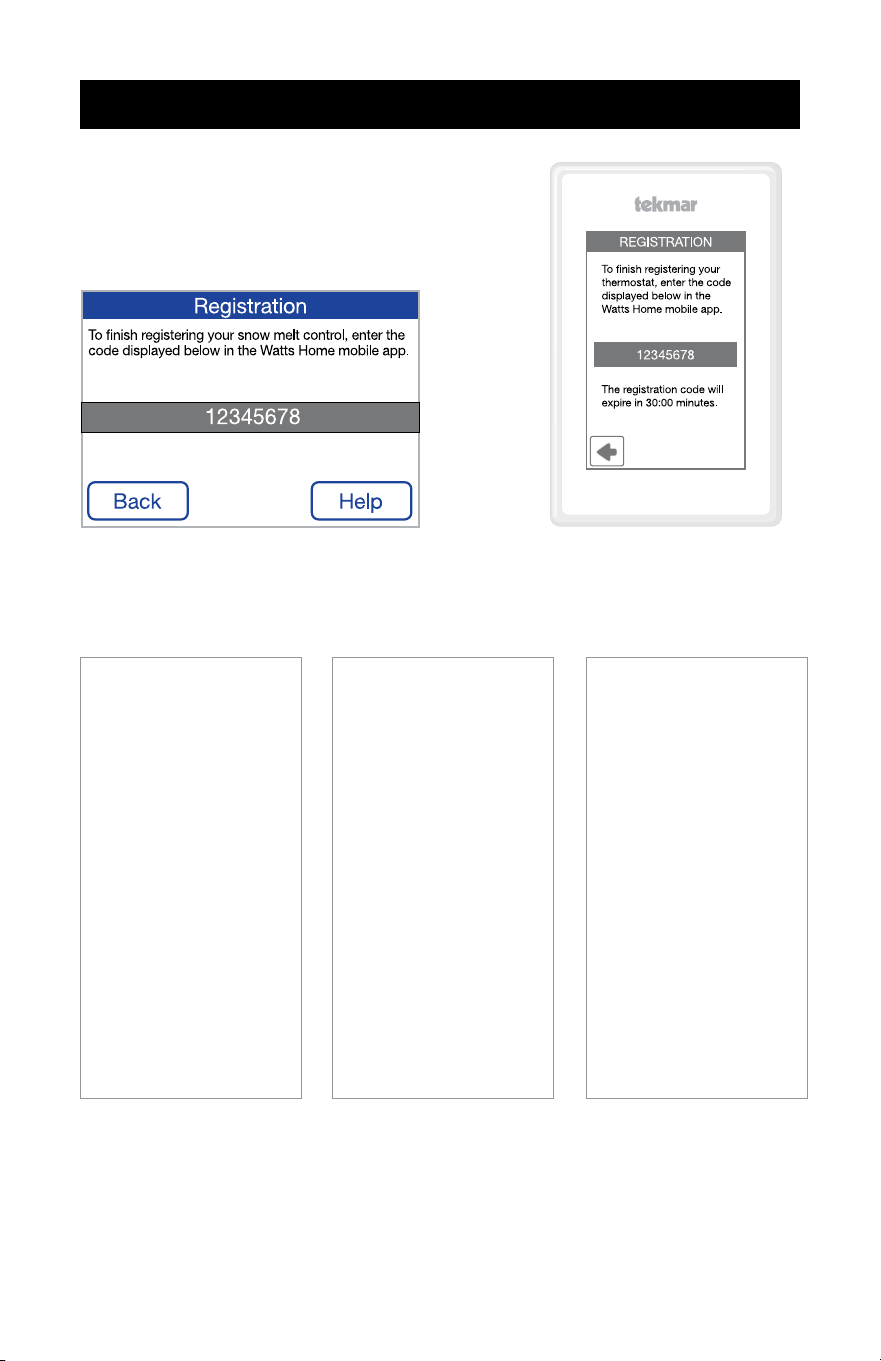
Tap the “Sign up now” link to create a
Watts account.
Scroll down to the bottom of the
Terms of Use and Privacy Policy and
tap “Accept & Continue” button.
Enter your email address. This is used
to create your Watts account.
To protect your identity, a verification
code is sent to your email inbox. Enter
the verification code into the app.
Lastly, create a password.
Login
To use the Watts Home app, enter
your email address and password
then tap “Sign in” button.
To protect your identity, keep your
password secret and do not share
it with other users. Watts Technical
Support will never ask you to share
your password.
Watts uses Microsoft Azure for
hosting the mobile app services.
It is normal for a dialog box to be
displayed, asking if you wish to use
watts.io to log in.
If you forget your password, tap the
“Forgot password” link. A notification
email will be sent to your email
address with a link to create a new
password.
5
Locations - Create a Location
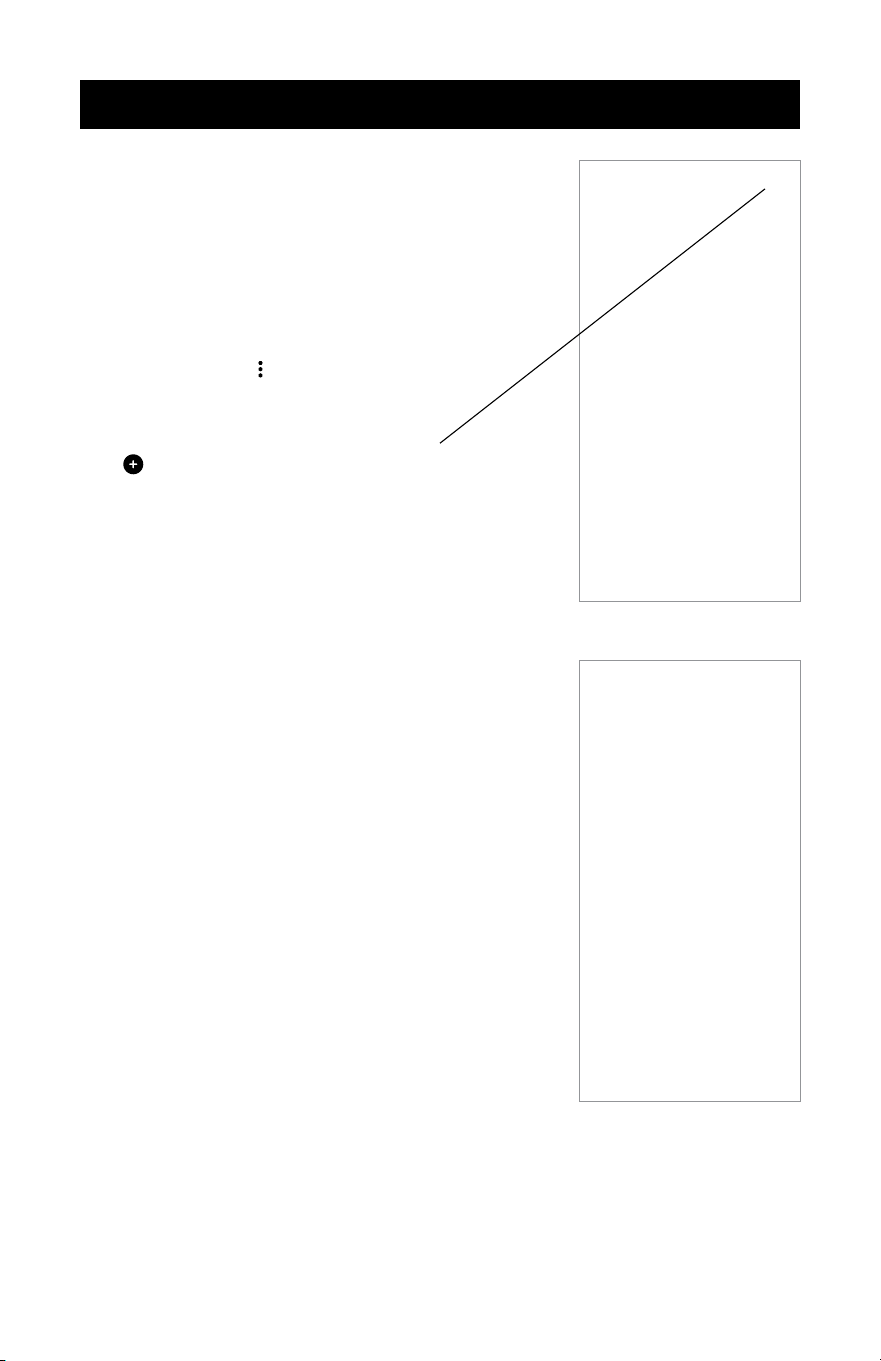
The app uses Locations to organize
where your devices are installed and
which users are able to view, change,
and receive information.
A given location shows the number of
devices and users.
Selecting the location directs you to
the dashboard for that location.
Tap the ellipsis icon to edit, delete,
or leave (if it is a shared location) a
location.
To add a new location, tap the plus
icon located upper right.
When adding a location you can
assign it as the primary location.
When multiple locations are listed,
at least one location must be
designated as your primary location
and associated with your Watts
Home account.
To create a location, enter the
following information:
• Location Name
• Address
• Country
• State or Province
• City
• Zip or Postal Code
When you create a location, you
become the location’s owner. You
can then share this location with
other users.
6
Locations - Standard and Custom Ordering
Every user will have at least one location
and in some cases may have several.
If you have two or more Locations, you
can arrange them in the “Standard Order
(A-Z)” or create a customized order using
Custom Order.
“Standard Order (A-Z)” displays locations
in alphanumeric order (1, 2, 3... a, b,
c...). To personalize the sorting order of
locations, tap Sort then “Custom Order”
on the lower menu.
• The icon next to the “Sort” button
indicates the current sorting order of
the locations. This icon indicates that
“Standard Order (A-Z)” is selected.
• Number of devices.
• Shared location tile without the number
of users displayed.
• Number of users (only shown for a
location that you are the Owner).
• When this icon is next to the “Sort”
button, it in dicates that Custom Order
is selected.
7
Locations - Edit Locations Order
When “Standard Order” is selected,
tap “Custom Order” to open the “Edit
Locations Order” page.
When “Custom Order” is selected,
tap “Edit Locations Order” button
to rearrange your locations.
To rearrange your locations on the “Edit
Locations Order” page, press and hold
a location tile until its color changes, then
drag it to your preferred position, or use
the arrows to move the up or down.
Tap “Save” button after reordering
your locations for the updated
listing to be displayed on the
Locations page.
8
Away and Home Modes Toggle
“Away Mode” saves energy by
reducing the heating setpoints and
increasing the cooling setpoints on
your devices when the location is not
occupied. For a snow melting control,
toggling the switch to “Away Mode”
turns off the device and, as melting
won’t occur, this saves energy.
Toggle the switch to alternate
between “Away Mode” and “Home
Mode”.
1. “Away Mode” is enabled when the
toggle is turned on.
2. “Home Mode” is enabled when the
toggle is turned off.
9
Adding a tekmar
®
Device to Watts Home
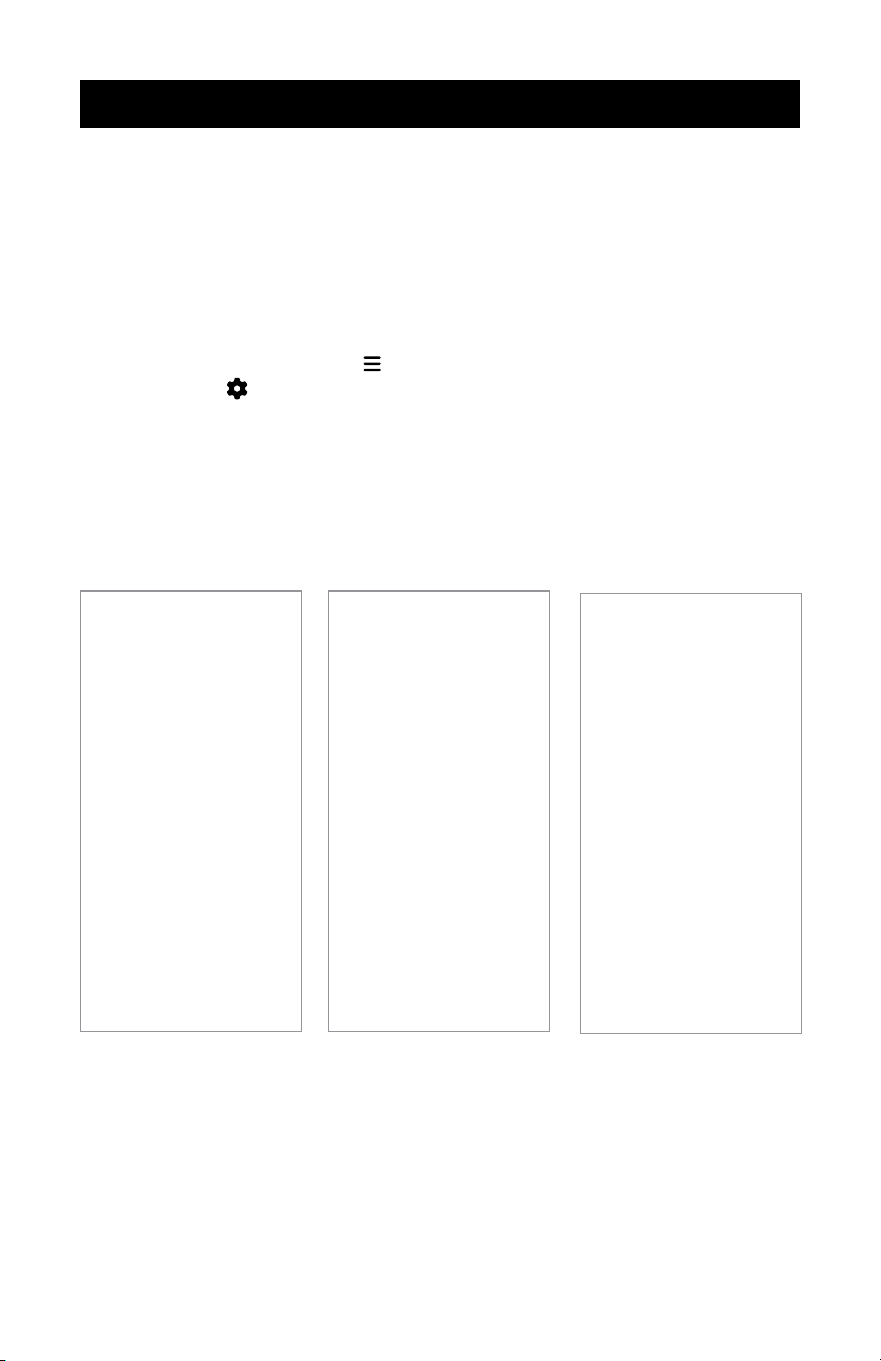
Step 1
Choose the location within the Watts
Home app where you’d like to add a
new device.
Step 2
On your device, open the Wi-Fi
menu and tap Register Device.
Step 3
Go the application’s
Dashboard screen and
tap the plus icon upper
right to initiate the
process for adding a
new device.
Step 4
Tap “Add Device” on the
lower menu.
Step 5
Enter the Device Code
that is displayed on the
device, next a device
nickname, then tap “Add
Device” button.
10
Adding a SunStat
®
Device to Watts Home
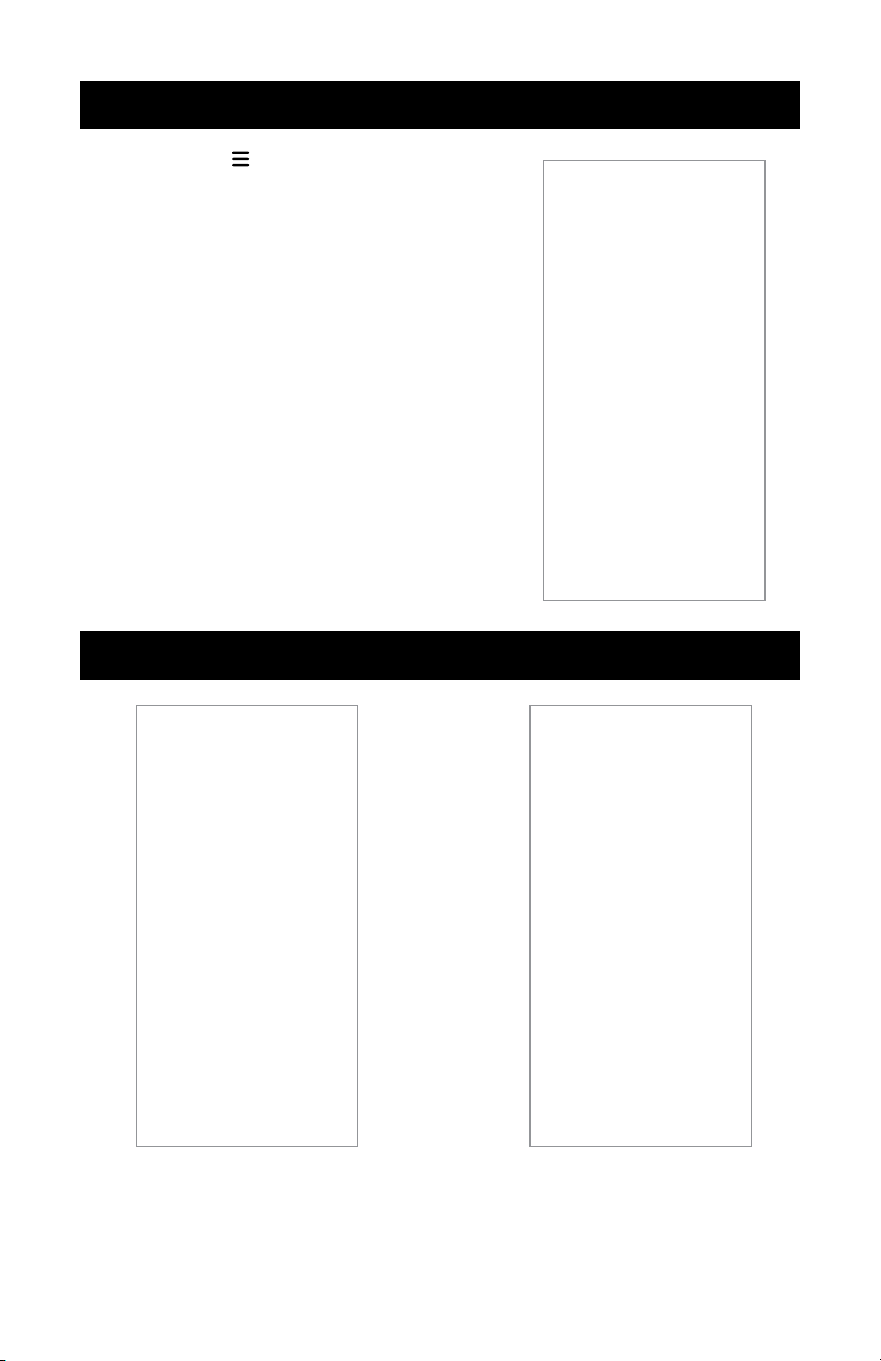
Step 1
Choose the location within the Watts
Home app where you’d like to add a
new device.
Step 2
On the thermostat, go to Menu and
select Settings , then Services (or
Services & Voice), and choose the
“Connect” button.
Step 3
Go the application’s
Dashboard screen and
tap the plus icon upper
right to initiate the
process for adding a
new device.
Step 4
Tap “Add Device” on the
lower menu.
Step 5
Enter the Device Code
that is displayed on the
device, next a device
nickname, then tap “Add
Device” button.
11
Menu
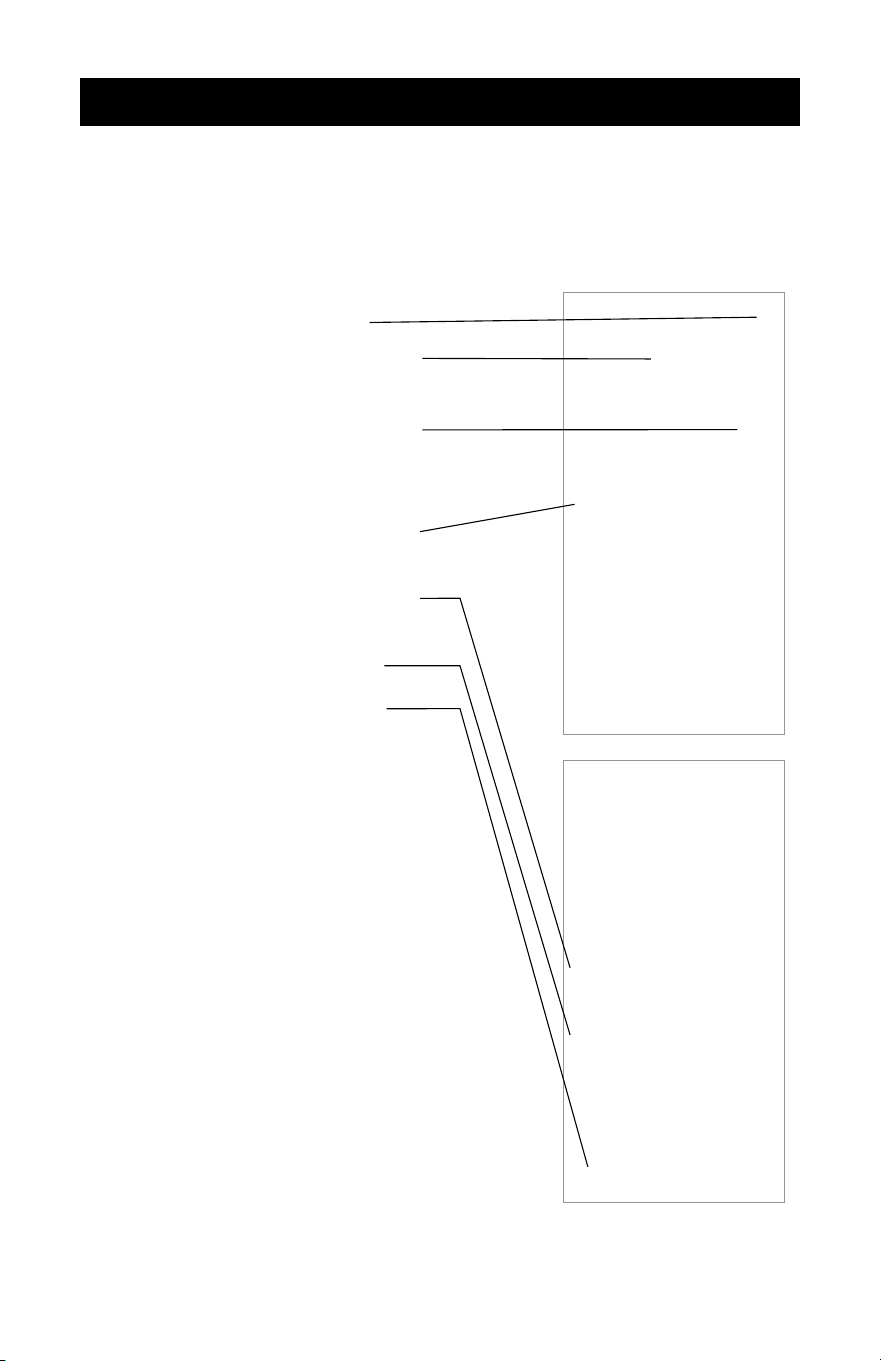
Tapping the icon opens the
application menu.
The app version is listed at the
bottom of the menu.
Account & App Settings
Update your personal information by
tapping “Account” on the application
menu, then “Edit Information” button
on the Account page.
Enable preferred notification
method, input a phone number,
and specify language preference.
Supported languages include
English, Español, Français.
12
Dashboard
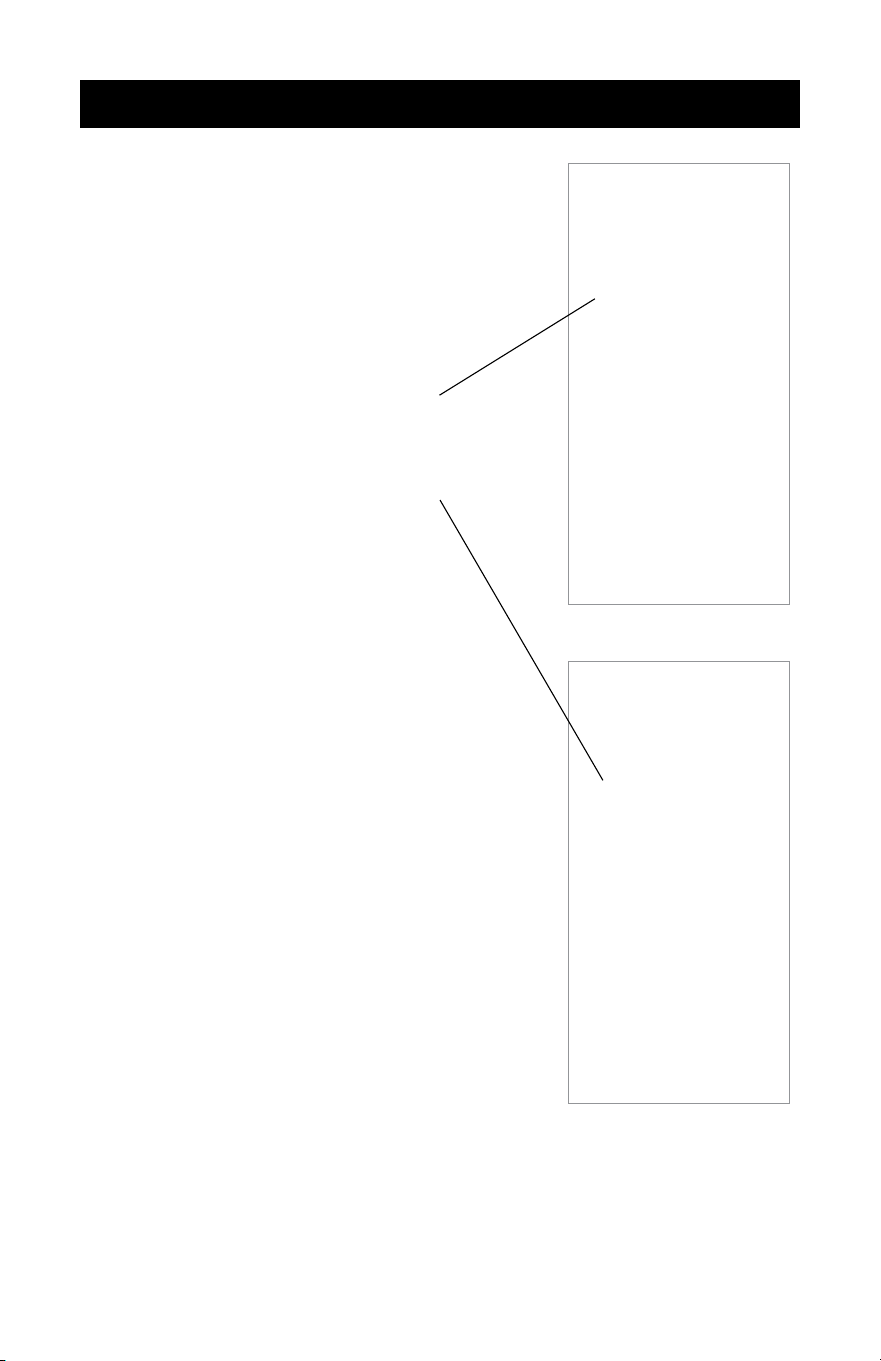
The dashboard shows a list of all your devices. In the list view, each device
shows its nickname along with a summary of its status, which includes
temperature, operating mode, and current setpoint(s).
• To add a new device, tap the plus
icon upper right.
• Location name and locations’ drop-
down list. Select the drop-down list
to change the location.
• To alternate between Away Mode
and Home Mode, toggle the switch
right for away and left for home.
When the switch is left and grayed
out, the Away Mode is turned off.
• The orange gradient line on a tile
indicates that the device is heating
up.
• The blue gradient line on a tile
indicates that the device is cooling
down.
• The gray line indicates that the
device is offline.
• Additional information on the
current status of the device is
displayed beneath the mode.
13
Dashboard - Standard and Custom Ordering
If you have two or more devices, you
can arrange them in the “Standard
Order (A-Z)” or create a customized
order using “Custom Order”.
“Standard Order (A-Z)” displays
devices in alphanumeric order (1, 2,
3, ... a, b, c ... ). To personalize the
sorting order of devices, tap “Sort”
button then “Custom Order” on the
lower menu.
1. The icon next to the “Sort” button
indicates the current sorting order
of the devices. This icon indicates
that “Standard Order (A-Z)” is
selected.
2. When this icon is next to the “Sort”
button, it indicates that “Custom
Order” is selected.
14
Dashboard - Edit Devices Order
When “Standard Order” is selected,
tap “Custom Order” to open the “Edit
Devices Order” page.
When “Custom Order” is selected,
click “Edit Devices Order” button to
rearrange your devices.
To rearrange your devices on the “Edit
Devices Order” page, press and hold a
device tile until its color changes, then
drag it to your preferred position, or use
the arrows to move the up or down.
Tap “Save” button after reordering
your devices for the updated listing
to be displayed on the dashboard.
15
Users
When you create a location, you become the location’s owner. You can then
share this location with other users.
The location’s owner can invite other users to join the location as either a
contractor or a guest. This could be a spouse, child, or property caretaker.
Invited users receive an email in their inbox with instructions to create a Watts
account.
Once the invited user creates a Watts account (or if the user already has an
account), their invitation is considered accepted, and their name will be listed on this
location’s users screen.
Owner tile information
Invited contractors section
Invited guests section
NOTE: Contractor and guest are each a shared user at the owner’s location.
Both types have the same permissions in monitoring or controlling a device at
the location but are restricted from adding or deleting devices. As such, the
classification of an invited shared user as either contractor or guest is at the
owner’s discretion for the specific location.
16
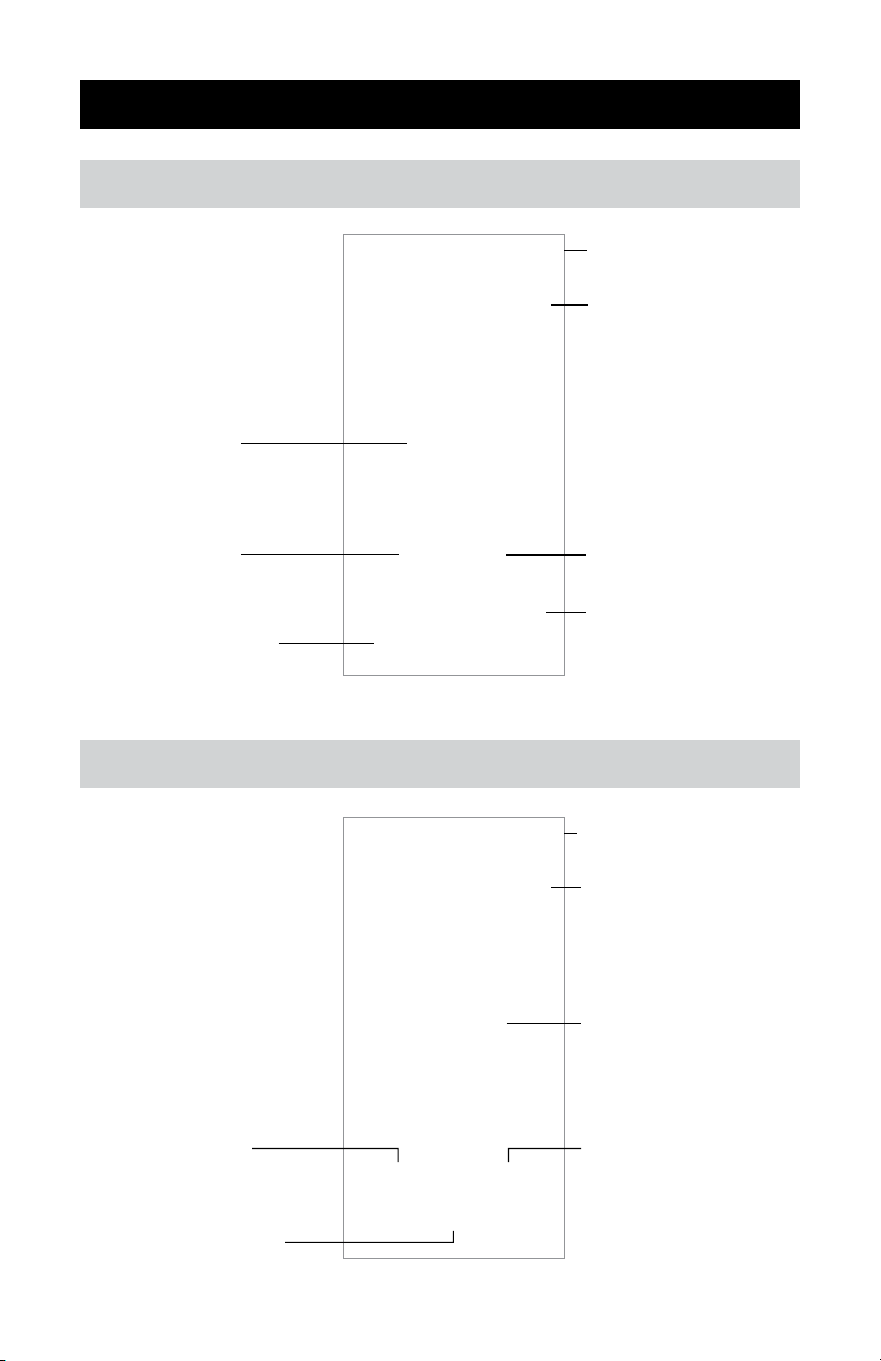
Setpoint Control
tekmar 170
Background colors
Gray: Not heating or cooling
Orange: Heating up
Blue: Cooling down
Heating setpoint
Open device settings
Sensor temperature
Press Up or Down to
adjust temperature
Setpoint Control
mode (Heat mode)
Cooling setpoint
Open device settings
Sensor temperature
Indication that Freeze
Protection has been
enabled to prevent your
system from freezing
Setpoint Control
mode (Cool mode)
17
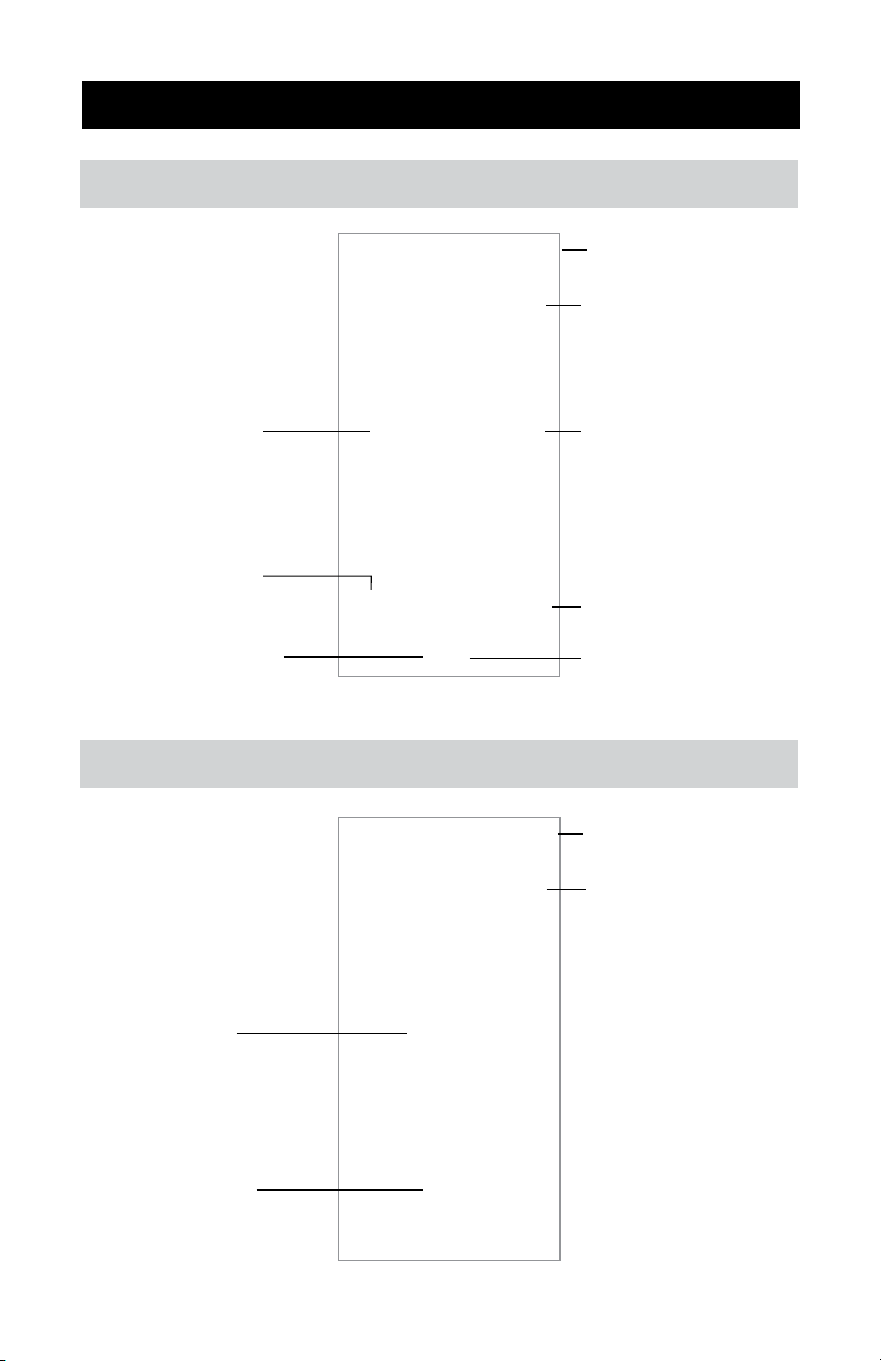
Setpoint Control - Device Settings
The Device Settings page for
specifying the temperature units and
the Heat to Away setpoint when the
Setpoint Control is in heat mode.
The Device Settings page for
specifying the temperature units and
the Cool to Away setpoint when the
Setpoint Control is in cool mode.
18
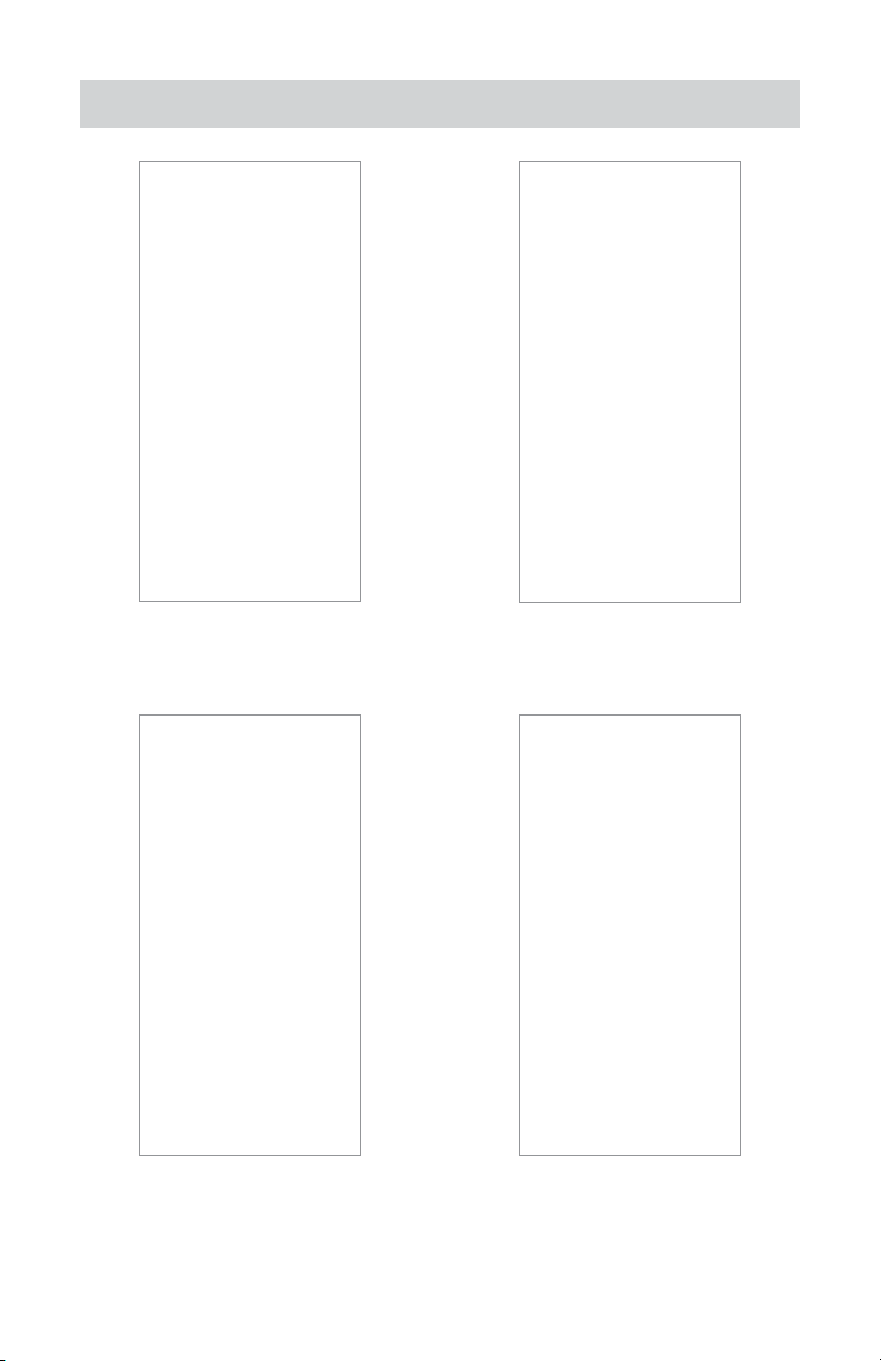
Thermostat
tekmar
561
Background colors
Gray: Not heating
Orange: Heating up
Heating setpoint
Thermostat mode
Save the temperature
change to the schedule
Open device settings
Indoor or floor
temperature
Thermostat Floor
temperature settings
(only shown if
configured or installed)
Cancel the temporary
override
tekmar 562
Background colors
Gray: Not heating or cooling
Orange: Heating up
Blue: Cooling down
Thermostat mode
Thermostat Floor
temperature Settings
(only shown if
configured or installed)
Open device settings
Indoor temperature
Cooling setpoint
Thermostat Fan settings
19
Thermostat
tekmar 563 and 564
Background colors
Gray: Not heating or cooling
Orange: Heating up
Blue: Cooling down
Heating setpoint
Thermostat mode
Thermostat Floor
temperature Settings
(only shown if
configured or installed)
Open device settings
Indoor temperature
Cooling setpoint
Thermostat Fan settings
Thermostat Humidity
settings
SunTouch
®
SunStat
Background colors
Gray: Not heating
Orange: Heating up
Heating setpoint
Thermostat mode
Open device settings
lndoor or floor
temperature
20
Thermostat - Schedule, Usage, and Device Settings
Enter the time and temperatures
for your schedule.
When creating a different
schedule, the days of the week
can be grouped together.
Tap Usage to view the weekly or
monthly equipment run time.
Use the Device Settings page to
configure the temperature units, fan
settings, humidifier/dehumidifier
settings, and floor minimum setpoints.
21
Thermostat - Schedule, Usage, and Device Settings
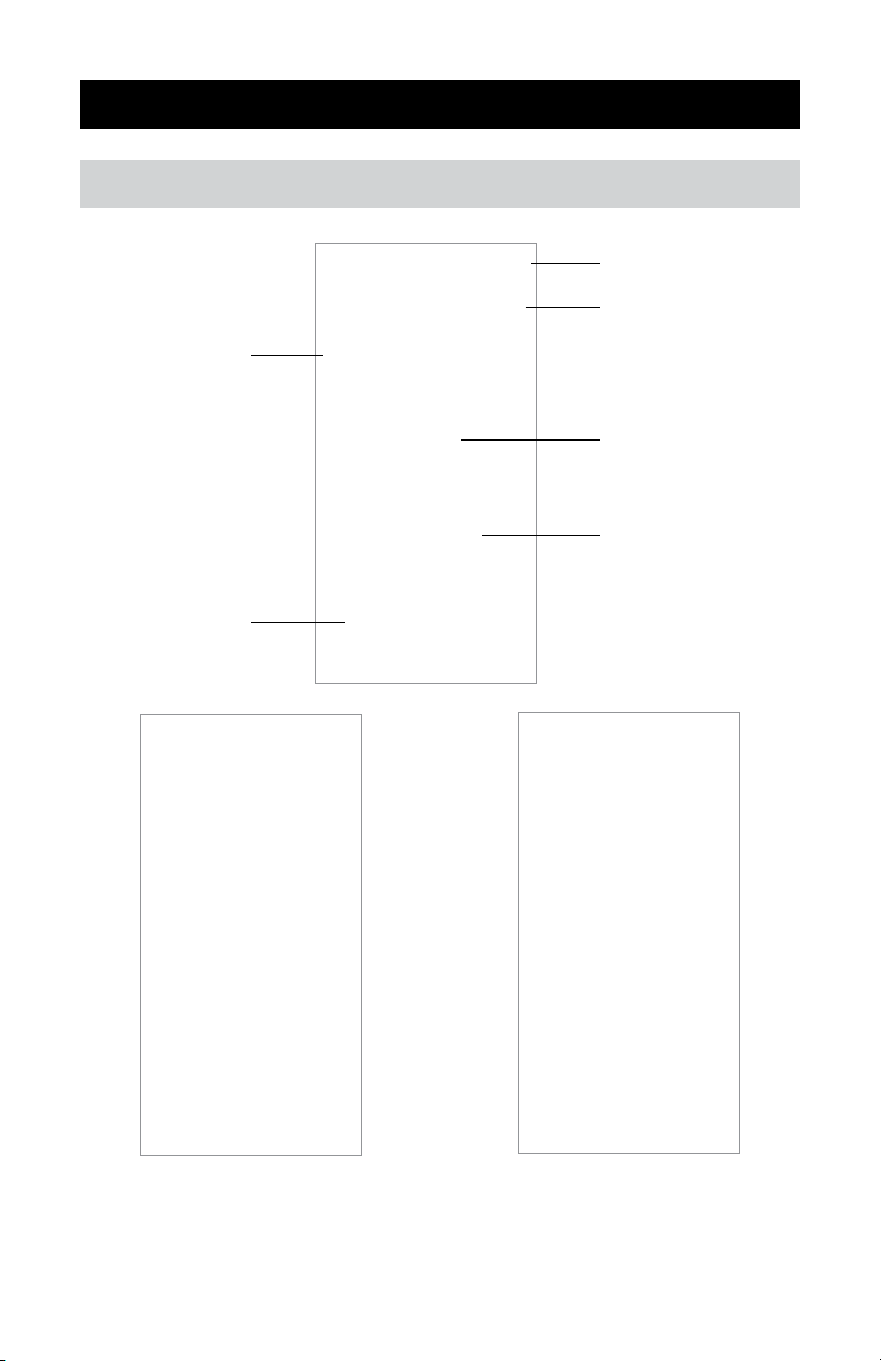
Snow Melting Control
tekmar 670 and 671
Information tabs
Manual start and
stop melting
Device Settings
Slab temperature
Melting temperature
Melt time remaining
View current status of all sensors. Tap Usage to view the weekly or
monthly equipment run time.
22
Snow Melting Control - Device Settings
Enter the settings for your
temperature setpoints, shutdown
setpoints, run times, and
temperature preference units.
Scroll down to view all the
settings. Tap “Save” button
for the settings to take effect.
23
Technical Data
Communications Wi-Fi 802.11n, 2.4 GHz, WPA2 encryption
Mobile app Apple iOS 12 or higher, Android 10 or higher

Need help? Go to our website or contact us.
Watts.com/support/WattsHome
tekmarControls.com | tekmar.customerservice@wattswater.com | 1-800-438-3903
SunTouch.com | [email protected] | 1-888-432-8932
USA: T: (978) 689-6066 • Watts.com
Canada: T: (888) 208-8927 • Watts.ca
Latin America: T: (52) 55-4122-0138 • Watts.com
IOM-WattsHome 2441 81021133
©2024 Watts