Multimedia Home Entertainment
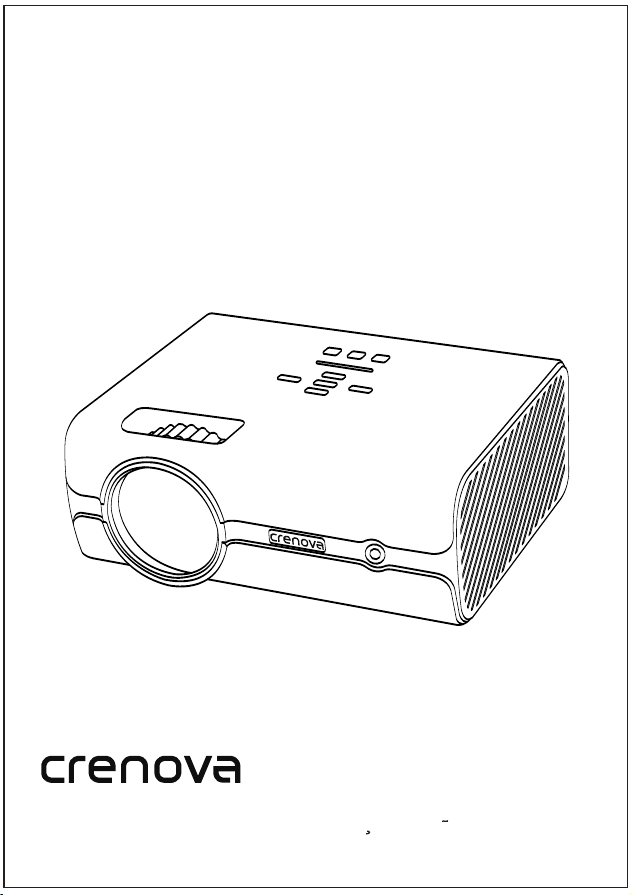
Video Projector
Quick User Guide-XPE496
To ensure safe and proper use, please read this instruction before operating the product.
English
Deutsch
Francais
Espanol
Italiano 日本語
Contents
English
Deutsch
Francais
Espanol
Italiano
XXXXXX
XXXXXX
XXXXXX
XXXXXX
XXXXXX
日本 語 XXXXXX
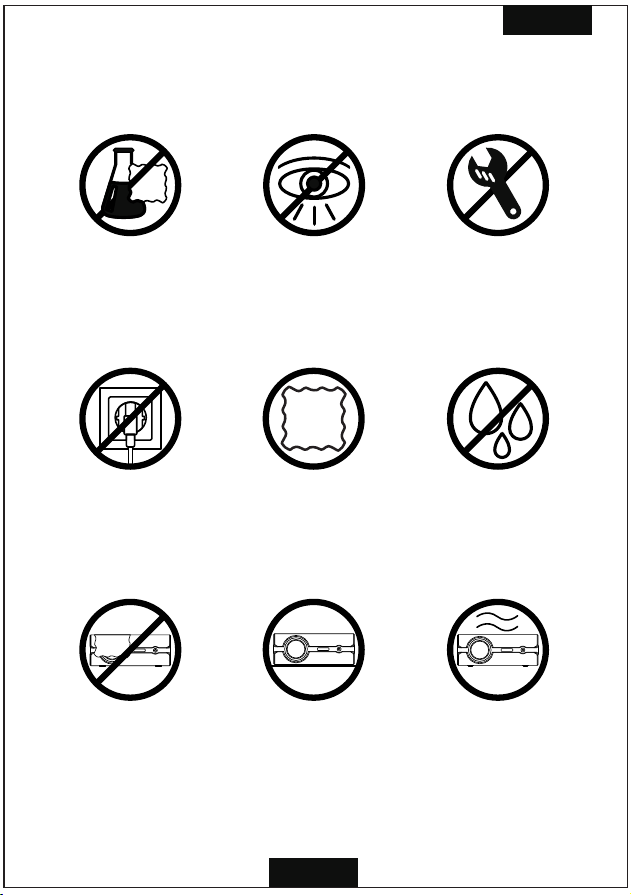
Important Safety Instructions
•Don't use chemical
detergents to clean
•Don't look directly
into the light
•Don't disassemble
the projector
•Unplug the projector
after shutdown
•Don't use the projector
near water or moisture
•Don't block any
ventilation openings
•Place the projector
on a flat surface
•Use a soft and dry
cloth for cleaning
•Use in a well-
ventilated area
English
1
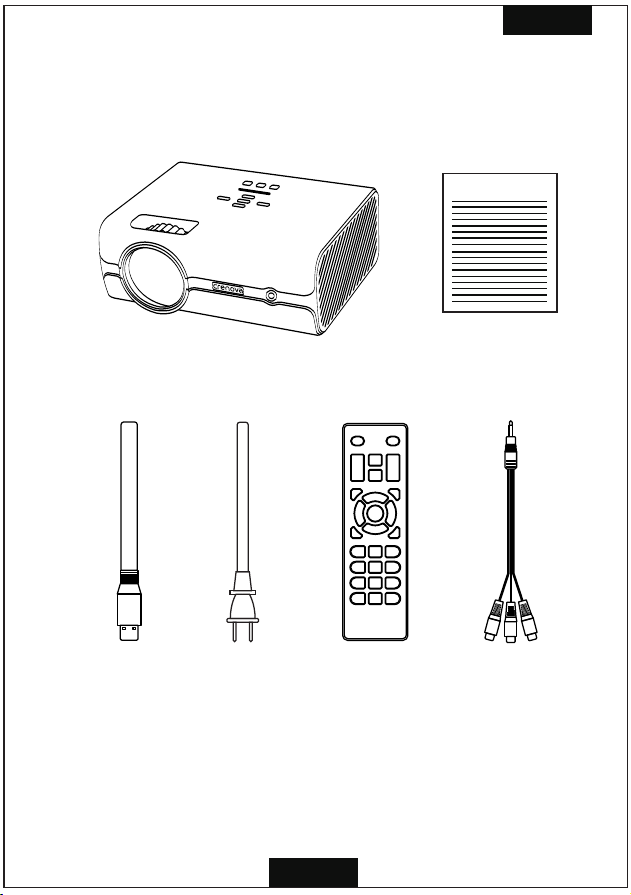
Box Contents
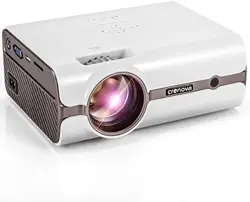
crenova XPE496 projector
Note: Adjust the focus ring and the keystone ring
before using the projector. Turn off this product
when not in use to prolong the life of the projector.
crenova
XPE 496 Pro jecto r
Instruction manual
Remote control 3-in-1 AV cablePower cord
English
2
HDMI cable
English
3
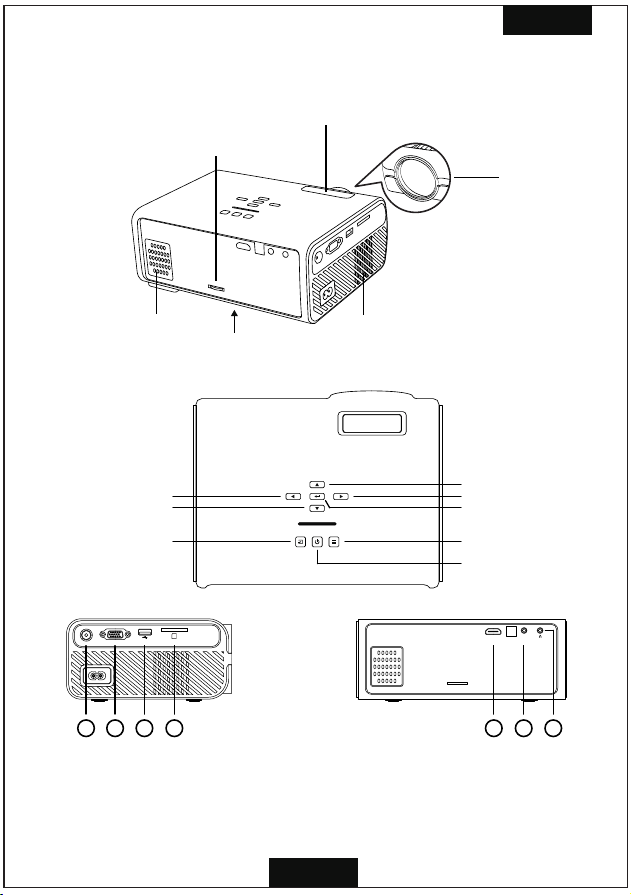
Product Parts
Power Button
1.TV port
4.SD card slot
7.Audio jack
2.VGA port
5.HDMI port
3.USB port
6.AV input port
OK Button
Right
Left
Esc Botton
Play/Pause
Menu Button
Source Button
Lens
TV VGA
HDMI
AV
IR
Keys tone
Focus/Zoom ring
Keystone ring
Air intake port
Air exhaust port
Built-in speaker
1 2 3 4 5 6 7
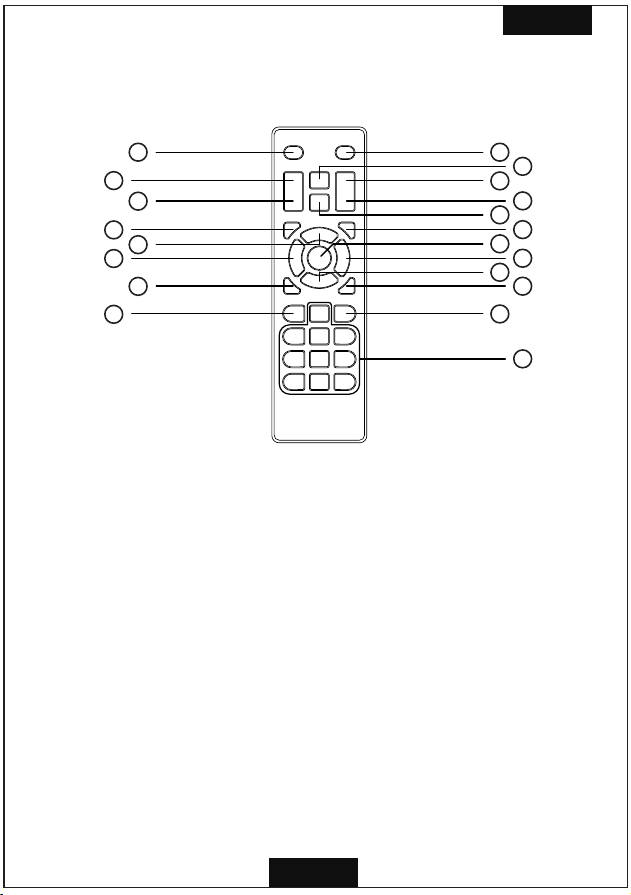
Remote Control
English
4
1. Power button (turns the projector on or off)
2. Mute button (turns off sound)
3. Volume up button (adjusts speaker volume)
4. Fast backward button (fast backwards)
5. Fast forward button (fast forwards)
6. Volume down button (adjusts speaker volume)
7. Play/Pause button (plays/pauses the playing content)
8. Stop button (stops the playing content)
9. SOURCE button (selects the input source)
10. INFO button (operates the information function)
11. ENTER button (selects and confirms options)
12. Up (selects upward movement on the function interface of the menu)
13. Down (selects downward movement on the function interface of the menu)
14. Left (selects leftward movement on the function interface of the menu)
15. Right (selects rightward movement on the function interface of the menu)
16. MENU button (accesses projector menu system)
17. EXIT button (exits from the DTV channel)
18. CH down button (channel down)
19. CH up button (channel up)
20. Numeric buttons (enter numbers)
2
4
5
8
7
10
11
14
15
17
19
20
1
3
6
9
12
13
16
18
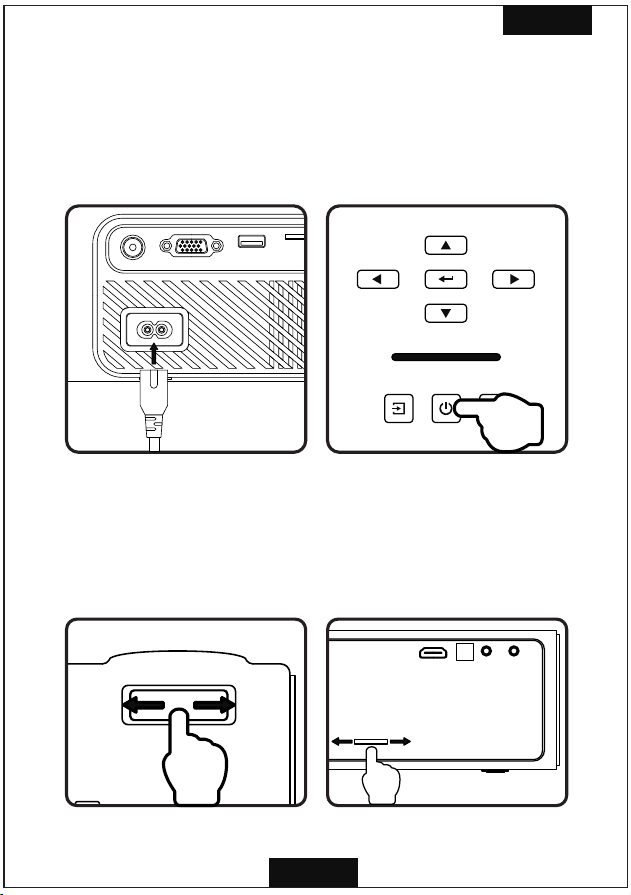
Projector Operations
1. Connect the power cord to the projector's power
inlet, press the Power Button to turn on the projector.
2. Rotate the Focus Ring and the Keystone Correction
simultaneously until to get the clear image.
English
5
HDMI AV
IR
Keystone
English
6
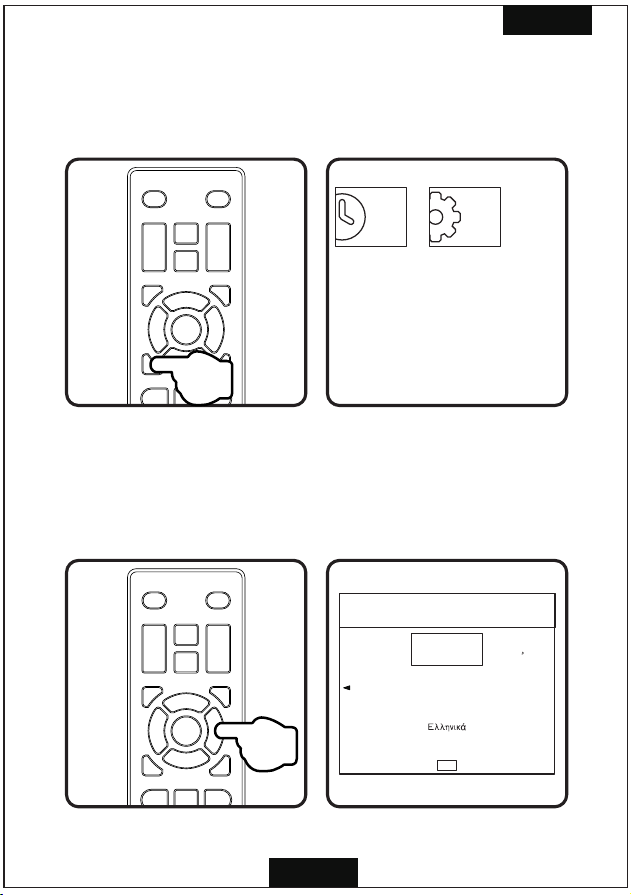
3. Press the Menu Button. Press Left/Right to select
Option. Choose OSD Language under Option.
4. Press Ok to access the submenu of OSD Language
and press UP/Down/Left/Right to select the language.
OPTION
Software Update(USB)
Restore Factory Default
OSD Language English
Color Range 0~255
OsdDuration Off
OSD Language
日本 語
English
FRANCAIS
ESPANOL
Hrvatski
ItalianoDeutsch
Dansk
MEN U
~
English
7
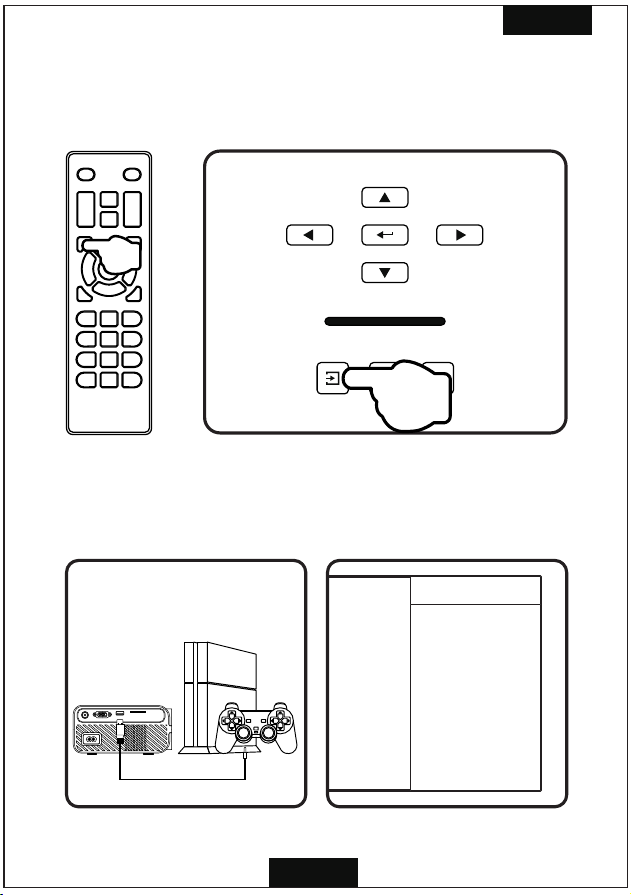
5. To connect a device, press the Input Button or the
Source Button.
6. Select the correct input source and prepare the
cable for device connections if necessary.
Input Source
PC-RGB
HDMI
AV
USB
SD CARD
7
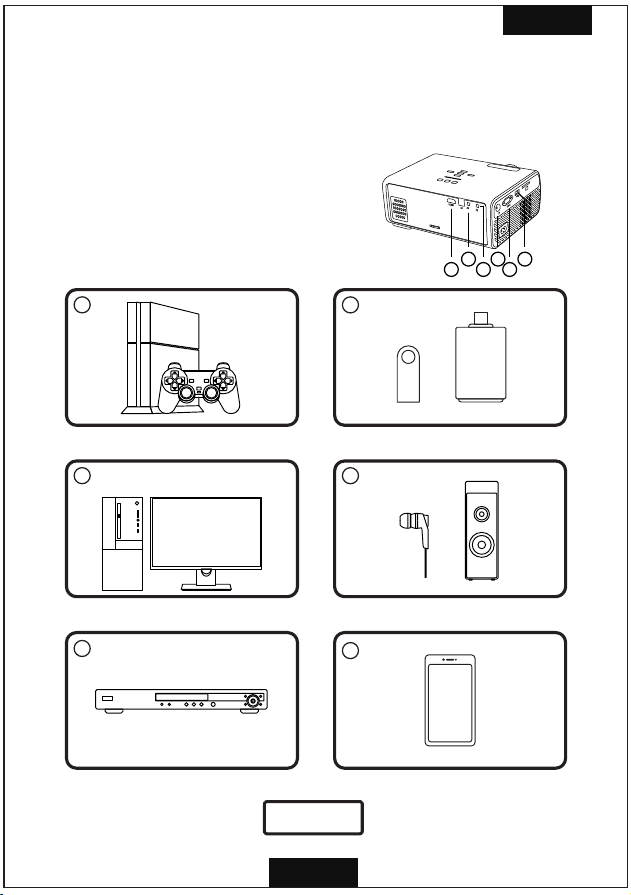
1
2
3
4
5
6
Connect to a HDMI device
Connect to a VGA device
Connect to an AV equipment
Connect to a USB storage device up to 64G
Connect to an audio device
Charge a mobile device
English
8
Enjoy now
Note: Do not hot plug the device,
power off the device before
making any connections.
Flexible Connectivity
1
3
1
6
2
4
7. Connect the projector to your device with the
compatible cable and port.
79
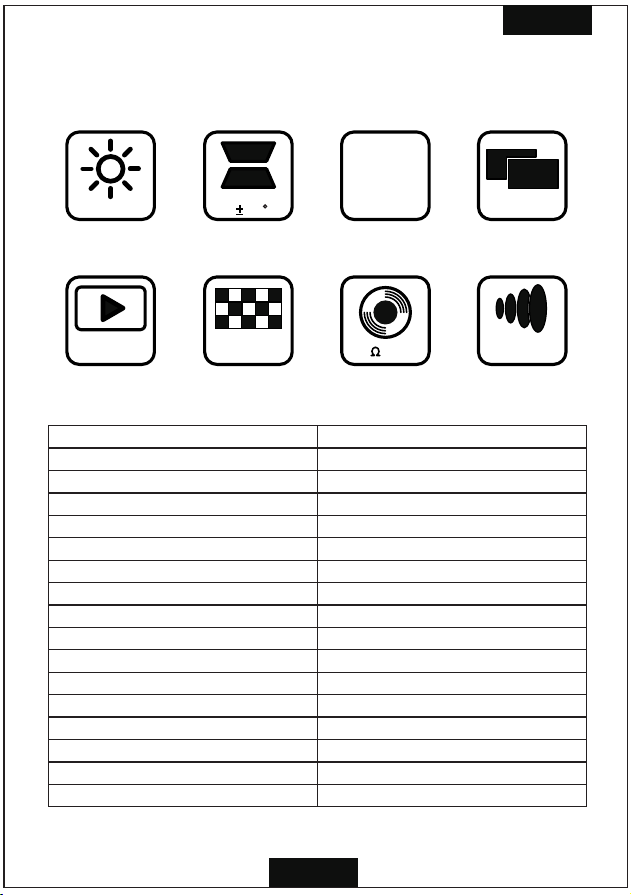
Product Specifications
High Lumens
Full HD
Video
Keystone
15
800x480
pixels
4 2W
Multichip
Coated Lens
23 Languages
LED
Imaging Technology
Native Resolution
TFT LCD
800x480 pixels
1920x1080 pixels
Maximum Supported Resolution
Light
LED
Lens
Multichip Coated Lens(F=125)
Keystone
± 15 ° Correction
Screen Size
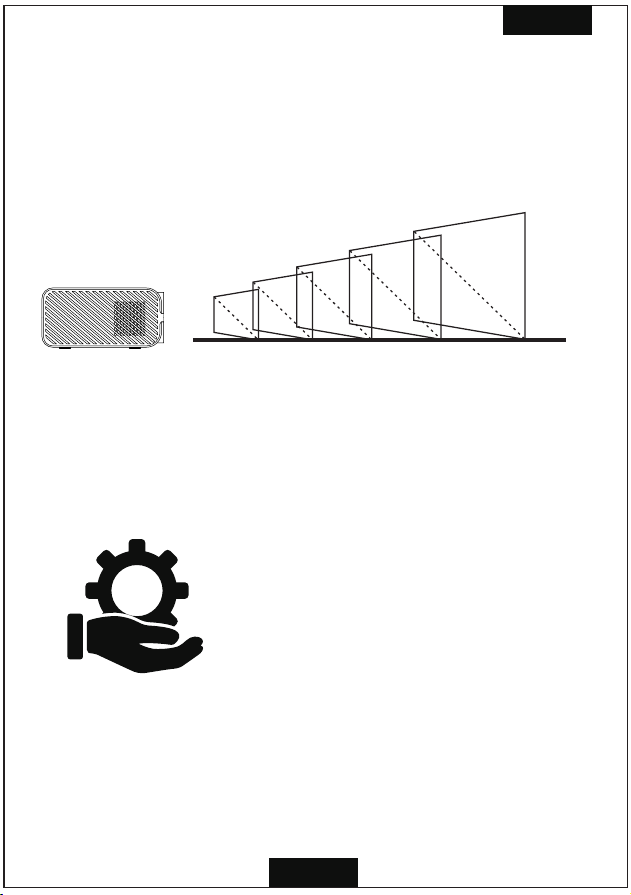
50-130 inches
Projection Distance
1.5-4.0m
Recommended Projection Distance
1.51-2.2m with screen size of 50-72 inches
Projection Ratio
1.4:1
Aspect Ratio
16:10
Color
16.7k
Consumption
Power Supply
Supported Audio Formats
Supported Image Formats
Supported File Format
50W(Max)
100-240V(50/60 Hz)-20V/2A
MP3/WMA/OGG/AAC/FLAC/APE/WAV
PEG/BMP/PNG
TXT
English
English
Warranty
Your projector comes with a free replacement or a full
refund within 1 year that lets your product with confidence.
Projection Distance and Screen Size
10
151 220 284 350 380 (CM)
50
72
100
120
130
"
"
"
"
"
Helpful Tips
11
English
Contact Us
Whether you need further assistance,are looking for answers,
or just want to share your reviews with us,you will find many
ways to contact us right here.
Email:
Contact No.: 1-562-999-4260
Official Homepage:
Or you may scan the code and visit our Facebook below:
https://www.facebook.com/icrenova/
service@crenova.net
www.crenova.net
•The cooling system makes slight noise to avoid overheating.
•Connecting to an external audio device is recommended.
•Business data presentation is not recommended.
•Maximum supported resolution of the projector is 1920x1080 pixels.
•Native resolution of the projector is 800x480 pixels.
•The projector does not support Dolby Vision.
•Mirror a smartphone to the projector with a HDMI/WiFi dongle.
•Please operate the projector in a dark room.