
Model: SLG410
Version: 1.0
Quick Start Guide
WAN LAN WIF I ZIGBE E POWER
Configuring the SLG410 gateway
Connect the power cable to the gateway.
1.
Connect PC with gateway LAN port by network cable and
WAN port with the router, respectively. Both the LAN and WAN
LED will blink on the gateway.
2.
1
Input the default gateway IP address 192.168.82.1 in the web
browser to enter the gateway login page. (Default login
password is admin)
4.
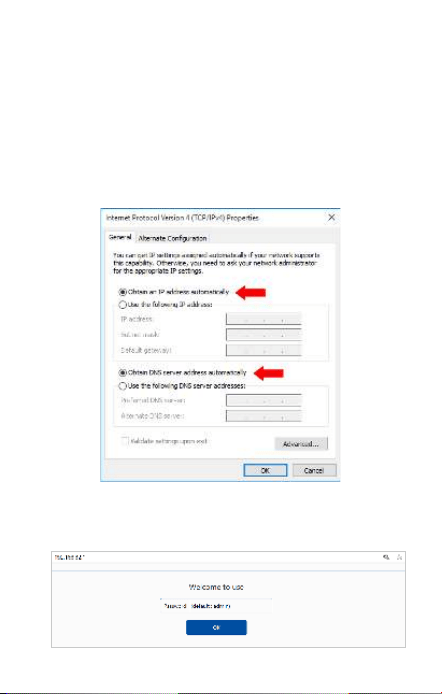
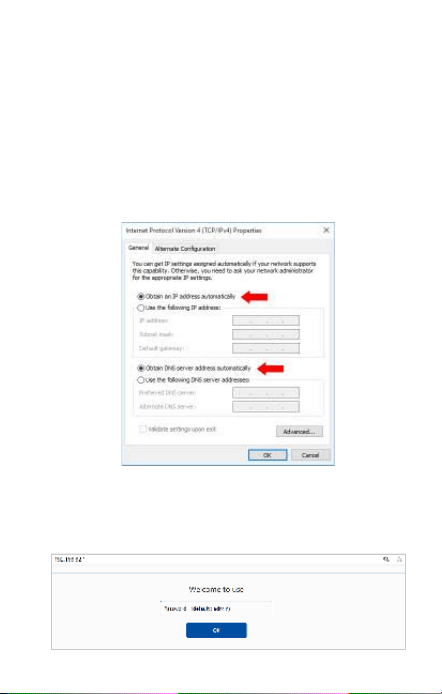
Configure your PC to Obtain an IP address automatically in
TCP/IPv4 setting.
3.
2
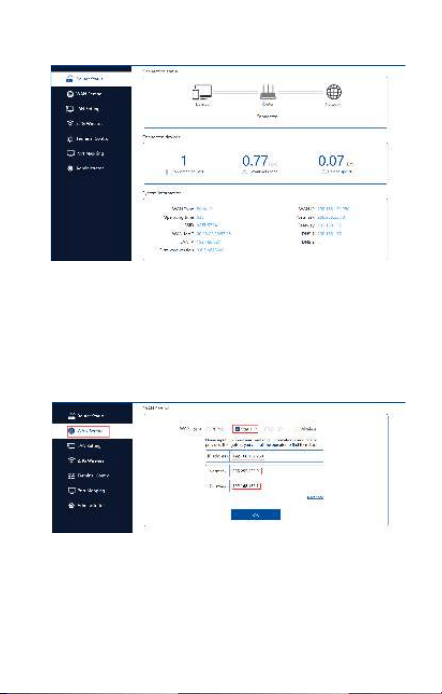
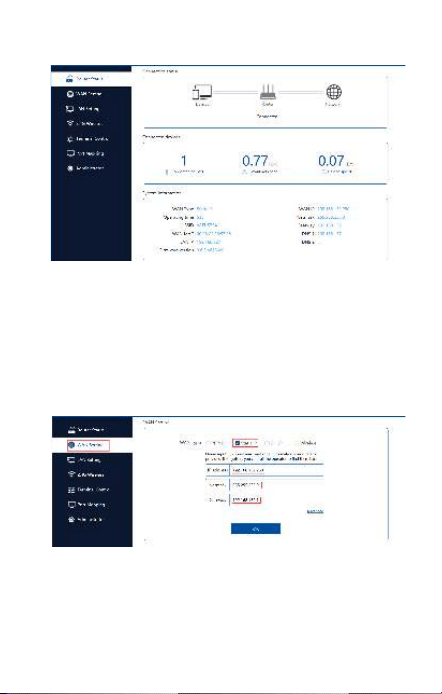
After login, the following page shows up:
5.
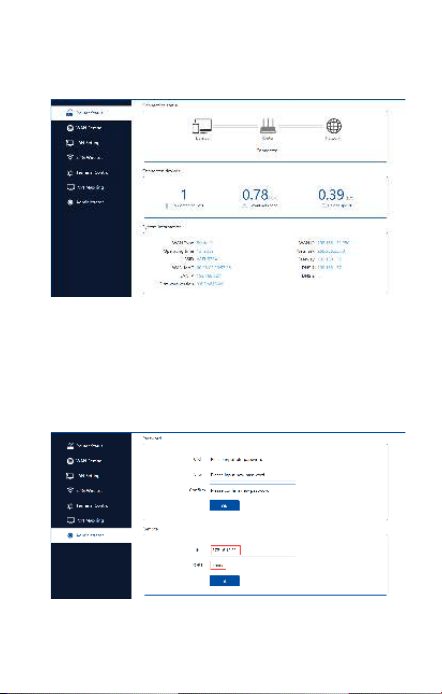
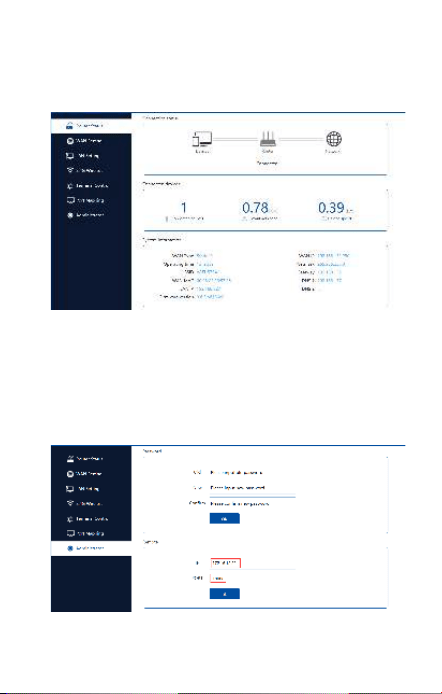
Select the WAN Setting option to configure a network IP to
provide a network to gateway, then follow the step as below:
6.
(1)
Choose the “Static IP” option in WAN Type, then fill out the
appropriate IP address which is able to access internet.
And lick "Netmask" and "Gateway bar", they will fill out
authomatically, if no, please fill out manually. (e.g.
192.168.132.250).
3
Click OK to save. After a successful connection, the
gateway configures automatically, and the Router Status
page changes as shown below.
(2)
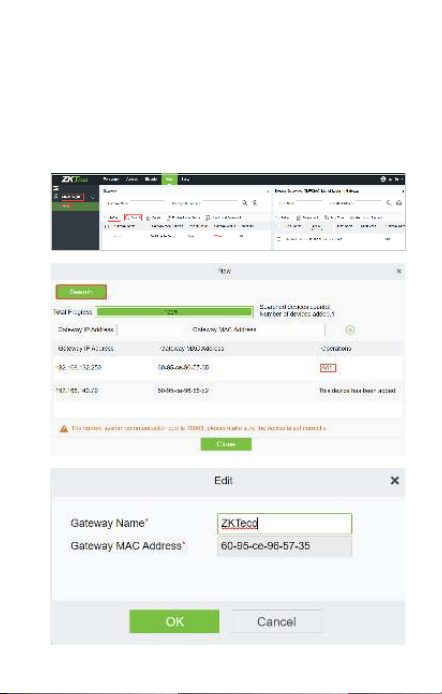
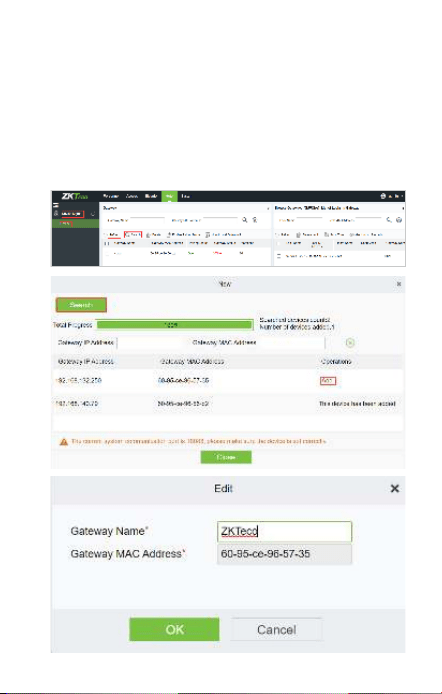
Select Administrator option, to configure Remote IP and
server port.
7.
(1)
Click OK to save and it will remind success.
(2)
The IP is the local IP address of client’s PC in which the
ZKBioHLMS software is installed. The server port is 18088
by default.
4
Login to the ZKBioHLMS to add the gateway to the platform.
8.
Click Hotel->Device Mgnt->Device->Search.
(1)
Click Search button to search the gateway and add the
configured one.
(2)
Edit the Gateway Name and click OK. Then click Refresh,
the gateway will appear on the page.
(3)

Modelo: SLG410
Versión: 1.0
WAN LAN WIF I ZIGBE E POWER
Guía Rápida
Conecte el cable de alimentación al Gateway.
1.
Conecte la PC con el puerto LAN del Gateway mediante un
cable de red y el puer to WAN con el enruta dor,
respectivamente. Tanto los LED's LAN como el WAN
parpadearán en el Gateway.
2.
1
Ingrese la dirección IP predeterminada del Gateway
192.168.82.1 en el navegador web para ingresar a la página
de inicio de sesión del Gateway. (La contraseña de inicio de
sesión predeterminada es admin).
4.
Configure su PC par a ob tene r un a di rección IP
automáticamente en la configuración TCP/IPv4.
3.
Configurar el Gateway SLG410
2
Después de iniciar sesión, aparece la siguiente página:
5.
Seleccione la opción Configuración WAN para configurar una
red IP y proporcionar una red al Gateway, luego siga el paso
que se indica a continuación:
6.
(1)
Elija la opción "IP estática" en Tipo WAN, luego complete
la dirección IP apropiada que puede acceder a Internet.
Llene la "Máscara de red" y "Dirección del Gateway", se
completarán automáticamente, si no, complete
manualmente. (por ejemplo, 192.168.132.250).
3
Haga clic en OK para guardar. Después de una conexión
exitosa, el Gateway se configura automáticamente y la
página de estado del enrutador cambia como se
muestra a continuación.
(2)
Seleccione la opción Administrador para configurar la IP
remota y el puerto del servidor.
7.
(1)
Haga clic en OK para guardar y le recordará el éxito.
(2)
La IP es la dirección IP local de la PC del cliente en la que
está instalado el software ZKBioHLMS. El puerto del
servidor es 18088 por defecto.
4
Inicie sesión en ZKBioHLMS para agregar el Gateway a la
plataforma.
8.
Haga clic en Hotel -> Device Mgnt -> Device -> Search.
(1)
Haga clic en el botón Buscar para encontrar el Gateway y
agregar el configurado.
(2)
Edite el nombre del Gateway y haga clic en OK. Luego
haga clic en Actualizar, el Gateway aparecerá en la página.
(3)

ZKTeco Industrial Park, No. 32, Industrial Road,
Tangxia Town, Dongguan, China.
Phone : +86 769 - 82109991
Fax : +86 755 - 89602394
www.zkteco.com
Copyright © 2020 ZKTECO CO., LTD. All Rights Reserved.






