Product Name and Model Number User Manual
Page | 1 Copyright©2020 ZKTECO CO., LTD. All rights reserved.
Thank you for choosing our product. Please read the instructions carefully
before operation. Follow these instructions to ensure that the product is
functioning properly. The images shown in this manual are for illustrative
purposes only.
For further details, please visit our Company’s website
www.zkteco.com
.
User Manual
ProMA Series (ZAM230)
Date: January 2026
Doc Version: 1.0
English

ProMA Series (ZAM230) User Manual
Page | 1 Copyright©2026 ZKTECO CO., LTD. All rights reserved.
Copyright © 2026 ZKTECO CO., LTD. All rights reserved.
Without the prior written consent of ZKTeco, no portion of this manual can be copied or forwarded in any
way or form. All parts of this manual belong to ZKTeco and its subsidiaries (hereinafter the "Company" or
"ZKTeco").
Trademark
is a registered trademark of ZKTeco. Other trademarks involved in this manual are owned by
their respective owners.
Disclaimer
This manual contains information on the operation and maintenance of the ZKTeco equipment. The
copyright in all the documents, drawings, etc. in relation to the ZKTeco supplied equipment vests in and is
the property of ZKTeco. The contents hereof should not be used or shared by the receiver with any third
party without express written permission of ZKTeco.
The contents of this manual must be read as a whole before starting the operation and maintenance of the
supplied equipment. If any of the content(s) of the manual seems unclear or incomplete, please contact
ZKTeco before starting the operation and maintenance of the said equipment.
It is an essential pre-requisite for the satisfactory operation and maintenance that the operating and
maintenance personnel are fully familiar with the design and that the said personnel have received
thorough training in operating and maintaining the machine/unit/equipment. It is further essential for the
safe operation of the machine/unit/equipment that personnel has read, understood and followed the
safety instructions contained in the manual.
In case of any conflict between terms and conditions of this manual and the contract specifications,
drawings, instruction sheets or any other contract-related documents, the contract conditions/documents
shall prevail. The contract specific conditions/documents shall apply in priority.
ZKTeco offers no warranty, guarantee or representation regarding the completeness of any information
contained in this manual or any of the amendments made thereto. ZKTeco does not extend the warranty
of any kind, including, without limitation, any warranty of design, merchantability or fitness for a particular
purpose.
ZKTeco does not assume responsibility for any errors or omissions in the information or documents which
are referenced by or linked to this manual. The entire risk as to the results and performance obtained from
using the information is assumed by the user.
ZKTeco in no event shall be liable to the user or any third party for any incidental, consequential, indirect,
special, or exemplary damages, including, without limitation, loss of business, loss of profits, business
interruption, loss of business information or any pecuniary loss, arising out of, in connection with, or

ProMA Series (ZAM230) User Manual
Page | 2 Copyright©2026 ZKTECO CO., LTD. All rights reserved.
relating to the use of the information contained in or referenced by this manual, even if ZKTeco has been
advised of the possibility of such damages.
This manual and the information contained therein may include technical, other inaccuracies or
typographical errors. ZKTeco periodically changes the information herein which will be incorporated into
new additions/amendments to the manual. ZKTeco reserves the right to add, delete, amend or modify the
information contained in the manual from time to time in the form of circulars, letters, notes, etc. for better
operation and safety of the machine/unit/equipment. The said additions or amendments are meant for
improvement /better operations of the machine/unit/equipment and such amendments shall not give any
right to claim any compensation or damages under any circumstances.
ZKTeco shall in no way be responsible (i) in case the machine/unit/equipment malfunctions due to any
non-compliance of the instructions contained in this manual (ii) in case of operation of the
machine/unit/equipment beyond the rate limits (iii) in case of operation of the machine and equipment in
conditions different from the prescribed conditions of the manual.
The product will be updated from time to time without prior notice. The latest operation procedures and
relevant documents are available on http://www.zkteco.com
If there is any issue related to the product, please contact us.
ZKTeco Headquarters
Address ZKTeco Industrial Park, No. 32, Industrial Road,
Tangxia Town, Dongguan, China.
Phone +86 769 - 82109991
Fax +86 755 - 89602394
For business related queries, please write to us at: sales@zkteco.com
.
To know more about our global branches, visit www.zkteco.com.

ProMA Series (ZAM230) User Manual
Page | 3 Copyright©2026 ZKTECO CO., LTD. All rights reserved.
About the Company
ZKTeco is one of the world’s largest manufacturer of RFID and Biometric (Fingerprint, Facial, Finger-vein)
readers. Product offerings include Access Control readers and panels, Near & Far-range Facial Recognition
Cameras, Elevator/floor access controllers, Turnstiles, License Plate Recognition (LPR) gate controllers and
Consumer products including battery-operated fingerprint and face-reader Door Locks. Our security
solutions are multi-lingual and localized in over 18 different languages. At the ZKTeco state-of-the-art
700,000 square foot ISO9001-certified manufacturing facility, we control manufacturing, product design,
component assembly, and logistics/shipping, all under one roof.
The founders of ZKTeco have been determined for independent research and development of biometric
verification procedures and the productization of biometric verification SDK, which was initially widely
applied in PC security and identity authentication fields. With the continuous enhancement of the
development and plenty of market applications, the team has gradually constructed an identity
authentication ecosystem and smart security ecosystem, which are based on biometric verification
techniques. With years of experience in the industrialization of biometric verifications, ZKTeco was
officially established in 2007 and now has been one of the globally leading enterprises in the biometric
verification industry owning various patents and being selected as the National High-tech Enterprise for 6
consecutive years. Its products are protected by intellectual property rights.
About the Manual
This manual introduces the operations of the ProMA Series.
All figures displayed are for illustration purposes only. Figures in this manual may not be exactly consistent
with the actual products.
Features and parameters with
★ are not available in all devices.
ProMA Series (ZAM230) User Manual
Page | 4 Copyright©2026 ZKTECO CO., LTD. All rights reserved.
Document Conventions
Conventions used in this manual are listed below:
GUI Conventions
For Software
Convention Description
Bold font Used to identify software interface names e.g. OK, Confirm, Cancel.
>
Multi-level menus are separated by these brackets. For example, File > Create >
Folder.
For Device
Convention Description
< >
Button or key names for devices. For example, press <OK>.
[ ]
Window names, menu items, data table, and field names are inside square
brackets. For example, pop up the [New User] window.
/
Multi-
level menus are separated by forwarding slashes. For example,
[File/Create/Folder].
Symbols
Convention Description
This represents a note that needs to pay more attention to.
The general information which helps in performing the operations faster.
The information which is significant.
Care taken to avoid danger or mistakes.
The statement or event that warns of something or that serves as a cautionary
example.

ProMA Series (ZAM230) User Manual
Page | 5 Copyright©2026 ZKTECO CO., LTD. All rights reserved.
Table of Contents
1 INSTRUCTION FOR USE ....................................................................................................................... 8
How to scan the QR code? ★........................................................................................................................................................... 8 1.1
Standing Position, Posture and Facial Expression .................................................................................................................... 8 1.2
Face Template Registration .............................................................................................................................................................. 9 1.3
Finger Placement★ ......................................................................................................................................................................... 10 1.4
2 APPEARANCE ..................................................................................................................................... 11
ProMA-QR ............................................................................................................................................................................................ 11 2.1
ProMA ................................................................................................................................................................................................... 12 2.2
ProMA-RF ............................................................................................................................................................................................. 13 2.3
Terminal and Wiring Description ................................................................................................................................................. 14 2.4
2.4.1 Terminal Description ........................................................................................................................................................................................ 14
Wiring Description ............................................................................................................................................................................ 15 2.5
2.5.1 Power Connection ............................................................................................................................................................................................. 15
2.5.2 Ethernet Connection ........................................................................................................................................................................................ 15
2.5.3 Door Sensor, Exit Button, Alarm and Auxiliary Connection ............................................................................................................... 16
2.5.4 Lock Relay Connection .................................................................................................................................................................................... 16
2.5.5 Wiegand Connection ....................................................................................................................................................................................... 17
2.5.6 RS485 Connection ............................................................................................................................................................................................. 17
3 INSTALLATION ................................................................................................................................... 18
Installation Environment ................................................................................................................................................................ 18 3.1
Device Installation ............................................................................................................................................................................ 18 3.2
4 STANDBY INTERFACE ........................................................................................................................ 20
5 VERIFICATION MODE ........................................................................................................................ 21
QR Code Verification★ ................................................................................................................................................................... 21 5.1
Facial Verification .............................................................................................................................................................................. 21 5.2
Card Verification ................................................................................................................................................................................ 22 5.3
Fingerprint Verification★ .............................................................................................................................................................. 22 5.4
Combined Verification .................................................................................................................................................................... 23 5.5
6 LOGIN WEBSERVER ........................................................................................................................... 25
7 FORGOT PASSWORD ......................................................................................................................... 27
8 DASHBOARD ...................................................................................................................................... 30
9 SYSTEM INFORMATION..................................................................................................................... 31
10 USER MANAGEMENT ..................................................................................................................... 33
User Registration ............................................................................................................................................................................... 33 10.1
10.1.1 Basic Information ............................................................................................................................................................................................... 33
10.1.2 Online Registration ........................................................................................................................................................................................... 34
Search for Users ................................................................................................................................................................................. 37 10.2

ProMA Series (ZAM230) User Manual
Page | 6 Copyright©2026 ZKTECO CO., LTD. All rights reserved.
Edit User ............................................................................................................................................................................................... 37 10.3
Delete User .......................................................................................................................................................................................... 38 10.4
11 COMMUNICATION SETTINGS ........................................................................................................ 39
Network Settings ............................................................................................................................................................................... 39 11.1
Connection Settings ......................................................................................................................................................................... 40 11.2
Cloud Service Setup ......................................................................................................................................................................... 40 11.3
Serial Comm ........................................................................................................................................................................................ 41 11.4
Wiegand Setup .................................................................................................................................................................................. 42 11.5
12 PERSONALIZE ................................................................................................................................. 45
User Interface ..................................................................................................................................................................................... 45 12.1
Voice ...................................................................................................................................................................................................... 46 12.2
13 SYSTEM........................................................................................................................................... 47
Date Setup ........................................................................................................................................................................................... 47 13.1
Face Parameters ................................................................................................................................................................................ 47 13.2
Fingerprint★ ...................................................................................................................................................................................... 49 13.3
Device Type Settings ........................................................................................................................................................................ 51 13.4
Access Control Options ................................................................................................................................................................... 51 13.5
Access Logs Settings ........................................................................................................................................................................ 54 13.6
Security Settings ................................................................................................................................................................................ 55 13.7
Restore .................................................................................................................................................................................................. 56 13.8
Restart ................................................................................................................................................................................................... 56 13.9
14 INTERCOM ...................................................................................................................................... 57
SIP Settings .......................................................................................................................................................................................... 57 14.1
14.1.1 Local Settings ...................................................................................................................................................................................................... 57
14.1.2 Audio Options ..................................................................................................................................................................................................... 59
14.1.3 Video Options ..................................................................................................................................................................................................... 60
14.1.4 Call Options ......................................................................................................................................................................................................... 61
14.1.5 Contact List .......................................................................................................................................................................................................... 62
14.1.6 Calling Shortcut Settings ................................................................................................................................................................................ 63
14.1.7 Advanced Settings ............................................................................................................................................................................................ 64
Doorbell Setting ................................................................................................................................................................................ 65 14.2
ONVIF Settings ................................................................................................................................................................................... 66 14.3
15 DEVICE MANAGEMENT ................................................................................................................. 69
Device Data Management ............................................................................................................................................................. 69 15.1
Autotest ................................................................................................................................................................................................ 70 15.2
15.2.1 Test Face ............................................................................................................................................................................................................... 70
15.2.2 Test Fingerprint Sensor ................................................................................................................................................................................... 71
Update Firmware .............................................................................................................................................................................. 71 15.3
Change Password .............................................................................................................................................................................. 72 15.4
Operation Log .................................................................................................................................................................................... 73 15.5
Download Firmware Logs .............................................................................................................................................................. 74 15.6

ProMA Series (ZAM230) User Manual
Page | 7 Copyright©2026 ZKTECO CO., LTD. All rights reserved.
16 CONNECT TO ZKBIO CVSECURITY SOFTWARE ............................................................................ 75
Set the Communication Address ................................................................................................................................................. 75 16.1
Add Device on the Software .......................................................................................................................................................... 76 16.2
Add Personnel on the Software ................................................................................................................................................... 77 16.3
Mobile Credential★ ......................................................................................................................................................................... 77 16.4
17 SIP VIDEO INTERCOM .................................................................................................................... 81
Local Area Network Use .................................................................................................................................................................. 81 17.1
SIP Server ............................................................................................................................................................................................. 86 17.2
17.2.1 SIP Server Configuration ................................................................................................................................................................................. 88
17.2.2 Add Device ........................................................................................................................................................................................................... 91
17.2.3 Create Extension Numbers ............................................................................................................................................................................ 92
17.2.4 Contact List .......................................................................................................................................................................................................... 94
17.2.5 Assignment of Extension Numbers and SIP Accounts ......................................................................................................................... 95
17.2.6 PC Client Functionality .................................................................................................................................................................................. 100
17.2.7 Make a Call ......................................................................................................................................................................................................... 103
APPENDIX 1 ............................................................................................................................................. 107
Requirements of Live Collection and Registration of Visible Light Face Templates ............................................................ 107
Requirements for Visible Light Digital Face Template Data ......................................................................................................... 108
APPENDIX 2 ............................................................................................................................................. 109
Privacy Policy ................................................................................................................................................................................................ 109
Eco-friendly Operation .............................................................................................................................................................................. 112
ProMA Series (ZAM230) User Manual
Page | 8 Copyright©2026 ZKTECO CO., LTD. All rights reserved.
1 Instruction for Use
Before getting into the Device features and its functions, it is recommended to be familiar to the below
fundamentals.
How to scan the QR code?
★
1.1
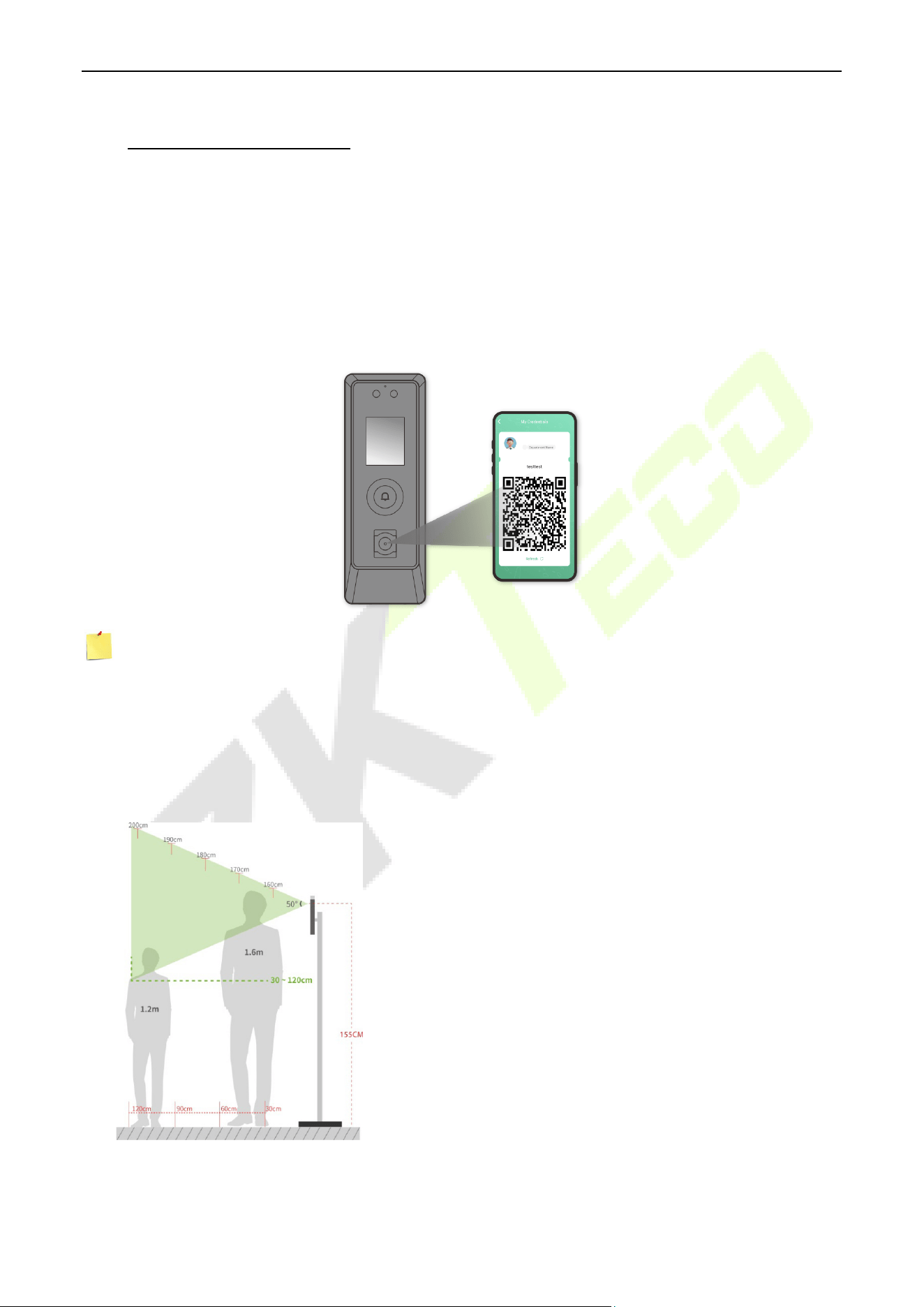
Open the Mobile Credential of ZKBio Zexus App and parallel the phone screen to the device QR code
scanner. (This feature is only available for ProMA-QR.)
Note: Place your phone within 15 to 50cm of the device (distance depends on the size of the phone
screen), do not block the device QR code scanner and QR code in the phone screen.
Standing Position, Posture and Facial Expression 1.2
The recommended distance
The distance between the device and a user whose height is
in a range of 1.55m to 1.85m is recommended to be 0.3 to
2.5m. Users may slightly move forward or backward to
improve the quality of facial images captured.
ProMA Series (ZAM230) User Manual
Page | 9 Copyright©2026 ZKTECO CO., LTD. All rights reserved.
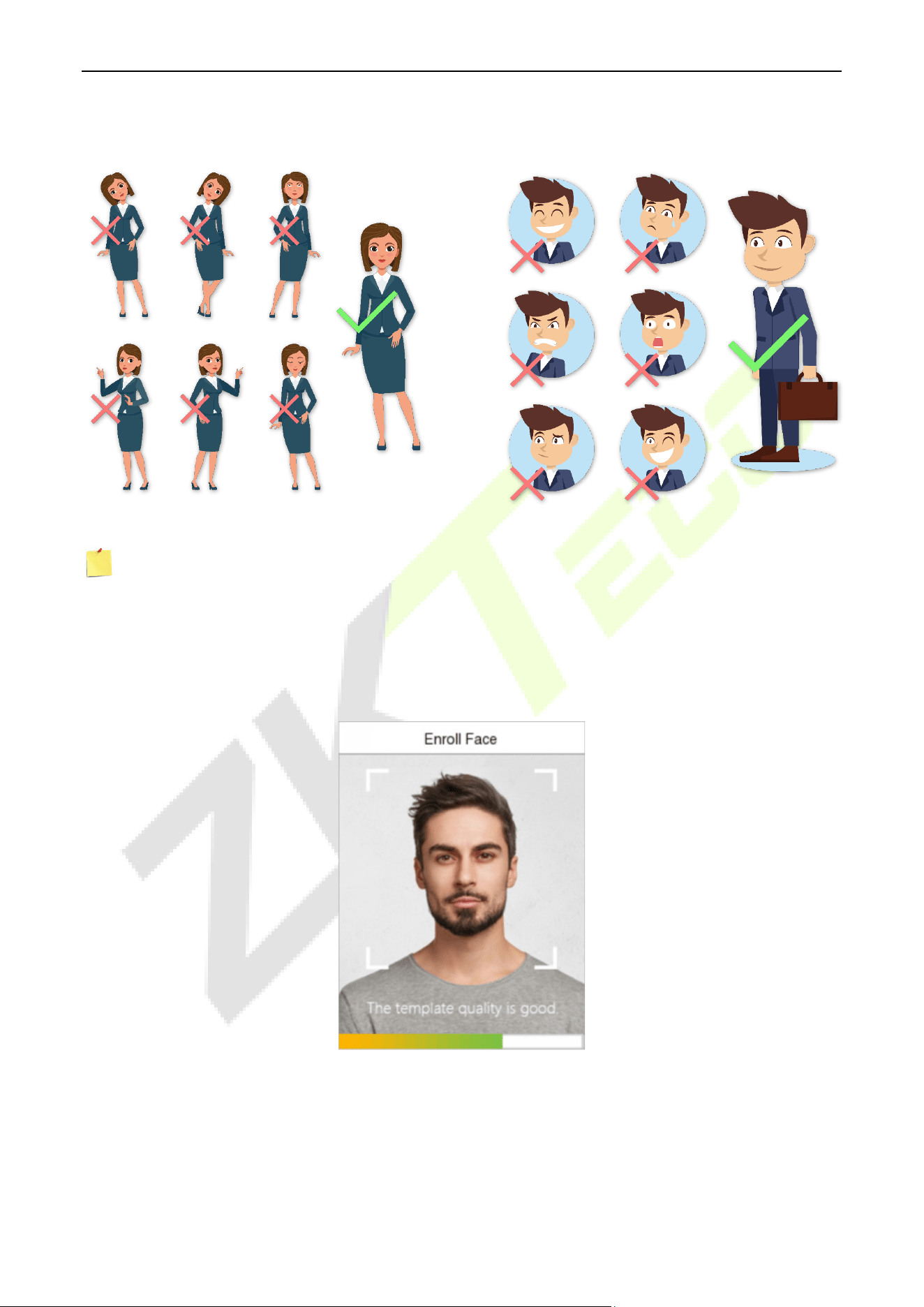
Recommended Standing Posture and Facial Expression
Standing Posture Facial Expression
Note: Please keep your facial expression and standing posture natural while enrolment or verification.
Face Template Registration 1.3
Try to keep the face in the centre of the screen during registration. Please face towards the camera and
stay still during face registration. The screen should look like this:
Correct face template registration and authentication method
Recommendation for registering a face
When registering a face template, maintain a distance of 40cm to 80cm between the device and
the face.
ProMA Series (ZAM230) User Manual
Page | 10 Copyright©2026 ZKTECO CO., LTD. All rights reserved.
Be careful not to change your facial expression. (Smiling face, drawn face, wink, etc.)
If you do not follow the instructions on the screen, the face registration may take longer or
may fail.
Be careful not to cover the eyes or eyebrows.
Do not wear hats, masks, sunglasses, or eyeglasses.
Be careful not to display two faces on the screen. Register one person at a time.
It is recommended for a user wearing glasses to register both faces with and without glasses.
Recommendation for authenticating a face template
Ensure that the face appears inside the guideline displayed on the screen of the device.
If the glasses have been changed, authentication may fail. If the face without glasses has
been registered, authenticate the face without glasses further. If the face with glasses has
been registered, authenticate the face with the previously worn glasses.
If a part of the face is covered with a hat, a mask, an eye patch, or sunglasses, authentication
may fail. Do not cover the face, allow the device to recognize both the eyebrows and the
face.
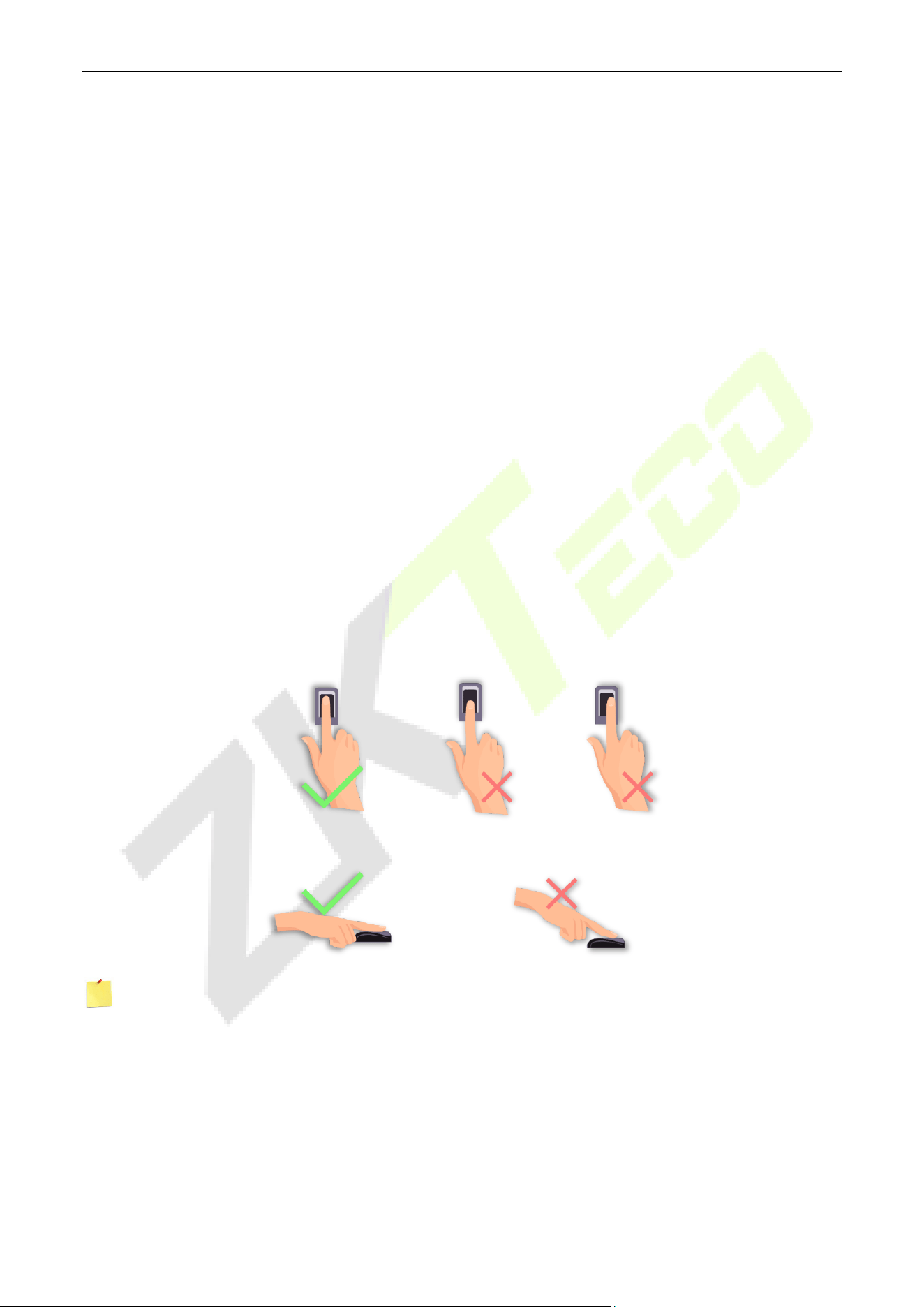
Finger Placement
★
1.4
Recommended fingers: Index, middle, or ring fingers.
Avoid using the thumb or pinky, as they are difficult to accurately tap onto the fingerprint reader.
Note: Please use the correct method when pressing your fingers onto the fingerprint reader for
registration and identification.
ProMA Series (ZAM230) User Manual
Page | 11 Copyright©2026 ZKTECO CO., LTD. All rights reserved.
2 Appearance
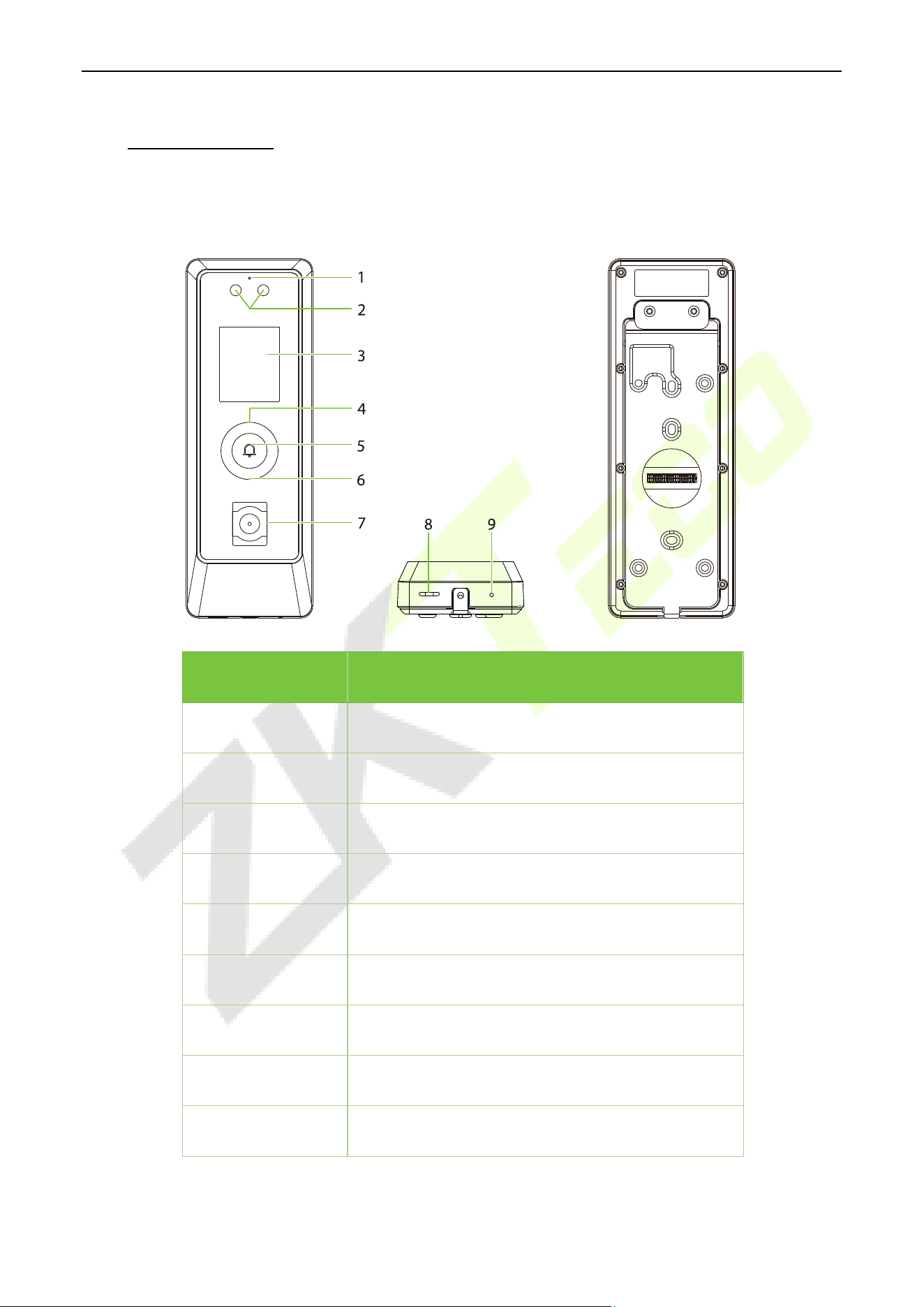
ProMA-QR 2.1
No. Description
1 Microphone
2 Camera
3 2" Display Screen
4 Card Reading Area
5 Doorbell Button
6 Flash
7 QR Code Scanner
8 Speaker
9 Reset Button
ProMA Series (ZAM230) User Manual
Page | 12 Copyright©2026 ZKTECO CO., LTD. All rights reserved.
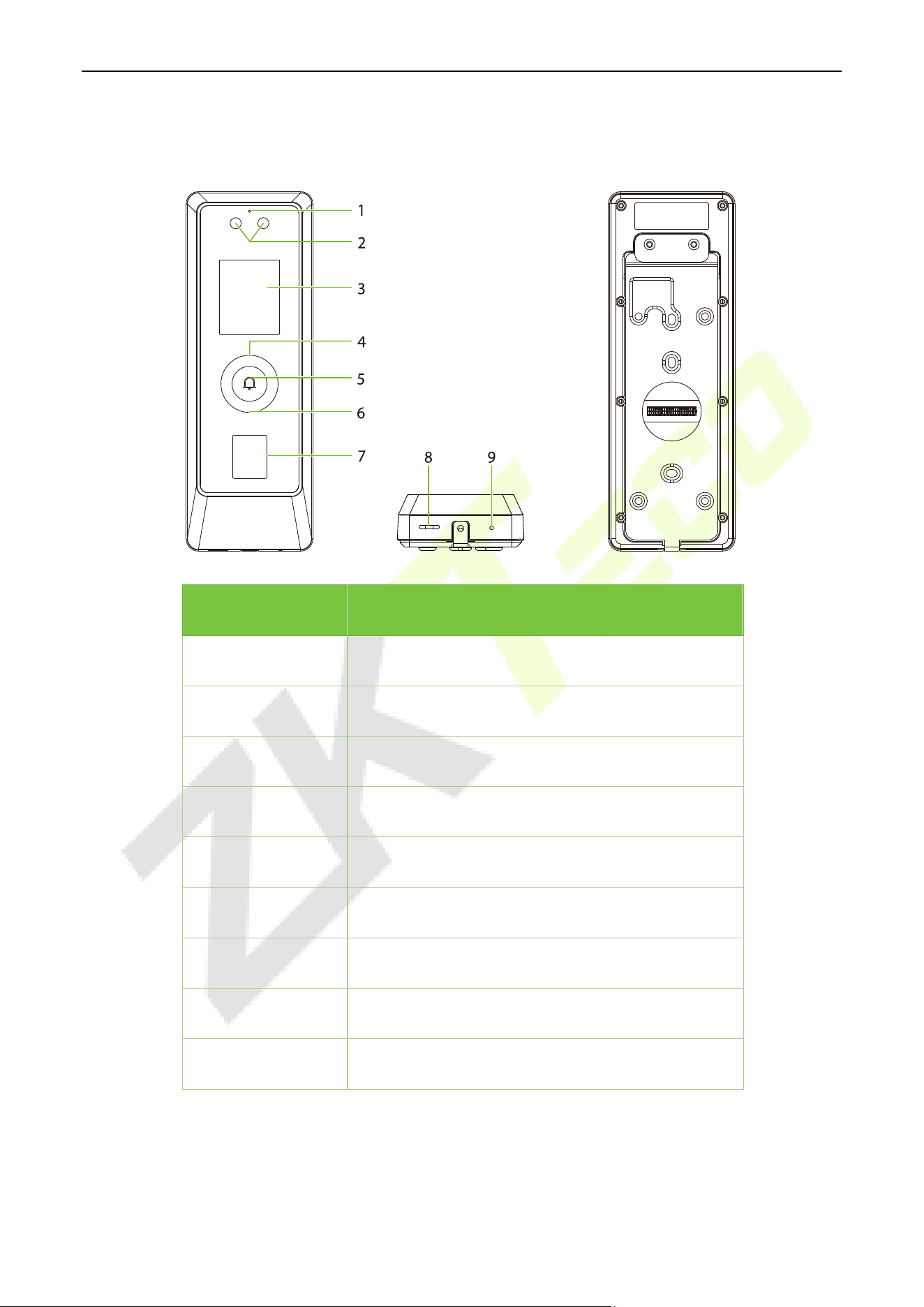
ProMA 2.2
No. Description
1 Microphone
2 Camera
3 2" Display Screen
4 Card Reading Area
5 Doorbell Button
6 Flash
7 Fingerprint Sensor
8 Speaker
9 Reset Button
ProMA Series (ZAM230) User Manual
Page | 13 Copyright©2026 ZKTECO CO., LTD. All rights reserved.
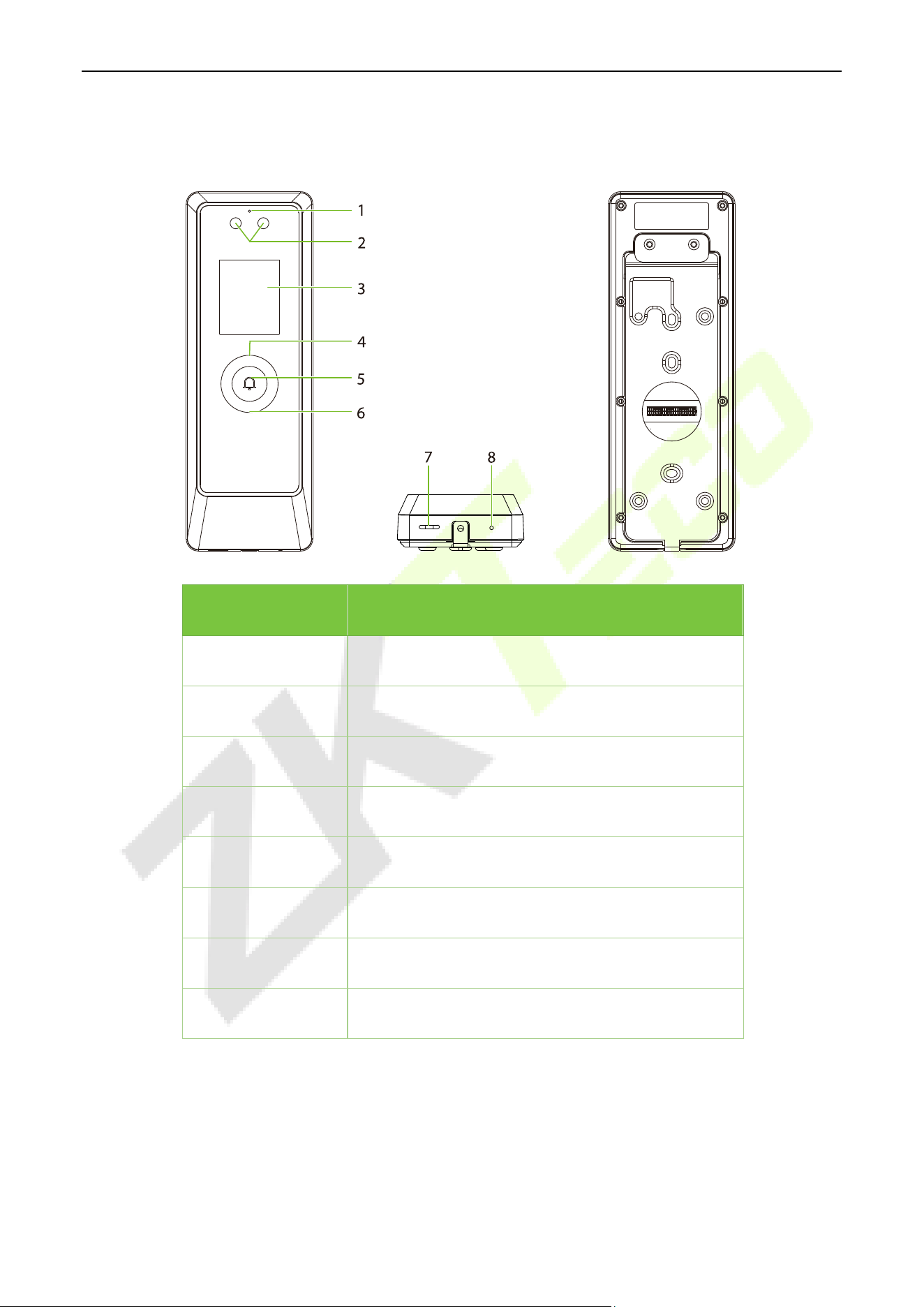
ProMA-RF 2.3
No. Description
1 Microphone
2 Camera
3 2" Display Screen
4 Card Reading Area
5 Doorbell Button
6 Flash
7 Speaker
8 Reset Button
ProMA Series (ZAM230) User Manual
Page | 14 Copyright©2026 ZKTECO CO., LTD. All rights reserved.
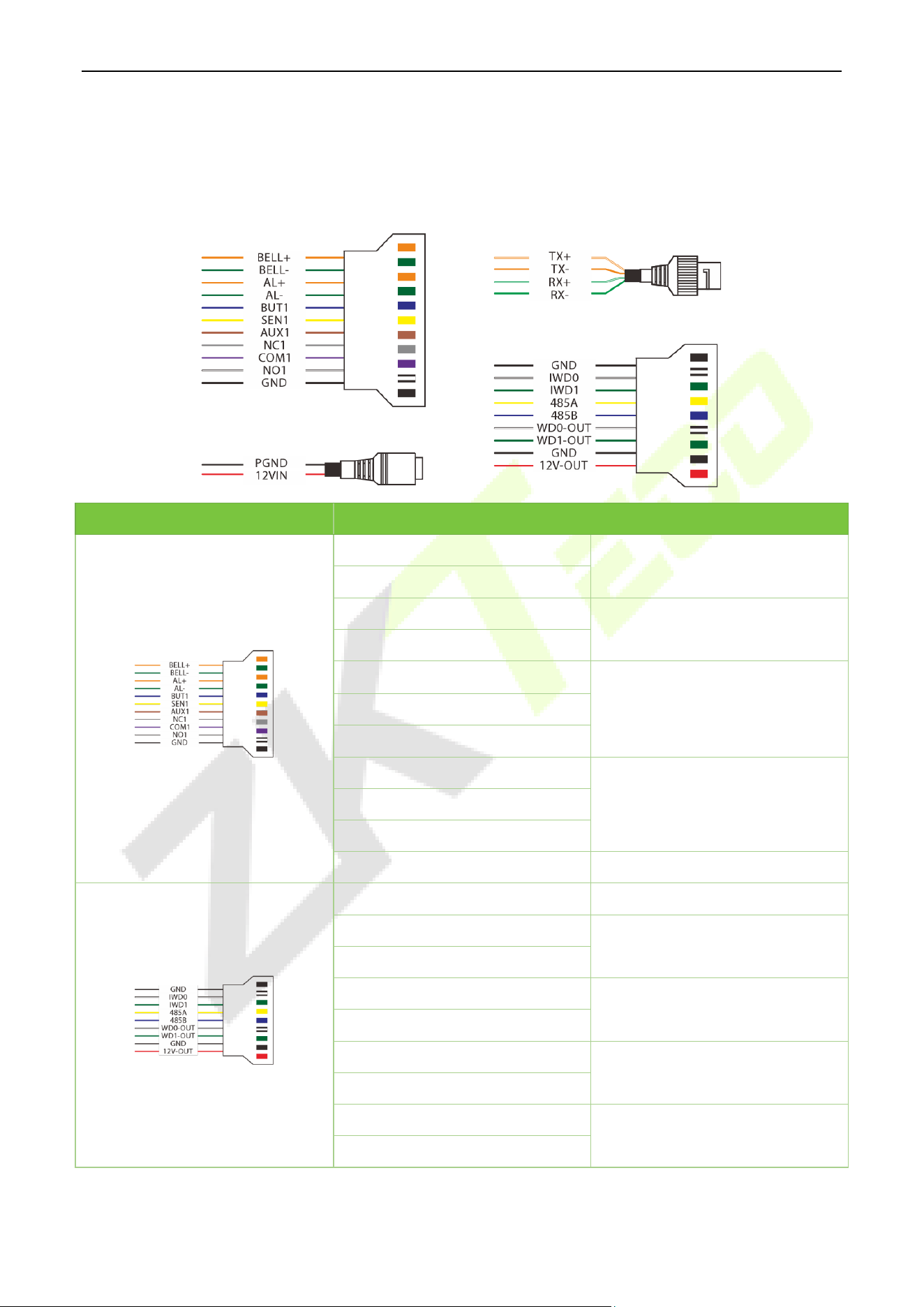
Terminal and Wiring Description 2.4
2.4.1 Terminal Description
Interface Description
BELL+
Bell
BELL-
AL+
Alarm
AL-
BUT1
Sensor / Exit Button /
Auxiliary Input
SEN1
AUX1
NC1
Lock
COM1
NO1
GND
GND
IWD0
Wiegand In
IWD1
485A
RS485
485B
WD0-OUT
Wiegand Out
WD1-OUT
GND
Power Out
12V-OUT
ProMA Series (ZAM230) User Manual
Page | 15 Copyright©2026 ZKTECO CO., LTD. All rights reserved.
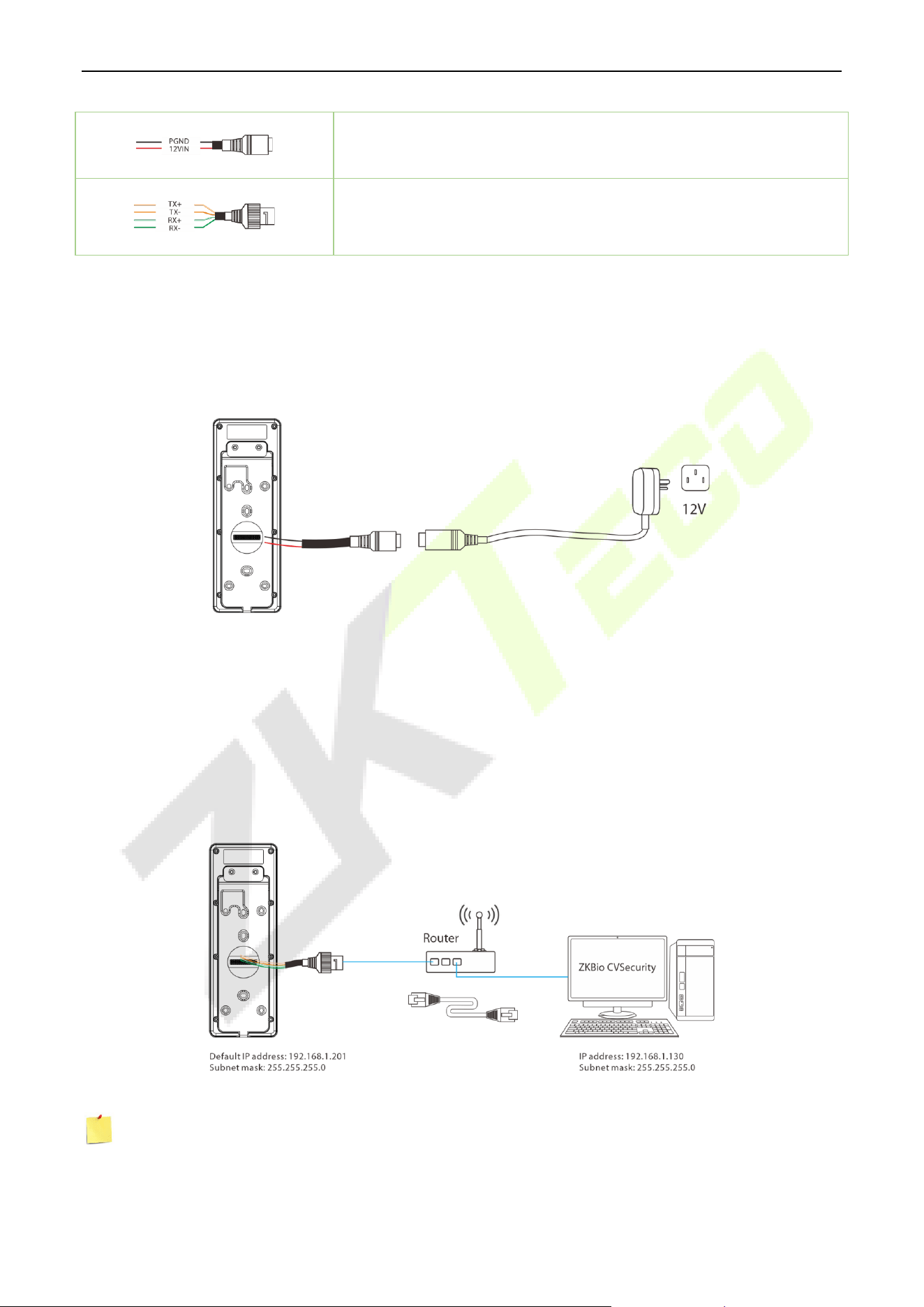
12V Power in
Network Interface
Wiring Description 2.5
2.5.1 Power Connection
Recommended AC Adapter
Rating of 12V and 3A
To share the device’s power with other devices, use a power supply with higher current ratings.
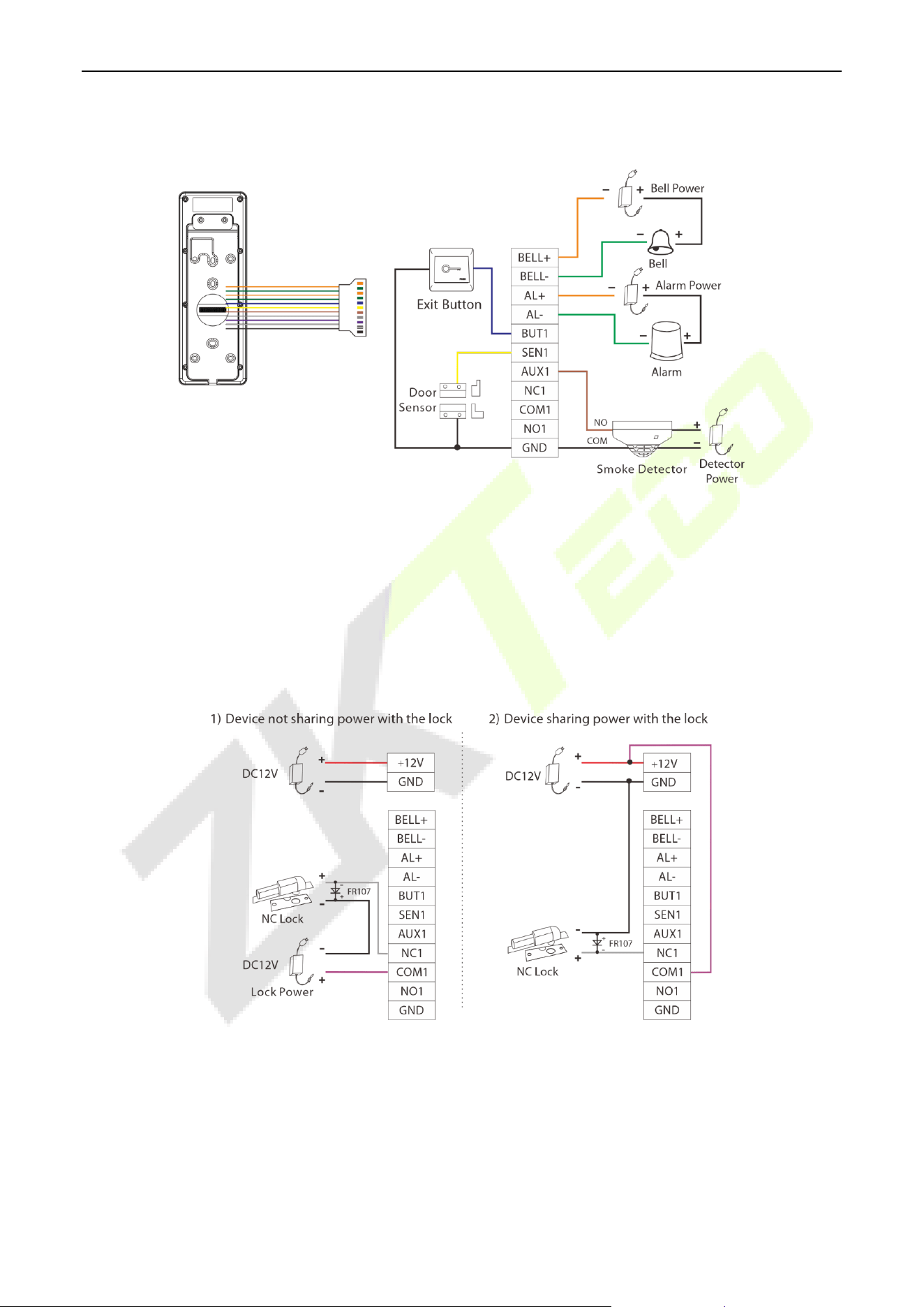
2.5.2 Ethernet Connection
Connect the device and computer software over an Ethernet cable. An example is shown below:
Note: In LAN, the IP addresses of the server (PC) and the device must be in the same network segment
when connecting to ZKBio CVSecurity software.
ProMA Series (ZAM230) User Manual
Page | 16 Copyright©2026 ZKTECO CO., LTD. All rights reserved.
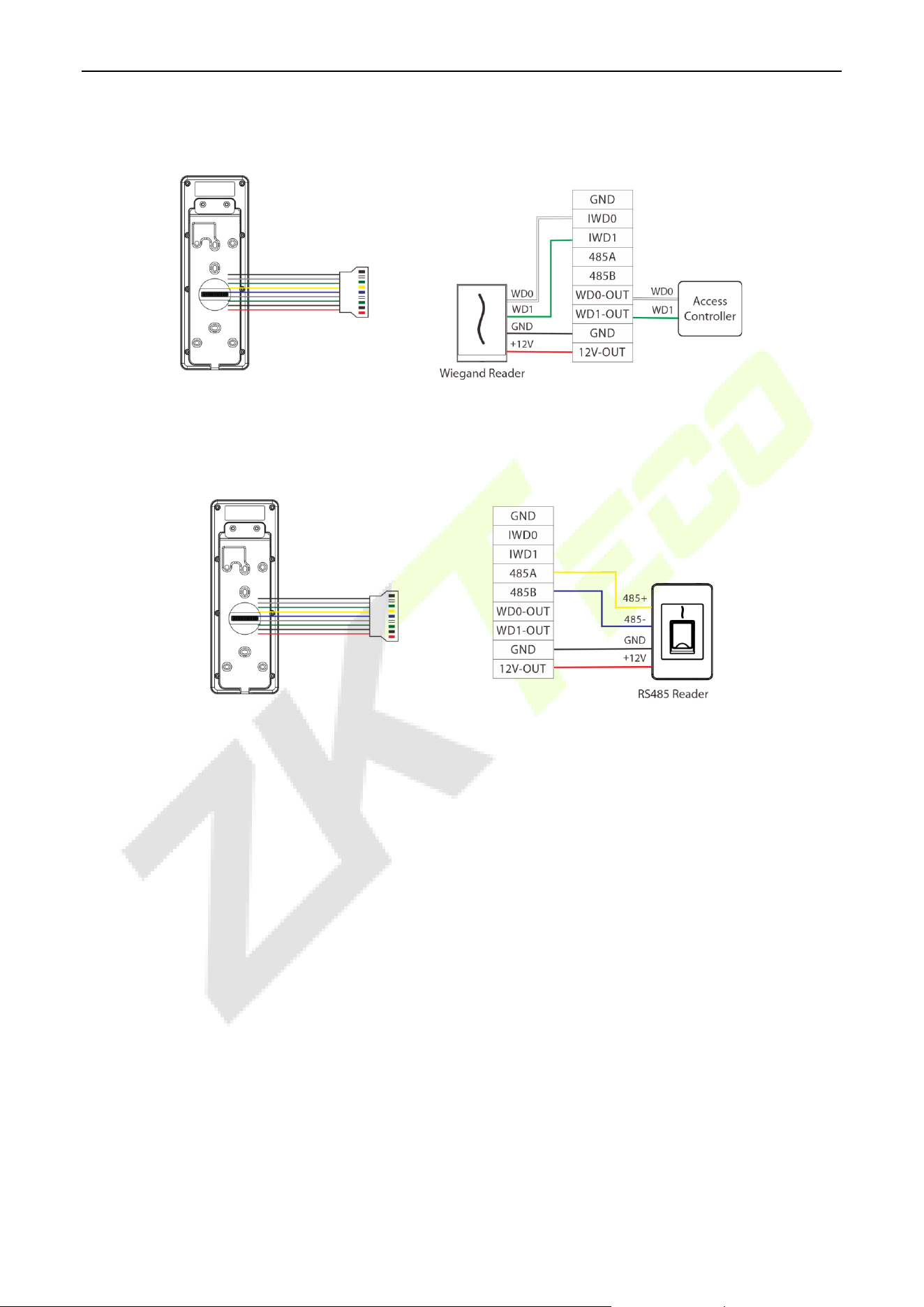
2.5.3 Door Sensor, Exit Button, Alarm and Auxiliary Connection
2.5.4 Lock Relay Connection
The system supports both Normally Opened Lock and Normally Closed Lock. The NO Lock (normally
opened when powered) is connected with ‘NO1’ and ‘COM1’ terminals, and the NC Lock (normally closed
when powered) is connected with ‘NC1’ and ‘COM1’ terminals. The power can be shared with the lock or
can be used separately for the lock, as shown in the example with NC Lock below:
ProMA Series (ZAM230) User Manual
Page | 17 Copyright©2026 ZKTECO CO., LTD. All rights reserved.
2.5.5 Wiegand Connection
2.5.6 RS485 Connection
ProMA Series (ZAM230) User Manual
Page | 18 Copyright©2026 ZKTECO CO., LTD. All rights reserved.
3 Installation
Installation Environment 3.1
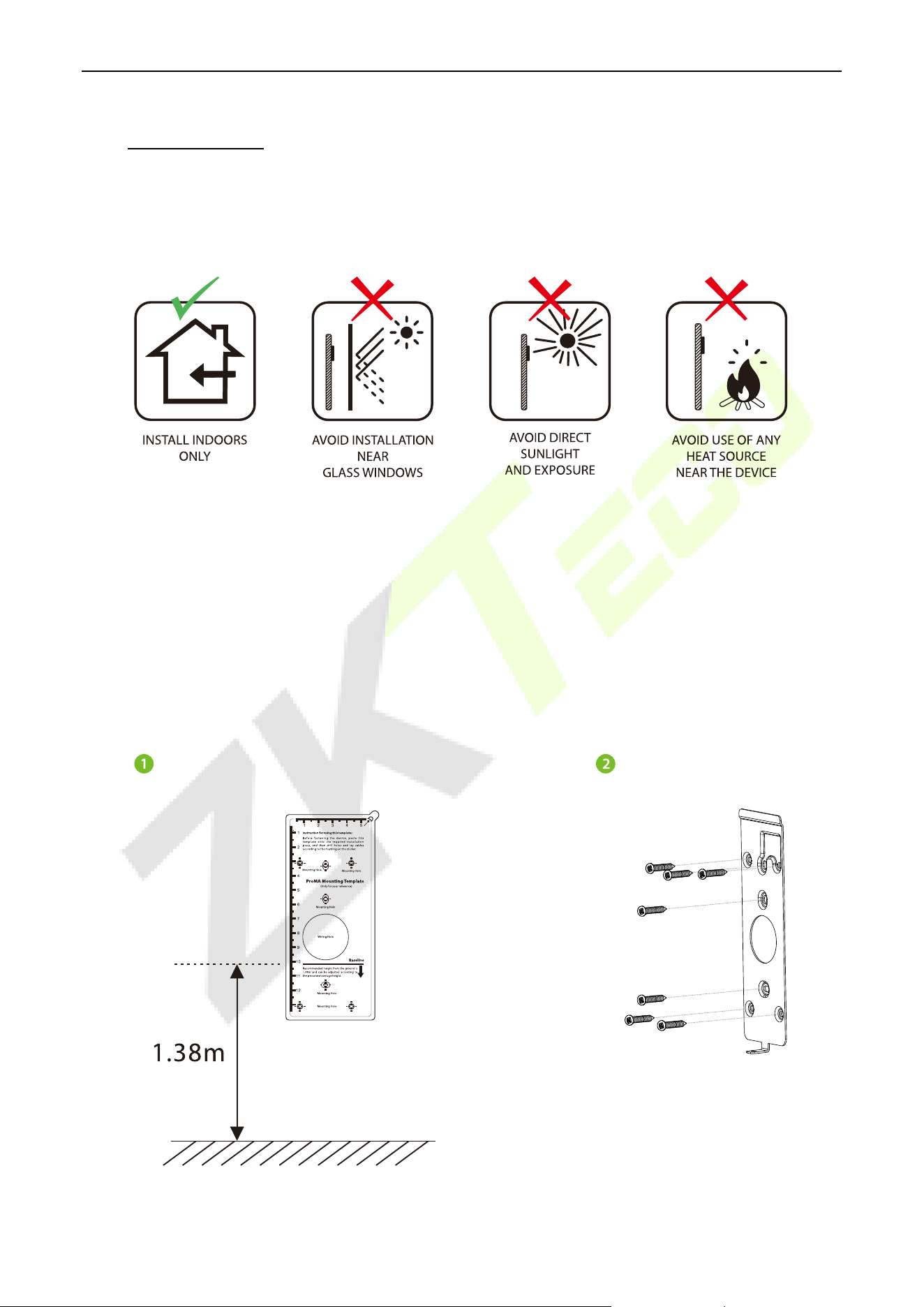
Please refer to the following recommendations for installation.
Device Installation 3.2
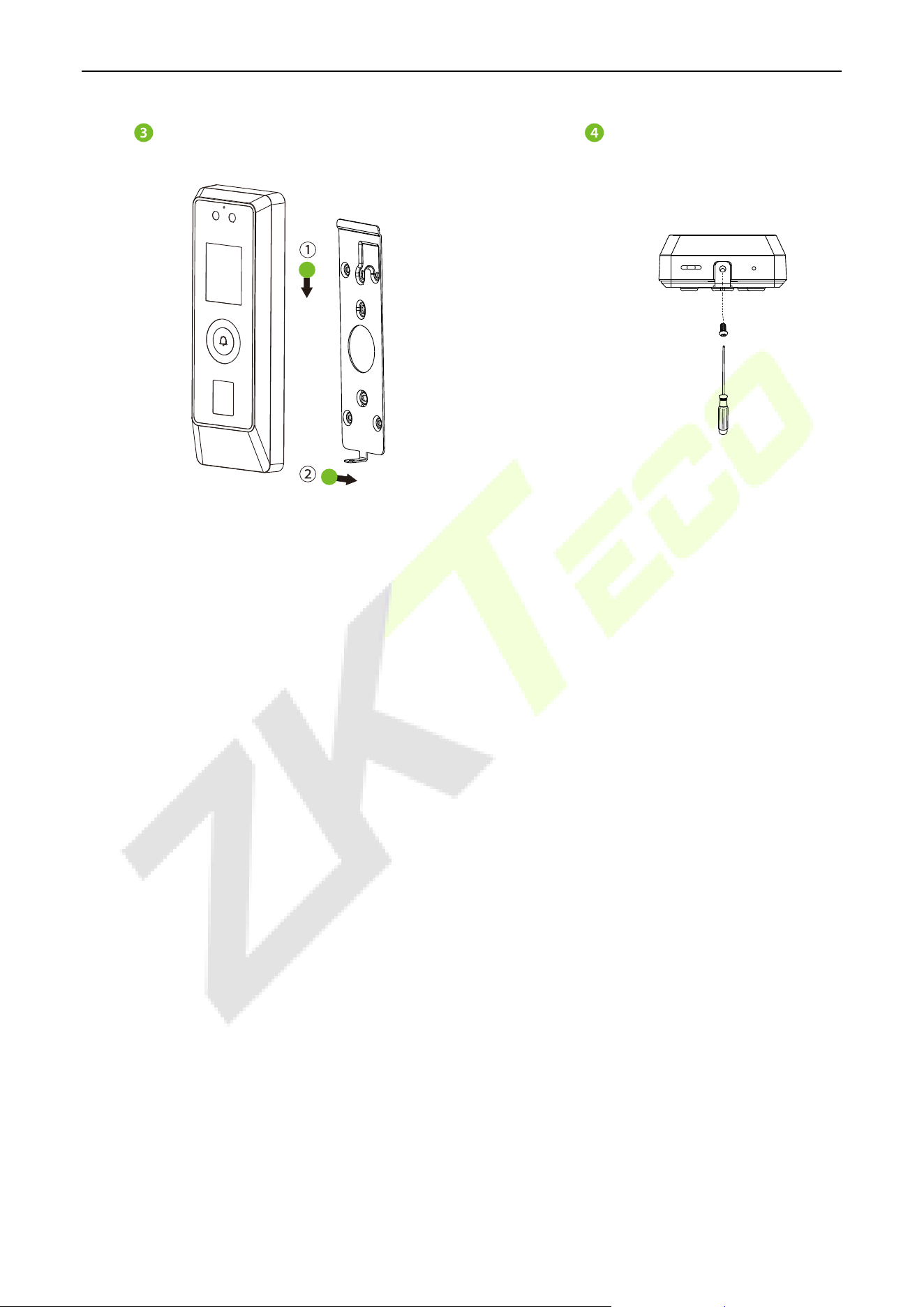
ProMA series installations are the same, the following is an example of ProMA.
1. Attach the mounting template sticker to the wall, and drill holes according to the mounting paper.
2. Fix the backplate on the wall using wall mounting screws.
3. Attach the device to the backplate.
4. Fasten the device to the backplate with a security screw.
ProMA Series (ZAM230) User Manual
Page | 19 Copyright©2026 ZKTECO CO., LTD. All rights reserved.
ProMA Series (ZAM230) User Manual
Page | 20 Copyright©2026 ZKTECO CO., LTD. All rights reserved.
4 Standby Interface
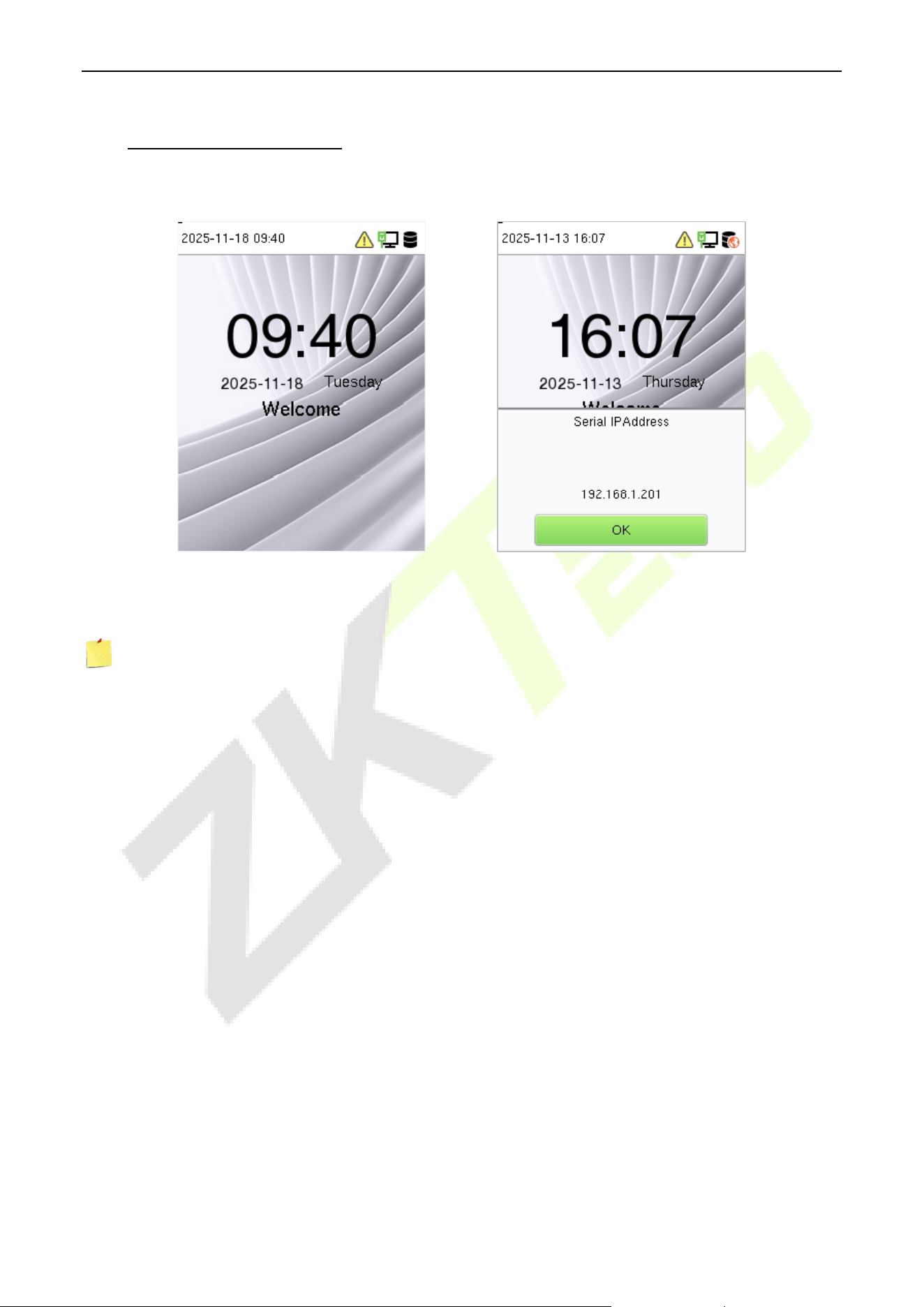
After connecting the power supply, the following standby interface is displayed:
The device has a built-in IP address, which can be used for device communication, connection to
WebServer and ZKBio CVSecurity software, etc.
Note: The device uses a 2’’ display screen, which does not support touch operation and is only used to
display status and verification information. All operations such as device information, communication
settings, user management and system settings are operated and set up on WebServer.
ProMA Series (ZAM230) User Manual
Page | 21 Copyright©2026 ZKTECO CO., LTD. All rights reserved.
5 Verification Mode
QR Code Verification
★
5.1
Note: This function is only for ProMA-QR.
Tap Mobile Credential on the ZKBio Zexus Mobile Page, and a QR code will appear, which includes
employee ID and card number information. The QR code can replace a physical card on a specific device to
achieve contactless authentication. Please refer to
Mobile Credential ★.
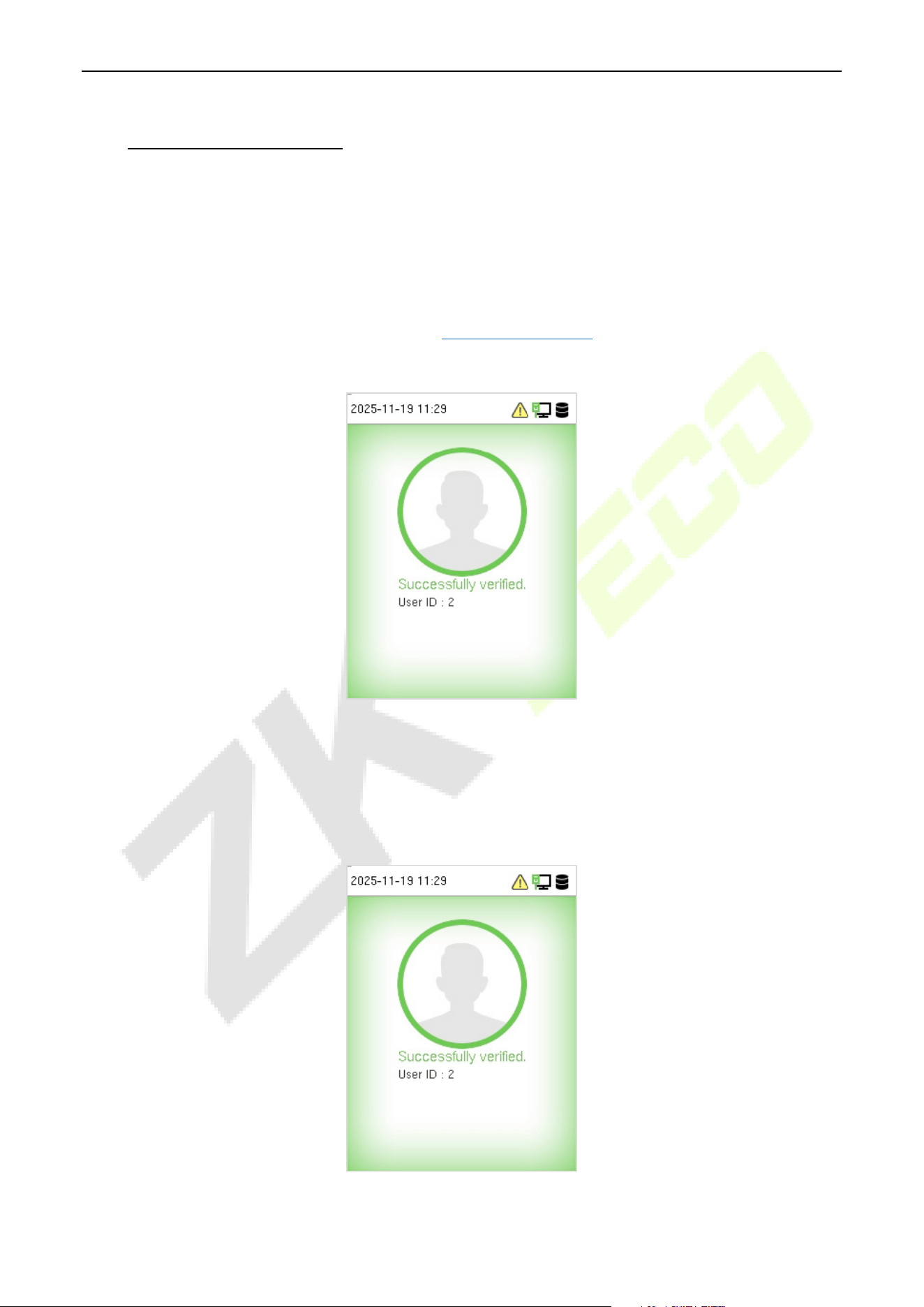
Successfully verified:
Facial Verification 5.2
In this verification mode, the device compares the collected facial images with all face template data
registered in the device. The following is the pop-up prompt of a successful comparison result.
Successfully verified:
ProMA Series (ZAM230) User Manual
Page | 22 Copyright©2026 ZKTECO CO., LTD. All rights reserved.
Card Verification 5.3
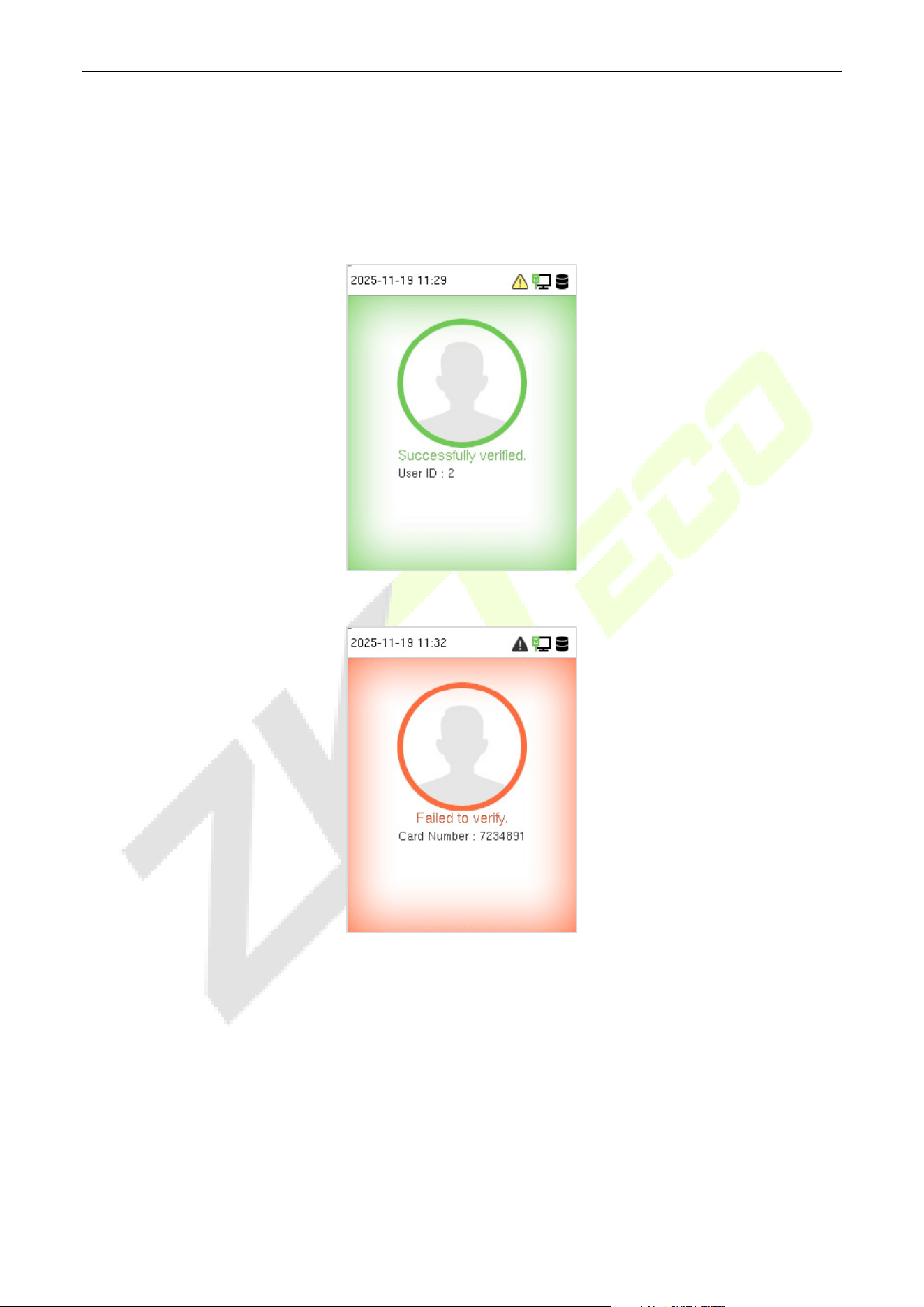
The Card Verification mode compares the card number in the card induction area with all the card number
data registered in the device. The following is the card verification screen.
Successfully verified:
Failed to verify:
Fingerprint Verification★ 5.4
Note: This function is only for ProMA.
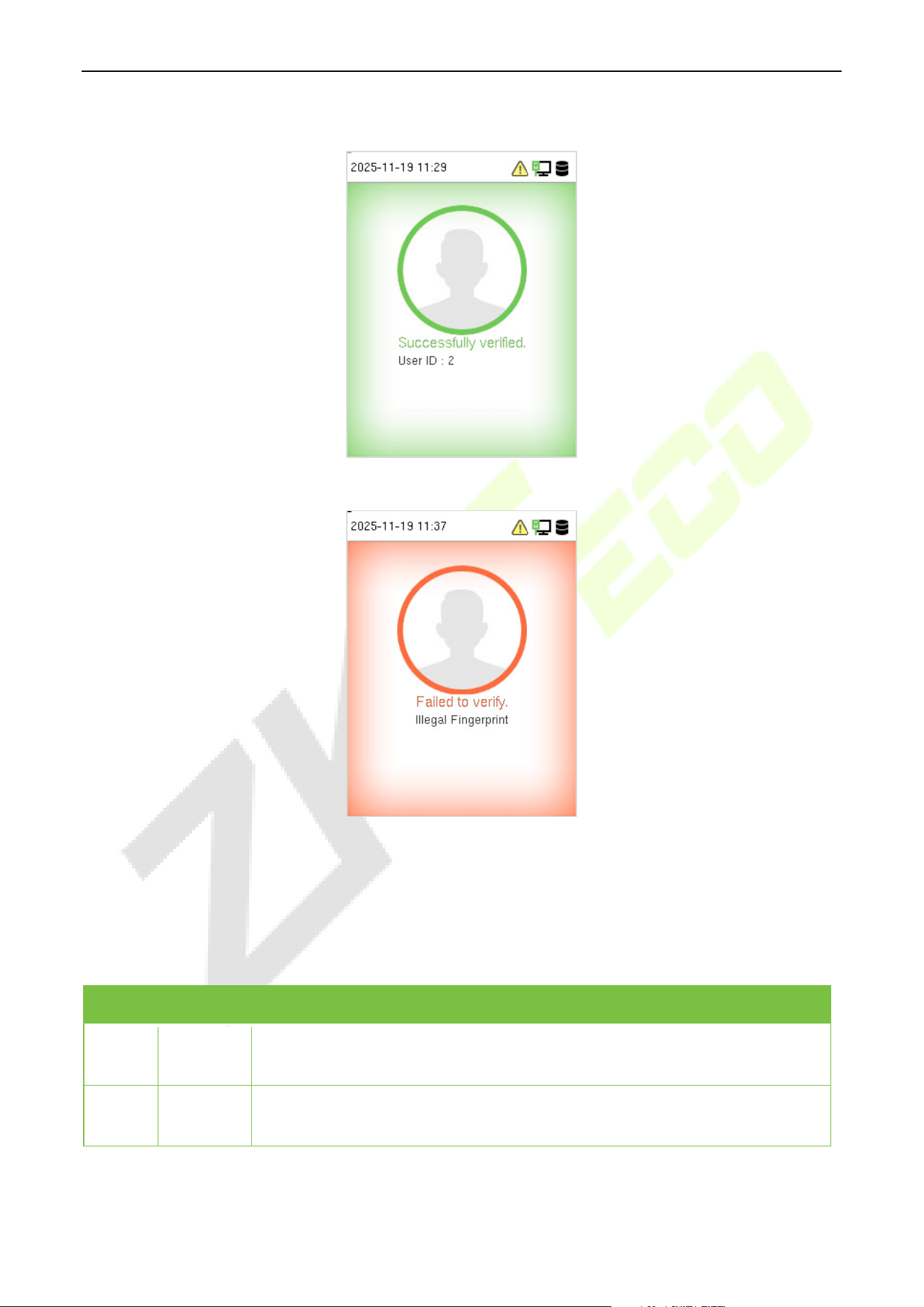
This method compares the fingerprint of the user that is being pressed onto the fingerprint reader with all
the fingerprint data that is pre- stored in the device.
To enter fingerprint identification mode, simply tap your finger on the fingerprint reader.
ProMA Series (ZAM230) User Manual
Page | 23 Copyright©2026 ZKTECO CO., LTD. All rights reserved.
Successfully verified:
Failed to verify:
Combined Verification 5.5
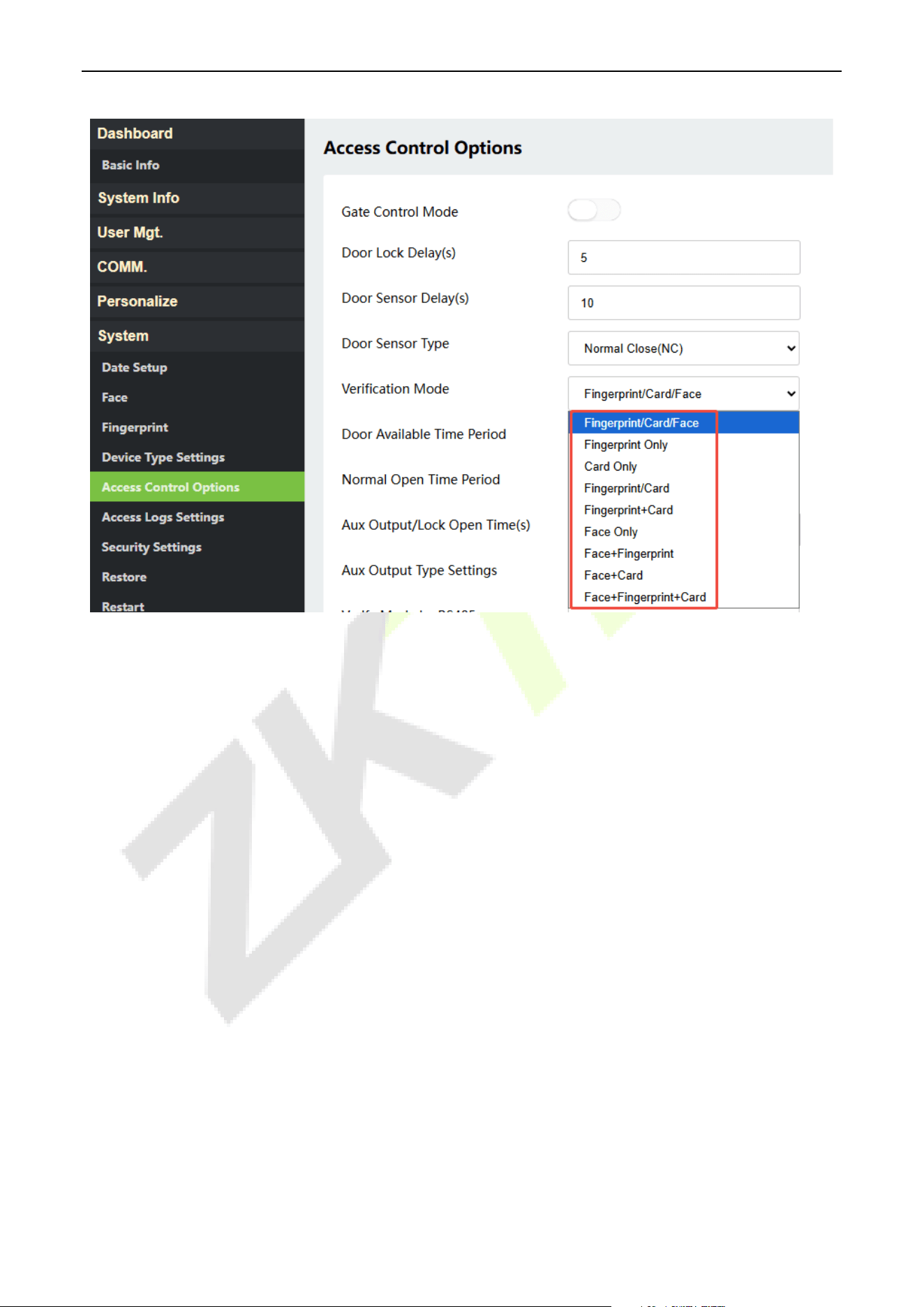
To increase security, this device offers the option of using multiple forms of verification methods. A total of
9 different verification combinations can be used, as shown below:
Combined Verification Symbol Definition:
Symbol Definition Explanation
/
or
This method compares the entered verification of a person with the related
verification template previously stored to that Personnel ID in the Device.
+
and
This method compares the entered verification of a person with all the
verification template previously stored to that Personnel ID in the Device.
ProMA Series (ZAM230) User Manual
Page | 24 Copyright©2026 ZKTECO CO., LTD. All rights reserved.
Procedure to set for Combined Verification Mode:
Combined verification requires personnel to register all the different verification method.
Otherwise, employees will not be able to successfully verify the combined verification process.
For instance, when an employee has registered only the data, but the Device verification mode is
set as “Face + Card”, the employee will not be able to complete the verification process
successfully.
This is because the Device compares the scanned face template of the person with registered
verification template (both the Face template and the Card) previously stored to that Personnel ID
in the Device.
But as the employee has registered only the Face template but not the Card, the verification will
not get completed and the Device displays Verification Failed.
ProMA Series (ZAM230) User Manual
Page | 25 Copyright©2026 ZKTECO CO., LTD. All rights reserved.
6 Login WebServer
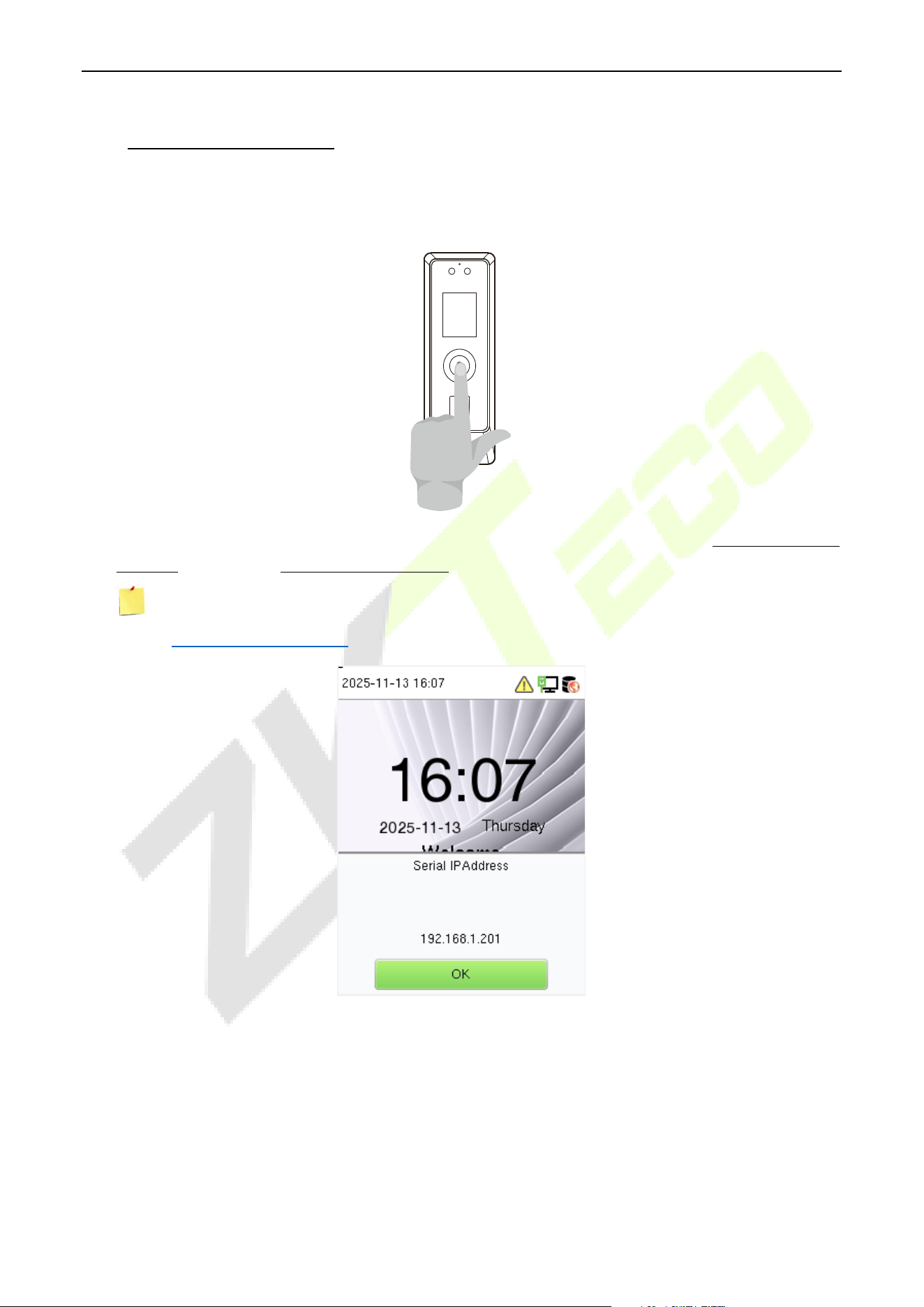
A user can open the web application to set the relevant parameters of the device.
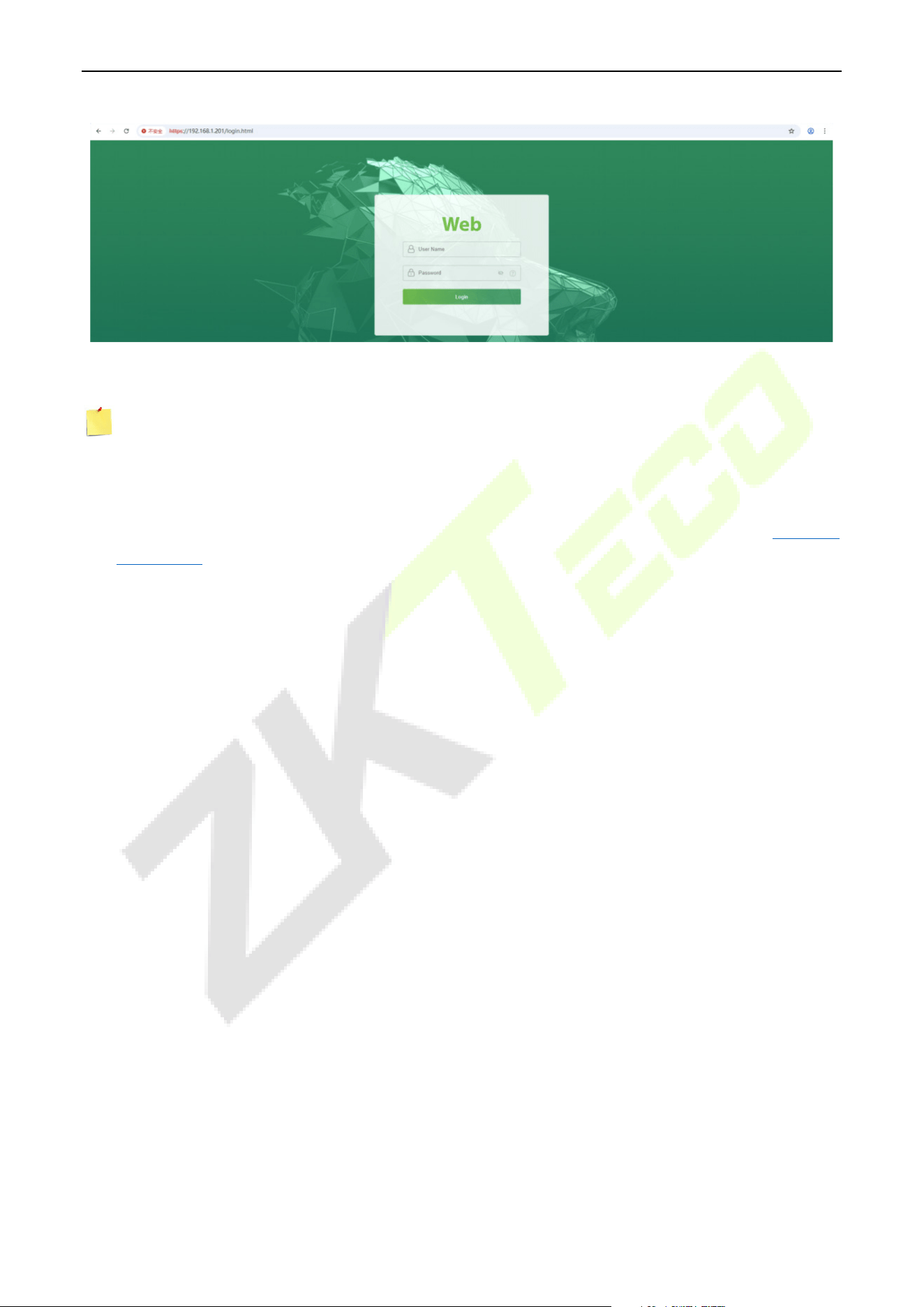
1. Press and hold the Doorbell Button of the device until the IP pops up.
2. O
pen a browser to enter the address to log in to the WebServer, the address is https:// Serial IP
Address. For example: https://192.168.1.201.
Note: The Serial IP Address of the device for communication can be modified, for details please
refer to Communication Settings.
ProMA Series (ZAM230) User Manual
Page | 26 Copyright©2026 ZKTECO CO., LTD. All rights reserved.
3. Enter the WebServer account and password, the default account is: admin, password: admin@123.
Note:
1. After logging in for the first time, it is suggested to go to [Device Management] > [Change
Password] to reset the original password and log in again.
2. In order to retrieve the password easily, please register a super admin first, please refer to 10.1 User
Registration.
ProMA Series (ZAM230) User Manual
Page | 27 Copyright©2026 ZKTECO CO., LTD. All rights reserved.
7 Forgot Password
Method 1 (When there is a super admin):
If you forgot the password of WebServer, you can reset it by the registered super admin
. The detailed steps
are as follows:
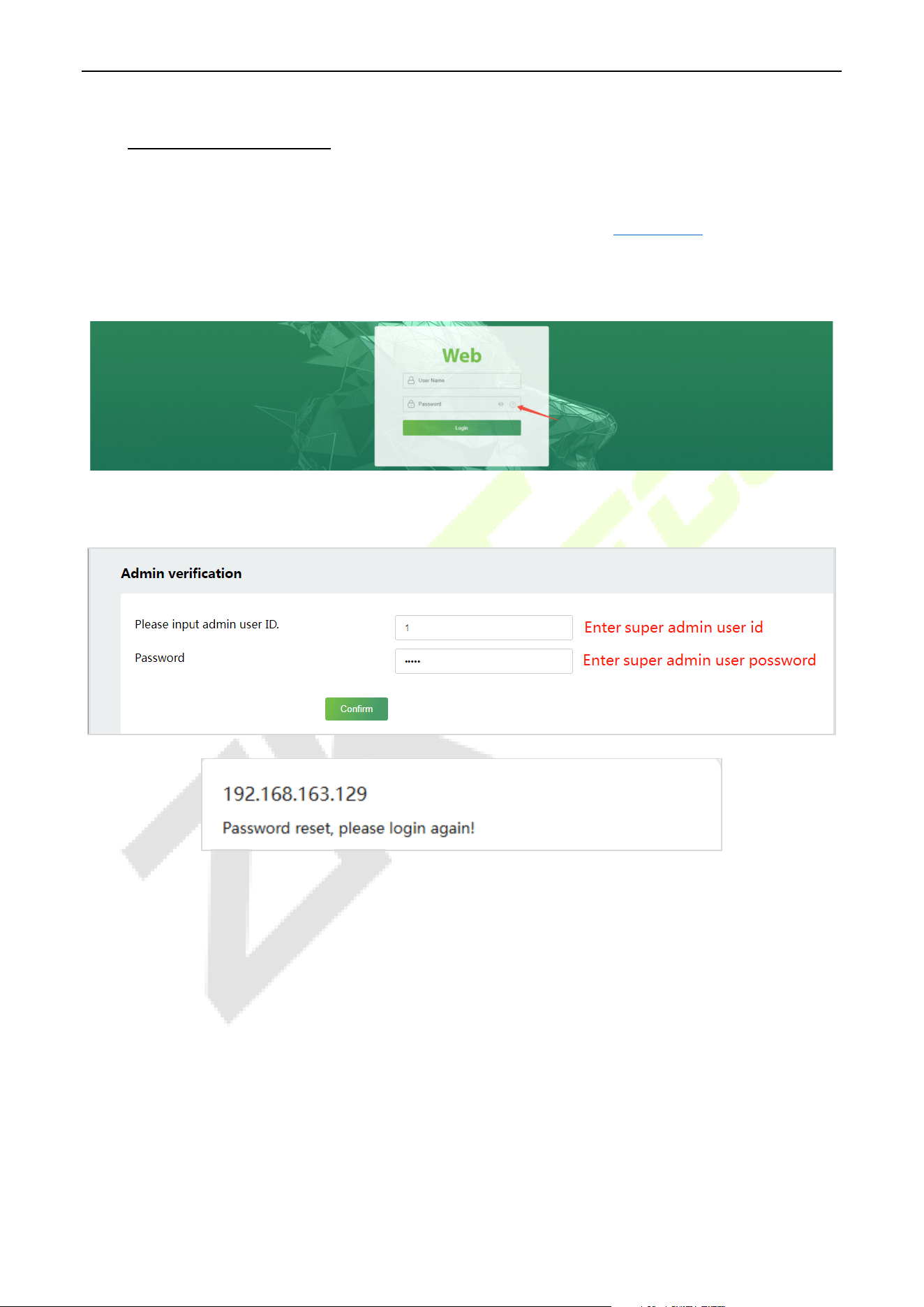
1. Click the icon on the login interface.
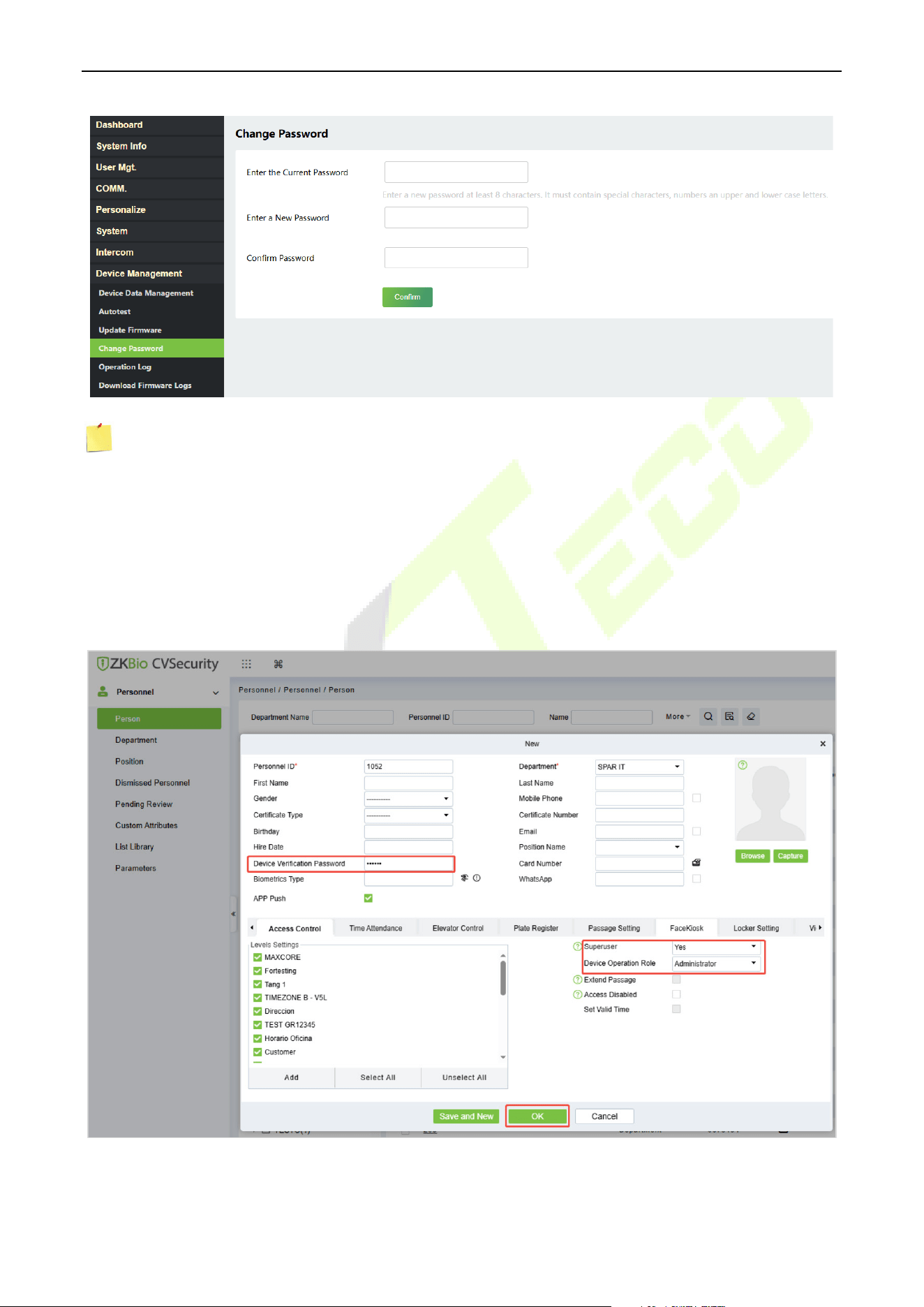
2. On the pop-up page, enter the relevant information of the super admin user as prompted.
3. After a successful reset, enter the default account and password (account: admin, password:
admin@123) on the login interface to log in.
4. For security reasons, please change your password after successfully logging in.
ProMA Series (ZAM230) User Manual
Page | 28 Copyright©2026 ZKTECO CO., LTD. All rights reserved.
Note: The super admin must exist.
Method 2 (When there is not a super admin):
If the network of the device is normal and ZKBio CVSecurity has been connected, you can reset the
password by sending the super admin account and password from the server.
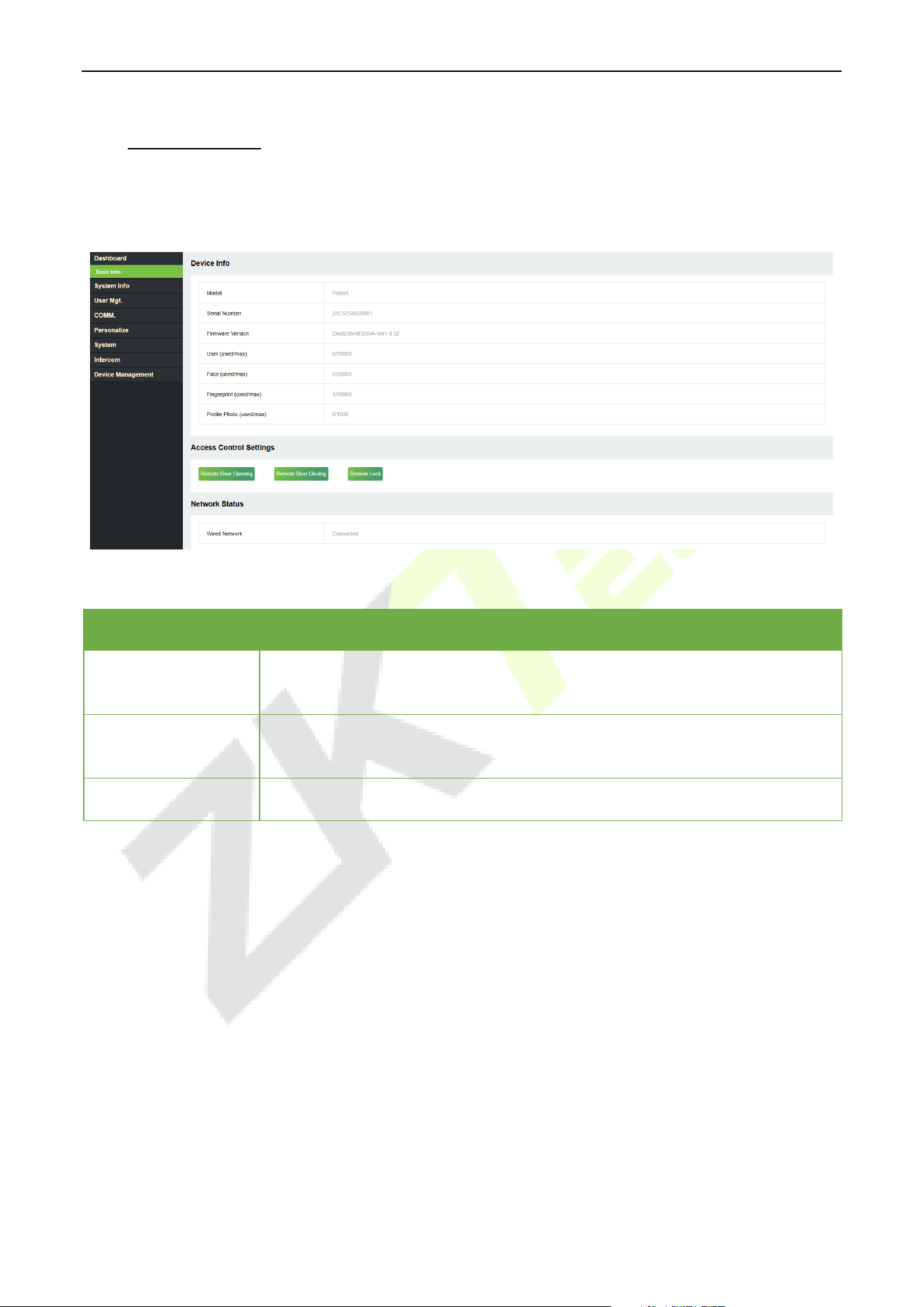
1. Click Personnel > Person > New on the ZKBio CVSecurity Server.
2. After registering the information of the super admin, click OK.

ProMA Series (ZAM230) User Manual
Page | 29 Copyright©2026 ZKTECO CO., LTD. All rights reserved.
3. Click Access > Device > Control > Synchronize All Data to Devices to synchronize all the data to
the device including the new users.
Note: For other specific operations, please refer ZKBio CVSecurity User Manual.
4. After the data synchronization is successful, you can reset the password with the newly registered
super admin. The operation steps are the same as method 1.
Method 3:
If the device has not registered a super admin and cannot connect to the server, please contact our after-
sales technicians to help retrieve the password.
ProMA Series (ZAM230) User Manual
Page | 30 Copyright©2026 ZKTECO CO., LTD. All rights reserved.
8 Dashboard
Click Dashboard > Basic Info on the WebServer. In this interface, you can view the basic information and
network status of the current device.
Access Control Settings:
Function Name Description
Remote Door
Opening
Click it to open the door remotely. If the operation is successful, the device will
prompt “Door opened”.
Remote Door
Closing
Click it to close the door remotely.
Remote Lock/Unlock
To turn on/off the remote control function.
ProMA Series (ZAM230) User Manual
Page | 31 Copyright©2026 ZKTECO CO., LTD. All rights reserved.
9 System Information
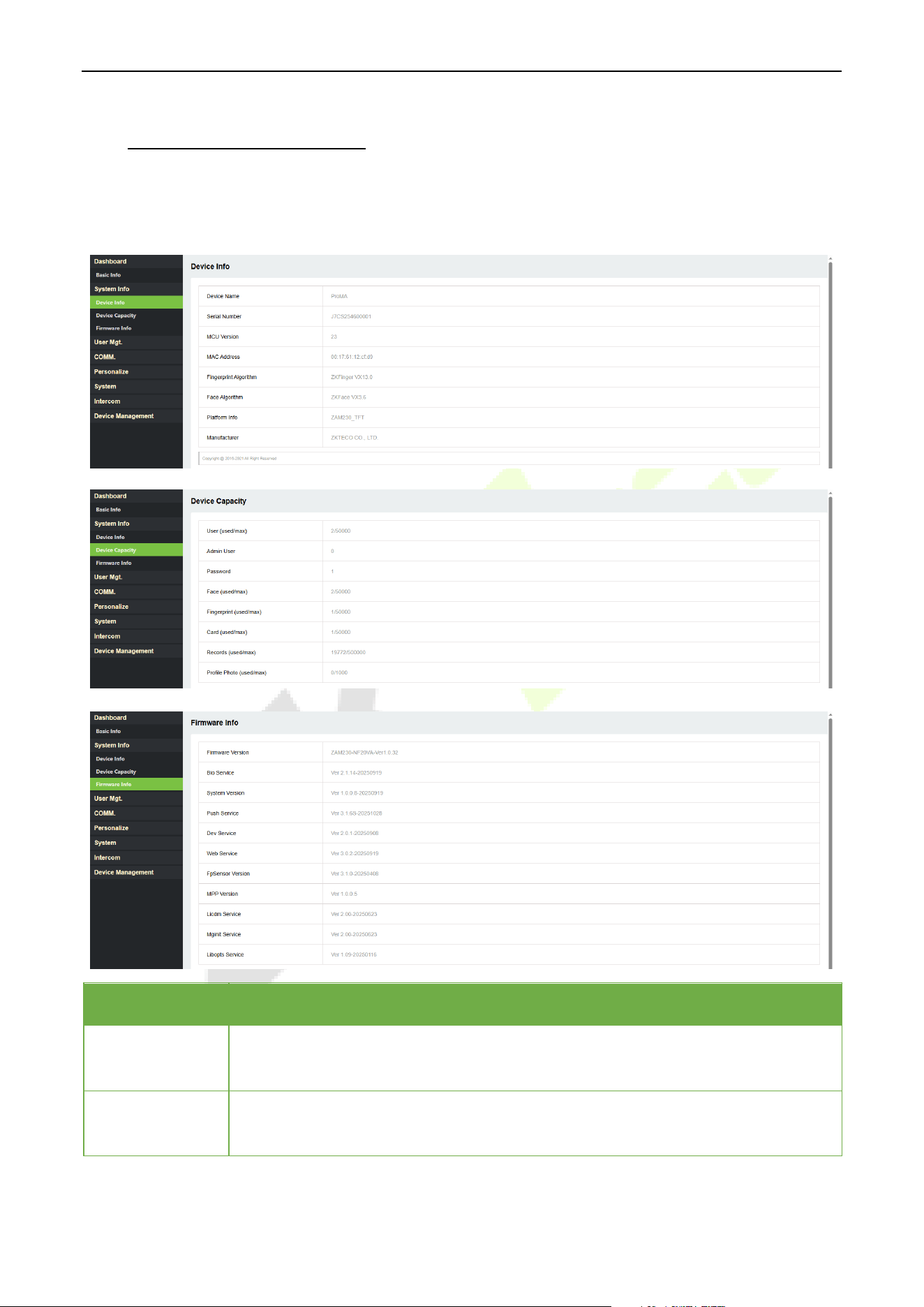
Click System Info > Device Info/Device Capacity/Firmware Info on the WebServer.
In the interface, you can view the data capacity, device and firmware information of the current device.
Function Name Description
Device Info
Displays the device's name, serial number, MCU version, MAC address, fingerprint★
& face algorithm version information, platform and manufacturer information.
Device Capacity
Displays the current device's user storage, password, face, fingerprint★, card
storage, administrators, event logs and profile photo.

ProMA Series (ZAM230) User Manual
Page | 32 Copyright©2026 ZKTECO CO., LTD. All rights reserved.
Firmware
Information
Displays the firmware version and other version information of the device.
ProMA Series (ZAM230) User Manual
Page | 33 Copyright©2026 ZKTECO CO., LTD. All rights reserved.
10 User Management
User Registration 10.1
10.1.1 Basic Information
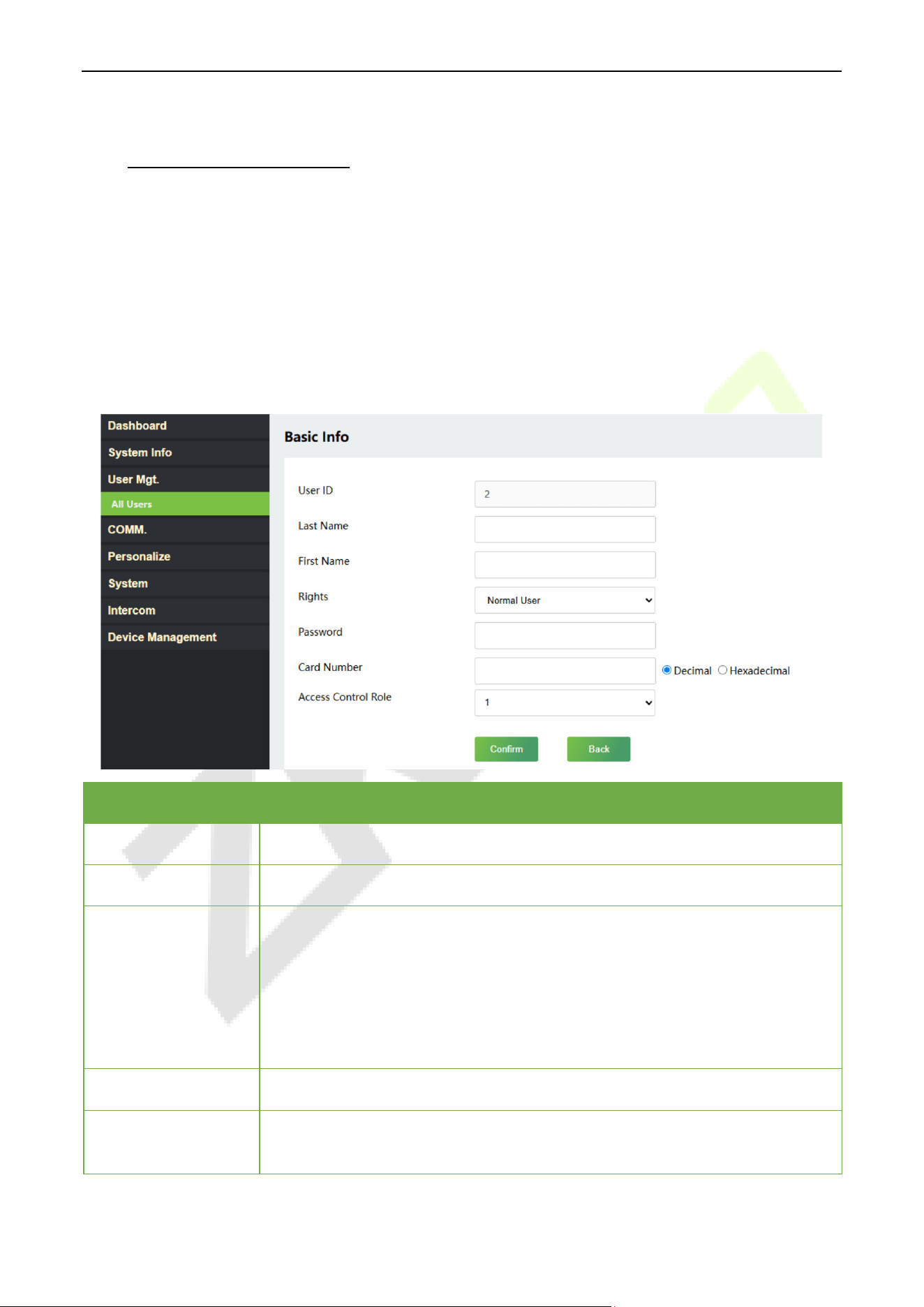
Click User Mgt. > All Users > New User on the WebServer.
In this interface, you can register the User ID, Name, Rights and Password of the new user, click Confirm to
save.
Function Name Description
User ID
The user ID may contain 1 to 14 characters by default.
Last/First Name
A name can be up to 63 characters.
Rights
Set the role for the user as either Normal User or Super Admin.
Super Admin: The Super Admin owns all management privileges in the
WebServer.
Normal User: If the Super Admin is already registered in the WebServer,
then the Normal Users will not have the privileges to manage the system
and can only access authentication verifications.
Password
Set the user's registration password.
Card Number
Select the type of the card number and enter it manually, after registering the
user's card number, the user can swipe the card for verification.
ProMA Series (ZAM230) User Manual
Page | 34 Copyright©2026 ZKTECO CO., LTD. All rights reserved.
Access Control Role
The Access Control Role sets the door access privilege for each user, new users
will be added to Group 1 by default, which can be reassigned to other required
groups. The system supports up to 10 access control groups.
Note:
1. During the initial registration, you can modify your ID; you cannot be modifying the registered ID
once after the successful registration.
2. If the message "Registration failed!" pops up, you must choose a different User ID because the one
you entered already exists.
10.1.2 Online Registration
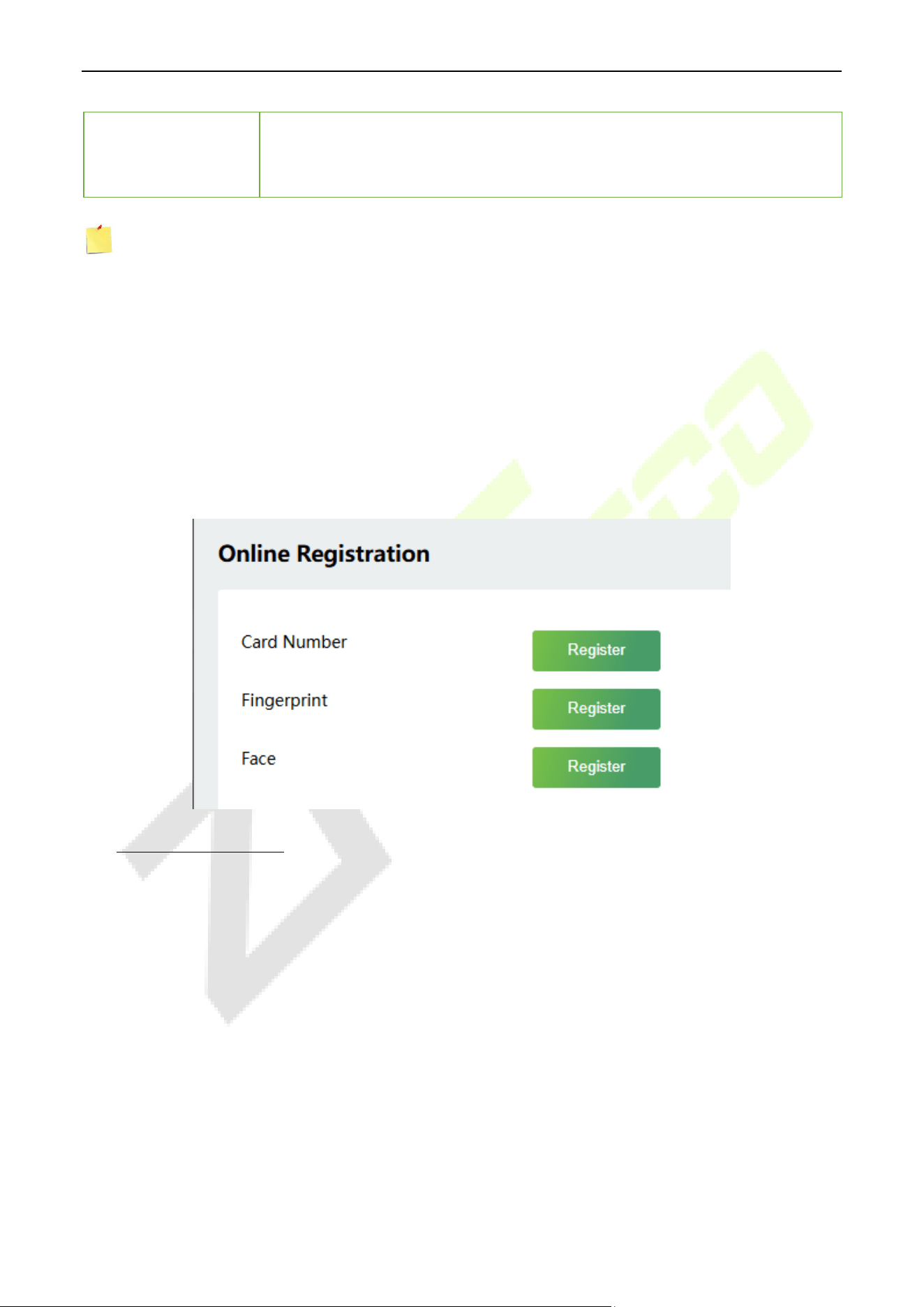
In this interface, you can register the User’s Card Number, Fingerprint★and Face. The verification mode
can only be registered after the basic information is confirmed.
R
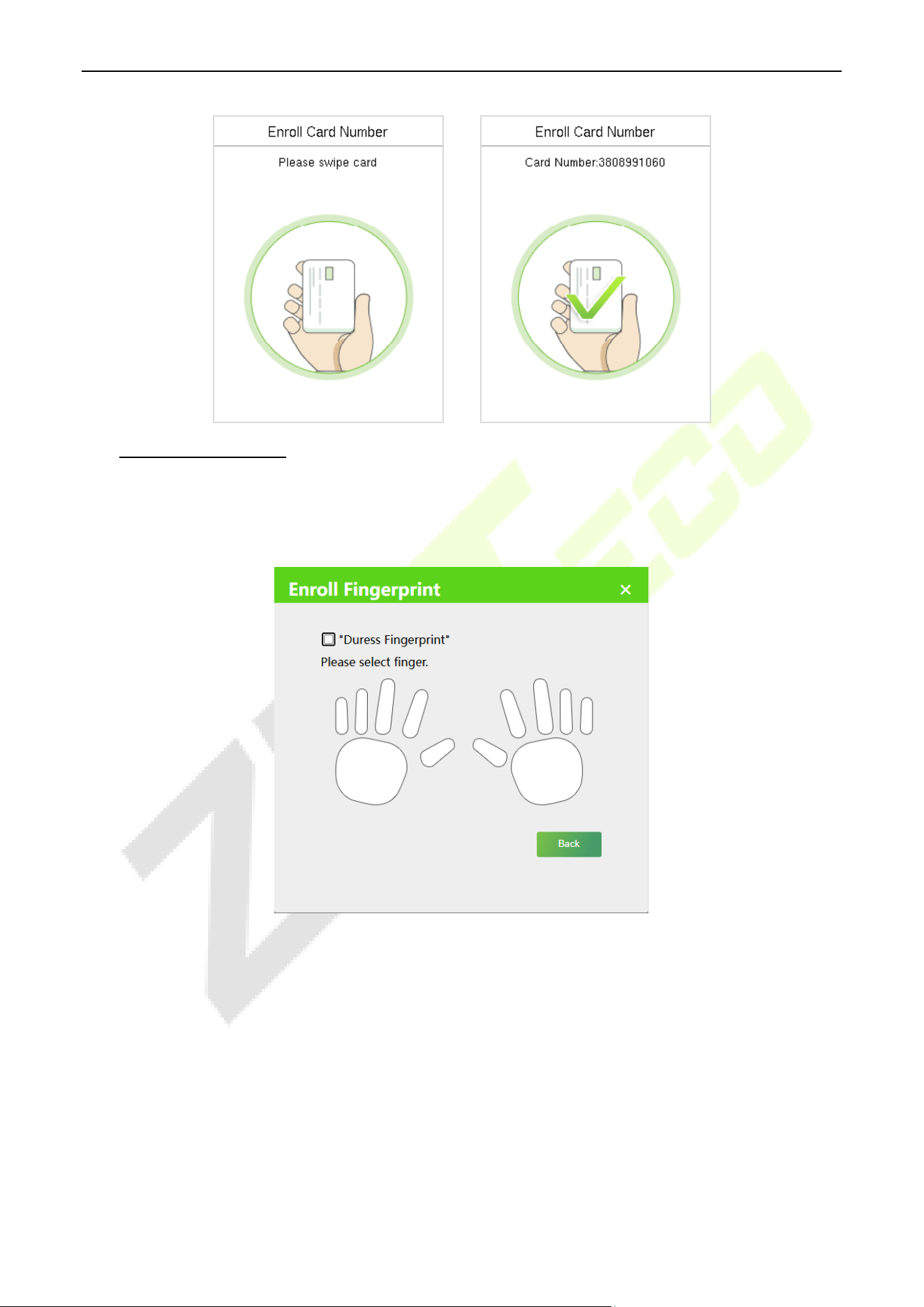
egister Card Number
In the current interface, behind the card number bar, click Register, and the device will display the card
number registration interface in real time, swipe the card underneath the card reading area. The
registration of the card will be successful.
ProMA Series (ZAM230) User Manual
Page | 35 Copyright©2026 ZKTECO CO., LTD. All rights reserved.
Register Fingerprint★
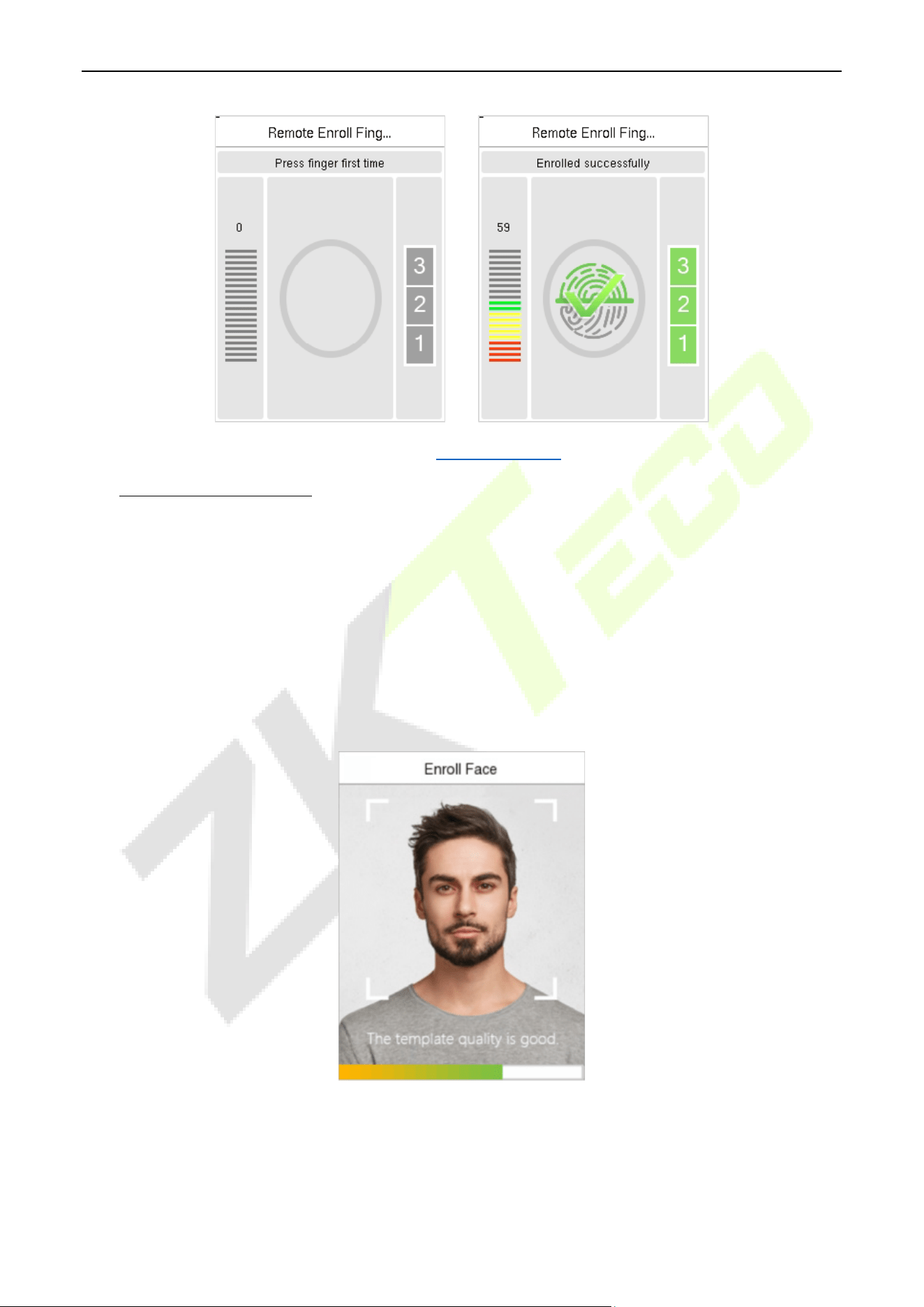
In the current interface, behind the fingerprint bar, click Register. Select the finger and the device will
display the fingerprint registration interface in real time, press your finger onto the fingerprint sensor of
the device, and follow the instructions to complete the registration.
ProMA Series (ZAM230) User Manual
Page | 36 Copyright©2026 ZKTECO CO., LTD. All rights reserved.
For fingerprint pressing operation, please refer to Finger Placement
.
Register Face Template
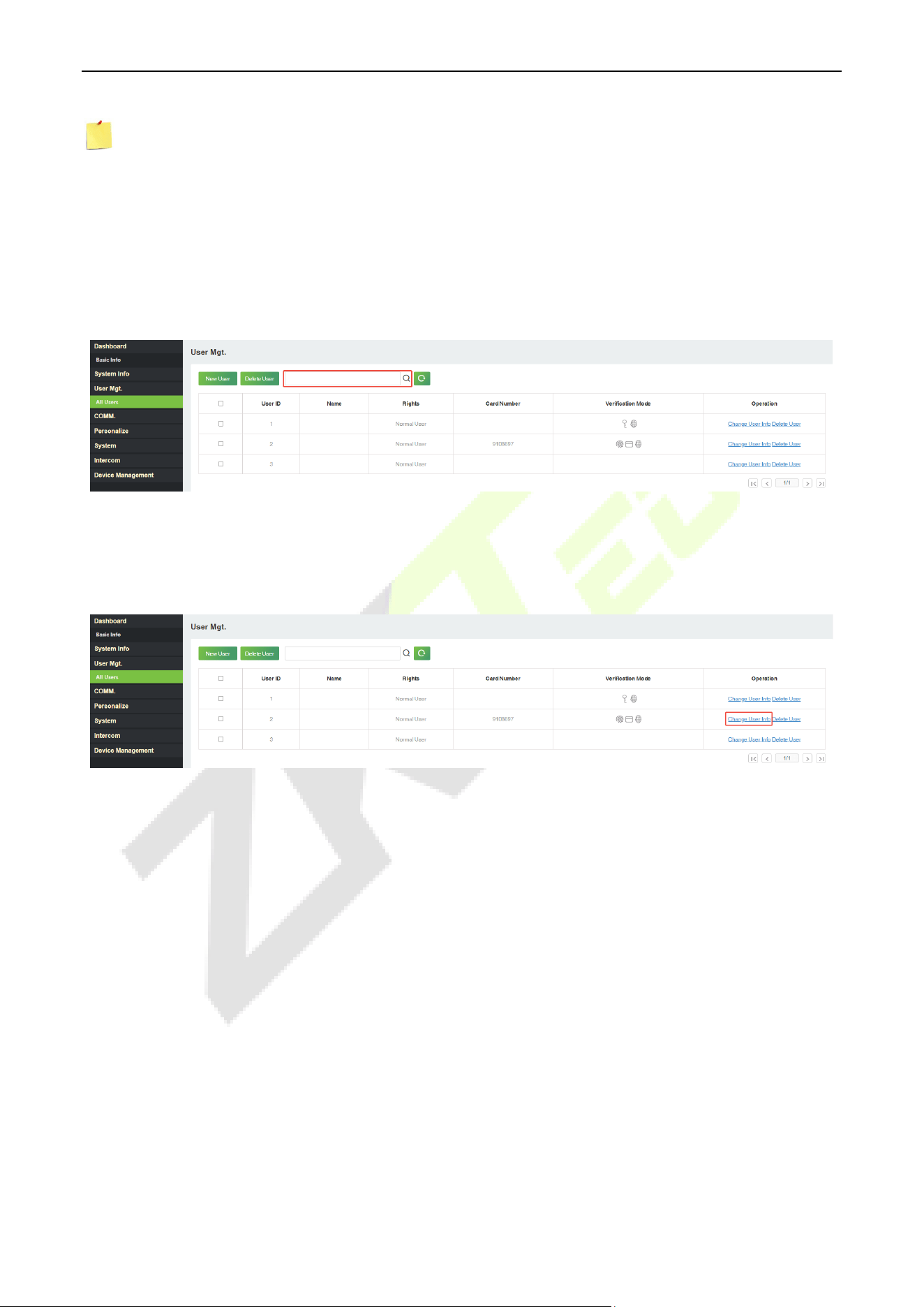
In the current interface, behind the face bar, click Register, and the device will display the face template
registration interface in real time.
Please face towards the camera and position your face inside the white guiding box and stay still
during face registration.
A progress bar shows up while registering the face template and “Enrolled Successfully” is displayed
until the registration completes.
If the face template is registered already then, the “Duplicated Face” message shows up.
The registration interface is as follows:
ProMA Series (ZAM230) User Manual
Page | 37 Copyright©2026 ZKTECO CO., LTD. All rights reserved.
Note: While registering a face, the system automatically captures a picture as the profile photo. If you
do not register a profile photo, the system automatically sets the picture captured during registration as
the default photo.
Search for Users 10.2
Click User Mgt. > All Users on the WebServer, click the search bar to enter the user ID and the system will
search for the related user information.
Edit User 10.3
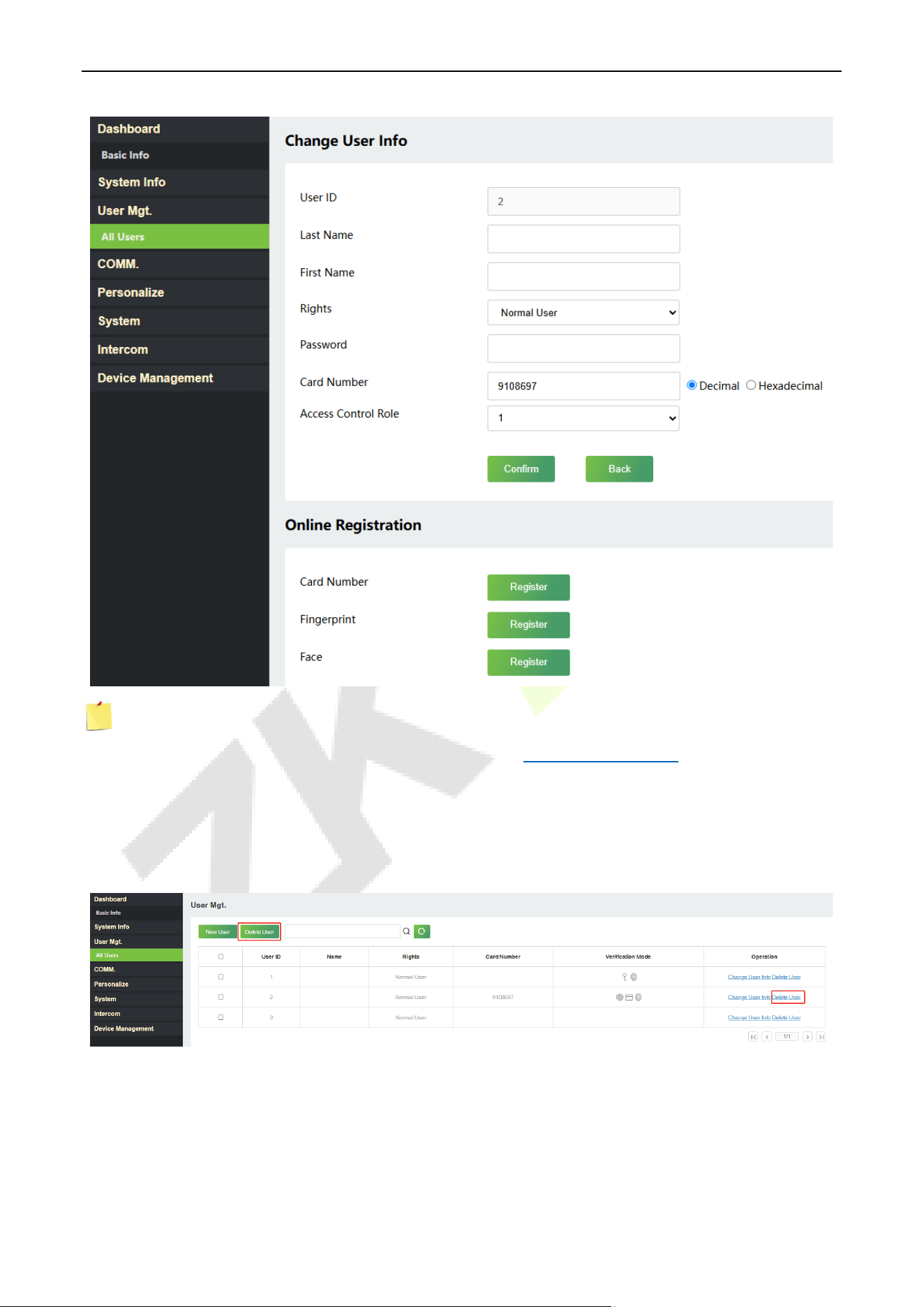
On the All Users interface, select the required user from the list and click Change User Info to edit the
user information.
ProMA Series (ZAM230) User Manual
Page | 38 Copyright©2026 ZKTECO CO., LTD. All rights reserved.
Note: The process of editing the user information is the same as that of adding a new user, except that
the User ID cannot be modified. The process in detail refers to 10.1 User Registration.
Delete User 10.4
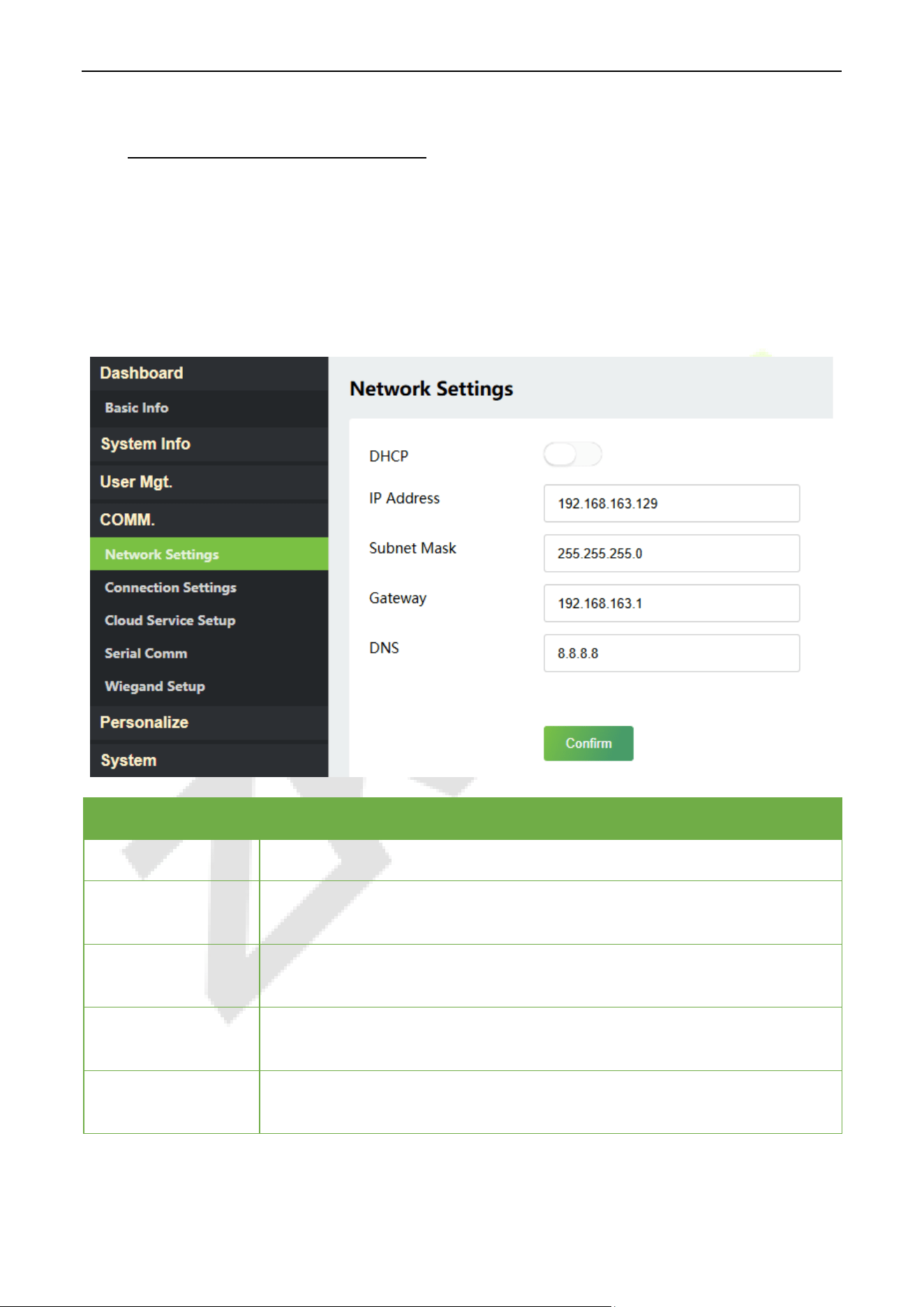
On the All Users interface, select the required user from the list and click Delete User to delete the user.
Here individual deletion and batch deletion is available.
ProMA Series (ZAM230) User Manual
Page | 39 Copyright©2026 ZKTECO CO., LTD. All rights reserved.
11 Communication Settings
Network Settings 11.1
Click COMM. > Network Settings on the WebServer.
Change the IP address of the device as needed, click Confirm to save, and the device will automatically
synchronize the IP information.
Function Name Description
DHCP
Select whether to obtain the IP Address by automatically.
IP Address
The default IP address is 192.168.1.201. It can be modified according to network
availability.
Subnet Mask
The default Subnet Mask is 255.255.255.0. It can be modified according to
network availability.
Gateway
The Default Gateway address is 0.0.0.0. It can be modified according to network
availability.
DNS
The default DNS address is 0.0.0.0. It can be modified according to network
availability.
ProMA Series (ZAM230) User Manual
Page | 40 Copyright©2026 ZKTECO CO., LTD. All rights reserved.
Note: After the IP address of the device is changed successfully, you need to log out of the currently
WebServer and log in again to the IP address you just changed to connect to the device. For WebServer
login details, please refer to Login WebServer.
Connection Settings 11.2
Click Connection Settings on the WebServer.
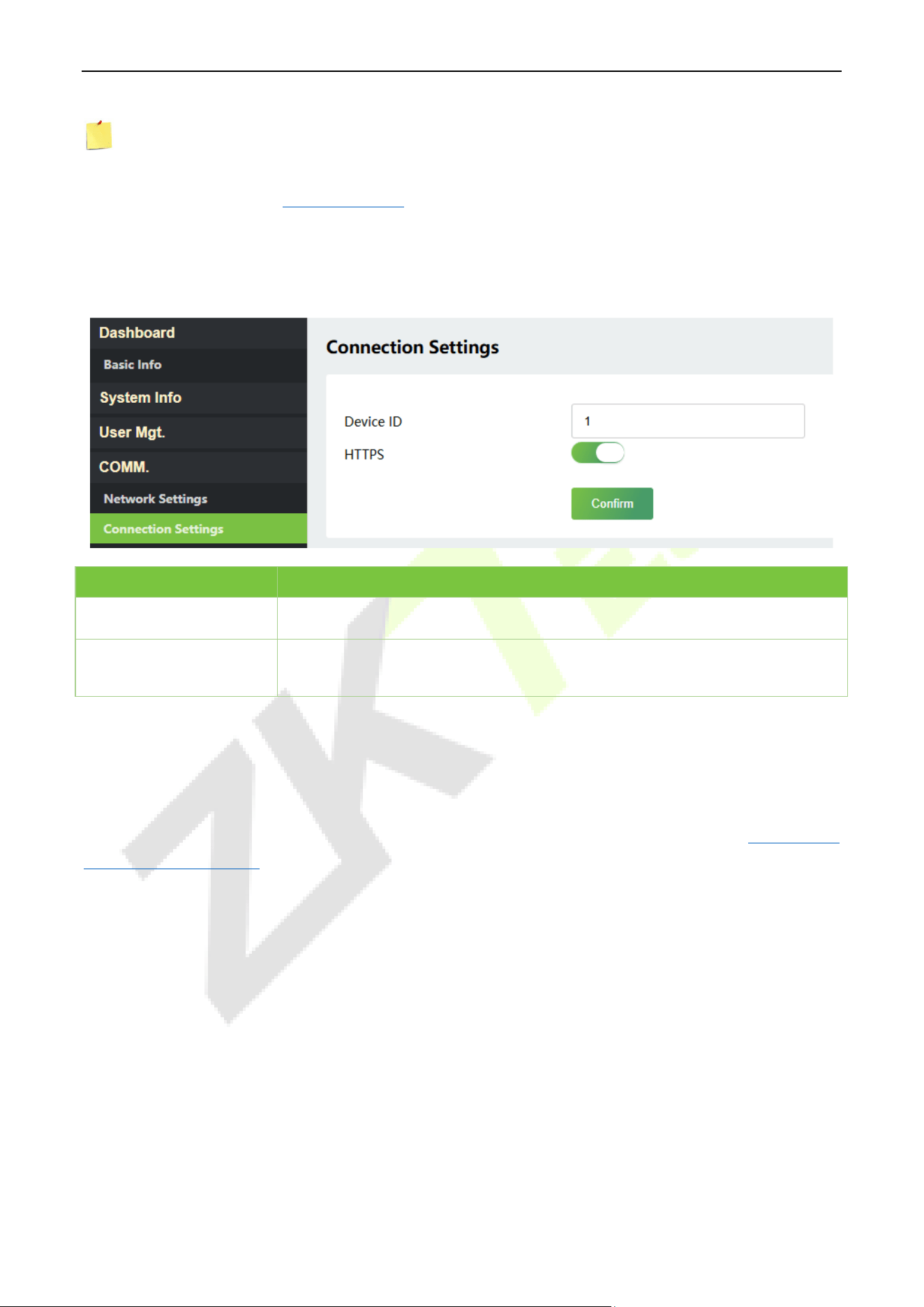
Function Name Description
Device ID
It is the identification number of the device, which ranges between 0 and 255.
HTTPS
Based on HTTP, transmission encryption and identity authentication ensure
the security of the transmission process.
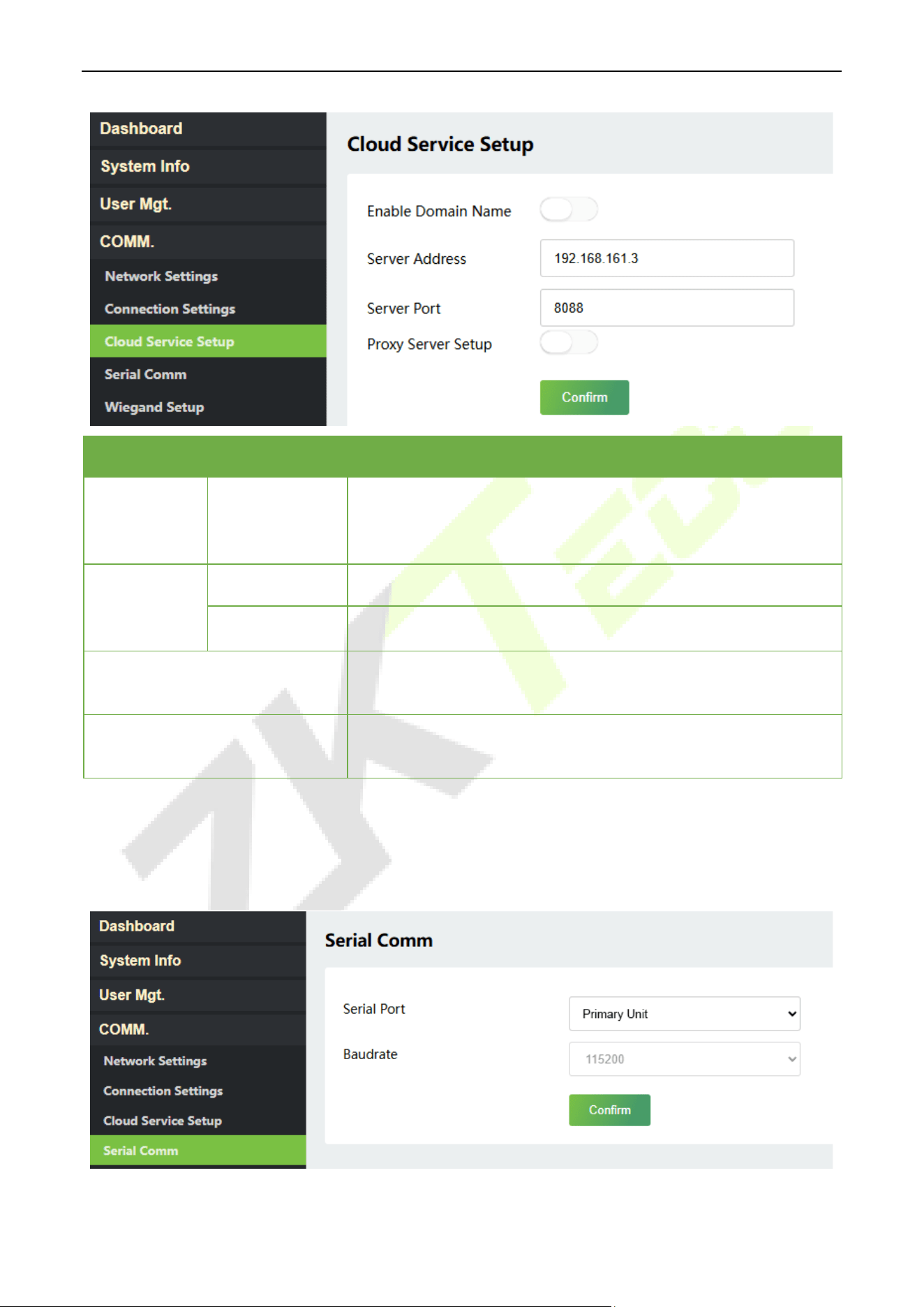
Cloud Service Setup 11.3
Click Cloud Service Setup on the WebServer.
Cloud Server Setup was used to connect to the ZKBio CVSecurity software, please refer to 16.1
Set the
Communication Address.
ProMA Series (ZAM230) User Manual
Page | 41 Copyright©2026 ZKTECO CO., LTD. All rights reserved.
Function Name Description
Enable
Domain
Name
Server Address
Once this function is enabled, the domain name mode “http://...”
will be used, such as http://www.XYZ.com, while “XYZ” denotes the
domain name (when this mode is turned ON).
Disable
Domain
Name
Server Address
IP address of the ADMS server.
Server Port
Port used by the ADMS server.
HTTPS
Based on HTTP, transmission encryption and identity
authentication ensure the security of the transmission process.
Proxy Server Setup
When
you choose to enable the proxy, you need to set the IP
address and port number of the proxy server.
Serial Comm 11.4
Click Serial Comm on the WebServer.

ProMA Series (ZAM230) User Manual
Page | 42 Copyright©2026 ZKTECO CO., LTD. All rights reserved.
Function Name Description
Serial Port
No Using: Do not communicate with the device through the serial port.
RS485(PC): Communicates with the PC through RS485 serial port.
Primary Unit: When RS485 is used as the function of Primary Unit, the device
will act as a primary unit, and it can be connected to RS485 reader.
DM10: When RS485 is used as the function of DM10, it can be connected to
DM10 to control the lock relay.
Baud Rate
When the serial port is set as Primary Unit or DM10, the baud rate is 115200 by
default and cannot be modified.
When the serial port is set as RS485(PC), there are 4 baud rate options. They
are: 115200 (default), 57600, 38400 and 19200.
The higher is the baud rate, the faster is the communication speed, but also the
less reliable.
Hence, a higher baud rate can be used when the communication distance is
short; when the communication distance is long, choosing a lower baud rate
would be more reliable.
Note: RS485(PC) not support any software for PC configuration in overseas markets.
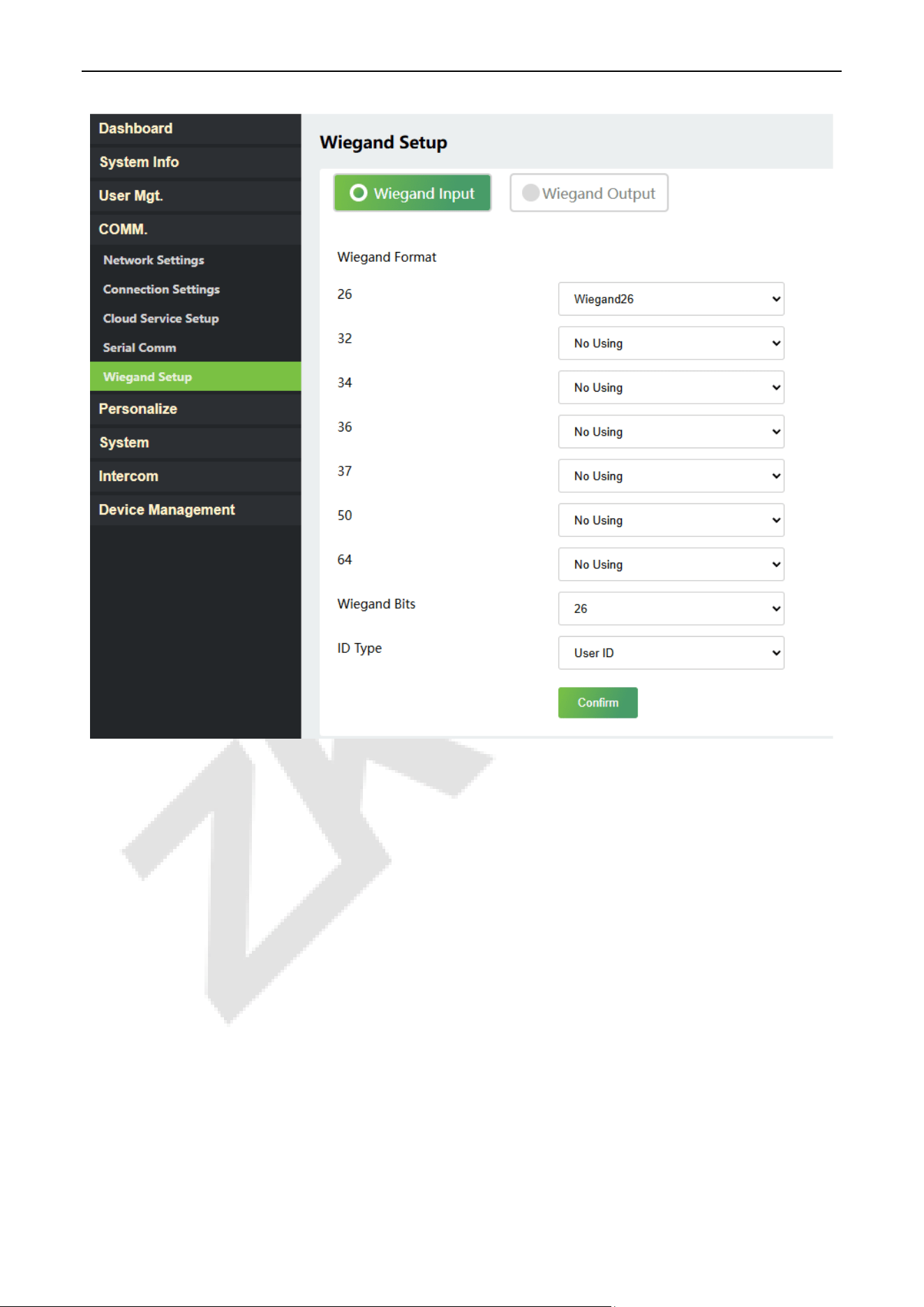
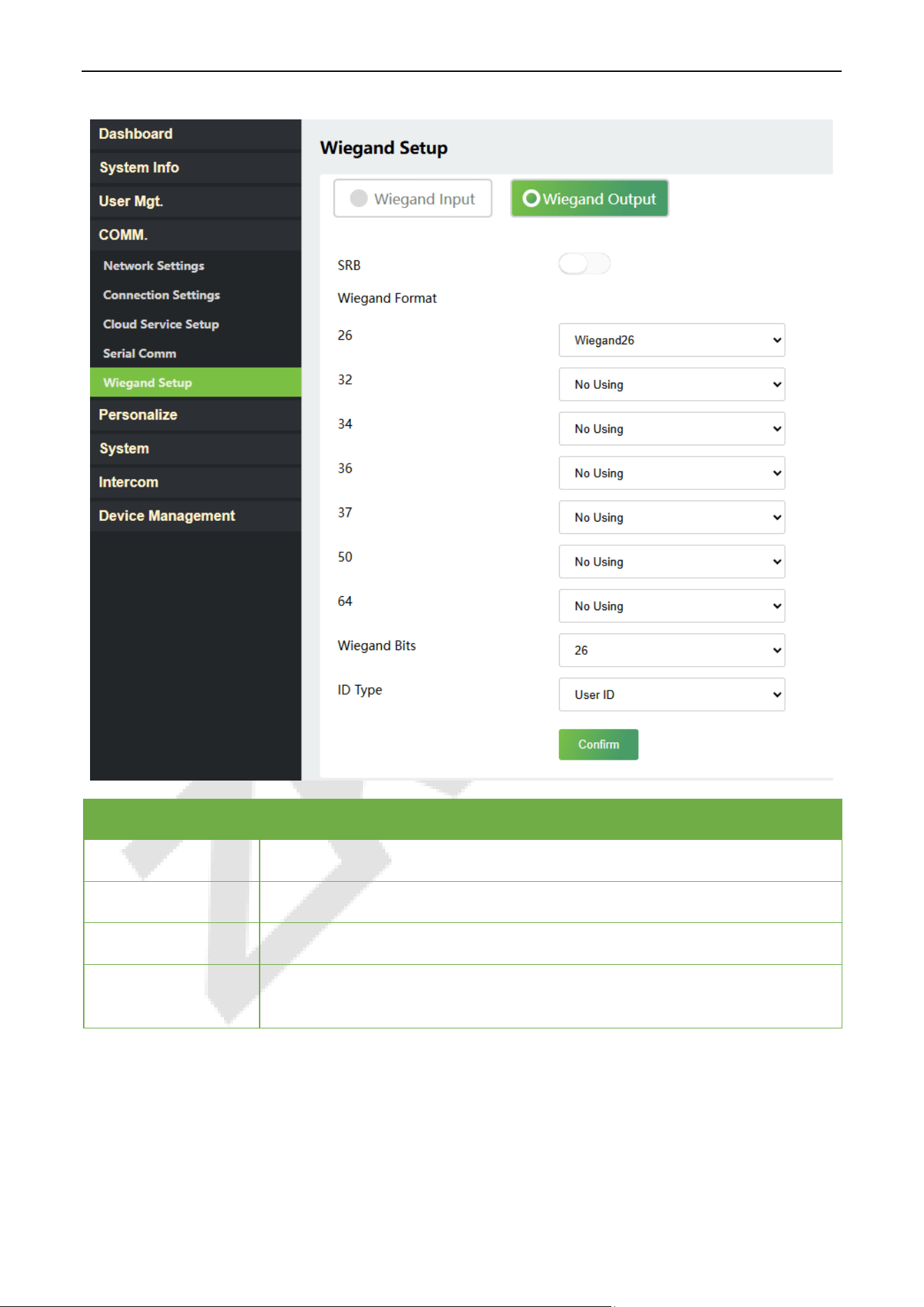
Wiegand Setup 11.5
Click Wiegand Setup on the WebServer.
It is used to set the Wiegand input and output parameters.
ProMA Series (ZAM230) User Manual
Page | 43 Copyright©2026 ZKTECO CO., LTD. All rights reserved.
ProMA Series (ZAM230) User Manual
Page | 44 Copyright©2026 ZKTECO CO., LTD. All rights reserved.
Function Name Description
Wiegand Format
Its value can be 26 bits, 32 bits, 34 bits, 36 bits, 37 bits, 50 bits and 64 bits.
Wiegand Bits
The number of bits of the Wiegand data.
ID Type
Select between the User ID and card number.
SRB
When SRB is enabled, the lock is controlled by the SRB to prevent the lock from
being opened due to device removal.
ProMA Series (ZAM230) User Manual
Page | 45 Copyright©2026 ZKTECO CO., LTD. All rights reserved.
12 Personalize
User Interface 12.1
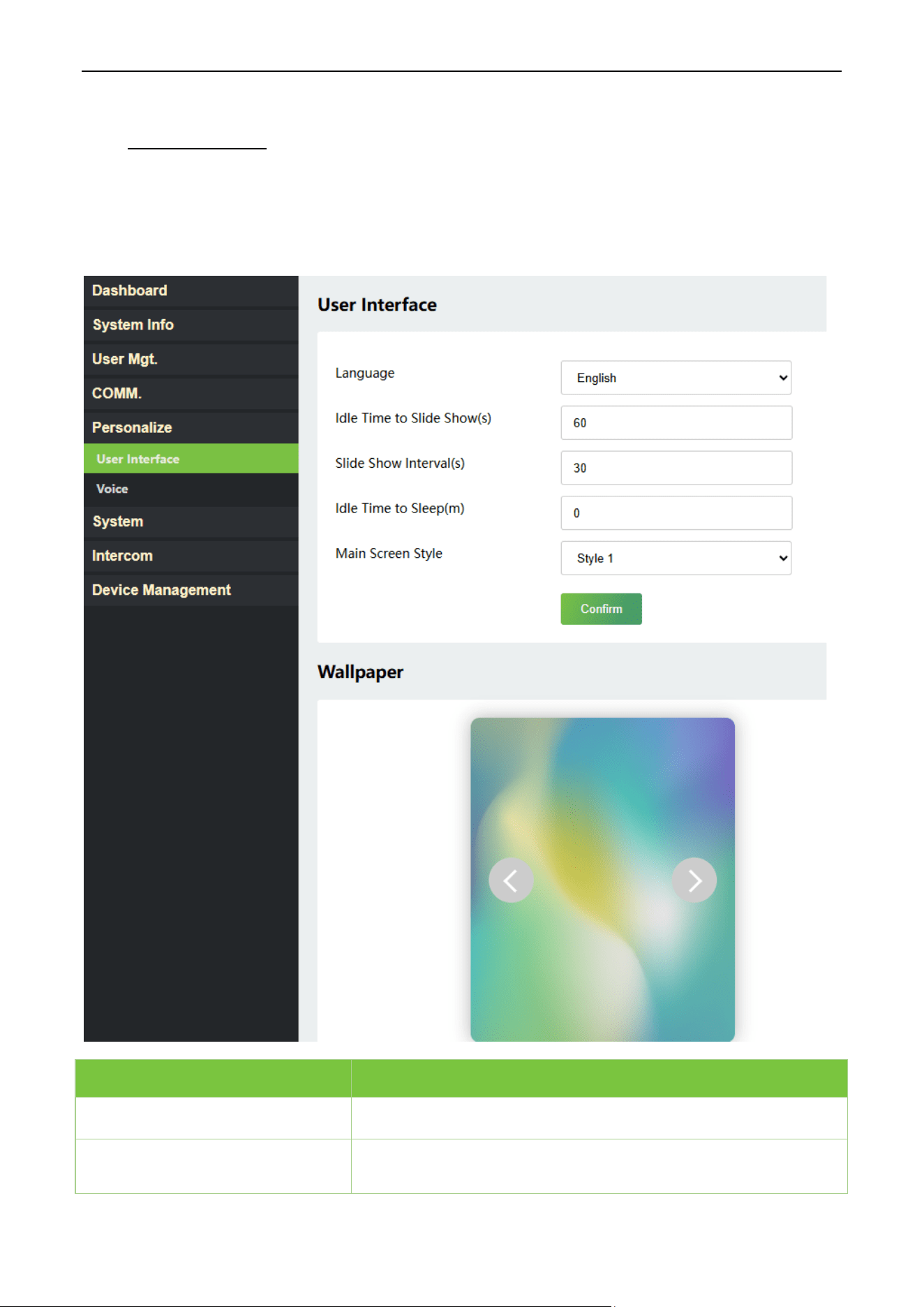
Click Personalize > User Inteface on the WebServer.
Function Name Description
Language
It helps to select the language of the device.
Idle Time to Slide Show (s)
When there is no operation, and the time exceeds the set value, a
slide show is displayed. The function can be disabled, or you may
ProMA Series (ZAM230) User Manual
Page | 46 Copyright©2026 ZKTECO CO., LTD. All rights reserved.
set the value between 3 and 999 seconds.
Slide Show Interval (s)
It is the time interval in switching between different slide show
pictures. The function can be disabled, or you may set the interval
between 3 and 999 seconds.
Idle Time to Sleep (m)
If the sleep mode is activated, and when there is no operation in
the device, then the device will enter standby mode.
This function can be disabled or set a value within 1 to 999 minutes.
Main Screen Style
The style of the main screen can be selected according to the user
preference.
Wallpaper
Select the main screen wallpaper according to the user preference.
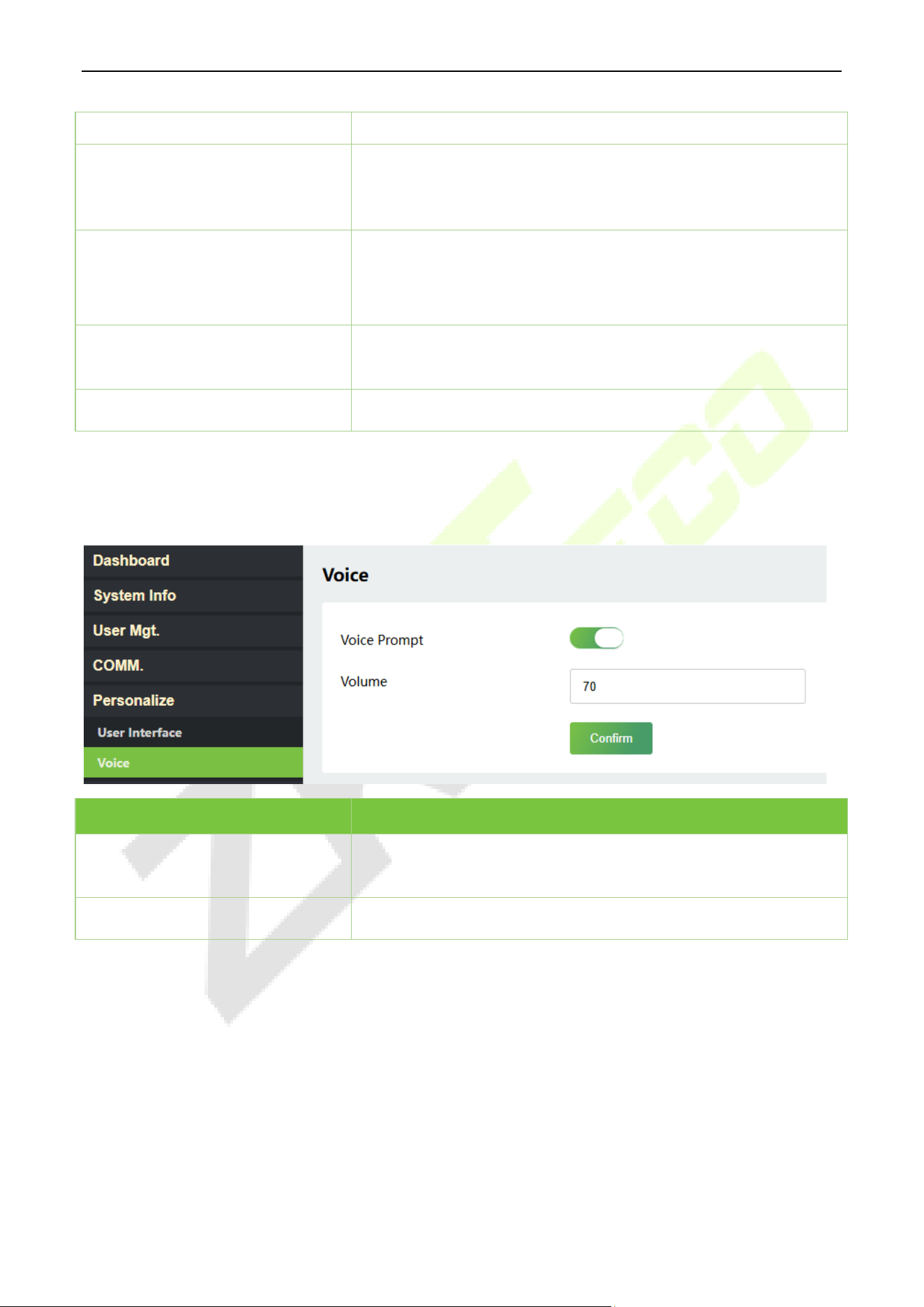
Voice 12.2
Click Voice on the WebServer.
Function Name Description
Voice Prompt
Toggle to enable or disable the voice prompts during function
operations.
Volume
Adjust the volume of the device which can be set between 0 to 100.
ProMA Series (ZAM230) User Manual
Page | 47 Copyright©2026 ZKTECO CO., LTD. All rights reserved.
13 System
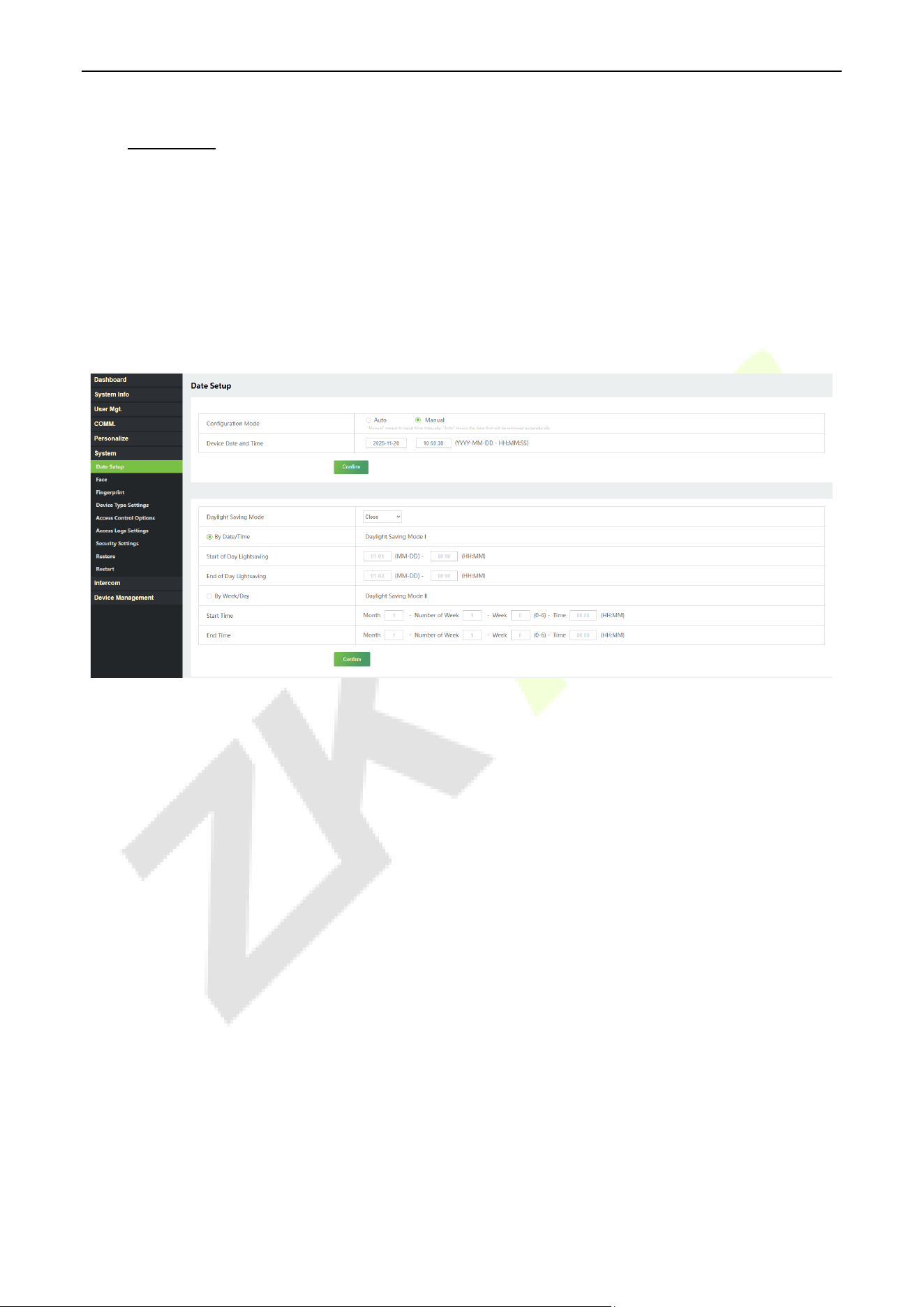
Date Setup 13.1
Click System > Date Setup on the WebServer.
Click Manual to manually set the date and time and click Confirm to save.
Select Open or Close the Daylight Saving Mode function. If opened, set the Daylight Saving Time
and End of Daylight Saving.
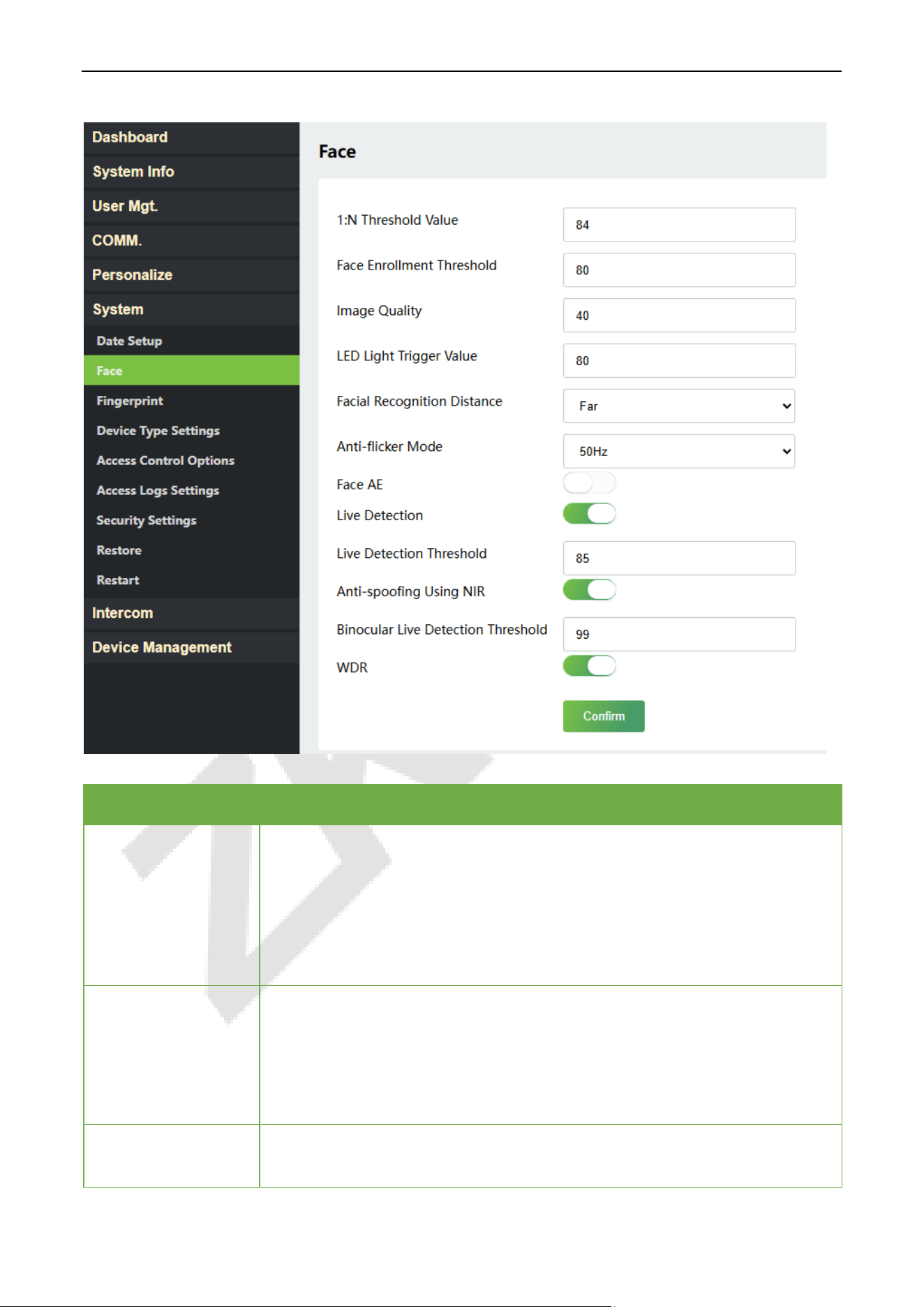
Face Parameters 13.2
Click Face on the WebServer.
ProMA Series (ZAM230) User Manual
Page | 48 Copyright©2026 ZKTECO CO., LTD. All rights reserved.
Function Name Description
1:N Threshold Value
Under face verification mode, the verification will only be successful when the
similarity between the acquired facial image and all registered facial templates
is greater than the set value.
The valid value ranges from 0 to 100. The higher the thresholds, the lower the
misjudgment rate, the higher the rejection rate, and vice versa. It is
recommended to set the default value to 84.
Face Enrollment
Threshold
During face template enrolment, 1: N comparison is used to determine whether
the user has already registered before.
If the similarity between the captured face and any existing template exceeds
this threshold, the system rejects enrollment and indicates the user is already
registered.
Image Quality
Image quality for facial registration and comparison. The higher the value, the
clearer the image requires.

ProMA Series (ZAM230) User Manual
Page | 49 Copyright©2026 ZKTECO CO., LTD. All rights reserved.
LED Light Trigger
Value
This value controls the on and off of the LED light. The larger the value, the
more frequently the LED light will be turned on.
Facial Recognition
Distance
The farther the individual is, the smaller the face, and the smaller number of
pixels of the face obtained by the algorithm. Therefore, adjusting this
parameter can adjust the farthest comparison distance of faces.
Anti-flicker Mode
Used when WDR is tu
rned off. This helps reduce flicker when the device’s
screen flashes at the same frequency as the light.
Face AE
When the face is in front of the camera in Face AE mode, the brightness of the
face area increases, while other areas become darker.
Live Detection
Detecting the spoof attempt using visible light images to determine if the
provided biometric source sample is really a person (a live human being) or a
false representation.
Live Detection
Threshold
Facilitates to judge whether the captured visible image is really a person (a live
human being). The larger the value, the better the anti-spoofing performance
using visible light.
Anti-spoofing Using
NIR
Using near-infrared spectra imaging to identify and prevent fake photos and
video attacks.
Binocular Live
Detection Threshold
Facilitates to judge whether the captured visible image is really a person (a live
human being). The larger the value, the better the anti-spoofing performance
using visible light.
WDR
Wide Dynamic Range (WDR), which balances light and extends image visibility
for surveillance videos under high contrast lighting scenes and improves object
identification under bright and dark environments.
Note: Improper adjustment of the exposure and quality parameters may severely affect the
performance of the device. Please adjust the exposure parameter only under the guidance of the after-
sales service personnel of our company.
Fingerprint
★
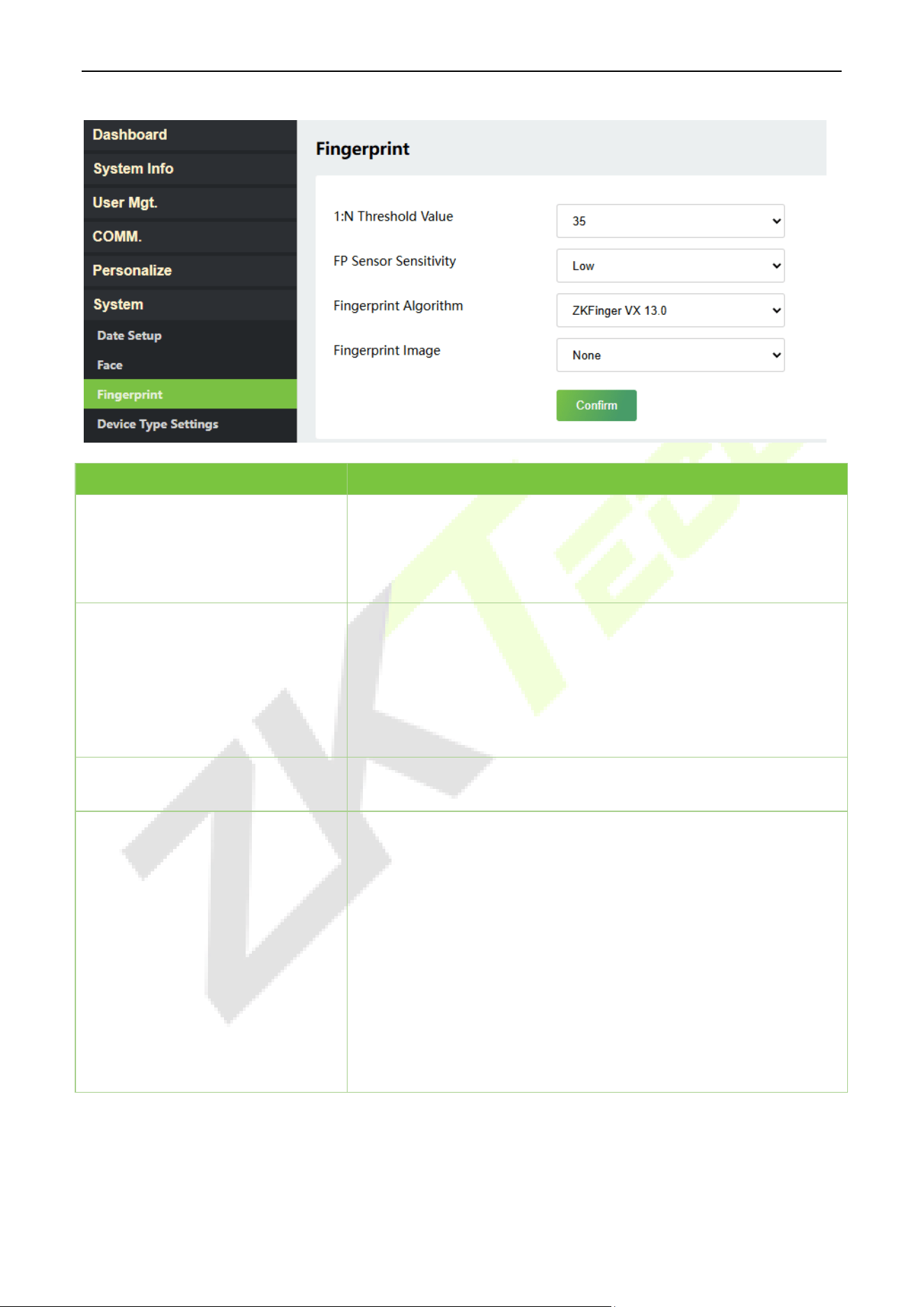
13.3
Click Fingerprint on the WebServer.
ProMA Series (ZAM230) User Manual
Page | 50 Copyright©2026 ZKTECO CO., LTD. All rights reserved.
Function Name Description
1:N Threshold Value
Under 1:N verification method, the verification will only be
successful when the similarity between the acquired fingerprint
data and the fingerprint templates enrolled in the device is greater
than the set value.
FP Sensor Sensitivity
To set the sensibility of fingerprint acquisition. It is recommended to
use the default level "Medium". When the environment is dry,
resulting in slow fingerprint detection, you can set the level to
"High" to raise the sensibility; when the environment is humid,
making it hard to identify the fingerprint, you can set the level to
"Low".
Fingerprint Algorithm
Fingerprint algorithm version. Default support ZKFinger VX13.0, can
change to ZKFinger VX10.0.
Fingerprint Image
To set whether to display the fingerprint image on the screen
during fingerprint enrollment or verification. Four choices are
available:
Show for Enroll: to display the fingerprint image on the screen only
during enrollment.
Show for Match: to display the fingerprint image on the screen
only during verification.
Always Show: to display the fingerprint image on screen during
enrollment and verification.
None: not to display the fingerprint image.
ProMA Series (ZAM230) User Manual
Page | 51 Copyright©2026 ZKTECO CO., LTD. All rights reserved.
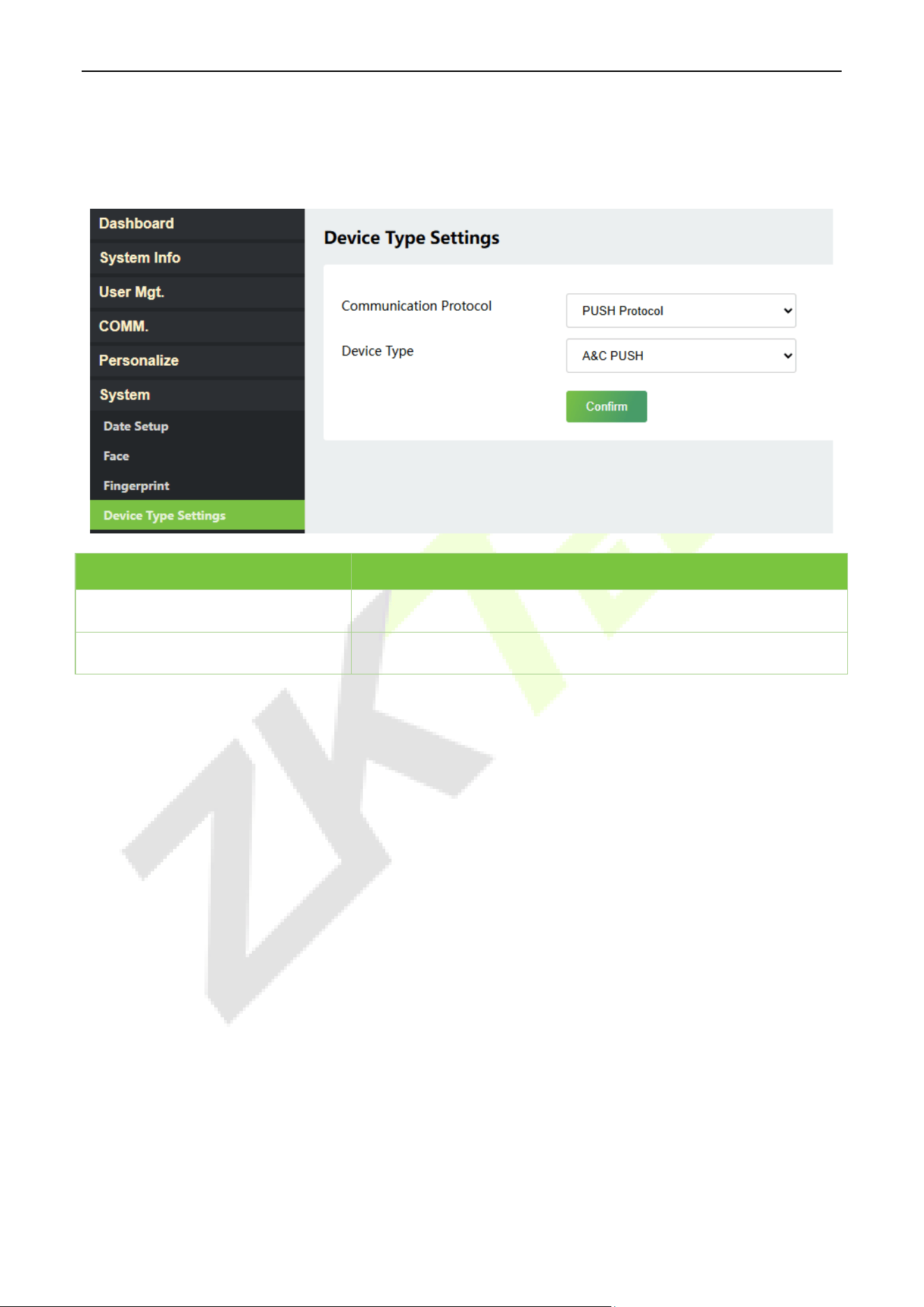
Device Type Settings 13.4
Click Device Type Settings on the WebServer.
Function Name Description
Communication Protocol
It is PUSH Protocol by default.
Device Type
Set the device as an access control terminal or attendance terminal.
Note: After changing the device type, the device will delete all the data and restart, and some functions
will be adjusted accordingly.
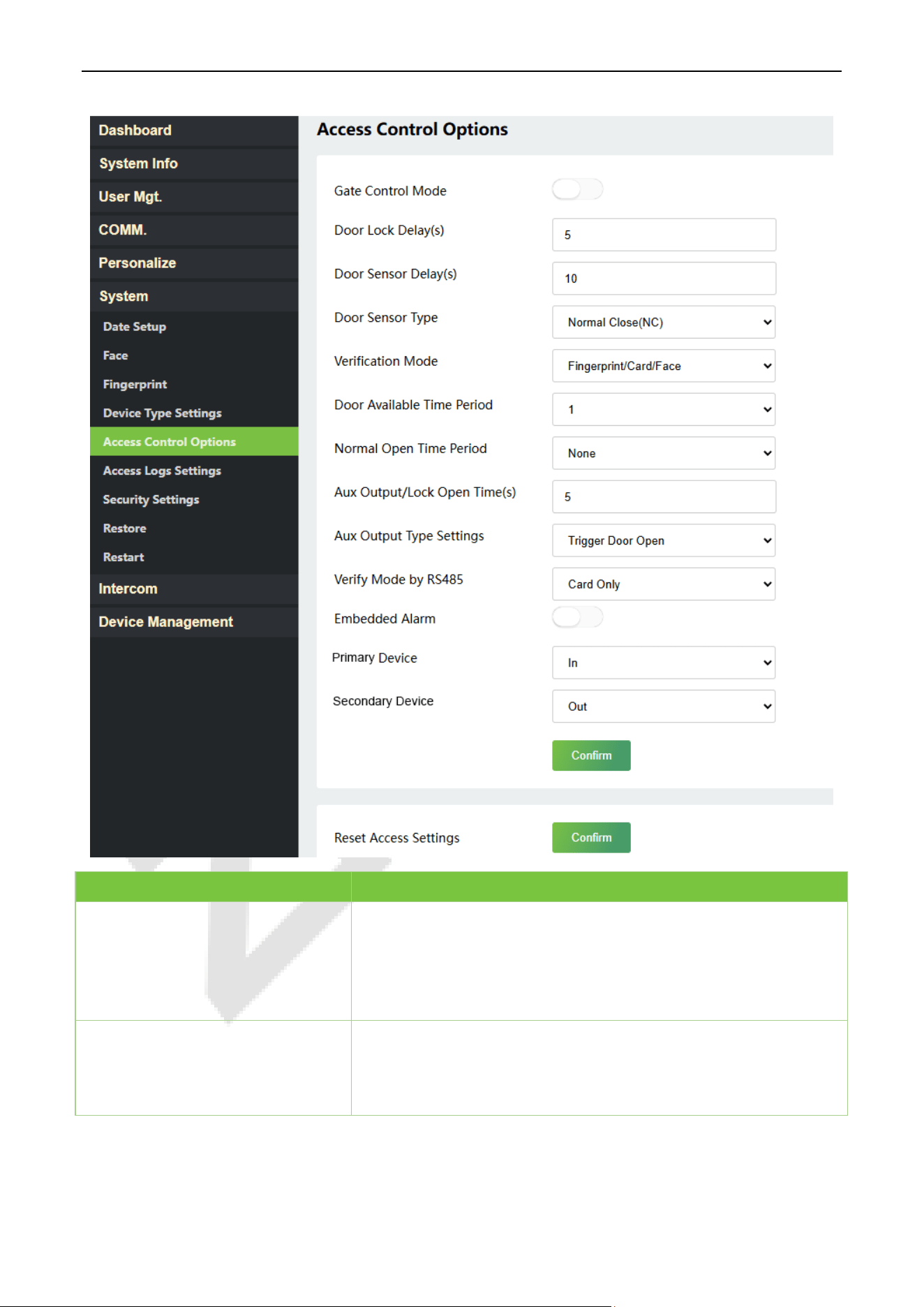
Access Control Options 13.5
Click Access Control Options on the WebServer.
On the Access Control interface to set the parameters of the control lock of the terminal and related
equipment.
ProMA Series (ZAM230) User Manual
Page | 52 Copyright©2026 ZKTECO CO., LTD. All rights reserved.
Function Name Description
Gate Control Mode
It toggles between ON or OFF switch to get into gate control mode
or not.
When set to ON, the interface removes the Door Lock Delay, Door
Sensor Delay, and Door Sensor Type options.
Door Lock Delay (s)
The length of time that the device controls the electric lock to be in
unlock state.
Valid value: 1~99 seconds.

ProMA Series (ZAM230) User Manual
Page | 53 Copyright©2026 ZKTECO CO., LTD. All rights reserved.
Door Sensor Delay (s)
If the door is not locked and is left open for a certain duration (Door
Sensor Delay), an alarm will be triggered.
The valid value of Door Sensor Delay ranges from 1 to 255 seconds.
Door Sensor Type
There are three Sensor types: None, Normal Open, and Normal
Close.
None: It means the door sensor is not in use.
Normal Open: It means the door is always left open when electric
power is on.
Normal Close: It means the door is always left closed when electric
power is on.
Verification Mode
The supported verification mode includes Fingerprint/Card/Face,
Fingerprint Only, Card Only, Fingerprint/Card, Fingerprint+Card,
Face Only, Face+Fingerprint, Face+Card and
Face+Fingerprint+Card.
Door Available Time Period
It sets the timing for the door so that the door is accessible only
during that period.
Normal Open Time Period
It is the scheduled time-period for "Normal Open" mode so that the
door is always open during this period.
Aux Output/Lock Open Time(s)
Sets the door unlock time period of the auxiliary terminal device.
Aux Output Type Settings
Auxiliary output types include None, Trigger door open, Trigger
Alarm, Trigger door open and Alarm.
Verify Mode by RS485
When the RS485 reader function is turned on, the verification
method is used when the device is used as a primary
or a
secondary.
Embedded Alarm
If enabled, it transmits a sound alarm or disassembly alarm from the
local. When the door is closed or the verification is successful, the
system cancels the alarm from the local.
Primary Device
While configuring the primary and secondary devices, you may set
the state of the primary as Out or In.
Out: A record of verification on the primary device is a check-out
record.
In: A record of verification on the primary device is a check-in
record.
ProMA Series (ZAM230) User Manual
Page | 54 Copyright©2026 ZKTECO CO., LTD. All rights reserved.
Secondary Device
While configuring the primary and secondary devices, you may set
the state of the secondary as Out or In.
Out: A record of verification on the secondary device is a check-out
record.
In: A record of verification on the secondary device is a check-in
record.
Reset Access Settings
The access control reset parameters include door lock delay, door
sensor delay, door sensor type, verification mode, door available
time period, normal open time period, primary device, and alarm.
However, erased access control data in Device Data Management is
excluded.
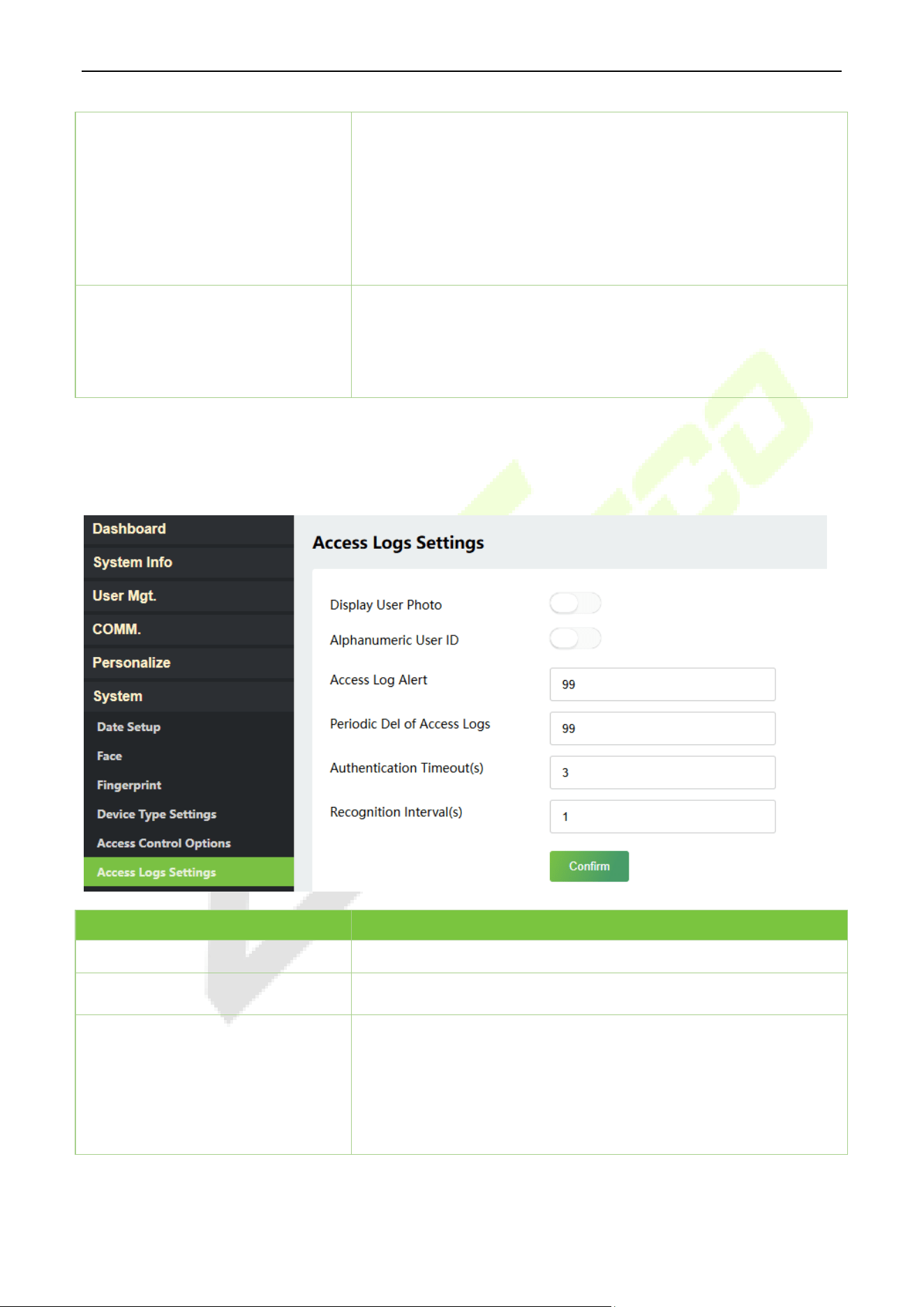
Access Logs Settings 13.6
Click Access Logs Settings on the WebServer.
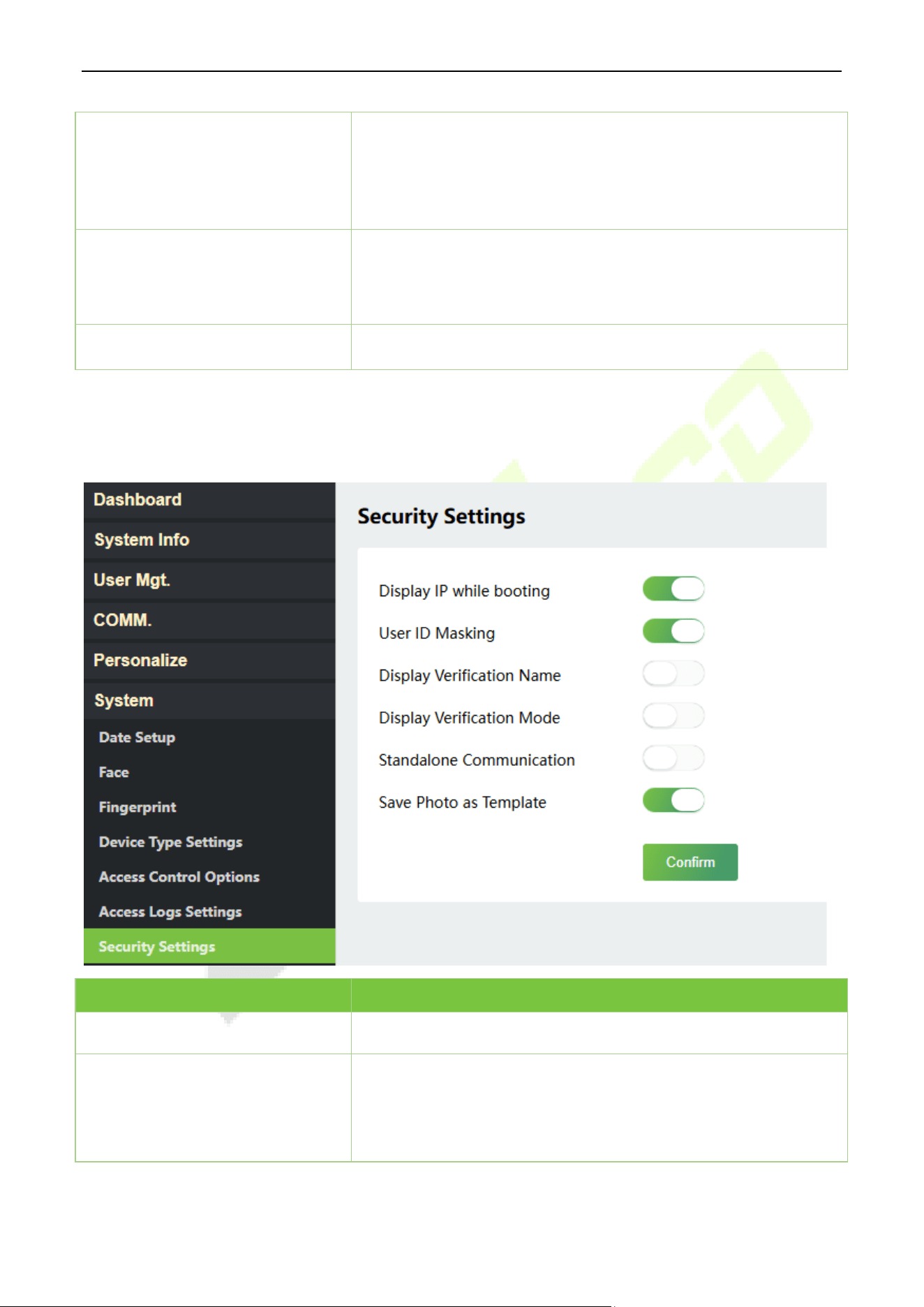
Function Name Description
Display User Photo
This function is disabled by default.
Alphanumeric User ID
Enable/Disable the alphanumeric as User ID.
Access Log Alert
When the record space of the access reaches the maximum
threshold value, the device automatically displays the memory
space warning.
Users may disable the function or set a valid value between 1 and
9999.
ProMA Series (ZAM230) User Manual
Page | 55 Copyright©2026 ZKTECO CO., LTD. All rights reserved.
Periodic Del of Access Logs
When access logs reach its maximum capacity, the device
automatically deletes a set of old access logs.
Users may disable the function or set a valid value between 1 and
999.
Authentication Timeout(s)
The amount of time taken to display a successful verification
message.
Valid value: 1 to 9 seconds.
Recognition Interval (s)
To set the facial template matching time interval as required.
Valid value: 0~9 seconds.
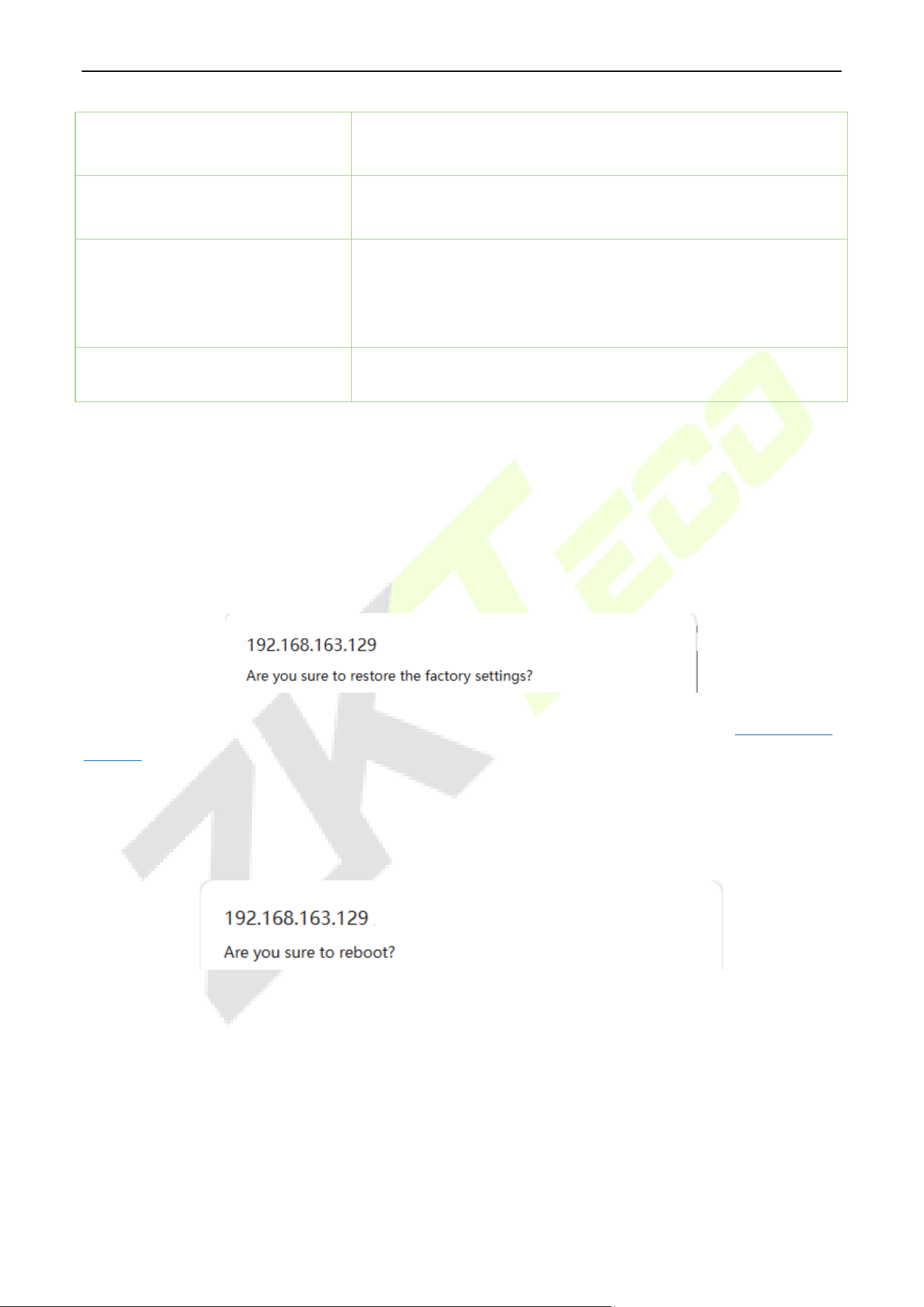
Security Settings 13.7
Click Security Settings on the WebServer.
Function Name Description
Display IP while booting
Enable/Disable the function of display IP when booting.
User ID Masking
When enabled, and then the user is successfully compared and
verified, the User ID in the displayed verification result will be
replaced with an * to achieve secure protection of sensitive private
data.
ProMA Series (ZAM230) User Manual
Page | 56 Copyright©2026 ZKTECO CO., LTD. All rights reserved.
Display Verification Name
Set whether to display the username in the verification result
interface.
Display Verification Mode
Set whether to display the verification mode in the verification
result interface.
Standalone Communication
By default, this function is disabled. It is used to connect the C/S
software (like ZKAccess3.5, etc.). When it is switched on, a security
prompt appears, and you need to set the Comm Key, the device will
restart after you confirm.
Save Photo as Template
After disabling this function, face template re-registration is
required after an algorithm upgrade.
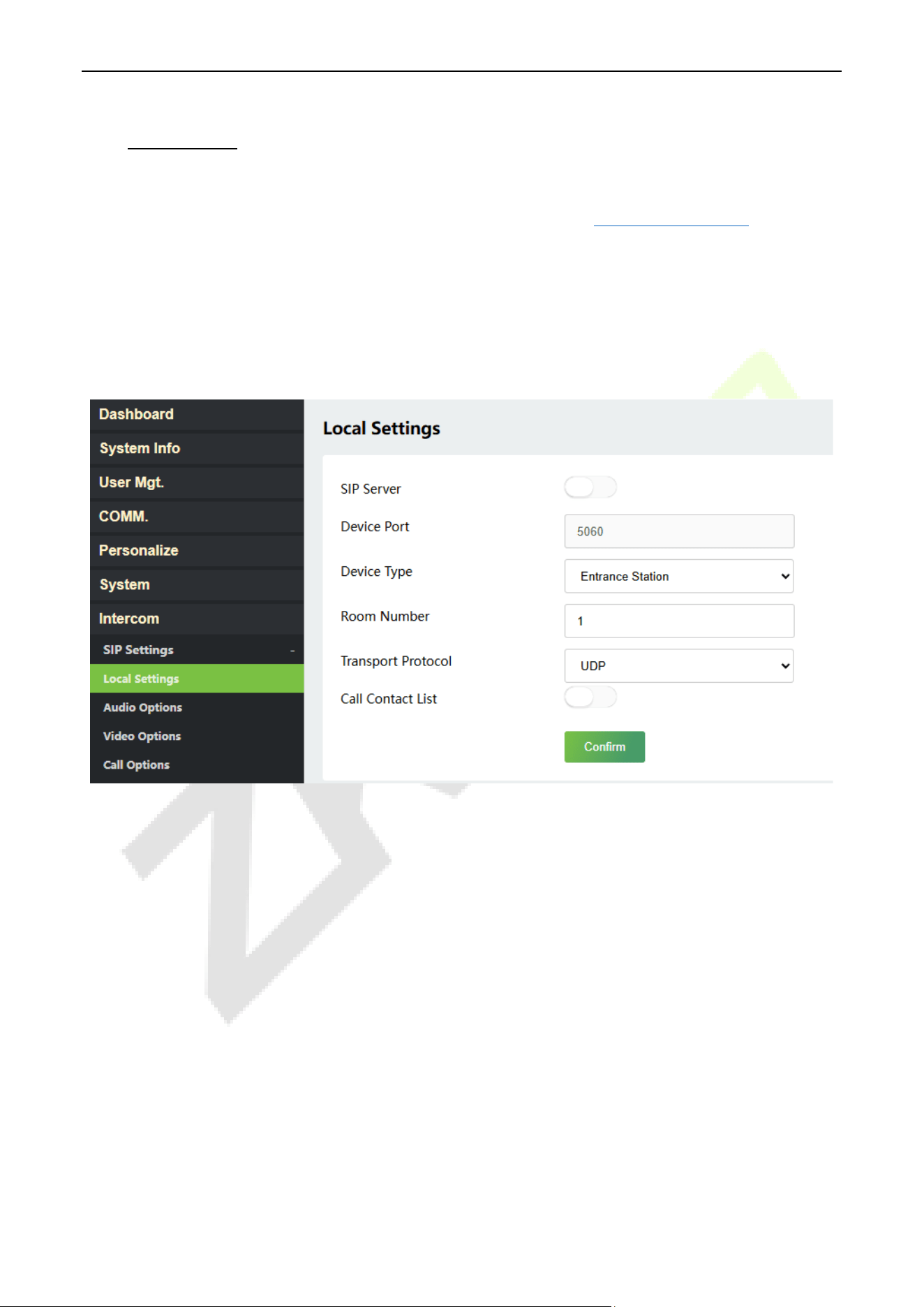
Restore 13.8
Click Restore on the WebServer, and it will pop up the following prompt box. Click Yes to restore the
factory settings.
The Restore function restores the device settings such as communication and system settings to the
default factory settings (this function does not clear registered user data).
Note: After reset, the IP of the device is restored to the original 192.168.1.201, please refer to 11.1 Network
Settings to modify the IP.
Restart 13.9
Click Restart on the WebServer, and it will pop up the following prompt box. Click Yes to reboot.
ProMA Series (ZAM230) User Manual
Page | 57 Copyright©2026 ZKTECO CO., LTD. All rights reserved.
14 Intercom
The device achieves video intercom there are two modes, respectively, the Ethernet LAN via ZKTeco
Private Protocol (TCP/IP) and SIP server. For more details, please refer to 17 SIP Video Intercom
.
SIP Settings 14.1
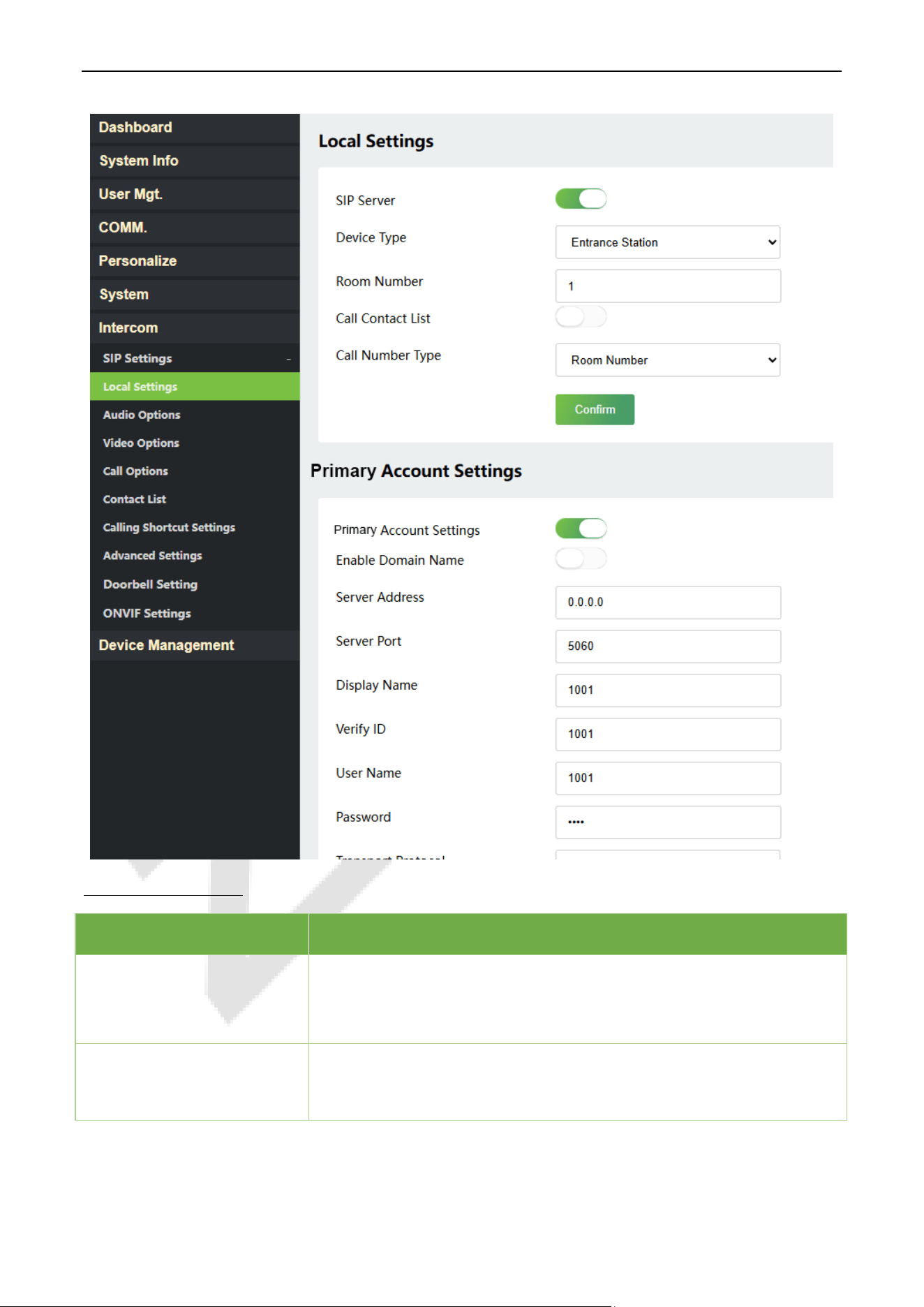
14.1.1 Local Settings
Click Intercom > SIP Settings > Local Settings on the Webserver.
ProMA Series (ZAM230) User Manual
Page | 58 Copyright©2026 ZKTECO CO., LTD. All rights reserved.
Function Description
Function Name Description
SIP Server
Select whether to enable the SIP server. When it is enabled, the SIP
account needs to be set.
Note: Every time this feature is turned on or off, the contact list will be
reset.
Primary Account Settings
After assigning the SIP account to the device on the ZKBio CVSecurity,
the account information will be automatically synchronized to the
device. You don’t need to configure it manually.
ProMA Series (ZAM230) User Manual
Page | 59 Copyright©2026 ZKTECO CO., LTD. All rights reserved.
Backup Account Settings
Select whether to enable the backup account settings.
Device Port
It is 5060 by default and cannot be modified.
Device Type
Set the device type as Entrance Station or Fence Terminal.
Note: The contact list will be cleared after changing the device type.
Block/Unit/Room Number
Set the specific location information of the device, block, unit (which can
be disabled) and room number.
Transport Protocol
Set the transport protocol between the device and indoor monitor.
Call Contact List
Select whether to enable the contact list of the device.
Call Number Type
Room Number: The device can call the extension number or room
number.
SIP Account Number: The device can only call the SIP account.
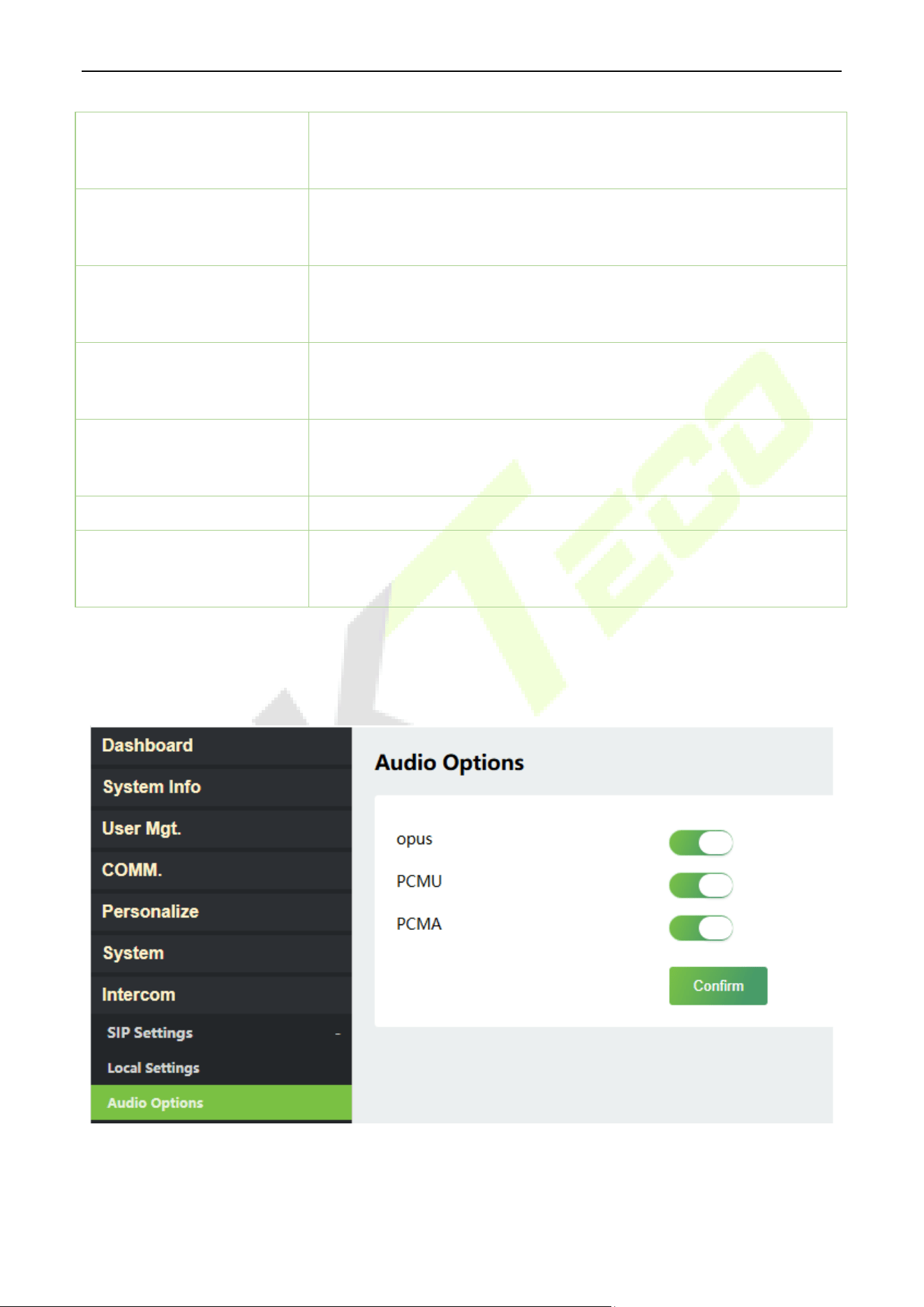
14.1.2 Audio Options
Click Audio Options on the Webserver.
Select the audio encoder for intercom. Opus, PCMU and PCMA provide better voice quality, but they take
up more bandwidth, requiring 64kbps.
ProMA Series (ZAM230) User Manual
Page | 60 Copyright©2026 ZKTECO CO., LTD. All rights reserved.
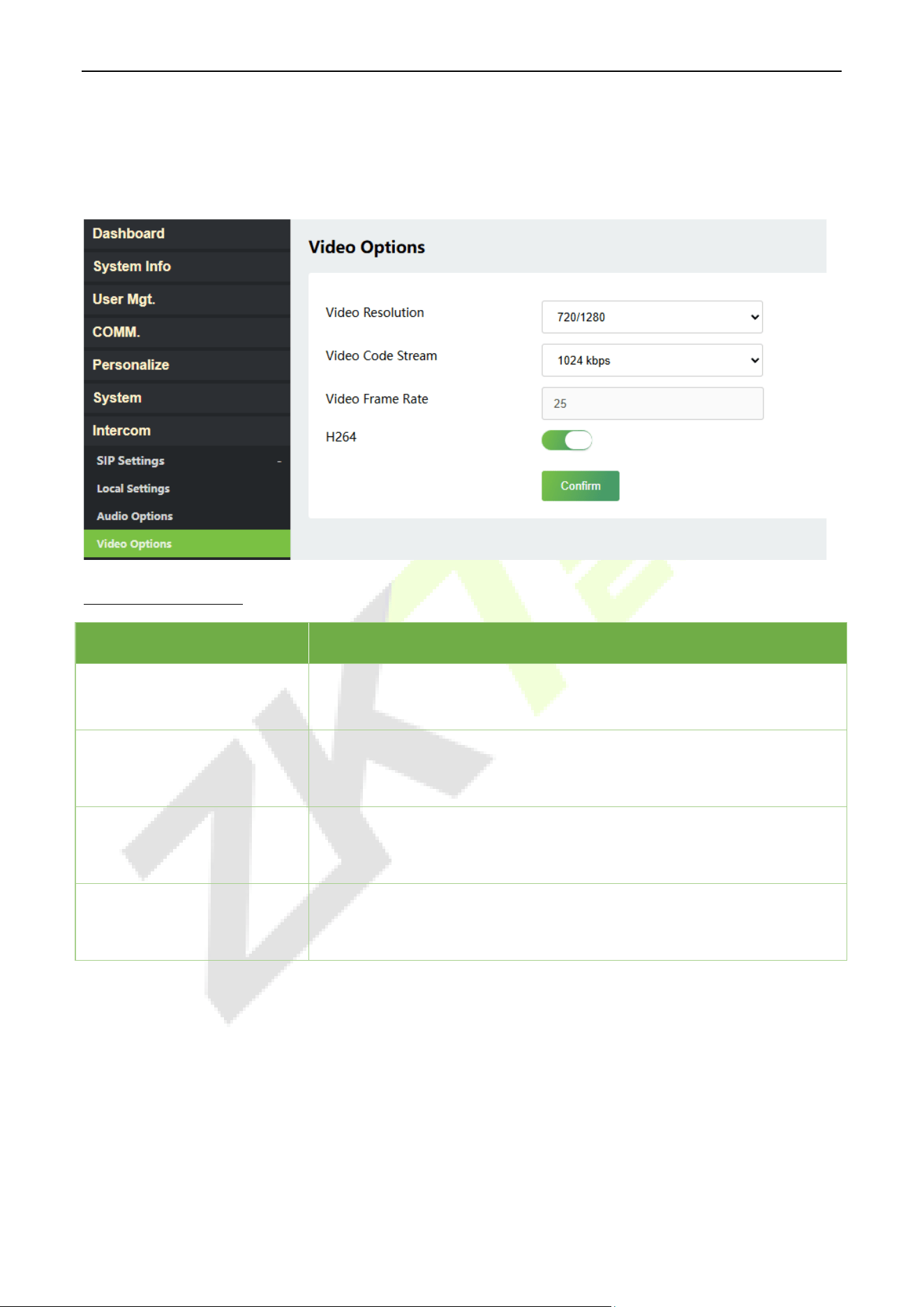
14.1.3 Video Options
Click Video Options on the Webserver.
Function Description
Function Name Description
Video Resolution
Select the video resolution of the intercom, 1024/576 (for landscape
screen) or 720/1280 (for portrait screen). The device is suggested to set as
720/1280.
Video Code Stream
Select the video code stream of the intercom, the larger the value, the
higher the picture and sound quality of the video, and the greater the
network requirements.
Video Frame Rate
Refers to the number of frames per second of the intercom video display,
the larger the value the smoother the intercom video display. Default:
25Hz (not configurable).
Encoder
Enable or disable H.264 encoder.
ProMA Series (ZAM230) User Manual
Page | 61 Copyright©2026 ZKTECO CO., LTD. All rights reserved.
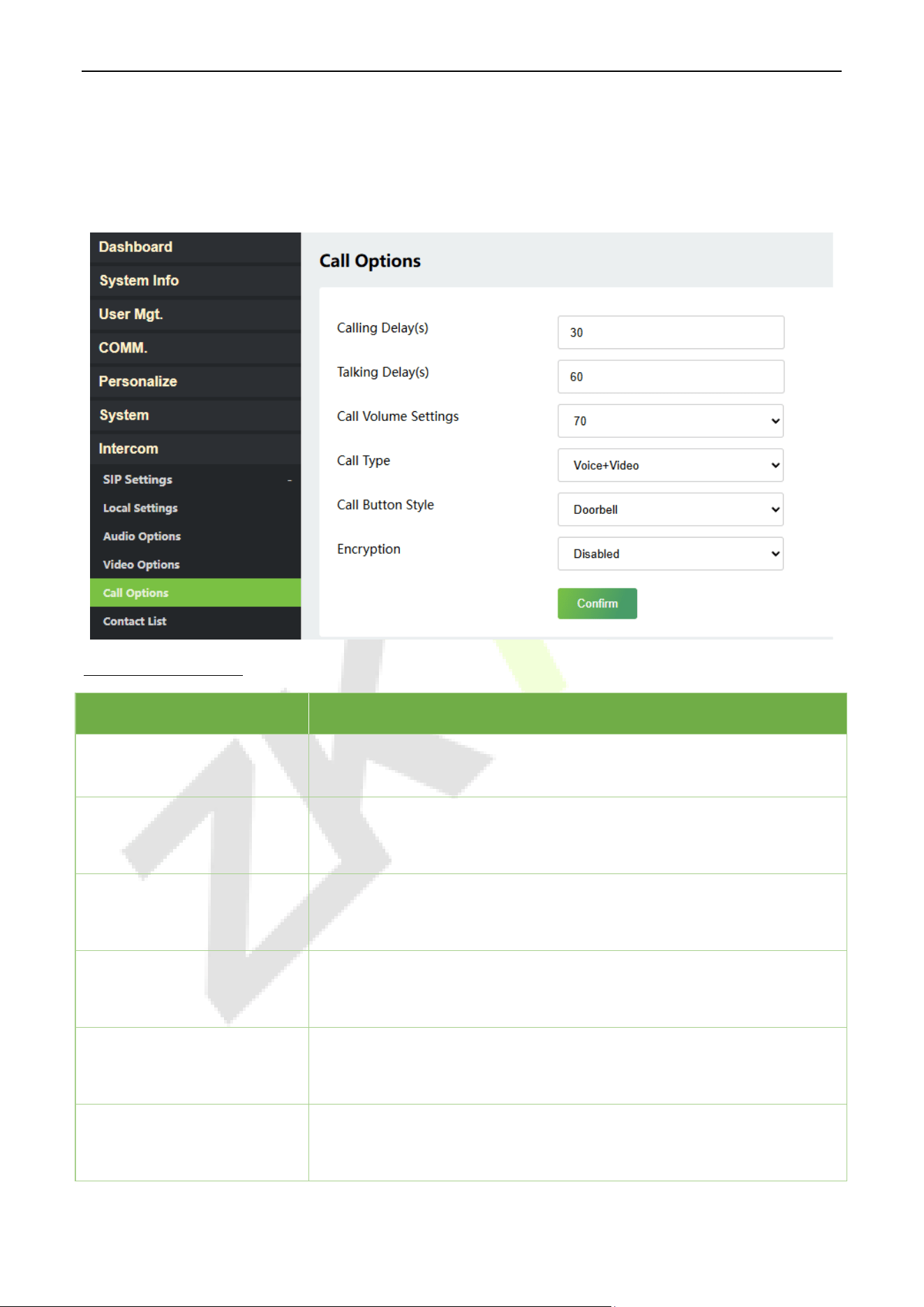
14.1.4 Call Options
Click Call Options on the Webserver.
Function Description
Function Name Description
Calling Delay(s)
Set the time of call, valid value 30 to 60 seconds.
Talking Delay(s)
Set the time of intercom, valid value 60 to 120 seconds. It is suggested to
set as 60s.
Call Volume Settings
Set the volume of the call, with valid value ranging from 0 to 100.
Call Type
Set the call type to Voice only or Voice+Video.
Call Button Style
It is Doorbell and cannot be modified.
Encryption
It is disabled by default.
ProMA Series (ZAM230) User Manual
Page | 62 Copyright©2026 ZKTECO CO., LTD. All rights reserved.
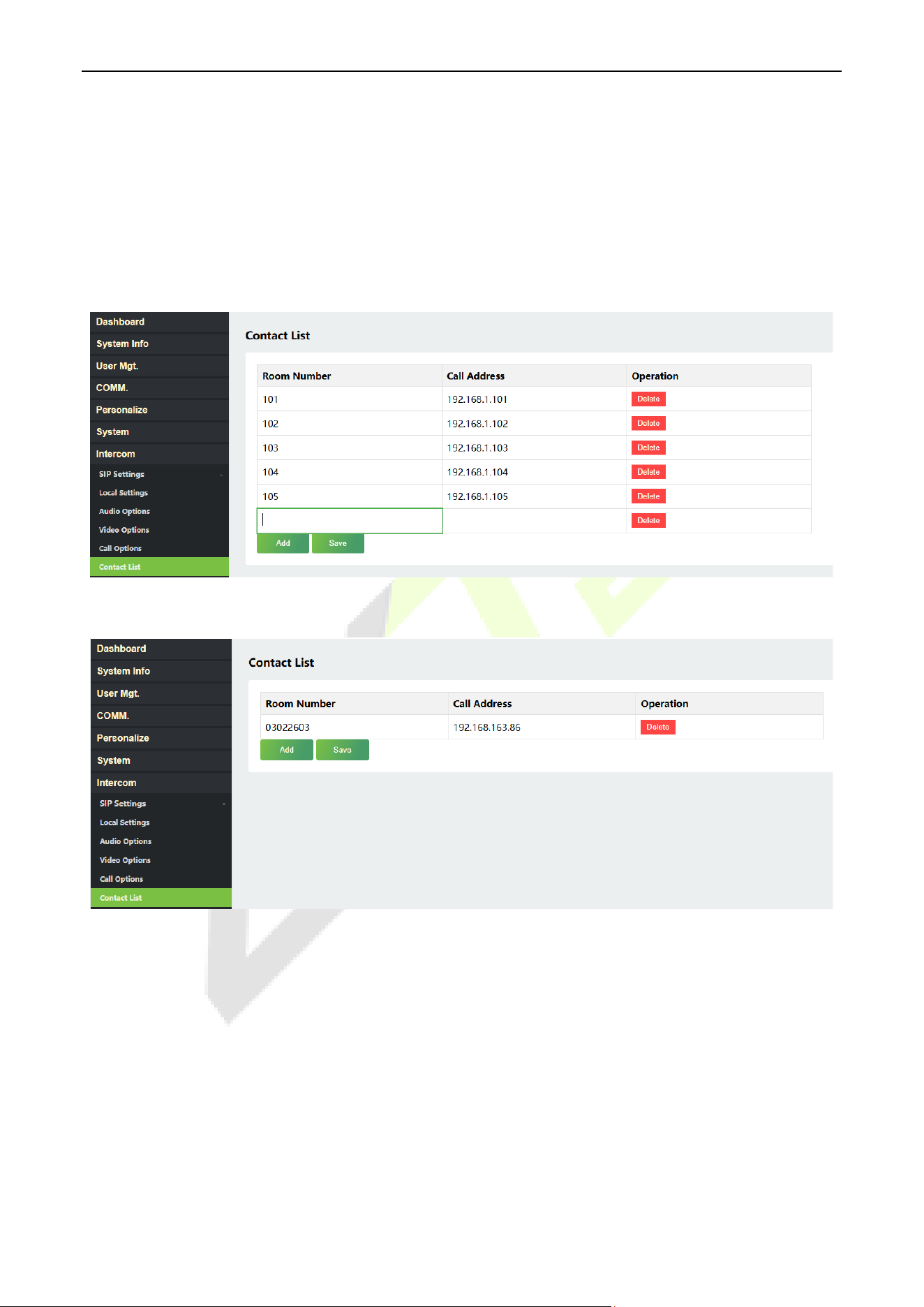
14.1.5 Contact List
Click Contact List on the Webserver.
In SIP Server mode, the contact list is synchronized by the ZKBio CVSecurity Server to the device. When the
SIP server is disabled, the room number and call address of the indoor monitors can be added here.
Click Add to enter the Room Number and Call Address.
Entrance Station
Fence Terminal
Room Number: Customize the number of the indoor monitor.
Call Address: This is the IP Address of the indoor monitor.
When the device type is set as Entrance Station, the room number can be 1t o 4 digits.
When the device type is set as Fence Terminal, the room number should be 8 digits. For example, if the
indoor monitor is in Block 3, Unit 2, Room 2603, then input “03022603”. When the Unit is disabled, then
the room number should be 6 digits, like “032603”.
ProMA Series (ZAM230) User Manual
Page | 63 Copyright©2026 ZKTECO CO., LTD. All rights reserved.
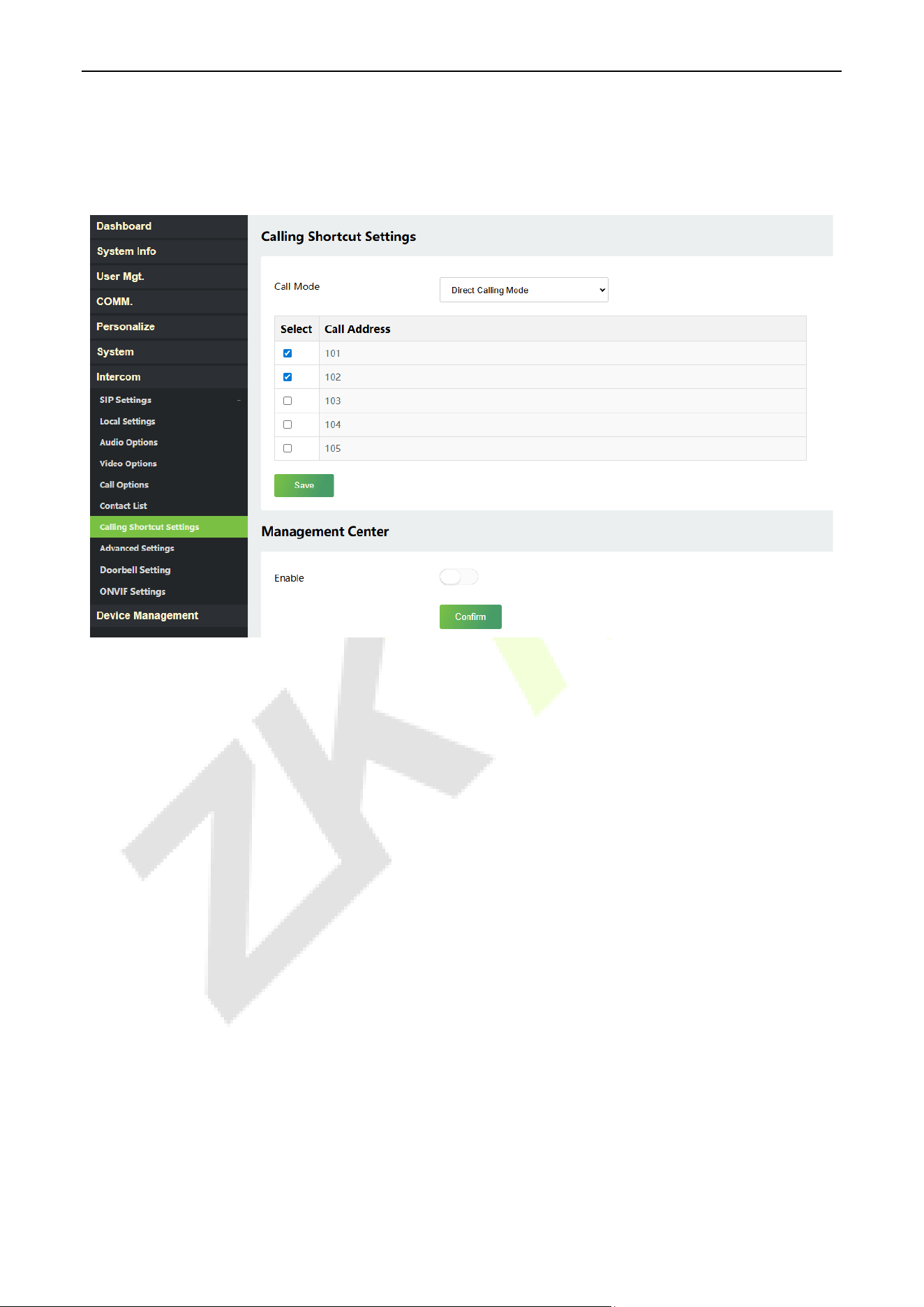
14.1.6 Calling Shortcut Settings
Click Calling Shortcut Settings on the Webserver.
Call Mode: The device only supports Direct Calling Mode.
Select the call addresses you want to call, then click Save.
Management Center: Select whether to enable the Management Center and set its number.
ProMA Series (ZAM230) User Manual
Page | 64 Copyright©2026 ZKTECO CO., LTD. All rights reserved.
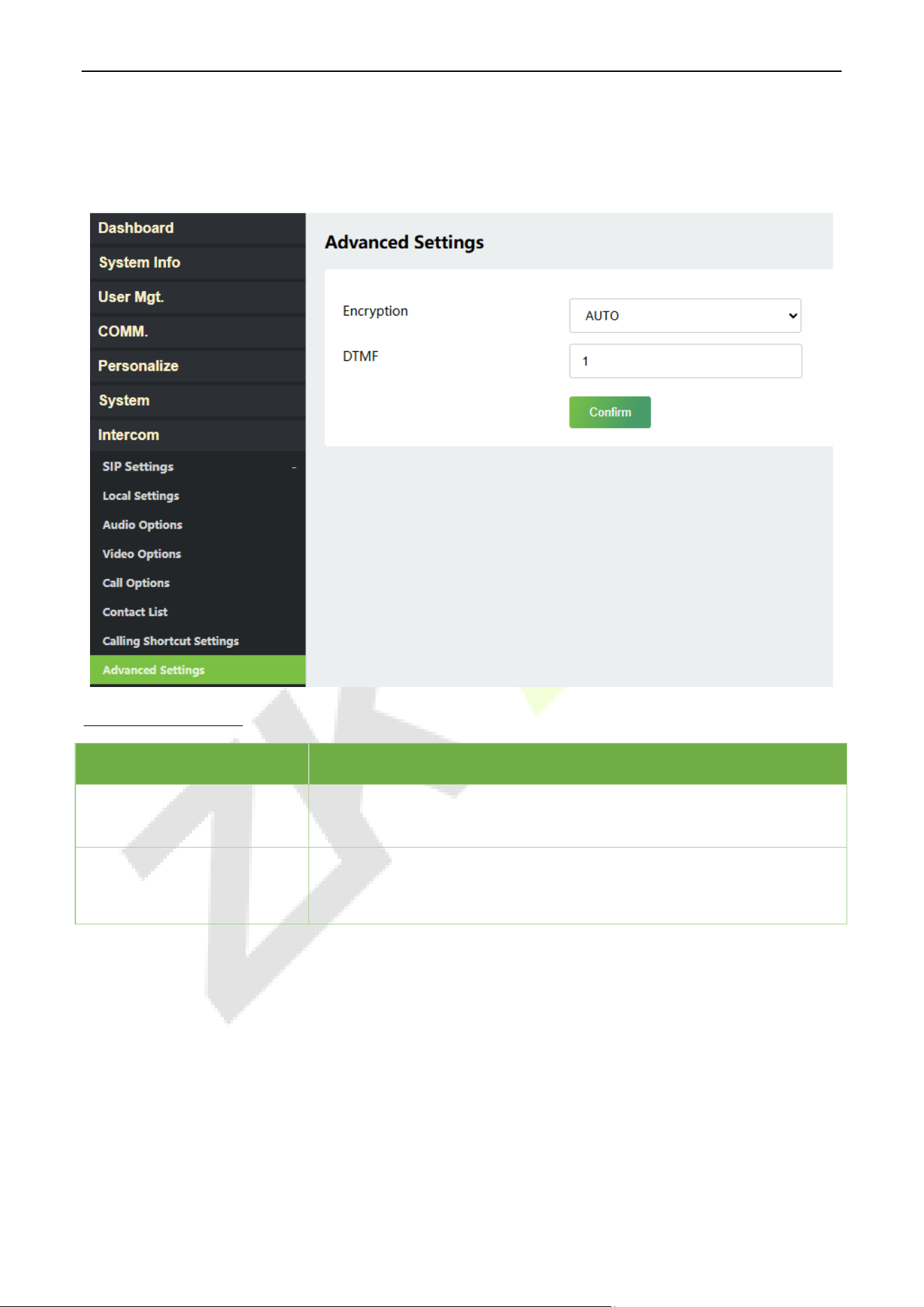
14.1.7 Advanced Settings
Click Advanced Settings on the Webserver.
Function Description
Function Name Description
DTMF Type
Set the DTMF type as AUTO, SIP INFO or RFC2833.
DTMF
The value should be set as same as the value of DTMF in the indoor
monitor.
ProMA Series (ZAM230) User Manual
Page | 65 Copyright©2026 ZKTECO CO., LTD. All rights reserved.
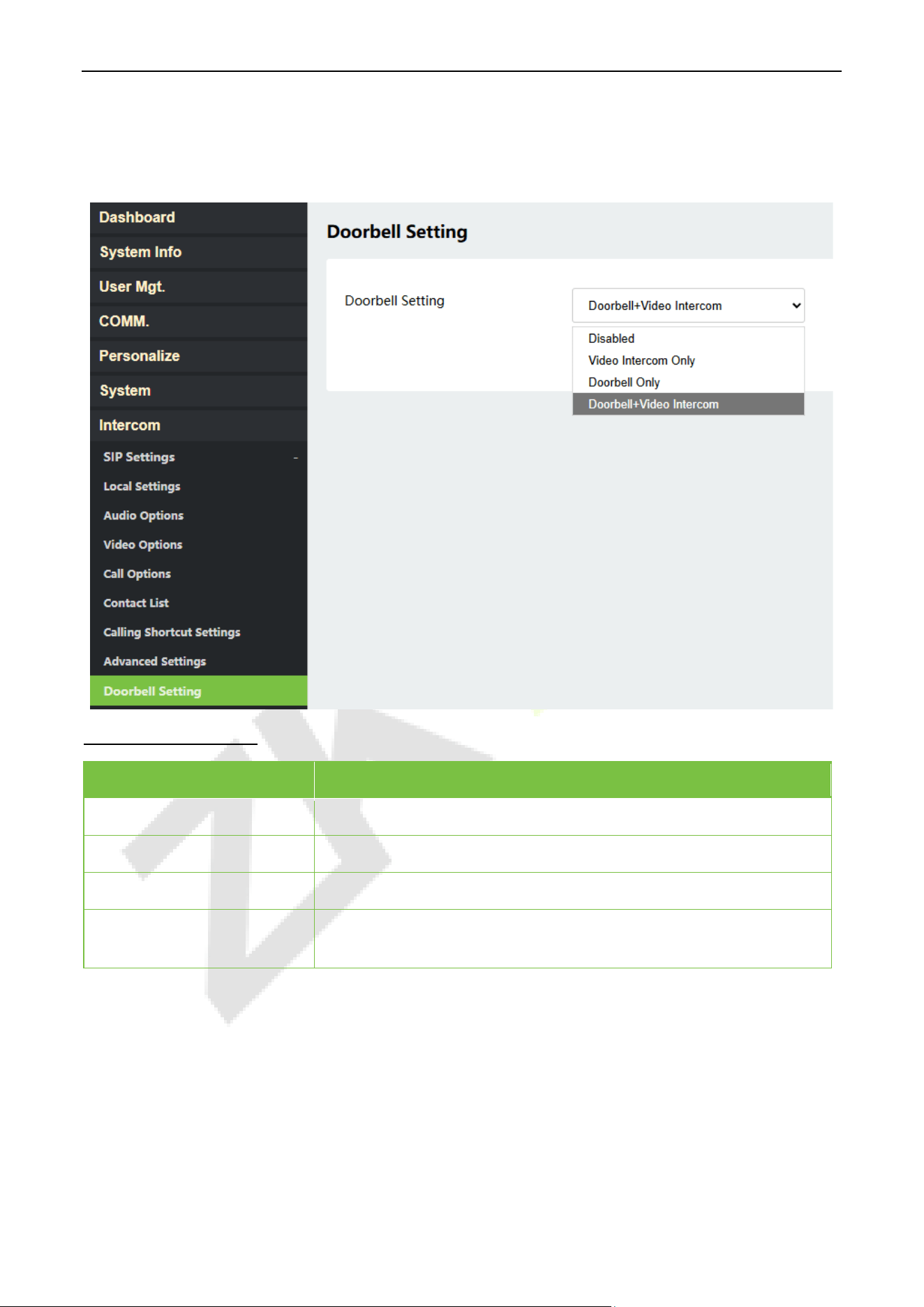
Doorbell Setting 14.2
Click Intercom > Doorbell Setting on the Webserver.
Function Description
Function Name Description
Disabled
The doorbell button is disabled.
Video Intercom Only
Press the doorbell button of the device to make a call.
Doorbell Only
Press the doorbell button of the device, the doorbell rings.
Doorbell+Video Intercom
Press the doorbell button of the device, the doorbell rings and the
device make a call for video intercom.
ProMA Series (ZAM230) User Manual
Page | 66 Copyright©2026 ZKTECO CO., LTD. All rights reserved.
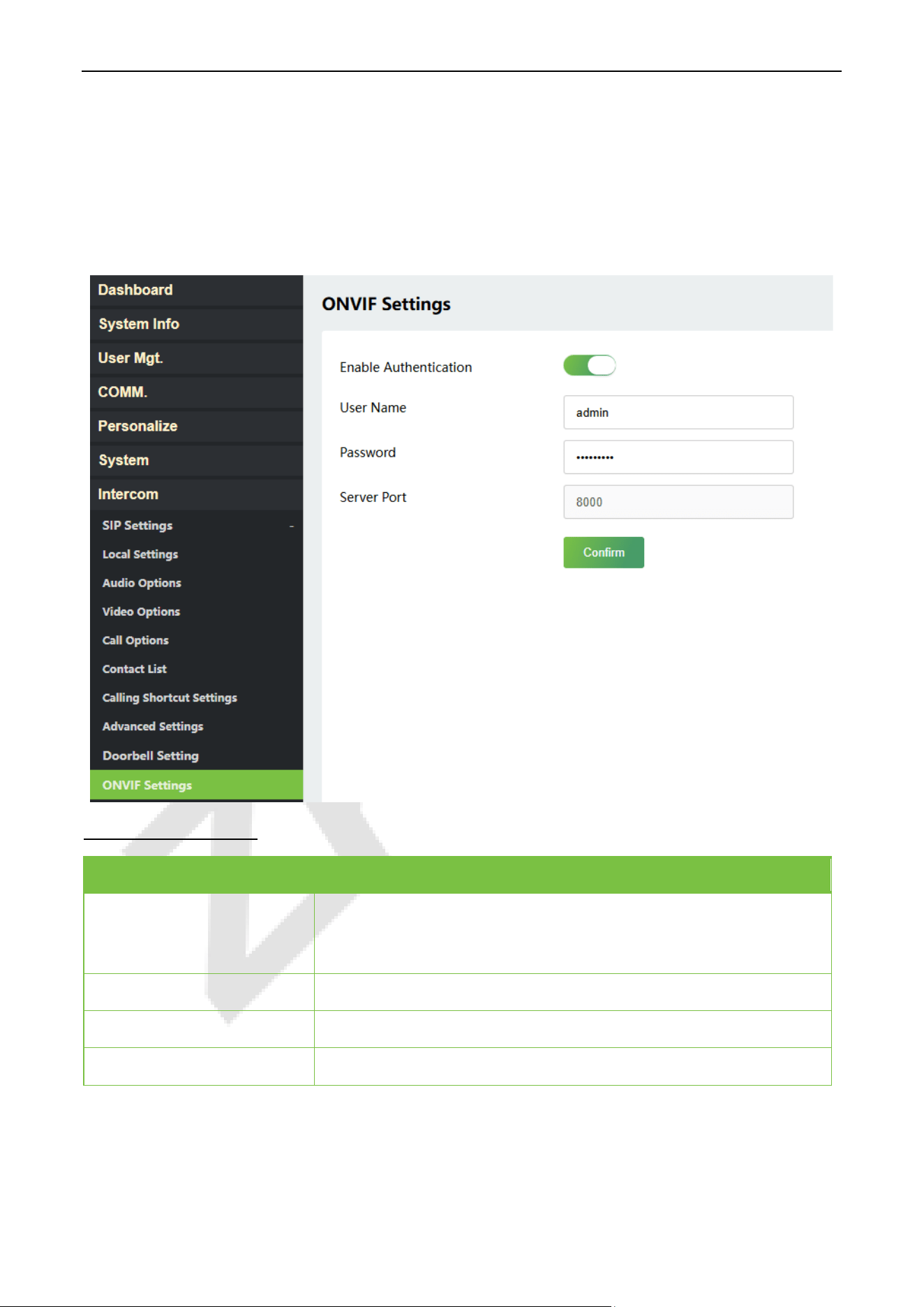
ONVIF Settings 14.3
Note: Note: This function is compatible with ZKTeco's and third-party network video recorder (NVR).
1. Set the device to the same network segment as the NVR.
2. Click Intercom > ONVIF Settings on the Webserver.
Function Description
Function Name Description
Enable Authentication
Enable/Disable the Authentication Function. When it is disabled, there
is no need to input the user name and Password when adding the
device to the NVR.
User Name
Set the username. The default is admin.
Password
Set the password. The default is admin@123.
Server Port
The default is 8000 and cannot be modified.
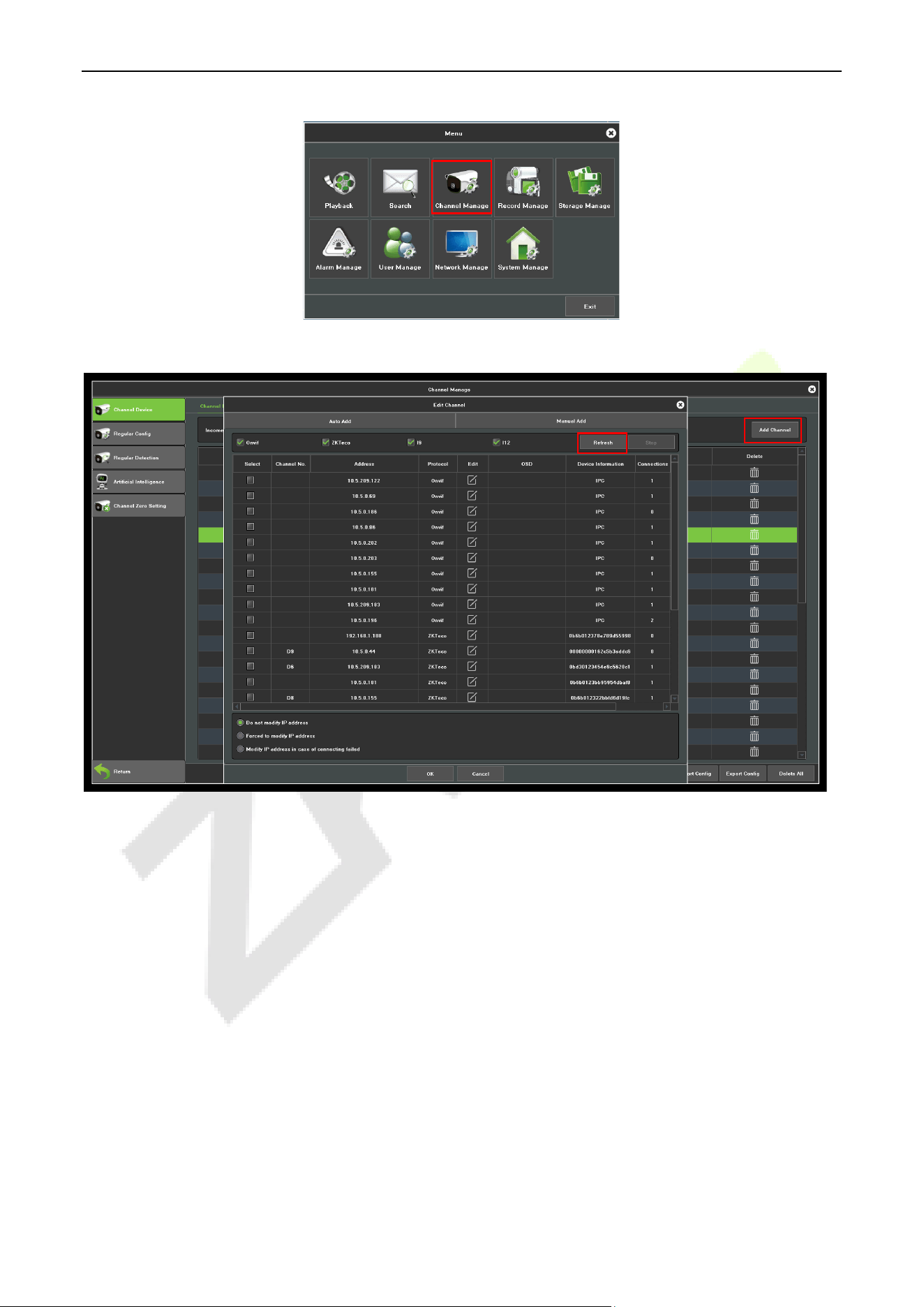
3. On the NVR system, click on [Start] > [Menu], then the main menu will pop up.
ProMA Series (ZAM230) User Manual
Page | 67 Copyright©2026 ZKTECO CO., LTD. All rights reserved.
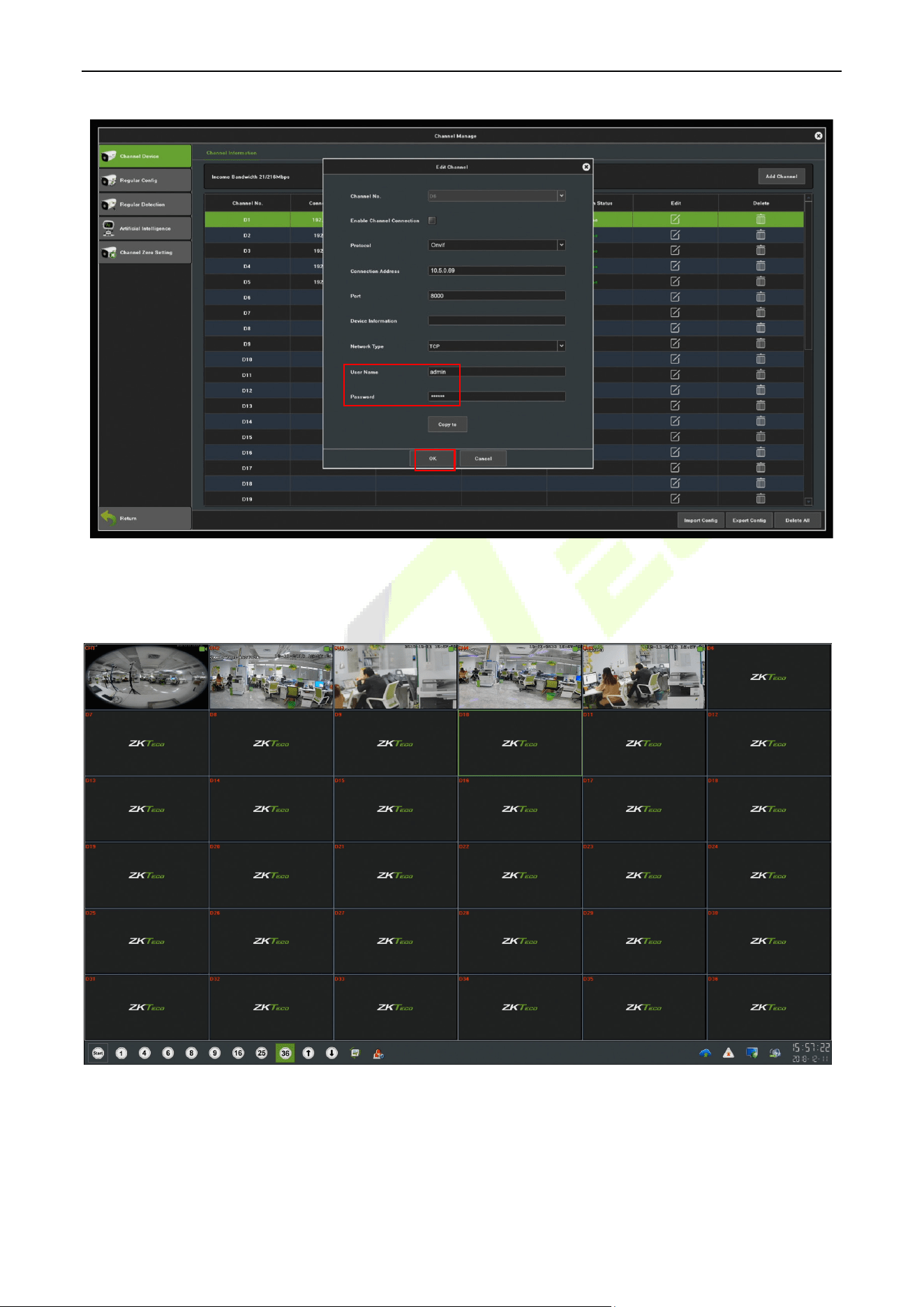
4. Click [Channel Manage] > [Add Channel] > [Refresh] to search for the device.
5. Select the checkbox for the device you want to add and edit the parameters in the corresponding text
field, then click on [OK] to add it to the connection list.
ProMA Series (ZAM230) User Manual
Page | 68 Copyright©2026 ZKTECO CO., LTD. All rights reserved.
Note: The Username and Password is set in the ONVIF Settings of the device.
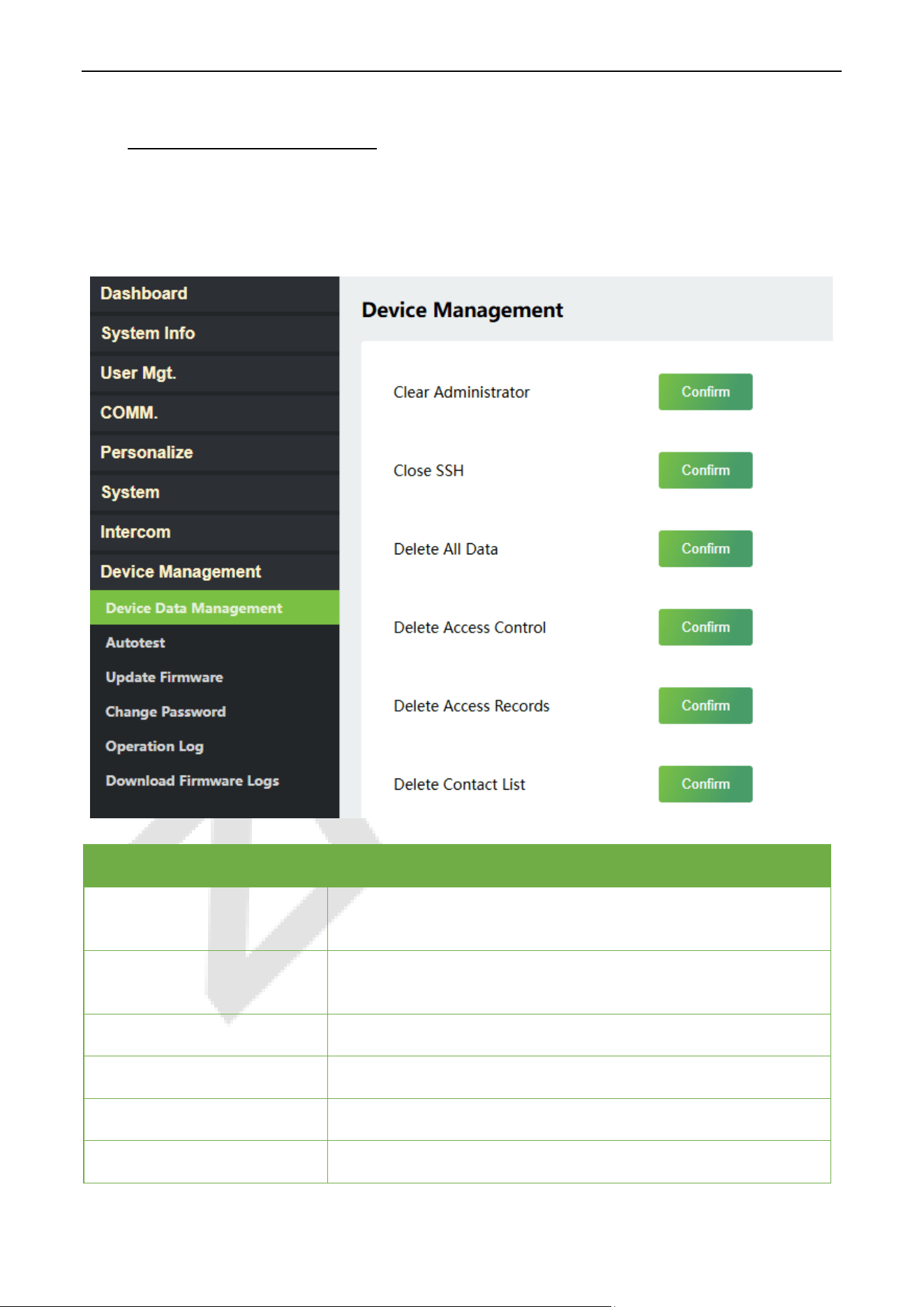
6. After adding successfully, the video image obtaining from the device can be viewed in real-time.
For more details, please refer to the NVR User Manual.
ProMA Series (ZAM230) User Manual
Page | 69 Copyright©2026 ZKTECO CO., LTD. All rights reserved.
15 Device Management
Device Data Management 15.1
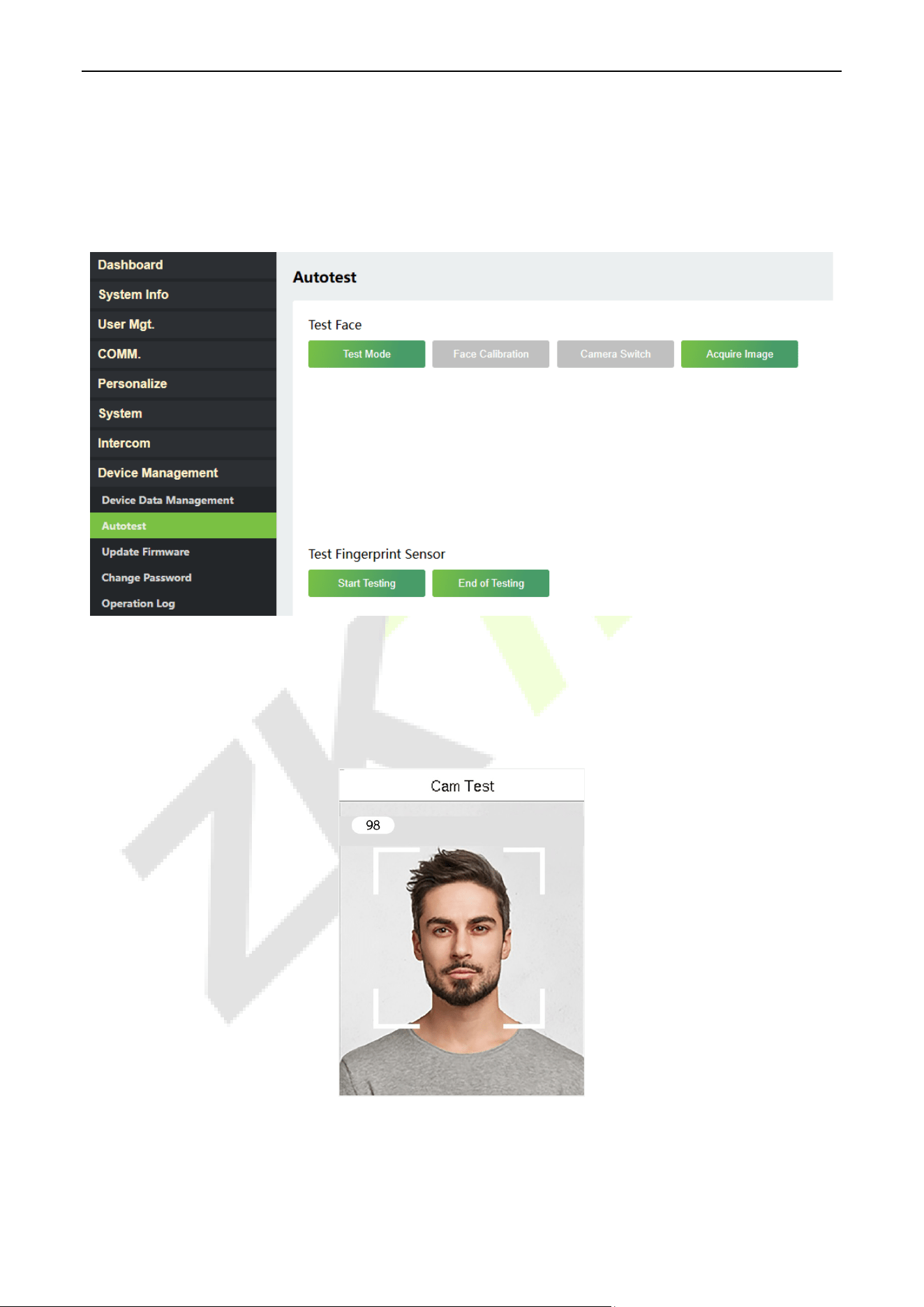
Click Device Management > Device Data Management on the WebServer.
Function Name Description
Clear Administrator
Choose whether to change the super administrator into a normal
user.
Close SSH
SSH is used to enter the background of the device for maintenance,
choose whether to close the SSH.
Delete All Data
To delete the information and access records of all registered users.
Delete Access Control
To delete the access control data from the ProMA.
Delete Access Records
To delete all the access records.
Delete Contact List
To delete all contact list of video intercom in the device.
ProMA Series (ZAM230) User Manual
Page | 70 Copyright©2026 ZKTECO CO., LTD. All rights reserved.
Autotest 15.2
Click Autotest on the WebServer.
It enables the system to automatically test whether the functions of various modules are working normally.
15.2.1 Test Face
Click Test Mode, the ProMA device will display the Test Face interface in real time, click End of Testing to
exit the test.
After opening the test mode, the upper left corner of the device screen will display the value of the face in real
time, the higher the value, the better quality of the face.
ProMA Series (ZAM230) User Manual
Page | 71 Copyright©2026 ZKTECO CO., LTD. All rights reserved.
When it is in test mode, click Face Calibration to enter the calibration mode, the face detection frame will display
in red. After successful calibration, it automatically switches to black & white face images, and the face detection
frame displays in green. Click Camera Switch to switch between viewing black & white and color face images.
When it is not in test mode, click Acquire Image to take a black & white and a color snapshot.
Privacy Note:
Test Face and Acquire Image are for installation and calibration by authorized personnel only. Avoid capturing or
storing facial images unnecessarily, and follow applicable privacy and data protection laws.
15.2.2 Test Fingerprint Sensor
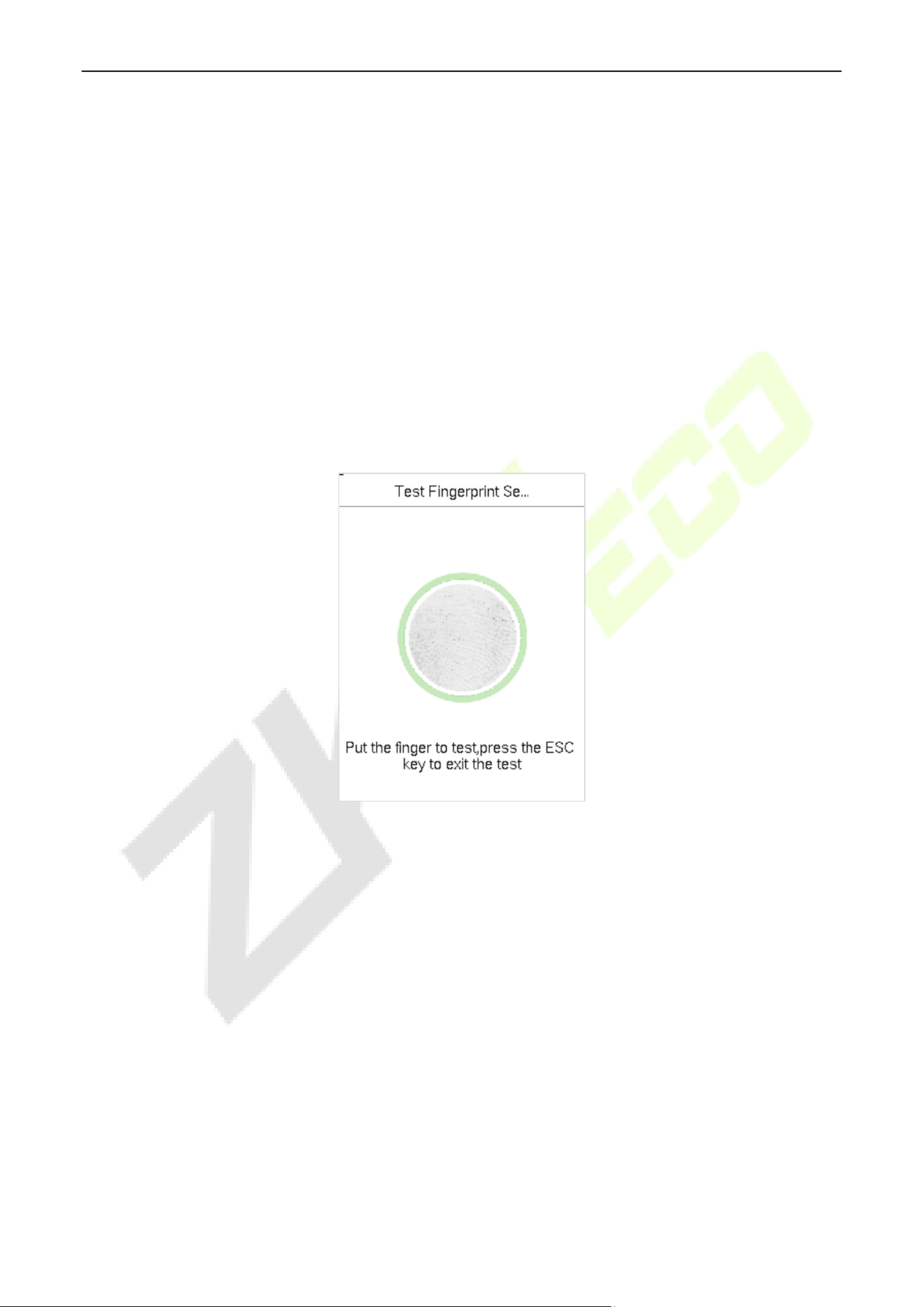
Click Start Testing, the ProMA device will display the Test Fingerprint interface in real time, click End of
Testing to exit the test.
Update Firmware 15.3
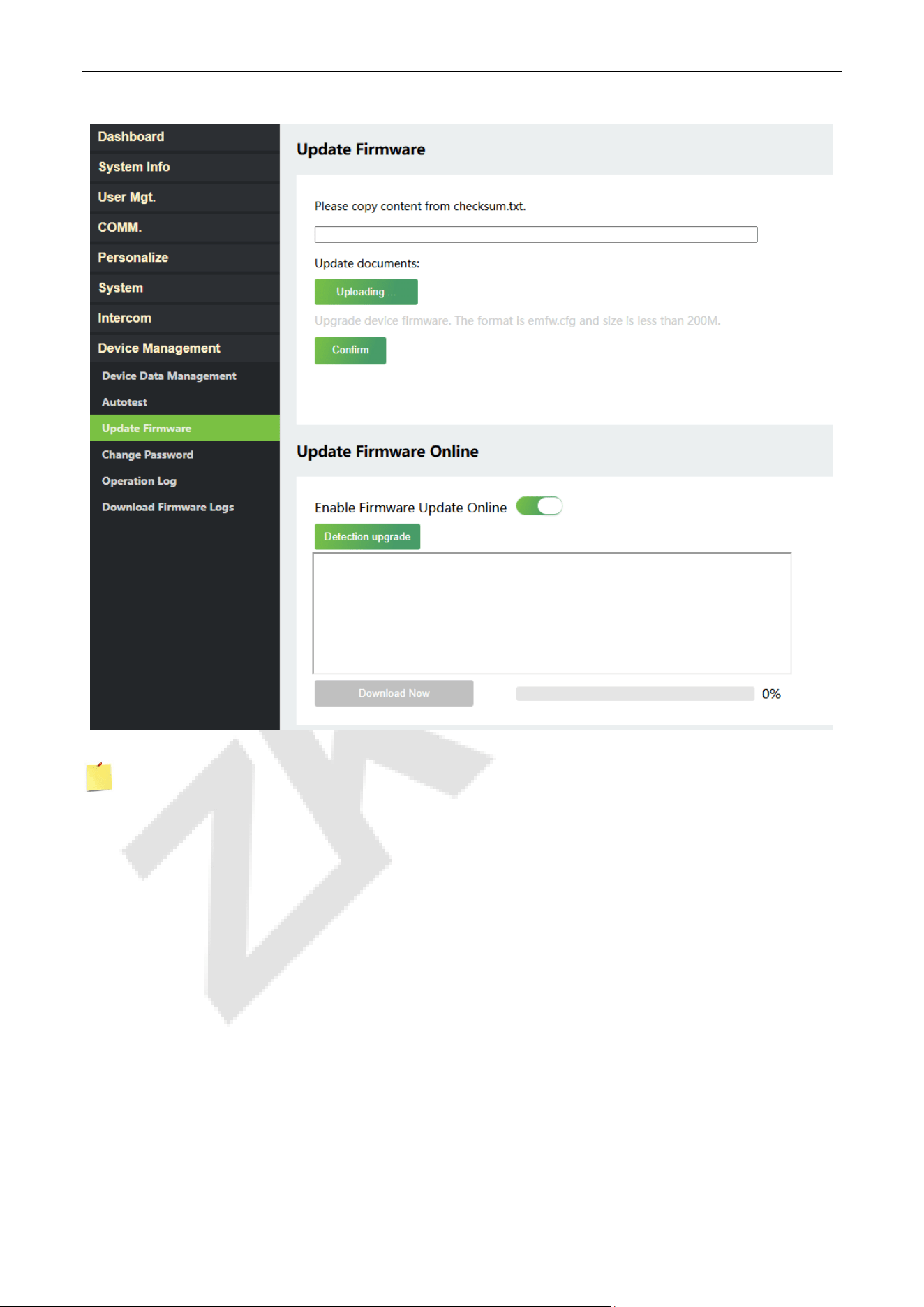
Click Update Firmware on the WebServer.
Select an upgrade file and click Confirm to complete firmware upgrade operation.
ProMA Series (ZAM230) User Manual
Page | 72 Copyright©2026 ZKTECO CO., LTD. All rights reserved.
Note: If the upgrade file is needed, please contact our technical support. Firmware upgrade is not
recommenced under normal circumstances.
You can also choose to update firmware online. Click Detection upgrade it may have the following 3
scenarios:
If the query fails, the interface will prompt "Query Failed".
If the firmware version of the device is latest, it will prompt that the current firmware version is
already the latest.
If the firmware version of the device is not the latest, the version number and change log of the latest
version will be displayed. Users can choose whether to update to the latest firmware version.
Change Password 15.4
Click Change Password on the WebServer.
In this interface, you can change the password of WebServer.
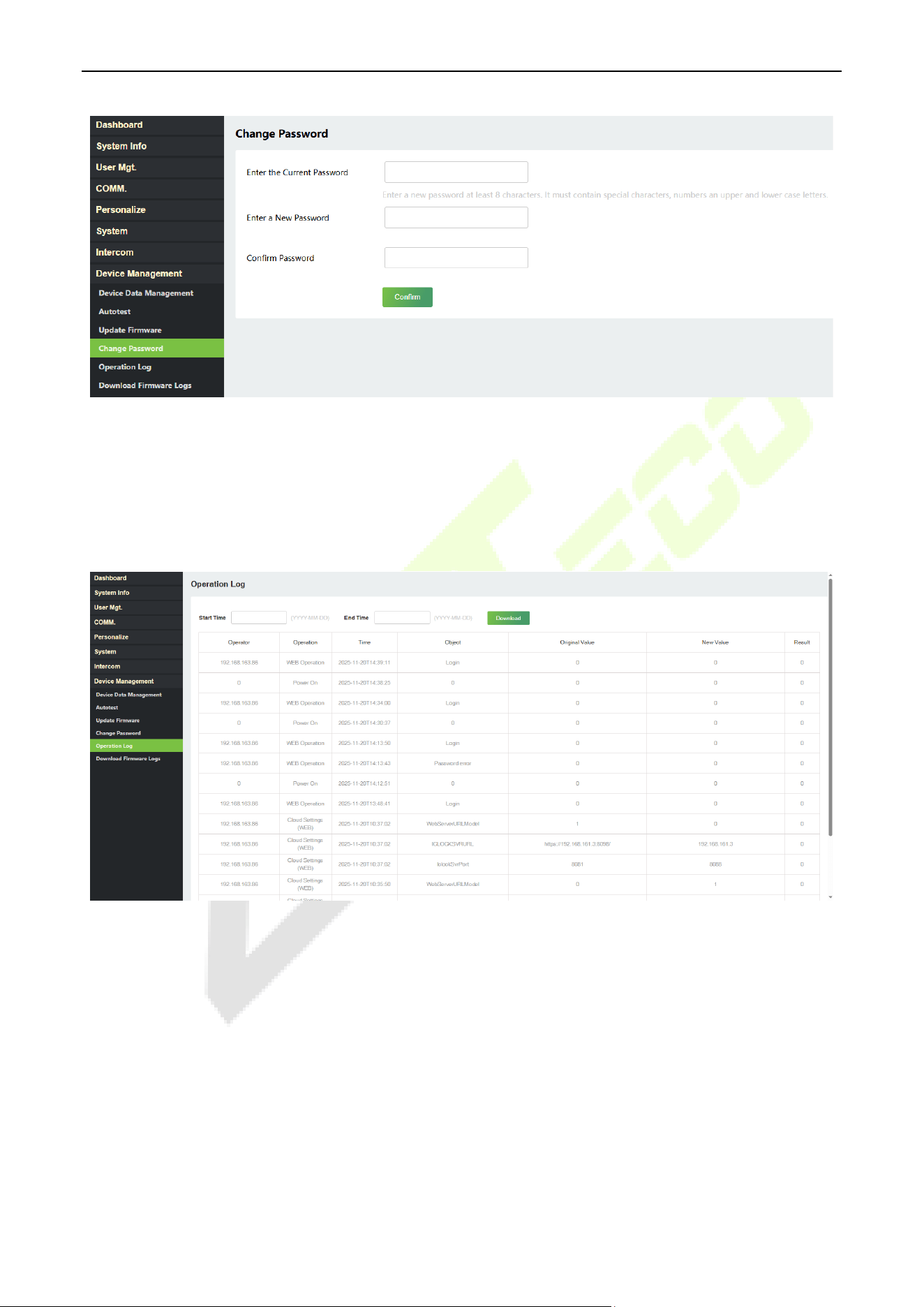
ProMA Series (ZAM230) User Manual
Page | 73 Copyright©2026 ZKTECO CO., LTD. All rights reserved.
Operation Log 15.5
Click Operation Log on the WebServer.
All the user’s operation records on the device or WebServer are saved. Users can search and download these logs
by time.
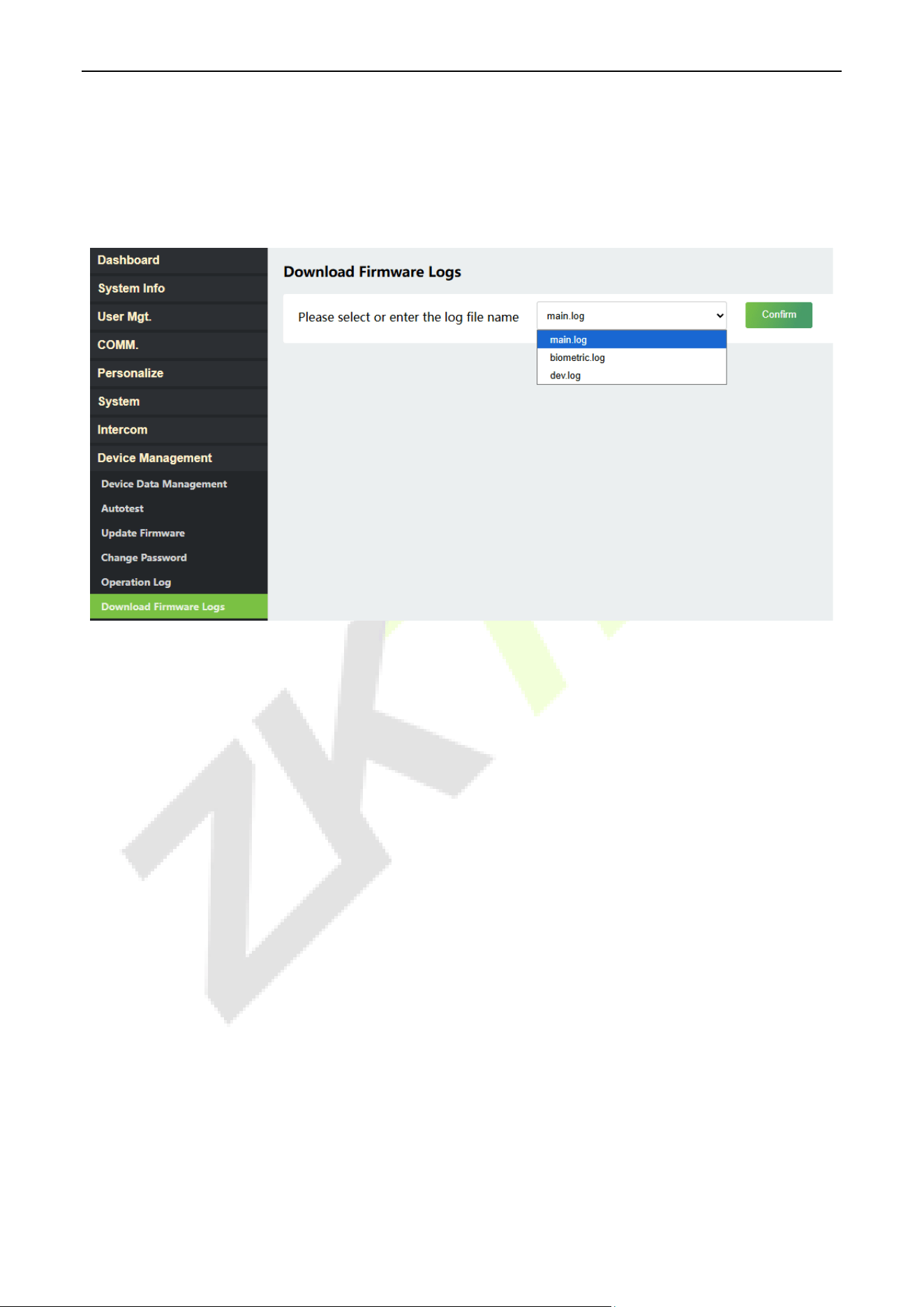
ProMA Series (ZAM230) User Manual
Page | 74 Copyright©2026 ZKTECO CO., LTD. All rights reserved.
Download Firmware Logs 15.6
Click Download Firmware Logs on the WebServer.
In this interface, you can select download the main, biometric, or dev.log.
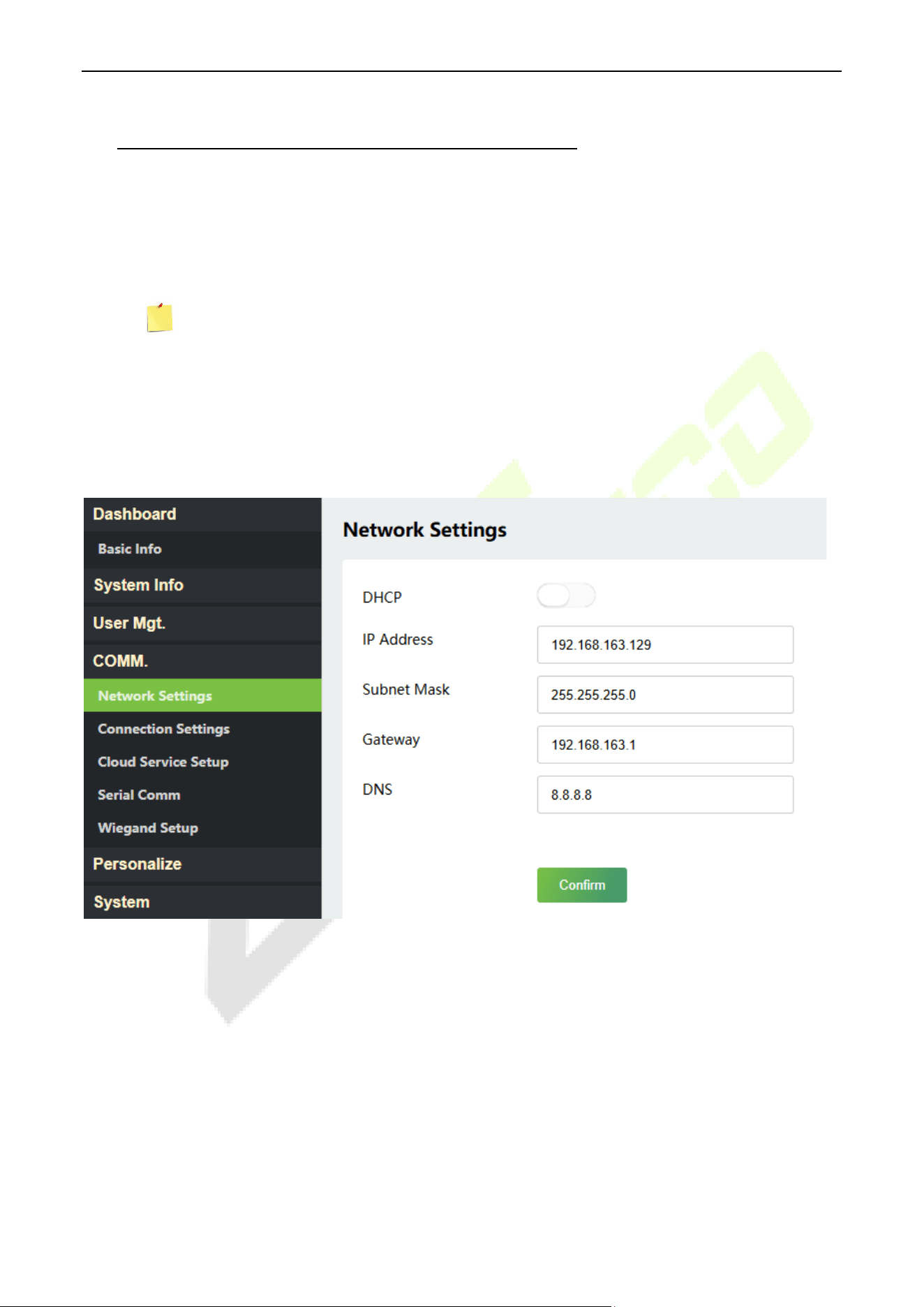
ProMA Series (ZAM230) User Manual
Page | 75 Copyright©2026 ZKTECO CO., LTD. All rights reserved.
16 Connect to ZKBio CVSecurity Software
Set the Communication Address 16.1
1. Click COMM. > Network Settings in the WebServer to set the IP address and gateway of the
device.
( Note: The IP address should be able to communicate with the ZKBio CVSecurity server,
preferably in the same network segment with the server address)
2. Click Cloud Service Setup to set the server address and server port.
Server Address: Set the IP address as of ZKBio CVSecurity server.
Server Port: Set the server port as of ZKBio CVSecurity (The default is 8088).
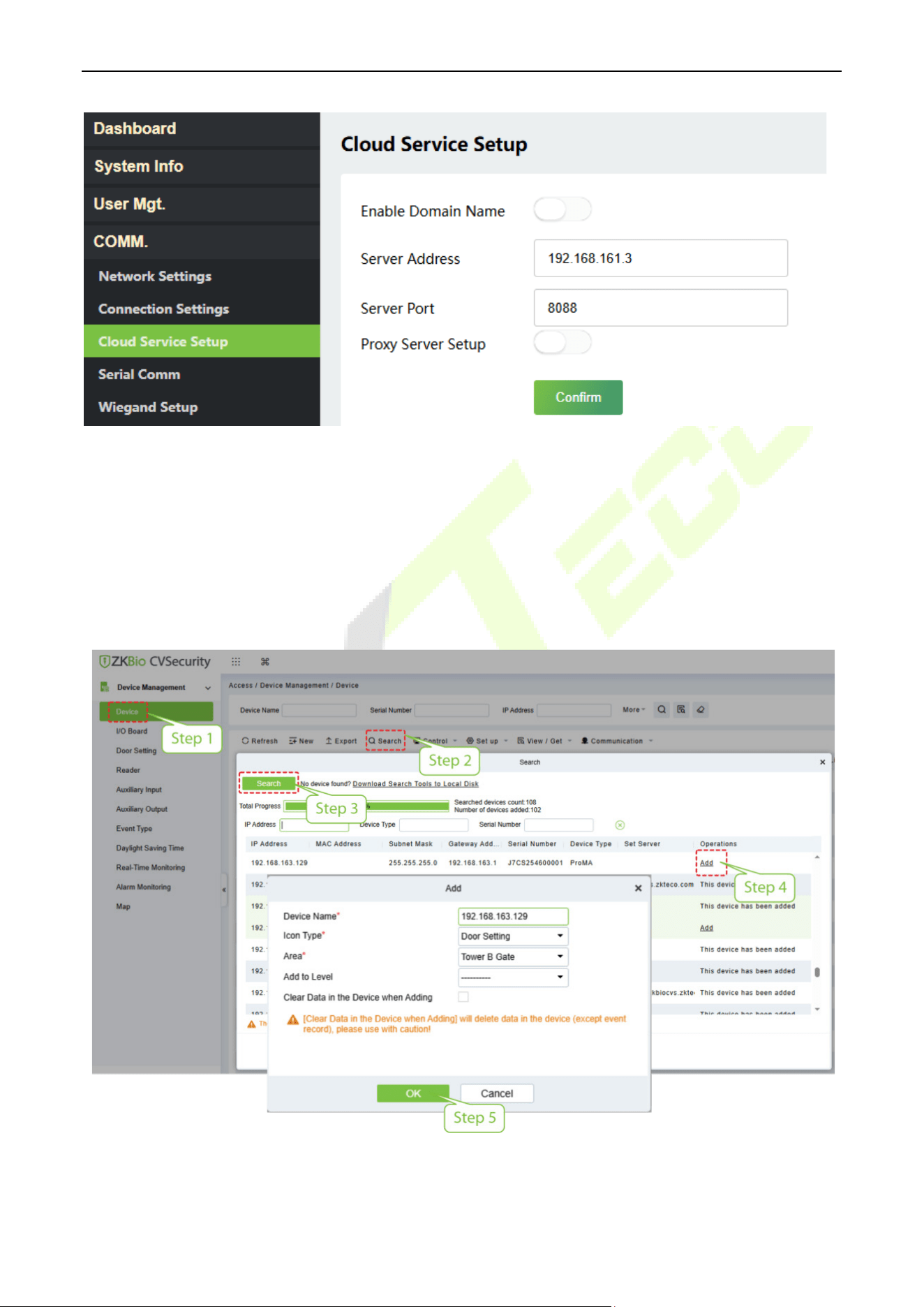
ProMA Series (ZAM230) User Manual
Page | 76 Copyright©2026 ZKTECO CO., LTD. All rights reserved.
Add Device on the Software 16.2
Add the device by searching. The process is as follows:
1. Click Access > Device > Search, to open the Search interface in the software.
2. Click Search, and it will prompt Searching…….
3. After searching, the list and total number of access controllers will be displayed.
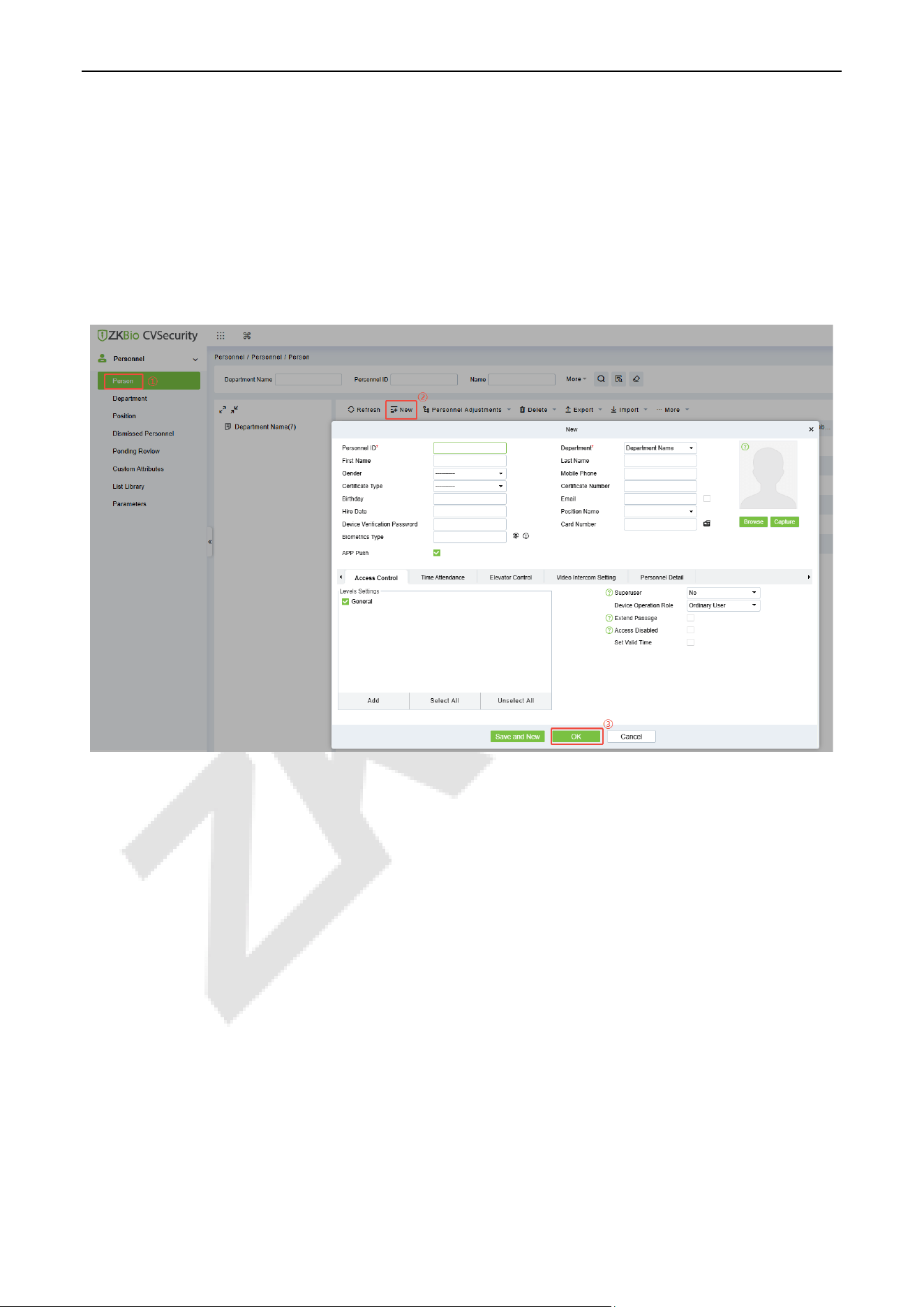
ProMA Series (ZAM230) User Manual
Page | 77 Copyright©2026 ZKTECO CO., LTD. All rights reserved.
4. Click Add in operation column, a new window will pop-up. Select Icon type, Area, and Add to Level
from each dropdown and click OK to add the device.
5. After the addition is successful, the device will be displayed in the device list.
Add Personnel on the Software 16.3
1. Click Personnel > Person > New:
2. Fill in all the required fields and click OK to register a new user.
3. Click Access > Device > Control > Synchronize All Data to Devices to synchronize all the data to the
device including the new users.
Mobile Credential★ 16.4
Note: This function is only for ProMA-QR.
After downloading and installing the ZKBio Zexus Mobile App, the user needs to set the Server before
login. The steps are given below:
1. In ZKBio CVSecurity, click System > System Management > Parameters, set Enable QR Code to
‘’Yes’’, and select the Qrcode Type as Dynamic, the valid time of the QR code can be set.
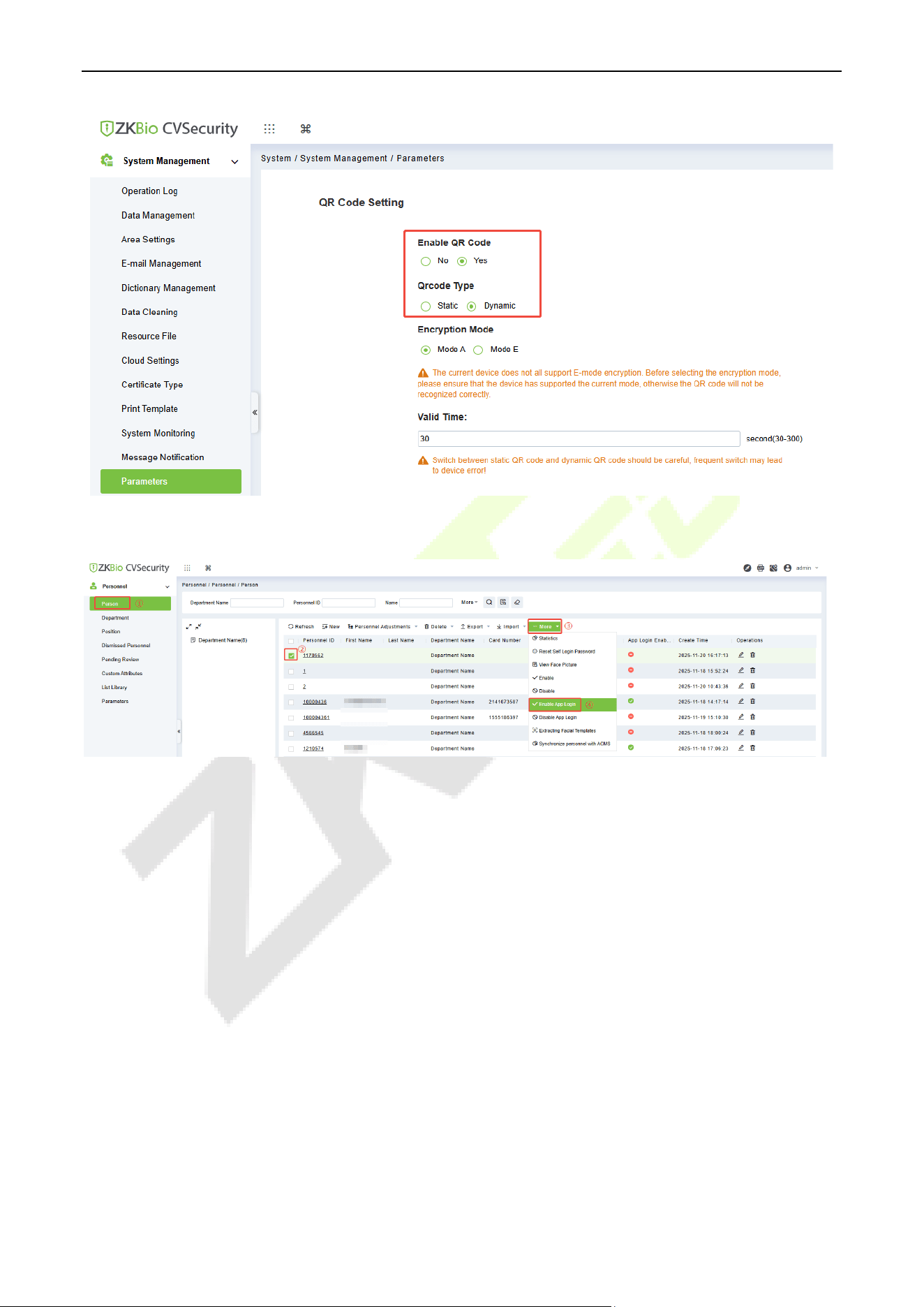
ProMA Series (ZAM230) User Manual
Page | 78 Copyright©2026 ZKTECO CO., LTD. All rights reserved.
2. Click Personnel > Personnel > Person, select the personnel and click More > Enable APP Login.
3. Open the App on the Smartphone. On the login screen, select the role-Personnel, enter the account
information, and click Login.
Organization Name: Scan the organization code you get before. (Enter System > System
Management >Cloud Settings >APP enterprise QR code)
Account & Password: The personnel ID & password (default: 123456).
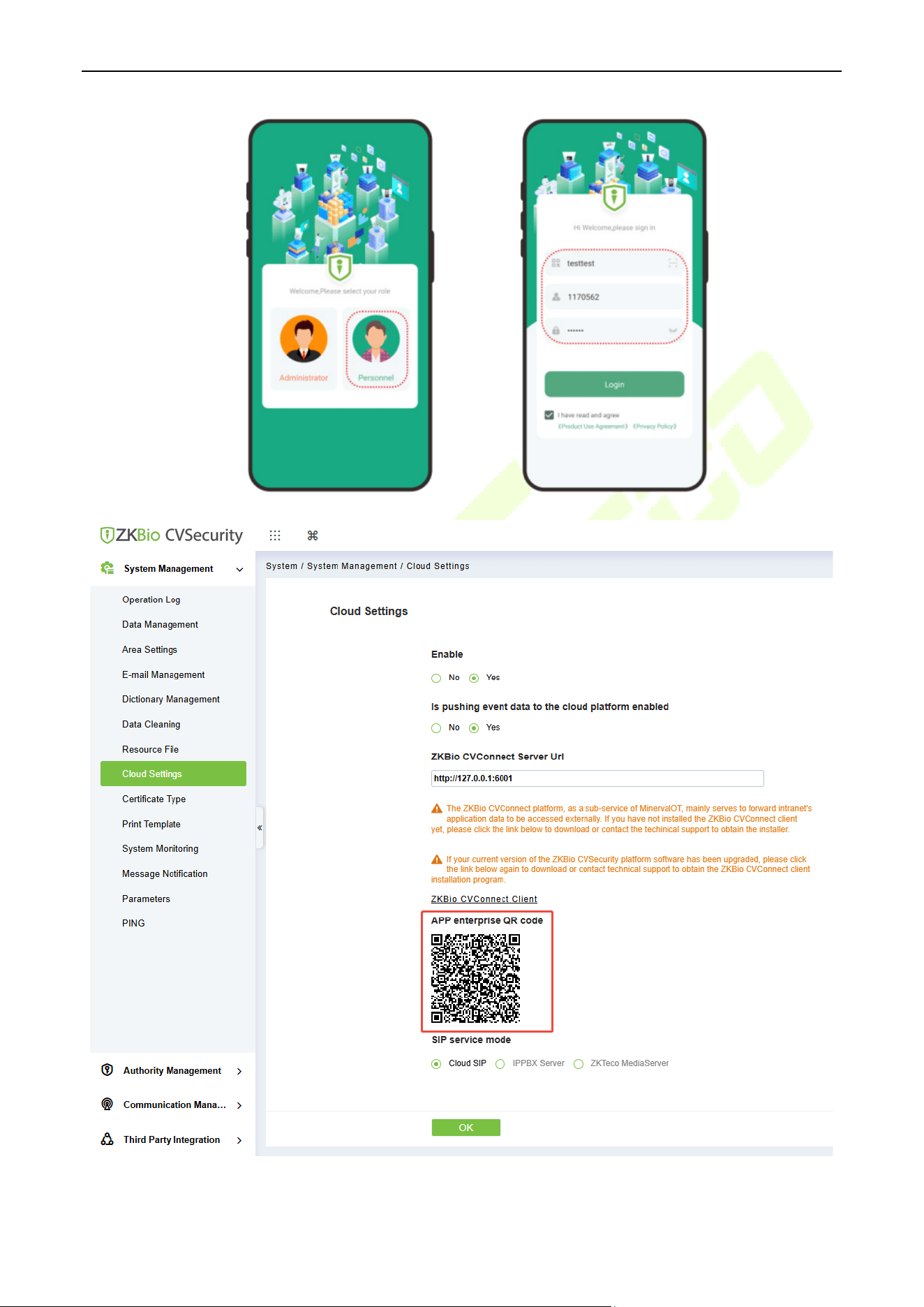
ProMA Series (ZAM230) User Manual
Page | 79 Copyright©2026 ZKTECO CO., LTD. All rights reserved.
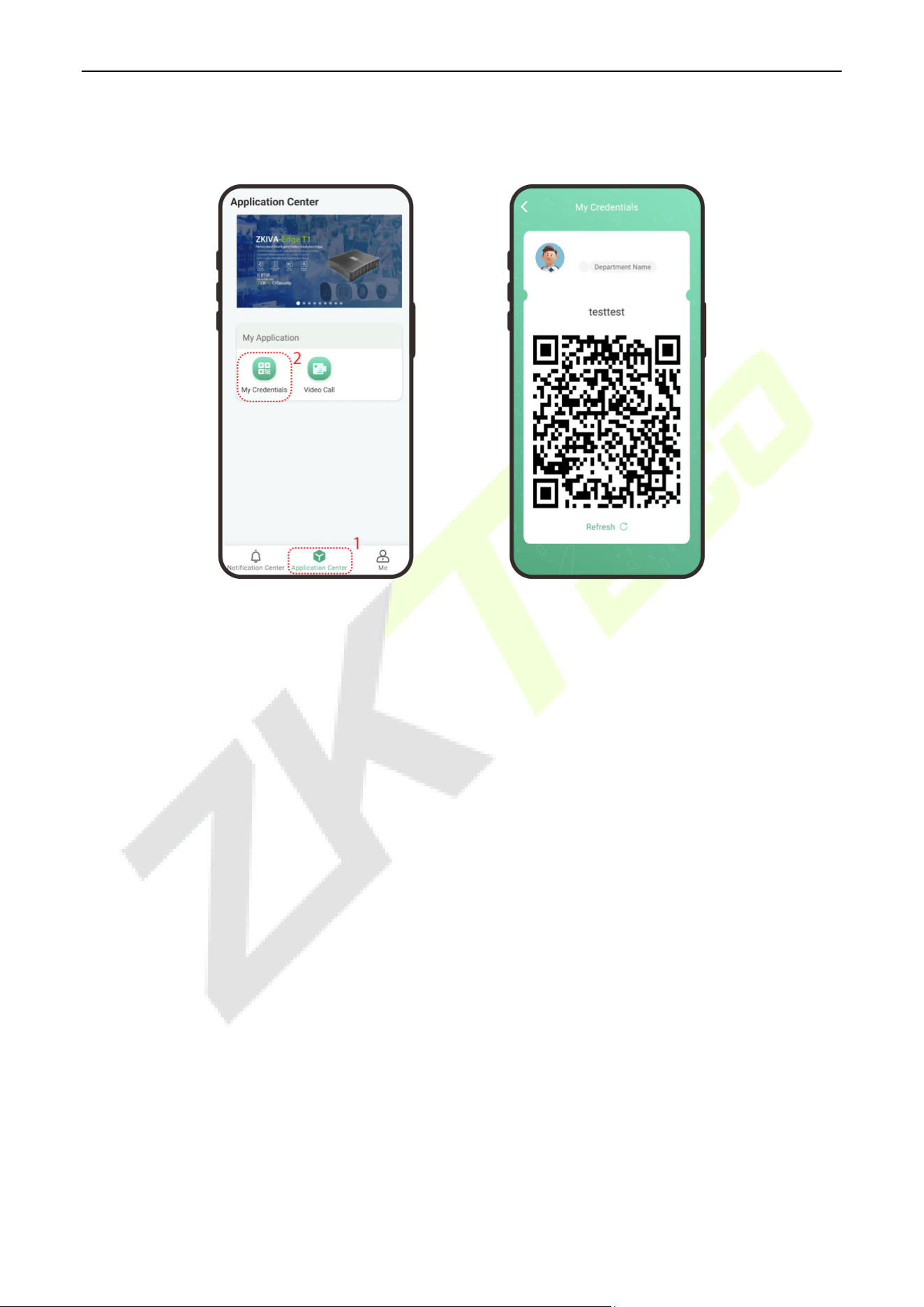
ProMA Series (ZAM230) User Manual
Page | 80 Copyright©2026 ZKTECO CO., LTD. All rights reserved.
4. Click Application Center > Mobile Credential on the App, and a QR code will appear, which includes
employee ID and card number information.
5. The QR code can replace a physical card on a specific device to achieve contactless authentication to
open the door.
6. The QR code refreshes automatically for every 30s and supports manual refresh.
Note: For other specific operations, please refer to ZKBio CVSecurity User Manual.
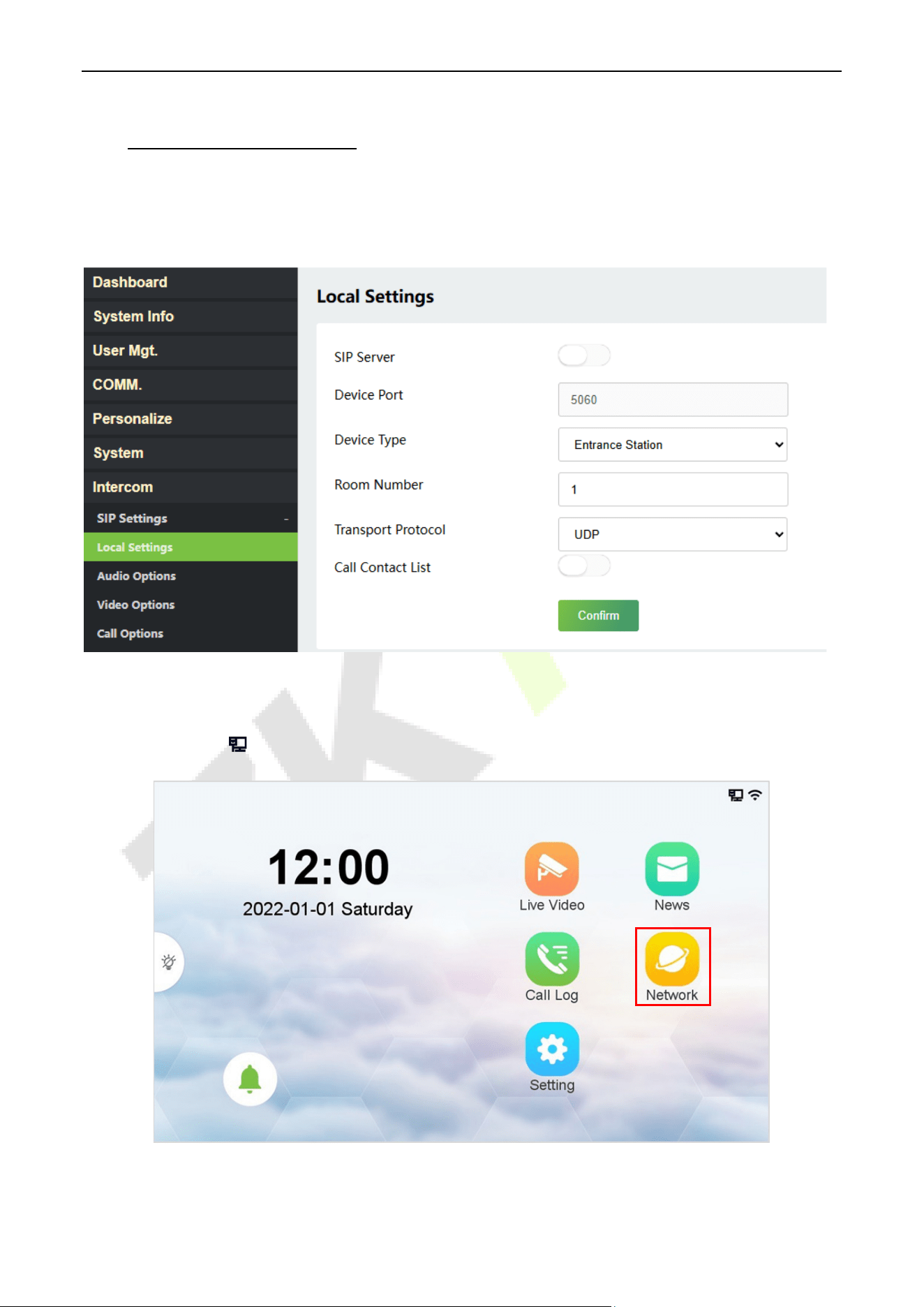
ProMA Series (ZAM230) User Manual
Page | 81 Copyright©2026 ZKTECO CO., LTD. All rights reserved.
17 SIP Video Intercom
Local Area Network Use 17.1
In this mode, please make sure that the SIP Server of the device is disabled.
This function needs to be used with the indoor monitor VT07-B01 and VT07-B01-W.
On the Indoor Monitor:
1. Tap Network > to enter the wired network setting interface. (Default password: 123456)
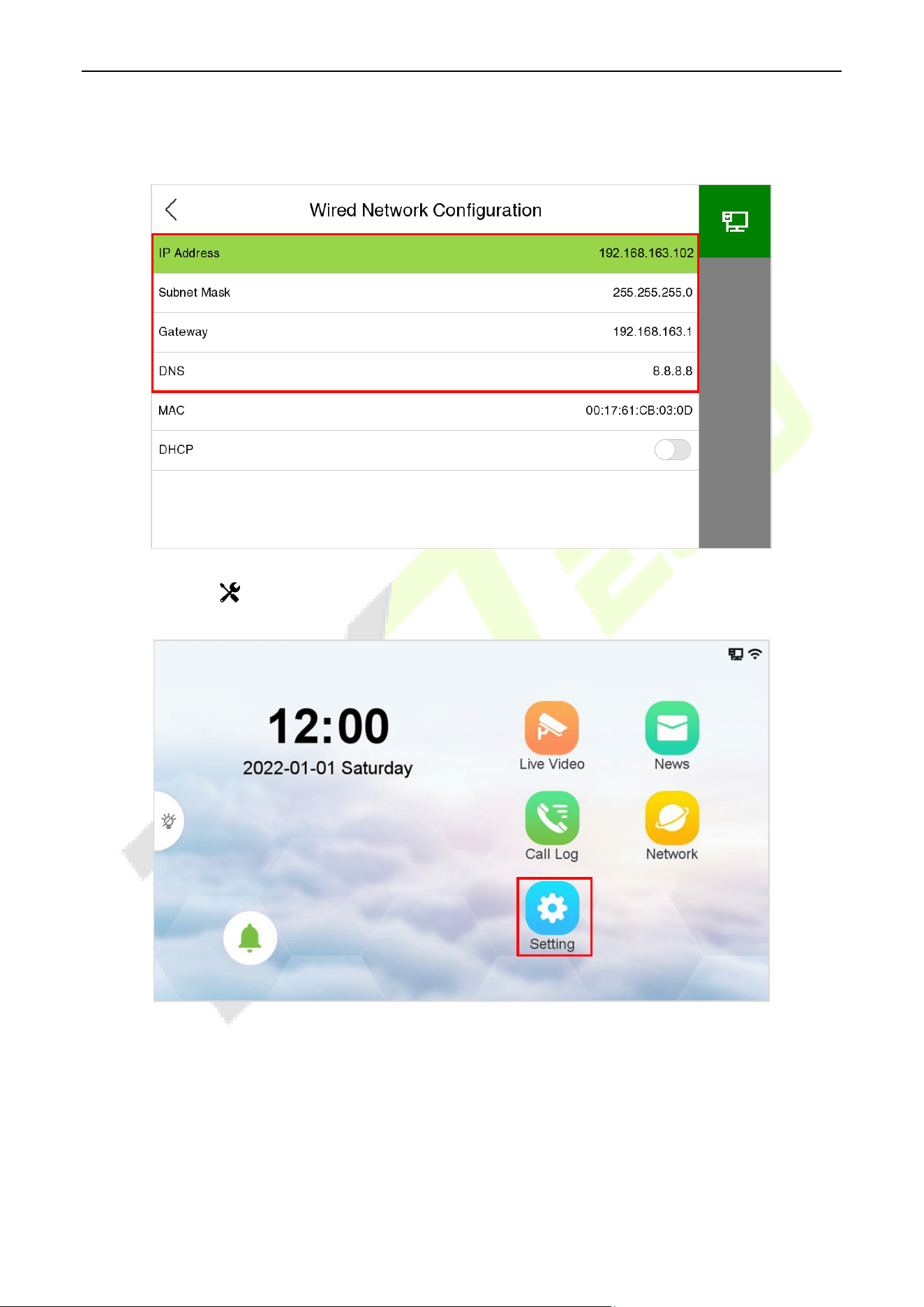
ProMA Series (ZAM230) User Manual
Page | 82 Copyright©2026 ZKTECO CO., LTD. All rights reserved.
2. Set the IP Address and Gateway of the indoor monitor. (Note: The IP address should be in the same
network segment as the device.)
3. Tap Setting > Advance Setting > Device Manage > Add to add the device.
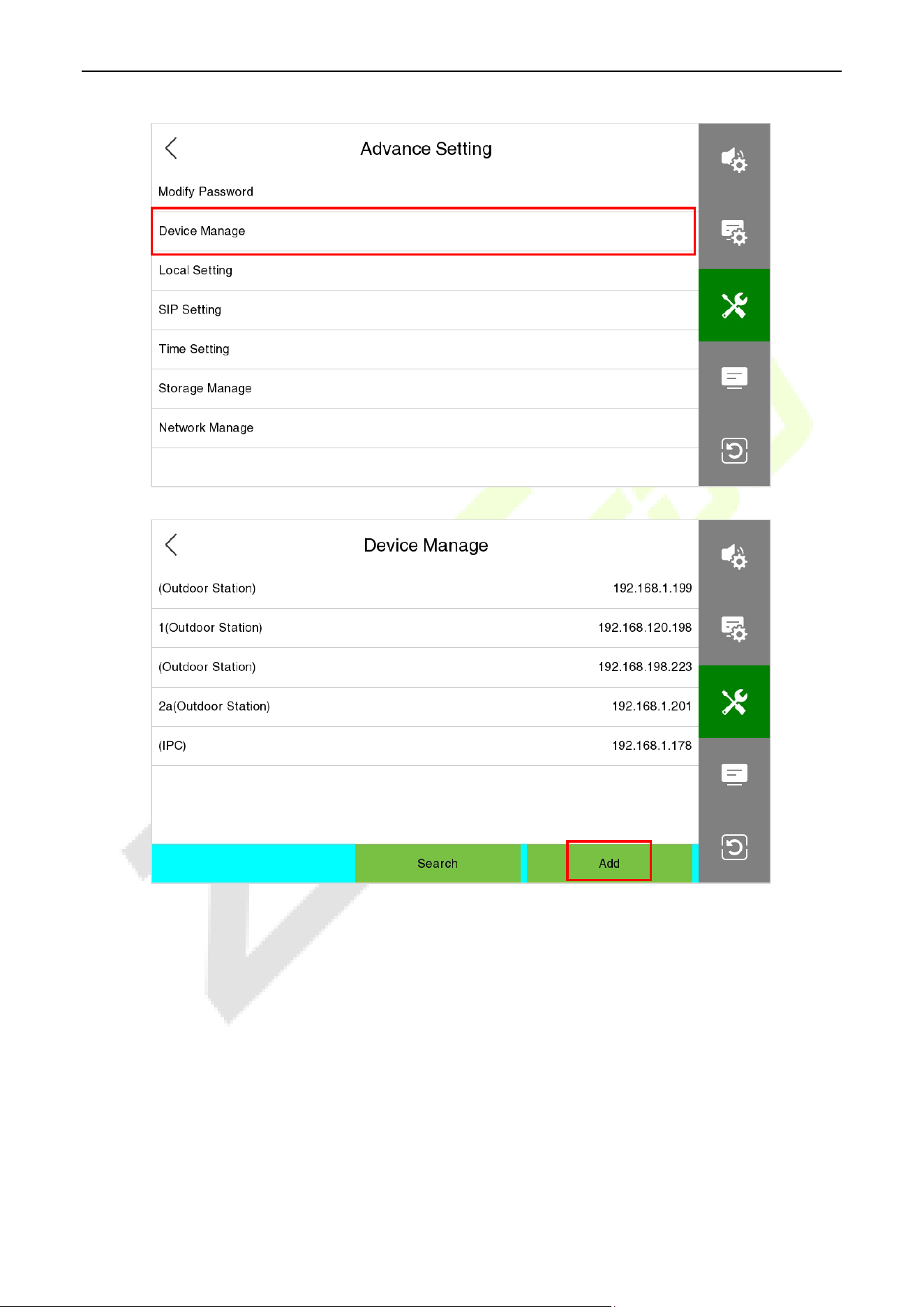
ProMA Series (ZAM230) User Manual
Page | 83 Copyright©2026 ZKTECO CO., LTD. All rights reserved.
4. Set the related information of the device, then click Save.
Device Type: Set as Outdoor Station.
Device IP: Enter the IP address of the device.
Device Port: 8000.
User Name: admin.
Password: 123456.
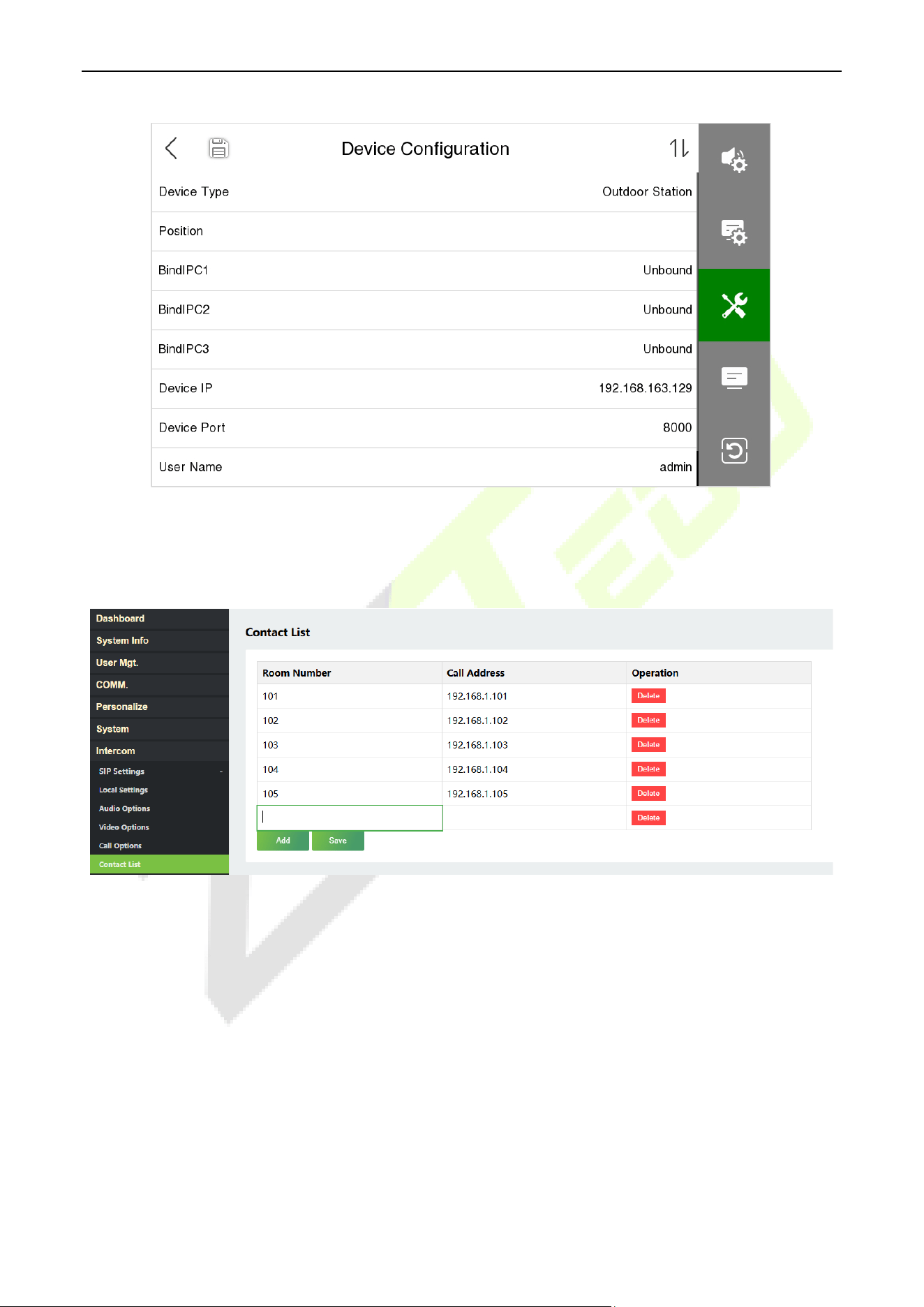
ProMA Series (ZAM230) User Manual
Page | 84 Copyright©2026 ZKTECO CO., LTD. All rights reserved.
On the Device:
1. On the Webserver, click Intercom > SIP Settings > Contact List > Add to add the connected indoor
monitors.
Entrance Station
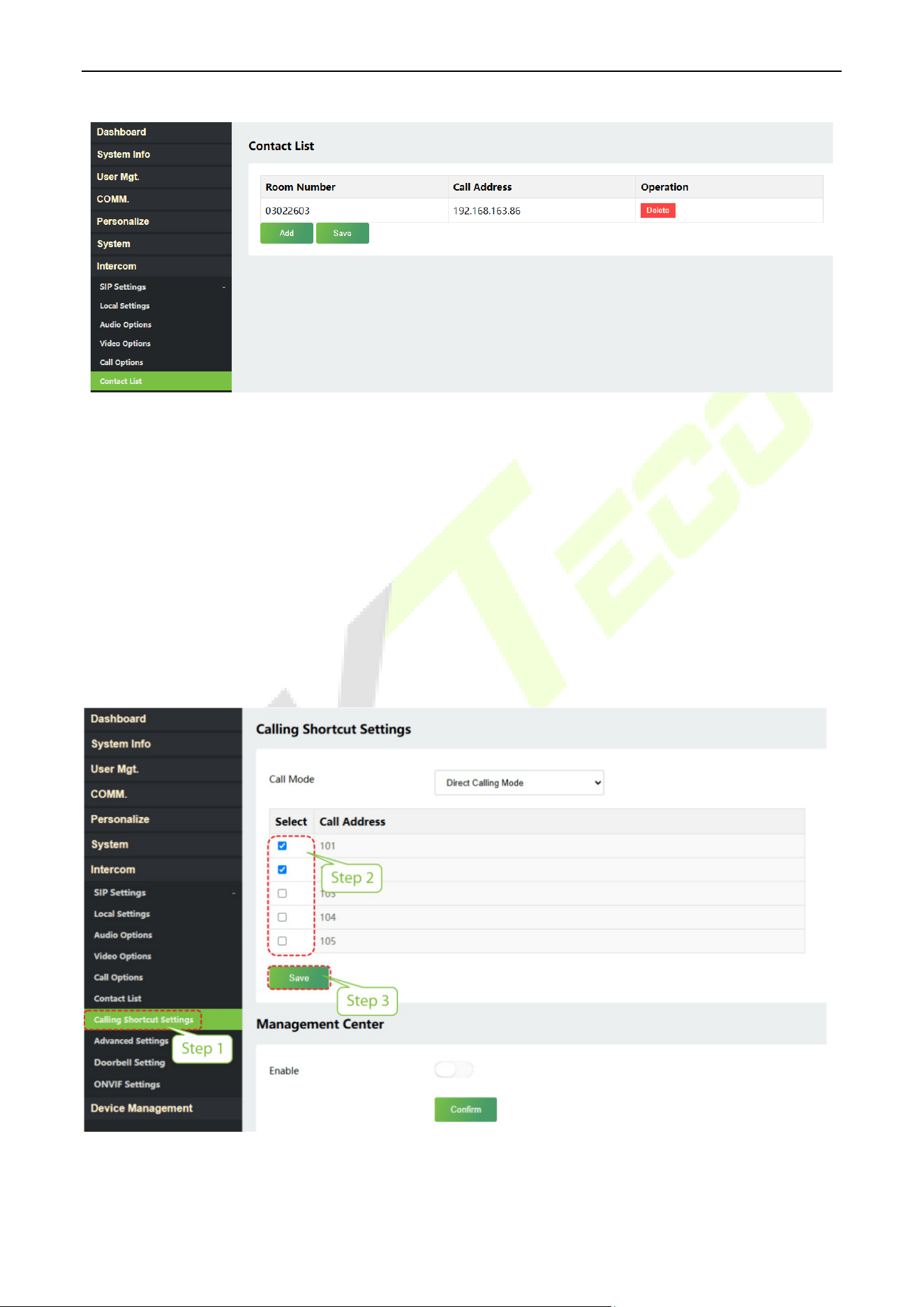
ProMA Series (ZAM230) User Manual
Page | 85 Copyright©2026 ZKTECO CO., LTD. All rights reserved.
Fence Terminal
Room Number: Customize the number of the indoor monitor.
Call Address: This is the IP Address of the indoor monitor.
When the device type is set as Entrance Station, the room number can be 1t o 4 digits.
When the device type is set as Fence Terminal, the room number should be 8 digits. For example, if the
indoor monitor is in Block 3, Unit 2, Room 2603, then input “03022603”. When the Unit is disabled, then
the room number should be 6 digits, like “032603”.
2. Click Calling Shortcut Settings, select the indoor monitors you want to call, then click Save.
Note: The device only supports Direct Calling Mode.
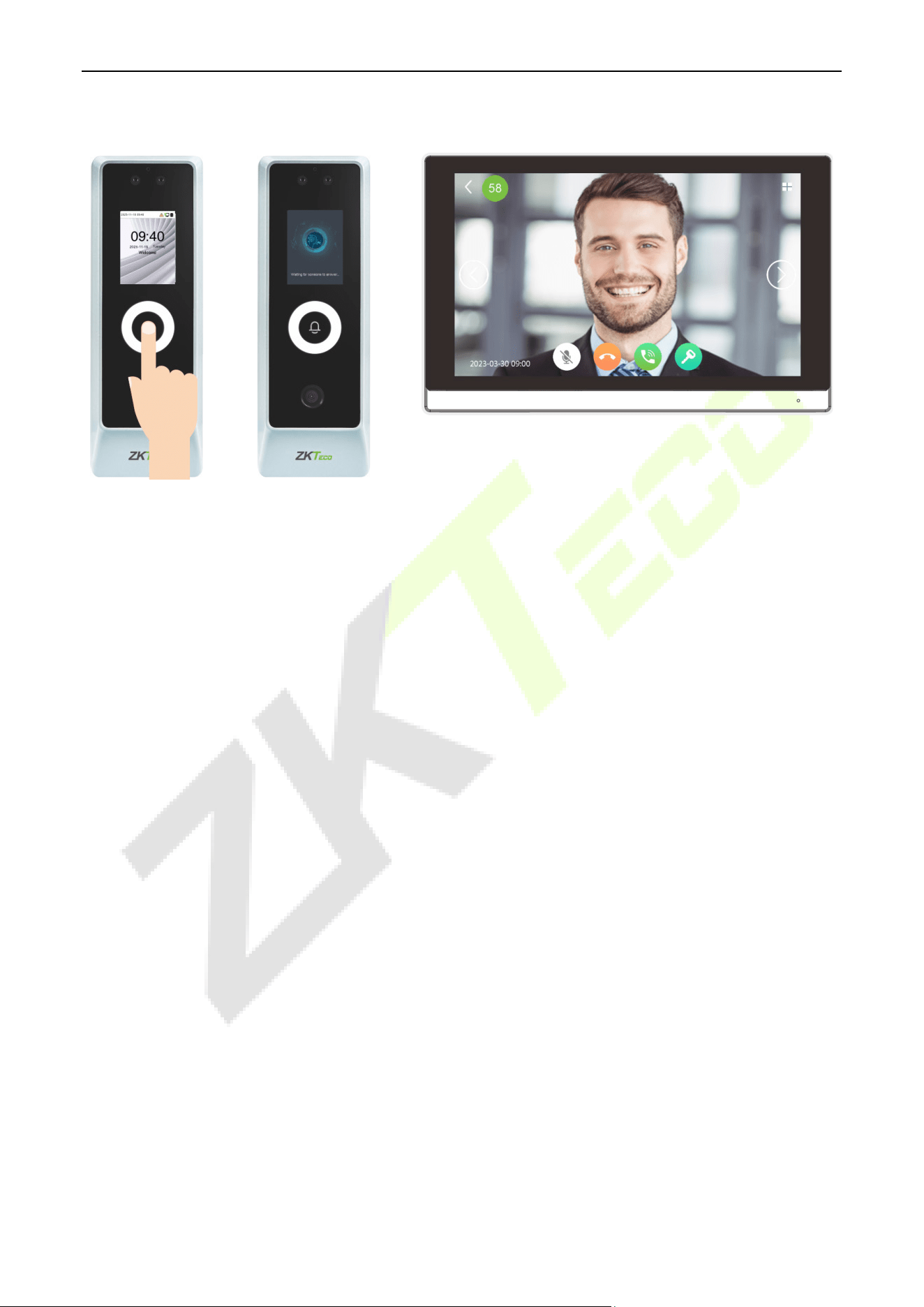
ProMA Series (ZAM230) User Manual
Page | 86 Copyright©2026 ZKTECO CO., LTD. All rights reserved.
3. Press the doorbell button on the device to call the indoor monitors directly.
SIP Server 17.2
In this mode, please make sure that the SIP Server of the device is enabled.
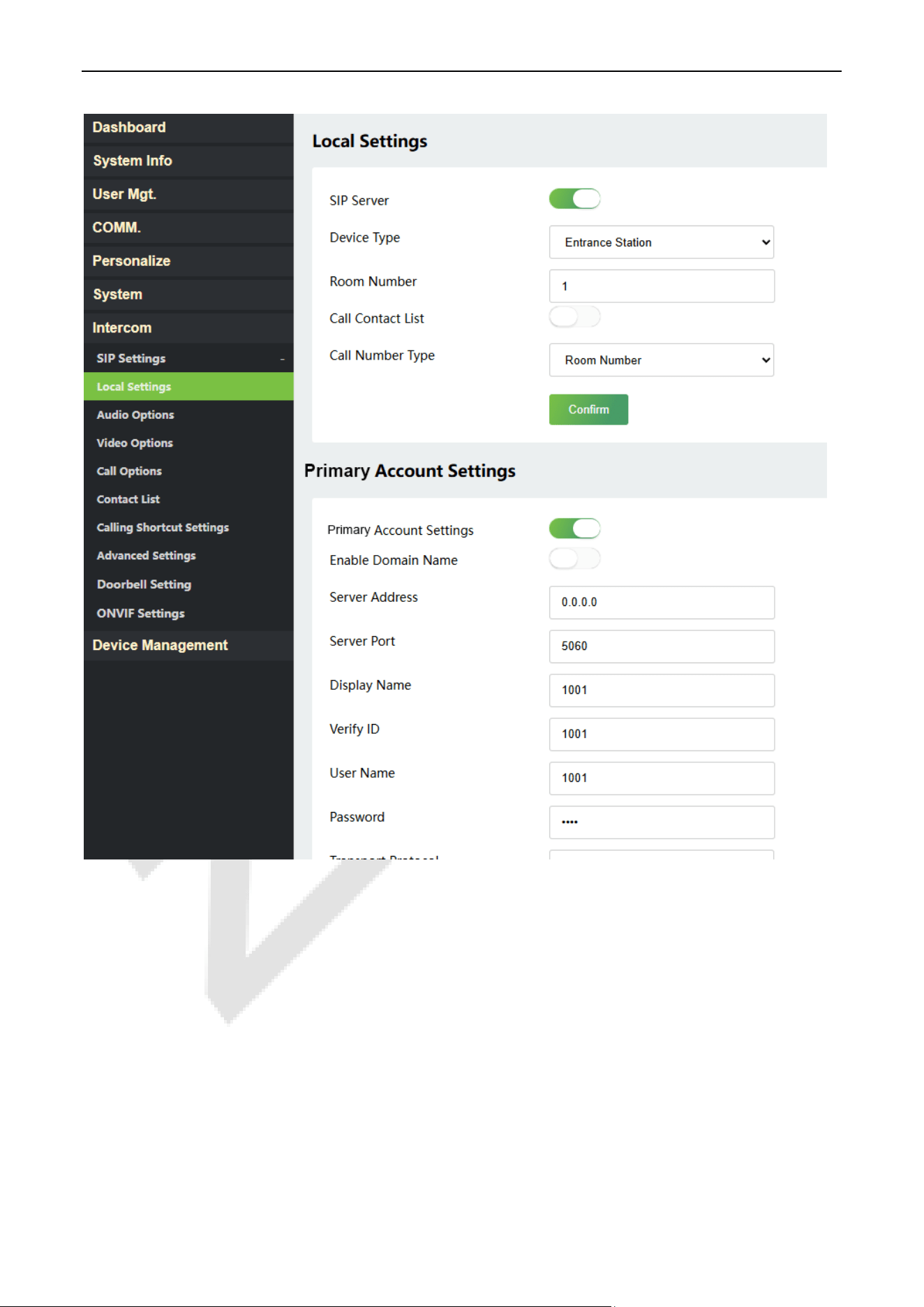
ProMA Series (ZAM230) User Manual
Page | 87 Copyright©2026 ZKTECO CO., LTD. All rights reserved.
This function needs to be used with the ZKBio CVSecurity server, ZKBio Zexus Mobile App, indoor monitor
VT07-B26L-W / VT07-B22L and PC Client BioTalk Pro.
ZKBio CVSecurity supports 2 kinds of SIP server: cloud SIP and PBX server, users can choose one
according to the actual situation.
Cloud SIP mode: Users do not need to purchase additional SIP server, only need to purchase SIP
account permission.
PBX server: You need to purchase a PBX server for local deployment. You do not need to purchase an
additional SIP account.
The following text mainly introduces the Cloud SIP mode.
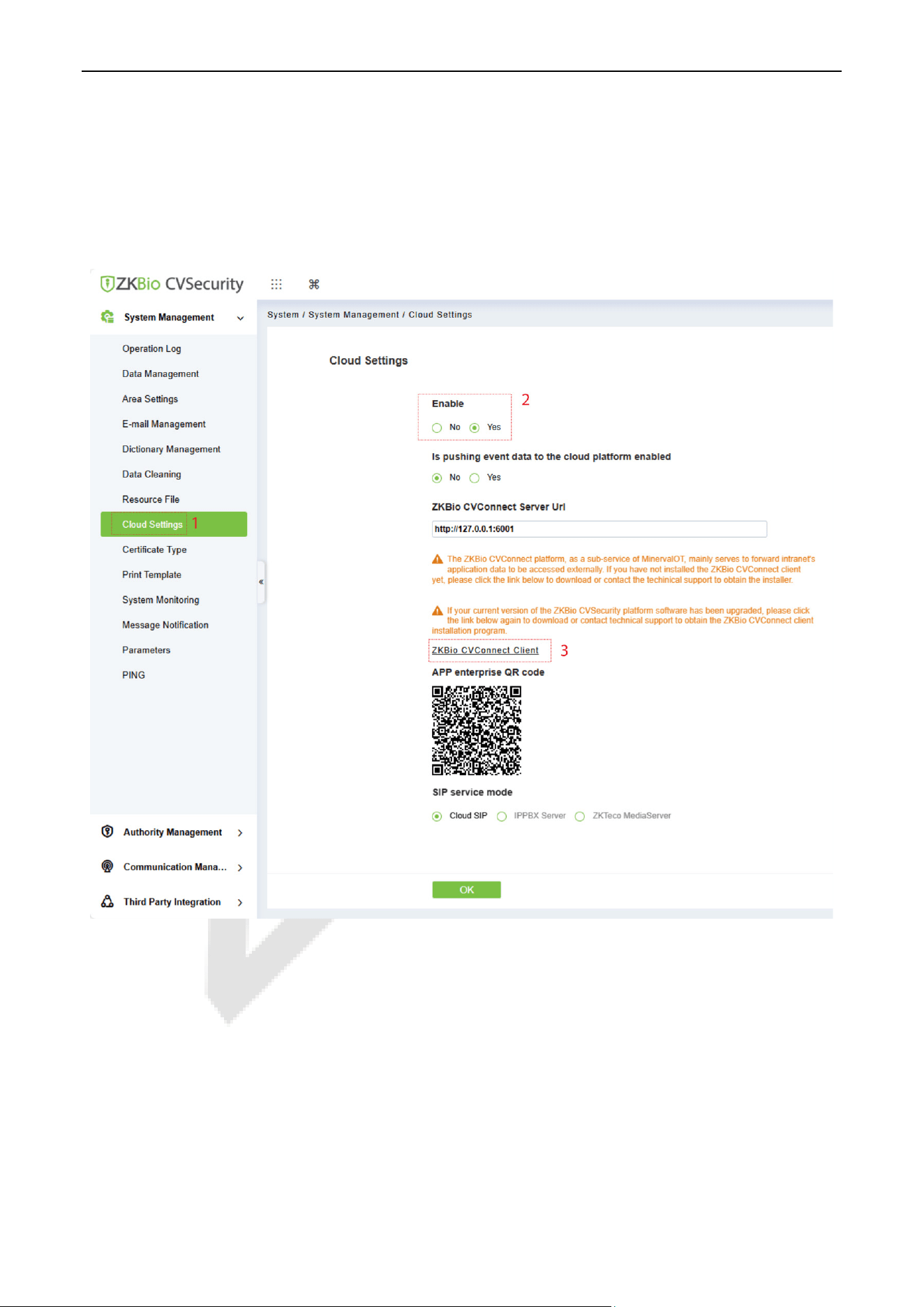
ProMA Series (ZAM230) User Manual
Page | 88 Copyright©2026 ZKTECO CO., LTD. All rights reserved.
17.2.1 SIP Server Configuration
1. On the ZKBio CVSecurity software, click System > System Management > Cloud Settings to enable
the Cloud SIP service.
2. Click ZKBio CVConnect Client to download and install it.
Note:
1) Ensure the ZKBio CVConnect client is installed if Cloud SIP is activated.
2) After cloud SIP is enabled, the device network needs to be able to connect to the external network before it
can be used.
ZKBio CVConnect Client Activation Steps
Step 1: Double-click the desktop shortcut key. Jump to browser page.
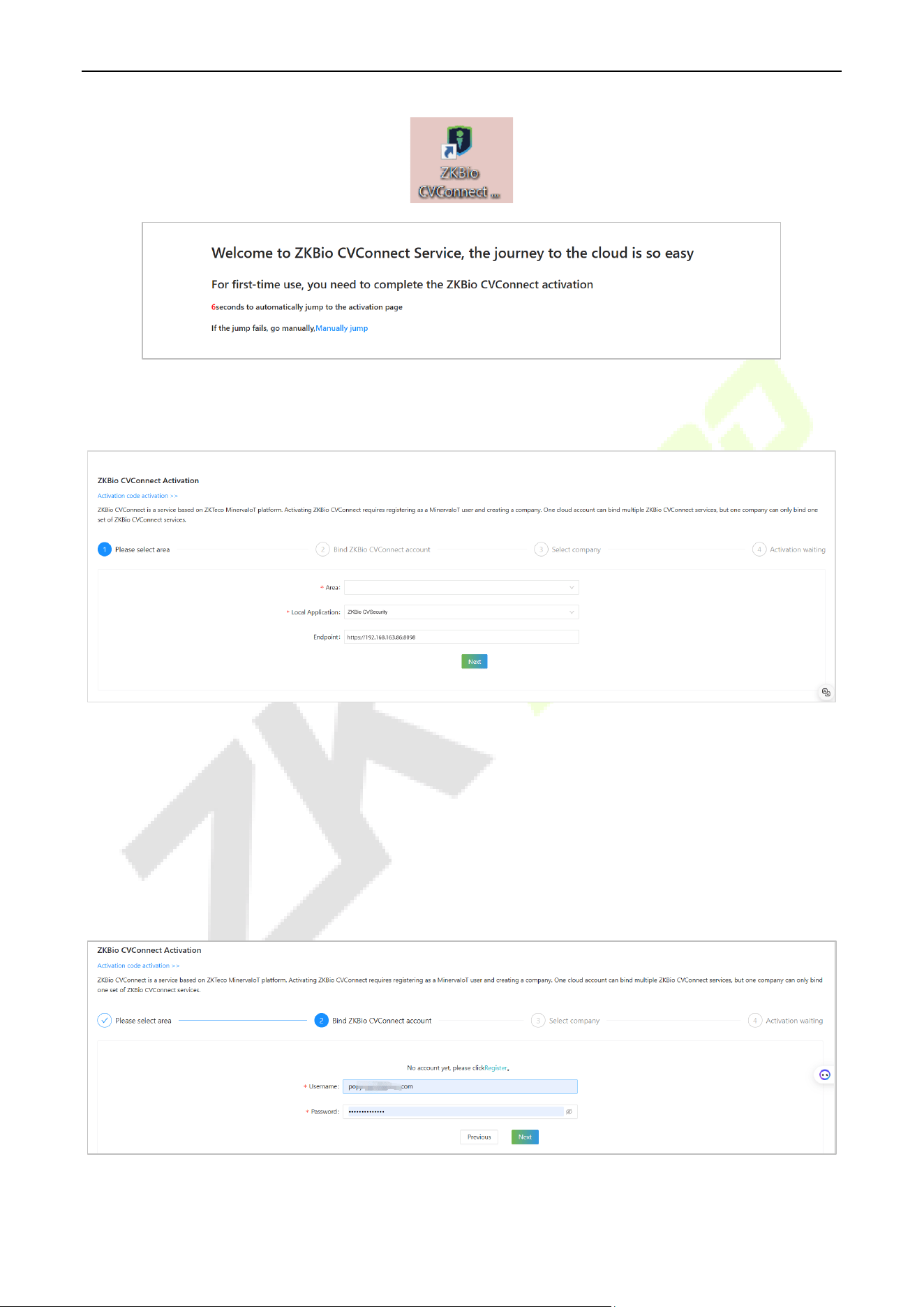
ProMA Series (ZAM230) User Manual
Page | 89 Copyright©2026 ZKTECO CO., LTD. All rights reserved.
Step 2: Follow the steps on the page to complete activation.
1. Select Area
Area: Select the area of the cloud server, currently only China, Singapore and America are available,
other areas will be added later.
Local Application: Set as ZKBio CVSecurity.
EndPoint: The server address of your local application. For example, if your local application is ZKBio
CVSecurity with a server address of https://192.168.163.86:8098, enter this server address here so that
ZKBio CVConnect can correctly forward the data from your local server for access by the Mobile APP.
2. Bind ZKBio CVConnect Account
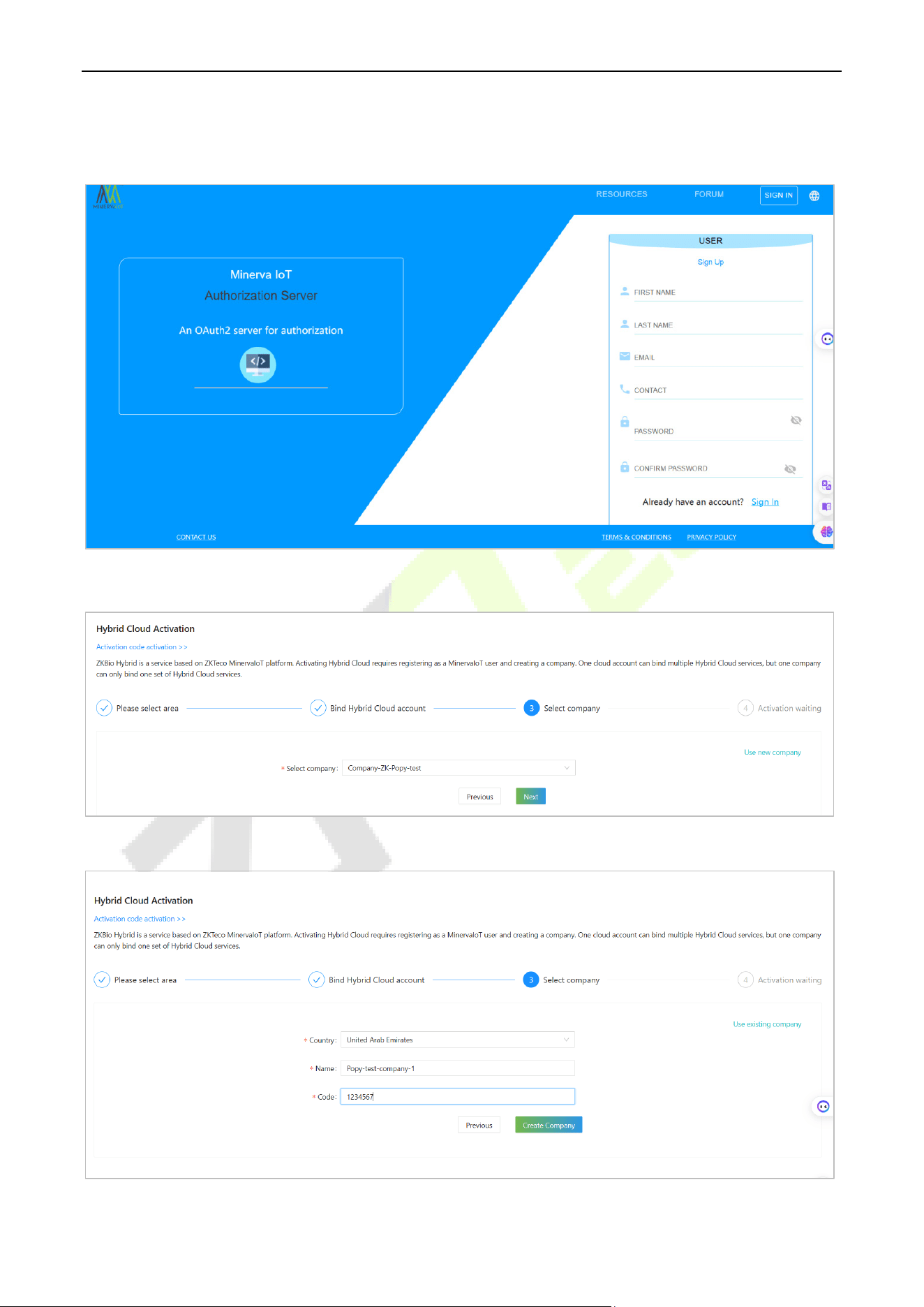
ProMA Series (ZAM230) User Manual
Page | 90 Copyright©2026 ZKTECO CO., LTD. All rights reserved.
If you already have a Minerva IoT account, you can use it and log in; otherwise click on Register, then jump
to Minerva IoT registration page and register your account.
3. Select Company
If you don't currently have a company, you can choose to create one by clicking Use New Company.
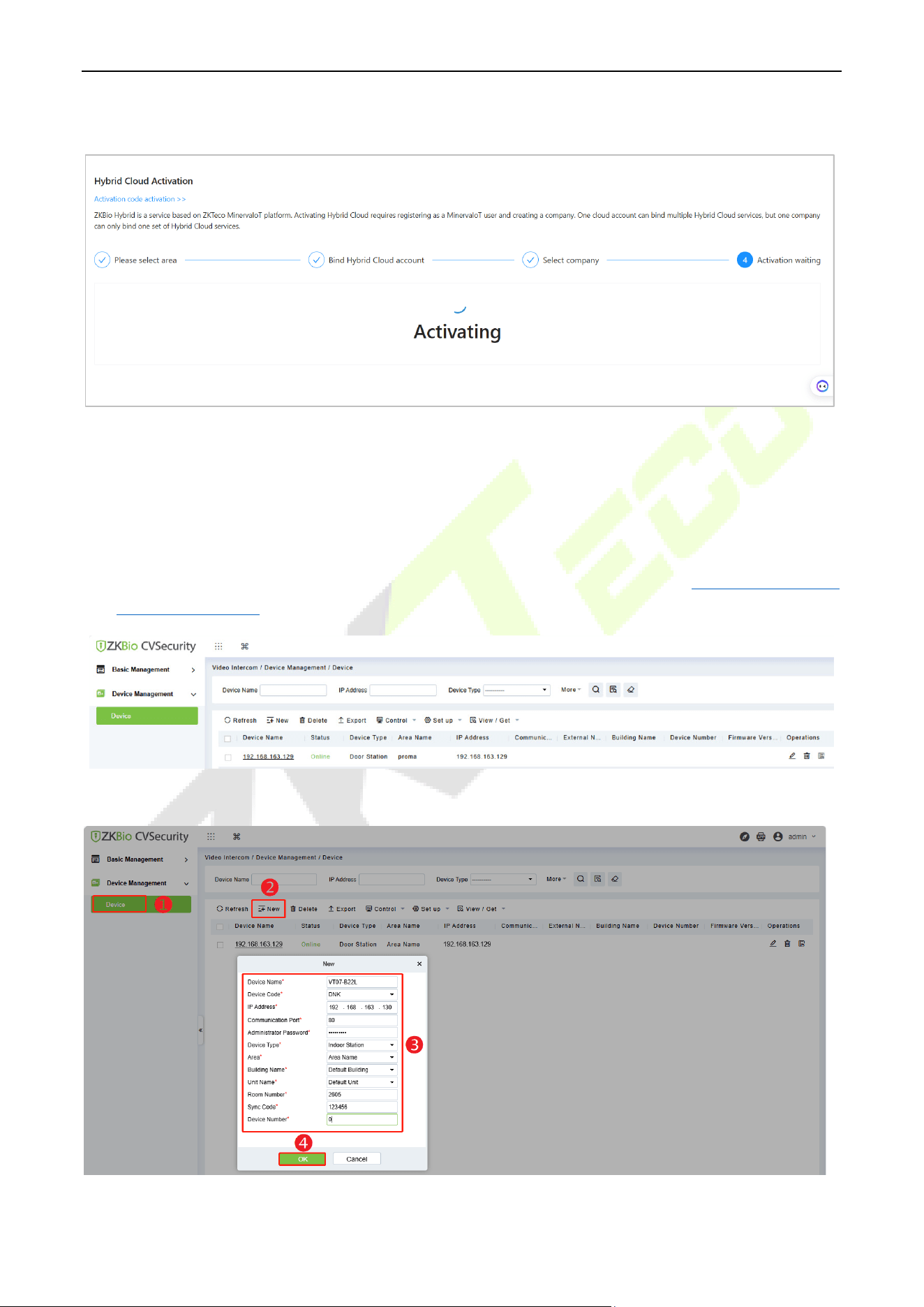
ProMA Series (ZAM230) User Manual
Page | 91 Copyright©2026 ZKTECO CO., LTD. All rights reserved.
Start Activating and wait for 1-2 minutes until the Activation completely.
The specific installation and activation steps of the ZKBio CVConnect client can refer to ZKBio Zexus
Mobile App User Manual.
17.2.2 Add Device
1. Add the device to the Access Module of the software. Then the device will be automatically
synchronized to the Video Intercom module. (The adding method can refer to
16 Connect to ZKBio
CVSecurity Software)
2. Click Video Intercom > Device Management > Device > New to add the indoor monitor.
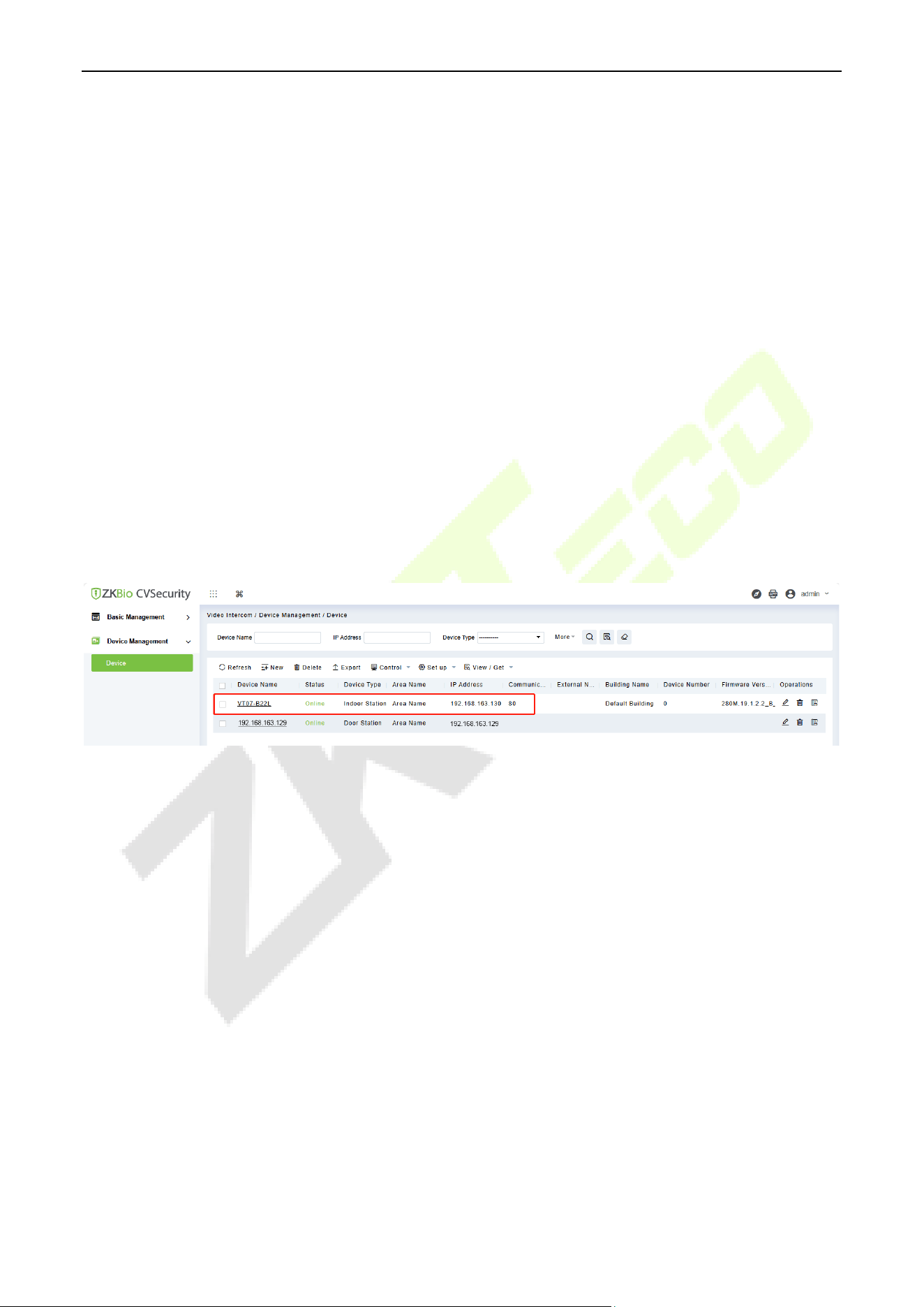
ProMA Series (ZAM230) User Manual
Page | 92 Copyright©2026 ZKTECO CO., LTD. All rights reserved.
Device Name: Enter the name of the indoor monitor.
Device Code: Set as DNK.
IP Address: Enter the IP address of the indoor monitor.
Communication Port: 80 by default.
Administrator Password: 123456 by default.
Device Type: Set as Indoor Station.
Area/ Building Name/Unit Name: Select from the drop-down list.
Room Number: Customize the number of the indoor monitor.
Sync Code: Can be customized by the user. (It is used when a resident has multiple indoor
monitors. The indoor monitors which have the same Sync Code will be called at the same time.)
Device Number: The setting range is 0-9. For example, if there is only one indoor monitor in the
room, the device number will be 0. If there are two units, one will be 0 and the other will be 1, and
so on.
3. After the addition is successful, the indoor monitor will be displayed in the device list.
17.2.3 Create Extension Numbers
Click Video Intercom > Extension Management > Extension Number > New to create extension
numbers.
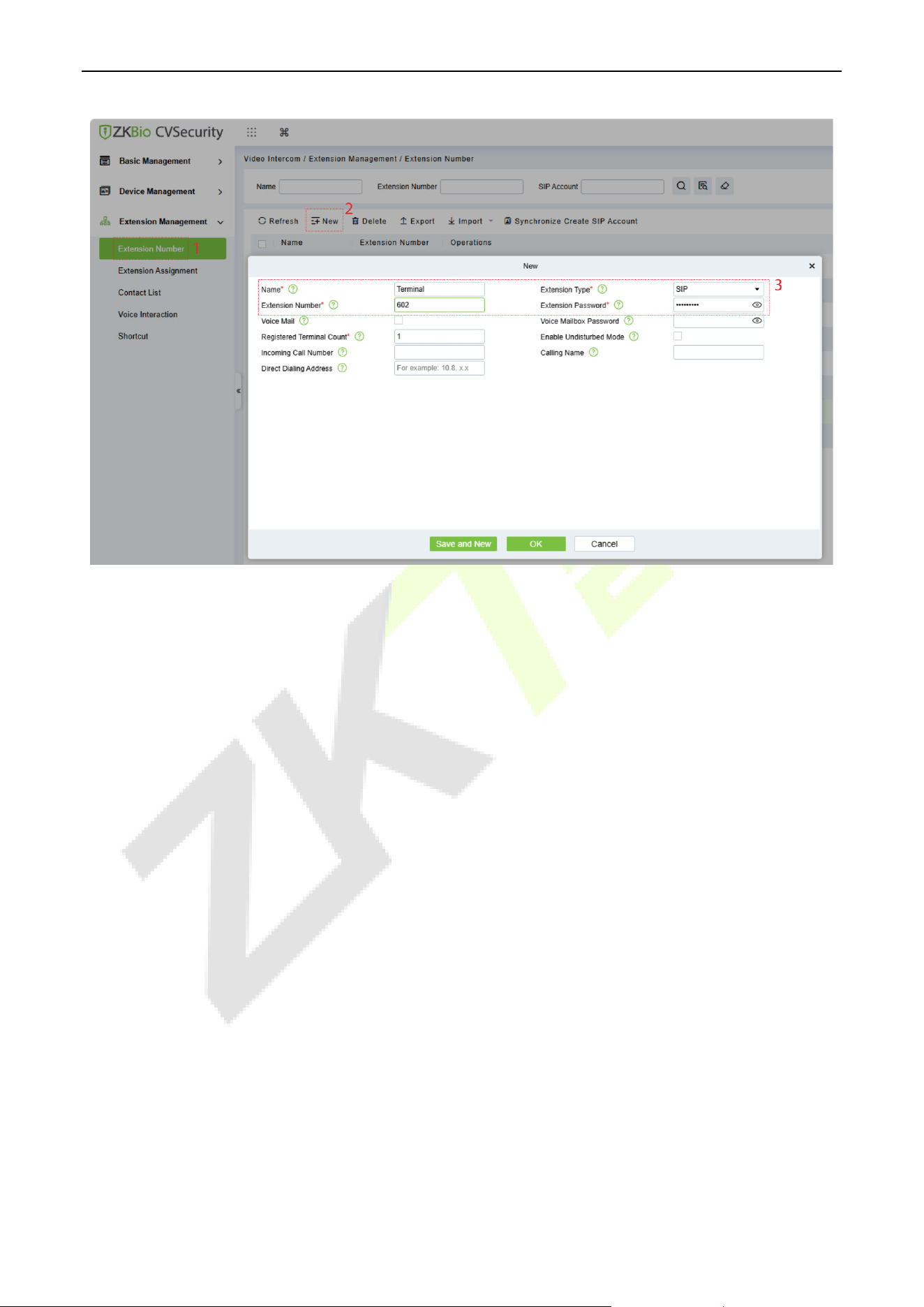
ProMA Series (ZAM230) User Manual
Page | 93 Copyright©2026 ZKTECO CO., LTD. All rights reserved.
• Name: Customize the extension name. If it is a residential scene, the name can be set to the room
number; if it is an office scene, the name can be set to the work number and name information.
• Extension Type: SIP by default.
• Extension Number: Customize the extension number; for example, the number of Room 401, Unit 2,
Building 1 can be defined as 01020401 for quick internal identification.
• Extension Password: User's SIP account password, which can be used to request account registration
from the SIP service.
• Registered Terminal Count: The maximum number of terminals that a user can register to the same
number. When the number of concurrent registrations is 1, it means that new registrations are
allowed to preempt the registration address. When the number of concurrent registrations is 2 or
more, new registrations will be automatically blocked once the number of registrations reaches the
limit.
After the user creates the extension number, the system will automatically generate a SIP account. For
example, assuming the user has created the extension number 322603, the system automatically
generates the SIP account as 2317, so the SIP Username used on the terminal is 2317.
Note:
1) The SIP Account column is hidden by default. You can right-click the row which Operations is in and
check the SIP Account to display it.
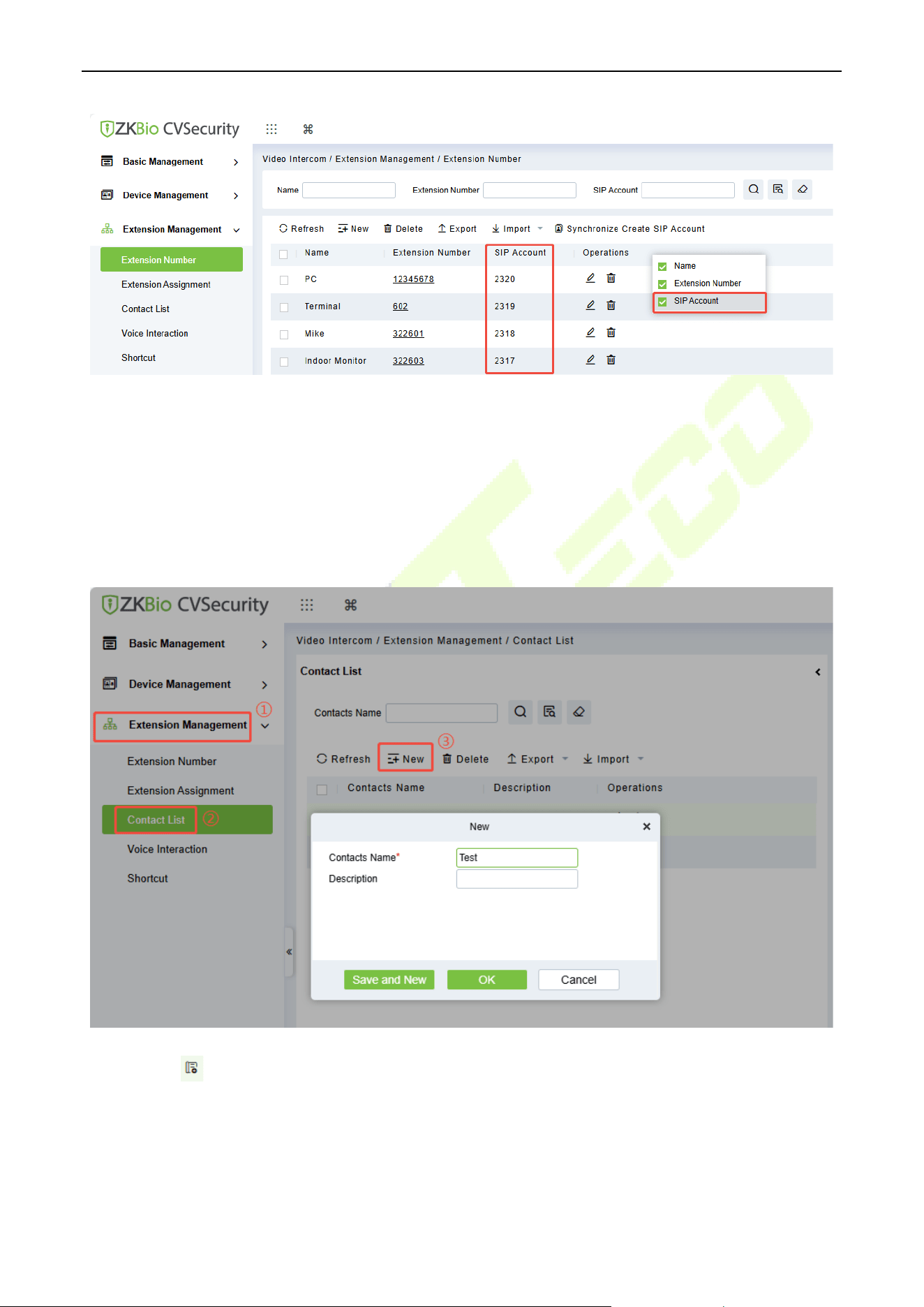
ProMA Series (ZAM230) User Manual
Page | 94 Copyright©2026 ZKTECO CO., LTD. All rights reserved.
2) If you use a PBX, the extension number will be directly used, and the SIP account list will be empty.
17.2.4 Contact List
If you need to enable different devices or personnel to view a limited number of contacts, you can
configure the contact list.
1. Click Extension Management > Contact List > New to create a contact list.
2. Click the icon to add extension numbers to the contact list.
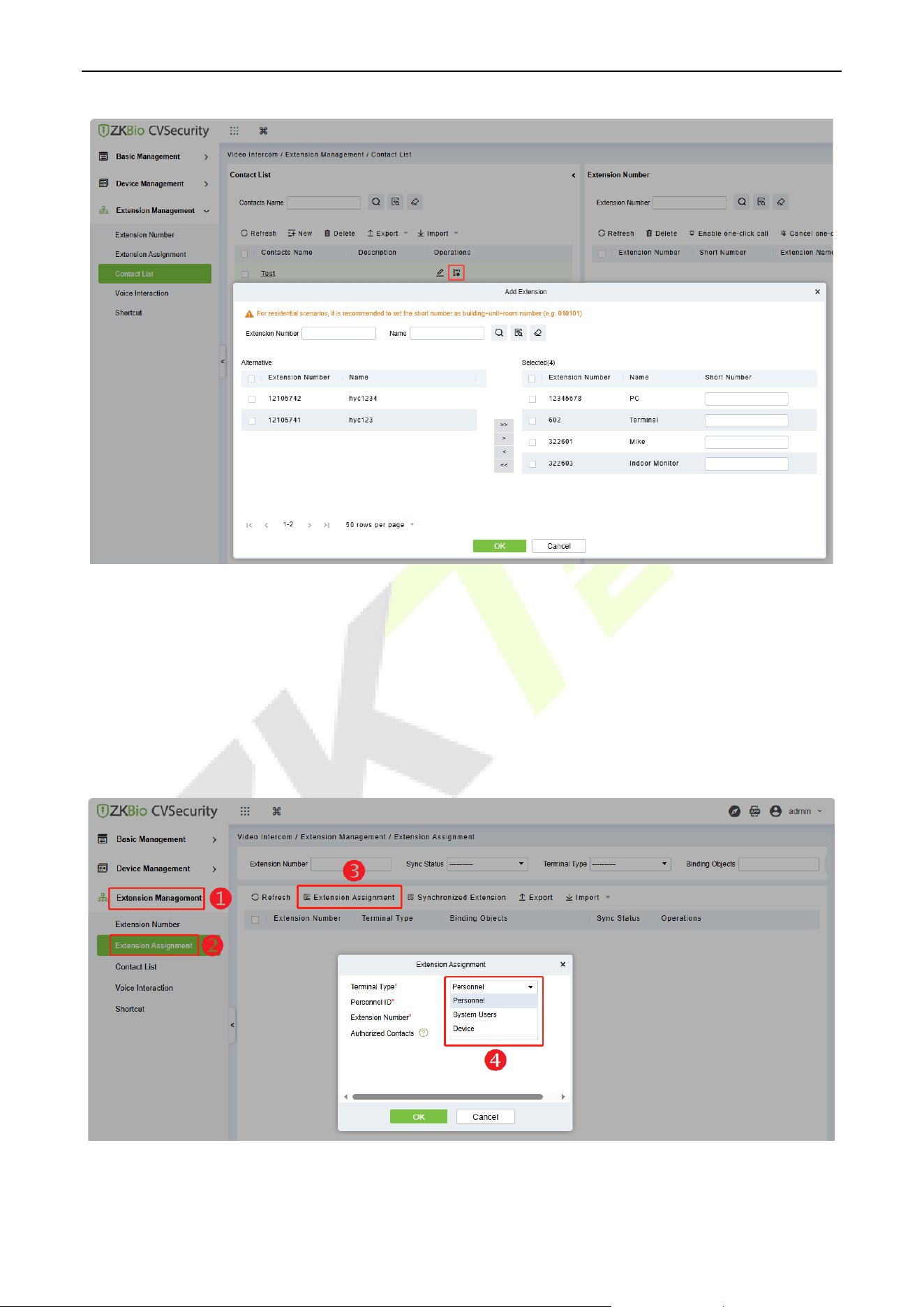
ProMA Series (ZAM230) User Manual
Page | 95 Copyright©2026 ZKTECO CO., LTD. All rights reserved.
17.2.5 Assignment of Extension Numbers and SIP Accounts
The extension number or SIP account can be assigned to personnel, devices or system users. After
allocation, personnel and users' APP will be able to directly use video intercom for communication. The
device can also be used directly without manual additional configuration.
Click Extension Management > Extension Assignment > Extension Assignment, select the Terminal
Type.
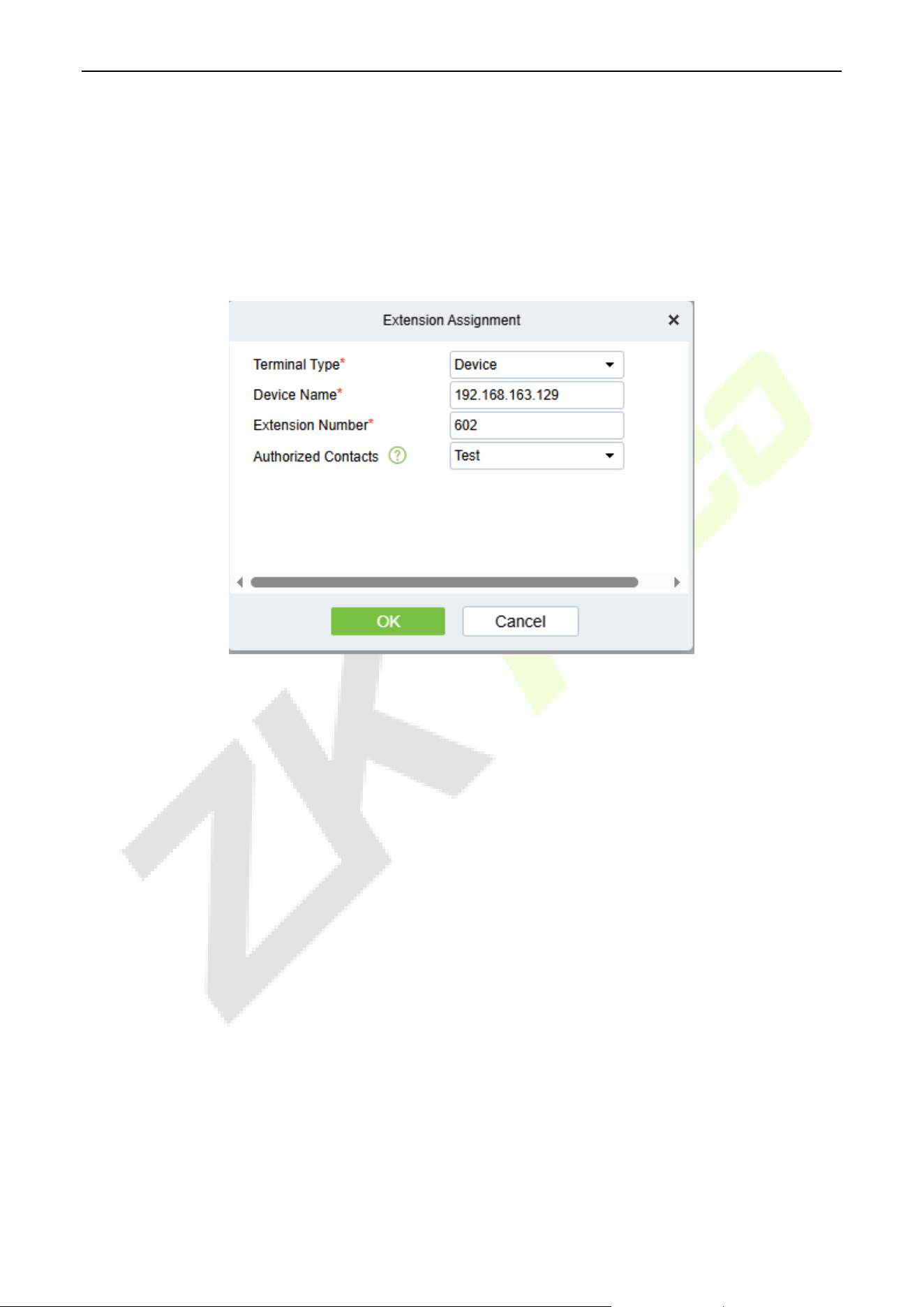
ProMA Series (ZAM230) User Manual
Page | 96 Copyright©2026 ZKTECO CO., LTD. All rights reserved.
Device Account Assignment
1. Select the Terminal Type as Device.
2. Select the device need to be bound (device or indoor monitor) and the extension number. The
account information will be automatically synchronized to the device. Select the Authorized Contacts
to assign the contact list to the device; only after the assignment can the device make calls through
the contact list.
3. After successful assignment, user can go to [Intercom] > [SIP Settings] > [Local Settings] on the
WebServer to see that the server account information have been automatically set, as shown in the
following figure.
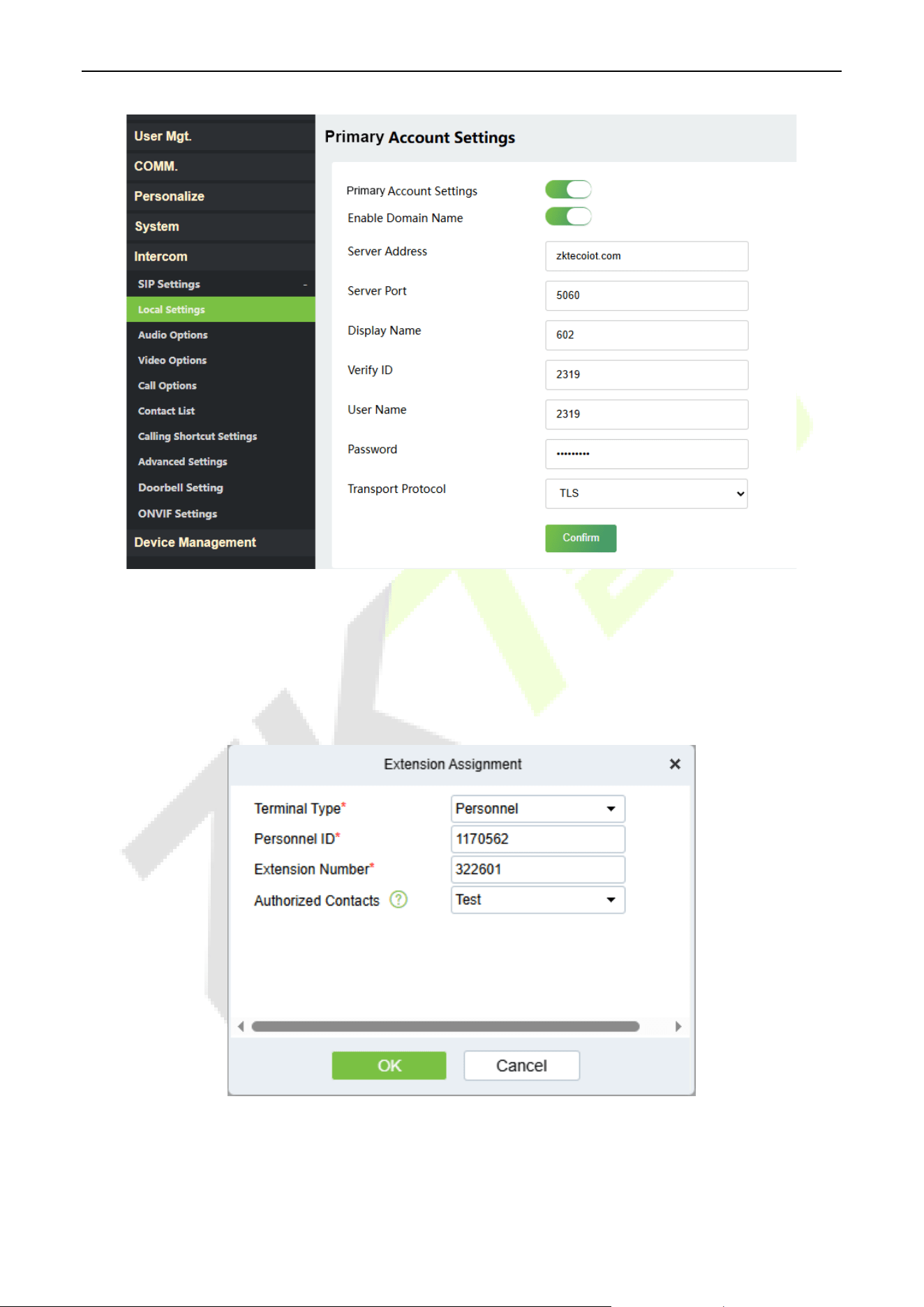
ProMA Series (ZAM230) User Manual
Page | 97 Copyright©2026 ZKTECO CO., LTD. All rights reserved.
Personnel Account Assignment (ZKBio Zexus App)
1. Select the Terminal Type as Personnel.
2. Select the person to be assigned an account and the extension number. Select the Authorized
Contacts to assign the contact list to the individual, and after the assignment, the individual can view
the contacts in the contact list upon logging into the ZKBio Zexus App.
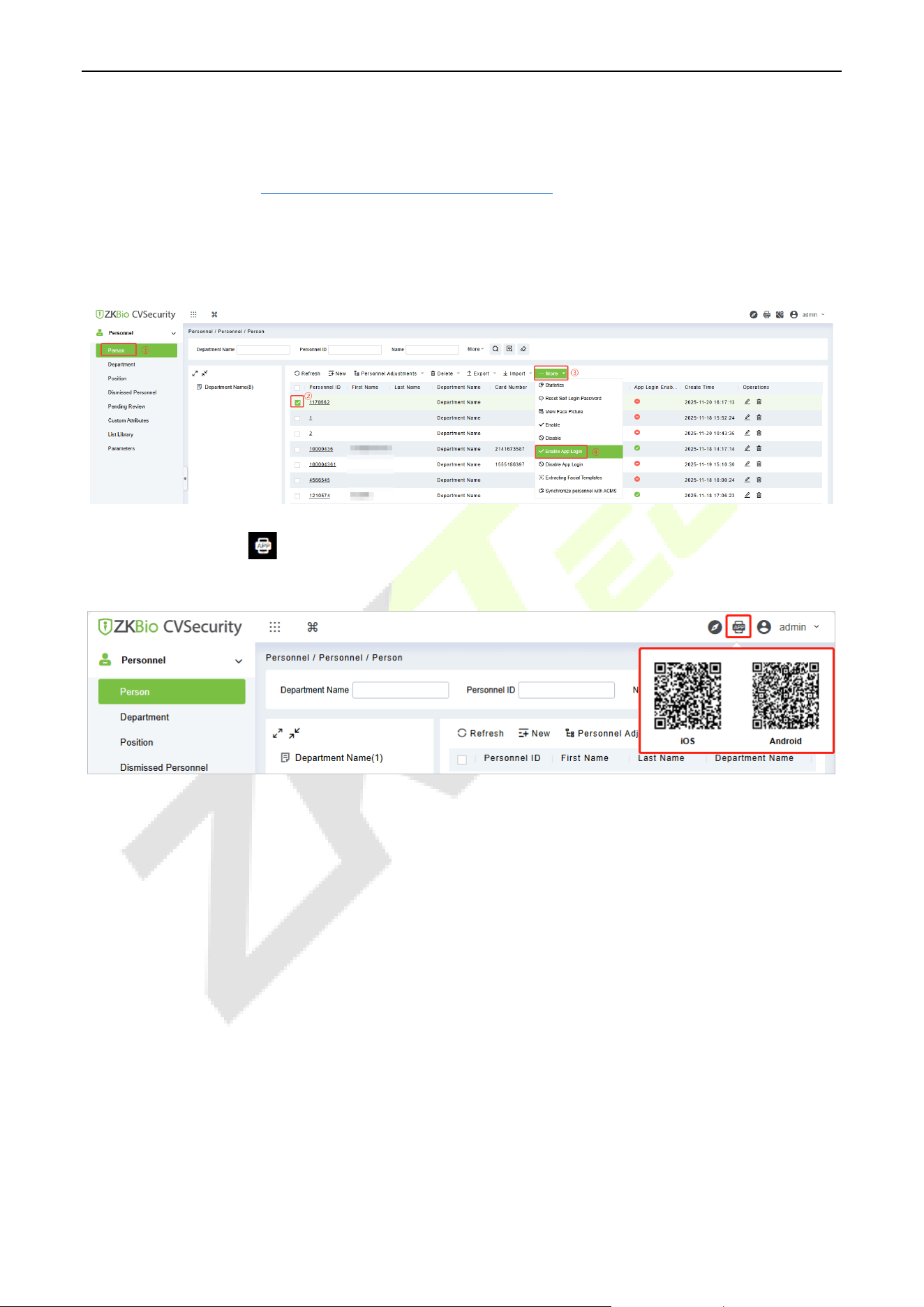
ProMA Series (ZAM230) User Manual
Page | 98 Copyright©2026 ZKTECO CO., LTD. All rights reserved.
Note:
1) Before assign account to the personnel, you need first add personnel in ZKBio CVSecurity. The adding
method can refer to 16 Connect to ZKBio CVSecurity Software.
2) The personnel need to enable APP Login. (Click Personnel > Personnel > Person > More > Enable
APP Login.) Once a person has enabled APP login, they can directly access the Video Intercom feature
upon logging into the App.
3) User can click the icon at the right top corner of the ZKBio CVSecurity interface to scan the QR
code to install the ZKBio Zexus App.
3. After successful assignment, the personnel can login to the App. Select the role-Personnel, enter the
account information, and click Login.
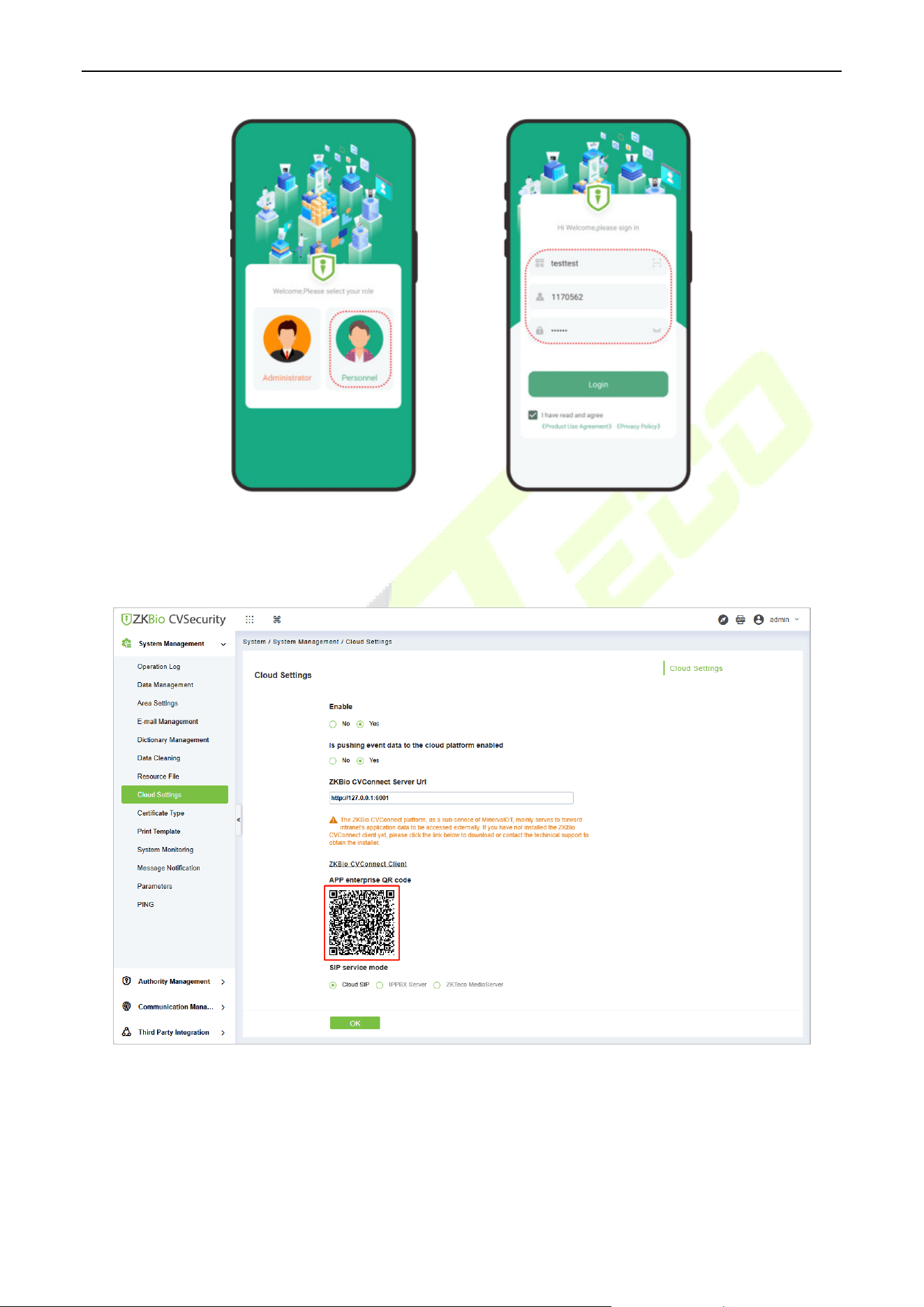
ProMA Series (ZAM230) User Manual
Page | 99 Copyright©2026 ZKTECO CO., LTD. All rights reserved.
Organization Name: Scan the organization code you get before. (Go to ZKBio CVSecurity web, enter
System > System Management >Cloud Settings >APP enterprise QR code, or go to ZKBio CVConnect
client, scan the ZKBio CVConnect Client Information QR Code.)
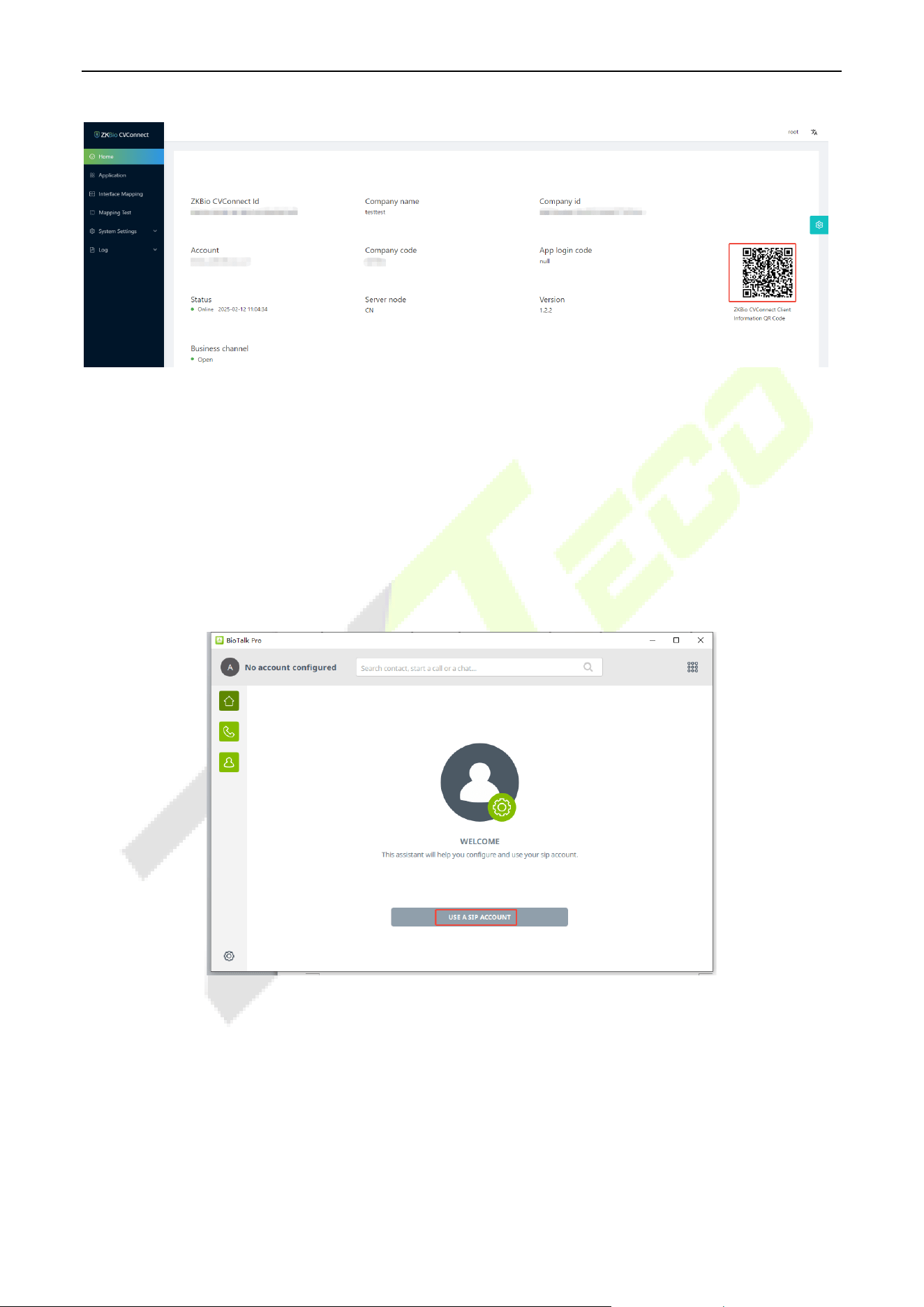
ProMA Series (ZAM230) User Manual
Page | 100 Copyright©2026 ZKTECO CO., LTD. All rights reserved.
Account & Password: The personnel ID & password (default: 123456).
The App complete operation steps please refer to the ZKBio Zexus Mobile App User Manual.
17.2.6 PC Client Functionality
To use the BioTalk Pro PC client, please contact the appropriate person for an installation package.
Operation Guide
Step 1: Configure the SIP account: Click USE A SIP ACCOUNT button.
Step 2: Fill in the SIP account information in order and click USE.
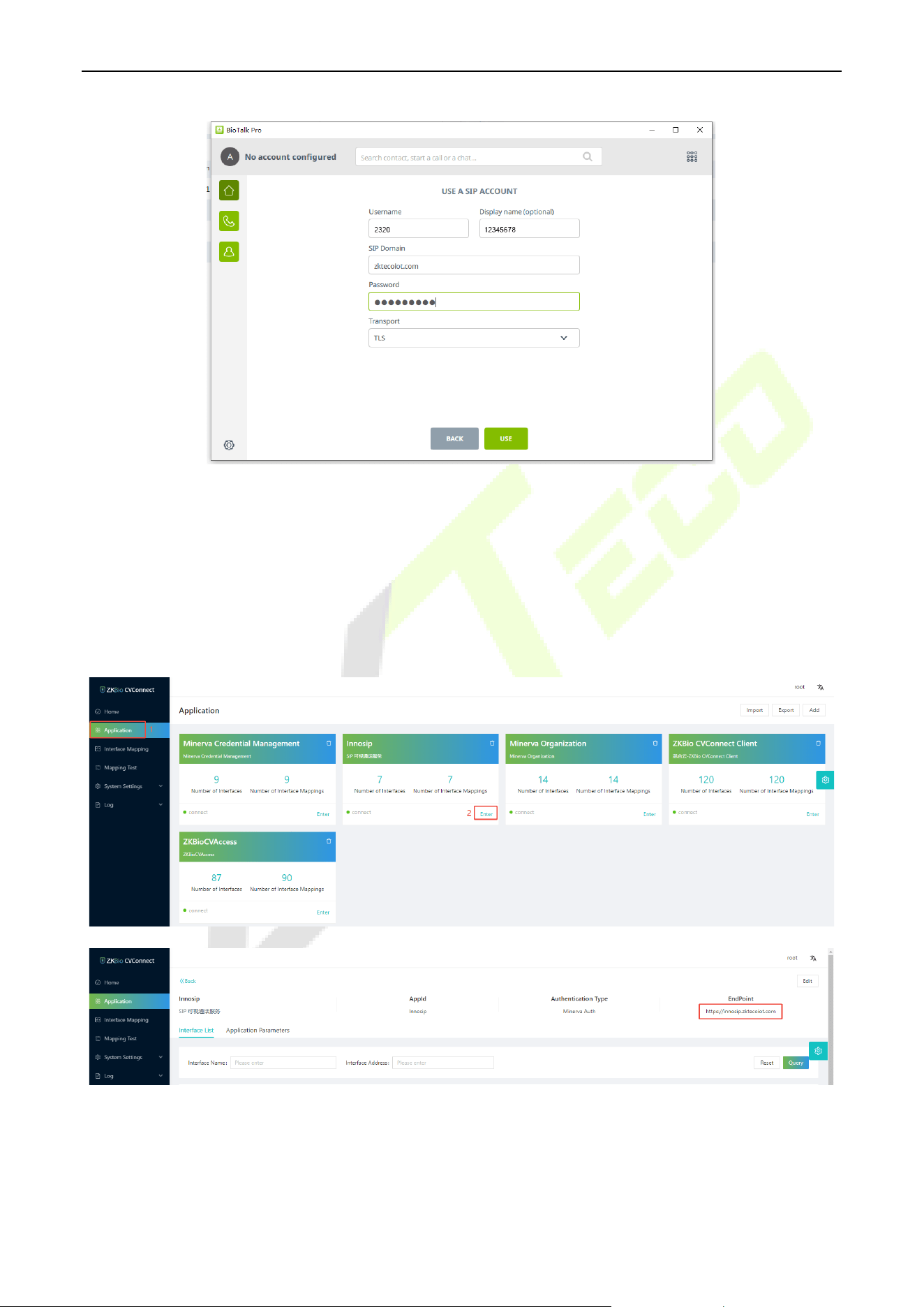
ProMA Series (ZAM230) User Manual
Page | 101 Copyright©2026 ZKTECO CO., LTD. All rights reserved.
Username: Enter the SIP account. (Note: You need to create a new SIP account for the PC client in
ZKBio CVSecurity, then you can use the account to login to the PC client.)
Display Name: It is the extension number.
SIP Domain: The SIP Server Domain. (Go to ZKBio CVConnect client, click Application > Innosip >
Enter, the EndPoint address is “https://innosip.zktecoiot.com”. Then 'zktecoiot.com' is the actual SIP
server domain you need to enter on the PC Client.)
Password: The extension password of the SIP account for PC client.
Transport: Transportation Protocol, TLS by default.
Wait 1 minute until the status shows Connected, as shown below:
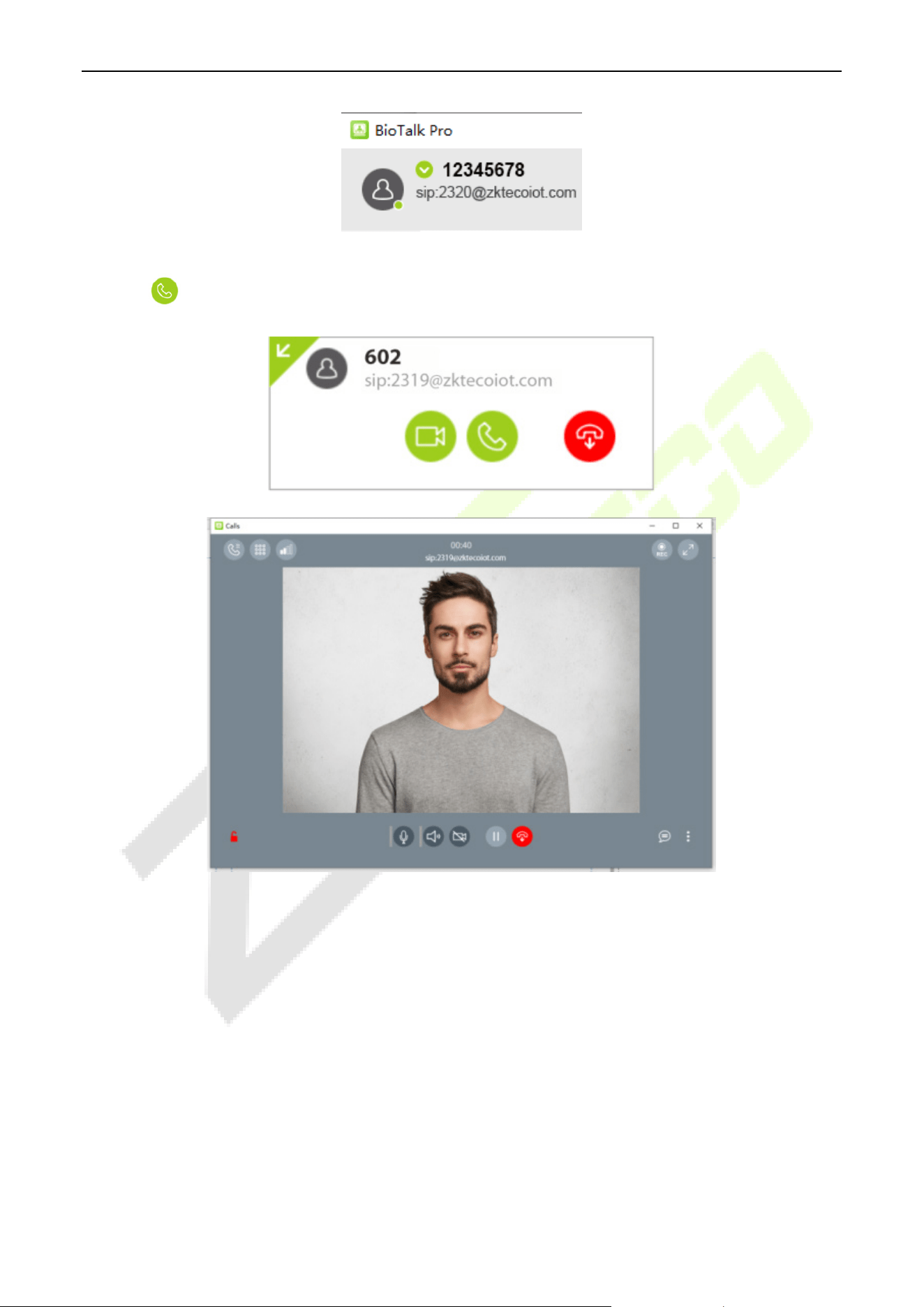
ProMA Series (ZAM230) User Manual
Page | 102 Copyright©2026 ZKTECO CO., LTD. All rights reserved.
When the PC Client receives a call, a window alert will pop up in the lower right corner of the desktop.
Click the icon to accept it.
User can open the door by clicking on the keypad and entering the DTMF value of the device, e.g. the
default value of ZKTeco device is 1, so you can click on 1 at the keypad.
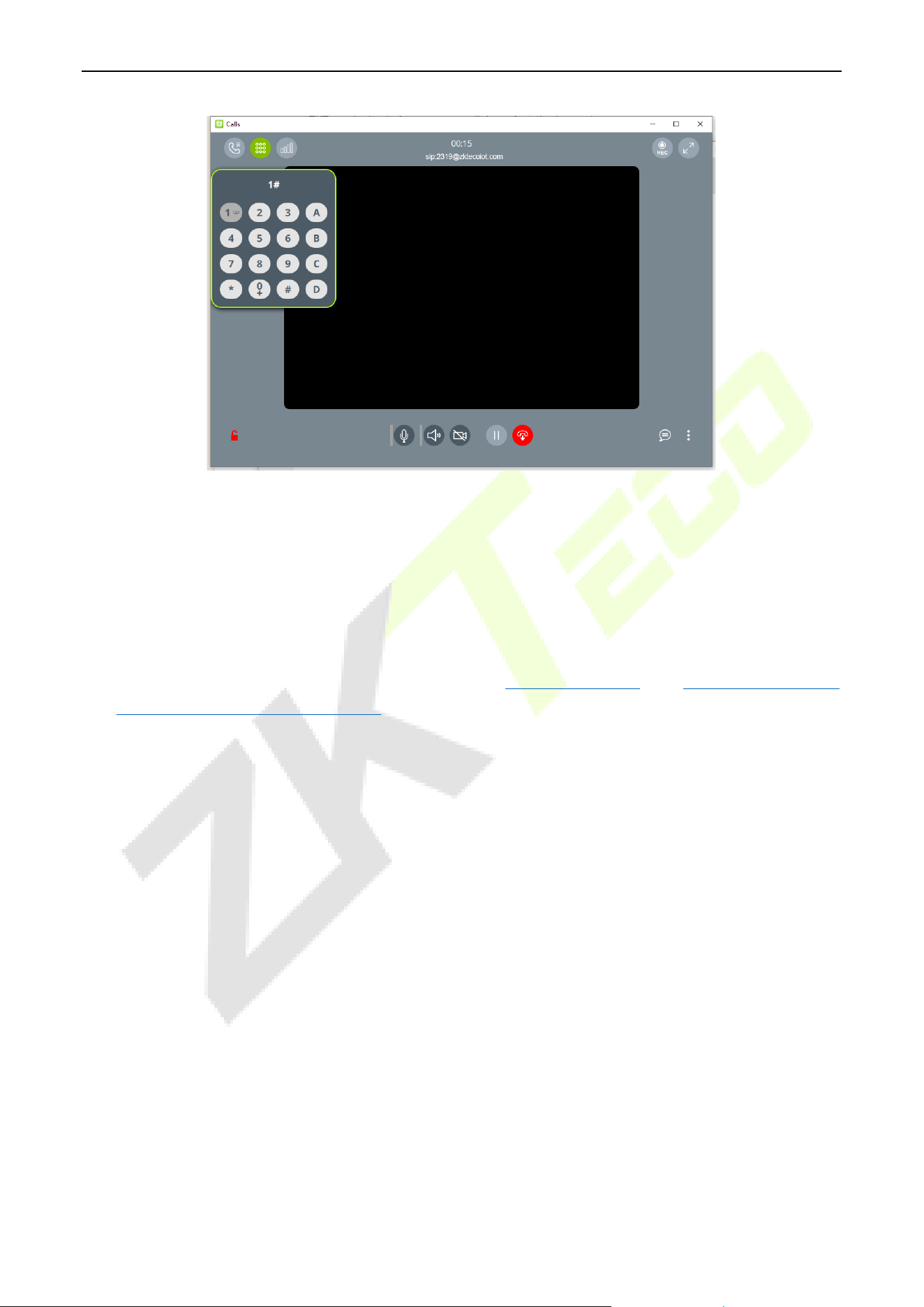
ProMA Series (ZAM230) User Manual
Page | 103 Copyright©2026 ZKTECO CO., LTD. All rights reserved.
17.2.7 Make a Call
Note: The device only supports one-way call to the indoor monitors, ZKBio Zexus App, and PC client
(BioTalk Pro).
Device Call the Indoor Monitor (VT07-B26L-W / VT07-B22L)
1. Add the indoor monitor on the ZKBio CVSecurity software, then assign an extension number to the
indoor monitor. (The operations steps can refer to 17.2.2 Add Device and
17.2.5 Assignment of
Extension Numbers and SIP Accounts)
2. On the WebServer, click [Calling Shortcut Settings]. Select the indoor monitors that you want to call,
then click [Save].
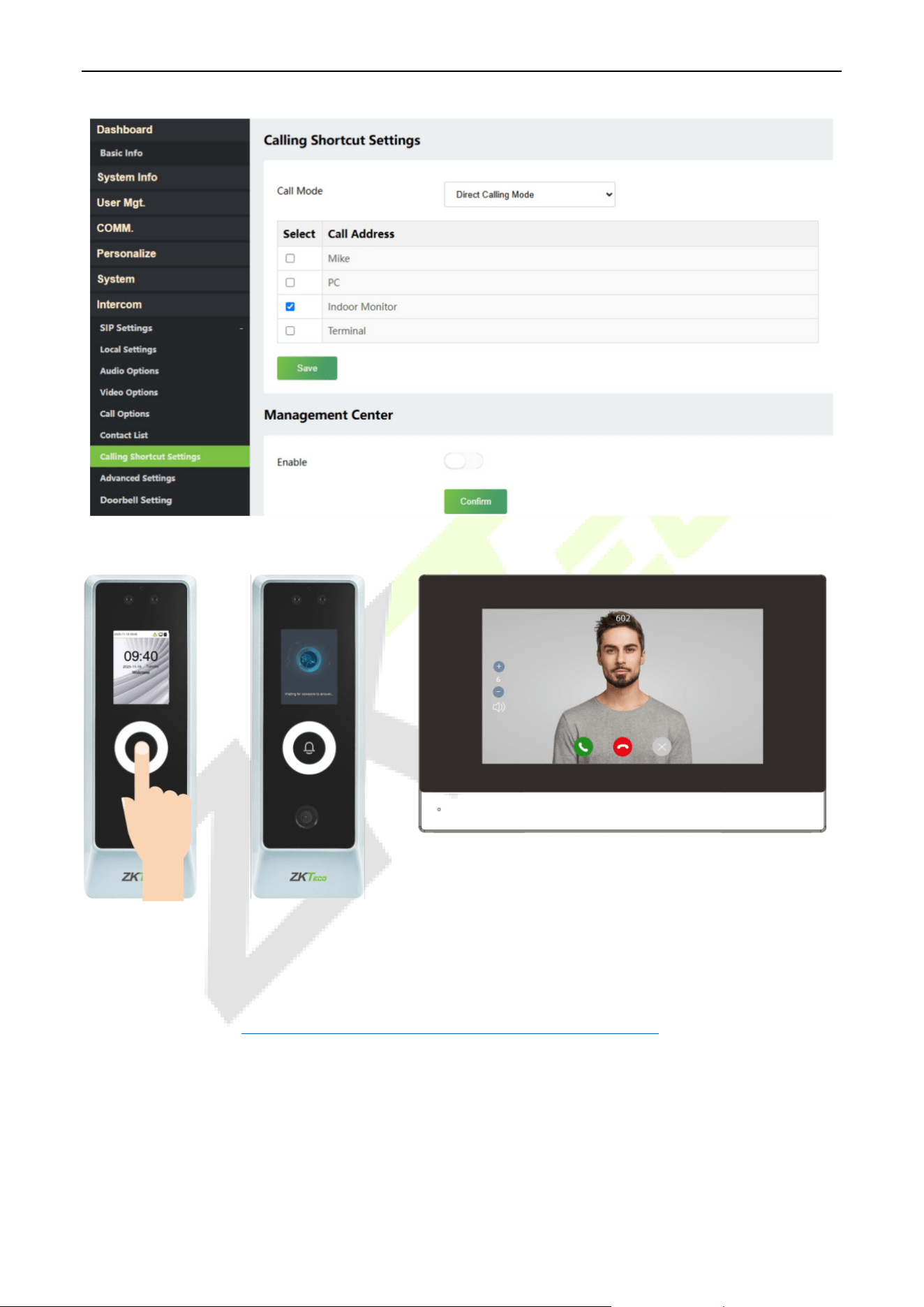
ProMA Series (ZAM230) User Manual
Page | 104 Copyright©2026 ZKTECO CO., LTD. All rights reserved.
3. Press the doorbell button on the device to call the indoor monitors directly.
Device Call the Phone (ZKBio Zexus App)
1. On the ZKBio CVSecurity software, assign an extension number to the personnel. (The operations
steps can refer to 17.2.5 Assignment of Extension Numbers and SIP Accounts
)
2. On the WebServer, click [Calling Shortcut Settings]. Select the personnel that you want to call, then
click [Save].
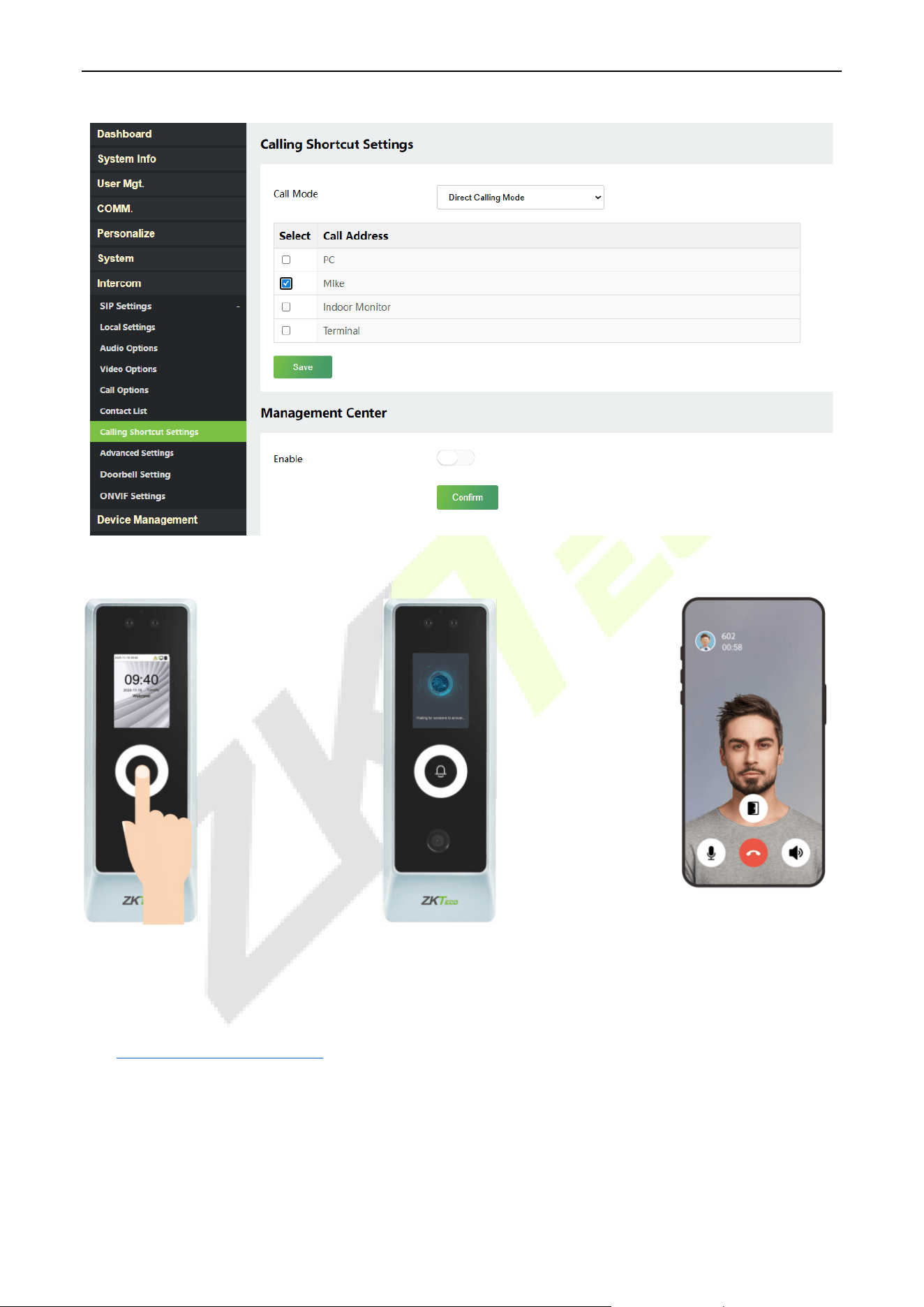
ProMA Series (ZAM230) User Manual
Page | 105 Copyright©2026 ZKTECO CO., LTD. All rights reserved.
3. Press the doorbell button on the device to call the personnel directly.
Device Call the PC Client (BioTalk Pro)
1. Install the BioTalk Pro software and configure the SIP account. (The operations steps can refer to
17.2.6 PC Client Functionality
)
2. On the WebServer, click [Calling Shortcut Settings]. Select the PC that you want to call, then click
[Save].
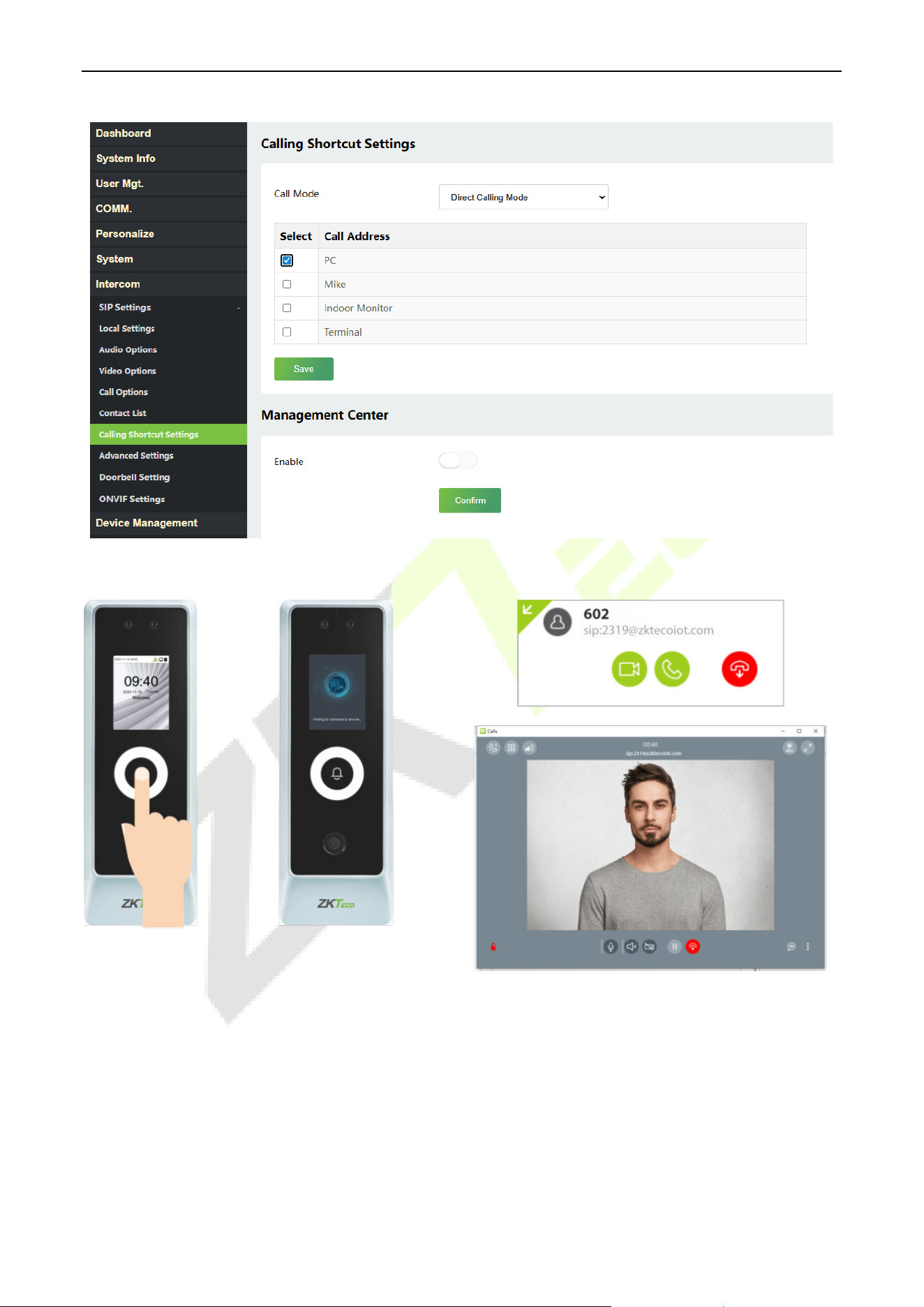
ProMA Series (ZAM230) User Manual
Page | 106 Copyright©2026 ZKTECO CO., LTD. All rights reserved.
3. Press the doorbell button on the device to call the PC directly.
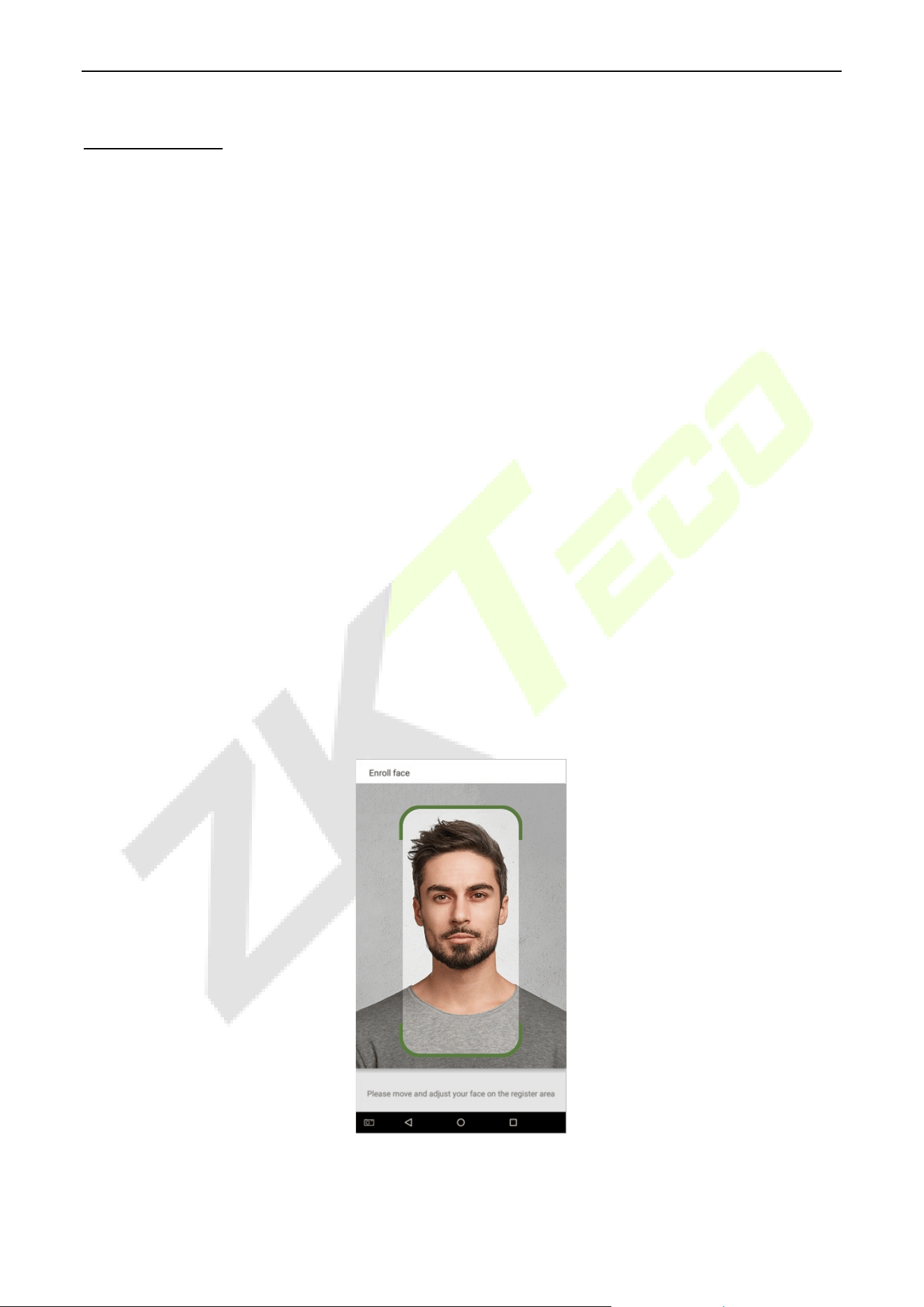
ProMA Series (ZAM230) User Manual
Page | 107 Copyright©2026 ZKTECO CO., LTD. All rights reserved.
Appendix 1
Requirements of Live Collection and Registration of Visible
Light Face Templates
1) It is recommended to perform registration in an indoor environment with an appropriate light
source without underexposure or overexposure.
2) Do not shoot towards outdoor light sources like door or window or other strong light sources.
3) Dark-color apparels which are different from the background color are recommended for
registration.
4) Please show your face and forehead, and do not cover your face and eyebrows with your hair.
5) The digital photo should be straight-edged, colored, and half-portrayed with only one person, and
the person should be uncharted and casual. Persons who wear eyeglasses should remain to put on
eyeglasses for photo-taking.
6) Do not wear accessories like scarf or mask that may cover your mouth or chin.
7) Please face right towards the capturing device, and locate your face in the image capturing area as
shown in Image 1.
8) Do not include more than one face in the capturing area.
9) 50cm - 80cm is recommended for capturing distance adjustable subject to body height.
Image1 Face Capture Area

ProMA Series (ZAM230) User Manual
Page | 108 Copyright©2026 ZKTECO CO., LTD. All rights reserved.
Requirements for Visible Light Digital Face Template Data
The digital photo should be straight-edged, colored, half-portrayed with only one person, and the person
should be uncharted and in casuals. Persons who wear eyeglasses should remain to put on eyeglasses for
getting photo captured.
Eye Distance
200 pixels or above are recommended with no less than 115 pixels of distance.
Facial Expression
Neutral face or smile with eyes naturally open are recommended.
Gesture and Angel
Horizontal rotating angle should not exceed ±10°, elevation should not exceed ±10°, and depression angle
should not exceed ±10°.
Accessories
Masks or colored eyeglasses are not allowed. The frame of the eyeglasses should not cover eyes and
should not reflect light. For persons with thick eyeglasses frame, it is recommended to capture two images,
one with eyeglasses and the other one without the eyeglasses.
Face
Complete face with clear contour, real scale, evenly distributed light, and no shadow.
Image Format
Should be in BMP, JPG or JPEG.
Data Requirement
Should comply with the following requirements:
1) White background with dark-colored apparel.
2) 24bit true color mode.
3) JPG format compressed image with not more than 20kb size.
4) Resolution should be between 358 x 441 to 1080 x 1920.
5) The vertical scale of head and body should be in a ratio of 2:1.
6) The photo should include the captured person’s shoulders at the same horizontal level.
7) The captured person’s eyes should be open and with clearly seen iris.
8) Neutral face or smile is preferred, showing teeth is not preferred.
9) The captured person should be clearly visible, natural in color, no harsh shadow or light spot or
reflection in face or background. The contrast and lightness level should be appropriate.

ProMA Series (ZAM230) User Manual
Page | 109 Copyright©2026 ZKTECO CO., LTD. All rights reserved.
Appendix 2
Privacy Policy
Notice:
To help you better use the products and services of ZKTeco (hereinafter referred as “we”, “our”, or “us”) a
smart service provider, we consistently collect your personal information. Since we understand the
importance of your personal information, we took your privacy sincerely and we have formulated this
privacy policy to protect your personal information. We have listed the privacy policies below to precisely
understand the data and privacy protection measures related to our smart products and services.
Before using our products and services, please read carefully and understand all the rules and
provisions of this Privacy Policy. If you do not agree to the relevant agreement or any of its terms,
you must stop using our products and services.
I. Collected Information
To ensure the normal product operation and help the service improvement, we will collect the
information voluntarily provided by you or provided as authorized by you during registration and
use or generated as a result of your use of services.
1. User Registration Information: At your first registration, the feature template (Fingerprint
template/Face template/Palm template) will be saved on the device according to the device
type you have selected to verify the unique similarity between you and the User ID you have
registered. You can optionally enter your Name and Code. The above information is necessary
for you to use our products. If you do not provide such information, you cannot use some
features of the product regularly.
2. Product information: According to the product model and your granted permission when you
install and use our services, the related information of the product on which our services are
used will be collected when the product is connected to the software, including the Product
Model, Firmware Version Number, Product Serial Number, and Product Capacity Information.
When you connect your product to the software, please carefully read the privacy policy
for the specific software.
II. Product Security and Management
1. When you use our products for the first time, you shall set the Administrator privilege before
performing specific operations. Otherwise, you will be frequently reminded to set the
Administrator privilege when you enter the main menu interface. If you still do not set the

ProMA Series (ZAM230) User Manual
Page | 110 Copyright©2026 ZKTECO CO., LTD. All rights reserved.
Administrator privilege after receiving the system prompt, you should be aware of the
possible security risk (for example, the data may be manually modified).
2. All the functions of displaying the biometric information are disabled in our products by default.
You can choose Menu > System Settings to set whether to display the biometric information. If
you enable these functions, we assume that you are aware of the personal privacy security risks
specified in the privacy policy.
3. Only your user ID is displayed by default. You can set whether to display other user verification
information (such as Name, Department, Photo, etc.) under the Administrator privilege. If you
choose to display such information, we assume that you are aware of the potential
security risks (for example, your photo will be displayed on the device interface).
4. The camera function is disabled in our products by default. If you want to enable this function
to take pictures of yourself for attendance recording or take pictures of strangers for access
control, the product will enable the prompt tone of the camera. Once you enable this function,
we assume that you are aware of the potential security risks.
5. All the data collected by our products is encrypted using the AES 256 algorithm. All the data
uploaded by the Administrator to our products are automatically encrypted using the AES 256
algorithm and stored securely. If the Administrator downloads data from our products, we
assume that you need to process the data and you have known the potential security risk. In
such a case, you shall take the responsibility for storing the data. You shall know that some data
cannot be downloaded for sake of data security.
6. All the personal information in our products can be queried, modified, or deleted. If you no
longer use our products, please clear your personal data.
III. How we handle personal information of minors
Our products, website and services are mainly designed for adults. Without consent of parents or
guardians, minors shall not create their own account. If you are a minor, it is recommended that
you ask your parents or guardian to read this Policy carefully, and only use our services or
information provided by us with consent of your parents or guardian.
We will only use or disclose personal information of minors collected with their parents' or
guardians' consent if and to the extent that such use or disclosure is permitted by law or we have
obtained their parents' or guardians' explicit consent, and such use or disclosure is for the purpose
of protecting minors.
Upon noticing that we have collected personal information of minors without the prior consent
from verifiable parents, we will delete such information as soon as possible.

ProMA Series (ZAM230) User Manual
Page | 111 Copyright©2026 ZKTECO CO., LTD. All rights reserved.
IV. Others
You can visit https://www.zkteco.com/en/index/Index/privacy_protection.html to learn more about
how we collect, use, and securely store your personal information. To keep pace with the rapid
development of technology, adjustment of business operations, and to cope with customer needs,
we will constantly deliberate and optimize our privacy protection measures and policies. Welcome
to visit our official website at any time to learn our latest privacy policy.
ProMA Series (ZAM230) User Manual
Page | 112 Copyright©2026 ZKTECO CO., LTD. All rights reserved.
Eco-friendly Operation
The product's "eco-friendly operational period" refers to the time during which this
product will not discharge any toxic or hazardous substances when used in accordance
with the prerequisites in this manual.
The eco-friendly operational period specified for this product does not include batteries or
other components that are easily worn down and must be periodically replaced. The
battery's eco-friendly operational period is 5 years.
Hazardous or Toxic substances and their quantities
Component
Name
Hazardous/Toxic Substance/Element
Lead
(Pb)
Mercury
(Hg)
Cadmium
(Cd)
Hexavalent
Chromium
(Cr6+)
Polybrominated
Biphenyls
(PBB)
Polybrominated
Diphenyl Ethers
(PBDE)
Chip Resistor
×
○ ○ ○ ○ ○
Chip Capacitor ×
○ ○ ○ ○ ○
Chip Inductor × ○ ○ ○ ○ ○
Diode × ○ ○ ○ ○ ○
ESD
component
×
○ ○ ○ ○ ○
Buzzer × ○ ○ ○ ○ ○
Adapter × ○ ○ ○ ○ ○
Screws ○ ○ ○ × ○ ○
This table is prepared in accordance with the provisions of SJ/T 11364.
○ indicates that the total amount of toxic content in all the homogeneous materials is below the
limit as specified in GB/T 26572.
× indicates that the total amount of toxic content in all the homogeneous materials exceeds the limit
as specified in GB/T 26572.
Note: 80% of this product’s components are manufactured using non-toxic and eco-friendly
materials. The components which contain toxins or harmful elements are included due to the
current economic or technical limitations which prevent their replacement with non-toxic materials
or elements.
ZKTeco Industrial Park, No. 32, Industrial Road,
Tangxia Town, Dongguan, China.
Phone : +86 769 - 82109991
Fax : +86 755 - 89602394
www.zkteco.com
Copyright © 2026 ZKTECO CO., LTD. All Rights Reserved.