
ProFace X TD User Manual
Page | 1 Copyright©2020ZKTECO CO., LTD. All rights reserved.
Thank you for choosing our product. Please read the instructions carefully
before operation. Follow these instructions to ensure that the product is
functioning properly. The images shown in this manual are for illustrative
purposes only.
For further details, please visit our Company’s website
www.zkteco.com.
User Manual
Network Video Recorder
Date: December 2023
Doc Version: 4.0
English

Network Video Recorder User Manual
Page | 2 Copyright©2023 ZKTECO CO., LTD. All rights reserved.
Copyright © 2023 ZKTECO CO., LTD. All rights reserved.
Without the prior written consent of ZKTeco, no portion of this manual can be copied or forwarded in any
way or form. All parts of this manual belong to ZKTeco and its subsidiaries (hereinafter the "Company" or
"ZKTeco").
Trademark
is a registered trademark of ZKTeco. Other trademarks involved in this manual are owned by
their respective owners.
Disclaimer
This manual contains information on the operation and primarytenance of the ZKTeco Device. The
copyright in all the documents, drawings, etc. in relation to the ZKTeco supplied Device vests in and is the
property of ZKTeco. The contents hereof should not be used or shared by the receiver with any third party
without express written permission of ZKTeco.
The contents of this manual must be read as a whole before starting the operation and primarytenance of
the supplied Device. If any of the content(s) of the manual seems unclear or incomplete, please contact
ZKTeco before starting the operation and primarytenance of the said Device.
It is an essential pre-requisite for the satisfactory operation and primarytenance that the operating and
primarytenance personnel are fully familiar with the design and that the said personnel have received
thorough training in operating and primarytaining the machine/unit/Device. It is further essential for the
safe operation of the machine/unit/Device that personnel has read, understood, and followed the safety
instructions contained in the manual.
In case of any conflict between terms and conditions of this manual and the contract specifications,
drawings, instruction sheets or any other contract-related documents, the contract
conditions/documents shall prevail. The contract-specific conditions/documents shall apply in priority.
ZKTeco offers no warranty, guarantee, or representation regarding the completeness of any information
contained in this manual or any of the amendments made thereto. ZKTeco does not extend the warranty
of any kind, including, without limitation, any warranty of design, merchantability, or fitness for a
particular purpose.
ZKTeco does not assume responsibility for any errors or omissions in the information or documents which
are referenced by or linked to this manual. The entire risk as to the results and performance obtained from
using the information is assumed by the user.
ZKTeco in no event shall be liable to the user or any third party for any incidental, consequential, indirect,
special, or exemplary damages, including, without limitation, loss of business, loss of profits, business
interruption, loss of business information or any pecuniary loss, arising out of, in connection with, or
relating to the use of the information contained in or referenced by this manual, even if ZKTeco has been
advised of the possibility of such damages.
This manual and the information contained therein may include technical, other inaccuracies or
typographical errors. ZKTeco periodically changes the information herein which will be incorporated into

Network Video Recorder User Manual
Page | 3 Copyright©2023 ZKTECO CO., LTD. All rights reserved.
new additions/amendments to the manual. ZKTeco reserves the right to add, delete, amend, or modify
the information contained in the manual from time to time in the form of circulars, letters, notes, etc. for
better operation and safety of the machine/unit/Device. The said additions or amendments are meant for
improvement /better operations of the machine/unit/Device and such amendments shall not give any
right to claim any compensation or damages under any circumstances.
ZKTeco shall in no way be responsible (i) in case the machine/unit/Device malfunctions due to any non-
compliance of the instructions contained in this manual (ii) in case of operation of the
machine/unit/Device beyond the rate limits (iii) in case of operation of the machine and Device in
conditions different from the prescribed conditions of the manual.
The product will be updated from time to time without prior notice. The latest operation procedures and
relevant documents are available on http://www.zkteco.com.
If there is any issue related to the product, please contact us.
ZKTeco Headquarters
Address ZKTeco Industrial Park, No. 32, Industrial Road,
Tangxia Town, Dongguan, China.
Phone +86 769 - 82109991
Fax +86 755 - 89602394
For business-related queries, please write to us at sales@zkteco.com.
To know more about our global branches, visit www.zkteco.com.

Network Video Recorder User Manual
Page | 4 Copyright©2023 ZKTECO CO., LTD. All rights reserved.
About the Company
ZKTeco is one of the world’s largest manufacturers of RFID and Biometric (Fingerprint, Facial, and Finger-
vein) readers. Product offerings include Access Control readers and panels, Near & Far-range Facial
Recognition Cameras, Elevator/floor access controllers, Turnstiles, License Plate Recognition (LPR) gate
controllers and Consumer products including battery-operated fingerprint and face-reader Door Locks.
Our security solutions are multi-lingual and localized in over 18 different languages. At the ZKTeco state-
of-the-art 700,000 square foot ISO9001-certified manufacturing facility, we control manufacturing,
product design, component assembly, and logistics/shipping, all under one roof.
The founders of ZKTeco have been determined for independent research and development of biometric
verification procedures and the productization of biometric verification SDK, which was initially widely
applied in PC security and identity authentication fields. With the continuous enhancement of the
development and plenty of market applications, the team has gradually constructed an identity
authentication ecosystem and smart security ecosystem, which are based on biometric verification
techniques. With years of experience in the industrialization of biometric verifications, ZKTeco was
officially established in 2007 and now has been one of the globally leading enterprises in the biometric
verification industry owning various patents and being selected as the National High-tech Enterprise for 6
consecutive years. Its products are protected by intellectual property rights.
About the Manual
This manual introduces the product of Network Video Recorder.
All figures displayed are for illustration purposes only. Figures in this manual may not be exactly
consistent with the actual products.

Network Video Recorder User Manual
Page | 5 Copyright©2023 ZKTECO CO., LTD. All rights reserved.
TABLE OF CONTENTS
1. INSTALLATION ..................................................................................................................................... 8
1.1. U
NPACKING INSPECTION ...................................................................................................................... 8
1.2. H
ARD DISK INSTALLATION ................................................................................................................... 8
1.2.1. NVR WITH 4 OR 8 HDD ................................................................................................................................................ 8
1.2.2. NVR WITH 1 OR 2 HDD ................................................................................................................................................ 9
2. GETTING STARTED ............................................................................................................................ 11
2.1. S
TART UP AND SHUTDOWN ................................................................................................................ 11
2.1.1. START UP ....................................................................................................................................................................... 11
2.1.2. SHUT DOWN ................................................................................................................................................................. 11
2.2. L
OGIN .............................................................................................................................................. 11
2.3. U
SING GUIDE .................................................................................................................................... 12
2.4. M
ENU OPERATION ............................................................................................................................. 14
2.4.1. BEGIN SETUP ................................................................................................................................................................ 14
3. PREVIEW ............................................................................................................................................. 15
3.1. I
NTRODUCTION OF PREVIEW ............................................................................................................... 15
3.2. O
PERATIONS IN PREVIEW MODE ......................................................................................................... 16
3.3. U
SING THE MOUSE IN PREVIEW ........................................................................................................... 18
4. PLAYBACK .......................................................................................................................................... 20
4.1. I
NSTANT PLAYBACK ........................................................................................................................... 20
4.2. P
LAYBACK BY NORMAL SEARCH .......................................................................................................... 21
4.2.1. RECORDING PLAYBACK ............................................................................................................................................ 21
4.2.2. PLAYBACK BY EVENT SEARCH ................................................................................................................................ 23
4.2.3. PLAYBACK PICTURES ................................................................................................................................................. 23
4.2.4. PLAYBACK EXTERNAL FILE ...................................................................................................................................... 25
5. PTZ CONTROLS .................................................................................................................................. 26
5.1. C
ONFIGURING PTZ SETTINGS ............................................................................................................. 26
5.2. S
ETTING PTZ PRESET, CRUISE, PATTERN & LINEAR SCAN ...................................................................... 27
5.2.1. PRESET SETTING .......................................................................................................................................................... 27
5.2.2. CRUISE SETTING ................................
.......................................................................................................................... 27
5.2.3. PATTERN SETTING ...................................................................................................................................................... 28
5.2.4. LINEAR SCAN SETTING .............................................................................................................................................. 28
6. SEARCH .............................................................................................................................................. 29
6.1. I
MAGE RETRIEVAL .............................................................................................................................. 29
6.2. R
ECORD RETRIEVAL ........................................................................................................................... 30
6.3. F
ACE RETRIEVAL ................................................................................................................................ 31

Network Video Recorder User Manual
Page | 6 Copyright©2023 ZKTECO CO., LTD. All rights reserved.
7. CHANNEL MANAGE ........................................................................................................................... 32
7.1. A
DDING IP CAMERAS ......................................................................................................................... 32
7.1.1. MANUAL ADD .............................................................................................................................................................. 32
7.2. R
EGULAR CONFIG .............................................................................................................................. 34
7.2.1. CHANNEL DISPLAY ..................................................................................................................................................... 34
7.2.2. MEDIA PARAMETERS ................................................................................................................................................. 35
7.2.3. SNAPSHOT PARAMETER ........................................................................................................................................... 37
7.2.4. PTZ SETTING ................................................................................................................................................................. 37
7.2.5. TOUR GROUPING ........................................................................................................................................................ 38
7.3. R
EGULAR DETECTION ......................................................................................................................... 39
7.3.1. MOTION DETECTION ................................................................................................................................................. 39
7.3.2. VIDEO LOST ................................................................................................................................................................... 41
7.3.3. VIDEO TAMPERING ..................................................................................................................................................... 43
7.3.4. PRIVACY MASK............................................................................................................................................................. 45
7.4. A
RTIFICIAL INTELLIGENCE ................................................................................................................... 46
7.4.1. BRIEF INTRODUCTION ............................................................................................................................................... 46
7.4.2. ENABLE SMART ANALYSIS ....................................................................................................................................... 46
7.4.3. FUNCTION CONFIGURATION .................................................................................................................................. 46
7.5. C
HANNEL ZERO SETTING .................................................................................................................... 56
7.5.1. PARAMETER CONFIG ................................................................................................................................................. 56
7.5.2. CHANNEL CONFIG ...................................................................................................................................................... 57
8. RECORD MANAGE .............................................................................................................................. 58
8.1. R
ECORD CONFIGURATION .................................................................................................................. 58
8.2. M
ANUAL OPERATION ......................................................................................................................... 59
8.2.1. SNAPSHOT .................................................................................................................................................................... 59
8.2.2. MANUAL ALARM ......................................................................................................................................................... 60
9. STORAGE MANAGE............................................................................................................................ 61
9.1. S
TORAGE MANAGEMENT .................................................................................................................... 61
9.2. D
ISK GROUP ..................................................................................................................................... 62
9.2.1. AUTOMATIC GROUPING ........................................................................................................................................... 62
9.3. M
ANUAL GROUPING .......................................................................................................................... 62
10. SYSTEM MANAGE .......................................................................................................................... 63
10.1. S
YSTEM INFORMATION ....................................................................................................................... 63
10.1.1. DEVICE INFORMATION ........................................................................................................................................... 63
10.1.2. STREAM INFORMATION ......................................................................................................................................... 64
10.2. R
ESTORE MANAGEMENT .................................................................................................................... 64
10.3. S
YSTEM UPGRADE ............................................................................................................................. 65
10.4. A
UTO MAINTENANCE ......................................................................................................................... 65

Network Video Recorder User Manual
Page | 7 Copyright©2023 ZKTECO CO., LTD. All rights reserved.
10.5. T
IME SETTING ................................................................................................................................... 66
10.5.1. DEVICE TIME ............................................................................................................................................................... 66
10.5.2. IPC TIME ....................................................................................................................................................................... 67
10.6. D
EVICE PARAMETER .......................................................................................................................... 68
10.6.1. SPECIFICATION .......................................................................................................................................................... 68
10.6.2. DISPLAY PARAMETERS ........................................................................................................................................... 68
10.6.3. RS485 CONFIG ........................................................................................................................................................... 69
10.6.4. OTHER CONFIG.......................................................................................................................................................... 70
11. NETWORK MANAGE ....................................................................................................................... 71
11.1. B
ASIC SETTING .................................................................................................................................. 71
11.2. A
DVANCED SETTING .......................................................................................................................... 72
11.2.1. ENABLE PPPOE .......................................................................................................................................................... 72
11.2.2. ENABLE UPNP ............................................................................................................................................................ 72
11.2.3. DDNS SETTING .......................................................................................................................................................... 72
11.2.4. EMAIL SETTING .......................................................................................................................................................... 73
11.3. M
ANAGEMENT PLATFORM ................................................................................................................. 74
11.4. N
ETWORK FLOW ............................................................................................................................... 76
11.5. N
ETWORK TEST ................................................................................................................................. 76
12. ALARM MANAGEMENT .................................................................................................................. 77
12.1. A
LARM INPUT ................................................................................................................................... 77
12.2. E
XCEPTION ....................................................................................................................................... 79
12.3. A
LARM OUTPUT ................................................................................................................................ 79
13. USER MANAGE ............................................................................................................................... 80
14. APPENDIX LIST OF COMPATIBLE HDD ALREADY TESTED .......................................................... 82
Network Video Recorder User Manual
Page | 8 Copyright©2023 ZKTECO CO., LTD. All rights reserved.
1. Installation
1.1. Unpacking Inspection
During installation of the NVR:
Ensure the device is installed in a well-ventilated, dust-free environment.
The device is designed for indoor use only.
Keep all liquids away from the device.
Ensure environmental conditions meet factory specifications.
Power down the device before connecting and disconnecting accessories and peripherals.
1.2. Hard Disk Installation
Before you start:
Disconnect the power from the NVR before installing a hard disk drive (HDD). A factory recommended
HDD should be used for this installation.
Tools Required: Screwdriver.
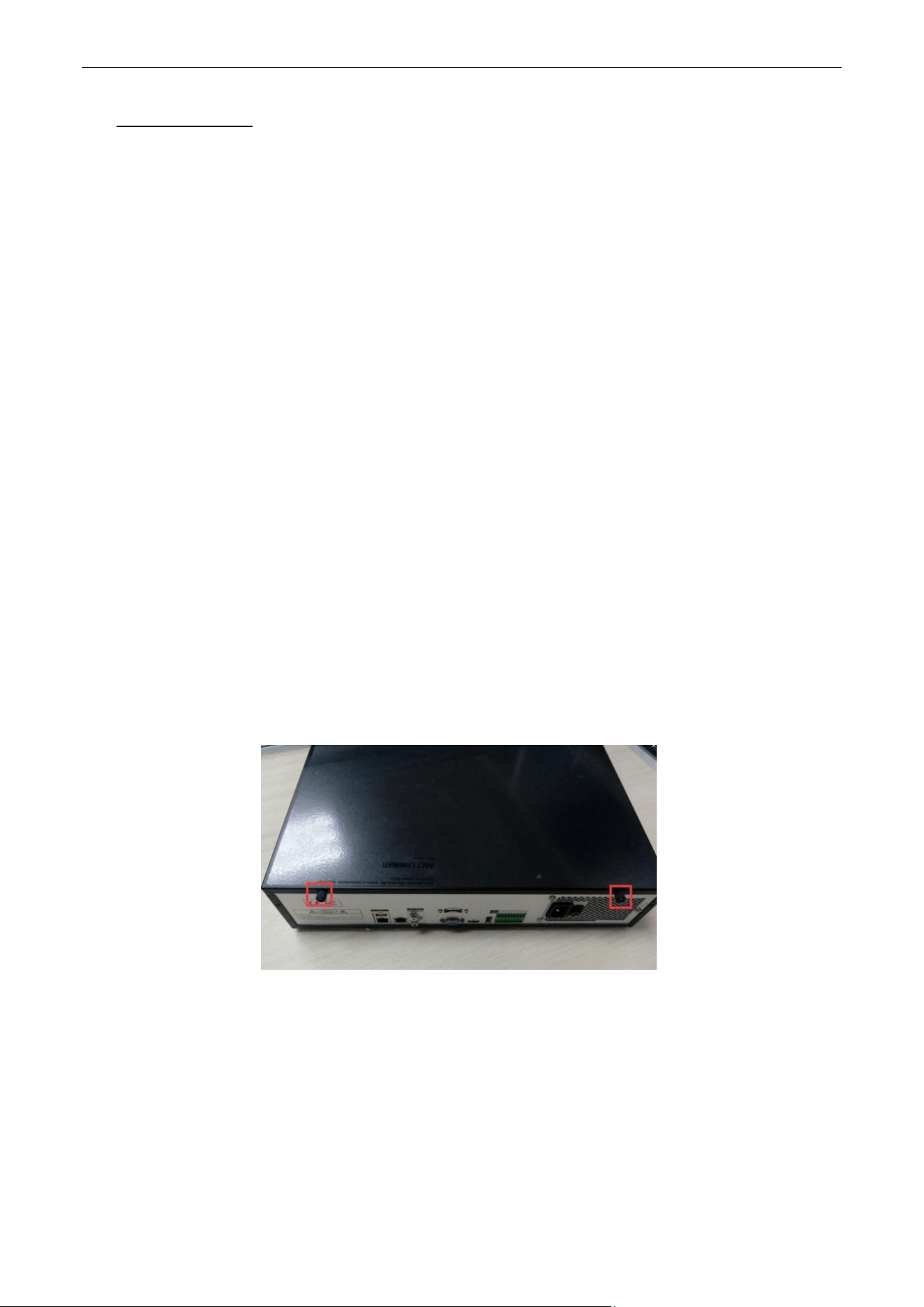
1.2.1. NVR with 4 or 8 HDD
Steps:
1. Remove the cover from the NVR by unfastening the screws on the rear panel.
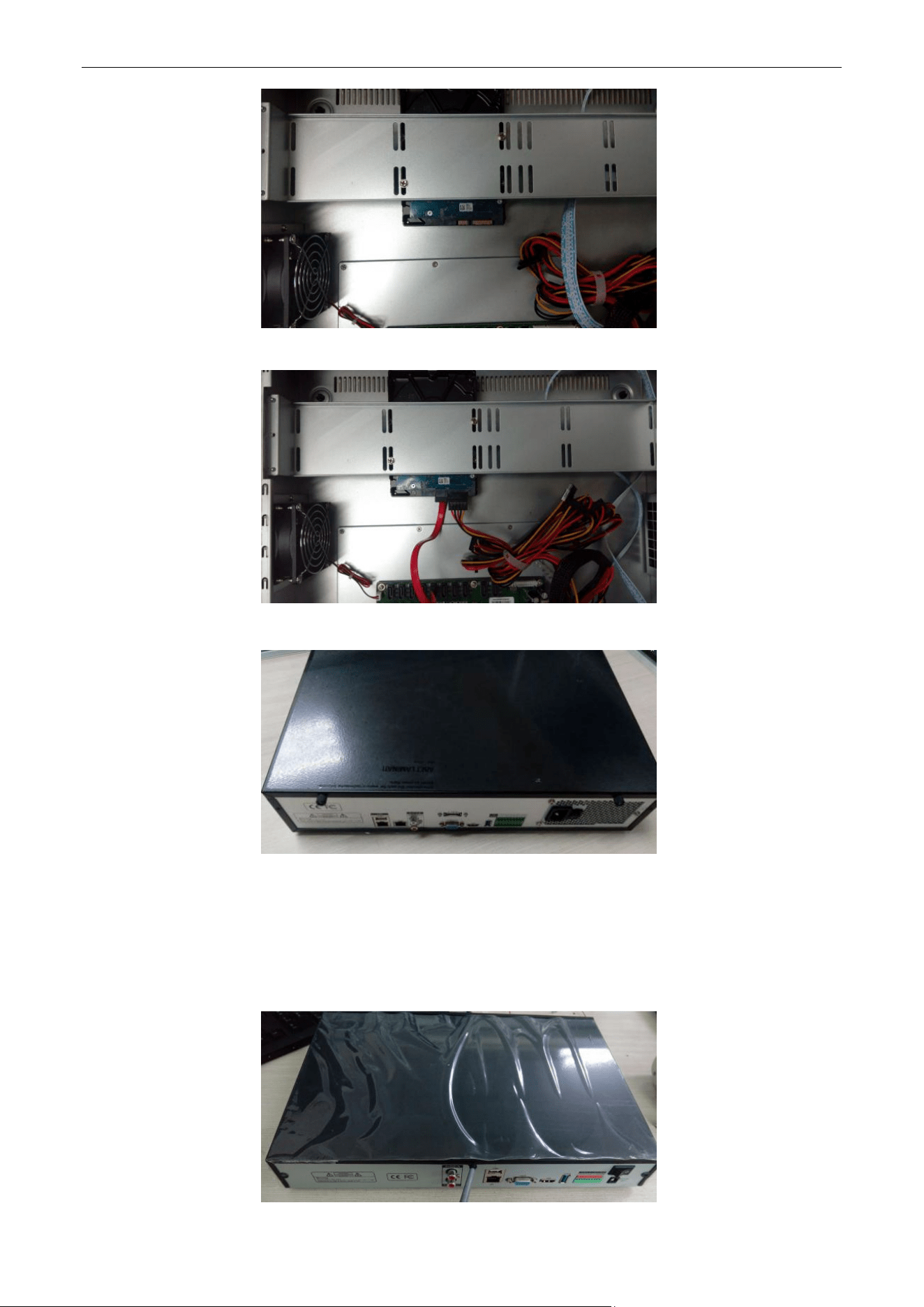
2. Insert the hard disk along the slot and fasten it.
Network Video Recorder User Manual
Page | 9 Copyright©2023 ZKTECO CO., LTD. All rights reserved.
3. Connect the power & data cable to the NVR and HDD.
4. Close the cover and fasten it with the screws.
1.2.2. NVR with 1 or 2 HDD
Steps:
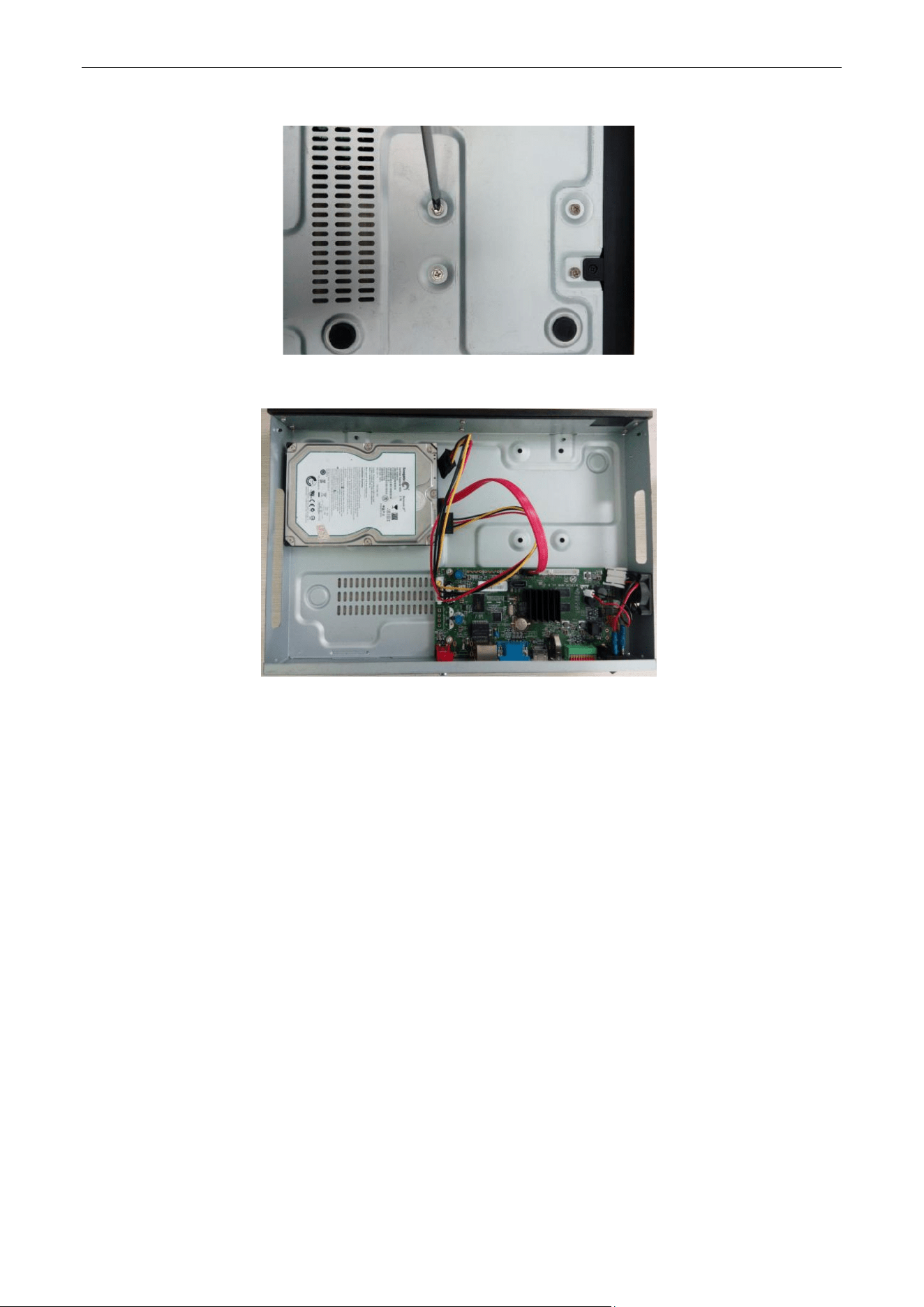
1. Remove the cover from the NVR by unfastening the screws on the side and rear panel.
Network Video Recorder User Manual
Page | 10 Copyright©2023 ZKTECO CO., LTD. All rights reserved.
2. Fasten the HDD with the screws on the bottom.
3. Connect the power & data cable to the NVR and HDD.
4. Close the cover and fasten it with the screws.
Network Video Recorder User Manual
Page | 11 Copyright©2023 ZKTECO CO., LTD. All rights reserved.
2. Getting Started
2.1. Start Up and Shutdown
2.1.1. Start Up
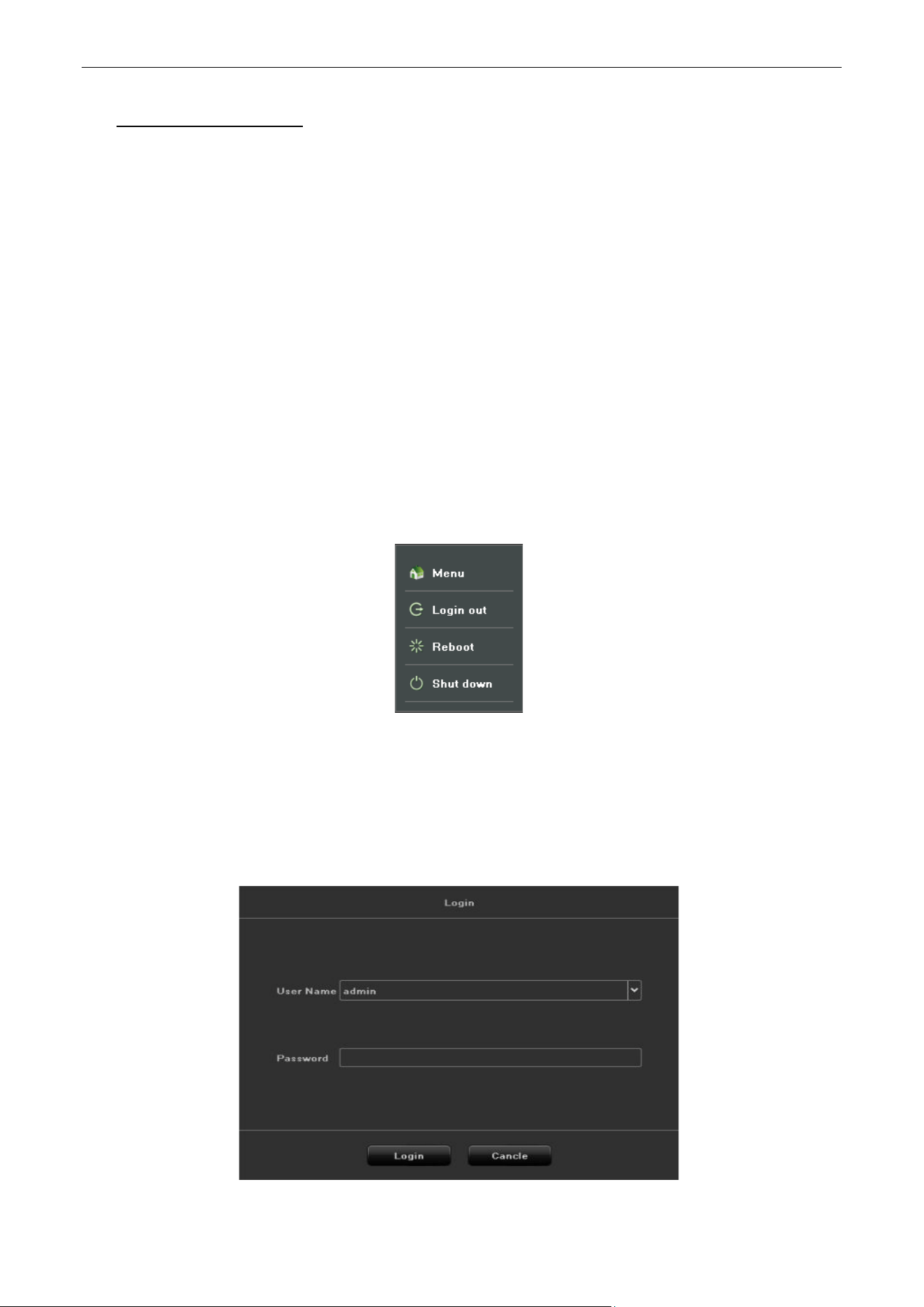
Plug in the power cord, press the power switch, the power indicator light should turn bright. The device
will begin to start. After the device starts up, the video output defaults to multiple screen output mode.
2.1.2. Shut Down
Option 1: Press the power key on front panel to shutdown the device (should be supported by the
device).
Option 2: Click Start > Shutdown > Confirm (Prompt: It is recommended to use this way, in order to
avoid damage to the device when suddenly powered off.)
Figure 2.1 Shutdown Menu
2.2. Login
If NVR first start-up or has logged out, you must login the device before operating the menu and other
functions, as shown in figure 2.2.
Figure 2.2 Login Interface
Network Video Recorder User Manual
Page | 12 Copyright©2023 ZKTECO CO., LTD. All rights reserved.
Steps:
1. Click Start button on the top of screen.
2. Click Login in the drop-down menu.
3. Input the Password in the pop-up interface (Default password: 888888).
4. Click Login to log in.
2.3. Using Guide
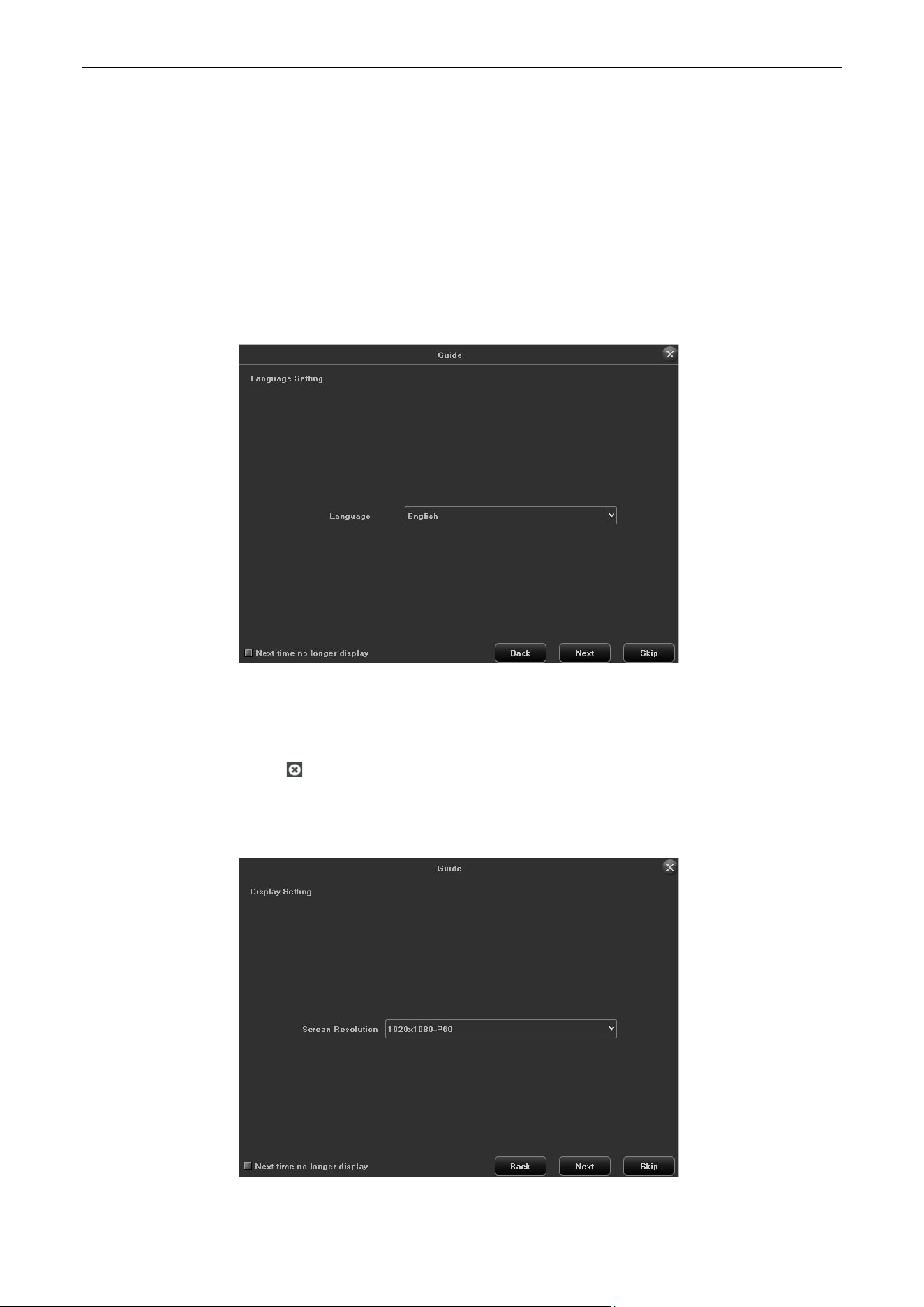
The Guide starts once login, as shown in figure 2.3.
Figure 2.3 Language Setting
Operating the Guide:
1. The Guide can walk you through some basic settings of the NVR. If you don’t want to use the Guide at
that moment, click the button. You can also choose to use the Guide next time by leaving the
“Next time no longer display” check-box unchecked.
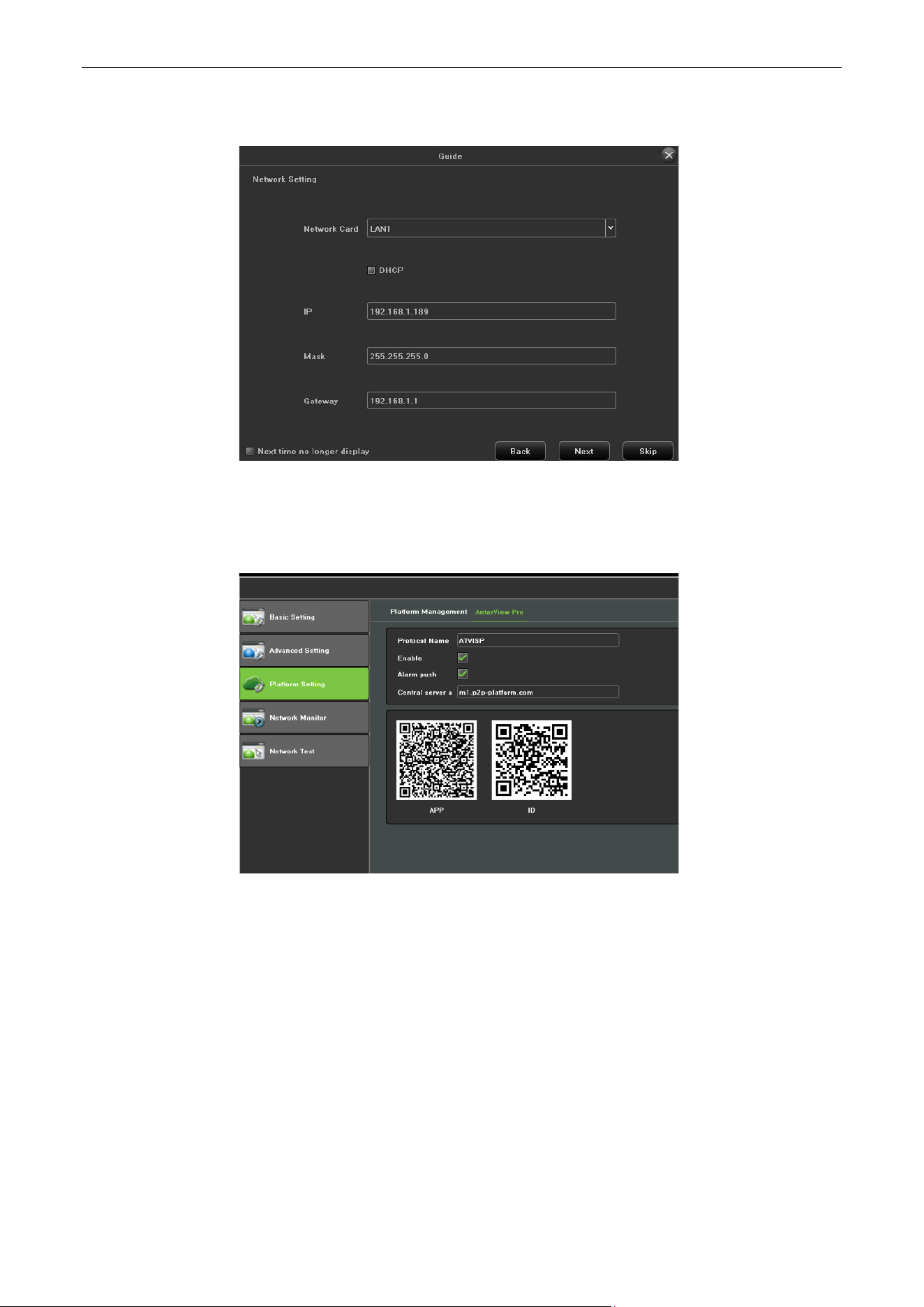
2. Click Next button to enter the Display Setting window, as shown in figure 2.4.
Figure 2.4 Resolution Setting
Network Video Recorder User Manual
Page | 13 Copyright©2023 ZKTECO CO., LTD. All rights reserved.
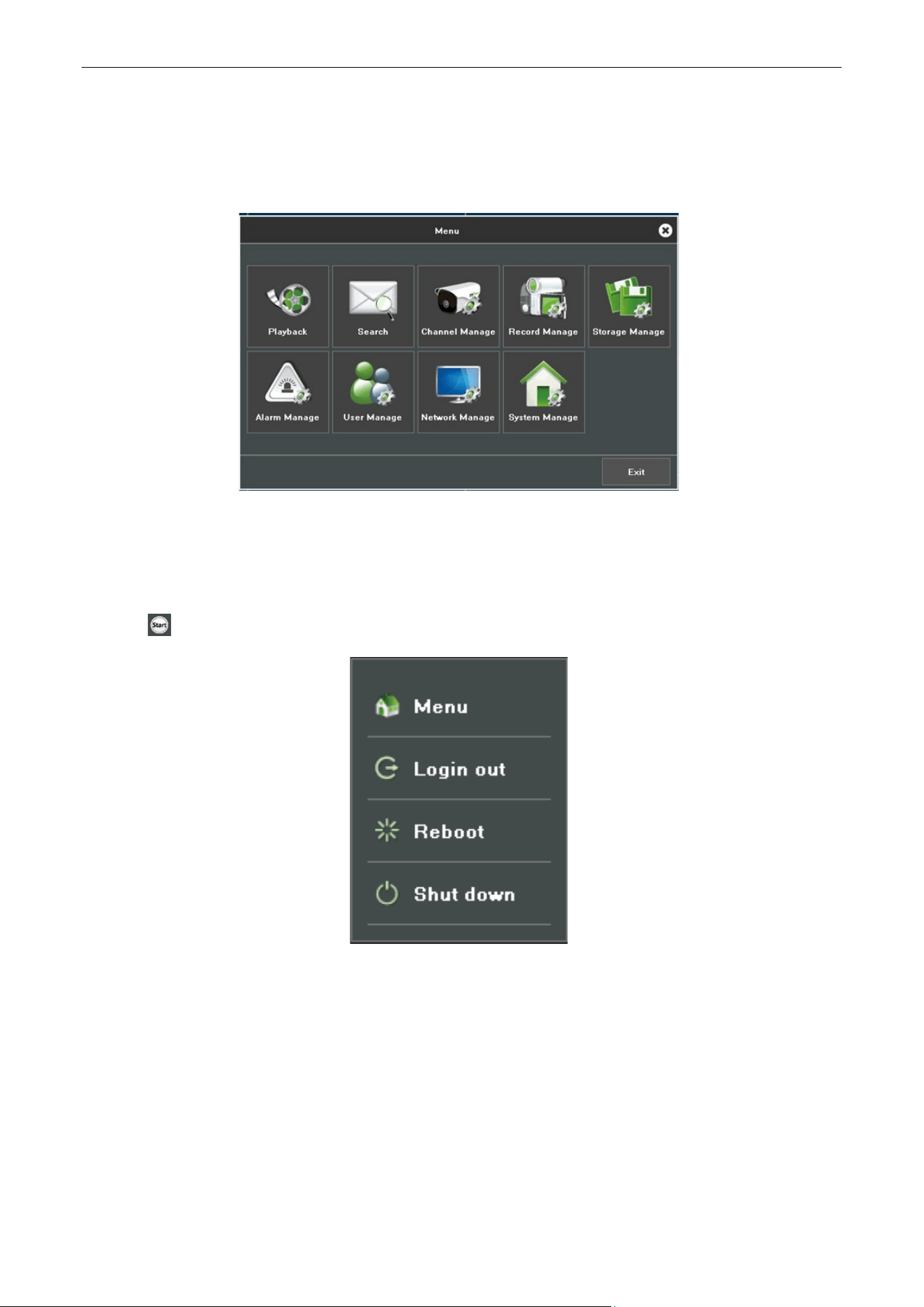
3. After the display setting, click Next button to enter the Network Setting window, as shown in figure
2.5.
Figure 2.5 Network Setting
4. After the network setting, click Next button to enter the QR Code interface, as shown in figure 2.6.
Figure 2.6 QR Code
5. Click Finish to complete the Guide setup.
Network Video Recorder User Manual
Page | 14 Copyright©2023 ZKTECO CO., LTD. All rights reserved.
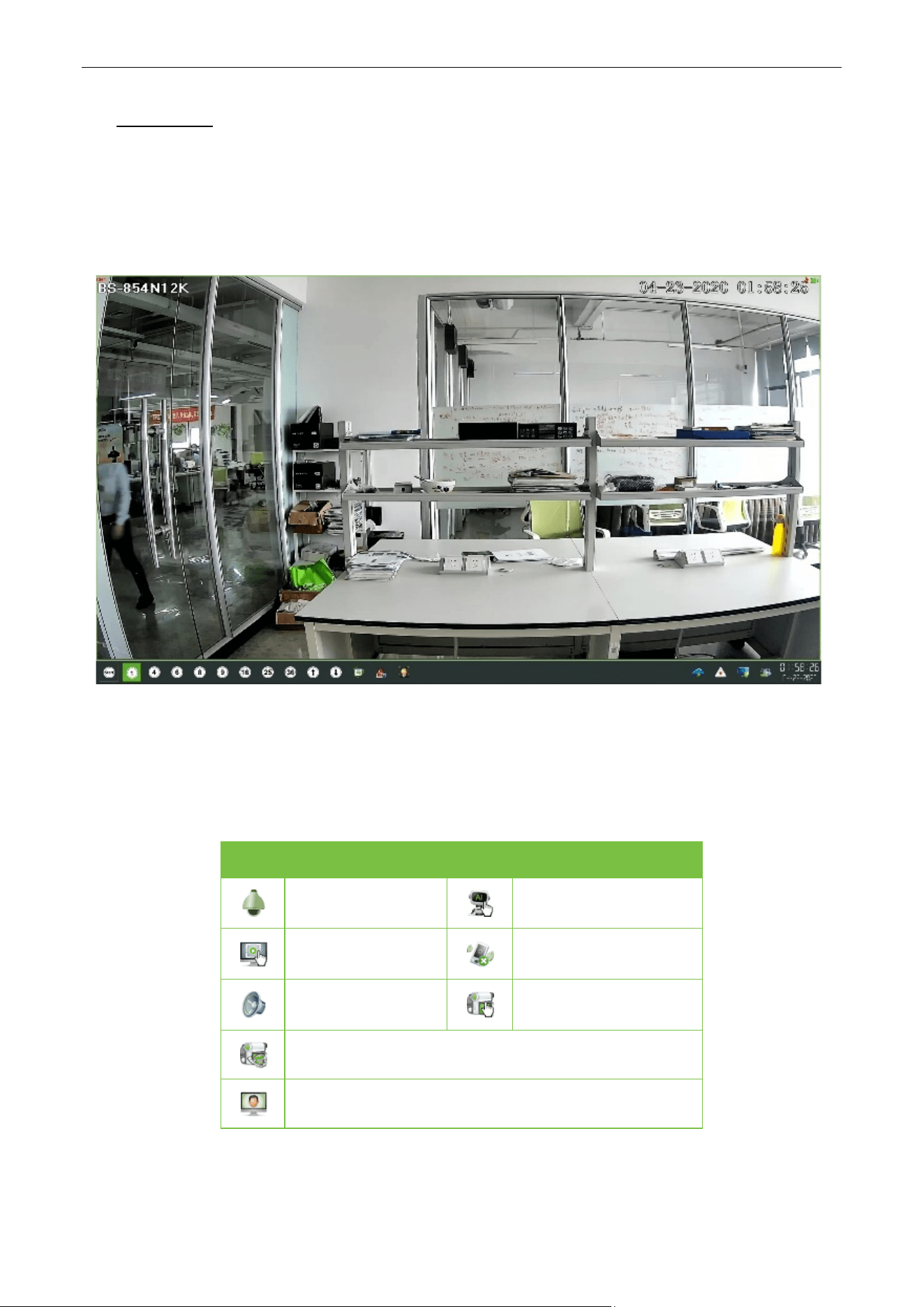
2.4. Menu Operation
After the user login successfully, according to the interface of toolbar to perform associated settings, as
shown in figure 2.7.
Figure 2.7 Menu Operation
2.4.1. Begin Setup
Click the icon, it will pop-up the interface as show in figure 2.8.
Figure 2.8 Begin Setup
1. Logout: Click Logout button, can exit the current user.
2. Reboot: Click Reboot button and confirm, the device will automatically reboot.
3. Shutdown: Click Shut down button and confirm, the device will automatically shutdown.
Network Video Recorder User Manual
Page | 15 Copyright©2023 ZKTECO CO., LTD. All rights reserved.
3. Preview
3.1. Introduction of Preview
Preview shows you the video image getting from each camera in real time. The NVR will automatically
enter live view mode when powered on, as shown in figure 3.1.
Figure 3.1 Preview Interface
Channel Preview Icons:
In the Preview mode, there are hide icons on the screen of each channel, which shows when you move
the mouse to the bottom of channel.
Icons Description Icons Description
Open/Close PTZ
Show/Hide Smart
detection
Snapshot
Open/Close Voice
Intercom
Open/Close
Channel Audio
Manual Recording
On/Off
Instant Playback
Media parameters
Table 3.1 Preview Icon Description
Network Video Recorder User Manual
Page | 16 Copyright©2023 ZKTECO CO., LTD. All rights reserved.
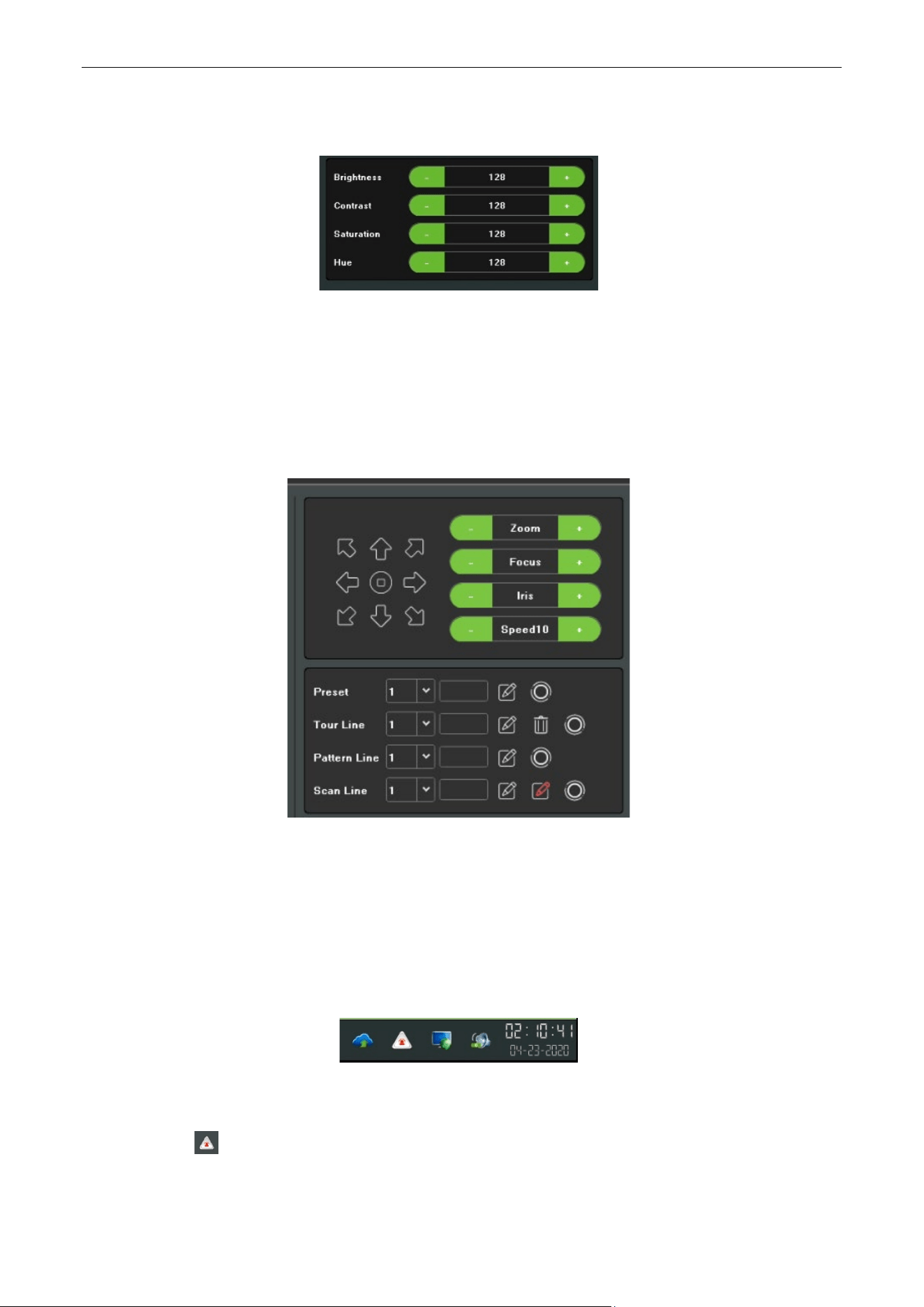
Media parameters: May revise the brightness, contrast, saturation and hue of the channel that the
current mouse selected, one click to restore the default value when necessary, as shown in figure 3.2.
Figure 3.2 Media Parameters
PTZ/Preset/Cruise/Pattern:
Please confirm whether the related parameters setting is correct before control the PTZ. After setting up
parameters, select the channel to be controlled in the preview interface, then control the direction of the
lens, focal length, focus, aperture amplification and narrow in PTZ operation interface, and adjust the
speed of PTZ, as shown in figure 3.3. See below the detailed operation of PTZ control part.
Figure 3.3 PTZ Control
3.2. Operations in Preview Mode
In preview mode, there are many functions provided. The functions are listed below.
Real-time Alarm Information:
On the bottom right corner, there is a real-time alarm information, as shown in figure 3.4.
Figure 3.4 Alarming
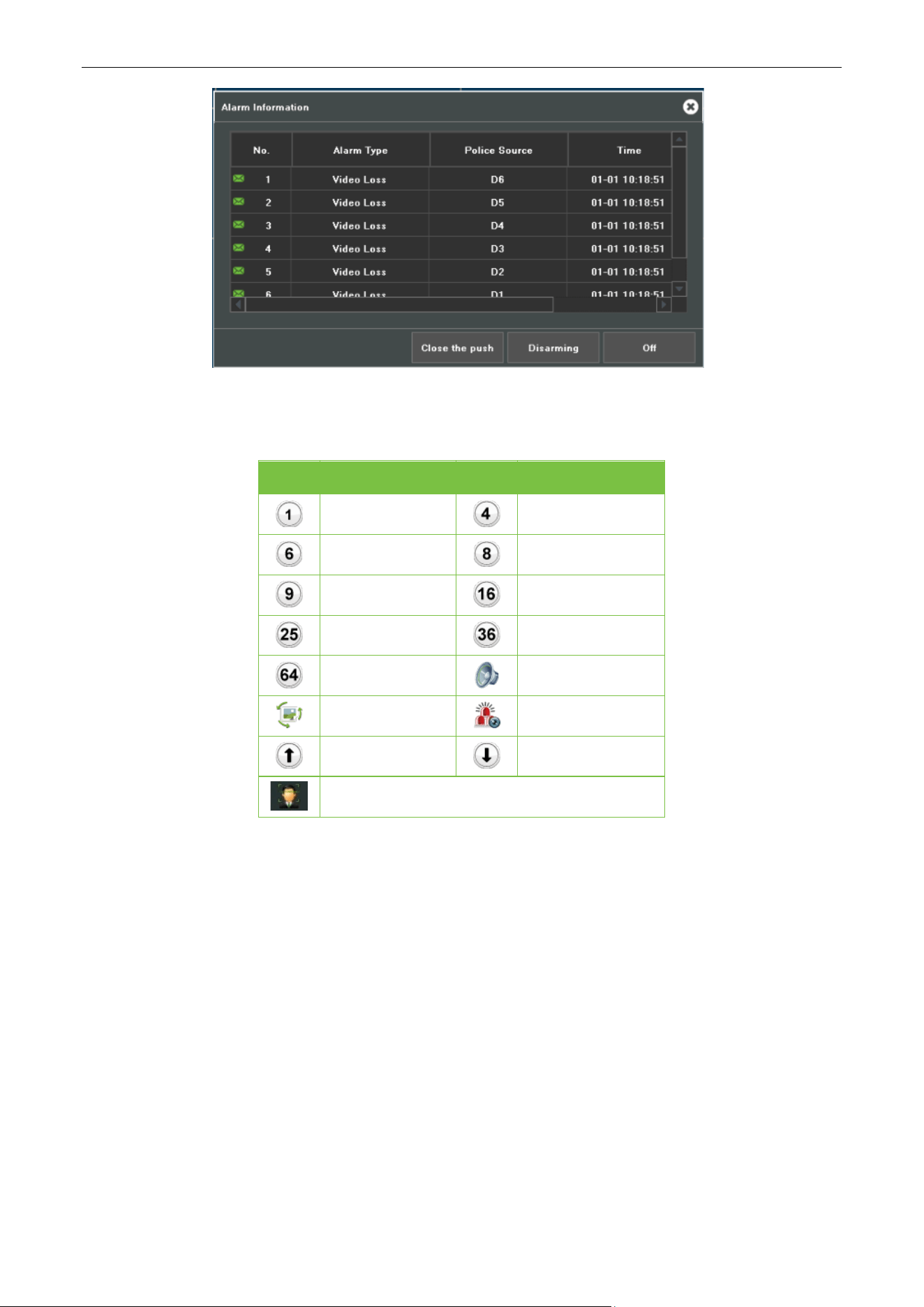
When you click , it will pop-up the alarm information, as shown in figure 3.5.
Network Video Recorder User Manual
Page | 17 Copyright©2023 ZKTECO CO., LTD. All rights reserved.
Figure 3.5 Alarm Information
Other Functions:
Icons Functions Icons Description
1 Split Screen
4 Split Screen
6 Split Screen
8 Split Screen
9 Split Screen
16 Split Screen
25 Split Screen
36 Split Screen
64 Split Screen
Sound Adjust
Cruise on Setting
Linkage Preview
Page Up
Page Down
Face Recognition
Table 3.2 Other Function Description
Network Video Recorder User Manual
Page | 18 Copyright©2023 ZKTECO CO., LTD. All rights reserved.
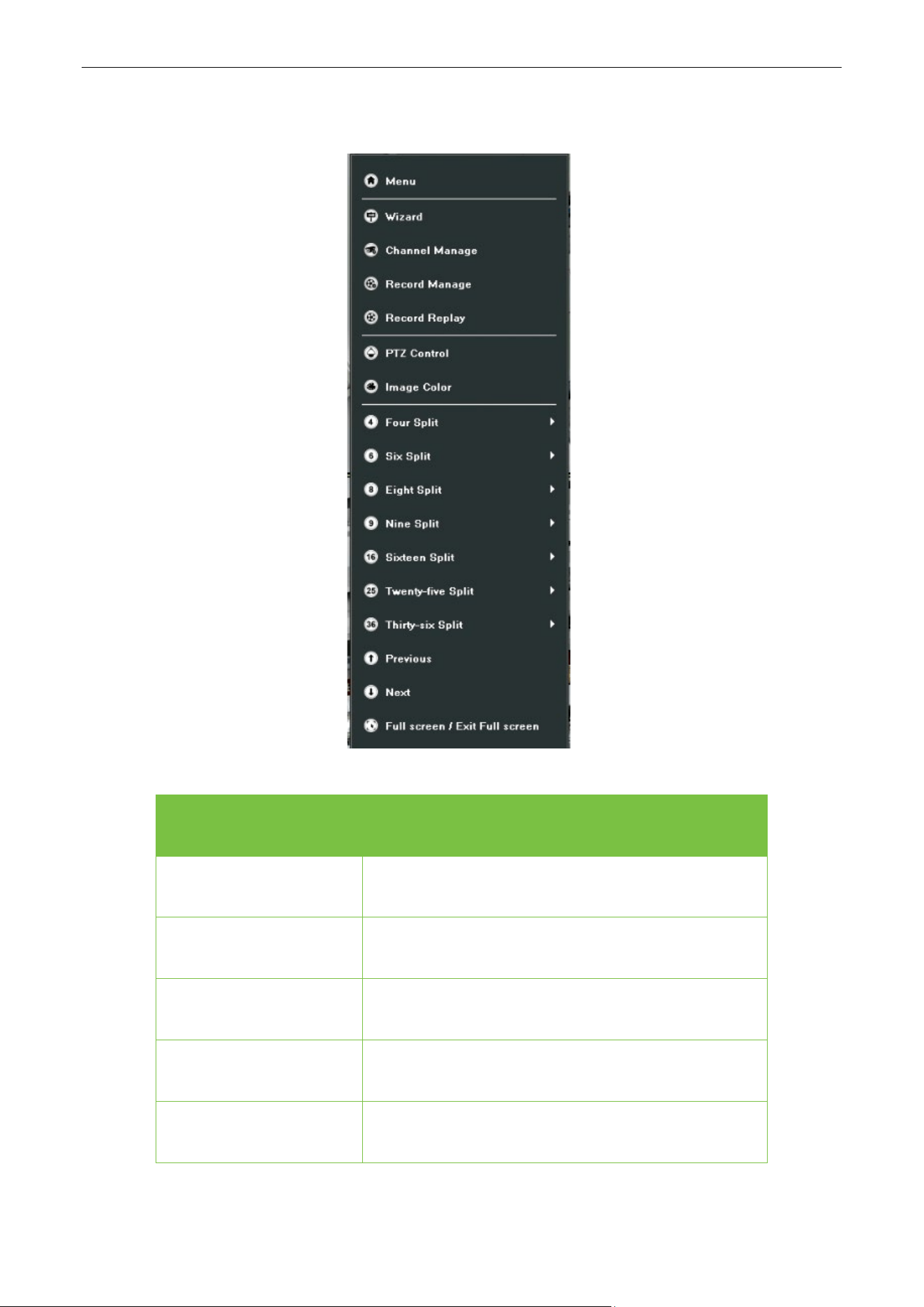
3.3. Using the Mouse in Preview
Name Description
Menu
Select and enter menu
Wizard
Select and enter Wizard Interface
Channel Manage
Select and enter Channel Manage Interface
Record Manage
Select and enter Record Manage Interface
Record Replay
Select and enter Playback Interface

Network Video Recorder User Manual
Page | 19 Copyright©2023 ZKTECO CO., LTD. All rights reserved.
PTZ Control
Open the PTZ interface
Image Color
Select and enter ISP Interface
4 Split Screen
Select and enter 4 Split Screen mode.
6 Split Screen
Select and enter 6 Split Screen mode.
8 Split Screen
Select and enter 8 Split Screen mode.
9 Split Screen
Select and enter 9 Split Screen mode.
16 Split Screen
Select and enter 16 Split Screen mode.
25 Split Screen
Select and enter 25 Split Screen mode.
36 Split Screen
Select and enter 36 Split Screen mode.
64 Split Screen
Select and enter 64 Split Screen mode.
Previous Screen
Switch to the previous screen.
Next Screen
Switch to the next screen.
Full Screen
Quick enter full screen mode.
Table 3.3 Right Click Function Description
Network Video Recorder User Manual
Page | 20 Copyright©2023 ZKTECO CO., LTD. All rights reserved.
4. Playback
4.1. Instant Playback
Purpose:
Playback the recorded video files of a specific channel in the live view mode.
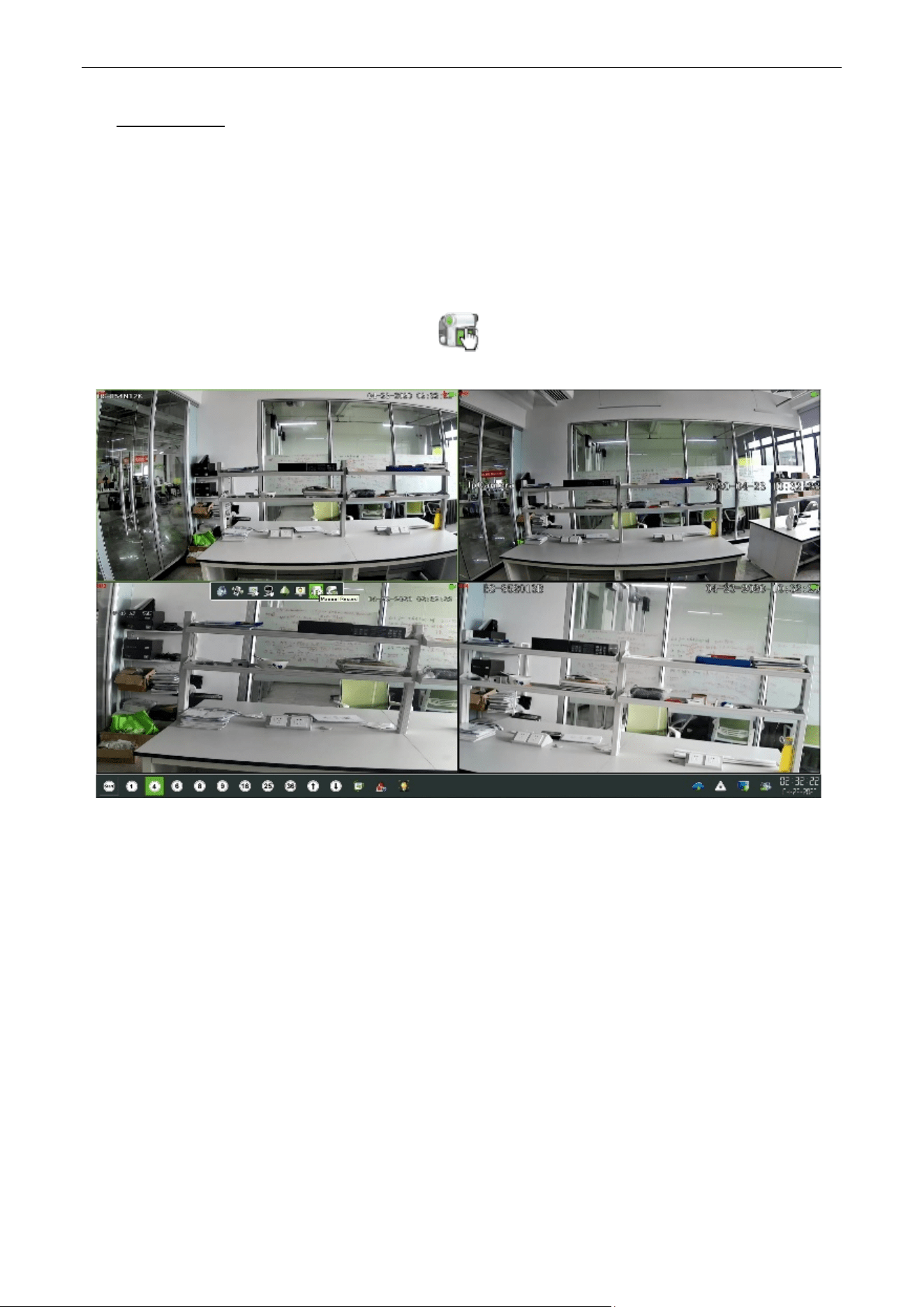
Steps:
Choose a channel in live view mode and click the button in the bottom of the channel, as shown in
figure 4.1.
Figure 4.1 Instant Playback
Network Video Recorder User Manual
Page | 21 Copyright©2023 ZKTECO CO., LTD. All rights reserved.
4.2. Playback by Normal Search
4.2.1. Recording Playback
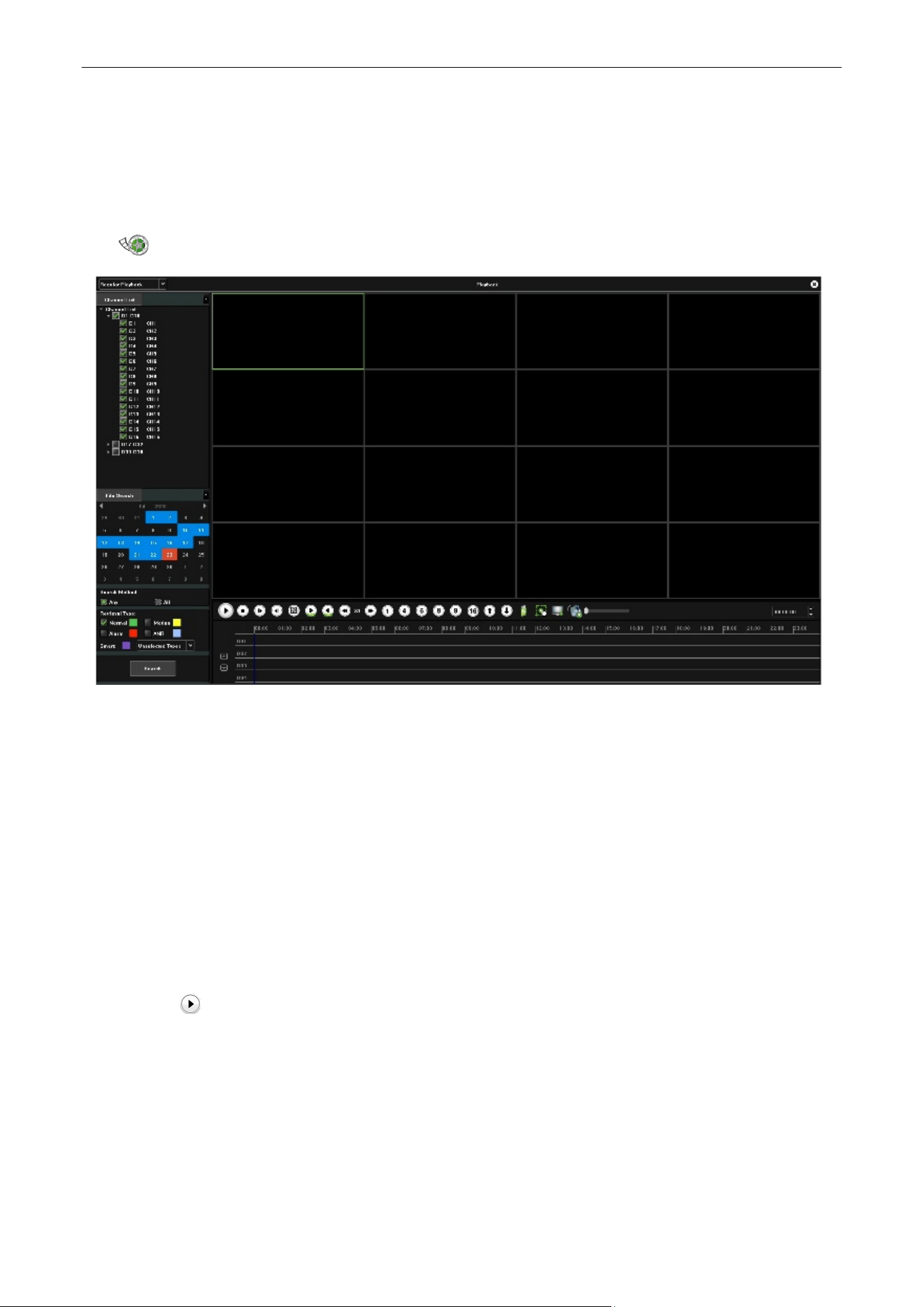
Click
icon to enter the Playback interface, as shown in figure 4.2.
Figure 4.2 Normal Playback Interface
Playback by Time
Purpose:
Playback video files recorded in specified time duration. Multi-channel simultaneous playback is
supported.
Steps:
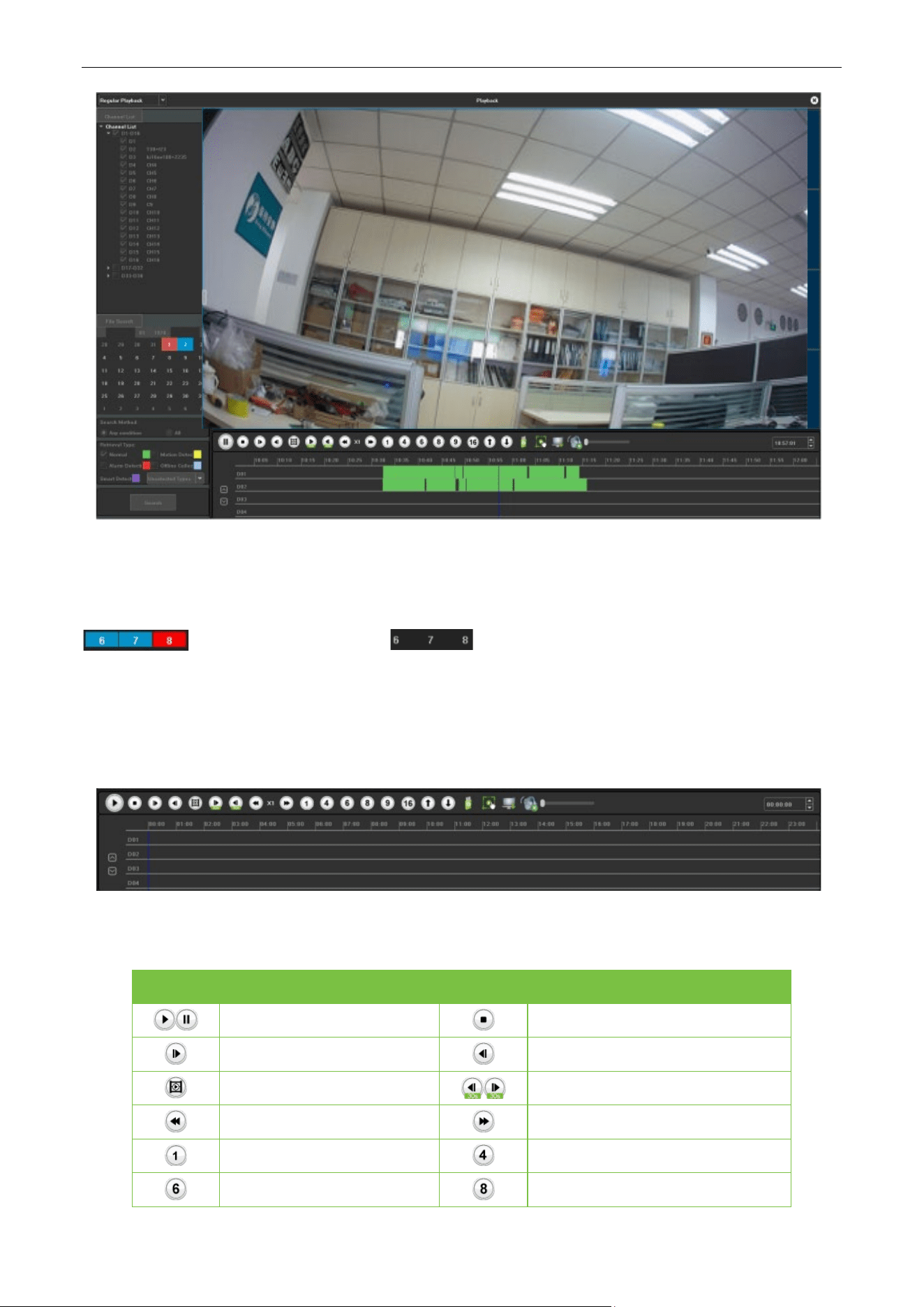
1. Enter playback interface.
2. Check the check-box of channel(s) in the channel list and then double-click to select a date on the
calendar.
3. Click the button to start playback, as shown in figure 4.3.
Network Video Recorder User Manual
Page | 22 Copyright©2023 ZKTECO CO., LTD. All rights reserved.
Figure 4.3 Video Playback
Note:
If there are record files for that camera in that day, in the calendar, the icon for that day is displayed as
. Otherwise it is displayed as .
Playback Interface
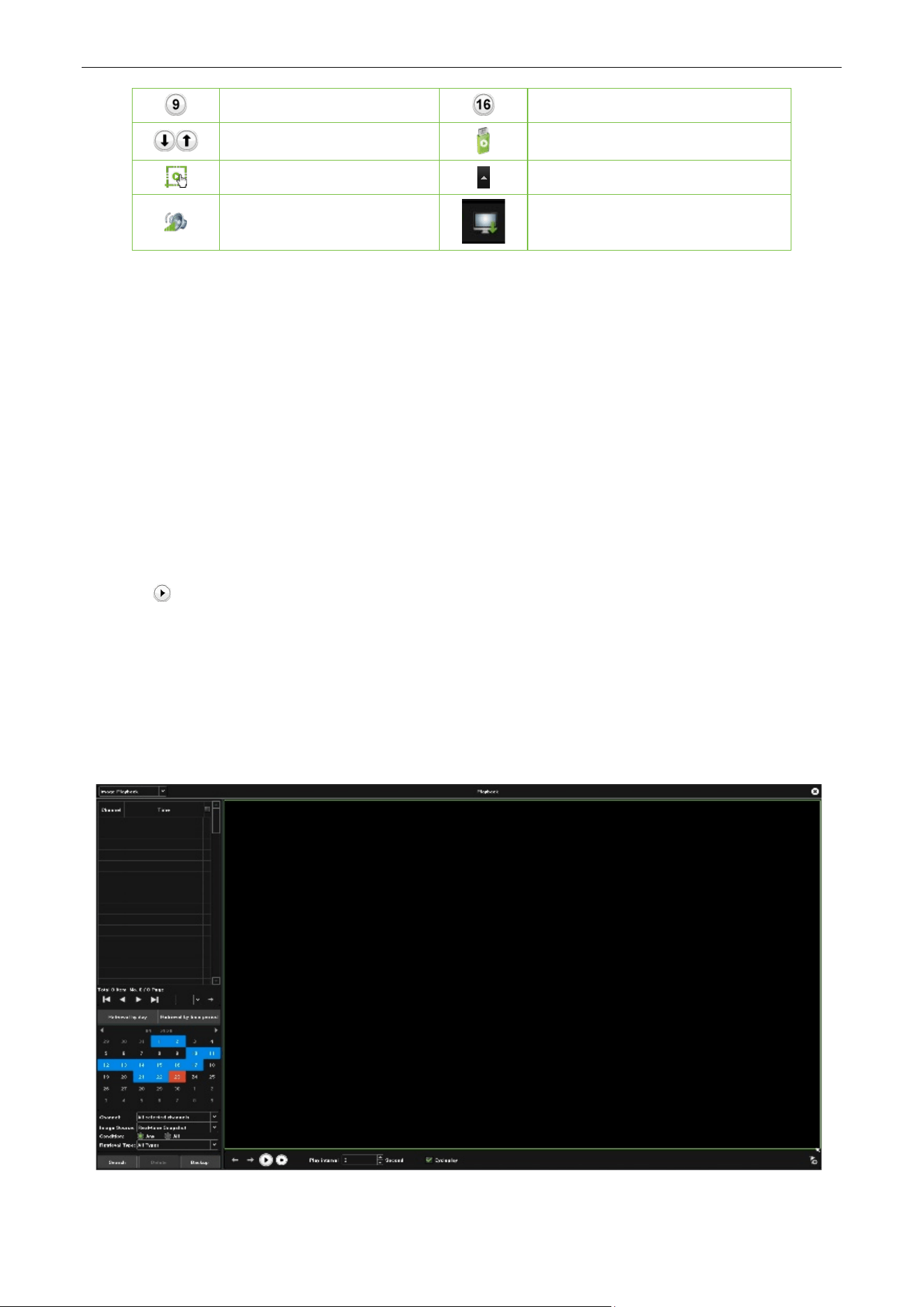
You can use the toolbar in the bottom part of Playback interface to control playing progress, as shown in
figure 4.4.
Figure 4.4 Playback Toolbar
Button Operation Button Operation
Play/Pause
Stop
Playback Forward
Playback Backward
Single Frame
30 Seconds Forward/Backward
Speed Down
Speed Up
1 Split Screen
4 Split Screen
6 Split Screen
8 Split Screen
Network Video Recorder User Manual
Page | 23 Copyright©2023 ZKTECO CO., LTD. All rights reserved.
9 Split Screen
16 Split Screen
Page Up/Page Down
Backup
Capture
Hide/Show the Progress Bar
Sound Adjust
Hide/Show the time bar
Table 4.1 Detailed Explanation of Playback Toolbar
4.2.2. Playback by Event Search
Purpose:
Playback record files on one or several channels searched out by event type (e.g. alarm detection, motion).
Steps:
1. Enter the Playback interface.
2. Select the Retrieving type: There are many types you can select, such as Count Alarm, Motion, Across
the line, Regional, Alarm detection and object left/Loss etc. .
3. Click the Search button to get the search result information.
4. Click button to playback the file.
4.2.3. Playback Pictures
Purpose:
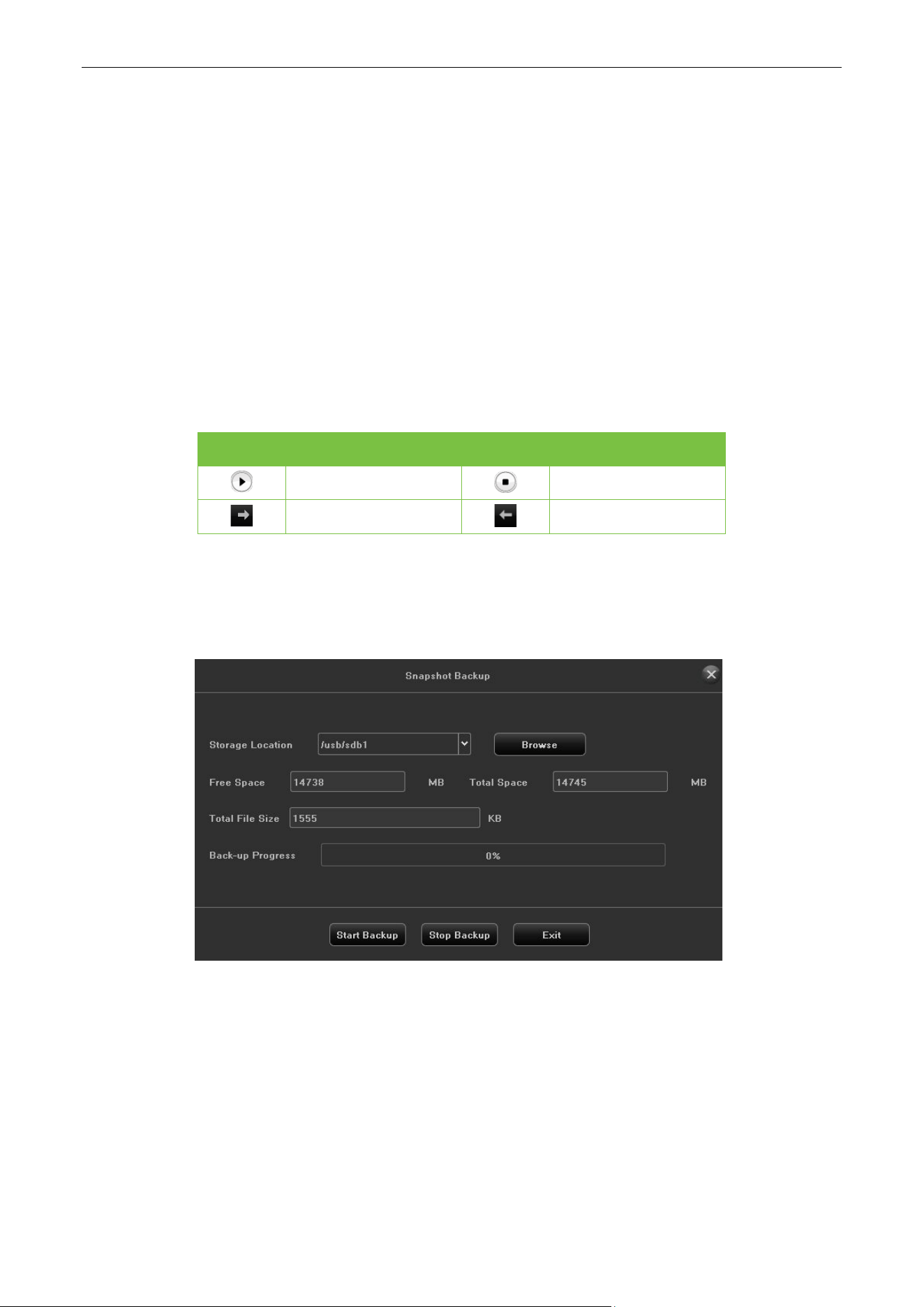
The captured pictures stored in the HDDs of the device can be searched and viewed, as shown in figure
4.5.
Figure 4.5 Picture Playback
Network Video Recorder User Manual
Page | 24 Copyright©2023 ZKTECO CO., LTD. All rights reserved.
Steps:
1. Enter playback interface.
2. Select playback modes: Image playback.
3. Select Search by day or Search by time.
4. Select Picture source: IPC Snapshot (preview snapshot) or Playback Snapshot.
5. Choose Condition: Meet random or Meet all.
6. Select Retrieving type.
7. Select Search Channel.
8. Click Search button to search for the capture picture.
9. Check the check-box after the picture listed, then click to view the picture.
10. The toolbar in the bottom of playback interface can be used to control playing process.
Button Function Button Function
Play/Stop
Stop
Next picture
Last picture
Table 4.2 Detailed Explanation of Playback Toolbar
Note: Click the check-box of the picture listed, then click Backup button, can enter the Snapshot back-up
interface, as shown in figure 4.6.
Figure 4.6 Snapshot Backup
Network Video Recorder User Manual
Page | 25 Copyright©2023 ZKTECO CO., LTD. All rights reserved.
4.2.4. Playback External File
Purpose:
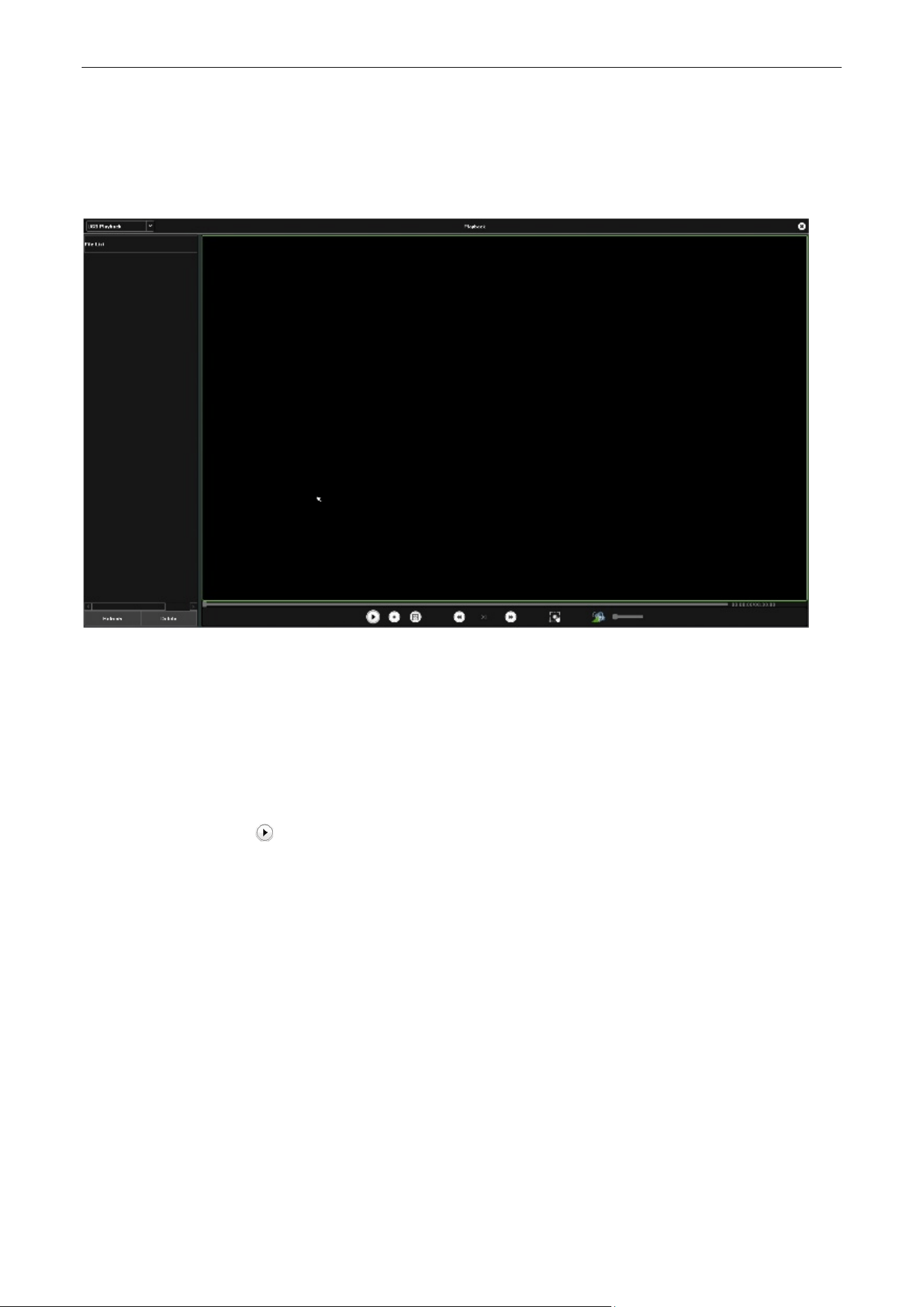
Perform the following steps to look up and playback files in the external devices, as shown in figure 4.7.
Figure 4.7 USB Playback Interface
Steps:
1. Enter the playback interface.
2. Select playback modes: USB playback.
3. Click the Refresh button to refresh the file listed.
4. Select and click the button to playback it.
Network Video Recorder User Manual
Page | 26 Copyright©2023 ZKTECO CO., LTD. All rights reserved.
5. PTZ Controls
5.1. Configuring PTZ Settings
Follow the procedure to set the parameters for PTZ. The configuring of the PTZ parameters should be
done before you control the PTZ camera.
Steps:
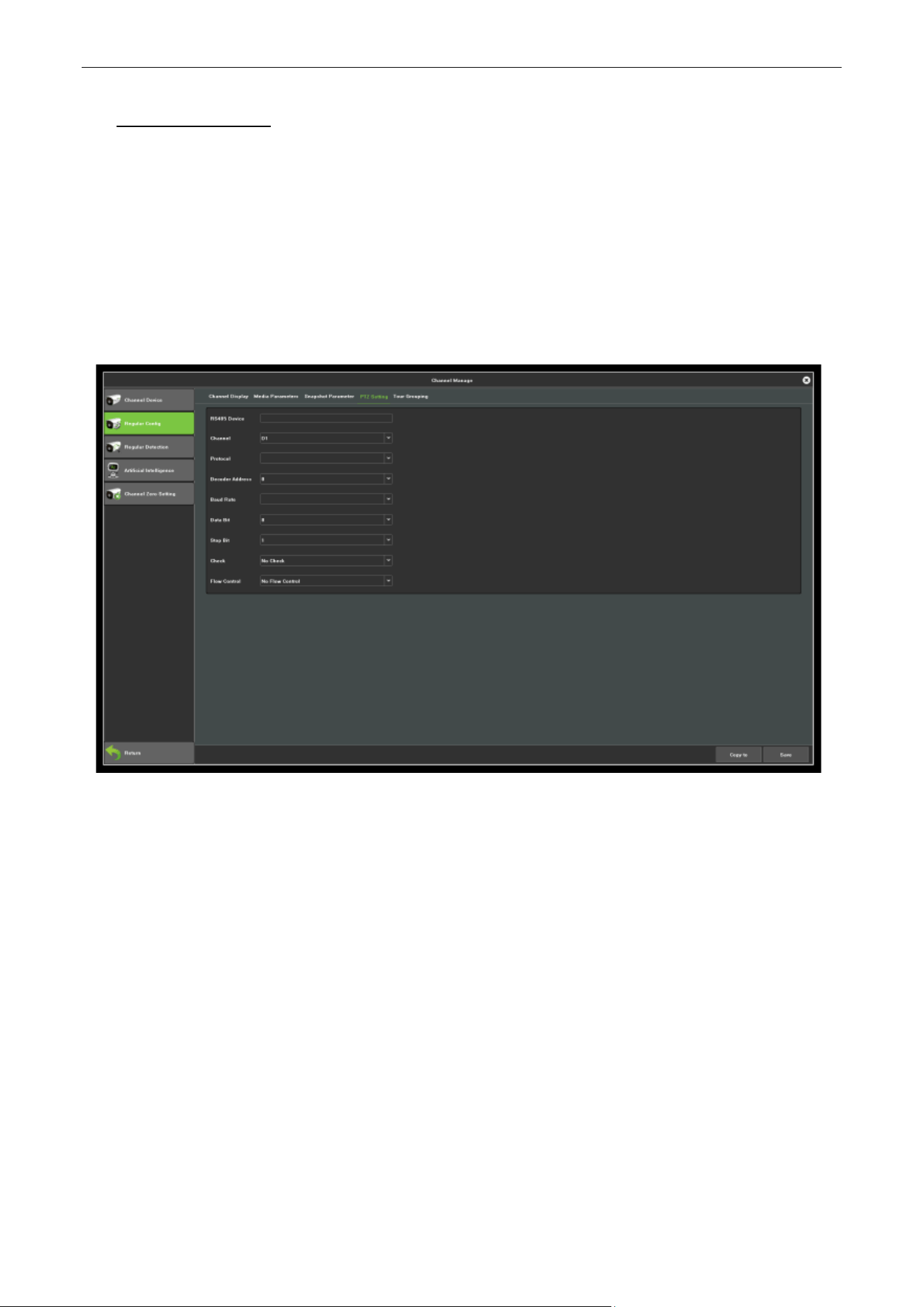
1. Enter the PTZ Setting interface, as shown in figure 5.1, click Channel Manage > Regular config >
PTZ Setting.
Figure 5.1 PTZ General Setting Interface
2. Set the parameter of PTZ:
Channel: Choose the channel.
Protocol: Choose the protocol for your PTZ.
Decoder Address: Choose the decoder address.
Baud Rate: Select the baud rate.
Data Bit: Select the data bit.
Stop Bit: Select the stop bit.
Check: Select the check, No Check by default.
Flow Control: Select the flow control, No Flow Control by default.
3. Click Save button to save the settings.
Network Video Recorder User Manual
Page | 27 Copyright©2023 ZKTECO CO., LTD. All rights reserved.
5.2. Setting PTZ Preset, Cruise, Pattern & Linear Scan
Before you start:
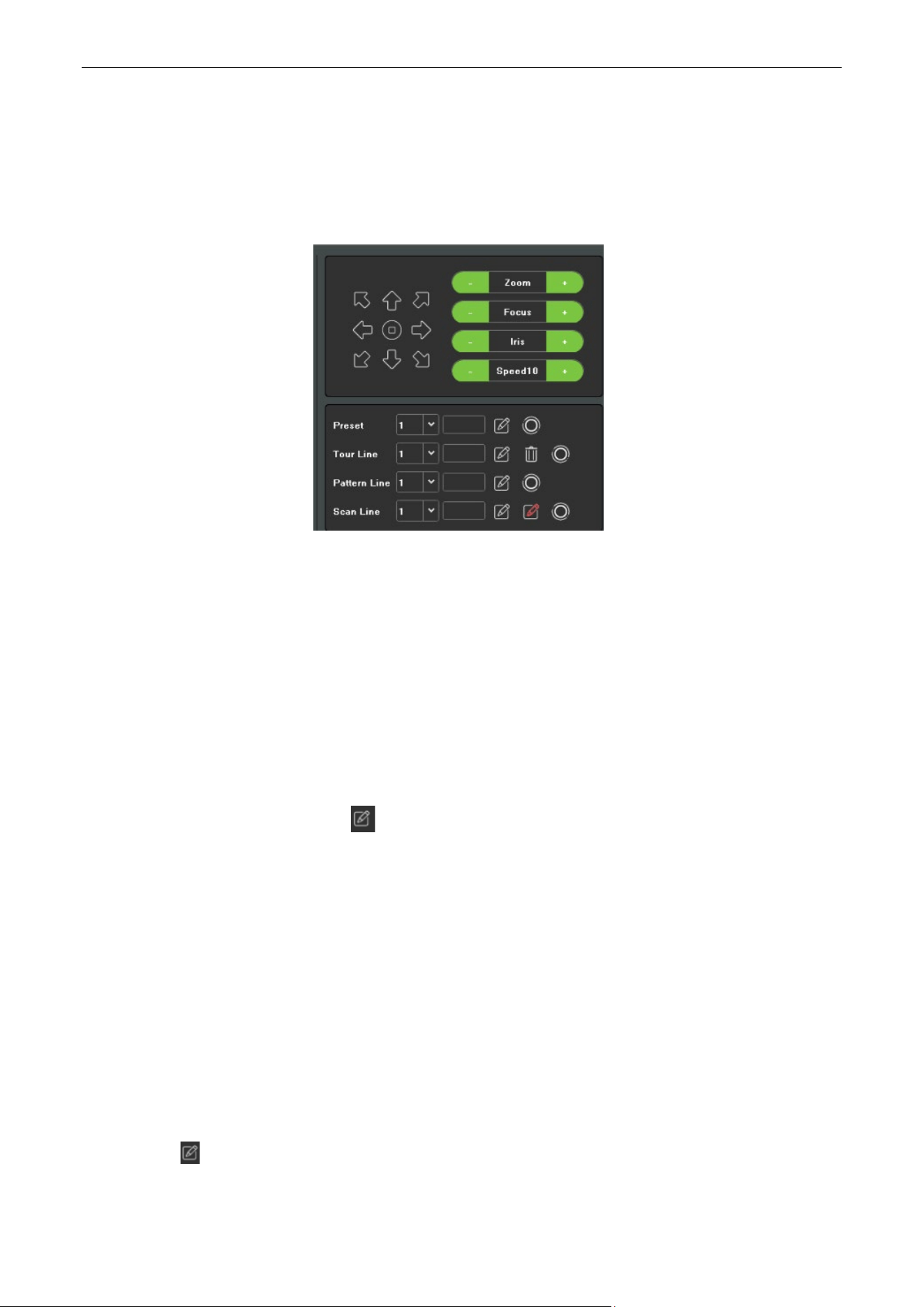
Please make sure that the preset, cruise and pattern should be supported by PTZ protocols, as shown in
figure 5.2.
Figure 5.2 PTZ Setting Interface
5.2.1. Preset Setting
Follow the steps to set the Preset location which you want the PTZ camera to point to when an event
takes place.
Steps:
1. Use the directional button to wheel the camera to the location where you want to set preset, and the
zoom and focus operations can be recorded in the preset as well.
2. Setting the name of preset, click button to save the preset. Repeat the above steps to save more
presets.
5.2.2. Cruise Setting
Purpose:
Cruise can be set to move the PTZ to different locations and have it stay there for a set duration before
moving on to the next location. The locations are corresponding to the presets. The presets can be set
following the steps above in Preset Setting.
Steps:
1. Select cruise No. in the drop-down list of cruise.
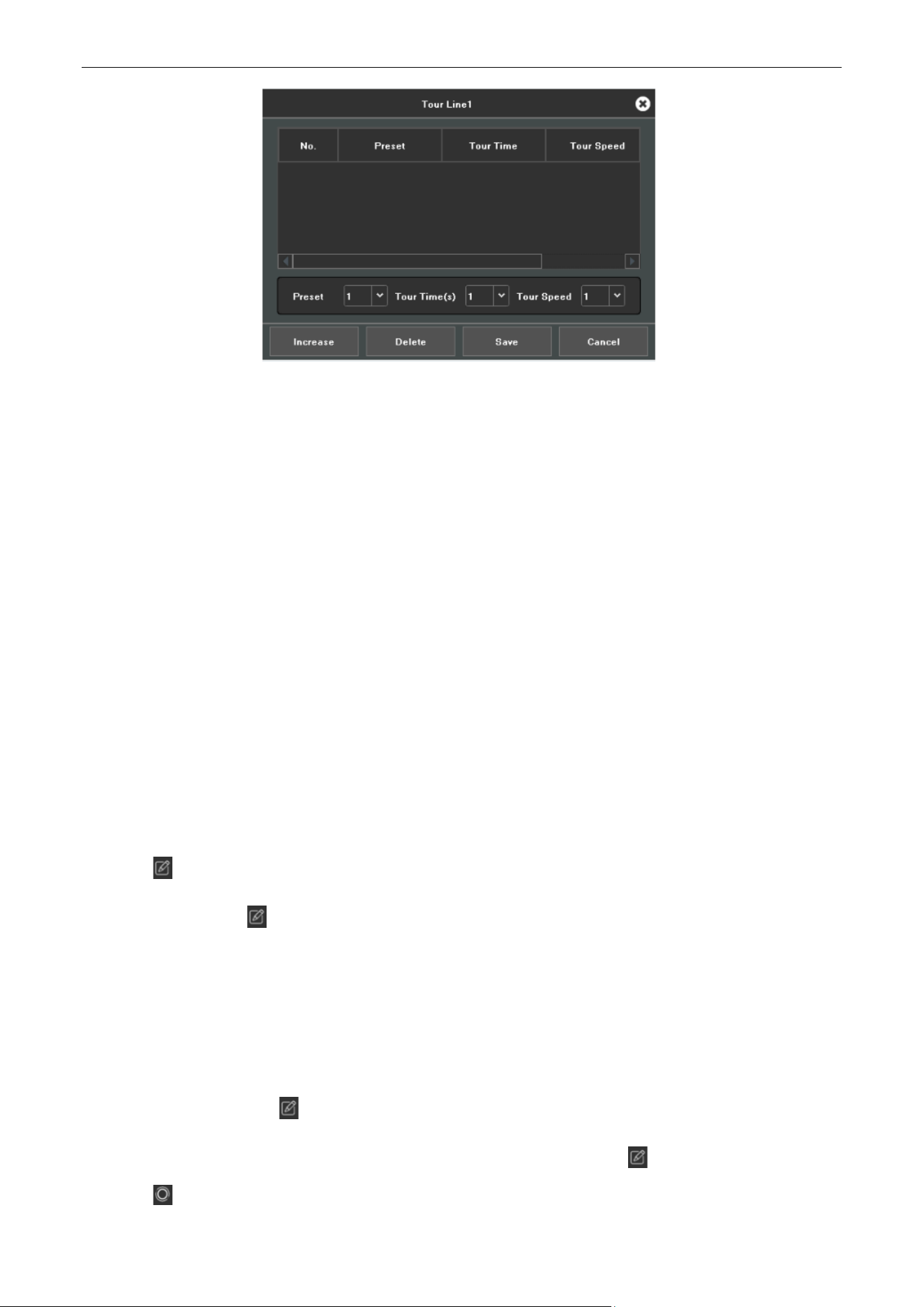
2. Click the button to add key points for cruise, as shown in figure 5.3.
Network Video Recorder User Manual
Page | 28 Copyright©2023 ZKTECO CO., LTD. All rights reserved.
Figure5.3 Tour Line
3. Configure key point parameters, such as the key point No., duration of staying for one key point and
speed of cruise. The key point is corresponding to the preset. The Key Point No. determines the order
at which the PTZ will follow while cycling through the cruise. The Cruise time refers to the time span
to stay at the corresponding key point. The Cruise Speed defines the speed at which the PTZ will
move from one key point to the next.
4. Click the Add button to add the next key point to the patrol.
5. After finish setting, click Exit button.
5.2.3. Pattern Setting
Purpose:
Patterns can be set by recording the movement of the PTZ. You can call the pattern to make the PTZ
movement according to the predefined path.
Steps:
1. Choose pattern number in the drop-down list.
2. Click button to begin and click corresponding buttons in the control panel to move the PTZ
camera, then click button to end. The movement of the PTZ is recorded as the pattern.
5.2.4. Linear Scan Setting
Steps:
1. Select a number, use the directional button to wheel the camera to the location where you want to
set starting point, click button.
2. Wheel the camera to the location where you want to set end point, click button.
3. Click button, the PTZ camera will move from the starting point to the end point.
Network Video Recorder User Manual
Page | 29 Copyright©2023 ZKTECO CO., LTD. All rights reserved.
6. Search
Purpose:
The record files can be backup to various devices, such as USB devices (USB flash drives, USB HDDs).
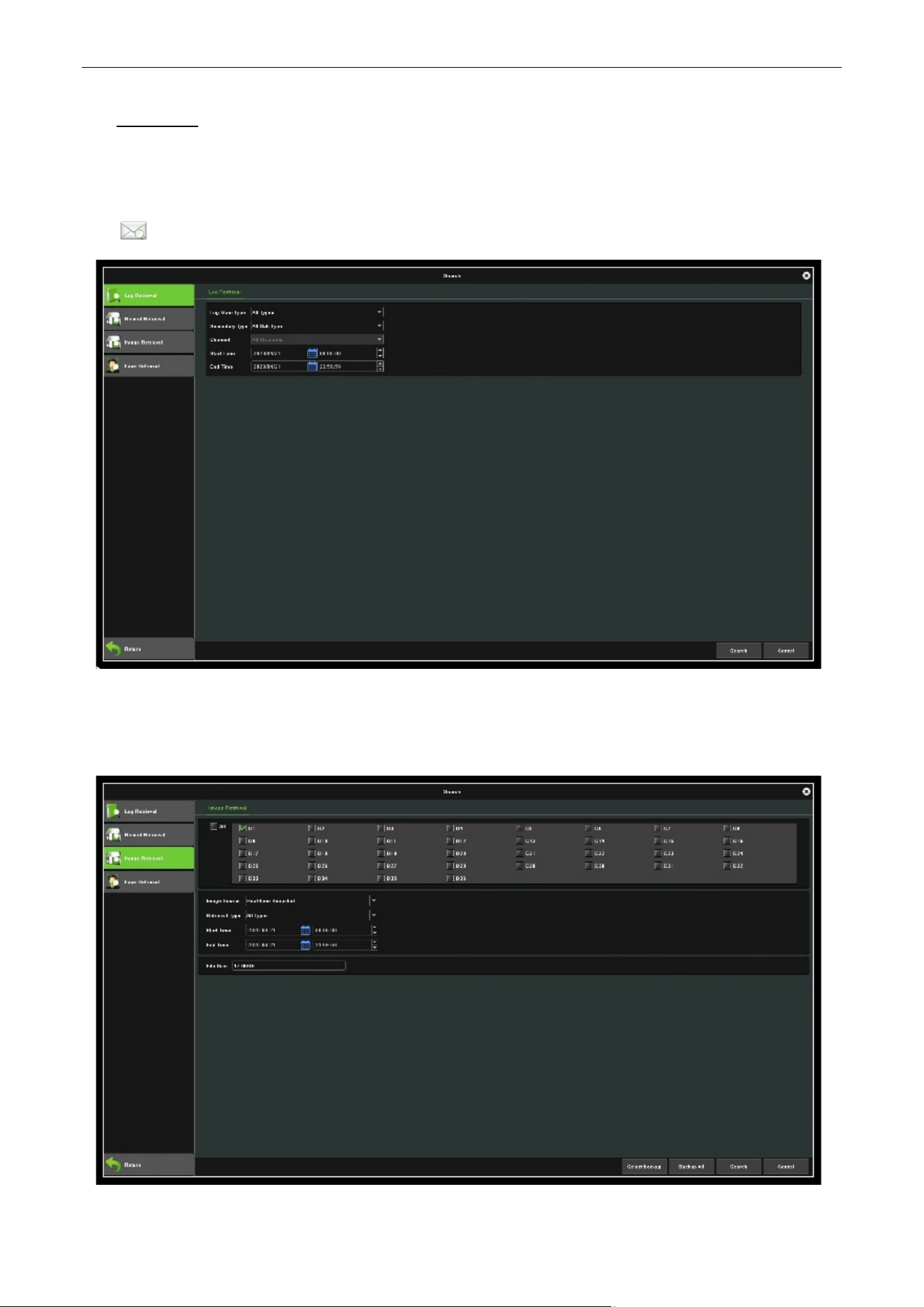
Click
icon to enter the local backup interface, as shown in figure 6.1.
Figure 6.1 Search Interface
6.1. Image Retrieval
Figure 6.2 Image Retrieval Interface
Network Video Recorder User Manual
Page | 30 Copyright©2023 ZKTECO CO., LTD. All rights reserved.
Steps:
1. Select the Channel to backup.
2. Select the File Type: Picture.
3. Set the time of file to backup.
4. Click Search button to view the file size.
5. Click Backup button to start the backup, show as following picture.
6.2. Record Retrieval
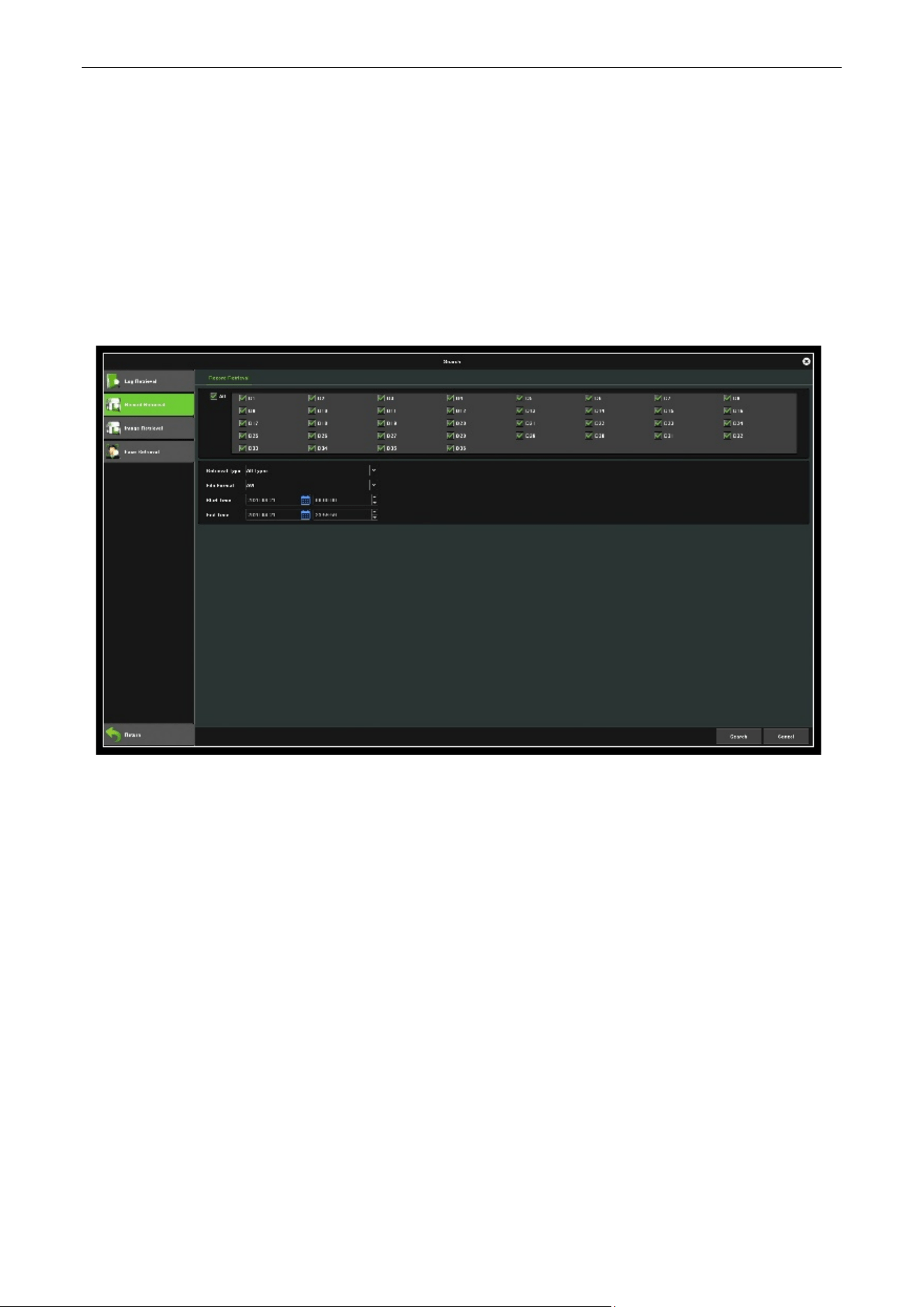
Figure 6.3 Record Retrieval Interface
Steps:
1. Select the Channel to backup.
2. Set the time of file to backup.
3. Select the File Format.
4. Click Search button to view the file size.
5. Click Backup button to start the backup, show as following picture.
6. After finish, click Confirm.
Network Video Recorder User Manual
Page | 31 Copyright©2023 ZKTECO CO., LTD. All rights reserved.
6.3. Face Retrieval
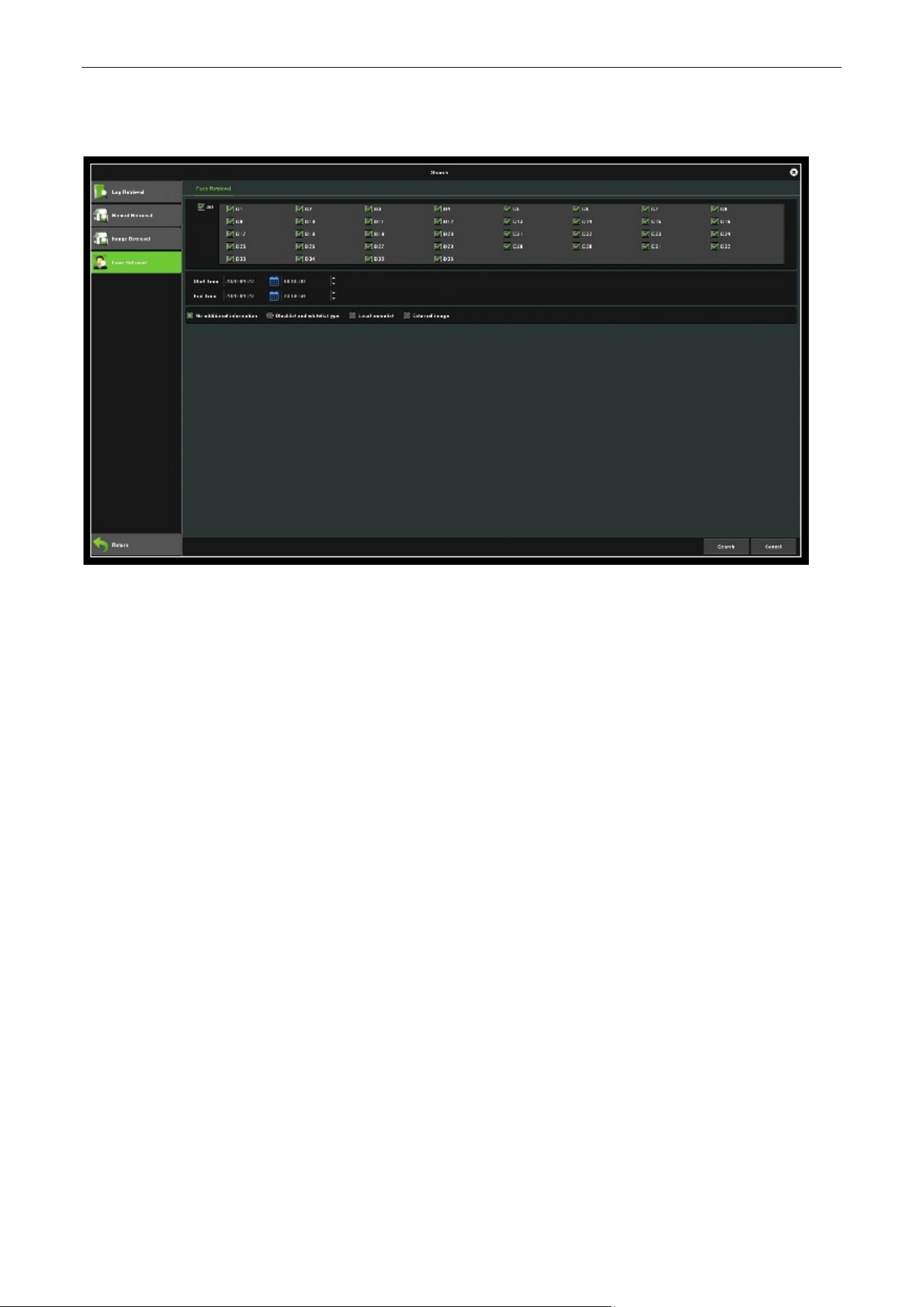
Figure 6.4 Face Retrieval Interface
Steps:
1. Select the Channel to backup.
2. Set the time of file to backup.
3. Select the File Format.
4. Click Search button to view the file size.
5. Click Backup button to start the backup, show as following picture.
6. After finish, click Confirm.
Network Video Recorder User Manual
Page | 32 Copyright©2023 ZKTECO CO., LTD. All rights reserved.
7. Channel Manage
7.1. Adding IP Cameras
Purpose:
Before you can get live video or record the video files, you should add the network cameras to the
connection list of the device.
Before you start:
Ensure the network connection is valid and correct, and the IP camera to add has already been activated.
7.1.1. Manual Add
Steps:
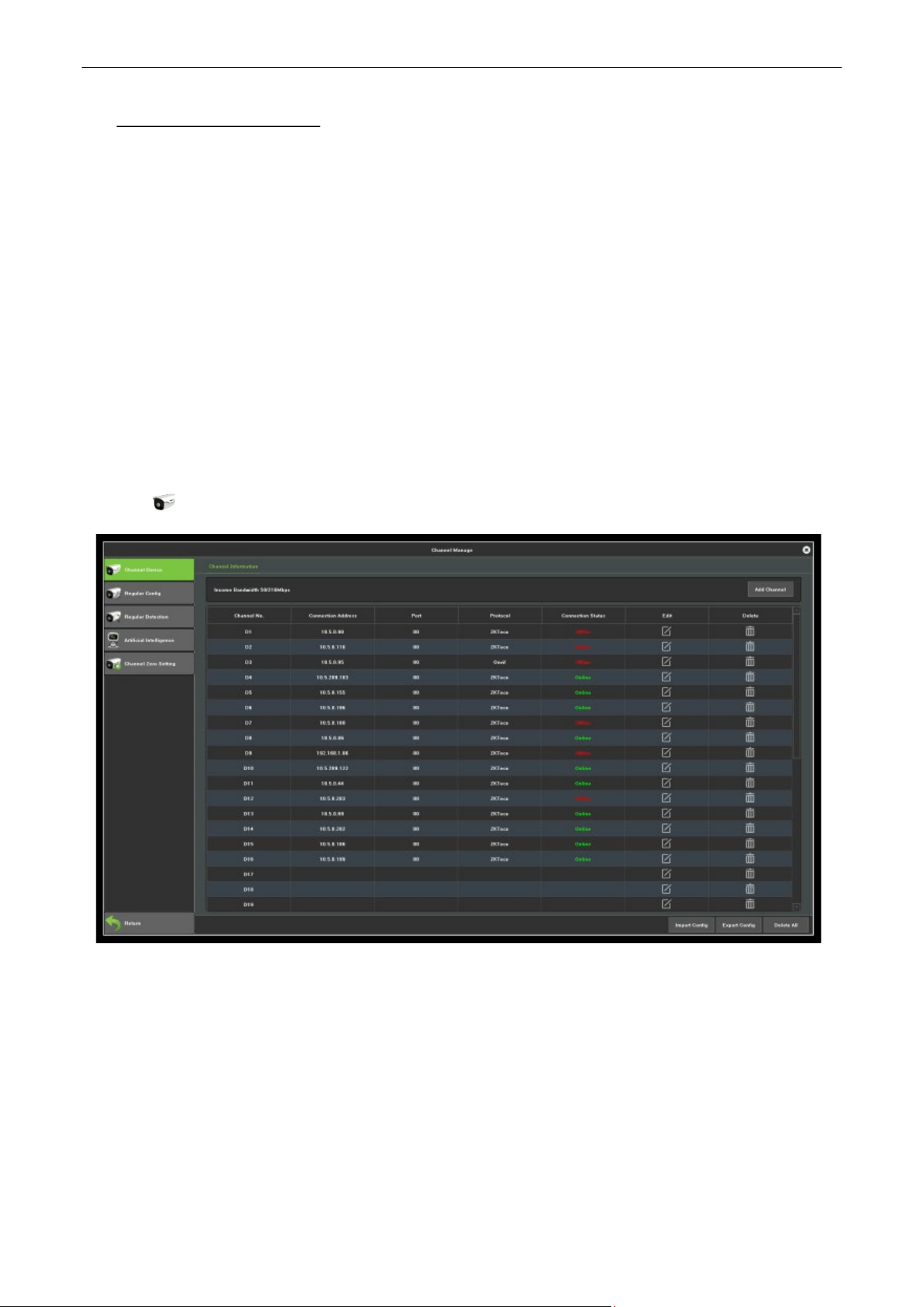
1. Click icon , enter into the Channel Connecting interface, as shown in figure 7.1.
Figure 7.1 Quick Adding IP Camera Interface
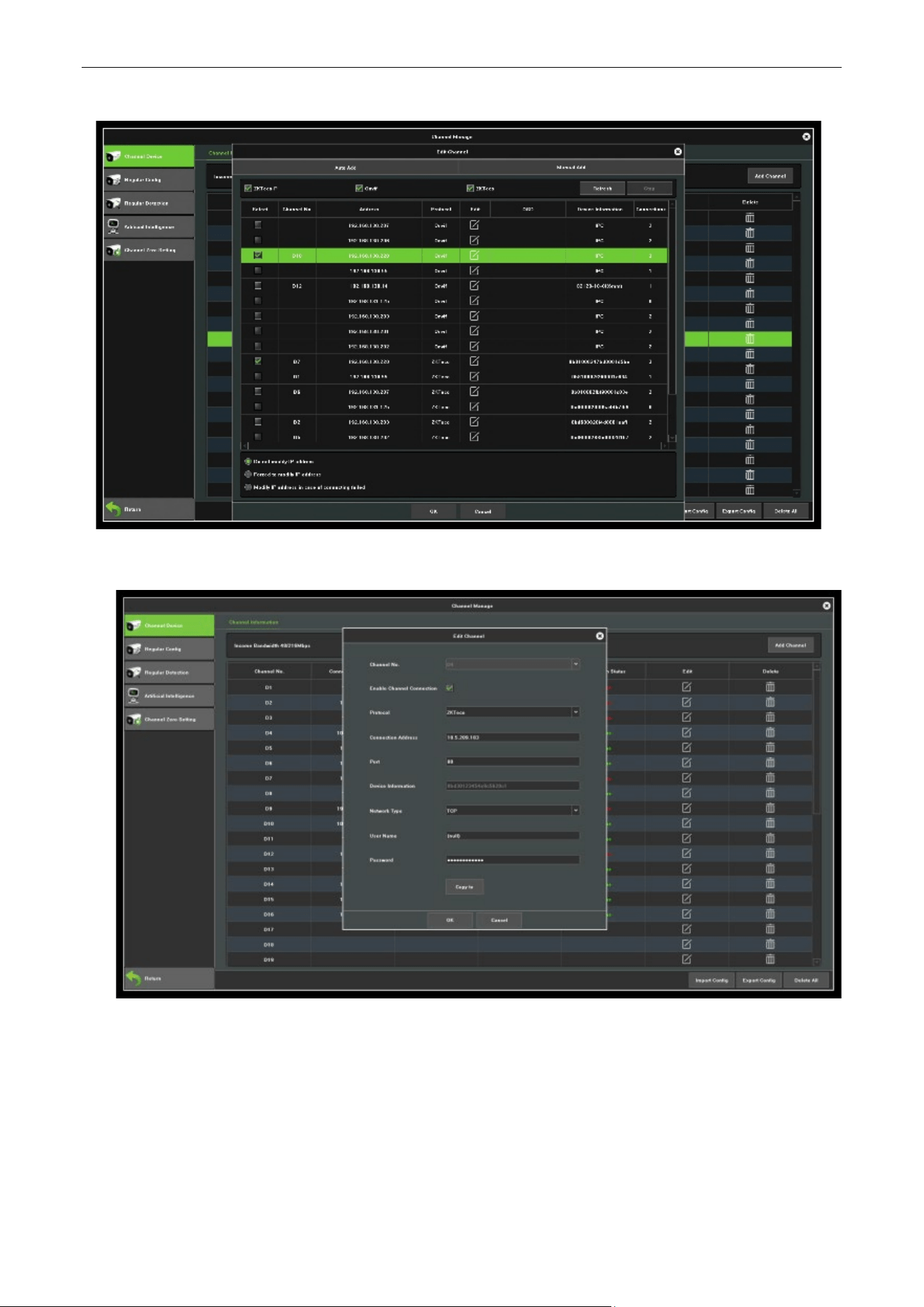
2. Click Add Channel button, it will automatically search all the IP cameras connected to the NVR.
3. You can click the Refresh button to refresh the online IP camera manually. Select the detected IP
camera and click the OK button to add it directly, as shown in figure 7.2.
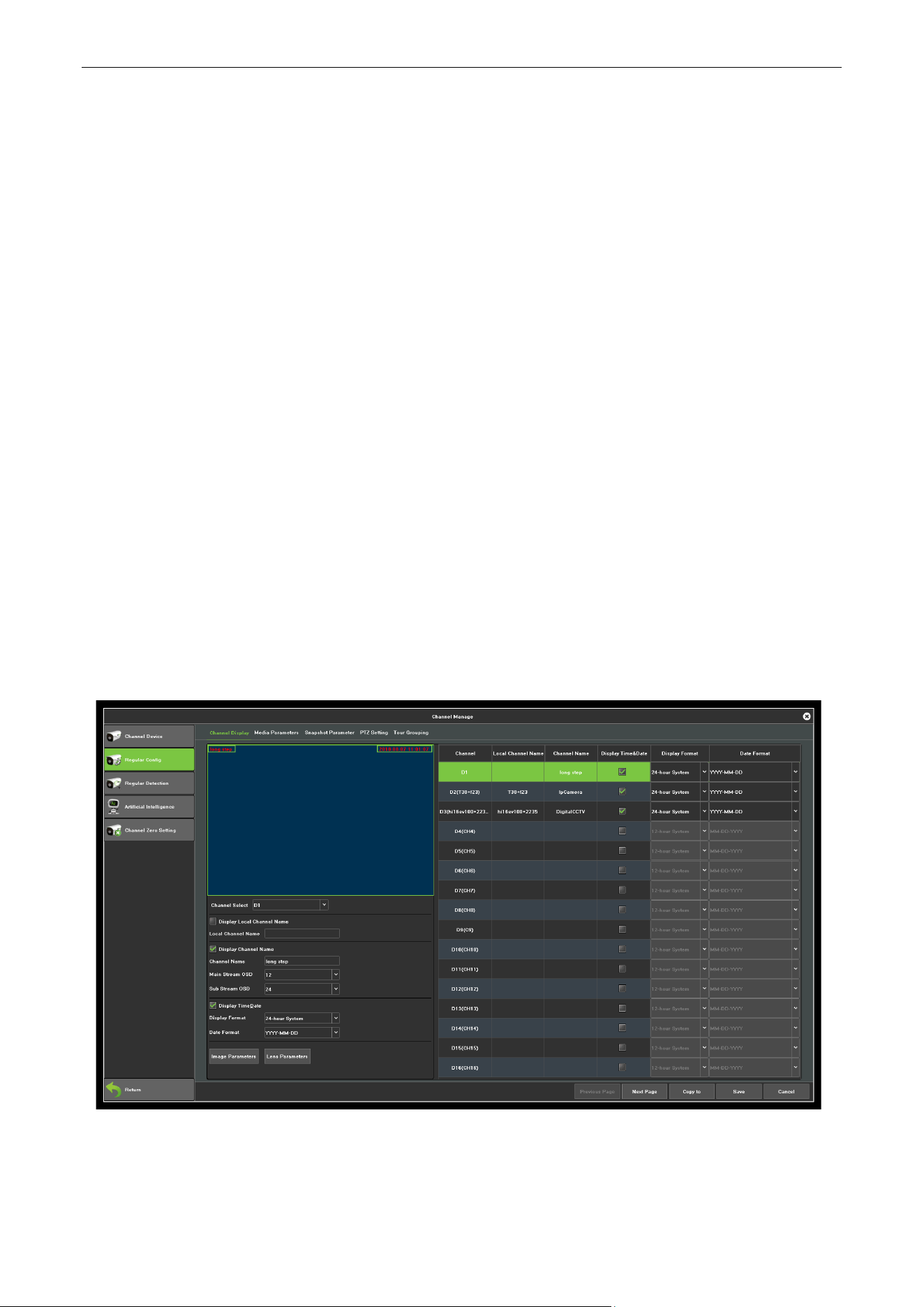
4. Or you can choose to custom add the IP camera by editing the parameters in the corresponding text
field and then click the Save button to add it, as shown in figure 7.3.
Network Video Recorder User Manual
Page | 33 Copyright©2023 ZKTECO CO., LTD. All rights reserved.
Figure 7.2 Auto Adding IP Camera Interface
Figure 7.3 Custom Adding IP Camera Interface
Network Video Recorder User Manual
Page | 34 Copyright©2023 ZKTECO CO., LTD. All rights reserved.
7.2. Regular Config
7.2.1. Channel Display
Purpose:
You can configure the OSD (On-screen Display) settings for the camera, including camera name, date
/time, etc.
Steps:
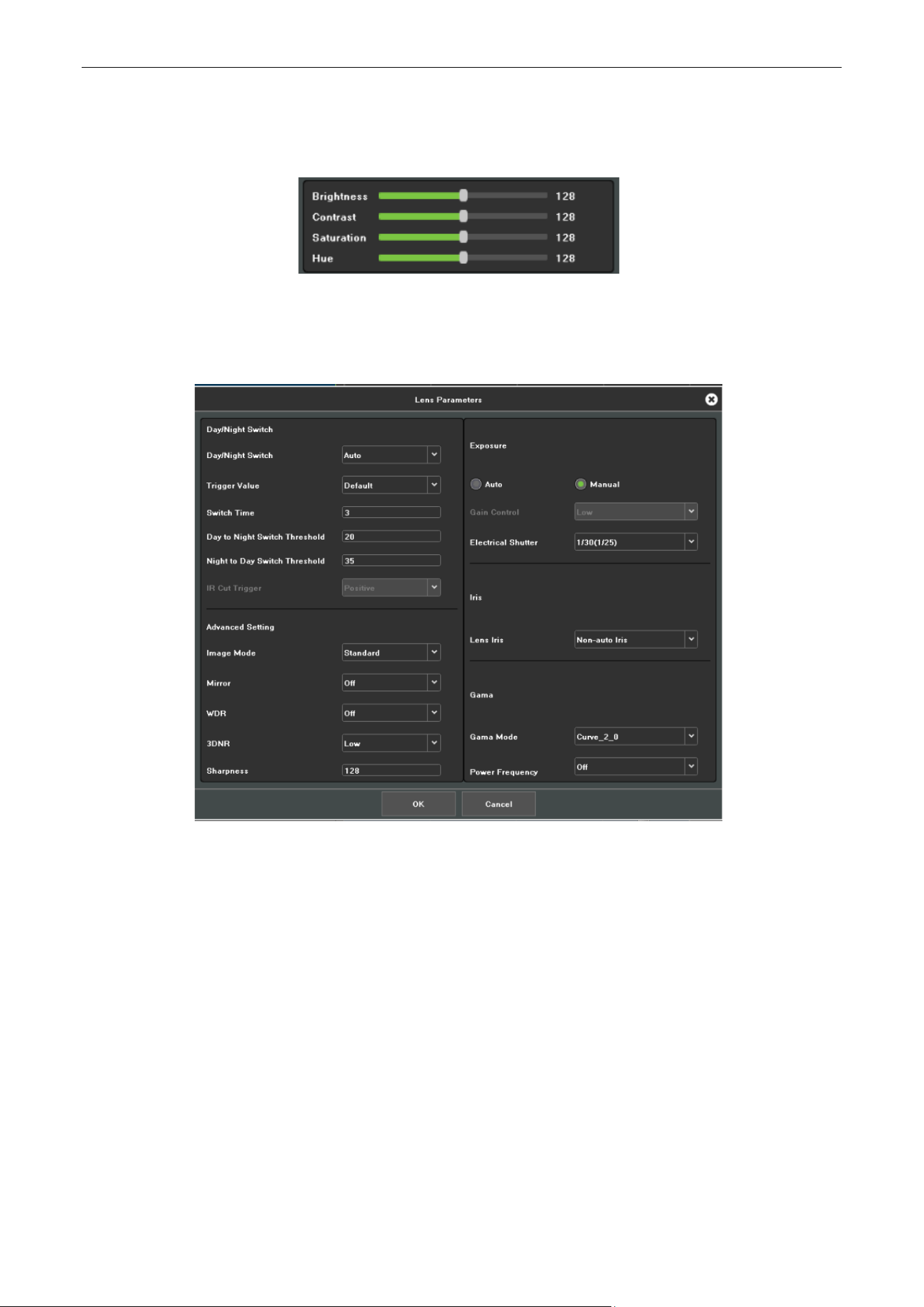
1. Enter the channel display configuration interface. Click Channel Manage > Regular config >
Channel Display.
2. Select the channel of camera to configure OSD settings.
3. Local Channel Name setting.
1) Check the check-box before Show Local Channel Name, then enter the Local Channel Name in
the text field.
2) Click Save button, the name that enter will show on the screen. You can use the mouse to click
and drag the text frame on the window to adjust the OSD position.
4. IP Camera Name setting (should be supported by the camera).
1) Check the check-box before Show Channel Name, then enter the Channel Name in the text field.
2) Click Save button, the name that enter will show on the screen, you can use the mouse to click
and drag the text frame on the window to adjust the OSD position, as shown in figure 7.4.
Figure 7.4 OSD Configuration Interface
Network Video Recorder User Manual
Page | 35 Copyright©2023 ZKTECO CO., LTD. All rights reserved.
5. Select the Date & Time Format (should be supported by the camera).
6. Image Parameters: Adjust the Brightness, Contrast, Saturation and Hue of the channel, as shown in
figure 7.5.
Figure 7.5 Image Setting Interface
1) Camera Lens Parameters Setting: Set the channel Camera Lens Parameters, as shown in figure 7.6.
Figure 7.6 Camera Lens Parameters Setting Interface
2) Click Save button to save the settings.
7.2.2. Media Parameters
Purpose:
Sometimes you need to edit the channel Camera recording parameters for better image.
Steps:
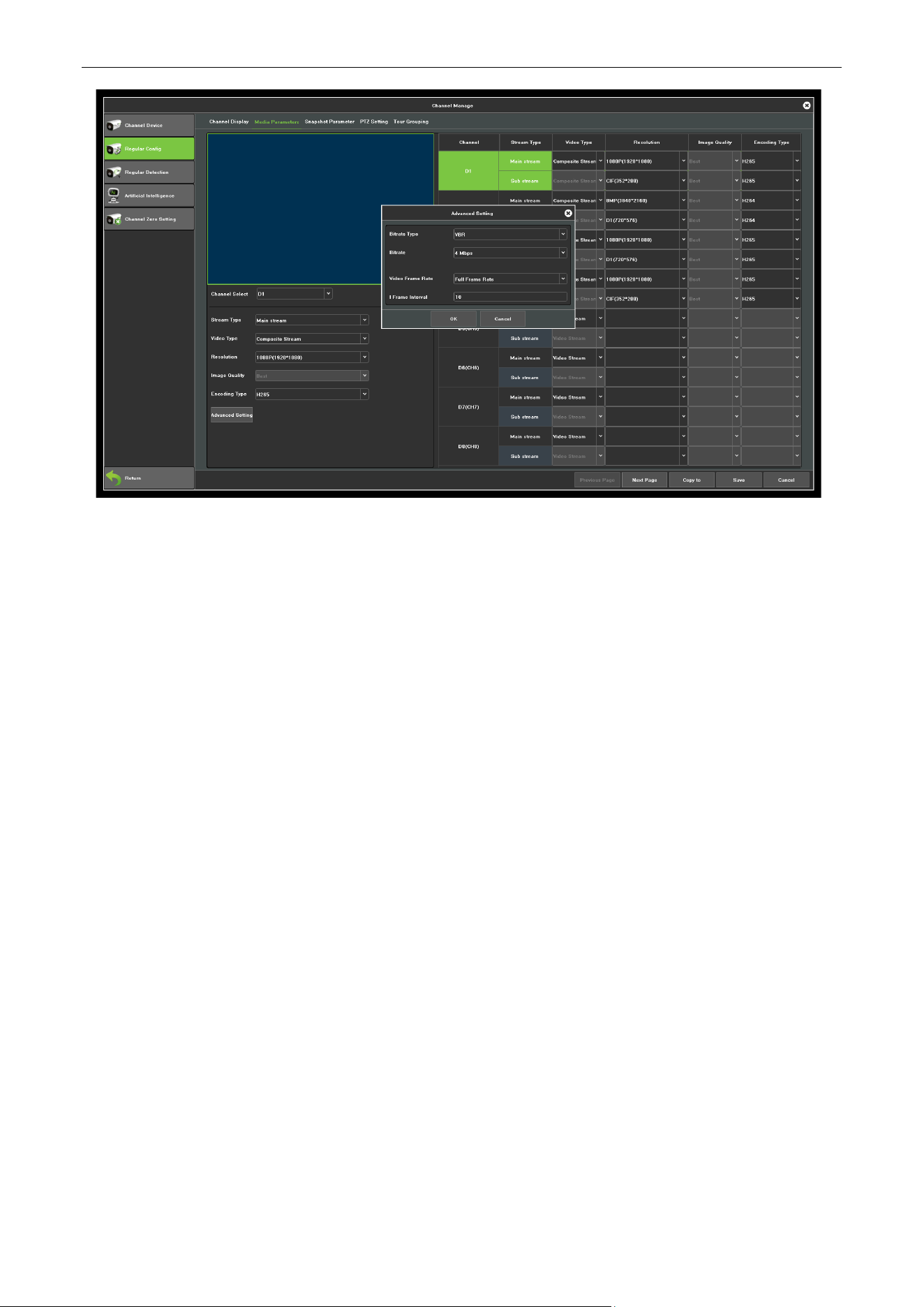
1. Enter the media parameters interface, as shown in figure 7.7.
Network Video Recorder User Manual
Page | 36 Copyright©2023 ZKTECO CO., LTD. All rights reserved.
Figure 7.7 Recording Parameter
2. Set the video parameter:
Channel Select: Select the channel of camera to configure the encoding type.
Stream Type: Select Main Stream or Sub Stream.
Video type: Select the video type.
Resolution: Select the video resolution.
Image Quality: Select the Image quality when VBR (Variable bite rate).
Encoding type: Select H.264 or H.265
Advanced setting:
Bitrate Type: CBR & VBR can be selected.
Bitrate: Set the Bit-Rate.
Frame Rate: Select the frame rate.
3. Click Save button to save the settings.
Network Video Recorder User Manual
Page | 37 Copyright©2023 ZKTECO CO., LTD. All rights reserved.
7.2.3. Snapshot Parameter
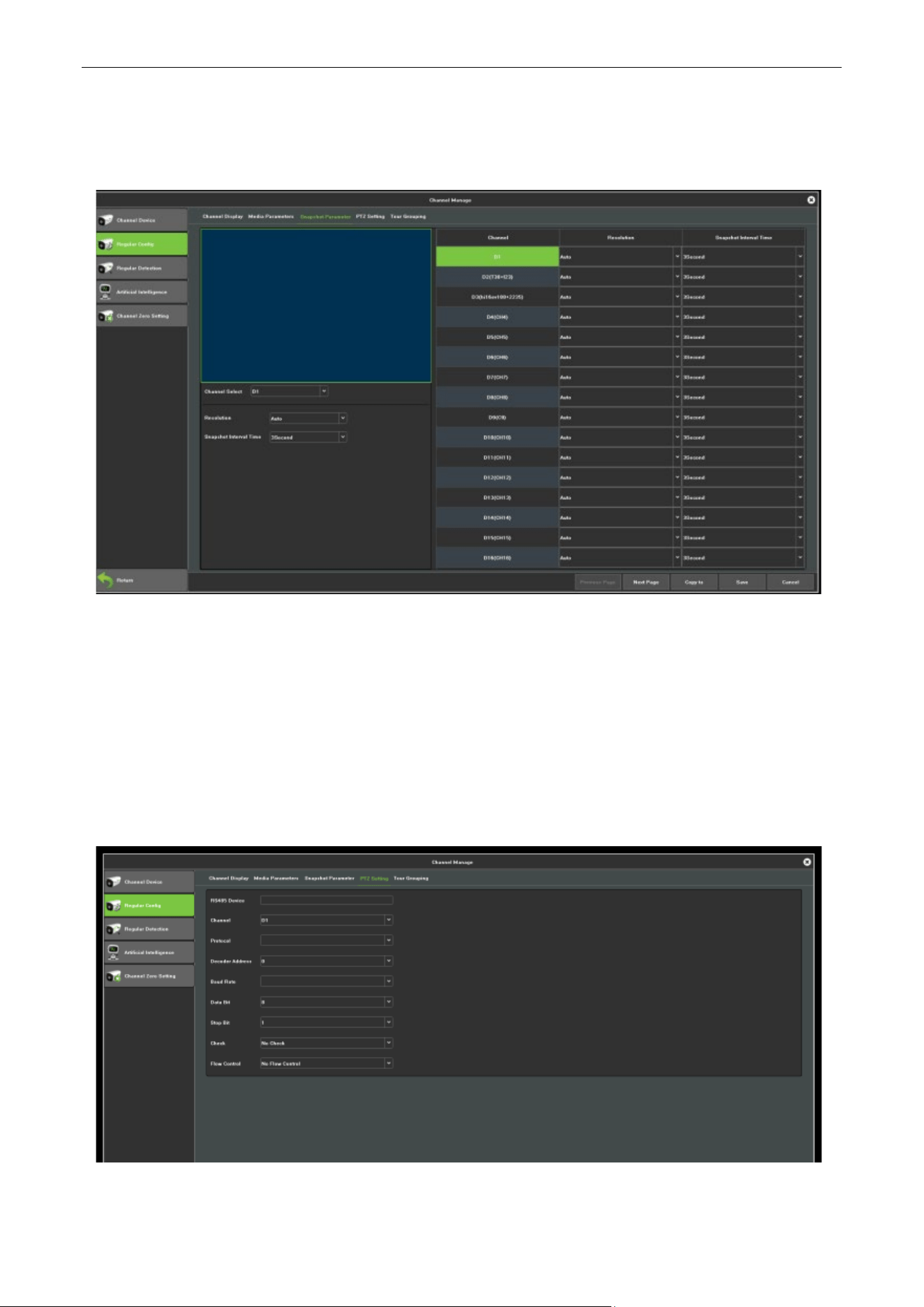
Can set the resolution of the local snapshot and relevant parameters. The interface is shown in figure 7.8.
Figure 7.8 Snapshot Parameters
7.2.4. PTZ Setting
Follow the procedure to set the parameters for PTZ. The configuring of the PTZ parameters should be
done before you control the PTZ camera.
Steps:
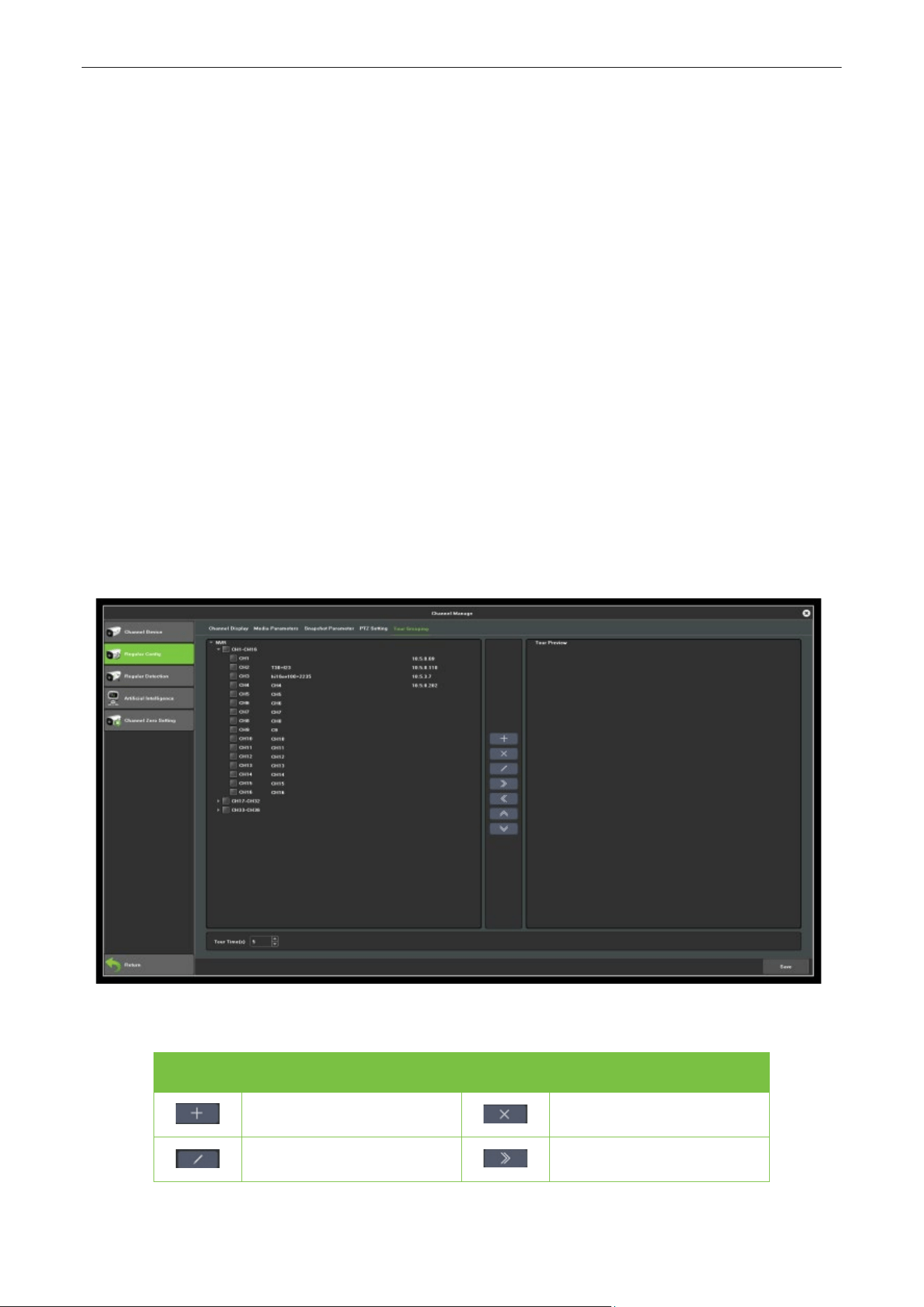
1. Enter the PTZ Setting interface, as shown in figure 7.9.
Figure 7.9 PTZ General Setting Interface
Network Video Recorder User Manual
Page | 38 Copyright©2023 ZKTECO CO., LTD. All rights reserved.
2. Set the parameter of PTZ:
Channel: Choose the channel.
Protocol: Choose the protocol for your PTZ.
Decoder Address: Choose the decoder address.
Baud Rate: Select the baud rate.
Data Bit: Select the data bit.
Stop Bit: Select the stop bit.
Check: Select the check, No Check by default.
Flow Control: Select the flow control, No Flow Control by default.
3. Click Save button to save the settings.
7.2.5. Tour Grouping
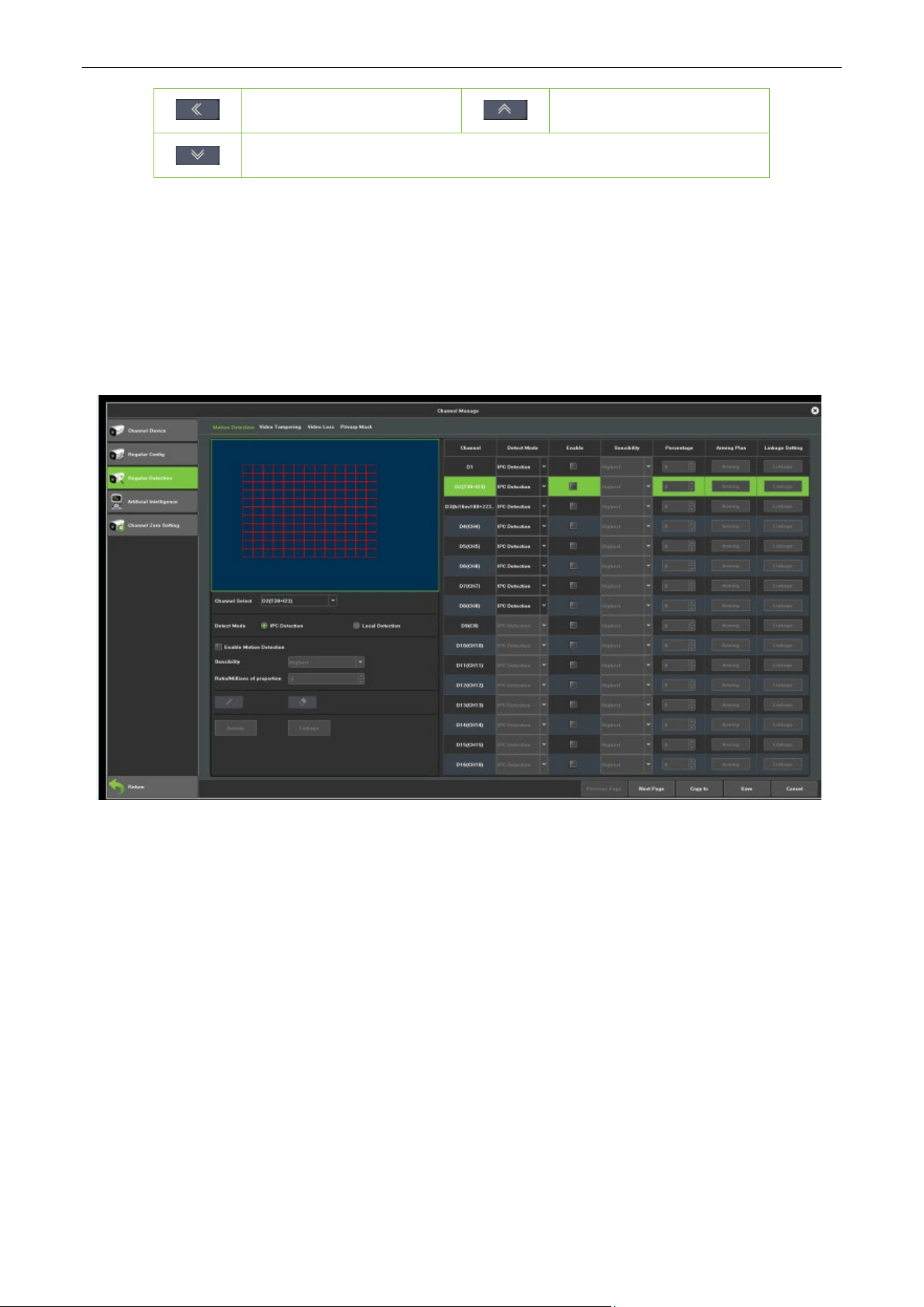
The role of setting tour Grouping is to group the channel and preview, can group according to a standard,
as shown in figure 7.26, that is group according to the region, the same channel can be divided into
different groups according to the needs.
Icon function is shown in table 7.1:
Icon Functional Description Icon Functional Description
Create group
Delete group
Modify the group name
Add group
Network Video Recorder User Manual
Page | 39 Copyright©2023 ZKTECO CO., LTD. All rights reserved.
Remove the channel
Move up
Move down
Table 7.1 Icon Function
7.3. Regular Detection
7.3.1. Motion Detection
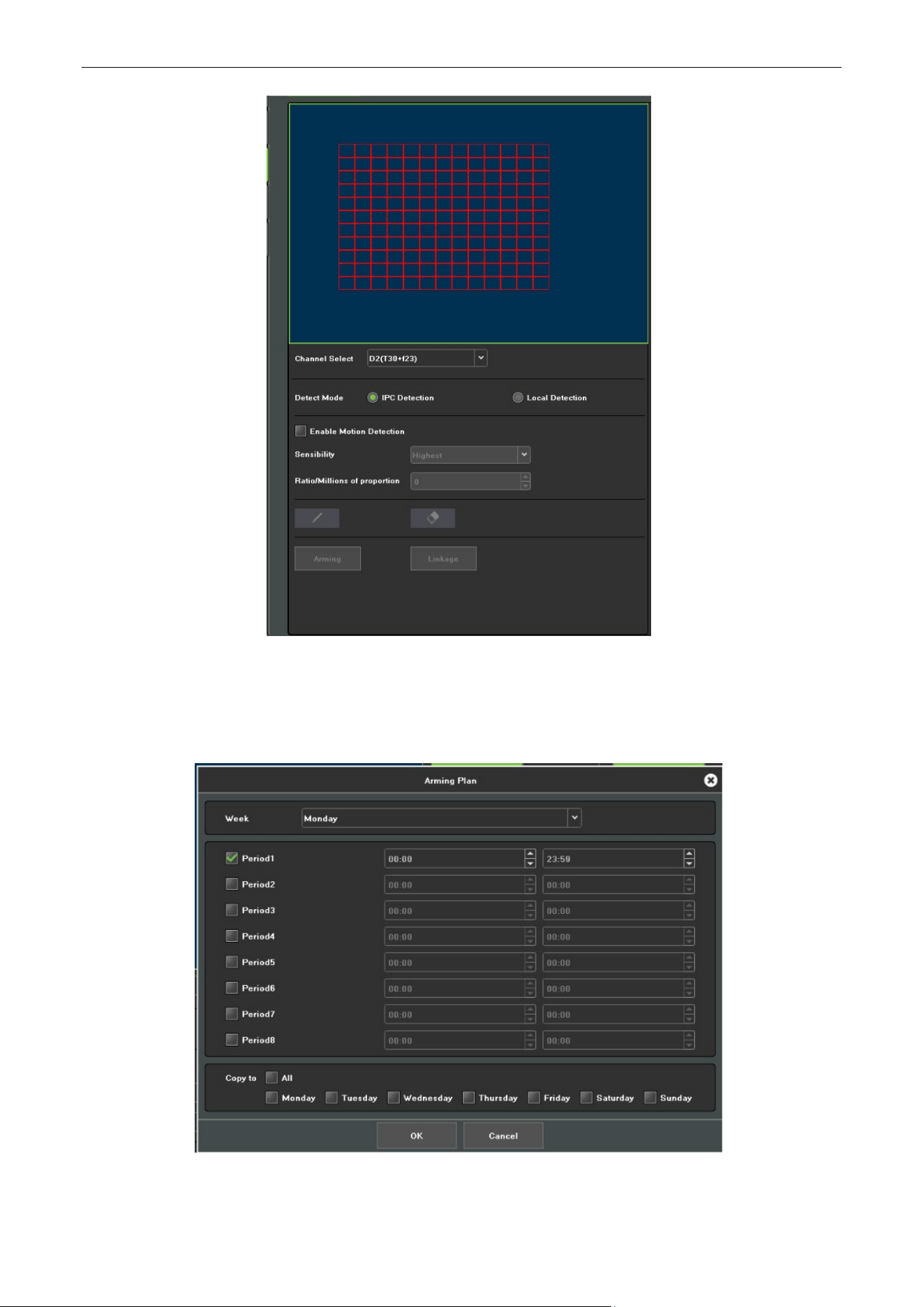
Motion detection interface is shown in figure 7.10, can set the related parameters of motion detection.
Figure 7.10 Motion
Detect Mode: The default is "Camera", when NVR support smart (smart detection) can switch mode to
"NVR".
Sensitivity: Can increase the accuracy of the motion detection trigger after setting up reasonably.
Zone setting: Hold the left mouse button directly in the picture, drag to the area that needs motion
detection, the red plaid area is the selected motion detection area, as shown in figure 7.11.
Network Video Recorder User Manual
Page | 40 Copyright©2023 ZKTECO CO., LTD. All rights reserved.
Figure 7.11 Zone Setting
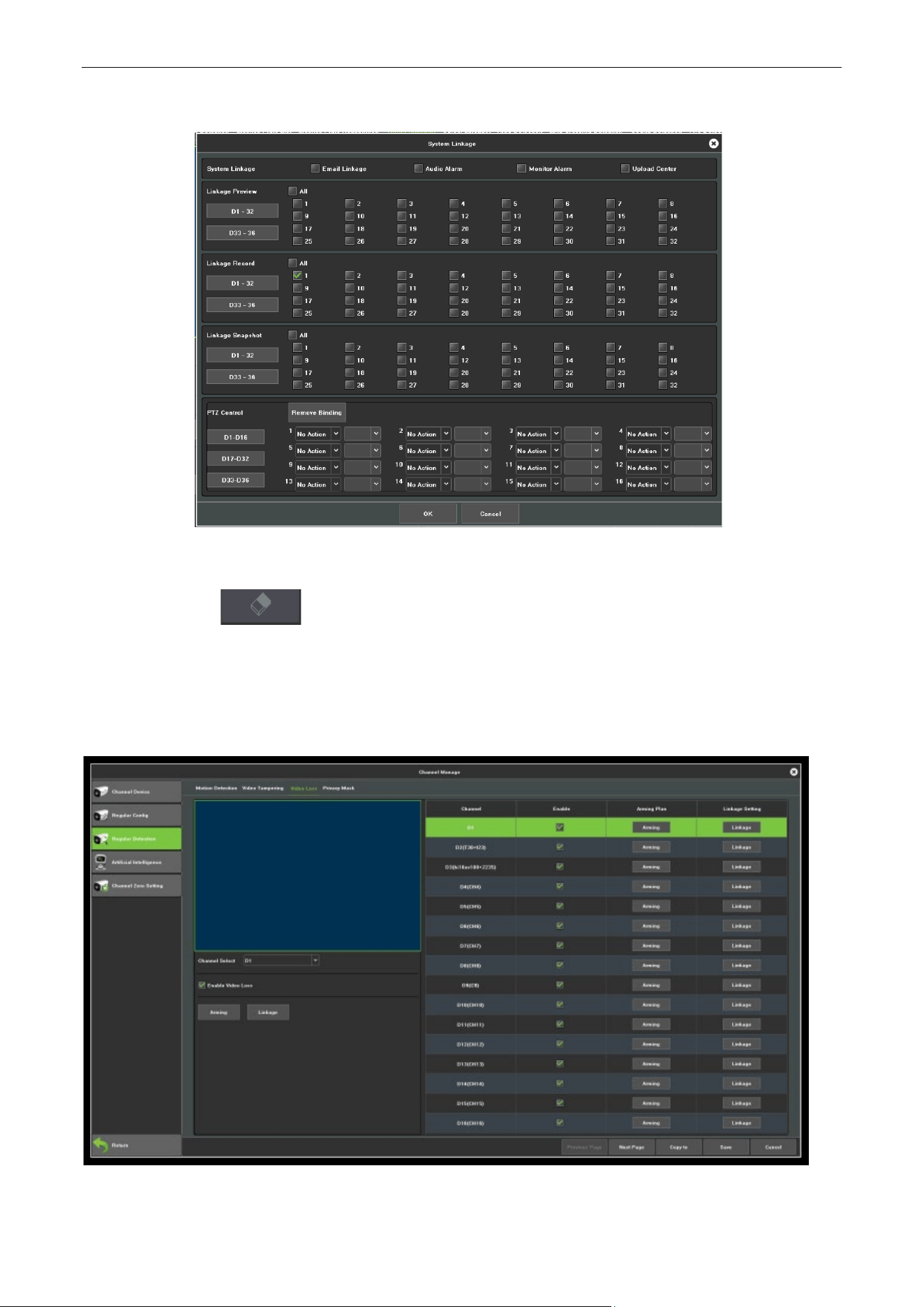
Arm plan: Set the schedule that needs arming, as shown in figure 7.12.
Figure 7.12 Planning
Network Video Recorder User Manual
Page | 41 Copyright©2023 ZKTECO CO., LTD. All rights reserved.
Linkage Setting: Choose the mode that needs linkage, as shown in figure 7.13.
Figure 7.13 Linkage
Clear all: One click to clear the motion detection area on the screen set before.
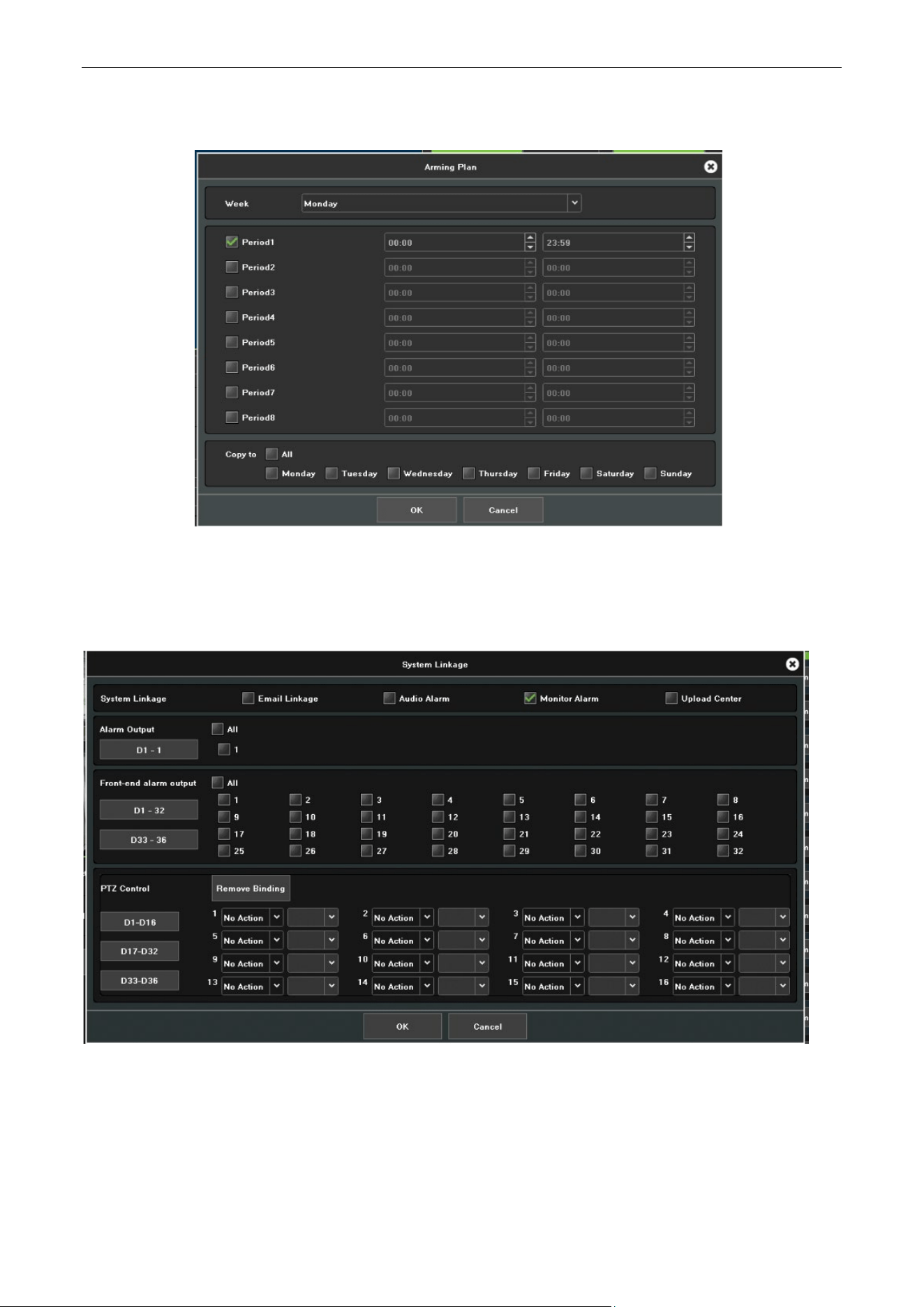
7.3.2. Video Lost
Video lost configuration interface, as shown in figure 7.14.
Figure 7.14 Video Loss
Network Video Recorder User Manual
Page | 42 Copyright©2023 ZKTECO CO., LTD. All rights reserved.
Channel: Choose the channel number.
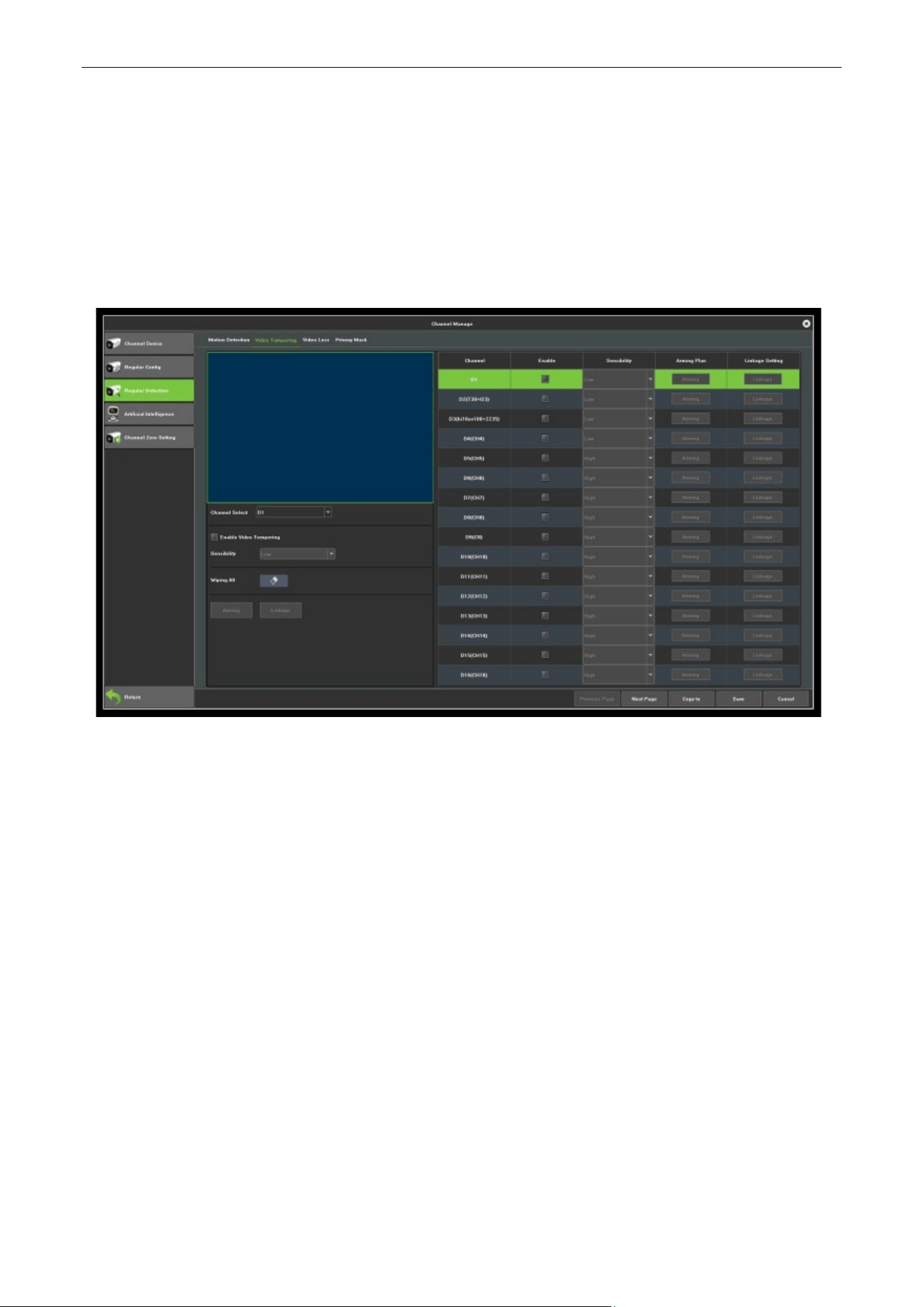
Planning: Set the arming schedule of video loss, as shown in figure 7.15.
Figure7.15 Planning
Linkage: Set the linkage mode, as shown in figure 7.16.
Figure7.16 Linkage
Network Video Recorder User Manual
Page | 43 Copyright©2023 ZKTECO CO., LTD. All rights reserved.
7.3.3. Video Tampering
Purpose:
Trigger alarm when the lens is covered and take alarm response action(s).
Steps:
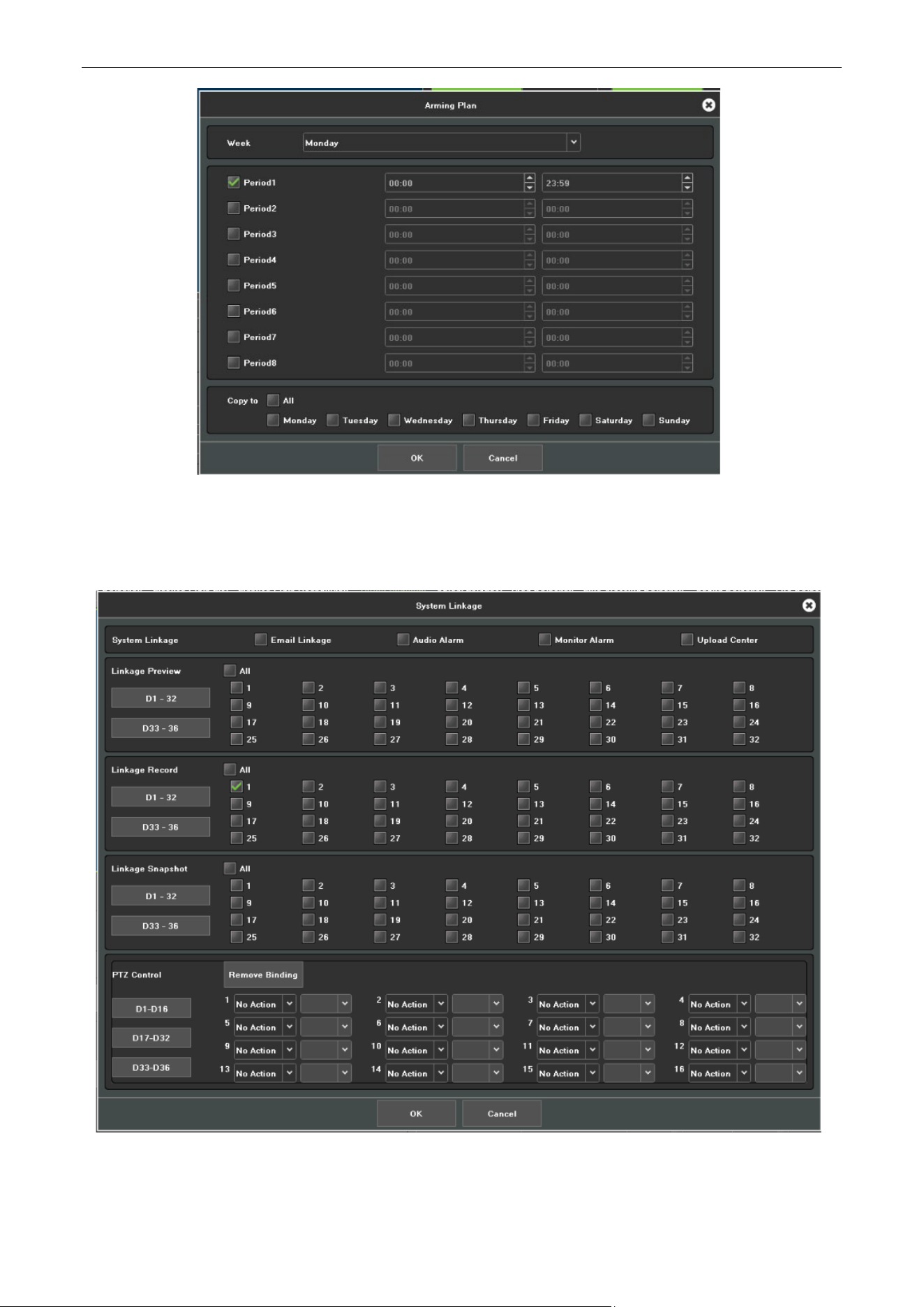
1. Enter Video Mask Alarm interface of channel parameter and choose a channel you want to setup
Video Mask Alarm, as shown in figure 7.17.
Figure7.17 Video Tampering
2. Set the video mask alarm handling action of the channel.
1) Check the check-box of Enable Video Tampering.
2) Select the sensitivity.
3) Use the mouse to draw an area you want to detect video mask.
3. Setup the planning of the channel, as shown in figure 7.18.
Network Video Recorder User Manual
Page | 44 Copyright©2023 ZKTECO CO., LTD. All rights reserved.
Figure 7.18 Planning
4. Setup the linkage operation of the channel, as shown in figure 7.19.
Figure 7.19 Linkage
Network Video Recorder User Manual
Page | 45 Copyright©2023 ZKTECO CO., LTD. All rights reserved.
5. Click Save button to save the settings.
Note: Onvif protocol can’t support video tampering.
7.3.4. Privacy Mask
Purpose:
You are allowed to configure the four-sided privacy mask zones that cannot be viewed by the operator.
The privacy mask can prevent certain surveillance areas to be viewed or recorded.
Steps:
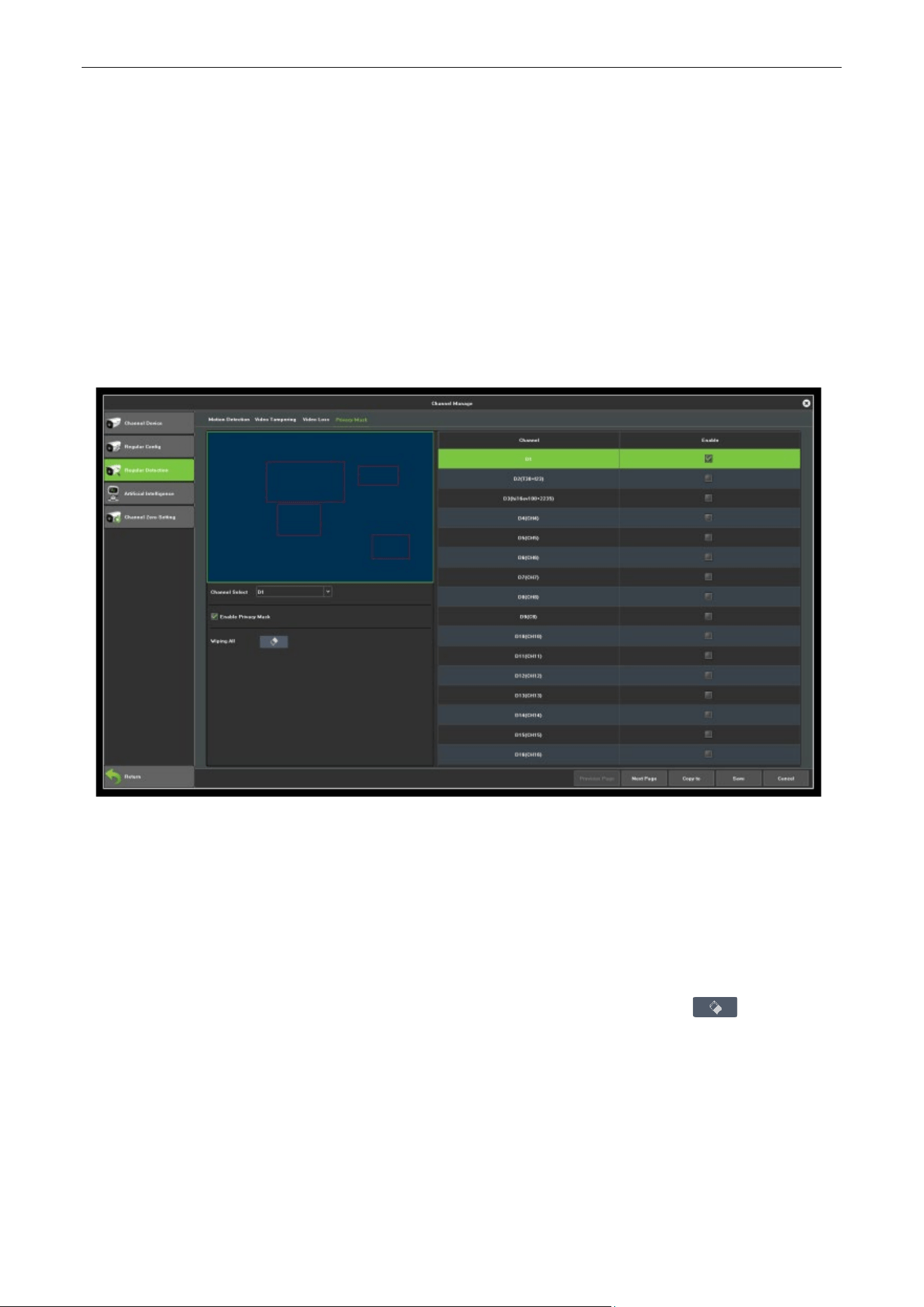
1. Enter the Privacy Mask Settings interface, as shown in figure 7.20.
Figure 7.20 Privacy Mask
2. Select the camera to set privacy mask.
3. Click the check-box of Enable Privacy Mask to enable this feature.
4. Use the mouse to draw a zone on the window, up to 4 privacy mask zones can be configured and the
size of each area can be adjusted.
5. The configured privacy mask zones on the window can be cleared by clicking the button.
6. Click the Save button to save the settings.
Note: Onvif protocol can’t support privacy mask.
Network Video Recorder User Manual
Page | 46 Copyright©2023 ZKTECO CO., LTD. All rights reserved.
7.4. Artificial Intelligence
Smart analysis is the vital function of 4.0 NVR, and this chapter will give clear and specific instructions in
terms of intelligent performance, process and parameter configuration.
7.4.1. Brief Introduction
The current Smart performance of NVR4.0 includes:
1. Behavior Analysis: Target counting, Object Left/Lot, Area Detection, Line crossing Detection, Scene
Change.
2. Some NVR have: Scene Change, Face detection, License Plate list, Sound Detection, Fire Detection,
VQD.
Note: The behavior analysis can support both front-end and local detection modes (based on the actual
capacity of the product); scene changes only support the local detection mode.
7.4.2. Enable Smart Analysis
Some NVR models disable local smart by default. To enable smart analysis, first open the device
parameters interface and set the preview capability to the mode with smart analysis, as shown in figure
7.21.
Figure7.21 Model
Note: Currently NVR2.0 smart function only supports I8H protocol, so only when I8H protocol accesses IPC
can the front-end detection be turned on.
7.4.3. Function Configuration
7.4.3.1. Detect Mode
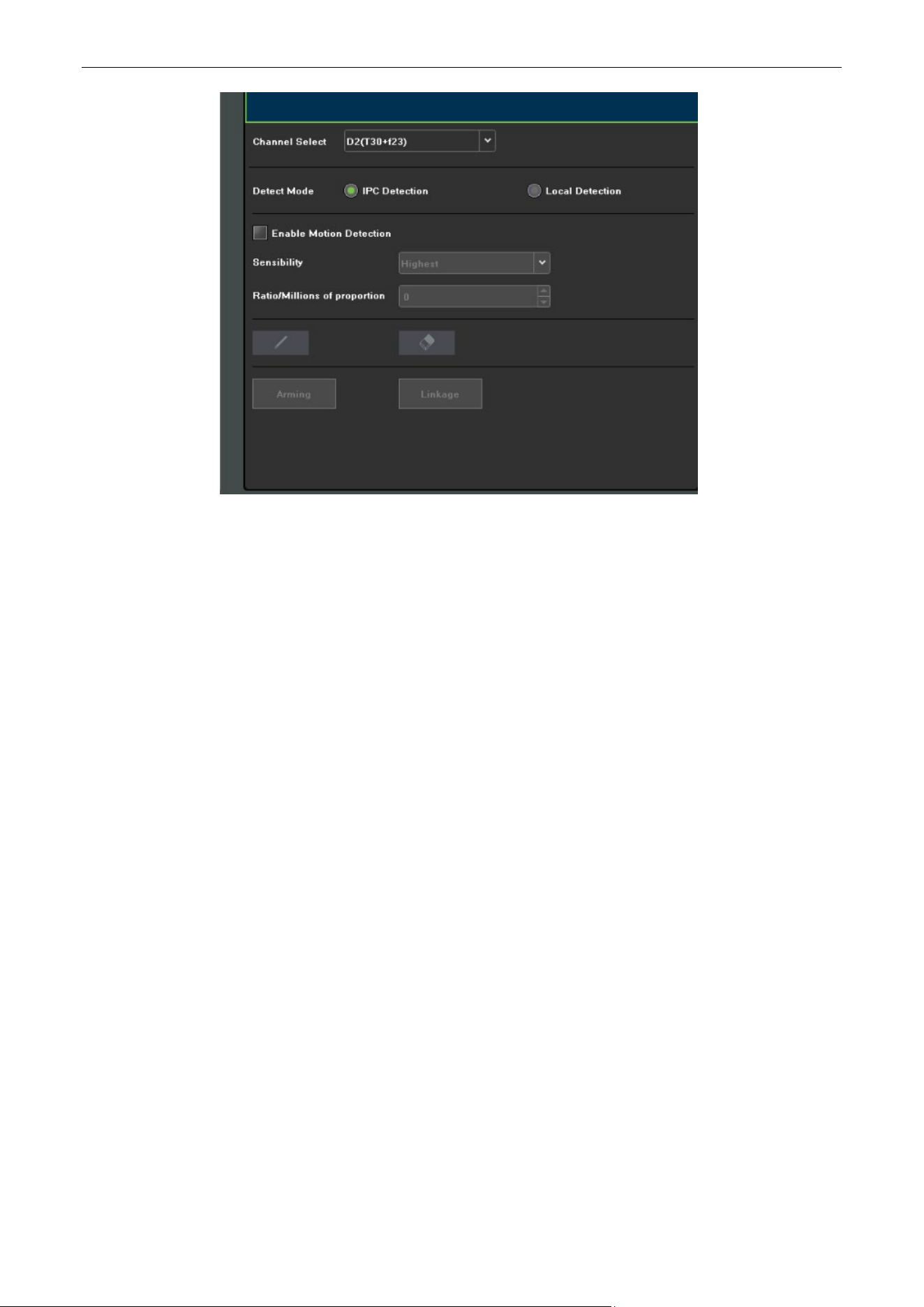
As shown in figure 7.22, there are "IPC detection" and "local detection" mode, the default is the former.
The IPC detection mode requires the IPC to support smart detection. If IPC front-end detection is not
supported, the NVR Local Detection mode is then selected.
Network Video Recorder User Manual
Page | 47 Copyright©2023 ZKTECO CO., LTD. All rights reserved.
Figure7.22 Detection Mode
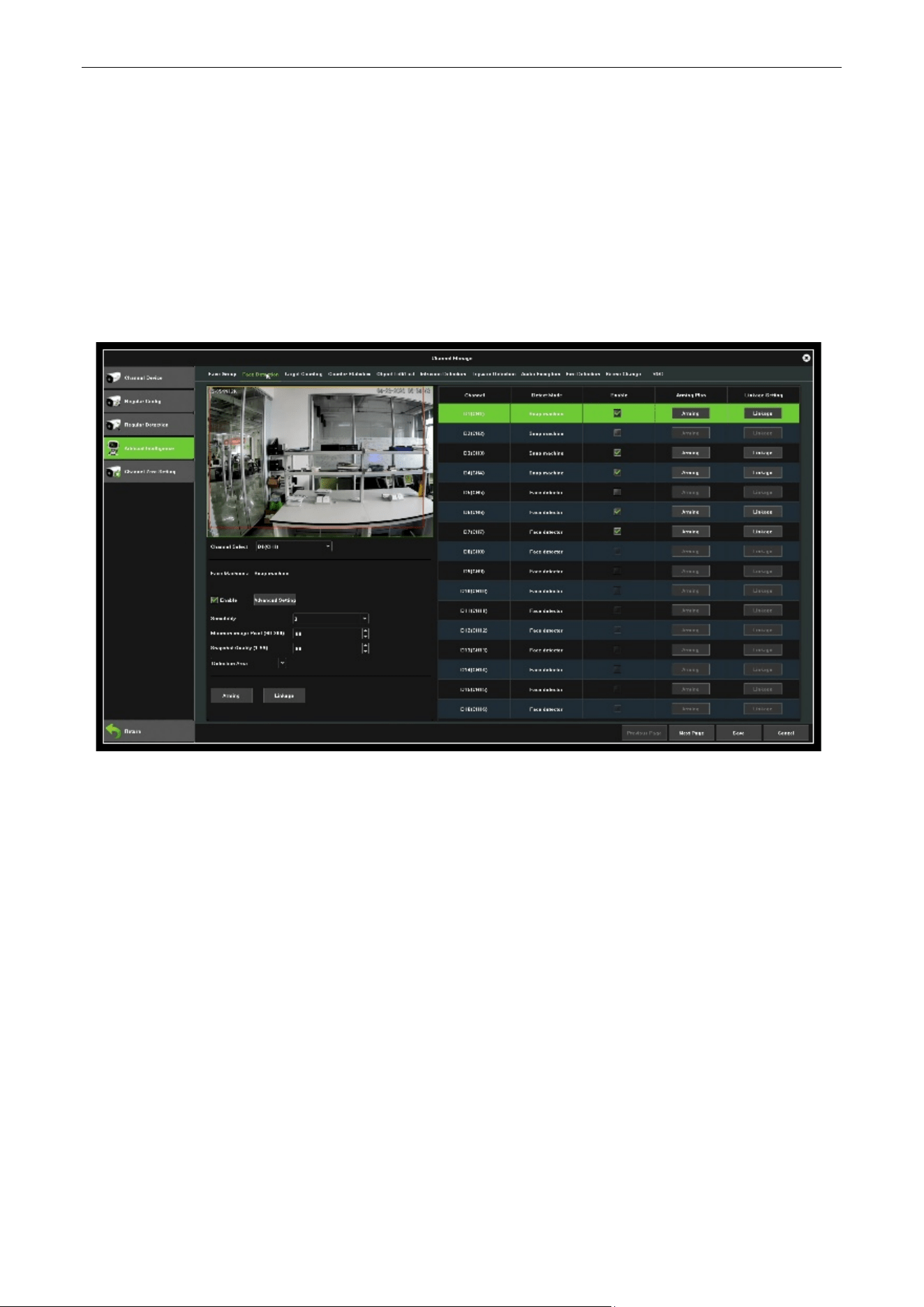
7.4.3.2. Behavior Analysis
Behavior analysis includes the following functions: target counting, object left/lost, area detection, line
crossing detection.
The target triggering rule is based on the center of the target's lower edge (except height limit detection),
which is generally the position of the human foot. So when setting the detection line or detection area,
the line / area should not be suspended in the air.
The minimum height of the target should not be less than 1/32 of the image height; the minimum width
should not be less than 1/64 of the image width; the maximum width of the proposed object should not
exceed 1/4 of the image width; the maximum height should not exceed 1/2 of the image height;
Set the detection line or the detection area, do not appear too close to the target location; It also requires
the scope view of camera cannot be too small, the target cannot be too large.
Precautions:
1. Camera installation: to install vertically, to maintain static, to avoid occlusion of vision, to make height
appropriate (higher than two meters).
2. Scene selection: to ensure adequate lighting, reduce the complexity of the scene, try avoid areas that
may affect the accuracy, such as the detection area where there are leaves shaking, severe shadows,
birds, insects and more, try to avoid Glass, floor tiles, lake and other reflective scene selection.
3. Alert area requirements: the warning area used for intelligent analysis is required to exceed more
than 1/8 of the video screen area; if it is cordon, the distance between the sides of the line should
exceed the image width or 1/4 of the height.
Network Video Recorder User Manual
Page | 48 Copyright©2023 ZKTECO CO., LTD. All rights reserved.
7.4.3.3. Target Counting
The purpose of this page is to configure the relevant parameters so that the target count alarm occurs
when a moving object whose proportion is larger strides the set detection line to obtain the number set
by the detection rules, as shown in figure 7.21. The following describes the parameters of the pages on
the set method.
The purpose of this page is to configure the relevant parameters so that the target count alarm occurs
when a moving object whose proportion is larger strides the set detection line to obtain the number set
by the detection rules, as shown in figure 7.23. The following describes the parameters of the pages on
the set method.
Figure7.23 Target Counting
Channel Select: Select the channel.
Detect Mode: Divided into front-end and local, the two models to the actual capacity of the product
subject, selecting the front-end mode requires front-end access to IPC support, selecting the local model
requires equipment support.
Enable: Check to enable the target count.
Show in Preview: When enabled, you can see the detection line and the statistical result in the preview
interface.
Detection line: Each screen can be set up to four detection lines, directly on the screen drag the left
mouse button to draw the line, release the left button, right-click to complete the drawing line, the
completion of the detection line on both sides were AB Area, the upper side will display the statistical
results.
A-> B: Acquiesce is A area to B area to increase counting, A / B area location on both sides of detection
line can be exchanged.
Network Video Recorder User Manual
Page | 49 Copyright©2023 ZKTECO CO., LTD. All rights reserved.
B-> A: "Increment Count" or "Flow Count Result = 'A-> Count of B' + 'B-> Count of A'", "Count Down" >
Count of B '-' B-> Count of A '', 'Ignore' or 'Count of flow statistics' ='
Ratio: Only when size of Moving objects in the screen is larger than the size of the set can it be used as
a "target", when setting the center of the screen will appear a yellow dotted rectangle frame as a
reference.
Traffic Statistics: Enable statistics, you can set the "Traffic Statistics interval and Alarm threshold".
Total Statistics: After the opening you can be set "statistical time and total alarm threshold".
Arming: That is, set the deployment time, the default is all-day deployment.
Linkage: You can enter the linkage configuration page when the alarm is triggered, and perform the
linkage configuration operation.
Delete: Click to clear the screen to set the history setting line.
In accordance with the above settings, every 30s account for 150 times the number of objects through
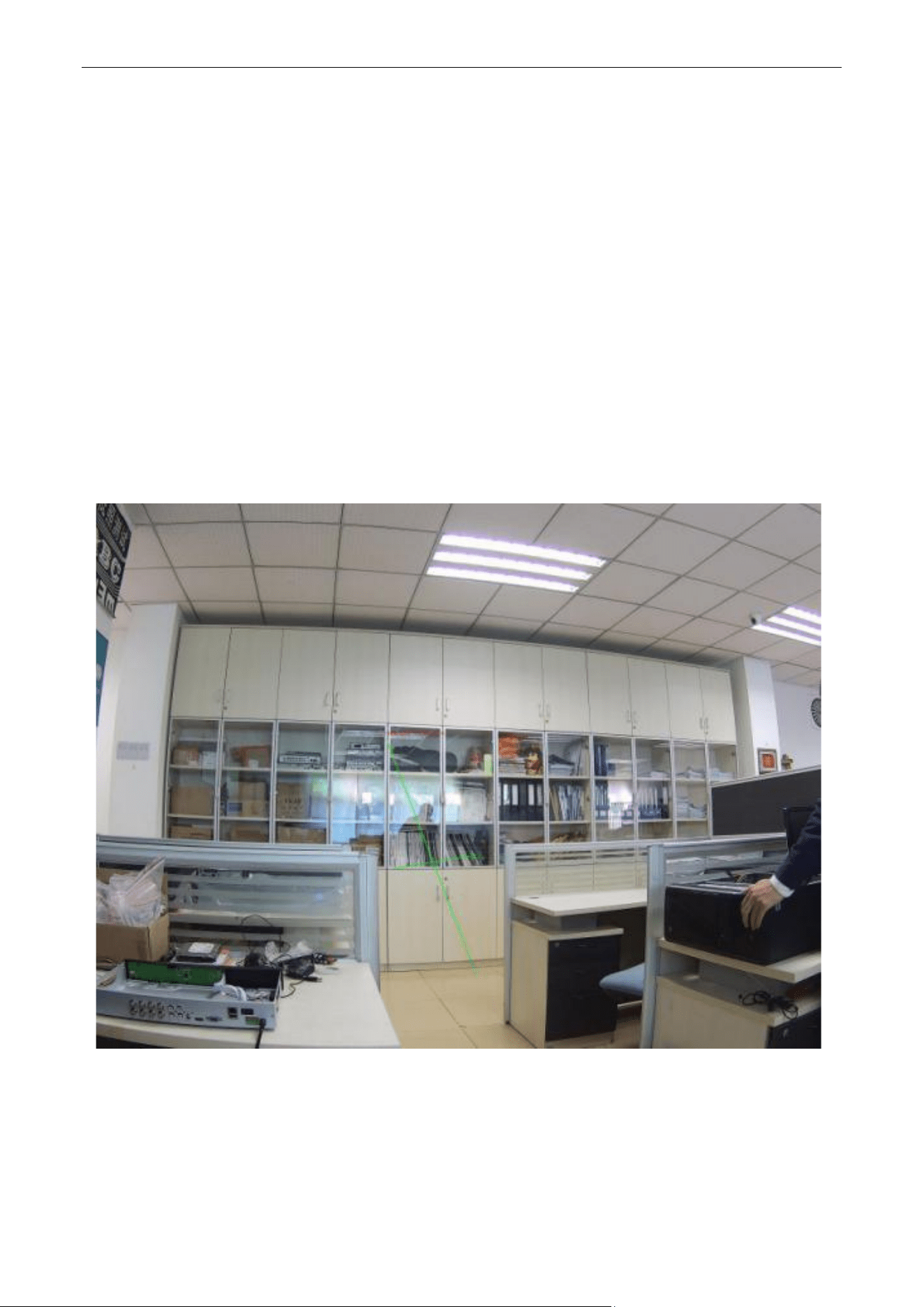
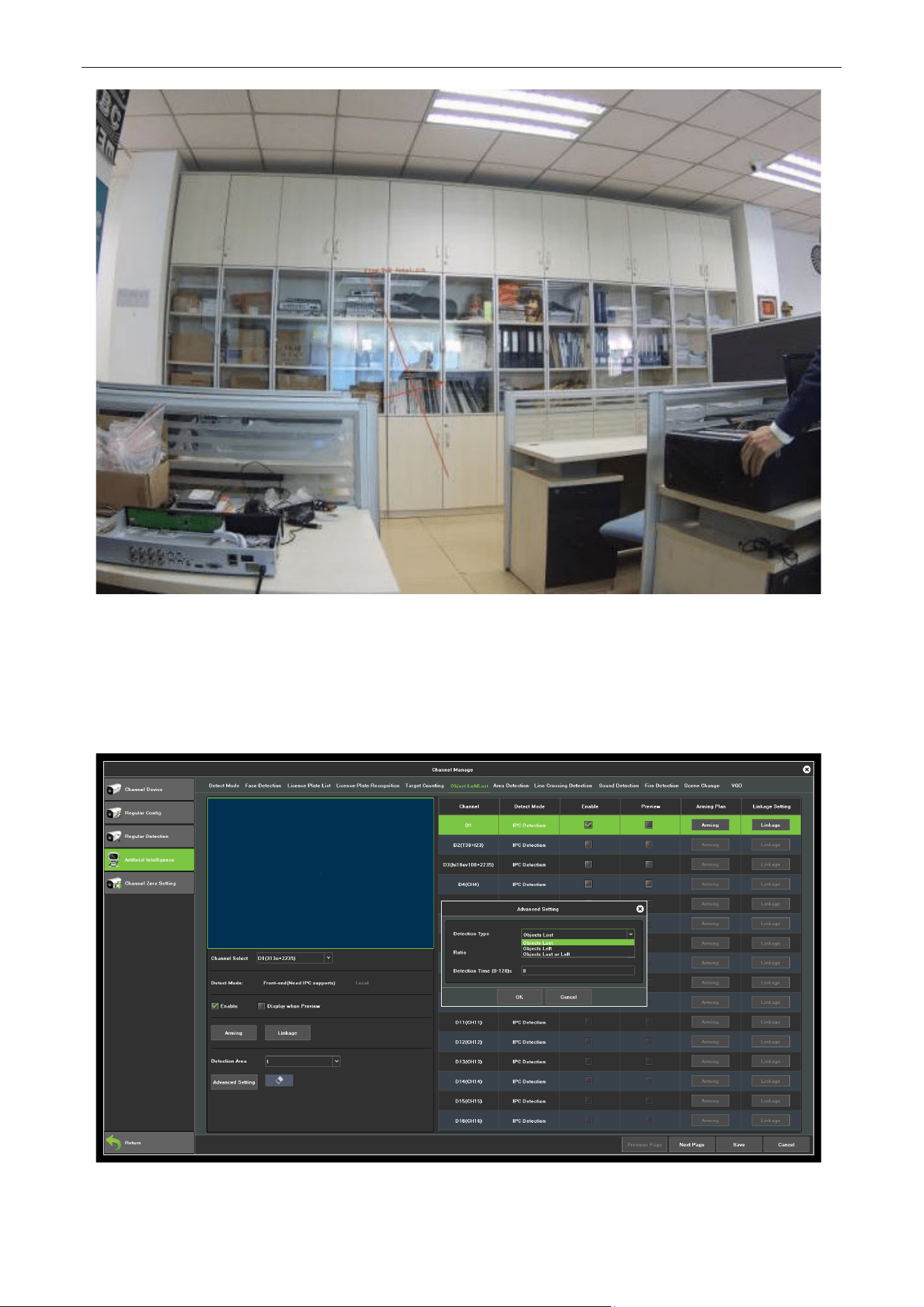
the detection line 1, trigger the alarm, as shown in figure 7.24 and 7.25 is the pre-alarm and alarm occurs
when the real-time preview screen.
Figure 7.24 Pre-alarm
Network Video Recorder User Manual
Page | 50 Copyright©2023 ZKTECO CO., LTD. All rights reserved.
Figure 7.25 Alarming
7.4.3.4. Object Left/Lost
The purpose of this page is to configure the relevant parameters, so that more than the proportion of
objects in the set detection area lost / left over time detection time that goods detection alarm. As shown
in figure 7.26, the following describes the main parameters on the page set method.
Figure7.26 Objective Detection
Network Video Recorder User Manual
Page | 51 Copyright©2023 ZKTECO CO., LTD. All rights reserved.
Channel Select: Select the channel.
Detect Mode: Divided into front-end and local, two models to the actual capacity of the product subject,
select the front-end mode requires front-end access to IPC support, select the local mode requires device
support.
Enable: Check to enable the target count.
Display when Preview: When enabled, you can see the detection line and the statistical result in the
preview interface.
Detection Area: Each screen can be set up to 4 detection area, drag the mouse directly on the screen to
draw the line, release the left button, move the mouse again to form a second left-click line, and then click
Right after the automatic closure of the formation of the region is the detection area (to set up a qualified
area at least manually draw two lines).
Detection Type: "objects loss", "objects left", "objects loss or left" three types.
Ratio: Moving objects in the screen than the size of the set when the size can be used as "items"0
Detect Tme: Detected items lost / left more than this time to trigger the alarm.
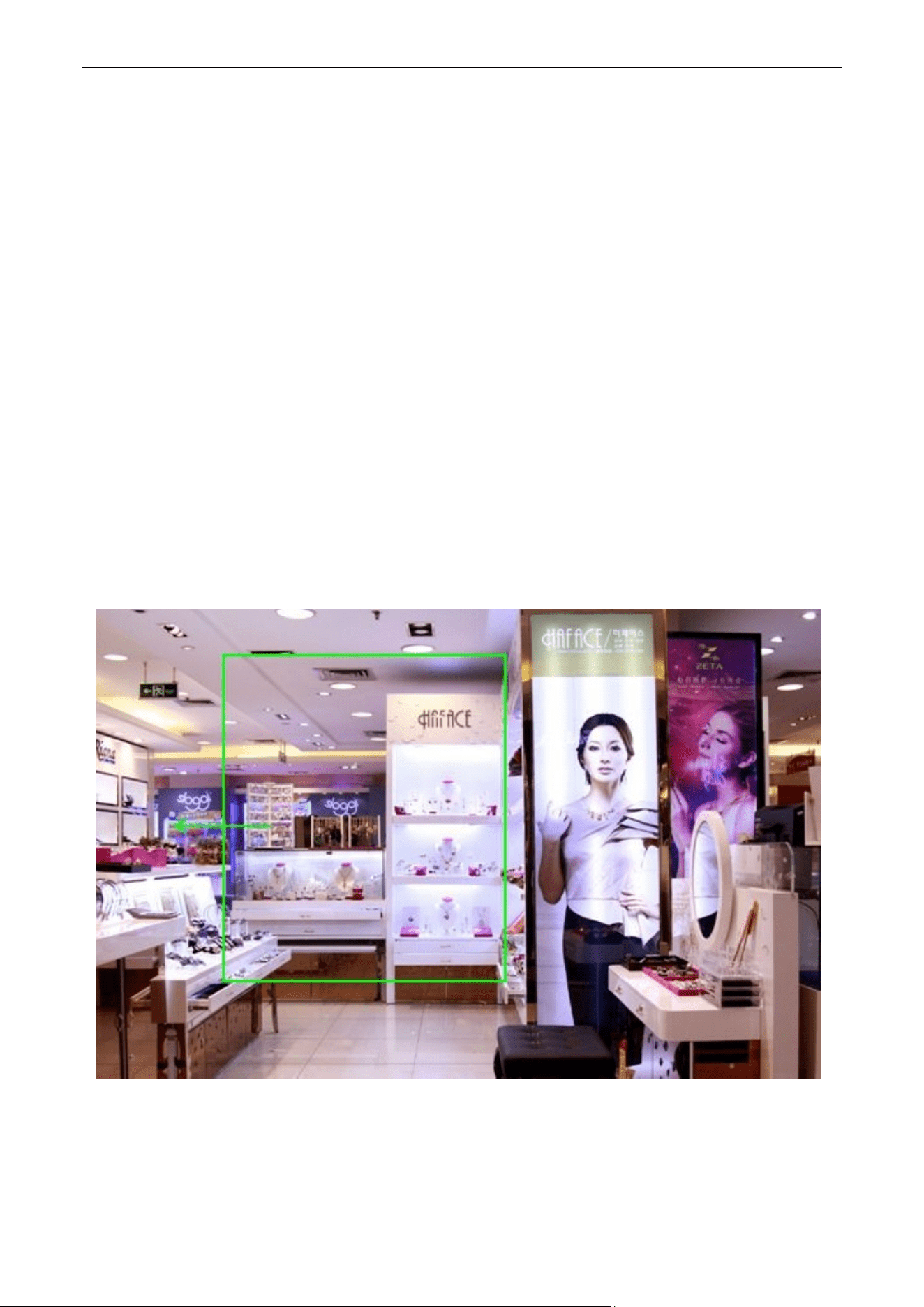
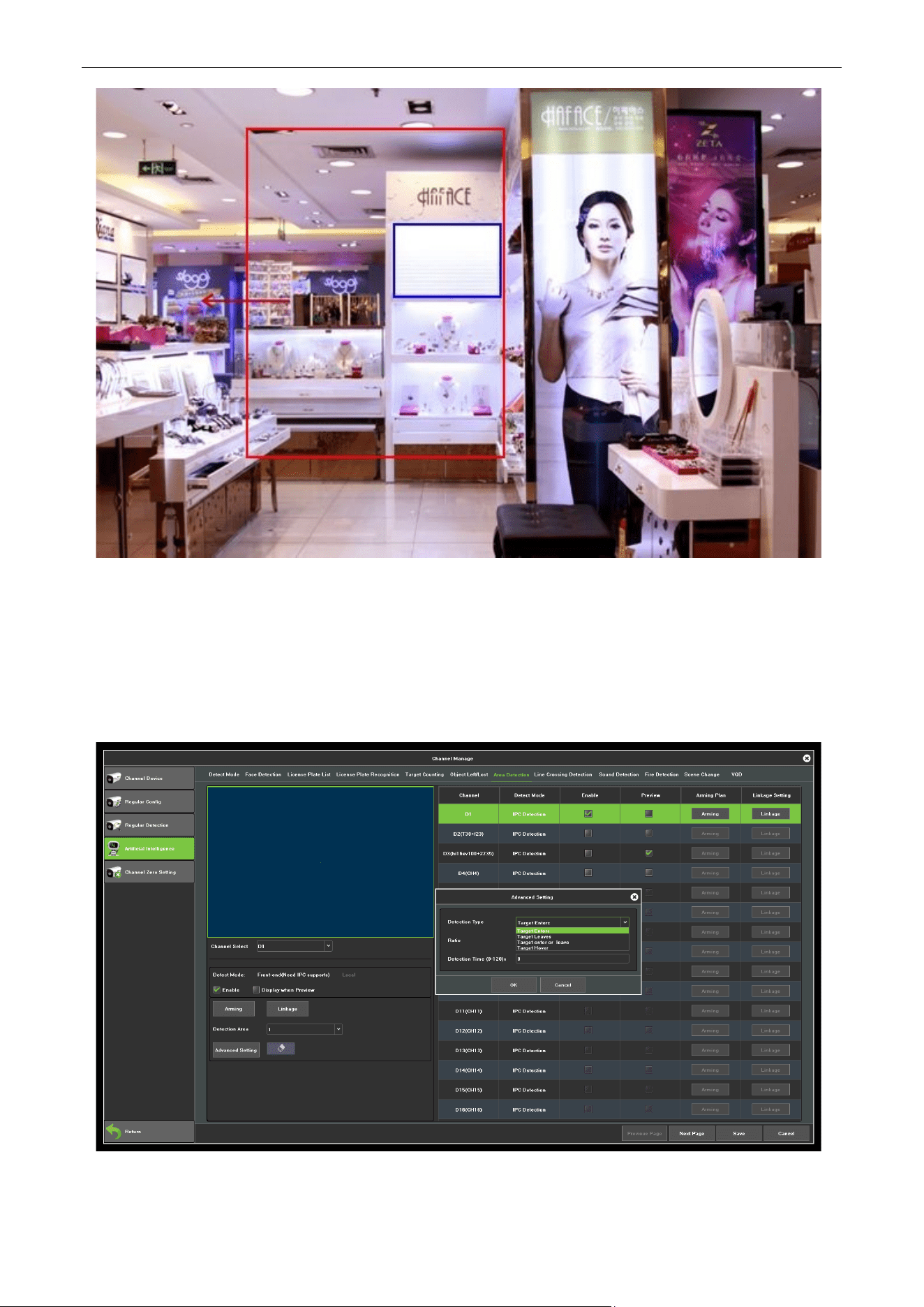
In accordance with the above settings, in the channel screen, the proportion of more than 150 items in
the detection area disappeared more than 30s, triggered object left/lost alarm, alarm before and after the
real-time preview screen, respectively, as shown in figure 7.27 and figure 7.28. (Which identifies the blue
rectangle that is missing the area where the goods)
Figure7.27 Pre-alarm
Network Video Recorder User Manual
Page | 52 Copyright©2023 ZKTECO CO., LTD. All rights reserved.
Figure 7.28 Alarming
7.4.3.5. Intrusion Detection
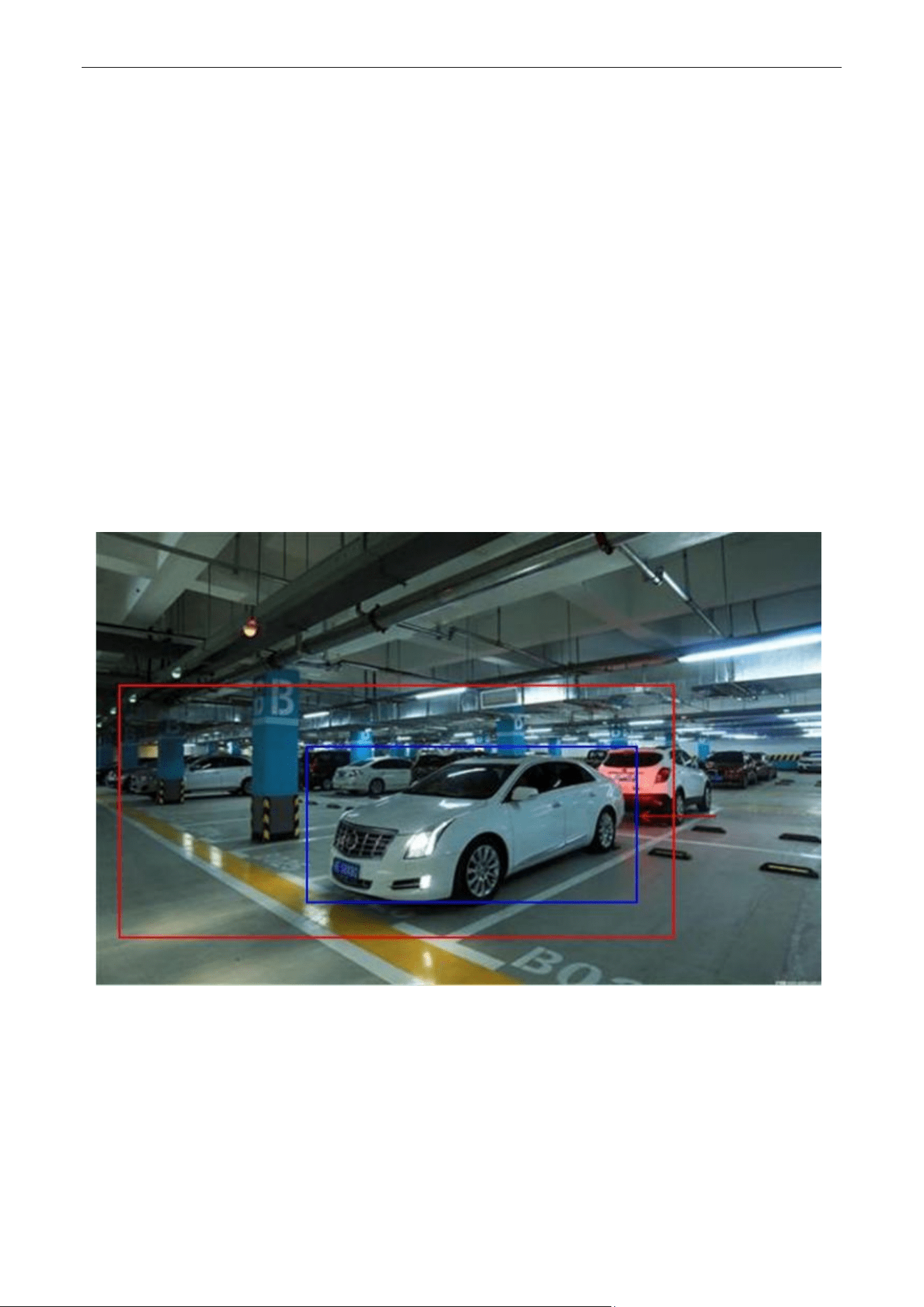
The purpose of this page is to configure the relevant parameters, so that more than the proportion of
moving objects, enter / leave / hovering in the set detection area, over time detection zone detection
alarm occurs. Interface shown in figure 7.29, the following page describes the main parameters of the
setting method.
Figure 7.29 Intrusion Detection
Network Video Recorder User Manual
Page | 53 Copyright©2023 ZKTECO CO., LTD. All rights reserved.
Channel: Select the channel.
Detect Mode: Divided into front-end and local, the two models to the actual capacity of the product
subject, select the front-end mode requires front-end access to IPC support, select the local mode
requires the device support.
Enable: Set whether to enable zone detection function.
Show In Preview: Set whether to display the set rules and test results in the preview interface;
Detect area: The screen with the mouse to draw the area.
Detection type: There are "target to enter", "target to leave", "target to enter or leave", "target
wandering" 4.
Area: Moving objects in the screen than the size of the set when the size can be used as a "target".
Detect Time: Detect the target activity more than this time to trigger the alarm.
According to the above setting, the moving object (automobile) occupying over 150 in the channel
picture has entered the detection area for more than 5s, triggering an area detection alarm, as shown in
figure 7.29, which is the preview real-time picture Color rectangular box that is identified into the area of
the target).
Figure 7.30 Intrusions Detection
Network Video Recorder User Manual
Page | 54 Copyright©2023 ZKTECO CO., LTD. All rights reserved.
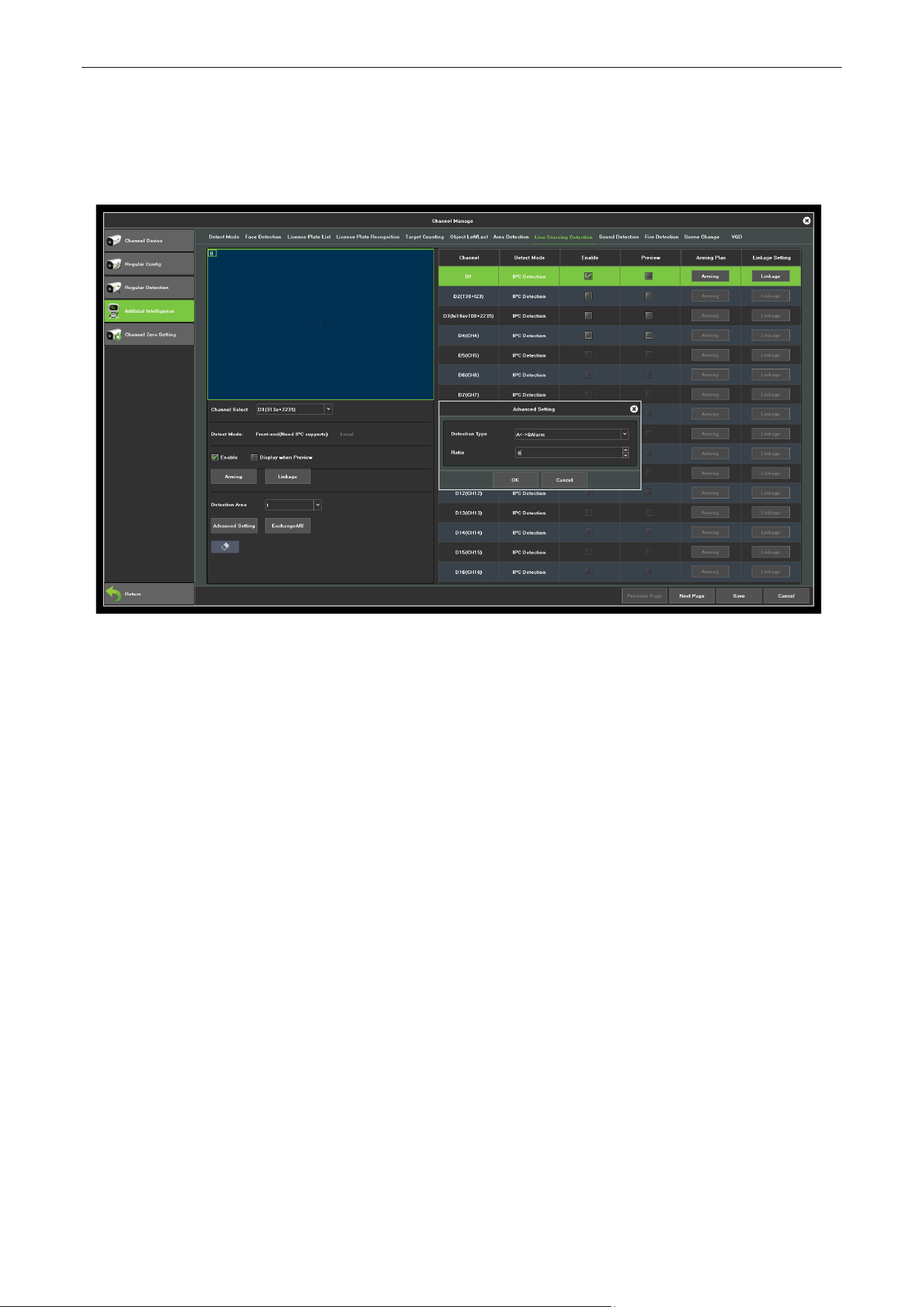
7.4.3.6. Tripwire Crossing
The purpose of this page is to configure the relevant parameters, so that more than the proportion of
moving objects, across the set of test lines, the virtual alarm immediately alarm line. The following
describes the main parameters of the page setting method.
Figure 7.31 Tripwire Crossing
Channel: Select the channel.
Detect Mode: Divided into front-end and local, two models to the actual capacity of the product subject,
select the front-end mode requires front-end access to IPC support, select the local mode requires the
device support.
Enable: Set whether to enable zone detection function.
Show In Preview: Set whether to display the set rules and test results in the preview interface.
Detection Line: On the screen with the mouse to draw the test line, a key exchange A/B.
Detection Type: There are two types: "A-> B Alarm" and "A <-> B Alarm".
Area: Filter out less than the proportion of the set of moving objects.
According to the above settings, in this picture of a channel, accounted for more than 30 of the moving
object, across the detection line from A region to B area, triggered area detection alarm, as shown in
figure 7.32 is the alarm occurs real-time preview images (where the detection line or the red and green
are blinking alternately, and the alarm is triggered, And the blue rectangle moves with the target crossing
the cordon).
Network Video Recorder User Manual
Page | 55 Copyright©2023 ZKTECO CO., LTD. All rights reserved.
Figure 7.32 Line Crossing
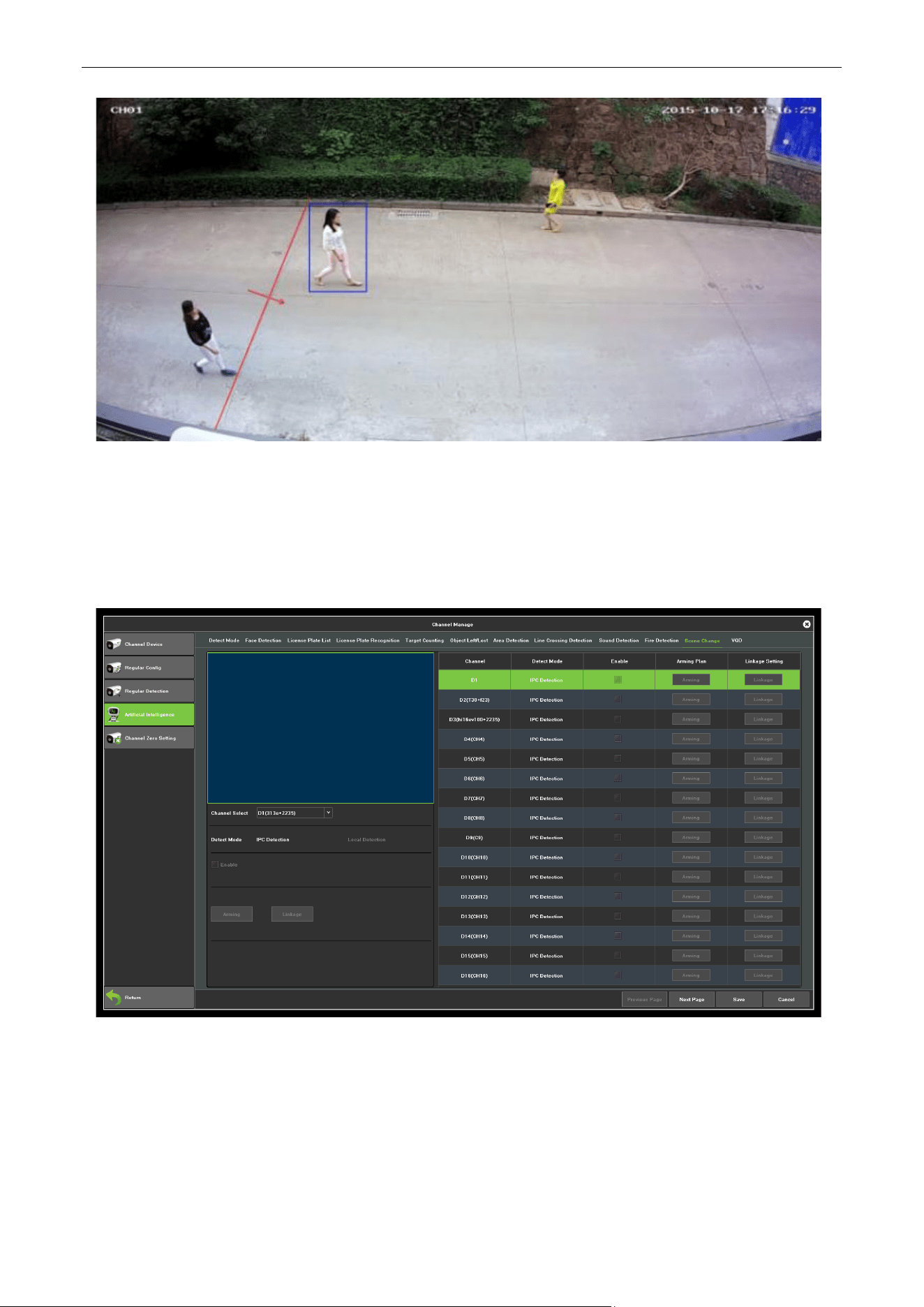
7.4.3.7. Scene Change
Figure 7.33 shows the situation where the front-end IPC detects a change in the screen caused by human
or environmental factors, such as the camera being deflected, the camera being blocked, and the
camera's angle or position being changed.
Figure 7.33 Scene Change
Channel: Select the channel.
Detect Mode: Only local detection mode is supported, and local device support is required.
Enable: Set whether to turn on scene change function.
Network Video Recorder User Manual
Page | 56 Copyright©2023 ZKTECO CO., LTD. All rights reserved.
7.4.3.8. VQD
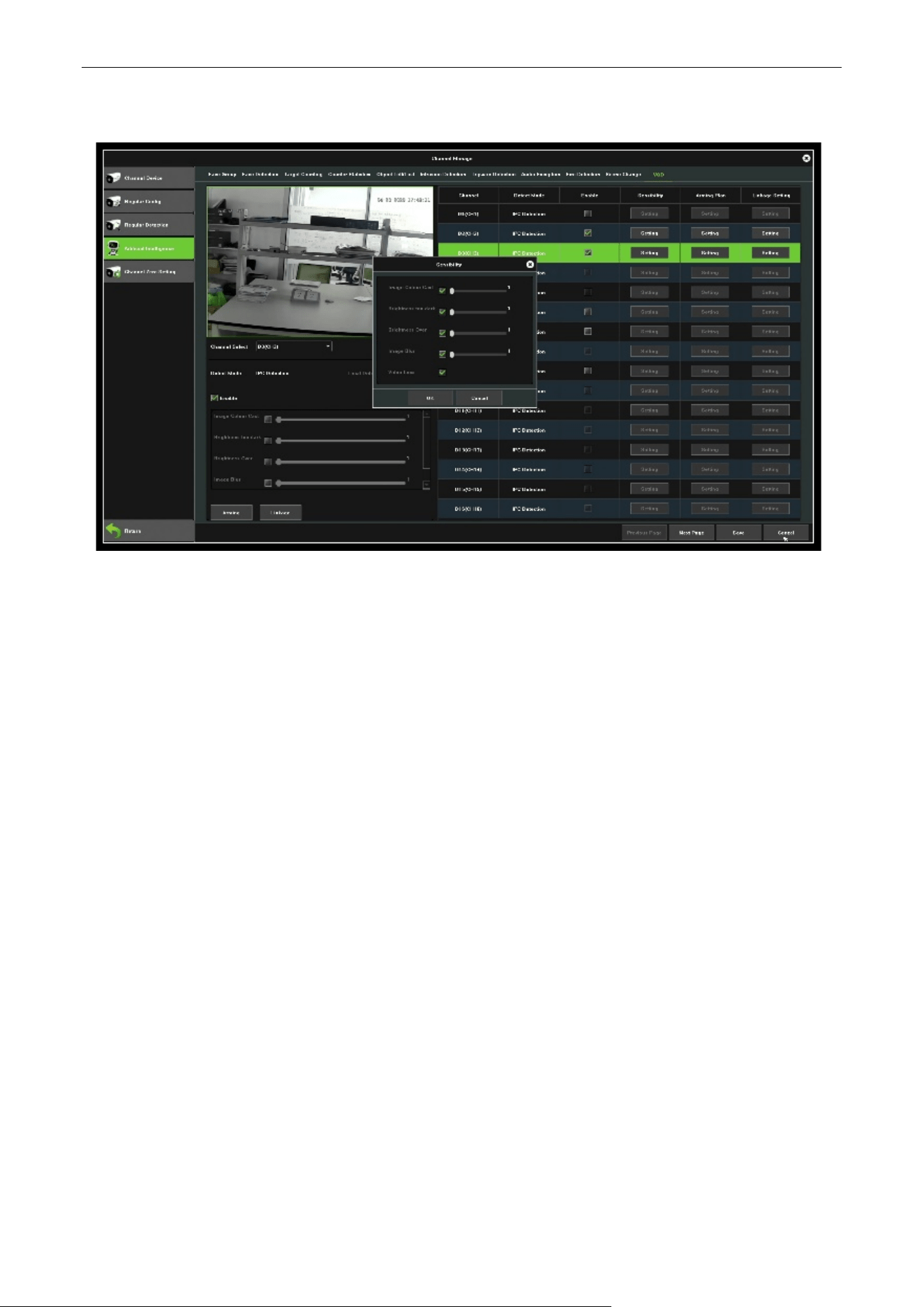
(
Video Quality Detection
)
Figure 7.34 VQD Interface
Sensibility: Set the conditions for triggering the alarm.
Arming Plan: Set the time for triggering the alarm.
7.5. Channel Zero Setting
7.5.1. Parameter Config
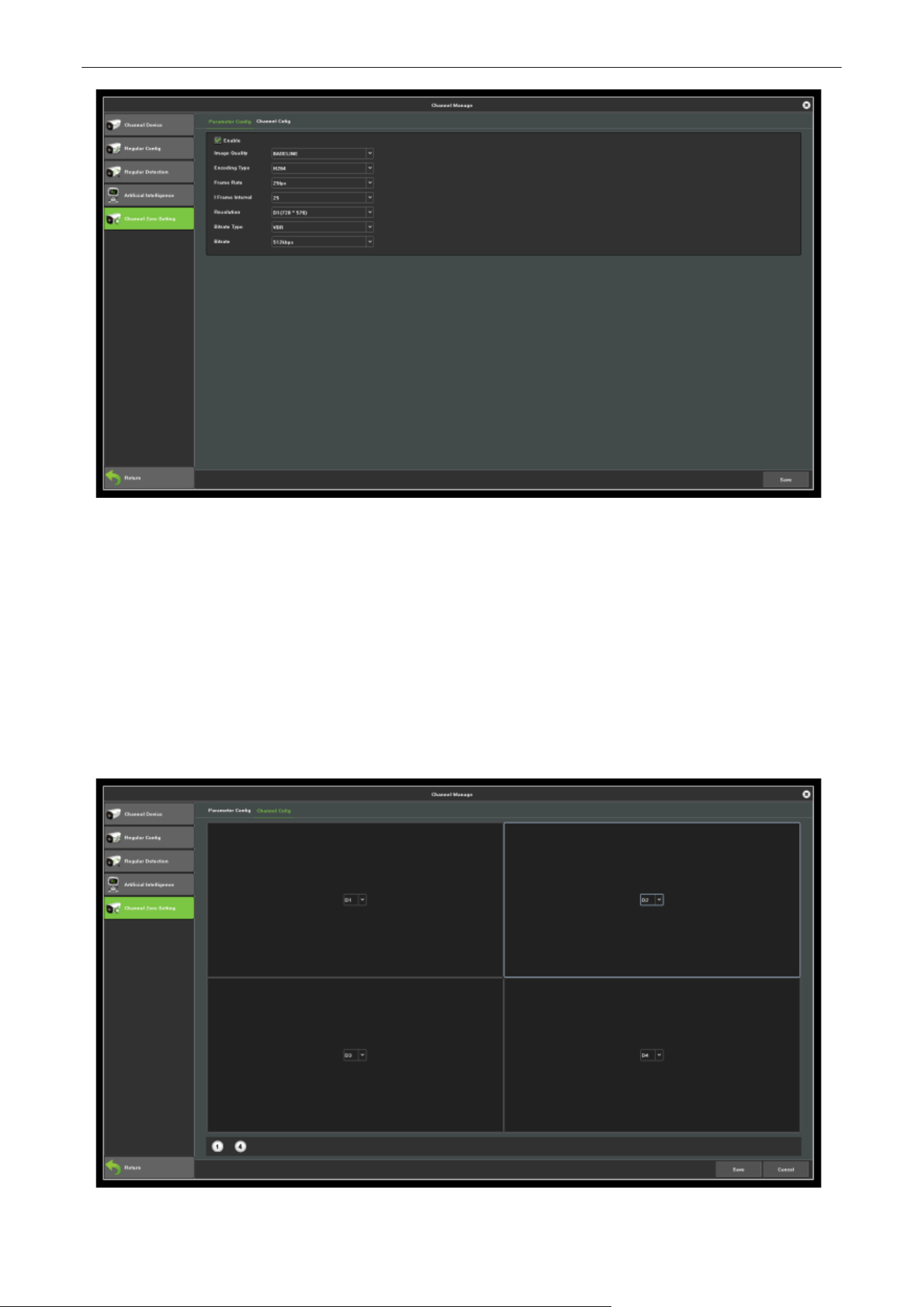
Parameter config interface is shown in figure 7.35, then set the related channel information after enable
the parameter configuration.
Network Video Recorder User Manual
Page | 57 Copyright©2023 ZKTECO CO., LTD. All rights reserved.
Figure 7.35 Parameter Configuration
Resolution: Set the video resolution.
BitRate Type: Choose the bit rate type, the default is CBR.
BitRate: Set the bit rate upper limit.
Video Frame Rate: Set the frame rate according to the requirements.
7.5.2. Channel Config
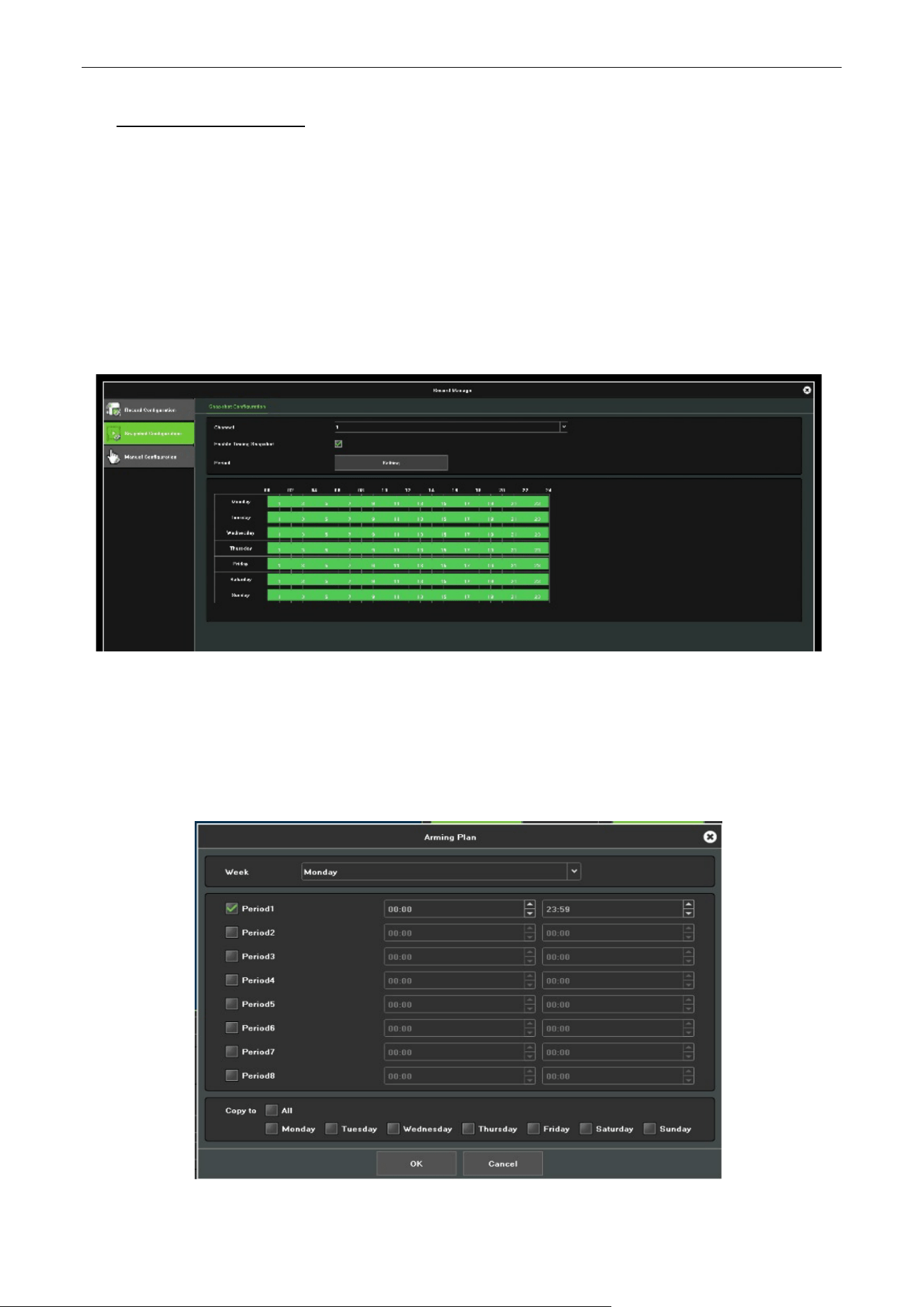
The Channel config Interface, is shown in figure 7.36.
Figure 7.36 Channel Configuration
Network Video Recorder User Manual
Page | 58 Copyright©2023 ZKTECO CO., LTD. All rights reserved.
8. Record Manage
8.1. Record Configuration
Before you start:
Make sure that the HDD has already been installed. If not, please install an HDD.
Steps:
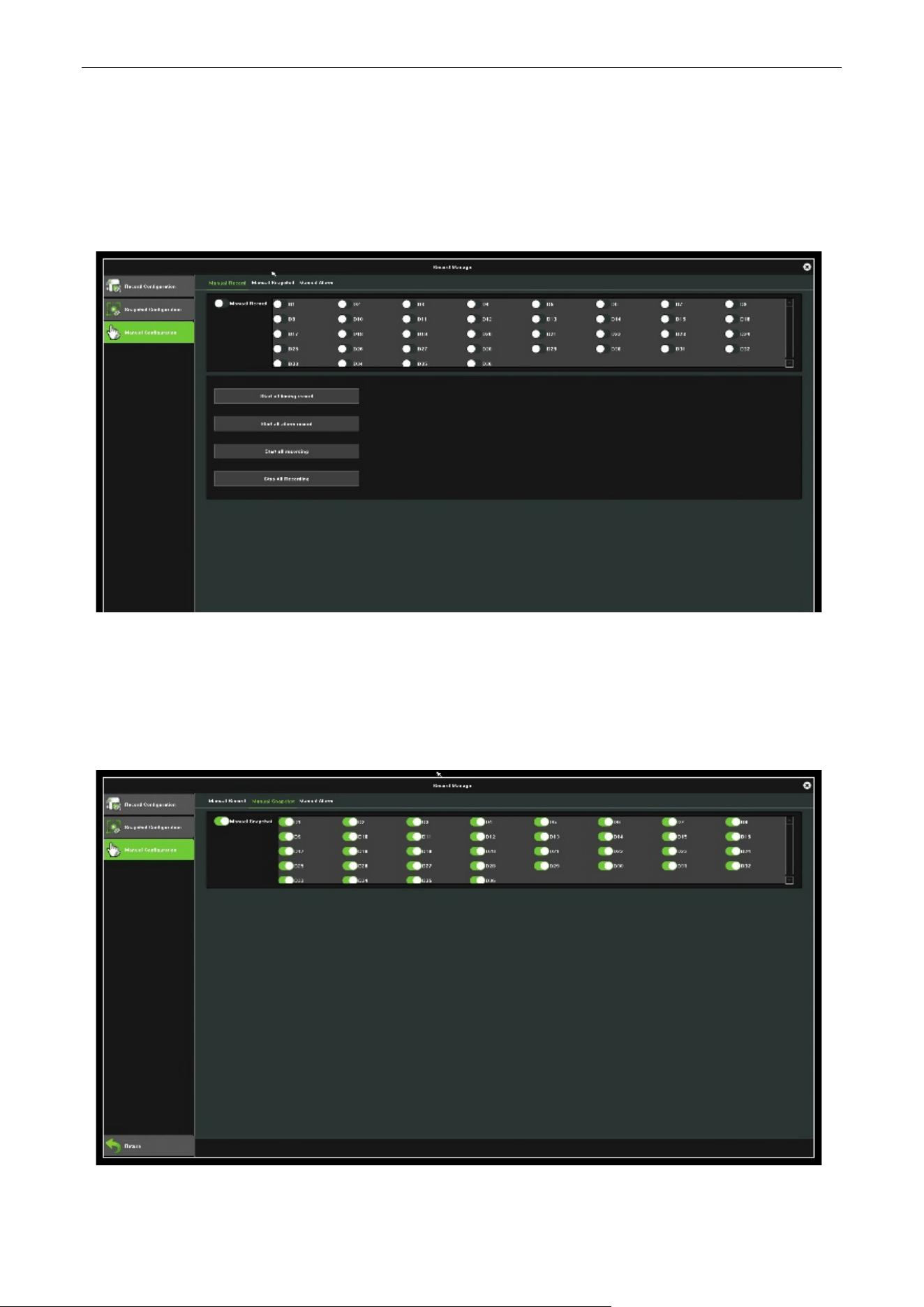
1. Enter the Record Configuration interface to configure the recording parameters, as shown in figure
8.1.
Figure 8.1 Record Setting Interface
2. Select the Channel you want to configure.
3. Select the Record Mode.
4. Click Setting button to set the record time, as shown in figure 8.2.
Figure 8.2 Arming Plan
Network Video Recorder User Manual
Page | 59 Copyright©2023 ZKTECO CO., LTD. All rights reserved.
5. Pre-Record: The time you set to record before the scheduled time or event.
6. Record Delay: The time you set to record after the scheduled time or event.
Note: Use the Copy to button to do the same setting to the channel needed.
8.2. Manual Operation
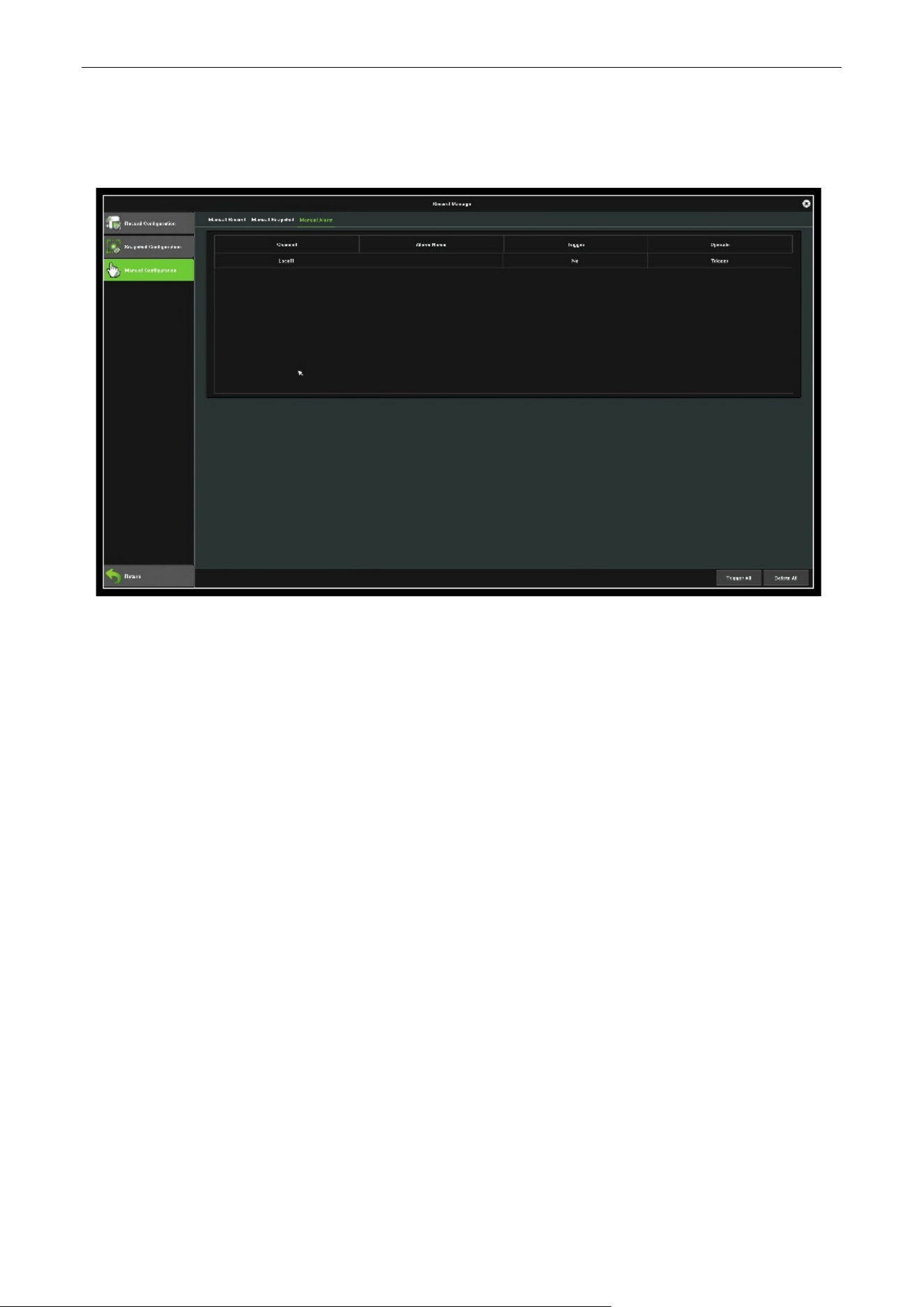
Figure 8.3 Manual Record
8.2.1. Snapshot
The snapshot interface, as shown in figure 8.4.
Figure 8.4 Snapshot
Network Video Recorder User Manual
Page | 60 Copyright©2023 ZKTECO CO., LTD. All rights reserved.
8.2.2. Manual Alarm
The snapshot interface, as shown in figure 8.5.
Figure 8.5 Manual Alarm
Network Video Recorder User Manual
Page | 61 Copyright©2023 ZKTECO CO., LTD. All rights reserved.
9. Storage Manage
Click
icon, entering into the disk backup interface, there are three modules in this interface, the
following instructions, respectively.
9.1. Storage Management
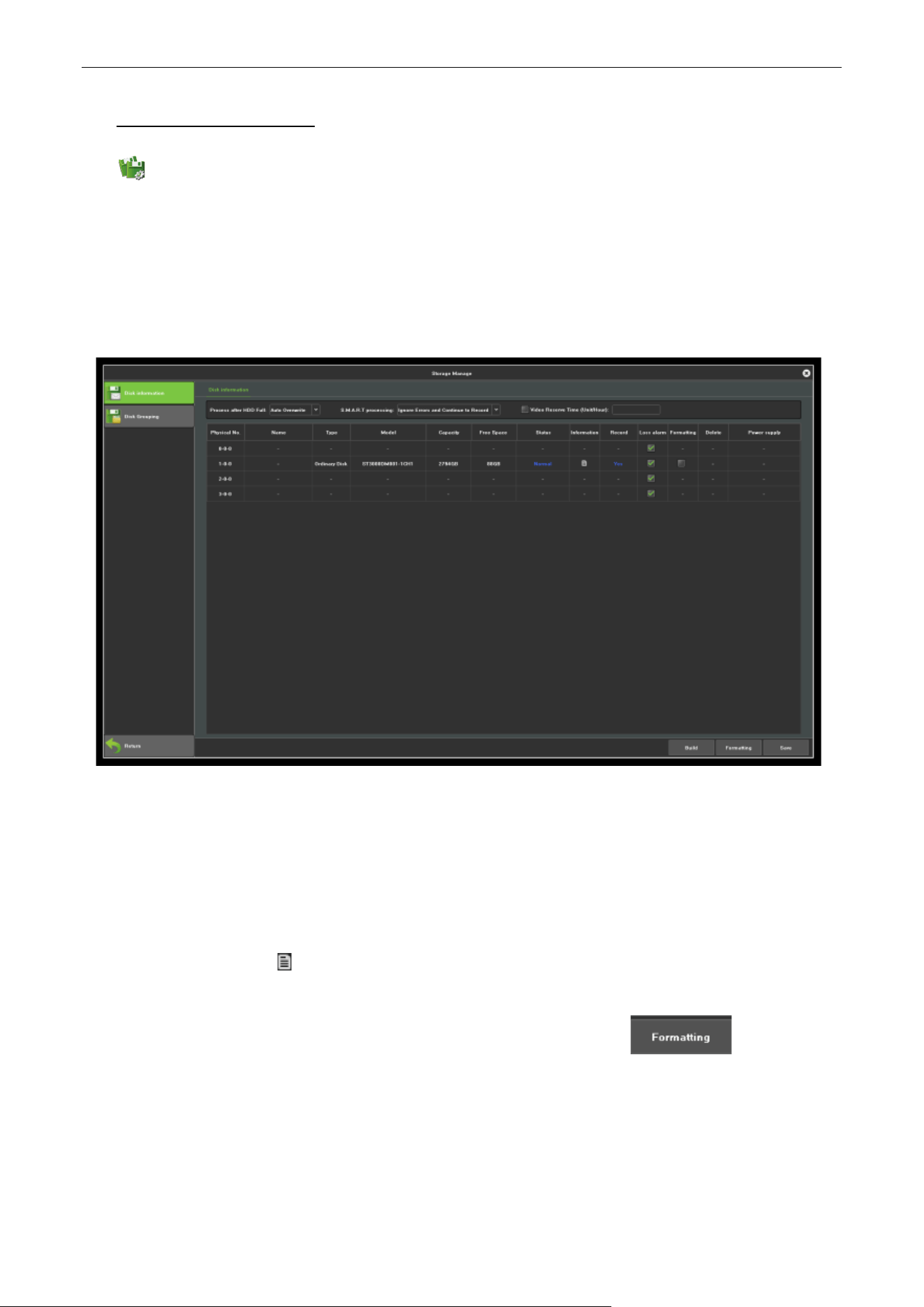
The information on the page explains in detail the situation of the current NVR receives the hard disk, as
shown in figure 9.1, the device connects 1 hard disk, and is in normal state video recording.
Figure 9.1 Storage Management
Process after HDD full: There are "Auto Overwrite" and "Stop Recording" two ways, the default is "Auto
overwrite".
SMART processing: There are "Ignore error, continue recording" and "Error happen, stop recording" two
ways.
SMART information: Click icon will pop-up the SMART information list of current hard disk.
Loss alarm: Detect that the SATA port will give an alarm if there is no hard disk connected.
Format: Check the hard disk which needs to be formatted, then click the button.(Note:
when the status is “Need to be formatted”, only when the corresponding hard disk only when finish
formatting corresponding hard disk, can the hard disk continue video, note: please don't do other
operation in the process of formatting)
Network Video Recorder User Manual
Page | 62 Copyright©2023 ZKTECO CO., LTD. All rights reserved.
9.2. Disk Group
9.2.1. Automatic Grouping
The system default is video in accordance with the "Automatic grouping", that is to say, all channel video
defaulted to write video data in a hard disk, switch to next hard disk after finish video, if the NVR connect
only one hard disk, namely, in accordance with the type of storage management page in the "video post-
processing" selected, cover the history video or stop video.
Note that, when the channel of device video is more than 32CH and connect multiple hard disk, to ensure
the efficiency and performance of hard disk, default to video in 2 hard disks, video in one hard disk first
32CH of the video channel, the remaining channel video in another hard disk video.
9.3. Manual Grouping
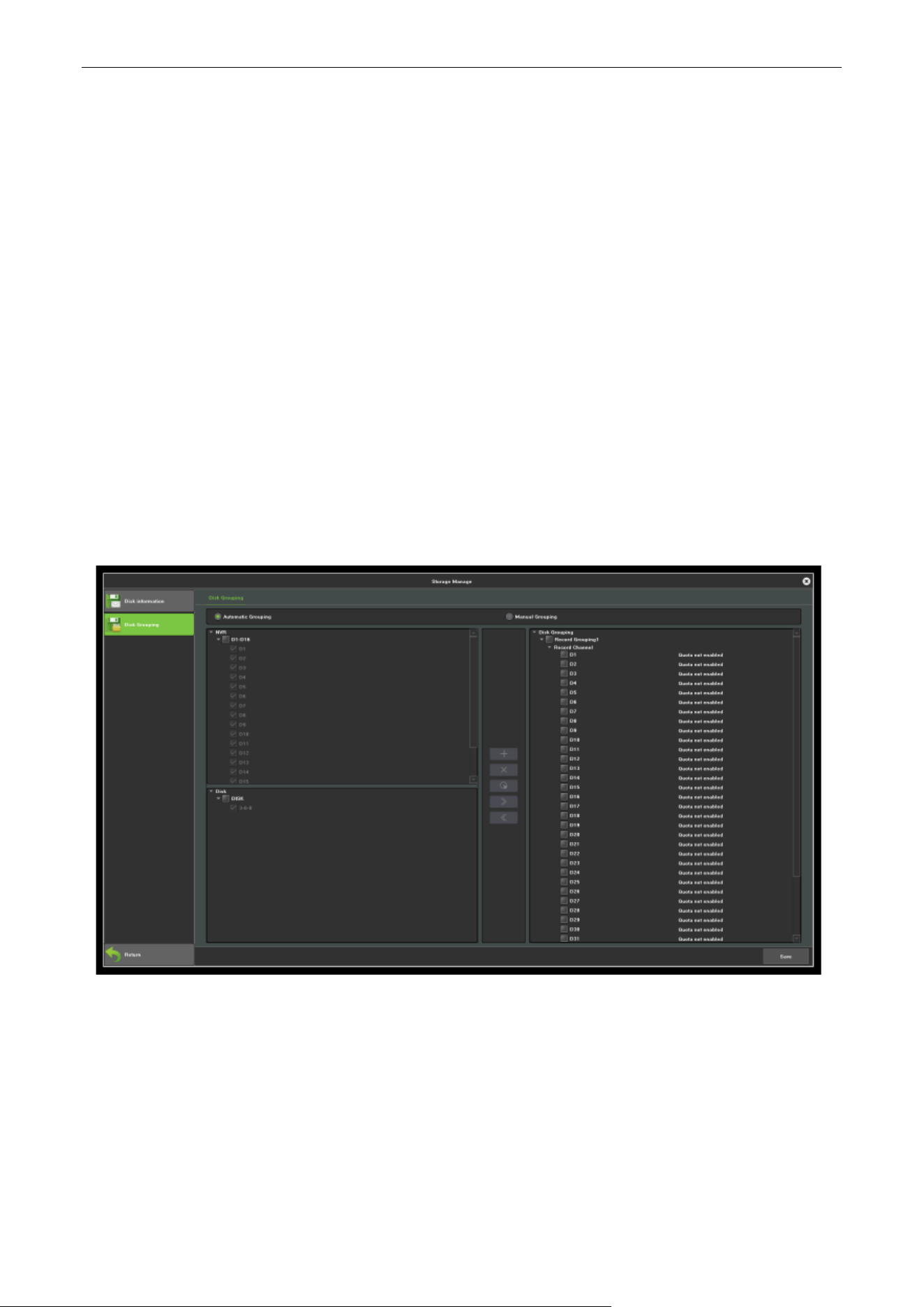
Manual grouping function is to group the channel,the channel of different group can video in different
hard disk, and each channel can be set quotas, as shown in figure 9.2.
Figure 9.2 Manual Grouping
Above the middle column function button respectively are“ Create a group”, “delete the group”, “quota
setting”, “Right move to add channels to group”, “Left move to delete channels to group”, note that, the
channel preview without being added into the group won’t video, the hard disk without being grouped is
free hard disk, there would be no writing data.
Note: when manually group, it may clear the history video in the hard disk, please be careful when
operating, to avoid irreparable harm.
Network Video Recorder User Manual
Page | 63 Copyright©2023 ZKTECO CO., LTD. All rights reserved.
10. System Manage
Click
icon, can enter the system manage interface, this part includes six parts altogether, note the
following instructions.
10.1. System Information
Can view the device information, stream info and online users.
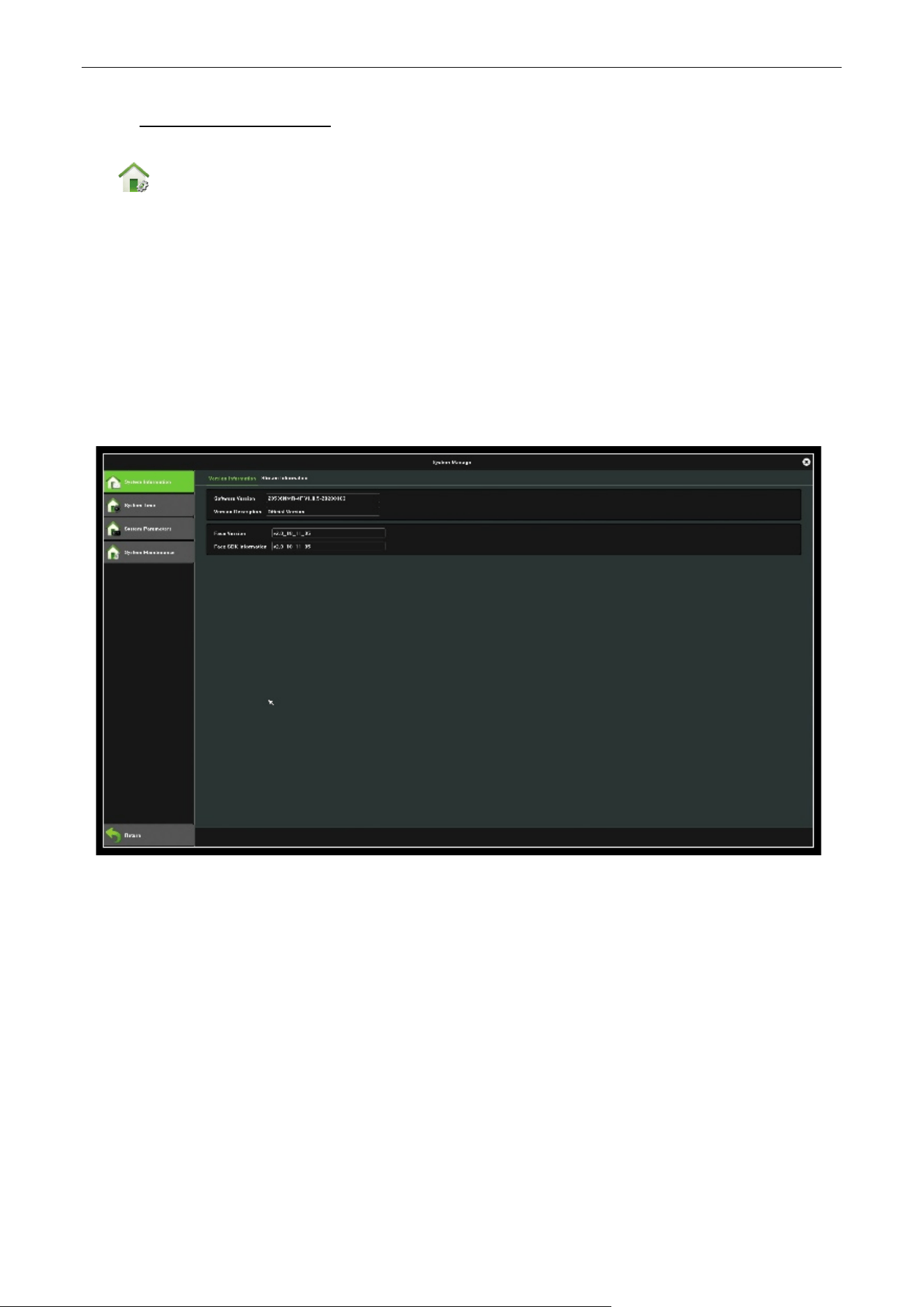
10.1.1. Device Information
Device information interface, as shown in figure 10.1, can view the versions of hardware and software.
Figure 10.1 Device Information
Network Video Recorder User Manual
Page | 64 Copyright©2023 ZKTECO CO., LTD. All rights reserved.
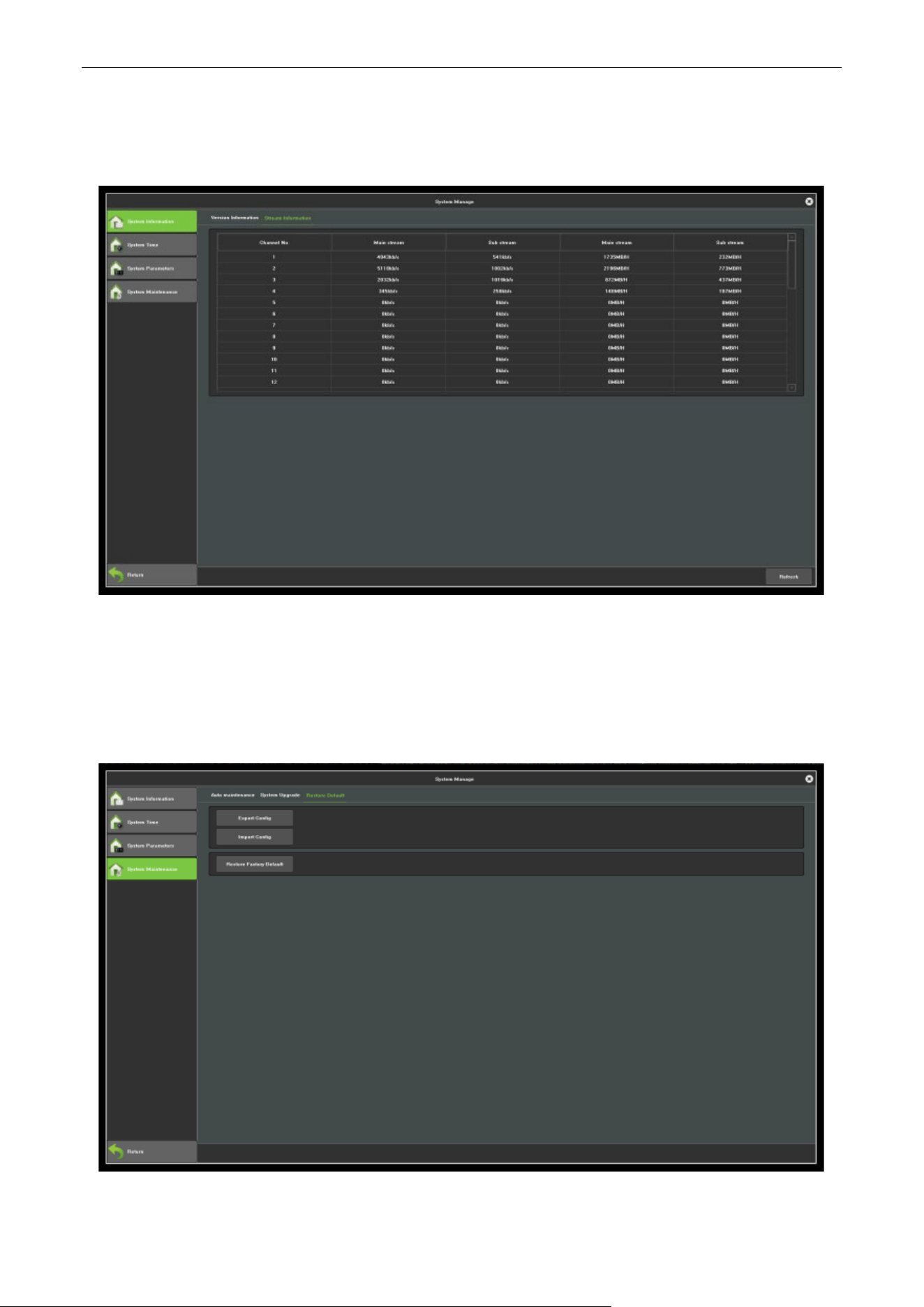
10.1.2. Stream Information
View the stream status of the current device, as shown in figure 10.2.
Figure 10.2 Stream Information
10.2. Restore Management
As shown in figure 10.3, can export the configuration, import configuration and restore the default
operation.
Figure 10.3 Restore Management
Network Video Recorder User Manual
Page | 65 Copyright©2023 ZKTECO CO., LTD. All rights reserved.
10.3. System Upgrade
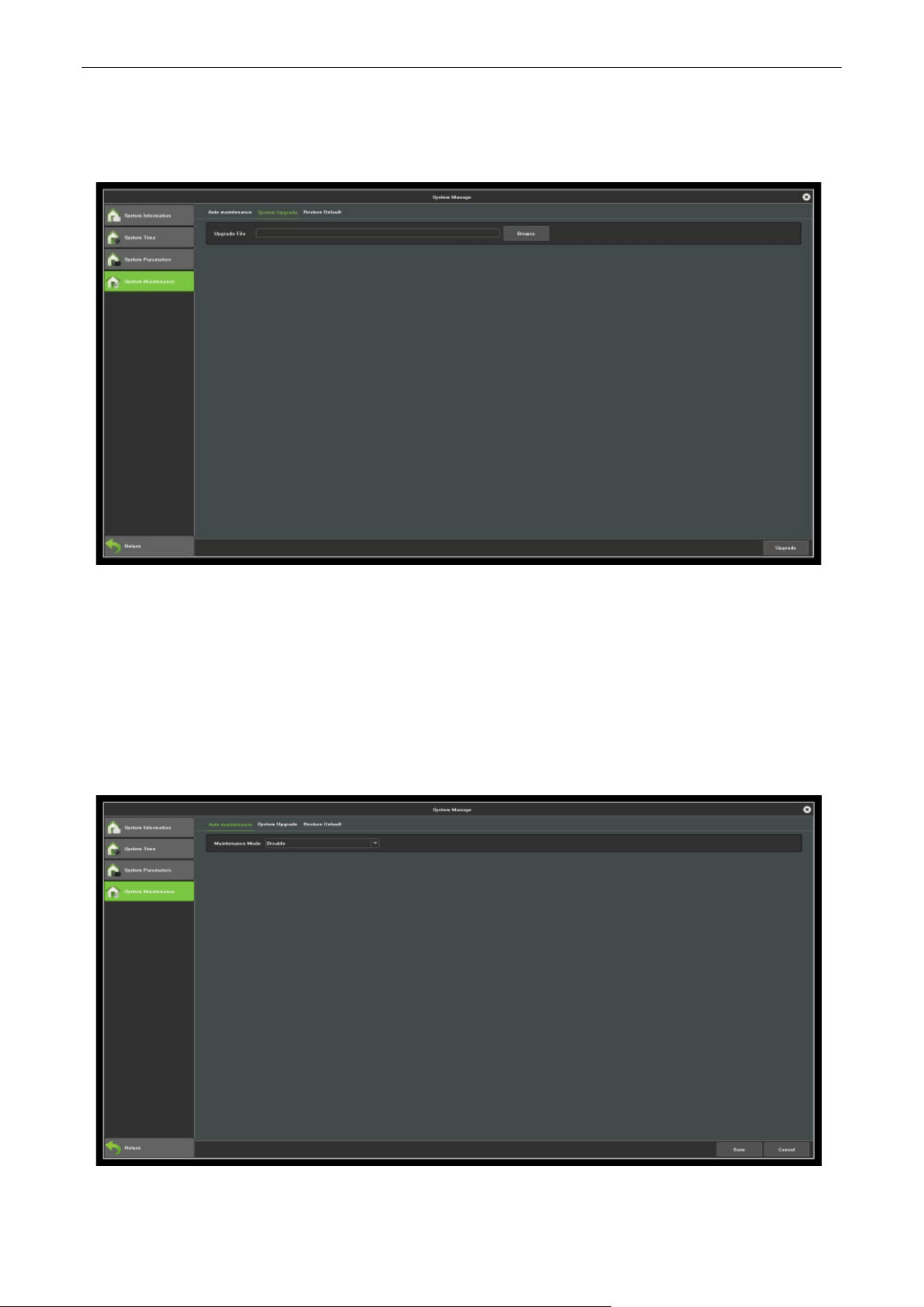
As shown in figure 10.4.
Figure 10.4 System Upgrade
NVR Upgrade: Click Browse, select to upgrade the file, and then, the system will automatically restart
after upgrading.
10.4. Auto Maintenance
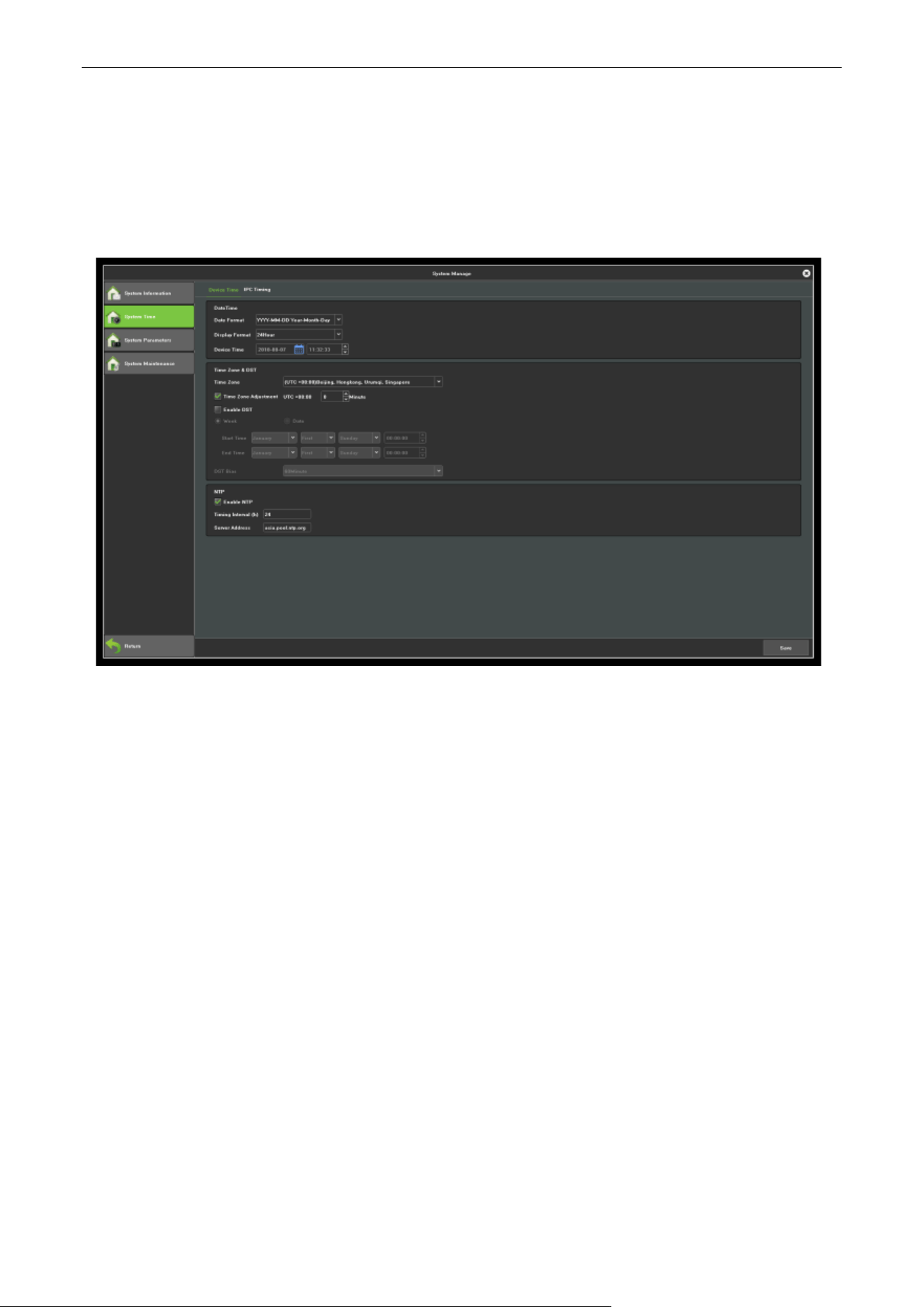
Can set the maintenance mode, as shown in figure 10.5. You can select the maintenance mode in this
interface. (The default mode is disable)
Figure 10.5 System Upgrade
Network Video Recorder User Manual
Page | 66 Copyright©2023 ZKTECO CO., LTD. All rights reserved.
10.5. Time Setting
10.5.1. Device Time
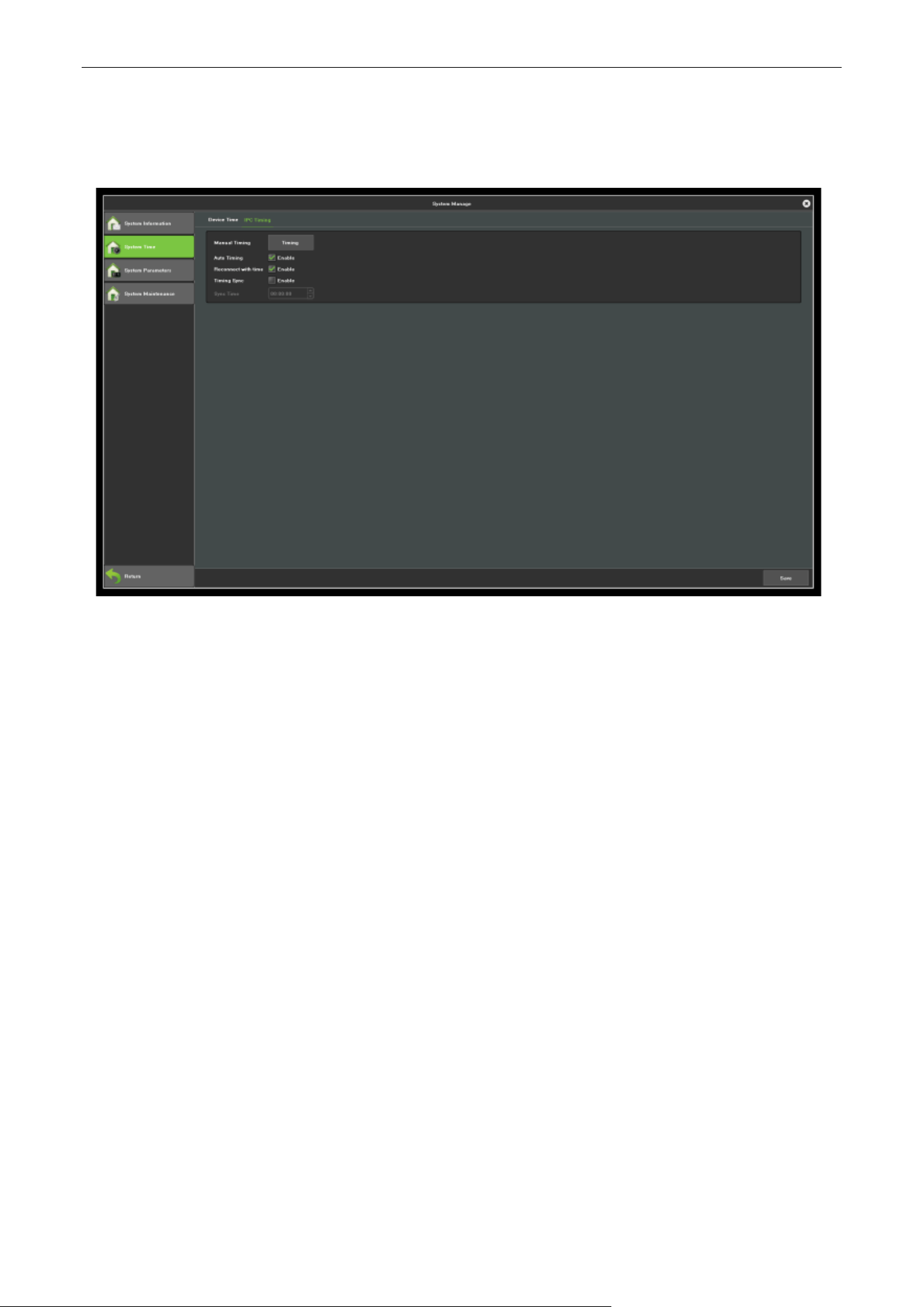
Time settings interface, as shown in figure 10.6, can set the device time, time zone selection.
Figure 10.6 Time Setting
Device time: Can manually modify the device time, set the time, click Modify, then save time.
Data Format: Set the data format.
Time zone: Switch time zones, the page will pop up a new date and time, there is daylight saving time
function part time zone, the time zone is with functions of fine-tuning.
Enable Summer Time: Click to Enable Summer Time, just need to finish setting the start and end time.
NTP: Enable/Disable NTP (the device needs to access network).
Network Video Recorder User Manual
Page | 67 Copyright©2023 ZKTECO CO., LTD. All rights reserved.
10.5.2. IPC Time
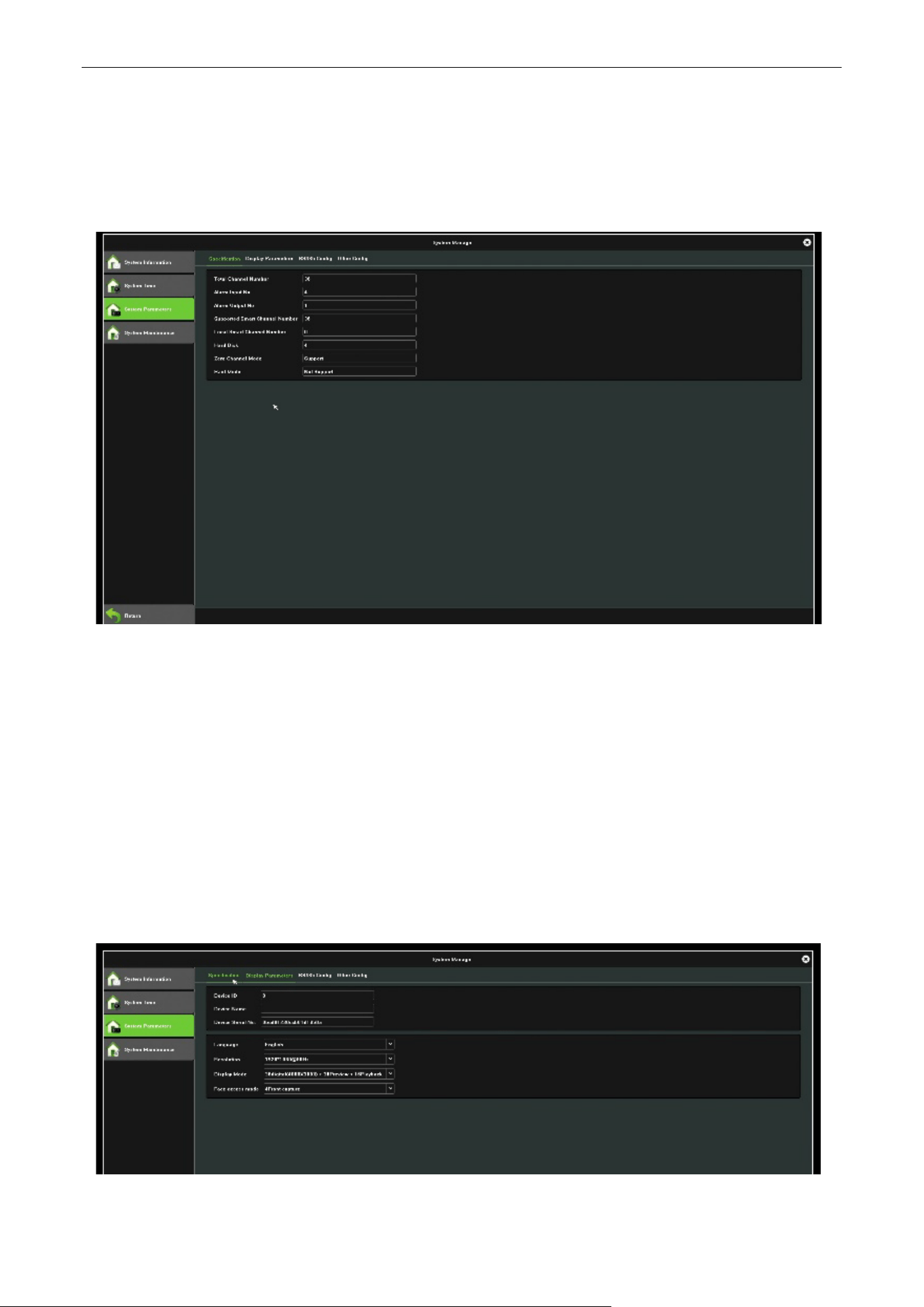
The IPC time set interface, as shown in figure 10.7.
Figure 10.7 IPC Time
Manual Timing: Click Manual Timing button, adjust the IPC time as same as device time.
Auto Timing: Enable the auto timing, the IPC will be timing when it is different to the device time.
Reconnect Timing: Enable the reconnect timing, the IPC will be timing after reconnect to device.
Timing Sync: Enable the Timing sync, the IPC will be timing on the time you setting.
Timing on Time: Set the time customers.
Network Video Recorder User Manual
Page | 68 Copyright©2023 ZKTECO CO., LTD. All rights reserved.
10.6. Device Parameter
10.6.1. Specification
Figure 10.8 Specification
Total Channels: Show the max preview channel number, different model support different max channels.
HDD Number: Show the number of hard disk access.
Alarm Input NO.: Namely the alarm input channel.
Alarm Output NO.: Namely alarm output channels.
10.6.2. Display Parameters
The Device Parameter interface, as shown in figure 10.9.
Figure 10.9 Display Parameters
Network Video Recorder User Manual
Page | 69 Copyright©2023 ZKTECO CO., LTD. All rights reserved.
Device ID: Namely device number, default to 0.
Device name: Can edit the device name, default to blank.
Product Serial No: Show the product serial number.
Language: Can modify the system language of NVR, need to restart to take effect.
Resolution: Can modify the local monitor resolution of NVR (need monitor support), it come into effect
immediately after modified.
Preview ability: Preview max same screen display channels the device supported and the max intelligent
detection channel numbers (different models of NVR, different ability), need to restart to take effect.
Info Display: There are 4 kinds of display mode, the preview interface device list refresh in time after
modify successfully.
Instant Playback: There are 5 kinds of time choice, it come into effect immediately after modified.
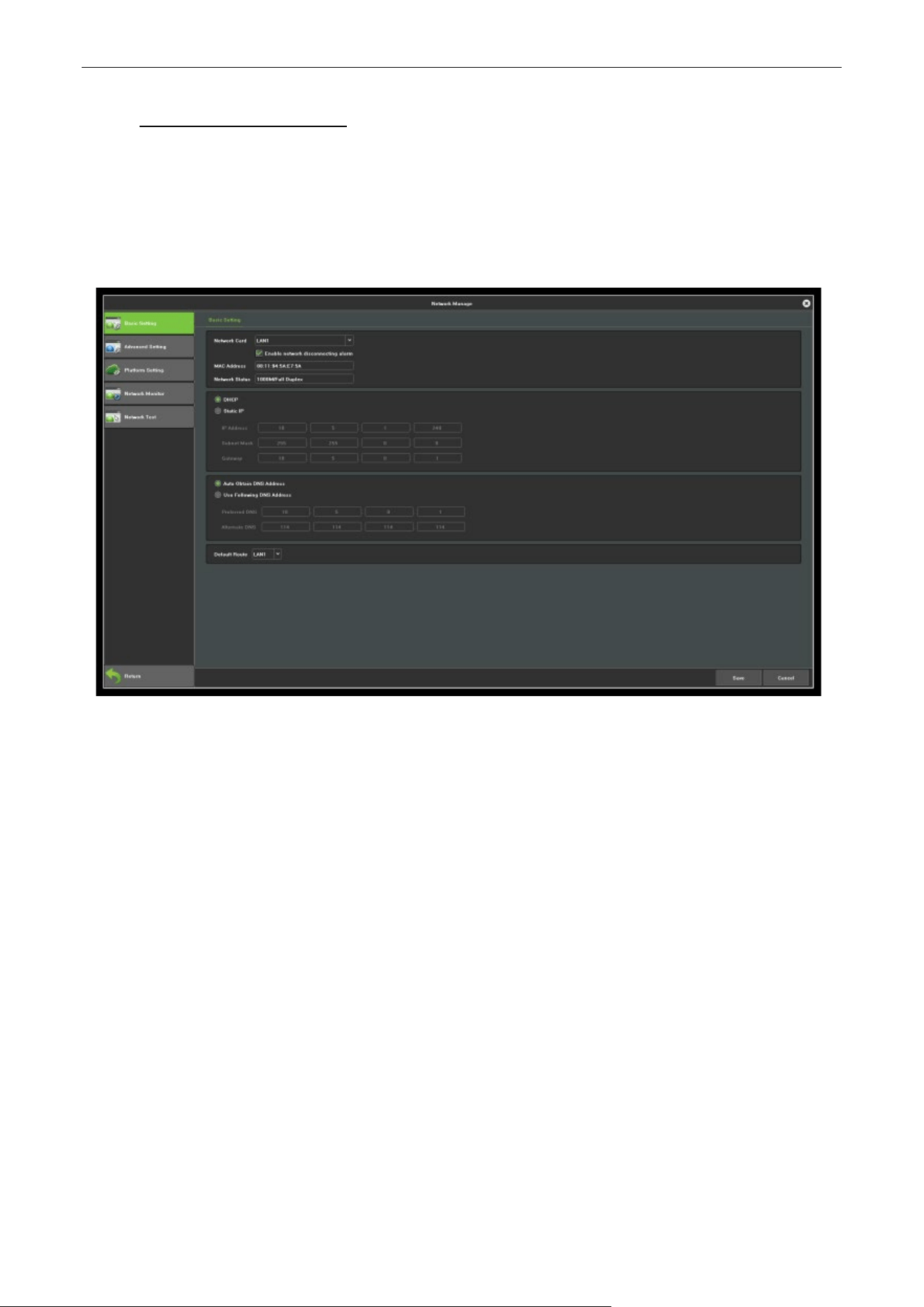
IPC Protocol: Selective to enable the protocol, click Setting button, as shown in figure 10.9.
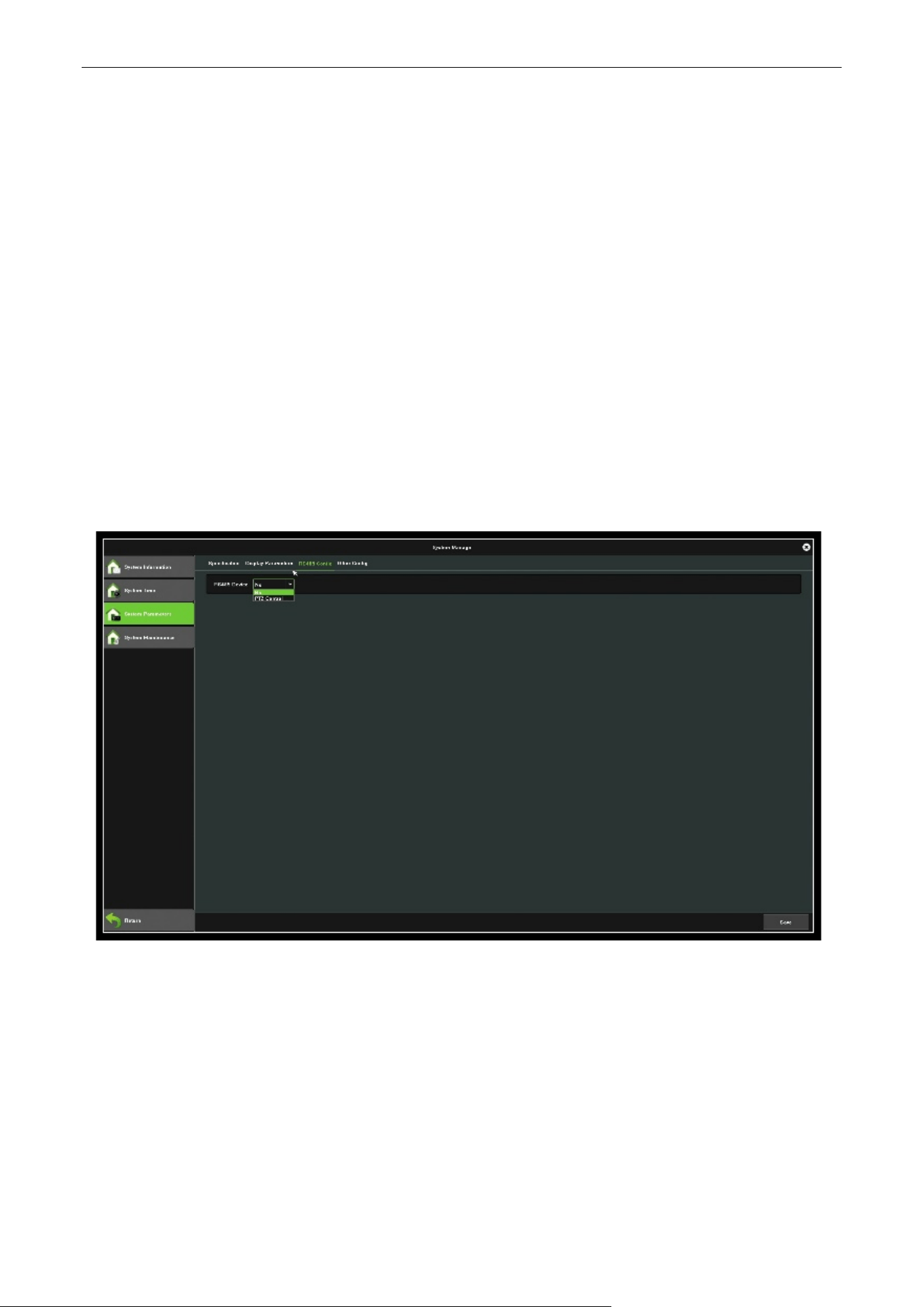
10.6.3. RS485 Config
Figure 10.10 RS485 Config
RS485 Device: Set the RS485 control mode, default to None.
Network Video Recorder User Manual
Page | 70 Copyright©2023 ZKTECO CO., LTD. All rights reserved.
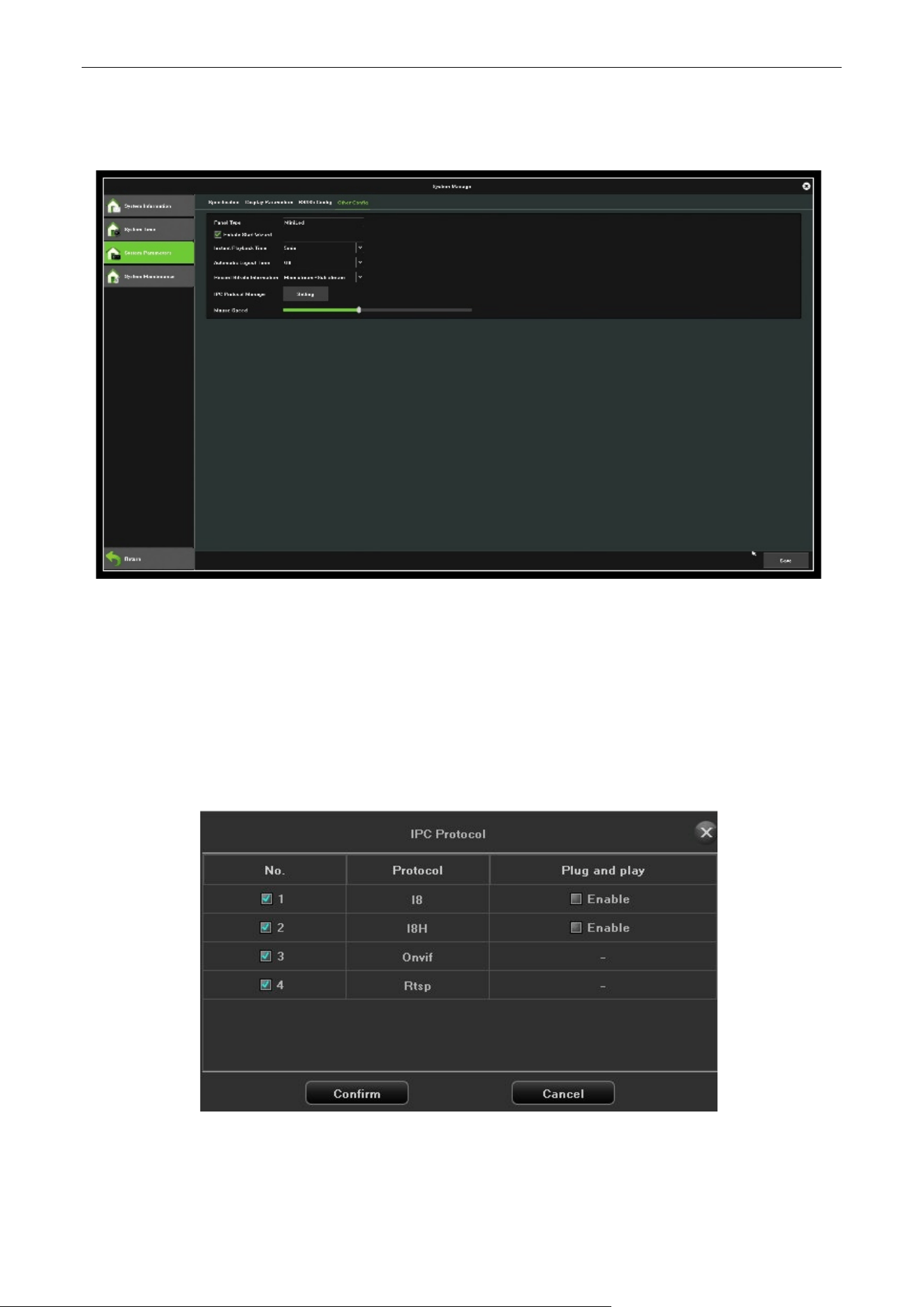
10.6.4. Other Config
Figure 10.11 Other Config
Enable Start Wizard: Select whether to turn on the wizard function at power on.
Instant Playback Time: Select instant playback duration.
Automatic Logout Time: Automatically logout after setting the specified time without operation.
Record Bitrate Information: Select the bitrate information.
Mouse Speed: Adjust the speed of the mouse, it come into effect immediately.
Figure 10.12 IPC Protocol Management
Network Video Recorder User Manual
Page | 71 Copyright©2023 ZKTECO CO., LTD. All rights reserved.
11. Network Manage
The module has 5 pages, the following description respectively.
11.1. Basic Setting
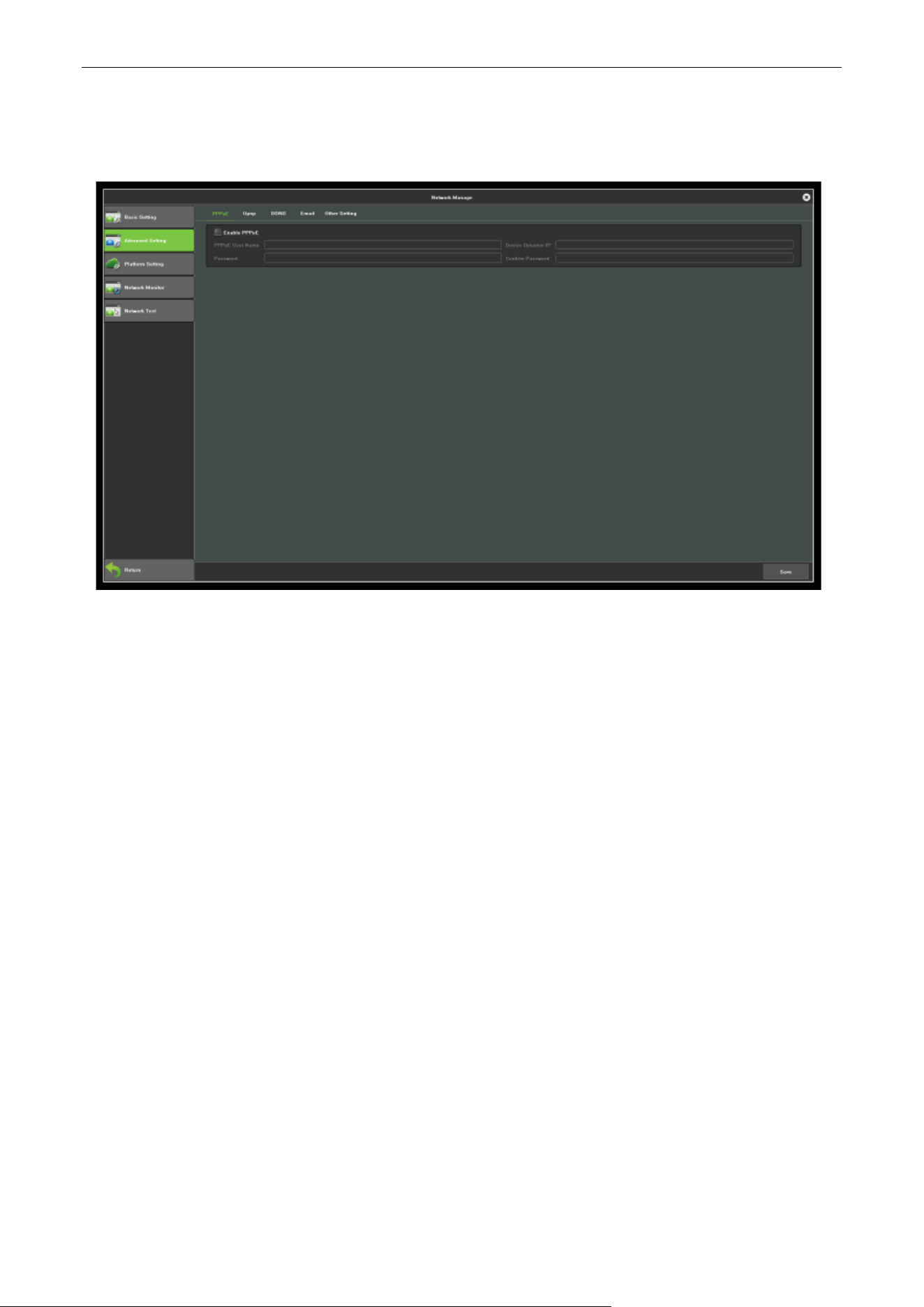
The network Setting interface is shown in figure 11.1, then can set the IP parameters.
Figure11.1 Basic Setting
Network card: According to the need can choose a different card type.
MAC Address: Show the physical address of the current network interface, unchangeable.
DHCP: When open it, IP/mask/the gateway cannot be set, if the current DHCP is effective, then it will
obtain new IP/mask/gateway the router assigned (remote login need to use the new IP address), if it
doesn't take effect, IP/mask/gateway will still show the previous address (can use the old IP address to
remotely login equipment).
IP: Set the IP address, the default IP of the network card 1 is 192.168.1.188, the default IP of the network
card 2 is 192.168.2.188.
Mask: Set the mask.
Gateway: Set the gateway address.
Network Video Recorder User Manual
Page | 72 Copyright©2023 ZKTECO CO., LTD. All rights reserved.
11.2. Advanced Setting
The Advanced Setting interface, as shown in figure 11.2.
Figure 11.2 Advanced Setting
11.2.1. Enable PPPoE
Need to fill in the correct PPPoE user name and password, if the network connect, can obtain the dynamic
address of the device.
11.2.2. Enable UPnP
Defaulted RTSP, RTMP, HTTP, HTTPS and ONVIF port numbers are respectively 554, 1935, 80, 8081 and
8082, port numbers can be modified (modifying the internal port need to restart the device to take effect ),
UPnP status is defaulted to ineffective state, it will obtain the external IP address after take effect.
11.2.3. DDNS Setting
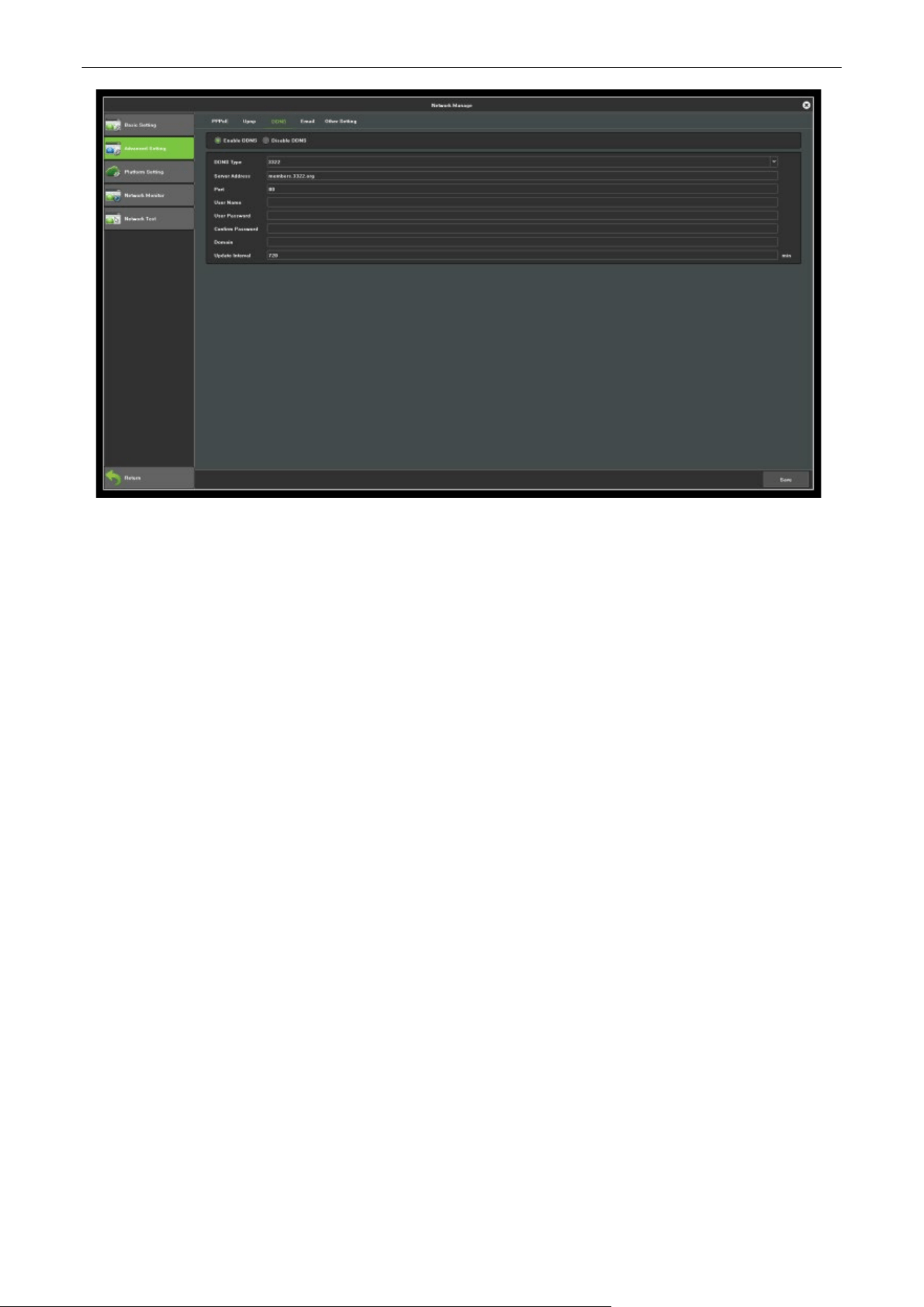
The default is "disable DNS" status, each set column cannot be set, it needs to switch to the "enable DNS"
status, as shown in figure 11.3, note that, this function need to ensure that device can normal access
network when using.
Network Video Recorder User Manual
Page | 73 Copyright©2023 ZKTECO CO., LTD. All rights reserved.
Figure11.3 DDNS Setting
DDNS Type: There are 5 types of the defaulted list.
Server Address: Each server type is corresponding to the existing default server domain name;
Port: Each server type is corresponding to the existing default port.
The User Name and Password: Manually enter the correct user name and password.
Domain: Manually enter the correct domain name (After the function is OK, you can use the domain
name remote access device).
Update Interval: Set the update interval time.
11.2.4. Email Setting
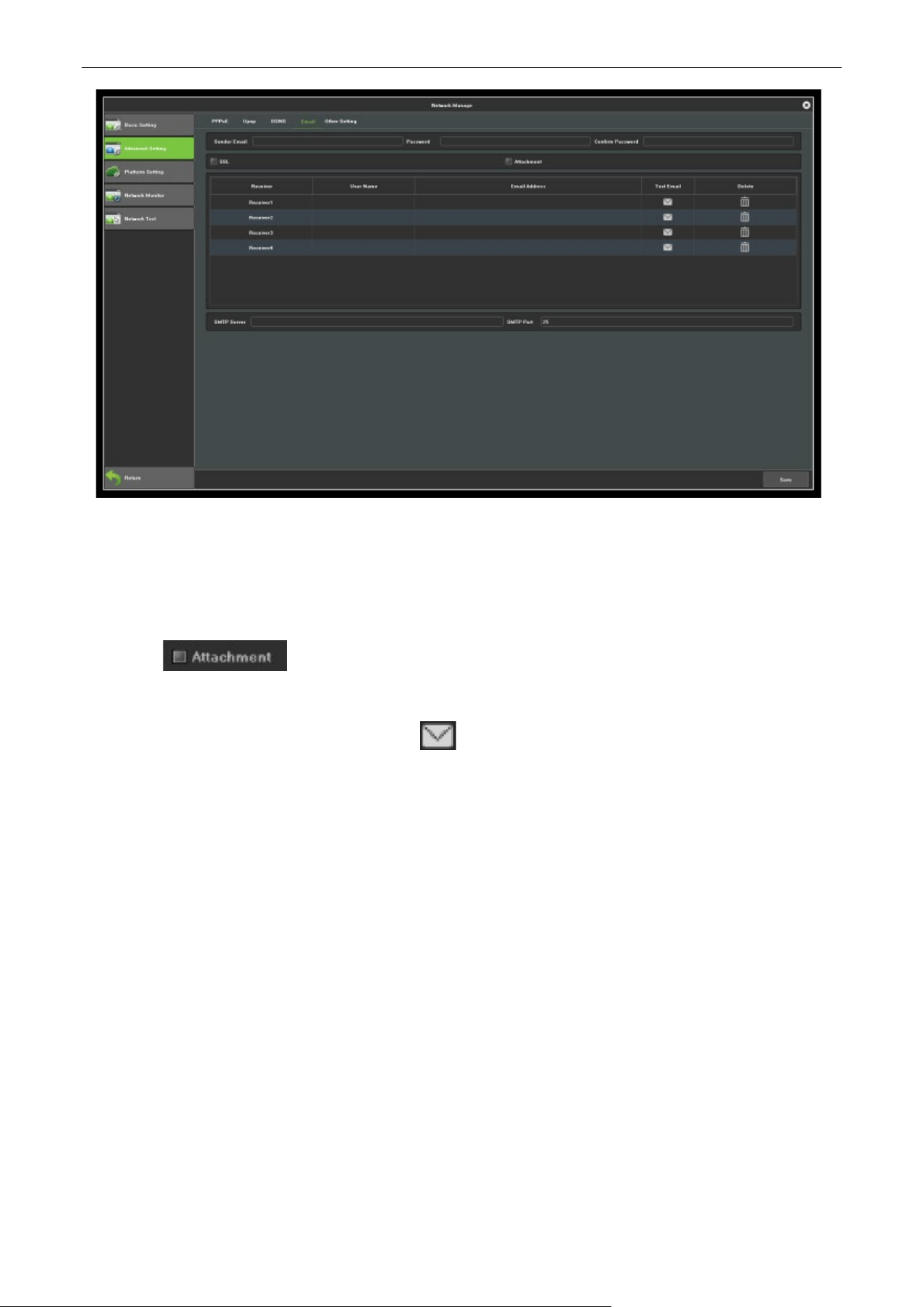
The settings in this page is used with "Email Linkage" in the "Linkage Setting ", the sender email address
and password, the recipient email address, SMTP server address and port information need to input
correctly in the corresponding field according to the requirements of the format, here are other additional
features on the page, as shown in figure 11.4.
Network Video Recorder User Manual
Page | 74 Copyright©2023 ZKTECO CO., LTD. All rights reserved.
Figure 11.4 Email Setting
1. Fill in the multiple recipient mailbox, the sender email address will send E-mail to multiple recipients’
mailbox at the same time;
2. Check function, the mail the recipient received in his mailbox is with attachments,
the attachment content is linkage capture file of the corresponding channel (zip format);
3. Click the "test mail" corresponding field icon, Let the sender mailbox to send mail to the
recipient's mailbox, the success or failure will pop-up tips.
Note: Use Email linkage function need to ensure a good network environment, then the device can
smoothly access external network.
11.3. Management Platform
This page is the enable interface of the platform agreement, as shown in figure 11.5, defaulted to enable
P2P and Web Server protocol (Support the device remotely login), other services enable according to the
need. Note that, enable/disable parts of service need to restart the device.
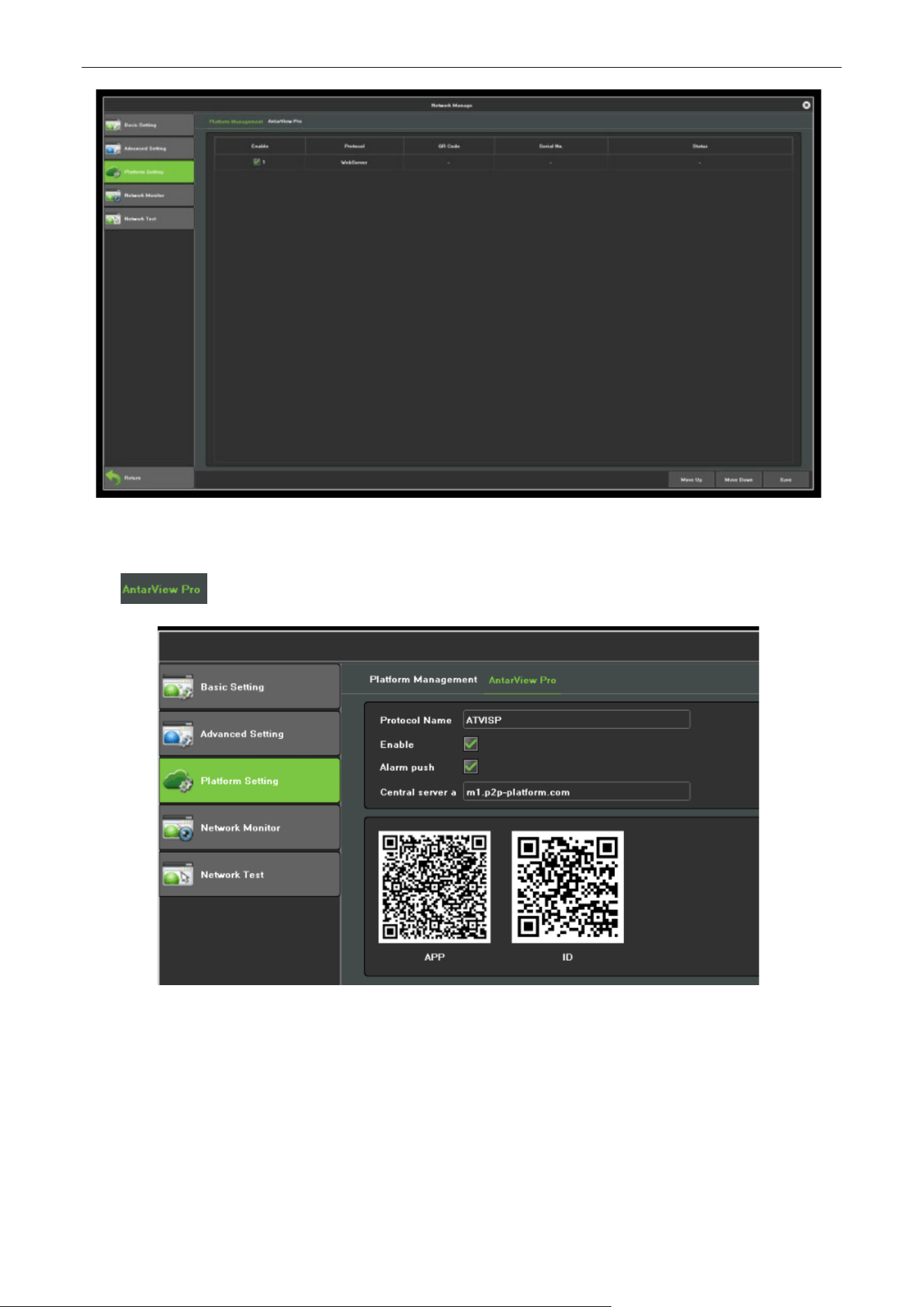
Network Video Recorder User Manual
Page | 75 Copyright©2023 ZKTECO CO., LTD. All rights reserved.
Figure 11.5 Management platform
Click icon, can view QR code, as shown in figure.
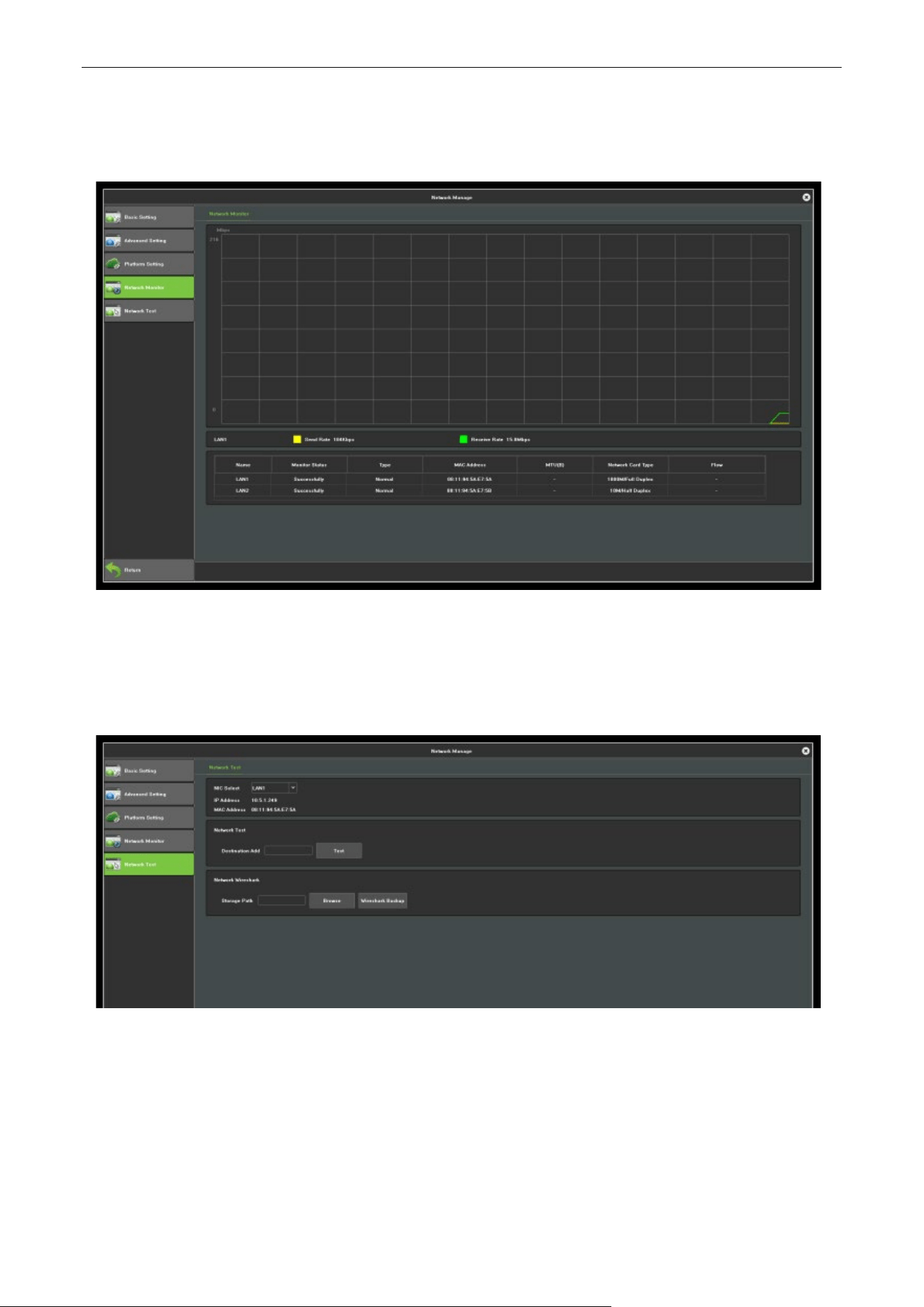
Network Video Recorder User Manual
Page | 76 Copyright©2023 ZKTECO CO., LTD. All rights reserved.
11.4. Network Flow
As shown in figure 11.6, can monitor the network traffic of the current device.
Figure 11.6 Network Flow
11.5. Network Test
The network test interface, as shown in figure 11.7.
Figure 11.7 Network Test
NIC Select: Select the network card, the default is network card 1.
Destination Add: Input the network address that needs to be tested.
Network Wireshark: Click browse, set up storage paths, click Wireshark backup, then complete the
backup.
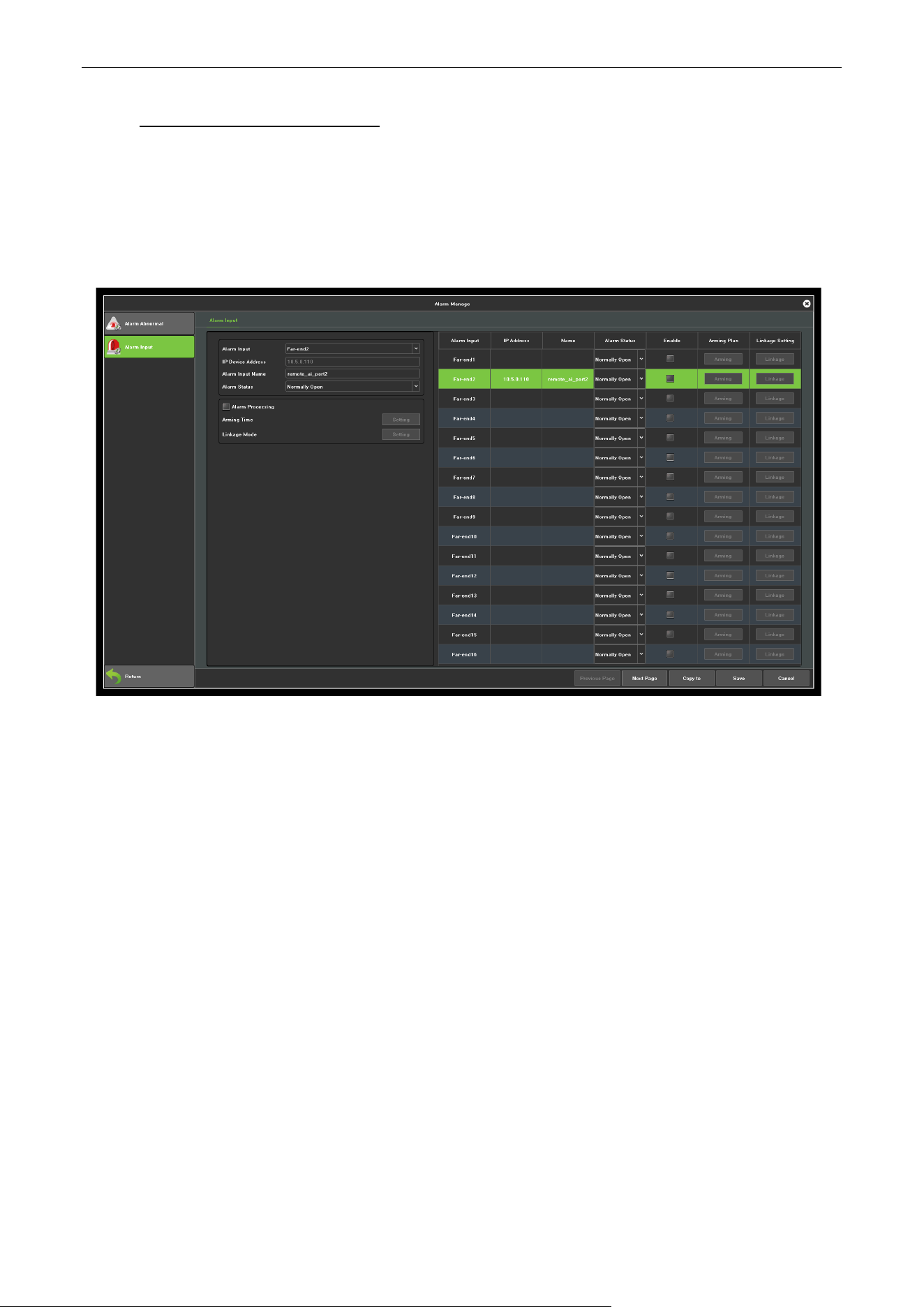
Network Video Recorder User Manual
Page | 77 Copyright©2023 ZKTECO CO., LTD. All rights reserved.
12. Alarm Management
There are 3pages of this module, the following instructions respectively.
12.1. Alarm Input
The Alarm input interface, as shown in figure 12.1.
Figure 12.1 Alarm Input
Alarm Input: Select channel.
Alarm Input Name: Edit alarm name.
Alarm Status: Set the alarm state, the default value is always open.
Arming Planning: Set the arming schedule, as shown in figure 12.2.
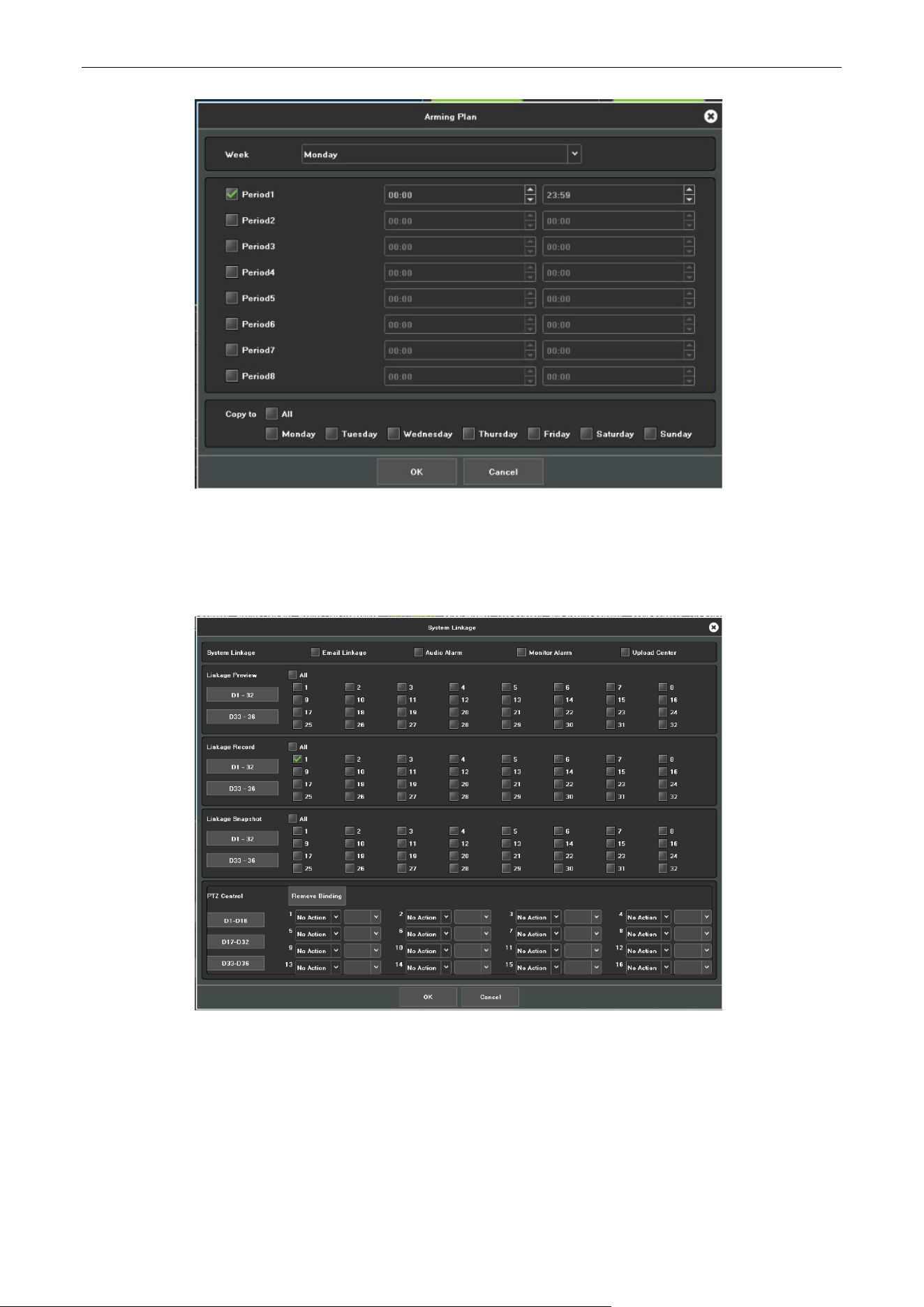
Network Video Recorder User Manual
Page | 78 Copyright©2023 ZKTECO CO., LTD. All rights reserved.
Figure12.2 Arming Schedule
Linkage Way: Choose the type of alarm linkage, as shown in figure 12.3.
Figure 12.3 Linkage Mode
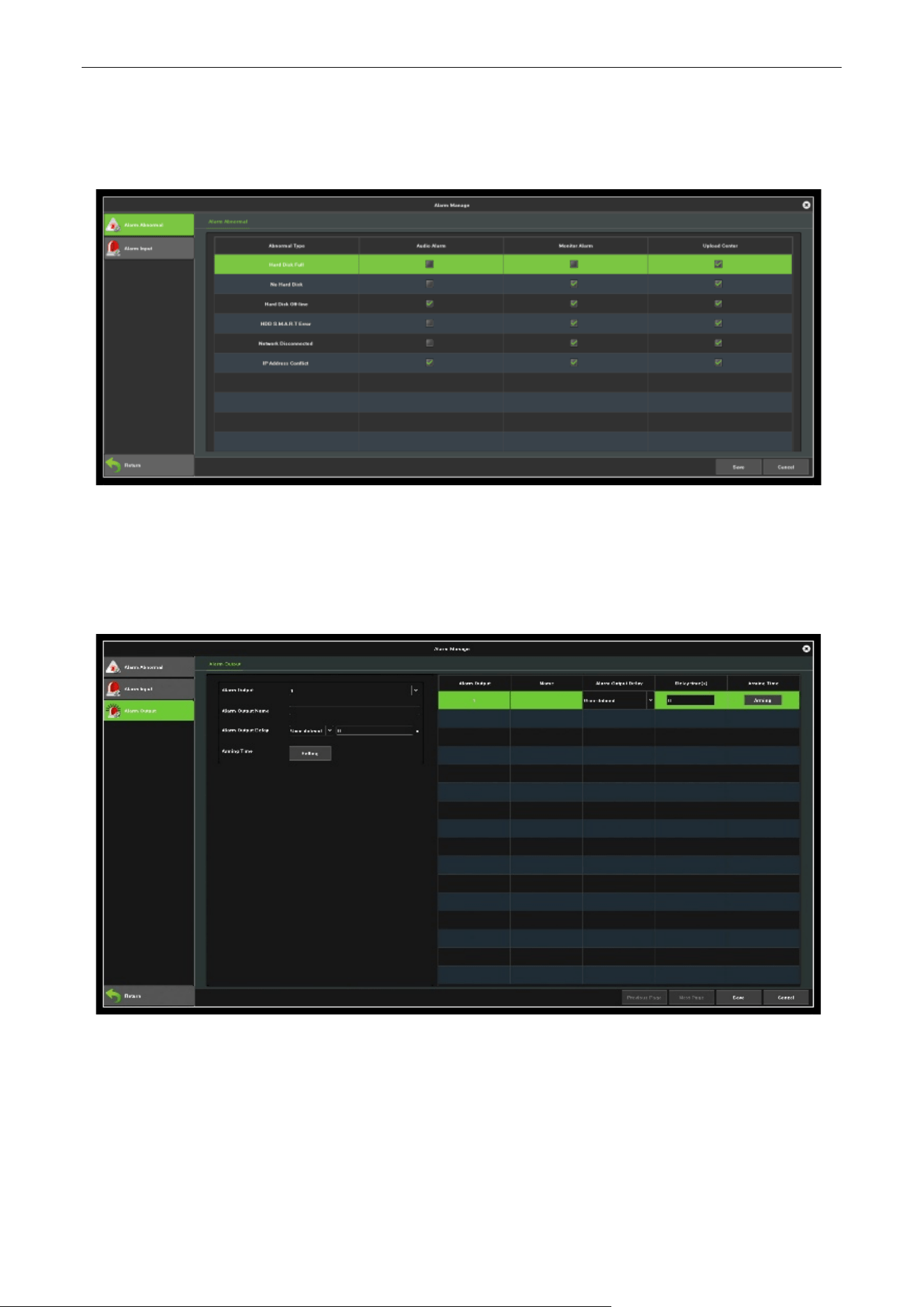
Network Video Recorder User Manual
Page | 79 Copyright©2023 ZKTECO CO., LTD. All rights reserved.
12.2. Exception
The Abnormal Setting interface, as shown in figure 12.4.
Figure12.4 Abnormal Setting
12.3. Alarm Output
The Alarm input interface, as shown in figure 12.5.
Figure12.5 Alarm Output
Alarm Output: Select channel.
Alarm Output Name: Edit alarm name.
Arming Time: Set the arming schedule.
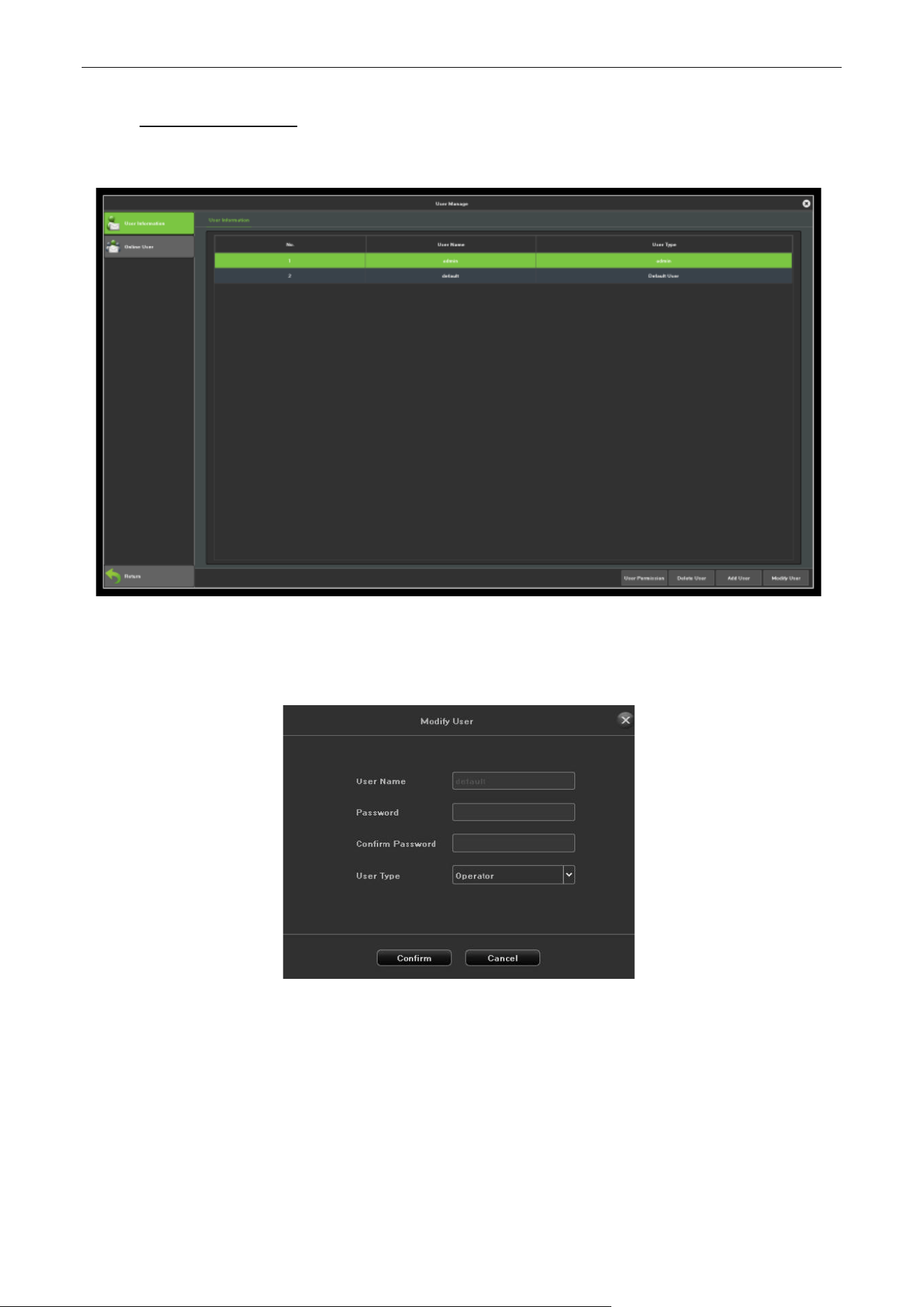
Network Video Recorder User Manual
Page | 80 Copyright©2023 ZKTECO CO., LTD. All rights reserved.
13. User Manage
User manage interface is shown in figure 13.1, you can modify the user information and users permission.
Figure 13.1 User Management
Modify Users: Modify the selected users information, as shown in figure 13.2.
Figure 13.2 Modify Users
Add User: Add a new user, as shown in figure 13.3, fill in the user name and password.

Network Video Recorder User Manual
Page | 81 Copyright©2023 ZKTECO CO., LTD. All rights reserved.
Figure 13.3 Add User
Delete Users: Can delete the selected users (except admin and default users).
User Authority: Set the selected users permission.

Network Video Recorder User Manual
Page | 82 Copyright©2023 ZKTECO CO., LTD. All rights reserved.
14. Appendix List of Compatible HDD Already Tested
Manufacture Capacity Model
TOSHIBA
1.0TB DT01ABA100VOCT-2015
1.0TB DT01ABA100VMAY-2015
2.0TB DT01ABA200VFEB-2015
Seagate
1.0TB ST1000VM002
1.0TB ST1000DM003
2.0TB ST2000VX000
WD
500GB WD5000AVDS-63U7B1
2.0TB WD20PURX-64P6ZY0
3.0TB WD30PURX-64P6ZY0

Page | 83 Copyright©2023 ZKTECO CO., LTD. All rights reserved.
ZKTeco Industrial Park, No. 32, Industrial Road,
Tangxia Town, Dongguan, China.
Phone : +86 769 - 82109991
Fax : +86 755 - 89602394
www.zkteco.com
Copyright © 2023 ZKTECO CO., LTD. All Rights Reserved.






