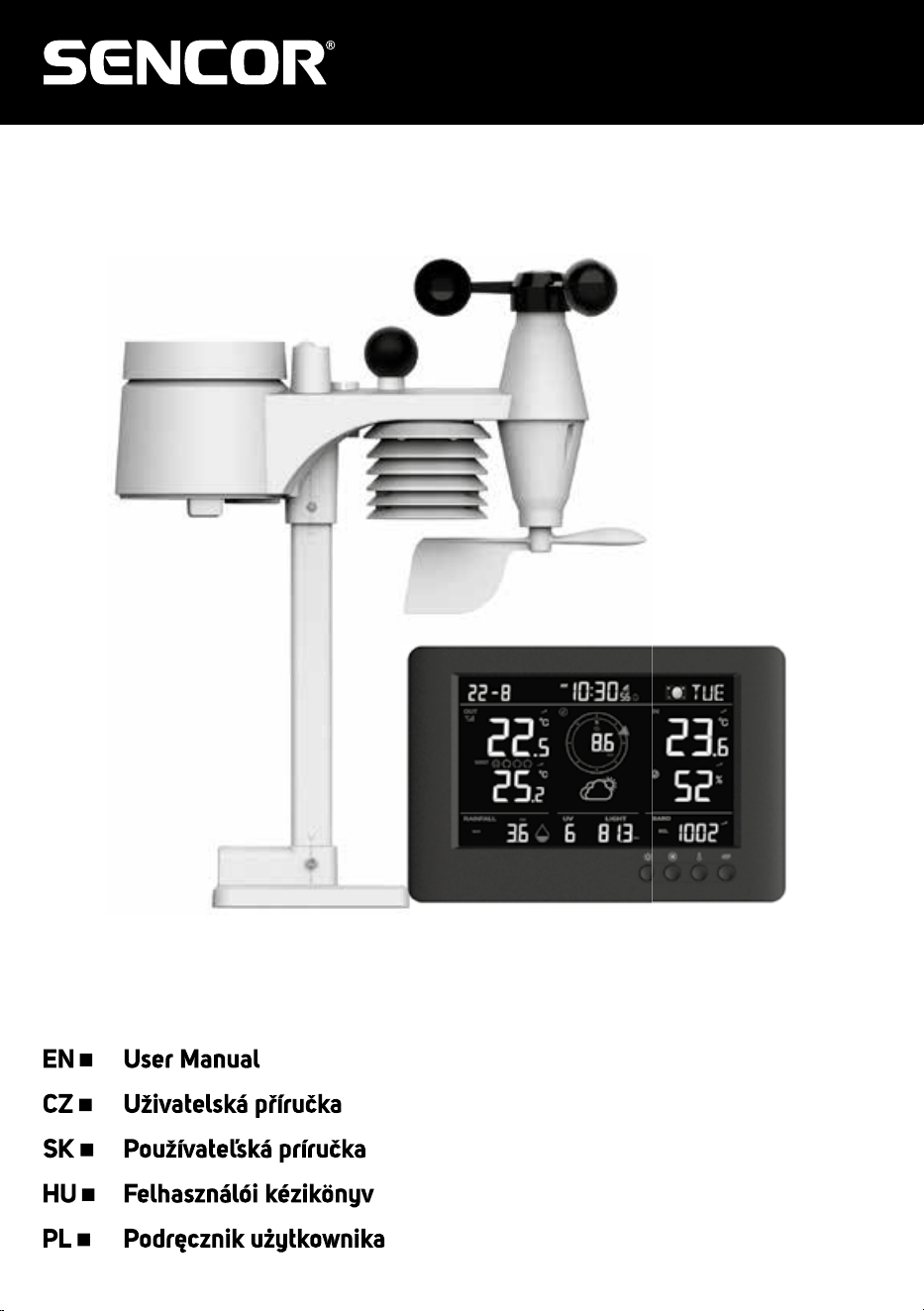
SWS 9500
Weather station with wireless sensor
Meteorologická stanice s bezdrátovým snímačem
Meteorologická stanica s bezdrôtovým snímačom
Meteorológiai állomás vezeték nélküli érzékelővel
Stacja pogodowa z czujnikiem bezprzewodowym

EN – 2
TABLE OF CONTENTS
1. Introduction ........................................................................................................................................... 4
1.1 Quick start guide ........................................................................................................................... 4
2. Pre installation ....................................................................................................................................... 5
2.1 Checkout ....................................................................................................................................... 5
2.2 Site selection ................................................................................................................................. 5
3. Getting started ....................................................................................................................................... 5
3.1 Wireless 8-in-1 sensor .................................................................................................................. 5
3.2 Install Wireless 8-in-1 sensor ........................................................................................................ 6
3.2.1 Battery and installation ....................................................................................................... 6
3.2.2 Assembly the stand and pole ............................................................................................. 6
3.2.3 Mounting guidelines ........................................................................................................... 7
3.3 Synchronizing additional sensor(s) (optional) ............................................................................... 8
3.3.1 Optional Thermo-hygro sensors ........................................................................................ 8
3.4 Setup the Console......................................................................................................................... 8
3.4.1 Power up the display console ............................................................................................ 9
3.4.2 Setup display console ........................................................................................................ 9
3.4.3 Synchronizing wireless 8-in-1 sensor array ..................................................................... 10
3.4.4 Data clearing .................................................................................................................... 10
4. Display console functions and operation............................................................................................. 10
4.1 Screen Display ............................................................................................................................ 10
4.2 Display console keys....................................................................................................................11
4.3 Wireless sensor signal receiving ................................................................................................. 12
4.4 Time and date ............................................................................................................................. 12
4.4.1 Radio controlled / atomic clock function ........................................................................... 12
4.4.2 RCC Signal strength indicator .......................................................................................... 12
4.4.3 DAYLIGHT SAVING TIME (DST) ..................................................................................... 13
4.4.4 Moon phase ..................................................................................................................... 13
4.5 Time, Date, Unit and other setting .............................................................................................. 13
4.6 Setting alarm time and high / low weather alert .......................................................................... 14
4.6.1 View alarm time and weather alert value ......................................................................... 15
4.6.2 Alarm operation ................................................................................................................ 15
4.6.3 Weather alert operation ................................................................................................... 16
4.7 Console features ......................................................................................................................... 16
4.7.1 Weather forecast .............................................................................................................. 16
4.7.2 Barometric pressure ......................................................................................................... 16
4.7.3 Outdoor temperature, humidity, dew point and index ...................................................... 17
4.7.4 Indoor and optional CH1~3 temperature and humidity .................................................... 18
4.7.5 Wind ................................................................................................................................. 19
4.7.6 Rain .................................................................................................................................. 21
4.7.7 Light intensity, UV index & exposure level ....................................................................... 22
4.8 Trend indicator ............................................................................................................................ 22
4.9 Maximum / Minimum records ...................................................................................................... 22
4.9.1 To Clear the Maximum / Minimum records ...................................................................... 23
4.10 Back light..................................................................................................................................... 23
5. Maintenance ........................................................................................................................................ 23
5.1 Battery replacement .................................................................................................................... 23
5.1.1 Re-pairing the sensor array manually .............................................................................. 23
5.2 Reset and factory reset ............................................................................................................... 23
5.3 Wireless 8-in-1 sensor array maintenance.................................................................................. 24
6. Troubleshoot ....................................................................................................................................... 24
7. Specications ...................................................................................................................................... 25
7.1 Console ............................................................................................................................ 25
7.2 Wireless 8-in-1 sensor ..................................................................................................... 27
EN – 3
ABOUT THIS USER’S MANUAL
This symbol represents a warning. To ensure safe use, always adhere to the instructions
described in this documentation.
This symbol is followed by a user’s tip.
PRECAUTIONS
- Keeping and reading the “User manual” is highly recommended. The manufacturer and supplier cannot
accept any responsibility for any incorrect readings, export data lost and any consequences that occur
should an inaccurate reading take place.
- Imagesshowninthismanualmaydierfromtheactualdisplay.
- The contents of this manual may not be reproduced without the permission of the manufacturer.
- Technicalspecicationsandusermanualcontentsforthisproductaresubjecttochangewithoutnotice.
- This product is not to be used for medical purposes or for public information
- Donotsubjecttheunittoexcessiveforce,shock,dust,temperatureorhumidity.
- Do not cover the ventilation holes with any items such as newspapers, curtains etc.
- Do not immerse the unit in water. If you spill liquid over it, dry it immediately with a soft, lint-free cloth.
- Do not clean the unit with abrasive or corrosive materials.
- Do not tamper with the unit’s internal components. This invalidates the warranty.
- Placement of this product on certain types of wood may result in damage to its nishing for which
manufacturer will not be responsible. Consult the furniture manufacturer’s care instructions for
information.
- Onlyuseattachments/accessoriesspeciedbythemanufacturer.
- This product is not a toy. Keep out of the reach of children.
- The console is intended to be used only indoors.
- Place the console at least 20cm from nearby persons.
- Consoleworkingtemperature:-5˚C~50˚C
Warning
- Anapplianceisonlysuitableformountingatheight≤2m.(Equipmentmass≤1kg)
- This product is intended for use only with the adaptor provided:
Manufacturer: Dong Guan Shi Jie Hua Xu Electronics Factory
Model: HX075-0501000-AG-001
- When disposing of this product, ensure it is collected separately for special treatment.
- The AC/DC adaptor is used as disconnect device.
- The AC/DC adaptor of apparatus should not be obstructed OR should be easily accessed during intended
used.
- To be completely disconnect the power input, the AC/DC adaptor of apparatus shall be disconnected
from the mains.
Caution
- Do not ingest the battery. Chemical Burn Hazard.
- This product contains a coin/key cell battery. If the coin/key cell battery is swallowed, it can cause severe
internalburnsinjust2hoursandcanleadtodeath.
- Keep new and used batteries apart. If battery door does not close securely, stop using the product and
keep it away from children.
- If you think batteries might have been swallowed or placed inside any part of the body, seek immediate
medical attention.
- Danger of explosion if battery is incorrectly replaced. Replace only with the same or equivalent type.
EN – 4
- Batterycannotbesubjectedtohighorlowextremetemperatures,lowairpressureathighaltitudeduring
use, storage or transportation.
- Replacementofabatterywithanincorrecttypecanresultinanexplosionortheleakageofammable
liquid or gas.
- Disposalofabatteryintoreorahotoven,ormechanicallycrushingorcuttingofabattery,canresultin
an explosion.
- Leaving a battery in an extremely high temperature surrounding environment can result in an explosion
ortheleakageofammableliquidorgas.
- Abatterysubjectedtoextremelylowairpressuremayresultinanexplosionortheleakageofammable
liquid or gas.
1. INTRODUCTION
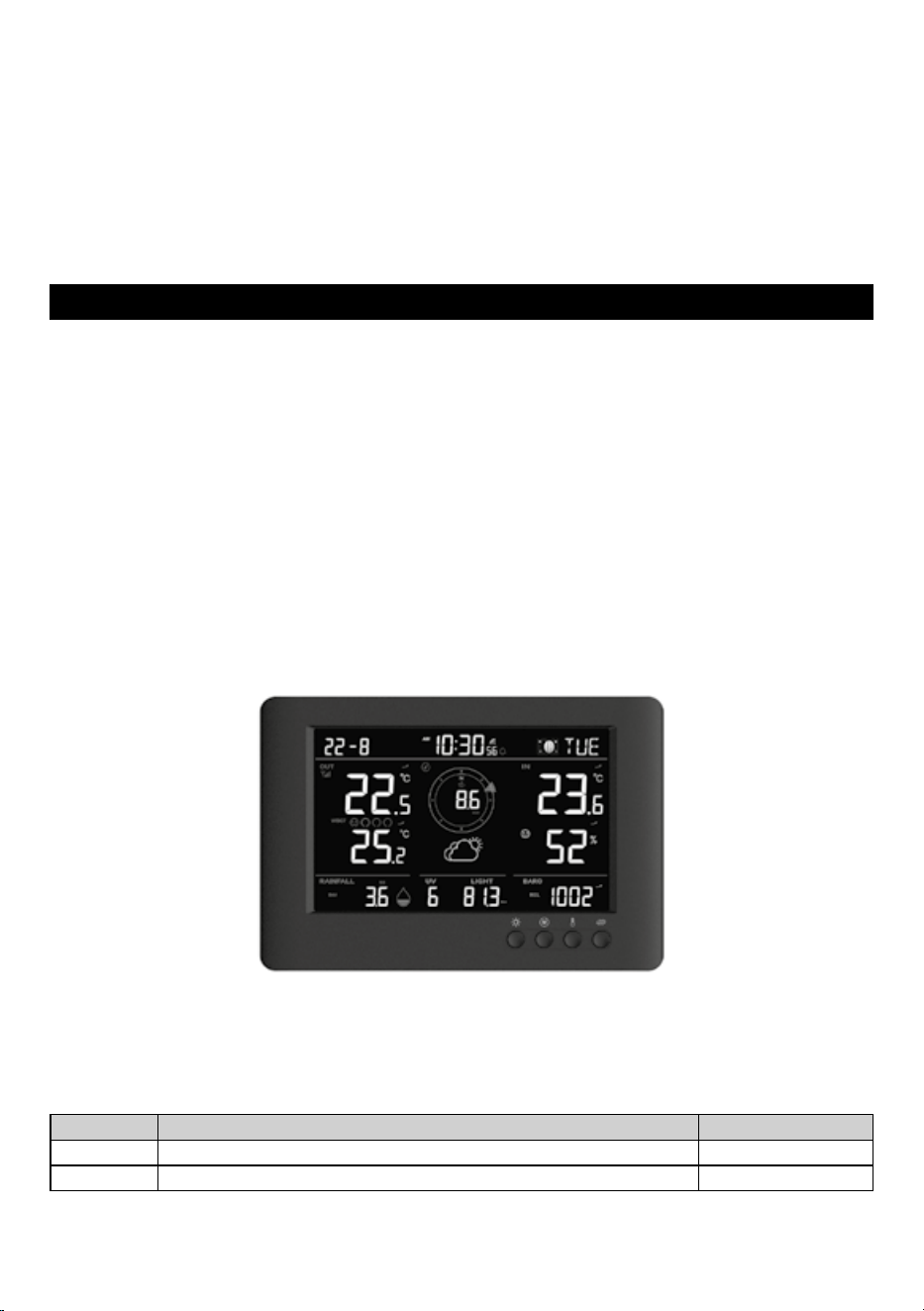
Thank you for your purchase of this full function color display weather station with 8-IN-1 sensor.
The wireless 8-IN-1 sensor contains a self-emptying rain collector for measuring rainfall, UV index, light
intensity, anemometer, wind vane, WBGT, temperature and humidity sensors. It is calibrated for your easy
installation. It sends data by a low power radio frequency to the console up to 150m away (line of sight).
The colorful display console displays all the weather data received from the 8-IN-1 sensor outside. It
remembers the data for a time range for you to monitor and analyze the weather status for past 24 hours.
It has advance features such as the HI / LO Alert alarm which will alert the user when the set high or low
weather criteria are met. The barometric pressure records are computed to give users forthcoming weather
forecast and stormy warning. Day and date stamps are also provided to the corresponding maximum and
minimum records for each weather details.
The system also analyzes the records for your convenient viewing, such as the display of rainfall in terms of
rainrate,hourly,daily,weekly,monthlyandtotalrecords,whereasWGBTindierentlevels.Dierentuseful
readings such as Feels like, WBGT, Wind-chill, Heat Index, Dew-point, Comfort level are also provided.
1.1 Quick start guide
The following Quick Start Guide provides the necessary steps to install and operate the weather station,
along with references to the pertinent sections.
Step Description Section
1 Power up the 8-in-1 wireless sensor array 3.2.1
2 Power up the display console and pair with sensor array 3.4
EN – 5
2. PRE INSTALLATION
2.1 Checkout
Before permanently install your weather station, we recommend the user to operate the weather station at
a location which is easy to access to. This will allow you to get familiar with the weather station functions
and calibration procedures, to ensure proper operation before installing it permanently.
2.2 Site selection
Before installing the sensor array, please consider the followings;
1. Rain gauge must be clean every few months
2. Batteries must be changed every 2 to 2.5 years
3. Avoidradiantheatreectedfromanyadjacentbuildingsandstructures.Ideally,thesensorarrayshould
be installed at 1.5m (5’) from any building, structure, ground or roof top.
4. Choose an area of open space in direct sunlight without any obstruction of rain, wind, and sunlight.
5. Transmission range between sensor array and display console could reach a distance of 150m (or 450
feet) at line of sight, providing there are no interfering obstacles in between or nearby such as trees,
towers, or high voltage line. Check the reception signal quality to ensure good reception.
6. Household appliance such as fridge, lighting, dimmers may pose Electro-magnetic interference (EMI),
while Radio Frequency Interference (RFI) from devices operating in the same frequency range may
cause signal intermittent. Choose a location at least 1-2 meter (3-5 feet) away from these interference
sources to ensure best reception.
3. GETTING STARTED
3.1 Wireless 8-in-1 sensor
EN – 6
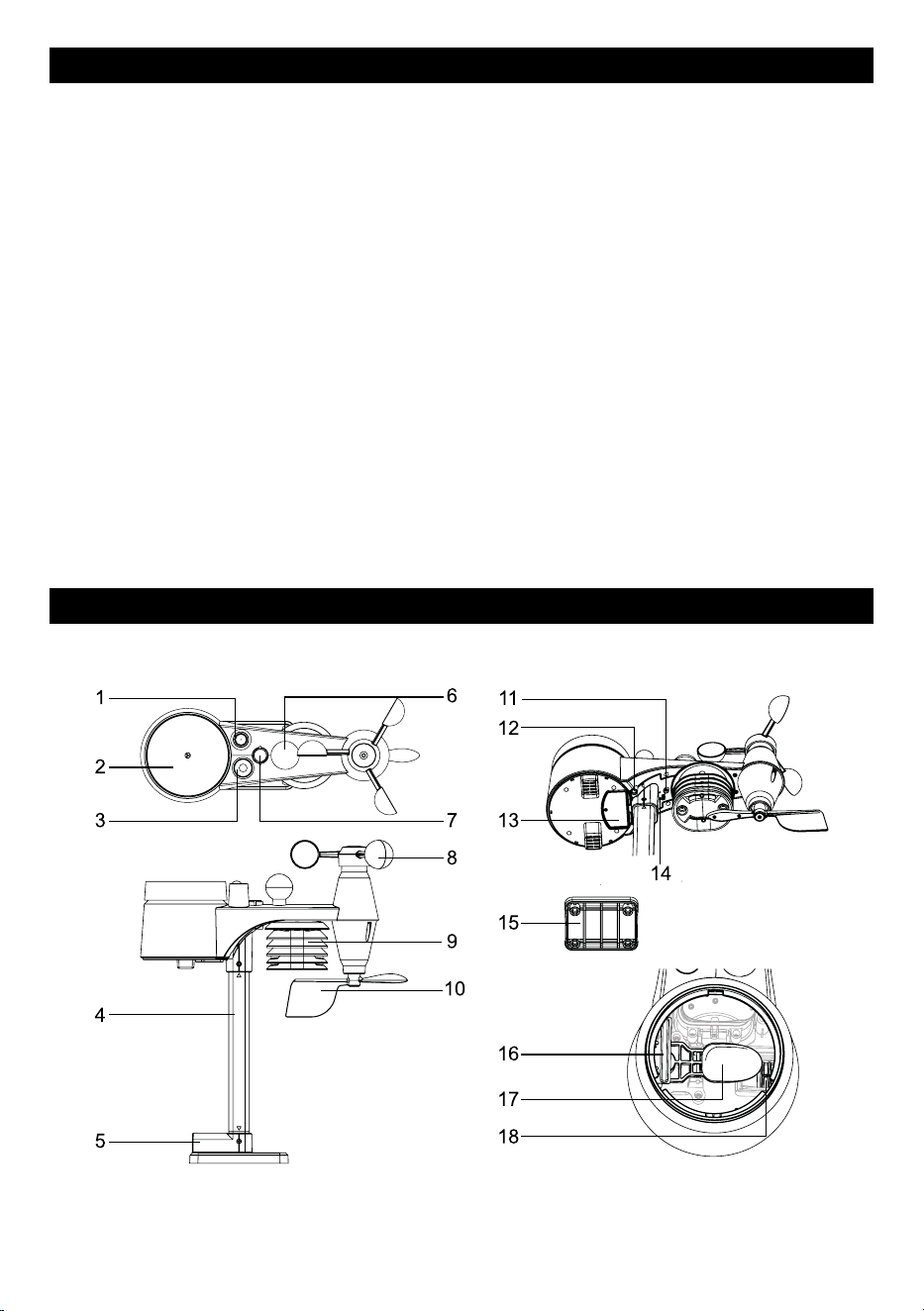
1. Antenna
2. Rain collector
3. UVI / light sensor
4. Mounting pole
5. Mounting base
6. Black globe sensor
7. Balance indicator
8. Wind cups
9. Radiation shield
10. Wind vane
11. Red LED indicator
12. [ RESET ] key
13. Battery door
14. [ RCC ] key
15. Mounting clamp
16. Rain sensor
17. Tipping bucket
18. Drain holes
3.2 Install Wireless 8-in-1 sensor
Your wireless 8-in-1 sensor measures wind speed, wind direction, rainfall, UV index, light intensity, WBGT,
temperature and humidity for you. It’s fully assembled and calibrated for your easy installation.
3.2.1 Battery and installation
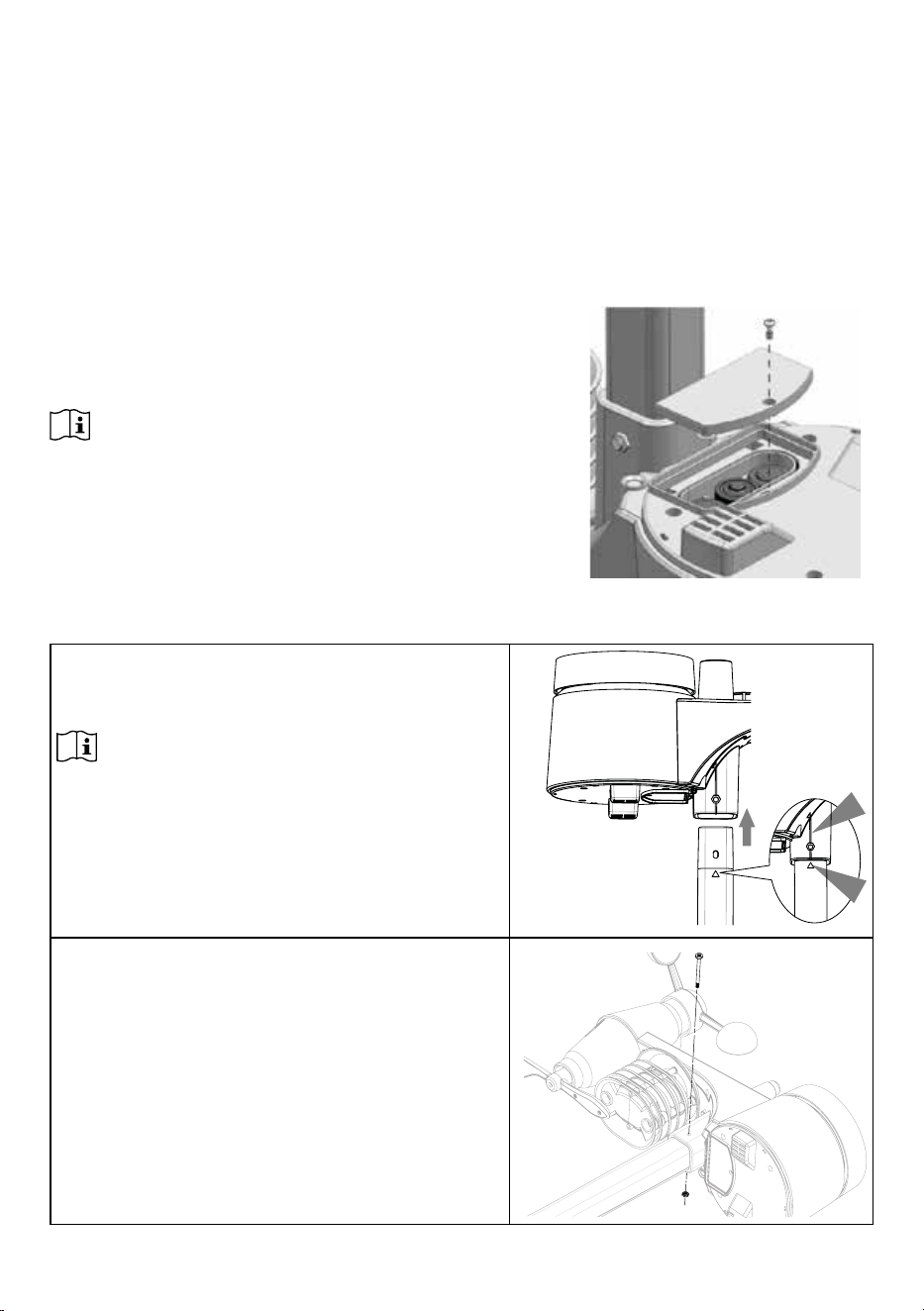
Unscrew the battery door at bottom of unit and insert the batteries
according to the +/- polarity indicated.
Screw the battery door compartment on tightly.
Note:
- Ensure the water tight O-ring is properly aligned in place to
ensure water resistant.
- TheredLEDwillbeginashingevery12seconds.
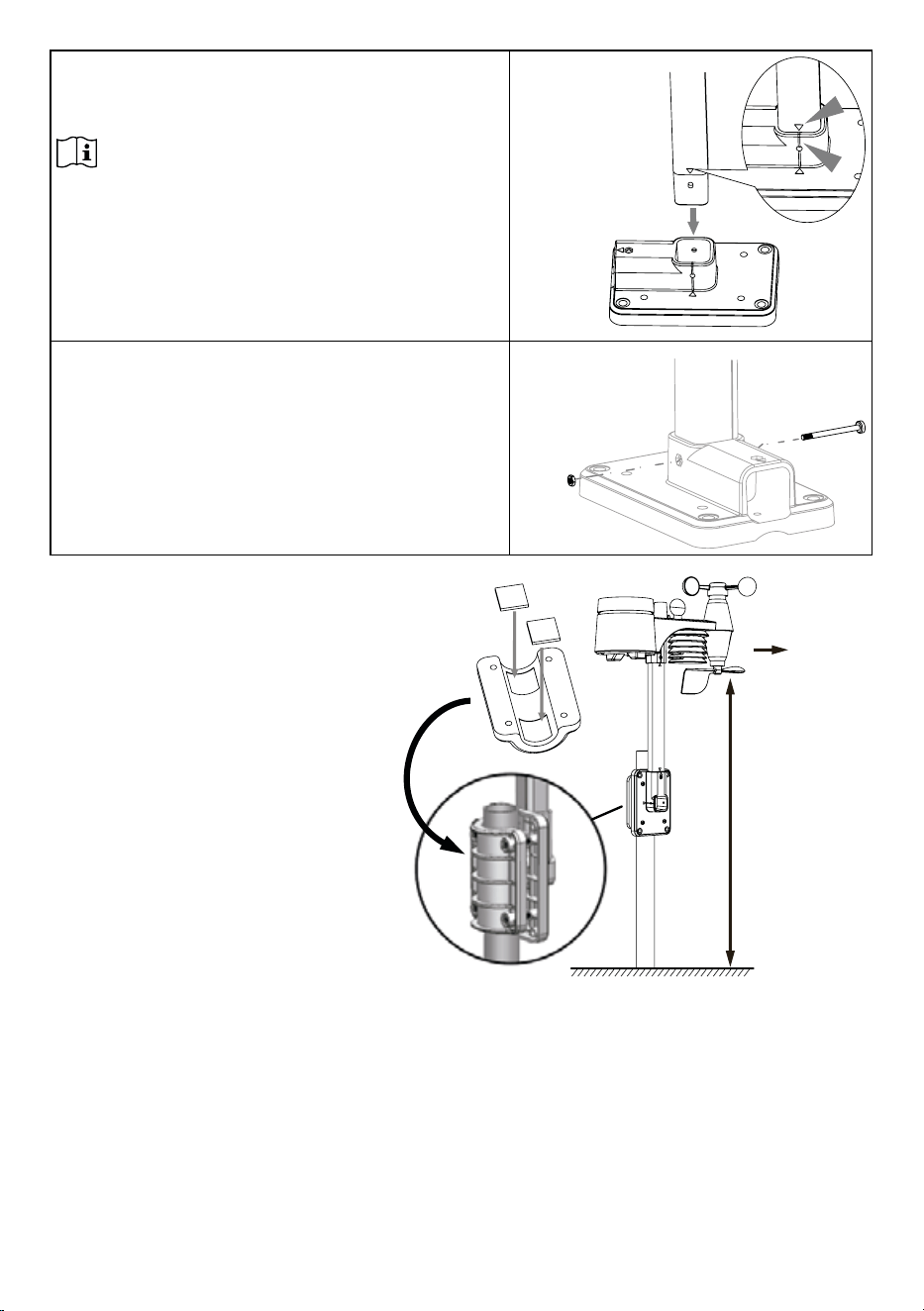
3.2.2 Assembly the stand and pole
Step 1
Insert the top side of the pole to the square hole of the
weather sensor.
Note:
Ensure the pole and sensor‘s indicator align.
Step 2
Place the nut in the hexagon hole on the sensor, then
insert the screw in other side and tighten it by the screw
driver.
EN – 7
Step 3
Insert the other side of the pole to the square hole of the
plastic stand.
Note:
Ensure the pole and stand‘s indicator align.
Step 4
Place the nut in the hexagon hole of the stand, then insert
the screw in other side and then tighten it by the screw
driver.
Install the wireless 8-in-1 sensor in
an open location with no obstructions
above and around the sensor for
accurate rain and wind measurement.
Install the sensor with the smaller end
facing the North to properly orient the
wind direction vane.
Secure the mounting stand and
clamps (included) to a post or pole,
andallowminimum1.5mothe
ground.
Add rubber
pads before
mount on the
pole
Point to
NORTH
1.5metero
the ground
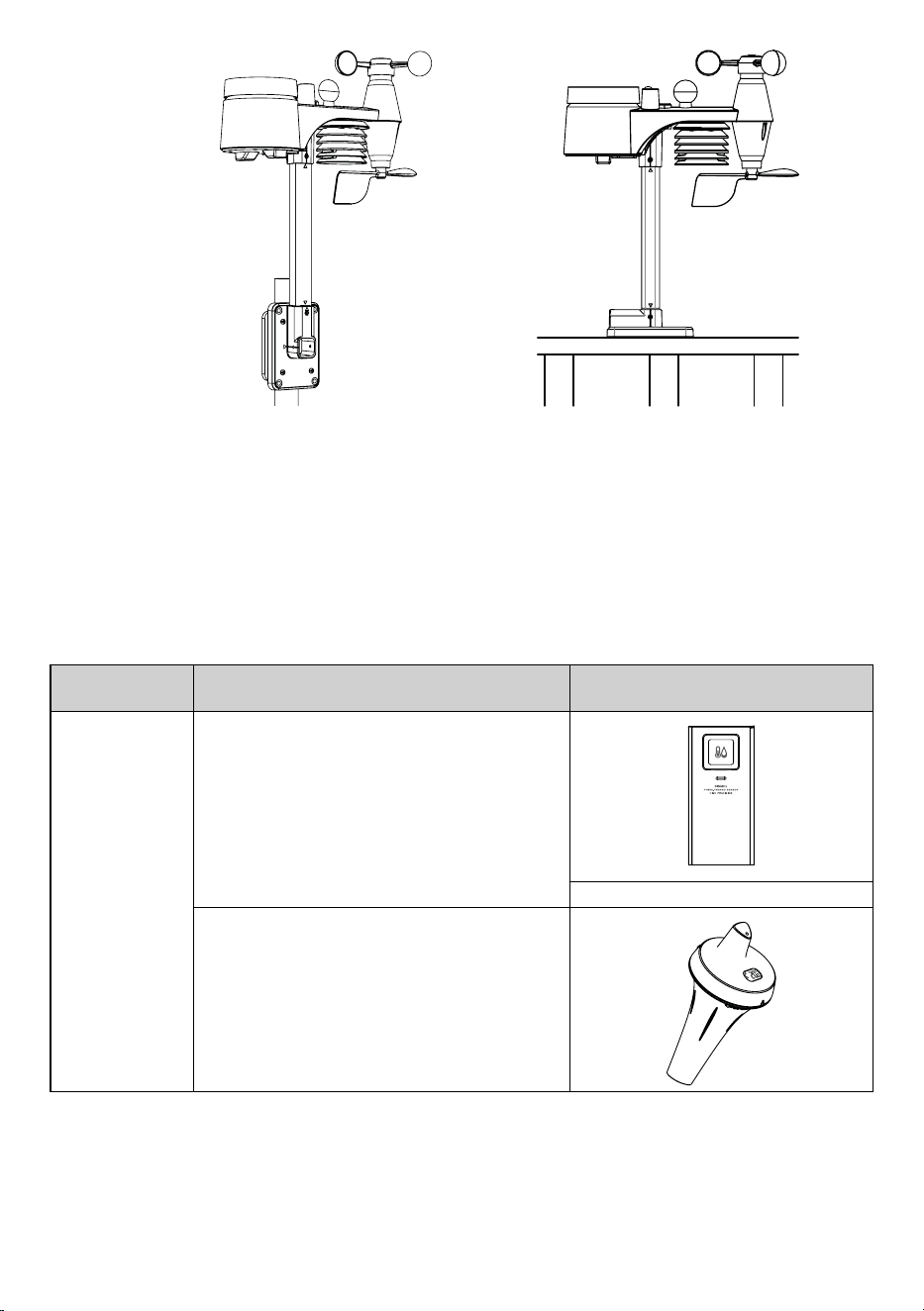
3.2.3 Mounting guidelines
1. Install the wireless 8-in-1 sensor at least 1.5m o the ground for better and more accurate wind
measurements.
2. Choose an open area within 150 meters from the LCD console.
3. Install the wireless 8-in-1 sensor as level as possible to achieve accurate rain and wind measurements.
4. Mount the wireless 8-in-1 sensor with the wind meter end pointing to the North to correctly orient
direction of the wind vane.
EN – 8
A. Mounting on pole (Pole Diameter
1”~1.3”) (25~33mm)
B. Mounting on the railing
3.3 Synchronizing additional sensor(s) (optional)
The console can support up to 3 optional wireless thermo-hygro sensors. Please contact your local retailer
fordetailsofdierentsensors.
3.3.1 Optional Thermo-hygro sensors
No. of sensor
supported
Description Image
Up to 3 sensors
High Precision Thermo-Hygro sensor
Sensor data:
CH3~1 temperature and humidity
868MHz
SOIL SENSOR
Pool sensor
Sensor data:
CH3~1 water temperature
868MHz
SOIL SENSOR
3.4 Setup the Console
Follow the procedure to setup the console connection with wireless sensor array.
EN – 9
3.4.1 Power up the display console
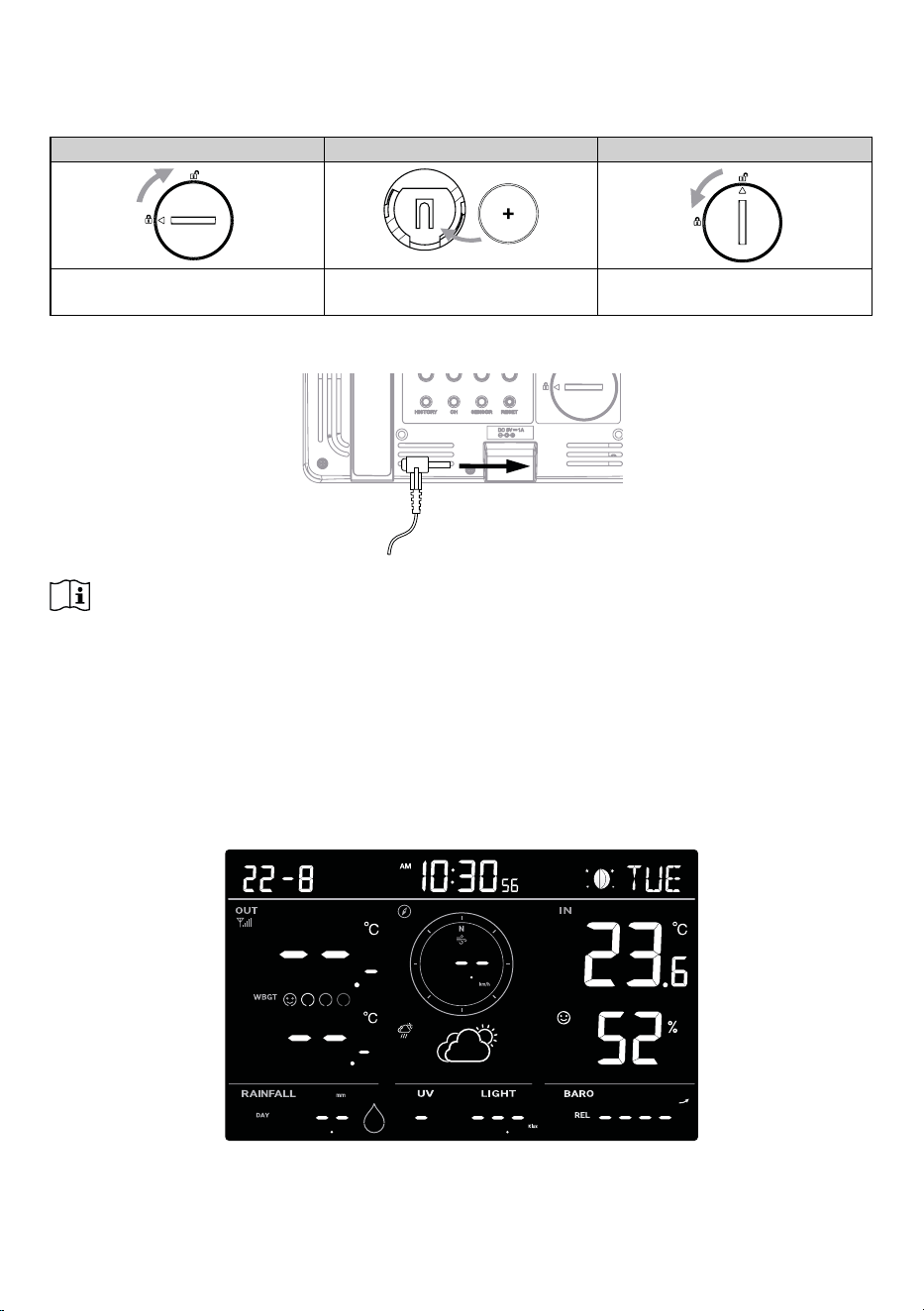
1. Install the back-up CR2032 battery
Step 1 Step 2 Step 3
Remove the console battery door
with coin
Insert a new CR2032 button cell
battery
Replace the battery door.
2. ConnectthedisplayconsolepowerjacktoACpowerwiththeadaptorincluded.
Note:
- The backup battery can backup: Time & Date & Max/Min weather records, rainfall records and alert
setting values / status.
- The built-in memory can backup: Hemisphere setting, Calibration values, and Sensor ID.
- Please always remove the back-up battery if the device is not going to be used for a while. Please keep
in mind that even when the device is not in use, certain settings, such as the clock, alert settings and
records in its memory, will still drain the back-up battery.
3.4.2 Setup display console
Once the console power up, all the segments of the LCD will be shown.
EN – 10
Note:
If no display appears when power up the console, you can press [ RESET ] keybyusingapointedobject.
If this process still not work, you can remove the backup battery and unplug the adapter then re-power up
the console again.
3.4.3 Synchronizing wireless 8-in-1 sensor array
Immediately after power up the console, while still in synchronization mode, the 8-in-1 sensor can be paired
totheconsoleautomatically(asindicatedbytheashingantennaggg).Usermayalsomanuallyrestartthe
synchronization mode by pressing the [ SENSOR ] key. Once they are paired up, the sensor signal strength
indicator and weather reading will appear on your console display.
3.4.4 Data clearing
During installation of the wireless 8-in-1 sensor, the sensors were likely to be triggered, resulting in
erroneous rainfall and wind measurements. After the installation, user may clear out all the erroneous data
from the display console. Simply press the [ RESET ] key once to re-start the console.
4. DISPLAY CONSOLE FUNCTIONS AND OPERATION
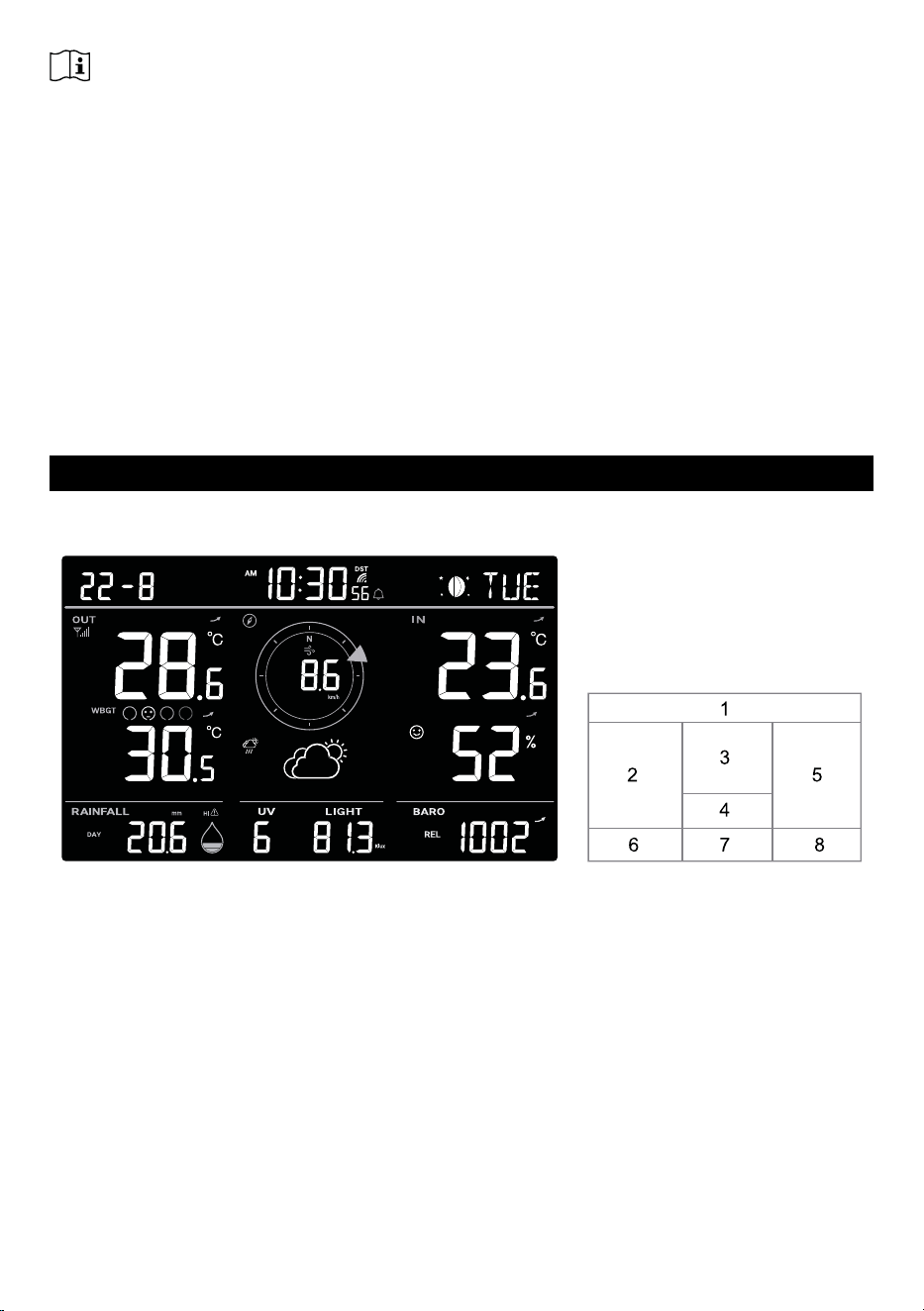
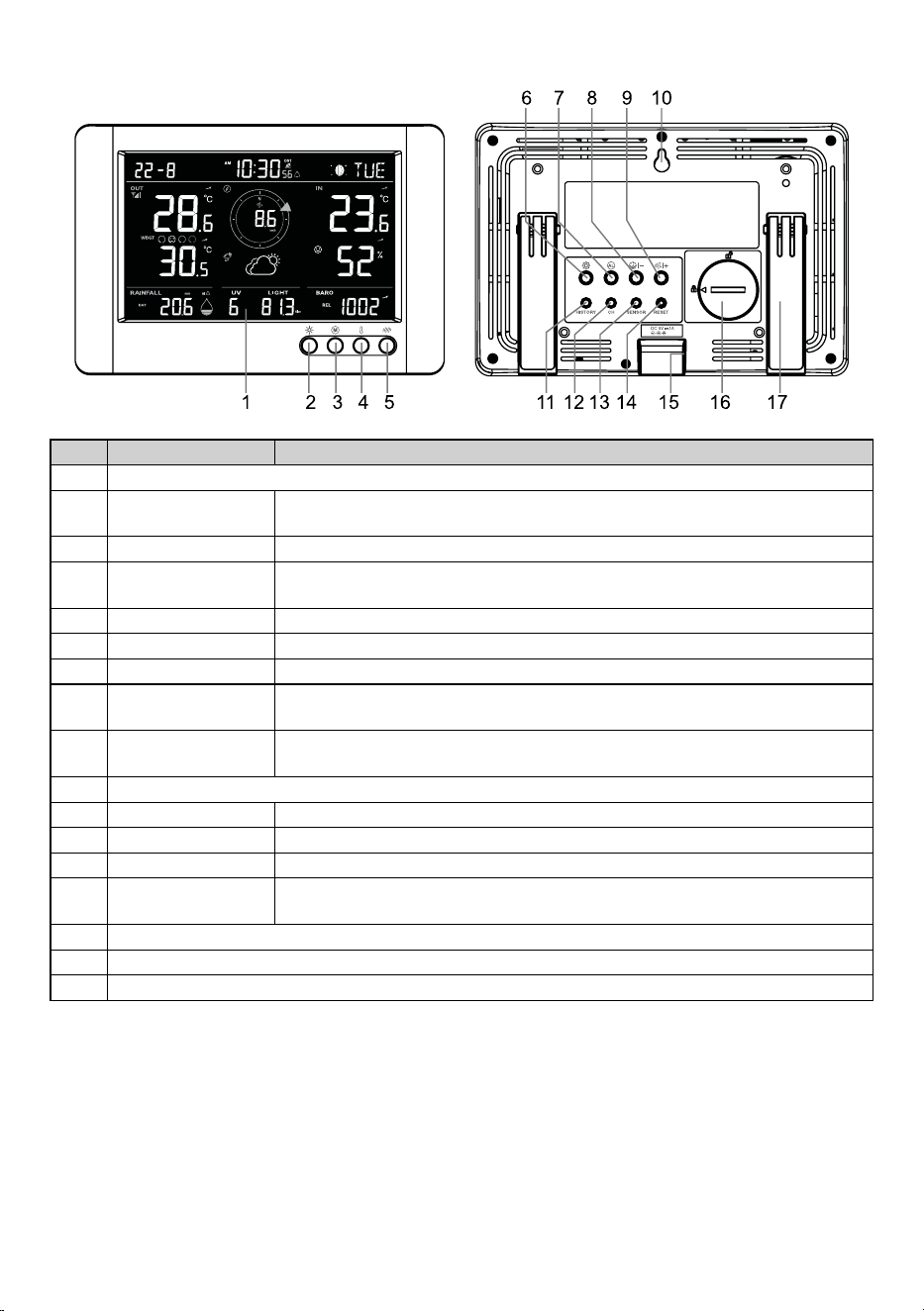
4.1 Screen Display
1. Time, date and moon phase
2. Outdoor temperature, humidity, WBGT, Feels like, Heat Index, Wind Chill and Dew Point
3. Wind speed, gust & direction
4. Weather forecast
5. Indoor / CH1~3 temperature and humidity
6. Rain
7. Light intensity, UV index
8. Barometric pressure
EN – 11
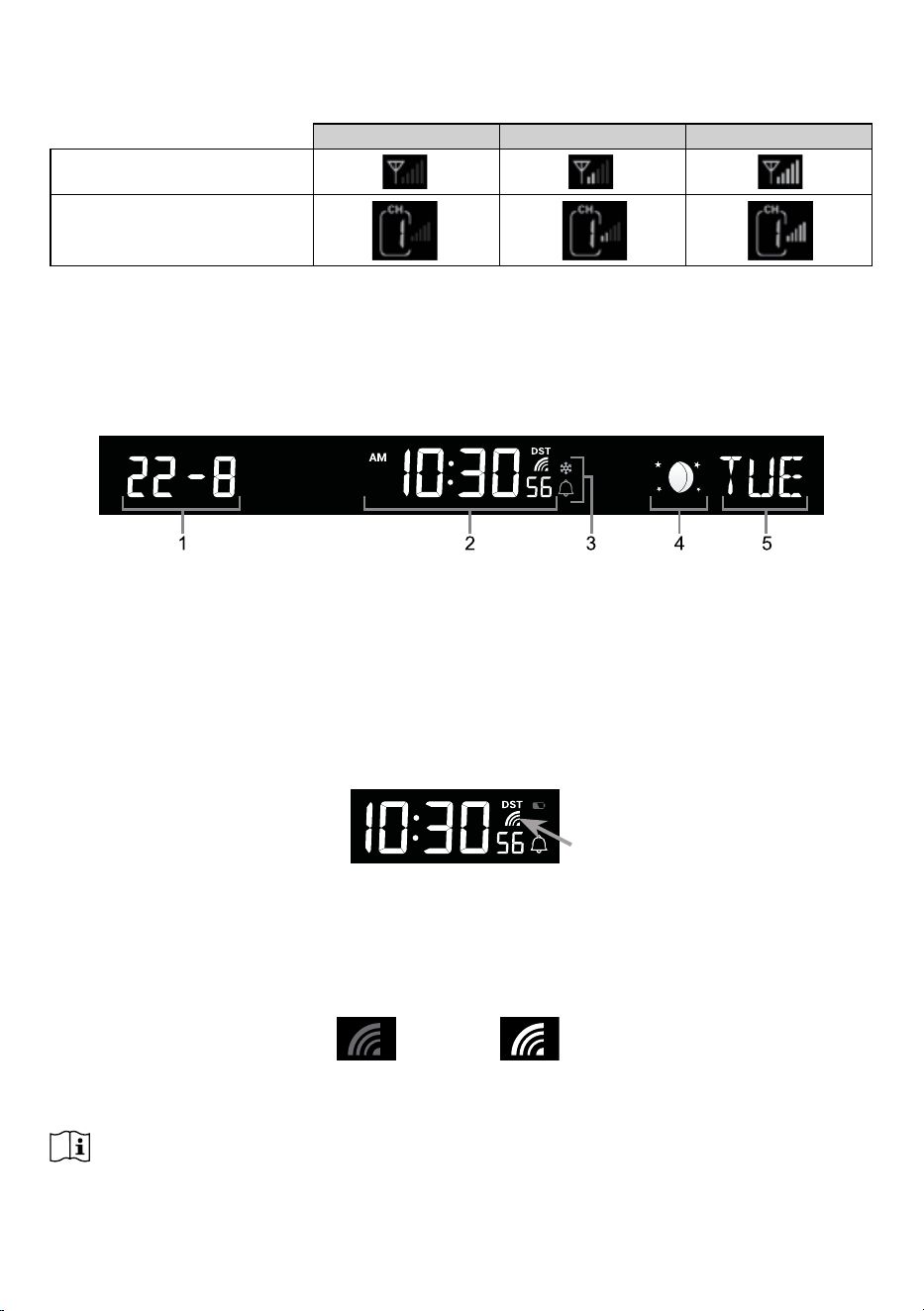
4.2 Display console keys
No. Key / Part Name Description
1 Display screen
2
BACK LIGHT /
SNOOZE
Press to change the back light level or stop alarm sound
3 MEMORY To switch between maximum and minimum values since last reset
4 INDEX
To switch between WBGT, Feels Like, Heat Index, Wind Chill and Dew
point
5 RAIN Presstoswitchbetweenrainrateandrainfallofdierentperiods
6 SET Hold 2 seconds to enter time, date and other setting
7 ALARM Press to view alarm time and alert values
8 - / BARO
Press to switch current pressure and past 1, 2, 3, 6 hour average pressure
Hold 2 seconds to change between relative and absolute pressure
9 + / WIND
Press to change between current, 10 minutes and 12 hours gust
Hold 2 seconds to change between wind speed and Beaufort scale
10 Wall mount hole
11 HISTORY Press to view the past 24 hours records
12 CHANNEL Press to switch between indoor and CH1~3 temperature and humidity
13 SENSOR Press to start sensor synchronization (pairing)
14 RESET
Press to reset the console
Hold 6 seconds to factory reset the console
15 Power jack
16 Battery compartment
17 Table stand
EN – 12
4.3 Wireless sensor signal receiving
1. The console display signal strength for the wireless sensor(s), as per table below:
No signal Weak signal Good signal
8-in-1 sensor array
Channel 1~3 optional sensor(s)
2. If the signal has discontinued and does not recover within 15 minutes, the signal icon will disappear.
The temperature and humidity will display “Er” for the corresponding channel.
3. If the signal does not recover within 48 hours, the “Er” display will become permanent. You need to
replace the batteries and then press [ SENSOR ] key to pair up the sensor again.
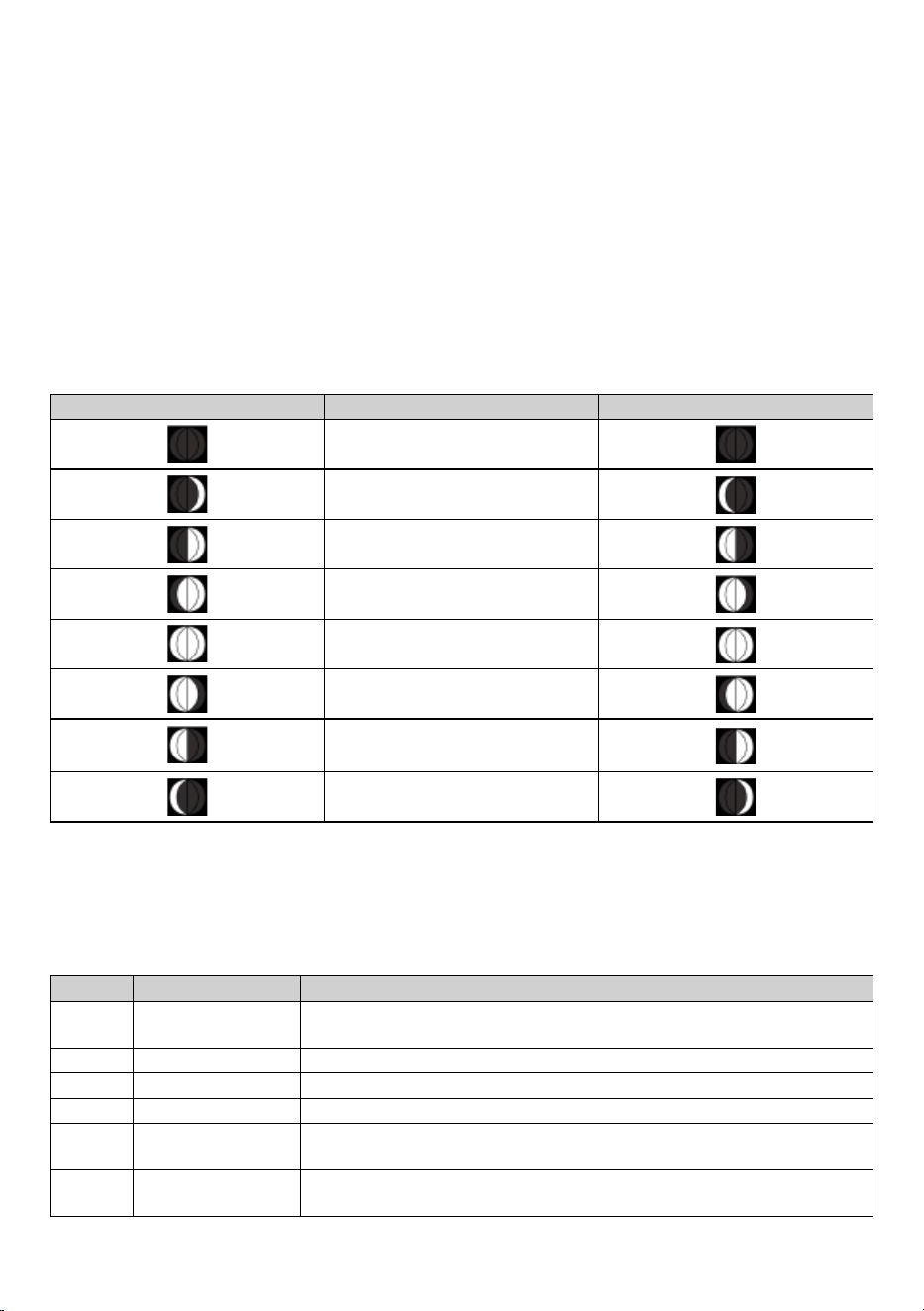
4.4 Time and date
1. Date
2. Time with Daylight saving time (DST) indication
3. Alarm and ice pre-alarm
4. Moon phase
5. Day of week
4.4.1 Radio controlled / atomic clock function
When the unit receives RCC signal, a sync-time symbol will appear on the LCD, and synchronizes daily.
4.4.2 RCC Signal strength indicator
The signal indicator shows signal receive status. Flashing wave segment means RCC signals are being
received.
Thesignalreceivingstatuscouldbeclassiedinto2types.
No signal
Received RCC
signal
Note:
- Every day the wireless sensor will automatically receive radio-controlled time signal and send to console.
- Thestrengthofradio-controlledtimesignalfromthetransmittertowermaybeaectedbygeographical
location or building around.
EN – 13
- Always place the console away from interfering sources such as TV set, computer, etc.
- Avoid placing the console on or next to metal plates.
- The console can more easy to received the signal, if the distance between console and the adapter is 1m
or more.
- Closed areas such as airport, basement, tower block, or factory are not recommended.
4.4.3 DAYLIGHT SAVING TIME (DST)
The console automatically set DST itself according to the radio controlled clock signal it received.
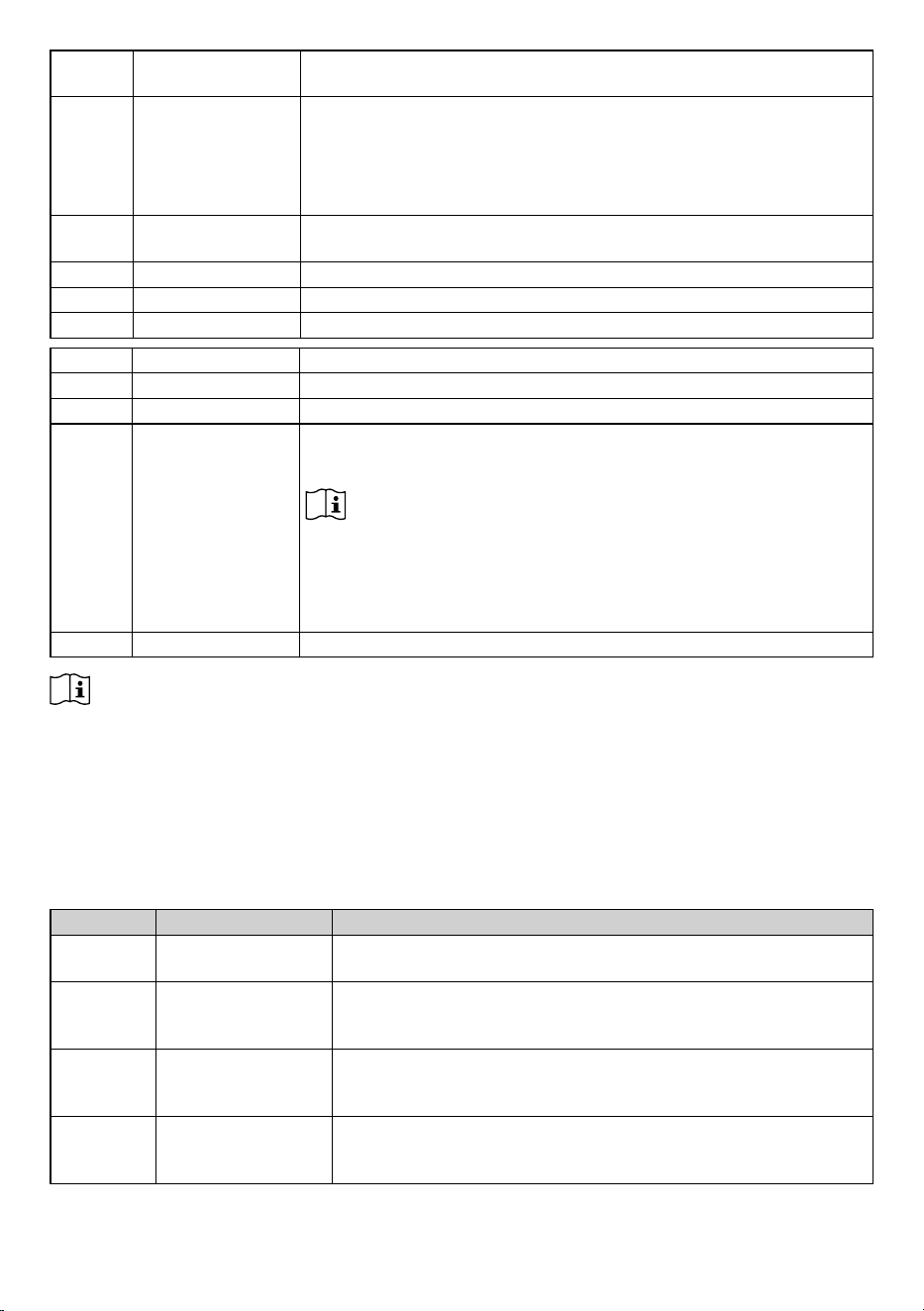
4.4.4 Moon phase
The moon phase is determined by time and date of the console. The following table explains the moon
phase icons of the Northern and Southern Hemispheres. Please refer to section 4.5 about how to setup
for the Southern Hemisphere.
Northern Hemisphere Moon Phase Southern Hemisphere
New Moon
Waxing Crescent
First quarter
Waxing Gibbous
Full Moon
Waning Gibbous
Third quarter
Waning Crescent
4.5 Time, Date, Unit and other setting
Press and hold the [ SET ] key for 2 seconds to enter the setting mode. Press [ +/WIND ] or [ -/BARO ] key
toadjust,andpress[ SET ] key to proceed with next step of the setting. Please refer to following setting
procedures.
Step Mode Setting procedure
[SET]
+2s
12/24 hour format Press [ +/WIND ] or [ -/BARO ] key to select 12 or 24 hour format
[SET] Time Press [ +/WIND ] or [ -/BARO ] keytoadjusttheminute/hour
[SET] Year Press [ +/WIND ] or [ -/BARO ] keytoadjusttheyear
[SET] Date Press [ +/WIND ] or [ -/BARO ] keytoadjusttheday/month
[SET]
MD / DM display
format
Press [ +/WIND ] or [ -/BARO ] key to select „Month / Day“ or „Day /
Month“ display format
[SET] Timeoset
Press [ +/WIND ] or [ -/BARO ] keytoadjustthehourbetween-23and
+23 hours
EN – 14
[SET] RCCOn/O
Press [ +/WIND ] or [ -/BARO ] key to enable or display RCC receiving
function
[SET]
DST (Daylight
Saving Time
Press [ +/WIND ] or [ -/BARO ] key to select AUTO / ON / OFF.
AUTOistoadjustthedaylightsavingtimeautomaticallybasedontime
zone entered.
ON is to add one hour on current default time.
OFFistocompletelyturnotheDSTfunction.
[SET] Hemisphere
Press [ +/WIND ] or [ -/BARO ] key to select North / South hemisphere
for moon phase and wireless sensor array point to direction.
[SET] Weekday language Press [ +/WIND ] or [ -/BARO ] key to select weekday display language
[SET] Temperature unit Press [ +/WIND ] or [ -/BARO ] key to select °C or °F
[SET] Wind speed unit Press [ +/WIND ] or [ -/BARO ] key to select m/s, knots, mph or km/h
[SET] Rain unit Press [ +/WIND ] or [ -/BARO ] key to select mm or in
[SET] Light unit Press [ +/WIND ] or [ -/BARO ] key to select Klux, Kfc or W/m2
[SET] Baro pressure unit Press [ +/WIND ] or [ -/BARO ] key to select hPa, mmHg or inHg
[SET]
Relative baro
pressure calibration
Press [ +/WIND ] or [ -/BARO ] keytoadjusttheRELbaropressure
value
Note:
- The default relative atmospheric pressure value is 1013 hPa (29.91
inHg), which refers to the average atmospheric pressure.
- The relative atmospheric pressure is based on the sea level, but it
will change with the absolute atmospheric pressure changes after
operating the clock for 1 hour.
[SET] Exit setting mode
Note:
- In normal mode, press [ SET ] key to switch between year and date display.
- During the setting, you can back to normal mode by press and hold [ SET ] key for 2 seconds.
4.6 Setting alarm time and high / low weather alert
In normal time mode, press and hold [ ALARM ] key for 2 seconds to enter alarm and alert setting mode.
Then press [ ALARM ] key to proceed with next step of the setting. Please refer to the following setting
procedures.
Step Mode Setting procedure
[ALARM]
+2s
Time alarm
Press [ +/WIND ] or [ -/BARO ] keytoadjustthetime.
Press [SET] keytoturnthealarm,iceprealarmon/o.
[ALARM]
IN / CH temperature
high alert
Press [ +/WIND ] or [ -/BARO ] keytoadjusttheINtemperature
high alert value. Press [ ALARM ] keytoon/othealert.
Press [ CH ] key to select the IN and CH1~3
[ALARM]
IN / CH temperature
low alert
Press [ +/WIND ] or [ -/BARO ] keytoadjusttheINtemperature
low alert value. Press [SET] keytoon/othealert.Press[ CH ]
key to select the IN and CH1~3
[ALARM]
IN / CH humidity
high alert
Press [ +/WIND ] or [ -/BARO ] keytoadjusttheINhumidityhigh
alert value. Press [SET] keytoon/othealert.Press[ CH ] key to
select the IN and CH1~3
EN – 15
[ALARM]
IN / CH humidity low
alert
Press [ +/WIND ] or [ -/BARO ] keytoadjusttheINhumiditylow
alert value. Press [SET] keytoon/othealert.Press[ CH ] key to
select the IN and CH1~3
[ALARM]
OUT temperature
high alert
Press [ +/WIND ] or [ -/BARO ] keytoadjusttheOUTtemperature
high alert value. Press [SET] keytoon/othealert.
[ALARM]
OUT temperature
low alert
Press [ +/WIND ] or [ -/BARO ] keytoadjusttheOUTtemperature
low alert value. Press [SET] keytoon/othealert.
[ALARM] WBGT high alert
Press [ +/WIND ] or [ -/BARO ] keytoadjusttheWBGThighalert
value. Press [SET] keytotogglethealerton/o.
[ALARM] Feels like high alert
Press [ +/WIND ] or [ -/BARO ] keytoadjustthefeelslikehighalert
value. Press [SET] keytoon/othealert.
[ALARM] Feels like low alert
Press [ +/WIND ] or [ -/BARO ] keytoadjustthefeelslikelowalert
value. Press [SET] keytoon/othealert.
[ALARM] Heat index high alert
Press [ +/WIND ] or [ -/BARO ] keytoadjusttheheatindexhigh
alert value. Press [SET] keytoon/othealert.
[ALARM] Wind chill low alert
Press [ +/WIND ] or [ -/BARO ] keytoadjustthewindchilllowalert
value. Press [SET] keytoon/othealert.
[ALARM] Dew point low alert
Press [ +/WIND ] or [ -/BARO ] keytoadjustthedewpointlowalert
value. Press [SET] keytoon/othealert.
[ALARM]
OUT humidity high
alert
Press [ +/WIND ] or [ -/BARO ] keytoadjusttheOUThumidityhigh
alert value. Press [SET] keytoon/othealert.
[ALARM]
OUT humidity low
alert
Press [ +/WIND ] or [ -/BARO ] keytoadjusttheOUThumiditylow
alert value. Press [SET] keytoon/othealert.
[ALARM]
Wind speed high
alert
Press [ +/WIND ] or [ -/BARO ] keytoadjustthewindspeedhigh
alert value. Press [SET] keytoon/othealert.
[ALARM] Rain rate high alert
Press [ +/WIND ] or [ -/BARO ] keytoadjusttherainratehighalert
value. Press [SET] keytoon/othealert.
[ALARM]
Pressure drop alert
(drop in 30 minutes)
Press [ +/WIND ] or [ -/BARO ] keytoadjustthepressuredrop
alert value. Press [SET] keytoon/othealert.
[ALARM] UV high alert
Press [ +/WIND ] or [ -/BARO ] keytoadjusttheUVhighalert
value. Press [SET] keytotogglethealerton/o.
[ALARM]
Light intensity high
alert
Press [ +/WIND ] or [ -/BARO ] keytoadjustthelightintensityhigh
alert value. Press [SET] keytoon/othealert.
[ALARM] Exit setting mode
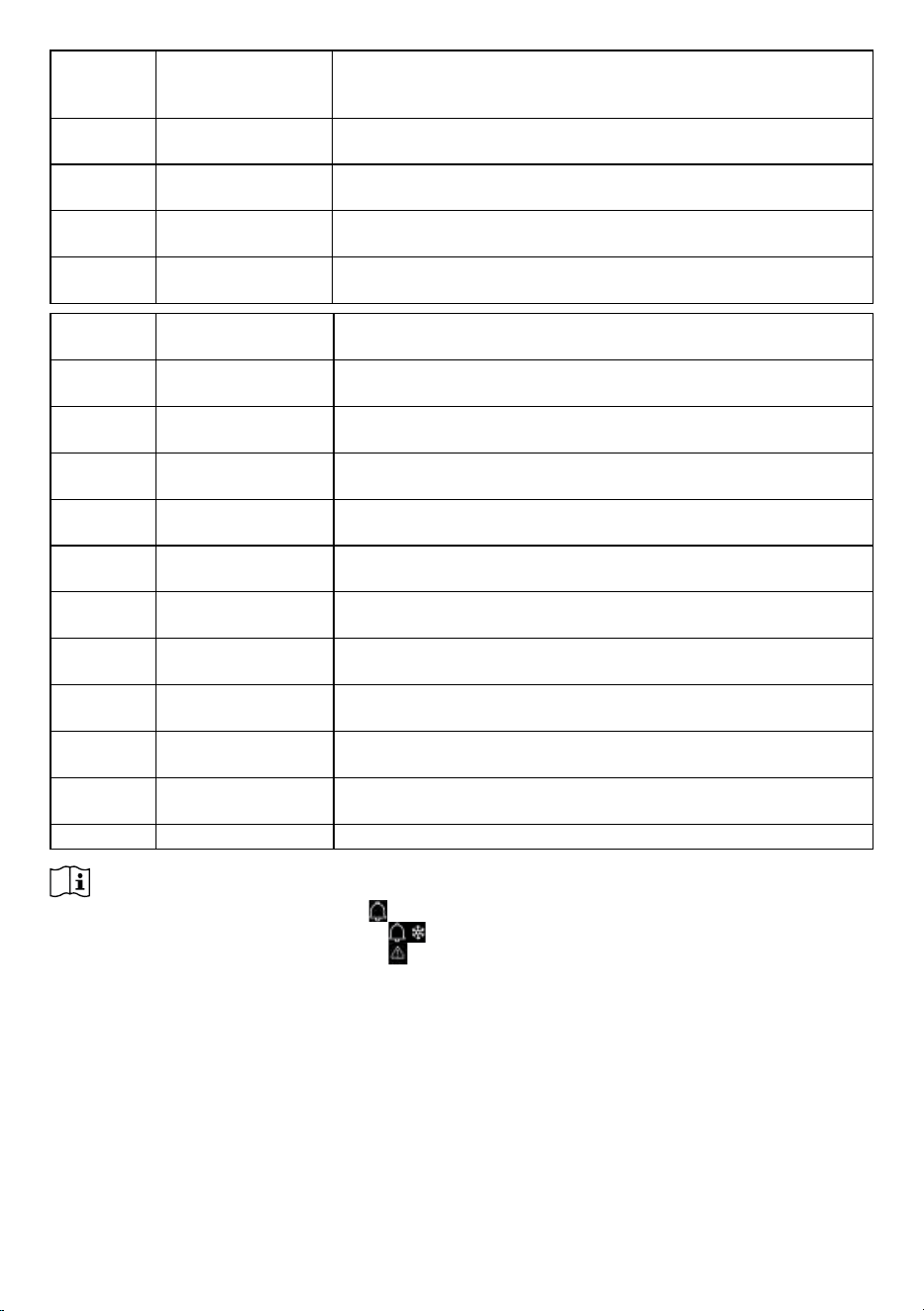
Note:
- When you turn on the time alarm, the “ ” icon will display on time section.
- When you turn on the ice pre alarm, the “ ” and “icon will display on time section.
- When you turn on the weather alert, the “ ” icon will display near the top of reading.
- During the setting, press and hold the [ +/WIND ] or [ -/BARO ] keyforquick-adjustingthevalue.
- The alarm function(s) will turn on automatically once you set the alarm time.
- During the setting, you can return back to normal mode by press and hold [ SET ] key for 2 seconds.
4.6.1 View alarm time and weather alert value
1. In normal mode, press [ ALARM ] key to show the alarm time.
2. Press [ ALARM ] keyrepeatedlytoshowthehighalertvalueandlowalertvaluefordierentparameters.
4.6.2 Alarm operation
When the time reaches the alarm time, the alarm sound will beep.
EN – 16
The alarm beeping can be stopped by following operation:
- Auto-stop after 2 minutes if without any operation and the alarm will activate again in the next day.
- By pressing [BACK LIGHT / SNOOZE] key to enter snooze, and the alarm will sound again after 5
minutes.
- By pressing and hold [BACK LIGHT / SNOOZE] key for 2 seconds or press [ ALARM ] key to stop the
alarm and the alarm will activate again in the next day.
Note:
During the snooze, the alarm icon “ ”willkeepashing.
4.6.3 Weather alert operation
If you set the weather alert, and this value out of the setting range, alarm sound will start and the related
weatherreadingwillash.
Where it can be stopped by following operation:
- Auto-stop once the value back to the range.
- By pressing the [ BACK LIGHT / SNOOZE ] or [ ALARM ] key to stop the sound.
4.7 Console features
4.7.1 Weather forecast
The built-in barometer continually monitor atmosphere pressure. Based on the data collected, it can predict
the weather conditions in the forthcoming 12~24 hours within a 30~50km (19~31 miles) radius.
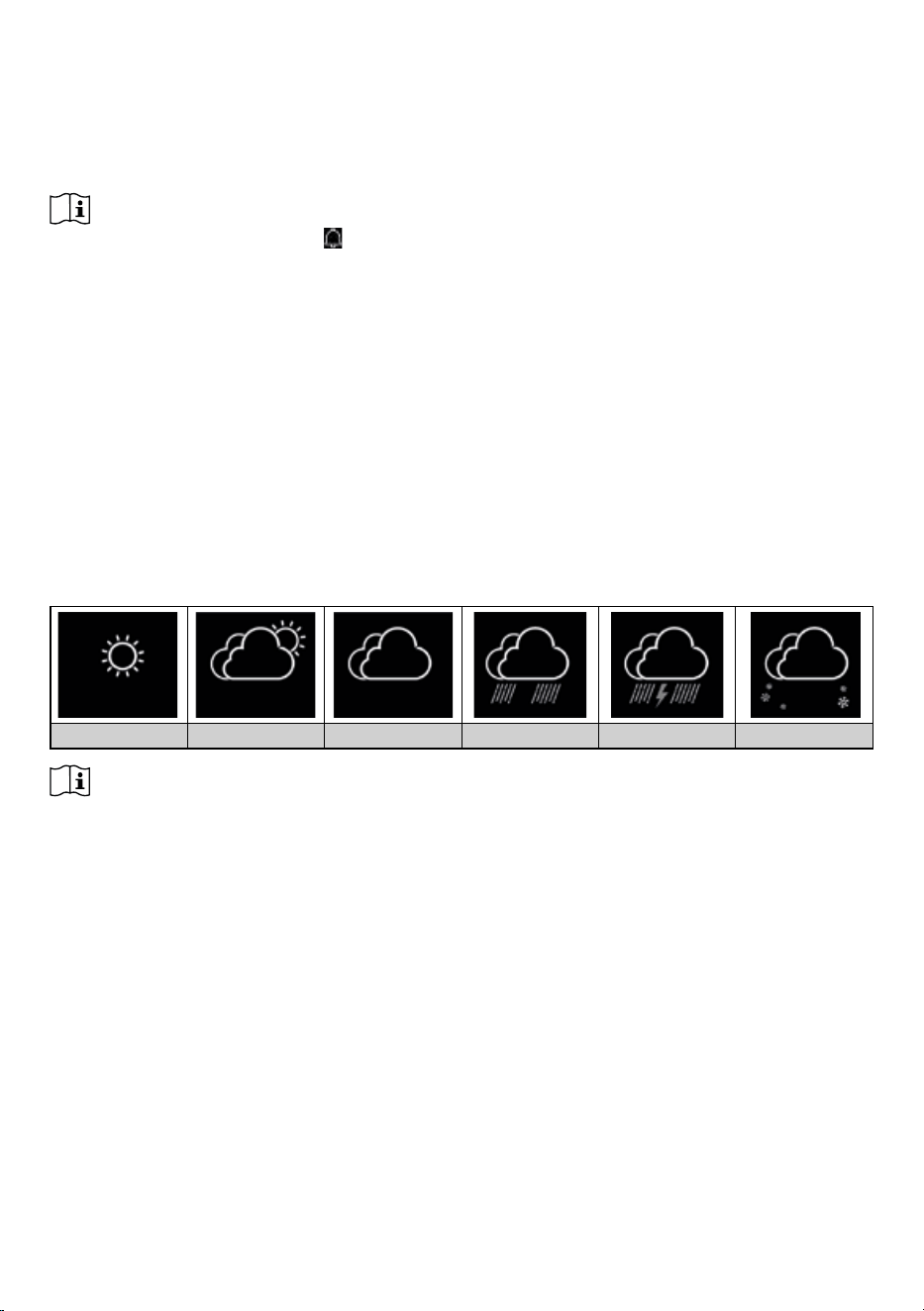
Sunny Partly cloudy Cloudy Rainy Rainy / Stormy Snowy
Note:
- The accuracy of a general pressure-based weather forecast is about 70% to 75%.
- Theweatherforecastisreecting theweathersituation for next12~24hours, itmaynotnecessarily
reectthecurrentsituation.
- The SNOWY weather forecast is not based on the atmospheric pressure, but based on the temperature
of outdoor. When the temperature is below -3°C (26°F), the SNOWY weather icon will be displayed on
the LCD.
4.7.2 Barometric pressure
The atmospheric pressure is the pressure at any location of the earth caused by the weight of the column
of air above it. One atmospheric pressure refers to the average pressure and gradually decreases as
altitude increases. Meteorologists use barometers to measure atmospheric pressure. Because absolute
atmospheric pressure decreases with altitude, meteorologist correct the pressure relative to sea-level
conditions. Hence, your ABS pressure may read 1000 hPa at altitude of 300m, but the REL pressure is
1013 hPa.
ToobtainaccurateRELpressureforyourarea,consultyourlocalocialobservatoryorcheckweather
websiteoninternetforrealtimebarometerconditions,andthenadjusttherelativepressureinsettingmode
(Section 4.5).
EN – 17
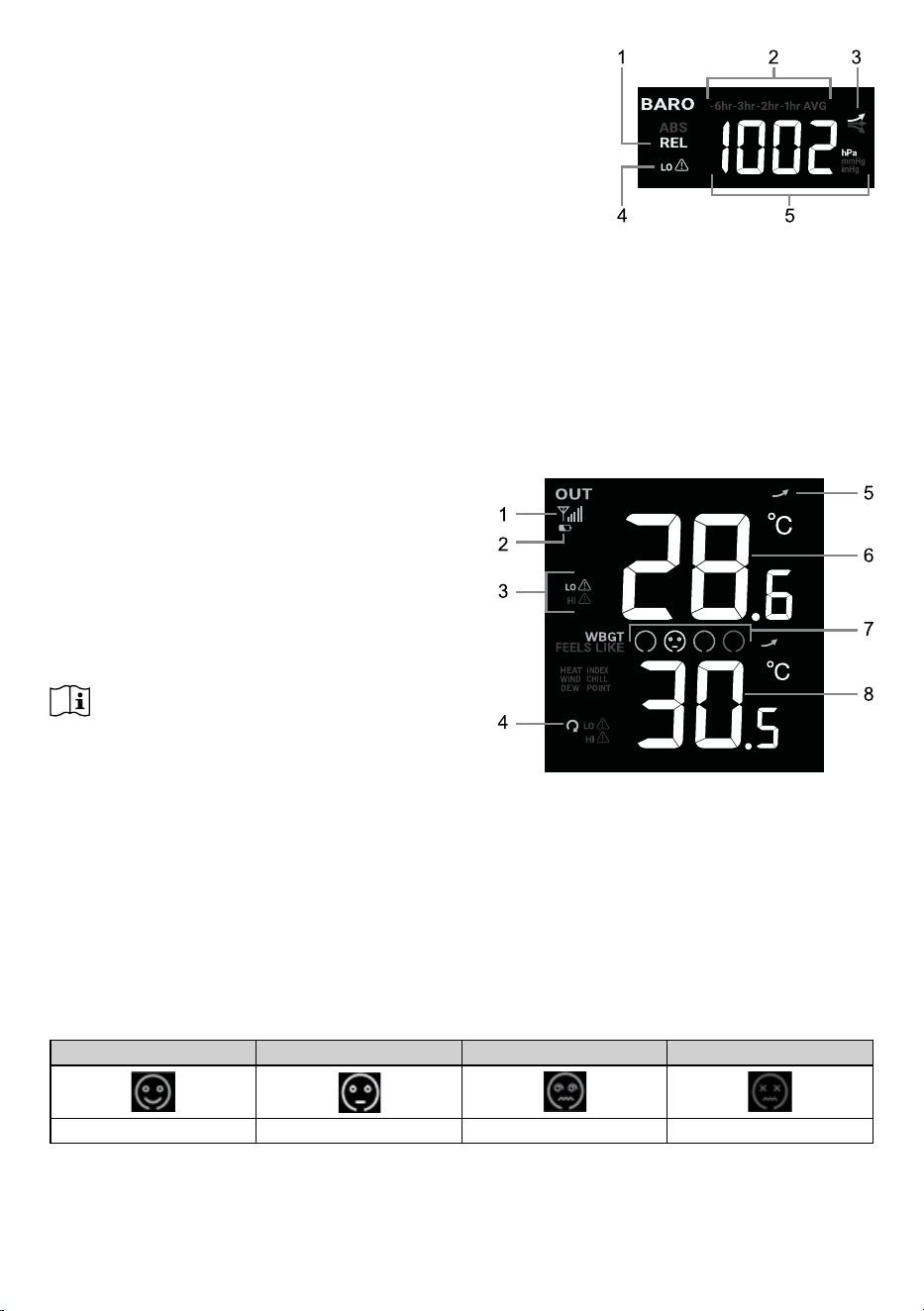
1. Absolute / Relative pressure indicator
2. Past 1, 2, 3, 6 hour average pressure mode indicator
3. Trend indicator
4. Pressure drop alert indicator
5. Barometric pressure reading
4.7.2.1 Pressure history
Press [ BARO ] key for average pressure records of 1, 2, 3, 6 hour ago.
4.7.2.2 Absolute or relative barometric pressure
In normal mode, press and hold [ BARO ] key for 2 second to switch between ABSOLUTE and RELATIVE
barometric pressure.
4.7.3 Outdoor temperature, humidity, dew point and index
1. Signal receiving strength indicator
2. Low battery indicator
3. High / Low alert indicator
4. Auto loop
5. Trend indicator
6. Outdoor temperature reading
7. WBGT level icon
8. Weather index for WBGT, Feels like, Heat index
and Wind chill
Note:
If temperature / humidity is below or above the
measurement range, the reading will show “LO” or “HI”
respectively.
View dierent weather index
Press [ INDEX ] key to switch display between WBGT, FEELS LIKE, HEAT INDEX, WIND CHILL and DEW
POINT readings in weather index section.
4.7.3.1 WBGT and WBGT level
Thewet-bulbglobetemperature(WBGT)isameasureofenvironmentalheatasitaectshumans.
Unlikeasimpletemperaturemeasurement,WBGTaccountsformajorenvironmentalheatfactors:
air temperature, humidity, and radiant heat from sunlight. It is used by industrial hygienists, athletes,
sporting events and the military to determine appropriate exposure levels to high temperatures.
Caution Extreme Caution Danger Extreme Danger
26.7 ~ 29.3°C 29.4 ~ 31°C 31.1 ~ 32.1°C > 32.2°C
Note:
- WBGT display range is 10 ~ 50°C (50 ~ 122°F), if below or above the measurement range, the reading
will show “Lo” or “HI” respectively
EN – 18
- There is no WBGT level indication when the WBGT is below 26.7°C (80.1°F)
4.7.3.2 Feels like
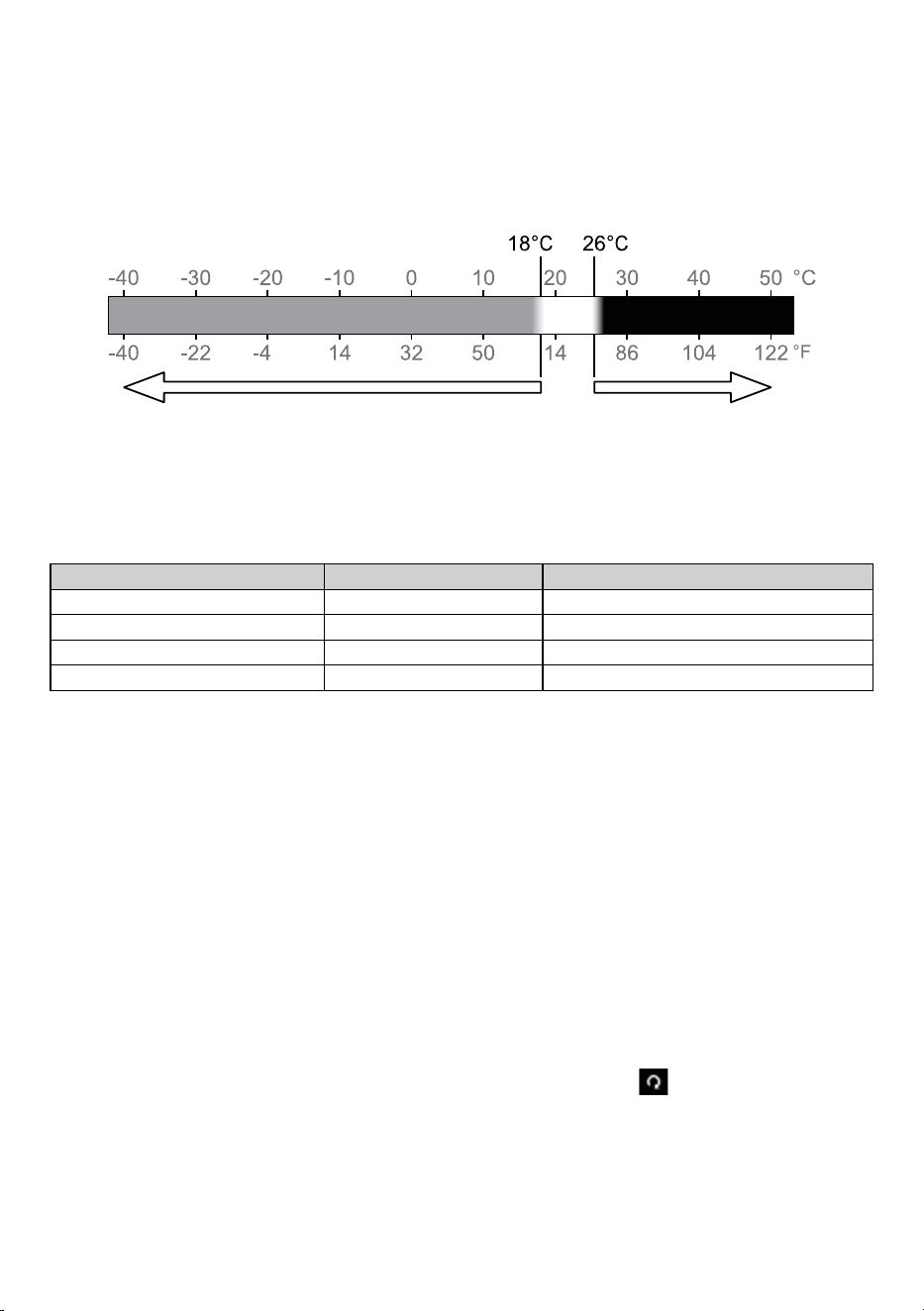
Feels Like Temperature shows what the outdoor temperature will feel like. It’s a collective mixture of Wind
Chill factor (18°C or below) and the Heat Index (26°C or above). For temperatures in the region between
18.1°Cto25.9°Cwherebothwindandhumidityarelesssignicantinaectingthetemperature,thedevice
will show the actual outdoor measured temperature as Feels Like Temperature.
Increasing danger Increasing danger
Wind Chill Heat index
4.7.3.3 Heat index
The heat index which is determined by the wireless 8-in-1 sensor’s temperature & humidity data when the
temperature is between 26°C (79°F) and 50°C (120°F).
Heat Index range Warning Explanation
27°C to 32°C (80°F to 90°F) Caution Possibility of heat exhaustion
33°C to 40°C (91°F to 105°F) Extreme Caution Possibility of heat dehydration
41°C to 54°C (106°F to 129°F) Danger Heat exhaustion likely
≥55°C(≥130°F) Extreme Danger Strong risk of dehydration / sun stroke
4.7.3.4 Wind chill
A combination of the wireless 8-in-1 sensor’s temperature and wind speed data determines the current wind
chill factor. Wind chill number are always lower than the air temperature for wind values where the formula
applied is valid (i.e. due to limitation of formula, actual air temperature higher than 10°C with wind speed
below 9km/h may result in erroneous wind chill reading).
4.7.3.5 Dew point
Dew point is the temperature below which the water vapor in air at constant barometric pressure condenses
into liquid water at the same rate at which it evaporates. The condensed water is called dew when it forms
on a solid surface.
4.7.4 Indoor and optional CH1~3 temperature and humidity
This console can display Indoor and CH1~3 optional thermo-hygro sensor readings. In normal mode, press
[ CH ] toswitchbetweenindooranddierentwirelesschannels.
Forauto-loopfunction,justpressandholdthe[ CH ] for 2 seconds and the
icon will appear.
The console will scroll the readings of all the sensors every 4 seconds.
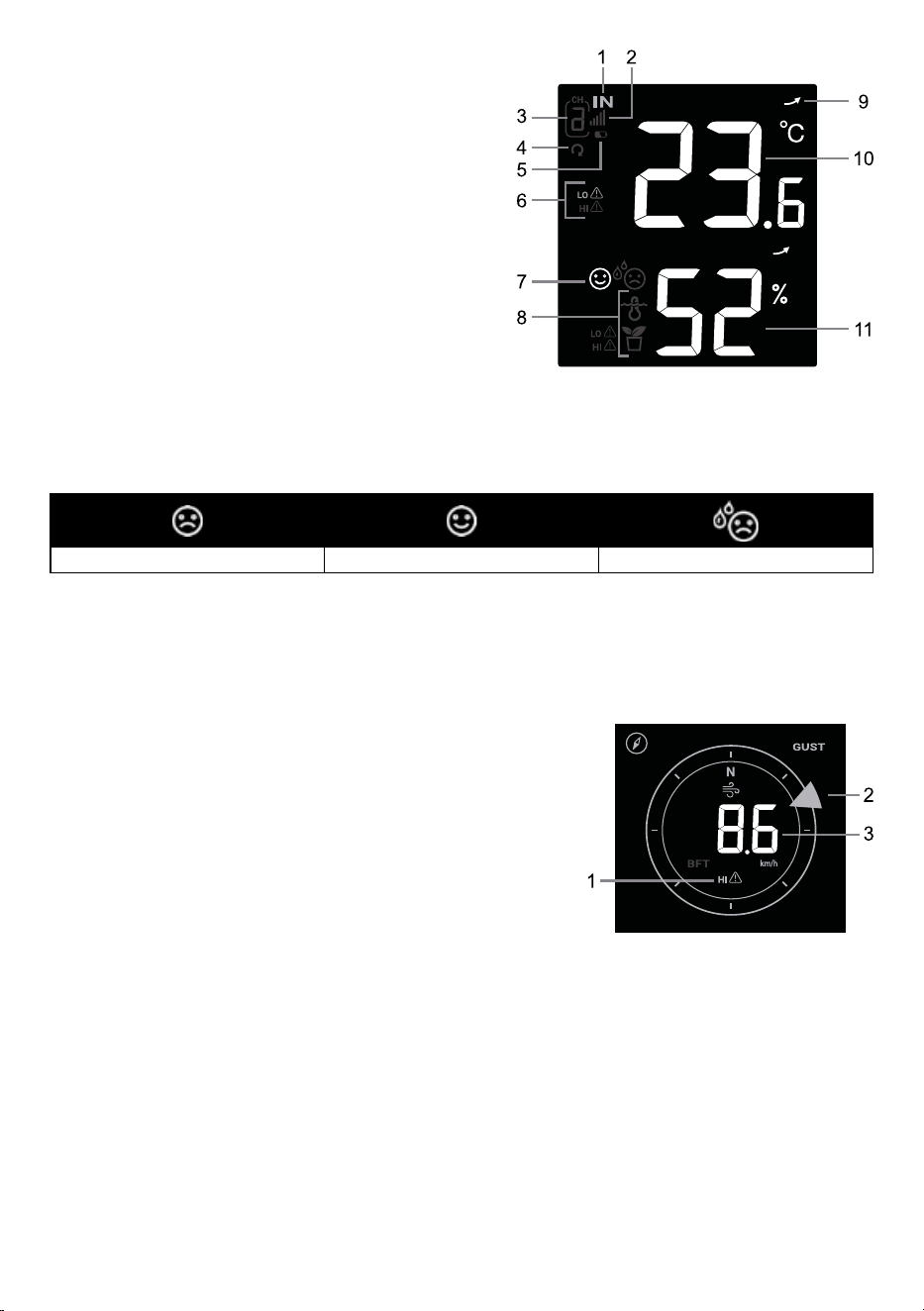
EN – 19
1. Indoor indicator
2. Signal strength for CH1~3
3. CH1~3 indicator
4. CH1~3 auto loop icon
5. Low battery indicator for CH1~3
6. High / Low alert indicator
7. Comfort index icon
8. Sensor type icon of optional pool or soil sensor
9. Trend indicator
10. Indoor / CH1~3 temperature reading
11. Indoor / CH1~3 sensor humidity reading
4.7.4.1 Comfort Indication
The comfort indication is a pictorial indication based on indoor air temperature and humidity in an attempt
to determine comfort level.
Too cold Comfortable Too hot
Note:
Comfort indication can vary under the same temperature, depending on the humidity.
There is no comfort indication when temperature is below 0°C (32°F) or over 60°C (140°F).
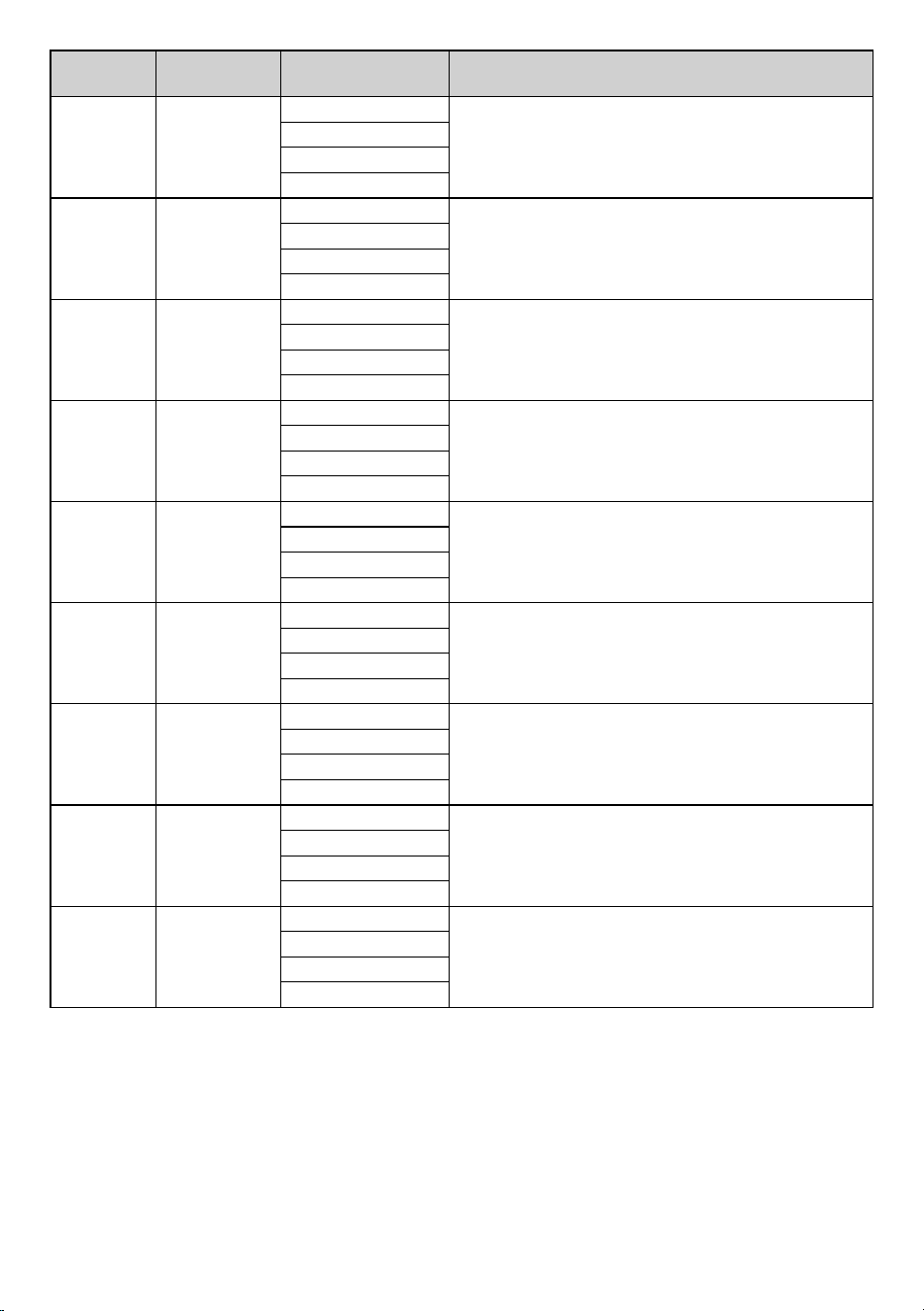
4.7.5 Wind
1. High wind speed alert indicator
2. Real time wind direction indicator (16 points)
3. Wind speed, Gust or Beaufort scale reading
4.7.5.1 Wind speed and Beaufort Scale display
Windspeedisdenedastheaveragewindspeedinthe12secondupdateperiod.
Press [ WIND ] key to toggle between Wind speed, gust and Beaufort scale reading.
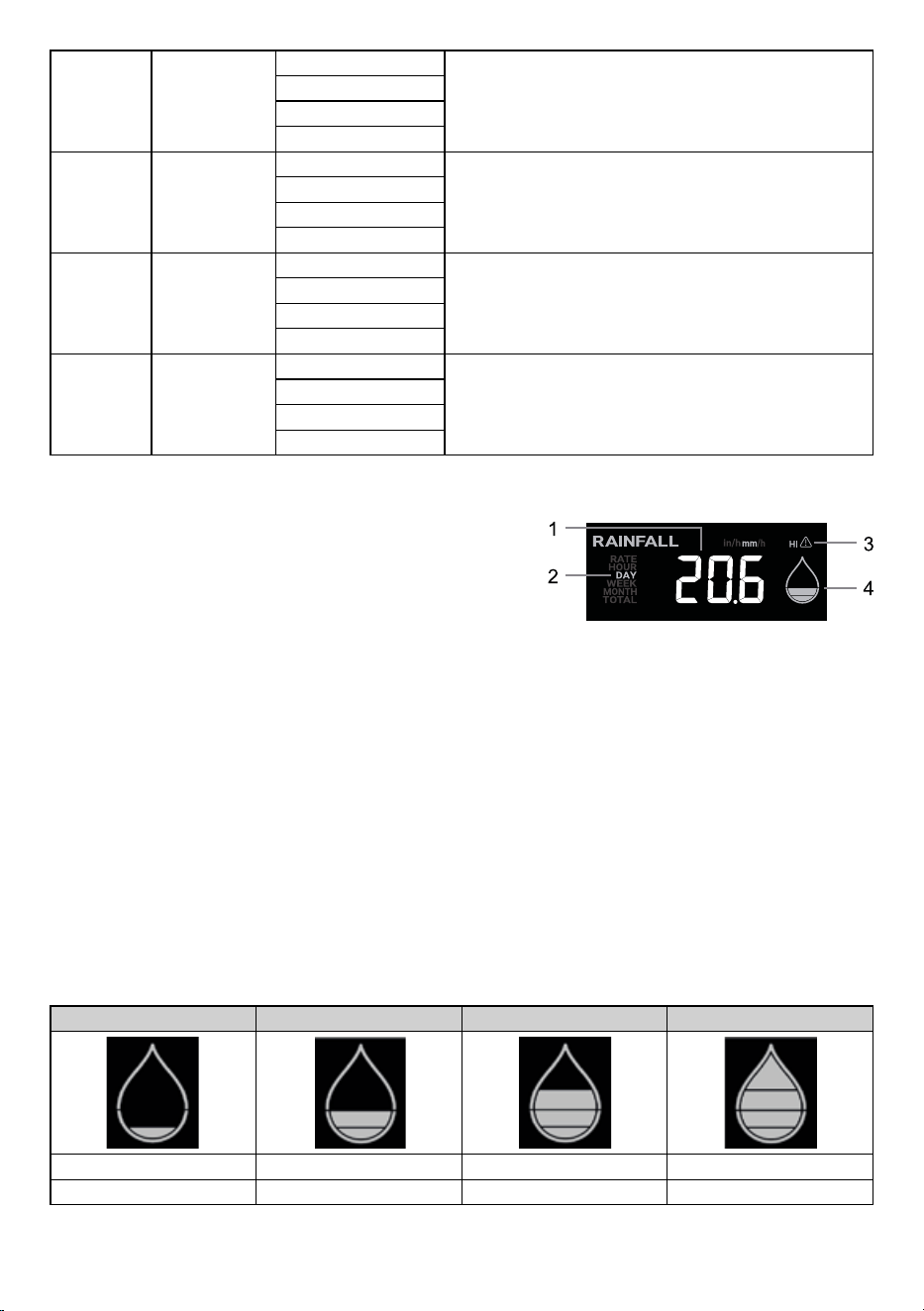
4.7.5.2 Beaufort scale table
The Beaufort scale is an international scale of wind velocities ranging from 0 (calm) to 12 (Hurricane force).
EN – 20
Beaufort
Scale
Description Wind Speed Land Condition
0 Calm
< 1 km/h
Calm. Smoke rises vertically.
< 1 mph
< 1 knots
< 0.3 m/s
1 Light air
1.1 ~ 5km/h
Smoke drift indicates wind direction.
Leaves and wind vanes are stationary.
1 ~ 3 mph
1 ~ 3 knots
0.3 ~ 1.5 m/s
2 Light breeze
6 ~ 11 km/h
Wind felt on exposed skin. Leaves rustle.
Wind vanes begin to move.
4 ~ 7 mph
4 ~ 6 knots
1.6 ~ 3.3 m/s
3 Gentle breeze
12 ~ 19 km/h
Leaves and small twigs constantly moving, light
agsextended.
8 ~ 12 mph
7 ~ 10 knots
3.4 ~ 5.4 m/s
4
Moderate
breeze
20 ~ 28 km/h
Dust and loose paper raised. Small branches begin
to move.
13 ~ 17 mph
11 ~ 16 knots
5.5 ~ 7.9 m/s
5 Fresh breeze
29 ~ 38 km/h
Branches of a moderate size move.
Small trees in leaf begin to sway.
18 ~ 24 mph
17 ~ 21 knots
8.0 ~ 10.7 m/s
6 Strong breeze
39 ~ 49 km/h
Large branches in motion. Whistling heard in
overheadwires.Umbrellausebecomesdicult.
Empty plastic bins tip over.
25 ~ 30 mph
22 ~ 27 knots
10.8 ~ 13.8 m/s
7 High wind
50 ~ 61 km/h
Wholetreesinmotion.Eortneededtowalkagainst
the wind.
31 ~ 38 mph
28 ~ 33 knots
13.9 ~ 17.1 m/s
8 Gale
62 ~ 74 km/h
Some twigs broken from trees. Cars veer on road.
Progress on foot is seriously impeded
39 ~ 46 mph
34 ~ 40 knots
17.2 ~ 20.7 m/s
EN – 21
9 Strong gale
75 ~ 88 km/h
Somebranchesbreakotrees,andsomesmall
trees blow over. Construction / temporary signs and
barricades blow over.
47 ~ 54 mph
41 ~ 47 knots
20.8 ~ 24.4 m/s
10 Storm
89 ~ 102 km/h
Treesarebrokenooruprooted,structuraldamage
likely.
55 ~ 63 mph
48 ~ 55 knots
24.5 ~ 28.4 m/s
11 Violent storm
103 ~ 117 km/h
Widespread vegetation and structural damage likely.
64 ~ 73 mph
56 ~ 63 knots
28.5 ~ 32.6 m/s
12
Hurricane
force
≥118km/h
Severe widespread damage to vegetation and
structures.Debrisandunsecuredobjectsarehurled
about.
≥74mph
≥64knots
≥32.7m/s
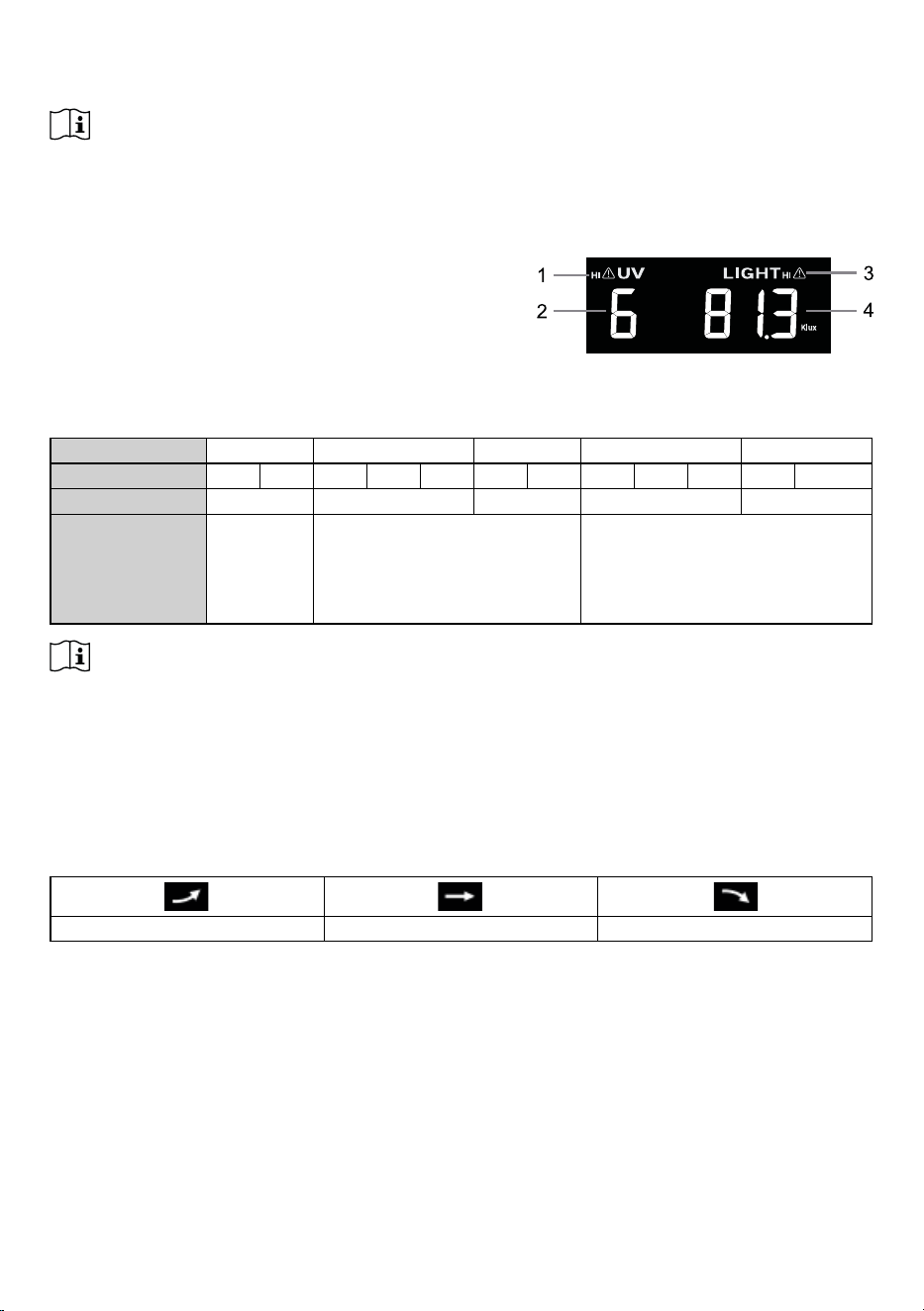
4.7.6 Rain
1. Period of rainfall and rain rate indicator
2. Rainfall or rain rate reading
3. Rain rate high alert indicator
4. Rain rate level
4.7.6.1 The rain display mode
Press [ RAIN ] key to toggle between:
1. RATE - current rainfall rate (base on 10 min rain data)
2. HOUR - the total rainfall of the current hour
3. DAY - the total rainfall from midnight (default)
4. WEEK - the total rainfall of the current week
5. MONTH- the total rainfall of the current calendar month
6. TOTAL - the total rainfall since the last reset
4.7.6.2 Rain rate level denition
Level 1 Level 2 Level 3 Level 4
Light rain Moderate Heavy rain Violent rain
0.1~ 2.5 mm/h 2.51 ~ 10.0 mm/h 10.1 ~ 50.0 mm/h > 50.0 mm/h
EN – 22
To reset the total rainfall record
In normal mode, press and hold [ RAIN ] key for 6 seconds to reset all the rainfall record.
Note:
Erroneous readings may occur during the installation of the 8-in-1 sensor array. Once the installation is
completed and functioning correctly, it’s advisable to clear all the data and start afresh.
4.7.7 Light intensity, UV index & exposure level
1. UV index
2. UV high alert indicator
3. Solar light intensity
4. Light intensity high alert indicator
4.7.7.1 UV index vs exposure table
Exposure level Low Moderate High Very high Extreme
UV index 1 2 3 4 5 6 7 8 9 10 11 12~16
Sunburn time N/A 45 minutes 30 minutes 15 minutes 10 minutes
Recommended
protection
N/A
Moderate or high UV level!
Suggest to wear sunglasses,
broad brim hat and long-sleeved
clothing.
Very high or Extreme UV level!
Suggest to wear sunglasses, broad
brim hat and long-sleeved clothing,
If you have to stay outdoors, make
sure to seek shade.
Note:
- Thesunburntimeisbasedonnormalskintype,itisjustareferenceofUVstrength.Ingeneral,thedarker
one’sskinis,thelonger(ormoreradiation)ittakestoaecttheskin.
- The light intensity function is for sunlight detection.
4.8 Trend indicator
The trend indicator shows the temperature humidity and barometric pressure trends of changes in the
forthcoming few minutes.
Rising Steady Falling
4.9 Maximum / Minimum records
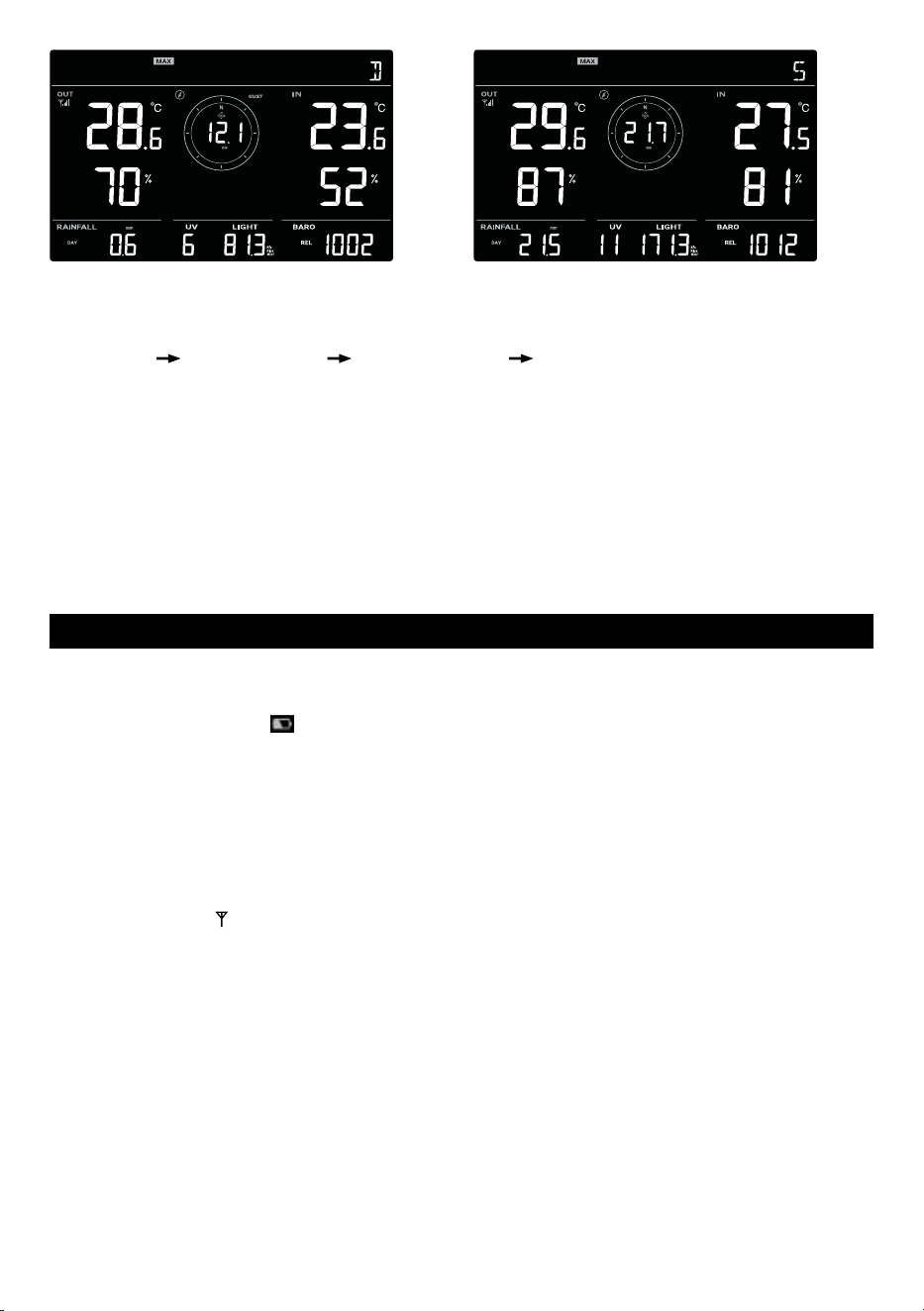
The console can record MAX / MIN readings both daily and since last reset.
EN – 23
Daily MAX record mode
Since MAX record mode
In normal mode, press [ MEMORY ] key to display the records on screen in the following sequence: daily
MAX records
daily MIN records since MAX records since MIN records.
Press [ INDEX ] key to switch between WBGT, Feels Like, Heat Index and Wind Chill.
Press [ CH ] key to switch between Indoor and CH1~3 records.
4.9.1 To Clear the Maximum / Minimum records
Press and hold [ MEMORY ] key for 2 seconds to reset all the MAX and MIN records.
4.10 Back light
Press [ BACK LIGHT/SNOOZE ] keytotogglethebacklightbetweenHi,LoorO.
5. MAINTENANCE
5.1 Battery replacement
When low battery indicator “ ” appear near the sensor antenna icon, it indicates that the current sensor
battery power is low respectively. Please replace with new batteries.
5.1.1 Re-pairing the sensor array manually
Whenever you changed the batteries of the 8-in-1 weather sensor array or other additional sensors, re-
synchronization must be done manually.
1. Change all the batteries to new ones of the wireless sensor array.
2. Press [ SENSOR ] key on the console to enter sensor synchronization mode (as indicated by the
ashingantenna ).
5.2 Reset and factory reset
To reset the console and start again, press the [ RESET ] key once or remove the backup battery and then
unplug the adapter.
EN – 24
5.3 Wireless 8-in-1 sensor array maintenance
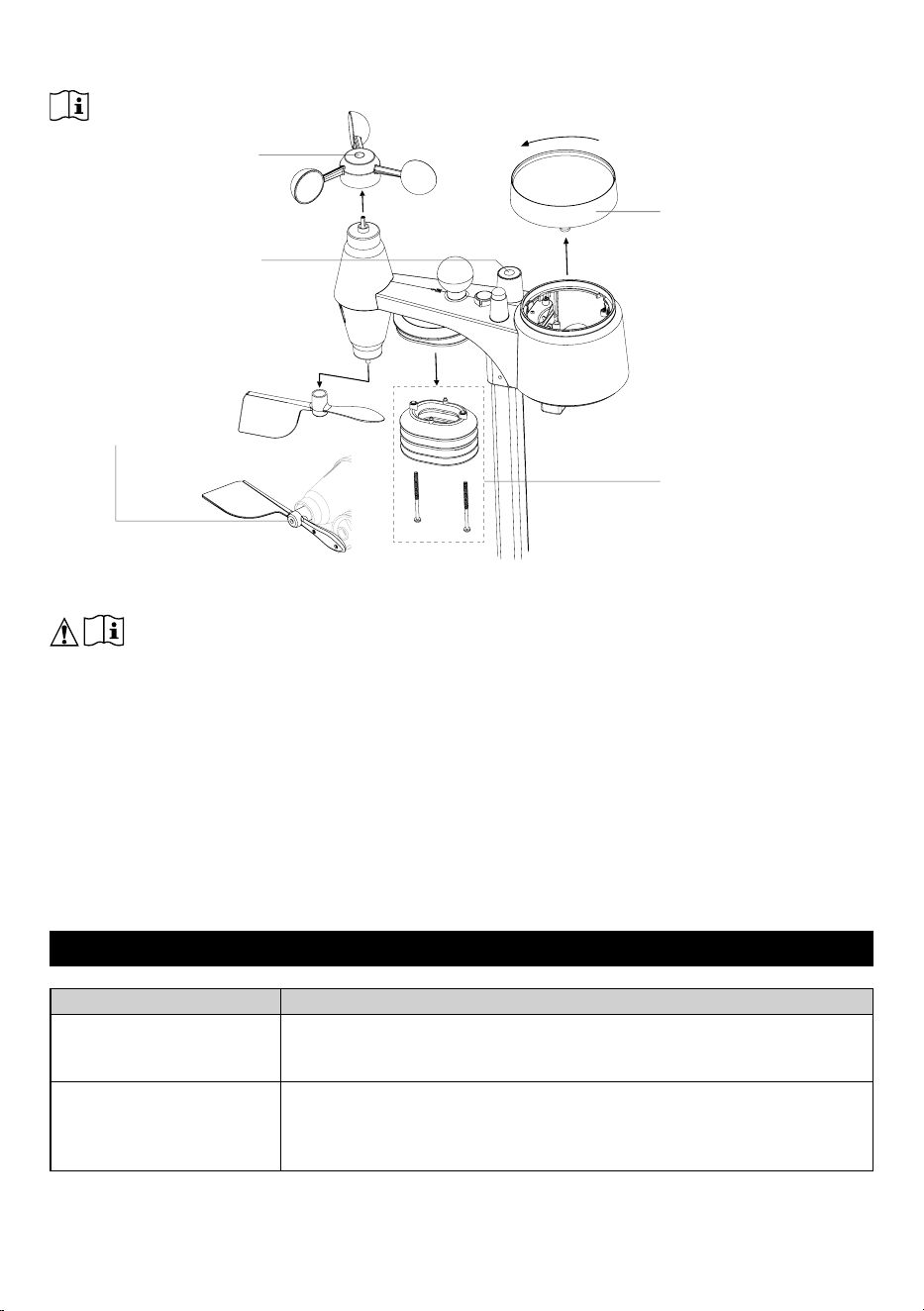
CLEANING THE RAIN
COLLECTOR
1. Rotate the rain collector by
turning it 30°anti-clockwise.
2. Gently remove the rain
collector.
3. Clean and remove any
debris or insects.
4. Install the collector when it is
clean and fully dried.
CLEANING HYGRO-THERMO
SENSOR
1. Remove the 2 screws at
the bottom of the radiation
shield.
2. Gently pull out the bottom 4
shields.
3. Carefully remove any dirt or
insects on the sensor (do
not let the sensors inside get
wet).
4. Clean the shield with
water to remove any dirt or
insects.
5. Install all the parts back
when they are clean and
fully dried.
REPLACE THE WIND CUP
1. Remove rubber cap and
Unscrew
2. Remove the wind cup for
replacement
CLEANING THE UV SENSOR
AND CALIBRATION
• For precision UV measurement,
gentle clean the UV sensor cover
• Over time, the UV sensor will
naturally degrade. The UV sensor
can be calibrated with a utility
grade UV meter, please refer to
Calibration section in previous
page for about the UV sensor
calibration.
REPLACE THE WIND VANE
Unscrew and remove the wind vane
for replacement
In general, if the regular maintenance schedule in the owner’s manual is followed, the user can expect
a lifetime in excess of 3 years before the sensor array is completely replaced. The life expectancy of
aweatherstationislargelyinuencedbyitsenvironment,seethefollowingexamples:
Coastal, swampy or wetland environments. Salt air, salt spray, and acidication are the most dicult
environments for a weather station to live long. These can corrode bearings, sensor plates (temperature,
humidity, etc.), mounting hardware, and other moving parts. In this environment, the expected product life is
1-3 years. Our boards are conformal coated to prevent this corrosion. Digital thermometer and hygrometer
sensors rely on the changing nature of the metal’s resistance, allowing corrosion to occur faster
Long-term exposure to high humidity environment. Prolonged exposure to high humidity, whether salty
or acidic, can easily cause premature failure of metal parts. In a hot and dry environment, the lifespan of
a weather station is known to last up to 5 years.
Hurricanes and tropical storms can also shorten the lifespan of weather stations.
6. TROUBLESHOOT
Problems Solution
8-in-1 wireless sensor
array is intermittent or no
connection
1. Make sure the sensor array is within the transmission range
2. If it still does not work, reset the sensor pair with console again
Rainfall is not correct
1. Make sure the rain collector is clean for the tipping bucket to tip
smoothly
2. Make sure the sensor has stable and level mounting to ensure correct
tipping
EN – 25
Temperature reading too
high in the day time
1. Placethesensorinopenareaandatleast1.5motheground.
2. Ensure that the sensor is placed away from heat generating sources
or structures, such as buildings, pavement, walls or air conditioning
units.
Some condensation
beneath the UV sensor
may occur overnight
This will disappear when temperature rises up under the sun and will not
aecttheperformanceoftheunit.
7. SPECIFICATIONS
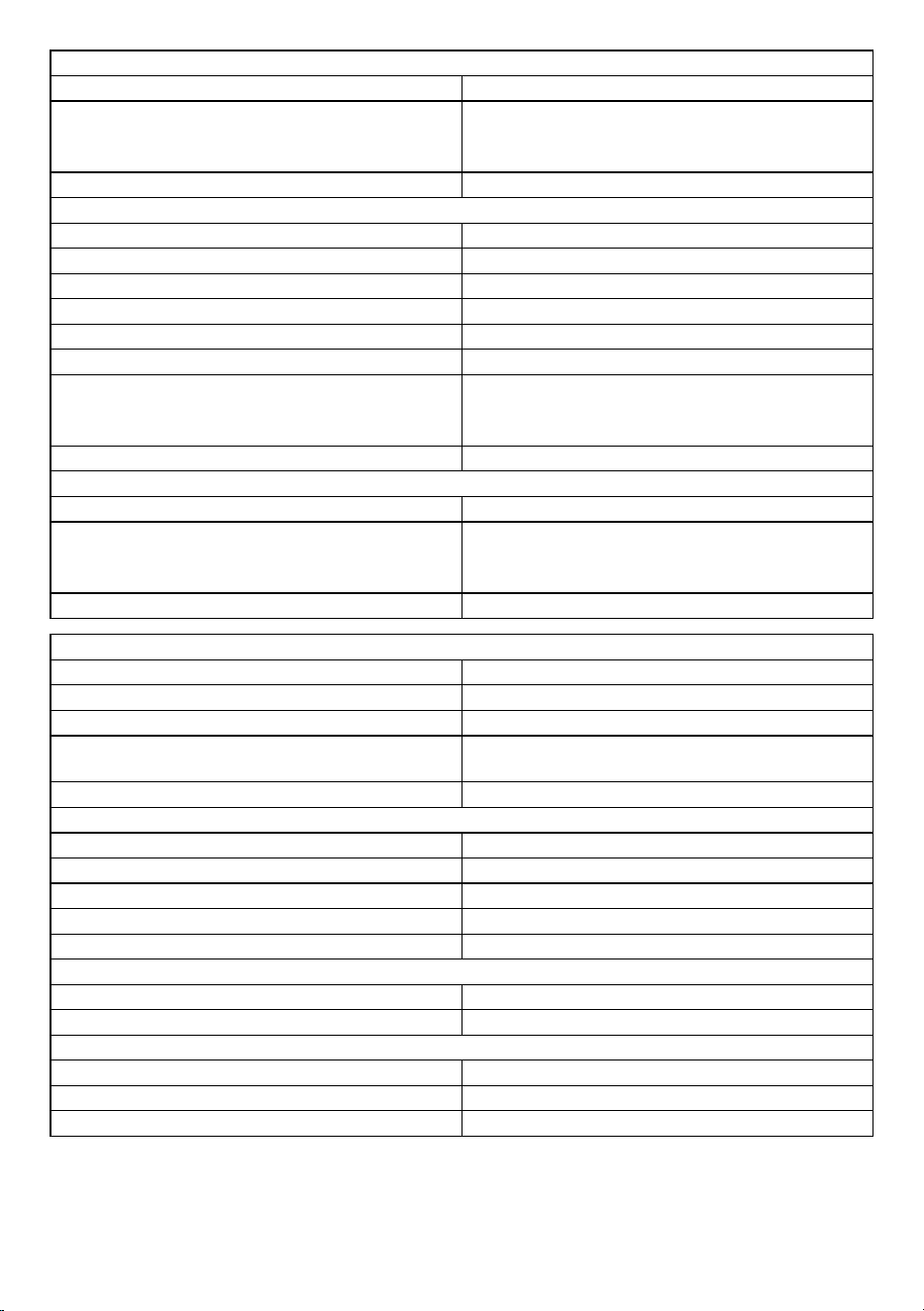
7.1 Console
General specication
Dimensions (W × H × D) 171 × 116 × 21mm (6.8 × 4.6 × 0.8 in)
Weight 246g (with battery, without adaptor)
Main power DC 5V, 1A adapter
Backup battery CR2032
Operating temperature range -5˚C~50˚C
Operating Humidity range RH 10 ~ 90% non-condensing
Support sensor
- 1 Wireless 8-in-1 weather sensor array
- 3 Wireless thermo-hygro sensor (optional)
RF frequency 868Mhz
RADIO-CONTROLLED / ATOMIC CLOCK (Note: RC signal receive from 8-in-1 sensor)
Synchronization Auto or disabled
Clock display Date / HH:MM:SS / Weekday
Hour format 12hr AM / PM or 24hr
Calendar DD / MM
Weekday in 7 languages EN / FR / DE / ES / IT / NL / RU
RCC time signal (from wireless 8-in-1 sensor
array)
DCF (EU version)
DST AUTO / ON / OFF
Barometer (Note: Data detected by console)
Barometer unit hPa, inHg and mmHg
Measuring range 540 ~ 1100hPa
Accuracy
(700 ~ 1100hPa ± 5hPa) / (540 ~ 696hPa ± 8hPa)
(20.67 ~ 32.48inHg ± 0.15inHg) / (15.95 ~
20.55inHg ± 0.24inHg)
(525 ~ 825mmHg ± 3.8mmHg) / (405 ~ 522mmHg
± 6mmHg)
Typical at 25°C (77°F)
Resolution 1hPa / 0.01inHg / 0.1mmHg
Indoor temperature (Note: Data detected by console)
Temperature unit °C and °F
Accuracy
≤0°C±2°C(≤32°F±3.6°F)
>0 °C ± 1°C (>32 °F ± 1.8°F)
Resolution °C / °F (1 decimal place)
EN – 26
Indoor humidity (Note: Data detected by console)
Humidity unit %
Accuracy
1 ~ 9% RH ± 8% RH @ 25°C (77°F)
10 ~ 90% RH ± 5% RH @ 25°C (77°F)
90 ~ 99% RH ± 8% RH @ 25°C (77°F)
Resolution 1%
Outdoor temperature (Note: Data detected by 8-in-1 sensor)
Temperature unit °C and °F
WBGT display range 10 ~ 50°C
Feels like display range -65 ~ 50°C
Heat index display range 26 ~ 50°C
Wind chill display range -65 ~ 18°C (wind speed > 4.8km/h)
Dew point display range -20 ~ 80°C
Accuracy
0.1 ~ 60°C ± 0.4°C (32.2 ~ 140°F ± 0.7°F)
-19.9 ~ 0°C ± 0.7°C (-3.8 ~ 32°F ± 1.3°F)
-40 ~ -20°C ± 1°C (-40 ~ -4°F ± 1.8°F)
Resolution °C / °F (1 decimal place)
Outdoor humidity (Note: Data detected by 8-in-1 sensor)
Humidity unit %
Accuracy
1~9% RH ± 5% RH @25°C (77°F)
10~90% RH ± 3.5% RH @25°C (77°F)
91~99% RH ± 5% RH @25°C (77°F)
Resolution 1%
Wind speed & direction (Note: Data detected by 8-in-1 sensor)
Wind speed unit mph, m/s, km/h and knots
Wind speed display range 0 ~ 112mph, 50m/s, 180km/h, 97knots
Resolution mph, m/s, km/h and knots (1 decimal place)
Speed accuracy
< 5m/s: +/- 0.8m/s; > 5m/s: +/- 10% (whichever is
greater)
Wind direction display mode 16 directions
Rain (Note: Data detected by 8-in-1 sensor)
Unit for rainfall mm and in
Unit for rain rate mm/h and in/h
Accuracy ±7% or 1 tip
Range 0 ~ 19999mm (0 ~ 787.3 in)
Resolution 0.254mm (3 decimal place in mm)
UV index (Note: Data detected by 8-in-1 sensor)
Display range 0 ~ 16
Resolution Integer
Light intensity (Note: Data detected by 8-in-1 sensor)
Light intensity unit Klux, Kfc and W/m
2
Display range 0 ~ 200Klux
Resolution Klux, Kfc and W/m
2
(2 decimal place)
EN – 27
7.2 Wireless 8-in-1 sensor
Dimensions (W × H × D)
343.5 × 393.5 × 136mm (13.5 × 15.5 × 5.35in)
installed mounting
Weight 741.5g (with pole & stand, without batteries)
Main power
3 × AA size 1.5V batteries (Non-rechargeable
Lithium batteries recommended)
Weather data
WBGT, temperature, humidity, wind speed, wind
direction, rain, UV and light intensity
RCC function RCC receiver
RF transmission range 150m
RF frequency (depend on country version) 868Mhz
Transmission interval 12 seconds
Operating temperature range
-40 ~ 60°C (-40 ~ 140°F) Non-rechargeable
Lithium batteries required for low temperature
Operating humidity range 1 ~99% RH
Adapter technical specications:
Manufacturer’s name or trade mark, commercial
registration number and address:
DongguanShijieHuaXuElectronicsFactory,
No.200,TechnologyEastRoad,ShijieTown,
Dongguan City, Guangdong P.R. China
Modelidentier: HX075-0501000-AG-001
Input voltage: AC100 - 240V
Input AC frequency: 50/60Hz
Output voltage: 4.75-5.25V
Output current: 1.0A
Output power: 5.0W
Averageactiveeciency: 73.62%
Eciencyatlowload(10%): 64.93%
No-load power consumption: ≤0.1W
EN – 28
INSTRUCTIONS AND INFORMATION ON THE DISPOSAL OF DISCARDED
PACKAGING MATERIALS
Take the packaging material to a collection yard for disposal.
DISPOSAL OF DISCARDED ELECTRICAL AND ELECTRONIC EQUIPMENT
This symbol on the product, accessory or packaging indicates that the product must not
be treated as normal household waste. Please dispose of this product in a collection yard
designated for the recycling of electrical and electronic equipment. In some EU countries or
in some European countries, you can return your products to your local retailer when you
buy an equivalent new product. Correct disposal of this product helps save valuable natural
resources and prevents possible adverse impacts on the environment and human health
that might be caused by improper waste disposal. Please contact your local authority or the
nearest waste collection yard for further details. Improper disposal of this type of waste may
besubjecttoalegalfine.
For companies in the European Union
If you need to dispose of electrical or electronic equipment, ask your dealer or supplier for the
necessary information.
Disposal in countries outside the European Union
To dispose of this product, please ask your local authorities or dealer for the necessary
information on correct disposal.
This product complies with EU requirements.
FASTČR,a.s.herebydeclaresthattheradiodevicetypeSWS9500complieswithDirective2014/53/EU.
For full version of the EU declaration of conformity, please refer to the website: www.sencor.cz
Changes in the text, design and technical specifications may be made without prior notice and we reserve
the right to make such changes.
The original version is in Czech.
Manufacturer:FASTČR,a.s.,USanitasu1621,Říčany25101,CzechRepublic
info@sencor.com
Authorized service centers: Visit www.sencor.com for detailed information about authorized service
centers.
EN
Warranty conditions
Warranty card is not apart of the device packaging.
This product is warranted for the period of 24 months from the date of purchase to the end-user. Warranty
is limited to the following conditions. Warranty is referred only to the customer goods using for common
domestic use. The claim for service can be applied either at dealer’sshop where the product was bought, or
at below mentioned authorized service shops. The end-user is obligated to set up aclaim immediately when
the defects appeared but only till the end of warranty period. The end user is obligated to cooperate to certify
the claiming defects. Only completed and clean (according to hygienic standards) product will be accepted.
In case of eligible warranty claim the warranty period will be prolonged by the period from the date of claim
application till the date of taking over the product by end-user, or the date the end-user is obligated to take it
over. To obtain the service under this warranty, end-user is obligated to certify his claim with duly completed
following documents: receipt, certificate of warranty, certificate of installation.
This warranty is void especially if apply as follows:
Defects which were put on sale.
Wear-out or damage caused by common use.
The product was damaged by unprofessional or wrong installation, used in contrary to the applicable
instruction manual, used in contrary to legal enactment and common process of use or used for another
purpose which has been designed for.
The product was damaged by uncared-for or insufficient maintenance.
The product was damaged by dirt, accident of force majeure (natural disaster, fire, and flood).
Defects on functionality caused by low duality of signal, electromagnetic field interference etc.
The product was mechanically damaged (e.g. broken button, fall).
Damage caused by use of unsuitable media, fillings, expendable supplies (batteries) or by unsuitable
working conditions (e.g. high temperatures, high humidity, quakes).
Repair, modification or other failure action to the product by unauthorized person.
End-user did not prove enough his right to claim (time and place of purchase).
Data on presented documents differs from data on products.
Cases when the claiming product cannot be indentified according to the presented documents (e.g. the
serial number or the warranty seal has been damaged).
Manufacturer:
FAST ČR, a.s., U Sanitasu 1621, Říčany 251 01, Czech Republic
Visit www.sencor.com for detailed information about authorized service centers.
The original version of the instructions is in the Czech language, other language versions are made by the
appropriate translation.

EN – 29
EN
Warranty conditions
Warranty card is not apart of the device packaging.
This product is warranted for the period of 24 months from the date of purchase to the end-user. Warranty
is limited to the following conditions. Warranty is referred only to the customer goods using for common
domestic use. The claim for service can be applied either at dealer’sshop where the product was bought, or
at below mentioned authorized service shops. The end-user is obligated to set up aclaim immediately when
the defects appeared but only till the end of warranty period. The end user is obligated to cooperate to certify
the claiming defects. Only completed and clean (according to hygienic standards) product will be accepted.
In case of eligible warranty claim the warranty period will be prolonged by the period from the date of claim
application till the date of taking over the product by end-user, or the date the end-user is obligated to take it
over. To obtain the service under this warranty, end-user is obligated to certify his claim with duly completed
following documents: receipt, certificate of warranty, certificate of installation.
This warranty is void especially if apply as follows:
Defects which were put on sale.
Wear-out or damage caused by common use.
The product was damaged by unprofessional or wrong installation, used in contrary to the applicable
instruction manual, used in contrary to legal enactment and common process of use or used for another
purpose which has been designed for.
The product was damaged by uncared-for or insufficient maintenance.
The product was damaged by dirt, accident of force majeure (natural disaster, fire, and flood).
Defects on functionality caused by low duality of signal, electromagnetic field interference etc.
The product was mechanically damaged (e.g. broken button, fall).
Damage caused by use of unsuitable media, fillings, expendable supplies (batteries) or by unsuitable
working conditions (e.g. high temperatures, high humidity, quakes).
Repair, modification or other failure action to the product by unauthorized person.
End-user did not prove enough his right to claim (time and place of purchase).
Data on presented documents differs from data on products.
Cases when the claiming product cannot be indentified according to the presented documents (e.g. the
serial number or the warranty seal has been damaged).
Manufacturer:
FAST ČR, a.s., U Sanitasu 1621, Říčany 251 01, Czech Republic
Visit www.sencor.com for detailed information about authorized service centers.
The original version of the instructions is in the Czech language, other language versions are made by the
appropriate translation.