Wireless Barcode Scanner
[6A] Version: 1.7
Quick Start Guide
Due to the regular upgrades of systems and products, ZKTeco could not guarantee exact
consistency between the actual product and the written information in this manual.
-1-
Setting Code
Procedure
System Settings
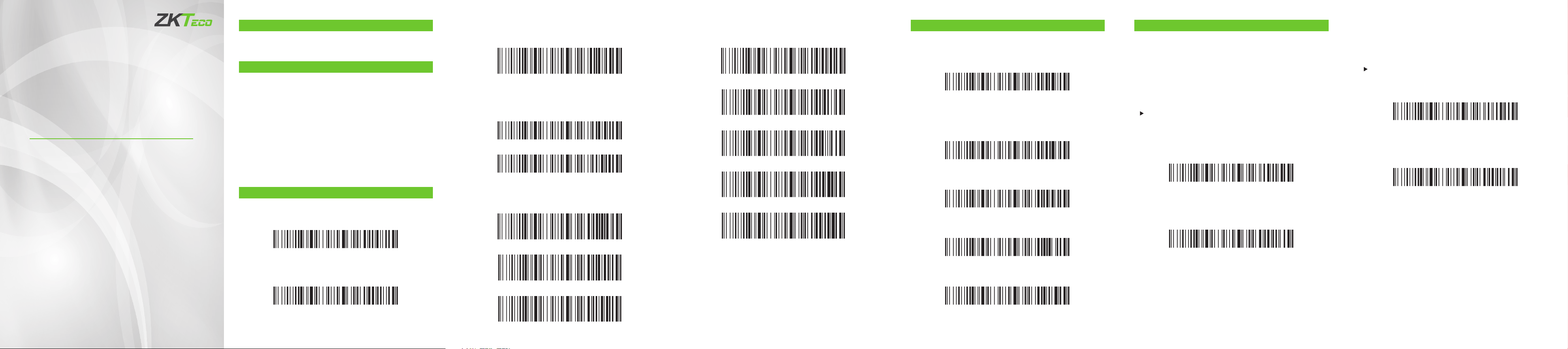
The code scanner can set the appropriate function by reading one
or a group of special setting barcodes.
Factory Default
Read the “Wireless Factory Default” barcode, you can reset all the
properties of the scanner to the factory default state.
Version
Read the “Version” barcode to view the current version information
of the scanner.
Wireless Factory Default
Version
The following are the operation steps for the manual barcode
reading mode:
Press and hold the barcode scanner’s trigger button until the
aiming line activates and a red aiming line appears.
Align the red aiming line with the center of the barcode, then
move the scanner and adjust the distance between it and the
barcode to get the best reading distance.
The code reading is complete when the success prompt
sounds and the red lighting line disappears at the same time.
The barcode scanner transmits the decoded data to the host
device.
1.
2.
3.
Working Mode
Synchronous Mode
The synchronous mode is the default working mode. When you
scan the barcode, the barcode information is output at the same
time. It will not work when the device is disconnected.
Wireless 2.4G Mode
The wireless 2.4G mode is the default communication mode. It is
suitable for devices connected to 2.4G wireless receivers and
supports text output directly, which is equal to using a USB
keyboard for input.
Communication Mode
The wireless barcode scanner supports both wireless communica-
tion and wired communication. When using a cable to connect to
the scanner, it will automatically switch to wired communication.
Synchronous Mode
Battery
When you read the "Battery Display" barcode, you can view the
current battery information of the scanner.
Battery Display
Data Format
In the wireless 2.4G and wired USB working mode, the barcode
scanner supports direct output of Codepage or Unicode
encoding.
Codepage
Sounding Settings
When you read the setting code, you can set the prompt sound of
the scanner.
High
Low
Disable
Sleep Time Settings
When you read the setting code, you can set the sleep time of the
scanner.
1 Minute
5 Minutes
30 Minutes
Never Sleep
Sleep Now
Unicode(UTF-8)
Storage Mode
After reading the setting code, the scanner will switch to storage
mode. After the user scans the barcode, the barcode information
is stored in the storage memory of the scanner.
Storage Mode
Read the "Upload All Data" setting code, and transmit all the
barcode information stored in the scanner to the host device.
Upload All Data
Wireless 2.4G Mode
Bluetooth HID Mode
One-click Pairing
Read the "Upload Total Data" setting code, and transmit the
number of barcodes read by the scanner to the host device.
Upload Total Data
Read the "Clear All Data" setting code to clear all barcode informa-
tion that is saved in the scanner.
Clear All Data
-2- -3- -4- -5- -6-
Wireless 2.4G Mode Pairing Settings
If the 2.4G wireless receiver is installed but not normally
connected, please follow the procedures below to congure it.
Method 1: Read the "Wireless 2.4G Mode" setting code when
the 2.4G receiver is plugged in, and the scanner will connect to
the last paired receiver by default.
Bluetooth HID Mode
Suitable for devices that support Bluetooth, such as mobile
phones, Pads, laptops, etc. After the connection is successful, you
can use text input directly, which is equivalent to the virtual
keyboard input method of the device.
Bluetooth HID Pairing Settings
Method 1: Read the "Bluetooth HID Mode" setting code, and
the scanner will default to connecting to the last paired
Bluetooth.
Method 2:
When you read the "One-click Pairing" setting code, the
scanner will enter pairing mode and the green indicator light
will ash quickly.
1.
One-click Pairing
Method 2:
Read the "one-key pairing" setting code, the scanner will
enter the pairing state, and the green indicator light will ash
quickly.
1.
Insert the receiver and listen for a "beep" from the code
scanner to indicate that the connection and pairing are
successful. At this time, the green indication light will remain
on.
Note: When the scanner is in the pairing state, you can exit it by
double-clicking the button twice or waiting 1 minute for the
pairing timeout.
2.
Note: Press and hold the button for 8 seconds, and then
release the button to enter the Bluetooth HID pairing state.
But, you must rst enable this function by reading the
conguration code)
Turn on Bluetooth in the device and search for "Barcode
Bluetooth HID".
Click the "Barcode Bluetooth HID" Bluetooth device to enter
the pairing state.
When you hear a "beep" sound from the code scanner, it
means the connection and pairing is successful. At this time,
the green indicator light will remain on.
Note: When the scanner is in the pairing state, you can exit it
by double-clicking the button twice or waiting 1 minute for
the pairing timeout.
2.
3.
4.
Sux Settings
When you read the setting code, you can add dierent sux
functions.
Keyboard Language Settings
Due to the dierent keyboard key layouts and symbols
corresponding to dierent national languages, the code scanner
can be virtualized into the keyboard standards of dierent
countries according to actual needs. The keyboard layout setting is
applicable to the HID communication interface mode, and the
default is "American English keyboard".
Optional Function
These functions require corresponding design of the hardware of
the barcode scanner, otherwise the reading setting code will be
invalid.
LED Indicator Description
The green LED indicator ashes once, indicating that the scanner
successfully decoded.
The green LED indicator stays on, indicating that the scanner
successfully connected.
The red LED indicator stays on, indicating that the scanner is
charging.
The green LED indicator ashes quickly, indicating that the
scanner is in the process of pairing and connecting.
Matters Needing Attention
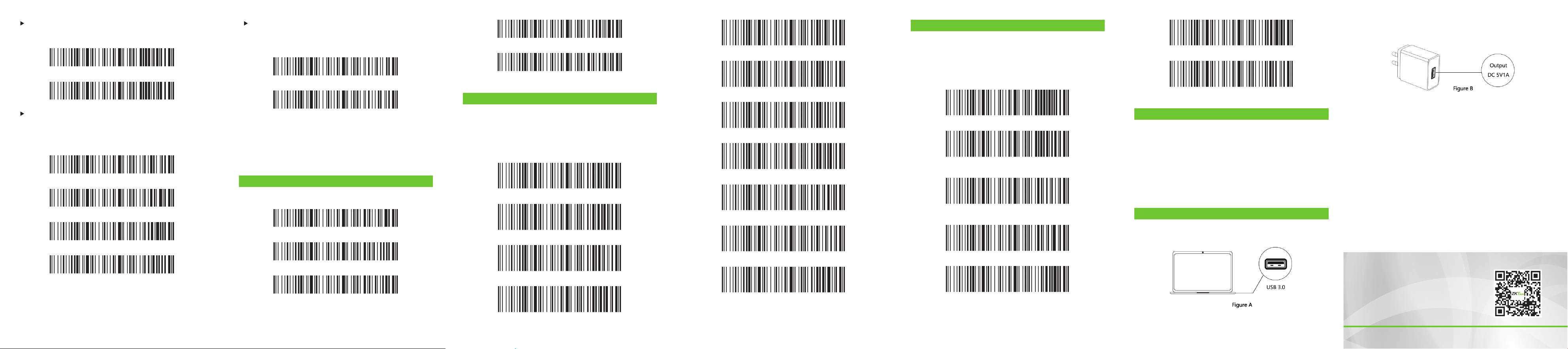
It is recommended to use the computer USB 3.0 interface for
charging (Figure A).
1.
It is recommended to use a DC 5V 1A power adapter for
charging (Figure B).
2.
To avoid damaging the scanner, do not use a power adapter
that is more than 5V 1A and do not use fast charging.
When the scanner is not in use, it is recommended to keep the
battery power at 60% to 80%.
When the scanner is fully charged, please turn the charging
power o.
3.
4.
5.
Vibration Setting(optional)
When you read the setting code, you can turn on or o the
vibration prompt of the scanner.
Clear Screen Count (Optional)
Enable
Disable
Long Press for 8 Seconds to Enter Bluetooth HID Search
Long press for 8 seconds to start the Bluetooth HID search
function, which helps speed up Bluetooth connections.
Fast
Medium
Low
Ultra Low
Bluetooth HID Transmission Speed Setting
When using a Bluetooth HID connection, the scanner's
transmission speed can be adjusted based on the host device's
response capability. If the content is corrupted or missing, slow
down.
Bluetooth SPP Mode
Add CR*
Add LF
Add Tab (HT)
NONE
Add CR+LF
American English
German
French
Spanish
Italian
Japanese
Portuguese
British English
Brazilian Portuguese
Russian
International Keyboard
Enable
Disable
Clear Screen Count
Clear Screen Count (Optional)
Current Time (On)
Before Barcode
After Barcode
Current Time (O)
Bluetooth BLE Mode
Bluetooth SPP/BLE Pairing Settings
Step 1: After reading the "Bluetooth SPP Mode" or "Bluetooth
BLE Mode" setting code, the green LED indicator will ash
quickly.
Step 2: In the SPP or BLE transparent transmission software,
search for "Barcode Bluetooth SPP" or "Barcode Bluetooth SPP
BLE," then click pairing until you hear a beep sound, indicating
that the connection and pairing is successful, and the green
indicator light is always on Bright.
-7- -8- -9- -10- -11- -12-
ZKTeco Industrial Park, No. 32, Industrial Road,
Tangxia Town, Dongguan, China.
Phone : +86 769 - 82109991
Fax : +86 755 - 89602394
www.zkteco.com
Copyright
© 2023 ZKTECO CO., LTD. All Rights Reserved.






