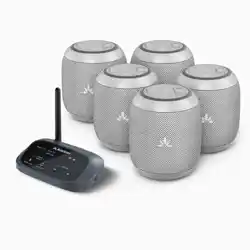
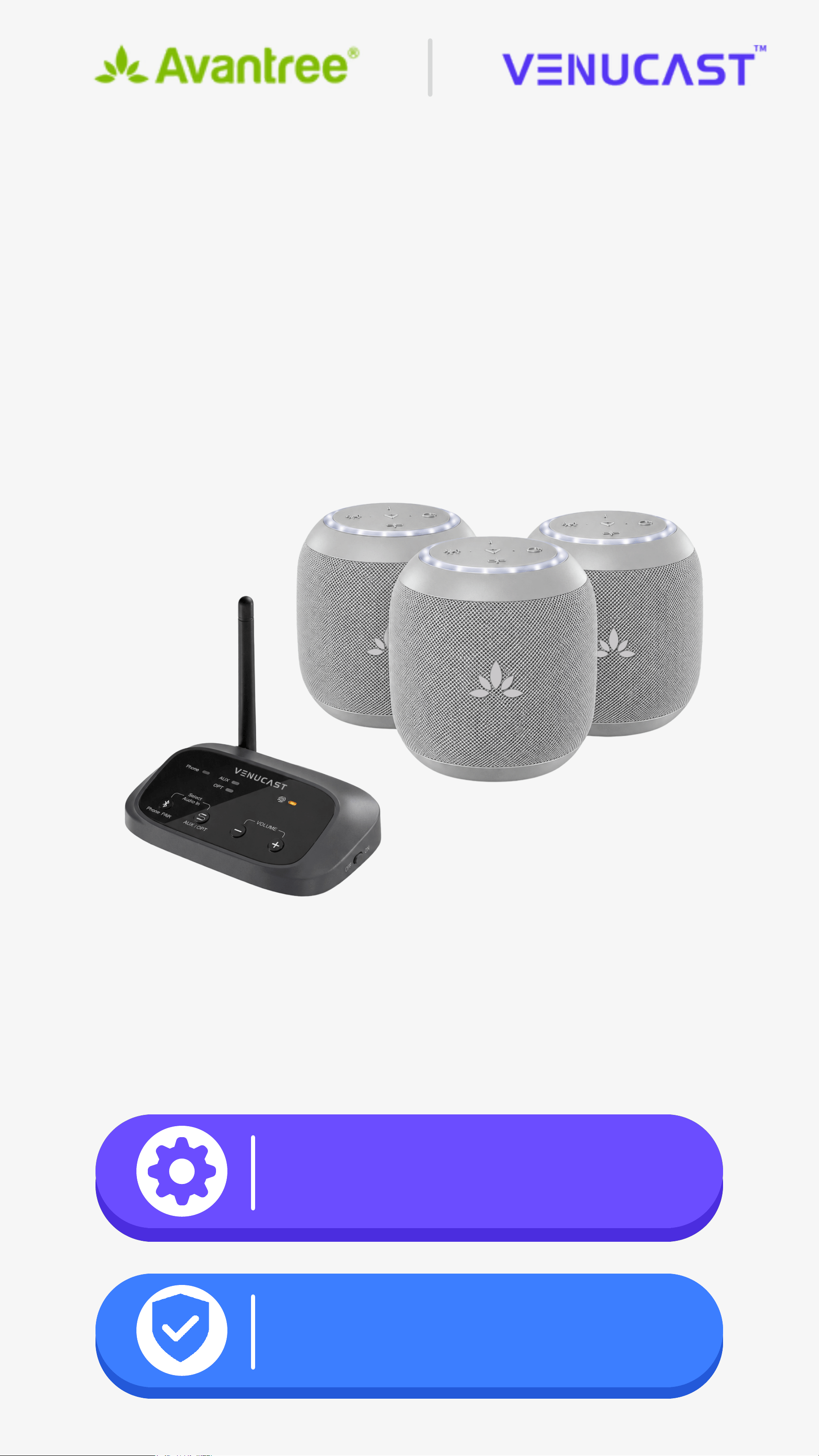
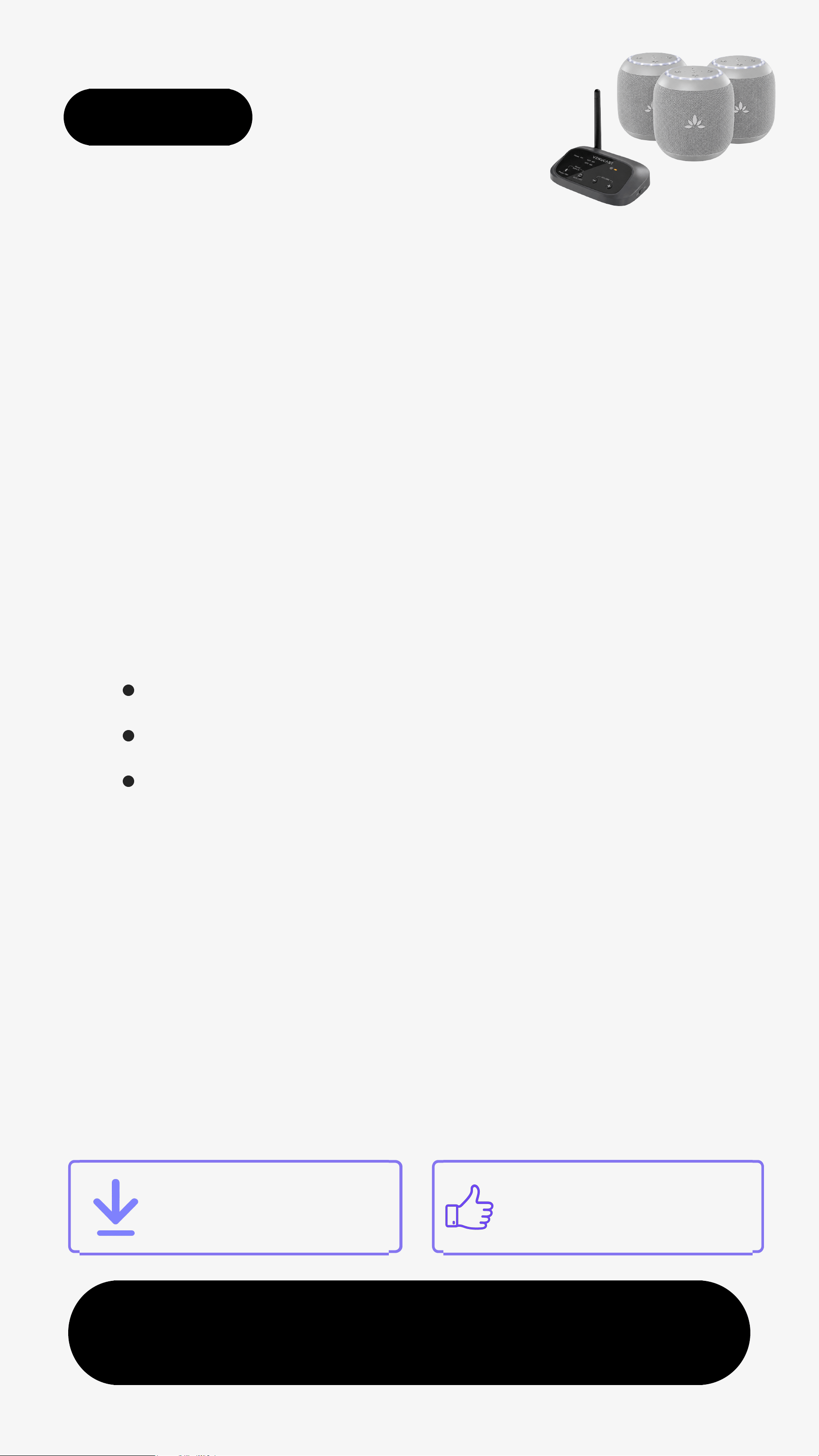
Avantree BTST-5307 Harmony A0 Auracast Wireless Multi-Speaker System

Product's Documents

Below are documents related to this product, you can read online or download:
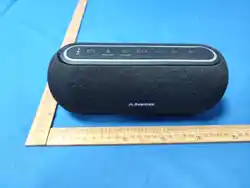
BTST-5307 photo

User Manual

This is the main product document for model BTST-5307.

The file format is pdf, 25 pages, you can download this manual here .

background
Interactive UserGuide
Version 2.4.1
Harmony A0
Auracast Multi-Speaker System
Start SetupStart Setup
Activate
24-Month Warranty
Activate Free
24-Month Warranty
background
Next
< Back
Main Menu
1. Before You Start
11. Register & Support
10. Troubleshooting
2. Connect to Audio Source
3. Listen From Speakers
8. Use as Bluetooth Speaker
Broadcast Name & Password
Extend Range
4. Placement Tips
Group Settings
6. Advanced Setup
5. Add Speakers (Optional)
9. Power & Charging
PDF Manual
RateThis Guide
7. Firmware Update
background
Next
< Back Menu
1. Before You Start
Plug in
→
Power on
→
Audio plays
automatically
Important to know
Speakers connect automatically 
(Auracast)
Works with Auracast speakers only
Up to 330 ft (line of sight)
Signal reduced by walls & people
Best for background audio, not for
loud parties
background
< Back Menu
2. Connect to Audio Source
❶
Connect transmitter to power     
  and switch to ON.
❷
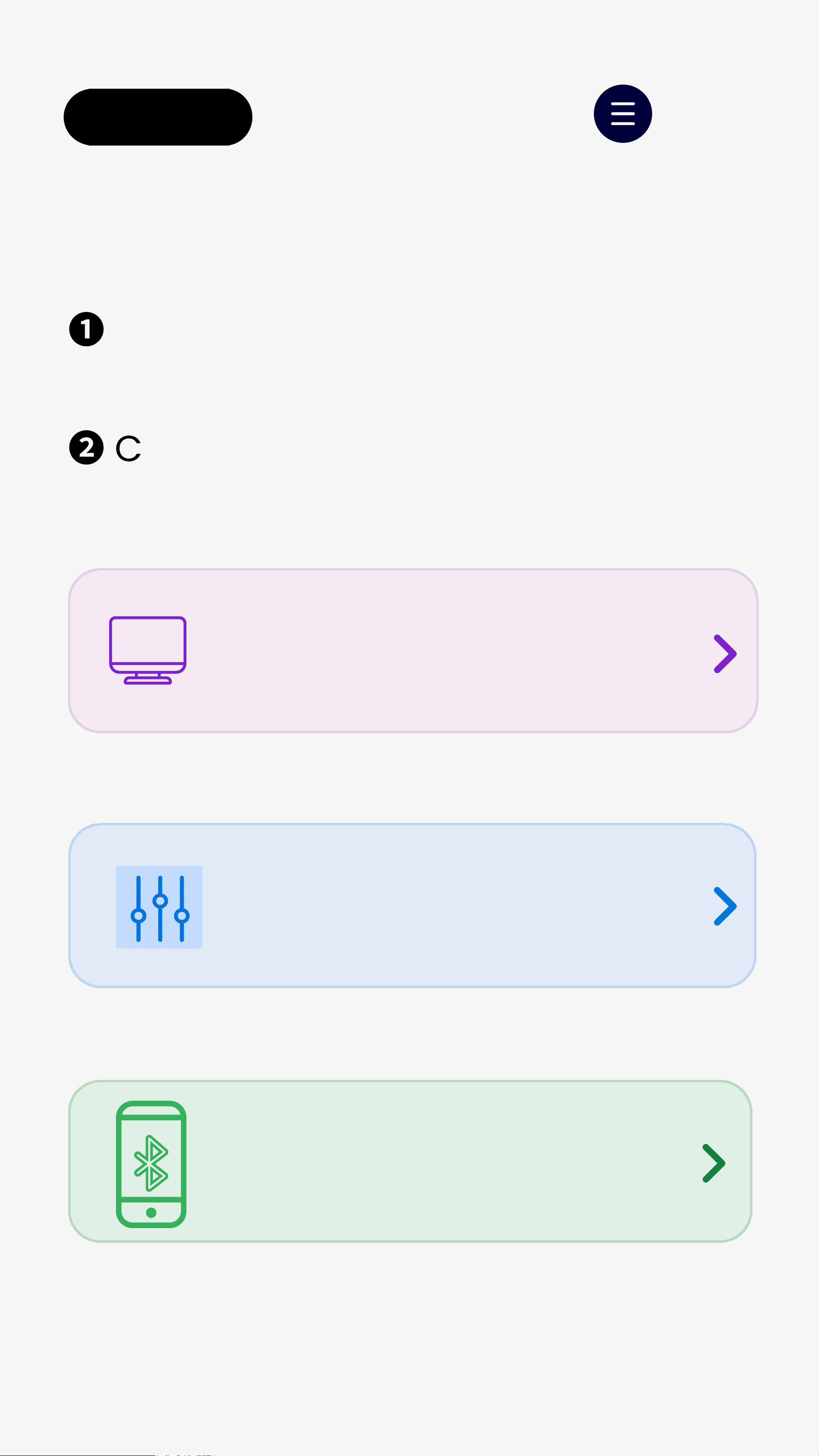
Choose your audio source:
TV /Media Device
Bluetooth
Mixer / AV System
background
< Back Menu
Next
TV /Media Device
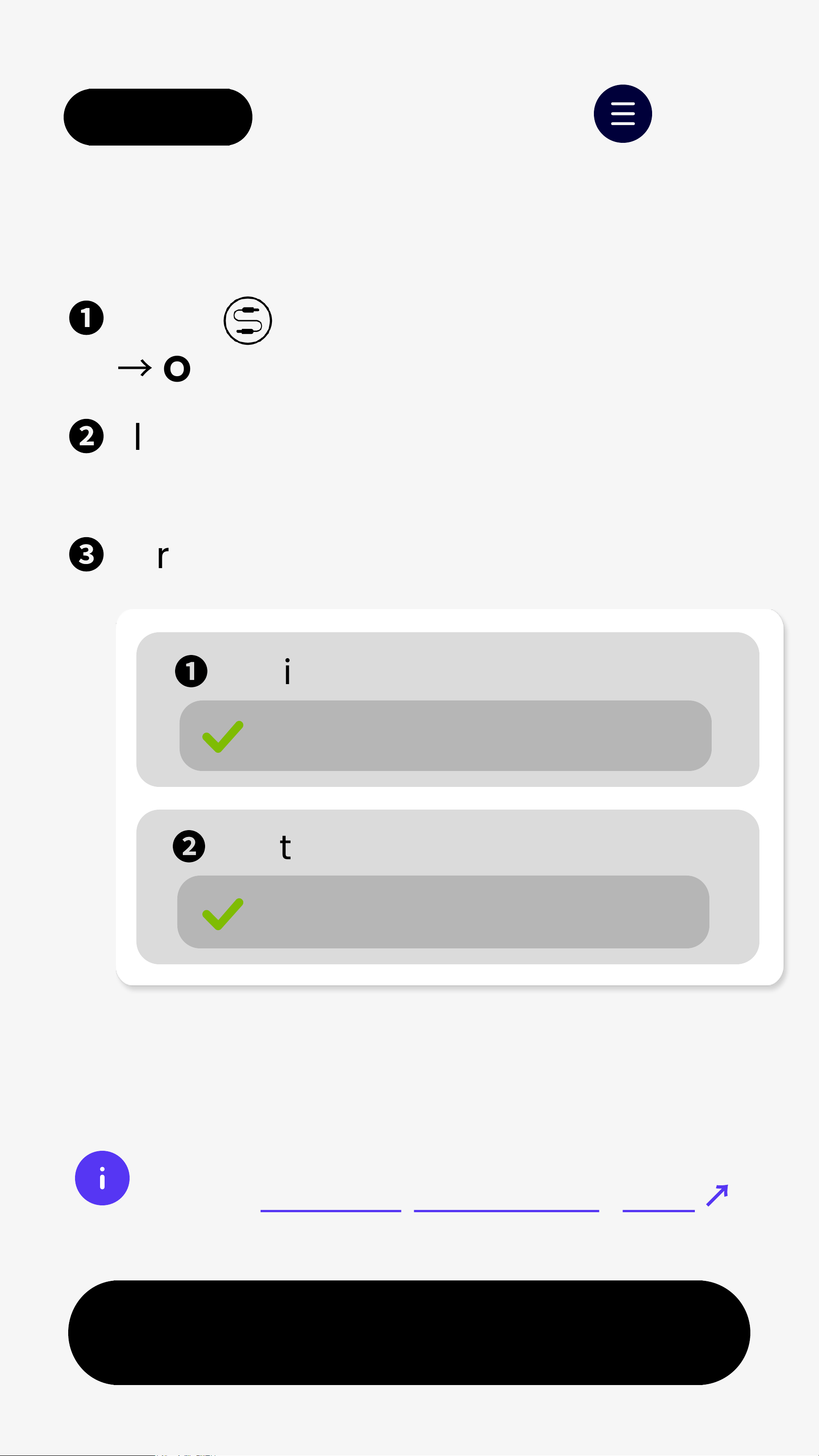
❶
Press  to switch to OPT input    
  
→
OPT LEDblinks red.
❷
Plug Optical cableinto the        
  transmitter and source device.
❸
For Optical connection users
If set toPCM, you're all set.
❶
Audio Output
Optical
❷
Digital Audio Output
PCM (Required)
Not sure how to set PCM?
Checkbrand-by-brand TV guide
↗
background
< Back Menu
Mixer / AV System
❶
Press to switch to AUX input    
  
→
AUXLEDblinks red.
❷
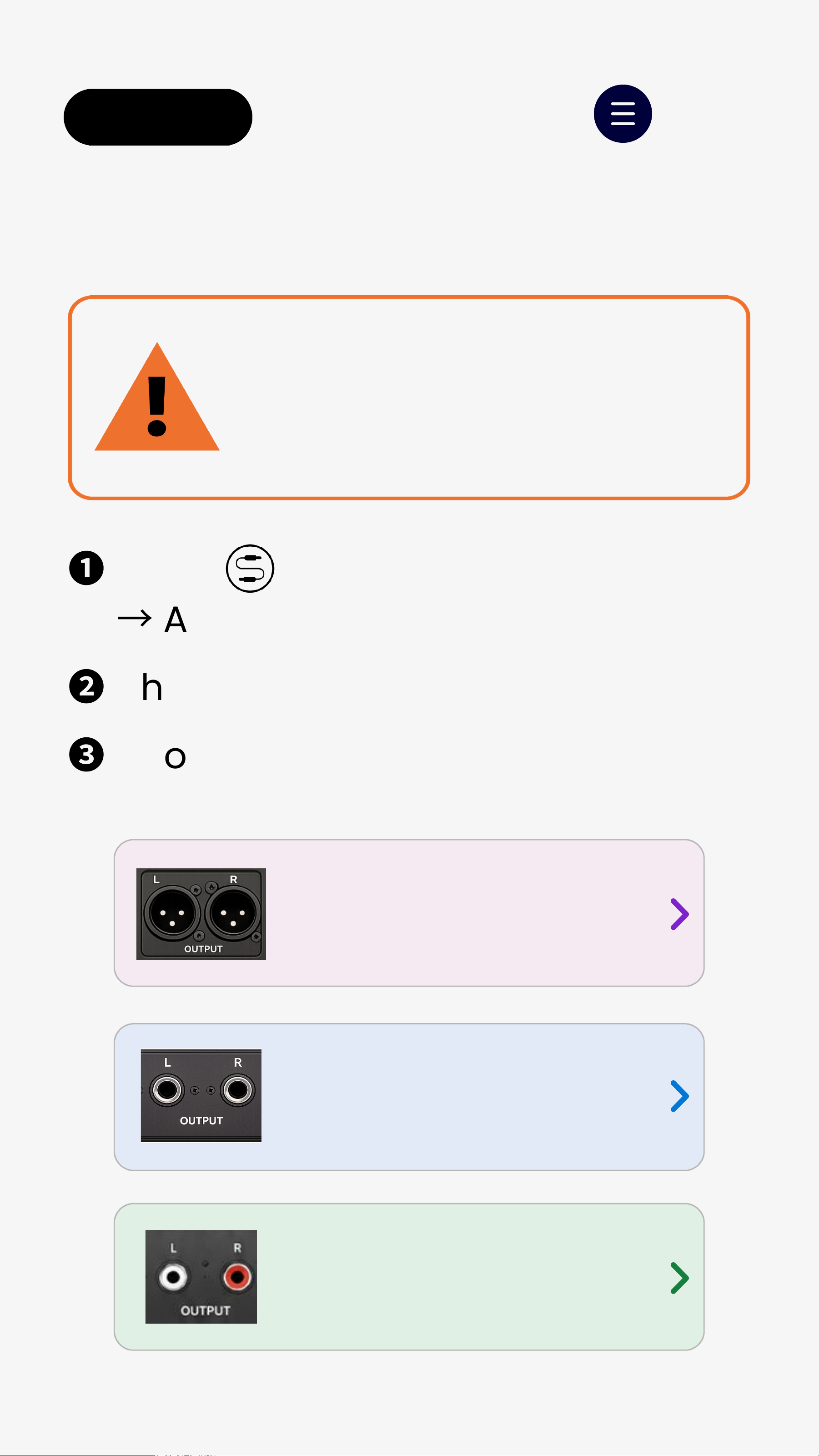
Check your mixer output type.
❸
Choose your mixer output:
Using the wrong cable may
cause low volume, missing
vocals, or poor sound quality
IMPOTRTANT
XLR Output
6.35mm Output
RCA/3.5mm Qutput
background
< Back Menu
Next
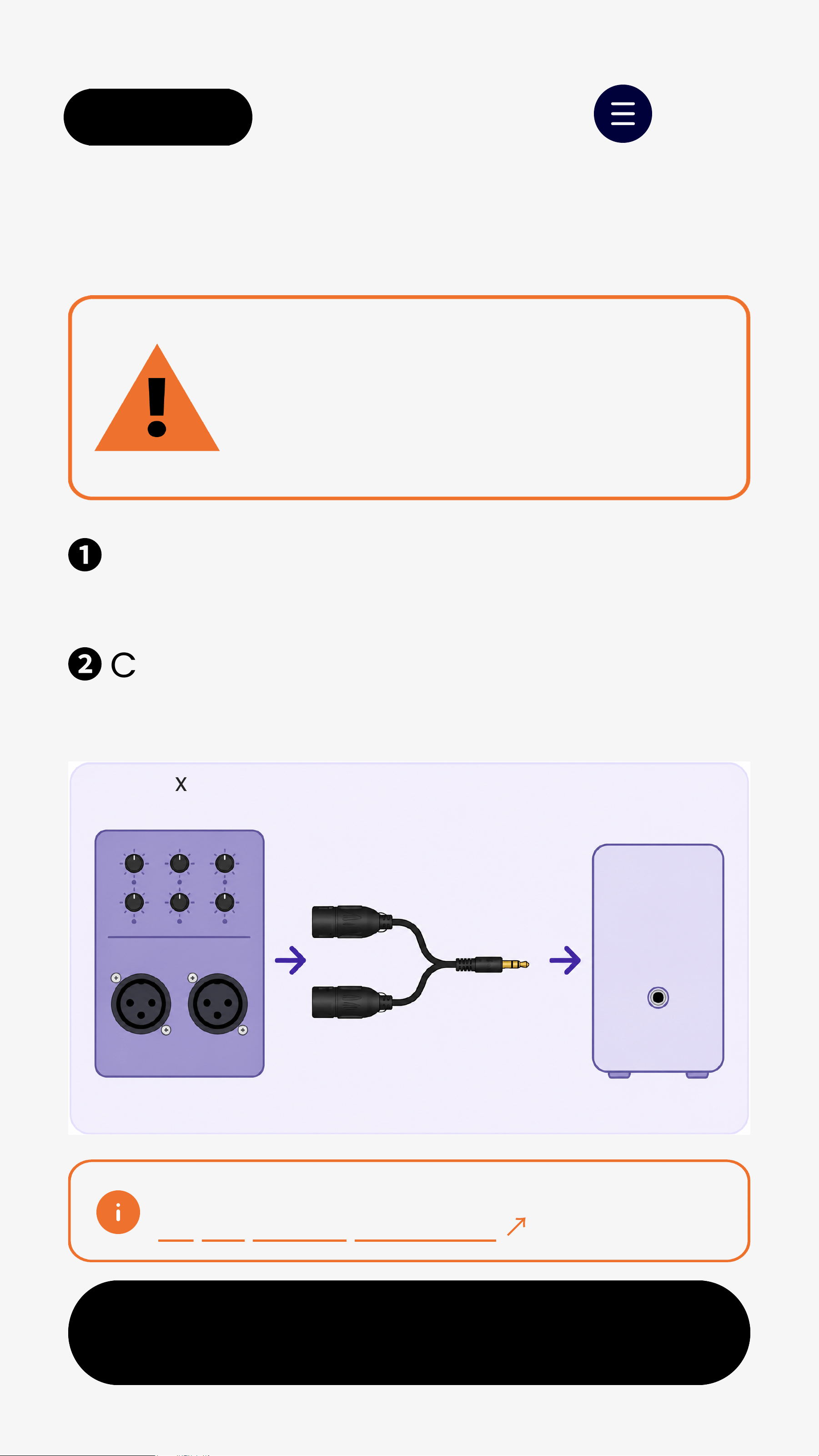
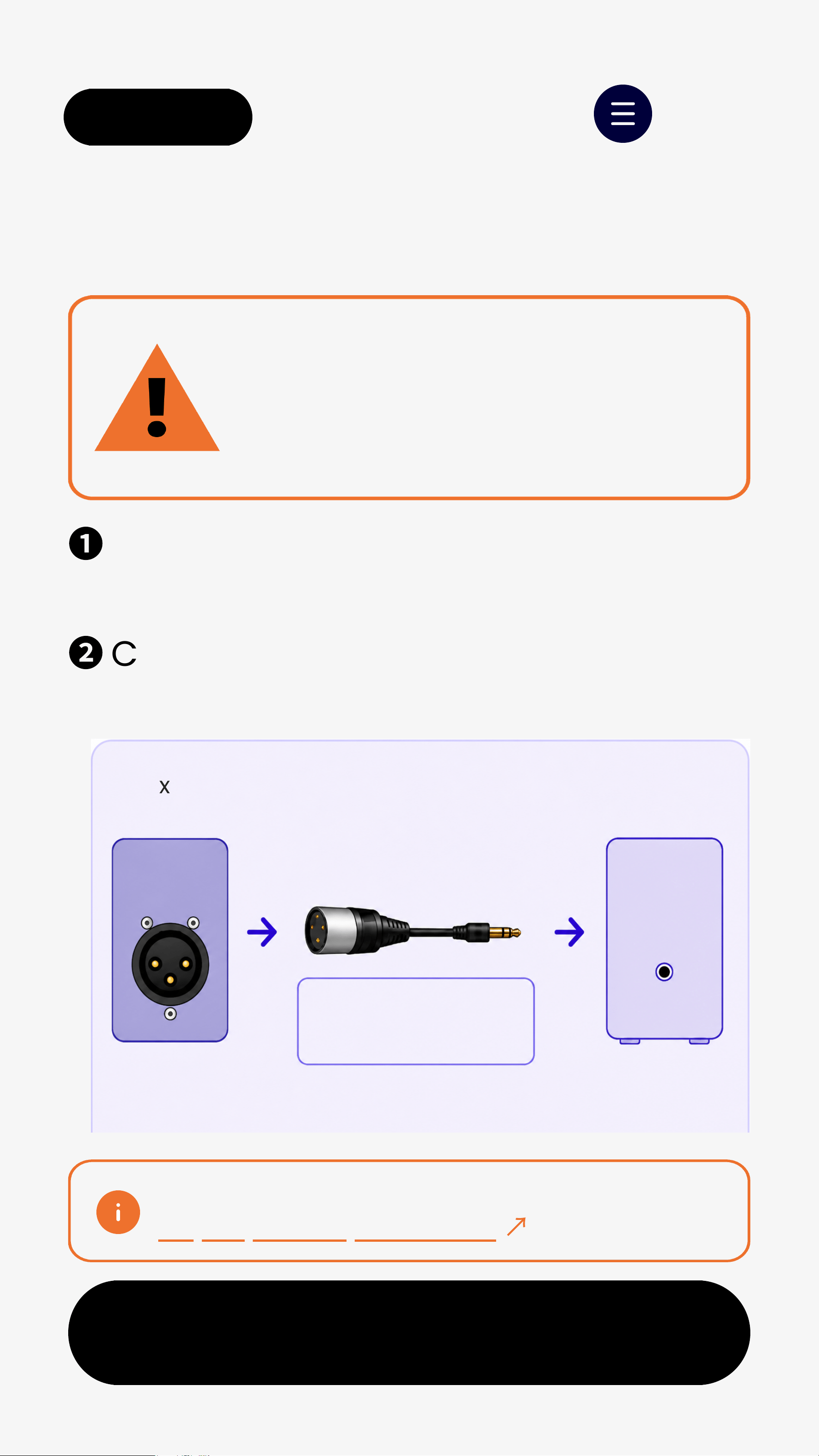
❶
Use a dual XLR female to          
  unbalanced3.5mm TRS cable.
❷
Connect mixer OUTPUT L / R to     
  Oasis Aura AUX IN.  
Dual XLR Output
Next
Wrong XLR cable may cause
low volume, missing vocals,
or poor sound quality.
IMPORTANT
XLR cable not included.
Buy separately if needed
↗
Mixer
OUTPUT L/R
Dual XLR Female
to 3.5mm TRS Cable
Oasis Aura
AUX IN
OUTPUT
OASIS AURA
AUX IN
L R
Stereo mixer output recommended
background
< Back Menu
Next
❶
Use a single XLR female to        
  unbalanced3.5mm TRS cable.
❷
Connect mixer OUTPUT to         
  Oasis Aura AUX IN.  
Single XLR Output
Single XLRoutputis MONOonly.
Wrong XLR cable may cause low
volume or poor sound quality.
IMPORTANT
XLR cable not included.
Buy separately if needed
↗
Mixer/DSP
Single XLR Output
Single XLR Female
to 3.5mm TRS Cable
Oasis Aura
AUX IN
OUTPUT
OASIS AURA
AUX IN
Mono output only
Pin 2 = Signal
Pin 1+ Pin 3 = GND/Shield
background
< Back Menu
Next
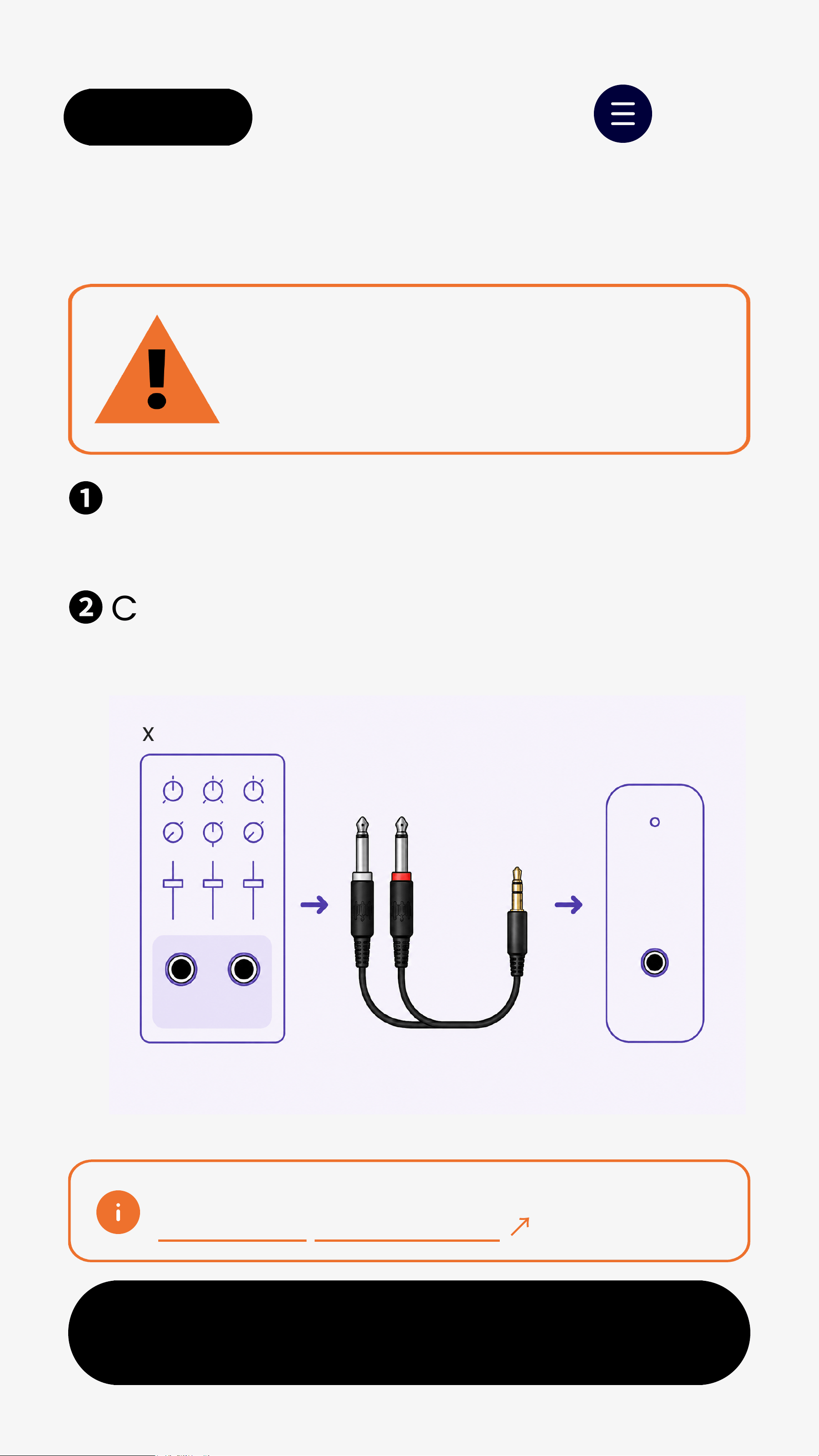
6.35mm Output
❶
Use the included dual 6.35mm to  
  3.5mm cable.
❷
Connect L and R outputs to       
  Oasis Aura AUX IN.  
Using the wrong cable may
cause poor sound quality.
CHECK CABLE TYPE
This cable is not included in the box.
Contact suport if needed
↗
Mixer/AV System
Dual 6.35mm
to 3.5mm Cable
Oasis Aura
AUX IN
6.35mm Outputs
AUX IN
Bestoption for many mixers
L R
background
< Back Menu
Next
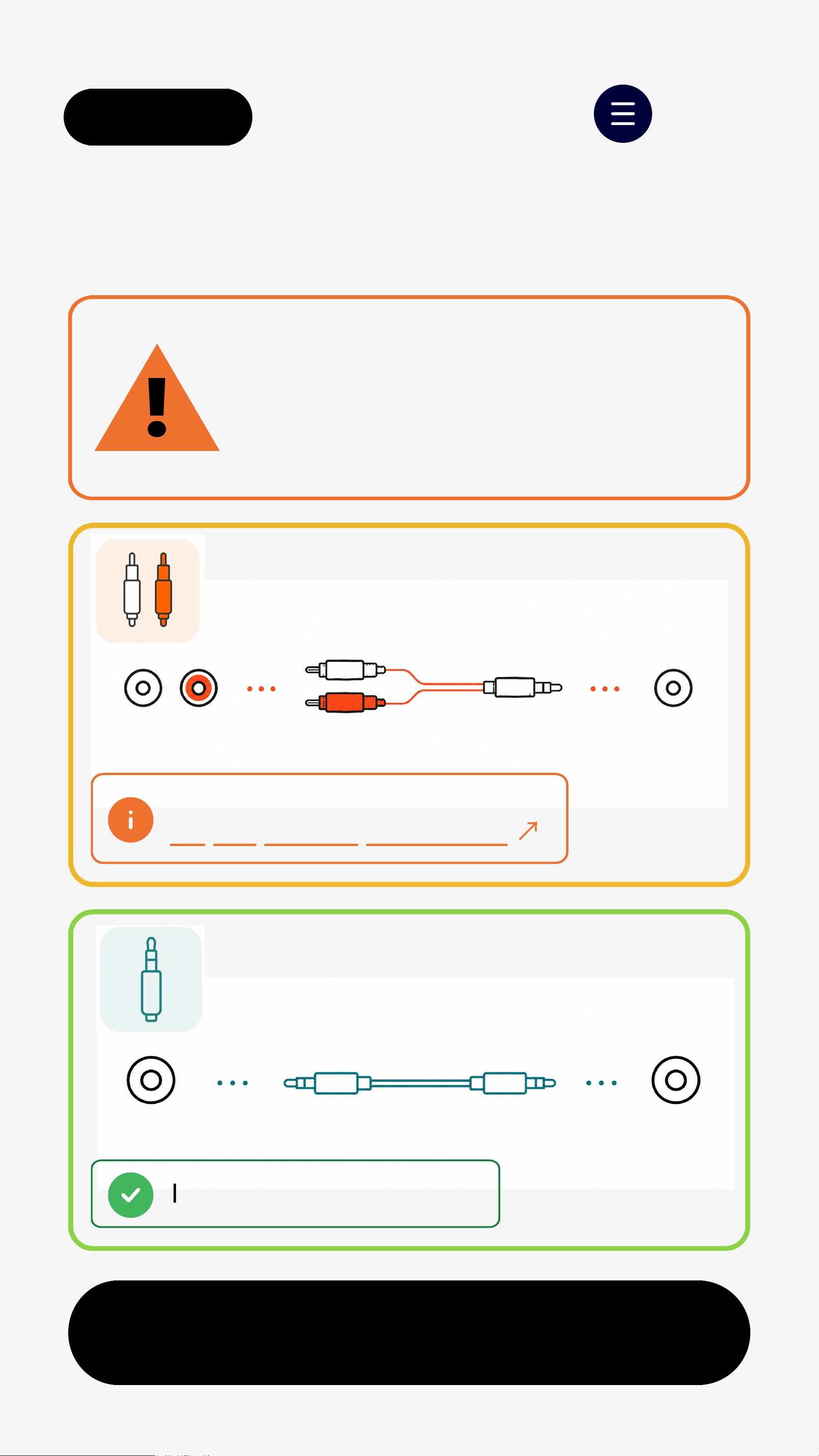
RCA / 3.5mm Output
Choose the correct output and
cable. Wrong cable may cause
poor sound quality.
IMPORTANT
3.5mm OUT
Use the included 3.5mm to
3.5mm cable.
3.5mm OUT Oasis Aura
AUX IN
RCAOUT
Use an RCA to 3.5mm cable.
RCA L/R
Oasis Aura
AUX IN
RCAcable not included.
Buy separately if needed
↗
Included in the box.
background
< Back Menu
Next
B. Connect Using Bluetooth
Better Experience
    
Phone too far away? Use the included
USB-C to 3.5mm cable. Connect your
phone to the transmitter’s AUX IN for a
stable wired connection.
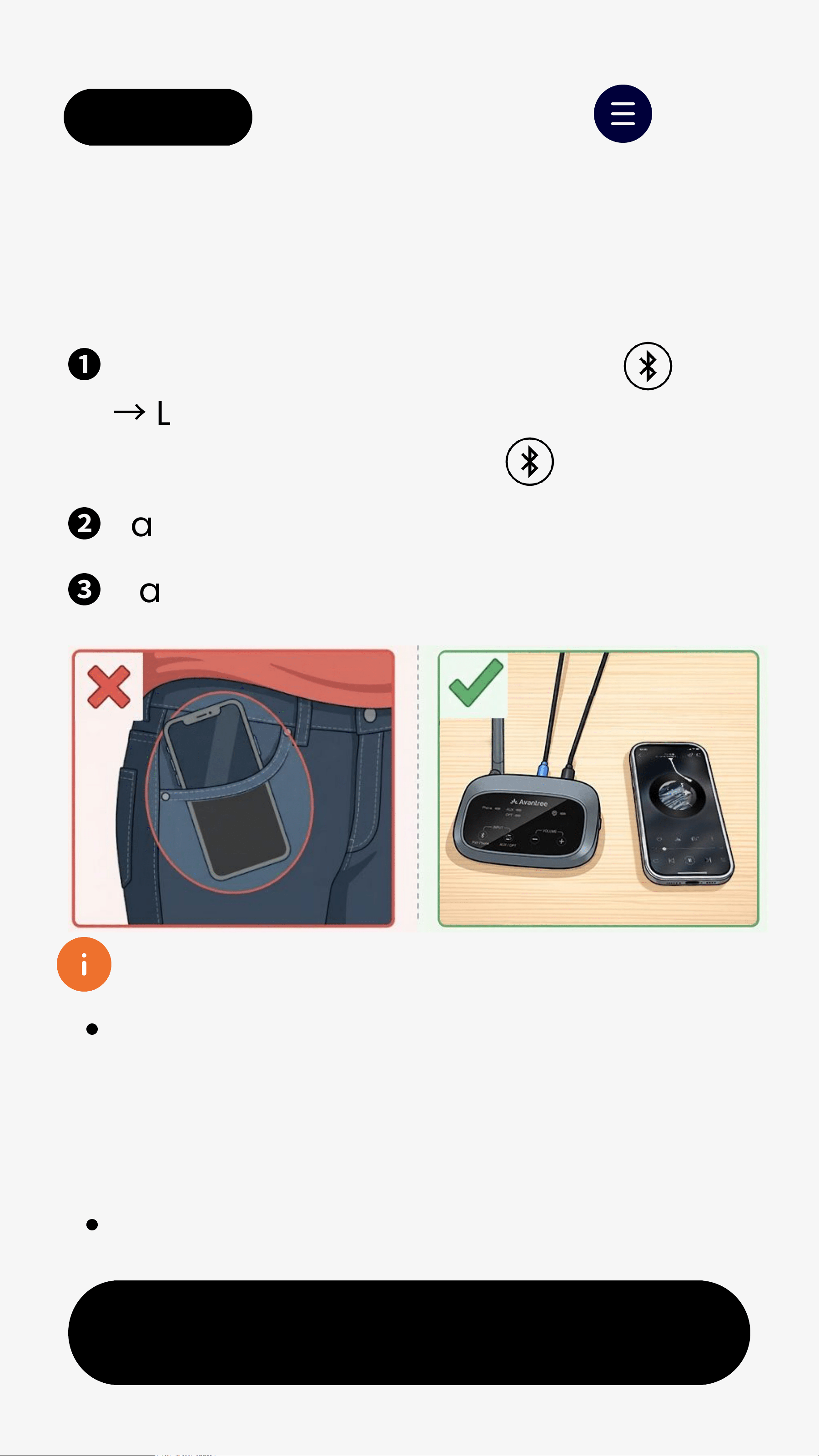
Keep your phone near the transmitter
❶
Turn on transmitter and press .  
  
→
LED "Phone" blinksred & blue.
 
(If not red & blue, hold  for 3s)
❷
Pair with your device.
❸
Play audio.                
    
Bluetooth range: 10-15 m (30-50 ft)
background
< Back Menu
Next
3. Listen From Speakers
Turn on speakers
→
Auto-join.
  LED turns solid orange.
All speakers will play thesame audio.
LED not orange? Double-press
.
background
< Back Menu
Next
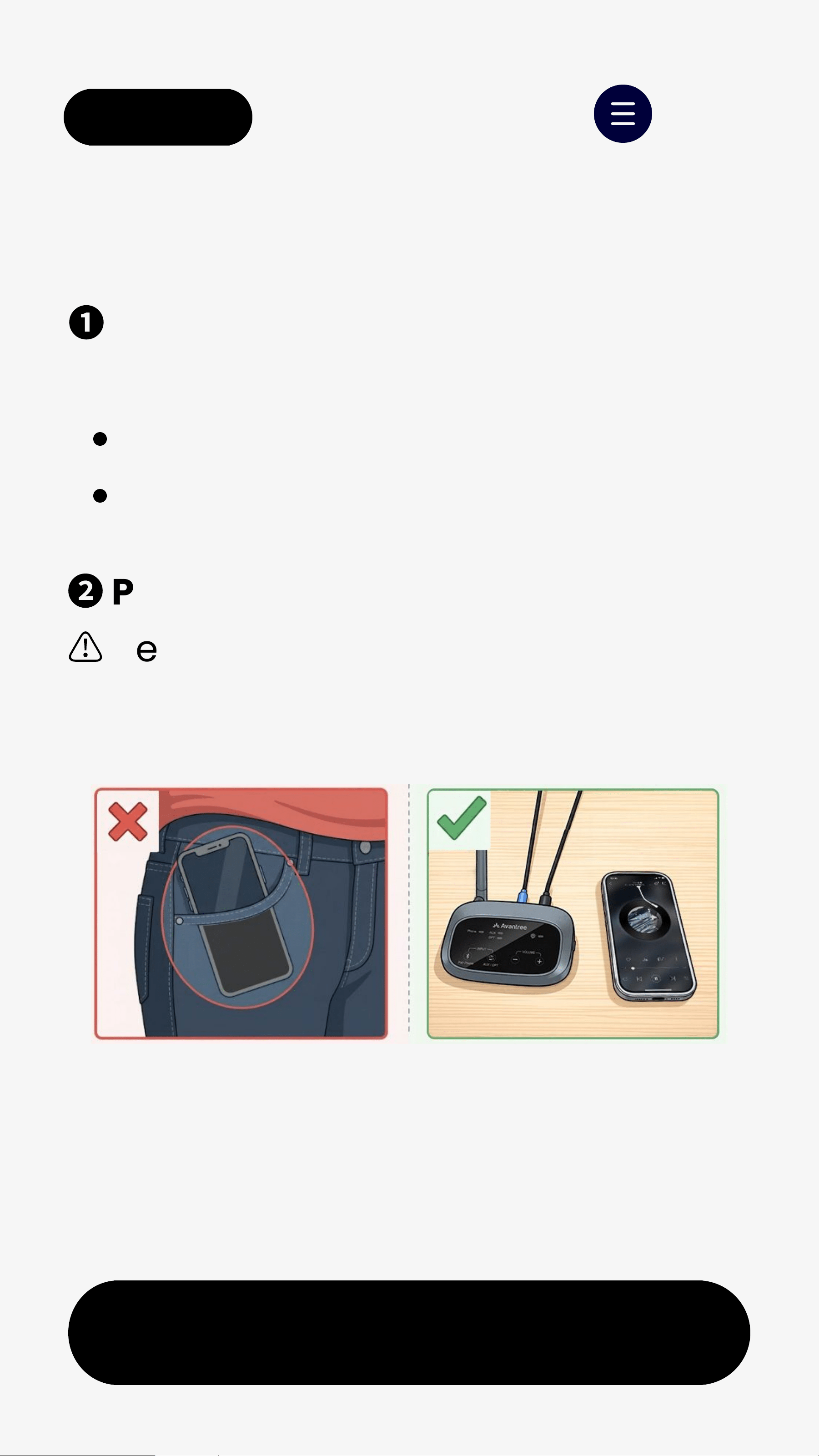
4. Placement Tips
❶
Transmitter
Place in the center
Clear line of sight
Up to 330 ft
❷
Phone
⚠
Keep next to transmitter
❌ Do not keep in pocket
background
< Back Menu
Next
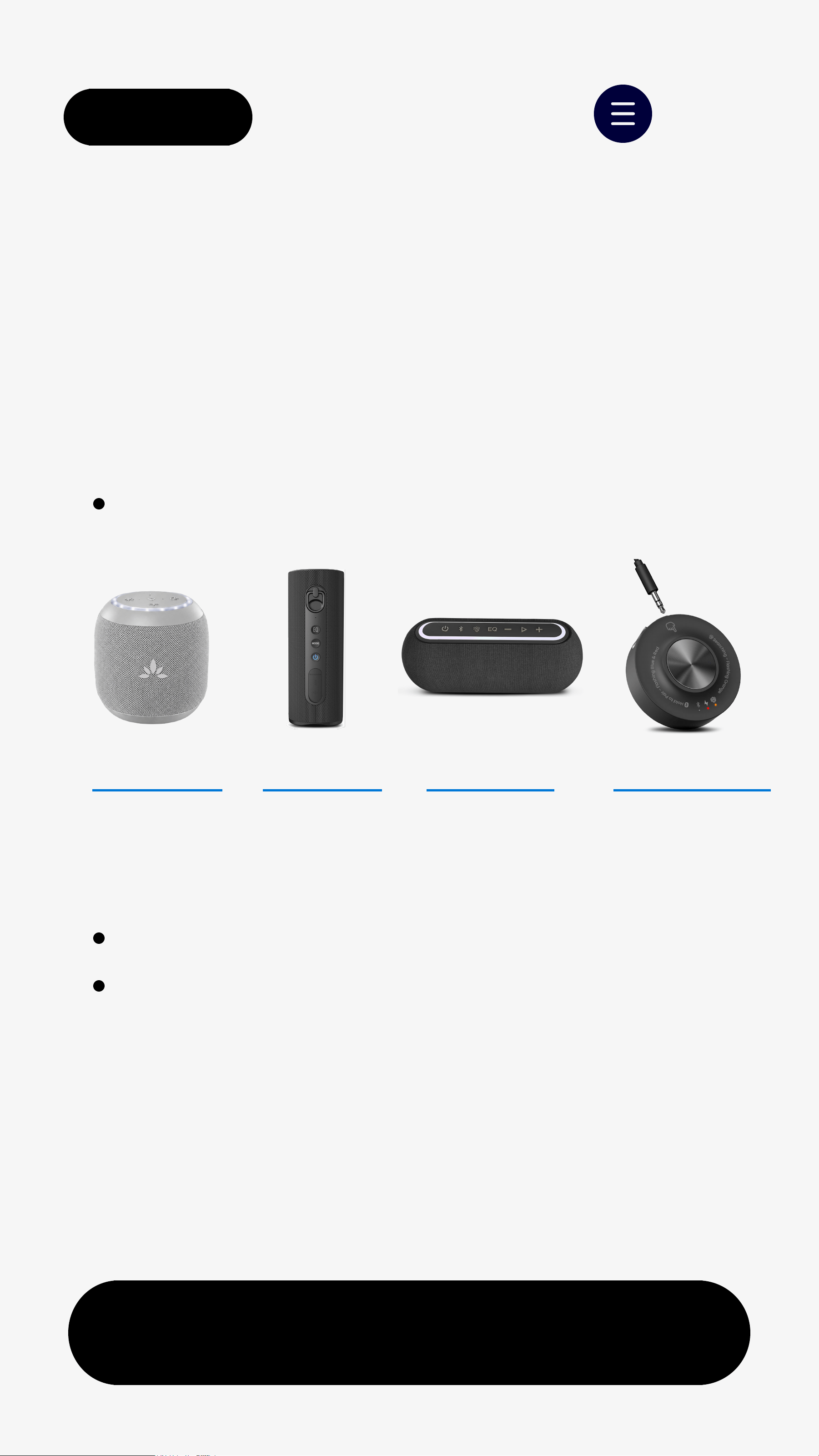
Add more Auracast speakers to
expand your system.
5. Add Speakers (Optional)
A2 Solo
Others brands:
Use phone app to join Auracast
Auto-connect not guaranteed
AuraLinkA1 Solo
Avantree speakers & receiver:
Auto-connect when powered on
A0 Solo
background
< Back Menu
Next
6. Advanced Setup
6.1 Broadcast Name & Password
Customize your broadcast name and
password to:
Add a password to control
whocan join your broadcast
andprevent unwanted access.
Manage Access
Use unique names for different
rooms, languages, or zones so
listeners can easily find the
right channel.
Organize Groups
Set up transmitter via DFU
↗
background
< Back Menu
Next
6.2 Group Settings
Group systems to keep audio
separated.
Typical use cases:
Multiple systems in same area
Large venues with different zones
Shared or rental receivers
Why use this:
No cross-connection between
groups
No need to pair devices one by one
Set up all devices at once
Set up via DFU
:
Transmitter
↗
Speakers
↗
background
< Back Menu
Next
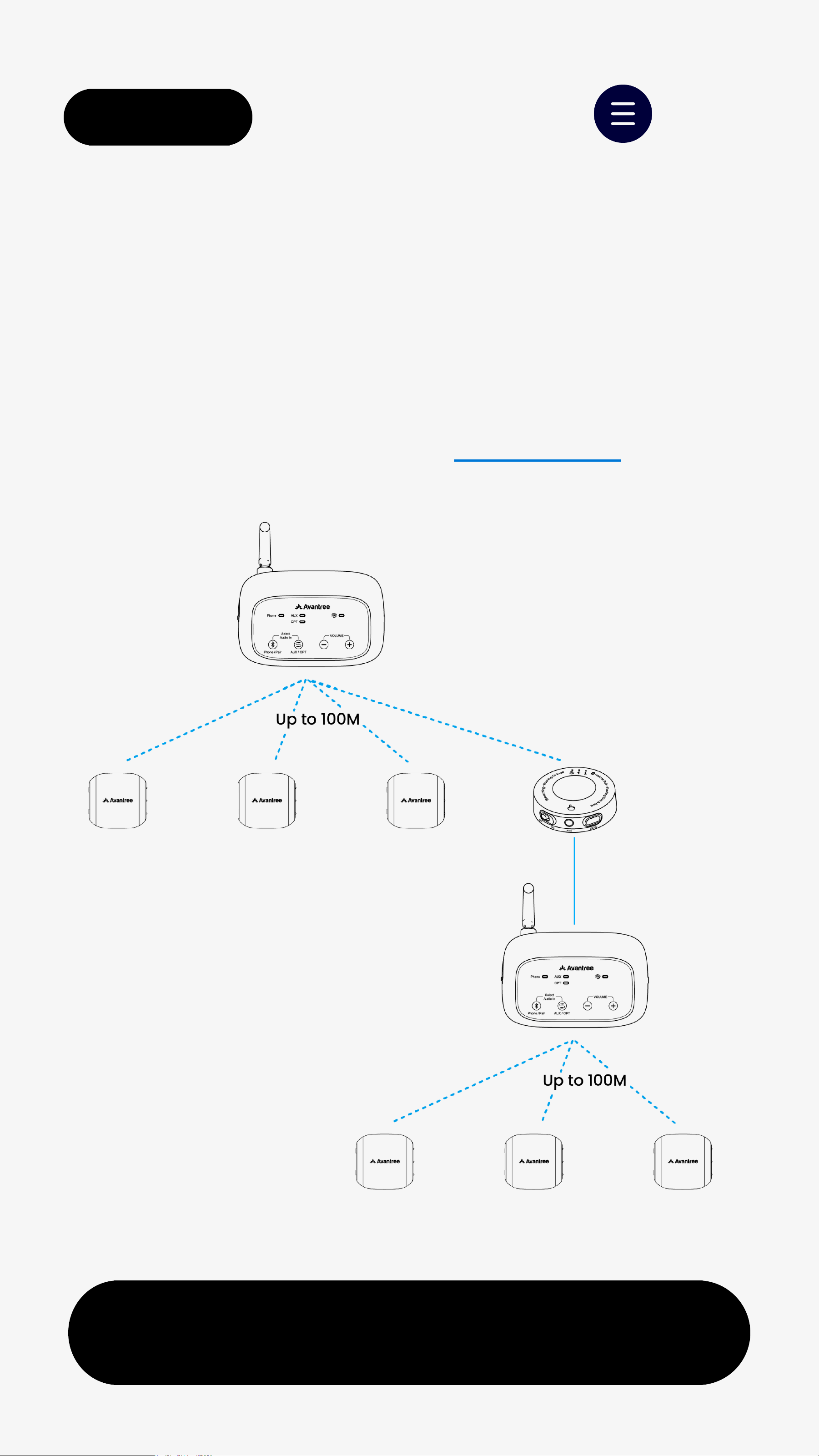
6.3 Extend Range
Use Daisy Chain to extend coverage.
Typical setup:
2 x Harmony A0 +1 x AuraLink
background
< Back Menu
7. Firmware Update
Latest Firmware
Transmitter V10.9.3
→
View full version history
Update
Takes about 1 minute
Transmitter:Improved sound
quality and less audio distortion.
Get Future Update Alerts
Compatibility improvements
New features
No promotions. Ever.
Notify Me
background
< Back Menu
Next
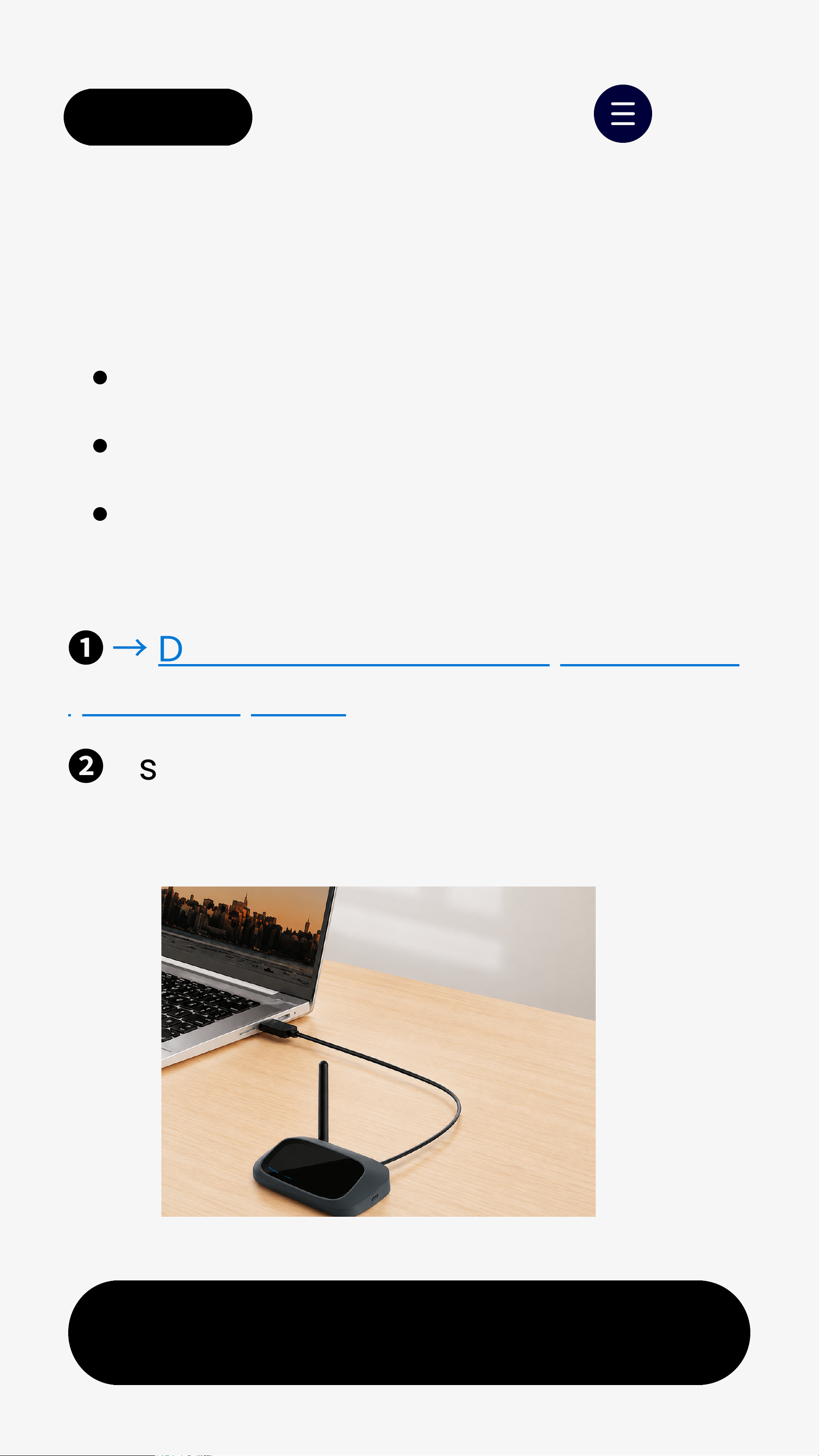
What you need
A Windows PC or Mac
Your transmitter
The included USB data cable
How to update:
❶
→
Download Avantree Updater on
your computer.
❷
Use the included USB data cableto
connect the transmitter toyour PC.
Step 1. Update Transmitter (1/2)
background
< Back Menu
Next
Step 1. Update Transmitter (2/2)
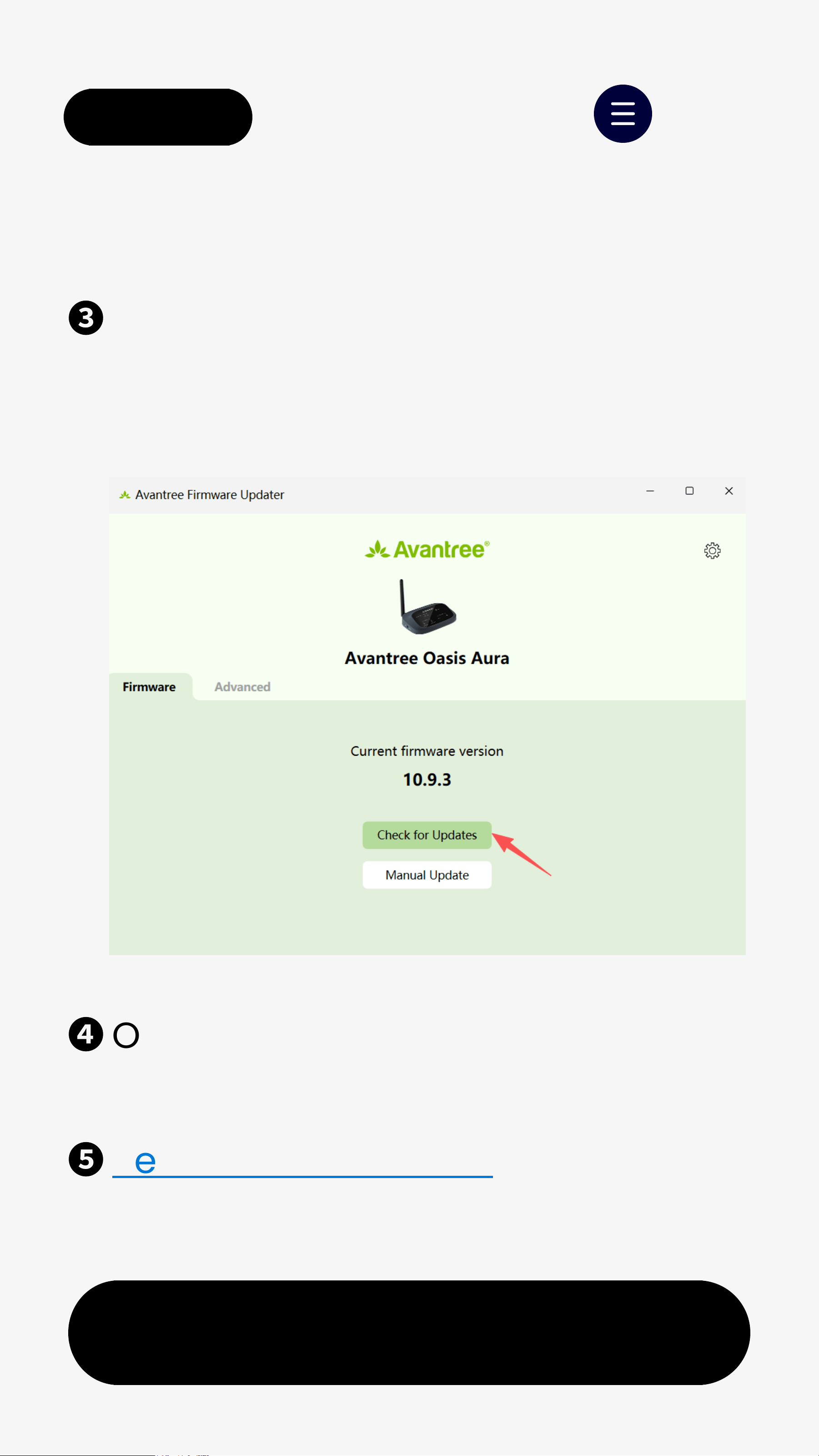
❸
Open the Avantree Updater appand
click "Check for Updates" > "Install"
next to the latest version.
❹
Once the update completes,
disconnect the transmitter to your PC.
❺
Reset the transmitter.
background
< Back Menu
Next
8. Use as Bluetooth Speaker
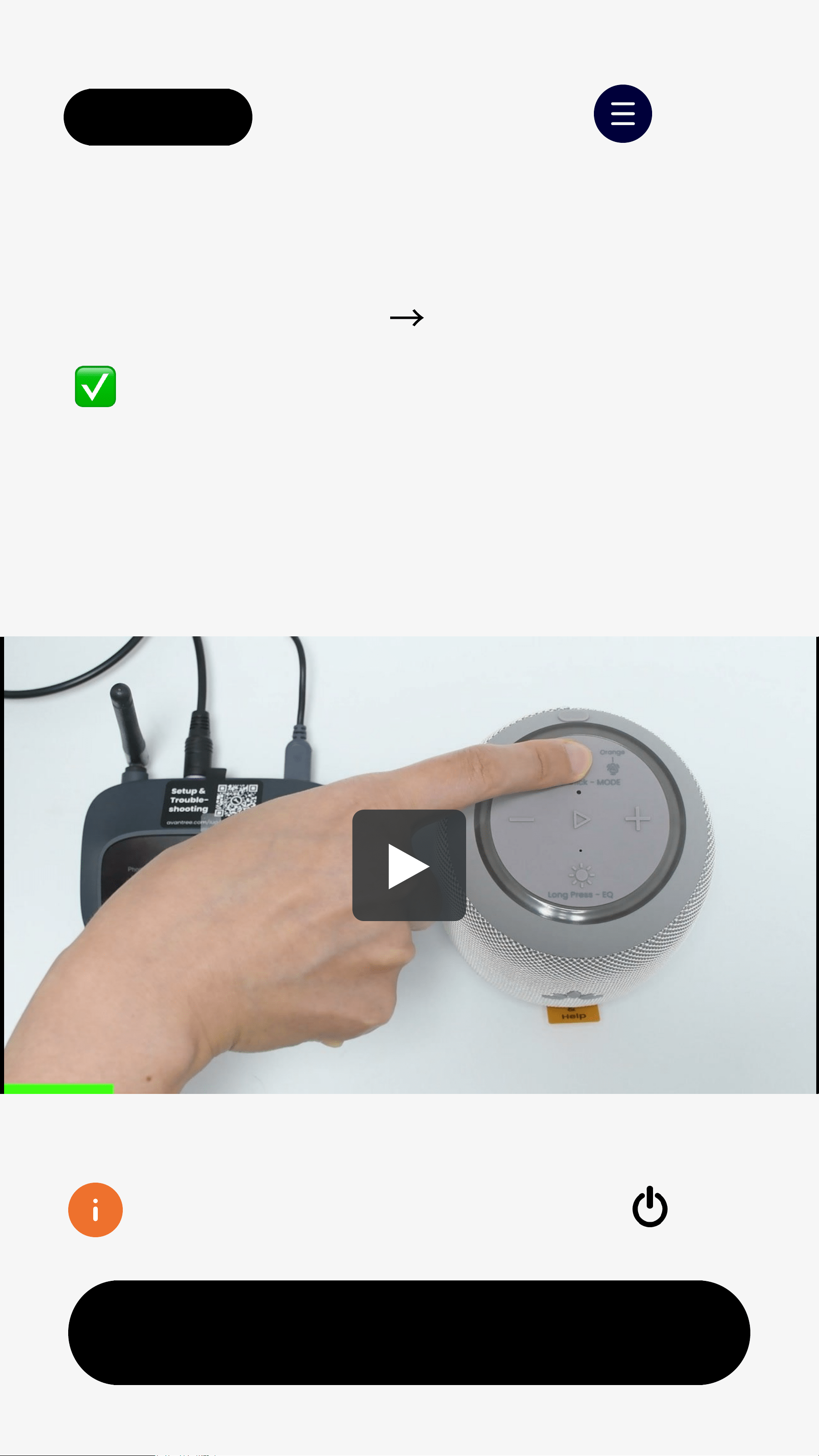
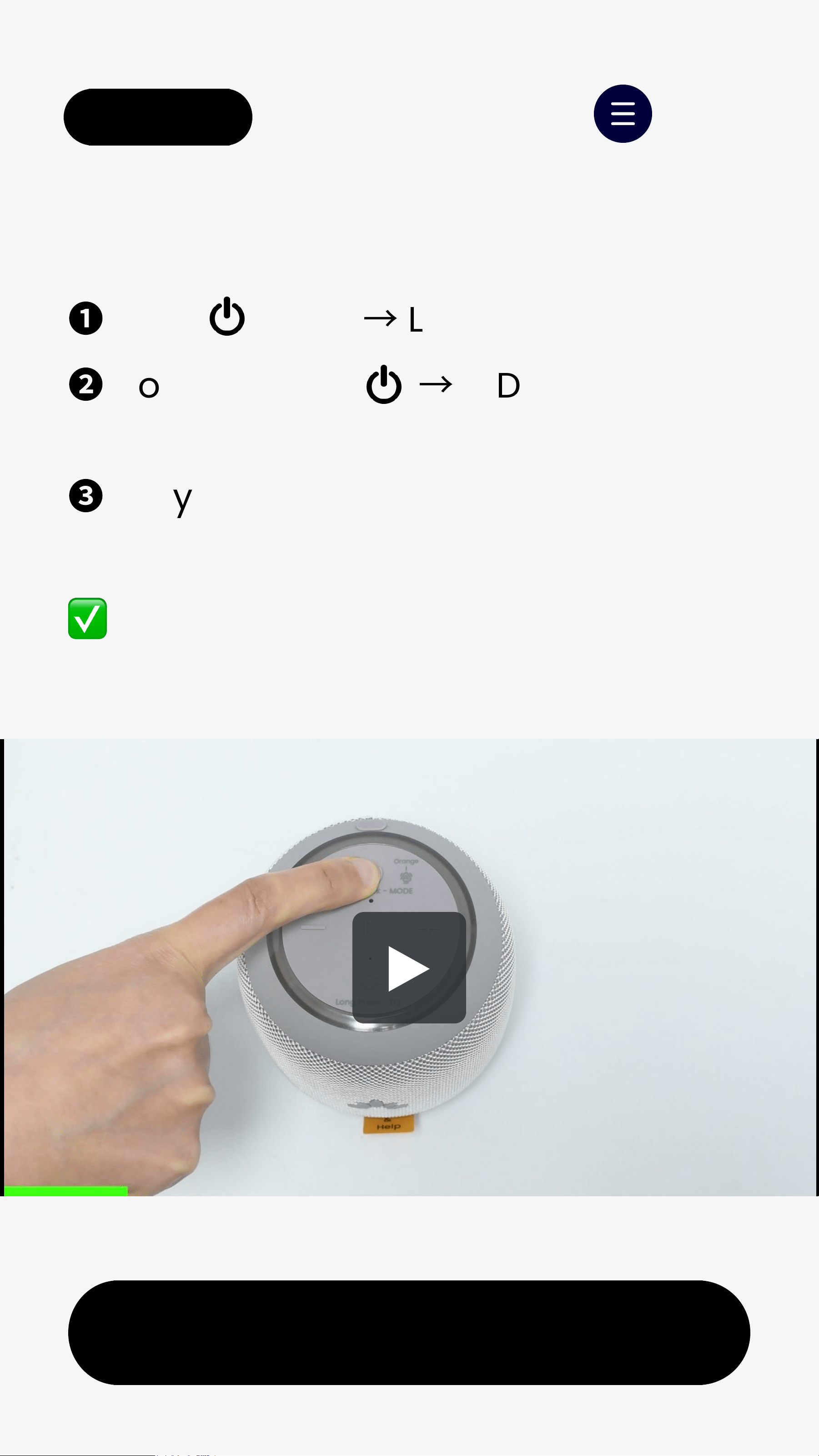
❶
Hold for 2s
→
LED blinks orange.
❷
Double-press
→
LED blinks       
  red & blue(Bluetooth pairing).
❸
On your device, turn on Bluetooth    
  and tap "Venucast HarmonyA0 Solo".
  Connected: LED turns solidblue.
background
Next
< Back Menu
9. Power & Charging
Speakers
Use included USB-C cable (5V, 2A)
Low battery: LED blinks red slowly
Charging: LED solidred
Fully charged: LED off (~ 4 hrs)
Playtime: up to13hrs           
(varies by volume)
background
10. Troubleshooting
Next
< Back Menu
Volume too low?
Reset
👉 More FAQ & Help
↗
Still need help?Contact support
↗
Common Issues
background
< Back Menu
11. Register & Support
Next
Register Your Product
Need help? Contact Us
Extended warranty & get updates.
Call
Get 24M Warranty
USA (Toll Free)
+1 888 464 0168
Other Regions
>
>
Email
>
Chat
background
< Back Menu
Did this guide help you?
Your feedback goes directly toour team.
It helps us improve future guides and
products.
Takes less than 10 seconds.
Thank you for helping us improve.
Helpful lt's OK Need Help

Specifications

Indexed Terms: Multi-speaker

Avantree BTST-5307 Questions and Answers

Questions and Answers

Related Products