< Back Menu
Next
Was this helpful?
A.1 Set Up Avantree Transmitter
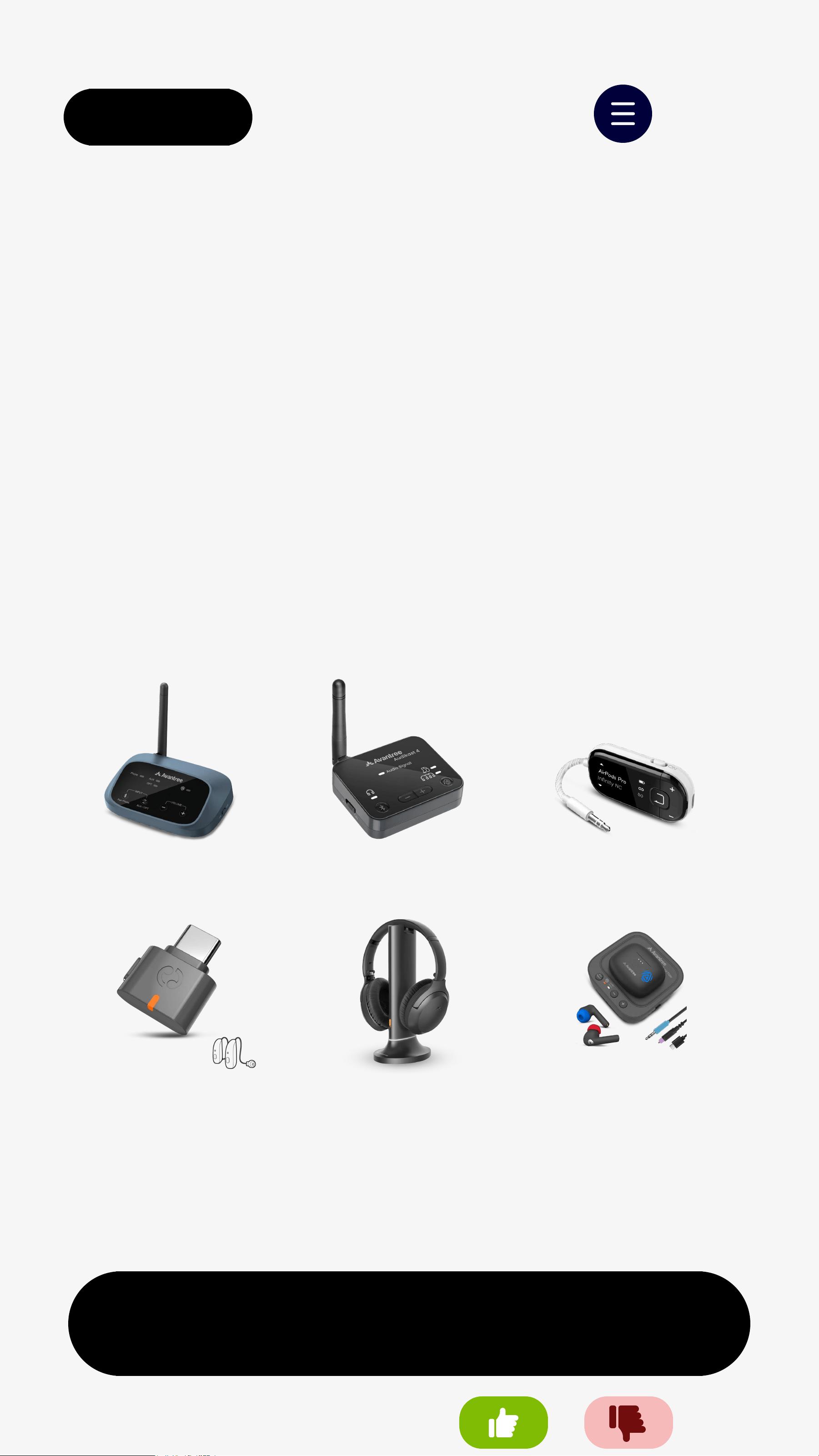
Supported Avantree transmitters:
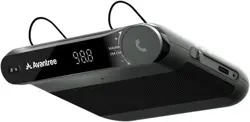
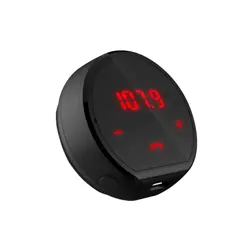
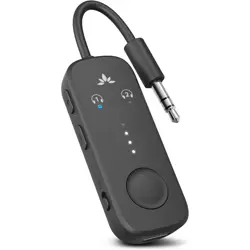
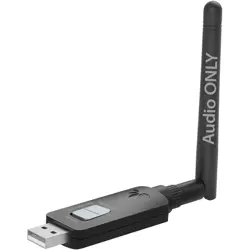
C82 Aura
Oasis Aura Audikast 4 Voyager
Opera Aura Aura Focus
Make sure your Avantree transmitter is
powered on and broadcasting audio.
Note: For detailed setup instructions,
see the user guide for your Avantree
transmitter.
< Back
B. Join Other Open Broadcast
Menu
Next
Was this helpful?
👉 Join Auracast phone broadcast
↗
👉 Check more Auracast devices
↗
Supported Auracast broadcasting devices:
Available only when a nearby
Auracast broadcast is active.
❶
Hold of the speaker for 3s.
→
LED blinks orange.
(Ready to join Auracast)
❷
The speaker will auto-join nearby
open broadcast.
Joined:LED turns solid orange.
< Back
B.1 Join Auracast Phone Broadcast
Menu
Next
Was this helpful?
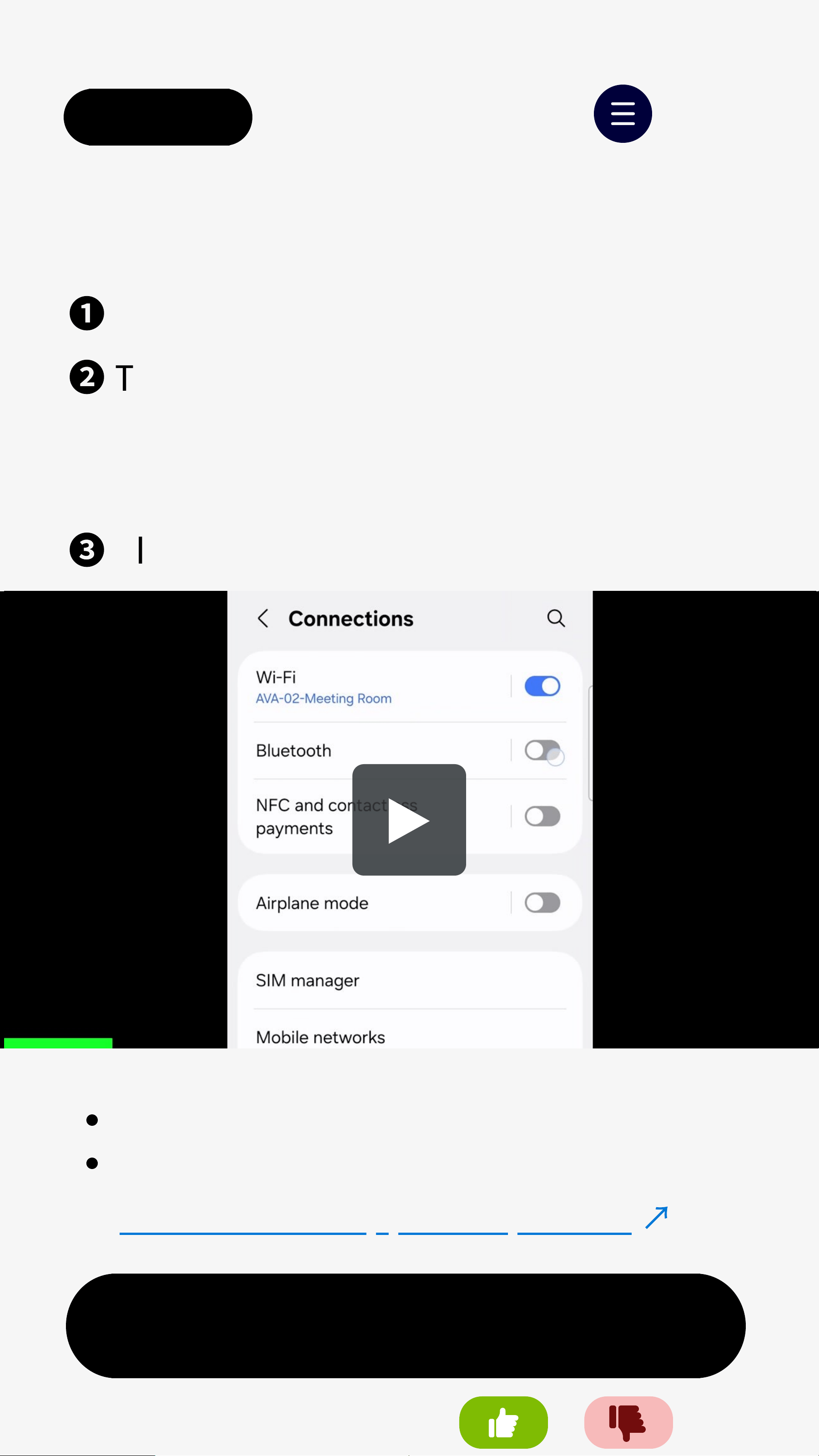
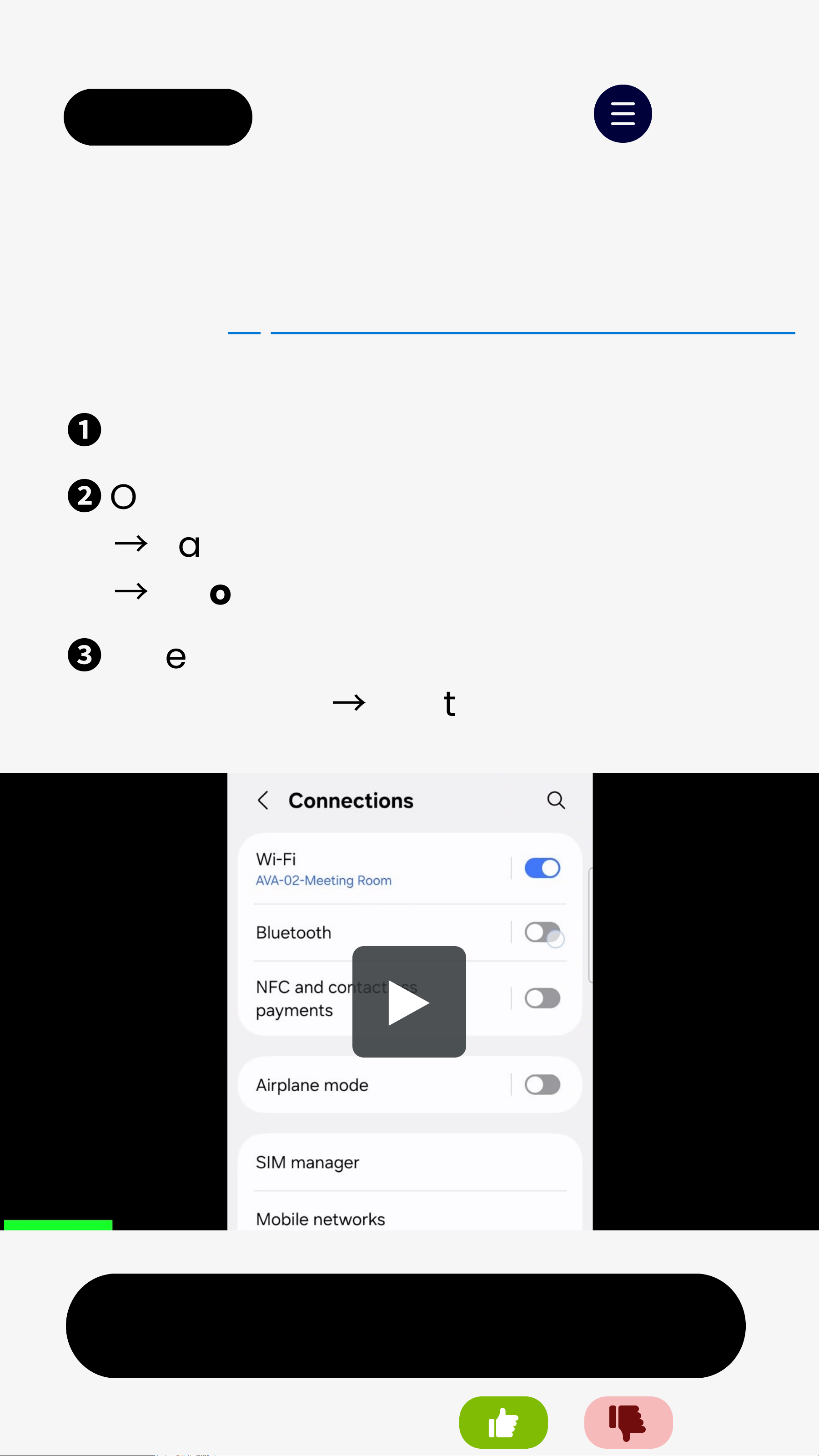
❶
Open Bluetooth settings on phone.
❷
Tap "Broadcast sound using
Auracast" > "Start broadcast".
Note: Menus may vary by phone model.
❸
Play audio on your phone.
Supported models:
Samsung Galaxy S23 and newer
Google Pixel 8/9 series
👉Check more supported phones
↗
< Back
C. Join Secured Broadcast
Menu
Next
Was this helpful?
Requires a phone with Auracast Assistant
(e.g. Samsung S23 or newer).
❶
Pair speaker with phone via Bluetooth.
❷
On your phone: Enbale LE Audio
→
Tap Listen to Auracast broadcast
→
Choose thebroadcast.
❸
Enter the password. Playback will
auto-starts.
→
LED turns solid orange.
4. Battery & Charging
Next
< Back Menu
Charging:
USB-C input: 5V / 1–2.4A
Charging: LED solid red
Fully charged: LED off (~ 4 hrs)
Was this helpful?
Battery & Playback:
Playtime: Up to 8 hrs (varies by
volume)
Auto power-off: After 60 mins
with no audio playback
(even if a broadcast is joined)
Power Behavior:
Can be used while charging
Next
< Back
5. Switch How to Listen
Menu
Was this helpful?
Listen with Bluetooth when you want to
play audio directly from a phone,
tablet, or computer personally.
❶
Press .
→
LED blinksred & blue.
(Ready to pair)
❷
On your device, turn on Bluetooth
and select"Avantree HarmonyA2".
Connected: LED turns solidblue.
This device contains licence-exempt transmitter(s)/receiver(s) that comply with Innovation,
Science and Economic Development Canada’s licence-exempt RSS(s). Operation is subject to
the following two conditions:
(1) This device may not cause interference.
(2) This device must accept any interference, including interference that may cause undesired
operation of the device.
L'émetteur/récepteur exempt de licence contenu dans le présent appareil est conforme aux
CNR d'Innovation, Sciences et Développement économique Canada applicables aux appareils
radio exempts de licence. L'exploitation est autorisée aux deux conditions suivantes :
1) L'appareil ne doit pas produire de brouillage;
2) L'appareil doit accepter tout brouillage radioélectrique subi, même si le brouillage est
susceptible d'en compromettre le fonctionnement.
FCC Requirement
Any changes or modifications not expressly approved by the party responsible for compliance
could void the user’s authority to operate the equipment.
This device complies with Part 15 of the FCC Rules. Operation is subject to the following two
conditions:
(1) this device may not cause harmful interference, and
(2) this device must accept any interference received, including interference that may cause
undesired operation.
Note: This equipment has been tested and found to comply with the limits for a Class B digital
device, pursuant to Part 15 of the FCC Rules. These limits are designed to provide reasonable
protection against harmful interference in a residential installation. This equipment generates, uses
, and can radiate radio frequency energy, and if not installed and used in accordance with the
instructions, may cause harmful interference to radio communications. However, there is no
guarantee that interference will not occur in a particular installation. If this equipment does cause
harmful interference to radio or television reception, which can be determined by turning the
equipment off and on, the user is encouraged to try to correct the interference by one or more of
the following measures:
– Reorient or relocate the receiving antenna.
– Increase the separation between the equipment and receiver.
– Connect the equipment into an outlet on a circuit different from that to which the receiver is
connected.
– Consult the dealer or an experienced radio/TV technician for help.