LockerPad-7B User Manual
P a g e | 1 Copyright©2020 ZKTECO CO., LTD. All rights reserved.
Thank you for choosing our product. Please read the instructions carefully
before operation. Follow these instructions to ensure that the product is
functioning properly. The images shown in this manual are for illustrative
purposes only.
For further details, please visit our Company’s website
www.zkteco.com.

LockerPad-7B User Manual
P a g e | 1 Copyright©2022 ZKTECO CO., LTD. All rights reserved.
Copyright © 2022 ZKTECO CO., LTD. All rights reserved.
Without the prior written consent of ZKTeco, no portion of this manual can be copied or forwarded in any
way or form. All parts of this manual belong to ZKTeco and its subsidiaries (hereinafter the "Company" or
"ZKTeco").
Trademark
is a registered trademark of ZKTeco. Other trademarks involved in this manual are owned by
their respective owners.
Disclaimer
This manual contains information on the operation and maintenance of the ZKTeco equipment. The
copyright in all the documents, drawings, etc. in relation to the ZKTeco supplied equipment vests in and is
the property of ZKTeco. The contents hereof should not be used or shared by the receiver with any third
party without express written permission of ZKTeco.
The contents of this manual must be read before starting the operation and maintenance of the supplied
equipment. If any of the content(s) of the manual seems unclear or incomplete, please contact ZKTeco
before starting the operation and maintenance of the said equipment.
It is an essential pre-requisite for the satisfactory operation and maintenance that the operating and
maintenance personnel are fully familiar with the design and that the said personnel have received
thorough training in operating and maintaining the machine/unit/equipment. It is further essential for the
safe operation of the machine/unit/equipment that personnel have read, understood, and followed the
safety instructions contained in the manual.
In case of any conflict between terms and conditions of this manual and the contract specifications,
drawings, instruction sheets or any other contract-related documents, the contract conditions/documents
shall prevail. The contract specific conditions/documents shall apply in priority.
ZKTeco offers no warranty, guarantee or representation regarding the completeness of any information
contained in this manual or any of the amendments made thereto. ZKTeco does not extend the warranty
of any kind, including, without limitation, any warranty of design, merchantability, or fitness for a
particular purpose.
ZKTeco does not assume responsibility for any errors or omissions in the information or documents which
are referenced by or linked to this manual. The entire risk as to the results and performance obtained from
using the information is assumed by the user.
ZKTeco in no event shall be liable to the user or any third party for any incidental, consequential, indirect,
special, or exemplary damages, including, without limitation, loss of business, loss of profits, business
interruption, loss of business information or any pecuniary loss, arising out of, in connection with, or

LockerPad-7B User Manual
P a g e | 2 Copyright©2022 ZKTECO CO., LTD. All rights reserved.
relating to the use of the information contained in or referenced by this manual, even if ZKTeco has been
advised of the possibility of such damages.
This manual and the information contained therein may include technical, other inaccuracies or
typographical errors. ZKTeco periodically changes the information herein which will be incorporated into
new additions/amendments to the manual. ZKTeco reserves the right to add, delete, amend, or modify the
information contained in the manual from time to time in the form of circulars, letters, notes, etc. for better
operation and safety of the machine/unit/equipment. The said additions or amendments are meant for
improvement /better operations of the machine/unit/equipment and such amendments shall not give any
right to claim any compensation or damages under any circumstances.
ZKTeco shall in no way be responsible (i) in case the machine/unit/equipment malfunctions due to any
non-compliance of the instructions contained in this manual (ii) in case of operation of the
machine/unit/equipment beyond the rate limits (iii) in case of operation of the machine and equipment in
conditions different from the prescribed conditions of the manual.
The product will be updated from time to time without prior notice. The latest operation procedures and
relevant documents are available on http://www.zkteco.com.
If there is any issue related to the product, please contact us.
ZKTeco Headquarters
Address ZKTeco Industrial Park, No. 32, Industrial Road,
Tangxia Town, Dongguan, China.
Phone +86 769 - 82109991
Fax +86 755 - 89602394
To know more about our global branches, visit www.zkteco.com.

LockerPad-7B User Manual
P a g e | 3 Copyright©2022 ZKTECO CO., LTD. All rights reserved.
About the Company
ZKTeco is one of the world’s largest manufacturers of RFID and Biometric (Fingerprint, Facial, Finger-vein)
readers. Product offerings include Access Control readers and panels, Near & Far-range Facial Recognition
Cameras, Elevator/Floor access controllers, Turnstiles, License Plate Recognition (LPR) gate controllers and
Consumer products including battery-operated fingerprint and face-reader door locks. Our security
solutions are multi-lingual and localized in over 18 different languages. At the ZKTeco state-of-the-art
700,000 square foot ISO9001-certified manufacturing facility, we control manufacturing, product design,
component assembly, and logistics/shipping, all under one roof.
The founders of ZKTeco have been determined for independent research and development of biometric
verification procedures and the productization of biometric verification SDK, which was initially widely
applied in PC security and identity authentication fields. With the continuous enhancement of the
development and plenty of market applications, the team has gradually constructed an identity
authentication ecosystem and smart security ecosystem, which are based on biometric verification
techniques. With years of experience in the industrialization of biometric verifications, ZKTeco was
officially established in 2007 and now has been one of the globally leading enterprises in the biometric
verification industry owning various patents and being selected as the National High-tech Enterprise for 6
consecutive years. Its products are protected by intellectual property rights.
About the Manual
This manual introduces the operations of LockerPad-7B.
All figures displayed are for illustration purposes only. Figures in this manual may not be exactly consistent
with the actual products.
LockerPad-7B User Manual
P a g e | 4 Copyright©2022 ZKTECO CO., LTD. All rights reserved.
Document Conventions
Conventions used in this manual are listed below:
GUI Conventions
For Software
Convention
Description
Bold font
Used to identify software interface names e.g., OK, Confirm, Cancel.
>
Multi-level menus are separated by these brackets. For example, File > Create >
Folder.
For Device
Convention
Description
< >
Button or key names for devices. For example, press <OK>.
[ ]
Window names, menu items, data table, and field names are inside square brackets.
For example, pop up the [New User] window.
/
Multi-level menus are separated by forwarding slashes. For example,
[File/Create/Folder].
Symbols
Convention
Description
This represents a note that needs to pay more attention to.
The general information which helps in performing the operations faster.
The information which is significant.
Care taken to avoid danger or mistakes.
The statement or event that warns of something or that serves as a
cautionary example.

LockerPad-7B User Manual
P a g e | 5 Copyright©2022 ZKTECO CO., LTD. All rights reserved.
Table of Contents
1 OVERVIEW............................................................................................................................................. 6
1.1 I
NSTRUCTIONS FOR
U
SE
......................................................................................................................................7
1.2 D
EFAULT
B
ASIC
P
ARAMETERS
.............................................................................................................................7
2 STORAGE AND PICK-UP ........................................................................................................................8
2.1 A
DVERTISEMENT
.................................................................................................................................................8
2.2 S
TORAGE
............................................................................................................................................................8
2.3 P
ICK
-U
P
.............................................................................................................................................................9
2.4 T
HE
U
SE OF
L
OCKER
.........................................................................................................................................10
2.5 A
DMINISTRATOR
L
OGIN
....................................................................................................................................10
3 SETTINGS.............................................................................................................................................10
3.1 U
SER
M
ANAGEMENT
........................................................................................................................................ 11
3.1.1 NEW USER.....................................................................................................................................................................11
3.1.2 U DISK IMPORT AND EXPORT USERS................................................................................................................. 12
3.1.3 DELETE USER...............................................................................................................................................................12
3.2 U
PLOAD
AD.................................................................................................................................................... 13
3.2.1 UPLOAD AD.................................................................................................................................................................13
3.2.2 AD REMOVAL.............................................................................................................................................................. 14
3.3 D
EVICE
S
ETTINGS
............................................................................................................................................. 14
3.3.1 DEVICE NAME..............................................................................................................................................................14
3.3.2 BASIC SETTINGS.........................................................................................................................................................14
3.3.3 WIEGAND IN SETTINGS............................................................................................................................................15
3.3.4 BIOMETRIC PARAMETERS.......................................................................................................................................16
3.3.5 NUMBER OF LOOP DELETE RECORDS................................................................................................................17
3.3.6 ALLOW HALFWAY OUT...........................................................................................................................................17
3.3.7 ALLOW SHARING THE COMPARTMENT............................................................................................................18
3.3.8 LANGUAGE...................................................................................................................................................................18
3.3.9 DEVICE SN.................................................................................................................................................................... 18
3.3.10 FIRMWARE VERSION.................................................................................................................................................18
3.4 O
PEN
L
OCKS
....................................................................................................................................................19
3.4.1 CLEAR THE COMPARTMENT..................................................................................................................................19
3.4.2 OPEN LOCKS................................................................................................................................................................19
3.5 N
ETWORK
S
ETTINGS
.........................................................................................................................................20
3.5.1 WI-FI SETTINGS...........................................................................................................................................................20
3.5.2 LAN SETTINGS.............................................................................................................................................................21
3.6 S
ERVER
S
ETTINGS
.............................................................................................................................................23
3.7 A
LLOW
V
ISITOR TO
U
SE
................................................................................................................................... 23
3.8 R
ESTART
D
EVICE
.............................................................................................................................................. 24
3.9 S
HOW
S
TATUS
B
AR
.......................................................................................................................................... 24
3.10 R
ECORD
........................................................................................................................................................... 25
LockerPad-7B User Manual
P a g e | 6 Copyright©2022 ZKTECO CO., LTD. All rights reserved.
1 Overview
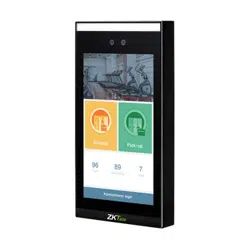
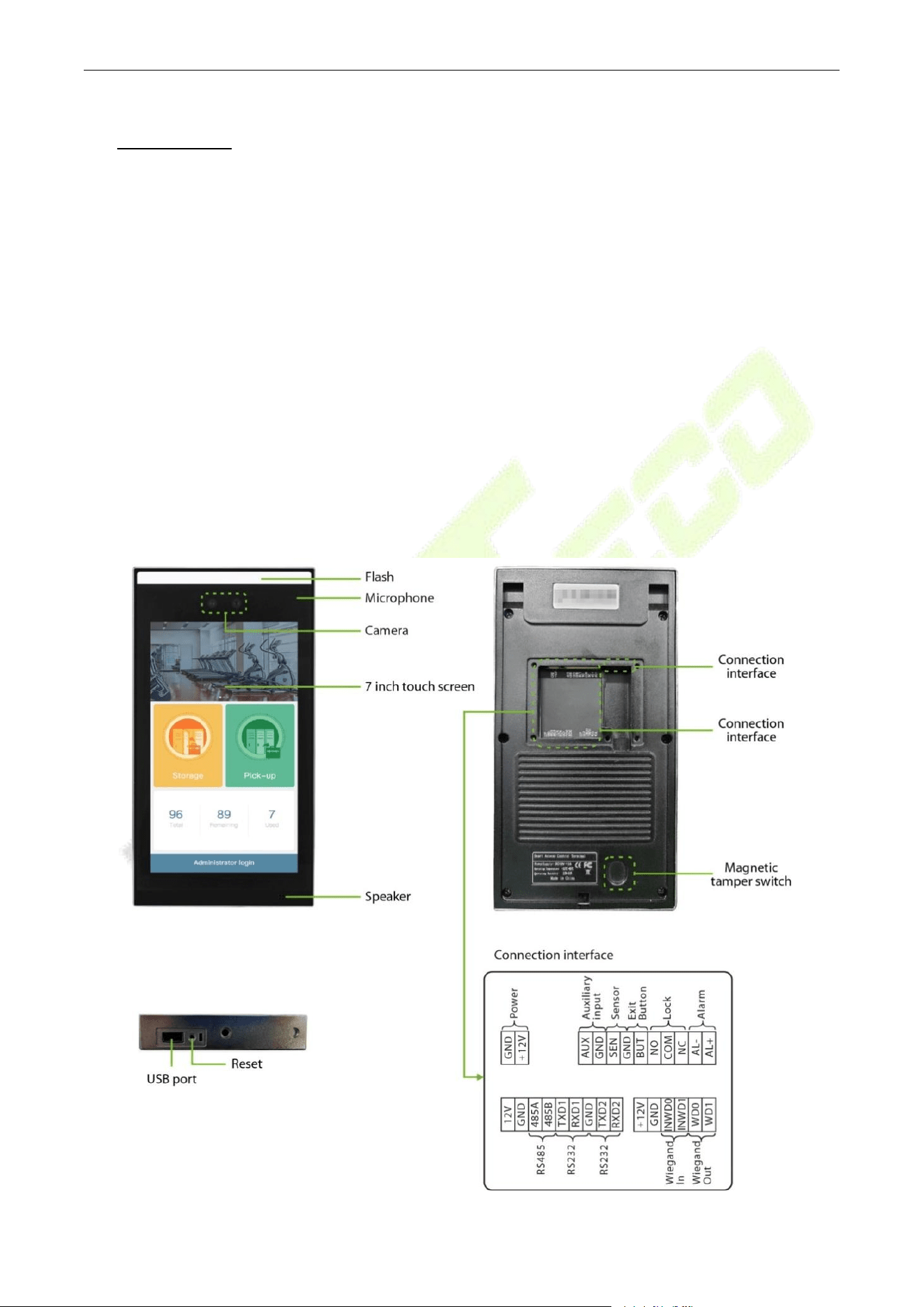
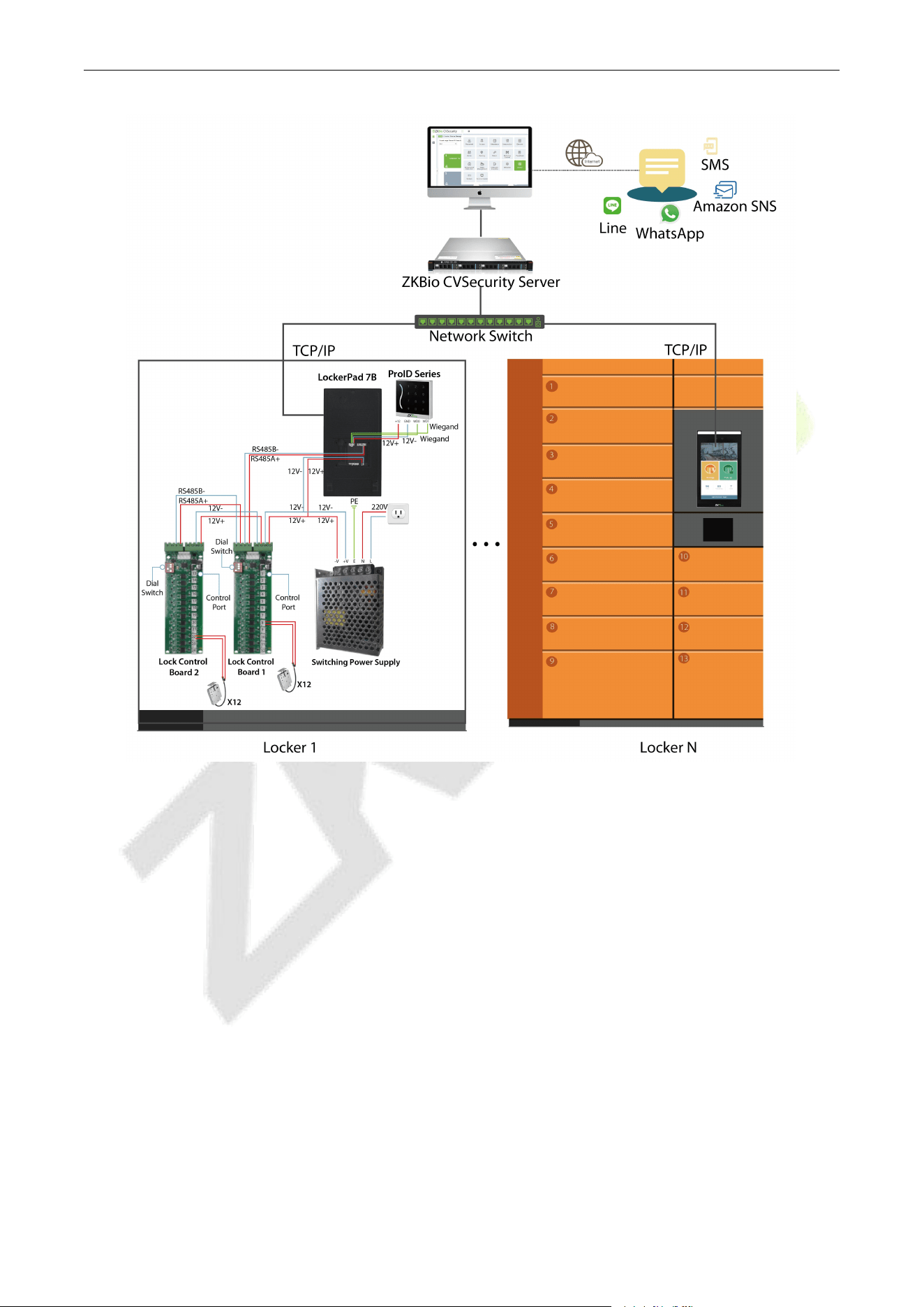
LockerPad-7B is a locker solution core device based on ZKTeco facial recognition and card recognition
technology. It communicates with the Lock Control Board through the RS485 protocol to control the
electronic lock.
It supports storage and pick-up, shared by internal employees and temporary users such as visitors,
and is compatible with the requirements of one person using one compartment and multiple
persons using one compartment. If compared with traditional lockers, it is safer and more
convenient, without consumables, and more convenient to manage.
Provide eye-catching and efficient advertising display.
It supports three types of compartments: large, medium, and small, a LockerPad-7B supports the
control of a maximum of 96 compartment locks.
The application scenarios cover a wide range hence it is suitable for shopping malls, libraries, gyms,
schools etc.
It supports both online & standalone working modes.
LockerPad-7B User Manual
P a g e | 7 Copyright©2022 ZKTECO CO., LTD. All rights reserved.
1.1 Instructions for Use
After the device is powered on, the software will start automatically without additional operations.
For device safety, please use the official power adapter, the standard power supply is 12V 3A.
In order to use device smoothly, please set the relevant parameters correctly. See the Default Basic
Parameters below.
LockerPad-7B only supports face recognition. If you need to use swiping card to open the
compartment, please contact the technical staff to choose a suitable Wiegand reader.
1.2 Default Basic Parameters
Number of Compartments:
12.
Compartment Type:
Small compartment.
[Allow Visitors to Use] Function: Enabled by default.
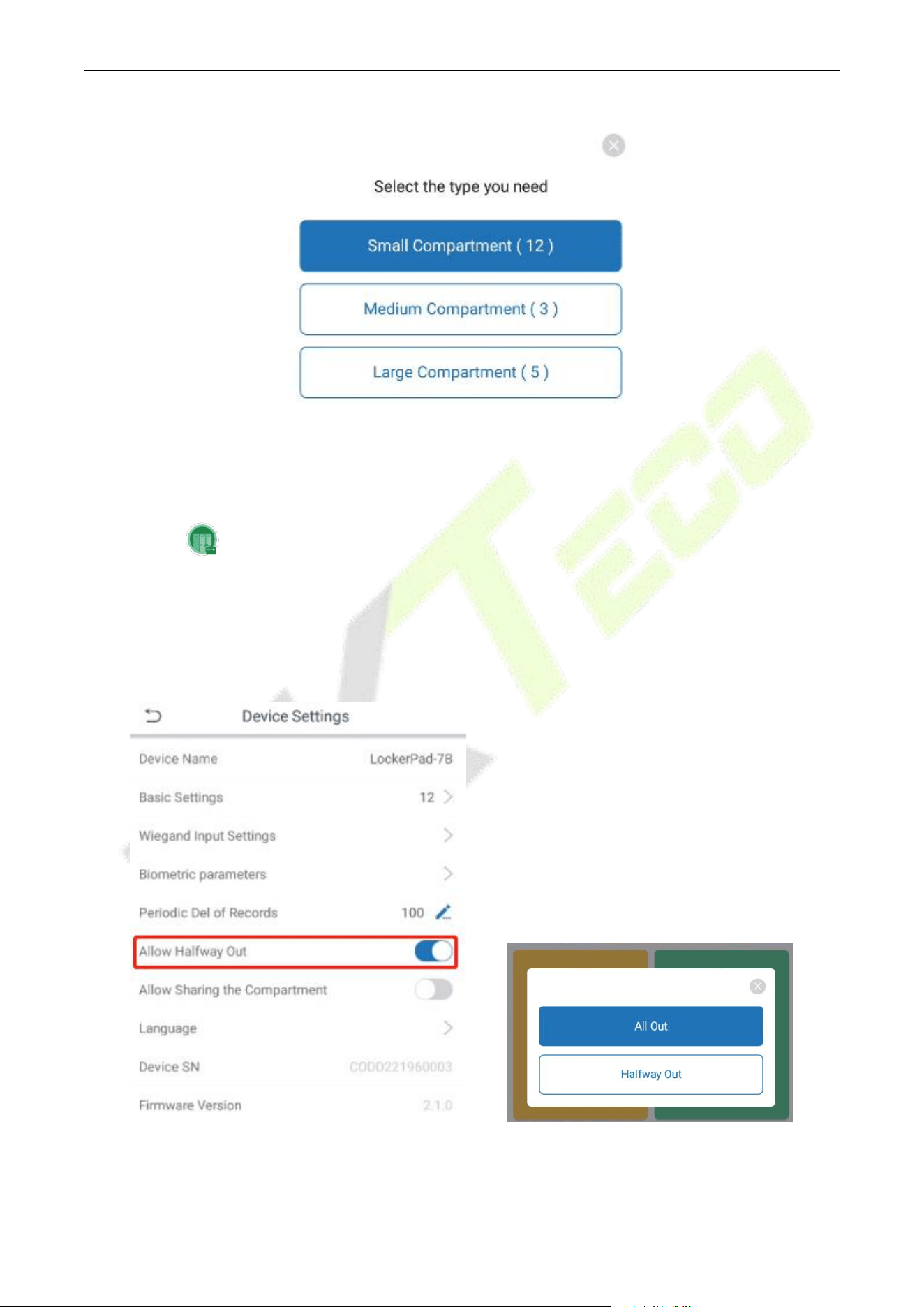
[Allow Halfway Out] Function:
Enabled by default.
One person, one compartment by default.
LockerPad-7B User Manual
P a g e | 8 Copyright©2022 ZKTECO CO., LTD. All rights reserved.
The Wiegand 26 format is supported by default.
Please set the parameters according to the actual situation. If you are in doubt, please refer down to the
Device Settings chapter of the user manual.
2 Storage and Pick-Up
LockerPad-7B supports two access methods: Face and Card.
(
Note
: If users need to use the card function, they need to prepare the Wiegand readers.)
2.1 Advertisement
The advertisement supports mixed loop playback of pictures and videos, each picture is displayed for 5
seconds, and switched to playing video after photo display according.
2.2 Storage
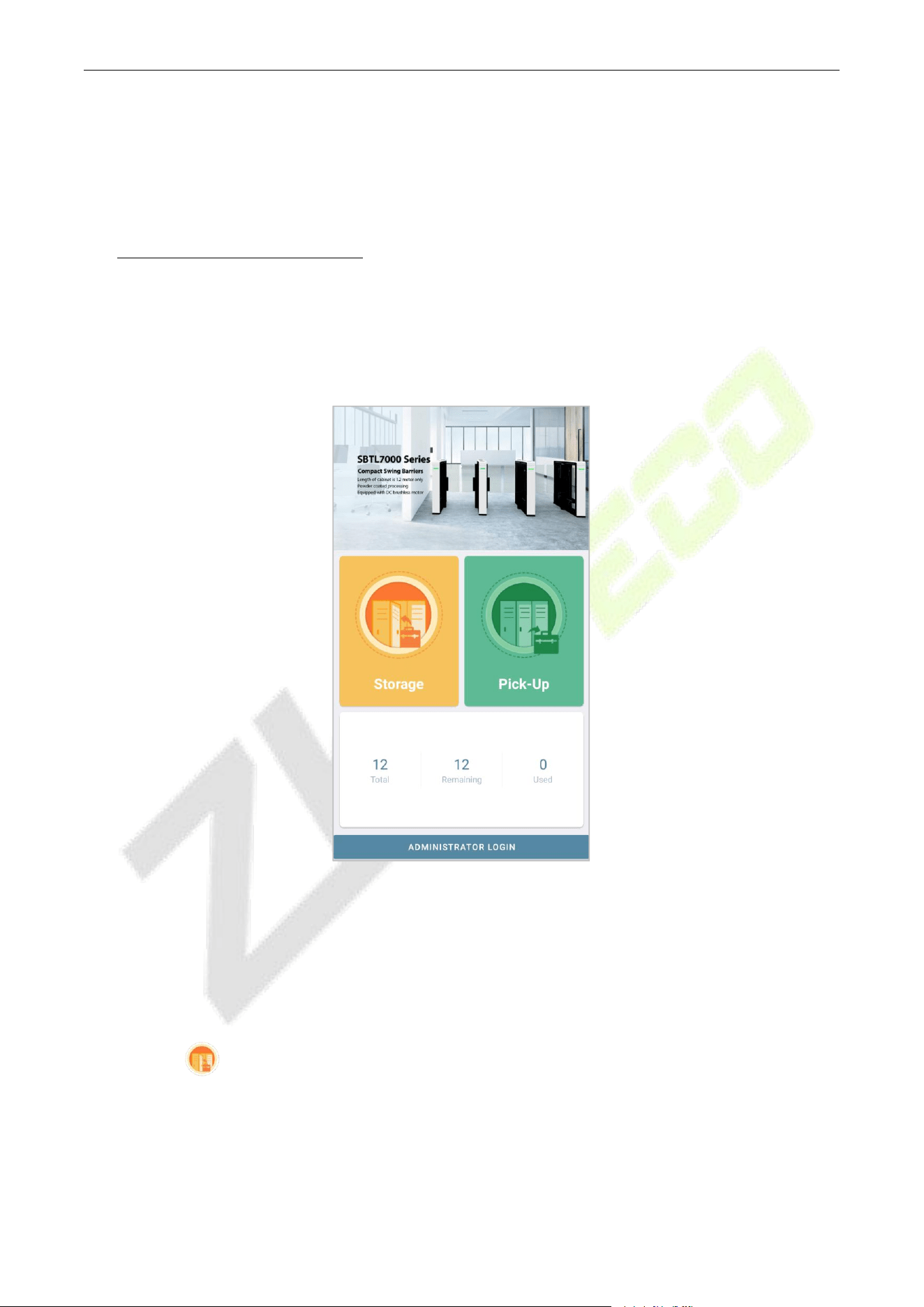
Click this icon to enter the storage process.
When there is only one type of compartment, the locker will be automatically unlocked after the
user is successfully authenticated.
When there are multiple types of compartments, the user successfully authenticates and select the
desired type of compartment, and the compartment is automatically unlocked.
LockerPad-7B User Manual
P a g e | 9 Copyright©2022 ZKTECO CO., LTD. All rights reserved.
Small compartment (12): There are twelve remaining small compartments.
2.3 Pick-Up
Click this icon to enter the pick-up process.
If the administrator has set to allow Halfway Out, after clicking the pick-up, it will prompt whether to
[All Out] or [Halfway Out].
If the administrator does not set to allow Halfway Out, the user can only pick-up once, and all items
must be taken out at one time.
LockerPad-7B User Manual
P a g e | 10 Copyright©2022 ZKTECO CO., LTD. All rights reserved.
2.4 The Use of Locker
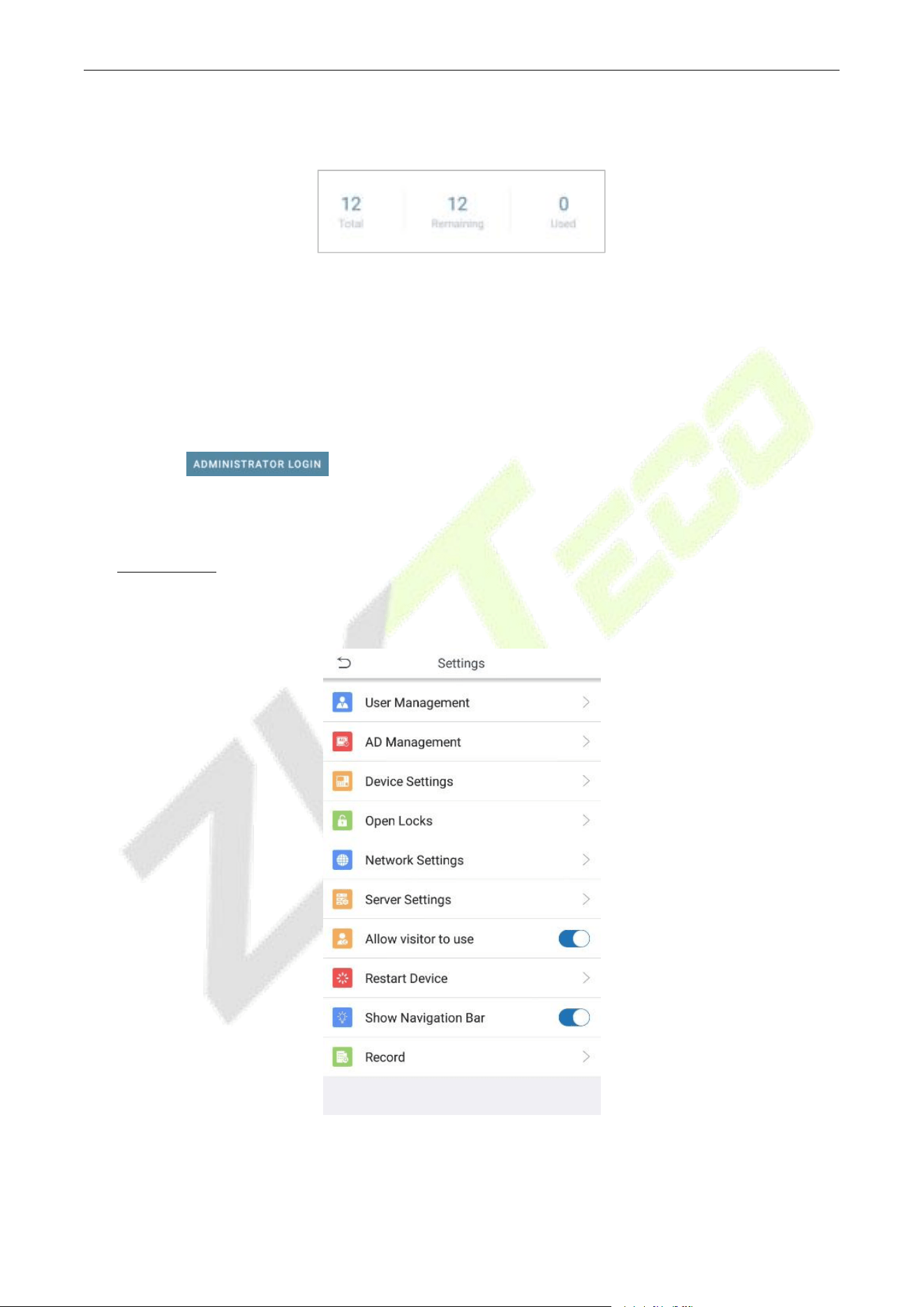
Total: It displays the current total number of locker compartments.
Remaining:
The number of compartments that can be used.
Used:
The number of compartments used.
2.5 Administrator Login
Click this icon to enter the administrator login verification page. After the verification
is successful, enter the
Settings
page.
3 Settings
In Settings, various options are available which are listed below:
LockerPad-7B User Manual
P a g e | 11 Copyright©2022 ZKTECO CO., LTD. All rights reserved.
Menu
Function Description
User Management
Add user, delete user, view user details.
AD Management
For uploading advertising materials and setting the content of the
home page advertising play.
Device Settings
For locker basic parameter setting.
Open Locks
For opening lock and clear compartment.
Network Settings
For communicating with PC, you need to configure the network.
Server Settings
The settings used for connecting the PC.
Allow Visitor to Use
Used to control the user type.
Restart Device
Used to restart the LockerPad-7B device.
Show Status Bar
Show bottom navigation bar.
Record
History record.
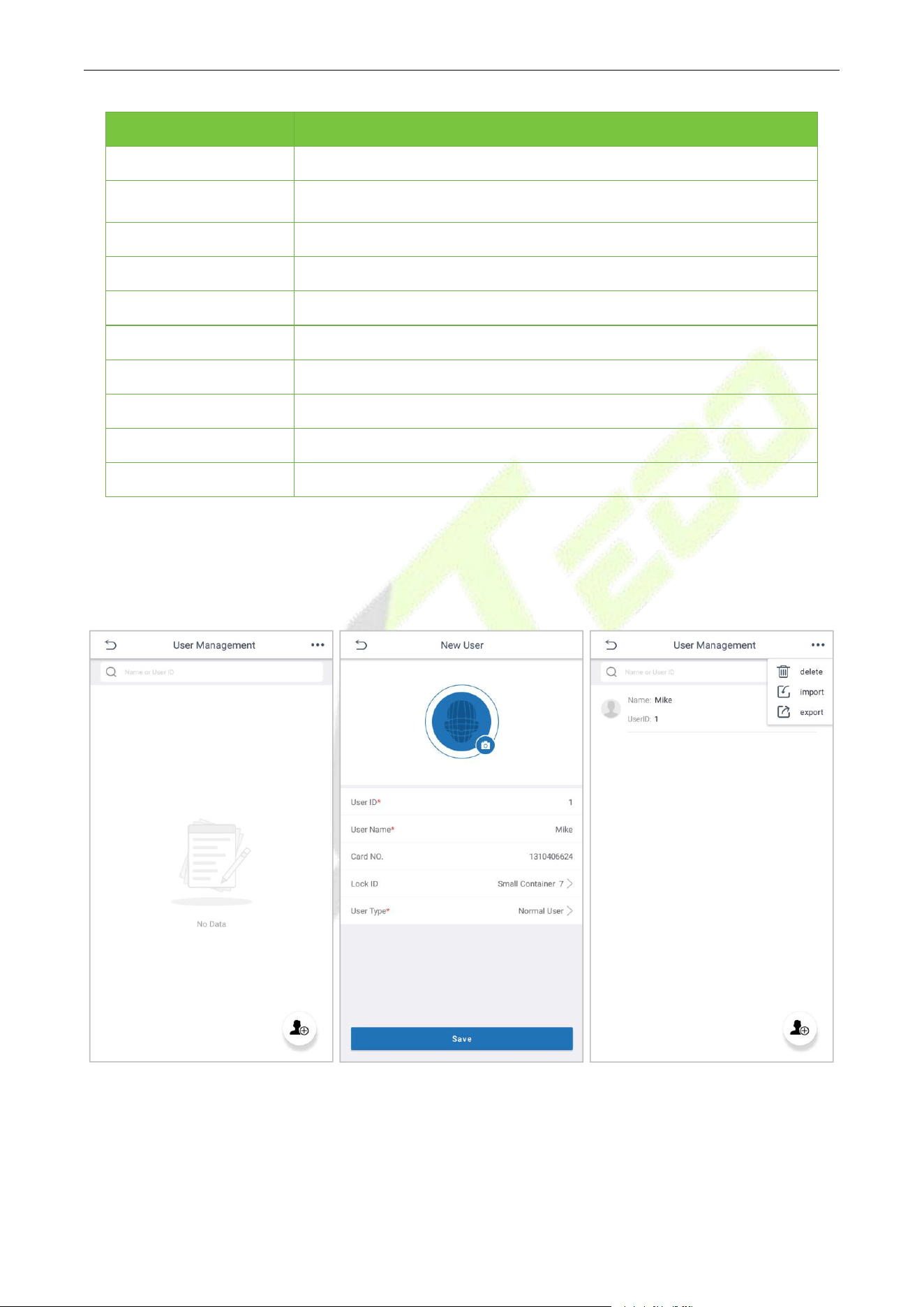
3.1 User Management
This function can be used when the device is in standalone working mode.
It is used for adding users and to modify usernames, card NO., permissions, and user type.
3.1.1 New User
User ID and Username:
You need to manually fill in the user ID and Username. The user ID cannot be
modified after filling in.
LockerPad-7B User Manual
P a g e | 12 Copyright©2022 ZKTECO CO., LTD. All rights reserved.
User Type:
The user type supports Normal User and Administrator, and the Normal User is set as default.
The administrator has the authority to log in to the background for management, and both normal users
and administrators have the authority to access items.
Register Face: Click Face icon to enter the face registration page.
Register Card:
If your locker has the Card Reader, then you could use the item. Swipe the Card on the
Reader, the card number will be written on it automatically.
Lock ID: The administrator can authorize user to use a certain compartment with a fixed ID. The default is
empty. When the user uses the locker, a free compartment will be randomly assigned.
Note: Before adding a user, please complete the basic parameter settings of the device, otherwise
modifying the device basic settings will release the binding relationship between the user and the
compartment.
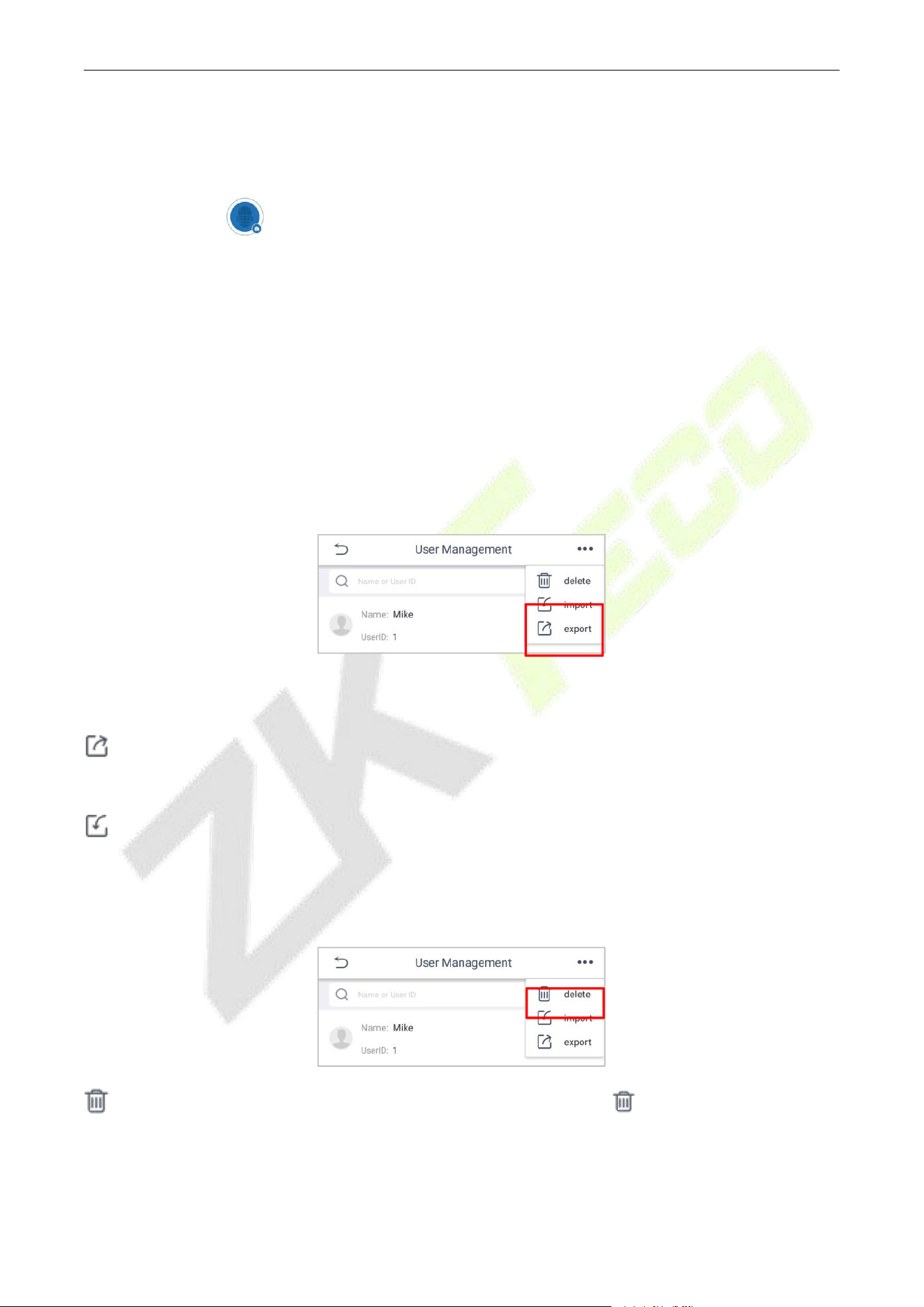
3.1.2 U Disk Import and Export Users
It is used for multiple devices to share a set of user data, and only supports importing and exporting user
data via U disk.
Export Users: After exporting, a ZKTeco folder will be added to the U disk, which contains user data
and user registered photos.
Import Users:
After inserting the U disk, the device will automatically read the files containing user
data in the ZKTeco folder.
3.1.3 Delete User
Delete User:
Click
Delete
and then select the user to be deleted. Click button to delete.
LockerPad-7B User Manual
P a g e | 13 Copyright©2022 ZKTECO CO., LTD. All rights reserved.
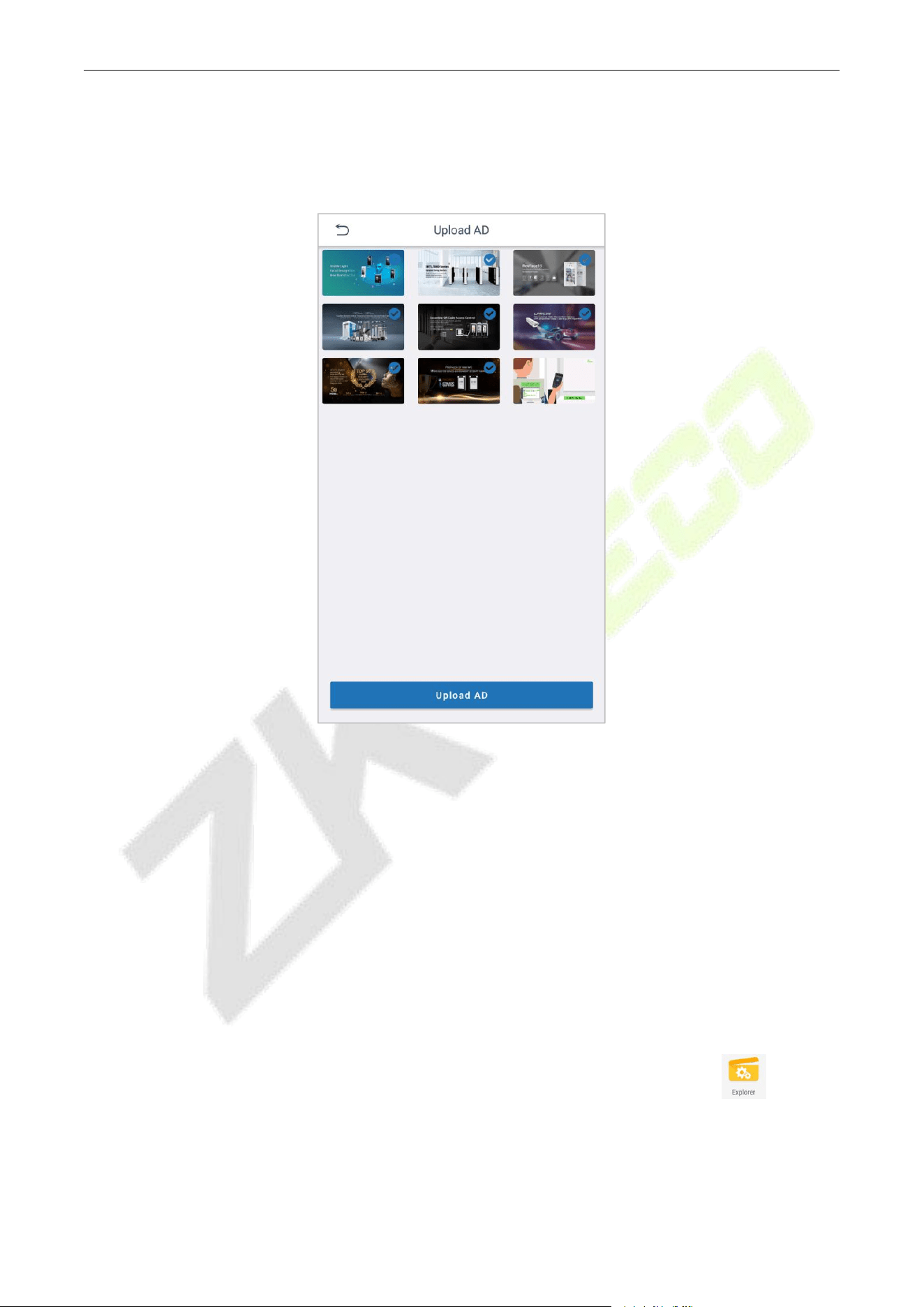
3.2 Upload AD
This is used for uploading pictures and videos via U Disk.
3.2.1 Upload Ad
Upload pictures and video advertisements via U disk, and it supports common picture and video formats.
Method 1:
1. Before uploading, please create an AD folder in the U disk and put the ad materials in the AD folder.
2. Insert the U disk, click
Upload
, it will automatically recognize the ad materials in the AD folder and
add it to the device.
3. After uploading, select the ads that need to be displayed.
Method 2:
Exit the program, enter the Internal Memory/Face Locker/ad folder through the Explorer , and save
the advertisement materials in this folder to upload the ad.
LockerPad-7B User Manual
P a g e | 14 Copyright©2022 ZKTECO CO., LTD. All rights reserved.
3.2.2 Ad Removal
Exit the program, enter the Internal Memory/Face Locker/ad folder through the Explorer , and delete
the advertisement files that need to be deleted.
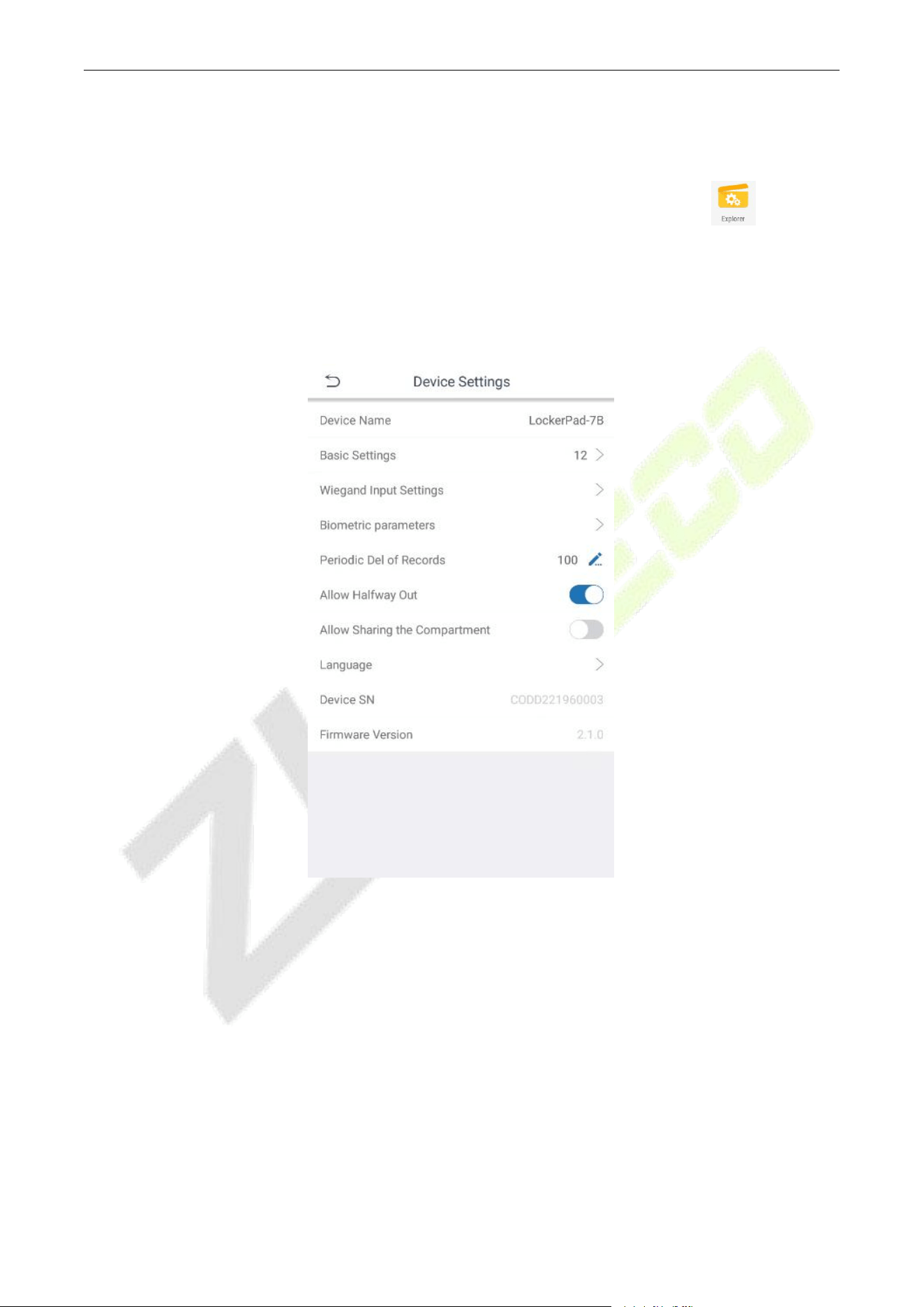
3.3 Device Settings
In order to facilitate the initial use experience, the locker is preset with 12 small compartments.
3.3.1 Device Name
The default is LockerPad-7B, the user can modify it according to the situation.
3.3.2 Basic Settings
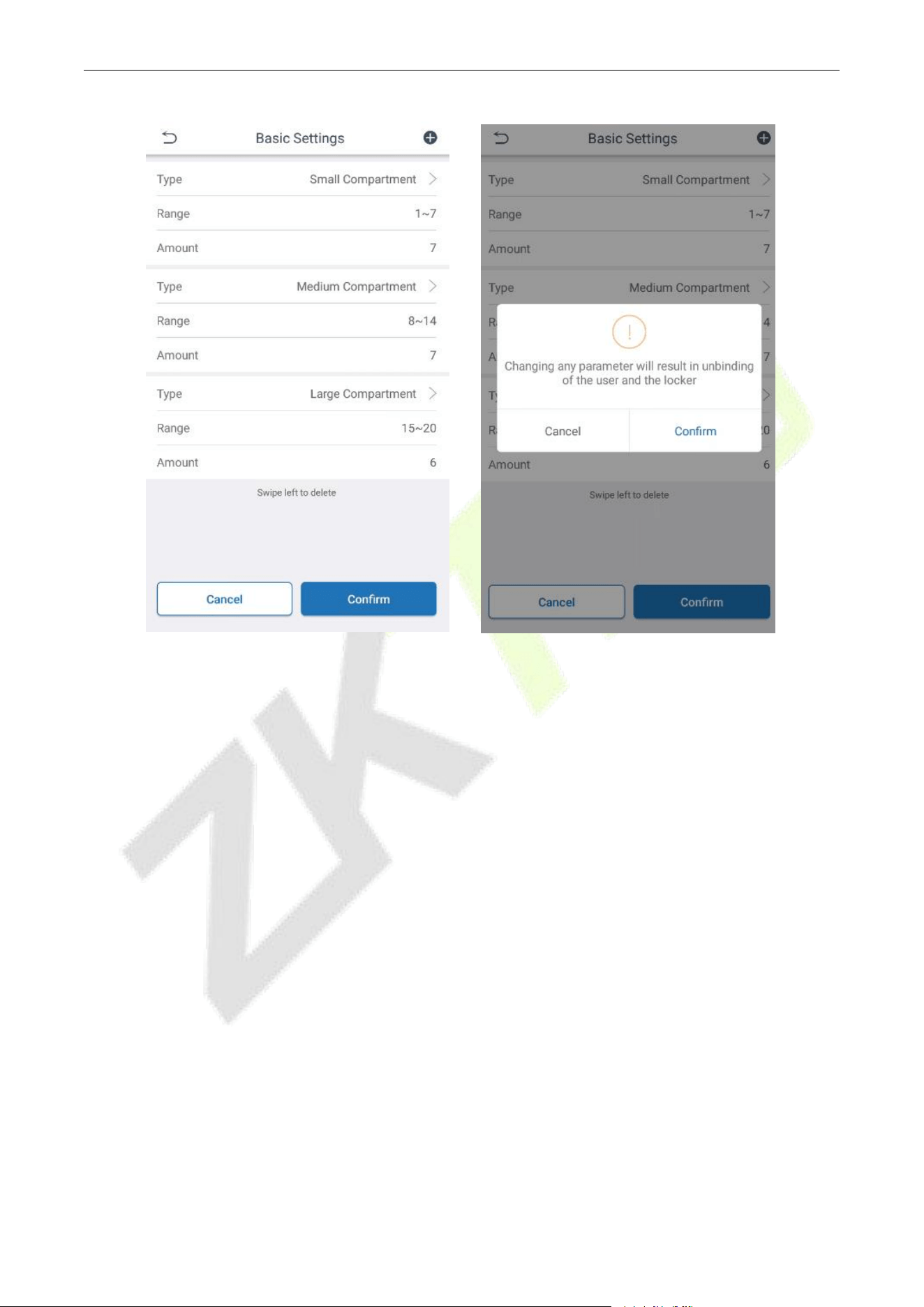
It is used to set the amount and type of storage compartment. It supports three types of compartments i.e.,
large, medium, and small, and the amount supports up to 96.
LockerPad-7B User Manual
P a g e | 15 Copyright©2022 ZKTECO CO., LTD. All rights reserved.
Delete: Swipe to the left to delete.
After the setting is complete, click Confirm to take effect.
3.3.3 Wiegand In Settings
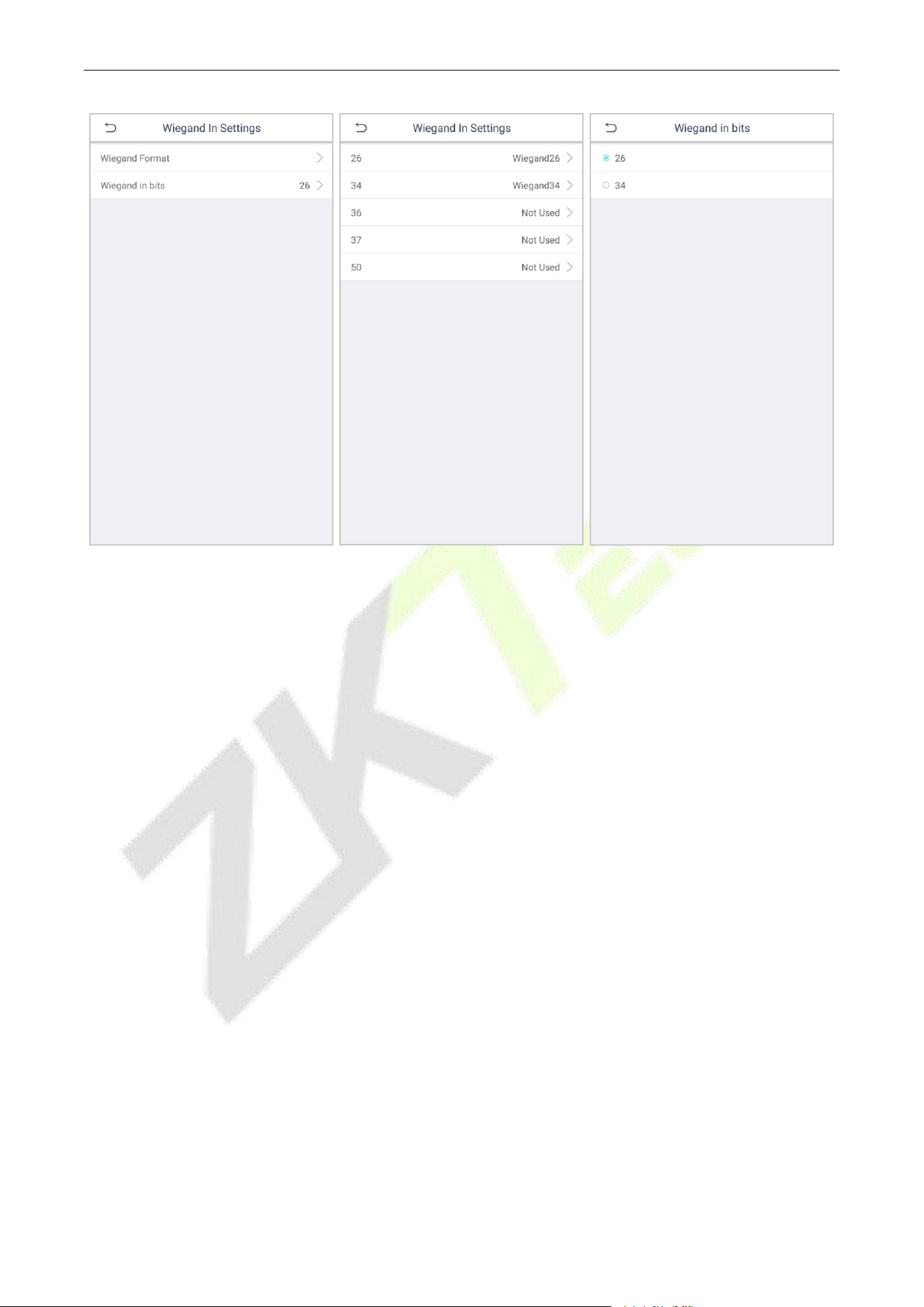
Set the corresponding Wiegand parameters according to the selected locker card reader type. The device
support Wiegand26, Wiegand26a, Wiegand34, Wiegand34a, Wiegand36, Wiegand36a, Wiegand37,
Wiegand37a, Wiegand50.
LockerPad-7B User Manual
P a g e | 16 Copyright©2022 ZKTECO CO., LTD. All rights reserved.
3.3.4 Biometric Parameters
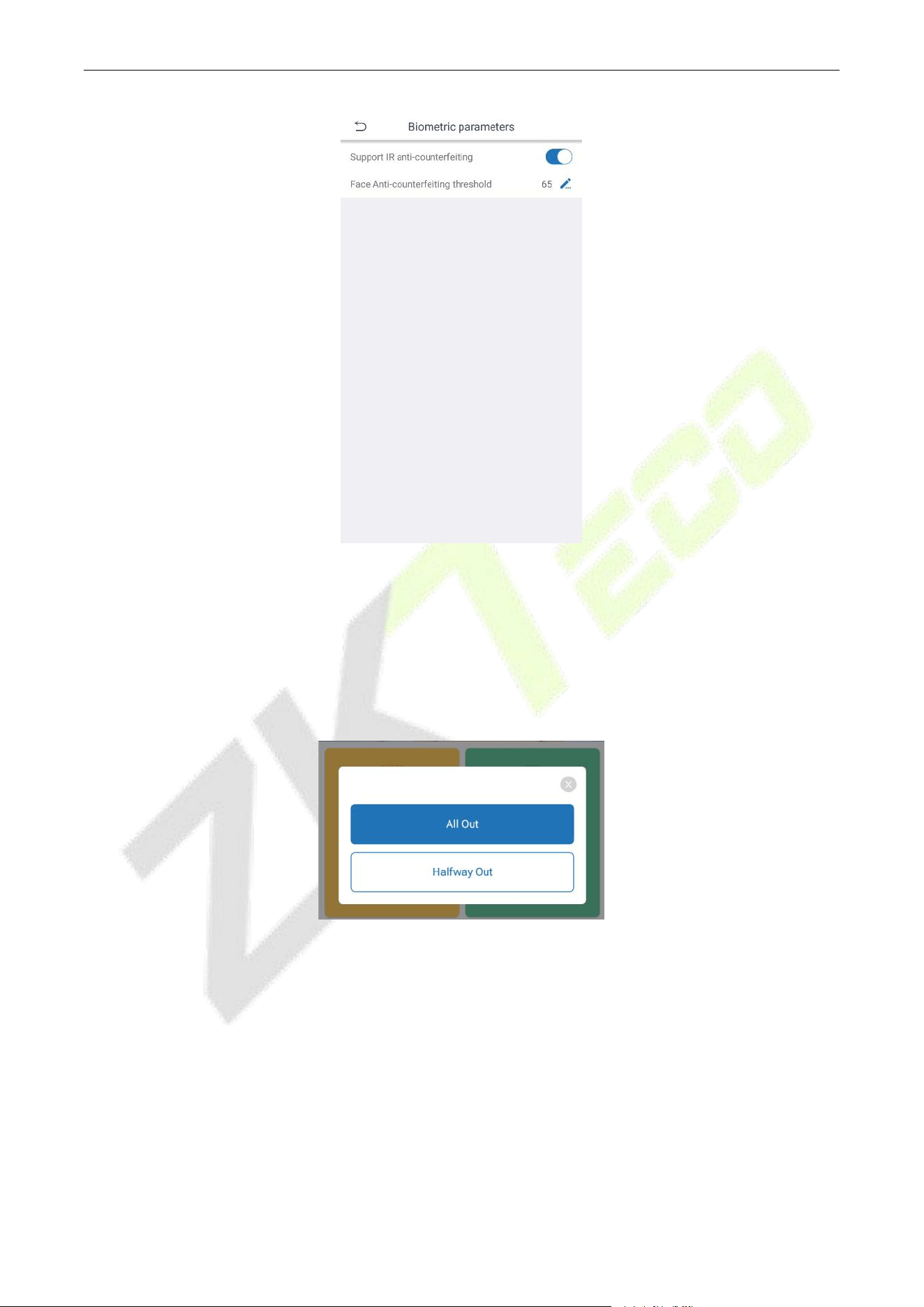
Support IR anti-counterfeiting
: The device supports face anti-counterfeiting. When enable, it can
perform anti-counterfeiting recognition on face photos to make sure that the authenticity of face.
Face Anti-counterfeiting threshold
: In face recognition, the higher the threshold is set, the higher the
accuracy of face recognition will be, which may lead to unrecognizable. On the other side, if the threshold
is too low, the accuracy of face recognition will be lower, which may lead to misjudgment and other
problems. The default value is 65.
LockerPad-7B User Manual
P a g e | 17 Copyright©2022 ZKTECO CO., LTD. All rights reserved.
3.3.5 Number of Loop Delete Records
When the history record exceeds the limit, the specified number of records are automatically deleted to
make room for new records.
3.3.6 Allow Halfway Out
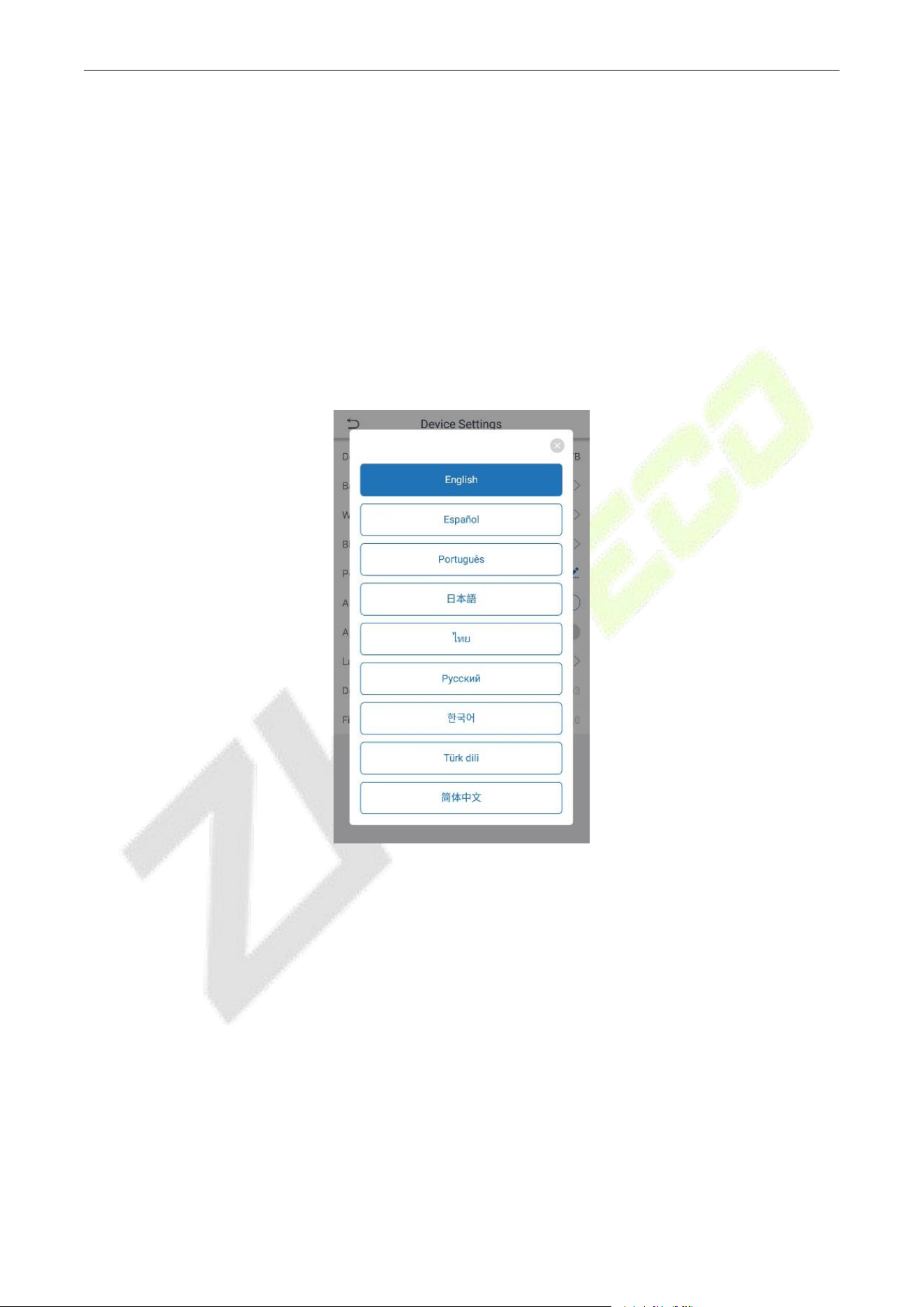
It is enabled by default, and when users click pick-up the items, it will be reminded whether you need to
[All Out] or [Halfway Out].
When disabled, after the user picks up the items, it is considered that all the items have been taken out,
and the access process is terminated.
LockerPad-7B User Manual
P a g e | 18 Copyright©2022 ZKTECO CO., LTD. All rights reserved.
3.3.7 Allow Sharing the Compartment
It is disabled by default. When the user binds the locker compartment, the compartment that has been
bound by other users can no longer be bound to the compartment by other users.
After enabled, the compartment can be bound to use by multiple persons, which is used when family
members or team groups share a compartment.
3.3.8 Language
Click on
Language
, and select the language according to your needs; it will automatically return to the
page and update the device language.
3.3.9 Device SN
Device SN is the device’s fixed attribute, and it cannot be modified.
3.3.10 Firmware Version
Firmware version is the device’s fixed attribute, and it cannot be modified.
LockerPad-7B User Manual
P a g e | 19 Copyright©2022 ZKTECO CO., LTD. All rights reserved.
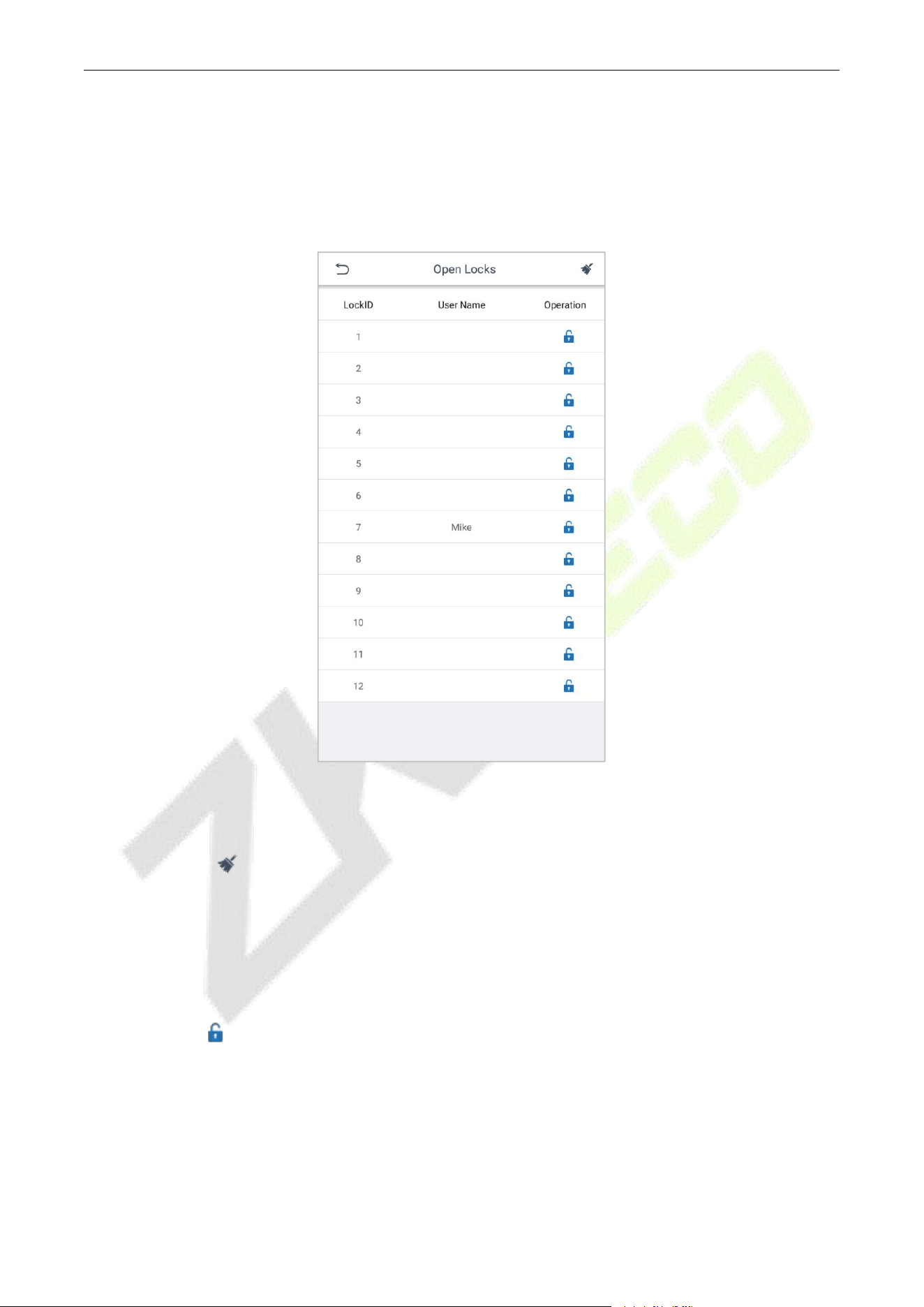
3.4 Open Locks
It includes two functions i.e., Open Locks and Clear the Compartment.
3.4.1 Clear the Compartment
After clicking the icon, the temporary relationship between the user and the compartment will be
cleared, and the temporary user's data will be cleared for the administrator to clean the compartment,
prevent the user's belongings from being left, and improve the administrator's clearing speed.
3.4.2 Open Locks
After clicking the icon, the corresponding compartment will be opened. The system temporarily opens
the specific compartment without deleting the connection between the user and the compartment.
LockerPad-7B User Manual
P a g e | 20 Copyright©2022 ZKTECO CO., LTD. All rights reserved.
3.5 Network Settings
It includes two functions: Wi-Fi Settings and LAN Settings.
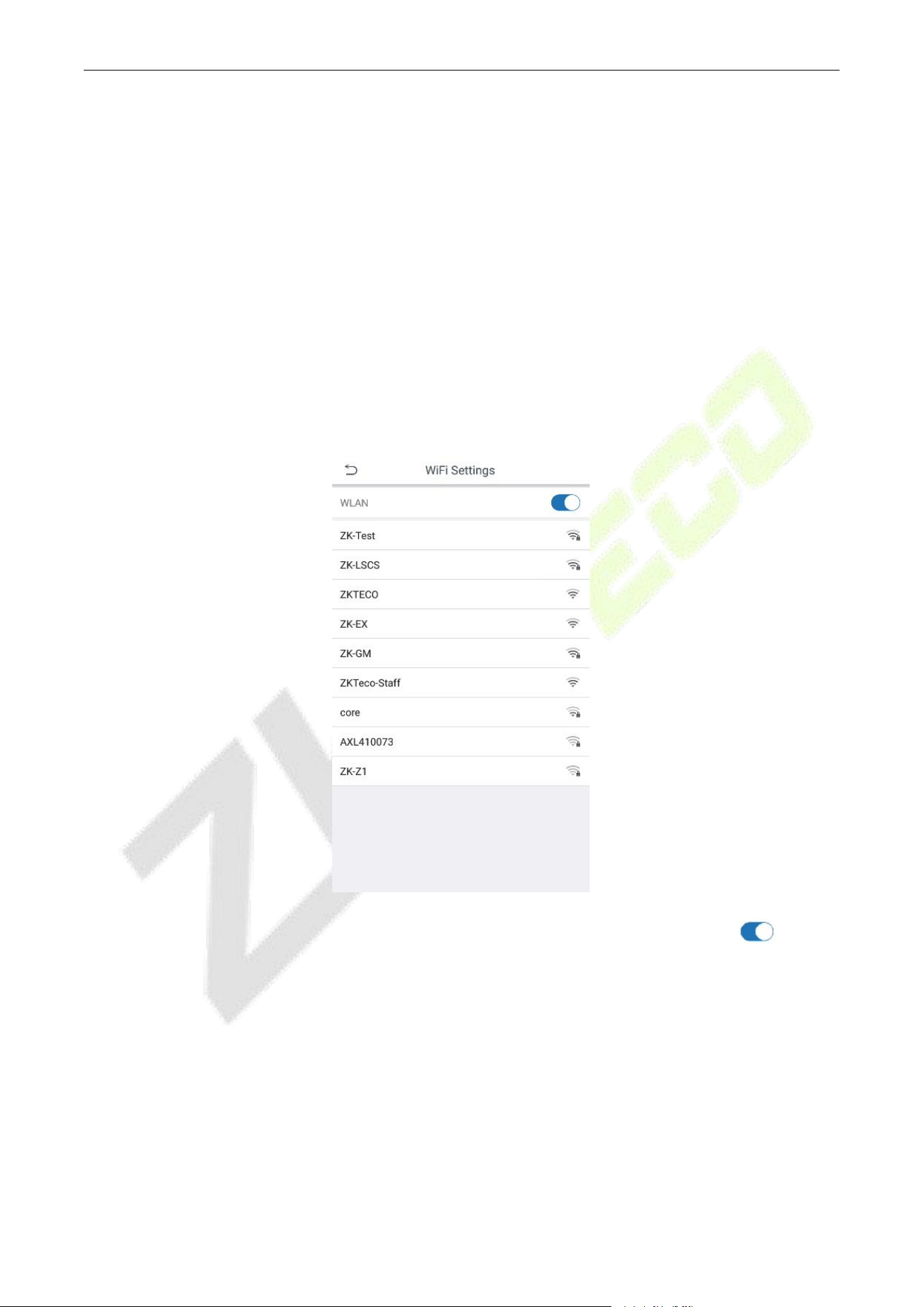
3.5.1 Wi-Fi Settings
The device provides a Wi-Fi module, which can be built-in within the device mold.
The Wi-Fi module enables data transmission via Wi-Fi (Wireless Fidelity) and creates a wireless network
environment. Wi-Fi is disabled by default in the device. If you need to connect the Wi-Fi network, you can
toggle the Wi-Fi to enable mode.
Click Wi-Fi Settings on the Network settings interface. The following screen will display:
By default, Wi-Fi is disabled in the device. To enable or disable Wi-Fi, toggle the on/off button.
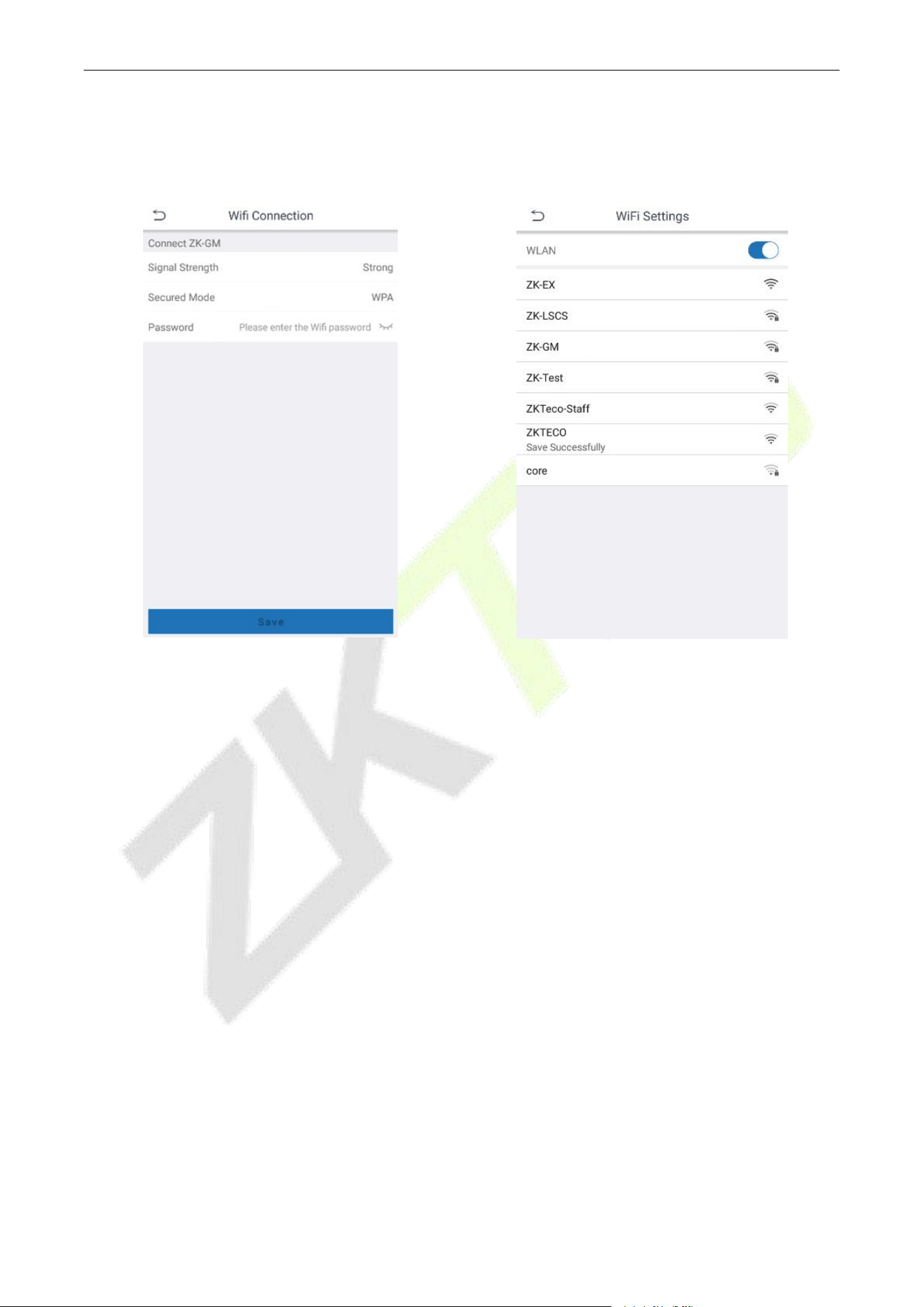
Once the Wi-Fi is turned on, the device will search for the available Wi-Fi within the network range.
Tap on the appropriate Wi-Fi name from the available list, and input the correct password in the
password interface, and then tap Save to Wi-Fi.
LockerPad-7B User Manual
P a g e | 21 Copyright©2022 ZKTECO CO., LTD. All rights reserved.
When the Wi-Fi is connected successfully, the prompt "Save Successfully" display on the Wi-Fi list.
3.5.2 LAN Settings
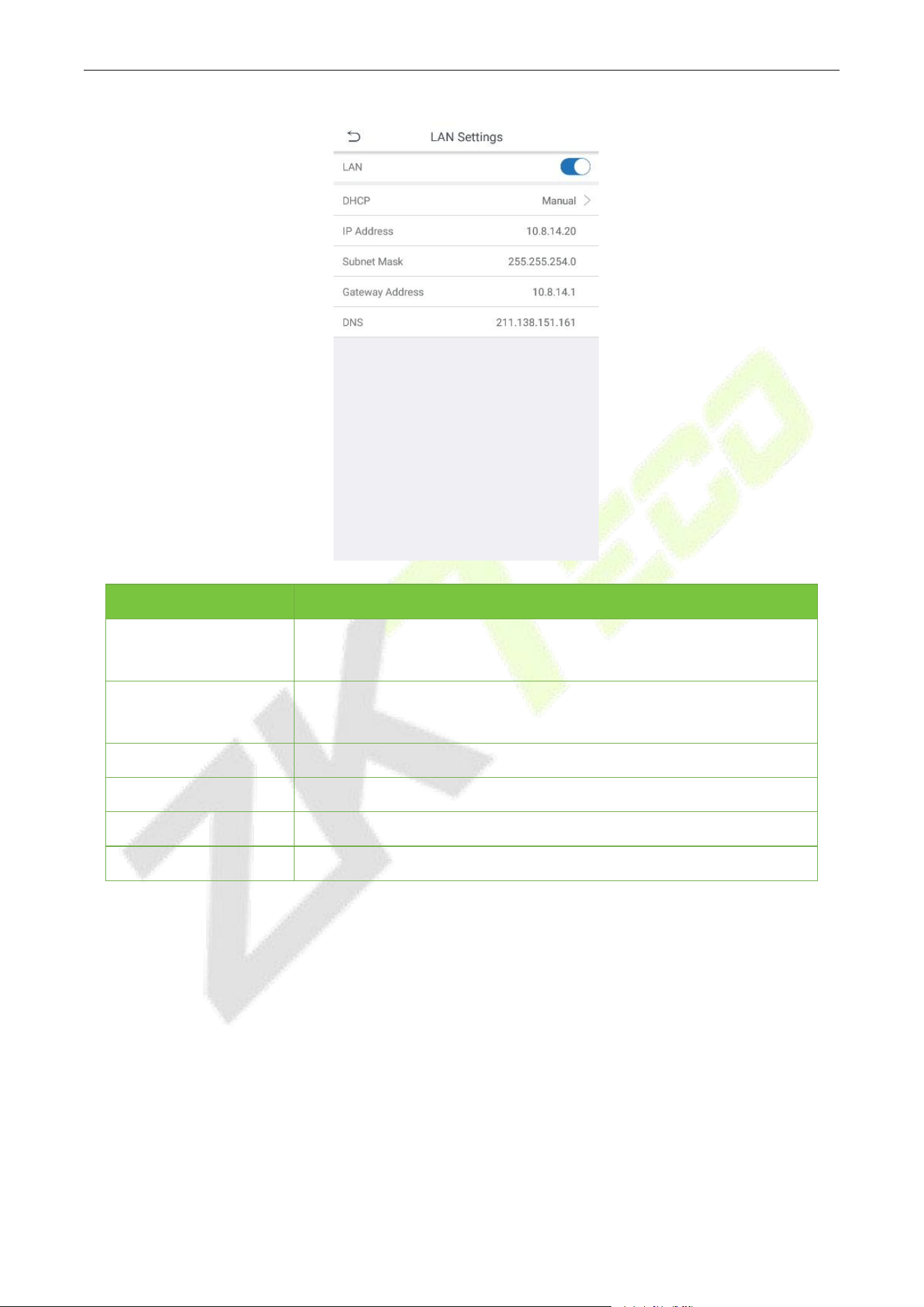
When the device communicates with a PC via Ethernet, the network must be configured such that the
device and the computer are in the same network segment. When the device is not connected to the
network, click LAN Settings on the Network settings interface. The following screen will display:
LockerPad-7B User Manual
P a g e | 22 Copyright©2022 ZKTECO CO., LTD. All rights reserved.
Function Name
Function Description
LAN
Enable to modify the Ethernet network address parameters. If this is
not enabled, users cannot modify the Ethernet network address
parameters.
DHCP
Enable DHCP to assign an IP address to the internal network or network
service provider. If DHCP is on, you cannot manually set the IP of the
device.
IP Address
The default IP is achieved automatically.
Subnet Mask
The default IP is achieved automatically.
Gateway address
The default IP is achieved automatically.
DNS
The default IP is achieved automatically.
LockerPad-7B User Manual
P a g e | 23 Copyright©2022 ZKTECO CO., LTD. All rights reserved.
3.6 Server Settings
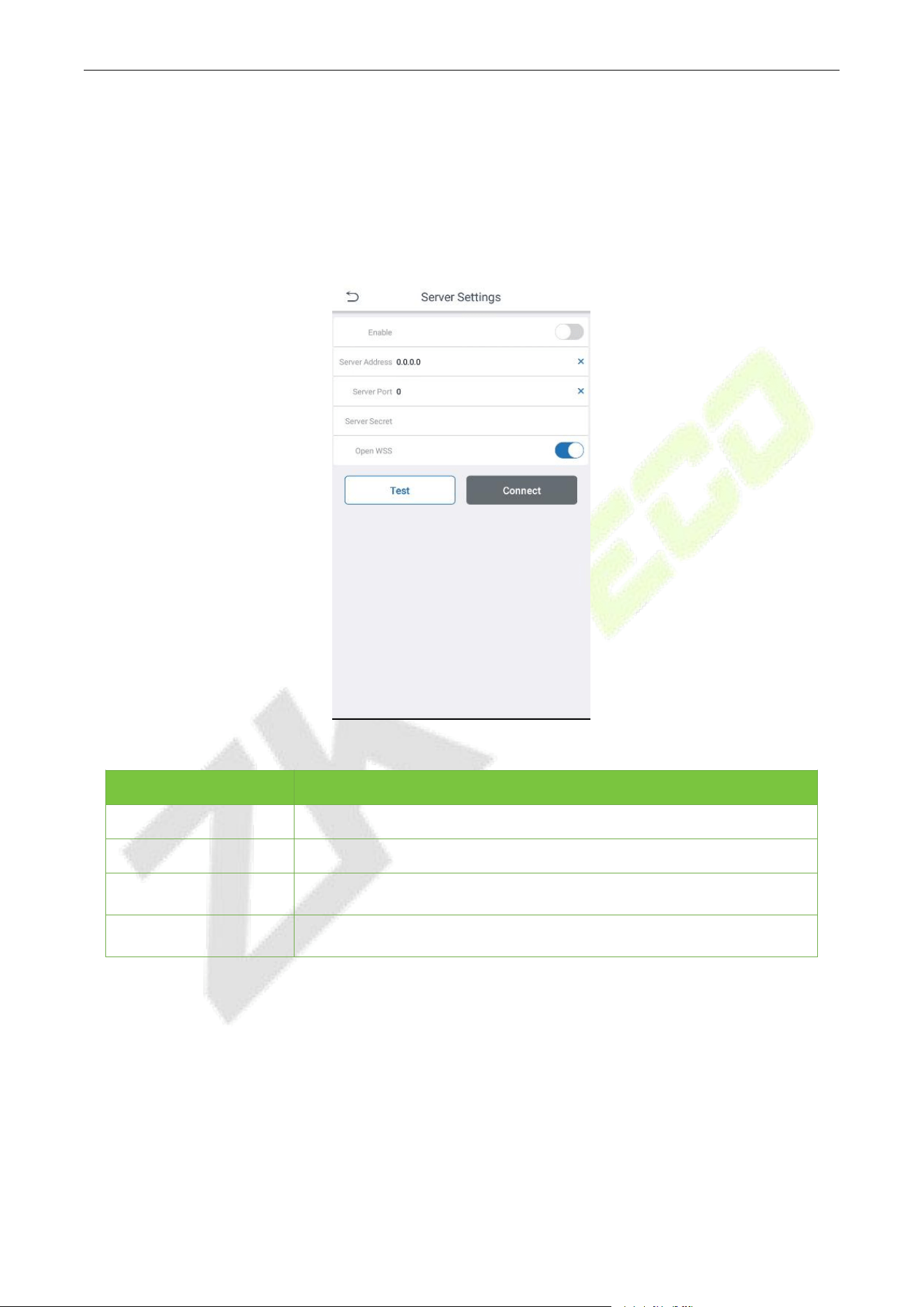
The device is in standalone working mode by default, disable this function. Server Settings must be
enabled when the device wants to switch to online working mode and needs to communicate with the
computer via Ethernet. Click Server Settings on the Settings interface. The following screen will display:
Click Connect, after the test shows success.
Function Name
Function Description
Server Address
IP address of the ADMS server.
Server Port
Port used by the ADMS server.
Server Secret
Set server secret for authentication when connecting to ZKBio
CVSecurity.
Open WSS
Enable it when the ZKBio CVSecurity uses the https protocol and
disable it when ZKBio CVSecurity uses the http protocol.
3.7 Allow Visitor to Use
After the function is turned on, the visitors and temporary users who are not in the user registration list
can self-register their faces and use the locker. It is suitable for shopping malls, museums, and other scenes
with large personnel mobility.
After the function is turned off, only registered users that already exist in the system can use the locker. It is
suitable for gymnasiums, schools, and other scenes.
LockerPad-7B User Manual
P a g e | 24 Copyright©2022 ZKTECO CO., LTD. All rights reserved.
3.8 Restart Device
After clicking
Restart Device
button, the LockerPad-7B device will automatically restart.
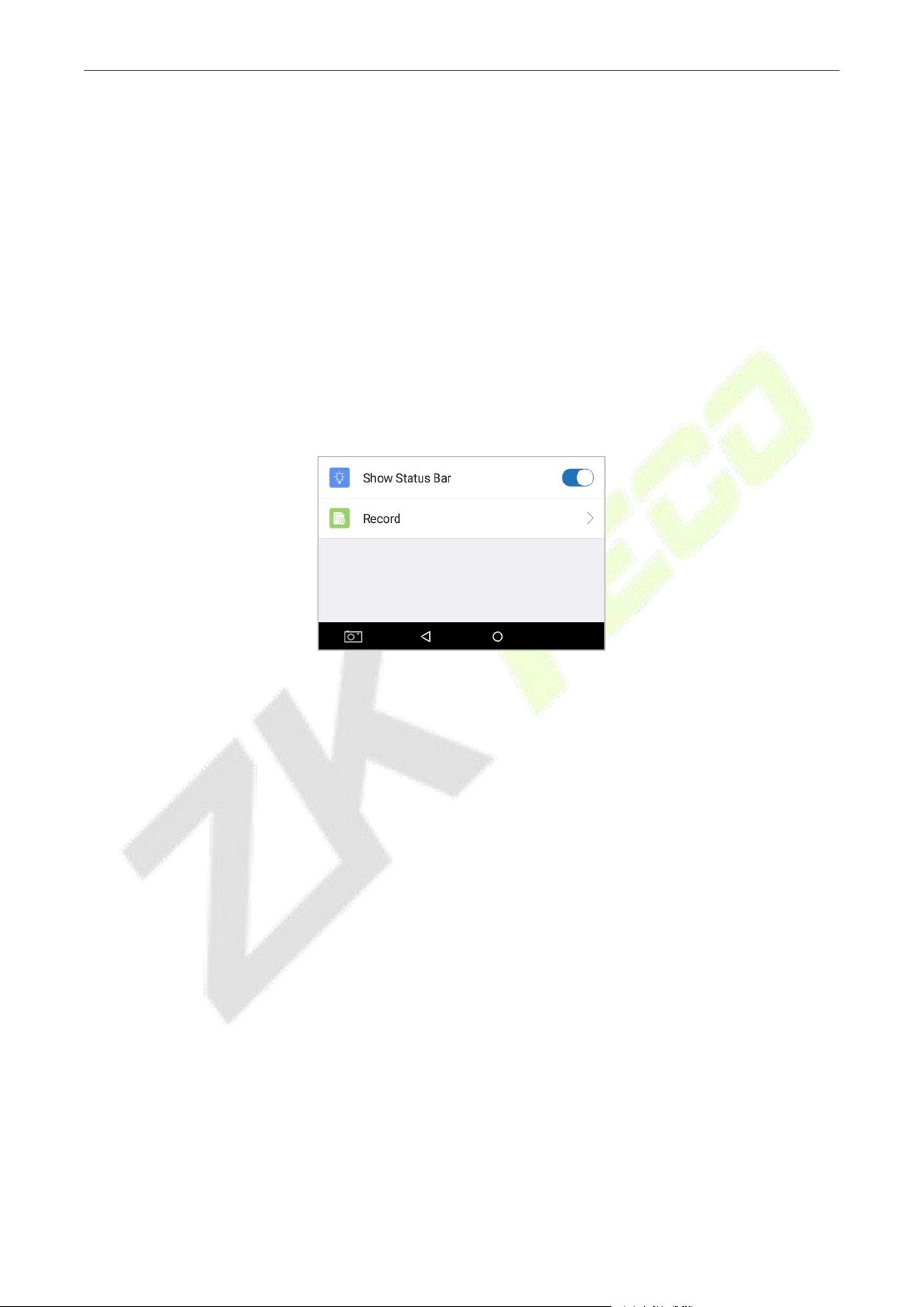
3.9 Show Status Bar
After opening, the bottom navigation bar will be displayed for operations such as exiting the locker
software and closing advertisements. After the software exits, click on the ZKBioLocker software to enter
the locker software interface again.
Note:
After completing the operation of setting the locker parameters, please turn off the display
navigation bar function to prevent the user from being confused about clicking to exit, causing the
device to fail to work normally.
LockerPad-7B User Manual
P a g e | 25 Copyright©2022 ZKTECO CO., LTD. All rights reserved.
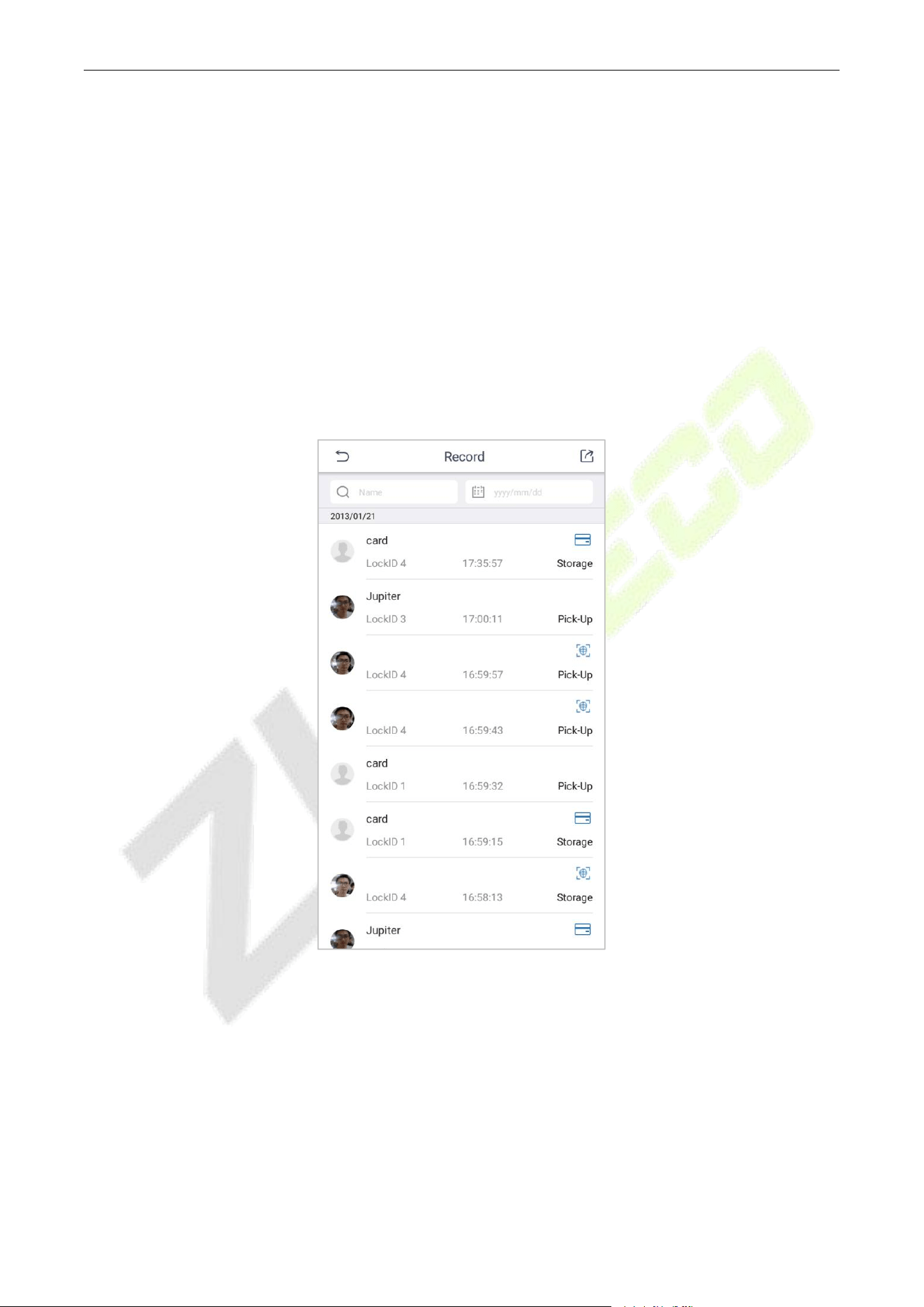
3.10 Record
The history record includes:
The user's name.
The compartment used.
The access operation.
The access time.
The access method.
Photos taken for face verification.

ZKTeco Industrial Park, No. 32, Industrial Road,
Tangxia Town, Dongguan, China.
Phone : +86 769 - 82109991
Fax : +86 755 - 89602394
www.zkteco.com
Copyright © 2022 ZKTECO CO., LTD. All Rights Reserved.






