1
FAQ for eufy Products
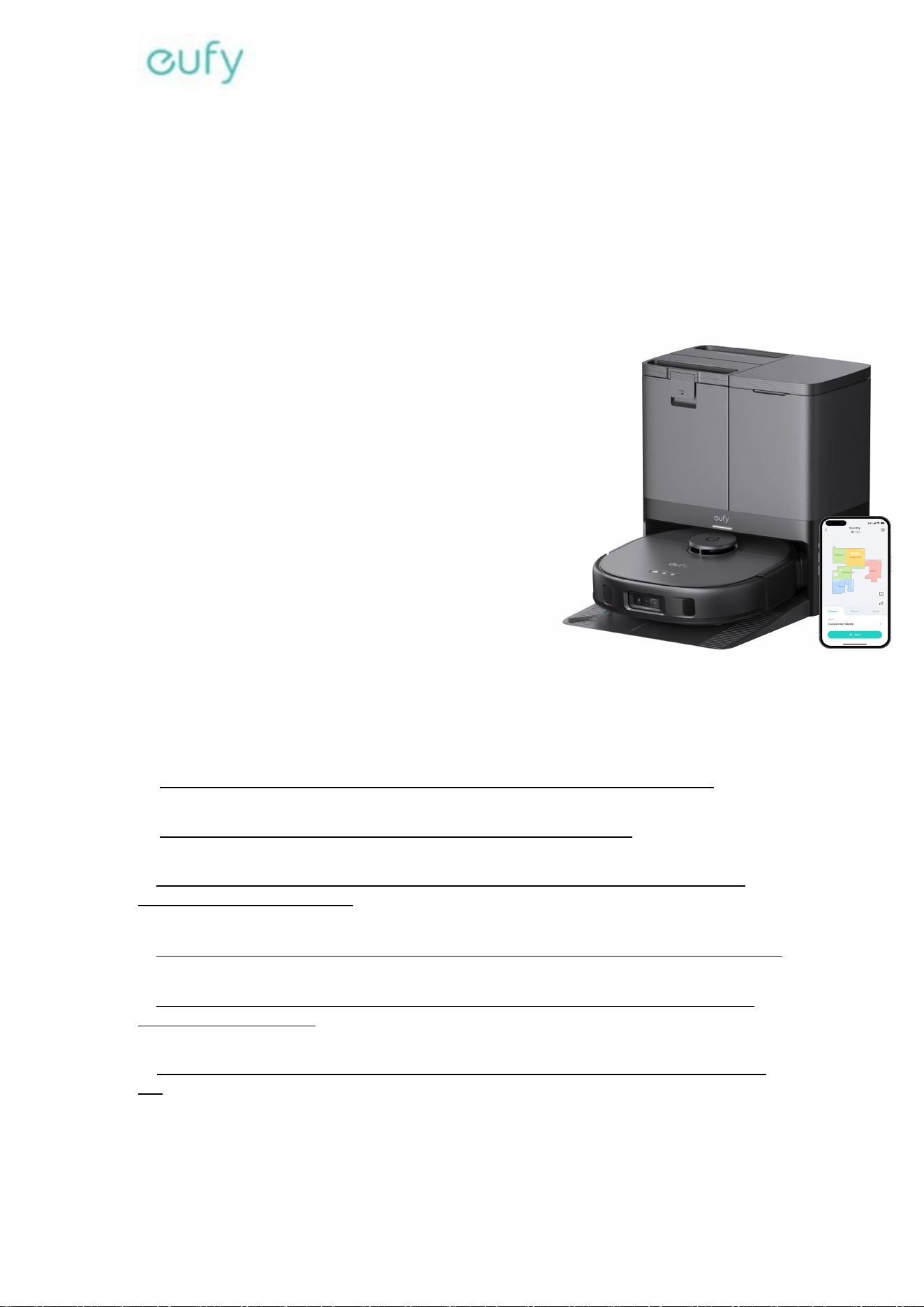
Robotic Vacuum Cleaner X10 Pro Omni
Contact us
Phone:
USA: +1-800-994-3056
Mon-Fri
:
6:00AM - 5:00PM (PT)
Sat-Sun: 7:00AM - 3:30PM (PT)
UK: +44 (0) 1604 936 200
Mon-Fri 9:00AM-5:00PM (GMT)
Email: support@eufy.com
(We will respond to you within 24
hours on workdays.)
Contents
1. Tips of troubleshooting for X10 Pro Omni Base Station (page 2-8)
2. Tips for the X10 Pro Omni to Build a Map Quickly (page 8-10)
3.
Does the X10 Pro Omni Support Multiple Floors? Can the X10 Pro Omni Save
Multiple Maps? (page 11-12)
4.
What should I do if my X10 Pro Omni is not charging or powering on? (page 12-14)
5.
X10 Pro Omni Multi-Floor Mopping Feature Guidance - Without Using the Omni
Station? (page 14-15)
6. What should I do if my X10 Pro Omni fails to return to its Omni Station? (page 15-
17)
2
1. Tips of troubleshooting for X10 Pro Omni Base Station
(1) Cleaning tray water full or not in place/"Abnormal water level in the base
station cleaning tray
If you encounter the "Abnormal water level in the base station cleaning tray" error, please
try the following troubleshooting steps to resolve the issue:
Check the Dirty Water Tank
Please verify the dirty water tank is securely fastened, and check the dirty water tank
to ensure it is not filled to the maximum capacity. A full tank can impede the Omni
Station's ability to drain the dirty water effectively. Additionally, if the dirty water tank's
seal is not airtight, it may not be able to drain the dirty water efficiently.
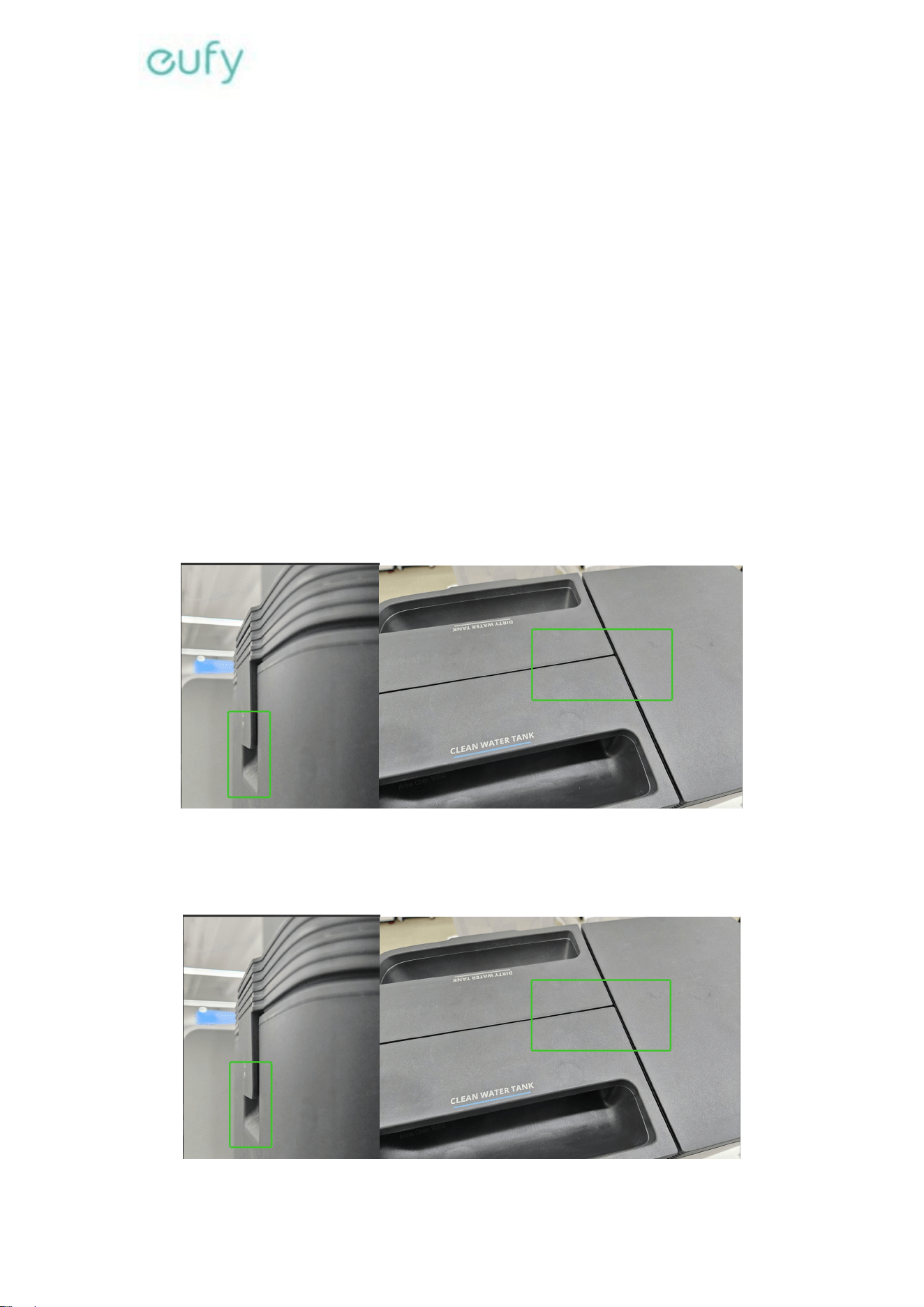
Please refer to the following images that show examples of a water tank that has been
securely fastened.
Remove and Reinstall the Dirty Water Tank
If the dirty water tank is not full, try removing and reinstalling it to ensure it is properly
installed. Please note that incorrect placement can cause the system to malfunction.
3
Inspect the Sealing Rings on the Omni Station
If you notice any blockages or missing sealing rings, please contact our after-sales
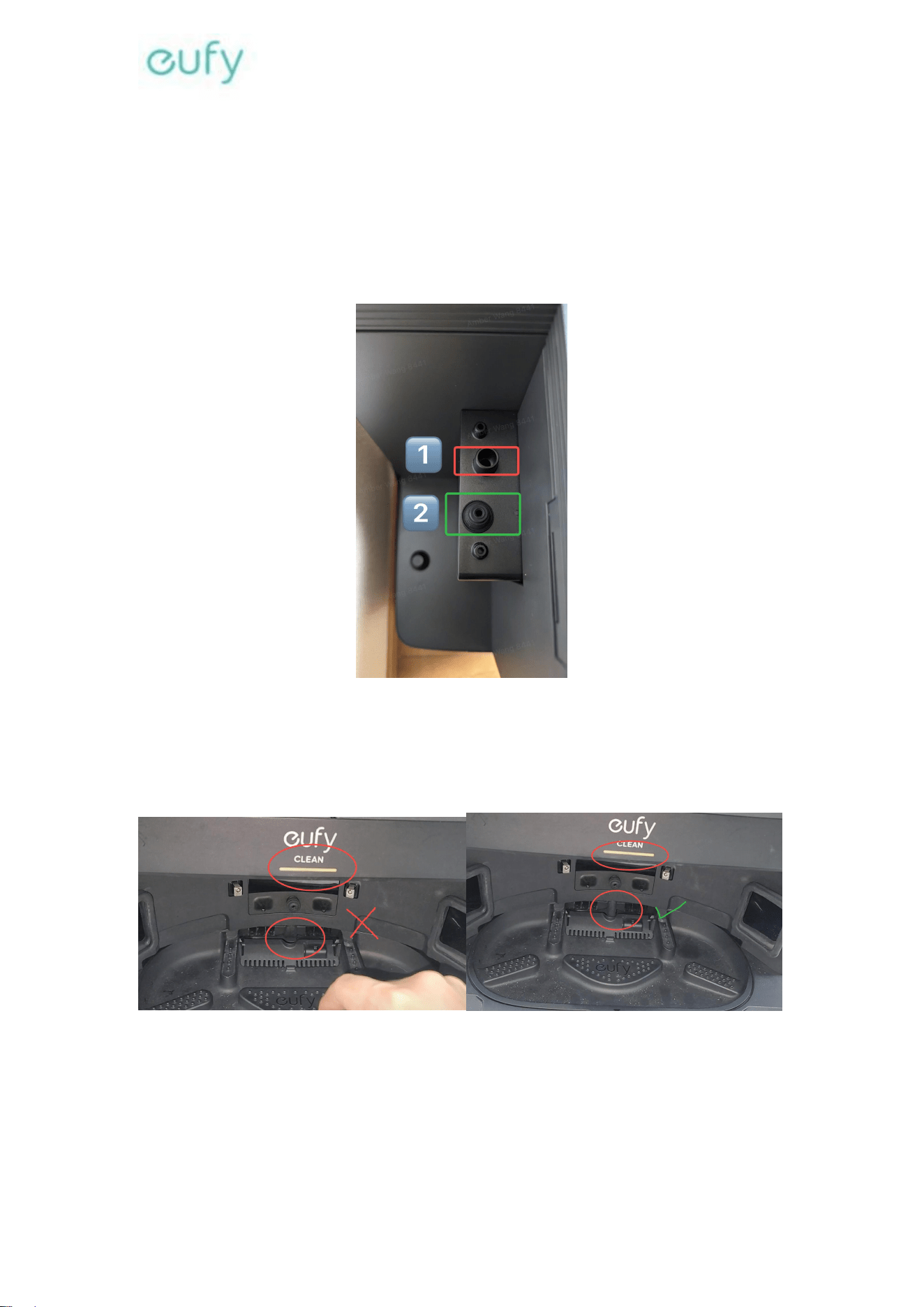
service team for assistance in replacing the sealing rings. When inspecting the Omni
Station where the dirty water tank is seated, you should find two sealing rings installed in
two distinct locations to guarantee a proper seal. For visual guidance, please refer to the
following image. Please pay special attention to the area highlighted in the red rectangle,
which indicates the absence of a sealing ring.
Verify the Sewage Pipe Connection
Ensure that the sewage pipe is correctly inserted into the cleaning tray. An improper
connection can prevent wastewater from being drained into the dirty water tank. Please
refer to the following images for visual guidance:
Check the Cleaning Tray
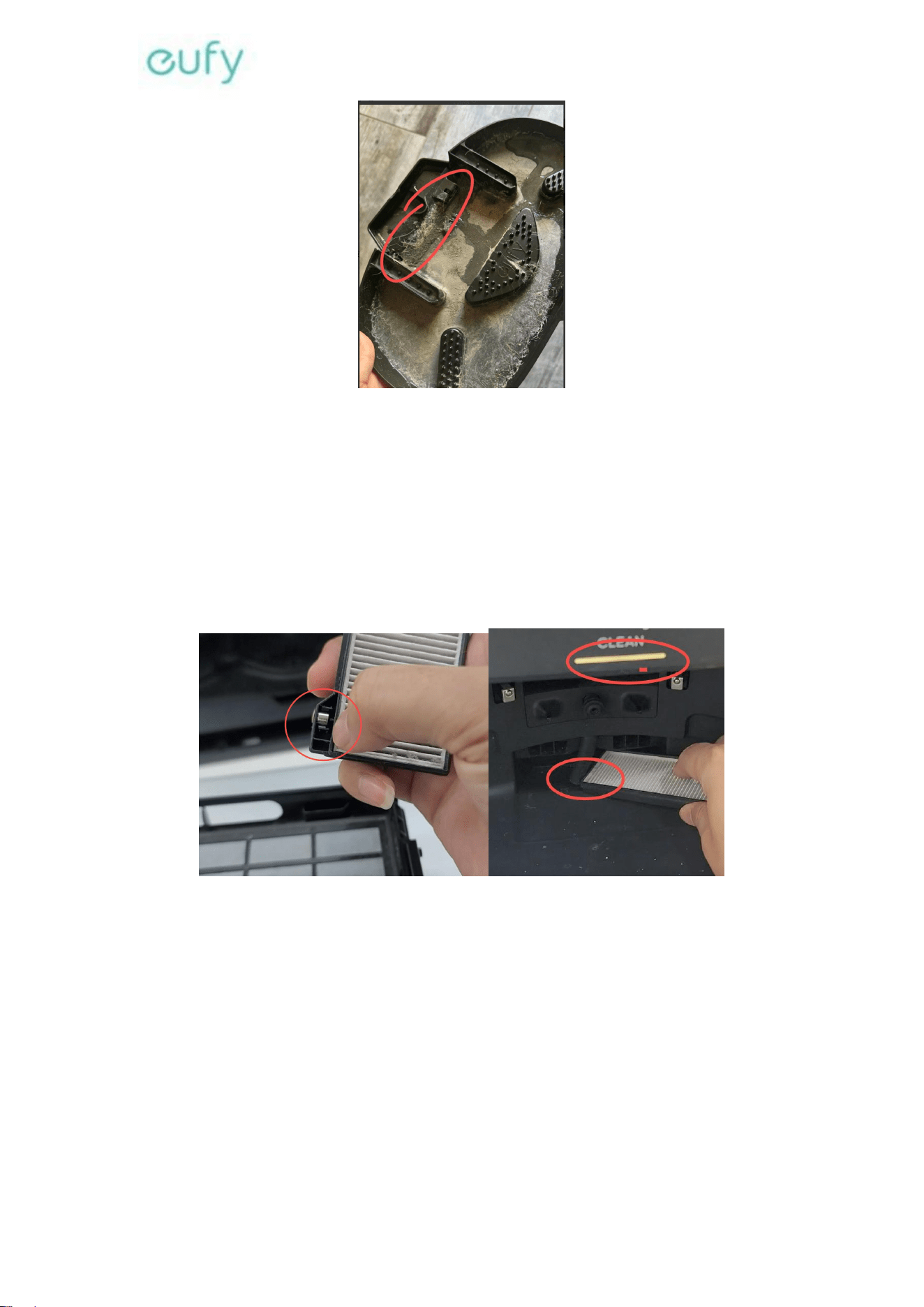
Check if the filter holes on the cleaning tray are clogged; if so, the cleaning tray needs to
be manually cleaned.
4
Test the Cleaning Tray and Hall Sensor
With the clean water tank and dirty tank properly installed and the dirty water tank not full,
remove the cleaning tray. Use the magnet from the dustbin filter to touch the position
corresponding to the original cleaning tray float. If the indicator light on the Omni Station
changes, it indicates that the robotic vacuum cleaner's Hall sensor is functioning correctly.
On the other hand, if the indicator light on the Omni Station does not change, it indicates
a malfunction in the Hall sensor. Please refer to the following images for visual guidance:
Check the Firmware/App Version
It is recommended to always update the robot's firmware and the eufy Clean app to the
latest version to maintain the robot's optimal cleaning performance.
How to Resolve the "Cleaning Tray Water Full or Not in Place, Please Check."
If you encounter Error 6032 (Cleaning tray water full or not in place), in addition to trying
the above troubleshooting steps, please also confirm the following details:
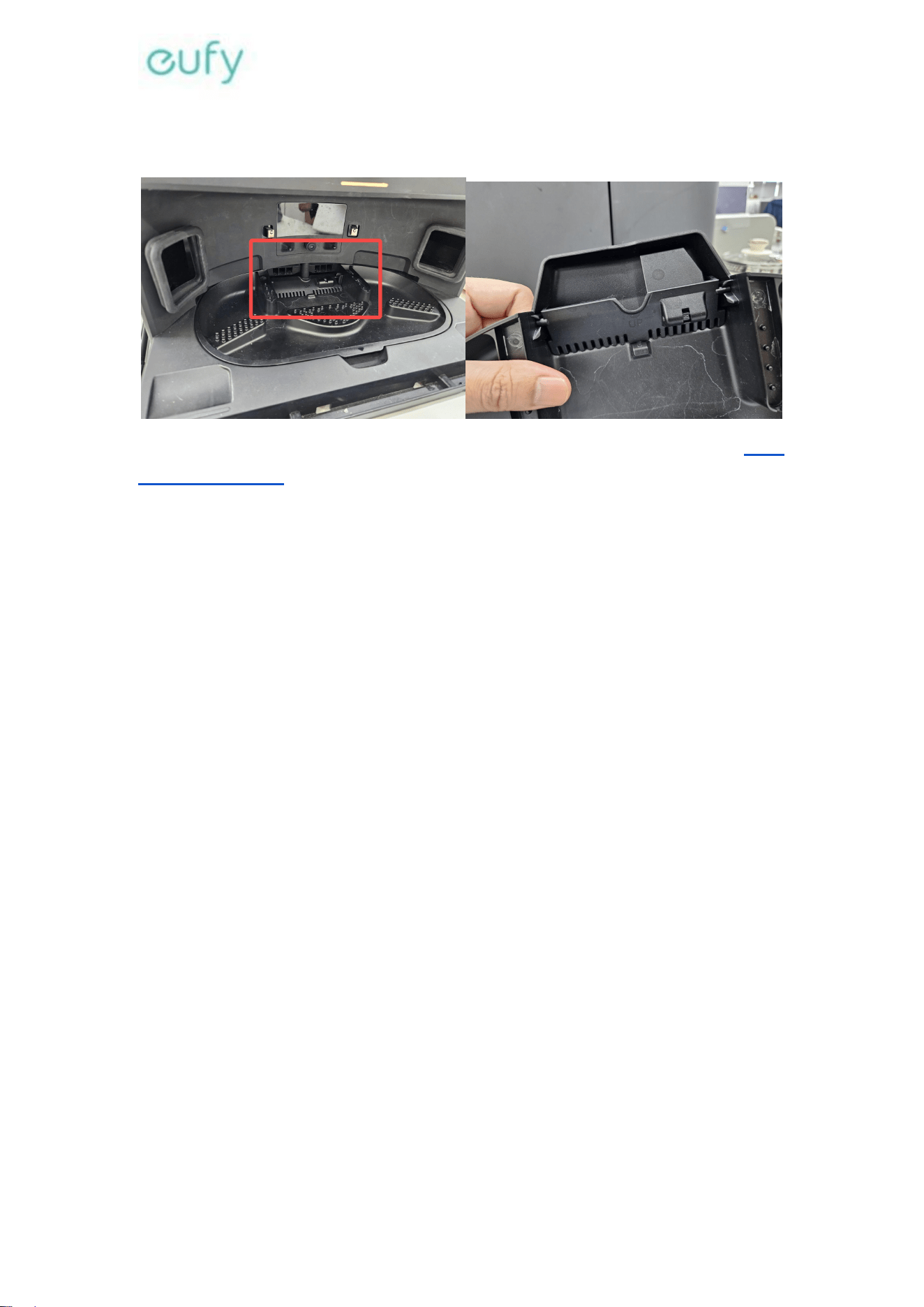
1. Whether the cleaning tray is installed correctly.
2. Whether the grates inside the cleaning tray are installed.
5
Please refer to the following image that shows the grates inside the cleaning tray:
If you have any further questions or concerns, please don't hesitate to contact eufy
Support Engineers for assistance.
(2) Error: There is an issue with the base station water filling device, please
contact customer service./Insufficient water alert.
If your Omni Station does not dispense water when it is supposed to wash the mopping
pads and the robot emits "The clean water in the station is insufficient, please add water"
voice prompt, please follow the steps below to solve the issue.
This issue may be quickly solved by running the mop-washing task several times
to verify if water can be dispensed from the Omni Station, and the reason is that air
bubbles may be trapped in the water pipe and cause abnormal water pumping.
If running the mop-washing task does not solve the issue, please try the following
troubleshooting steps:
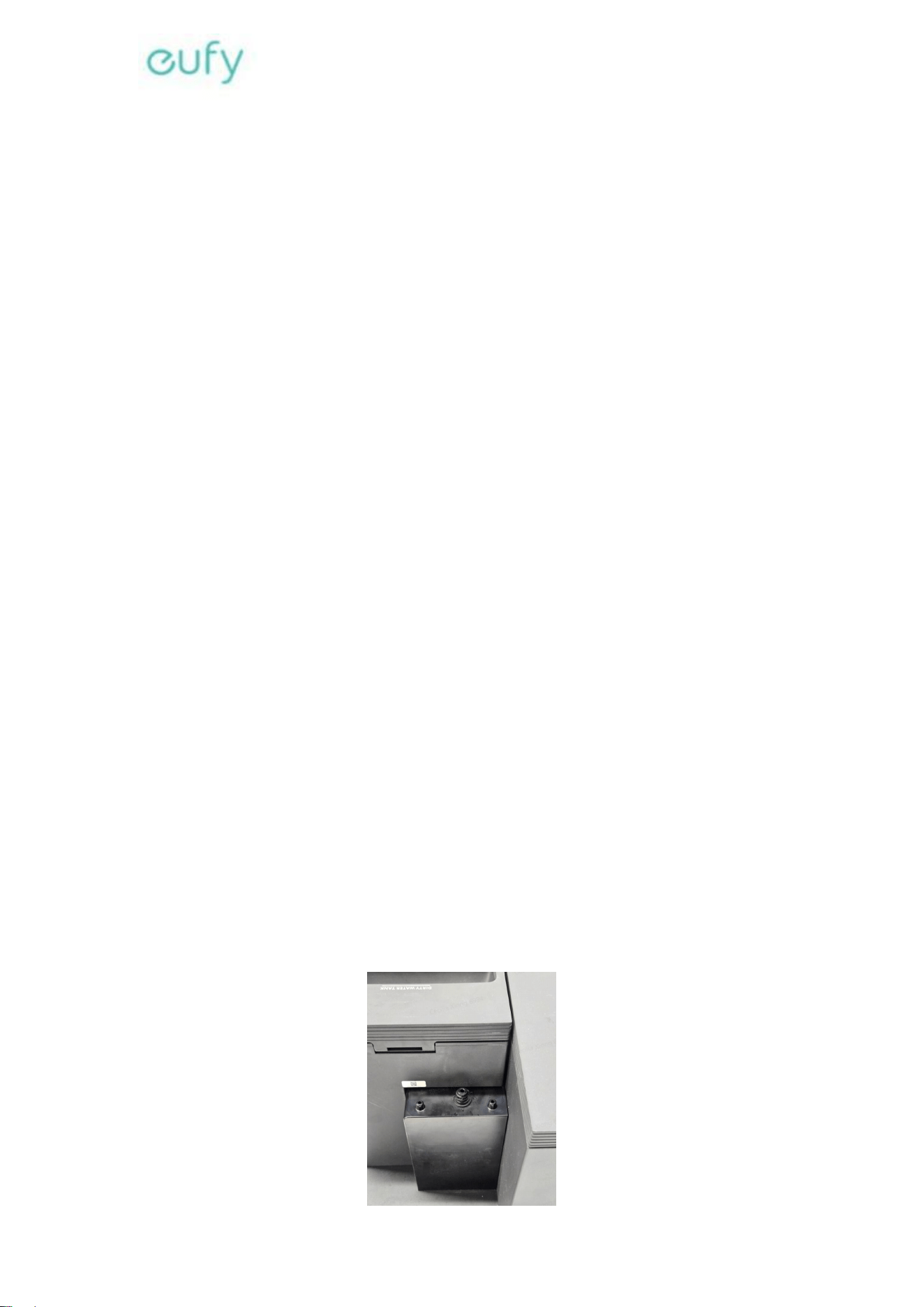
Check whether the sealing ring of the clean water tank in the Omni Station is in place
and whether it is damaged. And please send us a picture showing the sealing
ring if the issue persists.
Please empty the water tank and shake it vigorously a few times (there may be
abnormalities in the internal parts of the one-way valve), and then try the mop-
washing task a few times to confirm whether water can be dispensed from the Omni
Station.
6
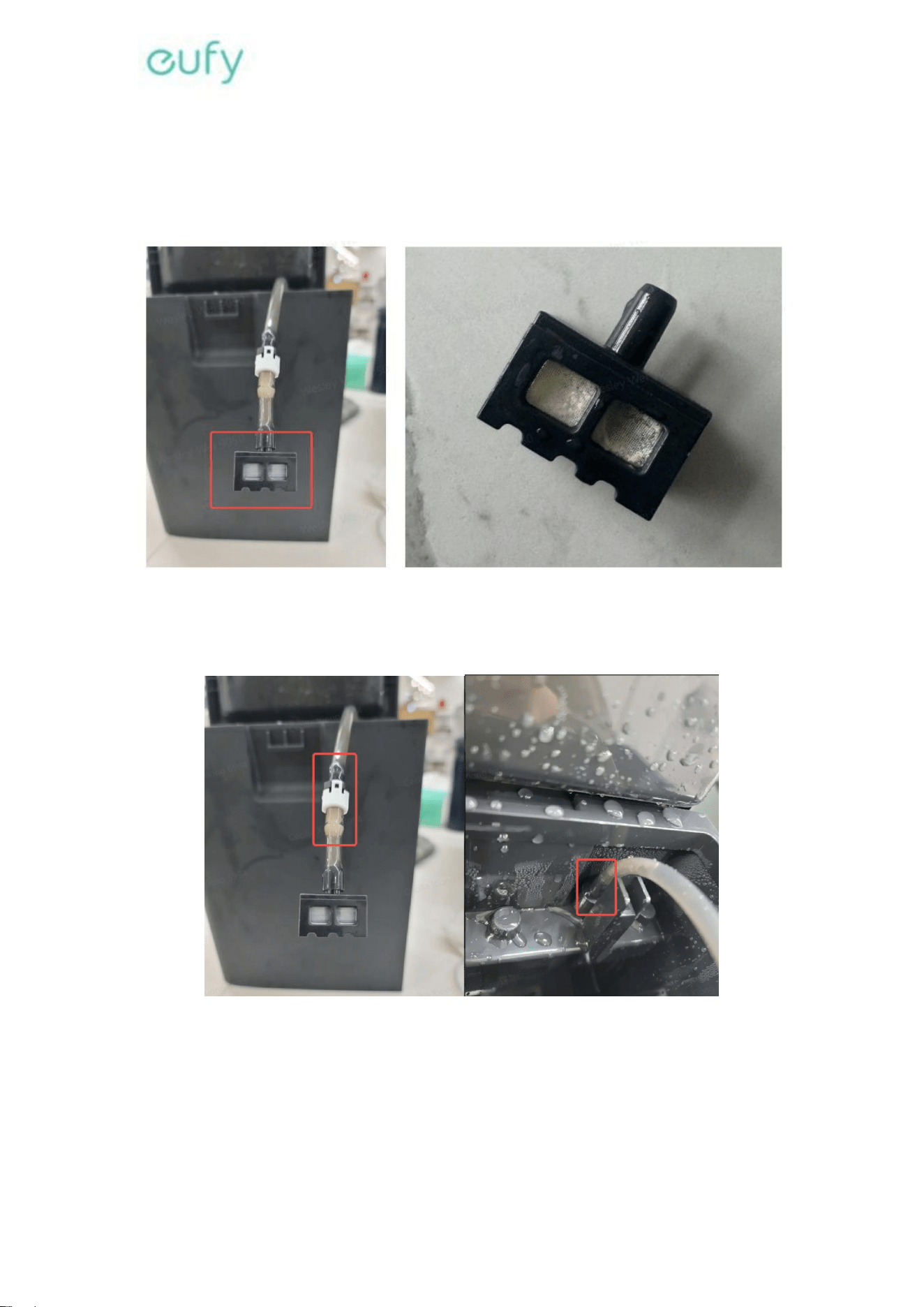
Confirm whether the clean water tank filter is blocked or covered by foreign objects.
And please send us a picture showing the status of the clean water tank filter if
the issue persists.
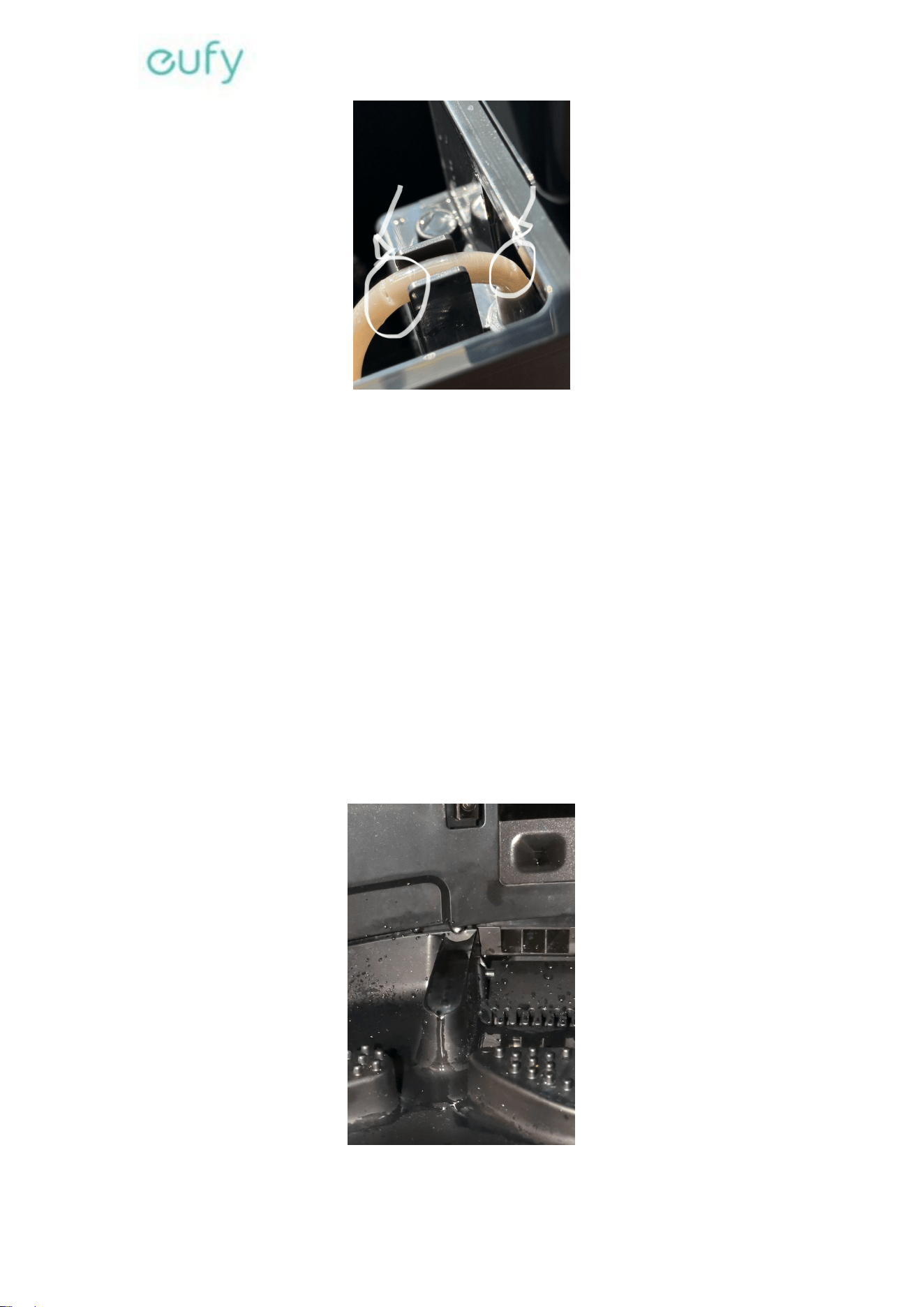
Confirm whether the water pipe that connects to the clean water tank is loose. If the
water pipe is loose, please remove and reconnect the water pipe to ensure it has a
secure connection. And please send us a picture showing the status of the
water pipe if the issue persists.
Please confirm whether any third-party cleaning solutions (especially ones that
produce a lot of foam bubbles) or corrosive solutions (such as white vinegar, 84
disinfectant, etc) have been added to the Omni Station's water tank. Please note that
corrosive solutions may cause permanent damage to the water pump.
(3) Error: The clean water in the station is insufficient, please add water.
If your Omni Station does not dispense water when it is supposed to wash the mopping
pads and the robot emits "The clean water in the station is insufficient, please add water"
voice prompt, please follow the steps below to solve the issue.
This issue may be quickly solved by running the mop-washing task several times to verify
if water can be dispensed from the Omni Station, and the reason is that air bubbles may
be trapped in the water pipe and cause abnormal water pumping.
If running the mop-washing task does not solve the issue, please try the following
troubleshooting steps:
Check whether the sealing ring of the clean water tank in the Omni Station is in place
and whether it is damaged. Please send us a picture showing the status of the
sealing ring if the issue persists.
7
Please empty the water tank and shake it vigorously a few times (there may be
abnormalities in the internal parts of the one-way valve).
Confirm whether the clean water tank filter is blocked or covered by foreign objects.
Confirm whether the water pipe that connects to the clean water tank is loose. If the
water pipe is loose, please remove and reconnect the water pipe to ensure it has a
secure connection.
Please confirm whether any third-party cleaning solutions (especially ones that
produce a lot of foam bubbles) or corrosive solutions (such as white vinegar, 84
disinfectant, etc) have been added to the Omni Station's water tank. Please note that
corrosive solutions may cause permanent damage to the water pump.
8
If none of the above troubleshooting steps can solve the issue, the Omni Station may
need to be replaced due to damaged internal parts, such as the solenoid valve and flow
meter.
(4) Water leakage from the station
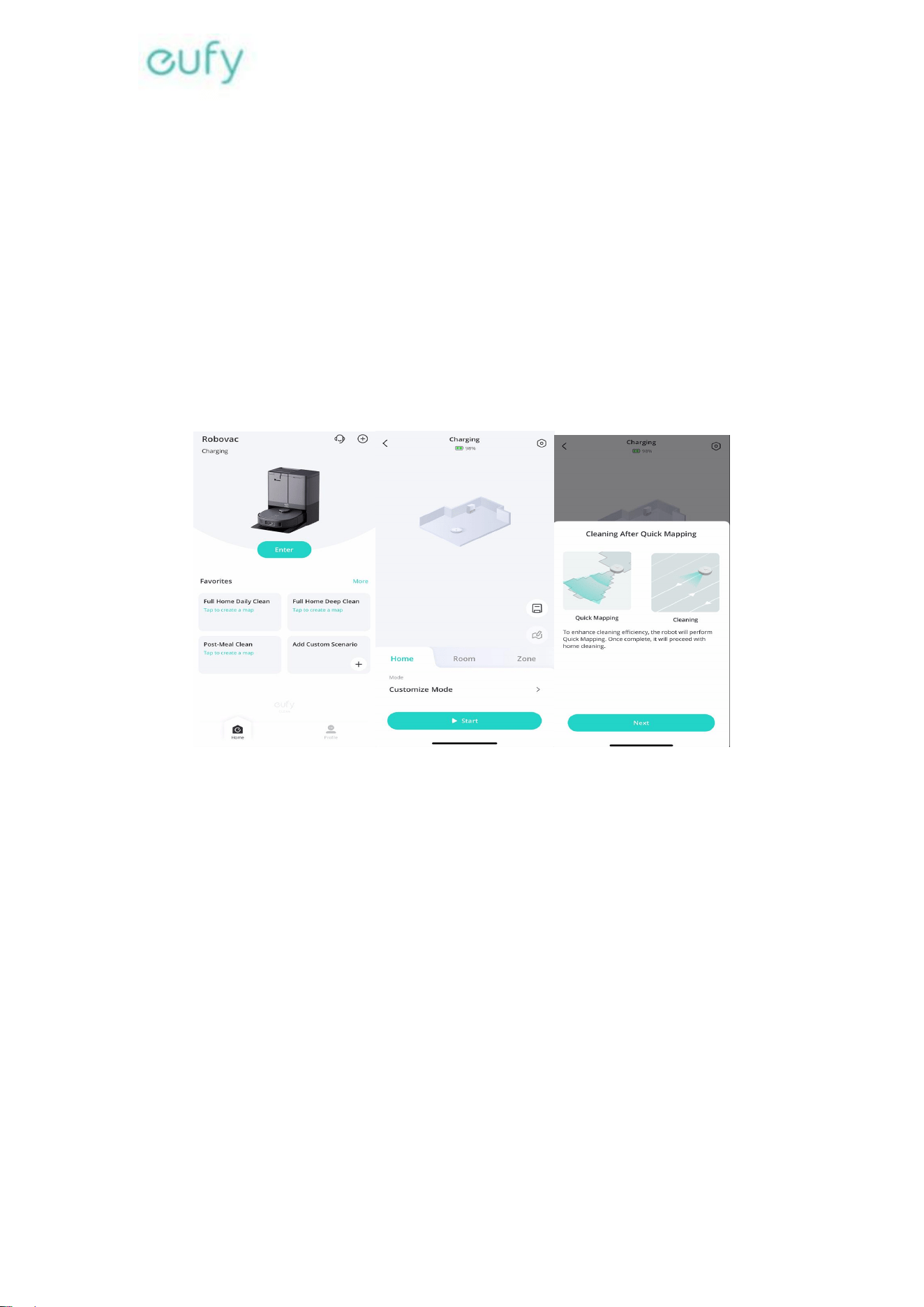
About the Water Dripping from the Base Station issue your RoboVac encountered, which
may be due to an unstable check valve, causing water from the clean water tank to be
continuously siphoned into the cleaning tray.
It is suggested to empty the clean water tank and shake it vigorously. Refill the tank and
check if the leakage persists. If the problem continues, replace the clean water tank with
a new one.
9
2. Tips for the X10 Pro Omni to Build a Map Quickly
The robot will automatically start the Quick Mapping feature to create a complete
cleaning map for the entire house before the X10 Pro Omni starts its first cleaning
cycle if you press the start button for the first time. The robot vacuum will spend a
few minutes quickly exploring your entire home and creating a cleaning map. Please note
that the robot vacuum will not clean the floor during the Quick Mapping process. Once
complete, it will proceed with home cleaning
Quick Mapping: The robot vacuum quickly navigates around the house to explore and
create a complete cleaning map. The path of the robot vacuum will be random and it will
not follow a regular pattern along walls or in a zigzag shape.
To build a map for the first time:
Place the robot vacuum on the Omni Station before starting it.
Open the doors of all the rooms that you want the robot vacuum to clean.
Remove objects such as cables, toys, etc from the floor that may trap/entangle the
robot vacuum.
Please do not manually move the robot vacuum during the mapping process.
Let the robot vacuum return to the Omni Station automatically to save a complete
map.
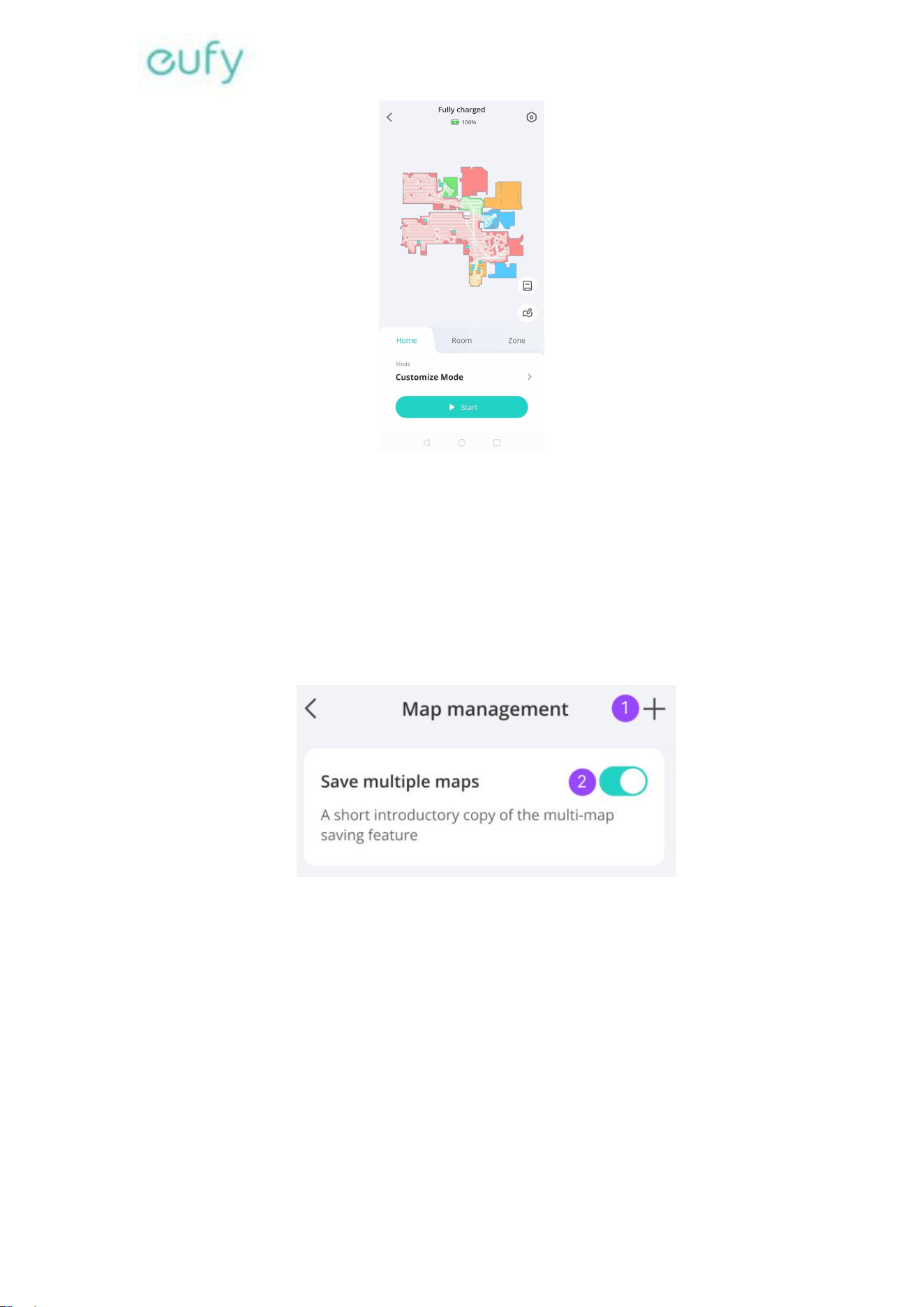
Your robot vacuum will display a detailed control page after a map has been successfully
created and saved.
10
If your X10 Pro Omni failed to save a map after completing a full cleaning cycle,
please refer to the following troubleshooting steps to solve the issue:
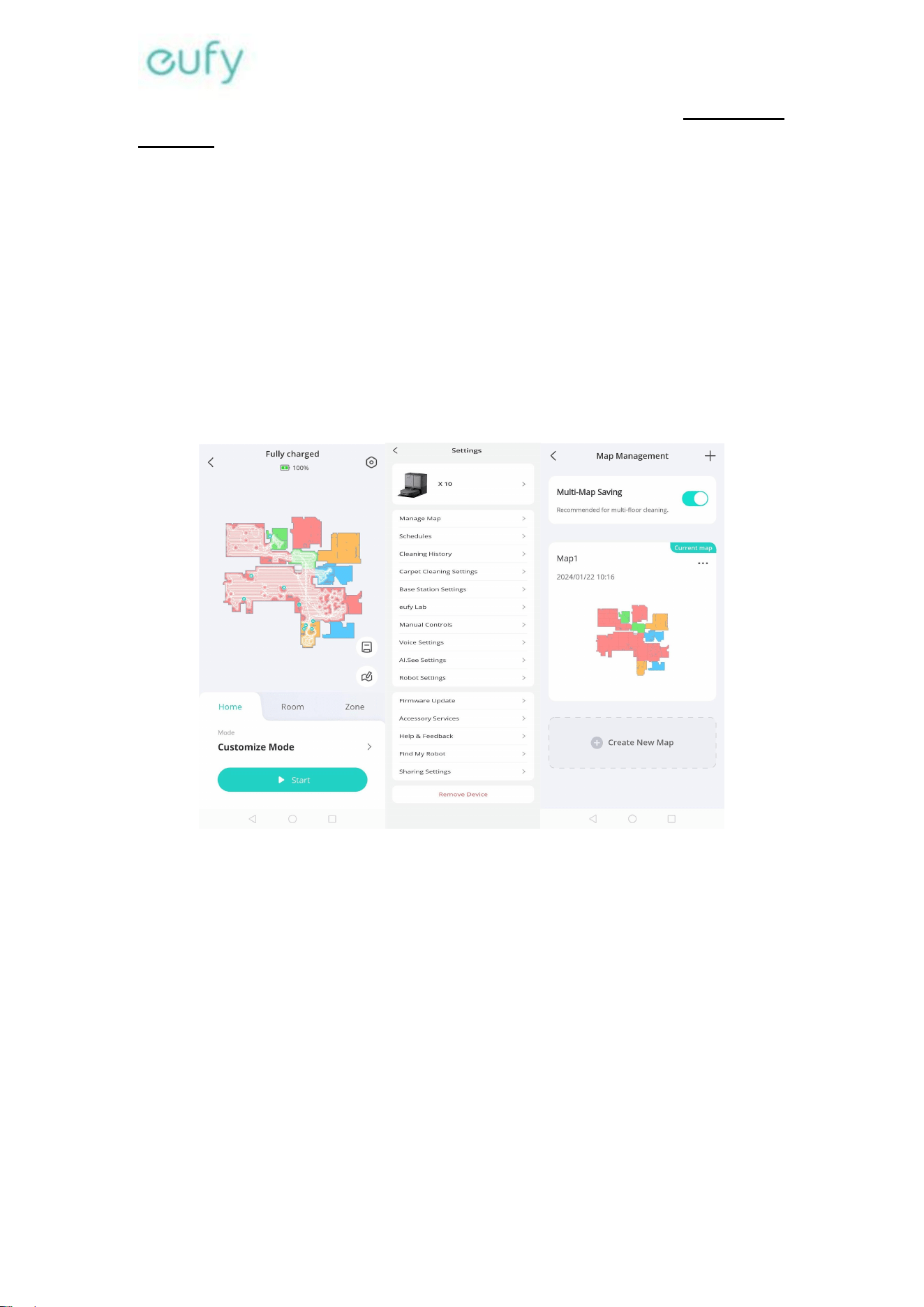
Please enable the "Multi-Map Saving" feature. When the Multi-Map Saving switch is
turned on, the robot vacuum can save multiple valid maps, which are saved both
locally on the robot vacuum and eufy cloud. Please note that up to five maps can be
saved. If the Multi-Map Saving feature is not enabled, the newly created map will
replace the old map.
Remember to start the robot vacuum from the Omni Station.
The X10 Pro Omni can save up to five valid maps when the "Multi-Map Saving"
feature is turned on. The robot vacuum saves these maps both locally on the robot
vacuum and eufy cloud. If the total number of maps exceeds five maps, the eufy
Clean app will provide you with the option of either replacing the previous map or not
saving the current map.
Check if the position of either the robot vacuum or Omni station has been adjusted or
if the surroundings have changed. The robot vacuum will try to reposition and remap
to match its surroundings.
Please note that manually moving the robot vacuum may cause the map to be lost.
Please do not manually move the robot vacuum while it is cleaning.
11
If you have any further questions, please don't hesitate to contact eufy support
engineers for assistance.
3.
Does the X10 Pro Omni Support Multiple Floors? Can the X10 Pro
Omni Save Multiple Maps?
Yes! The X10 Pro Omni supports multiple floors, and users can choose to save one or
multiple maps by enabling the Multi-Map Saving feature in the eufy Clean app. Please
follow the instructions shown below:
Click the Settings icon on the top right corner> click Manage Map >turn on the "Multi-
Map Saving" switch.
Please note that the"Multi-Map Saving" switch is turned off by default. When the Multi-
Map Saving switch is turned on, the robot can save multiple valid maps, which are saved
both locally on the robot and eufy cloud. Please note that up to five maps can be saved.
If the Multi-Map Saving feature is not enabled, the newly created map will replace
the old map.
When a cleaning robot operates on a floor without the Omni station, it adapts its cleaning
strategy to ensure optimal performance.
Upon completing a cleaning cycle on a floor lacking an Omni station, the robot is
programmed to return to its starting point. This default behavior ensures that the robot
does not wander aimlessly or become stranded away from its charging dock or
maintenance area. The absence of an Omni station also affects the type of cleaning

12
tasks the robot can perform effectively. For vacuum tasks, the robot operates as
usual.
However, mopping tasks present a different challenge. Without the Omni station, the
robot cannot clean or moisten its mopping mop pads as it would typically do to maintain
cleaning efficiency. To ensure that the cleaning quality is not compromised, the robot
automatically switches to a "vacuum-only" mode. This adjustment prevents the robot from
spreading dirt or leaving streaks on the floor with a dry or dirty mop.
For users who require mopping services on floors without an Omni station, it is essential
to ensure that the robot has access to an Omni station on the same floor where the
cleaning task is being performed. This allows the robot to maintain its mopping pads in
optimal condition, providing a thorough and effective cleaning.
If you have any further questions, please don't hesitate to contact eufy support
engineers for assistance.
4. What should I do if my X10 Pro Omni is not charging or powering on?
If you are experiencing issues with your X10 Pro Omni robotic vacuum cleaner not
charging or powering on, there are several troubleshooting steps you can take to diagnose
and resolve the issue. This article is designed to provide step-by-step instructions on how
to troubleshoot these issues.
Note: It is highly recommended to always refer to the user manual provided with your X10
Pro Omni robotic vacuum cleaner for specific instructions and safety information related to
troubleshooting and maintenance.
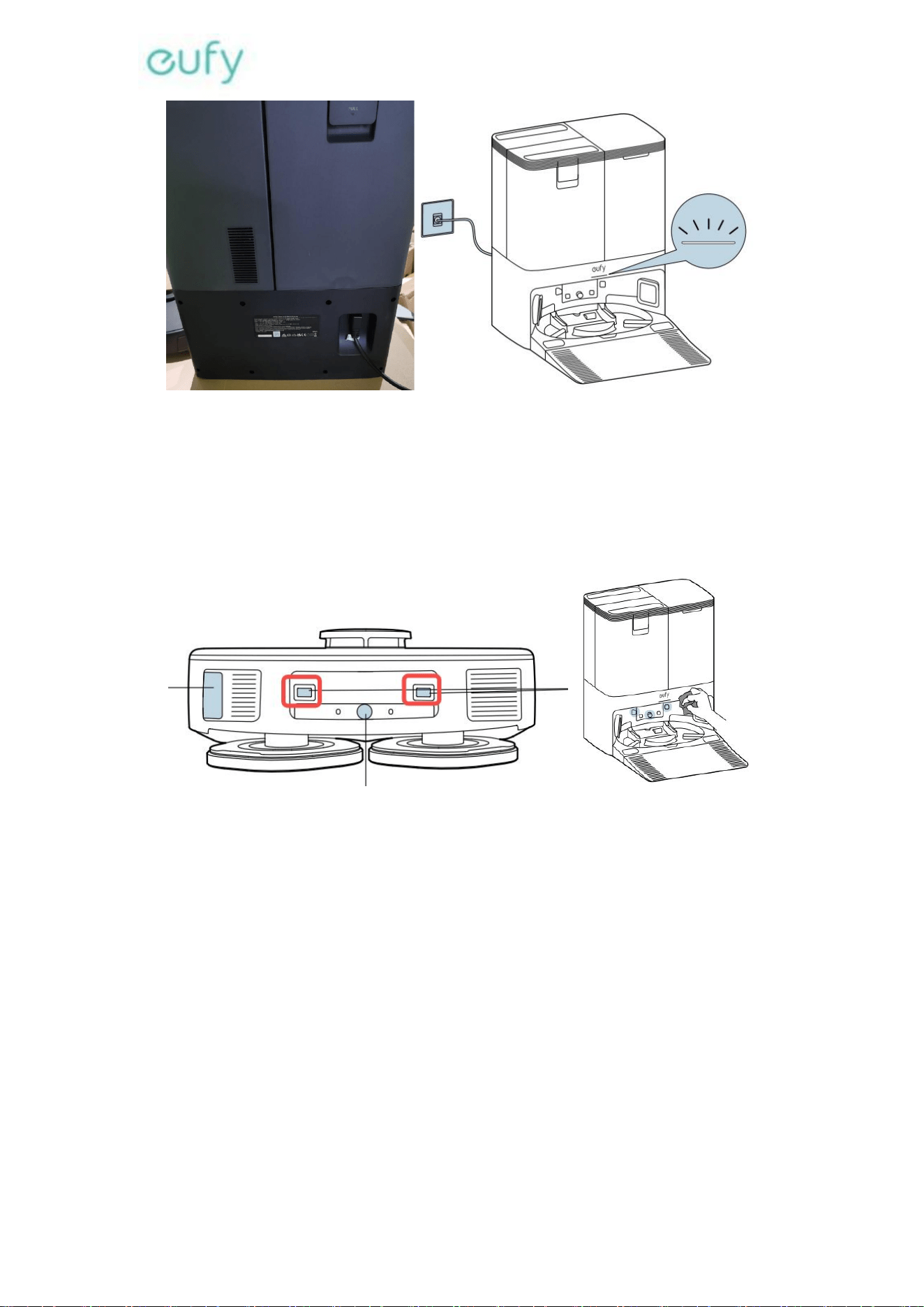
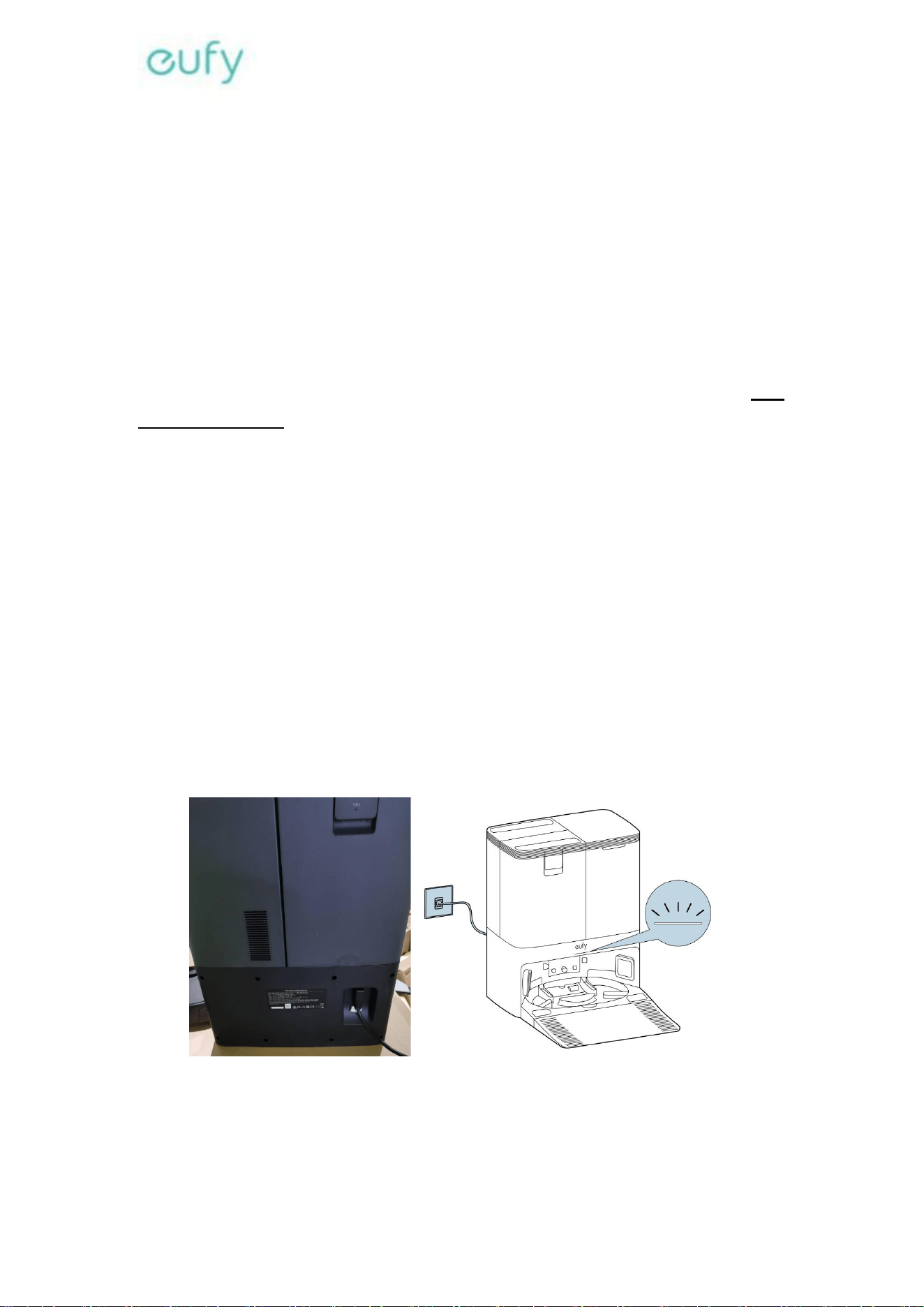
Step 1: Checking the Indicator Light on the Omni Station
The first step is to check the indicator light on the Omni Station and confirm it is displaying
a steady white light. If the Omni Station does not display a steady white light, it could
indicate that the power cord is not properly connected. Please make sure that the power
cord is securely plugged into the Omin Station and a functioning wall outlet.
13
Step 2: Cleaning Charging Contacts and Signal Modules
Dirt and grime can accumulate on the charging contacts and signal modules, which can
interfere with the charging process. Please make sure to clean the charging contacts on
the robotic vacuum cleaner, the signal receiver module lenses, and the charging prongs
and signal transmitter module lenses on the Omni Station.
Step 3: Resetting the Robot
If the robotic vacuum cleaner still does not respond after checking the power supply and
cleaning the charging contacts, you may need to perform a reset. To do this, use a pin or a
similar object to press the Reset button on the robotic vacuum cleaner. This process will
force the robotic vacuum cleaner to recover from its unresponsive state. After pressing the
Reset button, simply restart the robotic vacuum cleaner to check if it can function normally.
Step 4: Checking Environmental Temperature
Lastly, please confirm that the environmental temperature is not below 4°C (39.2°F) or
above 45°C (113°F). Please note that extreme temperatures can cause the robotic
vacuum cleaner to enter a protective state, preventing it from charging. If the robotic
vacuum cleaner is in a cold environment, simply allow it to warm up to at least 8°C
(46.4°F) before attempting to charge the battery. Similarly, if the robotic vacuum cleaner
14
is in a hot environment, simply let it cool down to at least 41°C (105.8°F) before
attempting to charge the battery.
If you have any further questions, please don't hesitate to contact eufy support
engineers for assistance.
5. X10 Pro Omni Multi-Floor Mopping Feature Guidance - Without Using
the Omni Station
When using your X10 Pro Omni to mop multiple floors without the Omni Station, please
first update the robot's firmware to version 2.1.0 or newer to enable the robot to mop
multiple floors even when its Omni Station is not placed on that floor.
Q: How do I update the firmware to version 2.1.0 or newer?
A: To update the firmware, please follow the instructions in the eufy Clean app or refer to
the user manual. Ensure your robot is connected to your Wi-Fi network and the eufy Clean
app on your phone is up to date to receive the latest firmware updates.
After updating the firmware to version 2.1.0 or newer, please proceed with the following
steps:
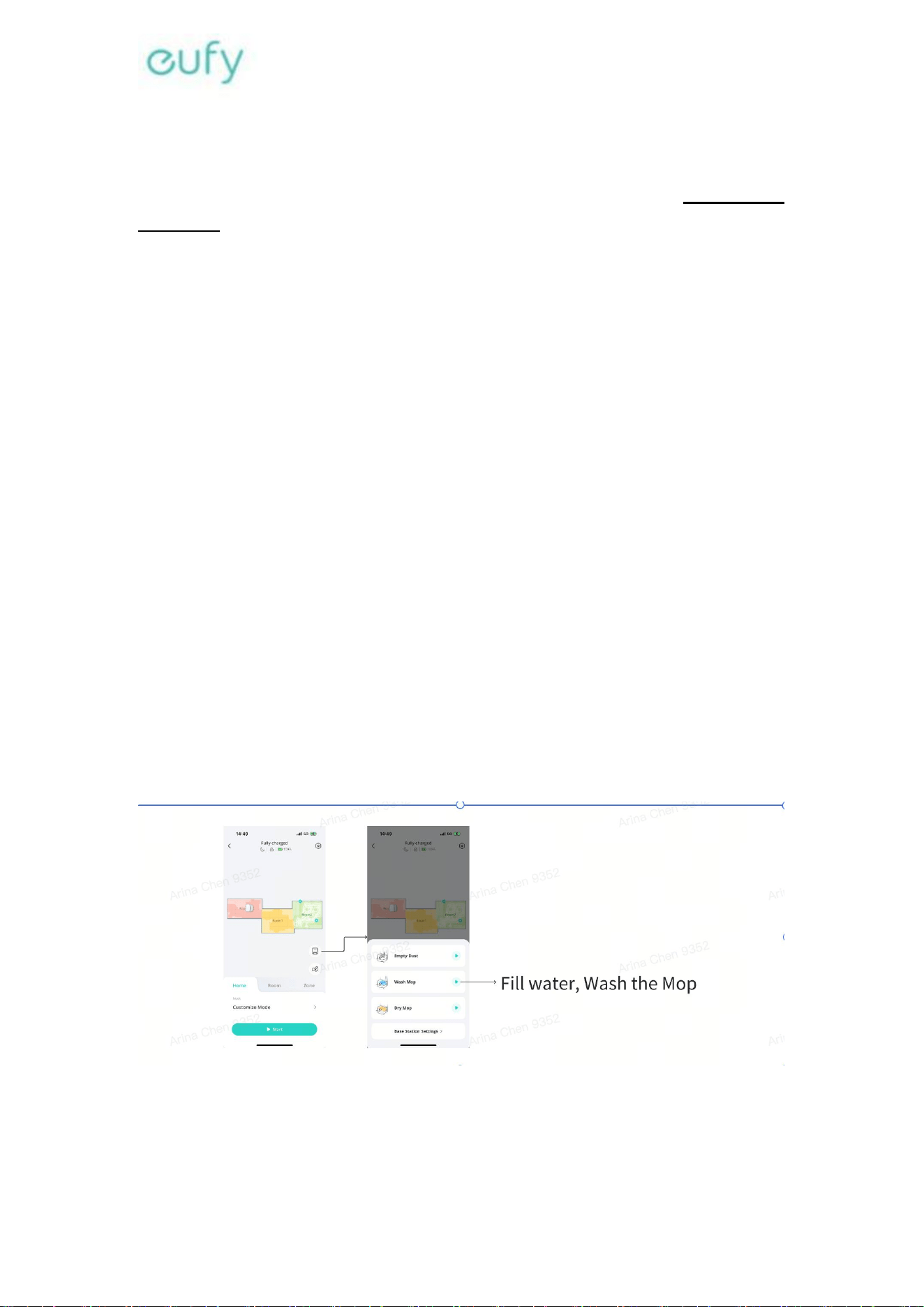
1. Place the robot on the Omni Station and launch the eufy Clean app, then select "Base
Station Operations" > "Clean Mop" after filling the robot's built-in water tank and
washing the mopping pad.
2. Wait for the mopping pad cleaning to complete, then carry the robot to the floor
where you want to mop.
3. Ensure the robot's cleaning mode is set to a mopping-related mode (Sweep & Mop
or Mop Only mode) and start the cleaning process. The robot will then begin
mopping the floor automatically.
15
4. To ensure the robot's cleaning performance during its mopping session, if it detects
that the water level in its built-in tank is insufficient and the mopping pad is expected
to dry out in approximately 10 minutes, the robot will automatically lift its mopping
pad. Please note that the remaining uncleaned areas will be swept but not mopped.
Q: Can I purchase a separate Omni Station if needed?
A: Yes. If you would like to place an additional Omni Station on a different floor, you can
purchase a new Omni Station and its power adapter from our official website.
If you have any further questions or concerns, please don't hesitate to contact eufy
Support Engineers for assistance.
6. What should I do if my X10 Pro Omni fails to return to its Omni Station?
If you are experiencing issues with your X10 Pro Omni robotic vacuum cleaner failing to
return to its Omni Station, there are several steps you can take to troubleshoot the issue.
This article is designed to provide step-by-step instructions on how to make sure your X10
Pro Omni can successfully return to its Omni Station.
1. Checking the Indicator Light on the Omni Station
The first step is to check the indicator light on the Omni Station and confirm it is displaying
a steady white light. If the Omni Station does not display a steady white light, it could
indicate that the power cord is not properly connected. Please make sure that the power
cord is securely plugged into the Omin Station and a functioning wall outlet.
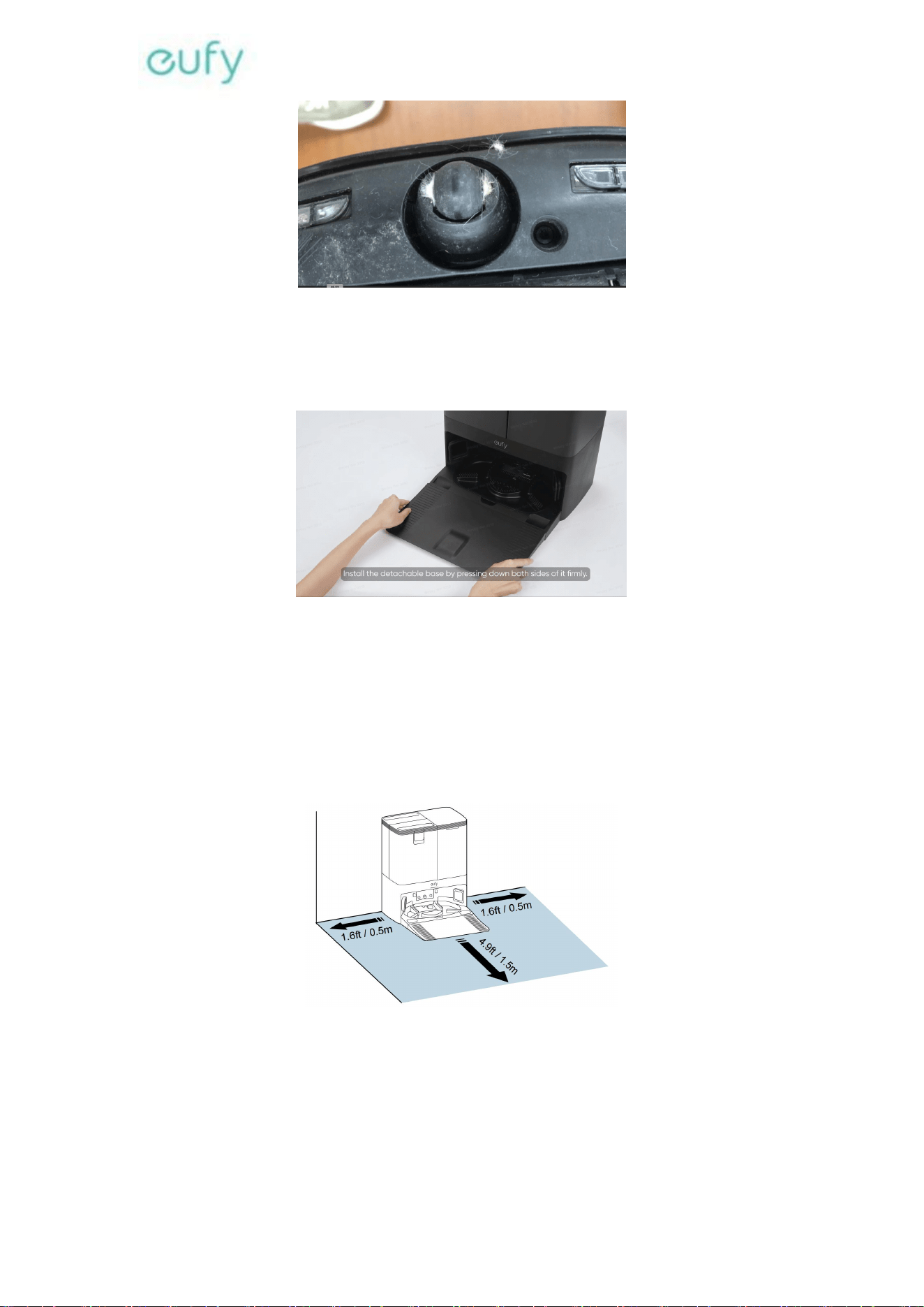
2. Inspecting the Swivel Wheel
Sometimes, debris can get caught in the swivel wheel, thus preventing the robotic vacuum
cleaner from navigating back to the Omni Station. Please remove the swivel wheel and
clean out any trapped hair or debris. Once cleaned, simply reinstall the swivel wheel and
check if the robotic vacuum cleaner can successfully return to the Omni Station.
16
3. Verifying Proper Installation of the Omni Station's Extension Board
Please make sure that the extension board of the Omni Station has been correctly
installed. Without the extension board, the robotic vacuum cleaner may not be able to
climb onto the Omni Station to recharge the battery.
4. Ensuring Proper Placement of the Omni Station
It is extremely important to ensure that the area around the Omni Station is free of water
spills, grease, or other contaminants that may affect the robotic vacuum cleaner's ability
to dock successfully. If necessary, place the Omni Station at a new location. The new
location should meet the requirements outlined in the user manual, which includes
placing the Omni Station in an open area with a specified range of clearance and on a
non-slippery surface.
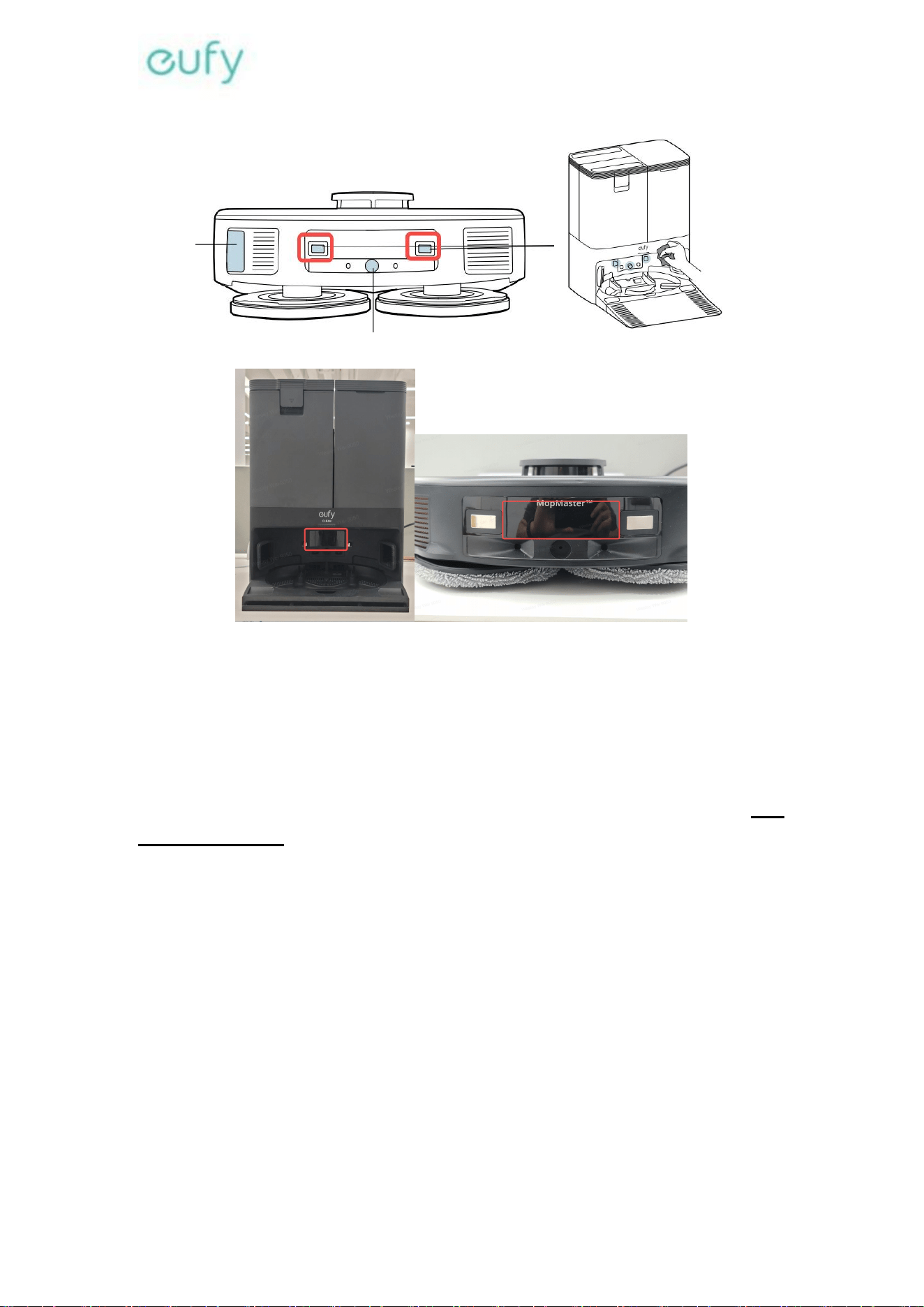
5. Cleaning Charging Contacts and Signal Modules
Dirt and grime can accumulate on the charging contacts and signal modules, which can
interfere with the charging process. Please make sure to clean the charging contacts on
the robotic vacuum cleaner, the signal receiver module lenses, and the charging prongs
and signal transmitter module lenses on the Omni Station. Please refer to the red
rectangle areas in the following images for guidance on the specific areas to clean.
17
Charging Contacts
Signal Modules
By following these troubleshooting steps, you should be able to resolve most issues
related to the X10 Pro Omni failing to return to its Omni Station. Additionally, please note
that regular maintenance and proper placement of the Omni Station can also help prevent
docking issues from occurring and ensure that your robotic vacuum cleaner functions
without issues.
If you have any further questions or concerns, please don't hesitate to contact eufy
Support Engineers for assistance.