Quick Start Manual
MUCAR CDE900
Scan the QR code to
get the detailed E-manual
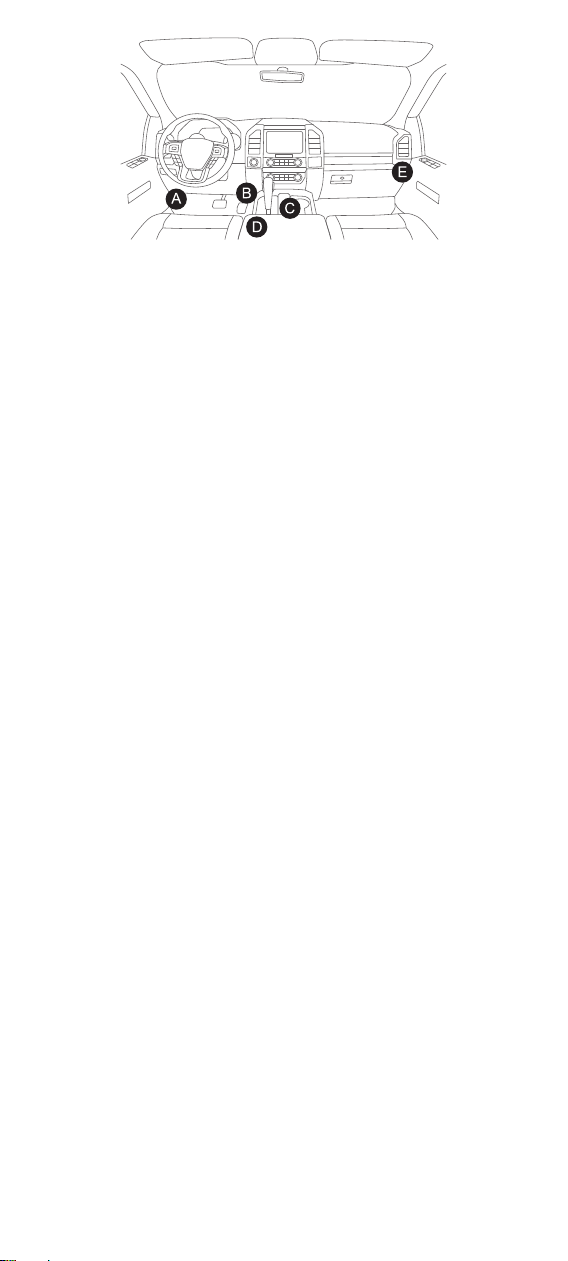
The DLC (Data Link Connector or Diagnostic Link Connector) is typically a 16-pin
connector where diagnostic code readers interface with the vehicle’s on-board
computer. The DLC is usually located 12 inches from the center of the instrument
panel (dash), under or around the driver’s side for most vehicles. If Data Link
Connector is not located under dashboard, a label should be there telling the
location. For some Asian and European vehicles, the DLC is located behind the
ashtray, which must be removed to access the connector. If the DLC cannot be
found, refer to the vehicle’s service manual for the location.
Turn on the ignition of the vehicle, the voltage range of the device should be 9-18V,
and the throttle should be in the closed position.
01
Product Description
02
How To Use
2.1 Data Link Connector (DLC) Location
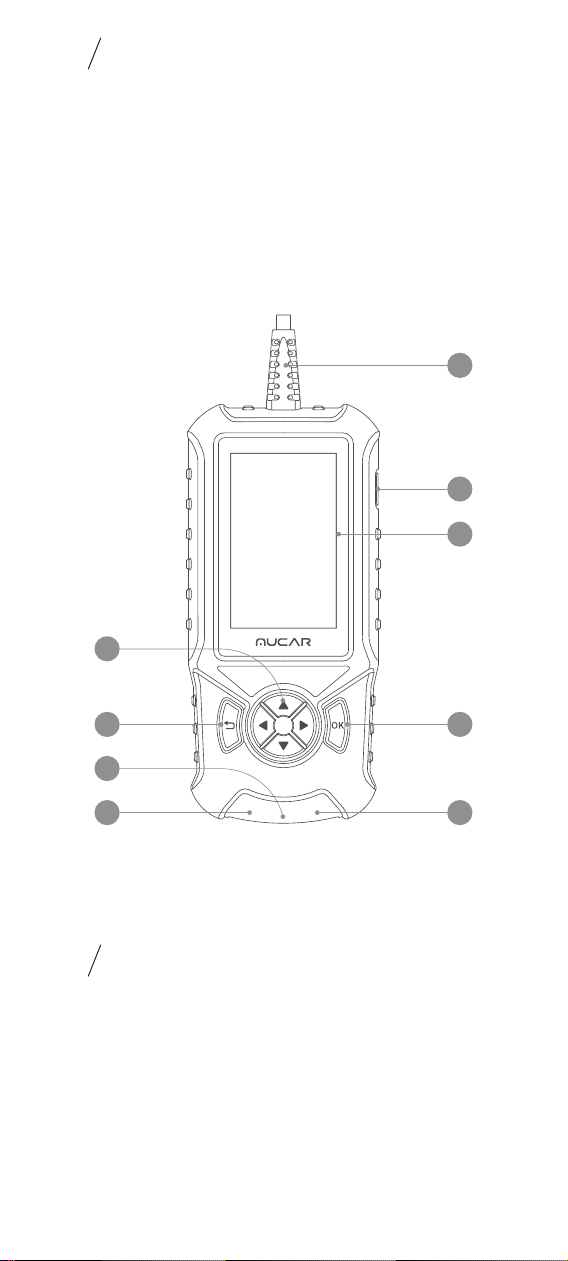
1. Power/Screen Lock Button: Press and hold for 3 seconds to power
on/off, and click to lock/unlock the screen.
2. 4-Inch Display: 480*854 resolution.
3. OBD Diagnostic Cable: The cable is 1.2 meters long and supports
9~18 voltage.
4. OK Button: Confirm button.
5. Selection Buttons: Direction selection buttons.
6. TF Card Slot: Maximum expansion 256G memory card.
7. TYPE-C Interface: Input 5V-2.5A.
8. Reset Button: Factory reset button, please do not use it arbitrarily.
9. Return Button: Back to previous button.
TIP: Please confirm whether the following OBD protocols are supported: SAE J1850
PWM, SAE J1850 VPW, ISO 9141-2 ISO, ISO 14230-4 KWP, ISO 15765-4 CAN
3
1
9
8
2
4
6
5
7
Plug in the OBD connector to start diagnosing the smog protocol.
The gray protocol is not supported, the green has no fault codes, and the red has
fault codes.
1. SMOG: You can click on SMOG to see the corresponding supported protocols,
grey protocols are not supported, green protocols are ready and red protocols are
not ready.
If you encounter a scan failure, please first confirm that the car is ignited or
reinsert the connector. Then please download "THINKCAR Bay" App from the app
store and contact customer service to activate the vehicle diagnostic function, you
can choose a model and try it for 3 months.
2. Select "Code/Freeze Frame" to view fault codes and freeze pins. Select "Read
DTC", and select vehicle model to view dtc. Select "View Freeze Frames", monitor
status since DTCs cleared, view the engine's current power system diagnostics.
3. Select "Erase" and click "OK" to clear the fault code.
4. Select "Live Data Stream" and click "OK" to view all data streams.
5. Select "O2 Sensor Test" and click "OK" to view the O2 Sensor data flow.
6. Select "On Board Monitor" and click "OK" to view the On-board monitor data
stream.
7. Select "Other Diagnostic" to view more OBD functions, select "EVAP System Test"
and click "OK" to view the EVAP data stream, select "DTC Lookup" to query the
fault code analysis, select "Version Info" and click "OK" to view the OBD version
information.
8. Select "Settings" to set the basic settings, there are functions such as feedback,
repair info, upgrade, order, setting language, etc.
Click update to upgrade models, need to expand 4 systems,demos and
autosearch function modules.
Click on the app to enter the app application update, which can update the
application app and the local firmware.
9. Select "Report" and click "OK" to view the diagnostic record. Report view data flow
reports, PDF documents generated by product diagnostic reports.
10. Select "ECM/TCM/ABS/SRS" and click "OK" to expand to intelligent diagnosis
function, with 4 system diagnosis functions (ECM/TCM/ABS/SRS).
Thank you for using MUCAR CDE900, please contact our customer service if
you have any questions.
2.2 Function Description
Two new functional modules have been added after the expansion of the function:
1. Diagnose: This module can automatically scan the VIN code of the model and
read the vehicle information. The health report function can quickly reveal the
health status of the vehicle. System scan function can automatically scan the 4
system modules of the vehicle (ABS/SRS/ECM/TCM), and after the scan is
completed, it can access the system module information, read fault codes, clear
fault memory and read data stream. Vehicle specification function can read the
basic information of the vehicle, such as vehicle identification number, model,
brand, displacement, engine type, transmission type, etc.
2. Reset: MUCAR CDE900 supports the following reset functions: ① Maintenance
light reset, ② Steering angle reset, ③ Battery matching, ④ ABS exhaust, ⑤
Throttle matching, ⑥ Brake pad reset, ⑦ DPF regeneration, ⑧ Anti-theft
matching, ⑨ Injector coding, ⑩ Tire pressure reset, ⑪ Suspension level
calibration, ⑫ Headlight matching, ⑬ Gearbox matching, ⑭ Sunroof initialization,
⑮ EGR Adaption, ⑯ Gear Learning, ⑰ ODO Reset, ⑱ Airbag Reset, ⑲ Transport
Mode, ⑳ A/F Reset, ㉑ Stop/Start Reset, ㉒ NOx Sensor Reset, ㉓ AdBlue Reset
(Diesel Engine Exhaust Gas Filter), ㉔ Seat Calibration, ㉕ Coolant Bleeding, ㉖
Tyre Reset, ㉗ Windows Calibration, ㉘ Language settings.
2.3 Expanded Features
This warranty applies only to users and distributors who purchase
MUCAR CDE900 products through normal procedures. Provide free
warranty within one year. MUCAR warranty including electronic products
for damages caused by defects in materials or workmanship. Damages
to the equipment or components caused by abusing, unauthorized modifi
cation, using for non-designed purposes, operation in a manner not
specifi ed in the instructions, etc.are not covered by this warranty. The
compensation for dashboard damage caused by the defect of this
equipment is limited to repair or replacement. MUCAR does not bear any
indirect and incidental losses. MUCAR will judge the nature of the
equipment damage according to its prescribed inspection methods.
Contact us:
1. Please contact Online Customers Service via the order interface.
2. Customer Service Email: [email protected]
3. Official Website: www.mythinkcar.com
4. Product tutorials, videos, FAQ's and coverage lists can be found on
www.mythinkcar.com, or download the APP --- "THINKCAR Bay" for
more product information.
5. Follow us on
Warranty Terms
Detailed instructions are available in the
device: Setting > repair info > instruction.
If you have any questions, please contact our
customer service.
Scan the QR code to
get the detailed E-manual
@thinkcar.official @ObdThinkcar