H101
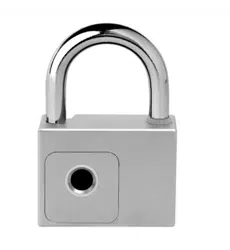
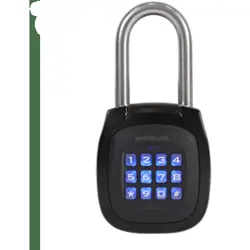
Smart Padlock
User Manual
ISO9001 CERTIFIED
www.waferlock.com

■
1
■
CONTENT
Specications
Model No. : H101
Product Name: H101 Smart Padlock
Uses 1 x CR2 Lithium Battery
IP rating: IP68
Package Weight: 650g
Package Size: 22.5 x 9 x 6cm (LxWxH)
Storage Capacity: Up to 2,000 Cards + PIN Code
Shackle Diameter: 9mm
Specications...........................................................................................
Appearance..............................................................................................
WAFERKEY App Pairing ..........................................................................
Standalone Factory Defaults / Change Master Code / Program Cards
...........
Delete an Individual Card / Delete All Cards............................................
Open door with a Card / Program PIN Code...........................................
Delete an Individual PIN Code / Delete All PIN Codes ............................
Delete All PIN Codes + Cards / Open door with a PIN Code.
.........................
Low Battery Warning / 9V External Power / Battery Replacement..........
Factory Reset (Standalone) / Important Notes ........................................
01
02
03
04
05
06
07
08
09
10
2
■
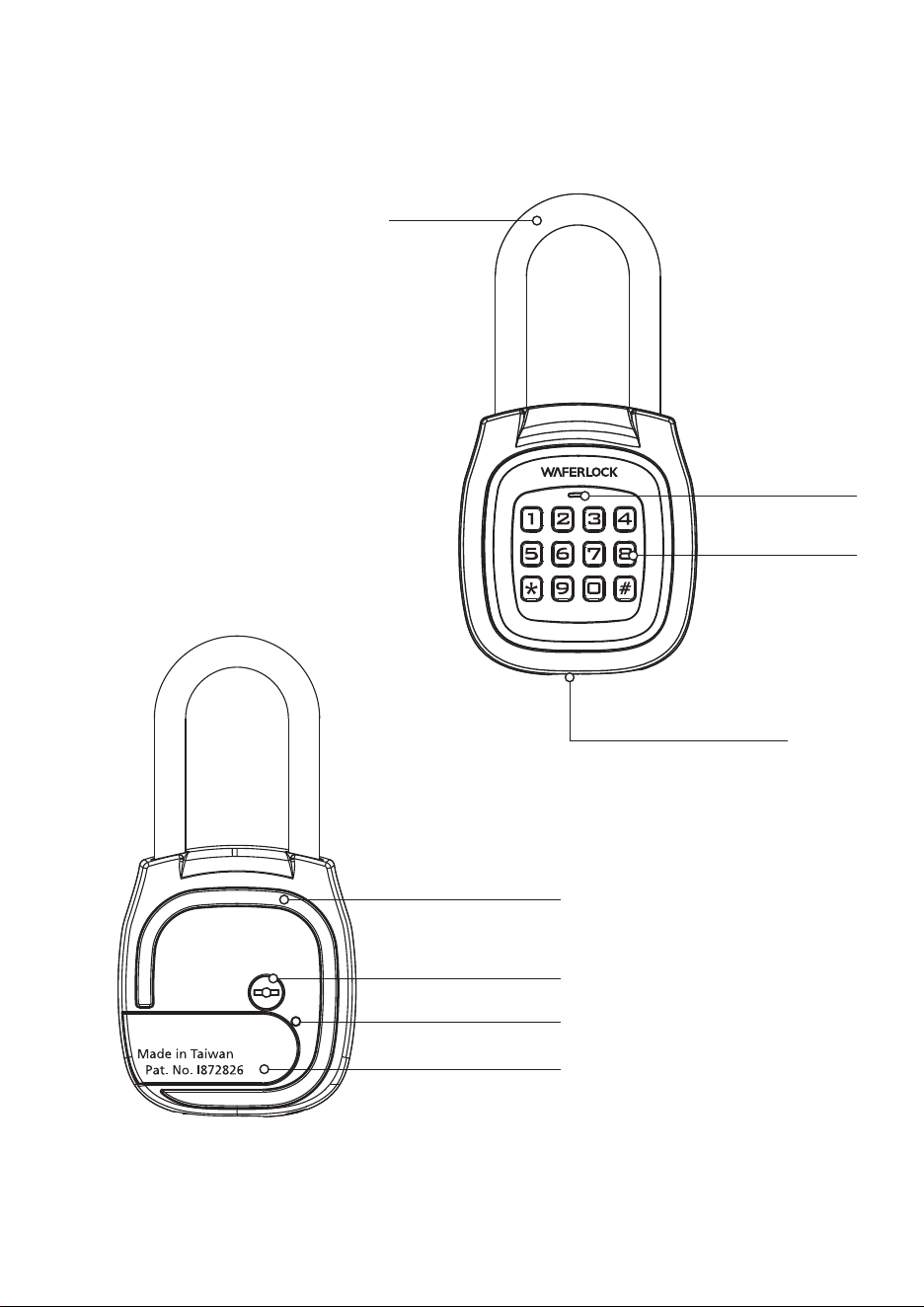
Appearance
Shackle
Indicator Light
Keypad
Bumper Gasket
Battery Cover
9V Battery Contacts
Locking Guide Pin
Battery Cover Switch
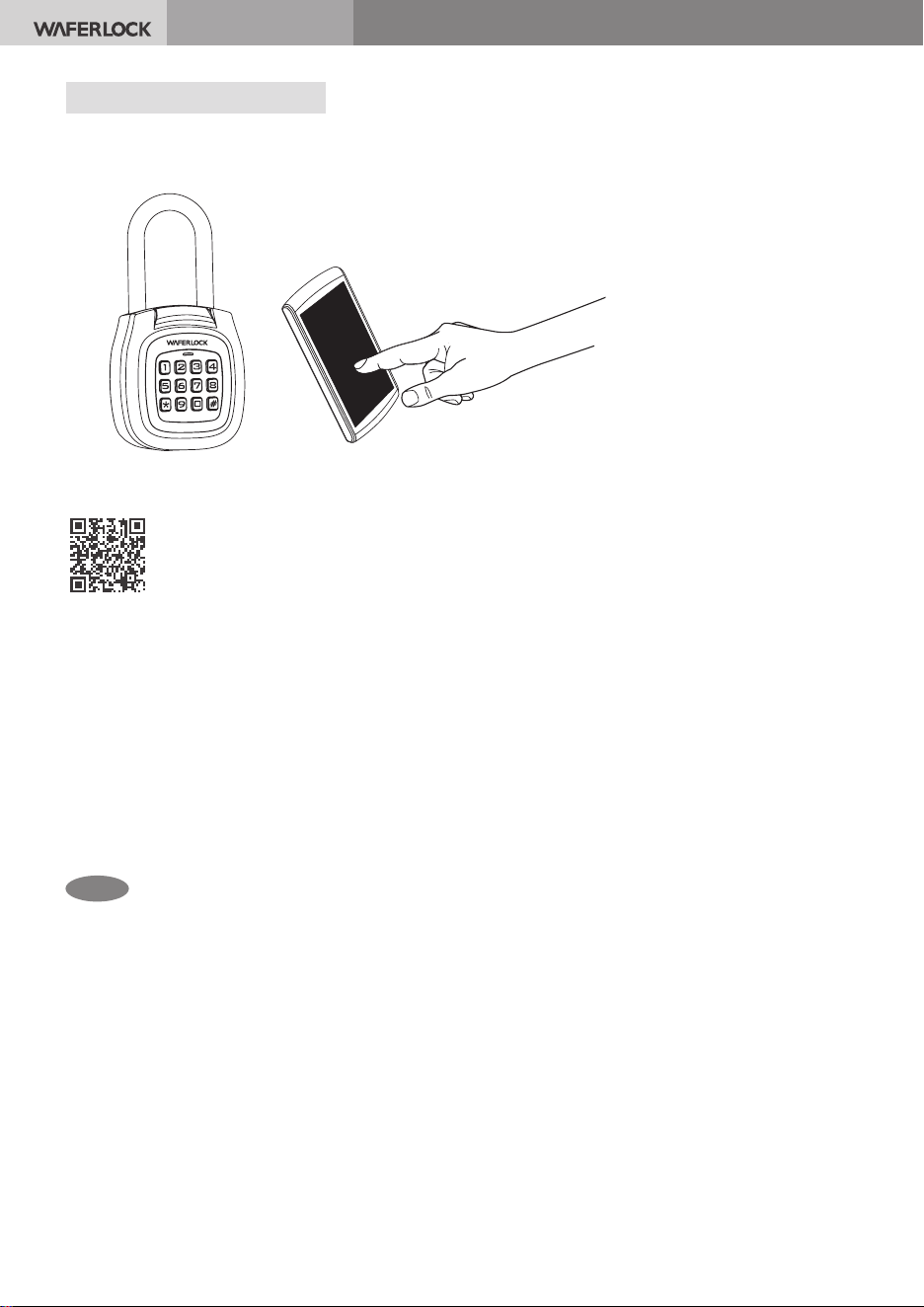
WAFERKEY App Pairing
3
WAFERLOCK CORPORATION
Step 1
Step 2
Please follow the steps below to set up your WAFERKEY smart lock
You can also use the mobile App to set up your lock step-by-step
Have questions about your lock?
We are here to help!
suppor [email protected]
Don't want to use the
WAFERKEY App?
Please skip to the "Standalone Mode"
page for instructions
Open the App, register a WAFERKEY account
Step 3
Turn on Bluetooth on your smartphone, stay near the lock, and follow
the instructions in the app to complete pairing.
Step 4
Once paired, you are ready to use the lock
Search for "WAFERKEY" on the App Store (iOS) or Google Play (Android)
and download the App
Note
●
●
●
The WAFERKEY App works on iPhone with iOS 15.6 or later, or devices with Android 8.1 or later
For further information, please refer to the operating instructions within the WAFERKEY App
Please note! Once the lock is paired with the App, the Master Code can no longer be used to manage
cards or PIN Code. All existing permissions will be deleted and must be reset via the WAFERKEY App
4
WAFERLOCK CORPORATION
Note
Note
Standalone Factory Defaults (Used after unpairing from the WAFERKEY App)
You can unpair the lock using the WAFERKEY App. After unpairing, all user
permissions congured through the WAFERKEY App will be deleted.
The lock will then be restored to factory default settings: Any card can unlock
the lock The default Master PIN Code (123456) can be used to unlock.
Before any user card or PIN Code are set, the Master Code can be used to unlock.
Once a user is added, the Master Code can no longer be used for unlocking.
●
●
●
The Master Code can only consist of numbers 0-9, excluding or #
The new code cannot be the same as the current Master Code or any User PIN Code, or the change will fail
Two beeps + two red ashes indicate an incorrect Master Code or a failed change
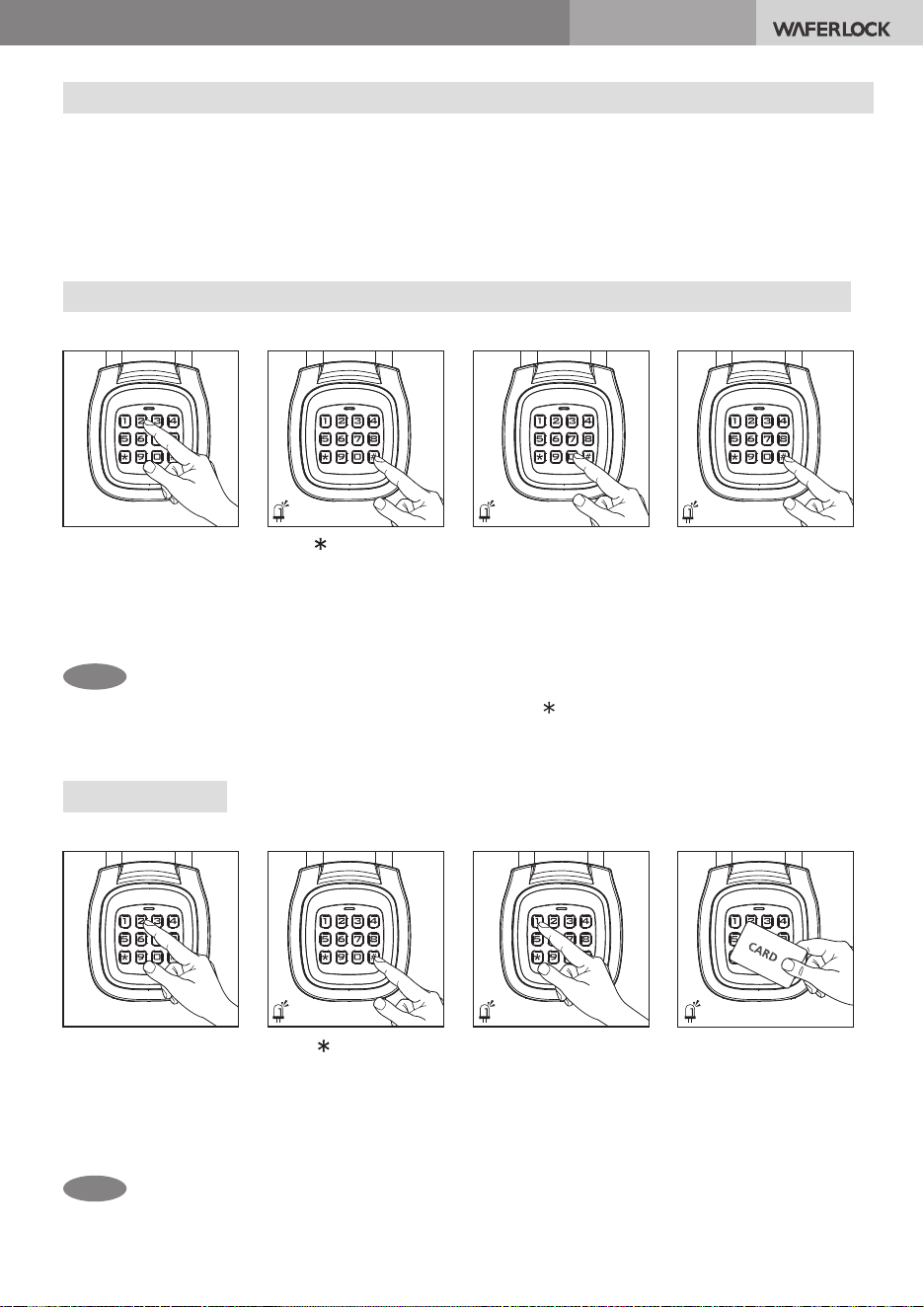
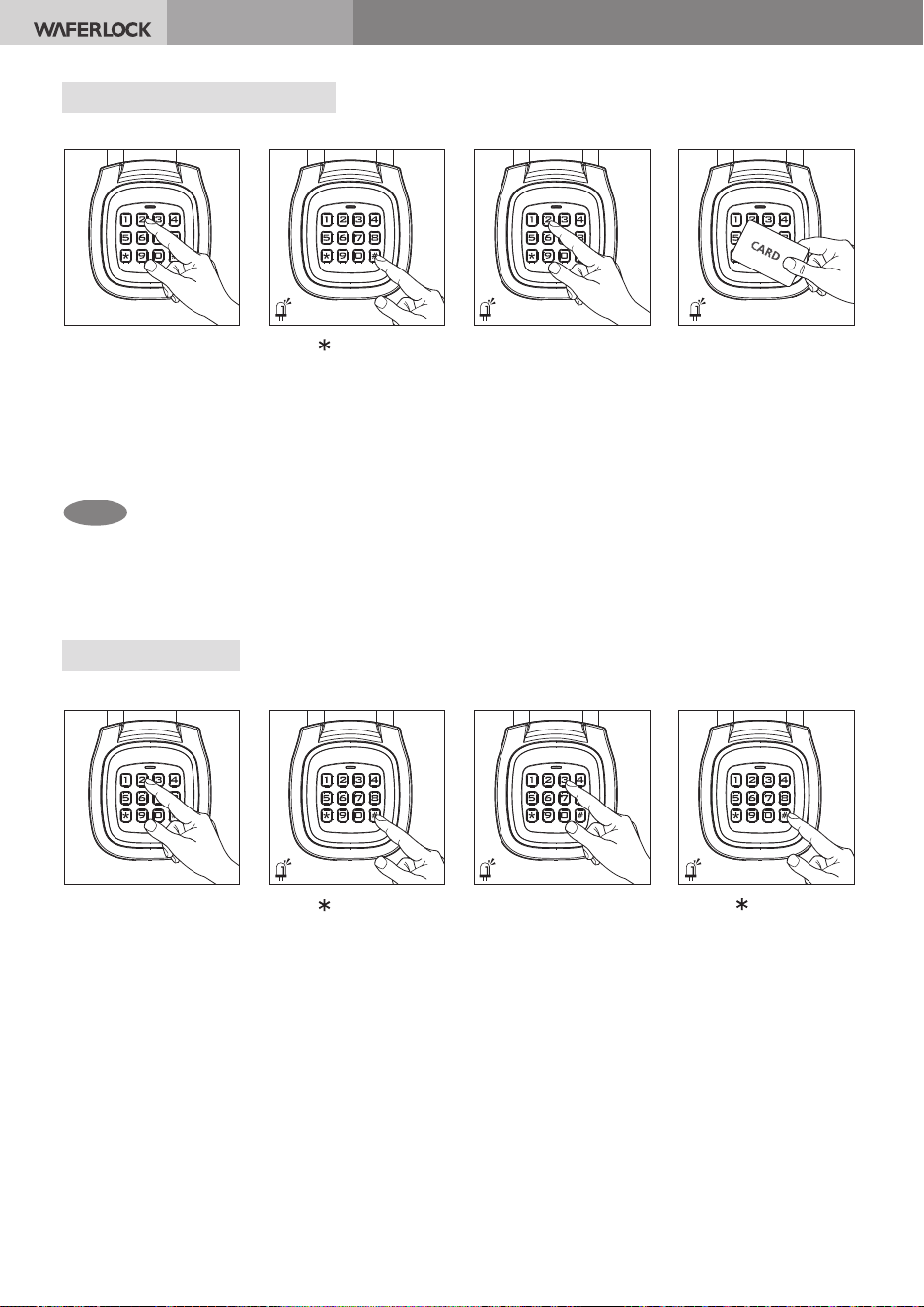
Program Cards
Change Master PIN Code (Default is 123456; please remember your new code)
Step 1 Step 2 Step 3 Step 4
Press any key.
You will hear a beep
and the keypad will
light up
Press
【0】. A beep
sounds, the green
light ashes,
and the keypad
remains lit
Enter the new Master PIN
Code +【#】, then enter it
again +【#】to conrm.
A long beep sounds and the
green light stays on, meaning
the change is successful
Press
【 】+【Master Code
(Default 123456)
】 +【#】.
A beep sounds and the
green light ashes,
entering Setting Mode
Beep
Green light stays on
Green light stays on
Long
beep
Long
beep
Beep
Step 1 Step 2 Step 3 Step 4
Press any key.
You will hear a beep
and the keypad will
light up
Press【1】. A beep
sounds, the green
light ashes, and
the keypad
remains lit
Tap a user card. A long
beep sounds and the
green light stays on,
meaning the user card
is set
●
While the green light is ashing and the keypad is lit, you can add multiple cards consecutively
Press【 】+【Master Code
(Default 123456)
】 +【#】.
A beep sounds and the
green light ashes,
entering Setting Mode
Beep Beep
Green light ashes
Green light ashesGreen light ashes
Green light ashes
5
WAFERLOCK CORPORATION
Note
Long
beep
Beep Beep
Long
beep
Beep Beep
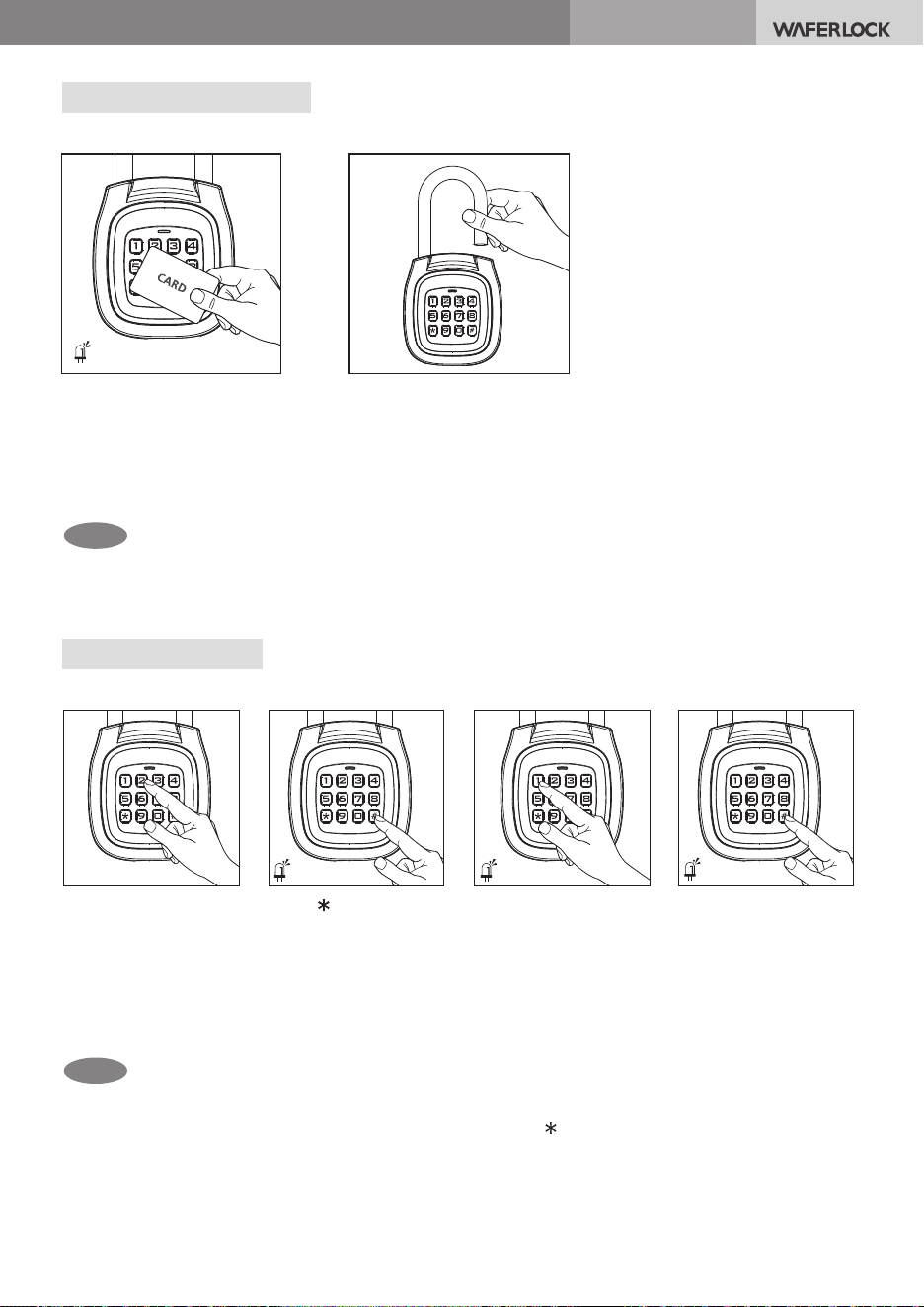
Delete an Individual Card
Delete All Cards
Step 1 Step 2 Step 3 Step 4
Press any key.
You will hear a beep
and the keypad will
light up
Press【2】. A beep
sounds, the green
light ashes, and
the keypad
remains lit
Tap the card you wish
to delete. A long beep
sounds and the red light
ashes 5 times, meaning
the card is deleted
●
While the green light is ashing and the keypad is lit,
you can delete multiple cards consecutively
Press【 】+【Master Code
(Default 123456)
】 +【#】.
A beep sounds and the
green light ashes,
entering Setting Mode
Green light ashes Green light ashes
Step 1 Step 2 Step 3 Step 4
Press any key.
You will hear a beep
and the keypad will
light up
Press【3】. A beep
sounds, the green
light ashes, and
the keypad
remains lit
Press【 】 +【1】 +【#】.
A long beep sounds
and the red light ashes
5 times, meaning all
cards are deleted
Press【 】+【Master Code
(Default 123456)
】 +【#】.
A beep sounds and the
green light ashes,
entering Setting Mode
Red light ashes 5 times
Green light ashes Green light ashes
Red light
ashes 5 times
6
WAFERLOCK CORPORATION
Note
Note
Green light
stays on
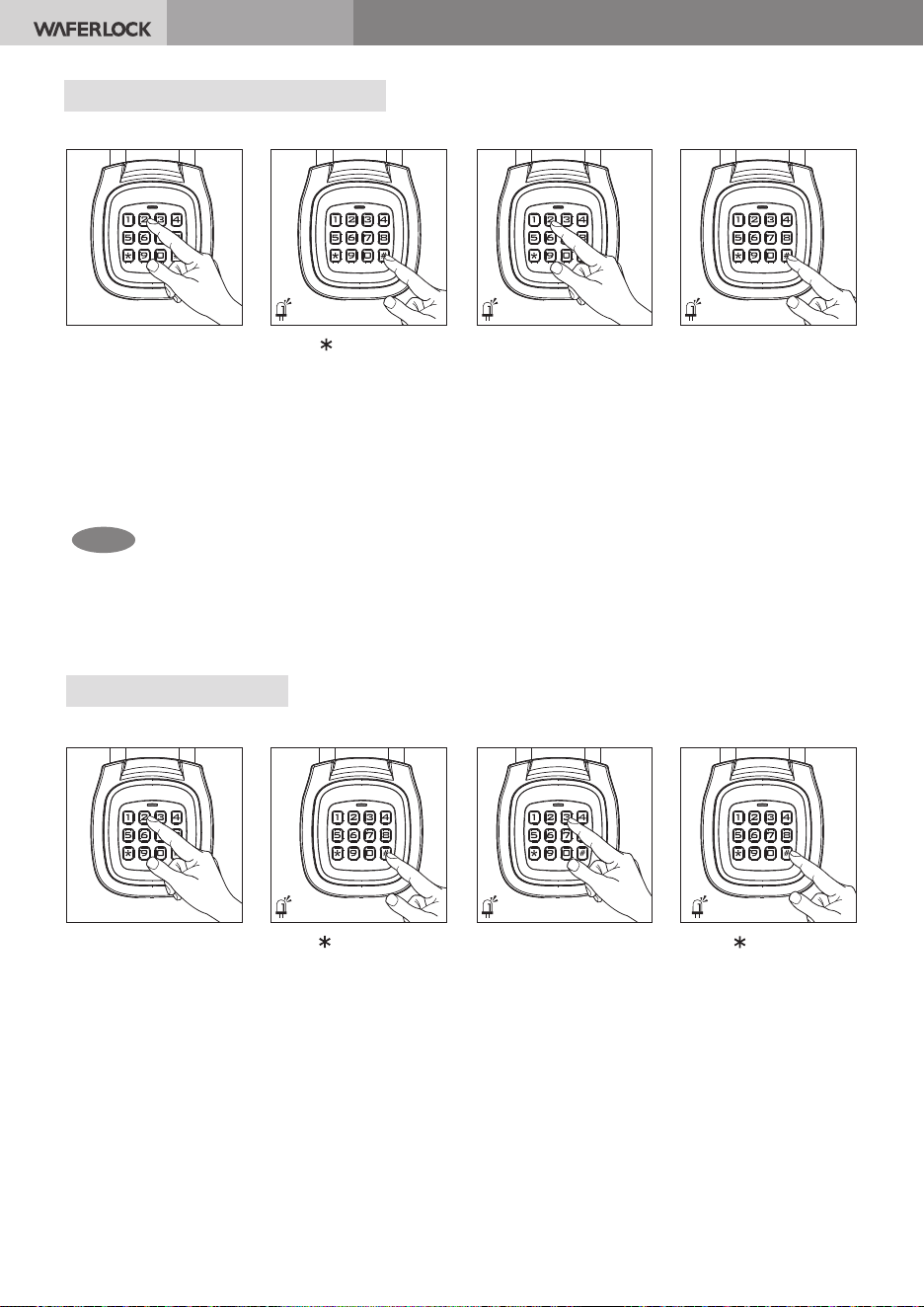
Open door with a Card
Step 2
Step 1
Program PIN Code
●
●
●
While the green light is ashing and the keypad is lit, you can add multiple PIN Code consecutively
PIN Code Rules: Lengths under 4 or over 6 digits, or including or #, will fail
If the operation times out before pressing #, it is not counted as an error
Max capacity is 2,000 sets. 10 short beeps + 3 red ashes indicate the memory is full
Tap a user card.
Hear a beep and see the
green light ash once,
meaning a successful unlock
Pull the shackle to unlock.
If not opened within 5 seconds,
it will automatically re-lock
Press a
【4-6 digit】
PIN Code and press【#】.
A long beep sounds and
the green light stays on,
meaning the PIN Code
is set
Long
beep
Step 1 Step 2 Step 3 Step 4
Press any key,
hear a beep and
the keypad will
light up
Press
【1】. A beep
sounds, the green
light ashes, and
the keypad
remains lit
Press【 】+【Master Code
(Default 123456)
】 +【#】.
A beep sounds and the
green light ashes,
entering Setting Mode
Beep
Green light ashesGreen light ashes
Beep
Green light ash once
Beep
●
2 beeps + 2 red ashes indicate an unrecognized card
7
WAFERLOCK CORPORATION
Note
●
While the green light is ashing and the keypad is lit, you can delete multiple
PIN Codes consecutively
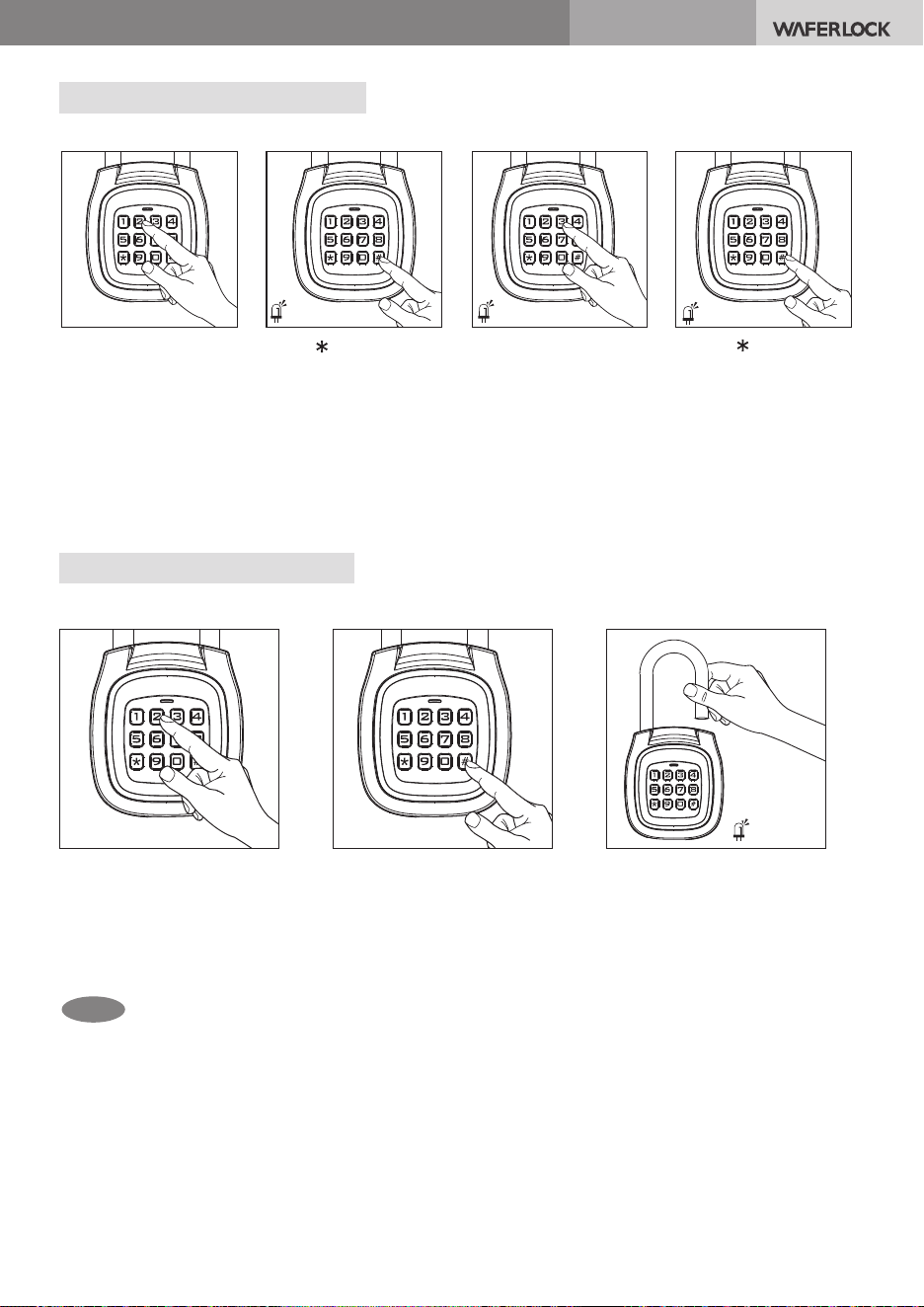
Delete an Individual PIN Code
Red light
ashes 5 times
Long
beep
Step 1 Step 2 Step 3 Step 4
Press any key,
hear a beep and
the keypad will
light up
Press
【2】. A beep
sounds, the green
light ashes, and
the keypad remains
lit
Enter the PIN Code to
delete and press
【#】.
A long beep sounds
and the red light ashes
5 times, meaning the
PIN Code is deleted
Press【 】+【Master Code
(Default 123456)
】 +【#】.
A beep sounds and the
green light ashes,
entering Setting Mode
Green light ashes Green light ashes
Beep Beep
Delete All PIN Codes
Step 1 Step 2 Step 3 Step 4
Press any key,
hear a beep and
the keypad will
light up
Press
【3】. A beep
sounds, the green
light ashes, and
the keypad remains
lit
Press【 】 +【2】 +【#】
A long beep sounds
and the red light ashes
5 times, meaning all
PIN Codes are deleted
Press【 】+【Master Code
(Default 123456)
】 +【#】.
A beep sounds and the
green light ashes,
entering Setting Mode
Green light ashes Green light ashes
Beep
Red light
ashes 5 times
Long
beep
Beep
8
WAFERLOCK CORPORATION
Delete All PIN Codes + Cards
Note
●
●
●
If the PIN Code is incorrect, hear 2 beeps and see two red ashes
If an incorrect PIN Code is entered 5 consecutive times, the keypad will be temporarily
locked for 3 minutes
Other legal methods (Card / WAFERKEY) can still unlock the device and reset the error count
Open door with a PIN Code
Step 1 Step 2 Step 3
Press any key, hear a
beep and the keypad
will light up
Hear a beep and see the
green light ash once.
Pull the shackle immediately;
it will re-lock after 5 seconds
if not opened
Enter a
【4-6 digit
PIN Code
】and press【#】
Green light
ash once
Beep
Enter the PIN Code to
delete and press
【#】.
A long beep sounds
and the red light ashes
5 times, meaning the
PIN Code is deleted
Step 1 Step 2 Step 3 Step 4
Press any key,
hear a beep and
the keypad will
light up
Press
【3】. A beep
sounds, the green
light ashes, and
the keypad
remains lit
Press
【 】 +【3】 +【#】.
A long beep sounds
and the red light ashes
5 times, meaning all
data is deleted
Press【 】+【Master Code
(Default 123456)
】 +【#】.
A beep sounds and the
green light ashes,
entering Setting Mode
Green light ashes Green light ashes
Beep
Red light
ashes 5 times
Long
beep
Beep
9
WAFERLOCK CORPORATION
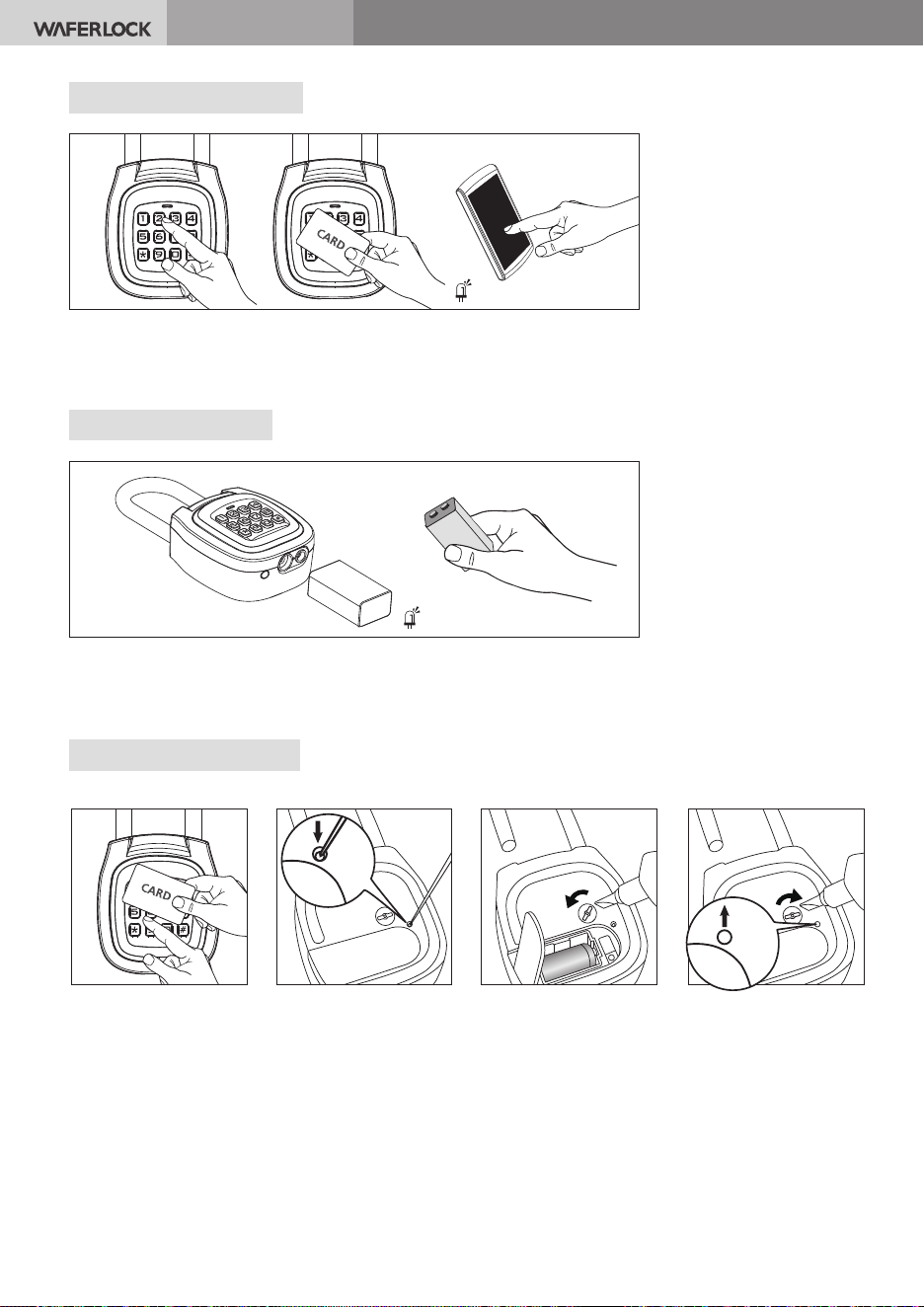
Low Battery Warning
9V External Power
When unlocking with an authorized method (PIN Code, card, or WAFERKEY App),
if you hear 5 sets of three short beeps and see the red light ash 3 times,
it means the battery is low. Please change the battery as soon as possible
Red light ashes 3 times
5 sets of 3 short beeps
After applying 9V power, if the device wakes up, you will hear 2 beeps
and see alternating lights; you may then proceed with operations
Alternating red and green lights
2 beeps
Battery Replacement
Step 1 Step 2 Step 3 Step 4
Unlock using any
legal method
(PIN Code, Card,
or WAFERKEY)
Pull the shackle and
use a pointed object
(like a pencil) to
press the button on
the battery cover
Use a at-head
screwdriver to
rotate the back
knob counter-clock-
wise until the
battery cover pops
out
Insert the batteries,
press down the battery
cover, and rotate the
back knob clockwise
until the button on
the battery cover pops
out
CR2
10
WAFERLOCK CORPORATION
Note
IMPORTANT NOTES
1. Add user card / PIN Code doesn't work while the battery is low
2. Max capacity is 2,000 sets. 10 short beeps + 3 ashes mean the memory is full
You must delete existing cards or PIN Code before you can congure them again
3. Please do not use water or detergent to clean the product to prevent rust or paint peeling.
Only the ngerprint module surface may be wiped with a clean cotton cloth dipped in alcohol
4. Do not let children play with this product, including batteries and other accessories,
to avoid danger
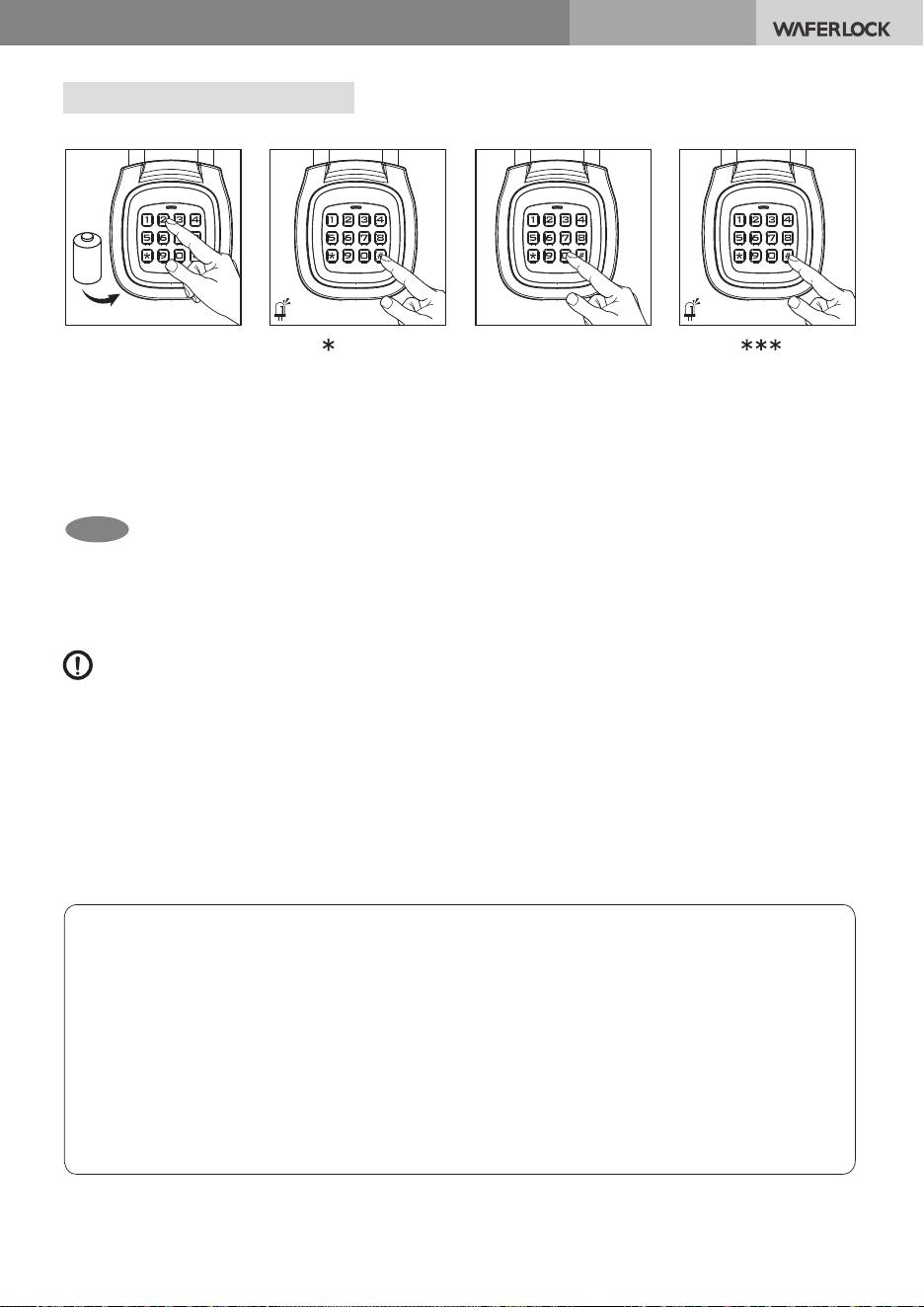
Factory Reset (Standalone)
Step 1 Step 2 Step 3 Step 4
Please remove and
reinstall the
batteries, then press
any key, a beep will
sound and the
keypad will light up
Press【0】. A beep
sounds, the green
light ashes, and
the keypad
remains lit
Press
【 #】.
Hear 3 long beeps
and see 5 red ashes,
means the lock has
been reset
Press【 】+【Master Code
(Default 123456)
】 +【#】.
A beep sounds and the
green light ashes,
entering Setting Mode
Green light ashes
Beep
5 Red light ashes
3 long
beeps
Beep
●
The operation must be completed within 30 seconds of re-installing
the battery to reset
CR2
Your Warranty
Your Warranty covers all manufacturers' defects in workmanship and material. It does not cover any
unit that is damaged beyond normal usage, by improper installations, by contacts to chemicals, or any
other acts or omissions unsanctioned within the user manual. All components are covered for one (1)
year after the date of purchase or installation from supplier. The user is required to provide dated proof
of purchase. Waferlock or its authorized distributor will determine if there is a warrantable condition
associated with material and/or manufacturing workmanship. If the gateway conforms to the warranty
conditions, the gateway will be repaired free of charge. The shipping freights would be at owner's
expense. The warranty does not include any further obligations, such as the installation of the gateway.
All other warranties, express or implied, are disclaimed. All collateral agreements, which purport to
modify this limited warranty, are of no effect.

11
WAFERLOCK CORPORATION
Federal Communication Commission Interference Statement
This equipment has been tested and found to comply with the limits for a Class B digital
device, pursuant to Part 15 of the FCC Rules. These limits are designed to provide
reasonable protection against harmful interference in a residential installation.
This equipment generates, uses and can radiate radio frequency energy and,
if not installed and used in accordance with the instructions, may cause harmful
interference to radio communications. However, there is no guarantee that interference
will not occur in a particular installation. If this equipment does cause harmful
interference to radio or television reception, which can be determined by turning the
equipment off and on, the user is encouraged to try to correct the interference by one
of the following measures:
• Reorient or relocate the receiving antenna
• Increase the separation between the equipment and receiver
• Connect the equipment into an outlet on a circuit different from
that to which the receiver is connected
• Consult the dealer or an experienced radio / TV technician for help
FCC Caution: To assure continued compliance, any changes or modications not expressly
approved by the party responsible for compliance could void the user's authority to
operate this equipment. (Example - use only shielded interface cables when connecting to
computer or peripheral devices).
FCC Radiation Exposure Statement
This equipment complies with FCC RF radiation exposure limits set forth for an uncon-
trolled environment. This equipment should be installed and operated
with a minimum distance of 20 centimeters between the radiator and your body.
This transmitter must not be co-located or operating in conjunction
with any other antenna or transmitter.
The antennas used for this transmitter must be installed to provide a separation
distance of at least 20 cm from all persons and must not be co-located
or operating in conjunction with any other antenna or transmitter.
This device complies with Part 15 of the FCC Rules. Operation is subject
to the following two conditions:
(1) This device may not cause harmful interference, and (2) This device must
accept any interference received, including interference that may cause
undesired operation.

12
WAFERLOCK CORPORATION
NOTE
13
WAFERLOCK CORPORATION
NOTE

14
WAFERLOCK CORPORATION
NOTE

V01
WAFERLOCK CORPORATION
Tel: 886-4-24620208 Fax: 886-4-24636286
No. 16 Ke Yuan 2nd Rd., Central Taiwan Science Park
Taichung city 407, Taiwan.
E-mail: [email protected]