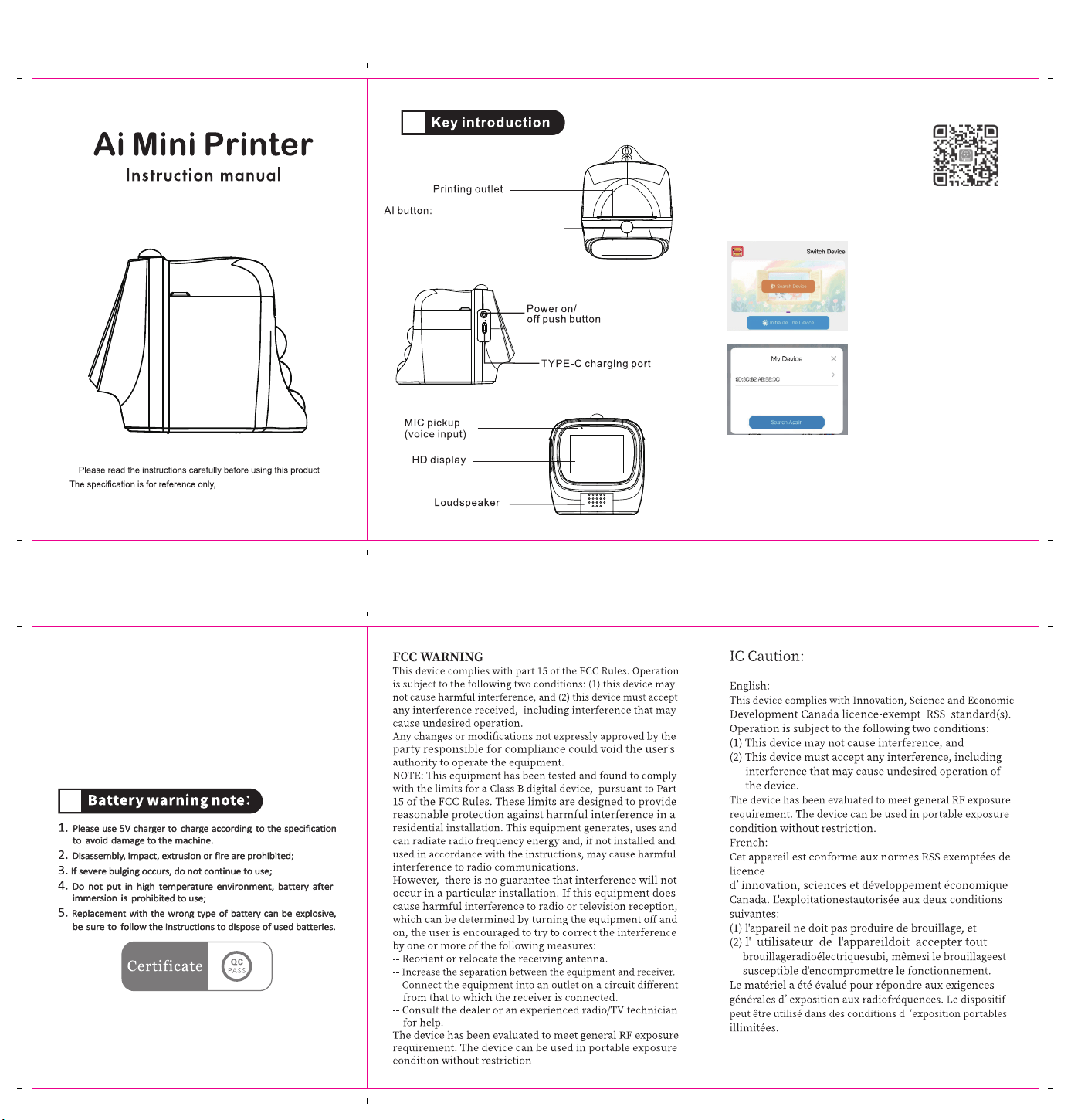
1.Download the APP:
2.Connection method:
1. Scan the QR code on the screen
to download the App.
2. Search “ Fun Print ” in iOS/Android
market to download the App.
( Note: 5G WiFi is not currentiy supported )
Choose your device from the list
of available devices.
→ Press and hold the [Ai] button on the top of the device to start.
While holding the button, speak your command clearly.
For example: “ Print a picture of a dog running in a field. ”
Release the button once you finish speaking.
→ Ai generated image will be displayed&printed instantly!
→ When printing, a short press of the [Ai] button will cancel
printing.
Tip: This product is suitable for children 3+
Step 1: Enter the App
Step 2: Select Your Device
Launch the “ Fun Print ” App
and tap“Search Device”
Subject to the actual product.
Step 3: Connect to Wi-Fi
Select your current Wi-Fi network (2.4G), input the password,
and then click “ configuration ”.
Step 4: Connection Complete
Once connected successfully, your printer is ready to use.
Start creating and printing!
On the main menu, a short press of the Al button allows you to
select different print modes, while a long press allows you to
speak your desired content to generate a print output. To cancel
printing, simply press the button once.
On the main menu screen, quickly press the Al button 5 times
to reset or reconnect to the network.
Press and hold for 3 seconds to turn the device on or off.
If the device freezes, press and hold for more than 8
seconds to restart it.