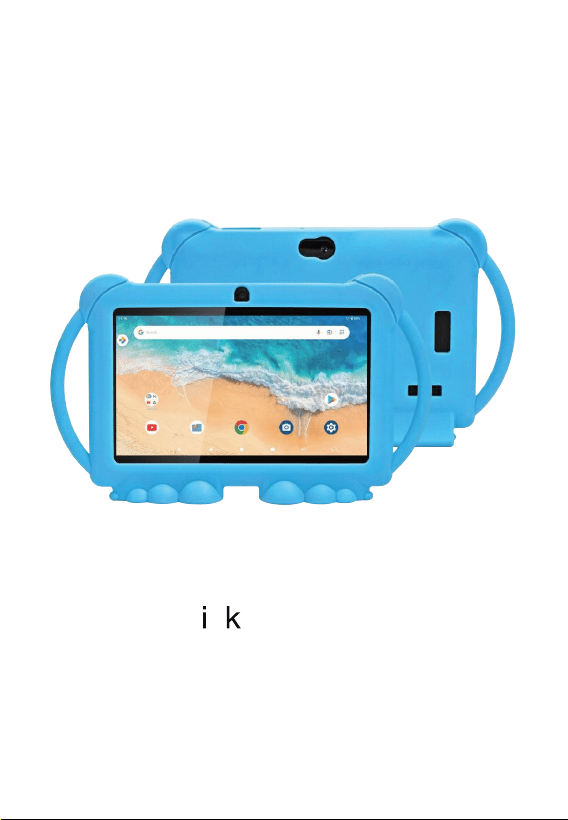
Quick Start Guide

1.Attention:
Please don’t be in high temperature, moisture or very dust place.
please charge in the following condition,
Avoid fall or Violent collision of the device, don’t make the display screen
were violent tremor, this could cause display screen abnormal or damage.
A.
B.
C.
D.
The battery power icons show have no power
The system automatically shut off, startup after power off soon
Operation buttons no response
Don’t disassemble the product, don’t use alcohol、Thinner or benzene to
scrubbing products
The device on the top right corner show red icons When the device in the
format or ongoing upload and download file, please don't suddenly
disconnect, this could cause application error.
Do not disassemble the machine by yourself.Only the software pre-installed on
the machine can be used. For more software support, please contact us.
2.Operating Basics
Waking Up
Your device sleeps after a period of inactivity. To wake up, press the power
button and, at the lock screen, swipe up to unlock.
Shutting Down
Press and hold the power button until a menu pops up. Tap Power off.
NOTE:If the device somehow cannot display the power off menu, you can
force the device to power off by pressing and holding the power button for
more than 8 seconds.
Lock screen
Options Change the settings for the locked screen.
On the Settings screen, tap Security
• Screen lock type: Swip to change the screen lock method.
• Face Unlock:Tap to set up face to change the screen lock method.
Wallpaper and style
Change the wallpaper settings for the Home screen and the locked screen.
On the Settings screen, tap Wallpaper and style.
Google
Configure settings for some features provided by Google. On the Settings
screen, tap Google.
Storage
Check the status of the used and available storage. On the Settings screen, tap
Storage.You can see how much memory is used by each APP
• The actual available capacity of the internal storage is less than the specified
capacity because the operating system and default apps occupy part of the
storage. The available capacity may change when you update the device.
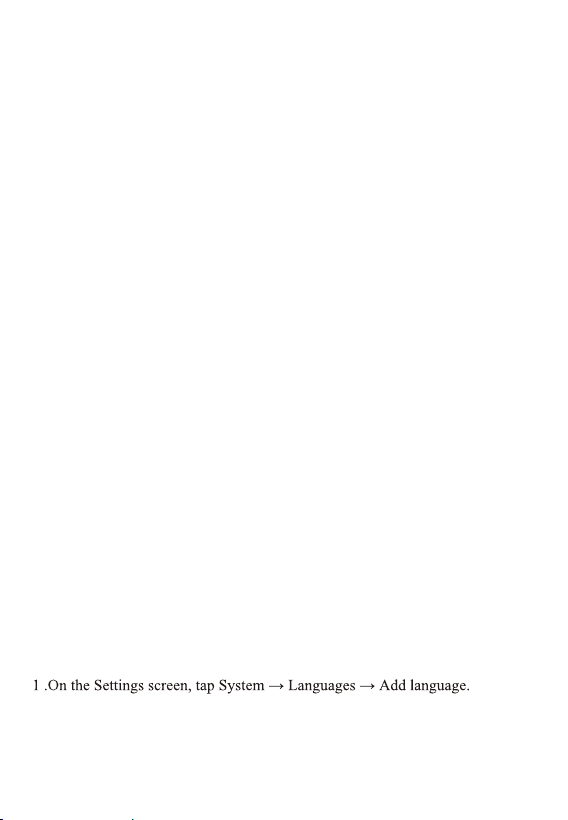
Adding device languages
You can add languages to use on your device.
To view all the languages that can be added.
2. Select a language to add.
Apps
Manage the device’s apps and change their settings. You can view the apps’
usage information, change their notification or permission settings, or uninstall
or disable unnecessary apps. On the Settings screen, tap Apps.
Display
Change the display and the Home screen settings. On the Settings screen, tap
Display.
• Dark mode settings: Reduce eye strain by applying the dark theme when
using the device at night or in a dark place. You can set a schedule for applying
dark mode.
• Font size and style: Change the font size and style.
• Screen saver: Set the device to launch a screensaver when the device is charging.
• Brightness: Adjust the brightness of the display.
Sounds and vibration
Options Change settings for various sounds on the device. On the Settings
screen, tap Sounds and vibration.
Navigating on the Screen
Use the stylus (or your finger) to navigate and select objects on the screen.
Here are some common terms that you should know when using the touchscreen:
• Tap
Touch the screen once with the stylus (or finger) to open an item or select an
object.
• Tap and hold
Touch and hold the stylus (or finger) on an item to see a list of actions
available for that item.
• Drag
Hold the stylus (or finger) on an item and, without lifting the stylus (or finger),
move across the screen until you reach the target position.
• Swipe or slide
Move the stylus (or finger) across the screen, without pausing when you first
touch it (so you don’t “drag” instead). For example, you slide the screen up or
down to scroll a list.
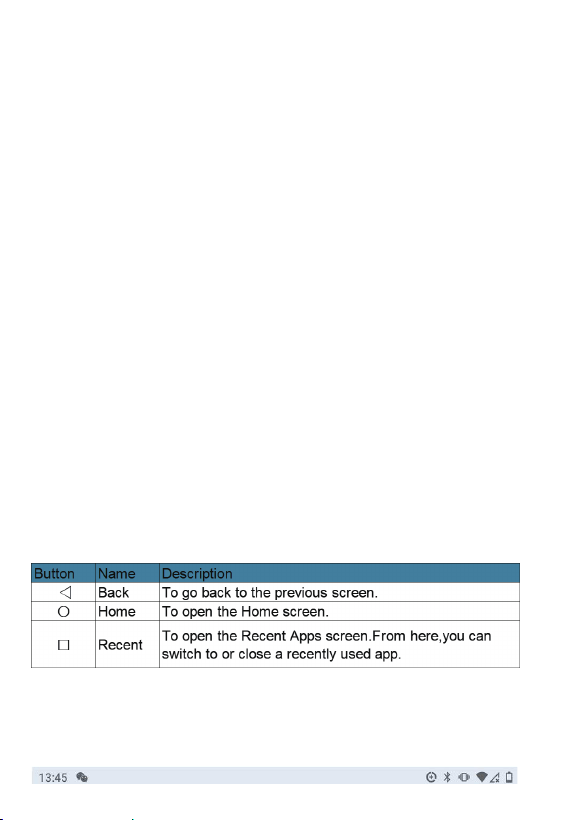
Status Bar
The Status Bar appears at the top of almost every screen. It di-splays icons
indicating the current status (on the right) and icons indicating that you’ve
received notifications (on the left),along with the current time.
• Pinch
In some applications (such as Maps ), you can zoom in and out by placing two
fingers on the screen at once and pinching them together (to zoom out) or
spreading them apart (to zoom in).
NOTE:
• An optical film has been attached to the screen before shipment. The film is a
consumable, which will be worn out by possible scratches. You can purchase a
new one when replacement is required.
• When the touchscreen does not seem to respond, put the device to sleep and
then wake it. The screen should function again.
Home Screen
The Home screen is your starting point to access all the features on your device.
You can have it display application icons, widgets, shortcuts, and other features
that you want. The default Home screen already contains some app icons and
widgets.
To return to the Home screen at any time, tap the Home icon at the bottom of the
screen.You can add app icons, shortcuts, widgets, and other items to any part of
the Home screen where there’s free space.
Using Applications
Swipe up from the bottom of the Home screen to open the All Apps screen.The
screen holds icons for all of the apps on your device. Tap an icon to open the app.
Navigation Bar
The navigation bar at the bottom of the screen provides buttons for navigation
purposes and frequently-used tasks.
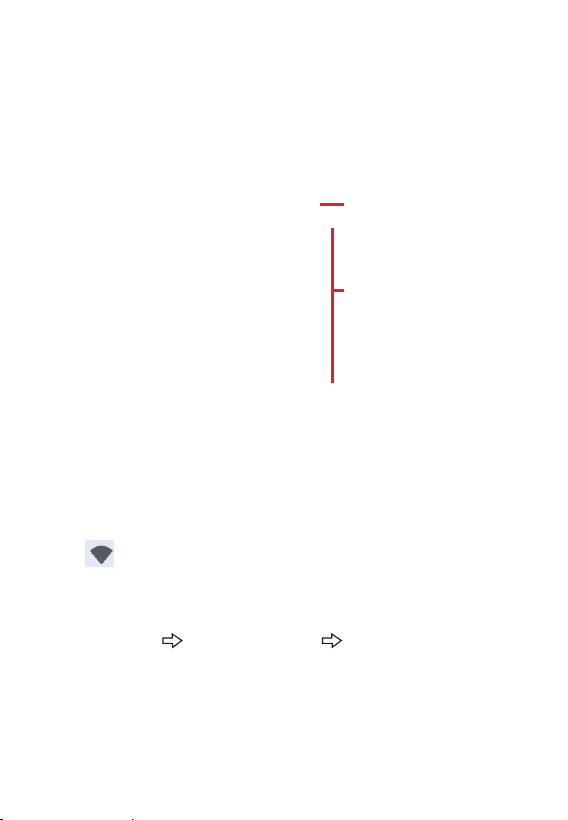
Quick Settings and Notifications Panel
You can open Quick Settings and Notifications Panel by swiping down from
the top of the screen.Quick Settings allow you to quickly change common
settings such as screen brightness, Wi-Fi, Bluetooth, Airplane mode, and
others.Notifications Panel provides timely reminders for events, tasks,and
Quick Settings:
Swipe down to see all quick
settings.
Notifications Panel:
You can interact with your
list of notifications.
alerts.
Quick Settings:Swipe down to see all quick settings.
Notifications Panel:You can interact with your list of notifications.
Swipe up to close Quick Settings and Notifications Panel.
Wireless Connections
Using Wi-Fi Networks
Turning On/Off the Wi-Fi Radio
Open Quick Settings and tap the Wi-Fi icon.When the Wi-Fi radio is turned on,
the icon appears in the status bar.If your device finds a network that you
connected to previously, it connects to it.
Connecting to a Wi-Fi Network
1. Open Quick Settings. Tap and hold the Wi-Fi icon.
- or - Go to Settings Network & internet Wi-Fi.
2. Your device scans for available Wi-Fi networks and displays the names in
the screen.
3. On the list of discovered networks, tap the one you want to connect to.
4. If the network is secured, you’re prompted to enter a password or other
credentials.If the network is open, you are prompted to confirm that you want
to connect to that network by tapping Connect.

Any changes or modifications not expressly approved by the party
responsible for compliance could void the user’s authority to operate the
equipment. This device complies with part 15 of the FCC Rules.
Operation is subject to the following two conditions:
This device may not cause interference.
This device must accept any interference, including interference that may
cause undesired operation of the device.
Note: This equipment has been tested and found to comply with the limits
for a Class B digital device, pursuant to part 15 of the FCC rules. These
limits are designed to provide reasonable protection against harmful
interference in a residential installation. This equipment generates, uses
and can radiate radio frequency energy and, if not installed and used in
accordance with the instructions, may cause harmful interference to radio
communications. However, there is no guarantee that interference will
not occur in a particular installation. If this equipment does cause harmful
interference to radio or television reception, which can be determined by
turning the equipment off and on, the user is encouraged to try to correct
the interference by one or more of the following measures:
-Reorient or relocate the receiving antenna.
-Increase the separation between the equipment and receiver.
-Connect the equipment into an outlet on a circuit different from that
to which the receiver is connected.
-Consult the dealer or an experienced radio/TV technician for help.
The device has been evaluated to meet general RF exposure require-
ment. The device can be used in portable exposure condition without
restriction.
FCC ID:2AXUI-T10
Warning
Warning:
Warnung:
1. Verwenden Sie vorsichtig mit dem Kopfhörer möglicherweise übermäßigen Schalldruck von
Kopfhörern und Kopfhörer können zu Hörverlust führen.
2.ACHTUNG: EXPLOSIONSGEFAHR BEI BATTERIEWECHSEL DURCH EINE FALSCHE
ART. ENTSORGEN SIE GEBRAUCHTE BATTERIEN GEMÄSS DEN ANWEISUNGEN.
3.Das Produkt darf nur an eine USB-Schnittstelle der Version USB2.0 angeschlossen werden.
4.Der Adapter muss in der Nähe des Geräts installiert und leicht zugänglich sein.
5. Betriebstemperatur: -10 ~ 40 °C
6.Der Stecker gilt als Trennvorrichtung des Adapters.
7.Das Gerät entspricht den HF-Spezifikationen, wenn das Gerät 5 mm von Ihrem Körper
entfernt verwendet wird .Das Gerät entspricht den Anforderungen
EU-Konformitätserklärung
Wir
Innorock technology Shenzhen Co., Ltd (Building B, Huazhong University of Science and
Technology Base, No. 3 Yuexing Road, Yuehai Street, Nanshan Science and Technology
Park, Shenzhen China) erklärt hiermit, dass dieser Tablet PC in Einhaltung der grundlegenden
Anforderungen und anderer einschlägiger Bestimmungen der Richtlinie 2014/53/EU.
Gemäß Artikel 10 Absatz 2 der Richtlinie 2014/53/EU kann der Tablet PC in Europa mit
Diese Informationen müssen so dargestellt werden, dass der Benutzer sie leicht verstehen
kann. In der Regel erfordert dies eine Übersetzung in alle Landessprachen (von den nationalen
B. Verbrauchergesetze) der Märkte, auf denen die Geräte verkauft werden sollen. Illustrationen
Piktogramme und die Verwendung internationaler Abkürzungen für Ländernamen können dazu
beitragen, den Bedarf zu verringern für die Übersetzung.
Einschränkungen im 5-GHz-Band:
Gemäß der Richtlinie SI 2017/1206 zeigt die Verpackung, dass diese Funkanlage
Vorbehaltlich einiger Beschränkungen beim Inverkehrbringen in Belgien (BE),
Tschechische Republik (CZ), Dänemark (DK), Deutschland (DE), Estland (EE), Irland (IE),
Griechenland (EL), Spanien (ES), Frankreich (FR), Kroatien (HR), Italien (IT), Zypern (CY),
Lettland (LV), Litauen (LT), Luxemburg (LU), Ungarn (HU), Malta (MT), Niederlande (NL),
Österreich (AT), (SE), die Türkei (TR), Norwegen (NO), Schweiz (CH), Island (IS) und
Liechtenstein (LI).
Die WLAN-Funktion für dieses Gerät ist nur im Betrieb im 5150 auf den Innenbereich beschränkt
bis 5350 MHz Frequenzbereich.
Einschränkung.
Warning:
1.Use careful with the earphone maybe possible excessive sound pressure from earphones and
headphones can cause hearing loss.
2.CAUTION: RISK OF EXPLOSION IF BATTERY IS REPLACED BYAN INCORRECT
TYPE. DISPOSE OF USED BATTERIES ACCORDINGTO THE INSTRUCTIONS.
3.The product shall only be connected to a USB interface of version USB2.0.
4.Adapter shall be installed near the equipment and shall be easily accessible.
6.The plug considered as disconnect device of adapter.
7.The device complies with RF specifications when the device used at 5mm from your body,
The device is in compliance with the requirements.
UK Declaration of Conformity We,
Innorock technology Shenzhen Co., Ltd (Building B, Huazhong University of Science and
Technology Base, No. 3 Yuexing Road, Yuehai Street, Nanshan Science and Technology
Park, Shenzhen China) hereby declares that this Tablet PC is in compliance with the essential
requirements and other relevant provisions of Directive SI 2017/1206.
According to Directive SI 2017/1206, the Tablet PC can be used in Great Britain (England,
This information has to be presented in such a way that the user can readily understand it. T
ypically, this will necessitate translation into every local language (required by national
consumer laws) of the markets where the equipment is intended to be sold. Illustrations, pict-
ograms and using international abbreviations for country names may help reduce the need for
translation.
Restrictions in the 5 GHz band:
According to Directive SI 2017/1206, the packaging showsthat this radio equipment will be
subject to some restrictions when placed on the market in Belgium (BE), the Czech Republic (
CZ),Denmark (DK),Germany (DE), Estonia (EE), Ireland (IE), Greece (EL),Spain(ES), France
(FR), Croatia (HR), Italy (IT), Cyprus (CY), Latvia (LV), Lithuania(LT),
Luxembourg (LU), Hungary (HU), Malta (MT), Netherlands (NL), Austria(AT),Poland (PL),
Portugal (PT), Romania (RO), Slovenia (SI), Slovakia (SK),Finland (FI), Sweden (SE), the
Turkey (TR), Norway(NO), Switzerland (CH), Iceland (IS), and Liechtenstein (LI).
The WLAN function for this device is restricted to indoor use only when operating in the 5150
to 5350 MHz frequency range.
Wales and Scotland) but with restriction.
.
FCC Warning
15.19 Labeling requirements.
This device complies with part 15 of the FCC Rules. Operation is subject to the
following two conditions: (1) This device may not cause harmful interference, and
(2) this device must accept any interference received, including interference that
may cause undesired operation.
15.21 Information to user.
Any Changes or modifications not expressly approved by the party responsible
for compliance could void the user's authority to operate the equipment.
15.105 Information to the user.
Note: This equipment has been tested and found to comply with the limits for a
Class B digital device, pursuant to part 15 of the FCC Rules. These limits are
designed to provide reasonable protection against harmful interference in a
residential installation. This equipment generates uses and can radiate radio
frequency energy and, if not installed and used in accordance with the
instructions, may cause harmful interference to radio communications. However,
there is no guarantee that interference will not occur in a particular installation. If
this equipment does cause harmful interference to radio or television reception,
which can be determined by turning the equipment off and on, the user is
encouraged to try to correct the interference by one or more of the following
measures:
-Reorient or relocate the receiving antenna.
-Increase the separation between the equipment and receiver.
-Connect the equipment into an outlet on a circuit different from that to which the
receiver is connected.
-Consult the dealer or an experienced radio/TV technician for help.
Absorption Rate (SAR) information:
This device meets the government's requirements for exposure to radio waves. The
guidelines are based on standards that were developed by independent
scientific organizations through periodic and thorough evaluation of scientific
studies. The standards include a substantial safety margin designed to assure
the safety of all persons regardless of age or health.
FCC RF Exposure Information and Statement
The SAR limit of USA (FCC) is 1.6 W/kg averaged over one gram of tissue. This
device was tested for typical body-worn operations with the back of the device
kept 0mm from the body. To maintain compliance with FCC RF exposure
requirements, use accessories that maintain a appropriate separation distance
between the user's body and the back of the device. The use of belt clips,
holsters and similar accessories should not contain metallic components in its
assembly. The use of accessories that do not satisfy these requirements may
not comply with FCC RF exposure requirements, and should be avoided. Use
only the supplied or an approved antenna.