1. Overview
The Lenovo Legion E510 are wired in-ear headphones designed for gaming and multimedia use. They connect via a USB-C port and feature 7.1 surround sound, high-resolution audio, and an in-line controller with RGB lighting.

What’s in the Box
- Lenovo Legion E510 In-Ear Headphones
- Extra pairs of silicone ear tips (S, M, L)
- User manual
2. Features
2.1 Audio Performance
- 7.1 Surround Sound: Driverless virtual surround sound for positional audio in games.
- Hi-Res Audio: High-resolution audio support for detailed sound reproduction.
- 10 mm Dynamic & Balanced Armature Driver: Dual drivers deliver clear highs and deep, distortion-free bass.
- Frequency Range: 20 Hz – 20,000 Hz
- Impedance: 16 Ohms

2.2 In-Line Controller
- Media Controls: Play, pause, and skip tracks.
- Volume Control: Adjust volume up/down.
- Microphone Mute: Mute the built-in microphone.
- RGB Lighting: The controller features an RGB light for visual feedback.
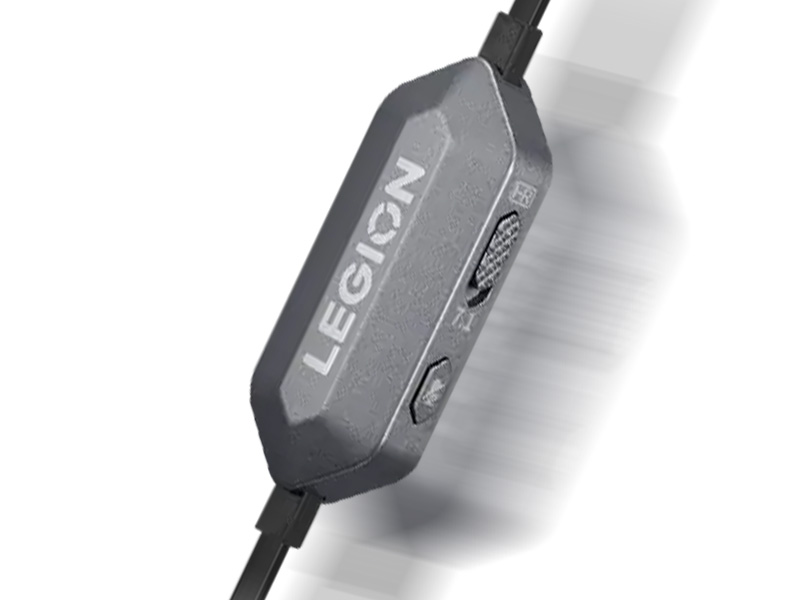
2.3 Microphone
- Studio-Quality In-Line Microphone: Provides clear voice pickup for in-game chat and calls.
2.4 Design & Comfort
- In-Ear Form Factor: Lightweight and portable.
- Interchangeable Ear Tips: Three sizes (S, M, L) of silicone ear tips are included for a custom fit.
- Cable: Wired USB-C connection with a retractable cable feature.
- Weight: Approximately 27.2 g.

2.5 Compatibility
- PC (Windows, macOS, Linux with USB-C port)
- Tablets with USB-C port
- Smartphones with USB-C port
- Audio CD players, MP3 players, and other devices with USB-C audio support
3. Specifications
| Brand | Lenovo |
|---|---|
| Model | E510 |
| Color | Black |
| Form Factor | In Ear |
| Connectivity Technology | Wired (USB-C) |
| Audio Driver | 10 mm Dynamic + Balanced Armature |
| Impedance | 16 Ohms |
| Frequency Response | 20 Hz – 20,000 Hz |
| Microphone | In-line, studio-quality |
| Controller | In-line with RGB light, push-button controls |
| Cable Features | Retractable |
| Weight | 27.22 g (approx.) |
| Noise Control | None (passive noise isolation from ear tips) |
| Water Resistance | Not water resistant |
| Battery | Not applicable (wired, no battery) |
| Warranty | 1 Year Limited |
4. Use Guide
4.1 Connecting the Headphones
- Select the appropriate silicone ear tip size (S, M, or L) for a comfortable and secure fit.
- Insert the USB-C connector into the USB-C port of your device (PC, tablet, or phone).
- Your device should automatically recognize the headphones. If necessary, select "Lenovo E510" as the audio output device in your system sound settings.

4.2 Using the In-Line Controller
- Play/Pause: Press the center button once.
- Volume Up: Press the "+" button.
- Volume Down: Press the "-" button.
- Mute/Unmute Microphone: Press the microphone mute button (if available on your model).
- RGB Light: The RGB light on the controller illuminates when the headphones are connected and in use.
4.3 Adjusting the Fit
- Choose the ear tip size that creates a comfortable seal in your ear canal.
- A proper seal improves bass response and passive noise isolation.
- To change ear tips, gently pull the old tip off the nozzle and push the new tip firmly into place.
4.4 Activating 7.1 Surround Sound
- 7.1 surround sound is driverless and activates automatically when connected to a compatible device.
- No additional software installation is required for basic surround sound functionality.
- For advanced audio settings, check your device's sound control panel.
5. Troubleshooting
| Issue | Solution |
|---|---|
| No sound | Ensure the USB-C connector is fully inserted. Check your device's volume level and audio output settings. Try a different USB-C port or device. |
| Microphone not working | Check that the microphone is not muted via the in-line controller. Verify the microphone is selected as the input device in your system settings. |
| Poor audio quality or distortion | Ensure the ear tips are clean and properly fitted. Try a different audio source. Reduce the volume level. |
| RGB light not working | The RGB light is powered by the USB connection. Ensure the device provides sufficient power. Try reconnecting the headphones. |
| Headphones not recognized | Try connecting to a different USB-C port. Restart your device. Update your device's USB drivers if applicable. |
6. Safety & Care
- Do not expose the headphones to water or excessive moisture.
- Store in a cool, dry place when not in use.
- Clean the ear tips and nozzle gently with a soft, dry cloth. Do not use liquids or abrasive cleaners.
- Avoid pulling the cable forcefully. Disconnect by gripping the USB-C connector, not the cable.
- Keep away from small children to prevent choking hazards from ear tips.
- Listening at high volumes for extended periods may damage your hearing. Take regular breaks.
7. Warranty & Support
This product is covered by a 1 Year Limited Warranty from Lenovo.
For support, warranty claims, or further information, please visit the official Lenovo support website or contact Lenovo customer service. Refer to the included user manual or the Lenovo website for specific contact details for your region.