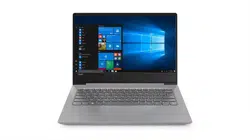

Lenovo ideapad 330S
ideapad 330S-14IKB ideapad 330S-15IKB
ideapad 330S-14IKB U
ideapad 330S-15IKB U
ideapad 330S-14IKB D
ideapad 330S-15IKB D
User Guide
Read the safety notices and important tips in the
included manuals before using your computer.
Notes
•
Before using the product, be sure to read Lenovo Safety and General Information Guide first.
•
The latest electronic compliance and environmental information are available from the
Lenovo compliance information Web sites.
- To view compliance information go to: hp://www.lenovo.com/compliance
-
To download environmental information go to: hp://www.lenovo.com/ecodeclaration
•
Some instructions in this guide may assume that you are using Windows
®
10. If you are
using another Windows operating system, some operations may be slightly di
fferent. If
you are using other operating systems, some operations may not apply to you.
• The features described in this guide are common to most models. Some features may not
be available on your computer or your computer may include features that are not
described in this user guide.
•
The illustrations used in this manual are for the Lenovo ideapad 330S-15IKB
unless otherwise stated.
• The illustrations in this manual may differ from the actual product. Please refer to the
actual product.
Regulatory Notice
•
For details, refer to Guides & Manuals at h
p://support.lenovo.com.
First Edition (January 2018)
© Copyright Lenovo 2018.
LIMITED AND RESTRICTED RIGHTS NOTICE: If data or soware is delivered pursuant to a General
Services Administration “GSA” contract, use, reproduction, or disclosure is subject to restrictions set
forth in Contract No. GS-35F-05925.

Lenovo
User Guide
User Guide
Instructions and technical information in this manual are applicable to the following
Lenovo notebook computers unless otherwise stated.
Model name MT
Lenovo ideapad 330S-14IKB
81F4
Lenovo ideapad 330S-14IKB U
Lenov
o ideapad 330S-14IKB D
Lenovo ideapad 330S-15IKB
81F5
Lenovo ideapad 330S-15IKB U
Lenovo ideapad 330S-15IKB D


i
Contents
Chapter 1. Getting to know your computer .................................................................................... 1
Top view
......................................................................................................................................................... 1
Left-side view
................................................................................................................................................ 7
Right-side view
.............................................................................................................................................. 8
Bottom view
................................................................................................................................................. 11
Chapter 2. Starting to use Windows 10......................................................................................... 12
Configuring the operating system for the first time
.............................................................................. 12
Operating system interface
........................................................................................................................ 12
Putting the computer to sleep or shutting it down
................................................................................ 14
Task and desktop management
................................................................................................................ 16
Connecting to a wireless network
............................................................................................................ 17
Chapter 3. Recovery system .......................................................................................................... 18
Reset this PC
................................................................................................................................................ 18
Chapter 4. Troubleshooting............................................................................................................ 19
Frequently asked questions
....................................................................................................................... 19
Troubleshooting
.......................................................................................................................................... 21
Trademarks................................................................................................................................
...... 25

1
Chapter 1. Getting to know your computer
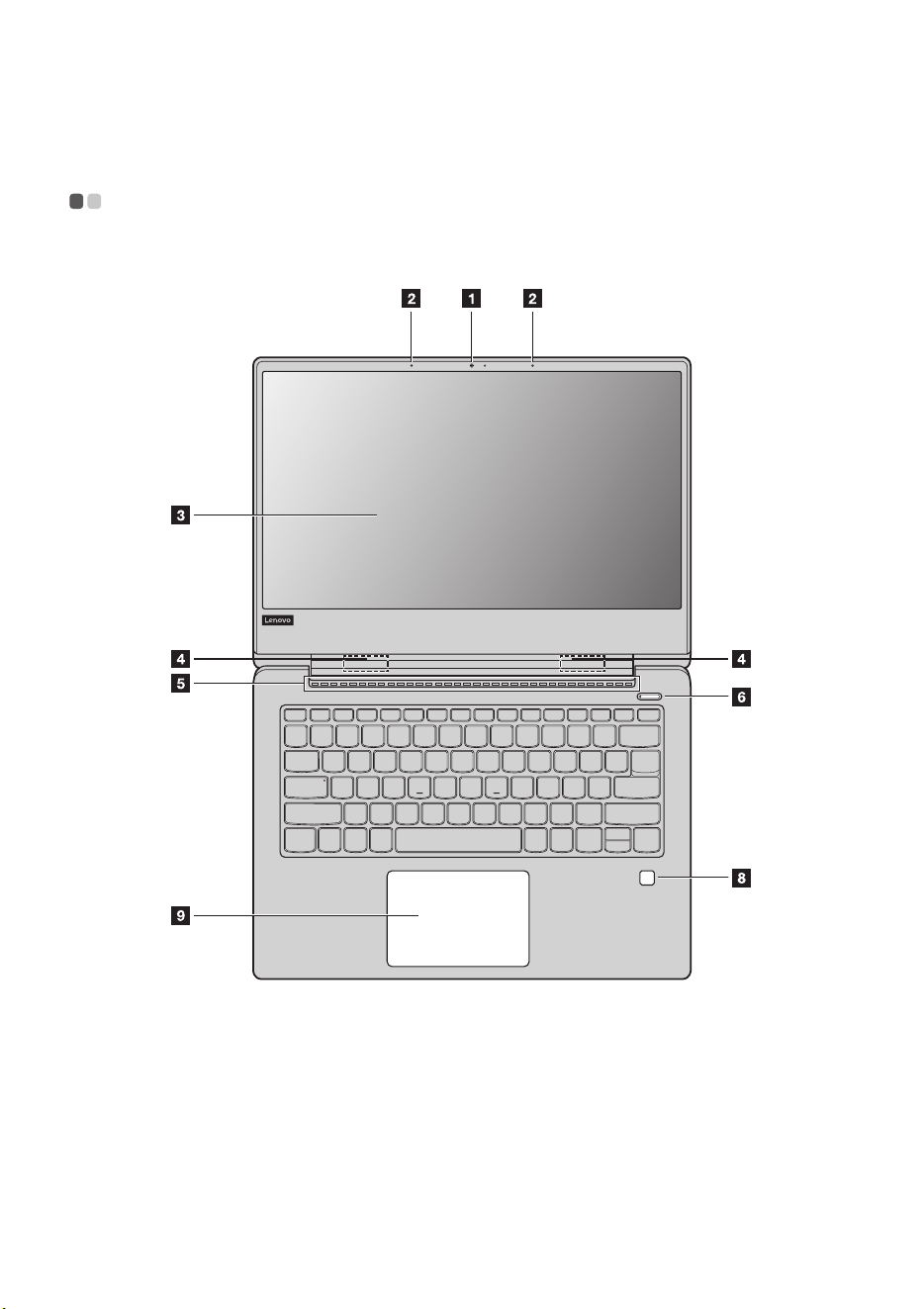
Top view - - - - - - - - - - - - - - - - - - - - - - - - - - - - - - - - - - - - - - - - - - - - - - - - - - - - - - - - - - - - - - - - - - - - - - - - - - - - - - - - - - - - - - - - - -
Lenovo ideapad 330S-14IKB
2
Chapter 1. Getting to know your computer
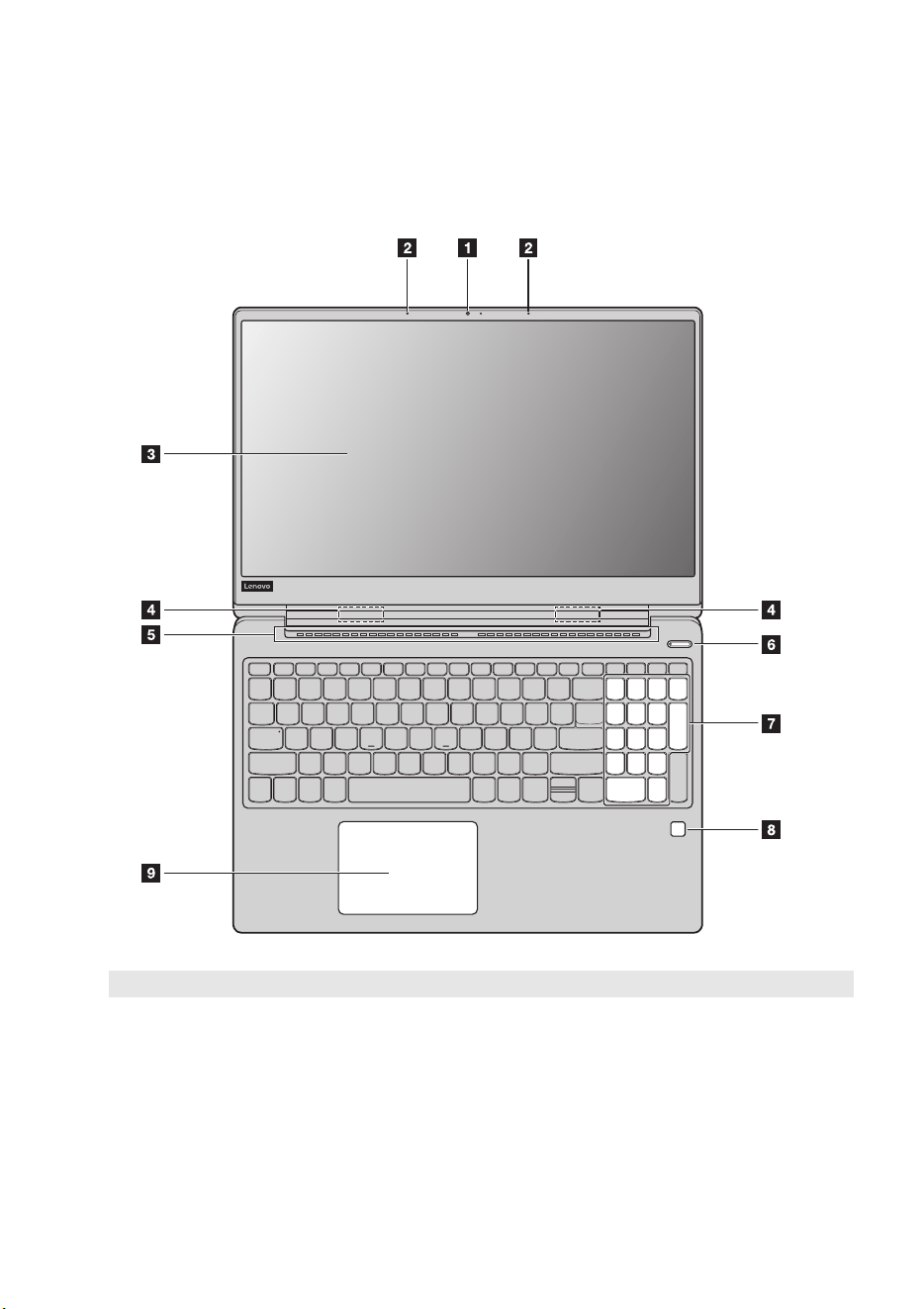
Lenovo ideapad 330S-15IKB
Note: The dashed areas indicate parts that are not visible externally.
A
ttention:
• Do no
t open the display panel beyond 180 degrees. When closing the display panel, be careful not to leave
pens or any other objects in between the display panel and the keyboard. Otherwise, the display panel
may be damaged.
Chapter 1. Getting to know your computer
3
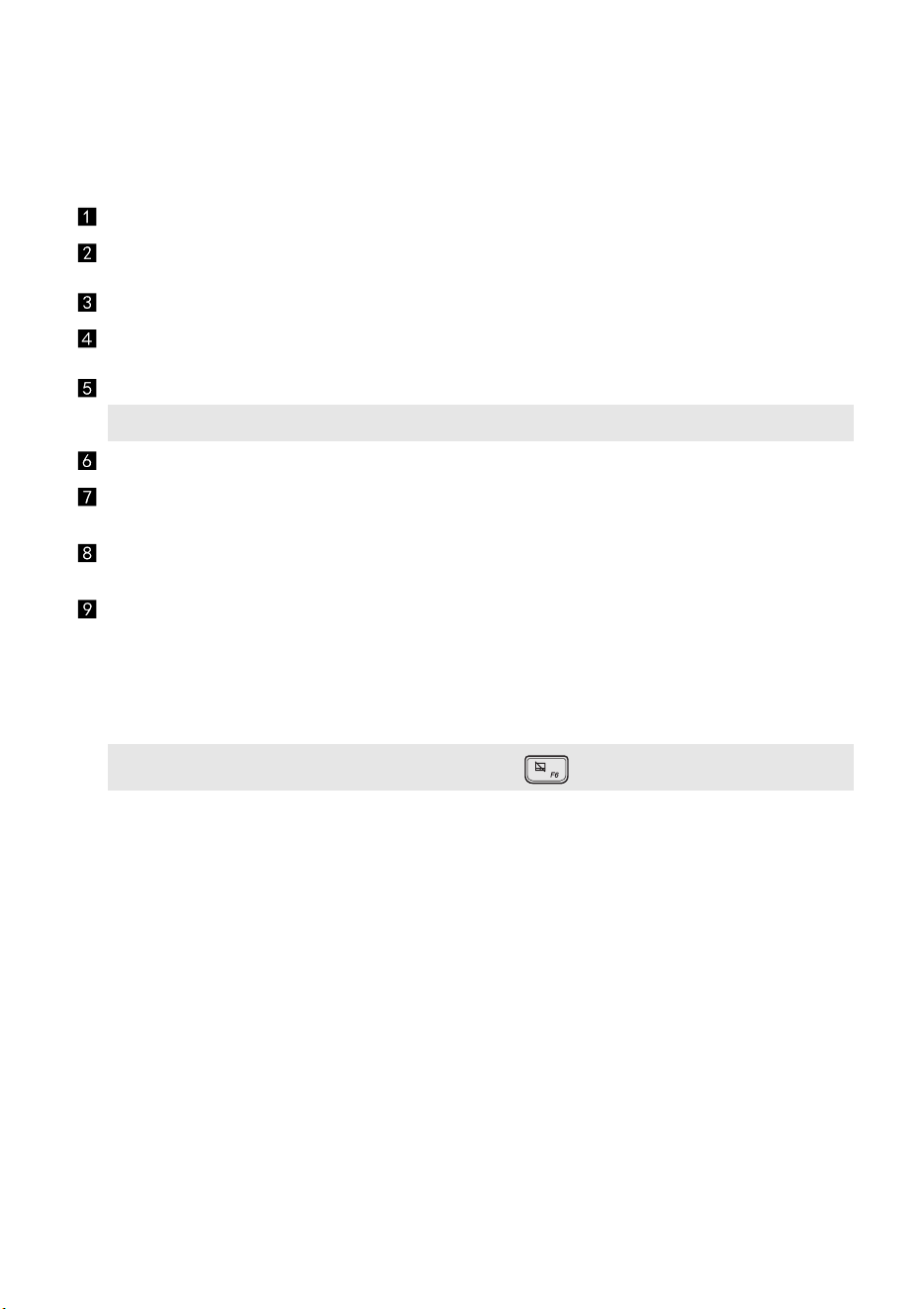
Integrated camera
Use the camera for video communication or taking photos.
Built-in microphone
Captures sound which can be used for video conferencing, voice
narration, or audio recording.
Computer display
Provides brilliant visual output.
Wireless LAN antennas
Connect to a wireless LAN adapter to send and receive wireless radio
signals.
Ventilation slots
Dissipate internal heat.
Note: Make sure that the ventilation slots are not blocked or else the computer may overheat.
Power button
Press this button to turn on the computer.
Numeric keypad (Lenovo
ideapad 330S-15IKB)
For details, see “Using the keyboard” on page 4.
Fingerprint reader (on
select models)
Registers fingerprints that can be used as passwords to secure your
computer.
Touchpad
The touchpad functions as a conventional mouse.
One piece multi-touch ClickPad: To move the pointer on the screen,
slide your fingertip over the pad in the direction in which you want the
pointer to move.
Left-click area: Clicking in this area corresponds to the functions of
clicking the left button on a conventional mouse.
Right-click area: Clicking in this area corresponds to the functions of
clicking the right button on a conventional mouse.
Note: You can enable/disable the touchpad by pressing F6 ( ).
4
Chapter 1. Getting to know your computer
Using the keyboard
Numeric keypad (Lenovo ideapad 330S-15IKB)
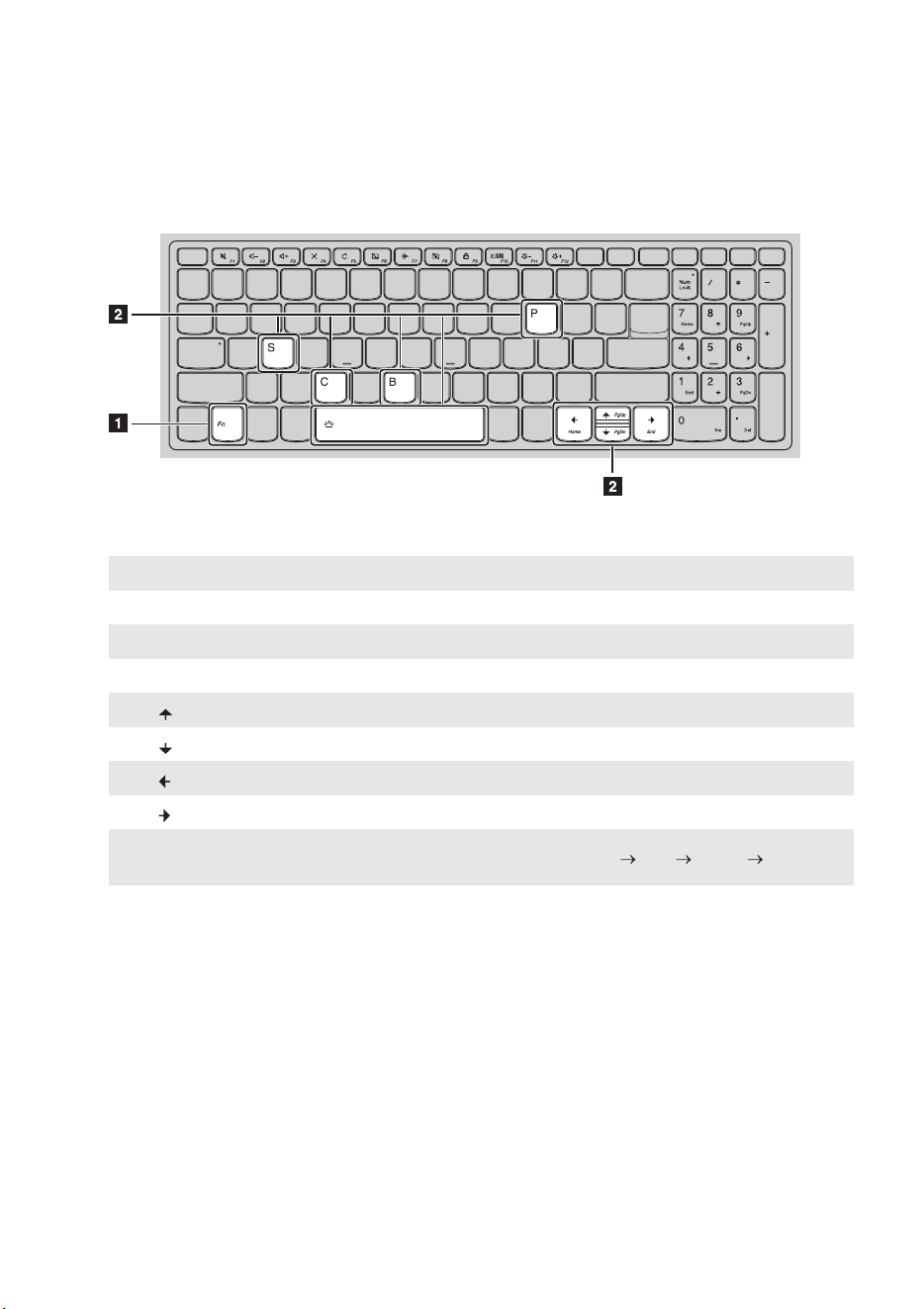
The keyboard has a separate numeric keypad. To enable or disable the numeric keypad, press
the Num Lock key.
Function key combinations
Through the use of the function keys, you can change operational features instantly. To use this
function, press and hold Fn
; then press one of the function keys .
Lenovo ideapad 330S-14IKB
Chapter 1. Getting to know your computer
5
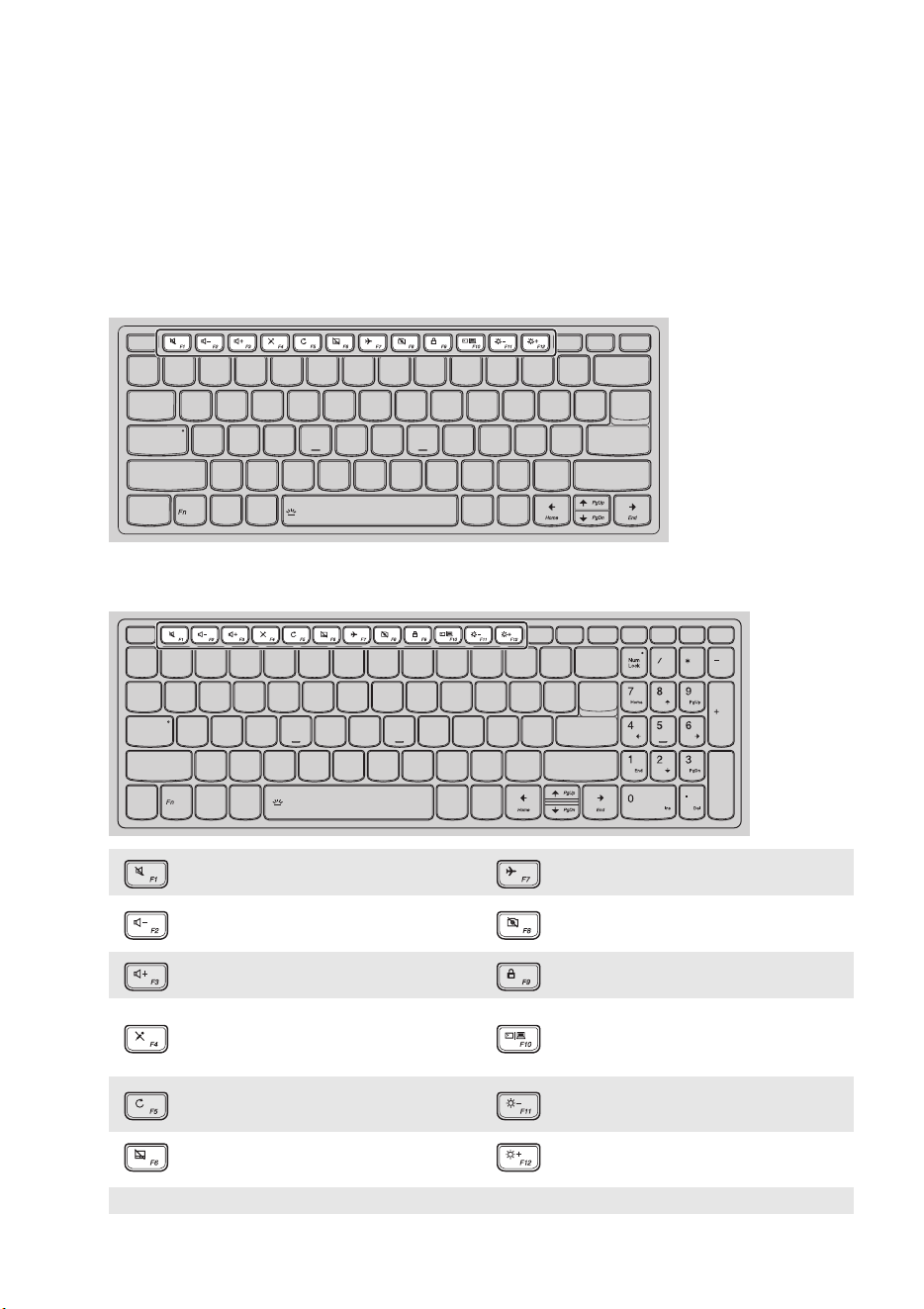
Lenovo ideapad 330S-15IKB
The following describes the features of each function key.
Fn + B: Activates the break function.
Fn + P: Activates the pause function.
Fn + C: Enables/disables the scroll lock.
Fn + S: Activates the system request.
Fn + : Activates the Pgup key function.
Fn + : Activates the Pgdn key function.
Fn + : Activates the home key function.
Fn + : Activates the end key function.
Fn + Space
(on select models):
Adjusts the keyboard backlight (off dim bright off).
6
Chapter 1. Getting to know your computer
Hotkeys
You can access certain system settings quickly by pressing the appropriate hotkeys.
Lenovo ideapad 330S-14IKB
Lenovo ideapad 330S-15IKB
: Mutes/unmutes the sound. : Enables/disables Airplane mode.
: Decreases the volume level. :
Enables/disables the integrated
camera.
: Increases the volume level. : Locks the screen.
: Enables/disables the microphone. :
Toggles the display between the
computer and an external
display device.
:
Refreshes the desktop or the
currently active window.
: Decreases the display brightness.
: Enables/disables the touchpad. : Increases the display brightness.
Note: You can use the Lenovo Setting to enable/disable the hotkey function.
Chapter 1. Getting to know your computer
7
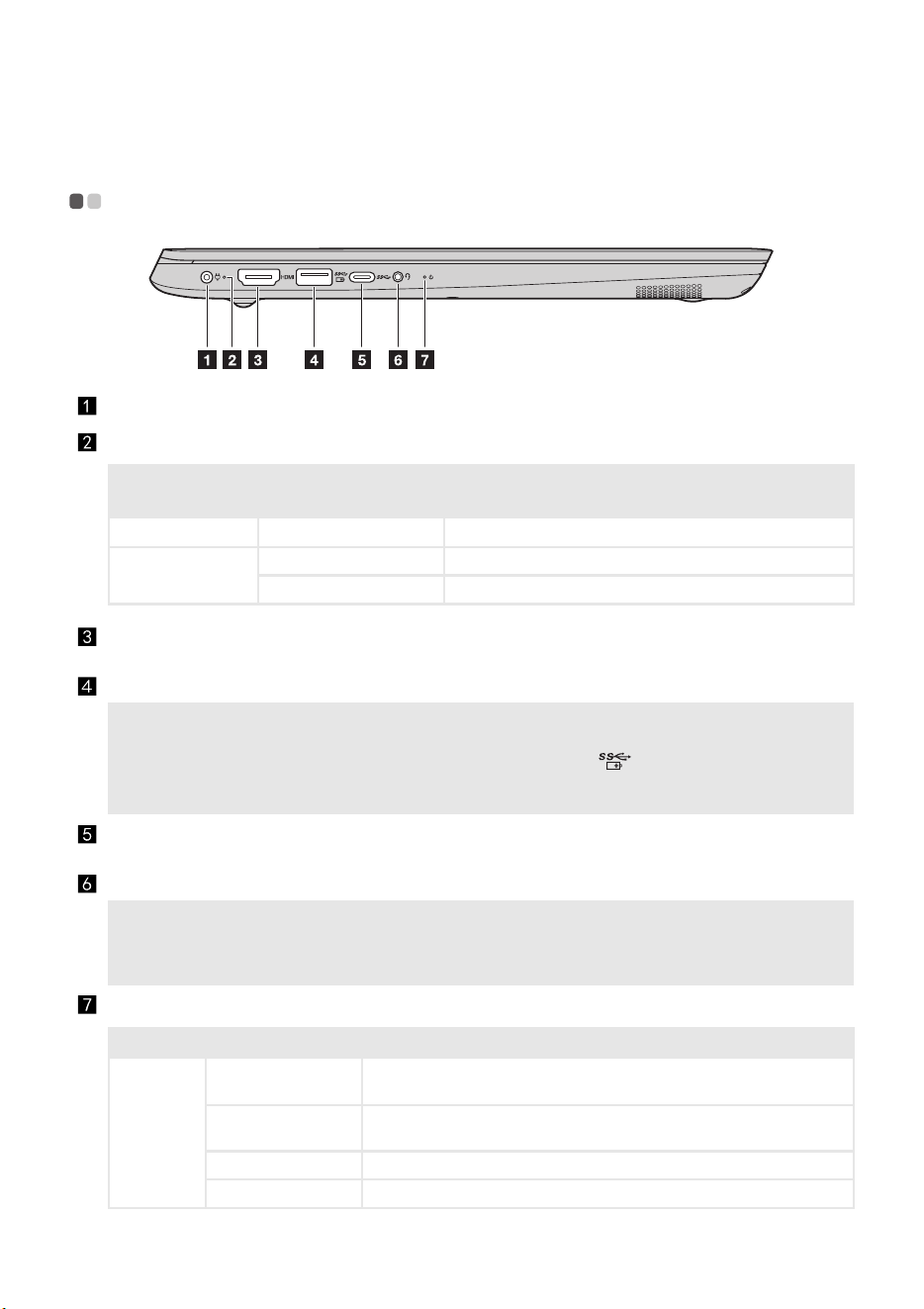
Left-side view - - - - - - - - - - - - - - - - - - - - - - - - - - - - - - - - - - - - - - - - - - - - - - - - - - - - - - - - - - - - - - - - - - - - - - - - - - - - - - - -
AC power adapter jack
Connects to the AC power adapter.
Charging status indicator
AC power
adapter status
Indicator status Meaning
Disconnected Off Disconnect the AC power adapter from the computer.
Connected
Solid amber The battery has between 1% and 80% charge.
Solid white The battery has more than 80% charge.
HDMI port
Connects to devices with HDMI input such as a TV or an external
display.
USB 3.0 port
Connects to USB devices.
Notes:
• When the computer is on, the USB port supports charging function.
• When the battery has more than 20% charge, the USB port with the
icon
can charge external USB
devices while the computer is shut down.
• For details, see “Connecting USB device” on page 10.
Type-C port
Type-C port supports:
• USB 3.1
Combo audio jack
Connects to headsets.
Notes:
• The combo audio jack does not support conventional microphones.
• The recording function might not be supported if third-party headphones or headsets are connected,
due to different industry standards.
Power status indicator
Indicator Indicator status Meaning
Power
status
indicator
On (solid white)
The computer is turned on and the battery has between 20% and 100%
charge.
On (solid amber)
The computer is turned on and the battery has between 1% and 20%
charge.
Blinking The computer is in sleep mode or the computer display lid is closed.
Off The computer is turned off.
8
Chapter 1. Getting to know your computer
Right-side view - - - - - - - - - - - - - - - - - - - - - - - - - - - - - - - - - - - - - - - - - - - - - - - - - - - - - - - - - - - - - - - - - - - - - - - - - - - - -
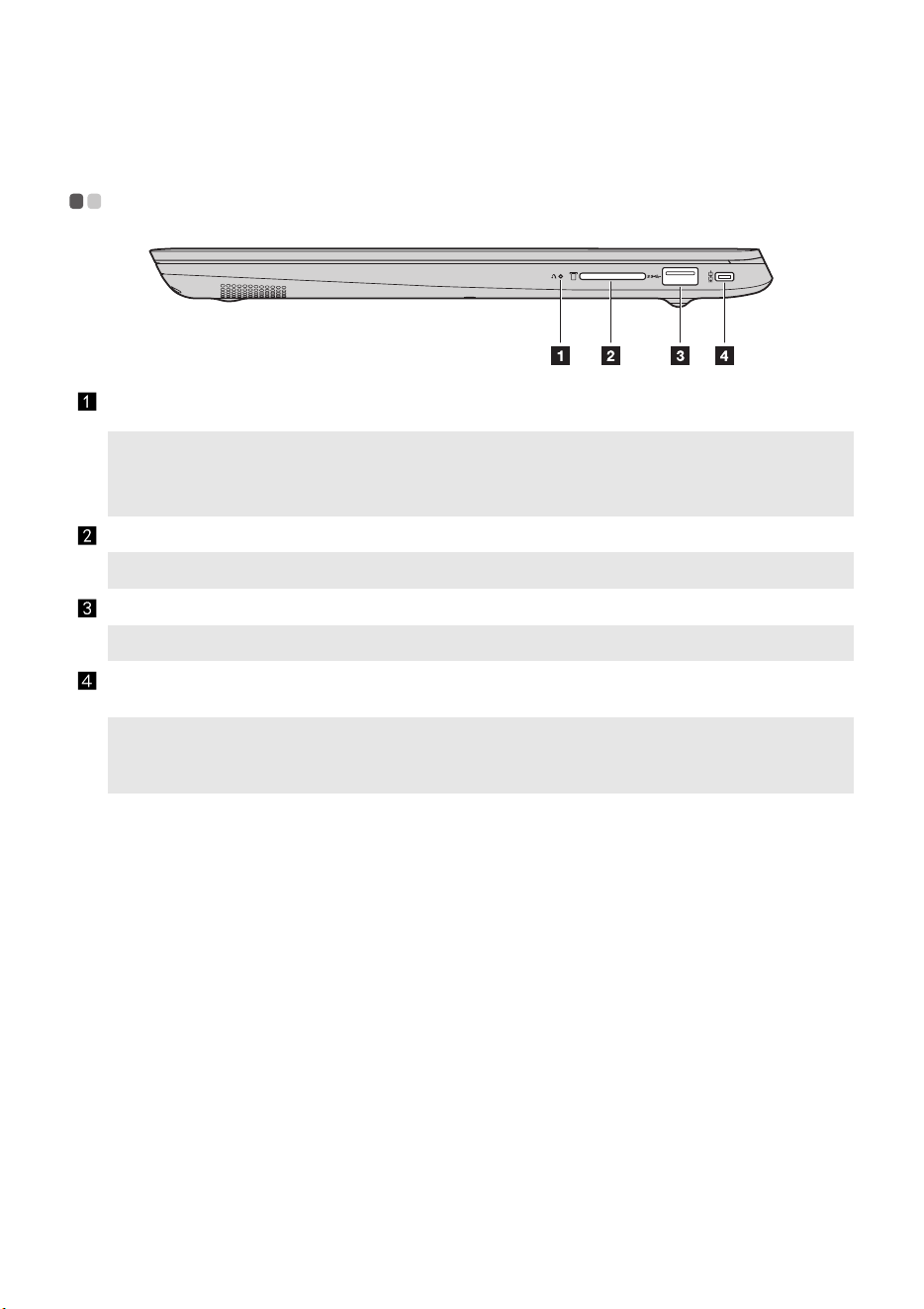
Novo button
When the computer is off, press this button to start the recovery system
or the BIOS setup utility, or to enter the boot menu.
Notes:
• You can use the tip of an unfolded paper clip (or similar object without a sharp tip) to gently press the
Novo button.
• For details, see “Recovery system” on page 18.
Memory card slot
Accepts memory cards (not supplied).
Note: For details, see “Using memory cards (not supplied)” on page 9.
USB 3.0 port
Connects to USB devices.
Note: For details, see “Connecting USB device” on page 10.
Kensington mini security
slot
For attaching a Kensington MiniSaver™ Mobile (or compatible) lock.
Note: Lock is not supplied. When purchasing a lock, choose one that utilizes the Cleat™ locking
mechanism and verify its compatibility with the slot before purchase. A lock utilizing the T-Bar™
locking mechanism is not compatible with the Kensington mini security slot.

Chapter 1. Getting to know your computer
9
Usi
ng memory cards (not supplied)
Your computer supports the following types of memory cards:
• Secure Digital (SD) card
• Secure Digital High Capacity (SDHC) card
• Secure Digital eXtended Capacity (SDXC) card
• MultiMediaCard (MMC)
Notes:
• Insert on
ly one card in the slot at a time.
• This card read
er does not support SDIO devices (e.g., SDIO Bluetooth, etc.).
Inserting a memory card
Insert the memory card until it touches the bottom of the slot.
Removing a memory card
Gently pull the memory card out of the memory card slot.
Note: Before removing the memory card, disable it by using the Windows safely remove hardware and eject
media utility to avoid data corruption.
10
Chapter 1. Getting to know your computer
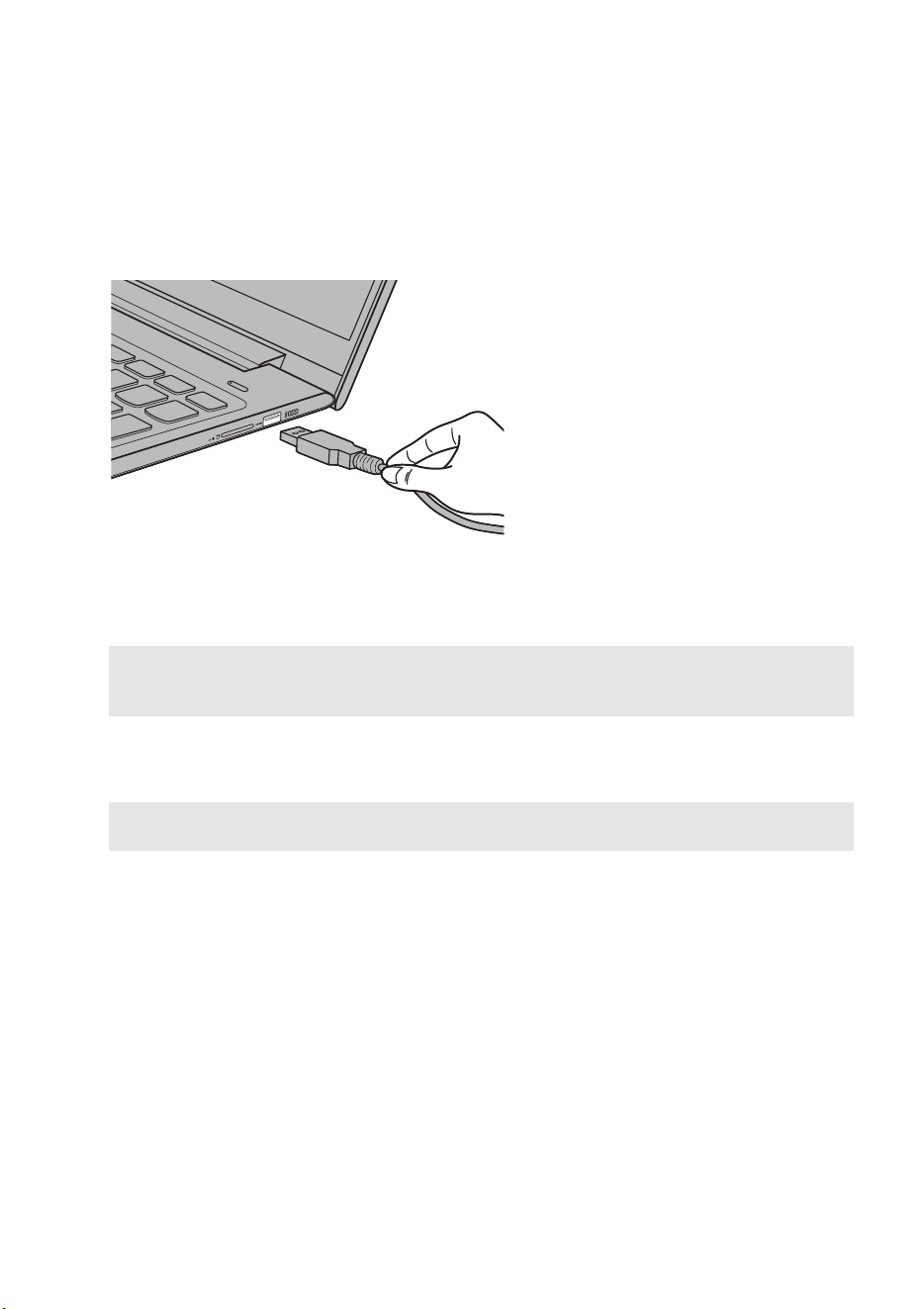
Connecting USB device
You can connect a USB device to your computer by inserting its USB plug (Type A) into the USB
port on your computer.
The first time you plug a USB device into a particular USB port on your computer, Windows
automatically installs a driver for that device. After the driver has been installed, you can
disconnect and reconnect the device without performing any additional steps.
Note: Typically, Windows detects a new device after it has been connected, and then installs the driver
automatically. However, some devices may require you to install the driver before connecting. Check
the documentation provided by the device’s manufacturer before connecting the device.
Before disconnecting a USB storage device, make sure your computer has finished transferring
data to that device. Click the Safely Remove Hardware and Eject Media icon in the Windows
notification area to remove the device before disconnecting.
Note: If your USB device uses a power cord, connect the device to a power source before connecting it.
Otherwise, the device may not be recognized.
Chapter 1. Getting to know your computer
11
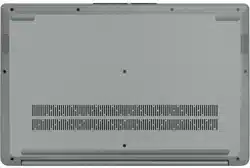
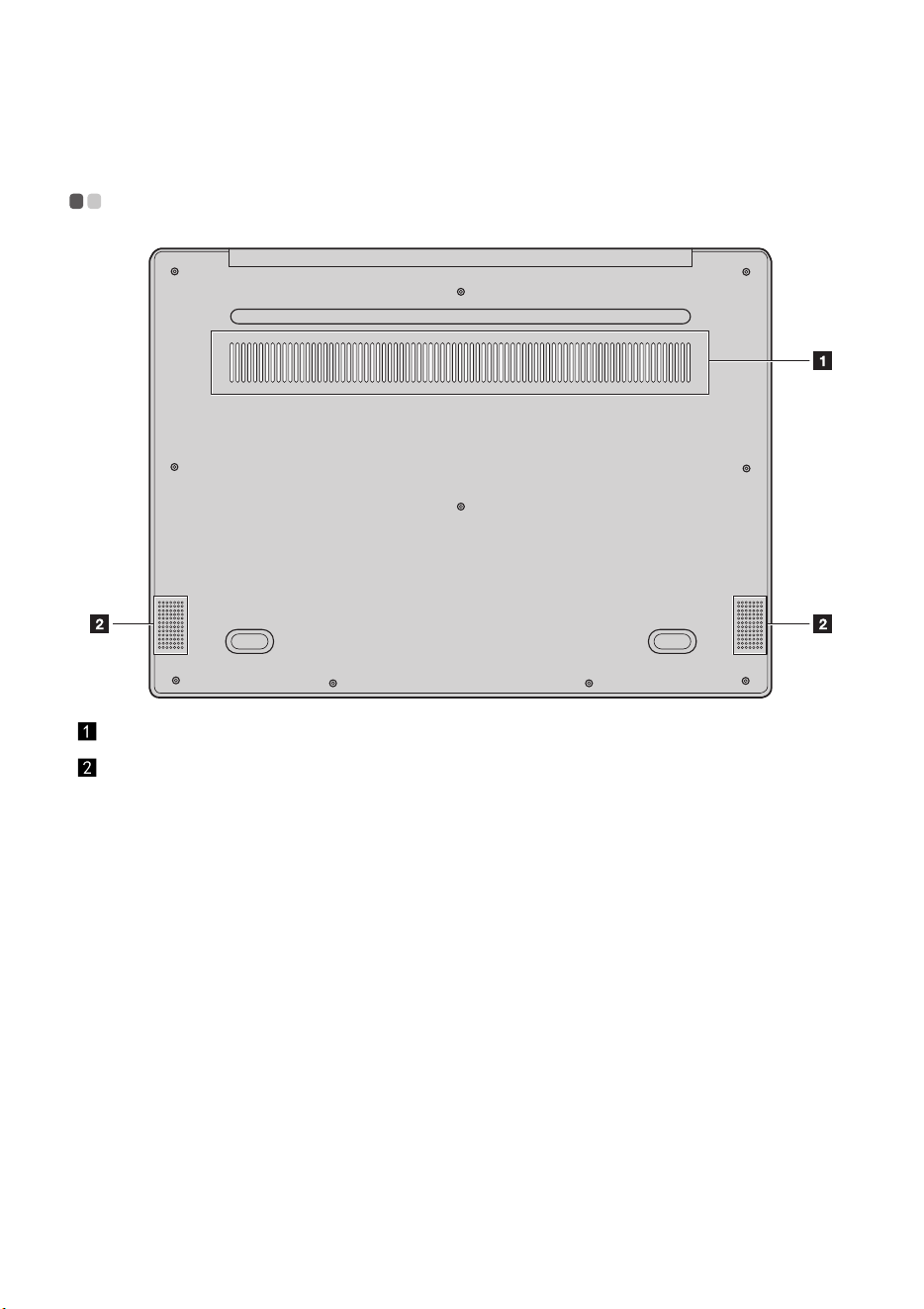
Bottom view - - - - - - - - - - - - - - - - - - - - - - - - - - - - - - - - - - - - - - - - - - - - - - - - - - - - - - - - - - - - - - - - - - - - - - - - - - - - - - - - - - -
Louvers
Allow air to enter the computer for cooling.
Speakers
Provide audio output.
12
Chapter 2. Starting to use Windows 10
Note: Windows
®
10 has an updated version. If you are using the updated version, some operations may be
different. Please refer to the actual product.
Configuring the operating system for the first time - - - - - - - - - - - -
You may need to configure the operating system when it is first used.
The configuration process may include the procedures below:
• Accepting the end user license agreement
• Configuring the Internet connection
• Registering the operating system
• Creating a user account
Operating system interface - - - - - - - - - - - - - - - - - - - - - - - - - - - - - - - - - - - - - - - - - - - - - - - - - - - - - - - -
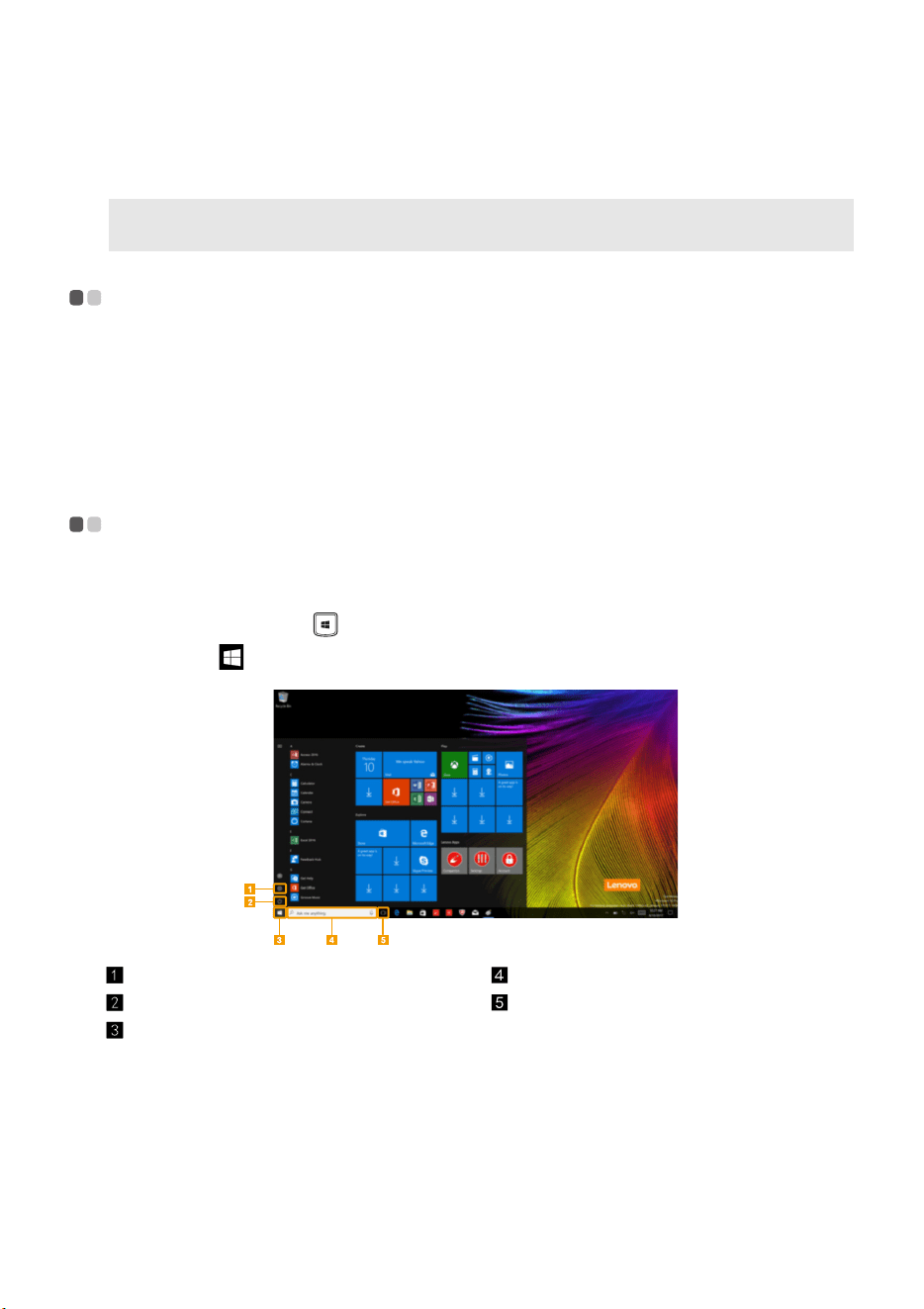
Windows 10 comes with a powerful and useful start menu.
To open the start menu, do one of the following:
• Press the Windows key
on the keyboard.
• Select
Start
on t
he lower-left corner of the desktop.
Settings button Search box
Power button Task view button
Start button
Chapter 2. Starting to use Windows 10
13
Settings
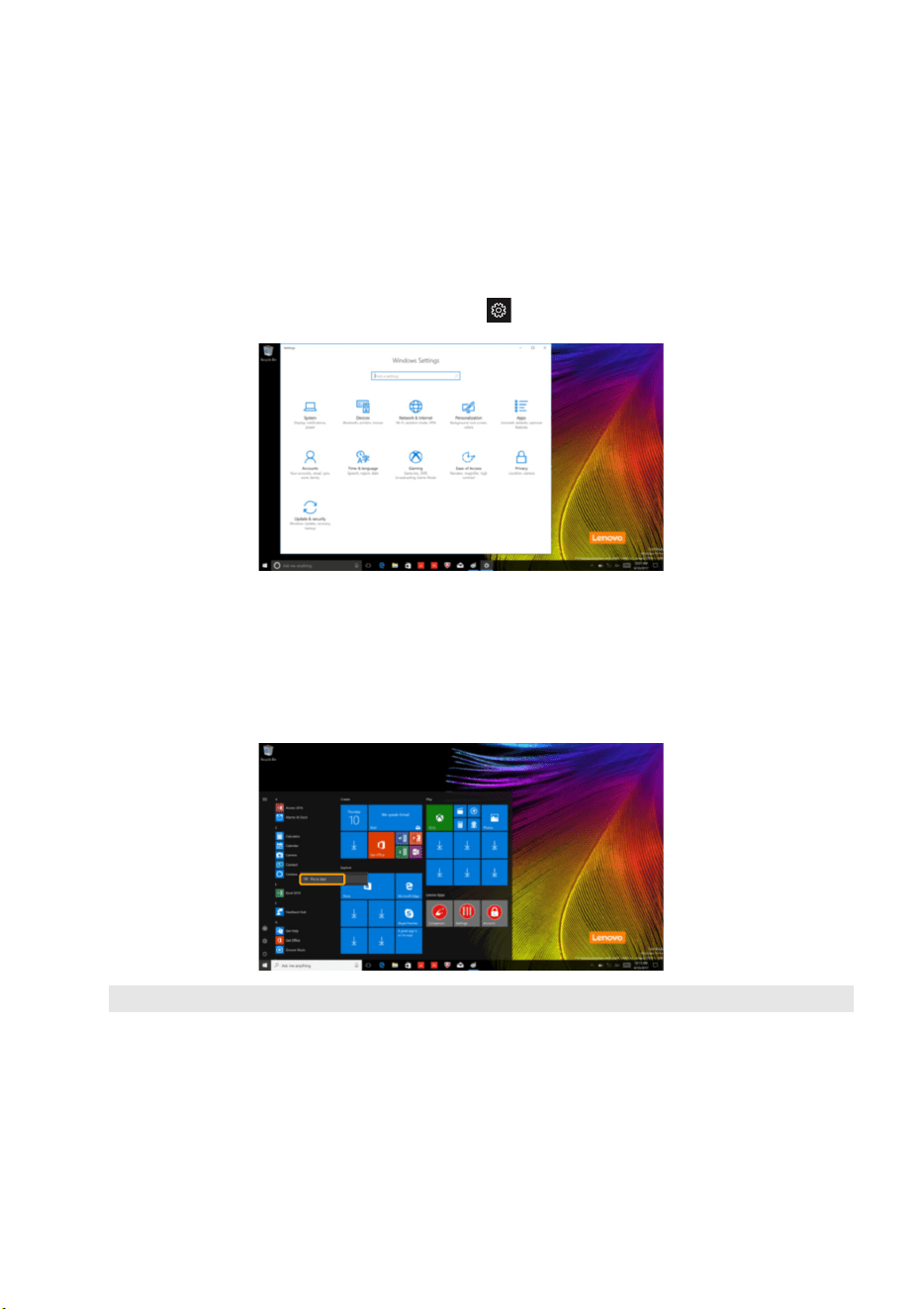
Settings lets you perform basic tasks. You can also search for more settings with the settings
search box in the upper-right corner.
To open the settings, do the following:
• Open the start menu, and then select Se
tti
ngs .
Personalize the start menu
You can personalize the start menu with your favorite apps.
To personalize the start menu, do the following:
1 Open the start menu and find the apps list on the left.
2 Right click the app you want to add to the start menu, and then select Pin to Start.
Note: You can also drag apps from the apps list to add them to the start menu.

14
Chapter 2. Starting to use Windows 10
Putting the computer to sleep or shutting it down - - - - - - - - - - - - - -
When you have finished working with your computer, you can put it to sleep or shut it down.
Putting your computer to sleep
If you will be away from your computer for only a short time, put the computer to sleep.
When the computer is in sleep mode, you can quickly w
ake it to resume use, bypassing the
startup process.
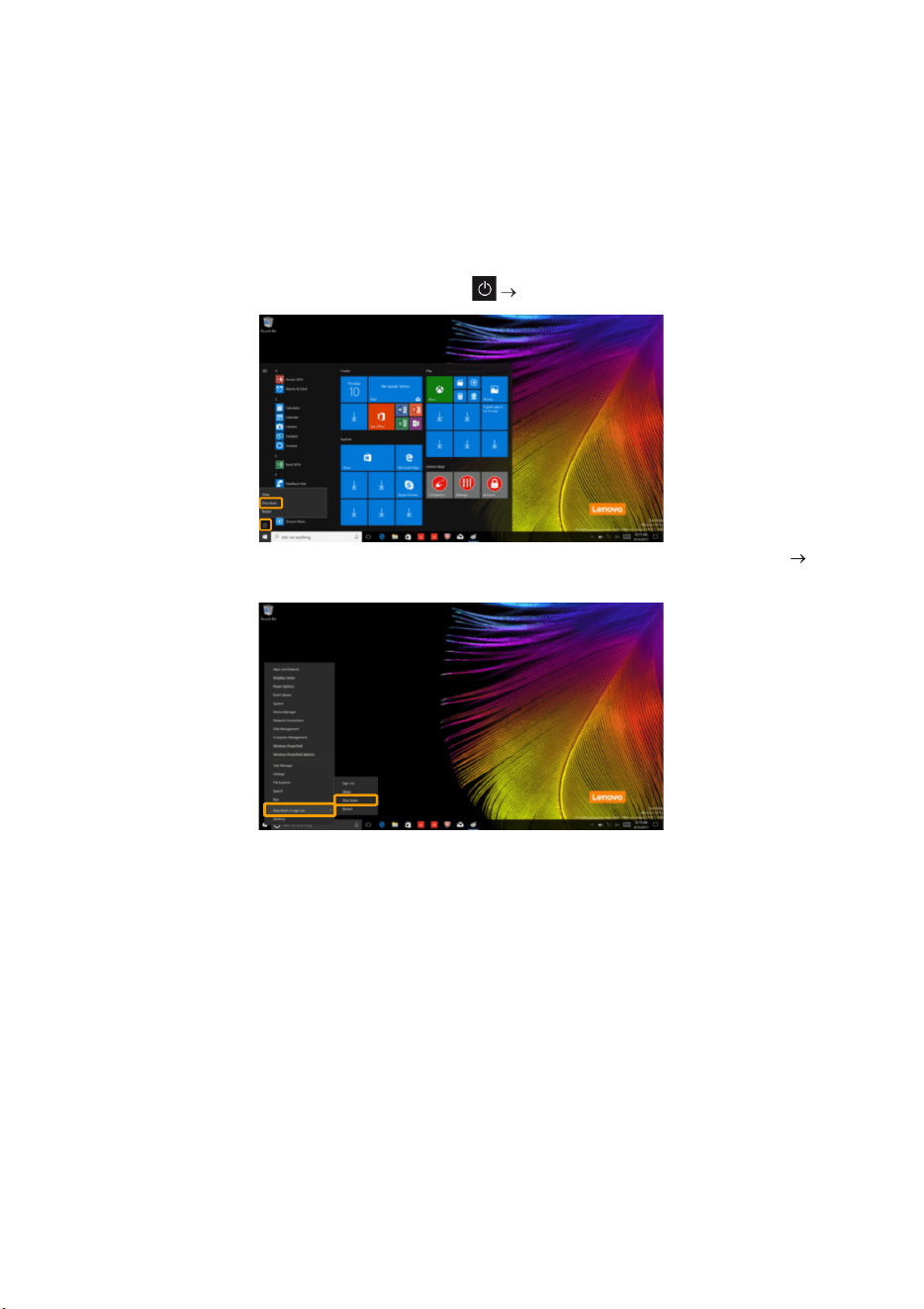
To put the computer to sleep, do one of the following:
• Close the display lid.
• Press the Power button.
• Open the start menu, and then select Power
Sleep.
Note: Wait until the power indicator light starts blinking (indicating that the computer is in sleep mode)
before you move your computer. Moving your computer while the hard disk is spinning can damage
the hard disk, causing loss of data.
T
o wake the computer, do one of the following:
• Press any key on the keyboard.
• Press the Power button.
Chapter 2. Starting to use Windows 10
15
Shutting down the computer
If you are not going to use your computer for a long time, shut it down.
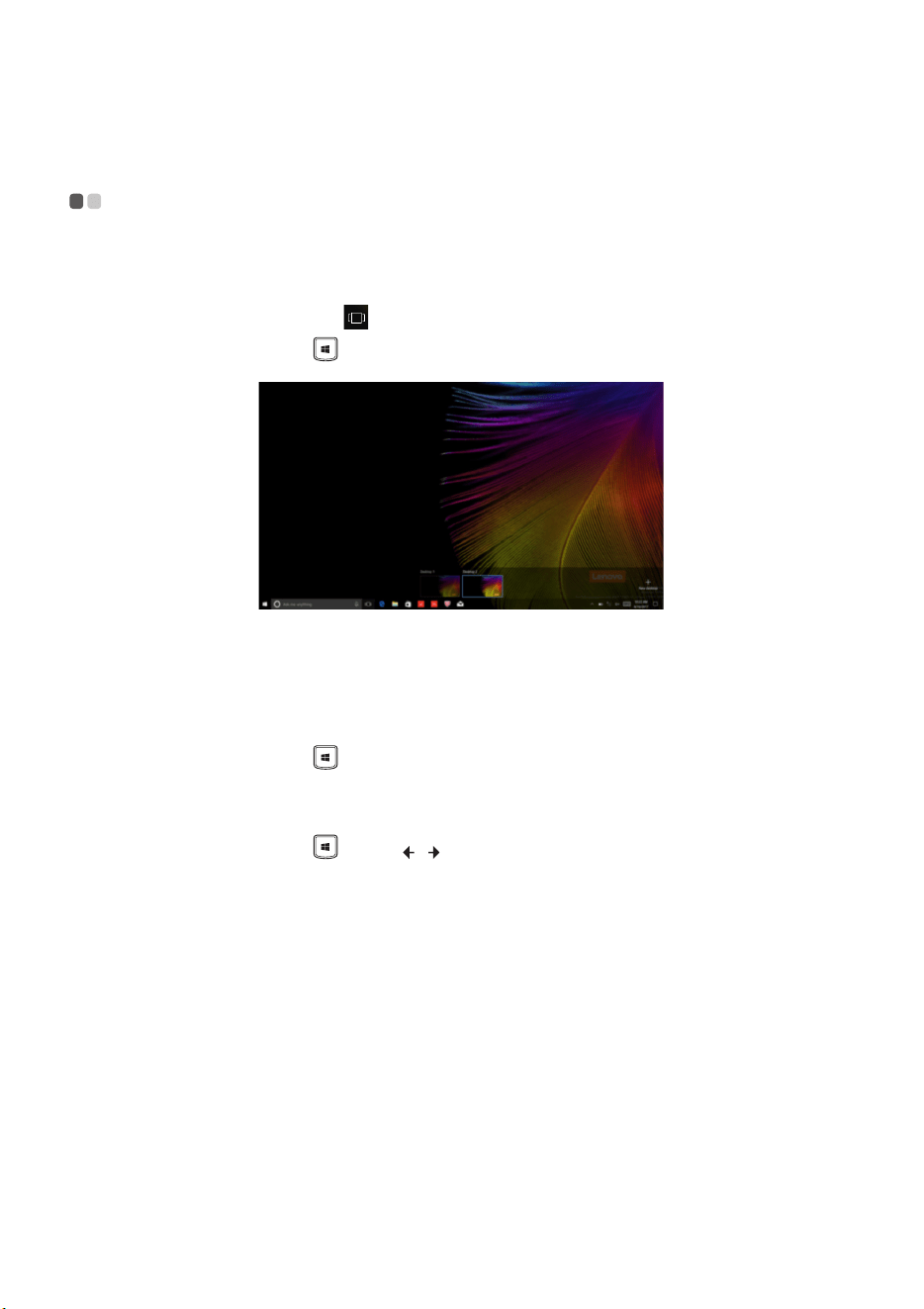
To shut down the computer, do one of the following:
• Open the start menu, and then select Power
Shut down.
•
Right-click the Start butt
on in the lower-left corner and select Shut down or sign out
Shut down.
16
Chapter 2. Starting to use Windows 10
Task and desktop management - - - - - - - - - - - - - - - - - - - - - - - - - - - - - - - - - - - - - - - - - - - - - - - -
Ta s k vi e w
To open the task view, do one of the following:
• Select the Task view button
on
the task bar.
• Press the Windows key
+ T
ab.
Virtual desktop management
Windows 10 supports the ability to create, manage and switch between virtual desktops.
To create a new virtual desktop, do one of the following:
• Open the task view, and then select New desktop.
• Press the Windows key
+ Ctrl + D.
To
switch between different desktops, do one of the following:
• Open the task view and select the desktop you want active.
• Press the Windows key
+ Ctrl + / to
scroll through the desktops you’ve created.
Chapter 2. Starting to use Windows 10
17
Connecting to a wireless network - - - - - - - - - - - - - - - - - - - - - - - - - - - - - - - - - - - - - - - - - - - -
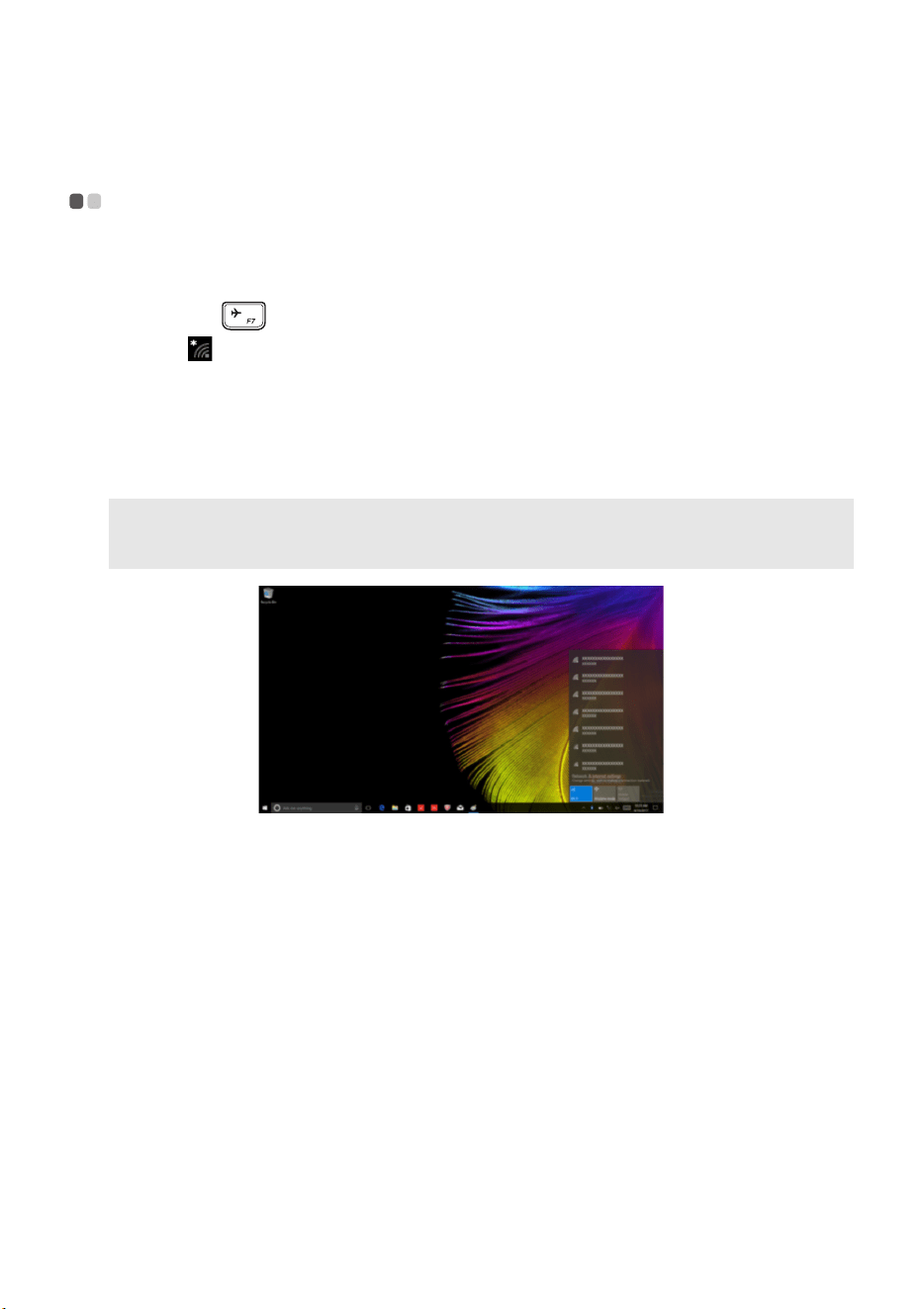
Enabling wireless connection
To enable wireless functions, do the following:
1 Press F7 ( ) to disable airplane mode.
2 Click on the lower-right corner of the task bar to open the network configuration page.
Connecting to a wireless network
After wireless has been enabled, the computer will automatically scan for available wireless
networks and display them in the wireless network list. To connect to a wireless network, click
the network name in the list, and then click Connect.
Note: Some networks require a network security key or passphrase for connection. To connect to one of
those networks, ask the network administrator or the Internet service provider (ISP) for the security
key or passphrase.

18
Chapter 3. Recovery system
Reset this PC - - - - - - - - - - - - - - - - - - - - - - - - - - - - - - - - - - - - - - - - - - - - - - - - - - - - - - - - - - - - - - - - - - - - - - - - - - - - - - - - -
Introduction
Reset this PC is a built-in recovery tool that enables users to restore their operating system to its
original state. This preserves their data and important customizations, without the need to back
up their data in advance.
The following Re
set this PC features are available to users from multiple locations within
Windows:
Keep my files
Fixes software problems by reinstalling the factory default configuration. This preserves
personal files, and deletes apps and settings.
Remove everything
Prepares the computer for recycling or transfer of ownership. This reinstalls the factory default
configuration and returns all user data and applications to the state of their original Out-of-Box
Experience (OOBE).
Using Reset this PC
Reset this PC can be launched using one of the following methods:
• Novo Menu:
- Shut down the computer and wait at least five seconds. Press the Novo button to open the
N
ovo Menu, then select System Recovery
Troubleshoot Reset this PC.
• Windows PC settings:
- Windows PC settings
Update & Security Recovery Reset this PC select Get
started.
For more instructions, see the Windows Help and Support file on your computer.

19
Chapter 4. Troubleshooting
Frequently asked questions - - - - - - - - - - - - - - - - - - - - - - - - - - - - - - - - - - - - - - - - - - - - - - - - - - - - - - -
This section lists frequently asked questions by category.
Finding information
What safety precautions should I follow when using my computer?
Read and follow all safety precautions included in Lenovo Safety a
nd General Information Guide.
Note: To view Lenovo Safety and General Information Guide, select the Companion (or Lenovo PC Manager)
icon on the taskbar. You can also download it from the Lenovo Support Web site.
What is the address of the Lenovo support Web site?
http://support.lenovo.com
Where can I find warranty information?
Visit the Lenovo Support Web site and type the serial number for your computer to look up
w
arranty information.
Lenovo preinstalled operating system and software
What is the Lenovo preinstalled operating system?
Some Lenovo computers come with copies of the operating system installed at factory. Lenovo
provides com
puters with a preinstalled operating system for your convenience. If you
purchased such a computer, you can use your computer out of the box and do not need to install
a separate operating system.
What is Lenovo preinstalled software?
This is software (developed by Lenovo or other software vendors) installed and licensed at the
facto
ry for your convenience. The license for some preinstalled software may be for trial
versions. When the trial period expires, you may need to purchase a license if you want to
continue to use the software.
Note: If a license agreement is displayed when you first start the software, read the agreement carefully. If
you don’t accept the terms of the agreement, do not use the software.
When I purchased my computer, it included a copy of Windows. How can I determine whether the
copy of Windows is preinstalled by Lenovo?
On the outside of the sales package of your co
mputer, you should find a label containing
configuration information for your computer. Check the printed string next to OS. If it contains
Windows or WIN, the copy of Windows was preinstalled by Lenovo.
I uninstalled a preinstalled software, but there is no significant increase in the free drive space.
The copy of Windows running on your computer m
ay be Compact-enabled. For computers with
Compact-enabled Windows, the majority of files needed for preinstalled software are installed
on the Recovery Partition and won’t be deleted through normal uninstallation.

20
Chapter 4. Troubleshooting
How can I determine whether the Windows running on my computer is Compact enabled?
Compact technology is normally enabled on copies of
Windows 10 Update running on SSD (or
eMMC) -only computer models. To check your computer,
1 Right-click the Start button in the lower-left corner and select Disk Management.
2 The Disk Management program starts.
If Comp
act is labeled on the Windows partition, Compact is enabled on your copy of Windows.
Where can I find drivers for the various h
ardware devices of my computer?
If your computer is preinstalled with a Windows oper
ating system, first check the installation
program on the C partition of your hard disk (for select models, on the D partition). If you
cannot find the drivers for all the hardware devices that you need there, download the drivers
from the Lenovo consumer support website.
Note: The Lenovo support Web site contains the latest drivers.
BIOS setup utility
What is the BIOS setup utility?
The BIOS setup utility is ROM-based software. It com
municates basic computer information and
provides options for setting boot devices, security, hardware mode, and other preferences.
How can I start the BIOS setup utility?
To start the BIOS setup utility:
1 Shut down the computer.
2 Press the Novo button and then select BIOS Setup.
How can I change the boot mode? (on select models)
There are two boot modes: UE
FI and Legacy Support. To change the boot mode, start the BIOS
setup utility and set boot mode to UEFI or Legacy Support on the boot menu.
When do I need to change the b
oot mode? (on select models)
The default boot mode for your computer is UEF
I mode. If you need to install a legacy Windows
operating system on your computer, you must change the boot mode to Legacy Support. The
legacy Windows operating system cannot be installed if you don't change the boot mode.
Getting help
How can I contact the customer support center?
See “Chapter 3. Getting help and service” of Lenovo Safety an
d General Information Guide.

Chapter 4. Troubleshooting
21
Troubleshooting - - - - - - - - - - - - - - - - - - - - - - - - - - - - - - - - - - - - - - - - - - - - - - - - - - - - - - - - - - - - - - - - - - - - - - - - - - - -
Display problems
When I turn on the
computer, nothing
appears on the screen.
• If the screen is blank, make sure that:
- The AC power adapter is connected to the computer, and
p
lugged into a working electrical outlet.
- The computer power is on. (Press the Power button again
for
confirmation.)
• If t
hese items are properly set, and the screen remains blank,
have the computer serviced.
When I turn on the
c
omputer, only a white
cursor appears on a blank
screen.
• Resto
re backed-up files to your Windows environment or the
entire contents of your hard disk to its original factory
contents using the Reset this PC. If you still see only the
cursor on the screen, have the computer serviced.
The screen goes blank
whil
e the computer is on.
• Your screen saver or power management may be enabled. Do
one of the following to exit from the screen saver or to
resume from sleep mode:
- Touch the touchpad.
- Press any key on the keyboard.
- Press the Power button.
BIOS password problems
I forgot my password. • If you forget your user password, ask the system
administrator to clear your user password.
• If
you forget your hard disk drive password, a Lenovo
authorized servicer cannot reset your password or recover
data from the hard disk. You must take your computer to a
Lenovo authorized servicer or a marketing representative to
have the hard disk drive replaced. Proof of purchase is
required, and a fee will be charged for parts and service.
• If
you forget your administrator password, a Lenovo
authorized servicer cannot reset your password. You must
take your computer to a Lenovo authorized servicer or a
marketing representative to have the system board replaced.
Proof of purchase is required, and a fee will be charged for
parts and service.

22
Chapter 4. Troubleshooting
Sleep problems
The critical low-battery
error message appears,
and the computer
immediately turns off.
• Th
e battery power is getting low. Connect the AC power
adapter to the computer.
The computer enters sleep
mo
de immediately after
Power-on self-test (POST).
• Make sure that:
- The battery pack is charged.
- The operating temperature is within the acceptable range.
See “Chapt
er 2. Use and care Information” in the Lenovo
Safety and General Information Guide.
Note: If the battery pack is charged and the temperature is within range, have the computer serviced.
The computer does not
return from sleep mode,
and the computer does
not work.
• If y
our computer is in sleep mode, connect the AC power
adapter to the computer, then press any key or the Power
button.
• If t
he system still does not return from sleep mode, stops
responding, or cannot be turned off, reset the computer.
Unsaved data may be lost. To reset the computer, press and
hold the Power button for four seconds or more. If the
computer is still not reset, remove the AC power adapter.
Display panel problems
The screen is blank. • Do the following:
- If you are using the AC power adapter or the battery pack,
and th
e battery status indicator is on, press F12 (
)to
make the screen brighter.
- If the power indicator is blinking, press the Power button to
r
esume from sleep mode.
- If the problem persists, follow the solution in the next
p
roblem “The screen is unreadable or distorted.”
The screen is unreadable
or
distorted.
• Make sure that:
- The display device driver is installed correctly.
- The screen resolution and color quality are correctly set.
- The monitor type is correct.
Incorrect characters
appe
ar on the screen.
• Is the operating system or programs installed correctly? If
they are installed and configured correctly, have the
computer serviced.

Chapter 4. Troubleshooting
23
Sound problems
No sound can be heard
from the speaker even
when the volume is turned
up.
• Make sure that:
- The Mute function is off.
- The combo audio jack is not being used.
- Speakers are selected as the playback device.
Battery pack problems
Your computer shuts
down before the battery
status indicator shows
empty.
-or-
Your computer operates
after the battery status
indicator shows empty.
• Discharge and recharge the battery pack.
The computer does not
operate with a fully
charged battery pack.
• The surge protector in the battery pack might be active. Turn
off the computer for one minute to reset the protector; then
turn on the computer again.
A hard disk drive problem
The hard disk drive does
not work.
• Make sure that the hard disk drive is included in the Boot
menu in the BIOS setup utility correctly.

24
Chapter 4. Troubleshooting
Other problems
Your computer does not
respond.
• To turn off your computer, press and hold the Power button
for four seconds or more. If the computer still does not
respond, remove the AC power adapter.
• Your computer might lock when it enters sleep mode during
a communication operation. Disable the sleep timer when
you are working on the network.
The computer does not
start from a device you
want.
• See the Boot menu of the BIOS setup utility. Make sure that
the BIOS setup utility is set so that the computer starts from
the device you want.
• Also make sure that the device from which the computer
starts is enabled. Make sure that the device is included in the
Boot menu in the BIOS setup utility correctly.
• While turned off, press the Novo button to select the device
you want the computer to start from.
The connected external
device does not work.
• Do not connect or disconnect any external device cables other
than USB while the computer power is on. Otherwise, you
might damage your computer.
• When using high power consumption external devices such
as an external USB optical disk drive, use an external device
power adapter. Otherwise, the device may not be recognized,
or the system may shut down as a result.

25
Trademarks
The following terms are trademarks or registered trademarks of Lenovo in the United States,
other countries, or both.
Lenovo
ideapad
Microsoft and Windows are trademarks of Microsoft Corporation in the United States, other
countries, or both.
Other company, products, or service names may be trademarks or service marks of others.

©Lenovo China 2018
en-US
Rev. AA00