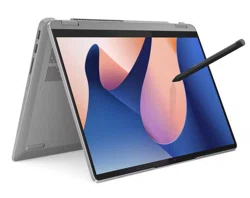

User Guide
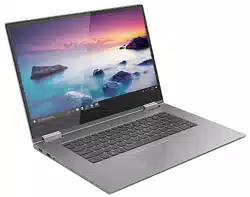
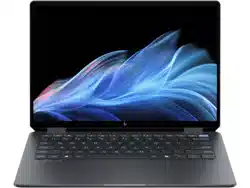
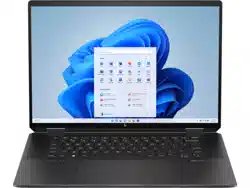
IdeaPad Flex 5i (14″, 8), IdeaPad Flex 5 (14″, 8), IdeaPad Flex 5i (16″,
8) and IdeaPad Flex 5 (16″, 8)

Read this first
Before using this documentation and the product it supports, ensure that you read and understand the
following:
•
Generic Safety and Compliance Notices
• Safety and Warranty Guide
• Setup Guide
First Edition (December 2022)
© Copyright Lenovo 2022.
LIMITED AND RESTRICTED RIGHTS NOTICE: If data or software is delivered pursuant to a General Services
Administration “GSA” contract, use, reproduction, or disclosure is subject to restrictions set forth in Contract No. GS-
35F-05925.

Contents
About this guide . . . . . . . . . . . . . iii
Chapter 1. Meet your computer . . . . . 1
Front . . . . . . . . . . . . . . . . . . . . 1
Base . . . . . . . . . . . . . . . . . . . . 2
Left . . . . . . . . . . . . . . . . . . . . 4
Right . . . . . . . . . . . . . . . . . . . . 6
Bottom . . . . . . . . . . . . . . . . . . . 7
Features and specifications . . . . . . . . . . . 8
Statement on USB transfer rate . . . . . . . 10
Operating environment . . . . . . . . . . 10
Avoid constant body contact with specific hot
sections . . . . . . . . . . . . . . . . 10
Chapter 2. Get started with your
computer . . . . . . . . . . . . . . . . 11
Work with Windows . . . . . . . . . . . . . 11
Windows help information . . . . . . . . . 12
Lenovo Vantage, Lenovo PC Manager or Lenovo
Smart Engine . . . . . . . . . . . . . . . . 12
The Novo Button menu . . . . . . . . . . . . 12
Open the Novo Button menu . . . . . . . . 12
Interact with your computer . . . . . . . . . . 13
Hotkeys . . . . . . . . . . . . . . . . 13
The FnLock switch . . . . . . . . . . . . 13
Dual-function keys without printed icons . . . 14
Numeric keypad . . . . . . . . . . . . . 15
Touch operations supported by Windows . . . 15
Use a pen . . . . . . . . . . . . . . . 16
Chapter 3. Explore your computer . . 19
Intelligent features . . . . . . . . . . . . . . 19
Gesture Controls (Touch screen/Touchpad) . . 19
Presence Detection . . . . . . . . . . . 19
Super Resolution (for selected models) . . . . 19
Eye Care Mode . . . . . . . . . . . . . 19
Smart Noise Cancelling . . . . . . . . . . 19
Smart Appearance . . . . . . . . . . . . 19
Lock-Screen Notes . . . . . . . . . . . 20
Manage power . . . . . . . . . . . . . . . 20
Rechargeable battery pack . . . . . . . . 20
Set power button behavior. . . . . . . . . 21
A power plan . . . . . . . . . . . . . . 21
System operation modes . . . . . . . . . 21
Adjustable display refresh rate . . . . . . . 22
Change settings in UEFI/BIOS setup utility . . . . 22
What is UEFI/BIOS setup utility . . . . . . . 22
Open the UEFI/BIOS setup utility . . . . . . 22
Select boot devices . . . . . . . . . . . 23
Change hotkey mode . . . . . . . . . . . 23
Enable or disable always-on . . . . . . . . 23
Set passwords in UEFI/BIOS setup utility . . . . . 23
Password types . . . . . . . . . . . . . 23
Set administrator password . . . . . . . . 24
Change or remove administrator password . . 24
Set user password . . . . . . . . . . . . 24
Enable power-on password . . . . . . . . 25
Set hard disk password . . . . . . . . . . 25
Change or remove hard disk password . . . . 25
Chapter 4. Help and support . . . . . 27
Frequently asked questions . . . . . . . . . . 27
How do I partition my storage drive . . . . . 27
What should I do if my computer stops
responding . . . . . . . . . . . . . . . 27
What should I do if I spill liquid on the
computer . . . . . . . . . . . . . . . 27
Where can I get the latest device drivers and
UEFI/BIOS . . . . . . . . . . . . . . . 27
Why does my screen brightness change
constantly . . . . . . . . . . . . . . . 27
Why does my computer start automatically
when I open the lid . . . . . . . . . . . . 27
Self-help resources . . . . . . . . . . . . . 28
What is a CRU? . . . . . . . . . . . . . . . 29
CRUs for your product model . . . . . . . . . 29
Call Lenovo . . . . . . . . . . . . . . . . 30
Before you contact Lenovo . . . . . . . . 30
Lenovo Customer Support Center . . . . . . 30
Purchase additional services. . . . . . . . . . 31
Appendix A. Function descriptions
for Lenovo hotkeys . . . . . . . . . . 33
Appendix B. Notices and
trademarks . . . . . . . . . . . . . . . 35
© Copyright Lenovo 2022 i

ii User Guide

About this guide
• This guide applies to Lenovo product model(s) listed below. Illustrations in this guide may look slightly
different from your product model.
Model name
Machine type (MT)
IdeaPad Flex 5 14IRU8 82Y0
IdeaPad Flex 5 14ABR8 82XX
IdeaPad Flex 5 16IRU8 82Y1
IdeaPad Flex 5 16ABR8 82XY
• For further compliance information, refer to the Generic Safety and Compliance Notices at
https://pcsupport.lenovo.com/docs/generic_notices.
• This guide may contain information about accessories, features, and software that are not available on all
models.
• This guide contains instructions that are based on the Windows operating system. These instructions are
not applicable if you install and use other operating systems.
• Microsoft
®
makes periodic feature changes to the Windows
®
operating system through Windows Update.
As a result, the operating system related instructions may become outdated. Refer to Microsoft resources
for the latest information.
• The content of the guide is subject to change without notice. To obtain the latest version, go to
https://support.lenovo.com.
© Copyright Lenovo 2022 iii

iv User Guide
Chapter 1. Meet your computer
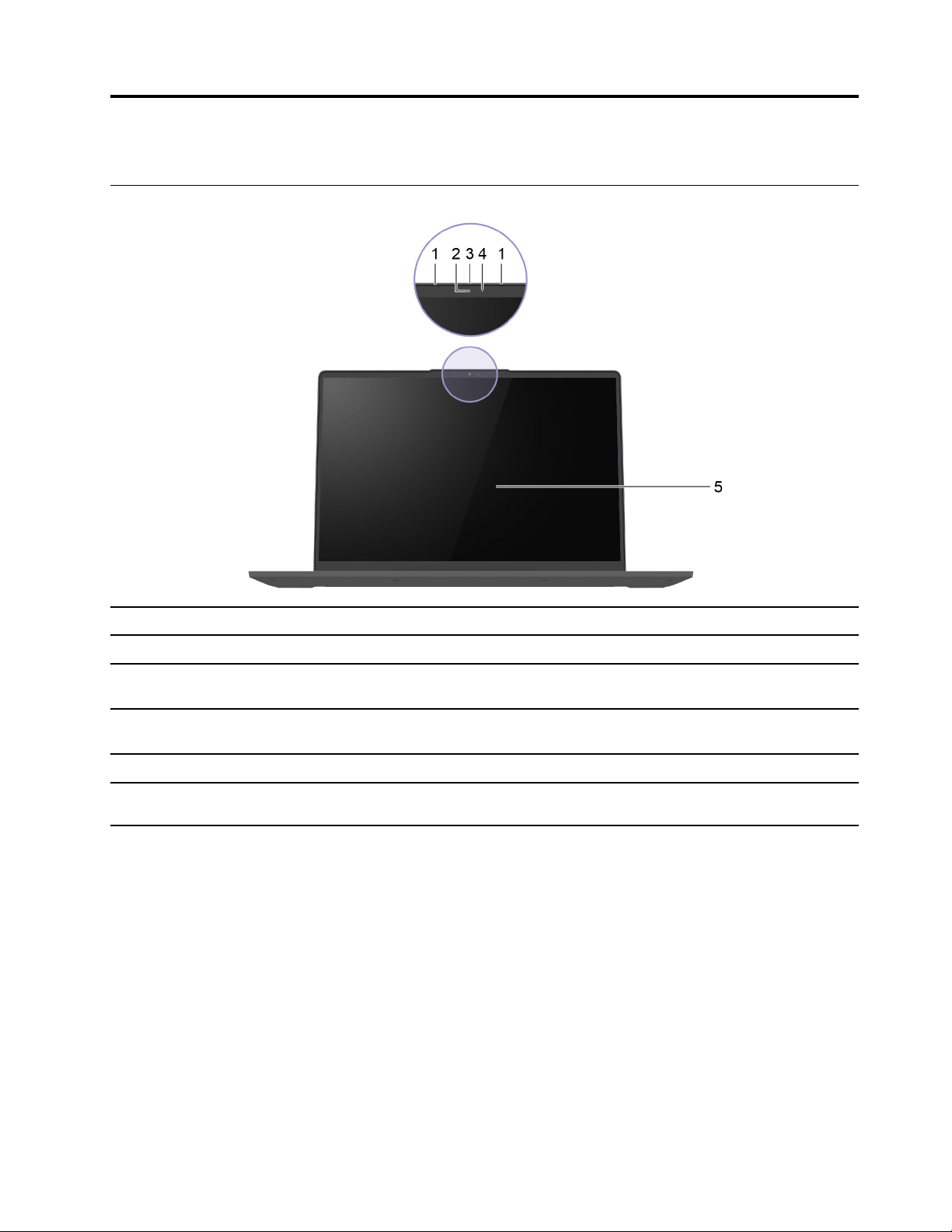
Front
Item Controls & Connectors
Description
1 Microphones
Capture or record sound and voice.
2
Camera Capture still and moving images for taking photos,
recording videos, and engaging in video conferences.
3
Camera cover Physically disable the camera function for privacy
protection.
4
Camera light If the light is on, the camera is in use.
5
Screen Display text, graphics, and videos. The screen supports
multi-touch function.
© Copyright Lenovo 2022 1
Base
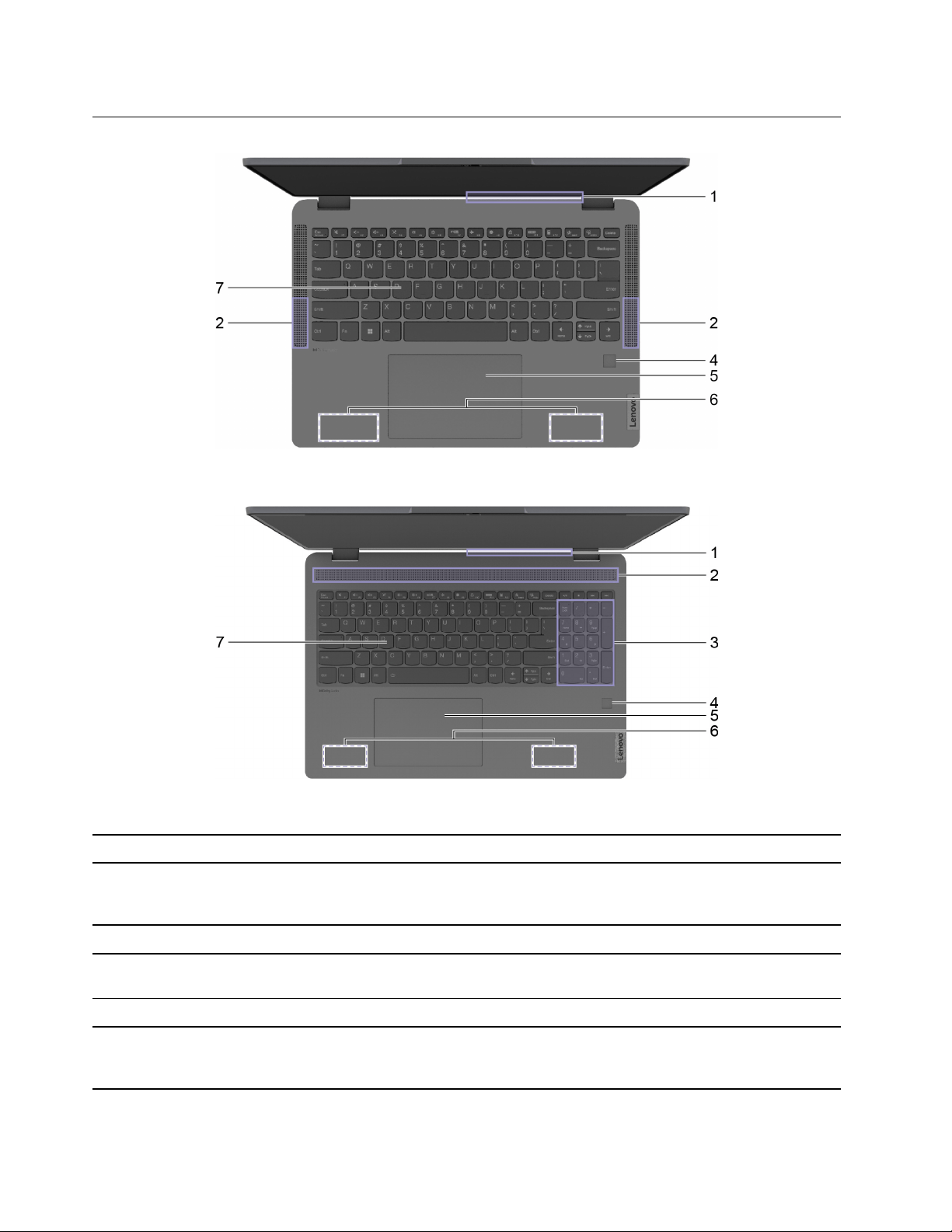
Figure 1. Base view—14-inch models
Figure 2. Base view—16-inch models
Item Controls & Connectors
Description
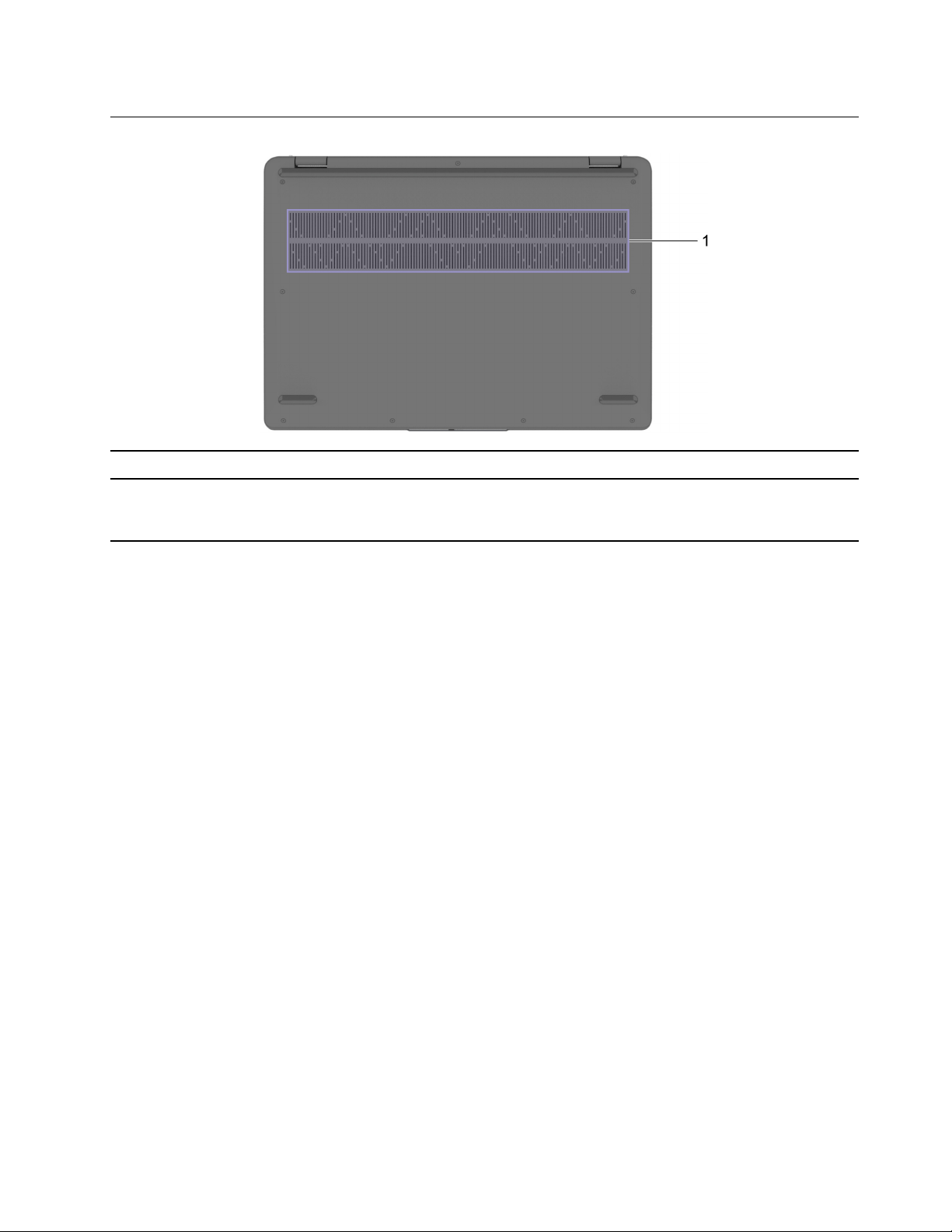
1
Ventilation slots (outlet) Maintain the outgoing airflow to dissipate internal heat.
Attention: Do not block the ventilation slots. Otherwise,
the computer may overheat.
2
Speakers Produce sound.
3 Numeric keypad To enable or disable the numeric keypad, press the Num
Lock key.
4 Fingerprint reader Enroll and read your fingerprint for user authentication.
5 Touchpad Perform finger touch and all the functions of a traditional
mouse.
Note: The touchpad also supports multi-touch function.
2 User Guide

Item Controls & Connectors
Description
6 Wireless antennas
Send and receive radio waves for the built-in wireless
LAN (local area network) and Bluetooth module.
Notes:
• The antennas are not visible from the outside of the
computer.
• If the location of the antennas is close to the user’s
body (< 20 cm), you can find the Specific Absorption
Rate (SAR) values in the Setup Guide that comes with
your computer.
7 Keyboard Enter characters and interact with programs.
Note: The keyboard also includes hotkeys and function
keys for changing settings and performing tasks quickly.
Chapter 1. Meet your computer 3
Left
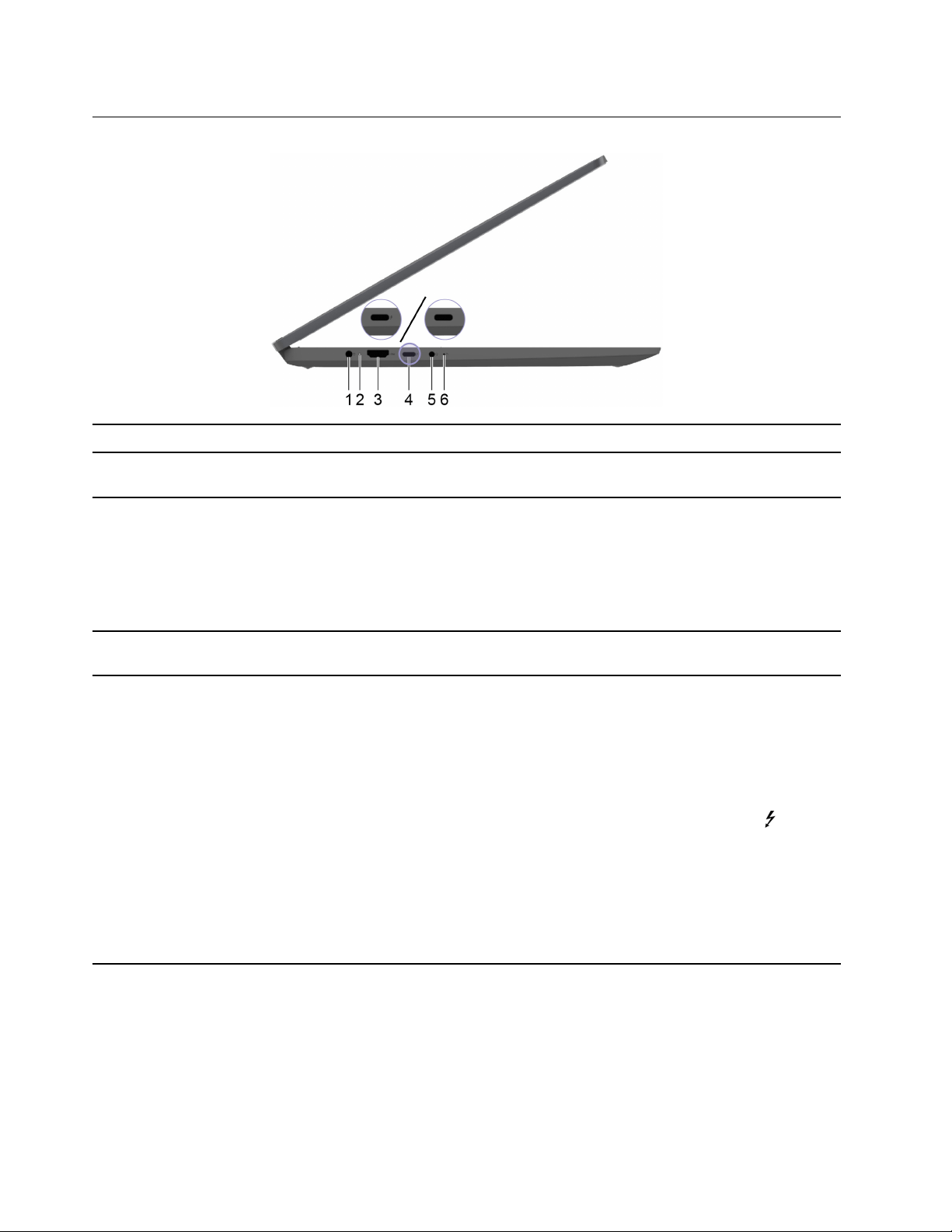
Item Controls & Connectors
Description
1 Power connector
Connect to power with the included power cord and ac
power adapter.
2
Charging light
Indicate whether the computer is connected to ac power.
• Solid white: Connected to ac power; battery capacity
91%–100%
• Solid amber: Connected to ac power; battery capacity
1%–90%
• Off: Not connected to ac power
3 HDMI
™
connector
Connect to a compatible digital audio device or video
monitor, such as an HDTV.
4
Multi-purpose USB Type-C
®
connector
• This multi-purpose connector can be used to connect:
– devices that utilize the USB data transfer
technology, and
– display devices
• For IdeaPad Flex 5 14IRU8 and IdeaPad Flex 5
16IRU8, the multi-purpose USB Type-C connector is
Thunderbolt
™
4 enabled and is marked with . When
connected with a Thunderbolt enabled device, data
transfer may be established in Thunderbolt mode. It
can also be used to connect display devices and
devices that utilize the USB data transfer technology.
Note: When connecting display devices, you need to use
appropriate cables and adapters (if needed) according to
the connection capabilities of the display device.
4 User Guide

Item Controls & Connectors
Description
5
Combo audio jack Connect to headphones or headsets with a 3.5 mm (0.14
inch), 4-pole plug.
Note: This jack does not support standalone external
microphones. If you use headsets, choose one with a
single plug.
6 Novo button hole Press the Novo button to open the Novo Button menu.
From the menu, you can choose to open the UEFI/BIOS
setup utility, the Boot menu, or the Windows startup
options screen.
Chapter 1. Meet your computer 5
Right
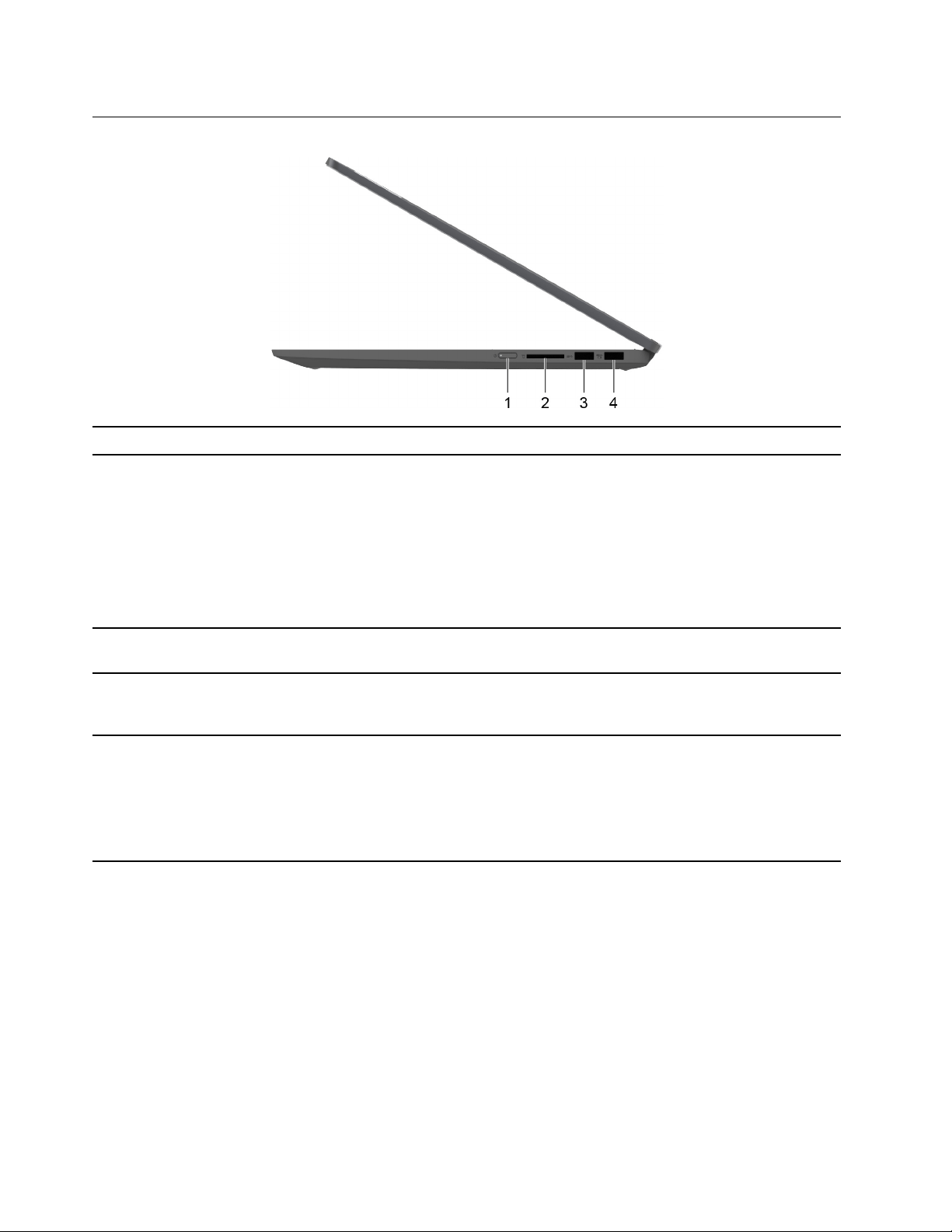
Item Controls & Connectors
Description
1 Power button with power light Press the button to turn on the computer or put the
computer into sleep mode. The light on the power button
shows the system status of your computer.
• On: The computer is turned on.
• Blinking fast: The computer is turned on; battery
charge percentage 1% - 20%.
• Blinking slowly: The computer is in sleep mode.
• Off: The computer is turned off or in hibernation mode.
2
SD card slot Insert an SD card or a MultiMediaCard (MMC) into the slot
for data transfer or storage.
3
USB (3.2 Gen 1) Type-A connector Connect to a USB-compatible device, such as a USB
keyboard, a USB mouse, a USB storage device, or a USB
printer.
4
USB (3.2 Gen 1) Type-A connector (always-
on)
The always-on connector can charge external devices
when the computer is turned off, in sleep or hibernation
mode. The always-on function can be turned on or off in
the UEFI/BIOS setup utility.
Note: If Lenovo Vantage is pre-installed on your
computer, you can also set always-on function within that
software.
6 User Guide

Features and specifications
Specifications Descriptions
Dimensions
• IdeaPad Flex 5 14IRU8 and IdeaPad Flex 5 14ABR8
– Width: 313.1 mm (12.33 inches)
– Depth: 224.9 mm (8.85 inches)
– Thickness (metal version):
– Thinnest: 17.4 mm (0.69 inches)
– Thickest: 18.9 mm (0.74 inches)
– Thickness (plastic version):
– Thinnest: 17.8 mm (0.70 inches)
– Thickest: 19.3 mm (0.76 inches)
• IdeaPad Flex 5 16IRU8 and IdeaPad Flex 5 16ABR8
– Width: 357.8 mm (14.09 inches)
– Depth: 253.9 mm (10.00 inches)
– Thickness:
– Thinnest: 18.7 mm (0.74 inches)
– Thickest: 20.8 mm (0.82 inches)
ac power adapter
• Input: 100 V ac–240 V ac, 50 Hz–60 Hz
• Output: 20 V dc, 3.25 A
• Power: 65 W
Battery pack
• Capacity: 52.5 Wh
Note: The battery capacity is the typical or average capacity as measured in a specific test
environment. Capacities measured in other environments may differ but are no lower than the
rated capacity (see product label).
Microprocessor To view the microprocessor information of your computer, type system information in the
Windows search box and then press Enter.
Memory
• Type: On-board low power double data rate 4X (LPDDR4X)
• Number of physical slots: 0
Storage device
• Type: solid-state drive
• Form factor: M.2 (2242 or 2280)
• Bus: PCI Express
8 User Guide

Specifications Descriptions
Screen
• IdeaPad Flex 5 14IRU8 and IdeaPad Flex 5 14ABR8
– Size: 355.6 mm (14 inches)
– Display resolution
– 1920 × 1200 pixels (WUXGA model)
– 2240 × 1400 pixels (WUXGA+ model) (only for IdeaPad Flex 5 14ABR8)
• IdeaPad Flex 5 16IRU8 and IdeaPad Flex 5 16ABR8
– Size: 406.4 mm (16 inches)
– Display resolution
– 1920 × 1200 pixels (WUXGA model)
– 2560 × 1600 pixels (WQXGA model)
Keyboard
• Function keys
• Hotkeys
• Numeric keypad*
• Keyboard backlight*
Connectors and slots
• Power connector
• Combo audio jack
• USB Type-A connector × 2 (one connector with Always-On function)
• Multi-purpose USB Type-C connector
– Supports maximum signaling rate of 41.25 Gbps in Thunderbolt mode (for IdeaPad Flex
5 14IRU8 and IdeaPad Flex 5 16IRU8 only)
– Supports SuperSpeed USB 10 Gbps
– Supports DisplayPort Alt Mode (DisplayPort 1.4 compliant)
– Supports USB Power Delivery
– Supports power output up to 15 W (5 V, 3 A)
• HDMI connector
• SD card slot
Note: Data rates and performance ratings are dependent on connected devices and cables if
they are used. For DisplayPort connection through a USB Type-C connector, the listed
maximum output capacity is only available on external displays with a DisplayPort, a Mini
DisplayPort, or a USB Type-C connector that supports DisplayPort Alternate Mode. For
connections using a converter or an adapter, the actual output resolution may be lower.
Security
• Fingerprint reader
• UEFI/BIOS passwords
– Administrator password
– User password
– Master hard disk password
– User hard disk password
Network
• Bluetooth and Wi-Fi combo adapter
* for selected models
Chapter 1. Meet your computer 9

Statement on USB transfer rate
Depending on many factors such as the processing capability of the host and peripheral devices, file
attributes, and other factors related to system configuration and operating environments, the actual transfer
rate using the various USB connectors on this device will vary and will be slower than the data rate listed
below for each corresponding device.
USB device Data rate (Gbit/s)
3.2 Gen 1
5
3.2 Gen 2
10
Operating environment
Maximum altitude (without pressurization)
3048 m (10 000 ft)
Temperature
• At altitudes up to 2438 m (8000 ft)
– Operating: 5°C to 35°C (41°F to 95°F)
– Storage: 5°C to 43°C (41°F to 109°F)
• At altitudes above 2438 m (8000 ft)
– Maximum temperature when operating under the unpressurized condition: 31.3°C (88°F)
Note: When you charge the battery, its temperature must be no lower than 10°C (50°F).
Relative humidity
• Operating: 8% to 95% at wet-bulb temperature 23°C (73°F)
• Storage: 5% to 95% at wet-bulb temperature 27°C (81°F)
Avoid constant body contact with specific hot sections
CAUTION:
When the computer is operating, it should be placed on a hard and flat surface with its bottom area
not in contact with user’s bare skin. Under normal operating conditions, the temperature of the
bottom surface will remain within an acceptable range as defined in IEC 62368-1, but such
temperatures can still be high enough to cause discomfort or harm to the user if directly touched for
over one minute at a time. As such, it is recommended that users avoid prolonged direct contact with
the bottom of the computer.
10
User Guide

Chapter 2. Get started with your computer
Work with Windows
The following table contains Windows frequently used settings. You can learn the basics and start working
with Windows right away.
To configure settings, type the corresponding keywords in the Windows search box and select the best
match. Follow the on-screen instructions to customize settings.
Table 1. Basic settings
Functions Descriptions
Search by
keywords
Control Panel View or change Windows settings, including hardware and software setup
and configuration.
Control Panel
Connect to Wi-Fi
networks
For models with a wireless LAN module, you can connect your computer to
a Wi-Fi
®
network. Click the network icon in the Windows notification area,
and then select a network for connection.
Note: The wireless LAN module on your computer may support different
standards. For some countries or regions, use of 802.11ax may be disabled
according to local regulations.
Wi-Fi
Airplane mode Airplane mode is a convenient setting to turn all wireless communications of
your computer on and off. You may need to turn it on when boarding an
airplane.
Airplane mode
Night light mode Night light is a switch in Windows that you can turn on and off. When it is
turned on, your screen shows warmer colors and the amount of emitted
blue light is reduced. Enabling night light reduces the chances of developing
eye fatigue or eye strain.
Note: For more guidance on reducing eye fatigue or eye strain, go to
https://www.lenovo.com/us/en/compliance/visual-fatigue.
Night light
Adjust color
temperature
If night light mode is turned on, you can adjust the color temperature of the
screen.
Note: Selected Lenovo computers are low blue light certified using night
light mode and color temperature settings available in the pre-installed
operating system. These computers are tested with night light turned on
and color temperature set to 48 or greater.
Night light
Windows
Updates
Microsoft periodically releases feature and security updates to the Windows
operating system. Updates that are applicable to your Windows version are
downloaded automatically when your computer is connected to the
Internet. When updates are downloaded, you are prompted to restart the
computer to install these updates. You can also manually check if there are
available updates for the installed version of Windows.
Attention: Only use Windows Update to download and install updates.
Updates downloaded from other sources may include security risks.
Windows Updates
Table 2. Optional settings
Functions Descriptions Search by
keywords
Enroll your
fingerprint
For models with a fingerprint reader, you can enroll your fingerprint for
Windows sign-in.
Sign-in options
© Copyright Lenovo 2022 11

Windows help information
If the on-screen instructions cannot solve your problem, refer to the following to get the online Windows help
information.
• Type Get Help or Tips in the Windows search box and then press Enter. When the app opens, type the
problem description and select the matched result.
• Visit Microsoft support Web site:
https://support.microsoft.com. Enter what you are looking for in the
search box and get search results.
Lenovo Vantage, Lenovo PC Manager or Lenovo Smart Engine
They are all apps developed by Lenovo. Using any of them, you can:
• View product information and system status
• Manage and change device settings
• Check for and perform system update
Note: This feature is only available on Lenovo Vantage. In Lenovo PC Manager or Lenovo Smart Engine,
you can check for and perform driver update.
Depending on the country or region in which your computer is purchased, one of the apps may be pre-
installed on your computer. To open it, type its name in the Windows Search box and select the matched
result. If neither of the apps is pre-installed, you may install one on your own. Lenovo Vantage is available for
download free of charge from the Microsoft Store.
Note: App features are subject to change with updates and specific features may not be available on all
Lenovo products.
The Novo Button menu
The Novo Button menu can be displayed before the operating system starts. From the menu, you can
choose to
• Open the BIOS/UEFI setup utility
• Open the boot device selection menu
• Open the Windows startup options screen
Note: From the Windows startup options screen, you can then choose to
Start your computer using a recovery drive
Reset your computer
Open advanced options screen
Open the Novo Button menu
For Lenovo computers with a Novo button, you can press the button to open the Novo Button menu.
Step 1. Turn off the computer.
Step 2. Open the LCD screen and press the Novo button.
Note: Alternatively, turn off the computer. Press Fn and the power button to open the Novo Button menu.
12
User Guide
Interact with your computer
Hotkeys
Look at the top row of the keyboard of your Lenovo computer and you’ll find keys with printed icons. These
keys are called hotkeys and they provide shortcuts to functions that you’ll use frequently. The function that
each hotkey provides is denoted by the icon printed on the key.
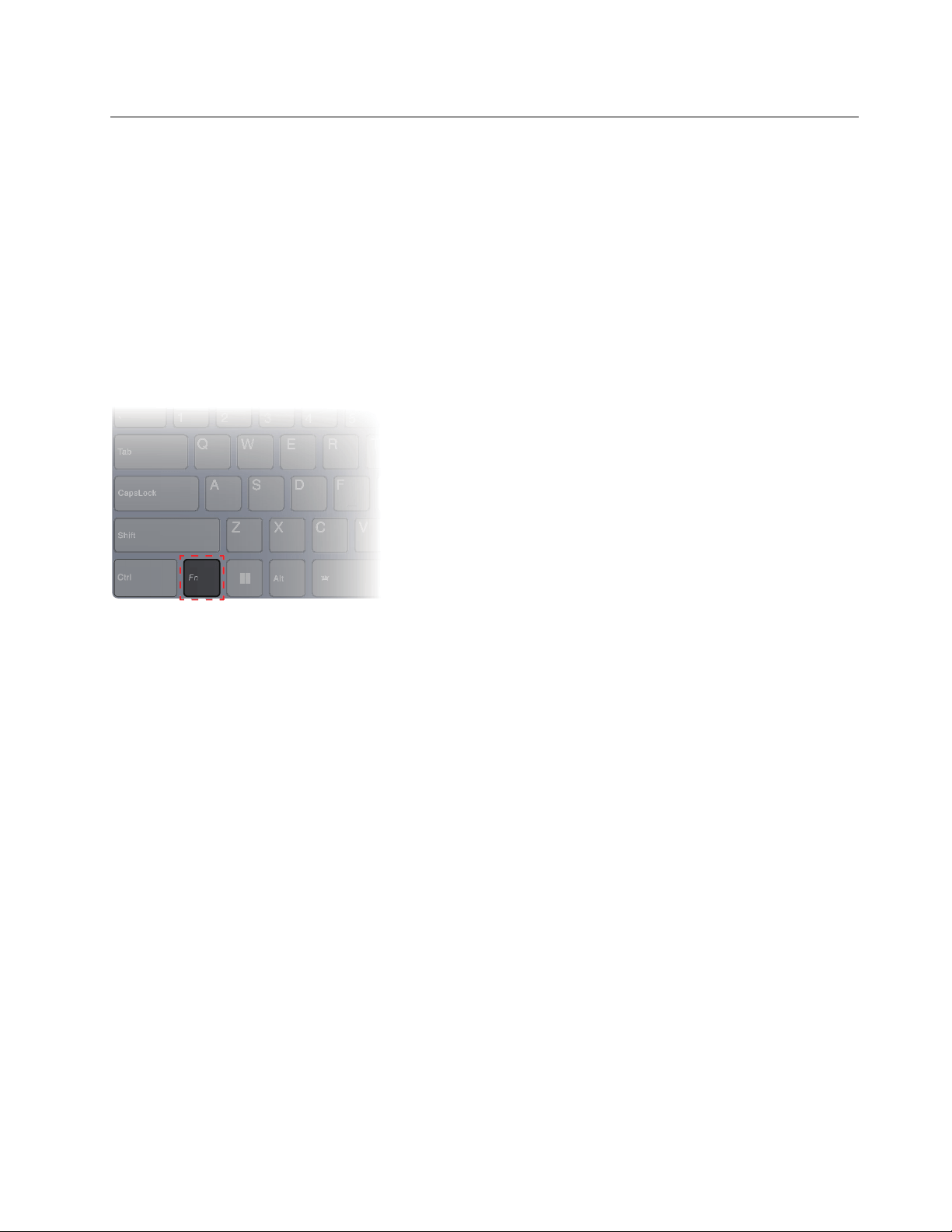
Hotkeys share keys with function keys (F1–F12) and other keys. Depending on the FnLock setting, you use
hotkey functions by pressing the key directly or in combination with the Fn key.
Note: The FnLock switch does not apply to hotkeys not found in the first row of the keyboard. To use these
hotkeys, always hold down the Fn key while pressing the key.
Figure 3. Location of the Fn key
Related topics
Appendix A “Function descriptions for Lenovo hotkeys” on page 33
The FnLock switch
The FnLock is an electronic switch that affects how you use hotkey functions. To turn it on and off, press Fn
+ Esc.
Note: The Esc key is in the upper left corner of the keyboard. It has an LED that indicates the status of the
FnLock switch.
Chapter 2. Get started with your computer 13
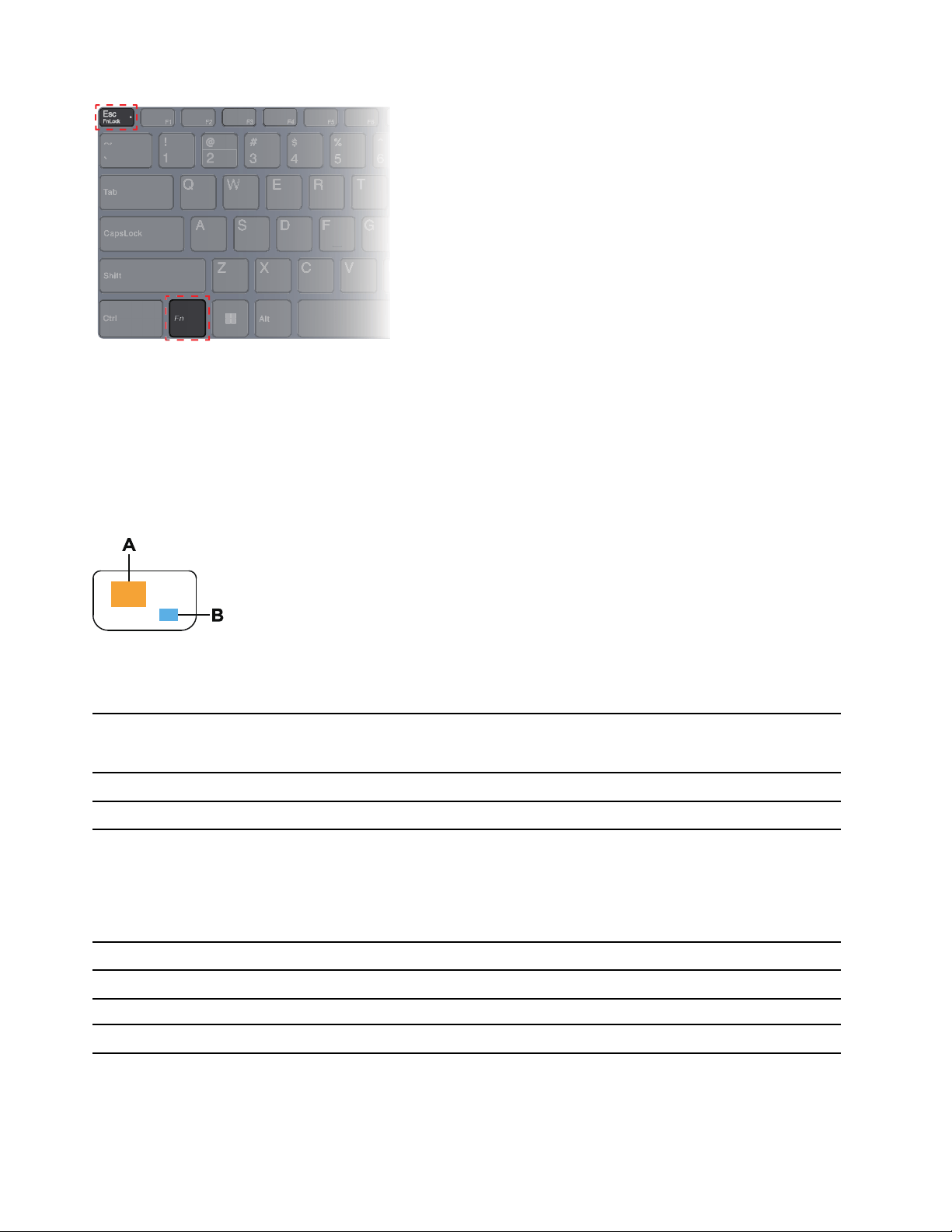
Figure 4. Locations of the FnLock key and the Fn key
A Lenovo keyboard usually contains hotkeys in the top row. These hotkeys share keys with the function keys
(F1–F12) and other keys. For these dual-function keys, the icons or characters denoting the primary functions
are printed on top of the icons and characters denoting the secondary functions.
• A: an icon or character denoting the primary function
• B: an icon or character denoting the secondary function
Figure 5. The layout of a dual-function key
Table 3. FnLock and dual-function keys
FnLock
(Esc)
LED
FnLock
status
Pressing the hotkey alone Pressing the hotkey while holding down
the Fn key
Off
Disabled Primary function Secondary function
On
Enabled
Secondary function Primary function
Dual-function keys without printed icons
Some dual-function keys share keys with letter keys and numeric keys. Such keys do not have a dedicated
printed icon. The following table lists the hidden functions for these keys.
Key combination Hidden function
Fn + M Enable/disable the touchpad.
Fn + N
Show device information.
Fn + Q Switch among different performance modes.
14 User Guide

Numeric keypad
Some Lenovo computers includes a dedicated numeric keypad on the far right of the keyboard. The keypad
is used for entering numbers and operators quickly.
Press the NumLock key to enable or disable the numeric keypad.
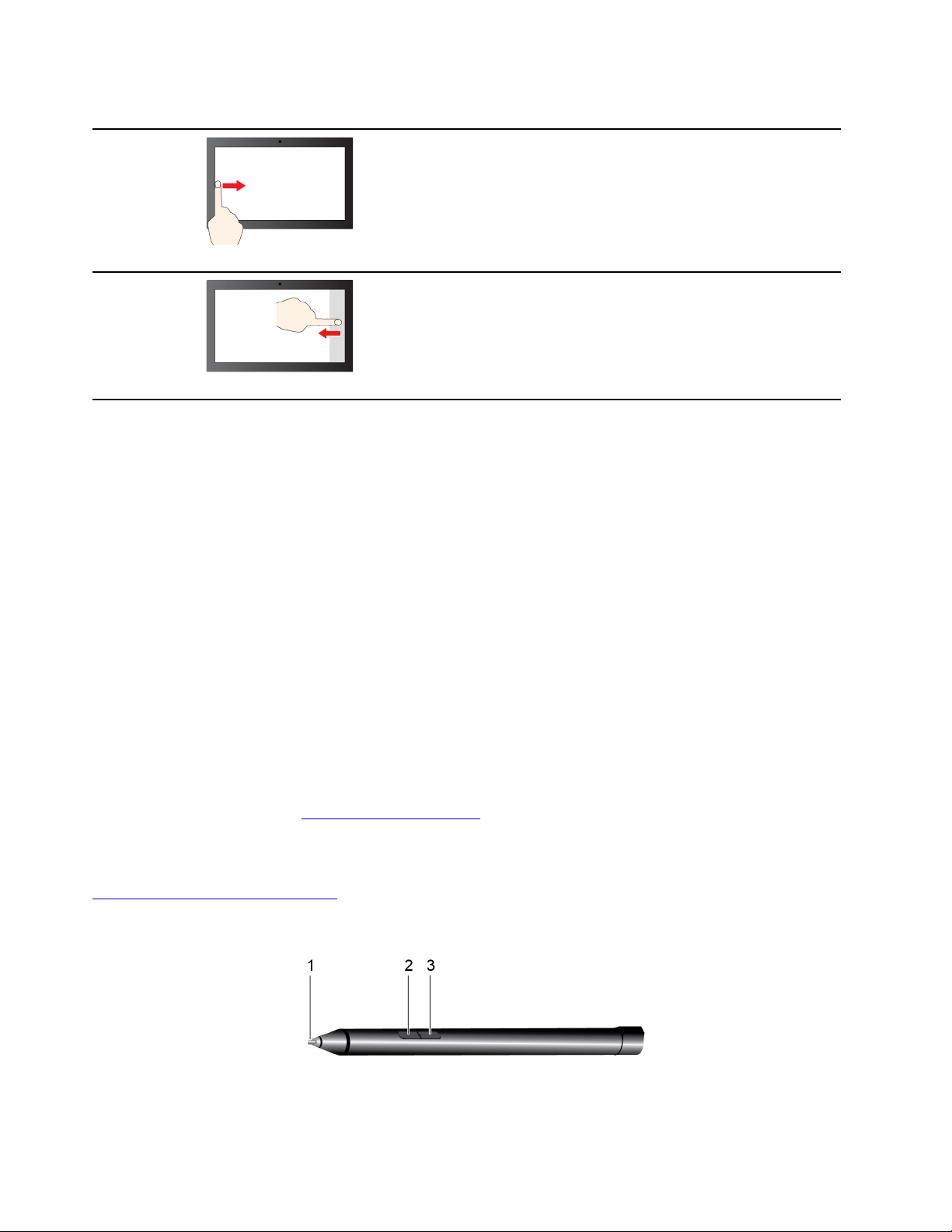
Touch operations supported by Windows
For computers with a touch-enabled screen, you can touch the screen directly with your fingers and interact
with your computer in a more natural way. The following table lists frequently used touch operations that are
supported by the Windows operating system.
Touch operation
Used for
Tap
Opening apps, documents, and other functions on the
taskbar or the Start menu
Tap twice quickly
Opening apps that are pinned on the desktop
Tap, hold and lift
Opening the context menu
Pinch
Zooming out
Spread
Zooming in
Chapter 2. Get started with your computer 15
Touch operation
Used for
Swipe in from the left edge
Opening the widgets panel
Swipe in from the right edge
Opening the notification center
The Windows operating system also supports 3- and 4-finger gestures on the screen and the touchpad. You
can set them up in Settings ➙ Bluetooth & devices.
Use a pen
Depending on the model, your computer might come with a pen. The pen enables you to write and draw in a
natural manner.
You can view or change the functions of pen buttons in Lenovo Pen Settings. For more information, refer to
the User Guide of the software.
Notes:
• The pen is not waterproof. Take care not to drop the pen in water.
• The pen contains pressure sensors. Do not push the tip of the pen for an extended period of time. Do not
subject the pen to shock or vibration.
• The default function of each pen button might vary in different apps.
• Lenovo Pen Settings may be pre-installed on your computer. To open it, enter the software name in
Windows Search and select the matched result. If the software is not pre-installed, you can download and
install the latest driver from
https://support.lenovo.com.
Lenovo Digital Pen (for selected models)
Selected models are equipped with a Lenovo Digital Pen. To purchase Lenovo Digital Pen, go to
https://www.lenovo.com/accessories.
Use the Lenovo Digital Pen
Figure 6. Lenovo Digital Pen – overview
16 User Guide

Item
Description
Item
Description
1
Pen tip
2 Bottom button
3
Top button
Install the AAAA battery
Lenovo Digital Pen uses an AAAA battery. The AAAA battery may or may not come with the pen.
Note: Make sure the positive (+) end of the battery points toward the pen tip.
Check the pen's battery status
Step 1. Tap the pen tip on the computer screen.
Note: Always tap the pen tip on the screen before viewing the pen’s battery status. Otherwise, the
reading shown in Lenovo Pen Settings may not be accurate.
Step 2. Open Lenovo Pen Settings. A battery icon is displayed in the upper right corner.
Step 3. Move the mouse pointer on top of the battery icon to view the battery status.
If the remaining battery power of the pen is low, replace the battery.
Set the Lenovo Digital Pen
You can configure the Lenovo Digital Pen settings in Windows Settings and Lenovo Pen Settings.
• Windows Settings: Type Pen & Windows Ink settings in the Windows search box and press Enter.
Under Pen & Windows Ink, you can configure the following settings as desired:
– Show or hide the pen cursor
– Set the font size and family for handwriting
– Improve handwriting recognition for some languages
• Lenovo Pen Settings: Enter Lenovo Pen Settings in the Windows search box, and then select the
matched result. From Lenovo Pen Settings, you can configure the following settings as desired:
– View the battery status of the pen
– Change the functions of the pen buttons
– Enable or disable near-screen click for pen buttons when the pen tip is placed within 1 cm from the
computer screen
– Set one pen button as the radial menu and launch a virtual control dial for quickly accessing or
managing your daily work
– Set the sensitivity of the pen tip
Note: After you enable the near-screen click function, the pen buttons work as mouse buttons.
Chapter 2. Get started with your computer 17

18 User Guide

Chapter 3. Explore your computer
Intelligent features
Your computer may be pre-installed with one of Lenovo Vantage, Lenovo PC Manager, or Lenovo Smart
Engine but not all. Most features described here can be enabled or disabled in one of these apps. Other
features may be enabled in a standalone app.
Notes:
• Software features are subject to change. Please refer to your actual product.
• You may need to complete online update to the apps for the features to take effect.
Gesture Controls (Touch screen/Touchpad)
When watching videos in full screen mode, you can conveniently control the volume and adjust the screen
brightness through intuitive gestures on the touch screen or touchpad.
Note: This feature does not support all video players and may conflict with similar third-party gesture
functions.
Presence Detection
Presence Detection enables you to improve work efficiency by automatically waking up and logging into your
computer, or dimming the display and locking the computer depending on user detection. For selected video
players, this feature will pause any video playing when you leave the computer and resume upon your return.
Super Resolution (for selected models)
By utilizing the capabilities and potentials of Intel processors, Super Resolution helps you play videos with a
higher resolution than the original. It works especially well in cases where the source video has a poor
resolution.
For most players, Super Resolution can be enabled or disabled in Lenovo Vantage, Lenovo PC Manager, or
Lenovo Smart Engine, but for some specific players, you might need to enable this feature manually.
Eye Care Mode
Eye Care Mode intelligently adjusts the color temperature of the screen and can reduce the chances of
developing eye fatigue or eye strain.
Smart Noise Cancelling
By filtering the input and output environments, Smart Noise Cancelling helps you reduce noise and optimize
the call effect in different scenarios.
Smart Appearance
Smart Appearance helps you blur the background behind you or replace the background with a variety of
default and custom choices. You can also beautify the skin and refine your face shape to a preferred level.
This setting could be applied to any video communication software you use on this computer.
© Copyright Lenovo 2022 19

Lock-Screen Notes
Smart Note enables you to write or draw your inspiration right away. Hold your Lenovo digital pen close to
the locked screen, and Smart Note opens automatically.
Manage power
Use the information in this section to achieve the best balance between performance and power efficiency.
Rechargeable battery pack
Your computer includes a built-in, rechargeable battery pack that makes mobile computing a reality. When
the computer is plugged into an electrical outlet, the battery charges. If you use the computer when you
don't have access to an electrical outlet, the battery discharges to supply electricity that the computer
system requires for operation.
You can charge the battery any time you want. The battery packs of Lenovo computers support multiple
charging modes that are suitable for different power usage habits. You can switch the battery’s active
charging mode in Lenovo Vantage, Lenovo PC Manager, or Lenovo Smart Engine.
Battery charging is also affected by its temperature. The recommended temperature range for charging the
battery is between 10°C (50°F) and 35°C (95°F).
Note:
You can check the battery temperature in Lenovo Vantage.
To maximize the life of the battery, once the battery is fully charged, it must discharge to 94% or lower
before it will be allowed to recharge again.
Normal mode
Normal mode is the most basic charging mode. In normal mode, it typically takes 2 to 4 hours for the battery
to charge from 0% to 100%.
Rapid charge mode
If you want the battery to be charged faster than in normal mode, switch the battery charging to rapid charge
mode. The following table lists the typical time needed for batteries in rapid charge mode to be charged to
80% and 100% respectively.
Table 4. Reference charge time for batteries in rapid charge mode
Mode Time needed to charge from 0% to 80% Time needed to charge from 0% to 100%
Rapid charge Less than 1 hour Less than 2 hours
Conservation mode
If your computer is constantly plugged into an electrical outlet, consider switching the battery charging to
conservation mode. In conservation mode, the battery will not be fully charged. Instead, the battery’s charge
will be kept within 75%–80%. This is beneficial to the long-term health of the battery.
Note: If you want the battery to be fully charged before bringing the computer to work, disable conservation
mode by switching the battery charging to normal or rapid charge mode.
20
User Guide

Recover full battery capacity
If your computer is constantly plugged in to an electrical outlet and the battery rarely discharges, the battery
may not be charged to its full capacity even if the battery meter reports 100% charge. You can recover the
battery’s full charging potential simply by discharging and re-charging the battery.
Step 1. Unplug the computer and use it until the battery charge drops below 20%.
Step 2. Plug in the computer and charge the battery to 100%.
Set power button behavior
By default, pressing the power button puts the computer to sleep mode. However, you can change the
power button behavior in Windows Control Panel.
Step 1. Type Control Panel in the Windows search box and then press Enter. Open the control panel and
view by large or small icons.
Step 2. Select the power options and then click choose what the power button does.
A power plan
A power plan is a collection of power-saving settings made available by an operating system. With a power
plan, you can set idle time-outs for different hardware components to enter a low-power state. The default
power plan and some of its idle time-out settings are listed below for computer models pre-installed with
Windows.
The listed settings are active when the computer is connected to an electrical outlet. If your computer include
a built-in battery pack, a different collection of time-out settings is set to take effect when the computer is
operating on battery power.
• Default power plan: Balanced
• Turn off the display: after 5 minutes
• Put the computer to sleep: after 5 minutes
Note: To wake the computer from the sleep state, press the power button or any key on the keyboard.
Change or customize a power plan
This operation is applicable to computers with pre-installed Windows.
Step 1. Type power plan in the Windows search box and then press Enter.
Step 2. Customize a power plan of your preference.
System operation modes
Lenovo has preset several modes in which your computer can operate. The maximum attainable
performance, power consumption, and speed limit for the heat sink fan vary among the operation modes.
Consider the following conditions when you want to switch operation modes.
• The environment where you use your computer, and
• The tasks running on your computer
You can switch the operation mode in the pre-installed app Lenovo Vantage, Lenovo Smart Engine, or
Lenovo PC Manager. As a shortcut, you can also use the key combination Fn + Q. Three modes are usually
available for most Lenovo computers. The following table lists the operation modes and the recommended
conditions for each mode.
Chapter 3. Explore your computer 21

Note: The operation modes listed in the table are descriptive and may not be the same as those displayed
by the app.
Table 5. Operation modes and their recommended usage conditions
Operation mode
Recommended conditions
High Performance
• Your computer is plugged into an electrical outlet.
• You want the best performance, and
• You don't care if the fan makes a little noise.
Auto (Balance) You plan to frequently switch between different computer tasks over a period time.
Power Saving (Quiet)
• Your computer is operating on battery power, or
• You want the computer to be as quiet as possible.
Note: In Auto (Balanced) mode, the computer dynamically switches between High Performance mode and
Power Saving (Quiet) mode depending on the tasks running on the computer.
Adjustable display refresh rate
Your eyes might not notice it but the content displayed on the computer screen refreshes constantly. Display
refresh rate refers to the number of times per second the screen content refreshes itself and is measured in
hertz (Hz).
A refresh rate of 60 Hz is adequate for most situations and is energy efficient. However, when viewing videos
or playing video games, a higher refresh rate usually provides a smoother viewing experience.
The displays of some Lenovo computers support dual refresh rates. For such a computer, you can manually
switch its display to work at either the higher or lower refresh rate. For Windows operation systems, the
manual settings are usually found in Settings ➙ System ➙ Display. As a shortcut, you can also use the key
combination Fn + R to switch the display refresh rate.
Note: Not all displays support dual refresh rates. If you cannot find settings to change the display refresh
rate, the refresh rate of the display might be fixed or cannot be manually changed.
Change settings in UEFI/BIOS setup utility
This section introduces what is UEFI/BIOS and the operations you can perform in its setup utility.
What is UEFI/BIOS setup utility
UEFI/BIOS is the first program that runs when a computer starts. UEFI/BIOS initializes hardware components
and loads the operating system and other programs. Your computer may include a setup program (setup
utility) with which you can change certain UEFI/BIOS settings.
Open the UEFI/BIOS setup utility
Step 1. Turn on or restart the computer.
Step 2. When the Lenovo logo appears on the screen, press F2 repeatedly.
Note: For computers with hotkey mode enabled, press Fn + F2.
22
User Guide

Select boot devices
Normally, the computer starts to a boot manager loaded from the secondary storage device of the computer.
Occasionally, you may need to start the computer to a program or boot manager loaded from another device
or a network location. After the system firmware initializes all devices, you can press an interruption key to
display the boot menu and select a desired boot device.
Step 1. Turn on or restart the computer.
Step 2. When the power button light is on, press F12 repeatedly.
Step 3. From the boot device menu, select a boot device to start the computer.
You can make a permanent change on boot devices in the UEFI/BIOS setup utility. Select the Boot menu; in
the EFI section, select the desired boot device and move it to the top of the device list. Save changes and
exit the setup utility for the change to take effect.
Change hotkey mode
Step 1. Open the UEFI/BIOS setup utility.
Step 2. Select Configuration ➙ Hotkey Mode and press Enter.
Step 3. Change the setting to Disabled or Enabled.
Step 4. Select Exit ➙ Exit Saving Changes.
Enable or disable always-on
For some Lenovo computers with always-on connectors, the always-on function can be enabled or disabled
in the UEFI/BIOS setup utility.
Step 1. Open the UEFI/BIOS setup utility.
Step 2. Select Configuration ➙ Always On USB and press Enter.
Step 3. Change the setting to Disabled or Enabled.
Step 4. Select Exit ➙ Exit Saving Changes.
Set passwords in UEFI/BIOS setup utility
This section introduces the types of passwords that you can set in the UEFI (Unified Extensible Firmware
Interface) or BIOS (Basic Input/Output System) setup utility.
Password types
You can set various types of passwords in the UEFI/BIOS setup utility.
Password type Pre-requisite Usage
Administrator password No You must enter it to start the setup
utility.
User password The administrator password must be
set.
You can use the user password to
start the setup utility.
Master hard disk password No You must enter it to start the
operating system.
User hard disk password The master hard disk password must
be set.
You can use the user hard disk
password to start the operating
system.
Chapter 3. Explore your computer 23

Notes:
• All passwords set in the setup utility consist of alphanumeric characters only.
• If you start the setup utility using the user password, you can only change a few settings.
Set administrator password
You set the administrator password to prevent unauthorized access to the UEFI/BIOS setup utility.
Attention: If you forget the administrator password, a Lenovo authorized service personnel cannot reset
your password. You must take your computer to a Lenovo authorized service personnel to have the system
board replaced. Proof of purchase is required and a fee will be charged for parts and service.
Step 1. Open the UEFI/BIOS setup utility.
Step 2. Select Security ➙ Set Administrator Password and press Enter.
Step 3. Enter a password string that contains only letters and numbers and then press Enter
Step 4. Enter the password again and press Enter.
Step 5. Select Exit ➙ Exit Saving Changes.
Next time you start the computer, you must enter the administrator password to open the setup utility. If
Power on Password is enabled, you must enter the administrator password or the user password to start
the computer.
Change or remove administrator password
Only the administrator can change or remove the administrator password.
Step 1. Open the UEFI/BIOS setup utility using the administrator password.
Step 2. Select Security ➙ Set Administrator Password and press Enter.
Step 3. Enter the current password.
Step 4. In the Enter New Password text box, enter the new password.
Step 5. In the Confirm New Password text box, enter the new password again.
Note: If you want to remove the password, press Enter in both text boxes without entering any
character.
Step 6. Select Exit ➙ Exit Saving Changes.
If you remove the administrator password, the user password is also removed.
Set user password
You must set the administrator password before you can set the user password.
The administrator of the setup utility might need to set a user password for use by others.
Step 1. Open the UEFI/BIOS setup utility using the administrator password.
Step 2. Select Security ➙ Set User Password and press Enter.
Step 3. Enter a password string that contains only letters and numbers and then press Enter.
The user password must be different from the administrator password.
Step 4. Enter the password again and press Enter.
Step 5. Select Exit ➙ Exit Saving Changes.
24
User Guide

Enable power-on password
If the administrator password has been set, you can enable power-on password to enforce greater security.
Step 1. Open the UEFI/BIOS setup utility.
Step 2. Select Security ➙ Power on Password and press Enter.
Note: The administrator password must be set in advance.
Step 3. Change the setting to Enabled.
Step 4. Select Exit ➙ Exit Saving Changes.
If power-on password is enabled, a prompt appears on the screen every time you turn on the computer. You
must enter the administrator or user password to start the computer.
Set hard disk password
You can set a hard disk password in the setup utility to prevent unauthorized access to your data.
Attention: Be extremely careful when setting a hard disk password. If you forget the hard disk password, a
Lenovo authorized service personnel cannot reset your password or recover data from the hard disk. You
must take your computer to a Lenovo authorized service personnel to have the hard disk drive replaced.
Proof of purchase is required and a fee will be charged for parts and service.
Step 1. Open the UEFI/BIOS setup utility.
Step 2. Select Security ➙ Set Hard Disk Password and press Enter.
Note: If you start the setup utility using the user password, you cannot set hard disk password.
Step 3. Follow on-screen instructions to set both master and user passwords.
Note: The master and user hard disk passwords must be set at the same time.
Step 4. Select Exit ➙ Exit Saving Changes.
If the hard disk password is set, you must provide the correct password to start the operating system.
Change or remove hard disk password
Step 1. Open the UEFI/BIOS setup utility.
Step 2. Select Security.
Step 3. Change or remove the hard disk password.
To change or remove master password, select Change Master Password and press Enter.
Note: If you remove the master hard disk password, the user hard disk password is also removed.
To change user password, select Change User Password and press Enter.
Note: The user hard disk password cannot be removed separately.
Step 4. Select Exit ➙ Exit Saving Changes.
Chapter 3. Explore your computer 25

26 User Guide

Chapter 4. Help and support
Frequently asked questions
How do I partition my storage drive
Refer to https://support.lenovo.com/solutions/ht503851.
What should I do if my computer stops responding
Press and hold the power button until the computer turns off. Then restart the computer.
What should I do if I spill liquid on the computer
1. Carefully unplug the ac power adapter and turn off the computer immediately. The more quickly you
stop the current from passing through the computer the more likely you will reduce damage from short
circuits.
Attention: Although you might lose some data or work by turning off the computer immediately, leaving
the computer on might make your computer unusable.
2. Wait until you are certain that all the liquid is dry before turning on your computer.
CAUTION:
Do not try to drain out the liquid by turning over the computer. If your computer has keyboard
drainage holes on the bottom, the liquid will be drained out through the holes.
Where can I get the latest device drivers and UEFI/BIOS
• Lenovo Vantage, Lenovo PC Manager or Lenovo Smart Engine.
• Lenovo Support Web site at
https://support.lenovo.com.
Why does my screen brightness change constantly
Your computer may include an ambient light sensor and the adaptive brightness feature is enabled. The light
sensor can detect the intensity of the surrounding light. Using data provided by the sensor, the operating
system can dynamically adjust the screen brightness.
The adaptive brightness feature of the operating system can be disabled. For Windows operating systems,
adaptive brightness settings are usually found in Settings ➙ System ➙ Display.
Why does my computer start automatically when I open the lid
Your computer may have Flip to Start enabled. Many Lenovo notebook computers include a sensor that can
detect the angle at which the lid is opened. When you open the lid, the sensor can detect this behavior. If Flip
to Start is enabled, the computer will respond by starting up automatically.
If you don’t like this feature, you can disable it. Flip to Start can be enabled and disabled in:
• Lenovo Vantage, Lenovo PC Manager or Lenovo Smart Engine
• Firmware Setup Utility
© Copyright Lenovo 2022 27

Self-help resources
Use the following self-help resources to learn more about the computer and troubleshoot problems.
Resources How to access?
Troubleshooting and frequently asked questions
•
https://www.lenovo.com/tips
• https://forums.lenovo.com
Accessibility information
https://www.lenovo.com/accessibility
Reset or restore Windows
• Use Lenovo recovery options.
1. Go to
https://support.lenovo.com/
HowToCreateLenovoRecovery
.
2. Follow the on-screen instructions.
• Use Windows recovery options.
1. Go to
https://pcsupport.lenovo.com.
2. Detect your computer or manually select your
computer model.
3. Click Diagnostics ➙ Operating System
Diagnostics and then follow the on-screen
instructions.
Use Lenovo Vantage, Lenovo PC Manager or Lenovo
Smart Engine to:
• Download and install the latest drivers and firmware.
• Configure hardware settings
• Diagnose computer hardware problems.
• Check the computer warranty status.
Use Windows Search.
Product documentation:
•
Generic Safety and Compliance Notices
• Safety and Warranty Guide
• Setup Guide
• This User Guide
• Regulatory Notice
1. Go to
https://support.lenovo.com.
2. Detect your computer or select computer model
manually.
3. Select Documentation and filter out the
documentation you want.
Lenovo Support Web site with the latest support
information of the following:
• Drivers and software
• Diagnostic solutions
• Product and service warranty
• Product and parts details
• Knowledge base and frequently asked questions
Visit
https://support.lenovo.com
Windows help information
• Use Get Help or Tips.
• Use Windows Search or the Cortana
®
personal
assistant.
• Microsoft support Web site:
https://support.microsoft.com
28 User Guide

What is a CRU?
Customer replaceable units (CRUs) are parts that can be upgraded or replaced by the customer. A Lenovo
computer may contain the following types of CRUs:
Self-service CRU
Parts that can be installed or replaced easily by
customer themselves or by trained service
technicians at an additional cost.
Optional-service CRU
Parts that can be installed or replaced by customers
with a greater skill level. Trained service technicians
can also provide service to install or replace the
parts under the type of warranty designated for the
customer’s machine.
If you intend to install a CRU, Lenovo will ship the CRU to you. You might be required to return the defective
part that is replaced by the CRU. When return is required: (1) return instructions, a prepaid shipping label,
and a container will be included with the replacement CRU; and (2) you might be charged for the
replacement CRU if Lenovo does not receive the defective CRU within thirty (30) days of your receipt of the
replacement CRU. For full details, see the Lenovo Limited Warranty at
https://www.lenovo.com/warranty/llw_02.
CRUs for your product model
The table below lists the CRUs and CRU types that are defined for your product model.
Part
Self-service CRU Optional-service CRU
Power cord X
ac power adapter X
Lenovo Digital Pen* X
Lenovo pen holder* X
*for selected models
Notes:
• CRU replacement instruction is provided in one or more of the following publications and are available
from Lenovo at any time upon your request.
the product User Guide
the printed publications that came with the product
• Replacement of any parts not listed above, including the built-in rechargeable battery, must be done by a
Lenovo-authorized repair facility or technician. Go to
https://support.lenovo.com/partnerlocation for more
information.
Chapter 4. Help and support 29

Call Lenovo
If you have tried to correct the problem yourself and still need help, you can call Lenovo Customer Support
Center.
Before you contact Lenovo
Record product information and problem details before you contact Lenovo.
Product information Problem symptoms and details
• Product name
• Machine type and serial number
• What is the problem? Is it continuous or intermittent?
• Any error message or error code?
• What operating system are you using? Which version?
• Which software applications were running at the time
of the problem?
• Can the problem be reproduced? If so, how?
Note: The product name and serial number can usually be found on the bottom of the computer, either
printed on a label or etched on the cover.
Lenovo Customer Support Center
During the warranty period, you can call Lenovo Customer Support Center for help.
Telephone numbers
For a list of the Lenovo Support phone numbers for your country or region, go to
https://pcsupport.lenovo.com/supportphonelist.
Note: Phone numbers are subject to change without notice. If the number for your country or region is not
provided, contact your Lenovo reseller or Lenovo marketing representative.
Services available during the warranty period
• Problem determination - Trained personnel are available to assist you with determining if you have a
hardware problem and deciding what action is necessary to fix the problem.
• Lenovo hardware repair - If the problem is determined to be caused by Lenovo hardware under warranty,
trained service personnel are available to provide the applicable level of service.
• Engineering change management - Occasionally, there might be changes that are required after a product
has been sold. Lenovo or your reseller, if authorized by Lenovo, will make selected Engineering Changes
(ECs) that apply to your hardware available.
Services not covered
• Replacement or use of parts not manufactured for or by Lenovo or nonwarranted parts
• Identification of software problem sources
• Configuration of UEFI/BIOS as part of an installation or upgrade
• Changes, modifications, or upgrades to device drivers
• Installation and maintenance of network operating systems (NOS)
• Installation and maintenance of programs
For the terms and conditions of the Lenovo Limited Warranty that apply to your Lenovo hardware product,
see “Warranty information” in the Safety and Warranty Guide that comes with your computer.
30
User Guide


32 User Guide
Appendix A. Function descriptions for Lenovo hotkeys
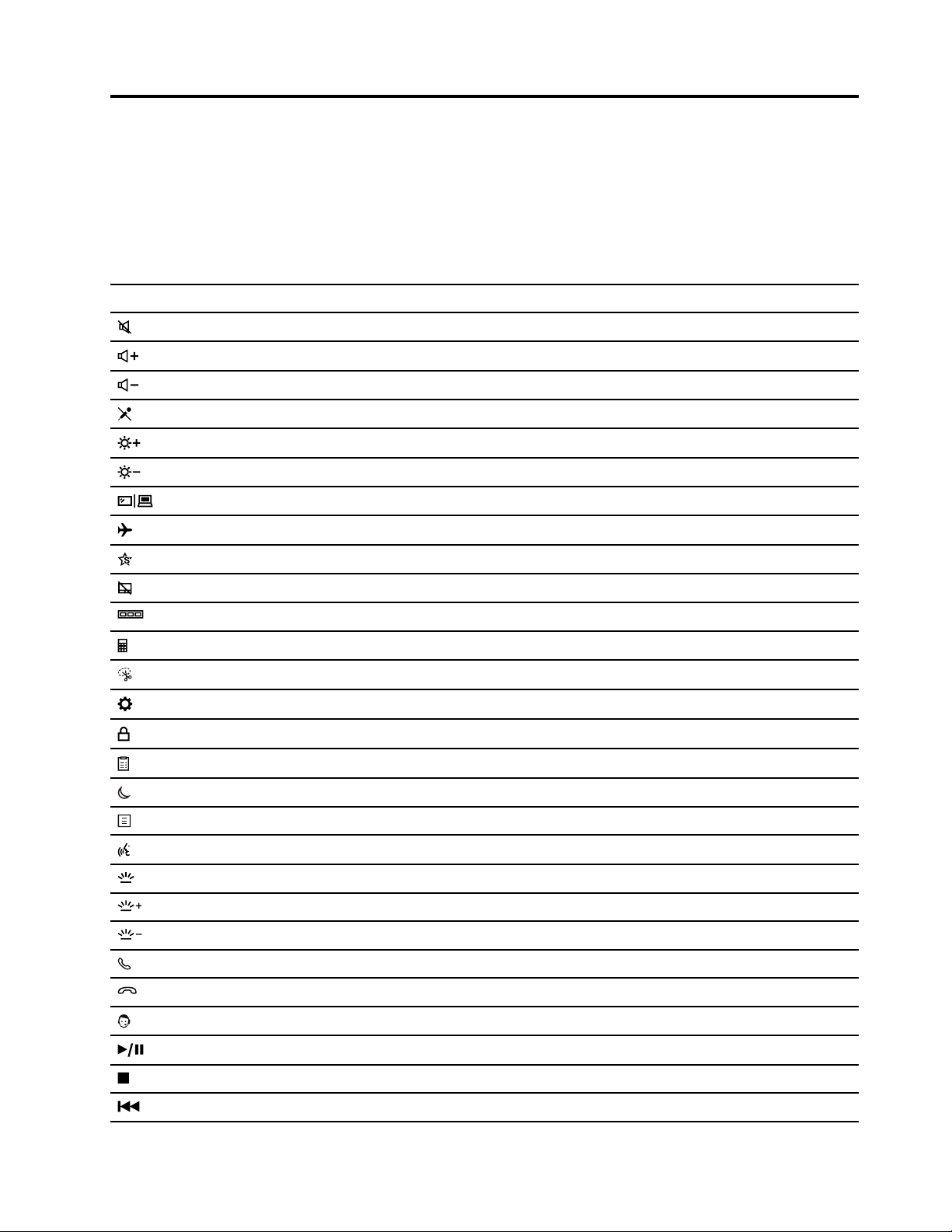
Hotkey functions are denoted by the icons printed on the keys. The following table describes the functions
for all Lenovo hotkeys. The keyboard of your Lenovo computer should only support a subset of the listed
hotkeys.
Table 6. Hotkey icons and denoted functions
Hotkey icon Function description
Mutes/Unmutes sound.
Increases volume.
Decreases volume.
Enables/Disables the microphone.
Increases screen brightness.
Decreases screen brightness.
Selects and sets up display devices.
Enables/Disables airplane mode. (Windows operating systems)
Displays the Lenovo Smart Key quick launch panel.
Enables/Disables the touchpad.
Displays all open apps as thumbnails. (Windows operating systems)
Opens the Calculator app. (Windows operating systems)
Opens the Snipping tool. (Windows operating systems)
Opens the Settings app. (Windows operating systems)
Locks the screen. (Windows operating systems)
Opens the clipboard history. (Windows operating systems)
Puts the computer to sleep.
Opens the context menu of the current active app.
Opens an associated voice app, voice service, or Microsoft Cortana.
Adjusts the keyboard backlight.
Increases the brightness of the keyboard backlight.
Decreases the brightness of the keyboard backlight.
Answers an incoming Microsoft Teams call.
Rejects an incoming Microsoft Teams call.
Accesses Lenovo Support resources.
Starts/Pauses audio or video playback.
Stops audio or video playback.
Plays the previous audio or video in the playlist.
© Copyright Lenovo 2022 33

Table 6. Hotkey icons and denoted functions (continued)
Hotkey icon Function description
Plays the next audio or video in the playlist.
Switches the computer’s active operation mode.
Blurs the background for videoconferencing.
Switches the computer’s active audio mode.
Turns on/off night light mode. (Windows operating systems)
Note: Hotkey functions may change if the associated app or the Windows operating system is updated.
34
User Guide

Appendix B. Notices and trademarks
Notices
Lenovo may not offer the products, services, or features discussed in this document in all countries. Consult
your local Lenovo representative for information on the products and services currently available in your
area. Any reference to a Lenovo product, program, or service is not intended to state or imply that only that
Lenovo product, program, or service may be used. Any functionally equivalent product, program, or service
that does not infringe any Lenovo intellectual property right may be used instead. However, it is the user's
responsibility to evaluate and verify the operation of any other product, program, or service.
Lenovo may have patents or pending patent programs covering subject matter described in this document.
The furnishing of this document does not give you any license to these patents. You can send license
inquiries, in writing, to:
Lenovo (United States), Inc.
8001 Development Drive
Morrisville, NC 27560
U.S.A.
Attention: Lenovo Director of Licensing
LENOVO PROVIDES THIS PUBLICATION "AS IS" WITHOUT WARRANTY OF ANY KIND, EITHER EXPRESS
OR IMPLIED, INCLUDING, BUT NOT LIMITED TO, THE IMPLIED WARRANTIES OF NON-INFRINGEMENT,
MERCHANTABILITY OR FITNESS FOR A PARTICULAR PURPOSE. Some jurisdictions do not allow
disclaimer of express or implied warranties in certain transactions, therefore, this statement may not apply to
you.
Changes are made periodically to the information herein; these changes will be incorporated in new editions
of the publication. To provide better service, Lenovo reserves the right to improve and/or modify the
products and software programs described in the manuals included with your computer, and the content of
the manual, at any time without additional notice.
The software interface and function and hardware configuration described in the manuals included with your
computer might not match exactly the actual configuration of the computer that you purchase. For the
configuration of the product, refer to the related contract (if any) or product packing list, or consult the
distributor for the product sales. Lenovo may use or distribute any of the information you supply in any way it
believes appropriate without incurring any obligation to you.
The products described in this document are not intended for use in implantation or other life support
applications where malfunction may result in injury or death to persons. The information contained in this
document does not affect or change Lenovo product specifications or warranties. Nothing in this document
shall operate as an express or implied license or indemnity under the intellectual property rights of Lenovo or
third parties. All information contained in this document was obtained in specific environments and is
presented as an illustration. The result obtained in other operating environments may vary.
Lenovo may use or distribute any of the information you supply in any way it believes appropriate without
incurring any obligation to you.
Any references in this publication to non-Lenovo Web sites are provided for convenience only and do not in
any manner serve as an endorsement of those Web sites. The materials at those Web sites are not part of the
materials for this Lenovo product, and use of those Web sites is at your own risk.
© Copyright Lenovo 2022 35

Any performance data contained herein was determined in a controlled environment. Therefore, the result
obtained in other operating environments may vary significantly. Some measurements may have been made
on development-level systems and there is no guarantee that these measurements will be the same on
generally available systems. Furthermore, some measurements may have been estimated through
extrapolation. Actual results may vary. Users of this document should verify the applicable data for their
specific environment.
This document is copyrighted by Lenovo and is not covered by any open source license, including any Linux
agreement(s) which may accompany software included with this product. Lenovo may update this document
at any time without notice.
For the latest information or any questions or comments, contact or visit the Lenovo Web site:
https://support.lenovo.com
Trademarks
Lenovo, the Lenovo logo, and IdeaPad are trademarks of Lenovo. Thunderbolt is a trademark of Intel
Corporation or its subsidiaries. Microsoft, Windows, and Cortana are trademarks of the Microsoft group of
companies. DisplayPort is a trademark of the Video Electronics Standards Association. The terms HDMI and
HDMI High-Definition Multimedia Interface, and the HDMI logo are trademarks or registered trademarks of
HDMI Licensing Administrator, Inc. in the United States and other countries. Wi-Fi is a registered trademark
of Wi-Fi Alliance. USB Type-C is a registered trademark of USB Implementers Forum. All other trademarks
are the property of their respective owners.
36
User Guide