*This device is not waterproof. Do not use outdoors in rain or allow it
*The equipment should be placed in a stable, well-ventilated, cool, and
*Do not connect to a power supply exceeding the recommended values
to avoid equipment damage or safety hazards.
*Disassembly and modification of the equipment are strictly prohibited.
In case of malfunction, please contact official after-sales service;do not
a
ttempt to disassemble it yourself.
*Avoid prolonged continuous operation of the equipment.
Single continuous printing sessions should not exceed 3 hours to
prevent over heating and extend its lifespan.
to come into contact with liquids. if it gets wet, immediately turn off the
machine, wipe it dry, and place it in a dry place to air dry.
dust-free location, away from heat sources, flammable and explosive
materials, and water sources, and protected from direct sunlight.
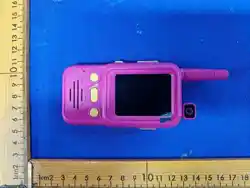
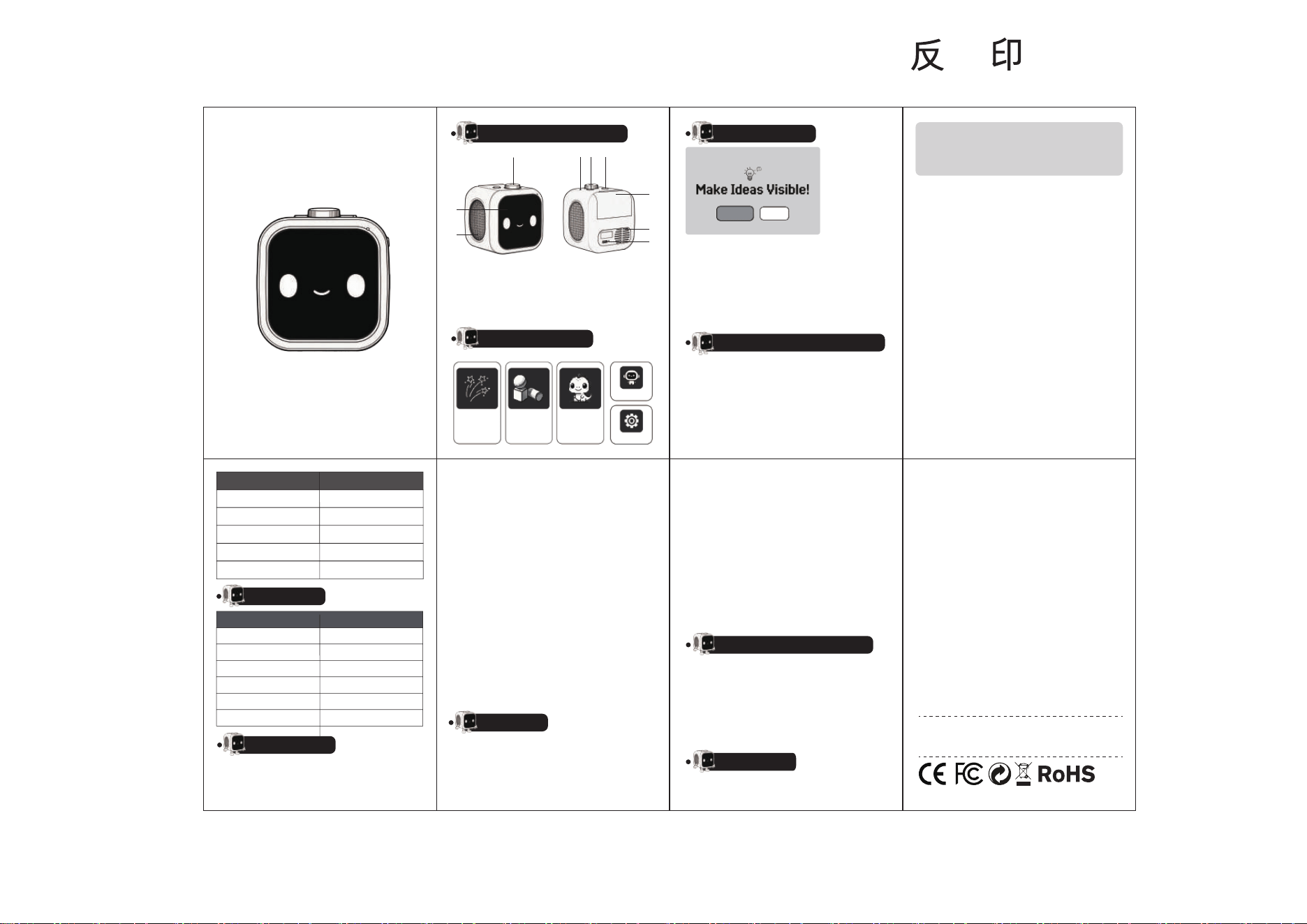
Kids AI Printer (A68)
②
③
①
⑤④ ⑥
⑦
⑧
⑨
Button/Interface Description
① Record button
④ Reset button
⑦ Printing compartment
② Screen
⑤ Lighting control button
⑧ Horn hole
③ Ambient lighting
⑥ Power button
/Back button
⑨ Charging port
Interface Description
成品尺寸 53*80MM 128g双铜黑白正 面 刷
Quick Start Guide
Product Functions and Operation
Specifications
Troubleshooting
Precautions
Product maintenance methods
FCC Statement
Doodle
Cartoon
voice chat
Settings
Sketch
① Press and hold the [Power button] for 3 seconds First boot enters
② Select "Please set Wi-Fi” to enter the network connection interface
③ The device scans nearby WiFi. Select and enter password to connect.
④ Once connected, choose image style, voice chat and start using.
setup automatically.
automatically.
1.Network Connection instructions
① Press and hold the [Power button] for 3 seconds to turn on the
② Click [Settings] to enter the settings interface,then select "Wi-Fi".
③ The device will automatically search for nearby Wi-Fi signals.
④ Select a Wi-Fi name and enter the password to complete the connection.
device and enter the main menu.
Please set Wi-Fi Set later
Notes:
*The device saves the password automatically after first
networksetup and reconnects on power-on.
*Only 2.4G WiFi is supported.
4.Lighting Status Description
Light Switch:
① The lighting effects can be turned off in the [Settings].
② Press and hold the [Lighting Control Button] to temporarily turn
off the lighting function.
3.Voice Chat Operation Instructions
① Select [Voice Chat] from the main menu.
② Press the [Record button] to start a conversation with the Ai.
③ The Ai will respond with its voice, and the text of the conversation will
④ To start a conversation again, press the [Record button] again.
⑤ The conversation history will be automatically cleared after
be displayed on the [screen].
exiting the chat.
Q:Excessive printing noise and unclear print quality.
A: Please check if the paper is installed correctly. Ensure the smooth side is
firmly against the thermal print head and that the paper edges are
not crooked or jammed by the paper tray cover.
Q: No response to the touchscreen, or the [screen] freezes or displays
A: Please press and hold the [power button] to turn off and then turn it back
a distorted image.
on. If the problem persists, press the [reset button] to force restart the device.
Q: Displays "Can't understand" or "Pic can't be made".
A: Check if the device is correctly connected to the network.
Check if a network sianal icon appears in the upper riaht corner of the [screen].
If the icon is not present, reconnect to the network in the [settings].If the
network connection is normal, press the [record button] again to input
voice information. Please wait for the prompt tonebefore speaking.
Q: Slow printer rotation, unclear print quality, or printer not working.
A: Please check if the device has sufficient battery power and charge it
if necessary.
2.Instructions for printing images
① Select an image style [Doodle,Sketch,Cartoon] from the main menu.
② Press the [Record Button] and start recording after the prompt,
③ After Ai generates the image, the [Screen] displays and prints it
the 「Ambient Light] flashes while recording.
automatically.
No network connection
scene
Network connection successful
Breathing light flashing
Light Status
Always on
Start recording
Recording ends
Printing complete
Light flashing
Always on
Flashing with the prompt tone
Screen
Battery capacity
Charging interface
Charging voltage
Language
Product dimensions
3.5-inch touch screen
Item Parameter
2000mAh
Type-c
5V/1A
Multi-language
94*97*101mm
Q:Unable to power on; pressing the [Power button] has no effect.
A:Please check if the device has sufficient battery power. Charge
the device and try again.
*Suitable for children aged 3 and up. Children under 3 years old should
*Do not swallow small parts to avoid the risk of accidental ingestion.
*Use only compatible consumables specified for the printer. Do not use
not operate this device. Take precautions to prevent accidental injury.
Incompatible consumables to avoid damaging the device.
*Before cleaning, turn off the machine and wipe it with a dry, soft cloth.
Do not use wet cloths or corrosive cleaning agents, as these maydamage
the equipment.
*Regularly inspect the printing and paper feeding mechanisms,
promptly removing foreign objects and residual consumables to ensure
print quality.
*When the equipment is not in use, cover it with the dust cover to prevent
dust from entering.
Made in China
Please read the product manual carefully before using the product.
This equipment has been tested and found to comply with the limits for a
Class B digital device, pursuant to Part 15 of the FCC Rules. These limits are
Changes or modifications not expressly approved by the party responsible
for compliance could void the user's authority to operate the equipment.
This equipment complies with FCC radiation exposure limits set forth for
an uncontrolled environment. This equipment should be installed and
operated with minimum distance 20cm between the radiator & your body.
designed to provide reasonable protection against harmful interference in
a residential installation. This equipment generates uses and can radiate
radio frequency energy and, if not installedand used in accordance with
the instructions, may cause harmful interference to radiocommunications.
However, there is no guarantee that interference will not occur in a
particular installation. If this equipment does cause harmful interference
to radio or television reception, which can be determined by turning the
equipment off and on, the user is encouraged to try to correct the
interference by one or more of the following measures:
① Reorient or relocate the receiving antenna.
② Increase the separation between the equipment and receiver.
③ Connect the equipment into an outlet on a circuit different from that to
which the r
eceiver is connected.
④ Consult the dealer or an experienced radio/TV technician for help.
This device complies with part 15 of the FCC Rules. Operation is subject
to the following two conditions:
① This device may not cause harmful interference.
② This device must accept any interference received, including interference
tha
t may cause undesired operation.