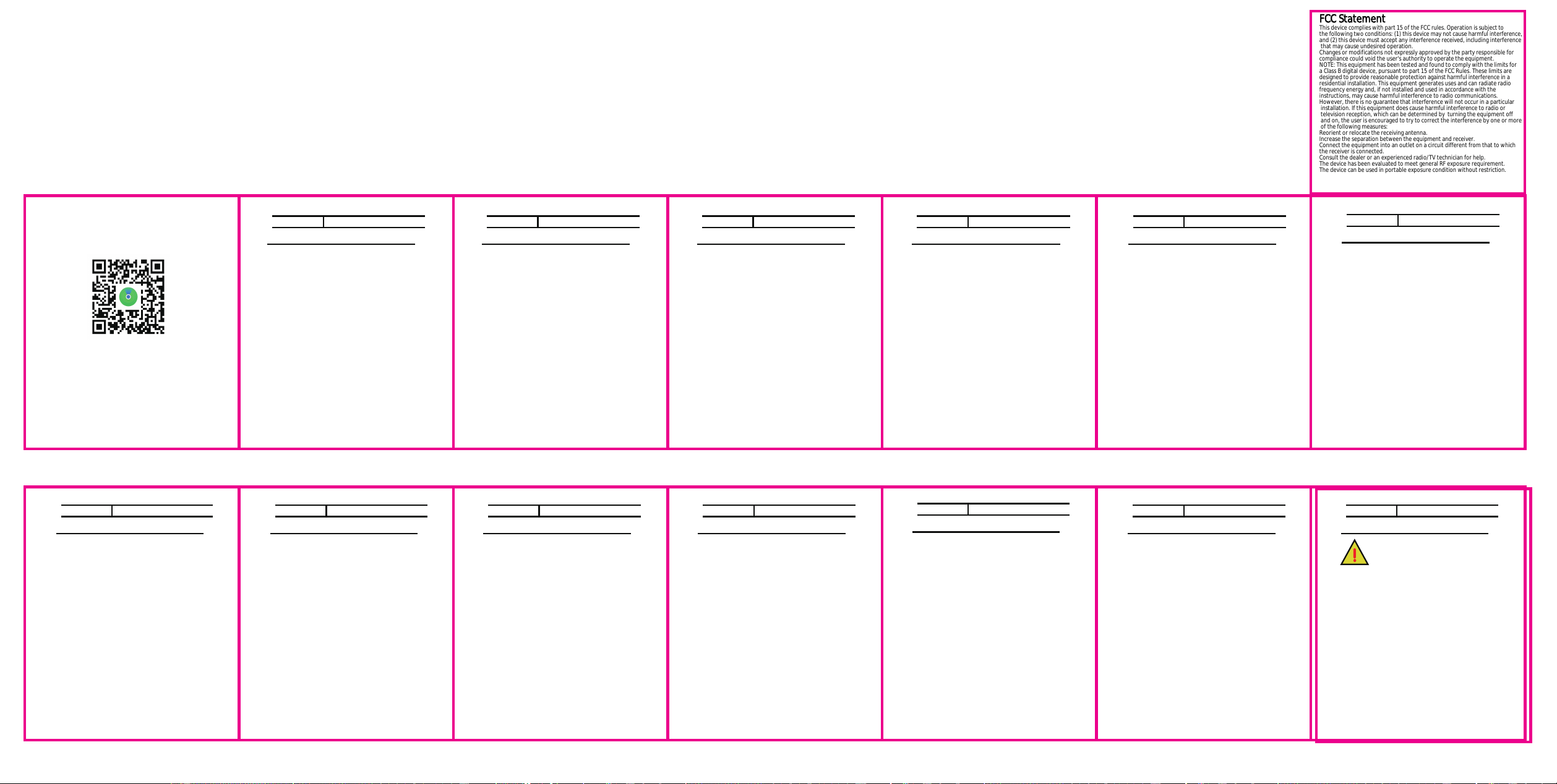
Please use the camera on your iPhone to scan this QR
code and subsequently open the "FindMy" app to
complete the link binding process.
Fast Pairing and binding way
Loshall Anti-lost Device
User Manual
Index
1. Befor You Start
2. Getting started.
3.
Adding this device.
4. Locating this device.
5. Notifications.
6. When this device is lost.
7. Resetting this device.
8. Extras.
9. About Apple
’s
Find My.
10. The Fine Print.
01 Before you start
02 Getting started
This device is a smart finder that uses Apple’s Find My™ service,
paired with the “Findmy”app on yourApple™ devices,to quickly
and securely locate your personal items on Apple™ Map.All
location information remains private,and even Apple™ cannot
access it.
1.1
This device only supports Apple’s devices.It is compatible only
with Apple’s devices running iOS 14.5 or higher.
1.2
To use the Apple’s “Findmy” app to locate this device,the latest
version of iOS,iPad OS, or Mac OS is recommended. The
“Find items”app on Apple watch requires the latest verison of
Watch OS.
1.3
Please check your Apple device and ensure the Bluetooth
function,Wifi function and location function of it have been
enabled and working in normal states.
2.1 Power on
Press and hold the power button for 3s to turn on this
device.
2.2 Power off
Press the power button twice rapidly ,and on the
third press ,hold it down continuously until you hear
the power off sound.
2.3 Check the device’s working states
Double-click the power button of this device. When
you hear a confirmation sound, this indicates that the
device has been successfully activated and is now in
its normal operating state.
2.4 Factory resetting
Press the power button four times rapidly, and on
the fifth press, hold it down continuously until you
hear the reset sound.
03 Adding this device
3.1 Press the power button for about 3s to activate this
device.
3.2 Launch the “Findmy”app or “Find itmes”app on your
supported Apple device.
3.3 Tap on the “+”,and then tap on “Add other item”
on your screen.
3.4 Once this device is located,tap on the “connect”.
3.5 Enter a name and select an emoj icon for this device
,and then tap on the “Continue”.
3.6 Find My will ask for confirmation to add this device
to your Apple ID,tap on the “Agree”.
3.7 Tap on the “Finish”and this device will be set up
and ready to be applied.
04 Locating this device
05 Notifications
4.1 Launch the “Findmy”app or “Find itmes”app
on your supported Apple device,select the “items”
tab:
when it is nearby:
Tap on this device from the list.
Tap on “play sound” to make this device beep.
Tap on “stop sound” to stop the beeps once you
find this device.
when it is far away:
Tap on this device from the list.
The location of this device will appear on the map with
a time stamp of when this device was located.
To navigate to the location of it ,tap on the “Directions”
to open Apple Map.
5.1 Enabling “Notify When Left Behind”:
Launch the “Findmy”app or “Find itmes”app on your
supported Apple device,select the “items” tab:
Tap on this device from the list.
Under “Notifications”,enable the “Notify When Left
Behind” toggle.
You will receive a notification when you leave this device
behind and it’s no longer in range of your Apple device.
5.2 Enabling “Notify When Found”:
Under “Notifications”,enable the “Notify When Found”
toggle.
When this device is seen by another Find My network
device.You will receive a notification of its location.
Note: “Notify When Found” can only be activated when
this device is out of range.
06 When This Device Is Lost
07 Resetting This Device
6.1 Enabling “Lost mode”:
Launch “Find My” app and select the “items” tab or
open the “Find My Items”app on your Apple watch.
Tap on this device from the list .
Under“Lost Mode” ,tap on the “Enable”.
A screen detailing lost mode will pop up.Tap on “Conti
-nue”,enter your phone number or email address,and
then tap on the “Next”.
You may enter a message that will be shared with the
person that finds this device or your item with it.
Tap on the “Activate” to enable “Lost mode”.
Note:
When “Lost mode” is enabled,“Notify When Found”
is automatically enabled.
When “Lost mode” is enabled,this device is locked and
cannot be paired to a new device.
7.1 Remove this device from “Find My” app
Launch “Find My” app and select the “items” tab or
open the “Find My Items”app on your Apple watch.
Tap on this device from the list .
Please ensure“Lost Mode” is disabled.
Scroll to the bottom of the screen and tap on the “Remove
item”.
A summary will appear,and then tap “Remove” to confirm.
7.2 Factory Reset this device.
After successfully removing this device from “Find My
”app,press the power button four times rapidly, and on
the fifth press, hold it down continuously until you
hear a ringing chime.
The Apple’s Find My network provides an easy,secure way
to locate compatible personal items on a map using the Find
My app on your iPhone,iPad,or Mac.Simply pair your
compatible product with the Apple Find My app to view it
right alongside your Apple devices.If your item ever goes
missing,you can put it in Lost Mode to display a message and
contact information to anyone who might find it .The Find My
network is encrypted and anonymous.So,no one else,not even
Apple or the maker of your personal item,can view its location.
Use of the Works with Apple badge means that a product
has been designed to work specifically with the technology
identified in the badge and has been certified by the product
manufacturer to meet Apple Find My network product
specifications and requirements. Apple is not responsible for
the operation of this device or use of this product or its
compliance with safety and regulatory standards.
Apple,Apple Find My,Apple Watch,Find My,iPhone,iPad,
iPad OS,Mac,Mac OS and watch OS are the trademarks of
Apple Inc.iOS is a trademark or registered trademark of Cisco
in the U.S and other countries and is used under license.
Warning: Don’t ingest battery;
Chemical burn hazard.
Choking hazard
This loshall anti-lost device maybe contains a
coin cell battery. Keep batteries away from children.
Do not ingest battery,if ingested or placed inside
body ,seek medical attention immediately. Ingesting
can cause severe chemical burns in just two hours
and result in serious injury or death.If the battery
compartment does close securely,stop using the
device and keep away from children.
Loshall anti-lost device,the battery compartment
door,the battery and case may present a choking
hazard or cause other injury to kids.Keep these
items away from kids.
08 Extras
10 The Fine Print
09 About Apple
’s
Find My
FCC Statemet
1.This device complies with part 15 of the FCC Rules.
Operation is subject to the following two conditions:
(1)This device may not cause harmful interference.
(2)This device must accept any interference received,
including interference tha may cause undesired operation.
2.Changes or modifications not expressly approved by
the party responsible for compliance could void the user’s
authority to operate the equipment.
Note: This equipment has been tested ad found to comply
with the limits for a class B digital Device,pursuant to part
15 of the FCC Rules.
These limits are designed to provide reasonable protection
against harmful interference in a residential installation.
This equipment generates uses and can radiate radio
frequency energy and ,if not installed and used in
accordance with the instructions,may cause harmful
interference to radio communicatoins.However,there
is no guarantee that interference will not occur in a
particular installation. If this equipment does cause
harmful interference to radio or television reception,
which can be determined by turning the equipment
off and on,the user is encouraged to try to correct
the interference by one or more of the following measures:
.Reorient or relocate the receiving antenna.
.Increase the separation between the equipment and
receiver.
.Connect the equipment into an outlet on a circuit different
from that to which the receiver is connected.
.Consult the dealer or an experienced radio/TV technician
for help.
The device has been evaluated to meet general RF
exposure requirement.
The device can be ued in portable exposure condition
without restriction.
8.1 Unwanted tracking
If any Find My network accessory separated from
its owner is seen moving with you over time.You will
be notified in one of two ways:
a. If you have an iPhone,iPad,Find My will send a
notification to your Apple device.This feature is avaliable
on iOS or iPad OS 14.5 or later.
b. If you don’t have an iOS device or a smart phone
,a Find My network accessory that isn’t with its owner
for a period of time will emit a sound when it’s moved.
These features were created specifically to discourage
people from trying to track you without your knowledge.
Method 1:Use your iphone camera to scan this QR
code and click the text”Find My” Text on the page.
Method 2: Use your iphone camera to scan this QR
code and click the QR code icon on the page ,and
then choose “Open in Find My”.
FCC Statement
This device complies with part 15 of the FCC rules. Operation is subject to
the following two conditions: (1) this device may not cause harmful interference,
and (2) this device must accept any interference received, including interference
that may cause undesired operation.
Changes or modifications not expressly approved by the party responsible for
compliance could void the user's authority to operate the equipment.
NOTE: This equipment has been tested and found to comply with the limits for
a Class B digital device, pursuant to part 15 of the FCC Rules. These limits are
designed to provide reasonable protection against harmful interference in a
residential installation. This equipment generates uses and can radiate radio
frequency energy and, if not installed and used in accordance with the
instructions, may cause harmful interference to radio communications.
However, there is no guarantee that interference will not occur in a particular
installation. If this equipment does cause harmful interference to radio or
television reception, which can be determined by turning the equipment off
and on, the user is encouraged to try to correct the interference by one or more
of the following measures:
Reorient or relocate the receiving antenna.
Increase the separation between the equipment and receiver.
Connect the equipment into an outlet on a circuit different from that to which
the receiver is connected.
Consult the dealer or an experienced radio/TV technician for help.
The device has been evaluated to meet general RF exposure requirement.
The device can be used in portable exposure condition without restriction.