How to Use Sound Modes (M Button)
Packing List
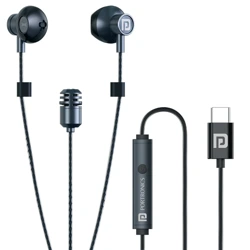
Earphone *1
Instruction manual*1
K1
Karaoke Pro Sound Earbud SE User Guide
(A) (B)
(A) (B)
(A) (B)
Sound Effect Button (M)
Long press: Toggle earbud
monitoring mode
Short press: Cycle through
available sound effects
Volume Button
In Karaoke Mode: Adjusts the
volume of the earphones.
In Listening Mode: Controls
the music volume.
Packing list: earphone*1, instruction manual*1,
Note: The pictures in this user guide are schematic diagrams and
may differ from the actual product. Please refer to the actual product.
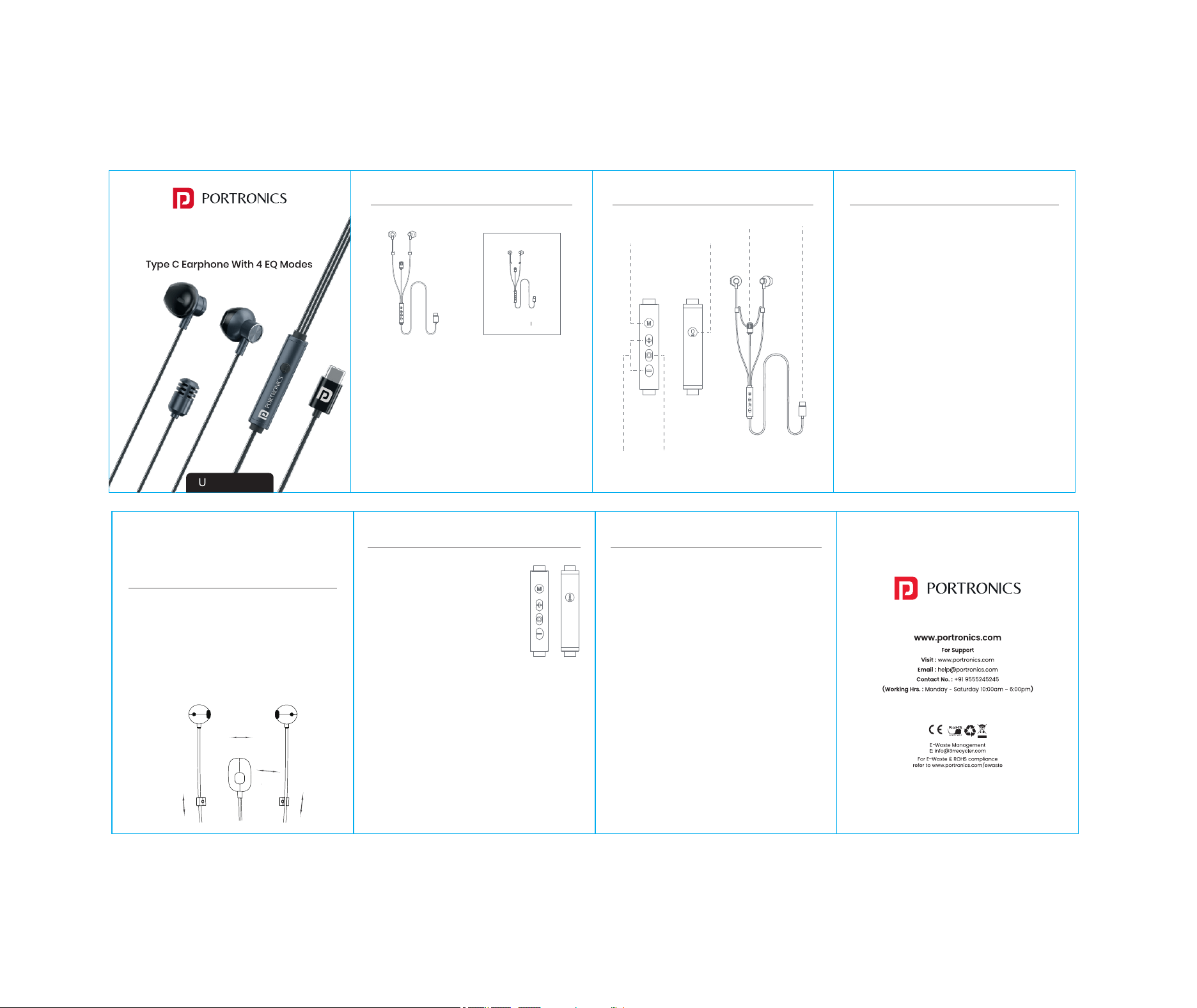
Product diagram
Sound effect
Mode Button
Microphone
Volume but ton
Multi-function button
Play/pause/switch songs
Answer/hang up the phone
Microphone Button
Double press to switch between
different recording effects.
Button Functions
Multi-Function Button
Single click: Answer calls / Play or pause music
Long press: Activate voice assistant (e.g., Siri or Google Assistant)
Double click: Skip to the next track
Triple click: Go to the previous track
Press and hold (during incoming call): Reject the call
Note: Due to system compatibility differences, the functionality of the in-line control button may
vary across playback devices. If needed, you can adjust these settings directly from the playback
device's settings menu.
Using the Microphone
The mi cro phone c an be
remo ved a nd used f or si nging
L and R a djust men t
Up and d own a dj ust men t
Frequently Asked Questions
CONCH ONE
User Manual
1. After plugging in the earbud, the sound still plays through the phone.
•••••• Ensure the OTG function is enabled in your phone's settings.
• Close all music or media apps completely. Then, plug in the earbud and restart
the app.
2. During a call, the sound doesn’t play through the earbud but continues
through the phone.
•••••• Some mobile phone systems require you to manually pick up the call from the
phone to route it through the earbud.
3. No sound from the earbud or microphone.
• Make sure the earbuds are properly inserted into the device.
• Check that the device and media volume settings are not muted.
• Ensure there are no obstructions (e.g., thick phone cases) preventing
a full connection.
4. Sound is low or only working in one ear.
• Adjust the angle or position of the left/right earbuds.
• Inspect and clean the earbud sound outlets, earphone plug, and mobile phone
jack to ensure there is no dirt or debris.
Functions and Parameters
Main Functions
Switching Modes:
• Press and hold the “M” (Sound Effect) key to toggle between
Karaoke Mode and Listening Mode.
Karaoke Mode (Earphone Return Enabled)
• Short press the “M” key to cycle through 8 different karaoke
reverberation effects.
• Use the “+” and “-” volume key to increase or decrease the
volume of the karaoke return audio.
Listening Mode (Earphone Return Disabled)
• Short press the “M” key to switch between 4 headphone
sound effects.
• Use the “+” and “-” volume key to adjust the music volume.
Product Specifications
Speaker Diameter: 14.2 mm
Frequency Response: 20 Hz – 20 kHz
Microphone: Large-size omnidirectional microphone
Speaker Impedance: 32 Ω
Connection Type: Type-C
Microphone Sensitivity: -40 dB
Option 1: Hands-Free Mode
Hang the microphone on the connecting line.
Adjust the position of the microphone line up or down until it’s at a comfortable
distance where it can clearly capture your voice without needing to hold it.
Start singing!
Option 2: Handheld Mode
Detach the microphone from the connecting line.
Hold the microphone and adjust the distance to an appropriate position for
clear sound pickup.
Then sing and enjoy!
Microphone
Button
Type-C Jack
Sound Effect
Modes
Listening Mode:
HD Mode
Bass Mode
Cinema Surround
Mode
Game Mode
Karaoke (Singing
& Listening) Mode:
Professional Mode
Singer Mode
Theater Mode
Digital Mode
Acoustic Mode
Melody Mode
Rounded Mode
Vocal Clear Mode
Switching Modes:
Long press the "M" button to switch between:
Karaoke Mode (for singing with echo)
Listening Mode (for regular music or video)
In Karaoke Mode (For Singing):
Short press the "M" button to choose from 8 sound effects:
1. Professional Mode – Balanced sound for serious singing
2. Singer Mode – Brings out the vocals clearly
3. Theater Mode – Makes it sound like a stage performance
4. Distant Mode – Adds echo like you’re singing far away
5. Acoustic Mode – Soft, guitar-style room feel
6. Melody Mode – Adds musical harmony
7. Rounded Mode – Smooth and warm sound
8. Vocal Clear Mode – Makes your voice sharper and clearer
In Listening Mode (For Music or Games):
Short press the "M" button to select from 4 modes:
1. HD Mode – Clean, high-quality sound
2. Bass Mode – Stronger beats and bass
3. Cinema Surround Mode – Feel like you’re in a movie theater
4. Game Mode – Better detail for footsteps and effects in games
Note: If you haven’t pressed the M button for a few seconds:
The first press will announce the current mode.
The second press will change to the next mode.
Volume & Music Control
"+" and "-" Button :
In Karaoke Mode
Short/Long press = Microphone/Karaoke volume control
In Listening Mode
Short/Long press = Increase/Decrease volume
Microphone Button Function
Double click = Switch between Dry/Wet Recording
Dry Recording: No echo (clear sound)
Wet Recording: With echo (reverb effect)
Multi-Function Button (Middle Button)
Short press = Answer/End a call
Long press = Reject a call
Double click = Next song
Triple click = Previous song