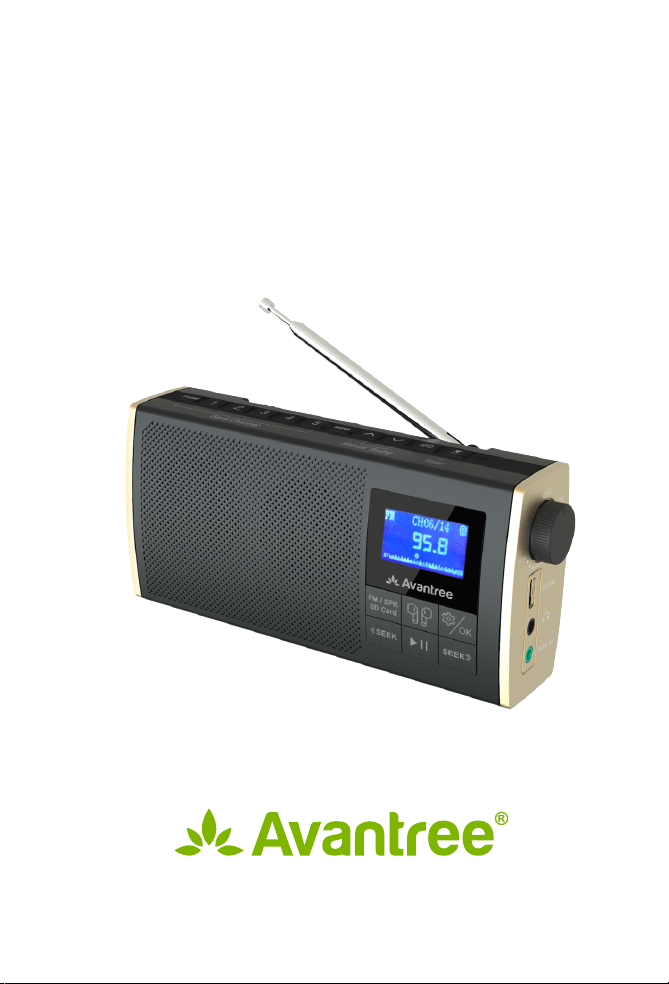
Model No.: BTSP-860-T
Avantree Soundbyte T
USER MANUAL


EN
User Manual
DE
Kurzanleitung
FR
Guide de démarrage rapide
ES
Guía de inicio rápido
IT
Guida di avvio rapido
2
17
33
48
63
1
User Manual
SOUNDBYTE T
2
User Manual
SOUNDBYTE T
Video Guide
Book an Appointment
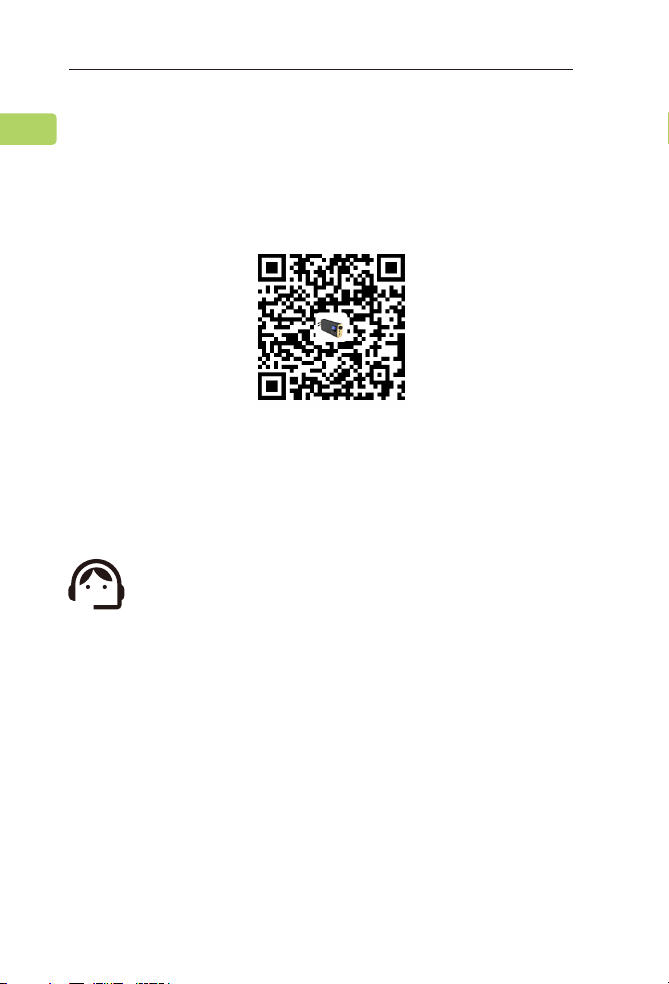
Prefer to watch a video tutorial? Scan the QR code below or
visit avantree.com/soundbyte-t/video for a step-by-step
guide.
You can also book a 1-on-1 setup appointment with
one of our support agents at
avantree.com/book-a-call
VIDEO GUIDE
EN

3
User Manual
SOUNDBYTE T
Table of Contents
Box Contents
Product Introduction
Product Overview
Button Functions
Using as an FM Radio
Using with Your Bluetooth Headphones
Using as a Bluetooth Speaker
Using as a MicroSD Card Player
Charging
Conguring the System Settings
Specications
FAQ
Contact Us
5
5
5
6
7
9
11
12
13
13
14
15
16
EN
4
User Manual
SOUNDBYTE T
DE
FR
ES
IT
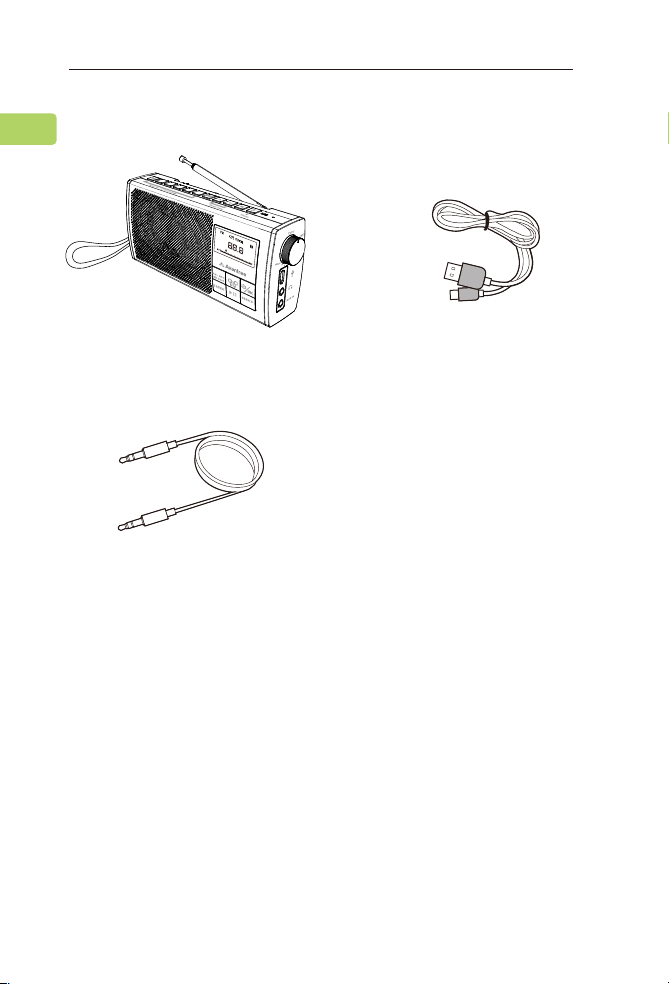
Box Contents
To view and purchase Soundbyte T accessories, please visit
avantree.com/soundbyte-t/accessories
Soundbyte T Type C Charging Cable
3.5mm AUX Audio Cable
1
2
3
4
5
SCAN
EQ
EN
5
User Manual
SOUNDBYTE T
Product Introduction
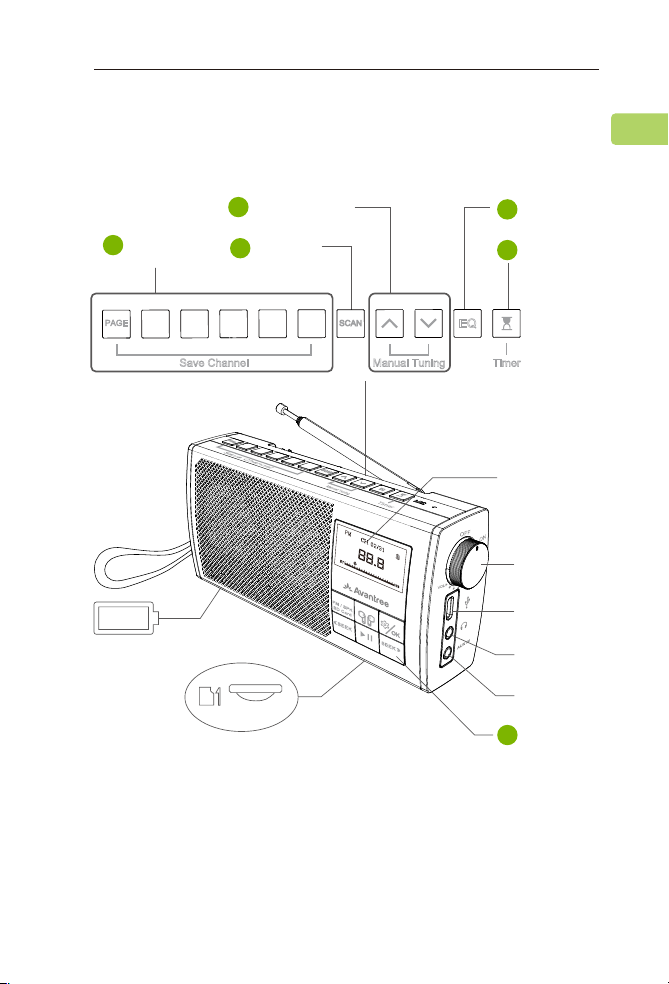
Product Overview
1
2
3
4
5
SCAN
EQ
Channel
save button
1
Auto scan
button
2
Manual tuning
button
3
EQ mode
button
4
Sleep
timer
5
ON / OFF /
Volume
adjustment
Charging
port
Headphones
jack
Aux 3.5mm
input jack
Front panel
buttons
Battery compartment
6
1 2 3 4 5
PAGE
Save Channel
SCAN
EQ
TimerManual Tuning
Micro SD card slot
MicroSD card slot
EN
Screen display
6
User Manual
SOUNDBYTE T
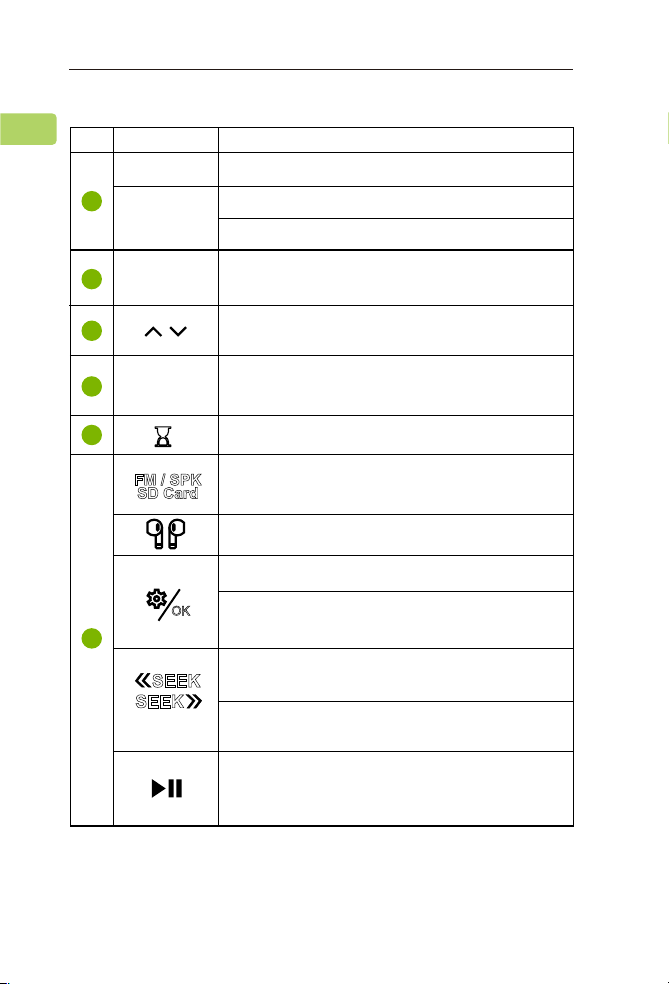
Button Functions
Press once to switch between pages 1 / 2 /3 / 4
No. Button
PAGE
1 2 3 4 5
SCAN
EQ
Functions
Press and hold to save an FM channel
Press once to swap to saved FM channel
Press once to automatically search for all
available channels
Press once to adjust channel up / down
by 0.1 MHz
Press once to enter sleep timer settings
Press once to switch between FM / Bluetooth
speaker / micro SD card player mode
Press & hold to pair with your headphones
Press once to enter system settings
Press once to conrm your selection while
in the menu
Press once for previous/next channel / track
( FM / Bluetooth / microSD card player modes )
Press & hold to seek for the next clear FM
channel
Press once to play / pause (Bluetooth speaker
& microSD card player modes) or to mute /
unmute ( FM / wired speaker modes )
Press once to switch between clear voice /
bass-enhanced / balanced sound modes
1
2
3
4
5
6
FM / SPK
SD Card
SEEK
SEEK
OK
EN
7
User Manual
SOUNDBYTE T
FM / SPK
SD Card
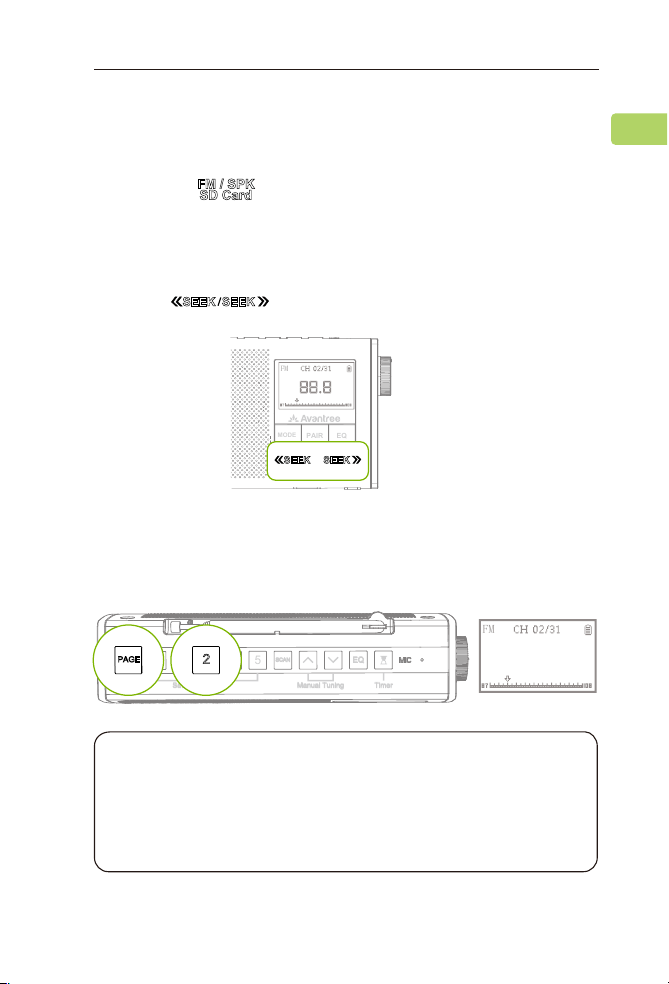
Using as an FM Radio
STEP 1
For rst time use, the radio will automatically enter FM mode
(if not, press ) and auto-scan for FM channels by
default (if not, press the SCAN button). Please wait until
auto-scan is complete.
STEP 2
Press the button once to select your channel.
STEP 3
To save a channel, press the PAGE button once, then press &
hold the 1 2 3 4 5 buttons. The screen will display “Saved to P#-#”
to indicate that the channel has been properly saved.
SEEK
SEEK
MODE
FM
PAIR EQ
SEEK
SEEK
1 2 3 4 5
PAGE
Save Channel
SCAN
EQ
Timer
Manual Tuning
PAGE
2
FM
NOTE1: In “P1-2”, 1 indicates the page number, and 2
indicates the number button.
NOTE2: There are 4 total pages and 5 channels can be
saved to each page (for a total of 20 channels). Press the
PAGE button once to swap between pages.”
Saved to P1-2
EN

8
User Manual
SOUNDBYTE T
STEP 4
To jump to a saved channel, press the corresponding number
button once.
NOTE: If you saved the channel to pages 2 / 3 / 4, you’ll
need to press the PAGE button until you reach the proper
page before pressing the corresponding number button.
EN
9
User Manual
SOUNDBYTE T
Using with Your Bluetooth Headphones
Step 3
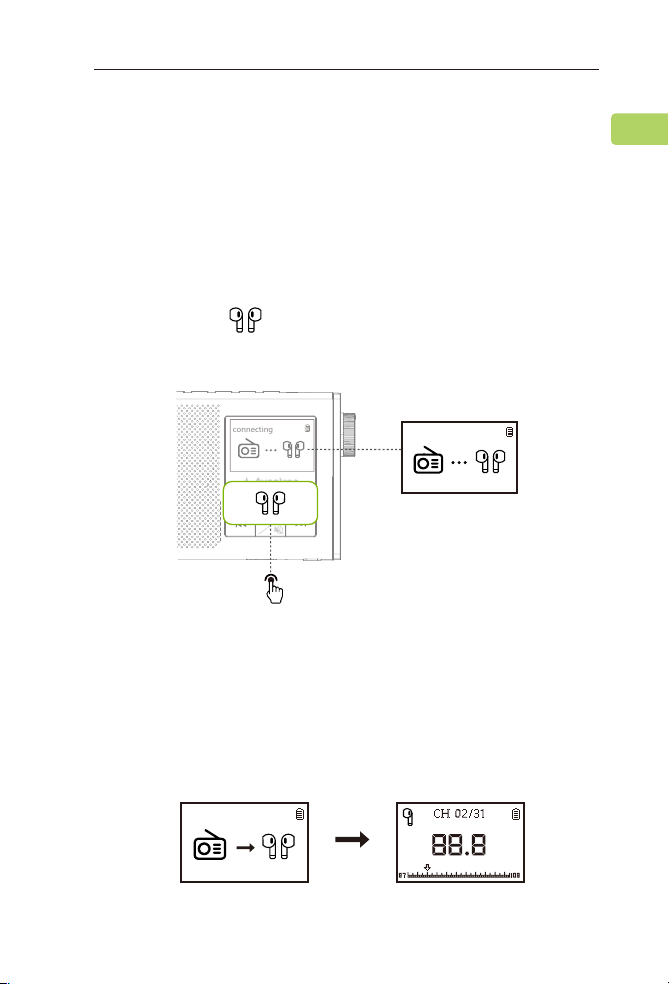
Put your headphones into PAIRING mode.
The Soundbyte T can wirelessly transmit FM / micro SD / AUX
audio signals to your Bluetooth headphones.
STEP 1
Ensure the speaker is in FM, micro SD, or AUX playing mode. It
will NOT work in Bluetooth speaker mode.
STEP 2
Press & hold the button for 2 seconds. The screen will
display as follows.
MODE
PAIR EQ
2S
Connecting
connecting
Connected
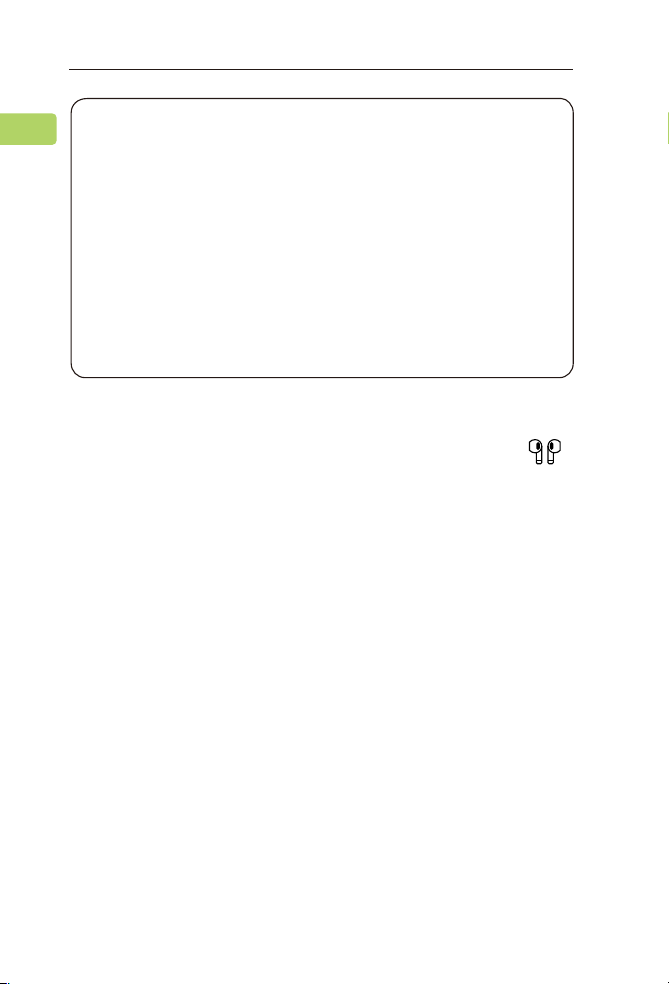
Step 4
Keep your headphones & the Soundbyte T close to each other.
Once they successfully connect, the screen will display as
follows.
EN
10
User Manual
SOUNDBYTE T
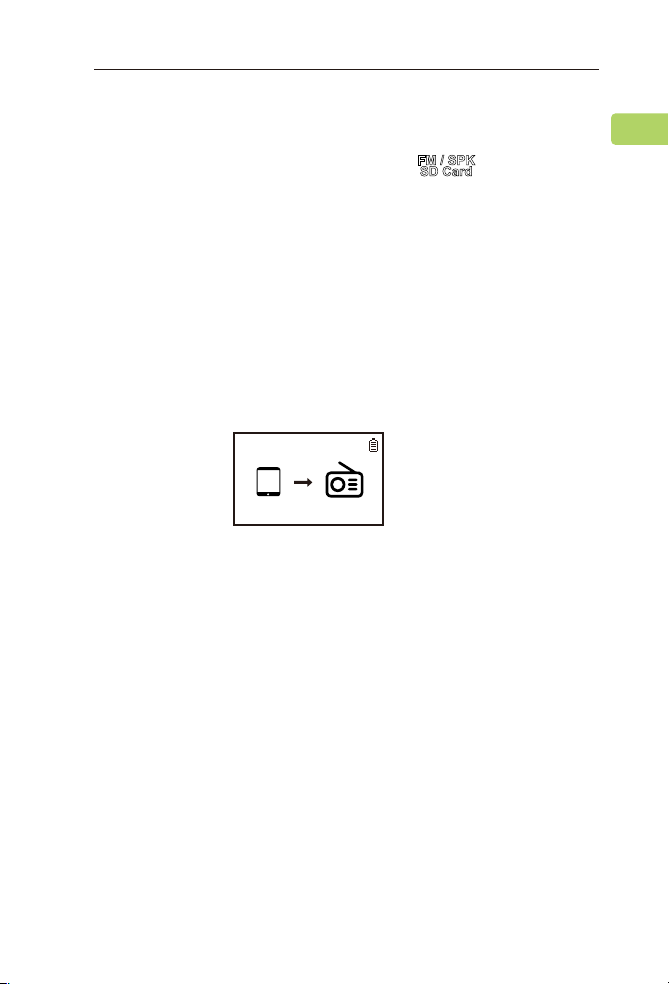
For Subsequent Use
Turn on both the radio and your headphones and press
the button once. They should automatically reconnect. If not,
repeat the steps above to re-pair them.
NOTE1: Most cases where your device & the radio fail to
connect happen because the device is not properly placed
into PAIRING mode. Double check that your device is
successfully in PAIRING MODE (typically indicated by an
LED indicator's alternate red & blue ashes). For more
details, please refer to your device's online user manual.
NOTE2: Bluetooth devices normally automatically
reconnect to their last paired / connected device. You may
need to turn the Bluetooth OFF on any previously used
devices in order to avoid interference.
EN
11
User Manual
SOUNDBYTE T
FM / SPK
SD Card
Using as a Bluetooth Speaker
STEP 1
Turn on the Soundbyte T and press the button once to
enter Bluetooth speaker mode.
STEP 2
Activate Bluetooth on your device (i.e. your phone, tablet,
laptop, etc.) and select “Avantree Soundbyte T.”
STEP 3
Keep the two devices close to each other. Once they
successfully connect, the screen will display as follows.
For Subsequent Use
Every time you turn it on, the speaker should automatically
reconnect to the last connected device. If not, select “Avantree
Soundbyte T” on your device.
Bluetooth spk
Connected
EN
12
User Manual
SOUNDBYTE T
OK
OK
SEEK
SEEK
SEEK
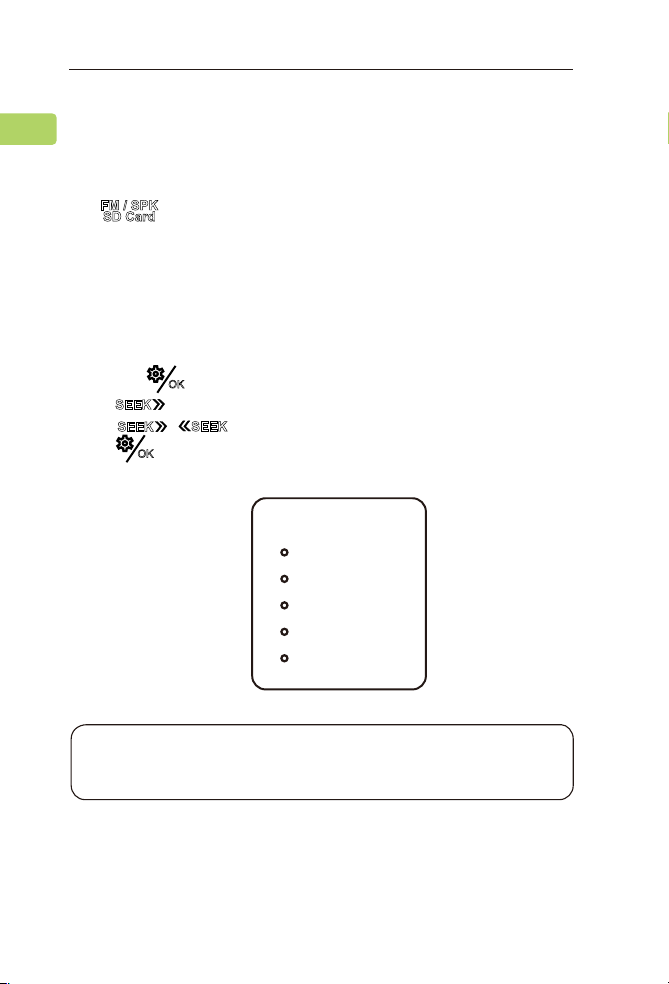
Using as a MicroSD Card Player
When you insert a microSD card ( not included ), the radio will
automatically switch to microSD mode if the radio is on. If the
radio is o when you insert the card, you’ll need to press
the button to switch to microSD mode.
The Soundbyte T supports MP3 / WMA / WAV / APE / FLAC le
formats.
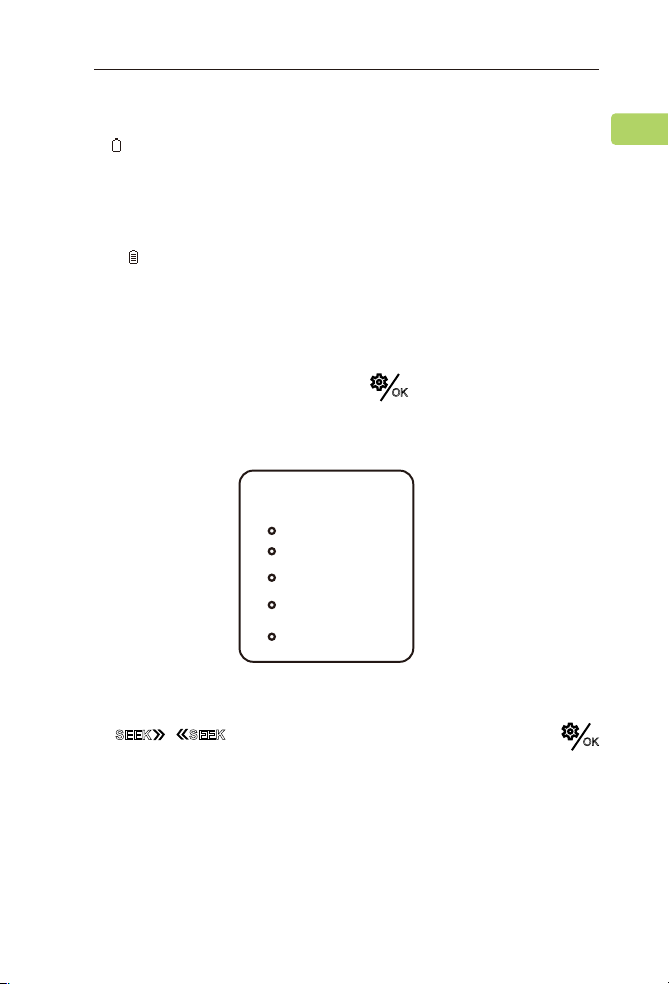
Repeat / Shue Settings
Press the button once to enter the system settings.
Press to select “REPEAT / SHUFFLE”, then
press to select the desired option and
press once to conrm.
NOTE: The Soundbyte T cannot read microSD cards larger
than 32GB.
FM / SPK
SD Card
Repeat/Shue
Back
Repeat All
Repeat One
Repeat Folder
Shue
EN
13
User Manual
SOUNDBYTE T
OK
OK
SEEK
SEEK
Charging
A icon will ash on the Soundbyte T’s screen to indicate
low battery. You can charge the radio using any USB adapter
with a 5V/0.5-1A output (i.e. your phone charger or similar)
via the included USB C charging cable.
The icon on the LCD screen will ash while charging and
stop once charging is complete. It takes about 3 hours to
fully charge the radio.
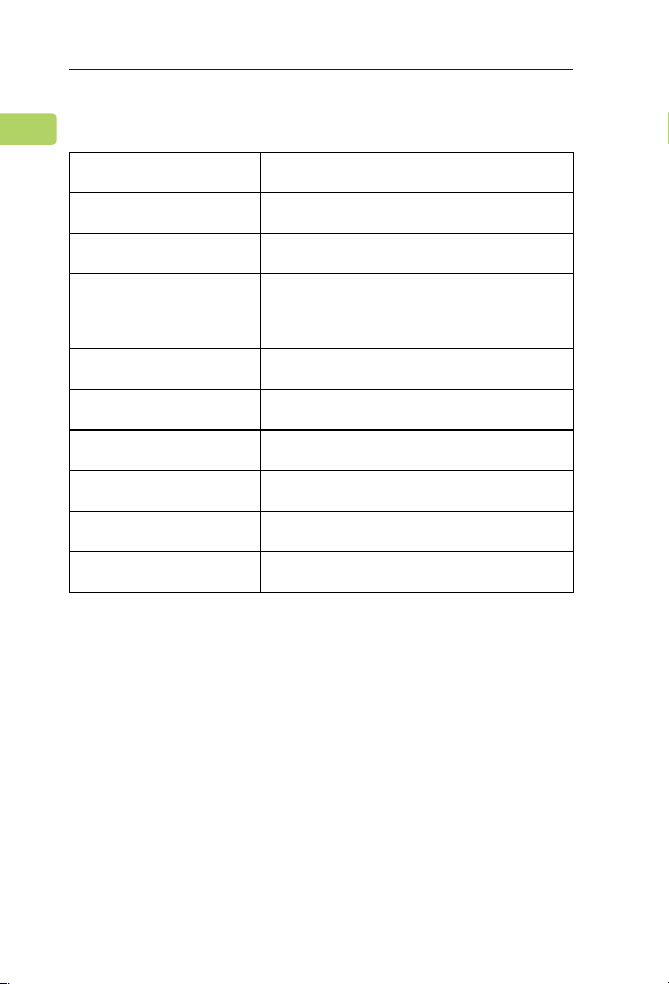
Conguring the System Settings
Turn on the device and press the button once to enter
the system settings.
Press to select your desired option, then press
to conrm your selection.
System Settings
...
Backlight
Contrast
Factory Reset
...
EN
14
User Manual
SOUNDBYTE T
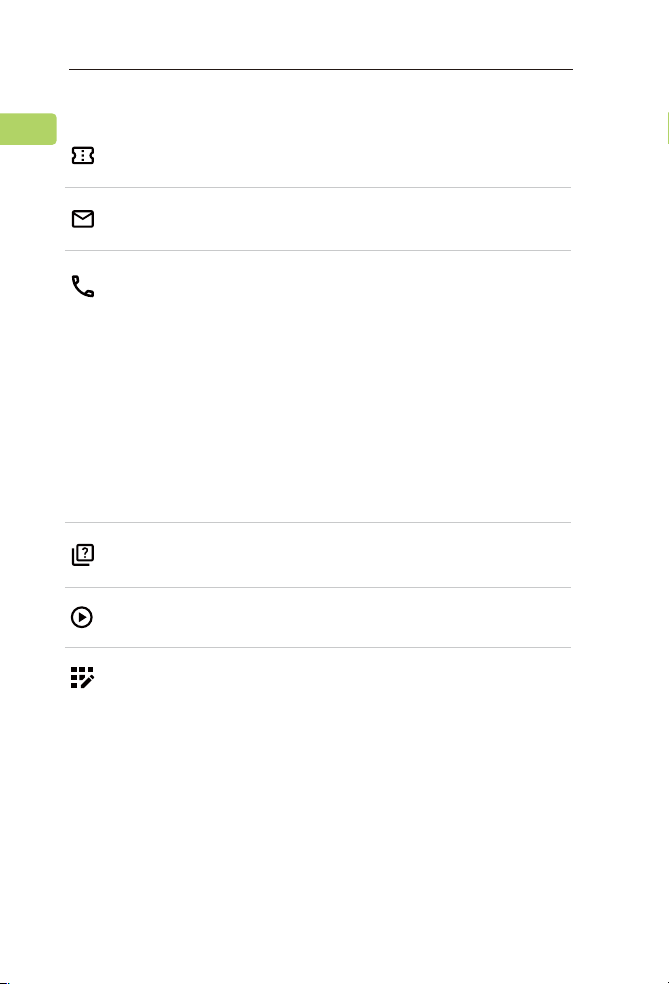
Specications
FM frequency range
Frequency range
Power
Playtime
Charging voltage
Operating range
Supported proles
Product size
Product weight
87MHz - 108MHz
160Hz - 20KHz
6W(dual 3W speakers)
Up to 11hrs
5V /1A
Up to 30ft / 10m
HFP v1.5, A2DP v1.0, AVRCP v1.4
14.3 cm x 7 cm x 3 cm
270g
F
Battery
18650 lithium rechargeable
2200mAh battery
EN

15
User Manual
SOUNDBYTE T
FAQ
Below are some of the most common questions people
have during setup.
Can I replace the battery?
Yes. You can purchase a replacement battery at
avantree.com/soundbyte-t/accessories or use any 3.7V
18650 lithium-ion battery.
Why is my FM reception so bad?
Why is my microSD card not working?
Why are my headphones failing to connect?
……
For answers to questions like these and for a full FAQ list,
you can visit avantree.com/support/soundbyte-t, or you
can contact us directly for additional assistance.
EN
16
User Manual
SOUNDBYTE T
F
Contact Us
Support Tickets avantree.com/submit-a-ticket
Support Email [email protected]
FAQ avantree.com/support/soundbyte-t
USA / CA +1800 232 2078 (9am-6pm PST, Mon-Fri )
UK +44 20 8068 2023 (9am-6pm, GMT, Mon-Sat)
DE +49 32221097297 (11am-9pm, CET, Mon-Sat )
FR + 33 176340312 (11am-9pm, CET, Mon-Sat )
IT +39 06 9480 3330 (9am-6pm, CET, Mon-Sat )
ES + 34 931786261 (9am-6pm, CET, Mon-Sat )
AU + 61 2 8310 9897 (11am-7pm, AEST, Mon-Fri)
Video Guide avantree.com/soundbyte-t/video
Product Registration avantree.com/product-registration
EN
Model No:BTSP-860-T
Dispose of the packaging and this product in accordance with the latest provisions.
Z-PKQG-BTSP-860-T
Manufacturer: Avantronics Limited
Address: Luohu District, Shenzhen 518000 China
US Importer:
Avantree Corporation
San Jose, California 95119 USA
UK Importer:
Avantree Limited
Watford, WD180 0HQ UK
Servicer in Europe:
GizmexGmbH,
Sternstr.67,40479Dusseldorf,Germany
Tel:01–4083348648 suppor[email protected]om
EC REP