IC: 30978-K250R
HVIN: K250R
FCC ID
:
:2BU2U-K250R
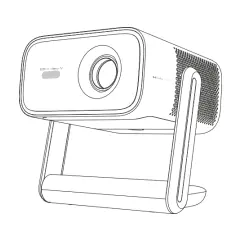
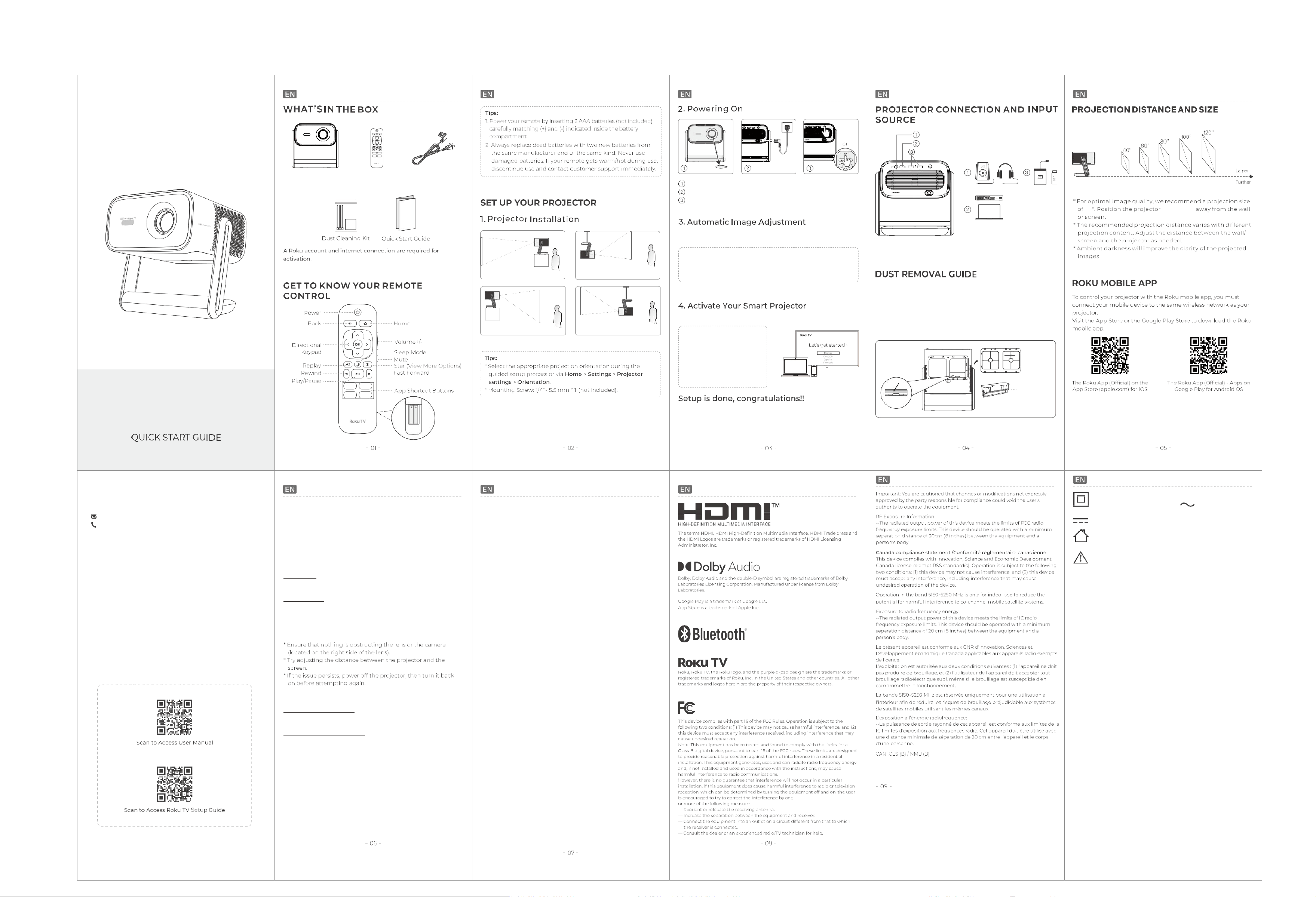
Smart Projector
Remote Control
Power Cable
(Batteries not included)
Front Desktop Rear
Ceiling
Rear Desktop Front Ceiling
Remove the protective film from the lens.
Plug the power cable into an outlet.
Press the
Power Button
to turn the projector on.
The projector will automatically adjust the image for optimal
clarity upon powering on.
Tip:
If the initial auto-focus doesn't achieve desired results, you can
manually adjust. Please visit the "TROUBLESHOOTING" section
for more information.
Follow on-screen setup instructions to activate your projector.
Tip:
A Roku account and internet
connection are required for
activation.
Important:
Roku never charges for
activation.
Continue using the remote to personalize your Home screen,
channel line-up, stream movies, and so much more.
Audio Out
HDMI
USB
(1)
Project a white background picture and pause to freeze the
display.
(2)
Remove the cover on the bottom of the projector.
(3)
Remove the dust cleaning cover.
(4)
Insert a cotton swab deep inside and carefully wipe the sides
of the LCD screen.
(5)
Reattach both covers after cleaning.
Dust Cleaning Cover
3.6ft 5.4ft 7.3ft 9.1ft 10.9ft
(1.11m) (1.66m) (2.21m) (2.78m) (3.32m)
80
7.3ft
(2.21m)
Model: K250R
Roku TV Smart Projector
CONTACT US
Email
|
support@boldever.com
Phone
| +1-
478-780-5200 (Mon-Fri, 9: 00 AM - 5: 00 PM EST)
*
If you need assistance outside these hours, please email us.
TROUBLESHOOTING GUIDE
1.
How do I adjust the image if the remote doesn't have focus or
keystone buttons?
*
You can gently tilt the projector up and down to trigger
auto-adjustment. Alternatively, refer to items 2 and 4 below for
manual adjustments.
2.
How do I improve the image clarity?
Auto Focus: You can move the projector or trigger auto focus
by going to Home > Settings > Projector settings and selecting
Start auto-focus.
Manual Focus: Go to Home > Settings > Projector settings >
Image correction > Manual focus and follow the on-screen
instructions to sharpen the image until it becomes clear.
3.
Couldn't complete auto-focus or auto-keystone?
4.
What should I do if the image is not rectangular?
Auto Keystone Correction: Go to Home > Settings > Projector
settings and select Start auto-keystone. The projector will
automatically correct keystone distortion.
Manual Keystone Correction: Go to Home > Settings >
Projector settings > Image correction > Manual keystone and
follow the on-screen instructions to adjust the image using
four-point correction.
5.
How do I change the image size on my screen?
*
Consider moving the projector closer or further away from the
screen to find the optimal image size for the screen. You can
also adjust the image size by going to Home > Settings >
Projector settings > Image correction > Zoom.
6.
How to install the Remote Control Mobile App?
The free Roku app allows you to use your mobile device as a full
functioning remote control with voice search & keypad.
�
Download the Roku app to your phone or tablet through
Google Play™ or App Store™.
�
Simply search for "Roku App" and choose the Roku app by
Roku Inc.
�
Follow the on-screen prompts and you're on your way!
7.
Cannot connect to a wireless network (Wi-Fi)?
*
Select the correct wireless network name and verify the
password entered (case sensitive).
*
Relocate the router from objects that interfere with
performance (cordless phones, baby monitors, etc.).
*
Reboot the router by disconnecting the power for more than 2
minutes and reconnect.
8.
Why doesn't the remote control work?
*
Make sure the remote points at the IR receiver directly.
*
Make sure you have installed two AAA batteries in the remote
control.
*
Avoid mixing new batteries with old ones in the remote
control as this can result in insufficient power supply and
operational issues.
9. What should I do if the projector fails to power on or
automatically shuts down?
*
Please check and ensure that the power cable is securely
plugged into the power port to prevent any accidental
disconnection or loosening when moving the
projector.
10. Does the projector support voice control?
*
Yes. You can download the Roku mobile app (see the ROKU
MOBILE APP section) for voice control. You can also use Alexa
or Google Assistant.
11.
The content from Netflix, Hulu, Disney+, Prime Video, and
similar streaming services can't be mirrored when connected
with smartphones.
/
Why is there audio but no video when
streaming videos from my mobile phone to the projector via
screen mirroring?
*
Copyrighted content from Hulu, Disney+, and similar streaming
services CANNOT be wirelessly mirrored or cast due to
copyright restrictions. These apps are available for download in
the Roku Channel store.
The symbol indicates Class II equipment The symbol indicates AC
voltage
The symbol indicates DC voltage
For indoor use only
The exclamation point within an equilateral triangle is intended to alert the user
to the presence of important operating and maintenance (servicing) instructions
in the literature accompanying the appliance.
The mains plug is used as the disconnect device. The socket-outlet shall be
installed near the equipment and shall be easily accessible.
The product label and certification information are located at the bottom of the
product.
ISED Statement
English:This device contains licence-exempt transmitter(s)/
receiver(s) that comply with Innovation, Science and Economic
Development Canada
’
s licence-exempt RSS(s). Operation is
subject to the following two conditions:
(1) This device may not cause interference.
(2) This device must accept any interference, including
interference that may cause undesired operation of the device.
The digital apparatus complies with Canadian CAN ICES-3 (B)/
NMB-3(B).
French: Cet appareil contient des émetteurs/récepteurs exempts
de licence qui sont conformes aux RSS exemptés de licence d'
Innovation, Sciences et Développement économique Canada.
L'exploitation est soumise aux deux conditions suivantes :
(1) Cet appareil ne doit pas provoquer d'interférences.
(2) Cet appareil doit accepter toute interférence, y compris les
interférences susceptibles de provoquer un fonctionnement
indésirable de l'appareil.
l'appareil numérique du ciem conforme canadien peut - 3 (b) /
nmb - 3 (b).
This device meets the exemption from the routine evaluation
limits in section 6.6 of RSS 102 and compliance with RSS 102 RF
exposure, users can obtain Canadian information on RF exposure
and compliance.
cet appareil est conforme à l'exemption des limites d'évaluation
courante dans la section 6.6 du cnr - 102 et conformité avec rss
102 de l'exposition aux rf, les utilisateurs peuvent obtenir des
données canadiennes sur l'exposition aux champs rf et la
conformité.
This equipment complies with Canada radiation exposure limits
set forth for an uncontrolled environment.
Cet équipement est conforme aux limites d'exposition aux
rayonnements du Canada établies pour un environnement non
contrôlé.
the device for operation in the band 5150-5250 MHz is only for
indoor use to reduce the potentialfor harmful interference to co
channel mobile satellite systems.le dispositif utilise dans la bande
5150-5250 MHz est reserve a une utilisation en interieur afin de
reduire le risque de brouillage prejudiciable aux systemes mobiles
par satellite dans le meme canal.
This equipment should be installed and operated with minimum
distance 20cm between the radiator & your body.
Cet équipement doit être installé et utilisé à une distance
minimale de 20 cm entre le radiateur et votre corps.