
S350
Manual
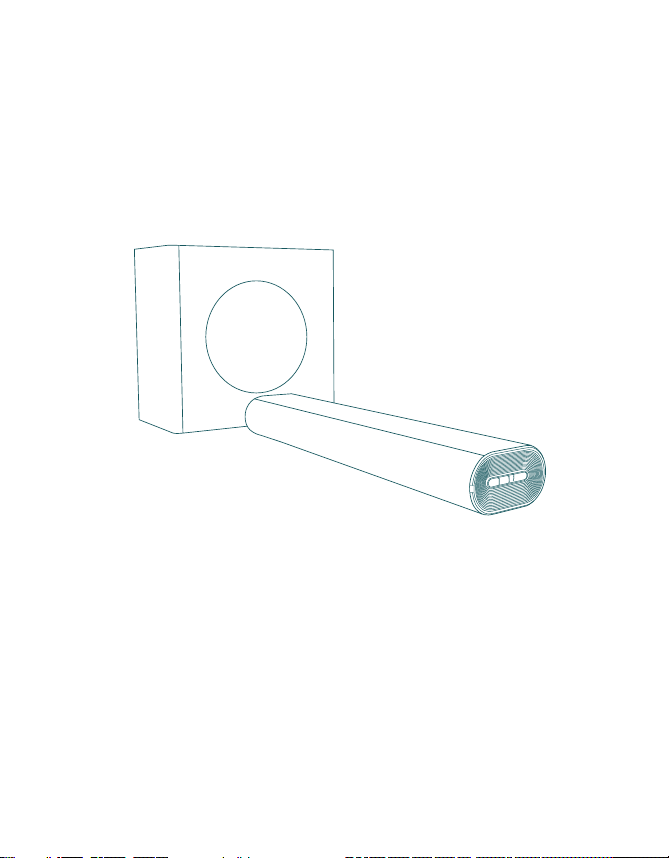
Please read all instructions before use for the best performance
of this product. Save these instructions for future reference.
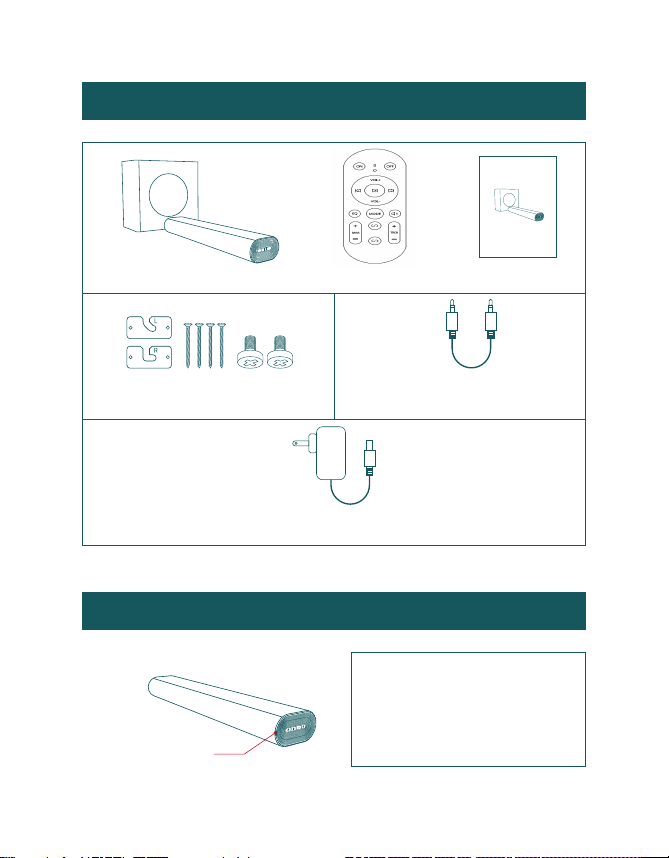
Box Contents
3.5mm to 3.5mm
audio cable
Power Adapter
Sound Bar
Please read all instructions before use for the best performance
of this product. Save these instructions for future reference.
Remote Control Quick Start
LED Indicators and Button Introduction
Standby
(Red) (Blue) (Cyan)
(Purple)(Yellow)(White)
Bluetooth
Optical
ARC
AUX USB
LED Indicators
Mount Screws and
Wall Mount Brackets
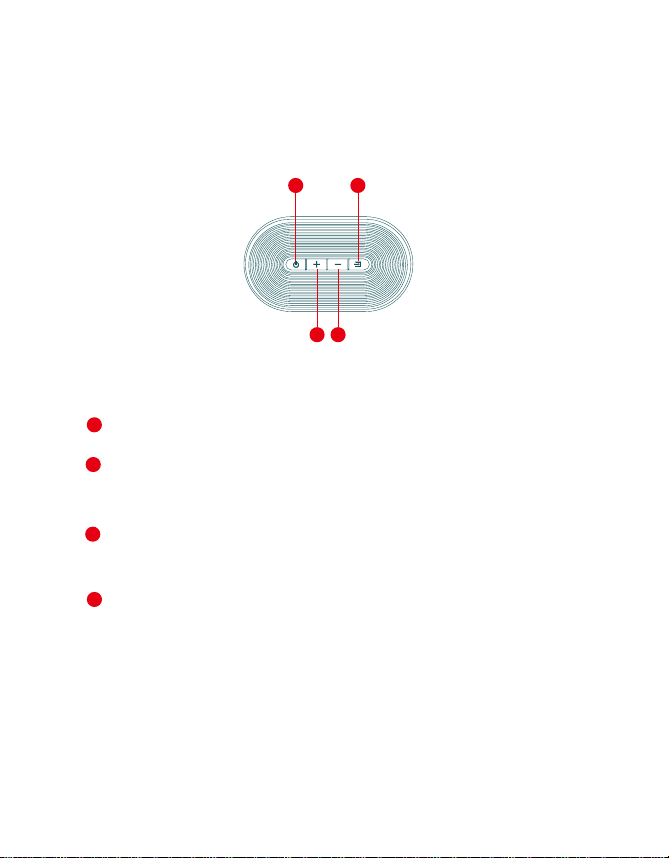
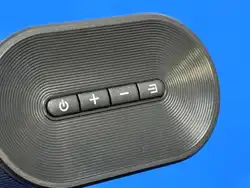
Right side of Sound Bar
1
2
3
4
1 4
2 3
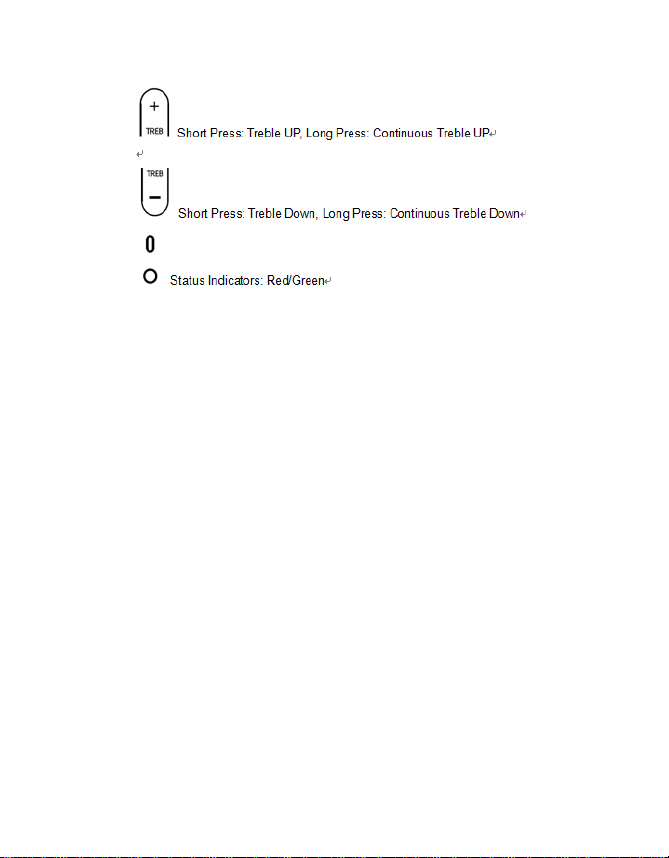
短按开关机,长按断开蓝牙
短按增大音量,长按切换上一首歌曲
AUX模式:长按和短按均可增大音量
短按降低音量,长按切换下一首歌曲
AUX模式:长按和短按均可降低音量
短按切换输入模式:BT/AUX/OPT/ARC/USB
长按进入多连模式,再长按退出多连模式
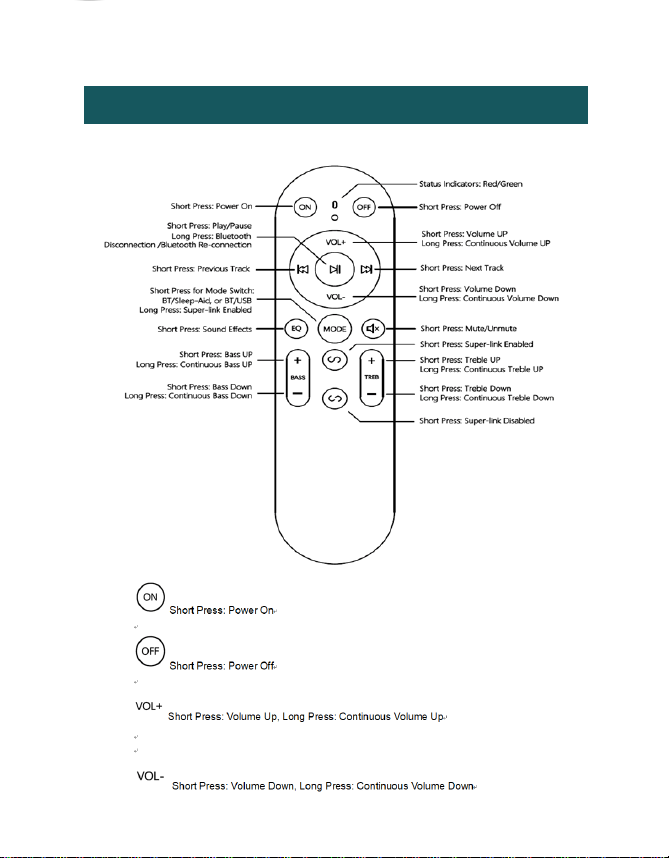
Remote Control
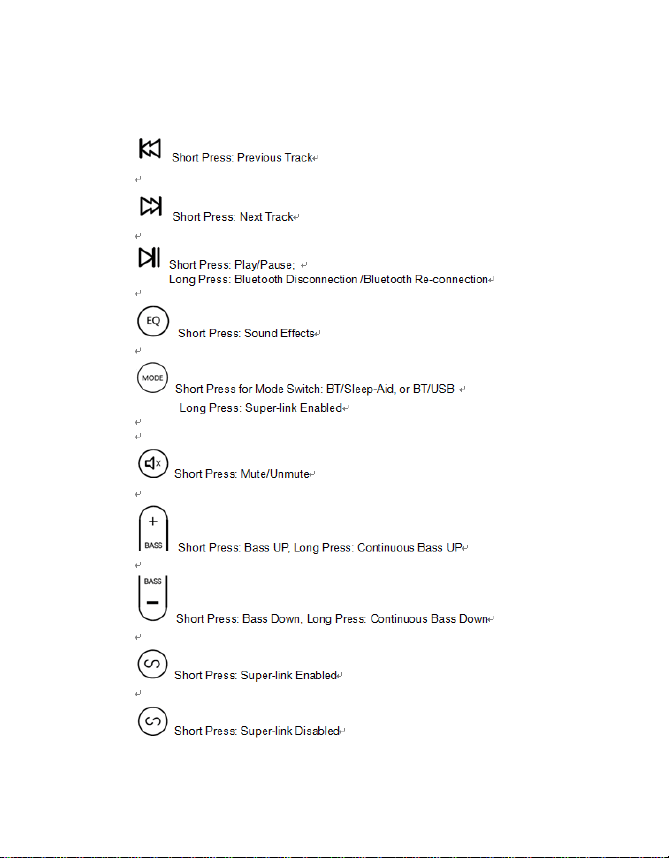
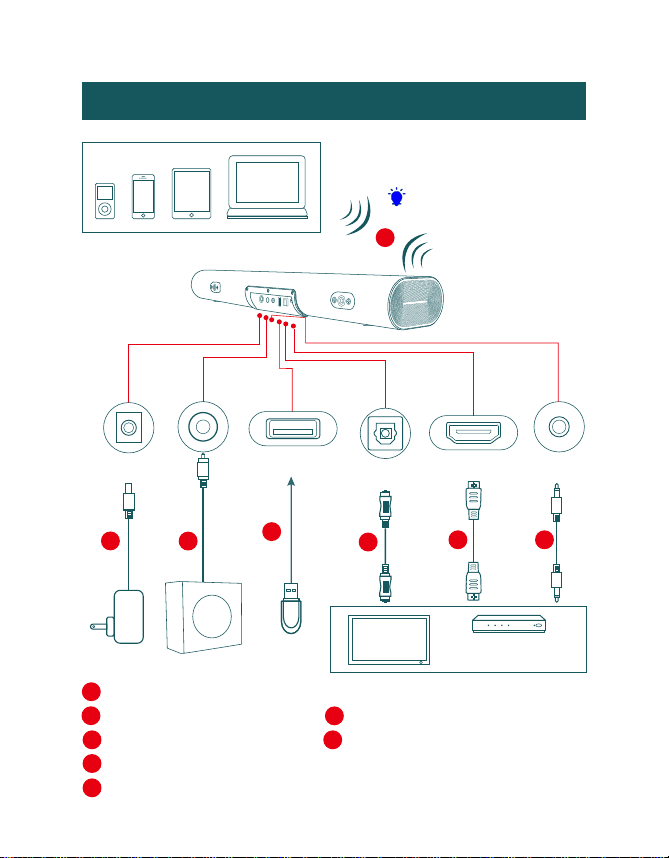
Connection Diagram
Bluetooth Device
a
Bluetooth signal
up to 30 feet
USB
Power
adapter
DC
USB
ARC
OPTICAL
AUX
b
c
d
e
f
g
BD / DVD / Set-top
box / Game console
TV
Bluetooth
a
High speed ARC cable
(not supplied)
f
3.5mm to 3.5mm audio cable
(supplied)
g
USB
(not supplied)
d
Audio cables
(supplied)
c
Digital Optical cable
(not supplied)
e
Power Adapter
(supplied)
b
DC
AUX IN
SUB OUT
USB
OPTICAL
HDMI
Subwoofer
OPTICALAUX INSUB OUT USBDC HD-ARC
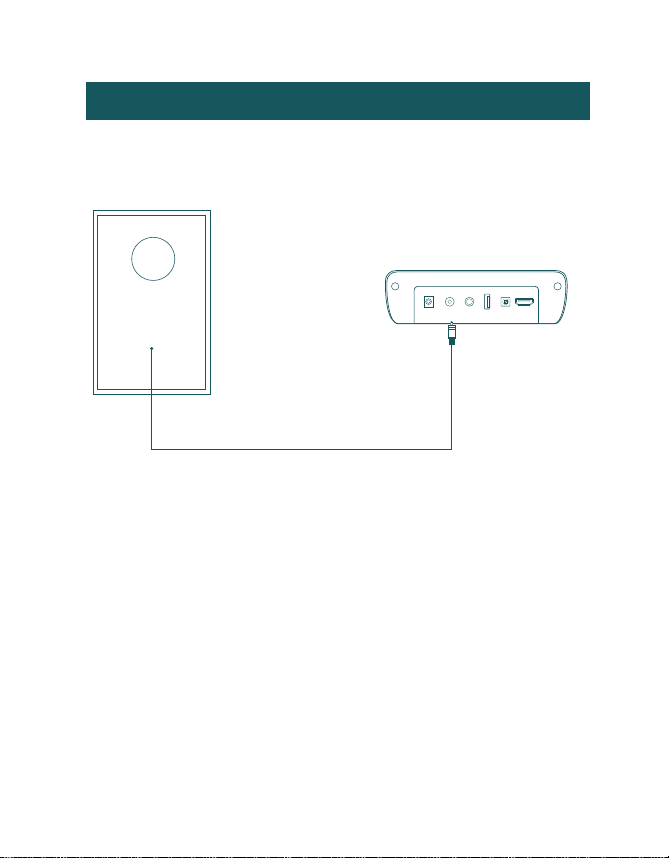
Power on Your Subwoofer
Connect the subwoofer cable into Sound Bar SUB OUT port as
shown:
Back of Subwoofer
Audio cable
(supplied)
Back of Sound Bar
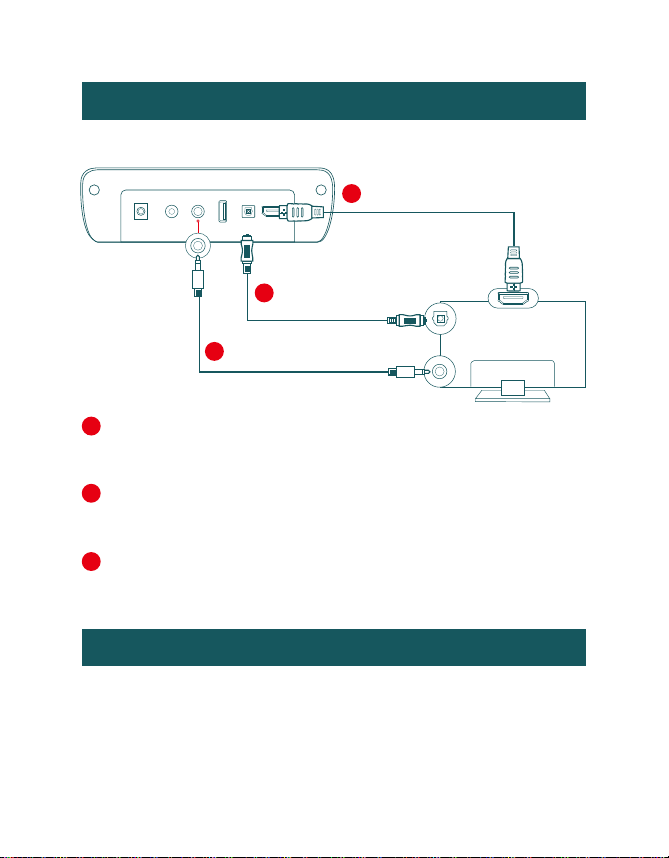
Connecting with a TV
Setting “PCM” on your TV
When all cables are connected properly, and LED indicator
lights properly, if there is no sound from tv or Sound Bar, please
setting your tv as below:
Method 2. Connecting using an Optical cable. Select Optical
mode and set the TV’s audio output to “PCM”.
(More information on PCM page)
C
Method 1. Connecting using an High speed ARC cable. Select
ARC mode and set the TV’s audio output to “PCM”.
(More information on PCM page)
B
A
Method 3. Connecting using a 3.5mm to 3.5mm audio cable.
Select AUX mode.
TV
B
Digital Optical
cable
(not supplied)
C
3.5mm to 3.5mm audio
cable
(supplied)
A
High speed ARC
cable
(not supplied)
OPTICALAUX INSUB OUT USBDC HD-ARC
Back of Sound Bar
Connecting a Bluetooth Device
1. Press "Menu" on the TV’s remote control.
2. Press the arrow keys on the remote to scroll to "Audio Settings."
3. Press "OK" on the remote control.
4. Scroll to "Advanced Audio" and press "OK". Some televisions may
not have an"Advanced Audio" menu and may list various audio
settings instead.
5. Scroll to "Audio Output Mode" or "Digital Audio Output Mode" and
press "OK".
6. Scroll until "PCM" is displayed as the current audio output.
7. Press "OK" to save the settings.
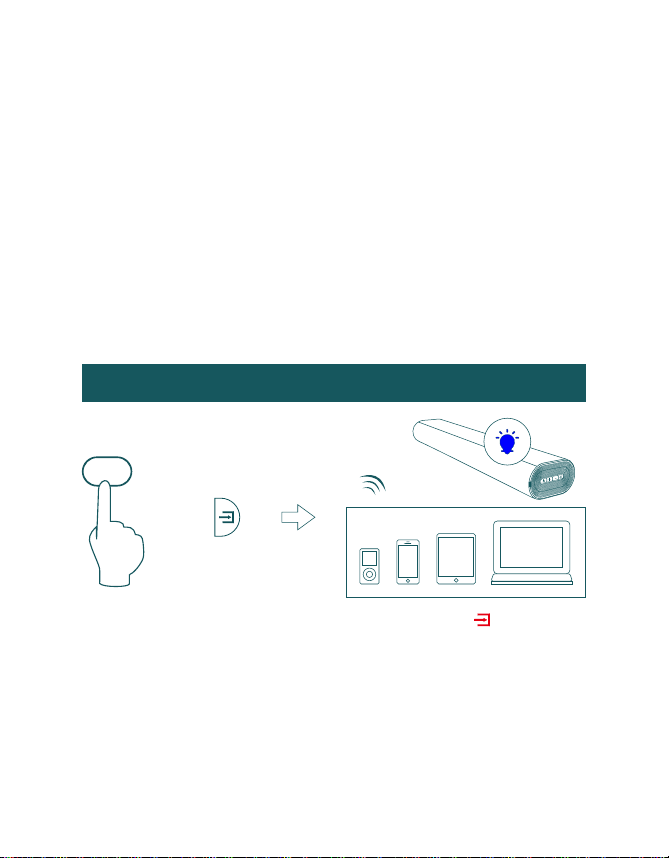
BT
or
b. Turn on Bluetooth on the Bluetooth device.
c. Select “S350” and connect it. When your Bluetooth device is
connected, the LED indicator blinks blue slowly.
d. Play music files from the device, connected via Bluetooth, through
the Sound Bar.
Bluetooth signal up to 30 feet
a. Press the “BT” button on the remote or press the “ ” button on
the right side of Sound Bar, the LED indicator blinks blue.
Installing the Wall Mount
DC
AUX IN
SUB OUT
USB
OPTICAL
HDMI
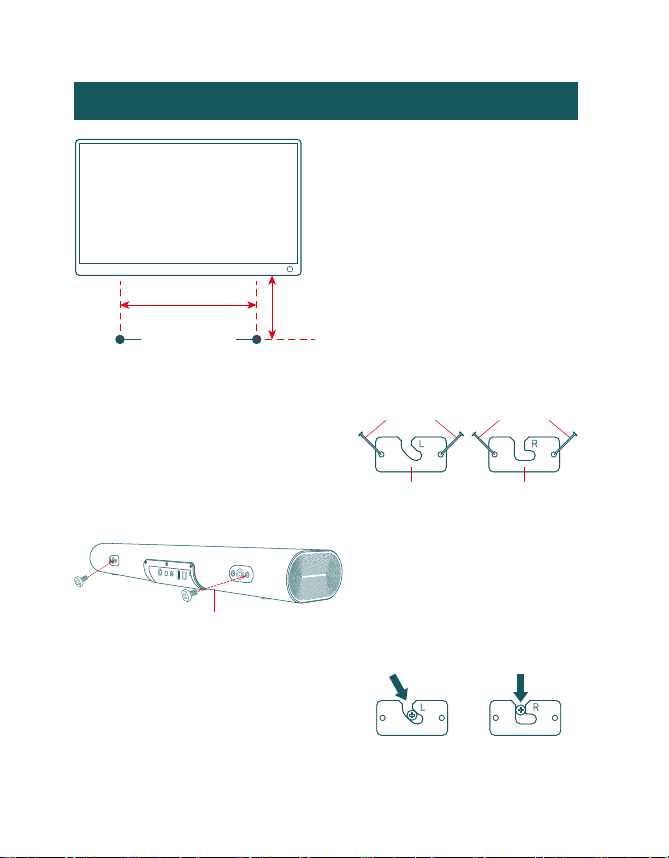
2. Thread the screws through the
brackets and tighten each Securely
screw into the support screw holes.
3. Insert the two wall-mount
screws into the wall-mount
screw holes, and then tighten
them with a screwdriver.
4. Plug in power cable and audio
cable before install the Sound Bar
on the wall.
Install the Sound Bar by hanging
on the brackets on the wall.
screw
Bracket
screw
Bracket
Install the Sound Bar
Back of Sound Bar
1. Use the drilling tool to make
2 holes in the wall, making
sure the hole size is as shown
Leave at least 3 inches between
the soundbar and the TV.
3 inches
or more
695mm
TV
screw hole
Troubleshooting
If you have a problem with your Sound Bar, there is quick simple
solution, first make sure:
The cables between Sound Bar and input devices are securely connected, the
power adapter is also connected to a working power source.
The adapter LED indicator is lighting, and the LED indicator is lighting in the
middle of Sound bar.
No sound or crackling noise
Check if all cables are connected properly.
Press Mute on the remote to ensure the Sound Bar is not muted.
Press Volume+ on the remote or the right side of your Sound Bar.
Make sure you have selected the right input source on your remote, and the
LED is lighting accordingly.
If using Bluetooth, check if the sound on your device is under minimum volume.
If using Optical, check if your device (TV/Cable Box/Projector/etc.) audio output
set to PCM or turn the Dolby/dts off.
When using cable connection, make sure your device has audio output port
(not input).
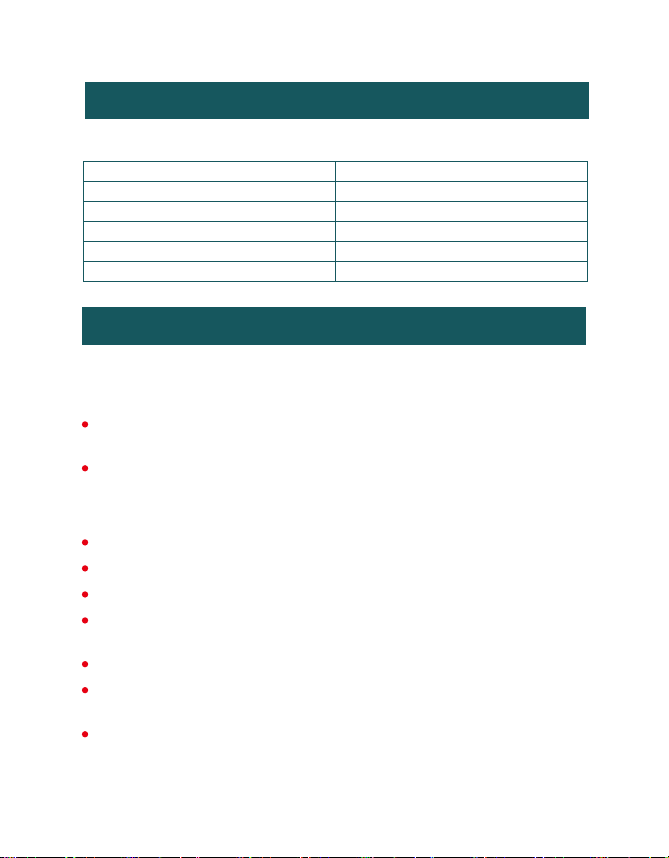
Specifications
Power output:
60W
Noise sound level:
85dB
Input sensitivity:
AUX: 650±50mV
Frequency response:
40HZ-20KHZ
Mid-tweeter:
44mm X 80mm
Woofer:
5.25 inch
≤

Bluetooth can’t be connected
Check if the Sound Bar is connected with the third Bluetooth device.
Hear echo when watching TV
Setting your TV audio to External Speaker.
Mute the TV speaker.
Be sure that there are no solid obstructions between the Sound Bar and source
device.(within 30 feet)
Reboot the Bluetooth and connect again.
Have other questions?
Please contact with your retailer for assistance.
Remote isn’t working
Check if the battery is installed properly with power.
I hear buzzing or humming
Ensure all cables and wires are securely connected.
Connect a different source device (TV, Blu-ray player, etc) to see if the buzzing
persists. If it does not, the problem may be with the original device.
Connect your device to a different input on the Sound Bar.
Check if the signal of the receiver is covered by something.
Contact your retailer for assistance.

Thanks for reading!

FCC Warnning:
This equipment has been tested and found to comply with the limits for a Class B digital device,
pursuant to part 15 of the FCC Rules. These limits are designed to provide
reasonable
protection againstharmful interference in a residential installation. This equipment generates,
uses and can radiateradio
frequency
energy
and,
if
not
installed
and
used
in
accordance
with
the
instructions,
maycause
harmful
interference
to
radio
communications.
However,
there
is
no
guarantee
thatinterference
will
not
occur
in
a
particular
installation.
If
this
equipment
does
cause
harmfulinterference to radio or television reception, which can be
determined by turning the equipmentoff
and
on,
the
user
is
encouraged
to
try
to
correct
the
interference
by
one
or
more
of
thefollowing measures:
•
Reorient or relocate the receiving antenna.
•
Increase the separation between the equipment and receiver.
•
Connect the equipment into an outlet on a circuit different from that to which the receiver is
connected.
• Consult the dealer or an experienced radio/TV technician for help.
Caution:
Any
changes
or
modifications
to
this
device
not
explicitly
approved
by
manufacturer
could void your authority to operate this equipment.
This
device
complies
with
part
15
of
the
FCC
Rules.
Operation
is
subject
to
the
following
two
conditions:
(1)This
device
may
not
cause
harmful
interference,
and
(2)
this
device
must
accept
any
interference received, including interference that may cause undesired operation.
This
equipment
complies
with
FCC
radiation
exposure
limits
set
forth
for
an
uncontrolled
environment.
This
equipment
should
be
installed
and
operated
with
minimum
distance
20cm
between the radiator and your body.