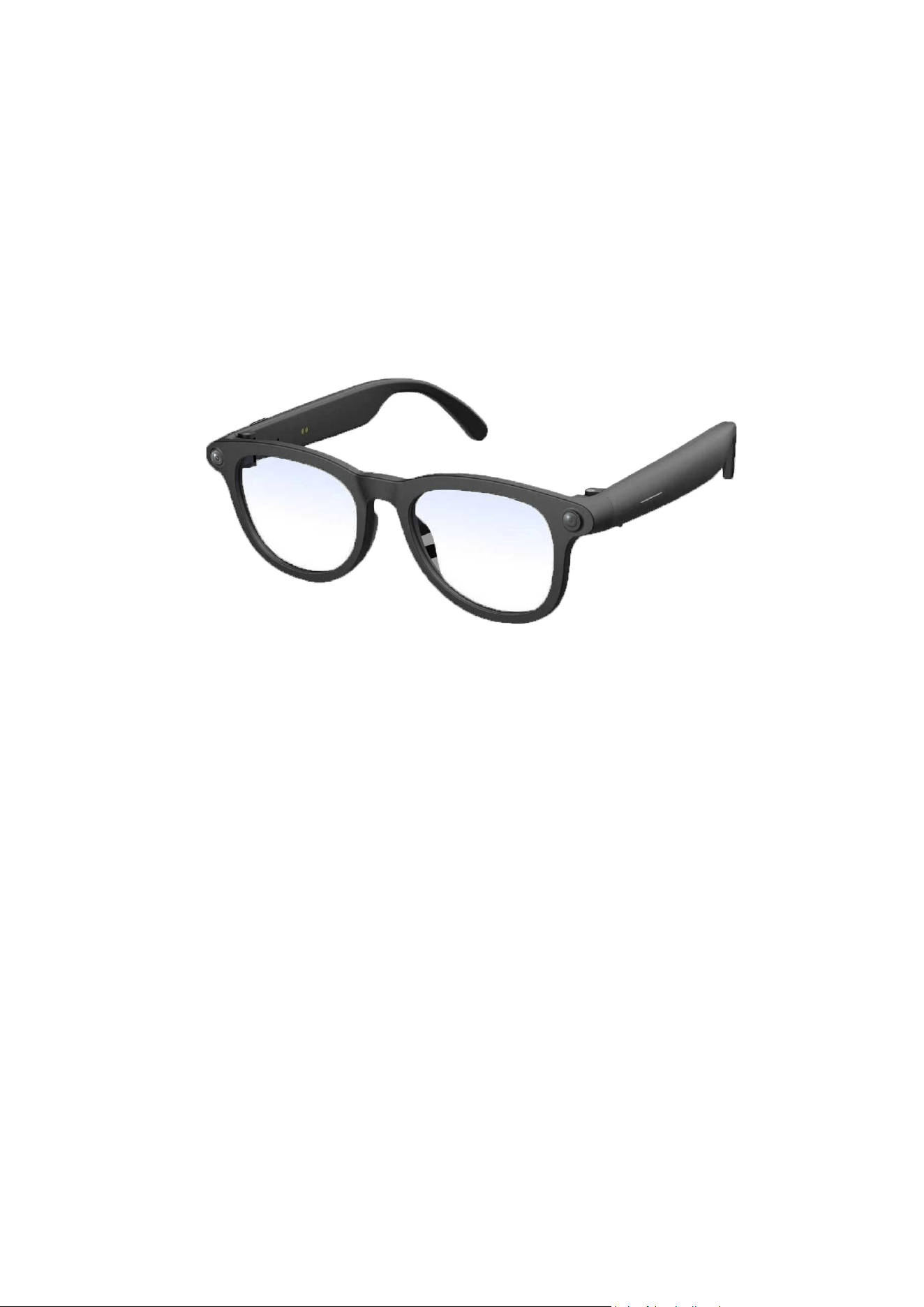
SG10 智能眼镜使用说明书
感恩,岁月如歌中与你相遇,感谢您选择本款智能眼镜!它将成为您探索科技与生活边界的
贴心伙伴。为确保您获得最佳使用体验,充分发挥产品功能,请仔细阅读说明书,并严格按
照步骤操作。每一份细致的指引,都承载着我们对品质与安全的承诺,愿它伴您开启便捷、
智能的精彩旅程。
1.功能介绍
拍照
单击前实体按键即可进行拍照,本眼镜支持通过 蓝牙将照片导入至 APP 进行查餐。
注:当电量低于 20%时,无法进行拍照操作.
录音
三击前实体按键即可进行录音,录音文件将保存在眼镜的本地储存中。本眼镜支持通过蓝牙
将录音导入至 ÁPP 进行查看。
Ai 语音助手
可通过按键指令或唤醒词“小蓝/小蓝” 唤醒 AI(英文指令“hey alice”)。使用智能 AI 功能时,
需确保眼镜已连接 APP,且 APP 处于前台活跃状态。
AI 翻译
对话翻译: 在 APP 中,可将一种语言的口语交流内容实时转换成另一种语言,适用于面对面
沟通场景。
同声翻译: 在 APP 中,讲话过程中的内容可实现实时翻译,主要应用于会议、演讲等场景。
会议翻译:在 APP 中,讲话过程中的内容可实现实时翻译,并将讲话内容记录在翻译列表
中。主要应用于会议、演讲等场景。
翻译列表:在 APP 中,记录“会议翻译”中的讲话内容,并将讲话内容整理成摘要。主要
应用于会议和演讲的后期文件整理。
2.智能眼镜快速操作说明
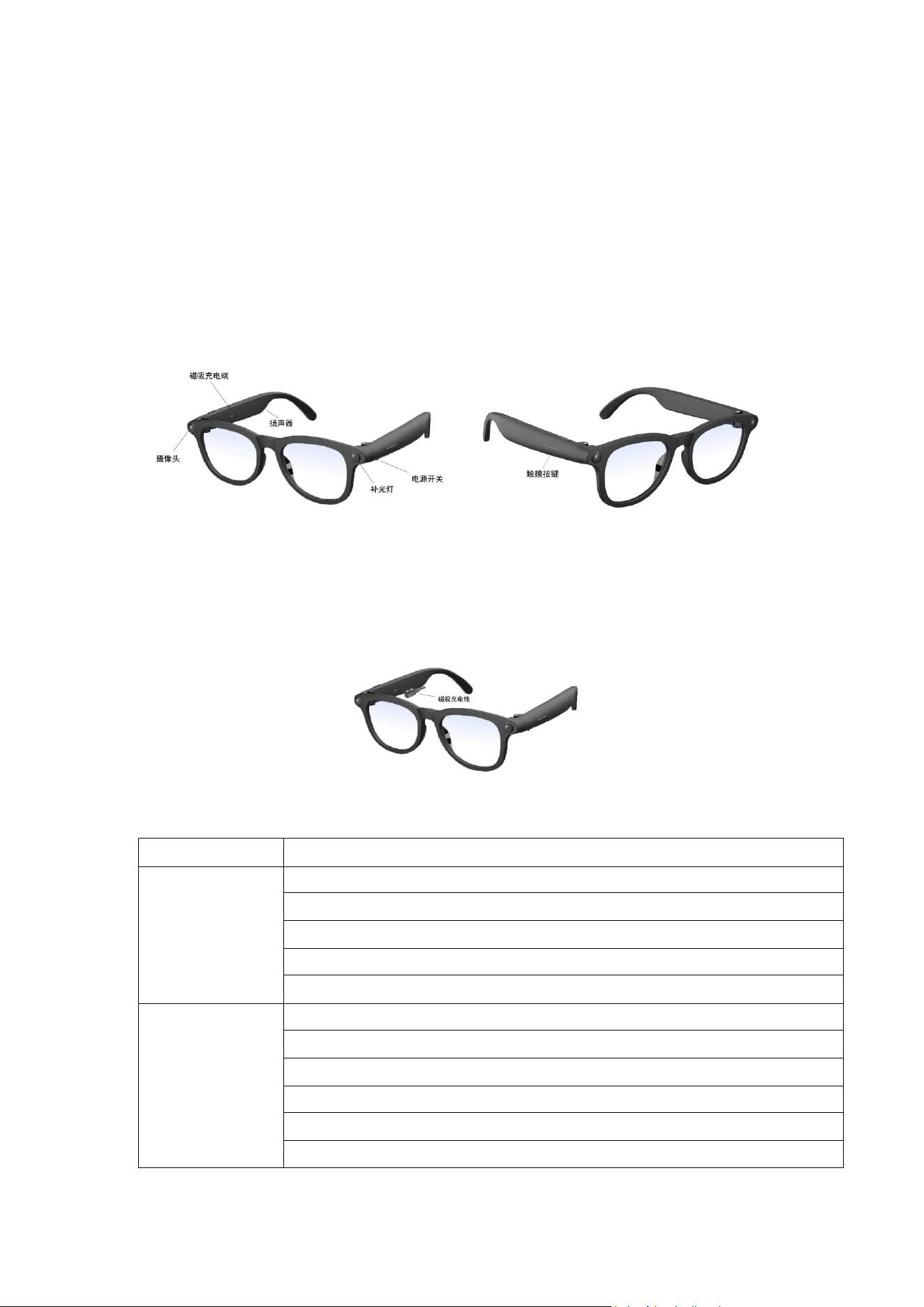
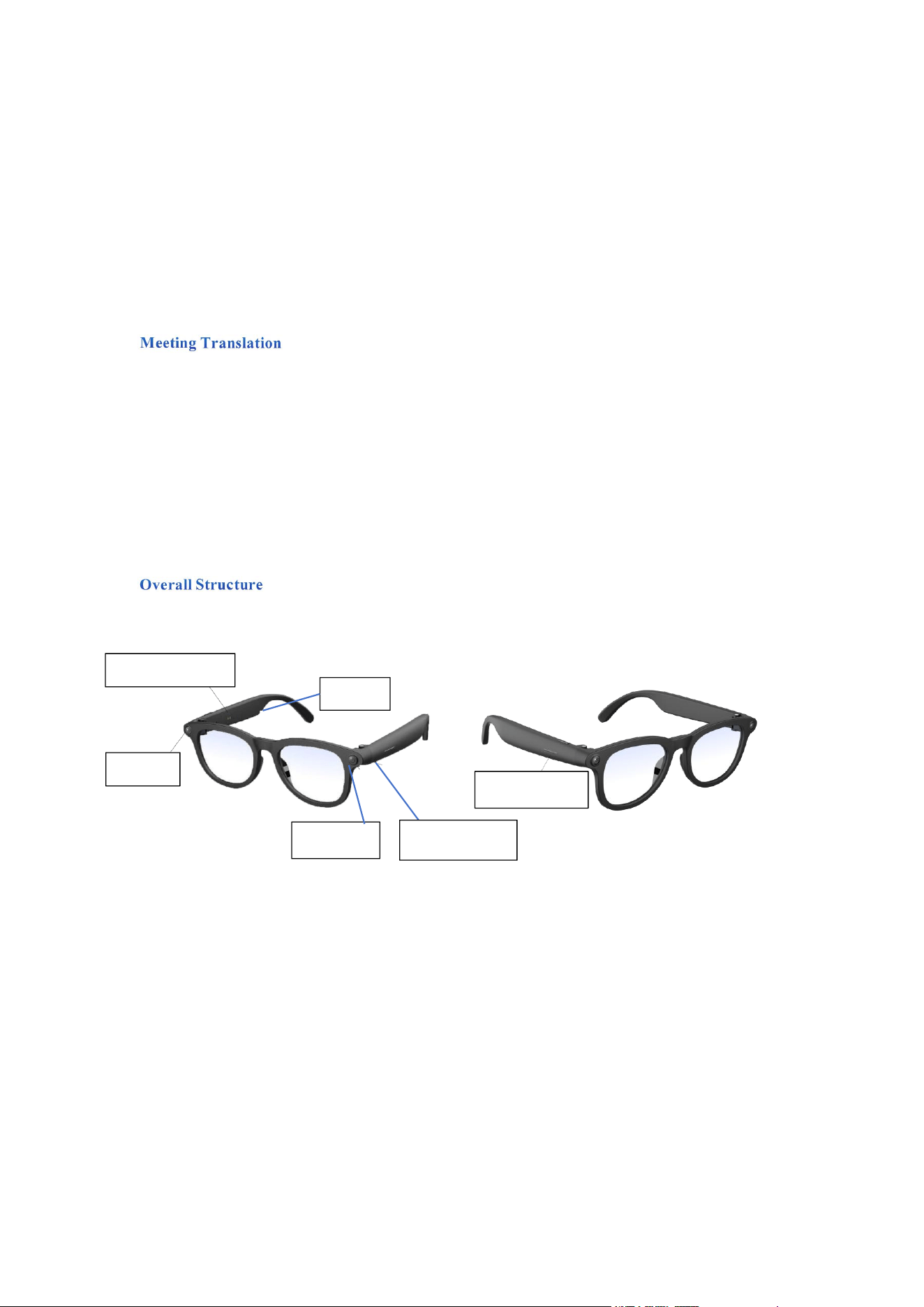
整体结构
充电说明
使用配备的磁吸充电线为眼镜充电,
将充电线另-端接入 US8 充电头或电脑的 USB 接口即可
功能列表
电源开关
拔动开关:通电/断电
前实体按键
单击开启拍照
双击:开启 AI 聊天功能,单击关闭 AI 聊天,双击打断聊天
三击:开启录音功能,单击关闭录音功能
长按 2 秒:开启/关闭手电筒功能
长按 5 秒:待机 待机时长按 2 秒开机
右脚触摸板
长按前触点 3 秒:拒接来电
单击前触点:播放/暂停/接听/挂断电话/关闭语音助手
三击前触点:/唤醒语音助手/关闭语音助手
三击后触点:回拔最近联系人
长按前触点 1.5 秒:下一首;后触点 1.5 秒:上一首
前触点向后滑动:增大音量;后触点向前滑动:减小音量
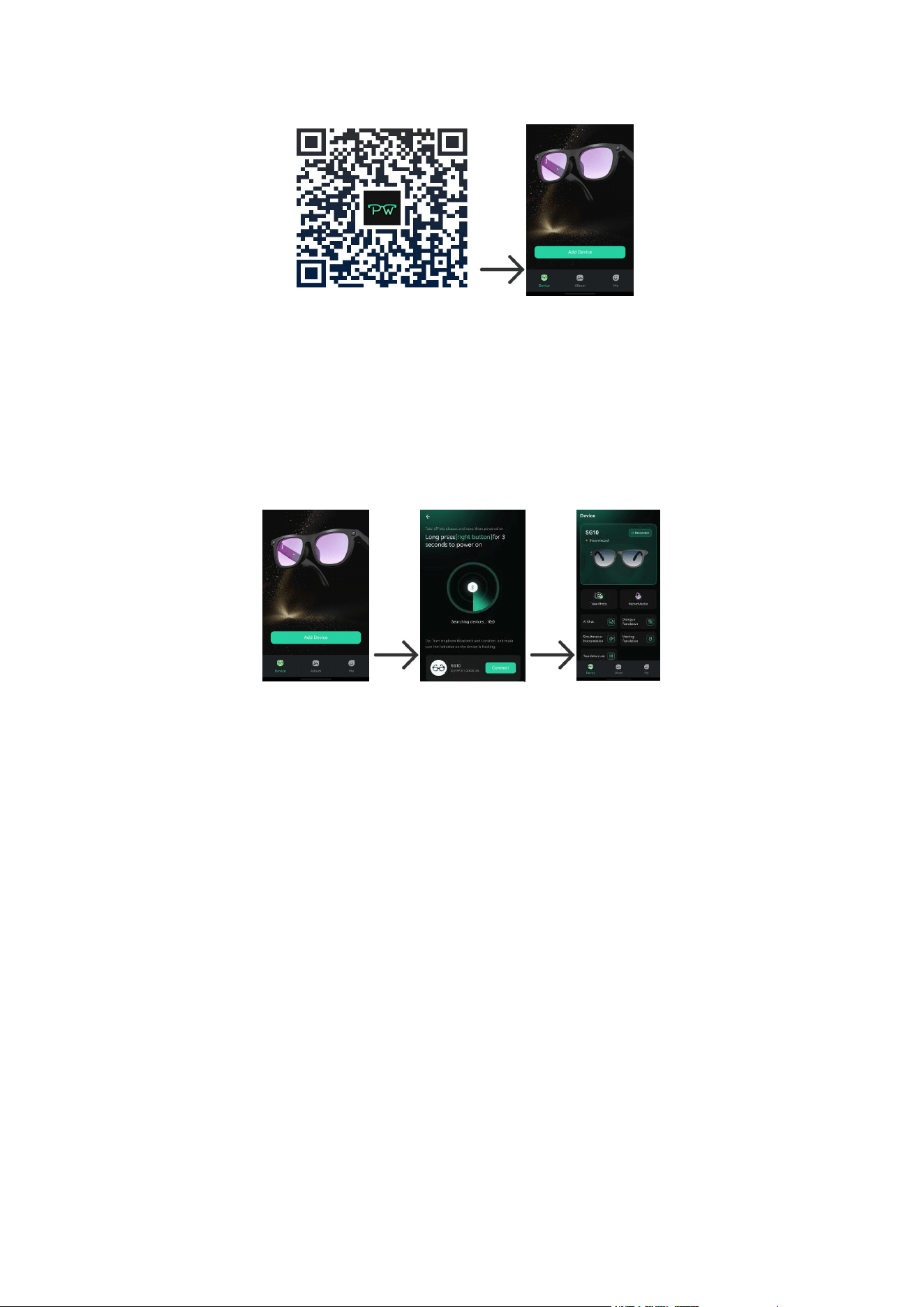
3.APP 下载安装
方法一:
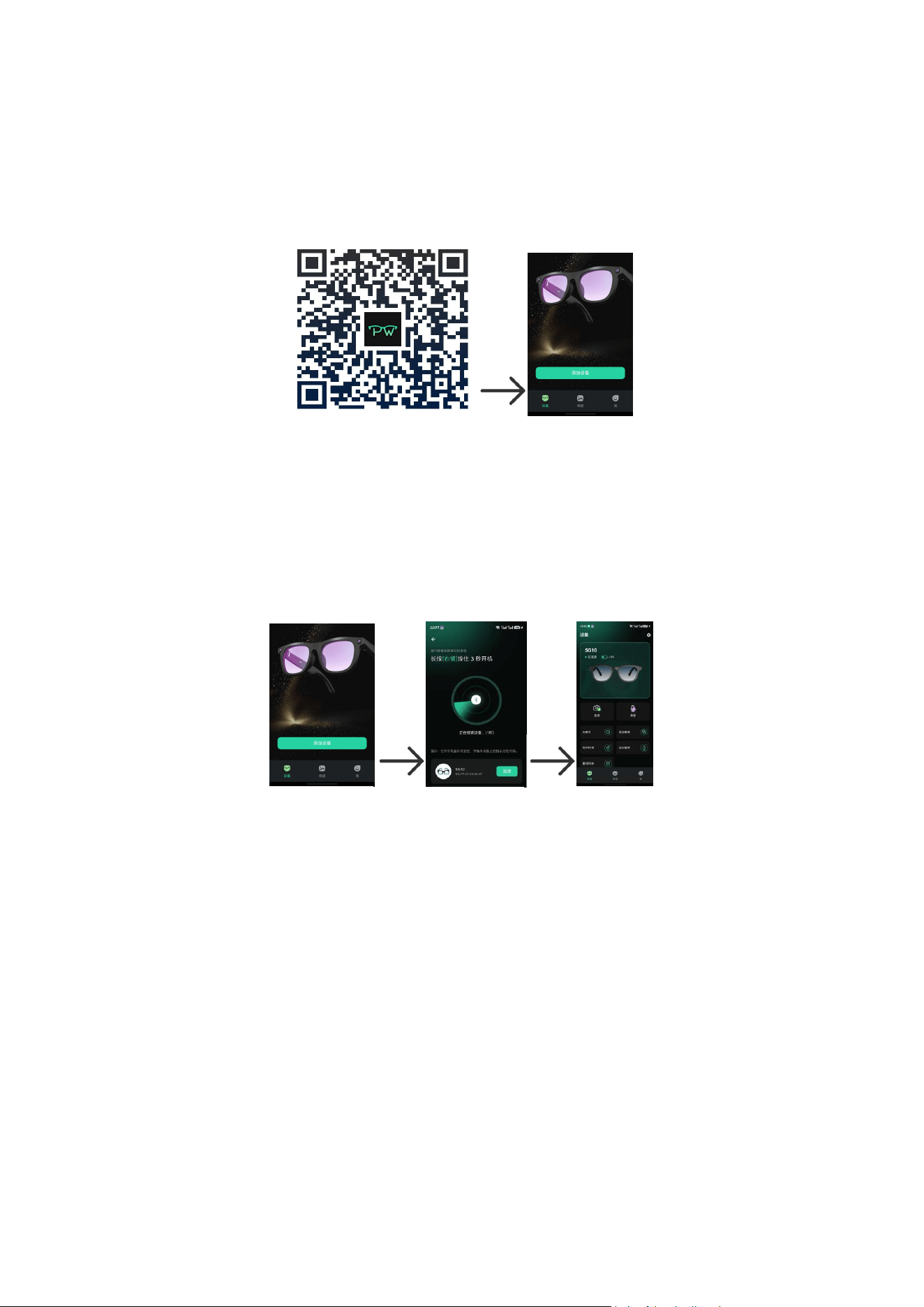
扫描右图二维码下载并安装"Snap Think"APP
方法二:
1、安卓手机:在应用宝等应用市场搜索下载并安装“Snap Thin"APP。
2、苹果手机:直接在"APP store”搜索下载并安装“Snap Thin"APP。
4.APP 连接
打开 APP--点击“添加设备”,搜索蓝牙“SG10”进行连接,连接成功如下图:
注意事项
1、除说明书有特殊标示的操作方式以外,请勿尝试拆卸或更换产品内的任何零件,避免因
不当操作损坏产品或引发安全风险。
2、请勿将此产品放置于热源附近或直接暴露在火源附近,防止高温导致产品变形、起火或
爆炸。
3、请勿将本产品放置在有强大电磁力的环境中,以免干扰产品正常运行,导致故障。
4、充电时,请使用输出电压为直流 DC5V/1A 的充电设备,且必须选择正规生产厂家、获得
CCC 安全认证的充电设备。禁止使用快充充电器,避免因电池负载过大造成损坏。
5、使用 AI 功能,要确保 APP 是在后台运行的。
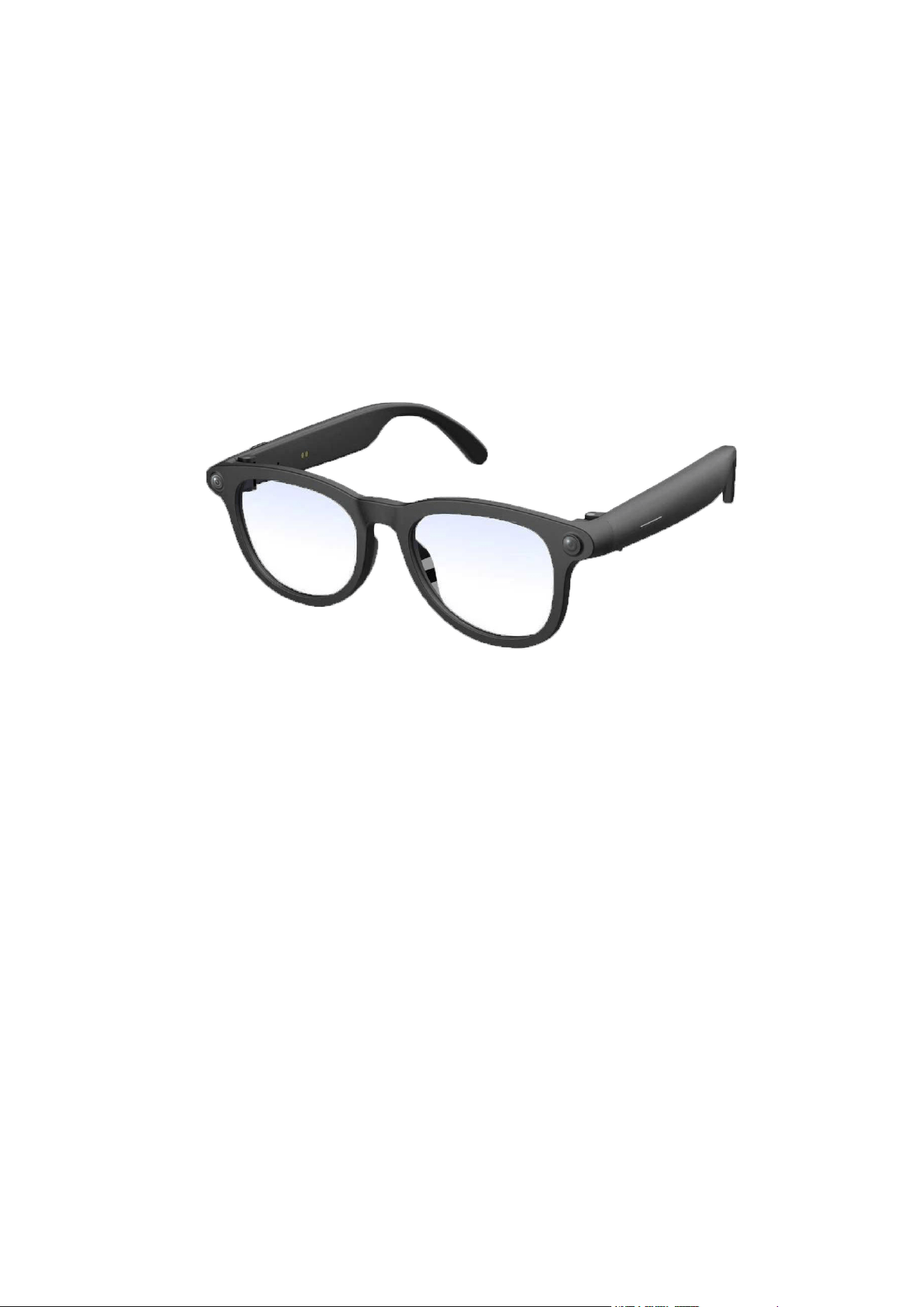
SG10 Smart Glasses User Manual
Grateful to meet you amid the melodious years. Thank you for choosing our smart glasses! It will
be your thoughtful companion as you explore the boundaries between technology and life. To
enjoy the optimal experience and make full use of all product functions, please read this manual
carefully and follow the operating steps strictly. Every detailed instruction embodies our
commitment to quality and safety. May it accompany you on a wonderful journey of convenience
and intelligence.
1. Function Description
Photo Capture
Single-click the front physical button to take photos. The glasses support importing photos to the
App via Bluetooth for viewing.
Note: Photo capture is unavailable when the battery level is below 20%.
Recording
Triple-click the front physical button to start recording. Recording files are stored locally on the
glasses. The glasses support importing recordings to the App via Bluetooth for viewing.
AI Voice Assistant
You may wake up the AI via button operations or wake word "Xiaolan Xiaolan" (English wake
word: Hey Alice). To use smart AI functions, ensure the glasses are connected to the App and the
App runs in the foreground.
AI Translation
Conversation Translation: The App supports real-time conversion of spoken language from one
language to another, ideal for face-to-face communication.
Simultaneous Translation
The App enables real-time translation of ongoing speech, which is primarily applicable to
meetings, speeches and other scenarios.
The App supports real-time translation of ongoing speech, and transcripts will be saved in the
translation list. It is mainly applicable to scenarios such as meetings and speeches.
Translation List
In the App, it records speech content from Meeting Translation and organizes the content into
summaries. It is mainly used for post-event document sorting of meetings and speeches.
2. Smart Glasses Quick Operation Instructions
Charging Instructions
Charge the glasses with the supplied magnetic charging cable.
Connect the other end of the cable to a USB charger or the USB port of a computer.
Magnetic
Speake
Camera
Fill Light
Touch Button
Power Switch
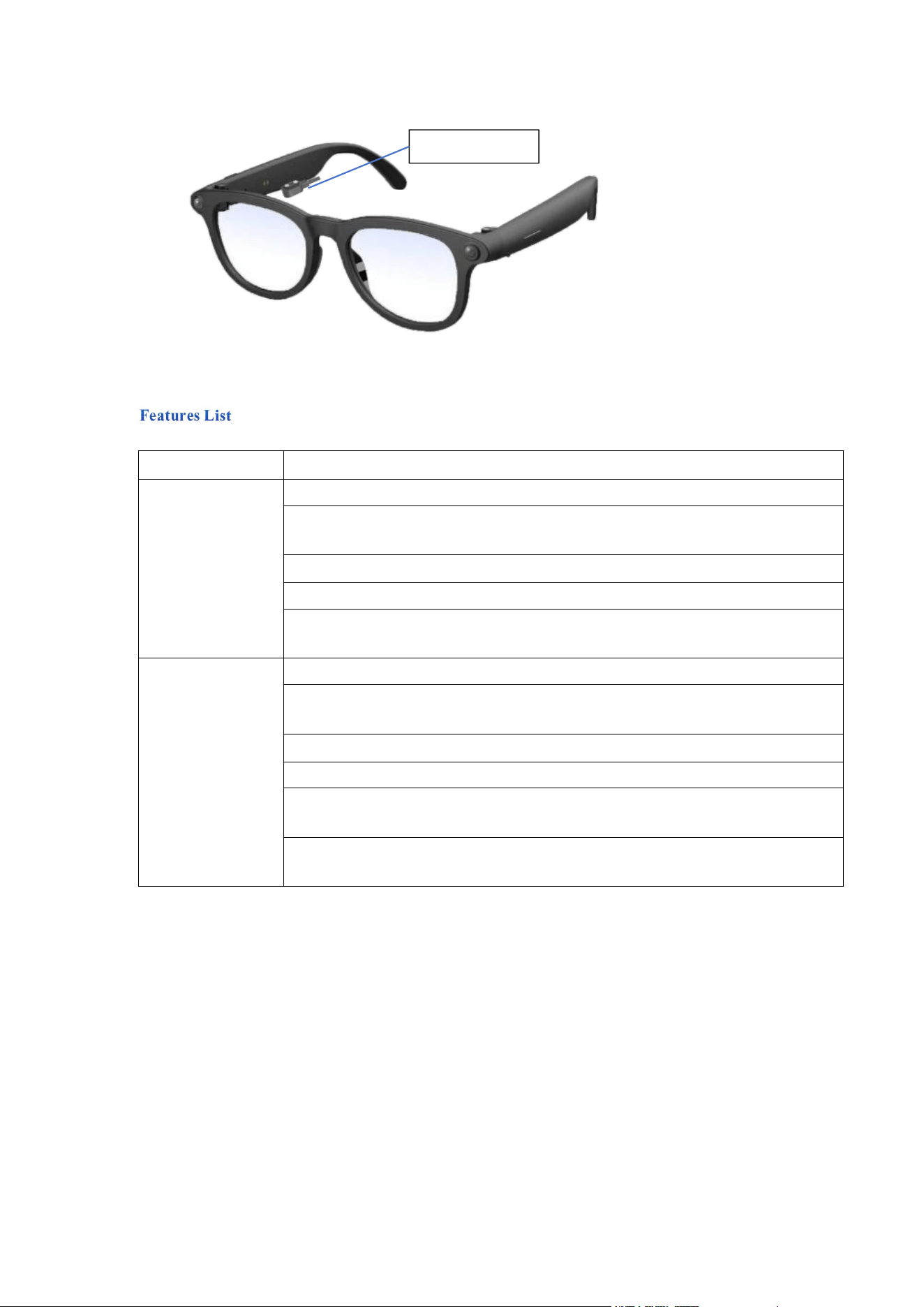
mains switch
Slide Switch: Power On / Power Off
Front Physical
Button
Click to enable photo capture or disable AI chat
Double-click to enable AI chat; single-click to disable AI chat. Double-click again
to interrupt ongoing chat.
Triple-click to enable the recording function; single-click to disable it.
Long press for 2 seconds to enable or disable the flashlight function.
Long press for 5 seconds to enter standby mode; Long press for 2 seconds under
standby state to power on.
Operate via the
Right Touch Pad
Long press front contact for 3s: Reject Call
Single-click front contact: Play / Pause / Answer / End Call / Disable Voice
Assistant
Triple-click the front contact to wake up or disable the voice assistant
Triple-click the rear contact to redial the recent contact
Long press front contact for 1.5s: Next Track
;
Long press rear contact for 1.5s:
Previous Track
Swipe backward on front contact: Volume Up
;
Swipe forward on rear contact:
Volume Down
3. Download and Install the App
Method 1
Scan the QR code on the right to download and install "Snap Think".
Magnetic Charging Port
Method 2
1. Android: Search for "Snap Think" and download it from app markets including Yingyongbao.
2. iPhone: Search for "Snap Think" on the App Store to download and install.
4.App Pairing
Open the App, tap "Add Device", search and connect to Bluetooth "SG10". See the figure below
for successful connection.
Precautions
1. Except for operations specially indicated in this manual, do not attempt to disassemble or replace
any internal parts of the product. Improper operation may damage the product or cause potential
safety hazards.
2. Do not place the product near heat sources or expose it directly to open flames. High temperatures
may cause deformation, fire or explosion of the product.
3. Do not use the product in environments with strong electromagnetic force, which may interfere
with normal operation and lead to malfunctions.
4. Use charging devices with an output of DC 5V/1A only. Choose chargers manufactured by formal
manufacturers with CCC safety certification. Fast chargers are prohibited to avoid damage caused
by excessive battery load.
5.
Ensure the App runs in the background when using AI functions.

FCC WARNING
This device complies with part 15 of the FCC Rules. Operation is subject to the following two
conditions: (1) This device may not cause harmful interference, and (2) this device must accept any
interference received, including interference that may cause undesired operation.
Note: This equipment has been tested and found to comply with the limits for a Class B digital device,
pursuant to part 15 of the FCC Rules. These limits are designed to provide reasonable protection
against harmful interference in a residential installation. This equipment generates, uses and can
radiate radio frequency energy and, if not installed and used in accordance with the instructions, may
cause hamful interference to radio communications. However, there is no guarantee that interference
will not occur in a particular installation. If this equipment does cause harmful interference to radio or
television reception, which can be determined by turning the equipment off and on, the user is
encouraged to try to correct the interference by one or more of the following measures:
—Reorient or relocate the receiving antenna.
—Increase the separation between the equipment and receiver.
—Connect the equipment into an outlet on a circuit different from that to which the receiver is
connected.
—Consult the dealer or an experienced radio/TV technician for help.
Note: The Grantee is not responsible for any changes or modifications not expressly approved by the
party responsible for compliance. such modifications could void the user's authority to operate the
equipment.
The device has been evaluated to meet general RF exposure requirement.
This equipment complies with FCC's RF radiation exposure limits set forth for an uncontrolled
environment. This device and its antenna(s) must not be co-located or conjunction with any other
antenna or transmitter.
The device can be used in portable exposure conditions without restriction.