2. Capacity: 20 fingerprints, 1 administrator, and the rest are ordinary users.
3. This product restores the factory setting status and clears the fingerprint, including the
administrator and ordinary user's fingerprint.
4. This product is set in default mode when it leaves the factory, and any fingerprint can unlock it.
1. This product uses USB interface for charging. Please charge it first before using.
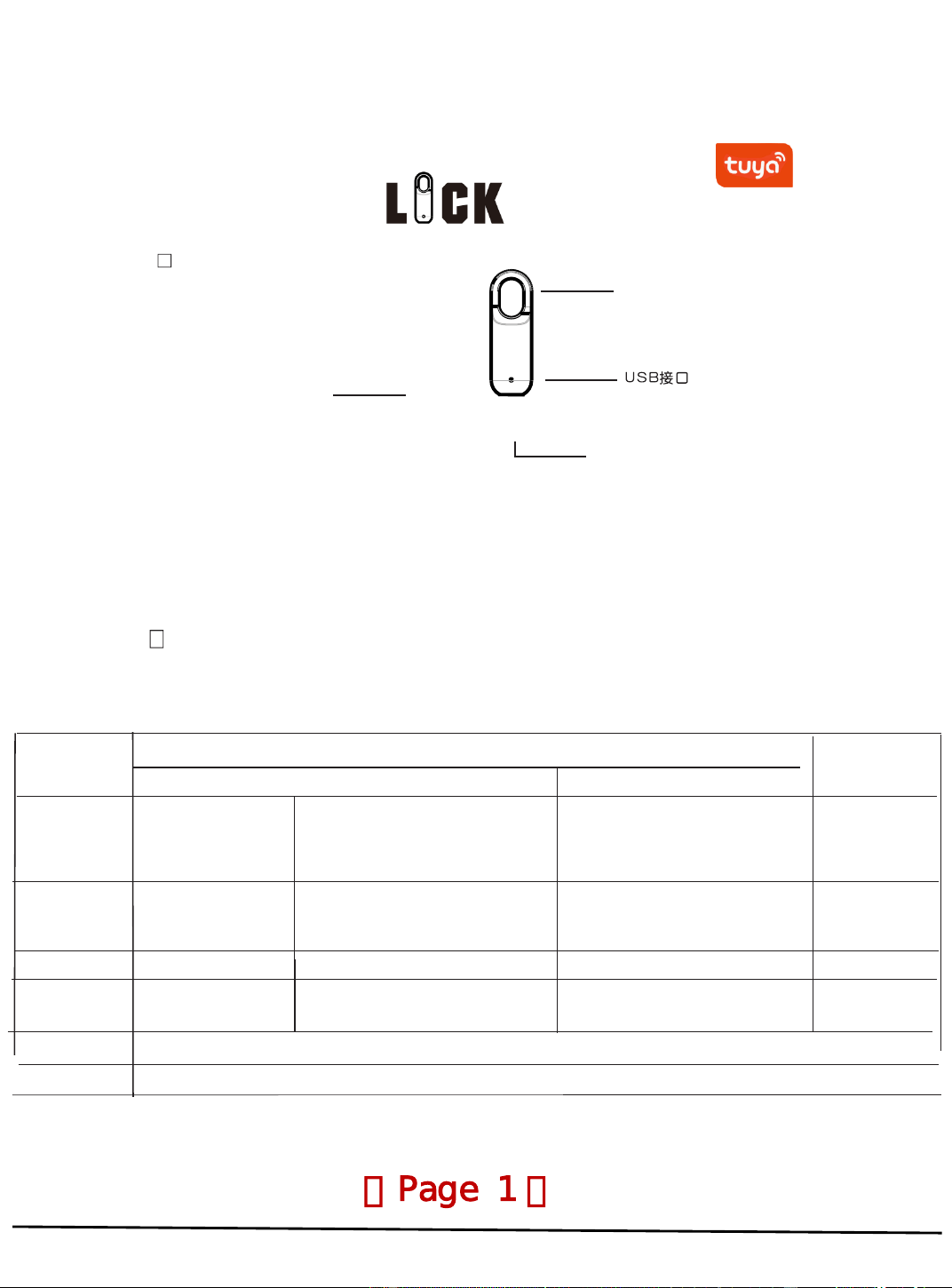
Smart fingerprint lock user manual
Locking
pilot lamp
Fingerprint sensor
pilot lamp
The product uses 3-color indicator lights, which are divided into red, green and
blue colors. Different states represent different states of the equipment.
Details are shown in the following table:
Indicate the status of the light
Fingerprint
acquisition
state
window
green
blue
red
The administrator verification light
stays on during the process and
turns offafter the verification is
successful
During the process, it flashes
and stays on for 3 seconds after
successful input
Add finger
prints
Collection failed One
flicker
Long press for
Long press for
5 seconds
8seconds
(Release the press
clear
fingerprints
(After admini strat or fingerprint
confirmation) It will be on for 3
seconds
button) It willstayon
lock
Short press
deb locking
Light up if you unlock
success fully
Low pressure alert
Theredlightwillcontinuetoflashfor6secondsafterunlocking
fullofelectricity
light goes out
product presentation
(Page 1
There are two ways to input user information: one is localsingle-machine input on the
fingerprint lock,and the other is input after binding the Doodle APP.
)
Tap if the
unlock fails

□
Fingerprint input from 2 to 20
Adding a new fingerprint requires administrator fingerprint authorizatio n,and the 2nd to 20th are for regular users.
① Press the fingerprint sensor for 5 seconds, and release when the blue light comes on;
② Release the blue light to stay on and quickly verify the administrator's fingerprint;
□
Restore and set up the factory
③ When the administrator's fingerprint verification fails, the red light flashes and the fingerprint cannot be input.
The administrator can continue to verify;
④ When the administrator's fingerprint is verified successfully,
Removing a fingerprint requires the administrator's fingerprint to authorize it.P
① ress the fingerprint sensor for 8 seconds until the blue light flashes and turn s off,and then the red light is on.
Quickly verify the administrator's fingerprint;
the green light flashesand other fingerprints can be entered;
⑤ Press the same fingerprint more than 5 times. When the red light flashes, the
registration fails; when the green light stays on for a long time, the input is successful.
② When the administrator's fingerprint verification fails, the red light flashes and
the fingerprint deletion fails;
How to input user information on the Doodle App:
1. APP installation:
① Search the app market or scan the QR code on the instructions to download and install the Doodle APP.
② After installation, register and log in as prompted.
1. Localization single-machine input method:
□
First registration administrator fingerprint
Charge the product fully before use. The red light will be on during charging and off after charging.
① Before use, tear off the fingerprint head protection film, because any fingerprint can unlock in the factory state,
to avoid mistakenly inputting the fingerprint during use,
please enter the fingerprint as soon as possible according to the following operations;
② Press the fingerprint sensor for 5 seconds, and release when the blue light is on;
③ Release and the green light flashes, wait for fingerprint input;
④ Press the same fingerprint more than 5 times. When the red light flashes, the registration fails;
when the green light stays on for a long time, the input is successful.
(Page 2)
③ When the administrator's fingerprint verification is successful the green light will stayon for one secondand all fi
ngerprints will be delete(returned to factory Settings). Note:Before applying for after-sales service, users must
restore the lock to factory Settings

2. Connect the lock to the Doodle app:
① Turn on your phone's Bluetooth and location.
② Touch the fingerprint head to wake up the lock.
Click "Member Management"
under the unlock interface to enter the member management page.
Then click the "+" icon in the top-right corner and select "Add Member " to add family members.
Enter their names and Tuya app account numbers,then click "Save".
③ Open the Doodle app, click "Add Device", the APP enters the search state, the device name is the product name "
MQ01", after the APP finds the device, click "MQ01" to add the device, after the completion of the addition, click "
Complete".
3. Member management
①member of family :
Your family members will receive your invitation.
To delete a family member: "My" → "Family Management" → "
The name of the family you created" →
click the name of the family member you want to remove, and click "Remove Member".
Only then can you restore the operation
② Other members (this operation applies to sharing with other family
members)
Click "Member Management"
under the unlock interface to enter the member management page.Then click the "+"
icon in the top-right corner and select "Add Now"
to add other members. Enter their "alias",
set the unlock permissions and validity period,then click "Save"
to complete the process.
(Note: The effective date must be set.)See how to delete family members.
③
Note: If the battery is changed or the lock terminal is powered off,
other members and users cannot unlock it.
The operation can only be resumed after the administrator
connects to the APP and refreshes
Authorized family members
The family member authorized by the administrator to unlock the phone first opens his/
her own Doodle APP account Click the upper left corner of the main interface,
and you will see the information to be confirmed. After clicking
"Agree to invite", the authorization will take effect,
and then you can open the Bluetooth ofthe phone to unlock the door.4. Enter user information
Click "Member Management" under the lock page to enter the member pageoperation.
(Page 3)
Only after adding the administrator's fingerprint can other users' fingerprints be added (otherwise,
it will display "Operation Failed"). Administrators of their own fingerprints have administrative privileges
(e.g., verifying fingerprints during factory reset). To add members: Select previously added users
(family members/other users), click "Add Fingerprint", then click "Start Adding". Follow prompts to input
fingerprints on the lock (to ensure fingerprint integrity, select different positions each time).
5、 factory data reset
Restore factory Settings on the Doodle app:(Only the administrator app can dothis)
On the unlocking page, click the edit button in the upper right corner to select "Unbind and clear data",
then click "Remove device" and click "OK".
The lock will always light up green for 1 secondindicating that the factory reset is successful.
1. There is only one administrator fingerprint.
2. When the fingerprint is entered into the APP,
if the fingerprint has not beenentered before,the fingerprint must be under the administrator
other
After completing fingerprint input, enter the username and click "Complete" to finish.
□
Charge/emergency charge
Please charge as soon as possible after low battery warning.
Fingerprint user:
If the battery is too low tounlockyou can unlock the lock by connecting power through the USB at the bottom
essential parameter
Battery capacity: 110mAh 3.7V
Working temperature: -20~+70℃
Input power supply: DC 5V 200MA
Working voltage: 3.0~4.2V
APP Acquisition: Search for "TUYA Smart" in the app
store or scan the QR code below to download.
(Page 4)

FCC Warnning:
This equipment has been tested and found to comply with the limits for a Class B digital device,
pursuant to part 15 of the FCC Rules. These limits are designed to provide
reasonable
protection against harmful interference in a residential installation. This equipment generates,
uses and can radiate radio
frequency
energy
and,
if
not
installed
and
used
in
accordance
with
the
instructions,
may cause
harmful
interference
to
radio
communications.
However,
there
is
no
guarantee
that interference
will
not
occur
in
a
particular
installation.
If
this
equipment
does
cause
harmful interference to radio or television reception, which can be
determined by turning the equipment off
and
on,
the
user
is
encouraged
to
try
to
correct
the interference
by
one
or
more
of
the following measures:
•
Reorient or relocate the receiving antenna.
•
Increase the separation between the equipment and receiver.
•
Connect the equipment into an outlet on a circuit different from that to which the receiver is
connected.
• Consult the dealer or an experienced radio/TV technician for help.
Caution:
Any
changes
or
modifications
to
this
device
not
explicitly
approved
by
manufacturer
could void your authority to operate this equipment.
This
device
complies
with
part
15
of
the
FCC
Rules.
Operation
is
subject
to
the
following
two
conditions:
(1)This
device
may
not
cause
harmful
interference,
and
(2)
this
device
must
accept
any
interference received, including interference that may cause undesired operation.
This
equipment
complies
with
FCC
radiation
exposure
limits
set
forth
for
an
uncontrolled
environment.
This
equipment
should
be
installed
and
operated
with
minimum
distance
0cm
between the radiator and your body.