
MAX Series
User Manual
Peplink Products:
MBX v2
Peplink Firmware 8.6.0
July 2026
COPYRIGHT & TRADEMARKS
Specifications are subject to change without notice.
Copyright © 2026 Peplink Pepwave Ltd. All Rights Reserved. Pepwave and the Pepwave logo are trademarks of Peplink International
Ltd. Other brands or products mentioned may be trademarks or registered trademarks of their respective owners.

Table of Contents
Introduction and Scope 6
Glossary 8
1 Product Features 9
1.1 Supported Network Features 9
1.2 Other Supported Features 12
2 Product Overview 13
2.1 MBX v2 13
3 Advanced Feature Summary 15
3.1 Drop-in Mode and LAN Bypass: Transparent Deployment 15
3.2 QoS: Clearer VoIP 15
3.3 Per-User Bandwidth Control 16
3.4 High Availability via VRRP 16
3.5 USB Modem and Android Tethering 17
3.6 Built-In Remote User VPN Support 17
3.7 SIM-card USSD support 18
3.8 DPI Engine 18
3.9 NetFlow 18
3.10 Wi-Fi Air Monitoring 19
3.11 SP Default Configuration 19
3.12 Peplink Relay 19
3.13 DNS over HTTPS (DoH) 20
3.14 Peplink InTouch 20
3.15 Synergy Mode 20
3.16 Virtual WAN on VLAN 20
4 Installation 21
4.1 Preparation 21
4.2 Constructing the Network 21
4.3 Configuring the Network Environment 22
5 Connecting to the Web Admin Interface 23
6 SpeedFusion Connect Protect 25
6.1 Activate SpeedFusion Connect Protect 25
6.2 Enable SpeedFusion Connect Protect 26
6.3 Route by Cloud Application 31
6.4 Route by Wi-Fi SSID 32
https://www.peplink.com
2
Copyright @ 2025 Peplink

6.5 Route by LAN Client 33
7 Configuring the LAN Interface(s) 35
7.1 Basic Settings 35
7.2 Port Settings 44
7.3 Captive Portal 45
8 Configuring the WAN Interface(s) 49
8.1 Ethernet WAN 52
8.2 Cellular WAN 60
8.3 Wi-Fi WAN 66
8.4 WAN Connection Settings (Common) 70
8.5 WAN Health Check 71
8.6 Bandwidth Allowance Monitoring 74
8.7 Additional Public IP address 75
8.8 Dynamic DNS Settings 75
9 SpeedFusion VPN 77
9.1 SpeedFusion VPN 78
10 IPsec VPN 88
10.1 IPsec VPN Settings 88
10.2 GRE Tunnel 92
11 OpenVPN 94
12 Outbound Policy 95
12.1 Adding Rules for Outbound Policy 95
13 Port Forwarding 105
13.1 UPnP / NAT-PMP Settings 107
14 NAT Mappings 108
15 Media Fast 110
15.1 Setting Up MediaFast Content Caching 110
15.2 Viewing MediaFast Statistics 112
15.3 Prefetch Schedule 113
16 Edge Computing 115
16.1 Configuring the ContentHub 115
16.2 Configure a website for ContentHub 115
16.3 Configure an application for ContentHub 117
17 Docker
120
18 KVM 121
19 QoS 122
19.1 User Groups
122
https://www.peplink.com
3
Copyright @ 2025 Peplink

19.2 Bandwidth Control 123
19.3 Application Queue 123
19.4 Application 124
20 Firewall 126
20.1 Access Rules 127
20.2 Content Blocking 135
21 Routing Protocols 137
21.1 OSPF & RIPv2 137
21.2 BGP 139
22 Remote User Access 144
23 Miscellaneous Settings 147
23.1 High Availability 147
23.2 RADIUS Server 151
23.3 Certificate Manager 153
23.4 Service Forwarding 154
23.5 Service Passthrough 157
23.6 UART 158
23.7 GPS Forwarding 160
23.8 Ignition Sensing 161
Ignition Sensing installation 161
GPIO Menu 163
23.9 NTP Server 164
23.10 Grouped Networks 165
23.11 Remote SIM Management 166
23.12 SIM Toolkit 168
23.13 UDP Relay 170
24 AP 171
24.1 AP Controller 171
24.2 Wireless SSID 171
24.3 Wireless Mesh 177
24.4 Settings 178
25 AP Controller Status 185
25.1 Info 185
25.2 Access Point
187
25.3 Wireless SSID
190
25.4 Wireless Client 191
25.5 Mesh / WDS 192
https://www.peplink.com
4
Copyright @ 2025 Peplink

25.6 Nearby Device 193
25.7 Event Log 193
26 Toolbox 194
27 System 195
27.1 Admin Security 195
27.2 Firmware 200
27.3 Time 202
27.4 Schedule 203
27.5 Email Notification 204
27.6 Event Log 207
27.7 SNMP 208
27.8 SMS Control 210
27.9 InControl 211
27.10 Configuration 212
27.11 Feature Add-ons 213
27.12 Reboot 213
28 Tools 214
28.1 Ping 214
28.2 Traceroute Test 215
28.3 Wake-on-LAN 215
28.4 WAN Analysis 216
28.5 CLI (Command Line Interface Support) 219
29 Status 220
29.1 Device 220
29.2 GPS Data 222
29.3 Active Sessions 223
29.4 Client List 225
29.5 UPnP / NAT-PMP 226
29.6 OSPF & RIPv2 227
29.7 BGP 227
29.8 SpeedFusion VPN 227
29.9 Event Log 232
30 WAN Quality 234
31 Usage Reports
235
31.1 Real-T
ime 235
31.2 Hourly 236
31.3 Daily 237
https://www.peplink.com
5
Copyright @ 2025 Peplink

31.4 Monthly 238
Appendix A: Restoration of Factory Defaults 240
Appendix B: FusionSIM Manual 241
Appendix C: Overview of ports used by Peplink SD-WAN routers and other Peplink
services 253
Appendix D: Declaration 255
Introduction and Scope
Pepwave routers provide link aggregation and load balancing across multiple WAN connections,
allowing a combination of technologies like 3G HSDPA, EVDO, 4G LTE, Wi-Fi, external WiMAX
dongle, and satellite to be utilized to connect to the Internet.
The MAX wireless SD-WAN router series has a wide range of products suitable for many
different deployments and markets. Entry level SD-WAN models such as the MAX BR1 are
suitable for SMEs or branch offices. High-capacity SD-WAN routers such as the MAX HD2 are
suitable for larger organizations and head offices.
This manual covers setting up Pepwave routers and provides an introduction to their features
and usage.
Tips
Want to know more about Pepwave routers? Visit our YouTube Channel for a video introduction !
https://www.peplink.com
6
Copyright @ 2025 Peplink

https://youtu.be/13M-JHRAICA
https://www.peplink.com
7
Copyright @ 2025 Peplink

Glossary
The following terms, acronyms, and abbreviations are frequently used in this manual:
Term
Definition
3G
3rd generation standards for wireless communications (e.g., HSDPA)
4G
4th generation standards for wireless communications (e.g., LTE)
DHCP
Dynamic Host Configuration Protocol
DNS
Domain Name System
EVDO
Evolution-Data Optimized
FQDN
Fully Qualified Domain Name
HSDPA
High-Speed Downlink Packet Access
HTTP
Hyper-Text Transfer Protocol
ICMP
Internet Control Message Protocol
IP
Internet Protocol
LAN
Local Area Network
MAC Address
Media Access Control Address
MTU
Maximum Transmission Unit
MSS
Maximum Segment Size
NAT
Network Address Translation
PPPoE
Point to Point Protocol over Ethernet
QoS
Quality of Service
SNMP
Simple Network Management Protocol
TCP
Transmission Control Protocol
UDP
User Datagram Protocol
VPN
Virtual Private Network
VRRP
Virtual Router Redundancy Protocol
WAN
Wide Area Network
WINS
Windows Internet Name Service
WLAN
Wireless Local Area Network
https://www.peplink.com
8
Copyright @ 2025 Peplink

1 Product Features
Pepwave routers enable all LAN users to share broadband Internet connections, and they
provide advanced features to enhance Internet access. Our Max BR wireless routers support
multiple SIM cards. They can be configured to switch from using one SIM card to another SIM
card according to different criteria, including wireless network reliability and data usage.
Our MAX HD series wireless routers are embedded with multiple 4G LTE modems, and allow
simultaneous wireless Internet connections through multiple wireless networks. The wireless
Internet connections can be bonded together using our SpeedFusion technology. This allows
better reliability, larger bandwidth, and increased wireless coverage compared to use only one
4G L
TE modem.
Below is a list of supported features on Pepwave routers. Features vary by model. For more
information, please see peplink.com/products.
1.1 Supported Network Features
1.1.1 WAN
● Ethernet WAN connection in full/half duplex
● Static IP support for PPPoE
● Built-in cellular modems
● USB mobile connection(s)
● Wi-Fi WAN connection
● Network address translation (NAT)/port address translation (PAT)
● Inbound and outbound NAT mapping
● IPsec NAT-T and PPTP packet passthrough
● MAC address clone and passthrough
● Customizable MTU and MSS values
● WAN connection health check
● Dynamic DNS (supported service providers: changeip.com, dyndns.org, no-ip.org,
tzo.com and DNS-O-Matic)
● Ping, DNS lookup, and HTTP-based health check
1.1.2 LAN
● Wi-Fi AP
● Ethernet LAN ports
● DHCP server on LAN
https://www.peplink.com
9
Copyright @ 2025 Peplink

● Extended DHCP option support
● Static routing rules
● VLAN on LAN support
1.1.3 VPN
● SpeedFusion VPN with SpeedFusion
TM
● SpeedFusion VPN performance analyzer
● X.509 certificate support
● VPN load balancing and failover among selected WAN connections
● Bandwidth bonding and failover among selected WAN connections
● IPsec VPN for network-to-network connections (works with Cisco and Juniper)
● Ability to route Internet traffic to a remote VPN peer
● Optional pre-shared key setting
● SpeedFusion
TM
throughput, ping, and traceroute tests
● PPTP server
● PPTP and IPsec passthrough
1.1.4 Firewall
● Outbound (LAN to WAN) firewall rules
● Inbound (WAN to LAN) firewall rules per WAN connection
● Intrusion detection and prevention
● Specification of NAT mappings
● Outbound firewall rules can be defined by destination domain name
1.1.5 Captive Portal
● Splash screen of open networks, login page for secure networks
● Customizable built-in captive portal
● Supports linking to outside page for captive portal
1.1.6 Outbound Policy
● Link load distribution per TCP/UDP service
● Persistent routing for specified source and/or destination IP addresses per TCP/UDP
service
● Traffic prioritization and DSL optimization
● Prioritize and route traffic to VPN tunnels with Priority and Enforced algorithms
1.1.7 AP Controller
https://www.peplink.com
10
Copyright @ 2025 Peplink

● Configure and manage Pepwave AP devices
● Review the status of connected APs
1.1.8 QoS
● Quality of service for different applications and custom protocols
● User group classification for different service levels
● Bandwidth usage control and monitoring on group- and user-level
● Application prioritization for custom protocols and DSL/cable optimization
https://www.peplink.com
11
Copyright @ 2025 Peplink

1.2 Other Supported Features
● User-friendly web-based administration interface
● HTTP and HTTPS support for web admin interface (default redirection to HTTPS)
● Configurable web administration port and administrator password
● Firmware upgrades, configuration backups, ping, and traceroute via web admin interface
● Remote web-based configuration (via WAN and LAN interfaces)
● Time server synchronization
● SNMP
● Email notification
● Read-only user access for web admin
● Shared IP drop-in mode
● Authentication and accounting by RADIUS server for web admin
● Built-in WINS servers*
● Syslog
● SIP passthrough
● PPTP packet passthrough
● Event log
● Active sessions
● Client list
● WINS client list *
● UPnP / NAT-PMP
● Real-time, hourly, daily, and monthly bandwidth usage reports and charts
● IPv6 support
● Support USB tethering on Android 2.2+ phones
* Not supported on MAX Surf-On-The-Go, and BR1 variants
https://www.peplink.com
12
Copyright @ 2025 Peplink

2 Product Overview
2.1 MBX v2
Panel Appearance
2.1.1 LED Indicators
The statuses indicated by the front panel LEDs are as follows:
Status Indicators
Status
OFF
System initializing
Red
Booting up or busy
Blinking red
Boot up error
Green
Ready
https://www.peplink.com
13
Copyright @ 2025 Peplink

Wi-Fi WAN Indicators
Wi-Fi 1
OFF
Disabled Intermittent
Blinking slowly
One or both WiFi WAN (2.4 GHz / 5GHz) connecting
to network(s)
ON
Connected to network(s)
Wi-Fi AP Indicators
Wi-Fi 2
OFF
WiFi AP is disabled.
ON
WiFi AP 2.4 GHz or 5 GHz is enabled.
Cellular Indicators
Cellular 1 / 2 /
3 / 4
OFF
Disabled or no SIM card inserted
Blinking slowly
Connecting to network(s)
Green
Connected to network(s)
2.5G Ethernet WAN and LAN Ports
Right Green
OFF
PoE disabled
ON
PoE enabled
Left Orange
OFF
Port is not connected
Blinking
Data is transferring
ON
Port is connected without traffic
https://www.peplink.com
14
Copyright @ 2025 Peplink
3 Advanced Feature Summary
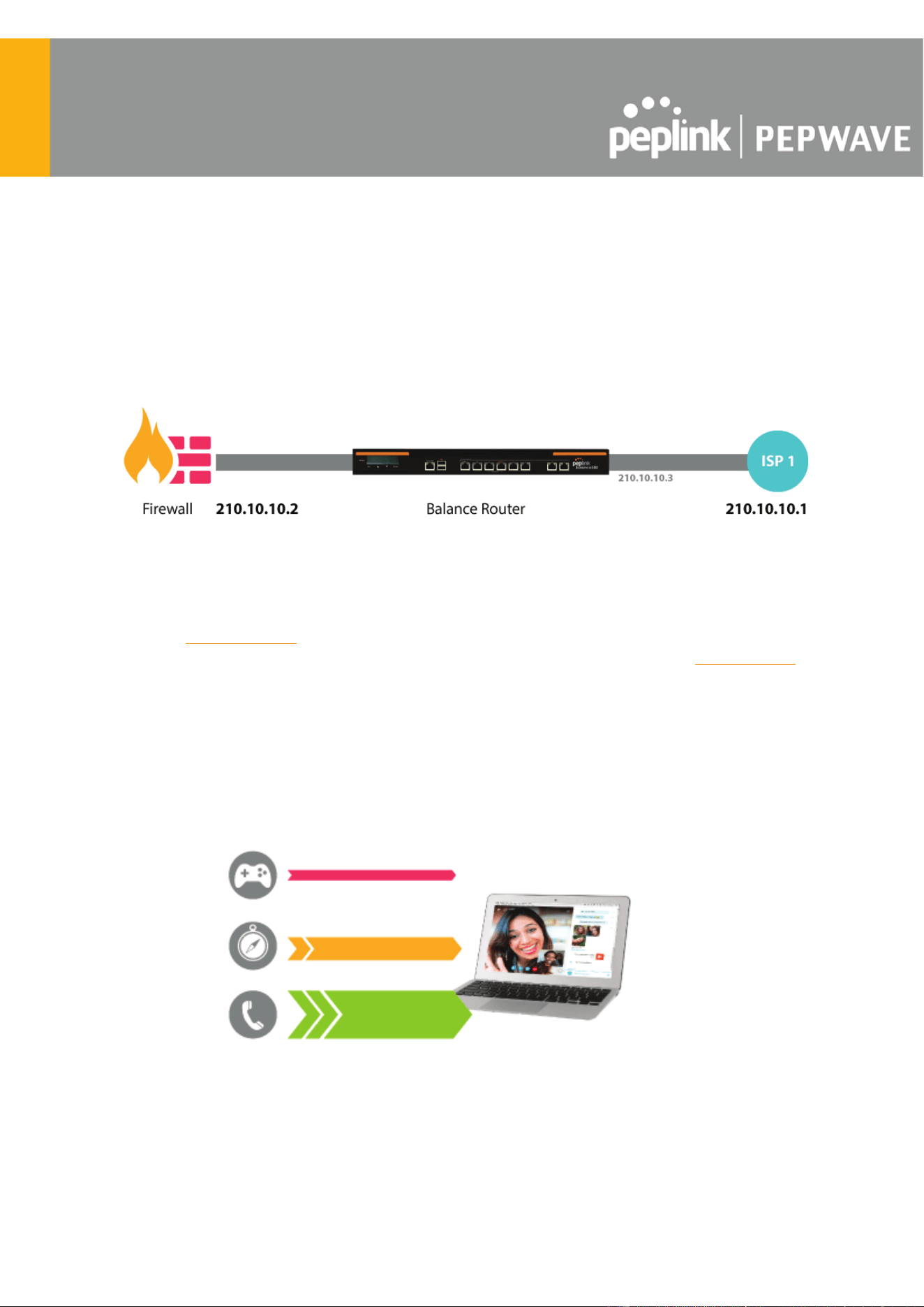
3.1 Drop-in Mode and LAN Bypass: Transparent Deployment
As your organization grows, it may require more bandwidth, but modifying your network can be
tedious. In Drop-in Mode , you can conveniently install your Peplink router without making any
changes to your network. For any reason your Peplink router loses power, the LAN Bypass will
safely and automatically bypass the Peplink router to resume your original network connection.
Note: Drop-in mode is compatible for All MAX models except MAX BR1 IP67
3.2 QoS: Clearer VoIP
VoIP and videoconferencing are highly sensitive to latency. With QoS, Peplink routers can
detect VoIP traffic and assign it the highest priority, giving you crystal-clear calls.
https://www.peplink.com
15
Copyright @ 2025 Peplink
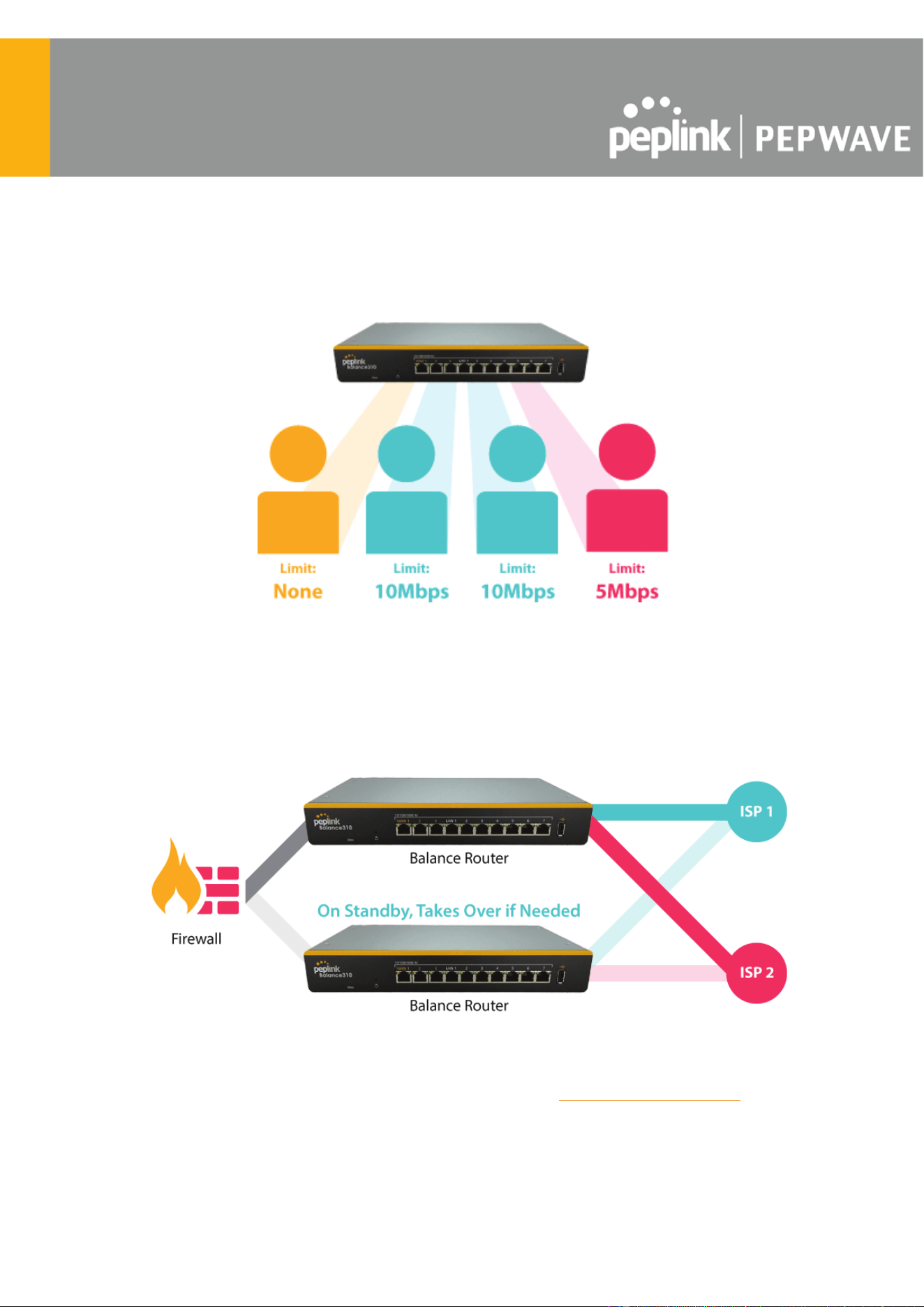
3.3 Per-User Bandwidth Control
With per-user bandwidth control, you can define bandwidth control policies for up to 3 groups of
users to prevent network congestion. Define groups by IP address and subnet, and set
bandwidth limits for every user in the group.
3.4 High Availability via VRRP
When your organization has a corporate requirement demanding the highest availability with no
single point of failure, you can deploy two Peplink routers in High Availability mode . With High
Availability mode, the second device will take over when needed.
https://www.peplink.com
16
Copyright @ 2025 Peplink
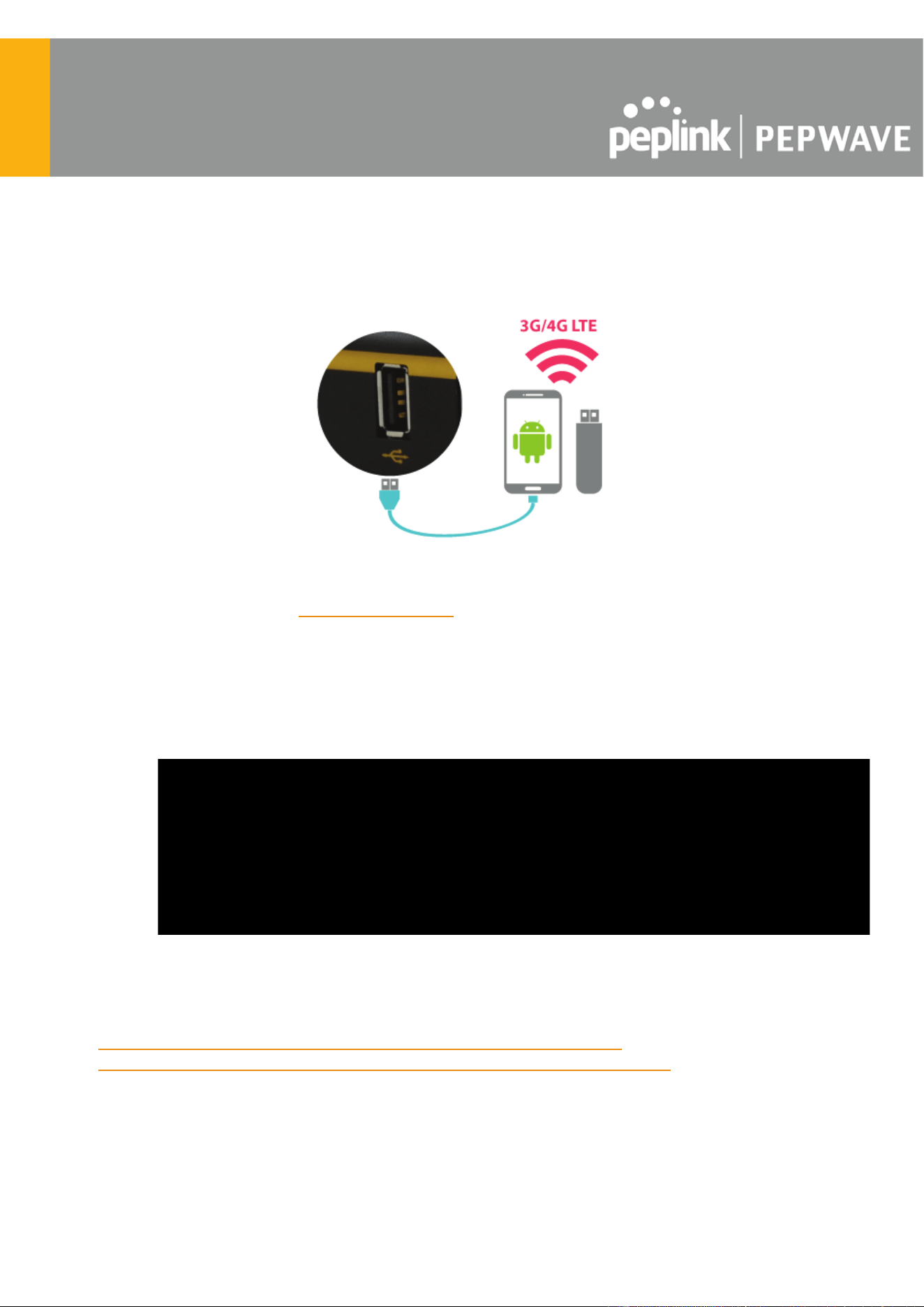
Compatible with: MAX 700, MAX HD2 (All variants), HD4 (All Variants)
3.5 USB Modem and Android Tethering
For increased WAN diversity, plug in a USB LTE modem as a backup. Peplink routers are
compatible with over 200 modem types . You can also tether to smartphones running
Android 4.1.X and above.
Compatible with: MAX 700, HD2 (all variants except IP67), HD4 (All variants)
3.6 Built-In Remote User VPN Support
Use OpenVPN or L2TP with IPsec to safely and conveniently connect remote clients to your
private network. L2TP with IPsec is supported by most devices, but legacy devices can also
connect using PPTP.
Click here for the full instructions on setting up L2TP with IPsec.
Click here for the full instructions on setting up OpenVPN connections
https://www.peplink.com
17
Copyright @ 2025 Peplink

3.7 SIM-card USSD support
Cellular-enabled routers can now use USSD to check their SIM card’s balance, process
pre-paid cards, and configure carrier-specific services.
Click here for full instructions on using USSD
3.8 DPI Engine
The DPI report written in the updated KB article will show further information on InControl2
through breaking down application categories into subcategories.
https://forum.peplink.com/t/ic2-deep-packet-inspection-dpi-reports-and-everything-you-n
eed-to-know-about-it/10151/
3.9 NetFlow
NetFlow protocol is used to track network traffic. Tracking information from NetFlow can be sent
to the NetFlow collector, which analyzes data and generates reports for review.
Note: To enable this feature, go to https://<Device's IP>/cgi-bin/MANGA/support.cgi
https://www.peplink.com
18
Copyright @ 2025 Peplink
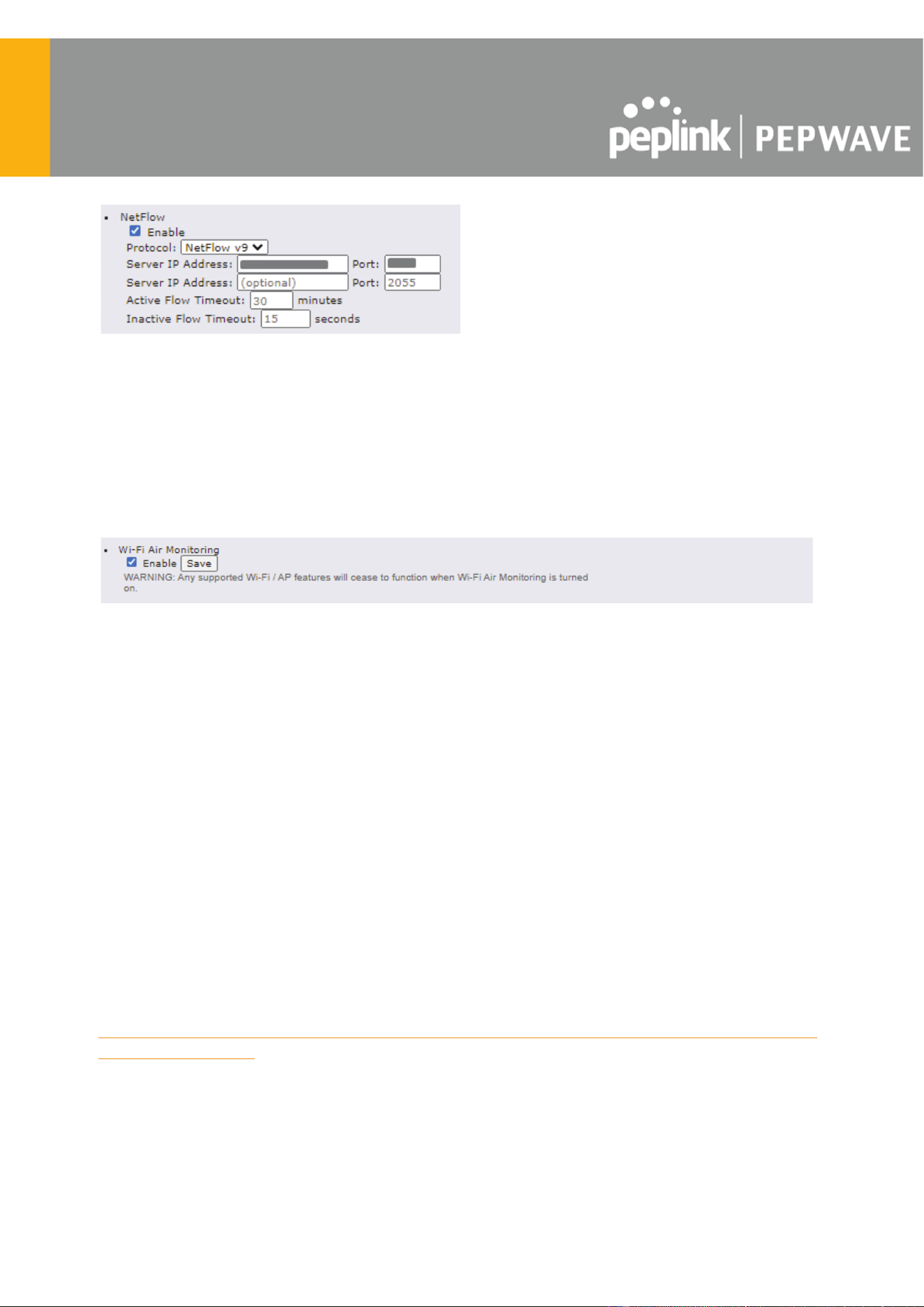
3.10 Wi-Fi Air Monitoring
Pepwave routers support Wi-Fi “Air Monitoring Mode” which is used to troubleshoot remotely
and proactively monitor Wi-Fi and WAN performance. The report can be viewed under InControl
2 > Reports > AirProbe Reports after enabling Wi-Fi Air Monitoring.
Note: To enable this feature, go to https://<Device's IP>/cgi-bin/MANGA/support.cgi
3.11 SP Default Configuration
The SP Default Configuration feature written in the updated KB article allows for the
provisioning of custom made settings (a.k.a. InControl2 configuration) via the Ethernet LAN port
and is ideal for those wanting to do a bulk deployment of many Peplink devices.
Note: If you would like to use this feature, please contact your purchase point (Eg.VAD).
3.12 Peplink Relay
Cloud Service Providers often restrict access to certain applications. With SFC Relay, you can
route traffic before going out to the Internet, allowing access to previously restricted applications
experienced with the public SpeedFusion Cloud nodes. Available as an add-on for your home
router or as an upgradable license to your Peplink router, SFC Relay is sure to impress you and
any peers you give access to.
https://forum.peplink.com/t/configure-speedfusion-cloud-relay-server-and-client/6215ca9
b017e48e0f3ff2479/
https://www.peplink.com
19
Copyright @ 2025 Peplink

3.13 DNS over HTTPS (DoH)
DoH provides the benefits of communicating DNS information over a secure HTTPS connection
in an encrypted manner. The protocol offers increased privacy and confidentiality by preventing
data interception and man-in-the-middle attacks.
3.14 Peplink InTouch
InTouch is Peplink’s zero-touch remote network management solution, leveraging InControl 2
and a SpeedFusion Connect (formerly known as SpeedFusion Cloud) data plan. This service
extends a network administrator’s ability to reach any device UI backed by a Peplink/Pepwave
router. To configure InTouch, all you need is a valid InControl 2 subscription, a SpeedFusion
Connect data plan, and a Peplink/Pepwave router (which requires the latest 8.2.0 firmware).
To watch a demonstration and read the FAQ, visit
https://www.peplink.com/enterprise-solutions/intouch/
Or learn to configure InTouch at https://youtu.be/zg0iavHGkJw
3.15 Synergy Mode
Synergy mode is a cascade multiple devices and combine the number of WANs to a single
device virtually. All the WANs on the Synergized Device will appear as native WAN interfaces at
the Synergy Controller and it can be managed like the built-in WAN interfaces.
https://forum.peplink.com/t/synergy-mode-(firmware-8.3.0)/639be7d8af8c71a6f3050323/
3.16 Virtual WAN on VLAN
The Virtual WAN Activation License allows you to create 1 x virtual WAN on a particular VLAN,
on either WAN or LAN interface. This means that you can create a virtual WAN on VLAN for a
WAN port, or a virtual WAN on VLAN for a LAN port.
https://forum.peplink.com/t/b20x-virtual-wan-activation-license-faq/6204bac7d90b9e6355e96e8
d/1
https://www.peplink.com
20
Copyright @ 2025 Peplink

4 Installation
The following section details connecting Pepwave routers to your network.
4.1 Preparation
Before installing your Pepwave router, please prepare the following as appropriate for your
installation:
● At least one Internet/WAN access account and/or Wi-Fi access information
● Depending on network connection type(s), one or more of the following:
○ Ethernet WAN : A 10/100/1000BaseT UTP cable with RJ45 connector
○ USB : A USB modem
○ Embedded modem : A SIM card for 5G/4G LTE service
○ Wi-Fi WAN : Wi-Fi antennas
● A computer installed with the TCP/IP network protocol and a supported web browser.
Supported browsers include Microsoft Internet Explorer 11 or above, Mozilla Firefox 24
or above, Apple Safari 7 or above, and Google Chrome 18 or above.
4.2 Constructing the Network
At a high level, construct the network according to the following steps:
1. With an Ethernet cable, connect a computer to one of the LAN ports on the
Pepwave router. Repeat with different cables for up to 4 computers to be
connected.
2. Connect either another Ethernet cable or a USB modem to one of the WAN ports or
USB ports respectively, or connect to Wi-Fi as WAN on the Pepwave router. Repeat
the same process for any additional WAN ports.
3. Connect the power adapter to the power connector on the rear panel of the
Pepwave router, and then plug it into a power outlet.
https://www.peplink.com
21
Copyright @ 2025 Peplink

4.3 Configuring the Network Environment
To ensure that the Pepwave router works properly in the LAN environment and can access the
Internet via WAN connections, please refer to the following setup procedures:
● LAN configuration
For basic configuration, refer to Section 8, Connecting to the Web Admin Interface .
For advanced configuration, go to Section 9, Configuring the LAN Interface(s) .
● WAN configuration
For basic configuration, refer to Section 8, Connecting to the Web Admin Interface .
For advanced configuration, go to Section 9.2, Captive Portal .
https://www.peplink.com
22
Copyright @ 2025 Peplink

5 Connecting to the Web Admin Interface
1. Start a web browser on a computer that is connected with the Pepwave router through
the LAN.
2. To connect to the router’s web admin interface, enter the following LAN IP address in the
address field of the web browser:
http://192.168.50.1
(This is the default LAN IP address for Pepwave routers.)
3. Enter the following to access the web admin
interface.
Username : admin
Password : admin
(This is the default username and password for
Pepwave routers).
● You must change the default password on the first successful logon.
● Password requirements are: A minimum of 10 lower AND upper case characters,
including at least 1 number.
● When HTTP is selected, the URL will be redirected to HTTPS by default.
https://www.peplink.com
23
Copyright @ 2025 Peplink

After successful login, the Dashboard of the web admin interface will be displayed.
The Dashboard shows current WAN, LAN, and Wi-Fi AP statuses. Here, you can change WAN
connection priority and switch on/off the Wi-Fi AP. For further information on setting up these
connections, please refer to Sections 8 and 9 .
Device Information displays details about the device, including model name, firmware version,
and uptime. For further information, please refer to Section 22 .
Important Note
Configuration changes (e.g. WAN, LAN, admin settings, etc.) will take effect only after clicking the
Save button at the bottom of each page. The Apply Changes button causes the changes to be saved
and applied.
https://www.peplink.com
24
Copyright @ 2025 Peplink

6 SpeedFusion Connect Protect
With Pepwave products, your device is able to connect to SpeedFusion Connect Protect without
the use of a second endpoint. This service has wide access to a number of SpeedFusion
endpoints hosted from around the world, providing your device with unbreakable connectivity
wherever you are.*
*SpeedFusion Connect Protect is supported in firmware version 8.1.0 and above. SpeedFusion
Connect is a subscription basis. SpeedFusion Connect Protect license can be purchased at
https://estore.peplink.com/ > SpeedFusion Service > SpeedFusion Connect Protect.
6.1 Activate SpeedFusion Connect Protect
All Care plans now come with SpeedFusion Connect Protect included. This data allowance will
automatically begin and end in accordance with your warranty. No activation is required.
https://www.peplink.com
25
Copyright @ 2025 Peplink

6.2 Enable SpeedFusion Connect Protect
Access the Web Admin of the device you want to create as the Peplink Relay Server, navigating
to the “ SFC Protect ” tab.
To setup a Peplink Relay Mode, select “ Relay Mode - for Inbound accesses " > Choose the
SFC Protect Location you wish to connect to > Click on the Green tick button to confirm the
change.
https://www.peplink.com
26
Copyright @ 2025 Peplink

The Relay Sharing Code will be generated, and other peers can use this code to establish a
SpeedFusion Connect Protect that will forward the traffics to this device, allowing them to
access local networks and the internet via your WAN connection.
To connect to SpeedFusion Connect Protect, you can select a SFC Protect Location of your
choice, or simply and Automatic then the device will establish connection to the neareset SFC
Protect server.
Choose Automatic > Click on the green tick button to confirm the change.
Or you may select Home Sharing and use your Relay Sharing Code to create a profile if you
have set up a Peplink Relay Client on another device.
https://www.peplink.com
27
Copyright @ 2025 Peplink

Click on Apply Changes to save the change .
By default, the router will build a SpeedFusion tunnel to the SpeedFusion Cloud.
If you are running a latency sensitive service like video streaming or VOIP, a WAN Smoothing
sub-tunnel can be created. Navigate to Navigate to SFC Protect > Client Mode - for
Outbound accesses > SFC .
https://www.peplink.com
28
Copyright @ 2025 Peplink

A SpeedFusion Connect Protect Profile configuration window will pop out. Click on the + sign to
create the WAN Smoothing sub-tunnel.
Click on Save and Apply Changes to save the configuration. Now, the router has 2
Speedfusion tunnels to the SpeedFusion Connect Protect.
https://www.peplink.com
29
Copyright @ 2025 Peplink
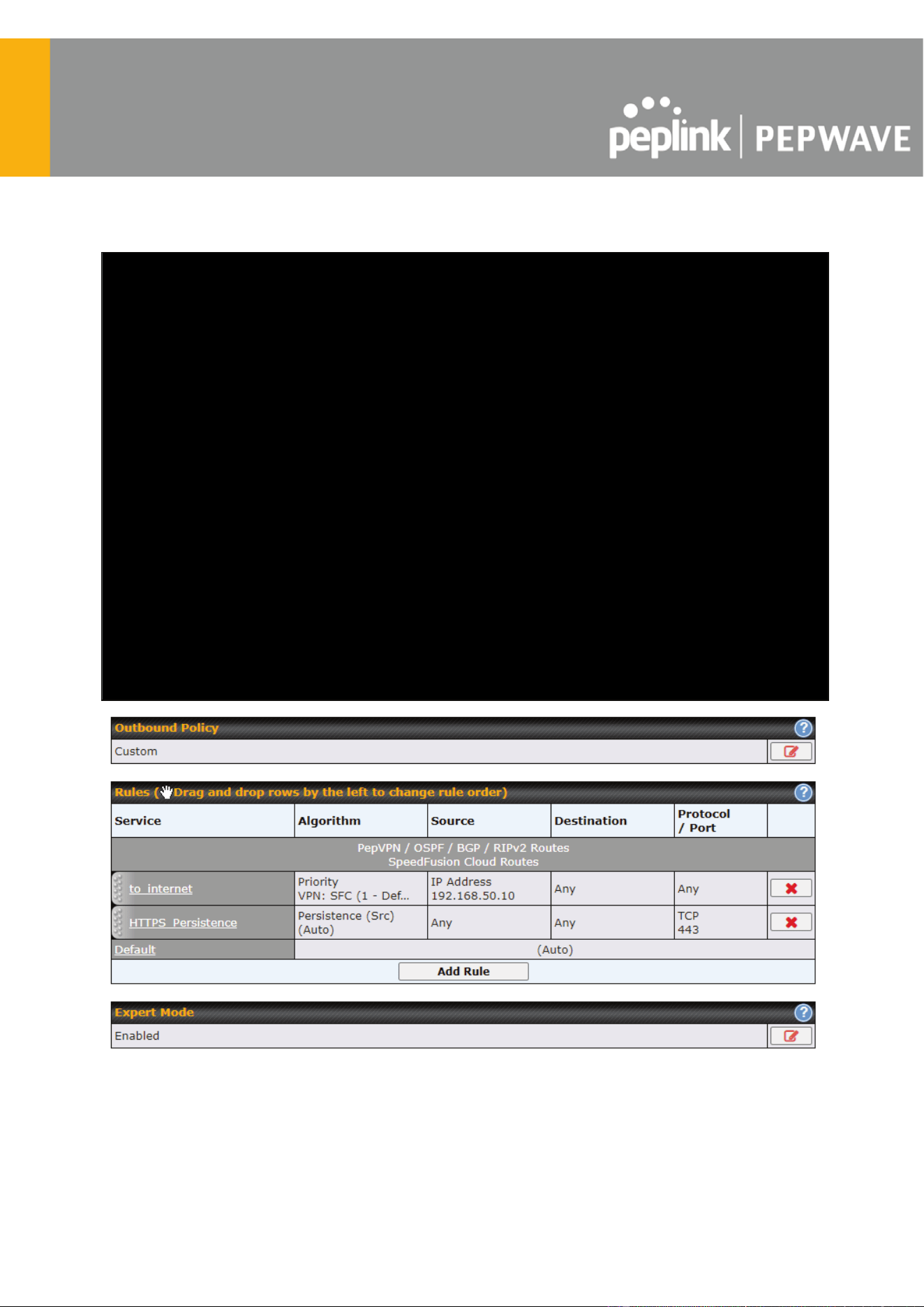
Create an outbound policy to steer the internet traffic to go into SFC Protect. Please go to
Advanced > Outbound Policy , click on Add Rule to create a new outbound policy.
https://www.peplink.com
30
Copyright @ 2025 Peplink

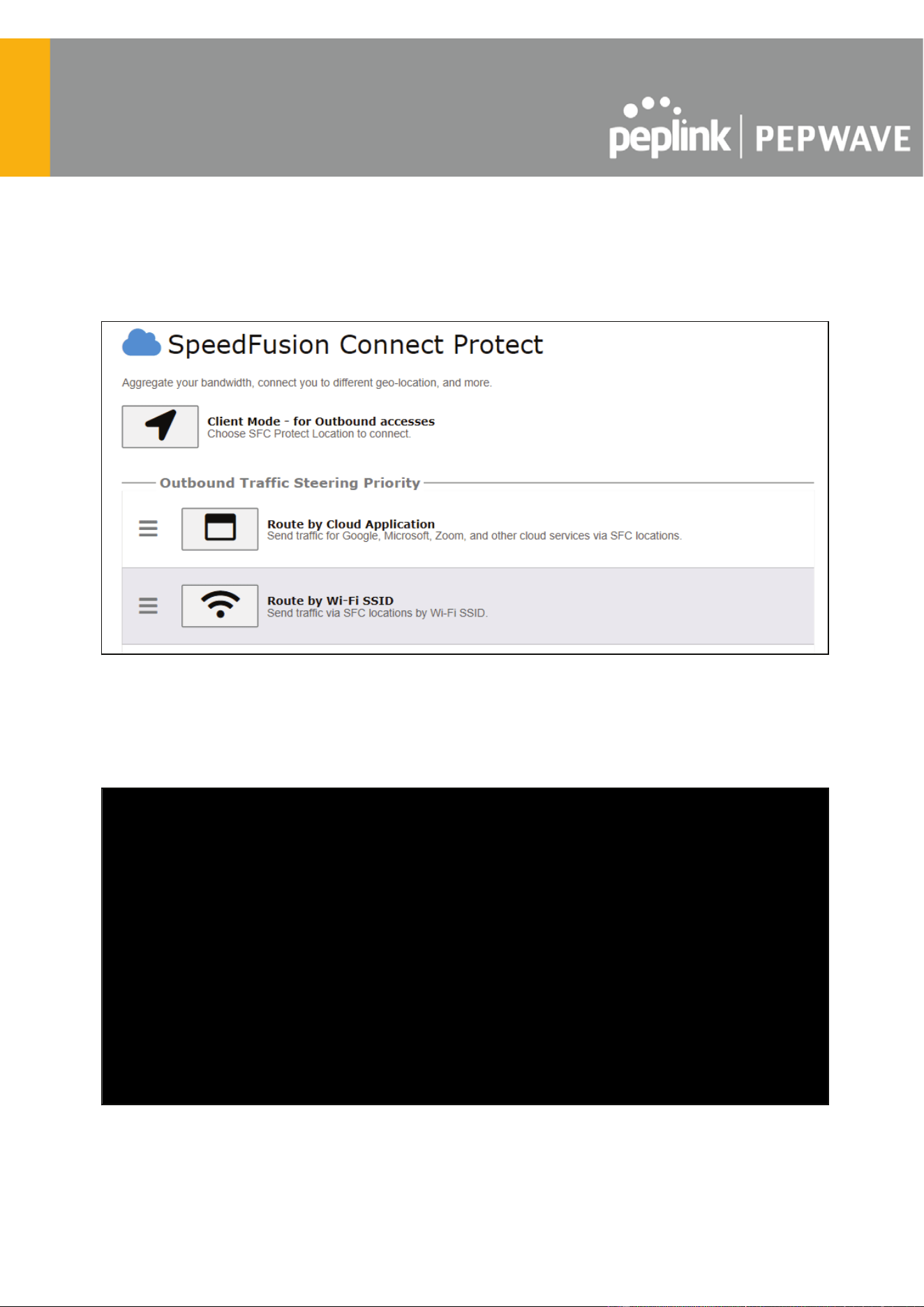
6.3 Route by Cloud Application
Optimize Cloud Application allows you to route Internet traffic through SpeedFusion Connect
Protect based on the application. Go to SFC Protect > Route by Cloud Application .
Select a Cloud application to route through SpeedFusion Connect Protect from the drop down
list > Click > Save > Apply Changes.
Click the to remove a selected Cloud application from routing through SpeedFusion
Connect Protect.
https://www.peplink.com
31
Copyright @ 2025 Peplink
6.4 Route by Wi-Fi SSID
SpeedFusion Connect Protect provides a convenient way to route the Wi-Fi client to the cloud
from SFC Protect > Route by Wi-Fi SSID .
Create a new SSID for SFC Protect. The new SSID will inherit all settings from one of the
existing SSIDs including the Security Policy. Then click Save followed by Apply Changes .
https://www.peplink.com
32
Copyright @ 2025 Peplink
SFC Protect SSID will be shown on Dashboard .
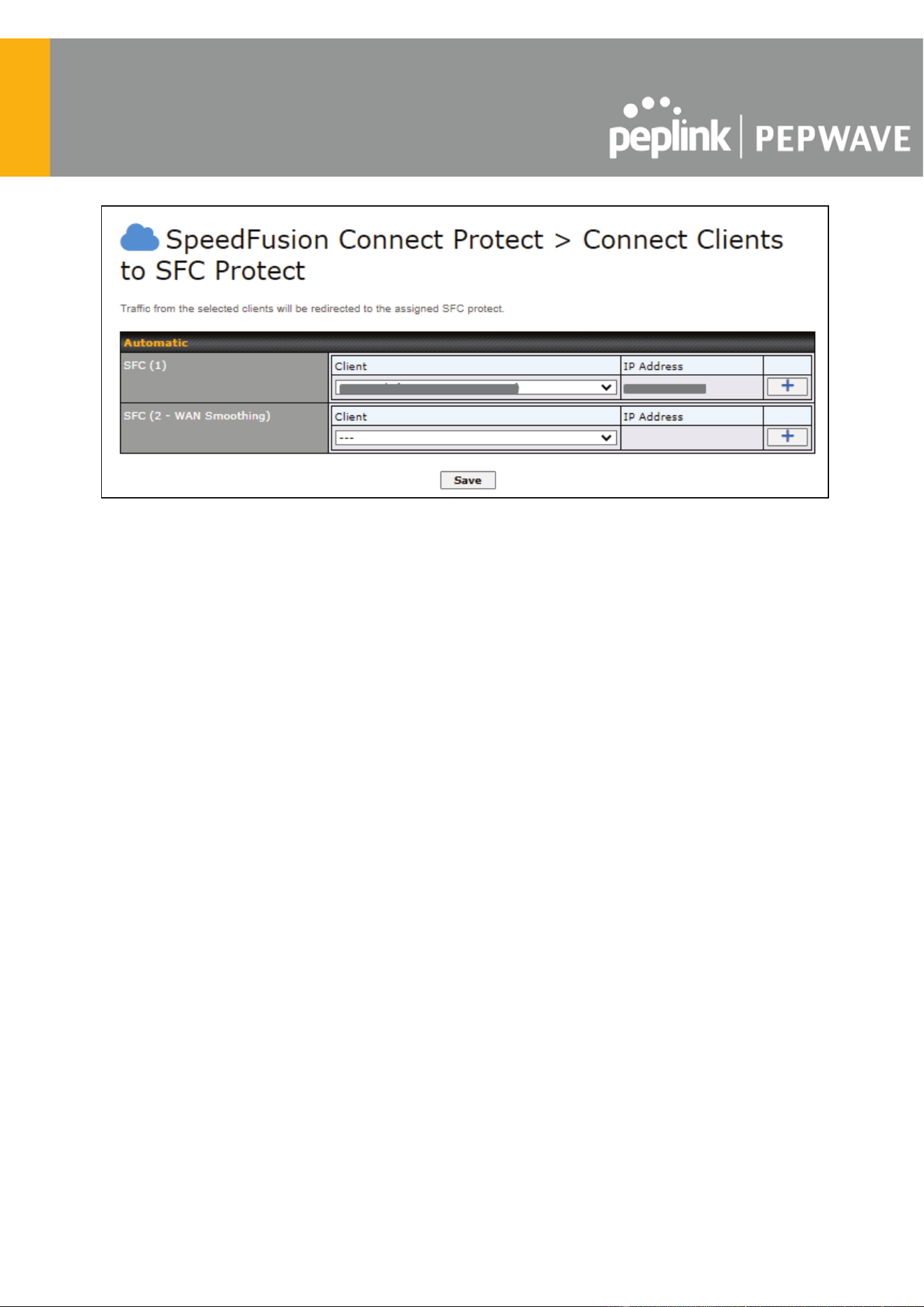
6.5 Route by LAN Client
SpeedFusion Connect Protect provides a convenient way to route the LAN client to the cloud
from SFC Protect > Route by LAN Client .
Choose a client from the drop down list > Click + > Save > Apply Changes.
https://www.peplink.com
33
Copyright @ 2025 Peplink
https://www.peplink.com
34
Copyright @ 2025 Peplink

7 Configuring the LAN Interface(s)
7.1 Basic Settings
LAN interface settings are located at Network > LAN > Network Settings . Navigating to that
page will show the following dashboard:
This represents the LAN interfaces that are active on your router (including VLAN). A gray “X”
means that the VLAN is used in other settings and cannot be deleted. You can find which
settings are using the VLAN by hovering over the gray “X”.
Alternatively, a red “ X ” means that there are no settings using the VLAN. You can delete that
VLAN by clicking the red “ X ”
Clicking on any of the existing LAN interfaces (or creating a new one) will show the following :
IP Settings
IP Address
The IP address and subnet mask of the Pepwave router on the LAN.
Network Settings
Name
Enter a name for the LAN.
VLAN ID
Enter a number for your VLAN
Inter-VLAN routing
Check this box to enable routing between virtual LANs.
https://www.peplink.com
35
Copyright @ 2025 Peplink

Layer 2 SpeedFusion VPN Bridging
SpeedFusion
VPN Profiles to
Bridge
The remote network of the selected SpeedFusion VPN profiles will be bridged with
this local LAN, creating a Layer 2 SpeedFusion VPN, they will be connected and
operate like a single LAN, and any broadcast or multicast packets will be sent over
the VPN.
Spanning Tree
Protocol
Click the box will enable STP for this layer 2 profile bridge.
DHCP Option 82
Click on the question Mark if you want to enable DHCP Option 82.
This allows the device to inject Option 82 with Router Name information before
forwarding the DHCP Request packet to a SpeedFusion VPN peer, such that the
DHCP Server can identify where the request originates from.
Override IP
Address when
bridge
connected
Select "Do not override" if the LAN IP address and local DHCP server should
remain unchanged after the Layer 2 SpeedFusion VPN is up.
If you choose to override the IP address when the VPN is connected, the device
will not act as a router, and most Layer 3 routing functions will cease to work.
https://www.peplink.com
36
Copyright @ 2025 Peplink

DHCP Server Settings
DHCP Server
When this setting is enabled, the Pepwave router’s DHCP server automatically
assigns an IP address to each computer that is connected via LAN and configured
to obtain an IP address via DHCP. The Pepwave router’s DHCP server can
prevent IP address collisions on the LAN.
To enable DHCP bridge relay, please click the icon on this menu item.
DHCP Server
Logging
Enable logging of DHCP events in the eventlog by selecting the checkbox.
IP Range
These settings allocate a range of IP addresses that will be assigned to LAN
computers by the Pepwave router’s DHCP server.
Lease Time
This setting specifies the length of time throughout which an IP address of a DHCP
client remains valid. Upon expiration of Lease Time , the assigned IP address will
no longer be valid and the IP address assignment must be renewed.
DNS Servers
This option allows you to input the DNS server addresses to be offered to DHCP
clients. If Assign DNS server automatically is selected, the Pepwave router’s
built-in DNS server address (i.e., LAN IP address) will be offered.
BOOTP
Check this box to enable BOOTP on older networks that still require it.
Extended DHCP
Option
In addition to standard DHCP options (e.g. DNS server address, gateway address,
subnet mask), you can specify the value of additional extended DHCP options, as
defined in RFC 2132. With these extended options enabled, you can pass
additional configuration information to LAN hosts. To define an extended DHCP
option, click the Add button, choose the option to define, and then enter its value.
For values that are in IP address list format, you can enter one IP address per line
in the provided text area input control. Each option can be defined once only.
DHCP
Reservation
This setting reserves the assignment of fixed IP addresses for a list of computers
on the LAN. The computers to be assigned fixed IP addresses on the LAN are
identified by their MAC addresses. The fixed IP address assignment is displayed
as a cross-reference list between the computers’ names, MAC addresses, and
fixed IP addresses.
Name (an optional field) allows you to specify a name to represent the device.
MAC addresses should be in the format of 00:AA:BB:CC:DD:EE . Press to
create a new record. Press to remove a record. Reserved clients
information can be imported from the Client List , located at Status>Client List .
For more details, please refer to Section 22.3.
https://www.peplink.com
37
Copyright @ 2025 Peplink

To configure DHCP relay, first click the button found next to the DHCP Server option to
display the settings.
DHCP Relay Settings
Enable
Check this box to turn on DHCP relay. Click the icon to disable DHCP relay.
DHCP Server IP
Address
Enter the IP addresses of one or two DHCP servers in the provided fields. The
DHCP servers entered here will receive relayed DHCP requests from the LAN. For
active-passive DHCP server configurations, enter active and passive DHCP server
relay IP addresses in DHCP Server 1 and DHCP Server 2.
DHCP Option 82
DHCP Option 82 includes device information as relay agent for the attached client
when forwarding DHCP requests from client to server. This option also embeds
the device’s MAC address and network name in circuit and remote IDs. Check this
box to enable DHCP Option 82.
DHCP Relay
Logging
Enable logging of DHCP Relay events in the eventlog by selecting the checkbox.
Once DHCP is set up, configure LAN Physical Settings , Static Route Settings , and DNS
Proxy Settings as noted above.
Static Route Settings
Static Route
This table is for defining static routing rules for the LAN segment. A static route
consists of the network address, subnet mask, and gateway address. The
address and subnet mask values are in w.x.y.z format.
The local LAN subnet and subnets behind the LAN will be advertised to the VPN.
Remote routes sent over the VPN will also be accepted. Any VPN member will be
able to route to the local subnets. Press to create a new route. Press
to remove a route.
A
- Advanced feature, please click the button on the top right hand corner of the Static Route section
to activate and configure Virtual Network Mapping to resolve network address conflict with remote peers.
https://www.peplink.com
38
Copyright @ 2025 Peplink
In case of a network address conflict with remote peers (i.e. SpeedFusion VPN / IPsec VPN / IP
Forwarding WAN are considered as remote connections), you can define Virtual Network
Mapping to resolve it.
Note: OSPF & RIPv2 settings should be updated as well to avoid advertising conflicted networks .
For further details on virtual network mapping watch this video:
https://youtu.be/C1FMdZCn3Z8
Virtual Network Mapping
One-to-One NAT
Every IP Address in the Local Network has a corresponding unique Virtual IP
Address for NAT.
Traffic originating from the Local Network to remote connections will be SNAT'ed
and behave like coming from the defined Virtual Network.
While traffic initiated by remote peers to the Virtual Network will be DNAT'ed
accordingly.
Many-to-One NAT
The subnet range defined in Local Network will be mapped to a single Virtual IP
Address for NAT. Traffic can only be initiated from local to remote, and these
traffic will be NAT'ed and behaves like coming from the same Virtual IP Address.
https://www.peplink.com
39
Copyright @ 2025 Peplink

DNS Proxy Settings
Enable
To enable the DNS proxy feature, check this box, and then set up the feature at
Network > LAN > DNS Proxy Settings . A DNS proxy server can be enabled to
serve DNS requests originating from LAN/PPTP/SpeedFusion
TM
peers. Requests
are forwarded to the DNS servers/resolvers defined for each WAN connection.
DNS Caching
This field is to enable DNS caching on the built-in DNS proxy server. When the
option is enabled, queried DNS replies will be cached until the records’ TTL has
been reached. This feature can help improve DNS lookup time. However, it cannot
return the most up-to-date result for those frequently updated DNS records. By
default, DNS Caching is disabled.
Include Google
Public DNS
Servers
When this option is enabled , the DNS proxy server will also forward DNS requests
to Google's Public DNS Servers , in addition to the DNS servers defined in each
WAN. This could increase the DNS service's availability. This setting is disabled by
default.
Local DNS
Records
This table is for defining custom local DNS records. A static local DNS record
consists of a host name and IP address. When looking up the host name from the
LAN to LAN IP of the Pepwave router, the corresponding IP address will be
returned. Press to create a new record. Press to remove a record.
Domain Lookup
Policy
DNS Proxy will lookup the domain names defined in this table using the specified
connections only.
https://www.peplink.com
40
Copyright @ 2025 Peplink
DNS Resolvers
A
This field specifies which DNS servers can receive forwarded DNS requests. If no
DNS server is selected, then all of them will be selected by default.
If you wish to select a SpeedFusion VPN peer, enter the IP address(es) of the
VPN peer's DNS server.
Incoming queries will be forwarded to one of the selected servers. If none of the
selected servers can be reached, then the router will forward incoming queries to
all servers with healthy WAN connections.
A
- Advanced feature, please click the button on the top right hand corner to activate.
Finally, if needed, configure Bonjour forwarding, Apple’s zero configuration networking protocol.
Once VLAN configuration is complete, click Save to store your changes.
Bonjour Forwarding Settings
Enable
Check this box to turn on Bonjour forwarding.
Bonjour Service
Choose Service and Client networks from the drop-down menus, and then click
to add the networks. To delete an existing Bonjour listing, click .
https://www.peplink.com
41
Copyright @ 2025 Peplink
Drop-In Mode
Drop-in mode (or transparent bridging mode) eases the installation of the Pepwave MAX on a
live network between the firewall and router, such that changes to the settings of existing
equipment are not required.
The following diagram illustrates drop-in mode setup:
Check the box Enable to enable the Drop-in Mode. After enabling this feature and selecting the
WAN for Drop-in mode, various settings including the WAN's connection method and IP address
will be automatically updated.
When drop-in mode is enabled, the LAN and the WAN for drop-in mode ports will be bridged.
Traffic between the LAN hosts and WAN router will be forwarded between the devices. In this
case, the hosts on both sides will not notice any IP or MAC address changes.
After successfully setting up the Pepwave MAX as part of the network using drop-in mode, it
will, depending on model, support one or more WAN connections. Some MAX units also
support multiple WAN connections after activating drop-in mode, though a SpeedFusion license
may be required to activate more than one WAN port.
Please note the Drop-In Mode is mutually exclusive with VLAN.
https://www.peplink.com
42
Copyright @ 2025 Peplink

Drop-in Mode Settings
Enable
Drop-in mode eases the installation of the Pepwave MAX on a live network
between the existing firewall and router, such that no configuration changes are
required on existing equipment. Check the box to enable the drop-in mode feature.
WAN for
Drop-In Mode
Select the WAN port to be used for drop-in mode. If WAN is selected, the high
availability feature will be disabled automatically.
Shared Drop-In
IP
A
When this option is enabled, the passthrough IP address will be used to connect
to WAN hosts (email notification, remote syslog, etc.). The MAX will listen for this
IP address when WAN hosts access services provided by the MAX (web admin
access from the WAN, DNS server requests, etc.).
To connect to hosts on the LAN (email notification, remote syslog, etc.), the default
gateway address will be used. The MAX will listen for this IP address when LAN
hosts access services provided by the MAX (web admin access from the WAN,
DNS proxy, etc.).
https://www.peplink.com
43
Copyright @ 2025 Peplink

Shared IP
Address
A
Access to this IP address will be passed through to the LAN port if this device is
not serving the service being accessed. The shared IP address will be used in
connecting to hosts on the WAN (e.g., email notification, remote syslog, etc.) The
device will also listen on the IP address when hosts on the WAN access services
served on this device (e.g., web admin accesses from WAN, DNS server, etc.)
WAN Default
Gateway
Enter the WAN router's IP address in this field. If there are more hosts in addition
to the router on the WAN segment, click the button next to “WAN Default
Gateway” and check the other host(s) on the WAN segment box and enter the IP
address of the hosts that need to access LAN devices or be accessed by others.
WAN DNS
Servers
Enter the selected WAN's corresponding DNS server IP addresses.
A
- Advanced feature, please click the button on the top right-hand corner to activate.
7.2 Port Settings
To configure port settings, navigate to Network > Port Settings
On this screen, you can enable specific ports, as well as determine the speed of the LAN ports,
whether each port is a trunk or access port, can well as which VLAN each link belongs to, if any.
https://www.peplink.com
44
Copyright @ 2025 Peplink
7.3 Captive Portal
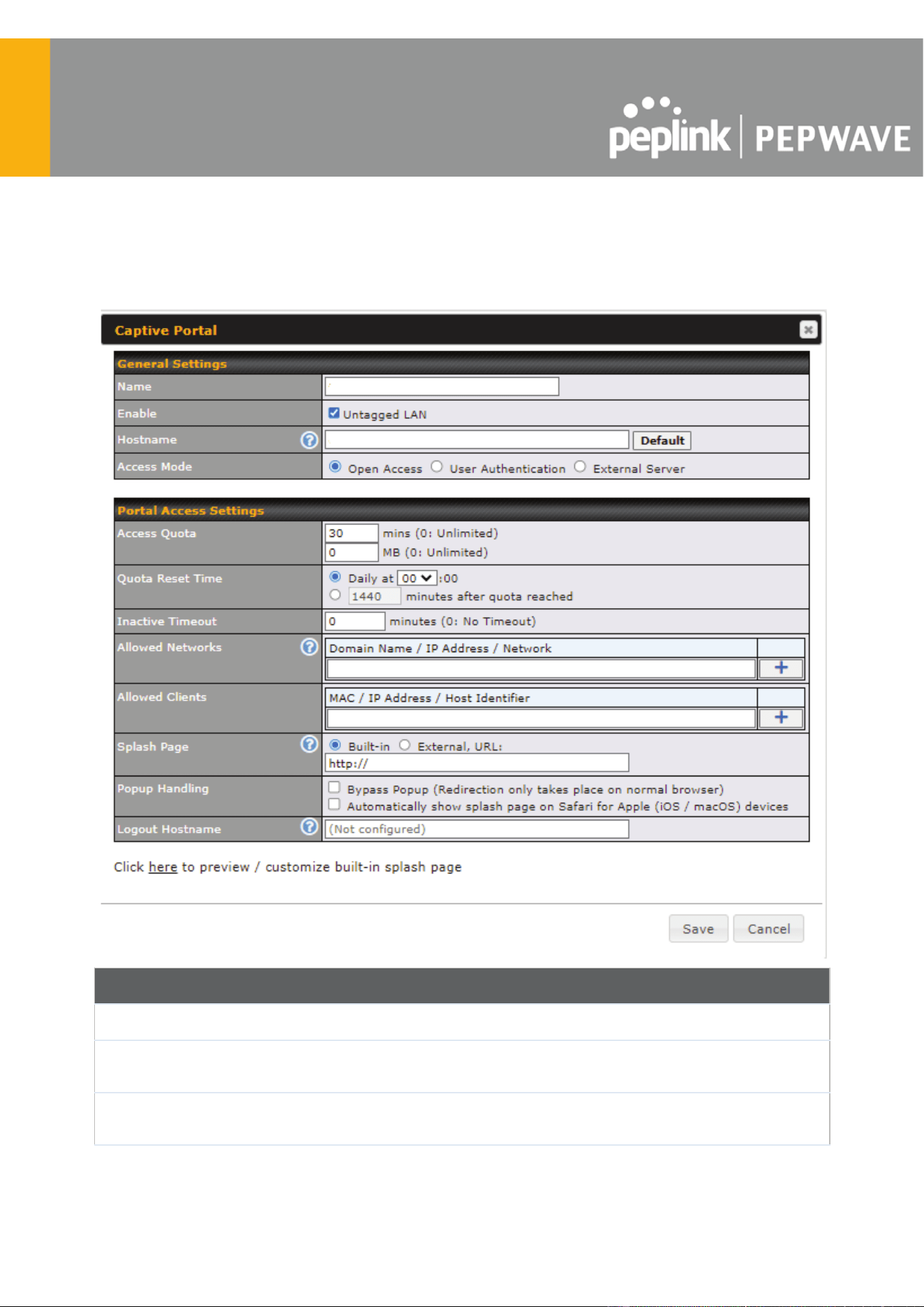
The captive portal serves as a gateway that clients have to pass if they wish to access the
internet using your router. To configure, navigate to Network > LAN > Captive Portal .
Captive Portal Settings
Name
Enter the name for the Captive Portal.
Enable
Check Enable and then, optionally, select the LANs/VLANs that will use the
captive portal.
Hostname
To customize the portal’s form submission and redirection URL, enter a new
URL in this field. To reset the URL to factory settings, click Default .
https://www.peplink.com
45
Copyright @ 2025 Peplink
Access Mode
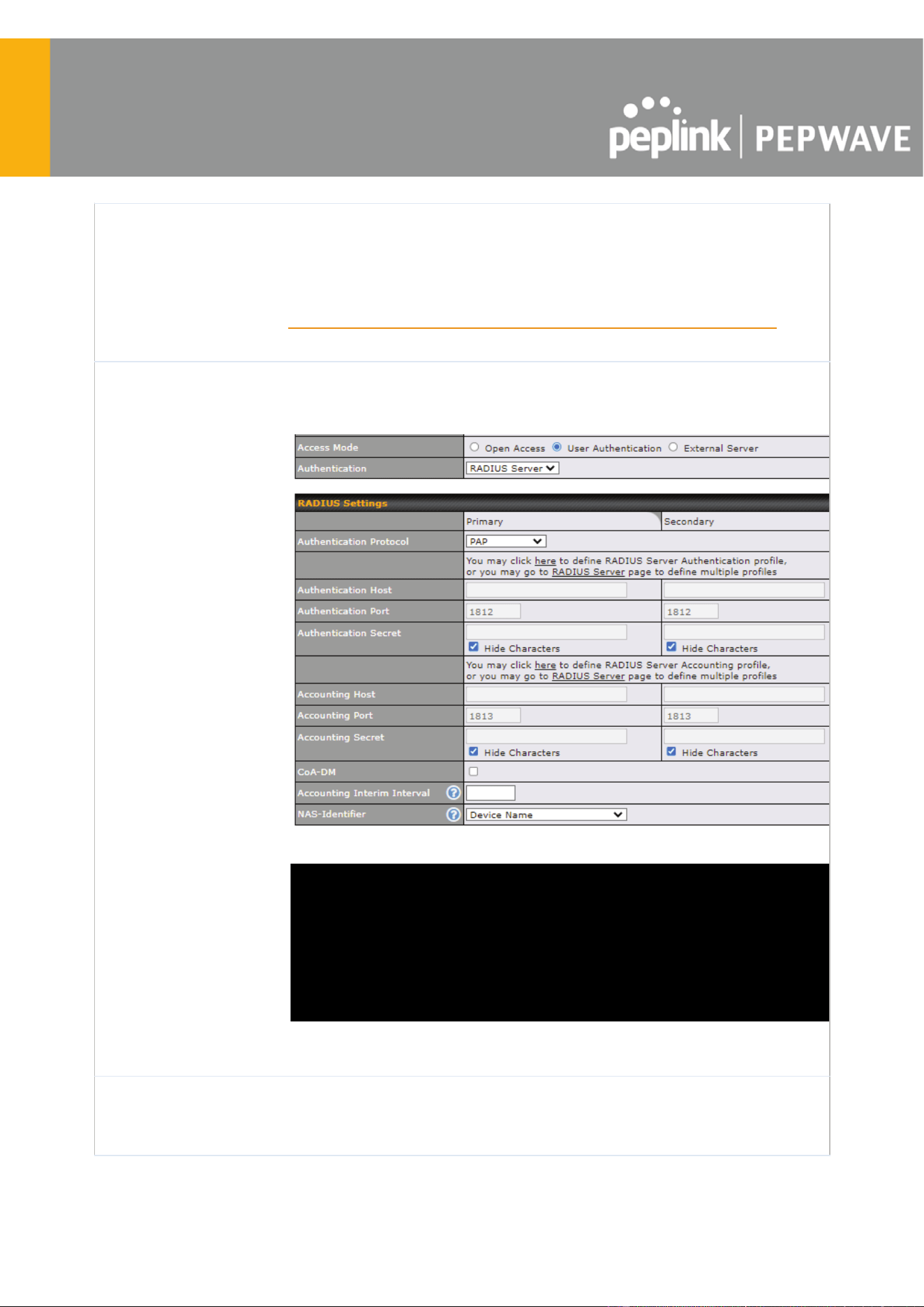
Click Open Access to allow clients to freely access your router. Click User
Authentication to force your clients to authenticate before accessing your
router.
Select External Server to use the Captive Portal with a HotSpot system.
As described in the following knowledgebase article:
https://forum.peplink.com/t/using-hotspotsystem-wi-fi-on-pepwave-max-routers/
Authentication
When selecting the “ User Authentication ” in the Access Mode field, you will
see the available option for the Authentication via drop-down list:
● RADIUS Server
● LDAP Server
Fill in the necessary information to complete your connection to the server
and enable authentication.
External Server
When selecting the “ External Server ” in the Access Mode field, you will see
the available option for the Service Type via drop-down list:
● CoovaChilli
https://www.peplink.com
46
Copyright @ 2025 Peplink

● HotspotSystem
Fill in the necessary information to complete your connection to the server
and enable authentication.
Access Quota
Set a time and data cap to each user’s Internet usage.
Quota Reset Time
This menu determines how your usage quota resets. Setting it to Daily will
reset it at a specified time every day. Setting a number of minutes after
quota reached establish a timer for each user that begins after the quota has
been reached.
Inactive Timeout
Clients will get disconnected when the inactive the configured time is reached.
Default 0: no timeout
Allowed Networks
Add networks that can bypass the captive Portal in this field.
To whitelist a network, enter the domain name / IP address here and click
. To delete an existing network from the list of allowed networks, click
the button next to the listing.
Allowed Clients
Add MAC address and /or IP addresses for client devices that are allowed to
bypass the Captive Portal. Clients accessing these domains and IP addresses
will not be redirected to the splash page.
Splash Page
Here, you can choose between using the Pepwave router’s built-in captive
portal and redirecting clients to a URL you define.
Popup Handling
Configurable options for popup handling:
- Bypass Popup (Redirection only takes place on normal browser)
- Automatically show splash page on Safari for Apple (iOS / macOS) devices
Logout Hostname
A hostname that can be used to logout captive portal when being accessed on
browser.
Customize
splash page
Click on the provided link in the Captive portal profile to customize the splash page.
A new browser tab is opened with a WYSIWYG editor of the splash page
o edit the content, click on the corresponding element after switching Edit Mode to ON.
https://www.peplink.com
47
Copyright @ 2025 Peplink

https://www.peplink.com
48
Copyright @ 2025 Peplink

8 Configuring the WAN Interface(s)
WAN Interface settings are located at Network > WAN . To reorder WAN priority, drag on the
appropriate WAN by holding the left mouse button, move it to the desired priority (the first one
would be the highest priority, the second one would be lower priority, and so on), and drop it by
releasing the mouse button.
To able a particular WAN connection, drag on the appropriate WAN by holding the left mouse
button, move it the Disabled row, and drop it by releasing the mouse button.
You can also set priorities on the Dashboard . Click the WAN button in the corresponding row to
modify the connection setting.
Important Note
Connection details will be changed and become effective immediately after clicking the Save and Apply button.
https://www.peplink.com
49
Copyright @ 2025 Peplink

IPv6
You can also enable IPv6 support in this section.
DNS over HTTPS (DoH)
You can enable DoH (DNS over HTTPS) support in this section.
DNS over HTTPS
Enable
When this option is enabled, the DNS proxy server will use HTTPS connections to
forward DNS requests to the DoH resolver; it will not fallback to traditional UDP
DNS options.
Server
The options to configure DoH with a predefined server are:
● Cloudflare - The DNS server IP addresses for Cloudflare will be using
1.1.1.1, which is unfiltered.
● Quad9 - The DNS server IP addresses for Quad9 will be using 9.9.9.9
and 142.112.112.112, which is malware blocking and DNSSEC.
● Google DNS - The DNS server IP addresses for Google DNS will be
using 8.8.8.8 and 8.8.4.4, which is RFC8484 standard.
● OpenDNS - The DNS server IP addresses for OpenDNS will be using
208.67.222.222 and 208.67.220.220, which is standard DNS.
● Custom URL - You may select Custom URL: , and enter the resolver
URL and IP address .
https://www.peplink.com
50
Copyright @ 2025 Peplink

WAN Quality Monitoring
This settings advice how WAN Quality information is being gathered.
By default, WAN Quality will always be observed and gathered automatically. With customized
choice of WAN connections, the device will always observe WAN Quality of those selected WAN
connections. Other WAN connections may stop observing WAN Quality information if it is not
necessary for the underlying features.
Synergy Mode
You can enable the Synergy Controller in this section.
You may click this to enable the Synergy Controller. By default, the setting is disabled.
You may select the WAN connection to use as a Synegy Link which will connect to synergized
devices.
https://www.peplink.com
51
Copyright @ 2025 Peplink

8.1 Ethernet WAN
There are four possible connection methods for the Ethernet WAN connection:
1. DHCP
2. Static IP
3. PPPoE
4. L2TP
5. GRE
8.1.1 DHCP Connection
The DHCP connection method is suitable if the ISP provides an IP address automatically using
DHCP (e.g., satellite modem, WiMAX modem, cable, Metro Ethernet, etc.).
DHCP Connection Settings
WAN Connection
Name
Enter a name to represent this WAN connection.
Enable
This setting enables the WAN connection. If schedules have been defined,
you will be able to select a schedule to apply to the connection.
https://www.peplink.com
52
Copyright @ 2025 Peplink

Connection
Priority
This option allows you to configure the WAN connection whether for normal
daily usage or as a backup connection only.
If Always-on is chosen, the WAN connection will be kept on continuously,
regardless of the priority of other WAN connections.
If Backup is chosen, the WAN connection will depend on other WAN
connections. It will not be used when one or more higher priority dependent
WAN connections are connected.
Independent from
Backup WANs
If this is checked, the connection will be working independent from other
Backup WAN connections. Those in Backup Priority will ignore the status of
this WAN connection, and will be used when none of the other higher priority
connections are available.
Routing Mode
NAT allows substituting the real address in a packet with a mapped address
that is routable on the destination network. By clicking the help icon in this
field, you can display the IP Forwarding option, if your network requires it.
Management IP
Address
Management IP Address is available for configuration when you click her e
for other DHCP settings.
This option allows you to configure the management IP address for the
DHCP WAN connection.
Custom Hostname
If your service provider's DHCP server requires you to supply a hostname
value upon acquiring an IP address, you may enter the value here. If your
service provider does not provide you with the value, you can safely bypass
this option.
DNS Servers
Each ISP may provide a set of DNS servers for DNS lookups. This setting
specifies the DNS (Domain Name System) servers to be used when a DNS
lookup is routed through this connection.
Selecting Obtain DNS server address automatically results in the DNS
servers being assigned by the WAN DHCP server to be used for outbound
DNS lookups over the connection. (The DNS servers are obtained along with
the WAN IP address assigned from the DHCP server.)
When Use the following DNS server address(es) is selected, you may
enter custom DNS server addresses for this WAN connection into the DNS
Server 1 and DNS Server 2 fields.
https://www.peplink.com
53
Copyright @ 2025 Peplink

IP Passthrough
When this IP Passthrough option is active, after the ethernet WAN
connection is up, the router's DHCP server will offer the connection's IP
address to one LAN client. All incoming or outgoing traffic will be routed
without NAT.
Regardless the WAN connection's state, the router always binds to the LAN
IP address (Default: 192.168.50.1). So when the ethernet WAN is connected,
the LAN client could access the router's web admin by manually configuring
its IP address to the same subnet as the router's LAN IP address (e.g.
192.168.50.10).
Note: when this option is firstly enabled, the LAN client may not be able to
refresh its IP address to the ethernet W
AN IP address in a timely fashion.
The LAN client may have to manually renew its IP address from DHCP
server. After this option is enabled, the DHCP lease time will be 2 minutes.
I.e. the LAN client could refresh its IP address and access the network at
most one minute after the ethernet WAN connection goes up.
Standby State
This option allows you to choose whether to remain connected when this
WAN connection is no longer in the highest priority and has entered the
standby state. When Remain connected is chosen, upon bringing up this
WAN connection to active, it will be immediately available for use.
If this WAN connection is charged by connection time, you may want to set
this option to Disconnect so that connection will be made only when needed.
SpeedFusion VPN may use connected standby WAN for failover if link failure
detected on the higher priority WAN, you can set this option to Disconnect to
avoid data passing through.
Reply to ICMP
PING
If the checkbox is unticked , this option is disabled and the system will not
reply to any ICMP ping echo requests to the WAN IP addresses of this WAN
connection.
Default: ticked (Yes)
Upload Bandwidth
This field refers to the maximum upload speed.
This value is referenced when default weight is chosen for outbound traffic
and traffic prioritization. A correct value can result in effective traffic
prioritization and efficient use of upstream bandwidth.
Download
Bandwidth
This field refers to the maximum download speed.
Default weight control for outbound traffic will be adjusted according to this
value.
https://www.peplink.com
54
Copyright @ 2025 Peplink
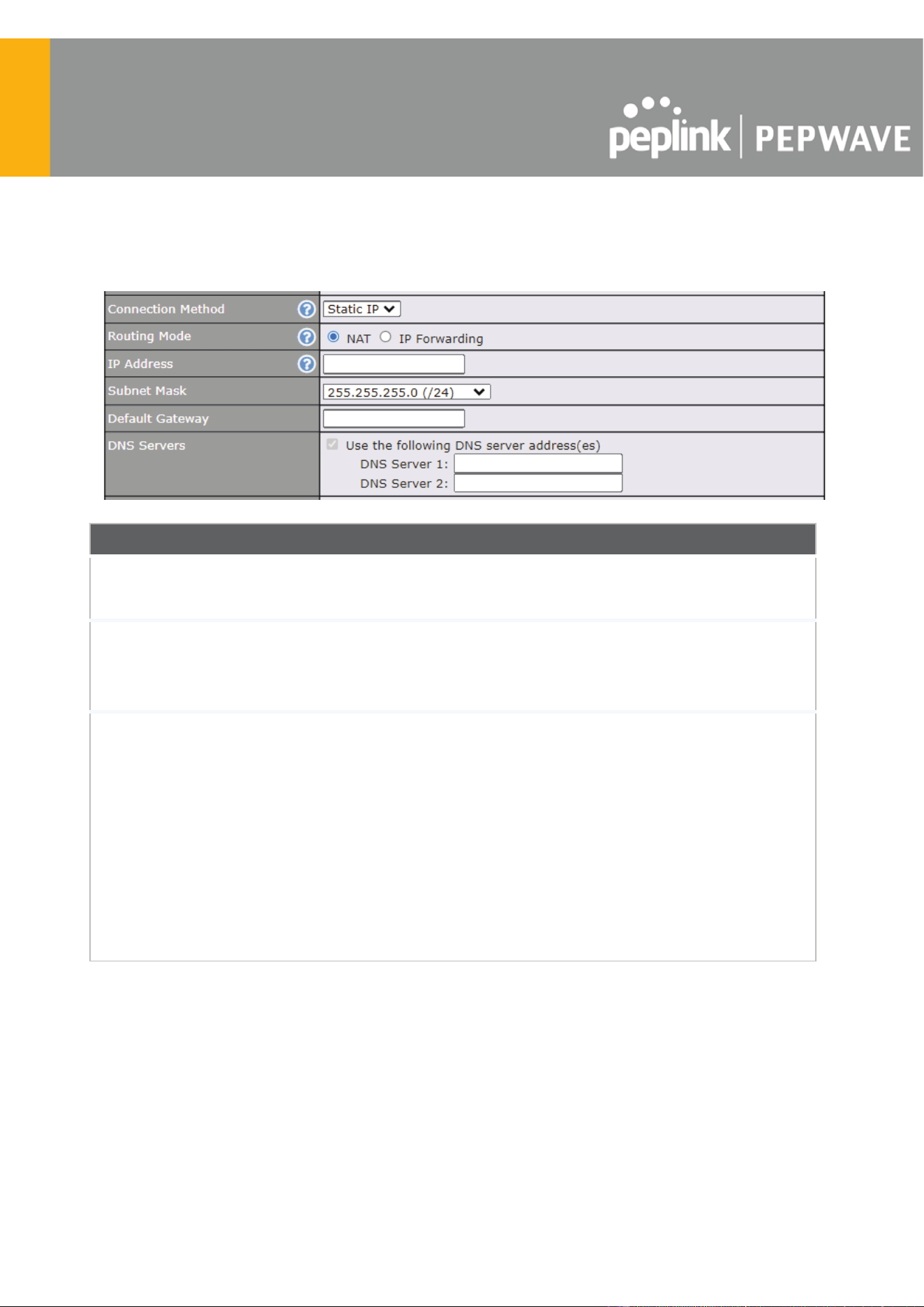
8.1.2 Static IP Connection
The Static IP connection method is suitable if your ISP provides a static IP address to connect
directly.
Static IP Settings
Routing Mode
NAT allows substituting the real address in a packet with a mapped address that
is routable on the destination network. By clicking the help icon in this field, you
can display the IP Forwarding option, if your network requires it.
IP Address /
Subnet Mask /
Default
Gateway
These settings allow you to specify the information required in order to
communicate on the Internet via a fixed Internet IP address. The information is
typically determined by and can be obtained from the ISP.
DNS Servers
Each ISP may provide a set of DNS servers for DNS lookups. This setting
specifies the DNS (Domain Name System) servers to be used when a DNS
lookup is routed through this connection.
Selecting Obtain DNS server address automatically results in the DNS servers
being assigned by the WAN DHCP server to be used for outbound DNS lookups
over the connection. (The DNS servers are obtained along with the WAN IP
address assigned from the DHCP server.
When Use the following DNS server address(es) is selected, you may enter
custom DNS server addresses for this WAN connection into the DNS Server 1
and DNS Server 2 fields.
https://www.peplink.com
55
Copyright @ 2025 Peplink
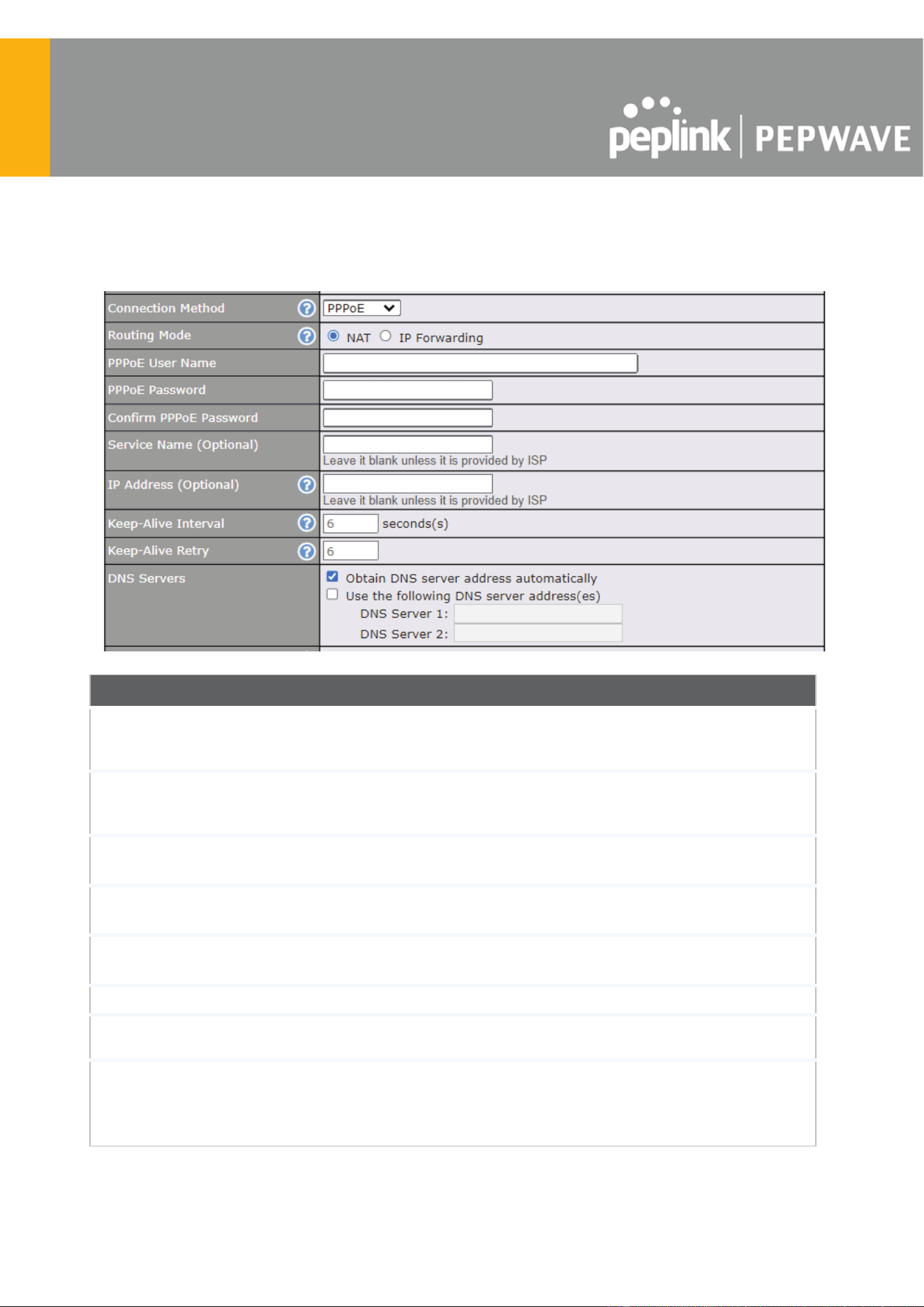
8.1.3 PPPoE Connection
The PPPoE connection method is suitable if your ISP provides a login ID/password to connect
via PPPoE.
PPPoE Settings
Routing Mode
NAT allows substituting the real address in a packet with a mapped address
that is routable on the destination network. By clicking the help icon in this
field, you can display the IP Forwarding option, if your network requires it.
PPPoE Username /
Password
Enter the required information in these fields in order to connect via PPPoE to
the ISP. The parameter values are determined by and can be obtained from
the ISP.
Confirm PPPoE
Password
Verify your password by entering it again in this field.
Service Name
(Optional)
Service name is provided by the ISP.
Note: Leave this field blank unless it is provided by your ISP.
IP Address
(Optional)
If your ISP provides a PPPoE IP address, enter it here.
Note: Leave this field blank unless it is provided by your ISP.
Keep Alive Interval
This is the time interval between each Keep-Alive packet.
Keep-Alive Retry
This is the number of consecutive Keep-Alive check failures before treating
PPPoE connection as down.
DNS Servers
Each ISP may provide a set of DNS servers for DNS lookups. This setting
specifies the DNS (Domain Name System) servers to be used when a DNS
lookup is routed through this connection.
https://www.peplink.com
56
Copyright @ 2025 Peplink
Selecting Obtain DNS server address automatically results in the DNS
servers being assigned by the WAN DHCP server to be used for outbound
DNS lookups over the connection. (The DNS servers are obtained along with
the WAN IP address assigned from the DHCP server.)
When Use the following DNS server address(es) is selected, you may
enter custom DNS server addresses for this WAN connection into the DNS
Server 1 and DNS Server 2 fields.
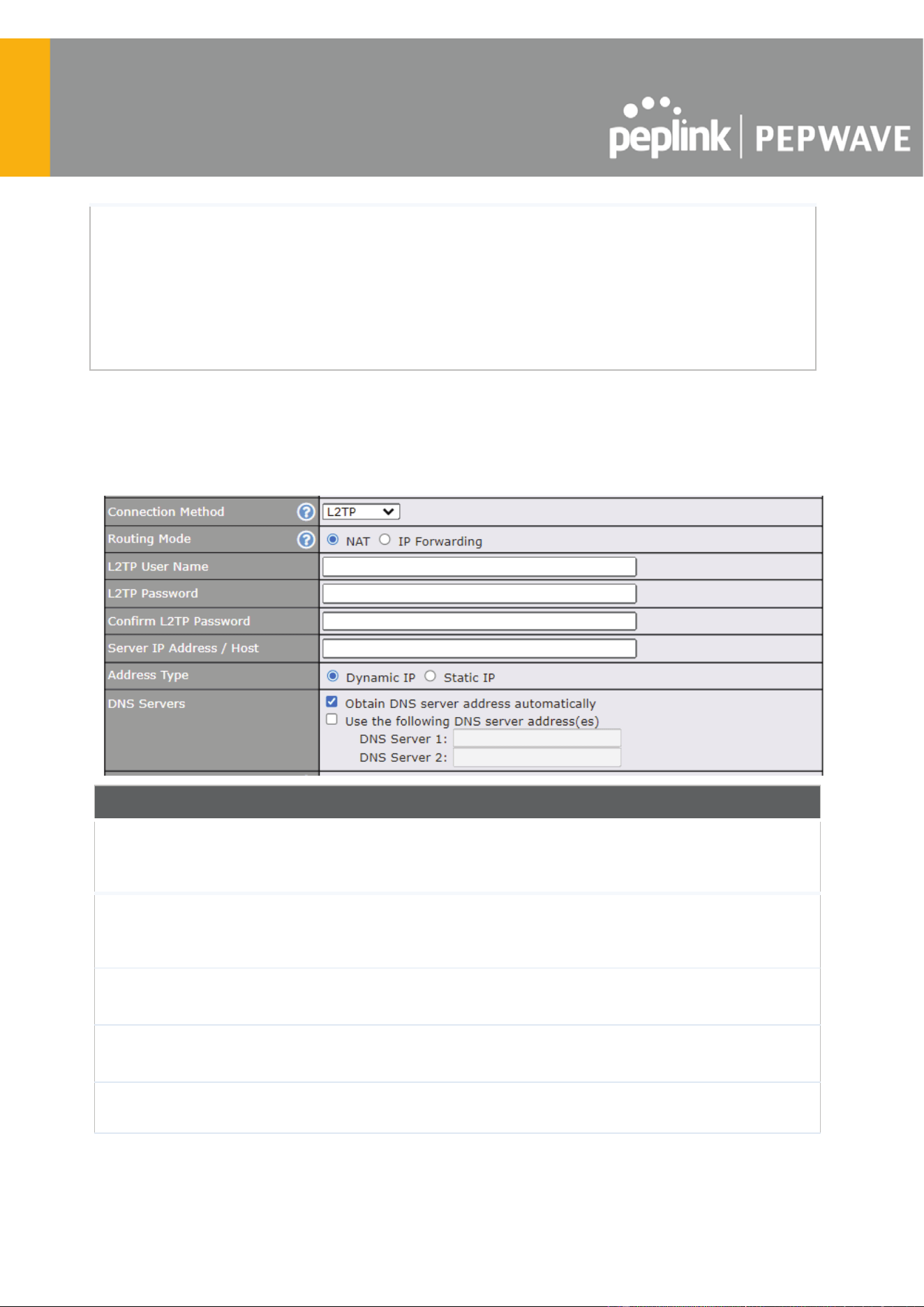
8.1.4 L2TP Connection
L2TP has all the compatibility and convenience of PPTP with greater security. Combine this with
IPsec for a good balance between ease of use and security.
L2TP Settings
Routing Mode
NAT allows substituting the real address in a packet with a mapped address that is
routable on the destination network. By clicking the help icon in this field, you can
display the IP Forwarding option, if your network requires it.
L2TP Username /
Password
Enter the required information in these fields in order to connect via L2TP to your
ISP.
The parameter values are determined by and can be obtained from your ISP.
Confirm L2TP
Password
Verify your password by entering it again in this field.
Server IP
Address / Host
L2TP server address is a parameter which is provided by your ISP.
Note: Leave this field blank unless it is provided by your ISP .
Address Type
Your ISP will also indicate whether the server IP address is Dynamic or Static.
Please click the appropriate value.
https://www.peplink.com
57
Copyright @ 2025 Peplink
DNS Servers
Each ISP may provide a set of DNS servers for DNS lookups. This setting
specifies the DNS (Domain Name System) servers to be used when a DNS lookup
is routed through this connection.
Selecting Obtain DNS server address automatically results in the DNS servers
assigned by the PPPoE server to be used for outbound DNS lookups over the
WAN connection.
(The DNS servers are obtained along with the WAN IP address assigned from the
PPPoE server.)
When Use the following DNS server address(es) is selected, you can enter
custom DNS server addresses for this WAN connection into the DNS server 1
and DNS server 2 fields.
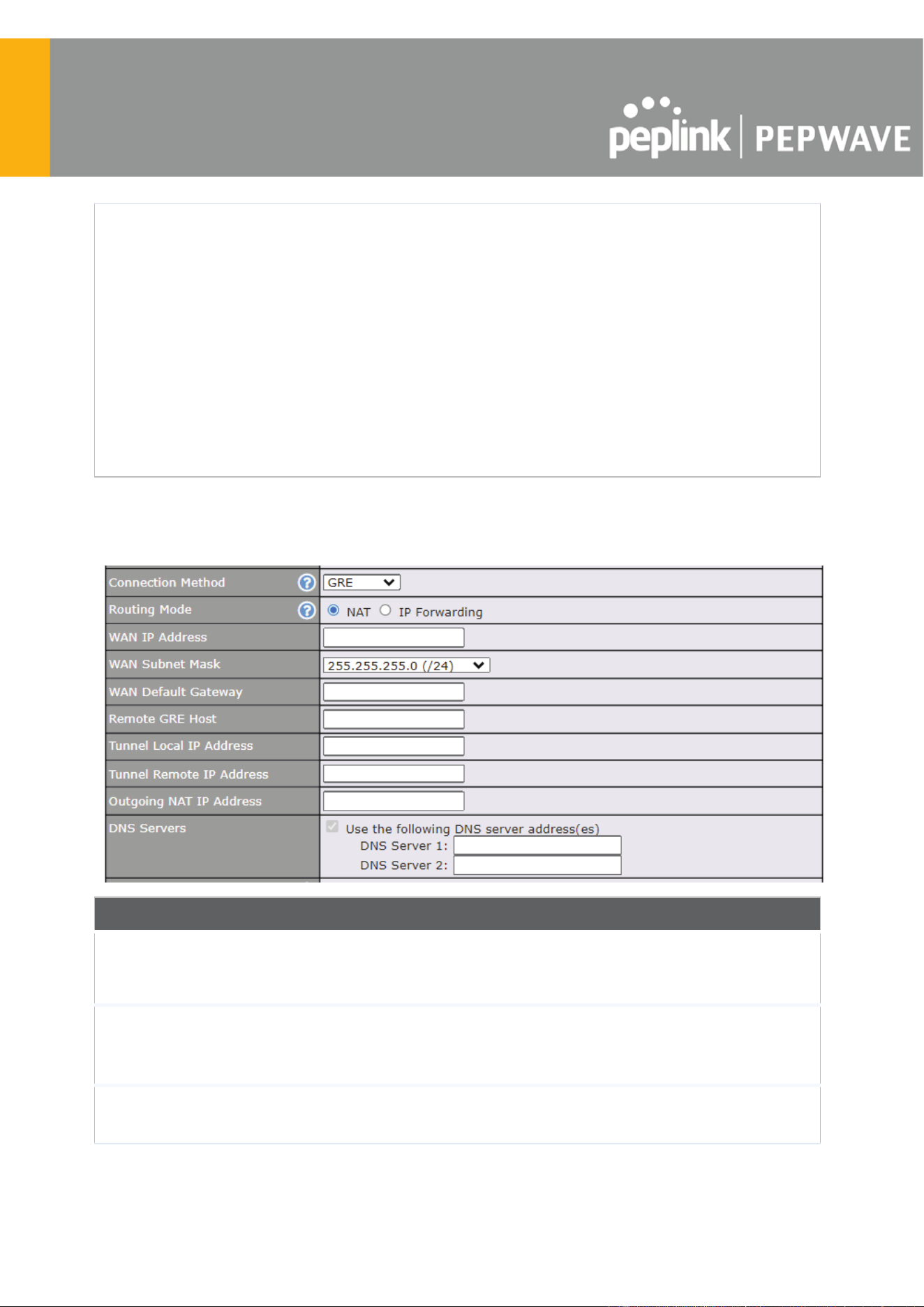
8.1.5 GRE Connection
This connection method is suitable if your ISP provides a static WAN IP and Tunnel IP via GRE.
GRE Settings
Routing Mode
NAT allows substituting the real address in a packet with a mapped address that is
routable on the destination network. By clicking the help icon in this field, you can
display the IP Forwarding option, if your network requires it.
WAN IP Address
/ Subnet Mask /
Default Gateway
These settings allow you to specify the information required in order to
communicate on the Internet via a fixed Internet IP address. The information is
typically determined by and can be obtained from the ISP.
Remote GRE
Host
This field allows you to enter the IP address of the remote GRE.
https://www.peplink.com
58
Copyright @ 2025 Peplink

Tunnel Local IP
Address
This field allows you to enter the IP address of the local tunnel for the GRE tunnel
connection.
Tunnel Remote
IP Address
This field allows you to enter the IP address of the remote tunnel for the GRE
tunnel connection.
Outgoing NAT IP
Address
This field is to enter the NAT IP address for outgoing via GRE tunnel.
DNS Servers
Each ISP may provide a set of DNS servers for DNS lookups. This setting
specifies the DNS (Domain Name System) servers to be used when a DNS lookup
is routed through this connection.
Selecting Obtain DNS server address automatically results in the DNS servers
assigned by the PPPoE server to be used for outbound DNS lookups over the
WAN connection.
(The DNS servers are obtained along with the WAN IP address assigned from the
PPPoE server.)
When Use the following DNS server address(es) is selected, you can enter
custom DNS server addresses for this WAN connection into the DNS server 1
and DNS server 2 fields.
https://www.peplink.com
59
Copyright @ 2025 Peplink

8.2 Cellular WAN
To access/configure the Cellular WAN settings, click Network > Cellular Name . You may click
the “ No IP Address “ link to view the Cellular WAN details/status.
WAN Connection Status
IMSI
This is the International Mobile Subscriber Identity which uniquely identifies the SIM
card. This is applicable to 3G modems only.
ICCID
This is a unique number assigned to a SIM card used in a cellular device.
MTN
Thi field is to display the mobile telephone number of the SIM card.
MEID
Some Pepwave routers support both HSPA and EV-DO. For Sprint or Verizon
Wireless EV-DO users, a unique MEID identifier code (in hexadecimal format) is used
by the carrier to associate the EV-DO device with the user. This information is
presented in hex and decimal format.
IMEI
This is the unique ID for identifying the modem in GSM/HSPA mode.
https://www.peplink.com
60
Copyright @ 2025 Peplink

WAN Connection Settings
WAN
Connection
Name
Indicate a name you wish to give this Cellular WAN connection
Enable
Click the checkbox to toggle the on and off state of this connection.
Connection
Priority
This option allows you to configure the WAN connection whether for normal daily
usage or as a backup connection only.
If Always-on is chosen, the WAN connection will be kept on continuously, regardless
of the priority of other WAN connections.
If Backup is chosen, the WAN connection will depend on other WAN connections. It
will not be used when one or more higher priority dependent WAN connections are
connected.
Independent
from Backup
WANs
If this is checked, the connection will be working independent from other Backup
WAN connections. Those in Backup Priority will ignore the status of this WAN
connection, and will be used when none of the other higher priority connections are
available.
Routing Mode
This option allows you to select the routing method to be used in routing IP frames via
the WAN connection. The mode can be either NAT (Network Address Translation) or
IP Forwarding.
In the case if you need to choose IP Forwarding for your scenario. Click the
https://www.peplink.com
61
Copyright @ 2025 Peplink

button to enable IP Forwarding.
Management IP
Address
Management IP Address is available for configuration when you click here for other
DHCP settings.
This option allows you to configure the management IP address for the DHCP WAN
connection.
DNS Servers
Each ISP may provide a set of DNS servers for DNS lookups. This setting specifies
the DNS (Domain Name System) servers to be used when a DNS lookup is routed
through this connection.
Selecting Obtain DNS server address automatically results in the DNS servers
assigned by the WAN DHCP server being used for outbound DNS lookups over the
connection. (The DNS servers are obtained along with the WAN IP address assigned
by the DHCP server.)
When Use the following DNS server address(es) is selected, you may enter custom
DNS server addresses for this WAN connection into the DNS server 1 and DNS
server 2 fields.
IP Passthrough
When this IP Passthrough option is active, after the cellular WAN connection is up,
the router's DHCP server will offer the connection's IP address to one LAN client. All
incoming or outgoing traffic will be routed without NAT.
Regardless the WAN connection's state, the router always binds to the LAN IP
address (Default: 192.168.50.1). So when the cellular WAN is connected, the LAN
client could access the router's web admin by manually configuring its IP address to
the same subnet as the router's LAN IP address (e.g. 192.168.50.10).
Note: when this option is firstly enabled, the LAN client may not be able to refresh its
IP address to the cellular WAN IP address in a timely fashion. The LAN client may
have to manually renew its IP address from DHCP server
. After this option is enabled,
the DHCP lease time will be 2 minutes. I.e. the LAN client could refresh its IP address
and access the network at most one minute after the cellular WAN connection goes
up
Standby State
This option allows you to choose whether to remain connected or disconnected when
this WAN connection is no longer in the highest priority and has entered the standby
state. When Remain connected is chosen, bringing up this WAN connection to
active makes it immediately available for use.
Idle Disconnect
If this is checked, the connection will disconnect when idle after the configured Time
value.
This option is disabled by default.
Reply to ICMP
PING
If the checkbox is unticked, this option is disabled and the system will not reply to any
ICMP ping echo requests to the WAN IP addresses of this WAN connection.
Default: ticked (Yes)
https://www.peplink.com
62
Copyright @ 2025 Peplink

https://www.peplink.com
63
Copyright @ 2025 Peplink
Cellular Settings
SIM Card
If “ Alternate between SIM A and SIM B periodically ” is selected, the SIM card will
be switching according to the schedule time in the SIM Cards Alternate.
If “ Custom Selection ” is selected, you can designate the priority of the SIM cards
(SIM A/ SIM B/ Remote SIM/ SpeedFusion Connect) and connect to.
For routers that support the SIM Injector, you may select the “Remote SIM” to
provision a SIM from a SIM Injector. Further details on the SIM Injector found is
available here: https://www.peplink.com/products/sim-injector/ .
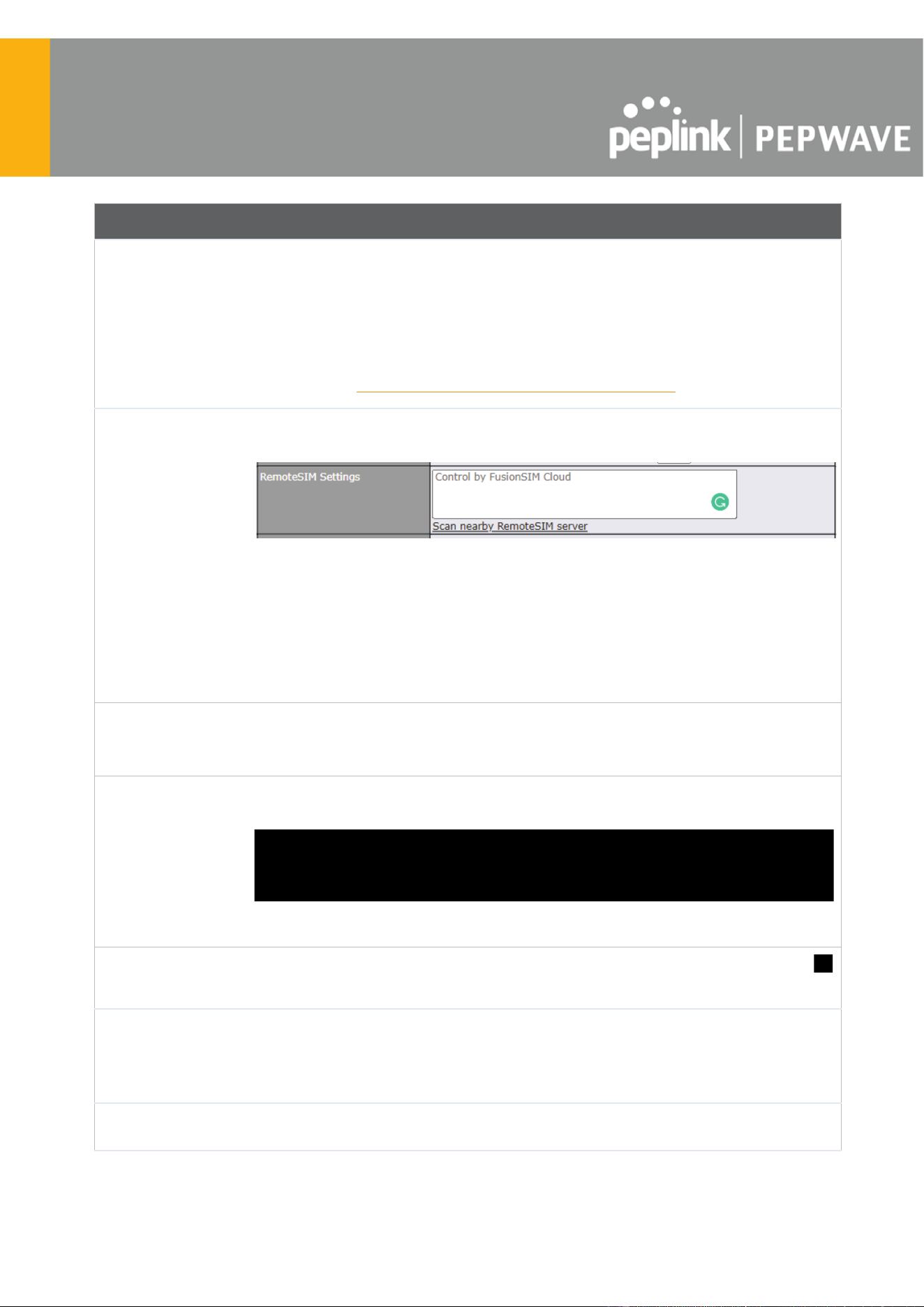
Remote SIM
Settings
If “ Use Remote SIM Only ” is selected in the SIM card section, the Remote SIM
Settings will be shown.
You may need to enable the remote SIM Host settings in the Remote SIM
management, see the section 22.10 or Appendix B for more details on FusionSIM.
After that, click on “ Scan nearby remote SIM server ” to show the serial number(s)
of the connected SIM Injector(s).
If you want to select a specific SIM, in the Cellular Settings, type “ : ” and then the
number of the SIM slot, eg.1111-2222-3333:7.
Fallback to
Prefered SIM
when
This option is allowing to switch to another SIM cards when the Cellular WAN
reached faillback timeout.
SIM Cards
Alternate
If “ Alternate between SIM A and SIM B periodically ” is selected in the SIM Card
section, the SIM Cards Alternate will be shown:
You may set the schedule time for for switching between SIM A only and SIM B only.
5G/LTE/3G
This drop-down menu allows restricting cellular to particular band. Click the
button to enable the selection of specific bands.
Optimal
Network
Discovery
Cellular WANs by default will only handover from 3G to LTE network when there is
no active data traffic, enable this option will make it run the handover procedures
after fallback to 3G for a defined effective period, even this may interrupt the
connectivity for a short while.
Band Selection
When set to Auto , band selection allows for automatically connecting to available,
supported bands (frequencies) .
https://www.peplink.com
64
Copyright @ 2025 Peplink

When set to Manual, you can manually select the bands (frequencies) the SIM will
connect to.
Data Roaming
This checkbox enables data roaming on this particular SIM card. When data roaming
is enabled this option allows you to select in which countries the SIM has a data
connection. The option is configured by using MMC (country) codes.Please check
your service provider’s data roaming policy before proceeding.
Authentication
Choose from PAP Only or CHAP Only to use those authentication methods
exclusively. Select Auto to automatically choose an authentication method.
Operator
Settings
This setting allows you to configure the APN settings of your connection. If Auto is
selected, the mobile operator should be detected automatically. The connected
device will be configured and connection will be made automatically. If there is any
difficulty in making connection, you may select Custom to enter your carrier’s APN ,
Login , Password , and Dial Number settings manually. The correct values can be
obtained from your carrier. The default and recommended setting is Auto .
APN / Login /
Password /
SIM PIN
When Auto is selected, the information in these fields will be filled automatically.
Select Custom to customize these parameters. The parameter values are
determined by and can be obtained from the ISP.
Bandwidth
Allowance
Monitor
Check the box Enable to enable bandwidth usage monitoring on this WAN
connection for each billing cycle. When this option is not enabled, bandwidth usage
of each month is still being tracked but no action will be taken.
Action
If email notification is enabled, you will be notified by email when usage hits 75% and
95% of the monthly allowance. If Disconnect when usage hits 100% of monthly
allowance is checked, this WAN connection will be disconnected automatically when
the usage hits the monthly allowance. It will not resume connection unless this option
has been turned off or the usage has been reset when a new billing cycle starts.
Start Day
This option allows you to define which day of the month each billing cycle begins.
Monthly
Allowance
This field is for defining the maximum bandwidth usage allowed for the WAN
connection each month.
Signal Threshold Settings
If signal threshold is defined, this connection will be treated as down when a weaker than
threshold signal is determined.
The following values are used by the threshold scale:
https://www.peplink.com
65
Copyright @ 2025 Peplink

To define the threshold manually using specific signal strength values, please click on the
question Mark and the following field will be visible.
8.3 Wi-Fi WAN
To access/configure the Cellular WAN settings, click Network > Wi-Fi WAN Connetion Name .
WAN Connection Settings
WAN Connection
Name
Enter a name to represent this Wi-Fi WAN connection.
https://www.peplink.com
66
Copyright @ 2025 Peplink

Enable
Click the checkbox to toggle the on and off state of this connection.
Connection
Priority
This option allows you to configure the WAN connection whether for normal
daily usage or as a backup connection only.
If Always-on is chosen, the WAN connection will be kept on continuously,
regardless of the priority of other WAN connections.
If Backup is chosen, the WAN connection will depend on other WAN
connections. It will not be used when one or more higher priority dependent
WAN connections are connected.
Independent from
Backup WANs
If this is checked, the connection will be working independent from other Backup
WAN connections. Those in Backup Priority will ignore the status of this WAN
connection, and will be used when none of the other higher priority connections
are available.
Routing Mode
This option allows you to select the routing method to be used in routing IP
frames via the WAN connection. The mode can be either NAT (Network Address
Translation) or IP Forwarding.
In the case if you need to choose IP Forwarding for your scenario. Click the
button to enable IP Forwarding.
Standby State
This setting specifies the state of the WAN connection while in standby. The
available options are Remain Connected and Disconnect .
Reply to ICMP
PING
If this setting is disabled, the WAN connection will not respond to ICMP ping
requests. By default, this setting is enabled.
Wi-Fi WAN Settings
Channel Width
Select the channel width for this Wi-Fi WAN. 20MHz will have greater support for
older devices using 2.4Ghz, while 40MHz is appropriate for networks with newer
devices that connect using 5Ghz
https://www.peplink.com
67
Copyright @ 2025 Peplink

Channel
Determine whether the channel will be automatically selected. If you select custom,
the following table will appear:
Output Power
If you are setting up a network with many Wi-Fi devices in close proximity, then you
can configure the output power here. Click the “boost” button for additional power.
However, with that option ticked, output power may exceed local regulatory limits.
Data Rate
Selecting Auto will enable the router to automatically determine the best data rate,
while manually selecting a rate will force devices to connect using the fixed rate.
Roaming
Checking this box will enable Wi-Fi roaming. Click the icon for additional
options.
Connect to Any
Open Mode AP
This option is to specify whether the Wi-Fi WAN will connect to any open mode
access points it finds.
Beacon Miss
Counter
This sets the threshold for the number of missed beacons.
Channel Scan
Interval
Configure Channel Scan Interval in ms.
8.3.1 Creating Wi-Fi Connection Profiles
You can manually create a profile to connect to a Wi-Fi connection. This is useful for creating a
profile for connecting to hidden-SSID access points. Click Network > Wi-Fi WAN > Create
Profile… to get started.
This will open a window similar to the one shown below
https://www.peplink.com
68
Copyright @ 2025 Peplink

Wi-Fi Connection Profile Settings
Network Name
(SSID)
Enter a name to represent this Wi-Fi connection.
Security
This option allows you to select which security policy is used for this wireless
network. Available options:
● Open
● WEP
● Enhanced Open (OWE)
● WPA3 -Personal
● WPA2/WPA3 -Personal
● WPA/ WPA2 – Personal
● WPA/ WPA2 – ENterprise
● 802.1X with dynamic WEP key
Shared Key
Enter the password for the wireless network.
Preffered
BSSID
Configure the BSSID. The BSSID is the MAC address of the wireless access point
(WAP).
Connected
Method
Choose DHCP or Static IP for the Wi-Fi WAN connection method.
DNS Servers
Configure the DNS servers that this WAN connection should use.
https://www.peplink.com
69
Copyright @ 2025 Peplink

8.4 WAN Connection Settings (Common)
The remaining WAN-related settings are common to the WAN connection:
Physical Interface Settings
Speed
This is the port speed of the WAN connection. It should be set to the same speed
as the connected device in case of any port negotiation problems.
When a static speed is set, you may choose whether to advertise its speed to the
peer device or not. Advertise Speed is selected by default. You can choose not to
advertise the port speed if the port has difficulty in negotiating with the peer device.
Default: Auto
MTU
This field is for specifying the Maximum Transmission Unit value of the WAN
connection. An excessive MTU value can cause file downloads stall shortly after
connected. You may consult your ISP for the connection's MTU value. Default
value is 1440.
MSS
This field is for specifying the Maximum Segment Size of the WAN connection.
When Auto is selected, MSS will be depended on the MTU value. When Custom is
selected, you may enter a value for MSS. This value will be announced to remote
TCP servers for maximum data that it can receive during the establishment of TCP
connections.
Some Internet servers are unable to listen to MTU setting if ICMP is filtered by
firewall between the connections.
Normally, MSS equals to MTU minus 40. You are recommended to reduce the MSS
only if changing of the MTU value cannot effectively inform some remote servers to
size down data size.
Default: Auto
MAC Address
Clone
Some service providers (e.g. cable network) identify the client's MAC address and
require client to always use the same MAC address to connect to the network. If it
is the case, you may change the WAN interface's MAC address to the client PC's
one by entering the PC's MAC address to this field. If you are not sure, click the
Default button to restore to the default value.
https://www.peplink.com
70
Copyright @ 2025 Peplink
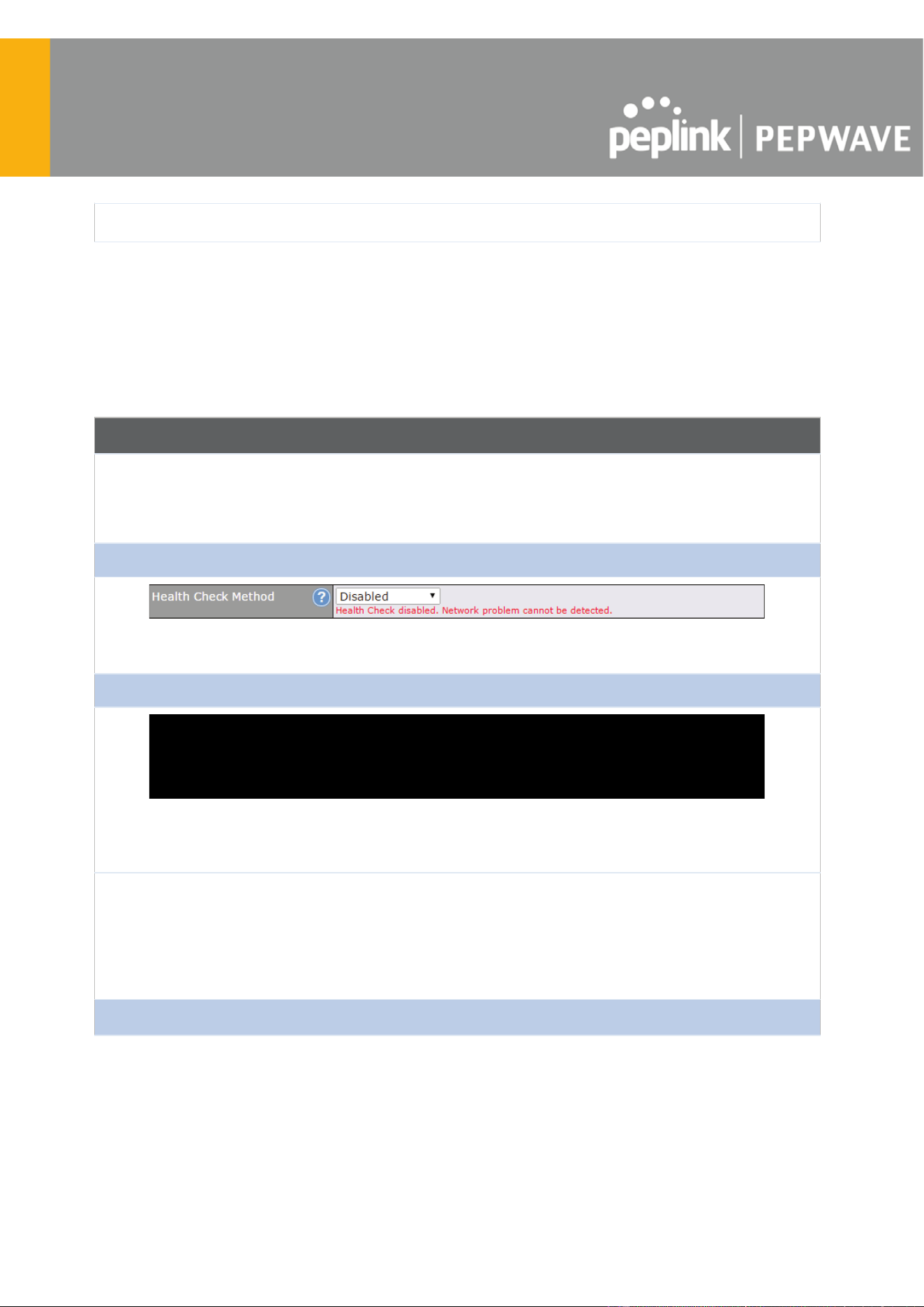
VLAN
Check the box to assign a VLAN to the interface.
8.5 WAN Health Check
To ensure traffic is routed to healthy WAN connections only, the Pepwave router can periodically
check the health of each WAN connection. The health check settings for each WAN connection
can be independently configured via Network > WAN Connection Name
Health Check Settings
Method
This setting specifies the health check method for the WAN connection. This value
can be configured as Disabled , PING , DNS Lookup , or HTTP . The default
method is DNS Lookup . For mobile Internet connections, the value of Method
can be configured as Disabled or SmartCheck .
Health Check Disabled
When Disabled is chosen in the Method field, the WAN connection will always be considered as up.
The connection will NOT be treated as down in the event of IP routing errors.
Health Check Method: PING
ICMP ping packets will be issued to test the connectivity with a configurable target IP address or
hostname. A WAN connection is considered as up if ping responses are received from either one or both
of the ping hosts.
PING Hosts
This setting specifies IP addresses or hostnames with which connectivity is to be
tested via ICMP ping. If Use first two DNS servers as Ping Hosts is checked,
the target ping host will be the first DNS server for the corresponding WAN
connection. Reliable ping hosts with a high uptime should be considered. By
default, the first two DNS servers of the WAN connection are used as the ping
hosts.
Health Check Method: DNS Lookup
https://www.peplink.com
71
Copyright @ 2025 Peplink

DNS lookups will be issued to test connectivity with target DNS servers. The connection will be treated
as up if DNS responses are received from one or both of the servers, regardless of whether the result
was positive or negative.
Health Check
DNS Servers
This field allows you to specify two DNS hosts’ IP addresses with which
connectivity is to be tested via DNS lookup.
If Use first two DNS servers as Health Check DNS Servers is checked, the first
two DNS servers will be the DNS lookup targets for checking a connection's
health. If the box is not checked, Host 1 must be filled, while a value for Host 2 is
optional.
If Include public DNS servers is selected and no response is received from all
specified DNS servers, DNS lookups will also be issued to some public DNS
servers. A WAN connection will be treated as down only if there is also no
response received from the public DNS servers.
Connections will be considered as up if DNS responses are received from any one
of the health check DNS servers, regardless of a positive or negative result. By
default, the first two DNS servers of the WA
N connection are used as the health
check DNS servers.
Health Check Method: HTTP
HTTP connections will be issued to test connectivity with configurable URLs and strings to match.
URL1
WAN Settings>WAN Edit>Health Check Settings>URL1
The URL will be retrieved when performing an HTTP health check. When String
to Match is left blank, a health check will pass if the HTTP return code is between
200 and 299 (Note: HTTP redirection codes 301 or 302 are treated as failures).
When String to Match is filled, a health check will pass if the HTTP return code is
between 200 and 299 and if the HTTP response content contains the string.
URL 2
WAN Settings>WAN Edit>Health Check Settings>URL2
If URL2 is also provided, a health check will pass if either one of the tests passed.
https://www.peplink.com
72
Copyright @ 2025 Peplink
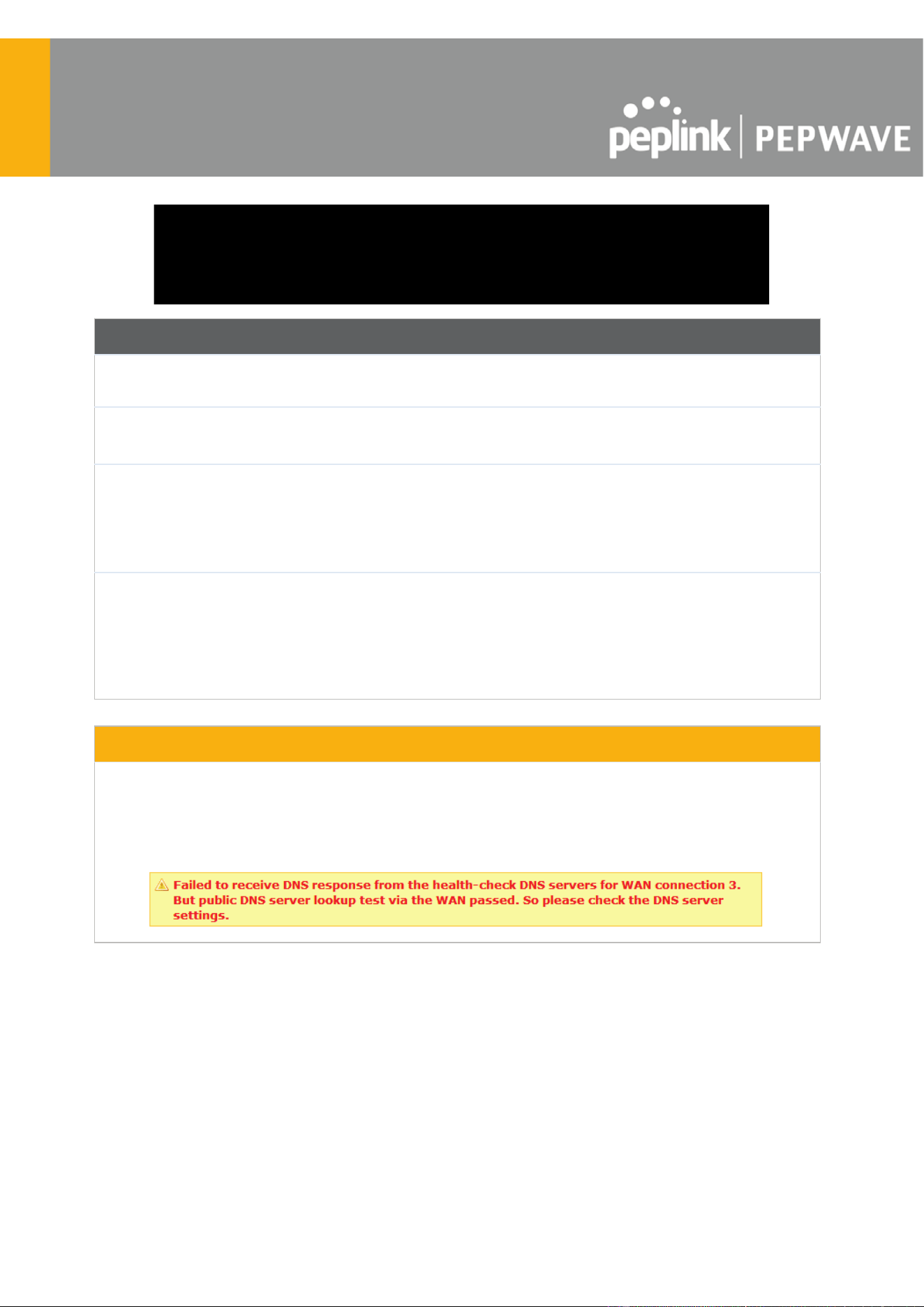
Other Health Check Settings
Timeout
This setting specifies the timeout in seconds for ping/DNS lookup requests. The
default timeout is 5 seconds .
Health Check
Interval
This setting specifies the time interval in seconds between ping or DNS lookup
requests. The default health check interval is 5 seconds .
Health Check
Retries
This setting specifies the number of consecutive ping/DNS lookup timeouts after
which the Pepwave router will treat the corresponding WAN connection as down.
Default health retries is set to 3 . Using the default Health Retries setting of 3 , the
corresponding WAN connection will be treated as down after three consecutive
timeouts.
Recovery Retries
This setting specifies the number of consecutive successful ping/DNS lookup
responses that must be received before the Pepwave router treats a previously
down WAN connection as up again. By default, Recover Retries is set to 3 . Using
the default setting, a WAN connection that is treated as down will be considered
as up again upon receiving three consecutive successful ping/DNS lookup
responses.
Automatic Public DNS Server Check on DNS Test Failure
When the health check method is set to DNS Lookup and health checks fail, the Pepwave router will
automatically perform DNS lookups on public DNS servers. If the tests are successful, the WAN may not
be down, but rather the target DNS server malfunctioned. You will see the following warning message on
the main page:
https://www.peplink.com
73
Copyright @ 2025 Peplink
8.6 Bandwidth Allowance Monitoring
Bandwidth Allowance Monitor
Action
If Email Notification is enabled, you will be notified by email when usage hits
75% and 95% of the monthly allowance.
If Disconnect when usage hits 100% of monthly allowance is checked, this
WAN connection will be disconnected automatically when the usage hits the
monthly allowance. It will not resume connection unless this option has been
turned off or the usage has been reset when a new billing cycle starts.
Start Day
This option allows you to define which day of the month each billing cycle begins.
Monthly
Allowance
This field is for defining the maximum bandwidth usage allowed for the WAN
connection each month.
Disclaimer
Due to different network protocol overheads and conversions, the amount of data reported by this Peplink device
is not representative of actual billable data usage as metered by your network provider. Peplink disclaims any
obligation or responsibility for any events arising from the use of the numbers shown here.
https://www.peplink.com
74
Copyright @ 2025 Peplink

8.7 Additional Public IP address
Additional Public IP Settings
IP Address List
IP Address List represents the list of fixed Internet IP addresses assigned by the
ISP in the event that more than one Internet IP address is assigned to this WAN
connection. Enter the fixed Internet IP addresses and the corresponding subnet
mask, and then click the Down Arrow button to populate IP address entries to the
IP Address List .
8.8 Dynamic DNS Settings
Pepwave routers are capable of registering the domain name relationships to dynamic DNS
service providers. Through registration with dynamic DNS service provider(s), the default public
Internet IP address of each WAN connection can be associated with a host name. With dynamic
DNS service enabled for a WAN connection, you can connect to your WAN's IP address from
the external, even if its IP address is dynamic. You must register for an account from the listed
dynamic DNS service providers before enabling this option.
If the WAN connection's IP address is a reserved private IP address (i.e., behind a NAT router),
the public IP of each WAN will be automatically reported to the DNS service provider.
Either upon a change in IP addresses or every 23 days without link reconnection, the Pepwave
router will connect to the dynamic DNS service provider to perform an IP address update within
the provider
’s records.
The settings for dynamic DNS service provider(s) and the association of hostname(s) are
configured via Network > WAN > Details > Dynamic DNS Service Provider/Dynamic DNS
Settings .
https://www.peplink.com
75
Copyright @ 2025 Peplink

Dynamic DNS Settings
Dynamic DNS
This setting specifies the dynamic DNS service provider to be used for the
WAN based on supported dynamic DNS service providers:
● Disabled
● changeip.com
● dyndns.org
● no-ip.org
● DNS-O-Matic
● Others…
Support custom Dynamic DNS servers by entering its URL. Works with any
service compatible with DynDNS API.
Select Disabled to disable this feature.
User ID/ Username
/ Email
This setting specifies the registered user name for the dynamic DNS service.
Password
This setting specifies the password for the dynamic DNS service.
Hosts
This field allows you to specify a list of host names or domains to be
associated with the public Internet IP address of the WAN connection. If you
need to enter more than one host, use a carriage return to separate them.
Important Note
In order to use dynamic DNS services, appropriate host name registration(s) and a valid account with a
supported dynamic DNS service provider are required. A dynamic DNS update is performed whenever
a WAN’s IP address changes (e.g., the IP is changed after a DHCP IP refresh, reconnection, etc.). Due
to dynamic DNS service providers’ policy, a dynamic DNS host will automatically expire if the host
record has not been updated for a long time. Therefore the Pepwave router performs an update every
23 days, even if a WAN’s IP address has not changed.
https://www.peplink.com
76
Copyright @ 2025 Peplink

9 SpeedFusion VPN
Pepwave bandwidth bonding SpeedFusion
TM
is our patented technology that enables our
SD-WAN routers to bond multiple Internet connections to increase site-to-site bandwidth and
reliability. SpeedFusion functionality securely connects your Pepwave router to another
Pepwave or Peplink device (Peplink Balance 210/310/380/580/710/1350 only). Data, voice, or
video communications between these locations are kept confidential across the public Internet.
Bandwidth bonding SpeedFusion
TM
is specifically designed for multi-WAN environments. In case
of failures and network congestion at one or more WANs, other WANs can be used to continue
carrying the network traffic.
Different models of our SD-WAN routers have different numbers of site-to-site connections
allowed. End-users who need to have more site-to-site connections can purchase a
SpeedFusion license to increase the number of site-to-site connections allowed.
Pepwave routers can aggregate all WAN connections’ bandwidth for routing SpeedFusion
TM
traffic. Unless all the WAN connections of one site are down, Pepwave routers can keep the
VPN up and running.
VPN bandwidth bonding is supported in Firmware 5.1 or above. All available bandwidth will be
utilized to establish the VPN tunnel, and all traffic will be load balanced at packet level across all
links. VPN bandwidth bonding is enabled by default.
https://www.peplink.com
77
Copyright @ 2025 Peplink

9.1 SpeedFusion VPN
To configure SpeedFusion VPN, navigate to Advanced > SpeedFusion VPN .
The local LAN subnet and subnets behind the LAN (defined under Static Route on the LAN
settings page) will be advertised to the VPN. All VPN members (branch offices and
headquarters) will be able to route to local subnets.
Note that all LAN subnets and the subnets behind them must be unique. Otherwise, VPN
members will not be able to access each other.
All data can be routed over the VPN using the 256-bit AES encryption standard. To configure,
navigate to Advanced > SpeedFusion VPN and click the New Profile button to create a new
VPN profile (you may have to first save the displayed default profile in order to access the New
Profile button). Each profile specifies the settings for making VPN connection with one remote
Pepwave or Peplink device. Note that available settings vary by model.
A list of defined SpeedFusion connection profiles and a Link Failure Detection T
ime option will
be shown. Click the New Profile button to create a new VPN connection profile for making a
VPN connection to a remote Pepwave or Peplink device via the available WAN connections.
Each profile is for making a VPN connection with one remote Pepwave or Peplink Device.
https://www.peplink.com
78
Copyright @ 2025 Peplink

SpeedFusion VPN Profile Settings
Name
This field is for specifying a name to represent this profile. The name can be any
combination of alphanumeric characters (0-9, A-Z, a-z), underscores (_), dashes
(-), and/or non-leading/trailing spaces ( ).
Enable
When this box is checked, this VPN connection profile will be enabled. Otherwise,
it will be disabled.
Encryption
By default, VPN traffic is encrypted with 256-bit AES . If Off is selected on both
sides of a VPN connection, no encryption will be applied.
Authentication
Select from By Remote ID Only , Preshared Key , or X.509 to specify the method
the Pepwave MAX will use to authenticate peers. When selecting By Remote ID
Only , be sure to enter a unique peer ID number in the Remote ID field.
Remote ID /
Pre-shared Key
This optional field becomes available when Remote ID / Pre-shared Key is
selected as the Pepwave router’s VPN Authentication method, as explained
above. Pre-shared Key defines the pre-shared key used for this particular VPN
connection. The VPN connection's session key will be further protected by the
pre-shared key. The connection will be up only if the pre-shared keys on each side
match. When the peer is running firmware 5.0+, this setting will be ignored.
https://www.peplink.com
79
Copyright @ 2025 Peplink

Enter Remote IDs either by typing out each Remote ID and Pre-shared Key, or by
pasting a CSV. If you wish to paste a CSV, click the icon next to the “Remote
ID / Preshared Key” setting.
Remote
ID/Remote
Certificate
These optional fields become available when X.509 is selected as the Pepwave
MAX’s VPN authentication method, as explained above. To authenticate VPN
connections using X.509 certificates, copy and paste certificate details into these
fields. To get more information on a listed X.509 certificate, click the Show Details
link below the field.
Allow Shared
Remote ID
When this option is enabled, the router will allow multiple peers to run using the
same remote ID.
NAT Mode
Check this box to allow the local DHCP server to assign an IP address to the
remote peer. When NAT Mode is enabled, all remote traffic over the VPN will be
tagged with the assigned IP address using network address translation.
Remote IP
Address / Host
Names
(Optional)
If NAT Mode is not enabled, you can enter a remote peer’s WAN IP address or
hostname(s) here. If the remote uses more than one address, enter only one of
them here. Multiple hostnames are allowed and can be separated by a space
character or carriage return. Dynamic-DNS host names are also accepted.
This field is optional. With this field filled, the Pepwave MAX will initiate connection
to each of the remote IP addresses until it succeeds in making a connection. If the
field is empty, the Pepwave MAX will wait for connection from the remote peer.
Therefore, at least one of the two VPN peers must specify this value. Otherwise,
VPN connections cannot be established.
Cost
Define path cost for this profile.
OSPF will determine the best route through the network using the assigned cost.
Default: 10
Data Port
This field is used to specify a UDP port number for transporting outgoing VPN
data. If Default is selected, UDP port 4500 will be used. Port 32015 will be used if
the remote unit uses Firmware prior to version 5.4 or if port 4500 is unavailable. If
Custom is selected, enter an outgoing port number from 1 to 65535.
Click the icon to configure data stream using TCP protocol
[EXPERIMENTAL].In the case TCP protocol is used, the exposed TCP session
option can be authorised to work with TCP accelerated WAN link.
Bandwidth Limit
Define maximum download and upload speed to each individual peer. This
functionality requires the peer to use SpeedFusion VPN version 4.0.0 or above.
WAN Smoothing
While using SpeedFusion VPN, utilize multiple WAN links to reduce the impact of
packet loss and get the lowest possible latency at the expense of extra bandwidth
consumption. This is suitable for streaming applications where the average bitrate
requirement is much lower than the WAN's available bandwidth.
https://www.peplink.com
80
Copyright @ 2025 Peplink

Off - Disable WAN Smoothing.
Normal - The total bandwidth consumption will be at most 2x of the original data
traffic.
Medium - The total bandwidth consumption will be at most 3x of the original data
traffic.
High - The total bandwidth consumption depends on the number of connected
active tunnels.
Forward Error
Correction
Forward Error Correction (FEC) can help to recover packet loss by using extra
bandwidth to send redundant data packets. Higher FEC level will recover packets
on a higher loss rate link.
The expected overhead of Low is 13.3% and High is 26.7%.
Require peer using SpeedFusion VPN version 8.0.0 and above.
Receive Buffer
Receive Buffer can help to reduce out-of-order packets and jitter, but will introduce
extra latency to the tunnel. Default is 0 ms, which disables the buffer, and
maximum buffer size is 2000 ms.
Packet
Fragmentation
If the packet size is larger than the tunnel's MTU, it will be fragmented inside the
tunnel in order to pass through.
Select Always to fragment any packets that are too large to send, or Use DF Flag
to only fragment packets with Don't Fragment bit cleared. This can be useful if
your application does Path MTU Discovery, usually sending large packets with DF
bit set, if allowing them to go through by fragmentation, the MTU will not be
detected correctly.
Use IP ToS
A
Checking this button enables the use of IP ToS header field.
Latency
Difference
Cutoff
A
Traffic will be stopped for links that exceed the specified millisecond value with
respect to the lowest latency link. (e.g. Lowest latency is 100ms, a value of 500ms
means links with latency 600ms or more will not be used)
A
- Advanced feature, please click the button on the top right-hand corner to activate.
To enable Layer 2 Bridging between SpeedFusion VPN profiles, navigate to Network > LAN >
Basic Settings > *LAN Profile Name* and refer to instructions in section 9.1
https://www.peplink.com
81
Copyright @ 2025 Peplink

Traffic Distribution
Policy
This option allows you to select the desired out-bound traffic distribution policy:
● Bonding - Aggregate multiple WAN-to-WAN links into a single higher
throughput tunnel.
● Dynamic Weighted Bonding - Aggregates WAN-to-WAN links with similar
latencies.
By default, Bonding is selected as a traffic distribution policy.
Congestion
Latency Level
For most WANs, especially on cellular networks, the latency will increase when the
link becomes more congested.
Setting the Congestion Latency Level to Low will treat the link as congested
more aggressively.
Setting it to High will allow the latency to increase more before treating it as
congested.
Ignore Packet
Loss Event
By default, when there is packet loss, it is considered as a congestion event. If this
is not the case, select this option to ignore the packet loss event.
Disable
Bufferbloat
Handling
Bufferbloat is a phenomenon on the WAN side when it is congested. The latency
can become very high due to buffering on the uplink. By default, the Dynamic
Weighted Bonding policy will try its best to mitigate bufferbloat by reducing TCP
throughput when the WAN is congested. However, as a side effect, the tunnel
might not achieve maximum bandwidth.
Selecting this option will disable the bufferbloat handling mentioned above.
Disable TCP
ACK
Optimization
By default, TCP ACK will be forwarded to remote peers as fast as possible. This
will consume more bandwidth, but may help to improve TCP performance as well.
Selecting this option will disable the TCP ACK optimization mentioned above.
Packet Jitter
Buffer
The default jitter buffer is 150ms, and can be modified from 0ms to 500ms. The
jitter buffer may increase the tunnel latency. If you want to keep the latency as low
as possible, you can set it to 0ms to disable the buffer.
Note : If the Receive Buffer is set, the Packet Jitter Buffer will be automatically
disabled.
https://www.peplink.com
82
Copyright @ 2025 Peplink

8.41
WAN Connection Priority
WAN Connection
Priority
If your device supports it, you can specify the priority of WAN connections to be
used for making VPN connections. WAN connections set to OFF will never be
used. Only available WAN connections with the highest priority will be used.
To enable asymmetric connections, connection mapping to remote WANs, cut-off
latency, and packet loss suspension time, click the button.
Send All Traffic To
This feature allows you to redirect all traffic to a specified SpeedFusion VPN connection. Click the
button to select your connection and the following menu will appear:
You could also specify a DNS server to resolve incoming DNS requests. Click the checkbox next to
Backup Site to designate a backup SpeedFusion profile that will take over, should the main
SpeedFusion VPN connection fail.
https://www.peplink.com
83
Copyright @ 2025 Peplink

Outbound Policy/SpeedFusion VPN Outbound Custom Rules
Some models allow you to set outbound policy and custom outbound rules from
Advanced>SpeedFusion VPN . See Section 14 for more information on outbound policy settings.
SpeedFusion VPN Local ID
The local ID is a text string to identify this local unit when establishing a VPN connection. When creating
a profile on a remote unit, this local ID must be entered in the remote unit's Remote ID field. Click the
icon to edit Local ID .
SpeedFusion VPN Settings
Handshake Port
A
To designate a custom handshake port (TCP), click the custom radio button and
enter the port number you wish to designate.
Link Failure
Detection Time
The bonded VPN can detect routing failures on the path between two sites over
each WAN connection. Failed WAN connections will not be used to route VPN
traffic. Health check packets are sent to the remote unit to detect any failure. The
more frequently checks are sent, the shorter the detection time, although more
bandwidth will be consumed.
When Recommended (default) is selected, a health check packet is sent every
five seconds, and the expected detection time is 15 seconds.
When Fast is selected, a health check packet is sent every three seconds, and the
expected detection time is six seconds.
When Faster is selected, a health check packet is sent every second, and the
https://www.peplink.com
84
Copyright @ 2025 Peplink

expected detection time is two seconds.
When Extreme is selected, a health check packet is sent every 0.1 second, and
the expected detection time is less than one second.
A
- Advanced feature, please click the button on the top right-hand corner to activate.
Important Note
Peplink proprietary SpeedFusion
TM
uses TCP port 32015 and UDP port 4500 for establishing VPN connections. If
you have a firewall in front of your Pepwave devices, you will need to add firewall rules for these ports and protocols
to allow inbound and outbound traffic to pass through the firewall.
Tip
Want to know more about VPN sub-second session failover? Visit our YouTube Channel for a video
tutorial!
http://youtu.be/TLQgdpPSY88
https://www.peplink.com
85
Copyright @ 2025 Peplink

9.2 The Pepwave Router Behind a NAT Router
Pepwave routers support establishing SpeedFusion
TM
over WAN connections which are behind
a NAT (network address translation) router.
To enable a WAN connection behind a NAT router to accept VPN connections, you can
configure the NAT router in front of the WAN connection to inbound port-forward TCP port
32015 to the Pepwave router.
If one or more WAN connections on Unit A can accept VPN connections (by means of port
forwarding or not), while none of the WAN connections on the peer Unit B can do so, you should
enter all of Unit A’s public IP addresses or hostnames into Unit B’s Remote IP Addresses /
Host Names field. Leave the field in Unit A blank. With this setting, a SpeedFusion
TM
connection
can be set up and all WAN connections on both sides will be utilized.
See the following diagram for an example of this setup in use:
One of the WANs connected to Router A is non-NAT’d (212.1.1.1). The rest of the WANs
connected to Router A and all WANs connected to Router B are NAT’d. In this case, the Peer IP
Addresses / Host Names field for Router B should be filled with all of Router A’s hostnames or
public IP addresses (i.e., 212.1.1.1, 212.2.2.2, and 212.3.3.3), and the field in Router A can be
left blank. The two NAT routers on WAN1 and WAN3 connected to Router A should inbound
port-forward TCP port 32015 to Router A so that all WANs will be utilized in establishing the
VPN.
https://www.peplink.com
86
Copyright @ 2025 Peplink

9.3 SpeedFusion VPN Status
SpeedFusion VPN status is shown in the Dashboard. The connection status of each connection
profile is shown as below.
After clicking the Status button at the top right corner of the SpeedFusion
TM
table, you will be
forwarded to Status > SpeedFusion VPN , where you can view subnet and WAN connection
information for each VPN peer.
IP Subnets Must Be Unique Among VPN Peers
The entire interconnected SpeedFusion
TM
network is a single non-NAT IP network. Avoid duplicating
subnets in your sites to prevent connectivity problems when accessing those subnets.
https://www.peplink.com
87
Copyright @ 2025 Peplink

10 IPsec VPN
IPsec VPN functionality securely connects one or more branch offices to your company's main
headquarters or to other branches. Data, voice, and video communications between these
locations are kept safe and confidential across the public Internet.
IPsec VPN on Pepwave routers is specially designed for multi-WAN environments. For instance,
if a user sets up multiple IPsec profiles for a multi-WAN environment and WAN1 is connected
and healthy, IPsec traffic will go through this link. However, should unforeseen problems (e.g.,
unplugged cables or ISP problems) cause WAN1 to go down, our IPsec implementation will
make use of WAN2 and WAN3 for failover.
10.1 IPsec VPN Settings
Many Pepwave products can make multiple IPsec VPN connections with Peplink, Pepwave,
Cisco, and Juniper routers. Note that all LAN subnets and the subnets behind them must be
unique. Otherwise, VPN members will not be able to access each other. All data can be routed
over the VPN with a selection of encryption standards, such as 3DES, AES-128, and AES-256.
To configure IPsec VPN on Pepwave devices that support it, navigate to Advanced>IPsec
VPN.
Click the New Profile button to create new IPsec VPN profiles that make VPN connections to
remote Pepwave, Cisco, or Juniper routers via available W
AN connections. To edit any of the
profiles, click on its associated connection name in the leftmost column.
https://www.peplink.com
88
Copyright @ 2025 Peplink
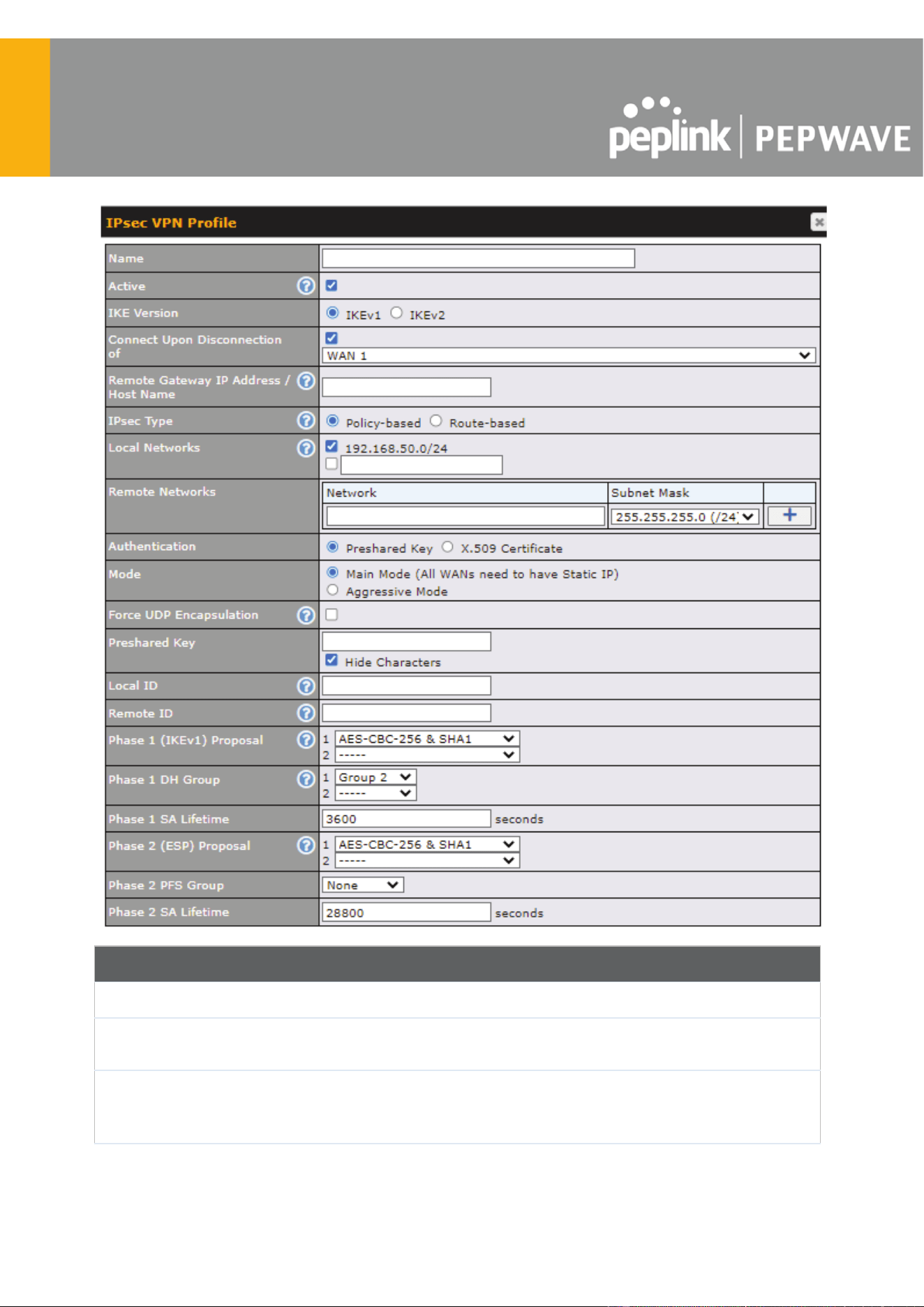
IPsec VPN Profile Settings
Name
This field is for specifying a local name to represent this connection profile.
Active
When this box is checked, this IPsec VPN connection profile will be enabled.
Otherwise, it will be disabled.
IKE Version
Two versions of the IKE standards are available:
● IKEv1
● IKEv2
https://www.peplink.com
89
Copyright @ 2025 Peplink

Connect Upon
Disconnection
of
Check this box and select a WAN to connect to this VPN automatically when the
specified WAN is disconnected.
Remote
Gateway IP
Address / Host
Name
Enter the remote peer’s public IP address. For Aggressive Mode , this is
optional.
IPsec Type
Policy-based - (default) All the matched traffic as defined in Local Networks and
Remote Networks will be routed to this IPsec connection, this cannot be
overridden by other routing methods.
Route-based - Outbound Policy rule is required to route traffic to this tunnel and
comes with more flexibility to control how to route traffic compared to
Policy-based. If you want to modify the traffic selector instead of using the
default (0.0.0.0/0).
Note : This option is available for certain following models only:
● MAX: BR1 ENT, Transit, 700 HW3 or above, HD2 HW5 or above, HD4
Local Networks
Enter the local LAN subnets here. If you have defined static routes, they will be
shown here.
Using NAT, you can map a specific local network / IP address to another, and the
packets received by remote gateway will appear to be coming from the mapped
network / IP address. This allow you to establish IPsec connection to a remote
site that has one or more subnets overlapped with local site.
Two types of NAT policies can be defined:
One-to-One NAT policy: if the defined subnet in Local Network and NAT Network
has the same size, for example, policy "192.168.50.0/24 > 172.16.1.0/24" will
translate the local IP address 192.168.50.10 to 172.16.1.10 and 192.168.50.20
to 172.16.1.20. This is a bidirectional mapping which means clients in remote
site can initiate connection to the local clients using the mapped address too.
Many-to-One NA
T policy: if the defined NAT Network on the right hand side is an
IP address (or having a network prefix /32), for example, policy "192.168.1.0/24
> 172.168.50.1/32" will translate all clients in 192.168.1.0/24 network to
172.168.50.1. This is a unidirectional mapping which means clients in remote
site will not be able to initiate connection to the local clients.
Remote
Networks
Enter the LAN and subnets that are located at the remote site here.
Authentication
To access your VPN, clients will need to authenticate by your choice of methods.
Choose between the Preshared Key and X.509 Certificate methods of
https://www.peplink.com
90
Copyright @ 2025 Peplink

authentication.
Mode
Choose Main Mode if both IPsec peers use static IP addresses. Choose
Aggressive Mode if one of the IPsec peers uses dynamic IP addresses.
Force UDP
Encapsulation
For forced UDP encapsulation regardless of NAT-traversal, tick this checkbox.
Pre-shared Key
This defines the peer authentication pre-shared key used to authenticate this
VPN connection. The connection will be up only if the pre-shared keys on each
side match.
Remote
Certificate (pem
encoded)
Available only when X.509 Certificat e is chosen as the Authentication method,
this field allows you to paste a valid X.509 certificate.
Local ID
In Main Mode , this field can be left blank. In Aggressive Mode , if Remote
Gateway IP Address is filled on this end and the peer end, this field can be left
blank. Otherwise, this field is typically a U-FQDN.
Remote ID
In Main Mode , this field can be left blank. In Aggressive Mode , if Remote
Gateway IP Address is filled on this end and the peer end, this field can be left
blank. Otherwise, this field is typically a U-FQDN.
Phase 1 (IKE)
Proposal
In Main Mode , this allows setting up to six encryption standards, in descending
order of priority, to be used in initial connection key negotiations. In Aggressive
Mode , only one selection is permitted.
Phase 1 DH
Group
This is the Diffie-Hellman group used within IKE. This allows two parties to
establish a shared secret over an insecure communications channel. The larger
the group number, the higher the security.
Group 2 : 1024-bit is the default value.
Group 5 : 1536-bit is the alternative option.
Phase 1 SA
Lifetime
This setting specifies the lifetime limit of this Phase 1 Security Association. By
default, it is set at 3600 seconds.
Phase 2 (ESP)
Proposal
In Main Mode , this allows setting up to six encryption standards, in descending
order of priority, to be used for the IP data that is being transferred. In
Aggressive Mode , only one selection is permitted.
Phase 2 PFS
Group
Perfect forward secrecy (PFS) ensures that if a key was compromised, the
attacker will be able to access only the data protected by that key.
None - Do not request for PFS when initiating connection. However, since there
is no valid reason to refuse PFS, the system will allow the connection to use
PFS if requested by the remote peer. This is the default value.
Group 2 : 1024-bit Diffie-Hellman group. The larger the group number, the higher
the security.
Group 5 : 1536-bit is the third option.
https://www.peplink.com
91
Copyright @ 2025 Peplink

Phase 2 SA
Lifetime
This setting specifies the lifetime limit of this Phase 2 Security Association. By
default, it is set at 28800 seconds.
WAN Connection Priority
WAN Connection
Select the appropriate WAN connection from the drop-down menu.
10.2 GRE Tunnel
Generic Routing Encapsulation (GRE) is a tunneling protocol that can encapsulate a wide
variety of network layer protocols inside virtual point-to-point links over an Internet Protocol
network. A GRE tunnel is similar to IPSec or SpeedFusion VPN.
To configure a GRE Tunnel, navigate to Advanced > GRE Tunnel .
Click the New Profile button to create new GRE tunnel profiles that establish tunnel
connections to remote tunnel endpoints via available WAN connections. To edit the profiles,
click on its associated connection name in the leftmost column.
https://www.peplink.com
92
Copyright @ 2025 Peplink
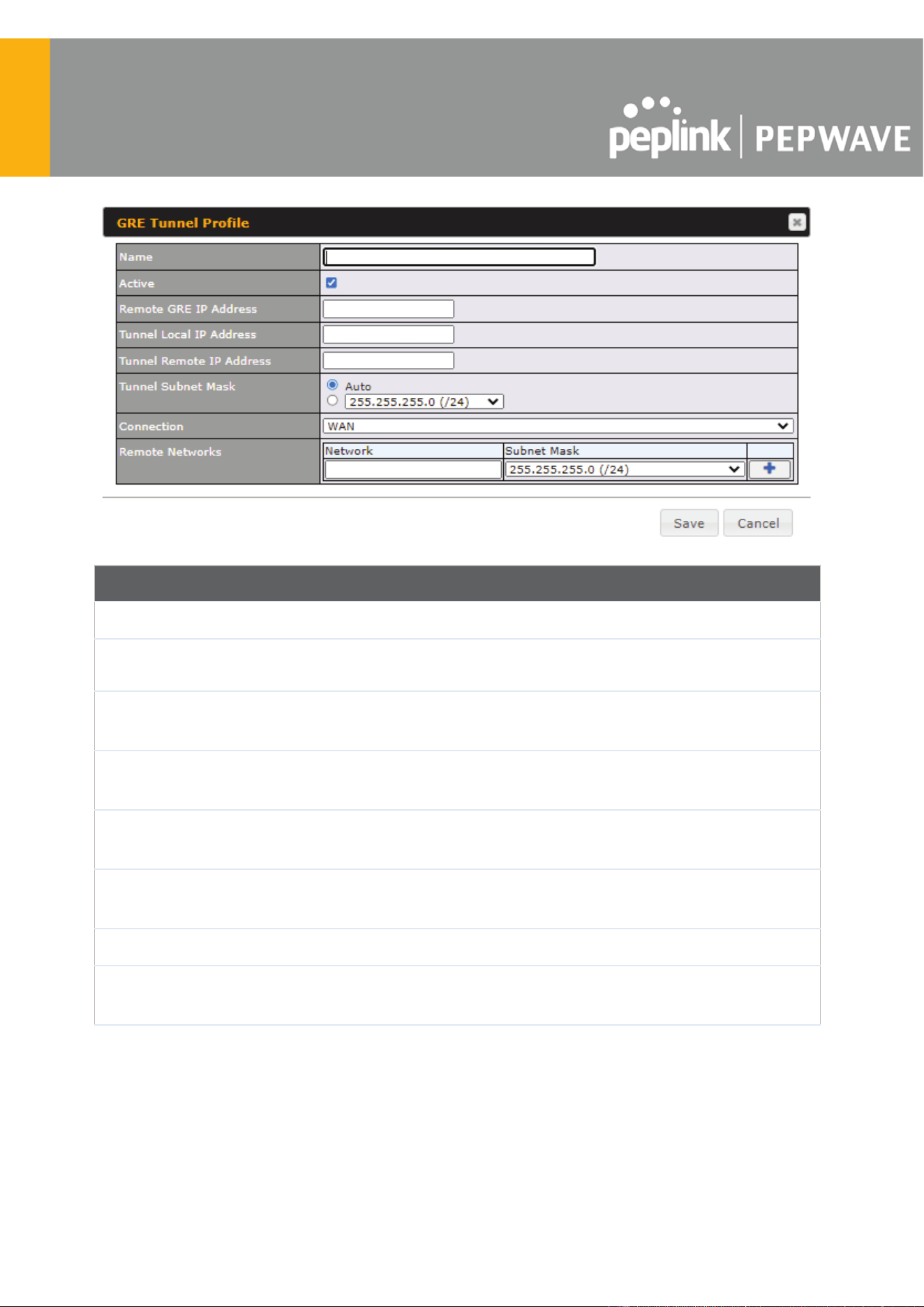
GRE Tunnel Profile Settings
Name
This field is for specifying a name to represent this GRE Tunnel connection profile.
Active
When this box is checked, this GRE Tunnel connection profile will be enabled.
Otherwise, it will be disabled.
Remote GRE IP
Address
This field is for entering the remote GRE’s IP address
Tunnel Local IP
Address
This field is for specifying the tunnel source IP address.
Tunnel Remote
IP Address
This field is for specifying the tunnel destination IP address
Tunnel Subnet
Mask
This field is to select the subnet mask that is to be used for the GRE tunnel.
Connection
Select the appropriate WAN connection from the drop-down menu.
Remote
Networks
Input the LAN and subnets that are located at the remote site here.
https://www.peplink.com
93
Copyright @ 2025 Peplink

11 OpenVPN
OpenVPN is a site to site VPN mode that can encapsulate a wide variety of network layer
protocols inside virtual point-to-point links over an Internet Protocol network.
To configure a OpenVPN, navigate to Advanced > OpenVPN and click the New Profile .
OpenVPN Profile Settings
Name
This field is for specifying a name to represent this OpenVPN profile.
Active
When this box is checked, this OpenVPN connection profile will be enabled.
Otherwise, it will be disabled.
OpenVPN
Profile
Upload the OpenVPN configuration (.ovpn) file from your service provider.
Login
Credential
(Optional)
This option is an optional for you to enter the username and password to login for
the OpenVPN connection if the profile need to login.
Connection
Select the appropriate WAN connection from the drop-down menu.
https://www.peplink.com
94
Copyright @ 2025 Peplink

12 Outbound Policy
Pepwave routers can flexibly manage and load balance outbound traffic among WAN
connections.
Important Note
Outbound policy is applied only when more than one WAN connection is active .
The settings for managing and load balancing outbound traffic are located at
Advanced > Outbound Policy .
12.1 Adding Rules for Outbound Policy
The menu underneath enables you to define Outbound policy rules:
The bottom-most rule is Default . Edit this rule to change the device’s default manner of controlling
outbound traffic for all connections that do not match any of the rules above it. Under the Service
heading, click Default to change these settings.
To rearrange the priority of outbound rules, drag and drop them into the desired sequence.
https://www.peplink.com
95
Copyright @ 2025 Peplink

By default, Auto is selected as the Default Rule . You can select Custom to change the algorithm to be
used. Please refer to the upcoming sections for the details on the available algorithms.
To create a custom rule, click Add Rule at the bottom of the table.
https://www.peplink.com
96
Copyright @ 2025 Peplink

New Custom Rule Settings
Service Name
This setting specifies the name of the outbound traffic rule.
Enable
This setting specifies whether the outbound traffic rule takes effect. When Enable is
checked, the rule takes effect: traffic is matched and actions are taken by the Pepwave
router based on the other parameters of the rule. When Enable is unchecked, the rule does
not take effect: the Pepwave router disregards the other parameters of the rule.
Click the drop-down menu next to the checkbox to apply a time schedule to this custom
rule.
Source
This setting specifies the source IP Address, IP Network, MAC Address or Grouped
Network for traffic that matches the rule.
Destination
This setting specifies the destination IP address, IP network, Domain name, SpeedFusion
Cloud, SpeedFusion VPN Profile or Grouped network for traffic that matches the rule.
https://www.peplink.com
97
Copyright @ 2025 Peplink
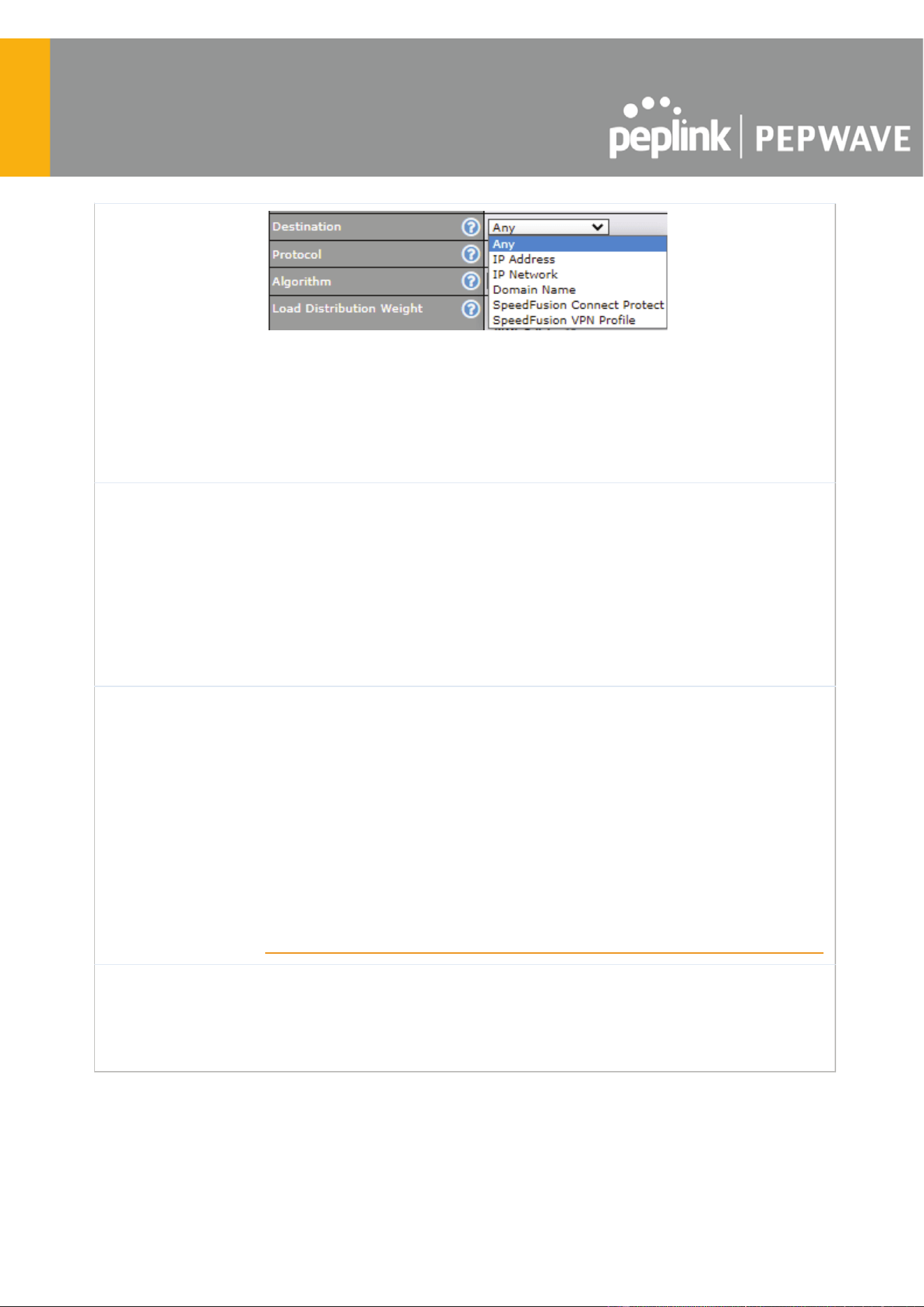
If Domain Name is chosen and a domain name, such as foobar.com , is entered, any
outgoing accesses to foobar.com and *.foobar.com will match this criterion. You may enter
a wildcard (.*) at the end of a domain name to match any host with a name having the
domain name in the middle. If you enter foobar.*, for example, www.foobar.com ,
www.foobar.co.jp , or foobar.co.uk will also match. Placing wildcards in any other position is
not supported.
Note: if a server has one Internet IP address and multiple server names, and if one of the
names is defined here, access to any one of the server names will also match this rule.
Protocol and Port
This setting specifies the IP protocol and port of traffic that matches this rule. Via a
drop-down menu, the following protocols can be specified:
● Any
● TCP
● UDP
● IP
● DSCP
Alternatively, the Protocol Selection Tool drop-down menu can be used to automatically
fill in the protocol and port number of common Internet services (e.g., HTTP, HTTPS, etc.)
After selecting an item from the Protocol Selection Tool drop-down menu, the protocol
and port number remains manually modifiable.
Algorithm
This setting specifies the behavior of the Pepwave router for the custom rule.
One of the following values can be selected (Note that some Pepwave routers provide only
some of these options):
● Weighted Balance
● Persistence
● Enforced
● Priority
● Overflow
● Least Used
● Lowest Latency
● Fastest Response Time
For a full explanation of each Algorithm, please see the following article:
https://forum.peplink.com/t/exactly-how-do-peplinks-load-balancing-algorithmns-work/8059
Load Distribution
Weight
This is to define the outbound traffic weight ratio for each WAN connection.
https://www.peplink.com
98
Copyright @ 2025 Peplink

When No
connections are
available
This field allows you to configure the default action when all the selected Connections are
not available.
Drop the Traffic - Traffic will be discarded.
Use Any Available Connections - Traffic will be routed to any available Connection, even
it is not selected in the list.
Fall-through to Next Rule - Traffic will continue to match the next Outbound Policy rule
just like this rule is inactive.
Terminate
Sessions on
Connection
Recovery
This setting specifies whether to terminate existing IP sessions on a less preferred WAN
connection in the event that a more preferred WAN connection is recovered. This setting is
applicable to the Priority algorithms. By default, this setting is disabled. In this case,
existing IP sessions will not be terminated or affected when any other WAN connection is
recovered. When this setting is enabled, existing IP sessions may be terminated when
another WAN connection is recovered, such that only the preferred healthy WAN
connection(s) is used at any point in time.
12.1.1 Algorithm: Weighted Balance
This setting specifies the ratio of WAN connection usage to be applied on the specified IP
protocol and port. This setting is applicable only when Algorithm is set to Weighted Balance .
The amount of matching traffic that is distributed to a WAN connection is proportional to the
weight of the WAN connection relative to the total weight. Use the sliders to change each WAN’s
weight.
For example, with the following weight settings:
● Ethernet WAN1: 10
● Ethernet WAN2: 10
● Wi-Fi WAN: 10
● Cellular 1: 10
● Cellular 2: 10
https://www.peplink.com
99
Copyright @ 2025 Peplink

● USB: 10
Total weight is 60 = (10 +10 + 10 + 10 + 10 + 10).
Matching traffic distributed to Ethernet WAN1 is 16.7% = (10 / 60 x 100%.
Matching traffic distributed to Ethernet WAN2 is 16.7% = (10 / 60) x 100%.
Matching traffic distributed to Wi-Fi WAN is 16.7% = (10 / 60) x 100%.
Matching traffic distributed to Cellular 1 is 16.7% = (10 / 60) x 100%.
Matching traffic distributed to Cellular 2 is 16.7% = (10 / 60) x 100%.
Matching traffic distributed to USB is 16.7% = (10 / 60) x 100%.
12.1.2 Algorithm: Persistence
The configuration of persistent services is the solution to the few situations where link load
distribution for Internet services is undesirable. For example, for security reasons, many
e-banking and other secure websites terminate the session when the client computer’s Internet
IP address changes mid-session.
In general, different Internet IP addresses represent different computers. The security concern is
that an IP address change during a session may be the result of an unauthorized intrusion
attempt. Therefore, to prevent damages from the potential intrusion, the session is terminated
upon the detection of an IP address change.
Pepwave routers can be configured to distribute data traf
fic across multiple WAN connections.
Also, the Internet IP depends on the WAN connections over which communication actually takes
place. As a result, a LAN client computer behind the Pepwave router may communicate using
multiple Internet IP addresses. For example, a LAN client computer behind a Pepwave router
with three WAN connections may communicate on the Internet using three different IP
addresses.
With the persistence feature, rules can be configured to enable client computers to persistently
utilize the same W
AN connections for e-banking and other secure websites. As a result, a client
computer will communicate using one IP address, eliminating the issues mentioned above.
https://www.peplink.com
100
Copyright @ 2025 Peplink

There are two persistent modes: By Source and By Destination .
By Source:
The same WAN connection will be used for traffic matching the rule and
originating from the same machine, regardless of its destination. This option
will provide the highest level of application compatibility.
By Destination:
The same WAN connection will be used for traffic matching the rule,
originating from the same machine, and going to the same destination. This
option can better distribute loads to WAN connections when there are only a
few client machines.
The default mode is By Source . When there are multiple client requests, they can be distributed
(persistently) to WAN connections with a weight. If you choose Auto in Load Distribution , the
weights will be automatically adjusted according to each WAN’s Downstream Bandwidth
which is specified in the WAN settings page). If you choose Custom , you can customize the
weight of each WAN manually by using the sliders.
12.1.3 Algorithm: Enforced
This setting specifies the WAN connection usage to be applied on the specified IP protocol and
port. This setting is applicable only when Algorithm is set to Enforced .
Matching traffic will be routed through the specified WAN connection, regardless of the health
check status of the W
AN connection. Starting from Firmware 5.2, outbound traffic can be
enforced to go through a specified SpeedFusion
TM
connection.
12.1.4 Algorithm: Priority
This setting specifies the priority of the WAN connections used to route the specified network
service. The highest priority WAN connection available will always be used for routing the
specified type of traffic. A lower priority WAN connection will be used only when all higher
priority connections have become unavailable.
https://www.peplink.com
101
Copyright @ 2025 Peplink
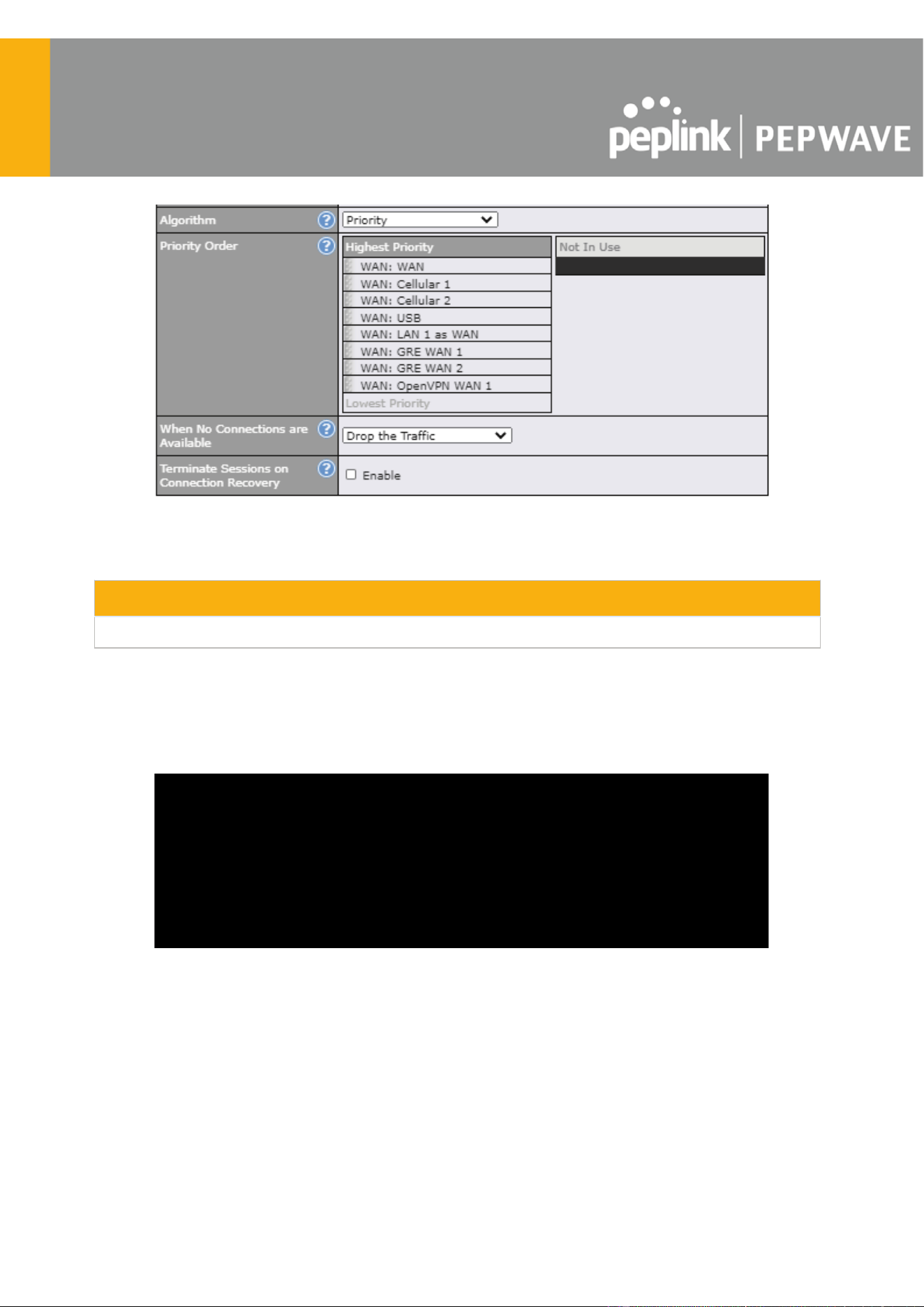
Starting from Firmware 5.2, outbound traffic can be prioritized to go through SpeedFusion
TM
connection(s). By default, VPN connections are not included in the priority list.
Tip
Configure multiple distribution rules to accommodate different kinds of services.
12.1.5 Algorithm: Overflow
The traffic matching this rule will be routed through the healthy WAN connection that has the
highest priority and is not in full load. When this connection gets saturated, new sessions will be
routed to the next healthy WAN connection that is not in full load.
Drag and drop to specify the order of WAN connections to be used for routing traffic. Only the
highest priority healthy connection that is not in full load will be used.
https://www.peplink.com
102
Copyright @ 2025 Peplink

12.1.6 Algorithm: Least Used
The traffic matching this rule will be routed through the healthy WAN connection that is selected
in Connection and has the most available download bandwidth. The available download
bandwidth of a WAN connection is calculated from the total download bandwidth specified on
the WAN settings page and the current download usage. The available bandwidth and WAN
selection is determined every time an IP session is made.
12.1.7 Algorithm: Lowest Latency
The traffic matching this rule will be routed through the healthy WAN connection that is selected
in Connection and has the lowest latency. Latency checking packets are issued periodically to
a nearby router of each W
AN connection to determine its latency value. The latency of a WAN is
the packet round trip time of the WAN connection. Additional network usage may be incurred as
a result.
Tip
The roundtrip time of a 6M down/640k uplink can be higher than that of a 2M down/2M up link because
the overall round trip time is lengthened by its slower upload bandwidth, despite its higher downlink
speed. Therefore, this algorithm is good for two scenarios:
● All WAN connections are symmetric; or
● A latency sensitive application must be routed through the lowest latency WAN, regardless of
the WAN’s available bandwidth.
https://www.peplink.com
103
Copyright @ 2025 Peplink
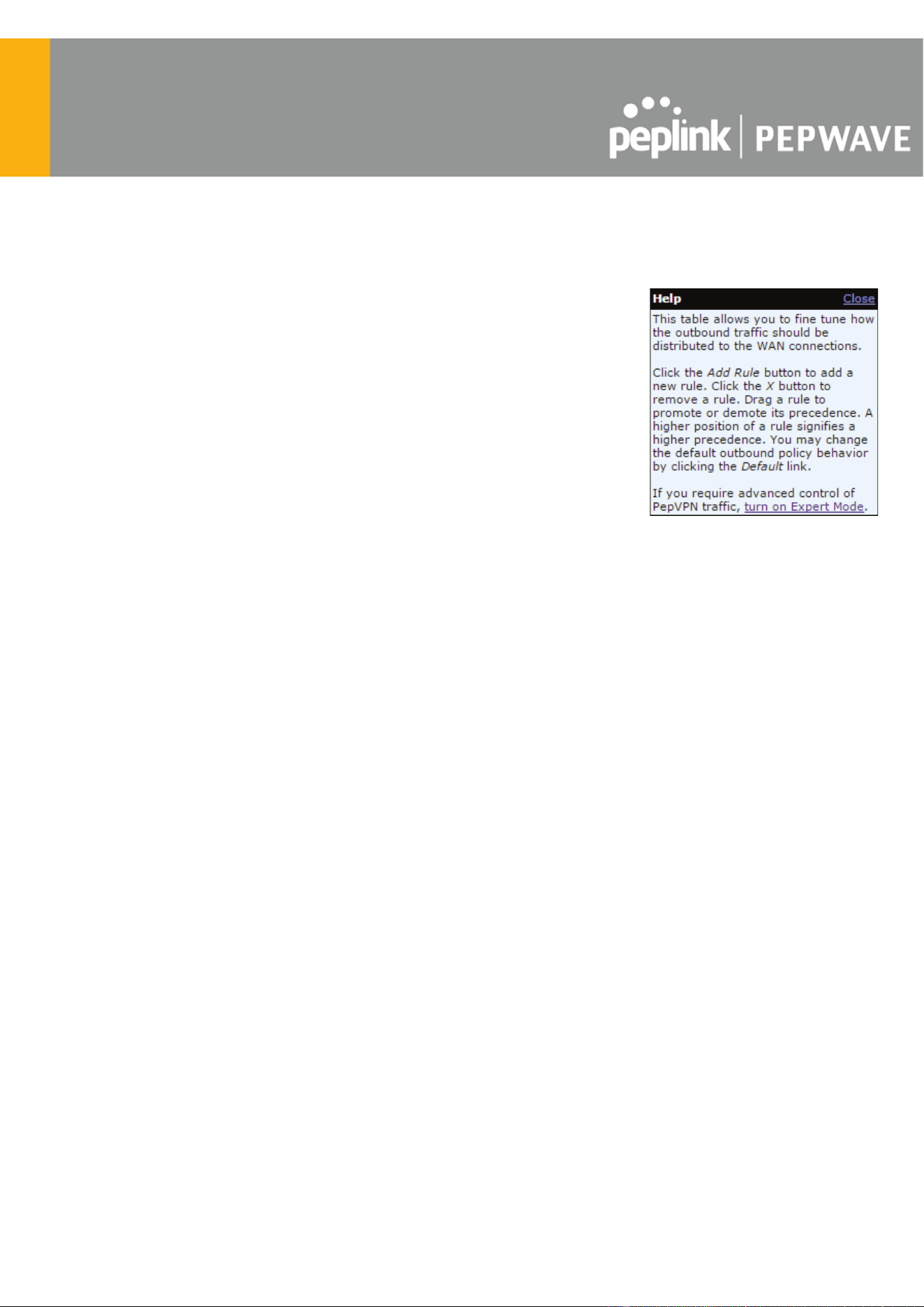
12.1.8 Expert Mode
Expert Mode is available on some Pepwave routers for use by
advanced users. To enable the feature, click on the help icon and click
turn on Expert Mode ġįġ
In Expert Mode, a new special rule, SpeedFusion
TM
Routes , is
displayed in the Custom Rules table. This rule represents all
SpeedFusion
TM
routes learned from remote VPN peers. By default, this
bar is on the top of all custom rules. This position means that traffic for
remote VPN subnets will be routed to the corresponding VPN
peer. You can create custom Priority or Enforced rules and move
them
above the bar to override the SpeedFusion
TM
routes.
Upon disabling Expert Mode, all rules above the bar will be removed.
https://www.peplink.com
104
Copyright @ 2025 Peplink

13 Port Forwarding
Pepwave routers can act as a firewall that blocks, by default, all inbound access from the
Internet. By using port forwarding, Internet users can access servers behind the Pepwave
router. Inbound port forwarding rules can be defined at Advanced > Port Forwarding .
To define a new service, click Add Service .
Port Forwarding Settings
Enable
This setting specifies whether the inbound service takes effect. When Enable is
checked, the inbound service takes effect: traffic is matched and actions are taken by
the Pepwave router based on the other parameters of the rule. When this setting is
disabled, the inbound service does not take effect: the Pepwave router disregards the
other parameters of the rule.
Service Name
This setting identifies the service to the system administrator. Valid values for this
setting consist of only alphanumeric and underscore “_” characters.
https://www.peplink.com
105
Copyright @ 2025 Peplink
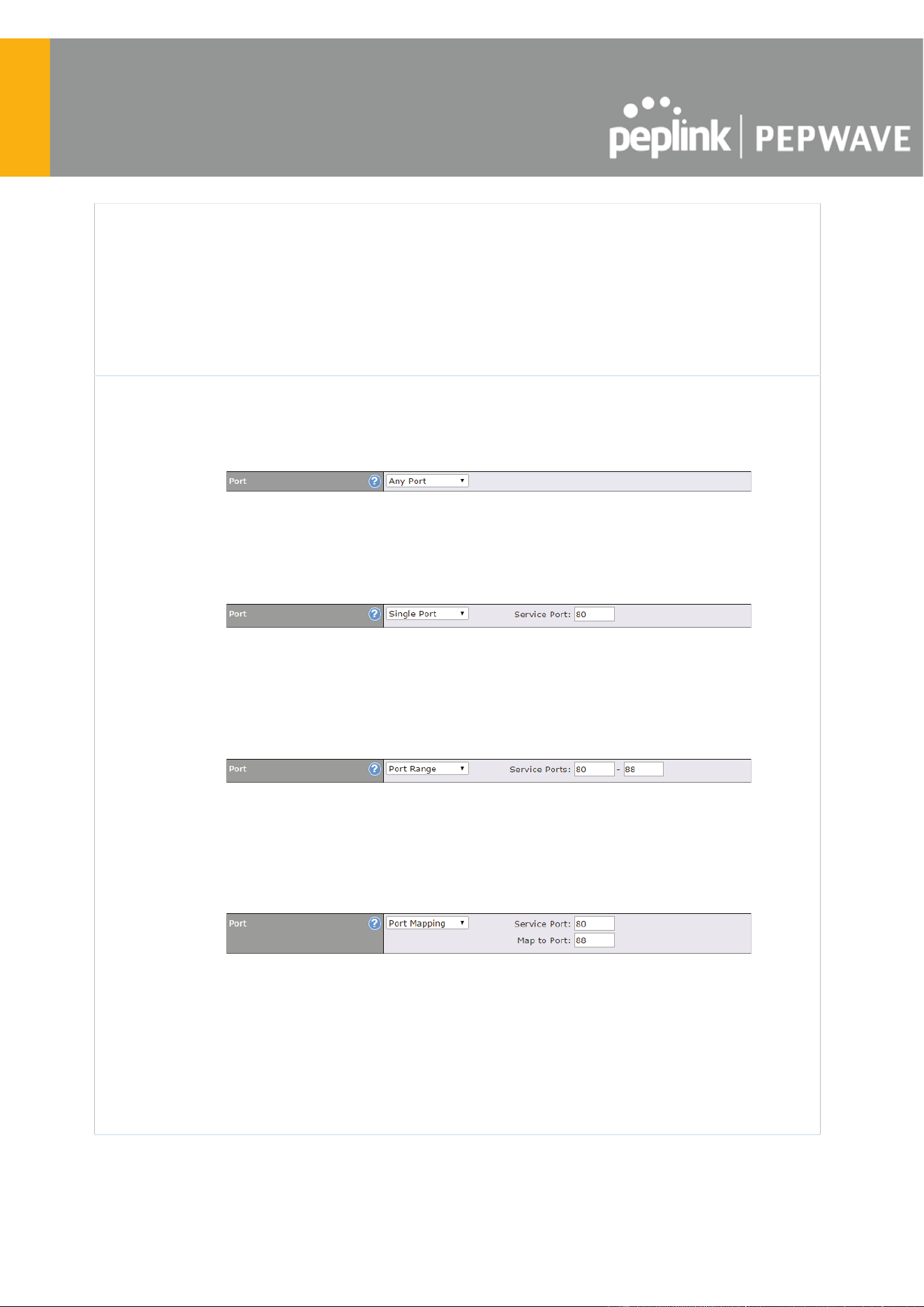
Protocol
The IP Protocol setting, along with the Port setting, specifies the protocol of the
service as TCP, UDP, ICMP, or IP. Traffic that is received by the Pepwave router via
the specified protocol at the specified port(s) is forwarded to the LAN hosts specified
by the Servers setting. Please see below for details on the Port and Servers
settings. Alternatively, the Protocol Selection Tool drop-down menu can be used to
automatically fill in the protocol and a single port number of common Internet services
(e.g. HTTP, HTTPS, etc.). After selecting an item from the Protocol Selection T
ool
drop-down menu, the protocol and port number remain manually modifiable.
Port
The Port setting specifies the port(s) that correspond to the service, and can be
configured to behave in one of the following manners:
Any Port , Single Port , Port Range , Port Map , and Range Mapping
Any Port : all traffic that is received by the Pepwave router via the specified protocol is
forwarded to the servers specified by the Servers setting. For example, with IP
Protocol set to TCP , and Port set to Any Port , all TCP traffic is forwarded to the
configured servers.
Single Port : traffic that is received by the Pepwave router via the specified protocol at
the specified port is forwarded via the same port to the servers specified by the
Servers setting. For example, with IP Protocol set to TCP , and Port set to Single
Port and Service Port 80, TCP traf
fic received on port 80 is forwarded to the
configured servers via port 80.
Port Range : traffic that is received by the Pepwave router via the specified protocol at
the specified port range is forwarded via the same respective ports to the LAN hosts
specified by the Servers setting. For example, with IP Protocol set to TCP , and Port
set to Port Range and Service Ports 80-88, TCP traf
fic received on ports 80 through
88 is forwarded to the configured servers via the respective ports.
Port Mapping : traffic that is received by Pepwave router via the specified protocol at
the specified port is forwarded via a different port to the servers specified by the
Servers setting.
For example, with IP Protocol set to TCP , and Port set to Port Mapping , Service
Port 80, and Map to Port 88, TCP traffic on port 80 is forwarded to the configured
servers via port 88.
(Please see below for details on the Servers setting.)
https://www.peplink.com
106
Copyright @ 2025 Peplink
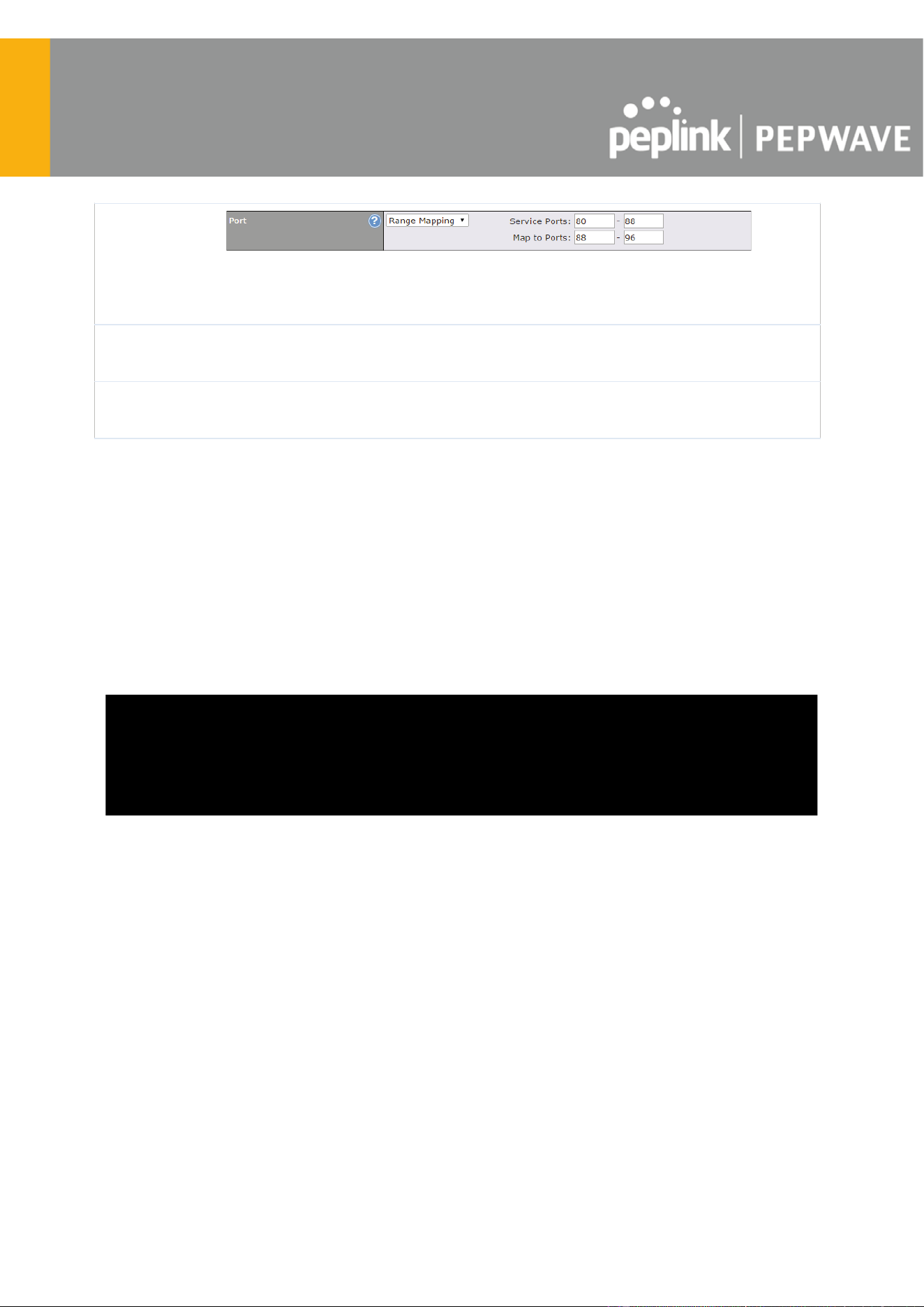
Range Mapping : traffic that is received by the Pepwave router via the specified
protocol at the specified port range is forwarded via a different port to the servers
specified by the Servers setting.
Inbound IP
Address(es)
This setting specifies the WAN connections and Internet IP address(es) from which
the service can be accessed.
Server IP
Address
This setting specifies the LAN IP address of the server that handles the requests for
the service.
13.1 UPnP / NAT-PMP Settings
UPnP and NAT-PMP are network protocols which allow a computer connected to the LAN port
to automatically configure the router to allow parties on the WAN port to connect to itself. That
way, the process of inbound port forwarding becomes automated.
When a computer creates a rule using these protocols, the specified TCP/UDP port of all WAN
connections' default IP address will be forwarded.
Check the corresponding box(es) to enable UPnP and/or NAT-PMP. Enable these features only
if you trust the computers connected to the LAN ports.
When the options are enabled, a table listing all the forwarded ports under these two protocols
can be found at Status > UPnP / NAT-PMP .
https://www.peplink.com
107
Copyright @ 2025 Peplink

14 NAT Mappings
NAT mappings allow IP address mapping of all inbound and outbound NAT’d traffic to and from
an internal client IP address. Settings to configure NAT mappings are located at Advanced >
NAT Mappings .
To add a rule for NAT mappings, click Add NAT Rule .
NAT Mapping Settings
LAN Client
NAT mapping rules can be defined for a single LAN IP Address , an IP Range , or an
IP Network .
IP Address
This refers to the LAN host’s private IP address. The system maps this address to a
number of public IP addresses (specified below) in order to facilitate inbound and
outbound traffic. This option is only available when IP Address is selected.
IP Range
The IP range is a contiguous group of private IP addresses used by the LAN host.
The system maps these addresses to a number of public IP addresses (specified
below) to facilitate outbound traffic. This option is only available when IP Range is
selected.
https://www.peplink.com
108
Copyright @ 2025 Peplink
IP Network
The IP network refers to all private IP addresses and ranges managed by the LAN
host. The system maps these addresses to a number of public IP addresses
(specified below) to facilitate outbound traffic. This option is only available when IP
Network is selected.
Inbound
Mappings
This setting specifies the WAN connections and corresponding WAN-specific
Internet IP addresses on which the system should bind. Any access to the specified
WAN connection(s) and IP address(es) will be forwarded to the LAN host. This
option is only available when IP Address is selected in the LAN Client(s) field.
Note that: inbound mapping is not needed for WAN connections in drop-in mode or
IP forwarding mode. Also note that each WAN IP address can be associated to one
NAT mapping only.
Outbound
Mappings
This setting specifies the WAN IP addresses that should be used when an IP
connection is made from a LAN host to the Internet. Each LAN host in an IP range
or IP network will be evenly mapped to one of each selected WAN's IP addresses
(for better IP address utilization) in a persistent manner (for better application
compatibility).
Note that: if you do not want to use a specific WAN for outgoing accesses, you
should still choose default here, then customize the outbound access rule in the
Outbound Policy section. Also note that WA
N connections in drop-in mode or IP
forwarding mode are not shown here.
Click Save to save the settings when configuration has been completed.
Important Note
Inbound firewall rules override the Inbound Mappings settings.
https://www.peplink.com
109
Copyright @ 2025 Peplink

15 Media Fast
MediaFast settings can be configured from the Advanced menu.
15.1 Setting Up MediaFast Content Caching
To access MediaFast content caching settings, select Advanced > Cache Control
MediaFast
Enable
Click the checkbox to enable MediaFast content caching.
Domains / IP
Addresses
Choose to Cache on all domains , or enter domain names and then choose
either Whitelist (cache the specified domains only) or Blacklist (do not cache
the specified domains).
Source IP
Subnet
This setting allows caching to be enabled on custom subnets only.
If "Any" is selected, then caching will apply to all subnets.
https://www.peplink.com
110
Copyright @ 2025 Peplink

The Secure Content Caching menu operates identically to the MediaFast menu, except it is
for secure content cachting accessible through https://.
In order for Mediafast devices to cache and deliver HTTPS content, every client needs to have
the necessary certificates installed*.
*See https://forum.peplink.com/t/certificate-installation-for-mediafast-https-caching/
Cache Control
Content Type
Check these boxes to cache the listed content types or leave boxes unchecked to disable
caching for the listed types.
Cache Lifetime
Settings
Enter a file extension, such as JPG or DOC. Then enter a lifetime in days to specify how
long files with that extension will be cached. Add or delete entries using the controls on the
right.
https://www.peplink.com
111
Copyright @ 2025 Peplink

15.2 Viewing MediaFast Statistics
To get details on storage and bandwidth usage, select Status > MediaFast .
https://www.peplink.com
112
Copyright @ 2025 Peplink
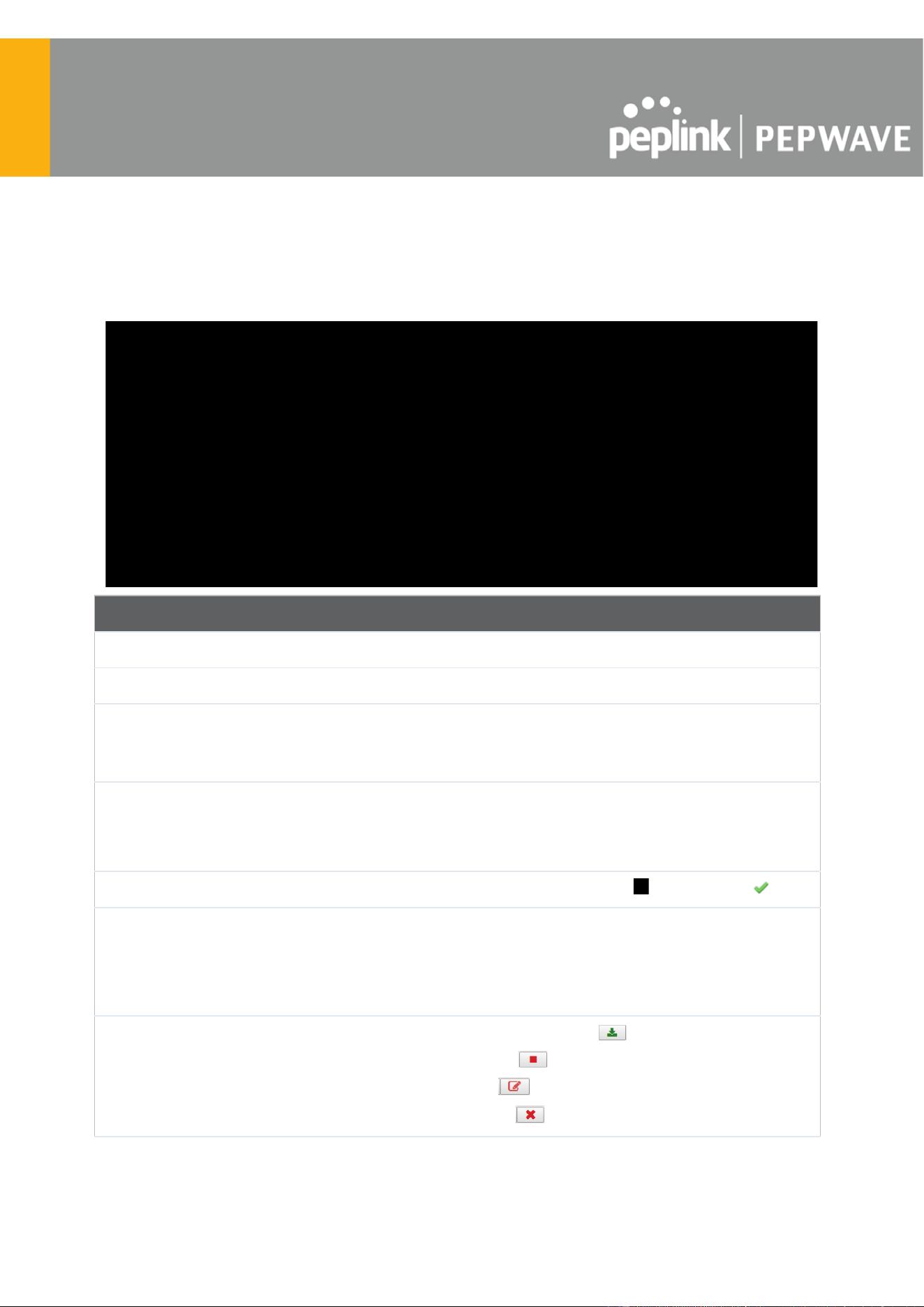
15.3 Prefetch Schedule
Content prefetching allows you to download content on a schedule that you define, which can
help to preserve network bandwidth during busy times and keep costs down. To access
MediaFast content prefetching settings, select Advanced > Prefetch Schedule .
Prefetch Schedule Settings
Name
This field displays the name given to the scheduled download.
Status
Check the status of your scheduled download here.
Next Run
Time/Last Run
Time
These fields display the date and time of the next and most recent occurrences of
the scheduled download.
Last Duration
Check this field to ensure that the most recent download took as long as expected
to complete. A value that is too low might indicate an incomplete download or
incorrectly specified download target, while a value that is too long could mean a
download with an incorrectly specified target or stop time.
Result
This field indicates whether downloads are in progress ( ) or complete ( ).
Last Download
Check this field to ensure that the most recent download file size is within the
expected range. A value that is too low might indicate an incomplete download or
incorrectly specified download target, while a value that is too long could mean a
download with an incorrectly specified target or stop time. This field is also useful
for quickly seeing which downloads are consuming the most storage space.
Actions
To begin a scheduled download immediately, click .
To cancel a scheduled download, click .
To edit a scheduled download, click .
To delete a scheduled download, click .
https://www.peplink.com
113
Copyright @ 2025 Peplink

New Schedule
Click to begin creating a new scheduled download. Clicking the button will cause
the following screen to appear:
Simply provide the requested information to create your schedule.
Clear Web Cache
To clear all cached content, click this button. Note that this action cannot be
undone.
Clear Statistics
To clear all prefetch and status page statistics, click this button.
https://www.peplink.com
114
Copyright @ 2025 Peplink

16 Edge Computing
ContentHub allows you to deliver webpages and applications to users connected to the SSID
using the local storage on your router, like the Max HD2/HD4 with Mediafast, which can store up
to 8GB of media. Users will be able to access news, articles, videos, and access your web app
without the need for internet access.
The ContentHub can be used to provide infotainment to connected users on transport.
16.1 Configuring the ContentHub
ContentHub storage needs to be configured before content can be uploaded to the ContentHub.
Click on the link on the information panel to configure storage.
To access ContentHub, navigate to Advanced > ContentHub and check the Enable box.
On an external server, configure content (a website or application) that will be synced to the
ContentHub. For example, an html5 website.
To configure a website or application as content, follow the steps below.
16.2 Configure a website for ContentHub
This option allows you to sync a website to the Pepwave router. This website will then be
published with the specified domain from the router itself and makes the content available to
the client via the HTTP/HTTPS protocol.
Only FTP sync is supported for this type of ContentHub content.
The content should be uploaded to an FTP server before
you sync it with ContentHub .
https://www.peplink.com
115
Copyright @ 2025 Peplink

Click New Website and a window with the following configuration options will appear:
Schedule
Active
Checking the box toggles the activation of the content.
Type
Select the type of content: Website or Application.
Protocol
Configure the protocol to be used: HTTP, HTTPS or both.
Domain/Path
Enter the URL for the ContenHub to use as the domain name for client access
(such as http://mytest.com).
Method
Only applicable for Application type content. Choose between sync or file upload.
Source
Enter the details of the server that the content will be downloaded from. Enter
credentials under Username and Password .
Period
This field determines how often the router will search for updates to the source
content.
Bandwidth
Limit
Set a bandwidth limit for clients.
https://www.peplink.com
116
Copyright @ 2025 Peplink

Click “ Save & Apply Now ” to activate the changes. A screenshot of the display after
configuration is shown below:
The content will be synced regularly according to the time set in the Period that was configured
earlier.
If you want to activate the sync manually, you can click the “ ” icon. The “Status” column
will display the sync progress. When the sync is completed, a summary will be displayed, as
shown in the screenshot below:
To access the content, open a browser in the MFA’s client and enter the domain details that
were configured earlier (such as http://mytest.com ).
16.3 Configure an application for ContentHub
MediaFast routers allow you to configure and publish any application from the router itself by
using one of the supported frameworks below:
● Python (version 2.7.12)
● Ruby (version 2.3.3)
● Node.js (version 6.9.2)
Install the desired framework under “Package Manager” as shown below:
https://www.peplink.com
117
Copyright @ 2025 Peplink

After installing the framework, change the ”Type” to “Application” and configure the website.
The setting is the same as the Website type (refer to the description in the section above).
https://www.peplink.com
118
Copyright @ 2025 Peplink

Application type content need to be packed as explained below:
1. Implement two bash script files, start.sh and stop.sh in the root folder, to start and stop
your application. The MediaFast router will only execute start.sh and stop.sh when the
corresponding website is enabled and disabled respectively.
2. Compress the application files and the bash script to .tar.gz format.
3. Upload this tar file to the router.
https://www.peplink.com
119
Copyright @ 2025 Peplink

17 Docker
MediaFast enabled routers can host Docker containers when running Firmware 7.1 or later.
Docker is an open platform for developing, shipping, and running applications.
From Firmware version 7.1.0 and upwards, it is possible to install and run Docker Containers on
your Pepwave routers with MediaFast, such as the MAX HD2 and the MAX HD4.
Due to the nature of Docker and its unlimited variables, this feature is supported by Pepwave up
to the point of creating a running Docker Container.
Information about Docker can be found on the Docker Documentation site:
https://docs.docker.com/ 2
This will allow you to run a file sharing platform (ownCloud), a web server (WordPress, Joomla!)
, a learning platform (Moodle), or a visualisation tool for viewing large scale data (Kibana).
When creating a new Docker Container, the Pepwave router will search through the Docker Hub
repository. https://hub.docker.com/explore/ 7
For detailed configuration instructions, refer to our knowledge base:
https://forum.peplink.com/t/how-to-run-a-docker-application-on-a-peplink-mediafast-router/1602
1
https://www.peplink.com
120
Copyright @ 2025 Peplink

18 KVM
MediaFast enabled routers now support KVM. Users will have to download and install Virtual
Machine Manager to manage the KVM virtual machines. Through this, users are able to
virtualise a Linux environment.
For detailed configuration instructions, refer to our knowledge base articles:
1. How to install a Virtual Machine on Peplink/Pepwave - MediaFast/ContentHub
Routers
2. How to Install Virtual Machine with USB storage on Peplink/Pepwave -
MediaFast/ContentHub Routers
https://www.peplink.com
121
Copyright @ 2025 Peplink
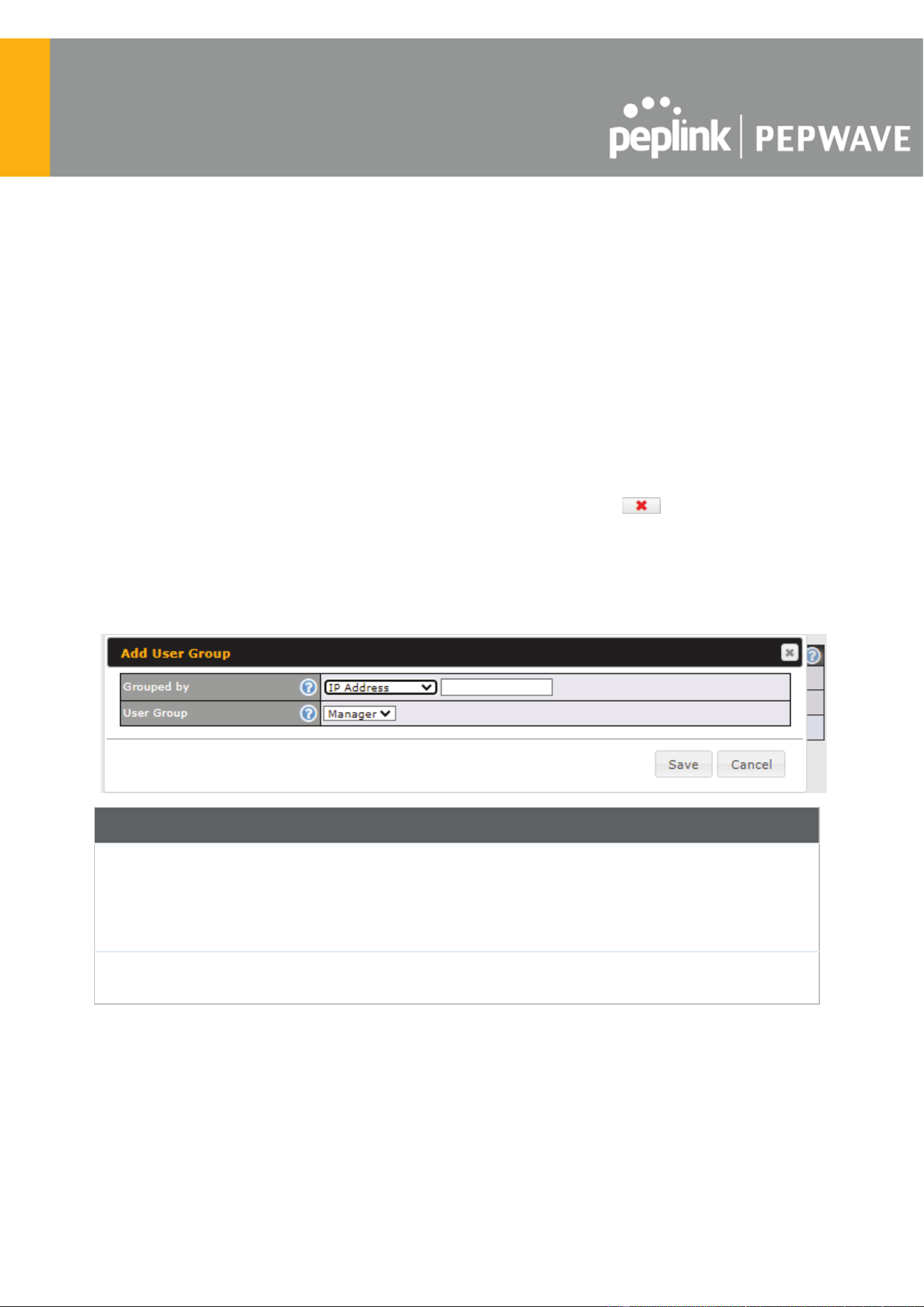
19 QoS
19.1 User Groups
LAN and PPTP clients can be categorized into three user groups: Manager, Staff, and Guest .
This menu allows you to define rules and assign client IP addresses or subnets to a user group.
You can apply different bandwidth and traffic prioritization policies on each user group in
the Bandwidth Control and Application sections (note that the options available here vary by
model).
The table is automatically sorted by rule precedence. The smaller and more specific subnets are
put towards the top of the table and have higher precedence; larger and less specific subnets
are placed towards the bottom.
Click the Add button
to define clients and their user group. Click the button to remove the
defined rule. Two default rules are pre-defined and put at the bottom. They are All DHCP
reservation clients and Everyone , and they cannot be removed. The All DHCP reservation
client represents the LAN clients defined in the DHCP Reservation table on the LAN settings
page. Everyone represents all clients that are not defined in any rule above. Click on a rule to
change its group.
Add / Edit User Group
Grouped by
From the drop-down menu, choose whether you are going to define the
client(s) by an IP Address or a Subnet . If IP Address is selected, enter a
name defined in DHCP reservation table or a LAN client's IP
address. If Subnet is selected, enter a subnet address and specify its subnet
mask.
User Group
This field is to define which User Group the specified subnet / IP address
belongs to.
Once users have been assigned to a user group, their internet traffic will be restricted by rules
defined for that particular group. Please refer to the following two sections for details.
https://www.peplink.com
122
Copyright @ 2025 Peplink

19.2 Bandwidth Control
This section is to define how much minimum bandwidth will be reserved to each user group
when a WAN connection is in full load . When this feature is enabled, a slider with two
indicators will be shown. You can move the indicators to adjust each group's weighting. The
lower part of the table shows the corresponding reserved download and uploads bandwidth
value of each connection.
By default, 50% of bandwidth has been reserved for Manager, 30% for Staff, and 20% for
Guest.
You can define a maximum download speed (over all WAN connections) and upload speed (for
each W
AN connection) that each individual Staff and Guest member can consume. No limit can
be imposed on individual Managers. By default, download and upload bandwidth limits are set
to unlimited (set as 0 ).
19.3 Application Queue
This section is to define the QoS Application Queue. You can set guaranteed bandwidth for a
queue and assign it to applications.
Click the Add button to create the QoS Application Queue.
https://www.peplink.com
123
Copyright @ 2025 Peplink

Add Queue
Name
This setting specifies a name for the QoS Application Queue.
Bandwidth
Bandwidth to be reserved (for each WAN connection) for this queue. When WAN is
congested, this bandwidth will remain available for applications assigned to this queue.
Borrow Spare
Bandwidth
Enable this option if you want this queue to utilize WAN's unused bandwidth.
19.4 Application
19.4.1 Application Prioritization
On many Pepwave routers, you can choose whether to apply the same prioritization settings to
all user groups or customize the settings for each group.
Three application priority levels can be set:
High , Normal , and Low . Pepwave routers
can detect various application traffic types by inspecting the packet content. Select an
application by choosing a supported application, or by defining a custom application
manually. The priority preference of supported applications is placed at the top of the
table. Custom applications are at the bottom.
https://www.peplink.com
124
Copyright @ 2025 Peplink
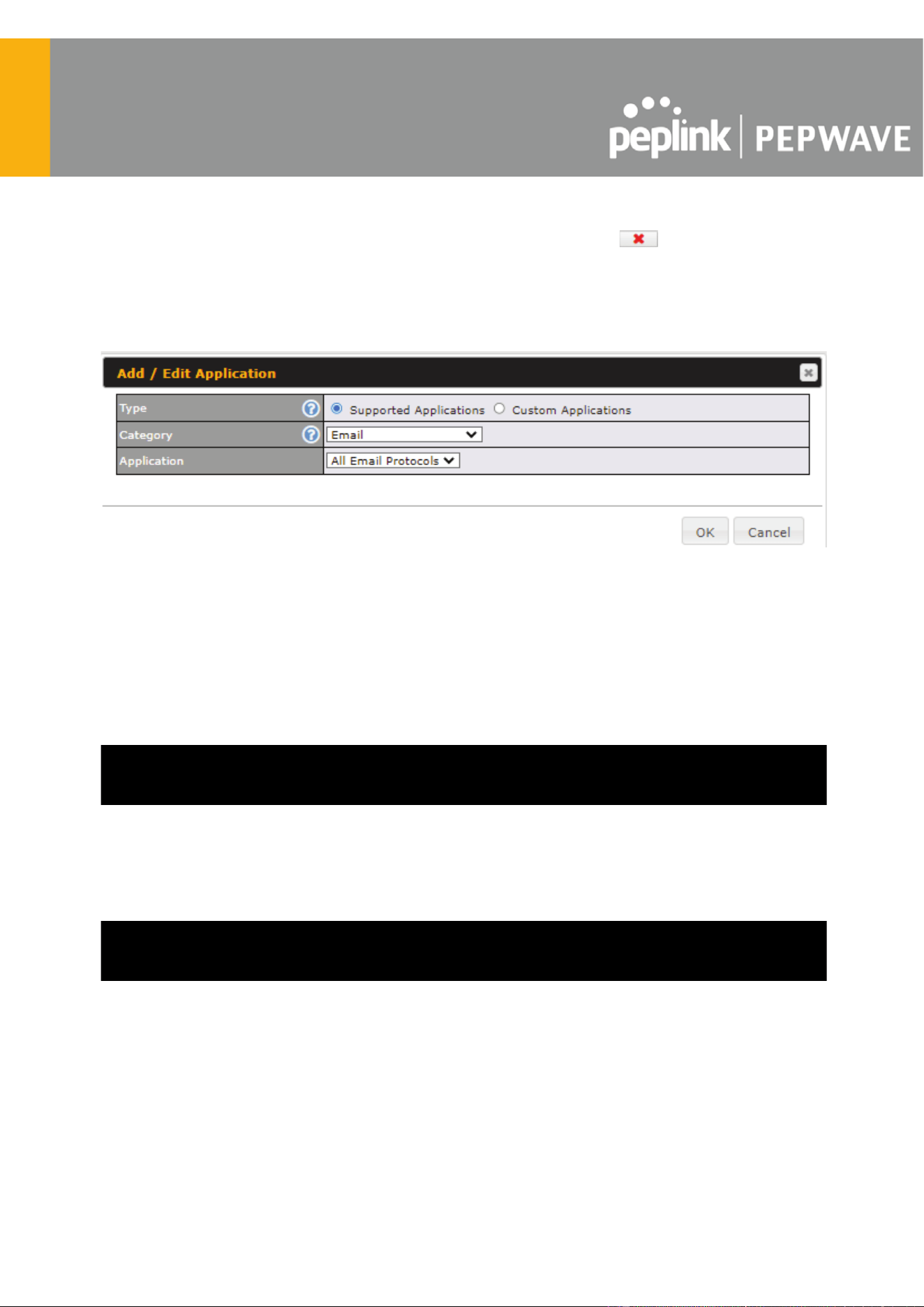
19.4.2 Prioritization for Custom Applications
Click the Add button to define a custom application. Click the button in the Action column
to delete the custom application in the corresponding row.
When Supported Applications is selected, the Pepwave router will inspect network traffic and
prioritize the selected applications. Alternatively, you can select Custom Applications and
define the application by providing the protocol, scope, port number, and DSCP value.
19.4.3 DSL/Cable Optimization
DSL/cable-based WAN connections have lower upload bandwidth and higher
download bandwidth. When a DSL/cable circuit's uplink is congested, the download bandwidth
will be affected. Users will not be able to download data at full speed until the uplink becomes
less congested. DSL/Cable Optimization can relieve such an issue. When it is enabled, the
download speed will become less af
fected by the upload traffic. By default, this feature is
disabled.
19.4.4 SpeedFusion VPN Traffic Optimization
To enable this option to allow SpeedFusion VPN traffic has highest priority when WAN is
congested.
https://www.peplink.com
125
Copyright @ 2025 Peplink

20 Firewall
A firewall is a mechanism that selectively filters data traffic between the WAN side (the Internet)
and the LAN side of the network. It can protect the local network from potential hacker attacks,
access to offensive websites, and/or other inappropriate uses.
The firewall functionality of Pepwave routers supports the selective filtering of data traffic in both
directions:
●
●
● Outbound (LAN to WAN)
● Inbound (WAN to LAN)
● Internal Network (VLAN to VLAN)
● Local Service
The firewall also supports the following functionality:
● Intrusion detection and DoS prevention
● Web blocking
With SpeedFusion
TM
enabled, the firewall rules also apply to VPN tunneled traffic.
https://www.peplink.com
126
Copyright @ 2025 Peplink

20.1 Access Rules
Outbound Firewall Rules
The outbound firewall settings are located at Advanced > Firewall > Access Rules.
To enable or disable the Outbound Firewall to manage device local network traffic, click on the
help icon and click here , the sceen will shows below.
https://www.peplink.com
127
Copyright @ 2025 Peplink

Note
To utilize the Outbound Firewall Rule to block the Peplink device from contacting InControl 2. may refer to the link
below:
https://forum.peplink.com/t/faq-prevent-device-reaching-incontrol-2./63f48fdfd466df34ab475f55/
Click Add Rule to display the following screen:
Inbound Firewall Rules
Inbound firewall settings are located at Advanced > Firewall > Access Rules.
Click Add Rule to display the following screen:
https://www.peplink.com
128
Copyright @ 2025 Peplink

Internal Network Firewall Rules
Internal Network firewall settings are located at Advanced > Firewall > Access Rules .
Click Add Rule to display the following window:
https://www.peplink.com
129
Copyright @ 2025 Peplink

Inbound / Outbound / Internal Network Firewall Settings
Rule Name
This setting specifies a name for the firewall rule.
Enable
This setting specifies whether the firewall rule should take effect. If the box is
checked, the firewall rule takes effect. If the traffic matches the specified
protocol/IP/port, actions will be taken by the Pepwave router based on the other
parameters of the rule. If the box is not checked, the firewall rule does not take
effect. The Pepwave router will disregard the other parameters of the rule.
Click the dropdown menu next to the checkbox to place this firewall rule on a time
schedule.
WAN Connection
(Inbound)
Select the WAN connection that this firewall rule should apply to.
Protocol
This setting specifies the protocol to be matched. Via a drop-down menu, the
following protocols can be specified:
● Any
● TCP
● UDP
● ICMP
● DSCP
● IP
Alternatively, the Protocol Selection Tool drop-down menu can be used to
automatically fill in the protocol and port number of common Internet services
(e.g., HTTP, HTTPS, etc.)
After selecting an item from the Protocol Selection Tool drop-down menu, the
protocol and port number remains manually modifiable.
Source IP & Port
This specifies the source IP address(es) and port number(s) to be matched for the
firewall rule. A single address, or a network, can be specified as the Source IP &
Port setting, as indicated by the following screenshot:
In addition, a single port, or a range of ports, can be specified for the Source IP &
Port settings.
Destination IP &
Port
This specifies the destination IP address(es) and port number(s) to be matched
for the firewall rule. A single address, or a network, can be specified as the
Destination IP & Port setting, as indicated by the following screenshot:
In addition, a single port, or a range of ports, can be specified for the Destination
IP & Port settings.
https://www.peplink.com
130
Copyright @ 2025 Peplink

Action
This setting specifies the action to be taken by the router upon encountering traffic
that matches the both of the following:
● Source IP & port
● Destination IP & port
With the value of Allow for the Action setting, the matching traffic passes through
the router (to be routed to the destination). If the value of the Action setting is set
to Deny , the matching traffic does not pass through the router (and is discarded).
Event Logging
This setting specifies whether or not to log matched firewall events. The logged
messages are shown on the page Status>Event Log . A sample message is as
follows:
Aug 13 23:47:44 Denied CONN=Ethernet WAN SRC=20.3.2.1
DST=192.168.1.20 LEN=48 PROTO=TCP SPT=2260 DPT=80
● CONN: The connection where the log entry refers to
● SRC: Source IP address
● DST: Destination IP address
● LEN: Packet length
● PROTO: Protocol
● SPT: Source port
● DPT: Destination port
Click Save to store your changes. To create an additional firewall rule, click Add Rule and
repeat the above steps.
To change a rule’s priority, simply drag and drop the rule:
● Hold the left mouse button on the rule.
● Move it to the desired position.
● Drop it by releasing the mouse button.
To remove a rule, click the button.
Rules are matched from top to bottom. If a connection matches any one of the upper rules, the
matching process will stop. If none of the rules match, the Default rule will be applied. By
https://www.peplink.com
131
Copyright @ 2025 Peplink

default, the Default rule is set as Allow for Outbound, Inbound and Internal Network access.
Tip
If the default inbound rule is set to Allow for NAT-enabled WANs, no inbound Allow firewall rules will
be required for inbound port forwarding and inbound NAT mapping rules. However, if the default
inbound rule is set as Deny , a corresponding Allow firewall rule will be required.
Intrusion Detection and DoS Prevention
Pepwave routers can detect and prevent intrusions and denial-of-service (DoS) attacks from the
Internet. To turn on this feature, click , check the Enable check box, and press the Save
button.
When this feature is enabled, the Pepwave router will detect and prevent the following kinds of
intrusions and denial-of-service attacks.
● Port scan
o NMAP FIN/URG/PSH
o Xmas tree
o Another Xmas tree
o Null scan
o SYN/RST
o SYN/FIN
● SYN flood prevention
● Ping flood attack prevention
Local Service Firewall Rules
For every WAN inbound traffic to local service, rules will be matched to take the defined action.
The Local Service firewall settings are located at Advanced > Firewall > Access Rules .
Click Add Rule to display the following window:
https://www.peplink.com
132
Copyright @ 2025 Peplink

Local Service Firewall Settings
Rule Name
This setting specifies a name for the firewall rule.
Enable
This setting specifies whether the firewall rule should take effect.
If the box is checked, the firewall rule takes effect. If the traffic matches the specified
protocol/IP/port, actions will be taken by Peplink Balance based on the other parameters of
the rule.
If the box is not checked, the firewall rule does not take effect. The Peplink Balance will
disregard the other parameters of the rule.
Click the dropdown menu next to the checkbox to place this firewall rule on a time
schedule.
Service
This option allows you to define the supported local service to be matched.
If Any is chosen, the firewall rule will match to all supported local services from the list.
Via a drop-down menu, the following services can be specified:
● Any
● SpeedFusion / PepVPN Handshake
● SpeedFusion / PepVPN Data Port
● Web Admin Access
● DNS Server
● SNMP Server
● KVM Management Port
● KVM VNC Port
● FusionSIM Agent / Remote SIM Proxy
WAN
Connection
Select the WAN connection that this firewall rule should apply to.
Source
This specifies the source IP address and IP Network to be matched for the firewall rule.
Action
With the value of Allow for the Action setting, the matching traffic passes through the
router (to be routed to the destination). If the value of the Action setting is set to Deny , the
matching traffic does not pass through the router (and is discarded).
https://www.peplink.com
133
Copyright @ 2025 Peplink

Event Logging
This setting specifies whether or not to log matched firewall events. The logged messages
are shown on the page Status>Event Log . A sample message is as follows:
Aug 13 23:47:44 Denied CONN=Ethernet WAN SRC=20.3.2.1
DST=192.168.1.20 LEN=48 PROTO=TCP SPT=2260 DPT=80
● CONN: The connection where the log entry refers to
● SRC: Source IP address
● DST: Destination IP address
● LEN: Packet length
● PROTO: Protocol
● SPT: Source port
● DPT: Destination port
https://www.peplink.com
134
Copyright @ 2025 Peplink

20.2 Content Blocking
20.2.1 Application Blocking
Choose applications to be blocked from LAN/PPTP/SpeedFusion VPN peer clients' access,
except for those on the Exempted User Groups or Exempted Subnets defined below.
20.2.2 Web Blocking
Defines website domain names to be blocked from LAN/PPTP/SpeedFusion VPN peer clients'
access except for those on the Exempted User Groups or Exempted Subnets defined below.
If "foobar.com" is entered, any web site with a host name ending in foobar.com will be blocked,
e.g. www.foobar.com, foobar.com, etc. However, "myfoobar.com" will not be blocked.
You may enter the wild card ".*" at the end of a domain name to block any web site with a host
name having the domain name in the middle. If you enter "foobar.*", then "www.foobar.com",
"www.foobar.co.jp", or "foobar.co.uk" will be blocked. Placing the wild card in any other position
https://www.peplink.com
135
Copyright @ 2025 Peplink

is not supported.
The device will inspect and look for blocked domain names on all HTTP and HTTPS traffic.
20.2.3 Customized Domains
Enter an appropriate website address, and the Pepwave MAX will block and disallow
LAN/PPTP/SpeedFusionTM peer clients to access these websites. Exceptions can be added
using the instructions in Sections 20.1.3.2 and 20.1.3.3.
You may enter the wild card ".*" at the end of a domain name to block any web site with a host
name having the domain name in the middle. For example, If you enter "foobar.*," then
"www.foobar.com," "www.foobar.co.jp," or "foobar.co.uk" will be blocked. Placing the wild card in
any other position is not supported.
The Pepwave MAX will inspect and look for blocked domain names on all HTTP traf
fic. Secure
web (HTTPS) traffic is not supported.
20.2.4 Exempted User Groups
Check and select pre-defined user group(s) who can be exempted from the access blocking
rules. User groups can be defined at QoS>User Groups section. Please refer to Section 17.1
for details.
20.2.5 Exempted Subnets
With the subnet defined in the field, clients on the particular subnet(s) can be exempted from the
access blocking rules.
https://www.peplink.com
136
Copyright @ 2025 Peplink

21 Routing Protocols
21.1 OSPF & RIPv2
The Pepwave supports OSPF and RIPv2 dynamic routing protocols.
Click the Advanced tab from the top bar, and then click the Routing Protocols > OSPF &
RIPv2 item on the sidebar to reach the following menu:
OSPF
Router ID
This field determines the ID of the router. By default, this is specified as the WAN
IP address. If you want to specify your own ID, enter it into the Custom field.
Area
This is an overview of the OSPF areas that you have defined. Clicking on the
name under Area allows you to configure the connection. To define a new area,
click Add . To delete an existing area, click on the .
https://www.peplink.com
137
Copyright @ 2025 Peplink
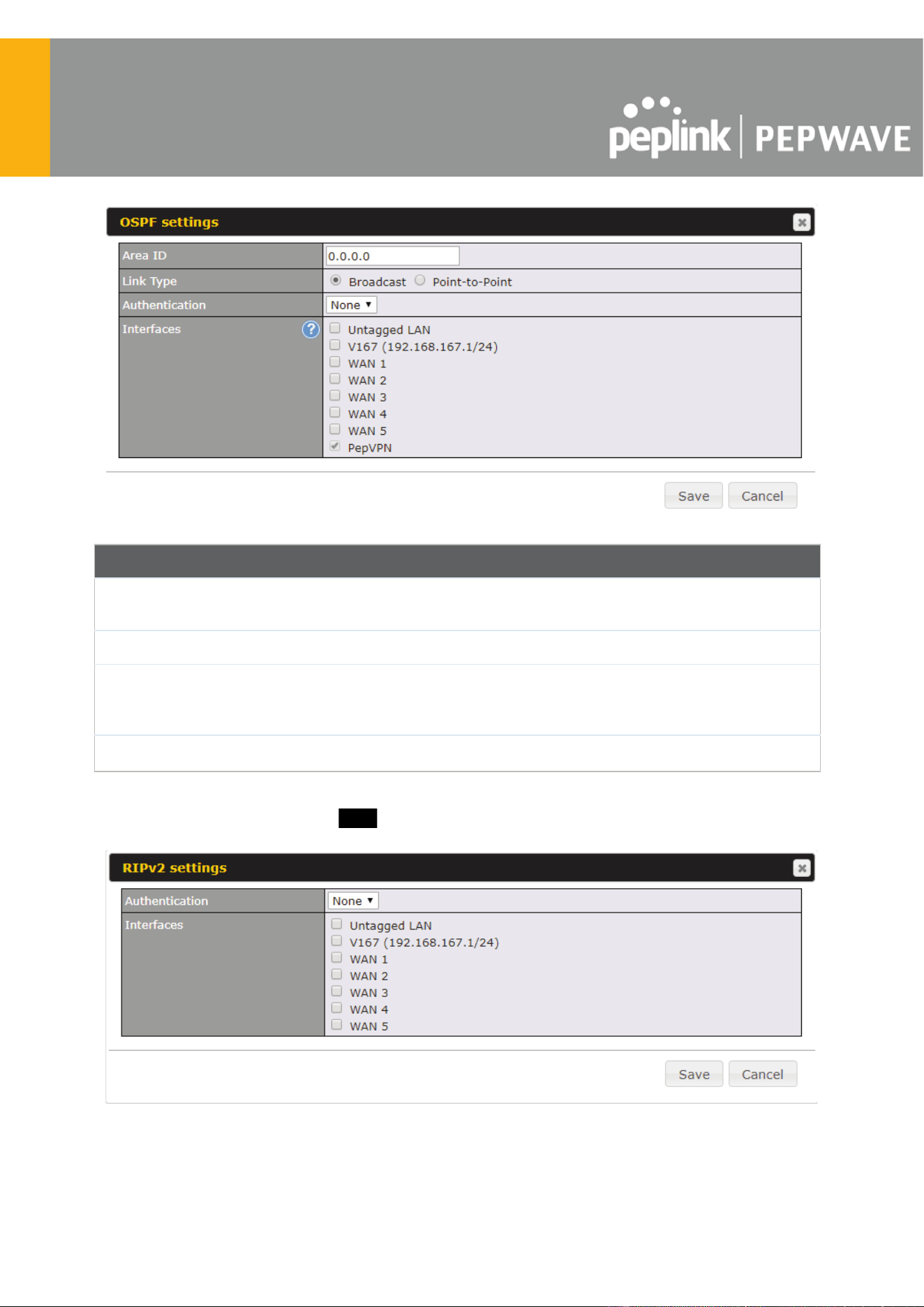
OSPF Settings
Area ID
Assign a name to be applied to this group. Machines linked to this group will send
and receive related OSPF packets, while unlinked machines will ignore them.
Link Type
Choose the type of network that this area will use.
Authentication
If an authentication method is used, select one from this drop-down menu.
Available options are MD5 and Text . Authentication key(s) may be input next to
the drop-down menu after selecting an authentication method.
Interfaces
Select the interface(s) that this area will use to listen to and deliver OSPF packets.
To access RIPv2 settings, click on .
https://www.peplink.com
138
Copyright @ 2025 Peplink
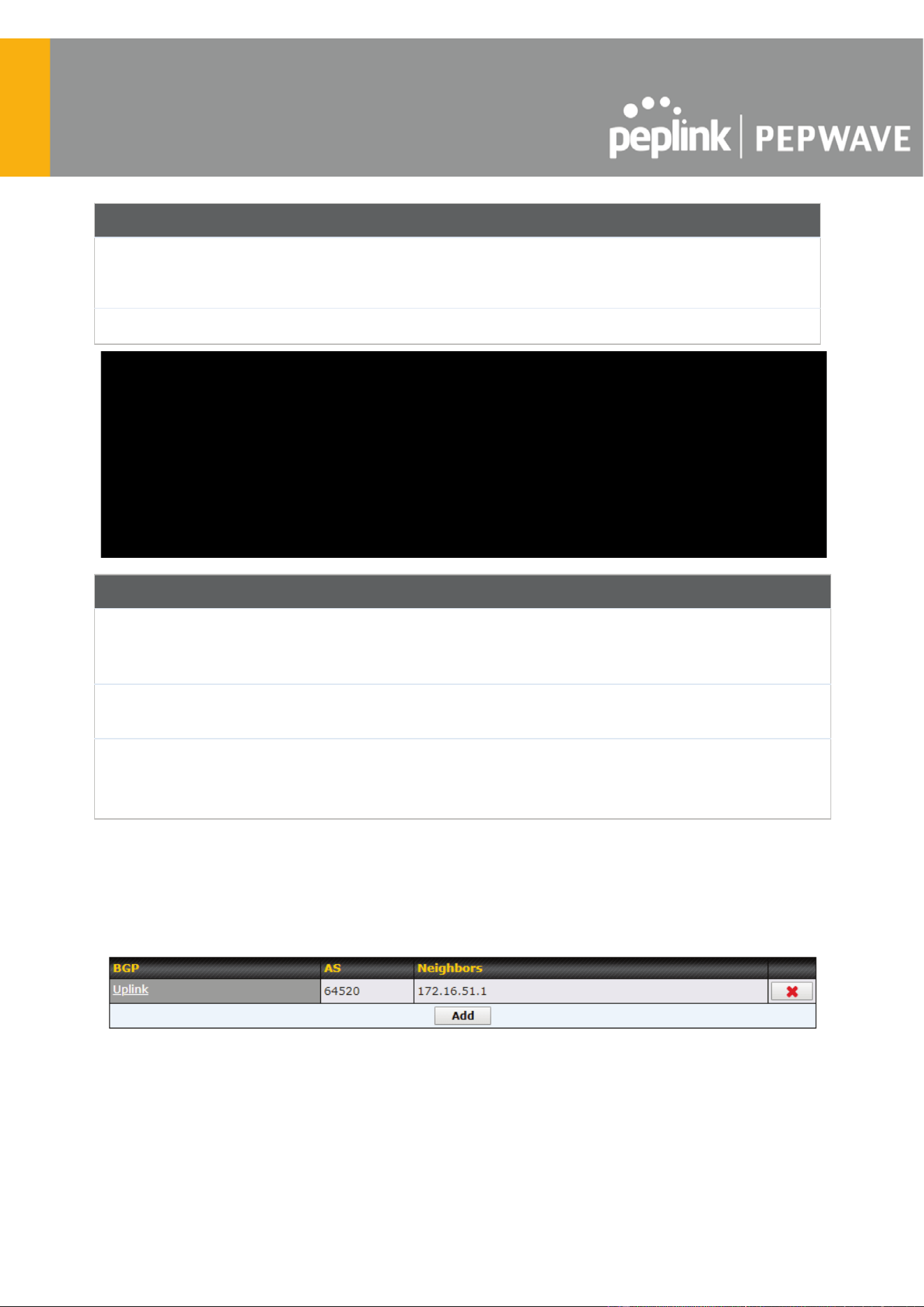
RIPv2 Settings
Authentication
If an authentication method is used, select one from this drop-down menu.
Available options are MD5 and Text . Authentication key(s) may be input next to
the drop-down menu after selecting an authentication method.
Interfaces
Select the interface(s) that this area will use to listen to and deliver RIPv2 packets.
OSPF & RIPv2 Route Advertisement
SpeedFusion
VPN Route
Isolation
Isolate SpeedFusion VPN peers from each other. Received SpeedFusion VPN
routes will not be forwarded to other SpeedFusion VPN peers to reduce bandwidth
consumption. .
Network
Advertising
Networks to be advertised over OSPF & RIPv2. If no network is selected, all LAN /
VLAN networks will be advertised by default.
Static Route
Advertising
Enabling OSPF & RIPv2 Route Advertising allows it to advertise LAN static routes
over OSPF & RIPv2. Static routes on the Excluded Networks table will not be
advertised.
21.2 BGP
Click the Advanced tab along the top bar, and then click the BGP item on the sidebar to
configure BGP.
Click the " x " to delete a BGP profile.
Click " Add " to create a new BGP profile.
https://www.peplink.com
139
Copyright @ 2025 Peplink

BGP Profile
Name
This field specifies the name that represents this profile.
Enable
When this box is checked, this BGP profile will be enabled.
If it is left unchecked, it will be disabled.
Interface
The interface in which the BGP neighbor is located.
Router ID
This field specifies the unique IP as the identifier of the local device running BGP.
Autonomous
System
The Autonomous System Number (ASN) assigned to this profile.
Neighbor
BGP Neighbors and their details.
IP address
The IP address of the Neighbor.
Autonomous
System
The Neighbor's ASN.
Multihop/TTL
This field determines the Time-to-live (TTL) of BGP packets.
Leave this field blank if the BGP neighbor is directly connected, otherwise you must
specify a TTL value. This option should be used if the configured Neighbor’s IP
address does not match the selected Interface’s network subnets. The TTL value
must be between 2 to 255.
Password
(Optional) Assign a password for MD5 authentication of BGP sessions.
AS-Path
Prepending:
AS path to be prepended to the routes received from this Neighbor.
Values must be ASN and separated by commas.
For example: inputting "64530,64531" will prepend "64530, 64531" to received
https://www.peplink.com
140
Copyright @ 2025 Peplink

routes.
Hold Time
Wait time in seconds for a keepalive message from a Neighbor before considering
the BGP connection as stalled.
The value must be either 0 (infinite hold time) or between 3 and 65535 inclusively.
Default: 240
Next Hop Self
Enable this option to advertise your own source address as the next hop when
propagating routes.
iBGP Local
Preference
This is the metric advertised to iBGP Neighbors to indicate the preference for
external routes. The value must be between 0 to 4294967295 inclusively.
Default: 100
BFD
Enable this option to add Bidirectional Forwarding Detection for path failure. All
directly connected Neighbors that use the same physical interface share the same
BFD settings. All mulithop Neighbors share the same multihop BFD settings. You
can configure BFD settings in the BGP profile listing page after this option is
enabled.
Network
Advertising
Select the Networks that will be advertised to the BGP Neighbor.
Static Route
Advertising
Enable this option to advertise static LAN routes. Static routes that match the
Excluded Networks table will not be advertised.
Custom Route
Advertising
Additional routes to be advertised to the BGP Neighbor.
Advertise OSPF
Route
When this box is checked, every learnt OSPF route will be advertised.
Set Community
Assign a prefix to a Community.
https://www.peplink.com
141
Copyright @ 2025 Peplink

Community:
Two numbers in new-format.
e.g. 65000:21344
Well-known communities:
no-export 65535:65281
no-advertise 65535:65282
no-export-subconfed 65535:65283
no-peer 65535:65284
Route Prefix:
Comma separated networks.
e.g. 172.168.1.0/24,192.168.1.0/28
Filter Mode
This field allows for the selection of the filter mode for route import.
None : All BGP routes will be accepted.
Accept : Routes in "Restricted Networks" will be accepted, routes not in the list will
be rejected.
Reject : Routes in "Blocked Networks" will be rejected, routes not in the list will be
accepted.
Restricted
Networks /
Blocked
Networks
This field specifies the network(s) in the “route import” entry.
Exact Match: When this box is checked, only routes with the same Network and
Subnet Mask will be filtered.
Otherwise, routes within the Networks and Subnets will be filtered.
Filter Mode
This field allows for the selection of the filter mode for route export.
https://www.peplink.com
142
Copyright @ 2025 Peplink

None : All BGP routes will be accepted.
Accept : Routes in "Restricted Networks" will be accepted, routes not in the list will
be rejected.
Reject : Routes in "Blocked Networks" will be rejected, routes not in the list will be
accepted.
Restricted
Networks /
Blocked
Networks
This field specifies the network(s) in the “route export” entry.
Exact Match: When this box is checked, only routes with the same Network and
Subnet Mask will be filtered.
Otherwise, routes within the Networks and Subnets will be filtered.
Export to other
BGP Profile
When this box is checked, routes learnt from this BGP profile will be exported to
other BGP profiles.
Export to OSPF
When this box is checked, routes learnt from this BGP profile will be exported to the
OSPF routing protocol.
https://www.peplink.com
143
Copyright @ 2025 Peplink
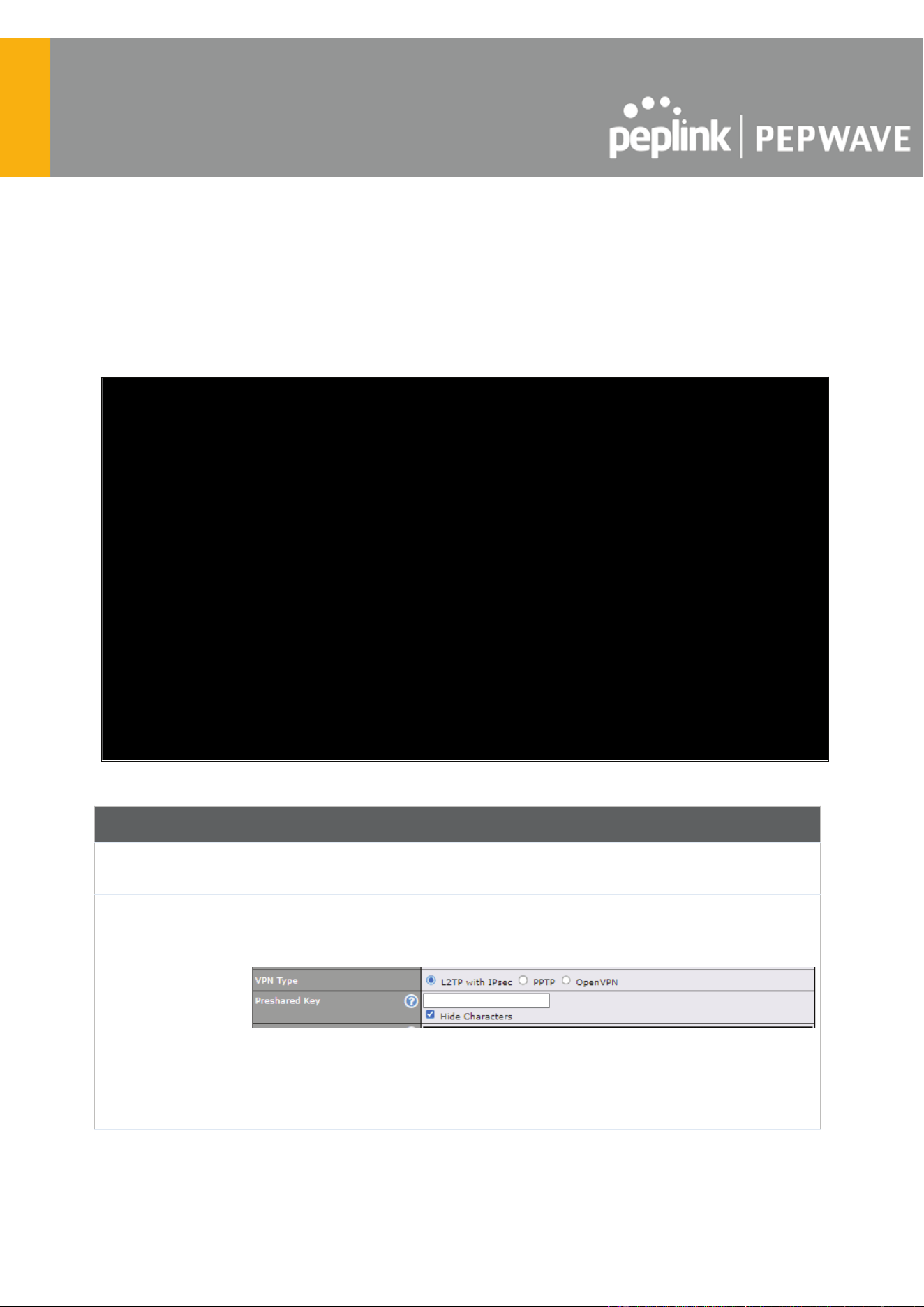
22 Remote User Access
A remote-access VPN connection allows an individual user to connect to a private business
network from a remote location using a laptop or desktop computer connected to the Internet.
Networks routed by a Pepwave router can be remotely accessed via OpenVPN, L2TP with
IPsec or PPTP. To configure this feature, navigate to Advanced > Remote User Access and
choose the required VPN type.
Remote User Access Settings
Enable
When this box is checked, this Remote User Access profile will be enabled.
If it is left unchecked, it will be disabled.
VPN Type
This field allows you to select the VPN type for the remote user access
connection. The available options are:
● L2TP with IPsec
If L2TP with IPsec is selected, it may need to enter the pre-shared key for the
remote user access.
● PPTP
https://www.peplink.com
144
Copyright @ 2025 Peplink
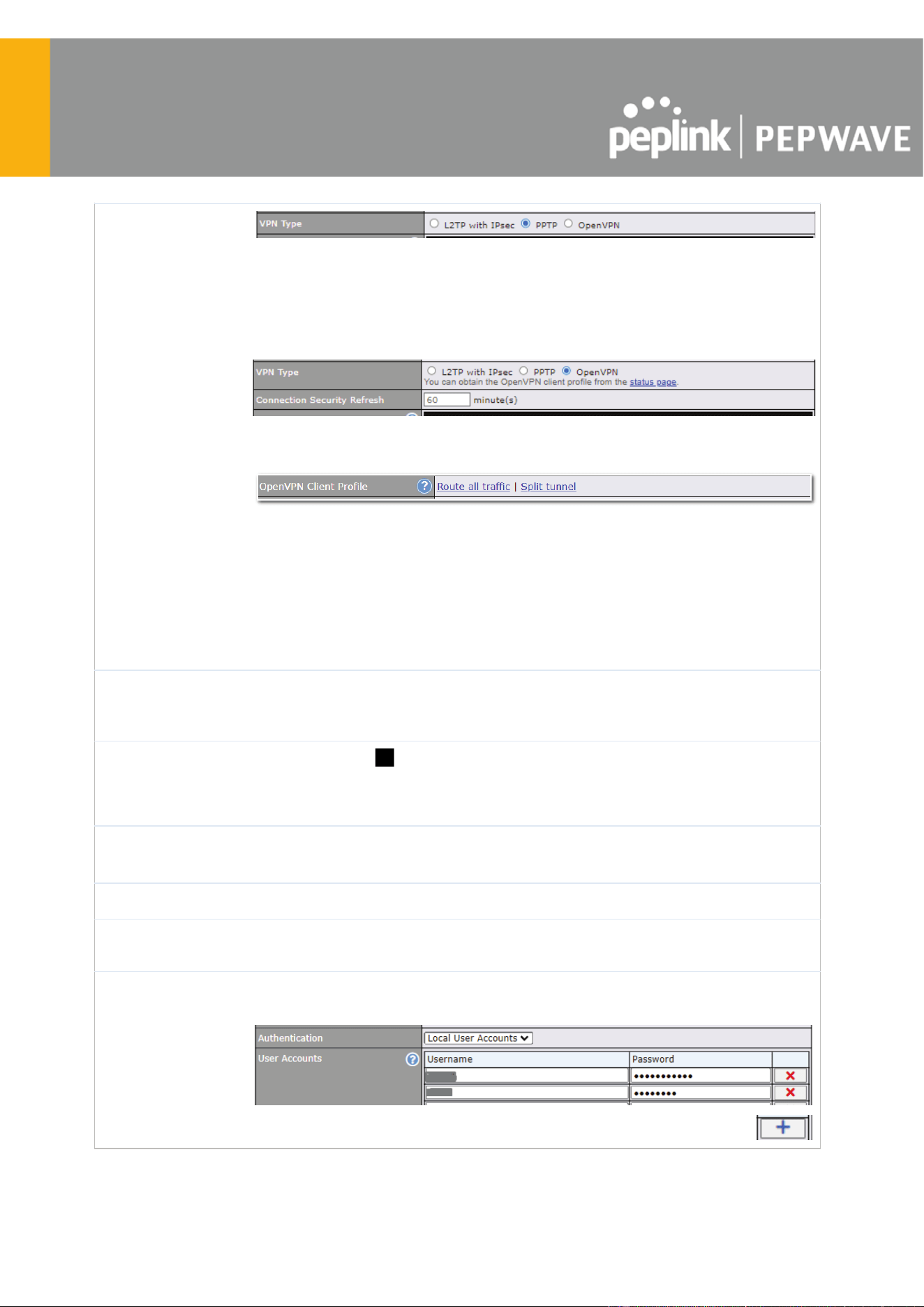
If PPTP selected, there is no additional configuration required. The Point-to-Point
Tunneling Protocol (PPTP) is an obsolete method for implementing virtual private
networks. PPTP has many well known security issues
● OpenVPN
If the OpenVPN is selected, the OpenVPN Client profile can be downloaded from
the Status > Device page after the configuration has been saved.
You have a choice between 2 different OpenVPN Client profiles:
● "Route all traffic" profile
Using this profile, VPN clients will send all the traffic through the
OpenVPN tunnel
● "Split tunnel" profile
Using this profile, VPN clients will ONLY send those traffic designated to
the untagged LAN and VLAN segment through the OpenVPN tunnel.
Pre-shared Key
If L2TP with IPsec is selected in the VPN Type, enter the pre shared key in the
text field. Please note that remote devices will need this preshared key to access
the Balance.
Disabled Weak
Ciphers
You may click the button to show in the Pre-shared key and enable this option.
When checked, weak ciphers such as 3DES will be disabled.
Please note: Legacy and Android devices may not able to connect.
Connection
Security Refresh
If OpenVPN is selected in the VPN Type, this settings is for specifying the interval
for refreshing the connection.
Listen On
This setting is for specifying the WAN IP addresses that allow remote user access.
Port
If OpenVPN is selected in the VPN Type, the Port setting specifies the port(s) that
correspond to the service.
Authentication
Determine the method of authenticating remote users:
● Local User Accounts
This setting allows you to define the Remote User Accounts. Click Add
https://www.peplink.com
145
Copyright @ 2025 Peplink
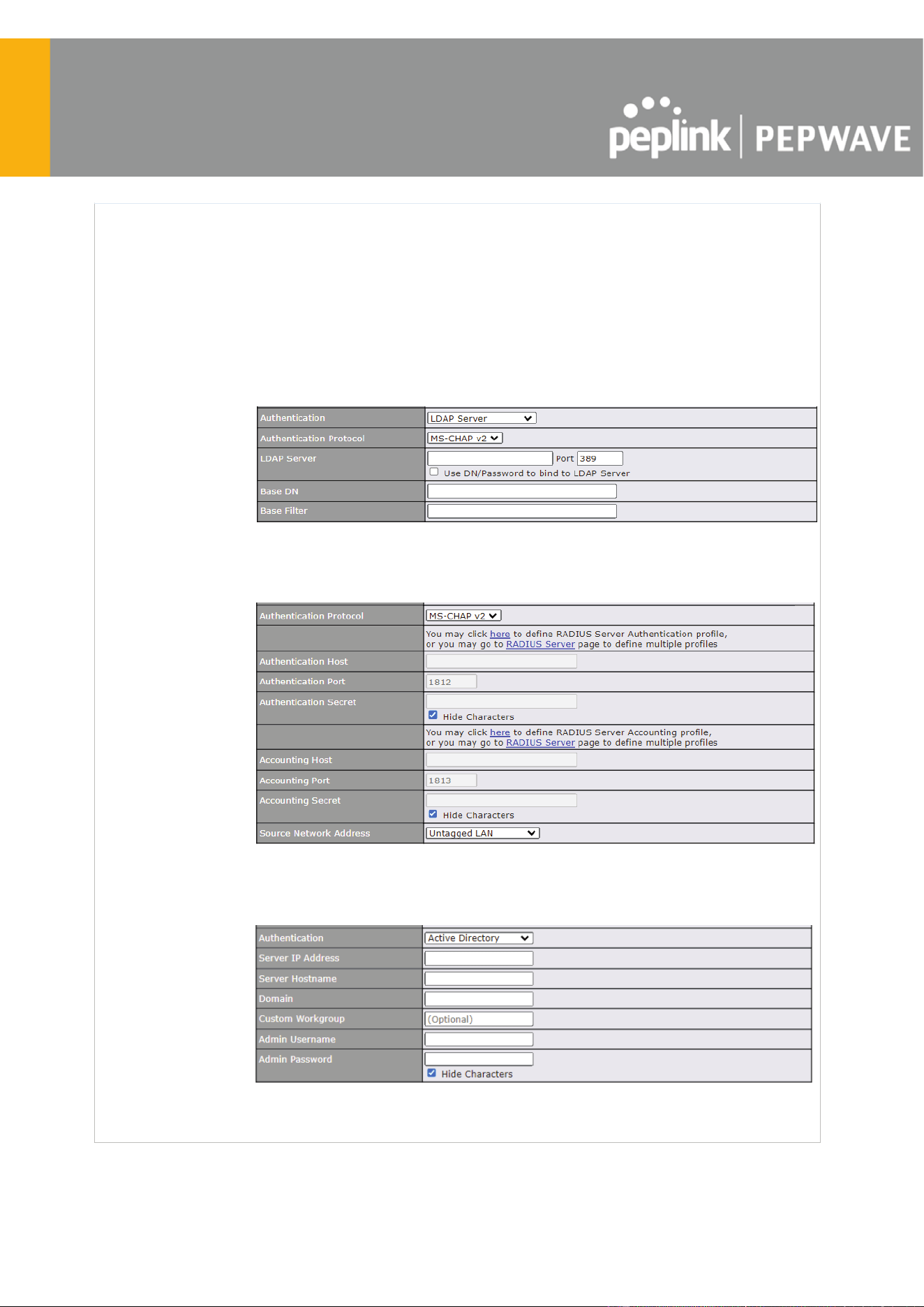
to input username and password to create an account. After adding the user
accounts, you can click on a username to edit the account password.
Note:
The username must contain lowercase letters, numerics, underscore(_), dash(-),
at sign(@), and period(.) only.
The password must be between 8 and 12 characters long
● LDAP Server
Enter the matching LDAP server details to allow for LDAP server authentication.
● Radius Server
Enter the matching Radius server details to allow for Radius server authentication.
● Active Diretory
Enter the matching Active Directory details to allow for Active Directory server
authentication.
https://www.peplink.com
146
Copyright @ 2025 Peplink

23 Miscellaneous Settings
The miscellaneous settings include configuration for High Availability, Certificate Manager,
service forwarding, service passthrough, GPS forwarding, GPIO, Groupe Networks and SIM
Toolkit (depending the feature is supported on the model of Peplin router that is being used).
23.1 High Availability
Many Pepwave routers support high availability (HA) configurations via an open standard virtual
router redundancy protocol (VRRP, RFC 3768). In an HA configuration, two Pepwave routers
provide redundancy and failover in a master-slave arrangement. In the event that the master
unit is down, the slave unit becomes active. High availability will be disabled automatically
where there is a drop-in connection configured on a LAN bypass port.
In the diagram, the WAN ports of each Pepwave router connect to the router and to the modem.
Both Pepwave routers connect to the same LAN switch via a LAN port.
An elaboration on the technical details of the implementation of the virtual router redundancy
protocol (VRRP, RFC 3768) by Pepwave routers follows:
● In an HA configuration, the two Pepwave routers communicate with each other using
VRRP over the LAN.
● The two Pepwave routers broadcast heartbeat signals to the LAN at a frequency of one
heartbeat signal per second.
● In the event that no heartbeat signal from the master Pepwave router is received in 3
seconds (or longer) since the last heartbeat signal, the slave Pepwave router becomes
active.
● The slave Pepwave router initiates the WA
N connections and binds to a previously
https://www.peplink.com
147
Copyright @ 2025 Peplink

configured LAN IP address.
● At a subsequent point when the master Pepwave router recovers, it will once again
become active.
You can configure high availability at Advanced > Misc. Settings > High Availability .
Interface for Master Router
Interface for Slave Router
High Availability
Enable
Checking this box specifies that the Pepwave router is part of a high availability
configuration.
Group Number
This number identifies a pair of Pepwave routers operating in a high availability
configuration. The two Pepwave routers in the pair must have the same Group
Number value.
Preferred Role
This setting specifies whether the Pepwave router operates in master or slave
mode. Click the corresponding radio button to set the role of the unit. One of the
units in the pair must be configured as the master, and the other unit must be
configured as the slave.
Resume Master
Role Upon
Recovery
This option is displayed when Master mode is selected in Preferred Role . If this
option is enabled, once the device has recovered from an outage, it will take over
and resume its Master role from the slave unit.
Configuration
Sync.
This option is displayed when Slave mode is selected in Preferred Role . If this
option is enabled and the Master Serial Number entered matches with the actual
master unit's, the master unit will automatically transfer the configuration to this unit.
Please make sure the LAN IP Address and the Subnet Mask fields are set
correctly in the LAN settings page. You can refer to the Event Log for the
configuration synchronization status.
Master Serial
Number
If Configuration Sync. is checked, the serial number of the master unit is required
here for the feature to work properly.
Virtual IP
The HA pair must share the same Virtual IP . The Virtual IP and the LAN
https://www.peplink.com
148
Copyright @ 2025 Peplink

Administration IP must be under the same network.
LAN
Administration
IP
This setting specifies a LAN IP address to be used for accessing administration
functionality. This address should be unique within the LAN.
Subnet Mask
This setting specifies the subnet mask of the LAN.
Important Note
For Pepwave routers in NAT mode, the virtual IP (VIP) should be set as the default gateway for all
hosts on the LAN segment. For example, a firewall sitting behind the Pepwave router should set its
default gateway as the virtual IP instead of the IP of the master router.
In drop-in mode, no other configuration needs to be set.
https://www.peplink.com
149
Copyright @ 2025 Peplink

Please note that the drop-in WAN cannot be configured as a LAN bypass port while it is configured for
high availability.
https://www.peplink.com
150
Copyright @ 2025 Peplink